
Micro820 Programmable Controllers
|
|
|
- Louisa Cooper
- 10 years ago
- Views:
Transcription
1 User Manual Micro820 Programmable Controllers Catalog Numbers 2080-LC20-20QWB, 2080-LC20-20QBB, 2080-LC20-20AWB, 2080-LC20-20QWBR, LC20-20QBBR, 2080-LC20-20AWBR

2 Important User Information Solid-state equipment has operational characteristics differing from those of electromechanical equipment. Safety Guidelines for the Application, Installation and Maintenance of Solid State Controls (publication SGI-1.1 available from your local Rockwell Automation sales office or online at describes some important differences between solid-state equipment and hard-wired electromechanical devices. Because of this difference, and also because of the wide variety of uses for solid-state equipment, all persons responsible for applying this equipment must satisfy themselves that each intended application of this equipment is acceptable. In no event will Rockwell Automation, Inc. be responsible or liable for indirect or consequential damages resulting from the use or application of this equipment. The examples and diagrams in this manual are included solely for illustrative purposes. Because of the many variables and requirements associated with any particular installation, Rockwell Automation, Inc. cannot assume responsibility or liability for actual use based on the examples and diagrams. No patent liability is assumed by Rockwell Automation, Inc. with respect to use of information, circuits, equipment, or software described in this manual. Reproduction of the contents of this manual, in whole or in part, without written permission of Rockwell Automation, Inc., is prohibited. Throughout this manual, when necessary, we use notes to make you aware of safety considerations. WARNING: Identifies information about practices or circumstances that can cause an explosion in a hazardous environment, which may lead to personal injury or death, property damage, or economic loss. ATTENTION: Identifies information about practices or circumstances that can lead to personal injury or death, property damage, or economic loss. Attentions help you identify a hazard, avoid a hazard, and recognize the consequence SHOCK HAZARD: Labels may be on or inside the equipment, for example, a drive or motor, to alert people that dangerous voltage may be present. BURN HAZARD: Labels may be on or inside the equipment, for example, a drive or motor, to alert people that surfaces may reach dangerous temperatures. IMPORTANT Identifies information that is critical for successful application and understanding of the product. Allen-Bradley, Rockwell Software, Rockwell Automation, Micro800, Micro820, Micro830, Micro850, Connected Components Workbench, and TechConnect are trademarks of Rockwell Automation, Inc. Trademarks not belonging to Rockwell Automation are property of their respective companies.

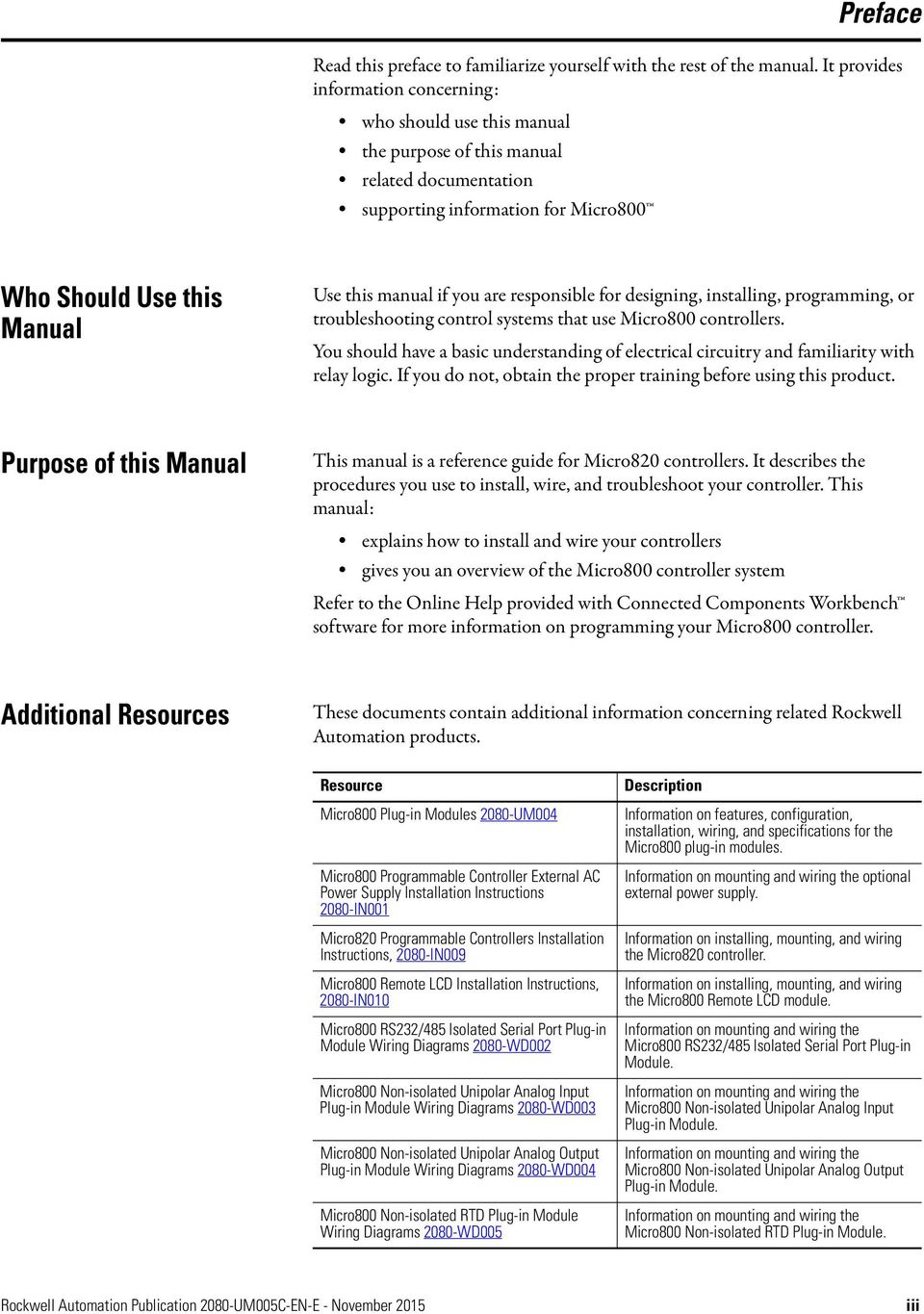
3 Preface Read this preface to familiarize yourself with the rest of the manual. It provides information concerning: who should use this manual the purpose of this manual related documentation supporting information for Micro800 Who Should Use this Manual Use this manual if you are responsible for designing, installing, programming, or troubleshooting control systems that use Micro800 controllers. You should have a basic understanding of electrical circuitry and familiarity with relay logic. If you do not, obtain the proper training before using this product. Purpose of this Manual This manual is a reference guide for Micro820 controllers. It describes the procedures you use to install, wire, and troubleshoot your controller. This manual: explains how to install and wire your controllers gives you an overview of the Micro800 controller system Refer to the Online Help provided with Connected Components Workbench software for more information on programming your Micro800 controller. Additional Resources These documents contain additional information concerning related Rockwell Automation products. Resource Micro800 Plug-in Modules 2080-UM004 Micro800 Programmable Controller External AC Power Supply Installation Instructions 2080-IN001 Micro820 Programmable Controllers Installation Instructions, 2080-IN009 Micro800 Remote LCD Installation Instructions, 2080-IN010 Micro800 RS232/485 Isolated Serial Port Plug-in Module Wiring Diagrams 2080-WD002 Micro800 Non-isolated Unipolar Analog Input Plug-in Module Wiring Diagrams 2080-WD003 Micro800 Non-isolated Unipolar Analog Output Plug-in Module Wiring Diagrams 2080-WD004 Micro800 Non-isolated RTD Plug-in Module Wiring Diagrams 2080-WD005 Description Information on features, configuration, installation, wiring, and specifications for the Micro800 plug-in modules. Information on mounting and wiring the optional external power supply. Information on installing, mounting, and wiring the Micro820 controller. Information on installing, mounting, and wiring the Micro800 Remote LCD module. Information on mounting and wiring the Micro800 RS232/485 Isolated Serial Port Plug-in Module. Information on mounting and wiring the Micro800 Non-isolated Unipolar Analog Input Plug-in Module. Information on mounting and wiring the Micro800 Non-isolated Unipolar Analog Output Plug-in Module. Information on mounting and wiring the Micro800 Non-isolated RTD Plug-in Module. Rockwell Automation Publication 2080-UM005C-EN-E - November 2015 iii
4 Preface Resource Micro800 Non-isolated Thermocouple Plug-in Module Wiring Diagrams 2080-WD006 Micro800 Memory Backup and High Accuracy RTC Plug-In Module Wiring Diagrams 2080-WD007 Micro800 6-Channel Trimpot Analog Input Plug-In Module Wiring Diagrams 2080-WD008 Micro800 Digital Relay Output Plug-in Module Wiring Diagrams 2080-WD010 Micro800 Digital Input, Output, and Combination Plug-in Modules Wiring Diagrams 2080-WD011 Micro800 High Speed Counter Plug-in Module, 2080-WD012 Micro800 DeviceNet Plug-in Module, 2080-WD013 Industrial Automation Wiring and Grounding Guidelines, publication Product Certifications website, certification/ Application Considerations for Solid-State Controls SGI-1.1 National Electrical Code - Published by the National Fire Protection Association of Boston, MA. Allen-Bradley Industrial Automation Glossary AG-7.1 Description Information on mounting and wiring the Micro800 Non-isolated Thermocouple Plug-in Module. Information on mounting and wiring the Micro800 Memory Backup and High Accuracy RTC Plug-In Module. Information on mounting and wiring the Micro800 6-Channel Trimpot Analog Input Plug-In Module. Information on mounting and wiring the Micro800 Digital Relay Output Plug-in Module. Information on mounting and wiring the Micro800 Digital Input, Output, and Combination Plug-in Modules. Information on mounting and wiring the High Speed Counter Plug-in module. Information on mounting and wiring the Micro800 DeviceNet plug-in module. Provides general guidelines for installing a Rockwell Automation industrial system. Provides declarations of conformity, certificates, and other certification details. A description of important differences between solid-state programmable controller products and hard-wired electromechanical devices. An article on wire sizes and types for grounding electrical equipment. A glossary of industrial automation terms and abbreviations. You can view or download publications at literature/. To order paper copies of technical documentation, contact your local Rockwell Automation distributor or sales representative. You can download the latest version of Connected Components Workbench for your Micro800 at the URL below. iv Rockwell Automation Publication 2080-UM005C-EN-E - November 2015

5 Table of Contents Preface Who Should Use this Manual iii Purpose of this Manual iii Additional Resources iii Chapter 1 Hardware Overview Hardware Features Chapter 2 About Your Controller Programming Software for Micro800 Controllers Controller Changes in Run Mode Using Run Mode Change (RMC) Using Run Mode Configuration Change (RMCC) Agency Certifications Compliance to European Union Directives Installation Considerations Safety Considerations Power Considerations Preventing Excessive Heat Master Control Relay Chapter 3 Install Your Controller Controller Mounting Dimensions Connect the Controller to an EtherNet/IP Network Install the microsd Card Install the 2080-REMLCD Module Chapter 4 Wire Your Controller Wiring Requirements and Recommendation Use Surge Suppressors Grounding the Controller Wiring Diagrams Controller I/O Wiring Wiring Analog Channels Chapter 5 Communication Connections Overview Supported Communication Protocols CIP Communications Pass-thru Use Modems with Micro800 Controllers Configure Serial Port Configure Ethernet Settings OPC Support Using RSLinx Enterprise Rockwell Automation Publication 2080-UM005C-EN-E - November 2015 v

6 Table of Contents Chapter 6 Program Execution in Micro800 Overview of Program Execution Controller Load and Performance Considerations Power Up and First Scan Memory Allocation Guidelines and Limitations for Advanced Users Chapter 7 Controller Security Exclusive Access Password Protection Compatibility Work with a Locked Controller Configure Controller Password Recover from a Lost Password Chapter 8 Using the Micro800 Remote LCD Overview USB Mode Text Display Mode Backup and Restore Hardware Features, Installation, and Specifications Chapter 9 Using microsd Cards Overview Project Backup and Restore Datalog Recipe Quickstart Projects for Datalog and Recipe Function Blocks Appendix A Specifications General Specifications Environmental Specifications Certifications Appendix B Troubleshooting Status Indicators on the Controller Error Conditions Error Codes Controller Error Recovery Model Calling Rockwell Automation for Assistance vi Rockwell Automation Publication 2080-UM005C-EN-E - November 2015

7 Table of Contents Appendix C Quickstarts Flash Upgrade Your Micro800 Firmware Establish Communications between RSLinx and a Micro820 Controller through USB Port on 2080-REMLCD Configure Controller Password Forcing I/Os Using Run Mode Change Appendix D IPID Function Block How to Autotune Troubleshooting an Autotune Process PID Application Example Appendix E Modbus Mapping for Micro800 Modbus Mapping Index Rockwell Automation Publication 2080-UM005C-EN-E - November 2015 vii

8 Table of Contents Notes: viii Rockwell Automation Publication 2080-UM005C-EN-E - November 2015

9 Chapter 1 Hardware Overview This chapter provides an overview of the Micro820 hardware features. It has the following topics: Topic Hardware Features 1 Embedded microsd (Micro Secure Digital) Card Slot 3 Embedded RS232/RS485 Serial Port Combo 4 Embedded Ethernet Support 5 Page Hardware Features Micro820 controllers are 20-point economical brick style controllers with embedded inputs and outputs. These controllers can accommodate up to two plug-in modules and can connect to a remote LCD (2080-REMLCD) for configuring. The Micro820 controller also has a microsd card slot for project backup and restore, and datalog and recipe. IMPORTANT The Micro820 controller supports all Micro800 plug-in modules, except for the 2080-MEMBAK-RTC. For more information, see Micro800 Plug-in Modules User, publication 2080-UM004. Rockwell Automation Publication 2080-UM005C-EN-E - November

10 Chapter 1 Hardware Overview For information on the REMLCD module, see Using the Micro800 Remote LCD on page 81. The controller also accommodates any class 2 rated 24V DC output power supply that meets minimum specifications such as the optional Micro800 power supply. Micro820 Controllers Optional power supply slot Plug-in latch Mounting screw hole Removable/fixed terminal blocks RS232/RS485 non-isolated combo serial ports 40-pin high-speed plug-in connector slot Status indicators Power supply RJ-45 Ethernet connector port Mounting feet microsd (Micro Secure Digital) card slot Removable/fixed terminal blocks DIN rail mounting latch ATTENTION: Removable terminal blocks are available on catalog numbers that end in R (for example, 2080-LC20-20QBBR). Fixed terminal blocks are available on catalog numbers that do not end in R (for example, 2080-LC20-20QBB). Status Indicators Input status Run status Force status ENET status Fault status Comm status SD status Output status See Troubleshooting on page 131 for descriptions of status indicator operation. 2 Rockwell Automation Publication 2080-UM005C-EN-E - November 2015

11 Hardware Overview Chapter 1 Inputs and Outputs Number and Types of Inputs/Outputs for Micro820 Controllers Controller Family Catalogs Inputs Outputs Analog Out 120V AC 120 / 24V DC Relay 24V DC 24V DC 0 10V DC 240V AC Source Sink Analog In 0 10V (shared with DC In) Micro LC20-20QBB LC20-20QWB LC20-20AWB LC20-20QBBR LC20-20QWBR LC20-20AWBR PWM Support Embedded microsd (Micro Secure Digital) Card Slot Micro820 controllers support microsd cards through an embedded microsd card slot. The design supports Class 6 and 10 SDSC and SDHC microsd cards, with FAT32/16 formats. The microsd file system supports only one file partition. Class 4 cards are not supported. The microsd card is primarily used for project backup and restore, as well as datalog and recipe functions. It can also be used to configure powerup settings (such as controller mode, IP address, and so on) through an optional ConfigMeFirst.txt file. For more information, see Using microsd Cards on page 91. To help you troubleshoot microsd card-related errors, see Troubleshooting on page 131. For a list of microsd cards that have been tested for industrial use, go to the Rockwell Automation Support Center at and search the Knowledgebase with Answer ID IMPORTANT You must sign in to the Rockwell Automation website before searching the Knowledgebase. Rockwell Automation Publication 2080-UM005C-EN-E - November

12 Chapter 1 Hardware Overview Embedded RS232/RS485 Serial Port Combo The Micro820 controller supports an embedded non-isolated RS232/RS485 combo communications port. Only one port (RS232 or RS485) can work at any given time. The baud rate of this port supports up to 38.4 K. The communication port uses a 6-pin 3.5 mm terminal block with pin definition shown in the following table. IMPORTANT Serial port cables should not exceed 3 m length. RS232/RS485 Serial Port Pin Definition D+ G Tx D- Rx G Pin Definition RS485 Example RS232 Example 1 RS485+ RS485+ (not used) 2 RS485- RS485- (not used) 3 GND GND GND 4 RS232 input (receiver) (not used) RxD 5 RS232 output (driver) (not used) TxD 6 GND GND GND The communication port (both RS232 and RS485) are non-isolated. The signal ground of the port is not isolated to the logic ground of the controller. The RS232 port supports connection to the Micro800 Remote LCD module (2080-REMLCD). REMLCD to Micro820 Serial Port Terminal Block Wiring REMLCD Serial Port Terminal Block Signal Pin number Micro820 Serial Port Terminal Block Pin number Signal RS232 TX 1 < > 4 RX RS232 RS232 RX 2 < > 5 TX RS232 RS232 G 3 < > 6 G RS232 4 Rockwell Automation Publication 2080-UM005C-EN-E - November 2015

13 Hardware Overview Chapter 1 Embedded Ethernet Support A 10/100 Base-T Port is available for connection to an Ethernet network through any standard RJ-45 Ethernet cable. RJ-45 Ethernet Port Pin Mapping Contact Number Signal Direction Primary Function 1 TX+ OUT Transmit data + 2 TX- OUT Transmit data - 3 RX+ IN Receive data RX- IN Receive data RJ-45 connector Ethernet port pin-to-pin connection white-orange orange white-green blue white-blue green white-brown brown white-orange orange white-green blue white-blue green white-brown brown See Troubleshooting on page 131 for descriptions of ENET status indicator. Rockwell Automation Publication 2080-UM005C-EN-E - November

14 Chapter 1 Hardware Overview Notes: 6 Rockwell Automation Publication 2080-UM005C-EN-E - November 2015

15 Chapter 2 About Your Controller Programming Software for Micro800 Controllers Connected Components Workbench is a set of collaborative tools supporting Micro800 controllers. It is based on Rockwell Automation and Microsoft Visual Studio technology and offers controller programming, device configuration and integration with HMI editor. Use this software to program your controllers, configure your devices and design your operator interface applications. Connected Components Workbench provides a choice of IEC programming languages (ladder diagram, function block diagram, structured text) with user defined function block support that optimizes machine control. Obtain Connected Components Workbench A free download is available at: Use Connected Components Workbench To help you program your controller through the Connected Components Workbench software, you can refer to the Connected Components Workbench Online Help (it comes with the software). Controller Changes in Run Mode Micro820/Micro830/Micro850 controllers allow you to make certain changes while in run mode by using the following features: Run Mode Change (RMC) This feature allows logic modifications to a running project without going to remote program mode. For more information, see Using Run Mode Change (RMC) on page 8. Run Mode Configuration Change (RMCC) This feature allows changing the address configuration of the controller to be made within a program during run mode. For more information, see Using Run Mode Configuration Change (RMCC) on page 13. Rockwell Automation Publication 2080-UM005C-EN-E - November

16 Chapter 2 About Your Controller Using Run Mode Change (RMC) Run Mode Change (RMC) is a productivity enhancement feature introduced in Release 8 for Micro820/Mico830/Micro850 controllers. It saves the user time by allowing logic modifications to a running project without going to remote program mode and without disconnecting from the controller. It requires the Connected Components Workbench Developer Edition release 8 software to use this feature. IMPORTANT Micro820/Micro830/Micro850 controller firmware revision 8.xxx or higher is also required to use Run Mode Change. RMC is useful when the user is developing a project by incrementally adding small changes to the logic and immediately wants to see the effects of the changes on the machine. With RMC, since the controller stays in remote run mode, the controller logic and machine actuators will not have to constantly reinitialize, which can occur if the controller is switched to remote program mode (for example, first scan bit is checked in program logic to clear outputs). When user is editing, building, and downloading a project without using RMC, a full build of the entire controller project is performed and also a full download of the project is performed. During RMC an incremental build is performed and only incremental changes are downloaded to the controller. IMPORTANT Do not disconnect from the controller after performing Run Mode Change, do a full build, and try to reconnect. Connected Components Workbench will treat the project in the controller as different from the project in Connected Components Workbench, and ask to either upload or download even though the logic is identical. RMC is performed incrementally at the end of every program scan in order to prevent a large delay in the program scan. This adds up to an additional 12 ms to the scan time. For example, if the program scan is normally 10 ms, it may increase to 22 ms during RMC until the update is finished. Similarly user interrupts may be delayed. Example of the Benefits of Using RMC 20% Reduction in Download Time Number of Changes Time to Perform Conventional Download (seconds) Memory size of project used for comparison: Data = bytes; Program = 2052 bytes Time to Test Logic and Accept Changes (seconds) ATTENTION: Use extreme caution when you use Run Mode Change. Mistakes can injure personnel and damage equipment. Before using Run Mode Change: assess how machinery will respond to the changes. notify all personnel about the changes. 8 Rockwell Automation Publication 2080-UM005C-EN-E - November 2015

17 About Your Controller Chapter 2 A new global variable SYSVA_PROJ_INCOMPLETE has been added to indicate when Run Mode Changes are being made. This can be used to notify personnel on the HMI that there are uncommitted changes in the controller. Bit Definitions of Global Variable SYSVA_PROJ_INCOMPLETE Bit Definition 0 Set when the Run Mode Change process starts. Cleared once the Run Mode Change is written permanently to the controller (completion of Accept or Undo). This bit can be used to warn operators that a run mode change is in progress and that there are uncommitted changes in the controller. 1 Set if an error occurred while saving the changes to flash or an integrity check failed during Run Mode Change. Cleared on the next successful Run Mode change. When you perform a Test Logic Change, the value of the variable is changed from zero to one. After you choose to accept or undo the changes, the value of the variable is reset to zero. IMPORTANT When a Test Logic is performed, or undoing changes after the Test Logic is completed, any active communication instructions will be aborted while the changes are downloaded to the controller. Uncommitted Changes Uncommitted changes are changes made in RMC that have not been accepted or undone after a Test Logic Change has been performed. If the controller power loses power while there are uncommitted changes, you will not be able to re-enter RMC upon reconnection. You can choose to redownload the project to keep the changes, or upload if the uncommitted changes are not wanted. If you choose to upload a project with uncommitted changes from the controller, you cannot enter RMC until you have done a full download. Rockwell Automation Publication 2080-UM005C-EN-E - November

18 Chapter 2 About Your Controller RMC Memory Run Mode Change (RMC) memory is used to store both the logic and user variable changes made during RMC. The default amount of memory allocated is 2KB and can be increased up to 8KB. However there is still a limit of 2KB for logic and user variables changes per Test Logic. To adjust the amount of RMC memory, the controller must be offline. After you have adjusted the amount, you must build the project and download it to the controller. IMPORTANT In a Connected Components Workbench Release 8 project, the available user data space was reduced by 6 KB to support optimal project settings for the new RMC feature. If you have a project that was developed before Release 8, you may need to reduce the default Allocated 8 KB Temporary Variables section from the Memory page in order to compile the project successfully. Controller Memory Diagnostics Page in Connected Components Workbench During RMC an incremental build is performed and only incremental changes are downloaded to the controller until the RMC memory has been filled. RMC Memory Usage Example Controller Memory (for User Program + Data) RMC Memory (Default size = 2KB) 1st change and Test Logic (Add logic) 2nd change and Test Logic (Remove logic) 3rd change and Test Logic (Add logic) Free memory Free RMC memory Used RMC memory Used memory 10 Rockwell Automation Publication 2080-UM005C-EN-E - November 2015

19 About Your Controller Chapter 2 If not enough RMC memory is available to make more changes (for example, a not enough memory error message appears during RMC build or Test Logic), then a full download must be performed to transfer the incremental changes from the RMC memory to standard user program and data memory. Transferring Contents in RMC Memory to Controller Memory The changes that you have made during RMC are stored in RMC memory and will remain there until you perform a full build and download (while the controller is disconnected). RMC Memory Usage When Performing Full Build and Download Example Controller Memory (for User Program + Data) RMC Memory (Default size = 2KB) Free memory Free RMC memory New used memory Used RMC memory is copied to controller memory However if the controller memory does not have enough space remaining to copy the contents of the RMC memory as shown below, the operation will fail and a not enough memory error message will appear. Do not use RMC if you are near the limits of your controller memory. Insufficient Controller Memory Example Controller Memory (for User Program + Data) RMC Memory (Default size = 2KB) Free RMC memory Used memory Error will occur due to insufficient controller memory remaining Rockwell Automation Publication 2080-UM005C-EN-E - November

20 Chapter 2 About Your Controller Limitations of RMC Take note of the following limitations when using the Run Mode Change (RMC) feature: Configuration changes cannot be made (for example, change filter times). Up to 2KB of logic (approximately 150 boolean instructions) and user variables and can be added for each Test Logic. Total memory allocated for RMC (cumulative of all Test Logic Changes) can be increased from 2KB to 8KB, but the 2KB limit for logic and user variables per Test Logic remains. A total of 20 POU (Program Organizational Units) can be added for each RMC (for example, if you currently have 5 POU, you can add 20 more for a total of 25 POU). If a User Defined Function Block is modified that changes the local variables, the local variables will be reinitialized or reset to zero and a warning message will be shown during the build. If you want to reapply the initial value, right-click on the UDFB and select Refactor -> Reset Initial Values of Instances. RMC is not possible after doing a Discover Project operation if a new module is detected because the configuration has changed. Exchange files cannot be imported when in RMC because it is considered a configuration change. Making changes to the display configuration (for example, hiding comments) are treated as logic changes and require you to build the project. Global variables cannot be deleted or modified in RMC, but can be added. To delete or modify a global variable, the workbench must be disconnected from the controller. When disconnected from the controller, you can modify logic and enter RMC directly, but you cannot add a global variable to the project and enter RMC directly. To add a global variable, you must build the project and download before entering RMC. If you create a global variable in RMC, it will not be shown in the LCD display. WARNING: If you delete the output rung when in Run Mode Change and accept the changes, the output on the controller will remain ON. See Using Run Mode Change on page 158 for an example on how to use this feature. 12 Rockwell Automation Publication 2080-UM005C-EN-E - November 2015

21 About Your Controller Chapter 2 Using Run Mode Configuration Change (RMCC) Run Mode Configuration Change (RMCC) is a productivity enhancement feature introduced in Release 9 for Micro820/Micro830/Micro850 controllers. It allows users to reuse an identical program with multiple controllers simply by changing the address configuration of a controller within the program during run mode. Micro820/Micro830/Micro850 controller firmware revision 9.xxx or higher is required to use this feature. RMCC can be used to change the address configuration of the controller during run mode when the communication protocol is set to Modbus RTU for serial ports or EtherNet/IP for the Ethernet port. RMCC uses a CIP Generic message which can only be sent from within a controller program and not from an external device to the controller. CIP Generic Message Instruction for Run Mode Configuration Change Run Mode Configuration Change (RMCC) can only be performed by the controller that is sending the message. To do that, you need to configure the CIP Generic message as a loop-back message by setting the path to 0,0. Configure CIP Generic Message as a Loop-back Message For Micro820 controllers, the address configuration change is not permanent and will be lost when the controller is power cycled. If you want the address to be changed immediately after a power cycle, you must execute this CIP Generic message after every power up. This can be done by doing the following: Use the system variable SYSVA_POWER_UP_BIT. Set the Retained flag for the variable containing the new address. Rockwell Automation Publication 2080-UM005C-EN-E - November
22 Chapter 2 About Your Controller Set Retained Flag Modbus Address Set Retained Flag EtherNet/IP Address 14 Rockwell Automation Publication 2080-UM005C-EN-E - November 2015
23 About Your Controller Chapter 2 Using Modbus RTU Communication To use RMCC with the Modbus RTU communication protocol, the serial port must be set to the Modbus slave role. A CIP Generic message is sent from within a program with the following parameters. CIP Generic Message Parameters for RMCC using Modbus RTU Parameter Service 16 Class 70 Instance Value Attribute Embedded serial port 5, 6, 7, 8, or 9 Plug-in modules ReqData New node address, 1 ReqLen 2 RMCC Modbus Example Set the Parameters RMCC Modbus Example Set the New Node Address The first byte indicates the new node address for the controller. For this example, the new node address is 3. The second byte must always be 1, this indicates that the Modbus role is configured as Slave. RMCC Modbus Example Set the Message Length Rockwell Automation Publication 2080-UM005C-EN-E - November
24 Chapter 2 About Your Controller When the new node address is configured and applied, the port is not restarted. IMPORTANT You must ensure that the new node address being configured is unique as it will not be checked against existing node addresses of other devices. You can verify that the node address has changed after performing RMCC by looking at the Communication Diagnostics tab for the controller. RMCC Modbus Example Verify Address Change 16 Rockwell Automation Publication 2080-UM005C-EN-E - November 2015
25 About Your Controller Chapter 2 Using EtherNet/IP Communication To use RMCC with the EtherNet/IP communication protocol, the controller must be configured to use a static IP address. If the controller is configured to use BOOTP or DHCP, the change will be rejected. A CIP Generic message is sent from within a program with the following parameters. CIP Generic Message Parameters for RMCC using EtherNet/IP Parameter Service 16 Value Class 245 Instance 1 Attribute 5 ReqData ReqLen IP address, Subnet mask, Gateway address 22 bytes RMCC EtherNet/IP Example Set the Parameters RMCC EtherNet/IP Example Set the New IP Address Rockwell Automation Publication 2080-UM005C-EN-E - November
26 Chapter 2 About Your Controller For this example, the new IP Address is set to the following: IP address = Subnet mask = Gateway address = RMCC EtherNet/IP Example Set the Message Length After the new IP address is configured and applied, the controller will disconnect from Connected Components Workbench if communication is through Ethernet. IMPORTANT You should not perform IP address changes continuously. Allow an interval of at least six seconds before performing the next IP address change in order for duplicate address detection to work properly. You can verify that the IP address has changed after performing RMCC by looking at the Ethernet settings for the controller. RMCC EtherNet/IP Example Verify Address Change Agency Certifications UL Listed Industrial Control Equipment, certified for US and Canada. UL Listed for Class I, Division 2 Group A,B,C,D Hazardous Locations, certified for U.S. and Canada. CE marked for all applicable directives C-Tick marked for all applicable acts KC - Korean Registration of Broadcasting and Communications Equipment, compliant with: Article 58-2 of Radio Waves Act, Clause Rockwell Automation Publication 2080-UM005C-EN-E - November 2015
27 About Your Controller Chapter 2 Compliance to European Union Directives This product has the CE mark and is approved for installation within the European Union and EEA regions. It has been designed and tested to meet the following directives. EMC Directive This product is tested to meet Council Directive 2004/108/EC Electromagnetic Compatibility (EMC) and the following standards, in whole or in part, documented in a technical construction file: EN ; Programmable Controllers (Clause 8, Zone A & B) EN ; Programmable Controllers (Clause 11) EN EMC - Part 6-4: Generic Standards - Emission Standard for Industrial Environments EN EMC - Part 6-2: Generic Standards - Immunity for Industrial Environments This product is intended for use in an industrial environment. Low Voltage Directive This product is tested to meet Council Directive 2006/95/ECLow Voltage, by applying the safety requirements of EN Programmable Controllers, Part 2 - Equipment Requirements and Tests. For specific information required by EN , see the appropriate sections in this publication, as well as the following Allen-Bradley publications: Industrial Automation Wiring and Grounding Guidelines for Noise Immunity, publication Guidelines for Handling Lithium Batteries, publication AG-5.4 Automation Systems Catalog, publication B115 Rockwell Automation Publication 2080-UM005C-EN-E - November
28 Chapter 2 About Your Controller Installation Considerations Most applications require installation in an industrial enclosure (Pollution Degree 2 (1) ) to reduce the effects of electrical interference (Over Voltage Category II (2) ) and environmental exposure. Locate your controller as far as possible from power lines, load lines, and other sources of electrical noise such as hard-contact switches, relays, and AC motor drives. For more information on proper grounding guidelines, see the Industrial Automation Wiring and Grounding Guidelines publication WARNING: When used in a Class I, Division 2, hazardous location, this equipment must be mounted in a suitable enclosure with proper wiring method that complies with the governing electrical codes. WARNING: If you connect or disconnect the serial cable with power applied to this module or the serial device on the other end of the cable, an electrical arc can occur. This could cause an explosion in hazardous location installations. Be sure that power is removed or the area is nonhazardous before proceeding. WARNING: The local programming terminal port is intended for temporary use only and must not be connected or disconnected unless the area is assured to be nonhazardous. WARNING: Exposure to some chemicals may degrade the sealing properties of materials used in the Relays. It is recommended that the User periodically inspect these devices for any degradation of properties and replace the module if degradation is found. WARNING: If you insert or remove the plug-in module while backplane power is on, an electrical arc can occur. This could cause an explosion in hazardous location installations. Be sure that power is removed or the area is nonhazardous before proceeding. WARNING: When you connect or disconnect the Removable Terminal Block (RTB) with field side power applied, an electrical arc can occur. This could cause an explosion in hazardous location installations. WARNING: Be sure that power is removed or the area is nonhazardous before proceeding. ATTENTION: To comply with the CE Low Voltage Directive (LVD), this equipment must be powered from a source compliant with the following: Safety Extra Low Voltage (SELV) or Protected Extra Low Voltage (PELV). ATTENTION: To comply with UL restrictions, this equipment must be powered from a Class 2 source. ATTENTION: Be careful when stripping wires. Wire fragments that fall into the controller could cause damage. Once wiring is complete, make sure the controller is free of all metal fragments. ATTENTION: Electrostatic discharge can damage semiconductor devices inside the module. Do not touch the connector pins or other sensitive areas. ATTENTION: The serial cables are not to exceed 3.0 m (9.84 ft). ATTENTION: Do not wire more than 2 conductors on any single terminal. ATTENTION: Do not remove the Removable Terminal Block (RTB) until power is removed. (1) Pollution Degree 2 is an environment where normally only non-conductive pollution occurs except that occassionally temporary conductivity caused by condensation shall be expected. (2) Overvoltage Category II is the load level section of the electrical distribution system. At this level, transient voltages are controlled and do not exceed the impulse voltage capability of the products insulation. 20 Rockwell Automation Publication 2080-UM005C-EN-E - November 2015
29 About Your Controller Chapter 2 Environment and Enclosure This equipment is intended for use in a Pollution Degree 2 industrial environment, in overvoltage Category II applications (as defined in IEC ), at altitudes up to 2000 m (6562 ft) without derating. This equipment is considered Group 1, Class A industrial equipment according to IEC/CISPR 11. Without appropriate precautions, there may be difficulties with electromagnetic compatibility in residential and other environments due to conducted and radiated disturbances. This equipment is supplied as open-type equipment. It must be mounted within an enclosure that is suitably designed for those specific environmental conditions that will be present and appropriately designed to prevent personal injury resulting from accessibility to live parts. The enclosure must have suitable flame-retardant properties to prevent or minimize the spread of flame, complying with a flame spread rating of 5VA, V2, V1, V0 (or equivalent) if non-metallic. The interior of the enclosure must be accessible only by the use of a tool. Subsequent sections of this publication may contain additional information regarding specific enclosure type ratings that are required to comply with certain product safety certifications. In addition to this publication, see: Industrial Automation Wiring and Grounding Guidelines, Rockwell Automation publication , for additional installation requirements. NEMA Standard 250 and IEC 60529, as applicable, for explanations of the degrees of protection provided by different types of enclosure. Preventing Electrostatic Discharge This equipment is sensitive to electrostatic discharge, which can cause internal damage and affect normal operation. Follow these guidelines when you handle this equipment: Touch a grounded object to discharge potential static. Wear an approved grounding wriststrap. Do not touch connectors or pins on component boards. Do not touch circuit components inside the equipment. Use a static-safe workstation, if available. Store the equipment in appropriate static-safe packaging when not in use. Rockwell Automation Publication 2080-UM005C-EN-E - November
30 Chapter 2 About Your Controller Safety Considerations Safety considerations are an important element of proper system installation. Actively thinking about the safety of yourself and others, as well as the condition of your equipment, is of primary importance. We recommend reviewing the following safety considerations. North American Hazardous Location Approval The following information applies when operating this equipment in hazardous locations: Products marked "CL I, DIV 2, GP A, B, C, D" are suitable for use in Class I Division 2 Groups A, B, C, D, Hazardous Locations and nonhazardous locations only. Each product is supplied with markings on the rating nameplate indicating the hazardous location temperature code. When combining products within a system, the most adverse temperature code (lowest "T" number) may be used to help determine the overall temperature code of the system. Combinations of equipment in your system are subject to investigation by the local Authority Having Jurisdiction at the time of installation. EXPLOSION HAZARD Do not disconnect equipment unless power has been removed or the area is known to be nonhazardous. Do not disconnect connections to this equipment unless power has been removed or the area is known to be nonhazardous. Secure any external connections that mate to this equipment by using screws, sliding latches, threaded connectors, or other means provided with this product. Substitution of any component may impair suitability for Class I, Division 2. If this product contains batteries, they must only be changed in an area known to be nonhazardous. Informations sur l utilisation de cet équipement en environnements dangereux: Les produits marqués "CL I, DIV 2, GP A, B, C, D" ne conviennent qu'à une utilisation en environnements de Classe I Division 2 Groupes A, B, C, D dangereux et non dangereux. Chaque produit est livré avec des marquages sur sa plaque d'identification qui indiquent le code de température pour les environnements dangereux. Lorsque plusieurs produits sont combinés dans un système, le code de température le plus défavorable (code de température le plus faible) peut être utilisé pour déterminer le code de température global du système. Les combinaisons d'équipements dans le système sont sujettes à inspection par les autorités locales qualifiées au moment de l'installation. RISQUE D EXPLOSION Couper le courant ou s'assurer que l'environnement est classé non dangereux avant de débrancher l'équipement. Couper le courant ou s'assurer que l'environnement est classé non dangereux avant de débrancher les connecteurs. Fixer tous les connecteurs externes reliés à cet équipement à l'aide de vis, loquets coulissants, connecteurs filetés ou autres moyens fournis avec ce produit. La substitution de tout composant peut rendre cet équipement inadapté à une utilisation en environnement de Classe I, Division 2. S'assurer que l'environnement est classé non dangereux avant de changer les piles. Disconnecting Main Power WARNING: Explosion Hazard Do not replace components, connect equipment, or disconnect equipment unless power has been switched off. The main power disconnect switch should be located where operators and maintenance personnel have quick and easy access to it. In addition to disconnecting electrical power, all other sources of power (pneumatic and hydraulic) should be de-energized before working on a machine or process controlled by a controller. 22 Rockwell Automation Publication 2080-UM005C-EN-E - November 2015
31 About Your Controller Chapter 2 Safety Circuits WARNING: Explosion Hazard Do not connect or disconnect connectors while circuit is live. Circuits installed on the machine for safety reasons, like overtravel limit switches, stop push buttons, and interlocks, should always be hard-wired directly to the master control relay. These devices must be wired in series so that when any one device opens, the master control relay is de-energized, thereby removing power to the machine. Never alter these circuits to defeat their function. Serious injury or machine damage could result. Power Distribution There are some points about power distribution that you should know: The master control relay must be able to inhibit all machine motion by removing power to the machine I/O devices when the relay is deenergized. It is recommended that the controller remain powered even when the master control relay is de-energized. If you are using a DC power supply, interrupt the load side rather than the AC line power. This avoids the additional delay of power supply turn-off. The DC power supply should be powered directly from the fused secondary of the transformer. Power to the DC input and output circuits should be connected through a set of master control relay contacts. Periodic Tests of Master Control Relay Circuit Any part can fail, including the switches in a master control relay circuit. The failure of one of these switches would most likely cause an open circuit, which would be a safe power-off failure. However, if one of these switches shorts out, it no longer provides any safety protection. These switches should be tested periodically to assure they will stop machine motion when needed. Rockwell Automation Publication 2080-UM005C-EN-E - November
32 Chapter 2 About Your Controller Power Considerations The following explains power considerations for the micro controllers. Isolation Transformers You may want to use an isolation transformer in the AC line to the controller. This type of transformer provides isolation from your power distribution system to reduce the electrical noise that enters the controller and is often used as a stepdown transformer to reduce line voltage. Any transformer used with the controller must have a sufficient power rating for its load. The power rating is expressed in volt-amperes (VA). Power Supply Inrush During power-up, the Micro800 power supply allows a brief inrush current to charge internal capacitors. Many power lines and control transformers can supply inrush current for a brief time. If the power source cannot supply this inrush current, the source voltage may sag momentarily. The only effect of limited inrush current and voltage sag on the Micro800 is that the power supply capacitors charge more slowly. However, the effect of a voltage sag on other equipment should be considered. For example, a deep voltage sag may reset a computer connected to the same power source. The following considerations determine whether the power source must be required to supply high inrush current: The power-up sequence of devices in a system. The amount of the power source voltage sag if the inrush current cannot be supplied. The effect of voltage sag on other equipment in the system. If the entire system is powered-up at the same time, a brief sag in the power source voltage typically will not affect any equipment. Loss of Power Source The optional Micro800 AC power supply is designed to withstand brief power losses without affecting the operation of the system. The time the system is operational during power loss is called program scan hold-up time after loss of power. The duration of the power supply hold-up time depends on power consumption of controller system, but is typically between 10 milliseconds and 3 seconds. 24 Rockwell Automation Publication 2080-UM005C-EN-E - November 2015
33 About Your Controller Chapter 2 Input States on Power Down The power supply hold-up time as described above is generally longer than the turn-on and turn-off times of the inputs. Because of this, the input state change from On to Off that occurs when power is removed may be recorded by the processor before the power supply shuts down the system. Understanding this concept is important. The user program should be written to take this effect into account. Other Types of Line Conditions Occasionally the power source to the system can be temporarily interrupted. It is also possible that the voltage level may drop substantially below the normal line voltage range for a period of time. Both of these conditions are considered to be a loss of power for the system. Preventing Excessive Heat For most applications, normal convective cooling keeps the controller within the specified operating range. Ensure that the specified temperature range is maintained. Proper spacing of components within an enclosure is usually sufficient for heat dissipation. In some applications, a substantial amount of heat is produced by other equipment inside or outside the enclosure. In this case, place blower fans inside the enclosure to assist in air circulation and to reduce hot spots near the controller. Additional cooling provisions might be necessary when high ambient temperatures are encountered. TIP Do not bring in unfiltered outside air. Place the controller in an enclosure to protect it from a corrosive atmosphere. Harmful contaminants or dirt could cause improper operation or damage to components. In extreme cases, you may need to use air conditioning to protect against heat buildup within the enclosure. Master Control Relay A hard-wired master control relay (MCR) provides a reliable means for emergency machine shutdown. Since the master control relay allows the placement of several emergency-stop switches in different locations, its installation is important from a safety standpoint. Overtravel limit switches or mushroom-head push buttons are wired in series so that when any of them opens, the master control relay is de-energized. This removes power to input and output device circuits. Refer to the figures on pages 28 and 29. Rockwell Automation Publication 2080-UM005C-EN-E - November
34 Chapter 2 About Your Controller WARNING: Never alter these circuits to defeat their function since serious injury and/or machine damage could result. TIP If you are using an external DC power supply, interrupt the DC output side rather than the AC line side of the supply to avoid the additional delay of power supply turn-off. The AC line of the DC output power supply should be fused. Connect a set of master control relays in series with the DC power supplying the input and output circuits. Place the main power disconnect switch where operators and maintenance personnel have quick and easy access to it. If you mount a disconnect switch inside the controller enclosure, place the switch operating handle on the outside of the enclosure, so that you can disconnect power without opening the enclosure. Whenever any of the emergency-stop switches are opened, power to input and output devices should be removed. When you use the master control relay to remove power from the external I/O circuits, power continues to be provided to the controller s power supply so that diagnostic indicators on the processor can still be observed. The master control relay is not a substitute for a disconnect to the controller. It is intended for any situation where the operator must quickly de-energize I/O devices only. When inspecting or installing terminal connections, replacing output fuses, or working on equipment within the enclosure, use the disconnect to shut off power to the rest of the system. TIP Do not control the master control relay with the controller. Provide the operator with the safety of a direct connection between an emergencystop switch and the master control relay. Using Emergency-Stop Switches When using emergency-stop switches, adhere to the following points: Do not program emergency-stop switches in the controller program. Any emergency-stop switch should turn off all machine power by turning off the master control relay. Observe all applicable local codes concerning the placement and labeling of emergency-stop switches. 26 Rockwell Automation Publication 2080-UM005C-EN-E - November 2015
35 About Your Controller Chapter 2 Install emergency-stop switches and the master control relay in your system. Make certain that relay contacts have a sufficient rating for your application. Emergency-stop switches must be easy to reach. In the following illustration, input and output circuits are shown with MCR protection. However, in most applications, only output circuits require MCR protection. The following illustrations show the Master Control Relay wired in a grounded system. TIP In most applications input circuits do not require MCR protection; however, if you need to remove power from all field devices, you must include MCR contacts in series with input power wiring. Rockwell Automation Publication 2080-UM005C-EN-E - November
36 Chapter 2 About Your Controller Schematic (Using IEC Symbols) L1 L2 230V AC Disconnect Fuse MCR 230V AC I/O Circuits X1 Isolation Transformer 115V AC or 230V AC Fuse X2 Operation of either of these contacts will remove power from the external I/O circuits, stopping machine motion. Emergency-Stop Push Button Overtravel Limit Switch Stop Start Master Control Relay (MCR) Cat. No. 700-PK400A1 Suppressor Cat. No. 700-N24 MCR MCR Suppr. (Lo) (Hi) Line Terminals: Connect to terminals of Power Supply MCR 115V AC or 230V AC I/O Circuits DC Power Supply. Use IEC 950/EN _ + MCR 24V DC I/O Circuits Line Terminals: Connect to 24V DC terminals of Power Supply Rockwell Automation Publication 2080-UM005C-EN-E - November 2015
37 About Your Controller Chapter 2 Schematic (Using ANSI/CSA Symbols) L1 230V AC L2 Disconnect Fuse MCR 230V AC Output Circuits Isolation Transformer X1 115V AC or 230V AC Fuse X2 Operation of either of these contacts will remove power from the external I/O circuits, stopping machine motion. Emergency-Stop Push Button Overtravel Limit Switch Stop Start Master Control Relay (MCR) Cat. No. 700-PK400A1 Suppressor Cat. No. 700-N24 MCR MCR Suppr. (Lo) (Hi) Line Terminals: Connect to terminals of Power Supply MCR DC Power Supply. Use NEC Class 2 for UL Listing. _ + MCR 115V AC or 230V AC I/O Circuits 24 V DC I/O Circuits Line Terminals: Connect to 24V DC terminals of Power Supply Rockwell Automation Publication 2080-UM005C-EN-E - November
38 Chapter 2 About Your Controller Notes: 30 Rockwell Automation Publication 2080-UM005C-EN-E - November 2015
39 Chapter 3 Install Your Controller This chapter serves to guide the user on installing the controller. It includes the following topics. Topic Controller Mounting Dimensions 31 Connect the Controller to an EtherNet/IP Network 33 Module Spacing 32 DIN Rail Mounting 32 Panel Mounting 32 Panel Mounting Dimensions 33 Install the microsd Card 34 Install the 2080-REMLCD Module 35 Page Controller Mounting Dimensions Mounting dimensions do not include mounting feet or DIN rail latches. 104 (4.09) 75 (2.95) 90 (3.54) Measurements in millimeters (inches) Rockwell Automation Publication 2080-UM005C-EN-E - November
40 Chapter 3 Install Your Controller Module Spacing Maintain spacing from enclosure walls, wireways, and adjacent equipment. Allow 50.8 mm (2 in.) of space on all sides. This provides ventilation and electrical isolation. If optional accessories/modules are attached to the controller, such as the power supply 2080-PS VAC or expansion I/O modules, make sure that there is 50.8 mm (2 in.) of space on all sides after attaching the optional parts. DIN Rail Mounting The module can be mounted using the following DIN rails: 35 x 7.5 x 1 mm and 35 x 15 mm (EN x 7.5 and EN x 15). TIP For environments with greater vibration and shock concerns, use the panel mounting method, instead of DIN rail mounting. Before mounting the module on a DIN rail, use a flat-blade screwdriver in the DIN rail latch and pry it downwards until it is in the unlatched position. 1. Hook the top of the DIN rail mounting area of the controller onto the DIN rail, and then press the bottom until the controller snaps onto the DIN rail. 2. Push the DIN rail latch back into the latched position. Use DIN rail end anchors (Allen-Bradley part number 1492-EAJ35 or 1492-EAHJ35) for vibration or shock environments. To remove your controller from the DIN rail, pry the DIN rail latch downwards until it is in the unlatched position. Panel Mounting The preferred mounting method is to use four M4 (#8) screws per module. Hole spacing tolerance: ±0.4 mm (0.016 in.). Follow these steps to install your controller using mounting screws. 1. Place the controller against the panel where you are mounting it. Make sure the controller is spaced properly. 2. Mark drilling holes through the mounting screw holes and mounting feet then remove the controller. 3. Drill the holes at the markings, then replace the controller and mount it. Leave the protective debris strip in place until you are finished wiring the controller and any other devices. 32 Rockwell Automation Publication 2080-UM005C-EN-E - November 2015
41 Install Your Controller Chapter 3 Panel Mounting Dimensions Micro point controllers 2080-LC20-20AWB, 2080-LC20-20QWB, 2080-LC20-20QBB 2080-LC20-20AWBR, 2080-LC20-20QWBR, 2080-LC20-20QBBR 86 mm (3.39 in.) 100 mm (3.94 in.) Connect the Controller to an EtherNet/IP Network WARNING: If you connect or disconnect the communications cable with power applied to this module or any device on the network, an electrical arc can occur. This could cause an explosion in hazardous location installations. Be sure that power is removed or the area is nonhazardous before proceeding. Rockwell Automation Publication 2080-UM005C-EN-E - November
42 Chapter 3 Install Your Controller Connect the RJ-45 connector of the Ethernet cable to the Ethernet port on the controller. The port is on the bottom of the controller Install the microsd Card 1. Insert the microsd card into the card slot. You can install the microsd card in one orientation only. The beveled corner should be at the bottom. If you feel resistance when inserting the microsd card, pull it out and change the orientation. Insert the microsd card into the slot Gently press the card until it clicks into place Rockwell Automation Publication 2080-UM005C-EN-E - November 2015
43 Install Your Controller Chapter 3 3. To remove the microsd card from the slot, gently press the card until it clicks back and releases itself from the slot. Install the 2080-REMLCD Module The Micro820 controller supports the 2080-REMLCD module, a simple text display interface for configuring settings such as IP address. It can be mounted through a front panel or on the same DIN rail as the controller. For information on how the Remote LCD interfaces with the Micro820 controller, see Using the Micro800 Remote LCD on page 81. To learn about installation, hardware features, and specifications of the 2080-REMLCD module, refer to the Installation Instructions, publication 2080-IN010 in the Literature Library. Rockwell Automation Publication 2080-UM005C-EN-E - November
44 Chapter 3 Install Your Controller Notes: 36 Rockwell Automation Publication 2080-UM005C-EN-E - November 2015
45 Chapter 4 Wire Your Controller This chapter provides information on the Micro820 controller wiring requirements. It includes the following sections: Topic Page Wiring Requirements and Recommendation 37 Use Surge Suppressors 38 Recommended Surge Suppressors 40 Grounding the Controller 41 Wiring Diagrams 41 Controller I/O Wiring 48 Minimize Electrical Noise 48 Analog Channel Wiring Guidelines 48 Minimize Electrical Noise on Analog Channels 49 Grounding Your Analog Cable 49 Wiring Examples 50 Wiring Requirements and Recommendation WARNING: Before you install and wire any device, disconnect power to the controller system. WARNING: Calculate the maximum possible current in each power and common wire. Observe all electrical codes dictating the maximum current allowable for each wire size. Current above the maximum ratings may cause wiring to overheat, which can cause damage. United States Only: If the controller is installed within a potentially hazardous environment, all wiring must comply with the requirements stated in the National Electrical Code (b). Allow for at least 50 mm (2 in.) between I/O wiring ducts or terminal strips and the controller. Route incoming power to the controller by a path separate from the device wiring. Where paths must cross, their intersection should be perpendicular. TIP Do not run signal or communications wiring and power wiring in the same conduit. Wires with different signal characteristics should be routed by separate paths. Rockwell Automation Publication 2080-UM005C-EN-E - November
46 Chapter 4 Wire Your Controller Separate wiring by signal type. Bundle wiring with similar electrical characteristics together. Separate input wiring from output wiring. Label wiring to all devices in the system. Use tape, shrink-tubing, or other dependable means for labeling purposes. In addition to labeling, use colored insulation to identify wiring based on signal characteristics. For example, you may use blue for DC wiring and red for AC wiring. Wire Requirements Wire Requirements for fixed terminal blocks Min Max Solid 0.14 mm 2 (26 AWG) 2.5 mm 2 (14 AWG) 90 C (194 F ) insulation Stranded 0.14 mm 2 (26 AWG) 1.5 mm 2 (16 AWG) max Wire requirements for removable terminal blocks Min Max Solid and Stranded 0.2 mm 2 (24 AWG) 2.5 mm 2 (14 AWG) 90 C (194 F ) insulation max Wire requirements for RS232/RS485 serial port terminal block Min Max Solid 0.14 mm 2 (26 AWG) 1.5 mm 2 (16 AWG) 90 C (194 F) Stranded 0.14 mm 2 (26 AWG) 1.0 mm 2 (18 AWG) insulation max Use Surge Suppressors Because of the potentially high current surges that occur when switching inductive load devices, such as motor starters and solenoids, the use of some type of surge suppression to protect and extend the operating life of the controllers output contacts is required. Switching inductive loads without surge suppression can significantly reduce the life expectancy of relay contacts. By adding a suppression device directly across the coil of an inductive device, you prolong the life of the output or relay contacts. You also reduce the effects of voltage transients and electrical noise from radiating into adjacent systems. 38 Rockwell Automation Publication 2080-UM005C-EN-E - November 2015
47 Wire Your Controller Chapter 4 The following diagram shows an output with a suppression device. We recommend that you locate the suppression device as close as possible to the load device. AC or DC outputs VAC/DC Out 0 Out 1 Out 2 Out 3 Out 4 Out 5 Out 6 COM +DC or L1 Suppression device Load DC COM or L2 If the outputs are DC, we recommend that you use an 1N4004 diode for surge suppression, as shown below. For inductive DC load devices, a diode is suitable. A 1N4004 diode is acceptable for most applications. A surge suppressor can also be used. See Recommended Surge Suppressors on page 40. As shown below, these surge suppression circuits connect directly across the load device. +24V DC Relay or solid state DC outputs VAC/DC Out 0 Out 1 Out 2 Out 3 Out 4 Out 5 Out 6 COM 24V DC common IN4004 diode A surge suppressor can also be used. Suitable surge suppression methods for inductive AC load devices include a varistor, an RC network, or an Allen-Bradley surge suppressor, all shown below. These components must be appropriately rated to suppress the switching Rockwell Automation Publication 2080-UM005C-EN-E - November
48 Chapter 4 Wire Your Controller transient characteristic of the particular inductive device. See Recommended Surge Suppressors on page 40 for recommended suppressors. Surge Suppression for Inductive AC Load Devices Output device Output device Output device Varistor RC network Surge suppressor Recommended Surge Suppressors Use the Allen-Bradley surge suppressors in the following table for use with relays, contactors, and starters. Recommended Surge Suppressors Device Coil Voltage Suppressor Catalog Number Type (4) Bulletin 100/104K 700K 24 48V AC 100-KFSC50 RC V AC 100-KFSC V AC 100-KFSC V AC, 12 77V DC 100-KFSV55 MOV VAC, V DC 100-KFSV V AC, V DC 100-KFSV V DC 100-KFSD250 Diode Bulletin 100C, (C09 - C97) 24 48V AC 100-FSC48 (1) RC V AC 100-FSC280 (1) V AC 100-FSC480 (1) 12 55V AC, 12 77V DC 100-FSV55 (1) MOV V AC, V DC 100-FSV136 (1) V AC, V DC 100-FSV277 (1) V AC 100-FSV575 (1) V DC 100-FSD250 (1) Diode Bulletin 509 Motor Starter Size V AC 599-K04 MOV V AC 599-KA04 40 Rockwell Automation Publication 2080-UM005C-EN-E - November 2015
49 Wire Your Controller Chapter 4 Recommended Surge Suppressors Device Coil Voltage Suppressor Catalog Number Type (4) Bulletin 509 Motor Starter Size V AC 199-FSMA1 (2) RC V AC 199-GSMA1 (3) MOV Bulletin 700 R/RM Relay AC coil Not Required 24 48V DC 199-FSMA9 MOV V DC V DC 199-FSMA FSMA11 Bulletin 700 Type N, P, PK or PH Relay 6 150V AC/DC 700-N24 RC Miscellaneous electromagnetic devices limited to 35 sealed VA 24 48V AC/DC 199-FSMA9 MOV V AC/DC V AC/DC 199-FSMA FSMA V DC 199-FSMZ-1 Diode 6 150V AC/DC 700-N24 RC (1) Catalog numbers for screwless terminals include the string CR after For example: Cat. No. 100-FSC48 becomes Cat. No. 100-CRFSC48; Cat. No. 100-FSV55 becomes 100-CRFSV55; and so on. (2) For use on the interposing relay. (3) For use on the contactor or starter. (4) RC Type not to be used with Triac outputs. Varistor is not recommended for use on the relay outputs. Grounding the Controller WARNING: All devices connected to the RS232/RS485 communication port must be referenced to controller ground, or be floating (not referenced to a potential other than ground). Failure to follow this procedure may result in property damage or personal injury. This product is intended to be mounted to a well grounded mounting surface such as a metal panel. Refer to the Industrial Automation Wiring and Grounding Guidelines, publication , for additional information. Wiring Diagrams The following illustrations show the wiring diagrams for the Micro800 controllers. Controllers with DC inputs can be wired as either sinking or sourcing inputs. Sinking and sourcing does not apply to AC inputs. High-speed inputs and outputs are indicated by. Rockwell Automation Publication 2080-UM005C-EN-E - November
50 Chapter 4 Wire Your Controller 2080-LC20-20AWB, 2080-LC20-20QWB, 2080-LC20-20AWBR, 2080-LC20-20QWBR Input Terminal Block +DC10 I-00 I-02 COM0 I-05 I DC24 I-01 I-03 I-04 I-06 I-08 I-09 I I-10 NU +DC24 -DC24 NU O-00 O-01 O DC24 VO-0 CM0 CM1 CM2 O-03 Output Terminal Block CM3 O O-04 O IMPORTANT Note the following: The -DC24 terminals on the Input (terminal 2) and Output (terminals 2 and 3) Terminal Blocks are internally shorted. NU means that the terminal is not used / no connection. Inputs I-00, I-01, I-02, and I-03 are shared between digital and analog inputs. Inputs I-00, I-01, I-02, and I-03 can only be used in sinking input configuration. +DC a 2080-LC20-20AWB, 2080-LC20-20AWBR Sinking Input Configuration L2 a L1 a -DC a +DC10 I-00 I-02 COM0 I-05 I DC24 I-01 I-03 I-04 I-06 I-08 I-09 I I-10 NU +DC24 -DC24 NU O-00 O-01 O DC24 VO-0 CM0 CM1 CM2 O-03 CM3 O O-04 O-06 +DC b CR CR CR CR -DC b L1 b L1 c +DC c L2 c L2 b -DC c 42 Rockwell Automation Publication 2080-UM005C-EN-E - November 2015
51 Wire Your Controller Chapter 4 ATTENTION: For 2080-LC20-20AWB/R catalogs, inputs are limited to 24V DC. All other inputs (04 11) are limited to 120V AC. Digital Input Controller 2080-LC20-20AWB, 2080-LC20-20AWBR Terminal Number Input Common Terminal Label Terminal Number 2 -DC24 (24V DC sink only) 3 I-00 4 I-01 5 I-02 6 I-03 7 CM0 (120V AC) 8 I-04 9 I I I I I I I-11 Input Terminal Label Digital Output Controller 2080-LC20-20AWB, 2080-LC20-20AWBR Terminal Number Input Common Terminal Label Terminal Number Input Terminal Label 6 CM0 (VAC/DC) 7 O-00 8 CM1 (VAC/DC) 9 O CM2 (VAC/DC) 11, 12 O-02, O CM3 (VAC/DC) 14, 15, 16 O-04, O-05, O-06 Rockwell Automation Publication 2080-UM005C-EN-E - November
52 Chapter 4 Wire Your Controller +DC a 2080-LC20-20QWB, 2080-LC20-20QWBR DC Sinking Input Configuration Inputs DC b +DC b -DC a +DC10 I-00 I-02 COM0 I-05 I DC24 I-01 I-03 I-04 I-06 I-08 I-09 I I-10 NU +DC24 -DC24 NU O-00 O-01 O DC24 VO-0 CM0 CM1 CM2 O-03 CM3 O O-04 O-06 +DC c CR CR CR CR -DC c L1 a +DC d -DC d +DC e L2 a -DC e +DC a DC Sourcing Input Configuration Inputs DC b -DC b -DC a +DC10 I-00 I-02 COM0 I-05 I DC24 I-01 I-03 I-04 I-06 I-08 I-09 I I-10 NU +DC24 -DC24 NU O-00 O-01 O DC24 VO-0 CM0 CM1 CM2 O-03 CM3 O O-04 O-06 +DC c CR CR CR CR -DC c L1 a +DC d -DC d +DC e L2 a -DC e 44 Rockwell Automation Publication 2080-UM005C-EN-E - November 2015
53 Wire Your Controller Chapter 4 Digital Input Controller 2080-LC20-20QWB, 2080-LC20-20QWBR Terminal Number Input Common Terminal Label Terminal Number 2 -DC24 (24V DC sink only) 3 I-00 4 I-01 5 I-02 6 I-03 7 CM0 (24V DC sink/source) 8 I-04 9 I I I I I I I-11 Input Terminal Label Digital Output Controller 2080-LC20-20QWB, 2080-LC20-20QWBR Terminal Number Input Common Terminal Label Terminal Number Input Terminal Label 6 CM0 (VAC/DC) 7 O-00 8 CM1 (VAC/DC) 9 O CM2 (VAC/DC) 11, 12 O-02, O CM3 (VAC/DC) 14, 15, 16 O-04, O-05, O-06 Rockwell Automation Publication 2080-UM005C-EN-E - November
54 Chapter 4 Wire Your Controller 2080-LC20-20QBB / 2080-LC20-20QBBR Input Terminal Block +DC10 I-00 I-02 COM0 I-05 I DC24 I-01 I-03 I-04 I-06 I-08 I-09 I I-10 NU +DC24 -DC24 NU O-00 O-02 -CM DC24 VO-0 +CM0 O-01 O-03 +CM1 O-04 O O-05 -CM1 Output Terminal Block IMPORTANT Note the following: The -DC24 terminals on the Input (terminal 2) and Output (terminals 2 and 3) Terminal Blocks are internally shorted. NU means that the terminal is not used / no connection. Inputs I-00, I-01, I-02, and I-03 are shared between digital and analog inputs. Inputs I-00, I-01, I-02, and I-03 can only be used in sinking input configuration. +DC a DC Sinking Input Configuration Inputs DC b +DC b -DC a +DC10 I-00 I-02 COM0 I-05 I I-09 I DC24 I-01 I-03 I-04 I-06 I-08 I-10 NU +DC24 -DC24 NU O-00 O-02 -CM O-04 O DC24 VO-0 +CM0 O-01 O-03 +CM1 O-05 -CM1 +DC c CR CR CR -DC c +DC d +DC e -DC d -DC e 46 Rockwell Automation Publication 2080-UM005C-EN-E - November 2015
55 Wire Your Controller Chapter 4 +DC a DC Sourcing Input Configuration Inputs DC b -DC b -DC a +DC10 I-00 I-02 COM0 I-05 I DC24 I-01 I-03 I-04 I-06 I-08 I-09 I I-10 NU +DC24 -DC24 NU O-00 O-02 -CM DC24 VO-0 +CM0 O-01 O-03 +CM1 O-04 O O-05 -CM1 +DC c CR CR CR -DC c Digital Input +DC d -DC d +DC e -DC e Controller 2080-LC20-20QBB, 2080-LC20-20QBBR Terminal Number Input Common Terminal Label Terminal Number 2 -DC24 (24V DC sink only) 3 I-00 4 I-01 5 I-02 6 I-03 7 CM0 (24V DC sink/source) 8 I-04 9 I I I I I I I-11 Input Terminal Label Digital Output Controller 2080-LC20-20QBB, 2080-LC20-20QBBR Terminal Number Input Common Terminal Label Terminal Number Input Terminal Label 6 +CM0 (VDC source) 7, 8, 9, 10 O-00, O-01, O-02, 11 -CM0 O CM1 (VDC source) 13, 14, 15 O-04, O-05, O CM1 Rockwell Automation Publication 2080-UM005C-EN-E - November
56 Chapter 4 Wire Your Controller Serial Port Terminal Block D+ G Tx D- Rx G (View into terminal block) Pin 1 RS485 Data + Pin 2 RS485 Data - Pin3 RS485 Ground (1) Pin 4 RS232 Receive Pin 5 RS232 Transmit Pin 6 RS232 Ground (1) (1) Non-isolated. Controller I/O Wiring This section contains some relevant information about minimizing electrical noise and also includes some wiring examples. Minimize Electrical Noise Because of the variety of applications and environments where controllers are installed and operating, it is impossible to ensure that all environmental noise will be removed by input filters. To help reduce the effects of environmental noise, install the Micro800 system in a properly rated (for example, NEMA) enclosure. Make sure that the Micro800 system is properly grounded. A system may malfunction due to a change in the operating environment after a period of time. We recommend periodically checking system operation, particularly when new machinery or other noise sources are installed near the Micro800 system. Analog Channel Wiring Guidelines Consider the following when wiring your analog channels: The analog common (-DC24) is not electrically isolated from the system, and is connected to the power supply common. Analog channels are not isolated from each other. Use Belden cable #8761, or equivalent, shielded wire. Under normal conditions, the drain wire (shield) should be connected to the metal mounting panel (earth ground). Keep the shield connection to earth ground as short as possible. To ensure optimum accuracy for voltage type inputs, limit overall cable impedance by keeping all analog cables as short as possible. Locate the I/O system as close to your voltage type sensors or actuators as possible. 48 Rockwell Automation Publication 2080-UM005C-EN-E - November 2015
57 Wire Your Controller Chapter 4 Minimize Electrical Noise on Analog Channels Inputs on analog channels employ digital high-frequency filters that significantly reduce the effects of electrical noise on input signals. However, because of the variety of applications and environments where analog controllers are installed and operated, it is impossible to ensure that all environmental noise will be removed by the input filters. Several specific steps can be taken to help reduce the effects of environmental noise on analog signals: install the Micro800 system in a properly rated enclosure, for example, NEMA/IP. Make sure that the shield is properly grounded. use Belden cable #8761 for wiring the analog channels, making sure that the drain wire and foil shield are properly earth grounded. route the Belden cable separately from any AC wiring. Additional noise immunity can be obtained by routing the cables in grounded conduit. Grounding Your Analog Cable Use shielded communication cable (Belden #8761). The Belden cable has two signal wires (black and clear), one drain wire, and a foil shield. The drain wire and foil shield must be grounded at one end of the cable. Foil shield Black wire Insulation Drain wire Clear wire IMPORTANT Do not ground the drain wire and foil shield at both ends of the cable. Rockwell Automation Publication 2080-UM005C-EN-E - November
58 Chapter 4 Wire Your Controller Wiring Examples Examples of sink/source, input/output wiring are shown below. Sink Input Wiring Example ~ Com 24V DC + I/P Fuse Source Output Wiring Example +V DC Fuse Logic side User side S OUT + G Load 24V Supply D DC COM IMPORTANT For 2080-LC20-20QBB(R) discrete output 06, shielded cable is required if the output is used as PWM. Otherwise, unshielded cable can be used. Source Input Wiring Example ~ Com Fuse I/P + 24V DC Rockwell Automation Publication 2080-UM005C-EN-E - November 2015
59 Wire Your Controller Chapter 4 Wiring Analog Channels Analog input circuits can monitor voltage signals and convert them to serial digital data as shown in the following illustration. ATTENTION: Analog inputs and outputs are not isolated. Analog input to sensors Sensor 3 (V) Voltage Sensor 2 (V) Voltage Sensor 1 (V) Voltage Sensor 0 (V) Voltage Note: Terminal block to wire commons is not included in Micro800 package DC10 I-00 I-02 COM0 I-05 I DC24 I-01 I-03 I-04 I-06 I-08 I-09 I I-10 NU The -DC24 terminal is the analog ground connection for analog inputs (I-00 to I-03). Rockwell Automation Publication 2080-UM005C-EN-E - November
60 Chapter 4 Wire Your Controller Analog input to thermistors Thermistor 3 Thermistor 2 Thermistor 1 Thermistor 0 Note: Terminal block to wire commons is not included in Micro800 package DC10 I-00 I-02 COM0 I-05 I DC24 I-01 I-03 I-04 I-06 I-08 I-09 I I-10 NU The +DC10 terminal supplies 10V DC power source to the Thermistor inputs (I-00 to I-03). Calculate for Thermistor Resistance While connecting Analog input to thermistor as shown in previous diagram, calculate input voltage using the following equation: V i = R i R i + R t * V ref To calculate for thermistor resistance, use the following equation: R t = R i V ref - V i R i V i Where: V i = Voltage input (±5% without calibration; ±2% with calibration) R i = Resistance input (14.14 KΩ ±2%) R t = Thermistor resistance (10 KΩ Thermistor is recommended) V ref = 10V ±0.5V IMPORTANT Micro820 controllers support 10 KΩ type thermistors. In order to get the best results, the system must be calibrated. 52 Rockwell Automation Publication 2080-UM005C-EN-E - November 2015
61 Wire Your Controller Chapter 4 To convert this resistance into a temperature, use the following Steinhart-Hart equation: 1 T = a + bln(r) + c[ln(r)] 3 Where: Coefficients a, b, and c are provided by the thermistor manufacturer. Calibrate Thermistor 1. Connect a resistor (10 KΩ is recommended) across Vref and Analog Input 00 of your Micro820 controller following the diagram, Analog input to thermistors on page 52. The resistor is measured as Ri using a precision multimeter. 2. Calculate the ideal counts (C1) for resistor (Ri) following this equation: C1 = KΩ / (14.14 KΩ + Ri) * Read the actual counts (C2) of Analog Input 00 from Connected Components Workbench. 4. Calculate for calibration Gain. Gain = C1/C2 For example: If Ri is measured as KΩ, then C1 = / ( ) * 4095 = 2399 counts; C2 is read from Connected Components Workbench as 2440; so Gain = 2399/2440 = 98%. 5. In Connected Components Workbench, go to Embedded I/O configuration page. Change the Gain parameter value for Input 00 to 98. No changes are required to the Offset parameter value. 6. Repeat the same steps to calibrate all the other analog input channels. Rockwell Automation Publication 2080-UM005C-EN-E - November
62 Chapter 4 Wire Your Controller Analog Input to Transmitters Power Supply + 2-wire Transmitter + Controller I-00, I-01, I-02 or I-03 -DC24 Power Supply + 3-wire Transmitter Supply GND Signal Controller I-00, I-01, I-02 or I-03 -DC24 Power Supply + Supply 4-wire Transmitter + + Signal Controller I-00, I-01, I-02 or I-03 -DC Analog Output The analog output can support voltage function as shown in the following illustration. Voltage Load DC24 -DC24 NU O-00 O-01 O DC24 VO-0 CM0 CM1 CM2 O-03 CM3 O O-04 O-06 The -DC24 terminal is the analog ground connection for analog output (VO-0). 54 Rockwell Automation Publication 2080-UM005C-EN-E - November 2015
63 Chapter 5 Communication Connections Overview This chapter describes how to communicate with your control system and configure communication settings. The method you use and cabling required to connect your controller depends on what type of system you are employing. This chapter also describes how the controller establishes communication with the appropriate network. Topics include: Topic Page Supported Communication Protocols 55 Use Modems with Micro800 Controllers 61 Configure Serial Port 62 Configure Ethernet Settings 68 OPC Support Using RSLinx Enterprise 70 The Micro820 controllers have the following embedded communication channels: a non-isolated RS232/RS485 combo port RJ45 Ethernet port Supported Communication Protocols Micro820 controllers support communication through the embedded RS232/RS485 serial port as well as any installed serial port plug-in modules. In addition, Micro820 controllers also support communication through the embedded Ethernet port, and can be connected to a local area network for various devices providing 10 Mbps/100 Mbps transfer rate. These are the communication protocols supported by Micro820 controllers: Modbus RTU Master and Slave CIP Serial Client/Server (RS232 only) ASCII EtherNet/IP Client/Server Modbus TCP Client/Server CIP Symbolic Client/Server DHCP Client Sockets Client/Server TCP/UDP Rockwell Automation Publication 2080-UM005C-EN-E - November
64 Chapter 5 Communication Connections Connection Limits for Micro820 Controllers Description CIP Connections Total number of client plus server connections 24 Maximum number of client connections for all ports 16 Maximum number of server connections for all ports 24 Maximum number of EtherNet/IP connections Client 16 Server 24 Maximum number of USB connections Client Server Maximum number of serial connections Client 16 Server 24 TCP Connections Total number of client plus server connections 64 Maximum number for EtherNet/IP Client 16 Server 16 Maximum number for Modbus TCP Client 16 Server 16 Maximum number for User Programmable Sockets 8 User Programmable Sockets Total number of User Programmable Sockets (any combination of UDP plus TCP Client/Server) 8 Connections TIP IMPORTANT The 2080-REMLCD USB uses the CIP serial server connections for embedded serial port. If all client/server connections are fully loaded, performance may be affected, such as data loss and intermittent delays during communication. Here are some configuration examples based on the limits described in the table above: 1. The maximum number of drives that can be controlled over EtherNet/IP is 16. This is due to the maximum limit of TCP Client connections is 16, and the maximum limit of EtherNet/IP Client connections is also If you have 10 devices controlled over EtherNet/IP, the maximum number of devices that can be controlled over Serial is six. This is due to the maximum limit of Client connections is The total number of UDP sockets plus TCP Client/Server sockets has a maximum limit of eight. 56 Rockwell Automation Publication 2080-UM005C-EN-E - November 2015
65 Communication Connections Chapter 5 Modbus RTU Modbus is a half-duplex, master-slave communications protocol. The Modbus network master reads and writes bits and registers. Modbus protocol allows a single master to communicate with a maximum of 247 slave devices. Micro800 controllers support Modbus RTU Master and Modbus RTU Slave protocol. For more information on configuring your Micro800 controller for Modbus protocol, refer to the Connected Components Workbench Online Help. For more information about the Modbus protocol, refer to the Modbus Protocol Specifications (available from See Modbus Mapping for Micro800 on page 173 for information on Modbus mapping. To configure the Serial port as Modbus RTU, see Configure Modbus RTU on page 65. TIP Use MSG_MODBUS instruction to send Modbus messages over serial port. CIP Serial Client/Server (RS232 only) CIP Serial Client/Server allows CIP protocol to be used over an RS232 serial port. It is typically used with modems. The advantage over non-cip serial protocols is that since the protocol is CIP, program downloads are supported including CIP pass-through from the serial port to Ethernet. ASCII ASCII provides connection to other ASCII devices, such as bar code readers, weigh scales, serial printers, and other intelligent devices. You can use ASCII by configuring the embedded or any plug-in serial RS232 or RS485 port for the ASCII driver. Refer to the Connected Components Workbench Online Help for more information. To configure the serial port for ASCII, see Configure ASCII on page 67. Rockwell Automation Publication 2080-UM005C-EN-E - November
66 Chapter 5 Communication Connections Modbus TCP Client/Server The Modbus TCP Client/Server communication protocol uses the same Modbus mapping features as Modbus RTU, but instead of the Serial port, it is supported over Ethernet. Modbus TCP Server takes on Modbus Slave features on Ethernet. The Micro820 controller supports up to 16 simultaneous Modbus TCP Client connections and 24 simultaneous Modbus TCP Server connections. No protocol configuration is required other than configuring the Modbus mapping table. For information on Modbus mapping, see Modbus Mapping for Micro800 on page 173. TIP Use MSG_MODBUS2 instruction to send Modbus TCP message over Ethernet port. CIP Symbolic Client/Server CIP Symbolic is supported by any CIP compliant interface including Ethernet (EtherNet/IP) and Serial Port (CIP Serial). This protocol allows HMIs to easily connect to the Micro820 controller. CIP Serial, supported on the Micro820 controller, makes use of DF1 Full Duplex protocol, which provides point-to-point connection between two devices. The Micro800 controllers support the protocol through RS232 connection to external devices, such as computers running RSLinx Classic software, PanelView Component terminals (firmware revisions 1.70 and above), PanelView 800 terminals or other controllers that support CIP Serial over DF1 Full-Duplex, such as ControlLogix and CompactLogix controllers that have embedded serial ports. EtherNet/IP, supported on the Micro820 controller, makes use of the standard Ethernet TCP/IP protocol. The Micro820 controller supports up to 16 simultaneous EtherNet/IP Client connections and 24 simultaneous EtherNet/IP Server connections. To configure CIP Serial, see Configure CIP Serial Driver on page 63. To configure for EtherNet/IP, see Configure Ethernet Settings on page Rockwell Automation Publication 2080-UM005C-EN-E - November 2015
67 Communication Connections Chapter 5 CIP Symbolic Addressing Users may access any global variable through CIP Symbolic addressing except for system and reserved variables. One- or two-dimension arrays for simple data types are supported (for example, ARRAY OF INT[1..10, 1..10]) are supported but arrays of arrays (for example, ARRAY OF ARRAY) are not supported. Array of strings are also supported. Supported Data Types in CIP Symbolic Data Type (1) BOOL SINT INT DINT LINT (2) USINT UINT UDINT ULINT (2) REAL LREAL (2) STRING Description Logical Boolean with values TRUE and FALSE Signed 8-bit integer value Signed 16-bit integer value Signed 32-bit integer value Signed 64-bit integer value Unsigned 8-bit integer value Unsigned 16-bit integer value Unsigned 32-bit integer value Unsigned 64-bit integer value 32-bit floating point value 64-bit floating point value character string (1 byte per character) (1) Logix MSG instruction can read/write SINT, INT, DINT, LINT and REAL datatypes using "CIP Data Table Read" and "CIP Data Table Write" message types. BOOL, USINT, UINT, UDINT, ULINT, LREAL, STRING and SHORT_STRING datatypes are not accessible with the Logix MSG instruction. (2) Not supported in PanelView Component or PanelView 800. CIP Client Messaging CIP Generic and CIP Symbolic messages are supported on Micro800 controllers through the Ethernet and serial ports. These client messaging features are enabled by the MSG_CIPSYMBOLIC and MSG_CIPGENERIC function blocks. See Micro800 Programmable Controllers: Getting Started with CIP Client Messaging, publication 2080-QS002, for more information and sample quickstart projects to help you use the CIP Client Messaging feature. Rockwell Automation Publication 2080-UM005C-EN-E - November
68 F1 F2 F3 F4 F5 F6 MENU ESC OK Chapter 5 Communication Connections Sockets Client/Server TCP/UDP Sockets protocol is used for Ethernet communications to devices which do not support Modbus TCP and Ethernet/IP. Sockets support client and server, and TCP and UDP. Typical applications include communicating to printers, barcode readers, and PCs. CIP Communications Pass-thru The Micro820 controllers support pass-thru on any communications port that supports Common Industrial Protocol (CIP) for applications such as program download. It does not support applications that require dedicated connections such as HMI. The maximum number of supported hops is one. A hop is defined to be an intermediate connection or communications link between two devices in Micro800, this is through EtherNet/IP or CIP Serial. Examples of Supported Architectures CIP Serial to EtherNet/IP USB Serial EtherNet/IP For program download REMLCD Micro820 controller1 Micro820 controller2 The user can download a program from the PC to controller1 through the USB to serial port conversion via the Remote LCD. Also, the program can be downloaded to controller2 and controller3 over USB to EtherNet/IP but the performance is limited by the serial connection Micro820 controller3 EtherNet/IP to CIP Serial EtherNet/IP CIP Serial For program download Micro820 controller Micro820 controller Rockwell Automation Publication 2080-UM005C-EN-E - November 2015
69 Sel Communication Connections Chapter 5 EtherNet/IP to DeviceNet EtherNet/IP Esc DeviceNet PowerFlex 525 drive with 25-COMM-D adapter (Address 1) For program download Micro820 controller with 2080-DNET20 plug-in scanner (Address 0) The user can use Connected Components Workbench to configure the PowerFlex drives. CompactBlock LDX I/O (Address 2) IMPORTANT Micro800 controllers do not support more than one hop (for example, from EtherNet/IP CIP Serial EtherNet/IP). Use Modems with Micro800 Controllers Serial modems can be used with the Micro820 controllers. Making a DF1 Point-to-Point Connection You can connect the Micro820 programmable controller to your serial modem. The recommended protocol for this is Modbus RTU. Construct Your Own Modem Cable If you construct your own modem cable, the maximum cable length is 3 m (10 ft) with a 25-pin or 9-pin connector. Refer to the following typical pinout for constructing a straight-through cable: DTE Device (Micro820 Channel 0) 6-Pin TXD RXD GND B(+) A(-) GND TXD RXD GND DCD DTR DSR CTS RTS DCE Device (Modem, etc.) 25-Pin Pin Rockwell Automation Publication 2080-UM005C-EN-E - November
70 Chapter 5 Communication Connections Configure Serial Port You can configure the Serial Port driver as CIP Serial, Modbus RTU, ASCII or choose Shutdown through the Controller Configuration tree in Connected Components Workbench software. By default, when a Micro820 controller is added to the Project Organizer in Connected Components Workbench, Remote LCD parameters are configured to overwrite serial port settings. To edit serial port settings, go to the Remote LCD configuration page and uncheck the Configure Serial Port for Remote LCD option button. uncheck this option 62 Rockwell Automation Publication 2080-UM005C-EN-E - November 2015
71 Communication Connections Chapter 5 When the Remote LCD configuration is unchecked, the serial port values are visible and can be edited. IMPORTANT After changing the serial port settings on the controller, power cycle the Remote LCD. Configure CIP Serial Driver 1. Open your Connected Components Workbench project. On the device configuration tree, go to the Controller properties. Click Serial Port. Rockwell Automation Publication 2080-UM005C-EN-E - November
72 Chapter 5 Communication Connections 2. Select CIP Serial from the Driver field. 3. Specify a baud rate. Select a communication rate that all devices in your system support. Configure all devices in the system for the same communication rate. Default baud rate is bps. 4. In most cases, parity and station address should be left at default settings. 5. Click Advanced Settings and set Advanced parameters. Refer to the table CIP Serial Driver Parameters on page 64 for a description of the CIP Serial parameters. CIP Serial Driver Parameters Parameter Options Default Baud rate Toggles between the communication rate of 1200, 2400, 4800, 9600, 19200, and Parity Station Address Specifies the parity setting for the serial port. Parity provides additional message-packet error detection. Select Even, Odd, or None. The station address for the serial port on the DF1 master. The only valid address is None DF1 Mode DF1 Full Duplex (read only) Configured as full-duplex by default. Control Line No Handshake (read only) Configured as no handshake by default. Duplicate Packet Detection Detects and eliminates duplicate responses to a message. Duplicate packets may be sent under noisy communication conditions when the sender s retries are not set to 0. Toggles between Enabled and Disabled. 1 Enabled Error Detection Toggles between CRC and BCC. CRC 64 Rockwell Automation Publication 2080-UM005C-EN-E - November 2015
73 Communication Connections Chapter 5 CIP Serial Driver Parameters Embedded Responses NAK Retries ENQ Retries Transmit Retries ACK Timeout (x20 ms) To use embedded responses, choose Enabled Unconditionally. If you want the controller to use embedded responses only when it detects embedded responses from another device, choose After One Received. If you are communicating with another Allen-Bradley device, choose Enabled Unconditionally. Embedded responses increase network traffic efficiency. The number of times the controller will resend a message packet because the processor received a NAK response to the previous message packet transmission. The number of enquiries (ENQs) that you want the controller to send after an ACK timeout occurs. Specifies the number of times a message is retried after the first attempt before being declared undeliverable. Enter a value from Specifies the amount of time after a packet is transmitted that an ACK is expected. After One Received Configure Modbus RTU 1. Open your Connected Components Workbench project. On the device configuration tree, go to the Controller properties. Click Serial Port. Rockwell Automation Publication 2080-UM005C-EN-E - November
74 Chapter 5 Communication Connections 2. Select Modbus RTU on the Driver field. 3. Specify the following parameters: Baud rate Parity Unit address Modbus Role (Master, Slave, Auto) Modbus RTU Parameters Parameter Options Default Baud Rate 1200, 2400, 4800, 9600, 19200, Parity None, Odd, Even None Modbus Role Master, Slave, Auto Master 4. Click Advanced Settings to set advanced parameters. Refer to the table for available options and default configuration for advanced parameters. Modbus RTU Advanced Parameters Parameter Options Default Media RS-232, RS-232 RTS/CTS, RS-485 RS-232 Data bits Always 8 8 Stop bits 1, 2 1 Response timer 0 999,999,999 milliseconds 200 Broadcast Pause 0 999,999,999 milliseconds 200 Inter-char timeout 0 999,999,999 microseconds 0 RTS Pre-delay 0 999,999,999 microseconds 0 RTS Post-delay 0 999,999,999 microseconds 0 66 Rockwell Automation Publication 2080-UM005C-EN-E - November 2015
75 Communication Connections Chapter 5 Configure ASCII 1. Open your Connected Components Workbench project. On the device configuration tree, go to Controller properties. Click Serial Port. 2. Select ASCII on the Driver field. 3. Specify baud rate and parity. ASCII Parameters Parameter Options Default Baud Rate 1200, 2400, 4800, 9600, 19200, Parity None, Odd, Even None Control Line RS485 No Handshake No Handshake Deletion Mode CRT Ignore Printer Ignore Data Bits 7, 8 8 XON/XOFF Enabled or Disabled Disabled Stop Bits 1, 2 1 Echo Mode Enabled or Disabled Disabled Append Chars 0x0D,0x0A or user-specified value 0x0D,0x0A Termination Chars 0x0D,0x0A or user-specified value 0x0D,0x0A Rockwell Automation Publication 2080-UM005C-EN-E - November
76 Chapter 5 Communication Connections Configure Ethernet Settings 1. Open your Connected Components Workbench project (for example, Micro820). On the device configuration tree, go to Controller properties. Click Ethernet. 2. Under Ethernet, click Internet Protocol. Configure Internet Protocol (IP) settings. Specify whether to obtain the IP address automatically using DHCP or manually configure IP address, subnet mask, and gateway address. TIP The Ethernet port defaults to the following out-of-the box settings: DHCP (dynamic IP address) Address Duplicate Detection: On IMPORTANT When a DHCP server fails, the Micro800 controller allocates IP addresses in the private range to The Micro800 controller verifies its address is unique on the network using ARP. When the DHCP server is again able to service requests, the Micro800 controller updates its address automatically. 3. Click the checkbox Detect duplicate IP address to enable detection of duplicate address. 68 Rockwell Automation Publication 2080-UM005C-EN-E - November 2015
77 Communication Connections Chapter 5 4. Under Ethernet, click Port Settings. 5. Set Port State as Enabled or Disabled. 6. To manually set connection speed and duplexity, uncheck the option box Auto-Negotiate speed and duplexity. Then, set Speed (10 or 100 Mbps) and Duplexity (Half or Full) values. 7. Click Save Settings to Controller if you would like to save the settings to your controller. 8. On the device configuration tree, under Ethernet, click Port Diagnostics to monitor Interface and Media counters. The counters are available and updated when the controller is in Debug mode. Validate IP Address Modules must validate the incoming IP address configuration, whether it is obtained through explicit configuration or through DHCP. The following rules must be obeyed when configuring the IP address: The IP address for the module cannot be set to zero, a multicast address, a broadcast address, or an address on the Class A loopback network (127.x.x.x). The IP address should not start with zero, and the IP address network ID should be not zero. The Network mask cannot be set to The Gateway address must be on the same subnet as the IP address that is being configured. The Name Server address cannot be set to zero, a multicast address, a broadcast address, or an address on the Class A loopback network (127.x.x.x). The valid range of static IPv4 IP address exclude: Broadcast or zero IP ( or ) IP address starting with 0 or 127 (0.xxx.xxx.xxx or 127.xxx.xxx.xxx) IP address ending with 0 or 255 (xxx.xxx.xxx.0 or xxx.xxx.xxx.255) IP addresses in range xxx.xxx ( to ) IP addresses in range to Rockwell Automation Publication 2080-UM005C-EN-E - November
78 Chapter 5 Communication Connections Ethernet Host Name Micro800 controllers implement unique host names for each controller, to be used to identify the controller on the network. The default host name is comprised of two parts: product type and MAC address, separated by a hyphen. For example: 2080LC20-xxxxxxxxxxxx, where xxxxxxxxxxxx is the MAC address. The user can change the host name using the CIP Service Set Attribute Single when the controller is in Program/Remote Program mode. OPC Support Using RSLinx Enterprise Support for Open Platform Communications (OPC) using CIP symbolic has been added from firmware release 7.0 onwards. This can be used in place of Modbus addressing. RSLinx Enterprise version 5.70 (CPR9 SR7) or later and FactoryTalk Gateway version 3.70 (CPR9 SPR7) or later are required. 70 Rockwell Automation Publication 2080-UM005C-EN-E - November 2015
79 Chapter 6 Program Execution in Micro800 This section provides a brief overview of running or executing programs with a Micro800 controller. IMPORTANT This section generally describes program execution in Micro800 controllers. Certain elements may not be applicable or true in certain models (for example, Micro820 does not support PTO motion control). Overview of Program Execution A Micro800 cycle or scan consists of reading inputs, executing programs in sequential order, updating outputs and performing housekeeping (datalog, recipe, communications). Program names must begin with a letter or underscore, followed by up to 127 letters, digits or single underscores. Use programming languages such as ladder logic, function block diagrams and structured text. Up to 256 programs may be included in a project, depending on available controller memory. By default, the programs are cyclic (executed once per cycle or scan). As each new program is added to a project, it is assigned the next consecutive order number. When you start up the Project Organizer in Connected Components Workbench, it displays the program icons based on this order. You can view and modify an order number for a program from the program s properties. However, the Project Organizer does not show the new order until the next time the project is opened. The Micro800 controller supports jumps within a program. Call a subroutine of code within a program by encapsulating that code as a User Defined Function Block (UDFB). Although a UDFB can be executed within another UDFB, a maximum nesting depth of five is supported. A compilation error occurs if this is exceeded. Alternatively, you can assign a program to an available interrupt and have it executed only when the interrupt is triggered. A program assigned to the User Fault Routine runs once just prior to the controller going into Fault mode. In addition to the User Fault Routine, Micro800 controllers also support two Selectable Timed Interrupts (STI). STIs execute assigned programs once every set point interval ( ms). Rockwell Automation Publication 2080-UM005C-EN-E - November
80 Chapter 6 Program Execution in Micro800 The Global System Variables associated with cycles/scans are: SYSVA_CYCLECNT Cycle counter SYSVA_TCYCURRENT Current cycle time SYSVA_TCYMAXIMUM Maximum cycle time since last start. Execution Rules This section illustrates the execution of a program. The execution follows four main steps within a loop. The loop duration is a cycle time for a program. 1. Read inputs 2. Execute POUs (1) /programs 3. Write outputs 4. Housekeeping (datalog, recipe, communications) (1) Program Organizational Unit. 3 When a cycle time is specified, a resource waits until this time has elapsed before starting the execution of a new cycle. The POUs execution time varies depending on the number of active instructions. When a cycle exceeds the specified time, the loop continues to execute the cycle but sets an overrun flag. In such a case, the application no longer runs in real time. When a cycle time is not specified, a resource performs all steps in the loop then restarts a new cycle without waiting. Controller Load and Performance Considerations Within one program scan cycle, the execution of the main steps (as indicated in the Execution Rules diagram) could be interrupted by other controller activities which have higher priority than the main steps. Such activities include, 1. User Interrupt events, including STI, EII, and HSC interrupts (when applicable); 2. Communication data packet receiving and transmitting; 3. PTO Motion engine periodical execution (if supported by the controller). 72 Rockwell Automation Publication 2080-UM005C-EN-E - November 2015
81 Program Execution in Micro800 Chapter 6 When one or several of these activities occupy a significant percentage of the Micro800 controller execution time, the program scan cycle time will be prolonged. The Watchdog timeout fault (0xD011) could be reported if the impact of these activities is underestimated, and the Watchdog timeout is set marginally. The Watchdog setting defaults to 2 s and generally never needs to be changed. Periodic Execution of Programs For applications where periodic execution of programs with precise timing is required, such as for PID, it is recommended that STI (Selectable Timed Interrupt) be used to execute the program. STI provides precise time intervals. It is not recommended that the system variable SYSVA_TCYCYCTIME be used to periodically execute all programs as this also causes all communication to execute at this rate. WARNING: Communication timeouts may occur if programmed cycle time is set too slow (for example, 200 ms) to maintain communications. System Variable for Programmed Cycle Time Variable Type Description SYSVA_TCYCYCTIME TIME Programmed cycle time. Note: Programmed cycle time only accepts values in multiples of 10 ms. If the entered value is not a multiple of 10, it will be rounded up to the next multiple of 10. Power Up and First Scan On firmware revision 2 and later, all digital output variables driven by the I/O scan gets cleared on powerup and during transition to RUN mode. Two system variables are also available from revision 2 and later. System Variables for Scan and Powerup on Firmware Release 2 and later Variable Type Description _SYSVA_FIRST_SCAN BOOL First scan bit. Can be used to initialize or reset variables immediately after every transition from Program to Run mode. Note: True only on first scan. After that, it is false. _SYSVA_POWER_UP_BIT BOOL Powerup bit. Can be used to initialize or reset variables immediately after download from Connected Components Workbench or immediately after being loaded from memory backup module (for example, microsd card). Note:True only on the first scan after a powerup, or running a new ladder for the first time. Rockwell Automation Publication 2080-UM005C-EN-E - November
82 Chapter 6 Program Execution in Micro800 Variable Retention Micro830 and Micro850 controllers retain all user-created variables after a power cycle, but the variables inside instances of instructions are cleared. For example: A user created variable called My_Timer of Time data type will be retained after a power cycle but the elapsed time (ET) within a user created timer TON instruction will be cleared. Unlike Micro830/Micro850 controllers, Micro810 and Micro820 controllers can only retain a maximum of 400 bytes of user-created variable values. This means that after a power cycle, global variables are cleared or set to initial value, and only 400 bytes of user-created variable values are retained. Retained variables can be checked at the global variable page. Memory Allocation Depending on base size, available memory on Micro800 controllers are shown in the table below. Memory Allocation for Micro800 Controllers Attribute 10/16-point 20-point 24- and 48-points Program steps (1) 4 K 10 K 10 K Data bytes 8 KB 20 KB 20 KB (1) Estimated Program and Data size are typical program steps and variables are created dynamically. 1 Program Step = 12 data bytes. These specifications for instruction and data size are typical numbers. When a project is created for Micro800, memory is dynamically allocated as either program or data memory at build time. This means that program size can exceed the published specifications if data size is sacrificed and vice versa. This flexibility allows maximum usage of execution memory. In addition to the user defined variables, data memory also includes any constants and temporary variables generated by the compiler at build time. The Micro800 controllers also have project memory, which stores a copy of the entire downloaded project (including comments), as well as configuration memory for storing plug-in setup information, and so on. 74 Rockwell Automation Publication 2080-UM005C-EN-E - November 2015
83 Program Execution in Micro800 Chapter 6 Guidelines and Limitations for Advanced Users Here are some guidelines and limitations to consider when programming a Micro800 controller using Connected Components Workbench software: Each program/pou can use up to 64 Kb of internal address space. It is recommended that you split large programs into smaller programs to improve code readability, simplify debugging and maintenance tasks. A User Defined Function Block (UDFB) can be executed within another UDFB, with a limit of five nested UDFBs. Avoid creating UDFBs with references to other UDFBs, as executing these UDFBs too many times may result in a compile error. Example of Five Nested UDFBs UDFB1 UDFB2 UDFB3 UDFB4 UDFB5 Structured Text (ST) is much more efficient and easier to use than Ladder Logic, when used for equations. if you are used to using the RSLogix 500 CPT Compute instruction, ST combined with UDFB is a great alternative. As an example, for an Astronomical Clock Calculation, Structured Text uses 40% less Instructions. Display_Output LD: Memory Usage (Code) : 3148 steps Memory Usage (Data) : 3456 bytes Display_Output ST: Memory Usage (Code) : 1824 steps Memory Usage (Data) : 3456 bytes You may encounter an Insufficient Reserved Memory error while downloading and compiling a program over a certain size. One workaround is to use arrays, especially if there are many variables. Rockwell Automation Publication 2080-UM005C-EN-E - November
84 Chapter 6 Program Execution in Micro800 Notes: 76 Rockwell Automation Publication 2080-UM005C-EN-E - November 2015
85 Chapter 7 Controller Security Micro800 security generally has two components: Exclusive Access which prevents simultaneous configuration of the controller by two users Controller Password Protection which secures the Intellectual Property contained within the controller and prevents unauthorized access Exclusive Access Exclusive access is enforced on the Micro800 controller regardless of whether the controller is password-protected or not. This means that only one Connected Components Workbench session is authorized at one time and only an authorized client has exclusive access to the controller application. This ensures that only one software session has exclusive access to the Micro800 applicationspecific configuration. Exclusive access is enforced on Micro800 firmware. When a Connected Components Workbench user connects to a Micro800 controller, the controller is given exclusive access to that controller. Password Protection By setting a password on the controller, a user effectively restricts access to the programming software connection of the controller to software sessions that can supply the correct password. Essentially, Connected Components Workbench operations such as upload and download are prevented if the controller is secured with a password and the correct password is not provided. Micro800 controllers are shipped with no password but a password can be set through the Connected Components Workbench software (using firmware revision 2 or later). The controller password is also backed up to the memory backup module (that is, 2080-MEMBAK-RTC for Micro830 and Micro850; 2080-LCD for Micro810; and microsd card for Micro820). TIP For instructions on how to set, change, and clear controller passwords, see Configure Controller Password on page 152. Rockwell Automation Publication 2080-UM005C-EN-E - November
86 Chapter 7 Controller Security Compatibility The Controller Password feature is supported on: Connected Components Workbench revision 2 and later Micro800 controllers with at least revision 2 firmware For users with earlier versions of the software and/or hardware, refer to the compatibility scenarios below. Connected Components Workbench revision 1 with Micro800 controller firmware revision 2 and later Connection to a Micro800 controller with firmware revision 2 using an earlier version of the Connected Components Workbench software (revision 1) is possible and connections will be successful. However, the software will not be able to determine whether the controller is locked or not. If the controller is not locked, access to the user application will be allowed, provided the controller is not busy with another session. If the controller is locked, access to the user application will fail. Users will need to upgrade to revision 2 of the Connected Components Workbench software. Connected Components Workbench revision 2 and later with Micro800 controller firmware revision 1 Connected Components Workbench revision 2 is capable of "discovering" and connecting to Micro800 controllers with firmware revision earlier than revision 2 (that is, not supporting the Controller Password feature). However, the Controller Password feature will not be available to these controllers. The user will not be able see interfaces associated with the Controller Password feature in the Connected Components Workbench session. Users are advised to upgrade the firmware. See Flash Upgrade Your Micro800 Firmware on page 141 for instructions. Work with a Locked Controller The following workflows are supported on compatible Micro800 controllers (firmware revision 2) and Connected Components Workbench software revision 2. Upload from a Password-Protected Controller 1. Launch the Connected Components Workbench software. 2. On the Device Toolbox, expand Catalog by clicking the + sign. 3. Select the target controller. 4. Select Upload. 5. When requested, provide the controller password. 78 Rockwell Automation Publication 2080-UM005C-EN-E - November 2015
87 Controller Security Chapter 7 Debug a Password-Protected Controller To debug a locked controller, you have to connect to the controller through the Connected Components Workbench software and provide the password before you can proceed to debug. 1. Launch the Connected Components Workbench software. 2. On the Device Toolbox, expand Catalog by clicking the + sign. 3. Select the catalog number of your controller. 4. When requested, provide the controller password. 5. Build and save your project. 6. Debug. Download to a Password-Protected Controller 1. Launch the Connected Components Workbench software. 2. Click Connect. 3. Select the target controller. 4. When requested, provide the controller password. 5. Build and save the project, if needed. 6. Click Download. 7. Click Disconnect. Transfer Controller Program and Lock Receiving Controller In this scenario, the user needs to transfer user application from controller1 (locked) to another Micro800 controller with the same catalog number. The transfer of the user application is done through the Connected Components Workbench software by uploading from controller1, then changing the target controller in the Micro800 project, and then downloading to controller2. Finally, controller2 will be locked. 1. On the Device Toolbox, open Discover and click Browse Connections. 2. Select target controller1. 3. When requested, enter the controller password for controller1. 4. Build and save the project. 5. Click Disconnect. 6. Power down controller1. Rockwell Automation Publication 2080-UM005C-EN-E - November
88 Chapter 7 Controller Security 7. Swap controller1 hardware with controller2 hardware. 8. Power up controller2. 9. Click Connect. 10. Select target controller Click Download. 12. Lock controller2. See Configure Controller Password on page 152. Back Up a Password-Protected Controller In this workflow, user application will be backed up from a Micro800 controller that is locked to a memory plug-in device. 1. On the Device Toolbox, open Discover. Click Browse Connections. 2. Select the target controller. 3. When requested, enter the controller password. 4. Back up controller contents from the memory module. Configure Controller Password To set, change, and clear controller password, see the quickstart instructions Configure Controller Password on page 152. Recover from a Lost Password If the controller is secured with a password and the password has been lost, then it is impossible to access the controller using the Connected Components Workbench software. To recover, the controller must be set to Program Mode using the keyswitch for Micro830 and Micro850 controllers, the 2080-LCD for Micro810 controllers, or the 2080-REMLCD for the Micro820. Then, ControlFlash can be used to update the controller firmware, which also clears the controller memory. ATTENTION: The project in the controller will be lost but a new project can be downloaded. 80 Rockwell Automation Publication 2080-UM005C-EN-E - November 2015
89 Chapter 8 Using the Micro800 Remote LCD This chapter provides a description of how you can use the Micro800 Remote LCD with the Micro820 controller. It has the following sections. Topic Page Overview 81 Text Display Mode 83 USB Mode 82 Backup and Restore 89 Hardware Features, Installation, and Specifications 89 Overview The 2080-REMLCD module serves as a simple IP65 text display that allows the configuration of such controller settings as IP address. It connects to the Micro820 controller through the RS232 port. The Remote LCD module has a dot matrix LCD with backlight and supports multilingual characters. The display size is 3.5 inches with 192 x 64 pixel resolution. It also has: Four arrow keys Six function keys ESC key OK key USB port for Connected Components Workbench connectivity It supports: Small character set: 24 characters by 8 lines Large character set: 24 characters by 4 lines Extra large character set: displays 12 characters by 4 lines The Remote LCD module supports English, French, Spanish, Italian and Simplified Chinese languages for the Main Menu. Rockwell Automation Publication 2080-UM005C-EN-E - November
90 Chapter 8 Using the Micro800 Remote LCD Micro800 Remote LCD 3.5-inch LCD screen Keypad F1 F2 F3 F4 F5 F6 ESC OK USB port MENU RS232 serial port for connectivity to the controller The 2080-REMLCD module is IP65-rated and can be mounted through the front panel or on the same DIN rail as the Micro820 controller. It has two modes of operation: USB Mode Text Display Mode I/O Status and Main Menu operations (for example, change to RUN mode) Optional user-defined screens (using the LCD_REM instructions) USB Mode In USB mode, the Remote LCD module acts as a USB pass-through for Connected Components Workbench. The Remote LCD module automatically enters USB mode when traffic is detected. For example: 1. Remote LCD is in text display mode showing the I/O Status screen by default. 2. The user connects a USB cable between the PC and the Remote LCD. 3. Remote LCD is automatically detected by the PC as a USB device and the Remote LCD automatically goes to USB mode. 4. I/O Status screen is no longer shown. The user is now able to download program over USB using Connected Components Workbench. 5. When the USB cable is disconnected and no traffic is detected for 30 seconds, the Remote LCD automatically goes back to text display mode showing the I/O Status screen. 82 Rockwell Automation Publication 2080-UM005C-EN-E - November 2015
91 Using the Micro800 Remote LCD Chapter 8 IMPORTANT Using the USB port is convenient when accessing the controller from the front of the cabinet without opening the door and when the IP address is unknown. For larger programs, it is recommended to use USB port through the Remote LCD to set the IP address and then use Ethernet to download. Ethernet is faster due to limitations of the USB to serial conversion. Text Display Mode In text display mode, you are either in I/O Status, Main Menu, or executing Remote LCD instructions. Startup Screen M i c r o Default startup screen On powerup, the Remote LCD module powers up with a splash screen that displays "Initializing". Then, it displays "Connecting to Controller" until the connection is established. The controller then displays the startup screen for 3 seconds by default or user-defined duration after the connection is established. The user can customize this startup screen through Connected Components Workbench. The controller displays the default startup screen at powerup when the customized startup screen is blank. Rockwell Automation Publication 2080-UM005C-EN-E - November
92 Chapter 8 Using the Micro800 Remote LCD After showing the startup message, the Remote LCD will show the I/O Status screen, assuming that no LCD_REM instructions are executing. Navigate the Remote LCD In text display mode, you can make use of available navigation keys (function keys, arrow keys, ESC and OK) to navigate through the menus. F1 F2 F3 F4 F5 F6 MENU ESC OK The module has twelve keys with the following operations. Function Keys Operation Button Arrow keys (cursor buttons) OK Esc F1 F2 F3 F4 F5 F6 Function Move cursor Select menu item Increment/Decrement Number Choose numbers, values, times, and so on Next menu level, store your entry Previous menu level, cancel your entry. Variable (Shortcut) ENET Cfg (Shortcut) Mode Switch (Shortcut) Fault Mode (Shortcut) Security (Shortcut) Backlight (Shortcut) Shortcut keys jump from the I/O Status screen to the specific main menu operation. Main Menu To access the Main Menu and available submenus, press F4 and F6 simultaneously. To exit the Main Menu, press ESC. 84 Rockwell Automation Publication 2080-UM005C-EN-E - November 2015
93 Using the Micro800 Remote LCD Chapter 8 The Main Menu shows the following screen: Mode Switch Variables I/O Status RUN 14:18WED The following structure tree takes you through the different menus available in the Remote LCD module and their general description REMLCD Menu Structure Tree Mode Switch Set the controller to Program Mode or Run mode from this screen. Variable Monitor or set values for program-defined variables. Use the arrow keys to move the cursor up or down to the item you want to select. I/O Status Monitor the I/O status from this screen. Advanced Set View: System Info Fault Code LCD Setup Clock Setup Language Analog Calibration PwrUp Behavior Memory Card ENET Cfg Security Activate, deactivate, and change password. Rockwell Automation Publication 2080-UM005C-EN-E - November
94 Chapter 8 Using the Micro800 Remote LCD Main Menu Items Menu Item I/O Status Mode switch Variables Security Description Shows the status of the local I/O. Change the mode switch selection. View and change the data value of a variable. Using Connected Components Workbench software, you can specify which variables in the program can be viewed and edited through the 2080-REMLCD module. See View and Edit Variable Values through the Remote LCD on page 86. Activate, deactivate and change password protection. Advanced Set System Info View system information such as operating systems series and firmware revision. Fault Code LCD Setup Clock Setup Language Analog Calibration PwrUp Behavior Memory Card ENET Cfg View controller fault code information. Adjust LCD contrast, backlight color and push button. The controller limits certain operations according to controller mode, as shown in the following table. Operational Limit on 2080-REMLCD View and Edit Variable Values through the Remote LCD The real-time clock and daylight saving time. Change menu language to French, Italian, Spanish, and Chinese. Configure calibration parameter of embedded analog inputs. Configure controller mode on powerup. Access the microsd card. View and change the Ethernet port configuration. Operation PROG Mode RUN Mode Variable Edit NO YES Analog Calibration YES NO Controller Memory Card YES NO Memory Card Controller YES NO Others YES YES Go to the 2080-REMLCD configuration window in Connected Components Workbench. Click LCD Variables and select which variables you would like to edit through the Remote LCD. 86 Rockwell Automation Publication 2080-UM005C-EN-E - November 2015
95 Using the Micro800 Remote LCD Chapter 8 Shows how many bytes (out of 400 allowed) have been used up User-defined Screens To create user-defined screens through Connected Components Workbench, you can program the Remote LCD module using the following function blocks REMLCD Function Blocks Function Block Name LCD_REM KEY_READ_REM LCD_BKLT_REM Description Used to display string or numbers on the Remote LCD. Used to read keypad input on the Remote LCD. Used to change the backlight color and mode of the Remote LCD screen. When the instructions are executing, the user-defined screen is shown, but when in the Main Menu, the Remote LCD instructions are disabled. For example, the KEY_READ_REM instruction will no longer read keypad input. Rockwell Automation Publication 2080-UM005C-EN-E - November
96 Chapter 8 Using the Micro800 Remote LCD LCD_REM The LCD_REM function block is used to display user strings on the REMLCD module when REMLCD is present and connected. Enable Font Line 1 Line 2 Line 3 Line 4 Line 5 Line 6 Line 7 Line 8 LCD_REM LCD_REM Sts LCD_BKLT_REM LCD_BKLT_REM Enable Color Mode LCD_BKLT_REM Sts This function block is used to configure backlight parameters on the Remote LCD module. Execution of the LCD_BKLT_REM takes precedence over current backlight settings in the Main Menu. When Enable input goes False and the instructions stop executing, the last Main Menu setting of the backlight takes effect. The LCD_BKLT_REM instruction is only effective when displaying user-defined screen or default I/O Status screen. While in the Main Menu, backlight settings configured through the Main Menu take effect. IMPORTANT When in the Main Menu, the LCD_BKLT_REM instruction will be disabled or ineffective. 88 Rockwell Automation Publication 2080-UM005C-EN-E - November 2015
97 Using the Micro800 Remote LCD Chapter 8 KEY_READ_REM KEY_READ_REM Enable KEY_READ_REM Sts KeyData This function block can be used to read key status on the Remote LCD module when the user-defined screen is active. When user-defined screen is not active, KEY_READ_REM instruction flags an error. Note that the KEY_READ_REM instruction will always show key status as False if Push Button Key Read is disabled in Connected Components Workbench or the Remote LCD. Backup and Restore To initiate backup and restore through the REMLCD module, access the memory card by going to the Main Menu Advanced Set Memory Card. See Using microsd Cards on page 91 for information about project backup and restore on the microsd card. Hardware Features, Installation, and Specifications To learn about installation, hardware features, and specifications of the Micro800 Remote LCD, refer to the installation instructions, publication 2080-IN010, in the Literature Library. Rockwell Automation Publication 2080-UM005C-EN-E - November
98 Chapter 8 Using the Micro800 Remote LCD Notes: 90 Rockwell Automation Publication 2080-UM005C-EN-E - November 2015
99 Chapter 9 Using microsd Cards This chapter provides a description of microsd card support on Micro820 controllers. Topic Page Overview 91 Project Backup and Restore 92 Backup and Restore Directory Structure 93 Powerup Settings in ConfigMeFirst.txt 94 General Configuration Rules in ConfigMeFirst.txt 96 ConfigMeFirst.txt Errors 96 Datalog 97 Recipe 102 Quickstart Projects for Datalog and Recipe Function Blocks 106 The last section provides quickstart projects for the datalog and recipe functions. Overview Micro820 controllers support microsd cards for the following purposes: Project backup and restore Datalog and Recipe IMPORTANT For optimum performance, the microsd card should not be more than 90% full. Regularly check available space on your microsd card and ensure that the card is exclusively used for the Micro800 controller and no unnecessary files are present. Regularly delete old datalog files and directories. IMPORTANT Do not remove the microsd card or power down while operations such as upload, download, delete, search, backup and restore are ongoing to prevent data loss. A blinking SD status LED indicates that these operations are ongoing. The SD status LED will not blink when flash upgrading the firmware from the microsd card. IMPORTANT To prevent data loss, recipe and datalog function blocks must indicate Idle status before microsd card is removed. Rockwell Automation Publication 2080-UM005C-EN-E - November
100 Chapter 9 Using microsd Cards Project Backup and Restore Project backup and restore on Micro820 controllers are mainly supported through the microsd card. Both backup and restore can be initiated or manually triggered and configured through the Connected Components Workbench, the 2080-REMLCD module, and the ConfigMeFirst.txt file in the microsd card. Backup and restore can only occur when the controller is in PROGRAM mode. On controller powerup, restore automatically occurs if the Load Always or Load on Memory Error option has been configured in Connected Components Workbench. IMPORTANT To learn about restore and backup using the 2080-REMLCD module, see Using the Micro800 Remote LCD on page 81. To learn about restore and backup using the Connected Components Workbench, refer to the software Online Help. IMPORTANT For Micro800 controllers that support microsd cards, IP protection of user project can only be achieved through the POU password protection mechanism in Connected Components Workbench (Developer Edition) and NOT via Controller Lock feature. IMPORTANT If the Load Always setting is enabled and power is lost when restoring a project from the micosd card, the controller will attempt to load the project using the default project name and directory after power is restored. If your project is not using the default name and directory, the operation will fail and a fault occurs. The microsd card stores the controller password in encrypted format. When the password is mismatched, the contents of the microsd card is not restored on the controller. 92 Rockwell Automation Publication 2080-UM005C-EN-E - November 2015
101 Using microsd Cards Chapter 9 Backup and restore can be configured to trigger through the following ways: Method Backup Restore Online with Connected Components Workbench Yes Yes 2080-REMLCD Yes Yes Project configuration on memory card at powerup ConfigMeFirst.txt at powerup No Yes (Through the [BKD] command) Load Always and/or Load on Memory Error options Yes (Through the [RSD] command) Backup and Restore Directory Structure When a user project is backed up, a subdirectory named Micro820/USERPRJ is created on the microsd card. The folder name takes the name of the project specified in the General Page in Connected Components Workbench, which is Micro820 by default. However, if the ConfigMeFirst.txt file specifies a different subdirectory (example: MyProject), the project is backed up to that directory. See General Configuration Rules in ConfigMeFirst.txt on page 96. Rockwell Automation Publication 2080-UM005C-EN-E - November
102 Chapter 9 Using microsd Cards Project restore is done from the subdirectory specified in ConfigMeFirst.txt file or the Micro820/USERPRJ default folder, if none is specified in the ConfigMeFirst.txt file. The user needs to ensure that the directory is populated with correct contents before restoring. The ConfigMeFirst.txt file is a configuration file stored on the microsd card that the user can optionally create to customize backup, restore, recipe and datalog directories. The following sections include information on how to configure the ConfigMeFirst.txt properly. IMPORTANT The Micro800 controller reports a major fault when project backup does not succeed because the memory card size is exceeded. Powerup Settings in ConfigMeFirst.txt On powerup, the Micro820 controller reads and carries out configuration settings described in the ConfigMeFirst.txt file, as shown in the following table. ConfigMeFirst.txt Configuration Settings Setting [FWFILE] [FWBUS] [FWSLOT] [FWDOWN] [PM] [CF] [BKD = My Proj 1] [RSD = MyProj2] [UPD = My Proj] [ESFD] [IPA = xxx.xxx.xxx.xxx] Description File path location of the firmware revision on the microsd card. The default location is in the following format: firmware\<catalog number>\<filename of firmware> This setting is reserved and may be omitted. This setting is reserved and may be omitted. Sets whether to upgrade or downgrade the controller firmware from the current revision. 0 = Upgrade firmware; 1 = Downgrade firmware IMPORTANT: Firmware Upgrade will happen if [FWFILE] setting points to a newer version of firmware file compared to current firmware in the controller, irrespective of [FWDOWN] setting. Power up and switch to PROGRAM mode. Power up and attempt to clear fault. Power up and save the controller project into backup directory, My Proj 1\USERPRJ. Require extra power cycle to clear existing fault first using [CF] setting or other means. Power up and read the project from restore directory MyProj2\USERPRJ into controller. Require extra power cycle to clear existing fault first using [CF] setting or other means. This setting overwrites UPD (or its default) load always or load on error restore function. For normal usage of backup and restore (that is, through Connected Components Workbench, 2080-REMLCD, Load Always, or Load on Memory Error settings), set the user project directory name. For example, My Proj, during powerup or when the microsd card is inserted. This directory is also used by data logging and recipe function. Embedded Serial Factory Defaults. Power up and revert embedded serial comms to factory defaults. Power up and set IP address to xxx (must be numbers only). 94 Rockwell Automation Publication 2080-UM005C-EN-E - November 2015
103 Using microsd Cards Chapter 9 ConfigMeFirst.txt Configuration Settings Setting [SNM = xxx.xxx.xxx.xxx] [GWA = xxx.xxx.xxx.xxx] [END] Description Power up and set subnet mask to xxx (must be numbers only). Power up and set gateway address to xxx (must be numbers only). End of setting. This setting is always required even when the ConfigMeFirst.txt file does not contain any other setting. The SD LED goes off when this setting is not present. IMPORTANT Flash Upgrade Settings With Connected Components Workbench release 8.0 onwards, you can flash upgrade your Micro820 controller from the microsd card in addition to using ControlFLASH. See Flash Upgrade From MicroSD Card on page 145 for instructions. [FWFILE], [FWBUS], [FWSLOT], and [FWDOWN] settings must be placed at the beginning of the file. IMPORTANT Directory Settings If no directory has been specified in the ConfigMeFirst.txt file, then backup and restore will occur in the controller name directory (Micro820/USERPRJ, by default). If [UPD] is configured in the ConfigMeFirst.txt file, then backup and restore will occur in the [UPD] directory specified. [BKD] setting is implemented even when the controller is locked or password protected. [BKD] directory is automatically created if it does not yet exist. IMPORTANT Powerup Network Parameter Settings [IPA], [SNM] and [GWA] follow the general IP configuration rules. [IPA], when set in ConfigMeFirst.txt, should always be configured with a valid [SNM] and vice versa. When optional [GWA] setting is used, make sure that [IPA] and [SNM] settings are also present in ConfigMeFirst.txt. The [ESFD], [IPA], [SNM], and [GWA] settings overwrite the respective communication settings from project restore due to [RSD], Load Always or Load on Memory Error. Rockwell Automation Publication 2080-UM005C-EN-E - November
104 Chapter 9 Using microsd Cards Sample ConfigMeFirst.txt File General Configuration Rules in ConfigMeFirst.txt All settings must be in upper case and enclosed in brackets [ ]. Each line must contain only one setting. Settings must always appear first in a line. Comments are started with the # symbol. No action related to the setting will be carried out when the setting does not exist, or a # symbol appears before the setting (example, #[PM]). ConfigMeFirst.txt Errors The SD status LED goes off when the microsd card is inserted during PROGRAM or RUN mode (or on powerup) and the ConfigMeFirst.txt file is either unreadable or invalid. The ConfigMeFirst.txt file will be invalid when it has the following errors: unrecognized setting (that is, the first three configuration rules have not been followed), the setting parameters after the = symbol is invalid, does not exist, or out of range, the same setting exists twice or more, one or more non-setting characters exist within the same bracket, space in between setting characters (example, [P M]), or space in between IP address, subnet mask, and gateway address (for example, xxx. x xx.xxx.xxx) only one of the network parameter settings ([IPA], [SNM], or [GWA]) is assigned [END] setting does not exist (even if there are no other settings in the configuration file). The microsd card becomes unusable until the ConfigMeFirst.txt file becomes readable or the errors are corrected. 96 Rockwell Automation Publication 2080-UM005C-EN-E - November 2015
105 Using microsd Cards Chapter 9 Datalog The datalogging feature allows you to capture global and local variables with timestamp from the Micro800 controller into the microsd card. You can retrieve the recorded datasets on the microsd card by reading the contents of the microsd card through a card reader or by doing an upload through the Connected Components Workbench software. A maximum number of 10 datasets is supported for a Micro820 program. Each dataset can contain up to 128 variables, with a maximum of four (4) data string variables per dataset. String variables can have a maximum of 252 characters. All datasets are written to the same file. For more information on how datalogs are stored on the microsd card, see the Datalog Directory Structure on page 98. Micro820 controllers typically support 10 MB of datalog per day. You can retrieve datalog files from the microsd card using a card reader or by uploading the datalogs through Connected Components Workbench. IMPORTANT Uploading datalog files in PROGRAM mode is recommended for optimum performance and to prevent file access conflict. For example, if the datalog instruction is executing, Connected Components Workbench will not upload the last datalog file. See the sample quickstart project to get you started on the Datalog feature, Use the Datalog Feature on page 107. IMPORTANT Datalog execution time depends on the user application and its complexity. Users are advised to datalog once a minute for typical applications. Note that housekeeping takes at least 5 ms per program scan. See Program Execution in Micro800 on page 71 for more information on program scan and execution rules and sequence. See also Datalog Data Payload vs. Performance Time on page 128. IMPORTANT Note that in cases where there are simultaneous RCP and DLG function block execution or uploads/downloads/searches, the activities are queued up and handled one by one by the program scan. Users will notice a slowdown in performance in these cases. Rockwell Automation Publication 2080-UM005C-EN-E - November
106 Chapter 9 Using microsd Cards Datalog Directory Structure These datalog files are for February 2, The DATALOG folder is created under the current project directory in the microsd card. In this example, the current project directory is MYPROJECT. By default, the current project directory name is taken from the downloaded project s controller name or from the ConfigMeFirst.txt. See ConfigMeFirst.txt Configuration Settings on page 94. Subdirectories are also created following the controller RTC timestamp. This means that if RTC date at the time of function block execution is February 02, 2013, the subfolder 2013 is created under DATALOG. Under the 2013 folder, the subfolder 02 (which stands for the month of February) is created. Under 02, another subfolder 02 is created, corresponding to the current date. Under the current working folder, the subfolder Grp01 is created. A maximum of 50 Grpxxx folders can be generated on the microsd card per day. Under the current Grpxxx working folder, the datalog file File01.txt is created. Once this file reaches more than 4 KB, another file, File02.txt, is automatically created to store data. The file size is kept small in order to minimize data loss in case the card is removed or when there is unexpected power off. Each Grpxx folder can accommodate up to 50 files. This means that, for example, when the Grp01 folder already stores 50 files, a new folder Grp02 is automatically created to store the next datalog files for that day. This automatic folder and file generation goes on until the Grpxx folder reaches 50 for that day. When a microsd card is inserted, the DLG function block looks for the last Grpxx folder and filexx.txt file, and proceeds to do the datalogging based on that information. The following table summarizes datalogging performance onmicro820 controllers. Datalog Specifications Attribute Value Maximum datasets 10 All datasets are stored in the same file. Maximum variables per dataset 128 Configured in Connected Components Workbench software. Minimum size per file Maximum files per Grpxx folder (1) 4 KB 50 When directory is full, a new directory is automatically created in RUN mode. Maximum files (Filexx.txt) per day 50 When file reaches maximum size, a new file is automatically created in RUN mode. Typical data per day 10 MB (1) Once the datalog limits is reached (that is, 50 Grpxx folders per day, then an error (ErrorID 3: DLG_ERR_DATAFILE_ACCESS) is returned. 98 Rockwell Automation Publication 2080-UM005C-EN-E - November 2015
107 Using microsd Cards Chapter 9 Datalog Function (DLG) Block The datalogging function block lets a user program to write run-time global values into the datalogging file in microsd card. DLG Enable TSEnable Status ErrorID CfgId DLG Input and Output Parameters Parameter Parameter Type Data Type Description Enable INPUT BOOL Datalogging write function enable. On rising edge (that is, Enable value is triggered from low to high), the function block executes. The precondition for execution is that the last operation has completed. TSEnable INPUT BOOL Date and timestamp logging enable flag. CfgId INPUT USINT Configured dataset (DSET) number (1 10). Status OUTPUT USINT Datalogging function block current status. ErrorID OUTPUT UDINT Error ID if DLG Write fails. DLG Function Block Status Status Code Description 0 Datalogging IDLE status. 1 Datalogging BUSY status. 2 Datalogging COMPLETE SUCCEED status. 3 Datalogging COMPLETE ERROR status. DLG Function Block Errors Status Code Name Description 0 DLG_ERR_NONE No error. 1 DLG_ERR_NO_SDCARD microsd card is missing. 2 DLG_ERR_RESERVED Reserved. 3 DLG_ERR_DATAFILE_ACCESS Error accessing datalog file in microsd card. 4 DLG_ERR_CFG_ABSENT Datalog configuration file is absent. 5 DLG_ERR_CFG_ID Configuration ID is missing in datalog configuration file. 6 DLG_ERR_RESOURCE_BUSY Same Configuration ID is used with other datalog function block call at the same time Rockwell Automation Publication 2080-UM005C-EN-E - November
108 Chapter 9 Using microsd Cards DLG Function Block Errors Status Code Name Description 7 DLG_ERR_CFG_FORMAT Datalog configuration file format is wrong. 8 DLG_ERR_RTC Real time clock is invalid. 9 DLG_ERR_UNKNOWN Unspecified error has occurred. IMPORTANT File access error will be returned during DLG function block execution when card is full. Datalog Function Block Timing Diagram Enable(1) Enable(1) Enable(1) Disable(0) Disable(0) Disable(0) Succeed(2) Error(3) Status(0) Idle(0) Busy(1) Idle(0) Busy(1) Idle(0) 100 Rockwell Automation Publication 2080-UM005C-EN-E - November 2015
109 Using microsd Cards Chapter 9 IMPORTANT Datalog Function Block Execution There are three possible states for the Datalog function block: Idle, Busy and Complete (which includes Complete with Succeed and Complete with Error). For one Datalog function block execution, the typical status starts from Idle, then Busy and finishes with Complete. To trigger another function block execution, the status needs to go back to Idle first. Idle status changes to Busy status only when Enable input signal is in rising edge. Complete status enters Idle status when Enable input signal is Disable status only. TSEnable and CfgId input parameters are only sampled at Enable input parameter's rising edge when a new function block execution starts. During function block execution, the input parameters of TSEnable and CfgId are locked and any changes are ignored. When execution completes, the status changes from Busy to Complete. At this stage, if input Enable is False, status changes to Idle after indicating Complete for exactly one scan time. Otherwise function block status is kept as Complete until input Enable changes to False. The datalog file can only be created by the DLG instruction block. Connected Components Workbench can only upload and delete the datalog file. There are separators in between every data variable in the data file which is defined during configuration in Connected Components Workbench. See Supported Data Types for Datalog and Recipe Function Blocks on page 101. Data variable values are sampled when datalogging function block is in Busy state. However, datalogging file is only created when datalogging function block is in Complete state. Supported Data Types for Datalog and Recipe Function Blocks Data Type Description Example format in output datalog file BOOL (1) Logical Boolean with values TRUE and FALSE 0: FALSE 1: TRUE) SINT Signed 8-bit integer value -128, 127 INT DINT LINT USINT(BYTE) UINT(WORD) UDINT(DWORD) ULINT(LWORD) Signed 16-bit integer value Signed 32-bit integer value Signed 64-bit integer value Unsigned 8-bit integer value Unsigned 16-bit integer value Unsigned 32-bit integer value Unsigned 64-bit integer value , , , , 255 0, , , Rockwell Automation Publication 2080-UM005C-EN-E - November
110 Chapter 9 Using microsd Cards Supported Data Types for Datalog and Recipe Function Blocks Data Type Description Example format in output datalog file REAL 32-bit floating point value E+38, E+38 LREAL 64-bit floating point value E+308, E+308 STRING (2) DATE (1) TIME (1) character string (1 byte per character) Unsigned 32-bit integer value Unsigned 32-bit integer value '"Rotation Speed" (Date variables are stored as 32-bit words, a positive number of seconds beginning at at midnight GMT.) (Time variables are stored as 32-bit words, positive number of milliseconds.) (1) BOOL, DATE, TIME data variables are presented in decimal digital format in the microsd Card. Users have the option to convert this format to a more friendly format. For example, use ANY_TO_STRING function block to convert BOOL data type (0, 1) to FALSE or TRUE. You can similarly do the same for DATE and TIME data types. DATE data type is presented in differential decimal digital value between system baseline time (1970/01/ 01,00:00:00) and current date value. Unit is millisecond. Time should be absolute time value. Unit is second. (2) String data variables are enclosed in double quotation marks in the datalog file. The example below shows DSET1 using string variables and DSET2 using integers. Recipe Micro820 controllers support the Recipe feature and allows users to store and load a list of data to and/or from recipe data files using the RCP instruction. It also allows users to download, upload, and delete Recipe data on the microsd card through Connected Components Workbench. A maximum number of 10 recipe sets is supported for a Micro820 program. Each recipe can contain up to 128 variables, with a maximum of four (4) data string variables per recipe. String variables can have a maximum of 252 characters. Variations of the recipe are stored in separate files with unique file names. For more information on how recipes are stored on the microsd card, see the Recipe Directory Structure on page 103. Recipe Specifications Attribute Value Maximum number of recipe sets 10 Recipe sets are stored in 10 directories (Rcp_Id01...Rcp_Id10) with a maximum number Maximum number of recipes 50 of 50 recipe files in each directory. in each set Maximum number of variables per recipe Maximum bytes per recipe file 128 Configured in Connected Components Workbench software. 4 KB 102 Rockwell Automation Publication 2080-UM005C-EN-E - November 2015
111 Using microsd Cards Chapter 9 Recipe Directory Structure On first execution of RCP, it creates the RECIPE folder under the current project directory on the microsd card. It also creates 10 subdirectories for each recipe set with a name following the CfgID input value (1 10). If the CfgID value is 1, then the subfolder Rcp_Id01 is created. Recipe files are then created/written into the folder, with file names that correspond to the input value of RcpName parameter for the RCP function block, as configured in Connected Components Workbench. Each Recipe set can contain up to 50 recipe files or variations. Filenames for recipe files should not exceed 30 characters. Recipe Configuration and Retrieval You can retrieve recipe files from the microsd card using a card reader or by uploading and downloading the recipe sets through Connected Components Workbench. Recipe Function (RCP) Block The RCP function block allows a user program to read variable values from an existing recipe data file which is in the recipe folder of the microsd card and update run-time global or local variable values in the controller. The RCP function block also allows the user program to write run-time global or local variable values from smaller controller into the recipe data file in the microsd card. RCP Enable RWFlag Status ErrorID CfgId RcpName Rockwell Automation Publication 2080-UM005C-EN-E - November
112 Chapter 9 Using microsd Cards RCP Input and Output Parameters Parameter Parameter Type Data Type Description Enable INPUT BOOL Recipe read/write function enable. If Rising Edge (Enable is triggered from "low" to "high"), starts recipe function block and the precondition is that last operation is completed. RWFlag INPUT BOOL TRUE: Recipe write data variables to recipe files into the microsd card. FALSE: Recipe reads saved data variables from the microsd card and update these variables accordingly. CfgId INPUT USINT Recipe set number (1 10). RcpName INPUT STRING Recipe data filename (maximum 30 characters). Status OUTPUT USINT Current state of Recipe function block. ErrorID OUTPUT UDINT Detailed error ID information if RCP read/write fails. RCP Function Block Status Status Code Description 0 Recipe Idle status. 1 Recipe Busy status. 2 Recipe Complete Succeed status. 3 Recipe Complete Error status. RCP Function Block Errors Error ID Error name Description 0 RCP_ERR_NONE No error. 1 RCP_ERR_NO_SDCARD microsd card is absent. 2 RCP_ERR_DATAFILE_FULL Recipe files exceed maximum number of files per recipe set folder. 3 RCP_ERR_DATAFILE_ACCESS Error to access recipe data file in microsd card. 4 RCP_ERR_CFG_ABSENT Recipe configuration file is absent. 5 RCP_ERR_CFG_ID Configure ID is absent in recipe configuration file. 6 RCP_ERR_RESOURCE_BUSY The Recipe operation resource linked to this Recipe ID is used by another function block operation. 7 RCP_ERR_CFG_FORMAT Recipe configuration file format is invalid. 8 RCP_ERR_RESERVED Reserved. 9 RCP_ERR_UNKNOWN Unspecified error has occurred. 10 RCP_ERR_DATAFILE_NAME Recipe data file name is invalid. 11 RCP_ERR_DATAFOLDER_INVALID Recipe dataset folder is invalid. 104 Rockwell Automation Publication 2080-UM005C-EN-E - November 2015
113 Using microsd Cards Chapter 9 RCP Function Block Errors Error ID Error name Description 12 RCP_ERR_DATAFILE_ABSENT Recipe data file is absent. 13 RCP_ERR_DATAFILE_FORMAT Recipe data file contents are wrong. 14 RCP_ERR_DATAFILE_SIZE Recipe data file size is too big (>4K). IMPORTANT File access error will be returned during RCP function block execution when card is full. Recipe Function Block Timing Diagram Enable(1) Enable(1) Enable(1) Disable(0) Disable(0) Disable(0) Succeed(2) Error(3) Status(0) Idle(0) Busy(1) Idle(0) Busy(1) Idle(0) Rockwell Automation Publication 2080-UM005C-EN-E - November
114 Chapter 9 Using microsd Cards IMPORTANT RCP Function Block Execution There are three possible states for Recipe function block: Idle, Busy, Complete (Complete with Succeed and Complete with Error) For one Recipe function block execution, the typical status starts from Idle then Busy and finishes with Complete. To trigger another function block execution, the status needs to go back to Idle first. Idle status changes to Busy status only when Enable input signal is in rising edge. Complete status enters Idle status when Enable input signal is on Disable status. RWFlag, CfgId and RcpName input parameters are only sampled at Enable input parameter's rising edge when a new function block execution starts. During function block execution, input parameters of RWFlag, CfgId and RcpName are locked and any changes are ignored. When the function block execution finishes, the function block status changes from Busy to Complete. At this stage, if input Enable is False, function block status changes to Idle after staying as Complete for exactly one scan time. Otherwise, function block status remains Complete until input Enable changes to False. Recipe function block file name supports a maximum of 30 bytes in length, and only supports upper and lower case letters Aa Zz, numbers 0 9 and underscore (_). The RcpName input parameter does not allow file extension (for example,.txt) to be added to its value. The recipe data file is written to the microsd card with the.txt extension. There are separators in between every data variable in the recipe data file which is defined during configuration in Connected Components Workbench. Redundant tab, space, carriage return and line feed characters are strictly not allowed. See Supported Data Types for Datalog and Recipe Function Blocks on page 101. Double quotes are not allowed within a string in a recipe file. Quickstart Projects for Datalog and Recipe Function Blocks The following sample quickstart projects provide step-by-step instructions on how to use the Datalog and Recipe function blocks in Connected Components Workbench to generate and manage your recipe files and datalogs. 106 Rockwell Automation Publication 2080-UM005C-EN-E - November 2015
115 Using microsd Cards Chapter 9 Use the Datalog Feature Configure datalog Create datalog ladder program Build and download Execute DLG function block Upload datalog file Configure datalog 1. In Connected Components Workbench, go to the Properties pane to configure your datalog. 2. Select Datalog. Click Add Dataset to add a dataset. Note that each dataset will be stored in the same file. You can add up to 10 datasets per configuration. 3. Click Add Variable to add variables to the dataset. You can add up to 128 variables to each dataset. For this quickstart sample project, add the following variables that you have previously created to Dataset 1. Local Variables Variable Name data_bool data_int8 data_string Data Type BOOL INT STRING Rockwell Automation Publication 2080-UM005C-EN-E - November
116 Chapter 9 Using microsd Cards Create datalog ladder program 1. Launch Connected Components Workbench. Create a user program for your Micro820 controller. 2. Right-click Programs. Select Add New LD: Ladder Diagram. Name the Program (for example, Prog1). 3. From the Toolbox, double-click Direct Contact to add it to the rung. 4. From the Toolbox, double-click Block to add it to the rung. 108 Rockwell Automation Publication 2080-UM005C-EN-E - November 2015
117 Using microsd Cards Chapter 9 5. On the Block Selector window that appears, type DLG to filter the DLG function block from the list of available function blocks. Click OK. 6. Create the following local variables for your project. Local Variables Variable Name EnDlg cfg_id data_time_enable error status data_bool data_int8 data_string Data Type BOOL USINT BOOL UDINT USINT BOOL INT STRING Rockwell Automation Publication 2080-UM005C-EN-E - November
118 Chapter 9 Using microsd Cards 7. Assign the variables to the DLG input and output parameters as follows: Note: For CfgID input parameter, you can choose a predefined variable by choosing from the Defined Words in Connected Components Workbench. To do so, click the CfgID input box. From the Variable Selector window that appears, click the Defined Words tab and choose from the list of defined words (for example, DSET1 which corresponds to DSET1 in your recipe configuration). See the following screenshot. 110 Rockwell Automation Publication 2080-UM005C-EN-E - November 2015
119 Using microsd Cards Chapter 9 Build and download After configuring datalog properties, build the program and download to the controller. Execute DLG function block Execute the DLG function block. Notice the Status output go from 0 (Idle) to 1 (Enable), and 2 (Succeed). Upload datalog file You can retrieve datalog files from the microsd card using a card reader or by uploading the datalogs through Connected Components Workbench. 1. To use the Upload feature, go to the Properties section of your project in Connected Components Workbench. 2. Select Data Log. Click Manage and then choose Upload. Rockwell Automation Publication 2080-UM005C-EN-E - November
120 Chapter 9 Using microsd Cards IMPORTANT The Manage button is not available in DEBUG mode. You need to stop DEBUG mode to use the Manage button to upload datalog files. Uploading datalog files in PROGRAM mode is recommended for performance and file locking reasons. 3. From the Upload window that appears, select the date of the datalog files that you would like to upload. You can upload datalogs for the entire month by clicking Whole Month option button. 4. If the file already exists in your destination folder, select whether you would like to Overwrite file, Skip file, or Preserve both files. 5. Click Upload. The progress bar should tell you whether the upload is successful or not. IMPORTANT Do not take out the microsd card from the slot while data is being written or retrieved from the card. Ongoing write and retrieval operations are indicated by a flashing SD status LED. IMPORTANT For better datalog file management, you can use a third-party tool or DOS CMD to merge all your datalog files into a single file and import as a CSV file in Excel. 112 Rockwell Automation Publication 2080-UM005C-EN-E - November 2015
121 Using microsd Cards Chapter 9 Use the Recipe Feature Configure Recipe Create Recipe ladder program Build and download Execute RCP function block Upload Recipe files Configure Recipe 1. In Connected Components Workbench, go to the Properties pane to configure Recipe. 2. Select Recipe. Click Add Recipe to add a recipe. Note that each recipe will be stored in separate files. You can add up to 10 recipes per configuration. 3. Click Add Variable button to add variables to the recipe. You can add up to 128 variables to each recipe. For this quickstart sample project, add the following variables that you have previously created to RCP 1: Local Variables Variable Name data_bool data_int8 Data Type BOOL INT Rockwell Automation Publication 2080-UM005C-EN-E - November
122 Chapter 9 Using microsd Cards Create Recipe ladder program 1. Launch Connected Components Workbench. Create a user program for your Micro820 controller. 2. Right-click Programs. Select Add New LD: Ladder Diagram. Name the Program (for example, Prog2). 3. From the Toolbox, double-click Direct Contact to add it to the first rung. 4. From the Toolbox, double-click Block to add it to the rung. 114 Rockwell Automation Publication 2080-UM005C-EN-E - November 2015
123 Using microsd Cards Chapter 9 5. On the Block Selector window that appears, type RCP to filter the Recipe function block from the list of available function blocks. Click OK. 6. From the Toolbox, double-click rung to add another rung. 7. Add a Direct Contact and RCP function block to this second rung by following steps Create the following local variables for your program, in addition to the ones that you have already created for datalog. Local Variables Variable Name recipe_file recipe_file2 cfg_id2 read write Data Type STRING STRING USINT BOOL BOOL Rockwell Automation Publication 2080-UM005C-EN-E - November
124 Chapter 9 Using microsd Cards 9. Assign the variables to the RCP input and output parameters as follows: Rung 1 Rung 2 Note: For CfgID input parameter, you can choose a predefined variable by choosing from the Defined Words in Connected Components Workbench. To do so, click the CfgID input box. From the Variable Selector window that appears, click the Defined Words tab and choose from the list of defined words (for example, RCP1 which corresponds to RCP1 in your recipe configuration). See the following screenshot. 116 Rockwell Automation Publication 2080-UM005C-EN-E - November 2015
125 Using microsd Cards Chapter 9 Build and download After configuring Recipe, build the program and download to the controller. Rockwell Automation Publication 2080-UM005C-EN-E - November
126 Chapter 9 Using microsd Cards Execute RCP function block Execute the RCP function block. Notice the Status output go from 0 (Idle) to 1 (Enable), and 2 (Succeed). Upload Recipe files You can retrieve recipe files from the microsd card using a card reader or by uploading the recipe files through Connected Components Workbench. 1. To use the Upload feature, go to the Properties section of your project in Connected Components Workbench. 2. Select Recipe. Click Manage and then choose Upload. Through the Manage button, you can also choose to Download and Delete recipe files. 118 Rockwell Automation Publication 2080-UM005C-EN-E - November 2015
127 Using microsd Cards Chapter 9 3. From the Upload window that appears, select the batch of recipe files that you would like to upload. 4. If the file already exists in your destination folder, select whether you would like to Overwrite file, Skip file, or Preserve both Files. 5. Click Upload. The progress bar should tell you whether the upload is successful or not. IMPORTANT Do not take out the microsd card from the slot while data is being written or retrieved from the card. Ongoing write and retrieval operations are indicated by a flashing SD status LED. A recipe header file will be saved with the uploaded recipes. Rockwell Automation Publication 2080-UM005C-EN-E - November
128 Chapter 9 Using microsd Cards Notes: 120 Rockwell Automation Publication 2080-UM005C-EN-E - November 2015
129 Appendix A Specifications General Specifications The Micro820 controllers have the following specifications and certifications. General Specifications Attribute 2080-LC20-20AWB(R) 2080-LC20-20QBB(R) 2080-LC20-20QWB(R) Number of I/O Dimensions HxWxD Shipping weight, approx. Wire size 12 inputs, 8 outputs 90 x 104 x 75 mm (3.54 x 4.09 x 2.95 in.) 0.38 kg (0.83 lb) For fixed terminal blocks: Min Max Solid 0.14 mm 2 (26 AWG) 2.5 mm 2 (14 AWG) 90 C Stranded 0.14 mm 2 (26 AWG) 1.5 mm 2 (16 AWG) (194 F ) insulation max For removable terminal blocks: Solid and Stranded Min Max 0.2 mm 2 (24 AWG) 2.5 mm 2 (14 AWG) 90 C (194 F ) insulation max For RS232/RS485 serial port: Min Max Solid 0.14 mm 2 (26 AWG) 1.5 mm 2 (16 AWG) 90 C Stranded 0.14 mm 2 (26 AWG) 1.0 mm 2 (18 AWG) (194 F) insulation max Wiring category (1) Wire type Terminal screw torque 2 on signal ports 2 on power ports 2 on communication ports Use copper conductors or shielded cables For removable and fixed terminal blocks: Nm ( lb-in.) using a 0.6 x 3.5 mm flat-blade screwdriver. Note: Use a handheld screwdriver to hold down the screws at the side. Input circuit type For RS232/RS485 serial port: Nm ( lb-in.) using 0.4 x 2.5 x 80 mm 2-component grip with non-slip grip screwdriver. 24V DC sink/source (standard) for 2080-LC20-20QWB(R), 2080-LC20-20QBB(R) 120V AC for 2080-LC20-20AWB(R) for inputs 4 11 only Output circuit type Relay 24V DC source (standard and high-speed) Power input Power consumption 24V DC 5.62 W (without plug-ins, max) 8.5 W (with plug-ins, max) Relay Rockwell Automation Publication 2080-UM005C-EN-E - November
130 Chapter A Specifications General Specifications Attribute 2080-LC20-20AWB(R) 2080-LC20-20QBB(R) 2080-LC20-20QWB(R) Power dissipation 6 W Power supply voltage range V DC, Class 2 Auxiliary power supply output for 10V thermistor I/O rating Isolation voltage Input: 120V AC 16 ma Output: 2 A, 240 V AC 2A, 24V DC 250V (continuous), Reinforced Insulation Type, Output to Aux and Network, Inputs to Outputs. 150V (continuous), Reinforced Insulation Type, Input to Aux and Network. Type tested for V DC Output to Aux and Network, Inputs to Outputs. Type tested for V DC Input to Aux and Network. Input: 24V DC, 8.8 ma Output: 24V DC, 1 A per point (Surrounding air temperature 30 C) 24 V DC, 0.3 A per point (Surrounding air temperature 65 C) 50V (continuous), Reinforced Insulation Type, I/O to Aux and Network, Inputs to Outputs. Type tested for V DC, I/O to Aux and Network, Inputs to Outputs. Input: 24V DC, 8.8 ma Output: 2 A, 240 V AC, 2A, 24V DC Pilot duty rating C300, R150 C300, R150 Insulation stripping length Enclosure type rating North American temp code 7 mm for the removable and fixed terminal blocks 5 mm for the RS232/RS485 serial port Meets IP20 T4 250V (continuous), Reinforced Insulation Type, Output to Aux and Network, Inputs to Outputs. 50V (continuous), Reinforced Insulation Type, Input to Aux and Network. Type tested for V DC, Inputs to Aux and Network, 3250 V DC Outputs to Aux and Network, Inputs to Outputs. (1) Use this Conductor Category information for planning conductor routing. Refer to Industrial Automation Wiring and Grounding Guidelines, publication Analog Input Specifications for I-00 I-03 Attribute Value Number of inputs 4 Type Voltage (single-ended) Data range Input voltage range 0 10V DC Maximum input 26.4V DC Input impedance kω Resolution 12-bit, 2.5 mv/count Smoothing None Input time constant, typical 0.44 ms Isolation None Accuracy (25 55 C) 5% of full-scale (2% with calibration) 122 Rockwell Automation Publication 2080-UM005C-EN-E - November 2015
131 Specifications Chapter A AC Input Specifications for I-04 I-11 for 2080-LC20-20AWB(R) Attribute Number of inputs 8 On-state voltage On-state current Input frequency Off-state voltage, max Off-state current, max Inrush current, max Inrush decay time constant, max Value 120V AC, nom 79V AC, min 125V AC, max 5 ma, min 16 ma, max 50/60 Hz, nom 47 Hz, min 63 Hz, max 20V AC 2.5 ma V AC 22 ms DC Input Filter Settings for I-04 I-11 for 2080-LC20-20QWB(R), 2080-LC20-20QBB(R) Nominal Filter Setting (ms) Inputs 4 and higher Minimum ON Delay (ms) Maximum ON Delay (ms) Minimum OFF Delay (ms) Maximum OFF Delay (ms) DC Input Specifications Attribute Non-isolated, shared with analog inputs (Inputs 00 03) Isolated inputs (Inputs 04 11) for LC20-20QWB(R), 2080-LC20-20QBB(R) only Voltage category 24V DC Sink 24V DC Sink/Source On-state voltage, nom 12/24V DC 24V DC On-state voltage range V DC 24V DC, nom V 65 C (149 F) 10 30V 30 C (86 F) Off-state voltage, max 5V DC Off-state current. max 0.5 ma 1.5 ma On-state current, min V DC V DC V DC V DC On-state current, nom V DC 8.5 DC On-state current, max V V DC Nominal impedance 14.1 kω (non-isolated) 3.74 kω (isolated) IEC input compatibility Type 1 Type 3 Rockwell Automation Publication 2080-UM005C-EN-E - November
132 Chapter A Specifications Relay Output Specifications for O for 2080-LC20-20QWB(R), 2080-LC20-20AWB(R) Attribute Voltage, min Voltage, max Maximum switching time Life Value 5 V, AC 5 V, DC 250 V, AC 10 ms, turn on 10 ms, turn off 10,000,000 cycles (mechanical) 100,000 cycles (Electrical with UL test load) Relay Contact Ratings Maximum Volts Amperes Amperes Volt-Amperes Make Break Continuous Make Break 120 V AC 15 A 1.5 A 2 A V AC 7.5 A 0.75 A 24 V DC 1.0 A 1 A V DC 0.22 A Analog Output Specifications Attribute Value Output count range Output type Voltage Output Voltage Range 0 10V Voltage Output Maximum Load (Resistive) >1000 Ohms Accuracy 2% of full scale for voltage Resolution 12-bit, 2.5 mv/count Output update rate (with no output capacitance), max 20 ms Channel-to-bus isolation No isolation Channel-to-channel isolation No isolation DC Output Specifications for 2080-LC20-20QBB(R) Attribute User supply voltage Load current, min On state voltage drop Standard Outputs (Outputs O-00 O-05) 10V DC, min 26.4V DC, max 10 ma max load current max surge current High Speed Output (1) (Output O-06) 10V DC, min 26.4V DC, max max load current 124 Rockwell Automation Publication 2080-UM005C-EN-E - November 2015
133 Specifications Chapter A DC Output Specifications for 2080-LC20-20QBB(R) Attribute Current ratings per point Surge current per point peak current max surge duration max rate of 30 C max rate of 65 C PWM Output Duty Cycle Error C, max C, max 1.0 ma, max leakage 4.0 A 10 ms once each second once every two seconds Controller current, max total 3 A Turn-on time, max 0.1 ms 0.2 µs Turn-off time, max 1.0 ms 2.5 µs Response time, max 10 ms Frequency rate NA 2% (1) High speed output operation is greater than 5 Khz. Turn On/Off time for the Micro820 controllers for the PWM output port is 0.2 µs and 2.5 µs max, respectively. Duty cycle error is: Positive error = 2.5 µs * F Negative error = -0.2 µs * F The plot below shows duty cycle error vs. frequency. 100 ma (high speed operation) C C (standard operation) 1.0 ma, max leakage To get the duty cycle error at a certain frequency, for example, the user sets frequency to 20 khz, and sets duty cycle to 30% in Connected Components Workbench, then actual duty cycle is 30% +5% -0.4%. Standard Outputs (Outputs O-00 O-05) High Speed Output (1) (Output O-06) Rockwell Automation Publication 2080-UM005C-EN-E - November
134 Chapter A Specifications Error (Percentage) Positive Error Negative Error Frequency PWM Typical Readings PWM Typical Readings Expected Duty Cycle Typical Duty Cycle (1.27 KΩ load) Frequency (khz) %Duty Cycle Minimum Maximum %Duty Cycle 5 5% 4.90% 6.25% % 9.90% 11.25% % 19.90% 21.25% % 39.90% 41.25% % 54.90% 56.25% % 64.90% 66.25% % 74.90% 76.25% % 94.90% 96.25% % 4.80% 7.50% % 9.80% 12.50% % 19.80% 22.50% % 39.80% 42.50% % 54.80% 57.50% % 64.80% 67.50% % 84.80% 87.50% % 94.80% 97.50% % 4.50% 11.25% Rockwell Automation Publication 2080-UM005C-EN-E - November 2015
135 Specifications Chapter A PWM Typical Readings Expected Duty Cycle 25 10% 9.50% 16.25% % 19.50% 26.25% % 39.50% 46.25% % 54.50% 61.25% % 64.50% 71.25% % 84.50% 91.25% % 94.50% % % 4.00% 17.50% % 9.00% 22.50% % 19.00% 32.50% % 39.00% 52.50% % 54.00% 67.50% % 64.00% 77.50% % 84.00% 97.50% % 94.00% % % 3.00% 30.00% % 8.00% 35.00% % 18.00% 45.00% % 38.00% 65.00% % 53.00% 80.00% % 63.00% 90.00% % 83.00% % % 93.00% % 98.0 Typical Duty Cycle (1.27 KΩ load) Frequency (khz) %Duty Cycle Minimum Maximum %Duty Cycle Auxiliary Power Supply for Thermistor Applications Attribute Output voltage Output current Value 9.5V, min 10.04V, typical 10.5V, max 10 ma, typical 20 ma, max Embedded RTC Attribute Value Resolution 1 sec Accuracy, typical ± C Supercap life, typical 5 40 C, C Rockwell Automation Publication 2080-UM005C-EN-E - November
136 Chapter A Specifications Datalog Performance Datalog Data Payload vs. Performance Time Parameter Average write time per datalog file including all overheads Average write time excluding first sample Average write time excluding all overheads Number of Characters ms ms ms ms ms ms ms ms ms ms ms ms ms ms ms ms ms ms Time (msec) Average write time per datalog including all overheads Data Payload Average write time excluding first sample Average write time excluding all overheads 128 Rockwell Automation Publication 2080-UM005C-EN-E - November 2015
137 Specifications Chapter A 2900 Time (msec) Average write time per datalog including all overheads Average write time excluding first sample Average write time excluding all overheads characters 502-characters 518-characters 1028-characters 1493-characters 3676-characters Data Payload Environmental Specifications Environmental Specifications Attribute Temperature, operating Temperature, surrounding air, max Temperature, nonoperating Relative humidity Vibration Shock, operating Shock, non-operating Value IEC (Test Ad, Operating Cold), IEC (Test Bd, Operating Dry Heat), IEC (Test Nb, Operating Thermal Shock): C ( F) 65 C (149 F) IEC (Test Ab, Unpackaged Nonoperating Cold), IEC (Test Bb, Unpackaged Nonoperating Dry Heat), IEC (Test Na, Unpackaged Nonoperating Thermal Shock): C ( F) IEC (Test Db, Unpackaged Damp Heat): 5 95% non-condensing IEC (Test Fc, Operating): Hz Emissions CISPR 11 Group 1, Class A IEC (Test Ea, Unpackaged Shock): 25 g IEC (Test Ea, Unpackaged Shock): DIN mount: 25 g PANEL mount: 45 g ESD immunity IEC : 6 kv contact discharges 8 kv air discharges Rockwell Automation Publication 2080-UM005C-EN-E - November
138 Chapter A Specifications Environmental Specifications Attribute Value Radiated RF immunity IEC : 10V/m with 1 khz sine-wave 80% AM from MHz 10V/m with 200 Hz 50% Pulse 100% 900 MHz 10V/m with 200 Hz 50% Pulse 100% 1890 MHz 10V/m with 1 khz sine-wave 80% AM from MHz EFT/B immunity IEC : ±2 5 khz on power ports ±2 5 khz on signal ports ±1 5 khz on communication ports Surge transient immunity IEC : ±1 kv line-line(dm) and ±2 kv line-earth(cm) on power ports ±1 kv line-line(dm) and ±2 kv line-earth(cm) on signal ports ±1 kv line-earth(cm) on communication ports Conducted RF immunity IEC : 10V rms with 1 khz sine-wave 80% AM from 150 khz 80 MHz Certifications Certifications Certification (when product is marked) (1) c-ul-us CE C-Tick EtherNet/IP KC Value UL Listed Industrial Control Equipment, certified for US and Canada. See UL File E UL Listed for Class I, Division 2 Group A,B,C,D Hazardous Locations, certified for U.S. and Canada. See UL File E European Union 2004/108/EC EMC Directive, compliant with: EN ; Meas./Control/Lab., Industrial Requirements EN ; Industrial Immunity EN ; Industrial Emissions EN ; Programmable Controllers (Clause 8, Zone A & B) European Union 2006/95/EC LVD, compliant with: EN ; Programmable Controllers (Clause 11) Australian Radiocommunications Act, compliant with: AS/NZS CISPR 11; Industrial Emissions ODVA conformance tested to EtherNet/IP specifications Korean Registration of Broadcasting and Communications Equipment, compliant with: Article 58-2 of Radio Waves Act, Clause 3 (1) See the Product Certification link at for Declaration of Conformity, Certificates, and other certification details. 130 Rockwell Automation Publication 2080-UM005C-EN-E - November 2015
139 Appendix B Troubleshooting Status Indicators on the Controller Status indication on the Micro820 controller is as follows. Input status Run status Force status ENET status Fault status Comm status SD status Output status Status Indicator Description Description State Indicates 1 Input status Off Input is low. On Input is energized (terminal status). 2 Fault status Off No fault detected. Red Flashing red Controller hard fault. Major fault detected. 3 Run status Green Executing the user program in run mode. 4 Serial communications status Flashing Green (1 Hz) Off Green The controller is in program mode. No traffic for RS232/RS485. Traffic through RS232/RS485. The indicator only blinks when transmitting data. It does not blink when receiving data. 5 Force status Off No force conditions are active. Amber Force conditions are active. 131Rockwell Automation Publication 2080-UM005C-EN-E - November
140 Appendix B Troubleshooting Status Indicator Description Description State Indicates 5 SD status Off Uninitialized State Off Error State On Idle State Blinking Operating State microsd card is not inserted. microsd card is inserted but medium is bad. microsd card is inserted but file system is bad. microsd card read/write failure. Failure to read Configmefirst.txt in the root directory. Errors are detected in ConfigMeFirst.txt. See ConfigMeFirst.txt Errors on page 96 for list of errors. microsd card is initialized completely without read/write on SD card. microsd card read/write is complete. microsd card is being read/written. 6 ENET status Steady Off Not powered, no connection. The device is powered off, or is powered on but no Ethernet link established. Flashing Green Steady Green No IP address. The device is powered on with Ethernet link established but no IP address is assigned yet. Duplicate IP. The device has detected that its IP address as being used by another device in the network. This status is applicable only if the device s duplicate IP address detection (ACD) feature is enabled. Operational. Ethernet ink is active and the device has valid IP address. 7 Output status Off Output is not energized. On Output is energized (logic status). Normal Operation The RUN indicator is on or flashing. If a force condition is active, the FORCE indicator turns on and remains on until all forces are removed. Error Conditions If an error exists within the controller, the controller indicators operate as described in the following table. 132 Rockwell Automation Publication 2080-UM005C-EN-E - November 2015
141 Troubleshooting Appendix B Indicator Behavior All indicators off Power and FAULT indicators on solid Power on with solid indicator and FAULT indicator flashing Power on with solid indicator and FAULT indicator flashing Probable Error Probable Cause Recommended Action No input power or power supply error Hardware faulted Application fault Operating system fault No line power Power supply overloaded Processor hardware error Loose wiring Hardware/software major fault detected Firmware upgrade unsuccessful Verify proper line voltage and connections to the controller. This problem can occur intermittently if power supply is overloaded when output loading and temperature varies. Cycle power. Contact your local Allen-Bradley representative if the error persists. Verify connections to the controller. For error codes and status information, refer to the Connected Components Workbench online Help See Flash Upgrade Your Micro800 Firmware on page 141. Error Codes This section lists possible error codes for your controller, as well as recommended actions for recovery. If an error persists after performing the recommended action, contact your local Rockwell Automation technical support representative. For contact information, go to Rockwell Automation Publication 2080-UM005C-EN-E - November
142 Appendix B Troubleshooting List of Error Codes for Micro800 Controllers Error Code Description Recommended Action 0xD00F 0xF000 0xF001 0xF002 0xF003 0xF004 A particular hardware type (for example, embedded I/O) was selected in the user program configuration, but did not match the actual hardware base. The controller was unexpectedly reset due to a noisy environment or an internal hardware failure. A Micro800 controller revision 2 and later attempts to save the program and clear the user data. If the system variable _SYSVA_USER_DATA_LOST is set, the controller is able to recover the user program but the user data is cleared. If not, the Micro800 controller program is cleared. A Micro800 controller revision 1.xx clears the program. Note that the system variable _SYSVA_USER_DATA_LOST is not available on Micro800 controllers revision 1.xx. The controller program has been cleared. This happened because: a power-down occurred during program download or data transfer from the memory module. the cable was removed from the controller during program download. the RAM integrity test failed. The controller hardware watchdog was activated. A Micro800 controller revision 2 and later attempts to save the program and clear the user data. If the system variable _SYSVA_USER_DATA_LOST is set, the controller is able to recover the user program but the user data is cleared. If not, the Micro800 controller program is cleared. A Micro800 controller revision 1.xx clears the program. Note that the system variable _SYSVA_USER_DATA_LOST is not available on Micro800 controllers revision 1.xx. One of the following occurred: The memory module hardware faulted. The memory module connection faulted. The memory module was incompatible with the Micro800 controller s firmware revision. One of the following occurred: The memory module is not present (for firmware revision 8.0 or higher, see fault 0xF303) The password is mismatched (for firmware revision 8.0 or higher, see fault 0xF302) The memory module s project is not compatible with the controller (for firmware revision 8.0 or higher, see fault 0xF301) Data transfer error Embedded RTC data error Perform one of the following: Connect to the hardware that is specified in the user program. Reconfigure the program to match the target hardware type. Perform one of the following: Download the program through Connected Components Workbench. Refer to Wiring Requirements and Recommendation on page 37. If the fault persists, contact your local Rockwell Automation technical support representative. For contact information, see: Perform one of the following: Download the program using Connected Components Workbench software. Transfer the program using the memory module restore utility or the microsd card. If the fault persists, contact your local Rockwell Automation technical support representative. For contact information, see: Perform the following: 1. Establish a connection to the Micro800 controller. 2. Download the program using Connected Components Workbench. If the fault persists, contact your local Rockwell Automation technical support representative. For contact information, see: Perform one of the following: Remove the memory module and plug it in again. Obtain a new memory module. Upgrade the Micro800 controller s firmware revision to be compatible with the memory module. For more information on firmware revision compatibility, go to For Memory Module failure, retry data transfer. If the error persists, replace the memory module. For embedded RTC failure, cycle power the controller. If the error persists, contact your local Rockwell Automation technical support representative. For contact information, see: Rockwell Automation Publication 2080-UM005C-EN-E - November 2015
143 Troubleshooting Appendix B List of Error Codes for Micro800 Controllers Error Code Description Recommended Action 0xF005 0xF006 0xF010 The user program failed an integrity check while the Micro800 controller was in Run mode. The user program is incompatible with the Micro800 controller s firmware revision. The user program contains a function/function block that is not supported by the Micro800 controller. Perform one of the following: Cycle power on your Micro800 controller. Then, download your program using Connected Components Workbench and start up your system. Refer to Wiring Requirements and Recommendation on page 37. Perform one of the following: Upgrade the Micro800 controller s firmware revision using ControlFlash. Contact your local Rockwell Automation technical support representative for more information about firmware revisions for your Micro800 controller. For more information on firmware revision compatibility, go to Perform the following: 1. Modify the program so that all functions/function blocks are supported by the Micro800 controller. 2. Build and download the program using Connected Components Workbench. 3. Put the Micro800 controller into Run mode. 0xF014 A memory module memory error occurred. Reprogram the memory module. If the error persists, replace the memory module. 0xF015 An unexpected software error occurred. Perform the following: 1. Cycle power on your Micro800 controller. 2. Build and download your program using Connected Components Workbench, and then reinitialize any necessary data. 3. Start up your system. Refer to Wire Your Controller on page 37. 0xF016 An unexpected hardware error occurred. Perform the following: 1. Cycle power on your Micro800 controller. 2. Build and download your program using Connected Components Workbench, and then reinitialize any necessary data. 3. Start up your system. Refer to Wire Your Controller on page 37. 0xF017 0xF018 OxF019 An unexpected software error occurred due to unexpected hardware interrupt. If the system variable SYSVA_USER_DATA_LOST has been set, the controller will be able to recover the user program, but the user data will be cleared. If not, the Micro800 controller program will be cleared. An unexpected software error occurred due to SPI communication failure. If the system variable SYSVA_USER_DATA_LOST has been set, the controller will be able to recover the user program but the user data will be cleared. If not, the Micro800 controller program will be cleared. An unexpected software error occurred due to memory or other controller resource issue. Perform one of the following: Download the program using Connected Components Workbench software. Transfer the program using the memory module restore utility or the microsd card. If the fault persists, contact your local Rockwell Automation technical support representative. For contact information, see: Perform one of the following: Download the program using Connected Components Workbench software.what Transfer the program using the memory module restore utility or the microsd card. If the fault persists, contact your local Rockwell Automation technical support representative. For contact information, see: Perform one of the following: Download the program using Connected Components Workbench software. Transfer the program using the memory module restore utility or the microsd card. If the fault persists, contact your local Rockwell Automation technical support representative. For contact information, see: Rockwell Automation Publication 2080-UM005C-EN-E - November
144 Appendix B Troubleshooting List of Error Codes for Micro800 Controllers Error Code Description Recommended Action 0xF01A 0xF020 0xF021 0xF022 0xF023 0xF030/ 0xF031/ 0xF032/ 0xF033 The controller was unexpectedly reset during Run Mode Change (RMC) due to a noisy environment or an internal hardware failure. A Micro800 controller revision 8 and later attempts to save the program and clear the user data. If the system variable _SYSVA_USER_DATA_LOST is set, the controller is able to recover the user program but the user data is cleared. If not, the Micro800 controller program is cleared. The base hardware faulted or is incompatible with the Micro800 controller s firmware revision. The I/O configuration in the user program is invalid or does not exist in the Micro800 controller. The user program in the memory module is incompatible with the Micro800 controller s firmware revision. The controller program has been cleared. This happened because: a power down occurred during program download or transfer from the memory module. the Flash Integrity Test failed (Micro810 only). Power down information in persistent memory may not be written properly due to a noisy environment or an internal hardware failure. This fault may also occur if the controller has previously restored a corrupted project from the microsd card and the controller has been power cycled. If the system variable SYSVA_USER_DATA_LOST has been set, the controller will be able to recover the user program but the user data will be cleared. If not, the Micro800 controller program will be cleared. Perform one of the following: Download the program through Connected Components Workbench. Refer to Wiring Requirements and Recommendation on page 37. If the fault persists, contact your local Rockwell Automation technical support representative. For contact information, see: Perform one of the following: Upgrade the Micro800 controller s firmware revision using ControlFlash. Replace the Micro800 controller. Contact your local Rockwell Automation technical support representative for more information about firmware revisions for your Micro800 controller. For more information on firmware revision compatibility, go to Perform the following: 1. Verify that you have selected the correct Micro800 controller from the Device Toolbox. 2. Correct the plug-in I/O module configuration in the user program to match that of the actual hardware configuration. 3. Recompile and reload the program. 4. Put the Micro800 controller into Run mode. If the error persists, be sure to use Connected Components Workbench programming software to develop and download the program. Perform one of the following: Upgrade the Micro800 controller s firmware revision using ControlFlash to be compatible with the memory module. Replace the memory module. Contact your local Rockwell Automation technical support representative for more information about firmware revisions for your Micro800 controller. For more information on firmware revision compatibility, go to Perform one of the following: Download the program. If the fault persists, contact your local Rockwell Automation technical support representative. For contact information, see: Perform one of the following: Download the program. If the fault persists, contact your local Rockwell Automation technical support representative. For contact information, see: Rockwell Automation Publication 2080-UM005C-EN-E - November 2015
145 Troubleshooting Appendix B List of Error Codes for Micro800 Controllers Error Code Description Recommended Action 0xF050 The embedded I/O configuration in the user program is invalid. Perform the following: 1. Correct the embedded I/O configuration in the user program to match that of the actual hardware configuration. 2. Build and download the program using Connected Components Workbench. 3. Put the Micro800 controller into Run mode. If the error persists, be sure to use Connected Components Workbench programming software to develop and download the program. 0xF300 The memory module is empty. Perform one of the following: Check to make sure there is a valid project in the memory module. Download a user program and use the backup function to the memory module. 0xF301 The memory module s project is not compatible with the controller. Perform one of the following: Check to make sure there is a user program with a controller that has the correct controller catalog configured. Download a user program and use the backup function to the memory module. 0xF302 The password is mismatched. Perform one of the following: Check to make sure that the user program in the memory module has the correct password. Download a user program with a password and use the backup function to the memory module. Use Connected Components Workbench to enter the correct password into the controller and perform the restore operation again. 0xF303 The memory module is not present. Check to make sure the memory module is present. For the following four error codes, z is the slot number of the plug-in module. If z = 0, then the slot number cannot be identified 0xF0Az 0xF0Bz 0xF0Dz 0xF0Ez The plug-in I/O module experienced an error during operation. The plug-in I/O module configuration does not match the actual I/O configuration detected. When power was applied to the plug-in I/O module or the plug-in I/O module was removed, a hardware error occurred. The plug-in I/O module configuration does not match the actual I/O configuration detected. Perform one of the following: Check the condition and operation of the plug-in I/O module. Cycle power to the Micro800 controller. If the error persists, see the Micro800 Plug-in Modules User Manual, publication 2080-UM004. Perform one of the following: Correct the plug-in I/O module configuration in the user program to match that of the actual hardware configuration. Check the condition and operation of the plug-in I/O module. Cycle power to the Micro800 controller. Replace the plug-in I/O module. If the error persists, see the Micro800 Plug-in Modules User Manual, publication 2080-UM004. Perform the following: 1. Correct the plug-in I/O module configuration in the user program. 2. Build and download the program using Connected Components Workbench. 3. Put the Micro800 controller into Run mode. Perform the following: 1. Correct the plug-in I/O module configuration in the user program. 2. Build and download the program using Connected Components Workbench. 3. Put the Micro800 controller into Run mode. Rockwell Automation Publication 2080-UM005C-EN-E - November
146 Appendix B Troubleshooting List of Error Codes for Micro800 Controllers Error Code Description Recommended Action 0xD011 The program scan time exceeded the watchdog timeout value. Perform one of the following: Determine if the program is caught in a loop and correct the problem. In the user program, increase the watchdog timeout value that is set in the system variable _SYSVA_TCYWDG and then build and download the program using Connected Components Workbench. 0xF850 An error occurred in the STI configuration. Review and change the STI configuration in the Micro800 controller properties. 0xF860 A data overflow occurred. A data overflow error is generated when the ladder, structured text or function block diagram execution encounters a divide-by-zero. Perform the following: 1. Correct the program to ensure that there is no data overflow. 2. Build and download the program using Connected Components Workbench. 3. Put the Micro800 controller into Run mode. 0xF870 An index address was out of data space. Perform the following: 1. Correct the program to ensure that there is no index address out of data space. 2. Build and download the program using Connected Components Workbench. 3. Put the Micro800 controller into Run mode. 0xF880 A data conversion error occurred. Perform the following: 1. Correct the program to ensure that there is no data conversion error. 2. Build and download the program using Connected Components Workbench. 3. Put the Micro800 controller into Run mode. 0xF888 0xF898 The call stack of the controller cannot support the sequence of calls to function blocks in the current project. Too many blocks are within another block. An error occurred in the user interrupt configuration for the plug-in I/O module. Change the project to reduce the quantity of blocks being called within a block. Correct the user interrupt configuration for plug-in I/O module in the user program to match that of the actual hardware configuration. 0xF8A0 The TOW parameters are invalid. Perform the following: 1. Correct the program to ensure that there are no invalid parameters. 2. Build and download the program using Connected Components Workbench. 3. Put the Micro800 controller into Run mode. 0xF8A1 The DOY parameters are invalid. Perform the following: 1. Correct the program to ensure that there are no invalid parameters. 2. Build and download the program using Connected Components Workbench. 3. Put the Micro800 controller into Run mode. 0xFFzz (Note: zz indicates the last byte of the program number. Only program numbers up to 0xFF can be displayed. For program numbers 01x00 to 0xFFFF, only the last byte is displayed.) A user-created fault from Connected Components Workbench has occurred. If the fault persists, contact your local Rockwell Automation technical support representative. For contact information, see: Rockwell Automation Publication 2080-UM005C-EN-E - November 2015
147 Troubleshooting Appendix B Controller Error Recovery Model Use the following error recovery model to help you diagnose software and hardware problems in the micro controller. The model provides common questions you might ask to help troubleshoot your system. Refer to the recommended pages within the model for further help. Identify the error code and description. No Is the error hardware related? Start Yes Refer to page 134 for probable cause and recommended action. Are the wire connections tight? No Tighten wire connections. Yes Clear Fault. Is the Power LED on? No Does the controller have power supplied? No Check power. Yes Yes Correct the condition causing the fault. Is the RUN LED on? No Refer to page 134 for probable cause and recommended action. Return controller to RUN or any of the REM test modes. Yes Is the Fault LED on? Yes No Is an input LED accurately showing status? Yes No Test and verify system operation. Refer to page 134 for probable cause and recommended action. Refer to page 134 for probable cause and recommended action. End Rockwell Automation Publication 2080-UM005C-EN-E - November
148 Appendix B Troubleshooting Calling Rockwell Automation for Assistance If you need to contact Rockwell Automation or local distributor for assistance, it is helpful to obtain the following (prior to calling): controller type, series letter, revision letter, and firmware (FRN) number of the controller controller indicator status 140 Rockwell Automation Publication 2080-UM005C-EN-E - November 2015
149 Appendix C Quickstarts This chapter covers some common tasks and quickstart instructions that are aimed to make you familiar with the in Connected Component Workbench. The following quickstarts are included: Topic Flash Upgrade Your Micro800 Firmware 141 Establish Communications between RSLinx and a Micro820 Controller through USB Port on 2080-REMLCD Configure Controller Password 152 Forcing I/Os 156 Using Run Mode Change 158 Page 148 Flash Upgrade Your Micro800 Firmware This quick start will show you how to flash update the firmware in a Micro800 controller using ControlFLASH. ControlFLASH is installed or updated with the latest Micro800 firmware when Connected Components Workbench software is installed on your computer. ATTENTION: All Ethernet settings are reverted to factory default after a ControlFlash firmware upgrade. For users who need to use the same static IP address as previously set, for example, use the Memory Module to store project settings prior to a flash upgrade so that you can have the option to restore your original Ethernet settings. On Micro820 controllers, users can use flash upgrade their controllers through the Ethernet port, in addition to the USB port of the 2080-REMLCD. IMPORTANT To successfully flash update your controller over USB when using the ControlFLASH software, connect only one controller to your computer, and do not run ControlFLASH in a virtual machine such as VMware. Rockwell Automation Publication 2080-UM005C-EN-E - November
150 Appendix C Quickstarts 1. Through USB: Verify successful RSLinx Classic communications with your Micro800 controller by USB using RSWho. Micro820 controller uses the 2080_REMLCD_xxxx driver. 2. Start ControlFLASH and click Next. 142 Rockwell Automation Publication 2080-UM005C-EN-E - November 2015
151 Quickstarts Appendix C 3. Select the catalog number of the Micro800 controller that you are updating and click Next. 4. Select the controller in the browse window and click OK. 5. Click Next to continue, and verify the revision. Click Finish. Rockwell Automation Publication 2080-UM005C-EN-E - November
152 Appendix C Quickstarts 6. Click Yes to initiate the update. A screen showing the download progress appears. If you see the following error message instead, check to see if the controller is faulted or in Run mode. If so, clear the fault or switch to Program mode, click OK and try again. 7. When the flash update is complete, you will see a status screen. Click OK to complete the update. IMPORTANT After control flashing the controller, some microsd cards may not be detected. Remove and insert the microsd card, or power cycle the controller if this issue is encountered. 144 Rockwell Automation Publication 2080-UM005C-EN-E - November 2015
153 Quickstarts Appendix C Flash Upgrade From MicroSD Card With Connected Components Workbench release 8.0 onwards, you can flash upgrade your Micro820 controller from the microsd card in addition to using ControlFLASH. This is two-step process first you have to transfer the firmware to the micosd card using the SD Card Utility, then you need to edit the ConfigMeFirst.txt file to initiate the flash upgrade process. See the following instructions for performing the flash upgrade from the microsd card. Step 1 Transfer the Firmware to the MicroSD Card 1. Launch Connected Components Workbench. 2. Click Tools -> SD Card Utility. The SD Card Utility window appears. Rockwell Automation Publication 2080-UM005C-EN-E - November
154 Appendix C Quickstarts 3. Select the drive letter that points to the microsd card on your computer from the pull-down list. You can check the drive letter by looking in Windows Explorer. For this example, the microsd card is using the drive letter G. 4. Select the catalog number of your Micro820 controller. 5. Select the firmware revision you want to flash your Micro820 controller with. The list of firmware revisions are installed together with Connected Components Workbench. If you require a revision that is not listed, download the firmware from the Product Compatibility and Download Center (PCDC) at pcdc.page and install the included ControlFLASH kit. 146 Rockwell Automation Publication 2080-UM005C-EN-E - November 2015
155 Quickstarts Appendix C IMPORTANT You must sign in to the Rockwell Automation website before downloading a firmware revision. Close and relaunch Connected Components Workbench, then open the SD Card Utility again. The revision should now appear in the list. 6. Click Transfer. The file is copied to the microsd card. 7. Close the SD Card Utility and proceed to the next step to edit the ConfigMeFirst.txt file. Step 2 Edit the ConfigMeFirst.txt File To flash upgrade the controller with the firmware that you have transferred to the microsd card, you need to edit the ConfigMeFirst.txt file with the settings listed below. These settings must be added at the beginning of the file. New ConfigMeFirst.txt Configuration Settings for Flash Upgrade Setting [FWFILE] [FWBUS] [FWSLOT] [FWDOWN] Description File path location of the firmware revision on the microsd card. The default location is in the following format: firmware\<catalog number>\<filename of firmware> This setting is reserved and may be omitted. This setting is reserved and may be omitted. Sets whether to upgrade or downgrade the controller firmware from the current revision. 0 = Upgrade firmware; 1 = Downgrade firmware Example of ConfigMeFirst.txt File for Flash Upgrade After you have edited the file, insert the microsd card into the controller. Power cycle the controller and the flash upgrade process will begin. Note that the SD status LED will not blink when flash upgrading the firmware from the microsd card is in progress. Rockwell Automation Publication 2080-UM005C-EN-E - November
156 Appendix C Quickstarts Establish Communications between RSLinx and a Micro820 Controller through USB Port on 2080-REMLCD This quick start shows you how to get RSLinx RSWho to communicate with a Micro820 controller through a USB. RSLinx Classic is installed as part of the Connected Components Workbench software installation process. The minimum version of RSLinx Classic with full Micro820 controller support is (released on December 2013). 1. Power up the Micro820 controller. 2. Plug USB A/B cable directly between your PC and the USB port on the 2080-REMLCD. 3. Windows should discover the new hardware. Click No, not this time and then click Next. 148 Rockwell Automation Publication 2080-UM005C-EN-E - November 2015
157 Quickstarts Appendix C 4. Click Install the software automatically (Recommended), and then click Next. The Wizard searches for new hardware. Rockwell Automation Publication 2080-UM005C-EN-E - November
158 Appendix C Quickstarts 5. Open RSLinx Classic and run RSWho by clicking the icon. 6. On the EDS Wizard that appears, click Next to continue. 7. Follow the prompts to upload and install the EDS file. 150 Rockwell Automation Publication 2080-UM005C-EN-E - November 2015
159 Quickstarts Appendix C Rockwell Automation Publication 2080-UM005C-EN-E - November
160 Appendix C Quickstarts 8. Click Finish to complete. Configure Controller Password Set, change, and clear the password on a target controller through the Connected Components Workbench software. IMPORTANT The following instructions are supported on Connected Components Workbench revision 2 and Micro800 controllers with firmware revision 2. For more information about the controller password feature on Micro800 controllers, see Controller Security on page Rockwell Automation Publication 2080-UM005C-EN-E - November 2015
161 Quickstarts Appendix C Set Controller Password IMPORTANT After creating or changing the controller password, you need to power down the controller in order for the password to be saved. In the following instructions, the Connected Components Workbench software is connected to the Micro800 controller. 1. On the Connected Components Workbench software, open the project for the target controller. 2. Click Connect to connect to the target controller. On the Device Details toolbar, roll over the Secure button. The tooltip message Set, Change, or Clear Micro800 Controller Password Protection is displayed. 3. Click Secure button. Select Set Password. Rockwell Automation Publication 2080-UM005C-EN-E - November
162 Appendix C Quickstarts 4. The Set Controller Password dialog appears. Provide password. Confirm the password by providing it again in the Confirm field. TIP Passwords must have at least eight characters to be valid. 5. Click OK. Once a password is created, any new sessions that try to connect to the controller will have to supply the password to gain exclusive access to the target controller. Change Password With an authorized session, you can change the password on a target controller through the Connected Components Workbench software. The target controller must be in Connected status. 1. On the Device Details toolbar, click Secure button. Select Change Password. 154 Rockwell Automation Publication 2080-UM005C-EN-E - November 2015
163 Quickstarts Appendix C 2. The Change Controller Password dialog appears. Enter Old Password, New Password and confirm the new password. 3. Click OK. The controller requires the new password to grant access to any new session. Clear Password With an authorized session, you can clear the password on a target controller through the Connected Components Workbench software. 1. On the Device Details toolbar, click Secure button. Select Clear Password. 2. The Clear Password dialog appears. Enter Password. 3. Click OK to clear the password. The controller will require no password on any new session. Rockwell Automation Publication 2080-UM005C-EN-E - November
164 Appendix C Quickstarts Forcing I/Os IMPORTANT This section generally talks about forcing I/O in Micro800 controllers. Some elements may not apply to certain models (for example, Micro810 and Micro820 controllers do not support PTO motion). Inputs are logically forced. LED status indicators do not show forced values, but the inputs in the user program are forced. Forcing is only possible with I/O and does not apply to user defined variables and non-i/o variables, and special functions such as HSC which execute independently from the User Program scan. For example, for motion, Drive Ready input cannot be forced. Unlike inputs, outputs are physically forced. LED status indicators do show forced values and the user program does not use forced values. The following diagram illustrates forcing behavior. HSC User Program Physical Inputs Force Logical Inputs Logical Outputs Force Physical Outputs Normal Variables Motion LED status indicators always match the physical value of I/O Normal, non-physical internal variables cannot be forced Special functions such as HSC and Motion cannot be forced ATTENTION: Forcing variable can result in sudden machine movement, possibly injuring personnel or equipment. Use extreme caution when forcing variables. Checking if Forces (locks) are Enabled If Connected Components Workbench is available, check the Variable Monitor while debugging online. Forcing is performed by first locking an I/O variable and then setting the Logical Value for Inputs and Physical Value for Outputs. 156 Rockwell Automation Publication 2080-UM005C-EN-E - November 2015
165 Quickstarts Appendix C Remember you cannot force a Physical Input and cannot force a Logical Output. In many cases, the front of the controller is not visible to the operator and Connected Components Workbench is not online with the controller. If you want the force status to be visible to the operator, then the User Program must read the force status using the SYS_INFO function block and then display the force status on something that the operator can see, such as the human machine interface (HMI), or stack light. The following is an example program in Structured Text. If the front of the controller is visible, and not blocked by the cabinet enclosure, Micro830 and Micro850 controllers have a Force LED indicator. I/O Forces After a Power Cycle After a controller is power cycled, all I/O forces are cleared from memory. Rockwell Automation Publication 2080-UM005C-EN-E - November
166 Appendix C Quickstarts Using Run Mode Change Run Mode Change allows the user to make small changes to the logic of a running project and immediately testing it out on the controller, without having to go into Program mode or disconnecting from the controller. IMPORTANT The following requirements must be met to use Run Mode Change: Micro820/Micro830/Micro850 controller firmware revision 8.0 or higher, and Connected Components Workbench Developer Edition software, version 8.0 or higher. The following sample project guides you through the creation of a simple application for a Micro850 controller without any plug-in modules, and how to use the Run Mode Change feature. Create the Project 1. Create a new project for a Micro830/Micro850 controller without any plug-ins. Observe that the controller is disconnected. 2. Right-click Programs and select Add -> New LD: Ladder Diagram. 3. From the Toolbox, double-click Direct Coil to add it to the rung, or drag and drop Direct Coil onto the rung. 158 Rockwell Automation Publication 2080-UM005C-EN-E - November 2015
167 Quickstarts Appendix C 4. Double -click the newly added Direct Coil to bring up the Variable Selector dialog and select _IO_EM_DO_ Build the project. 6. Download the project to the controller. In the Connection Browser dialog, select the Micro850 controller. 7. Select Download current project to the controller. Rockwell Automation Publication 2080-UM005C-EN-E - November
168 Appendix C Quickstarts 8. Select Download to confirm. 9. When the project has been downloaded to the controller, a prompt asking to change the controller to Remote Run mode appears. Click Yes. 10. Observe that the controller is now in Debug mode. IMPORTANT From Connected Components Workbench version 8.0 onwards, selecting Yes to change the controller to Remote Run mode after a downloading a project automatically switches it to Debug mode. 160 Rockwell Automation Publication 2080-UM005C-EN-E - November 2015
169 Quickstarts Appendix C Edit the Project Using Run Mode Change Run Mode Change Toolbar Run Mode Change Test Logic Changes Accept Changes Undo Changes 1. Click the Run Mode Change icon. Observe that the controller goes into Edit mode and is still connected. If you add a new variable during RMC, external data access and changing the access type (default is Read/Write) of this new variable is not available until you have chosen to Accept or Undo the Test Logic changes. 2. From the Toolbox, double-click Instruction Block to add it to the rung, or drag and drop Instruction Block onto the rung. Rockwell Automation Publication 2080-UM005C-EN-E - November
170 Appendix C Quickstarts 3. Double-click the newly added Instruction Block and select Timer On/Off (TONOFF). Configure the Instruction Block to trigger every one second. 4. From the Toolbox, double-click Reverse Contact to add it to the rung, or drag and drop Reverse Contact onto the run. Place it to left of the recently added Instruction Block. 162 Rockwell Automation Publication 2080-UM005C-EN-E - November 2015
171 Quickstarts Appendix C 5. Click the Test Logic Changes icon to build the project and download it to the controller. IMPORTANT When a Test Logic is performed, or undoing changes after the Test Logic is completed, any active communication instructions will be aborted while the changes are downloaded to the controller. 6. The controller will automatically go into Debug mode and display the updated project. 7. You can now choose to either Undo or Accept the changes to the project. To Undo the Changes 1. Click the Undo Changes icon. 2. The changes will be discarded and the original project will be restored to the controller. IMPORTANT When a Test Logic is performed, or undoing changes after the Test Logic is completed, any active communication instructions will be aborted while the changes are downloaded to the controller. Rockwell Automation Publication 2080-UM005C-EN-E - November
172 Appendix C Quickstarts Observe that original project is shown and the controller is in Debug mode. To Accept the Changes 1. Click the Accept Changes icon. 2. Observe that only the Run Mode Change icon is now enabled and the controller remains in Debug mode. 164 Rockwell Automation Publication 2080-UM005C-EN-E - November 2015
173 Appendix D IPID Function Block This function block diagram shows the arguments in the IPIDCONTROLLER function block. IPIDCONTROLLER EN Process SetPoint FeedBack Auto Initialize Gains AutoTune ATParameters ENO Output AbsoluteError ATWarning OutGains The following table explains the arguments used in this function block. IPIDCONTROLLER Arguments Parameter Parameter Type Data Type Description EN Input BOOL Function block enable When EN = TRUE, execute function. When EN = FALSE, do not execute function. Only applicable to LD, EN is not required in FBD programming. Process Input REAL Process value, measured from the output of controlled process. SetPoint Input REAL Set point value for desired process Feedback Input REAL Feedback signal, measured from control input to a process. Auto Input BOOL Operating modes of PID controller: TRUE controller runs in normal mode FALSE controller out value equals to feedback value Initialize Input BOOL A change in value (True to False or FALSE to TRUE) causes the controller to eliminate any proportional gain during that cycle. It Also initializes AutoTune sequences. Gains Input GAIN_PID Gains for IPIDCONTROLLER See GAIN_PID Data type AutoTune Input BOOL Start AutoTune sequence Rockwell Automation Publication 2080-UM005C-EN-E - November
174 Appendix D IPID Function Block IPIDCONTROLLER Arguments Parameter Parameter Type Data Type Description ATParameters Input AT_Param Autotune parameters See AT_Param Data Type Output Output Real Output value from the controller AbsoluteError Output Real AbsoluteError is the difference between Process value and set point value ATWarnings Output DINT Warning for the Auto Tune sequence. Possible value are: 0 No auto tune done 1 Auto tuning in progress 2 Auto tuning done -1 Error 1: Controller input Auto is TRUE, please set it to False -2 Error 2: Auto tune error, the ATDynaSet time expired OutGains Output GAIN_PID Gains calculated from AutoTune Sequences. See GAIN PID Data type ENO Output BOOL Enable out. Only applicable to LD, ENO is not required in FBD programming. GAIN_PID Data Type Parameter Type Description DirectActing BOOL Types of acting: TRUE Direct acting FALSE Reverse acting ProportionalGain REAL Proportional gain for PID ( >= ) TimeIntegral REAL Time integral value for PID ( >= ) TimeDerivative REAL Time derivative value for PID ( >= 0.0) DerivativeGain REAL Derivative gain for PID ( >= 0.0) AT_Param Data Type Parameter Type Description Load REAL Initial controller value for autotuning process. Deviation REAL Deviation for auto tuning. This is the standard deviation used to evaluate the noise band needed for AutoTune (noise band = 3* Deviation) (1) 166 Rockwell Automation Publication 2080-UM005C-EN-E - November 2015
175 IPID Function Block Appendix D AT_Param Data Type Parameter Type Description Step REAL Step value for AutoTune. Must be greater than noise band and less than ½ load. ATDynamSet REAL Auto Tune time. Set the time to wait for stabilization after the step test (in seconds). Auto Tune process will be stopped when ATDynamSet time expires. ATReset BOOL Determines whether the output value is reset to zero after an AutoTune sequence: True Reset IPIDCONTROLLER output to zero after Auto tune process. False leaves output at load value (1) The application engineer can estimate the value of ATParams.Deviation by observing the value of Proces input. For example, in a project that involves the control of temperature, if the temperature stabilizes around 22 C, and a fluctuation of C is observed, the value of ATParams.Deviation will be ( )/2=0.4. How to Autotune Before you autotune, you need to: Verify that your system is constant when there is no control. For example, for temperature control, process value should remain at room temperature when there is no control output. Configure the set point to 0. Set Auto Input to False. Set the Gain parameter as follows: GAIN Parameter Values GAIN Parameter DirectActing Value According to operation: TRUE (for example, Cooling), or FALSE (for example, Heating) DerivativeGain Typically set to 0.1 or 0.0 ProportionalGain TimeIntegral TimeDerivative 0.0 Rockwell Automation Publication 2080-UM005C-EN-E - November
176 Appendix D IPID Function Block Set the AT_Parameter as follows: AT_Parameter Values AT Parameter Load Deviation Step ATDynamSet ATReset Recommendation Every Load provides a saturated process value over a period of time. Adjust the load to the value for the saturated process value you want. IMPORTANT: If a load of 40 gives you a process value of 30 C over a period of time, and you want to tune your system to 30 C, you should set the load to 40. This parameter plays a significant role in the autotune process. The method of deriving this value is explained later in this section. It is not necessary to set this parameter prior to autotuning. However, if you already know the deviation, it is fine to set it first. Step value should be between 3*Deviation and ½ load. The step provides an offset for the load during autotuning. It should be set to a value high enough to create a significant change in process value. Set this value to a reasonably long time for the autotune process. Every system is different, so allow more time to a system with a process value that takes longer to react to change. Set this parameter to TRUE to reset the output to zero after the autotune process completes. Set this parameter to FALSE to leave the output at load value after the autotune process completes. To autotune, perform the following steps: 1. Set the Initialize input to TRUE. 2. Set the AutoTune input to TRUE. 3. Wait for the Process input to stabilize or reach a steady state. 4. Note the temperature fluctuation of the process value. 5. Calculate deviation value with reference to the fluctuation. For example, if the temperature stabilizes around 22 C (72 F) with a fluctuation of C ( F), the value of ATParams.Deviation is: For C: = 0.4 For F: = Set the deviation value, if you have not set it yet. 7. Change the initialize input to FALSE. 8. Wait until the AT_Warning shows 2. The autotune process is successful. 9. Get the tuned value from the OutGains. How Autotune Works The auto tune process begins when the Initialize is set to FALSE (Step 7.) At this moment, the control output increases by the amount of Step and the process waits for the process value to reach or exceeds first peak. 168 Rockwell Automation Publication 2080-UM005C-EN-E - November 2015
177 IPID Function Block Appendix D First peak is defined as: For Direct Operation: First peak = PV1 - (12 x Deviation) For Reverse Operation: First peak = PV1 + (12 x Deviation) Where PV1 is the process value when Initialize is set to FALSE. Once the process value reaches first peak, the control output reduces by the amount of Step and waits for the process value to drop to the second peak. Second peak is defined as: For Direct Operation: Second peak = PV1 - (3 x Deviation) For Reverse Operation: Second peak = PV1 + (3 x Deviation) Once the process value reaches or falls below second peak, calculations commence and a set of gain will be generated to parameter OutGains. Troubleshooting an Autotune Process You can tell what is going on behind the autotune process from the sequences of control output. Here are some known sequences of control output and what it means if autotune fails. For the ease of illustrating the sequence of control output, we define: Load: 50 Step: 20 Output Sequence 1: 50 -> 70 -> 30 Sequence Condition Autotune Result Action for Autotune Fail Process value reached 'first peak' and Likely successful NA 'second' peak in time Output Sequence 2: 50 -> 70 -> 50 Sequence Condition Autotune Result Action for Autotune Fail Process value not able to reach Likely unsuccessful Reduce Deviation or Increase Step 'first peak' Output Sequence 3: 50 -> 70 -> 30 -> 50 Sequence Condition Autotune Result Action for Autotune Fail Process value not able to reach Likely unsuccessful Increase Deviation or increase Step second peak Output Sequence 4: 50 -> 70 Sequence Condition Autotune Result Action for Autotune Fail Process value not able to reach First Likely unsuccessful Increase ATDynamSet peak in time Rockwell Automation Publication 2080-UM005C-EN-E - November
178 Appendix D IPID Function Block PID Application Example Water In Water Level Tank Water Out The illustration above shows a basic water level control system, to maintain a preset water level in the tank. A solenoid valve is used to control incoming water, filling the tank at a preset rate. Similarly, outflowing water is controlled at a measureable rate. IPID Autotuning for First and Second Order Systems Autotune of IPID can only work on first and second order systems. A first order system can be described by a single independent energy storage element. Examples of first order systems are the cooling of a fluid tank, the flow of fluid from a tank, a motor with constant torque driving a disk flywheel or an electric RC lead network. The energy storage element for these systems are heat energy, potential energy, rotational kinetic energy and capacitive storage energy, respectively. This may be written in a standard form such as f(t) = τdy/dt + y(t), where τ is the system time constant, f is the forcing function and y is the system state variable. In the cooling of a fluid tank example, it can be modeled by the thermal capacitance C of the fluid and thermal resistance R of the walls of the tank. The system time constant will be RC, the forcing function will be the ambient temperature and the system state variable will be the fluid temperature. A second order system can be described by two independent energy storage elements which exchange stored energy. Examples of second order systems are a motor driving a disk flywheel with the motor coupled to the flywheel via a shaft with torsional stiffness or an electric circuit composed of a current source driving a series LR (inductor and resistor) with a shunt C (capacitor). The energy storage elements for these systems are the rotational kinetic energy and torsion spring energy for the former and the inductive and capacitive storage energy for the latter. Motor drive systems and heating systems can be typically modeled by the LR and C electric circuit. 170 Rockwell Automation Publication 2080-UM005C-EN-E - November 2015
179 IPID Function Block Appendix D PID Code Sample The illustration above shows sample code for controlling the PID application example shown before. Developed using Function Block Diagrams, it consists of a pre-defined function block, IPIDCONTROLLER, and four user-defined function blocks. These four are: PID_OutputRegulator This user-defined function block regulates the output of IPIDCONTROLLER within a safe range to ensure that there is no damage to the hardware used in the process. IF RMIN RIN RMAX, then ROUT = RIN, IF RIN < RMIN, then ROUT = RMIN, IF RIN > RMAX, then ROUT = RMAX. PID_Feedback This user defined function block acts as a multiplexer. IF "FB_RST" is false, FB_OUT=FB_IN; If "FB_RST" is true, then FB_OUT=FB_PREVAL. PID_PWM This user defined function block provides a PWM function, converting a real value to a time related ON/OFF output. SIM_WATERLVL This user defined function block simulates the process depicted in the application example shown before. Rockwell Automation Publication 2080-UM005C-EN-E - November
180 Appendix D IPID Function Block IMPORTANT User Program Scan Time is Important The autotuning method needs to cause the output of the control loop to oscillate. In order to identify the oscillation period, the IPID must be called frequently enough to be able to sample the oscillation adequately. The scan time of the user program must be less than half the oscillation period. In essence the Shannon, or Nyquist-Shannon, or the sampling theorem must be adhered to. In addition, it is important that the function block is executed at a relatively constant time interval. 172 Rockwell Automation Publication 2080-UM005C-EN-E - November 2015
181 Appendix E Modbus Mapping for Micro800 Modbus Mapping All Micro800 controllers (except the Micro point models) support Modbus RTU over a serial port through the embedded, non-isolated serial port. The 2080-SERIALISOL isolated serial port plug-in module also supports Modbus RTU. Both Modbus RTU master and slave are supported. Although performance may be affected by the program scan time, the 48-point controllers can support up to six serial ports (one embedded and five plug-ins), and so consequently, six separate Modbus networks. Endian Configuration Modbus protocol is big-endian in that the most significant byte of a 16-bit word is transmitted first. Micro800 is also big-endian, so byte ordering does not have to be reversed. For Micro800 data types larger than 16-bits (for example, DINT, LINT, REAL, LREAL), multiple Modbus addresses may be required but the most significant byte is always first. Mapping Address Space and supported Data Types Since Micro800 uses symbolic variable names instead of physical memory addresses, a mapping from symbolic Variable name to physical Modbus addressing is supported in Connected Components Workbench software, for example, InputSensorA is mapped to Modbus address By default Micro800 follows the six-digit addressing specified in the latest Modbus specification. For convenience, conceptually the Modbus address is mapped with the following address ranges. The Connected Components Workbench mapping screen follows this convention. Variable Data Type 0 - Coils to Supported Modbus Address Used 1 - Discrete Inputs to Supported Modbus Address Used BOOL Y 1 Y 1 SINT Y 8 Y 8 BYTE Y 8 Y 8 USINT Y 8 Y Input Registers to Supported Modbus Address Used 4 - Holding Registers to Supported Modbus Address Used INT Y 16 Y 16 Y 1 Y 1 UINT Y 16 Y 16 Y 1 Y 1 Rockwell Automation Publication 2080-UM005C-EN-E - November
182 Appendix E Modbus Mapping for Micro800 Variable Data Type 0 - Coils to Supported Modbus Address Used 1 - Discrete Inputs to Supported Modbus Address Used 3 - Input Registers to Supported Modbus Address Used 4 - Holding Registers to Supported Modbus Address Used WORD Y 16 Y 16 Y 1 Y 1 REAL Y 32 Y 32 Y 2 Y 2 DINT Y 32 Y 32 Y 2 Y 2 UDINT Y 32 Y 32 Y 2 Y 2 DWORD Y 32 Y 32 Y 2 Y 2 LWORD Y 64 Y 64 Y 4 Y 4 ULINT Y 64 Y 64 Y 4 Y 4 LINT Y 64 Y 64 Y 4 Y 4 LREAL Y 64 Y 64 Y 4 Y 4 NOTE: Strings are not supported. In order to make it easier to map variables to five-digit Modbus addresses, the Connected Components Workbench mapping tool checks the number of characters entered for the Modbus Address. If only five-digits are entered, the address is treated as a five-digit Modbus address. This means that the Coils are mapped from , Discrete Inputs are mapped from , Input Registers are mapped from , and Holding Registers are mapping from Example 1, PanelView Component HMI (Master) to Micro800 (Slave) The embedded serial port is targeted for use with HMIs using Modbus RTU. The maximum recommended cable distance is 3 meters. Use the 2080-SERIALISOL serial port plug-in module if longer distances or more noise immunity is needed. The HMI is typically configured for Master and the Micro800 embedded serial port is configured for Slave. From the default Communications Settings for a PanelView Component HMI (PVC), there are three items that must be checked or modified in order to set up communications from PVC to Micro Rockwell Automation Publication 2080-UM005C-EN-E - November 2015
183 Modbus Mapping for Micro800 Appendix E 1. Change from DF1 to Modbus protocol. 2. Set the Address of Micro800 slave to match the serial port configuration for the controller. 3. Deactivate Tags on Error. This is to prevent the requirement of power cycling PVC when new Modbus Mappings are downloaded from Connected Components Workbench to Micro800 controller. Example 2, Micro800 (Master) to PowerFlex 4M Drive (Slave) The following is the overview of the steps to be taken for configuring a PowerFlex 4M drive. Rockwell Automation Publication 2080-UM005C-EN-E - November
184 Appendix E Modbus Mapping for Micro800 Parameter numbers listed in this section are for a PowerFlex 4M and will be different if you are using another PowerFlex 4-Class drive. Parameter Name Parameter Number 4M P N 400P Start Source P106 P36 Speed Reference P108 P38 Comm Data Rate C302 A103 C103 Comm Node Addr C303 A104 C104 Comm Loss Action C304 A105 C105 Comm Loss Time C305 A106 C106 Comm Format C306 A107 C102 Connect the 1203-USB to the PowerFlex Drive and to the Computer. Launch Connected Components Workbench, Connect to the Drive and set parameters. To configure PowerFlex 4M, perform the following steps: 1. Double-click the PowerFlex 4M if it is not already open in Connected Components Workbench. 2. Click Connect. 3. In the Connection Browser, expand the AB_DF1 DH+ Driver. Select the AB DSI (PF4 Port) and click OK. 4. Once the Drive has connected and been read in, select the Start up wizard and change the following items. Select Finish to save the changes to the drive. Select the Comm Port as the Speed Reference. Set P108 [Speed Reference] to 5 (Comm Port). Set Start Source to Comm Port. Set P106 [Start Source] to 5 (Comm Port). Defaults for the remaining Inputs Accept Defaults for the remainder and click Finish. 5. Select Parameters from the Connected Components Workbench window. 176 Rockwell Automation Publication 2080-UM005C-EN-E - November 2015
185 Modbus Mapping for Micro800 Appendix E 6. The Parameter window opens. Resize it to view the parameters. From this window, you can view and set data values of Parameters. 7. From the Parameter window, change the following Parameters to set the communications for Modbus RTU so that the PowerFlex 4M Drive will communicate with Micro830/850 via Modbus RTU communication. Parameter Description Setting C302 Comm. Data Rate (Baud Rate) 4 = bps 4 C303 Communication Node Address (address range is 1 127) 2 C304 Comm. Loss Action ( Action taken when loss communication) 0 = 0 Fault with coast stop C305 Comm. Loss Time (Time remain in communication before taking 5 action set in C304) 5 sec ( Max. 60) C306 Comm. Format (Data/Parity/Stop) RTU:8 Data Bit, Parity None, 1 Stop bit 0 8. Disconnect the Communications and save your project. 9. Turn off the power to the drive until the PowerFlex 4M display blanks out completely, then restore power to the PowerFlex 4M. The drive is now ready to be controlled by Modbus RTU communication commands initiated from the Micro830/850 controller. Modbus devices can be 0-based (registers are numbered starting at 0), or 1-based (registers are numbered starting at 1). When PowerFlex 4-Class drives are used with Micro800 family controllers, the register addresses listed in the PowerFlex User Manuals need to be offset by n+1. For example, the Logic Command word is located at address 8192, but your Micro800 program needs to use 8193 (8192+1) to access it. Modbus Address (n+1 value shown) 8193 Logic Command word (Stop, Start, Jog, etc.) Rockwell Automation Publication 2080-UM005C-EN-E - November
186 Appendix E Modbus Mapping for Micro Speed Reference word xxx.x format for 4/4M/40, where "123" = 12.3 Hz xxx.xx format for 40P/400/400N/400P, where "123" = 1.23 Hz 8449 Logic Status word (Read, Active, Fault, and so on.) 8452 Speed Feedback word (uses same format as Speed Reference) 8450 Error Code word (n+1) To access Parameter 'n' TIP If the respective PowerFlex drive supports Modbus Function Code 16 Preset (Write) Multiple Registers, use a single write message with a length of "2" to write the Logic Command (8193) and Speed reference (8194) at the same time. Use a single Function Code 03 Read Holding Registers with a length of "4" to read the Logic status (8449), Error Code (8450), and Speed Feedback (8452) at the same time. Refer to the respective PowerFlex 4-Class drive User Manual for additional information about Modbus addressing. (See Appendix E Modbus RTU Protocol, on publication 22C-UM001G). Performance The performance of MSG_MODBUS (Micro800 is master) is affected by the Program Scan because messages are serviced when the message instruction is executed in a program. For example, if the program scan is 100 ms and six serial ports are used, then the theoretical maximum for serial ports is 60 messages/ second total. This theoretical maximum may not be possible since MSG_MODBUS is a master/slave request/response protocol, so performance is affected by several variables such as message size, baud rate, and slave response time. The performance of Micro800 when receiving Modbus request messages (Micro800 is slave) is also affected by the Program Scan. Each serial port is serviced only once per program scan. 178 Rockwell Automation Publication 2080-UM005C-EN-E - November 2015
187 Index Symbols SYSVA_CYCLECNT 72 SYSVA_TCYCURRENT 72 SYSVA_TCYMAXIMUM 72 Numerics 2080-LCD MEMBAK-RTC 1, PS VAC REMLCD 1, 35, 80, 81 advanced set 85 analog calibration 86 backlight parameters 88 customization 83 edit variables 86 function blocks 87 I/O Status 85 main menu 84 memory card 86 mode switch 85 modes of operation 82 operational limit 86 rating 82 resolution 81 security 85 startup screen 83 text display mode 82 USB Mode 82 user-defined screens 87 variable 85 variable edit 86 A About Your Controller 7 Additional Resources iii analog cable grounding 49 analog channel wiring guidelines 48 analog input to transmitters 54 analog inputs analog channel wiring guidelines 48 analog output 54 array of strings 59 arrays 59 ASCII 55, 57, 60, 62 configuration 67 ASCII devices 57 AutoTune 167 B backup 1, 3 baud rate 4, 64 before calling for assistance 140 BOOL 59 C calibration 52 calling for assistance 140 CE mark 19 certifications 18 Checking if Forces (locks) are Enabled 156 CIP Client Messaging 59 CIP communications pass-thru 60 CIP Generic 59 CIP Serial 58, 62 Parameters 64 CIP Serial Client/Server 55, 57 CIP Serial Driver configure 63 parameters 64 CIP Symbolic 58, 59 supported data types 59 CIP Symbolic Addressing 59 CIP Symbolic Client/Server 55, 58 communication connections 55 communication protocols 55 communications ports 55 CompactLogix 58 Compliance to European Union Directive EMC Directive 19 Low Voltage Directive 19 Compliance to European Union Directives 19 ConfigMeFirst.txt 3 errors 96 Connected Components Workbench iv, 7, 68, 71, 75, 77, 78, 80, 82, 87, 97, 102 Connected Components Workbench Online 57 Connected Components Workbench. 83 connection limits 56 control line 64 ControlFlash 80 controller grounding 41 I/O wiring 48 minimizing electrical noise 48 preventing excessive heat 25 Controller Error Recovery Model 139 controller load 72 controller lock Rockwell Automation Publication 2080-UM005C-EN-E - November 2015
188 180 Index controller password 77, 78 ControlLogix 58 D data types 59 datalog 1, 97 data types 101 directory structure 98 execution rules 101 specifications 98 timing diagram 100 datasets 97, 98 DF1 mode 64 DF1 point-to-point connection 61 DHCP Client 55 DIN rail mounting 32 DINT 59 disconnecting main power 22 discover 78 DLG function block status 99 function error ID list 99 input and output parameters 99 DLG_ERR_DATAFILE_ACCESS 98 duplicate packet detection 64 E embedded responses 65 Embedded Serial Port Cables 5 EMC Directive 19 Endian Configuration 173 ENET status 2 ENQ retries 65 error codes 133, 134 Error Conditions 132 error conditions 132 error detection 64 error recovery model 139 Ethernet 58, 83 configuration settings 68 transfer rate 55 Ethernet support 5 EtherNet/IP 58 EtherNet/IP Client 58 EtherNet/IP Client/Server 55 EtherNet/IP Server 58 European Union Directive compliance 19 EMC Directive 19 exclusive access 77 Execution Rules 72 execution rules 97 F Fault status 2 Force status 2 force status 131 Forcing I/Os 156 G general considerations 20 grounding the controller 41 Guidelines and Limitations for Advanced Users 75 H hardware features 1 Hardware Features 1 Hardware Overview 1 heat protection 25 housekeeping 71, 97 I I/O Status 82, 84 input states on power down 25 inputs embedded 1 installation DIN rail mounting 32 Micro820 controller 31 module spacing 32 mounting dimensions 31 panel mounting 32 dimensions 33 Installation Considerations 20 Installing Your Controller 31 INT 59 IP address exclusions 69 rules 69 IP65 81 IPID Function Block 165 IPIDCONTROLLER 165 parameters 165 isolation transformers power considerations 24 Rockwell Automation Publication 2080-UM005C-EN-E - November 2015
189 Index 181 K KEY_READ_REM 87, 89 keyswitch 80 L LCD_BKLT_REM 87, 88 LCD_REM 87, 88 LINT 59 Literature Library 35 LREAL 59 M Mapping Address Space and supported Data Types 173 master control relay 25 emergency-stop switches 26 using ANSI/CSA symbols schematic 29 using IEC symbols schematic 28 master control relay circuit periodic tests 23 Micro800 cycle or scan 71 Micro800 Remote LCD 81 Micro830 Controllers 2 microsd 2, 3, 77 card slot 3 Class 4 3 Class 6 and 10 SDSC and SDHC 3 microsd card 98 installation 34 minimizing electrical noise 48 minimizing electrical noise on analog channels 49 Modbus 57 Modbus Mapping 173 Modbus Mapping for Micro Modbus RTU 55, 57, 58, 62 advanced parameters 66 configuration 65 parameters 66 Modbus TCP Client 58 Modbus TCP Client/Server 55, 58 Modbus/TCP Server 58 Modbus/TCP server 58 module spacing 32 motor starters (bulletin 509) surge suppressors 40 MSG_CIPGENERIC 59 MSG_CIPSYMBOLIC 59 MSG_MODBUS 57 MSG_MODBUS2 58 N NAK retries 65 Normal Operation 132 North American Hazardous Location Approval 22 O outputs embedded 1 Overview of Program Execution 71 P panel mounting 32 PanelView Component 58 parity 64 password 77 password recovery 80 Performance, MSG_MODBUS 178 PID Application Example 170 PID Code Sample 171 POU (Program Organizational Unit) 72 power considerations input states on power down 25 isolation transformers 24 loss of power source 24 other line conditions 25 overview 24 power supply inrush 24 power distribution 23 power source loss of 24 power supply 2 requirement 2 power supply inrush power considerations 24 powerup settings 3 preventing excessive heat 25 program mode 97 program scan 97 program scan cycle 72 Q Quickstarts 141 Rockwell Automation Publication 2080-UM005C-EN-E - November 2015
190 182 Index R REAL 59 recipe 1, 102 data types 101 directory structure 103 function block errors 104 function block parameters 103 function block status 104 specifications 102 recipe sets 102 Remote LCD configuration 62 resistance input 52 restore 1, 3 RJ-45 connector location 34 RJ-45 Ethernet cable 5 RJ-45 Ethernet connector 2 RJ45 Ethernet port 55 RJ-45 ethernet port 5 RS232 4 RS-232/485 combo port 55 RS-232/485 serial port 55 RS232/RS485 2, 4, 41 pin definition 4 RS232/RS485 serial port 4 RSLinx 58 Run Mode Change (RMC) 8 benefits 8 limitations 12 RMC memory 10 uncommitted changes 9 using 158 Run Mode Configuration Change (RMCC) 13 loop-back message 13 using EtherNet/IP 17 using Modbus RTU 15 verify IP address change 18 verify node address change 16 run status 2 S safety circuits 23 Safety Considerations 22 safety considerations 22 disconnecting main power 22 hazardous location 22 master control relay circuit periodic tests 23 periodic tests of master control relay circuit 23 power distribution 23 safety circuits 23 security 77 serial communications status 131 serial port configure 62 serial port cables 4 Shutdown 62 SINT 59 Sockets Client/Server 55, 60 station address 64 status indicator 2 Comm 2 fault status 131 input status 2, 131 network status 132 output 2 run status 131 SD 2 serial communications 131 status indicators 2 Status Indicators on the Controller 131 STRING 59 surge suppression 38 surge suppressors for motor starters 40 recommended 40 using 38 T terminal blocks 2 thermistor resistance 52 transmit retries 65 troubleshooting 131 U UDINT 59 UINT 59 ULINT 59 USB mode 82 USB port 82, 83 User Defined Function Block (UDFB) 71, 75 using emergency-stop switches 26 USINT 59 Rockwell Automation Publication 2080-UM005C-EN-E - November 2015
191 Index 183 V validate IP address 69 variable retainment 74 voltage input 52 W wiring 37 fixed terminal blocks 38 removable terminal blocks 38 RS232/RS485 terminal block 38 wiring diagrams 41 Wiring Examples 50 wiring recommendation 37 Wiring Your Controller 37 Rockwell Automation Publication 2080-UM005C-EN-E - November 2015
192 184 Index Rockwell Automation Publication 2080-UM005C-EN-E - November 2015
193 Rockwell Automation Publication 2080-UM005C-EN-E - November
194 Rockwell Automation Support Rockwell Automation provides technical information on the Web to assist you in using its products. At you can find technical manuals, a knowledge base of FAQs, technical and application notes, sample code and links to software service packs, and a MySupport feature that you can customize to make the best use of these tools. For an additional level of technical phone support for installation, configuration, and troubleshooting, we offer TechConnect support programs. For more information, contact your local distributor or Rockwell Automation representative, or visit Installation Assistance If you experience a problem within the first 24 hours of installation, review the information that is contained in this manual. You can contact Customer Support for initial help in getting your product up and running. United States or Canada Outside United States or Canada Use the Worldwide Locator at or contact your local Rockwell Automation representative. New Product Satisfaction Return Rockwell Automation tests all of its products to ensure that they are fully operational when shipped from the manufacturing facility. However, if your product is not functioning and needs to be returned, follow these procedures. United States Outside United States Contact your distributor. You must provide a Customer Support case number (call the phone number above to obtain one) to your distributor to complete the return process. Please contact your local Rockwell Automation representative for the return procedure. Documentation Feedback Your comments will help us serve your documentation needs better. If you have any suggestions on how to improve this document, complete this form, publication RA-DU002, available at Rockwell Otomasyon Ticaret A.Ş., Kar Plaza İş Merkezi E Blok Kat: İçerenköy, İstanbul, Tel: +90 (216) Rockwell Automation Publication 2080-UM005C-EN-E - November Supersedes Publication 2080-UM005B-EN-E - March 2015 Copyright 2015 Rockwell Automation, Inc. All rights reserved. Printed in the U.S.A.
Compact I/O End Caps/Terminators
 Installation Instructions Compact I/O End Caps/Terminators Catalog Numbers 1769-ECL, 1769-ECR Topic Page Important User Information 2 Environment and Enclosure 3 North American Hazardous Location Approval
Backup Scanner Module
 Backup Scanner Module Catalog Number 1747-BSN Installation Instructions 2 Backup Scanner Module Important User Information Because of the variety of uses for the products described in this publication,
USB-to-Data Highway Plus Cable
 Installation Instructions USB-to-Data Highway Plus Cable Catalog Number 1784-U2DHP Topic Page Important User Information 2 Environment and Enclosure 3 Install the Cable 5 Configure the DH+ Node Address
Micro800 Programmable Controllers. Bulletin 2080 Selection Guide
 Micro800 Programmable Controllers Bulletin 2080 Selection Guide Important User Information Solid state equipment has operational characteristics differing from those of electromechanical equipment. Safety
CompactLogix Power Supplies Specifications
 Technical Data CompactLogix Power Supplies Specifications 1768 CompactLogix Power Supplies Catalog Numbers 1768-PA3, 1768-PB3 1769 Compact I/O Power Supplies Catalog Numbers 1769-PA2, 1769-PB2, 1769-PA4,
Installation Instructions. DeviceNet Modules. Catalog Numbers 1756-DNB, 1769-ADN, 1769-SDN
 Installation Instructions DeviceNet Modules Catalog Numbers 1756-DNB, 1769-ADN, 1769-SDN Important User Information Solid-state equipment has operational characteristics differing from those of electromechanical
EtherNet/IP Modules. Installation Instructions
 Installation Instructions EtherNet/IP Modules Catalog Numbers 1756-ENBT, 1756-EN2F, 1756-EN2T, 1756-EN2TR, 1756-EN2TXT, 1756-EN2TRXT, 1756-EN2TSC, 1756-EN3TR, 1756-EWEB, 1768-ENBT, 1768-EWEB Important
MicroLogix 1100 Programmable Controllers
 MicroLogix 1100 Programmable Controllers Bulletin 1763 Controllers and 1762 Expansion I/O User Manual Important User Information Solid state equipment has operational characteristics differing from those
SLC 5/05 Processors Firmware/Operating System ControlFLASH Upgrade
 Installation Instructions SLC 5/05 Processors Firmware/Operating System ControlFLASH Upgrade Catalog Numbers 1747-DU501 Topic Page System Requirements 3 Install ControlFLASH 3 Prior to Running ControlFLASH
Micro800 1.5" LCD Display and Keypad Module
 Wiring Diagrams Micro800 1.5" LCD Display and Keypad Module Catalog Number 2080-LCD http://literature.rockwellautomation.com Cette publication est disponible en français sous forme électronique (fichier
Universal Serial Bus (USB) to DH-485 Interface Converter
 Installation Instructions Universal Serial Bus (USB) to DH-485 Interface Converter Catalog Number 1747-UIC Contents Overview..................................................3 Computer and Operating System
ModBus Server - KNX. Gateway for integration of KNX equipment into Modbus (RTU and TCP) control systems.
 IntesisBox ModBus Server - KNX Gateway for integration of KNX equipment into Modbus (RTU and TCP) control systems. Integrate KNX based lighting control into your SCADA, BMS, PLC "talking" Modbus. Master
Logix5000 Controllers Nonvolatile Memory Card
 Programming Manual Logix5000 Controllers Nonvolatile Memory Card Catalog Numbers 1756 ControlLogix, 1756 GuardLogix, 1768 CompactLogix, 1768 Compact GuardLogix, 1769 CompactLogix, 1789 SoftLogix, PowerFlex
User Manual. DeviceNet Network Configuration
 User Manual DeviceNet Network Configuration Important User Information Solid-state equipment has operational characteristics differing from those of electromechanical equipment. Safety Guidelines for the
Installation Instructions. FLEX I/O DeviceNet Adapter Module 1794-ADN Series C and 1794-ADNK Series C
 FLEX I/O DeviceNet Adapter Module 1794-ADN Series C and 1794-ADNK Series C (Modules with a K in the last position of the catalog number are conformally coated to meet noxious gas requirements of ISA/ANSI-71.040
Micro810 USB Adapter. Wiring Diagrams. Catalog Number 2080-USBADAPTER
 Wiring Diagrams Micro810 USB Adapter Catalog Number 2080-USBADAPTER http://literature.rockwellautomation.com Cette publication est disponible en français sous forme électronique (fichier PDF). FR Pour
MicroLogix 1100 Embedded Web Server
 User Manual MicroLogix 1100 Embedded Web Server Bulletin 1763 Controllers Important User Information Solid-state equipment has operational characteristics differing from those of electromechanical equipment.
SLC 500 Analog Input Module
 Installation Instructions SLC 500 Analog Input Module (Catalog Number 1746NI8) Inside Important User Information... 2 For More Information... 3 Hazardous Location Considerations... 4 Environnements dangereux...
XM-160/161/162 Direct Vibration Module
 XM-160/161/162 Direct Vibration Module User Guide Firmware Revision 5 1440-VDRS06-00RH, 1440-VDRS06-06RH, 1440-VDRP06-00RH Important User Information Solid state equipment has operational characteristics
Micro800 Programmable Controllers: Getting Started with CIP Client Messaging
 Quick Start Micro800 Programmable Controllers: Getting Started with CIP Client Messaging Catalog Numbers Bulletin 2080-LC30, 2080-LC50 Important User Information Solid-state equipment has operational characteristics
POINT I/O Input Modules
 Installation Instructions POINT I/O Input Modules Catalog numbers 734-IB, 734-IB4, 734-IB8, Series C Table of Contents Topic Page Important User Information Environment and Enclosure 3 Preventing Electrostatic
Application Technique. Safety Function: Magnetic Door Switch Monitoring
 Application Technique Safety Function: Magnetic Door Switch Monitoring Products: MC1 Magnetically-coded Door Switch, Guardmaster Dual-input Safety Relay Safety Rating: CAT. 3, PLd to EN ISO 13849-1: 2008
POINT I/O 8 Channel High Density Current Input Module
 Installation Instructions POINT I/O 8 Channel High Density Current Input Module Catalog Number 1734-IE8C Topic Page Important User Information 2 Environment and Enclosure 3 Prevent Electrostatic Discharge
Compact I/O Expansion Power Supplies
 Compact I/O Expansion Power Supplies Installation Instructions Catalog Numbers 1769-PA2, 1769-PB2, 1769-PA4, 1769-PB4 Topic Page Important User Information 2 Environment and Enclosure 3 North American
MicroLogix 1400 Programmable Controllers
 User Manual MicroLogix 1400 Programmable Controllers Bulletin 1766 Controllers and 1762 Expansion I/O Important User Information Solid-state equipment has operational characteristics differing from those
EtherNet/IP and ControlNet to PROFIBUS PA Linking Devices
 User Manual EtherNet/IP and ControlNet to PROFIBUS PA Linking Devices Catalog Numbers 1788-EN2PAR, 1788-CN2PAR Important User Information Read this document and the documents listed in the additional resources
Logix5000 Controllers Import/Export Project Components
 Programming Manual Logix5000 Controllers Import/Export Project Components Catalog Numbers 1768-L43, 1768-L45 Important user information Read this document and the documents listed in the additional resources
AC 800M. EtherNet/IP DeviceNet Linking Device LD 800DN. Power and productivity for a better world TM SP1134
 AC 800M EtherNet/IP DeviceNet Linking Device LD 800DN SP1134 Power and productivity for a better world TM AC 800M EtherNet/IP DeviceNet Linking Device LD 800DN NOTICE This document contains information
L5354 ControlNet Communications Interface
 L5354 ControlNet Communications Interface Technical Manual HA470733 Issue 2 Copyright SSD Drives Inc 2005 All rights strictly reserved. No part of this document may be stored in a retrieval system, or
CompactLogix 5370 L1 Controllers
 Quick Start CompactLogix 5370 L1 Controllers Catalog Numbers 1769-L16ER-BB1B, 1769-L18ER-BB1B, 1769-L18ERM-BB1B Important User Information Read this document and the documents listed in the additional
POINT I/O EtherNet/IP Adapter
 Installation Instructions POINT I/O EtherNet/IP Adapter Catalog Number 1734-AENT LED Indicators Safety End Cap Node Address Thumbwheel EtherNet Network RJ45 Connector DIN Rail Locking Screw (orange) RTB
HMI display Installation Guide
 HMI display Installation Guide Product Description Specifications Important Information o Package Contents o Related Documents o Accessories Cautions and Warnings Mounting and Dimensions o BAC-DIS-ENC
SIMATIC NET. CP 243-2 AS-Interface Master B C. Preface Contents. Technical Description and Installation Instructions Interface to the User Program
 Preface Contents SIMATIC NET CP 243-2 AS-Interface Master Manual Technical Description and Installation Instructions Interface to the User Program 2 in the S7-200 CPU Access to the Data of the AS-i Slaves
Hard Disk Drive (HDD)
 Installation Instructions Hard Disk Drive (HDD) Catalog Number 6189V-35HDDST80, 6189V-35HDDST160 Topic Page About This Publication 1 Important User Information 2 Electrostatic Discharge (ESD) Precautions
Installation Instructions
 Installation Instructions ControlNet PCI Communication Interface Card Catalog Number 9904-PCIC This document describes how to install the 9904-PCIC ControlNet TM communication interface card. Topic: Page:
IntesisBox Modbus Server SAMSUNG Air Conditioners
 IntesisBox Modbus Server SAMSUNG Air Conditioners Gateway for monitoring and control of Samsung NASA compatible Air Conditioning Systems from any Modbus master device TCP or RTU (BMS, PLC, SCADA, HMI,
MicroLogix 1762-IF4 Analog Input Module
 Installation Instructions MicroLogix 1762-IF4 Analog Input Module Catalog Number 1762-IF4 Table of Contents Topic Page Important User Information 2 North American Hazardous Location Approval 4 Additional
Chassis Interface Module for 1746 Local I/O (Catalog Number 1747-PCIL)
 Installation Instructions Chassis Interface Module for 1746 Local I/O (Catalog Number 1747-PCIL) Use this document to install the Chassis Interface module for 1746 Local I/O and connect it to a PCI Bus
Stratix 5700 Switch Configuration
 Quick Start Stratix 5700 Switch Configuration Important User Information Read this document and the documents listed in the additional resources section about installation, configuration, and operation
IntesisBox Modbus Server Fidelio IP
 IntesisBox Server Fidelio IP Gateway for integration of Micros Fidelio Ho management system into (RTU and TCP) enabled control systems. Integrate your Micros Fidelio Ho management system into your master
FLEX I/O Digital Input Modules
 Installation Instructions FLEX I/O Digital Input Modules Catalog numbers 1794-IB8, 1794-IB16, 1794-IB32 Table of Contents Topic Page Important User Information 2 Environment and Enclosure 3 Preventing
Ethernet PLC-5 Programmable Controllers
 Installation Instructions Ethernet PLC-5 Programmable Controllers Catalog Numbers 1785-L20E, 1785-L40E, 1785-L80E, Series F Contents For This Topic See Page About This Publication 1 Related User Manual
Modbus Server SAMSUNG Air Conditioners
 IntesisBox Server SAMSUNG Air Conditioners Gateway for monitoring and control of Samsung Air Conditioning Systems from any master device TCP or RTU (BMS, PLC, SCADA, HMI, TouchPanel ) Master TCP Master
Safety Function: Door Monitoring
 Application Technique Safety Function: Door Monitoring Products: Trojan 5 Switch, GuardLogix Controller Safety Rating: CAT. 3, PLd to ISO 13849-1: 2008 Topic Page Important User Information 2 General Safety
DeviceNet Scanner Module
 Installation Instructions DeviceNet Scanner Module Catalog Number 1771-SDN/C Contents Use this document as a guide to install your 1771-SDN/C Scanner Module. To: understand important user information See
User Manual. PowerFlex 525 Embedded EtherNet/IP Adapter
 User Manual PowerFlex 525 Embedded EtherNet/IP Adapter Important User Information Solid-state equipment has operational characteristics differing from those of electromechanical equipment. Safety Guidelines
1769-SDN DeviceNet Scanner Module. Catalog Numbers 1769-SDN User Manual
 1769-SDN DeviceNet Scanner Module Catalog Numbers 1769-SDN User Manual Important User Information Solid state equipment has operational characteristics differing from those of electromechanical equipment.
IntesisBox KNX Modbus TCP master
 IntesisBox KNX TCP master Gateway for integration of TCP slave devices into KNX control systems. Integrate any TCP slave device into KNX. KNX TCP slave EIB Bus IntesisBox Ethernet slave LinkBoxEIB Configuration
Module 1 Overview ControlLogix5000
 Module 1 Overview ControlLogix5000 Module Overview This module takes a fundamental approach to a ControlLogix system. It begins with an overview of the architecture and migrates into an introduction of
Micro830 10 Point Programmable Controllers
 Installation Instructions Micro830 10 Point Programmable Controllers Catalog Numbers 2080-LC30-10QWB, 2080-LC30-10QVB http://rockwellautomation.com/literature Cette publication est disponible en français
ABB Drives. User s Manual. Pulse Encoder Interface Module RTAC-01
 ABB Drives User s Manual Pulse Encoder Interface Module RTAC-0 Pulse Encoder Interface Module RTAC-0 User s Manual 3AFE 64486853 REV A EN EFFECTIVE:.5.00 00 ABB Oy. All Rights Reserved. Safety instructions
1788 Linking Device Specifications
 Technical Data 1788 Linking Device Specifications Catalog Numbers 1788-EN2DNROM, 1788-EN2DNR, 1788-EN2FFR, 1788-EN2PAR, 1788-CN2DN, 1788-CN2FFR, 1788-CN2PAR, 1788-FBJB4R, 1788-FBJB6 Topic Page 1788-EN2DNR
Installation Instructions
 Installation Instructions NetLinx ControlNet 1784-PCIC Communication Card Catalog Number 1784-PCIC This document describes how to install and use the NetLinx 1784-PCIC ControlNet TM communication interface
USER MANUAL. PingBrother EPIW104 managed passive poe switch & IP watchdog
 USER MANUAL PingBrother EPIW104 managed passive poe switch & IP watchdog CONTENT Content... 2 Chapter 1... 3 1.1 Preface... 3 1.2 CE mark warning... 3 1.3 FCC warning... 4 Chapter 2... 5 2.1 Physical description...
Square D Clipsal DIN-Rail Four-Channel Auxiliary Input Unit
 Square D Clipsal DIN-Rail Four-Channel Auxiliary Input Unit SLCLE5504AUX for Use with Wired C-Bus Networks Instruction Bulletin Retain for future use. Square D Clipsal DIN-Rail Four-Channel Auxiliary Input
Stratix 5700 Network Address Translation. Quick Start
 Stratix 5700 Network Address Translation Quick Start Important User Information Solid state equipment has operational characteristics differing from those of electromechanical equipment. Safety Guidelines
IntesisBox KNX Modbus RTU master
 IntesisBox KNX RTU master Gateway for integration of RTU devices into KNX control systems. Integrate RTU devices (Chillers, Roof Tops, electricity meters, heating floors, heat pumps, PLCs ) into KNX control
MicroLogix 1200 Programmable Controllers
 MicroLogix 1200 Programmable Controllers Bulletin 1762 Controllers and Expansion I/O User Manual Important User Information Solid state equipment has operational characteristics differing from those of
ADM1TE 5/30A DIN rail single phase two wire energy meter
 ADMTE 5/30A DIN rail single phase two wire energy meter. Safety instruction.2 Foreword.3 Performance criteria.4 Specifications.5 Basic errors.6 Description.7 Dimensions.8 Installation.9 Operating.0 Troubleshooting.
PCS0100en 02.2008. Persy Control Services B.V. Netherlands
 P-Bus Gateway PBGW2.128 Universal gateway between the P-bus protocol and open standard protocols. The variety of available electrical interfaces on the gateway offers a wide range of possibilities for
High Availability and Safety solutions for Critical Processes
 High Availability and Safety solutions for Critical Processes An Introduction to AADvance Subrahmanya Bhat P Sr. Systems Engineer 09 & 10 th Sep 2014 PUBLIC INFORMATION Rev 5058-CO900E 2 Agenda Process
TX OPEN RS232/485 module
 s 8 185 8185P01 TX-I/O ; DESIGO OPEN TX OPEN RS/485 module for integrating third-party systems and devices to DESIGO (V4 or higher) TXI1.OPEN Platform to integrate third-party systems and devices to the
MicroTech II McQuay Maverick II Rooftop Unit Controller BACnet Communication Module (MS/TP)
 Installation and Maintenance Manual IM 852 Group: Controls Part Number: IM 852 Date: June 2007 Supercedes: New MicroTech II McQuay Maverick II Rooftop Unit Controller BACnet Communication Module (MS/TP)
MicroLogix 1400 Embedded Web Server
 MicroLogix 1400 Embedded Web Server Bulletin 1766 Controllers User Manual Important User Information Solid state equipment has operational characteristics differing from those of electromechanical equipment.
MCR1900 Media Converter 19-Slot Chassis
 MCR1900 Media Converter 19-Slot Chassis Installation Guide Part #5500304-11 Copyright Statement This document must not be reproduced in any way whatsoever, either printed or electronically, without the
LS1024B / LS2024B/ LS3024B. Solar Charge Controller USER MANUAL
 EPSOLAR LS1024B / LS2024B/ LS3024B Solar Charge Controller USER MANUAL Thank you very much for selecting our product! This manual offers important information and suggestions with respect to installation,
EDI Distributor Control Interface Wiring and Setup Instructions
 Universal I/O EDI Distributor Control Interface Wiring and Setup Instructions EDI UNIVERSAL I/O INTERFACE MODULE The only interface needed for EDI-V5 controls Network compatible with all older EDI controls
BODi rs BD004 Series Bandwidth-on-Demand Internet with Reliability and Survivability. Quick Start Guide NOTES
 NOTES BODi rs BD004 Series Bandwidth-on-Demand Internet with Reliability and Survivability Quick Start Guide This is a Class A device and is not intended for use in a residential environment. Important
KNX Panasonic Air Conditioners
 IntesisBox KNX Panasonic Air Conditioners Gateway for Panasonic ECOi and PACi system integration into KNX networks Up to 30 Outdoor units Up to 64 Indoor units PA-AC-KNX-64/128 EIA485 U1U2 line U1U2 line
IntesisBox KNX LG Air Conditioning
 IntesisBox KNX LG Air Conditioning Gateway for integration of LG Air Conditioners with KNX control systems. 1. Main Features Direct connection to KNX TP-1 (EIB) bus. Direct connection to LG outdoor unit
Brake module AX5021. Documentation. Please read this document carefully before installing and commissioning the brake module!
 Documentation Brake module AX5021 Please read this document carefully before installing and commissioning the brake module! Version : 1.2 : 2012.03.05 Date Article-no. : TDmlAX-5021-0000-0200 Page 2/8
IntesisBox KNX - LON
 IntesisBox KNX - Gateway for integration of devices into KNX systems. Integrate Air Conditioning from the main manufacturers (DAIKIN, Mitsubishi Electric, Mitsubishi Heavy Industries, Toshiba, Fujitsu,
FLEX I/O Isolated Analog Modules
 FLEX I/O Isolated Analog Modules 1794-IF4I, -OF4I, IF2XOF2I, -IF4IXT, -IF4ICFXT, -OF4IXT, IF2XOF2IXT User Manual Important User Information Solid state equipment has operational characteristics differing
* DISCLAIMER: Contents. How to Use This Guide: COMMERCIAL INSTALL GUIDE 2
 COMMERCIAL INSTALL GUIDE 2 Contents How to Use This Guide: The first section of this guide is designed to assist you with the installation of your DECK Monitoring hardware. The revenue grade meter and
5-port / 8-port 10/100BaseTX Industrial Ethernet Switch User Manual
 5-port / 8-port 10/100BaseTX Industrial Ethernet Switch User Manual Content Overview... 1 Introduction... 1 Features... 3 Packing List... 4 Safety Precaution... 4 Hardware Description... 5 Front Panel...
Application/Connection Examples
 This Quick Start Guide is designed to familiarize the user with the connection and configuration of the DTS-305 DIN rail mounted single / 3 phase power & energy meter with RS-485 or TCP communications.
Product Manual. ABB i-bus KNX Data Logging Unit BDB/S 1.1. Intelligent Installation Systems ABB
 Product Manual ABB i-bus KNX Data Logging Unit BDB/S 1.1 Intelligent Installation Systems ABB This manual describes the function of the Data Logging Unit BDB/S 1.1. Subject to changes and errors excepted.
AC-115 Compact Networked Single Door Controller. Installation and User Manual
 AC-115 Compact Networked Single Controller Installation and User Manual December 2007 Table of Contents Table of Contents 1. Introduction...5 1.1 Key Features... 6 1.2 Technical Specifications... 7 2.
PowerFlex 700S and 700H Frame 12 DC Bus Connector Kit
 PowerFlex 700S and 700H Frame 12 DC Bus Connector Kit Installation Instructions This document provides instructions for the installation of a DC bus connector kit for PowerFlex 700S and 700H frame 12 drives
FactoryTalk ViewPoint Quick Start Guide
 FactoryTalk ViewPoint Quick Start Guide Publication FTVP-QS002F-EN-E - September 2015 Supersedes Publication FTVP-QS002E-EN-E Important user information Read this document and the documents listed in the
Communication Unit 560CMU05 Data sheet
 RTU560 product line Communication Unit 560CMU05 Data sheet E1 10/100 MB LAN E2 10/100 MB LAN CP1, CP2 RS232C or RS485 Ethernet Controller Ethernet Controller USART Processor bus MPU ELAN520 /Flash Memory
Waveguide Access Point WGA631. Product Guide
 Waveguide Access Point Product Guide Waveguide Access Point Contents 1. Description............................ 3 2. Application............................ 3 3. Technical data... 4 4. Physical interfaces......................
DRM75A 230V 20/100A DIN rail single phase two wire energy meter
 DRM75A 230V 20/100A DIN rail single phase two wire energy meter 1.1 Safety instruction 1.2 Foreword 1.3 Performance criteria 1.4 Specifications 1.5 Basic errors 1.6 Description 1.7 Dimensions 1.8 Installation
SCADAPack E ISaGRAF 3 User Manual
 SCADAPack E ISaGRAF 3 User Manual 2 SCADAPack E ISaGRAF 3 User Manual Table of Contents Part I ISaGRAF 3 User Manual 3 1 Technical... Support 3 2 Safety... Information 4 3 Preface... 6 4 Overview... 8
EZmoto V2. Product description Rev. 6 10/01/2014. EZmoto V2 Product description Rev.6 10/01/2014
 EZmoto V2 Product description Rev. 6 10/01/2014 1 Contents 1. Overview... 3 2. Hardware Interface Description... 3 2.1 Main features of the EZmoto... 3 2.2 Hardware block diagram... 4 2.3 Internal Hardware
1756 ControlLogix Chassis Specifications
 Technical Data 1756 ControlLogix Chassis Specifications Catalog Numbers 1756-A4/B, 1756-A4K/B, 1756-A4/C, 1756-A4K/C, 1756-A7/B, 1756-A7K/B, 1756-A7/C, 1756-A7K/C, 1756-A10/B, 1756-A10K/B, 1756-A10/C,
How To Set Up A Cep7 Second Generation Ethernet/Ip Module
 CEP7 Second Generation EtherNet/IP Side Mount Module Catalog Number CEP7-ETN Important User Information Solid state equipment has operational characteristics differing from those of electromechanical
EtherNet/IP Adapter. 22-COMM-E FRN 1.xxx. User Manual
 EtherNet/IP Adapter 22-COMM-E FRN 1.xxx User Manual Important User Information Solid state equipment has operational characteristics differing from those of electromechanical equipment. Safety Guidelines
RIGOL. Quick Guide. DS1000CA Series Oscilloscope. Aug. 2011. RIGOL Technologies, Inc.
 Quick Guide DS1000CA Series Oscilloscope Aug. 2011 Technologies, Inc. Guaranty and Declaration Copyright 2011 Technologies, Inc. All Rights Reserved. Trademark Information is a registered trademark of
DVPPF02-H2. PROFIBUS DP Slave Communication Module Application Manual
 DVPPF02-H2 PROFIBUS DP Slave Communication Module Application Manual Warning Please read this instruction carefully before use and follow this instruction to operate the device in order to prevent damages
Guard I/O EtherNet/IP Safety Modules
 User Manual Guard I/O EtherNet/IP Safety Modules Catalog Numbers 1791ES-IB8XOBV4, 1791ES-IB16, 1732ES-IB12XOB4, 1732ES-IB12XOBV2 Important User Information Read this document and the documents listed in
JNIOR. Overview. Get Connected. Get Results. JNIOR Model 310. JNIOR Model 312. JNIOR Model 314. JNIOR Model 410
 The INTEG is an Ethernet I/O (digital, analog) device that monitors and controls a small set of process signals. functions as both basic I/O for integration with another application or system AND as a
ENET-710. ENET-710 - Ethernet Module ENET-710 JAN / 06 FOUNDATION
 ENET-710 ENET-710 - Ethernet Module JAN / 06 ENET-710 FOUNDATION E N E T 7 1 0 ME smar www.smar.com Specifications and information are subject to change without notice. Up-to-date address information is
T7560A,B,C Digital Wall Module
 T7560A,B,C Digital Wall Module HONEYWELL EXCEL 5000 OPEN SYSTEM BEFORE INSTALLATION All wiring must comply with local electrical codes and ordinances or as specified on installation wiring diagrams. Digital
ControlNet Standard and High-flex Coax Cable
 Installation Instructions ControlNet Standard and High-flex Coax Cable Catalog Number 1786-RG6/A and 1786-RG6F/B About This Document This document contains application information you need to consider
Ethernet-to-DeviceNet Linking Device
 Installation Instructions Ethernet-to-DeviceNet Linking Device Catalog Number 1788-EN2DN This publication tells you how to install the 1788-EN2DN Ethernet-to-DeviceNet linking device and use RSNetWorx
Allen-Bradley/Rockwell
 MANUFACTURER DATA SHEET High Speed Counter Manufacturer: Allen-radley/Rockwell Model Number: 1746-HSCE See www.geomartin.com for additional PDF datasheets Martin Part Number: E-014901-03 VendorPartNumber:
HP UPS R1500 Generation 3
 HP UPS R1500 Generation 3 Installation Instructions Part Number 650952-001 NOTE: The rating label on the device provides the class (A or B) of the equipment. Class B devices have a Federal Communications
MILLENIUM INSTALLATION MANUAL NTR 735 A. Simple Automation Control Module (MAS)
 MILLENIUM Table of contents 1. INTRODUCTION 1 2. HARDWARE DESCRIPTION 2 3. INSTALLATION 5 4. CONNECTION 6 5. USER SAFETY AND PROTECTION OF EQUIPMENT 8 1. Introduction The MILLENIUM series has been designed
Non-Isolated Analog Voltage/Current Output module IC695ALG704 provides four configurable voltage or current output channels. Isolated +24 VDC Power
 July 2010 PACSystems* RX3i Non-Isolated Analog Output Module with HART Communications, IC695ALG728 Non-Isolated Analog Output Modules, IC695ALG704, IC695ALG708 MODULE OK FIELD STATUS TB IC695ALG708 Q1