
XM-160/161/162 Direct Vibration Module
|
|
|
- Bennett Dickerson
- 10 years ago
- Views:
Transcription
1 XM-160/161/162 Direct Vibration Module User Guide Firmware Revision VDRS06-00RH, 1440-VDRS06-06RH, 1440-VDRP06-00RH

2 Important User Information Solid state equipment has operational characteristics differing from those of electromechanical equipment. Safety Guidelines for the Application, Installation and Maintenance of Solid State Controls (publication SGI-1.1 available from your local Rockwell Automation sales office or online at describes some important differences between solid state equipment and hardwired electromechanical devices. Because of this difference, and also because of the wide variety of uses for solid state equipment, all persons responsible for applying this equipment must satisfy themselves that each intended application of this equipment is acceptable. In no event will Rockwell Automation, Inc. be responsible or liable for indirect or consequential damages resulting from the use or application of this equipment. The examples and diagrams in this manual are included solely for illustrative purposes. Because of the many variables and requirements associated with any particular installation, Rockwell Automation, Inc. cannot assume responsibility or liability for actual use based on the examples and diagrams. No patent liability is assumed by Rockwell Automation, Inc. with respect to use of information, circuits, equipment, or software described in this manual. Reproduction of the contents of this manual, in whole or in part, without written permission of Rockwell Automation, Inc., is prohibited. Throughout this manual, when necessary, we use notes to make you aware of safety considerations. WARNING Identifies information about practices or circumstances that can cause an explosion in a hazardous environment, which may lead to personal injury or death, property damage, or economic loss. IMPORTANT ATTENTION Identifies information that is critical for successful application and understanding of the product. Identifies information about practices or circumstances that can lead to personal injury or death, property damage, or economic loss. Attentions help you identify a hazard, avoid a hazard, and recognize the consequence SHOCK HAZARD Labels may be on or inside the equipment, for example, a drive or motor, to alert people that dangerous voltage may be present. BURN HAZARD Labels may be on or inside the equipment, for example, a drive or motor, to alert people that surfaces may reach dangerous temperatures. Allen-Bradley, Rockwell Automation, and XM are trademarks of Rockwell Automation, Inc. Trademarks not belonging to Rockwell Automation are property of their respective companies.

3 Safety Approvals The following information applies when operating this equipment in hazardous locations. Products marked "CL I, DIV 2, GP A, B, C, D" are suitable for use in Class I Division 2 Groups A, B, C, D, Hazardous Locations and nonhazardous locations only. Each product is supplied with markings on the rating nameplate indicating the hazardous location temperature code. When combining products within a system, the most adverse temperature code (lowest "T" number) may be used to help determine the overall temperature code of the system. Combinations of equipment in your system arfe subject to investigation by the local Authority Having Jurisdiction at the time of installation. WARNING EXPLOSION HAZARD - Do not disconnect equipment unless power has been removed or the area is known to be nonhazardous. Do not disconnect connections to this equipment unless power has been removed or the area is known to be nonhazardous. Secure any external connections that mate to this equipment by using screws, sliding latches, threaded connectors, or other means provided with this product. Substitution of components may impair suitability for Class I, Division 2. If this product contains batteries, they must only be changed in an area known to be nonhazardous. Informations sur l utilisation de cet équipement en environnements dangereux. Les produits marqués "CL I, DIV 2, GP A, B, C, D" ne conviennent qu'à une utilisation en environnements de Classe I Division 2 Groupes A, B, C, D dangereux et non dangereux. Chaque produit est livré avec des marquages sur sa plaque d'identification qui indiquent le code de température pour les environnements dangereux. Lorsque plusieurs produits sont combinés dans un système, le code de température le plus défavorable (code de température le plus faible) peut être utilisé pour déterminer le code de température global du système. Les combinaisons d'équipements dans le système sont sujettes à inspection par les autorités locales qualifiées au moment de l'installation. AVERTISSEMENT RISQUE D EXPLOSION Couper le courant ou s'assurer que l'environnement est classé non dangereux avant de débrancher l'équipement. Couper le courant ou s'assurer que l'environnement est classé non dangereux avant de débrancher les connecteurs. Fixer tous les connecteurs externes reliés à cet équipement à l'aide de vis, loquets coulissants, connecteurs filetés ou autres moyens fournis avec ce produit. La substitution de composants peut rendre cet équipement inadapté à une utilisation en environnement de Classe I, Division 2. S'assurer que l'environnement est classé non dangereux avant de changer les piles. IMPORTANT Wiring to or from this device, which enters or leaves the system enclosure, must utilize wiring methods suitable for Class I, Division 2 Hazardous Locations, as appropriate for the installation in accordance with the product drawings as indicated in the following table. Model Catalog Number Haz Location Drawings* Model Catalog Number Haz Location Drawings* w/o Barriers w/ Barriers w/o Barriers w/ Barriers XM VST0201RA XM TPS0201RB HAZ HAZ XM VLF0201RA HAZ HAZ XM TPR0600RE XM VSE0201RA XM TUN0600RE HAZ HAZ XM VAD0201RA XM TTC0600RE XM VDRS0600RH XM RMA0004RC HAZ N/A XM VDRS0606RH HAZ HAZ XM REX0004RD HAZ N/A XM VDRP0600RH XM REX0304RG HAZ N/A XM SPD0201RB HAZ HAZ * Drawings are available on the included CD cc

4

5 Table of Contents Chapter 1 Introduction Introducing the XM-160, XM-161, and XM-162 Modules XM-160, XM-161, and XM-162 Module Components Using this Manual Organization Document Conventions Installing the XM-160/161/162 Direct Vibration Module Chapter 2 XM Installation Requirements Wiring Requirements Power Requirements Grounding Requirements Mounting the Terminal Base Unit DIN Rail Mounting Interconnecting Terminal Base Units Panel/Wall Mounting Connecting Wiring for Your Module Terminal Block Assignments Connecting the Power Supply Connecting the Buffered Outputs Connecting 4-20mA Current Loop Output (XM-161) Connecting a Remote Relay Reset Signal (XM-161 & XM-162).. 23 Connecting the Setpoint Multiplication Switch (XM-161 & XM-162) 25 Connecting the Transducers PC Serial Port Connection DeviceNet Connection Mounting the Module Module Indicators Basic Operations Powering Up the Module Manually Resetting Relays Chapter 3 Configuration Parameters IEPE Buffer Power and Signal Detection Parameters Channel Transducer Parameters Channel Signal Processing Parameters Channel Overall Measurement Parameter Alarm Parameters Relay Parameters mA Output Parameters (XM-161) Triggered Trend I/O Data Parameters v

6 Table of Contents vi Data Parameters Channel Data Parameters Alarm and Relay Status Parameters Device Mode Parameters Appendix A Specifications Appendix B DeviceNet Information Electronic Data Sheets Changing Operation Modes Transition to Program Mode Transition to Run Mode XM Services Invalid Configuration Errors XM-160/161/162 I/O Message Formats Poll Message Format COS Message Format Bit-Strobe Message Format ADR for XM Modules Appendix C DeviceNet Objects Identity Object (Class ID 01H) Class Attributes Instance Attributes Status Services DeviceNet Object (Class ID 03H) Class Attributes Instance Attributes Assembly Object (Class ID 04H) Class Attribute Instances Instance Attributes Assembly Instance Attribute Data Format Services Connection Object (Class ID 05H) Class Attributes Instances Instance Attributes Services Discrete Input Point Object (Class ID 08H) Class Attributes Instance Attributes Services

7 Table of Contents vii Parameter Object (Class ID 0FH) Class Attributes Instances Instance Attributes Services Acknowledge Handler Object (Class ID 2BH) Class Attributes Instances Instance Attributes Services Alarm Object (Class ID 31DH) Class Attributes Instances Instance Attributes Services Channel Object (Class ID 31FH) Class Attributes Instances Instance Attributes Services Device Mode Object (Class ID 320H) Class Attributes Instance Attributes Service Overall Measurement Object (Class ID 322H) Class Attributes Instances Instance Attributes Relay Object (Class ID 323H) Class Attributes Instances Instance Attributes Services Transducer Object (Class ID 328H) Class Attributes Instances Services mA Output Object (Class ID 32AH) Class Attributes Instances Instance Attributes Services Glossary Index

8 Table of Contents viii

9 Chapter 1 Introduction This chapter provides an overview of the XM-160 Direct Vibration module, the XM-161 Direct Vibration with 4-20mA module, and the XM-162 Direct Vibration with Power module. It also discusses the components of the modules. For information about See page Introducing the XM-160, XM-161, and XM-162 Modules 1 XM-160, XM-161, and XM-162 Module Components 2 Using this Manual 3 Introducing the XM-160, XM-161, and XM-162 Modules The XM-160, XM-161, and XM-162 modules are members of the Allen-Bradley XM Series, a family of distributed machine conditioning monitoring and protection devices that operate both in stand-alone applications or integrate with Programmable Logic Controllers (PLCs) and control system networks. The Direct Vibration modules are intelligent 6-channel monitors that are designed for real time monitoring of overall (direct) vibration levels. Each module measures and reports the overall vibration level between selected high and low pass filters, as well as the gap or bias voltage for each channel. The modules can power and accept input from Integrated Electronics Piezo Electric (IEPE) accelerometers. They can also accept signals from standard eddy current probe systems and most standard voltage output measurement devices such as a velocity or pressure transducer making them well-suited for general machine monitoring and protection. The XM-160, XM-161, and XM-162 modules primarily offer the same capabilities with a few exceptions, including: The XM-161 module includes a 4-20mA output for each channel. The XM-162 module offers a DC power supply for powering standard -24V eddy current probe drivers. 1

10 DIRECT VIBRATION w/probe POWER 1440-VDRP06-00RH 2 Introduction The modules also include a buffer output for each input signal; can connect up to two XM-441 Expansion Relay modules, providing a total of eight relays, and collect trend data based on an event such as a relay actuation. The XM-160, XM-161, and XM-162 can operate stand-alone, or they can be deployed on a standard or dedicated DeviceNet network where they can provide real-time data and status information to other XM modules, PLCs, distributed control systems (DCS), and Condition Monitoring Systems. The Direct Vibration modules can be configured remotely via the DeviceNet network, or locally using a serial connection to a PC or laptop. Refer to Chapter 3 for a list of the configuration parameters. XM-160, XM-161, and XM-162 Module Components The XM-160, XM-161, and XM-162 consist of a terminal base unit and an instrument module. The XM-160, XM-161 and XM-162 Direct Vibration modules and the XM-947 Direct Vibration Terminal Base are shown below. Figure 1.1 XM-160/161/162 Module Components DIRECT VIBRATION 1440-VDRS06-00RH DIRECT VIBRATION w/4-20ma OUTPUT 1440-VDRS06-06RH XM-947 Direct Vibration Module Terminal Base Unit Cat. No TB-H XM-160 Direct Vibration Module Cat. No VDRS06-00RH XM-161 Direct Vibration with 4-20mA Module Cat. No VDRS06-06RH XM-162 Direct Vibration with Power Module Cat. No VDRP06-00RH XM-947 Direct Vibration Module Terminal Base - A DIN rail mounted base unit that provides terminations for all field wiring required by XM Direct Vibration modules, including the XM-160, XM-161, and XM-162.

11 Introduction 3 XM-160/161/162 Direct Vibration Module - The module mounts on the XM-947 terminal base via a keyswitch and a 96-pin connector. The module contains the measurement electronics, processors, and serial interface port for local configuration. IMPORTANT Up to two XM-441 Expansion Relay modules may be connected to the XM-160, XM-161, or XM-162 module via the XM-947 terminal base. When connected to the module, the Expansion Relay modules simply expand the capability of the XM-160, XM-161, or XM-162 by providing a total of up to eight relays. The Direct Vibration module controls the operation of the Expansion Relay modules. Using this Manual This manual introduces you to the XM-160, XM-161, and XM-162 Direct Vibration modules. It is intended for anyone who installs, configures, or uses the XM-160, XM-161 and XM-162 Direct Vibration modules. Organization To help you navigate through this manual, it is organized in chapters based on these tasks and topics. Chapter 1 Introduction contains an overview of this manual and the XM-160, XM-161 and XM-162 modules. Chapter 2 Installing the XM-160/161/162 Direct Vibration Module describes how to install, wire, and use the XM-160, XM-161 and XM-162 modules. Chapter 3 Configuration Parameters provides a complete listing and description of the XM-160, XM-161, and XM-162 parameters. The parameters can be viewed and edited using the XM Serial Configuration Utility software and a personal computer. Appendix A Specifications lists the technical specifications for the XM-160, XM-161, and XM-162 modules. Appendix B DeviceNet Information provides information to help you configure the XM-160, XM-161, and XM-162 over a DeviceNet network. Appendix C DeviceNet Objects provides information on the DeviceNet objects supported by the XM-160, XM-161, and XM-162 modules.

12 4 Introduction For definitions of terms used in this Guide, see the Glossary at the end of the Guide. Document Conventions There are several document conventions used in this manual, including the following: The XM-160, XM-161, and XM-162 Direct Vibration modules are referred to as XM-160/161/162, Direct Vibration modules, devices, or modules throughout this manual. Direct vibration is a common term for an unfiltered overall vibration measurement and can be used interchangeably with Overall. TIP A tip indicates additional information which may be helpful. EXAMPLE This convention presents an example.

13 Chapter 2 Installing the XM-160/161/162 Direct Vibration Module This chapter discusses how to install and wire the XM-160, XM-161, and XM-162 Direct Vibration modules. It also describes the module indicators and the basic operations of the modules. For information about See page XM Installation Requirements 6 Mounting the Terminal Base Unit 13 Connecting Wiring for Your Module 17 Mounting the Module 53 Module Indicators 54 Basic Operations 55 ATTENTION Environment and Enclosure This equipment is intended for use in a Pollution Degree 2 Industrial environment, in overvoltage Category II applications (as defined in IED publication ), at altitudes up to 2000 meters without derating. This equipment is supplied as open type equipment. It must be mounted within an enclosure that is suitably designed for those specific environmental conditions that will be present, and appropriately designed to prevent personal injury resulting from accessibility to live parts. The interior of the enclosure must be accessible only by the use of a tool. Subsequent sections of this publication may contain additional information regarding specific enclosure type ratings that are required to comply with certain product safety certifications. See NEMA Standards publication 250 and IEC publication 60529, as applicable, for explanations of the degrees of protection provided by different types of enclosures. 5

14 6 Installing the XM-160/161/162 Direct Vibration Module XM Installation Requirements This section describes wire, power, and grounding requirements for an XM system Wiring Requirements Use solid or stranded wire. All wiring should meet the following specifications: 14 to 22 AWG copper conductors without pretreatment; 8 AWG required for grounding the DIN rail for electromagnetic interference (emi) purposes Recommended strip length 8 millimeters (0.31 inches) Minimum insulation rating of 300V Soldering the conductor is forbidden Wire ferrules can be used with stranded conductors; copper ferrules recommended ATTENTION See the XM Documentation and Configuration Utility CD for Hazardous Locations installation drawings. The XM Documentation and Configuration Utility CD is packaged with the XM modules. Power Requirements Before installing your module, calculate the power requirements of all modules interconnected via their side connectors. The total current draw through the side connector cannot exceed 3A. Refer to the specifications for the specific modules for power requirements. ATTENTION A separate power connection is necessary if the total current draw of the interconnecting modules is greater than 3A. Figure 2.1 is an illustration of wiring modules using separate power connections.

15 Installing the XM-160/161/162 Direct Vibration Module 7 Figure 2.1 XM Modules with Separate Power Connections Any limited power source that satisfies the requirements specified below XM Power Supply Requirements Power Supply Requirements Listed Class 2 rated supply, or Protection Fused* ITE Listed SELV supply, or Fused* ITE Listed PELV supply Output Voltage Vdc Output Power 100 Watts Maximum 24 Vdc) Static Regulation ± 2% Dynamic Regulation ± 3% Ripple < 100mVpp Output Noise Per EN Overshoot < 3% at turn-on, < 2% at turn-off Hold-up Time As required (typically 50mS at full rated load) * When a fused supply is used the fuse must be a 5 amp, listed, fast acting fuse such as provided by Allen-Bradley part number AFUSEKIT

16 8 Installing the XM-160/161/162 Direct Vibration Module IMPORTANT See Application Technique "XM Power Supply Solutions", publication ICM-AP005A-EN-E, for guidance in architecting power supplies for XM systems. Grounding Requirements Use these grounding requirements to ensure safe electrical operating circumstances, and to help avoid potential emi and ground noise that can cause unfavorable operating conditions for your XM system. DIN Rail Grounding The XM modules make a chassis ground connection through the DIN rail. The DIN rail must be connected to a ground bus or grounding electrode conductor using 8 AWG or 1 inch copper braid. See Figure 2.2. Use zinc-plated, yellow-chromated steel DIN rail (Allen-Bradley part no. 199-DR1 or 199-DR4) or equivalent to assure proper grounding. Using other DIN rail materials (e.g. aluminum, plastic, etc.), which can corrode, oxidize, or are poor conductors can result in improper or intermittent platform grounding.

17 Installing the XM-160/161/162 Direct Vibration Module 9 Figure 2.2 XM System DIN Rail Grounding 1 DYNAMIC MEASUREMENT 1440-VST02-01RA EXPANSION RELAY 1440-REX00-04RD DYNAMIC MEASUREMENT 1440-VST02-01RA EXPANSION RELAY 1440-REX00-04RD Power Supply 1440-RMA00-04RC 1440-REX00-04RD 1440-TSP02-01RB 1440-REX00-04RD MASTER RELAY EXPANSION RELAY POSITION EXPANSION RELAY 1 DYNAMIC MEASUREMENT 1440-VST02-01RA EXPANSION RELAY 1440-REX00-04RD DYNAMIC MEASUREMENT 1440-VST02-01RA EXPANSION RELAY 1440-REX00-04RD Power Supply 1 Use 14 AWG wire. The grounding wire can be connected to the DIN rail using a DIN Rail Grounding Block (Figure 2.3).

18 10 Installing the XM-160/161/162 Direct Vibration Module Figure 2.3 DIN Rail Grounding Block Panel/Wall Mount Grounding The XM modules can also be mounted to a conductive mounting plate that is grounded. See Figure 2.5. Use the grounding screw hole provided on the terminal base to connect the mounting plate the Chassis terminals. Figure 2.4 Grounding Screw on XM Terminal Base

19 Installing the XM-160/161/162 Direct Vibration Module 11 Figure 2.5 Panel/Wall Mount Grounding 1 Power Supply 1 Power Supply 1 Use 14 AWG wire.

20 12 Installing the XM-160/161/162 Direct Vibration Module 24V Common Grounding 24V power to the XM modules must be grounded. When two or more power supplies power the XM system, ground the 24V Commons at a single point, such as the ground bus bar. IMPORTANT If it is not possible or practical to ground the -24Vdc supply, then it is possible for the system to be installed and operate ungrounded. However, if installed ungrounded then the system must not be connected to a ground through any other circuit unless that circuit is isolated externally. Connecting a floating system to a non-isolated ground could result in damage to the XM module(s) and/or any connected device. Also, operating the system without a ground may result in the system not performing to the published specifications regards measurement accuracy and communications speed, distance or reliability. IMPORTANT The 24V Common and Signal Common terminals are internally connected. They are isolated from the Chassis terminals unless they are connected to ground as described in this section. See Terminal Block Assignments on page 17 for more information. Transducer Grounding Make certain the transducers are electrically isolated from earth ground. Cable shields must be grounded at one end of the cable, and the other end left floating or not connected. It is recommended that where possible, the cable shield be grounded at the XM terminal base (Chassis terminal) and not at the transducer. DeviceNet Grounding The DeviceNet network is functionally isolated and must be referenced to earth ground at a single point. XM modules do not require an external DeviceNet power supply. Connect DeviceNet V- to earth ground at one of the XM modules, as shown in Figure 2.6.

21 Installing the XM-160/161/162 Direct Vibration Module 13 Figure 2.6 Grounded DeviceNet V- at XM Module To Ground Bus ATTENTION Use of a separate DeviceNet power supply is not permitted. See Application Technique "XM Power Supply Solutions", publication ICM-AP005A-EN-E, for guidance in using XM with other DeviceNet products. For more information on the DeviceNet installation, refer to the ODVA Planning and Installation Manual - DeviceNet Cable System, which is available on the ODVA web site ( Mounting the Terminal Base Unit The XM family includes several different terminal base units to serve all of the XM modules. The XM-947 terminal base, Cat. No TB-H, is the only terminal base unit used with the XM-160, XM-161, and XM-162. The terminal base can be DIN rail or wall/panel mounted. Refer to the specific method of mounting below. ATTENTION The XM modules make a chassis ground connection through the DIN rail. Use zinc plated, yellow chromated steel DIN rail to assure proper grounding. Using other DIN rail materials (e.g. aluminum, plastic, etc.), which can corrode, oxidize or are poor conductors can result in improper or intermittent platform grounding. You can also mount the terminal base to a grounded mounting plate. Refer to Panel/Wall Mount Grounding on page 10.
22 14 Installing the XM-160/161/162 Direct Vibration Module DIN Rail Mounting Use the following steps to mount the XM-947 terminal base unit on a DIN rail (A-B pt no. 199-DR1 or 199-DR4). 1. Position the terminal base on the 35 x 7.5mm DIN rail (A). Position terminal base at a slight angle and hook over the top of the DIN rail. 2. Slide the terminal base unit over leaving room for the side connector (B). 3. Rotate the terminal base onto the DIN rail with the top of the rail hooked under the lip on the rear of the terminal base.
23 Installing the XM-160/161/162 Direct Vibration Module Press down on the terminal base unit to lock the terminal base on the DIN rail. If the terminal base does not lock into place, use a screwdriver or similar device to open the locking tab, press down on the terminal base until flush with the DIN rail and release the locking tab to lock the base in place. Interconnecting Terminal Base Units Follow the steps below to install another terminal base unit on the DIN Rail. IMPORTANT Make certain you install the terminal base units in order of left to right. 1. Position the terminal base up against the previously installed terminal base. 2. Make certain the side connector (B) is fully retracted into the base unit. 3. Slide the terminal base unit over tight against the neighboring terminal base. Make sure the hook on the terminal base slides under the edge of the terminal base unit. 4. Press down on the terminal base unit to lock the terminal base on the DIN rail. If the terminal base does not lock into place, use a screwdriver or similar device to open the locking tab, press down on the terminal base until flush with the DIN rail and release the locking tab to lock the base in place. 5. Gently push the side connector into the side of the neighboring terminal base unit to complete the backplane connection.
24 16 Installing the XM-160/161/162 Direct Vibration Module Panel/Wall Mounting Installation on a wall or panel consists of: laying out the drilling points on the wall or panel drilling the pilot holes for the mounting screws installing the terminal base units and securing them to the wall or panel Use the following steps to install the terminal base on a wall or panel. 1. Lay out the required points on the wall/panel as shown in the drilling dimension drawing below. Side Connector 2. Drill the necessary holes for the #6 self-tapping mounting screws. 3. Secure the terminal base unit using two #6 self-tapping screws. 4. To install another terminal base unit, retract the side connector into the base unit. Make sure it is fully retracted. 5. Position the terminal base unit up tight against the neighboring terminal base. Make sure the hook on the terminal base slides under the edge of the terminal base unit. 6. Gently push the side connector into the side of the neighboring terminal base to complete the backplane connection. 7. Secure the terminal base to the wall with two #6 self-tapping screws.
25 Installing the XM-160/161/162 Direct Vibration Module 17 Connecting Wiring for Your Module Wiring to the module is made through the terminal base unit on which the module mounts. The XM-160, XM-161, and XM-162 modules are compatible only with the XM-947 terminal base unit, Cat. No TB-H. Figure 2.7 XM-947 Terminal Base Unit XM-947, Cat. No TB-H Terminal Block Assignments The terminal block assignments and descriptions for the XM-160, XM-161, and XM-162 modules are shown below. ATTENTION The terminal block assignments are different for different XM modules. The following table applies only to the Direct Vibration modules. Refer to the installation instructions for the specific XM module for its terminal assignments. WARNING EXPLOSION HAZARD Do not disconnect equipment unless power has been removed or the area is known to be nonhazardous. Do not disconnect connections to this equipment unless power has been removed or the area is known to be nonhazardous. Secure any external connections that mate to this equipment by using screws, sliding latches, threaded connectors, or other means provided with this product. Terminal Block Assignments Name No. XM-160 XM-161 XM-162 Description 0 Chassis Connection to DIN rail ground spring or panel mounting hole 1 Chassis Connection to DIN rail ground spring or panel mounting hole 2 Chassis Connection to DIN rail ground spring or panel mounting hole 3 Signal Common Transducer input and buffered output return
26 18 Installing the XM-160/161/162 Direct Vibration Module Terminal Block Assignments Name No. XM-160 XM-161 XM-162 Description 4 Signal Common Transducer input and buffered output return 5 Signal Common Transducer input and buffered output return 6 Signal Common Transducer input and buffered output return 7 Signal Common Transducer input and buffered output return 8 Signal Common Transducer input and buffered output return 9 Signal Common Transducer input and buffered output return 10 Signal Common Transducer input and buffered output return 11 Signal Common Transducer input and buffered output return 12 Signal Common Transducer input and buffered output return 13 Signal Common Transducer input and buffered output return 14 Signal Common Transducer input and buffered output return 15 Chassis Connection to DIN rail ground spring or panel mounting hole 16 No Connection 4-20mA Out 1 (+) -24V Prox Power (Ch 1...3) 17 No Connection 4-20mA Out 2 (+) -24V Prox Power (Ch 1...3) 18 No Connection 4-20mA Out 3 (+) -24V Prox Power (Ch 1...3) XM-161 channel mA output XM V source for proximity probe channels 1, 2, 3 XM-161 channel mA output XM V source for proximity probe channels 1, 2, 3 XM-161 channel mA output XM V source for proximity probe channels 1, 2, 3 19 Signal In 1 Channel 1 transducer/signal input 20 Buffer Out 1 Channel 1 signal s true buffered output 21 Signal In 2 Channel 2 transducer/signal input 22 Buffer Out 2 Channel 2 signal s true buffered output 23 Signal In 3 Channel 3 transducer/signal input 24 Buffer Out 3 Channel 3 signal s true buffered output 25 Signal In 4 Channel 4 transducer/signal input 26 Buffer Out 4 Channel 4 signal s true buffered output 27 Signal In 5 Channel 5 transducer/signal input 28 Buffer Out 5 Channel 5 signal s true buffered output 29 Signal In 6 Channel 6 transducer/signal input 30 Buffer Out 6 Channel 6 signal s true buffered output 31 No Connection 4-20mA Out 4 (+) -24V Prox Power (Ch 4...6) 32 No Connection 4-20mA Out 5 (+) -24V Prox Power (Ch 4...6) 33 No Connection 4-20mA Out 6 (+) -24V Prox Power (Ch 4...6) XM-161 channel mA output XM V source for proximity probe channels 4, 5, 6 XM-161 channel mA output XM V source for proximity probe channels 4, 5, 6 XM-161 channel mA output XM V source for proximity probe channels 4, 5, 6
27 Installing the XM-160/161/162 Direct Vibration Module 19 Terminal Block Assignments Name No. XM-160 XM-161 XM-162 Description 34 No Connection 4-20mA V+ GND/COM XM-161 channel 1, 2, & mA positive voltage supply input (4-20mA loops returned directly to external power source) XM-162 circuit ground (Relay Reset and SetPtMult switch return) 35 No Connection 4-20mA V+ GND/COM XM-161 channel 1, 2, & mA positive voltage supply input (4-20mA loops returned directly to external power source) XM-162 circuit ground (Relay Reset and SetPtMult switch return) 36 No Connection Relay Reset Relay reset switch input Switch returned to 24V GND (or signal common) V In Connection to external +24V power supply, positive side 38 24V Common Connection to external +24V power supply, negative side (internally DC-coupled to circuit ground) 39 Reserved 40 Common Internally DC-coupled to circuit ground 41 Chassis Connection to DIN rail ground spring or panel mounting hole 42 Chassis Connection to DIN rail ground spring or panel mounting hole 43 Chassis Connection to DIN rail ground spring or panel mounting hole 44 CAN_High DeviceNet bus connection, high differential (white wire) 45 CAN_Low DeviceNet bus connection, low differential (blue wire) 46 CAN Shield DeviceNet bus connection to chassis ground (bare wire) 47 DNet V (+) DeviceNet bus power input, positive side (red wire) 48 DNet V (-) DeviceNet bus power input, negative side (black wire) 49 No Connection SetPtMult Switch input to activate Setpoint Multiplier Switch returned to 24V GND (or signal common) 50 No Connection 4-20mA V+ GND/COM XM-161 channel 4, 5, & mA positive voltage supply input (4-20mA loops returned directly to external power source) XM-162 circuit ground (Relay Reset and SetPtMult switch return) 51 No Connection 4-20mA V+ GND/COM XM-161 channel 4, 5, & mA positive voltage supply input (4-20mA loops returned directly to external power source) XM-162 circuit ground (Relay Reset and SetPtMult switch return)
28 20 Installing the XM-160/161/162 Direct Vibration Module Connecting the Power Supply Power supplied to the module must be nominally Vdc and must be a Class 2 rated circuit. Wire the DC-input power supply to the terminal base unit as shown in Figure 2.8. ATTENTION If the power supply is mounted remotely from the module rack, or the 24V power is sourced from something other than an approved AC-DC power supply, a line filter must be installed in series with the 24V source and the following should be met: The total cable length should be less than 10m from the 24V source. Or, The cable should be shielded with the shield earth grounded. Figure 2.8 DC Input Power Supply Connections IMPORTANT A Class 2 circuit can be provided by use of an NEC Class 2 rated power supply, or by using a SELV or PELV rated power supply with a 5 Amp current limiting fuse installed before the XM module(s). IMPORTANT 24Vdc needs to be wired to terminal 37 (+24 V In) to provide power to the device and other XM modules linked to the wired terminal base via the side connector.
29 Installing the XM-160/161/162 Direct Vibration Module 21 ATTENTION The power connections are different for different XM modules. Refer to the installation instructions for your specific XM module for complete wiring information. Connecting the Buffered Outputs The XM-160, XM-161, and XM-162 provide buffered outputs of all transducer input signals (a total of six). The buffered output connections may be used to connect the module to portable data collectors. The internal power supply voltage provided to the buffered output circuits depends on configuration of the module. Refer to IEPE Buffer Power and Signal Detection Parameters on page 58 for a description of the Buffer Power parameters. Figure 2.9 shows the buffered output connections for the modules. Figure 2.9 Buffered Output Connections Channel 1 Channel 4 Channel 2 Channel 5 Channel 3 Channel 6 Connecting 4-20mA Current Loop Output (XM-161) The XM-161 includes six 4-20mA output channels. The 4-20mA outputs are arranged into two isolated banks of three outputs each. Each bank of 4-20mA outputs is electrically isolated from the other bank and from circuit power and ground. The isolation provided is up to 250V.
30 22 Installing the XM-160/161/162 Direct Vibration Module The XM-161 requires an external DC power supply to provide loop power. The DC power supply must meet the following requirements: Minimum: 7V dc Maximum: 36V dc To determine the minimum voltage across the total loop, add the resistance of all loads in the loop, and determine the minimum operating voltage using the following formula: Voltage minimum = 7 + (.0226A total resistance in ohms) EXAMPLE A single PLC input channel with a resistance of 250 ohms, combined with a field wire resistance of 50 ohms gives a total resistance of 300 ohms. Voltage minimum = 7 + (.0226A x 300 ohms) Voltage minimum = 13.78V dc The measurements that the 4-20mA output tracks and the signal levels that correspond to the 4mA and 20mA are configurable. Refer to 4-20mA Output Parameters (XM-161) on page 70 for a description of the 4-20mA parameters. Wire the loop-powered 4-20mA connection to the terminal base unit of the XM-161 as shown in Figure A 250 ohm resistor is the recommended load. ATTENTION The 4-20mA output shields must be grounded at a single point. It is recommended that where possible the cable shield be grounded at the equipment wired to the 4-20mA output and not at the XM terminal base.
31 Installing the XM-160/161/162 Direct Vibration Module 23 Figure 2.10 Loop-powered 4-20mA Connections Channel mA Out + Channel mA Out + Channel mA Out mA V+ (Channel 1 to 3) Loop Power Supply 7-36V * + - Digital Meter Channel mA Out + Channel mA Out + Load 250 ohm Typical PLC Recorder PLC Channel mA Out mA V+ (Channel 4 to 6) Recorder Digital Meter *Note: Single power supply will not provide isolated banks of three. Connecting a Remote Relay Reset Signal (XM-161 & XM-162) If you set the relay (physical or virtual) to latching and the relay activates, the relay stays activated even when the condition that caused the alarm has ended. The remote relay reset signal enables you to reset the relay remotely after you have corrected the alarm condition. TIP If you set a module relay to latching, make sure that any linked relays, such as relays in an XM-440 Master Relay Module, are not configured as latching. When both relays are set to latching, the relay in each module will have to be independently reset when necessary. The Direct Vibration modules do not have an on-board relay. The relays are added when an Expansion Relay (XM-441) module is connected to the Direct Vibration modules. The Direct Vibration modules support two Expansion Relay modules for a total of eight relays. TIP You can reset individual relays using the serial or remote configuration tool.
32 24 Installing the XM-160/161/162 Direct Vibration Module The XM-161 and XM-162 modules can be wired to a Remote Relay Reset Signal. To activate the switch, the switch input terminal should be connected to ground/common. The XM-162 module provides a dedicated terminal for this purpose. However, the XM-161 module does not. Therefore, the input terminal must be wired to any of the XM-161 module s Signal Common or 24V Power Supply GND/COM terminals. TIP The XM-160 module does not support a Remote Relay Reset Signal. The XM-160 relays can be reset using the reset switch on top of the module, the serial configuration tool, or a DeviceNet command (see XM Services on page 85). Wire the Remote Relay Reset Signal to the terminal base as shown in Figure ATTENTION If the Relay Reset switch cable exceeds a length of 30m, then the cable must be shielded with the shield earth grounded. Figure 2.11 Remote Relay Reset Signal Connection A single switch contact can also be shared by multiple XM modules wired in parallel as shown in Figure ATTENTION The relay reset connections may be different for different XM modules. Figure 2.12 applies only to the XM-162 module. Refer to the installation instructions for the module for its terminal assignments.
33 Installing the XM-160/161/162 Direct Vibration Module 25 Figure 2.12 Typical Multiple XM Modules Remote Relay Reset Signal Connection Connecting the Setpoint Multiplication Switch (XM-161 & XM-162) You can configure the Direct Vibration modules to multiply the alarm setpoints, or inhibit the alarms during the start-up period. This can be used to avoid alarm conditions that may occur during startup, for example, when the monitored machine passes through a critical speed. Setpoint Multiplication (startup inhibit) can be initiated and terminated using a DeviceNet command (XM Service) or by a closure of a physical contact (XM-161 and XM-162 only). Refer to XM Services on page 85 for more information on XM Services. To activate the switch, the Setpoint Multiplication input terminal should be connected to ground/common. The XM-162 module provides a dedicated terminal for this purpose. However, the XM-161 module does not. Therefore, the input terminal must be wired to any of the XM-161 module s Signal Common or 24V Power Supply GND/COM terminals. Wire the Setpoint Multiplication switch to the terminal base unit as shown in Figure ATTENTION If the Setpoint Multiplication switch cable exceeds a length of 30m, then the cable must be shielded with the shield earth grounded.
34 26 Installing the XM-160/161/162 Direct Vibration Module Figure 2.13 Setpoint Multiplication Connections Connecting the Transducers The Direct Vibration Modules can accept input from any Allen-Bradley non-contact eddy current probe, a standard IEPE accelerometer, a velocity transducer, or AC voltage output measurement device. Connecting an IEPE Accelerometer The following figures show the wiring of an IEPE accelerometer to the terminal base unit. ATTENTION You may ground the cable shield at either end of the cable. Do not ground the shield at both ends. Recommended practice is to ground the cable shield at the terminal base and not at the transducer. Any convenient Chassis terminal may be used (see Terminal Block Assignments on page 17). IMPORTANT The internal transducer power supply is providing power to the IEPE accelerometer. Make certain the IEPE Power parameter is enabled. Refer to IEPE Buffer Power and Signal Detection Parameters on page 58.
35 Installing the XM-160/161/162 Direct Vibration Module 27 Figure 2.14 IEPE Accelerometer to Channel 1 Wiring TYPICAL WIRING FOR IEPE ACCELEROMETER TO XM-160/161/162 DIRECT VIBRATION MODULE CHANNEL 1 Pin A - Signal Pin B - Common Channel 1 Input Signal Cable shield not connected at this end Shield Channel 1 Input Signal Signal Common Figure 2.15 IEPE Accelerometer to Channel 2 Wiring TYPICAL WIRING FOR IEPE ACCELEROMETER TO XM-160/161/162 DIRECT VIBRATION MODULE CHANNEL 2 Pin A - Signal Pin B - Common Channel 1 Input Signal Cable shield not connected at this end Shield 1 Channel 2 Input Signal Signal Common 21 5
36 28 Installing the XM-160/161/162 Direct Vibration Module Figure 2.16 IEPE Accelerometer to Channel 3 Wiring TYPICAL WIRING FOR IEPE ACCELEROMETER TO XM-160/161/162 DIRECT VIBRATION MODULE CHANNEL 3 Pin A - Signal Pin B - Common Channel 1 Input Signal Cable shield not connected at this end Shield 2 Channel 3 Input Signal Signal Common 23 7 Figure 2.17 IEPE Accelerometer to Channel 4 Wiring TYPICAL WIRING FOR IEPE ACCELEROMETER TO XM-160/161/162 DIRECT VIBRATION MODULE CHANNEL 4 Pin A - Signal Pin B - Common Channel 1 Input Signal Cable shield not connected at this end Shield Channel 4 Input Signal Signal Common
37 Installing the XM-160/161/162 Direct Vibration Module 29 Figure 2.18 IEPE Accelerometer to Channel 5 Wiring TYPICAL WIRING FOR IEPE ACCELEROMETER TO XM-160/161/162 DIRECT VIBRATION MODULE CHANNEL 5 Pin A - Signal Pin B - Common Cable shield not connected at this end Shield 42 Channel 5 Input Signal Signal Common Figure 2.19 IEPE Accelerometer to Channel 6 Wiring TYPICAL WIRING FOR IEPE ACCELEROMETER TO XM-160/161/162 DIRECT VIBRATION MODULE CHANNEL 6 Pin A - Signal Pin B - Common Cable shield not connected at this end Channel 6 Input Signal Signal Common Shield
38 30 Installing the XM-160/161/162 Direct Vibration Module Connecting a Non-Contact Sensor to the XM-162 The figures below show the wiring of a non-contact sensor to the terminal base unit of the XM-162 module. The XM-162 module provides an internal DC power supply for powering a standard -24V non-contact eddy current probe driver. Refer to Connecting a Non-Contact Sensor to the XM-160 and 161 on page 33 to see how to wire the XM-160 and XM-161 modules to a non-contact sensor. ATTENTION You may ground the cable shield at either end of the cable. Do not ground the shield at both ends. Recommended practice is to ground the cable shield at the terminal base and not at the transducer. Any convenient Chassis terminal may be used (see Terminal Block Assignments on page 17). IMPORTANT The internal transducer power supply is providing power to the non-contact sensor. Figure 2.20 Non-Contact Sensor to XM-162 Channel 1 Wiring TYPICAL WIRING FOR NON-CONTACT SENSOR TO XM-162 DIRECT VIBRATION MODULE CHANNEL 1 Isolated Sensor Driver Shield Floating -24 SIG COM -24V DC Shield Channel 1 Input Signal Signal Common
39 Installing the XM-160/161/162 Direct Vibration Module 31 Figure 2.21 Non-Contact Sensor to XM-162 Channel 2 Wiring TYPICAL WIRING FOR NON-CONTACT SENSOR TO XM-162 DIRECT VIBRATION MODULE CHANNEL 2 Isolated Sensor Driver Shield Floating -24 SIG COM -24V DC Shield Channel 2 Input Signal Signal Common Figure 2.22 Non-Contact Sensor to XM-162 Channel 3 Wiring TYPICAL WIRING FOR NON-CONTACT SENSOR TO XM-162 DIRECT VIBRATION MODULE CHANNEL 3 Isolated Sensor Driver Shield Floating -24 SIG COM -24V DC Shield 18 2 Channel 3 Input Signal Signal Common 23 7
40 32 Installing the XM-160/161/162 Direct Vibration Module Figure 2.23 Non-Contact Sensor to XM-162 Channel 4 Wiring TYPICAL WIRING FOR NON-CONTACT SENSOR TO XM-162 DIRECT VIBRATION MODULE CHANNEL 4 Isolated Sensor Driver Shield Floating -24 SIG COM Shield Channel 4 Input Signal Signal Common V DC 31 Figure 2.24 Non-Contact Sensor to XM-162 Channel 5 Wiring TYPICAL WIRING FOR NON-CONTACT SENSOR TO XM-162 DIRECT VIBRATION MODULE CHANNEL 5 Isolated Sensor Driver Shield Floating -24 SIG COM Shield 42 Channel 5 Input Signal Signal Common V DC 32
41 Installing the XM-160/161/162 Direct Vibration Module 33 Figure 2.25 Non-Contact Sensor to XM-162 Channel 6 Wiring TYPICAL WIRING FOR NON-CONTACT SENSOR TO XM-162 DIRECT VIBRATION MODULE CHANNEL 6 Isolated Sensor Driver Shield Floating -24 SIG COM Channel 6 Input Signal Signal Common Shield -24V DC Connecting a Non-Contact Sensor to the XM-160 and 161 The XM-160 and XM-161 modules require a dedicated -24V dc power supply or an isolated +24V dc power supply wired in reverse to power a standard -24V non-contact eddy current probe driver. You can use the Allen-Bradley 1606-series power supply for this purpose as shown in the figures below. Refer to Connecting a Non-Contact Sensor to the XM-162 on page 30 for information on how to wire the XM-162 module to a non-contact sensor. ATTENTION You may ground the cable shield at either end of the cable. Do not ground the shield at both ends. Recommended practice is to ground the cable shield at the terminal base and not at the transducer. Any convenient Chassis terminal may be used (see Terminal Block Assignments on page 17).
42 34 Installing the XM-160/161/162 Direct Vibration Module Figure 2.26 Non-Contact Sensor to XM-160/161 Channel 1 Wiring TYPICAL WIRING FOR NON-CONTACT SENSOR TO XM-160/161 DIRECT VIBRATION MODULE CHANNEL 1 Isolated Sensor Driver Shield Floating -24 SIG COM Shield Channel 1 Input Signal Signal Common -24V DC V DC Isolated Power Supply
43 Installing the XM-160/161/162 Direct Vibration Module 35 Figure 2.27 Non-Contact Sensor to XM-160/161 Channel 2 Wiring TYPICAL WIRING FOR NON-CONTACT SENSOR TO XM-160/161 DIRECT VIBRATION MODULE CHANNEL 2 Isolated Sensor Driver Shield Floating -24 SIG COM Shield 1 Channel 2 Input Signal 21 5 Signal Common -24V DC V DC Isolated Power Supply
44 36 Installing the XM-160/161/162 Direct Vibration Module Figure 2.28 Non-Contact Sensor to XM-160/161 Channel 3 Wiring TYPICAL WIRING FOR NON-CONTACT SENSOR TO XM-160/161 DIRECT VIBRATION MODULE CHANNEL 3 Isolated Sensor Driver Shield Floating -24 SIG COM Shield 2 Channel 3 Input Signal 23 7 Signal Common -24V DC V DC Isolated Power Supply
45 Installing the XM-160/161/162 Direct Vibration Module 37 Figure 2.29 Non-Contact Sensor to XM-160/161 Channel 4 Wiring TYPICAL WIRING FOR NON-CONTACT SENSOR TO XM-160/161 DIRECT VIBRATION MODULE CHANNEL 4 Isolated Sensor Driver Shield Floating -24 SIG COM Shield Channel 4 Input Signal Signal Common -24V DC V DC Isolated Power Supply
46 38 Installing the XM-160/161/162 Direct Vibration Module Figure 2.30 Non-Contact Sensor to XM-160/161 Channel 5 Wiring TYPICAL WIRING FOR NON-CONTACT SENSOR TO XM-160/161 DIRECT VIBRATION MODULE CHANNEL 5 Isolated Sensor Driver Shield Floating -24 SIG COM Shield 42 Channel 5 Input Signal Signal Common -24V DC V DC Isolated Power Supply
47 Installing the XM-160/161/162 Direct Vibration Module 39 Figure 2.31 Non-Contact Sensor to XM-160/161 Channel 6 Wiring TYPICAL WIRING FOR NON-CONTACT SENSOR TO XM-160/161 DIRECT VIBRATION MODULE CHANNEL 6 Isolated Sensor Driver Shield Floating -24 SIG COM Channel 6 Input Signal Signal Common Shield V DC V DC Isolated Power Supply Connecting a Passive Transducer The figures below show the wiring of a passive transducer, such as a velocity sensor, to the terminal base unit. ATTENTION You may ground the cable shield at either end of the cable. Do not ground the shield at both ends. Recommended practice is to ground the cable shield at the terminal base and not at the transducer. Any convenient Chassis terminal may be used (see Terminal Block Assignments on page 17). IMPORTANT The module does not power the sensor. It measures only the input voltage.
48 40 Installing the XM-160/161/162 Direct Vibration Module Figure 2.32 Velocity Sensor to Channel 1 Wiring TYPICAL WIRING FOR COIL-BASED VELOCITY SENSOR TO XM-160/161/162 DIRECT VIBRATION MODULE CHANNEL 1 Pin A - Signal Pin B - Common Channel 1 Input Signal Cable shield not connected at this end Shield Channel 1 Input Signal Signal Common Figure 2.33 Velocity Sensor to Channel 2 Wiring TYPICAL WIRING FOR COIL-BASED VELOCITY SENSOR TO XM-160/161/162 DIRECT VIBRATION MODULE CHANNEL 2 Pin A - Signal Pin B - Common Channel 1 Input Signal Cable shield not connected at this end Shield 1 Channel 2 Input Signal Signal Common 21 5
49 Installing the XM-160/161/162 Direct Vibration Module 41 Figure 2.34 Velocity Sensor to Channel 3 Wiring TYPICAL WIRING FOR COIL-BASED VELOCITY SENSOR TO XM-160/161/162 DIRECT VIBRATION MODULE CHANNEL 3 Pin A - Signal Pin B - Common Channel 1 Input Signal Cable shield not connected at this end Shield 2 Channel 3 Input Signal Signal Common 23 7 Figure 2.35 Velocity Sensor to Channel 4 Wiring TYPICAL WIRING FOR IEPE ACCELEROMETER TO XM-160/161/162 DIRECT VIBRATION MODULE CHANNEL 4 Pin A - Signal Pin B - Common Channel 1 Input Signal Cable shield not connected at this end Shield Channel 4 Input Signal Signal Common
50 42 Installing the XM-160/161/162 Direct Vibration Module Figure 2.36 Velocity Sensor to Channel 5 Wiring TYPICAL WIRING FOR COIL-BASED VELOCITY SENSOR TO XM-160/161/162 DIRECT VIBRATION MODULE CHANNEL 5 Pin A - Signal Pin B - Common Cable shield not connected at this end Shield 42 Channel 5 Input Signal Signal Common Figure 2.37 Velocity Sensor to Channel 6 Wiring TYPICAL WIRING FOR COIL-BASED VELOCITY SENSOR TO XM-160/161/162 DIRECT VIBRATION MODULE CHANNEL 6 Pin A - Signal Pin B - Common Cable shield not connected at this end Channel 6 Input Signal Signal Common Shield
51 Installing the XM-160/161/162 Direct Vibration Module 43 Connecting a Powered Sensor The figures below show the wiring of a powered sensor, such as the Model 580 Vibration Pickup, to the terminal base unit. ATTENTION You may ground the cable shield at either end of the cable. Do not ground the shield at both ends. Recommended practice is to ground the cable shield at the terminal base and not at the transducer. Any convenient Chassis terminal may be used (see Terminal Block Assignments on page 17). Figure 2.38 Powered Sensor to Channel 1 Wiring TYPICAL WIRING FOR MODEL 580 VIBRATION PICKUP TO XM-160/161/162 DIRECT VIBRATION MODULE CHANNEL 1 +24V DC Common Signal Cable shield not connected at this end Shield 0 Channel 1 Input Signal Signal Common V DC V DC Power Supply
52 44 Installing the XM-160/161/162 Direct Vibration Module Figure 2.39 Powered Sensor to Channel 2 Wiring TYPICAL WIRING FOR MODEL 580 VIBRATION PICKUP TO XM-160/161/162 DIRECT VIBRATION MODULE CHANNEL 2 +24V DC Common Signal Cable shield not connected at this end Shield 1 Channel 2 Input Signal Signal Common +24V DC V DC Power Supply
53 Installing the XM-160/161/162 Direct Vibration Module 45 Figure 2.40 Powered Sensor to Channel 3 Wiring TYPICAL WIRING FOR MODEL 580 VIBRATION PICKUP TO XM-160/161/162 DIRECT VIBRATION MODULE CHANNEL 3 +24V DC Common Signal Cable shield not connected at this end Shield +24V DC Channel 3 Input Signal Signal Common V DC Power Supply
54 46 Installing the XM-160/161/162 Direct Vibration Module Figure 2.41 Powered Sensor to Channel 4 Wiring TYPICAL WIRING FOR MODEL 580 VIBRATION PICKUP TO XM-160/161/162 DIRECT VIBRATION MODULE CHANNEL 4 +24V DC Common Signal Cable shield not connected at this end +24V DC Shield Channel 4 Input Signal Signal Common V DC Power Supply
55 Installing the XM-160/161/162 Direct Vibration Module 47 Figure 2.42 Powered Sensor to Channel 5 Wiring TYPICAL WIRING FOR MODEL 580 VIBRATION PICKUP TO XM-160/161/162 DIRECT VIBRATION MODULE CHANNEL 5 +24V DC Common Signal Cable shield not connected at this end +24V DC Shield Channel 5 Input Signal Signal Common V DC Power Supply
56 48 Installing the XM-160/161/162 Direct Vibration Module Figure 2.43 Powered Sensor to Channel 6 Wiring TYPICAL WIRING FOR MODEL 580 VIBRATION PICKUP TO XM-160/161/162 DIRECT VIBRATION MODULE CHANNEL 6 +24V DC Common Signal Cable shield not connected at this end +24V DC Channel 6 Input Signal Signal Common Shield V DC Power Supply
57 Installing the XM-160/161/162 Direct Vibration Module 49 Connecting an IEPE Accelerometer and Non-Contact Sensor Figure 2.44 shows the wiring of an IEPE accelerometer and a non-contact sensor to the XM-162 terminal base unit. IMPORTANT The IEPE Power in the XM-160/161/162 module is configurable in channel pairs: Channels 1 and 2, Channels 3 and 4, and Channels 5 and 6. When you have different transducer types, such as an IEPE accelerometer and a non-contact sensor, the non-iepe powered transducers cannot be in the channel-pair with the IEPE transducer. For example, when you are connecting a single IEPE accelerometer and a single non-contact sensor to the XM-160/161/162, wire the accelerometer to channel 1 and enable the IEPE Power Channels 1 and 2 parameter. Wire the non-contact sensor to channel 3 and disable the IEPE Power Channels 3 and 4 parameter. Refer to IEPE Buffer Power and Signal Detection Parameters on page 58 for more information on the IEPE Power parameters. ATTENTION You may ground the cable shield at either end of the cable. Do not ground the shield at both ends. Recommended practice is to ground the cable shield at the terminal base and not at the transducer. Any convenient Chassis terminal may be used (see Terminal Block Assignments on page 17). IMPORTANT The XM-162 module provides an internal DC power supply for powering a standard -24V non-contact eddy current probe driver. The XM-160 and XM-161 modules require a dedicated -24V dc power supply or an isolated +24V dc power supply wired in reverse to power a non-contact eddy current probe driver. Refer to Connecting a Non-Contact Sensor to the XM-160 and 161 on page 33 for details.
58 50 Installing the XM-160/161/162 Direct Vibration Module Figure 2.44 IEPE Accelerometer and Non-Contact Sensor Wiring TYPICAL WIRING FOR IEPE ACCELEROMETER AND NON-CONTACT SENSOR TO XM-162 DIRECT VIBRATION MODULE Pin A - Signal Pin B - Common Cable shield not connected at this end Shield Channel 1 Input Signal Signal Common V DC Shield 23 Channel 3 Input Signal 7 Signal Common -24 SIG COM S hield Floating Isolated Sensor Driver PC Serial Port Connection The XM-160, XM-161, and XM-162 include a serial connection that allows you to connect a PC to it and configure the module s parameters. The connection is through a mini-connector that is located on top of the module, as shown in Figure Figure 2.45 Mini-Connector 1440-VDRx06-0xRH mini-connector
59 Installing the XM-160/161/162 Direct Vibration Module 51 A special cable (Cat. No SCDB9FXM2) is required for this serial connection. The connector that inserts into the PC is a DB-9 female connector, and the connector that inserts into the module is a USB Mini-B male connector. WARNING If you connect or disconnect the serial cable with power applied to the module or the serial device on the other end of the cable, an electrical arc can occur. This could cause an explosion in hazardous location installations. Be sure that power is removed or the area is nonhazardous before proceeding. IMPORTANT If 24V Common is not referenced to earth ground, we recommend you use an RS-232 isolator, such as Phoenix PSM-ME-RS232/RS232-P (Cat. No ISO ), to protect both the XM module and the computer. DeviceNet Connection The Direct Vibration modules include a DeviceNet connection that allows the modules to communicate directly with a programmable controller, DCS, or another XM module. DeviceNet is an open, global, industry-standard communications network designed to provide an interface through a single cable from a programmable controller to a smart device such as the XM-160, XM-161, or XM-162. As multiple XM modules are interconnected, DeviceNet also serves as the communication bus and protocol that efficiently transfers data between the XM modules. Connect the DeviceNet cable to the terminal base unit as shown. Connect To Terminal Base Unit Red Wire DNet V+ 47 (Optional-see note) White Wire CAN High 44 Bare Wire Shield (Chassis) 46 Blue Wire CAN Low 45 Black Wire DNet V- 48
60 52 Installing the XM-160/161/162 Direct Vibration Module IMPORTANT The DeviceNet power circuit through the XM module interconnect, which is rated at only 300 ma, is not intended or designed to power DeviceNet loads. Doing so could damage the module or terminal base. To preclude this possibility, even unintentionally, it is recommended that DeviceNet V+ be left unconnected. ATTENTION You must ground the DeviceNet shield at only one location. Connecting the DeviceNet shield to terminal 46 will ground the DeviceNet shield at the XM module. If you intend to terminate the shield elsewhere, do not connect the shield to terminal 46. ATTENTION The DeviceNet network must also be referenced to earth at only one location. Connect DNet V- to earth or chassis at one of the XM modules. ATTENTION The DNet V+ and DNet V- terminals are inputs to the XM module. Do not attempt to pass DeviceNet power through the XM terminal base to other non-xm equipment by connecting to these terminals. Failure to comply may result in damage to the XM terminal base and/or other equipment. IMPORTANT Terminate the DeviceNet network and adhere to the requirements and instructions in the ODVA Planning and Installation Manual - DeviceNet Cable System, which is available on the ODVA web site ( The device is shipped from the factory with the network node address (MAC ID) set to 63. The network node address is software settable. You can use the XM Serial Configuration Utility or RSNetWorx for DeviceNet (Version 3.0 or later) to set the network node address. Refer to the appropriate documentation for details. IMPORTANT The baud rate for the XM-160, XM-161, and XM-162 is set by way of baud detection (Autobaud) at power-up.
61 Installing the XM-160/161/162 Direct Vibration Module 53 Mounting the Module The Direct Vibration modules mount on the XM-947 terminal base unit, Cat. No TB-H. You should mount the module after you have connected the wiring on the terminal base unit. ATTENTION The Direct Vibration modules are compatible only with the XM-947 terminal base unit. The keyswitch on the terminal base unit should be at position 7 for the modules. Do not attempt to install the XM-160, XM-161, and XM-162 modules on other terminal base units. Do not change the position of the keyswitch after wiring the terminal base. ATTENTION This module is designed so you can remove and insert it under power. However, when you remove or insert the module with power applied, I/O attached to the module can change states due to its input/output signal changing conditions. Take special care when using this feature. WARNING When you insert or remove the module while power is on, an electrical arc can occur. This could cause an explosion in hazardous location installations. Be sure that power is removed or the area is nonhazardous before proceeding. IMPORTANT Install the overlay slide label to protect serial connector and electronics when the serial port is not in use. 1. Make certain the keyswitch (A) on the terminal base unit (C) is at position 7 as required for the XM-160, XM-161 and XM-162 modules.
62 54 Installing the XM-160/161/162 Direct Vibration Module 2. Make certain the side connector (B) is pushed all the way to the left. You cannot install the module unless the connector is fully extended. 3. Make sure that the pins on the bottom of the module are straight so they will align properly with the connector in the terminal base unit. 4. Position the module (D) with its alignment bar (E) aligned with the groove (F) on the terminal base. 5. Press firmly and evenly to seat the module in the terminal base unit. The module is seated when the latching mechanism (G) is locked into the module. 6. Repeat the above steps to install the next module in its terminal base. Module Indicators Each Direct Vibration module has eight LED indicators, which include a module status (MS) indicator, a network status (NS) indicator, and a status indicator for each channel (CH1 to CH6). The LED indicators are located on top of the module. Figure 2.46 LED Indicators 1440-VDRx06-0xRH Module Indicators The following tables describe the states of the LED status indicators. Module Status (MS) Indicator Color State Description No color Off No power applied to the module. Green Flashing Red Module performing power-up self test. Flashing Module operating in Program Mode 1. Solid Module operating in Run Mode 2. Red Flashing Application firmware is invalid or not loaded. Download firmware to the module. Firmware download is currently in progress. The module power voltage is incorrect. Solid An unrecoverable fault has occurred. The module may need to be repaired or replaced.
63 Installing the XM-160/161/162 Direct Vibration Module 55 1 Program Mode - Typically this occurs when the module configuration settings are being updated with the XM Serial Configuration Utility. In Program Mode, the module does not perform its usual functions. The signal processing/measurement process is stopped, and the status of the alarms is set to the disarm state to prevent a false alert or danger status. 2 Run Mode - In Run Mode, the module collects measurement data and monitors each measurement device. Network Status (NS) Indicator Color State Description No color Off Module is not online. Module is autobauding. No power is applied to the module, look at Module Status LED. Green Flashing Module is online (DeviceNet) but no connections are currently established. 1 Solid Module is online with connections currently established. Red Flashing One or more I/O connections are in the timed-out state. Solid Failed communications (duplicate MAC ID or bus-off). 1 Normal condition when the module is not a slave to an XM-440, PLC, or other master device. Channel Status Indicator (6 in all) Color State Description No Color Off Normal operation within alarm limits on the channel. No power applied to the module, look at Module Status LED. Yellow Solid An alert level alarm condition exists on the channel (and no transducer fault or danger level alarm condition exists). Red Solid A danger level alarm condition exists on the channel (and no transducer fault condition exists). Flashing A transducer fault condition exists on the channel. Basic Operations Powering Up the Module The Direct Vibration modules perform a self-test at power-up. The self-test includes an LED test and a device test. During the LED test, the indicators will be turned on independently and in sequence for approximately 0.25 seconds.
64 56 Installing the XM-160/161/162 Direct Vibration Module The device test occurs after the LED test. The Module Status (MS) indicator is used to indicate the status of the device self-test. MS Indicator State Flashing Red and Green Solid Green or Flashing Green Flashing Red Solid Red Description Device self test is in progress. Device self test completed successfully, and the firmware is valid and running. Device self test completed, the hardware is OK, but the firmware is invalid. Firmware download is in progress. Module power voltage is incorrect. Unrecoverable fault, hardware failure, or Boot Loader program may be corrupted. Refer to Module Indicators on page 54 for more information about the LED indicators. Manually Resetting Relays The Direct Vibration modules have an external reset switch located on top of the module, as shown in Figure Figure 2.47 Reset Switch 1440-VDRx06-0xRH Press the Reset Switch to reset the relays The switch can be used to reset all latched relays in the Expansion Relay module when it is connected to the XM-160, XM-161, or XM-162. IMPORTANT The Reset switch resets the relays only if the input is no longer in alarm or the condition that caused the alarm is no longer present.
65 Chapter 3 Configuration Parameters This chapter provides a complete listing and description of the XM-160, XM161, and XM-162 parameters. The parameters can be viewed and edited using the XM Serial Configuration Utility software and a personal computer. If the module is installed on a DeviceNet network, configuring can also be performed using a network configuration tool such as RSNetWorx (Version 3.0 or later). Refer to your configuration tool documentation for instructions on configuring a device. For information about See page IEPE Buffer Power and Signal Detection Parameters 58 Channel Transducer Parameters 60 Channel Signal Processing Parameters 62 Channel Overall Measurement Parameter 63 Alarm Parameters 64 Relay Parameters mA Output Parameters (XM-161) 70 Triggered Trend 71 I/O Data Parameters 73 Data Parameters 74 Device Mode Parameters 76 The IMPORTANT The appearance and procedure to configure the parameters may differ in different software. 57
66 58 Configuration Parameters IEPE Buffer Power and Signal Detection Parameters Use these parameters to configure the IEPE and buffer power options and to determine the measurement performed on the input signal to produce the overall value. IEPE Buffer Power and Signal Detection Parameters Parameter Name Description Values/Comments XM Configuration Utility Enable IEPE Power Signal Detection EDS File IEPE Power Controls whether to provide standard accelerometer (IEPE) power to the transducer. The IEPE Power is configurable in channel pairs: Channels 1 and 2, Channels 3 and 4, and Channels 5 and 6. Important: When mixing transducer types, such as IEPE accelerometers and non-contact sensors, non-iepe powered transducers cannot be in a channel-pair with IEPE transducers. For example, if you plan to use a single accelerometer and a single non-contact sensor, wire the accelerometer to channel 1 and enable IEPE Power Channels 1 and 2. Wire the non-contact sensor to channel 3 and disable IEPE Power Channels 3 and 4. See page 49 for wiring details. The measurement (or calculation) performed on the input signal to produce the Overall Value. See Data Parameters on page 74. RMS - The Overall Value is the root mean squared (RMS) signal level of the input signal. Calculated Peak - The Overall Value is the measured RMS value multiplied by the square root of two (1.4142). Calculated Peak-to-Peak - The Overall Value is the measured RMS value multiplied by two times the square root of two (2.8284). True Peak - The Overall Value is the output of a peak detector applied to the input signal. True Peak-to-Peak - The Overall Value is the output of a peak-to-peak detector applied to the input signal. XM Configuration Utility Check to Enable Clear to Disable EDS File Enabled Disabled Options: RMS Calculated Peak Calculated Peak-to-Peak True Peak True Peak-to-Peak Note: This parameter setting applies to all six channels.
67 Configuration Parameters 59 IEPE Buffer Power and Signal Detection Parameters Parameter Name Description Values/Comments XM Configuration Utility Enable IEPE Voltage Boost EDS File IEPE Voltage Boost Boosts the supply voltage to IEPE power when the module power supply voltage drops below 22V dc. This parameter is intended for battery-powered applications that experience low voltage situations (down to 18V dc) with slow battery drain, and high voltage situations (up to 32V dc) as the battery charges. Enable the IEPE Voltage Boost only when using IEPE powered transducers with a module powered from a 24V battery system. Standard applications that use an AC-powered 24V power supply should disable this parameter. XM Configuration Utility Check to Enable Clear to Disable EDS File Automatic None Important: When IEPE Voltage Boost is enabled, Auto Buffer Power is automatically set to "Automatic," and Buffer Power Type is automatically set to "Positive." This means negative-voltage transducers (e.g. non-contact sensors) will not be correctly represented at the buffered outputs. Therefore, in applications where the module is powered by a 24V battery system and uses non-contact sensors, this parameter should be disabled. Note: This parameter setting applies to all six channels. XM Configuration Utility Auto Buffer Power EDS File Buffer Power Mode Determines whether the buffer power is set automatically by the XM module or manually by the user. The Buffer Power and Buffer Power Type settings determine the internal power supply voltage provided to the buffered output circuits. The buffered output circuits are not capable of swinging the entire -24V dc to +24V dc transducer input range. These settings determine whether the outputs swing the positive range (nominally +0.6V dc to +22.5V dc) or the negative range (-22V dc to +3V dc). When Buffer Power is set to "Automatic," the module senses the DC bias voltage of each of the six channels on power-up, and sets the power to positive voltage or negative voltage depending on the majority of the transducers. If there is an equal number of positive and negative transducers (for example, three positive and three negative), the setting defaults to negative. XM Configuration Utility Check means Automatic Clear means Manual EDS File Automatic Manual Important: This parameter is automatically set to "Automatic" when IEPE Voltage Boost is enabled. You must disable IEPE Voltage Boost to change the Auto Buffer Power setting. Note: The Buffer Power settings take approximately five seconds to activate after downloading the configuration or upon power-up. This delay allows the DC Bias measurement to settle. In applications where you want to use the buffered outputs of a transducer that is in the minority, set Buffer Power to "Manual" and configure the Buffer Power Type setting. Note that buffer power settings that do not correctly match input transducers will not cause any damage to the transducer or module. These buffers will simply saturate and no useful signal will be obtained at their respective outputs. Note: This parameter setting applies to all six channels.
68 60 Configuration Parameters IEPE Buffer Power and Signal Detection Parameters Parameter Name Description Values/Comments XM Configuration Utility Buffer Power Type EDS File Buff Pwr Manual Setting Manual setting of the buffer power circuits. Determines whether the buffered output circuits swing the positive range (nominally +0.6V dc to +22.5V dc) or the negative range (-22V dc to +3V dc). See Auto Buffer Power for more details. Options: Positive Negative Note: In the XM Configuration Utility, this parameter is available only when Auto Buffer Power and IEPE Voltage Boost are disabled. Buffer Pwr Status (EDS File only) Shows the actual buffer power setting. Important: If you change any of the Buffer settings and download to the module, the Buffer Pwr Status will not change immediately. Wait approximately five seconds and upload the configuration from the module to correctly show the setting. Note: This parameter setting applies to all six channels. Options: Positive Negative Note: In the XM Configuration Utility, the Buffer Power Type parameter shows the actual buffer power setting. Channel Transducer Parameters The channel transducer parameters define the characteristics of the transducers you will be using with the module. Use the parameters to configure the transducer sensitivity and operating range. There are six instances of the channel transducer parameters, one for each channel. TIP The Channel LED will flash red when a transducer fault condition exists on the channel even if you are not using the channel. You can keep the Channel LED from flashing red on unused channels by setting the unused channel s Fault High and Fault Low to greater than zero and less than zero, respectively. For example, set Fault High to +40 volts and set Fault Low to -40 volts. Channel Transducer Parameters Parameter Name Description Values/Comments Channel Name (XM Serial Configuration Utility only) Sensitivity A descriptive name to help identify the channel in the XM Serial Configuration Utility. The sensitivity of the transducer in millivolts per Eng. Unit. Maximum 18 characters The sensitivity value is included with the transducer s documentation or it may be imprinted on the side of the transducer.
69 Configuration Parameters 61 Channel Transducer Parameters Parameter Name Description Values/Comments Eng. Units Defines the native units of the transducer. Your choice controls the list of possible selections available in the Output Data Units parameter. It also affects other module parameters. Eng. Units Options g (gravity) ips (inch per second) Quantity of Measure Acceleration Velocity mm/s (millimeters per second) mils (1/1000 inch) um (micro meter) Volts Pa (pascals) Displacement Voltage pressure psi (pound-force per square inch) Fault Low Fault High DC Bias Time Constant The minimum, or most negative, expected DC voltage from the transducer. The maximum expected DC bias voltage from the transducer. The time constant used for exponential averaging (low pass filtering) of the transducer DC bias measurement. The corner frequency for the low pass filter is 1 / (2π x DC Bias Time Constant). The greater the value entered, the longer the settling time of the measured value to a change in the input signal. See example table below. Time Constant (seconds) -3dB Frequency (Hz) Settling (seconds) Volts Note: A voltage reading outside this range constitutes a transducer fault. Seconds
70 62 Configuration Parameters Channel Signal Processing Parameters The channel signal processing parameters determine the signal processing that will be performed on the input signals. Use these parameters to select the output data units, full scale settings, and the low cutoff frequency. Channel Signal Processing Parameters There are six instances of the signal processing parameters, one for each channel. Parameter Name Description Values/Comments Output Data Unit The data units of the measured values. The available options depend on the Eng. Units selection. See page 60. Eng. Units g ips or mm/sec mils or um Volt Pa or psi Output Data Unit Options g ips mm/sec ips mil mm/sec um mils um volt Pa psi Full Scale The maximum vibration level expected to be processed by the channel. This value is used to determine the analog hardware range (programmable gain settings). Setting the full scale to a greater value allows the channel to handle greater measurement levels without saturating or clipping. Setting the full scale value to a lesser value allows the measurement to have greater resolution. The full scale should be set to a value greater than the maximum expected vibration level and/or the value of the Danger alarm. Typical setting: 1.5 to 2 times greater. Same measurement unit as Output Data Unit selection for the specified channel.
71 Configuration Parameters 63 Channel Signal Processing Parameters Parameter Name Description Values/Comments High Pass Filter Low Pass Filter Very Low HPF Frequency (EDS File only) Low HPF Frequency (EDS File only) Low LPF Frequency (EDS File only) High LPF Frequency (EDS File only) Sets the high pass filter to apply to the measurements. The high pass filter is useful in removing low frequency signal components that would dominate the signal. The high pass filter attenuates all frequencies below a defined frequency. It allows, or passes, frequencies above the defined frequency. Sets the frequency above which the input signal will be significantly attenuated. Shows the corner frequency for the Very Low high pass filter option. Shows the corner frequency for the Low high pass filter option. Shows the corner frequency for the Low low pass filter option. Shows the corner frequency for the High low pass filter option. Options: 3Hz 10Hz Options: 1000Hz 5000Hz Channel Overall Measurement Parameter There are six instances of the overall measurement parameter, one for each channel. Use this parameter to configure the filtering performed for each overall measurement. Overall Measurement Parameter Parameter Name Description Values/Comments Overall Time Constant For RMS measurements, the Overall Time Constant parameter sets the 3dB bandwidth (Hz) for the digital filtering used to calculate the Overall Value. The 3dB bandwidth is roughly equal to 1 / (2π x Overall Time Constant). The greater the Overall Time Constant, the slower the response of the measured Overall Value to change in the input signal. Enter a value greater than 0 (zero). Recommended Values: The recommended values are appropriate for a typical 50/60Hz machine, and may need to be adjusted depending on the application. The lesser value of the Overall Time Constant will result in a noisier measurement with a fast response time. A greater value of the Overall Time Constant will result in a smoother, more accurate measurement with a slower response time. Response time is approximately 3X Overall Time Constant. For True Peak and True Pk- Pk measurements, the Overall Time Constant sets the decay rate of the peak detection meter. The greater the Overall Time Constant, the slower the Peak is decayed. High Pass Filter 3Hz, RMS 3Hz, Pk 10Hz, RMS 10Hz, Pk Overall Time Constant 1.0 sec 2.0 sec 0.5 sec 1.0 sec
72 64 Configuration Parameters Alarm Parameters The Alarm parameters control the operation of the alarms (alert and danger level) and provide alarm status. The XM-160, XM-161, and XM-162 modules provide six alarms. The alarms are associated with the direct (overall) value measured from the respective channel (1 to 6). Use the parameters to configure the behavior of the alarm. Alarm Parameters Parameter Name Description Values/Comments Number (1-16) (XM Serial Configuration Utility only) Name (XM Serial Configuration Utility only) Enable Sets the alarm to be configured in the XM Serial Configuration Utility. There are six alarms in the XM-160/161/162. The alarms are associated with the direct (overall) value measured from the respective channel. A descriptive name to identify the alarm in the XM Serial Configuration Utility. Enable/disable the selected alarm. Note: The Alarm Status is set to "Disarm" when the alarm is disabled. Select a number from 1 to 6. Maximum 18 characters XM Configuration Utility Check to Enable Clear to Disable EDS File Enabled Disabled Condition Controls when the alarm should trigger. Greater than - Triggers the alarm when the measurement value is greater than or equal to the Alert and Danger Threshold values. The Danger Threshold value must be greater than or equal to the Alert Threshold value for the trigger to occur. Less than - Triggers the alarm when the measurement value is less than or equal to the Alert and Danger Threshold values. The Danger Threshold value must be less than or equal to the Alert Threshold value for the trigger to occur. Inside range - Triggers the alarm when the measurement value is equal to or inside the range of the Alert and Danger Threshold values. The Danger Threshold (High) value must be less than or equal to the Alert Threshold (High) value AND the Danger Threshold (Low) value must be greater than or equal to the Alert Threshold (Low) value for the trigger to occur. Outside range - Triggers the alarm when the measurement value is equal to or outside the range of the Alert and Danger Threshold values. The Danger Threshold (High) value must be greater than or equal to the Alert Threshold (High) value, AND the Danger Threshold (Low) value must be less than or equal to the Alert Threshold (Low) value for the trigger to occur. Options: Greater Than Less Than Inside Range Outside Range
73 Configuration Parameters 65 Alarm Parameters Parameter Name Description Values/Comments Alert Threshold (High) Danger Threshold (High) The threshold value for the alert (alarm) condition. Note: This parameter is the greater threshold value when Condition is set to "Inside Range" or "Outside Range." The threshold value for the danger (shutdown) condition. Same measurement unit as Output Data Unit selection for the specified channel. Alert Threshold (Low) Danger Threshold (Low) Hysteresis Note: This parameter is the greater threshold value when Condition is set to "Inside Range" or "Outside Range." The lesser threshold value for the alert (alarm) condition. Note: This parameter is not used when Condition is set to "Greater Than" or "Less Than." The lesser threshold value for the danger (shutdown) condition. Note: This parameter is not used when Condition is set to "Greater Than" or "Less Than." The amount that the measured value must fall (below the threshold) before the alarm condition is cleared. For example, Alert Threshold = 120 and Hysteresis = 2. The alarm (alert) activates when the measured value is 120 and will not clear until the measured value is 118. Note: The Alert and Danger Thresholds use the same hysteresis value. Note: For the Outside Range condition, the hysteresis value must be less than Alert Threshold (High) Alert Threshold (Low). Same measurement unit as Output Data Unit selection for the specified channel.
74 66 Configuration Parameters Alarm Parameters Parameter Name Description Values/Comments Startup Period Threshold Multiplier The length of time that the Threshold Multiplier is applied to the threshold. The startup period begins when the setpoint multiplier switch is reopened (push button disengaged or toggle switch flipped to off). The action to take when the setpoint multiplier switch is closed (push button engaged or toggle switch flipped to on) and during the startup period once the switch is reopened. The module applies the multiplier to the alarm thresholds during this time to avoid false alarms at resonance frequencies. Note: The multiplication may have the opposite of the intended effect under certain circumstances. For example, if the Condition is set to "Less Than" and the thresholds are positive, then multiplication of the threshold values increases the likelihood of the measured value being within the alarm range. Therefore, you may want to set Threshold Multiplier to zero to disable the alarm during the startup period. Enter a value from 0 to 1092 minutes, adjustable in increments of 0.1 minutes. Enter a floating point value in the range of 0 to 10. Enter 0 (zero) to disable the alarm during the startup period. Relay Parameters The Relay parameters control the operation of the relays. The Direct Vibration modules do not have an on-board relay. The relays are added when an Expansion Relay (XM-441) module is connected to the Direct Vibration modules. The XM-160, XM-161, and XM-162 support two Expansion Relay modules for a total of eight relays. Use these parameters to configure which alarm(s) the relay is associated with, as well as the behavior of the relay. IMPORTANT A relay can be defined, regardless of whether or not it is physically present. A non-physical relay is a virtual relay. When a relay (physical or virtual) activates, the module sends a Change of State (COS) message to its master, which acts on the condition as necessary. An XM-440 Master Relay Module can activate its own relays in response to a relay (physical or virtual) activation at any of its slaves.
75 Configuration Parameters 67 Relay Parameters Parameter Name Description Options/Comments Number (XM Serial Configuration Utility only) Sets the relay to be configured in the XM Serial Configuration Utility. The relays are either relays on the Expansion Relay module when it is connected to the XM-160, XM-161, or XM-162 or virtual relays. Virtual relays are non-physical relays. Use them when you want the effect of the relay (monitor alarms, activation delay, change status) but do not need an actual contact closure. For example, a PLC or controller monitoring the relay status. Name (XM Serial Configuration Utility only) Enable A descriptive name to help identify the relay in the XM Serial Configuration Utility. Enable/disable the selected relay. Note: The Relay Current Status is set to "Not Activated" when the relay is disabled. See page 74. Note: The Relay Installed parameter indicates whether a relay is a virtual relay or a physical relay on a module. Maximum 18 characters XM Configuration Utility Check to Enable Clear to Disable EDS File Enabled Disabled XM Configuration Utility Latching EDS File Latching Option Controls whether the relay must be explicitly reset after the alarm subsides. XM Configuration Utility Check means latching (relay must be explicitly reset) EDS File Latching Clear means non-latching (relay is reset once the alarm condition has passed) Nonlatching Activation Delay Enter the length of time for which the Activation Logic must be true before the relay is activated. This reduces nuisance alarms caused by external noise and/or transient vibration events. Enter a value from 0 to 25.5 seconds, adjustable in increments of 0.1 seconds. Default is 1 second
76 68 Configuration Parameters Relay Parameters Parameter Name Description Options/Comments XM Configuration Utility Activation Logic XM Configuration Utility Alarm A/B XM Configuration Utility Alarm Status to Activate On Relay Installed EDS File Logic EDS File Alarm Identifier A/B EDS File Alarm Levels Sets the relay activation logic. A or B - Relay is activated when either Alarm A or Alarm B meets or exceeds the selected Alarm Status condition(s). A and B - Relay is activated when both Alarm A and Alarm B meet or exceed the selected Alarm Status condition(s). A Only - Relay is activated when Alarm A meets or exceeds the selected Alarm Status condition(s). Sets the alarm(s) that the relay will monitor. The alarm must be from the same device as the relay. When the Activation Logic is set to "A and B" or "A or B," you can select an alarm in both Alarm A and Alarm B. The system monitors both alarms. When the Activation Logic is set to "A Only," you can select an alarm only in Alarm A. Sets the alarm conditions that will cause the relay to activate. You can select more than one. Normal - The current measurement is not within excess of any alarm thresholds. Alert - The current measurement is in excess of the alert level threshold(s) but not in excess of the danger level threshold(s). Danger - The current measurement is in excess of the danger level threshold(s). Disarm-The alarm is disabled or the device is in Program mode. Xdcr Fault - A transducer fault is detected on the associated transducer. Module Fault - Hardware or firmware failure, or an error has been detected and is preventing proper operation of the device. Indicates whether the relay is a physical relay on a module or a virtual relay. If the relay is a physical relay, then you can set the Failsafe parameter. If the relay is a virtual relay, the Failsafe parameter is not used or it is disabled. Options: A only A or B A and B Options: Alarm 1 Alarm 2 Alarm 3 Alarm 4 Alarm 5 Alarm 6 Note: You can only select an alarm that is enabled. Options: Normal Danger Xdcr Fault Alert Disarm Module Fault Check to enable. Clear to disable. XM Configuration Utility Check = Physical Relay EDS File Installed = Physical Relay Clear = Virtual Relay Not Installed = Virtual Relay
77 Configuration Parameters 69 Relay Parameters Parameter Name Description Options/Comments XM Configuration Utility Failsafe Relay EDS File Failsafe Option Determines whether the relay is failsafe or non-failsafe. Failsafe operation means that when in alarm, the relay contacts are in their "normal," de-energized, or "shelf-state" positions. In other words, normally closed relays are closed in alarm, and normally open relays are open in alarm. With failsafe operation, a power failure equals an alarm. XM Configuration Utility Check means failsafe Clear means non-failsafe EDS File Failsafe Nonfailsafe The following are true of a relay in failsafe operation: The relay is energized when power is applied to the module. The relay in a nonalarmed condition has power applied to the coil. In alarm condition, power is removed from the relay coil, causing the relay to change state. For non-failsafe operation, the following are true: Under nonalarm conditions, the relay closes the circuit between the common and the N.C. (normally closed) terminals. Under alarm conditions, the relay changes state to close the circuit between the common and the N.O. (normally open) terminals. For failsafe operation, the following are true: Under nonalarm (with power applied to the unit) conditions, the relay closes the circuit between the common and the N.O. terminals. Under alarm or loss-of-power conditions, the relay changes state to close the circuit between the common and the N.C. terminals.
78 70 Configuration Parameters 4-20mA Output Parameters (XM-161) The 4-20mA output parameters define the characteristics of the 4-20mA output signals. The XM-161 supports a total of six 4-20mA outputs. Each output is permanently associated with a corresponding channel. The parameters are the same for each output. IMPORTANT The 4-20mA output parameters are available only in the XM-161 module. 4-20mA Parameters Parameter Name Description Options/Comments 4-20mA Output (XM Serial Configuration Utility only) Enable Sets the 4-20mA output to be configured in the XM Serial Configuration Utility. Enables/disables the 4-20mA output. Each output is associated with a corresponding channel. XM Configuration Utility Check to enable Clear to disable EDS File Enabled Disabled Min Range The measured value associated with the 4mA. Same measurement unit as Output Max Range The measured value associated with the 20mA. Data Unit selection for the specified channel. IMPORTANT Measured values between Min Range and Max Range are scaled into the range from 4.0 to 20.0 to produce the output value. The Min Range value does not have to be less than the Max Range value. If the Min Range value is greater than the Max Range value, then the output signal is effectively inverted from the input signal. IMPORTANT The 4-20mA outputs are either on or off. When they are on, the 4-20mA outputs overshoot the 4 and 20mA limits by 10% when the measurement exceeds the minimum and maximum range. This means the minimum current produced is 3.6mA and the maximum current produced is 22mA. When the 4-20mA outputs are off, they produce a current approximately 2.9mA. The 4-20mA outputs are off under the following conditions: The 4-20mA outputs are set to "Disable" (see Enable above). The module is in Program mode. A transducer fault occurs that affects the corresponding measurement.
79 Configuration Parameters 71 Triggered Trend The XM-160/161/162 modules can collect a triggered trend. A triggered trend is a time-based trend that is collected when a relay is activated, or the module receives a trigger event. Once the triggered trend is configured, the XM module continuously monitors the trended measurements. When a trigger occurs, the XM module collects additional data as specified by the Post Trigger parameter. The XM-160/161/162 can only store one triggered trend. Unless the triggered trend is latched, the trend data is overwritten with new data when the next trigger occurs. The triggered trend parameters define the trend data that is collected by the module. Use these parameters to select the measurements included in the trend records, the interval between trend records, and which relay triggers (activates) the collection of the trend data. IMPORTANT The Triggered Trend parameters are not included in the EDS file and cannot be edited using generic configuration tools such as RSNetWorx for DeviceNet. Triggered Trend Parameters Parameter Name Description Values/Comments Enable Triggered Trend Measurements Select Measurements Number of Records Latch Enable Enables/disables the triggered trend measurements. Select to configure the triggered trend measurements. Sets the measurements to be collected and stored in the module. The maximum number of measurement sets that can be collected in the trend buffer. The measurement sets make up the trend data. Determines whether the trigger trend is latched or unlatched. Latched means that subsequent triggers are ignored after the initial trigger. This prevents the trend data from being overwritten with new data until the trigger is manually reset (click Reset Trigger button). Unlatched means that the trend data is overwritten with new data every time a trigger occurs. Check to enable. Clear to disable. More than one measurement can be selected. The Number of Records is automatically calculated based upon the number of Trended Measurements selected. Check means latched Clear means unlatched
80 72 Configuration Parameters Triggered Trend Parameters Parameter Name Description Values/Comments Relay Number Sets the relay that triggers the trend to be collected. None means that the trend can only be triggered manually or by a trigger event (for example, XM-440). Relay Numbers 1 through 8 are either relays on the Expansion Relay module when it s connected to the module or virtual relays. Record Interval Trend Span Post Trigger The amount of time between consecutive trend records. Note: If you enter a Record Interval, the Trend Span is automatically updated. The total amount of time that can be covered by the trend data (Number of Records x Record Interval). Note: If you edit the Trend Span, the Record Interval is automatically updated. The percentage of records to be collected once the trigger occurs. For example, if you set Post Trigger to 20%, then 80% of the records in the trend are before the trigger occurs, and 20% of the records in the trend are after the trigger occurs. Note: The relay must be enabled. Refer to Relay Parameters on page to 3600 seconds Seconds 0 to 100 Percent This allows you to evaluate what happened after the trigger occurred. Status Shows the status of the trend data. Possible status values: View Trend Data Reset Trigger Manual Trigger Displays a plot of the collected trend data. Resets the trigger if Latch enabled is selected. This allows the module to overwrite the previous trend data when the next trigger occurs. Triggers the module to collect the trend data without relay activation. Not collected - No trend data is currently collected. Collecting - A trigger has occurred and data (including post-trigger data) is being collected. Collected - A trend has been saved to the buffer and is available to view and upload.
81 Configuration Parameters 73 I/O Data Parameters The I/O data parameters are used to configure the content and size of the DeviceNet I/O Poll response message. IMPORTANT The XM-160/161/162 modules must be free of Poll connections when configuring the Poll Output (Poll Response Assembly) and Poll Size. Any attempt to download the parameters while a master device has established the Poll connection with the XM module will result in an error. To close an existing Poll connection with an XM-440, switch the XM-440 from Run mode to Program mode. Refer to Changing Operation Modes on page 83. To close an existing Poll connection with other master devices, remove the module from the scanlist or turn off the master device. I/O Data Parameters Parameter Name Description Values/Comments COS Size (XM Serial Configuration Utility only) COS Output (XM Serial Configuration Utility only) Poll Size The size (number of bytes) of the Change of State (COS) message. The Assembly instance used for the COS message. The COS message is used to produce the Alarm and Relay status for the module. Sets the size (number of bytes) of the Poll response message. Decreasing the maximum size will truncate data from the end of the Assembly structure. The COS Size cannot be changed. The COS Output cannot be changed. Refer to COS Message Format on page 88 for more information. The minimum size is 4 bytes and the maximum size is 124 bytes. XM Configuration Utility Poll Output EDS File Poll Response Assembly Assembly Instance Table (XM Serial Configuration Utility only) Custom Assembly (XM Serial Configuration Utility only) Important: If you set the Poll Output to "Custom Assembly," the poll size is automatically set to the actual size of the customized Poll response. Sets the Assembly instance used for the Poll response message. Each Assembly instance contains a different arrangement of the Poll data. The Poll response message is used by the XM module to produce measured values. It can contain up to 31 REAL values for a total of 124 bytes of data. Displays the format of the currently selected COS or Poll Assembly instance. Defines a custom data format for the Poll response. The custom assembly can contain any of the measurement parameters included in Assembly instance 101, as well as alarm and relay configuration parameters. Options: Assembly Instance 101 Custom Assembly Refer to Poll Message Format on page 87 for more information. The highlighted (yellow) Assembly structure bytes are included in the I/O message. You can select up to 20 parameters. Refer to Poll Message Format on page 87 for more information.
82 74 Configuration Parameters Data Parameters The Data parameters are used to view the measured values of the input channels and to monitor the status of the channels, alarms, and relays. TIP To view all the data parameters in the XM Serial Configuration Utility, click the View Data tab. Channel Data Parameters Channel Data Parameters Parameter Name Description Values/Comments Status States whether a fault exists on the associated channel. If a fault exists, the overall value may not be accurate. Possible status values: No Fault Fault XM Configuration Utility Value EDS File Overall Measured Value Shows the measured overall value for the channel. XM Configuration Utility DC Bias EDS File Measured DC Bias Shows the measured average DC offset of the transducer signal. This value is compared with Fault High and Fault Low to determine whether the transducer is working properly.
83 Configuration Parameters 75 Alarm and Relay Status Parameters Alarm and Relay Status Parameters Parameter Name Description Values/Comments Alarm Status States the current status of the alarm. Possible status values: Normal - The alarm is enabled, the device is in Run mode, there is no transducer fault, and the current measurement is not within the Alert or Danger Threshold value(s). Alert - The alarm is enabled, the device is in Run mode, there is no transducer fault, and the current measurement is in excess of the Alert Threshold value(s) but not in excess of the Danger Threshold value(s). Danger - The alarm is enabled, the device is in Run mode, there is no transducer fault, and the current measurement is in excess of the Danger Threshold value(s). Disarm-The alarm is disabled or the device is in Program mode. Transducer Fault - The alarm is enabled, the device is in Run mode, and a transducer fault is detected on the associated transducer. Module Fault - Hardware or firmware failure, or an error has been detected and is preventing proper operation of the device. Relay Status States the current status of the relay. Possible status values: Activated Not Activated
84 76 Configuration Parameters Device Mode Parameters The Device Mode parameters are used to control the functions and the behavior of the device. IMPORTANT The XM Serial Configuration Utility handles these parameters automatically and transparently to the user. Device Mode Parameters Parameter Name Description Values/Comments Device Mode Sets the current operation mode of the device. Refer to Changing Operation Modes on page 83 for more information. Options: Run Mode Program Mode Autobaud Enables/disables autobaud. When autobaud is set to "Enabled," the module will listen to other devices on the network to determine the correct baud rate to use for communications. When autobaud is set to "Disabled," the module baud rate must be set manually. Options: Enabled Disabled
85 Appendix A Specifications Appendix A lists the technical specifications for the XM-160/161/162 Direct Vibration modules. XM-160/161/162 Direct Vibration Technical Specifications Product Feature Communications DeviceNet Side Connector Serial Specification Standard DeviceNet protocol for all functions NOTE: The XM-160/161/162 uses only the DeviceNet protocol, not power. Module power is provided independently. Available Electronic Data Sheet (EDS) file provides support for most DeviceNet compliant systems Baud rate automatically set by bus master to 125kb, 250kb, 500kb Configurable I/O Poll Response message helps optimize space utilization within scanner input tables. Selectable Poll Response Assembly Selectable Poll Response Size (bytes) All XM measurement and relay modules include side connectors that allow interconnecting adjacent modules, thereby simplifying the external wiring requirements. The interconnect provides primary power, DeviceNet communications, and the circuits necessary to support expansion modules, such as the XM-441 Expansion Relay module. RS-232 via mini-connector Baud rate fixed at NOTE: Local configuration via Serial Configuration Utility. 77
86 78 Specifications XM-160/161/162 Direct Vibration Technical Specifications Product Feature Inputs 6 Channels Transducer Power Voltage Range Sensitivity Input Impedance Specification Eddy current transducer signals IEPE Accelerometer signals Voltage signals from any dynamic measurement device, such as a velocity or pressure transducer IEPE constant current (2.69mA ±20% from +24V dc) None (voltage input) Constant voltage (-24V dc) (XM-162 only): max 20mA per channel ±24V dc 6.5V peak-to-peak User configurable in software Greater than 100k Buffered Outputs Discrete Switch (XM-161 and XM-162 only) Number Relay reset and Setpoint multiplier functions Non-isolated switch input: switch to ground (24V COM) Max nominal sourced current (circuit limited): 5.1mA 1 active buffer per vibration input channel Range Configurable in Software Output Impedance All channels negative (-22V dc to +3V dc) or positive (+0.6V dc to +22V dc) 500 ohms 4-20mA Outputs (XM-161 only) Response Number Accuracy 16kHz (down 5kHz) Two isolated banks of three outputs (one per channel) 600 ohm max load (24V loop power) Outputs proportional to overall value Non-powered (external loop voltage required, 7 to 36V) Max: ±0.5% of full scale Typical: ±0.2% of full scale Response Time (3 tau) 1.5 seconds
87 Specifications 79 XM-160/161/162 Direct Vibration Technical Specifications Product Feature Specification Indicators 8 LEDs Module Status - red/green Network Status - red/green Channel 1 Status - yellow/red Channel 2 Status - yellow/red Channel 3 Status - yellow/red Channel 4 Status - yellow/red Channel 5 Status - yellow/red Channel 6 Status - yellow/red Vibration Measurement & Signal Conditioning A/D Conversion 12 bits Resolution Accuracy 0.05% of full scale Max: ±5% of full scale 3Hz to 1kHz, +5/-10% 1kHz to 5kHz Typical: ±1% of full scale Units volts ips mils psi g mm/s um Pa Range Low Pass Filter High Pass Filter Additional Overall Low Pass Filter Integrator 0 to 2ips RMS (integrated 100mV/g 1kHz), 0 to 20g RMS (100mV/g accel), 0 to 15.6mils peak (200mV/mil probe) 1kHz or 5kHz selectable, 2-pole 0.1dB Chebyshev fo) 3.0Hz or 10.0Hz selectable, 2-pole 0.1dB Chebyshev fo) Single pole, 10kHz (down 5kHz) Single stage selectable, 3Hz DC Bias (Gap) Voltage Measurement Overall Level Low Pass Filter Range Accuracy Resolution RMS Peak (true or calculated) Peak to Peak (true or calculated) Single pole, 335Hz -24V dc to +24V dc Max: ±5% of full scale (48V dc) Typical: ±1% of full scale 47mV
88 80 Specifications XM-160/161/162 Direct Vibration Technical Specifications Product Feature Trend Buffer Alarms Number or Records Time Interval Trigger Post Trigger Capacity Number Operators Hysteresis Startup Inhibit Specification 1 to 12 parameters 1 to 3600 seconds Relay on the XM-441 Expansion Relay module is activated, or by a trigger event (for example, DeviceNet command from a controller or host). The data collected in the buffer is user configurable in software. Percent of trend that is to be acquired after the trigger 170 to 2048 records One per channel Greater than Less than Inside range Outside range User configurable in software Period: 0 to 1092 minutes, adjustable in 0.1 minute increments Inhibit/multiplication function: Multiply by N (0 to 10, 0 = Disarm) Inhibit/multiplication initiated by: DeviceNet command Front terminal Setpoint Multiplier circuit closure (XM-161 and XM-162 only) Inhibit/multiplication terminated by: Expired timer DeviceNet command Front terminal Setpoint Multiplier circuit open (XM-161 and XM-162 only)
89 Specifications 81 XM-160/161/162 Direct Vibration Technical Specifications Product Feature Relays Non-Volatile Configuration Power Number Failsafe Latching Time Delay Voting Logic Reset Activation On Supply Voltage Specification Up to eight relays when interconnected to one or two XM-441 Expansion Relay modules, or Eight virtual relays whose status can be used by remote control systems Normally energized (failsafe), or Normally de-energized (non-fail-safe) Latching, or Non-latching 0 to 25.5 seconds, adjustable in 100msec increments Single or paired And or Or logic applied to any alarm Local reset switch on top of module Digital reset command via serial or DeviceNet interface Remote reset switch wired to terminal base (XM-161 and XM-162 only) Alarm Status: Normal Alert Danger Disarm Transducer fault Module fault A copy of the module configuration is retained in non-volatile memory from where it is loaded upon power up*. *The configuration stored in non-volatile memory can be deleted only by a module-reset command sent via the serial interface, using the Serial Configuration Utility, or via DeviceNet from any compliant software application. +18 to 32V dc XM-160 & XM-162 Module XM-161 Module Maximum current: 24V dc Maximum Power Dissipation: Volts (4.3 18V dc, 4.9 dc) Maximum Current: 24V dc Maximum Power Dissipation: Volts (7 18V dc, 8 32V dc)
90 82 Specifications XM-160/161/162 Direct Vibration Technical Specifications Product Feature Environmental Physical Operating Temperature Storage Temperature Relative Humidity Dimensions Specification -20 to +65 C (-4 to +149 F) -40 to +85 C (-40 to +185 F) 95% non-condensing Height: 3.8in (97mm) Width: 3.7in (94mm) Depth: 3.7in (94mm) Terminal Screw Torque Approvals (when product or packaging is marked) 7 pound-inches (0.6Nm) UL UL Listed for Ordinary Locations UL UL Listed for Class I, Division 2 Group A, B, C, and D Hazardous Locations CSA CSA Certified Process Control Equipment CSA CSA Certified Process Control Equipment for Class I, Division 2 Group A, B, C, and D Hazardous Locations EEX* European Union 94/9/EEC ATEX Directive, compliant with EN 50021; Potentially Explosive Atmospheres, Protection n CE* European Union 89/336/EEC EMC Directive C-Tick* Australian Radiocommunications Act, compliant with: AS/NZS 2064, Industrial Emissions *See the Product Certification link at for Declarations of Conformity, Certificates and other certification details.
91 Appendix B DeviceNet Information Electronic Data Sheets Electronic Data Sheet (EDS) files are simple text files used by network configuration tools such as RSNetWorx (Version 3.0 or later) to help you identify products and easily commission them on a network. The EDS files describe a product s device type, product revision, and configurable parameters on a DeviceNet network. The EDS files for the XM modules are installed on your computer with the XM configuration software. The latest EDS files can also be obtained at or by contacting your local Rockwell Automation representative. Refer to your DeviceNet documentation for instructions on registering the EDS files. Changing Operation Modes XM modules operate in two modes. Mode Run Program Description The XM measurement modules collect measurement data and monitor each measurement device. The XM-440 establishes I/O connections with the XM measurement modules in its scan list and monitors their alarms, and controls its own relay outputs accordingly. The XM module is idle. The XM measurement modules stop the signal processing/measurement process, and the status of the alarms is set to the disarm state to prevent a false alert or danger status. The XM-440 closes the I/O connections with the XM measurement modules in its scan list and stops monitoring their alarms, relays are deactivated unless they are latched. Configuration parameters can be read, updated and downloaded to the XM module. To change the operation mode of the XM module, use the Device Mode parameter in the EDS file. Note that the Stop and Start services described on page 85 can also be used to change the operation mode. IMPORTANT The XM Serial Configuration Utility software automatically puts XM modules in Program mode and Run mode without user interaction. 83
92 84 DeviceNet Information Transition to Program Mode Parameter values can only be downloaded to an XM module while the module is in Program mode. Any attempt to download a parameter value while the module is in Run mode will result in a Device State Conflict error. To transition an XM module from Run mode to Program mode on a DeviceNet network, set the Device Mode parameter to "Program mode" and click Apply. Note that you cannot change any other parameter until you have downloaded the Program mode parameter. TIP The Module Status indicator flashes green when the module is in Program mode. Refer to your DeviceNet documentation for specific instructions on editing EDS device parameters. TIP You can also use the Stop service described on page 85 to transition XM modules to Program mode. Transition to Run Mode In order to collect data and monitor measurement devices, XM modules must be Run mode. To transition an XM module from Program mode to Run mode on a DeviceNet network, set the Device Mode parameter to "Run mode" and click Apply. TIP The Module Status indicator is solid green when the module is in Run mode. Refer to your DeviceNet documentation for specific instruction on editing EDS device parameters. TIP You can also use the Start service described on page 85 to transition XM modules to Run mode.
93 DeviceNet Information 85 XM Services The table below defines services supported by XM modules. The table includes the service codes, class instances, and attributes by their appropriate hexadecimal codes. Use the Class Instance Editor in RSNetWorx to execute these services, all illustrated in the example below. XM Services Action Transition to Run Mode Transition to Program Mode Save configuration to non-volatile memory (EEPROM) Delete saved configuration from non-volatile memory (EEPROM) Reset a specific latched relay Reset all latched relays Reset the Peak Speed (XM-12X only) Close the virtual setpoint multiplier switch to activate the alarm setpoint multipliers (not applicable to all XM modules) Open the virtual setpoint multiplier switch to start the setpoint multiplier timers and eventually cancel alarm setpoint multiplication (not applicable to all XM modules) Service Code (Hex) Start (06) Stop (07) Save (16) Delete (09) Reset (05) Reset (05) Reset (05) Other (33) Other (32) Class (Hex) Instance Attribute Data Device Mode Object (320) Device Mode Object (320) Device Mode Object (320) Device Mode Object (320) Relay Object (323) Relay Object (323) Speed Measurement Object (325) Discrete Input Point Object (08) Discrete Input Point Object (08) 1 None None 1 None None 1 None None 1 None None Relay number 1-C for XM-440, 1-5 for XM-12X, XM-320 and XM-220, 1-8 for XM-36X and XM-16X None None 0 None None 1, 2 for XM-220 None None 1 None None 1 None None
94 86 DeviceNet Information Example To save the configuration parameters to the non-volatile memory (EEPROM), fill in the Class Instance Editor as shown below. Select the Save service code Clear Send the attribute ID and then enter the Class (320 hex ) and Instance (1) Click Execute to initiate the action Invalid Configuration Errors A Start or Save service request to an XM module may return an Invalid Device Configuration error when there is a conflict amongst the configuration settings. The general error code for the Invalid Device Configuration error is D0 hex. An additional error code is returned with the general error code to specify which configuration settings are invalid. The table below lists the additional error codes associated with the Invalid Device Configuration error. Additional Error Codes returned with the Invalid Device Configuration Error (0xD0) Error Code (Hex) Description 01 No specific error information is available. 02 Mismatched transducer, channel, and/or measurement unit. 03 Inverted transducer fault high/low values. 04 Alarm thresholds conflict with the alarm condition. 05 Alarm speed range is invalid. 06 Band minimum frequency is greater than maximum frequency. Or, maximum frequency is greater than FMAX. 07 Relay is associated with an alarm that is not enabled. 08 Tachometer must be enabled for alarm or channel settings. 09 A senseless speed range is enabled on a speed alarm. 0A Too many alarms associated with a single measurement.
95 DeviceNet Information 87 Additional Error Codes returned with the Invalid Device Configuration Error (0xD0) Error Code (Hex) Description 0B Invalid node address in the alarm list. 0C Too many alarms in the alarm list. Or, no alarms in the alarm list. 0D Alarm levels cannot be zero for alarms that are enabled. 0E Too many slaves in the scanner s input data table. 0F The FMAX and Number of Lines do not yield correct vector calculations. 10 Phase (vector) alarms prohibited with synchronous sampling and more than 1 tachometer pulse per revolution. 11 Order-base bands are prohibited on asynchronous channel. 12 Unsupported Sensor Type and Channel ID combination. 13 Invalid Alarm Type for the associated measurement ID. 14 Synchronous sampling is required for alarm on synchronous measurements. 15 Integration is not supported with the Bypass High Pass Filter option. XM-160/161/162 I/O Message Formats The Direct Vibration modules support Poll, Change of State (COS), and Bit-Strobe I/O messages. The Poll response message is used by the XM module to produce measured values and the COS message is used to produce the Alarm and Relay Status. The Bit-Strobe message is used by a master device to send a trigger event to all the XM slaves on the network. Poll Message Format The XM-160, XM-161, and XM-162 modules Poll request message contains no data. The Poll response message can contain up to 31 REAL values for a total of 124 bytes. The Direct Vibration modules provide one pre-defined (static) data format of the Poll response, as defined in Assembly instance 101. The modules also provide a dynamic Assembly instance, instance 199, with which you can define a custom data format for the Poll response. The dynamic Assembly instance can contain any of the measurement parameters included in Assembly instance 101, as well as several of the alarm and relay configuration parameters. The default Assembly instance is 101 and the default size is 48 bytes. You can change the Assembly instance and define the dynamic Assembly using the configuration software. Refer to I/O Data Parameters on page 73.
96 88 DeviceNet Information The Poll response data can also be requested explicitly through Assembly Object (Class ID 0x4), Instance 101 (0x65), Data Attribute (3). The following table shows the static data format of Assembly instance 101. XM-160/161/162 Assembly Instance 101 Data Format Byte Definition 0 3 Channel 1 Overall Vibration value 4 7 Channel 2 Overall Vibration value 8-11 Channel 3 Overall Vibration value Channel 4 Overall Vibration value Channel 5 Overall Vibration value Channel 6 Overall Vibration value Channel 1 Xdcr DC Bias Channel 2 Xdcr DC Bias Channel 3 Xdcr DC Bias Channel 4 Xdcr DC Bias Channel 5 Xdcr DC Bias Channel 6 Xdcr DC Bias COS Message Format The XM-160, XM-161, and XM-162 COS message contains eight bytes of data as defined in the table below. The COS data can also be requested explicitly through Assembly Object (Class ID 0x4), Instance 100 (0x64), Data Attribute (3). XM-160/161/162 COS Message Format Byte Bit 7 Bit 6 Bit 5 Bit 4 Bit 3 Bit 2 Bit 1 Bit 0 0 Relay 1 Status 1 Relay 2 Status 2 Relay 3 Status 3 Relay 4 Status 4 Relay 5 Status Set Point Multiplier Alarm 2 Status Alarm 1 Status Reserved Alarm 4 Status Alarm 3 Status Reserved Alarm 6 Status Alarm 5 Status Reserved Reserved Reserved Reserved Reserved Reserved
97 DeviceNet Information 89 XM-160/161/162 COS Message Format Byte Bit 7 Bit 6 Bit 5 Bit 4 Bit 3 Bit 2 Bit 1 Bit 0 5 Relay 6 Status 6 Relay 7 Status 7 Relay 8 Status Reserved Reserved Reserved Reserved Reserved Reserved Reserved Reserved Reserved XM Status Values The following tables describe the XM Status values that are included in the COS messages. Alarm Status Descriptions Alarm Status Value Description 0 Normal 1 Alert 2 Danger 3 Disarm 4 Transducer Fault (Sensor OOR) 5 Module Fault 6 Tachometer Fault 7 Reserved Relay Status Descriptions Relay Status Value Description 0 Not Activated 1 Activated Bit-Strobe Message Format The Bit-Strobe command sends one bit of output data to each XM slave whose node address appears in the master s scanlist. The Bit-Strobe command message contains a bit string of 64 bits (8 bytes) of output data, one output bit per node address on the network. One bit is assigned to each node address supported on the network (0...63) as shown in Figure B.1.
98 90 DeviceNet Information Figure B.1 Bit-Strobe Command The XM modules use the bit received in a Bit-Strobe connection as a trigger event. When the bit number corresponding to the XM module s node address is set, the XM module will collect the triggered trend data. Note that the XM modules do not send data in the Bit-Strobe response. ADR for XM Modules Automatic Device Replacement (ADR) is a feature of an Allen-Bradley DeviceNet scanner. It provides a means for replacing a failed device with a new unit, and having the device configuration data set automatically. Upon replacing a failed device with a new unit, the ADR scanner automatically downloads the configuration data and sets the node address. IMPORTANT It is recommended that ADR not be used in safety related applications. If the failure of the ADR server, and a subsequent power cycle, would result in the loss of protection for a machine, then ADR should not be implemented. ADR can be used with XM modules but keep the following in mind when setting up the XM modules.
99 DeviceNet Information 91 The ADR scanner can not download the configuration data to an XM module if the module has a saved configuration in its non-volatile memory. This happens because the saved configuration is restored and the module enters Run mode when the power is cycled. (Configuration parameters cannot be downloaded while an XM module is in Run mode.) XM modules must be in Program mode for the ADR configuration to be downloaded and this occurs only when there is no saved configuration. TIP To delete a saved configuration from non-volatile memory, use the Delete service in RSNetWorx for DeviceNet or perform the following steps in the XM Serial Configuration Utility. 1. Save the current configuration to a file. From the File menu, click Save As and enter a file name for the configuration. 2. Reset the module to factory defaults. Click the Module tab and click the Reset button. 3. Reload the saved configuration. From the File menu, click Open and select the configuration file. 4. Make certain to disable auto save. From the Device menu, clear the Auto Save Configuration check mark. An XM module will enter Run mode automatically after the ADR scanner restores the module s configuration only if the module is in Run mode at the time the configuration is saved to the scanner. If the module is in Program mode when the configuration is saved, then the module will remain in Program mode after the configuration is downloaded by the ADR scanner. The ADR scanner saves and restores only the configuration parameters contained in the module s EDS file. Some XM parameters are not included in the EDS file because they are not supported by either the EDS specification or the tools that read the EDS files, for example RSNetWorx for DeviceNet. These configuration parameters will not be restored with ADR. Below is a list of the configuration parameters that are not included in the EDS file and can not be saved or restored with ADR. Channel Name Tachometer Name Alarm Name Relay Name All Triggered Trend related parameters (see page 71)
100 92 DeviceNet Information All SU/CD Trend related parameters Custom Assembly structure (see page 73) The ADR and trigger group functions cannot be used together. A module can have only one primary master so a module cannot be both configured for ADR and included in a trigger group. The ADR scanner must be the primary master for the modules configured for ADR. The XM-440 Master Relay module must be the primary master for modules included in a trigger group.
101 Appendix C DeviceNet Objects Appendix C provides information on the DeviceNet objects supported by the Direct Vibration modules. For information about See page Identity Object (Class ID 01H) 94 DeviceNet Object (Class ID 03H) 95 Assembly Object (Class ID 04H) 97 Connection Object (Class ID 05H) 101 Discrete Input Point Object (Class ID 08H) 104 Parameter Object (Class ID 0FH) 104 Acknowledge Handler Object (Class ID 2BH) 110 Alarm Object (Class ID 31DH) 111 Channel Object (Class ID 31FH) 113 Device Mode Object (Class ID 320H) 115 Overall Measurement Object (Class ID 322H) 116 Relay Object (Class ID 323H) 118 Transducer Object (Class ID 328H) mA Output Object (Class ID 32AH) 122 TIP Refer to the DeviceNet specification for more information about DeviceNet objects. Information about the DeviceNet specification is available on the ODVA web site ( 93
102 94 DeviceNet Objects Identity Object (Class ID 01 H ) The Identity Object provides identification and general information about the device. Class Attributes The Identity Object provides no class attributes. Instance Attributes Table C.1 Identity Object Instance Attributes Attr ID Access Rule Name Data Type Default Value 1 Get Vendor ID UINT 668 = Entek 2 Get Device Type UINT 109 (Specialty I/O) 3 Get Product Code UINT 39 (0x27) XM (0x28) XM (0x29) XM Get Revision: Major Minor STRUCT OF USINT USINT 5 Get Status WORD 6 Get Serial Number UDINT 7 Get Product Name SHORT_ STRING Value varies with each firmware revision. Value varies with each firmware revision. "XM-160 Overall Vibration Module" "XM-161 Overall Vibration Module" "XM-162 Overall Vibration Module" Status The Status is a 16 bit value. The following bits are implemented. Table C.2 Identity Object Status Bit Name Description 0 Owned TRUE indicates that the module has an owner. More specifically, the Predefined Master/Slave Connection Set has been allocated to a master. 1 Reserved, set to 0 2 Configured This bit is set whenever a saved configuration is successfully loaded from non-volatile memory. This bit is cleared whenever the default configuration is restored or loaded.
103 DeviceNet Objects 95 Table C.2 Identity Object Status Bit Name Description 3 Reserved, set to 0 4 Boot Program Vendor-specific, indicates that the boot program is running. The Main Application must be corrupt or missing. 5-7 Vendor-specific, not implemented 8 Minor Recoverable Set whenever there is a transducer or tachometer fault. Fault 9 Minor Unrecoverable Fault Not implemented 10 Major Recoverable Fault 11 Major Unrecoverable Fault Reserved, set to 0 Set when the module detects a major problem that the user may be able to recover from. The Module Status LED will flash red. An example of this condition is when the boot program is running. Set when there is a module status fault (Module Status LED is solid red). Services Table C.3 Identity Object Services Service Code Class/Instance Usage Name 01 h Instance Get_Attributes_All 05 h Instance Reset 0E h Instance Get_Attribute_Single 10 h Instance Set_Attribute_Single 1 1 Attributes can only be set while the device is in Program mode. See the description of the Device Mode Object for more information. DeviceNet Object (Class ID 03 H ) The DeviceNet Object is used to provide the configuration and status of a physical attachment to DeviceNet.
104 96 DeviceNet Objects Class Attributes Table C.4 DeviceNet Object Class Attributes Access Attr ID Rule Name Data Type Default Value 1 Get Revision UINT 2 Instance Attributes Table C.5 DeviceNet Object Instance Attributes Access Attr ID Rule Name Data Type Default Value 1 Get/Set MAC ID 1 USINT 63 2 Get/Set Baud Rate 2 USINT 0 3 Get Bus-Off Interrupt BOOL 0 4 Get/Set Bus-Off Counter USINT 0 5 Get Allocation Information STRUCT of BYTE USINT Get/Set Autobaud Disable BOOL 0 (Ignore attribute 2 and always autobaud) 1 Setting the MAC ID causes the device to reset automatically, after which it will go online with the new MAC ID. 2 The Baud Rate setting can not be set while Autobaud Disable is equal to 0. The new baud rate will not take effect until the module is reset. The MAC ID, Baud Rate, and Autobaud Disable settings are stored in non-volatile memory so they do not reset to the default with each power cycle. The Baud Rate attribute supports the following settings: 0 = 125 kbps 1 = 250 kbps 2 = 500 kbps The Baud Rate setting is used only when automatic baud rate detection is disabled (Autobaud Disable = 1). When Autobaud Disable is set to zero (0), the module ignores its Baud Rate setting and performs automatic baud rate detection instead. This means that the module will determine the network baud rate by listening for network traffic before attempting to go online.
105 DeviceNet Objects 97 Assembly Object (Class ID 04 H ) The Assembly Object binds attributes of multiple objects to allow data to or from each object to be sent or received in a single message. The XM-160, XM-161, and XM-162 modules provide both static and dynamic assemblies. Class Attribute Table C.6 Assembly Object Class Attributes Attr ID Access Rule Name Data Type Description Semantics 1 Get Revision UINT Revision of the implemented object. 2 Instances Table C.7 Assembly Object Instances Instance Name Type Description 100 Default COS Message Input Alarm and Relay Status values 101 Default Poll Response Message Input Measurement values 199 Alternate Dynamic Poll Response Message Input User configurable measurement values and configuration parameters Instance Attributes Table C.8 Assembly Object Instance Attributes Attr ID Access Rule Name Data Type Value 1 Get Number of Members in list UINT Only supported for Dynamic Assembly instance
106 98 DeviceNet Objects Table C.8 Assembly Object Instance Attributes Attr ID Access Rule Name Data Type Value 2 Set Member List Array of STRUCT: Only supported for Dynamic Assembly instance Member Data Description UINT Size of member data value in bits Member Path Size UINT Member Path Packed EPATH 3 Get Data Defined in tables on the following pages. Assembly Instance Attribute Data Format Instance Alarm and Relay Status This assembly is sent using COS messaging when any of the Alarm or Relay Status values change. Table C.9 Instance 100 Data Format (Alarm and Relay Status Values Assembly) Byte Bit 7 Bit 6 Bit 5 Bit 4 Bit 3 Bit 2 Bit 1 Bit 0 0 Relay 1 Status 1 Relay 2 Status 2 Relay 3 Status 3 Relay 4 Status 4 Relay 5 Status 5 Relay 6 Status 6 Relay 7 Status 7 Relay 8 Status Set Point Multiplier Alarm 2 Status Alarm 1 Status 0 Alarm 4 Status) Alarm 3 Status 0 Alarm 6 Status Alarm 5 Status
107 DeviceNet Objects 99 Instance Measurement Values This is the default assembly that is sent within the I/O Poll Response message when an I/O Poll Request is received from a DeviceNet Master. Table C.10 Instance 101 Data Format (Measurement Values Assembly) Byte Bit 7 Bit 6 Bit 5 Bit 4 Bit 3 Bit 2 Bit 1 Bit Channel 1 Overall Vibration value 4-7 Channel 2 Overall Vibration value 8-11 Channel 3 Overall Vibration value Channel 4 Overall Vibration value Channel 5 Overall Vibration value Channel 6 Overall Vibration value Channel 1 Xdcr DC Bias Channel 2 Xdcr DC Bias Channel 3 Xdcr DC Bias Channel 4 Xdcr DC Bias Channel 5 Xdcr DC Bias Channel 6 Xdcr DC Bias Table C.11 Instance 199 Component Mapping EPATH (where ii = instance number) Class Name Instance Dynamic Assembly This Assembly instance can be created and configured with the XM Serial Configuration Utility or RSMACC Enterprise Online Configuration Utility. Using the configuration software, you determine the format of the data. This assembly instance can be selected to be sent in response to an I/O Poll request from a Master. The dynamic Assembly can include all of the measurement values included in Assembly instance 101. In addition, the dynamic Assembly can include the following configuration parameters. Class Number Instance Number Attribute Name Attribute Number Data Type 21 1D ii Alarm 31D h 1-6 Alarm Enable 4 BOOL 21 1D ii Alarm 31D h 1-6 Condition 7 USINT 21 1D ii Alarm 31D h 1-6 Alert Threshold (High) 8 REAL 21 1D ii Alarm 31D h 1-6 Danger Threshold 9 REAL (High) 21 1D ii 30 0A Alarm 31D h 1-6 Alert Threshold Low 10 REAL 21 1D ii 30 0B Alarm 31D h 1-6 Danger Threshold Low 11 REAL
108 100 DeviceNet Objects Table C.11 Instance 199 Component Mapping EPATH (where ii = instance number) Class Name Class Number Instance Number Attribute Name Attribute Number 21 1D ii 30 0C Alarm 31D h 1-6 Hysteresis 12 REAL 21 1D ii 30 0D Alarm 31D h 1-6 Threshold (Set Point) 13 REAL Multiplier 21 1D ii 30 0E Alarm 31D h 1-6 Startup Period 14 UINT ii Relay 323 h 1-8 Relay Enable 4 BOOL ii Relay 323 h 1-8 Latch Enable 5 BOOL ii Relay 323 h 1-8 Failsafe Enable 6 BOOL ii Relay 323 h 1-8 Delay 7 UINT ii Relay 323 h 1-8 Alarm Level 9 BYTE Data Type 21 0F ii Param 0F h Parameter Value 1 USINT (Alarm Identifier A) 21 0F ii Param 0F h Parameter Value 1 USINT (Alarm Identifier B) ii 30 0C Relay 323 h 1-8 Logic 12 USINT ii 30 0E Relay 323 h 1-8 Relay Installed 14 BOOL The dynamic Assembly instance must be instantiated with a call to the class level Create service. Then the structure can be defined with the Set_Attribute_Single service for the Member List attribute. Only one dynamic Attribute instance is supported so subsequent calls to the Create service will return a Resource Unavailable (0x02) error. The Delete service can be used to destroy the dynamic Assembly instance so that it can be re-created.
109 DeviceNet Objects 101 Services Table C.12 Assembly Object Services Service Code Class/Instance Usage Name 0E h Class/Instance Get_Attribute_Single 10 h Instance Set_Attribute_Single 08 h Class Create 09 h Instance Delete Connection Object (Class ID 05 H ) The Connection Object allocates and manages the internal resources associated with both I/O and Explicit Messaging Connections. Class Attributes The Connection Object provides no class attributes. Instances Table C.13 Connection Object Instances Instance Description 1 Explicit Message Connection for pre-defined connection set 2 I/O Poll Connection 3 I/O Strobe Connection 4 I/O COS (change of state) Connection Explicit Message Connection
110 102 DeviceNet Objects Instance Attributes Table C.14 Connection Object Instance Attributes Attr ID Access Rule Name Data Type Description 1 Get State USINT State of the object. 2 Get Instance Type USINT Indicates either I/O or Messaging Connection. 3 Get Transport Class Trigger BYTE Defines behavior of the Connection. 4 Get Produced Connection ID UINT Placed in CAN Identifier Field when the Connection transmits. 5 Get Consumed Connection ID 6 Get Initial Comm Characteristics 7 Get Produced Connection Size 8 Get Consumed Connection Size UINT BYTE UINT UINT CAN Identifier Field value that denotes message to be received. Defines the Message Group(s) across which productions and consumptions associated with this Connection occur. Maximum number of bytes transmitted across this Connection. Maximum number of bytes received across this Connection. 9 Get/Set Expected Packet Rate UINT Defines timing associated with this Connection. 12 Get/Set Watchdog Time-out Action 13 Get Produced Connection Path Length 14 Get Produced Connection Path 15 Get Consumed Connection Path Length 16 Get Consumed Connection Path USINT UINT Array of USINT UINT Array of USINT Defines how to handle Inactivity/Watchdog timeouts. Number of bytes in the production_connection_path attribute. Specifies the Application Object(s) whose data is to be produced by this Connection Object. See DeviceNet Specification Volume 1 Appendix I. Number of bytes in the consumed_connection_path attribute. Specifies the Application Object(s) that are to receive the data consumed by this Connection Object. See DeviceNet Specification Volume 1 Appendix I. 17 Get Production Inhibit Time UINT Defines minimum time between new data production.
111 DeviceNet Objects 103 Services Table C.15 Connection Object Services Service Code Class/Instance Usage Name 05 h Instance Reset 0E h Instance Get_Attribute_Single 10 h Instance Set_Attribute_Single Discrete Input Point Object (Class ID 08 H ) The Discrete Input Point Object stores information about the value of the Setpoint Multiplier signal. Class Attributes Table C.16 Discrete Input Object Class Attributes Attr ID Access Rule Name Data Type Description Semantics 1 Get Revision UINT Revision of the implemented object. 2 Instance Attributes Table C.17 Discrete Input Object Instance Attributes Attr ID Access Name Data Type Description Semantics Rule 3 Get Value BOOL Setpoint Multiplier 0 = Off 1 = On 199 Set Backdoor Service USINT Setting this attribute is equivalent to requesting the specified service. Set to one of the following values to perform the specified service: 0x32 = Open 0x33 = Close
112 104 DeviceNet Objects Services Table C.18 Discrete Input Object Services Service Code Class/Instance Usage Name Description 0E h Class/Instance Get_Attribute_Single Returns the contents of the specified attribute. 10 h Instance Set_Attribute_Single Sets the contents of the specified attribute. 32 h Instance Open Opens the virtual Setpoint Multiplier switch. 33 h Instance Close Closes the virtual Setpoint Multiplier switch. Parameter Object (Class ID 0F H ) The Parameter Object provides the interface to the Direct Vibration configuration data. There are 30 Parameter Object instances implemented in the Direct Vibration modules. Parameter Object instances 1-28 are implemented to provide an alternate method of setting the configuration parameters with EPATH or ENGUNIT data types. And Parameter Object instances 29 and 30 provide an alternate method of setting the Produced Connection Size and Produced Connection Path attributes for the Poll Connection because these attributes can be difficult to get/set directly through the Connection Object. Class Attributes Table C.19 Parameter Object Class Attributes Attr ID Access Rule Name Data Type Description Semantics 2 Get Max Instance UINT Maximum instance number of an object in this class. 8 Get Parameter Class Descriptor 9 Get Config. Assembly Instance WORD Bits that describe the parameter. UINT Set to 0 Total number of parameter object instances. Bit 0 Supports Parameter Instances Bit 1 Supports Full Attrib. Bit 2 Must do non-volatile store Bit 3 Params in non-volatile
113 DeviceNet Objects 105 Instances Table C.20 Parameter Object Instances There are 30 instances of this object. Instance Read Only Name Data Type Valid Values Default Value 1 No Transducer 1 Sensitivity Units USINT 0 = mils 1 = ips 2 = g 3 = psi 4 = volts 5 = mm/s 6 = µm 7 = Pa 0 2 No Transducer 2 Sensitivity Units USINT 0 = mils 1 = ips 2 = g 3 = psi 4 = volts 5 = mm/s 6 = µm 7 = Pa 3 No Transducer 3 Sensitivity Units USINT 0 = mils 1= ips 2 = g 3 = psi 4 = volts 5 = mm/s 6 = µm 7 = Pa 4 No Transducer 4 Sensitivity Units USINT 0 = mils 1 = ips 2 = g 3 = psi 4 = volts 5 = mm/s 6 = µm 7 = Pa 5 No Transducer 5 Sensitivity Units USINT 0 = mils 1 = ips 2 = g 3 = psi 4 = volts 5 = mm/s 6 = µm 7 = Pa
114 106 DeviceNet Objects Table C.20 Parameter Object Instances Instance Read Only Name Data Type Valid Values Default Value 6 No Transducer 6 Sensitivity Units USINT 0 = mils 1 = ips 2 = g 3 = psi 4 = volts 5 = mm/s 6 = µm 7 = Pa 7 No Channel 1 Measurement Units USINT 0 = mils 1 = ips 2 = g 3 = psi 4 = volts 5 = mm/s 6 = µm 7 = Pa 8 No Channel 2 Measurement Units USINT 0 = mils 1 = ips 2 = g 3 = psi 4 = volts 5 = mm/s 6 = µm 7 = Pa 9 No Channel 3 Measurement Units USINT 0 = mils 1 = ips 2 = g 3 = psi 4 = volts 5 = mm/s 6 = µm 7 = Pa 10 No Channel 4 Measurement Units USINT 0 = mils 1 = ips 2 = g 3 = psi 4 = volts 5 = mm/s 6 = µm 7 = Pa 11 No Channel 5 Measurement Units USINT 0 = mils 1 = ips 2 = g 3 = psi 4 = volts 5 = mm/s 6 = µm 7 = Pa
115 DeviceNet Objects 107 Table C.20 Parameter Object Instances Instance Read Only Name Data Type Valid Values Default Value 12 No Channel 6 Measurement Units USINT 0 = mils 1 = ips 2 = g 3 = psi 4 = volts 5 = mm/s 6 = µm 7 = Pa 13 No Relay 1 Alarm Identifier A USINT 0 = Alarm 1 (Ch1 value) 1 = Alarm 2 (Ch2 value) 2 = Alarm 3 (Ch3 value) 3 = Alarm 4 (Ch4 value) 4 = Alarm 5 (Ch5 value) 5 = Alarm 6 (Ch6 value) 14 No Relay 2 Alarm Identifier A USINT 0 = Alarm 1 (Ch1 value) 1 = Alarm 2 (Ch2 value) 2 = Alarm 3 (Ch3 value) 3 = Alarm 4 (Ch4 value) 4 = Alarm 5 (Ch5 value) 5 = Alarm 6 (Ch6 value) 15 No Relay 3 Alarm Identifier A USINT 0 = Alarm 1 (Ch1 value) 1 = Alarm 2 (Ch2 value) 2 = Alarm 3 (Ch3 value) 3 = Alarm 4 (Ch4 value) 4 = Alarm 5 (Ch5 value) 5 = Alarm 6 (Ch6 value) 16 No Relay 4 Alarm Identifier A USINT 0 = Alarm 1 (Ch1 value) 1 = Alarm 2 (Ch2 value) 2 = Alarm 3 (Ch3 value) 3 = Alarm 4 (Ch4 value) 4 = Alarm 5 (Ch5 value) 5 = Alarm 6 (Ch6 value) 17 No Relay 5 Alarm Identifier A USINT 0 = Alarm 1 (Ch1 value) 1 = Alarm 2 (Ch2 value) 2 = Alarm 3 (Ch3 value) 3 = Alarm 4 (Ch4 value) 4 = Alarm 5 (Ch5 value) 5 = Alarm 6 (Ch6 value) 18 No Relay 6 Alarm Identifier A USINT 0 = Alarm 1 (Ch1 value) 1 = Alarm 2 (Ch2 value) 2 = Alarm 3 (Ch3 value) 3 = Alarm 4 (Ch4 value) 4 = Alarm 5 (Ch5 value) 5 = Alarm 6 (Ch6 value) 19 No Relay 7 Alarm Identifier A USINT 0 = Alarm 1 (Ch1 value) 1 = Alarm 2 (Ch2 value) 2 = Alarm 3 (Ch3 value) 3 = Alarm 4 (Ch4 value) 4 = Alarm 5 (Ch5 value) 5 = Alarm 6 (Ch6 value)
116 108 DeviceNet Objects Table C.20 Parameter Object Instances Instance Read Only Name Data Type Valid Values Default Value 20 No Relay 8 Alarm Identifier A USINT 0 = Alarm 1 (Ch1 value) 1 = Alarm 2 (Ch2 value) 2 = Alarm 3 (Ch3 value) 3 = Alarm 4 (Ch4 value) 4 = Alarm 5 (Ch5 value) 5 = Alarm 6 (Ch6 value) 21 No Relay 1 Alarm Identifier B USINT 0 = Alarm 1 (Ch1 value) 1 = Alarm 2 (Ch2 value) 2 = Alarm 3 (Ch3 value) 3 = Alarm 4 (Ch4 value) 4 = Alarm 5 (Ch5 value) 5 = Alarm 6 (Ch6 value) 22 No Relay 2 Alarm Identifier B USINT 0 = Alarm 1 (Ch1 value) 1 = Alarm 2 (Ch2 value) 2 = Alarm 3 (Ch3 value) 3 = Alarm 4 (Ch4 value) 4 = Alarm 5 (Ch5 value) 5 = Alarm 6 (Ch6 value) 23 No Relay 3 Alarm Identifier B USINT 0 = Alarm 1 (Ch1 value) 1 = Alarm 2 (Ch2 value) 2 = Alarm 3 (Ch3 value) 3 = Alarm 4 (Ch4 value) 4 = Alarm 5 (Ch5 value) 5 = Alarm 6 (Ch6 value) 24 No Relay 4 Alarm Identifier B USINT 0 = Alarm 1 (Ch1 value) 1 = Alarm 2 (Ch2 value) 2 = Alarm 3 (Ch3 value) 3 = Alarm 4 (Ch4 value) 4 = Alarm 5 (Ch5 value) 5 = Alarm 6 (Ch6 value) 25 No Relay 5 Alarm Identifier B USINT 0 = Alarm 1 (Ch1 value) 1 = Alarm 2 (Ch2 value) 2 = Alarm 3 (Ch3 value) 3 = Alarm 4 (Ch4 value) 4 = Alarm 5 (Ch5 value) 5 = Alarm 6 (Ch6 value) 26 No Relay 6 Alarm Identifier B USINT 0 = Alarm 1 (Ch1 value) 1 = Alarm 2 (Ch2 value) 2 = Alarm 3 (Ch3 value) 3 = Alarm 4 (Ch4 value) 4 = Alarm 5 (Ch5 value) 5 = Alarm 6 (Ch6 value) 27 No Relay 7 Alarm Identifier B USINT 0 = Alarm 1 (Ch1 value) 1 = Alarm 2 (Ch2 value) 2 = Alarm 3 (Ch3 value) 3 = Alarm 4 (Ch4 value) 4 = Alarm 5 (Ch5 value) 5 = Alarm 6 (Ch6 value)
117 DeviceNet Objects 109 Table C.20 Parameter Object Instances Instance Read Only Name Data Type Valid Values Default Value 28 No Relay 8 Alarm Identifier B USINT 0 = Alarm 1 (Ch1 value) 1 = Alarm 2 (Ch2 value) 2 = Alarm 3 (Ch3 value) 3 = Alarm 4 (Ch4 value) 4 = Alarm 5 (Ch5 value) 5 = Alarm 6 (Ch6 value) 29 No Poll Connection Produced Connection 1 USINT 101, 199 (Assembly Object instance number) 30 No Poll Connection Produced Connection Size 1 USINT The Poll Connection Produced Connection Path and Size parameters cannot be set while the Poll connection is already established with a master/scanner. Attempting to do so will result in an "Object State Conflict" error (error code 0xC). These Parameter instances are a little more flexible than the actual Connection Object attributes because they can be set while the connection is in the NON_EXISTENT state (before the master/scanner allocates the connection). Instance Attributes Table C.21 Parameter Object Instance Attributes Attr ID Access Rule Name Data Type Description Semantics 1 Set Parameter Value Actual value of parameter See Table C.20 for a list of valid values for each instance. 2 Get Link Path Size USINT Size of Link Path 0 (These Parameter instances do not link directly to another object attribute.) 3 Get Link Path ARRAY of DeviceNet path Segment BYTE Type/Port Segment Address DeviceNet path to the object for the Parameter value. See DeviceNet Specification Volume 1 Appendix I for format. See DeviceNet Specification Volume 1 Appendix I for format.
118 110 DeviceNet Objects Table C.21 Parameter Object Instance Attributes Attr ID Access Rule Name Data Type Description Semantics 4 Get Descriptor WORD Description of Parameter Bit 0 = Settable Path support Bit 1 = Enum Strings support Bit 2 = Scaling support Bit 3 = Scaling Links support Bit 4 = Read Only Bit 5 = Monitor Bit 6 = Ext. Prec. scaling 5 Get Data Type EPATH Data Type Code See DeviceNet Specification Volume 1 Appendix J, Section J-6. 6 Get Data Size USINT Number of Bytes in Parameter value. Services Table C.22 Parameter Object Services Service Code Class/Instance Usage Name Description 0E h Class/Instance Get_Attribute_Single Returns the contents of the specified attribute. 10 h Class Set_Attribute_Single Sets the contents of the specified attribute. 1 1 Attributes can only be set while the device is in Program mode. See the description of the Device Mode Object for more information. Acknowledge Handler Object (Class ID 2B H ) The Acknowledge Handler Object is used to manage the reception of message acknowledgments. This object communicates with a message producing Application Object within a device. The Acknowledge Handler Object notifies the producing application of acknowledge reception, acknowledge timeouts, and production retry limit errors. Class Attributes The Acknowledge Handler Object provides no class attributes.
119 DeviceNet Objects 111 Instances A module provides only a single instance (instance 1) of the Acknowledge Handler Object. This instance is associated with instance 4 of the Connection Object, the slave COS connection to a higher level master. Instance Attributes Table C.23 Acknowledge Handler Object Instance Attributes Attr ID Access Rule Name Data Type Default Value 1 Get/Set Acknowledge Timer UINT 16ms 2 Get/Set Retry Limit USINT 1 3 Get COS Producing Connection Instance UINT 4 Services Table C.24 Acknowledge Handler Object Services Service Code Class/Instance Usage Name 0E h Instance Get_Attribute_Single 10 h Instance Set_Attribute_Single Alarm Object (Class ID 31D H ) The Alarm Object models a two-stage (alert and danger levels) alarm. Class Attributes Table C.25 Alarm Object Class Attributes Attr ID Access Rule Name Data Type Description Semantics 1 Get Revision USINT Revision of the implemented object. 2 (indicates that Threshold Multiplier is a REAL instead of USINT)
120 112 DeviceNet Objects Instances There are 6 instances of this object. Instance Attributes Table C.26 Alarm Object Instance Attributes Attr ID Access Rule Name Data Type Description Semantics 3 Get Alarm Status 3 BITS The current status of the alarm. 4 Get/Set Alarm Enable BOOL Indicates whether this alarm object is enabled. 6 Get Threshold Units USINT Indicates whether the threshold and hysteresis value are specified in units of measure. Not applicable to vector alarms. 7 Get/Set Condition USINT Indicates on which side of the threshold values the alarm and danger conditions exist. 8 Get/Set Alert Threshold (High) 9 Get/Set Danger Threshold (High) 10 Get/Set Alert Threshold Low 11 Get/Set Danger Threshold Low REAL REAL REAL REAL The threshold value for the alert (alarm) condition (greater threshold for range types). The threshold value for the danger (shutdown) condition (greater threshold for range types). The lesser threshold value for the alert (alarm) condition for the range condition types. The lesser threshold value for the danger (shutdown) condition for the range condition types. 12 Get/Set Hysteresis REAL The amount on the safe side of a threshold by which the value must recover to clear the alarm. 0 = Normal 1 = Alert (alarm) 2 = Danger (shutdown) 3 = Disarm 4 = Xdcr Fault 5 = Module Fault 0 = Disabled 1 = Enabled Set to 1 1 = Measurement units 0 = Greater than 1 = Less than 2 = Inside range 3 = Outside range
121 DeviceNet Objects 113 Table C.26 Alarm Object Instance Attributes Attr ID Access Rule Name Data Type Description Semantics 13 Get/Set Threshold (Setpoint Multiplier) REAL Indicates how the thresholds should be adjusted when the setpoint multiplication function is invoked. 14 Get/Set Startup Period UINT The amount of time that the Threshold (Setpoint) Multiplier is applied after the startup signal is received. 18 Get/Set Name STRING2 A name to help identify this alarm. 0 = Disable alarm > 0 = Multiply the thresholds by the value Seconds Services Table C.27 Alarm Object Services Service Code Class/Instance Usage Name Description 0E h Instance Get_Attribute_Single Returns a single attribute. 10 h Instance Set_Attribute_Single Sets a single attribute. 1 1 Attributes can only be set while the device is in Program mode. See the description of the Device Mode Object for more information. Channel Object (Class ID 31F H ) The Channel Object models "front-end" processing performed on an input signal before specific measurements are performed. This processing typically includes gain, filtering, and/or integration. Class Attributes The Channel Object provides no class attributes. Instances There are 6 instances of this object for the Direct Vibration modules.
122 114 DeviceNet Objects Instance Attributes Table C.28 Channel Object Instance Attributes Attr ID Access Rule Name Data Type Description Semantics 3 Get/Set Output Data Units ENGUNIT The data units of the signal resulting from the signal processing performed in the channel. See DeviceNet Specification Volume 1 Appendix K. Also see Parameter Object Instances 7 to 12. Valid values: g =1504 hex in/sec = 2B07 hex mils = 0800 hex psi = 1300 hex volt = 2D00 hex mm/s = 0900 hex µm = 2204 hex Pa = 1309 hex 4 Get Integration Level of Integration 5 Get/Set Low Cutoff Frequency USINT USINT The level of integration to perform on the signal. The effective high pass filter (low frequency corner) selection. 9 Get/Set Name STRING2 A name to help identify this channel. 10 Get/Set Full Scale REAL The maximum signal expected to be processed by the channel. This setting is directly related to the Sensitivity Units of the associated transducer and the Level of Integration performed in the channel. 0 = None 1 = Single 0 = Very low 1 = Low Output Data Units + Overall Base Measurement Class (RMS, Pk, Pk-Pk) Setting the Full Scale to a greater value allows the channel to handle greater input signals without saturating or clipping. Setting the Full Scale to a lesser value allows the signal to be measured with greater resolution. 100 Get Very Low HPF Corner Frequency REAL The frequency, in Hz, of the "Very low" Low Cutoff Frequency option for attribute 5. Hz 101 Get Low HPF Corner Frequency REAL The frequency, in Hz, of the "Low" Low Cutoff Frequency option for attribute 5. Hz
123 DeviceNet Objects 115 Services Table C.29 Channel Object Services Service Code Class/Instance Usage Name Description 0E h Instance Get_Attribute_Single Returns a single attribute. 10 h Instance Set_Attribute_Single Sets a single attribute. 1 1 Attributes can only be set while the device is in Program mode. See the description of the Device Mode Object for more information. Device Mode Object (Class ID 320 H ) The Device Mode Object is used to control access to the configuration parameters in the module. The object s Device Mode attribute must be in PROGRAM mode to allow the module s configuration parameters to be "Set" (see Services). Attempts to set the configuration parameters while the Device Mode is in RUN mode will return an error. Note that the module collects measurements while in RUN mode but not while it is in PROGRAM mode. Class Attributes The Device Mode Object provides no class attributes. Instance Attributes Table C.30 Device Mode Object Instance Attributes Attr ID Access Name Data Type Description Semantics Rule 3 Get Device Mode UINT The operating mode of the module. 0 = Power Up 1 = RUN 2 = PROGRAM 199 Set Backdoor Service USINT Setting this attribute is equivalent to requesting the specified service. Set to one of the following values to perform the specified service: 0x05 = Reset 0x09 = Delete 0x15 = Restore 0x16 = Save Setting the Device Mode attribute to "1" (RUN) is equivalent to executing the Start service. Setting the Device Mode attribute to "2" (PROGRAM) is equivalent to executing the Stop service.
124 116 DeviceNet Objects Service Table C.31 Device Mode Object Services Service Code Class/Instance Usage Name Description 0E h Instance Get_Attribute_Single Return the value of a single attribute. 10 h Instance Set_Attribute_Single Set the value of a single attribute. 07 h Instance Stop Transitions from Run to the Program state. 06 h Instance Start Validate the device configuration settings and transition to the Run state if OK. 05 h Instance Reset Transition to the Power Up state. Load the non-volatile configuration and transition to the Run state if saved configuration restored. 16 h Instance Save Validate the device configuration settings if necessary and save them to non-volatile memory. 09 h Instance Delete Delete the saved configuration from non-volatile memory. 15 h Instance Restore Load the saved configuration or the factory default configuration from non-volatile memory. Overall Measurement Object (Class ID 322 H ) The Overall Measurement Object models the measurement of the amplitude of a signal including a wide frequency range.
125 DeviceNet Objects 117 Class Attributes Table C.32 Overall Object Class Attributes Attr ID Access Rule Name Data Type Description Semantics 100 Get/Set Measurement WORD The measurement (or calculation) performed to produce the Overall Value. 0 = RMS 1 = RMS peak 2 = RMS pk-to-pk 3 = peak 4 = peak-to-peak 5 = 255 reserved Instances There are 6 instances of this object Instance Attributes Table C.33 Overall Measurement Object Class Attributes Attr ID Access Rule Name Data Type Description Semantics 3 Get Overall Value REAL Measured value The output value of the measurement performed by Overall Measurement Object on the input signal. The result of the measurement process specified by Measurement is converted to the units specified by Data Units to produce the Overall Value. 4 Get Status BOOL Indicates if a fault or alarm has occurred. 5 Get Data Units ENGUNIT The units context of the Overall Value attribute. 7 Get/Set Time Constant REAL The detection time constant associated with the output smoothing filter (for the RMS and DC meters), or the decay rate of the peak meters. 0 = Operating without alarms or faults. 1 = Alarm of fault condition exists. The Overall Value attribute may not represent the actual field value. This setting is determined by the Channel Object s Output Data Units attribute (see page 114). Must be greater than zero.
126 118 DeviceNet Objects Services Table C.34 Overall Measurement Object Services Service Code Class/Instance Usage Name Description 0E h Class/Instance Get_Attribute_Single Returns a single attribute 10 h Class/Instance Set_Attribute_Single Sets a single attribute. 1 1 Attributes can only be set while the device is in Program mode. See the description of the Device Mode Object for more information. Relay Object (Class ID 323 H ) The Relay Object models a relay (actual or virtual). A relay can be activated or deactivated based on the status of one or more alarms. Note that the Direct Vibration modules do not have an on-board relay. The relays are added by connecting up to two XM-441 Expansion Relay modules, for a total of eight relays. Class Attributes Table C.35 Relay Object Class Attributes Attr ID Access Rule Name Data Type Description Semantics 1 Get Revision USINT Revision of the implemented object. 3 Get Number of Instances UINT Number of Instances in this class. 100 Set Reset All USINT Setting this attribute is equivalent to executing the Class Reset service. 2 (indicates that Delay is a UINT in milliseconds instead of USINT in tenths of seconds) 8 Reset All is an attribute that provides a way to perform a Class level Reset service via the Set_Attribute_Single service. Setting this attribute to any value is equivalent to performing the Class level Reset service. Reading the Reset All attribute always returns zero. Instances There are 8 instances of this object.
127 DeviceNet Objects 119 Instance Attributes Table C.36 Relay Object Instance Attributes Attr ID Access Rule Name Data Type Description Semantics 3 Get Relay Status BOOL The current status of the relay. 4 Get/Set Relay Enable BOOL Indicates whether this relay object is enabled. 5 Get/Set Latch Enable BOOL Indicates whether this relay latches (requires a reset command to deactivate). 6 Get/Set Failsafe Enable BOOL Indicates whether this relay is normally energized (activated during power loss). 7 Get/Set Delay UINT The time period that the voting logic must be true before the relay is activated. 8 Get/Set Name STRING2 A name to help identify the relay. 9 Get/Set Alarm Level BYTE Specifies what alarm status values will cause the relay to activate. 10 Get/Set Alarm Identifier A EPATH Identifies the first alarm status the relay monitors. 0 = Off 1 = On 0 = Disabled 1 = Enabled 0 = Nonlatching 1 = Latching 0 = Non-failsafe (not normally energized) 1 = Failsafe (normally energized) milliseconds 18 characters maximum 0 = Normal 1 = Alert 2 = Danger 3 = Disarm 4 = Xdcr Fault 5 = Module Fault See Parameter Object instances 13 to 20.
128 120 DeviceNet Objects Table C.36 Relay Object Instance Attributes 11 Get/Set Alarm Identifier B EPATH Identifies the second alarm status the relay monitors. 12 Get/Set Logic USINT Indicates the number of associated alarms that must have a status value specified by Alarm Level in order to activate the relay. 14 Get Relay Installed BOOL Indicates whether an actual relay is associated with this instance. See Parameter Object instances 21 to = Ignore Alarm Identifier B and activate the relay based on the status of Alarm Identifier A. 1 = Activate the relay if the status of either Alarm Identifier A or B matches any of the statuses specified by Alarm Level. 2 = Activate the relay if the status of both Alarm Identifier A and B match any of the statuses specified by Alarm Level. 0 = Not installed 1 = Installed Services Table C.37 Relay Object Services Service Code Class/Instance Usage Name Description 05h Class/Instance Reset Resets latched relay. 0E h Class/Instance Get_Attribute_Single Returns a single attribute 10 h Class/Instance Set_Attribute_Single Sets a single attribute. 1 1 Attributes can only be set while the device is in Program mode. See the description of the Device Mode Object for more information. Transducer Object (Class ID 328 H ) The Transducer Objective provides no class attributes.
129 DeviceNet Objects 121 Class Attributes Attr ID Access Rule Name Data Type Description Semantics 100 Get/Set Transducer Power Type (Ch1 & Ch2) 101 Get/Set Buffer Power Mode 102 Get/Set Buffer Power Manual Mode Setting 103 Get Buffer Power Status 104 Get/Set IEPE Voltage Boost 105 Get/Set Transducer Power Type (Ch3 & Ch4) 106 Get/Set Transducer Power Type (Ch5 & Ch6) USINT USINT USINT USINT USINT USINT USINT The type of power supplied to the Ch1 and Ch2 transducers. Indicates whether the buffer power setting is determined automatically or manually. Determines the manual setting of the buffer power. The actual buffer power setting. Determines whether to use the IEPE voltage boost feature. The type of power supplied to the Ch3 & Ch4 transducers. The type of power supplied to the Ch5 & Ch6 transducers. 0 = No power supplied 1 = Constant current (IEPE) 0 = Manual mode 1 = Auto mode 0 = Negative voltage 1 = Positive voltage 0 = Negative voltage 1 = Positive voltage 0 = No boost 1 = Boost enabled, auto 2 = Boost enable, constant 0 = No power supplied 1 = Constant current (IEPE) 0 = No power supplied 1 = Constant current (IEPE) Instances There are 6 instances of this object. Table C.38 Transducer Object Instance Attributes Attr ID Access Rule Name Data Type Description Semantics 3 Get DC Bias REAL The measured average DC bias of the transducer signal in volts. Volts 4 Get Status BOOL Indicates whether a transducer fault exists (the measured DC Bias is outside the range specified by Fault High and Low). 5 Get/Set Sensitivity Value REAL Value of the sensitivity of the transducer in millivolts per Sensitivity Units. 0 = No fault 1 = Transducer fault exists
130 122 DeviceNet Objects Table C.38 Transducer Object Instance Attributes 6 Get/Set Sensitivity Units ENGUNIT Units of the denominator of the Sensitivity Value. 7 Get/Set Fault High REAL The maximum expected DC Bias voltage from the transducer in volts. 8 Get/Set Fault Low REAL The minimum expected DC Bias voltage from the transducer in volts 13 Get/Set DC Bias Time Constant REAL The time constant used for exponential averaging of the DC Bias value (a low pass filter/output smoothing filter). See DeviceNet Specification Volume 1 Appendix K. Valid values: g = 1504 hex in/sec = 2B07 hex mils = 0800 hex psi = 1300 hex volt = 2D00 hex mm/s = 0900 hex µm = 2204 hex Pa = 1309 hex Volts Volts Seconds Services Table C.39 Transducer Object Services Service Code Class/Instance Usage Name Description 0E h Class/Instance Get_Attribute_Single Returns a single attribute. 10 h Class/Instance Set_Attribute_Single Sets a single attribute. 1 1 Attributes can only be set while the device in Program mode. See the description of the Device Mode Object for more information. 4-20mA Output Object (Class ID 32A H ) The 4-20mA Output Object models the configuration of a 4-20mA output signal. Class Attributes The 4-20mA Output Object provides no class attributes.
131 DeviceNet Objects 123 Instances There are 6 instances of this object. Instance Attributes Table C mA Output Object Instance Attributes Access Attr ID Rule Name Data Type Description Semantics 3 Get Value REAL The current output value. ma 4 Get/Set Enable BOOL Indicates whether this 4-20mA output is enabled. 5 Get/Set Max Range REAL The measured value associated with 20mA. 6 Get/Set Min Range REAL The measured value associated with 4mA. 0 = Disabled 1 = Enabled Services Table C mA Output Object Services Service Code Class/Instance Usage Name Description 0E h Instance Get_Attribute_Single Returns a single attribute. 10 h Instance Set_Attribute_Single Sets a single attribute. 1 1 Attributes can only be set while the device is in Program mode. See the description of the Device Mode Object for more information.
132 124 DeviceNet Objects
133 Glossary alarm An alarm alerts you to a change in a measurement. For example, an alarm can notify you when the measured vibration level for a machine exceeds a pre-defined value. Automatic Device Replacement (ADR) A means for replacing a malfunctioning device with a new unit, and having the device configuration data set automatically. The ADR scanner uploads and stores a device s configuration. Upon replacing a malfunctioning device with a new unit (MAC ID 63), the ADR scanner automatically downloads the configuration data and sets the MAC ID (node address). band A frequency range, such as the frequency range between 1,800 and 3,200Hz. baud rate The baud rate is the speed at which data is transferred on the DeviceNet network. The available data rates depend on the type of cable and total cable length used on the network: Maximum Cable Length Cable 125K 250K 500K Thick Trunk Line 500m (1,640ft.) 250m (820ft.) 100m (328ft.) Thin Trunk Line 100m (328ft.) 100m (328ft.) 100m (328ft.) Maximum Drop Length 6m (2 ft.) 6m (20ft.) 6m (20ft.) Cumulative Drop Length 156m (512ft.) 78m (256ft.) 39m (128ft.) The XM measurement modules baud rate is automatically set by the bus master. You must set the XM-440 Master Relay module s baud rate. You set the XM-440 to 125kb, 250kb, 500kb, or Autobaud if another device on the network has set the baud rate. Bit-Strobe A multicast transfer of data sent by a master device to all the XM slaves on the network. The bit-strobe command message contains a bit string of 64-bits (8 bytes) of output data, one output bit per node address on the network. bus off A bus off condition occurs when an abnormal rate of error is detected on the Control Area Network (CAN) bus in a device. The bus-off device cannot receive or transmit messages on the network. This condition is often caused by corruption of the network data signals due to noise or baud rate mismatch. 125
134 Glossary 126 Change of State (COS) DeviceNet communications method in which the XM module sends data based on detection of any changed value within the input data (alarm or relay status). current configuration The current configuration is the most recently loaded set of configuration parameters in the XM module s memory. When power is cycled, the current configuration is loaded with either the saved configuration (in EEPROM) or the factory defaults (if there is no saved configuration). In addition, the current configuration contains any configuration changes that have been downloaded to the module since power was applied. DeviceNet network A DeviceNet network uses a producer/consumer Controller Area Network (CAN) to connect devices (for example, XM modules). A DeviceNet network can support a maximum of 64-devices. Each device is assigned a unique node address (MAC ID) and transmits data on the network at the same baud rate. A cable is used to connect devices on the network. It contains both the signal and power wires. General information about DeviceNet and the DeviceNet specification are maintained by the Open DeviceNet Vendor s Association (ODVA), ODVA is online at disarm state See Program mode. EEPROM See NVS (Non-Volatile Storage). Electronic Data Sheet (EDS) Files EDS files are simple text files that are used by network configuration tools such as RSNetWorx for DeviceNet to describe products so that you can easily commission them on a network. EDS files describe a product device type, revision, and configurable parameters. Help window A window that contains help topics that describe the operation of a program. These topics may include An explanation of a command. A description of the controls in a dialog box or property page.
135 Glossary 127 Instructions for a task. Definition of a term. high pass filter A filter that excludes all frequencies below a defined frequency. It allows, or passes, frequencies above the defined frequency. It is useful for removing low frequency signal components that would dominate the signal. low pass filter A low pass filter excludes frequencies above a defined frequency. It allows, or passes, frequencies below the defined frequency. It is useful as an anti-aliasing filter. MAC ID See node address. master device A device which controls one or more slave devices. The XM-440 Master Relay module is a master device. node address A DeviceNet network can have as many as 64 devices connected to it. Each device on the network must have a unique node address between 0 and 63. Node address 63 is the default used by uncommissioned devices. Node address is sometimes called "MAC ID." NVS (Non-Volatile Storage) NVS is the permanent memory of an XM module. Modules store parameters and other information in NVS so that they are not lost when the module loses power (unless Auto Save is disabled). NVS is sometimes called "EEPROM." online help Online help allows you to get help for your program on the computer screen by pressing F1. The help that appears in the Help window is context sensitive, which means that the help is related to what you are currently doing in the program. orders Multiples of the operating speed of a piece of equipment. The first order is the operating speed. The second order is two times the operating speed, and so on.
136 Glossary 128 Polled DeviceNet communications method in which module sends data in response to a poll request from a master device. Program mode The XM module is idle. Typically this occurs when the module configuration settings are being updated with the XM Configuration program. In Program mode, the signal processing/measurement process is stopped. The status of the alarms is set to the disarm state to prevent a false alert or danger status. Run mode In Run mode, the module collects measurement data and monitors each measurement device. settling time The amount of time it takes a measurement to reach 90% of the final value given a step change in the input signal. signal detection Defines the method of conditioning or measuring a dynamic input signal. Peak (0 to the peak voltage), Peak-Peak (minimum peak to maximum peak), and RMS (square root of the mean of the square of the values) are the most common methods of signal detection. slave device A device that receives and responds to messages from a Master device but does not initiate communication. Slave devices include the XM measurement modules, such as the XM-120 Dynamic Measurement module and the XM-320 Position module. Strobe See Bit-Strobe. transducer A transducer is a device for making measurements. These include accelerometers, velocity pickups, displacement probes, and temperature sensors. trend A set of records of one or more measurement parameter(s) collected at regular intervals based on time or speed.
137 Glossary 129 trigger An event that prompts the collection of trend data. triggered trend A time-based trend that is collected in an XM module when a relay on the XM module is activated, or when the module receives a trigger event. virtual relay A virtual relay is a non-physical relay. It has the same capabilities (monitor alarms, activation delay, change status) as a physical relay only without any physical or electrical output. The virtual relay provides additional relay status inputs to a controller, PLC, or an XM-440 Master Relay module (firmware revision 5.0 and later). XM configuration XM configuration is a collection of user-defined parameters for XM modules. XM Serial Configuration Utility software XM Serial Configuration Utility software is a tool for monitoring and configuring XM modules. It can be run on computers running Windows 2000 service pack 2, Windows NT 4.0 service pack 6, or Windows XP operating systems.
138 Glossary 130
139 Index Numerics 24V common grounding requirements mA Output Object mA output parameters mA Output 70 Enable 70 Max Range 70 Min Range mA outputs, wiring 21 A Acknowledge Handler Object 110 Alarm Object 111 alarm parameters 64 Alarm Number 64 Alert Threshold (High) 65 Alert Threshold (Low) 65 Condition 64 Danger Threshold (High) 65 Danger Threshold (Low) 65 Enable 64 Hysteresis 65 Name 64 Startup Period 66 Threshold Multiplier 66 Assembly Object 97 Automatic Device Replacement (ADR) 90 B baud rate 52 bit-strobe message format 89 buffered outputs, wiring 21 C Channel Object 113 Channel Status indicator 55 channel transducer parameters 60 Channel Name 60 DC Bias Time Constant 61 Eng. Units 61 Fault High 61 Fault Low 61 Sensitivity 60 Class Instance Editor 85 components XM-160 Direct Vibration module 3 XM-161 Direct Vibration module 3 XM-162 Direct Vibration module 3 XM-441 Expansion Relay module 3 XM-947 terminal base 2 configuration parameters mA output parameters 70 alarm parameters 64 channel transducer parameters 60 data parameters 74 device mode parameters 76 I/O data parameters 73 overall measurement parameter 63 relay parameters 66 signal processing parameters 62 triggered trend parameters 71 connecting wiring mA outputs 21 buffered outputs 21 DeviceNet 51 power supply 20 remote relay reset signal 23 serial port 50 setpoint multiplication switch 25 terminal base XM transducers 26 Connection Object 101 COS message format 88 D data parameters 74 Alarm Status 75 DC Bias 74 Measured DC Bias 74 Measurement Value 74 Relay Status 75 Status 74 description configuration parameters 57 XM-160 module 3 XM-161 module 3 XM-162 module 3 XM-441 module 3 XM-947 terminal base 2 Device Mode Object 115 Device Mode parameter 76, 83 Device Mode parameters Autobaud 76 Device Mode 76
140 132 Index DeviceNet connection baud rate 52 node address 52 wiring 51 DeviceNet grounding requirements 12 DeviceNet information automatic device replacement (ADR) 90 EDS files 83 I/O message formats 87 invalid device configuration errors 86 setting the Device Mode parameter 83 XM services 85 DeviceNet Object 95 DeviceNet objects 4-20mA Output 122 Acknowledge Handler 110 Alarm 111 Assembly 97 Channel 113 Connection 101 Device Mode 115 DeviceNet 95 Discrete Input Point 103 Identity 94 Overall Measurement 116 Parameter 104 Relay 118 Transducer 120 DIN Rail Grounding Block 9 DIN rail grounding requirements 8 Discrete Input Point Object 103 document conventions 4 E Electronic Data Sheet (EDS) files 83 G grounding requirements 8 24V common 12 DeviceNet 12 DIN rail 8 panel/wall mount 10 transducers 12 I I/O data parameters 73 Assembly Instance Table 73 COS Output 73 COS Size 73 Custom Assembly 73 Poll Output 73 Poll Response Assembly 73 Poll Size 73 I/O message formats 87 bit-strobe messages 89 change of state (COS) messages 88 poll messages 87 XM status values 89 Identity Object 94 IEPE buffer power and signal detection parameters Auto Buffer Power 59 Buff Pwr Manual Setting 60 Buffer Power Mode 59 Buffer Power Type 60 Buffer Pwr Status 60 Enable IEPE Power 58 Enable IEPE Voltage Boost 59 Signal Detection 58 indicators 54 Channel Status 55 Module Status 54 Network Status 55 installation requirements grounding 8 power 6 wiring 6 interconnecting terminal base units 15 introduction 1 invalid device configuration errors 86 K keyswitch 53 M mini-connector 50 Module Status (MS) indicator 54 mounting terminal base unit on DIN rail 14 terminal base unit on panel/walll 16 XM-160 module on terminal base 53 XM-161 module on terminal base 53 XM-162 module on terminal base 53 N Network Status (NS) indicator 55 node address 52
141 Index 133 O operating mode program mode 55, 83 run mode 55, 83 Overall Measurement Object 116 overall measurement parameter 63 Overall Time Constant 63 P panel/wall mount grounding requirements 10 Parameter Object 104 poll message format 87 Assembly instance power requirements 6 power supply, wiring 20 program mode 55, 83 R Relay Object 118 relay parameters 66 Activation Delay 67 Activation Logic 68 Alarm A 68 Alarm B 68 Alarm Identifier A 68 Alarm Identifier B 68 Alarm Levels 68 Alarm Status to Activate On (Alarm Levels) 68 Enable 67 Failsafe 69 Latching 67 Name 67 Number 67 Relay Installed 68 relays resetting 23, 56 remote relay reset signal, wiring 23 reset switch 56 run mode 55, 83 S self-test, status 55 serial port connection mini-connector 50 setpoint multiplication switch, wiring 25 signal processing parameters 62 Full Scale 62 High LPF Frequency 63 High Pass Filter 63 Low HPF Frequency 63 Low LPF Frequency 63 Low Pass Filter 63 Output Data Unit 62 Very Low HPF Frequency 63 specifications 77 T terminal base interconnecting units 15 mounting on DIN rail 14 mounting on panel/wall 16 terminal block assignment 17 transducer grounding requirements 12 Transducer Object 120 transducer wiring 26 accelerometer & non-contact sensor 49 IEPE accelerometer 26 non-contact sensor to XM non-contact sensor to XM non-contact sensor to XM passive transducer 39 powered sensor 43 transition to program mode, DeviceNet 84 transition to run mode, DeviceNet 84 triggered trend parameters 71 Enable Triggered Trend Measurements 71 Latch Enable 71 Manual Trigger 72 Number of Records 71 Post Trigger 72 Record Interval 72 Relay Number 72 Reset Trigger 72 Select Measurements 71 Status 72 Trend Span 72 View Trend Data 72 W wiring to separate power connections 6 to terminal base 17
142 134 Index wiring connections 4-20mA outputs 21 buffered outputs 21 DeviceNet 51 power supply 20 remote relay reset signal 23 serial port 50 setpoint multiplication switch 25 transducers 26 wiring requirements 6 X XM Services 85 XM status values 89 XM-160/161/162 Direct Vibration Module components 2 configuration parameters 57 grounding requirements 8 I/O message formats 87 indicators 54 introduction 1 mounting 53 power requirements 6 reset switch 56 self-test 55 specifications 77 wiring requirements 6 XM-441 Expansion Relay Module 3, 56, 66 XM-947 terminal base description 2 mounting 13 wiring 17
143 Rockwell Automation Support Rockwell Automation provides technical information on the Web to assist you in using its products. At you can find technical manuals, a knowledge base of FAQs, technical and application notes, sample code and links to software service packs, and a MySupport feature that you can customize to make the best use of these tools. For an additional level of technical phone support for installation, configuration, and troubleshooting, we offer TechConnect support programs. For more information, contact your local distributor or Rockwell Automation representative, or visit Installation Assistance If you experience a problem within the first 24 hours of installation, please review the information that's contained in this manual. You can also contact a special Customer Support number for initial help in getting your product up and running. United States Monday Friday, 8am 5pm EST Outside United States Please contact your local Rockwell Automation representative for any technical support issues. New Product Satisfaction Return Rockwell Automation tests all of its products to ensure that they are fully operational when shipped from the manufacturing facility. However, if your product is not functioning and needs to be returned, follow these procedures. United States Outside United States Contact your distributor. You must provide a Customer Support case number (call the phone number above to obtain one) to your distributor in order to complete the return process. Please contact your local Rockwell Automation representative for the return procedure. 135 Supersedes Publication GMSI10-UM025B-EN-E - May 2010 Copyright 2010 Rockwell Automation, Inc. All rights reserved. Printed in the U.S.A.
Compact I/O End Caps/Terminators
 Installation Instructions Compact I/O End Caps/Terminators Catalog Numbers 1769-ECL, 1769-ECR Topic Page Important User Information 2 Environment and Enclosure 3 North American Hazardous Location Approval
Backup Scanner Module
 Backup Scanner Module Catalog Number 1747-BSN Installation Instructions 2 Backup Scanner Module Important User Information Because of the variety of uses for the products described in this publication,
CompactLogix Power Supplies Specifications
 Technical Data CompactLogix Power Supplies Specifications 1768 CompactLogix Power Supplies Catalog Numbers 1768-PA3, 1768-PB3 1769 Compact I/O Power Supplies Catalog Numbers 1769-PA2, 1769-PB2, 1769-PA4,
Installation Instructions. DeviceNet Modules. Catalog Numbers 1756-DNB, 1769-ADN, 1769-SDN
 Installation Instructions DeviceNet Modules Catalog Numbers 1756-DNB, 1769-ADN, 1769-SDN Important User Information Solid-state equipment has operational characteristics differing from those of electromechanical
Ethernet PLC-5 Programmable Controllers
 Installation Instructions Ethernet PLC-5 Programmable Controllers Catalog Numbers 1785-L20E, 1785-L40E, 1785-L80E, Series F Contents For This Topic See Page About This Publication 1 Related User Manual
Chassis Interface Module for 1746 Local I/O (Catalog Number 1747-PCIL)
 Installation Instructions Chassis Interface Module for 1746 Local I/O (Catalog Number 1747-PCIL) Use this document to install the Chassis Interface module for 1746 Local I/O and connect it to a PCI Bus
EtherNet/IP Modules. Installation Instructions
 Installation Instructions EtherNet/IP Modules Catalog Numbers 1756-ENBT, 1756-EN2F, 1756-EN2T, 1756-EN2TR, 1756-EN2TXT, 1756-EN2TRXT, 1756-EN2TSC, 1756-EN3TR, 1756-EWEB, 1768-ENBT, 1768-EWEB Important
Installation Instructions
 Installation Instructions ControlNet PCI Communication Interface Card Catalog Number 9904-PCIC This document describes how to install the 9904-PCIC ControlNet TM communication interface card. Topic: Page:
Installation Instructions. FLEX I/O DeviceNet Adapter Module 1794-ADN Series C and 1794-ADNK Series C
 FLEX I/O DeviceNet Adapter Module 1794-ADN Series C and 1794-ADNK Series C (Modules with a K in the last position of the catalog number are conformally coated to meet noxious gas requirements of ISA/ANSI-71.040
FLEX I/O Isolated Analog Modules
 FLEX I/O Isolated Analog Modules 1794-IF4I, -OF4I, IF2XOF2I, -IF4IXT, -IF4ICFXT, -OF4IXT, IF2XOF2IXT User Manual Important User Information Solid state equipment has operational characteristics differing
Micro830 10 Point Programmable Controllers
 Installation Instructions Micro830 10 Point Programmable Controllers Catalog Numbers 2080-LC30-10QWB, 2080-LC30-10QVB http://rockwellautomation.com/literature Cette publication est disponible en français
SLC 500 Analog Input Module
 Installation Instructions SLC 500 Analog Input Module (Catalog Number 1746NI8) Inside Important User Information... 2 For More Information... 3 Hazardous Location Considerations... 4 Environnements dangereux...
Universal Serial Bus (USB) to DH-485 Interface Converter
 Installation Instructions Universal Serial Bus (USB) to DH-485 Interface Converter Catalog Number 1747-UIC Contents Overview..................................................3 Computer and Operating System
Hard Disk Drive (HDD)
 Installation Instructions Hard Disk Drive (HDD) Catalog Number 6189V-35HDDST80, 6189V-35HDDST160 Topic Page About This Publication 1 Important User Information 2 Electrostatic Discharge (ESD) Precautions
MCR1900 Media Converter 19-Slot Chassis
 MCR1900 Media Converter 19-Slot Chassis Installation Guide Part #5500304-11 Copyright Statement This document must not be reproduced in any way whatsoever, either printed or electronically, without the
JNIOR. Overview. Get Connected. Get Results. JNIOR Model 310. JNIOR Model 312. JNIOR Model 314. JNIOR Model 410
 The INTEG is an Ethernet I/O (digital, analog) device that monitors and controls a small set of process signals. functions as both basic I/O for integration with another application or system AND as a
Installation Instructions
 Installation Instructions NetLinx ControlNet 1784-PCIC Communication Card Catalog Number 1784-PCIC This document describes how to install and use the NetLinx 1784-PCIC ControlNet TM communication interface
ControlLogix System. User Manual
 User Manual ControlLogix System Catalog Numbers 1756-L61, 1756-L62, 1756-L63, 1756-L63XT, 1756-L64, 1756-L65, 1756-L71, 1756-L72, 1756-L73, 1756-L73XT, 1756-L74, 1756-L75 Important User Information Solid-state
Micro820 Programmable Controllers
 User Manual Micro820 Programmable Controllers Catalog Numbers 2080-LC20-20QWB, 2080-LC20-20QBB, 2080-LC20-20AWB, 2080-LC20-20QWBR, 2080- LC20-20QBBR, 2080-LC20-20AWBR Important User Information Solid-state
PowerFlex 700S and 700H Frame 12 DC Bus Connector Kit
 PowerFlex 700S and 700H Frame 12 DC Bus Connector Kit Installation Instructions This document provides instructions for the installation of a DC bus connector kit for PowerFlex 700S and 700H frame 12 drives
Allen-Bradley/Rockwell
 MANUFACTURER DATA SHEET High Speed Counter Manufacturer: Allen-radley/Rockwell Model Number: 1746-HSCE See www.geomartin.com for additional PDF datasheets Martin Part Number: E-014901-03 VendorPartNumber:
MICROSENS. Central 48 V DC Power Supplies for PoE-Components. Description. Features
 Central 48 V DC Power Supplies for PoE-Components MICROSENS Description Active network equipment which is supporting the Power-over-Ethernet functions, typically requires a powerful 48 V DC power supply.
Advantium 2 Plus Alarm
 ADI 9510-B Advantium 2 Plus Alarm INSTALLATION AND OPERATING INSTRUCTIONS Carefully Read These Instructions Before Operating Carefully Read These Controls Corporation of America 1501 Harpers Road Virginia
Application Technique. Safety Function: Magnetic Door Switch Monitoring
 Application Technique Safety Function: Magnetic Door Switch Monitoring Products: MC1 Magnetically-coded Door Switch, Guardmaster Dual-input Safety Relay Safety Rating: CAT. 3, PLd to EN ISO 13849-1: 2008
0.8 U N /0.5 U N 0.8 U N /0.5 U N 0.8 U N /0.5 U N 0.2 U N /0.1 U N 0.2 U N /0.1 U N 0.2 U N /0.1 U N
 55 Series - General purpose relays 7-10 A Features 55.12 55.13 55.14 Printed circuit mount, general purpose 2, 3 & 4 Pole relays 55.12-2 Pole 10 A 55.13-3 Pole 10 A 55.14-4 Pole 7 A AC coils & DC coils
Square D Clipsal DIN-Rail Four-Channel Auxiliary Input Unit
 Square D Clipsal DIN-Rail Four-Channel Auxiliary Input Unit SLCLE5504AUX for Use with Wired C-Bus Networks Instruction Bulletin Retain for future use. Square D Clipsal DIN-Rail Four-Channel Auxiliary Input
TM7BDM8B expansion block - TM7 - IP67-8 DI/DO - 24V DC - 0.5 A - M8 connector
 Product datasheet Characteristics TM7BDM8B expansion block - TM7 - IP67-8 DI/DO - 24V DC - 0.5 A - M8 connector Main Range of product Product or component type Range compatibility Enclosure material Bus
SLC 5/05 Processors Firmware/Operating System ControlFLASH Upgrade
 Installation Instructions SLC 5/05 Processors Firmware/Operating System ControlFLASH Upgrade Catalog Numbers 1747-DU501 Topic Page System Requirements 3 Install ControlFLASH 3 Prior to Running ControlFLASH
Installation Instructions
 Installation Instructions (Cat. No. 1771-IAD Series D) Contents Use this document as a guide when installing the catalog number 1771-IAD series D input module. To See page Prevent Electrostatic Discharge
Product and Applications Description. Application Programs. Example of Operation. GAMMA instabus Technical Product-Information.
 Product and Applications Description The power supply units N 125/x2 can supply DC 24 V power from an additional pair of terminals (yellowwhite). This DC 24 V output voltage can be used to power e.g. an
HMI display Installation Guide
 HMI display Installation Guide Product Description Specifications Important Information o Package Contents o Related Documents o Accessories Cautions and Warnings Mounting and Dimensions o BAC-DIS-ENC
FLEX I/O High-Density Analog Modules
 User Manual FLEX I/O High-Density Analog Modules Catalog Numbers 1794-IE8, 1794-IE8XT, 1794-OE4, 1794-OE4XT, 1794-IE12, 1794-OE12, 1794-IE4XOE2, 1794- IE4XOE2XT, 1794-IE8XOE4 Important User Information
ABB Drives. User s Manual. Pulse Encoder Interface Module RTAC-01
 ABB Drives User s Manual Pulse Encoder Interface Module RTAC-0 Pulse Encoder Interface Module RTAC-0 User s Manual 3AFE 64486853 REV A EN EFFECTIVE:.5.00 00 ABB Oy. All Rights Reserved. Safety instructions
Micro800 1.5" LCD Display and Keypad Module
 Wiring Diagrams Micro800 1.5" LCD Display and Keypad Module Catalog Number 2080-LCD http://literature.rockwellautomation.com Cette publication est disponible en français sous forme électronique (fichier
Automation System TROVIS 6400 TROVIS 6493 Compact Controller
 Automation System TROVIS 6400 TROVIS 6493 Compact Controller For panel mounting (front frame 48 x 96 mm/1.89 x 3.78 inch) Application Digital controller to automate industrial and process plants for general
MAKING MODERN LIVING POSSIBLE. AK-SC255 On-Site Installation Guide DANFOSS ELECTRONIC CONTROLS & SENSORS
 MAKING MODERN LIVING POSSIBLE AK-SC255 On-Site Installation Guide DANFOSS ELECTRONIC CONTROLS & SENSORS How to Use This Guide Read this Guide completely as you install and start up your new AK-SC 255 controller.
INSTALLATION AND OPERATING INSTRUCTIONS For Model GL1 Gate Locks
 Securitron Magnalock Corp. www.securitron.com ASSA ABLOY, the global leader Tel 800.624.5625 [email protected] in door opening solutions INSTALLATION AND OPERATING INSTRUCTIONS For Model GL1 Gate
Model 1756 Test Lead Kit
 Keithley Instruments 28775 Aurora Road Cleveland, Ohio 44139 1-888-KEITHLEY http://www.keithley.com Model 1756 Test Lead Kit Gerneral Purpose Test Lead Information Description These test leads allow you
Product and functional description
 Product and functional description The KNX / DALI gateway N 141/02 is a 4 MU wide, DINrail mounted KNX device with one DALI interface to which up to 64 DALI actuators (e.g. DALI ballasts) can be connected
Power Supplies 3. SDN-P DIN Rail Series
 SDN-P DIN Rail Series The SDN DIN Rail power supplies provide industry leading performance. Sag Immunity, transient suppression and noise tolerant, the SDN series ensures compatibility in demanding applications.
USB-to-Data Highway Plus Cable
 Installation Instructions USB-to-Data Highway Plus Cable Catalog Number 1784-U2DHP Topic Page Important User Information 2 Environment and Enclosure 3 Install the Cable 5 Configure the DH+ Node Address
Micro810 USB Adapter. Wiring Diagrams. Catalog Number 2080-USBADAPTER
 Wiring Diagrams Micro810 USB Adapter Catalog Number 2080-USBADAPTER http://literature.rockwellautomation.com Cette publication est disponible en français sous forme électronique (fichier PDF). FR Pour
When any of the following symbols appear, read the associated information carefully. Symbol Meaning Description
 Samba OPLC SM35-J-R20 Installation Guide The Unitronics SM35-J-R20 offers the following onboard I/Os: 12 Digital Inputs, configurable via wiring to include: 1 HSC/Shaft-encoder Input, 2 Analog inputs (only
Solid Core and Split Core Adjustable Current Status Switches CSS-O, CSS-C; CSP-O, CSP-C
 Solid Core and Split Core Adjustable Current Status Switches CSS-O, CSS-C; CSP-O, CSP-C DESCRIPTION FEATURES PRODUCT DATA Very low operating trip points LED status indication Integral DIN rail mounting
LOXONE 12 Channel Amplifier
 LOXONE 12 Channel Amplifier Item no.: 200110 Thank you for purchasing the Loxone Twelve Channel Amplifier. The versatility of the Amplifier makes it the perfect choice for almost every type of custom multi-room
UniStream CPU-for-Panel
 UniStream CPU-for-Panel Installation Guide USC-P-B10 Unitronics UniStream platform comprises control devices that provide robust, flexible solutions for industrial automation. This guide provides basic
EQUIPMENT SPECIFICATIONS
 EQUIPMENT SPECIFICATIONS IC-1600 Intelligent Controller The IC-1600 Intelligent Controller is a fully intelligent panel that has a complete database on board. It operates in conjunction with the Access
Your Advantages For safety application up to PL e / Cat. 4 e.g. SIL 3 Manual or automatic start 0225592. * see variants. Applications.
 Safety Technique SAFEMASTER Emergency Stop Module BG 5924, IP 5924 Your Advantages For safety application up to PL e / Cat. 4 e.g. SIL 3 Manual or automatic start 0225592 BG 5924 IP 5924 Product Description
Instruction Manual. 2in1 LAN Tester & Multimeter. Model: LA-1011
 Instruction Manual 2in1 LAN Tester & Multimeter Model: LA-1011 1 Contents Introduction... Features... Safety Precautions.. Meter Description... Electrical Specification... Operation.. AutoRanging Multimeter.
Termination Resistors:
 DeviceNet will not function correctly if design rules are not followed. Even a Network previously thought to be functioning correctly may begin to exhibit abnormal or anomalous operation due to incorrect
MasterINTERFACE 39 Series - Relay interface modules
 MasterINTERFACE 39 Series - Relay interface modules Common features Space saving 6.2 mm wide Connections for 16-way jumper link Integral coil indication and protection circuit Secure retention and easy
POINT I/O 8 Channel High Density Current Input Module
 Installation Instructions POINT I/O 8 Channel High Density Current Input Module Catalog Number 1734-IE8C Topic Page Important User Information 2 Environment and Enclosure 3 Prevent Electrostatic Discharge
POINT I/O Input Modules
 Installation Instructions POINT I/O Input Modules Catalog numbers 734-IB, 734-IB4, 734-IB8, Series C Table of Contents Topic Page Important User Information Environment and Enclosure 3 Preventing Electrostatic
ColdGuard Bi-PARTING DOOR INSTALLATION INSTRUCTIONS
 EHD TRACK LEVEL, (SET LEVEL ON PLASTIC HEADER. DO NOT PLACE LEVEL ON ALUMINUM TRACK.) TRACK IS FLUSH WITH TOP OF HEADER JUNCTION BOX IDLER PULLEY LOCATOR PINS LOCATOR PINS OPERATOR DOOR STOP JUNCTION BOX
MicroLogix 1762-IF4 Analog Input Module
 Installation Instructions MicroLogix 1762-IF4 Analog Input Module Catalog Number 1762-IF4 Table of Contents Topic Page Important User Information 2 North American Hazardous Location Approval 4 Additional
LIEBERT VNSA Installation Sheet
 LIEBERT VNSA Installation Sheet Description The Liebert vnsa network switch is designed for connecting multiple Ethernet-ready devices and comes in various models. The unit may have: A Liebert icom display
SECTION 7 - REPAIR/REPLACEMENT PROCEDURES
 SECTION 7 - REPAIR/REPLACEMENT PROCEDURES INTRODUCTION Although the modular power system is designed to give long, troublefree service, some components may need to be replaced periodically. This section
GuardLogix Controllers
 User Manual GuardLogix Controllers Catalog Numbers 1756-L61S, 1756-L62S, 1756-L63S, 1756-LSP, 1756-L71S, 1756-L72S, 1756-L73S, 1756-L7SP, 1756-L73SXT, 1756-L7SPXT Important User Information Solid-state
FLEX I/O Digital Input Modules
 Installation Instructions FLEX I/O Digital Input Modules Catalog numbers 1794-IB8, 1794-IB16, 1794-IB32 Table of Contents Topic Page Important User Information 2 Environment and Enclosure 3 Preventing
INSTALLATION GUIDE. Card Reader & Controller with KIM Swipe Reader for Solitaire 850 / 950 / 850L Learnlok PK2930
 INSTALLATION GUIDE Card Reader & Controller with KIM Swipe Reader for Solitaire 850 / 950 / 850L Learnlok PK2930 Card Reader and Controller Model 3.5 with KIM Swipe Reader Table of Contents 1. Features..................................
ControlNet Standard and High-flex Coax Cable
 Installation Instructions ControlNet Standard and High-flex Coax Cable Catalog Number 1786-RG6/A and 1786-RG6F/B About This Document This document contains application information you need to consider
Fire Fighter Phone System Installation Instructions
 Fire Fighter Phone System Installation Instructions Introduction This publication describes the installation procedure for the Fire Fighter s Phone on a 4100U or a 4100ES Fire Alarm Control Panel (FACP).
In this section we tell you how to set the fault mode selection plug, key your I/O chassis, install your module and make your wiring connections.
 Installation Data This document provides information on: important pre-installation considerations power supply requirements initial handling installing the module using the indicators for troubleshooting
EDI Distributor Control Interface Wiring and Setup Instructions
 Universal I/O EDI Distributor Control Interface Wiring and Setup Instructions EDI UNIVERSAL I/O INTERFACE MODULE The only interface needed for EDI-V5 controls Network compatible with all older EDI controls
RMM2 Heat-Tracing Remote Monitoring Module for the Raychem NGC Control System Installation Instructions
 Heat-Tracing Remote Monitoring Module for the NGC Control System Installation Instructions Tools Required 3 mm slotted screwdriver 3/8 hex key (for -4X only) Approvals Nonhazardous locations Type NM LISTED
HM-W536 Install Guide
 HM-W536 Install Guide 9/13/2013 IMPORTANT SAFETY INSTRUCTIONS Warning - When using electrical devices, basic safety precautions should be followed to reduce the risk of fire, electrical shock or injury.
MasterINTERFACE 39 Series - Relay interface modules
 MasterINTERFACE 39 Series - 39 Common features Space saving 6.2 mm wide Connections for 16-way jumper link Integral coil indication and protection circuit Secure retention and easy ejection by plastic
Micro800 Programmable Controllers. Bulletin 2080 Selection Guide
 Micro800 Programmable Controllers Bulletin 2080 Selection Guide Important User Information Solid state equipment has operational characteristics differing from those of electromechanical equipment. Safety
Color Mark Sensor with Red or Green LED E3S-VS
 Color Mark Sensor with Red or Green LED Rugged IP67 Color Mark Sensor 1 ms response time Detects a wide variety of color marks PNP or NPN output ls Light-on/ Dark-on operation, wire selectable Vertical
About the HotWire 7900 10-Slot Standalone Shelf
 TM HotWire Model 7900 10-Slot Standalone Shelf Installation Instructions Document Number 7900-A2-GN10-10 About the HotWire 7900 10-Slot Standalone Shelf The HotWire 7900 10-Slot Standalone Shelf is designed
RISH CON - Hz. Salient Features : Application : Product Features: FREQUENCY TRANSDUCER
 Application : The RISH CON - Hz transducer is used for frequency measurement. The output signal is proportional to measured frequency and is either load independent DC Current or load independent DC Voltage.
E-STOP relays, safety gate monitors
 Unit features Safety features Gertebild ][Bildunterschrift_NOT_Sch.tuer_Licht Safety relay for monitoring E-STOP pushbuttons, safety gates and light beam devices Approvals Gertemerkmale Positive-guided
SKF Machine Condition Transmitters (MCT) Series
 SKF Machine Condition Transmitters (MCT) Series The CMSS 500 Series of SKF Machine Condition Transmitters (MCT) are 4-20 ma Transmitters. They convert part of the input signal to a 4-20 ma output proportional
Combi switchbox with integrated 3/2 way pilot valve
 H Combi switchbox with integrated 3/2 way pilot valve Construction The GEMÜ combi switchbox with integrated 3/2 way pilot valve for pneumatically operated quarter turn actuators has a micro-processor controlled
Installation Instructions. Before Installation. Read these installation instructions carefully before commissioning the pressure transmitter.
 Installation Instructions Differential Air-pressure Transmitter Catalog Numbers 1414-IPZ10FODAA, 1414-IPZ10FNDAA, 1414-IPD10FNRAA, 1414-CPZ10FODAA, 1414-CPZ10FNDAA, 1414-CPD10PNRAA Topic Page Before Installation
Zlinx Wireless I/O. Peer-to-Peer and Modbus I/O B&B ELECTRONICS PRODUCT INFORMATION
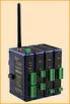 Modular, Customizable Wire Replacement 128 / 256 Bit AES Encryption Software Selectable RF Transmit Power Software Selectable Over-the-air Data Rate Modbus ASCII /RTU Compatible Wide Operating Temperature
Modular I/O System Analog and Digital Interface Modules
 OPERATING INSTRUCTIONS Modular I/O System Analog and Digital Interface Modules Installation Operation Maintenance Document Information Document ID Title: Operating Instructions Modular I/O System Part
Module 1 Overview ControlLogix5000
 Module 1 Overview ControlLogix5000 Module Overview This module takes a fundamental approach to a ControlLogix system. It begins with an overview of the architecture and migrates into an introduction of
How To Control A Power Supply With A Mini Transmitter And Switch (Power Supply)
 transmitter (2 wire) / switch for continuous or On/Off Control Indication, monitoring, transmitting and continuous or On/Off control in one device Output signal 4...20 ma, 2-wire for continuous control
SAFETY MANUAL SIL Switch Amplifier
 PROCESS AUTOMATION SAFETY MANUAL SIL Switch Amplifier KCD2-SR-(Ex)*(.LB)(.SP), HiC282* ISO9001 2 With regard to the supply of products, the current issue of the following document is applicable: The General
Rosemount 333 HART Tri-Loop
 Product Data Sheet September 2014 00813-0100-4754, Rev GA Rosemount 333 HART Tri-Loop HART-to-Analog Signal Converter Convert a digital HART signal into three additional analog signals Easy to configure
T7560A,B,C Digital Wall Module
 T7560A,B,C Digital Wall Module HONEYWELL EXCEL 5000 OPEN SYSTEM BEFORE INSTALLATION All wiring must comply with local electrical codes and ordinances or as specified on installation wiring diagrams. Digital
Bimetallic Overload Relay Specifications
 Technical Data Bimetallic Overload Relay Specifications Bulletin Number 193K, 193T1 Topic Page Product Overview 2 Standards compliance and Certifications 2 General Specifications 193K 3 Approximate Dimensions
AC 800M. EtherNet/IP DeviceNet Linking Device LD 800DN. Power and productivity for a better world TM SP1134
 AC 800M EtherNet/IP DeviceNet Linking Device LD 800DN SP1134 Power and productivity for a better world TM AC 800M EtherNet/IP DeviceNet Linking Device LD 800DN NOTICE This document contains information
DRM75A 230V 20/100A DIN rail single phase two wire energy meter
 DRM75A 230V 20/100A DIN rail single phase two wire energy meter 1.1 Safety instruction 1.2 Foreword 1.3 Performance criteria 1.4 Specifications 1.5 Basic errors 1.6 Description 1.7 Dimensions 1.8 Installation
DCS Input/Output Relay Card Series
 Input/Output Relay Card Series I/O RELAY CARD (with loopback test function) 8N The 8N series I/O Relay Cards easily and quickly standardize and facilitate installation of the relay board. Loopback test
POINT I/O EtherNet/IP Adapter
 Installation Instructions POINT I/O EtherNet/IP Adapter Catalog Number 1734-AENT LED Indicators Safety End Cap Node Address Thumbwheel EtherNet Network RJ45 Connector DIN Rail Locking Screw (orange) RTB
SNQ-60x0-320 Series Data Center Switch. Quick Installation Guide
 Introduction This guide is to assist the reader with the most basic form of installation and connection to switches in this series. As there is more than one switch in this series, the diagrams might slightly
CPCI-3U-AC-300W-R. Rugged 300W AC Input 3U CompactPCI Power Supply. Electrical Specification for: Telkoor Part Number: 900-4602-0000
 Electrical Specification for: CPCI-3U-AC-300W-R Rugged 300W AC Input 3U CompactPCI Power Supply Telkoor Part Number: 900-4602-0000 GENERAL SCALE RELEASE DATE 12/9/06 SHEET 1 OF 6 REVISION HISTORY Rev Level
www.sebury.com.cn Digital Keypad Use s Manual
 K3 K4 www.sebury.com.cn Digital Keypad Use s Manual Contents Introduction Introduction Specifications Intramural Interface Circuit 3 Mounting 3 Wiring 5 Power UP 7 Engineer Programming Mode 7 The K3/K4
Non-Isolated Analog Voltage/Current Output module IC695ALG704 provides four configurable voltage or current output channels. Isolated +24 VDC Power
 July 2010 PACSystems* RX3i Non-Isolated Analog Output Module with HART Communications, IC695ALG728 Non-Isolated Analog Output Modules, IC695ALG704, IC695ALG708 MODULE OK FIELD STATUS TB IC695ALG708 Q1
NI 9423. NI C Series Overview DATASHEET. 8-Channel Sinking Digital Input Module
 DATASHEET NI 9423 8-Channel Sinking Digital Input Module 8-channel, 100 µs digital input 24 V logic, sinking digital input Compatible with NI CompactDAQ counters 250 Vrms, CAT II isolation 10-position
Brake module AX5021. Documentation. Please read this document carefully before installing and commissioning the brake module!
 Documentation Brake module AX5021 Please read this document carefully before installing and commissioning the brake module! Version : 1.2 : 2012.03.05 Date Article-no. : TDmlAX-5021-0000-0200 Page 2/8
1769-SDN DeviceNet Scanner Module. Catalog Numbers 1769-SDN User Manual
 1769-SDN DeviceNet Scanner Module Catalog Numbers 1769-SDN User Manual Important User Information Solid state equipment has operational characteristics differing from those of electromechanical equipment.
ADM1TE 5/30A DIN rail single phase two wire energy meter
 ADMTE 5/30A DIN rail single phase two wire energy meter. Safety instruction.2 Foreword.3 Performance criteria.4 Specifications.5 Basic errors.6 Description.7 Dimensions.8 Installation.9 Operating.0 Troubleshooting.
SECTION G2: CABLE PROCESSOR MODULE MAINTENANCE
 SECTION G2: CABLE PROCESSOR MODULE MAINTENANCE Cable Processor Module overview WARNING! When tipping the Cable Processor Module back, (after removing the toggle arm pin), use extreme caution not to drop
HERZ-Thermal Actuators
 HERZ-Thermal Actuators Data Sheet 7708-7990, Issue 1011 Dimensions in mm 1 7710 00 1 7710 01 1 7711 18 1 7710 80 1 7710 81 1 7711 80 1 7711 81 1 7990 00 1 7980 00 1 7708 11 1 7708 10 1 7708 23 1 7709 01
READ AND FOLLOW ALL SAFETY INSTRUCTIONS 1. DANGER RISK OF SHOCK DISCONNECT POWER BEFORE INSTALLATION
 UR Series LED Upgrade Kit Includes: 48" Linear Option IMPORTANT SAFEGUARDS When using electrical equipment, basic safety precautions should always be followed including the following: READ AND FOLLOW ALL
PC INTERFACE MODULES FOR TOLL-PLAZA CLASSIFICATION SENSORS
 PC INTERFACE MODULES FOR TOLL-PLAZA CLASSIFICATION SENSORS FRANCE Head office USA 4 Rue du Bois Chêne le loup Parc d Activité de Brabois 54 500 VANDOEUVRE LES NANCY (33) 0383442413, Fax (33) 0383443797
SVC400P/SVC800P. 4/8 Camera Live Tracking Vehicle DVR Installation Manual. Version 1.0
 SVC400P/SVC800P 4/8 Camera Live Tracking Vehicle DVR Installation Manual Version 1.0 1. MAIN FEATURES... 2 2. PRODUCT OVERVIEW... 2 3. DIMENSIONS... 4 4. PACKAGE CONTENTS... 5 5. MOUNTING AND ENVORNMENTAL