
INSTALLATION AND OPERATING INSTRUCTIONS. Model 900M Monitor
|
|
|
- Lizbeth Cain
- 10 years ago
- Views:
Transcription
1 INSTALLATION AND OPERATING INSTRUCTIONS Model 900M Monitor Automatically Collects Soil Moisture Sensor Readings The WATERMARK Monitor automatically reads up to eight (8) sensors and stores the readings for collection and display by a computer. WATERMARK soil moisture, soil temperature, IRROMETER Model E and RSU (4-20mA transducer), switch closure, voltage, rain gauge and 4-20mAsensors can be read and recorded (some require adapters). SENSOR SITE SELECTION Often more than one sensor should be placed at a given location, at varying depths; for instance, one sensor in the upper portion of the plant s effective root zone and other sensors located deeper into the root zone profile. It can give a better representation of the plant s uptake of water and is referred to as a sensing station. PLACEMENT Furrow or Flood Irrigation Locate sensing station about 2/3 the way down the run, just ahead of the tail or backup water. This is the area where water penetration is usually the poorest. With tree crops, locate sensors on the southwest side of the tree (in the Northern Hemisphere) as this side gets the hot afternoon sun. Sprinkler Irrigation Even though the distribution is typically more uniform with sprinkler irrigation, there can be great differences in penetration and holding capacity due to soil variations, interfaces and contour. These variation sites make good locations for sensor stations. With tree crops, locate sensors at the drip line of the canopy being sure that they are not obstructed from the sprinkler s distribution. With row crops, locate sensors right in the plant row. Center Pivot Irrigation Place sensors at 4-5 locations down the length of the pivot (between towers) just ahead of the start point. Additional locations at hot spots or good production areas of the field, can help give a better overall view of the field. Be sure to use enough sensing stations ; every acres is a good rule of thumb. Drip or Micro Irrigation Sensors must be located in the wetted area. With drip emitters this is usually 12"-18" (30-45 cm) from the emitter. With micro-sprinklers, usually 24"-36" (60-90 cm) is best. Monitor often enough to get a good overall picture of the field, or irrigation block, and consider the soil variations which exist. Keep in mind that light soils dry very quickly and heavy soils more slowly. DEPTH This depends on the rooting depth of your crop, but can also be affected by soil depth and texture. With shallow rooted vegetable crops, one depth may be adequate (root system less than 12" [30 cm]). With deeper rooted row crops (small grains, vines and trees) you need to measure soil moisture in at least two depths. With deep welldrained soils, crops will generally root deeper if moisture is available. With coarse, shallow or layered soils, root systems may be limited in depth. In general, sensors must be located in the effective root system of the crop. Guidelines on proper depths for specific crops and conditions can be obtained from us as well as your local farm advisor. Note Our recommendation for anyone using sensors for the first time is to use an adequate number of stations over a smaller area to begin with to get an accurate picture. Then read them regularly over the season to learn the patterns which normally develop. SENSOR INSTALLATION Watermark Soil Moisture Sensors must be conditioned prior to installation. Always install a wet sensor. If time permits, slowly wet the sensors by partially submerging them (no more than half way) in water for 30 minutes in the morning, let dry until evening, wet for 30 minutes, let dry overnight, wet again for 30 minutes the next morning and let dry again until evening. Soak over the next night and install WET. This conditioning of the sensors ensures quick response to changing soil moisture conditions. If a sensor is only soaked and then installed, several irrigation cycles must pass before it will respond accurately. After conditioning sensors are ready for installation. Sensors MUST be installed in an active portion of the root zone of the plant being monitored, either vertically or up to a 45 angle. Using a 7/8" (22 mm) diameter bar (or 1/2" IPS pipe) or an IRROMETER Coring Tool or Slide Hammer Tool, bore an access hole to the desired depth. Extract the bar, being careful not to disturb the soil surrounding the borehole. With hard or rocky soil, a larger diameter hole can be made with a soil auger. In either case, fill the bottom of the hole with a fluid mixture of mud made from soil removed from the hole and water, then firmly push the sensor down into the mud at the bottom of the hole. Once this mixture dries, the sensor will have been grouted in to ensure maximum surface contact between the sensor surface and the surrounding soil. Alternately, if the soil is already adequately moist, the sensor can be firmly pushed to the desired depth as long as it is a tight enough fit to ensure adequate contact. A snug fit is absolutely necessary. Backfill the hole firmly. Before installation, the sensor can be attached to a 1/2" class 315 PVC or 3/4" CPVC pipe with a 1

2 transition solvent PVC to ABS cement. The pipe becomes a conduit to protect the sensor wires. This also makes the sensor easier to push into the access hole and remove, if desired. The top of this pipe section should be capped or plugged so surface water does not travel down to the sensor. A small hole should be drilled at the bottom of the pipe just, above the sensor, to allow water to drain away if it becomes trapped in the pipe. (see IRROMETER Installation Tools for other options) The soil temperature sensor should be installed in the soil near a representative soil moisture sensor. More than one soil temperature sensor can be used. Several soil moisture sensor readings can be compensated by a single soil temperature sensor. Bore a 1/2" (13 mm) diameter hole in the soil and insert the temperature sensor. Backfill the hole. Refer to installation instructions for proper installation of other sensors. The switch closure sensor is a pressure gauge with a 1/4" NPT connection that has an adjustable switch mounted to its face. The gauge is installed into the irrigation pipeline. The pressure range of the gauge should be selected so that the normal system pressure is in the middle third of the gauge range. The normal system pressure is the set point which will trip the switch, indicating that an irrigation is taking place. MOUNTING The Monitor housing should be mounted on a wall or post near the sensors. Use the enclosed template to mark screw holes for mounting the enclosure. Set the Monitor over the top screw with the keyhole then secure with screws in the lower holes. Run sensor wires through the strain relief fittings on the bottom of the Monitor. Tighten the gland on the fitting to compress the rubber insert to secure the wires and weather-proof the enclosure. The Monitor can be located some distance from the sensors to facilitate access. See sensor wiring recommendations below. If using the Quick Disconnect version, attach the field sensor wires to the wire tail from the connector using waterproof wire splices. Be careful to follow the wire markings to be sure the sensor wires are attached to their corresponding terminals. The quick disconnect fittings will twist apart for easy removal. SENSOR WIRING Additional wire can be added to the sensors for long distances. Please adhere to the following wire size recommendations when adding wire: Distance Wire Size Up to 1000 ft. (300 m) AWG UF 18 (1.02 mm, 0.82 sq mm) 1001 to 2000 ft. (600 m) AWG UF 16 (1.29 mm, 1.31 sq mm) 2001 to 3000 ft. (900 m) AWG UF 14 (1.63 mm, 2.08 sq mm) Multi-conductor wire can be used and twisted pairs are not necessary. All splices should be made with direct burial type waterproof splices, Spears DBY or similar. Be sure to mark each pair of sensor wires indicating what type of sensor is attached and the placement depth. Attach sensor wires to the appropriate terminals as determined by your sensor selection. The terminal strips have spring tensioned lever terminals. First, insert the wire in the bottom of the terminal, then push down on the black lever. The lever can be lifted with a finger, or small screwdriver inserted in the slot for wire removal. Terminals will accept wire up to AWG 16. If a larger size is used, run a short length of smaller wire to the terminal strip. BATTERY INSTALLATION Insert a 9 Volt battery, connectors first, into the battery holder observing polarity markings. Snap the back end of the battery fully into the holder. An alkaline battery should provide approximately one year of operation. After the battery is installed, the display shows Clock Error and Run Setup. After 5 seconds the Monitor display will go to sleep to conserve battery power. Pressing the green button will wake up the Monitor. If you see Fault Error #, please note the error number and contact the factory for troubleshooting. An automatic check of the battery capacity is performed daily. The status is displayed every time the Monitor is turned on. Whenever LOW is in the display, it indicates it is time to replace the battery. Wait for the display to go to sleep (no display), then replace the battery within 5 seconds of the display going off, to ensure no loss of data. Press the button to wake the Monitor up and you should see Battery OK in the display. If you are using the AC transformer version of the Monitor, simply plug in the transformer. The battery will serve as a backup in the case of a power failure, but must be kept in the Monitor for operation. PROGRAMMING WaterGraph is a Microsoft Windows based software program used to communicate with the WATERMARK Monitor. This program can be downloaded from: With this software, and the Monitor connected to your computer, either at your desk or in the field, you will program your individual SETUP details and download collected data to graphically represent the soil moisture characteristics of your location. These functions are outlined in the following steps (please refer to the CD for additional Information.): To install the software onto your computer: (System Requirements: Win 98 or newer, 5 MB available hardrive space, 12MB RAM) 1. Insert the WaterGraph CD into your computer s CD drive. 2. The installation program will launch automatically. If it does not, using Windows Explorer, browse to the CD drive and double click the Setup.exe file located on the installation CD. 2

3 3. Select Yes when prompted to install WaterGraph software. 4. Follow the on screen prompts, selecting Next and accepting the default choices suggested until reaching the end of the installation. 5. Select Finish to conclude the installation. 6. You may now launch WaterGraph by double clicking on the desktop icon. To program the sensor/reading configuration you want (SETUP): 1. Connect the WATERMARK Monitor to your Windows based (PC) computer (laptop or desktop) with the supplied serial cable. One end connects to the Monitor at the port labeled Serial Port and the other end connects to one of the COM ports on your computer, or through a USB to serial adapter. 2. Double click the WaterGraph icon on your desktop to open the program. 3. The first window you will see may say Choose Language. If so, select the language you wish to use. This can later be changed in the File pull down menu, but the program must be re-started to take effect. 4. The next window you see says Auto Detect. This window prompts you to allow the program to locate the correct COM port on your computer or allows you to select the appropriate port. Click either Auto Detect or select the COM port from the drop down list and click Done. 5. Once the computer has connected with the Monitor, the main program window will open which says WaterGraph. 6. Select Setup Datalogger. This will open the Setup window where you input the characteristics with which you want your Monitor to take readings. 7. First, enter a specific name in the space provided after Datalogger Name: (16 alphanumeric characters available using spacebar for blank spaces). 8. Then click on the pull down menu arrow in the box labeled Read Interval. Here you select the interval with which the Monitor will automatically read the sensors. Note that next to each choice of reading interval the approximate capacity of readings is displayed in parentheses. 9. If you are using a soil temperature sensor, skip this step. If you want the Monitor to be programmed with a default soil temperature, which will compensate the WATERMARK readings, input that value in the space provided and pick either F for Fahrenheit or C for Centigrade scale. 10. Proceed to the pull down menu for Sensor 1. Here you will select which type of sensor this port is connected to, from the choice of: Temp F, Temp C, WATERMARK, Switch Closure, RSU calibration (34 or 93), Volts, 4-20mA or Off. If you will be using a soil temperature sensor, then it should be installed on Port 1. Refer to Sensor Selection on page 5 for additional information. 11. In the space next to the Sensor choice, you will see Name. Type in a site specific name to identify this sensor location (up to 8 alphanumeric characters). 12. Proceed through all 8 ports, selecting Off for any unused ports. 13. The date and time are automatically retrieved from your computer s clock. 14. Now the starting time needs to be set. If Now, is selected the time will automatically be set. If Other, is selected you will need to input the date and time when you want the readings to commence. This will allow the Monitor to begin taking readings at a future date. 15. SETUP characteristics can be saved with the Save Datalogger Setup choice from the File menu, for programming multiple units. 16. When finished, click on Send Setup to Datalogger. This launches or transfers your configuration to the Monitor s memory. 17. Click OK when the pop up window indicates data collection was successful and unplug the serial cable. To view the setup program in the Monitor s memory at anytime: 1. Connect as previously described and elect Retrieve datalogger setup to view the configuration. It may take a minute to establish a connection. To retrieve collected readings (data) from the Monitor (Download): 1. Connect as described and select Retrieve Data (Data Shuttle, radio and cellular telemetry options are available). 2. In the lower left corner of the window you should see the bytes of data counting as they are being downloaded. 3. Once this counting has finished, a window will open asking you whether you want to erase the Monitor s memory of this data, or leave it there. 4. Make your selection. Old data in the Monitor s memory will be overwritten with new data once it runs to capacity. When you select to delete the data from the monitor s memory, a backup file (.bak) will be 3

4 created. (The backup file is saved as a hidden file. To view you must select to View All Files when searching.) 5. The program will prompt you to create a file name for the data which has been collected. Additional data which is downloaded at a future date can be appended to this same file to create a continuous record. You do not need to save a different file each time you download; simply select the existing file and the new data will be added, or appended, to it. Please Note: The Save window will tell you that the existing data in that file will be erased but it will NOT. WaterGraph will only add the new data and not replace the old data. 6. The graphing portion of the program will open automatically. To view the collected data in graphical form (open an existing file): 1. Select Open Data File and then select the file you want to view. 2. A window will open showing the data on a graph. Time is displayed along the bottom axis. Centibars of tension is on the left side axis. Temperature, and other scales, are displayed on the right side axis. 3. You can change the time scale by selecting one of the default choices or entering a value and pressing the Set Number of Days button. Move the sliding bar at the bottom to view all areas of the graph. 4. If Standard Range is selected under Centibar Scale, then the Y axis for tension readings will be limited to centibars (kilopascals). This can be manually overwritten in the boxes which show the 0 and the 100 to any scale between 0 to 239. If you select Automatically Scale, the range will be from the lowest to the highest readings in the file. Changing the range can help you zoom in on portions of the graph for better detail. The scale can be reversed by selecting the Descending Scale box. 5. Similarly, the ranges for Temperature can be selected. If you do not want to show temperature data. Select Hide Temp Scale. 6. The background for the graph can be configured using the Background menu. Colors or black & white with line identifiers can be selected. Options for gridlines and On/Off data display are available. 7. The data in the display can be printed by selecting Print from the choices in the File pull down menu. Selecting Landscape format in your printer s setup will provide a larger printed graph. 8. The graph can be saved to your computer s clipboard by holding down the Alt key and then pressing the Print Screen key. Once it is saved onto the clipboard, you can Paste it into another program. 9. Individual graph lines can be turned on and off by selecting Show and Hide in the legend. They can also be highlighted bold by clicking on the color bar in the legend, or left and right clicking directly on the graph lines. 10. Selected sensors may be averaged by selecting them individually in the Average box in the legend and then clicking Apply Average Settings. Selecting Hide sensors included in averages will display only the average. 11. Threshold lines can be shown on the graph for too wet and too dry reference points. 12. Your viewing options can be saved under File: Save Graph Layout. This way every time you open a data file, it will appear with your saved format. 13. You will notice as you move the cursor, that crosshair lines give you references to both axes. When the cursor is close to a graphed line, the date/time and value will be displayed for that position in the boxes labeled Crosshair Position. Note that you have to select the sensor type in the Date/time box to obtain the appropriate value. To view the collected data in spreadsheet form: 1. Open a spreadsheet program, such as Microsoft Excel. 2. Open the saved data file. This has the file extension.csv, for Comma Separated Value. Be sure to select All Files when looking. 3. Excel will automatically import the CSV data into columns. Note the headings will not line up directly with the data columns, so you will have to move them, or create new labels. 4. You can create custom graphing in Excel to display the data in different formats, or in combination with other data. Note: You can communicate with the WATERMARK Monitor through terminal emulation programs, such as Microsoft HyperTerminal, to set up custom reading programs. Contact Irrometer for more information. FIELD OPERATION With the SETUP programmed and the sensors connected, your WATERMARK Monitor can now be used to read soil moisture tensions at any time, and at the preprogrammed times it is scheduled to automatically read data. Once the START DATE/TIME has been reached, the Monitor will begin its automatic reading and data collection. You may take manual readings of the sensors at any time. Simply push the green button once to wake up the Monitor. The display will show the name you assigned, firmware version and the battery status. A second push shows the current date and time on line 1. If the start time has not yet been reached, the start time will be displayed on line 2. If running, the records stored to date will display. Push the green 4

5 button again to read sensor input port number 1. Each successive push of the green button will reveal another reading, in sequence to port 8. The in-field display screen shows the sensor name, type and current reading. After 10 seconds of inactivity, the Monitor display will go into sleep mode, to preserve battery life. Taking in-field manual readings will not alter the automatic readings, nor will they be added in to the sequence of readings being stored. Such manual readings can aid in making on the spot irrigation scheduling decisions, while the stored data is used to view the rate of change over time and to evaluate the performance of irrigations which have taken place. SENSOR SELECTION The 900M Monitor comes with seven WATERMARK soil moisture sensors (200SS-15) and one Soil Temperature sensor (200TS) (Your Monitor may have been ordered with a different sensor combination). Any of the sensor input ports can be configured to be a WATERMARK, Soil Temperature, Irrometer Model E and RSU transducer, Switch Closure, 4-20 ma or voltage sensor. If all eight ports are WATERMARKS, then the default soil temperature setting for compensating soil moisture readings will be what is programmed in the SETUP screen, for example 75 F (24 C). The temperature setting is used to compensate the WATERMARK soil moisture sensor readings for varying soil temperatures, since temperature affects the accuracy of the reading. If a temperature sensor is used, that sensor s reading is then used for the WATERMARK compensation. Install the temperature sensor on sensor input port #1, then it will compensate all WATERMARK sensors installed after it. Or compensate sensors differently as shown here: NOTE: Irrometer Model RSU transducers require a wiring adapter, auxiliary power and special instructions, please consult factory for advice. E Gauge and Rain Gauge require adapters and include additional instructions. An Irrometer Switching Pressure Gauge can be used for the Switch Closure sensor input, to record whenever the irrigation system is running. It stays in the closed position until the irrigation is turned off, then returns to the open position as pressure in the pipe drops. This gives you a data-logged recording of your irrigation system run time. Be sure to select a Switching Pressure Gauge with the correct range for the operating pressure of the irrigation system. The pressure at which the switch closes should be within the middle third of the gauge operating range. For example, if the irrigation system s normal operating pressure is 8 p.s.i., then use a gauge with a 0 to 15 p.s.i. range. Also, be sure your sensor reading interval is relative to your irrigation system run time. MANAGEMENT The key element in proper soil moisture measurement is the operator. Taking the time to interpret your sensor readings will give you a vivid picture of what is happening with the soil moisture in the root system of your crop. Usually 2-3 readings between irrigations is sufficient. The graphical display of your readings show exactly how quickly (or slowly) your soil moisture is being depleted. Use the following readings as a general guideline: 0 10 centibars = Saturated soil centibars = Soil is adequately wet (except coarse sands, which are beginning to lose water) centibars = Usual range for irrigation (most soils) centibars = Usual range for irrigation in heavy clay centibars = Soil is becoming dangerously dry for maximum production. Proceed with caution! Your own situation may be unique because of differences in crop, soils and climate. Perhaps the most important soil moisture reading is the difference between today s reading and that of 3-5 days ago. That is to say, how quickly is the reading going up. A slow increase means the soil is drying out slowly. But a big jump means the soil is losing water very rapidly. By analyzing such trends in the readings, you will determine WHEN to irrigate. By using sensors at two or more depths in the root system, you can determine HOW MUCH water to apply. If the shallow sensor shows a rapidly increasing reading, but the deep sensor shows adequate moisture, you can run a short irrigation cycle as you only need to replenish the shallow root profile. If the deep sensor also shows a dry condition, then a longer irrigation cycle is needed to fully re-wet the entire root zone. The readings you take after an irrigation or rainfall event will show you exactly how effective that water application was. Your own experience and management will soon point you in the proper direction. You will be practicing irrigation to need with the 5

6 positive results that come from any good management program. TROUBLESHOOTING Please reference the suggestions below, look in the Help section of WaterGraph or contact IRROMETER for further assistance. NO DISPLAY Check battery, replace if <7.2 Volts. Try RESET, see below. UNUSUAL READINGS The following are possible readings that may be displayed instead of a soil moisture, temperature or switch position: DRY meaning the resistance is so high that there must be an open wiring connection on a WATERMARK or a low temperature reading (frozen) on a temperature sensor, check for broken wires. SHORT meaning the resistance is so low that the circuit must be shorted on a WATERMARK, or off scale on a temperature sensor, check for shorts. READING DOESN T CHANGE Sensor may have lost contact with the soil. Re-install sensor, being sure to establish good soil contact. COM PORT ISSUES The Autodetect function in WaterGraph should find and select the correct port while connected to a Watermark Monitor. If Autodetect fails to locate a port, another program may be holding the port open. Close any GPS, PDA, or other data logger software that may be running. These programs may be running in the taskbar near the clock in the lower right of the desktop. Right click on the icons and select exit to close them. Restarting the computer can also clear up COM port issues. USB TO SERIAL ADAPTERS USB to serial adapters come with software (drivers) that must be installed on the computer before they will function. It can sometimes be helpful to reset these adapters by unplugging them for a few seconds and plugging them back in. The COM ports available to the computer may be determined by right clicking on Computer or My Computer, selecting Manage, and selecting Device Manager from the left. On the list to the right, expand Ports (COM&LPT) to see the available COM ports listed. Soft RESET Use the end of a paper clip or other small object to press the RESET button located underneath the small hole just above the battery on the faceplate. Hard RESET Remove the battery. Press and hold the RESET button down for at least 5 seconds. Then re-insert the battery. FIRMWARE UPGRADING Using the Update Datalogger command in the Tools menu in WaterGraph, select the new firmware version (.hex format) and press Open. If the upload process is interrupted, then Monitor will be locked up and its display will stay on Uploading. If this happens, use the Recover Monitor Update command in the Tools menu to finish the upload process. WARRANTY: The IRROMETER COMPANY warrants its products against defective workmanship or materials under normal use for one year from date of purchase. Defective parts will be replaced at no charge for either labor or parts if returned to the manufacturer during the warranty period. The seller s or manufacturer s only obligation shall be to replace the defective part and neither seller nor manufacturer shall be liable for any injury, loss or damage, direct or consequential, arising out of the use of or inability to use the product. This warranty does not protect against abuse, shipping damage, neglect, tampering or vandalism, freezing or other damage whether intentionally or inadvertently caused by the user. Optimizing Irrigation... Maximizing Conservation... Worldwide Since Palmyrita Ave., Riverside, CA FAX [email protected] (3/14) #740 LITHO U.S.A.

User s Manual C R Y S T A L. engineering corporation
 DaTa LoGGerXPTM User s Manual C R Y S T A L engineering corporation DataLoggerXP User s Manual Page Contents Introduction........................................................ 1 How it works........................................................
Cart Interface Installation & Control Board Manual for M38 XP and RX Carts and Legacy M39 Carts
 Rubbermaid Medical Solutions Cart Interface Installation & Control Board Manual for M38 XP and RX Carts and Legacy M39 Carts REVISED FEBRUARY 25, 2010 Filename: Cart Interface Installation & Control Board
Quick Start Guide RRL Radio Telemetry
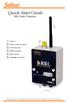 Quick Start Guide RRL Radio Telemetry Antenna External Power Connection LED Activity Light RS232 Connection Serial Number Levelogger Connections RRL Station High Quality Groundwater and Surface Water Monitoring
Hydras 3 LT Quick Start
 Catalog Number 6234218 Hydras 3 LT Quick Start SOFTWARE MANUAL December 2005, Edition 2 Hach Company, 2005. All rights reserved. Printed in the U.S.A. Catalog Number 6234218 Hydras 3 LT SOFTWARE MANUAL
Recommended Tools and Supplies: Small Flat Blade Screwdriver, 35mm x 7.5mm DIN Rail. Qwik Install
 TPDIN-Monitor-WEB Web Based Monitor and Control Remote Power Stations Backup Power Systems Solar Systems Wind Powered Systems Industrial Sense & Control Process Automation Congratulations! on your purchase
SETTING UP YOUR 6000 SERIES TIME RECORDER
 INTRODUCTION The Pyramid 6000 Series Time Recorder is an electronic time recorder designed to make payroll processing easier and more efficient. The 6000 series will meet your business needs whether your
GX-2009 Data Logger Management Program Operator s Manual
 GX-2009 Data Logger Management Program Operator s Manual Part Number: 71-0163RK Revision: C Released: 3/19/12 www.rkiinstruments.com Warranty RKI Instruments, Inc. warrants gas alarm equipment sold by
User Manual. Thermo Scientific Orion
 User Manual Thermo Scientific Orion Orion Star Com Software Program 68X637901 Revision A April 2013 Contents Chapter 1... 4 Introduction... 4 Star Com Functions... 5 Chapter 2... 6 Software Installation
Global Water Instrumentation, Inc.
 Global Water Instrumentation, Inc. 151 Graham Road P.O. Box 9010 College Station, TX 77842-9010 Telephone : 800-876-1172 International : (979) 690-5560, Fax : (979) 690-0440 e-mail : [email protected]
SA-9600 Surface Area Software Manual
 SA-9600 Surface Area Software Manual Version 4.0 Introduction The operation and data Presentation of the SA-9600 Surface Area analyzer is performed using a Microsoft Windows based software package. The
1000 Series Data Loggers PRODUCT MANUAL
 1000 Series Data Loggers PRODUCT MANUAL Model s 1650, 1525, 1450, 1425, 1400, 1250, 1225, 1200 CONTENTS General Overview 3 Model Specifications 4 External Sensors 5 Installation and Placement 6 Digital
Model SL355 Noise Dosimeter/Datalogger
 Model SL355 Noise Dosimeter/Datalogger Software Help Guide Software Introduction The SL355 Noise Dosimeter software allows for setup and retrieval of recorded data in the Noise Dosimeter. A total of 20
Data Analysis Software
 TRAKPRO Data Analysis Software User s Manual November 1996 P/N 1980200 Rev. D TSI Incorporated TRAKPRO Data Analysis Software User s Manual November 1996 P/N 1980200 Rev. D SHIP TO: TSI Incorporated 500
SRP. Controller Programming System for Commercial and Residential Irrigation Controllers. Owner s Manual and Installation Instructions
 SRP Controller Programming System for Commercial and Residential Irrigation Controllers Owner s Manual and Installation Instructions SRP Programming Software The disk supplied with this kit contains the
LST-3800. In-Dash Digital Sonar Gauge. Installation & Operation Instructions
 Pub. 988-0064-351 LST-3800 In-Dash Digital Sonar Gauge Installation & Operation Instructions The LST-3800 is a depth and temperature gauge that comes with a 200 khz transducer, features deep and shallow
How To Use An Easypad On A Pc Or Macbook Or Ipad (For Pc)
 User Guide Congratulations on your new EasyPad 1000. Please follow the instructions in this manual carefully. Statement: If the final version of this product has any differences from the description of
Using GIGABYTE Notebook for the First Time
 Congratulations on your purchase of the GIGABYTE Notebook. This manual will help you to get started with setting up your notebook. The final product configuration depends on the model at the point of your
mysensors mysensors Wireless Sensors and Ethernet Gateway Quick Start Guide Information to Users Inside the Box mysensors Ethernet Gateway Quick Start
 mysensors Information to Users mysensors Wireless Sensors and Ethernet Gateway Quick Start Guide This equipment has been tested and found to comply with the limits for a Class B digital devices, pursuant
WeatherLink for Alarm Output. Introduction. Hardware Installation and Requirements. Addendum
 WeatherLink for Alarm Output Addendum Introduction This Streaming Data Logger is designed to provide an electrical interface between a Vantage Pro2, Vantage Vue, or Vantage Pro weather station console
Keep it Simple Timing
 Keep it Simple Timing Support... 1 Introduction... 2 Turn On and Go... 3 Start Clock for Orienteering... 3 Pre Start Clock for Orienteering... 3 Real Time / Finish Clock... 3 Timer Clock... 4 Configuring
Using GIGABYTE Notebook for the First Time
 P34 V6.0 Congratulations on your purchase of the GIGABYTE Notebook. This manual will help you to get started with setting up your notebook. The final product configuration depends on the model at the point
Using AORUS Notebook for the First Time
 V2.0 Congratulations on your purchase of the AORUS Notebook! This Manual will help you to get started with setting up your notebook. For more detailed information, please visit our website at http://www.aorus.com.
Ash Capture Control User Guide
 Ash Capture Control User Guide Revision 1.4 Table of Contents Software Installation... 3 Hardware Installation... 6 System Block Diagram... 7 Using Ash Capture Control... 8 Launching the Application...
POS-X Stock Manager User s Guide
 POS-X Stock Manager User s Guide Version 1.3 Copyright 2005 POS-X Inc. All rights reserved. POS-X.com 1-800-790-8657 1 POS-X Stock Manager User s Guide Stock Manager Version 1.1.67 POS-X Inc. Telephone:
Installation, Operation & Service Manual
 Installation, Operation & Service Manual 0RQLWRU Pulse Monitor Software Version 1 0 1 Pulse Monitor Card Software Revision 1 4 0 Pulse Monitor Card Product Revision 0 1 0 0 February, 2007 Copyright 2007,
A-Series Data Loggers PRODUCT MANUAL
 A-Series Data Loggers PRODUCT MANUAL Model # s A110, A125, A130, and A150 Contents Model Specifications 2 Connecting to the Computer 3 SpecWare Software 4 Installation and Placement 6 Battery Replacement
Quick Start Guide. RV 120W Wireless-N VPN Firewall. Cisco Small Business
 Quick Start Guide Cisco Small Business RV 120W Wireless-N VPN Firewall Package Contents Wireless-N VPN Firewall Ethernet Cable Power Adapter Quick Start Guide Documentation and Software on CD-ROM Welcome
Using GIGABYTE Notebook for the First Time
 Congratulations on your purchase of the GIGABYTE Notebook P7! This Manual will help you to get started with setting up your notebook. For more detailed information, please visit our website at http://www.gigabyte.com.
Data-Logging Rain Gauge PRODUCT MANUAL
 Data-Logging Rain Gauge PRODUCT MANUAL Item # 3554WD1 Thank you for purchasing a Spectrum Datalogging Rain Gauge. With proper installation and care, it will give you years of accurate and reliable measurements.
Using GIGABYTE Notebook for the First Time
 Congratulations on your purchase of the GIGABYTE Notebook! This Manual will help you to get started with setting up your notebook. For more detailed information, please visit our website at http://www.gigabyte.com.
Agilent Automated Card Extraction Dried Blood Spot LC/MS System
 Agilent Automated Card Extraction Dried Blood Spot LC/MS System SCAP DBS Software User Guide Notices Agilent Technologies, Inc. 2012 No part of this manual may be reproduced in any form or by any means
Animated Lighting Software Overview
 Animated Lighting Software Revision 1.0 August 29, 2003 Table of Contents SOFTWARE OVERVIEW 1) Dasher Pro and Animation Director overviews 2) Installing the software 3) Help 4) Configuring the software
Nighthawk AC1900 WiF Range Extender
 Nighthawk AC1900 WiF Range Extender Model EX7000 User Manual December 2014 202-11469-01 350 East Plumeria Drive San Jose, CA 95134 USA Nighthawk AC1900 WiF Range Extender Support Thank you for selecting
Using GIGABYTE Notebook for the First Time
 Congratulations on your purchase of the GIGABYTE Notebook. This manual will help you to get started with setting up your notebook. The final product configuration depends on the model at the point of your
mysensors mysensors Wireless Sensors and and Cellular Gateway Quick Start Guide Information to Users Inside the Box
 mysensors mysensors Wireless Sensors and and Cellular Gateway Quick Start Guide Information to Users The mysensors wireless products referenced in this Quick Start Guide have been tested to comply with
ADA COMPLIANT BOX STYLE TELEPHONE INSTALLATION, PROGRAMMING AND OPERATING INSTRUCTIONS FOR MODEL PBX
 ADA COMPLIANT BOX STYLE TELEPHONE INSTALLATION, PROGRAMMING AND OPERATING INSTRUCTIONS FOR MODEL PBX INSTALLATION INSTRUCTIONS Step 1. Determine the position for the Hands-free phone in the elevator phone
Model 288B Charge Plate Graphing Software Operators Guide
 Monroe Electronics, Inc. Model 288B Charge Plate Graphing Software Operators Guide P/N 0340175 288BGraph (80207) Software V2.01 100 Housel Ave PO Box 535 Lyndonville NY 14098 1-800-821-6001 585-765-2254
NETWORK PRINT MONITOR User Guide
 NETWORK PRINT MONITOR User Guide Legal Notes Unauthorized reproduction of all or part of this guide is prohibited. The information in this guide is subject to change without notice. We cannot be held liable
RACEAIR REMOTE PAGER SYSTEM
 Computech Systems, Inc. 301-884-5712 30071 Business Center Dr. Charlotte Hall, MD 20622 RACEAIR REMOTE PAGER SYSTEM TM Introduction: Computech s RaceAir Remote Competition Weather Station with the Data
Using Windows CE Applications in the Pathfinder
 Using Windows CE Applications in the Pathfinder Prentke Romich Company 1022 Heyl Rd. Wooster, Ohio 44691 Phone: 1-800-262-1984 14002v1.02 PRC Service Disclaimer Prentke Romich Company is not responsible
Diamante WiFi Wireless Communication User Guide. CradlePoint CTR35
 Diamante WiFi Wireless Communication User Guide CradlePoint CTR35 Release: July 2011; March 2011 Patent Pending. Copyright 2011, Stenograph, L.L.C. All Rights Reserved. Printed in U.S.A. Stenograph, L.L.C.
Power Log PC Application Software
 Power Log PC Application Software Users Manual May 2007 Rev. 1, 5/08 2007-2008 Fluke Corporation. All rights reserved. Specifications are subject to change without notice. All product names are trademarks
Advantium 2 Plus Alarm
 ADI 9510-B Advantium 2 Plus Alarm INSTALLATION AND OPERATING INSTRUCTIONS Carefully Read These Instructions Before Operating Carefully Read These Controls Corporation of America 1501 Harpers Road Virginia
OPTAC Fleet Viewer. Instruction Manual
 OPTAC Fleet Viewer Instruction Manual Stoneridge Limited Claverhouse Industrial Park Dundee DD4 9UB Help-line Telephone Number: 0870 887 9256 E-Mail: [email protected] Document version 4.0 Part Number:
PIGCHAMP MOBILE. PigCHAMP Knowledge Software. Installation Guide for Mobile Units
 PIGCHAMP MOBILE PigCHAMP Knowledge Software Installation Guide for Mobile Units Table of Contents: Important Note:... 4 Chapter 1: PC Setup... 5 A. Install PigCHAMP Mobile Manager on Windows XP...5 B.
Clickfree Software User Guide
 Clickfree Software User Guide Last Revised: Nov 2, 2011 Clickfree_backup_software_user_guide_v1.0 Clickfree and the Clickfree logo are trademarks or registered trademarks of Storage Appliance Corporation.
Frontier DSL SelfConnect Guide
 Frontier DSL SelfConnect Guide Frontier DSL Self-Installation Guide Table of Contents Getting Started...2 Customer and Computer Requirements...2...3 STEP 1: Install Microfilters...3 STEP 2: Install Your
Installation Guide Wireless 4-Port USB Sharing Station. GUWIP204 Part No. M1172-a
 Installation Guide Wireless 4-Port USB Sharing Station 1 GUWIP204 Part No. M1172-a 2011 IOGEAR. All Rights Reserved. PKG-M1172-a IOGEAR, the IOGEAR logo, MiniView, VSE are trademarks or registered trademarks
Using GIGABYTE Notebook for the First Time
 Congratulations on your purchase of the GIGABYTE Notebook. This manual will help you to get started with setting up your notebook. The final product configuration depends on the model at the point of your
User's Guide DylosLogger Software Version 1.6
 User's Guide DylosLogger Software Version 1.6 The DylosLogger software allows users of Dylos Air Quality Monitors equipped with PC interface to easily record, download, and graph data. The COM port is
HOBOmobile User s Guide Android
 HOBOmobile User s Guide Android Onset Computer Corporation 470 MacArthur Blvd. Bourne, MA 02532 www.onsetcomp.com Mailing Address: P.O. Box 3450 Pocasset, MA 02559 3450 Phone: 1 800 LOGGERS (1 800 564
S PT-E550W ELECTRONIC E C LABELING L SYSTEM
 ELECTRONIC E C LABELING L SYSTEM S PT-E0W In order to use your P-touch labeling system safely, read the included Quick Setup Guide first. Read this guide before you start using your P-touch labeling system.
SPC-1. Single Point Controller. Operation Manual
 SPC-1 Single Point Controller Operation Manual NOTICE: PPM Technology Limited shall not be liable for errors that may appear herein or for incidental or consequential damages in connection with or arising
Using GIGABYTE Notebook for the First Time
 P55 V3.0 Congratulations on your purchase of the GIGABYTE Notebook. This manual will help you to get started with setting up your notebook. The final product configuration depends on the model at the point
TX3 Series TELEPHONE ACCESS SYSTEMS. Configurator Quick Start. Version 2.2 Mircom Copyright 2014 LT-973
 TX3 Series TELEPHONE ACCESS SYSTEMS Configurator Quick Start Version 2.2 Mircom Copyright 2014 LT-973 Copyright 2014 Mircom Inc. All rights reserved. Mircom Configurator Software Guide v.2.2 for Windows
OPTAC Fleet Viewer. Instruction Manual
 OPTAC Fleet Viewer Instruction Manual Stoneridge Limited Claverhouse Industrial Park Dundee DD4 9UB Help-line Telephone Number: 0870 887 9256 E-Mail: [email protected] Document version 3.0 Part Number:
Using GIGABYTE Notebook for the First Time
 Congratulations on your purchase of the GIGABYTE Notebook. This manual will help you to get started with setting up your notebook. The final product configuration depends on the model at the point of your
12 Volt 30 Amp Digital Solar Charge Controller
 12 Volt 30 Amp Digital Solar Charge Controller User s Manual WARNING Read carefully and understand all INSTRUCTIONS before operating. Failure to follow the safety rules and other basic safety precautions
VM-4 USB Desktop Audio Device Installation Guide
 VM-4 USB Desktop Audio Device Installation Guide THE POSSIBILITIES ARE ENDLESS. 9 Austin Drive, Marlborough, CT 06447 (860) 295-8100 www.essentialtel.com [email protected] Table of Contents Introduction...3
History of Revisions. Ordering Information
 No part of this document may be reproduced in any form or by any means without the express written consent of II Morrow Inc. II Morrow, Apollo, and Precedus are trademarks of II Morrow Inc. Windows is
VM-8 USB Desktop Audio Device Installation Guide
 VM-8 USB Desktop Audio Device Installation Guide THE POSSIBILITIES ARE ENDLESS. 9 Austin Drive, Marlborough, CT 06447 (860) 295-8100 www.essentialtel.com [email protected] Table of Contents Introduction...3
SupcoLog Logger Interface Software
 SupcoLog Logger Interface Software USER S GUIDE Table Of Contents Quick Start... 5 Overview... 5 Connecting the Logger to Your PC... 5 Setting Up the Logger To Record Data... 6 Custom Interval Setup...
Setting Up the Cisco Unified IP Phone
 CHAPTER 3 This chapter includes the following topics, which help you install the Cisco Unified IP Phone on an IP telephony network: Before You Begin, page 3-1 Understanding the Cisco Unified IP Phone 7962G
MTX-D, Oil Temperature/Pressure Gauge
 MTX-D, Oil Temperature/Pressure Gauge 1 Mounting and Sensor Installation... 3 1.1 Mounting the Gauge... 3 1.2 Oil Temp Sensor... 3 1.3 Oil Pressure Sensor... 3 2 Wiring... 3 2.1 Main Gauge Wiring... 4
OFFICE KEYBOARD (MT1210 & MT1405) OFFICE FEATURES
 OFFICE KEYBOARD (MT1210 & MT1405) OFFICE FEATURES Thank you for purchasing OFFICE KEYBOARD. This User s manual contains all information that helps you to operate your keyboard. Please keep the software
Software Manual. For. MadgeTech 4 Data Logger Software
 Software Manual For MadgeTech 4 Data Logger Software Introduction 7 About MadgeTech, Inc... 8 Software Overview 9 Getting Started... 10 System Requirements...10 Software Installation: Installing the MadgeTech
FTDI VCP DRIVER (free) (WIN/MAC/LINUX) http://www.ftdichip.com/drivers/vcp.htm
 002 - CONNECTING THE PRINTER Now that you have an idea what 3D printing entails, we can continue and connect the printer to your computer. First make sure you have a computer with a decent amount of RAM
Kokii BatteryDAQ. BMS Software Manual. Battery Analyzer Battery DAS
 Kokii BatteryDAQ BMS Battery Analyzer Battery DAS Updated: October 2008 Caution: High Voltage Exists on Battery Power and Sampling Connectors! Please refer to device installation and operation manual for
PK5500 v1.1 Installation Instructions
 PK5500 v1.1 Installation Instructions 1 2 3 4 5 6 7 8 9 * 0 # WARNING: Please refer to the System Installation Manual for information on limitations regarding product use and function and information on
2 TM. Users Manual. SEC100, SEC200 USB Media Alert
 2 TM 2 TM Users Manual SEC100, SEC200 USB Media Alert Version 5.0 10/7/2014 Thank you for purchasing the Sonic-connect USB Media Alert Device, your companion to help you stay connected with today s specialized
Monitoring Network DMN
 Monitoring Network DMN User Manual Table of contents Table of contents... 2 1. Product features and capabilities... 3 2. System requirements... 5 3. Getting started with the software... 5 3-1 Installation...
DriveRight. Fleet Management Software. Getting Started Guide. CarChip. DriveRight. Drivers. Vehicles. Product #8186
 DriveRight Fleet Management Software Getting Started Guide CarChip DriveRight Drivers Vehicles Product #8186 DriveRight Fleet Management Software Getting Started Guide; P/N 8186 Davis Instruments Part
Honeywell Internet Connection Module
 Honeywell Internet Connection Module Setup Guide Version 1.0 - Page 1 of 18 - ICM Setup Guide Technical Support Setup - Guide Table of Contents Introduction... 3 Network Setup and Configuration... 4 Setting
C6 Easy Imaging Total Computer Backup. User Guide
 C6 Easy Imaging Total Computer Backup User Guide Clickfree and the Clickfree logo are trademarks or registered trademarks of Storage Appliance Corporation. Other product names used in this guide are recognized
WIND ALARM. Wind Speed Alarm. Wind Speed. Set Point 2. Set Point 1 NEW BEDFORD, MA 02745 USA
 Thank you for purchasing the Maximum wind speed alarm. The Maximum wind speed alarm is a dual set point wind speed indicator with a two digit LED display. It contains a yellow light to display one set
JVC Monitor Calibration 2 User's Guide
 JVC Monitor Calibration 2 User's Guide Table of Contents 1. What is JVC Monitor Calibration 2? 2. System Requirement 3. Installation (JVC Monitor Calibration 2) 4. Uninstall 5. Installation (EyeOne Display
7 High-Resolution Digital Photo Frame
 TM 16-1003 User s Guide 7 High-Resolution Digital Photo Frame One demo photo included, as illustrated Please read this user s guide before using your new photo frame. Package contents Photo Frame AC Adapter
ITC-BTTN Cellular Bluetooth Gateway. Owner s Manual 1
 ITC-BTTN Cellular Bluetooth Gateway Owner s Manual 1 2 Table of Contents Introduction...3 Package Contents...3 XLink Connections Diagram...4 Setup...5 Pairing your Bluetooth Cell Phone to the XLink...6
Online Monitoring User Guide
 High Resolution Temperature Sensing Strip Online Monitoring User Guide 888.637.3282 www.nerdata.com Page 1 of 26 Contents The Aurora Online Monitoring System... 3 1. Creating an Account on the Aurora Online
How To Use A Water Quality Monitor (Wqmsw)
 Water Quality Monitor WQM Host Software User s Guide The user s guide is an evolving document. If you find sections that are unclear, or missing information, please let us know. Please check our website
How to use the OMEGALOG software with the OM-SQ2010/SQ2020/SQ2040 Data Loggers.
 How to use the OMEGALOG software with the OM-SQ2010/SQ2020/SQ2040 Data Loggers. OMEGALOG Help Page 2 Connecting Your Data Logger Page 2 Logger Set-up Page 3 Download Data Page 8 Export Data Page 11 Downloading
Datalogger Graph Software Help
 Datalogger Graph Software Help Version 2.0, August 07, 2007 For additional information refer to the user guide included on the supplied program disk. TABLE OF CONTENTS Installing Graph Software....2 Installing
System update procedure for Kurio 7 (For build number above 110)
 System update procedure for Kurio 7 (For build number above 110) IMPORTANT NOTE: Before starting the procedure, please check your current Android build number, that can be found as follows: exit the Kurio
SubCue Analyzer Software - Introduction
 SubCue Analyzer Software - Introduction The SubCue Analyzer is a tool to initialize and download the temperature data from implantable SubCue Dataloggers. To begin, open the SubCue Analyzer program from
INSTALLATION AND OPERATING INSTRUCTIONS
 ddcwp_manual_gb_revisions.ai 10/23/06 Page 1 Date: Station 1 2 3 4 5 6 7 8 CUSTOM WATERING PLAN 3 Program Controller Description Program A Program B Program C Duration Duration Duration DDC WP Series Waterproof
File Management Windows
 File Management Windows : Explorer Navigating the Windows File Structure 1. The Windows Explorer can be opened from the Start Button, Programs menu and clicking on the Windows Explorer application OR by
3. SEISCO PARTS & SERVICE REMOVAL AND REPAIR GUIDE
 4 3. SEISCO PARTS & SERVICE REMOVAL AND REPAIR GUIDE A. Changing the Control Board B. Replacing a Heating Element C. Thermistor Replacement D. High Limit Switch Replacement E. Level Detector Replacement
16/32 Channel 1U Rack Mount CCTV Power Supply
 16/32 Channel 1U Rack Mount CCTV Power Supply Manual PH-A3224-GUQ Shown 16-Channel 32-Channel PTC PH-A1612-PUQ PH-A3224-PUQ Glass Fuse PH-A1612-GUQ PH-A3224-GUQ Industrial design 12 Amp 3 Amps per channel
Real Time Monitor. A Real-Time Windows Operator Interface. DDE Compliant. (for remote data display)
 Real Time Monitor A Real-Time Windows Operator Interface DDE Compliant (for remote data display) TABLE OF CONTENTS 1. INTRODUCTION...1 1.1 INSTALLATION...2 1.2 FIRST START UP - DDE CONFIGURE...2 1.3 AUTO-STARTUP...2
Getting Started... 1. What s included... 1. Setting up Fitbit One on a computer... 2. Mac & PC Requirements... 2
 User Manual Table of Contents Getting Started... 1 What s included... 1 Setting up Fitbit One on a computer... 2 Mac & PC Requirements... 2 Installing Fitbit Connect on a computer... 2 Installing Fitbit
Leaf River Outdoor Products Vibrashine, Inc. P.O. Box 557 Taylorsville, MS 39168 (601) 785-9854 FAX (601) 785-9874 www.vibrashine.
 MULTI-CARD PICTURE VIEWER Model PV-2.5 Leaf River Outdoor Products Vibrashine, Inc. P.O. Box 557 Taylorsville, MS 39168 (601) 785-9854 FAX (601) 785-9874 www.vibrashine.com 2 THANKS and WELCOME What does
Scan2CRM for ACT! User Guide
 Scan2CRM for ACT! User Guide APPENDIX Warranty... I Notice to user...ii Publication...III Trademarks...IV Version 9.50 - Supports ACT! by Sage for windows, ACT! 2007 (Version 9) and above. This publication
SSL-Manager (SNMP-SSL Management Software)
 SSL-Manager (SNMP-SSL Management Software) User s Manual Table of Contents Chapter 1 Introduction... 3 Chapter 2 Installation... 4 Chapter 3 SSL-Manager Menus... 8 Chapter 4 Setup... 11 Chapter 5 Operation...
Diamante WiFi Wireless Communication User Guide. Linksys E1200
 Diamante WiFi Wireless Communication User Guide Linksys E1200 Release: February 2012; August 2011; February 2011 Patent Pending. Copyright 2012, Stenograph, L.L.C. All Rights Reserved. Printed in U.S.A.
WAMLocal. Wireless Asset Monitoring - Local Food Safety Software. Software Installation and User Guide BA/WAM-L-F
 Wireless Asset Monitoring - Local Food Safety Software BA/WAM-L-F Software Installation and User Guide System Overview The BAPI Wireless Asset Monitoring Local (WAM Local) Software receives temperature
Guide to Using AMS 4.0 Marking Software
 Guide to Using AMS 4.0 Marking Software Guide to Using AMS 4.0 Marking Software Contents System Requirements...2 Software Installation...2 Selecting the Output Device and Changing Settings...2 Definitions...
HOSTED DESKTOP MANUAL
 HOSTED DESKTOP MANUAL TABLE OF CONTENTS REMOTE DESKTOP MANUAL Last revision August 18, 2005 WHAT IS A REMOTE DESKTOP... 1 Security... 1 Terminals...2 SETTING UP YOUR REMOTE DESKTOP... 2 Installing Remote
User's Reference Guide for PowerAlert UPS Management Software Version 10.2 for Windows
 User's Reference Guide for PowerAlert UPS Management Software Version 10.2 for Windows 1111 W. 35th Street Chicago, IL 60609 USA (773) 869-1234 www.tripplite.com Table of Contents A QUICK GUIDE TO POWERALERT
N300 WiFi Range Extender
 Model EX2700 User Manual July 2014 202-11395-01 350 East Plumeria Drive San Jose, CA 95134 USA Support Thank you for selecting NETGEAR products. After installing your device, locate the serial number on
Kurz MODBUS Client User s Guide
 Kurz MODBUS Client User s Guide Introduction The Kurz MODBUS Client program can be used to demonstrate how the Kurz MFTB and MFTA Series products can be used in a MODBUS protocol network. The program is