
Model SP-108 (1 line + 8 extensions) Automated Telephone System
|
|
|
- Gabriella Weaver
- 10 years ago
- Views:
Transcription
1 Model SP-108 (1 line + 8 extensions) Automated Telephone System SOHO-PBX is your ideal small or home office receptionist. The SP-108 is features packed and very easy to use. For more information please go to SOHO-PBX website at or send to [email protected] SP-108 FEATURES 1. Direct outside line access Outside line can be accessed by dialing the number directly and no access code required. 2. Delayed outside line release No re-queuing is necessary on busy signal and misdial disconnects because other extensions are prevented from accessing the outside line for two seconds. 3. Automated attendant Greet callers with a digital self recorded message (8 seconds) and connect callers to the appropriate extensions. 4. Attendant call selection (incoming call route selection) Incoming calls can be transferred automatically to a programmed extension on duty or cascaded to other extensions. 5. Call hold, transfer Incoming calls can be put on hold and transferred from any extension without any limit even on misdials. 6. Three-way conference call Incoming calls can be connected with another extension for three- way conferencing. 7. Hotline ring down

2 When an incoming call is transferred to another extension, it will cascade to the next extension in line (with the exception of the ones with the do not disturb on) if it is not answered within 6 seconds. 8. Intercom call Make internal calls from any extension. 9. Facsimile connection Any extension can receive facsimiles. 10. Incoming call alert Engaged extensions will receive a special tone alerting both parties when there is an incoming call. 11. Privacy blockage Other extensions are blocked from listening-in. 12. Toll restriction scheme Long-distance dialing can be disabled on any extension. 13. Outside line restriction scheme Restrict any extension from dialing an outside line. 14. Forced disconnect All outgoing calls can be programmed to disconnect after a programmable delay (maximum 24 minutes). 15. Secretary assisted dialing A secretary can make outgoing calls from any extension and then transferred the call to another extension. Once the call is connected to the second extension; the secretary can hang-up or remain connected for three way conference call. 16. Incoming call assignment Any extension can be programmed to take internal calls only. 17. Power failure tolerant During a power failure extension #1 connects directly to the outside line by default. 18. Do not disturb Extension with do not disturb turned on will not ring and the call will be transferred to another extension.

3 19. Attendant group Incoming calls reaching the attendant group extensions (without the do not disturb turned on) will ring. 20. Automated or live attendant option Incoming calls can be answered by a real person or programmed to be answered by automated attendant. Operating instructions: 1. Accessing outside line Outside line can be dialed directly. 2. Accessing extensions Press # then dial extension number (1,2,3,4,5,6,7,8,). Dialed extension will ring 6 times before the line disconnect. 3. Incoming calls Outside calls can be answered manually by a picking up the handset or by the automated attendant (factory default is manual pickup). Automated attendant: Once the outside call is connected the caller will be asked to input the desired extension number. The extension will be connected once it is dialed. If no extension number is inputted within 4 seconds or the extension is invalid, the call will cascade to other extensions one by one or it will connect to the extension on duty. During this time the call can also be answered from any extension. Manual pickup: The outside line will cascade to all extensions one at a time. During this time the call can be answered from any extension. 4. Incoming call transfer (manual transfer) An incoming call can be transferred to other extension by first pressing # and the requested extension number (1,2,3,4,5,6,7,8). There is no limit on the frequency of transfer. Once the extension is dialed and the call waiting tone comes on the transferring extension can hang-up. (Note: Wrong number can simply be redialed but do not press the hook!) 5. Three-way conference call For a three-way conference call, first press * and then the extension number (1,2,3,4,5,6,7,8), then wait for the call waiting tone (do not press the hook), the extension pickup and the call is connected. (Note: Wrong number can simply be redialed but do not press the hook!)

4 During a three-way conference call any one extension can be disconnected. To disconnect the other extension from the conference call just press # then press your own extension number. 6. Secretary assisted operations Secretary assisted dialing - For example if your extension is number 1 and your secretary s extension is number 2. After your secretary got the outside line connected she only needs to press ##1 to transfer the line to extension number 1 (during the transfer the incoming caller can only hear a call waiting tone) or press #*1 for three-way conferencing. Call hold, transfer - For example if your extension is number 1 and your secretary s extension is number 2. Your secretary rings your extension informing you of the incoming call (The incoming caller can only hear a call waiting tone at this time). To take the call your secretary needs to press or return the handset to the hook. If you do not want to answer the call you only need to press the hook or put the handset back. (note: While the two extensions are connected before the transfer, a warning tone will come on every 2 seconds to remind you that there is caller waiting on the outside line) The following steps need to be done on extension number 1 with a touch tone telephone. (If a feature is set correctly you will hear a tone similar to a busy signal. If a feature is set incorrectly you will hear a tone similar to a long misdialed signal and you need to perform the task over again). 7. Programmable features Do not disturb Press *41 note: (1-8) is the extension number For example: You want the do not disturb feature for extension number 3. Instruction: When you hear a dial tone press *413 (to cancel just repeat the instruction one more time). The do not disturb feature only disables the ringer of the programmed extension and leaves other function intact (this feature does not affect other operations).

5 Attendant call selection (incoming call selection) You just need to turn on the do not disturb feature for extension number. For example: You want extension number 3 to take all incoming calls. Instruction: For extension number 1 - When you hear a dial tone press *411.For extension #2 - when you hear a dial tone press *412. For extension number 4 - when you hear a dial tone press *414 etc (to cancel just repeat the procedure one more time for each extension). Digital recording You can record an 8 second message to greet your callers. Instruction: Using extension number 1 when you hear the dial tone Press *41* and when you hear the beep you can start your recording. After 8 seconds you will hear the beep sound again indicating the end of the recording (to record a new message just repeat the procedure again one more time). Listen to your recorded greeting Instruction: Press *42* a beep will come on follows by the recorded message and at the end of the message the beep will come on again. Outside line restriction scheme Press *1 then the extension number (incoming and internal calls are not affected). To cancel press *2 then the extension number followed by #. For example: You want to restrict extension number 2 from dialing out. Instruction: Press *12# (to cancel just press *22#. Toll restriction scheme Press *1 then the extension number and then press 0 (the first digit for long distance direct dialing). To cancel press *2 then the extension number and the first digit for long distance direct dialing. For example: You want to restrict extension number 2 from making long distance calls. Instruction: Press *120 (to cancel just press *220 ). Forced disconnect (1 to 12 minutes, maximum 24 minutes) Press *3 then the extension number that you want to impose the time limit and then press the number of minutes. (1 = 1 minute, 2 = 2 minutes... 9 = 9 minutes, 0 = 10 minutes, * = 11 minutes and # = 12 minutes). You can double the time limit if it was not long enough.

6 To double the time limit after you performed the first step just press *4 then the extension number and 2. If the forced disconnect feature is activated you will hear three beeps when there are 30 seconds left on the time limit. For example: You want to apply forced disconnect to extension number 4 with 20 minute time limit. Instruction: Press *340. After you finish the previous step just press *442 (to cancel forced disconnect just press *4 then the extension number and # ). Automated attendant Press *435 (to cancel just repeat the procedure one more time) Incoming calls will be connected to the requested extension within 4 seconds (lag time will be longer if the recording is shorter than 8 seconds). If the requested extension does not answer, the call will cascade to other extensions one at a time or to the programmed attendant extension. To shorten the lag time to 2 seconds just press *433 (just repeat the procedure to return to 4 seconds). Facsimile connection Any extension can be used to answer faxes. Cancel all features and restore Factory default settings Instruction: Press *438. TROUBLESHOOTING If the SP108 fails to function as expected, check the list of common problems below: Problem Can not make outgoing nor intercom calls Possible cause Outside line problem or outside line not connected; no power; pbx problem Problem Can make incoming calls but not outgoing calls Possible cause- The phone is not a touch tone unit or outgoing call restriction is turned on. Problem The line automatically disconnects after a period of time Possible cause Time limit is set on that particular extension or the outside line problem Problem Static interference Possible cause Outside line interference or phone lines not connected properly; improper power source; incomparable telephone set Problem Poor sound quality

7 Possible cause Low quality telephone set; low quality telephone line and too long Problem Can not restore factory default settings Possible cause - Not using line number 1 to perform the restore Other problem Go to SOHO PBX website at

Model SP-208 (2 lines x 8 extensions) Automated Telephone System
 Model SP-208 (2 lines x 8 extensions) Automated Telephone System SOHO-PBX is your ideal small or home office receptionist. The SP-208 is features packed and very easy to use. For more information please
Automated Telephone System
 Model SP- 308C (3 CO lines + 8 extensions) Model SP- 416C (4 CO lines + 16 extensions) Model SP- 432 (4 CO lines + 32 extensions) TABLE OF CONTENTS Section 1 SYSTEM FEATURES ------------------------------------------3
Business Communications Manager ATA 2 User Guide
 Business Communications Manager ATA 2 User Guide 2001 Nortel Networks P0941629 Issue 02 Contents About Business Communications Manager ATA 25 What does ATA 2 do? 5 Feature List 7 Alternate Line 7 Call
How To Use Your Calling Features. A Simple Guide META. 011910sip
 How To Use Your Calling Features A Simple Guide 011910sip META Unconditional Call Forwarding (Call Forwarding) How to activate Unconditional Call Forwarding: 1. 72 followed by the number to which your
CALLING FEATURE USER GUIDE
 CALLING FEATURE USER GUIDE 1801 N Main St, in the Palace Mall ** Mitchell, SD 57301 Phone: (605) 990-1000 Fax: (605) 990-1010 Homepage: www.mitchelltelecom.com Calling Feature User Guide Mitchell Telecom
AT&T MERLIN COMMUNICATIONS SYSTEM USER S GUIDE MODELS 206, 410 AND 820 WITH FEATURE PACKAGE 2
 AT&T MERLIN COMMUNICATIONS SYSTEM USER S GUIDE MODELS 206, 410 AND 820 WITH FEATURE PACKAGE 2 Table of Contents Page Page Available Features Key to Symbols Placing and Answering Calls Line Buttons and
CENTREX service. user reference guide. Clearly different.
 CENTREX service user reference guide Clearly different. TABLE OF CONTENTS This user s guide provides instructions for using Centrex features. A check in the circle next to a feature means that your Centrex
Meridian 8009 Business Terminal User Guide
 For additional information, Dial Telecommunications Center Centrex Services... -44 University of Nebraska - Lincoln Telecommunications Center Nebraska Hall Lincoln, NE 68588-05 (40) 47-000 The University
PLAN B. Call Forwarding Allows you to redirect all calls to another telephone number.
 989-453-4321 * 1-800-292-0614 * E-mail: [email protected] SERVING: PIGEON, TWINING, ALBA, AND LAKES OF THE NORTH PLAN B Automatic Recall This feature allows a subscriber to place a call to the source of
Custom Calling Features
 Anonymous Call Rejection Anonymous Call Rejection rejects calls from callers who block their Caller ID information, so the calls don t even ring through on your line. To Activate Call Rejection: Pick up
Polycom 2-Line Desk Phone Quick Reference Guide
 Polycom 2-Line Desk Phone Quick Reference Guide ACC-1142 PUG Table of Contents INTRODUCTION TO YOUR POLYCOM 2-LINE DESK PHONE... 2 WELCOME... 2 DESK PHONE... 2 HOW TO USE YOUR POLYCOM 2-LINE DESK PHONE...
Calling Features User Guide
 Calling Features User Guide www.etczone.com 866-ETC-4YOU 1 SUNMAN BATESVILLE GREENSBURG BROOKVILLE LIBERTY (812) 623-2122 (812) 932-1000 (812) 222-1000 (765) 547-1000 (765) 223-1000 Today s fast-paced
Person Calling dials Main line number First additional number Second additional number
 Call Waiting While you re on a call, Call Waiting alerts you that you have another incoming call. s If two calls are on a line at one time, anyone calling will receive a busy signal. The Call Waiting beep
Calling Features User Guide 1
 Calling Features User Guide 1 The services listed in this guide are for traditional telephone service and may not be available or work the same on other technologies. Call 611 from your Lumos Networks
Using Basic Call Management Functions
 Using Basic Call Management Functions This chapter provides instructions on using your basic phone functions. It includes the following sections: Managing the Audio Source and Volume, page 28 Answering
Advanced Calling Features Guide
 Advanced Calling Features Guide AUTOMATIC CALLBACK Use: Save time by not calling busy numbers over and over. Description: Calls the last number dialed without having to redial the number. If the redialed
AASTRA 9110 User Guide
 AASTRA 9110 User Guide Key Descriptions Redial Save Flash Mute Handset Ringer Switch Set Indicator Light Volume Bar Dial Pad Handsfree/Mute 7 Memory Keys Making and Answering Calls Making a call With your
Call Waiting. Cancel Call Waiting
 PhoneFeatures 1 Call Waiting Cancel Call Waiting 2 Three-Way Calling Personal Ringing 3 Speed Calling Call Transfer 4 Call Hold Call Forwarding 5 Call Forwarding Don t Answer Call Forwarding Busy Line
Single Line Telephone User Guide
 Record of Revision Release Date Version Supersedes Description March 2008 Initial Release Initial Release Copyright 2006 We reserves the right to make changes in specifications at any time without notice.
Polycom VVX500 4 and 6-Line Touch Screen Desk Phone Quick Reference Guide
 Polycom VVX500 4 and 6-Line Touch Screen Desk Phone Quick Reference Guide Contents Introduction to your Polycom VVX500 Touch Screen Desk Phone... 3 Welcome... 3 Desk Phone... 3 Interacting with your Polycom
We thank you for being our customer, we take pride in providing superior and reliable Commercial Voice services to our customers.
 Welcome to USA Communications Commercial Voice. We thank you for being our customer, we take pride in providing superior and reliable Commercial Voice services to our customers. This document should answer
Reject calls from callers who block their Caller ID information so their calls don't even ring on your line.
 Anonymous Call Rejection Reject calls from callers who block their Caller ID information so their calls don't even ring on your line. TO ACTIVATE ANONYMOUS CALL REJECTION 1. 2. Press *77 (on a rotary phone,
RESIDENTIAL PHONE FEATURES
 RESIDENTIAL PHONE FEATURES User Guide Athens-Dec 9/10 Caller ID The Telephone display screen will show you the caller s name and telephone number, usually after the first complete ring. The service also
PROPRIETARY INFORMATION
 Centrex User Guide Centrex is a central office-based telecommunications system that lets you customize your telephone service to suit your unique business needs. With Centrex, you can grow from two lines
Centrex Service Feature Phone M5216 User Guide. (Version 2.0)
 Centrex Service Feature Phone M5216 User Guide (Version 2.0) Table of Content 1 Phone Set Features and Functions... 4 2 Voice Call Operation... 5 2.1 Answering a call on a Directory Number (DN)... 5 2.2
How To Use A Cell Phone On A Cell (Cell Phone) On A Landline Phone On An Iphone Or Ipad Or Ipa (Cellphone)
 STANDARD TELEPHONE USER GUIDE idcs 500 DIGITAL COMMUNICATIONS SYSTEM November 2001 Samsung Telecommunications America reserves the right without prior notice to revise information in this guide for any
VIP (Traditional) Home Phone Calling Features
 VIP (Traditional) Home Phone Calling Features This document details each calling feature and its usage. Please note that this document applies only to our VIP Home Phone service for Kitchener-Waterloo,
Meridian 5008 Table of Contents
 Meridian 5008 Table of Contents The Basics Answering calls Making calls Placing a call on hold Ending a call Setting the ring volume Setting the speaker volume Tones that you hear when using the M5008
Custom Calling Features and how they work
 Custom Calling Features and how they work Call Forwarding (Basic) This feature means your phone can transfer incoming calls to another number of your choice. Call Forwarding is great for the business person
AT&T SPIRIT. Communications System User Manual
 AT&T SPIRIT Communications System User Manual Table of Contents How to Use this Manual 2 Key to Symbols 4 Ringing Patterns 5 Groups (2448 System) 5 Indicator Light Patterns 5 Parts of the Telephones 6
Standard Telephone User Guide
 Standard Telephone User Guide STANDARD TELEPHONE USER GUIDE for OfficeServ 100, OfficeServ 500 and OfficeServ 7000 Series May 2009 Samsung Telecommunications America reserves the right without prior notice
RESIDENTIAL DIGITAL VOICE USER GUIDE
 WELCOME Welcome to USA Communications Digital Voice. We thank you for being our customer; we take pride in providing superior and reliable Residential Digital Voice services to our customers. This document
Humboldt State University. 661Digital User Guide. TNS User Support 826-5000. 661 Digital
 Humboldt State University TNS User Support 826-5000 661 Digital 661Digital User Guide Humboldt State University owns and operates its own telephone switch, often referred to as a PBX (Private Branch Exchange).
Meridian 8314 Business Terminal User Guide
 For additional information, Dial Telecommunications Center Centrex Services... - University of Nebraska - Lincoln Telecommunications Center Nebraska Hall Lincoln, NE 6888-0 (0) 7-000 The University of
Guide to Your Telephone Service
 Guide to Your Telephone Service OPTIONS AND FEATURES AVAILABLE WITH EPLUS BROADBAND TELEPHONE SERVICE 422-7500 Table of Contents Included in this guide is a comprehensive list of features and services
Calling Feature Instructions
 Rainier Connect Calling Feature Instructions Anonymous Call Rejection (*77) Call Forward Busy (*90) Call Forward No Answer (*92) Also known as Block the Blocker and Privacy Block it blocks private or anonymous
CALL PRIVACY CONTINUED
 TOUCH TONE FEATURES Call Privacy Call Answer Call Answer Message Manager Call Display Call Waiting Visual Call Waiting Call Return Three-Way Calling Ident-A-Call Call Forwarding Call Blocking Call Screen
Note: You will not be notified when or how many calls have been rejected.
 Anonymous Call Rejection When you ve turned this service on, any callers who have blocked their number from your Caller ID display will hear an announcement that you do not accept anonymous calls. All
Featuring the Vertical Xcelerator IP Phone System DESK PHONE USER GUIDE V1.5
 Featuring the Vertical Xcelerator IP Phone System DESK PHONE USER GUIDE V1.5 For Service Purchased After May 1 st 2009 Table of Contents INTRODUCTION TO YOUR XCELERATOR DESK PHONE... 2 WELCOME... 2 XCELERATOR
Centrex CustoPAK USER GUIDE. Telephone Number. Verizon Telephone Number. Switch Type: 1A 5E DMS 100 EWSD DMS 10
 Centrex CustoPAK USER GUIDE Telephone Number Verizon Telephone Number Switch Type: 1A 5E DMS 100 EWSD DMS 10 Table of Contents Introduction to This Guide... 3 Overview of Your CustoPAK System... 5 Terms
Custom Calling Features
 Quick Reference HOW TO USE: PRESS: Speed Calling 8 *74 Speed Calling 30 *75 Call Return *69 Repeat Dialing *66 Call Trace *57 Call Forwarding *72 Preferred Call Forwarding *63 Call Forwarding Remove Activation
User Guide Verizon Centrex CustoPAK
 User Guide Verizon Centrex CustoPAK Telephone Number Verizon Telephone Number Switch Type: 1A 0 EWSD 2008 Verizon. All Rights Reserved. 3001-0708 Table of Contents Introduction to This Guide... 3 Overview
Release Date Version Supersedes Description. June 2006 Initial Release Initial Release
 45p SLT User Guide Record of Revision Release Date Version Supersedes Description June 2006 Initial Release Initial Release Copyright XBLUE Networks, LLC 2006 XBLUE Networks reserves the right to make
Call Forwarding Forward your calls to a number of your choosing. All calls forwarded to a long distance number will be charged to your bill.
 The services listed in this guide are for Integrated Voice Services and may not be available or work the same on other technologies. Some features are web-enabled and others work only through the phone.
FEATURE & INFORMATION GUIDE
 FEATURE & INFORMATION GUIDE LOCAL PHONE Windstream is a registered service mark of Windstream Corporation. 2007 WindstreamCorporation WS F&I ENG 07/07 001519 English_F&I_Guide.indd 1-2 7/23/07 4:31:53
Telephony Features and Instructions
 Telephony Features and Instructions Call Forwarding... 1 Call Hold... 1 Call Park... 1 Call Pickup... 2 Call Trace... 2 Consultation Hold... 2 Last Number Redial... 2 Network Speed Dial... 2 Ring Again...
NITSUKO DS01 TELEPHONE USER S GUIDE
 NITSUKO DS01 TELEPHONE USER S GUIDE 2003-2004 Version 1.1 TABLE OF CONTENTS PAGES INTRODUCTION TELEPHONE FEATURES. TELEPHONE SERVICES.. VOICE MAIL. TELEPHONE FREQUENTLY ASKED QUESTIONS (FAQs) ADVANCED
Star Access Codes. Feature Access Code Instruction Call Forwarding No Answer Activation
 Automatic Callback Deactivation ex. #8 1. Lift Telephone handset. Press the assigned access code (ex.#8). 2. Replace telephone handset 3. The Automatic Callback Deactivation is now off Call Forwarding
CALLING FEATURES. Speed Calling - 8 Number - Allows you to call any one of the eight frequently called numbers by dialing just one digit.
 Calling features from ToledoTel, offer advanced capabilities that are simple to use. This is a quick reference of the features available for your individual line, and easyto-follow instructions for using
How To Use Fairpoint.Com On A Cell Phone On A Pc Or Landline Phone On An Iphone Or Ipad Or Ipa Or Ipo Or Cell Phone (For A Cell) On A Landline Or Cellphone On A
 Definition FairPoint Communications Hosted PBX is easy to use and manage. Hosted PBX is packed with a wide variety of useful standard, advanced and business group calling features, including voicemail.
Hosted PBX Calling Features and Voice Mail Guide
 Definition FairPoint Communications Hosted PBX is easy to use and manage. Hosted PBX is packed with a wide variety of useful standard, advanced and business group calling features, including voicemail.
Anonymous Call Rejection Refuse calls from those who have blocked their numbers.
 How to Use Your Digital Voice Features Effective 01/12/15 To learn how to use your voice features, locate your service by selecting from the Quick Links that follow, or, you can find the same instructions
Business Phone Service. Calling Features & Instruction Guide
 Business Phone Service Calling Features & Instruction Guide HUNTING Hunting is a system that routes phone calls through your phone lines until an idle line is found. CALLER ID PER CALL BLOCKING (67) Pressing
Analog User Guide HUMBOLDT STATE UNIVERSITY. Telecommunications & Network Services
 HUMBOLDT STATE UNIVERSITY Telecommunications & Network Services Analog User Guide Humboldt State University owns and operates its own telephone switch, often referred to as a PBX (Private Branch Exchange).
Model PBX 308 Plus. Extension User Guide
 Model PBX 308 Plus Extension User Guide Introduction 3 Internal Calls 3 Making Outgoing Calls 3 - From Direct Dial Extensions - Last Number Redial Transferring Calls 4 - Manually - Automatically Calls
Training Guide for Cisco IP Phones 7940/7960
 Training Guide for Cisco IP Phones 7940/7960 LCD Display Indicator Light Foot Stand Adjustment Line Keys Soft Keys Navigation button 1 2 3 4 5 6 7 8 9 * 0 # i Menu buttons Volume Control Sound Control
Polycom Conference Phone Quick Reference Guide ACC-1144 PUG
 ACC-1144 PUG Polycom Conference Phone Quick Reference Guide Table of Contents INTRODUCTION TO YOUR POLYCOM CONFERENCE PHONE... 2 WELCOME... 2 CONFERENCE PHONE... 2 HOW TO USE YOUR POLYCOM CONFERENCE PHONE...
DS-5000 Series. Keysets. Quick Reference Guide
 DS-5000 Series Keysets Quick Reference Guide This QUICK REFERENCE GUIDE provides the basic operation of your Samsung DS 5021D, DS 5014D and DS 5007S telephones.the DS 5007S operates the same as the DS
CALLING FEATURE USER GUIDE
 Quick Start CALLING FEATURE USER GUIDE FEATURE ACTIVATE CANCEL Call Waiting hookswitch (or flash) 3- Way Calling hookswitch (or flash) *69 Call Return (Automatic Recall) *69 *89 Cancel Call Waiting *70
Abacus Hosted PBX Solution Polycom IP550/560 Phone Training
 Abacus Hosted PBX Solution Polycom IP550/560 Phone Training Revised: June 15, 2012 1 Getting to know your Polycom IP 550/560 Programmable Speed Dial Buttons 3 Line Buttons Shortcut to call logs Menu navigation
How To Set Up A Phone On A Btv 206 (Bta) On A Cell Phone Or Landline) On An Iphone Or Ipad Or Ipa (Phone) On The Btva) On Sim Sims 2
 Model PBX 206 User Guide 1 Contents Page General Information 3 Incoming Ringing 3 Do you Have 1 or 2 exchange Lines? 3 Auto Attendant (DISA) 3 To Record Out Going Message (OGM) 4 To Set System for DISA
Voice Response System (VRS)
 Voice Response System (VRS) Feature Availability Available (requires IntraMail license) - 16 Channels (shared with voice mail). Description The IntraMail daughter board provides the option for Voice Response
AT&T MERLIN COMMUNICATIONS SYSTEM ADMINISTRATION MANUAL: MODELS 206 AND 410 WITH FEATURE PACKAGE 1
 AT&T MERLIN COMMUNICATIONS SYSTEM ADMINISTRATION MANUAL: MODELS 206 AND 410 WITH FEATURE PACKAGE 1 Table of Contents Page How to Use This Manual The MERLIN Voice Terminal Setting the Control Unit Model
The following is a set of definitions used in FAQs for the Partner product line:
 Frequently Asked Questions Office Switching Systems Partner/Partner II/Partner Plus The following is a set of definitions used in FAQs for the Partner product line: PR1 = Partner Release 1 PR2,3,4 = Partner
Hosted PBX Admin and End User Guide
 Hosted PBX Admin and End User Guide 3/11/15 CONTENTS Account / Authorization Codes 2 Advanced Hunting 3 Anonymous Call Rejection 3 Anywhere 4 Auto Attendant 5 Call Block 7 Caller ID 7 Call Forwarding 8
Telephone Set Capabilities & Instructions
 CALL FORWARD ALL CALLS PERMANENT HOLD SPEED CALL LAST NUMBER REDIAL RING AGAIN CALL PARK CALL PICKUP CALL TRANSFER CONFERENCE CALL (3rd PARTY) Telephone Set Capabilities & Instructions CALL FORWARD ALL
STANDARD TELEPHONE USER GUIDE
 STANDARD TELEPHONE USER GUIDE Release 1 COPYRIGHT 1993 TOSHIBA AMERICA INFORMATION SYSTEMS, INC. All rights reserved. No part of this manual may be reproduced in any form or by any means graphic, electronic,
Calling FEATURES. User s Guide. Call *123 or 336-463-5022 or visit yadtel.com
 Calling FEATURES User s Guide Call * or 6-6-50 or visit yadtel.com Table of Contents QUICK REFERENCE GUIDE... KEEP IN TOUCH Call Waiting.... 5 Cancel Call Waiting.... 5 Three-Way Calling.... 6 Usage Sensitive
Four-Line Intercom Speakerphone 944
 1 USER S MANUAL Part 2 Four-Line Intercom Speakerphone 944 Please also read Part 1 Important Product Information AT&T and the globe symbol are registered trademarks of AT&T Corp. licensed to Advanced American
INTRODUCTION TO YOUR BT MICRO... 2 WELCOME... 2 BT MICRO FEATUREPHONE... 2 HOW TO USE YOUR BT MICRO FEATURE PHONE... 3
 Table of Contents INTRODUCTION TO YOUR BT MICRO... 2 WELCOME... 2 BT MICRO FEATUREPHONE... 2 HOW TO USE YOUR BT MICRO FEATURE PHONE... 3 Phone setup... 3 Answering and making calls... 3 Transferring calls...
STANDARD TELEPHONE USER GUIDE
 STANDARD TELEPHONE USER GUIDE for OfficeServ 100, OfficeServ 500 and OfficeServ 7000 Series September 2005 Samsung Telecommunications America reserves the right without prior notice to revise information
CUSTOM CALLING FEATURES
 CUSTOM CALLING FEATURES Anonymous Call Rejection (*77 & *87) Blocks a private or anonymous call from ringing onto your line. Callers who block their name and/or phone number from being displayed on a Caller
Quick reference guide. 1040 4-Line small business system with speakerphone
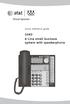 Quick reference guide 1040 4-Line small business system with speakerphone This quick reference guide provides basic instructions For additional installation options and complete instructions that enable
Panasonic Business Telephone and Voice Mail Systems. User Guide
 Panasonic Business Telephone and Voice Mail Systems User Guide Location of Controls Panasonic Telephone System Telephone Set 2 Explanation of Controls PAUSE: Used to insert a pause when storing a telephone
Using Your ShoreTel Phone
 Using Your ShoreTel Phone Placing Calls A. Using the Handset a. To place an internal call, pick up the handset and dial the extension. b. To place an external call, dial 9, then the phone number. c. To
Hawaiian Telcom Calling Services USER GUIDE. qqq qqq. qqq * 69 * 6 9 * 8 9 * 7 7 * 8 7 * 6 6 * 8 6 * 6 0 * 8 0 * 7 2 * 7 3 * 9 0 * 9 1 * 9 2 * 9 3
 Quick Reference Guide Hawaiian Telcom Calling Services USER GUIDE Feature To Use To Cancel * 69 * 6 9 * 8 9 Anonymous Call Rejection * 7 7 * 8 7 Busy Redial * 6 6 * 8 6 Call Block * 6 0 * 8 0 Call Forwarding
AVAYA Voicemail Messaging System
 The AVAYA Messaging System is similar to your previous voicemail system with a few added features. The phone will automatically route all incoming calls to your voicemail after the third ring or you may
Introducing your Meridian Digital Telephone 1
 Contents Introducing your Meridian Digital Telephone 1 Meridian Digital Telephones 1 M3820 1 M3310 2 M3110 3 Selecting a position for your Meridian Digital Telephone 4 Parts of your Meridian Digital Telephone
Quick Reference Book. Cisco 7940 & 7960 Series IP Phones. Business Feature Set T6000 Release 6.0 SCCP Protocol
 Quick Reference Book Cisco 7940 & 7960 Series IP Phones Business Feature Set T6000 Release 6.0 SCCP Protocol 2007 Red Gap Communications, Inc. All rights reserved. Revision 20070309 Important Phone Numbers
User Guide Verizon CentraNet Service
 User Guide Verizon CentraNet Service EASY STEPS TO GET YOU STARTED. 2008 Verizon. All Rights Reserved. C9000-0708 Thank You for Selecting Verizon CentraNet Service i Table of Contents switches CENTRANET
managedip Hosted TDS Table of Contents Special Calling Features
 Table of Contents Flash Hook Features... 1 Feature Access Code Calls... 1 Access Codes... 5 Additional Support... 5 Flash Hook Features Features using the flash hook are available on devices with flash
Station-User Guide For Meridian Multi-Line Telephones
 Station-User Guide For Meridian Multi-Line Telephones INTRODUCTION This guide provides instructions on the use of the multi-line telephone instruments in the University of Hawaii's SL-1 Telephone System.
Telephone System Information
 Telephone System Information Whether you have a single-line or multi-line set, several features are available for your use. Definitions of some terms used and descriptions of the features with directions
ShoreTel 115 IP Phone User Guide
 ShoreTel 115 IP Phone User Guide Document and Software Copyrights Copyright 1998 2007 by ShoreTel, Inc., Sunnyvale, California, U.S.A. All rights reserved. Printed in the United States of America. Contents
AT&T. MERLIN Plus COMMUNICATIONS SYSTEM. Training Manual
 AT&T MERLIN Plus COMMUNICATIONS SYSTEM Training Manual 1986 AT&T All Rights Reserved Printed in USA Issue 1 December 1986 NOTICE The information in this document is subject to change without notice. AT&T
IPitomy User Guide Business Phones Conferencing Voice Mail
 IPitomy User Guide Business Phones Conferencing Voice Mail Using Your Telephone Your new telephone is a state of the art IP Telephone instrument. It is manufactured by Aastra, the manufacturers of Northern
Quick reference guide. 1070 4-Line small business system with caller ID/ call waiting and speakerphone
 Quick reference guide 1070 4-Line small business system with caller ID/ call waiting and speakerphone 7 This quick reference guide provides basic instructions For additional installation options and complete
" (877)MY T4 TEL " " " " " " " (877)698-4835
 Display Features The display on your phone is interactive. As you use the phone the information will change and different features and functions will appear on the display. The 8 buttons above the display
Calling Features User Guide
 CONNECTING OUR COMMUNITY WITH THE LATEST COMMUNICATIONS TECHNOLOGY West Central Calling Features User Guide 2 TABLE OF CONTENTS CALL FORWARDING SERVICES 4 4 4 4 Call Forwarding Call Forward Busy Call Forward
Telephone and Phonemail Orientation: Students. Placing your Call
 Telephone and Phonemail Orientation: Students On-Campus Calling: Placing your Call 1: Obtain dial tone and enter desired 4-digit extension number. *** (Seven-digit dialing to reach an internal campus number
VoIP Services User Guide
 VoIP Services User Guide Table of Contents Overview of Services 3 Service Numbers 4 Line Services and Codes 5 Voice Mail 12 Overview of Services This guide is about Tera-Byte's VoIP services for residential
Custom Calling Features 3 DEF 5. Custom Calling Features User s Manual
 Custom Calling Features 1 2 4 GHI 7 PQRS ABC 3 DEF 5 JKL 8 TUV * 0 6 MNO 9 WXYZ # Custom Calling Features User s Manual Table of Contents This user guide provides instruction for the following Custom-Advanced
ADVANCED AND CUSTOM CALLING FEATURES
 ADVANCED AND CUSTOM CALLING FEATURES Call Waiting Call Waiting Alert: This feature alerts you of new incoming calls when you are already on a call. You will hear a short beep when the second call is received,
Sprint k3 Digital Phone System
 Sprint k3 Digital Phone System SLT Telephone User Guide The information contained in this document is proprietary and is subject to all relevant copyright, patent and other laws protecting intellectual
Business Voice Feature Guide
 Business Voice Feature Guide TABLE OF CONTENTS Account / Authorization Codes 1 Advanced Hunting 2 Anonymous Call Rejection 2 Anywhere 3 Auto Attendant 4 Call Block 6 Caller ID 6 Call Forwarding 7 Call
Clear Choice Communications. Digital Voice Services User Guide
 Clear Choice Communications Digital Voice Services User Guide 2 P a g e * Feature Access Codes *62 Access Voicemail *72 Call Forwarding Always Activation *73 Call Forwarding Always Deactivation *90 Call
Digital Telephone User Guide
 Digital Telephone User Guide 1 Proud to provide Conway s Electric, Water, Cable, Internet and Telephone services. Welcome to Conway Corporation Digital Telephone Service We take pride in providing superior
Vertical 4-Line Desk Phone Quick Reference Guide ACC-1145 PUG
 ACC-1145 PUG Vertical 4-Line Desk Phone Quick Reference Guide Table of Contents INTRODUCTION TO YOUR XCELERATOR DESK PHONE... 2 WELCOME... 2 DESK PHONE... 2 HOW TO USE YOUR XCELERATOR DESK PHONE... 3 Answering