
WebEx Scheduling A Meeting using the Quick Scheduler
|
|
|
- Mavis Pearson
- 10 years ago
- Views:
Transcription


1 WebEx Scheduling A Meeting using the Quick Scheduler OTS PUBLICATION: WX6 REVISED TOWSON UNIVERSITY OFFICE OF TECHNOLOGY SERVICES =Shortcut =Advice =Caution Introduction You may schedule a WebEx meeting using either the Quick Scheduler or the Advanced Scheduler. The Quick Scheduler is used to set up a basic meeting. If you wish to set up a meeting with additional options, use the Advanced Scheduler. This self-help document will show you how to set up a meeting using the Quick Scheduler. To set up a meeting you must have an active WebEx Host account. Click here if you do not for complete instructions. Process Summary Introduction Scheduling A Meeting using the Quick Scheduler Beginning the Meeting Scheduling A Meeting using the Quick Scheduler. Open your internet browser and type towson.webex.com in the address bar and press ENTER. Figure. The Join a Meeting page will appear (Fig ). Click the Log In button (Fig, ) on the upper right side of the screen.. The Towson University Authenticated Login Page will appear. Type your Towson University NetID and Password in the designated areas (Fig, ) and click Login (Fig, ). Figure 04 Towson University -This work is licensed under the Creative Commons Attribution-NonCommercial-NoDerivs License. Details available at


2 4. From the Welcome screen, click the Meeting Center tab located at the top of the screen (Fig, ). 5. Click Schedule a Meeting (Fig, ) on the left hand side of the screen under Host a Meeting. The Schedule a Meeting screen will appear (Fig ). This is known as the Quick Scheduler. 6. Click in the Meeting Topic box (Fig, ) and give your session a meaningful name. Figure Click in the Password field and give your session a password. Confirm the password in the corresponding field (Fig, 4). 8. Enter the Date, Time and expected Duration in the designated areas (Fig, 5) 9. Click in the box beside Attendees and type the addresses of each recipient (Fig, 6). -OR- Click the checkbox Send a copy of the invitation to me (Fig, 7). This option will send the invitation to you, and then you can forward this message on to the participants through The conference is automatically set up as an audio conference. This allows the participants to use either the telephone or their computer for audio. If you wish to change the conference to Use VoIP only follow the steps below: Click Change audio conference (Fig, 8). The Audio Conference Settings dialog box will appear. Figure 4 Click the down arrow beside Select conference type (Fig 4, ) and choose Use VoIP only. Click OK (Fig 4, ). VoIP will only allow participants to use their computer for audio.


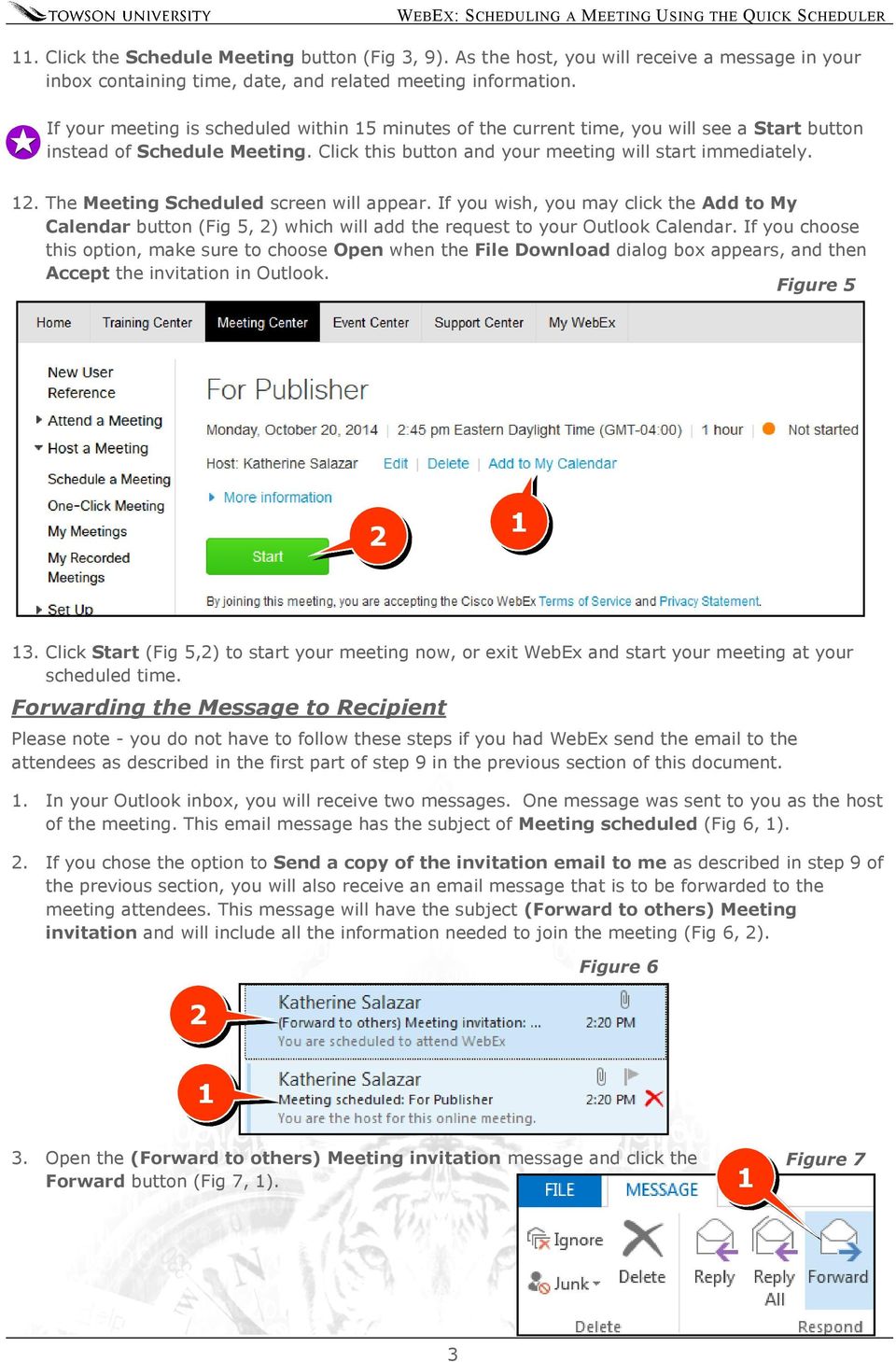
3 . Click the Schedule Meeting button (Fig, 9). As the host, you will receive a message in your inbox containing time, date, and related meeting information. If your meeting is scheduled within 5 minutes of the current time, you will see a Start button instead of Schedule Meeting. Click this button and your meeting will start immediately.. The Meeting Scheduled screen will appear. If you wish, you may click the Add to My Calendar button (Fig 5, ) which will add the request to your Outlook Calendar. If you choose this option, make sure to choose Open when the File Download dialog box appears, and then Accept the invitation in Outlook. Figure 5. Click Start (Fig 5,) to start your meeting now, or exit WebEx and start your meeting at your scheduled time. Forwarding the Message to Recipient Please note - you do not have to follow these steps if you had WebEx send the to the attendees as described in the first part of step 9 in the previous section of this document.. In your Outlook inbox, you will receive two messages. One message was sent to you as the host of the meeting. This message has the subject of Meeting scheduled (Fig 6, ).. If you chose the option to Send a copy of the invitation to me as described in step 9 of the previous section, you will also receive an message that is to be forwarded to the meeting attendees. This message will have the subject (Forward to others) Meeting invitation and will include all the information needed to join the meeting (Fig 6, ). Figure 6. Open the (Forward to others) Meeting invitation message and click the Forward button (Fig 7, ). Figure 7
4 Figure 8 4. Click beside To: and add all attendees (Fig 8, ). You may add a message if you wish (Fig 8, ). 5. Click Send (Fig 8, ) Beginning the Meeting. Open the you received with the subject of Meeting scheduled from your inbox (Fig 9) or open the meeting request in Outlook - if you added it to the calendar (Fig 0).. Click on the link under To start or join the online meeting (Fig 9, and Fig 0, ). The WebEx session will launch. You may have to log into WebEx using your TU NetID and Password.. You have two options available. You may join the online meeting using VoIP (your computer speakers and microphone), or you may use your telephone. Figure 9 Figure 0 4

5 Figure Figure Figure 4. Click the three dots under Call Using Computer (Fig, ). The Audio Conference box will appear (Fig ). 5. If you wish to call into the conference using your phone, click I Will Call In (Fig, ). The phone numbers and access codes will appear (Fig ). Dial the toll free number (Fig, ). When prompted, enter the access code followed by # (Fig, ). When prompted, enter the Attendee ID code followed by # (Fig, ). 6. If you wish to use VoIP (your computer), Click Call Using Computer (Fig, ). If your audio doesn t appear to be working or you wish to change the audio device to use click on Test computer audio (Fig, ). From there you can change your devices and test the audio. 5

Figure 2 4. Click OK (Fig 2, 2). 5. You will enter the conference. Figure 1
 Microsoft Lync 0 Joining a Conference Introduction You and meeting participants may join a Lync 0 meeting and conference call in several ways:. With Lync 0. You need the full Lync client installed (necessary
Remote Desktop Accessing Your Towson Windows Vista/7 Computer Remotely From a Mac
 Remote Desktop Accessing Your Towson Windows Vista/7 Computer Remotely From a Mac OTS PUBLICATION: RD REVISED 0-0-04 [email protected] OFFICE OF TECHNOLOGY SERVICES =Shortcut =Advice =Caution Introduction
Getting Started Guide for WebEx Hosts and Presenters. Scheduling a Meeting in Outlook
 Getting Started Guide for WebEx Hosts and Presenters Scheduling a Meeting in Outlook First, install the WebEx Productivity Tools. Then you can schedule your online Meeting using Outlook just like you schedule
WebEx Sharing Resources
 WebEx Sharing Resources OTS PUBLICATION: WX0 REVISED: 4/8/06 04 TOWSON UNIVERSITY OFFICE OF TECHNOLOGY SERVICES =Shortcut =Advice =Caution Introduction During a WebEx session, the host has the ability
Sharepoint Designer Mapping a Network Drive
 Sharepoint Designer Mapping a Network Drive OTS PUBLICATION: SPD6 REVISED 06-4-00 [email protected] OFFICE OF TECHNOLOGY SERVICES =Shortcut =Advice =Caution Introduction A Web site is a collection of
WebEx Meeting Center Tutorial
 VIRGINIA TECH WebEx Meeting Center Tutorial Getting Started Guide Instructional Technology Team, College of Engineering Last Updated: Fall 2014 Contents Introduction 2 Minimum System Requirements 2 How
Towson University s VPN Virtual Private Network
 Towson University s VPN Virtual Private Network OTS PUBLICATION: VPN01 REVISED 11-25-2008 [email protected] OFFICE OF TECHNOLOGY SERVICES =Shortcut =Advice =Caution Introduction When connecting through
eduroam Overview and Device Configuration
 eduroam Overview and Device Configuration OTS PUBLICATION: WR3 REVISED 07-5-04 [email protected] OFFICE OF TECHNOLOGY SERVICES =Shortcut =Advice =Caution Introduction eduroam is a global wireless service
Getting Started with Zoom
 Getting Started with Zoom The Institute of Agriculture has recently purchased a site license for a new cloud-based video conferencing service known as Zoom. If you have ever connected to a GoToMeeting,
How to schedule a Lync Conference from Outlook 2010
 How to schedule a Lync Conference from Outlook 2010 Summary: if you have the Lync client installed on your computer, then from Outlook 2010 you can schedule Lync conferences. Once scheduled, you can join
How to install and use the File Sharing Outlook Plugin
 How to install and use the File Sharing Outlook Plugin Thank you for purchasing Green House Data File Sharing. This guide will show you how to install and configure the Outlook Plugin on your desktop.
Table of Contents. Begin Here: Getting Started with WebEx. What is WebEx? Why would I use it?
 Table of Contents Begin Here: Getting Started with WebEx... 1 Scheduling a Meeting from the WebEx Website... 4 Scheduling a Meeting from Outlook 2010... 5 Selecting Audio Conference Settings... 6 Joining
Cisco WebEx Web Conferencing, provided by InterCall Audio Controls User Guide
 Cisco WebEx Web Conferencing, provided by InterCall Audio Controls User Guide For more information: In the U.S.: 800.374.2441 www.intercall.com [email protected] In Canada: 877.333.2666 www.intercall.ca
Quick Start Guide. Web Conferencing & Secure Instant Messaging via Microsoft Office Communications Server 2007. Apptix Live Support: 866-428-0128
 Quick Start Guide Web Conferencing & Secure Instant Messaging via Microsoft Office Communications Server 2007 Apptix Live Support: 866-428-0128 Quick Start Guide / Introduction Page 2 of 6 Quick Start
Lync 2013 for Windows. Conferencing Quick Reference
 Lync 2013 for Windows Conferencing Quick Reference 102713 Contents Information for Lync Meetings and Conference Calls... 3 Schedule a Phone Conference or Lync Meeting... 4 Set Meeting Options... 4 Meet
Web Conferencing with WebEx
 Web Conferencing with WebEx Setting Up an Unrestricted Meeting 1. Browse to https://purdue.webex.com. 2. In the upper right, click Log In. 3. Log in with your Purdue Career Account. 4. Click the Meeting
Using Cisco WebEx Web Conferencing you have the ability to add a teleconference to your web conference.
 U S E R G U I D E Cisco WebEx Audio Controls Guide and Release Notes for FR29 Using Cisco WebEx Web Conferencing you have the ability to add a teleconference to your web conference. Audio controls are
Setting Up a One-Click Meeting
 Chapter 10 10 Setting Up a One-Click Meeting If you want to... get an overview of starting a One-Click Meeting from your WebEx service Web site specify settings for your One-Click Meeting install WebEx
GCI Conference Bridge 2
 Conference Bridge For assistance: Call 1-800-770-2121 E-mail [email protected] TABLE OF CONTENTS Administer Participants... 3 Manage Scheduled Conference... 3 Manage Personal Accounts... 3 Microsoft
WebEx Meeting Center User's Guide
 WebEx Meeting Center User's Guide Table of Contents Accessing WebEx... 3 Choosing the scheduler that works for you... 6 About the Quick Scheduler Page... 6 About the Advanced Scheduler... 8 Editing a scheduled
Outlook Web App. in Office 365. The Outlook Window. Signing In. (Outlook Exchange Faculty & Staff) Getting Started
 Outlook Web App in Office 365 (Outlook Exchange Faculty & Staff) Getting Started The Outlook Window Navigation Bar Settings Navigation Pane View Pane Reading Pane Navigation Bar switch between Outlook,
Email List Service List Ownership Basics. Introduction. Navigating the Web Interface. Process Summary Introduction. Navigating the Web Interface
 Email List Service List Ownership Basics Introduction The Towson University E-Mail List Service allows you to participate in electronic discussion groups on many different topics. Faculty, staff and student
PC Installation Documentation for the Instant Messaging and MeetingPlace Features of Your New Telephone
 Copy: cupc Admin ffr.7 0 2 k9_enu.zip, from: R:\Cisco\PC Client\VOIP Client PC Installation Documentation for the Instant Messaging and MeetingPlace Features of Your New Telephone Your new telephone is
Zoom Cloud Meetings: Leader Guide
 Zoom Cloud Meetings: Leader Guide Zoom is a cloud-based conferencing solution that provides both video conferencing and screen share capabilities. Zoom can be used for meetings among individuals or to
HPE MyRoom Outlook Add-in Quick Reference Guide
 HPE MyRoom Outlook Add-in Quick Reference Guide Installation The HPE MyRoom Add-in is compatible with Microsoft Outlook 2010, 2013, 2016, and Office 365 Close Outlook Either: Go to www.myroom.hpe.com Select
Presence & IM. Quick Reference Guide. Build your Contacts list. Getting started. What does your Presence status mean?
 Getting started Status Area: Update presence status, location, or add a message View Tabs: View your contacts, activity feed, conversation or phone Lync Options: View or edit Lync options Quick Reference
Downloading and Connecting with Lync
 Downloading and Connecting with Lync Download Lync or put in a work order to have Lync Installed for you Click the Staff Email web link from the District website login to Microsoft Office 365 Under Lync,
CISCO WebEx Guide for Host/Meeting Organiser. Unified Communications
 Unified Communications CISCO WebEx Guide for Host/Meeting Organiser Version: November 2014 TABLE OF CONTENTS Introducing WebEx... 2 How to create a WebEx account... 3 The first time you log into WebEx...
Quick Reference Guide 1 Lync 2013 for Windows Using Lync 2013 Client
 Quick Reference Guide 1 Lync 2013 for Windows Using Lync 2013 Client Lync 2013 is the latest instant messaging (IM) client from Microsoft and is the upgrade to Microsoft Office Communicator. Web conferencing
What is My Teamwork? What s new in this release? MY TEAMWORK 5.0 QUICK START GUIDE
 MY TEAMWORK 5.0 QUICK START GUIDE What is My Teamwork? My Teamwork is a converged communications solution that combines presence-aware instant messaging with the ability to make phone calls, conference
Cisco WebEx Node Management System. Administrator s Guide
 Cisco WebEx Node Management System Administrator s Guide Copyright 1997 2011 Cisco and/or its affiliates. All rights reserved. WEBEX, CISCO, Cisco WebEx, the CISCO logo, and the Cisco WebEx logo are trademarks
Outlook Web Access. PRECEDED by v\
 Outlook Web Access Logging in to OWA (Outlook Web Access) from Home 1. Login page http://mail.vernonct.org/exchange 2. To avoid these steps each time you login, you can add the login page to your favorites.
Secure File Transfer Guest User Guide Updated: 5/8/14
 Secure File Transfer Guest User Guide Updated: 5/8/14 TABLE OF CONTENTS INTRODUCTION... 3 ACCESS SECURE FILE TRANSFER TOOL... 3 REGISTRATION... 4 SELF REGISTERING... 4 REGISTER VIA AN INVITATION SENT BY
Quick Reference Guide 1 Lync for Mac 2011 Using Lync 2011 Client
 Quick Reference Guide 1 Lync for Mac 2011 Using Lync 2011 Client r Lync for Mac 2011 is the latest instant messaging (IM) client from Microsoft for the Macintosh platform and is the upgrade to Microsoft
Cisco WebEx Event Center on the Mac OS Getting Started. Join an Event. Schedule an Event. Start an Event. Connect to the Audio Conference
 This guide covers the basic functions you will use to schedule or attend an Event Center session from your Apple computer. Also included here are instructions for using the most common tools available
IIS, FTP Server and Windows
 IIS, FTP Server and Windows The Objective: To setup, configure and test FTP server. Requirement: Any version of the Windows 2000 Server. FTP Windows s component. Internet Information Services, IIS. Steps:
ONcbx Feature Guide UC Desktop Client
 1 Getting Started 1.1 Installation The Quick Start Guide contains the essential information for getting started with the Oxford Networks BroadTouch Business Communicator. Once you receive an email indicating
Quick Reference Guide 2 Lync for Mac 2011 Lync Web Conferencing
 Quick Reference Guide 2 Lync for Mac 2011 Lync Web Conferencing Lync for Mac 2011 is the latest instant messaging (IM) client from Microsoft for the Macintosh platform and is the upgrade for Microsoft
OCS Client Installation - Quick Start Guide. Web Conferencing & Secure Instant Messaging via Microsoft Office Communications Server 2007
 OCS Client Installation - Quick Start Guide Web Conferencing & Secure Instant Messaging via Microsoft Office Communications Server 2007 MailStreet Live Support: 866-461-0851 Document Revision: March, 2010
How to Join or Accept a GoToMeeting Videoconferencing Request
 How to Join or Accept a GoToMeeting Videoconferencing Request 1. Join a Session Join a session from your invitation email 1. Open the calendar invitation you received from the organizer. 2. Click the Join
Mac Outlook Calendar/Scheduler and Tasks
 Introduction Schedule an event and/or meeting. Schedule all-day and recurring events. Assign tasks to another user and use special shortcut keys. Contents Introduction Contents Calendar View Edit an appointment
Hallpass Instructions for Connecting to Mac with a Mac
 Hallpass Instructions for Connecting to Mac with a Mac The following instructions explain how to enable screen sharing with your Macintosh computer using another Macintosh computer. Note: You must leave
Web Conference Manager
 Web Conference Manager Reference Guide Table of Contents 1. Introduction to GTB Web Conferencing... 1 2. System Requirements... 2 3. Web Conferencing Host... 3 Accessing the server... 3 Testing your system...
Getting Started with Microsoft Office Live Meeting. Published October 2007 Last Update: August 2009
 Getting Started with Microsoft Office Live Meeting Published October 2007 Last Update: August 2009 Information in this document, including URL and other Internet Web site references, is subject to change
WebDisk Essentials How to Post & Retrieve Files From Your Own Online Storage Area
 WebDisk Essentials How to Post & Retrieve Files From Your Own Online Storage Area OTS PUBLICATION: WD2 REVISED 1-20-2012 [email protected] OFFICE OF TECHNOLOGY SERVICES =Shortcut =Advice =Caution What
Getting Started with Microsoft Office Live Meeting. Published October 2007
 Getting Started with Microsoft Office Live Meeting Published October 2007 Information in this document, including URL and other Internet Web site references, is subject to change without notice. Unless
Using etoken for Securing E-mails Using Outlook and Outlook Express
 Using etoken for Securing E-mails Using Outlook and Outlook Express Lesson 15 April 2004 etoken Certification Course Securing Email Using Certificates Unprotected emails can be easily read and/or altered
TWO WAYS TO SCHEDULE A SCOPIA VIDEO CONFERENCE BASED MEETING. 1- SCOPIA USER PORTAL 2- OUTLOOK SCOPIA MEETING PLUG-IN
 TWO WAYS TO SCHEDULE A SCOPIA VIDEO CONFERENCE BASED MEETING. 1- SCOPIA USER PORTAL 2- OUTLOOK SCOPIA MEETING PLUG-IN USING IVIEW SCOPIA USER PORTAL TO SCHEDULE A MEETING: GO TO: http://iview.utoledo.edu:8080/
How to Access Charge Card Training
 How to Access Charge Card Training Within the Knowledge Center (also known as KC Global, or LMS) is a course catalog, which allows you to quickly locate a specific course and launch it. Step 1. Step 2.
Outlook Web App User Guide
 Outlook Web App Table of Contents QUICK REFERENCE... 2 OUTLOOK WEB APP URL... 2 Imagine! Help Desk...... 2 OUTLOOK WEB APP MAIN WINDOW... 2 KEY NEW FEATURES... 3 GETTING STARTED WITH OUTLOOK... 4 LOGGING
How to use SURA in three simple steps:
 How to use SURA in three simple steps: Most of SURA s functionality can be accessed through these three steps. 1) Download SURA to your computer Go to the SU Downloads page to obtain the SURA utility.
Online Statements. About this guide. Important information
 Online Statements About this guide This guide shows you how to: View online statements, including CommBiz Activity Statements (Billing summaries) and online statements for Transaction Accounts, Credit
CISCO WebEx Guide for participants of WebEx meetings. Unified Communications
 Unified Communications CISCO WebEx Guide for participants of WebEx meetings Version: January 2014 TABLE OF CONTENTS Introducing WebEx... 2 How to join a WebEx meeting... 2 How to join a WebEx meeting as
PRELIMINARY MEETING PREPARATION For the best quality and experience during your WebEx Meeting, you should have the following:
 HOSTING AN NJIT WEBEX MEETING PRELIMINARY MEETING PREPARATION For the best quality and experience during your WebEx Meeting, you should have the following: Technical Needs: A headset/mic combo unit (preferably
Patient Portal. Accessing the Patient Portal. How to Begin: Enter first and last name, date of birth and create a user name and password.
 Patient Portal How to Begin: If you provided an email address when you registered as a patient, you can expect an email after your discharge that will be sent directly from CPSI, our Electronic Health
Working with Calendars
 Working with Calendars Add an Appointment or Meeting to a Calendar You can add appointments and meetings to your calendar. Appointments are those items that you schedule only for yourself. For example,
Using the Findlay City Schools Help Desk Program. This document describes how to submit a helpdesk request into the new system for the first time.
 Using the Findlay City Schools Help Desk Program This document describes how to submit a helpdesk request into the new system for the first time. In order to submit a helpdesk request you will need to
CHARTER BUSINESS custom hosting faqs 2010 INTERNET. Q. How do I access my email? Q. How do I change or reset a password for an email account?
 Contents Page Q. How do I access my email? Q. How do I change or reset a password for an email account? Q. How do I forward or redirect my messages to a different email address? Q. How do I set up an auto-reply
How to Host WebEx Meetings
 How to Host WebEx Meetings Instructions for ConnSCU Faculty and Staff using ConnSCU WebEx BEFORE YOU BEGIN PLEASE READ! On 7/30/15, the ConnSCU WebEx site was upgraded to a new version. Although the new
Student Email Microsoft Office 365
 Student Email Microsoft Office 365 Rancho Santiago Community College District, Information Technology Services RSCCD does not provide technical support for students personal computers or devices. Contact
Set My University of Melbourne Identity Management Password for the First Time
 Set My University of Melbourne Identity Management Password for the First Time This document provides instructions for New Staff or Existing Staff members who are using the Identity Management System (IdMS)
Systems must meet the following requirements when using the Matrix WebConnect service: Average Network Bandwidth Utilization
 Premier Web Conferencing Quick Start Guide This guide provides the basic information necessary to start a Matrix WebConnect Web Conference. Please review the system requirements to ensure you have everything
UniCom with Office Communicator and Live Meeting. Quick Start Guide
 UniCom with Office Communicator and Live Meeting Quick Start Guide Table of Contents Understanding UniCom and Office Communicator... 1 What is UniCom?... 1 What Is Office Communicator?... 1 Who Can Use
InterCall Centers Audio Controls Users Guide
 InterCall Centers Audio Controls Users Guide Using the InterCall Centers suite of services, powered by WebEx, you have the ability to add an InterCall Reservationless-Plus teleconference to the web portion
Participate in an Adobe Connect Meeting For Meeting Participants
 Participate in an Adobe Connect Meeting For Meeting Participants Contents Contents... 1 Connection Test:... 2 Join a meeting:... 3 Change your status:... 3 Meeting Audio:... 3 Audio Setup Wizard:... 3
Quick Reference Guide SoftPhone for Windows 7
 Introduction Quick Reference Guide SoftPhone for Windows 7 SoftPhone is software that allows you to use your NASA phone number from your NASA-issued computer to place or/and receive calls. You can also
Getting Started. Sign in and get started. If you re already logged on to your organization s network, sign in by starting Lync.
 Getting Started Sign in and get started If you re already logged on to your organization s network, sign in by starting Lync. 1. On the Windows taskbar, click Start, click All Programs, click Microsoft
Install and Configure Oracle Outlook Connector
 Install and Configure Oracle Outlook Connector To install and configure Oracle Outlook Connector for Outlook to send and receive e-mail and to access your TechTime TM calendar, do the following. 1. Run
ATTENTION: End users should take note that Main Line Health has not verified within a Citrix
 Subject: Citrix Remote Access using PhoneFactor Authentication ATTENTION: End users should take note that Main Line Health has not verified within a Citrix environment the image quality of clinical cal
Using the City of Stamford / Stamford Public Schools. Web Email System
 Using the City of Stamford / Stamford Public Schools Web Email System Open the Login Screen: Go to the following site: www.stamfordct.gov/mail and choose the login link. The login screen will look like
1. Open Thunderbird. If the Import Wizard window opens, select Don t import anything and click Next and go to step 3.
 Thunderbird The changes that need to be made in the email programs will be the following: Incoming mail server: newmail.one-eleven.net Outgoing mail server (SMTP): newmail.one-eleven.net You will also
Microsoft Lync Basic Voice Training
 Microsoft Lync Basic Voice Training Objectives This course covers basic voice features of the Lync client: Devices Make a Call Answer a Call Manage a Call Missed Calls and Voicemails 2 Make a Phone Call
Skype for Business User Guide
 Skype for Business User Guide Contents Accessing Skype for Business... 2 Starting Skype for Business for the first time... 2 Subsequent access to Skype for Business... 3 Customising Skype for Business
All Rights Reserved. Copyright 2006
 All Rights Reserved Copyright 2006 The use, disclosure, modification, transfer, or transmittal of this work for any purpose, in any form, or by any means, without the written permission of the copyright
Secure Email Actions for Email Recipients
 Secure Email Actions for Email Recipients Actions for Email Recipients The recipient cannot forward encrypted email outside the secure system. Each email will only be available to the recipient for 30
Web Meetings through VPN. Note: Conductor means person leading the meeting. Table of Contents. Instant Web Meetings with VPN (Conductor)...
 Table of Contents Instant Web Meetings with VPN (Conductor)...2 How to Set Up a Scheduled Web Meeting with VPN (Conductor)...6 How to Set Up a Support Web Meeting with GVSU VPN Service (Conductor)...15
Outlook Web App The Basics
 Outlook Web App (OWA) is accessible from any compatible web browser, on or off campus. It is available to all users of the UR Exchange 2010 email service. These basic instructions will get you started.
Office 365. Created: 06/04/2013 Revised: 08/20/2013. Outlook 365 Kindred Healthcare, Inc. All rights reserved. Logging In Page 1 of 15
 Logging into Office 365 Page 1 of 15 Table of Contents Logging in to Office 365... 3 Outlook Features... 4 Accessing Outlook... 4 Accessing Email... 5 Compose New Email... 7 Accessing Calendar... 8 Adding
Outlook Profile Setup Guide Exchange 2010 Quick Start and Detailed Instructions
 HOSTING Administrator Control Panel / Quick Reference Guide Page 1 of 9 Outlook Profile Setup Guide Exchange 2010 Quick Start and Detailed Instructions Exchange 2010 Outlook Profile Setup Page 2 of 9 Exchange
Student Guide - Student Groups and Adobe Connect in Canvas
 Student Guide - Student Groups and Adobe Connect in Canvas Creating an Adobe Connect Conference 1. Use Chrome or Firefox as your browser. Make sure you are on the latest version. 2. Connect your headset
Microsoft Outlook Web App (OWA)
 im Microsoft Outlook Web App (OWA) CSULB 1 Information Technology Services CSULB 2 Information Technology Services Table of Contents Introduction... 4 Logging In... 4 The OWA Interface... 5 Feature Differences...
Getting Started with Zoom
 Signing in to Zoom Note: this is not necessary to join meetings. Getting Started with Zoom 1. Go to https://trentu.zoom.us. 2. Click Sign In. 3. Login using your Trent username and password. Download the
Lync 2011. Basics. CITES Training Services University of Illinois. Microsoft
 Microsoft Lync 2011 Basics CITES Training Services University of Illinois 2 Table of Contents Getting Started... 2 Starting Lync 2011... 3 Understanding the Lync 2011 Program Screen... 4 Using Help...
How to Install the Fuzebox Meeting Application
 How to Install the Fuzebox Meeting Application When attending live webinars, you are required to have a visual and audio connection. Ways to connect to a meeting: (A) Download and Install the Fuze Meeting
Outlook Web Access is accessible to all users where Internet access is available. This document contains instructions on how to use OWA.
 Welcome to the City of Sarasota s Outlook Web Access (OWA). As a member of the Board you are required to use your City-issued email address for correspondence that is related to the business of the Advisory
Wordware Family Website Instructions
 Registering on the Family Website Wordware Family Website Instructions Important: You must fully complete registration in one session in order to guarantee that there are no problems with activating your
Voice Mail Online User Guide
 Voice Mail Online User Guide Overview Welcome to the online version of SaskTel Voice Mail that is now accessible from any computer with Internet access You can listen to, sort, forward and/or delete your
Audio and Web Conferencing quick start guide
 Audio and Web Conferencing quick start guide Orange Business Services would like to thank you for using its Audio and Web Conferencing services the way to set up and schedule your conferences depends on
Technology Thi nk T ank March 23 & 24 , 2010
 GoToMeeting Accessibility Technology Think Tank March h23 & 24, 2010 Managing and Scheduling Meetings Inviting Attendees My Meetings Window (PC and Mac) Schedule A Meeting From a PC Right Click on the
AT&T Connect myat&t User Guide Integrated Edition Version 9.0 January 2011
 AT&T Connect myat&t User Guide Integrated Edition Version 9.0 January 2011 2009-2011 AT&T Intellectual Property. All rights reserved. AT&T, the AT&T logo and all other AT&T marks contained herein are trademarks
Welcome Page 2 Home 3 Inbox 5 Call Logs 6 Settings 7 Features 8 Address Book 13 Support 14
 Welcome Page 2 Home 3 Inbox 5 Call Logs 6 Settings 7 Features 8 Address Book 13 Support 14 Go to the Yak website at www.yak.ca, then click on the My Account button in the top right corner. This will prompt
A.P. Moller Maersk s Conferencing Services Audio Controls User Guide
 A.P. Moller Maersk s Conferencing Services Audio Controls User Guide When using A.P. Moller Maersk s Conferencing Services suite of solutions, powered by WebEx, you have the ability to add a Reservationless-Plus
Configuring Outlook 2013 For IMAP Connections
 Configuring Outlook 2013 For IMAP Connections VERSION 1.0 1 P a g e U A C o n n e c t C o n f i g u r i n g O u t l o o k 2013 f o r I M A P 12/2013 Configuring Outlook 2013 for IMAP Connections Overview
MICROSOFT OFFICE LIVE MEETING GUIDE TO RECORDING MEETINGS
 MICROSOFT OFFICE LIVE MEETING GUIDE TO RECORDING MEETINGS In partnership with Microsoft, InterCall provides Live Meeting web conferencing services. This guide makes several references to the service name,
Assistant-Enterprise Toolbar Go to http://www.vc3.com/support/pages/voiceadvantage-guides.aspx to access the toolbar download.
 Assistant-Enterprise Toolbar Go to http://www.vc3.com/support/pages/voiceadvantage-guides.aspx to access the toolbar download. Assistant Enterprise Toolbar in Internet Explorer: Assistant Enterprise Toolbar
Using CounterPath X-Lite with Virtual PBX - PC
 Using CounterPath X-Lite with Virtual PBX - PC Installing X-Lite - Exit any software applications that use sound such as CD and media players. - Run the setup executable file. - Follow the prompts offered
Web Conferencing with Microsoft Lync TM. Quick Start Guide
 Web Conferencing with Microsoft Lync TM Quick Start Guide Web Conferencing with Microsoft Lync i Contents Participate in Online Meetings with Lync Web App... 1 Check Your Meeting Readiness... 1 Join the