
Software Installation
|
|
|
- Gerald Bradley
- 10 years ago
- Views:
Transcription
1 iseries Software Installation Version 5 SC
2

3 iseries Software Installation Version 5 SC
4 Note Before using this information and the product it supports, be sure to read the information in Appendix I. Notices on page 169. Sixth Edition (May 2001) This edition replaces SC This edition applies only to reduced instruction set computer (RISC) systems. Copyright International Business Machines Corporation 1997, All rights resered. US Goernment Users Restricted Rights Use, duplication or disclosure restricted by GSA ADP Schedule Contract with IBM Corp.

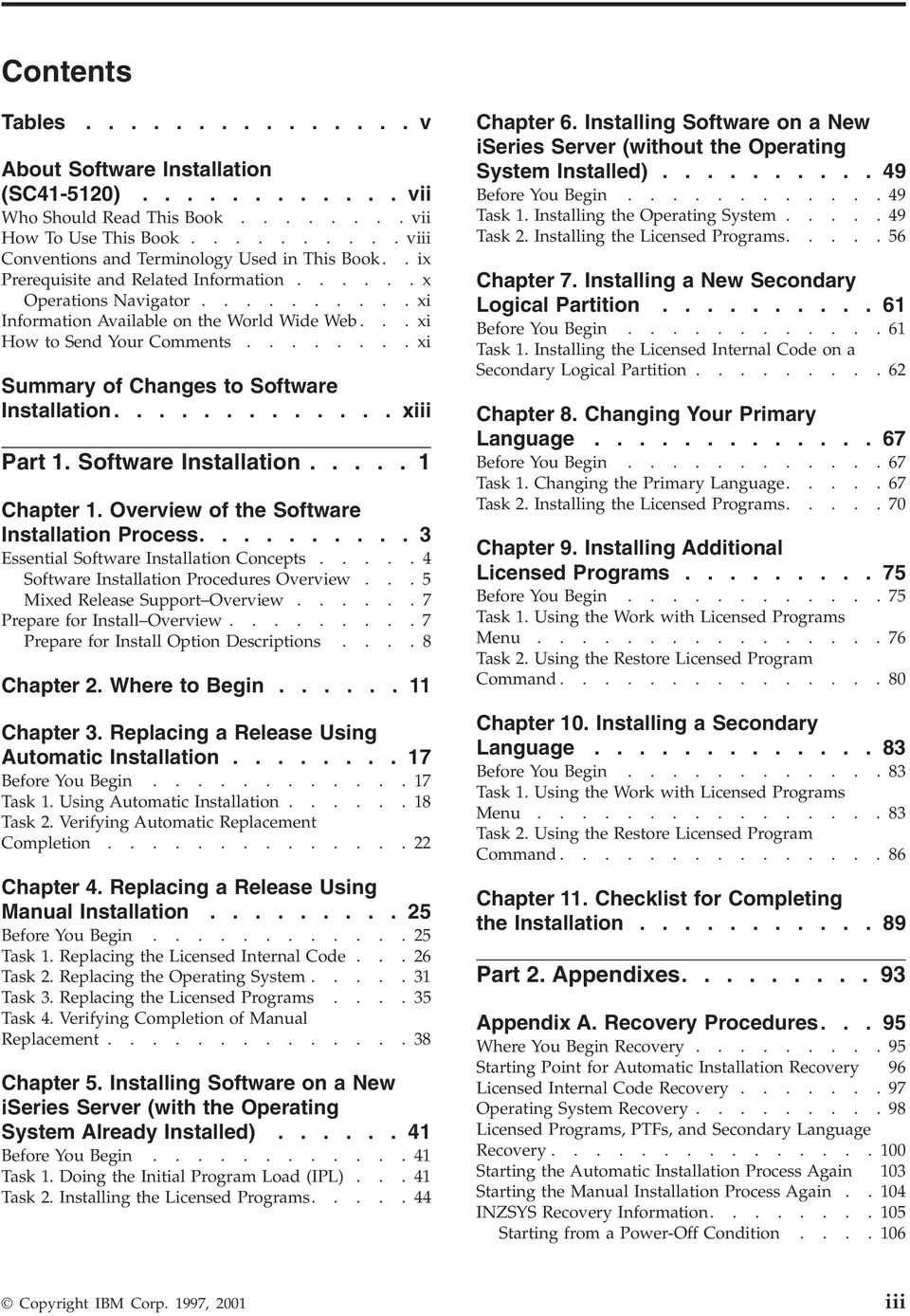
5 Contents Tables About Software Installation (SC ) ii Who Should Read This Book ii How To Use This Book iii Conentions and Terminology Used in This Book.. ix Prerequisite and Related Information x Operations Naigator xi Information Aailable on the World Wide Web... xi How to Send Your Comments xi Summary of Changes to Software Installation xiii Part 1. Software Installation Chapter 1. Oeriew of the Software Installation Process Essential Software Installation Concepts Software Installation Procedures Oeriew... 5 Mixed Release Support Oeriew Prepare for Install Oeriew Prepare for Install Option Descriptions Chapter 2. Where to Begin Chapter 3. Replacing a Release Using Automatic Installation Before You Begin Task 1. Using Automatic Installation Task 2. Verifying Automatic Replacement Completion Chapter 4. Replacing a Release Using Manual Installation Before You Begin Task 1. Replacing the Licensed Internal Code Task 2. Replacing the Operating System Task 3. Replacing the Licensed Programs Task 4. Verifying Completion of Manual Replacement Chapter 5. Installing Software on a New iseries Serer (with the Operating System Already Installed) Before You Begin Task 1. Doing the Initial Program Load (IPL) Task 2. Installing the Licensed Programs Chapter 6. Installing Software on a New iseries Serer (without the Operating System Installed) Before You Begin Task 1. Installing the Operating System Task 2. Installing the Licensed Programs Chapter 7. Installing a New Secondary Logical Partition Before You Begin Task 1. Installing the Licensed Internal Code on a Secondary Logical Partition Chapter 8. Changing Your Primary Language Before You Begin Task 1. Changing the Primary Language Task 2. Installing the Licensed Programs Chapter 9. Installing Additional Licensed Programs Before You Begin Task 1. Using the Work with Licensed Programs Menu Task 2. Using the Restore Licensed Program Command Chapter 10. Installing a Secondary Language Before You Begin Task 1. Using the Work with Licensed Programs Menu Task 2. Using the Restore Licensed Program Command Chapter 11. Checklist for Completing the Installation Part 2. Appendixes Appendix A. Recoery Procedures Where You Begin Recoery Starting Point for Automatic Installation Recoery 96 Licensed Internal Code Recoery Operating System Recoery Licensed Programs, PTFs, and Secondary Language Recoery Starting the Automatic Installation Process Again 103 Starting the Manual Installation Process Again INZSYS Recoery Information Starting from a Power-Off Condition Copyright IBM Corp. 1997, 2001 iii
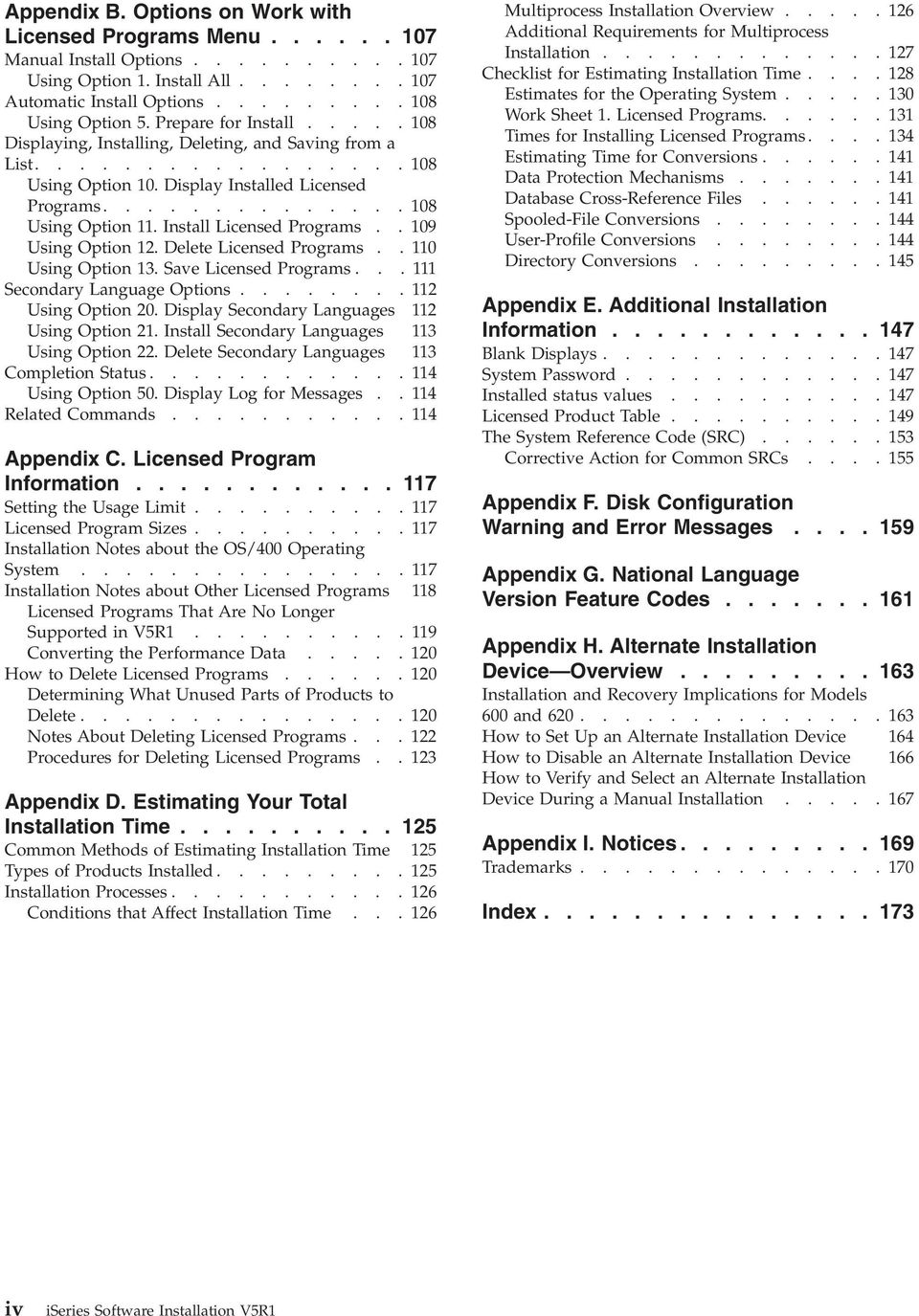
6 Appendix B. Options on Work with Licensed Programs Menu Manual Install Options Using Option 1. Install All Automatic Install Options Using Option 5. Prepare for Install Displaying, Installing, Deleting, and Saing from a List Using Option 10. Display Installed Licensed Programs Using Option 11. Install Licensed Programs Using Option 12. Delete Licensed Programs Using Option 13. Sae Licensed Programs Secondary Language Options Using Option 20. Display Secondary Languages 112 Using Option 21. Install Secondary Languages 113 Using Option 22. Delete Secondary Languages 113 Completion Status Using Option 50. Display Log for Messages Related Commands Appendix C. Licensed Program Information Setting the Usage Limit Licensed Program Sizes Installation Notes about the OS/400 Operating System Installation Notes about Other Licensed Programs 118 Licensed Programs That Are No Longer Supported in V5R Conerting the Performance Data How to Delete Licensed Programs Determining What Unused Parts of Products to Delete Notes About Deleting Licensed Programs Procedures for Deleting Licensed Programs Appendix D. Estimating Your Total Installation Time Common Methods of Estimating Installation Time 125 Types of Products Installed Installation Processes Conditions that Affect Installation Time Multiprocess Installation Oeriew Additional Requirements for Multiprocess Installation Checklist for Estimating Installation Time Estimates for the Operating System Work Sheet 1. Licensed Programs Times for Installing Licensed Programs Estimating Time for Conersions Data Protection Mechanisms Database Cross-Reference Files Spooled-File Conersions User-Profile Conersions Directory Conersions Appendix E. Additional Installation Information Blank Displays System Password Installed status alues Licensed Product Table The System Reference Code (SRC) Correctie Action for Common SRCs Appendix F. Disk Configuration Warning and Error Messages Appendix G. National Language Version Feature Codes Appendix H. Alternate Installation Deice Oeriew Installation and Recoery Implications for Models 600 and How to Set Up an Alternate Installation Deice 164 How to Disable an Alternate Installation Deice 166 How to Verify and Select an Alternate Installation Deice During a Manual Installation Appendix I. Notices Trademarks Index i iseries Software Installation V5R1
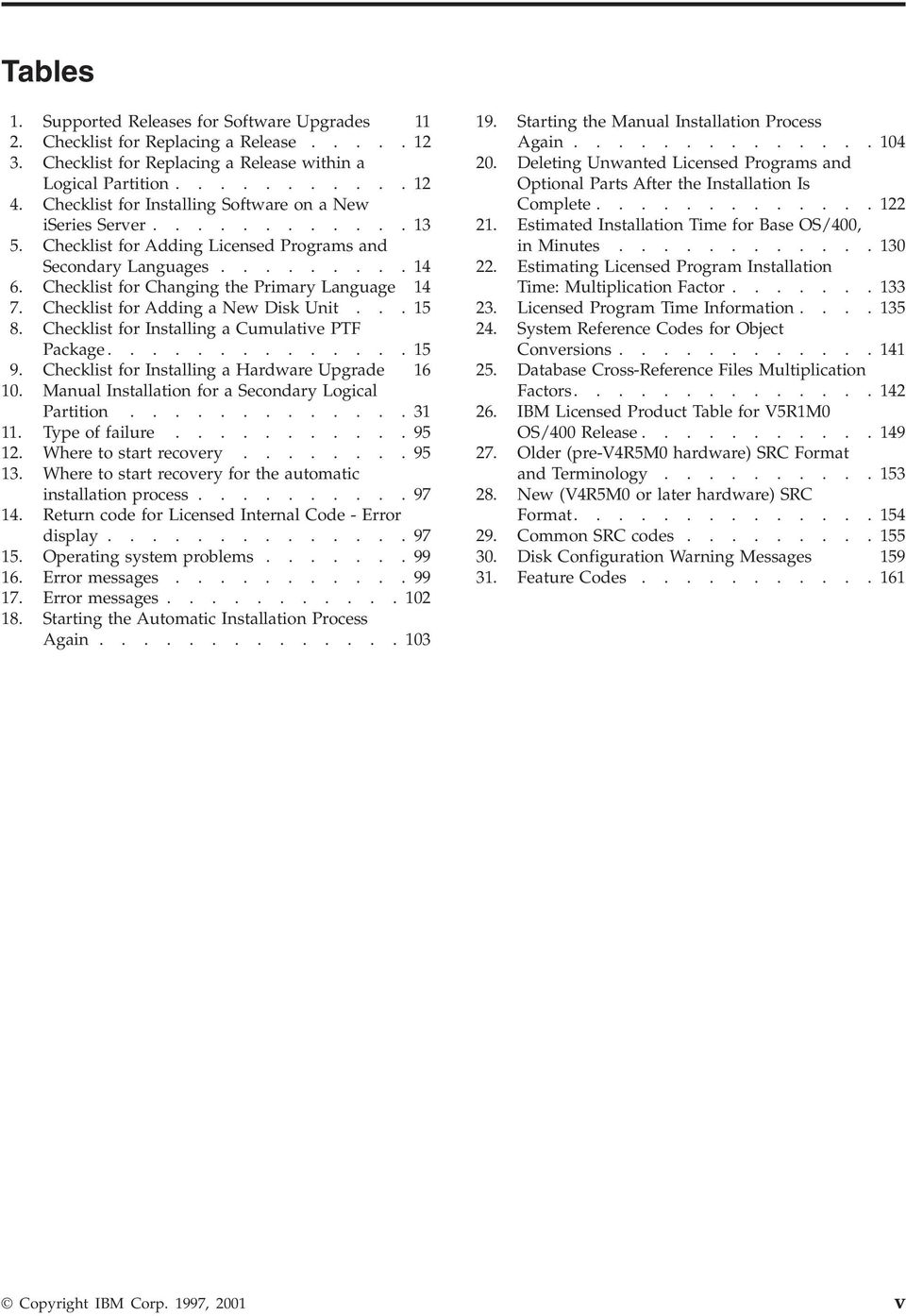
7 Tables 1. Supported Releases for Software Upgrades Checklist for Replacing a Release Checklist for Replacing a Release within a Logical Partition Checklist for Installing Software on a New iseries Serer Checklist for Adding Licensed Programs and Secondary Languages Checklist for Changing the Primary Language Checklist for Adding a New Disk Unit Checklist for Installing a Cumulatie PTF Package Checklist for Installing a Hardware Upgrade Manual Installation for a Secondary Logical Partition Type of failure Where to start recoery Where to start recoery for the automatic installation process Return code for Licensed Internal Code - Error display Operating system problems Error messages Error messages Starting the Automatic Installation Process Again Starting the Manual Installation Process Again Deleting Unwanted Licensed Programs and Optional Parts After the Installation Is Complete Estimated Installation Time for Base OS/400, in Minutes Estimating Licensed Program Installation Time: Multiplication Factor Licensed Program Time Information System Reference Codes for Object Conersions Database Cross-Reference Files Multiplication Factors IBM Licensed Product Table for V5R1M0 OS/400 Release Older (pre-v4r5m0 hardware) SRC Format and Terminology New (V4R5M0 or later hardware) SRC Format Common SRC codes Disk Configuration Warning Messages Feature Codes Copyright IBM Corp. 1997, 2001
8 i iseries Software Installation V5R1

9 About Software Installation (SC ) Welcome to the iseries Software Installation book. The organization of this book should make it easy for you to prepare for and perform your installation. IBM wants your software installation process to be easy. This book contains task-oriented instructions to install licensed programs on an iseries system that uses IBM optical and tape distribution media. Instructions for specific tasks are: Replacing a release by using either the automatic or the manual installation process Installing licensed programs on a new iseries serer either with or without the operating system already installed Installing licensed programs on a serer with secondary logical partitions Installing additional licensed programs Installing a secondary language Who Should Read This Book Changing the primary language by using secondary language media Recoering from errors during licensed program installation processes Information on preparing to install a new release of software (preiously Chapter 3 in this book) is in the iseries 400 Information Center at Click Hardware and software > Software and licensed programs > Prepare for software installation. A CD-ROM ersion of the Information Center (iseries Information Center, SK3T ) comes with your Operating System/400 order. This book contains instructions and a recommended path for each installation task. If you choose options on any displays other than those that are recommended in this book, make a note of which option you choose. You will need this information later for recoery procedures if a failure occurs. This book does not contain information about installing software products on personal computers. This book is for the system operator or office superisor who is responsible for installing the licensed programs or operating system. The person with these responsibilities must hae security officer authority, QSECOFR, for the system. You should be able to operate the following deices: Consoles, including operations console or twinaxial console Control panels or remote-control-panel software Optical (CD-ROM or DVD media) deices Tape libraries or stand-alone tape deices For information about how to operate these deices, refer to the operator s guide for each deice. You should also know how to do the following tasks on your iseries serer: Copyright IBM Corp. 1997, 2001 ii
10 How To Use This Book Sign on and off your display station Use function keys on your display station keyboard Use displays, menus, and Operations Naigator Enter and use commands from either the command line or Operations Naigator Install program temporary fixes (PTFs) Change the system operation mode and initial program load (IPL) source on the system unit control panel Restart your system or logical partitions: perform an IPL Information about how to do these tasks is in the iseries Information Center. To locate the Information Center, see Prerequisite and Related Information on page x. Software Installation gies step-by-step instructions. The installation process that you use depends on whether you are upgrading to a new software release, installing a new system, installing additional licensed programs, or installing secondary languages. You do not need to read this whole book for your particular installation. Use the following outline as a path to familiarize yourself with the chapters that you will use for your situation. If you are a new user or are familiar with the iseries software installation process: Read the Summary of Changes to Software Installation on page xiii to find out what has changed or is new since the last software release. Read Chapter 1. Oeriew of the Software Installation Process on page 3. Start with Chapter 2. Where to Begin on page 11 to find out about your release upgrades and which chapters you will need to perform your particular installation. Always read and perform the steps for preinstallation tasks in the iseries 400 Information Center: Click System planning and installation > Hardware and software > Software and licensed programs > Prepare for software installation. These preparation tasks are necessary to aoid installation problems later. Then choose one or more of the installation chapters in this book ( Chapter 3. Replacing a Release Using Automatic Installation on page 17 through Chapter 10. Installing a Secondary Language on page 83) to perform specific installation tasks. When you hae performed the aboe tasks, finish your installation by using Chapter 11. Checklist for Completing the Installation on page 89. The appendixes gie specific reference information. Examples might include looking up a product in the Licensed Product Table on page 149, reiewing installation time estimates, or reading about the Work with Licensed Program menu. Reiew the Table of Contents to find the reference information that you might need. If you are changing your primary language, there are different methods depending on your situation. To change your primary language, you would choose one of these chapters: Chapter 4. Replacing a Release Using Manual Installation on page 25 iii iseries Software Installation V5R1

11 Chapter 6. Installing Software on a New iseries Serer (without the Operating System Installed) on page 49 Chapter 8. Changing Your Primary Language on page 67 To determine the best method, start by using the tables in Chapter 2. Where to Begin on page 11. If you are installing software on logical partitions, see the following topics: Read Conentions and Terminology Used in This Book. Read the most current information about logical partitions in the iseries Information Center and the Logical Partitioning Web site. See Prerequisite and Related Information on page x for the location of this information. Read the Summary of Changes to Software Installation on page xiii. Read Chapter 2. Where to Begin on page 11, to determine the chapters you will use to install software on logical partitions. Specifically, read the following sections: - Table 3 on page 12, Checklist for Replacing a Release within a Logical Partition - Table 4 on page 13, Checklist for Installing Software on a New System Conentions and Terminology Used in This Book When a release is specified in this manual, the short form describes the release as shown below: V4R4M0 Version 4 Release 4 Modification 0 V4R5M0 Version 4 Release 5 Modification 0 V5R1M0 Version 5 Release 1 Modification 0 If an x appears in any of the positions that contain numerals, any supported alue can be used. Optical media or optical deice The terms optical media or optical deice encompass arious types of media technologies and deices. Some examples are: compact disk-read only memory (CD-ROM) and digital ersatile disk-random access memory (DVD-RAM). A digital ersatile disk (DVD) deice will accept DVD-RAM or CD-ROM as installation media. Also, DVD-RAM proides rewritable optical storage technology, which is adantageous for system backups and recoeries. Integrated xseries Serer for iseries Integrated xseries Serer for iseries is the new name for Integrated Netfinity Serer. Secondary Logical Partitions When you work with secondary logical partitions: The word system in this book is synonymous with the word partition, except in those cases where full or entire system is used. Full system means the primary partition and all participating secondary partitions. System is also synonymous with serer. The words alternate installation deice are synonymous with the words alternate IPL deice. The words control panel refer to the Work with Partition Status display. About Software Installation (SC ) ix

12 Prerequisite and Related Information For secondary logical partitions, you change operation mode, change IPL source, and iew system reference codes (SRCs) from the Work with Partition Status display (irtual control panel). You do not use the physical control panel of the system. Use the iseries Information Center as your starting point for looking up iseries and AS/400e technical information. The documents that are listed and described in System planning and installation > Hardware and software > Software and licensed programs > Prepare for software installation > Locating and erifying your software information and order are highly recommended as supplemental information to this book. You can access the Information Center two ways: From the following Web site: From CD-ROMs that ship with your Operating System/400 order: iseries Information Center, SK3T This package also includes the PDF ersions of iseries manuals, iseries Information Center: Supplemental Manuals, SK3T , which replaces the Softcopy Library CD-ROM. The iseries Information Center contains adisors and important topics such as CL commands, system application programming interfaces (APIs), logical partitions, clustering, Jaa, TCP/IP, Web sering, and secured networks. It also includes links to related IBM Redbooks and Internet links to other IBM Web sites such as the Technical Studio and the IBM home page. With eery new hardware order, you receie the following CD-ROM information: iseries 400 Installation and Serice Library, SK3T This CD-ROM contains PDF manuals needed for installation and system maintenance of an IBM ~ iseries 400 serer. iseries 400 Setup and Operations CD-ROM, SK3T This CD-ROM contains IBM iseries Client Access Express for Windows and the EZ-Setup wizard. Client Access Express offers a powerful set of client and serer capabilities for connecting PCs to iseries serers. The EZ-Setup wizard automates many of the iseries setup tasks. You may also find the following references useful: If you are setting up logical partitions, refer to the topics on logical partitions within the Systems Management category in the iseries Information Center. Also, refer to topics on planning and how-to information at the Logical Partitioning Web site: If you are using auxiliary storage pools, deice parity protection, or mirrored protection, you should obtain the book Backup and Recoery, SC Backup information is also aailable in the iseries Information Center. Before you begin production work on your system, be sure you hae adequately protected your system from unauthorized use. To plan and set up security on your system, refer to Security > Basic system security and planning in the Information Center. If you are interested in C2 security, refer to the book Security - Enabling for C2, SC x iseries Software Installation V5R1

13 Operations Naigator IBM iseries Operations Naigator is a powerful graphical interface for managing your iseries and AS/400e serers. Operations Naigator functionality includes system naigation, configuration, planning capabilities, and online help to guide you through your tasks. Operations Naigator makes operation and administration of the serer easier and more productie and is the only user interface to the new, adanced features of the OS/400 operating system. It also includes Management Central for managing multiple serers from a central serer. For more information on Operations Naigator, see the iseries Information Center. Information Aailable on the World Wide Web More iseries information is aailable on the World Wide Web. You can access general information from the iseries home page, which is at the following Web site: To access workshops on adanced iseries functions, use the Technical Studio, located at: Worldwide, you can read about, select, order, and take deliery of iseries program temporary fixes (PTF) oer the Internet. Internet PTF downloads and preentie serice planning (PSP) information are aailable at the following Internet location: How to Send Your Comments Your feedback is important in helping to proide the most accurate and high-quality information. If you hae any comments about this book or any other iseries documentation, fill out the readers comment form at the back of this book. If you prefer to send comments by mail, use the readers comment form with the address that is printed on the back. If you are mailing a readers comment form from a country other than the United States, you can gie the form to the local IBM branch office or IBM representatie for postage-paid mailing. If you prefer to send comments by FAX, use either of the following numbers: United States, Canada, and Puerto Rico: Other countries: If you prefer to send comments electronically, use one of these addresses: Comments on books: [email protected] Comments on the iseries Information Center: [email protected] Be sure to include the following: The name of the book or iseries Information Center topic. The publication number of a book. The page number or topic of a book to which your comment applies. About Software Installation (SC ) xi
14 xii iseries Software Installation V5R1

15 Summary of Changes to Software Installation With eery new release of the operating system (OS/400) or new line of iseries serers comes necessary changes to the software installation process. Following are the changes you should be aware of for installing the V5R1M0 operating system software. Preparing for software installation information The steps for the preinstallation tasks (preiously Chapter 3) are now in the iseries Information Center. You can access the Information Center from the following Web site: or from CD-ROMs that ship with your Operating System/400 order (iseries Information Center, SK3T ). The preinstallation tasks are located under System planning and installation > Hardware and software > Software and licensed programs > Prepare for software installation. Estimating your installation time For this release, a number of structural changes for future growth of object types hae occurred that require conersions when you replace a preious release. Before you install the operating system, you need to plan time for these object conersions. The amount of time that is required could be significant depending on the number of object types that you hae on your serer. Reiew the page in the iseries Information Center at System planning and installation > Hardware and software > Software and licensed programs > Prepare for software installation > Installing the PTFs to upgrade. Then run the programs included in the installation preparation PTF to estimate the amount of time needed for these object conersions. Consider also the product repackaging of iseries Application Deelopment e-business tools to IBM WebSphere Deelopment Studio for iseries (5722-WDS). Because seeral licensed programs (57xx-CB1, CL2, CX2, CX4, CX5, PW1, and RG1) are deleted during the installation process, your installation time could be affected. Refer to Appendix D. Estimating Your Total Installation Time on page 125 for more information. DVD rewritable storage technology You can use DVD rewritable storage technology and deices for many purposes. For example, if you hae a DVD deice as an alternate installation deice, you can use it for the following functions: Backing up and recoering the system Installing, saing, and restoring licensed programs Copying, loading, and installing program temporary fixes (PTFs) Storing main storage dumps Performing other sae and restore functions Copyright IBM Corp. 1997, 2001 xiii

16 xi iseries Software Installation V5R1

17 Part 1. Software Installation Copyright IBM Corp. 1997,

18 2 iseries Software Installation V5R1

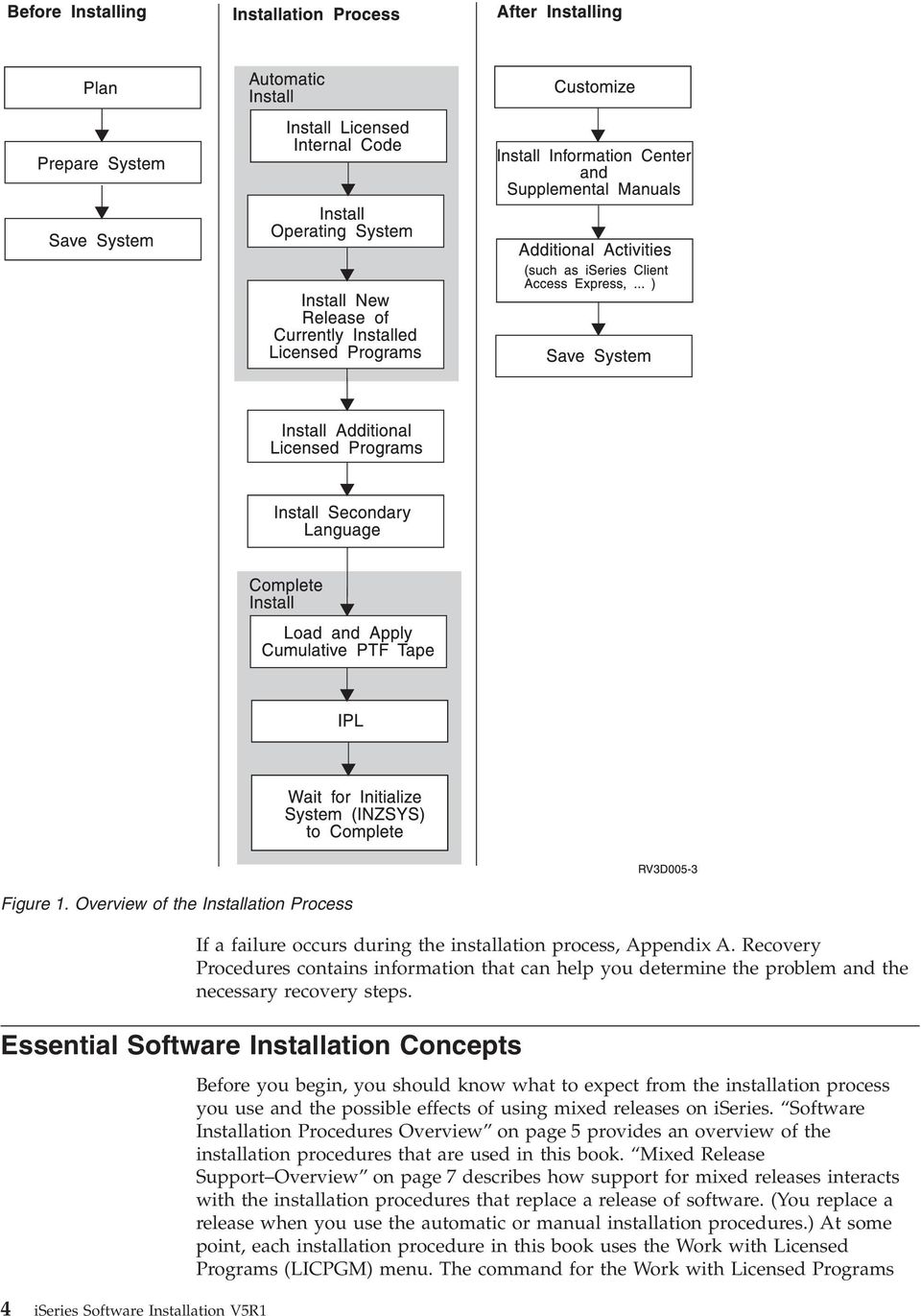
19 Chapter 1. Oeriew of the Software Installation Process The software installation process has three phases: 1. Pre-installation actiities 2. The installation process 3. Post-installation actiities Figure 1 on page 4 shows an oeriew of the installation process. (Your installation process might not include all of the topics that are shown in the figure.) 1. Pre-Installation Actiities: You can do these actiities days or een a few weeks in adance. For planning, use Chapter 2. Where to Begin on page 11, which directs you to the appropriate instructions for your installation process. For preparing and saing your system, use the Prepare for software installation topic in the iseries Information Center to guide you through the actiities you need to do. Some of these actiities include erifying your order, checking the amount of aailable disk space, backing up your system, and cleaning your media deice. Appendix E. Additional Installation Information on page 147, includes more information about the installation process. Be sure to read it before you begin installing this release. 2. The Installation Process: The installation process begins when you start performing the instructions in one of the procedural chapters, which are Chapter 3. Replacing a Release Using Automatic Installation on page 17 through Chapter 10. Installing a Secondary Language on page 83. For example, to upgrade to the V5R1M0 release, you may hae chosen the automatic installation as described in Chapter 3. Replacing a Release Using Automatic Installation on page 17. The automatic installation process installs the Licensed Internal Code, the operating system (OS/400), and licensed programs. You would hae minimal interaction with the system, except to load the optical distribution media and to monitor the system. Your only installation actiity may be using Chapter 8. Changing Your Primary Language on page 67, Chapter 9. Installing Additional Licensed Programs on page 75, or Chapter 10. Installing a Secondary Language on page 83. Or, you can perform these actiities after an automatic or manual installation. For a broader explanation of the procedural chapters, see Software Installation Procedures Oeriew on page Post-Installation Actiities: The last step of each procedure directs you to use Chapter 11. Checklist for Completing the Installation on page 89 to complete the installation process. You may be directed to additional steps, such as saing your system and performing installation actiities on workstations for Client Access products. Other actiities could include customizing your system, or setting usage limits for user-based priced products. Before you begin production work on your system, be sure to adequately protect your system from unauthorized use. Copyright IBM Corp. 1997,

20 Figure 1. Oeriew of the Installation Process If a failure occurs during the installation process, Appendix A. Recoery Procedures contains information that can help you determine the problem and the necessary recoery steps. Essential Software Installation Concepts 4 iseries Software Installation V5R1 Before you begin, you should know what to expect from the installation process you use and the possible effects of using mixed releases on iseries. Software Installation Procedures Oeriew on page 5 proides an oeriew of the installation procedures that are used in this book. Mixed Release Support Oeriew on page 7 describes how support for mixed releases interacts with the installation procedures that replace a release of software. (You replace a release when you use the automatic or manual installation procedures.) At some point, each installation procedure in this book uses the Work with Licensed Programs (LICPGM) menu. The command for the Work with Licensed Programs
21 menu is GO LICPGM. Appendix B. Options on Work with Licensed Programs Menu on page 107 describes the options shown on the LICPGM menu. Software Installation Procedures Oeriew This topic describes the installation procedures that are used in this book. You will see included with these procedures some additional notes about installing software on a system with logical partitions. Installing Software on a New System On a new system, the operating system might or might not be installed already. The procedures in Chapter 6. Installing Software on a New iseries Serer (without the Operating System Installed) on page 49 help you to install the operating system and licensed programs. When you use Chapter 5. Installing Software on a New iseries Serer (with the Operating System Already Installed) on page 41, you may already hae licensed programs installed. If you are creating logical partitions on a new system, you must use the procedures in Chapter 7. Installing a New Secondary Logical Partition on page 61 and Chapter 6. Installing Software on a New iseries Serer (without the Operating System Installed) on page 49, for all newly created secondary partitions. You must install software separately on the primary partition and each secondary partition. Replacing Licensed Programs: Automatic or Manual Installation Process If you are replacing your existing software, use either Chapter 3. Replacing a Release Using Automatic Installation or Chapter 4. Replacing a Release Using Manual Installation. You should be aware of the similarities and differences between the two installation methods in this section. You should also understand how support for mixed releases of licensed programs can affect the results of these installation procedures. Topic Mixed Release Support Oeriew on page 7 describes the impact that mixed release support has when you replace a release of software. The automatic installation process replaces your existing release with minimal user interaction. (You will need to load media olumes when you use this process.) The language feature code on the distribution media is installed as the primary language on the system. The automatic installation process keeps the current enironment (iseries or System/36 Enironment) and system alues. The process keeps the same configuration of those disk units that are already configured and configures those disk units that were preiously not configured. The automatic installation process is recommended for use with most iseries serers. Chapter 3. Replacing a Release Using Automatic Installation documents this method. The manual installation method interactiely replaces your existing release by using the Work with Licensed Programs (LICPGM) menu. Displays that require responses appear on the console. During a manual installation you can change installation options and perform tasks such as those described in the iseries Information Center: System planning and installation > Hardware and software > Software and licensed programs > Prepare for software installation > Choosing an installation procedure and preparing for globalization support. Chapter 4. Replacing a Release Using Manual Installation on page 25 documents this method. Chapter 1. Oeriew of the Software Installation Process 5
22 If you hae existing logical partitions, you must install the Licensed Internal Code, Operating System/400, and licensed programs separately on each partition. What Installs with Either Method: Both installation methods replace your currently installed leel of Licensed Internal Code and Operating System/400. Both installation methods can replace your currently installed licensed programs if the LICPGM menu on the target release supports those licensed programs. If you use the Prepare for Install option on the LICPGM menu to customize an installation list, the system also installs any additionally selected products. Read more about the Prepare for Install option in Prepare for Install Oeriew on page 7. What Does Not Install with Either Method: In certain conditions, some licensed programs are not installed during procedures that replace a release. When the distribution media contains non-renewed licensed programs that are at the same leel as the licensed programs that you hae installed, the installed licensed programs remain unchanged. (Non-renewed licensed programs are those that do not hae a new release leel since the last release.) This preseres any program temporary fixes (PTFs) that are applied to the currently installed licensed programs. See Mixed Release Support Oeriew on page 7 for more information about mixed releases licensed programs. If you do not use the Prepare for Install option of the LICPGM menu, the procedures that replace an existing release do not install new licensed programs or new optional parts. Licensed programs and optional parts are considered new if they are being added to your system for the first time. For more information on creating and customizing an installation list to preselect the licensed programs that you want to install, see iseries Information Center page at System planning and installation > Hardware and software > Software and licensed programs > Prepare for software installation > Creating and customizing an installation list. New licensed programs and new optional parts can be introduced with a new release of the operating system or independently of it. If you do not use the Prepare for Install option, you need to follow the directions in Chapter 9. Installing Additional Licensed Programs to install new licensed programs or optional parts. The instructions for both automatic and manual installation methods direct you to Chapter 9. Installing Additional Licensed Programs on page 75 at the appropriate time. Adding Licensed Programs If you are adding additional licensed programs or optional parts of licensed programs, you use Chapter 9. Installing Additional Licensed Programs on page 75. This section uses option 11 (Install licensed programs) of the Work with Licensed Programs (LICPGM) menu. When you use option 11, you select licensed programs or optional parts from a list. Typically, you use option 11 when you need to install a new licensed program or to replace a single licensed program. The licensed program or optional part that you select is always installed from the media. If the licensed program is already installed, it is replaced. This is true een when both the system and the media hae the same leel of the licensed program. (When you install a leel of a licensed program oer the same leel that is already on your system, any PTFs you had applied to the licensed program may need to be applied again.) You can add new licensed programs to your system while replacing a release of software. To do this, use the Prepare for Install option of the Work with Licensed Programs menu. Refer to Prepare for Install Oeriew on page 7 for information about how this option functions. 6 iseries Software Installation V5R1
23 Adding or Changing Globalization Support When you add a secondary language, you add additional language objects for the licensed programs that are installed on your system. These additional language objects are a different national language ersion (NLV) than the system s primary language. Chapter 10. Installing a Secondary Language, adds language objects for all of the installed licensed programs that are found on the media. When you change the primary language you replace the existing language objects. Depending on the procedure that you use, you could also be replacing program objects. Chapter 8. Changing Your Primary Language, replaces only the language objects that exist on your system. See the topic on planning for globalization installations in the iseries Information Center for more information. Mixed Release Support Oeriew Licensed programs do not need to hae the same release as the OS/400. This is referred to as a mixed release enironment. Also, licensed programs can be packaged so that the product s options are not at the same release as its base. For these reasons, your V5R1M0 media may contain licensed programs and options that are at different releases than V5R1M0. Products that do not hae any new function for this release are not repackaged, and therefore hae a release preious to V5R1M0. Prepare for Install Oeriew Normally, licensed programs are only re-installed when the release of the licensed program on the media is higher than the installed release. Howeer, you can change the Replace if Current parameter to *YES (on LICPGM menu, Manual Install). Change this parameter to *YES, if you want to re-install the licensed programs, een if they are already installed at the same release. If you choose *YES, you may hae to reapply PTFs to some licensed programs that were replaced from the media. Summary of Changes to Software Installation on page xiii describes mixed release support for logical partitions. This topic describes the Prepare for Install function. Highlights of this function include the following: Customizing an installation list. Pre-selecting licensed programs or options to be installed during the automatic installation process. Verifying the contents of the media before starting an installation. Determining additional storage requirements for the licensed programs that you plan to install. This function appears as option 5 (Prepare for Install) on the Work with Licensed Programs menu. The Prepare for Install display appears when you select this option. Chapter 1. Oeriew of the Software Installation Process 7
24 Prepare for Install Type option, press Enter. 1=Select Opt Description _ Work with user profiles _ Work with licensed programs for target release _ Display licensed programs for target release _ Work with licensed programs to delete _ List licensed programs not found on media _ Verify system objects _ Estimated storage requirements for system ASP System: XXXXXXXX F3=Exit F9=Command line F10=Display job log F12=Cancel Bottom Additionally, see the iseries Information Center: System planning and installation > Hardware and software > Software and licensed programs > Prepare for software installation > Creating and customizing an installation list for the instructions to use Option 5, Prepare for install. Prepare for Install Option Descriptions With the Work with user profiles option, you can work with a list of user profiles on the system and work with the objects owned by each user profile. Use this option to clean up user profiles that are no longer needed on the system before you install the target release. For more information, refer to the iseries Information Center: System planning and installation > Hardware and software > Software and licensed programs > Prepare for software installation > Cleaning up user profiles. With the Work with licensed programs for target release option, you can work with a list of the licensed programs for the target release. Use this option to erify the contents of the installation media and to create a customized list of licensed programs to install for the target release. The system can use the list you create to allow the installation processes that replace a release of software to also install the selected additional licensed programs. For more information, refer to the iseries Information Center: System planning and installation > Hardware and software > Software and licensed programs > Prepare for software installation > Verifying your software order. Note: This list does not include all products. Among those are programming request for price quotations (PRPQ), licensed program offerings (LPO), and licensed programs on the single set. If you want to install these products for the first time, use the Go LICPGM menu, options 1 or 11. With the Display licensed programs for target release option, you can display the list of licensed programs that will be installed when you install the target release. For each licensed program in the list, you can display information such as the expected action during the installation process and whether a product option must be separately ordered. Use this option to erify your installation plans. With the Work with licensed programs to delete option, you can work with a list of installed licensed programs that should not remain on the system because either they are no longer supported or you chose not to replace them. This list also includes products for which no replacement was found on the distribution media. The display indicates the reason why a licensed program is included in this list, as well as proides options to sae and delete any of the products listed. For more 8 iseries Software Installation V5R1
25 information, refer to the iseries Information Center: System planning and installation > Hardware and software > Software and licensed programs > Prepare for software installation > Ealuating your disk storage needs > Cleaning up your system storage space > Deleting licensed programs during cleanup. With the List licensed programs not found on media option, you can display a list of licensed programs that could replace existing products but that were not found on the optical distribution media. For more information, refer to the iseries Information Center: System planning and installation > Hardware and software > Software and licensed programs > Prepare for software installation > Locating and erifying your software information and order. With the Verify system objects option, the system erifies that the system directory entries include the user profiles needed by the installation process. The system also checks database cross reference files for errors. If necessary, the QSECOFR and QLPINSTALL user profiles are added to the system distribution directory. For more information, refer to the iseries Information Center: System planning and installation > Hardware and software > Software and licensed programs > Prepare for software installation > Verifying the integrity of system objects > Verifying user profiles and checking cross-reference files. With the Estimate storage requirements for system ASP option, you can determine whether additional storage is needed before you begin the installation process. Chapter 1. Oeriew of the Software Installation Process 9
26 10 iseries Software Installation V5R1
27 Chapter 2. Where to Begin Always begin by reading the planning material in the iseries Information Center at System planning and installation > Hardware and software > Software and licensed programs > Prepare for software installation. Careful, complete, and early preparation saes a considerable amount of time and can help make your installation run smoothly. Perform these preparatory tasks before you schedule your installation. Allow ample time (a few weeks or days before the installation) to complete these tasks. If you hae not done so already, also read Chapter 1. Oeriew of the Software Installation Process on page 3. The tables in this chapter guide you to the appropriate location for your V5R1M0 release upgrade. Use Table 1 Supported Releases for Software Upgrades to determine whether you can use this book for a V5R1M0 release upgrade on your iseries serer. Use the remaining tables to determine which chapters to use: Checklist for Replacing a Release, Table 2 on page 12 Checklist for Replacing a Release within a Logical Partition, Table 3 on page 12 Checklist for Installing Software on a New System, Table 4 on page 13 Checklist for Adding Licensed Programs and Secondary Languages, Table 5 on page 14 Checklist for Changing the Primary Language, Table 6 on page 14 Checklist for Adding a New Disk Unit, Table 7 on page 15 These tables gie additional information: Checklist for Installing a Cumulatie PTF Package, Table 8 on page 15 Checklist for Installing a Hardware Upgrade, Table 9 on page 16 Table 1. Supported Releases for Software Upgrades Release of OS/400 Currently Installed (Source) Release Valid Target Releases Should You Use this Book? V5R1M0 V5R1M0 Yes. You can use this book to replace the installed operating V4R5M0 V4R4M0 V5R1M0 V4R5M0 V5R1M0 V4R5M0 V4R4M0 system and licensed programs. Note: If you plan to use secondary logical partitions and want to understand about supported releases on logical partitions, see the iseries Information Center: Systems Management > Logical partitions > Learning about logical partitions topics. Note: This table shows the only supported combinations for source and target releases. You may no longer be able to order some of the target releases shown in this table. Copyright IBM Corp. 1997,
28 Table 2. Checklist for Replacing a Release Replacing a Release with V5R1M0 Actiity Information Needed Are you replacing an installed leel of V4R4M0 or V4R5M0 software? Use these sources in the following order: 1. The Prepare for software installation topic in the iseries Information Center. 2. One of these chapters, either: Chapter 3. Replacing a Release Using Automatic Installation. Chapter 4. Replacing a Release Using Manual Installation. Automatic installation is recommended, howeer there are some circumstances where you must use Chapter 4. Replacing a Release Using Manual Installation. To determine if you must use manual installation, read the iseries Information Center: System planning and installation > Hardware and software > Software and licensed programs > Prepare for software installation > Choosing an installation procedure and preparing for globalization support. 3. You may need to complete one or both of the following: Chapter 9. Installing Additional Licensed Programs. Chapter 10. Installing a Secondary Language. 4. Chapter 11. Checklist for Completing the Installation. Table 3. Checklist for Replacing a Release within a Logical Partition Replacing a Release within a Logical Partition Actiity Information Needed Are you replacing an installed leel of V4R4M0 or V4R5M0 software within a logical partition? Use these chapters in the following order: 1. The Prepare for software installation topic in the iseries Information Center. 2. One of these chapters, either: Chapter 3. Replacing a Release Using Automatic Installation. Chapter 4. Replacing a Release Using Manual Installation. Automatic installation is recommended, howeer there are some circumstances where you must use Chapter 4. Replacing a Release Using Manual Installation. To determine if you must use manual installation, read the iseries Information Center page at System planning and installation > Hardware and software > Software and licensed programs > Prepare for software installation > Choosing an installation procedure and preparing for globalization support. 3. You may need to complete one or both of the following: Chapter 9. Installing Additional Licensed Programs. Chapter 10. Installing a Secondary Language. 4. Chapter 11. Checklist for Completing the Installation. 12 iseries Software Installation V5R1
29 Table 4. Checklist for Installing Software on a New iseries Serer Installing Software on a New iseries Serer Actiity Information Needed Are you installing software on a new iseries serer that has the operating system already installed in your primary language? Are you installing software on a new iseries serer that has the operating system already installed in a language that is not your primary language, or you want to change the primary language? Are you installing software on an iseries serer that does not hae the operating system installed? Use these sources in the following order: 1. The Prepare for software installation topic in the iseries Information Center (only certain topics might apply). 2. Chapter 5. Installing Software on a New iseries Serer (with the Operating System Already Installed). You can use the automatic installation process to install software on a new iseries serer. Howeer, you cannot change any system options during the installation process. 3. You may need to complete one or both of the following: Chapter 9. Installing Additional Licensed Programs. Chapter 10. Installing a Secondary Language. 4. Chapter 11. Checklist for Completing the Installation. You must reinstall your operating system to change your primary language. Use Table 6 on page 14 and then add your licensed programs by using the steps aboe (installing software on a new iseries serer that has the operating system already installed in your primary language). Note: If you are using mirrored protection, deice parity protection, or auxiliary storage pools, refer to the information on working with auxiliary storage pools in the book Backup and Recoery, SC , before you begin. Are you installing software on a new secondary logical partition that does not hae Licensed Internal Code and the OS/400 operating system installed? Use these sources in the following order: 1. The Prepare for software installation topic in the iseries Information Center (only certain topics might apply). 2. Chapter 6. Installing Software on a New iseries Serer (without the Operating System Installed). 3. You may need to complete one or both of the following: Chapter 9. Installing Additional Licensed Programs. Chapter 10. Installing a Secondary Language 4. Chapter 11. Checklist for Completing the Installation. Use these sources in the following order: 1. The Prepare for software installation topic in the iseries Information Center. 2. Read the iseries Information Center: Systems Management > Logical partitions > Planning for logical partitions topics. 3. Chapter 7. Installing a New Secondary Logical Partition 4. Chapter 6. Installing Software on a New iseries Serer (without the Operating System Installed). 5. You may need to complete one or both of the following: Chapter 9. Installing Additional Licensed Programs. Chapter 10. Installing a Secondary Language 6. Chapter 11. Checklist for Completing the Installation. Chapter 2. Where to Begin 13
30 Table 5. Checklist for Adding Licensed Programs and Secondary Languages Installing Additional Licensed Programs and Secondary Languages Actiity Information Needed Are you installing only additional licensed programs or optional parts of licensed programs to your existing V5R1M0 serer? An example would be if you are adding a new licensed program or a new optional part of a licensed program that was shipped independently of the operating system. Are you only installing a secondary language? Are you installing additional licensed programs or secondary languages to your serer as part of replacing a release? Are you installing additional licensed programs or secondary languages to your serer as part of installing software on a new system? Use these sources in the following order: 1. The Prepare for software installation topic in the iseries Information Center (only certain topics might apply). 2. Chapter 9. Installing Additional Licensed Programs. 3. If you hae a secondary language installed and you want to hae NLS support for the added licensed program, you need to use Chapter 10. Installing a Secondary Language 4. Chapter 11. Checklist for Completing the Installation. Use these sources in the following order: 1. The Prepare for software installation topic in the iseries Information Center. 2. Chapter 10. Installing a Secondary Language. 3. Chapter 11. Checklist for Completing the Installation. The procedures for replacing a release direct you to add additional licensed programs and secondary languages at the appropriate time. Use the checklist in Table 2 on page 12. The procedures for installing software on a new serer direct you to add additional licensed programs and secondary languages at the appropriate time. Use the appropriate checklist from Table 4 on page 13. Table 6. Checklist for Changing the Primary Language Changing the Primary Language Actiity Information Needed Are you changing your primary language using your secondary language media [single-byte character set language (SBCS) to a single-byte character set language or double-byte character set (DBCS) language to a double-byte character set language]? Are you changing your primary language from a DBCS primary language to an SBCS primary language or an SBCS primary language to a DBCS primary language? Use these sources in the following order: 1. The Prepare for software installation topic in the iseries Information Center. Note: Be sure to read the topic Choosing an installation procedure and preparing for globalization support. 2. Chapter 8. Changing Your Primary Language. 3. Chapter 11. Checklist for Completing the Installation. 14 iseries Software Installation V5R1
31 Table 6. Checklist for Changing the Primary Language (continued) Changing the Primary Language Actiity Information Needed Are you replacing a release with V5R1M0 and also want to change your primary language? Are you installing software on a new iseries serer and want to change the primary language? Or, Are you only changing your primary language? Use these sources in the following order: 1. The Prepare for software installation topic in the iseries Information Center. Verify that you hae the proper primary language media. Note: Be sure to read the topic Choosing an installation procedure and preparing for globalization support. 2. Chapter 3. Replacing a Release Using Automatic Installation. 3. You may need to complete one or both of the following: Chapter 9. Installing Additional Licensed Programs. Chapter 10. Installing a Secondary Language. 4. Chapter 11. Checklist for Completing the Installation. Use the checklist in Table 4 on page 13 and see also the preious two entries in this table (Table 6 on page 14). Table 7. Checklist for Adding a New Disk Unit Adding a New Disk Unit to a New Serer Actiity Information Needed Are you adding a new disk unit to your existing iseries serer? Note: If you are using mirrored protection, deice parity protection, or auxiliary storage pools, refer to the information on working with auxiliary storage pools in the book Backup and Recoery, SC , before you begin. Use these sources in the following order: 1. The Prepare for software installation topic in the iseries Information Center (only certain topics might apply). 2. Chapter 4. Replacing a Release Using Manual Installation. 3. You may need to complete one or both of the following: Chapter 9. Installing Additional Licensed Programs. Chapter 10. Installing a Secondary Language. 4. Chapter 11. Checklist for Completing the Installation. Table 8. Checklist for Installing a Cumulatie PTF Package Installing a Cumulatie Program Temporary Fix (PTF) Package Actiity Information Needed Are you loading and applying a cumulatie PTF package to your system? Go to the iseries PTF Shipping Information Letter that you receied with the cumulatie PTF tapes for instructions to install a PTF cumulatie package. Chapter 2. Where to Begin 15
32 Table 9. Checklist for Installing a Hardware Upgrade Installing a Hardware Upgrade Actiity Information Needed Your current serer uses PowerPC [Reduced Instruction Set Computer (RISC)] technology. Are you installing a hardware upgrade at the same time as you are installing V5R1M0 or licensed programs? Are you installing a hardware upgrade or did you purchase a new serer to moe your serer to PowerPC technology? Refer to the book iseries 940x RISC-to-RISC Road Map, SA At the appropriate point in the upgrade, you are directed to use procedures in this book to install the operating system and licensed programs. You may also receie additional instructions with the upgrade package. Upgrading to a PowerPC AS processor requires a simultaneous hardware change and software upgrade using the book AS/400 Road Map for Changing to PowerPC Technology, SA Always begin by reading the planning material as noted in the Prepare for software installation topic in the iseries Information Center. 16 iseries Software Installation V5R1
33 Chapter 3. Replacing a Release Using Automatic Installation Before You Begin The instructions in this section replace the Licensed Internal Code, Operating System/400, and licensed programs currently installed on your system with the V5R1M0 leel. Should you use this book? Table 1 on page 11 shows which releases are supported when you use this book. Also, reiew Table 2 on page 12, which shows the sequence of the chapters you will use for replacing a release. Or, reiew Table 3 on page 12 if you are replacing a release within a logical partition. Complete the planning tasks in the iseries Information Center: System planning and installation > Hardware and software > Software and licensed programs > Prepare for software installation topics. Which type of console are you using to do your installation? IBM recommends that you use V5R1 Operations Console if you are upgrading to Version 5. If you use Operations Console, do one of the following before you install V5R1M0 on your serer: Use the iseries 400 Setup and Operations CD-ROM, SK3T to install or upgrade to the V5R1 ersion of Operations Console with cable connectiity. To set up Operations Console with local area network (LAN) connectiity or modem connectiity, see Operations Console Setup, SC To iew the most recent information on Operations Console, go to the following Web site: Disconnect from your serer and close Operations Console. Restart Operations Console and reconnect by using the user ID of and password of to sign on to your serer. Do you plan to use an alternate installation deice? If you are using an alternate installation deice, ensure that the alternate installation deice is enabled. See Appendix H. Alternate Installation Deice Oeriew on page 163 for information on setting up an alternate installation deice. If you are not planning on using an alternate installation deice and currently hae one configured, you must clear the alternate installation deice configuration information from the system before you install the new release. If you plan to use an alternate IPL deice within a logical partition, refer to the iseries Information Center: Systems Management > Logical partitions > Managing logical partitions. Do you plan to use or are you using logical partitions? Read the topics in the iseries Information Center: Systems Management > Logical partitions > Planning for logical partitions. Additionally, refer to the Logical Partitioning Web site: Copyright IBM Corp. 1997,
34 Replacing a Release Using Automatic Installation Task 1. Using Automatic Installation The automatic installation process replaces all of the products that are currently installed and hae been refreshed. To add new products, use the Work with Licensed Programs menu option 5, Prepare for Install (type GO LICPGM), or use LICPGM menu option 11, Install Licensed Programs, after the automatic installation. You may need to delete some products that you do not want after the installation has finished. As you perform these steps, system reference codes (SRCs) appear on the data display of the control panel or irtual control panel (Work with Partition Status display). When the system attention light is on and an SRC starting with A6 appears, the system is waiting for you to do something. (Respond to a message or make a deice ready.) When this book lists an SRC with xx (such as A6xx 6001), it means that a ariety of characters may occur where the xx appears. The console may also display some SRCs during the installation of Licensed Internal Code. For more details about SRCs, refer to The System Reference Code (SRC) on page Arrange your installation media in the order in which you will use them. Refer to the iseries Information Center: System planning and installation > Hardware and software > Software and licensed programs > Prepare for software installation > Locating and erifying your software information and order > Verifying the release, labels, and national language of the optical distribution media > Media labels and their contents. 2. Verify that your system unit is powered on. If your system unit is powered off, go to Starting from a Power-Off Condition on page 106 and perform the procedure there. That procedure will tell you when to return here. 3. On your console, ensure that you hae a connection to the serer. 4. Load the installation media olume that contains Licensed Internal Code into the installation deice that is defined for the system. Wait for the In Use indicator to go out. Notes: a. If you are using a tape deice instead of an optical deice, erify that the tape unit is aried on and allocated to your system. b. If you are using a deice that is enabled as an alternate installation deice, you need to load both the Licensed Internal Code CD-ROM and your tape media. Ensure that the tape media and the Licensed Internal Code are at the same release leel, or your installation will fail. 5. Use the control panel to set the mode to Normal. 18 iseries Software Installation V5R1
35 Replacing a Release Using Automatic Installation For logical partitions only Instead of using the instructions in step 4, use the Work with Partition Status display to set the mode to Normal. Also, make sure that you hae already selected the alternate IPL deice, before performing the initial program load (IPL) in the next step. Notes: a. If you hae not already set up an alternate IPL deice for a logical partition, refer to online help information in IBM iseries Operations Naigator. b. If you are using another method to select an alternate IPL deice in a logical partition, refer to Appendix H. Alternate Installation Deice Oeriew on page Type: PWRDWNSYS OPTION(*IMMED) RESTART(*YES) IPLSRC(D) Note: Performing this step will configure disk units automatically, if you hae non-configured disk units present. Press Enter. It could take approximately 15 minutes or more for this step. The data display area of the control panel continues to display SRCs. 7. If the system attention light appears and one of the SRCs from Table 29 on page 155 appears in the Data display on the control panel, complete the instructions for that SRC in Correctie Action for Common SRCs on page 155. If you hae logical partitions, the SRCs appear in the Work with Partition Status display, instead of the control panel. 8. If the Alternate Installation Deice Failed display appears, there is an alternate installation deice on the system that is enabled. Either it was not disabled before starting the installation, or the deice is otherwise not ready. Do one of the following: To continue the installation with optical media, press Enter. To use the alternate installation deice, make a note of the message at the bottom of the display. Press F12 (Cancel). SRC B appears on the control panel. Use the Correctie Action for Common SRCs on page 155 to determine how to continue. 9. The Licensed Internal Code - Status display appears on your console. After 100% complete is reached, the console may appear blank for approximately fie minutes and the IPL in Progress display may appear. You do not need to respond to these displays. Install Licensed Internal Code - Status Install of the Licensed Internal Code in progress Percent XX % complete Elapsed time in minutes...: x.x Please wait. Chapter 3. Replacing a Release Using Automatic Installation 19
36 Replacing a Release Using Automatic Installation If an error occurs, you may see a display that requires a response. Perform the action necessary as prompted by the display. Otherwise, continue with the next step. 10. After a period of time (when the installation process starts to install the operating system), some displays appear on the console. One of the displays is called the Licensed Internal Code IPL in Progress. Some of the IPL steps could take a long time (een up to two hours or longer), depending on how much data recoery is required for your system. The last message shown on the IPL in Progress display should be Start the Operating System. Load the next olume when the system prompts you to do so. You may be prompted for the next olume seeral times during the installation process. Note: The message shown below is sometimes used. Howeer, it is more common to see a similar message that prompts you to type G (go) to continue processing. Follow the instructions on the display. T T Message Message ID...: CPA2055 Type...: Inquiry From program...: XXXXXXX Seerity...: 99 Message...: henext olume in the sequence is needed to continue the installation process. Cause...: heendoftheolume has been reached. Recoery...: Load the next olume on the installation deice. Type choice, press Enter. Reply... _ 1=Continue, 2=End installing 11. Type 1, and press Enter. Status displays appear during the installation process. The screen shown below indicates how much of the installation is complete as well as how many stages remain. You do not need to respond to this status screen. Message ID...: CPI2070 OS/400 Installation Status Stage 2 XX % Installation Objects Stage Completed Restored 1 Creating needed profiles and libraries...: X >> 2 Restoring programs to library QSYS...: XXXXX 3 Restoring language objects to library QSYS..: 4 Updating program table...: 5 Installing database files....: 6 Completing OS/400 installation...: If you are installing from tape and you receie a message Deice QINDEV not ready, first make the deice ready. Refer to note 4a on page 18. Then press Enter to continue. 20 iseries Software Installation V5R1
37 12. Replacing a Release Using Automatic Installation Status displays may appear. These displays show the status of the licensed programs and language objects as they install on the system. You do not need to respond to these status displays. Installing Licensed Programs Licensed programs processed...: Licensed program install in progress System: XXXX 0 of XXX The following display is an example of the display that appears during the installation process. Installing Licensed Programs System: XXXX Licensed programs processed...: XofXXX Licensed Program Option Description Type 5722SS1 2 OS/400 - Online Information Note: This display shows which licensed programs and optional parts of licensed programs are being processed. After the *PGM objects and *LNG objects are processed, the display shows the total number of licensed programs processed. One of the following messages may appear when the system is ready for the next media olume that contains licensed programs. When you are installing from optical media, wait for the In Use indicator to go out before you respond to the message. Display Messages System: XXXX Queue...: QSYSOPR Program...: *DSPMSG Library...: QSYS Library...: Seerity...: 95 Deliery...: *BREAK Type reply (if required), press Enter. Load the next olume in optical deice OPT01 (X G) Reply...G Display Messages System: XXXX Queue...: QSYSOPR Program...: *DSPMSG Library...: QSYS Library...: Seerity...: 95 Deliery...: *BREAK Type reply (if required), press Enter. Load a alid olume containing licensed programs in optical deice OPT01 (X G). Reply...G Load the next media olume that contains licensed program products and continue the installation. Occasionally, you will be prompted to load the next olume after a short time has passed. This eent usually happens when the licensed programs on the media are at the same leel as the licensed programs already installed on your machine. Type G, and press Enter. Note: After you load each olume, type G and press Enter. Chapter 3. Replacing a Release Using Automatic Installation 21
38 Replacing a Release Using Automatic Installation 14. If there are no more olumes to load or if you want to end the loading process, type X and press Enter. The media has been read, and now the licensed programs are going through the installation process. Een though it might take a long time, wait for the Sign On display to appear. When the installation completes successfully, the Sign On display appears. (No message indicates that automatic installation completed successfully. The Sign On display acts as the confirmation.) Continue with Task 2. Verifying Automatic Replacement Completion. If you receie the message Automatic installation not complete, sign on using QSECOFR for your user ID and go to Appendix A. Recoery Procedures on page 95 to determine the problem. Task 2. Verifying Automatic Replacement Completion 1. The Sign On display appears on the console after the installation has completed. Sign On System....: Subsystem...: Display...: User.... QSECOFR Password... Program/procedure... Menu... Current library... XXXX XXXX XXXXXXXX Type the following: User: QSECOFR Password: (Enter password, if required.) Press Enter. The iseries Main Menu (or the menu you chose as your initial menu) appears on the console. Type: GO LICPGM. Press Enter. The Work with Licensed Programs display appears. Use the page down or roll up key to see the second display of the Work with Licensed Programs menu. LICPGM Work with Licensed Programs Select one of the following: Secondary Languages 20. Display installed secondary languages 21. Install secondary languages 22. Delete secondary languages Redistribution 40. Create a distribution tape 41. Work with installation profiles Completion Status 50. Display log for messages System: XXXX 4. Type 50, and press Enter. The Display Install History display appears. 22 iseries Software Installation V5R1
39 Replacing a Release Using Automatic Installation Display Install History Type choices, press enter. Start date... MM/DD/YY Start time... HH:MM:SS Output... * *, *PRINT Press Enter. Look at the messages that appear on the Display History Log Contents display. If you had an installed licensed program that was not renewed by IBM, it may not be replaced. Refer to Mixed Release Support Oeriew on page 7 for more information. If any of the messages on the display indicate a failure or a licensed program that is partially installed, go to Appendix A. Recoery Procedures on page 95 to determine the problem. Otherwise, press F3 (Exit). Verify your licensed programs installed status alues and check for compatibility. It is important to make sure all of your licensed programs are compatible with the operating system. You can determine a licensed program s compatibility by checking the installed status alue. Use LICPGM menu option 10, Display licensed programs, to see the release and installed status alues of the installed licensed programs. If the installed status alue of a licensed program is *COMPATIBLE, it is ready for use. If the installed status alue of a licensed program is *BACKLEVEL, the licensed program is installed, but its ersion, release, and modification is not compatible with the currently installed leel of the OS/400 operating system. Check Licensed Product Table on page 149 to erify the current ersion, release, and modification of the licensed program. Installed status alues on page 147 lists the possible installed status alue descriptions. More... You hae completed this task. Do you need to install additional licensed programs? No Yes Go to Chapter 9. Installing Additional Licensed Programs on page 75 and complete the instructions there. Do you need to install a secondary language? No Yes Go to Chapter 10. Installing a Secondary Language on page 83 and complete the instructions there. You must complete the installation process before putting your system into operation. Go to Chapter 11. Checklist for Completing the Installation on page 89 and complete the instructions there. Chapter 3. Replacing a Release Using Automatic Installation 23
40 Replacing a Release Using Automatic Installation 24 iseries Software Installation V5R1
41 Chapter 4. Replacing a Release Using Manual Installation Before You Begin The instructions in this section replace the Licensed Internal Code, Operating System/400, and licensed programs currently installed on your system with the V5R1M0 leel. You can also change the primary language on your system. Should you use this book? Table 1 on page 11 shows which releases are supported when you use this book. Also, reiew Table 2 on page 12, which shows the sequence of the chapters you will use for replacing a release. Or, reiew Table 3 on page 12 if you are replacing a release within a logical partition. Complete the planning tasks in the iseries Information Center: System planning and installation > Hardware and software > Software and licensed programs > Prepare for software installation topics. If you are changing a primary language, you must be aware of additional considerations before you begin the installation. Be sure to read the iseries Information Center: System planning and installation > Hardware and software > Software and licensed programs > Prepare for software installation > Choosing an installation procedure and preparing for globalization support > Planning for changing a primary language topic. You cannot change your primary language to a language you currently hae installed as a secondary language on your system. You must delete the secondary language first before you can change it to your primary language. Which type of console are you using to do your installation? IBM recommends that you use V5R1 Operations Console if you are upgrading to Version 5. If you use Operations Console, do one of the following before you install V5R1M0 on your serer: Use the iseries 400 Setup and Operations CD-ROM, SK3T to install or upgrade to the V5R1 ersion of Operations Console with cable connectiity. To set up Operations Console with local area network (LAN) connectiity or modem connectiity, see Operations Console Setup, SC To iew the most recent information on Operations Console, go to the following Web site: Disconnect from your serer and close Operations Console. Restart Operations Console and reconnect by using the user ID of and password of to sign on to your serer. Do you plan to use an alternate installation deice? If you are using an alternate installation deice, ensure that the alternate installation deice is enabled. See Appendix H. Alternate Installation Deice Oeriew on page 163 for information on setting up an alternate installation deice. If you plan to use an alternate IPL deice within a logical partition, refer to the iseries Information Center: Systems Management > Logical partitions > Managing logical partitions. Copyright IBM Corp. 1997,
42 Replacing a Release Using Manual Installation Do you plan to use or are you using logical partitions? Read the topics in the iseries Information Center: Systems Management > Logical partitions > Planning for logical partitions. Additionally, refer to the Logical Partitioning Web site: Task 1. Replacing the Licensed Internal Code As you perform these steps, system reference codes (SRCs) appear on the data display of the control panel or irtual control panel (Work with Partition Status display). When the system attention light is on and an SRC starting with A6 appears, the system is waiting for you to do something. (Respond to a message or make a deice ready.) When this book lists an SRC with xx (such as A6xx 6001), it means that a ariety of characters may occur where the xx appears. The console may also display some SRCs during the installation of Licensed Internal Code. For more details about SRCs, refer to The System Reference Code (SRC) on page 153. For logical partitions only If you hae logical partitions and you want to replace a release using manual installation, refer to the instructions For logical partitions only on page 31, instead of the instructions below. 1. Arrange your installation media in the order in which you will use them. Refer to the iseries Information Center: System planning and installation > Hardware and software > Software and licensed programs > Prepare for software installation > Locating and erifying your software information and order > Verifying the release, labels, and national language of the optical distribution media > Media labels and their contents. 2. Verify that your system unit is powered on. If your system unit is not powered on, go to Starting from a Power-Off Condition on page 106 and perform the procedure there. That procedure tells you when to return here. 3. On your console, ensure that you hae a connection to the serer. 4. Load the installation media olume that contains Licensed Internal Code into the installation deice that is defined for the system. Wait for the In Use indicator to go out. Notes: a. If you are using a tape deice instead of an optical deice, erify that the tape unit is aried on and allocated to your system. b. If you are using a deice that is enabled as an alternate installation deice, you need to load both the Licensed Internal Code CD-ROM and your tape media. Ensure that the tape media and the Licensed Internal Code are at the same release leel, or your installation will fail. 5. Use the control panel to set the mode selection to Manual. 6. Type: PWRDWNSYS OPTION(*IMMED) RESTART(*YES) IPLSRC(D) Press Enter. This step could take approximately 15 minutes or more to complete. 26 iseries Software Installation V5R1
43 7. If the system attention light appears and an SRC listed in Table 29 on page 155 appears in the data display on the control panel, complete the instructions for that SRC in Correctie Action for Common SRCs on page The Select a Language Group display shows the primary language that is currently installed on the system. Select a Language Group Replacing a Release Using Manual Installation The language feature shown is the language feature installed on the system. Attention: To keep the same primary language, ensure that the media you use for installing the operating system matches the language feature shown. system media does not match what is shown, the installation process will attempt to install the If the operating operating system in a different language feature than Licensed Internal Code. This is undesirable. Type choice, press Enter. Language feature To keep the same primary language, erify that the displayed language feature matches the feature that is printed on the media that contains the operating system. The operating system media are labeled B29xx_nn, where 29xx indicates the feature for the primary language. Note: The language you select and the language of the OS/400 must match. If they do not match, do not continue with the upgrade. Stop and call your software proider. Get the correct language feature before continuing. If the languages do not match, you may hae CCSID-related errors and the installation may fail. Refer to Appendix G. National Language Version Feature Codes on page 161 for a list of language feature codes. To change the primary language, type the language feature that appears on the media that contains the operating system. Press Enter. 9. After you enter the language feature, the Confirm Language Group display appears. Confirm Language Group Language feature...: 2924 Press Enter to confirm your choice for language feature. Press F12 to change your choice for language feature. 10. Press Enter. The Install Licensed Internal Code display appears. Chapter 4. Replacing a Release Using Manual Installation 27
44 Replacing a Release Using Manual Installation Install Licensed Internal Code Select one of the following: 1. Install Licensed Internal Code 2. Work with Dedicated Serice Tools (DST) 3. Define alternate installation deice System: XXXX Type 1 (See note) Press Enter. 11. Note: If you hae an alternate installation deice attached to the system, type a 3 to erify its address and determine whether it is enabled or disabled. Continue with the Verifying Alternate Installation Deice Subtask in step 11. If you hae an alternate installation deice configured and do not want to use it, type a3toclear the alternate installation deice configuration information. If you are not using an alternate installation deice, go on to step 13 on page 29. Verifying Alternate Installation Deice Subtask: The Select Alternate Installation Deice Bus display appears. Select Alternate Installation Deice Bus Type Option, press Enter. 1=Select Option Bus Number Selected _ 1 _ * _ 4 _ 5 _ 6 _ 7 _ 8 _ 9 _ A _ B _ C _ D F2=Deselect Deice F3=Exit F12=Cancel System: XXXX More... a. Verify that the selected deice is on the correct system bus. Type 1 in the Options field next to the selected bus, and press Enter to iew information about the deice that is attached to the bus. This may take seeral minutes. If you see the message No alternate installation deice configured, wait one minute and refresh the screen. b. The Select Alternate Installation Deice display appears. Use this display to erify the resource name, type, model, and serial number for the deice. Select Alternate Installation Deice System: XXXX Type Option, press Enter. 1=Select 5=Details Resource Serial Option Name Type Model Number Selected _ TAP * c. Type 1 to select the deice and make any needed corrections to select, enable, or disable the deice. Press Enter to confirm the changes. d. The message Alternate installation deice selected appears. Press F3 to return to the Install Licensed Internal Code display. e. Type 1, and press Enter to install the Licensed Internal Code. 28 iseries Software Installation V5R1
45 Replacing a Release Using Manual Installation End of Verifying Alternate Installation Deice Subtask. If there is an alternate installation deice defined and enabled, the Confirm Alternate Installation Deice display appears. To install from the alternate installation deice, press Enter. To install from optical media, press F12 to Cancel. You see the Licensed Internal Code display. Perform step 10 on page 27 and select option 3 (Define alternate installation deice). Perform step 11 on page 28 and disable the alternate installation deice. The Install Licensed Internal Code (LIC) display appears on your console. Install Licensed Internal Code (LIC) Disk selected to write the Licensed Internal Code to: Serial Number Type Model I/O Bus Controller Deice xx-xxxxxxx xxxx xxx x x x Select one of the following: 1. Restore Licensed Internal Code 2. Install Licensed Internal Code and Initialize system 3. Install Licensed Internal Code and Recoer Configuration 4. Install Licensed Internal Code and Restore Disk Unit Data 5. Install Licensed Internal Code and Upgrade Load Source Type Press Enter. The Install Licensed Internal Code - Status display appears on your console. You do not need to respond to this display. It will remain on your console for approximately 30 minutes. Install Licensed Internal Code - Status Install of the Licensed Internal Code in progress Percent XX % complete Elapsed time in minutes...: x.x Please wait If an error occurs, you may see a display that requires a response. Perform the action necessary as prompted by the display. Otherwise, continue with step 16. After approximately 10 minutes, the IPL or Install the System display appears. The Licensed Internal Code is now replaced. Do not remoe the distribution media at this time. The Disk Configuration Warning Report display may appear. If it does, display the detailed report for each warning shown on the display. Press the Help key from the Disk Configuration Warning Report display for more information about your choices. Also refer to Appendix F. Disk Configuration Warning and Error Messages on page 159 for more information. Chapter 4. Replacing a Release Using Manual Installation 29
46 Replacing a Release Using Manual Installation Disk Configuration Warning Report Type option, press Enter. 5=Display Detailed Report Press F10 to accept all the warnings and continue the IPL. The system will attempt to correct the warnings. OPTWarning _ xxxxxxxx xxxx xxxxxxxxx xxxxx xx xxxxx xxxxxxxx _ xxxxx_xx_xxxxx xxxxxx_ xxxxxxxx xxxxxxx xxxxxxxxxx More... F3=Exit to use Dedicated Serice Tools (DST) F10=Accept warnings and continue the IPL 18. Note: If the warning Disk unit not formatted for optimal performance appears on this display, do the following: Type 5, and press Enter to display the detailed report. Write down the information displayed. After the upgrade completes, you will need this information to format these disk units to gain optimal performance. Press F12 to cancel and return to the Disk Unit Warning Report. Press F10 to accept the warnings and continue the IPL. If your system processor configuration has changed, you could see other displays at this point. After you supply the requested information, the installation continues and the IPL or Install the System display appears. Refer to System Password on page 147 for more information. Continue with Task 2. Replacing the Operating System on page iseries Software Installation V5R1
47 Table 10. Manual Installation for a Secondary Logical Partition For logical partitions only: Steps for replacing Licensed Internal Code If your system has secondary logical partitions and you are installing software on a secondary partition, the SRCs are iewable under the Working with System Partitions display in Start Serice Tools (SST) or Dedicated Serice Tools (DST). Refer to the iseries Information Center: Systems Management > Logical partitions > Managing logical partitions topics for more information. The secondary partition control panel is accessed from the Work with System Partitions display under SST or DST from the primary partition Replacing a Release Using Manual Installation Arrange your installation media in the order in which you will use them. Refer to the iseries Information Center: System planning and installation > Hardware and software > Software and licensed programs > Prepare for software installation > Locating and erifying your software information and order > Verifying the release, labels, and national language of the optical distribution media > Media labels and their contents. Verify that your system unit is powered on. If your system unit is not powered on, go to Starting from a Power-Off Condition on page 106 and perform the procedure there. That procedure tells you when to return here. Ensure that power is on for the console (establish a connection to the serer). If you are working on a secondary partition, ensure that power is on for the console of that secondary partition. Verify that this partition has an alternate initial program load (IPL) resource assigned. For most cases, this is the optical deice that supports the optical media class. Note: You can use the following displays and instructions to locate the alternate IPL resource. Use the Work with System Partitions then Work with Partition Configuration displays under SST or DST. Select the desired partion then select the option for alternate IPL resource. A % indicates the resource currently selected. Load the installation media olume that contains Licensed Internal Code into the installation deice that is defined for the system. Wait for the In Use indicator to go out. Notes: a. If you are using a tape deice instead of an optical deice, erify that the tape unit is aried on and allocated to your system. b. If you are using a deice that is enabled as an alternate installation deice, you need to load both the Licensed Internal Code CD-ROM and your tape media. Ensure that the tape media and the Licensed Internal Code are at the same release leel, or your installation will fail. 6. Use the Work with Partition Status display to set the mode to Manual. Also, make sure that you hae already selected the alternate IPL deice before you perform the initial program load (IPL) in the next step. 7. Type: PWRDWNSYS OPTION(*IMMED) RESTART(*YES) IPLSRC(D) Note: This should be done from the partition where you are doing the installation. If you are installing on the primary partition, then power down all of the secondary partitions first (if any exist). Otherwise, the primary partition IPL might abnormally power down all secondary partitions. Press Enter. This step could take approximately 15 minutes or more to complete. If the system attention light appears and an SRC listed in Table 29 on page 155 appears in the data display on the control panel, complete the instructions for that SRC in Correctie Action for Common SRCs on page 155. Note: If you are installing a secondary partition, the system attention light will not appear. You must monitor the secondary partition SRCs from the Work with System Partitions display under SST or DST. When the State changes to Failed, that is the equialent of haing the attention light on for the primary partition. 8. Now continue with step 8 on page 27 of the instructions in Task 1. Replacing the Licensed Internal Code. Task 2. Replacing the Operating System 1. The IPL or Install the System menu appears on your console. Chapter 4. Replacing a Release Using Manual Installation 31
48 Replacing a Release Using Manual Installation Load the first olume of installation media that contains OS/400. (This olume is labeled B29xx_01, where 29xx is the identifier for the primary language.) When you are installing from optical media, wait until the In Use indicator goes out before you continue. Then do the following to respond to the display: Select one of the following: IPL or Install the System System: XXXX 1. Perform an IPL 2. Install the operating system 3. Use Dedicated Serice Tools (DST) 4. Perform automatic installation of the operating system 5. Sae Licensed Internal Code If you want to start Redundant Array of Independent Disks (RAID) or want to add new disk units to your RAID configuration, refer to the book Backup and Recoery, SC for information about the proper sequence for configuring disk protection. Then return to this step. After you install the new release oer your preious release (V4R4M0 or V4R5M0), passwords for all serice tools user profiles that still use the default password expire automatically. When you try to log on or access serice tools using those profiles, you receie a message that the password has expired and must be changed. Follow the prompts or press the appropriate key (F9) to change the password for that user profile. For more information on serice tools user profiles, see Tips and Tools for Securing Your iseries, SC Type 2 (Install the operating system) and press Enter. The Confirm Install of OS/400 display is shown on your console. Press Enter. Adding Disk Units Subtask a. If the Add All Disk Units to the System menu does not appear, go to step 4 on page 34. If the Add All Disk Units to the System menu appears, it could look like the following example. Add All Disk Units to the System System: XXXX Select one of the following: 1. Keep the current disk configuration 2. Perform disk configuration using DST 3. Add all disk units to the system auxiliary storage pool 4. Add all disk units to the system ASP and balance data If you hae RAID-capable disk units on your system or if your system ASP has mirrored protection, your display has two options. If you want to configure the disk units using DST now, type 2. If you do not want deice parity protection or mirrored protection or user ASPs, select option 3 (Add all disk units to the system auxiliary storage pool). By adding disk units before you install the operating system, you improe your oerall system performance because the operating system is distributed across all of your disk units. 32 iseries Software Installation V5R1
49 Replacing a Release Using Manual Installation For logical partitions only If you will be creating secondary logical partitions later, you do not want to configure all units now. Refer to the worksheet supplied by IBM for the configuration selection. To access this worksheet, refer to the Logical Partitioning Web site: Note: If either the Disk Configuration Error Report display or the Disk Configuration Warning Report display appears, go to Appendix F. Disk Configuration Warning and Error Messages on page 159 to determine the appropriate action. b. You could see the following display if your disk configuration has changed. Type 5 next to the problem and press Enter to display the detailed report. Problem Report Note: Some action for the problems listed below may need to be taken. Please select a problem to display more detailed information about the problem and to see what possible action may be taken to correct the problem. Type option, press Enter. 5=Display Detailed Report OPTProblem c. If the following display appears, a disk unit that you selected to add to your disk configuration may already hae data on it. If you choose to continue, any data on that is on the disk units listed will be remoed. Be certain that you want to configure the disk before you continue. Follow the instructions on the display. Press Enter to return to the Problem Report screen. Press F10 to continue the Add Disk Unit subtask. Possibly Configured Units Problem: These non-configured units appear to be configured units of some other disk configuration and may contain alid data. This option will clear the data from these units and destroy the other disk configuration. Press Enter to continue Press F12=Cancel to return and change your choices. Serial Resource Other System Number Type Model Name Serial Number F3=Exit F12=Cancel More.. d. The following display shows the percentage of disk units added. This display does not require a response. You selected to add units. Function Status % Complete Chapter 4. Replacing a Release Using Manual Installation 33
50 Replacing a Release Using Manual Installation e. When the process completes, continue the manual installation process with the next step below. This completes the subtask for adding disk units. Status displays appear on the console. You do not need to respond to these status displays. Some of the IPL steps may take a long time. The time aries depending on how much data recoery is required for your system. The Install the Operating System display appears when the IPL for the Licensed Internal Code completes. Install the Operating System Type options, press Enter. Install option...1 Date: Year Month Day Time: Hour Minute Second =Take defaults (No other options are displayed) 2=Change install options Type the following: Install option 1 Date: (Use the current year, month, and day.) Time: (Use the current time, 24-hour clock.) 6. Press Enter. Status messages appear during the installation process. You do not need to respond to these displays. The following is an example of a status display. This screen may be present for 2 hours or more. Message ID...: CPI2070 OS/400 Installation Status Stage 2 XX % Installation Objects Stage Completed Restored 1 Creating needed profiles and libraries...: X >> 2 Restoring programs to library QSYS...: XXXXX 3 Restoring language objects to library QSYS..: 4 Updating program table...: 5 Installing database files....: 6 Completing OS/400 installation...: The display may be blank for a long time. Then the Installation Status screen appears again with the indicator pointing to stage 5. After the base operating system has been replaced, the Sign On display appears on your console. Continue with Task 3. Replacing the Licensed Programs. 34 iseries Software Installation V5R1
51 Task 3. Replacing the Licensed Programs 1. Begin this task at the Sign On display. Replacing a Release Using Manual Installation Sign On System....: Subsystem...: Display...: User.... QSECOFR Password... Program/procedure... Menu... Current library... XXXX XXXX XXXXXXXX Type the following: User: QSECOFR Password: (Enter password, if required.) Press Enter. 2. The IPL Options display appears. IPL Options Type choices, press Enter. System date... XX/XX/XX MM/DD/YY System time... XX:XX:XX HH:MM:SS Clear job queues.... N Y=Yes, N=No Clear output queues... N Y=Yes, N=No Clear incomplete job logs... N Y=Yes, N=No Start print writers... Y Y=Yes, N=No Start system to restricted state... N Y=Yes, N=No Set major system options.... N Y=Yes, N=No Define or change system at IPL.... N Y=Yes, N=No Last power-down operation was ABNORMAL Notes: a. Ignore the message on the bottom of the IPL Options display. b. If you need to change system alues, such as the alue for the QSECURITY system alue, you can do so now. Type Y for the Define or change the system at IPL prompt. Follow the instructions on the displays. Type the following: System date (Use the current date.) System time (Use the current time, 24-hour clock.) Set major system options N Press Enter. 3. The Edit Rebuild of Access Paths display could be shown. If it is, press Enter to continue. 4. Additional display messages could be shown. Press Enter after each message to continue. 5. The iseries Main Menu (or the menu you chose as an initial menu) appears on your console. Do the following to put the system in a restricted state and filter the messages that appear: Chapter 4. Replacing a Release Using Manual Installation 35
52 Replacing a Release Using Manual Installation a. Type: CHGMSGQ QSYSOPR *BREAK SEV(60) Press Enter. b. A message display could appear. Press Enter. c. Type: ENDSBS *ALL *IMMED Press Enter. d. When the following message appears, press Enter to continue: ENDSBS SBS(*ALL) command being processed e. The message System ended to restricted condition appears. Press Enter to continue. f. Type: CHGMSGQ QSYSOPR SEV(95) Press Enter. g. A message display could appear. Press Enter. 6. The iseries Main Menu (or the menu you chose as an initial menu) appears on your console. Load the media olume that contains optional parts of OS/400. B29xx_02 is the olume label, where 29xx indicates the identifier for primary language. Type: GO LICPGM. Press Enter. 7. The Work with Licensed Programs display appears. LICPGM Select one of the following: Manual Install 1. Install all Work with Licensed Programs System: XXXX Type 1, and press Enter. 8. The Manual Install display appears. Manual Install Type choices, press Enter. Install option =Installed products 2=All products 3=New products System: XXXX Installation deice OPT01 Name Replace if current N Y=Yes N=No Automatic IPL... N Y=Yes N=No Type the following: Install option 1 Installation deice OPT01 (See note) Replace if current N Automatic IPL N Press Enter. Note: In this example, the installation deice is OPT01. If you use a different naming conention, type the name that you hae assigned to the installation deice. 36 iseries Software Installation V5R1
53 Replacing a Release Using Manual Installation 9. Status displays may appear. These displays show the status of the licensed programs and language objects as they install on the system. You do not need to respond to these status displays. Installing Licensed Programs Licensed programs processed...: Licensed program install in progress System: XXXX 0 of XXX The following display is an example of the display that appears during the installation process. Installing Licensed Programs System: XXXX Licensed programs processed...: XofXXX Licensed Program Option Description Type 5722SS1 2 OS/400 - Online Information Note: This display shows which licensed programs and optional parts of licensed programs are being processed. After the *PGM objects and *LNG objects are processed, the display shows the total number of licensed programs processed. If a message similar to the following appears, load the next media olume that contains licensed program products, and continue the installation. When you are installing from optical media, wait for the In Use indicator to go out before you respond to the message. Display Messages System: XXXX Queue...: QSYSOPR Program...: *DSPMSG Library...: QSYS Library...: Seerity...: 95 Deliery...: *BREAK Type reply (if required), press Enter. Load the next olume in optical deice OPT01 (X G) Reply...G Type G Note: After loading each olume, type G, and press Enter. If there are no more olumes to load that contain licensed programs, or if you want to end the loading process, type X, and press Enter. 11. Press Enter. The Work with Licensed Programs display appears on your console when the installation process completes. One of the following messages appears on the bottom of the Work with Licensed Programs display: Work with licensed programs function has completed. Work with licensed programs function not complete. Chapter 4. Replacing a Release Using Manual Installation 37
54 Replacing a Release Using Manual Installation For either message, continue with Task 4. Verifying Completion of Manual Replacement. Task 4. Verifying Completion of Manual Replacement 1. The Work with Licensed Programs display appears. Use the page down or roll up key to see the second display of the Work with Licensed Programs menu. LICPGM Work with Licensed Programs Select one of the following: Secondary Languages 20. Display installed secondary languages 21. Install secondary languages 22. Delete secondary languages Redistribution 40. Create a distribution tape 41. Work with installation profiles Completion Status 50. Display log for messages System: XXXX 2. Type 50, and press Enter. The Display Install History display appears. Display Install History Type choices, press enter. Start date... MM/DD/YY Start time... HH:MM:SS Output... * *, *PRINT Press Enter. Look at the messages that appear on the Display History Log Contents display. If you had an installed licensed program that was not renewed by IBM, it may not be replaced. Refer to Mixed Release Support Oeriew on page 7 for more information. If any of the messages on the display indicate a failure or a licensed program that is partially installed, go to Appendix A. Recoery Procedures on page 95 to determine the problem. Otherwise, press F3 (Exit). Verify your licensed programs installed status alues and check for compatibility. It is important to make sure that all of your licensed programs are compatible with the operating system. You can determine a licensed program s compatibility by checking the installed status alue. Use LICPGM menu option 10, Display licensed programs, to see the release and installed status alues of the installed licensed programs. If the installed status alue of a licensed program is *COMPATIBLE, it is ready for use. If the installed status alue of a licensed program is *BACKLEVEL, the licensed program is installed, but its ersion, release, and modification is not compatible with the currently installed leel of the OS/400 operating system. Check Licensed Product Table on page 149 to erify the current ersion, release, and modification of the licensed program. Installed status alues on page 147 lists the possible installed status alue descriptions. 38 iseries Software Installation V5R1
55 Replacing a Release Using Manual Installation More... You hae completed this task. Do you need to install additional licensed programs? No Yes Go to Chapter 9. Installing Additional Licensed Programs on page 75 and complete the instructions there. Do you need to install a secondary language? No Yes Go to Chapter 10. Installing a Secondary Language on page 83 and complete the instructions there. You must complete the installation process before putting your system into operation. Go to Chapter 11. Checklist for Completing the Installation on page 89 and complete the instructions there. Chapter 4. Replacing a Release Using Manual Installation 39
56 Replacing a Release Using Manual Installation 40 iseries Software Installation V5R1
57 Chapter 5. Installing Software on a New iseries Serer (with the Operating System Already Installed) Before You Begin This section contains instructions to install licensed programs that are on the distribution media. These instructions assume that V5R1M0 of the Licensed Internal Code and the operating system are installed and the serer is powered off. If you are not sure whether the operating system is already installed, contact your serice representatie. Should you use this book? Table 1 on page 11 shows which releases are supported when you use this book. Also, reiew Table 4 on page 13, which shows the sequence of the chapters you will use for installing a new system. Complete the planning tasks in the iseries Information Center: System planning and installation > Hardware and software > Software and licensed programs > Prepare for software installation topics. Note: If you hae added a new disk unit to your serer, you should load the operating system again to use that disk unit. This will improe the performance of your serer by distributing the operating system across all of your disk units. Complete Chapter 6. Installing Software on a New iseries Serer (without the Operating System Installed) on page 49 if you are adding disk units. If you are planning to use deice parity protection, auxiliary storage pools, or mirrored protection, refer to the book Backup and Recoery, SC , before you begin. Do you plan to use logical partitions? Read the topics in the iseries Information Center: Systems Management > Logical partitions > Planning for logical partitions. Additionally, refer to the Logical Partitioning Web site: For logical partitions only If you perform these actions on a system with secondary logical partitions, the instructions pertain only to that partition. If that partition is the primary partition, these instructions will change the power status and perform an IPL on the entire system. Attention! You must power down all secondary partitions before performing these instructions. Otherwise, you may lose data or damage system software objects. You must perform these instructions for each partition with which you will do the related work. Also, references to the control panel refer to the irtual control panel (Work with Partition Status display). If you perform these actions on a system without secondary logical partitions, the instructions pertain to the entire system. Task 1. Doing the Initial Program Load (IPL) 1. Ensure that the system is powered off before you begin. 2. On your console, establish a connection to the serer. Copyright IBM Corp. 1997,
58 Installing Software on a New iseries Serer with the Operating System Already Installed 3. If the installation deice has separate on and off switches, erify that the switch is in the On position. 4. Use the control panel to set the IPL type to A and to set the mode to Manual. 5. Press the Enter button on the control panel. 6. Turn the system power on by pressing the power button. 7. After some time, the IPL or Install the System display appears. IPL or Install the System System: XXXX Select one of the following: 1. Perform an IPL 2. Install the operating system 3. Use Dedicated Serice Tools (DST) 4. Perform automatic installation of the operating system 5. Sae Licensed Internal Code Type 1, and press Enter. 8. Status displays are shown on the console. You do not need to respond to any of these displays. The following is an example of a status display: Licensed Internal Code IPL in Progress IPL: Type... Attended Start date and time. xx/xx/xx xx:xx:xx Preious system end. Normal IPLstep...: Storage Management Recoery The following list shows some of the IPL steps that are shown on the IPL Step in Progress display. Authority Recoery Journal Recoery Database Recoery Journal Synchronization Start the Operating System Some of the IPL steps could take a long time. 9. Seeral messages may appear on the console. The following is an example of a message that may appear: Display Messages System....: XXXX Queue...: QSYSOPR Program...: *DSPMSG Library...: QSYS Library...: Seerity...: 10 Deliery...: *BREAK Press Enter to continue. System object xxxxx created again during IPL. 10. To continue, press Enter after each message that you receie. The Sign On display appears. 42 iseries Software Installation V5R1
59 Installing Software on a New iseries Serer with the Operating System Already Installed Sign On System....: Subsystem..: Display...: User....QSECOFR Password.... Program/procedure... Menu.... Current library... XXX XXXXX XXXXXXXX Type QSECOFR for the User prompt, and type your password, if required. Press Enter Note: In case you hae to change the password for the QSECOFR user profile, record the new password now. Store it in a safe location. The OS/400 IPL in Progress display appears. If the Select Products to Work with PTFs display appears, press F3 (Exit). The IPL Options display appears. IPL Options Type choices, press Enter. System date... XX/XX/XX MM/DD/YY System time... XX:XX:XX HH:MM:SS Clear job queues.... N Y=Yes, N=No Clear output queues... N Y=Yes, N=No Clear incomplete job logs... N Y=Yes, N=No Start print writers... Y Y=Yes, N=No Start system to restricted state... Y Y=Yes, N=No Set major system options.... Y Y=Yes, N=No Define or change system at IPL.... N Y=Yes, N=No Last power-down operation was ABNORMAL Notes: a. Ignore the message on the bottom of the IPL Options display. b. If you need to change system alues, such as the alue for the QSECURITY system alue, you can do so now. Type Y for the Define or change system at IPL prompt. If you do, also use the control panel to set the mode selection to the mode on which you want the system to run. Follow the instructions on the displays. Type the following: System date (Use the current date.) System time (Use the current time, 24-hour clock.) Start system to restricted state Y Set major system options Y Press Enter. Additional display messages could be shown. Press Enter after each message to continue. The Set Major System Options display appears. Chapter 5. Installing Software on a New iseries Serer (with the Operating System Already Installed) 43
60 Installing Software on a New iseries Serer with the Operating System Already Installed Set Major System Options Type choices, press Enter. Enable automatic configuration... Y Y=Yes, N=No Deice configuration naming...*normal *NORMAL, *S36, *DEVADR Default special enironment....*none *NONE, *S36 Respond to the prompts on the Set Major System Options display. Enable automatic configuration The alue Y (Yes) automatically configures local deices. N (No) indicates no automatic configuration. Refer to the book Local Deice Configuration, SC , for information about automatic configuration. Deice configuration naming Specify *NORMAL to use a naming conention unique to the iseries serer. The alue *S36 uses a naming conention similar to System/36. Refer to the book Local Deice Configuration, SC , for information about deice configuration naming and *DEVADR. Default special enironment The default alue *NONE indicates no special enironment. *S36 sets up the System/36 enironment. Refer to the book, System/36 Enironment Programming, SC (V4R5 or earlier), for more information about working in the System/36 enironment on the iseries serer Press Enter. The Edit Rebuild of Access Paths display could be shown. If it is, press Enter to continue. Seeral blank displays and Display Messages displays appear. To continue, press Enter for each message display. Do not respond to blank displays. The following display is an example of a message that appears: Display Messages System....: XXXX Queue...: QSYSOPR Program...: *DSPMSG Library...: QSYS Library...: Seerity...: 10 Deliery...: *BREAK Press Enter to continue. All jobs in system lost. Job and output queues cleared. 18. When the iseries Main Menu appears on your console, you hae completed this task. Continue with Task 2. Installing the Licensed Programs. Task 2. Installing the Licensed Programs If you hae secondary logical partitions, you must perform this procedure on each partition to which you want to install the licensed programs. 1. Begin at the iseries Main Menu. Do the following to put the system in a restricted state and filter the messages that appear: a. Type: CHGMSGQ QSYSOPR *BREAK SEV(60) Press Enter. b. A message display could appear. Press Enter. 44 iseries Software Installation V5R1
61 Installing Software on a New iseries Serer with the Operating System Already Installed c. Type: ENDSBS *ALL *IMMED Press Enter. d. When the following message appears, press Enter to continue: ENDSBS SBS(*ALL) command being processed e. The message System ended to restricted condition appears. Press Enter to continue. f. Type: CHGMSGQ QSYSOPR SEV(95) Press Enter. g. A message display could appear. Press Enter. 2. When the iseries Main Menu appears, load the media olume that contains optionally installable parts of OS/400. For optical media, this olume has the label B29xx_02, where 29xx indicates the primary language of the serer. 3. Type: GO LICPGM, and press Enter. 4. The Work with Licensed Programs display appears. LICPGM Work with Licensed Programs Select one of the following: Manual Install 1. Install all Preparation 5. Prepare for install Licensed Programs 10. Display installed licensed programs 11. Install licensed programs 12. Delete licensed programs 13. Sae licensed programs System: XXXX Type 11 (option 11. Install licensed programs), and press Enter. Please read the note below for an alternatie to using option 11. Note: If you want to install all licensed programs that are on the distribution media, use Manual Install option 1, Install all, instead of using option 11. (See the Work with Licensed Programs display in the example aboe.) This will sae time for the installation. Or, if you want most of the licensed programs on the media, then Manual Install option 1 is also the preferred choice. If you want most of the licensed programs and choose this method of installation, you will hae to delete the extra unwanted licensed programs. The Manual Install display appears after selecting Manual Install option 1. Select option 2 (2=All products) on this display to install all of the licensed programs on the media. Then, continue with step 8 on page 47 of these instructions. For more information about using Manual Install option 1, refer to Using Option 1. Install All on page The Install Licensed Programs display appears. Page through the display to find the licensed programs you want. Type a 1 in the option column next to the licensed programs that you want to install. Chapter 5. Installing Software on a New iseries Serer (with the Operating System Already Installed) 45
62 Installing Software on a New iseries Serer with the Operating System Already Installed Install Licensed Programs System: XXXX Type options, press Enter. 1=Install Licensed Product Option Program Option Description 5722SS1 OS/400 - Library QGPL _ 5722SS1 OS/400 - Library QUSRSYS _ 5722SS1 1 OS/400 - Extended Base Support _ 5722SS1 2 OS/400 - Online Information _ 5722SS1 3 OS/400 - Extended Base Directory Support _ 5722SS1 4 OS/400 - S/36 and S/38 Migration _ 5722SS1 5 OS/400 - System/36 Enironment _ 5722SS1 6 OS/400 - System/38 Enironment _ 5722SS1 7 OS/400 - Example Tools Library _ 5722SS1 8 OS/400 - AFP Compatibility Fonts _ 5722SS1 9 OS/400 - *PRV CL Compiler Support _ 5722SS1 11 OS/400 - S/36 Migration Assistant More... F3=Exit F11=Display status/release F12=Cancel F19=Display trademarks Notes: a. The libraries QGPL and QUSRSYS, and Extended Base Support (option 1) and Extended Base Directory Support (option 3) may be preselected. If you are adding additional (new) licensed programs or optional parts, these items may be installed already. They would be preselected only if they are in an error state. b. A licensed program that you want to install might not appear on the Install Licensed Programs display. If a licensed program does not appear, you can add it by entering information into the blank fields at the top of the list. This product then appears on the list with the other products, after you press Enter. Type 1 in the Option column Type the product identifier in the Licensed Program column Type the product option alue in the Product Option column Press Enter When you are typing the product option, the system accepts only the following three alues: *BASE, option number, or *ALL. A alue of *BASE will install only the base product of the associated product identifier. The product option number will install only the particular option of the associated product identifier. To be able to install options, you must install the base product (*BASE). A alue of *ALL will install the base product and all options of the associated product identifier. Keep in mind that the licensed programs that you add will appear on the list with only the product identifier. They will not list a descriptie name for the product. Also, you should check the documentation that came with the product to see whether there are any special instructions. Press Enter. 6. The Confirm Install of Licensed Programs display appears on the console. Press Enter to confirm your choices. 7. The Install Options display appears. 46 iseries Software Installation V5R1
63 Installing Software on a New iseries Serer with the Operating System Already Installed Install Options Type choices, press Enter. Installation deice... OPT01 Name System: XXXX Objects to install =Programs and language objects 2=Programs 3=Language objects Automatic IPL... N Y=Yes N=No Type the following: Installation deice OPT01 (See note) Objects to install 1 Automatic IPL N Press Enter. Note: In this example, OPT01 is used for the installation deice. If you use a different naming conention, type the name that you hae assigned to the installation deice. 8. One or both of the following displays show the status of the licensed programs and language objects as they install on the serer. You do not need to respond to these status displays. Installing Licensed Programs Licensed programs processed...: Licensed program install in progress System: XXXX 0 of XXX The following display is an example of the display that appears during the installation process. Installing Licensed Programs System: XXXX Licensed programs processed...: XofXXX Licensed Program Option Description Type 5722SS1 12 OS/400 - Host Serers 2924 Note: This display shows which licensed programs and optional parts of licensed programs are being installed. After the *PGM objects and *LNG objects for each licensed program or optional part hae been installed, the licensed program identifier disappears from the display and the number in the licensed programs processed field changes to show how many are processed. 9. You will see the Display Messages display. Load the next media olume that contains licensed program products. If you are installing from optical media, wait for the In Use indicator to go out before responding to the message. Chapter 5. Installing Software on a New iseries Serer (with the Operating System Already Installed) 47
64 Installing Software on a New iseries Serer with the Operating System Already Installed Display Messages System: XXXX Queue...: QSYSOPR Program...: *DSPMSG Library...: QSYS Library...: Seerity...: 95 Deliery...: *BREAK Type reply (if required), press Enter. Load the next olume in optical deice OPT01 (X G) Reply...G Type G, and press Enter Note: After you load each olume, type G and press Enter. If there are no more olumes to load or if you want to end the loading process, type X and press Enter. The Work with Licensed Programs display appears on your console when the installation process is complete. One of the following messages appears on the bottom of the Work with Licensed Programs display: Work with licensed programs function not complete. Go to Appendix A. Recoery Procedures on page 95 to determine the problem. Work with licensed programs function has completed. Continue with the next step. Verify your licensed programs installed status alues and check for compatibility. It is important to make sure all of your licensed programs are compatible with the operating system. You can determine a licensed program s compatibility by checking the installed status alue. Use LICPGM menu option 10, Display licensed programs, to see the release and installed status alues of the installed licensed programs. If the installed status alue of a licensed program is *COMPATIBLE, it is ready for use. If the installed status alue of a licensed program is *BACKLEVEL, the licensed program is installed, but its ersion, release, and modification is not compatible with the currently installed leel of the OS/400 operating system. Check Licensed Product Table on page 149 to erify the current ersion, release, and modification of the licensed program. Installed status alues on page 147 lists the possible installed status alue descriptions. More... You hae completed this task. Do you need to install additional licensed programs? No Yes Go to Chapter 9. Installing Additional Licensed Programs on page 75 and complete the instructions there. Do you need to install a secondary language? No Yes Go to Chapter 10. Installing a Secondary Language on page 83 and complete the instructions there. You must complete the installation process before putting your system into operation. Go to Chapter 11. Checklist for Completing the Installation on page 89 and complete the instructions there. 48 iseries Software Installation V5R1
65 Chapter 6. Installing Software on a New iseries Serer (without the Operating System Installed) Before You Begin This section contains instructions to install the operating system and licensed programs on your new serer. It explains how to change the primary language when you are installing the operating system if you need to change it at this time. Refer to the topic on planning for globalization installations in the iseries Information Center for any special considerations you may need to know about other languages. Note: These instructions assume that the V5R1M0 release of the Licensed Internal Code is installed and the system is powered off. If you do not know what leel of Licensed Internal Code is on your system, contact your serice representatie. Should you use this book? Table 1 on page 11 identifies which releases are supported with this book. Also, reiew Table 4 on page 13, which shows the sequence of the chapters you will use for installing a new system. Reiew the planning tasks in the iseries Information Center: System planning and installation > Hardware and software > Software and licensed programs > Prepare for software installation topics. You will need to perform selected tasks. Do you plan to use logical partitions? Read the topics in the iseries Information Center: Systems Management > Logical partitions > Planning for logical partitions. Additionally, refer to the Logical Partitioning Web site: For logical partitions only If you perform these actions on a system with secondary logical partitions, the instructions pertain only to that partition. If that partition is the primary partition, these instructions will change the power status and perform an IPL on the entire system. Attention! You must power down all secondary partitions before performing these instructions. Otherwise, you may lose data or damage system software objects. You must perform these instructions for each partition with which you will do the related work. Also, references to the control panel refer to the irtual control panel (Work with Partition Status display). If you perform these actions on a system without secondary logical partitions, the instructions pertain to the entire system. Task 1. Installing the Operating System 1. Ensure that the serer is powered off before you begin. 2. On your console, establish a connection to the serer. 3. If the installation deice has a separate power switch, set it to the On position. Copyright IBM Corp. 1997,
66 Installing Software on a New iseries Serer without the Operating System Installed 4. Use the control panel to set the IPL type to A and set the mode to Manual. On some iseries models, you use the Increment or Decrement button to scroll to function 02. Press Enter and then scroll to select AM. 5. Press the Enter button on the control panel. 6. Turn the power on for the serer by pressing the power button. Note: If either the Disk Configuration Error Report display or the Disk Configuration Warning Report display appears, go to Appendix F. Disk Configuration Warning and Error Messages on page 159 to determine the appropriate action. 7. The IPL or Install the System menu appears on your console. IPL or Install the System System: XXXX Select one of the following: 1. Perform an IPL 2. Install the operating system 3. Use Dedicated Serice Tools (DST) 4. Perform automatic installation of the operating system 5. Sae Licensed Internal Code Load the first olume of installation media that contains OS/400. (This olume is labeled B29xx_01, where 29xx is the identifier for the primary language.) When you are installing from optical media, wait until the In Use indicator goes out before you continue. Then do the following to respond to the display: Type 2 and press Enter. 8. The Confirm Install of OS/400 display is shown on your console. Press Enter. 9. The Select a Language Group display shows the primary language currently on the system. This alue should match the language feature number that is printed on the installation media. Refer to Appendix G. National Language Version Feature Codes on page 161 for a list of language feature codes. Select a Language Group Note: The language feature shown is the language feature installed on the system. Type choice, press Enter. Language feature System: XXXX Verify that the displayed alue is correct, or type the numbers of the feature code for the language you want. Press Enter. After you enter the language feature, the Confirm Language Feature Selection display appears on your console. Press Enter. If the Add All Disk Units to the System menu is not shown, go to the IPL Step in Progress display in step 12 on page 52. a. Adding Disk Units Subtask If you do not want deice parity protection or mirrored protection or user ASPs, select option 3 (Add all disk units to the system auxiliary storage pool). By adding disk units before you install the operating 50 iseries Software Installation V5R1
67 Installing Software on a New iseries Serer without the Operating System Installed system, you improe your oerall system performance because the operating system is distributed across all of your disk units. Note: If you hae RAID-capable disk units on your system or if your system ASP has mirrored protection, your display will not hae option 3. For logical partitions only If you will be creating secondary logical partitions later, you do not want to configure all units now. Refer to the worksheet supplied by IBM for the configuration selection. To access this worksheet, refer to the Logical Partitioning Web site: Add All Disk Units to the System System: XXXX Select one of the following: 1. Keep the current disk configuration 2. Perform disk configuration using DST 3. Add all disk units to the system auxiliary storage pool 4. Add all disk units to the system ASP and balance data Type 3 and press Enter. Note: If either the Disk Configuration Error Report display or the Disk Configuration Warning Report display appears, go to Appendix F. Disk Configuration Warning and Error Messages on page 159 to determine the appropriate action. b. You could see the following display if your disk configuration has changed. Type 5 next to the problem and press Enter to display the detailed report. Problem Report Note: Some action for the problems listed below may need to be taken. Please select a problem to display more detailed information about the problem and to see what possible action may be taken to correct the problem. Type option, press Enter. 5=Display Detailed Report OPTProblem c. If the following display appears, a disk unit that you selected to add to your disk configuration may already hae data on it. If you choose to continue, any data on that is on the disk units listed will be remoed. Be certain that you want to configure the disk before you continue. Follow the instructions on the display. Press Enter to return to the Problem Report screen. Press F10 to continue the Add Disk Unit subtask. Chapter 6. Installing Software on a New iseries Serer (without the Operating System Installed) 51
68 Installing Software on a New iseries Serer without the Operating System Installed Possibly Configured Units Problem: These non-configured units appear to be configured units of some other disk configuration and may contain alid data. This option will clear the data from these units and destroy the other disk configuration. Press Enter to continue Press F12=Cancel to return and change your choices. Serial Resource Other System Number Type Model Name Serial Number F3=Exit F12=Cancel More.. d. The following display shows the percentage of disk units added. This display does not require a response. You selected to add units. Function Status % Complete 12. e. When the process completes, continue the software installation process with the next step below. This completes the subtask for adding disk units. Status displays appear on the console. You do not need to respond to any of these displays. The following is an example of a status display: Licensed Internal Code IPL in Progress IPL: Type... Attended Start date and time. xx/xx/xx xx:xx:xx Preious system end. Normal IPLstep...: Storage Management Recoery The following list shows some of the IPL steps that are shown on the IPL Step in Progress display. 13. Authority Recoery Journal Recoery Database Recoery Journal Synchronization Start the Operating System The Install the Operating System display appears. 52 iseries Software Installation V5R1
69 Installing Software on a New iseries Serer without the Operating System Installed Install the Operating System Type options, press Enter. Install option...1 1=Take defaults (No other options are displayed) 2=Change install options Date: Year Month Day Time: Hour Minute Second Type the following: Install option 1 Date (Use the current year, month, and day.) Time (Use the current time, 24-hour clock.) 14. Press Enter. Status messages appear during the installation process. You do not need to respond to any of these status displays. The following is an example of a status display: Message ID...: CPI2070 OS/400 Installation Status Stage 2 XX % Installation Objects Stage Completed Restored 1 Creating needed profiles and libraries...: X >> 2 Restoring programs to library QSYS...: XXXXX 3 Restoring language objects to library QSYS..: 4 Updating program table...: 5 Installing database files....: 6 Completing OS/400 installation...: 15. Messages similar to the following may appear: Display Messages System....: XXXX Queue...: QSYSOPR Program...: *DSPMSG Library...: QSYS Library...: Seerity...: 10 Deliery...: *BREAK Press Enter to continue. System operator message queue QSYSOPR created again. Console alues lost. 16. Press Enter. The Sign On display is shown. Chapter 6. Installing Software on a New iseries Serer (without the Operating System Installed) 53
70 Installing Software on a New iseries Serer without the Operating System Installed Sign On System....: Subsystem..: Display...: User....QSECOFR Password.... Program/procedure... Menu.... Current library... XXX XXXXX XXXXXXXX 17. Type QSECOFR for the User prompt, and type your password, if required. Press Enter. Seeral blank displays and Display Messages displays could be shown. To continue, press Enter for each message display. The following display is an example of a message that could be shown: Display Messages System: XXXX Queue...: QSYSOPR Program...: *DSPMSG Library...: QSYS Library...: Seerity...: 60 Deliery...: *BREAK Press Enter to continue. System object QWCSCPF created again during IPL. 18. The IPL Options display appears. IPL Options Type choices, press Enter. System date... XX/XX/XX MM/DD/YY System time... XX:XX:XX HH:MM:SS Clear job queues.... N Y=Yes, N=No Clear output queues... N Y=Yes, N=No Clear incomplete job logs... N Y=Yes, N=No Start print writers... Y Y=Yes, N=No Start system to restricted state... Y Y=Yes, N=No Set major system options.... Y Y=Yes, N=No Define or change system at IPL.... N Y=Yes, N=No Last power-down operation was ABNORMAL Notes: a. Ignore the message on the bottom of the IPL Options display. b. If you need to change system alues, such as the alue for the QSECURITY system alue, you can do so now. Type Y for the Define or change system at IPL prompt. If you do, also use the control panel to set the mode selection to the mode on which you want the system to run. Follow the instructions on the displays. Type the following: System date (Use the current date.) System time (Use the current time, 24-hour clock.) Start system to restricted state Y Set major system options Y Press Enter. 54 iseries Software Installation V5R1
71 Installing Software on a New iseries Serer without the Operating System Installed Additional display messages could be shown. Press Enter after each message to continue. The Set Major System Options display appears. Set Major System Options Type choices, press Enter. Enable automatic configuration... Y Y=Yes, N=No Deice configuration naming...*normal *NORMAL, *S36, *DEVADR Default special enironment....*none *NONE, *S36 Respond to the prompts on the Set Major System Options display. Enable automatic configuration The alue Y (Yes) automatically configures local deices. N (No) indicates no automatic configuration. Refer to the book Local Deice Configuration, SC , for information about automatic configuration. Deice configuration naming Specify *NORMAL to use a naming conention unique to the iseries serer. The alue *S36 uses a naming conention similar to System/36. Refer to the book Local Deice Configuration, SC , for information about deice configuration naming and *DEVADR. Default special enironment The default alue *NONE indicates no special enironment. *S36 sets up the System/36 enironment. Refer to the book, System/36 Enironment Programming, SC (V4R5 or earlier), for more information about working in the System/36 enironment on the iseries serer Press Enter. The Edit Rebuild of Access Paths display could be shown. If it is, press Enter to continue. Seeral blank displays and Display Messages displays are shown. To continue, press Enter for each message display. Do not respond to blank displays. The following display is an example of a message that could be shown: Display Messages System: XXXX Queue...: QSYSOPR Program...: *DSPMSG Library...: QSYS Library...: Seerity...: 10 Deliery...: *BREAK Press Enter to continue. Library QHLPSYS in SYSVAL QSYSLIBL not found A message, Your password has expired, may appear. Press Enter. The Change Password display appears. Change the password from QSECOFR to your own choice. First input the old password, QSECOFR. Then input the new password of your choice. Enter the new password again as erification. When the iseries Main Menu appears on your console, you hae completed this task. Continue with Task 2. Installing the Licensed Programs. Chapter 6. Installing Software on a New iseries Serer (without the Operating System Installed) 55
72 Installing Software on a New iseries Serer without the Operating System Installed Task 2. Installing the Licensed Programs If you hae secondary logical partitions, you must perform this procedure on each partition to which you want to install the licensed programs. 1. Begin at the iseries Main Menu. Do the following to put the system in a restricted state and filter the messages that appear: a. Type: CHGMSGQ QSYSOPR *BREAK SEV(60) Press Enter. b. A message display could appear. Press Enter. c. Type: ENDSBS *ALL *IMMED Press Enter. d. When the following message appears, press Enter to continue: ENDSBS SBS(*ALL) command being processed e. The message System ended to restricted condition appears. Press Enter to continue. f. Type: CHGMSGQ QSYSOPR SEV(95) Press Enter. g. A message display could appear. Press Enter. 2. Load the media olume that contains the optionally installable parts of OS/400. For optical media, this olume has label B29xx_02, where 29xx indicates the primary language. 3. The iseries Main Menu appears. Type: GO LICPGM. Press Enter. 4. The Work with Licensed Programs display appears. LICPGM Work with Licensed Programs Select one of the following: Manual Install 1. Install all Preparation 5. Prepare for install Licensed Programs 10. Display installed licensed programs 11. Install licensed programs 12. Delete licensed programs 13. Sae licensed programs System: XXXX Type 11 (option 11. Install licensed programs), and press Enter. Please read the note below for an alternatie to using option 11. Note: If you want to install all licensed programs that are on the distribution media, use Manual Install option 1, Install all, instead of using option 11. (See the Work with Licensed Programs display in the example aboe.) This will sae time for the installation. Or, if you want most of the licensed programs on the media, then Manual Install option 1 is also the preferred choice. If you want most of the licensed programs and choose this method of installation, you will hae to delete the extra unwanted licensed programs. The Manual Install display appears after selecting Manual Install option 1. Select option 2 (2=All products) on this display to install all of the licensed programs on the media. Then, continue with step 8 on page 58 of these instructions. 56 iseries Software Installation V5R1
73 Installing Software on a New iseries Serer without the Operating System Installed For more information about using Manual Install option 1, refer to Using Option 1. Install All on page The Install Licensed Programs display appears. Page through the display to find the licensed programs you want. Type a 1 in the option column next to the licensed programs that you want to install. Install Licensed Programs System: XXXX Type options, press Enter. 1=Install Licensed Product Option Program Option Description SS1 OS/400 - Library QGPL SS1 OS/400 - Library QUSRSYS SS1 1 OS/400 - Extended Base Support _ 5722SS1 2 OS/400 - Online Information SS1 3 OS/400 - Extended Base Directory Support _ 5722SS1 4 OS/400 - S/36 and S/38 Migration _ 5722SS1 5 OS/400 - System/36 Enironment _ 5722SS1 6 OS/400 - System/38 Enironment _ 5722SS1 7 OS/400 - Example Tools Library _ 5722SS1 8 OS/400 - AFP Compatibility Fonts _ 5722SS1 9 OS/400 - *PRV CL Compiler Support _ 5722SS1 11 OS/400 - S/36 Migration Assistant More... F3=Exit F11=Display status/release F12=Cancel F19=Display trademarks Notes: a. The libraries QGPL and QUSRSYS are preselected, and Extended Base Support (option 1) and Extended Base Directory Support (option 3) are preselected to install. You must install these on your system. b. A licensed program that you want to install might not appear on the Install Licensed Programs display. If a licensed program does not appear, you can add it by entering information into the blank fields at the top of the list. This product then appears on the list with the other products, after you press Enter. Type 1 in the Option column Type the product identifier in the Licensed Program column Type the product option alue in the Product Option column Press Enter When you are typing the product option, the system accepts only the following three alues: *BASE, option number, or *ALL. A alue of *BASE will install only the base product of the associated product identifier. The product option number will install only the particular option of the associated product identifier. To be able to install options, you must install the base product (*BASE). A alue of *ALL will install the base product and all options of the associated product identifier. Keep in mind that licensed programs that you add will appear on the list with only the product identifier and will not gie a descriptie name of the product. Also, you should check the documentation that came with the product to see whether there are any special instructions. Press Enter. 6. The Confirm Install of Licensed Programs display appears on the console. Chapter 6. Installing Software on a New iseries Serer (without the Operating System Installed) 57
74 Installing Software on a New iseries Serer without the Operating System Installed Press Enter to confirm your choices. 7. The Install Options display appears. Install Options Type choices, press Enter. Installation deice... OPT01 Name System: XXXX Objects to install =Programs and language objects 2=Programs 3=Language objects Automatic IPL... N Y=Yes N=No Type the following: Installation deice OPT01 (See note) Objects to install 1 Automatic IPL N Press Enter. Note: In this example, OPT01 is used for the installation deice. If you use a different naming conention, type the name that you hae assigned to the installation deice. 8. One or both of the following displays show the status of the licensed programs and language objects as they install on the system. You do not need to respond to these status displays. Installing Licensed Programs Licensed programs processed...: Licensed program install in progress System: XXXX 0 of XXX The following display is an example of the display that appears during the installation process. Installing Licensed Programs System: XXXX Licensed programs processed...: XofXXX Licensed Program Option Description Type 5722SS1 12 OS/400 - Host Serers 2924 Note: This display shows which licensed programs and optional parts of licensed programs are being installed. After the *PGM objects and *LNG objects for each licensed program or optional part hae been installed, the licensed program identifier disappears from the display and the number in the licensed programs processed field changes to show how many are processed. 9. You will see the Display Messages display. Load the next media olume that contains licensed program products. If you are installing from optical media, wait for the In Use indicator to go out before responding to the message. 58 iseries Software Installation V5R1
75 Installing Software on a New iseries Serer without the Operating System Installed Display Messages System: XXXX Queue...: QSYSOPR Program...: *DSPMSG Library...: QSYS Library...: Seerity...: 95 Deliery...: *BREAK Type reply (if required), press Enter. Load the next olume in optical deice OPT01 (X G) Reply...G Type G, and press Enter Note: After you load each olume, type G and press Enter. If there are no more olumes to load or if you want to end the loading process, type X and press Enter. The Work with Licensed Programs display appears on your console when the installation process is complete. One of the following messages appears on the bottom of the Work with Licensed Programs display: Work with licensed programs function not complete. Go to Appendix A. Recoery Procedures on page 95 to determine the problem. Work with licensed programs function has completed. Continue with the next step. Verify your licensed programs installed status alues and check for compatibility. You must make sure all of your licensed programs are compatible with the operating system, before using any of the installed programs. See the caution notes below. Use LICPGM menu option 10, Display licensed programs, to see the release and installed status alues of the installed licensed programs. If the installed status alue of a licensed program is *COMPATIBLE, it is ready for use. If the installed status alue of a licensed program is *BACKLEVEL, the licensed program is installed, but its ersion, release, and modification is not compatible with the currently installed leel of the OS/400 operating system. Check Licensed Product Table on page 149 to erify the current ersion, release, and modification of the licensed program. Installed status alues on page 147 lists the possible installed status alue descriptions. More... You hae completed this task. Do you need to install additional licensed programs? No Yes Go to Chapter 9. Installing Additional Licensed Programs on page 75 and complete the instructions there. Do you need to install a secondary language? No Yes Go to Chapter 10. Installing a Secondary Language on page 83 and complete the instructions there. You must complete the installation process before putting your system into operation. Go to Chapter 11. Checklist for Completing the Installation on page 89 and complete the instructions there. Chapter 6. Installing Software on a New iseries Serer (without the Operating System Installed) 59
76 Installing Software on a New iseries Serer without the Operating System Installed 60 iseries Software Installation V5R1
77 Chapter 7. Installing a New Secondary Logical Partition Before You Begin The instructions in this section install the Licensed Internal Code on a new secondary logical partition. After you perform the instructions here, you will then use Chapter 6. Installing Software on a New iseries Serer (without the Operating System Installed) on page 49 to install the Operating System/400, and licensed programs on a new secondary logical partition. Should you use this book? Table 1 on page 11 shows which releases are supported when you use this book. Also, reiew Table 4 on page 13, which shows the sequence of the chapters you will use for installing software on a secondary partition. Reiew the planning tasks in the iseries Information Center: System planning and installation > Hardware and software > Software and licensed programs > Prepare for software installation topics. You will need to perform selected tasks. Do You Hae to Use the Manual Installation Process? Yes, you must use the manual process for this procedure. Which type of console are you using to do your installation? IBM recommends that you use V5R1 Operations Console if you are upgrading to Version 5. If you use Operations Console, do one of the following before you install V5R1M0 on your serer: Use the iseries 400 Setup and Operations CD-ROM, SK3T to install or upgrade to the V5R1 ersion of Operations Console with cable connectiity. To set up Operations Console with local area network (LAN) connectiity or modem connectiity, see Operations Console Setup, SC To iew the most recent information on Operations Console, go to the following Web site: Disconnect from your serer and close Operations Console. Restart Operations Console and reconnect by using the user ID of and password of to sign on to your serer. Hae you read about logical partitions? Read the topics in the iseries Information Center: Systems Management > Logical partitions > Planning for logical partitions. Additionally, refer to the articles at the Logical Partitioning Web site: Attention! This procedure causes existing data on the disk units assigned to this secondary logical partition to be lost! Make sure you really want to perform this procedure. Copyright IBM Corp. 1997,
78 Installing a New Secondary Logical Partition Task 1. Installing the Licensed Internal Code on a Secondary Logical Partition While you perform an installation on a secondary logical partition, system reference codes (SRCs) appear on the Work with Partition Status display. You can access this display through Start Serice Tools (SST) or Dedicated Serice Tools (DST). Note: In this book, when an SRC appears with the characters xx (such as B2xx xxxx), xx pertains to the partition identifier and xxxx pertains to a ariety of other characters. The term system refers to the secondary partition on which you are performing the installation. When installing on secondary partitions, the term control panel refers to accessing the Work with System Partitions display under SST or DST from the primary partition. Refer to the iseries Information Center: Systems Management > Logical partitions > Managing logical partitions > Managing logical partitions with Operations Naigator along with DST and SST for more information. Until you hae completed the installation of Licensed Internal Code, the information shown about the configuration of partitions will be incorrect. Deices attached to the buses of your secondary partitions are not listed until the installation is complete. Therefore, if you look at your configuration from the primary partition before you complete the installation, you might see only buses and IOPs, but not the IOA and deice details. 1. Arrange your installation media in the order in which you will use them. Refer to the iseries Information Center: System planning and installation > Hardware and software > Software and licensed programs > Prepare for software installation > Locating and erifying your software information and order > Verifying the release, labels, and national language of the optical distribution media > Media labels and their contents. 2. Verify that the primary partition is powered on. If power is not on, go to the iseries Information Center: Systems Management > Logical partitions > Managing logical partitions > Restarting and powering down a system with logical partitions for more information. Return here when done. 3. Ensure that power is on for the primary partition s console and the console for your secondary partition. 4. Verify that this secondary partition has an alternate IPL resource assigned. 5. Load the installation media olume that contains Licensed Internal Code into the installation resource defined for this secondary partition. Wait for the In Use indicator to go out. Note: If you are using a tape deice instead of the optical deice optimized for optical media, erify that the tape unit is aried on and allocated to your system (partition). 6. Use the Work with Partition Status display to set the mode selection to Manual. 62 iseries Software Installation V5R1
79 7. Use the Work with Partition Status display to set the IPL source to D. 8. Use the Work with Partition Status display to power on this secondary partition. The Confirm Alternate IPL display appears. 9. Press Enter to see the Select a Language Group display. (This could take seeral minutes.) Note: The installation media for Licensed Internal Code is now language-independent. It is ery important that you complete this step carefully. The language for Licensed Internal Code and OS/400 must match. If they do not match, do not continue with the installation. Stop and call your software proider. Get the correct language feature before continuing. If the languages do not match, you may hae CCSID-related errors and the installation may fail. Refer to Appendix G. National Language Version Feature Codes on page 161 for a list of language feature codes. Select a Language Group Installing a New Secondary Logical Partition The language feature shown is the language feature installed on the system. Attention: To keep the same primary language, ensure that the media you use for installing the operating system matches the language feature shown. system media does not match what is shown, the installation process will attempt to install the If the operating operating system in a different language feature than Licensed Internal Code. This is undesirable. Type choice, press Enter. Language feature Type the primary language feature code. The language feature is shown on the label of your OS/400 installation media as B29xx_nn, where 29xx indicates the feature for the primary language. 10. Press Enter. After you enter the language feature, the Confirm Language Group display appears. Confirm Language Group Language feature...: 2924 Press Enter to confirm your choice for language feature. Press F12 to change your choice for language feature. 11. Press Enter. The Install Licensed Internal Code display appears. Install Licensed Internal Code Select one of the following: 1. Install Licensed Internal Code 2. Work with Dedicated Serice Tools (DST) 3. Define alternate installation deice System: XXXX Chapter 7. Installing a New Secondary Logical Partition 63
80 Installing a New Secondary Logical Partition Type 1 (See note) Press Enter. 12. Note: If you hae an alternate installation deice attached to the system, type a 3 to erify its address and determine whether it is enabled or disabled. Continue with the Verifying and Selecting an Alternate Installation Deice in Appendix H on page 167. If you are not using an alternate installation deice, go on to step 12. The Install Licensed Internal Code (LIC) display appears on your console. Install Licensed Internal Code (LIC) Disk selected to write the Licensed Internal Code to: Serial Number Type Model I/O Bus Controller Deice xx-xxxxxxx xxxx xxx x x x Select one of the following: 1. Restore Licensed Internal Code 2. Install Licensed Internal Code and Initialize system 3. Install Licensed Internal Code and Recoer Configuration 4. Install Licensed Internal Code and Restore Disk Unit Data 5. Install Licensed Internal Code and Upgrade Load Source Type 2, and press Enter. Read the warning and reply to the Confirmation display. Attention! This procedure causes existing data on the disk units assigned to this secondary logical partition to be lost! Make sure you really want to perform this procedure. The Initialize the Disk - Status display appears while the load source for the secondary partition is being initialized. The Install Licensed Internal Code - Status display appears on your console. You do not need to respond to this display. It will remain on your console for approximately 30 minutes. Install Licensed Internal Code - Status Install of the Licensed Internal Code in progress Percent XX % complete Elapsed time in minutes...: x.x Please wait On the Select Planned Operating System display, select OS/400. If an error occurs, you may see a display that requires a response. Perform the action necessary as prompted by the display. Otherwise, continue with step 18. After approximately 10 minutes, the IPL or Install the System display appears. The Licensed Internal Code is now replaced. Do not remoe the distribution media at this time. The Disk Configuration Warning Report display may appear. If it does, display the detailed report for each warning shown on the display. Press the Help key from the Disk Configuration Warning Report display for 64 iseries Software Installation V5R1
81 Installing a New Secondary Logical Partition more information about your choices. Also refer to Appendix F. Disk Configuration Warning and Error Messages on page 159 for more information. Disk Configuration Warning Report Type option, press Enter. 5=Display Detailed Report Press F10 to accept all the warnings and continue the IPL. The system will attempt to correct the warnings. OPTWarning _ xxxxxxxx xxxx xxxxxxxxx xxxxx xx xxxxx xxxxxxxx _ xxxxx_xx_xxxxx xxxxxx_ xxxxxxxx xxxxxxx xxxxxxxxxx More... F3=Exit to use Dedicated Serice Tools (DST) F10=Accept warnings and continue the IPL Note: If the warning Disk unit not formatted for optimal performance appears on this display, do the following: Type a 5, and press Enter to display the detailed report. Write down the information displayed. After the upgrade completes, you will need this information to format these disk units to gain optimal performance. Press F12 to cancel and return to the Disk Unit Warning Report. Press F10 to accept the warnings and continue the IPL. Continue with Task 1, step 7 in Chapter 6. Installing Software on a New iseries Serer (without the Operating System Installed) on page 49. Chapter 7. Installing a New Secondary Logical Partition 65
82 66 iseries Software Installation V5R1
83 Chapter 8. Changing Your Primary Language Before You Begin This section contains the instructions to change the primary language of your system. If you hae secondary logical partitions, you must perform these instructions for each partition to which you change the primary language. Reiew Table 6 on page 14 to determine the most efficient method for changing your primary language. This table will direct you to the best chapters to use for changing your primary language. Before you begin to change the primary language, be sure you hae read the information in the iseries Information Center: System planning and installation > Hardware and software > Software and licensed programs > Prepare for software installation > Choosing an installation procedure and preparing for globalization support topics. Before you use this chapter, obtain the following: You need the media that contains the Operating System/400 (5722-SS1). The media label includes the characters B29xx_01, where 29xx is the language feature code for the primary language that is already on the system. You also need the media that contains the secondary language you want to install. The media label includes the characters N29xx and the name of the language. The character N indicates that the media contains only language objects, and 29xx is the language feature code of the secondary language. Note: If the label on the secondary language media does not match this description, do not continue with the instructions in this part. If the letter B precedes the language feature code, go to Chapter 6. Installing Software on a New iseries Serer (without the Operating System Installed) and use those instructions to change your primary language. The release and modification of your system must be the same as the release and modification of your secondary language media. Attention: You cannot change your primary language to a language you currently hae installed as a secondary language on your system. You must delete the secondary language first before you can change it to your primary language. Go to Using Option 22. Delete Secondary Languages on page 113 for more information about deleting secondary languages. Complete the planning tasks in the iseries Information Center: System planning and installation > Hardware and software > Software and licensed programs > Prepare for software installation topics. Task 1. Changing the Primary Language If you hae secondary logical partitions, you must perform these instructions for each partition to which you change the primary language. 1. Begin at the iseries Main Menu (or the menu you chose as your initial menu). Copyright IBM Corp. 1997,
84 Changing Your Primary Language Load the first olume of the media containing the operating system (5722-SS1). Note: Do not load your secondary language media at this time. 2. Use the control panel to switch the mode to Manual. 3. Type: PWRDWNSYS OPTION(*IMMED) RESTART(*YES) Press Enter. 4. Wait for the IPL or Install the System display to appear on your console. IPL or Install the System System: XXXX Select one of the following: 1. Perform an IPL 2. Install the operating system 3. Use Dedicated Serice Tools (DST) 4. Perform automatic installation of the operating system 5. Sae Licensed Internal Code Type 2 and press Enter. 5. The Confirm Install of OS/400 display is shown on your console. Press Enter. 6. The Select a Language Group display shows the primary language currently installed on the system. Change the primary language of your system by specifying the language feature code of the secondary language media on this display. For example, say the primary language is English (2924) and you are using secondary language media to change it to Portuguese (2922). This display would appear showing You would type Select a Language Group Note: The language feature shown is the language feature installed on the system. Type choice, press Enter. Language feature System: XXXX Type the numbers of the feature code for the language you want. Press Enter. 7. After the language feature code is entered, the Confirm Language Feature Selection display appears on your console. Press Enter. 8. Some status displays appear on the console. You do not need to respond to any of these status displays. The following is an example of a status display: Licensed Internal Code IPL in Progress IPL: Type... Attended Start date and time. xx/xx/xx xx:xx:xx Preious system end. Normal IPLstep...: Storage Management Recoery The following list shows some of the IPL steps that are shown on the IPL Step in Progress display. 68 iseries Software Installation V5R1
85 Changing Your Primary Language Authority Recoery Journal Recoery Database Recoery Journal Synchronization Start the Operating System Some of the IPL steps could take a long time. 9. The Install the Operating System display appears when the IPL is complete. Install the Operating System Type options, press Enter. Install option =Take defaults (No other options are displayed) 2=Change install options Date: Year Month Day Time: Hour Minute Second Type the following: Install option 2 Date (Use the current year, month, and day.) Time (Use the current time, 24-hour clock.) 10. Press Enter. The Installation Status display appears. You do not need to respond to this display. The Specify Install Options display appears. Specify Install Options Type options, press Enter. Restore option...4 1=Restore programs and language objects from the current media set 2=Do not restore programs or language objects 3=Restore only language objects from current media set 4=Restore only language objects from a different media set using the current install deice. Job and output queues option... 2 Distribute OS/400 on aailable disk units =Clear, 2=Keep 1=Yes, 2=No Type the following: Restore option 4 Job and output queues option 2 Press Enter. The Installation Status display appears. You do not need to respond to this display. Chapter 8. Changing Your Primary Language 69
86 Changing Your Primary Language 11. When the following message appears, load the olume that contains secondary language media, which is labeled N29xx. The alue 29xx is the feature code of the secondary language. T Message Message ID...: CPA2057 Type...: Inquiry From program...: XXXXXXX Seerity...: 99 Language ID...: 2922 Message...: heinstallation media containing language objects for the system language is needed to continue the installation process. Recoery...: Load the installation media containing language objects for the specified language. Type choice, press Enter. Reply =Continue, 2=End installing Type 1, and press Enter. 12. The system searches through the media and loads the necessary language information. The Installation Status display appears, indicating that the language is being changed (in stage 3). The installation continues through the remaining stages. This display does not require a response. After the base part of the operating system has been changed to the new primary language, the Sign On display appears on your console. Continue with Task 2. Installing the Licensed Programs to change the language objects for the licensed programs. Task 2. Installing the Licensed Programs If you hae secondary logical partitions, you must perform this procedure on each partition to which you want to install the licensed programs. 1. Begin at the Sign On display. Sign On System....: Subsystem..: Display...: User....QSECOFR Password.... Program/procedure... Menu.... Current library... XXX XXXXX XXXXXXXX Type QSECOFR for the User prompt, and type your password, if required. Press Enter. 2. Seeral display messages appear. To continue, press Enter on each display. The following is an example of a message that may appear: 70 iseries Software Installation V5R1
87 Changing Your Primary Language Display Messages System: XXXX Queue...: QSYSOPR Program...: *DSPMSG Library...: QSYS Library...: Seerity...: 10 Deliery...: *BREAK Press enter to continue. System object QWCSCPF created again during IPL. 3. The IPL Options display appears. IPL Options Type choices, press Enter. System date... XX/XX/XX MM/DD/YY System time... XX:XX:XX HH:MM:SS Clear job queues.... N Y=Yes, N=No Clear output queues... N Y=Yes, N=No Clear incomplete job logs... N Y=Yes, N=No Start print writers... Y Y=Yes, N=No Start system to restricted state.... N Y=Yes, N=No Set major system options.... N Y=Yes, N=No Define or change the system at IPL.... N Y=Yes, N=No Last power-down operation was ABNORMAL Note: Ignore the message on the bottom of the IPL Options display. Type the following: System date (Use the current date.) System time (Use the current time, 24-hour clock.) Set major system options N Press Enter. 4. Additional display messages could be shown. Press Enter after each message to continue. 5. The iseries Main Menu (or the menu you chose as the initial menu) appears on your console. Do the following to put the system in a restricted state and filter the messages that appear: a. Type: CHGMSGQ QSYSOPR *BREAK SEV(60) Press Enter. b. A message display could appear. Press Enter. c. Type: ENDSBS *ALL *IMMED Press Enter. d. When the following message appears, press Enter to continue: ENDSBS SBS(*ALL) command being processed e. The message System ended to restricted condition appears. Press Enter to continue. f. Type: CHGMSGQ QSYSOPR SEV(95) Press Enter. Chapter 8. Changing Your Primary Language 71
88 Changing Your Primary Language g. A message display could appear. Press Enter. 6. The iseriesmain Menu (or the menu you chose as your initial menu) appears again. Type: GO LICPGM. Press Enter. 7. The Work with Licensed Programs display appears. LICPGM Select one of the following: Manual Install 1. Install all Work with Licensed Programs System: XXXX Type 1, and press Enter. 8. The Manual Install display appears. Manual Install Type choices, press Enter. Install option =Installed products 2=All products 3=New products System: XXXX Installation deice OPT01 Name Replace if current N Y=Yes N=No Automatic IPL... N Y=Yes N=No Type the following: Install option 1 Installation deice OPT01 (See note) Replace if current N Automatic IPL N Press Enter. Note: In this example, OPT01 is used for the installation deice. If you use a different naming conention, type the name that you hae assigned to the installation deice. 9. One or both of the following displays show the status of the licensed programs and language objects as they are being installed on the system. You do not need to respond to these status displays. Installing Licensed Programs System: XXXX Licensed programs processed...: 0ofXXX Licensed program install in progress The following display is an example of the display that appears during the installation process. 72 iseries Software Installation V5R1
89 Changing Your Primary Language Installing Licensed Programs System: XXXX Licensed programs processed...: X Licensed Program Option Description Type 5722SS1 OS/400 - Library QUSRSYS If you see the following message, load the next olume of the secondary language media and continue the installation. Note: Be certain that the label on the next olume is for the same secondary language. Display Messages System: XXXX Queue...: QSYSOPR Program...: *DSPMSG Library...: QSYS Library...: Seerity...: 95 Deliery...: *BREAK Type reply (if required), press Enter. Load the next olume in optical deice OPT01 (X G) Reply...G Type G, and press Enter. 11. More... Note: After you load each olume, type G and press Enter. If there are no more olumes to load or if you want to end the loading process, type X and press Enter. The Work with Licensed Programs display appears on your console when the language objects for all of the licensed programs are installed. One of the following messages appears on the bottom of the Work with Licensed Programs display: Work with licensed programs function has completed. Press F3 (Exit) to return to the iseries Main Menu. Work with licensed programs function not complete. Go to Appendix A. Recoery Procedures to determine the problem. You hae completed this task. To complete your installation, you must go to Chapter 11. Checklist for Completing the Installation on page 89 and follow the instructions there. Chapter 8. Changing Your Primary Language 73
90 Changing Your Primary Language 74 iseries Software Installation V5R1
91 Chapter 9. Installing Additional Licensed Programs Before You Begin This section contains instructions to install additional licensed programs or optional parts of licensed programs on your system. (Separately ordered features are installed as a licensed program.) Complete the planning tasks in the iseries Information Center: System planning and installation > Hardware and software > Software and licensed programs > Prepare for software installation > Choosing an installation procedure and preparing for globalization support. You can use this section to add additional licensed programs either as part of a software release upgrade or independently of one. If you install an additional licensed program independently of a software release upgrade, check the following: Ensure that you hae a recent copy of the cumulatie PTF package (SF99510). You should also get the latest high-impact perasie (HIPER) PTFs (SF98510). Use the Preentie Serice Planning (PSP) information to determine if any prerequisite PTFs will need to be installed or if any special instructions are included for installing the licensed program. The PTFs for licensed programs are on a separate media. Use the iseries PTF Shipping Information Letter to install the cumulatie PTF package after adding additional licensed programs. If you add additional licensed programs and you hae a secondary language installed on your system, you must install the secondary language after you install the licensed programs. Otherwise, the added licensed program will not hae secondary language support. Note: Restricted State Required: The system must be in a restricted state to install the following libraries and options of OS/400. OS/400 libraries QGPL and QUSRSYS OS/400 option 12 - Host Serers Some licensed programs and libraries require a restricted state, while others only require a partially restricted system. Howeer, we recommend putting the system in a restricted state to aoid installation failures and to get the best performance during your upgrade. Other licensed programs may require special actions before saing, restoring, or installing a new copy of the product. For example, MQSeries for iseries, V5.2, requires its own specific procedure to restrict the product. If you want to install other licensed programs while the system is not in a restricted state, you can skip steps 3a through 3e of Task 1. If you are selecting more than one licensed program and want to ensure that the products you select install as fast as possible, you should reiew the information in Copyright IBM Corp. 1997,
92 Installing Additional Licensed Programs Multiprocess Installation Oeriew on page 126. Table 23 on page 135 shows which licensed programs may hae conditions that affect the installation time. Do you plan to use logical partitions? Read the topics in the iseries Information Center: Systems Management > Logical partitions > Planning for logical partitions. Additionally, refer to the Logical Partitioning Web site: Task 1. Using the Work with Licensed Programs Menu 1. Sign on the system using QSECOFR. Note: The iseries Main Menu (or the menu you chose as your initial menu) appears on the console. 2. Insert a olume in the installation deice. If you are installing from optical media, wait until the In Use indicator goes out before you continue. To install the no-charge optional parts of OS/400 or no-charge licensed programs, load OS/400 media olumes B29xx_02, B29xx_03, B29xx_04, and B29xx_05 (29xx indicates the national language feature code for the primary language of your system). To install keyed products, load the olumes labeled L29xx_01 and L29xx_02. To install priced features of OS/400 or licensed program products, load the olume labeled F29xx_ The iseries Main Menu (or the menu you chose as your initial menu) appears. Do the following to put the system in a restricted state and filter the messages that appear: a. Type: CHGMSGQ QSYSOPR *BREAK SEV(60) Press Enter. b. A message display could appear. Press Enter. c. Type: ENDSBS *ALL *IMMED Press Enter. d. When the following message appears, press Enter to continue: ENDSBS SBS(*ALL) command being processed e. The message System ended to restricted condition appears. Press Enter to continue. f. Type: CHGMSGQ QSYSOPR SEV(95) Press Enter. g. A message display could appear. Press Enter. 4. The iseries Main Menu (or the menu you chose as your initial menu) appears again. Type: GO LICPGM. Press Enter. 5. The Work with Licensed Programs display appears. 76 iseries Software Installation V5R1
93 Installing Additional Licensed Programs LICPGM Work with Licensed Programs Select one of the following: Manual Install 1. Install all Preparation 5. Prepare for install Licensed Programs 10. Display installed licensed programs 11. Install licensed programs 12. Delete licensed programs 13. Sae licensed programs System: XXXX Type 11 (option 11. Install licensed programs), and press Enter. Please read the note below for an alternatie to using option 11. Note: If you want to install all of the licensed programs that are on the distribution media, use Manual Install option 1, Install all. (See the Work with Licensed Programs display aboe.). Do this instead of using option 11. This will sae time for the installation. Or, if you want most of the licensed programs on the media, then Manual Install option 1 is also the preferred choice. If you choose this method of installation and want most of the licensed programs, delete the extra unwanted licensed programs. The Manual Install display appears after you select Manual Install option 1. Select option 2 (2=All products) on this display to install all of the licensed programs on the media. Then, continue with step 9 on page 79 of these instructions. For more information about using Manual Install option 1, refer to Using Option 1. Install All on page The Install Licensed Programs display appears. Page through the display to find the licensed programs you want. Type a 1 in the option column next to the licensed programs to be installed. Install Licensed Programs System: XXXX Type options, press Enter. 1=Install Licensed Product Option Program Option Description 5722SS1 OS/400 - Library QGPL _ 5722SS1 OS/400 - Library QUSRSYS _ 5722SS1 1 OS/400 - Extended Base Support _ 5722SS1 2 OS/400 - Online Information _ 5722SS1 3 OS/400 - Extended Base Directory Support _ 5722SS1 4 OS/400 - S/36 and S/38 Migration _ 5722SS1 5 OS/400 - System/36 Enironment _ 5722SS1 6 OS/400 - System/38 Enironment _ 5722SS1 7 OS/400 - Example Tools Library _ 5722SS1 8 OS/400 - AFP Compatibility Fonts _ 5722SS1 9 OS/400 - *PRV CL Compiler Support _ 5722SS1 11 OS/400 - S/36 Migration Assistant More... F3=Exit F11=Display status/release F12=Cancel F19=Display trademarks Notes: a. The libraries QGPL and QUSRSYS, and Extended Base Support (option 1) and Extended Base Directory Support (option 3) are preselected if you are installing licensed programs as part of a new system installation. If you are adding additional (new) licensed programs or optional parts, these items would be preselected only if they are in an error state. Chapter 9. Installing Additional Licensed Programs 77
94 Installing Additional Licensed Programs b. A licensed program you want to install may not be listed on the Install Licensed Programs display. If a licensed program is not listed, it can be added to the list by entering information into the blank fields at the top of the list. After you press Enter, this product then appears on the list with the other products. Type 1 in the Option column Type the product identifier in the Licensed Program column Type the product option alue in the Product Option column Press Enter When you are typing the product option, the system accepts only the following three alues: *BASE, option number, or *ALL. A alue of *BASE will install only the base product of the associated product identifier. The product option number will install only the particular option of the associated product identifier. To be able to install options, you must install the base product (*BASE). A alue of *ALL will install the base product and all options of the associated product identifier. Keep in mind that licensed programs that you add will appear on the list with only the product identifier and will not gie a descriptie name of the product. Also, you should check the documentation that came with the product to see whether there are any special instructions. If you get a message that the product already appears in the list, scroll down to the product. Make sure that there is a 1 in the Option column. Make sure that it is selected for installation. Press Enter. 7. The Confirm Install of Licensed Programs display appears on the console. Press Enter to confirm your choices. 8. The Install Options display appears. Install Options Type choices, press Enter. Installation deice... OPT01 Name System: XXXX Objects to install =Programs and language objects 2=Programs 3=Language objects Automatic IPL... N Y=Yes N=No Type the following: Installation deice OPT01 (See note) Objects to install 1 Automatic IPL N Press Enter. 78 iseries Software Installation V5R1
95 Installing Additional Licensed Programs Note: In this example, OPT01 is used for the installation deice. If you use a different naming conention, type the name that you hae assigned to the installation deice. 9. One or both of the following displays show the status of the licensed programs and language objects as they are being installed on the system. You do not need to respond to these status displays. Installing Licensed Programs Licensed programs processed...: Licensed program install in progress System: XXXX 0 of XXX The following display is an example of the display that appears during the installation process. Installing Licensed Programs System: XXXX Licensed programs processed...: XofXXX Licensed Program Option Description Type 5722SS1 12 OS/400 - Host Serers Note: This display shows which licensed programs and optional parts of licensed programs are being installed. After the *PGM objects and *LNG objects for each licensed program or optional part hae been installed, the licensed program identifier disappears from the display and the number in the licensed programs processed field changes to show how many are processed. You will see the Display Messages display. Load the next media olume that contains licensed program products. If you are installing from optical media, wait for the In Use indicator to go out before responding to the message. Display Messages System: XXXX Queue...: QSYSOPR Program...: *DSPMSG Library...: QSYS Library...: Seerity...: 95 Deliery...: *BREAK Type reply (if required), press Enter. Load the next olume in optical deice OPT01 (X G) Reply...G Type G, and press Enter. 11. Note: After you load each olume, type G and press Enter. If there are no more olumes to load or if you want to end the loading process, type X and press Enter. The Work with Licensed Programs display appears on your console when the installation process is complete. One of the following messages appears on the bottom of the Work with Licensed Programs display: Work with licensed programs function not complete. Go to Appendix A. Recoery Procedures on page 95 to determine the problem. Chapter 9. Installing Additional Licensed Programs 79
96 Installing Additional Licensed Programs 12. More... Work with licensed programs function has completed. Continue with the next step. Verify your licensed programs installed status alues and check for compatibility. It is important to make sure all of your licensed programs are compatible with the operating system. You can determine a licensed program s compatibility by checking the installed status alue. Use LICPGM menu option 10, Display licensed programs, to see the release and installed status alues of the installed licensed programs. If the installed status alue of a licensed program is *COMPATIBLE, it is ready for use. If the installed status alue of a licensed program is *BACKLEVEL, the licensed program is installed, but its ersion, release, and modification is not compatible with the currently installed leel of the OS/400 operating system. Check Licensed Product Table on page 149 to erify the current ersion, release, and modification of the licensed program. Installed status alues on page 147 lists the possible installed status alue descriptions. You hae completed this task. Do you hae more licensed programs or optional parts to install, but they did not appear in the list displayed in step 6 on page 77 (or could not be added to the list)? No Yes Go to Task 2. Using the Restore Licensed Program Command, below, to install these licensed programs or optional parts. Do you need to install a secondary language? No Yes Go to Chapter 10. Installing a Secondary Language on page 83 and complete the instructions there. You must complete the installation process before putting your system into operation. Go to Chapter 11. Checklist for Completing the Installation on page 89 and complete the instructions there. Task 2. Using the Restore Licensed Program Command You may be instructed to use the RSTLICPGM command to install non-ibm licensed programs. All IBM-supplied licensed programs, including PRPQs, LPOs and single set licensed programs, should hae been installed already by using the LICPGM menu options 1 or 11, or during automatic installation. Note: If you do not hae non-ibm licensed programs, you can skip this task. If you need to install a secondary language, go to Chapter 10. Installing a Secondary Language on page 83 and complete the instructions there. Otherwise, you must complete the installation process. Go to Chapter 11. Checklist for Completing the Installation on page 89 and complete the instructions there You may hae receied special installation instructions with these products. If you did, you should use those instructions. Load the media containing the licensed program or optional part in the installation deice. 80 iseries Software Installation V5R1
97 Installing Additional Licensed Programs 3. In the following steps, OPT01 is used for the installation deice. If you are using a different naming conention, use the name you hae assigned to the installation deice. To install a new licensed program, type the command: RSTLICPGM LICPGM(xxxxxxx) DEV(OPT01) OPTION(*BASE) where xxxxxxx is the product identifier for the licensed program you are installing. 4. Press Enter. To install a new optional part, type the command: RSTLICPGM LICPGM(xxxxxxx) DEV(OPT01) OPTION(n) where xxxxxxx is the product identifier for the licensed program you are installing and n is the option number. 5. Press Enter. Repeat steps 3 and 4 until you hae installed all of the new licensed programs and optional parts that could not be installed in Task 1. More... You hae completed this task. Do you need to install a secondary language? No Yes Go to Chapter 10. Installing a Secondary Language on page 83 and complete the instructions there. You must complete the installation process before putting your system into operation. Go to Chapter 11. Checklist for Completing the Installation on page 89 and complete the instructions there. Chapter 9. Installing Additional Licensed Programs 81
98 Installing Additional Licensed Programs 82 iseries Software Installation V5R1
99 Chapter 10. Installing a Secondary Language Before You Begin This section contains instructions for installing a secondary language on your system (or partition if you hae secondary logical partitions). Complete the planning tasks in the iseries Information Center: System planning and installation > Hardware and software > Software and licensed programs > Prepare for software installation. IMPORTANT: Before you install a secondary language on your system, reiew the topic Choosing an installation procedure and preparing for globalization support for more information about installing and using secondary languages. If you are installing a double-byte character set (DBCS) secondary language, you must hae a DBCS primary language installed on your system. You can install a single-byte character set (SBCS) secondary language on a system with a DBCS primary language. Task 1. Using the Work with Licensed Programs Menu 1. You must sign on to the system as QSECOFR. If you are not, sign off and then sign on again using QSECOFR. 2. Write down the national language ersion identifier on the secondary language media. You will need this in step 8 on page 84. Secondary language media is identified by the N29xx on the label. The identifier is in the form 29xx, where xx is a unique number for each language. Refer to Appendix G. National Language Version Feature Codes on page 161 to see a list of national language feature codes. 3. Load the secondary language media olume in the installation deice. 4. Type the following command on any command line: CHGMSGQ QSYSOPR *BREAK SEV(95) Press Enter. 5. A message display could appear. Press F3 (Exit). Note: Ignore the messages that are shown. 6. Type the following command on any command line: GO LICPGM Press Enter. 7. The Work with Licensed Programs menu appears. Use the page down or rollup key to see the second display of the Work with Licensed Programs menu. Copyright IBM Corp. 1997,
100 Installing a Secondary Language LICPGM Work with Licensed Programs Select one of the following: Secondary Languages 20. Display installed secondary languages 21. Install secondary languages 22. Delete secondary languages System: XXXX Type 21, and press Enter. 8. The Install Secondary Languages display appears. Install Secondary Languages System: XXXX Primary language...: 2924 Description...: English Type options, press Enter. 1=Install Installed Option Language Description Library Release _ 2902 Estonian QSYS2902 _ 2903 Lithuanian QSYS2903 _ 2904 Latian QSYS2904 _ 2905 Vietnamese QSYS2905 _ 2906 Lao QSYS2906 _ 2909 Belgian English QSYS Sloenian QSYS2911 _ 2912 Croatian QSYS2912 Use the Page Down key until you see the language that you want to install. Type 1 in the option column next to the language you want to install. You install one language at a time. Press Enter. 9. After the language feature is entered, the Confirm Install of Secondary Languages display is shown. Confirm Install of Secondary Languages System: XXX Press Enter to confirm your choices for 1=Install. Press F12 to return to change your choices. Installed Option Language Description Library Release Sloenian QSYS Press Enter. The Install Option for Secondary Languages appears. Install Option for Secondary Languages Type choice, press Enter. Installation deice... OPT01 Name Replace if Current... N Y=Yes N=No System: XXX Type the following: Installation deice OPT01 (See note) Replace if Current N Press Enter. 84 iseries Software Installation V5R1
101 Installing a Secondary Language Note: OPT01 is used for the installation deice in this example. If you are using a different naming conention, type the name you hae assigned to the installation deice. One or both of the following displays show the status of the language objects as they are installed on the system. Installing Licensed Programs Licensed programs processed...: Licensed program install in progress System: XXXX 0 of XXX The following display is an example of the display that appears during the installation process. Installing Licensed Programs System: XXXX Licensed programs processed...: XofXXX Licensed Program Option Description Type 5722WDS *BASE WebSphere Deelopment Studio If you see the following message, load the next olume of the secondary language media and continue the installation. Note: Be certain that the label on the next olume is for the same secondary language. Display Messages System: XXXX Queue...: QSYSOPR Program...: *DSPMSG Library...: QSYS Library...: Seerity...: 95 Deliery...: *BREAK Type reply (if required), press Enter. Load the next olume in optical deice OPT01 (X G) Reply...G Type G, and press Enter. 12. Note: After you load each olume, type G and press Enter. If there are no more olumes to load or if you want to end the loading process, type X and press Enter. The Work with Licensed Programs display appears on your console when the installation process is complete. One of the following messages appears on the bottom of the Work with Licensed Programs display: Work with licensed programs function not complete. Go to Appendix A. Recoery Procedures on page 95 to determine the problem. Work with licensed programs function has completed. Continue with the next step. Note: Some licensed program options do not hae language objects or are not supported for secondary languages. For example, options 6, 7, and 9 of the operating system are not supported. Option 8 of the operating system does not hae any language objects. You can use LICPGM menu option 20 to see Chapter 10. Installing a Secondary Language 85
102 Installing a Secondary Language the products that hae secondary languages installed. More... Do you hae more secondary languages to install? No Yes Go to step 2. You hae completed this task. Do you need to install secondary languages for licensed programs, which are not shown in the list using option 10 of the Work with Licensed Programs menu? No Yes Go to Task 2. Using the Restore Licensed Program Command to install secondary languages for these licensed programs. You hae completed this task. You must complete the installation process before putting your system into operation. Go to Chapter 11. Checklist for Completing the Installation on page 89 and complete the instructions there. Task 2. Using the Restore Licensed Program Command You may be instructed to use the RSTLICPGM command to install secondary languages for non-ibm licensed programs. All IBM-supplied licensed programs, including PRPQs, LPOs and single set licensed programs, should hae had secondary languages installed already by using the LICPGM menu option 21. Note: If you do not hae non-ibm licensed programs, you can skip this task. Howeer, you must complete the installation process. Go to Chapter 11. Checklist for Completing the Installation on page 89 and complete the instructions there. 1. You may hae receied special installation instructions with independently shipped licensed programs (those that are not on the same media as the software release). If you did, you should use those instructions. 2. Load the media olume containing the secondary language that you want to install. In the following steps, OPT01 is used for the installation deice. If you are using a different naming conention, use the name you hae assigned to the installation deice. 3. To install a secondary language for a licensed program, type the command: RSTLICPGM LICPGM(xxxxxxx) DEV(OPT01) OPTION(*BASE) RSTOBJ(*LNG) LNG(29xx) where xxxxxxx is the product identifier for the licensed program and 29xx is the national language ersion feature code. 4. Press Enter. To install secondary language for an optional part of a licensed program, type the command: RSTLICPGM LICPGM(xxxxxxx) DEV(OPT01) OPTION(n) RSTOBJ(*LNG) LNG(29xx) where xxxxxxx is the product identifier for the licensed program, n is the option number, and 29xx is the national language ersion feature code. 86 iseries Software Installation V5R1
103 Installing a Secondary Language 5. Press Enter. Repeat steps 3 and 4 until you hae installed all of the secondary languages for the licensed programs and optional parts that were independently installed. More... You hae completed this task. You must complete the installation process before putting your system into operation. Go to Chapter 11. Checklist for Completing the Installation on page 89 and complete the instructions there. Chapter 10. Installing a Secondary Language 87
104 Installing a Secondary Language 88 iseries Software Installation V5R1
105 Chapter 11. Checklist for Completing the Installation Use this checklist to complete any of the installation processes in this book. 1. If you still hae default passwords for your serice tools user profiles, you need to change them now. See Tips and Tools for Securing Your iseries, SC for information on serice tools user profiles. 2. Remoe the media olume when the installation is complete. If your media is tape, wait for the tape to rewind completely. 3. If you hae any IBM or non-ibm products with special installation instructions, install these products now. Check the product s documentation, and follow the special instructions there. Otherwise, continue with the next step. 4. Install the cumulatie PTF package (the package that came with your distribution media or a more recent current cumulatie PTF package). Use the instructions in the PTF Shipping Information Letter. Then return here and continue with the next step. Note: If you do not install the cumulatie PTF package now, you need to perform an IPL and let the Initialize System (INZSYS) process complete. Before you do, set the IPL type to B (or the IPL type you use for eeryday operation) and then set the mode selection to Normal. Refer to INZSYS Recoery Information on page 105 for more information. For logical partitions only Attention! Do not use this step to install the cumulatie PTF package on a system with logical partitions. You could potentially lose data. Instead refer to the iseries Information Center: Systems Management > Logical partitions topics to understand how to install the cumulatie PTF package on a system with logical partitions. 5. Apply any group PTFs that you may hae ordered. For more information on group PTFs, refer to the iseries Information Center: System planning and installation > Hardware and software > Software and licensed programs > Prepare for software installation > Ordering and applying program temporary fixes > Ealuating release-leel interoperability. To apply group PTFs, refer to the coer letter and instructions for the program temporary fix (PTF). For general information on applying PTFs, refer to the Getting started with iseries topic in the System planning and installation category of the iseries Information Center. 6. Look for messages in the install history log that indicate the status of the Initialize System (INZSYS) process. Use option 50 (Display log) on the Work with Licensed Programs display to look for messages. Note: On some systems, the INZSYS process could take 2 or more hours to complete; on most systems, it should complete within a few minutes. a. Type GO LICPGM, and press Enter. b. Type 50 on the Work with Licensed Programs display, and press Enter. c. The Display Install History display appears. Press Enter. Copyright IBM Corp. 1997,
106 Completing Installation The Display History Log Contents display appears. If you do not see either of the following messages on the display, wait a few minutes and select option 50 again. Find the message Initialize System (INZSYS) started. After this message appears, wait for a period of time and look for the Initialize System (INZSYS) processing completed successfully message (CPC37A9). If you do not see this message on the display, go to INZSYS Recoery Information on page 105 to determine the problem. 7. Install software license keys for your OS/400 and keyed products. Use the Work with License Information (WRKLICINF) command to display the installed keyed products to add license key data. For instructions, refer to the iseries Information Center: System planning and installation > Hardware and software > Software and licensed programs > Concepts for licensed program management > Software license keys > Updating license key information. After updating the license key information, return here and continue with the next step. 8. Update the usage limit for nonkeyed, usage-based priced (UBP) products by using the WRKLICINF command. The usage limit is listed on the Proof of Entitlement (POE) for each usage-based priced product. Refer to Setting the Usage Limit on page 117 for instructions. After updating the usage limit, return here and continue with the next step. 9. Vary on your serer and perform the Leel Check command for the product 5722-WSV, Integration for Windows Serer. Refer to the iseries Information Center: System planning and installation > Hardware and software > Software and licensed programs > Prepare for software installation > Ordering and applying program temporary fixes > Upgrading Windows serers to the current leel If you hae installed the product 5722-VI1, ImagePlus VisualInfo, you can use the product. Howeer, you must apply a PTF and perform post-installation commands before you can sae the product. For more information, refer to the section Post Installation in the product document IBM ImagePlus VisualInfo for AS/400: Planning and Installation Guide, GC (V4R5 or earlier). If you hae not already erified the compatibility of your licensed programs with the OS/400, then do this now. Use LICPGM menu option 10, Display installed licensed programs. If *COMPATIBLE is not listed next to a licensed program, then go to Appendix E, Installed status alues on page 147, and determine how to proceed. Sae your system using your normal sae procedures. (Refer to the instructions in the book Backup and Recoery, SC ) Make sure that the Initialize System (INZSYS) process is complete before you sae your system. Note: Before you start a sae operation, use the Work with Actie Jobs (WRKACTJOB) command to check the status of QDCPOBJx jobs. These jobs decompress objects. There could be more than one QDCPOBJx job. You can start your sae operation if these jobs are in an inactie state. If you put the system in a restricted state by ending subsystems, the QDCPOBJx jobs become inactie. The jobs will restart when the system is not in a restricted state. For more information about decompressing objects, see Compressed objects and storage space under the Ealuating your disk storage needs topic in the iseries Information Center. 90 iseries Software Installation V5R1
107 Completing Installation If you plan to install and use the iseries Information Center either from a workstation or the iseries, refer to the CD-ROMs that ship with your Operating System/400 order: iseries Information Center, SK3T This package also includes the PDF ersions of iseries manuals, iseries Information Center: Supplemental Manuals, SK3T , which replaces the Softcopy Library CD-ROM. You will find the installation instructions in the readme.txt file. If you hae installed Client Access products, you may hae other tasks that you need to complete. You can find further information about installing Client Access products in the following sources: The book, Client Access Express for Windows - Setup, SC The iseries Client Access Web site: You may hae installed licensed programs that require additional installation steps on PCs. Or, you may hae programs that install on PCs through a Client Access function. If you hae products such as this, complete your PC installation by using the instructions for the product. If you hae an Integrated Netfinity Serer that you stopped before you began the installation process, restart it now. a. Type GO NWSADM on the AS/400 command line. The Network Serer Administration display appears. b. Select option 2, Start a network serer. If you installed 5722-TC1, TCP/IP Utilities, go to the iseries Information Center: Networking > TCP/IP topics for adanced configuration and setup information. If you installed 5722-JV1, IBM Deeloper Kit for Jaa, erify that the program is installed. Type jaa Hello at the command line, and press Enter. Additional information about the Deeloper Kit for Jaa licensed program is aailable under the Programming category of the iseries Information Center. You might hae to run the Conert Performance Data (CVTPFRDTA) command to conert the collected data to a format that is usable by this new release. Run the conersion if you hae both of the following conditions: 5722-PT1, Performance Tools for iseries installed Performance data on your system that was collected prior to performing the installation of this new release For instructions, see Conerting the Performance Data on page 120. You hae completed installing V5R1M0 on your serer. Chapter 11. Checklist for Completing the Installation 91
108 92 iseries Software Installation V5R1
109 Part 2. Appendixes Copyright IBM Corp. 1997,
110 94 iseries Software Installation V5R1
111 Appendix A. Recoery Procedures Where You Begin Recoery If you encounter a problem during installation, the information in this appendix may help you locate and correct the problem, then complete installing licensed programs. Error messages and system reference codes (SRCs) let you know that an error occurred during the installation process. Use the error messages or SRCs to determine which part of the process failed. Note: If an SRC appeared during the automatic or manual installation procedures, you should check Correctie Action for Common SRCs on page 155 first. First, determine the type of failure by using Table 11. Table 11. Type of failure When Failure Occurred Saing system before install Installing new release or licensed program Power failure during an installation process What To Do If a problem occurs while you are saing the system, reiew your job log to determine what caused the failure. Correct the error and complete your system sae procedure. Do not continue to replace the new release until you hae a complete backup copy of your system. If you cannot complete installing the new release, you will need this backup copy to restore the system to the preious release. Use Table 12 to direct you to the recoery information you need to find the problem, determine what caused it, correct the problem, and then complete installing this release. If you hae a power failure anytime during the installation process, go to Table 12 to determine where to start the installation again. You should be able to start with the task where you were at when the failure occurred. For example, if you had completed installing the operating system when the power failed, and are installing licensed programs, start with the task to install licensed programs. If you are using the automatic process, start at the beginning. The system can determine which tasks hae not been completed and will resume at the appropriate task. If the installation process fails and you cannot continue the current installation, use the book Backup and Recoery, SC and your system s backup to restore the preious release leel. In the farthest left column of Table 12, locate the installation section you were using when the failure occurred. In the second column, locate which task you were performing in that section. Locate the first task that failed during your installation and then use the information in the last column to determine your recoery starting point. Table 12. Where to start recoery Installation Section in Use Task Number in Use at Time of Failure Where to Start Chapter 3. Replacing a Release Using Automatic Installation Task 1. Using Automatic Installation on page 18 Go to Starting Point for Automatic Installation Recoery on page 96. Copyright IBM Corp. 1997,
112 Recoery Procedures Table 12. Where to start recoery (continued) Installation Section in Use Task Number in Use at Time of Failure Where to Start Chapter 4. Replacing a Release Using Manual Installation Chapter 5. Installing Software on a New iseries Serer (with the Operating System Already Installed) Chapter 6. Installing Software on a New iseries Serer (without the Operating System Installed) Chapter 8. Changing Your Primary Language Chapter 9. Installing Additional Licensed Programs Chapter 10. Installing a Secondary Language Task 1. Replacing the Licensed Internal Code on page 26 Task 2. Replacing the Operating System on page 31 Task 3. Replacing the Licensed Programs on page 35 Task 1. Doing the Initial Program Load (IPL) on page 41 Task 1. Installing the Operating System on page 49 Task 1. Changing the Primary Language on page 67 Task 2. Installing the Licensed Programs on page 70 Task 1. Using the Work with Licensed Programs Menu on page 76 Task 2. Using the Restore Licensed Program Command on page 80 Task 1. Using the Work with Licensed Programs Menu on page 83 Task 2. Using the Restore Licensed Program Command on page 86 Go to Licensed Internal Code Recoery on page 97. Go to Operating System Recoery on page 98. Go to Licensed Programs, PTFs, and Secondary Language Recoery on page 100. Go to Operating System Recoery on page 98. Go to Operating System Recoery on page 98. Go to Operating System Recoery on page 98. Go to Licensed Programs, PTFs, and Secondary Language Recoery on page 100. Go to Licensed Programs, PTFs, and Secondary Language Recoery on page 100. Look at the messages for the command. Go to Licensed Programs, PTFs, and Secondary Language Recoery on page 100. Look at the messages for the command. Starting Point for Automatic Installation Recoery If you used the automatic installation process in Chapter 3. Replacing a Release Using Automatic Installation on page 17, use the following table to determine where the failure occurred and the appropriate recoery section. After you hae the problem corrected, go to Starting the Automatic Installation Process Again on page 103 to start the installation process again. Notes: 1. To use automatic installation recoery, you must use the same ersion, release, and modification distribution media that caused the failure. 2. If you hae a failure during the automatic installation process, and sign on to do problem analysis, your system will be running under the QSYSSBSD controlling subsystem. When your system completes an IPL after the installation has completed successfully, your controlling subsystem is actie again. 96 iseries Software Installation V5R1
113 Recoery Procedures Table 13. Where to start recoery for the automatic installation process Finding the Problem (Symptom) Where to Start Go to step 4 on page 98 of Licensed Internal Code SRC B Recoery. SRCs other than B900 xxxx Go to Licensed Internal Code Recoery, below. SRCs starting with B900 xxxx Go to Operating System Recoery on page 98. Messages starting with CPZ20xx Go to Operating System Recoery on page 98. Message indicating automatic installation not complete Go to Licensed Programs, PTFs, and Secondary Language Recoery on page 100. Licensed Internal Code Recoery 1. If the Install Licensed Internal Code - Error display appears, use Table 14 to determine the action to take for the reason code displayed. Install Licensed Internal Code - Error Error: An unrecoerable error occurred. The error reason code is listed below. This install can not be completed. Gie the reason code to you serice representatie. Do not re-ipl the system until your serice representatie can retriee any needed information. Error reason code...: Press Enter to return to the Dedicated Serice Tools display. Table 14. Return code for Licensed Internal Code - Error display Reason Code Action All others If you are using optical media, clean the media. If you are using tape, clean the tape deice. Then retry the installation. Retry the installation. If the installation fails again with the same reason code, retry the installation with another set of media. If the same failure occurs, contact your serice representatie. 2. For Licensed Internal Code SRCs, go to one of the following manuals. If the SRC is of the form A6xx 6xxx, refer to the appendix on Licensed Internal Code SRCs in the book Backup and Recoery, SC If any SRC other than an A6xx 6xxx appears, go to the iseries Information Center: System planning and installation > Getting started with iseries > Handling system problems and getting help > Troubleshooting your system topic and follow the instructions. Appendix A. Recoery Procedures 97
114 Recoery Procedures 3. Find the SRC that is shown on the control panel display and take the appropriate recoery action. 4. Note: If the SRC indicates that you hae a media error, thoroughly clean the installation deice. If you are using optical media, clean the media. If you are using tape, clean the tape head and tape path thoroughly. Then continue with the next step. If you receie another error message that indicates a media error on the same media, get another set of media to complete the installation process. You are trying to do one of the following: Install from optical media when an alternate installation deice is enabled. Use an alternate installation deice which is not enabled. Go to How to Set Up an Alternate Installation Deice on page 164 and How to Disable an Alternate Installation Deice on page 166 and perform the appropriate procedure. 5. Note: If you cannot find the address information, or the configuration has changed and the address is wrong, you must determine the address by physical inspection. This inspection can be difficult and may ary depending on your system model and the specific configuration of your IO buses. For this reason, IBM recommends that you call your next support leel for help in determining the addresses for the alternate installation deice. A serice agreement may be required for this type of assistance. Start the installation process again. If you were using the automatic installation process, go to Starting the Automatic Installation Process Again on page 103 to start the installation process again. You must load the first olume in the installation deice to start the automatic recoery installation process. If you were using the manual installation process, go to Starting the Manual Installation Process Again on page 104 to start the installation process again. Operating System Recoery If a problem occurs when you are replacing or installing the operating system, an SRC appears on the control panel display, or an error message appears on the console. Use table 15 and table 16 below to determine the cause of the problem and take the action indicated. Then continue with step 2. If you were using the automatic installation process, start the process again using the instructions in Starting the Automatic Installation Process Again on page 103. Start the manual installation again using the following steps Note: Attention! If you do this on a primary partition when secondaries are actie, this will cause all partitions to IPL immediately. If you hae actie secondary partitions, power them off prior to using this procedure. a. b. 98 iseries Software Installation V5R1 Load the first olume (B29xx_01) into the installation deice for the alternate IPL. Prepare the deice. Use the control panel to set the mode to Manual and select function 03.
115 Recoery Procedures c. d. Press Enter on the control panel. Return to the task that failed and start the task again at the step where the IPL or Install the System display appears on the console. After you respond to the Confirm Install of Operating System display you should see the Select a Language Group display. Verify that the language feature that is displayed matches the language feature for the OS/400 installation media that you are using. Table 15. Operating system problems Symptom B through B F B through B900 37FF Other SRCs not listed in this table. Action The SRCs in this range are displayed by the installation of the operating system process. Reiew the information in the iseries Information Center: System planning and installation > Getting started with iseries > Handling system problems and getting help > Troubleshooting your system topic. Take the appropriate recoery action. Then return to this manual to start the installation process again. The SRCs in this range are displayed by the start operating system process. Go to the iseries Information Center: System planning and installation > Getting started with iseries > Handling system problems and getting help > Troubleshooting your system topic.. Take the appropriate recoery action. If the SRC is not in the range of SRCs listed in this table, go to the iseries Information Center: System planning and installation > Getting started with iseries > Handling system problems and getting help > Troubleshooting your system topic. Table 16. Error messages The following table contains some of the failure messages that could occur during the installation of the operating system. Message CPZ2003 CPZ2004 CPZ2005 CPZ2010 CPZ2011 Description Cause: The installation process receied a tape or optical media error code. Recoery for Error Code Ex or Ex10 001A: 1. Clean the media. If you are using tape, clean the tape head and tape path thoroughly. If you are using optical media, clean the media with a clean lint free cloth. Gently wipe the disc from the center to the outside of the disc. 2. Try the installation process again. If you were using the automatic installation process, go to Starting the Automatic Installation Process Again on page 103 to start the installation process again. If you were using the manual installation process, go to step 3 on page 98 to start the installation process again. If you receie another error message indicating a media error on the same installation media, contact your software proider to get another set of installation media to complete the installation process. Recoery for all other error codes: Contact your serice representatie CPZ2022 Cause: The restore options read from the installation profile are not alid. Note: If you create distribution media and specify *NONE for the installation profile name, the media will contain an empty installation profile. These media cannot be used to perform an automatic installation. Recoery: Record the recoery information for the error message. Try to install the operating system again using the manual installation process. You can also try to use the automatic installation process with a different set of media. If the problem occurs again during an automatic installation process, contact your next leel of serice. Appendix A. Recoery Procedures 99
116 Recoery Procedures Table 16. Error messages (continued) Message CPZ2023 Description Cause: The installation options read from the installation profile are not compatible with the current state of the system. The installation requested by the options read from the installation profile cannot be performed. For example, this condition can occur when an installation is requested that does not load program objects and the QSYS library is damaged. Recoery: Try to install the operating system again using the manual installation process. CPZ20xx Cause: These termination messages are displayed by the installation of the operating system process. Print the display if possible; otherwise, copy all of the information. Recoery: Read the instructions for the messages that are displayed on the console. Perform the recoery action described in the message to correct the problem and then try the installation process again. Note: A short time after you press Enter, a B900 xxxx SRC is displayed. The iseries Information Center: System planning and installation > Getting started with iseries > Handling system problems and getting help > Troubleshooting your system topic contains additional information. Licensed Programs, PTFs, and Secondary Language Recoery 1. Type GO LICPGM on any command line. 2. Type 50 (Display log for messages) on the Work with Licensed Programs menu. Press Enter. 3. The Display Install History display appears. Press Enter. 4. The Display History Log Contents display appears. Look at the messages to determine the installation status of the licensed programs and PTFs. The messages show what part of the licensed program installation function has failed. Areas where the failure could hae occurred are: Installing the IBM-supplied libraries Installing the licensed programs Installing PTFs Installing a secondary language Initialization process If a problem, such as a power failure, occurs during a process in the preceding list, you could see a message that the process has started. An example of such a message is Licensed program installation process started. Howeer, the failed or completed status message may not display. 5. There should be one or more messages that indicate which IBM-supplied library or licensed program failed. Be sure to look at all of the messages. Use F10 (Display all) to see all messages. 6. To see the online help information, moe the cursor to the message and press the Help key. Look at the online help information for the error message to get the message identifier and more information about the cause and recoery for the failure. Go to Table 17 on page 102 for a list of some possible messages you could see. 7. A copy of the job log has been spooled to an output queue. Note: To locate and display the job log, enter one of the following Work with Spool File (WRKSPLF) commands: 100 iseries Software Installation V5R1
117 For the automatic installation process, type the following command: WRKSPLF SELECT(QLPAUTO) ASTLVL(*INTERMED), and press Enter. For the manual installation process, type the following command: WRKSPLF SELECT(QSECOFR) ASTLVL(*INTERMED), and press Enter. For the PTF process, type the following command: WRKSPLF SELECT(QSYS *ALL *ALL SCPF) ASTLVL(*INTERMED), and press Enter. If the display shows More..., on the bottom of the display, page down (Roll up) until Bottom... appears. Select option 5 (5=Display) on the last entry. Note: Ignore any error messages listed in the nnnnnn/qsys/qlpinstall job log. These messages are not installation error messages. 8. Scan the job log for error messages. Determine the cause and recoery for each error message in the job log. Go to Table 17 on page 102 for a list of some possible messages you could see. Note: Be sure to scan the entire job log. There could be more than one failure. Scan the job log by using the message ID. Remember that the message ID is case-sensitie. 9. Select option 10 (Display installed licensed programs) on the Work with Licensed Programs display. The Installed Status column indicates which licensed programs and optional parts are installed. The Installed Status column also indicates if each licensed program installed successfully and if it is compatible with the installed operating system. Refer to Appendix E, Installed status alues on page 147, for a description of the installed status alues. You can press the F11 key to see a iew of the display that shows the Installed Release column. The ersion, release, and modification alue appears for licensed programs that are either installed compatibly or are installed at a back leel. Page down (Roll up) through all of the displays to see the status of your licensed programs. Check to see if the licensed program that you are installing had a different language feature code than your primary language feature code. If it does, the licensed program is flagged as *ERROR, or the column is blank. The language objects for the licensed program are installed in a secondary language library. Obtain distribution media with the correct primary language feature code. Press the F3 key to return to the Work with Licensed Programs menu. 10. Recoery Procedures After you determine the cause of the error and complete the recommended recoery action, resume the installation process. If you were using the automatic installation process, go to Starting the Automatic Installation Process Again on page 103. If you were using the manual installation process, go to Starting the Manual Installation Process Again on page 104. The following table contains some of the error messages with possible causes of the errors. Look at the messages on your system to determine the exact cause and recoery. Appendix A. Recoery Procedures 101
118 Recoery Procedures Table 17. Error messages Message Description CPA3DD2 CPA3DD3 CPA3DDD CPA3DDF CPA3DE1 Cause: The system could not identify the last olume loaded in the deice. Recoery: Open the deice door, erify that correct olume is loaded, and close the deice door. Cause: The installation process is expecting more licensed programs to be loaded. Recoery: If you hae more media that contains licensed programs, load the olume and type a G to continue the installation process. If you do not hae any more olumes that contain licensed programs, type an X to indicate that there is no more media to load. When the installation process completes, use option 50 of the LICPGM menu to erify messages in the installation history log. Cause: The olume loaded does not contain licensed programs that are supported through the Work with Licensed Programs (LICPGM) menu. CPD32B0 reason code 7 CPF327E reason code 3 CPD3713 CPD3D82 CPF3D8F CPF371C CPF3731 CPF371D CPF371E CPF3D96 Recoery: Load the optical media that contains licensed programs. Cause: 5722SS1 option 1 Extended Base Support failed to install. Recoery: Use the Reclaim Storage (RCLSTG) command and try to install option 1 again. Cause: The licensed program is currently installed on your system and was not found on the distribution media. Recoery: Get another set of distribution media that contains the licensed program. Install the licensed program again from Chapter 9. Installing Additional Licensed Programs on page 75, or delete the licensed program from your system if you no longer want it. Cause: These messages could be shown if you did not end all of the subsystems before you started the installation process. Recoery: End all subsystems and start installing the licensed programs again. Cause: Look at the messages preiously listed in the job log to determine the failure. Recoery: Take the recommended recoery action. Note: If you receied one of these messages, the installation process ended before you completed installing the licensed programs. Cause: These messages could be shown if the wrong olume is loaded. The online information of the message can help determine the cause. Recoery: Load the correct olume and start the process again. Cause: Errors occurred during the restoring process for a licensed program. Recoery: Take the recommended recoery action explained in the online help information. CPF3D80 CPF3D81 CPF3D84 CPF3D8B CPF3D8C CPF3D90 CPF3D91 If you receie these messages, the installation continued with the other licensed programs if the problem was not too seere. Howeer, problems with the tape or system storage leel would hae caused the installation to end. Cause: Errors occurred when restoring a licensed program or PTFs. Recoery:Use the Display Job (DSPJOB) command. Enter DSPJOB nnnnnn/qlpinstall/qbchinst or DSPJOB nnnnnn/qlpinstall/qlpinstall where nnnnnn is the job number of the job log in the message help of the error message. Select option 4 on the Display Job display to display spooled files. Select option 5 on the Display Job Spooled Files display to determine the cause of the failure. Correct the error and start the installation process again. Ignore error messages in the nnnnnn/qsys/qlpinstall job log. These messages are not installation error messages. 102 iseries Software Installation V5R1
119 Table 17. Error messages (continued) Message Description CPF3D82 CPF3D83 CPF3D85 CPF3D86 CPF3D8E Recoery Procedures Cause: There is not enough auxiliary storage to install the licensed programs you selected. Recoery: Go to Appendix C. Licensed Program Information on page 117 to determine the space requirements for each licensed program you want to install. Obtain additional auxiliary storage and start the installation process again. Cause: An object or PTF is not installed because it requires successful installation of a licensed program. That licensed program may not be installed or may be installed at the wrong release leel. CPF3DD3 CPI3D82 CPI3D84 CPI3D85 Media Error Messages Recoery: See the preious messages in the job log to determine if the licensed program is installed successfully. Correct any errors or install the required licensed program and start the installation process again. Cause: The deice description could not be found or could not be used. Recoery: Create a deice description for the installation deice (optical or tape). Use the CRTOPTDEV command to create a deice description for the optical deice that supports the optical media class. Use the CRTDEVTAP command to create a deice description for the tape deice. Then start the process again. Cause: A licensed program included on the distribution media was not currently installed on the system. Recoery: Use the online information of the message for recoery help. Use Chapter 9. Installing Additional Licensed Programs on page 75 to install the licensed program. Cause: A media error occurred during the installation process. Recoery: If you are using optical media, clean the disc, then follow the recoery actions that are indicated for this message. If you are using tape, clean the tape head and tape path thoroughly. If you receie another error message indicating a media error on the same tape, get another set of tapes to complete the installation process. Starting the Automatic Installation Process Again Use one of the three methods in the following table to start an automatic installation again. Table 18. Starting the Automatic Installation Process Again Method Instructions Method 1: Licensed Internal Code When to Use: This method should be used if the Licensed Internal Code needs to be installed again. If you are sure the Licensed Internal Code has been successfully installed, you do not need to use this method. No message indicates that the Licensed Internal Code has been installed successfully; howeer, messages do indicate that the operating system has been installed successfully. If the operating system has been installed successfully, so has the Licensed Internal Code. How to Use: To start an installation process again, use the instructions in Chapter 3. Replacing a Release Using Automatic Installation of this manual. Start at the beginning of Chapter 4. Appendix A. Recoery Procedures 103
120 Recoery Procedures Table 18. Starting the Automatic Installation Process Again (continued) Method Instructions Method 2: Operating System When to Use: If you are sure the Licensed Internal Code has been installed successfully, use Method 2 to install the operating system again. Method 2 is faster than using Method 1 because the Licensed Internal Code does not need to be installed again. No message indicates that the Licensed Internal Code has been installed successfully; howeer, messages do indicate that the operating system has been installed successfully. If the operating system has been installed successfully, so has the Licensed Internal Code. Method 3: Licensed Programs How to Use: 1. Use the control panel to the set the mode selector to Manual and the function selected is 03 (Start IPL). 2. Press the Enter button on the control panel. 3. Load the olume B29xx_01 in the installation deice. 4. When the IPL or Install the System display is shown, set the mode selector on the control panel to Normal. 5. Select option 4 (Perform an automatic install of the operating system) on the IPL or Install the System display. 6. Continue with step 10 on page 20. When to Use: Use the Work with Licensed Programs display to install only the licensed programs that failed to install. Make sure the Licensed Internal Code and the operating system are successfully installed. How to Use: Determine which products failed to install. Use option 11 (Install licensed programs) on the Work with Licensed Programs display. Refer to Chapter 9. Installing Additional Licensed Programs on page 75 to install the licensed programs from a list. Starting the Manual Installation Process Again Use this section to start the manual installation process again when recoering from an error while installing licensed programs, PTFs, or secondary languages. One of the four following methods can be used to start a manual installation process. Your Licensed Internal Code and the operating system do not need to be installed again. The following table contains specific information when and how to use each method. Table 19. Starting the Manual Installation Process Again Method Instructions Method 1 When to Use: This method should be used if seeral licensed programs are not installed. Method 2 How to Use: To start an installation process again using method 1, use option 1 (Install all) on the Work with Licensed Programs display. Refer to Using Option 1. Install All on page 107 to install all of the licensed programs. When to Use: This method should be used if one or more licensed programs are not installed and you want to install only those licensed programs or optional parts that failed. How to Use: To start the installation of only those licensed programs or optional parts that failed, use the instructions in Chapter 9. Installing Additional Licensed Programs on page 75. Complete all of the instructions in that part. 104 iseries Software Installation V5R1
121 Recoery Procedures Table 19. Starting the Manual Installation Process Again (continued) Method Method 3 Instructions When to Use: This method can be used if only one or two licensed programs had PTFs that fail to install. Consider installing PTFs for only those licensed programs that failed. How to Use: To install PTFs for selected licensed programs, use the GO PTF menu and select option 7. Method 4 When to Use: This method should be used if seeral licensed programs had PTFs that fail to install. Consider installing the entire cumulatie PTF package again. How to Use: To install the cumulatie PTF package, use the instructions in the iseries System PTF Shipping Information Letter. INZSYS Recoery Information The installation of V5R1M0 is complete when the licensed program portion of the installation process completes and the Initialize System (INZSYS) process successfully completes. The installation process must end before the INZSYS process is automatically started. This process is initiated during each IPL after you install the QUSRSYS library until the INZSYS process has successfully completed. The INZSYS process will not be initiated during the IPL if the system is in the restricted state. If the INZSYS process is initiated during the IPL, it runs in the SCPF system job. Note: If you perform an IPL before installing a cumulatie PTF package, make sure that the INZSYS process has completed before you start to install the PTF package. Using any PTF commands before INZSYS completes causes the INZSYS to fail. The completion time for INZSYS aries. Allow sufficient time for this process to complete. When you select option 50 (Display log for messages) on the Work with Licensed Programs menu, you should see the message Initialize System (INZSYS) started. Later, you should see the message Initialize System (INZSYS) processing completed successfully (CPC37A9). If you do not see the completed message, or if the message Initialize System (INZSYS) failed appears, look at the job log to determine the problem. Use the information in the job log to correct the problem. Then start the conersion process again. To start the conersion process yourself, you can either use a batch job or enter INZSYS on the command line. If you use a batch job, you can use your work station while the process is running, but the system cannot be in restricted state. Batch jobs do not run when the system is in a restricted state. If you enter INZSYS from a command line, we recommend that the system be in restricted state. Setting the system to restricted state will reduce the time that is needed for the INZSYS process to complete. Before you use the INZSYS command, set the mode selection to Normal and set the IPL type to B (or the IPL type that you use for eeryday operation). To set the system to restricted state, do the following: 1. Type: CHGMSGQ QSYSOPR *BREAK SEV(60) and press Enter. 2. A message display could be shown. Press Enter. Appendix A. Recoery Procedures 105
122 Recoery Procedures Note: Ignore the messages that are shown. 3. To put the system in a restricted state, type the End Subsystem (ENDSBS) command: ENDSBS *ALL *IMMED The message System ended to restricted condition appears. Press Enter to continue. To start the conersion process again, do the following: 1. Type: INZSYS and press Enter. 2. Use option 50 (Display log for messages) on the Work with Licensed Programs menu to make sure that the process completes successfully. Do not attempt to sae your system until the INZSYS process has completed successfully. Starting from a Power-Off Condition You are here because your system unit power is off. Perform the following steps to power on the system and begin a normal installation. When you complete this section, you will be instructed to return to the appropriate step of your original installation procedures. 1. Use the control panel to select function 02 and press the Enter button. Then select IPL type D. 2. Set the mode selector on the control panel to the appropriate position. If you were directed here from Chapter 3. Replacing a Release Using Automatic Installation, set the mode selector to Normal. If you were directed here from Chapter 4. Replacing a Release Using Manual Installation, erify that the mode selector is in the Manual position. On some iseries models, you will not hae a mode selector. Instead, use the Increment or Decrement buttons to scroll to function 02, press Enter, and then scroll through to DM or DN. 3. Press Enter on the control panel. 4. Make sure that the power is on for the display station being used as the console. 5. Verify that the switch is in the On position if the installation deice used for the alternate initial program load (IPL) has separate on and off switches. 6. Load the media and make the deice ready. If you cannot load the media now, you will be able to in step Optional: If you hae a 1/4-inch cartridge tape, load the first tape olume into the tape deice for the alternate IPL. Close the door on the tape deice. 8. Turn the power on for the system by pushing the power switch once. 9. If you could not load your media in the preious steps, load the first olume into the tape or optical deice for the alternate IPL now. 10. You are ready to return to your original installation procedures. If you are performing an automatic installation, continue with step 7 on page 19. If you are performing a manual installation, continue with step 7 on page iseries Software Installation V5R1
123 Appendix B. Options on Work with Licensed Programs Menu Manual Install Options This appendix contains information about the options on the Work with Licensed Programs menu. Use this information to determine when and how you can use these options. For each display, you can use the Help key for more information about the display. Use the Install all option on the Work with Licensed Programs menu if you want to install all of the licensed programs on the distribution media. Using Option 1. Install All Option 1 (Install all) on the Work with Licensed Programs menu allows you to install all of the licensed programs and optional parts of the licensed programs from distribution media. Secondary languages on a distribution media can also be installed with this option. The Manual Install display allows you to make choices for the prompts in the following list. Use the Help key for more information about each prompt. 1. Install option This option determines what types of licensed programs and optional parts are installed from the distribution media. You can choose to install only new releases of products that already exist on your system, install all products, install only new products, or install new releases of products that exist on your system plus additionally selected products. Notes: a. The Install option does not apply to the QGPL and QUSRSYS libraries. QGPL and QUSRSYS libraries always install if they are found on the media and are not at the new release leel. For all Install option choices, only new objects are installed in the QGPL and QUSRSYS libraries. b. To complete the installation successfully, the installation media must contain all renewed products that are currently installed on your system. The installation media may contain products whose ersion, release, and modification is earlier than that of the new operating system release. (The products did not renew at the same time as the operating system.) 2. Installation Deice The examples in this manual use OPT01 for the name of the installation deice. For more information about the installation deice naming conention, go to Copyright IBM Corp. 1997,
124 Options on Work with Licensed Programs Menu Automatic Install Options the iseries Information Center: System planning and installation > Hardware and software > Software and licensed programs > Prepare for software installation > Performing basic system tasks for software installation preparation > Determining installation deice names. 3. Replace if current By specifying *NO, the licensed programs that are currently installed and at the same release leel on the installation media will not be replaced during an upgrade. You can change the Replace if Current parameter to *YES if you want to replace licensed programs that are already installed, including products installed at the same release leel as on the installation media. By choosing *YES, you may hae to reapply PTFs to some licensed programs that were replaced from the media. 4. Automatic IPL This option determines whether the system will automatically IPL when the installation process has completed successfully. Attention! If you do this on a primary partition when secondaries are actie, this will cause all partitions to IPL immediately. If you hae actie secondary partitions, power them off prior to using this procedure. The Prepare for install option helps you to create an installation list and select the programs that you want to install during the automatic installation process. Prepare for install also helps you erify the contents of the installation media and determine the storage requirements, among other necessary tasks in preparation for automatic installation. Prepare for Install Oeriew on page 7 describes Option 5. Prepare for Install in more detail. Using Option 5. Prepare for Install The following page in the iseries Information Center proides the instructions for using Option 5. Prepare for Install: System planning and installation > Hardware and software > Software and licensed programs > Prepare for software installation > Creating and customizing an installation list. Displaying, Installing, Deleting, and Saing from a List This section contains information about displaying, installing, deleting, and saing licensed programs from a list. Using Option 10. Display Installed Licensed Programs After an installation process has completed, it is often necessary to determine if a licensed program is installed successfully on your system. To do this, select option 10 (Display installed licensed programs) on the Work with Licensed Programs menu. The Display Installed Licensed Programs display shows the licensed programs, optional parts, and IBM-supplied user libraries that are installed on your system. 108 iseries Software Installation V5R1 The Installed Status column indicates whether or not the licensed program is successfully installed. Refer to Appendix E, Installed status alues on page 147, for a description of the installed status alues. If a licensed program did not install successfully, use the recoery procedures in Appendix A. Recoery Procedures on page 95 to install the licensed program again.
125 Options on Work with Licensed Programs Menu You can use the F11 key to iew the Installed Release column. This column shows the release and modification of each installed licensed program. The F11 key has a third iew, also, that shows the product option number of each licensed program. Using Option 11. Install Licensed Programs Before you install any licensed programs, be sure to check the documentation that came with the product to see whether there are any special instructions. When you select option 11 (Install licensed programs) on the Work with Licensed Programs display, you see a list of licensed programs and optional parts of licensed programs. The listed items are the licensed programs and optional parts that were supported by the LICPGM installation processes at the time your currently installed operating system became aailable. You can use this list to select licensed programs and optional parts to install on your system. You can also use this list to install a licensed program that did not successfully install during a preious installation process. Work with Licensed Programs 11. Install licensed programs Install Licensed Programs Confirm Install of Licensed Programs Install Options RV3D003-0 To install one or more licensed programs from the list, type a 1 in the option column next to the licensed programs and any optional parts that you want to install. Refer to Licensed Product Table on page 149 for a list of the licensed programs that are on the media. A licensed program you want to install may not be listed on the Install Licensed Programs display. If a licensed program is not listed, it can be added to the list by entering information into the blank fields at the top of the list. After you press Enter, this product then appears on the list with the other products. Type 1 in the Option column Type the product identifier in the Licensed Program column Type the product option alue in the Product Option column Press Enter When you are typing the product option, the system accepts only the following three alues: *BASE, option number, or *ALL. A alue of *BASE will install only the base product of the associated product identifier. The product option number will install only the particular option of the associated product identifier. To be able to install options, you must install the base product (*BASE). Appendix B. Options on Work with Licensed Programs Menu 109
126 Options on Work with Licensed Programs Menu A alue of *ALL will install the base product and all options of the associated product identifier. Keep in mind that licensed programs that you add will appear on the list with only the product identifier and will not gie a descriptie name of the product. The Confirm Install of Licensed Programs display shows which licensed programs you selected to install. If you do not need to make any changes, press Enter to confirm your choices. Fill in the choices listed below on the Install Options display. Use the Help key for more information about each prompt on this display. 1. Installation Deice The examples in this manual use OPT01 for the name of the installation deice. For more information about the installation deice naming conention, go to the iseries Information Center: System planning and installation > Hardware and software > Software and licensed programs > Prepare for software installation > Performing basic system tasks for software installation preparation > Determining installation deice names. 2. Objects to install This option allows you to choose to install both programs and language objects, only programs, or only language objects. 3. Automatic IPL This option determines if the system will automatically IPL when the installation process has completed successfully. When the licensed programs are installed, the Work with Licensed Programs menu or the Sign On display appears again. To erify that all of the licensed programs are installed successfully, use option 50 (Display log for messages). More information about that option is aailable in Using Option 50. Display Log for Messages on page 114. If an error occurs, you will see the message Work with licensed program function not complete, on the bottom of the Work with Licensed Programs display. Go to Appendix A. Recoery Procedures on page 95 to determine the problem. If you install a licensed program or optional part again, you must also install the PTFs for that licensed program again. Using Option 12. Delete Licensed Programs Before you delete a licensed program, reiew Notes About Deleting Licensed Programs on page 122, then return here. Select option 12 on the Work with Licensed Programs menu to delete a licensed program or optional part of a licensed program that is installed on your system. When you select this option, the Delete Licensed Programs display appears. The list shows the licensed programs and optional parts that are installed on your system. Use this list to select licensed programs or optional parts to delete. If you delete a (*BASE) licensed program that has optional parts, the system deletes all of the optional parts for that licensed program. If you delete only an optional part, the base program and other optional parts remain on your system. This option deletes all objects that are associated with the licensed program or optional part you select. 110 iseries Software Installation V5R1
127 Options on Work with Licensed Programs Menu Work with Licensed Programs 12. Delete licensed programs Delete Licensed Programs Confirm Delete of Licensed Programs RSLU164-3 Type a 4 in the Option column next to the licensed program or optional part of a licensed program that you want to delete from your system. The Confirm Delete of Licensed Programs display shows you which licensed programs or optional parts you selected to delete. Press Enter to delete the licensed programs or optional parts. Using Option 13. Sae Licensed Programs Select option 13 on the Work with Licensed Programs menu to sae one or more licensed programs for redistribution. The Sae Licensed Programs display lists the licensed programs and optional parts that are installed on your system. Use this list to select licensed programs or optional parts to sae. Type a 1 in the option column on the Sae Licensed Programs display next to the licensed programs that you want to sae. Work with Licensed Programs 13. Sae licensed programs Sae Licensed Programs Sae Options RSLU165-3 Fill in the information on the Sae Options display by using the following information. Use the Help key for more information for each of the prompts on the display 1. Deice The examples in this manual use TAP01 for the name of the tape deice. For more information about the tape deice naming conention, go to the iseries Information Center: System planning and installation > Hardware and software > Software and licensed programs > Prepare for software installation > Performing basic system tasks for software installation preparation > Determining installation deice names. 2. Sequence number Use *Default, or enter your choice for the sequence number to be used for the sae process. 3. End of media option Appendix B. Options on Work with Licensed Programs Menu 111
128 Options on Work with Licensed Programs Menu Secondary Language Options Tape - Determines the automatic positioning operation that is done on the tape olume when the sae operation completes. In the case of a multiple-olume sae operation, this parameter applies to the last olume only. All other olumes rewind and unload, if the tape reaches its end. You can specify these alues: *REWIND: The tape automatically rewinds after the operation ends, but it does not unload the tape. *LEAVE: The tape does not rewind or unload after the operation ends. It remains at the current position on the tape drie. *UNLOAD: The tape automatically rewinds and unloads after the operation ends. Optical - Specifies the operation that is automatically performed on the optical olume after the sae operation ends. Optical deices only support the special alue *UNLOAD; they ignore *REWIND and *LEAVE. Some optical deices will eject the olume after the operation ends. Notes: 1. Licensed programs and optional parts that are shipped independently of an operating system release or modification are not displayed. Use the Sae Licensed Program (SAVLICPGM) command to sae independently shipped IBM licensed programs and optional parts. 2. This option should not be used for backup and recoery. It is only for redistribution. More information about redistribution is aailable in the iseries Information Center: Systems Management > Using central site distribution to install multiple iseries serers topic. For information on saing your system, refer to the iseries Information Center: Systems Management > Backup, recoery, and aailability topic. This section contains information about displaying, installing, and deleting secondary languages on your system. Using Option 20. Display Secondary Languages After an installation process has completed, it is often necessary to determine if a secondary language is installed successfully on your system. To do this, select option 20 on the Work with Licensed Programs menu. The Display Installed Secondary Languages display shows the primary and any secondary languages that are installed on your system. 112 iseries Software Installation V5R1
129 Options on Work with Licensed Programs Menu Type 5 in the Option column next to a secondary language, and press Enter to see the licensed programs that are installed with the particular secondary language. This information is shown on the subsequent display, Display Installed Secondary Language Licensed Programs. By pushing the F11 key a few times, you will see this display change information. This display shows the secondary language library, product release, installed status alue, or product option. For a description of the installed status alues, refer to Appendix E, Installed status alues on page 147. Using Option 21. Install Secondary Languages Use option 21 to selectiely install a secondary language for the licensed programs that are installed on your system. Type 1 by the language you want to install, and press Enter. Only one secondary language can be installed at a time. The Confirm Install of Secondary Language display shows which language you selected to install, the library where it will be installed, and the release leel of the language. On the Install Option for Secondary Languages display, you will select your Installation deice, and the Replace if current parameter. The examples in this manual use OPT01 for the name of the installation deice. The topic, Determining installation deice names, in the Prepare for software installation category of the iseries Information Center contains more information about the installation deice naming conention. By specifying *NO to the Replace if current parameter, the secondary languages that are currently installed and at the same release leel on the installation media will not be replaced during an upgrade. You can change the Replace if Current parameter to *YES if you want to replace secondary languages that are already installed, including secondary languages installed at the same release leel as on the installation media. Using Option 22. Delete Secondary Languages Use option 22 to delete secondary languages you no longer want installed on your system. Appendix B. Options on Work with Licensed Programs Menu 113
130 Options on Work with Licensed Programs Menu Work with Licensed Programs 22. Delete secondary languages Delete Secondary Languages Confirm Delete of Secondary Languages RSLU171-0 Completion Status On the Delete Secondary Languages display, type 4 to select the secondary language that you want to delete. Press Enter. Press Enter again at the confirmation display. More information about secondary language libraries in user profiles is aailable in the Globalization topic of the System planning and installation category in the iseries Information Center. When you install licensed programs, a secondary language, or PTFs, make sure that the installation process has successfully completed to aoid problems when you begin using the system. Using Option 50. Display Log for Messages Selecting option 50 shows the Display Install History display. Press Enter to iew the installation start and completion messages on the Display History Log Contents display. This option displays specific messages that are shown in the history log. Related Commands Each part of the installation process (such as licensed programs, PTFs, Initialize System (INZSYS)) should hae a completion message. If you do not see the message on the display, wait a few minutes and select option 50 again. If you still do not see a completion message, use the recoery procedures in Appendix A. Recoery Procedures to install any licensed programs or PTFs that are not successfully installed. Options 70, 71, and 72 display menus of additional commands you can use. Selecting option 70 shows the Sae and Restore Commands display. This display shows a list of related command menus you can use. 114 iseries Software Installation V5R1
131 Options on Work with Licensed Programs Menu Selecting option 71 shows the Program Temporary Fix Commands display. You can use these commands to work with one or more indiidual PTFs. More information about fixes is in the Managing fixes topic of the Getting started with iseries category in the iseries Information Center. Selecting option 72 shows the Licensed Commands display. More information about the following commands is aailable in the iseries Information Center topic, Managing fixes. CPYPTFSAVF CRTPTF CRTPTFPKG HLDPTF ORDSPTPTF RLSPTF SNDPTF Copy PTF to Sae File Create Program Temporary Fix Create PTF Package Hold Program Temporary Fix Order Supported Product PTFs Release Program Temporary Fix Send Program Temporary Fix Appendix B. Options on Work with Licensed Programs Menu 115
132 Options on Work with Licensed Programs Menu 116 iseries Software Installation V5R1
133 Appendix C. Licensed Program Information Setting the Usage Limit This appendix contains information that is useful when planning for your software installation. This appendix includes notes about the usage based limit, specific licensed programs, and information to help you determine whether you should delete optional parts of OS/400. After completing the installation process and before making the system aailable to all users, you must set the usage limit for the user-based priced (UBP) products. These UBP products are listed on the Proof of Entitlement (POE) document that you hae receied with your software order. For products that hae a usage limit, you can proide the information with the WRKLICINF command. 1. Type: WRKLICINF, press Enter Press F11 (Display Usage Information). The usage limit for each product listed on the display must match the usage limit number on each POE for its associated product. Moe the cursor to the line containing the product name whose usage limit is to be updated. Type 2 (Change), press Enter. When the Change License Information display is shown, update the Usage Limit prompt with the usage limit shown on the POE. In addition, update the Threshold prompt with either *CALC or *USGLMT. Do not leae the Threshold set to zero. 6. Note: If the following message is issued, respond with G. CPA9E1B: Usage Limit Increase Must be Authorized. Press help before replying (C G). If the POE lists more products than the Work with License Information display, set the usage limits after you install those products. Licensed Program Sizes See Licensed Product Table on page 149 for the licensed program size information for V5R1M0. The Technical Studio Web site has information on licensed program sizes for this release and prior releases. The direct Web address is: For instructions on using the Work with Licensed Programs menu to assist in your storage requirement calculations, refer to the iseries Information Center: System planning and installation > Hardware and software > Software and licensed programs > Prepare for software installation > Ealuating your disk storage needs topic. Installation Notes about the OS/400 Operating System Note: The system must be in a restricted state to install the QGPL and QUSRSYS libriaries, and to install Option 12 (Host Serers). Copyright IBM Corp. 1997,
134 5722-SS1, OS/400 Option 1: This option installs automatically when you install the new release of OS/400. You cannot delete this option SS1, OS/400 Option 3: This option installs automatically when you install the new release of OS/400. This option contains IFS directories. You cannot delete this option SS1 Option 15 OS/400 Common Programming APIs Toolkit has been remoed SS1 Option 17 OS/400 PSF/400 Fax Support has been remoed SS1, OS/400 Option 20: Option 20 for Adanced 36 was remoed. At V5R1M0, you cannot use Adanced 36 guest machines to run System Support Programs (SSP). You must migrate your SSP guests to the System/36 Enironment or to stand-alone OS/400 before you ungrade to this release. You can use normal SSP utilities to sae libraries, files, and folders from the SSP to tape or diskette. Then the System/36 Migration Assistant (option 11) can be used to restore the libraries, files, and folders to the System/36 Enironment on OS/400. The following information describes this process in greater detail: Informational authorized program analysis report (APAR) II09900 SC OS/400 System/36 Migration Assistant V3R6 SC System/36 Migration Planning V3R SS1, OS/400 Option 24: Option 24 (Lotus Notes Enhanced Integration) has been remoed SS1, OS/400 Option 29: Option 29 (Integration for Windows NT Serer) was remoed. V5R1M0 does not support this Option. It is now a no-charge licensed program 5722-WSV, Integration for Windows Serer SS1, OS/400 Option 34: Digital Certificate Manager installs oer 5769-NC1 or 5769-NCE. Installation Notes about Other Licensed Programs 5722-JV1, IBM Deeloper Kit for Jaa: If you hae V4R2M0 or V4R3M JV1 installed and you are upgrading only your installed products, then option 4 will install for V5R1M0 along with the base product. If you hae V4R4M0 or V4R5M JV1 options 1, 2, or 4 installed; option 4 is installed for V5R1M0. Options 1 and 2 are no longer supported MG1, Managed System Serices for iseries: You should use the ENDMGDSYS and ENDMGRSRV commands to end the product before performing any sae, restore, or install functions. The system must be in a restricted state to install this licensed program. Performance Management/400e of the OS/400 Operating System and 5722-PT1, Performance Tools for iseries: If you hae performance data on your system, which was collected prior to performing the new release installation, run the Conert Performance Data (CVTPRFDTA) command. This conerts the collected data to a format that is usable by the new release. For instructions to conert the data, refer to the section Conerting the Performance Data on page iseries Software Installation V5R1
135 57xx-SA3, Integration for NetWare, and 57xx-XZ1, OS/2 Warp Serer for AS/400 : The system deletes these products when you upgrade from V4R4M0 to V5R1M0. You must migrate to an alternatie product before the end of serice dates for these products: Integration for NetWare (57xx-SA3) OS/2 Warp Serer for AS/400 (57xx-XZ1) Refer to Noell s Support Life Cycle Product Forecast for information regarding their end of support dates for Noell NetWare 4.1 at the Internet: You can use alternatie products, AS/400 Netserer (SMB) or AS/400 Integrated PC Serer with Windows NT. You may also choose to migrate to an external PC serer. For more information about iseries and Netware, refer to: SM1, System Manager for iseries: If you hae this product installed, be sure to end all subsystems before you replace the product or install secondary languages. Licensed Programs That Are No Longer Supported in V5R1 V5R1M0 does not support the following licensed programs: 5769-AC1 Cryptographic Access Proider 40-bit for AS/ ADS Tioli ADSTAR Distributed Storage (replaced by 5697-TSM Tioli Storage Manager) 5769-AS1 WebSphere Application Serer for AS/ CB1 ILE COBOL (included in 5722-WDS WebSphere Deelopment Studio) 5769-CE1 AS/400 Client Encryption (40-bit) 5769-CF1 Retail Application Interface Suite for AS/ CL1 ADTS CS (included in 5722-WDS WebSphere Deelopment Studio) 5769-CL2 VA RPG and CODE/400 (included in 5722-WDS WebSphere Deelopment Studio) 5769-CL3 VisualAge RPG and Cooperatie Deelopment Enironment for AS/400 (Super PID for ordering CL1 and CL2) 5769-CX2 ILE C for AS/400 (included in 5722-WDS WebSphere Deelopment Studio) 5769-CX5 VisualAge for C++ for AS/400 (included in 5722-WDS WebSphere Deelopment Studio) 5716-DCT Language Dictionaries for AS/400 (An application that uses 5716-DCT can use 5769-DL1 Dictionary and Linguistic Tools for iseries instead) 5769-FW1 Firewall for AS/400 Tio-ITD Tioli IT Director 5769-MQ2 MQSeries for AS/400 (replaced with 5733-A38 MQSeries for iseries, V5.2) 5798-NC3 NetCommerce for AS/400, Version PM1 Performance Management/400e (function moed to 5722-SS1 Operating System/400) 5769-PW1 ADTS Application Deelopment ToolSet (included in 5722-WDS WebSphere Deelopment Studio) 5733-PY1 Payment Serer for AS/400, Version 1.2 Appendix C. Licensed Program Information 119
136 5769-RD1 Option 6 OnDemand Client for Windows 3.1, Option 7 OnDemand Client for OS/2, and Option 8 OnDemand Client for 32-bit Windows 5769-RG1 ILE RPG (included in 5722-WDS WebSphere Deelopment Studio) 5769-SA2 Integration Serices for FSIOP 1-TD-SVR Tioli IT Director 5798-TBY Facsimile Support for AS/400 (replaced with 5798-FAX Facsimile Support for iseries) 5798-TBW IBM Wireless Connection for AS/ VW5 Visual Warehouse 5.2 (part number only) 5769-WP1 OfficeVision for AS/ XD1 Client Access for Windows 95/NT 5763-XK1 Client Access Enhanced for Windows xxx All Model 150 products (no new or no upgrades aailable for V5R1; P05-leel software is aailable) Conerting the Performance Data If you use either Performance Management/400 or Performance Tools for iseries and you collected data prior to installing your new release, follow these steps to conert the data into a format that is readable by the new release. Performance Management/400: If you are upgrading Performance Management/400 from a prior release in which data was collected, you must clear or conert the data in the collection library. 1. Type: GO PM400, and press Enter. 2. Select option 3. Note the data collection library (usually QMPGDATA). Press F12 until you return to the iseries Main Menu. 3. To clear the library, type CLRLIB xxxxx, where xxxxx is the data collection library. Press Enter. 4. To conert the data, type CVTPFRDTA. 5. Press F4 to prompt. Use the iseries help instructions to complete this task. Consider the size of the performance data library. Does the system hae sufficient space to accommodate another library of that size? 5722-PT1, Performance Tools for iseries: 1. To conert the data, type CVTPFRDTA. 2. Press F4 to prompt. Use the iseries help instructions to complete this task. Consider the size of the performance data library. Does the system hae sufficient space to accommodate another library of that size? How to Delete Licensed Programs The following information should help you determine if you should delete an unwanted part of a licensed program. For example, some licensed programs hae requirements that certain parts of OS/400 be installed. These requirements are not always apparent. You can use the procedures in this topic to delete the parts of licensed programs you hae determined you do not need. Determining What Unused Parts of Products to Delete Depending on your business needs, you might be able to delete some of the optional parts of the licensed programs that are shown in Table 20 on page iseries Software Installation V5R1
137 (Table 20 shows V5R1M0 product identifiers, but the information in the table applies to deleting unwanted parts either before or after installing the new release of software.) For example, you can delete the licensed programs for any clients that you do not use. Deleting unwanted licensed programs or optional parts will gie you more storage for your business needs. Before deleting anything, read the following: If you do not hae the original or a current copy of OS/400 software distribution media, make sure that you first sae the affected licensed program. Type GO LICPGM on the command line and select option 13 (Sae licensed programs). You will need extra tapes for this sae operation. To sae these licensed programs to tape can take seeral hours. At a later time, if you need any of the licensed programs or deleted optional parts, you can install them from these tapes. To install them, use GO LICPGM and select option 11 (Install licensed programs). System back-up tapes ship with some systems. These back-up tapes are not the same as software distribution media. While you can use software distribution media to reinstall indiidual licensed programs or optional parts, you cannot use system back-up tapes. If you cannot locate or your system did not ship with the original installation media, you must sae the licensed programs and optional parts before you delete them. You will need the saed copy, if you need to restore the licensed programs or optional parts at a future time. Use Table 20 on page 122, Installation Notes about the OS/400 Operating System on page 117, Installation Notes about Other Licensed Programs on page 118, and the following keys to help you determine which programs or optional parts you might want to delete. Keys for Table 20 on page 122: a b c d e f g h i j k q r You cannot delete the entire OS/400 operating system. You can delete optional parts, but you cannot delete OS/400 option 1 or option 3. It is recommended that you do not delete this part. Delete this optional part if you are not migrating from a System/36 or System/38 to this iseries. Delete this optional part if you are running only iseries applications. This optional part is needed only by software deelopers. Do not delete this optional part if you are using the Print Serices Facility/400 (see optional part number 17 in this table). Delete this part if you do not need to compile CL programs for a preious release. This option is a separately orderable feature. Do not delete this part if you hae applications using Ultimedia System Facilities. Do not delete if you are using Client Access products. If you are not using this specific client, you can delete the complete licensed program for that client. If you delete this optional part, you must first remoe QHLPSYS from the system library list. Refer to note 122 for more information. You may delete these, if you are not using them. Appendix C. Licensed Program Information 121
138 s To preent the problem of not getting Application Program Drier (APD) conerted for use with PowerPC technology and redoing all APD work, IBM strongly adises you to configure APD to disable the Simplified Sign-on Panel. Perform the following steps to disable the Simplified Sign-on Panel and enable the Standard Sign-on Panel. Sign-on with a user ID that has authority identical to QSECOFR and enter STRAPD: 1. Select 1. Application Program Drier 2. Select 2. Install and Delete Applications 3. Select 6. Install the Standard Sign-on Panel After following these steps, the Standard Sign-on Panel will be actie. You can sae your data and begin the migration. Table 20. Deleting Unwanted Licensed Programs and Optional Parts After the Installation Is Complete Keys a Licensed Program and Optionally Installable Product Part 5722-SS1 OS/400 Number for Product Option a Extended Base Support 1 q OS/400 Online Information (Online help information) 2 a Extended Base Directory Support 3 c OS/400 System/36 and System/38 Migration 4 d OS/400 System/36 and System/38 Enironment 5 and 6 e OS/400 Example Tools Library 7 f OS/400 AFP Compatibility Fonts 8 g OS/400 *PRV CL Compiler Support 9 c OS/400 System/36 Migration Assistant 11 b, j OS/400 Host Serers 12 e OS/400 System Openness Includes 13 r OS/400 GDDM 14 i OS/400 Ultimedia System Facilities 16 h OS/400 Media and Storage Extensions 18 r OS/400 optional parts 21, 22, 23, 25, 26, 27, 30, 31, 32, 33, 34, 35, 36, 37, 38, 39, and j 57xx-XW1 Client Access Family Base j 57xx-XW1 Client Access Enablement Support 1 k 57xx-XE1 Client Access Express for Windows Base s 5722-PD1 Application Program Drier for AS/400 Base Notes About Deleting Licensed Programs Do not attempt to use the DLTLIB command to remoe a licensed program or optional part of a licensed program from the system. Some licensed programs copy objects into other libraries; the DLTLIB command will not delete the duplicated objects. Using the DLTLIB command to delete a licensed program or optional part could leae the licensed program in a partially installed condition. For a list of IBM-supplied libraries, that are organized by licensed program, see Appendix D of the book CL Programming, SC iseries Software Installation V5R1
139 If you are unable to delete a licensed program, it may be because the library for the licensed program exists in one of the library lists. Use the WRKSYSVAL command to check both the system library and the user library lists. When the Work with System Values display appears, type a 5 next to the QSYSLIBL and QUSRLIBL system alues to display the associated libraries. If the library for the licensed program is listed on this display, press Enter to return to the Work with System Values display. Then type a 2 to change the system alue. When the Change System Value display appears, use the spacebar to remoe that licensed program library from the library list. You will be able to delete your licensed program after your next IPL. Procedures for Deleting Licensed Programs To delete licensed programs, do the following steps: Type: GO LICPGM, and press Enter. The Work with Licensed Programs menu appears. Select option 12 (Delete licensed programs). The Delete Licensed Programs display appears. Type 4 (Delete) in the Option column in front of each licensed program that you want to delete. Page down to display additional licensed programs. Press Enter. You are shown the Confirm Delete of Licensed Programs display. Press Enter if your selections are correct. Press F12 to make corrections. You receie confirmation messages from the system when the licensed programs are deleted. Press F12 to return to the Work with Licensed Programs menu. If you hae difficulty deleting a licensed program following these steps, type: ENDSBS *IMMED, and press Enter. Then proceed with step 1 again. Appendix C. Licensed Program Information 123
140 124 iseries Software Installation V5R1
141 Appendix D. Estimating Your Total Installation Time It is difficult to accurately estimate the amount of time needed to install a new release of software. Many ariables combine to create a unique set of circumstances for each system. This appendix helps you estimate the time that you need to install your new release. This appendix does the following: Lists common ways to estimate installation time and describes the installation process Describes conditions that affect the performance of the installation process Lists the types of products that are installed when you replace a release of software Proides a checklist and work sheets for determining an estimate that reflects your system and software enironment. Common Methods of Estimating Installation Time Types of Products Installed The following list contains the most common methods of estimating your installation time. Base your estimate on the installation time of a preious release. If the system configuration and load remain similar, you can use the installation time of a preious release on this system as the start of your estimate. If you rely on only the installation time of the preious release, your estimate may not be accurate. This method may not be accurate if many data conersions occur during the installation process. If you are skipping a release leel, generally the time is longer. Be sure to add information for conersions that occur in the release you are skipping and for the new release. Base your estimate on the installation time for a similar system. If your enterprise has multiple systems, you can record the actual time to install the new release on one system. You can use this to estimate the time that is needed to install the new release on a system with a similar configuration and load. Of course, you cannot use this method until you complete the installation on the first system. Estimate time using a formula. You can use the information in the following sections to estimate how long it will take to install this release on your system. Keep in mind that the number at which you arrie will ary from your actual installation time because of the ariables that affect installation time. Combine one or more of the methods that are listed aboe. A new release consists of these parts, installed in the following order: 1. Licensed Internal Code 2. Operating system 3. Licensed programs and optional parts For installation purposes, the IBM-supplied libraries QGPL and QUSRSYS and the optional parts of the operating system are considered licensed programs. Copyright IBM Corp. 1997,
142 Estimating Installation Time Installation Processes The system determines the installation process based on aailable system resources and the type of product being installed. A single-process installation is when licensed programs are installed one at a time (sequentially). A multiprocess installation is when the system starts multiple jobs to perform the installation of two or more licensed programs at the same time. Licensed Internal Code and the base part of the operating system are always installed using single-process installation. Licensed programs (including libraries QGPL and QUSRSYS and optional parts of the operating system) can be installed using either single-process or multiprocess installation. If you are installing only one licensed program, the system uses single-process installation. If you are installing more than one licensed program, multiprocess is used if system resources are aailable. If system resources are not aailable, single-process is used. Single-process is used when a system s main storage or auxiliary storage is limited, and when a licensed program exceeds the requirements for multiprocess installation. For any set of licensed programs, if the system must use single-process, the installation takes longer. Multiprocess Installation Oeriew describes the system requirements necessary for multiprocess installation. Tip: Think of multiprocess installation as meaning installing multiple licensed programs. When replacing a release of software, your choice of the manual or automatic methods has no effect on whether the system uses single-process or multiprocess installation. Conditions that Affect Installation Time The amount of time it takes to install the licensed programs depends on your system configuration and the licensed programs you are installing. That is, the larger models with more system capacity hae a shorter installation time than smaller models loading the same licensed programs. The major factors that affect installation performance are: Installation deice Number and type of disk unit I/O processors Processing unit capacity Disk unit space aailable Main storage aailable in base pool Human interaction User data conersions Licensed programs to be installed Multiprocess Installation Oeriew The operating system determines if your system configuration has enough system capacity to use multiprocess to install licensed programs. If your system has the required resources, the licensed programs are installed concurrently by: Loading the licensed program installation files from the media to temporary sae files. 126 iseries Software Installation V5R1
143 Estimating Installation Time Using multiple batch jobs to concurrently install licensed programs from the sae files. The sae files are deleted during the installation process. During installation, a status panel indicates the licensed programs that are currently being installed from sae files. The display lists the licensed programs and the type of item being installed for each, as follows: *PGM program objects *LNG language objects If your system does not hae the required resources for a multiprocess installation, the licensed programs are installed sequentially from the installation media (single-process). In this case, the status panel indicates the licensed program that is currently being installed from the media. Additional Requirements for Multiprocess Installation To use the multiprocess installation for licensed programs, the system requires the following: 1. You must select more than one licensed program to install from the installation media (this includes IBM-supplied libraries and operating system options). If you are only installing one new licensed program and choose option 11 (Install licensed programs), the system uses the single-process installation to install the licensed program. 2. A multiprocess installation cannot currently be in progress. If another job is currently performing a multiprocess installation, the system uses the single-process installation to install your licensed programs from a different tape deice. 3. You must hae at least 11 megabytes of aailable auxiliary storage on your system. If you do not, the system uses single-process to install the licensed programs. The licensed programs that require the system to hae more than 11 megabytes of additional auxiliary storage are shown in the Multiprocess Storage column of Table 23 on page You must hae at least 1536 KB (kilobytes) of main storage aailable in the base storage pool of the system. The system requires 512K in the system base pool for each of the first three installing jobs. The first job that is started loads the media files into sae files. After the requirements for the first three jobs are met, each additional job requires an additional 1024K in the base pool. Therefore, the larger the base pool, the greater number of installation jobs that can be started. This results in a faster installation. If you are using the automatic installation process, or are installing the licensed programs with all subsystems ended, you only need to erify the auxiliary storage and main storage requirements. See the book Work Management, SC , for procedures to change these alues if they do not meet the criteria for multiprocess installation. If you do not hae the required resources to enable the system to use multiprocess installation, the installation of licensed programs may take significantly longer than a multiprocess installation. The time difference between the single-process installation and the multiprocess installation depends on your system configuration and the licensed programs to be installed. How to Determine Additional Storage for Multiprocess-Scenario Compare the list of licensed programs that you plan to install with the Multiprocess Storage column of Table 23 on page 135. Appendix D. Estimating Your Total Installation Time 127
144 Estimating Installation Time Licensed programs install as two types of objects: Program objects (*PGM) and language objects (*LNG). If any licensed program that you plan to install shows a alue for either object type in Table 23, that object requires that the system hae more auxiliary storage. More storage is required before the object can be installed with the multiprocess method. You can calculate the amount of additional auxiliary storage space the system needs for multiprocess installation. 1. Determine which licensed programs or optional parts that you plan to install hae alues in the Multiprocess Storage column of Table Note: Options 1 and 3 of OS/400 and the IBM-supplied libraries QGPL and QUSRSYS are always installed when you are replacing a release of software. Determine which two licensed programs (or optional parts) from step 1 hae the highest alues. Add the sizes of the two largest entries. Add 10 to the sum from step 2. This is the total amount of additional storage, in megabytes, that the system needs to use multiprocess installation for the licensed programs that you plan to install. For example, you are replacing your release with V5R1M0 and plan to install OS/400 with options 1, 2, 3, and 12, plus iseries Client Access Family with option 1. You would need to hae 68.9 megabytes of additional auxiliary storage ( ) for the system to use multiprocess installation for all these products. (QUSRSYS is automatically selected when you replace a release so you need to account for it in your calculations.) Another example could be that you decide to add additional licensed programs to your existing V5R1M0 serer. One of the products you selected, Adanced Function Printing DBCS Fonts for AS/400 (5769-FN1), is listed in the Multiprocess Storage column of Table 23. You would need megabytes of additional auxiliary storage ( ) for the system to use multiprocess installation. This would install the base and options 1 through 5 of Adanced Function Printing DBCS Fonts for AS/400. Checklist for Estimating Installation Time The following information is proided to assist you in estimating the approximate installation time of this release on your system. Use the checklist below as a guide. The checklist refers you to other information or work sheets to obtain alues. The checklist assumes that you are not changing the primary language of your system. The estimate you arrie at using this checklist is based on the assumption that your system must perform a single-process installation; if your system is able to use multiprocess installation, your time will be less. Note: The checklist and supporting work sheets do not include the amount of time that is spent on loading of next olumes, media errors, or recoery procedures. User data is not included. The time needed for INZSYS to complete is also not included. Do the following to estimate your total installation time. 1. Estimate the amount of time you need to sae your system before you install the new release. Time for saing the system depends on how much storage you hae and what percentage of the storage you are using. Use the amount of time from the last backup of your system. Time: 128 iseries Software Installation V5R1
145 Estimating Installation Time 2. Estimate the amount of time to replace Licensed Internal Code. Allow 30 minutes for smaller systems. Time: 3. Use Table 21 on page 130 to estimate the amount of time to replace OS/400. Time: 4. Add time for object conersions. Follow the steps in Estimating Time for Conersions on page 141 to determine how much time you need to add. Time for data protection mechanisms: Time for database cross-reference files: Time for spooled files: Time for user profiles: Time for directory files: 5. Consider extra time that might be needed because of the product repackaging of iseries Application Deelopment e-business tools to IBM WebSphere Deelopment Studio for iseries (5722-WDS). If you hae any of the following licensed programs, your installation time could be increased due to the time needed to delete them. Do not delete these on your own. You could lose user data, and the follow-on licensed program (5722-WDS) will not be automatically installed. The amount of extra time depends on the type of processor and how many of these licensed programs are on your serer. ILE COBOL for AS/400 (57xx-CB1) VisualAge RPG and CODE/400 (57xx-CL2) ILE C for AS/400 (57xx-CX2) VisualAge for C++ for OS/400 (57xx-CX4) VisualAge for C++ for AS/400 (57xx-CX5) Application Deelopment ToolSet for AS/400 (57xx-PW1) ILE RPG for AS/400 (57xx-RG1) Time: 6. Consider the time required for your system to perform an IPL. If your system takes more than 20 minutes to perform an IPL, include the amount of time that exceeds 20 minutes. For example, if your system takes 45 minutes to perform an IPL, enter the difference of 25 minutes for the time (45-20 = 25). Time: 7. Add time for saing your system after the installation. Be aware that data conersions can occur during the sae operation that could increase the time needed for saing your system. Time: 8. Use Work Sheet 1. Licensed Programs on page 131 to estimate the time to install licensed programs. Be sure to include all the licensed programs and optional parts that you intend to install. This time assumes that the you are installing licensed programs using single-process installation. The time will be shorter if you use multiprocess installation. Time: 9. Determine the amount of time required to install the cumulatie PTF package. Use the timing information in the iseries System PTF Shipping Information Letter. Time: Appendix D. Estimating Your Total Installation Time 129
146 Estimating Installation Time 10. Add time for any extra clean-up work and to re-customize your system. If you plan to use the softcopy library as part of your installation, include time for this actiity. Time: The total of these steps is your total estimated time for installing your new release. Estimated Time: Estimates for the Operating System Installation time is influenced by two primary factors; the speed of the processor model and the speed of the optical deice. The speed of the processor model determines how fast installation processing occurs. The speed of the installation deice determines how fast data is retrieed from the media. Table 21. Estimated Installation Time for Base OS/400, in Minutes Adanced Systems and Serers Model Processor Time All other processors All processors All processors All processors All processors iseries Software Installation V5R1
147 Table 21. Estimated Installation Time for Base OS/400, in Minutes (continued) Adanced Systems and Serers Model Processor Time 720 All processors All processors All processors All processors All processors All processors 80 SB All other processors SB S 50S S All processors 80 S Estimating Installation Time S20 All processors 80 S30 All processors 80 S40 All processors 80 Note: These installation times are based on using optical installation media. If you install from tape (such as a distribution tape created by a central site), these numbers are not alid. The speed of the optical drie is 600 kilobytes per second, which is the same rate as the 6390 tape drie (8mm). The next closest tape speed is 300 kilobytes per second for the 6380 tape drie (1/4 inch) Work Sheet 1. Licensed Programs This work sheet helps you estimate the maximum amount of time that is needed to install licensed programs. The size and complexity of a licensed program are primary factors that determine the installation time required. The time needed is also influenced by the speed of the processor, the speed of the media deice used, and which installation process the system is able to use. Note: This work sheet determines an estimate for the single-process installation time for your selected licensed programs. This proides the maximum expected time for installing licensed programs. Since the system attempts to perform a multiprocess installation wheneer possible, your actual time should be somewhat less than the alue you arrie at by using this work sheet. Because of the unique combination of conditions affecting installation time for your system, it is not possible to proide meaningful estimates for multiprocess installation. Appendix D. Estimating Your Total Installation Time 131
148 Estimating Installation Time 1. Determine the total base time for the licensed programs that you are replacing. a. Identify the licensed programs and optional parts that are currently installed on your system and that you plan to replace. 2. Note: If you are replacing all IBM supplied software, be sure to include alues for OS/400 options 1 and 3 and IBM-supplied libraries QGPL and QUSRSYS. b. For the licensed programs and optional parts that you identified, add the alues shown in the Base Value A column of Table 23 on page 135. The sum is your base time in minutes for replaced licensed programs. Write this sum here. Replacing: Determine the total base time for the licensed programs and optional parts that you are adding to your system for the first time. a. Identify the licensed programs and optional parts that you are adding to your system. If you hae erified your media and created a customized installation list, use the printout from the steps in the topic, Creating and customizing an installation list (Prepare for software installation category of the iseries Information Center) to identify the products. Note: If you are installing a new serer, include all the licensed programs and optional parts that you plan to install. Be sure to include alues for OS/400 options 1 and 3 and IBM-supplied libraries QGPL and QUSRSYS. b. For the licensed programs and optional parts that you identified, add the alues shown in the Base Value B column of Table 23 on page 135. The sum is your base time in minutes for added licensed programs. Write this sum here. Adding: 3. Add the base alues shown in steps 1 and 2. Sum: Use Table 22 on page 133 to determine the multiplication factor to use for your model and processor. Write the alue here. Multiply by: Multiply the time shown in step 3 by the alue in step 4. The result is your estimated maximum alue for installing licensed programs (in minutes). Use this alue for the licensed program installation time in step 8 of the Checklist for Estimating Installation Time on page 128. Total Estimate: Note: The estimated time that you determine with this work sheet is for a single-process installation. Expect some ariation in the alue you determine for the licensed programs you estimated in step 5. The optical deice is the only alid installation deice. These alues are not accurate if you install from tape, such as for distribution tapes created by a central site. The speed of the optical drie is 600 kilobytes per second, which is the same rate as the 6390 tape drie (8mm). The next closest tape speed is 300 kilobytes per second for the 6380 tape drie (1/4 inch). 132 iseries Software Installation V5R1
149 Estimating Installation Time Table 22. Estimating Licensed Program Installation Time: Multiplication Factor Multiplication Factor for Licensed Model Processor Programs 150 All processors All processors All processors All processors All processors All processors All processors All processors All processors All processors All processors 0.9 Appendix D. Estimating Your Total Installation Time 133
150 Estimating Installation Time Table 22. Estimating Licensed Program Installation Time: Multiplication Factor (continued) Model SB1 Processor 2289 All other processors Multiplication Factor for Licensed Programs SB S 50S S All processors 0.9 S10 S All other processors S30 All processors 0.9 S40 All processors 0.9 Times for Installing Licensed Programs Table 23 on page 135 will help you determine the maximum time that you need to install licensed programs. Table 23 shows the base alues to use for time calculations and factors that influence your calculations. Note: The maximum installation time alues that you calculate assumes that the system uses single-process installation. For most licensed programs, the system uses multiprocess installation. Because multiprocess installation has many ariables that are unique to each system, the time for multiprocess installation is irtually unpredictable using Table 23 on page 135 and Work Sheet 1. Licensed Programs on page 131. Consider the time you arrie at using this information as your worst-case installation time. Multiplication Values are base alues used to calculate the installation time for the licensed programs and options you plan to install. The base alue is not the installation time. You must use this alue with the information proided in Table 22 on page 133. Base Value A Use this base alue for the licensed programs that you are replacing as part of an upgrade. Base Value B Use this base alue for the licensed programs that you are adding to an existing system after an upgrade. Factors Influencing Installation Time indicate which licensed programs or optional parts may be affected by additional factors. Characteristics of the licensed programs being installed can sometimes cause a significant impact on your installation time. Table 23 on page 135 indicates which licensed programs and options may cause your installation to run longer. 134 iseries Software Installation V5R1
151 Table 23. Licensed Program Time Information Multiprocess Storage If the size of a licensed program exceeds the 11MB of auxiliary storage that the system uses for multiprocess installation, the licensed program is installed with the single-process method. Values shown in this column (either *PGM or *LNG) indicate which part of the licensed program requires additional storage for multiprocess installation. Multiprocess Installation Oeriew on page 126 describes multiprocess installation. A dash indicates the product will multiprocess install within the system s standard settings. Multiplication Values(1) Estimating Installation Time Factors Influencing Installation Time Multiprocess Storage(2) Product or Option and Description Base Value A Base Value B *PGM *LNG Licensed Internal Code NA NA NA NA 5722-SS1 Base Operating System/400 NA NA NA NA Library OS/400 Library QGPL Library OS/400 Library QUSRSYS OS/400 Extended Base Support OS/400 Online Information OS/400 Extended Base Directory Support 4 OS/400 S/36 and S/38 Migration OS/400 System/36 Enironment OS/400 System/38 Enironment OS/400 Example Tools Library OS/400 AFP Compatibility Fonts NA 9 OS/400 *PRV CL Compiler Support OS/400 S/36 Migration Assistant OS/400 Host Serers OS/400 System Openness Includes NA 14 OS/400 GDDM OS/400 Ultimedia System Facilities OS/400 Media and Storage Extensions OS/400 Extended NLS Support OS/400 ObjectConnect OS/400 OptiConnect OS/400 NetWare Enhanced Integration OS/400 DB2 UDB Symmetric Multiprocessing 27 OS/400 DB2 Multisystem OS/400 QShell Interpreter OS/400 Domain Name System Appendix D. Estimating Your Total Installation Time 135
152 Estimating Installation Time Table 23. Licensed Program Time Information (continued) Multiplication Values(1) Factors Influencing Installation Time Multiprocess Storage(2) Product or Option and Description Base Value A Base Value B *PGM *LNG 32 OS/400 Directory Serices OS/400 Portable Application Solutions Enironment 34 OS/400 Digital Certificate Manager OS/400 Cryptographic Serices Proider 36 OS/400 PSF/ IPM Printer Support 37 OS/400 PSF/ IPM Printer Support 38 OS/400 PSF/400 Any Speed IPM Printer Support 39 OS/400 International Components for Unicode 41 OS/400 HA Switchable Resources AC2 Base Cryptographic Access Proider 56-bit AC3 Base Cryptographic Access Proider 128-bit AF1 Base AFP Utilities for AS/ AP1 Base Adanced DBCS Printer Support for NA NA AS/400 1 Ad DBCS Printer Support for NA NA OS/400 IPDS 5722-BR1 Base Backup Recoery and Media Serices for iseries 1 BRMS/400 Network Feature BRMS/400 Adanced Functions Feature CE2 Base Client Encryption (56-bit) CE3 Base Client Encryption (128-bit) CM1 Base Communications Utilities for iseries CR1 Base Cryptographic Support for AS/ DB1 136 iseries Software Installation V5R1
153 Table 23. Licensed Program Time Information (continued) Multiplication Values(1) Estimating Installation Time Factors Influencing Installation Time Multiprocess Storage(2) Product or Option and Description Base Value A Base Value B *PGM *LNG Base System/38 Utilities for AS/ DC1 Base DCE Base Serices for AS/ DC3 Base DCE DES Library Routines DE1 Base DB2 Uniersal Database Extenders for iseries 1 Text Extender for AS/ XML Extender for AS/ Text Search Engine DFH Base CICS Transaction Serer for iseries CICS for AS/400 Sample Applications DG1 Base HTTP Serer for iseries Triggered Cache Manager DL1 Base Dictionary and Linguistic Tools for iseries 5769-DP3 Base DB2 DataPropagator for iseries Version DS1 Base Business Graphics Utility for AS/ FNT Base Adanced Function Printing Fonts for AS/400 1 AS/400 Font Sonoran Serif NA 2 AS/400 Font Sonoran Serif Headliner NA 3 AS/400 Font Sonoran Sans Serif NA 4 AS/400 Font Sonoran Sans Serif NA Headliner 5 AS/400 Font Sonoran Sans Serif NA Condensed 6 AS/400 Font Sonoran Sans Serif NA Expanded 7 AS/400 Font Monotype Garamond NA 8 AS/400 Font Century Schoolbook NA Appendix D. Estimating Your Total Installation Time 137
154 Estimating Installation Time Table 23. Licensed Program Time Information (continued) Multiplication Values(1) Factors Influencing Installation Time Multiprocess Storage(2) Product or Option and Description Base Value A Base Value B *PGM *LNG 9 AS/400 Font Pi and Specials NA 10 AS/400 Font ITC Souenir NA 11 AS/400 Font ITC Aant Garde Gothic NA 12 AS/400 Font Math and Science NA 13 AS/400 Font DATA NA 14 AS/400 Font APL NA 15 AS/400 Font OCR A and OCR B NA 5769-FN1 Base Adanced Function Printing DBCS NA Fonts for AS/400 1 AS/400 Font (DBCS) Japanese NA 2 AS/400 Font (DBCS) Korean NA 3 AS/400 Font (DBCS) Traditional NA Chinese 4 AS/400 Font (DBCS) Simplified NA Chinese 5 AS/400 Font (DBCS) Thai NA 5722-IP1 Base Infoprint Serer for iseries NA 5722-JC1 Base Toolbox for Jaa JS1 Base Job Scheduler for iseries JV1 Base Deeloper Kit for Jaa Jaa Deeloper Kit Jaa Deeloper Kit Jaa Deeloper Kit TME-LCF Base Tioli Management Agent MG1 Base Managed System Serices for iseries PD1 Base Application Program Drier for AS/ PT1 Base Performance Tools for iseries Performance Tools - Manager Feature Performance Tools - Agent Feature iseries Software Installation V5R1
155 Table 23. Licensed Program Time Information (continued) Multiplication Values(1) Estimating Installation Time Factors Influencing Installation Time Multiprocess Storage(2) Product or Option and Description Base Value A Base Value B *PGM *LNG 5722-QU1 Base Query for iseries RD1 Base Content Manager OnDemand for iseries OnDemand Spooled File Archie Feature 2 OnDemand Object Archie Feature OnDemand Record Archie Feature OnDemand AnyStore Feature OnDemand Serer Feature OnDemand Common Serer Feature OnDemand Web Enablement Kit OnDemand PDF Indexer for OnDemand Common Serer 5722-SM1 Base System Manager for iseries ST1 Base DB2 Query Manager and SQL Deelopment Kit for iseries 5722-TC1 Base TCP/IP Connectiity Utilities for iseries VG1 Base VisualAge Generator Serer for iseries VI1 Base Content Manager for iseries Content Manager for iseries Content Manager for iseries Content Manager for iseries Client for Windows 4 Content Manager for iseries Workflow Builder 5722-WDS Base WebSphere Deelopment Studio Tools - Application Deelopment Tools - Application Deelopment Manager 23 Tools - Application Dictionary Serices Compiler ILE RPG IV Appendix D. Estimating Your Total Installation Time 139
156 Estimating Installation Time Table 23. Licensed Program Time Information (continued) Multiplication Values(1) Factors Influencing Installation Time Multiprocess Storage(2) Product or Option and Description Base Value A Base Value B *PGM *LNG 32 Compiler System/36-Compatible RPG II 33 Compiler System/38-Compatible RPG III 34 Compiler RPG/ Compiler ILE RPG IV - *PRV Compiler ILE COBOL Compiler System/36-compatible COBOL 43 Compiler System/38-compatible COBOL 44 Compiler OPM COBOL Compatible ILE COBOL *PRV Compiler ILE C Compiler ILE C Compiler ILE C *PRV Compiler ILE C++ *PRV IBM Open Class source and samples Workstation Tools Base Workstation Tools WebFacing, CODE Workstation Tools - VisualAge RPG Workstation Tools WebSphere Studio Workstation Tools VisualAge for Jaa WSV Base iseries Integration for Windows Serer Integration for Windows NT Integration for Windows XE1 Base iseries Client Access Express for Windows 5722-XW1 Base iseries Client Access Family Client Access Enablement Support iseries Software Installation V5R1
157 Estimating Installation Time Table 23. Licensed Program Time Information (continued) Multiplication Values(1) Product or Option and Description Base Value A Base Value B Factors Influencing Installation Time Multiprocess Storage(2) *PGM *LNG Notes: 1. Do not use only these alues for your time estimate; the result will not be accurate. Use Work Sheet 1. Licensed Programs on page 131 and the multiplication factors in Table 22 on page 133 to calculate the single-process installation time for the licensed programs you plan to install. 2. When a product has a numerical alue shown in this column, use the alue shown with the example within Additional Requirements for Multiprocess Installation on page 127 to determine the extra storage required to use multiprocess installation. If no alue is shown, there is no additional storage requirement for multiprocess installation. Estimating Time for Conersions The number and type of conersions that occur when you install the new release can hae a significant affect on your installation time. Only the conersions that add to your installation time are discussed in the following paragraphs. More conersions occur if you are skipping a release leel. You need to consider the time for conersions in both the release you are skipping and in the new release. To estimate the time that conersions will take during your installation, you may need to gather information about specific object types on your system. The following table lists the object conersion types affected in V5R1M0 and the system reference codes (SRCs) that refer to the conersions taking place. Table 24. System Reference Codes for Object Conersions Conersion type System reference code Database cross-reference files C Spooled files C900 29B0 User profiles C Directory files C900 2AAC Data Protection Mechanisms If your system uses mirroring or an implementation of a RAID-5 technique in the system ASP, your installation time can be longer. Mirroring and implementations of RAID-5 techniques do not affect the duration of saes. Include the time estimate for your serer in step 4 under Checklist for Estimating Installation Time on page 128. Database Cross-Reference Files If your system has database cross-reference files from an earlier release, these files will need to be conerted before you install the new release. Conerting these files may add some time to your installation process. Howeer, the conersion will enable faster access times for future database queries. Follow the procedure gien below to determine how much time you will need to complete the conersion of the cross-reference files: Appendix D. Estimating Your Total Installation Time 141
158 Estimating Installation Time 1. Determine if you hae any cross-reference files. a. Type DSPFD QADBIFLD at the command line and press Enter. b. Record the number shown in the Current Number of Records field: If that number is zero, you do not need to add more time to your installation process. Otherwise, complete the steps below to estimate how much time the conersion will take. 2. Look up your system in the table that follows to find the applicable time factor. Table 25. Database Cross-Reference Files Multiplication Factors Model Feature Code Time Factor All other feature codes All feature codes iseries Software Installation V5R1
159 Estimating Installation Time Table 25. Database Cross-Reference Files Multiplication Factors (continued) Model Feature Code Time Factor All feature codes All feature codes All feature codes All feature codes All feature codes All feature codes All feature codes All feature codes 9.7 SB All other feature codes 9.7 SB S S S All feature codes 5.7 S S All other feature codes 6.4 S30 All feature codes 9.7 S40 All feature codes To estimate the time, in minutes, for the database cross reference file conersions, use the number from 1b on page 142 and the time factor from the table in this equation: Estimated Time = [(CRN x.0002) ]/Time Factor Appendix D. Estimating Your Total Installation Time 143
160 Estimating Installation Time Note: CRN = Current number of records. For example, assume you hae a Model 510, with a feature number of The table shows a time factor of 3.1 for this model and feature number. You determined that the current number of records (CRN) in QADBIFLD is 53,254. The equation would be set up as follows: Estimated Time = [(53,253 x.0002) ] / 3.1 In this example, it would take approximately 13.6 minutes to conert the database cross reference files on the system. Include the time estimate for your serer in step 4 under Checklist for Estimating Installation Time on page 128. Spooled-File Conersions In Version 5, spooled files on the system are being conerted to increase the limitation on the number of files per job and also to allow for future growth of the spooled files and their attributes. Depending on the number of jobs and output queues you currently hae on your serer and also the type of hardware that you hae, the installation for this release could take longer than in preious releases. To find out how much time will be needed for spooled-file conersion, install Installation Estimation PTFs for V4R4M0 and V4R5M0 Software, SK Directions for installing these PTFs are in the iseries Information Center: System planning and installation > Hardware and software > Software and licensed programs > Prepare for software installation > Ordering and applying program temporary fixes > Installing the installation PFFs to upgrade. The coer letter for these PTFs and all other PTFs is on the iseries and AS/400 Technical Support Web site: In the naigation bar, click Fixes and Updates. Then in the right frame, click PTF Coer Letters Database. A week or so before you install the next release, run the QSPESTMT program that is included in the installation estimation PTF. Do this when your serer is in a restricted state and is not busy. The estimates are placed into the QESTIMATE spooled file. Include this time estimate in step 4 under Checklist for Estimating Installation Time on page 128. User-Profile Conersions User profiles are being conerted this release to support independent auxiliary storage pools (disk pools). The amount of time that these conersions take depend on the size of the user profiles on your serer and also the number of priate authorities that are granted. To estimate the amount of time these conersions will take, follow the same procedure as for estimating the time for spooled-file conersions: install Installation Estimation PTFs for V4R4M0 and V4R5M0 Software, SK A week or so before the installation and when the serer is in a restricted state, run the QSYESTMT program for estimating user profiles. The estimates are placed into the QSYESTMT spooled file. Include the estimated time for your serer in step 4 under Checklist for Estimating Installation Time on page iseries Software Installation V5R1
161 Estimating Installation Time Directory Conersions Directories for /(root), /QOpenSys, and user-defined file systems are being conerted this release. If you hae a significant number of directories in these file systems, allow about 15 minutes during installation for the conersion. The conersion could take longer than 15 minutes if you use Jaa, SAP, Content Manager OnDemand for iseries, or Lotus Domino Serer for iseries applications. Include the directory conersion time estimate in step 4 under Checklist for Estimating Installation Time on page 128. Appendix D. Estimating Your Total Installation Time 145
162 146 iseries Software Installation V5R1
163 Appendix E. Additional Installation Information Blank Displays System Password Installed status alues This appendix contains information that may help you to streamline and to preent problems in your installation process. During the installation process, you can see some blank displays. Some of these are predictable and the instructions gie an approximate amount of time when there appears to be no installation actiity. Other blank displays are less predictable because of unique situations on your system. If the processor light is blinking or SRC codes are changing, the installation process is actie. If the processor light goes out, the attention light turns on, and an SRC code appears on the control panel, go to Appendix A. Recoery Procedures on page 95 and follow the instructions. Support exists to detect processor model changes on all model iseries serers through the use of a 16-character system password. The system password identifies all model changes to help maintain the quality and integrity of the iseries serer. The system password also ensures the protection of IBM s intellectual property, including IBM Licensed Internal Code and licensed programs. New serers ship from the factory with the correct system password already installed. A new system password is required for each model change or for conditions that indicate probable change of ownership. If you do not hae the system password at the first IPL, contact your marketing representatie to place an iseries system password RPQ (Request for Price Quotation) order. IBM manufacturing receies the RPQ order and sends the system password to you for installation. If the correct system password is not entered, you can select a system password bypass period to allow you to obtain the correct system password from your marketing representatie. If the correct password is not aailable and the bypass period expires, the system will not complete the next IPL unless the correct password is installed. While in bypass mode, the system uses operator messages to indicate the time that remains until the bypass period expires. For more details on the system password, see Tips and Tools for Securing Your iseries, SC Here is a description of the installed status alues you may see on the LICPGM displays. You can use these alues to determine whether you can use a product or whether you may need to upgrade a licensed program. If you do not see a alue of *COMPATIBLE, you can check the other installed status alues for how to proceed. *COMPATIBLE The product is installed. Its ersion, release, and modification is compatible with the installed leel of the OS/400. You can use this program with the V5R1M0 OS/400. Copyright IBM Corp. 1997,
164 Additional Installation Information *INSTALLED The product is installed, but may or may not be compatible with the installed OS/400. It cannot be determined if the licensed program on the media is compatible with the OS/400 or with the currently installed licensed program. Note: Caution! Licensed programs that are now part of the single set will be listed on the display panel as *INSTALLED. You will need to erify that the release leel of the licensed program is compatible with the release leel of OS/400. For IBM products, check the current release leels for licensed programs in the Licensed Product Table on page 149. Or check with your software supplier before you use the licensed program. *ERROR The product has not installed successfully, or the product is only partially installed. Use the Check Product Option (CHKPRDOPT) command to determine the cause of the failure. Note: The product lists now show many products, such as Programming Request for Price Quotations (PRPQ), licensed program offerings (LPO), and non-ibm products. This *ERROR status may hae existed prior to the upgrade of V5R1M0, but was not detected. Use the CHKPRDOPT to find out why the product shows an *ERROR, and contact your software proider if you need help correcting the problem. *BACKLEVEL The product is installed. Its ersion, release, and modification is not compatible with the currently installed leel of the OS/400. To correct this problem, install a current release of this product. And if you hae secondary languages, install a new release of these languages as well, using LICPGM menu option 21. Note: Caution! If you use a licensed program that is listed as *BACKLEVEL, you run the risk of haing an information mix up between release leels, or some portions of the licensed program may not work properly. An installed status alue of *COMPATIBLE is desired. *BKLVLOPT The product is installed. Its ersion, release, and modification is not compatible with the currently installed leel of the base product that is associated with the option. To correct this problem, install a current release of this option. *BKLVLBASE The product is installed, but its associated base product is not compatible with this option. To correct this problem, install a current release of the base product. Blank (on LICPGM menu, option 11) If no alue is shown, a blank in the installed status column means that the product is not installed. *NOPRIMARY The product is installed, but the language for the product is not the same 148 iseries Software Installation V5R1
165 Licensed Product Table Additional Installation Information as the primary language of the OS/400. To correct this problem, install the primary language for the product by using the RSTLICPGM command or from the LICPGM menu. Note: If this product is an LPO, PRPQ or non-ibm product, it is possible that the licensed program (from the manufacturer) is not aailable in the primary language of the OS/400. The products listed in this table are aailable at the V5R1M0 release. The VxRxMx listed for each program is compatible with the V5R1M0 OS/400 release. The products storage requirements (in megabytes) are also shown. Table 26. IBM Licensed Product Table for V5R1M0 OS/400 Release Product VxRxMx Storage (MB) Description V5R1M (MB) Licensed Internal Code 5722AC2 *BASE V5R1M0 1.5 Cryptographic Access Proider 56-bit for iseries 5722AC3 *BASE V5R1M0 0.5 Cryptographic Access Proider 128-bit for iseries 5722AF1 *BASE V5R1M AFP Utilities for AS/ AP1 *BASE V5R1M Adanced DBCS Printer Support for AS/ AP1 option 1 V5R1M0 0.5 Adanced DBCS Printer Support for AS/400 - IPDS 5722BR1 *BASE V5R1M Backup Recoery and Media Serices for iseries 5722BR1 option 1 V5R1M BRMS/400 - Network Feature 5722BR1 option 2 V5R1M BRMS/400 - Adanced Functions Feature 5722CE2 *BASE V5R1M iseries Client Encryption (56-bit) 5722CE3 *BASE V5R1M iseries Client Encryption (128-bit) 5722CM1 *BASE V5R1M Communications Utilities for iseries 5722CR1 *BASE V5R1M0 2.2 Cryptographic Support for AS/ DB1 *BASE V5R1M System/38 Utilities for AS/ DC1 *BASE V4R3M DCE Base Serices for AS/ DC3 *BASE V4R3M DCE DES Library Routines for AS/ DE1 *BASE V5R1M0 0.9 DB2 Uniersal Database Extenders for iseries 5722DE1 option 1 V5R1M Text Extender for AS/ DE1 option 2 V5R1M0 0.1 XML Extender for AS/ DE1 option 3 V5R1M Text Search Engine 5722DFH *BASE V5R1M CICS Transaction Serer for iseries 5722DFH option 1 V5R1M0 5.8 CICS for AS/400 - Sample Applications 5722DG1 *BASE V5R1M HTTP Serer for iseries Appendix E. Additional Installation Information 149
166 Additional Installation Information Table 26. IBM Licensed Product Table for V5R1M0 OS/400 Release (continued) Product VxRxMx Storage (MB) Description 5722DG1 option 1 V5R1M0 3.9 Triggered Cache Manager 5769DL1 *BASE V4R5M Dictionary and Linguistic Tools for iseries 5769DP3 *BASE V4R5M DB2 DataPropagator for iseries Version DS1 *BASE V5R1M0 6.3 Business Graphics Utility for AS/ FN1 *BASE V4R2M0 0.9 Adanced Function Printing DBCS Fonts for AS/ FN1 option 1 V4R2M AFP DBCS Fonts - Japanese 5769FN1 option 2 V4R2M AFP DBCS Fonts - Korean 5769FN1 option 3 V4R2M AFP DBCS Fonts - Traditional Chinese 5769FN1 option 4 V4R2M0 8.4 AFP DBCS Fonts - Simplified Chinese 5769FN1 option 5 V4R2M0 3.5 AFP DBCS Fonts - Thai 5769FNT *BASE V4R2M0 0.9 Adanced Function Printing DBCS Fonts for AS/ FNT option 1 V4R2M0 5.1 AFP Fonts - Sonoran Serif 5769FNT option 2 V4R2M0 5.2 AFP Fonts - Sonoran Serif Headliner 5769FNT option 3 V4R2M0 5.0 AFP Fonts - Sonoran Sans Serif 5769FNT option 4 V4R2M0 5.1 AFP Fonts - Sonoran Sans Serif Headliner 5769FNT option 5 V4R2M0 3.6 AFP Fonts - Sonoran Sans Serif Condensed 5769FNT option 6 V4R2M0 2.3 AFP Fonts - Sonoran Sans Serif Expanded 5769FNT option 7 V4R2M0 3.8 AFP Fonts - Monotype Garamond 5769FNT option 8 V4R2M0 4.3 AFP Fonts - Century Schoolbook 5769FNT option 9 V4R2M0 1.0 AFP Fonts - Pi and Specials 5769FNT option 10 V4R2M0 4.2 AFP Fonts - ITC Souenir 5769FNT option 11 V4R2M0 3.9 AFP Fonts - ITC Aant Garge Gothic 5769FNT option 12 V4R2M0 3.4 AFP Fonts - Math and Science 5769FNT option 13 V4R2M0 0.4 AFP Fonts - DATA1 5769FNT option 14 V4R2M0 0.9 AFP Fonts - APL2 5769FNT option 15 V4R2M0 0.3 AFP Fonts - OCR A and OCR B 5722IP1 *BASE V4R1M Infoprint Serer for iseries 5722JC1 *BASE V5R1M Toolbox for Jaa 5722JS1 *BASE V5R1M Job Scheduler for iseries 5722JV1 *BASE V5R1M0 1.7 Deeloper Kit for Jaa 5722JV1 option 3 V5R1M Jaa Deeloper Kit JV1 option 4 V5R1M Jaa Deeloper Kit JV1 option 5 V5R1M Jaa Deeloper Kit 1.3 1TMELCF *BASE V3R7M0 9.2 Tioli Management Agent 150 iseries Software Installation V5R1
167 Additional Installation Information Table 26. IBM Licensed Product Table for V5R1M0 OS/400 Release (continued) Product VxRxMx Storage (MB) Description 5722MG1 *BASE V5R1M Managed System Serices for iseries 5722PD1 *BASE V5R1M Application Program Drier for AS/ PT1 *BASE V5R1M Performance Tools for iseries 5722PT1 option 1 V5R1M Performance Tools - Manager Feature 5722PT1 option 2 V5R1M Performance Tools - Agent Feature 5722QU1 *BASE V5R1M0 7.1 Query for iseries 5722RD1 *BASE V5R1M Content Manager OnDemand for iseries 5722RD1 option 1 V5R1M OnDemand Spooled File Archie Feature 5722RD1 option 2 V5R1M OnDemand Object Archie Feature 5722RD1 option 3 V5R1M OnDemand Record Archie Feature 5722RD1 option 4 V5R1M OnDemand AnyStore Feature 5722RD1 option 5 V5R1M OnDemand Serer Feature 5769RD1 option 9 V4R5M OnDemand Serer Trial Feature 5722RD1 option 10 V5R1M OnDemand Common Serer Feature 5722RD1 option 12 V5R1M OnDemand PDF Indexer for OnDemand Common Serer 5722SM1 *BASE V5R1M System Manager for iseries 5722SS1 *BASE V5R1M0 range Operating System/ to SS1 option 1 V5R1M OS/400 - Extended Base Support 5722SS1 option 2 V5R1M OS/400 - Online Information 5722SS1 option 3 V5R1M OS/400 - Extended Base Directory Support 5722SS1 option 4 V5R1M OS/400 - S/36 and S/38 Migration 5722SS1 option 5 V5R1M OS/400 - System/36 Enironment 5722SS1 option 6 V5R1M0 3.8 OS/400 - System/38 Enironment 5722SS1 option 7 V5R1M0 7.7 OS/400 - Example Tools Library 5722SS1 option 8 V5R1M OS/400 - AFP Compatibility Fonts 5722SS1 option 9 V5R1M OS/400 - *PRV CL Compiler Support 5722SS1 option 11 V5R1M0 4.1 OS/400 - S/36 Migration Assistant 5722SS1 option 12 V5R1M OS/400 - Host Serers 5722SS1 option 13 V5R1M OS/400 - System Openness Includes 5722SS1 option 14 V5R1M0 9.2 OS/400 - GDDM 5722SS1 option 16 V5R1M OS/400 - Ultimedia System Facilities 5722SS1 option 18 V5R1M0 0.6 OS/400 - Media and Storage Extensions 5722SS1 option 21 V5R1M OS/400 - Extended NLS Support 5722SS1 option 22 V5R1M0 2.0 OS/400 - ObjectConnect 5722SS1 option 23 V5R1M0 4.2 OS/400 - OptiConnect Appendix E. Additional Installation Information 151
168 Additional Installation Information Table 26. IBM Licensed Product Table for V5R1M0 OS/400 Release (continued) Product VxRxMx Storage (MB) Description 5722SS1 option 25 V5R1M OS/400 - NetWare Enhanced Integration 5722SS1 option 26 V5R1M0 0.4 OS/400 - DB2 Symmetric Multiprocessing 5722SS1 option 27 V5R1M0 0.3 OS/400 - DB2 Multisystem 5722SS1 option 30 V5R1M OS/400 - Qshell Interpreter 5722SS1 option 31 V5R1M OS/400 - Domain Name System 5722SS1 option 32 V5R1M0 6.2 OS/400 - Directory Serices 5722SS1 option 33 V5R1M OS/400 - Portable Application Solutions Enironment 5722SS1 option 34 V5R1M OS/400 - Digital Certificate Manager 5722SS1 option 35 V5R1M OS/400 - CCA Cryptograhic Serice Proider 5722SS1 option 36 V5R1M0 0.3 OS/400 - PSF/ IPM Printer Support 5722SS1 option 37 V5R1M0 0.3 OS/400 - PSF/ IPM Printer Support 5722SS1 option 38 V5R1M0 0.3 OS/400 - PSF/400 Any Speed Printer Support 5722SS1 option 39 V5R1M OS/400 - International Components for Unicode 5722SS1 option 41 V5R1M0 0.4 OS/400 - HA Switchable Resources 5722ST1 *BASE V5R1M DB2 Query Manager and SQL Deelopment Kit for iseries 5722TC1 *BASE V5R1M TCP/IP Connectiity Utilities for iseries 5769VG1 *BASE V4R4M0 6.5 VisualAge Generator Serer for iseries 5722VI1 *BASE V5R1M Content Manager for iseries 5722VI1 option 1 V5R1M Content Manager for iseries 5722VI1 option 2 V5R1M Content Manager for iseries 5722WDS *BASE V5R1M WebSphere Deelopment Studio 5722WDS option 21 V5R1M Tools - Application Deelopment 5722WDS option 22 V5R1M Tools - Application Deelopment Manager 5722WDS option 23 V5R1M Tools - Application Dictionary Serices 5722WDS option 31 V5R1M Compiler - ILE RPG IV 5722WDS option 32 V5R1M0 8.4 Compiler - System/36 Compatible RPG II 5722WDS option 33 V5R1M0 7.2 Compiler - System/38 Compatible RPG III 5722WDS option 34 V5R1M0 7.8 Compiler - RPG/ WDS option 35 V5R1M0 4.8 Compiler - ILE RPG IV *PRV 152 iseries Software Installation V5R1
169 Additional Installation Information Table 26. IBM Licensed Product Table for V5R1M0 OS/400 Release (continued) Product VxRxMx Storage (MB) Description 5722WDS option 41 V5R1M Compiler - ILE COBOL 5722WDS option 42 V5R1M0 9.0 Compiler - System/36 Compatible COBOL 5722WDS option 43 V5R1M0 8.1 Compiler - System/38 Compatible COBOL 5722WDS option 44 V5R1M Compiler - OPM COBOL 5722WDS option 45 V5R1M Compiler - ILE COBOL *PRV 5722WDS option 51 V5R1M Compiler - ILE C 5722WDS option 52 V5R1M Compiler - ILE C WDS option 53 V5R1M0 8.4 Compiler - ILE C *PRV 5722WDS option 54 V5R1M Compiler - ILE C++ *PRV 5722WDS option 55 V5R1M IBM Open Class - source and samples 5722WDS option 60 V5R1M Workstation Tools - Base 5722WDS option 61 V5R1M0 5.2 Workstation Tools - WebFacing, CODE 5722WDS option 62 V5R1M0 5.2 Workstation Tools - VisualAge RPG 5722WDS option 63 V5R1M0 5.2 Workstation Tools - WebSphere Studio 5722WDS option 64 V5R1M0 5.2 Workstation Tools - VisualAge for Jaa 5722WSV *BASE V5R1M iseries Integration for Windows Serer 5722WSV option 1 V5R1M Integration for Windows NT WSV option 2 V5R1M0 6.3 Integration for Windows XE1 *BASE V5R1M iseries Client Access Express for Windows 5722XW1 *BASE V5R1M0 1.0 iseries Client Access Family 5722XW1 option 1 V5R1M0 0.4 Client Access Enablement Support The System Reference Code (SRC) An SRC is an 11, 11-2, or11-3 in the function display. The format of the SRC that you see depends on the system or serer on which you iew it. For systems or serers that are introduced with V4R4M0 and preious releases, an SRC consists of nine words. A word (usually a word = 4 bytes of sequential data) usually consists of 8 hexadecimal characters ("0"-"9" and "A"-"F"). The function number corresponds to the function on the control panel or irtual control panel (Work with Partition Status display) that shows the specific word of the SRC. For these systems the word number corresponds to the function number. For example, only word "1" (typically called word "11" to match the function number) of the SRC appears in function "11". See Table 27 on page 154 for the others. Following this table is a description of the SRC format for the newer serers. Appendix E. Additional Installation Information 153
170 Additional Installation Information Table 27. Older (pre-v4r5m0 hardware) SRC Format and Terminology Function Word Word Number (common name) The new serers introduced concurrently with V4R5M0 hae a larger control panel than preious models. They can display up to four words at a time. In addition, the first word of the SRC can consist of American National Standard Code for Information Interchange (ASCII) or hexadecimal characters. The other eight words of the SRC still consist of hexadecimal data. Function 11 still displays the first word of the SRC. Howeer, the first word can contain 8 to 32 characters (expanded word 1. In the Product Actiity Log (PAL) and other software displays, the SRC appears similar to earlier releases, except that word 1 may contain up to 32 characters. Words display as a number from 1to9instead of 11 to 19, thus disassociating the word number from the function number. Refer to the following table to see the new format. Table 28. New (V4R5M0 or later hardware) SRC Format Function Word expanded word 1 11 expanded word 1 11 expanded word For more details about SRCs, refer to the following in order, if you hae them: 1. The iseries Information Center: System planning and installation > Getting started with iseries > Handling system problems and getting help > Troubleshooting your system page 2. The iseries Information Center: Systems Management topic (for SRCs related to logical partitions) 154 iseries Software Installation V5R1
171 3. Problem Analysis book for your system type (for serice representaties) 4. iseries Serice Functions, SY (for serice representaties) 5. iseries Licensed Internal Code Diagnostic Aids - Volume 1, LY (for serice representaties) 6. iseries OS/400 Diagnostic Aids, LY (for serice representaties) Correctie Action for Common SRCs This section gies a brief explanation of common system reference codes (SRCs) that you may see while replacing a release. Appendix A. Recoery Procedures on page 95 discusses steps to take if you encounter a problem during installation. Table 29. Common SRC codes Additional Installation Information If you are looking at SRC codes on a system with logical partitions, the SRC gies an indication of of the type of partition to which it pertains. For example, the SRC B1xx xxxx indicates a primary partition. The SRC B2xx xxxx indicates a secondary partition. Symptom A1xx 19xx A12x 19xx (x is any character) Action These SRCs appear if the installation deice for an alternate IPL is not ready. Check the following: Is the correct media olume loaded? Is the deice ready? Is the deice being used for a different purpose than the deice was used for the preious IPL? Is the installation media loaded in the alternate IPL or alternate installation deice allocated for that partition? Any of these situations may cause these SRCs to appear. In the first two examples, ensure that the media olume is loaded correctly and that the deice is ready. In the last example, you will need to wait while the system finds the new installation deice. Then perform the appropriate procedure under Installation Recoery after SRCs on page 157. A A This SRC appears when Licensed Internal Code is damaged. Use the control panel or irtual control panel (Work with Partition Status display) to set the IPL type to D and the mode to Manual. Then use the instructions for Chapter 4. Replacing a Release Using Manual Installation on page 25. This SRC appears if the installation media is not readable. Either the media is dirty or damaged, or there is an error with the optical deice. Clean the media or acquire a new set of media. Then perform the appropriate procedure under Installation Recoery after SRCs on page 157. B This SRC appears when an error is detected with the Integrated xseries Serer for iseries. Make sure that you ary off the Integrated xseries Serer for iseries before you perform the function that resulted in this SRC. If the SRC still occurs, try the installation again. If the same error occurs again, contact your serice representatie. Note: Integrated xseries Serer for iseries is the new name for Integrated PC Serer (IPCS) or File Serer Input/Output Processor (FSIOP). Appendix E. Additional Installation Information 155
172 Recoery Common SRCs Table 29. Common SRC codes (continued) Symptom Action B1xx 4504 B1xx 1933 This SRC appears when the system cannot locate the deice used for the alternate IPL. Check that the installation media is loaded in correct deice and, if necessary, make the deice ready. B1xx 4505 B1xx 4507 B2pp 1310 (pp equals the partition ID) B2pp 1320 (pp equals the partition ID) B2pp 3110 (pp equals the partition ID) B2pp 3200 (pp equals the partition ID) B2xx xxxx Then perform the appropriate procedure under Installation Recoery after SRCs on page 157. These SRCs appear if the installation media is dirty or if the wrong media was loaded. Verify that the correct media is loaded. If the problem still remains, clean the optical disc. If you are using tape, clean the tape head and tape path. Then perform the appropriate procedure under Installation Recoery after SRCs on page 157. These SRCs appear if the tape deice for the alternate IPL was not found or was not ready. Make sure the tape deice is powered on and the correct tape is loaded and ready. To make tape deices ready, you may need to open and close the tape deice door. Then perform the appropriate procedure under Installation Recoery after SRCs on page 157. No alternate IPL deice IOP selected. The IPL will attempt to continue, but there might not be enough information to find the correct alternate IPL load source. Go to the primary partition Work With System Partitions display and configure an alternate IPL deice IOP for the secondary partition. Then, retry the secondary partition IPL. If it continues to fail, contact your serice proider. For more information, refer to the iseries Information Center: Systems Management > Logical partitions > Managing logical partitions topics, or iew the Web site at: No default load source IOP selected for a type A or type B IPL. The IPL will attempt to continue, but there might not be enough information to find the correct load source. Go to the Work With System Partitions display and configure a load source IOP for the secondary partition. Then, retry the secondary partition IPL. If it continues to fail, contact your serice proider. For more information, refer to the iseries Information Center: Systems Management > Logical partitions > Managing logical partitions. Partition power on failed. Look further into the SRC history for prior B2xx xxxx failure SRCs to pinpoint the source of the problem. Select Work with System Partitions, then Display partition information, then Display secondary partition reference code history. Resole each problem found, and then retry the secondary partition IPL. If it continues to fail, contact your serice proider. Secondary partition failed to initialize program load. If you performed a power-on from IPL type D, remoe the installation media (optical or tape media), clean the deice and clean the media if possible. Insert the media again and attempt to power-on using IPL type D. All other SRCs: If you performed a power-on using IPL type D, clean the deice and media, and then retry the same type of power-on. For more information, refer to the iseries Information Center: Systems Management > Logical partitions topics or iew the Web site at: If you hae them, you can also use the iseries Licensed Internal Code Diagnostic Aids - Volume 1, LY or Problem Analysis book for your system. If you hae no documentation, contact your next leel of support. 156 iseries Software Installation V5R1
173 Recoery Common SRCs Table 29. Common SRC codes (continued) Symptom B A B B Action This SRC may appear if you use the command PWRDWNSYS RESTART(*YES) IPLSRC(D) and you hae an AS/400 model 530 with feature code To work around this problem, power off the serer, change the IPL source to D, then power on the serer: Switch the serer to Manual mode and press the Power push button twice to power off the serer. Use the function data buttons on the control panel to change the IPL source to D: 1. Use the Increment or Decrement buttons to scroll to function Press Enter to start function Use the Increment or Decrement buttons to scroll to DN. 4. Press Enter. Press the Power push button once to power on the serer. This SRC occurs when you exit from the automatic installation because an alternate installation deice that is attached to the system has one of the following problems: The deice is enabled, but it is not ready because the tape is not loaded. The deice is not enabled as an alternate installation deice. The deice itself has a problem. To use the alternate installation deice, do the following: 1. Power off the system. 2. If necessary, fix the deice. 3. Power on the system. 4. Verify that the alternate installation deice is enabled as an alternate installation deice. 5. Load the tape media in the alternate installation deice and start the installation procedure again. This SRC occurs when an IPL is attempted after an installation failure. You need to reinstall some or all of the operating system. Start with the media olume containing the base operating system. (For optical media, this olume is labeled B29xx_01.) Then perform the appropriate procedure under Installation Recoery after SRCs This SRC appears if the tape deice is assigned to another system or partition. Go to the other system or partition and ary off this tape deice. Make sure the correct tape is loaded. Then perform the appropriate procedure under Installation Recoery after SRCs. Any other SRC Go the Appendix A. Recoery Procedures on page 95, and follow the instructions there. Installation Recoery after SRCs After taking the correctie action for the SRC, perform one of the following procedures. Use the procedure that is appropriate for the installation process, either automatic or manual, that was in use when the SRC appeared. If You Were Using Automatic Installation: 1. Set the mode selector or toggle on the control panel to Manual. 2. Press the power switch to delayed off, press it again, and wait for the entire system to power off. 3. Set the mode selector or toggle on the control panel to Normal. 4. Press the power switch on and make the installation deice ready. If the system attention light appears and the same SRC appears again, go to Licensed Internal Code Recoery on page 97. Otherwise, continue with step 9 on page 19. Appendix E. Additional Installation Information 157
174 Quick Recoery Common SRCs If You Were Using Manual Installation: 1. Make sure that the media is loaded in the installation deice for the alternate IPL. 2. Press the power switch to delayed off, press it again, and wait for the entire system to power off. 3. Press the power switch on and make the installation deice ready. If the system attention light appears and the same SRC appears again, go to Licensed Internal Code Recoery on page 97. Otherwise, continue with step 8 on page iseries Software Installation V5R1
175 Appendix F. Disk Configuration Warning and Error Messages You see a Disk Configuration Warning or Error Report when your system detects errors or warning conditions in your disk configuration. Following is an example: Disk Configuration Warning Report Type option, press Enter. 5=Display Detailed Report Press F10 to accept all the warnings and continue the IPL. The system will attempt to correct the warnings. OPTWarning _ xxxxxxxx xxxx xxxxxxxxx xxxxx xx xxxxx xxxxxxxx _ xxxxx_xx_xxxxx xxxxxx_ xxxxxxxx xxxxxxx xxxxxxxxxx More... F3=Exit to use Dedicated Serice Tools (DST) F10=Accept warnings and continue the IPL You may see this display immediately after the hardware upgrade procedure or while you are installing the operating system. The action you should take for each message depends on the upgrade method that you are using. Table 30 lists the messages that you might see on the display and the actions that you should take. For each message, you can select option 5 (Display Detailed Report) to see more information about why the message occurred and what possible actions are aailable. Attention: Are you using Option 1? When you are installing the Licensed Internal Code by using option 1 from the Install the Licensed Internal Code (LIC) menu, disk configuration warning messages may mean that the system will not be able to recoer its ability to access the data on your disk units. Please do not ignore these messages or attempt to resole them without consulting the table. An incorrect response will probably require you to reload your data. Table 30. Disk Configuration Warning Messages Warning Messages Disk unit not formatted for optimal performance Unit possibly configured for PowerPC AS Your Action Option 1 (Restore Licensed Internal Code) Do the following: 1. Type a 5 (Display Detailed Report). 2. Write down which disk units should be reformatted. 3. Press F12 to return to the warning report display. 4. Press F10 to accept the warning and continue. You cannot reformat the disk units during the upgrade procedure. Contact software support before you proceed. Copyright IBM Corp. 1997,
176 Disk Configuration Messages Table 30. Disk Configuration Warning Messages (continued) Warning Messages Unit possibly configured for IMPI Missing disk configuration Unknown load source status Load source failure Restore load source Missing disk units in the configuration Restore in progress Deice parity protected units in exposed mode No alternaties aailable New disk configuration Incorrect Licensed Internal Code installed Change Load Source location Bad load source configuration Oerflowed ASPs Lower leel of protection Logical partition configuration error Your Action Option 1 (Restore Licensed Internal Code) Contact software support before you proceed. Contact hardware support before you proceed. Contact hardware support before you proceed. Contact hardware support before you proceed. Contact software support before you proceed. Contact hardware support before you proceed. View the online information and take the appropriate recoery action. You hae a failed unit in a parity set. You can ignore this message and continue the upgrade procedure. Howeer, you should contact hardware support immediately after the upgrade procedure. Contact software support before you proceed. Contact software support before you proceed. Contact hardware support before you proceed. The load source unit and its mirrored pair may be configured incorrectly. Contact hardware support before you proceed. Your load source unit may be configured incorrectly. Wait to correct the problem until after the upgrade process is complete. The Backup and Recoery, SC , book describes how to reset an oerflowed ASP. Ignore during the installation procedure. Howeer, you should analyze your mirrored configuration after the installation procedure. Do the following: 1. Type a 5 (Display Detailed Report). 2. Write down which disk units contain the error. 3. Press F12 to return to the warning report display. 4. Press F10 to accept the warning and continue. Refer to the logical partition topics in the book Backup and Recoery, SC or the iseries Information Center: Systems Management > Logical partitions topics. 160 iseries Software Installation V5R1
177 Appendix G. National Language Version Feature Codes Use this appendix to locate the appropriate feature code for your primary or secondary language. Table 31. Feature Codes Primary Language Feature Code Secondary Language 1 Feature Code National Language 1 : Labels on the installation media indicate the feature code for the primary language (29xx). When you install OS/400, the system prompts for the primary language in the form 29xx. The secondary language feature code is only used when ordering secondary languages (55xx). When you install the secondary language, you select a feature code, in the form 29xx, from a list of national language feature code identifiers. For example, if you ordered French as a secondary language, the secondary language media olume would be labeled N2928 and you would select 2928 from the list of feature codes when you install the secondary language Estonian Lithuanian Latian Vietnamese Lao Belgian English Sloenian Croatian Macedonian Serbian Cyrillic Portuguese Dutch Netherlands English Finnish Danish French German Spanish Italian Norwegian Swedish English Uppercase Support for Double-Byte Character Set (DBCS) German Multinational Character Set French Multinational Character Set Italian Multinational Character Set English Uppercase Arabic Turkish Greek Icelandic Hebrew Japanese Double-Byte Character Set (DBCS) Belgian Dutch Belgian French Thai Bulgarian Czech Copyright IBM Corp. 1997,
178 Table 31. Feature Codes (continued) Primary Language Secondary Language 1 Feature Code Feature Code National Language Hungarian Polish Russian Brazilian Portuguese Canadian French English Uppercase and Lowercase Support for Double-Byte Character Set (DBCS) Korean Double-Byte Character Set (DBCS) Traditional Chinese Double-Byte Character Set (DBCS) Simplified Chinese Double-Byte Character Set (DBCS) (PRC) Romanian Sloakian Albanian Portuguese Multinational Character Set Farsi 162 iseries Software Installation V5R1
179 Appendix H. Alternate Installation Deice Oeriew The procedures discussed in this appendix apply only to systems with V5R1M0 already installed. To set up an alternate installation deice on a preious release, refer to the Software Installation book for that release. You can find earlier ersions on the IBM online publications Web site: You can perform installation and recoery procedures by using a combination of deices. In earlier releases, these types of actiities could be performed only by using deices that were attached to the first system bus. (The first system bus connects to the serice processor IOP. Typically this is where the optical deice or tape deices that is used for installations are attached.) Now, you can use a combination of deices that are attached on the first system bus and on additional buses. The alternate installation deice is not attached to the first system bus. If you use this function, the system uses existing support (a deice on the first system bus) to install or recoer enough of the Licensed Internal Code required to perform an IPL from IPL source D. Then, using the new alternate installation deice support, the system continues the operation using media in the alternate installation deice. This function supports installation and recoery from tape media, such as SAVSYS or distribution tapes which you created, that contain Licensed Internal Code and may contain the operating system, licensed programs, and data. Some models, typically with attached 3590 tape deices, may see a performance improement when using an alternate installation deice for sae operations. Installation and Recoery Implications for Models 600 and 620 The alternate installation deice function can be used for any installation or recoery that requires replacing Licensed Internal Code. Some models may require the use of an alternate installation deice to install distribution tapes created by a central site or to recoer using a SAVSYS tape. In Models 600 and 620, the input-output processors (IOP) to which certain older tape deices attach require an expansion unit in order to use the deices. The following tape deices are affected: 2440, 3422, 3430, 9347, 3480, some models of 3490, and Other 7208 models and 3490 models Exx, C11, and C22 are supported without an expansion unit models C1A and C2A can be conerted to SCSI format which is supported without an expansion unit. If you want to use these older tape deices as alternate installation deices on models 600 and 620, you need the expansion unit and you need to set them up as alternate installation deices. Copyright IBM Corp. 1997,
180 How to Set Up an Alternate Installation Deice Before you use an alternate installation deice, you must ensure that it is defined on a bus other than system bus 1, and you must enable the deice. You need to record and keep the logical address of the system bus and system card at which the alternate installation deice is attached. If you hae the deice set up on different bus and you do not hae this information, you will not be able to complete installations or recoeries. If you change the configuration of your system, you need to ensure that this information is correct before you start to use the alternate installation deice. Do the following to set the addresses and enable the alternate installation deice: Note: You need to know the password for Dedicated Serice Tools to perform this procedure. 1. Place the optical media containing the V5R1M0 Licensed Internal Code into the optical deice. 2. Use the control panel to set the mode to Manual. Then perform an IPL by using the Power Down System (PWRDWNSYS) command: PWRDWNSYS OPTION(*IMMED) RESTART(*YES) IPLSRC(B). Attention! If you do this on a primary partition when secondaries are actie, this will cause all partitions to IPL immediately. If you hae actie secondary partitions, power them off prior to using this procedure. 3. When the IPL or Install the System display appears, select option 3 (Use Dedicated Serice Tools (DST)), and press Enter. 4. The Dedicated Serice Tools (DST) Sign On display appears. Dedicated Serice Tools (DST) Sign On Type choices, press Enter. DSTuser... QSECOFR DSTpassword... System: SYSTEMA Sign on using the QSECOFR user profile. 5. The Use Dedicated Serice Tools (DST) display appears. Use Dedicated Serice Tools (DST) System: Select one of the following: 1. Perform an IPL 2. Install the operating system 3. Work with Licensed Internal Code 4. Work with disk units 5. Work with DSTenironment 6. Select DSTconsole mode 7. Start a serice tool 8. Perform automatic installation of the operating system 9. Work with sae storage and restore storage 10. Work with remote serice support 11. Work with system partitions SYSTEMA Selection 5 F3=Exit F12=Cancel Type 5 (Work with DST Enironment), and press Enter. 6. The Work with DST Enironment display appears. 164 iseries Software Installation V5R1
181 Select one of the following: 1. Actie serice tools 2. System deices 3. DSTuser profiles 4. System alues Work with DSTEnironment System: SYSTEMA Selection 2 F3=Exit F12=Cancel Select option 2 (System deices), and press Enter. 7. The Work with System Deices display appears. Work With System Deices Select one of the following: 1. Printers 2. Tape deices 3. Diskette deices 4. Optical deices 5. Alternate installation deice 6. Console mode System: SYSTEMA Select option 5 (Alternate installation deice), and press Enter. 8. The Alternate Installation Deice display appears. Alternate Installation Deice System: SYSTEMA Type option, press Enter. 1=Select 5=Display details Resource Serial Option Name Type Model Number Selected 5 TAP C * _ TAP C Type 5 (Display) next to the resource you want, and press Enter. 9. The Display Deice Details display appears. Display Deice Details Resource Serial Name Type Model Number TAP C Physical location: Location text...: Frame ID...: Card slot...: Logical address: SPD bus: System bus...: 0002 System board...: 0000 System card...: 0002 Storage: I/O bus number...: 0000 Controller...: 0007 Deice address...: 0000 F3=Exit F12=Cancel System: SYSTEMA You need to hae a record of the addresses assigned to the alternate installation deice for installing and recoering your system. Record the following information: Appendix H. Alternate Installation Deice Oeriew 165
182 Type/Model: System bus: Serial number: Type/Model: System bus: Serial number: Type/Model: System bus: Serial number: Notes: a. You may want to repeat this process to record the addresses for all alternate installation deices that appear in step 9 on page 165. b. If more than one alternate installation deice is defined, only one can be enabled Press Enter. The Select Alternate Installation Deice display appears. Type 1 (Select) next to the resource you want, and press Enter. You should see the following message at the bottom of the display: Alternate installation deice selected Press F3 (Exit) to return to the Use Dedicated Serice Tools (DST) display. Press F3 (Exit) again. The Exit Dedicated Serice Tools (DST) display appears. Exit Dedicated Serice Tools Select one of the following: 1. Exit Dedicated Serice Tools (DST) 2. Resume Dedicated Serice Tools System: SYSTEMA Type 1 (Exit Dedicated Serice Tools (DST)), and press Enter. 14. The next display you see is the IPL or Install the System display. Type 1 (Perform an IPL), and press Enter to complete the procedure. How to Disable an Alternate Installation Deice You may need to disable an alternate installation deice for one of the following reasons: To continue with an installation using optical media. To enable a different deice as an alternate installation deice. To correct the logical address if hardware has been moed or changed. 1. Use the control panel to set the mode to Manual. Then perform an attended IPL by using the command: PWRDWNSYS OPTION(*IMMED) RESTART(*YES) IPLSRC(B) Note: Attention! If you do this on a primary partition when secondaries are actie, this will cause all partitions to IPL immediately. If you hae actie secondary partitions, power them off prior to using this procedure. Note: An alternatie to this step is to use the control panel to select function 21. (Dedicated Serice Tools). If you use this alternatie, the next step is step When the IPL or Install the System display appears, select option 3 (Use Dedicated Serice Tools (DST)), and press Enter. 3. The Dedicated Serice Tools (DST) Sign On display appears. Sign on using the QSECOFR user profile. 166 iseries Software Installation V5R1
183 4. The Use Dedicated Serice Tools (DST) display appears. Type a5(work with DST Enironment), and press Enter. 5. The Work with DST Enironment display appears. Select option 2 (System deices), and press Enter. 6. The Work with System Deices display appears. Select option 5 (Work with alternate installation deice), and press Enter. 7. The Select Alternate Installation Deice display appears. Select Alternate Installation Deice System: SYSTEMA Type option, press Enter. 1=Select 5=Display details Resource Serial Option Name Type Model Number Selected _ TAP C * _ TAP C F2=Deselect deice F3=Exit F5=Refresh F12=Cancel Press F2 to deselect the deice. 8. You should see the following message at the bottom of the display: Alternate installation deice deselected 9. Press F3 (Exit) to return to the Use Dedicated Serice Tools (DST) display. 10. Press F3 (Exit) again. The Exit Dedicated Serice Tools (DST) display appears. Type 1 (Exit Dedicated Serice Tools (DST)), and press Enter. 11. The next display you see is the IPL or Install the System display. Type 1 (Perform an IPL), and press Enter to complete the procedure. How to Verify and Select an Alternate Installation Deice During a Manual Installation 1. The Install Licensed Internal Code display appears. Install Licensed Internal Code Select one of the following: 1. Install Licensed Internal Code 2. Work with Dedicated Serice Tools (DST) 3. Define alternate installation deice System: XXXX 2. Type a 3, and press Enter. This will erify the address of an alternate installation deice attached to the system and determine whether it is enabled or disabled. Verifying and Selecting Alternate Installation Deice: The Select Alternate Installation Deice Bus display appears. Appendix H. Alternate Installation Deice Oeriew 167
184 Select Alternate Installation Deice Bus Type Option, press Enter. 1=Select Option Bus Number Selected _ 1 _ * _ 4 _ 5 _ 6 _ 7 _ 8 _ 9 _ A _ B _ C _ D F2=Deselect Deice F3=Exit F12=Cancel System: XXXX More... a. b. Verify that the selected deice is on the correct system bus. Type 1 in the Options field next to the selected bus, and press Enter to iew information about the deice that is attached to the bus. This may take seeral minutes. If you see the message No alternate installation deice configured, wait one minute and refresh the screen. The Select Alternate Installation Deice display appears. Use this display to erify the resource name, type, model, and serial number for the deice. Select Alternate Installation Deice System: XXXX Type Option, press Enter. 1=Select 5=Details Resource Serial Option Name Type Model Number Selected _ TAP * c. Type 1 to select the deice and make any needed corrections to select, enable, or disable the deice. Press Enter to confirm the changes. d. The message Alternate installation deice selected appears. Press F3 to return to the Install Licensed Internal Code display. e. Type 1, and press Enter to install the Licensed Internal Code. End of Verifying and Selecting Alternate Installation Deice. 168 iseries Software Installation V5R1
185 Appendix I. Notices This information was deeloped for products and serices offered in the U.S.A. IBM may not offer the products, serices, or features discussed in this document in other countries. Consult your local IBM representatie for information on the products and serices currently aailable in your area. Any reference to an IBM product, program, or serice is not intended to state or imply that only that IBM product, program, or serice may be used. Any functionally equialent product, program, or serice that does not infringe any IBM intellectual property right may be used instead. Howeer, it is the user s responsibility to ealuate and erify the operation of any non-ibm product, program, or serice. IBM may hae patents or pending patent applications coering subject matter described in this document. The furnishing of this document does not gie you any license to these patents. You can send license inquiries, in writing, to: IBM Director of Licensing IBM Corporation 500 Columbus Aenue Thornwood, NY U.S.A. For license inquiries regarding double-byte (DBCS) information, contact the IBM Intellectual Property Department in your country or send inquiries, in writing, to: IBM World Trade Asia Corporation Licensing 2-31 Roppongi 3-chome, Minato-ku Tokyo 106, Japan The following paragraph does not apply to the United Kingdom or any other country where such proisions are inconsistent with local law: INTERNATIONAL BUSINESS MACHINES CORPORATION PROVIDES THIS PUBLICATION AS IS WITHOUT WARRANTY OF ANY KIND, EITHER EXPRESS OR IMPLIED, INCLUDING, BUT NOT LIMITED TO, THE IMPLIED WARRANTIES OF NON-INFRINGEMENT, MERCHANTABILITY OR FITNESS FOR A PARTICULAR PURPOSE. Some states do not allow disclaimer of express or implied warranties in certain transactions, therefore, this statement may not apply to you. This information could include technical inaccuracies or typographical errors. Changes are periodically made to the information herein; these changes will be incorporated in new editions of the publication. IBM may make improements and/or changes in the product(s) and/or the program(s) described in this publication at any time without notice. Any references in this information to non-ibm Web sites are proided for conenience only and do not in any manner sere as an endorsement of those Web sites. The materials at those Web sites are not part of the materials for this IBM product and use of those Web sites is at your own risk. Licensees of this program who wish to hae information about it for the purpose of enabling: (i) the exchange of information between independently created Copyright IBM Corp. 1997,
186 programs and other programs (including this one) and (ii) the mutual use of the information which has been exchanged, should contact: IBM Corporation Software Interoperability Coordinator 3605 Highway 52 N Rochester, MN U.S.A. Such information may be aailable, subject to appropriate terms and conditions, including in some cases, payment of a fee. The licensed program described in this information and all licensed material aailable for it are proided by IBM under terms of the IBM Customer Agreement or any equialent agreement between us. Any performance data contained herein was determined in a controlled enironment. Therefore, the results obtained in other operating enironments may ary significantly. Some measurements may hae been made on deelopment-leel systems and there is no guarantee that these measurements will be the same on generally aailable systems. Furthermore, some measurement may hae been estimated through extrapolation. Actual results may ary. Users of this document should erify the applicable data for their specific enironment. Information concerning non-ibm products was obtained from the suppliers of those products, their published announcements or other publicly aailable sources. IBM has not tested those products and cannot confirm the accuracy of performance, compatibility or any other claims related to non-ibm products. Questions on the capabilities of non-ibm products should be addressed to the suppliers of those products. All statements regarding IBM s future direction or intent are subject to change or withdrawal without notice, and represent goals and objecties only. If you are iewing this information softcopy, the photographs and color illustrations may not appear. Trademarks The following terms are trademarks of International Business Machines Corporation in the United States, other countries, or both: 170 iseries Software Installation V5R1 Adanced Function Printing AFP APL2 Application Deelopment Application System/400 AS/400 AS/400e CallPath/400 CICS Client Access DataPropagator DB2 e (Stylized) GDDM IBM
187 ImagePlus IPDS iseries iseries 400 MQSeries Netfinity Open Class Operating System/400 OS/2 OS/400 OfficeVision Print Serices Facility PowerPC PowerPC AS RPG/400 System/36 System/38 Ultimedia VisualAge VisualGen VisualInfo Visual Warehouse WebSphere 400 Tioli is a trademark of Tioli Systems Inc. in the United States, other countries, or both. Jaa and all Jaa-based trademarks and logos are trademarks or registered trademarks of Sun Microsystems, Inc. in the United States, other countries, or both. Microsoft, Windows, Windows NT, and the Windows logo are trademarks of Microsoft Corporation in the United States, other countries, or both. Lotus, Notes and Domino are trademarks of Lotus Deelopment Corporation in the United States, other countries, or both. Other company, product, and serice names may be trademarks or serice marks of others. Appendix I. Notices 171
188 172 iseries Software Installation V5R1
189 Index Special Characters *BACKLEVEL installed status alues 23, 38, 48, 59, 80, 147 *BKLVLBASE installed status alues 147 *BKLVLOPT installed status alues 147 *COMPATIBLE installed status alues 23, 38, 48, 59, 80, 147 *ERROR installed status alues 147 *INSTALLED installed status alues 23, 38, 48, 59, 80, 147 *NOPRIMARY installed status alues 147 Numerics SRC JV1 IBM Deeloper Kit for Jaa MG1 Managed System Serices for iseries PT1, Performance Tools for iseries SM1, System Manager for iseries SS1, OS/ SS1 Option 1 Extended Base Support, OS/ SS1 Option 3 IFS directories, OS/ SS1 Option 34 Digital Certificate Manager, OS/ xx-SA3, NetWare xx-XZ1, OS/2 Warp Serer for AS/ A A12x 19xx SRC 155 A1xx 19xx SRC 155 A SRC 155 A SRC 155 A6xx 6xxx SRC 97 adding secondary language 83 V4R5M0 17 additional licensed programs, installing 75 alternate installation deice how to disable 166 how to set up and enable 164 how to erify and select, during a manual installation 167 Models 600 and oeriew 163 APAR II ASP (auxiliary storage pool) 15 automatic configuration 44, 55 automatic install options 108 automatic installation description of 5 recoery after SRC (system reference code) 157 replacing a release 17 starting after a failure 103 using 18 what is installed 6 what is not installed 6 automatic IPL 108 auxiliary storage pool (ASP) 15 affect on installation time 126 B B SRC 155 B1xx 1933 SRC 155 B1xx 4504 SRC 155 B1xx 4505 SRC 155 B1xx 4507 SRC 155 B2pp 1310 SRC 155 B2pp 1320 SRC 155 B2pp 3110 SRC 155 B2pp 3200 SRC 155 B2xx xxxx SRC 155 B A SRC 155 B SRC 97, 155 B B F SRC 99 B B900 37FF SRC 99 B SRC 155 B900 xxxx SRC 97, 99 Blank installed status alues 147 blank display 147 C changing primary language using DBCS or SBCS 49 using secondary language media 67 checklist for adding a new disk unit 15 adding licensed programs and secondary languages 13 changing the primary language 14 installing a cumulatie program temporary fix (PTF) package 15 installing a hardware upgrade 15 installing software on a new serer 12 replacing a release with V5R1M0 11 replacing a release within a logical partition 12 Client Access/ command, CL 118 command, CL 118 (continued) Conert Performance Data (CVTPRFDTA) 118 Create Optical Deice (CRTOPTDEV) 102 Create Tape Deice (CRTDEVTAP) 102 Delete Library (DLTLIB) when not to use 122 Display Software Resources (DSPSFWRSC) 108 restore licensed program (RSTLICPGM) command to install additional licensed programs 80 to install secondary languages 86 Work with License Information (WRKLICINF) 90 Work with Licensed Information (WRKLICINF) option 2, change license key information 117 Work with Spool File (WRKSPLF) 100 completing installation process 89 completion status display log for messages using option concepts compatible licensed programs 4 enabling iseries mixed releases 4 new licensed programs 4 configuration 44, 55 automatic 44, 55 Disk Configuration Warning Report 159 contents of a new release 125 conentions and terminology ix conersion during installation estimating affect on installation time 141 conersion time database cross-reference files 141 directories 145 spooled files 144 user profiles 144 Conert Performance Data (CVTPRFDTA) command 118 CPA3DD2 message 102 CPA3DD3 message 102 CPA3DDD message 102 CPA3DDF message 102 CPA3DE1 message 102 CPA9E1B message 117 CPD32B0 message 102 CPD3713 message 102 CPD3D82 message 102 CPF327E message 102 Copyright IBM Corp. 1997,
190 CPF371C message 102 CPF371D message 102 CPF371E message 102 CPF3731 message 102 CPF3D80 message 102 CPF3D81 message 102 CPF3D82 message 102 CPF3D83 message 102 CPF3D84 message 102 CPF3D85 message 102 CPF3D86 message 102 CPF3D8B message 102 CPF3D8C message 102 CPF3D8E message 102 CPF3D8F message 102 CPF3D90 message 102 CPF3D91 message 102 CPF3D96 message 102 CPF3DD3 message 102 CPI3D82 message 102 CPI3D84 message 102 CPI3D85 message 102 CPZ2003 message 99 CPZ2004 message 99 CPZ2005 message 99 CPZ2010 message 99 CPZ2011 message 99 CPZ2022 message 99 CPZ2023 message 99 CPZ20xx message 97, 99 cross-references estimating time to conert 141 CRTDEVTAP (Create Tape Deice) command 102 CRTOPTDEV (Create Optical Deice) command 102 D database cross-reference files estimating time to conert 141 dedicated serice tools (DST) configure disk protection 32 delete licensed program from a list 110 Delete Library (DLTLIB) command when not to use 122 deleting 120 licensed programs and optional parts notes about 122 using option using the DLTLICPGM command 122 secondary languages using option deice configuration naming 44, 55 deice parity protection 15 digital ersatile disk (DVD) definition ix directory estimating time to conert 145 disk configuration warning messages 159 warning report 159 Disk Configuration Warning Report 159 display blank iseries Software Installation V5R1 display (continued) licensed programs for target release 8 Display Software Resources (DSPSFWRSC) command 108 displaying installed licensed programs using option installed secondary languages using option distribution media loading 18 DLTLIB (Delete Library) command when not to use 122 DSPSFWRSC (Display Software Resources) command 108 DST (dedicated serice tools) configure disk protection 32 E error disk configuration 159 error during install recoery procedures 95 error message during installation 99, 101 estimate storage requirements for system ASP 8 estimating conersion time 141 installation time 125 common methods 125 Ex SRC 99 Ex10 001A SRC 99 example determining additional auxiliary storage 128 F features, adding 75 File System IOP (FSIOP) other names for ix G Globalization Support oeriew 7 GO LICPGM (Go Licensed Program) menu 107 completion status options using option licensed programs options using option using option using option using option manual install options using option related commands using option using option secondary languages options using option GO LICPGM (Go Licensed Program) menu 107 (continued) secondary languages options (continued) using option using option I Information Center location x initial program load (IPL) automatic description 108 when installing operating system on new iseries serer 41 Initialize System (INZSYS) command recoery information 105 install licensed program from a list 109 licensed programs from a list 109 install option displaying, installing, deleting, and saing from a list 108 installing all using option install timing information 125 installation automatic options 108 completing 89 error message 99 estimating installation time 125 failed recoery procedures 95 performance considerations 126 multiprocess 126 multiprocess (licensed programs) 126 processes 126 recoery procedures 95 time for licensed programs 135 description 134 installation, automatic adding V4R5M0 17 recoery after SRC (system reference code) 157 replacing a release 17 starting after a failure 17 using 17 installation, manual recoery after SRC (system reference code) 158 installation, software concepts 4 procedures oeriew 5 process oeriew 3 installation concepts 4 installation recoery during replace a release after SRC (system reference code) 157 installation time conditions that affect aailable disk unit storage 126
191 installation time (continued) data protection mechanisms 141 installation deice 126 installation process 126 licensed programs being installed 126 main storage aailable 126, 127 processing unit capacity 126 user data conersions 126 estimating 125 checklist 128 common methods 125 for the operating system 130 work sheet 131 installed status alues licensed program 23, 38, 48, 59, 80, 147 installing 17 additional features 75 additional licensed programs 75 before you begin 75 using Work with Licensed Programs menu 76 Licensed Internal Code for a secondary partition 62 licensed programs on a new serer with operating system 44 on a new serer without operating system 56 licensed programs and optional parts using option using option new secondary logical partition 61 operating system 49 optional parts of licensed programs 75 secondary language 83 before you begin 83 secondary languages using Work with Licensed Programs menu 83 secondary languages using option using multiprocess process 127 where to begin 11 installing, software changing primary language 49 new iseries serer without operating system before you begin 49 new iseries system with operating system before you begin 41 on a new serer with operating system 41 on a new serer without operating system 49 on a new system 5 installing concurrently 126 Integrated PC Serer (IPCS) other names for ix Integrated xseries Serer for iseries definition ix other names for ix INZSYS (Initialize System) command recoery information 105 IPL (initial program load) when installing operating system on new iseries serer 41 iseries information web site location xi L license information working with 90 Licensed Internal Code installing 62 recoery 97 replacing a release 17 replacing when adding V4R5M0 26 licensed product table storage requirements 149 licensed program add 6 contents of a new release 125 delete from a list 110 deleting notes about 122 procedures for 123 using option , 123 using the DLTLICPGM command 122 estimating conersion time 141 estimating installation time work sheet 131 general information 117 install from a list 109 install timing information 125 installation on a new serer with operating system 44 on a new serer without operating system 56 installation time information 135 description 134 installed status alues 23, 38, 48, 59, 80, 147 installing on a new serer with operating system 41 on a new serer without operating system 49 installing additional 75 installing concurrently 126 installing new limitations when replacing a release 6 installing one or more 75 installing when changing primary language using secondary language media 70 list of installation notes 117 sizes and optional parts 117 optional parts of the operating system 125 QGPL and QUSRSYS 125 remoing 120 licensed program (continued) restoring using option using the RSTLICPGM command 109 saing using option using the SAVLICPGM command 112 sizes 117 storage requirements 117 licensed programs, not supported in V5R1M0 119 licensed programs, optional parts of 117 LICPGM menu using to install additional licensed programs 76 to install secondary languages 83 list licensed products for V5R1M0 149 licensed programs not found on media 8 loading distribution media 18 logical partition secondary installing Licensed Internal Code 62 installing new 61 web site location x what to install 5 logical partitions terminology ix M manual installation description of 5 for secondary logical partition 61 new secondary logical partition 61 recoery after SRC (system reference code) 158 replacing release adding V4R5M0 25 starting after a failure 104 what is installed 6 what is not installed 6 menu Go Licensed Program (GO LICPGM) 107 message, error during installation 99, 101 message queue 36 working with 36 migration 44, 55 mirrored protection 15 mixed release enironment oeriew 7 multiprocess installation 126 additional requirements 127 conditions that affect installation time 126 determining additional auxiliary storage example 128 Index 175
192 multiprocess installation 126 (continued) oeriew 126 using 127 N national language ersion feature code list 161 where used 50, 84 NetWare, 57xx-SA3 118 new release contents of 125 NLV 7 O operating system estimating installation time 130 installing 49 installing software on a new serer 41 recoery 98 replacing when adding V4R5M0 31 Operating System/400 replacing a release 17 Operating System/400 (OS/400) 31 optional parts of licensed programs installing 75 optional parts of the licensed programs 120 OS/2 Warp Serer for AS/400, 57xx-XZ1 118 OS/400, 5722-SS1 117 OS/400, 5722-SS1 Option 1 Extended Base Support 117 OS/400, 5722-SS1 Option 3 IFS directories 117 OS/400, 5722-SS1 Option 34 Digital Certificate Manager 118 OS/400 (Operating System/400) 31 oeriew the software installation process 3, 5 P PC Support/ performance installation considerations 126 installation time 125 licensed program size 117 Performance Management/ Performance Management/400, 118 Performance Tools for iseries, 5722-PT1 118 Prepare for Install display option descriptions display licensed programs for target release 8 estimate storage requirements for system ASP 8 list licensed programs not found on media 8 erify system objects 8 work with licensed programs for target release iseries Software Installation V5R1 Prepare for Install display (continued) option descriptions (continued) work with licensed programs to delete 8 work with user profiles 8 oeriew 7 preenting problems blank display 147 primary language 61 changing 49, 67 using secondary language media 67 feature codes, list 161 problem handling, system 98 problem recoery 95 power failure during installation 95 where to begin automatic installation 95 manual installation 95 program temporary fix (PTF) commands 115 Internet downloads xi recoery 100 PTF (program temporary fix) commands 115 recoery 100 R recoery 95 after SRC (system reference code) for automatic installation 157 for manual installation 158 during replace a release after SRC (system reference code) 157 where to begin after failed installation 95 recoery procedures after failed installation 95 automatic installation starting automatic installation process again 103 starting point 96 INZSYS recoery information 105 Licensed Internal Code recoery 97 licensed programs, PTFs, and secondary language recoery 100 operating system recoery 98 PTF (program temporary fix) 100 sae system recoery 95 secondary language 100 starting from a power off condition 106 starting manual installation process again 104 where to begin 95 release, new contents of 125 remoing licensed programs 120 replacing Licensed Internal Code 26 licensed programs 5 replacing a release using automatic installation 17 before you begin 17 replacing a release (continued) using automatic installation 17 (continued) erifying installation 22 using manual installation adding V4R5M0 25 Licensed Internal Code 26 replacing licensed programs 35 replacing operating system 31 erifying installation 38 what is installed 6 what is not installed 6 replacing a release method handling new licensed programs 6 restore licensed program (RSTLICPGM) command 80, 86 restoring licensed programs and optional parts using option using the RSTLICPGM command 109 restricted state required for installing IBM-supplied libraries QGPL and QUSRSYS 75 Managed System Serices for iseries 75 OS/400 option 12 - Host Serers 75 System Manager for iseries 75 setting the system 105 RSTLICPGM (restore licensed program) command 80, 86 S saing licensed programs and optional parts using option , 112 using the SAVLICPGM command 112 secondary language adding 83 feature codes, list 161 installing 83 recoery 100 using options on GO LICPGM menu 112 secondary logical partition installing Licensed Internal Code 62 installing new 61 security leel 43, 54 setting the usage limit 117 single-process installation 126 software installation changing primary language 49 concepts 4 installation, oeriew 5 on a new serer with operating system 41 before you begin 41 on a new serer without operating system 49 on a new system 5 process oeriew 3 spooled files estimating time to conert 144
193 SRC (system reference code) common, replace a release correctie action 155 description 153 during replace a release installation recoery 157 starting automatic installation again 103 from a power off condition 106 manual installation process again 104 starting point for automatic installation recoery 96 status alues licensed program installation 23, 38, 48, 59, 80, 147 storage new release licensed programs and optional parts 117 requirements 117 licensed product table 149 storage requirements licensed product table 149 supported releases for software upgrades 11 system definition ix System/36 enironment 44, 55 system password 147 system problem handling 98 system recoery after failed installation 95 system reference code (SRC) common, replace a release correctie action 155 description 153 during replace a release installation recoery 157 T tape deice affecting installation time 126 tape unit affecting installation time 126 Technical Studio web site location xi terminology and conentions ix time 125 time information for installing licensed programs 135 description 134 U UBP (user-based priced) products 117 usage limit user-based priced (UBP) products 117 user-based priced (UBP) products 117 user profiles estimating time to conert 144 using automatic installation 18 using (continued) manual installation adding V4R5M0 25 V V4R5M0, replacing using automatic installation 17 erify installation using option system objects 8 W warning disk configuration 159 where to begin 11 adding new disk units 15 to an existing system 15 changing the primary language 14 installing a hardware upgrade 15 installing additional licensed programs 13 installing additional optional parts 13 installing cumulatie program temporary fix (PTF) package 15 installing secondary language 13 installing software on a new serer 12 replacing a release with V5R1M0 11 where to begin recoery after failed installation 95 work sheet for estimating installation time 131 work with licensed programs for target release 8 licensed programs to delete 8 user profiles 8 Work with License Information (WRKLICINF) command 90 Work with Licensed Information (WRKLICINF) command 117 Work with Licensed Programs (GO LICPGM) menu options 107 Work with Licensed Programs menu using to install additional licensed programs 76 to install secondary languages 83 Work with Spool File (WRKSPLF) command 100 working with license information 90 WRKLICINF (Work with License Information) command 90 WRKLICINF (Work with Licensed Information) command 117 WRKSPLF (Work with Spool File) command 100 Index 177
194 178 iseries Software Installation V5R1
195 Readers Comments We d Like to Hear from You iseries Software Installation Version 5 Publication No. SC Oerall, how satisfied are you with the information in this book? Very Satisfied Satisfied Neutral Dissatisfied Very Dissatisfied Oerall satisfaction h h h h h How satisfied are you that the information in this book is: Very Satisfied Satisfied Neutral Dissatisfied Very Dissatisfied Accurate h h h h h Complete h h h h h Easy to find h h h h h Easy to understand h h h h h Well organized h h h h h Applicable to your tasks h h h h h Please tell us how we can improe this book: Thank you for your responses. May we contact you? h Yes h No When you send comments to IBM, you grant IBM a nonexclusie right to use or distribute your comments in any way it beliees appropriate without incurring any obligation to you. Name Address Company or Organization Phone No.
196 Readers Comments We d Like to Hear from You SC SC Fold and Tape Please do not staple Fold and Tape BUSINESS REPLY MAIL FIRST-CLASS MAIL PERMIT NO. 40 ARMONK, NEW YORK POSTAGE WILL BE PAID BY ADDRESSEE IBM CORPORATION ATTN DEPT 542 IDCLERK 3605 HWY 52 N ROCHESTER MN NO POSTAGE NECESSARY IF MAILED IN THE UNITED STATES Fold and Tape Please do not staple Fold and Tape Cut or Fold Along Line Cut or Fold Along Line
197
198 Printed in the United States of America on recycled paper containing 10% recoered post-consumer fiber. SC
199 Spine information: iseries iseries Software Installation V5R1 Version 5
Software Installation
 AS/400e Software Installation Version 4 SC41-5120-04 AS/400e Software Installation Version 4 SC41-5120-04 Note Before using this information and the product it supports, be sure to read the information
ERserver. Backup, Recovery, and Media Services for iseries. iseries. Version 5 SC41-5345-03
 ERserer iseries Backup, Recoery, and Media Serices for iseries Version 5 SC41-5345-03 ERserer iseries Backup, Recoery, and Media Serices for iseries Version 5 SC41-5345-03 Note Before using this information
Operations Console Setup
 iseries Operations Console Setup SC41-5508-02 iseries Operations Console Setup SC41-5508-02 Note Before using this information and the product it supports, be sure to read the information in Safety and
Backup, Recovery, and Media Services for iseries
 iseries Backup, Recoery, and Media Serices for iseries Version 5 SC41-5345-02 iseries Backup, Recoery, and Media Serices for iseries Version 5 SC41-5345-02 Note Before using this information and the product
ERserver. iseries. Service tools
 ERserer iseries Serice tools ERserer iseries Serice tools Copyright International Business Machines Corporation 2002. All rights resered. US Goernment Users Restricted Rights Use, duplication or disclosure
How To Set Up An Ops Console On A Pc Or Mac Or Macbook
 ERserer iseries iseries Access for Windows Operations Console ERserer iseries iseries Access for Windows Operations Console Copyright International Business Machines Corporation 2002, 2003. All rights
BEST/1 Capacity Planning Tool
 iseries BEST/1 Capacity Planning Tool Version 5 SC41-5341-01 iseries BEST/1 Capacity Planning Tool Version 5 SC41-5341-01 Note Before using this information and the product it supports, be sure to read
ERserver. Single signon. iseries. Version 5 Release 3
 ERserer iseries Single signon Version 5 Release 3 ERserer iseries Single signon Version 5 Release 3 Note Before using this information and the product it supports, be sure to read the information in Notices,
Tivoli Storage Manager for Windows
 Tioli Storage Manager for Windows Version 6.1 Installation Guide GC23-9785-01 Tioli Storage Manager for Windows Version 6.1 Installation Guide GC23-9785-01 Note Before using this information and the product
ERserver. iseries. Backup, Recovery and Media Services (BRMS)
 ERserer iseries Backup, Recoery and Media Serices (BRMS) ERserer iseries Backup, Recoery and Media Serices (BRMS) Copyright International Business Machines Corporation 1998, 2002. All rights resered.
iseries Getting started with iseries
 iseries Getting started with iseries iseries Getting started with iseries Copyright International Business Machines Corporation 1998, 2001. All rights resered. US Goernment Users Restricted Rights Use,
ERserver. iseries. Journal management
 ERserer iseries Journal management ERserer iseries Journal management Copyright International Business Machines Corporation 1998, 2001. All rights resered. US Goernment Users Restricted Rights Use, duplication
IBM Tivoli Storage Manager for Linux. Quick Start. Version 5 Release 1 GC23-4692-00
 IBM Tioli Storage Manager for Linux Quick Start Version 5 Release 1 GC23-4692-00 IBM Tioli Storage Manager for Linux Quick Start Version 5 Release 1 GC23-4692-00 Note! Before using this information and
ERserver. Tips and Tools for Securing Your iseries. iseries. Version 5 SC41-5300-06
 ERserer iseries Tips and Tools for Securing Your iseries Version 5 SC41-5300-06 ERserer iseries Tips and Tools for Securing Your iseries Version 5 SC41-5300-06 Note Before using this information and the
Remote Supervisor Adapter II. Installation Instructions for Linux Users
 Remote Superisor Adapter II Installation Instructions for Linux Users Remote Superisor Adapter II Installation Instructions for Linux Users Third Edition (October 2003) Copyright International Business
Tivoli Identity Manager Server
 Tioli Identity Manager Serer Version 5.1 Installation and Configuration Guide SC27-2410-01 Tioli Identity Manager Serer Version 5.1 Installation and Configuration Guide SC27-2410-01 Note: Before using
ERserver. iseries. Windows server on iseries
 ERserer iseries Windows serer on iseries ERserer iseries Windows serer on iseries Copyright International Business Machines Corporation 1998, 2002. All rights resered. US Goernment Users Restricted Rights
Installation and Configuration Guide
 IBM Tioli Storage Productiity Center Version 5.2 Installation and Configuration Guide SC27-4058-01 IBM Tioli Storage Productiity Center Version 5.2 Installation and Configuration Guide SC27-4058-01 Note:
Tivoli Security Compliance Manager
 Tioli Security Compliance Manager Version 5.1 Tioli Risk Manager Adapter Guide Tioli Security Compliance Manager Version 5.1 Tioli Risk Manager Adapter Guide Note Before using this information and the
ERserver. iseries. Plan a backup and recovery strategy
 ERserer iseries Plan a backup and recoery strategy ERserer iseries Plan a backup and recoery strategy Copyright International Business Machines Corporation 1998, 2002. All rights resered. US Goernment
IBM Tivoli Monitoring Version 6.3 Fix Pack 2. Windows OS Agent Reference
 IBM Tioli Monitoring Version 6.3 Fix Pack 2 Windows OS Agent Reference IBM Tioli Monitoring Version 6.3 Fix Pack 2 Windows OS Agent Reference Note Before using this information and the product it supports,
IBM Tivoli Netcool Performance Manager Wireline Component January 2012 Document Revision R2E1. Pack Upgrade Guide
 IBM Tioli Netcool Performance Manager Wireline Component January 2012 Document Reision R2E1 Pack Upgrade Guide Note Before using this information and the product it supports, read the information in Notices
IBM Tealeaf CX Version 9 Release 0.2 June 18, 2015. Tealeaf Databases Guide
 IBM Tealeaf CX Version 9 Release 0.2 June 18, 2015 Tealeaf Databases Guide Note Before using this information and the product it supports, read the information in Notices on page 111. This edition applies
AS/400e. Networking PPP connections
 AS/400e Networking PPP connections AS/400e Networking PPP connections Copyright International Business Machines Corporation 1998, 2000. All rights resered. US Goernment Users Restricted Rights Use, duplication
Client Access Express for Windows - Setup
 iseries Client Access Express for Windows - Setup Version 5 Release 1 Modification 0 SC41-5507-02 iseries Client Access Express for Windows - Setup Version 5 Release 1 Modification 0 SC41-5507-02 Note
IBM Rapid Restore Ultra Version 4.0. User s Guide
 IBM Rapid Restore Ultra Version 4.0 User s Guide IBM Rapid Restore Ultra Version 4.0 User s Guide Notice: Before using this information and the product it supports, be sure to read Notices and Trademarks,
i5/os and related software Distributing software
 System i and System p i5/os and related software Distributing software Version 6 Release 1 System i and System p i5/os and related software Distributing software Version 6 Release 1 Note Before using
IBM License Metric Tool Version 9.0 (includes version 9.0.1, 9.0.1.1 and 9.0.1.2 ) Managing the Software Inventory Guide
 IBM License Metric Tool Version 9.0 (includes ersion 9.0.1, 9.0.1.1 and 9.0.1.2 ) Managing the Software Inentory Guide IBM License Metric Tool Version 9.0 (includes ersion 9.0.1, 9.0.1.1 and 9.0.1.2 )
IBM Sterling Gentran Server for Windows. Quick Start Guide. Version 5.3.1
 IBM Sterling Gentran Serer for Windows Quick Start Guide Version 5.3.1 IBM Sterling Gentran Serer for Windows Quick Start Guide Version 5.3.1 This edition applies to the 5.3.1 ersion of IBM Sterling Gentran:Serer
IBM Tivoli Storage Manager for Databases Version 7.1. Data Protection for Microsoft SQL Server Installation and User's Guide
 IBM Tioli Storage Manager for Databases Version 7.1 Data Protection for Microsoft SQL Serer Installation and User's Guide IBM Tioli Storage Manager for Databases Version 7.1 Data Protection for Microsoft
Communications Management
 AS/400e Communications Management Version 4 SC41-5406-02 AS/400e Communications Management Version 4 SC41-5406-02 Note Before using this information and the product it supports, be sure to read the information
Password Synchronization for Active Directory Plug-in Installation and Configuration Guide
 Tioli Identity Manager Version 5.1 Password Synchronization for Actie Directory Plug-in Installation and Configuration Guide SC23-9622-00 Tioli Identity Manager Version 5.1 Password Synchronization for
iseries Virtual private networking
 iseries Virtual priate networking iseries Virtual priate networking Copyright International Business Machines Corporation 1998, 2001. All rights resered. US Goernment Users Restricted Rights Use, duplication
IBM Maximo for Aviation MRO Version 7 Release 6. Guide
 IBM Maximo for Aiation MRO Version 7 Release 6 Guide Note Before using this information and the product it supports, read the information in Notices on page 185. This edition applies to ersion 7, release
IBM Informix Dynamic Server Installation Guide for UNIX, Linux, and Mac OS X
 IBM Informix Version 11.50 IBM Informix Dynamic Serer Installation Guide for UNIX, Linux, and Mac OS X GC27-3620-00 IBM Informix Version 11.50 IBM Informix Dynamic Serer Installation Guide for UNIX, Linux,
IBM Campaign Version 9 Release 1.1 February 18, 2015. User's Guide
 IBM Campaign Version 9 Release 1.1 February 18, 2015 User's Guide Note Before using this information and the product it supports, read the information in Notices on page 245. This edition applies to ersion
ERserver. iseries. Networking Security IP filtering and network address translation (NAT)
 ERserer iseries Networking Security IP filtering and network address translation (NAT) ERserer iseries Networking Security IP filtering and network address translation (NAT) Copyright International Business
IBM Unica Campaign Version 8 Release 6 May 25, 2012. Data Migration Guide
 IBM Unica Campaign Version 8 Release 6 May 25, 2012 Data Migration Guide Note Before using this information and the product it supports, read the information in Notices on page 49. This edition applies
ERserver. iseries. Digital certificate management
 ERserer iseries Digital certificate management ERserer iseries Digital certificate management ii iseries: Digital certificate management Contents Part 1. Digital certificate management.....................
WebSphere MQ for AIX. Quick Beginnings GC34-6076-02
 WebSphere MQ for AIX Quick Beginnings Version 5.3 GC34-6076-02 WebSphere MQ for AIX Quick Beginnings Version 5.3 GC34-6076-02 Note! Before using this information and the product it supports, be sure to
IBM Informix Backup and Restore Guide
 Informix Product Family Informix Version 11.50 IBM Informix Backup and Restore Guide SC27-3608-02 Informix Product Family Informix Version 11.50 IBM Informix Backup and Restore Guide SC27-3608-02 Note
Rational Build Forge. AutoExpurge System. Version7.1.2andlater
 Rational Build Forge AutoExpurge System Version7.1.2andlater Note Before using this information and the product it supports, read the information in Notices, on page 11. This edition applies to ersion
Planning an Installation
 IBM Tioli Composite Application Manager for Application Diagnostics Version 7.1.0.2 Planning an Installation GC27-2827-00 IBM Tioli Composite Application Manager for Application Diagnostics Version 7.1.0.2
Security Service tools user IDs and passwords
 System i Security Service tools user IDs and passwords Version 5 Release 4 System i Security Service tools user IDs and passwords Version 5 Release 4 Note Before using this information and the product
Data Protection for SAP Installation and User's Guide for Oracle
 IBM Tioli Storage Manager for Enterprise Resource Planning Version 6.3 Data Protection for SAP Installation and User's Guide for Oracle SC33-6340-12 IBM Tioli Storage Manager for Enterprise Resource Planning
Installation and User s Guide
 IBM Tioli Storage Manager for System Backup and Recoery Installation and User s Guide Version 5.6 GC32-9076-02 IBM Tioli Storage Manager for System Backup and Recoery Installation and User s Guide Version
WebSphere Message Broker. Installation Guide. Version7Release0
 WebSphere Message Broker Installation Guide Version7Release0 WebSphere Message Broker Installation Guide Version7Release0 About this book This book explains how to install WebSphere Message Broker Version
IBM SmartCloud Monitoring - Application Insight. User Interface Help SC27-5618-01
 IBM SmartCloud Monitoring - Application Insight User Interface Help SC27-5618-01 IBM SmartCloud Monitoring - Application Insight User Interface Help SC27-5618-01 ii IBM SmartCloud Monitoring - Application
IBM Storage Management Pack for Microsoft System Center Operations Manager (SCOM) Version 2.4.0. User Guide GC27-3909-11
 IBM Storage Management Pack for Microsoft System Center Operations Manager (SCOM) Version 2.4.0 User Guide GC27-3909-11 Note Before using this document and the product it supports, read the information
AS/400e. Digital Certificate Management
 AS/400e Digital Certificate Management AS/400e Digital Certificate Management ii AS/400e: Digital Certificate Management Contents Part 1. Digital Certificate Management............ 1 Chapter 1. Print
IBM DB2 9.7 for Linux, UNIX, and Windows
 IBM DB2 9.7 for Linux, UNIX, and Windows Version 9 Release 7 Data Recoery and High Aailability Guide and Reference Updated September, 2010 SC27-2441-02 IBM DB2 9.7 for Linux, UNIX, and Windows Version
ERserver. iseries. Networking TCP/IP Setup
 ERserver iseries Networking TCP/IP Setup ERserver iseries Networking TCP/IP Setup Copyright International Business Machines Corporation 1998, 2001. All rights reserved. US Government Users Restricted
IBM InfoSphere Master Data Management Standard and Advanced Editions Version 11 Release 3. Installation Guide GI13-2658-01
 IBM InfoSphere Master Data Management Standard and Adanced Editions Version 11 Release 3 Installation Guide GI13-2658-01 IBM InfoSphere Master Data Management Standard and Adanced Editions Version 11
Configuring the Tivoli Enterprise Monitoring Server on z/os
 IBM Tioli Management Serices on z/os Version 6.2.3 Fix Pack 1 Configuring the Tioli Enterprise Monitoring Serer on z/os SC27-2313-03 IBM Tioli Management Serices on z/os Version 6.2.3 Fix Pack 1 Configuring
IBM Unica Marketing Operations and Campaign Version 8 Release 6 May 25, 2012. Integration Guide
 IBM Unica Marketing Operations and Campaign Version 8 Release 6 May 25, 2012 Integration Guide Note Before using this information and the product it supports, read the information in Notices on page 51.
Data Protection for Microsoft Exchange Server Installation and User's Guide
 IBM Tioli Storage Manager for Mail Version 6.4 Data Protection for Microsoft Exchange Serer Installation and User's Guide GC27-4009-01 IBM Tioli Storage Manager for Mail Version 6.4 Data Protection for
Version 9 Release 1.2 September 23, 2015. IBM Campaign Installation Guide IBM
 Version 9 Release 1.2 September 23, 2015 IBM Campaign Installation Guide IBM Note Before using this information and the product it supports, read the information in Notices on page 115. This edition applies
AS/400 Logical Partitions Hardware Planning Guide
 AS/400 Logical Partitions Hardware Planning Guide AS/400 Logical Partitions Hardware Planning Guide Copyright International Business Machines Corporation 1998, 1999. All rights reserved. US Government
IBM Marketing Operations Version 9 Release 1 October 25, 2013. User's Guide
 IBM Marketing Operations Version 9 Release 1 October 25, 2013 User's Guide Note Before using this information and the product it supports, read the information in Notices on page 207. This edition applies
System i and System p. Customer service, support, and troubleshooting
 System i and System p Customer service, support, and troubleshooting System i and System p Customer service, support, and troubleshooting Note Before using this information and the product it supports,
Tivoli Integrated Portal Administration and configuration guide. Version 1.0 Tivoli Integrated Portal 2.2
 Tioli Integrated Portal Administration and configuration guide Version 1.0 Tioli Integrated Portal 2.2 Tioli Integrated Portal Administration and configuration guide Version 1.0 Tioli Integrated Portal
Renewing default certificates for Tivoli Workload Scheduler
 IBM Tioli Workload Scheduler Renewing default certificates for Tioli Workload Scheduler Version 8.3.0 8.4.0 8.5.0 8.5.1 8.6.0 IBM Tioli Workload Scheduler Renewing default certificates for Tioli Workload
IBM Unica Marketing Platform Version 8 Release 5 June 1, 2012. Administrator's Guide
 IBM Unica Marketing Platform Version 8 Release 5 June 1, 2012 Administrator's Guide Note Before using this information and the product it supports, read the information in Notices on page 449. This edition
IBM Security Role and Policy Modeler Version 1 Release 1. Glossary SC27-2800-00
 IBM Security Role and Policy Modeler Version 1 Release 1 Glossary SC27-2800-00 IBM Security Role and Policy Modeler Version 1 Release 1 Glossary SC27-2800-00 March 2012 This edition applies to ersion
Lightweight Directory Access Protocol. BladeCenter Management Module and IBM Remote Supervisor Adapters
 Lightweight Directory Access Protocol User s Guide for IBM ERserer BladeCenter Management Module and IBM Remote Superisor Adapters Lightweight Directory Access Protocol User s Guide for IBM ERserer BladeCenter
Reverse Proxy Scenarios for Single Sign-On
 Sterling Secure Proxy Reerse Proxy Scenarios for Single Sign-On Version 3.4 Sterling Secure Proxy Reerse Proxy Scenarios for Single Sign-On Version 3.4 Note Before using this information and the product
ERserver. CL Programming. iseries. Version 5 SC41-5721-05
 ERserer iseries CL Programming Version 5 SC41-5721-05 ERserer iseries CL Programming Version 5 SC41-5721-05 Note Before using this information and the product it supports, be sure to read the information
IBM Universal Behavior Exchange Toolkit Release 16.1.2 April 8, 2016. User's Guide IBM
 IBM Uniersal Behaior Exchange Toolkit Release 16.1.2 April 8, 2016 User's Guide IBM Note Before using this information and the product it supports, read the information in Notices on page 39. This document
ERserver. iseries. Remote Access Services: PPP connections
 ERserer iseries Remote Access Serices: PPP connections ERserer iseries Remote Access Serices: PPP connections Copyright International Business Machines Corporation 1998, 2001. All rights resered. US Goernment
IBM Unica Leads Version 8 Release 5 December 2, 2011. Installation Guide
 IBM Unica Leads Version 8 Release 5 December 2, 2011 Installation Guide Note Before using this information and the product it supports, read the information in Notices on page 61. This edition applies
IBM Client Security Solutions. Client Security Software Version 5.3 Installation Guide
 IBM Client Security Solutions Client Security Software Version 5.3 Installation Guide IBM Client Security Solutions Client Security Software Version 5.3 Installation Guide First Edition (May 2004) Before
IBM Directory Server Version 4.1 Installation and Configuration Guide for Multiplatforms
 IBM Directory Serer Version 4.1 Installation and Configuration Guide for Multiplatforms IBM Directory Serer Version 4.1 Installation and Configuration Guide for Multiplatforms Note Before using this information
Adapter for Clarify CRM User Guide
 IBM WebSphere Business Integration Adapters Adapter for Clarify CRM User Guide Adapter Version 4.5.x IBM WebSphere Business Integration Adapters Adapter for Clarify CRM User Guide Adapter Version 4.5.x
Data Protection for Microsoft SQL Server Installation and User s Guide
 IBM Tioli Storage Manager for Databases Data Protection for Microsoft SQL Serer Installation and User s Guide Version 5 Release 2 SC32-9059-01 IBM Tioli Storage Manager for Databases Data Protection for
AS/400e series. X.25 Network Support SC41-5405-01
 AS/400e series X.25 Network Support Version 4 SC41-5405-01 AS/400e series X.25 Network Support Version 4 SC41-5405-01 Note Before using this information and the product it supports, be sure to read the
Lotus. Notes Version 8.5.2. Lotus Notes Traveler
 Lotus Notes Version 8.5.2 Lotus Notes Traeler Lotus Notes Version 8.5.2 Lotus Notes Traeler Note Before using this information and the product it supports, read the information in the Notices section.
Developer's Guide: Extending Tivoli Workload Automation
 IBM Tioli Workload Automation Deeloper's Guide: Extending Tioli Workload Automation Version 9 Release 2 SC14-7623-03 IBM Tioli Workload Automation Deeloper's Guide: Extending Tioli Workload Automation
IBM i Version 7.2. Security Service Tools
 IBM i Version 7.2 Security Service Tools IBM i Version 7.2 Security Service Tools Note Before using this information and the product it supports, read the information in Notices on page 37. This edition
IBM Endpoint Manager for Software Use Analysis Version 9. Scalability Guide. Version 3
 IBM Endpoint Manager for Software Use Analysis Version 9 Scalability Guide Version 3 IBM Endpoint Manager for Software Use Analysis Version 9 Scalability Guide Version 3 Scalability Guide This edition
Getting Started with IBM WebSphere Development Studio Client for iseries
 Getting Started with IBM WebSphere Deelopment Studio Client for iseries Version4.0forWindows SC09-2625-06 Getting Started with IBM WebSphere Deelopment Studio Client for iseries Version4.0forWindows SC09-2625-06
iseries Troubleshooting clusters
 iseries Troubleshooting clusters iseries Troubleshooting clusters Copyright International Business Machines Corporation 1998, 2001. All rights resered. US Goernment Users Restricted Rights Use, duplication
IBM EMM Reports Version 9 Release 1.1 November 26, 2014. Installation and Configuration Guide
 IBM EMM Reports Version 9 Release 1.1 Noember 26, 2014 Installation and Configuration Guide Note Before using this information and the product it supports, read the information in Notices on page 161.
Scheduler Job Scheduling Console
 Tivoli IBM Tivoli Workload Scheduler Job Scheduling Console Feature Level 1.3 (Revised December 2004) User s Guide SC32-1257-02 Tivoli IBM Tivoli Workload Scheduler Job Scheduling Console Feature Level
Performance Tuning Guide
 IBM Tioli Storage Manager Version 6.3 Performance Tuning Guide GC23-9788-03 IBM Tioli Storage Manager Version 6.3 Performance Tuning Guide GC23-9788-03 Note: Before using this information and the product
Business Intelligence Guide
 Sterling Call Center and Sterling Store Business Intelligence Guide Release 9.1.0.10 Sterling Call Center and Sterling Store Business Intelligence Guide Release 9.1.0.10 Note Before using this information
IBM InfoSphere MDM Web Reports User's Guide
 IBM InfoSphere Master Data Management IBM InfoSphere MDM Web Reports User's Guide Version 11 Release 3 GI13-2652-01 IBM InfoSphere Master Data Management IBM InfoSphere MDM Web Reports User's Guide Version
IBM Spectrum Control Base Edition Version 2.1.1. Release Notes
 Version 2.1.1 Release Notes First (June 2015) This edition applies to ersion 2.1.1 of the software package. Newer document editions may be issued for the same product ersion in order to add missing information
Integrated Management Module I. User's Guide
 Integrated Management Module I User's Guide Integrated Management Module I User's Guide Seenth Edition (Noember 2013) Copyright IBM Corporation 2013. US Goernment Users Restricted Rights Use, duplication
Tivoli Endpoint Manager for Patch Management - Windows - User's Guide
 Tioli Endpoint Manager for Patch Management - Windows - User's Guide ii Tioli Endpoint Manager for Patch Management - Windows - User's Guide Contents Patch Management for Windows User's Guide................
IBM Director 4.20. Systems Management Guide
 IBM Director 4.20 Systems Management Guide IBM Director 4.20 Systems Management Guide Note: Before using this information and the product it supports, be sure to read the general information in Appendix
Active Directory Adapter with 64-bit Support User Guide
 IBM Security Identity Manager Version 6.0 Actie Directory Adapter with 64-bit Support User Guide SC27-4385-02 IBM Security Identity Manager Version 6.0 Actie Directory Adapter with 64-bit Support User
Product Overview Guide
 IBM Security Identity Manager Version 6.0 Product Oeriew Guide GC14-7692-01 IBM Security Identity Manager Version 6.0 Product Oeriew Guide GC14-7692-01 Note Before using this information and the product
Tivoli Endpoint Manager for Patch Management - Windows - User's Guide
 Tioli Endpoint Manager for Patch Management - Windows - User's Guide ii Tioli Endpoint Manager for Patch Management - Windows - User's Guide Contents Patch Management for Windows User's Guide................
IBM Marketing Operations OnDemand November 17, 2014. Project Manager's Guide
 IBM Marketing Operations OnDemand Noember 17, 2014 Project Manager's Guide Note Before using this information and the product it supports, read the information in Notices on page 63. IBM Marketing Operations