
Scheduler Job Scheduling Console
|
|
|
- Maurice Watson
- 10 years ago
- Views:
Transcription
1 Tivoli IBM Tivoli Workload Scheduler Job Scheduling Console Feature Level 1.3 (Revised December 2004) User s Guide SC

2

3 Tivoli IBM Tivoli Workload Scheduler Job Scheduling Console Feature Level 1.3 (Revised December 2004) User s Guide SC

4 Note Before using this information and the product it supports, read the information in Notices on page 333. Third Edition (December 2004) This edition applies to feature level 1.3 of IBM Tivoli Workload Scheduler Job Scheduling Console (program number 5697-WSZ) and to all subsequent releases and modifications until otherwise indicated in new editions. This edition replaces SC Copyright International Business Machines Corporation 1991, All rights reserved. US Government Users Restricted Rights Use, duplication or disclosure restricted by GSA ADP Schedule Contract with IBM Corp.

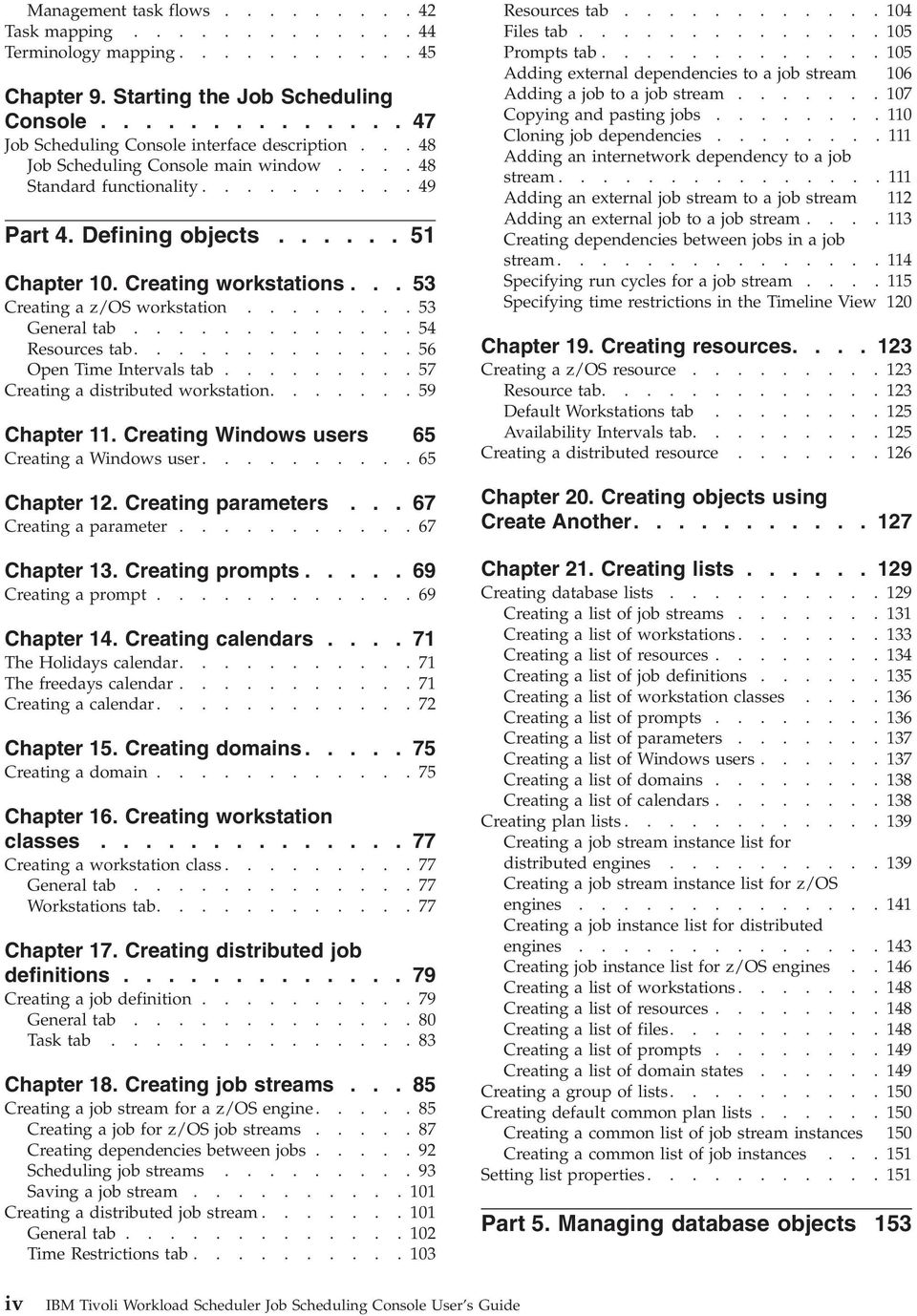
5 Contents List of figures ix List of tables xi About this guide xiii What is new in this guide xiii Who should read this guide xiv What this guide contains xv Publications xviii Tivoli Workload Scheduler library..... xviii Related publications xxi Accessing publications online xxii Ordering publications xxii Accessibility xxiii Tivoli technical training xxiii Support information xxiii Conventions used in this guide xxiii Typeface conventions xxiii Operating system-dependent variables and paths xxiv Command syntax xxiv Part 1. Introduction Chapter 1. Job Scheduling Console overview Tivoli Workload Scheduler architecture Components Topology Connection Part 2. Planning, installation and upgrade Chapter 2. Planning and installing the Job Scheduling Console Planning installation Installation methods Installing using the installation wizard Running the installation wizard Performing a silent installation Installing using Software Distribution Installing from the command line Installing the Java Virtual Machine Chapter 3. Planning and installing the z/os connector Planning connector installations Installation methods Installing from the Tivoli Desktop Installing Job Scheduling Services from the Tivoli Desktop Installing the connector from the Tivoli Desktop 18 Installing using the installation wizard Performing a silent installation Installing from the command line Installing Job Scheduling Services from the command line Installing the connector from the command line 21 Customizing the connector Authorization roles required for instances...21 Managing z/os connector instances with wopcconn Managing distributed connector instances with wtwsconn Installation scenarios Useful framework commands Chapter 4. Upgrading the z/os connector Upgrading using the installation wizard Upgrade scenarios Upgrading using the Tivoli Desktop Upgrading using the command line Chapter 5. Installing new languages on an existing installation Installing new languages using the installation wizard Chapter 6. Uninstalling the components 33 Setting the Tivoli Environment Uninstalling the Job Scheduling Console Uninstalling the Job Scheduling Console using the Software Distribution CLI Uninstalling the Job Scheduling Services Uninstalling the connectors Part 3. Console overview Chapter 7. Job Scheduling Console object descriptions Common objects Distributed engine specific objects Lists Database Plan Chapter 8. Job Scheduling Console quick start guide Task types Definition tasks Management tasks Task flows Definition task flows Copyright IBM Corp. 1991, 2004 iii

6 Management task flows Task mapping Terminology mapping Chapter 9. Starting the Job Scheduling Console Job Scheduling Console interface description...48 Job Scheduling Console main window Standard functionality Part 4. Defining objects Chapter 10. Creating workstations Creating a z/os workstation General tab Resources tab Open Time Intervals tab Creating a distributed workstation Chapter 11. Creating Windows users 65 Creating a Windows user Chapter 12. Creating parameters Creating a parameter Chapter 13. Creating prompts Creating a prompt Chapter 14. Creating calendars The Holidays calendar The freedays calendar Creating a calendar Chapter 15. Creating domains Creating a domain Chapter 16. Creating workstation classes Creating a workstation class General tab Workstations tab Chapter 17. Creating distributed job definitions Creating a job definition General tab Task tab Chapter 18. Creating job streams Creating a job stream for a z/os engine Creating a job for z/os job streams Creating dependencies between jobs Scheduling job streams Saving a job stream Creating a distributed job stream General tab Time Restrictions tab Resources tab Files tab Prompts tab Adding external dependencies to a job stream 106 Adding a job to a job stream Copying and pasting jobs Cloning job dependencies Adding an internetwork dependency to a job stream Adding an external job stream to a job stream 112 Adding an external job to a job stream Creating dependencies between jobs in a job stream Specifying run cycles for a job stream Specifying time restrictions in the Timeline View 120 Chapter 19. Creating resources Creating a z/os resource Resource tab Default Workstations tab Availability Intervals tab Creating a distributed resource Chapter 20. Creating objects using Create Another Chapter 21. Creating lists Creating database lists Creating a list of job streams Creating a list of workstations Creating a list of resources Creating a list of job definitions Creating a list of workstation classes Creating a list of prompts Creating a list of parameters Creating a list of Windows users Creating a list of domains Creating a list of calendars Creating plan lists Creating a job stream instance list for distributed engines Creating a job stream instance list for z/os engines Creating a job instance list for distributed engines Creating job instance list for z/os engines Creating a list of workstations Creating a list of resources Creating a list of files Creating a list of prompts Creating a list of domain states Creating a group of lists Creating default common plan lists Creating a common list of job stream instances 150 Creating a common list of job instances Setting list properties Part 5. Managing database objects 153 iv IBM Tivoli Workload Scheduler Job Scheduling Console User s Guide
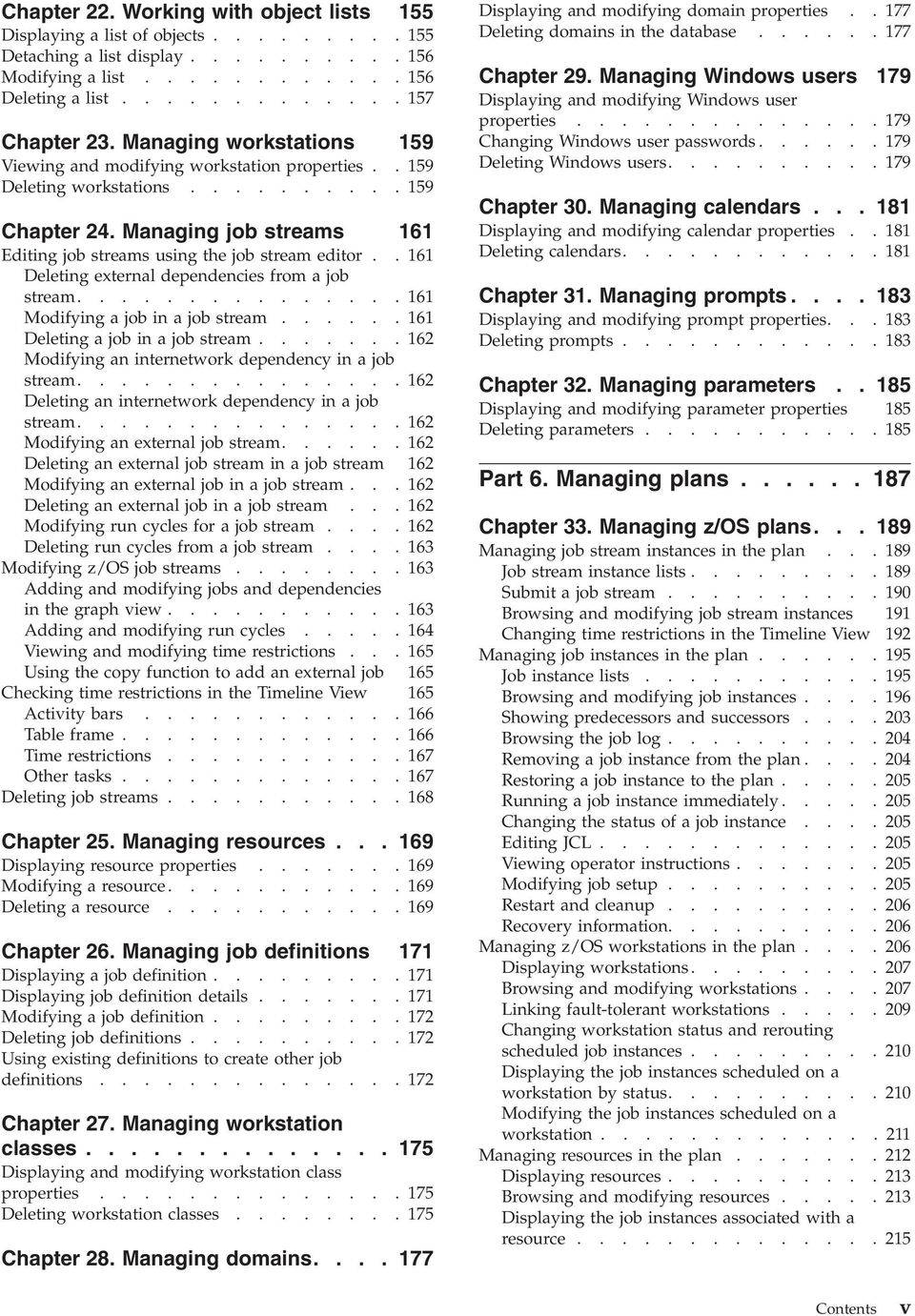
7 Chapter 22. Working with object lists 155 Displaying a list of objects Detaching a list display Modifying a list Deleting a list Chapter 23. Managing workstations 159 Viewing and modifying workstation properties Deleting workstations Chapter 24. Managing job streams 161 Editing job streams using the job stream editor Deleting external dependencies from a job stream Modifying a job in a job stream Deleting a job in a job stream Modifying an internetwork dependency in a job stream Deleting an internetwork dependency in a job stream Modifying an external job stream Deleting an external job stream in a job stream 162 Modifying an external job in a job stream Deleting an external job in a job stream Modifying run cycles for a job stream Deleting run cycles from a job stream Modifying z/os job streams Adding and modifying jobs and dependencies in the graph view Adding and modifying run cycles Viewing and modifying time restrictions Using the copy function to add an external job 165 Checking time restrictions in the Timeline View 165 Activity bars Table frame Time restrictions Other tasks Deleting job streams Chapter 25. Managing resources Displaying resource properties Modifying a resource Deleting a resource Chapter 26. Managing job definitions 171 Displaying a job definition Displaying job definition details Modifying a job definition Deleting job definitions Using existing definitions to create other job definitions Chapter 27. Managing workstation classes Displaying and modifying workstation class properties Deleting workstation classes Chapter 28. Managing domains Displaying and modifying domain properties Deleting domains in the database Chapter 29. Managing Windows users 179 Displaying and modifying Windows user properties Changing Windows user passwords Deleting Windows users Chapter 30. Managing calendars Displaying and modifying calendar properties Deleting calendars Chapter 31. Managing prompts Displaying and modifying prompt properties Deleting prompts Chapter 32. Managing parameters Displaying and modifying parameter properties 185 Deleting parameters Part 6. Managing plans Chapter 33. Managing z/os plans Managing job stream instances in the plan Job stream instance lists Submit a job stream Browsing and modifying job stream instances 191 Changing time restrictions in the Timeline View 192 Managing job instances in the plan Job instance lists Browsing and modifying job instances Showing predecessors and successors Browsing the job log Removing a job instance from the plan Restoring a job instance to the plan Running a job instance immediately Changing the status of a job instance Editing JCL Viewing operator instructions Modifying job setup Restart and cleanup Recovery information Managing z/os workstations in the plan Displaying workstations Browsing and modifying workstations Linking fault-tolerant workstations Changing workstation status and rerouting scheduled job instances Displaying the job instances scheduled on a workstation by status Modifying the job instances scheduled on a workstation Managing resources in the plan Displaying resources Browsing and modifying resources Displaying the job instances associated with a resource Contents v
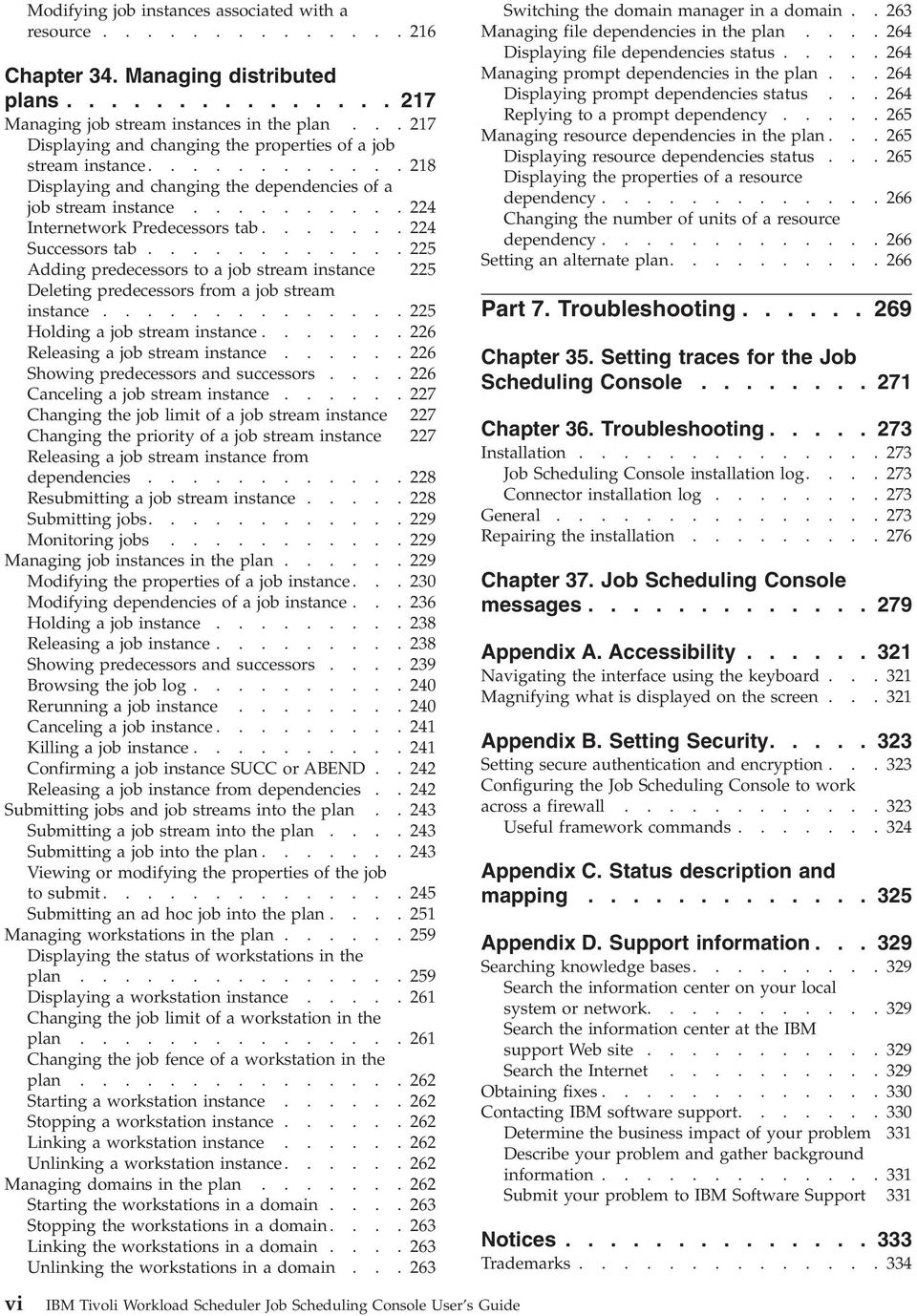
8 Modifying job instances associated with a resource Chapter 34. Managing distributed plans Managing job stream instances in the plan Displaying and changing the properties of a job stream instance Displaying and changing the dependencies of a job stream instance Internetwork Predecessors tab Successors tab Adding predecessors to a job stream instance 225 Deleting predecessors from a job stream instance Holding a job stream instance Releasing a job stream instance Showing predecessors and successors Canceling a job stream instance Changing the job limit of a job stream instance 227 Changing the priority of a job stream instance 227 Releasing a job stream instance from dependencies Resubmitting a job stream instance Submitting jobs Monitoring jobs Managing job instances in the plan Modifying the properties of a job instance Modifying dependencies of a job instance Holding a job instance Releasing a job instance Showing predecessors and successors Browsing the job log Rerunning a job instance Canceling a job instance Killing a job instance Confirming a job instance SUCC or ABEND Releasing a job instance from dependencies Submitting jobs and job streams into the plan Submitting a job stream into the plan Submitting a job into the plan Viewing or modifying the properties of the job to submit Submitting an ad hoc job into the plan Managing workstations in the plan Displaying the status of workstations in the plan Displaying a workstation instance Changing the job limit of a workstation in the plan Changing the job fence of a workstation in the plan Starting a workstation instance Stopping a workstation instance Linking a workstation instance Unlinking a workstation instance Managing domains in the plan Starting the workstations in a domain Stopping the workstations in a domain Linking the workstations in a domain Unlinking the workstations in a domain Switching the domain manager in a domain Managing file dependencies in the plan Displaying file dependencies status Managing prompt dependencies in the plan Displaying prompt dependencies status Replying to a prompt dependency Managing resource dependencies in the plan Displaying resource dependencies status Displaying the properties of a resource dependency Changing the number of units of a resource dependency Setting an alternate plan Part 7. Troubleshooting Chapter 35. Setting traces for the Job Scheduling Console Chapter 36. Troubleshooting Installation Job Scheduling Console installation log Connector installation log General Repairing the installation Chapter 37. Job Scheduling Console messages Appendix A. Accessibility Navigating the interface using the keyboard Magnifying what is displayed on the screen Appendix B. Setting Security Setting secure authentication and encryption Configuring the Job Scheduling Console to work across a firewall Useful framework commands Appendix C. Status description and mapping Appendix D. Support information Searching knowledge bases Search the information center on your local system or network Search the information center at the IBM support Web site Search the Internet Obtaining fixes Contacting IBM software support Determine the business impact of your problem 331 Describe your problem and gather background information Submit your problem to IBM Software Support 331 Notices Trademarks vi IBM Tivoli Workload Scheduler Job Scheduling Console User s Guide
9 Glossary Index Contents vii

10 viii IBM Tivoli Workload Scheduler Job Scheduling Console User s Guide

11 List of figures 1. Structural changes to the task chapters xiv 2. Single tier topology Multi tier topology End-to-end topology with Job Scheduling Console Job Scheduling Console connection Definition task flows Management task flows Example rule Example 1: Rule-based run cycle Example 2: Exclusionary Run Cycle Example 3: Exclusionary run cycle defined Example 1: Offset-based run cycle Example 2: Offset-based run cycle defined Example Properties panel for distributed engines Example Properties panel for z/os Engines Timeline View - Left Pane Timeline View - Right Pane Connecting across a firewall Copyright IBM Corp. 1991, 2004 ix

12 x IBM Tivoli Workload Scheduler Job Scheduling Console User s Guide

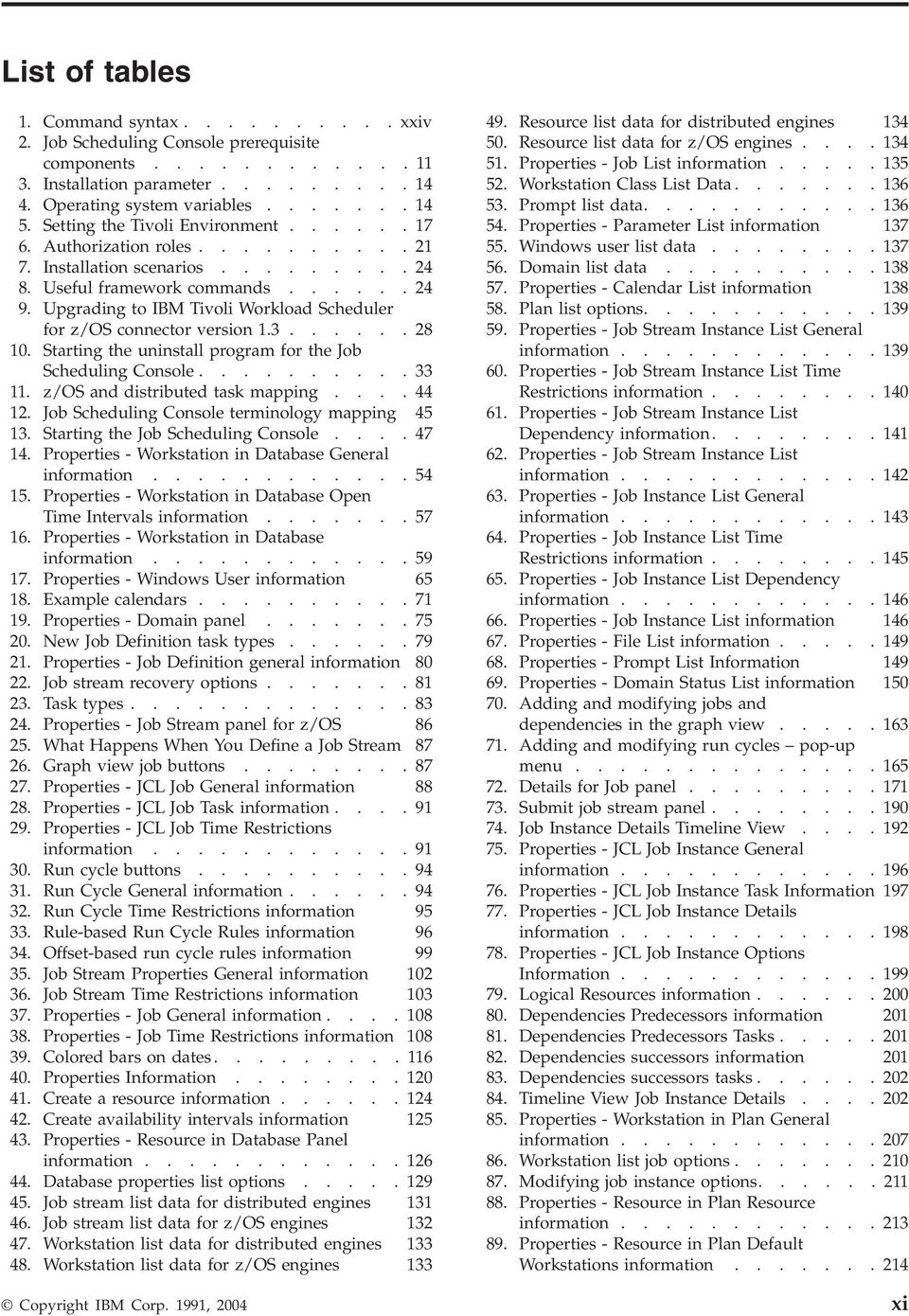
13 List of tables 1. Command syntax xxiv 2. Job Scheduling Console prerequisite components Installation parameter Operating system variables Setting the Tivoli Environment Authorization roles Installation scenarios Useful framework commands Upgrading to IBM Tivoli Workload Scheduler for z/os connector version Starting the uninstall program for the Job Scheduling Console z/os and distributed task mapping Job Scheduling Console terminology mapping Starting the Job Scheduling Console Properties - Workstation in Database General information Properties - Workstation in Database Open Time Intervals information Properties - Workstation in Database information Properties - Windows User information Example calendars Properties - Domain panel New Job Definition task types Properties - Job Definition general information Job stream recovery options Task types Properties - Job Stream panel for z/os What Happens When You Define a Job Stream Graph view job buttons Properties - JCL Job General information Properties - JCL Job Task information Properties - JCL Job Time Restrictions information Run cycle buttons Run Cycle General information Run Cycle Time Restrictions information Rule-based Run Cycle Rules information Offset-based run cycle rules information Job Stream Properties General information Job Stream Time Restrictions information Properties - Job General information Properties - Job Time Restrictions information Colored bars on dates Properties Information Create a resource information Create availability intervals information Properties - Resource in Database Panel information Database properties list options Job stream list data for distributed engines Job stream list data for z/os engines Workstation list data for distributed engines Workstation list data for z/os engines Resource list data for distributed engines Resource list data for z/os engines Properties - Job List information Workstation Class List Data Prompt list data Properties - Parameter List information Windows user list data Domain list data Properties - Calendar List information Plan list options Properties - Job Stream Instance List General information Properties - Job Stream Instance List Time Restrictions information Properties - Job Stream Instance List Dependency information Properties - Job Stream Instance List information Properties - Job Instance List General information Properties - Job Instance List Time Restrictions information Properties - Job Instance List Dependency information Properties - Job Instance List information Properties - File List information Properties - Prompt List Information Properties - Domain Status List information Adding and modifying jobs and dependencies in the graph view Adding and modifying run cycles pop-up menu Details for Job panel Submit job stream panel Job Instance Details Timeline View Properties - JCL Job Instance General information Properties - JCL Job Instance Task Information Properties - JCL Job Instance Details information Properties - JCL Job Instance Options Information Logical Resources information Dependencies Predecessors information Dependencies Predecessors Tasks Dependencies successors information Dependencies successors tasks Timeline View Job Instance Details Properties - Workstation in Plan General information Workstation list job options Modifying job instance options Properties - Resource in Plan Resource information Properties - Resource in Plan Default Workstations information Copyright IBM Corp. 1991, 2004 xi
14 90. Properties - Resource in Plan Availability Intervals information Modifying job instance options Job stream instance options Properties - Job Stream Instance General information Properties - Job Stream Instance Time Restrictions information Properties - Job Stream Instance Files information Properties - Job Stream Instance Prompts information Properties - Job Stream Instance Resources panel Properties - Job Stream Instance Predecessors information Dependencies - Job Stream Instance Predecessor information Internetwork Predecessors information Successors information Job Stream Instance Priorities Job instance options Properties - Windows Script Instance General Information Properties - Job Instance Task information Properties - Windows Script Instance Time Restrictions information Properties - Windows Script Instance Files information Properties - Windows Script Instance Prompts information Properties - Windows Script Instance Resources information Predecessors tab Internetwork Predecessors tab Successors tab Rerun Job Window information Submit Job Stream into Plan Window Submit Job into Plan Window Submit Job into Plan information Properties - Job Instance General information Properties - Job Instance Time Restrictions information Properties - Job Instance Files information Ad hoc prompt dependencies Predefined prompt dependencies Properties - Job Instance Resources Properties - Job Instance Predecessors Properties - Job Instance General Task types Properties - Job Instance Time Restrictions Properties - Job Instance Files Ad hoc prompt dependencies Predefined prompt dependencies Properties - Job Instance Resources Properties - Job Instance Predecessors Workstation Status List pane Status of All Files List Prompt Dependencies Status Resource Dependencies Status Set Alternate Plan Files Window Logging properties keys Useful framework commands Useful framework commands Job Scheduling Console job states Tivoli Workload Scheduler Internal job states Job Scheduling Console job stream states Tivoli Workload Scheduler internal job stream states Job status mapping Job stream status mapping xii IBM Tivoli Workload Scheduler Job Scheduling Console User s Guide

15 About this guide What is new in this guide The IBM Tivoli Workload Scheduler Job Scheduling Console User s Guide describes Tivoli Workload Scheduler for z/os, IBM Tivoli Workload Scheduler, and the IBM Tivoli Workload Scheduler Job Scheduling Console, which make up the Tivoli Workload Scheduler suite of applications. The Job Scheduling Console provides users with a Java-based user interface to IBM Tivoli Workload Scheduler for z/os and IBM Tivoli Workload Scheduler. The Job Scheduling Console supplements, but does not totally replace, the traditional z/os ISPF panes on the host. It allows you to work with scheduling objects in the following ways: v Define job streams, jobs, workstations, and logical resources in the scheduling database. v Monitor and modify job stream instances, job instances, workstation instances, and resource instances in the plan. The IBM Tivoli Workload Scheduler Job Scheduling Console User s Guide provides an introduction to and an explanation of the IBM Tivoli Workload Scheduler Job Scheduling Console Feature Level 1.3. It explains how to install the console and provides instructions for performing scheduling tasks using IBM Tivoli Workload Scheduler for z/os and IBM Tivoli Workload Scheduler for distributed engines. This chapter describes the modifications made to this guide. The book is now divided into the following parts: v Planning and Installation. See Part 2, Planning, installation and upgrade, on page 9. v Console Overview. See Part 3, Console overview, on page 37. v Defining Objects. See Part 4, Defining objects, on page 51. v Managing Database Objects. See Part 5, Managing database objects, on page 153. v Managing Plans. See Part 6, Managing plans, on page 187. v Troubleshooting. See Part 7, Troubleshooting, on page 269. The previous issue of the book was divided into the following parts: v Planning and Installation v Using the Job Scheduling Console with IBM Tivoli Workload Scheduler for z/os v Using the Job Scheduling Console with IBM Tivoli Workload Scheduler To create a guide that is more task oriented the structure of the book was changed. This change in structure impacts the task sections of the book as illustrated in Figure 1 on page xiv. Copyright IBM Corp. 1991, 2004 xiii
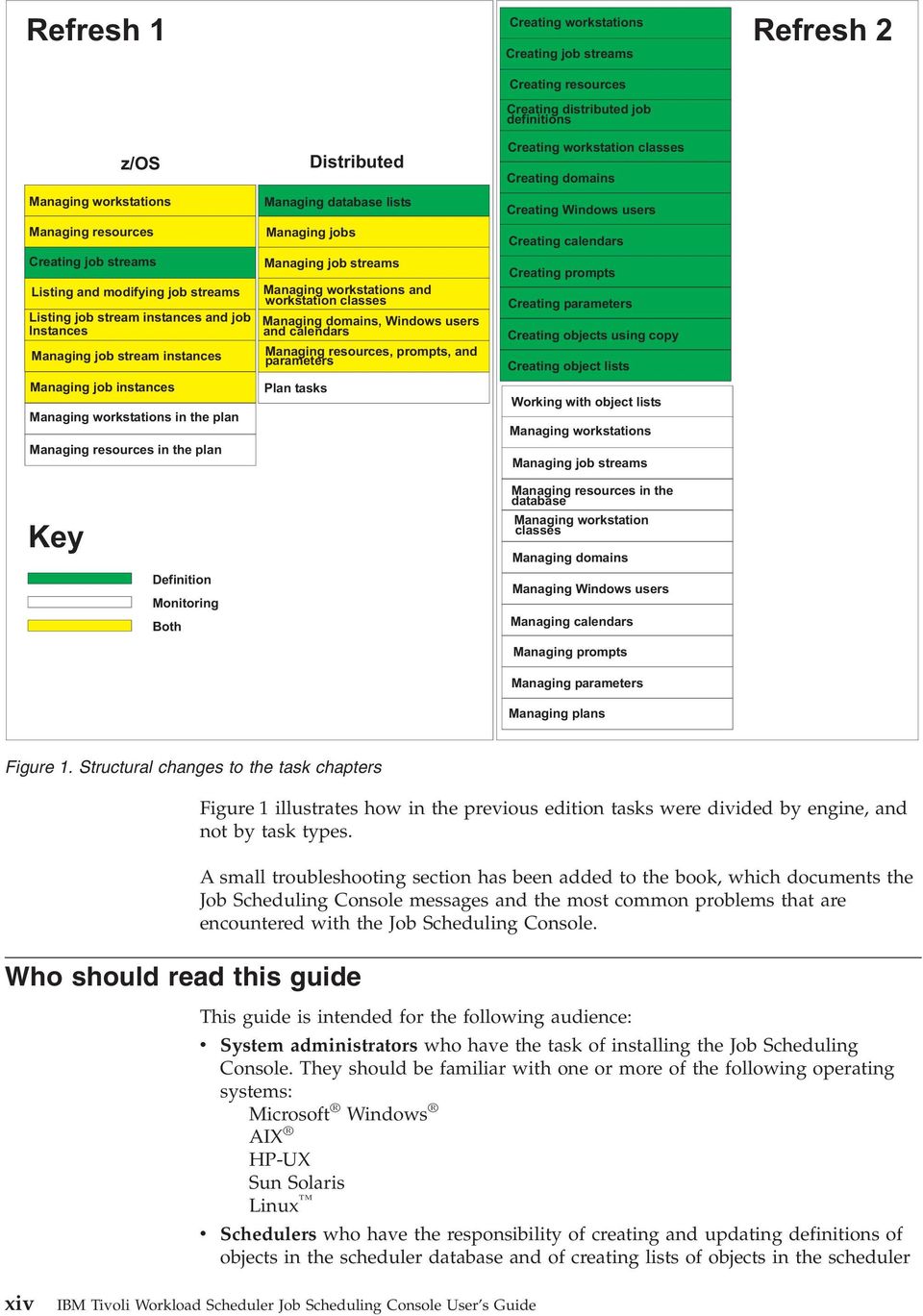
16 Refresh 1 Creating workstations Refresh 2 Creating job streams Creating resources Creating distributed job definitions z/os Managing workstations Managing resources Creating job streams Listing and modifying job streams Listing job stream instances and job Instances Managing job stream instances Managing job instances Managing workstations in the plan Managing resources in the plan Managing database lists Managing jobs Managing job streams Managing workstations and workstation classes Managing domains, Windows users and calendars Managing resources, prompts, and parameters Plan tasks Distributed Creating workstation classes Creating domains Creating Windows users Creating calendars Creating prompts Creating parameters Creating objects using copy Creating object lists Working with object lists Managing workstations Managing job streams Key Definition Monitoring Both Managing resources in the database Managing workstation classes Managing domains Managing Windows users Managing calendars Managing prompts Managing parameters Managing plans Figure 1. Structural changes to the task chapters Who should read this guide Figure 1 illustrates how in the previous edition tasks were divided by engine, and not by task types. A small troubleshooting section has been added to the book, which documents the Job Scheduling Console messages and the most common problems that are encountered with the Job Scheduling Console. This guide is intended for the following audience: v System administrators who have the task of installing the Job Scheduling Console. They should be familiar with one or more of the following operating systems: Microsoft Windows AIX HP-UX Sun Solaris Linux v Schedulers who have the responsibility of creating and updating definitions of objects in the scheduler database and of creating lists of objects in the scheduler xiv IBM Tivoli Workload Scheduler Job Scheduling Console User s Guide
17 What this guide contains database and plan. They should be familiar with performing these specific tasks and with working in the IBM z/os and Microsoft Windows environments: v Operators who have the responsibility of controlling and monitoring the scheduler plan. They should be familiar with performing the tasks related to monitoring and modifying objects in the plan and with working in the IBM z/os and Windows environment. This guide contains the following sections: Part 1. Introduction Part 1 provides a description of the Job Scheduling Console and how it fits into the overall topology. It contains the following chapters: Job Scheduling Console overview Describes the overall architecture of Tivoli Workload Scheduler and where the Job Scheduling Console fits into that topology. See Chapter 1, Job Scheduling Console overview, on page 3. Part 2. Planning, installation and upgrade Part 2 provides the information necessary for you to plan and install the Job Scheduling Console and its necessary components. It contains the following chapters: Planning and installing the Job Scheduling Console Describes how to plan and install the Job Scheduling Console. See Chapter 2, Planning and installing the Job Scheduling Console, on page 11. Planning and installing the z/os connector Describes how to plan and install the z/os connector. See Chapter 3, Planning and installing the z/os connector, on page 17. Upgrading the z/os connector Describes how to upgrade the z/os connector. See Chapter 4, Upgrading the z/os connector, on page 27. Installing new languages on an existing installation Describes how to install new languages. See Chapter 5, Installing new languages on an existing installation, on page 31. Uninstalling the components Describes how to uninstall the various components that comprise the Job Scheduling Console. See Chapter 6, Uninstalling the components, on page 33. Part 3. Console overview Part 3 provides an overview of the Job Scheduling Console and a quick start to working with it. It contains the following chapters: Job Scheduling Console object descriptions Describes the objects that are created and managed using the Job Scheduling Console. See Chapter 7, Job Scheduling Console object descriptions, on page 39. About this guide xv
18 Job Scheduling Console quick start guide Describes the tasks that you perform using the Job Scheduling Console, a flow of the task order, and links to those tasks. See Chapter 8, Job Scheduling Console quick start guide, on page 41. Starting the Job Scheduling console Describes starting the console, and of the console elements. See Chapter 9, Starting the Job Scheduling Console, on page 47. Part 4. Definition tasks Part 4 provides the information necessary for you to define database objects, and create the lists you use to manage them. It contains the following chapters: Creating workstations Describes how to create workstations in the z/os and distributed environments. See Chapter 10, Creating workstations, on page 53. Creating Windows users Describes how to create Windows users in the distributed environment. See Chapter 11, Creating Windows users, on page 65. Creating parameters Describes how to create parameters in the distributed environment. See Chapter 12, Creating parameters, on page 67. Creating prompts Describes how to prompts in the distributed environment. See Chapter 13, Creating prompts, on page 69. Creating calendars Describes how to create calendars for the distributed environment. See Chapter 14, Creating calendars, on page 71. Creating domains Describes how to create domains for the distributed environment. See Chapter 15, Creating domains, on page 75. Creating workstation classes Describes how to create workstation classes in the distributed environment. See Chapter 16, Creating workstation classes, on page 77. Creating distributed job definitions Describes how to create job definitions in the distributed environment. See Chapter 17, Creating distributed job definitions, on page 79. Creating job streams Describes how to create job streams in the z/os and distributed environments. See Chapter 18, Creating job streams, on page 85. Creating resources Describes how to create resources in the z/os and distributed environments. See Chapter 19, Creating resources, on page 123. Create objects using create another Describes how to clone objects in the z/os and distributed environments. See Chapter 20, Creating objects using Create Another, on page 127. Creating lists Describes how to create lists in the z/os and distributed environments. See Chapter 21, Creating lists, on page 129. xvi IBM Tivoli Workload Scheduler Job Scheduling Console User s Guide
19 Part 5. Managing database objects Part 5 provides the information necessary for you to manage objects in the database after you have created them. It contains the following chapters: Working with object lists Describes how to display tables of database and plan objects using the List function. See Chapter 22, Working with object lists, on page 155. Managing workstations Describes how to manage workstations in the database. See Chapter 23, Managing workstations, on page 159. Managing job streams Describes how to manage z/os and distributed job streams in the database. See Chapter 24, Managing job streams, on page 161. Managing resources Describes how to manage z/os and distributed resources in the database. See Chapter 25, Managing resources, on page 169. Managing job definitions Describes how to manage distributed job definitions in the database. See Chapter 26, Managing job definitions, on page 171. Managing workstation classes Describes how to manage distributed workstation classes in the database. See Chapter 27, Managing workstation classes, on page 175. Managing domains Describes how to manage distributed domains in the database. See Chapter 28, Managing domains, on page 177. Managing windows users Describes how to manage distributed Windows users in the database. See Chapter 29, Managing Windows users, on page 179. Managing calendars Describes how to manage distributed calendars in the database. See Chapter 30, Managing calendars, on page 181. Managing prompts Describes how to manage distributed prompts in the database. See Chapter 31, Managing prompts, on page 183. Managing parameters Describes how to manage distributed parameters in the database. See Chapter 32, Managing parameters, on page 185. Part 6. Managing plans Part 6 provides the information necessary for you to manage objects in z/os and distributed plans. It contains the following chapters: Managing z/os plans Describes how to manage objects in the z/os plan. See Chapter 33, Managing z/os plans, on page 189. Managing distributed plans Describes how to manage objects in the distributed plan. See Chapter 34, Managing distributed plans, on page 217. About this guide xvii
20 Part 7. Troubleshooting Part 7 provides troubleshooting information. It contains the following chapters: Setting traces for the Job Scheduling Console Describes how to set traces for the Job Scheduling Console. See Chapter 35, Setting traces for the Job Scheduling Console, on page 271. Troubleshooting Describes the most common problems and how they are resolved. See Chapter 36, Troubleshooting, on page 273. Job Scheduling Console message Describes the messages. See Chapter 37, Job Scheduling Console messages, on page 279. Part 8. Appendixes Part 8 provides general information. It contains the following appendixes: Accessibility Describes the accessibility features of the Job Scheduling Console. See Appendix A, Accessibility, on page 321. Setting security Describes setting SSL security features. See Appendix B, Setting Security, on page 323. Status description and mapping Describes job and job stream states within the Job Scheduling Console and how to map between the console and engine states. See Appendix C, Status description and mapping, on page 325. Support information Describes how to contact IBM support. See Appendix D, Support information, on page 329 Publications This section lists publications in the Tivoli Workload Scheduler library and any other related documents. It also describes how to access Tivoli publications online and how to order Tivoli publications. Tivoli Workload Scheduler library Tivoli Workload Scheduler comprises several separate products available on a variety of platforms, and the library is similarly divided: IBM Tivoli Workload Scheduling suite library This library contains all cross-platform and cross-product publications for Tivoli Workload Scheduler. IBM Tivoli Workload Scheduler distributed library This library contains all of the publications that refer to using Tivoli Workload Scheduler on platforms other than z/os. IBM Tivoli Workload Scheduler for z/os library This library contains all publications that apply only to IBM Tivoli Workload Scheduler for z/os. xviii IBM Tivoli Workload Scheduler Job Scheduling Console User s Guide
21 IBM Tivoli Workload Scheduler for Applications library This library contains all publications that apply only to IBM Tivoli Workload Scheduler for Applications. IBM Tivoli Workload Scheduler for Virtualized Data Centers library This library contains all publications that apply only to IBM Tivoli Workload Scheduler for Virtualized Data Centers. IBM Tivoli Workload Scheduling suite library The following publications are available in the IBM Tivoli Workload Scheduling suite library. This includes publications which are common to all products, platforms, and components. v IBM Tivoli Workload Scheduler: General Information, SC Provides general information about all Tivoli Workload Scheduler products. It gives an overview of how they can be used together to provide workload management solutions for your whole enterprise. v IBM Tivoli Workload Scheduler: Job Scheduling Console User s Guide, SC Describes how to work with Tivoli Workload Scheduler, regardless of platform, using a common GUI called the job scheduling console. v IBM Tivoli Workload Scheduler: Job Scheduling Console Release Notes, SC Provides late-breaking information about the job scheduling console. v IBM Tivoli Workload Scheduler: Warehouse Enablement Pack Version Implementation Guide for Tivoli Enterprise Data Warehouse, Version 1.1, Provides information about enabling Tivoli Workload Scheduler for Tivoli Data Warehouse. Note: This guide is only available on the product CD. It is not possible to access it online, as you can the other books (see Accessing publications online on page xxii). IBM Tivoli Workload Scheduler distributed library The following publications are available in the IBM Tivoli Workload Scheduler distributed library. This includes publications which refer to using the product on all platforms except z/os. v IBM Tivoli Workload Scheduler: Release Notes, SC Provides late-breaking information about Tivoli Workload Scheduler on platforms other than z/os. v IBM Tivoli Workload Scheduler: Planning and Installation Guide, SC Describes how to plan for and install IBM Tivoli Workload Scheduler on platforms other than z/os, and how to integrate Tivoli Workload Scheduler with NetView, Tivoli Data Warehouse, and IBM IBM Tivoli Business Systems Manager. v IBM Tivoli Workload Scheduler: Reference Guide, SC Describes the Tivoli Workload Scheduler command line used on platforms other than z/os, and how extended and network agents work. v IBM Tivoli Workload Scheduler: Administration and Troubleshooting, SC Provides information about how to administer Tivoli Workload Scheduler on platforms other than z/os, and what to do if things go wrong. It includes help on many messages generated by the main components of Tivoli Workload Scheduler. v IBM Tivoli Workload Scheduler: Limited Fault-tolerant Agent for OS/400, SC About this guide xix
22 Describes how to install, configure, and use Tivoli Workload Scheduler limited fault-tolerant agents on AS/400. v IBM Tivoli Workload Scheduler: Plus Module User s Guide, SC Describes how to set up and use the Tivoli Workload Scheduler Plus module. See for an introduction to the product. IBM Tivoli Workload Scheduler for z/os library The following documents are available in the Tivoli Workload Scheduler for z/os library: v IBM Tivoli Workload Scheduler for z/os: Getting Started, SC Discusses how to define your installation data for Tivoli Workload Scheduler for z/os and how to create and modify plans. v IBM Tivoli Workload Scheduler for z/os: Installation Guide Describes how to install Tivoli Workload Scheduler for z/os. v IBM Tivoli Workload Scheduler for z/os: Customization and Tuning, SC Describes how to customize Tivoli Workload Scheduler for z/os. v IBM Tivoli Workload Scheduler for z/os: Managing the Workload, SC Explains how to plan and schedule the workload and how to control and monitor the current plan. v IBM Tivoli Workload Scheduler for z/os: Quick Reference, SC Provides a quick and easy consultation reference to operate Tivoli Workload Scheduler for z/os. v IBM Tivoli Workload Scheduler for z/os: Diagnosis Guide and Reference, SC Provides information to help diagnose and correct possible problems when using Tivoli Workload Scheduler for z/os. v IBM Tivoli Workload Scheduler for z/os: Messages and Codes, SC Explains messages and codes in Tivoli Workload Scheduler for z/os. v IBM Tivoli Workload Scheduler for z/os: Programming Interfaces, SC Provides information to write application programs for Tivoli Workload Scheduler for z/os. v IBM Tivoli Workload Scheduler for z/os: Licensed Program Specifications, GI Provides planning information about Tivoli Workload Scheduler for z/os. v IBM Tivoli Workload Scheduler for z/os: Memo for program 5697-WSZ, GI Provides a summary of changes for the current release of the product. v IBM Tivoli Workload Scheduler for z/os: Program Directory for program 5697-WSZ, GI Provided with the installation tape for Tivoli Workload Scheduler for z/os (program 5697-WSZ), describes all of the installation materials and gives installation instructions specific to the product release level or feature number. v IBM Tivoli Workload Scheduler for z/os: Program Directory for program 5698-WSZ, GI Provided with the installation tape for Tivoli Workload Scheduler for z/os (program 5698-WSC), describes all of the installation materials and gives installation instructions specific to the product release level or feature number. See for an introduction to the product. xx IBM Tivoli Workload Scheduler Job Scheduling Console User s Guide
23 Related IBM Tivoli Workload Scheduler for Applications library The following manuals are available in the IBM Tivoli Workload Scheduler for Applications library: v IBM Tivoli Workload Scheduler for Applications: Release Notes, SC Provides late-breaking information about the Tivoli Workload Scheduler extended agents. v IBM Tivoli Workload Scheduler for Applications: User s Guide, SC Describes how to install, use, and troubleshoot the Tivoli Workload Scheduler extended agents. See for an introduction to the product. IBM Tivoli Workload Scheduler for Virtualized Data Centers library The following manuals are available in the IBM Tivoli Workload Scheduler for Virtualized Data Centers library: v IBM Tivoli Workload Scheduler for Virtualized Data Centers: Release Notes, SC Provides late-breaking information about Tivoli Workload Scheduler for Virtualized Data Centers. v IBM Tivoli Workload Scheduler for Virtualized Data Centers: User s Guide, SC Describes how to extend the scheduling capabilities of Tivoli Workload Scheduler to workload optimization and grid computing by enabling the control of IBM LoadLeveler and IBM Grid Toolbox jobs. See products/y614224t20392s50.html for an introduction to the product. publications The following publications provide additional information: v IBM Redbooks : High Availability Scenarios with IBM Tivoli Workload Scheduler and IBM Tivoli Framework This IBM Redbook, shows you how to design and create highly available IBM Tivoli Workload Scheduler and IBM Tivoli Management Framework (TMR server, Managed Nodes and Endpoints) environments. It presents High Availability Cluster Multiprocessing (HACMP ) for AIX and Microsoft Windows Cluster Service (MSCS) case studies. This Redbook can be found on the Redbooks Web site at v IBM Redbooks: Customizing IBM Tivoli Workload Scheduler for z/os V8.2 to Improve Performance This IBM Redbook covers the techniques that can be used to improve the performance of Tivoli Workload Scheduler for z/os (including end-to-end scheduling). This Redbook can be found on the Redbooks Web site at v IBM Redbooks: End-to-End Scheduling with IBM Tivoli Workload Scheduler Version 8.2 This IBM Redbook considers how best to provide end-to-end scheduling using Tivoli Workload Scheduler Version 8.2, both distributed (previously known as Maestro ) and mainframe (previously known as OPC) components. This Redbook can be found on the Redbooks Web site at About this guide xxi
24 The Tivoli Software Glossary includes definitions for many of the technical terms related to Tivoli software. The Tivoli Software Glossary is available, in English only, at the following Web site: Accessing publications online The product CD contains the publications that are in the product library. The format of the publications is PDF, HTML, or both. To access the publications using a Web browser, open the infocenter.html file. The file is in the appropriate publications directory on the product CD. Ordering IBM posts publications for this and all other Tivoli products, as they become available and whenever they are updated, to the Tivoli software information center Web site. Access the Tivoli software information center by first going to the Tivoli software library at the following Web address: Scroll down and click the Product manuals link. In the Tivoli Technical Product Documents Alphabetical Listing window, click the appropriate Tivoli Workload Scheduler product link to access the product s libraries at the Tivoli software information center. All publications in the Tivoli Workload Scheduler suite library, distributed library and z/os library can be found under the entry Tivoli Workload Scheduler. Note: If you print PDF documents on other than letter-sized paper, set the option in the File Print window that allows Adobe Reader to print letter-sized pages on your local paper. Tivoli Workload Scheduler online books All the books in the Tivoli Workload Scheduler for z/os library, are available in displayable softcopy form on CD-ROM in the IBM Online Library: z/os Software Products Collection Kit, SK3T You can read the softcopy books on CD-ROMs using these IBM licensed programs: v BookManager READ/2 (program number ) v BookManager READ/DOS (program number ) v BookManager READ/6000 (program number ) All the BookManager programs need a personal computer equipped with a CD-ROM disk drive (capable of reading disks formatted in the ISO 9660 standard) and a matching adapter and cable. For additional hardware and software information, refer to the documentation for the specific BookManager product you are using. Updates to books between releases are provided in softcopy only. publications You can order many Tivoli publications online at the following Web site: publications/cgibin/pbi.cgi You can also order by telephone by calling one of these numbers: v In the United States: xxii IBM Tivoli Workload Scheduler Job Scheduling Console User s Guide
25 v In Canada: In other countries, see the following Web site for a list of telephone numbers: Accessibility Tivoli technical training Accessibility features help users with a physical disability, such as restricted mobility or limited vision, to use software products With this product, you can use assistive technologies to hear and navigate the interface. You can also use the keyboard instead of the mouse to operate all features of the graphical user interface. For additional information, see Appendix A, Accessibility, on page 321. For Tivoli technical training information, refer to the following IBM Tivoli Education Web site: Support information If you have a problem with your IBM software, you want to resolve it quickly. IBM provides the following ways for you to obtain the support you need: v Searching knowledge bases: You can search across a large collection of known problems and workarounds, Technotes, and other information. v Obtaining fixes: You can locate the latest fixes that are already available for your product. v Contacting IBM Software Support: If you still cannot solve your problem, and you need to work with someone from IBM, you can use a variety of ways to contact IBM Software Support. For more information about these three ways of resolving problems, see Appendix D, Support information, on page 329. Conventions used in this guide Typeface This guide uses several conventions for special terms and actions, operating system-dependent commands and paths, comman syntax, and margin graphics. conventions This guide uses the following typeface conventions: Bold v Lowercase commands and mixed case commands that are otherwise difficult to distinguish from surrounding text v Interface controls (check boxes, push buttons, radio buttons, spin buttons, fields, folders, icons, list boxes, items inside list boxes, multicolumn lists, containers, menu choices, menu names, tabs, property sheets), labels (such as Tip:, and Operating system considerations:) v Keywords and parameters in text About this guide xxiii
26 Italic v Words defined in text v Emphasis of words (words as words) v New terms in text (except in a definition list) v Variables and values you must provide Monospace v Examples and code examples v File names, programming keywords, and other elements that are difficult to distinguish from surrounding text v Message text and prompts addressed to the user v Text that the user must type v Values for arguments or command options Operating system-dependent variables and paths Command This guide uses the UNIX convention for specifying environment variables and for directory notation. When using the Windows command line, replace $variable with % variable% for environment variables and replace each forward slash (/) with a backslash (\) in directory paths. The names of environment variables are not always the same in Windows and UNIX. For example, %TEMP% in Windows is equivalent to $tmp in UNIX. Note: If you are using the bash shell on a Windows system, you can use the UNIX conventions. syntax This guide uses the following syntax wherever it describes commands: Table 1. Command syntax Syntax convention Description Brackets ([ ]) The information enclosed in brackets ([ ]) is optional. Anything not enclosed in brackets must be specified. Braces ({ }) Braces ({ }) identify a set of mutually exclusive options, when one option is required. Underscore ( _ ) An underscore (_) connects multiple words in a variable. Vertical bar ( ) Mutually exclusive options are separated by a vertical bar( ). You can enter one of the options separated by the vertical bar, but you cannot enter multiple options in a single use of the command. A vertical bar can be used to separate optional or required options. Bold Bold text designates literal information that must be entered on the command line exactly as shown. This applies to command names and non-variable options. Italic Italic text is variable and must be replaced by whatever it represents. xxiv IBM Tivoli Workload Scheduler Job Scheduling Console User s Guide
27 Part 1. Introduction Chapter 1. Job Scheduling Console overview.. 3 Tivoli Workload Scheduler architecture Components Topology Connection Copyright IBM Corp. 1991,
28 2 IBM Tivoli Workload Scheduler Job Scheduling Console User s Guide
29 Chapter 1. Job Scheduling Console overview The job scheduling console is an interactive interface for creating, modifying, and deleting objects in the product database of Tivoli Workload Scheduler. It also allows you to monitor and control objects scheduled in the current plan. The job scheduling console is part of the distributed architecture, but allows you to work with Tivoli Workload Scheduler on both z/os and distributed engines simultaneously. This chapter describes the overall architecture of Tivoli Workload Scheduler and where the Job Scheduling Console fits into that topology. Tivoli Workload Scheduler architecture This section describes the components, topology and connection of a Tivoli Workload Scheduler. Components A Tivoli Workload Scheduler network is made up of the following types of workstation: Master Domain Manager (MDM) The master domain manager is the topmost domain of a Tivoli Workload Scheduler network. It contains the centralized database files used to document scheduling objects. It creates the Production plan, distributes it to all the agents in the network at the start of each day, and performs all logging and reporting for the network. Fault-tolerant Agent (FTA) A workstation capable of resolving local dependencies and launching its jobs in the absence of a domain manager. Standard Agent A workstation that launches jobs only under the direction of its domain manager. The workstation types can assume the following roles: Parent Domain The domain directly above the current domain. All domains, except the master domain, have a parent domain. All communication to and from a domain is rooted through the parent domain manager. Backup Master A fault-tolerant agent capable of assuming the responsibilities of the master domain manager. Domain Manager The management hub in a domain. All communications to and from the agents in a domain are routed through the domain manager. Backup Domain Manager A fault-tolerant agent capable of assuming the responsibilities of its domain manager. Copyright IBM Corp. 1991,

30 Architecture Host The scheduling function required by extended agents. It can be performed by any Tivoli Workload Scheduler workstation, except another extended agent. Extended Agent A logical workstation definition that enables you to launch and control jobs on other systems and applications. Network Agent A logical workstation definition for creating dependencies between jobs and job streams in separate Tivoli Workload Scheduler networks. Topology Your Tivoli Workload Scheduler topology can be complex or simple according to your job scheduling requirements. Figure 2 shows a single tier hierarchy, where the agents are directly connected to the master domain manager. JSC Master Domain Manager FTAs AIX Linux Windows Solaris Figure 2. Single tier topology Figure 3 on page 5 shows a multi tier hierarchy where the agents are connected to a domain manager at the various tiers of the topology. 4 IBM Tivoli Workload Scheduler Job Scheduling Console User s Guide

31 Architecture Master Domain JSC Master Domain Manager Backup Master FTA DomainA DomainB Domain Manager Domain Manager Backup Domain Manager FTA SA FTA FTA DomainC DomainD DomainE DM DM DM FTA FTA FTA FTA FTA FTA Figure 3. Multi tier topology The domain manager of domain A acts as the master domain manager for domain C, and the domain manager of domain B acts as the master domain manager for domains D and E. Normally you would connect the Job Scheduling Console to the master domain manager to control your job scheduling activities, but there is no reason why you should not connect to a domain manager or a fault-tolerant agent. Figure 4 on page 6 shows an end-to-end topology with the Job Scheduling Console connected to the z/os master domain. Chapter 1. Job Scheduling Console overview 5
32 Architecture OPCMASTER JSC z/os Master Domain Manager DomainZ Domain Manager AIX DomainA DomainB AIX Domain Manager Domain Manager HPUX SA FTA FTA FTA Figure 4. End-to-end topology with Job Scheduling Console Connection The Job Scheduling Console connects to the engines through the Job Scheduling Services and the relevant connector. The connectors must be installed together with the Job Scheduling Services on a Tivoli Management Framework server. The Job Scheduling Console communicates with the system through the connector, a protocol converter that translates the instructions entered through the Job Scheduling Console into scheduler commands. 6 IBM Tivoli Workload Scheduler Job Scheduling Console User s Guide
33 Architecture JSC Tivoli Framework Job Scheduling Services z/os Connector Distributed Connector Figure 5. Job Scheduling Console connection You can manage plan and database objects not only from the master or agent workstations, but also from any system on which the job scheduling console is installed with a TCP/IP connection to the master or the fault-tolerant agent running the connector. You can manage IBM Tivoli Workload Scheduler for z/os and distributed engine database and plan objects from the same Job Scheduling Console provided you install the relevant connectors. Chapter 1. Job Scheduling Console overview 7
34 Architecture 8 IBM Tivoli Workload Scheduler Job Scheduling Console User s Guide
35 Part 2. Planning, installation and upgrade Chapter 2. Planning and installing the Job Scheduling Console Planning installation Installation methods ISMP installation wizard Software Distribution Installing using the installation wizard Running the installation wizard Performing a silent installation Installing using Software Distribution Installing from the command line Installing the Java Virtual Machine Chapter 3. Planning and installing the z/os connector Planning connector installations Installation methods Installing from the Tivoli Desktop Installing Job Scheduling Services from the Tivoli Desktop Installing the connector from the Tivoli Desktop 18 Installing using the installation wizard Performing a silent installation Installing from the command line Installing Job Scheduling Services from the command line Installing the connector from the command line 21 Customizing the connector Authorization roles required for instances...21 Managing z/os connector instances with wopcconn Managing distributed connector instances with wtwsconn Installation scenarios Useful framework commands Chapter 4. Upgrading the z/os connector Upgrading using the installation wizard Upgrade scenarios Upgrading using the Tivoli Desktop Upgrading using the command line Chapter 5. Installing new languages on an existing installation Installing new languages using the installation wizard Chapter 6. Uninstalling the components Setting the Tivoli Environment Uninstalling the Job Scheduling Console Uninstalling the Job Scheduling Console using the Software Distribution CLI Uninstalling the Job Scheduling Services Uninstalling the connectors Copyright IBM Corp. 1991,
36 10 IBM Tivoli Workload Scheduler Job Scheduling Console User s Guide
37 Chapter 2. Planning and installing the Job Scheduling Console This chapter describes installation of the Job Scheduling Console. It describes: v Planning Installations v Installing Using ISMP v Installing Using Software Distribution Planning installation This section provides you with the information that is necessary for you to plan your Job Scheduling Console installations. It outlines the necessary components for running the Job Scheduling Console and the installation methods you can use to install. The Job Scheduling Console can be installed on any workstation that has a TCP/IP connection. For the most current information about supported platforms and system requirements, refer to IBM Tivoli Workload Scheduler Job Scheduling Console Release Notes. You can install only one instance of the Job Scheduling Console on each machine. To use the Job Scheduling Console, you first need to have the components described below installed on your network. Install the components in the order in which they are listed. You can install the IBM Tivoli Workload Scheduler for z/os connector, or IBM Tivoli Workload Scheduler connector, or both, depending on your working environment. Although the connector must be running to use the console, you can install them in the order you prefer. Table 2. Job Scheduling Console prerequisite components Component Installation location Tivoli Management Framework Tivoli Management Region server (Tivoli server) and managed nodes. Job Scheduling Services Tivoli server and each managed node where any of the connectors are to be installed. IBM Tivoli Workload Scheduler for z/os connector IBM Tivoli Workload Scheduler connector Tivoli server or managed node. Tivoli server and managed node where the scheduler master is installed. If you install the connector on one or more managed nodes, you must also install it on the Tivoli server. Note: If you use the installation wizard, Job Scheduling Services is installed automatically and no user intervention is required. The connectors for the distributed environment are installed with the engine. For information about installing them, see IBM Tivoli Workload Scheduler Planning and Installation Guide. For information about installing the z/os connectors, see Chapter 3, Planning and installing the z/os connector, on page 17. Copyright IBM Corp. 1991,
38 Planning installation Installation methods You can use the following methods to install the Job Scheduling Console: v ISMP Installation Wizard v Software Distribution ISMP installation wizard When you are installing the Job Scheduling Console on a single workstation, you can use the installation wizard in interactive or silent mode. In interactive mode, the wizard guides you through the installation steps. In silent mode a response file provides the relevant information to the install process, which is run in background without user intervention. For information about installing using the wizard, see Installing using the installation wizard. Software Distribution When you are installing the Job Scheduling Console on more than one workstation simultaneously, you can use a software package block (SPB) of Tivoli Configuration Manager in interactive or silent mode. In interactive mode, the Tivoli Desktop guides you through the installation steps. In silent mode, you can use a connected Tivoli Configuration Manager command line interface. For information about installing using Software Distribution, see Installing using Software Distribution on page 13 and IBM Tivoli Configuration Manager, User s Guide for Software Distribution. Installing using the installation wizard Using the wizard you can install directly from the CDs. On UNIX systems, you can copy the CD to a file system and mount that file system. On Windows systems, you can copy the CD to a network drive and map that network drive. The installation wizard can perform the operations listed below. Proceed to one of the following sections: v Running the installation wizard v Installing new languages using the installation wizard on page 31 v Repairing the installation on page 276 Running the installation wizard If no previously installed version of the Job Scheduling Console is detected, the product is installed. A new installation, has a full, typical, or custom option. To perform a first-time product installation, complete the following steps: 1. Navigate to the JSC directory. 2. Run the installation executable according to the operating system where you are installing: v Windows: setup.exe v UNIX: setup.bin 3. Select the language of the installation wizard. Click OK. 4. Read the welcome information. Click Next. 5. Read and accept the license agreement. Click Next. 6. Accept the default installation directory, or click Browse or type the path name to select a different directory. Click Next. 12 IBM Tivoli Workload Scheduler Job Scheduling Console User s Guide
39 Using the installation wizard Note: The Job Scheduling Console installation directory inherits the access rights of the directory where the installation is performed. Because the Job Scheduling Console requires user settings to be saved, it is important to select a directory in which users are granted access rights. The maximum number of characters for the installation directory is Select the type of installation you want to perform: v Typical. English and the language of the locale are installed. Click Next. v Custom. Select the languages you want to install. Click Next. v Full. All languages are automatically selected for installation. Click Next 8. Select the locations for the Job Scheduling Console icons. Click Next. 9. Review the installation settings. Click Next. The installation is started. 10. When the installation completes, a panel displays a successful installation or contains a list of which items failed to install and the location of the log file containing the details of the errors. See Job Scheduling Console installation log on page Click Finish. Performing a silent installation Silent installation allows you to install in background. A template for a response file is provided on the IBM Tivoli Workload Scheduler Job Scheduling Console CD 1 in the Response_File folder. You can copy the response file to your system and edit it as required. Instructions for editing the response file are provided in the response file itself. The following options are available in the response file: v Installation location v Icon location v Installation type: Typical, Custom, Full v Language pack installation To start the installation in silent mode on Windows systems, enter the following command: SETUP.exe -silent -options filename To start the installation in silent mode on UNIX systems, enter the following command: setup.bin -silent -options filename specifying the fully qualified path to the response file. Note: The parameters of the silent install are described in detail as comments in the response file. Installing using Software Distribution The Job Scheduling Console can be installed by distributing a software package block (SPB) using the software distribution component of IBM Tivoli Configuration Manager, Version 4.2. You can distribute the SPB locally or remotely, using either the command line interface or the Tivoli desktop. Chapter 2. Planning and installing the Job Scheduling Console 13
40 Using Software Distribution On the IBM Tivoli Workload Scheduler Job Scheduling Console CD 1, locate the directory of the platform where you want to install the Job Scheduling Console. The following two software package blocks exist for each supported platform: TWSConsole.spb Installs the Job Scheduling Console. TWSConsoleLanguages.spb Installs one or more language packs. Table 3 describes the Job Scheduling Console parameter used by the software package block to define the installation directory. This parameter is defined as a default variable in the software package. Table 3. Installation parameter Default Variable Default Value Value and Description Required INSTALL_DIR $(INSTALL_DIR_$ (os_name)) The fully qualified path to the location of the Job Scheduling Console installation. This path is created if it does not already exist. No The INSTALL_DIR variable is resolved to the appropriate value depending on the operating system where you are installing. Default values for each operating system are listed in the table below. The INSTALL_DIR variable overrides the operating system variables, if specified. Table 4. Operating system variables Default variable Default value INSTALL_DIR_Linux INSTALL_DIR_Windows_NT INSTALL_DIR_AIX INSTALL_DIR_HP-UX INSTALL_DIR_SunOS /opt/jsc_1_3 $(program_files)\jsc_1_3 /opt/jsc_1_3 /opt/jsc_1_3 /opt/jsc_1_3 To perform the installation, complete the following steps: 1. Import the software package block. 2. Install the software package block. For complete instructions on performing these tasks, refer to the IBM Tivoli Configuration Manager, User s Guide for Software Distribution. Installing from the command line When you have an open connection to Tivoli Configuration Manager you can use the command line to install the Job Scheduling Console software packages. Enter the following command: winstsp f [ D INSTALL_DIR =Installation Path] TWSConsole.spb where: D INSTALL_DIR Specifies the path to the directory where the product is to be installed. If no path is specified, the default value is assumed. 14 IBM Tivoli Workload Scheduler Job Scheduling Console User s Guide
41 Using Software Distribution TWSConsole.spb Specifies the path to the directory where the TWSConsole.spb software package is located. To install the Job Scheduling Console language packs, ensure you have set the Tivoli environment (see Table 5 on page 17), then type the following command: winstsp f [ D INSTALL_DIR =Installation Path] TWSConsoleLanguages.spb where: D INSTALL_DIR Specifies the path to the directory where the product is to be installed. If no path is specified, the default value is assumed. If you specify a path, use the same path defined when installing the Job Scheduling Console. TWSConsoleLanguages.spb Specifies the path to the directory where the TWSConsoleLanguages.spb software package is located. By default, all languages are selected for installation. The following is an example of the syntax for installing the Italian language pack: winstsp f [ D INSTALL_DIR =Installation Path] D zh_cn=false D it=true D ko=false D es=false D zh_tw=false D ja=false D pt_br=false D de=false D fr=false TWSConsoleLanguages.spb Installing the Java Virtual Machine If you install the Job Scheduling Console using Software Distribution, the Java Virtual Machine is not installed. You have to install it separately after installing the Job Scheduling Console using the software package blocks provided in the Tivoli Workload Scheduler Job Scheduling Console CD 2 in the JVM_CM folder. A software package block is provided for each supported operating system. The Java Virtual Machine software packages are automatically installed in the Job Scheduling Console installation directory. To perform the installation, complete the following steps: 1. Import the software package block. 2. Install the software package block. For complete instructions on performing these tasks, refer to the IBM Tivoli Configuration Manager, User s Guide for Software Distribution. To install the Java Virtual Machine using software packages, enter the following command: winstsp f JRE131_operatingsystem.spb where: JRE131_operatingsystem.spb Specifies the path to the directory where the Java Virtual Machine software package for each supported operating system is located. Chapter 2. Planning and installing the Job Scheduling Console 15
42 Using Software Distribution 16 IBM Tivoli Workload Scheduler Job Scheduling Console User s Guide
43 Chapter 3. Planning and installing the z/os connector This chapter describes the installation of the z/os connectors needed by the Job Scheduling Console to connect to z/os engines. Note: Before installing the connectors, back up your Tivoli database. For information about installing the connectors for distributed engines, refer to IBM Tivoli Workload Scheduler Planning and Installation Guide. Planning connector installations Tivoli Management Framework versions or 4.1 and job scheduling services version 1.2 are a prerequisite for installing or upgrading to connector version 1.3. You must install the connector on a Tivoli server or managed node. For the connector to function the job scheduling services must also be installed on the Tivoli server and each managed node where the connector is installed. For information about how to install a Tivoli server or managed node, refer to the Tivoli Enterprise Installation Guide and the Tivoli Management Framework Release Notes. For the most current information about supported platforms and system requirements, refer to the IBM Tivoli Workload Scheduler Release Notes. To perform the installation, you must first set the Tivoli environment. To do this, log in as root or administrator, then enter one of the following commands: Table 5. Setting the Tivoli Environment For this operating system... Enter this command... AIX, Solaris, HP-UX, Linux. /etc/tivoli/setup_env.sh Microsoft Windows, UNIX shell. c:/windir/system32/drivers/etc/tivoli/setup_env.sh Microsoft Windows, DOS shell c:\windir\system32\drivers\etc\tivoli\setup_env.cmd where windir is the name of the Microsoft Windows installation directory. Note: If it is the first time that you are running the setup_env.sh, you must make it an executable. Installation methods You can install and upgrade the components of the connector using any of the following installation mechanisms: v Using the Tivoli desktop, where you select which product and patches to install on which machine. v Using an installation wizard that creates a new Tivoli server and automatically installs or upgrades the IBM Tivoli Workload Scheduler connector and job scheduling services. For more information, refer to IBM Tivoli Workload Scheduler: Planning and Installation Guide. v Using winstall command provided by Tivoli Management Framework, where you specify which products and patches to install on which machine. Copyright IBM Corp. 1991,
44 Using Tivoli Desktop Installing from the Tivoli Desktop Before installing the connector, ensure you have installed job scheduling services. Installing Job Scheduling Services from the Tivoli Desktop To install the job scheduling services, perform the following steps: 1. Open the Tivoli Desktop. 2. From the Desktop menu select Install, then Install Product. The Install Product window is displayed. 3. Click Select Media to select the installation directory. The File Browser window is displayed. 4. Type or select the installation path that path includes the directory containing the CONTENTS.LST file: <INSTALL_DIR>\CONNECT\TWS4ZOS\CFG. 5. Click Set Media & Close. 6. In the Select Product to Install list, select Tivoli Job Scheduling Services v In the Available Clients list, select the managed nodes to install on and move them to the Clients to Install On list. 8. Click Install. The Product Install window is displayed, which shows the operations to be performed by the installation program. 9. Click Continue Install, or click Cancel to cancel the installation. 10. The installation program copies the files and configures the Tivoli database with the new classes. When the installation is complete, the message Finished product installation appears. Click Close. Installing the connector from the Tivoli Desktop To install the connector, perform the following steps: 1. Open the Tivoli Desktop. 2. From the Desktop menu, select Install, then Install Product. The Install Product window is displayed. 3. Click Select Media to select the installation directory. The File Browser window is displayed. 4. Type or select the installation path that path includes the directory containing the CONTENTS.LST file: <INSTALL_DIR>\CONNECT\TWS4ZOS\CFG 5. Click Set Media & Close. You return to the Install Product window. 6. Select IBM Tivoli Workload Scheduler Connector for z/os v In the Available Clients list, select the managed nodes to install on and move them to the Clients to Install On list. 8. Click Install. The Product Install window is displayed, which shows the operations to be performed by the installation program. 9. Click Continue Install to continue the installation or click Cancel to cancel the installation. 10. The installation program copies the files and configures the Tivoli database with the new classes. When the installation is complete, the message Finished product installation appears. Click Close. 18 IBM Tivoli Workload Scheduler Job Scheduling Console User s Guide
45 Using the installation wizard Installing using the installation wizard Using the installation wizard you can only install components on the Tivoli server. To install components on the Tivoli server and on managed nodes, see Installing from the Tivoli Desktop on page 18 and Installing from the command line on page 20. Note: If Tivoli Management Framework is not installed and you are installing from a CD, it is recommended that you copy the setup or SETUP.exe file for the operating system you are installing on to a local directory and start the installation from your system. To perform the installation on the server, complete the following steps: 1. Insert the IBM Tivoli Workload Scheduler Job Scheduling Console CD 2 in the CD-ROM drive. 2. Navigate to the CONNECT directory. 3. Run the setup according to the operating system where you are installing: v Windows: SETUP.exe v UNIX: setup 4. Select the language of the installation wizard. Click OK. 5. Read the Welcome information. Click Next. The installation program verifies that the current user has the necessary rights for performing the installation. A check is performed to detect any previous installations of Tivoli Management Framework, job scheduling services and the connectors on the Tivoli server and in the Tivoli Management region. See Installation scenarios on page 23 for further information. 6. Read and accept the license agreement. Click Next. 7. When the installation wizard does not detect a previous installation, a dialog is displayed requesting information for installing Tivoli Management Framework version 4.1. a. In the Destination Directory text field, type the name of the directory where you want to install Tivoli Management Framework, or use the Browse button to locate it. This field is required. The remaining fields are optional and apply if you intend to deploy Tivoli programs or managed nodes in your Tivoli Management Framework environment. The following fields are displayed only on Windows systems. v In the Remote Access Account text field, type the Tivoli remote access account name through which Tivoli programs will access remote file systems. This field is optional. v In the Password text field, type the password for the remote access account. This field is optional. v In the Installation Password text field, type an installation password that must be used when installing managed nodes. This field is optional. Click Next. 8. Select Yes in the Create Instance section to create an instance. You can optionally create the instance later, as described in Managing z/os connector instances with wopcconn on page 22. When you select Yes, a dialog is displayed requesting information for creating the instance. a. In Engine Name, type the name of the new instance. Preferably, use the name of the controller agent as the instance name. b. In IP Address or Hostname, type the IP address of the z/os system where the scheduler subsystem that you want to connect to is installed. Chapter 3. Planning and installing the z/os connector 19
46 Using the installation wizard c. In IP port number, type the port number of the TCP/IP server to which the connector will connect. Click Next. 9. Review the installation settings and click Next. The installation is started. 10. If you chose to install Tivoli Management Framework, a dialog is displayed requesting installation information. Type the path to the TMF.IND file in the Destination directory. Click OK. Note: On Windows systems, if Tivoli Management Framework is being installed for the first time, the system has to be rebooted. After reboot, the installation wizard continues the installation and requires you to specify the path to the TMF_JSS.IND and TWS_CONN.IND files when installing the job scheduling services and the connector. 11. When the installation completes, a panel displays a successful installation or contains a list of which items failed to install and the location of the log file. 12. Click Finish. Performing a silent installation Silent installation allows you to install in background. A template for a response file is provided on the IBM Tivoli Workload Scheduler Job Scheduling Console CD 2 in the RESPONSE_FILE folder. You can copy the response file to your system and edit it as necessary. The following options are available in the response file: v Tivoli Management Framework installation location v Tivoli Management Framework language pack installation v Connector instance creation To start the installation in silent mode on Windows systems, type the following command: SETUP.exe -silent -options filename To start the installation in silent mode on UNIX systems, type the following command: setup -silent -options filename specifying the fully qualified path to the response file. Note: The parameters of the silent install are described in detail as comments in the response file. Installing from the command line Before installing the IBM Tivoli Workload Scheduler for z/os connector, ensure you have installed job scheduling services. Installing Job Scheduling Services from the command line To install job scheduling services from a connected Tivoli Configuration Manager command line, enter on the Tivoli server one of the commands described below. v To install on all managed nodes: winstall -c install_dir -i TMF_JSS v To install on only one managed node: 20 IBM Tivoli Workload Scheduler Job Scheduling Console User s Guide
47 Using the command line winstall -c install_dir -i TMF_JSS node where: install_dir Is the path to the TMF_JSS.IND file. node Is the name of the destination managed node. If the managed node is located on the Tivoli server, or if you do not specify the node variable, the commands are applied to all managed nodes in the Tivoli Management Region. Installing the connector from the command line To install the connector from a connected Tivoli Configuration Manager command line, enter one of the following commands: v To install the z/os connector on all managed nodes: winstall -c install_dir -i opc v To install the z/os connector on only one managed node: winstall -c install_dir -i opc node where: Customizing the connector install_dir Is the path to the OPC.IND file. node Is the name of the destination managed node. If the managed node is located on the Tivoli server, or if you do not specify the node variable, the commands are applied to all managed nodes in the Tivoli Management Region. This section describes how to customize the connector. Authorization roles required for instances To manage connector instances from a Tivoli server or managed node, you must be a Tivoli administrator with one or more of the following roles: Table 6. Authorization roles These roles... Can perform these tasks... user Use the instances View instance settings admin, senior, super Perform all actions available to the user role Create and remove instances Change instance settings Start and stop instances Note: To control access to the scheduler, the TCP/IP server associates each Tivoli administrator to a Remote Access Control Facility (RACF ) user. For this reason, a Tivoli administrator should be defined for every RACF user, while several RACF users can be associated to the same Tivoli administrator. You can perform this operation from the Tivoli desktop, as described in the following steps: 1. Open the Tivoli desktop. 2. Perform one of the following operations: Chapter 3. Planning and installing the z/os connector 21
48 Customizing the connector v Add the user login to the Edit Logins window for Tivoli Administrators. v Create a Tivoli administrator with the same login as the RACF user. For additional information, refer to the IBM Tivoli Workload Scheduler for z/os Customization and Tuning. Managing z/os connector instances with wopcconn For the z/os environment, you can use the wopcconn utility to create, remove, and manage connector instances. This program is downloaded when you install the connector. Before you use wopcconn, you must set the Tivoli environment. See Setting the Tivoli Environment on page 33. The following table describes how to use wopcconn on the command line to manage connector instances: To do this... Use this command... Create an instance wopcconn -create -h node -e engine_name -a address -p port Stop an instance wopcconn -stop -e engine_name -o object_id Start an instance wopcconn -start -e engine_name -o object_id Restart an instance wopcconn -restart -e engine_name -o object_id Remove an instance wopcconn -remove -e engine_name -o object_id View the settings of an instance. Also view other information, such as product version and the object ID of the instance. Change the settings of an instance wopcconn -view -e engine_name -o object_id wopcconn -view -e engine_name -o object_id -n new_name -a address -p port -t trace_level -l trace_length where: node Is the name or the object ID (OID) of the managed node on which you are creating the instance. The name of the Tivoli server is the default. engine_name Is the name of the new or existing instance. object_id Is the object ID of the instance. For information on how to obtain the object ID, see Table 8 on page 24. new_name Is the new name for the instance. address Is the IP address of the z/os system where the IBM Tivoli Workload Scheduler for z/os subsystem that you want to connect to is installed. port Is the port number of the IBM Tivoli Workload Scheduler for z/os TCP/IP server to which the connector must connect. trace_level Is the trace detail level, from 0 to 5. The default value is 0. trace_length Is the maximum length of the trace file. 22 IBM Tivoli Workload Scheduler Job Scheduling Console User s Guide
49 Managing distributed connector instances with wtwsconn You install the distributed connectors when you install the engine components. For information about installing the distributed connector, see IBM Tivoli Workload Scheduler Planning and Installation Guide. Use the wtwsconn utility to create, remove, and manage connector instances. This utility is downloaded when you install the Connector. Before you use wtwsconn, you must set the Tivoli environment. See Table 5 on page 17. The following table describes how to use wtwsconn in the command line to manage connector instances. To do this... Use this command... Create an instance wtwsconn.sh -create [-h node] -n instance -t twsdir Stop an instance wtwsconn.sh -stop -n instance -t twsdir Two stop actions are supported: When -n instance is specified, the instance with that name is stopped. When -t twsdir is specified, all the instances on this node (the node where the script is run) whose TWSdir attribute matches twsdir are stopped. Remove an instance wtwsconn.sh -remove -n instance View the settings of an instance. Change the settings of an instance wtwsconn.sh -view -n instance wtwsconn.sh -set -n instance -t twsdir Customizing the connector where: node Specifies the node where the instance is created. If not specified, it defaults to the node from where the script is run. instance Is the name of the new instance. This name identifies the engine node of the Job Scheduling Console. The name must be unique within the scheduler network. twsdir Specifies the value for the scheduler directory attribute. This is the Tivoli Workload Scheduler installation directory node. Installation scenarios The installation program automatically installs the Tivoli Management Framework server and Job Scheduling Services if they are not detected during installation. If an installation is detected, the installation program verifies the current version and upgrades it, if necessary. The following table summarizes the installation steps required to install IBM Tivoli Workload Scheduler for z/os connector version 1.3. Chapter 3. Planning and installing the z/os connector 23
50 Installation scenarios Table 7. Installation scenarios What is currently installed... Tivoli Management Framework version 3.6 No job scheduling services No IBM Tivoli Workload Scheduler for z/os connector No Tivoli Management Framework No job scheduling services No IBM Tivoli Workload Scheduler connector Tivoli Management Framework versions or 4.1 No job scheduling services No IBM Tivoli Workload Scheduler for z/os connector Tivoli Management Framework versions or 4.1 Job scheduling services 1.2 No IBM Tivoli Workload Scheduler for z/os connector Follow these steps... Refer to Upgrade to Tivoli Management Framework version Run the installation program to install Job Scheduling Services version 1.2 and IBM Tivoli Workload Scheduler for z/os Connector version 1.3. Run the installation program to install Tivoli Management Framework version 4.1, Job Scheduling Services version 1.2, and IBM Tivoli Workload Scheduler for z/os connector version 1.3. Run the installation program to install Job Scheduling Services version 1.2 and IBM Tivoli Workload Scheduler for z/os Connector version 1.3. Run the installation program to install IBM Tivoli Workload Scheduler for z/os connector version 1.3. Tivoli Enterprise Installation Guide Installing using the installation wizard on page 19 Installing using the installation wizard on page 19 Installing using the installation wizard on page 19 Installing using the installation wizard on page 19 Useful framework commands Note: You can optionally create a Connector instance at installation time, or create it later as described in Managing z/os connector instances with wopcconn on page 22. These commands can be used to check your Framework environment. Refer to the Tivoli Management Framework Reference Guide for more details. Table 8. Useful framework commands This command... Performs this function... wlookup -ar ProductInfo Lists the products installed on the Tivoli server. wlookup -ar PatchInfo Lists the patches installed on the Tivoli server. 24 IBM Tivoli Workload Scheduler Job Scheduling Console User s Guide
51 Framework commands Table 8. Useful framework commands (continued) This command... Performs this function... wlookup -ar OPC Engine wlookup -ar Maestro Engine Lists the instances of this class type (same for the other classes). Examples: barb #OPC::Engine# barb #Maestro::Engine# The number before the first period (.) is the region number and the second number is the managed node ID (1 is the Tivoli server). The whole numeric string is the object ID. In a multi-tivoli environment, you can determine where a particular instance is installed by looking at this number because all Tivoli regions have a unique ID. wuninst -list * Lists all the products that can be uninstalled. wuninst {ProductName} -list * Lists the managed nodes where a product is installed. wuninst -a * Lists all products and patches Notes: 1. Before using the commands marked with an asterisk (*), you must first enter a bash. 2. For these commands to work, you must run /etc/tivoli/setup_env.sh to source the Framework environment. Chapter 3. Planning and installing the z/os connector 25
52 Framework commands 26 IBM Tivoli Workload Scheduler Job Scheduling Console User s Guide
53 Chapter 4. Upgrading the z/os connector This chapter describes the upgrade procedure for the IBM Tivoli Workload Scheduler for z/os connector and the Job Scheduling Services. You can perform the upgrade using any of the following methods: v Using the installation wizard. See Upgrading using the installation wizard. v Using the Tivoli desktop. See Upgrading using the Tivoli Desktop on page 29. v Using the Command Line. See Upgrading using the command line on page 29. For information about upgrading the IBM Tivoli Workload Scheduler distributed connector, refer to IBM Tivoli Workload Scheduler: Planning and Installation Guide. Before upgrading, you should back up the contents of your database. Before upgrading you must set the Tivoli Environment as described in Setting the Tivoli Environment on page 33. Upgrading using the installation wizard You can use the installation program to upgrade job scheduling services version 1.1 to the current 1.2 version, and IBM Tivoli Workload Scheduler for z/os connector version 1.1 and 1.2 to the current 1.3 version. The connector instances created with the current installation are maintained. To perform an upgrade, perform the following steps: 1. Insert the IBM Tivoli Workload Scheduler Job Scheduling Console CD 2 in the CD-ROM drive. 2. Navigate to the CONNECT directory. 3. Locate the directory of the platform on which you want to upgrade the IBM Tivoli Workload Scheduler for z/os connector and job scheduling services, and run the setup program for the operating system on which you are upgrading: v Windows: SETUP.exe v UNIX: setup 4. Select the language of the installation wizard. Click OK. 5. Read the Welcome information. Click Next. A check is performed to detect any previous installations of Tivoli Management Framework, job scheduling services and IBM Tivoli Workload Scheduler for z/os connector. In case a previous installation is detected, see Table 9 on page 28 for further information. 6. Read and accept the license agreement. Click Next. 7. A dialog is displayed listing any previous installations. Click Next. 8. When the wizard does not detect an installation of Tivoli Management Framework, you must provide the following: a. In Destination Directory, type the name of the directory where you want to install Tivoli Management Framework, or using Browse to locate it. This field is required. The remaining fields are optional and apply if you intend Copyright IBM Corp. 1991,
54 Using the installation wizard Upgrade to deploy Tivoli programs or managed nodes in your Tivoli Management Framework environment. The following optional fields are displayed only on Windows systems. 1) In Remote Access Account, type the Tivoli remote access account name through which Tivoli programs will access remote file systems. 2) In Password, type the password for the remote access account. 3) In Installation Password, type an installation password that must be used when installing managed nodes. Click Next. 9. Select Yes in the Create Instance section to create an instance at this time. You can optionally create the instance later, as described in Managing z/os connector instances with wopcconn on page 22. a. If you select Yes, a dialog is displayed requesting information for creating the instance. b. In Engine Name, type the name of the new instance. Preferably, use the name of the controller agent as the instance name. c. In IP Address or Hostname, type the IP address of the z/os system where the scheduler subsystem that you want to connect to is installed. d. In IP port number, type the port number of the TCP/IP server to which the connector will connect. Click Next. 10. Review the installation settings and click Next. 11. If you chose to install Tivoli Management Framework, a dialog is displayed requesting information for the installation. Type the path to the TMF.IND file in the Destination directory. Click OK. 12. When the installation completes, a panel displays a successful installation or contains a list of which items failed to install and the location of the log file. 13. Click Finish. scenarios Depending on the version of the installed products, the following operations are performed: Table 9. Upgrading to IBM Tivoli Workload Scheduler for z/os connector version 1.3 What is currently installed... Tivoli Management Framework version 3.6.x Job scheduling services version 1.1 IBM Tivoli Workload Scheduler for z/os connector version 1.1 Tivoli Management Framework version 4.1 or Job scheduling services version 1.2 IBM Tivoli Workload Scheduler for z/os sonnector version 1.2 Follow these steps... Refer to Upgrade to Tivoli Management Framework version Run the installation program to upgrade to Job Scheduling Services version 1.2 and IBM Tivoli Workload Scheduler for z/os Connector version 1.3. Run the installation program to upgrade to IBM Tivoli Workload Scheduler for z/os Connector version 1.3. Tivoli Enterprise Installation Guide Upgrading using the installation wizard on page 27. Upgrading using the installation wizard on page IBM Tivoli Workload Scheduler Job Scheduling Console User s Guide
55 Using the installation wizard Table 9. Upgrading to IBM Tivoli Workload Scheduler for z/os connector version 1.3 (continued) What is currently installed... Tivoli Management Framework version 4.1 or Job scheduling services version 1.1 IBM Tivoli Workload Scheduler for z/os connector version 1.1 Follow these steps... Refer to... Run the installation program to upgrade to Job Scheduling Services version 1.2 and IBM Tivoli Workload Scheduler for z/os Connector version 1.3. Upgrading using the installation wizard on page 27 Note: You can optionally create a connector instance at installation time, or create it later as described in Managing z/os connector instances with wopcconn on page 22. Upgrading using the Tivoli Desktop To upgrade using the Tivoli desktop, perform the following steps: 1. Open the Tivoli Desktop. 2. From the Desktop menu select Install, then Install Patch. The Install Patch panel is displayed. 3. Click Select Media to select the installation directory. The File Browser window is displayed. 4. Type or select the installation path. This path includes the directory containing the PATCHES.LST file and the index (.IND) file for the patch. 5. Click Set Media & Close. You return to the Install Patch window. 6. In the Select Patch to Install list, select the patch you want to install. 7. In the Available Clients list, select the managed nodes to install on and move them to the Clients to Install On list. 8. Click Install. The Patch Install window is displayed, which shows the operations to be performed by the installation program. 9. Click Continue Install to continue the installation or click Cancel to cancel the installation. 10. The installation program copies the files and configures the Tivoli database with the new classes. When the installation is complete, the message Finished Patch installation appears. Click Close. Upgrading using the command line To upgrade using the command line, enter one of the following commands: v To install on all managed nodes: wpatch -c install_dir -i patch v To install on only one managed node: wpatch -c install_dir -i patch node where: Chapter 4. Upgrading the z/os connector 29
56 Using the command line install_dir Is the path to the directory containing the PATCHES.LST file and the index (.IND) file for the patch. patch Is the patch index (.IND) file to install. node Is the name of the destination managed node. If the managed node is located on the Tivoli server, or if you do not specify the node variable, the commands are applied to all managed nodes in the Tivoli Management Region. 30 IBM Tivoli Workload Scheduler Job Scheduling Console User s Guide
57 Chapter 5. Installing new languages on an existing installation This chapter describes how you install a new language on an existing installation. Note: After you have installed a fix pack, you cannot install a new Job Scheduling Console language without first returning the Job Scheduling Console to the GA version. Installing new languages using the installation wizard To add new languages, perform the following steps: 1. Navigate to the JSC directory. 2. Run the setup according to the operating system where you are installing: v Windows: setup.exe v UNIX: setup.bin 3. Select the language of the installation wizard. Click OK. 4. Read the welcome information. Click Next. 5. Select Add languages. Click Next. Note: See Repairing the installation on page 276 for information about repairing a build. 6. Select the languages you want to install. Click Next. 7. Review the installation settings. Click Next. The installation is started. 8. When the installation completes, a panel displays a successful installation or contains a list of which items failed to install and the location of the log file. 9. Click Finish. When you change a language, you must edit the appropriate console file (for example, NTConsole.bat, LinuxConsole.sh) and add the following lines: -Duser.language=xx -Duser.region=yy where xx is the standard two digit language code and yy is the standard two digit region code. For example: -Duser.language=en -Duser.region=US Copyright IBM Corp. 1991,
58 Using the installation wizard 32 IBM Tivoli Workload Scheduler Job Scheduling Console User s Guide
59 Chapter 6. Uninstalling the components This chapter describes the uninstall procedure for the Job Scheduling Console and all prerequisite components. Setting the Tivoli Environment To uninstall the connector components, you must first set the Tivoli environment, as described in Setting the Tivoli Environment. Uninstalling the Job Scheduling Console To uninstall the Job Scheduling Console, perform the following steps: 1. Close the Job Scheduling Console, if running. 2. Depending on your platform, start the uninstall program for the Job Scheduling Console in one of the following ways: Table 10. Starting the uninstall program for the Job Scheduling Console On this platform... Perform the following action: Microsoft Windows Go to the \uninstaller subdirectory in the installation path and enter: uninstall.exe or use the shortcut icons, if created at installation time. UNIX Go to the. /uninstaller subdirectory in the installation path and enter:. /uninstall.bin or use the shortcut icons, if created at installation time. The Uninstall program window is displayed. Click Next 3. A progress indicator is displayed. When the process completes, it lists any files that the program was not able to uninstall. You will need to delete those files manually. In addition, the.tmeconsole directory, containing the user preferences, is maintained in the user home directory. In case the installation completes with errors, the log file is maintained in the product installation directory. 4. Click Finish to close the window and end the uninstall process. Uninstalling the Job Scheduling Console using the Software Distribution CLI You can uninstall Job Scheduling Console using the Software Distribution command wremovsp as follows: [subscribers...] Copyright IBM Corp. 1991,
60 Uninstalling the Job Scheduling Services Uninstalling the Job Scheduling Services To uninstall the job scheduling services, enter one of the following commands: v On UNIX: wuninst tag node -rmfiles v On Windows, first enter: bash then enter: wuninst tag node -rmfiles where: tag Is the registered product tag. Uninstalling the connectors node Is the name of the managed node from which you want to remove the job scheduling services. If the managed node is located on the Tivoli server, or if you do not specify the node variable, the commands are applied to all managed nodes in the Tivoli Management Region. To uninstall the connector components, enter one of the following commands: v On UNIX: wuninst tag node -rmfiles v On Windows, first enter: bash then enter: wuninst tag node -rmfiles where: tag Is the registered product tag. node Is the name of the managed node from which you want to remove the connector. If the managed node is located on the Tivoli server, or if you do not specify the node variable, the commands are applied to all managed nodes in the Tivoli Management Region. Note: On Linux systems, if you have installed the IBM Tivoli Workload Scheduler for z/os connector version 1.2 GA, you should uninstall the product manually, and install the IBM Tivoli Workload Scheduler for z/os connector version 1.3. To uninstall the product manually, perform the following steps: 1. To display all installed products with the related ID, enter the following command: wlookup -ar ProductInfo The ID is displayed in the following format: OPCConnector ProductID#TMF_Install::ProductInfo# 2. To remove the connector, enter the following command: idlcall ProductID remove 3. Depending on the operating system, perform one of the following operations: 34 IBM Tivoli Workload Scheduler Job Scheduling Console User s Guide
61 Uninstalling the connectors v On UNIX systems, change to the $DBDIR directory v On Windows systems, change to the %DBDIR% directory and manually remove the connector installation directory. 4. To remove any installed patches, perform the following steps: a. Enter the following command: wlookup -ar PatchInfo b. Enter the following command: idlcall PatchID remove Chapter 6. Uninstalling the components 35
62 Uninstalling the connectors 36 IBM Tivoli Workload Scheduler Job Scheduling Console User s Guide
63 Part 3. Console overview Chapter 7. Job Scheduling Console object descriptions Common objects Distributed engine specific objects Lists Database Plan Chapter 8. Job Scheduling Console quick start guide Task types Definition tasks Management tasks Task flows Definition task flows Management task flows Task mapping Terminology mapping Chapter 9. Starting the Job Scheduling Console 47 Job Scheduling Console interface description...48 Job Scheduling Console main window Standard functionality Standard buttons Finding objects Pop-up menus Copyright IBM Corp. 1991,
64 38 IBM Tivoli Workload Scheduler Job Scheduling Console User s Guide
65 Chapter 7. Job Scheduling Console object descriptions This chapter describes the objects of the Job Scheduling Console interface that you use to schedule and maintain jobs. Common objects The following objects are common to both distributed and z/os engines: Workstations Workstations represent the physical or logical nodes where jobs are to be scheduled. Job streams Job streams are a collection of jobs together with their scheduling and dependency definitions. Resources In the Job Scheduling Console, resources are the physical or logical elements that are used by jobs. You define resources in the database prior to defining the jobs that will use them. Jobs A job is an executable process that is controlled by the Tivoli Workload Scheduler. Jobs, their scheduling data, and their dependencies are grouped together in job streams. Distributed engine specific objects The following are objects that are specific to the distributed environment: Workstation Classes A workstation class is a group of workstations. Any number of workstations can be placed in a class. Job streams and jobs can be assigned to run on a workstation class, making replication across many workstations easy. If a job stream is defined on a workstation class, each job added to the job stream must be defined either on a single workstation or on the exact same workstation class that the job stream was defined on. Domains A domain is a named group of Tivoli Workload Scheduler workstations, consisting of one or more workstations and a domain manager acting as the management hub. All domains have a parent domain, except for the master domain. Windows Users When you are running jobs in a Windows environment, you will need to create the user details in the Job Scheduling Console database. Windows users must be defined on the workstation where they log on to the Job Scheduling Console. Calendars A calendar is a list of scheduling dates defined in the scheduler database. Assigning a calendar run cycle to a job stream causes that job stream to be run on the days specified in the calendar. Since a calendar is defined to the scheduler database, it can be assigned to multiple job streams. Copyright IBM Corp. 1991,
66 Distributed specific objects Lists Database Plan Prompts Prompts are used as dependencies for jobs and job streams. A prompt must be answered affirmatively for the dependent job or job stream to launch. For example, you can issue a prompt to make sure that a printer is online before a job that prints a report runs. Parameters Parameters are used to substitute values in jobs and job streams. Since parameters are stored in the Tivoli Workload Scheduler database, all jobs and job streams that use the particular parameter are updated automatically when the value changes. For scheduling, a parameter can be used as a substitute for all or part of: v File dependency path names v Text for prompts v Logon, command, and script file names Files Files are dependencies whose existence a job or job stream must verify before they can start. Lists are filters that allow objects in the database and in the plan to be filtered. There are standard default lists available in the Job Scheduling Console, or you can create lists that are specific to your needs. The scheduler database stores scheduling object definitions. Examples of common scheduling object definitions are: v Workstations v Resources v Job Streams The plan is the master control for the current production day. Object definitions in the database become instances in the current production day plan, where they can be monitored and modified. Examples of common object instances are: v Job Streams v Jobs 40 IBM Tivoli Workload Scheduler Job Scheduling Console User s Guide
67 Chapter 8. Job Scheduling Console quick start guide This chapter describes the flow of the tasks that you perform using the job scheduling console, and provides a map between those tasks that are common to both z/os and distributed environments, and those tasks that are unique to each environment. It describes: v Task Types v Task Flows v Task Mapping Task types Definition Management This section describes the task types that you can utilize in the Job Scheduling Console. tasks You use the definition tasks of the Job Scheduling Console to create job streams and jobs, defining their various resources and parameters depending on the type of engine to which they relate: z/os or distributed. The types of resources and parameters vary according to the engine type, and for a clearer view of these differences refer to Task flows. tasks You use management tasks to monitor the status of job streams and make adjustments both in the database and the plan. Task flows Task flows in the Job Scheduling Console can be grouped into definition tasks and management tasks. Definition task flows Figure 6 on page 42 illustrates that the flow of definition tasks depends on the type of environment for which you are creating the jobs. In a z/os environment, you create your job definitions while you are creating or modifying a job stream, but in a distributed environment you should create Windows users (when relevant), parameters, and job definitions before you create your job stream. You can perform the other activities for a distributed definition in the order you prefer, but you should be aware that for your job streams to function correctly you should complete most of the definition tasks. Copyright IBM Corp. 1991,
68 Task flows Defining Creating Workstations Creating Windows Users Creating Parameters Creating Prompts Creating Calendars Creating Domains Creating Workstation Classes Creating Job Streams Creating Job Definitions Creating Resources Creating Object Lists Common tasks Distributed tasks Figure 6. Definition task flows Creating Object Lists in the definition task flow is important, as most of your monitoring activity will be performed using lists. Create object lists before beginning any management tasks. Management task flows Figure 7 on page 43 illustrates that the flow of management tasks depends on the day-to-day work that you will be performing. Figure 6 on page 42 starts with Using Object Lists because you perform most of your management activities using object lists to filter for the objects with which you want to work. Working with plans are listed next because they represent the most frequently used management activities. 42 IBM Tivoli Workload Scheduler Job Scheduling Console User s Guide
69 Task flows Managing Using Object Lists Database Objects Managing Workstations z/os Plans Job Stream Instances Distributed Plans Job Stream Instances Managing Job Streams Job Instances Job Instances Managing Resources Managing Job Definitions Workstations Resources Submitting Jobs and Job Streams Workstations Managing Workstation Classes Domains Managing Domains File Dependencies Managing Windows Users Prompt Dependencies Managing Calendars Managing Prompts Managing Parameters Resource Dependencies Setting Alternate Plan Common tasks z/os tasks Distributed tasks Figure 7. Management task flows Chapter 8. Job Scheduling Console quick start guide 43
70 Task mapping Task mapping The Job Scheduling Console has different task groups: administrative tasks, and operator tasks. The tasks that you can use are further divided by the type of engine: z/os or distributed. Table 11. z/os and distributed task mapping Task z/os Distributed Link Definition Tasks Creating workstations Yes Yes Chapter 10, Creating workstations, on page 53 Creating job streams Yes Yes Chapter 18, Creating job streams, on page 85 Creating resources Yes Yes Chapter 19, Creating resources, on page 123 Creating job definitions No Yes Chapter 17, Creating distributed job definitions, on page 79 Creating workstation classes No Yes Chapter 16, Creating workstation classes, on page 77 Creating domains No Yes Chapter 15, Creating domains, on page 75 Creating Windows users No Yes Chapter 11, Creating Windows users, on page 65 Creating calendars No Yes Chapter 14, Creating calendars, on page 71 Creating prompts No Yes Chapter 13, Creating prompts, on page 69 Creating parameters No Yes Chapter 12, Creating parameters, on page 67 Creating using Create Another Yes Yes Chapter 20, Creating objects using Create Another, on page 127 Creating lists Yes Yes Chapter 21, Creating lists, on page 129 Management Tasks Working with lists Yes Yes Chapter 22, Working with object lists, on page 155 Managing workstations Yes Yes Chapter 23, Managing workstations, on page 159 Managing job streams Yes Yes Chapter 24, Managing job streams, on page 161 Managing resources Yes Yes Chapter 25, Managing resources, on page 169 Managing job definitions No Yes Chapter 26, Managing job definitions, on page 171 Managing workstation classes No Yes Chapter 27, Managing workstation classes, on page IBM Tivoli Workload Scheduler Job Scheduling Console User s Guide
71 Task mapping Table 11. z/os and distributed task mapping (continued) Task z/os Distributed Link Managing domains No Yes Chapter 28, Managing domains, on page 177 Managing Windows users No Yes Chapter 29, Managing Windows users, on page 179 Managing calendars No Yes Chapter 30, Managing calendars, on page 181 Managing prompts No Yes Chapter 31, Managing prompts, on page 183 Managing parameters No Yes Chapter 32, Managing parameters, on page 185 Managing z/os plans Yes No Chapter 33, Managing z/os plans, on page 189 Managing distributed plans No Yes Chapter 34, Managing distributed plans, on page 217 Terminology mapping The terminology used in the Job Scheduling Console varies from that used in Tivoli Workload Scheduler. Table 12 lists Tivoli Workload Scheduler distributed and z/os terms and their Job Scheduling Console equivalents. For more information, see the Glossary on page 337. Table 12. Job Scheduling Console terminology mapping IBM Tivoli Workload Scheduler IBM Tivoli Workload Scheduler for z/os Job Scheduling Console Explanation Schedule Application Job stream A sequence of jobs, including the resources and workstations that support them, and scheduling information. Not applicable Application group Job stream template A grouping of job streams that provides scheduling information, such as a calendar, a free-day rule, and run cycles that can be inherited by all the job streams that have been created using the template. Symphony Current plan Plan A detailed plan of system activity. The plan encompasses all job and job stream instances and the resources and workstations involved in running them. External dependency External dependency Not applicable In-effect date for run cycles External job A job from one job stream that is a predecessor for a job in another job stream. Valid from The first date that a run cycle is valid. Chapter 8. Job Scheduling Console quick start guide 45
72 Terminology mapping Table 12. Job Scheduling Console terminology mapping (continued) IBM Tivoli Workload Scheduler IBM Tivoli Workload Scheduler for z/os Job Scheduling Console Start Time Input arrival time (Earliest) start time Exclusionary run cycle Negative run cycle Exclusionary run cycle Schedule Occurrence Job stream instance Explanation The time before when a job or job stream is planned to be ready for processing. Specifies when a job stream must not run. A job stream that is scheduled for a specific run date in the plan. Engine Controller Engine The component that runs on the controlling system, and that contains the tasks that manage the plans and databases. Job Operation Job A unit of work that is part of a job stream and that is processed at a workstation. Job identifier Operation number Job (in the plan) Operations in the current plan Not applicable Out-of-effect date for run cycles Not applicable Run cycle with offsets Not applicable Run cycle with rules Job identifier The number that identifies a job. Job instances A job scheduled for a specific run date in the plan. Valid to The last date that a run cycle is valid. Offset-based run cycle Rule-based run cycle Resources Special resources Logical resources Includes a user-defined period and an offset, such as the 3rd day in a 90-day period. Includes a rule, such as the first Friday of March or the second workday of the week. Any type of limited resource, such as tape drives, communication lines, databases, or printers, that is needed to run a job. Not applicable Task Job A job performed at a computer workstation. 46 IBM Tivoli Workload Scheduler Job Scheduling Console User s Guide
73 Chapter 9. Starting the Job Scheduling Console This chapter describes how to start the Job Scheduling Console. 1. Depending on your platform, start the Job Scheduling Console in one of the following ways: Table 13. Starting the Job Scheduling Console On this platform... In the..\bin\java subdirectory of the installation path... Microsoft Windows NT, 2000, XP Enter NTconsole, or double-click the Job Scheduling Console icon on the Windows Desktop, or from the Start menu, if created at installation time. AIX Enter. /AIXconsole.sh or use the shortcut icons, if created at installation time. SUN Solaris Enter. /SUNconsole.sh or use the shortcut icons, if created at installation time. HP-UX Enter. /HPconsole.sh or use the shortcut icons, if created at installation time. Linux Enter. /LINUXconsole.sh or use the shortcut icons, if created at installation time. The Job Scheduling Console startup window is displayed. 2. In the User Name field, enter the login of the Tivoli administrator of the host machine running the scheduler engine. 3. In the Password field, enter the password to the host machine running the scheduler connector. 4. In Server Name, type or select the name of the Tivoli managed node that runs the scheduler connector. The last five successful log in servers are listed in the dropdown. If you do not use the default port number, enter the correct port number in this field in the following format: server_name: port_number 5. Click OK to continue. The Job Scheduling Console startup program automatically opens TCP port 9992 to listen for possible user commands directed to the logging program Copyright IBM Corp. 1991,

74 associated with the console. If you are concerned that this default may expose Job Scheduling Console performance to network malfunctions, you can disable the mechanism by adding the following line to one of the startup commands listed in Table 13 on page 47: Djava jlog.nologcmd=true Also, the port on which the logging program listens can be changed by setting the system property jlog.logcmdport to the desired port number. Job Scheduling Console interface description This chapter describes the elements of the Job Scheduling Console interface. Job Scheduling Console main window The main window of the Job Scheduling Console consists of the following elements: v Menu bar v Toolbar v Actions list pane v Work with engines pane v Object list view pane v Status bar You use the Actions List pane to perform the following operations to perform the definition and management tasks described in Part 4, Defining objects, on page 51, Part 5, Managing database objects, on page 153 and Part 6, Managing plans, on page 187. The Work with engines pane is a tree view that displays your scheduler engines (distributed, z/os, or both). If you expand any of the objects that represent the 48 IBM Tivoli Workload Scheduler Job Scheduling Console User s Guide
75 Interface description Standard scheduler engines, you see the lists and groups of lists available for that particular engine. You can right-click any list item to display a pop-up menu that allows you to manage the list properties. The right-hand pane displays a list view of the object selected in the tree. This can be: v A number of list objects or the contents of a list in the Table View, for Default Database Lists and Common Default Plan Lists v A Table View, Explorer View, or Hyperbolic View for Default Plan Lists functionality This section lists the functionality that is standard throughout the Job Scheduling Console. Standard buttons When you have finished a procedure, perform the following operations: v Click OK to close the window and save. v Click Cancel to close the window without saving. v Click Apply to save without closing the window. v Click Reset to return all fields to the values of the last save. Finding objects The Job Scheduling Console uses a standard search functionality for finding objects in the database or plan. Whenever you see three ellipses (...), or an icon representing a torch, you can search for objects using a find pane. When searching you can use wildcard characters, such as an asterisk (*) to represent a string of characters, or a question mark (?) to represent a single character. Pop-up menus You can right-click objects in the panes to display a pop-up menu of tasks related to the object. Chapter 9. Starting the Job Scheduling Console 49
76 Interface description 50 IBM Tivoli Workload Scheduler Job Scheduling Console User s Guide
77 Part 4. Defining objects Chapter 10. Creating workstations Creating a z/os workstation General tab Resources tab Open Time Intervals tab Creating a distributed workstation Chapter 11. Creating Windows users Creating a Windows user Chapter 12. Creating parameters Creating a parameter Chapter 13. Creating prompts Creating a prompt Chapter 14. Creating calendars The Holidays calendar The freedays calendar Creating a calendar Chapter 15. Creating domains Creating a domain Chapter 16. Creating workstation classes Creating a workstation class General tab Workstations tab Chapter 17. Creating distributed job definitions 79 Creating a job definition General tab Task tab UNIX script, Windows script, or workstation class script UNIX command, Windows command, or workstation class command Adding parameters to jobs Extended agent SAP job Chapter 18. Creating job streams Creating a job stream for a z/os engine Creating a job for z/os job streams Creating a job in z/os Creating dependencies between jobs Creating dependencies within a job stream..93 Creating dependencies between job streams 93 Scheduling job streams Types of run cycle Creating a run cycle Creating rule-based run cycles Creating offset-based run cycles Saving a job stream Creating a distributed job stream General tab Time Restrictions tab Resources tab Files tab Prompts tab Adding external dependencies to a job stream 106 Adding an external job stream dependency 106 Adding an internetwork dependency Adding an external job dependency Adding a job to a job stream Specifying job properties Copying and pasting jobs Using the copy function to add an external job Cloning job dependencies Adding an internetwork dependency to a job stream Adding an external job stream to a job stream 112 Adding an external job to a job stream Creating dependencies between jobs in a job stream Specifying run cycles for a job stream Inclusionary or exclusionary run cycles Rule for freedays Colored bars on dates Specifying simple run cycles Specifying weekly run cycles Specifying calendar run cycles Specifying time restrictions in the Timeline View 120 Specifying time restrictions for a job stream 120 Specifying time restrictions for a job Chapter 19. Creating resources Creating a z/os resource Resource tab Default Workstations tab Availability Intervals tab Creating a distributed resource Chapter 20. Creating objects using Create Another Chapter 21. Creating lists Creating database lists Creating a list of job streams Creating a list of workstations Creating a list of resources Creating a list of job definitions Creating a list of workstation classes Creating a list of prompts Creating a list of parameters Creating a list of Windows users Creating a list of domains Creating a list of calendars Creating plan lists Copyright IBM Corp. 1991,
78 Creating a job stream instance list for distributed engines General tab Time Restrictions tab Dependencies tab Column definition Creating a job stream instance list for z/os engines Creating a job instance list for distributed engines General tab Time Restrictions tab Dependencies tab Creating job instance list for z/os engines Creating a list of workstations Creating a list of resources Creating a list of files Creating a list of prompts Creating a list of domain states Creating a group of lists Creating default common plan lists Creating a common list of job stream instances 150 Creating a common list of job instances Setting list properties IBM Tivoli Workload Scheduler Job Scheduling Console User s Guide

79 Chapter 10. Creating workstations This chapter describes how to create workstations in the Tivoli Workload Scheduler environment. To create a workstation, perform the following steps: 1. In the Actions list pane, open New Workstation. 2. Select the engine. Creating a z/os workstation The Workstation in Database panel depends on the type of engine: z/os or distributed. The Workstation in Database panel is displayed. The panel consists of the following tabs: Copyright IBM Corp. 1991,
80 Creating a z/os workstation v v General General Resources v Open Time Intervals tab Use the General tab to enter general information for the workstation. Table 14 defines the information necessary to create a workstation. In the Properties section, use Control on servers and Planning on servers to specify how the workstation uses parallel servers. When you create a job, you specify how many parallel servers it requires. The workstation that the job is using must have that number of parallel servers available before the job can run. You set this value when you create the workstation, but you can change it later. Select both Control on servers and Planning on servers so that Tivoli Workload Scheduler submits jobs only up to the limit of the number of servers specified. If you select Planning on servers only, or nothing, then Tivoli Workload Scheduler does not evaluate the number of parallel servers when deciding when to start an operation. In addition, the number of parallel servers is used only for planning purposes, and plans cannot accurately predict the behavior of work in your system, because Tivoli Workload Scheduler submits as many jobs as are ready, regardless of the count of the number of servers in use. Note: At a non STC computer workstation, a parallel server can represent a job entry subsystem initiator. You must allocate at least one parallel server when you define a job. If you select both Control on servers and Planning on servers, or Control on servers only, the number of parallel servers required by the job must also be available on the workstation before the job can be started. Table 14. Properties - Workstation in Database General information In this area... Specify... Information Name A name for the new workstation. This field is required. Description A description of the workstation. Maximum supported length for this field is 38 characters. Workstation type One of the following: General For preparation of jobs and for control of operations that are normally not controlled automatically. Printer For printing. Computer For running jobs and started tasks. 54 IBM Tivoli Workload Scheduler Job Scheduling Console User s Guide
81 Creating a z/os workstation Table 14. Properties - Workstation in Database General information (continued) In this area... Specify... Reporting attribute The mechanism for reporting status updates on the jobs defined on the workstation: Manual start and completion If the status change of jobs is reported either from the Ready List ISPF panes on the host, or from the results of a workstation status list. Typically, you should use this reporting attribute for general workstations that are used for job preparation, or for other general workstations if the duration of the task needs to be tracked. Non reporting If jobs on this workstation are set to complete as soon as they become eligible to be started. Typically, you should use this reporting attribute for dummy jobs created to simplify the sequencing of other jobs. Automatic If the status change of jobs is reported automatically, in response to event records created by IBM Tivoli Workload Scheduler for z/os. Typically, you should use this reporting attribute for computer and print workstations, or for workstations that specify a user-defined destination. Completion only If the status change of jobs is reported either from the Ready List ISPF panes on the host or from the results of a workstation status list. Typically, you should use this reporting attribute for general workstations that are not used for job preparation. Printout routing The data definition name (ddname) of the daily printout data set where reports for this workstation are to be written. Destination A destination that corresponds to the destination specified on a ROUTOPTS initialization statement. For computer workstations and WTO general workstations, this is the name of the IBM Tivoli Workload Scheduler for z/os tracker. The default destination is the system where the engine is started. Properties Control on servers That the number of parallel servers that the jobs use be available on the workstation in order for the jobs to be started. Planning on servers That the number of parallel servers is only for planning purposes and to submit as many jobs as are ready, regardless of the number of servers in use. Chapter 10. Creating workstations 55
82 Creating a z/os workstation Table 14. Properties - Workstation in Database General information (continued) In this area... Specify... Splittable That jobs on the workstation can be interrupted. Use this attribute for a job setup general workstation where you prepare JCL for submission. If the preparation of the JCL is interrupted by the preparer issuing the TSAVE command, the operation is assigned status I. Preparation of the JCL job can continue at a later time. Printer workstations can also be split, but operations on computer workstations cannot be split. Job Setup When using a general workstation to prepare job JCLs or started task JCLs manually before running. This attribute is not necessary if IBM Tivoli Workload Scheduler for z/os can resolve all the JCL variables automatically. Started task, STC When using a computer workstation that will run started tasks rather than jobs. WTO When using a general workstation on which the scheduling facilities can issue a write-to-operator message at the operator console designated in Destination. Fault Tolerant The workstation as fault-tolerant. Use fault-tolerant workstations to run distributed jobs in a z/os plan. Fault-tolerant workstations are automatically defined as computer workstation types with an automatic reporting attribute. All the properties for this workstation are disabled and set to their default value. Defaults Transport time The time in HH:MM that the system allows between the end of a predecessor job and the beginning of the present job. The transport time of the workstation is the default transport time for all the jobs defined on the workstation and is used for planning purposes only. Duration The default estimated processing time in HH:MM:SS for all jobs on that workstation. Tivoli Workload Scheduler uses the estimated processing time when creating the plan, to work out a timetable for all jobs. You do not need to give an exact figure, because Tivoli Workload Scheduler can adjust it dynamically using actual durations. However, your estimation should be as accurate as possible. You can override this value by specifying a duration when you create a new job. Access Methods Name The name of the access method that handles the third-party product. Node address The optional TCP/IP address or host name of the fault tolerant agent that is hosting the access method. Port number The optional TCP/IP port number of the tracker agent that is hosting the access method. Resources tab You can define a maximum of two workstations, or fixed resources called Resource 1 (R1) and Resource 2 (R2), to schedule or run jobs on a workstation. 56 IBM Tivoli Workload Scheduler Job Scheduling Console User s Guide
83 Creating a z/os workstation When defined, the two resources are associated to the workstation and are recognized automatically when you schedule and run jobs on the workstation. However, they are subject to the following limitations, that in some instances could make it more practical to use logical resources: v The maximum quantity for each resource is 99 v They cannot be shared by other workstations v Their name is limited to two characters R1 and R2 can represent any physical resource in your system, which is significant for scheduling purposes. When you create a new job, you can specify how many workstation resources (R1, R2, or both) the job will use. If the specified quantity of resources is not available, the job will not start. To define the use of each resource: 1. Type a 2-character name in Name if you want to change the resource name. The names R1 and R2 are provided by default. 2. Select Used for planning, if you want the resource to be considered when a plan involving this workstation is built. 3. Select Used for control, if you want the resource to be used when a job runs on this workstation. The plan contains the best estimation of the time operations will start. If an unexpected problem occurs, for example, a job exceeds its expected run time Tivoli Workload Scheduler may need to reassess the start time of some of the operations. If you selected Control on servers, Tivoli Workload Scheduler considers the workstation resource when rescheduling its operations. Otherwise, the workstation resource is ignored. Open Time Intervals tab Use this tab to define the availability of parallel servers on a time-interval basis, the capacity of workstation resources, and the name of an alternate workstation that enables jobs to run on the workstation. 1. To add an open time interval, click Add Row. To delete an open time interval, select it and click Remove Row. 2. After you add a row, you can modify the values by double-clicking under the column header. Table 15 defines the information necessary to create time intervals. Table 15. Properties - Workstation in Database Open Time Intervals information In this column... Specify... Day A day of the week, Standard, or Specific Date (where a calendar pops up from which you select a date). The Standard interval defines the values that are true at all times, with the exception of the additional intervals that you also specify on this page. When you define a new workstation, you find a default Standard row where you enter the name of an alternate workstation and the quantities of parallel servers and of workstation resources that you want to be available on a general basis. Select a day or Specific Date to specify the time intervals when quantities, name, or both are different from Standard. Chapter 10. Creating workstations 57
84 Creating a z/os workstation Table 15. Properties - Workstation in Database Open Time Intervals information (continued) In this column... Specify... Status The availability status of the workstation in the given interval. Select one of the following: Defined To specify that during the interval the workstation is available in the quantities and with the properties defined in the current row. Closed To specify that the workstation is not available during the interval. If you select this value, the remaining cells in the row are disabled. From Time and To Time A time interval in the 12-hour clock format. Parallel Servers The quantity of parallel servers available to the workstation during the time interval. Leave this field blank if you did not specify parallel servers in the General tab. The maximum value is 99. R1 Capacity and R2 Capacity The available quantities for every interval of resources R1 and R2 if you specified that they be used for this workstation in the Resources tab. The maximum value for each resource is 99. Alternate Workstation The name of a workstation of the same type that can be used during the interval if this workstation becomes unavailable. This option is available only for computer workstations and for WTO general workstations. Note: For the best results the configurations of the two workstations should be symmetrical. 58 IBM Tivoli Workload Scheduler Job Scheduling Console User s Guide

85 Creating a distributed workstation Creating a distributed workstation The Workstation in Database panel is displayed. Table 16 defines the information necessary to create a distributed workstation. Table 16. Properties - Workstation in Database information In this area... Specify... Information Chapter 10. Creating workstations 59
86 Creating a distributed workstation Table 16. Properties - Workstation in Database information (continued) In this area... Specify... Name The name of the workstation. The name must start with a letter and can contain alphanumeric characters, dashes, and underscores. For non-expanded databases, it can contain up to eight characters. For expanded databases, it can contain up to 16 characters. Note: Workstation names must be unique, and cannot be the same as workstation class and domain names. Node The host name or the IP address of the workstation. Fully-qualified domain names are accepted. TCP Port The netman TCP port number that Tivoli Workload Scheduler uses for communications on the workstation. The default is The port number of netman on a workstation is defined by the localopts file in the parameter nm port. Operating System The operating system of the workstation. Available options are: UNIX Windows Other Domain The name of the domain of the workstation. The name can start with a letter or with a number and can contain alphanumeric characters, dashes, and underscores. For non-expanded databases, it can contain up to eight characters. For expanded databases, it can contain up to 16 characters. The default for fault-tolerant and standard agents is the master domain, usually named MASTERDM. The default for a domain manager is the domain in which it is defined as the manager. The default for an extended agent is the domain of its host. Note: Domain names must be unique, and cannot be the same as workstation and workstation class names. Time Zone The time zone of the workstation. Choose a time zone name from the drop-down list. For a description of time zone names, refer to the IBM Tivoli Workload Scheduler Reference Guide. To ensure the accuracy of scheduling times, this time zone must be the same as the computer operating system time zone. The Time Zone field is editable only if the time zone feature is enabled. Description A description of the workstation. The description can contain up to 40 characters. Security 60 IBM Tivoli Workload Scheduler Job Scheduling Console User s Guide
87 Creating a distributed workstation Table 16. Properties - Workstation in Database information (continued) In this area... Specify... SSL Communication Which type of Secure Socket Layer (SSL) communication is enabled. Supported values are: Enabled The workstation uses SSL authentication only if a peer workstation requires it. On The workstation uses SSL authentication when it connects with its domain manager. The domain manager uses SSL authentication when it connects to a parent domain manager, and the master domain manager has SSL authentication enabled. However, it refuses any incoming connection from its parent domain manager if it is not an SSL connection. Force The workstation uses SSL authentication for all of its connections. It will refuse any incoming connection if it is not an SSL connection. You can also disable the SSL protocol, by selecting the blank space in the drop-down list. Behind Firewall That a firewall exists between the workstation and its domain manager, and that the link between the domain manager and the workstation is the only allowed link between the respective domains. Secure Port The number of the secure port to be used for SSL communication. The default value is Workstation Type The type of workstation. Select one of the following options from the drop-down list: Fault-tolerant Agent Select this type for an agent workstation that is capable of launching its jobs and resolving local dependencies without a domain manager. Select this type for fault-tolerant agents, domain managers, and backup domain managers. Extended Agent Select this type for an agent workstation that launches jobs only under the direction of its host. Extended agents can be used to interface Tivoli Workload Scheduler with non-tivoli systems and applications. For more information refer to the user manual for the specific extended agent. Standard Agent Select this type for an agent workstation that launches jobs only under the direction of its domain manager. Chapter 10. Creating workstations 61
88 Creating a distributed workstation Table 16. Properties - Workstation in Database information (continued) In this area... Specify... Auto Link Whether to open the link between workstations at startup. For fault-tolerant and standard agents, select this option to have the domain manager open the link to the agent when the domain manager is started. For a domain manager, select this option to have its agents open links to the domain manager when they are started. Auto Link is useful primarily during the startup sequence at the beginning of each day. At that time, a new production plan is created and compiled on the master domain manager, and all workstations are stopped and restarted. For each agent that has Auto Link selected, the domain manager automatically sends a copy of the new production plan and starts the agent. If Auto Link is also selected for the domain manager, the agent, in turn, opens a link back to the domain manager. If Auto Link is not selected for an agent, it is initialized when you run a link action on the agent domain manager or the master domain manager. Full Status Whether the agent is updated with full or partial status. This is for fault-tolerant agents only. When Full Status is selected, the agent is updated with the status of jobs and job streams running on all other workstations in its domain and subordinate domains. If Full Status is not selected, the agent is informed only about the status of jobs and job streams on other workstations that affect its own jobs and job streams. This can improve performance by reducing network activity. Ignore That the scheduler ignores this workstation. This can be used to define workstations before they are actually installed. Resolve Dependencies Whether an agent tracks all dependencies, or only its own. This is for fault-tolerant agents only. When Resolve Dependencies is selected, the agent tracks dependencies for all jobs and job streams, including those running on other workstations. Full Status must also be selected so that the agent is informed about activity on other workstations. If Resolve Dependencies is not selected, the agent tracks dependencies for its own jobs and job streams only. This reduces processing overhead. Server A mailman server on the domain manager to handle communications with the agent. This is for fault-tolerant and standard agents only. Using servers can reduce the time required to initialize agents and improve message efficiency. To specify a server, select a letter or a number (A-Z and 0-9) from the drop-down list. The IDs are unique to each domain manager, so you can use the same IDs in other domains without conflict. If more than 36 server IDs are required in a domain, consider dividing it into two or more domains. If a server ID is not specified, communication with the agent is handled by the main mailman process on the domain manager. When a domain manager starts it creates a separate server for each unique server ID. If the same ID is used for multiple agents, a single server is created to handle their communications. You should define a single server for groups of 8 agents. 62 IBM Tivoli Workload Scheduler Job Scheduling Console User s Guide
89 Creating a distributed workstation Table 16. Properties - Workstation in Database information (continued) In this area... Specify... Access Method An access method for extended agents and network agents. This must be the name of a method file that resides in the TWShome/methods directory on the agent host workstation. For a local UNIX extended agent, the method name is unixlocl. For a remote UNIX extended agent the method name is unixrsh. For network agents, the method name is netmth. For more information about extended agents, refer to the individual extended agent user guides. For more information about network agents, refer to the IBM Tivoli Workload Scheduler Reference Guide. Host The name of the agent host workstation. This is required for extended agents. The host is the workstation with which the extended agent communicates and where its access method resides. The host for an extended agent must be a master, domain manager, or fault tolerant agent. The host for an extended agent can be specified as $MASTER. This assigns the host as the master domain manager, and is useful if you need to switch masters in the domain. The extended agent automatically connects to the new manager. Notes: 1. The host option is not required for standard agents. The host workstation for standard agents is defaulted to the domain manager. 2. To keep an agent production plan at the same level of detail as its domain manager, select Full Status and Resolve Dependencies. Always select these options for backup domain managers. Chapter 10. Creating workstations 63
90 Creating a distributed workstation 64 IBM Tivoli Workload Scheduler Job Scheduling Console User s Guide

91 Chapter 11. Creating Windows users Creating a Windows user This chapter describes how you create Windows users in a distributed environment. The users for whom Tivoli Workload Scheduler launches jobs must be defined in the database. This configuration step is required for Windows users only. To create Windows users in the database, perform the following steps: 1. In the Actions list pane, click New Windows User. 2. Select the engine. The Properties - Windows User panel is displayed. Table 17 defines the information necessary to create a Windows user. Table 17. Properties - Windows User information In this area... Specify... Information Name The Windows user name. The name can contain up to 31 characters. Notes: 1. Windows user names are case-sensitive. 2. A Windows user must be able to log on to the workstation on which Tivoli Workload Scheduler will launch jobs, and have the right to Log on as batch. 3. If the name is not unique in Windows, it is considered to be a local user, a domain user, or a trusted domain user, in that order. Copyright IBM Corp. 1991,
92 Creating a windows user Table 17. Properties - Windows User information (continued) In this area... Specify... Windows Domain The Windows domain of this user. This field is optional. If the name is not fully qualified (that is, no Windows domain is entered) or is not unique in Windows, it is considered to be a local user, a domain user, or a trusted domain user, in that order. Windows Workstation The name of the Tivoli Workload Scheduler workstation on which the user is allowed to launch jobs. Set Password New Password A new user password as defined on the Windows computer. Confirmation The user password again for confirmation. 66 IBM Tivoli Workload Scheduler Job Scheduling Console User s Guide
93 Chapter 12. Creating parameters Creating a parameter This chapter describes how you create parameters for the distributed environment. When using a parameter in a job script, the value is substituted at run time. In this case, the parameter must be defined on the workstation where it will be used. Parameters cannot be used when scripting Extended Agent jobs. Note: Be careful when renaming a parameter because it might be part of a dependency for a job scheduler object in the database. If this is the case, and you rename it, any action you perform that refers to the old name will return an error. To create a new parameter, perform the following steps: 1. In the Actions list pane, click New Parameter. 2. Select the engine. The Properties - Parameter pane is displayed. 3. In Name, type the name of the parameter. The name must start with a letter and can contain alphanumeric characters, dashes, and underscores. The name can contain up to eight characters. 4. In Value, type the value assigned to the parameter. Do not include the names of other parameters. Copyright IBM Corp. 1991,
94 Creating a parameter 68 IBM Tivoli Workload Scheduler Job Scheduling Console User s Guide

95 Chapter 13. Creating prompts Creating a prompt This chapter describes how you create prompts for the distributed environment. There are two types of prompt: Ad hoc prompt This is defined within the properties of a job or job stream and is unique to that job or job stream. Predefined prompt This is defined in the Tivoli Workload Scheduler database and can be used by any job or job stream. To create a new prompt, perform the following steps: 1. In the Actions list pane, click New Prompt. 2. Select the engine. The Properties - Prompt panel is displayed. 3. In Name, type the name of the prompt. The name must start with a letter and can contain alphanumeric characters, dashes, and underscores. The name can contain up to eight characters. 4. In Text, type the text of a prompt. The default behavior of a prompt is to display a message and wait for a reply. If the string begins with a colon (:), the message is displayed but no reply is necessary. If the string begins with an exclamation mark (!), the message is not displayed but it requires a reply. You can include backslash n (\n) within the text to create a new line. Copyright IBM Corp. 1991,
96 Creating a prompt 70 IBM Tivoli Workload Scheduler Job Scheduling Console User s Guide
97 Chapter 14. Creating calendars This chapter describes how you create calendars for distributed engines. You can create as many calendars as required to meet your scheduling needs. For example: Table 18. Example calendars This calendar... Could contain... PAYDAYS A list of pay dates MONTHEND A list of month ending dates HOLIDAYS A list of your company s holidays The Holidays calendar The freedays calendar Note: The maximum size of the calendars you create and manage depends on the size of your system RAM. For example, the maximum calendar size for a computer with 256 MB RAM is 1000 consecutive days (3 years). If you select a calendar for a job stream that is larger than your RAM can manage, the job stream definition process hangs, and must be stopped. The HOLIDAYS calendar is used to determine non-workdays for the purpose of defining run cycles for your job streams. It also affects the definition of the workdays keyword as follows: workdays=everyday except saturday, sunday and all the dates appearing in the HOLIDAYS calendar Create a HOLIDAYS calendar with the dates of your holidays. Freedays calendars are intended as non-work days, when no scheduling activity is to take place. Freedays calendars extend the role of the HOLIDAYS calendar, as they provide additional flexibility in defining workdays. When defining a job stream, if you decide to use a freedays calendar instead of HOLIDAYS, then the definition of workdays becomes: workdays=everyday except saturday, sunday and all the dates appearing in the specified freedays calendar If you decide to use your own freedays calendar for a job stream, the redefined meaning of workdays is limited to that job stream. A possible scenario is to define more than one freedays calendar to use in your scheduling activity, particularly in the case your enterprise has different international locations, to respond to different non-work day requirements. When you do not specify a freedays calendar for the job stream, then HOLIDAYS is used, if available. Copyright IBM Corp. 1991,

98 Creating calendars Creating a calendar To create calendars in the database, perform the following steps: 1. In the Actions list pane, click New Calendar. 2. Select the engine. The Properties - Calendar panel is displayed. 3. In Name, type the name of the calendar. The name must start with a letter and can contain alphanumeric characters, dashes, and underscores. The name can contain up to eight characters. Note: You cannot use Tivoli Workload Scheduler keywords (for example, freedays and schedule). 4. In Description, type a description of the calendar. 72 IBM Tivoli Workload Scheduler Job Scheduling Console User s Guide
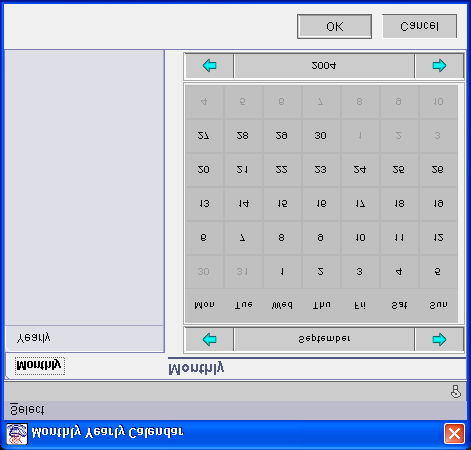
99 Creating calendars 5. Click Define Calendar to add dates to the calendar. The Monthly Yearly Calendar window is displayed. 6. Select Monthly or Yearly to view a monthly or yearly calendar. Use the arrow buttons above and below the calendar to change the month and year. 7. To add a specific date to the calendar, click the date in the calendar view. 8. To add a specific day of the month, select Day of Month from the Select menu. The Day of Month pane is displayed. 9. To add a day of the month by number, select the day number in the Day drop-down list. To add the last day of the month, select the Last Day of Month option. 10. Select start and end dates for the calendar by selecting the month and year from the Start and End drop-down lists. The days you specify are selected for every month in this range. 11. Click OK to close the Day of Month pane and select the dates. Click Cancel to close the pane without selecting the dates. 12. Click OK to close the Monthly Yearly Calendar pane and add the dates to the calendar. Click Cancel to close the pane without adding the dates to the calendar. Chapter 14. Creating calendars 73
100 Creating calendars 74 IBM Tivoli Workload Scheduler Job Scheduling Console User s Guide
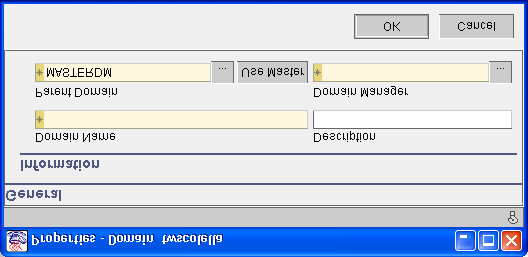
101 Chapter 15. Creating domains Creating a domain This chapter describes how you create domains in a distributed environment. To create a domain in the database, you use the Properties - Domain window, as explained in the following steps: 1. In the Actions list pane, click New Domain. 2. Select the engine. The Properties - Domain panel is displayed. Table 19 defines the information necessary to create a new domain. Table 19. Properties - Domain panel In this area... Specify... Information Domain Name The name of the domain. The name can start with a letter or with a number and can contain alphanumeric characters, dashes, and underscores. For non-expanded databases, it can contain up to eight characters. For expanded databases, it can contain up to 16 characters. Note: Domain names must be unique and cannot be the same as workstation and workstation class names. Description A description of the domain. Parent Domain The name of the parent domain to which the domain manager is linked. The default is the master domain. Domain Manager The name of the workstation that is the domain manager. The domain manager must be a fault-tolerant agent with Full Status and Resolve Dependencies selected. Note: When creating a new domain, you can specify a domain manager workstation that does not yet exist. Copyright IBM Corp. 1991,
102 Creating a domain 76 IBM Tivoli Workload Scheduler Job Scheduling Console User s Guide
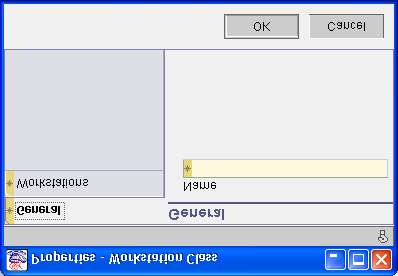
103 Chapter 16. Creating workstation classes Creating a workstation class This chapter describes how you create workstation classes for the distributed environment. To create workstation classes in the database, you use the Properties - Workstation Class pane. To create a new workstation class, perform the following steps: 1. In the Actions list pane, click New Workstation Class. 2. Select the engine. The Properties - Workstation Class panel is displayed. General tab Workstations 1. In Name, type the name of the workstation class. The name must start with a letter and can contain alphanumeric characters, dashes, and underscores. For non-expanded databases, it can contain up to eight characters. For expanded databases, it can contain up to 16 characters. Note: Workstation class names must be unique and cannot be the same as workstation and domain names. tab To associate the workstations to the workstation class, perform the following steps: 1. Click Find Workstation to find a workstation to associate to the workstation class. 2. Click Add All Workstations to add all the workstations in the database to the workstation class. Copyright IBM Corp. 1991,
104 Creating a workstation class 3. Select a row and click Delete from Table to remove a workstation from the workstation class. 78 IBM Tivoli Workload Scheduler Job Scheduling Console User s Guide
105 Chapter 17. Creating distributed job definitions Creating a job definition This chapter describes how to create a job definition for a distributed engine. A job is a unit of work that is part of a job stream processed at a workstation. It usually includes all necessary computer programs, links, files, and instructions to the operating system. You create jobs in the database using the Properties - Job Definition window. To create a new job, perform the following steps: 1. In the Actions list pane, click New Job Definition. 2. Select the engine. 3. Select a task type in the list displayed. You cannot change a task type after it is defined for a job. Table 20 describes the task types: Table 20. New Job Definition task types This task type... Specifies that... UNIX Script The job is an executable file on a UNIX computer. UNIX Command The job is a UNIX command. Windows Script The job is an executable file on a Windows computer. Windows Command The job is a Windows command. Workstation Class Script The job is an executable file that runs on a workstation class. Workstation Class Command The job is a command that runs on a workstation class. Extended Agent Task The job is associated with an Extended Agent workstation. SAP The job is a SAP job that runs on an IBM Tivoli Workload Scheduler Extended Agent for SAP. The SAP task type is only displayed if the Extended Agent for SAP has been installed. For more information on SAP jobs, refer to IBM Tivoli Workload Scheduler for Applications User s Guide. Copyright IBM Corp. 1991,
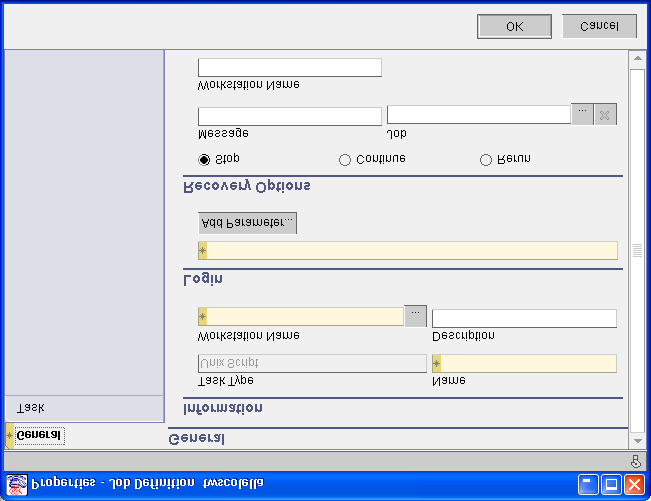
106 Creating a job definition General tab The Properties - Job Definition panel is displayed. Table 21 defines the information necessary to create a job definition. Table 21. Properties - Job Definition general information In this area... Specify... Information Task Type This information field indicates the task type you selected. Name The name of the job. The name must start with a letter, and can contain alphanumeric characters, dashes, and underscores. For non-expanded databases, it can contain up to eight characters. For expanded databases, it can contain up to 40 characters. Workstation The name of the workstation or workstation class on which the job runs. Workstation classes must match the workstation class of a job stream where the job is included. Description A description of the job. The description can contain up to 64 characters. Is Interactive That the job runs interactively on the Windows desktop. Login Login The user name where the job runs. The maximum length is 31 characters. Specify a user that can log on to the workstation where the job runs. For Windows jobs, the user must also be defined in the database. For more information, see Chapter 11, Creating Windows users, on page 65. To include a parameter in the name, perform the steps described in Adding parameters to jobs on page 83. Recovery Options 80 IBM Tivoli Workload Scheduler Job Scheduling Console User s Guide
107 Creating a job definition Table 21. Properties - Job Definition general information (continued) In this area... Specify... Stop If the job ends in error, do not continue with the next job. Stop is the default. Continue If the job ends in error, continue with the next job. Rerun If the job ends in error, rerun the job. Message The text of a recovery prompt to be displayed if the job ends in error. The text can contain up to 64 characters. The recovery prompt is a local prompt and is responded to using the Job Scheduling Console. The status of All Prompts shows the recovery prompts whether they have been asked or not. If a job ended in error, the prompt status is Asked and the message is displayed. If a job successfully ended, the status is Not Asked, and no message appears. Job The name of a recovery job to run if the parent job ends in error. Recovery jobs are run only once for each instance of the parent job ended in error. Workstation The name of the workstation on which the recovery job runs. The name is entered automatically when you select a recovery job. Not all jobs are eligible to have recovery jobs run on a different workstation. Follow these guidelines: v If either workstation is an extended agent, it must be hosted by a domain manager or a fault-tolerant agent that runs in Full Status mode. v The recovery job workstation must be in the same domain as the parent job workstation. v If the recovery job workstation is a fault-tolerant agent, it must run in Full Status mode. Table 22 on page 81 summarizes all possible combinations of recovery options and actions. The table is based on the following criteria from a job stream called sked1: v Job stream sked1 has two jobs, job1 and job2. v If selected for job1, the recovery job is jobr. v job2 is dependent on job1 and will not start until job1 is complete. Table 22. Job stream recovery options Prompt / Job Stop Continue Rerun Recovery prompt: No Recovery job: No Recovery prompt: Yes Recovery job: No Intervention is required. Issue recovery prompt. Intervention is required. Run job2. Rerun job1. If job1 ends in error, issue scheduler prompt. If reply is yes, repeat above. If job1 is successful, run job2. Issue recovery prompt. If reply is yes, run job2. Issue recovery prompt. If reply is yes, rerun job1. If job1 ends in error, repeat above. If job1 is successful, run job2. Chapter 17. Creating distributed job definitions 81
108 Creating a job definition Table 22. Job stream recovery options (continued) Prompt / Job Stop Continue Rerun Recovery prompt: No Recovery job: Yes Recovery prompt: Yes Recovery job: Yes Run jobr. If it ends in error, intervention is required. If it is successful, run job2. Issue recovery prompt. If reply is yes, run jobr. If it ends in error, intervention is required. If it is successful, run job2. Run jobr. Run job2. Issue recovery prompt. If reply is yes, run jobr. Run job2. Run jobr. If jobr ends in error, intervention is required. If jobr is successful, rerun job1. If job1 ends in error, issue scheduler prompt. If reply is yes, repeat above. If job1 is successful, run job2. Issue recovery prompt. If reply is yes, run jobr. If jobr ends in error, intervention is required. If jobr is successful, rerun job1. If job1 ends in error, repeat above. If job1 is successful, run job2. Notes: 1. Intervention is required means that job2 is not released from its dependency on job1, and therefore must be released by the operator. 2. The continue recovery option overrides the abend state, which may cause the schedule containing the job ended in error to be marked as successful. This will prevent the schedule from being carried forward to the next day. 3. If you select the Rerun option without supplying a recovery prompt, Tivoli Workload Scheduler generates its own prompt. 4. To reference a recovery job in conman, you must use the name of the original job (job1 in the scenario above, not jobr). Recovery jobs are run only one per abend. 82 IBM Tivoli Workload Scheduler Job Scheduling Console User s Guide
109 Task tab Depending on the task type you selected, different properties are available in the task tab. For more information, see Table 23. Table 23. Task types For this task type... Go to... UNIX Script, Windows Script, or Workstation Class Script UNIX script, Windows script, or workstation class script UNIX Command, Windows Command, or Workstation Class Command Creating a job definition UNIX command, Windows command, or workstation class command Extended Agent Extended agent on page 84 SAP Job SAP job on page 84 UNIX script, Windows script, or workstation class script Complete Script as follows: Type the file name and any options and arguments. For non-expanded databases, the field can contain up to 255 characters. For expanded databases, it can contain up to 4095 characters. For Windows jobs, include the file extensions. Universal Naming Convention (UNC) names are permitted. Do not specify files on mapped drives. If the file name contains spaces, enter the name in another file that does not have spaces in its name and use the second file name in this field. For information about adding parameters, see Adding parameters to jobs. UNIX command, Windows command, or workstation class command In the Command field, specify the name of the command the job runs. Enter the command name and any options and arguments. For non-expanded databases, the field can contain up to 255 characters. For expanded databases, it can contain up to 4095 characters. Commands are run directly and the jobmanrc standard configuration script is not run. To include a parameter in the Command field, perform the steps described in Adding parameters to jobs. The Return Code Mapping section allows the user to define which return codes cause the job to be successful. In the Expression field, enter a logical expression that defines the success condition. Allowed operators are comparison operators (=,!= or <>, >, >=, <, <=) and logical operators (AND, OR, NOT). Adding parameters to jobs To include a parameter in Script, perform the following steps: 1. Place the cursor in field where you want to insert the parameter and click Add Parameter. Chapter 17. Creating distributed job definitions 83
110 Creating a job definition 2. This displays the Find Parameters pane. 3. Search for a parameter name. The name can contain wildcard characters. 4. Click Start to display a list of parameter names. 5. Select a parameter name in the list and perform one of the following operations: v Click OK or double-click the parameter in the list to insert the parameter name in Script of the Properties - Job Definition pane v Click Cancel to close the Find Parameters pane without inserting a parameter name. Extended agent Refer to the specific user guide for the Extended Agent you are working with for more information. SAP job Refer to the IBM Tivoli Workload Scheduler for Applications User s Guide for information about defining the task. 84 IBM Tivoli Workload Scheduler Job Scheduling Console User s Guide

111 Chapter 18. Creating job streams This chapter describes how you create job streams. After you create job streams, you need to edit them before they can be submitted to the daily plan. For information about editing job streams, see Chapter 24, Managing job streams, on page 161. To create a new job stream, perform the following steps: 1. In the Actions list pane, click New Job Stream. 2. Select the engine. The Job Stream panel depends on the type of engine: z/os or distributed. Creating a job stream for a z/os engine The Properties Job Stream panel is displayed. Copyright IBM Corp. 1991,
112 Creating z/os job streams Table 24 defines the information necessary to create a job stream. Table 24. Properties - Job Stream panel for z/os In this area... Specify... Information Name A name for the job stream or template. Note: The name, valid date, and status uniquely identify each job stream or template. You can define up to four job streams and job stream templates that share the same name but have different valid dates. Description A description of the job stream or template. Owner The name of the person responsible for the job stream or template. Owner description Information for contacting a person for assistance when the job stream does not complete according to the plan. Template A new job stream template. A job stream template contains run cycles but no jobs. All job streams defined as belonging to a template inherit the run cycles defined for the template. Is Active The job stream schedule. Do not select this until you have added all the jobs, specified dependencies, and created a run cycle. Inherits from template The name of the template if you are defining a job stream that belongs to a job stream template. The job stream is scheduled using the template run cycle information. Contains Monitored Job Whether any jobs in this job stream are monitored by Tivoli Business Systems Manager when they run. The value is Yes if Is Monitored Job is selected in the properties pane of one or more of the jobs in the job stream. This field is read-only. Authority group name A name to be used to generate a RACF resource name for authority checking. This information is optional. Calendar The name of the calendar of workdays and freedays, including holidays, that you associate to the job stream. If you leave this field blank, the scheduler uses the calendar specified in the initialization parameter CALENDAR during startup of the TCP/IP server. Note: The calendar that you specify here is used to display the run days of the job stream in the Run Cycle view of the Job Stream Editor. It is not necessarily the calendar that is used to determine the actual run days of the job stream instances that are generated. Priority The priority of job stream compared to other jobs streams. The lowest priority is 1 and the highest priority is 9. When job streams are competing for resources, a job stream with a priority of 3 will run before a job stream with a priority of 1. This value is not definitive. Other factors, such as resource and workstation dependency, are considered in determining priority. This field does not apply to job stream templates. Valid Date From The time period covered by the job stream. You can specify only the From date. Click the small calendar button to select a valid From date. You can create several job streams with the same name but with different From dates. The scheduler selects the correct version for the day being planned. To A To date of 12/31/2071 is automatically assigned. 86 IBM Tivoli Workload Scheduler Job Scheduling Console User s Guide
113 Creating z/os job streams Note: The IBM Tivoli Workload Scheduler ISPF main pane, option 1.8, allows you to create a job stream containing a single job by specifying only the name of the JCL associated with the operation. This option is not available in the job scheduling console. To create job streams with a single job, you must follow the steps in this chapter. Click OK. Table 25. What Happens When You Define a Job Stream If you are creating a... This happens... Job stream template The job stream editor opens the Timeline view, where you can open the Run Cycle view. You can add only run cycle information. Job stream that belongs to a template The job stream editor opens the Graph view where you can create jobs. Single job stream The job stream editor opens the Graph view from where you can add jobs and dependencies, and switch to the Run Cycle view to add run cycles. Creating a job for z/os job streams After you have specified the properties of a z/os job stream, you create the jobs that comprise it using the Graph view of the job stream editor. To access the Graph view of the job stream editor, display a list and double-click the job stream. The Graph view displays a button for each type of job that you can define. Table 26 describes these buttons: Table 26. Graph view job buttons This button... Performs this operation... Add JCL Job: Adds a job consisting of JCL statements. Runs on computer workstations. Add Started Task Job: Adds a started task. Runs on computer workstations on which the Started task, STC check box was selected. Add Printer Job: Adds a job to print the output of a predecessor job. Runs on printer workstations. Add General Job: Adds a job to include activities other than printing and processing, such as manual activities. Runs on general workstations. Add Setup Job: Adds a job containing a set of JCL statements for a JCL or started task job. Runs on general workstations on which the Job setup check box was selected. Add Write-to-Operator Job: Adds a job containing an operator instruction displayed on the system console. Runs on general workstations on which the WTO check box was selected. Add FTW Task: Adds a job to run on a fault-tolerant workstation. Add Dependency on External Job: Creates, browses, or modifies a dependency on a job that is part of another job stream. Chapter 18. Creating job streams 87
114 Creating z/os job streams Table 26. Graph view job buttons (continued) This button... Performs this operation... Add Link: Creates a link between jobs. Graph: Changes to the Graph view. Timeline: Changes to the Timeline view. Run Cycle: Changes to the Run Cycle view. The property panes for the different job types are identical. However, when you save the job stream, Tivoli Workload Scheduler applies different validation policies to the properties that you specified, based on the job type. When you search for a target workstation, only workstations compatible with the specific job type are listed. Creating a job in z/os To create a job in the job stream, click one of the job buttons in the Graph view of the job stream editor. For example, to create a JCL Job, click Add JCL Job. The Properties - JCL Job panel is displayed. General tab: Table 27 defines the information necessary to create the general information of a job. Table 27. Properties - JCL Job General information In this area... Specify... Information Name The JCL job name. Target workstation The name of the workstation on which the job is run. This information is required. Description A brief description of the job. Auto hold release To release the job when it is not submitted by Tivoli Workload Scheduler and is in HOLD status. The job is released when all dependencies are satisfied and the requested resources are available. Auto hold release is the default. Auto error completion To mark the job ended-in-error (E) if an error occurs when it runs. Auto error completion is selected by default. If you clear it, the job is marked complete (C) when it ends, regardless of the outcome. Critical job To define the job as a critical job. This makes the job eligible for Workload Manager (WLM) service class promotion when the job runs late. Monitored Job That the running of this job is to be monitored by Tivoli Business Systems Manager. 88 IBM Tivoli Workload Scheduler Job Scheduling Console User s Guide
115 Creating z/os job streams Table 27. Properties - JCL Job General information (continued) In this area... Specify... Cancel if late To prevent the job from being started if it is late (according to the time dependencies specified in the Time Restrictions page). Note: Select this option only for time-dependent jobs (time-dependent jobs must have an earliest start time and a deadline specified on the Time Restrictions page). Auto job submission To start the job automatically or to issue a WTO message (when all dependencies have been satisfied and all required resources are available). Auto job submission is selected by default. Deadline WTO To issue an operator message if the job passes its deadline. The message is also written to the message log. Centralized script That the script associated to the job resides on the domain master. WLM policy The WLM policy applied for WLM service class promotion when this job is late if you selected Critical Job. Possible values are: Conditional The scheduler uses an algorithm to determine whether to apply the Deadline or the Latest start option. Deadline The scheduler intervenes if the job runs beyond the deadline. Latest start The scheduler intervenes immediately if the job starts after the latest start time. Highest acceptable return code Long duration The scheduler intervenes if the job takes longer than it should as compared to the statistics that it keeps. The highest acceptable return code from any step in the job before the job is set to ended-in-error (E) status. If you leave this field blank, IBM Tivoli Workload Scheduler for z/os uses the value specified in HIGHRC in the initialization parameter JTOPTS. Restartable Whether to restart the job if the related workstation becomes inactive. Possible values are: v Yes: Restarts the job from the beginning on the alternate workstation (if one was defined), or on this workstation when it becomes active again. v No: Restarts the job, even if it overrules the installation default in the WSFAILURE or WSOFFLINE parameters of the JTOPTS initialization statement. v Default: Uses the installation default action specified in the OPRESTARTDEFAULT keyword of the JTOPTS statement. This is selected by default. Chapter 18. Creating job streams 89
116 Creating z/os job streams Table 27. Properties - JCL Job General information (continued) In this area... Specify... Reroutable Whether to make the job eligible to be rerouted if its workstation becomes inactive. This option applies to the job only when it is in ready (R) or waiting (W) status. Possible values are: v Yes: Makes the job reroutable. v No: Makes the job not reroutable. v Default: Takes the installation default action specified in the OPREROUTDEFAULT keyword of the JTOPTS statement. This is selected by default. Restart and Cleanup Specify which data set and job restart actions must be performed if the job ends in error. This option is not available for fault-tolerant workstations. Possible values are: v None: No cleanup and restart actions are performed. This is the default. v Immediate: Data set cleanup is performed immediately if the job ends in error. This option is not linked to a restart, which must be initiated separately. The operation is treated as if it had the Automatic option selected when it is rerun. v Automatic: A data set cleanup is inserted automatically as the first step to be performed during the rerun of the failed job. This is the preferred method of running restart and cleanup. v Manual: Restart and cleanup actions are to be initiated manually from the Modify Current Plan ISPF dialog. Expanded JCL That the JCL used for step-level restarts and, optionally, job reruns, should not be the JCL contained in the scheduler libraries but the JCL image captured from the JESJCL sysout data set. This is the default and recommended option. Use Sys Out That user sys out data sets should be used for job restarts. Feedback options The scheduler automatically monitors the actual durations of jobs. It can use these durations to modify the estimates in the application description (AD) database. Possible values are: v Smoothing factor: A number, from 0 to 999, that determines how much a measured duration changes existing values in the AD database. If a measured duration is outside the limit set by Limit for feedback, the smoothing factor is not applied and the AD database is not updated. v Limit for feedback: A number, from 100 to 999, to set the limit within which measured values are regarded as acceptable. A measured value outside the limit is ignored. No smoothing factor is applied and the AD database is not updated. Task tab: In the Task tab, enter information about the program associated with the job. Note: If the task is a manual operation, leave this tab blank. 90 IBM Tivoli Workload Scheduler Job Scheduling Console User s Guide
117 Creating z/os job streams Use the information in Table 28 to enter all the information needed to define the task. Table 28. Properties - JCL Job Task information In this area... Specify... Task name The name of the JCL associated with the job. Together with the identifier you specified in the previous tab, the task name labels the job in the Graph view of the job stream editor. Form number The printer form number that appears on the daily plan and ready lists. For printer workstations with automatic reporting, it enables the engine to identify the different print operations that belong to a specific job. Job class A letter that matches the host job class from the JCL. Output class A letter that matches the host output class from the JCL. Use extended information That Extended task name is enabled. Extended task name A descriptive name for the job. Maximum supported length is 54 characters. Time Restrictions tab: In the Time Restrictions tab, specify the period of time that the job is allowed to run and the amount of time the job requires. Table 29 defines the information necessary to define the time restrictions for the job. Table 29. Properties - JCL Job Time Restrictions information In this area... Specify... Start: Specify the time at which the job can start. No restrictions To run the job as soon as all dependencies are met. No time restrictions can result in more efficient processing for certain jobs when extending a plan. In this way, they are run as soon as dependencies are satisfied. Note: This choice is not valid if you selected Cancel if late in the General tab. Follow job stream rules That the earliest time the job can start is when the job stream starts. This is the default. Note: This choice is not valid if you selected Cancel if late in the General tab. Specify earliest start time Deadline A specific time before which the job should not start. Then: 1. In At, type a time according to your locale settings. For example, type 12:00 if you do not want the job to start before noon. 2. In Delay for days, type a number of days to defer the start time. For example, if you type 3, the job starts three days after the time you originally specified in At. Specify deadline The latest time that the job can end. Use At and Delay for days. The default is no deadline time. Duration Hours, Minutes, Seconds How long the job is expected to run, in hours, minutes, and seconds. Chapter 18. Creating job streams 91
118 Creating z/os job streams Resources tab: In the Resources tab, describe the parallel servers, and the logical and workstation resources that the job uses. In the procedure, you perform the following actions on target resources and logical resources that you access from the drop-down list: Target resources Where you specify the workstation (or fixed) resources, and the parallel servers, that the job needs to run. Logical resources Where you specify the logical and physical resources that the job needs to run 1. Click the arrow next to Target resources. Columns are displayed where you can specify the target resources. 2. Double-click each cell in the Quantity column to edit the amount of resources (Resource 1 and Resource 2) that are required by the job. Do the same for parallel servers. 3. Click the arrow and select Logical resources. Columns are displayed where you can specify the logical resources. 4. Click Add row for each resource you need to assign to the job. 5. Type the name of the resource. If you do not know it, use... (find) to search for it. 6. For each logical resource, double-click under the next three columns to edit the following attributes: Quantity Specify the amount of the resource needed by the job. Access type Specify whether the job needs shared or exclusive access to the resource. Keep on error Specify whether the job keeps or frees the resource when it fails. You can also specify to use the default defined in the ONERROR keyword of the RESOPTS statement. The default value is FREESR. When you have finished, click OK to save your changes and close the window. The new job is displayed as an icon in the Graph view of the job stream editor. The name of the job is made up of the name of the task with which the job is associated and by the job identifier. You can drag and drop the icon to position it. Repeat the steps in this section to create as many jobs as you need. Note: You can use the slider, positioned on the left margin of the Graph view, to zoom in and zoom out the jobs displayed. When you move the slider downwards to zoom out of the Graph view, the job buttons change their appearance, changing color depending on the job type. Creating dependencies between jobs When you create dependencies, you link jobs in a sequence. A successor job cannot begin until the predecessor job is complete. Dependencies determine when the successor job runs, even if the successor job has time restrictions. 92 IBM Tivoli Workload Scheduler Job Scheduling Console User s Guide
119 Creating z/os job streams For example, to print bank account statements, you must first subtract withdrawals from an account (Job A) before you calculate the account balance (Job B). Job A is the predecessor and Job B the successor. Creating dependencies within a job stream To create a dependency between jobs within the same job stream, perform the following steps: 1. In the Graph view of the job stream editor, click Add Link. 2. Click the predecessor job and drag the link to the successor job. A line is displayed between the two jobs, with an arrow pointing to the successor job. 3. Repeat the previous steps to create as many dependencies as you need. Creating dependencies between job streams External jobs represent jobs that are part of other job streams. You create a dependency between jobs in different job streams by creating a dependency on an external job. For example, if Job C in the Accounts job stream depends on Job B in the Reports job stream, you create an external job in the Accounts job stream to represent Job B, then you create a dependency between Job C and the external job. This section describes one way to add an external job to a job stream. Another method, based on the use of job stream lists, is described in Using the copy function to add an external job on page 165. To create a dependency between job streams, perform the following steps: 1. In the Job Stream Editor Graph view, click Add Dependency on External Job. The Properties - External Job panel is displayed. 2. In Job Stream, type the name of the job stream containing the external job. 3. Click Show Jobs. The jobs in the job stream are displayed. 4. Select a job and click OK. An icon for the external job is displayed in the Graph view. 5. Repeat the steps explained in Creating dependencies between jobs on page 92 to define links with the other jobs. Scheduling job streams After creating the jobs and defining any existing dependencies between them, you specify the scheduling information for the job stream using run cycles. Run cycles are generated from a combination of the following information: v A calendar of workdays and freedays. The calendar is defined in IBM Tivoli Workload Scheduler for z/os. You specify its name in the Job Stream Properties panel (see Creating a job stream for a z/os engine on page 85). v The validity date of the job stream, which you specify in the Job Stream Properties panel. Chapter 18. Creating job streams 93
120 Creating z/os job streams Types of run cycle You can create two types of run cycle: v v Offset-based Uses a combination of user-defined periods and offsets. For example, an offset of 3 in a period of 15 days is the third day from the beginning of the period. It is more practical to use offset-based run cycles when the cycle is based on cyclic periods. Rule-based Uses rules based on lists of ordinal numbers, types of days, and common calendar intervals or period names. For example, the last Thursday of every month. Rule-based run cycles are based on conventional periods, such as calendar months, weeks of the year, and days of the week, or periods that you define, such as a semester. You can specify multiple run cycles when you create a job stream, and you can add new ones afterwards. You can also mix rule-based and offset-based run cycles. Both types of run cycles can be either inclusionary or exclusionary. Inclusionary run cycles specify the days that the job stream must run. Exclusionary run cycles specify the days that the job stream must not run. You can add run cycles to generate more days, or to have multiple instances on the same day. You can add exclusionary run cycles to exclude some of the days already generated. Creating a run cycle To create a run cycle, in the job stream editor, click Run Cycle. The Run Cycle view is displayed. Table 30. Run cycle buttons If you are going to use... Click... Offsets Offset-based Run Cycle Rules Rule-based Run Cycle Creating rule-based run cycles The Properties - Rule-based Run Cycle panel is displayed. General tab: Table 31 defines the information necessary to define the run cycle details. Table 31. Run Cycle General information In this area... Specify... General Name A name for the run cycle. Note: Offset-based run cycles take the name of the period specified in the Offsets page. See Creating offset-based run cycles on page 99. Description A description of the run cycle. Exclusionary run cycle If the run cycle keeps the job stream from running. 94 IBM Tivoli Workload Scheduler Job Scheduling Console User s Guide
121 Creating z/os job streams Table 31. Run Cycle General information (continued) In this area... Specify... Rule for freedays How you want IBM Tivoli Workload Scheduler for z/os to treat freedays when calculating the rundays of the job stream, by selecting one of the following: Count workdays only Excludes freedays when calculating on which days the job stream runs. This is the default for offset-based run cycles. Schedule on last workday before freeday Counts both workdays and freedays. If the runday falls on a freeday, it is shifted to the closest workday before the freeday. Schedule on next workday after freeday Counts both workdays and freedays. If the runday falls on a freeday, it is shifted to the closest workday after the freeday. Count workdays and freedays alike Counts both workdays and freedays. The job stream is scheduled on the runday, regardless whether it is a freeday or a workday. This is the default for rule-based run cycles. If freeday, do not schedule at all Counts both workdays and freedays. If the runday falls on a freeday, the job stream is not scheduled to run. JCL variable table A name of the variable table that the scheduler can use on the days generated by this run cycle. Alternatively, click the ellipsis (...) to search for a variable table name. Valid Date From, To An interval of time for which the run cycle applies. Click the calendar buttons next to each field to select dates using pop-up calendars. The intersection between this valid date and the valid date you defined in the Job Stream Properties pane is the interval during which the job stream is actually scheduled. Time Restrictions tab: Table 32 defines the information necessary to define the time restrictions. Table 32. Run Cycle Time Restrictions information In this area... Specify... Start At The time when the job stream must start. The default is 00:00 of the scheduled day. Deadline At The time for the job stream to stop. Delay for days A number of days after the start of the schedule. The default is no deadline time. Chapter 18. Creating job streams 95
122 Creating z/os job streams Note: If you are creating an exclusionary run cycle, be sure to match the time restrictions of the run cycle that it is excluded. Rules tab: Table 33 defines the information necessary to create the rules on which the run cycle is based. Table 33. Rule-based Run Cycle Rules information In this area... Specify... Periods Week, Month, Year, or User-defined (a period that you have defined in the scheduler) periods. You can set more than one period at a time for complex rules specifying more cycles. For example, you can set Week and Month, and then choose the days that apply to both rules. You do not need to select the same days twice, since they are applied automatically to all cycles. Ensure that the period you select is also highlighted so that the other options in the tab are enabled. The period that you select affects the number of days listed in the Available days scroll-list. The In the following group changes depending on the period you select. Frequency Only Select this if the rule applies to only one day in the specified period. The rule does not repeat within the period. For example, Only last Monday in Month schedules the job stream to run on the last Monday of the month. Every Select this if the rule is used to calculate more than one day within the period. For example, Every last Monday in Month schedules the job stream to run on every Monday in the month, since this rule generates a series of Mondays starting from the last Monday. Note: Every first day yields the same rundays as Every day. Shift origin If you use Every, you can shift the origin of the run cycle by the number of days you set in Shift origin. You shift the origin of the run cycle with respect to the default origin, which is Monday in the Week period, and the first week with at least 4 days in the Month and Year periods. You can also shift the origin from the end, if you specify a combination of Every and ordinal-last days. Available days The days of the period to which the rule applies. The number of available days changes according to the period you select. You can also specify ordinal-last days to count backwards from the end of the period. The days you select are displayed in the Selected Days field. Available types of days The types of days to which the rule applies. The types of days you select are displayed in Selected Types of Days. In the following... The period names to which you want the rule to apply. Depending on the period you select (Week, Month, Year, User-defined), this option displays lists of weeks of the year by number, or months by name. If you selected a user-defined period, a list of available periods is displayed in the In the following Periods group. Select the check box next to the period you want to use. 96 IBM Tivoli Workload Scheduler Job Scheduling Console User s Guide
123 Creating z/os job streams Figure 8 illustrates a rule that schedules the job stream to run on the fifth day of every week. Figure 8. Example rule Click OK. The following happens: v IBM Tivoli Workload Scheduler for z/os calculates the days of the run cycle. v The run cycle name is displayed in a list to the left of the graphic calendar in the Run Cycle view. If you right-click it, you can then select a number of actions on the run cycle, such as Properties, Copy, and Delete. v The rundays are displayed in blue in the graphic calendar. When you select the run cycle from the list, a blue stripe is displayed at the top of the corresponding generated days. Example 1: Rule-based run cycle: Figure 9 on page 98 illustrates a rule-based run cycle starting from a Valid Date of May, 23, 2003, and where workdays and freedays are both counted. Chapter 18. Creating job streams 97
124 Creating z/os job streams Figure 9. Example 1: Rule-based run cycle Example 2: Exclusionary run cycle: Figure 10 illustrates an exclusionary run cycle WPREXCEP that prevents job stream PAYRO21 from running on the last Friday of May The rundays of an exclusionary run cycle are marked with a red bar in the graphic calendar. Figure 10. Example 2: Exclusionary Run Cycle WPREXCEP excludes the WEEKLYPR run cycle in the week marked in red. 98 IBM Tivoli Workload Scheduler Job Scheduling Console User s Guide
125 Creating z/os job streams Example 3: Exclusionary run cycle defined: Figure 11 illustrates a rule defined for the WPREXCEP exclusionary run cycle. The selected days are equal to those for the WEEKLYPR run cycle. The week when the job stream must not run is specified in In the following weeks. Figure 11. Example 3: Exclusionary run cycle defined Creating offset-based run cycles Table 34 defines the information necessary to specify the combination of period and offsets on which a run cycle is based. Table 34. Offset-based run cycle rules information In this area... Specify... In the following period The name of a user-defined period. Note: The name of the period is also used as the run cycle name. If you need to specify more than one period, create an offset-based run cycle for each period within the job stream. Available offsets The days when you want the job stream to run in the period. Select ordinal last days to count the days from the end of the period. The days you select are displayed in Selected offsets. Click OK. The following happens: v IBM Tivoli Workload Scheduler for z/os calculates the days of the run cycle. v The run cycle name is displayed in a list to the left of the graphic calendar in the Run Cycle view. If you right-click it, you can then select a number of actions on the run cycle, such as Properties, Add, and Delete. v The rundays are displayed in blue in the graphic calendar. When you select the run cycle from the list, a blue stripe is displayed at the top of the corresponding generated days. Chapter 18. Creating job streams 99
126 Creating z/os job streams Example 1: Offset-based run cycle: Figure 12 illustrates an offset-based run cycle named PER1. This run cycle schedules job stream PAYRO21 to run on every second day of each cycle, beginning from a Valid date of May 21, Figure 12. Example 1: Offset-based run cycle Example 2: Offset-based run cycle defined: Figure 13 illustrates the offset for run cycle PER1. The offset is the second day of the user defined period, also named PER1. Figure 13. Example 2: Offset-based run cycle defined 100 IBM Tivoli Workload Scheduler Job Scheduling Console User s Guide

127 Saving a job stream After you have specified job stream properties and defined jobs, job dependencies, and run cycles, you can save the job stream. Job streams are saved in the scheduler database. To save the new job stream, click Save in the job stream editor toolbar. The Job Stream Editor checks for any missing or invalid information, then saves the job stream in the application description database. Note: You can save a job stream from any of the three views available in the job stream editor. You can define parts of a job stream, for instance the jobs that are in it, then save it and open it again later, as explained in the next chapter, to define its run cycles. If this is the case, do not mark it as active until it is ready to be scheduled. Creating a distributed job stream The Job Stream panel is displayed. Creating z/os job streams Chapter 18. Creating job streams 101
128 Creating distributed job streams General tab Table 35 defines the information necessary to create the general characteristics of the job stream. Table 35. Job Stream Properties General information In this area... Specify... Information Name The name of the job stream. The name must start with a letter, and can contain alphanumeric characters and dashes. Maximum supported length is 16 characters. The name of a job stream cannot be changed after it has been saved. However, you can use the create another command to save the job stream with another name. This field is mandatory. Workstation The name of the workstation or workstation class on which the job stream is launched. If you specify a workstation class, it must match the workstation class of any jobs or resources used in the job stream. This field is mandatory. Description A description of the job stream. Priority The priority of the job stream. Type a priority value or click: Hold Sets the priority to 0. High Sets the priority to 100. Go Sets the priority to 101. Possible priority values are 0 through 101, where 101 is the highest priority. A priority value of zero prevents the job stream from launching. For High and Go, all jobs in the job stream are given the priority. High and Go jobs are launched as soon as their dependencies are satisfied, overriding the workstation job limit, but not overriding the job stream job limit or the workstation job fence. Limit The number of jobs that can be running at the same time in the schedule. Possible values are 0 through If you specify a job limit of 0, no jobs are launched in the job stream. Options On Request That the job stream is selected for running on request. If you select On Request and specify run cycles for the job stream, the On Request flag is ignored and the job stream runs according to the run cycle. For more information, refer to the IBM Tivoli Workload Scheduler Reference Guide. Carry Forward That the job stream is eligible to be carried forward to the next day production plan if it is not completed before the end of the current day production day. Job streams that are carried forward retain the carryforward option and, therefore, can be carried forward again. You can control the number of days a job stream is carried forward by specifying a deadline time (UNTIL keyword) plus x number of days. Monitored Job Stream That the entire job stream must be monitored by Tivoli Business Systems Manager (TBSM) when it runs. 102 IBM Tivoli Workload Scheduler Job Scheduling Console User s Guide
129 Creating distributed job streams Table 35. Job Stream Properties General information (continued) In this area... Specify... Contains Monitored Job This information field indicates whether any of the jobs in this job stream are monitored by Tivoli Business Systems Manager (TBSM) when they run. Value is Yes if at least one of the jobs in the job stream have Monitored Job selected in the Properties pane. Free Days Calendar The name of the calendar that lists the non-workdays for your company, such as holidays, and weekends, when you may not want the job stream to run. The calendar of freedays is used during the definition of the run cycles for the job stream. It is associated with the free day rule, where you tell Tivoli Workload Scheduler how to handle a job stream if the schedule falls on a freeday. See The freedays calendar on page 71 for details on creating freeday calendars. Use Default Default freedays calendar (usually named Holidays) that is displayed in Calendar Name. When you select Use Default, the other properties in this group become unavailable. Specify Calendar A freedays calendar and enter a calendar in Calendar Name. Select Saturday and Sunday if you want these days to be counted as freedays in the calendar. When you have finished, click OK. Time Restrictions tab Table 36 defines the information necessary to set the job stream time restrictions. Table 36. Job Stream Time Restrictions information In this area... Specify... Start Specify time That entry of a start time is enabled. The earliest time the job stream will be launched. The job stream will not be launched before this time. If no time is specified, the job stream will be launched as soon as all necessary conditions are met. At A start time in the format of your locale, for example: 11:30 a.m. or 4:25 p.m.. Delay for days The number of days to offset the start time from the day the job stream is selected for inclusion in the production plan. Latest Start Time Specify time The latest start time at which the job stream should be allowed to start. At A start time in the format of your locale, for example: 11:30 a.m. or 4:25 p.m.. Delay for days The number of days to offset the latest start time from the day the job stream is selected for inclusion in the production plan. Chapter 18. Creating job streams 103
130 Creating distributed job streams Table 36. Job Stream Time Restrictions information (continued) In this area... Specify... Action The action to be performed in case the job stream does not start and the Latest Start Time expires. Suppress To specify that the job stream does not start, even if the error condition that prevented it from starting is corrected, and dependencies are not released. Suppress is the default. Continue To specify that the job stream starts when the error condition that prevented it from starting is corrected. Cancel To specify that the job stream is canceled and dependencies are released. Termination Deadline Specify time That entry of latest time the job stream is launched is enabled. The job stream will not be launched after this time. At A deadline time in the format of your locale, for example: 11:30 a.m. or 4:25 p.m.. Note: The Deadline time must be later than the Start Time. Delay for days The number of days to offset the deadline time from the day the job stream is selected for inclusion in the production plan. Time Zone Time Zone The time zone in which the job stream runs. All time values specified are in this time zone. Select a time zone from the drop-down list. If a time zone is not specified for the job stream, all time values specified in the Time Restrictions properties pane are in the time zone of the workstation on which the job stream is launched. This list is available only if time zone support is enabled. For information about enabling the time zone, refer to IBM Tivoli Workload Scheduler Planning and Installation Guide. Resources Note: Time restrictions can also be set in the Timeline view of the job stream editor. See Specifying time restrictions in the Timeline View on page 120 for more information. tab To add a resource dependency for the job stream, perform the following steps: 1. Click Add Row. This creates a new row in the list of resource dependencies. 2. Double-click in the Resources column to locate and insert a resource name. 3. Double-click in the Quantity column and enter the number of resource units required by the job stream. The default is one. Resources can be defined with up to 1024 units, but they can only be allocated in increments of 32. For example, to allocate 1024 units of a resource to a job stream or job you would need to create 32 entries for the resource with 32 units each. The number of jobs and schedules using a resource at any one time cannot exceed 32. To remove a resource dependency for the job stream, select the resource row in the list and click Delete from Table. When you have finished, click Files in the left pane of the Job Stream Properties pane. The Files page is displayed. 104 IBM Tivoli Workload Scheduler Job Scheduling Console User s Guide
131 Files Prompts tab To add a file dependency for the job stream, perform the following steps: 1. Click Add Row. This creates a new row in the list of file dependencies. 2. Double-click in the Workstation column and locate and insert the name of a workstation or workstation class. 3. Double-click in the Filename column and type a file name or search for a file name. You can search for a workstation only if it is the one where the Job Scheduling Console resides. 4. Double-click in the Qualifiers column and enter the test conditions for the file dependency. On UNIX, the valid qualifiers are the same as UNIX test command conditions. For more information, refer to your UNIX system documentation. On Windows, only the following qualifiers are valid: -d %p True if the file exists and is a directory. -e %p True if the file exists. -f %p True if the file exists and is a regular file. -r %p True if the file exists and is readable. -s %p True if the file exists and its size is greater than zero. -w %p True if the file exists and is available for editing. Notes: Creating distributed job streams a. On both UNIX and Windows, the expression %p inserts the file name. b. Entering notempty is the same as entering -s %p. If no qualifier is specified, the default is -f %p. To remove a file dependency for the job stream, select the file row in the list and click Delete from Table. tab To define an ad hoc prompt dependency, select Ad Hoc Prompt from the drop-down list. For a predefined prompt dependency, select Predefined Prompt from the drop-down list. To add a prompt dependency for the job stream, perform the following steps: 1. Click Add Row. A new row is displayed in the list of prompt dependencies. 2. To add a predefined prompt, double-click in the Name column and locate and insert the name of a prompt. 3. To define an ad hoc prompt, double-click in the Text column and type the text of the prompt. The default behavior of a prompt is to display a message and wait for a reply. If the string begins with a colon (:), the message is displayed but no reply is necessary. If the string begins with an exclamation mark (!), the message is not displayed but it requires a reply. You can include backslash n (\n) within the text for new lines. You can include one or more scheduler parameters as part or all of the text string. To use a parameter, place its name between carets (^). Chapter 18. Creating job streams 105
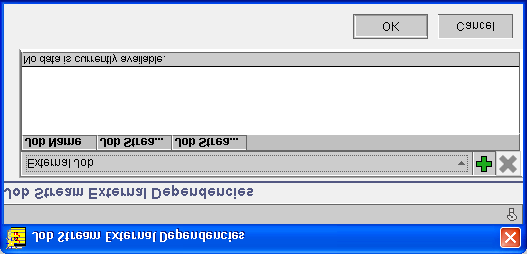
132 Creating distributed job streams To remove a prompt dependency for the job stream, select the prompt row in the list and click Delete from Table. Adding external dependencies to a job stream Job streams can be dependent on the successful running of other job streams, jobs in other job streams, and jobs in other Tivoli Workload Scheduler networks (internetwork jobs). These external dependencies are also called predecessors. To add external dependencies to a job stream, open the job stream in the job stream editor and select External Dependencies from the File menu. The Job Stream External Dependencies panel is displayed. Click External Job, and select one of the following dependencies: v External job stream dependencies v Internetwork dependencies v External job dependencies Adding an external job stream dependency To add an external job stream dependency, perform the following steps: 1. Click Add Row. 2. Double-click in the Job Stream Name column of the new row. 3. Click... (find) in the Job Stream Name column to search for and select a job stream. Adding an internetwork dependency To add an internetwork dependency, perform the following steps: 1. Click Add Row. 2. Double-click in the Network Agent column of the new row. 3. Click... (find) in the Network Agent column to search for and select the name of the network agent. Internetwork dependencies require that a network agent is configured to communicate with the external scheduler network. For information about configuring a network agent, refer to the IBM Tivoli Workload Scheduler Reference Guide. 4. Double-click in the Dependency column of the new row and enter either a freeform dependency, or the job or job stream predecessor in the form workstation#jobstream.job. 106 IBM Tivoli Workload Scheduler Job Scheduling Console User s Guide

133 Creating distributed job streams Adding an external job dependency To add an external job dependency, perform the following steps: 1. Click Add Row. 2. Double-click in the Job Name column of the new row. 3. Click the... (find) in the Job Name column to search for and select a job. Adding a job to a job stream A job definition is a description of work to be performed on a workstation. Jobs are scheduled for running by adding them to job streams. You add jobs to a job stream using the Graph view of the job stream editor. See Editing job streams using the job stream editor on page 161 for more information. To add a job to a job stream, perform the following steps: 1. To open the Graph view, right-click a job stream and select Open from the pop-up menu. 2. In the Graph view, click Add Job Definition in the toolbar. Specifying job properties The Properties - Job panel opens automatically when you add a new job to a job stream. If the panel is not displayed, right-click a job in the Graph view of the job stream editor and select Properties from the pop-up menu. General tab: Table 37 on page 108 defines the information necessary to specify the general properties of the job. Chapter 18. Creating job streams 107
134 Creating distributed job streams Table 37. Properties - Job General information In this area... Specify... Information Name The name of the job. Workstation Name The workstation this job is defined to run on. If this workstation is deleted, the task type for the job is unknown and must be specified before you can save the job again. Priority The priority of the job. Type a priority value or click: Hold Sets the priority to zero. High Sets the priority to 100. Go Sets the priority to 101. Possible priority values are 0 through 101, where 101 is the highest priority. A priority value of zero prevents the job from launching. Requires Confirmation That job completion must be confirmed by the operator. When a job that requires confirmation completes, it remains in PEND until confirmation is received. If confirmation is received before the job completes, its internal status is either SUCCP or ABENDP and other job and job stream successors are not released. Description A description of the job. Monitored Job That the running of this job must be monitored by Tivoli Business Systems Manager. Time Restrictions tab: Table 38 defines the information necessary to create the time restrictions for the job. Table 38. Properties - Job Time Restrictions information In this area... Specify... Start Specify time That entry of a start time is enabled. The job is not be launched before this time. At A start time in the format of your locale, for example: 11:30 a.m. or 4:25 p.m.. Delay for days The number of days to offset the start time from the day the job is selected for inclusion in the production plan. Latest Start Time Specify time The latest time at which the job should be allowed to start. At The latest possible start time in a format specific to your locale, for example: 11:30 a.m. or 4:25 p.m.. Delay for days The number of days to offset the latest start time from the day the job is selected for inclusion in the production plan. 108 IBM Tivoli Workload Scheduler Job Scheduling Console User s Guide
135 Creating distributed job streams Table 38. Properties - Job Time Restrictions information (continued) In this area... Specify... Action The action to be performed in case the job does not start and the Latest Start Time expires. Suppress To specify that the job does not start, even if the error condition that prevented it from starting is corrected, and dependencies are not released. Suppress is the default. Continue To specify that the job starts when the error condition that prevented it from starting is corrected. Cancel To specify that the job is canceled and dependencies are released. Termination Deadline Specify Time To enable the entry of a deadline time. The job will not be launched after this time. At A deadline time in the format of your locale, for example: 11:30 a.m. or 4:25 p.m.. Delay for days The number of days to offset the deadline time from the day the job is selected for inclusion in the production plan. Time Zone Time Zone The time zone in which the job stream runs. All time values specified are in this time zone. Select a time zone from the drop-down list. If a time zone is not specified for the job stream, all time values specified in the Time Restrictions properties window are in the time zone of the workstation on which the job stream is launched. This list is available only if time zone support is enabled. For information about enabling the time zone feature, refer to IBM Tivoli Workload Scheduler Planning and Installation Guide. Repeat Range Hours, Minutes The interval of time for each execution of the job to be repeated. Using the Repeat Range information with the Start and Termination Deadline times allows you to run a job instance, for example, every 15 minutes from 1:00 p.m. to 5:00 p.m.. Est. Duration Normal Elapsed Time Displays the average time this job requires to run, based on previous runs. Note: Time restrictions can also be set in the job stream editor Timeline view. For more information, see Specifying time restrictions in the Timeline View on page 120. Resources tab: To add a resource dependency for the job, perform the following steps: 1. Click Add Row. This creates a new row in the list of resource dependencies. 2. Double-click in the Resources column and click... (find) to locate and insert a resource name. Chapter 18. Creating job streams 109
136 Creating distributed job streams 3. Double-click in the Quantity column and enter the number of resource units required by the job. The number of jobs and schedules using a resource at any one time cannot exceed 32. To remove a resource dependency for the job, select the resource row in the list and click Delete from Table. Files tab: To add a file dependency for the job, perform the following steps: 1. Click Add Row. This creates a new row in the list of file dependencies. 2. Click... (find) to locate and insert the name of a workstation or workstation class. 3. Double-click in the Filename column and enter a file name. You can use the... only if the workstation you choose is the one where the Job Scheduling Console resides. 4. Double-click in the Qualifiers column and enter the test conditions for the file dependency. On UNIX, the valid qualifiers are the same as UNIX test command conditions. For more information, refer to your UNIX system documentation. For a list of the Windows qualifiers, see 4 on page 105. On both UNIX and Windows, the expression %p inserts the file name. Entering notempty is the same as entering -s %p. If no qualifier is specified, the default is -f %p. To remove a file dependency for the job, select the file row in the list and click Delete from Table. Prompts tab: For an ad hoc prompt dependency, select Ad Hoc Prompt from the drop-down list. For a predefined prompt dependency, select Predefined Prompt from the drop-down list. To add a prompt dependency for the job, do the following: 1. Click Add Row. This creates a new row in the list of prompt dependencies. 2. For a predefined prompt, double-click in the Name column and click... (find) to locate and insert the name of a prompt. 3. For an ad hoc prompt, double-click the Text column and enter the text of the prompt. The default behavior of a prompt is to display a message and wait for a reply. If the string begins with a colon (:), the message is displayed but no reply is necessary. If the string begins with an exclamation mark (!), the message is not displayed but it requires a reply. You can include backslash n (\n) within the text for new lines. You can include one or more scheduler parameters as part or all of the text string. To use a parameter, place its name between carets (^). To remove a prompt dependency for the job, select the prompt row in the list and click Delete from Table. Copying and pasting jobs In the job stream editor you can copy and paste job and job stream icons to create dependencies: v You can open a job stream in the Graph view of the job stream editor, then copy another job stream from a job stream list and paste it into the job stream editor. 110 IBM Tivoli Workload Scheduler Job Scheduling Console User s Guide
137 Creating distributed job streams Using Add Link, you can create an external dependency between the first and the second job streams. For more information, see Creating dependencies between jobs in a job stream on page 114. v You can open multiple job streams in separate job stream editors and copy and paste jobs between the job streams. v You can copy a job within the job stream editor and clone its dependencies to another job. Using the copy function to add an external job You can use the copy function on a listed job stream to add any of the jobs that comprise it as external jobs to another job stream, as described in the following example: 1. Run a job stream list. 2. Right-click a job stream and select Open. The job stream opens in the Graph view of the job stream editor. 3. Right-click another job stream in the list and this time select Copy from the pop-up menu. 4. Go to the job stream editor where the first job stream is open. 5. Right-click anywhere in the window and select Paste from the pop-up menu. 6. In the Dependencies Properties - External Job panel, select Show jobs. All the jobs that comprise the second job stream are displayed. 7. Select the job or jobs that you want to add as external jobs of the first job stream. 8. Click OK to close the Properties - External Job panel. Icons for the added jobs are displayed in the Graph view of the first job stream. Note: You can use Add Link to define dependencies between the jobs in the job stream editor. For more information, see Adding external dependencies to a job stream on page 106. Cloning job dependencies This procedure is used to clone the dependencies of a job to a new job within the Graph view of the job stream editor. To clone the dependencies of a job, perform the following steps: 1. Right-click the job icon and select Copy from the pop-up menu. Alternatively, select the job icon and click Copy in the toolbar or select Copy from the Edit menu. This copies the job to the clipboard. 2. Click Paste in the toolbar or select Paste from the Edit menu. This displays the Properties - Job window for the copied job. 3. Use the Find tool to find and select a new job to add to the job stream. The job name is added to the Properties - Job General tab. 4. When you click OK in the Properties - Job panel, a new button is added for the job in the Graph view of the job stream editor. This job has the same dependencies as the copied job. 5. Save the job stream and close the job stream editor. Adding an internetwork dependency to a job stream An internetwork dependency is a dependency on a job that runs in another IBM Tivoli Workload Scheduler network. Internetwork dependencies require a network Chapter 18. Creating job streams 111
138 Creating distributed job streams agent workstation to communicate with the external scheduler network. For more information about configuring a network agent, refer to the IBM Tivoli Workload Scheduler Reference Guide. Add internetwork dependencies to a job stream to create predecessors for the jobs in the job stream you are editing. A predecessor must complete successfully before the successor job is launched. You add internetwork dependencies in a job stream using the Graph view of the job stream editor. See Editing job streams using the job stream editor on page 161 for more information. To add an internetwork dependency, perform the following steps: 1. To open the Graph view, right-click a job stream and select Open from the pop-up menu. 2. In the Graph view, click Add Dependency on Internetwork in the toolbar. The Internetwork Dependency pane is displayed. 3. Click... (find) to search for and select the name of the network agent. 4. In Dependency, specify either the freeform dependency, or the job or job stream predecessor in the format workstation#jobstream.job. The maximum length of this field is: v 120 for freeform characters v 16 for the workstation v 16 for the job stream v 40 for the job For information about using an internetwork dependency as a predecessor, see Creating dependencies between jobs in a job stream on page 114. Adding an external job stream to a job stream You add external job streams to a job stream to create predecessors for the jobs in the job stream you are editing. A predecessor must complete successfully before the successor job is launched. You add external job streams in a job stream using the Graph view of the job stream editor. For more information, see Editing job streams using the job stream editor on page 161. To add an external job stream, perform the following steps: 1. To open the Graph view, right-click a job stream and select Open from the pop-up menu. 112 IBM Tivoli Workload Scheduler Job Scheduling Console User s Guide
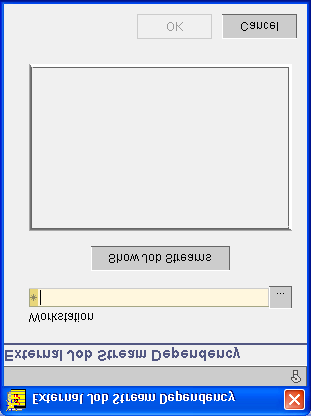
139 Creating distributed job streams 2. Click Add Dependency on External Job Stream in the toolbar. The External Job Stream Dependency panel is displayed. 3. Click... (...) to locate and insert the name of the workstation on which the job stream runs. 4. Click Show Job Streams to list the job streams that run on the workstation. 5. Select a job stream from the list. 6. Add a link between the external job stream and its successor. For information about using an external job stream as a predecessor, see Creating dependencies between jobs in a job stream on page 114. Adding an external job to a job stream You add external jobs to a job stream to create predecessors for the jobs in the job stream you are editing. A predecessor must complete successfully before the successor job is launched. You add external jobs in a job stream using the Graph view of the job stream editor. For more information, see Editing job streams using the job stream editor on page 161. To add an external job, perform the following steps: 1. To open the Graph view, right-click a job stream and select Open from the pop-up menu. Chapter 18. Creating job streams 113

140 Creating distributed job streams 2. Click Add Dependency on External Job in the toolbar. The External Job Dependency panel is displayed. 3. Click... (find) to locate and insert the name of the job stream in which the job runs. 4. Click Show Jobs to list the jobs in the selected job stream that run on the selected workstation. 5. Select a job in the list. 6. Add a link between the external job stream and its successor. For information about using an external job as a predecessor, see Creating dependencies between jobs in a job stream. Creating dependencies between jobs in a job stream You can add dependencies between jobs to specify the order in which they run. A job that depends on the successful completion of another job is called a successor and the job or job stream that it depends on is called a predecessor. You add dependencies between jobs in the Graph view of the job stream editor. For more information, see Editing job streams using the job stream editor on page 161. The dependencies are represented by arrows. To add a dependency between jobs, perform the following steps: 1. To open the Graph view, right-click a job stream and select Open from the pop-up menu. 114 IBM Tivoli Workload Scheduler Job Scheduling Console User s Guide
141 Creating distributed job streams 2. Click Add Link in the toolbar. 3. Click the predecessor job or job stream and drag it to the successor job. When you release the mouse button, an arrow is drawn from the predecessor to the successor. Notes: 1. Internetwork dependencies, external jobs, and external job streams cannot be successors. 2. Internetwork dependencies, external jobs, and external job streams that are not linked are not saved when the Job Stream Editor is closed. To remove a dependency between jobs, select the arrow between the predecessor and the successor, then right-click the arrow and select Delete from the pop-up menu. Specifying run cycles for a job stream Run cycles specify when a job stream in the database is to run in the plan. Combinations of run cycles are used to include and exclude certain dates. There are the following types of run cycle: v Simple Run Cycles Based on specific calendar dates. v Weekly Run Cycles Based on days of the week. v Calendar Run Cycles Based on predefined calendars. For details about creating calendars, see Chapter 14, Creating calendars, on page 71. You specify run cycles for a job stream using the Run Cycle view of the job stream editor. To display the Run Cycle view, select Run Cycle from the View menu in the job stream editor or click Run Cycle in the toolbar. See Figure 9 on page 98. Inclusionary or exclusionary run cycles When you define a run cycle, you must specify if it designates the days when the job stream is to run (inclusionary) or when the job stream is not to run (exclusionary). The days you mark in an inclusive run cycle are displayed as Days Included in the list of run cycles applied to the job stream. The days you mark in an exclusive run cycle are displayed as Days Excluded in the list of run cycles applied to the job stream. Excluded days always take precedence over included days. For each job stream, you can define as many inclusive and exclusive run cycles as you want. Rule for freedays This rule is based on the definition of freedays. Freedays are non-workdays, such as holidays or weekends, and can be defined in one or more specific calendars. Freedays calendars can in other terms be considered the list of non-workdays when there is no activity in your enterprise. For details, see The freedays calendar on page 71. Based on a freedays calendar, you can specify a rule when you define the run cycle of a job stream. The rule determines what action Tivoli Workload Scheduler must Chapter 18. Creating job streams 115
142 Creating distributed job streams take when the schedule of a job stream falls on a freeday. If the schedule date falls on a freeday, the scheduler can do one of the following: v Run the job stream v Not run the job stream v Run the job stream on the closest workday before the freeday v Run the job stream on the closest workday after the freeday If no freeday rule is specified, the scheduler proceeds by default and runs the job stream even if the selected run date is a freeday. Tivoli Workload Scheduler does not reschedule the same job stream more than once on a given production day if its run date was moved because of a freeday rule application. Colored bars on dates As you include and exclude dates, colored bars are displayed across the dates. The bars have the following meanings: Table 39. Colored bars on dates This bar... Specifies... Blue An included date. Red An excluded date. White A non-workday. White/Blue An included non-workday. White/Red An excluded non-workday. Note: Dates defined in the Holidays calendar are shown as non-workdays. For more information, see The Holidays calendar on page 71. Specifying simple run cycles You specify run cycles using the job stream editor. To do this, perform the following steps: 1. Right-click a job stream and select Open from the pop-up menu. The job stream editor is displayed. 2. Click Run Cycle in the toolbar. 116 IBM Tivoli Workload Scheduler Job Scheduling Console User s Guide
143 Creating distributed job streams 3. Click Simple Run Cycle. The Simple Run Cycle panel is displayed. 4. In Inclusive/Exclusive Run Cycle: v Select Inclusive to specify that the job stream must run in the dates defined on the Rule tab. v Select Exclusive to specify that the job stream must not run in the dates defined on the Rule tab. 5. Click the arrow in the Rule for Freedays list box and select one of: Select nearest workday before freeday If the scheduled date falls on a freeday, run the job stream on the preceding workday. Select nearest workday after freeday If the scheduled date falls on a freeday, run the job stream on the following workday. If freeday, do not select If the scheduled date falls on a freeday, do not run the job stream. None Follow no rule. Run the job stream regardless of whether the schedule falls on a freeday or on a workday. 6. Select Rule. The Rule tab is displayed. 7. Select the Monthly or Yearly tab to display the corresponding view. Use the arrow buttons in the upper and lower bars of the selected view to move to the desired month and year. 8. Click the dates in the calendar to add them to the run cycle. Click on the same date a second time to remove it from the run cycle. Specifying weekly run cycles To specify a weekly run cycle for a job stream, perform the following steps: Chapter 18. Creating job streams 117
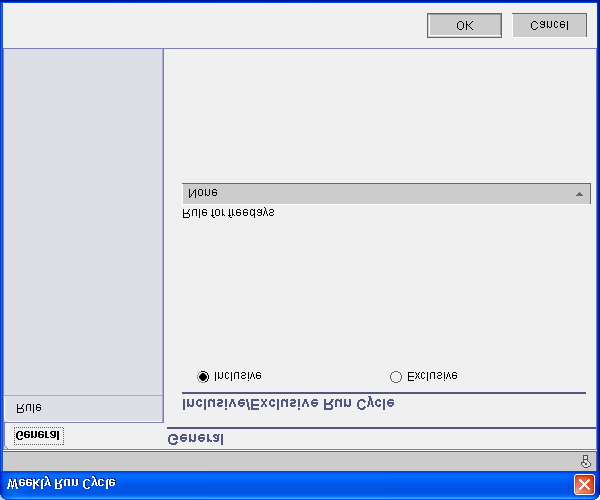
144 Creating distributed job streams 1. Right-click a job stream and select Open from the pop-up menu. The job stream editor is displayed 2. Click Run Cycle in the toolbar. 3. Click Weekly Run Cycle. The Weekly Run Cycle panel is displayed. 4. In Inclusive/Exclusive Run Cycle: v Select Inclusive to specify that the job stream must run in the dates defined n the Rule tab. v Select Exclusive to specify that the job stream must not run in the dates defined in the Rule tab. 5. Click the arrow in the Rule for Freedays list box and select one of: Select nearest workday before freeday If the scheduled date falls on a freeday, run the job stream on the preceding workday. Select nearest workday after freeday If the scheduled date falls on a freeday, run the job stream on the following workday. If freeday, do not select If the scheduled date falls on a freeday, do not run the job stream. None Follow no rule. Run the job stream regardless of whether the schedule falls on a freeday or on a workday. 6. Click Rule to display the Rule tab. 7. Select the days by name to add them to the run cycle. In addition to single days, you can also select: Weekdays Specifies every day of the week except Saturday and Sunday. 118 IBM Tivoli Workload Scheduler Job Scheduling Console User s Guide
145 Creating distributed job streams Freedays Specifies the days defined either in the freedays calendar or in the Holidays calendar, depending on which one you specified in the properties panel of the job stream. Workdays Specifies every day of the week except Saturday, Sunday, and the days defined either in the freedays calendar or in the Holidays calendar, depending on which one you specified in the properties panel of the job stream. Everyday Specifies every day of the week. Specifying calendar run cycles To specify a calendar run cycle for a job stream, perform the following steps: 1. Right-click a job stream and select Open from the pop-up menu. The job stream editor is displayed 2. Click Run Cycle in the toolbar. 3. Click the Calendar Run Cycle. The Calendar Run Cycle panel is displayed. 4. In Inclusive/Exclusive Run Cycle select: v Inclusive to specify that the job stream must run in the dates defined in the Rule tab. v Exclusive to specify that the job stream must not run in the dates defined in the Rule tab. 5. Click the arrow in the Rule for Freedays list box and select one of: Select nearest workday before freeday If the scheduled date falls on a freeday, run the job stream on the preceding workday. Select nearest workday after freeday If the scheduled date falls on a freeday, run the job stream on the following workday. If freeday, do not select If the scheduled date falls on a freeday, do not run the job stream. None Follow no rule. Run the job stream regardless of whether the schedule falls on a freeday or on a workday. 6. Click Rule. 7. Enter the name of the calendar in the Name field or click... (find) to find a calendar. 8. In the Offset group, you can specify an offset from the dates defined in the calendar. For example, if a calendar date is 3/13/2001, an offset of +2 Days results in an effective date of 3/15/2001. To specify an offset: a. Select the positive sign (+) for a positive offset or the negative sign (-) for a negative offset from the drop-down menu. b. In the Offset field, enter the number of days (between 0 and 9999). c. From the drop-down menu, select one of: Days Specifies calendar days with no exceptions. Workdays Specifies calendar days except Saturday, Sunday, and the days defined either in the freedays calendar or in the Holidays calendar, depending on which one you specified in the properties window of the job stream. Weekdays Specifies calendar days except Saturday and Sunday. Chapter 18. Creating job streams 119
146 Creating distributed job streams Specifying time restrictions in the Timeline View You can display and specify the time restrictions for a job stream and its jobs using the Timeline view of the job stream editor. Specifying time restrictions for a job stream To specify time restrictions for the job stream, select Timeline from the View menu in the job stream editor or click Timeline in the toolbar. Using the Timeline View: To adjust the time restrictions using the timeline, do any of the following: v Drag the left side of the timeline to adjust the start time. v Drag the right side of the timeline to adjust the deadline time. v Drag the center of the timeline to change both the start and the deadline time. Using a properties pane: To adjust the time restrictions using a pane, either double-click the job stream row in the tabular pane or right-click the row and select Properties from the pop-up menu. A properties panel is displayed. Table 40 defines the information necessary to create time restrictions. Table 40. Properties Information In this area... Specify... Start Specify time That entry of a start time is enabled. The earliest time the job stream will be launched. The job stream is not launched before this time. If no time is specified, the job stream is launched as soon as all necessary conditions are met. At A start time in a format specific to your locale, for example: 11:30 a.m. or 4:25 p.m.. Delay for days The number of days to offset the start time from the day the job stream is selected for inclusion in the production plan. Latest Start Time Specify time The latest start time at which the job stream should be allowed to start. At The latest possible start time in a format specific to your locale, for example: 11:30 a.m. or 4:25 p.m.. Delay for days The number of days to offset the latest start time from the day the job stream is selected for inclusion in the production plan. Action The action to be performed in case the job stream does not start and the Latest Start Time expires. Suppress The job stream does not start, even if the error condition that prevented it from starting is corrected, and dependencies are not released. Suppress is the default. Continue The job stream starts when the error condition that prevented it from starting is corrected. Cancel The job stream is canceled and dependencies are released. Termination Deadline 120 IBM Tivoli Workload Scheduler Job Scheduling Console User s Guide
147 Creating distributed job streams Table 40. Properties Information (continued) In this area... Specify... Specify time That the latest time the job stream will be launched is enabled. The job stream will not be launched after this time. At A deadline time in a format specific to your locale, for example: 11:30 a.m. or 4:25 p.m.. Note: The Deadline time must be later than the Start Time. Delay for days The number of days to offset the deadline time from the day the job stream is selected for inclusion in the production plan. Time Zone Time Zone The time zone in which the job stream runs. All time values specified are in this time zone. Select a time zone from the drop-down list. If a time zone is not specified for the job stream, all time values specified in the Time Restrictions properties window are in the time zone of the workstation on which the job stream is launched. This list is available only if time zone support is enabled. For information about enabling the time zone feature, refer to IBM Tivoli Workload Scheduler Planning and Installation Guide. Note: Time restrictions can also be set in the Time Restrictions view of the Properties - Job panel. For more information, see Specifying time restrictions in the Timeline View on page 120. Specifying time restrictions for a job To specify time restrictions for a job in the Timeline view of the job stream editor, either select Timeline or click Timeline in the toolbar. For information about using the timeline view and the Properties panel, see Specifying time restrictions for a job stream on page 120. Note: Time restrictions can also be set in the Time Restrictions view of the Properties - Job panel. See Specifying job properties on page 107 for more information. Chapter 18. Creating job streams 121
148 Creating distributed job streams 122 IBM Tivoli Workload Scheduler Job Scheduling Console User s Guide

149 Chapter 19. Creating resources Creating a z/os resource Resources represent the physical or logical objects that are used by jobs. You can use resources to prioritize access to a data set or to limit the number of simultaneous file transfers on a particular network link. Before a job can use a resource, you must create it specifying the associated workstations and attributes. To create a resource, perform the following steps: 1. In the Actions list pane, click New Resource. 2. Select the engine. The Resource in Database panel depends on the type of engine: z/os or distributed. The Resource in Database panel is displayed. The panel consists of the following tabs: v Resource Resource v Default Workstations v Availability Intervals tab Use the Resource tab to enter general information about the resource you are creating. Copyright IBM Corp. 1991,
150 Creating z/os resources Table 41 defines the information necessary to create the resource. Table 41. Create a resource information In this area... Specify... Information Name A name identifying the resource. The name is converted to uppercase. Description A description of the resource. Hiperbatch Whether the resource is a data set eligible for Hiperbatch. Hiperbatch is a host performance enhancement that works with the Data Lookaside Facility (DLF) to enable batch jobs and started tasks to share access to data sets. Group ID A name of up to eight characters that identifies a group to which the resource belongs. The group ID can be used as a list filter for selecting subsets of resources. Used for How the resource is to be used. Possible values are: v Planning v Control v Planning and control v Neither planning nor control On error The action to take when a job that allocates this resource ends in error, and does not have an overriding keep-on-error specification in the job definition: Free Free the full allocation of this resource, both exclusive and shared. Keep Keep the full allocation of this resource. You may want critical jobs to keep their resources even when they fail, to avoid having to wait for resources when the job is restarted. Free if exclusive Free the full exclusive allocation of this resource. Free if shared Free the full shared allocation of this resource. Assume System Default Use the default specified in the ONERROR keyword of the RESOPTS statement. The default value is FREESR. Default Is Available Whether the resource is usually available. You can specify on the Availability Intervals tab when the resource is not available for a particular workstation. Quantity A number in the range of of this resource to be reserved when you select Is Available for the availability intervals associated with the resource. This information is used as the default unless otherwise specified for a given interval on the Availability Intervals tab. 124 IBM Tivoli Workload Scheduler Job Scheduling Console User s Guide
151 Default Workstations tab Use the Default Workstations tab to list the workstations associated with, and reserved for the resource. By default, all workstations are already added when the Resource Editor pane for a new resource opens. To add one or more workstations, click on Find tool. To remove a workstation from the list, select it, then click Delete From Table. Availability Intervals tab Use the Availability Intervals tab to define the time intervals when the resource can be used. To add or delete an availability interval, click Add Row, or Delete from Table, then select the specific interval. After you have added a row, you can define the new interval. Table 42 defines the information necessary to create availability intervals. Table 42. Create availability intervals information In this column... Specify... Day menu A day of the week, Standard, or Specific Date. From Time and To Time The Standard interval represents the norm where the resource is used with the values you entered in the other two pages. When you define a new resource, you find a default Standard row where you need not add any values except, optionally, for a time range. Select a day or Specific Date to specify the intervals in which the resource is available with different Quantity, Availability, and Connected Workstations characteristics that you specify in the row itself. A time range. Quantity The quantity of the resource in this time interval. Creating z/os resources Is available menu Available, Not Available, or Default (the default specified in the Resource page). To put a resource off limits for a certain period, select Not Available.. Workstations The names of one or more connected workstations, each separated by a blank or double-click the Workstation column and click Find Workstation. When you have finished, click OK to save the new resource. Chapter 19. Creating resources 125
152 Creating distributed resources Creating a distributed resource The Properties - Resource in Database panel is displayed. Table 43 defines the information necessary to create a distributed resource. Table 43. Properties - Resource in Database Panel information In this area... Specify... Information Name The name of the resource. The name must start with a letter and can contain alphanumeric characters, dashes, and underscores. The name can contain up to eight characters. Description A description of the resource. Quantity The number of available resource units. Values can be 0 through Workstation The name of the workstation or workstation class on which the resource is used. 126 IBM Tivoli Workload Scheduler Job Scheduling Console User s Guide
153 Chapter 20. Creating objects using Create Another This chapter describes how to create objects using the Create another feature. To create a new object in the database using a copy, perform the following steps: 1. Run a list that contains the object you want to copy. See Chapter 22, Working with object lists, on page 155 for more information. 2. In the list results, right-click the object you want to copy and select Create another. This displays a copy of the object in the relevant properties window. 3. In Name, change the name to the name of the new object. 4. Change the other properties as needed to define the new object. Copyright IBM Corp. 1991,
154 Using Create Another 128 IBM Tivoli Workload Scheduler Job Scheduling Console User s Guide
155 Chapter 21. Creating lists This chapter describes how you create and maintain database and plan lists. When you create a list, you give it a name and specify the filtering criteria. When you run a list, it displays a filtered table of objects. Each list you create is represented by an icon in the tree view. There are two types of lists that you can create and work with: database lists and plan lists. There are also default plan and database lists provided, and common plan and database lists that relate to both the z/os and the distributed environments. This chapter is therefore divided into the following: v Creating database lists v Creating plan lists v Creating default common plan lists v Creating list groups Creating database lists v Setting list properties To create a database list right-click an engine, choose Create Database List, and select one of the following options: Table 44. Database properties list options To create this type of list... Go to page... Job Stream 131 Job Definitions 135 Workstation 133 Resource 134 Workstation Class 136 Prompt 136 Parameter 137 Windows User 137 Domain 138 Calendar 138 The Properties panels of database lists are essentially the same regardless of the list type, but they do differ for distributed and z/os engines. Figure 14 on page 130 illustrates the Properties panel for a distributed job stream list. The differences between this distributed list properties panel and the others are minimal, and described in the following subsections. Copyright IBM Corp. 1991,

156 Creating database lists Figure 14. Example Properties panel for distributed engines Figure 15 on page 131 illustrates the Properties panel for a z/os job stream list. The differences between this distributed list properties panel and the others are minimal, and described in the following subsections. 130 IBM Tivoli Workload Scheduler Job Scheduling Console User s Guide

157 Creating database lists Figure 15. Example Properties panel for z/os Engines Creating a list of job streams You can create job stream lists for both the distributed and the z/os environments. The Properties - Job Stream List panel is displayed. The panel varies according to the engine you selected. Table 45 and Table 46 on page 132 define the information necessary to create the job stream list. Specify any of the available search parameters or combinations of two or more parameters. If you leave all fields blank, all the job streams defined in the database are displayed when you open the list. Table 45. Job stream list data for distributed engines In this area... Specify... Information Name A name for the job stream list. Maximum supported length for this field is 80 characters. Periodic Refresh Options Periodic Refresh An automatic refresh interval in seconds. Period (Secs) A refresh interval in seconds. Apply Defaults The defaults specified in the scheduler Properties pane are applied. Filter Criteria Chapter 21. Creating lists 131
158 Creating database lists Table 45. Job stream list data for distributed engines (continued) In this area... Specify... Job Stream Name All the job streams with this name or name string. Workstation Name All the job streams related to the specified workstation(s). Table 46. Job stream list data for z/os engines In this area... Specify... Information Name A name for the job stream list. Maximum supported length for this field is 80 characters. Periodic Refresh Options Periodic Refresh An automatic refresh interval in seconds. Period (Secs) A refresh interval in seconds. Apply Defaults The defaults specified in the scheduler Properties pane are applied. Filter Criteria Job Stream All the job streams with this name or name string. Task Name All the job streams where this task or JCL is used. Extended Task Name All the job streams containing jobs that use a specific extended task name or name string. Job Stream Template All the job streams that are part of this template. Owner All the job streams that belong to this owner. Authority Group All the job streams that use this authority group for RACF authority checking. Calendar All the job streams that use this calendar. Workstation Lists all job streams containing jobs that run on this workstation. Is a template Only job streams that are templates. Exclude template Only job streams that are not templates. Priority From, To The priority level for the job streams to be listed. Dates From, To The dates for the job streams to be listed. Status of Job Stream v Active v Inactive v Ignore criteria Contains Monitored Job v Yes v No v Ignore criteria The status for the job streams to be listed. Select Ignore criteria to omit this filter. Whether to list job streams containing monitored jobs. Select Ignore criteria to omit this filter. Use the Column Definition tab to define the columns displayed in the list. 132 IBM Tivoli Workload Scheduler Job Scheduling Console User s Guide
159 Creating a list of workstations You can create workstation lists for both the distributed and the z/os environments. The Properties - Database Workstation List panel is displayed. Table 47 and Table 48 define the information necessary to create the workstation list. Specify any of the available search parameters or combinations of two or more parameters. If you leave all fields blank, all the workstations defined in the database are displayed when you open the list. Table 47. Workstation list data for distributed engines In this area... Specify... Information Name A name for the list. Maximum supported length for this field is 80 characters. Periodic Refresh Options Periodic Refresh An automatic refresh interval in seconds. Period (Secs) A refresh interval in seconds. Apply Defaults The defaults specified in the scheduler Properties pane are applied. Filter Criteria Workstation Name Lists workstations with this name or name string. Creating database lists Table 48. Workstation list data for z/os engines In this area... Specify... Information Name A name for the list. Maximum supported length for this field is 80 characters. Periodic Refresh Options Periodic Refresh An automatic refresh interval in seconds. Period (Secs) A refresh interval in seconds. Apply Defaults The defaults specified in the scheduler Properties pane are applied. Filter Criteria Workstation All the workstations with this name or name string. Reporting Attributes v Automatic v Completion only v Manual start and completion v Non reporting Workstation Types v v v General Computer Printer Is Fault Tolerant All the workstations characterized by the reporting attributes you select. All the workstations of the type you select. Chapter 21. Creating lists 133
160 Creating database lists Table 48. Workstation list data for z/os engines (continued) In this area... Specify... v Yes v No v Ignore Criteria Whether to List or excludes fault-tolerant workstations. Select Ignore criteria to omit this filter. Use the Column Definition tab to define the columns displayed in the list. Creating a list of resources You can create resource lists for both the distributed and the z/os environments. The Properties - Database Resource List panel is displayed. Table 49 and Table 50 define the information needed to create a resource list. Specify any of the available search parameters or combinations of two or more parameters. If you leave all fields blank, all the resources defined in the database are displayed when you open the list. Table 49. Resource list data for distributed engines In this area... Specify... Information Name A name for the resource list. Maximum supported length for this field is 80 characters. Periodic Refresh Options Periodic Refresh An automatic refresh interval in seconds. Period (Secs) A refresh interval in seconds. Apply Defaults The defaults specified in the scheduler Properties pane are applied. Filter Criteria Resource Name All the resources with this name or name string. Workstation Name Workstations with this name or name string. Table 50. Resource list data for z/os engines In this area... Specify... Information Name A name for the list. Maximum supported length for this field is 80 characters. Periodic Refresh Options Periodic Refresh An automatic refresh interval in seconds. Period (Secs) A refresh interval in seconds. Apply Defaults The defaults specified in the scheduler Properties pane are applied. Filter Criteria Resource All the resources with this name or name string. 134 IBM Tivoli Workload Scheduler Job Scheduling Console User s Guide
161 Creating database lists Table 50. Resource list data for z/os engines (continued) In this area... Specify... Treat Input As How the string that you specify in Resource is interpreted. Select one of the following options: Wildcard Treat special characters as wildcards and character substitutes. Exact match Treat special characters as part of the resource name. Prefix Treat the string as a name prefix. Suffix Treat the string as a name suffix. Group ID Resources that belong to the specified group. Hiperbatch v Yes v No v Ignore criteria Whether to List or excludes resources that can work with Hiperbatch. Select Ignore criteria to omit this filter. Use the Column Definition tab to define the columns displayed in the list. Creating a list of job definitions You can create a list of job definitions for the distributed environment only. The Properties - Job List panel is displayed. Table 51 defines the information necessary to create the job list. Specify any of the available search parameters or combinations of two or more parameters. If you leave all fields blank, all the jobs defined in the database are displayed when you open the list Table 51. Properties - Job List information In this area... Specify... Information Name A name for the job list. Maximum supported length for this field is 80 characters. Periodic Refresh Options Periodic Refresh An automatic refresh interval in seconds. Period (Secs) A refresh interval in seconds. Apply Defaults The defaults specified in the scheduler Properties pane are applied. Filter Criteria Job Name All the jobs with this name or name string. Workstation Name All the jobs related to the specified workstation(s). Use the Column Definition tab to define the columns displayed in the list. Chapter 21. Creating lists 135
162 Creating database lists Creating a list of workstation classes You can create a list of workstation classes for the distributed environment only. The Properties - Workstation Class List panel is displayed. Table 52 defines the information necessary to create the workstation list. Specify any of the available search parameters or combinations of two or more parameters. If you leave all fields blank, all the workstations defined in the database are displayed when you open the list. Table 52. Workstation Class List Data In this area... Specify... Information Name A name for the workstation class list. Maximum supported length for this field is 80 characters. Periodic Refresh Options Periodic Refresh An automatic refresh interval in seconds. Period (Secs) A refresh interval in seconds. Apply Defaults The defaults specified in the scheduler Properties pane are applied. Filter Criteria Workstation Class Name Workstation classes with this name or name string. Use the Column Definition tab to define the columns displayed in the list. Creating a list of prompts You can create a list of prompts for the distributed environment only. The Properties - Prompt List panel is displayed. Table 53 defines the information necessary to create the prompt list. Specify any of the available search parameters or combinations of two or more parameters. If you leave all fields blank, all the prompts defined in the database are displayed when you open the list. Table 53. Prompt list data In this area... Specify... Information Name A name for the prompt list. Maximum supported length for this field is 80 characters. Periodic Refresh Options Periodic Refresh An automatic refresh interval in seconds. Period (Secs) A refresh interval in seconds. Apply Defaults The defaults specified in the scheduler Properties pane are applied. Filter Criteria Prompt Name Prompts with this name or name string. 136 IBM Tivoli Workload Scheduler Job Scheduling Console User s Guide
163 Creating database lists Use the Column Definition tab to define the columns displayed in the list. Creating a list of parameters You can create a list of parameters for the distributed environment only. The Properties - Parameter List panel is displayed. Table 54 defines the information necessary to create the parameter list. Specify any of the available search parameters or combinations of two or more parameters. If you leave all fields blank, all the parameters defined in the database are displayed when you open the list. Table 54. Properties - Parameter List information In this area... Specify... Information Name A name for the parameter list. Maximum supported length for this field is 80 characters. Periodic Refresh Options Periodic Refresh An automatic refresh interval in seconds. Period (Secs) A refresh interval in seconds. Apply Defaults The defaults specified in the scheduler Properties pane are applied. Filter Criteria Parameter Name Parameters with this name or name string. Use the Column Definition tab to define the columns displayed in the list. Creating a list of Windows users You can create a list of Windows users for the distributed environment only. The Properties - Windows User List panel is displayed. Table 55 defines the information necessary to create the Windows user list. Specify any of the available search parameters or combinations of two or more parameters. If you leave all fields blank, all the Windows users defined in the database are displayed when you open the list. Table 55. Windows user list data In this area... Specify... Information Name A name for the Windows user list. Maximum supported length for this field is 80 characters. Periodic Refresh Options Periodic Refresh An automatic refresh interval in seconds. Period (Secs) A refresh interval in seconds. Apply Defaults The defaults specified in the scheduler Properties pane are applied. Filter Criteria Chapter 21. Creating lists 137
164 Creating database lists Table 55. Windows user list data (continued) In this area... Specify... Windows Domain \ User Name Domains or users with this name or name string. Use the Column Definition tab to define the columns displayed in the list. Creating a list of domains You can create a list of domains for the distributed environment only. The Properties - Domain List panel is displayed. Table 56 defines the information necessary to create the domain list. Specify any of the available search parameters or combinations of two or more parameters. If you leave all fields blank, all the domains defined in the database are displayed when you open the list. Table 56. Domain list data In this area... Specify... Information Name A name for the domain list. Maximum supported length for this field is 80 characters. Periodic Refresh Options Periodic Refresh An automatic refresh interval in seconds. Period (Secs) A refresh interval in seconds. Apply Defaults The defaults specified in the scheduler Properties pane are applied. Filter Criteria Domain Name Lists domains with this name or name string. Use the Column Definition tab to define the columns displayed in the list. Creating a list of calendars You can create a list of calendars for the distributed environment only. The Properties - Calendar List panel is displayed. Table 57 defines the information necessary to create the calendar list. Specify any of the available search parameters or combinations of two or more parameters. If you leave all fields blank, all the calendars defined in the database are displayed when you open the list. Table 57. Properties - Calendar List information In this area... Specify... Information Name A name for the calendar list. Maximum supported length for this field is 80 characters. Periodic Refresh Options Periodic Refresh An automatic refresh interval in seconds. 138 IBM Tivoli Workload Scheduler Job Scheduling Console User s Guide
165 Creating database lists Table 57. Properties - Calendar List information (continued) In this area... Specify... Period (Secs) A refresh interval in seconds. Apply Defaults That the defaults specified in the scheduler Properties panel are applied. Filter Criteria Calendar Name Calendars with this name or name string. Creating plan lists Use the Column Definition tab to define the columns displayed in the list. To create a plan list right-click an engine, choose Create Plan List in the pop-up menu, and select one of the following options: Table 58. Plan list options To create this type of list... Go to page... Job Stream Instance 139 and 141 Job Instance 143 and 146 Workstation 148 Resource 148 File 148 Prompt 149 Domain Status 149 Creating a job stream instance list for distributed engines The Properties - Job Stream Instance List panel is displayed. General tab Table 59 defines the information necessary to create the job stream instance list. Specify any of the available search parameters or combinations of two or more parameters. If you leave all fields blank, all the job stream instances defined in the plan are displayed when you open the list. Table 59. Properties - Job Stream Instance List General information In this area... Specify... Information Name A name for the list. Maximum supported length for this field is 80 characters. Periodic Refresh Options Periodic Refresh An automatic refresh interval in seconds. Period (Secs) A refresh interval in seconds. Apply Defaults The defaults specified in the scheduler Properties pane are applied. Filter Criteria Job Stream Name Job streams with this name or name string. Chapter 21. Creating lists 139
166 Creating plan lists Table 59. Properties - Job Stream Instance List General information (continued) In this area... Specify... Workstation Name Job streams related to workstations with this name or name string. Status Status The status to filter job stream instances. Select this option and select the status type from the drop-down list. Internal Status The internal status to filter job stream instances. Select this option and select the status type from the drop-down list. Priority From, To A priority range of job streams to display. Only job streams with priorities within the range are displayed. Possible priority values are 0 through 101, where 101 is the highest priority. Click Hold to select priority 0, High to select priority 100, or Go to select priority 101. Time Restrictions tab Table 60 defines the information necessary to filter on time restrictions. Table 60. Properties - Job Stream Instance List Time Restrictions information In this area... Specify... Start Time From Date The beginning of a range of time. Only job streams that start running within this range are displayed. To Date The end of a range of time. Only job streams that start running within this range are displayed. Latest Start Time From Date The beginning of a range of time. Only job streams that start running within this range are displayed. To Date The end of a range of time. Only job streams that start running within this range are displayed. Action The action to be performed when the job stream does not start before Latest Start Time. Finish Time Suppress The job stream does not start, even if the error condition that prevented it from starting is corrected, and dependencies are not released. This radio button is selected by default. Continue The job stream starts when the error condition that prevented it from starting is corrected. Cancel The job stream is canceled and dependencies are released. From Date The beginning of a range of time. Only jobs that are set to finish running within this range are displayed. To Date The end of a range of time. Only job streams that are set to finish running within this range are displayed. 140 IBM Tivoli Workload Scheduler Job Scheduling Console User s Guide
167 Dependencies tab Use this tab to define a list of jobs from the plan based on dependency types. Only job stream instances with the specified dependencies are displayed. Note that all the fields in this window act as filters, so that all fields specified must be valid for a job stream to be chosen for display. For example, to display all job streams with a file dependency, enter an asterisk (*) in the File Dependency / File Name field. To display all job streams with both a file and a prompt dependency, enter an asterisk (*) in the File Dependency / File Name field and in the Prompt Dependency / Name field. Note: In this case, only job streams with both a file and a prompt dependency are displayed. Job Streams with only prompt dependencies or only file dependencies are not displayed. Table 61 defines the information necessary to filter on job stream dependencies. Table 61. Properties - Job Stream Instance List Dependency information In this area... Specify... Job/Job Stream Dependency Workstation The name of a workstation. Job Stream The name of a job stream. Job The name of a job. Resource Dependency Workstation The name of a workstation. Resource The name of a resource. File Dependency Workstation The name of a workstation. File Name The name of a file. Prompt Dependency Name The name of a prompt. Prompt Number The number of a prompt. Creating plan lists Column definition When you are creating lists, you can use the Column Definition tab to define the columns displayed in the list. This tab consists of three sections, Job Stream Table, Job Table and Dependency. In each of those sections you can choose the columns which describe all the information that you want to display in the list about the job instance, job stream instance, or dependency, selecting or clearing the check boxes corresponding to the column names. Creating a job stream instance list for z/os engines The Properties - Job Stream Instance List panel is displayed. Table 62 on page 142 defines the information necessary to create the job stream instance list. Specify any of the available search parameters or combinations of two Chapter 21. Creating lists 141
168 Creating plan lists or more parameters. If you leave all fields blank, all the job stream instances defined in the database are displayed when you open the list. Table 62. Properties - Job Stream Instance List information In this area... Specify... Information Name A name for the job stream instance list. Maximum supported length for this field is 80 characters. Periodic Refresh Options Periodic Refresh An automatic refresh interval in seconds. Period (Secs) A refresh interval in seconds. Apply Defaults The defaults specified in the scheduler Properties pane are applied. Filter Criteria Job stream All the job stream instances with this name or name string. Job stream template All the job stream instances that are part of this template. Occurrence Token The job stream that is identified by this occurrence token in the plan. The token is a unique 16-character hexadecimal string assigned to the job stream by the scheduler. Owner All the job stream instances that belong to this owner. Authority group All the job stream instances that use this authority group for RACF authority checking. Extended task name All the job stream instances containing jobs that use a specific extended task name or name string. Dates From, To All job stream instances scheduled to run in an interval period starting on the day and time specified in the Date and Time fields and ending in the day and time specified in the Date and Time fields. Pop-up calendars are provided to help you select the days. Priority From, To All the job stream instances that have the priority level you select. Manually Added v Yes v No v Ignore criteria Rerun requested v Yes v No v Ignore criteria Contains Monitored Job v Yes v No v Ignore criteria Most Critical Job To lists or exclude job stream instances that were added manually to the plan (and not automatically through a plan extension). Select Ignore criteria to omit this filter. To lists or exclude job stream instances for which a rerun was requested. Select Ignore criteria to omit this filter. To lists or exclude job stream instances based on whether they contain jobs selected for monitoring by Tivoli Business Systems Manager. Select Ignore criteria to omit this filter. 142 IBM Tivoli Workload Scheduler Job Scheduling Console User s Guide
169 Creating plan lists Table 62. Properties - Job Stream Instance List information (continued) In this area... Specify... Hours, Minutes The start time of the most critical job. If the job stream has no critical job, the field is blank. Status Status All the job stream instances with any of the following job scheduling console status codes that you specify in the drop-down list: v Waiting v Running v Successful v Error v Canceled Internal Status All the job stream instances with any of the following status codes that you specify in the drop-down list: v Complete v Deleted v Error v Pending predecessor v Started v Undecided v Waiting Note: Status and internal status exclude each other as filter criteria. However, they are both displayed among the properties of job stream instances. Internal status refers to the status code assigned by the specific job scheduling engine. It generally provides more detail than the broader status code assigned by the Job Scheduling Console. Use the Column Definition tab to define the columns displayed in the list. Creating a job instance list for distributed engines The Properties - Job Instance List panel is displayed. General tab Table 63 defines the information necessary to create the job instance list. Specify any of the available search parameters or combinations of two or more parameters. If you leave all fields blank, all the job instances defined in the plan are displayed when you open the list. Table 63. Properties - Job Instance List General information In this area... Specify... Information Name A name for the list. Maximum supported length for this field is 80 characters. Periodic Refresh Options Periodic Refresh An automatic refresh interval in seconds. Period (Secs) A refresh interval in seconds. Apply Defaults The defaults specified in the scheduler Properties pane are applied. Filter Criteria Chapter 21. Creating lists 143
170 Creating plan lists Table 63. Properties - Job Instance List General information (continued) In this area... Specify... Job Name A job name. Job Stream A job stream. Workstation (Job Stream) A workstation name. Login A login name. Status Status One or more states to filter which job instances are to be listed. Only job instances that are in the specified states are displayed. Internal Status This filter can be used as the previous one. The difference between the two is: Always Show Rerun Instances Recovery Options Stop, Continue, Rerun, None Priority Status Is the state of a job instance as interpreted by the Job Scheduling Console. Internal Is the state of a job instance according to a legacy of Tivoli Workload Scheduler values. The two filters are mutually exclusive. That rerun instances are included in the list, regardless of the status you specified in Status. For example: 1. You specified that only job instances in the successful status be listed. 2. You also selected this check box. 3. A job was rerun that was previously in a status other than successful. 4. Because this option was selected, and because the job was rerun one or more times, all the instances of this job, whatever their status might be, are displayed in the list. 5. If the option had not been selected, only the latest successful instances would have been listed. Notes: 1. This option is significant only if you also specified a status for Status. 2. It makes no difference if the job status is the same as the rerun status. To display job instances that match the specified recovery option. Selecting None excludes recovery options as filtering criteria. From, To A priority range of job instances to display. Only jobs with priorities within the range are displayed. Possible priority values are 0 through 101, where 101 is the highest priority. Click Hold to select priority 0, High to select priority 100, or Go to select priority IBM Tivoli Workload Scheduler Job Scheduling Console User s Guide
171 Time Restrictions tab Table 64 defines the information necessary to filter on time restrictions. Table 64. Properties - Job Instance List Time Restrictions information In this area... Specify... Start Time From date The beginning of a range of time. Only jobs that start running within this range are displayed. To Date The end of a range of time. Only jobs that start running within this range are displayed. Latest Start Time From Date The beginning of a range of time. Only jobs that start running within this range are displayed. To Date The end of a range of time. Only jobs that start running within this range are displayed. Action The action to be performed in case the job does not start before Latest Start Time. Finish Time Creating plan lists Suppress The job does not start, even if the error condition that prevented it from starting is corrected, and dependencies are not released. Suppress is the default. Continue The job starts when the error condition that prevented it from starting is corrected. Cancel The job is canceled and dependencies are released. From Date The beginning of a range of time. Only jobs that finish running within this range are displayed. To Date The end of a range of time. Only job streams that finish running within this range are displayed. Dependencies tab Use this tab to define a list of jobs from the plan based on dependency types. Only job instances with the specified dependencies are displayed. Note that all the fields in this window act as filters, so that all fields specified must be valid for a job stream to be chosen for display. For example, to display all jobs with a file dependency, enter an asterisk (*) in the File Dependency / File Name field. To display all jobs with both a file and a prompt dependency, enter an asterisk (*) in the File Dependency / File Name field and in the Prompt Dependency / Prompt Name field. Note: In this case, only jobs with both a file and a prompt dependency are displayed. Job instances with only prompt dependencies or only file dependencies are not displayed. Chapter 21. Creating lists 145
172 Creating plan lists Table 65 defines the information necessary to filter on dependencies. Table 65. Properties - Job Instance List Dependency information In this area... Specify... Job/Job Stream Dependency Workstation The name of a workstation. Job Stream The name of a job stream. Job The name of a job. Resource Dependency Workstation The name of a workstation. Name The name of a resource. File Dependency Workstation The name of a workstation. File Name The name of a file. Prompt Dependency Name The name of a prompt. Prompt Number The number of a prompt. Use the Column Definition tab to define the columns displayed in the list. Creating job instance list for z/os engines The Properties - Job Instance List panel is displayed. Table 66 defines the information necessary to create the job instance list. Specify any of the available search parameters or combinations of two or more parameters. If you leave all fields blank, all the job instances defined in the database are displayed when you open the list. Table 66. Properties - Job Instance List information In this area... Specify... Information Name A name for the list. Maximum supported length for this field is 80 characters. Periodic Refresh Options Periodic Refresh An automatic refresh interval in seconds. Period (Secs) A refresh interval in seconds. Apply Defaults The defaults specified in the scheduler Properties pane are applied. Filter Criteria Job stream All the job instances that are in the job stream with this name or name string. Job identifier All the job instances that have this identifier. You cannot use wildcard characters with this filter. Task name All the job instances that are associated with this task or JCL. Extended task name All the job instances that use a specific extended task name or name string. 146 IBM Tivoli Workload Scheduler Job Scheduling Console User s Guide
173 Creating plan lists Table 66. Properties - Job Instance List information (continued) In this area... Specify... Workstation All the job instances run on this workstation. Owner All the job instances that belong to this owner. Authority group All the job instances that use this authority group for RACF authority checking. Dates From, To All job instances scheduled to run in an interval period starting on the day and time specified in the Date and Time fields and ending in the day and time specified in the Date and Time fields. Pop-up calendars are provided to help you select the days. Priority From, To All the job instances that have the priority level you select. Contains Monitored Job v Yes v No v Ignore criteria Restart Option To List or exclude job instances monitored by Tivoli Business Systems Manager. Select Ignore criteria to omit this filter. CleanUp Type The following cleanup and restart specifications: None Immediate Automatic Manual CleanUp Status All the job instances with either a Completed or Error cleanup state. Status Status All the job instances with any of the following job scheduling console status codes that you specify in the drop-down list: v Waiting v Ready v Running v Successful v Error v Canceled v Held v Undecided v Blocked Internal Status All the job instances with any of the following status codes that you specify in the drop-down list: v Arriving v Ready v Started v Complete v Deleted v Interrupted v Ready-non reporting workstation v Error v Waiting v Undecided WLM Policy Chapter 21. Creating lists 147
174 Creating plan lists Table 66. Properties - Job Instance List information (continued) In this area... Specify... Critical job All the job instances defined as critical jobs. WLM policy All the job instances defined as critical jobs and for which the WLM policy you indicate here was defined. Click the arrow and select one of the available policies. Note: Status and internal status exclude each other as filter criteria. However, they are both displayed among the properties of job instances. Internal status refers to the status code assigned by the specific job scheduling engine. It generally provides more detail than the broader status code assigned by the Job Scheduling Console. Use the Column Definition tab to define the columns displayed in the list. Creating a list of workstations You can create workstation lists for both the distributed and the z/os environments. The Properties - Plan Workstation List panel is displayed. Table 47 on page 133 and Table 48 on page 133 define the information necessary to create the workstation list. Specify any of the available search parameters or combinations of two or more parameters. If you leave all fields blank, all the workstations defined in the database are displayed when you open the list. The workstation list for distributed engines in the plan has the following additional field: Domain Name Lists workstations belonging to domains with this name or name string. Use the Column Definition tab to define the columns displayed in the list. Creating a list of resources You can create resource lists for both the distributed and the z/os environments. The Properties - Database Resource List window is displayed. Table 49 on page 134 and Table 50 on page 134 define the information necessary to create a resource list. Specify any of the available search parameters or combinations of two or more parameters. If you leave all fields blank, all the resources defined in the database are displayed when you open the list. Creating a list of files You can create files lists for distributed engines only. The Properties - Database File List panel is displayed. Table 67 on page 149 defines the information necessary to create a file list. Specify any of the available search parameters or combinations of two or more parameters.if you leave all fields blank, all the resources defined in the database are displayed when you open the list. 148 IBM Tivoli Workload Scheduler Job Scheduling Console User s Guide
175 Creating plan lists Table 67. Properties - File List information In this area... Specify... Information Name A name for the file list. Maximum supported length for this field is 80 characters. Periodic Refresh Options Periodic Refresh An automatic refresh interval in seconds. Period (Secs) A refresh interval in seconds. Apply Defaults The defaults specified in the scheduler Properties pane are applied. Filter Criteria Filename Files with this name or name string. Creating a list of prompts You can create prompt lists for distributed engines only. The Properties - Database Prompts List panel is displayed. Table 68 defines the information necessary to create a prompt list. Specify any of the available search parameters or combinations of two or more parameters. If you leave all fields blank, all the resources defined in the database are displayed when you open the list. Table 68. Properties - Prompt List Information In this area... Specify... Information Name A name for the file list. Maximum supported length for this field is 80 characters. Periodic Refresh Options Periodic Refresh An automatic refresh interval in seconds. Period (Secs) A refresh interval in seconds. Apply Defaults The defaults specified in the scheduler Properties pane are applied. Filter Criteria Prompt Name Files with this name or name string. Status Asked Whether the prompt has already been asked. Not Asked Whether the prompt has not yet been asked. Answered Yes Whether the prompt has been answered positively. Answered No Whether the prompt has been answered negatively. Creating a list of domain states You can create domain status lists for distributed engines only. The Properties - Database Domain Status List panel is displayed. Chapter 21. Creating lists 149
176 Creating plan lists Table 69 defines the information necessary to create a prompt list. Specify any of the available search parameters or combinations of two or more parameters. If you leave all fields blank, all the resources defined in the database are displayed when you open the list. Table 69. Properties - Domain Status List information In this area... Specify... Information Name A name for the file list. Maximum supported length for this field is 80 characters. Periodic Refresh Options Periodic Refresh An automatic refresh interval in seconds. Period (Secs) A refresh interval in seconds. Apply Defaults The defaults specified in the scheduler Properties pane are applied. Filter Criteria Domain Name Domains with this name or name string. Creating a group of lists The Job Scheduling Console allows you to organize your lists into groups. You can organize your groups of lists by any criteria that help you to quickly display the objects that you want to work with. For example, you can create a group gathering lists that enable you to work with all the objects associated with a particular plan. First you must create a group, then you can create the lists that comprise it. You can create a group of lists within an engine or within the default lists available for each engine. To create a group of lists, perform the following steps: 1. In the Work with engines panel, right-click on the scheduler engine switch and select Create Group. The Properties - Group of Lists panel is displayed. 2. Enter a name for the group. You can use the same name for more than one group. Different groups maintain their individual properties even if they have the same name. The maximum supported length for this field is 80 characters. 3. Create the lists contained in the group as described inchapter 21, Creating lists, on page 129. Creating default common plan lists This section describes how you create default common plan lists. Creating a common list of job stream instances To create a common job stream instance list, perform the following steps: 1. In the Work with engines pane, right-click Common Default Plan Lists and select Job Stream Instance. 2. The Properties - Job Stream Instance Common List panel is displayed. The fields in this dialog are a subset of the fields available in Properties - Job Stream Instance List described in Creating a job stream instance list for z/os engines on page 141. Specify any of the available search parameters or combinations of two or more parameters. If you leave all fields blank, all the common job stream instances are displayed when you open the list. Use the 150 IBM Tivoli Workload Scheduler Job Scheduling Console User s Guide
177 Creating default plan lists Engine pull-down menu to specify which engines are used when creating the list. By default, all the engines to which the JJob Scheduling Console is connected are selected. Use the Column Definition tab to define the columns displayed in the list. Creating a common list of job instances To create a common job instance list, perform the following steps: Setting list properties 1. In the Work with engines pane, right-click Common Default Plan Lists and select Job Instance. 2. The Properties - Job Instance Common List panel is displayed. The fields in this dialog are a subset of the fields available in Properties - Job Instance List described in Creating job instance list for z/os engines on page 146. Specify any of the available search parameters or combinations of two or more parameters. If you leave all fields blank, all the common job stream instances are displayed when you open the list. Use the Engine pull-down menu to specify which engines are used when creating the list. By default, all the engines to which the Job Scheduling Console is connected are selected. Use the Column Definition tab to define the columns displayed in the list. You can use the Properties panel for each scheduler engine to set or change the defaults for lists. To do this: 1. In the Work with engines pane, right-click a scheduler engine and select Properties in the pop-up menu. The Properties panel is displayed. 2. Open the Settings tab and make your adjustments. Periodic refresh Type the number of seconds after which a list display will refresh. After you do this, this information is used every time you click Apply defaults in the properties window of a list. This information is also automatically displayed in editable form in the Periodic Refresh Options group of the properties window of each new list you create. Buffer size for lists Select a value from the drop-down list. The value determines at which rate the results of a list are sent onto your screen. For example, if you select 100, the results of a list are sent in blocks of 100 lines. The default value is 250. If you select a higher number, it takes more time to display the list initially, but less time to display the entire list when it is scrolled. The highest supported value is 400. Select Engine Time Zone Specify the time of the engine time zone displayed in the Submit Job Stream panel in the Start and Deadline sections. This check box is not selected, by default, and this means that if the engine is in a time zone different from yours, and you start a submission at a certain time, the engine will perform the submission at the time indicated in the Engine Time Zone box, no matter what is the time at your location. If the Select Engine Time Zone check box is selected, the time you will see in the Start and Deadline sections is referred to that of the engine that starts the operation, and the job stream submission will be performed at the selected time. This is valid only if no run cycle is active on the engine. Chapter 21. Creating lists 151
178 Setting list properties The value of the engine time zone can be verified in the Scheduler Information tab in the format GMT +/ n, where n is the number of offset hours from GMT. Note: To see the Engine Time Zone check box in the Settings page and the Engine Time Zone and Code Page values in the Scheduler Information tab properly, you must have the Job Scheduling Console Version 1.3 Fix Pack 2 or later installed, as well as the Tivoli Workload Scheduler for z/os Connector Version 1.3 Fix Pack 2 or later. Further, the z/os engine must have the required UQ79631 PTF applied. 152 IBM Tivoli Workload Scheduler Job Scheduling Console User s Guide
179 Part 5. Managing database objects Chapter 22. Working with object lists Displaying a list of objects Detaching a list display Modifying a list Deleting a list Chapter 23. Managing workstations Viewing and modifying workstation properties Deleting workstations Chapter 24. Managing job streams Editing job streams using the job stream editor Deleting external dependencies from a job stream Modifying a job in a job stream Deleting a job in a job stream Modifying an internetwork dependency in a job stream Deleting an internetwork dependency in a job stream Modifying an external job stream Deleting an external job stream in a job stream 162 Modifying an external job in a job stream Deleting an external job in a job stream Modifying run cycles for a job stream Deleting run cycles from a job stream Modifying z/os job streams Adding and modifying jobs and dependencies in the graph view Modifying a job Deleting a job or external job Editing another job stream from an external job Removing a dependency between jobs Adding and modifying run cycles Viewing and modifying time restrictions Using the copy function to add an external job 165 Checking time restrictions in the Timeline View 165 Activity bars Table frame Time restrictions Other tasks Deleting job streams Using existing definitions to create other job definitions Chapter 27. Managing workstation classes Displaying and modifying workstation class properties Deleting workstation classes Chapter 28. Managing domains Displaying and modifying domain properties Deleting domains in the database Chapter 29. Managing Windows users Displaying and modifying Windows user properties Changing Windows user passwords Deleting Windows users Chapter 30. Managing calendars Displaying and modifying calendar properties Deleting calendars Chapter 31. Managing prompts Displaying and modifying prompt properties Deleting prompts Chapter 32. Managing parameters Displaying and modifying parameter properties 185 Deleting parameters Chapter 25. Managing resources Displaying resource properties Modifying a resource Deleting a resource Chapter 26. Managing job definitions Displaying a job definition Displaying job definition details Modifying a job definition Deleting job definitions Copyright IBM Corp. 1991,
180 154 IBM Tivoli Workload Scheduler Job Scheduling Console User s Guide

181 Chapter 22. Working with object lists This chapter describes how you maintain lists. The methods described apply to all list types: v v Database Plan Displaying a list of objects v Default Most of your monitoring activities require a list of objects from which you can work. Creating lists is described in Chapter 21, Creating lists, on page 129. To display a list: 1. In the Work with engines pane, select the engine. 2. Click the list you want to run. The list results are displayed in the right-hand pane. You can display several lists in sequence. The newest list is displayed first. However, as long as a list is kept open, it is maintained and refreshed according to the refresh options specified. To view the list, click the corresponding object in the Job Scheduling Console, or click the button on the task bar that is displayed when a list is run. The properties of lists are described in Chapter 21, Creating lists, on page 129. Copyright IBM Corp. 1991,

182 Displaying a List When you display a list of All scheduled jobs, or All scheduled job streams for z/os or distributed engines (not common lists) a tree view pane is also present. Detaching a list display Modifying a list Detaching a list frees the right-pane of the Job Scheduling Console to display other objects. You can detach multiple lists to view several objects simultaneously. To detach a database list display: 1. Select a list and wait for the results to be displayed. 2. Select Detach Task in the upper right-corner of the panel. The list panel is displayed separately from the main window. 3. To reattach the list, either close the detached window or select Attach Task in the upper right-corner of the detached pane. Notes: 1. The right-hand pane of the console is not disabled. This is so that you can run other lists or perform other tasks. 2. To prevent your system from overloading, do not have frequent refreshes of many detached panes open at the same time. To modify the properties of a list: 1. In the Work with engines pane, select the engine. 2. Right-click the list you want to modify and select Properties. 156 IBM Tivoli Workload Scheduler Job Scheduling Console User s Guide

183 Modifying a list 3. The properties panel of the list is displayed. 4. Make your changes. The properties of lists are described in Chapter 21, Creating lists, on page 129. Deleting a list To delete a list: 1. In the Work with engines pane, right-click on a list. 2. Select Delete from the pop-up menu. A confirmation message is displayed. 3. Click Yes to delete the list, or click Cancel to cancel the delete operation. Chapter 22. Working with object lists 157
184 Deleting a list 158 IBM Tivoli Workload Scheduler Job Scheduling Console User s Guide
185 Chapter 23. Managing workstations After you have created the workstations, create one or more workstation lists to manage them. See Chapter 21, Creating lists, on page 129. In order to manage workstations, you must display them in the relevant list. In the database, you can use workstation lists to: v Viewing and modifying workstation properties v Deleting workstations Viewing and modifying workstation properties To display workstation properties in the database, perform the following steps: 1. Run a list of workstations that contains the workstation you want to display. See Chapter 22, Working with object lists, on page 155 for more information. 2. In the list results, double-click the workstation you want to display, or right-click the workstation and select Properties. The Properties - Workstation in Database panel is displayed. For information about this panel, see Creating a z/os workstation on page 53 and Creating a distributed workstation on page Make any changes required and click OK. Deleting workstations To delete a workstation from the database, perform the following steps: 1. Run a list of workstations that contains the workstation you want to delete. See Chapter 22, Working with object lists, on page 155 for more information. 2. In the list results, select the workstation you want to delete and right-click. 3. Select Delete from the pop-up menu. 4. Click Yes to confirm deletion of the workstation you selected. Copyright IBM Corp. 1991,
186 Deleting workstations 160 IBM Tivoli Workload Scheduler Job Scheduling Console User s Guide

187 Chapter 24. Managing job streams This chapter describes how you manage job streams for z/os and distributed engines. Editing job streams using the job stream editor You can use the job stream editor to modify job streams. Deleting external dependencies from a job stream Job streams can be dependent on the successful running of other job streams, jobs in other job streams, and jobs in other Tivoli Workload Scheduler networks (internetwork jobs). These external dependencies are also called predecessors. To delete external dependencies for a job stream, perform the following steps: 1. Run a list that contains the job stream that you want to modify. See Chapter 22, Working with object lists, on page Double-click the job stream you want to modify. The Job Stream Editor is displayed. 3. Select External Dependencies from the File menu. This displays the Job Stream External Dependencies window. 4. Select External Job Stream, Internetwork, or External Job from the drop-down menu. 5. Click the row of the dependency in the list you want to delete and clickdelete Row. Modifying a job in a job stream To modify a job in a job stream, right-click the job icon in the Graph view and select Properties from the pop-up menu. For information about job properties, see Specifying job properties on page 107. Copyright IBM Corp. 1991,
188 Using the job stream editor Deleting a job in a job stream To delete a job in a job stream, right-click the job button in the Graph view and select Delete from the pop-up menu. Modifying an internetwork dependency in a job stream To modify an internetwork dependency in a job stream, right-click the related icon in the Graph view and select Properties from the pop-up menu. For information about internetwork dependency properties, see Adding an internetwork dependency to a job stream on page 111. Deleting an internetwork dependency in a job stream To delete an internetwork dependency in a job stream, right-click the related icon in the Graph view and select Delete from the pop-up menu. Modifying an external job stream To modify an external job stream, right-click the job stream icon in the Graph view and select Edit, and select External Job Stream from the pop-up menu. The job stream is displayed in a new Job Stream Editor panel. For information about the job stream editor, see Creating a distributed job stream on page 101. Deleting an external job stream in a job stream To delete an external job stream in a job stream, right-click the related icon in the Graph view and select Delete from the pop-up menu. Modifying an external job in a job stream To modify an external job in a job stream, perform the following steps: 1. Right-click the related icon in the Graph view and select Edit, then External Job Stream from the pop-up menu. The job stream is displayed in a new job stream editor panel. For information about the job stream editor, see Creating a distributed job stream on page To edit the job, right-click the job icon in the Graph view and select Properties from the pop-up menu. For information about job properties, see Specifying job properties on page 107. Deleting an external job in a job stream To delete an external job in a job stream, right-click the related icon in the Graph view and select Delete from the pop-up menu. Modifying run cycles for a job stream To modify the run cycles for a job stream, perform the following steps: 1. Run a list that contains the relative job stream. See Chapter 22, Working with object lists, on page Double-click the job stream. The Job Stream Editor is displayed. 3. Click Run Cycle. The Run Cycle panel is displayed. 4. In Name, double click the run cycle you want to modify. v If it is a simple run cycle: A panel is displayed showing the days selected by that run cycle. Modify the days selected and click OK to save your changes. v If it is a weekly run cycle: 162 IBM Tivoli Workload Scheduler Job Scheduling Console User s Guide
189 Using the job stream editor A panel is displayed showing the days selected by that run cycle. Modify the days selected and click OK to save your changes. v If it is a calendar run cycle: A panel is displayed showing the name of the calendar you selected and specified offset. Modify the selected calendar or the offset and click OK to save your changes. Deleting run cycles from a job stream To delete a run cycle from a job stream, perform the following steps: Modifying z/os job streams 1. Run a list that contains the relative job stream. 2. Double-click the job stream. The Job Stream Editor is displayed. 3. Click Run Cycle. The Run Cycle panel is displayed. 4. In Name, select the run cycle you want to delete from the job stream. 5. Click Delete. The run cycle is deleted from the job stream. If the run cycle was a calendar it is deleted from this job stream, but it is not deleted from the database and can still be used by other job streams. This section explains how to modify job streams for z/os engines. Modifying a job stream involves changing any of the following: v The job stream properties v Any of the jobs that it comprises, as well as any dependencies that might exist among them v Any of the run cycles that define its scheduling To modify jobs and run cycles, open the job stream from the list. The type of job stream determines which views you can access in the Job Stream Editor: v For job stream templates, you can open the Timeline and Run Cycle views. v For job streams you can open the Graph, Timeline, and Run Cycle views. v For job streams that inherit their scheduling information from a template, you can open the Graph view only. Open the template to see the scheduling information for the job stream. To modify the properties of a job stream in the database, open the Properties - Job Stream List as described in Creating a job stream for a z/os engine on page 85 and change the settings as necessary. Adding and modifying jobs and dependencies in the graph view To add, modify, or delete jobs and dependencies in an existing job stream: 1. Run a job stream list that contains the relative job stream. 2. Double-click the job stream you want to open. The Job Stream Editor is displayed. Table 70. Adding and modifying jobs and dependencies in the graph view To do this... See... Create a new job in the job stream Creating a job for z/os job streams on page 87. Chapter 24. Managing job streams 163
190 Modifying z/os job streams Table 70. Adding and modifying jobs and dependencies in the graph view (continued) To do this... See... Add a new external job in the job stream Add a new dependency between jobs in the job stream Creating dependencies between job streams on page 93. Creating dependencies between jobs on page 92. Modifying a job 1. Right-click the job and select Properties from the pop-up menu. Note: If any of the job icons in the Graph view display a superimposed question mark, this is an indication that the definition of the workstation associated with the particular job cannot be found in the database. If an icon label displays (Not Found), an external job is missing because the job or the job stream to which it belongs were deleted. 2. Change the settings as necessary. For more information on job properties, see Creating a job for z/os job streams on page Click on Save. Deleting a job or external job To delete a job or external job from the job stream, perform the following steps: 1. Right-click the job or external job and select Delete from the pop-up menu, or click Delete in the toolbar. 2. Click OK in the confirmation window. The job is deleted from the job stream. Note: You can use the Undo Delete option in the same pop-up menu or in the toolbar of the Graph view to put the job back in the job stream. This option is valid until you save the job stream. 3. Click Save to save the job stream. Editing another job stream from an external job Use an external job to open a second Job Stream Editor window and edit the job stream to which the job belongs. To do this, perform the following steps: 1. Right-click the external job and select Edit from the pop-up menu, then External Job Stream. An additional Job Stream Editor panel is displayed. 2. As necessary, open the views to work on the job stream and its components. Removing a dependency between jobs 1. Right-click the line that represents the dependency. The line becomes red and a pop-up menu is displayed 2. Select Delete from the pop-up menu. A confirmation panel is displayed. 3. Click OK in the confirmation panel. The dependency is removed. 4. Click Save to save the job stream. Adding and modifying run cycles 1. Run a job stream list. 2. Double-click the job stream you want to open. 3. Click Run Cycle to open the Run Cycle view of the job stream. 4. Select a run cycle in the run cycle list and right click it to display the pop-up menu. 164 IBM Tivoli Workload Scheduler Job Scheduling Console User s Guide
191 Modifying z/os job streams Table 71 defines the information necessary to add or modify the run cycle. Table 71. Adding and modifying run cycles pop-up menu Click this option... To do this... Properties... Edit the run cycle properties in the run cycle properties panel. See Scheduling job streams on page 93 for reference. Copy Create an additional run cycle with the same properties as the selected one. A Rule-based Run Cycle Properties panel, or an Offset-based Run Cycle Properties panel opens with the same definitions as the model run cycle. Modify any definitions you need to, and enter a new name before saving. Delete Delete the run cycle from the job stream. Viewing and modifying time restrictions The Timeline view of the Job Stream Editor shows the time restrictions of the jobs and run cycles of a job stream. You can modify the time restrictions of a job or of a run cycle in the same way you created them, by using either the Job Properties panel of the Graph view, or the Run Cycle Properties panel of the Run Cycle view. In addition, you can view and modify time restrictions for more than one run cycle and more than one job in the Timeline view. For a full description of the Timeline view of a job stream, see Checking time restrictions in the Timeline View. Using the copy function to add an external job You can use the copy function on a listed job stream to add any of the jobs that comprise it as external jobs to another job stream, as described in the following example: 1. Run a job stream list. 2. Right-click a job stream and select Open. The Job Stream Editor is displayed. 3. Right-click another job stream in the list and select Copy from the pop-up menu. 4. Go to the Job Stream Editor where the first job stream is open. 5. Right-click anywhere in the panel and select Paste from the pop-up menu. 6. In the Properties - External Job panle, select Show jobs. All the jobs that comprise the second job stream are displayed. 7. Select the job or jobs that you want to add as external jobs of the first job stream. 8. Click OK to close the Properties - External Job panel. Icons for the added jobs are displayed in the Graph view of the first job stream. Note: You can use Add Link to define dependencies between the jobs in the Job Stream Editor. For more information, see Creating dependencies between job streams on page 93. Checking time restrictions in the Timeline View The Timeline view of the Job Stream Editor shows graphically the time restrictions of the jobs and run cycles of a job stream in the database. While you create a job stream, the Timeline view helps you to ensure that the time dependencies you specified are correct and coherent. The view can point out inconsistencies between Chapter 24. Managing job streams 165
192 Checking time restrictions the time restrictions of jobs and those of run cycles. It can also show if there are inconsistencies within the time restrictions of individual jobs. To open the Timeline view of a job stream, click Timeline in the toolbar of any of the other views of the Job Stream Editor. The Timeline view is displayed. Activity The panel has four panes. You can size the panes by dragging the horizontal and vertical lines that divide the panel. The left half of the window lists the job stream run cycles in the top pane, and the job stream jobs in the lower pane. bars The right half of the window contains activity bars that represent, on a daily and hourly scale, the time restrictions defined for every run cycle and job. You can customize the timescale in the following way: 1. Right-click anywhere along the lower scale. A pop-up menu is displayed. 2. Move your pointer to Timescale to display available choices. 3. Select the radio button that matches your preference. Table frame The left half of the window contains columns that display the following information: v A warning button for inconsistencies in time restrictions. This button marks a run cycle when IBM Tivoli Workload Scheduler for z/os detects that there are jobs with time restrictions outside the time restrictions of the run cycle. v The run cycle name or job identifier. v An information button showing what type of time restriction, if any, each job has. The jobs with no restrictions have a lightning bolt, the jobs with a specified start time have a clock, and the jobs that follow job stream rules have a clock superimposed on a job stream. v The expected start and deadline times of the run cycle or job. 166 IBM Tivoli Workload Scheduler Job Scheduling Console User s Guide
193 Checking time restrictions v The expected duration of the job. Time restrictions In the upper right pane, the run cycle time restrictions are displayed by a blue bar that represents the time interval from the start to the deadline of the run cycle. The deadline is indicated by a vertical black line at the end of the blue bar. You can change the start and the deadline by dragging the left and right ends of the two bars, or by dragging the whole activity bar. As you move the bar, an indicator displays the selected time. Note: The run cycle time restrictions inherited from a template are displayed in read-only mode. To modify them, you have to open the Job Stream Editor window of the specific template. Time restrictions for a job are shown by a thick blue bar that represents the time interval from the start to the deadline of the job, and by a thinner, light blue line that represents the expected duration. Where the duration of the job exceeds the deadline, the blue bar becomes red. You can move the interval of time between the start and the deadline times of the job by dragging either end of the thicker bar (or the whole bar). You can only move the right end of the thinner bar because the start position is calculated automatically based on the job dependencies. The job deadline is indicated by a black vertical line. If a job has no specified deadline, the thick bar is replaced by a vertical stripe indicating the start. You can only move it forward or backward. To specify a deadline for the job, you have to double-click the job in the upper left pane and open a Time Restrictions tab. Other tasks In the Timeline view you can also perform the following activities: v Detect inconsistencies in time restrictions. Specifically, if the time restrictions of any job are such that it is not within the time restrictions of a run cycle, a warning icon marks the run cycle that does not include the job. If you point your mouse on the triangle, a hover help on the triangle lists the jobs that are not included. v View the earliest start time of the first job and latest deadline time for the last job to see the total run time of the job stream. v Click a run cycle to see how it affects the jobs that start with the job stream. The activity bars for jobs that start with the job stream change position when you select different run cycles. v See which jobs have a specified start time, which jobs follow job stream rules, and which jobs have no restrictions on start time, by looking at the button at the beginning of the job activity bar. v Open the Time Restrictions page of a Run Cycle Properties panel or of a Job Properties panel by double-clicking on a run cycle or job in the Table frame. v Change the earliest start time, duration, and deadline time of a job by moving different components of the activity bar. In the same way, you can change the earliest start time and deadline of a run cycle. v See which jobs start according to the start time of the job stream, and how those jobs are affected by various rules. Chapter 24. Managing job streams 167
194 Deleting job streams Deleting job streams To delete job streams in the database, run a list that contains the job stream you want to delete. For more information, see Chapter 22, Working with object lists, on page 155. To delete... Do this... One job stream Right-click the job stream and select Delete from the pop-up menu Multiple job streams in a range Multiple job streams that are not in a range A message is displayed asking for confirmation. Hold down the Shift key, click the first and last job streams in the range, then right-click on one of the selected job streams and select Delete from the pop-up menu Hold down the Ctrl key, click each job stream, then right-click one of the selected job streams and select Delete from the pop-up menu Click OK to delete the job stream in the database or click Cancel to cancel the delete operation. 168 IBM Tivoli Workload Scheduler Job Scheduling Console User s Guide
195 Chapter 25. Managing resources This chapter describes how you manage resources in the database. Displaying resource properties Modifying a resource Deleting a resource To display a resource in the database, perform the following steps: 1. Run a list of resources that contains the resource you want to display. See Chapter 22, Working with object lists, on page 155 for more information. 2. In the list results, double-click the resource you want to display or right-click the resource and select Properties from the pop-up menu. This opens the resource in the Properties - Resource In Database panel. For information, see Creating a distributed resource on page Click OK or Cancel to close the panel. To modify a resource in the database, perform the following steps: 1. Run a list of resources that contains the resource you want to modify. See Chapter 22, Working with object lists, on page 155 for more information. 2. In the list results, double-click the resource you want to modify or right-click the resource and select Properties from the pop-up menu. The Properties - Resource in Database panel is displayed. 3. Make your changes. For information, see Creating a z/os resource on page 123 and Creating a distributed resource on page 126. To delete resources in the database, perform the following steps: 1. Run a list of resources that contains the resource you want to delete. See Chapter 22, Working with object lists, on page 155 for more information. 2. In the list results, do one of the following: v To delete a resource, right-click the resource. v To delete multiple resources in a range, hold down the Shift key, click the first and last resources in the range, then right-click on one of the selected resources. v To delete multiple resources that are not in a range, hold down the Ctrl key, click each resource, then right-click one of the selected resources. 3. Select the Delete command from the pop-up menu. A confirmation message is displayed. 4. Click OK to delete the resource in the database or click Cancel to cancel the delete operation. Copyright IBM Corp. 1991,
196 Deleting a resource 170 IBM Tivoli Workload Scheduler Job Scheduling Console User s Guide
197 Chapter 26. Managing job definitions Displaying a job definition A job is a unit of work that is part of a job stream processed at a workstation. It usually includes all necessary computer programs, links, files, and instructions to the operating system. To display a job in the database, perform the following steps: 1. Run a list of jobs that contains the job you want to display. See Chapter 22, Working with object lists, on page 155 for more information. 2. In the list results, double-click the job you want to display or right-click on the job and select Properties from the pop-up menu. This displays the job in the Properties - Job Definition panel. For information, see Creating a job definition on page Click OK or on Cancel to close the Properties - Job Definition panel. Displaying job definition details To display job details in the database, perform the following steps: 1. Run a list of jobs that contains the job you want to display. See Chapter 22, Working with object lists, on page 155 for more information. 2. In the list results, right-click the job you want to display and select Job Details from the pop-up menu. The Details for Job panel is displayed. Table 72 describes the contents of this window. Table 72. Details for Job panel This area... Displays... Job Information Logon The user logon for the job. Description The description of the job. Script File The name of the job script file. Recovery Information Options The job recovery option. Supported values are as follows: v Stop v Continue v Rerun Job The name of the job recovery job. Prompt The job recovery prompt. Job Run Summary Total Runs The total number of times the job has run. Aborted Runs The total number of runs of the job ended in error. Successful Runs The total number of successful runs of the job. Total CPU Time The total CPU time of the job. Total Elapsed Time The total elapsed time of the job. Copyright IBM Corp. 1991,
198 Displaying job definition details Table 72. Details for Job panel (continued) This area... Displays... Normal Elapsed Time The elapsed time for previous runs of the job. Run Time History Run Date Information about previous runs of the job. CPU Time The last, minimum, and maximum CPU times for previous runs of this job. Elapsed Time The last, minimum, and maximum elapsed times for previous runs of this job. Modifying a job definition Deleting job definitions 3. Click OK to close the window. To modify a job definition, perform the following steps: 1. Run a list of jobs that contains the job you want to modify. See Chapter 22, Working with object lists, on page 155 for more information. 2. In the list results, double-click the job you want to modify or right-click on the job and choose Properties from the pop-up menu. The Properties - Job Definition panel is displayed. 3. Make your changes. For information, see Creating a job definition on page 79. To delete jobs in the database, perform the following steps: 1. Run a list of jobs that contains the job you want to delete. See Chapter 22, Working with object lists, on page 155 for more information. 2. In the list results, perform the following operations: v To delete one job, right-click the job. v To delete multiple jobs in a range, hold down the Shift key, click the first and last jobs in the range, then right-click one of the selected jobs. v To delete multiple jobs that are not in a range, hold down the Ctrl key, click each job, then right-click one of the selected jobs. 3. Select Delete from the pop-up menu. A confirmation message is displayed for each job. 4. Click OK to delete the job in the database or click Cancel to cancel the delete operation. Using existing definitions to create other job definitions You can select a job from a list and use its definition to create other jobs with equal or similar properties. To do this, perform the following steps: 1. Run a list of job definitions. See Chapter 22, Working with object lists, on page 155 for more information. 2. Right-click the job definition that you want to use as a model for creating another job and select Create Another from the pop-up menu. The job stream properties panel for the job stream that you selected is displayed. 3. In Name, change the default name to the name of your choice. If you do not change the name, the new job is saved as CopyOfname, where name is the name of the model job. 172 IBM Tivoli Workload Scheduler Job Scheduling Console User s Guide
199 Copying job definitions 4. In the job properties make any other changes that you need to customize the new job for your requirements. 5. Save the new job. 6. In the Job Scheduling Console window, either click Refresh or run another list to view the new job. Chapter 26. Managing job definitions 173
200 Copying job definitions 174 IBM Tivoli Workload Scheduler Job Scheduling Console User s Guide
201 Chapter 27. Managing workstation classes This chapter describes how you manage workstation classes for distributed engines. Displaying and modifying workstation class properties Deleting workstation classes To display and modify the properties of a workstation class in the database, perform the following steps: 1. Run a list of workstation classes that contains the workstation class you want to display. See Chapter 22, Working with object lists, on page 155 for more information. 2. In the list results, double-click the workstation class you want to display or right-click the workstation class and select Properties from the pop-up menu. The Properties - Workstation Class in Database panel is displayed. For information, see Creating a workstation class on page Modify any properties that need modifying. 4. Click OK or Cancel to close the window. To delete workstation classes in the database, perform the following steps: 1. Run a list of workstation classes that contains the workstation class you want to delete. See Chapter 22, Working with object lists, on page 155 for more information. 2. In the list results, do one of the following: v To delete one workstation class, right-click the workstation class. v To delete multiple workstation classes in a range, hold down the Shift key, click the first and last workstation classes in the range, then right-click one of the selected workstation classes. v To delete multiple workstation classes that are not in a range, hold down the Ctrl key, click each workstation class, then right-click one of the selected workstation classes. 3. Select Delete from the pop-up menu. A message is displayed asking for confirmation. 4. Click OK to delete the workstation class in the database or click Cancel to cancel the delete operation. Copyright IBM Corp. 1991,
202 Deleting workstation classes 176 IBM Tivoli Workload Scheduler Job Scheduling Console User s Guide
203 Chapter 28. Managing domains This chapter describes how you manage domains in a distributed environment. Displaying and modifying domain properties To display a domain in the databases, perform the following steps: 1. Run a list of domains that contains the domain you want to display. See Chapter 22, Working with object lists, on page 155 for more information. 2. In the list results, double-click the domain you want to display or right-click the domain and select Properties from the pop-up menu. The Properties - Domain panel is displayed. For information, see Creating a domain on page Modify the properties that need modifying. 4. Click OK or Cancel to close the window. Deleting domains in the database To delete domains in the database, perform the following steps: 1. Run a list of domains that contains the domain you want to delete. See Chapter 22, Working with object lists, on page 155 for more information. 2. In the list results, do one of the following: v To delete one domain, right-click the domain. v To delete multiple domains in a range, hold down the Shift key, click the first and last domains in the range, then right-click on one of the selected domains. v To delete multiple domains that are not in a range, hold down the Ctrl key, click each domain, then right-click one of the selected domains. 3. Select Delete from the pop-up menu. A confirmation message is displayed. 4. Click OK to delete the domain in the database or click Cancel to cancel the delete operation. Copyright IBM Corp. 1991,
204 Deleting domains 178 IBM Tivoli Workload Scheduler Job Scheduling Console User s Guide
205 Chapter 29. Managing Windows users This chapter describes how you manage Windows users in a distributed environment. Displaying and modifying Windows user properties To display a Windows user in the database, perform the following steps: 1. Run a list of users that contains the Windows user you want to display. See Chapter 22, Working with object lists, on page 155 for more information. 2. In the list results, double-click the Windows user you want to display or right-click on the Windows user and select Properties from the pop-up menu. The Properties - Windows User panel is displayed. For more information, see Creating a Windows user on page Modify the properties that need modification. 4. Click OK or Cancel to close the window. Changing Windows user passwords Changing a Windows user password as described in this section, affects the current plan only. When a new plan is generated, the password is reset to the value defined in the database. To define a password in the database, see Chapter 11, Creating Windows users, on page 65. To change a Windows user password, perform the following steps: 1. In the Actions list pane, select Change Password. 2. Select the engine. The Change Password panel is displayed. 3. Click... (find) to specify a name. 4. Enter the password in the New Password text box. 5. Re-enter the password in the Confirmation text box. 6. Click OK. Deleting Windows users To delete Windows users in the database, perform the following steps: 1. Run a list of Windows users that contains the Windows user you want to delete. See Chapter 22, Working with object lists, on page 155 for more information. 2. In the list results, perform one of the following operations: v To delete one user, right-click the Windows user. v To delete multiple Windows users in a range, hold down the Shift key, click the first and last Windows users in the range, then right-click on one of the selected Windows users. v To delete multiple Windows users that are not in a range, hold down the Ctrl key, click each Windows user, then right-click one of the selected Windows users. 3. Select Delete from the pop-up menu. A confirmation message is displayed. Copyright IBM Corp. 1991,
206 Deleting Windows users 4. Click OK to delete the user in the database or click Cancel to cancel the delete operation. 180 IBM Tivoli Workload Scheduler Job Scheduling Console User s Guide
207 Chapter 30. Managing calendars This chapter describes how you manage calendars for distributed engines. Displaying and modifying calendar properties To display a calendar in the database, perform the following steps: 1. Run a list of calendars that contains the calendar you want to display. See Chapter 22, Working with object lists, on page 155 for more information. 2. Right-click the calendar and select Properties from the pop-up menu. The Properties - Calendar panel is displayed. For more information, see Creating a calendar on page Modify the properties that need modification. 4. Click OK or Cancel to close the window. Deleting calendars To delete calendars in the database, perform the following steps: 1. Run a list of calendars that contains the calendar you want to delete. See Chapter 22, Working with object lists, on page 155 for more information. 2. In the list results, do one of the following: v To delete one calendar, right-click the calendar. v To delete multiple calendars in a range, hold down the Shift key, click the first and last calendars in the range, then right-click on one of the selected calendars. v To delete multiple calendars that are not in a range, hold down the Ctrl key, click each calendar, then right-click one of the selected calendars. 3. Select Delete from the pop-up menu. A confirmation message is displayed. 4. Click OK to delete the calendar in the database or click Cancel to cancel the delete operation. Copyright IBM Corp. 1991,
208 Deleting calendars 182 IBM Tivoli Workload Scheduler Job Scheduling Console User s Guide
209 Chapter 31. Managing prompts This chapter describes how you manage prompts for distributed engines. Displaying and modifying prompt properties To display a prompt in the database, perform the following steps: 1. Run a list of prompts that contains the prompt you want to display. See Chapter 22, Working with object lists, on page 155 for more information. 2. In the list results, double-click the prompt you want to display or right-click the prompt and select Properties from the pop-up menu. The Properties - Prompt panel is displayed. For more information, see Creating a prompt on page Modify the properties that need modification. 4. Click OK or Cancel to close the panel. Deleting prompts To delete prompts in the database, perform the following steps: 1. Run a list of prompts that contains the prompt you want to delete. See Chapter 22, Working with object lists, on page 155 for more information. 2. In the list results, do one of the following: v To delete one prompt, right-click the prompt. v To delete multiple prompts in a range, hold down the Shift key, click the first and last prompts in the range, then right-click on one of the selected prompts. v To delete multiple prompts that are not in a range, hold down the Ctrl key, click each prompt, then right-click one of the selected prompts. 3. Select Delete from the pop-up menu. A confirmation message is displayed. 4. Click OK to delete the prompt in the database or click Cancel to cancel the delete operation. Copyright IBM Corp. 1991,
210 Deleting prompts 184 IBM Tivoli Workload Scheduler Job Scheduling Console User s Guide
211 Chapter 32. Managing parameters This chapter describes how you manage parameters for distributed engines. Displaying and modifying parameter properties To display a parameter in the database, perform the following steps: 1. Run a list of parameters that contains the parameter you want to display. See Chapter 22, Working with object lists, on page 155 for more information. 2. In the list results, double-click the parameter you want to display or right-click the parameter and select Properties from the pop-up menu. The Properties - Parameter panel is displayed. For more information, see Creating a parameter on page Click OK or Cancel to close the window. Deleting parameters To delete parameters in the database, perform the following steps: 1. Run a list of parameters that contains the parameter you want to delete. See Chapter 22, Working with object lists, on page 155 for more information. 2. In the list results, do one of the following: v To delete one parameter, right-click the parameter. v To delete multiple parameters in a range, hold down the Shift key, click the first and last parameters in the range, then right-click one of the selected parameters. v To delete multiple parameters that are not in a range, hold down the Ctrl key, click each parameter, then right-click one of the selected parameters. 3. Choose Delete from the pop-up menu. A confirmation message is displayed. 4. Click OK to delete the parameter in the database or click Cancel to cancel the delete operation. Copyright IBM Corp. 1991,
212 Deleting parameters 186 IBM Tivoli Workload Scheduler Job Scheduling Console User s Guide
213 Part 6. Managing plans Chapter 33. Managing z/os plans Managing job stream instances in the plan Job stream instance lists Table View Timeline View Explorer View Hyperbolic View Submit a job stream Browsing and modifying job stream instances 191 General tab Time Restrictions tab Rerunning a job stream instance Changing time restrictions in the Timeline View 192 Rescheduling the instance Rescheduling the start time Rescheduling the deadline time Managing job instances in the plan Job instance lists Table View Timeline View Explorer View Hyperbolic View Browsing and modifying job instances General Tab Task Tab Time Restrictions Tab Details Tab Options tab Resources tab Browsing and modifying job dependencies 201 Changing time restrictions in the Timeline View Showing predecessors and successors Displaying dependencies Set as root Browsing the job log Removing a job instance from the plan Restoring a job instance to the plan Running a job instance immediately Changing the status of a job instance Editing JCL Viewing operator instructions Modifying job setup Restart and cleanup Recovery information Managing z/os workstations in the plan Displaying workstations Browsing and modifying workstations General tab Resources tab Job Summary tab Open Time Intervals tab Linking fault-tolerant workstations Changing workstation status and rerouting scheduled job instances Displaying the job instances scheduled on a workstation by status Modifying the job instances scheduled on a workstation Managing resources in the plan Displaying resources Browsing and modifying resources General tab Default Workstations tab Availability Intervals tab Displaying the job instances associated with a resource Modifying job instances associated with a resource Chapter 34. Managing distributed plans Managing job stream instances in the plan Displaying and changing the properties of a job stream instance General tab Time Restrictions tab Files tab Prompts tab Resources tab Predecessors tab Displaying and changing the dependencies of a job stream instance Internetwork Predecessors tab Successors tab Adding predecessors to a job stream instance 225 Deleting predecessors from a job stream instance Holding a job stream instance Releasing a job stream instance Showing predecessors and successors Canceling a job stream instance Changing the job limit of a job stream instance 227 Changing the priority of a job stream instance 227 Releasing a job stream instance from dependencies Resubmitting a job stream instance Submitting jobs Monitoring jobs Managing job instances in the plan Modifying the properties of a job instance General tab Task tab Time Restrictions tab Files tab Prompts tab Resources tab Modifying dependencies of a job instance Predecessors tab Internetwork Predecessors tab Successors tab Holding a job instance Copyright IBM Corp. 1991,
214 Holding a single job instance Holding all job instances Releasing a job instance Releasing a single job instance Releasing all job instances Showing predecessors and successors Displaying dependencies Setting as root Browsing the job log Rerunning a job instance Canceling a job instance Killing a job instance Confirming a job instance SUCC or ABEND Releasing a job instance from dependencies Submitting jobs and job streams into the plan Submitting a job stream into the plan Submitting a job into the plan Using a default job stream Using a specific job stream Viewing or modifying the properties of the job to submit General tab Task tab Time Restrictions tab Files tab Prompts tab Resources tab Predecessors tab Submitting an ad hoc job into the plan General tab Task tab Time Restrictions tab Files tab Prompts tab Resources tab Predecessors tab Managing workstations in the plan Displaying the status of workstations in the plan Displaying a workstation instance Changing the job limit of a workstation in the plan Changing the job fence of a workstation in the plan Starting a workstation instance Stopping a workstation instance Linking a workstation instance Unlinking a workstation instance Managing domains in the plan Starting the workstations in a domain Stopping the workstations in a domain Linking the workstations in a domain Unlinking the workstations in a domain Switching the domain manager in a domain Managing file dependencies in the plan Displaying file dependencies status Managing prompt dependencies in the plan Displaying prompt dependencies status Replying to a prompt dependency Managing resource dependencies in the plan Displaying resource dependencies status Displaying the properties of a resource dependency Changing the number of units of a resource dependency Setting an alternate plan IBM Tivoli Workload Scheduler Job Scheduling Console User s Guide
215 Chapter 33. Managing z/os plans This section describes how you manage and monitor the objects in a z/os plan. Managing job stream instances in the plan This chapter explains how to use job stream instance lists to manage job stream instances. Job stream instance lists Job stream instance lists are displayed in the following ways: v Table View v Timeline View v Explorer View v Hyperbolic View Table View The Table View shows details about each instance. In this view a pop-up menu is available that allows you to manage the job stream instances. The main functions available in this menu are described in Browsing and modifying job stream instances on page 191 and in Rerunning a job stream instance on page 191. Timeline View The Timeline View displays graphic information about time restrictions. In the Timeline View, job stream instances with the same names are listed in groups. A group contains two or more job stream instances that have the same job stream name but different run times. Groups are indicated by a small arrow on their left side. Click the arrow to display the individual instances. The only possible action on a group of job stream instances is Delete all, which you can select when you right-click the group. To perform the actions listed above and to display activity bars on the individual instances, you must first expand the group by clicking on the arrow. Explorer View The Explorer View provides an integrated view of job stream instances with their related jobs and dependencies in a tree view. If you select the tree root in the left pane, all job stream instances are displayed in table form in the right pane. In both panes, a pop-up menu is available for managing job stream instances. If you select a job stream instance in the left pane, it expands to display the All Jobs folder and the Dependencies folder. To view all jobs contained in the job stream instance, click on the All Jobs folder. In both the left and right pane, a pop-up menu is available for managing jobs. Copyright IBM Corp. 1991,
216 Managing job stream instances To view all the dependencies contained in the job stream instance, click on the Dependencies folder. The contents of the folder are displayed in table form in the right pane. When the list is refreshed, it is recreated based on the data returned by the engine. Any job stream instances with their related jobs and dependencies that were expanded are collapsed to be updated. You have to navigate to the job stream instance that interests you and expand the jobs and dependencies folder again. Hyperbolic View The Hyperbolic View displays an integrated view of job stream instances with their related jobs and dependencies, if any, in a graphic format. This view is very useful for displaying complicated queries which involve many job stream instances. Submit a job stream To submit an existing job stream into the plan, right-click a job stream and select Submit in the pop-up menu. The Submit Job Stream panel is displayed. Table 73 defines the information necessary to submit a job stream. Table 73. Submit job stream panel In this area... Specify... Information Job Stream Name The name of the job stream. If you do not remember the name of the job stream, click the ellipsis (...) to open a Find Job Stream window. Properties Modifications to the properties of the job stream: Priority The lowest priority is 1 and the highest priority is 9. A job stream with a priority of 3 runs before a job stream with a priority of 1. This value can be overridden by other factors, such as resource and workstation dependencies. This field does not apply to job stream templates. JCL variable table Name of the variable table that the scheduler can use on the days generated by this run cycle. Owner Name of the person responsible for the job stream. Owner description A brief description of the job stream owner. Authority Group Name Name used to generate a RACF resource name for authority checking. This information is optional. Job stream template Name of the job stream template to which the job stream belongs. Description A brief description of the job stream. Start Date, Time, Engine Time Zone The Date and Time when the job can start. The defaults are the values in the first run cycle. The default Engine Time Zone is that of the current job scheduling console. You can modify it by in the Settings tab of the engine Properties panel. 190 IBM Tivoli Workload Scheduler Job Scheduling Console User s Guide
217 Managing job stream instances Table 73. Submit job stream panel (continued) In this area... Specify... Deadline Date, Time, Engine Time Zone Action type The latest Date and Time when the job stream can end. The defaults are the values in the first run cycle. The default Engine Time Zone is that of the current job scheduling console. You can modify it in the Settings tab of the engine Properties panel. Simple Submit A new job stream instance in the plan. Submit & Hold A new job stream instance in the plan but it does not start. It is on hold. Submit & Edit A new job stream instance in the plan and opens the Graph view so you can modify the submitted job stream instance. Dependencies Resolution Dependency resolution for the job stream. Possible values are: v None: No dependency resolution is necessary v Predecessors: Predecessor dependencies must be resolved v Successor: Successor dependencies must be resolved v All: Both predecessor and successor dependencies must be resolved Click OK to submit the job stream and close the window. Browsing and modifying job stream instances You can browse and modify job stream instances in the Properties - Job Stream Instance panel. The panel consists of the following tabs: v General v Time restrictions General tab Right-click the job stream instance and select Properties from the pop-up menu. The Properties - Job Stream Instance panel is displayed. Most of the fields are read-only. However, you can modify the following settings: v The name of the table of JCL variables used by the job stream. You can enter or change the name of a table. Click... (find) to search for available tables. v The priority level. You can raise it or lower it if the instance has not yet started. v Job stream template. The name of the job stream template, if any, to which the job stream belongs. Time Restrictions tab The Time Restrictions page contains the earliest start time and deadline that you specified when you created the job stream. You can change them here in the same way as you can change them by moving the activity bar in the Timeline View. Click Apply to save any changes and keep the window open, or click OK to save any changes and close the window. Rerunning a job stream instance You can change the status of a job and rerun a job stream instance. When you rerun the instance, you can specify which job is to start first. For further information on rerunning jobs, see Restart and cleanup on page 206. Chapter 33. Managing z/os plans 191
218 Managing job stream instances Note: To be able to rerun a job stream instance, restart and cleanup must be enabled in the job properties. This can only be done on the host. To rerun a job stream instance, perform the following steps: 1. In a list, right-click the job stream instance and select Rerun from the pop-up menu. The Job Stream Instance Editor is displayed. 2. Right-click the job where you want to start the rerun and select Start From. A window is displayed, showing information about the instance. 3. You can optionally select Use Restart and Cleanup, otherwise, continue with step 4. The steps listed below become available from the drop-down list box. Depending on the step you select, a new dialog is displayed which contains a sub-set of the steps, excluding the one that you selected, in the order listed below: Step Restart Select this to specify at which point in the JCL the job should restart. Data Set List Select this to specify with which data set to restart. Edit JCL Select this to edit the JCL for the job. When you click OK, the job stream instance is automatically run. Execute Select this to run the restart and cleanup without specifying any instructions. 4. Click OK to rerun the job. Changing time restrictions in the Timeline View The left-hand pane of the Timeline View displays the following job stream instance details: Table 74. Job Instance Details Timeline View This column... Specifies... Name The job stream name. Status The current status. Started The actual start time. Runtime The actual duration. Start at The planned start time. Duration The expected duration. Deadline The planned deadline. 192 IBM Tivoli Workload Scheduler Job Scheduling Console User s Guide
219 Managing job stream instances Figure 16. Timeline View - Left Pane The right-hand pane has activity bars that show the actual run time if the instances have begun, as well as the specified time restrictions for the instances. Figure 17. Timeline View - Right Pane Chapter 33. Managing z/os plans 193
220 Managing job stream instances By moving components of the activity bars, you can change the time restrictions of each instance and view the results of your changes, as you would by following the steps described in Browsing and modifying job stream instances on page 191 and going directly to the Time Restrictions tab of the Properties - Job Stream Instance panel. The activity bar shows the runtime of a job stream instance in terms of the start and deadline times that were specified as time restrictions for the job stream. The deadline is indicated by a vertical black stripe at the end of the blue activity bar. As the instance starts, a horizontal black line unfolds inside the activity bar to show the actual runtime. You can change the time restrictions of an instance that has yet to run, or that is running by performing one of the following operations: v Rescheduling the instance v Rescheduling the start time v Rescheduling the deadline time Rescheduling the instance To reschedule the instance, perform the following steps: 1. Move the activity bar by positioning the mouse pointer inside the bar and, when the pointer becomes cross-shaped, hold down the left mouse button while moving the bar in either direction. As you move the bar, a tooltip tells you the new deadline time at every position of the right end of the bar. 2. When you find the position you want, release the mouse button. The Properties - Job Stream Instance panel is displayed, showing the new start and deadline times. 3. Click OK. The activity bar is set on the new position. Rescheduling the start time To reschedule the start time, perform the following steps: 1. Position the mouse pointer on the left end of the bar. When the pointer becomes pointer becomes cross-shaped, hold down the left mouse button while moving the end of the bar. As you move your mouse, a tooltip tells you the corresponding start time at every new position of the left end of the bar. 2. When you find the position you want, release the mouse button. The Properties - Job Stream Instance panel is displayed, showing the new start time. 3. ClickOK to save the new settings. The left end of the activity bar is set on the new position. Rescheduling the deadline time To reschedule the deadline time, perform the following steps: 1. Position the mouse pointer on the right end of the bar. When the pointer becomes cross-shaped, hold down the left mouse button while moving the end of the bar. As you move your mouse, a tooltip tells you the corresponding deadline time at every new position of the right end of the bar. 2. When you find the position you want, release the mouse button. The Properties - Job Stream Instance panel is displayed, showing the new deadline time. 3. Click OK to save the new settings. The right end of the activity bar is set on the new position. 194 IBM Tivoli Workload Scheduler Job Scheduling Console User s Guide
221 Managing job instances Managing job instances in the plan This chapter explains how to use job instance lists to perform the following operations on job instances: v Browse and modify a job instance v Add, remove, or change the dependencies of a job instance on other jobs v Show predecessors and successors v View the job log file v Remove a job instance from the plan v Restore a job instance to the plan v Run a job instance immediately v Change the status of a job instance v Modify the variables and instructions associated with a job instance v View operator instructions associated with a job instance v Customize job statements v Restart a job instance and perform cleanup operations v Define recovery information Job instance lists Job instance lists are displayed in four ways, the Table View, the Timeline View, the Explorer View, and the Hyperbolic View. Table View The Table View shows details about job instances in table form. Timeline View The Timeline View displays graphic information about time restrictions. In the Timeline View, job instances that share the same job stream instance and runtime are listed in groups. A group contains two or more job instances that have the same runtime but different identifiers. Groups are indicated by a small arrow on their left side. Click the arrow and the individual instances are displayed. You can perform the following actions on a group of job instances: v Delete all the job instances v Put all the job instances on hold v Release all the held job instances To perform the actions available to individual job instances and to display activity bars on the job instances arranged in a group, you must first expand the group by clicking on the arrow. Explorer View The Explorer View provides an integrated view of job instances with their related dependencies, if any, in a tree view. If you select the tree root in the left pane, all job instances are displayed in table form in the right pane. In both panes, a pop-up menu is available for managing job instances. Chapter 33. Managing z/os plans 195
222 Managing job instances If you select a job instance in the left pane, it expands to display the Dependencies folder. To view all the dependencies contained in the job instance, click on the Dependencies folder. The contents of the folder are displayed in table form in the right pane. When the list is refreshed, it is re-created based on the data returned by the engine. Any job instances with their related dependencies that were expanded are collapsed to be updated. You have to navigate to the job instance that interests you and expand the dependencies folder again. Hyperbolic View The Hyperbolic View displays an integrated view of job instances with their related dependencies, if any, in a graphic format. This view is very useful for displaying complicated queries which involve many job instances. Browsing and modifying job instances To browse or modify a job instance, perform the following steps: 1. Display a job instance list. 2. Right-click on one of the job instances. 3. Select Properties from the pop-up menu. The Properties - Job Instance panel is displayed. This section describes the following tabs of the properties panel: v General v Task v Time Restrictions v v v Details Options Resources General Tab The General tab contains general information about the job instance. This information is mainly read-only. Table 75 describes the contents of the window. Table 75. Properties - JCL Job Instance General information This area... Contains this information... Information Identifier The job identifier. Workstation The name of the workstation running the job. Belongs to job stream The name of the job stream to which the job belongs. Occurrence Token Lists the job stream that is identified by this occurrence token in the plan. The token is a unique 16 character hexadecimal string assigned to the job stream by the scheduler. JES Job Number The job number assigned by JES. Description A description of the job. The information in this field can be modified. Authority group The name of the authority group of the job stream. 196 IBM Tivoli Workload Scheduler Job Scheduling Console User s Guide
223 Managing job instances Table 75. Properties - JCL Job Instance General information (continued) This area... Contains this information... Priority The priority level of the job stream to which the job belongs. Started The actual date the instance started. Runtime The time it took the instance to run if completed. Status Internal status The status of the job instance. Status details Additional information about the status of the job instance. Error code The code with which the instance ended in error, when applicable. Start Time Earliest The earliest time at which the job instance can start. This value is produced based on the relative earliest start time that you specified when you created the job. Planned The estimated start time, based on the durations of predecessors, that IBM Tivoli Workload Scheduler for z/os evaluates when the job instance starts. Latest The latest that the job can start without making successor jobs and the job stream miss their deadline. Actual The time, as logged, at which the job started. Task Tab The Task tab contains information about any task or JCL with which job instance may be associated. Table 76 describes the contents of the tab. Table 76. Properties - JCL Job Instance Task Information This area... Contains this information... Information Task name The name of the task associated with the job instance. Form number The printer form number if the job is a printer job. Job class The job class letter. Extended task name The job instance descriptive name. Time Restrictions Tab The Time Restrictions tab contains the start time, deadline, and duration that you specified when you defined the job in the database. You can change them here if the job has not started yet. However, IBM Tivoli Workload Scheduler for z/os calculates the planned start time and deadline. Chapter 33. Managing z/os plans 197
224 Managing job instances Details Tab The Details tab displays additional information about the job instance. Table 77 describes the contents of the tab. Table 77. Properties - JCL Job Instance Details information This area... Contains this information... Time Planned duration The planned duration time. Intermediate start If there is an intermediate start. Actual end The time of actual end, if the instance completed. Transport time The transport time. Dependencies Predecessors The number of jobs whose completion is necessary for this instance to run. See the Predecessors page of the Job Instance Dependencies window for a list. Completed Predecessors The number of predecessors that have completed. Successors The number of jobs that depend on the completion of this instance. See the Successors page of the Job Instance Dependencies window for a list. Logical Resources The number of logical resources reserved for the job. Information CleanUp Status The status code of the data set cleanup action. This can be one of: v Completed v Error ended If no status is displayed, either data set cleanup has been reset or it has not yet started. Urgent The urgency indicator. Latest out passed Indicates whether or not the job has exceeded a start time that enables it to end within its deadline. On critical path Whether the job instance is on the critical path. JCL preparation Whether JCL preparation is required. WLM Critical job Whether or not the job has been defined as a critical job. If a critical job runs late, it is eligible for Workload Manager (WLM) service class promotion IBM Tivoli Workload Scheduler Job Scheduling Console User s Guide
225 Managing job instances Table 77. Properties - JCL Job Instance Details information (continued) This area... Contains this information... WLM policy The policy applied for WLM service class promotion if this job is late. To use this option, you must also select the Critical job check box. The policy can be: Conditional The scheduler uses an algorithm to determine whether to apply the Deadline or the Latest start option. Deadline The scheduler intervenes if the job runs beyond the deadline. Latest start The scheduler intervenes immediately if the job starts after the latest start time. General Long duration The scheduler intervenes if the job takes longer than it should as compared to the statistics that it keeps. Monitored Job Whether or not the job is monitored by Tivoli Business Systems Manager. Centralized Script Whether or not the script associated to the job resides on the domain master or on the local machine. Options tab The Options tab contains job instance properties that you can change. Table 78 describes the contents of the tab. Table 78. Properties - JCL Job Instance Options Information This area... Contains this information... General Auto hold release Whether the instance should be automatically released. Click the check box to set this feature on or off. Auto error completion Whether the instance should be automatically completed in the event it ends in error. Select the check box to set this feature on or off. Highest acceptable return code The highest acceptable return code for the instance. You can update this field. Deadline WTO Whether a write-to-operator message should be sent when the job misses its deadline. Cancel if late Whether the instance should be cancelled automatically if late on schedule. Select the check box to set this feature on or off. Auto job submission Whether the instance should be submitted automatically. Click the check box to set this feature on or off. User data User data available for editing. Restart and CleanUp Chapter 33. Managing z/os plans 199
226 Managing job instances Table 78. Properties - JCL Job Instance Options Information (continued) This area... Contains this information... v None v Immediate v Automatic v Manual v Expanded JCL v Use Sys Out Restartable v v v Yes No Default Reroutable v v v Yes No Default Whether Restart and CleanUp is used if the job instance ends in error. These options are read-only. Whether the instance should be made restartable. You can change to Yes, No, or Default to keep the original job definition. Whether the instance should be made reroutable. You can change to Yes, No, or Default to keep the original job definition. Resources tab The Resources tab contains information about the target and logical resources used by the job instance. Click the pull-down arrow and select the type of resources you want to see. You can only add or remove logical resources, not target resources. Target Resources: The Target resources list displays the quantities of workstation resources 1 and 2, and of the parallel server. You can modify quantities by double-clicking the field and entering a new value. Logical Resources: The Logical resources list displays information about any defined resource. Double-click any cell to enter new values or to choose values from the drop-down lists. Table 79 describes the contents of the window. Table 79. Logical Resources information This area... Contains this information... Resource The resource name. Quantity The resource quantity. Access type The access type. Available options are Shared or Exclusive. Keep on error Whether to keep the resource allocated, if it goes on error. Available options are Yes, No, and Default to use the choice specified in the original job definition. To add or remove resources, click Add Row or Delete From Table. When adding a resource, click... (find) under the Resource field to locate resources. When you have completed your changes, click Apply to save the changes and keep the panel open, or click OK to save any changes you made and close the panel. 200 IBM Tivoli Workload Scheduler Job Scheduling Console User s Guide
227 Browsing and modifying job dependencies To browse and modify job dependencies, perform the following steps: 1. Display a job instance list. 2. Right-click on one of the job instances. 3. Select Dependencies from the pop-up menu. The Dependencies - JCL Job Instance panel is displayed. The panel consists of the following tabs: v v Predecessors Successors Predecessors tab: The Predecessors tab displays information about the job instances that must complete before this instance can start running: Table 80 describes the contents of the window. Table 80. Dependencies Predecessors information This area... Contains this information... Job Stream Name The name of the job stream to which the predecessor belongs, if it is external. Identifier The identifier of the predecessor job. Managing job instances Job Stream Start The start time of the job stream to which the predecessor belongs, if it is external. Task Name The name of the task associated with the predecessor job. You can modify the information in this page in the following way: Table 81. Dependencies Predecessors Tasks To do this... Perform this task... Change listed predecessors Double-click each field to replace the information. Add a predecessor Click the Add Row button in the top right of the window, then complete the fields of the new row. Click... (find) to search for the Job Stream Name, Identifier, or Job Stream Start. To insert this data in the row you are working on, click Apply in the Find Job Instance window. Delete a predecessor Select the predecessor, then click Delete From Table. Successors tab: The Successors tab displays information about other job instances that depend on the completion of this instance to start running. Table 82 describes the contents of the window. Table 82. Dependencies successors information This area... Contains this information... Job Stream Name The name of the job stream to which the successor belongs, if it is external. Identifier The identifier of the successor job. On critical path Whether the successor job is on the critical path Chapter 33. Managing z/os plans 201
228 Managing job instances Table 82. Dependencies successors information (continued) This area... Contains this information... Job Stream Start The start time of the job stream to which the successor belongs, if it is external. Task Name The name of the task associated with the successor job. You can modify the information in this page in the following way: Table 83. Dependencies successors tasks To do this... Perform this task... Change listed successors Double-click each field to replace the information. Add a successor Click Add Row, then complete the fields of the new row. Click... (find) to search for the Job Stream Name, Identifier, or Job Stream Start. To insert the data in the row you are working on, click Apply in the Find Job Instance panel. Delete a successor Select the successor, then click Delete from Table. Click Apply to save the changes and keep the panel open, click OK to save any changes you made and close the panel. Changing time restrictions in the Timeline View The left-hand pane of the Timeline View displays the following job instance details: Table 84. Timeline View Job Instance Details This column... Specifies... Name The job name Status The current status Started The actual start time Runtime The actual duration Start at The planned start time Duration The planned duration Deadline The planned deadline The right-hand pane has activity bars that show the runtime of a job instance in terms of start, duration, and deadline times. The deadline is indicated by a black stripe at the end of the blue activity bar. The activity bar represents the time difference between the earliest planned start and the planned end that were specified as time restrictions for the job. A pale blue bar represents the duration of the job. It turns red if the duration exceeds the deadline and it becomes diamond shaped if the duration is zero. A black line represents the actual runtime of the job instance. By moving components of the activity bars, you can change the time restrictions of each instance and view the results of your changes, as you would by following the steps described in Browsing and modifying job instances on page 196 and going directly to the Time Restrictions tab of the Job Instance Properties panel. 202 IBM Tivoli Workload Scheduler Job Scheduling Console User s Guide
229 Managing job instances You can change the time restrictions of an instance by performing the following activities: v Rescheduling the instance v Rescheduling the start time v Rescheduling the deadline time Rescheduling the instance: To reschedule the instance in ready status, perform the following steps: 1. Move the activity bar by positioning the mouse pointer inside the bar. When the pointer becomes cross-shaped, hold down the left mouse button while moving the bar in either direction. As you move the bar, a tooltip tells you the new deadline time at every position of the right end of the bar. 2. When you find the position you want, release the mouse button. The Properties - Job Instance Properties Time Restrictions tab is displayed, showing the new times. 3. Click OK in the Time Restrictions tab to save the new settings. The activity bar is set on the new position. Rescheduling the start time: To reschedule the start time, perform the following steps: 1. Position the mouse pointer on the left end of the bar. When the pointer becomes a double-headed arrow, hold down the left mouse button while moving the end of the bar. As you move your mouse, a tooltip tells you the corresponding start time for every new position of the left end of the bar. 2. When you find the position you want, release the mouse button. The Properties - Job Instance Properties Time Restrictions tab is displayed, showing the new start time. 3. Click OK to save the new settings. The left end of the activity bar is set in the new position. Rescheduling the deadline time: To reschedule the deadline time, perform the following steps: 1. Position the mouse pointer on the right end of the bar. When the pointer becomes a double arrow, hold down the left mouse button while moving the end of the bar. As you move your mouse, a tooltip tells you the corresponding deadline time for every new position of the right end of the bar. 2. When you find the position you want, release the mouse button. The Properties - Job Instance Time Restrictions tab is displayed, showing the new deadline time. 3. Click OK in the to save the new settings. The right end of the activity bar is set in the new position. Showing predecessors and successors To show the predecessors of a job instance or its successors, perform the following steps: 1. Display a job instance list. See Chapter 22, Working with object lists, on page Right-click on one of the job instances. Chapter 33. Managing z/os plans 203
230 Managing job instances 3. Select Impact View from the pop-up menu. 4. Select either Predecessors or Successors from the pop-up menu. The Impact View panel is displayed. The Layout menu contains Direction and Dependency Level. Direction enables you to graphically show the job instances and their dependencies in the panel you choose. Dependency Level helps you to define the level of dependencies displayed in the Impact View. In the Dependency Level panel, type a number ranging from 1 to 5 and click OK. The predecessors or successors up to the specified level, if any, are displayed in the Impact View. The value defined in the Dependency Level panel is stored and used whenever a new view is opened. Use Predecessors/Successors to refresh the view. Displaying dependencies To display a dependency of a job instance, right-click the job instance and select Show Dependencies from the pop-up menu. Any dependent job instances are displayed. Only the first level of dependent job instances is displayed. To display more than one level of dependency, right-click each dependent job instances and select Show Dependencies from the pop-up menu. Note: If you display dependencies for more than one job, then refresh the display, only the first level of dependent job instances is displayed. Set as root You can reset the display using a job instance as the root job instance. Right-click the job instance you want as root and select Set As Root from the pop-up menu. The display is refreshed, showing the selected job instance as the root instance. To reset the display in a separate window, right-click the job instance you want as root and select Set As Root In New Frame from the pop-up menu. Browsing the job log To browse the job instance log, right-click a job instance and select Browse Job Log from the pop-up menu. The Job Instance Output panel is displayed. Click Cancel to close the panel. Removing a job instance from the plan You can use the NOP option to remove a job instance that is already in the plan and is ready or waiting to run. Use this option on job instances whose internal status is one of the following: v v Arriving Ready v Ready-non reporting workstation v Waiting v Completed (only for workstations with automatic reporting) 204 IBM Tivoli Workload Scheduler Job Scheduling Console User s Guide
231 Managing job instances To use the NOP option, right-click the name of a job instance and select NOP from the pop-up menu. Restoring a job instance to the plan You can use the UN-NOP option to restore to the plan a job instance previously removed with the NOP option. To do this, right-click the name of a job instance and select UN-NOP from the pop-up menu. The job instance is restored to the plan. Running a job instance immediately You can use the Execute option to immediately run a job instance that is ready to run regardless of normal scheduling rules excluding dependencies. In order to run, the resources the job instance depends on must be available. To run a job instance immediately, right-click the name and select Execute from the pop-up menu. If all conditions are met, the job instance is run immediately. Changing the status of a job instance You can set the status of a job instance manually. To do this, perform the following steps: Editing 1. Right-click the name of a job instance and select Set Status from the pop-up menu. The Change Status panel is displayed. 2. Select the status you want. When you are changing to an Error status, you can type a code that you want to appear in the Properties panel of the job instance. JCL You can modify the variables and instructions associated with a job instance before submitting a job, by editing the JCL associated with the instance. To edit the JCL, perform the following steps: 1. In a list, right-click a job instance and select Edit JCL from the pop-up menu. The Edit JCL panel is displayed. 2. Make the changes you want. 3. Click Import to open a JCL file and copy JCL into the edit panel. 4. Click Export to save any JCL from the job you are editing. Click OK to save the changes and close the panel. Viewing operator instructions You can view any operator instructions associated with a job instance. To do this, perform the following steps: 1. Right-click the name of a job instance and select Browse Operator Instruction from the pop-up menu. The Browse Operator Instruction panel is displayed. 2. Click OK. Modifying job setup The Job Setup option allows you to customize a job before it is submitted. To do this, right-click a job instance and select Job Setup from the pop-up menu. If there are promptable variables that have not yet been set, the Job Setup panel is displayed where you can change the values of the variables. Chapter 33. Managing z/os plans 205
232 Managing job instances Note: You can only change the variable value. A default value is displayed, if it has been set beforehand. When you have made your changes, click OK. A second Job Setup panel is displayed for each successor job instance. Each window shows the JCL for the instance, reflecting the change made to the promptable variables. For each Job Setup JCL panel, click OK to save the changes and close the panel. Restart and cleanup Recovery Note: Before using this function, you should refer to the Restart and Cleanup description in IBM Tivoli Workload Scheduler for z/os Planning and Scheduling. You can restart a job instance and perform cleanup operations. To do this, perform the following steps: 1. Right-click a job instance and select Restart and Cleanup from the pop-up menu. The Restart and Cleanup panel is displayed. 2. Select one of the following: Step Restart Choose at what step of the JCL the job is to restart. Job Restart Completely restart the job. Start Clean Up Only clean up the environment. Display Clean Up Result View the results of the clean up. Use Expanded JCL Select this to use expanded JCL. information Recovery Information displays the recovery options defined in the job script, and can be displayed only in case the job fails. Most of the fields in the panel are read-only, because the recovery statements are coded within the job script, and cannot be modified using the graphical interface. Recovery Option displays the recovery option specified in the job script. For more information on the recovery options, refer to IBM Tivoli Workload Scheduler for z/os Customization and Tuning. Prompt Information displays the information about prompt options defined in the job script, such as, Identifier and Status. If a message was defined in the job script, it is displayed in Message. Click Reply to Prompt to select an answer to the prompt. If you select Yes, the operation specified in Recovery Option is performed, if you select No, no operation is performed. Recovery Job Information displays details concerning the recovery job, if any, to run if the parent job ends in error. Click Browse Job Log to display the Job Instance Log File panel. Click OK to save your selection and close the panel. Managing z/os workstations in the plan This chapter describes how to monitor and update z/os workstations in the plan. You can perform the following operations: 206 IBM Tivoli Workload Scheduler Job Scheduling Console User s Guide
233 Managing Workstations Displaying v Monitor the status of a workstation in the plan and of the job instances scheduled to run on it v Modify the settings and availability of the workstation v Reroute the job instances that are scheduled to run on a workstation v Modify the status of the job instances running on the workstation To perform these tasks, you use a filtered list of workstations in the plan. workstations To display a list of workstations in the plan, perform the following steps: 1. Click an engine. 2. In the tree that is displayed, click Status of all Workstations. A list of workstations in the plan is displayed in the right pane of the Job Scheduling view. Plan workstation lists are displayed in windows composed of two horizontal panes. In addition to the workstation list, there is a lower pane that contains details about the jobs scheduled on the workstations. To see the lower pane, drag the horizontal dividing bar located at the bottom of the window. For more information, see Displaying the job instances scheduled on a workstation by status on page 210. Browsing and modifying workstations From a workstation list you can view workstation details. You can also, perform the following steps: v Modify some of the attributes of the workstation v Specify what action to take on either jobs running or scheduled to run on the workstation if it becomes unavailable v Change the quantities of workstation resources available for defined time slots and update time slot definitions v Check the statistics of jobs scheduled on the workstation v Specify the name of a new alternate workstation The changes you make from a workstation status list update the current workstation plan information. This information is stored in the current plan data set. Right-click a workstation in the list and select Properties from the pop-up menu. The Properties - Workstation in Plan General page is displayed. Several fields are read-only. General tab Table 85 describes the contents of the window. Table 85. Properties - Workstation in Plan General information This field... Specifies this information... Information Name Workstation name. Read-only. Description Workstation description. Read-only. Workstation type Workstation type. For example, computer. Read-only. Chapter 33. Managing z/os plans 207
234 Managing Workstations Table 85. Properties - Workstation in Plan General information (continued) This field... Specifies this information... Reporting attribute The reporting attribute. Editable. This is one of: v Manual start and completion v Automatic v Completion only v Non reporting Fault Tolerant Whether the workstation is fault-tolerant. Read-only. Status The current status of the workstation. Read-only. Control on servers Changes the control on servers selection status. If you select Control on servers, the system will not start more job instances at the workstation than there are available servers. Linked Whether the workstation is linked to the master. Read-only. Job setup Whether the workstation is used for job setup. Read-only. Started task, STC Whether the workstation is used for started task support. Read-only. WTO Whether the workstation is used for WTO purposes. Read-only. Reroute jobs Whether the workstation will reroute job instances to an alternate workstation, before failing or going offline. Read-only. Alternate workstation Whether an alternate workstation was defined. Read-only. Select Resource in the left pane. The Properties - Workstation in Plan Resource page is displayed Resources tab This page displays details about the two workstation resources. For each of the two resources the window displays the name, the amount in use, and the type of use. To change the type of use of each resource, select Used for control. This means that, if an unexpected event happens while job instances are running, the system considers the resource when it reschedules them. Job Summary tab Select Job Summary in the left pane. The Job Summary page is displayed. This page displays the number, estimated duration, and actual duration (where applicable) of all the job instances scheduled to run on the workstation. The information is provided for instances in the following status: v v v v v Completed Interrupted Started Ready Waiting Select Open Time Intervals in the left pane. The Open Time Intervals page is displayed. 208 IBM Tivoli Workload Scheduler Job Scheduling Console User s Guide
235 Managing Workstations Open Time Intervals tab This page shows a list of time slots when the workstation is available to run jobs with resource quantities different from the default. The list shows the boundaries of each time slot and, for every slot, the planned quantities of workstation resources and of parallel servers available, together with the name of the alternate workstation. You cannot edit the resource quantities and the alternate workstation names in the Planned fields. They correspond to the workstation Open Time Intervals definitions in the system database and can only be modified there (from a list of workstations in the database, for example). You can change the time boundaries and the values in the Modified fields. These values override the Planned values for the duration of the plan. You can also add and delete time slots. To alter a value in a time slot, select the row describing the time slot and double-click the field you want to change. 1. To change the starting day, double-click a date in the Start Date column. 2. Click the pop-up calendar button and select the new day in the calendar. The new day is automatically entered in the field. 3. To change the initial time, double-click in the Start Time column and enter the new time. 4. To change the last day, double-click the date field in the End Date column. 5. Click the pop-up calendar button and select the new day in the calendar. The new day is automatically entered in the field. 6. To change the final time, double-click the time field in the End Time column header. 7. Enter the new time. 8. To adjust the quantity of available parallel servers, double-click the field in the Modified PS column. 9. Enter a new quantity. 10. To adjust the available quantity of resource R1, double-click the field in the Modified R1 column. 11. Enter a new quantity. 12. To adjust the available quantity of resource R2, double-click the field in the Modified R2 column. 13. Enter a new quantity. 14. To change or add the name of the alternate workstation, double-click the field in the Modified Alternate column. 15. Enter a name for the workstation. To open a Find Workstations window, click the ellipsis (...). 16. To add a new time interval, click the Add Row button and enter details as explained in the previous steps. 17. To delete a time interval, select the row and click the Remove Row button. Linking fault-tolerant workstations To link a fault-tolerant workstation to the master workstation, right-click on a workstation in the list and select Link from the pop-up menu. Chapter 33. Managing z/os plans 209
236 Managing Workstations Changing workstation status and rerouting scheduled job instances You can manually change the status of a workstation and reroute scheduled job instances to an alternate workstation. This overrides, for the duration of the current plan, the corresponding values defined in the database. To do this, perform the following steps: 1. Right-click a workstation in the list and select Set Status from the pop-up menu. The Change Status - Workstation window is displayed. 2. Select one of the following: v Active When the workstation is functioning and available. v Offline When communication fails between IBM Tivoli Workload Scheduler for z/os and the workstation. v Failed When system failure makes the workstation unavailable. Notes: a. The options in the adjacent group box only become available if you change the status to Offline or Failed. b. If the workstation is fault-tolerant, only the Active and Offline options are available. 3. To specify how to handle the job instances scheduled on the workstation, if they have already started when the status is changed, click the arrow in the drop-down list. The choices are: v Restart v Leave v Set to error 4. To reroute scheduled job instances to an alternate workstation other than the one defined in the database, select Reroute jobs. 5. Enter a valid name in the Alternate workstation field. Displaying the job instances scheduled on a workstation by status Use a workstation status list to browse the status of the job instances scheduled on a workstation and also to take action on a job instance of which you know the status. To display the job instances, right-click a workstation from the list and select List Jobs, then Complete (for example) from the pop-up menu. All the job instances scheduled to run on the workstation and currently in Complete status are displayed in the bottom pane of the window. Table 86 shows the list of options that you can select from the pop-up menu. Table 86. Workstation list job options Select this option... To display jobs that... Arriving Are scheduled to run on the workstation Complete Have completed without errors Deleted Have been canceled on the workstation Error Have ended in error on the selected workstation Interrupted Have been interrupted on the workstation 210 IBM Tivoli Workload Scheduler Job Scheduling Console User s Guide
237 Managing Workstations Table 86. Workstation list job options (continued) Select this option... To display jobs that... Ready Are ready to run on the workstation Ready List Are ready to run, including jobs that have a predecessor on a non-reporting workstation, but are ready to run on the selected workstation Ready - Non Reporting Workstation Have a predecessor on a non-reporting workstation, but are ready to run on the selected workstation Started Are running on the workstation Undecided Have an unknown status Waiting Are running on the selected workstation that are keeping other scheduled jobs from running on the same workstation. Modifying the job instances scheduled on a workstation Workstation status lists are useful, because they allow you to perform the same actions on job instances as the Timeline or List Views of a job instance list. To modify job instances scheduled on a workstation, perform the following steps: 1. Run a list of jobs scheduled on a workstation. 2. Right-click a selected job and select one of the following options from the pop-up menu: Table 87. Modifying job instance options Select this option... To do this... Properties Browse and modify the properties of the job instance Dependencies Browse and modify the dependencies of the job instance Delete Delete the job instance from the plan Hold Hold the job instance Release Release the job instance Browse Job Log View the job log file Impact View Show the predecessors and successors of the job instance NOP / UN-NOP NOP or UN-NOP the job instance Execute Run the job instance immediately Set status Change the status of the job instance Edit JCL Modify the variables and instructions associated with a job instance Browse Operator Instruction Job Setup Tailor job statements View operator instructions associated with a job instance Restart and Cleanup Restart a job instance and perform cleanup operations Recovery Info Displays the recovery options defined in the job script. For an explanation about how to use these options, see Managing job instances in the plan on page 195. Chapter 33. Managing z/os plans 211
238 Managing resources Managing resources in the plan This chapter describes how to monitor and update resources allocated to the plan. You can perform the following activities: v Browse and modify the status of a resource. v Modify the names of the workstations connected with a resource. v Modify the availability of a resource. To perform these tasks, you use a filtered list of resources in the plan. 212 IBM Tivoli Workload Scheduler Job Scheduling Console User s Guide
239 Displaying resources To display a list of resources in the plan, click an engine. In the resulting tree, click a plan resource list object. A list of resources allocated to the plan is displayed in the right pane of the Job Scheduling view. The entries displayed are read-only. To modify details of resources already allocated to the plan, you must use the Properties - Resource in Plan panel as explained in General tab. Plan resource lists are displayed in windows composed of two horizontal panes. In addition to the resource list, there is a lower pane that contains details about the jobs associated with the resources. To view the lower pane, drag the horizontal dividing bar located at the bottom of the panel, as shown in the next figure. See Displaying the job instances associated with a resource on page 215 for details. Browsing and modifying resources From a plan resource list you can view details of a resource in the plan. You can also perform the following activities: v Change some of the resource attributes. v Change a resource status. v Specify which workstations can use the resource. v Specify time intervals during which the resource allocation is different from specified defaults. The changes you make from a plan resource list update the current resource plan information, which is stored in the plan. Right-click a resource from the list and select Properties from the pop-up menu. The page of the Properties - Resource in Plan Resource tab is displayed. General tab Table 88 describes the contents of this window. Some of the information displayed is read-only. Table 88. Properties - Resource in Plan Resource information This area... Contains this information... Information Name Name of the resource. Read-only. Description Description of the resource. Read-only. Hiperbatch Whether the resource is enabled to Hiperbatch. It can be Yes or No. Read-only. Group ID Resource group ID. Read-only. Managing resources Used for Modifies the type of use of the resource. Choices are Planning Control Planning And Control Neither Planning Nor Control Chapter 33. Managing z/os plans 213
240 Managing resources Table 88. Properties - Resource in Plan Resource information (continued) This area... Contains this information... On Error What to do with the resource if a job instance that allocates the resource ends in error (and does not have an overriding keep-on-error specification in the job definition). Select one of: Free Keep Free if Exclusive Free if Shared Assume System Default Deviation Specifies the deviation in the resource quantity that must be available while the plan is running. To change the deviation, enter a value here. The deviation is an additional quantity with respect to the default quantity. A value of 0 means that no change in quantity was made for the plan. Note: If you change the deviation, then verify in the Quantity field the new total quantity available as the sum of the default and deviation quantities. If you did not specify any changes, the Deviation field displays 0, meaning that no change in quantity was made for the plan. Quantity The quantity of the resource for the plan. It is the sum of the default quantity and the deviation. The value that you enter in this field overrides the value in the default Quantity field and remains in effect for all future plans until you change it to blank. Is available Specifies the type of resource availability. To change it, select one of Yes, No, or Ignore. Update Information Indicates when and by whom the resource was last updated in the plan. Default Is Available Changes the availability status of the resource. Quantity Adjusts the default resource quantity that must be available while the plan is running by entering a new quantity in the Quantity field. Note: While the updates you make to most of these details are replaced by the database values at the end of the plan, the updates in the Quantity and Deviation fields are retained also through plan extensions, unless they are changed manually. Default Workstations tab This page displays the workstations that can use the resource. Table 89 shows how to add or remove workstations in this list by using the buttons in the upper-right side of the tab. Table 89. Properties - Resource in Plan Default Workstations information To perform this task... Do this... Remove a workstation Select the workstation and click Remove Row. Add all available workstations Click the Add All Workstations button. A new row is added. It contains an asterisk, meaning that all available workstations are connected to the resource. Note: Add All Workstations is always disabled in this release. 214 IBM Tivoli Workload Scheduler Job Scheduling Console User s Guide
241 Managing resources Table 89. Properties - Resource in Plan Default Workstations information (continued) To perform this task... Do this... Add specific workstations Click Find Workstations. A Find dialog is displayed. Enter search parameters, or leave the field blank to make a general search, then click Start. The found workstations are displayed in a list. Double-click them to copy their name to the Default Workstations tab. Availability Intervals tab This page shows a list of time intervals when the resource is available with properties different from the defaults. You can use this list to change the resource availability values in the defined intervals, or to add or remove availability intervals. Blank fields in an availability interval mean that the default values, as specified in the database or in the other tabs of this panel, are the valid ones during the interval. Table 90 shows how to add or remove workstations in this list by using the buttons in the upper-right side of the tab. Table 90. Properties - Resource in Plan Availability Intervals information To perform this task... Do this... Change the day in which the interval occurs Double-click the Date field and select the pop-up calendar button. In the pop-up calendar, choose a date and click it to enter it in the field. Change the starting time Double-click the From Time field and enter the new time. Change the finishing time Double-click the To Time field and enter the new time. Change the resource quantity that is made available or unavailable for the workstations defined in the availability interval Change the availability status of the quantity defined in the previous field Browse the workstations for which the availability specified in the previous fields is applicable Double-click the Quantity field and enter a number. Double-click the Is available field and select one of: Available Not available Default Default uses the value specified in the database. Click the ellipsis in the Workstations field to display a dialog with a list of workstations already defined for the time interval. The dialog also contains the Find Workstations, Add all Workstations, and Remove Row buttons featured in the Default Workstations page that enable you to update the list Add a new availability interval click the Add Row button and enter details as explained in the preceding steps. Delete an availability interval Select the row and click the Remove Row button. Displaying the job instances associated with a resource Use a plan resource list to browse the status of the job instances associated with a resource and also to take action on a job instance of which you know the status. Chapter 33. Managing z/os plans 215
242 Managing resources To display the job instances, right-click a resource from the list display and select List Jobs from the pop-up menu, then select either Waiting for Resource or Using Resource. All the job instances scheduled to use the resource and currently in this status are displayed in the bottom pane of the window. Modifying job instances associated with a resource Plan resource lists are useful, because they allow you to perform the same actions on job instances as the Timeline or Table views of a job instance list. Display a list of jobs associated with a resource, then right-click a job and select one of the following options: Table 91. Modifying job instance options Select this option... To do this... Properties Browse and modify the properties of the job instance. Dependencies Browse and modify the dependencies of the job instance. Delete Delete the job instance from the plan. Hold Hold the job instance. Release Release the job instance. NOP / UN-NOP NOP or UN-NOP the job instance. Execute Run the job instance immediately. Set status Change the status of the job instance. For an explanation on how to use these options, see Managing job instances in the plan on page IBM Tivoli Workload Scheduler Job Scheduling Console User s Guide
243 Chapter 34. Managing distributed plans This chapter describes the tasks you need to perform to manage plan objects for the distributed environment. Managing job stream instances in the plan A job stream is a sequence of jobs, including the resources, prompts, parameters, and workstations that support them, and scheduling information. The dependency of one job on the completion of another determines the sequence of the jobs. The scheduling information, such as the use of run cycles, calendars, and time restrictions, determines when and how often the job stream instance is run. Table 92 describes the options that you can use on a job stream instance in the plan when you right-click the job stream instance in the relevant list. See Chapter 22, Working with object lists, on page 155. Table 92. Job stream instance options Use this option... To... Open Open the job stream instance in the Job Stream Instance Editor. Properties View or modify the properties of a job stream instance. This includes viewing, adding, modifying, or deleting the dependencies and time restrictions on the job stream instance. Dependencies View, add, modify, or delete the predecessors of a job stream instance. View the successors and internetwork predecessors of the current job stream instance. Hold Set a job stream instance priority to 0, the internal status to hold, and the Job Schedule Console status to held. Release Counteract the Hold command. The Release command reverts a job stream instance priority to what it was before the Hold command ran. Impact View View the predecessors and successors of job stream instance. Cancel Cancel the planned running of a job stream instance. Limit View or modify the job limit of a job stream instance. This is the number of jobs that can run concurrently in the job stream instance. Priority View or modify the priority of a job stream instance. Release All Dependencies Release this job stream instance from all dependencies from other job streams. Re-submit Resubmit the job stream instance under an alias name. Submit Submit a predefined or ad hoc job into the plan as part of the selected job stream instance. See Submitting jobs and job streams into the plan on page 243. Select All Jobs for Monitoring Deselect All Jobs for Monitoring Specify that the running of all jobs in this job stream instance is to monitored by Tivoli Business Systems Manager. Specify that the running of all jobs in this job stream instance is no longer to be monitored by Tivoli Business Systems Manager. Copyright IBM Corp. 1991,
244 Changing job stream instance properties Displaying and changing the properties of a job stream instance To display the properties of a job stream instance in the plan, perform the following steps: 1. Run a list of job stream instances. See Chapter 22, Working with object lists, on page Right-click the job stream instance and select Properties from the pop-up menu. 3. The Properties - Job Stream Instance General tab is displayed. General tab Table 93 defines the general information displayed in this tab. Table 93. Properties - Job Stream Instance General information This area... Indicates... Information Name The name of the job stream instance. Workstation Name The name of the workstation on which the job stream instance is launched. Original Name The original name of a job stream instance that was submitted with an alias name. Workstation Class Name The name of the workstation class on which the job stream instance is launched. Limit The number of jobs that can be running at the same time in the schedule. To change the job limit, select a value from the drop-down list. Possible values are 0 through If you specify a job limit of 0, no jobs within the job stream instance are launched. Information Additional information about the job stream instance. Production Date The current date of the production cycle. Contains Monitored Job Whether any of the jobs in this job stream instance are monitored by Tivoli Business Systems Manager (TBSM). Priority The priority of the job stream instance. To change the priority, select a value from the drop-down list or click Hold to select priority 0, High to select priority 100, or Go to select priority 101. Possible priority values are 0 through 101, where 101 is the highest priority. A priority value of zero prevents the job stream instance from launching. Carry Forward This job stream instance is carried forward to the next processing day if it does not complete before the end of the current production day. Monitored Job Stream That the job stream instance, and every job that it contains, must be monitored by Tivoli Business Systems Manager (TBSM). Status Status The status of the job stream instance. See Appendix C, Status description and mapping, on page 325. Internal Status The Tivoli Workload Scheduler internal status of the job stream instance. See Appendix C, Status description and mapping, on page 325. Job Information 218 IBM Tivoli Workload Scheduler Job Scheduling Console User s Guide
245 Changing job stream instance properties Table 93. Properties - Job Stream Instance General information (continued) This area... Indicates... Number Of Jobs The total number of job instances. Number of Jobs Not Run The number of job instances that have not run. Number Of Jobs Abended Number of Successful Jobs Number Of Executing Jobs The number of job instances that have abended. The number of job instances that have run The number of job instances that are running. Number of Failed Jobs The number of job instances that have failed to run. Time Information Start Time The time and day the job stream instance started running. Runtime The duration of the job stream instance. Est. Duration The estimated duration of the job stream instance. Time Restrictions tab Table 94 defines the information necessary to create time restrictions. Table 94. Properties - Job Stream Instance Time Restrictions information In this area... Specify... Start Specify date and time That entry of a start time is enabled. The job stream instance will not be launched before this time. Date The start date or click the calendar and select a date from the drop-down. Time A start time in a format specific to your locale, for example: Latest Start Time 11:30 a.m. or 4:25 p.m.. Specify date and time That entry of the latest time at which the job stream instance should be allowed to start is enabled. Date The start date or click the calendar and select a date from the drop-down. Time A start time in a format specific to your locale, for example: 11:30 a.m. or 4:25 p.m.. Chapter 34. Managing distributed plans 219
246 Changing job stream instance properties Table 94. Properties - Job Stream Instance Time Restrictions information (continued) In this area... Specify... Action The action to be performed in case the job stream instance does not start and the Latest Start Time expires. Suppress Select Suppress to specify that the job stream instance does not start, even if the error condition that prevented it from starting is corrected, and dependencies are not released. Suppress is the default. Continue Select Continue to specify that the job stream instance starts when the error condition that prevented it from starting is corrected. Cancel Select Cancel to specify that the job stream instance is canceled and dependencies are released. Termination Deadline Specify date and time That entry of a deadline time is enabled. The job stream instance will not be launched after this time. Date The deadline date or click the calendar and select a date from the drop-down. Time A deadline time in a format specific to your locale, for example: Time Zone 11:30 a.m. or 4:25 p.m.. Time Zone A time zone from the drop-down list. The start time and deadline time are in this time zone. If a time zone is not specified for the job stream instance, all time values are in the time zone of the workstation on which the job instance is launched. This list is available only if time zone support is enabled. For information about enabling the time zone feature, refer to IBM Tivoli Workload Scheduler Planning and Installation Guide. Files tab Table 95 defines the information necessary to create file dependencies Table 95. Properties - Job Stream Instance Files information In this column... Specify... Filename The name of the file. Workstation The workstation on which the file resides. Qualifiers The test conditions for the file dependency. Release Status The status of the file dependency. Possible values are: Not Released The job stream instance is not released from the file dependency. Released The job stream instance is released from the file dependency. To release the job instance from the file dependency, click in the Status column and select Released from the drop-down menu. 220 IBM Tivoli Workload Scheduler Job Scheduling Console User s Guide
247 Changing job stream instance properties Table 95. Properties - Job Stream Instance Files information (continued) In this column... Specify... Internal Status The internal status of the file dependency. Possible values are: Not Checked The file dependency has not been checked. Checking The file dependency is being checked. Exists The file dependency is satisfied. Does Not Exist The file dependency is not satisfied. Adding a file dependency: To add a file dependency for the job stream instance, perform the following steps: 1. Click Add Row (+). This creates a new row in the list of file dependencies. 2. Double-click in the text box in the Filename column and type a file name, or click... (find) to search for and add a file name. 3. Double-click in the text box in the Workstation column, click... (find) to search for and add the name of the workstation on which the file exists or will be created. 4. Double-click in the text box in the Qualifiers column and specify the test conditions for the file dependency. On UNIX, the valid qualifiers are the same as UNIX test command conditions. For more information, refer to your UNIX system documentation. See 4 on page 105 for the qualifiers that are valid on Windows. On both UNIX and Windows, the expression %p, inserts the file name. Entering notempty is the same as entering -s %p. If no qualifier is specified, the default is -f %p. Removing a file dependency: To remove a file dependency for the job stream instance, select the file row in the list and click Delete from Table. Prompts tab Select the type of prompt you want to display from the drop-down: Ad Hoc Prompt Predefined Prompt Table 96 defines the information necessary to create prompts. Table 96. Properties - Job Stream Instance Prompts information In this column... Specify... Name The name of the prompt. This column is for predefined prompts only. Message Text The text of the prompt message. Workstation The workstation that will display the prompt message. This is for ad hoc prompts only. Number The number of the prompt dependency. Chapter 34. Managing distributed plans 221
248 Changing job stream instance properties Table 96. Properties - Job Stream Instance Prompts information (continued) In this column... Specify... Release Status The status of the prompt dependency. Possible values are: Not Released The job stream instance is not released from the prompt dependency. Released The job stream instance is released from the prompt dependency. To release the job instance from the prompt dependency, click in the Status column and select Released from the drop-down menu. Internal Status The internal status of the prompt dependency. Possible values are: Not Asked The prompt has not been asked. Asked The prompt has been asked, but no response has been received. Answered Yes The prompt has been answered affirmatively and the job stream instance dependency is released. Answered No The prompt has been answered negatively and the job stream instance dependency is not released. Reply The reply to the prompt dependency. To reply to the prompt, click in this column and select Yes or No from the drop-down menu. Adding a prompt dependency: To add a prompt dependency for the job stream instance, perform the following steps: 1. Click Add Row (+). This creates a new row in the list of prompt dependencies. 2. For a predefined prompt, double-click in the text box in the Name column and use the Find tool to locate and insert the name of a prompt. 3. For an ad hoc prompt, double-click in the text box in the Message Text column and type in the text of the prompt. The default behavior of a prompt is to display a message and wait for a reply. If the string begins with a colon (:), the message is displayed but no reply is necessary. If the string begins with an exclamation mark (!), the message is not displayed but it requires a reply. You can include backslash n (\n) within the text for new lines. You can also include one or more Tivoli Workload Scheduler parameters as part or all of the text string. To use a parameter, place its name between carets (^). Removing a prompt dependency: To remove a prompt dependency for the job stream instance, select the prompt row in the list and click Delete from Table. Resources tab Table 97 defines the information necessary to create resources. Table 97. Properties - Job Stream Instance Resources panel In this column... Specify... Resource The name of the resource. Workstation The workstation on which the resource resides. 222 IBM Tivoli Workload Scheduler Job Scheduling Console User s Guide
249 Changing job stream instance properties Table 97. Properties - Job Stream Instance Resources panel (continued) In this column... Specify... Quantity The number of units of the resource that are needed by the job stream instance to satisfy the dependency. Available The number of units of the resource that are currently available. Release Status The status of the resource dependency. The possible values are: Not Released The job stream instance is not released from the resource dependency. Released The job stream instance is released from the resource dependency. To release the job instance from the resource dependency, click in the Status column and select Released from the drop-down menu. Adding a resource dependency: To add a resource dependency for the job stream instance, perform the following steps: 1. Click Add Row (+). This creates a new row in the list of resource dependencies. 2. In the Workstation column, click... (find) to search for and add the name of a workstation. 3. Double-click in the text box in the Resource column, click... (find) to search for and add the name of a resource. 4. Double-click in the text box in the Quantity column, and specify the number of resource units required by the job stream instance. The default is one. Deleting a resource dependency: To delete a resource dependency for the job stream instance, select the resource row in the list and click Delete from Table. Predecessors tab Table 98 defines the information necessary to define the predecessors for a job stream instance. Table 98. Properties - Job Stream Instance Predecessors information In this column... Specify... Job Stream The name of the predecessor job stream. Job The name of job in the predecessor job stream. Workstation The name of the predecessor job stream s workstation. Release Status The status of the predecessor job or job stream. Internal Status The Tivoli Workload Scheduler internal status of the predecessor job or job stream. For more information on job or job stream status refer to Appendix C, Status description and mapping, on page 325. Adding a predecessor: To add a predecessor for the job instance, perform the following steps: 1. Click Add Row (+). This creates a new row in the list of predecessors. 2. To specify a predecessor job stream, double-click in the text box in the Job Stream column, click... (find) to search for and add the name of a job stream. 3. To specify a predecessor job, double-click in the text box in the Job column, click... t(find) to search for and add the name of a resource. Chapter 34. Managing distributed plans 223
250 Changing job stream instance properties Deleting a predecessor: To delete a predecessor for the job instance, select the predecessor row in the list and click Delete from Table. Displaying and changing the dependencies of a job stream instance To display the dependencies of a job stream instance, in a list, right-click the job stream instance you want to display and select Dependencies from the pop-up menu. The Dependencies - Job Stream Instance panel is displayed. You can display three types of dependency: v Predecessors v Internetwork predecessors v Successors Table 99 defines the information necessary to create job stream instance predecessors. Table 99. Dependencies - Job Stream Instance Predecessor information In this column... Specify... Job Stream The name of a predecessor job stream instance. Job The name of a predecessor job instance. Workstation The workstation of the predecessor job or job stream instance. Release Status The status of the predecessor dependency. The possible values are: v Released v Not Released To release the job stream instance from the predecessor dependency, click in the Release Status column and select Released from the drop-down menu. Internal Status The Tivoli Workload Scheduler internal status of the predecessor job or job stream instance. For more information on job or job stream status refer to Appendix C, Status description and mapping, on page 325. Internetwork Predecessors tab Table 100 defines the information necessary to create job stream internetwork dependencies. Table 100. Internetwork Predecessors information In this column... Specify... Network Agent The network agent workstation to which the predecessor belongs. Dependency A freeform dependency or the job / job stream predecessor in the format workstation#jobstream.job. The maximum length of this field is 120 for freeform characters or 16 for workstation, 16 for the job stream, and 40 for the job. 224 IBM Tivoli Workload Scheduler Job Scheduling Console User s Guide
251 Displaying and modifying dependencies Table 100. Internetwork Predecessors information (continued) In this column... Specify... Release Status The release status of the internetwork predecessors. The possible states are: v Released v Not Released To release the job stream instance from the internetwork predecessor dependency, click in the Release Status column and select Released from the drop-down menu. Internal Status The Tivoli Workload Scheduler internal status of the predecessor job or job stream. Successors tab Table 101 defines the information necessary to create job stream instance successors. Table 101. Successors information In this column... Specify... Job Stream Name The job stream to which the successor belongs. Job The name of the successor job. Workstation The workstation to which the successor belongs. Status The release status of the Internetwork successors. The possible states are: v Released v Not Released To release the job stream instance from the successor dependency, click in the Release Status column and select Released from the drop-down menu. Internal Status The Tivoli Workload Scheduler internal status of the successor job. Adding predecessors to a job stream instance To add a predecessor job or job stream to a job stream instance, perform the following steps: 1. Display the predecessors of the job stream instance. For information, see Displaying and changing the dependencies of a job stream instance on page Click Add Row (+). This creates a new row in the list of predecessors. 3. To specify a predecessor job stream instance, double-click in the text box in the Job Stream column and click... (find) to locate and insert the name of the predecessor job stream instance. 4. To specify a predecessor job instance, double-click in the text box in the Job column and click... (find) to locate and insert the name of a predecessor job instance. Deleting predecessors from a job stream instance To delete a predecessor job or job stream from a job stream instance, perform the following steps: Chapter 34. Managing distributed plans 225
252 Displaying and modifying dependencies 1. Display the predecessors of the job stream instance. For information, see Displaying and changing the dependencies of a job stream instance on page Select the predecessor row in the list and click Delete from Table. Holding a job stream instance Changing a job stream instance to Hold sets the priority of the job instance to zero. Use Release to change the priority back to its original level at the start of the processing day. To change a job stream instance to Hold: 1. Run a job stream instance list. See Chapter 22, Working with object lists, on page 155 for more information. 2. Right-click the job stream instance you want to hold. To select more than one job stream instance, do one of the following: v To select a range of job stream instances in the list, hold down the shift key and left-click the first and last job stream instances in the range. Right-click one of the selected job stream instances to open the popup menu. v To select multiple job stream instances, hold down the control key and left-click each job stream instance. Right-click one of the selected job stream instances to open the popup menu. 3. Select Hold from the pop-up menu and click Yes in the confirmation window. Releasing a job stream instance Release is used to cancel Hold. Release sets the priority back to the original setting at the start of the processing day. Release does not effect job stream instance dependencies. To change a job stream instance to Release, perform the following steps: 1. Run a job stream instance list. See Chapter 22, Working with object lists, on page 155 for more information. 2. In the list results, right-click the job stream instance you want to release. To select more than one job stream instance, do one of the following: v To select a range of job stream instances in the list, hold down the shift key and left-click the first and last job stream instances in the range. Right-click one of the selected job stream instance to open the pop-up menu. v To select multiple job stream instances, hold down the control key and left-click each job stream instance. Right-click one of the selected job stream instances to open the pop-up menu. 3. Select Release from the pop-up menu and click Yes. Showing predecessors and successors To show the predecessors of a job instance or its successors, right-click a job stream instance and select Impact View from the pop-up menu, then either Predecessors or Successors. The Impact View panel is displayed. You can define the level of dependencies displayed in the Impact View by choosing Dependency Level in the Layout menu. In the Dependency Level panel, type a number ranging from 1 to 5 and click OK. The predecessors or successors up to the specified level are displayed in the Impact View. Use Predecessors/Successors to refresh the view. 226 IBM Tivoli Workload Scheduler Job Scheduling Console User s Guide
253 Displaying and modifying dependencies Canceling a job stream instance Canceling a job stream instance in the plan prevents the job stream instance from running. A canceled job stream instance can be resubmitted using an alias. For more information, see Resubmitting a job stream instance on page 228. To cancel a job stream instance, perform the following steps: 1. Run a job stream instance list. See Chapter 22, Working with object lists, on page 155 for more information. 2. In the list results, right-click the job stream instance you want to cancel. To select more than one job stream instance, do one of the following: v To select a range of job stream instances in the list, hold down the shift key and left-click the first and last job stream instances in the range. Right-click one of the selected job stream instance to open the popup menu. v To select multiple job stream instances, hold down the control key and left-click each job stream instance. Right-click one of the selected job stream instances to open the popup menu. 3. Select Cancel from the pop-up menu and click Yes in the confirmation panel. Changing the job limit of a job stream instance To change the job limit of a job stream instance in the plan, perform the following steps: 1. Run a job stream instance list. See Chapter 22, Working with object lists, on page 155 for more information. 2. In the list results, right-click the job stream instance you want modify. To select more than one job stream instance, do one of the following: v To select a range of job stream instances in the list, hold down the shift key and left-click the first and last job stream instances in the range. Right-click one of the selected job stream to open the popup menu. v To select multiple job stream instances, hold down the control key and left-click each job stream instance. Right-click one of the selected job stream instances to open the popup menu. 3. Select Limit from the pop-up menu. The Change Limit - Job Stream Instance panel is displayed. 4. Specify a new job limit in the New Limit field. Changing the priority of a job stream instance To change the priority of a job stream instance in the plan, perform the following steps: 1. Run a job stream instance list. See Chapter 22, Working with object lists, on page 155 for more information. 2. In the list results, right-click the job stream instance you want modify or, to select more than one job stream instance, do one of the following: v To select a range of job stream instances in the list, hold down the shift key and left-click the first and last job stream instances in the range. Right-click one of the selected job stream instance to open the popup menu. v To select multiple job stream instances, hold down the control key and left-click each job stream instance. Right-click one of the selected job stream instances to open the popup menu. 3. Select Priority from the pop-up menu. The Change Priority - Job Stream Instance panel is displayed. Chapter 34. Managing distributed plans 227
254 Displaying and modifying dependencies 4. Specify a new priority value or click of the following buttons: Table 102. Job Stream Instance Priorities This option... Sets the priority to... Hold 0 High 100 Go 101 Default Original value (see note) Note: If a single job stream instance is selected, Default sets the priority to the original value of the job stream instance at the start of the processing day. If multiple job stream instances are selected, the priority of each job stream instance is set back to what it was at start of the processing day. Releasing a job stream instance from dependencies Releasing a job stream instance from its dependencies removes dependencies on the following objects: v Scheduled start time v Predecessor jobs and job streams v v v Resources Files Prompts To release a job stream instance from its dependencies, perform the following steps: 1. Run a job stream instance list. See Chapter 22, Working with object lists, on page 155 for more information. 2. In the list results, right-click the job stream instance you want release. To select more than one job stream instance, do one of the following: v To select a range of job stream instances in the list, hold down the shift key and left-click the first and last job stream instances in the range. Right-click one of the selected job stream to open the popup menu. v To select multiple job stream instances, hold down the control key and left-click each job stream instance. Right-click one of the selected job stream instances to open the popup menu. 3. Select Release All Dependencies from the pop-up menu and click Yes in the confirmation window. This permits the job stream to run unless there are other prerequisites. For more information, see: v Displaying and changing the properties of a job stream instance on page 218. v Changing the job limit of a job stream instance on page 227. v Changing the priority of a job stream instance on page 227. Resubmitting a job stream instance When you resubmit a job stream instance, a new job stream instance is created in the plan. The new job stream instance is given an alias. To resubmit a job stream instance in the plan, perform the following steps: 228 IBM Tivoli Workload Scheduler Job Scheduling Console User s Guide
255 Displaying and modifying dependencies Submitting Monitoring 1. Run a job stream instance list. See Chapter 22, Working with object lists, on page 155 for more information. 2. In the list results, right-click the job stream instance you want to resubmit. 3. Select Re-Submit from the pop-up menu. The Re-Submit Job Stream Instance panel is displayed. 4. Specify an alias for the resubmitted job stream instance in Alias. If you do not specify an alias, a name is generated by Tivoli Workload Scheduler. For unexpanded mode, Tivoli Workload Scheduler starts with the first two characters of the original job stream instance name followed by six random numbers. For expanded mode, the scheduler starts with the first six characters of the original job stream instance name followed by ten random numbers. 5. To change the properties of the resubmitted job stream, click Properties... For information about job stream instance properties, see Displaying and changing the properties of a job stream instance on page To change the predecessors for the resubmitted job stream, see Adding predecessors to a job stream instance on page 225 and Deleting predecessors from a job stream instance on page 225. jobs For information about submitting jobs, see Submitting jobs and job streams into the plan on page 243. jobs To select a job instance to be monitored by Tivoli Business Systems Manager, right-click a job stream instance and select Select All Jobs for Monitoring. To deselect a job instance from monitoring by Tivoli Business Systems Manager, right-click the job stream instance and select Deselect All Jobs for Monitoring. Managing job instances in the plan Typically, a job is a unit of work that is part of a job stream processed at a workstation. A job usually refers to a command or script file. Job definitions in Tivoli Workload Scheduler include all necessary workstation and path locations, command names, file names, login IDs, user permissions, priority levels, and recovery options necessary to successfully run a command or script file with no manual intervention. Table 103 shows the options that you can issue against a job instance in the plan. Table 103. Job instance options Use this option... To do this... Properties View or modify the properties of a job instance. This includes viewing, adding, modifying, or deleting the dependencies and time restrictions on the job instance. Dependencies View, add, modify, or delete the predecessors of a job instance. View the successors and internetwork predecessors of the current job instance. Hold Set a job instance priority to 0, the internal status to HOLD, and the Job Schedule Console status to HELD. Release Counteract Hold. Release reverts a job instance priority to what it was before a Hold. Chapter 34. Managing distributed plans 229
256 Managing job instances Table 103. Job instance options (continued) Use this option... To do this... Browse Job Log Open a read-only view of the job instance log. Impact View Display the Impact View that shows predecessors and successors of the current job instance. Rerun Rerun a job instance. Cancel Job Cancel the planned running of a job instance. Kill Stop a job instance. Confirm Force the status of a job instance to SUCC or ABEND. Release All Dependencies Release all dependencies of this job instance. Modifying the properties of a job instance To display the properties of a job instance in the plan, perform the following steps: 1. Run a job instance list. See Chapter 22, Working with object lists, on page In the list results, right-click a job instance and select Properties from the pop-up menu. General tab Table 104 describes the contents of the job instance properties window. Table 104. Properties - Windows Script Instance General Information This area... Specifies... Information Name The name of the job instance. Workstation (Job) The name of the workstation on which the job instance is launched. Job Stream Name The name of the job stream this job instance belongs to. Workstation (Job Stream) The name of the workstation on which the job stream instance is launched. Job Number The PID assigned by the operating system when a job instance has been run in the production plan. Login The user ID of the person running the job instance. Information Additional information about the job instance. Rerun Options Whether this job instance has been rerun. Requires Confirmation This job instance will not be run in the plan until user intervention is used to submit it. Monitored Job Select this to specify that the running of this job is to be monitored by Tivoli Business Systems Manager. Is Interactive Whether this job instance is an interactive job. This information appears only for Windows jobs. Priority The priority of the job instance. To change the priority, select a value from the drop-down list or click Hold to select priority 0, High to select priority 100, or Go to select priority 101. Possible priority values are 0 through 101, where 101 is the highest priority. A priority value of zero prevents the job instance from launching. 230 IBM Tivoli Workload Scheduler Job Scheduling Console User s Guide
257 Managing job instances Table 104. Properties - Windows Script Instance General Information (continued) This area... Specifies... Status Status The Job Scheduling Console status of the job instance. For more information on job or job stream status refer to Appendix C, Status description and mapping, on page 325. Internal Status The Tivoli Workload Scheduler internal status of the job instance. For more information on job or job stream status refer to Appendix C, Status description and mapping, on page 325. Actuals Start Time The actual start time of the job instance, if it has completed running. Duration The actual duration of the job instance, if it has completed running. The actual time duration is calculated as the execution time rounded up to one minute for the elapsed time. For example, an execution time of 4 minutes 20 seconds would be rounded to 5 minutes, or an execution time of 10 minutes would be rounded to 11 minutes. Recovery Options Stop If the job instance ends in error, do not continue with the next job instance. This radio button is selected by default. Continue If the job instance ends in error, continue with the next job instance. Rerun If the job instance ends in error, rerun the job instance. Message Specify the text of a recovery prompt to be displayed if the job instance ends in error. The text can contain up to 64 characters. The recovery prompt is a local prompt and is responded to using the Job Scheduling Console. Job Name Specify the name of a recovery job to run if the parent job instance ends in error. Click... (find) and select a job from a list. Recovery jobs are run only once for each instance of the parent job instance ended in error. Workstation Name Specify the name of the workstation on which the recovery job runs. The name is entered automatically when you select a recovery job. Not all jobs are eligible to have recovery jobs run on a different workstation. Follow these guidelines: v If either workstation is an extended agent, it must be hosted by a domain manager or a fault-tolerant agent that runs in Full Status mode. v The recovery job workstation must be in the same domain as the parent job workstation. v If the recovery job workstation is a fault-tolerant agent, it must run in Full Status mode. Task tab Table 105 on page 232 describes the contents of this panel. Note: The fields in this panel change according to the type of job instance displayed. Chapter 34. Managing distributed plans 231
258 Managing job instances Table 105. Properties - Job Instance Task information This area... Specifies... Task Type The task type of the job instance. UNIX Script Information about the UNIX script file: Script Displays the path and filename of the UNIX script. UNIX Command Information about the UNIX command: Command Displays the path and filename of the UNIX command. Windows Script Information about the Windows script file: Script Displays the path and filename of the Windows script. Windows Command Information about the Windows command: Command Displays the path and filename of the Windows command. Extended Agent Task Displays information about the extended agent task: Task Displays the filename or command for this extended agent task. Workstation Class Script Workstation Class Command Displays information about the Workstation Class script file: Script Displays the path and filename of the Workstation Class script. Displays information about the Workstation Class command: Script Displays the path and filename of the Workstation Class command. SAP Job Displays information about the SAP task: R/3 Job Identity Use these fields to identify the R/3 job. Job Name The R/3 job name. Job ID This field is filled in when you submit the job to the R/3 system. Disable BDC Wait Indicates if BDC Wait option for the job is disabled R/3 Job Type Specifies the R/3 job type. Debug Options Indicates if additional debut information is included in the job s stdlist file. Return Code Mapping Return Code Displays the return code assigned to the job instance. Expression Displays the logical expression that defines the success condition. Time Restrictions tab Table 106 defines the information necessary to set the time restrictions of a job instance. Table 106. Properties - Windows Script Instance Time Restrictions information In this area... Specify... Start Specify date and time That selection of a start date and time is enabled. The job instance will not be launched before this time. Date The start date or click the calendar and select a date from the drop-down calendar. 232 IBM Tivoli Workload Scheduler Job Scheduling Console User s Guide
259 Managing job instances Table 106. Properties - Windows Script Instance Time Restrictions information (continued) In this area... Specify... Time The start time in a format specific to your locale, for example: Latest Start Time 11:30 a.m. or 4:25 p.m.. Specify date and time That entry of the latest time at which the job instance should be allowed to start is enabled. Date The start date or click calendar and select a date from the drop-down calendar. Time The start time in a format specific to your locale, for example: 11:30 a.m. or 4:25 p.m.. Action The action to be performed in case the job instance does not start and the Latest Start Time expires. Suppress Select Suppress to specify that the job instance does not start, even if the error condition that prevented it from starting is corrected, and dependencies are not released. Suppress is the default. Continue Select Continue to specify that the job instance starts when the error condition that prevented it from starting is corrected. Cancel Select Cancel to specify that the job instance is canceled and dependencies are released. Termination Deadline Specify date and time That selection of a deadline date and time is enabled. The job instance will not terminate after this time. Date The deadline date or click the calendar and select a date from the drop-down calendar. Time The deadline time in a format specific to your locale, for example: Time Zone 11:30 a.m. or 4:25 p.m.. Time Zone A time zone from the drop-down list. The start time and deadline time are in this time zone. If a time zone is not specified for the job instance, all time values are in the time zone of the workstation on which the job instance is launched. Note that the time zone option must be activated in the global options file for this field to be active. Repeat Range Hours, Minutes The interval of time for each run of the job to be repeated. Using the Repeat Range information with the Start and Termination Deadline times allows you to run a job instance, for example, every 15 minutes from 1:00 p.m. to 5:00 p.m.. Files tab Table 107 on page 234 defines the information necessary to add file dependencies to a job instance. Chapter 34. Managing distributed plans 233
260 Managing job instances Table 107. Properties - Windows Script Instance Files information In this column... Specify... Filename The path and name of the file. Workstation The workstation on which the file resides. Qualifiers The test conditions for the file dependency. Release Status The status of the file dependency. The possible values are: Not Released The job instance is not released from the file dependency. Released The job instance is released from the file dependency. To release the job instance from the file dependency, click in the Status column and select Released from the drop-down menu. Internal Status The internal status of the file dependency. The possible values are: Not Checked The file dependency has not been checked. Checking The file dependency is being checked. Exists The file dependency is satisfied. Does Not Exist The file dependency is not satisfied. To add a file dependency for the job instance, perform the following steps: 1. Click Add Row (+). This creates a new row in the list of file dependencies. 2. Double-click in the text box in the Filename column and type a file name, or click... (find) to search for and add a file name. 3. Double-click the text box in the Workstation column, click... (find) to search for and add the name of the workstation where the file exists or will be created. 4. Double-click the text box in the Qualifiers column and specify the test conditions for the file dependency. On UNIX, the valid qualifiers are the same as UNIX test command conditions. For more information, refer to your UNIX system documentation. See 4 on page 105 for the qualifiers that are valid on Windows. On both UNIX and Windows, the expression %p inserts the file name. Entering notempty is the same as entering -s %p. If no qualifier is specified, the default is -f %p. To remove a file dependency for the job instance, select the file row in the list and click Delete from Table. Prompts tab To display ad hoc prompt dependencies, select Ad Hoc Prompt from the drop-down list in the toolbar. To display predefined prompt dependencies, select Predefined Prompt from the drop-down list in the toolbar. Table 108 on page 235 defines the information necessary to add prompt dependencies to a job instance. 234 IBM Tivoli Workload Scheduler Job Scheduling Console User s Guide
261 Managing job instances Table 108. Properties - Windows Script Instance Prompts information In this column... Specify... Name The name of the prompt. Used for predefined prompts only. Message Text The text of the prompt message. Workstation The workstation that displays the prompt message text. For ad hoc prompts only. Number The number of the prompt dependency. Release Status The release status of the prompt dependency. The possible values are: Not Released The job instance is not released from the prompt dependency. Released The job instance is released from the prompt dependency. To release the job instance from the prompt dependency, click in the Status column and select Released from the drop-down menu. Internal Status The internal status of the prompt dependency. The possible values are: Not Asked The prompt has not been asked. Asked The prompt has been asked, but no response has been received. Answered Yes The prompt has been answered affirmatively and the job instance dependency is released. Answered No The prompt has been answered negatively and the job instance dependency is not released. Reply The reply to the prompt dependency. To reply to the prompt, click in this column and select Yes or No from the drop-down menu. To add a prompt dependency for the job instance: 1. Click Add Row (+). This creates a new row in the list of prompt dependencies. 2. For a predefined prompt, double-click the text box in the Name column and click... (find) to search for and add a prompt name. 3. For an ad hoc prompt, double-click in the text box in the Message Text column and type in the text of the prompt. The default behavior of a prompt is to display a message and wait for a reply. If the string begins with a colon (:), the message is displayed but no reply is necessary. If the string begins with an exclamation mark (!), the message is not displayed but it requires a reply. You can include backslash n (\n) within the text for new lines. You can also include one or more Tivoli Workload Scheduler parameters as part or all of the text string. To use a parameter, place its name between carets (^). To remove a prompt dependency for the job instance, select the prompt row in the list and click Delete from Table. Chapter 34. Managing distributed plans 235
262 Managing job instances Resources tab Table 109 defines the information necessary to add resource dependencies to a job instance. Table 109. Properties - Windows Script Instance Resources information In this column... Specify... Resource The name of the resource. Workstation The workstation on which the resource resides. Quantity The number of units of a resource are needed by the job instance to satisfy the dependency. Available The number of units of the resource that are currently available. Release Status The status of the resource dependency. The possible values are: Not Released The job instance is not released from the resource dependency. Released The job instance is released from the resource dependency. To release the job instance from the resource dependency, click in the Status column and select Released from the drop-down menu. To add a resource dependency for the job instance, perform the following steps: 1. Click Add Row (+). This creates a new row in the list of resource dependencies. 2. In the Workstation column, click... (find) to search for and add the workstation name. 3. Double-click in the text box in the Resource column and click... (find) to search for and add the resource name. 4. Double-click in the text box in the Quantity column and specify the number of resource units required by the job instance. The default value is one. To delete a resource dependency for the job instance, select the resource row in the list and click Delete from Table. Modifying dependencies of a job instance To display the dependencies of a job instance in a list, right-click the job instance you want to display and select Dependencies from the pop-up menu. The Dependencies - Job Instance panel is displayed. Predecessors tab Table 110 defines the information necessary to add predecessor dependencies to a job instance. Table 110. Predecessors tab In this column... Specify... Job Stream The name of a predecessor job stream instance or the job stream that owns the predecessor job. Job The name of a predecessor job instance. Workstation The workstation of the predecessor job or job stream. 236 IBM Tivoli Workload Scheduler Job Scheduling Console User s Guide
263 Managing job instances Table 110. Predecessors tab (continued) In this column... Specify... Release Status The status of the predecessor dependency. The possible values are: Released The job instance is released from the predecessor dependency. Not Released The job instance is not released from the predecessor dependency. To release the job instance from the predecessor dependency, click in the Status column and select Released from the drop-down menu. Internal Status The Tivoli Workload Scheduler internal status of the predecessor job or job stream instance. For more information about job or job stream status, see Appendix C, Status description and mapping, on page 325. To add a predecessor job or job stream to a job instance, perform the following steps: 1. Display the predecessors of the job instance. 2. Click Add Row. This creates a new row in the list of predecessors. 3. To specify a predecessor job instance, double-click in the text box in the Job column, click... (find) to search for and add the name of a predecessor job instance. This operation automatically displays the job stream to which the job belongs in the Job Stream column. 4. To specify a predecessor job stream instance, double-click in the text box in the Job Stream column, click... (find) to search for and add the name of a predecessor job stream instance. To delete a predecessor, select the predecessor row in the list and click Delete from Table. Internetwork Predecessors tab Table 111 defines the information necessary to add internetwork predecessor dependencies to a job instance. Table 111. Internetwork Predecessors tab In this column... Specify... Network Agent The network agent workstation to which the predecessor belongs. Dependency A freeform dependency or the job / job stream predecessor in the format workstation#jobstream.job. The maximum length of this field is 120 for freeform characters or 16 for workstation, 16 for the job stream, and 40 for the job. Release Status The release status of the internetwork predecessors. The possible states are Released or Not Released. Internal Status The Tivoli Workload Scheduler internal status of the predecessor job or job stream. Successors tab Table 112 on page 238 defines the information necessary to add successor dependencies to a job instance. Chapter 34. Managing distributed plans 237
264 Managing job instances Table 112. Successors tab In this column... Specify... Job Stream Name The job stream to which the successor belongs. Job The name of the successor job. Workstation The workstation to which the successor belongs. Status The status of the job. Internal Status The Tivoli Workload Scheduler internal status of the successor job. Holding a job instance Changing a job instance to Hold sets the priority of the job instance to 0. Use the Release command to change the priority back to its original level at the start of day. Holding a single job instance To change a single job instance to Hold, perform the following steps: 1. Run a list of job instances. See Chapter 22, Working with object lists, on page Right-click the job instance you want to hold. To select more than one job instance, do one of the following: v To select a range of job instances in the list, hold down the shift key and left-click the first and last job instances in the range. Right-click on one of the selected jobs to open the popup menu. v To select multiple job instances, hold down the control key and left-click on each job instance. Right-click one of the selected job instances to open the popup menu. 3. Select Hold from the pop-up menu. Holding all job instances To hold all jobs in a group of job instances, in the Timeline View, perform the following steps: 1. Run the list of job instances. 2. Right-click the arrow next to the job instance group. 3. Click Hold All. Releasing a job instance The Release command reverses the Hold command. The Release command sets the priority of a job back to the original setting at the start of the processing day. Do not confuse this command with Release All Dependencies. It has no effect on job dependencies. Releasing a single job instance To change a single job instance to Release, perform the following steps: 1. Run a list of job instances. See Chapter 22, Working with object lists, on page Right-click the job instance you want release. To select more than one job instance, do one of the following: v To select a range of job instances in the list, hold down the shift key and left-click the first and last job instances in the range. Right-click on one of the selected job instances to open the pop-up menu. 238 IBM Tivoli Workload Scheduler Job Scheduling Console User s Guide
265 Managing job instances v To select multiple job instances, hold down the control key and left-click on each job instance. Right-click one of the selected job instances to open the pop-up menu. 3. Select Release from the pop-up menu and click Yes in the confirmation window. Releasing all job instances To release all jobs in a group of job instances, perform the following steps: 1. Run the list of job instances. 2. Select All Scheduled Jobs Timeline View. 3. Right-click the arrow next to the job instance group. 4. Click Release All. Showing predecessors and successors To show the predecessors of a job instance or its successors, right-click a job instance and select Impact View from the pop-up menu, then either Predecessors or Successors. The Impact View window is displayed. In the Layout menu are two items, Direction and Dependency Level. The former item enables you to graphically show the job instances and their dependencies in the panel according to your choice. The latter, Dependency Level, helps you to define the level of dependencies displayed in the Impact View. In the Dependency Level dialog, type a number ranging from 1 to 5 and click OK. The predecessors or successors up to the specified level, if any, are displayed in the Impact View. The value defined in the Dependency Level dialog is stored and used whenever a new view is opened. Here, the Predecessors/Successors toggle can be used to refresh the view. Displaying dependencies To display a dependency of a job instance, right-click the job instance and select Show Dependencies from the pop-up menu. Any dependent job instances are displayed. Only the first level of dependent job instances is displayed. If you want to display more than one level of dependency, you must right-click each dependent job instance in turn, selecting Show Dependencies from the pop-up menu each time. Note: If you display dependencies for more than one job, then refresh the display, only the first level of dependent job instances is displayed. Setting as root At any time, you can reset the display using one particular job instance as the starting, or root, job instance. To do this, right-click the job instance you want to use as the root job instance and select Set As Root from the pop-up menu. The display is refreshed, showing the selected job instance as the root instance. To reset the display in a separate window, right-click the job instance you want to use as the root job instance and select Set As Root In New Frame from the pop-up menu. Chapter 34. Managing distributed plans 239
266 Managing job instances Browsing the job log A job instance log file is created for each job instance launched by Tivoli Workload Scheduler. Log files contain header and trailer banners, echoed commands, and errors and warnings. These files can be used to troubleshoot problems when jobs run. To view the job instance log: 1. Run a list of job instances. See Chapter 22, Working with object lists, on page In the list results, right-click the job instance you want to rerun. 3. Select Browse Job Log from the pop-up menu. The job instance log file window is displayed. 4. Click Cancel to close the window. Rerunning a job instance You can rerun a job instance when its internal state is one of the following: v v v SUCC FAIL ABEND To rerun a job instance, perform the steps described below. You cannot rerun multiple job instances simultaneously. 1. Run a list of job instances. See Chapter 22, Working with object lists, on page In the list results, right-click the job instance you want to rerun. 3. Select Rerun from the pop-up menu. The Rerun Job window is displayed. 4. To rerun the job directly, click OK. Otherwise, add any additional options. Use the information in Table 113 to complete this window. Table 113. Rerun Job Window information All the following fields are valid only for jobs defined for extended agents In this area... Enter this information... Step The step from which you would like to rerun this job. The new job instance will assume the name specified here. From The job stream from which you want the job to run. Workstation Name The workstation to run the job. The following fields are only valid when using the From option: Specify Date and Time Select this check box to specify a start date and time for the job. Date Specify a start date for the job. Time Specify a start time for the job. Time Zone A time zone for the job. The time zone option must be enabled for this field to be active. 240 IBM Tivoli Workload Scheduler Job Scheduling Console User s Guide
267 Managing job instances Table 113. Rerun Job Window information (continued) All the following fields are valid only for jobs defined for extended agents In this area... Enter this information... Priority The priority of the submitted job. To change the priority, enter a value in the field or select one of: Hold Sets the priority to 0. This job will not run until the priority is raised. High Sets the priority to 100. Go Sets the priority to 101. Default Sets the priority to the default priority of the selected job. Possible priority values are 0 through 101, where 101 is the highest priority. A priority value of zero prevents the ad hoc job from launching. Click OK to save your changes in the plan and close the window. Canceling a job instance Canceling a job instance in the plan prevents the job from running. A canceled job instance can be submitted anytime during the production cycle using an alias name. For more information, see Submitting a job into the plan on page 243. To cancel a job instance, perform the following steps: 1. Run a list of job instances. See Chapter 22, Working with object lists, on page In the list results, right-click the job instance you want cancel. To select more than one job instance, do one of the following: v To select a range of job instances in the list, hold down the shift key and left-click the first and last job instances in the range. Right-click on one of the selected jobs to open the popup menu. v To select multiple job instances, hold down the control key and left-click on each job instance. Right-click one of the selected job instances to open the popup menu. 3. Select Cancel Job from the pop-up menu and click Yes in the confirmation window. Killing a job instance Killing a job instance can only be done for UNIX command and UNIX script jobs. You cannot kill Windows job instances. To kill a UNIX job instance, perform the following steps: 1. Run a list of job instances. See Chapter 22, Working with object lists, on page In the list results, right-click the job instance you want kill. To select more than one job instance, do one of the following: v To select a range of job instances in the list, hold down the shift key and left-click the first and last job instances in the range. Right-click on one of the selected job to open the pop-up menu. v To select multiple job instances, hold down the control key and left-click on each job instance. Right-click one of the selected job instances to open the pop-up menu. Chapter 34. Managing distributed plans 241
268 Managing job instances 3. Select Kill from the pop-up menu and select Yes in the confirmation box. This kills a currently running UNIX job. Confirming a job instance SUCC or ABEND Confirming a job instance status as SUCC or ABEND allows you to force the job instance into a state where either its successors can continue processing or job recovery options are started. To confirm a job instance status to SUCC or ABEND, perform the following steps: 1. Run a list of job instances. See Chapter 22, Working with object lists, on page In the list results, right-click the job instance you want to confirm. To select more than one job instance, do one of the following: v To select a range of job instances in the list, hold down the shift key and left-click the first and last job instances in the range. Right-click on the selected job instance to open the pop-up menu. v To select multiple job instances, hold down the control key and left-click on each job instance. Right-click one of the selected job instances to open the pop-up menu. 3. Select Confirm, then SUCC or Confirm, then ABEND from the pop-up menu. 4. Select Yes in the confirmation box. This forces the status of the selected job instances to SUCC or ABEND. Releasing a job instance from dependencies Releasing a job instance from its dependencies removes dependencies on the following: v Scheduled start time v Predecessor jobs and job streams v File dependencies v Prompt dependencies v Resource dependencies To release a job instance from its dependencies, perform the following steps: 1. Run a list of job instances. See Chapter 22, Working with object lists, on page In the list results, right-click the job instance you want release. To select more than one job instance, do one of the following: v To select a range of job instances in the list, hold down the shift key and left-click the first and last job instances in the range. Right-click on the selected job instance to open the popup menu. v To select multiple job instances, hold down the control key and left-click on each job instance. Right-click one of the selected job instances to open the popup menu. 3. Select Release All Dependencies from the pop-up menu and click Yes in the confirmation window. This allows the job instance to run unless there are other higher priority jobs waiting to run, or if the job instance priority is below the fence for the workstation. 242 IBM Tivoli Workload Scheduler Job Scheduling Console User s Guide
269 Submitting jobs and job streams Submitting jobs and job streams into the plan This section provides information for submitting jobs and job streams you create in the database into the plan for processing. If the job or job stream is already in the plan and you would like to schedule it again, you can submit it with an alias. You can also submit ad hoc jobs to the plan. These are jobs that have not been defined in the database. These jobs are created and submitted into the plan, but are never saved in the database. Submitting a job stream into the plan To submit a job stream that already exists in the database into the plan, perform the following steps: 1. In the Actions List pane, select Submit. 2. Open the Job Stream switch and select an engine. The Submit Job Stream into Plan window is displayed. 3. Use the information in Table 114 to complete the fields in this window. Table 114. Submit Job Stream into Plan Window In this field... Do this... Job Stream click the ellipsis to open a Find Job Stream window. This field is completed automatically when you select a job stream using the Find Job Stream window. Workstation name This field is completed automatically when you select a job stream using the Find Job Stream window. Alias Specify an alias name for the submitted job stream instance. An alias name is needed only if the plan contains a job stream instance of the same name. If an alias name is necessary, and you do not specify an alias, a name is generated by Tivoli Workload Scheduler that starts with the first two characters of the original job stream name followed by six random characters. 4. To modify the properties of the submitted job stream, click Properties. For information about job stream properties, see Displaying and changing the properties of a job stream instance on page 218. Submitting a job into the plan To submit a job that is defined in the database into a job stream instance, you can use the job stream instance popup menu or you can use the Submit item in the Actions List pane. If you submit the job from the Actions List pane, the job is submitted using a default job stream instance named JOBS (see Using a default job stream ). If you submit the job from the pop-up menu of a specific job stream instance, the job is submitted through that specific job stream instance (see Using a specific job stream on page 244). Using a default job stream To submit a job through a default job stream instance provided by Tivoli Workload Scheduler, perform the following steps: 1. In the the Actions List pane, open the Submit switch. Chapter 34. Managing distributed plans 243
270 Submitting jobs and job streams 2. Open the Job switch and select an engine. The Submit Job into Plan window is displayed. 3. Use the information in Table 115 to complete this window. Table 115. Submit Job into Plan Window In this area... Enter this information... Job Name The name of the job that you want to submit to the plan. If you need to, click the ellipsis (...) to display a Find Job window where you can search for and select a job to submit into the plan. Workstation The name of the workstation on which the job instance runs. This field is completed automatically when you select a job using the Find Job window. Into Job Stream Displays the name of the default job stream, JOBS, provided by Tivoli Workload Scheduler. You cannot modify this value. Workstation Displays the name of the workstation on which the job stream instance runs. You can specify a different workstation. Click the ellipsis (...) button to display a Find Workstation Instance window if you want to find a list of available workstations. Alias An alias name for the submitted job. An alias is needed only if JOBS contains another job of the same name. An error message is displayed if JOBS already has a job instance of the same name. If you want to view or modify the properties of the job, click on Properties. See Viewing or modifying the properties of the job to submit on page 245 for details. If you want to submit the job and close the window, click OK. Using a specific job stream To submit a job using a specific job stream instance, perform the following steps: 1. Run a job stream instance list. 2. Right-click a job stream instance. 3. Select Submit, then Job from the pop-up menu. The Submit Job into Plan panel is displayed. Table 116 defines the information necessary to submit a job stream into the plan. Table 116. Submit Job into Plan information In this area... Specify... Job Job The name of the job that you want to submit to the plan. If you need to, click the ellipsis (...) to display a Find Job window where you can search for and select a job to submit into the plan. Workstation The name of the workstation on which the job instance runs. This field is completed automatically when you select a job using the Find Job window. Into 244 IBM Tivoli Workload Scheduler Job Scheduling Console User s Guide
271 Submitting jobs and job streams Table 116. Submit Job into Plan information (continued) In this area... Specify... Job Stream The name of your selected job stream instance. This field is read-only. Workstation The name of the workstation that owns your selected job stream instance. Alias An alias for the submitted job. An alias is needed only if the job stream through which the job is submitted contains another job of the same name. An error message is displayed if you submit a job to a job stream instance that already has a job instance of the same name. If you want to view or modify the properties of the job, click Properties. See Viewing or modifying the properties of the job to submit for details. If you want to submit the job and close the panel, click OK. Viewing or modifying the properties of the job to submit To view or modify the properties of a job, before submitting it into the plan, click Properties in the Submit Job into Plan panel. The Properties - Job Instance General tab is displayed. General tab Table 117 defines the contents of this tab. Table 117. Properties - Job Instance General information This area... Specifies... General Task The task type of the submitted job. Priority The priority of the submitted job. To change the priority, enter a value in the field or select one of: Hold Sets the priority to 0. This job will not run until the priority is raised. High Sets the priority to 100. Go Sets the priority to 101. Default Sets the priority to the default priority of the selected job. Possible values are 0 through 101, where 101 is the highest priority. A priority value of zero prevents the job instance from launching. Job Alias The alias of the submitted job, if defined. Job Name The name of the job. Workstation The workstation or workstation class where this job is run. Into Job Stream The name of the job stream into which the job is submitted. Workstation The name of the workstation of the job stream. Recovery Options Chapter 34. Managing distributed plans 245
272 Submitting jobs and job streams Table 117. Properties - Job Instance General information (continued) This area... Specifies... Recovery Options Information about the recovery options of the submitted job. Supported actions are as follows: v v v Stop Continue Rerun Message The text of a recovery prompt. The text can contain up to 64 characters. The default behavior of a prompt is to display a message and wait for a reply. If the string begins with a colon (:), the message is displayed but no reply is necessary. If the string begins with an exclamation mark (!), the message is not displayed but it requires a reply. Job Name The name of a recovery job to run if the parent job ABENDs. To change the name, click Find and select a job from a list. Recovery jobs are run only once for each ABENDed instance of the parent job. Workstation Name The name of the workstation on which the recovery job runs. The name is entered automatically when you select a recovery job. Other Not all jobs are eligible to have recovery jobs run on a different workstation. Follow these guidelines: v If either workstation is an extended agent, it must be hosted by a domain manager or a fault-tolerant agent that runs in Full Status mode. v The recovery job s workstation must be in the same domain as the parent job s workstation. v If the recovery job s workstation is a fault-tolerant agent, it must run in Full Status mode. Requires Confirmation Select this check box to indicate that job completion must be confirmed by the operator. Monitored Job Select this check box to indicate that this job instance is to be monitored by Tivoli Business Systems Manager. Task tab The Task tab is different for each type of job and operating system. The fields display the task type, path, and the command or script file referenced by the job. In the Return Code Mapping section, you can define a logical expression that defines the success condition for the job instance. Time Restrictions tab Table 118 defines the information necessary to set the time restrictions on a job stream instance. Table 118. Properties - Job Instance Time Restrictions information In this area... Specify... Start Specify date and time That entry of the earliest time for the job instance to be launched is enabled. The job instance will not be launched before this time. 246 IBM Tivoli Workload Scheduler Job Scheduling Console User s Guide
273 Submitting jobs and job streams Table 118. Properties - Job Instance Time Restrictions information (continued) In this area... Specify... Date A start date or click the calendar button and select a date from the drop-down calendar. Time A start time in a format specific to your locale, for example: Latest Start Time 11:30 a.m. or 4:25 p.m.. Specify date and time That entry of the latest time for the job instance to be launched is enabled. The job instance will not be launched after this time. Date A start date or click the calendar button and select a date from the drop-down calendar. Time A start time in a format specific to your locale, for example: 11:30 a.m. or 4:25 p.m.. Action The action to be performed in case the job instance does not start and the Latest Start Time expires. Suppress Select this radio button to specify that the job instance does not start, even if the error condition that prevented it from starting is corrected, and dependencies are not released. This radio button is selected by default. Continue Select this radio button to specify that the job instance starts when the error condition that prevented it from starting is corrected. Cancel Select this radio button to specify that the job instance is canceled and dependencies are released. Termination Deadline Specify date and time That entry of the latest time for the job instance to be launched is enabled. The job instance will not terminate after this time. Date A deadline date or click the calendar button and select a date from the drop-down calendar. Time A deadline time in a format specific to your locale, for example: Time Zone 11:30 a.m. or 4:25 p.m.. Time Zone If the Time Zone option is enabled, specify the time zone in which the job runs. The start time and deadline time are in this time zone. For more information about the time zone feature, refer to IBM Tivoli Workload Scheduler Planning and Installation Guide. Repeat Range Hours, Minutes The repetition rate of the job. The job is launched multiple times at this rate. Files tab Table 119 on page 248 defines the information necessary to set file dependencies for a job instance. Chapter 34. Managing distributed plans 247
274 Submitting jobs and job streams Table 119. Properties - Job Instance Files information In this column... Specify... Filename The path and name of the file. Workstation The workstation on which the file resides. Qualifiers The test conditions for the file dependency. Release Status The status of the file dependency. This field is read-only for submitted jobs. The possible values are: Not Released The job stream instance is not released from the file dependency. Released The job stream instance is released from the file dependency. Internal Status The internal status of the file dependency. The possible values are: Not Checked The file dependency has not been checked. Checking The file dependency is being checked. Exists The file dependency is satisfied. Does Not Exist The file dependency is not satisfied. Adding a file dependency: To add a file dependency for the job, perform the following steps: 1. Click Add Row. This creates a new row in the list of file dependencies. 2. Double-click in the text box in the Filename column and type in a file name. 3. Double-click in the text box in the Workstation column, click... (find) to search for and add the name of the workstation where the file exists or will be created. 4. Double-click in the text box in the Qualifiers column and specify the test conditions for the file dependency. In a UNIX environment, the valid qualifiers are the same as UNIX test command conditions. For more information, refer to your UNIX system documentation. See 4 on page 105 for the qualifiers that are valid on Windows. Notes: a. In both UNIX and Windows environments, the expression %p inserts the file name. b. Entering notempty is the same as entering -s %p. c. If no qualifier is specified, the default is -f %p. Removing a file dependency: To remove a file dependency for the job, select the file row in the list and click Delete from Table. Prompts tab This section describes management of prompt dependencies. Displaying ad hoc prompt dependencies: To display ad hoc prompt dependencies, select Ad Hoc Prompt from the drop-down list in the toolbar. 248 IBM Tivoli Workload Scheduler Job Scheduling Console User s Guide
275 Submitting jobs and job streams Table 120 describes the information in this panel. Table 120. Ad hoc prompt dependencies This column... Specifies... Message Text The text of the prompt message. Workstation The workstation that displays the prompt message text. Number The internal Tivoli Workload Scheduler ID number of the prompt dependency. Release Status The status of the prompt dependency. This field is read-only for submitted jobs. The possible values are: Not Released The job instance is not released from the prompt dependency. Released The job instance is released from the prompt dependency. Internal Status The internal status of the prompt dependency. The possible values are: Not Asked The prompt has not been asked. Asked The prompt has been asked, but no response has been received. Yes The prompt has been answered affirmatively and the job dependency is released. No The prompt has been answered negatively and the job dependency is not released. Reply The reply to the prompt dependency. Displaying predefined prompt dependencies: To display predefined prompt dependencies, select Predefined Prompt from the drop-down list in the toolbar. Table 121 describes the contents of the panel. Table 121. Predefined prompt dependencies This column... Specifies... Name The name of the prompt. Message Text The text of the prompt message. Number The internal Tivoli Workload Scheduler ID number of the prompt dependency. Release Status The status of the prompt dependency. This field is read-only for submitted jobs. The possible values are: Not Released The job instance is not released from the prompt dependency. Released The job instance is released from the prompt dependency. Chapter 34. Managing distributed plans 249
276 Submitting jobs and job streams Table 121. Predefined prompt dependencies (continued) This column... Specifies... Internal Status The internal status of the prompt dependency. The possible values are: Not Asked The prompt has not been asked. Asked The has been asked, but no response has been received. Yes The prompt has been answered affirmatively and the job dependency is released. No The prompt has been answered negatively and the job dependency is not released. Reply The reply to the prompt dependency. To reply to the prompt, click in this column and select Yes or No from the drop-down menu. Adding a prompt dependency: To add a prompt dependency for the job instance, perform the following steps: 1. Click Add Row. This creates a new row in the list of prompt dependencies. 2. For a predefined prompt, double-click in the text box in the Name column and click... (find) to search for and insert the name of a prompt. 3. For an ad hoc prompt, double-click in the text box in the Message Text column and type in the text of the prompt. The default behavior of a prompt is to display a message and wait for a reply. If the string begins with a colon (:), the message is displayed but no reply is necessary. If the string begins with an exclamation mark (!), the message is not displayed but it requires a reply. You can include backslash n (\n) within the text for new lines. You can include one or more Tivoli Workload Scheduler parameters as part or all of the text string. To use a parameter, place its name between carets (^). Removing a prompt dependency: To remove a prompt dependency for the job, select the prompt row in the list and click Delete from Table. Resources tab Table 122 defines the information in this tab. Table 122. Properties - Job Instance Resources This column... Specifies... Resource The name of the resource. Workstation The workstation on which the resource resides. Quantity The number of units of the resource that are needed by the job to satisfy the dependency. Available The number of units of the resource that are currently available. 250 IBM Tivoli Workload Scheduler Job Scheduling Console User s Guide
277 Submitting jobs and job streams Table 122. Properties - Job Instance Resources (continued) This column... Specifies... Release Status The status of the resource dependency. This field is read-only for submitted jobs. The possible values are: Not Released The job instance is not released from the resource dependency. Released The job instance is released from the resource dependency. Adding a resource dependency: To add a resource dependency for the job instance, perform the following steps: 1. Click Add Row button. This creates a new row in the list of resource dependencies. 2. Double-click in the text box in the Resource column and click... find to search for and insert the name of a resource. 3. Double-click in the text box in the Quantity column and specify the number of resource units required by the job instance. The default value is one. Deleting a resource dependency: To delete a resource dependency for the job instance, select the resource row in the list and click Delete from Table. Predecessors tab Table 123 defines the information in this tab. Table 123. Properties - Job Instance Predecessors This column... Specifies... Job Stream The name of the predecessor job stream. Job The name of job in the predecessor job stream. Workstation The name of the predecessor job stream s workstation. Release Status The status of the predecessor job or job stream. Internal Status The Tivoli Workload Scheduler internal status of the predecessor job or job stream. For more information on job or job stream status refer to Appendix C, Status description and mapping, on page 325. Adding a predecessor: To add a predecessor for the job instance, perform the following steps: 1. Click Add Row. This creates a new row in the list of predecessors. 2. To specify a predecessor job stream, double-click in the text box in the Job Stream column and click... to search for and insert the name of a job stream. 3. To specify a predecessor job, double-click in the text box in the Job column and click... to search for and insert a resource name. Deleting a predecessor: To delete a predecessor for the job instance, select the predecessor row in the list and click Delete from Table. Submitting an ad hoc job into the plan To submit an ad hoc job (a job that is not defined in the database) into a job stream instance, you can use the Actions List pane or select a job stream instance in a list, Chapter 34. Managing distributed plans 251
278 Submitting jobs and job streams as described in the steps below. The ad hoc job is submitted using a default job stream named JOBS, which is created only in the plan specifically for submitting the ad hoc job itself. Therefore the JOBS job stream is not present in the database, and database operations, that are available for ordinary job streams, cannot be performed on this specific job stream. To submit a job that is defined in the database into a job stream instance, you use the job stream instance popup menu or the scheduler engine pop-up menu, as described in Submitting a job into the plan on page 243. To submit an ad hoc job into a job stream instance, perform the following steps: 1. In a list, right-click a job stream instance and select Submit, then Ad Hoc from the pop-up menu. You can also open the Submit switch in the Actions list pane, then open the Ad Hoc switch and select the engine. The Submit Ad Hoc Job into Plan window is displayed. 2. In the Task Type field, select the task type of the ad hoc job. 3. Click OK to specify the properties of this submitted ad hoc job. The Properties - Job Instance General panel is displayed. General tab Table 124 defines the information necessary to complete this tab. Table 124. Properties - Job Instance General In this area... Specify... Job Information about the ad hoc job. Alias Specify an alias name for the ad hoc job, if necessary. Workstation Specify the name of the workstation of the ad hoc job. Into Information about the job stream into which the ad hoc job is submitted. Job Stream Specify the name of the job stream for the ad hoc job. The workstation for this job stream instance is only displayed when the Submit > Ad Hoc command was invoked from the Job Stream Instance list. For the JOBS job stream, the Properties - Job Instance window job instance will be submitted into the JOBS job stream on the workstation for the job specified in the field above. Task Type The task type of the submitted ad hoc job. Login The UNIX or Windows user ID that launches the ad hoc job. Priority The priority of the submitted job. To change the priority, enter a value in the field or select one of: Hold Sets the priority to 0. This job will not run until the priority is raised. High Sets the priority to 100. Go Sets the priority to 101. Default Sets the priority to the default priority of the selected job. Possible priority values are 0 through 101, where 101 is the highest priority. A priority value of zero prevents the ad hoc job from launching. Is Interactive Whether this is an interactive job or not. Interactive jobs are for Windows only. 252 IBM Tivoli Workload Scheduler Job Scheduling Console User s Guide
279 Submitting jobs and job streams Table 124. Properties - Job Instance General (continued) In this area... Specify... Recovery Options Information about the recovery options of the submitted ad hoc job. Action Displays the recovery action for the submitted ad hoc job. It can be Stop, Continue, or Rerun. Message Specify the text of a recovery prompt. The text can contain up to 64 characters. The default behavior of a prompt is to display a message and wait for a reply. If the string begins with a colon (:), the message is displayed but no reply is necessary. If the string begins with an exclamation mark (!), the message is not displayed but it requires a reply. Job Displays the name of a recovery job to run if the parent job abends. To change the name, click the Find button and select a job from a list. Recovery jobs are run only once for each abended instance of the parent ad hoc job. Workstation Displays the name of the workstation on which the recovery job runs. The name is entered automatically when you select a recovery job. Not all jobs are eligible to have recovery jobs run on a different workstation. Follow these guidelines: v If either workstation is an extended agent, it must be hosted by a domain manager or a fault-tolerant agent that runs in Full Status mode. v The recovery job s workstation must be in the same domain as the parent job s workstation. v If the recovery job s workstation is a fault-tolerant agent, it must run in Full Status mode. Other Requires Confirmation That the ad hoc job completion must be confirmed by the operator. Monitored Job That the ad hoc job is to be monitored by Tivoli Business Systems Manager (TBSM). Task tab The Task view is different for each task type. To complete the fields and select options on this page: Table 125. Task types For this task type... Go to page... UNIX Script and Windows Script 253 UNIX Command and Windows Command 254 Extended Agent 254 SAP Job 254 UNIX script and Windows script: Complete the Script field as follows: Chapter 34. Managing distributed plans 253
280 Submitting jobs and job streams Specify the name of the file the ad hoc job runs. Enter the file name and any options and arguments. For non-expanded databases, the field can contain up to 255 characters. For expanded databases, it can contain up to 4095 characters. For Windows ad hoc jobs, include the file extensions. Universal Naming Convention (UNC) names are permitted. Do not specify files on mapped drives. If spaces or special characters are included, other than slashes (/) and backslashes (\), the entire string must be enclosed in quotes ( ). If the file name contains spaces, specify the name in another file that does not have spaces in its name and use the second file s name in this field. To include a parameter in the Script field, perform the following steps: v Place the cursor in the Script field where you want to insert the parameter and click Add Parameter. v The Find Parameters window is displayed. v Specify a parameter name in the Find field. The name can contain wildcard characters. v Click Start to display a list of parameter names. v Select a parameter name in the list click OK. A parameter can be used for all or part of the field and multiple parameters are permitted. UNIX command and Windows command: In the Command field, specify the name of the command the ad hoc job runs. Specify the command name and any options and arguments. For non-expanded databases, the field can contain up to 255 characters. For expanded databases, it can contain up to 4095 characters. Commands are run directly and the jobmanrc standard configuration script is not run. To include a parameter in the Command field, perform the following steps: v Place the cursor in the Command field where you want to insert the parameter and click Add Parameter. v The Find Parameters window is displayed. v Specify a parameter name in the Find field. The name can contain wildcard characters. v Click Start to display a list of parameter names. v Select a parameter name in the list click OK. A parameter can be used for all or part of the field and multiple parameters are permitted. Extended agent: In the Task field, enter the XAgent script path or file name or the XAgent command for this job. Click Add Parameter to add a predefined parameter to the task specification. SAP job: For task type SAP Job, refer to the IBM Tivoli Workload Scheduler Extended Agent for SAP/R3 User s Guide for information about defining the task. Select Time Restrictions in the left pane of the window. The Time Restrictions page is displayed. 254 IBM Tivoli Workload Scheduler Job Scheduling Console User s Guide
281 Time Restrictions tab Table 126 defines the information necessary to set time restrictions. Table 126. Properties - Job Instance Time Restrictions In this area... Specify... Start Specify date and time That entry of a start time is enabled. The ad hoc job will not be launched before this time. Date The start date or click the calendar button and select a date from the drop-down calendar. Latest Start Time Specify date and time That entry of the latest time at which the job instance should be allowed to start is enabled. Date The start date or click the calendar button and select a date from the drop-down calendar. Time A start time in a format specific to your locale, for example: 11:30 a.m. or 4:25 p.m.. Action The action to be performed in case the job instance does not start and the Latest Start Time expires. Suppress Select this radio button to specify that the job instance does not start, even if the error condition that prevented it from starting is corrected, and dependencies are not released. This radio button is selected by default. Continue Select this radio button to specify that the job instance starts when the error condition that prevented it from starting is corrected. Cancel Select this radio button to specify that the job instance is canceled and dependencies are released. Termination Deadline Specify date and time That entry of a deadline time is enabled. The ad hoc job will not be launched after this time. Date The deadline date or click the calendar button and select a date from the drop-down calendar. Time A deadline time in a format specific to your locale, for example: Time Zone 11:30 a.m. or 4:25 p.m.. Time Zone If the Time Zone option is enabled, specify the time zone in which the ad hoc job runs. The start time and deadline time are in this time zone. For more information about enabling the time zone feature, refer to IBM Tivoli Workload Scheduler Planning and Installation Guide. Repeat Range Submitting jobs and job streams Hours, Minutes The repetition rate of the ad hoc job. The ad hoc job is launched multiple times at this rate. You can specify the hours in the range. You can specify the hours in the range. Chapter 34. Managing distributed plans 255
282 Submitting jobs and job streams Files tab Table 127 defines the information necessary to set file tdependencies. Table 127. Properties - Job Instance Files This column... Specify... Filename The path and name of the file. Workstation The workstation on which the file resides. Qualifiers The test conditions for the file dependency. Release Status The status of the file dependency. This field is read-only for submitted job instances. The possible values are: Not Released The ad hoc job is not released from the file dependency. Released The ad hoc job is released from the file dependency. Internal Status The internal status of the file dependency. The possible values are: Not Checked The file dependency has not been checked. Checking The file dependency is being checked. Exists The file dependency is satisfied. Does Not Exist The file dependency is not satisfied. Adding a file dependency: To add a file dependency for the ad hoc job, perform the following steps: 1. Click Add Row. This creates a new row in the list of file dependencies. 2. Double-click in the text box in the Filename column and type in a file name. 3. Double-click in the text box in the Workstation column and click... (find) to search for and add the name of the workstation on which the file exists or will be created. 4. Double-click in the text box in the Qualifiers column and specify the test conditions for the file dependency. On UNIX, the valid qualifiers are the same as UNIX test command conditions. For more information, refer to your UNIX system documentation. See 4 on page 105 for the qualifiers that are valid on Windows. Removing a file dependency: To remove a file dependency for the ad hoc job, select the file row in the list and click Delete from Table. Prompts tab You can display ad hoc or predefined prompts. Displaying ad hoc prompt dependencies: Ad hoc prompt dependencies are displayed by default when the Prompts tab is displayed. Table 128 defines the contents of the ad hoc prompt dependencies. Table 128. Ad hoc prompt dependencies This column... Specifies... Message Text The text of the prompt message. Workstation The workstation that displays the prompt message text. 256 IBM Tivoli Workload Scheduler Job Scheduling Console User s Guide
283 Submitting jobs and job streams Table 128. Ad hoc prompt dependencies (continued) This column... Specifies... Number The internal Tivoli Workload Scheduler ID number of the prompt dependency. Release Status The status of the prompt dependency. This field is read only for submitted job instances. The possible values are: Not Released The ad hoc job instance is not released from the prompt dependency. Released The ad hoc job instance is released from the prompt dependency. Internal Status The internal status of the prompt dependency. The possible values are: Not Asked The prompt has not been asked. Asked The has been asked, but no response has been received. Yes The prompt has been answered affirmatively and the ad hoc job dependency is released. No The prompt has been answered negatively and the ad hoc job dependency is not released. Reply The reply to the prompt dependency. This field is read-only for submitted job instances. Displaying predefined prompt dependencies: To display predefined prompt dependencies, select Predefined Prompt from the drop-down list in the toolbar. Table 129 defines the contents of the predefined prompts tab. Table 129. Predefined prompt dependencies This column... Specifies... Name The name of the prompt. Message Text The text of the prompt message. Number The internal Tivoli Workload Scheduler ID number of the prompt dependency. Release Status The status of the prompt dependency. This field is read only for submitted job instances. The possible values are: Not Released The ad hoc job instance is not released from the prompt dependency. Released The ad hoc job instance is released from the prompt dependency. Chapter 34. Managing distributed plans 257
284 Submitting jobs and job streams Table 129. Predefined prompt dependencies (continued) This column... Specifies... Internal Status The internal status of the prompt dependency. The possible values are: Not Asked The prompt has not been asked. Asked The has been asked, but no response has been received. Yes The prompt has been answered affirmatively and the job dependency is released. No The prompt has been answered negatively and the job dependency is not released. Reply The reply to the prompt dependency. This field is read only for submitted job instances. Adding a prompt dependency: To add a prompt dependency for the ad hoc job instance, perform the following steps: 1. Click Add Row. This creates a new row in the list of prompt dependencies. 2. For a predefined prompt, double-click in the text box in the Name column and click... to search for and insert the name of a prompt. Removing a prompt dependency: To remove a prompt dependency for the ad hoc job, select the prompt row in the list and click Delete from Table. Resources tab Table 130 defines the contents of the resources tab. Table 130. Properties - Job Instance Resources This column... Specifies... Resource The name of the resource. Workstation The workstation on which the resource resides. Quantity The number of units of the resource that are needed by the ad hoc job to satisfy the dependency. Available The number of units of the resource that are currently available. Release Status The status of the resource dependency. This field is read-only for submitted job instances. The possible values are: Not Released The job instance is not released from the resource dependency. Released The job instance is released from the resource dependency. Adding a resource dependency: To add a resource dependency for the ad hoc job instance, perform the following steps: 1. Click Add Row. This creates a new row in the list of resource dependencies. 2. Double-click in the text box in the Workstation column and click... to search for and add the name of a workstation. 3. Double-click in the text box in the Name column and click... to search for and add a resource name. 258 IBM Tivoli Workload Scheduler Job Scheduling Console User s Guide
285 Submitting jobs and job streams 4. Double-click in the text box in the Quantity column and specify the number of resource units required by the ad hoc job instance. The default is one. Deleting a resource dependency: To delete a resource dependency for the ad hoc job instance, select the resource row in the list and click Delete from Table. Predecessors tab Table 131 defines the contents of the predecessors tab. Table 131. Properties - Job Instance Predecessors This column... Specifies... Job Stream The name of the predecessor job stream. Job The name of job in the predecessor job stream. Workstation The name of the predecessor job stream s workstation. Release Status The status of the predecessor job or job stream. Internal Status The Tivoli Workload Scheduler internal status of the predecessor job or job stream. For more information on job or job stream status refer to Appendix C, Status description and mapping, on page 325. Adding a predecessor: To add a predecessor for the ad hoc job instance, perform the following steps: 1. Click Add Row. This creates a new row in the list of predecessors. 2. To specify a predecessor job stream, double-click in the text box in the Job Stream column and click... to search for and insert the name of a job stream. 3. To specify a predecessor job, double-click in the text box in the Job column and click... to search for and insert a resource name. Deleting a predecessor: To delete a predecessor for the ad hoc job instance, select the predecessor row in the list and click Delete from Table. Managing workstations in the plan The plan contains a list of all workstations that are going to be used in that days processing. You can perform the following actions on a workstation in the plan: v Display the status of workstations in the plan v Change the job limit of a workstation instance v Change the job fence of a workstation instance v Start, stop, link, and unlink a workstation Displaying the status of workstations in the plan To display the status of workstations in the plan, perform the following steps: 1. In the Work with engines pane, expand the scheduler engine switch. 2. Expand the Default Plan Lists group. 3. Click Status of All Workstations. The list results are displayed in the right pane. Chapter 34. Managing distributed plans 259
286 Managing workstations Table 132 describes the contents of the pane. Table 132. Workstation Status List pane This column... Shows... Name The workstation instance name. Jobman Running Whether or not the jobbing process on the workstation is running. Link Status The current link status of the workstation. A workstation can either be LINKED or UNLINKED. Limit The total number of jobs that can be run concurrently on this workstation. Fence The job fence for this workstation. The job fence is the priority a job must exceed to run on this workstation. Setting the fence to 40, for example, prevents jobs with priorities of 40 or less from being launched. Valid values are from 0 to 101. Writer Running Displays whether the writer process is able to send messages from the FTA to the master when the FTA is directly connected to the master. The possible values are Yes or blank when the writer is down, or the state is unknown. Note: When the FTA is connected to the master through a domain manager, the field is always set to No. When this is set to No, it does not mean that the writer process is not able to send messages from the FTA to the master. Node The type of workstation and the type operating system of the workstation in the following format: os_wkstat where os is one of the following: WNT Windows. UNX UNIX. Other Other workstation operating system. and where wkstat is one of the following: FTA Fault-tolerant agent Master Master Manager Domain manager S-Agent Standard agent X-Agent Extended agent Time Zone The time zone of the workstation. Node Port The port address of the workstation. CPU Type The scheduler workstation type. Valid values are MASTER, FTA, SAGENT or XAGENT. Host The scheduler physical workstation that is hosting this workstation definition. This is only valid for Extended Agents and Network agents. Run The run number of the production plan of the workstation. This is used synchronize the workstations in a scheduler network. Start Time The date and time the batchman process was started on the workstation. Jobman Init Whether or not the jobman process on the workstation has completed its startup initialization. The value can be either YES or NO. 260 IBM Tivoli Workload Scheduler Job Scheduling Console User s Guide
287 Managing workstations Table 132. Workstation Status List pane (continued) This column... Shows... Method The method name, if this workstation is an extended agent or network agent workstation. Domain The name of the Tivoli Workload Scheduler domain of the workstation. Version The version of Tivoli Workload Scheduler installed on this workstation. Node Information Operating system information about the workstation. Node Name The node name of the workstation SSL Communication Indicates which type of Secure Socket Layer (SSL) communication is enabled. Behind Firewall Indicates that a firewall exists between the workstation and its domain manager. Secure Port Indicates the number of the secure port used for SSL communication. Displaying a workstation instance To display a workstation instance in the plan, perform the following steps: 1. Run a list of workstations. See Chapter 22, Working with object lists, on page In the list results, right-click a workstation and select Properties from the pop-up menu. The Properties - Workstation in Plan panel is displayed. For descriptions of the field values, see Displaying the status of workstations in the plan on page You can change the Limit and Fence values by entering new values in the fields. For more information, see Changing the job limit of a workstation in the plan and Changing the job fence of a workstation in the plan on page 262. Changing the job limit of a workstation in the plan To change the job limit of a workstation instance in the plan, perform the following steps: 1. Run a list of workstations. See Chapter 22, Working with object lists, on page In the list results, right-click the workstation you want to modify or, to select more than one workstation, do one of the following: v To select a range of workstations in the list, hold down the shift key and left-click the first and last workstations in the range. Right-click on one of the selected workstations to open the popup menu. v To select multiple workstations, hold down the control key and left-click on each workstation. Right-click one of the selected workstations to open the popup menu. 3. Select Limit from the pop-up menu. The Change Limit - Workstation window is displayed. 4. Specify a new job limit in the New Limit field. Chapter 34. Managing distributed plans 261
288 Managing workstations Changing the job fence of a workstation in the plan To change the job fence of a workstation instance in the plan, perform the following steps: 1. Run a list of workstations. See Chapter 22, Working with object lists, on page In the list results, right-click the workstation you want to modify, or, to select more than one workstation, do one of the following: v To select a range of workstations in the list, hold down the shift key and left-click the first and last workstations in the range. Right-click on one of the selected workstations to open the popup menu. v To select multiple workstations, hold down the control key and left-click on each workstation. Right-click each of the selected workstations to open the popup menu. 3. Select Fence from the pop-up menu. The Change Fence - Workstation panel is displayed. 4. Specify a new job fence value or click one of the following: High Sets the fence to 100. Go Sets the fence to 101. Starting a workstation instance To start Tivoli Workload Scheduler running on a workstation instance, in a list of workstations, right-click the workstation you want to start and select Start from the pop-up menu. Note: To start all the workstations in a domain, refer to Starting the workstations in a domain on page 263. Stopping a workstation instance To stop Tivoli Workload Scheduler running on a workstation instance, in a list of workstations, right-click the workstation you want to stop and select Stop from the pop-up menu. Note: To stop all of the workstations in a domain, refer to Stopping the workstations in a domain on page 263. Linking a workstation instance To link a workstation instance, right-click the workstation you want to stop and select Link from the pop-up menu. Unlinking a workstation instance To unlink a workstation instance, right-click the workstation you want to stop and select Unlink from the pop-up menu. Managing domains in the plan Note: To unlink all of the workstations in a domain, refer to Unlinking the workstations in a domain on page 263. You can perform the following actions on domains in the plan: v Display a list of domains. This list contains a number of fields with information about the domain status. v Start, stop, and link a workstation in a domain. 262 IBM Tivoli Workload Scheduler Job Scheduling Console User s Guide
289 Managing domains v Change the domain manager workstation in a domain. Starting the workstations in a domain To start Tivoli Workload Scheduler running on all of the workstations in a domain: 1. Run a list of domains. See Chapter 22, Working with object lists, on page In the list results, right-click the domain you want to start. 3. Select Start Workstations from the pop-up menu. Note: To start individual workstations, see Starting a workstation instance on page 262. Stopping the workstations in a domain To stop Tivoli Workload Scheduler running on all of the workstations in a domain: 1. Run a list of domains. See Chapter 22, Working with object lists, on page In the list results, right-click the domain you want to stop. 3. Select Stop Workstations from the pop-up menu. Note: To stop individual workstations, see Stopping a workstation instance on page 262. Linking the workstations in a domain To link all of the workstations in a domain, perform the following steps: 1. Run a list of domains. See Chapter 22, Working with object lists, on page In the list results, right-click the domain you want to link. 3. Select Link Workstations from the pop-up menu. Note: To link individual workstations, see Linking a workstation instance on page 262. Unlinking the workstations in a domain To unlink all of the workstations in a domain, perform the following steps: 1. Run a list of domains. See Chapter 22, Working with object lists, on page In the list results, right-click the domain you want to unlink. 3. Select Unlink Workstations from the pop-up menu. Note: To unlink individual workstations, see Unlinking a workstation instance on page 262. Switching the domain manager in a domain When switching domain managers to a backup domain manager, ensure the new domain manager is a fault-tolerant agent with Full Status and Resolve Dependencies selected. To switch the domain manager to a different workstation in a domain, perform the following steps: 1. Run a list of domains. See Chapter 22, Working with object lists, on page In the list results, right-click the domain and select Switch Manager... from the pop-up menu. The Select Domain Manager window is displayed. Chapter 34. Managing distributed plans 263
290 Managing domains 3. Click... (find) to search for and add the name of the new domain manager workstation. The new domain manager must be a member of the domain and it must be a fault-tolerant agent with Full Status and Resolve Dependencies selected. Managing file dependencies in the plan A file dependency is when a job or job stream needs to verify the existence of one or more files before it can run. Displaying file dependencies status To display a list of file dependencies in the plan, perform the following steps: 1. In the Work with engines pane of the Job Scheduling Console, expand the scheduler engine switch. 2. Expand the Default Plan Lists group. 3. Click Status of All Files. The list results are displayed in the right pane of the Job Scheduling Console. Table 133 describes the column headings in the file display. Table 133. Status of All Files List This column... Specifies... Full Path Name The path and name of the file. Workstation The name of the workstation that owns the file. Qualifiers Any qualifiers used with this file dependency. Status The status of the file as one of the following: Not Checked Not yet checked or the file was available and used to satisfy a job or job stream dependency. Checking File availability is being checked. Exists The file exists and is available. Does Not Exist The file does not exist or is not available. Managing prompt dependencies in the plan A prompt dependency is when a job or job stream needs to wait for an affirmative response to a prompt before it can run. Displaying prompt dependencies status To display a list of prompt dependencies in the plan, perform the following steps: 1. In the Work with engines pane of the Job Scheduling Console, expand the scheduler engine switch. 2. Expand the Default Plan Lists group. 3. Click Status of All Prompts. The list results are displayed in the right pane of the Job Scheduling Console. 264 IBM Tivoli Workload Scheduler Job Scheduling Console User s Guide
291 Managing prompt dependencies Table 134 describes the contents of the columns in the prompt display. Table 134. Prompt Dependencies Status This column... Specifies... Name The name of a predefined prompt or the number of an ad hoc prompt. Workstation The name of the workstation. Dependency The jobs or job stream names that are dependent on this prompt. Release Status The status of the prompt. This is one of: ASKED The prompt has been issued, but no response has been received. NOT ASKED The prompt has not been issued. YES The prompt has been issued and a YES response has been received. NO The prompt has been issued and a NO response has been received. Number The internal ID of the prompt. Type The prompt type. This is one of: Ad Hoc The prompt is locally defined in a job or job stream. Predefined The prompt has a name and is defined in the database. Recovery The prompt is locally defined in a job as a recovery option. Message Text The text of the prompt. Replying to a prompt dependency To reply to a prompt dependency, perform the following steps: 1. Run a list of prompt dependencies. See Chapter 22, Working with object lists, on page In the list results, right-click the prompt dependency you want to reply to or, to select more than one prompt dependency, do one of the following: v To select multiple prompt dependencies from the list, hold down the shift key and left-click the first and last prompt dependencies in the range. Right-click one of the selected prompt dependencies to open the popup menu. v To select multiple prompt dependencies, hold down the control key and left-click each prompt dependency. Right-click one of the selected prompt dependencies to open the popup menu. 3. Select Reply then Yes, or Reply then No from the pop-up menu. Managing resource dependencies in the plan Resources represent any type of resources on your system such as tape drives, communication lines, databases, or printers, that are needed to run a job. Resources can be physical or logical. After defining a resource in the Tivoli Workload Scheduler database, it can be used as a dependency for jobs and job streams that run on the workstation or workstation class for which the resource is defined. Displaying resource dependencies status To display a list of resource dependencies in the plan, perform the following steps: Chapter 34. Managing distributed plans 265
292 Managing resource dependencies 1. In the Work with engines pane of the Job Scheduling Console, expand the scheduler engine switch. 2. Click Status of all Resources. The list results are displayed in the right pane of the Job Scheduling Console. Table 135 describes the contents of the columns in the resource display. Table 135. Resource Dependencies Status This column... Specifies... Name The name of the resource. Workstation The name of the workstation. Status The status of the resource. This is one of: Available The resource has units available. Not Available The resource has no units available. Unknown The status of the resource is unknown. Quantity Defined The total number of units defined for the resource. Quantity Available The number resource units that are not in use. In Use The number of resource units that are currently in use. Holders The names of job and job stream instances that require units of the resource and the number of units required. Displaying the properties of a resource dependency To display a resource dependency in the plan, perform the following steps: 1. Run a list of resource dependencies. See Chapter 22, Working with object lists, on page Right-click the resource in a resource list and choose Properties from the pop-up menu. The Properties - Resource in Plan panel is displayed. Changing the number of units of a resource dependency Setting an alternate plan To change the total number of defined units of a resource dependency, perform the following steps: 1. Run a list of resource dependencies. See Chapter 22, Working with object lists, on page In the list results, right-click the resource you want to modify. 3. Select Change Units from the pop-up menu. The Change Units - Resource in Plan panel is displayed. 4. Specify a new value in the Quantity Defined text box. You can use the Set alternate plan function to set an old plan so that all the lists at plan level refer to the selected plan. You can browse all objects in the alternate plan, such as jobs and job streams, but you cannot modify them. To select a different plan to use, perform the following steps: v In the Work with engines pane of the Job Scheduling Console, expand the scheduler engine switch. v Select Set alternate plan from the pop-up menu. 266 IBM Tivoli Workload Scheduler Job Scheduling Console User s Guide
293 Setting an alternate plan The Set Alternate Plan Files panel is displayed. Table 136 describes the contents in this panel. Table 136. Set Alternate Plan Files Window This column... Specifies this... Schedule Date The date the file was scheduled to run. Actual Date The date the file began running. Log Date The date the file was logged. Start Time The time file began running. Run Number The run number assigned to the file by Tivoli Workload Scheduler. This is used for internal network synchronization. Log Number The log number indicating the chronological order of the log files. Size The size of the log file, in records. Filename The name of the file assigned by the scheduler. v Select the plan you want to use. v Click OK. Chapter 34. Managing distributed plans 267
294 Setting an alternate plan 268 IBM Tivoli Workload Scheduler Job Scheduling Console User s Guide
295 Part 7. Troubleshooting Chapter 35. Setting traces for the Job Scheduling Console Chapter 36. Troubleshooting Installation Job Scheduling Console installation log Connector installation log General Repairing the installation Chapter 37. Job Scheduling Console messages 279 Copyright IBM Corp. 1991,
296 270 IBM Tivoli Workload Scheduler Job Scheduling Console User s Guide
297 Chapter 35. Setting traces for the Job Scheduling Console This chapter explains how to set tracing facilities for the Job Scheduling Console. When you first log in to the Job Scheduling Console, the logging.properties configuration file is copied to the user home directory in the.tmeconsole subdirectory. This procedure prevents the information in the logging.properties file from being overwritten when another user logs in to the Job Scheduling Console. Table 137 defines the keys in the logging.properties file that you can customize. Table 137. Logging properties keys Key Function com.tivoli.logging Enables and disables the tracing function. Possible values are true and false. The default value is false. com.tivoli.level Sets the error level to be recorded in the log file. Possible values are as follows: OFF No data is traced. INFO Informational messages are traced. WARNING Warning information is traced. ERROR Error information is traced. FATAL Information on fatal errors is traced. ALL All of the above data is traced. All tracing levels, excluding OFF, also include the data recorded by lower tracing levels. handler.file.filename Specifies the name for the log file. The file is created in.xml format. handler.file.filedir Specifies the path where the log file is created. When you first log in to the Job Scheduling Console, the default value for the log file directory is changed to user_home_directory/.tmeconsole/userdata. This procedure prevents the information in the log file being overwritten when another user logs in to the Job Scheduling Console. handler.file.maxfiles Specifies the maximum number of log files that can be created. The default value is 3. handler.file.maxfilesize Specifies the maximum size of the log files. The default value is If this value is exceeded, a new file is created. If the maximum number of log files is exceeded, the log files are overwritten in the order they were created. handler.file.appending Specifies whether the new information is appended in the log file, or if a new file is created. Possible values are true and false. The default value is false. Copyright IBM Corp. 1991,
298 Setting traces 272 IBM Tivoli Workload Scheduler Job Scheduling Console User s Guide
299 Chapter 36. Troubleshooting This chapter provides information to help you diagnose common problems encountered with the Job Scheduling Console. Installation This section describes how to locate the installation log files that assist you in finding and repairing installation problems. Job Scheduling Console installation log When using the installation wizard, a log file is generated in the following location: on Windows C:\Documents and Settings\<user_name>\Local Settings\Temp on UNIX <user_home_dir>/temp The log file name is twsconsole_ismp.log. Connector installation log When using the installation wizard, a log file is created in the following location: C:\Documents and Settings\<username>\Local Settings\Temp on Windows <user_home_dir>/temp on UNIX. The log file name is tws4zosconn.log. General This section describes general problems that you might encounter. Symptom: The job stream definition process hangs and must be stopped. When creating a job stream, the process hangs and you must manually stop it. Cause and solution: This usually occurs when you are using a calendar that is too large for your system RAM to handle. For example, the maximum calendar size for a workstation with 256 MB RAM is 1000 days. Create a new calendar with a size that is less than that you are currently trying to use, estimating 1000 days for every 256 MB of RAM. Symptom: Cannot retrieve a joblog using JSC. When retrieving the joblog using the Job Scheduling Console the following error occurs: Copyright IBM Corp. 1991,
300 Troubleshooting GJS1091E - Cannot load the Job output. Cause and solution: This usually happens when the Job Scheduling Console is installed on a workstation connecting from outside a Firewall. In this case, the direct connection needed to transfer requested data back to Job Scheduling Console is not allowed and the Browse Job Log fails. The Job Scheduling Console before version 1.2 patch 1.2-JSC-0006 uses an old version of JCF that cannot make use of the Single Port BDT (SPBDT) functionality. So in this environment a BDT listeners are created on the Job Scheduling Console console side and the Framework (TMF) connects back to these listeners to transfer the data requested. In some cases the TMF is unable to connect to the BDT listener. In this case, the JCF on the Job Scheduling Console client opens a listener for the BDT/IOM data. It invokes a method on the TMR and passes it the BDT/IOM key that has the information about the address and port number where the method should connect to and send the data. It is this connect that may be failing because it could not connect to the IP address. In JSC 1.2 patch 1.2-JSC-0006 there is no longer a listener on the Job Scheduling Console side. This is how this works: 1. Job Scheduling Console client contacts the Single Port BDT Service on the managed node for a BDT/IOM key. 2. The BDT service returns the IOM key to the Job Scheduling Console. This key has the following information: v The address of the BDT service v The port number to which the BDT service is bound 3. Job Scheduling Console client invokes the appropriate method on the managed node and passes it the IOM key. 4. Job Scheduling Console client also uses the key to connect to the BDT service. 5. The method that was invoked to send the data back, also connects to this service using the address and the port number in the key. 6. After both the connections come in on the BDT service the data transfer begins and JSC client gets it data. What changed is how the other physical source connects back to the Job Scheduling Console client. Instead of connecting directly to the Job Scheduling Console client it is now coming through a proxy on the managed node where the Job Scheduling Console client is logged in. In order to work, the following minimal patch level is needed: JSC 1.2 patch 1.2-JSC-0006 TWS 8.1 patch 8.1-TWS-U (Fixpack 6) TMF Fixpack 4 or TMF TMF TMF TMF-0099 or TMF 4.1 You must set the single_port_bdt Framework parameter to the number of the port that is opened at the firewall, and then the single_port_bdt TRUE ALL parameter. The commands to execute are: 274 IBM Tivoli Workload Scheduler Job Scheduling Console User s Guide
301 Troubleshooting 1. Source the Framework environment (setup_env.sh). 2. odadmin set_bdt_port odadmin single_port_bdt TRUE all. 4. odadmin set_allow_rconnect TRUE. 5. odadmin reexec all. Here is how things work after: 1. Job Scheduling Console (high port) tries to connect to the oserv (port 94). 2. Oserv (port 94) returns dkey including the port number for single_port_bdt (in this case, port 9401) to Job Scheduling Console (high port). 3. According to dkey, Job Scheduling Console tries to connect to oserv (port 9401). 4. Oserv (port 9401) returns some data to the Job Scheduling Console (high port). Symptom: Troubleshooting the JSC Login When logging on to the Job Scheduling Console the following error occurs: GJS6001E Error logging in to the TMR host. Cause and solution: Job Scheduling Console uses the Framework security architecture. Therefore, when testing Job Scheduling Console login problems, it always good to use the non-tme Tivoli Desktop as well. If you can login via non-tme Tivoli Desktop, then the Framework security mappings are being met Check the following: v Remote connections are enabled Check the output of the Framework odadmin command and make sure remote connections are allowed v Login account is a Tivoli Administrator In Tivoli Desktop check the login is present within a Framework Administrator. v Password is not expired Login to the machine as that user, and enter the password to check that a new password is not required. In addition, when the Tivoli Managed Region host is AIX make sure that the rlogin property in smitty is set to true for the user login. After these credentials are met, the connector is started for that user, which connects to the security database, and then the engine. v User can login to the Tivoli Workload Scheduler Make sure the user can login and use Tivoli Workload Scheduler on the Tivoli Workload Scheduler server. v Connector instance is valid Make sure that the connector instance is valid in the Framework database. v Correct mapping in security database Make sure that the Framework Administrator is mapped correctly to the Tivoli Workload Scheduler security database. Chapter 36. Troubleshooting 275
302 Troubleshooting Repairing the installation Symptom: Unable to use JSC1.3 with TWS 8.2 engine. Tivoli Workload Scheduler 8.2 works fine from CLI, and you are able to enter any command from the composer and conman interfaces. However, you get several errors when trying to do the same from the JSC1.3 interface. Although you can login and the engine is shown as available, you get the following error when try to display workstation objects in the database: GJS0005E Cannot load workstation list. Reason:... no comarea exists yet or alternatively, the following message when trying to show the job streams in the plan: GJS0002E Cannot load plan view. Reason: GJS3048E There is a connection error caused by an oserv failure on the Managed Node running the connector Cause and solution: This usually happens when you are running an incompatible configuration of Tivoli Workload Scheduler. Make sure that you are running compatible versions of Tivoli Workload Scheduler engine and connector. The Tivoli Workload Scheduler engine version and maintenance level must always be the same as the Tivoli Workload Scheduler connector. The errors shown could be caused when using a Tivoli Workload Scheduler 8.2 engine with a Tivoli Workload Scheduler 8.1 connector. Symptom: Tivoli Management Framework fails on SUSE LINUX, version 8, when trying to connect to Tivoli Workload Scheduler with the job scheduling console. On a SUSE LINUX Enterprise Server Version 8 workstation, Tivoli Management Framework closes when trying to connect to Tivoli Workload Scheduler with the job scheduling console. Cause and solution A Tivoli Management Framework defect impacting the job scheduling console. Install Tivoli Management Framework fix pack 1. In case the installed Job Scheduling Console is damaged or corrupted, you can repair the installation. To repair the installation, complete the following steps: 1. Navigate to the JSC directory. 2. Run the setup according to the operating system where you are installing: v Windows: setup.exe v UNIX: setup.bin 3. Select the language of the installation wizard. Click OK. 4. Read the welcome information. Click Next. 5. Select Repair installation. Click Next. 6. Review the installation settings. Click Next. The installation is started. 276 IBM Tivoli Workload Scheduler Job Scheduling Console User s Guide
303 Troubleshooting 7. When the installation completes, a panel displays a successful installation or contains a list of which items failed to install and the location of the log file containing the details of the errors. 8. Click Finish. Chapter 36. Troubleshooting 277
304 Troubleshooting 278 IBM Tivoli Workload Scheduler Job Scheduling Console User s Guide
305 Chapter 37. Job Scheduling Console messages This chapter lists the Job Scheduling Console messages. Many of the messages refer directly to the engine messages, and should be read in conjunction with the IBM Tivoli Workload Scheduler Administration and Troubleshooting. GJS0001E Cannot load job stream list. Reason: error reason Explanation: The job stream list could not be loaded due to an error that occurred in the Tivoli Workload Scheduler engine. The error code is specified in the message text after the Reason: keyword. Message Variables: error reason The reason of the error. Operator Response: The reason displayed in the message text represents an error code reported by the Tivoli Workload Scheduler engine. Refer to IBM Tivoli Workload Scheduler Administration and Troubleshooting for a recovery action. GJS0002E Cannot load plan view. Reason: error reason Explanation: No additional information is available for this message. Message Variables: error reason The reason of the error. GJS0004E Cannot load resource plan view. Reason: error reason Explanation: No additional information is available for this message. Message Variables: error reason The reason of the error. GJS0005E Cannot load workstation list. Reason: error reason Explanation: The workstation list could not be loaded due to an error that occurred in the Tivoli Workload Scheduler engine. The error code is specified in the message text after the Reason: keyword. Message Variables: error reason The reason of the error. Operator Response: The reason displayed in the message text represents an error code reported by the Tivoli Workload Scheduler engine. Refer to IBM Tivoli Workload Scheduler Administration and Troubleshooting for a recovery action. GJS0003E Cannot load resource list. Reason: error reason Explanation: The resource list could not be loaded due to an error that occurred in the Tivoli Workload Scheduler engine. The error code is specified in the message text after the Reason: keyword. Message Variables: error reason The reason of the error. Operator Response: The reason displayed in the message text represents an error code reported by the Tivoli Workload Scheduler engine. Refer to IBM Tivoli Workload Scheduler Administration and Troubleshooting for a recovery action. GJS0006E Cannot open job stream instance job stream instance name. Reason: error reason Explanation: The job stream properties could not be opened due to an error that occurred in the Tivoli Workload Scheduler engine. The error code is specified in the message text after the Reason: keyword. Message Variables: job stream instance name The name of the job stream instance. error reason The reason of the error. Operator Response: The reason displayed in the message text represents an error code reported by the Tivoli Workload Scheduler engine. Refer to IBM Tivoli Workload Scheduler Administration and Troubleshooting for a recovery action. Copyright IBM Corp. 1991,
306 GJS0007E GJS0012E GJS0007E Cannot update job stream job stream name. Reason: error reason Explanation: The job stream could not be updated due to an error that occurred in the Tivoli Workload Scheduler engine. The error code is specified in the message text after the Reason: keyword. Message Variables: job stream name The name of the job stream. error reason The reason of the error. Operator Response: The reason displayed in the message text represents an error code reported by the Tivoli Workload Scheduler engine. Refer to IBM Tivoli Workload Scheduler Administration and Troubleshooting for a recovery action. Workload Scheduler Administration and Troubleshooting for a recovery action. GJS0010E Cannot open the Resource Editor. Reason: error reason Explanation: The Resource Editor could not be opened due to an error that occurred in the Tivoli Workload Scheduler engine. The error code is specified in the message text after the Reason: keyword. Message Variables: error reason The reason of the error. Operator Response: The reason displayed in the message text represents an error code reported by the Tivoli Workload Scheduler engine. Refer to IBM Tivoli Workload Scheduler Administration and Troubleshooting for a recovery action. GJS0008E Cannot open the Job Stream Editor. Reason: error reason Explanation: The Job Stream Editor could not be opened due to an error that occurred in the Tivoli Workload Scheduler engine. The error code is specified in the message text after the Reason: keyword. Message Variables: error reason The reason of the error. Operator Response: The reason displayed in the message text represents an error code reported by the Tivoli Workload Scheduler engine. Refer to IBM Tivoli Workload Scheduler Administration and Troubleshooting for a recovery action. GJS0011E Cannot build the structure. Reason: error reason Explanation: The structure could not be built due to an error that occurred in the Tivoli Workload Scheduler engine. The error code is specified in the message text after the Reason: keyword. Message Variables: error reason The reason of the error. Operator Response: The reason displayed in the message text represents an error code reported by the Tivoli Workload Scheduler engine. Refer to IBM Tivoli Workload Scheduler Administration and Troubleshooting for a recovery action. GJS0009E Cannot open the Job Stream Instance Editor. Reason: error reason Explanation: The Job Stream Instance Editor could not be opened due to an error that occurred in the Tivoli Workload Scheduler engine. The error code is specified in the message text after the Reason: keyword. Message Variables: error reason The reason of the error. Operator Response: The reason displayed in the message text represents an error code reported by the Tivoli Workload Scheduler engine. Refer to IBM Tivoli GJS0012E Cannot load the job stream. Reason: error reason Explanation: The job stream could not be loaded due to an error that occurred in the Tivoli Workload Scheduler engine. The error code is specified in the message text after the Reason: keyword. Message Variables: error reason The reason of the error. Operator Response: The reason displayed in the message text represents an error code reported by the Tivoli Workload Scheduler engine. Refer to IBM Tivoli Workload Scheduler Administration and Troubleshooting for a recovery action. 280 IBM Tivoli Workload Scheduler Job Scheduling Console User s Guide
307 GJS0013E GJS0019E GJS0013E Cannot load the definition of resource availability. Reason: error reason Explanation: The definition of resource availability could not be loaded due to an error that occurred in the Tivoli Workload Scheduler engine. The error code is specified in the message text after the Reason: keyword. Message Variables: error reason The reason of the error. Operator Response: The reason displayed in the message text represents an error code reported by the Tivoli Workload Scheduler engine. Refer to IBM Tivoli Workload Scheduler Administration and Troubleshooting for a recovery action. GJS0016E Cannot save the resource.resource name. Reason: error reason Explanation: The resource could not be saved due to an error that occurred in the Tivoli Workload Scheduler engine. The error code is specified in the message text after the Reason: keyword. Message Variables: resource name The name of the resource. error reason The reason of the error. Operator Response: The reason displayed in the message text represents an error code reported by the Tivoli Workload Scheduler engine. Refer to IBM Tivoli Workload Scheduler Administration and Troubleshooting for a recovery action. GJS0014E Cannot save the job stream if it does not contain at least one job. Reason: error reason Explanation: Before saving a job stream it is necessary to insert a job. Message Variables: error reason The reason of the error. Operator Response: The reason displayed in the message text represents an error code reported by the Tivoli Workload Scheduler engine. Refer to IBM Tivoli Workload Scheduler Administration and Troubleshooting for a recovery action. GJS0015E Cannot save the job stream. Reason: error reason Explanation: The job stream could not be saved due to an error that occurred in the Tivoli Workload Scheduler engine. The error code is specified in the message text after the Reason: keyword. Message Variables: error reason The reason of the error. Operator Response: The reason displayed in the message text represents an error code reported by the Tivoli Workload Scheduler engine. Refer to IBM Tivoli Workload Scheduler Administration and Troubleshooting for a recovery action. GJS0017E Cannot save the resource.resource name. Reason: error reason Explanation: The resource could not be saved due to an error that occurred in the Tivoli Workload Scheduler engine. The error code is specified in the message text after the Reason: keyword. Message Variables: resource name The name of the resource. error reason The reason of the error. Operator Response: The reason displayed in the message text represents an error code reported by the Tivoli Workload Scheduler engine. Refer to IBM Tivoli Workload Scheduler Administration and Troubleshooting for a recovery action. GJS0018E Cannot add this dependency. Explanation: This dependency could not be added due to an error that occurred in the Tivoli Workload Scheduler engine. The error code is specified in the message text after the Reason: keyword. GJS0019E You must complete every field in this window before you click OK. Type the requested information in every field. Explanation: All the field must be complete. Chapter 37. Job Scheduling Console messages 281
308 GJS0020E GJS0029E Operator Response: Type the requested information in every field. GJS0020E The jobs in the job stream instance were not found. Try a new list by specifying different filter criteria. Explanation: The jobs in the job stream instance were not found. System Action: The jobs list is shown as empty. Operator Response: Try a new list by specifying a different filter criteria. GJS0021E The job stream instance was not found. Type a different filter criteria and run the list again. Explanation: The job stream instance was not found. Operator Response: Type a different filter criteria and run the list again. GJS0022E You cannot create this dependency because it creates a loop. Define a valid dependency. Explanation: The current dependency cannot be created because it produces a loop. Operator Response: Define a valid dependency. GJS0024E You cannot schedule a job stream that has not been saved first in the database. Explanation: Before you schedule a job stream is necessary to save it in the database. Operator Response: Save the job stream in the database and schedule it. GJS0025E The job stream instance cannot be loaded because it is unknown. Try a different name. Explanation: The job stream name cannot be loaded because it is unknown. Operator Response: Type a different name for the job stream. GJS0026E Cannot save the workstation workstation name. Reason: error reason Explanation: The workstation could not be saved due to an error that occurred in the Tivoli Workload Scheduler engine. The error code is specified in the message text after the Reason: keyword. Message Variables: workstation name The name of the workstation. error reason The reason of the error. Operator Response: The reason displayed in the message text represents an error code reported by the Tivoli Workload Scheduler engine. Refer to IBM Tivoli Workload Scheduler Administration and Troubleshooting for a recovery action. GJS0027E Cannot save the workstation workstation name. Reason: error reason Explanation: The workstation could not be saved due to an error that occurred in the Tivoli Workload Scheduler engine. The error code is specified in the message text after the Reason: keyword. Message Variables: workstation name The name of the workstation. error reason The reason of the error. Operator Response: The reason displayed in the message text represents an error code reported by the Tivoli Workload Scheduler engine. Refer to IBM Tivoli Workload Scheduler Administration and Troubleshooting for a recovery action. GJS0028E Class Cast Exception. error reason Explanation: No additional information is available for this message. Message Variables: error reason The reason of the error. GJS0029E There is a problem with your job scheduling engine. Reason: error reason Explanation: There is a problem with your job scheduling engine. 282 IBM Tivoli Workload Scheduler Job Scheduling Console User s Guide
309 GJS0030E GJS0036E Message Variables: error reason The reason of the error. Operator Response: The reason displayed in the message text represents an error code reported by the Tivoli Workload Scheduler engine. Refer to IBM Tivoli Workload Scheduler Administration and Troubleshooting for a recovery action. GJS0030E Cannot close the window. Reason: error reason Explanation: Cannot close the window. Message Variables: error reason The reason of the error. Operator Response: The reason displayed in the message text represents an error code reported by the Tivoli Workload Scheduler engine. Refer to IBM Tivoli Workload Scheduler Administration and Troubleshooting for a recovery action. GJS0031E Cannot add Job Dependency. Reason: error reason Explanation: Cannot add Job Dependency. Message Variables: error reason The reason of the error. Operator Response: The reason displayed in the message text represents an error code reported by the Tivoli Workload Scheduler engine. Refer to IBM Tivoli Workload Scheduler Administration and Troubleshooting for a recovery action. GJS0032E Cannot process OK request. Reason: error reason Explanation: Cannot process OK request. Message Variables: error reason The reason of the error. Operator Response: The reason displayed in the message text represents an error code reported by the Tivoli Workload Scheduler engine. Refer to IBM Tivoli Workload Scheduler Administration and Troubleshooting for a recovery action. GJS0033E Cannot change the job. Reason: error reason Explanation: Cannot change the job. Message Variables: error reason The reason of the error. Operator Response: The reason displayed in the message text represents an error code reported by the Tivoli Workload Scheduler engine. Refer to IBM Tivoli Workload Scheduler Administration and Troubleshooting for a recovery action. GJS0034E Cannot add the new job. Reason: error reason Explanation: Cannot add the new job. Message Variables: error reason The reason of the error. Operator Response: The reason displayed in the message text represents an error code reported by the Tivoli Workload Scheduler engine. Refer to IBM Tivoli Workload Scheduler Administration and Troubleshooting for a recovery action. GJS0035E Cannot modify the instance. Reason: error reason Explanation: Cannot modify the instance. Message Variables: error reason The reason of the error. Operator Response: The reason displayed in the message text represents an error code reported by the Tivoli Workload Scheduler engine. Refer to IBM Tivoli Workload Scheduler Administration and Troubleshooting for a recovery action. GJS0036E Cannot delete the instance. Reason: error reason Explanation: Cannot delete the instance. Message Variables: error reason The reason of the error. Chapter 37. Job Scheduling Console messages 283
310 GJS0037E GJS0043E Operator Response: The reason displayed in the message text represents an error code reported by the Tivoli Workload Scheduler engine. Refer to IBM Tivoli Workload Scheduler Administration and Troubleshooting for a recovery action. GJS0037E Cannot hold the instance. Reason: error reason Explanation: Cannot hold the instance. Message Variables: error reason The reason of the error. Operator Response: The reason displayed in the message text represents an error code reported by the Tivoli Workload Scheduler engine. Refer to IBM Tivoli Workload Scheduler Administration and Troubleshooting for a recovery action. GJS0038E Cannot release the instance. Reason: error reason Explanation: Cannot release the instance. Message Variables: error reason The reason of the error. Operator Response: The reason displayed in the message text represents an error code reported by the Tivoli Workload Scheduler engine. Refer to IBM Tivoli Workload Scheduler Administration and Troubleshooting for a recovery action. GJS0039E Cannot delete the object. Reason: error reason Explanation: Cannot delete the object. Message Variables: error reason The reason of the error. Operator Response: The reason displayed in the message text represents an error code reported by the Tivoli Workload Scheduler engine. Refer to IBM Tivoli Workload Scheduler Administration and Troubleshooting for a recovery action. GJS0040E Cannot undelete the object. Reason: error reason Explanation: Cannot undelete the object. Message Variables: error reason The reason of the error. Operator Response: The reason displayed in the message text represents an error code reported by the Tivoli Workload Scheduler engine. Refer to IBM Tivoli Workload Scheduler Administration and Troubleshooting for a recovery action. GJS0041E Cannot modify the status in the database. Reason: error reason Explanation: Cannot modify the status in the database. Message Variables: error reason The reason of the error. Operator Response: The reason displayed in the message text represents an error code reported by the Tivoli Workload Scheduler engine. Refer to IBM Tivoli Workload Scheduler Administration and Troubleshooting for a recovery action. GJS0042E Cannot remove the job. Reason: error reason Explanation: Cannot remove the job. Message Variables: error reason The reason of the error. Operator Response: The reason displayed in the message text represents an error code reported by the Tivoli Workload Scheduler engine. Refer to IBM Tivoli Workload Scheduler Administration and Troubleshooting for a recovery action. GJS0043E Cannot remove the job dependency. Reason: error reason Explanation: Cannot remove the job dependency. Message Variables: error reason The reason of the error. 284 IBM Tivoli Workload Scheduler Job Scheduling Console User s Guide
311 GJS0044E GJS0049E Operator Response: The reason displayed in the message text represents an error code reported by the Tivoli Workload Scheduler engine. Refer to IBM Tivoli Workload Scheduler Administration and Troubleshooting for a recovery action. GJS0044E Cannot remove the dependency. Reason: error reason Explanation: Cannot remove the dependency. Message Variables: error reason The reason of the error. Operator Response: The reason displayed in the message text represents an error code reported by the Tivoli Workload Scheduler engine. Refer to IBM Tivoli Workload Scheduler Administration and Troubleshooting for a recovery action. GJS0045E Cannot remove the external dependency. Reason: error reason Explanation: Cannot remove the external dependency. Message Variables: error reason The reason of the error. Operator Response: The reason displayed in the message text represents an error code reported by the Tivoli Workload Scheduler engine. Refer to IBM Tivoli Workload Scheduler Administration and Troubleshooting for a recovery action. GJS0046E Cannot perform the action on the selected objects. Reason: error reason Explanation: Cannot perform the action on the selected objects. Message Variables: error reason The reason of the error. Operator Response: The reason displayed in the message text represents an error code reported by the Tivoli Workload Scheduler engine. Refer to IBM Tivoli Workload Scheduler Administration and Troubleshooting for a recovery action. GJS0047E Cannot perform the job stream operation. Reason: error reason Explanation: Cannot perform the job stream operation. Message Variables: error reason The reason of the error. Operator Response: The reason displayed in the message text represents an error code reported by the Tivoli Workload Scheduler engine. Refer to IBM Tivoli Workload Scheduler Administration and Troubleshooting for a recovery action. GJS0048E Cannot perform the action on the selected object. Reason: error reason Explanation: Cannot perform the action on the selected object. Message Variables: error reason The reason of the error. Operator Response: The reason displayed in the message text represents an error code reported by the Tivoli Workload Scheduler engine. Refer to IBM Tivoli Workload Scheduler Administration and Troubleshooting for a recovery action. GJS0049E Cannot perform the action on the selected objects. Reason: error reason Explanation: Cannot perform the action on the selected objects. Message Variables: error reason The reason of the error. Operator Response: The reason displayed in the message text represents an error code reported by the Tivoli Workload Scheduler engine. Refer to IBM Tivoli Workload Scheduler Administration and Troubleshooting for a recovery action. Chapter 37. Job Scheduling Console messages 285
312 GJS0050E GJS0056E GJS0050E Cannot update the instance from services. Reason: error reason Explanation: Cannot update the instance from services. Message Variables: error reason The reason of the error. Operator Response: The reason displayed in the message text represents an error code reported by the Tivoli Workload Scheduler engine. Refer to IBM Tivoli Workload Scheduler Administration and Troubleshooting for a recovery action. GJS0053E Cannot perform the action specified on the selected objects. Reason: error reason Explanation: Cannot perform the action specified on the selected objects. Message Variables: error reason The reason of the error. Operator Response: The reason displayed in the message text represents an error code reported by the Tivoli Workload Scheduler engine. Refer to IBM Tivoli Workload Scheduler Administration and Troubleshooting for a recovery action. GJS0051E Cannot perform the action specified on the selected object. Reason: error reason Explanation: Cannot perform the action specified on the selected object. Message Variables: error reason The reason of the error. Operator Response: The reason displayed in the message text represents an error code reported by the Tivoli Workload Scheduler engine. Refer to IBM Tivoli Workload Scheduler Administration and Troubleshooting for a recovery action. GJS0052E Cannot perform the action specified on the selected objects. Reason: error reason Explanation: Cannot perform the action specified on the selected objects. Message Variables: error reason The reason of the error. Operator Response: The reason displayed in the message text represents an error code reported by the Tivoli Workload Scheduler engine. Refer to IBM Tivoli Workload Scheduler Administration and Troubleshooting for a recovery action. GJS0054E Cannot perform this action. Reason: error reason Explanation: Cannot perform this action. Message Variables: error reason The reason of the error. Operator Response: The reason displayed in the message text represents an error code reported by the Tivoli Workload Scheduler engine. Refer to IBM Tivoli Workload Scheduler Administration and Troubleshooting for a recovery action. GJS0055E Cannot open the workstation. Reason: error reason Explanation: Cannot open the workstation. Message Variables: error reason The reason of the error. Operator Response: The reason displayed in the message text represents an error code reported by the Tivoli Workload Scheduler engine. Refer to IBM Tivoli Workload Scheduler Administration and Troubleshooting for a recovery action. GJS0056E Cannot open the Workstation Editor. Reason: error reason Explanation: Cannot open the Workstation Editor. Message Variables: error reason The reason of the error. 286 IBM Tivoli Workload Scheduler Job Scheduling Console User s Guide
313 GJS0057E GJS0063E Operator Response: The reason displayed in the message text represents an error code reported by the Tivoli Workload Scheduler engine. Refer to IBM Tivoli Workload Scheduler Administration and Troubleshooting for a recovery action. GJS0057E Cannot perform the action specified on the selected objects. Reason: error reason Explanation: Cannot perform the action specified on the selected objects. Message Variables: error reason The reason of the error. Operator Response: The reason displayed in the message text represents an error code reported by the Tivoli Workload Scheduler engine. Refer to IBM Tivoli Workload Scheduler Administration and Troubleshooting for a recovery action. GJS0058E Cannot delete the workstation. Reason: error reason Explanation: Cannot delete the workstation. Message Variables: error reason The reason of the error. Operator Response: The reason displayed in the message text represents an error code reported by the Tivoli Workload Scheduler engine. Refer to IBM Tivoli Workload Scheduler Administration and Troubleshooting for a recovery action. GJS0059E Cannot delete the selected workstations. Reason: error reason Explanation: Cannot delete the selected workstations. Message Variables: error reason The reason of the error. Message Variables: error reason The reason of the error. Operator Response: The reason displayed in the message text represents an error code reported by the Tivoli Workload Scheduler engine. Refer to IBM Tivoli Workload Scheduler Administration and Troubleshooting for a recovery action. GJS0060E Cannot add schedule specifications. Reason: error reason Explanation: Cannot add schedule specifications. Message Variables: error reason The reason of the error. Operator Response: The reason displayed in the message text represents an error code reported by the Tivoli Workload Scheduler engine. Refer to IBM Tivoli Workload Scheduler Administration and Troubleshooting for a recovery action. GJS0061E Cannot create another run cycle. Reason: error reason Explanation: Cannot create another run cycle. Message Variables: error reason The reason of the error. Operator Response: The reason displayed in the message text represents an error code reported by the Tivoli Workload Scheduler engine. Refer to IBM Tivoli Workload Scheduler Administration and Troubleshooting for a recovery action. GJS0062E Cannot perform this action. Reason: error reason Explanation: Cannot perform this action. Message Variables: error reason The reason of the error. Operator Response: The reason displayed in the message text represents an error code reported by the Tivoli Workload Scheduler engine. Refer to IBM Tivoli Workload Scheduler Administration and Troubleshooting for a recovery action. GJS0063E Cannot interrupt the operation. Reason: error reson Explanation: Cannot interrupt the operation. Message Variables: error reason The reason of the error. Chapter 37. Job Scheduling Console messages 287
314 GJS0064E GJS0070E Operator Response: The reason displayed in the message text represents an error code reported by the Tivoli Workload Scheduler engine. Refer to IBM Tivoli Workload Scheduler Administration and Troubleshooting for a recovery action. GJS0064E Cannot delete the resource. Reason: error reason Explanation: Cannot delete the resource. Message Variables: error reason The reason of the error. Operator Response: The reason displayed in the message text represents an error code reported by the Tivoli Workload Scheduler engine. Refer to IBM Tivoli Workload Scheduler Administration and Troubleshooting for a recovery action. GJS0065E Cannot delete the selected resources. Reason: error reason Explanation: Cannot delete the selected resources. Message Variables: error reason The reason of the error. Operator Response: The reason displayed in the message text represents an error code reported by the Tivoli Workload Scheduler engine. Refer to IBM Tivoli Workload Scheduler Administration and Troubleshooting for a recovery action. GJS0066E Cannot get the resource header. Reason: error reason Explanation: Cannot get the resource header. Message Variables: error reason The reason of the error. Operator Response: The reason displayed in the message text represents an error code reported by the Tivoli Workload Scheduler engine. Refer to IBM Tivoli Workload Scheduler Administration and Troubleshooting for a recovery action. GJS0067E Cannot open the resource. Reason: error reason Explanation: Cannot open the resource. Message Variables: error reason The reason of the error. Operator Response: The reason displayed in the message text represents an error code reported by the Tivoli Workload Scheduler engine. Refer to IBM Tivoli Workload Scheduler Administration and Troubleshooting for a recovery action. GJS0068E Cannot save resource dependency changes. Reason: error reason Explanation: Cannot save resource dependency changes. Message Variables: error reason The reason of the error. Operator Response: The reason displayed in the message text represents an error code reported by the Tivoli Workload Scheduler engine. Refer to IBM Tivoli Workload Scheduler Administration and Troubleshooting for a recovery action. GJS0069E Cannot add scheduling specifications. Reason: error reason Explanation: Cannot add scheduling specifications. Message Variables: error reason The reason of the error. Operator Response: The reason displayed in the message text represents an error code reported by the Tivoli Workload Scheduler engine. Refer to IBM Tivoli Workload Scheduler Administration and Troubleshooting for a recovery action. GJS0070E Cannot add scheduling specifications. Reason: error reason Explanation: Cannot add scheduling specifications. Message Variables: error reason The reason of the error. 288 IBM Tivoli Workload Scheduler Job Scheduling Console User s Guide
315 GJS0071W GJS0078E Operator Response: The reason displayed in the message text represents an error code reported by the Tivoli Workload Scheduler engine. Refer to IBM Tivoli Workload Scheduler Administration and Troubleshooting for a recovery action. GJS0071W You are renaming a resource. This resource may be part of a dependency for a job scheduler object in the database. If that is the case, and you rename it, any action you perform that refers to the old name will return an error. Click OK to continue renaming the resource. Otherwise click Cancel. Explanation: A resource may be part of a dependency for a job scheduler object in the database. If this resource has been renaming, any action performed that refers to the old name will return an error. System Action: If the answer to previous question is YES then the selected object will be renamed. Otherwise the request will be ignored. GJS0072W You are renaming a workstation. error reason Explanation: A workstation has been renaming. Message Variables: error reason The reason of the error. System Action: The system waits for you to respond. GJS0073E This object is currently locked because it is being updated by another user. It will be displayed in read-only mode until the user releases it. Try again later. Reason: error reason Explanation: This object is currently locked because it is being updated by another user. Message Variables: error reason The reason of the error. System Action: Processing continues but the object will be displayed in read-only mode. GJS0075E Cannot link to the connector.the connector is not present on the server you are using. 1. Ensure that a connector has been installed on the server. 2. Create an instance of the connector. See the IBM Tivoli Workload Sheduler Job Scheduling Console User\ s guide for instructions. Explanation: Cannot link to the connector.the connector is not present on the server you are using. Operator Response: Ensure that a connector has been installed on the server. If any connector has not been installed, create an instance. See the IBM Tivoli Workload Sheduler Job Scheduling Console User s Guide for instructions. GJS0076E This view cannot be detached.you reached the maximum number of concurrent detachable views allowed. Close one of the open views detaching a new one. Explanation: This view cannot be detached. You reached the maximum number of concurrent detachable views allowed. Operator Response: Close one of the open views detaching a new one. GJS0077E Cannot save the job stream.the Job Stream cannot contain an external job that has no link. Remove the external job that has no link or link it with another job. Explanation: Cannot save the job stream.the Job Stream cannot contain an external job that has no link. Operator Response: Remove the external job that has no link or link it with another job. GJS0078E Cannot paste the external dependency.you are trying to paste a dependency from a different job scheduling engine. A job stream cannot have external dependencies from other job scheduling engines. Explanation: Cannot paste the external dependency. You are trying to paste a dependency from a different job scheduling engine. A job stream cannot have external dependencies from other job scheduling engines. Chapter 37. Job Scheduling Console messages 289
316 GJS0079E GJS0086E GJS0079E Cannot find the objects you are searching. Reason: error reason Explanation: Cannot find the objects you are searching. Message Variables: error reason The reason of the error. Operator Response: The reason displayed in the message text represents an error code reported by the Tivoli Workload Scheduler engine. Refer to IBM Tivoli Workload Scheduler Administration and Troubleshooting for a recovery action. GJS0080E You are renaming a job stream.this job stream may be part of a dependency for a job scheduler object in the database. If that is the case, and you change the job stream name, any action you perform that refers to the old job stream returns an error. Click OK to continue renaming the job stream. Otherwise click Cancel. Explanation: A job stream may be part of a dependency for a job scheduler object in the database. If this job stream has been renaming, any action performed that refers to the old name will return an error. System Action: If the answer to previous question is YES then the selected object will be renamed. Otherwise the request will be ignored. GJS0081E Selected engine not available.reason: error reasonbecause either it may have a not valid version or it may be verified an oserv failure. Explanation: Selected engine not available. Because either it may have a not valid version or it may be verified an oserv failure. Message Variables: error reason The reason of the error. Operator Response: The reason displayed in the message text represents an error code reported by the Tivoli Workload Scheduler engine. Refer to IBM Tivoli Workload Scheduler Administration and Troubleshooting for a recovery action. GJS0082E Cannot attach the view. Reason: error reasonthe selected view has a pending dialog. Please close it before you attach the view. Explanation: Cannot attach the view. Message Variables: error reason The reason of the error. Operator Response: The selected view has a pending dialog. Please close it before you attach the view. The reason displayed in the message text represents an error code reported by Tivoli Workload Scheduler engine. Refer to IBM Tivoli Workload Scheduler Administration and Troubleshooting for a recovery action. GJS0083E Cannot load workstation plan view. Reason: error reason Explanation: Cannot load workstation plan view. Message Variables: error reason The reason of the error. Operator Response: The reason displayed in the message text represents an error code reported by the Tivoli Workload Scheduler engine. Refer to IBM Tivoli Workload Scheduler Administration and Troubleshooting for a recovery action. GJS0084E Cannot load the Job output.the Job output uses an unsupported encoding. error reason Explanation: Cannot load the Job output.the Job output uses an unsupported encoding. Message Variables: error reason The reason of the error. GJS0086E Cannot load the common plan view for list name. Reason: error reason Explanation: The list could not be loaded due to an error that occurred in the Tivoli Workload Scheduler engine specified in the message. The error code is specified in the message text after the Reason: keyword. Message Variables: 290 IBM Tivoli Workload Scheduler Job Scheduling Console User s Guide
317 GJS0087E GJS1005E list name The name of the list. error reason The reason of the error. Operator Response: The reason displayed in the message text represents an error code reported by the Tivoli Workload Scheduler engine. Refer to IBM Tivoli Workload Scheduler Administration and Troubleshooting for a recovery action. GJS0087E Selected engine not available.reason: Either it may have a not valid version or it may be verified an oserv failure. Explanation: Selected engine not available. Because either it may have a not valid version or it may be verified an oserv failure. Operator Response: The reason displayed in the message text represents an error code reported by the Tivoli Workload Scheduler engine. Refer to IBM Tivoli Workload Scheduler Administration and Troubleshooting for a recovery action. GJS0088E This job stream may be part of a dependency for a job scheduler object in the database. If that is the case, and you change the workstation, any action you perform that refers to the old workstation returns an error. In addition, if this job strean was defined using a workstation class, any jobs in this stream which are also defined with that workstation class will become invalid. Click OK to continue changing the workstation. Otherwise click Cancel. Explanation: A workstation may be part of a dependency for a job scheduler object in the database. If this workstation has been renaming, any action performed that refers to the old name will return an error. System Action: If the answer to previous question is YES then the selected object will be renamed. Otherwise the request will be ignored. GJS0089E Cannot update job job_name. Reason: message code. Explanation: The job could not be updated due to an error occurred in the Tivoli Workload Scheduler engine. The error code is specified in the message text after the Reason: message code. Operator Response: The reason displayed in the message text represents an error code reported by the Tivoli Workload Scheduler engine. Refer to IBM Tivoli Workload Scheduler Administration and Troubleshooting for a recovery action. GJS1001E The z/os engine engine name is not supported. Explanation: The z/os engine version selected is not supported. Message Variables: engine name The name of the engine. Operator Response: You must choose a supported version of the z/os engine. GJS1003E Cannot perform setup on the selected job instance. There are no valid successors for job instance. Explanation: There are no valid successors for the selected object. Message Variables: job instance name The name of the job instance. Operator Response: GJS1004E Cannot perform setup on selected job instance. Reason: error reason Explanation: Cannot perform setup on selected job instance. Message Variables: error reason The reason of the error. Operator Response: The reason displayed in the message text represents an error code reported by Tivoli Workload Scheduler engine. See the IBM Tivoli Workload Scheduler Administration and Troubleshooting for a specific action suggested. GJS1005E Error in setting step list. eror reason Explanation: An error is occurred in setting step list because of one of the followings reasons: selected Start Step is not restartable. Possible reasons are the JCL Chapter 37. Job Scheduling Console messages 291
318 GJS1006E GJS2001E logic or the RCLOPTS initial parameter setting; action field cannot be set to Start for more than one step; action field cannot be set to End for more than one step;you excluded from the selected Step List a step marked as always executable because of the RCLOPTS initial parameter setting; you included in the selected Step List a step marked as not executable because of the RCLOPTS initial parameter setting; selected End Step must follow the selected Start Step. Message Variables: error reason The reason of the error. Operator Response: Follow the indications reported in the explanation section. GJS1006E Cannot link the selected workstation. Reason: error reason Explanation: The selected workstation could not be linked due to an error that occurred in the Tivoli Workload Scheduler engine. Message Variables: error reason The reason of the error. Operator Response: The reason displayed in the message text represents an error code reported by Tivoli Workload Scheduler engine. See the IBM Tivoli Workload Scheduler Administration and Troubleshooting for a specific action suggested. GJS1007E Cannot unlink the selected workstation. Reason: error reason Explanation: The selected workstation could not be unlinked due to an error that occurred in the Tivoli Workload Scheduler engine. Message Variables: error reason The reason of the error. Operator Response: The reason displayed in the message text represents an error code reported by Tivoli Workload Scheduler engine. See the IBM Tivoli Workload Scheduler Administration and Troubleshooting for a specific action suggested. GJS1008E Cannot perform rerun operations on selected job stream instance. Reason: error reason Explanation: The rerun operation could not be performed on selected job stream instance due to an error that occurred in the Tivoli Workload Scheduler engine. The error code is specified in the message text after the Reason: keyword. Message Variables: error reason The reason of the error. Operator Response: The reason displayed in the message text represents an error code reported by Tivoli Workload Scheduler engine. Refer to IBM Tivoli Workload Scheduler Administration and Troubleshooting for a recovery action. GJS1009E Cannot perform restart and cleanup operations on selected job instance. Reason: error reason Explanation: The restart and cleanup operations could not be performed on selected job instance due to an error that occurred in the Tivoli Workload Scheduler engine. The error code is specified in the message text after the Reason: keyword. Message Variables: error reason The reason of the error. Operator Response: The reason displayed in the message text represents an error code reported by Tivoli Workload Scheduler engine. See the IBM Tivoli Workload Scheduler Administration and Troubleshooting for a specific action suggested. GJS2001E The version of the Scheduler engine version number is not supported. Explanation: The Scheduler engine version selected is not supported. Message Variables: version number The number of the version. Operator Response: You must choose a supported version. 292 IBM Tivoli Workload Scheduler Job Scheduling Console User s Guide
319 GJS2002E GJS2012E GJS2002E The From priority cannot be greater than the To priority. Explanation: The availability interval cannot be defined if the From priority is greater then the To priority. Operator Response: Type a To priority greater than the From priority. GJS2004E The job definition name is mandatory. Explanation: The job definition name field is mandatory. Operator Response: Type a valid job definition name and all the other mandatory fields present in the panel. GJS2008E A job stream cannot have a follows dependency from one of its own jobs. Explanation: It is impossible to create a dependency in a job stream and one of its job. Operator Response: It is necessary to delete the dependency among a job stream and one of its job. GJS2009E A job stream cannot have a dependency on itself. Explanation: It is impossible to create a dependency in a job stream on itself. Operator Response: It is necessary to delete the dependency in a job stream on itself. GJS2005E The number of scheduled dependencies exceeds the maximum number allowed. Explanation: Cannot insert scheduled dependencies in greater number to those allowed. Operator Response: Cannot insert scheduled dependencies in greater number to those allowed, therefore it is essential to eliminate the schedules dependencies in excess. GJS2006E A job stream cannot contain two jobs with the same name. Explanation: The job name has to be unique in a job stream. Operator Response: It is necessary to modify the names of the jobs to make them unique. GJS2007E You cannot define the same dependency twice in the same job. Explanation: The dependency among a job stream and a job has to be unique. Operator Response: It is necessary to modify a dependency in a job stream.a job has to be unique. GJS2010E You cannot define the same dependency twice in the same job stream. Explanation: The dependency in a job stream and another job stream has to be unique. Operator Response: It is necessary to modify the dependency in a job stream and another job stream to make them unique. GJS2011E Resource dependencies may be defined at the Job Stream level or at the Job level, but not for both. Explanation: Resource dependencies may be defined only in one of the two levels: Job or Job Stream. Operator Response: It is necessary to eliminate one of the resource dependencies to the Job level or Job Stream level. GJS2012E The submit into job stream workstation name is mandatory. Explanation: The job stream workstation name field is mandatory. Operator Response: Type a valid job stream workstation name and all the other mandatory fields present in the panel. Chapter 37. Job Scheduling Console messages 293
320 GJS2013E GJS2024E GJS2013E The workstation name is mandatory. Explanation: The workstation name field is mandatory. Operator Response: Type a valid workstation name and all the other mandatory fields present in the panel. GJS2014E The script field must be filled in. Explanation: The script field is mandatory. Operator Response: Type a valid script and all the other mandatory fields present in the panel. GJS2015E The command field must be typed in. Explanation: The command field is mandatory. Operator Response: Type a valid command and all the other mandatory fields present in the panel. GJS2016E Invalid format for parameter in the task string: The ^ character must precede the first letter and follow the last letter of a valid parameter name. Explanation: An invalid format has been inserted for parameter in the task string. Operator Response: The ^ character must precede the first letter and follow the last letter of a valid parameter name. GJS2017E The job file field must be typed in. Explanation: The job file field is mandatory. Operator Response: Type a valid job file and all the other mandatory fields present in the panel. GJS2019E The workstation class name is mandatory. Explanation: The workstation class name field is mandatory. Operator Response: Type a valid workstation class name and all the other mandatory fields present in the panel. GJS2020E The workstation class must contain at least one workstation or a wildcard. Explanation: The workstation class field must contain at least one workstation or a wildcard. Operator Response: Type a valid workstation class. GJS2021E The parameter name is mandatory. Explanation: The parameter name field is mandatory. Operator Response: Type a valid parameter name and all the other mandatory fields present in the panel. GJS2022E The prompt name is mandatory. Explanation: The prompt name field is mandatory. Operator Response: Type a valid prompt name and all the other mandatory fields present in the panel. GJS2023E The domain manager name is mandatory. Explanation: The domain manager name field is mandatory. Operator Response: Type a valid domain manager name and all the other mandatory fields present in the panel. GJS2018E The login field must be typed in. Explanation: The login field is mandatory. Operator Response: Type a valid login and all the other mandatory fields present in the panel. GJS2024E The domain name is mandatory. Explanation: The domain name field is mandatory. Operator Response: Type a valid domain name and all the other mandatory fields present in the panel. 294 IBM Tivoli Workload Scheduler Job Scheduling Console User s Guide
321 GJS2025E GJS2034E GJS2025E The calendar name is mandatory. Explanation: The calendar name field is mandatory. Operator Response: Type a valid calendar name and all the other mandatory fields present in the panel. GJS2026E At least one day must be defined for a calendar. Explanation: At least one day must be defined for a calendar. Operator Response: Type at least one day for the calendar. GJS2027E The R/3 job information must be typed in. Explanation: The R/3 job information is mandatory. Operator Response: Type the R/3 job information and all the other mandatory fields present in the panel. GJS2028E A Job Stream must be selected in the list. Explanation: At least one Job Stream must be selected in the list. Operator Response: Select a Job Stream from the list. GJS2029E A Job must be selected in the list. Explanation: At least one Job must be selected in the list. Operator Response: Select a Job from the list. GJS2030E The SAP Job on the task panel was not selected for this workstation. Select a new SAP Job on the task panel, or change the workstation to the workstation the SAP job is defined on. Explanation: The selected SAP Job is not defined for the selected workstation. Operator Response: Select a new SAP Job on the task panel, or change the workstation to the workstation the SAP job is defined on. GJS2031E Unable to establish connection with R/3 system. Explanation: It is impossible to establish connection with R/3 system. Operator Response: GJS2032E Cannot save the job definition. Reason: error reason Explanation: The job definition could not be saved. The error code is specified in the message text after the Reason: keyword. Message Variables: error reason The reason of the error. Operator Response: The reason displayed in the message text represents an error code reported by the Tivoli Workload Scheduler engine. Refer to the IBM Tivoli Workload Scheduler Administration and Troubleshooting for a recovery action. GJS2033E Cannot get the job definition. Reason: error reason Explanation: Could not get the job definition. The error code is specified in the message text after the Reason: keyword. Message Variables: error reason The reason of the error. Operator Response: The reason displayed in the message text represents an error code reported by the Tivoli Workload Scheduler engine. Refer to the IBM Tivoli Workload Scheduler Administration and Troubleshooting for a recovery action. GJS2034E Cannot load job definition list. Reason: error reason Explanation: The job definition list could not be loaded. The error code is specified in the message text after the Reason: keyword. Message Variables: error reason The reason of the error. Chapter 37. Job Scheduling Console messages 295
322 GJS2035E GJS2040E Operator Response: The reason displayed in the message text represents an error code reported by the Tivoli Workload Scheduler engine. Refer to IBM Tivoli Workload Scheduler Administration and Troubleshooting for a recovery action. GJS2035E Cannot delete job definition. Reason: error reason Explanation: The job definition could not be deleted. The error code is specified in the message text after the Reason: keyword. Message Variables: error reason The reason of the error. Operator Response: The reason displayed in the message text represents an error code reported by the Tivoli Workload Scheduler engine. Refer to IBM Tivoli Workload Scheduler Administration and Troubleshooting for a recovery action. GJS2036E Cannot create another job definition. Reason: The task type is unknown for job job name. Edit the properties for this job and select a new task type and workstation. Explanation: Another job definition could not be created because the task type is unknown for the selected job. Message Variables: job name The name of the job. Operator Response: Edit the properties for this job and select a new task type and workstation. GJS2037E Cannot delete multiple job definitions. Reason: error reason Explanation: The job definitions could not be deleted. The error code is specified in the message text after the Reason: keyword. Message Variables: error reason The reason of the error. Operator Response: The reason displayed in the message text represents an error code reported by the Tivoli Workload Scheduler engine. Refer to IBM Tivoli Workload Scheduler Administration and Troubleshooting for a recovery action. GJS2038E Cannot load workstation classes. Reason: error reason Explanation: The workstation classes could not be loaded. The error code is specified in the message text after the Reason: keyword. Message Variables: error reason The reason of the error. Operator Response: The reason displayed in the message text represents an error code reported by the Tivoli Workload Scheduler engine. Refer to IBM Tivoli Workload Scheduler Administration and Troubleshooting for a recovery action. GJS2039W Cannot load the workstation class. Reason: error reason Explanation: The workstation class could not be loaded. The error code is specified in the message text after the Reason: keyword. Message Variables: error reason The reason of the error. Operator Response: The reason displayed in the message text represents an error code reported by the Tivoli Workload Scheduler engine. Refer to IBM Tivoli Workload Scheduler Administration and Troubleshooting for a recovery action. GJS2040E Cannot delete multiple workstation classes. Reason: error reason Explanation: The multiple workstation classes could not be deleted. The error code is specified in the message text after the Reason: keyword. Message Variables: error reason The reason of the error. Operator Response: The reason displayed in the message text represents an error code reported by the Tivoli Workload Scheduler engine. Refer to IBM Tivoli Workload Scheduler Administration and Troubleshooting for a recovery action. 296 IBM Tivoli Workload Scheduler Job Scheduling Console User s Guide
323 GJS2041E GJS2046W GJS2041E Cannot save the workstation class. Reason: error reason Explanation: The workstation class could not be saved. The error code is specified in the message text after the Reason: keyword. Message Variables: error reason The reason of the error. Operator Response: The reason displayed in the message text represents an error code reported by the Tivoli Workload Scheduler engine. Refer to IBM Tivoli Workload Scheduler Administration and Troubleshooting for a recovery action. GJS2044E Cannot delete NT user. Reason: error reason Explanation: The NT user could not be deleted. The error code is specified in the message text after the Reason: keyword. Message Variables: error reason The reason of the error. Operator Response: The reason displayed in the message text represents an error code reported by the Tivoli Workload Scheduler engine. Refer to IBM Tivoli Workload Scheduler Administration and Troubleshooting for a recovery action. GJS2042E Cannot delete the workstation class. Reason: error reason Explanation: The workstation class could not be deleted. The error code is specified in the message text after the Reason: keyword. Message Variables: error reason The reason of the error. Operator Response: The reason displayed in the message text represents an error code reported by the Tivoli Workload Scheduler engine. Refer to IBM Tivoli Workload Scheduler Administration and Troubleshooting for a recovery action. GJS2045E Cannot delete selected NT users. Reason: error reason Explanation: The selected NT user list could not be deleted. The error code is specified in the message text after the Reason: keyword. Message Variables: error reason The reason of the error. Operator Response: The reason displayed in the message text represents an error code reported by the Tivoli Workload Scheduler engine. Refer to IBM Tivoli Workload Scheduler Administration and Troubleshooting for a recovery action. GJS2043E Cannot load NT user list. Reason: error reason Explanation: The NT user list could not be loaded. The error code is specified in the message text after the Reason: keyword. Message Variables: error reason The reason of the error. Operator Response: The reason displayed in the message text represents an error code reported by the Tivoli Workload Scheduler engine. Refer to IBM Tivoli Workload Scheduler Administration and Troubleshooting for a recovery action. GJS2046W Cannot get the NT user. Reason: error reason Explanation: The NT user could not be gotten. The error code is specified in the message text after the Reason: keyword. Message Variables: error reason The reason of the error. Operator Response: The reason displayed in the message text represents an error code reported by the Tivoli Workload Scheduler engine. Refer to IBM Tivoli Workload Scheduler Administration and Troubleshooting for a recovery action. Chapter 37. Job Scheduling Console messages 297
324 GJS2047E GJS2052E GJS2047E Cannot save the NT user. Reason: error reason Explanation: The NT user could not be saved. The error code is specified in the message text after the Reason: keyword. Message Variables: error reason The reason of the error. Operator Response: The reason displayed in the message text represents an error code reported by the Tivoli Workload Scheduler engine. Refer to IBM Tivoli Workload Scheduler Administration and Troubleshooting for a recovery action. GJS2050W Cannot get the parameter. Reason: error reason Explanation: Could not get the paramater. The error code is specified in the message text after the Reason: keyword. Message Variables: error reason The reason of the error. Operator Response: The reason displayed in the message text represents an error code reported by the Tivoli Workload Scheduler engine. Refer to IBM Tivoli Workload Scheduler Administration and Troubleshooting for a recovery action. GJS2048E Cannot save the NT user instance. Reason: error reason Explanation: The NT user instance could not be saved. The error code is specified in the message text after the Reason: keyword. Message Variables: error reason The reason of the error. Operator Response: The reason displayed in the message text represents an error code reported by the Tivoli Workload Scheduler engine. Refer to IBM Tivoli Workload Scheduler Administration and Troubleshooting for a recovery action. GJS2051E Cannot delete multiple parameters. Reason: error reason Explanation: The multiple parameters could not be deleted. The error code is specified in the message text after the Reason: keyword. Message Variables: error reason The reason of the error. Operator Response: The reason displayed in the message text represents an error code reported by the Tivoli Workload Scheduler engine. Refer to IBM Tivoli Workload Scheduler Administration and Troubleshooting for a recovery action. GJS2049E Cannot load parameters. Reason: error reason Explanation: The paramaters could not be loaded. The error code is specified in the message text after the Reason: keyword. Message Variables: error reason The reason of the error. Operator Response: The reason displayed in the message text represents an error code reported by the Tivoli Workload Scheduler engine. Refer to IBM Tivoli Workload Scheduler Administration and Troubleshooting for a recovery action. GJS2052E Cannot save the parameter. Reason: error reason Explanation: The parameter could not be saved. The error code is specified in the message text after the Reason: keyword. Message Variables: error reason The reason of the error. Operator Response: The reason displayed in the message text represents an error code reported by the Tivoli Workload Scheduler engine. Refer to IBM Tivoli Workload Scheduler Administration and Troubleshooting for a recovery action. 298 IBM Tivoli Workload Scheduler Job Scheduling Console User s Guide
325 GJS2053E GJS2058E GJS2053E Cannot delete the parameter. Reason: error reason Explanation: The parameter could not be deleted. The error code is specified in the message text after the Reason: keyword. Message Variables: error reason The reason of the error. Operator Response: The reason displayed in the message text represents an error code reported by the Tivoli Workload Scheduler engine. Refer to IBM Tivoli Workload Scheduler Administration and Troubleshooting for a recovery action. GJS2056E Cannot delete multiple prompts. Reason: error reason Explanation: The multiple prompts could not be deleted. The error code is specified in the message text after the Reason: keyword. Message Variables: error reason The reason of the error. Operator Response: The reason displayed in the message text represents an error code reported by the Tivoli Workload Scheduler engine. Refer to IBM Tivoli Workload Scheduler Administration and Troubleshooting for a recovery action. GJS2054E Cannot load prompts. Reason: error reason Explanation: The prompts could not be loaded. The error code is specified in the message text after the Reason: keyword. Message Variables: error reason The reason of the error. Operator Response: The reason displayed in the message text represents an error code reported by the Tivoli Workload Scheduler engine. Refer to IBM Tivoli Workload Scheduler Administration and Troubleshooting for a recovery action. GJS2057E Cannot save the prompt. Reason: error reason Explanation: The prompt could not be saved. The error code is specified in the message text after the Reason: keyword. Message Variables: error reason The reason of the error. Operator Response: The reason displayed in the message text represents an error code reported by the Tivoli Workload Scheduler engine. Refer to IBM Tivoli Workload Scheduler Administration and Troubleshooting for a recovery action. GJS2055W Cannot get the prompt. Reason: error reason Explanation: Could not get the prompt. The error code is specified in the message text after the Reason: keyword. Message Variables: error reason The reason of the error. Operator Response: The reason displayed in the message text represents an error code reported by the Tivoli Workload Scheduler engine. Refer to IBM Tivoli Workload Scheduler Administration and Troubleshooting for a recovery action. GJS2058E Cannot delete the prompt. Reason: error reason Explanation: The prompt could not be deleted. The error code is specified in the message text after the Reason: keyword. Message Variables: error reason The reason of the error. Operator Response: The reason displayed in the message text represents an error code reported by the Tivoli Workload Scheduler engine. Refer to IBM Tivoli Workload Scheduler Administration and Troubleshooting for a recovery action. Chapter 37. Job Scheduling Console messages 299
326 GJS2059E GJS2064E GJS2059E Cannot load calendars. Reason: error reason Explanation: The calendars could not be loaded. The error code is specified in the message text after the Reason: keyword. Message Variables: error reason The reason of the error. Operator Response: The reason displayed in the message text represents an error code reported by the Tivoli Workload Scheduler engine. Refer to IBM Tivoli Workload Scheduler Administration and Troubleshooting for a recovery action. GJS2062E Cannot save the calendar. Reason: error reason Explanation: The calendar could not be saved. The error code is specified in the message text after the Reason: keyword. Message Variables: error reason The reason of the error. Operator Response: The reason displayed in the message text represents an error code reported by the Tivoli Workload Scheduler engine. Refer to IBM Tivoli Workload Scheduler Administration and Troubleshooting for a recovery action. GJS2060W Cannot get the calendar. Reason: error reason Explanation: Could not get the calendar. The error code is specified in the message text after the Reason: keyword. Message Variables: error reason The reason of the error. Operator Response: The reason displayed in the message text represents an error code reported by the Tivoli Workload Scheduler engine. Refer to IBM Tivoli Workload Scheduler Administration and Troubleshooting for a recovery action. GJS2063E Cannot delete the calendar. Reason: error reason Explanation: The calendar could not be deleted. The error code is specified in the message text after the Reason: keyword. Message Variables: error reason The reason of the error. Operator Response: The reason displayed in the message text represents an error code reported by the Tivoli Workload Scheduler engine. Refer to IBM Tivoli Workload Scheduler Administration and Troubleshooting for a recovery action. GJS2061E Cannot delete multiple calendars. Reason: error reason Explanation: The multiple calendars could not be deleted. The error code is specified in the message text after the Reason: keyword. Message Variables: error reason The reason of the error. Operator Response: The reason displayed in the message text represents an error code reported by the Tivoli Workload Scheduler engine. Refer to IBM Tivoli Workload Scheduler Administration and Troubleshooting for a recovery action. GJS2064E Cannot load domains. Reason: erro reason Explanation: The domains could not be loaded. The error code is specified in the message text after the Reason: keyword. Message Variables: error reason The reason of the error. Operator Response: The reason displayed in the message text represents an error code reported by the Tivoli Workload Scheduler engine. Refer to IBM Tivoli Workload Scheduler Administration and Troubleshooting for a recovery action. 300 IBM Tivoli Workload Scheduler Job Scheduling Console User s Guide
327 GJS2065W GJS2070E GJS2065W Cannot get the domain. Reason: error reason Explanation: The domain could not be gotten. The error code is specified in the message text after the Reason: keyword. Message Variables: error reason The reason of the error. Operator Response: The reason displayed in the message text represents an error code reported by the Tivoli Workload Scheduler engine. Refer to IBM Tivoli Workload Scheduler Administration and Troubleshooting for a recovery action. GJS2068E Cannot delete the domain. Reason: error reason Explanation: The domain could not be deleted. The error code is specified in the message text after the Reason: keyword. Message Variables: error reason The reason of the error. Operator Response: The reason displayed in the message text represents an error code reported by the Tivoli Workload Scheduler engine. Refer to IBM Tivoli Workload Scheduler Administration and Troubleshooting for a recovery action. GJS2066E Cannot delete multiple domains. Reason: error reason Explanation: The multiple domains could not be deleted. The error code is specified in the message text after the Reason: keyword. Message Variables: error reason The reason of the error. Operator Response: The reason displayed in the message text represents an error code reported by the Tivoli Workload Scheduler engine. Refer to IBM Tivoli Workload Scheduler Administration and Troubleshooting for a recovery action. GJS2067E Cannot save the domain. Reason: error reason Explanation: The domain could not be saved. The error code is specified in the message text after the Reason: keyword. Message Variables: error reason The reason of the error. Operator Response: The reason displayed in the message text represents an error code reported by the Tivoli Workload Scheduler engine. Refer to IBM Tivoli Workload Scheduler Administration and Troubleshooting for a recovery action. GJS2069E Cannot reply to the promptprompt name. Reason: error reason Explanation: Could not reply to the selected prompt. The error code is specified in the message text after the Reason: keyword. Message Variables: prompt name The name of the prompt. error reason The reason of the error. Operator Response: The reason displayed in the message text represents an error code reported by the Tivoli Workload Scheduler engine. Refer to IBM Tivoli Workload Scheduler Administration and Troubleshooting for a recovery action. GJS2070E Cannot reply to multiple promptsprompt names. Reason: error reason Explanation: Could not reply to the selected multiple prompts. The error code is specified in the message text after the Reason: keyword. Message Variables: prompt names The names of the prompts. error reason The reason of the error. Operator Response: The reason displayed in the message text represents an error code reported by the Tivoli Workload Scheduler engine. Refer to IBM Tivoli Workload Scheduler Administration and Troubleshooting for a recovery action. Chapter 37. Job Scheduling Console messages 301
328 GJS2071E GJS2076E GJS2071E Cannot do link action for selected domaindomain name. Reason: error reason Explanation: Cannot do link action for selected domain. The error code is specified in the message text after the Reason: keyword. Message Variables: domain name The name of the domain. error reason The reason of the error. Operator Response: The reason displayed in the message text represents an error code reported by the Tivoli Workload Scheduler engine. Refer to IBM Tivoli Workload Scheduler Administration and Troubleshooting for a recovery action. GJS2072E Cannot do link action for selected domainsdomain names. Reason: error reason Explanation: Cannot do link action for selected domains. The error code is specified in the message text after the Reason: keyword. Message Variables: domain names The names of the domains. error reason The reason of the error. Operator Response: The reason displayed in the message text represents an error code reported by the Tivoli Workload Scheduler engine. Refer to IBM Tivoli Workload Scheduler Administration and Troubleshooting for a recovery action. GJS2073E Cannot do unlink action for selected domaindomain name. Reason: error reason Explanation: Cannot do unlink action for selected domain. The error code is specified in the message text after the Reason: keyword. Message Variables: domain name The name of the domain. error reason The reason of the error. Operator Response: The reason displayed in the message text represents an error code reported by the Tivoli Workload Scheduler engine. Refer to IBM Tivoli Workload Scheduler Administration and Troubleshooting for a recovery action. GJS2074E Cannot do unlink action for selected domainsdomain names. Reason: error reason Explanation: Cannot do unlink action for selected domains. The error code is specified in the message text after the Reason: keyword. Message Variables: domain names The names of the domains. error reason The reason of the error. Operator Response: The reason displayed in the message text represents an error code reported by the Tivoli Workload Scheduler engine. Refer to IBM Tivoli Workload Scheduler Administration and Troubleshooting for a recovery action. GJS2075E Some start actions were not completed for selected domaindomain name. Reason: error reason Explanation: Some start actions were not completed for selected domain. The error code is specified in the message text after the Reason: keyword. Message Variables: domain name The name of the domain. error reason The reason of the error. Operator Response: The reason displayed in the message text represents an error code reported by the Tivoli Workload Scheduler engine. Refer to IBM Tivoli Workload Scheduler Administration and Troubleshooting for a recovery action. GJS2076E Cannot do start action for selected domainsdomain names. Reason: error reason Explanation: Cannot do start action for selected domains. The error code is specified in the message text after the Reason: keyword. Message Variables: domain names The names of the domains. error reason The reason of the error. 302 IBM Tivoli Workload Scheduler Job Scheduling Console User s Guide
329 GJS2077E GJS2083E Operator Response: The reason displayed in the message text represents an error code reported by the Tivoli Workload Scheduler engine. Refer to IBM Tivoli Workload Scheduler Administration and Troubleshooting for a recovery action. GJS2077E Some stop actions were not completed for selected domaindomain name. Reason: error reason Explanation: Some stop actions were not completed for selected domain. The error code is specified in the message text after the Reason: keyword. Message Variables: domain name The domain name. error reason The reason of the error. Operator Response: The reason displayed in the message text represents an error code reported by the Tivoli Workload Scheduler engine. Refer to IBM Tivoli Workload Scheduler Administration and Troubleshooting for a recovery action. GJS2078E Cannot do stop action for selected domainsdomain names. Reason: error reason Explanation: Cannot do stop action for selected domains. The error code is specified in the message text after the Reason: keyword. Message Variables: domain names The names of the domains. error reason The reason of the error. Operator Response: The reason displayed in the message text represents an error code reported by the Tivoli Workload Scheduler engine. Refer to IBM Tivoli Workload Scheduler Administration and Troubleshooting for a recovery action. GJS2079E Cannot switch manager for selected domainsdomain names. Reason: error reason Explanation: Cannot switch manager for selected domains. The error code is specified in the message text after the Reason: keyword. Message Variables: domain names The names of the domains. error reason The reason of the error. Operator Response: The reason displayed in the message text represents an error code reported by the Tivoli Workload Scheduler engine. Refer to IBM Tivoli Workload Scheduler Administration and Troubleshooting for a recovery action. GJS2080E Internal Calendar Error. An unanticipated condition was encountered during the last operation: error reason Explanation: An Internal Calendar Error has occurred. An unanticipated condition was encountered during the last selected operation. Message Variables: error reason The reason of the error. Operator Response: GJS2081E A calendar name is required for all calendars. There is at least one calendar that has not been assigned a name. Explanation: Every calendar has to have a defined name. In this case there is at least one calendar that has not been assigned a name. Operator Response: It is necessary to verify that all the calendars have a defined name. GJS2082E There are no days selected in the calendar. Explanation: At least one day must be defined for every calendar. Operator Response: Type at least one day for the calendar. GJS2083E No checkboxes are selected. Explanation: At least one checkbox must be selects of the rule panel. Chapter 37. Job Scheduling Console messages 303
330 GJS2084E GJS2092E Operator Response: Select at least one checkbox from the rule panel. GJS2084E Password 1 and 2 must be the same, please try again. Explanation: The same values for the passwords 1 and 2 must be inserted. Operator Response: Type the same values for the Password 1 and 2. GJS2089W You are renaming a workstation class. message text Explanation: User requested to rename a workstation class. The system requests a confirmation from the user on this action. Message Variables: message text The text of the additional message displayed. System Action: If the answer to previous question is YES then the workstation class will be renamed. Otherwise the request will be ignored. GJS2085E Passwords cannot exceed character number characters, please try again. Explanation: The password length cannot exceed to characters quantity pointed out in the text message. Message Variables: character number The number of characters. Operator Response: Type a password with a characters number less than those suitable in the text message. GJS2086E A problem occurred during password encryption. Explanation: A problem occurred during password encryption. Operator Response: Contact customer support. GJS2087E Workstation Name is a required field. Explanation: The Workstation Name field is mandatory. Operator Response: Type a valid Workstation Name and all the other mandatory fields present in the panel. GJS2088E The file name must include a path. Please insert a path. Explanation: The file name field must include a path. Operator Response: Type a valid file name: path + file name. GJS2090E This workstation class may be part of a dependency for a job scheduler object in the database. If that is the case, and you rename it, any action you perform that refers to the old name will return an error. Click OK to continue renaming the workstation class. Otherwise click Cancel. Explanation: A workstation class may be part of a dependency for a job scheduler object in the database. If this workstation class has been renaming, any action performed that refers to the old name will return an error. System Action: If the answer to previous question is YES then the workstation class will be renamed. Otherwise the request will be ignored. GJS2091W You are renaming a prompt. message text Explanation: User requested to renaming a prompt. The system requests a confirmation from the user on this action. Message Variables: message text The text of the additional message displayed. System Action: If the answer to previous question is YES then the prompt will be renamed. Otherwise the request will be ignored. GJS2092E This prompt might be part of a dependency for a job scheduler object in the database. If that is the case, and you rename it, any action you perform that refers to the old name returns an error. Click OK to continue renaming the prompt. Otherwise click Cancel. Explanation: A prompt may be part of a dependency for a job scheduler object in the database. If this prompt has been renaming, any action performed that refers to the old name will return an error. System Action: If the answer to previous question is 304 IBM Tivoli Workload Scheduler Job Scheduling Console User s Guide
331 GJS2093W GJS2100E YES then the prompt will be renamed. Otherwise the request will be ignored. YES then the calendar will be renamed. Otherwise the request will be ignored. GJS2093W You are renaming a parameter. message text Explanation: User requested to rename a parameter. The system requests a confirmation from the user on this action. Message Variables: message text The text of the additional message displayed. System Action: If the answer to previous question is YES then the parameter will be renamed. Otherwise the request will be ignored. GJS2094E This parameter might be part of a dependency for a job scheduler object in the database. If that is the case, and you rename it, any action you perform that refers to the old name returns an error. Click OK to continue renaming the parameter. Otherwise click Cancel. Explanation: A parameter may be part of a dependency for a job scheduler object in the database. If this parameter has been renamed, any action performed that refers to the old name will return an error. System Action: If the answer to previous question is YES then the parameter will be renamed. Otherwise the request will be ignored. GJS2095E One or more errors occurred while the Job list was being loaded. error reason Explanation: One or more errors occurred while the Job list was being loaded. Message Variables: error reason The reason of the error. Operator Response: Contact customer support. GJS2096W You are renaming a calendar. message text Explanation: User requested to rename a calendar. The system requests a confirmation from the user on this action. Message Variables: message text The text of the additional message displayed. System Action: If the answer to previous question is GJS2097W See the error.log file for details. Explanation: An error has occurred. See the error.log file for details. System Action: Processing continues. Operator Response: See the error.log file for details. GJS2098E This calendar might be part of a dependency for a job scheduler object in the database. If that is the case, and you rename it, any action you perform that refers to the old name returns an error. Click OK to continue renaming the calendar. Otherwise click Cancel. Explanation: A calendar may be part of a dependency for a job scheduler object in the database. If this calendar has been renamed, any action performed that refers to the old name will return an error. System Action: If the answer to previous question is YES then the calendar will be renamed. Otherwise the request will be ignored. GJS2099W You are renaming a domain. message text Explanation: User requested to rename a domain. The system requests a confirmation from the user on this action. Message Variables: message text The text of the additional message displayed. System Action: If the answer to previous question is YES then the domain will be renamed. Otherwise the request will be ignored. GJS2100E This domain might be part of a dependency for a job scheduler object in the database. If that is the case, and you rename it, any action you perform that refers to the old name returns an error. Click OK to continue renaming the domain. Otherwise click Cancel. Explanation: A domain may be part of a dependency for a job scheduler object in the database. If this domain has been renamed, any action performed that refers to the old name will return an error. System Action: If the answer to previous question is YES then the domain will be renamed. Otherwise the request will be ignored. Chapter 37. Job Scheduling Console messages 305
332 GJS2101W GJS2106E GJS2101W You are renaming a job. message text Explanation: User requested to rename a job. The system requests a confirmation from the user on this action. Message Variables: message text The text of the additional message displayed. System Action: If the answer to previous question is YES then the job will be renamed. Otherwise the request will be ignored. GJS2102W You are modifying the workstation for this job. This job might be part of a dependency for a job scheduler object in the database. If that is the case, and you change the workstation, any action you perform that refers to the old workstation returns an error. Click OK to continue changing the workstation. Otherwise click Cancel. Explanation: User requested to modify a workstation. The system requests a confirmation from the user on this action. A job may be part of a dependency for a job scheduler object in the database. If this workstation has been modified, any action performed that refers to the old name will return an error. System Action: If the answer to previous question is YES then the workstation will be modified. Otherwise the request will be ignored. GJS2103E This job might be part of a dependency for a job scheduler object in the database. If that is the case, and you change the workstation, any action you perform that refers to the old workstation returns an error. Click OK to continue changing the workstation. Otherwise click Cancel. Explanation: A job may be part of a dependency for a job scheduler object in the database. If the workstation has been modified, any action performed that refers to the old name will return an error. System Action: If the answer to previous question is YES then the workstation will be modified. Otherwise the request will be ignored. GJS2104W You are modifying the workstation for this resource. This resource might be part of a dependency for a job scheduler object in the database. If that is the case, and you change the workstation, any action you perform that refers to the old workstation returns an error. Click OK to continue changing the workstation. Otherwise click Cancel. Explanation: User requested to modifying a workstation. The system requests a confirmation from the user on this action. A resource may be part of a dependency for a job scheduler object in the database. If this workstation has been modified, any action performed that refers to the old name will return an error. System Action: If the answer to previous question is YES then the workstation will be modified. Otherwise the request will be ignored. GJS2105W You are modifying the workstation for this job stream. This job stream might be part of a dependency for a job scheduler object in the database. If that is the case, and you change the workstation, any action you perform that refers to the old workstation returns an error. Also, if this job stream was defined using a workstation class, any jobs in this job stream that are also defined with that workstation class will become invalid. Click Yes to continue changing the workstation. Otherwise click Cancel. Explanation: User requested to modifying a workstation. The system requests a confirmation from the user on this action. A job stream may be part of a dependency for a job scheduler object in the database. If this workstation has been modified, any action performed that refers to the old name will return an error. System Action: If the answer to previous question is YES then the workstation will be modified. Otherwise the request will be ignored. GJS2106E This job might be part of a dependency for a job scheduler object in the database. If that is the case, and you rename it, any action you perform that refers to the old name returns an error. Click OK to continue renaming the job. Otherwise click Cancel. Explanation: A job may be part of a dependency for a job scheduler object in the database. If this job has been renamed, any action performed that refers to the old name will return an error. System Action: If the answer to previous question is YES then the job will be renamed. Otherwise the request will be ignored. 306 IBM Tivoli Workload Scheduler Job Scheduling Console User s Guide
333 GJS2107E GJS2116E GJS2107E Invalid format for parameter in the login string. The ^ character must precede the first letter and follow the last letter of a parameter name. Explanation: An invalid format has been inserted for parameter in the login string. Operator Response: The ^ character must precede the first letter and follow the last letter of a valid parameter name. GJS2108E Invalid user login format for MPE job. User login must contain the following format: [user].[account]<,group> where each section can have a maximum of eight characters. Explanation: An invalid user login format for MPE job has been inserted. Operator Response: The user login must contain the following format: [user].[account]<,group>where each section can have a maximum of eight characters. GJS2109E The details field is mandatory. message text Explanation: The details field is mandatory. Message Variables: message text The text of the additional message displayed. Operator Response: Type valid details and all the other mandatory fields presents in the panel. GJS2110E The time restrictions field contains an invalid character Explanation: An invalid character has been inserted for the time restrictions field. Operator Response: Type a valid time restriction and all the other mandatory fields presents in the panel. GJS2111E The repeat every field contains an invalid character. Explanation: An invalid character has been inserted for the repeat every field. Operator Response: Type a valid repeat every and all the other mandatory fields presents in the panel. GJS2112E Start year must be less than end year. Explanation: In the Day of Month panel, the start year field must be less than end year. Operator Response: Type a start year less than end year. GJS2113E Start month must be less than end month. Explanation: In the Day of Month panel, the start month field must be less than end month. Operator Response: Type a start month less than end month. GJS2114W The job name field must be typed in. Explanation: The job name field is mandatory. Operator Response: Type a valid job name and all the other mandatory fields presents in the panel. GJS2115E The network agent field must be typed in. Explanation: The network agent field is mandatory. Operator Response: Type a valid network agent and all the other mandatory fields presents in the panel. GJS2116E The dependency value has exceeded the maximum field length. Explanation: The dependency value cannot exceed the maximum field length. Operator Response: Type a dependency value with a character number less or equal than those allowed. Chapter 37. Job Scheduling Console messages 307
334 GJS2117E GJS2124E GJS2117E If the dependency value begins with a quote character it must end with a quote character. Explanation: If the dependency value begins with a quote character it must end with a quote character. Operator Response: Make sure that the dependency field begins and ends with a quote character. GJS2118E There are too many quote characters in the dependency field. Please make sure that the dependency field begins and ends with a quote character. Explanation: Too many quote characters have been inserted in the dependency field. Operator Response: Make sure that the dependency field begins and ends with a quote character. GJS2119E This dependency contains an invalid workstation name. Please correct the workstation name in the dependency field. Explanation: The workstation name inserted in the dependency field is invalid. Operator Response: Correct the workstation name in the dependency field. GJS2120E This dependency contains an invalid job stream name. Please correct the job stream name in the dependency field. Explanation: The job stream name inserted in the dependency field is invalid. Operator Response: Correct the job stream name in the dependency field. GJS2121E This dependency contains an invalid job name. Please correct the job name in the dependency field. Explanation: The job name inserted in the dependeny field is invalid. Operator Response: Correct the job name in the dependency field. GJS2122E Cannot get the job stream\ s successors. Reason: error reason Explanation: Could not get the successors the job stream s successors. The error code is specified in the message text after the Reason: keyword. Message Variables: error reason The reason of the error. Operator Response: The reason displayed in the message text represents an error code reported by the Tivoli Workload Scheduler engine. Refer to IBM Tivoli Workload Scheduler Administration and Troubleshooting for a recovery action. GJS2123E Cannot get the job\ s successors. Reason: error reason Explanation: Could not get the job s successors. The error code is specified in the message text after the Reason: keyword. Message Variables: error reason The reason of the error. Operator Response: The reason displayed in the message text represents an error code reported by the Tivoli Workload Scheduler engine. Refer to IBM Tivoli Workload Scheduler Administration and Troubleshooting for a recovery action. GJS2124E Unable to submit. Reason: error reason Explanation: Unable to submit. The error code is specified in the message text after the Reason: keyword. Message Variables: error reason The reason of the error. Operator Response: The reason displayed in the message text represents an error code reported by the Tivoli Workload Scheduler engine. Refer to IBM Tivoli Workload Scheduler Administration and Troubleshooting for a recovery action. 308 IBM Tivoli Workload Scheduler Job Scheduling Console User s Guide
335 GJS2125E GJS2132E GJS2125E The time zone field is required for the master when time zones are enabled. Explanation: If the time zones are enabled, the time zone field is mandatory for the master. Operator Response: Type a valid time zone. GJS2126W Modify Step Error. Reason: error reason Explanation: Modify Step Error. The error code is specified in the message text after the Reason: keyword. Message Variables: error reason The reason of the error. Operator Response: The reason displayed in the message text represents an error code reported by the Tivoli Workload Scheduler engine. Refer to IBM Tivoli Workload Scheduler Administration and Troubleshooting for a recovery action. GJS2128E The specified workstation and/or job name was not found. Explanation: The specified workstation and/or job name was not found. Operator Response: Type a valid workstation and/or a valid job name. GJS2129E Cannot save the SAP job definition. Reason: error reason Explanation: The SAP job definition could not be saved. The error code is specified in the message text after the Reason: keyword. Message Variables: error reason The reason of the error. Operator Response: The reason displayed in the message text represents an error code reported by the Tivoli Workload Scheduler engine. Refer to IBM Tivoli Workload Scheduler Administration and Troubleshooting for a recovery action. GJS2130W This action will modify the SAP Job Id in your TWS Job Definition. Modifying the SAP Job will create a new SAP Job and delete the current one. You will need to save the TWS Job Definition in order to save the new SAP Job ID. Otherwise, the TWS Job Definition will be invalid. Click OK to continue modifying the SAP Job. Otherwise click Cancel. Explanation: User requested to modifying the SAP Job Id in your TWS Job Definition. This change will create a new SAP Job and delete the current one. The system requests a confirmation from the user on this action. You will need to save the TWS Job Definition in order to save the new SAP Job ID. Otherwise, the TWS Job Definition will be invalid. System Action: If the answer to previous question is YES then the SAP Job Id in your TWS Job Definition will be modified. Otherwise the request will be ignored. GJS2131E Cannot rename the SAP job definition. Reason: This is not valid for a modify operation. Click Save and Close to rename the job. Otherwise, enter the original job name, and click Modify and Close to modify the job. Explanation: The SAP job definition could not be renamed. The error code is specified in the message text after the Reason: keyword. Operator Response: The reason displayed in the message text represents an error code reported by the Tivoli Workload Scheduler engine. Refer to IBM Tivoli Workload Scheduler Administration and Troubleshooting for a recovery action. GJS2132E Cannot load file plan view. Reason: error reason Explanation: The file plan view could not be loaded. The error code is specified in the message text after the Reason: keyword. Message Variables: error reason The reason of the error. Operator Response: The reason displayed in the message text represents an error code reported by the Tivoli Workload Scheduler engine. Refer to IBM Tivoli Workload Scheduler Administration and Troubleshooting for a recovery action. Chapter 37. Job Scheduling Console messages 309
336 GJS2133E GJS3005E GJS2133E Cannot load the Job output. The Job output uses an unsupported encoding. Explanation: The Job output could not be loaded because it uses a unsupported encoding. Operator Response: Contact customer support. GJS3001W The number format is not correct! The value will remain unchanged. Type a new number Explanation: The number format is not correct! The value will remain unchanged. Operator Response: Type a new number. GJS2134E The deadline that you typed comes before or is equal to the start time. Type a later deadline, or disable one of them. Explanation: The deadline that you typed comes before or is equal to the start time. Operator Response: The deadline has to be greater than the start time, or one of two must be disabled. GJS2135E The specified workstation and/or job stream name was not found. Explanation: The specified workstation and/or job stream name was not found. Operator Response: Type a valid workstation and/or a valid job stream name. GJS2136E There is not enough memory to complete this action Explanation: The CPU memory has reached the 100% level. It is not possible to perform this action Operator Response: Data has exceeded the limit. GJS2137E Cannot close the window because the specified calendar does not exist. Explanation: Cannot close the window because the specified calendar does not exist. Operator Response: Be sure to fill the required field with a correct value. GJS3003E Cannot load Workstation definition for workstation definition Reason is: error reason Explanation: Cannot load current Workstation definition. Message Variables: workstation definition The definition of the workstation. error reason The reason of the error. Operator Response: The reason displayed in the message text represents an error code reported by the Tivoli Workload Scheduler engine. Refer to IBM Tivoli Workload Scheduler Administration and Troubleshooting for a recovery action. GJS3004E Cannot load the definition of resource availability. Reason: error reason Explanation: Cannot load the definition of resource availability. Message Variables: error reason The reason of the error. Operator Response: The reason displayed in the message text represents an error code reported by the Tivoli Workload Scheduler engine. Refer to IBM Tivoli Workload Scheduler Administration and Troubleshooting for a recovery action. GJS3005E Cannot load job stream list. Reason: error reason Explanation: Cannot load job stream list. Message Variables: error reason The reason of the error. 310 IBM Tivoli Workload Scheduler Job Scheduling Console User s Guide
337 GJS3006E GJS3011E Operator Response: The reason displayed in the message text represents an error code reported by the Tivoli Workload Scheduler engine. Refer to IBM Tivoli Workload Scheduler Administration and Troubleshooting for a recovery action. GJS3006E Cannot load plan view. Reason: error reason Explanation: Cannot load plan view. Message Variables: error reason The reason of the error. Operator Response: The reason displayed in the message text represents an error code reported by the Tivoli Workload Scheduler engine. Refer to IBM Tivoli Workload Scheduler Administration and Troubleshooting for a recovery action. GJS3007E Cannot load resource list. Reason: error reason Explanation: Cannot load resource list. Message Variables: error reason The reason of the error. Operator Response: The reason displayed in the message text represents an error code reported by the Tivoli Workload Scheduler engine. Refer to IBM Tivoli Workload Scheduler Administration and Troubleshooting for a recovery action. GJS3008E Cannot load workstation plan view. Reason: error reason Explanation: Cannot load workstation plan view. Message Variables: error reason The reason of the error. Operator Response: The reason displayed in the message text represents an error code reported by the Tivoli Workload Scheduler engine. Refer to IBM Tivoli Workload Scheduler Administration and Troubleshooting for a recovery action. GJS3009E Cannot load workstation list. Reason: error reason Explanation: Cannot load workstation list. Message Variables: error reason The reason of the error. Operator Response: The reason displayed in the message text represents an error code reported by the Tivoli Workload Scheduler engine. Refer to IBM Tivoli Workload Scheduler Administration and Troubleshooting for a recovery action. GJS3010E Cannot save the resource resource name. Reason: error reason Explanation: Cannot save the current resource. Message Variables: resource name The name of the resource. error reason The reason of the error. Operator Response: The reason displayed in the message text represents an error code reported by the Tivoli Workload Scheduler engine. Refer to IBM Tivoli Workload Scheduler Administration and Troubleshooting for a recovery action. GJS3011E Cannot load the resource availability definition for resource definition, reason is: error reason Explanation: Cannot load the current resource availability definition. Message Variables: resource definition The definition of the resource. error reason The reason of the error. Operator Response: The reason displayed in the message text represents an error code reported by the Tivoli Workload Scheduler engine. Refer to IBM Tivoli Workload Scheduler Administration and Troubleshooting for a recovery action. Chapter 37. Job Scheduling Console messages 311
338 GJS3012E GJS3043E GJS3012E Cannot load resource instance for resource instance, reason is : error reason Explanation: Cannot load the current resource instance. Message Variables: resource instance The resource instance. error reason The reason of the error. Operator Response: The reason displayed in the message text represents an error code reported by the Tivoli Workload Scheduler engine. Refer to IBM Tivoli Workload Scheduler Administration and Troubleshooting for a recovery action. GJS3013E Class Name: class name is not Fully Qualified Explanation: The current Class Name is not Fully Qualified. Message Variables: class name The name of the class. GJS3014E The format of the date is incorrect. Enter the date, month, and year in the format specified in the locale settings on your computer. Explanation: The format of the date is incorrect. Operator Response: Enter the date, month, and year in the format specified in the locale settings on your computer. GJS3029E You cannot do this operation on this job instance Explanation: Cannot do this operation on this job instance. GJS3030E Did not find calendar. Explanation: Did not find calendar. GJS3039E The input field is mandatory. Explanation: The input field is mandatory. Operator Response: Be sure to fill all the required field, specified by light yellow background. GJS3040E Your input exceeds the maximum length of number characters. Explanation: The typed input exceeds the characters maximum length. Message Variables: number The number returned by the engine. Operator Response: Type a new input whit a characters number less than the allowed maximum length. GJS3041E The input must contain at least number characters. (Single Byte Character Set) Explanation: The inserted input must contain at least the indicated characters number. Message Variables: number The number returned by the engine. Operator Response: Type a new input whit a characters number greater than indicated. GJS3042E Your input is incorrect. Write a valid IP address (for example: ) or a valid node name (for example: Edison.rome.tivoli.com). Explanation: The typed input is incorrect. Operator Response: Write a valid IP address (for example: ) or a valid node name (for example: Edison.rome.tivoli.com). GJS3043E The String contains one or more invalid characters. Explanation: The String contains one or more invalid characters. 312 IBM Tivoli Workload Scheduler Job Scheduling Console User s Guide
339 GJS3044E GJS3057E Operator Response: Write a new String using alphanumeric characters. GJS3044E JS Editor Context Required Explanation: Internal application error. System Action: The request is rejected, Job Stream Editor won t be shown. Operator Response: Contact customer support. GJS3045E The view must run within a IBM Tivoli Workload Sheduler Job Scheduling Console. Explanation: Internal application error. Operator Response: Contact customer support. GJS3046E JSDefaultRunCyclePlugIn::throwing runtime exception Explanation: Internal application error. Operator Response: Contact customer support. GJS3047E Cannot open the Job Stream Editor. Reason: error reason Explanation: Cannot open the Job Stream Editor. Message Variables: error reason The reason of the error. Operator Response: The reason displayed in the message text represents an error code reported by the Tivoli Workload Scheduler engine. Refer to IBM Tivoli Workload Scheduler Administration and Troubleshooting for a recovery action. GJS3048E There is a connection error caused by an oserv failure on the managed node running the Connector. Details are logged onto the current JS Console trace file on your machine. Contact your Tivoli Administrator. Explanation: Internal application error. Operator Response: Contact your Tivoli Administrator. GJS3049E A job stream must contain at least one job. Define at least one job for the job stream. Explanation: Before saving a job stream it is necessary to insert at least a job. GJS3050E Localization Resources not found Explanation: Localization Resources not found. System Action: Processing continues but the dialog is shown without message. Operator Response: Contact customer support. GJS3051E The numeric string is not valid. Explanation: The typed string is not valid, has to be numerical type. Operator Response: Type a new numeric string. GJS3052E Your input is outside the accepted range, which is range interval to range interval. Explanation: The input is outside the accepted range. Message Variables: range interval The accepted range interval. Operator Response: Type an input inside the accepted range. GJS3057E Cannot open the Resource Editor. Reason: error reason Explanation: Cannot open the Resource Editor. Message Variables: error reason The reason of the error. Operator Response: The reason displayed in the message text represents an error code reported by the Tivoli Workload Scheduler engine. Refer to IBM Tivoli Workload Scheduler Administration and Troubleshooting for a recovery action. Chapter 37. Job Scheduling Console messages 313
340 GJS3058E GJS4001E GJS3058E The resource name is required. Type a name for the resource and try saving again. Explanation: The resource name is required. Operator Response: Type a name for the resource and try saving again. GJS3063E The format that you used for the time is not correct. The correct format is format. Explanation: The format used for the time is not correct. Message Variables: format The correct format. Operator Response: Type a correct format time. GJS3064E The Job Scheduler Explorer Console must run within the Tivoli Console. Explanation: Internal application error. Operator Response: Contact customer support. GJS3065E Unexpected error while updating. Repeat the operation. Explanation: Unexpected error while updating. Operator Response: Repeat the operation. GJS3067E Value: value must be a TimeZone Explanation: Internal application error. Message Variables: value The value returned by the engine. System Action: Processing continues. Operator Response: Contact customer support. GJS3068E The workstation name is required. Type a name for the workstation and try saving again. Explanation: The workstation name is required. Operator Response: Type a name for the workstation and try saving again. GJS3069E This workstation may be part of a dependency for a job scheduler object in the database. If that is the case, and you rename it, any action you perform that refers to the old name returns an error. Click OK to continue renaming the workstation. Otherwise click Cancel. Explanation: A workstation may be part of a dependency for a job scheduler object in the database. If this workstation has been renaming, any action performed that refers to the old name will return an error. System Action: If the answer to previous question is YES then the selected object will be renamed. Otherwise the request will be ignored. GJS3070E blank not valid Explanation: The blank character cannot be used. GJS3071E Rule not valid. Ensure that the Shift origin field is consistent with the periods selected. Explanation: Rule not valid. Operator Response: Type an inclusive Shift origin value in the periods selected. GJS3073E The duration of the job instance cannot be 0. Explanation: The duration of the job instance has been set to 0: this is not an acceptable value. Operator Response: Set the duration of the job instance to a value different from 0. GJS4001E The availability interval cannot be defined if the To Time is equal to the From Time Explanation: The availability interval cannot be defined if the To Time is equal to the From Time 314 IBM Tivoli Workload Scheduler Job Scheduling Console User s Guide
341 GJS4002E GJS4015W Operator Response: Type a To Time great of From Time. GJS4002E The specified calendar was not found in the z/os database. Specify a valid calendar name. Explanation: You have to select another calendar because the selected one was not found in the z/os database. Operator Response: Specify a valid calendar name. GJS4003E The option \ Cancel if late\ and your Start time specifications are in conflict. If you specify to cancel the job if it is late, then you must define an earliest start time and a deadline. You cannot select the \ No restrictions\ or the \ Follow job stream rules\ options. Correct the conflicting properties and try saving again. Explanation: The selected options are in conflict. Read the message text for a solution. Operator Response: The selected options are in conflict. Read the message text to correct this conflicting properties and try saving again. GJS4004E A dependency already exists. Define only one dependency between two jobs. Explanation: Can be defined an only dependency between two jobs. Operator Response: Define only one dependency. GJS4008E If the job stream inherits scheduling information from a template, it cannot use the calendar that you specified. Complete either the Inherits from template field or the Calendar field, but not both. Explanation: You can define the Inherits from template field or the Calendar field, but not both. Operator Response: Complete either the Inherits from template field or the Calendar field, but not both. GJS4009E The template that you specified in the Inherits from template field does not exist. Specify the name of a valid template. Explanation: A template has been inserted in the Inherits from template field that doesn t exist. Operator Response: Specify a valid template in the Inherits from template field. GJS4010W Do you want to NOP the selected scheduled instances? Explanation: User requested to NOP the selected scheduled instances. The system requests a confirmation to the user on this action. System Action: If the answer to previous question is YES then the selected scheduled instances will be NOPed. Otherwise the request will be ignored. Operator Response: GJS4011W Do you want to UN-NOP the selected scheduled instances? Explanation: User requested to UN-NOP the selected scheduled instances. The system requests a confirmation to the user on this action. System Action: If the answer to previous question is YES then the selected scheduled instances will be UN-NOPed. Otherwise the request will be ignored. Operator Response: GJS4014W Do you want to set the status of the selected scheduled instances to Complete? Explanation: User requested to set the status of the selected scheduled instances to Complete. The system requests a confirmation to the user on this action. System Action: If the answer to previous question is YES then the selected scheduled instances status will be set to Complete. Otherwise the request will be ignored. Operator Response: GJS4015W Do you want to set the status of the selected scheduled instances to Waiting? Explanation: User requested to set the status of the selected scheduled instances to Waiting. The system requests a confirmation to the user on this action. System Action: If the answer to previous question is YES then the selected scheduled instances status will be set to Waiting. Otherwise the request will be ignored. Chapter 37. Job Scheduling Console messages 315
342 GJS4018E GJS4030E Operator Response: GJS4018E The Node Address field cannot be empty if you specified the port number. Specify a node address in the Access Methods group. Explanation: The Node Address field cannot be empty if you specified the port number. Operator Response: Specify a valid node address in the Access Methods group. GJS4019E The Name field cannot be empty if you specified the node address. Specify a name in the Access Methods group. Explanation: The Name field cannot be empty if you specified the port number. Operator Response: Specify a valid name in the Access Methods group. GJS4020E The Name and Node Address fields cannot be empty if you specified the port number. Specify a name and a node address in the Access Methods group. Explanation: The Name and Node Address fields cannot be empty if you specified the port number. Operator Response: Specify a name and a node address in the Access Methods group. GJS4021E The identifier is not unique Explanation: The identifier must to be unique. Operator Response: Type an unique identifier. GJS4023E The target workstation that you specified on the Job page does not exist. Type a valid workstation name. Explanation: The target workstation has to exist in the Job page. Operator Response: Type a valid workstation name. GJS4024E The Offset-based Run Cycle cannot contain offsets outside the defined interval. Explanation: The Offset-based Run Cycle cannot contain offsets outside the defined interval. Operator Response: You must insert the offsets included in the defined interval. GJS4025E The Rule-based Run Cycle cannot contain days outside the user-defined period. Explanation: The Rule-based Run Cycle cannot contain days outside the user-defined period. Operator Response: You must insert the days included in the user-defined period. GJS4027E The To Time that you typed comes before the From Time. Type a later To Time or an earlier From Time. Explanation: The To Time has to be great of the From Time. Operator Response: Type a To Time great of From Time or a small From Time of the To Time. GJS4028E The target workstation that you specified on the Job page cannot run the type of task associated with this job. Type the name of a workstation that is enabled to run the task. Explanation: The target workstation must have enabled to run the type of task associated with a job. Operator Response: Type a name of a workstation that is enabled to run the task. GJS4030E A job stream cannot contain unlinked jobs. Explanation: In the Job Stream definition there is a job that is unlinked to any of the remaining jobs. Operator Response: Link the job to other jobs or remove it from the job stream. 316 IBM Tivoli Workload Scheduler Job Scheduling Console User s Guide
343 GJS4031E GJS5028W GJS4031E The duration of the job cannot be 0. Explanation: The duration of the job has been set to 0: this isn t an acceptable value Operator Response: Set the duration of the job to a value different from 0 GJS4032E The Open Time interval you have specified is invalid. Explanation: The resulting duration value is 0, which is not an acceptable value. System Action: The requested action was not completed Operator Response: Set the requested values to define a duration different from 0. GJS4033E The start time that you typed is earlier than the job stream s Valid From date. Type a later start time. Explanation: The start time you typed is earlier than the job stream s Valid From date. Operator Response: Type a later start time. GJS5002W Do you want cancel the selected job instances? Explanation: User requested to cancel the selected job instances. The system requests a confirmation from the user on this action. System Action: If the answer to previous question is YES then the selected job instances will be deleted. Otherwise the request will be ignored. Operator Response: GJS5003W Do you want cancel the selected job stream instances? Explanation: User requested to cancel the selected job stream instances. The system requests a confirmation from the user on this action. System Action: If the answer to previous question is YES then the selected job stream instances will be deleted. Otherwise the request will be ignored. Operator Response: GJS5004W Do you want to confirm the selected job instances? Explanation: User requested to confirm the selected job instances. The system requests a confirmation from the user on this action. System Action: If the answer to previous question is YES then the selected job instances will be confirmed. Otherwise the request will be ignored. Operator Response: GJS5005E A job stream instance cannot have a dependency on itself or on its jobs. Explanation: A job stream instance cannot have a dependency on itself or on its jobs Operator Response: Remove the job stream instance s dependency on itself or on its jobs. GJS5006E A job instance cannot have a dependency on itself or on its job stream instance. Explanation: A job instance cannot have a dependency on itself or on its job stream instance. Operator Response: Remove the job instance s dependency on itself or on its job stream instance. GJS5027W Do you want to release all dependencies on the selected job instances? Explanation: User requested to release all dependencies on the selected job instances. The system requests a confirmation from the user on this action. System Action: If the answer to previous question is YES then all dependencies on the selected job instances will be released. Otherwise the request will be ignored. GJS5028W Do you want to release all dependencies on the selected job stream instances? Explanation: User requested to release all dependencies on the selected job stream instances. The system requests a confirmation from the user on this action. System Action: If the answer to previous question is YES then all dependencies on the selected job stream instances will be released. Otherwise the request will be ignored. Chapter 37. Job Scheduling Console messages 317
344 GJS5034W GJS5051W GJS5034W Do you want rerun the selected job instances? Explanation: User requested to rerun the selected job instances. The system requests a confirmation from the user on this action. System Action: If the answer to previous question is YES then the selected job instances will be rerun. Otherwise the request will be ignored. GJS5035W Do you want to Resubmit all the selected instances? Explanation: User requested to Resubmit the selected instances. The system requests a confirmation from the user on this action. System Action: If the answer to previous question is YES then the selected instances will be resubmitted. Otherwise the request will be ignored. GJS5042W Do you want to stop the selected workstations? Explanation: User requested to stop the selected workstations. The system requests a confirmation from the user on this action. System Action: If the answer to previous question is YES then the selected workstations will be stopped. Otherwise the request will be ignored. GJS5043W Do you want to stop workstation workstation name? Explanation: User requested to stop the selected workstation. The system requests a confirmation from the user on this action. Message Variables: workstation name The name of the workstation. System Action: If the answer to previous question is YES then the selected workstation will be stopped. Otherwise the request will be ignored. GJS5046W Do you want to unlink the selected workstations? Explanation: User requested to unlink the selected workstations. The system requests a confirmation from the user on this action. System Action: If the answer to previous question is YES then the selected workstations will be unlinked. Otherwise the request will be ignored. GJS5047W Do you want to unlink workstation workstation name? Explanation: User requested to unlink the selected workstation. The system requests a confirmation from the user on this action. Message Variables: workstation name The name of the workstation. System Action: If the answer to previous question is YES then the selected workstation will be unlinked. Otherwise the request will be ignored. GJS5048W There is an error. Try again. Reason: error reason Explanation: There is an error. Try again. The error code is specified in the message text after the Reason: keyword. Message Variables: error reason The reason of the error. Operator Response: The reason displayed in the message text represents an error code reported by Tivoli Workload Scheduler engine. See the IBM Tivoli Workload Scheduler Administration and Troubleshooting for a specific action suggested. GJS5049W The start time that you typed comes after the latest start time. Type an earlier start time. Explanation: The typed start time comes after the latest start time. Operator Response: Type an earlier start time. GJS5050W The latest start time that you typed comes after the deadline time. Type an earlier latest start time. Explanation: The typed latest start time comes after the deadline time. Operator Response: Type an earlier start time. GJS5051W Parenthesis in return code expression are not balanced: value is not correct. Explanation: Each open parenthesis must match a corresponding closed parenthesis 318 IBM Tivoli Workload Scheduler Job Scheduling Console User s Guide
345 GJS5053W GJS6004E Message Variables: value The value you have inserted.. Return code expression must be corrected to finish the action Operator Response: Type a correct return code expression GJS5053W Invalid return code expression: value is not correct. Explanation: Typed expression is not valid. Message Variables: value The value you inserted.. Return code expression must be corrected to finish the action Operator Response: Type a correct return code expression GJS5055W Cannot submit the plan because an alternative plan was selected for the current engine. Explanation: If is selected an alternative plan of an engine, cannot submit its jobs streams or jobs. Operator Response: To submit the plan, is before necessary to restore it. GJS5056W The Restore operation can be performed only if an alternative plan was previously selected for the current engine. Explanation: The current engine symphony has not been modified, therefore the plan cannot be restored. Operator Response: To restore a plan, is before necessary to have selected one of them alternative. GJS5058E Job is hosted by CPU workstation_name, resource resource_nameis hosted by CPU workstation_name Explanation: Could not add a resource that has not the same Workstation of the Job. Operator Response: The reason displayed in the message text represents an error code reported by the Tivoli Workload Scheduler engine. Refer to IBM Tivoli Workload Scheduler Administration and Troubleshooting for a recovery action. GJS5059E Cannot load the job output. Reason: Cannot open stdlist File, file is too large. Explanation: Cannot load the job output. Operator Response: Cannot open stdlist File because it is too large. GJS5059W Cannot change any NT user password because an alternate plan was selected for the selected engine. Explanation: If an alternate plan is selected for the engine, the NT user password cannot be changed. Operator Response: To change the NT user password, the plan has to be restored. GJS6001E Error logging in to the TMR host. Please check the following: On local workstation: - password is spelled correctly - Caps Lock is on / off. On TMR host: - remote connections are enabled - login account is a TME Administrator - login account has a valid group property on the TMR host. Explanation: Error logging in to the TMR host. Operator Response: Check if on local workstation the password is spelled correctly and the Caps Lock is on / off, and if on TMR host the remote connections are enabled, the login account is a TME Administrator and the login account has a valid group property. GJS6004E Fields are incorrectly specified. Re-enter the user name and password. Explanation: No additional information is available for this message. Chapter 37. Job Scheduling Console messages 319
346 320 IBM Tivoli Workload Scheduler Job Scheduling Console User s Guide
347 Appendix A. Accessibility Accessibility features help users with physical disabilities, such as restricted mobility or limited vision, to use software products Depending on the operating system installed, the major accessibility features in this product enable users to do the following: v Use assistive technologies, such as screen-reader software and digital speech synthesizer, to hear what is displayed on the screen. Consult the product documentation of the assistive technology for details on using those technologies with this product. v Operate specific or equivalent features using only the keyboard. v Magnify what is displayed on the screen. In addition, the product documentation was modified to include features to aid accessibility: v All documentation is available in both HTML and convertible PDF formats to give the maximum opportunity for users to apply screen-reader software. v All images in the documentation are provided with alternative text so that users with vision impairments can understand the contents of the images. Navigating the interface using the keyboard Standard shortcut and accelerator keys are used by the product and are documented by the operating system. Refer to the documentation provided by your operating system for more information. Further to the standard navigational aids, the functionality of the Job Scheduling Console is replicated in the Command Line Interface, thereby providing keyboard equivalents for all of the GUI functions. Magnifying what is displayed on the screen You can enlarge information on the product windows using facilities provided by the operating systems on which the product is run. For example, in a Microsoft Windows environment, you can lower the resolution of the screen to enlarge the font sizes of the text on the screen. Refer to the documentation provided by your operating system for more information. Copyright IBM Corp. 1991,
348 322 IBM Tivoli Workload Scheduler Job Scheduling Console User s Guide
349 Appendix B. Setting Security Setting secure authentication and encryption Tivoli Management Framework provides a robust authentication model for system management tasks using a Secure Socket Layer (SSL) protocol that can be applied to communication between Tivoli Management Framework and Job Scheduling Console. Refer to the Tivoli Management Framework Planning for Deployment Guide for more details. To configure Tivoli Management to connect to the Job Scheduling Console using the SSL protocol use the commands listed below. Refer to the Tivoli Management Framework Reference Guide for more details. Table 138. Useful framework commands This command... Performs this function... odadmin set_network_security Sets the network security level of a managed node. odadmin set_ssl_ciphers Sets ciphers for managed nodes to protect the channel. Configuring the Job Scheduling Console to work across a firewall The Job Scheduling Console provides a secure method for connecting to an IBM Tivoli Workload Scheduler engine positioned behind a firewall, using always the specified TCP/IP ports. In the following figure, machine FIRE2, on which the Job Scheduling Console is installed, is on the less secure side of the network, and machine FIRE1, on the secure side of the network, is the Master Domain Manager workstation, Tivoli server, and Connector. On this machine, the single-port Bulk Data Transfer (BDT) communication has been enabled on the default port 9401, using the odadmin single_port_bdt command. For more information on this command, refer to Tivoli Management Framework Reference Manual. Copyright IBM Corp. 1991,
350 Setting security Figure 18. Connecting across a firewall On the firewall only the following ports need to be opened: 94 This port is used by default by the Tivoli Management Framework This port is used by default for Bulk Data Transfer (BDT) communication, the underlying support for Inter-Object Messaging (IOM) and other large-scale data transfers. To modify the default port, use the odadmin set_bdt_port command. For more information on this command, refer to Tivoli Management Framework Reference Manual. Ports 94 and 9401 are used by the Job Scheduling Console, installed on machine FIRE2, to establish a connection with the Connector installed on machine FIRE1. Useful framework commands These commands can be used to check your Framework environment. Refer to the Tivoli Management Framework Reference Guide for more details. Table 139. Useful framework commands This command... Performs this function... odadmin single_port_bdt Enables or disables single-port Bulk Data Transfer (BDT) - the underlying support for Inter-Object Messaging (IOM) and other large-scale data transfers. odadmin set_bdt_port Sets the port that the Bulk Data Transfer (BDT) service uses. odadmin set_allow_rconnect Enables a Tivoli desktop to connect to a remote managed node. odadmin set_allow_nat Enables network address translation (NAT) support. 324 IBM Tivoli Workload Scheduler Job Scheduling Console User s Guide
351 Appendix C. Status description and mapping This Appendix provides information about job and job stream status for the Job Scheduling Console and Tivoli Workload Scheduler. For information about job and job stream status for IBM Tivoli Workload Scheduler for z/os, refer to IBM Tivoli Workload Scheduler for z/os Controlling and Monitoring the Workload. Status overview There are two types of status: Job Scheduling Console status This is a subset of internal status and is common for both Tivoli Workload Scheduler and IBM Tivoli Workload Scheduler for z/os. Internal Status This refers to the Tivoli Workload Scheduler internal or engine status for the job or job stream. The internal status messages are unique to the scheduler. Job status This section describes the job status for both Job Scheduling Console and Tivoli Workload Scheduler internal status. Job Scheduling Console job status Table 140 lists Job Scheduling Console job states. Table 140. Job Scheduling Console job states This job status... Means that... WAITING The job stream instance is waiting for its dependencies to be resolved. READY The dependencies of the job stream instance have been resolved and the job stream instance is ready to run. RUNNING The job stream instance is running. SUCCESSFUL The job stream instance completed ERROR The job stream instance has stopped running with an error. CANCELED The job stream instance was canceled. HELD The job stream instance was interrupted. UNDECIDED The job stream status is currently being checked. BLOCKED The job stream instance was blocked due to unfulfilled dependencies. Copyright IBM Corp. 1991,
352 Job status Tivoli Workload Scheduler internal job status Table 141 lists internal job states. Table 141. Tivoli Workload Scheduler Internal job states This job status... Means that... ABEND The job terminated with a non-zero exit code. ABENP An ABEND confirmation was received, but the job is not completed. ADD The job is being submitted. DONE The job completed in an unknown state. ERROR For internetwork dependencies only, an error occurred while checking for the remote status. EXEC The job is running. EXTRN For internetwork dependencies only, the status is unknown. An error occurred, a rerun action was just performed on the job in the external job stream, or the remote job or job stream does not exist. FAIL Unable to launch the job. FENCE The job s priority is below the fence. HOLD The job is awaiting dependency resolution. INTRO The job is introduced for launching by the system. PEND The job completed, and is awaiting confirmation. READY The job is ready to launch, and all dependencies are resolved. SCHED The job s at time has not arrived. SUCC The job completed with an exit code of zero. SUCCP A SUCC confirmation was received, but the job is not completed. Job stream status This section describes the job stream status for both Job Scheduling Console and Tivoli Workload Scheduler internal status. Job Scheduling Console job stream status Table 142 lists Job Scheduling Console job stream states. Table 142. Job Scheduling Console job stream states This job status... Means that... WAITING The job stream instance is waiting for its dependencies to be resolved. READY The dependencies of the job stream instance have been resolved and the job stream instance is ready to run. RUNNING The job stream instance is running. SUCCESSFUL The job stream instance completed ERROR The job stream instance has stopped running with an error. CANCELED The job stream instance was canceled. HELD The job stream instance was interrupted. 326 IBM Tivoli Workload Scheduler Job Scheduling Console User s Guide
353 Job stream status Table 142. Job Scheduling Console job stream states (continued) This job status... Means that... UNDECIDED The job stream status is currently being checked. BLOCKED The job stream instance was blocked due to unfulfilled dependencies. Tivoli Workload Scheduler internal job stream status Table 143 lists internal job stream states. Table 143. Tivoli Workload Scheduler internal job stream states This job status... Means that... READY The dependencies for the job stream have been met but the time restrictions for the job stream have not. HOLD The job stream instance is awaiting dependency resolution. CANCEL PEND The job stream instance is pending cancellation. Cancellation is deferred until all of the dependencies, including an at time, are resolved. EXEC The job stream instance is running. STUCK Job stream instance ion was interrupted. No jobs are launched without operator intervention. ABEND The job stream instance terminated with a non-zero exit code. SUCC The job stream instance completed CANCEL The job stream instance was canceled. ADD The job stream instance was added with operator intervention. EXTRN The job stream instance is in a remote Tivoli Workload Scheduler network and its status is unknown. An error occurred, a Rerun action was performed on the EXTERNAL job stream, or the INET job or job stream does not exist. ERROR This is for Internetwork job streams and specifies that an error occurred while checking for the remote status. Status mapping This section provides a table of how Job Scheduling Console status maps to Tivoli Workload Scheduler internal status for jobs and job streams. Job status mapping Table 144 describes how Job Scheduling Console status correlates to Tivoli Workload Scheduler internal status for jobs. Table 144. Job status mapping This console status... Maps to this Tivoli Workload Scheduler internal status... WAITING ADD, PEND, WAIT, WAITD, INTRO, HOLD READY READY RUNNING EXEC, SUCCP, ABENP SUCCESSFUL SUCC ERROR ABEND, FAIL Appendix C. Status description and mapping 327
354 Status mapping Table 144. Job status mapping (continued) This console status... Maps to this Tivoli Workload Scheduler internal status... CANCELED Status of the job when it was canceled. Canceled flag is set. HELD Priority = 0, WAITING, READY UNDECIDED ERROR, EXTRN BLOCKED SUSP Job stream status mapping Table 145 describes how Job Scheduling Console status correlates to Tivoli Workload Scheduler internal status for job streams. Table 145. Job stream status mapping This console status... Maps to this Tivoli Workload Scheduler internal status... WAITING ADD, PEND, WAIT, WAITD, INTRO, HOLD READY RUNNING SUCCESSFUL READY EXEC SUCC ERROR ABEND, FAIL CANCELED CANCEL, HOLD, CANCEL P HELD HOLD UNDECIDED EXTRN, ERROR BLOCKED STUCK 328 IBM Tivoli Workload Scheduler Job Scheduling Console User s Guide
355 Appendix D. Support information This section describes the following options for obtaining support for IBM products: v Searching knowledge bases v Obtaining fixes on page 330 Searching knowledge bases v Contacting IBM software support on page 330 If you have a problem with your IBM software, you want it resolved quickly. Begin by searching the available knowledge bases to determine whether the resolution to your problem is already documented. Search the information center on your local system or network IBM provides extensive product documentation that can be installed on your local computer or on an intranet server. The documentation is supplied on the publications CD available with the product, can be downloaded from IBM as described in Accessing publications online on page xxii, or ordered in hardcopy from IBM as described in Ordering publications on page xxii. Open the pdf versions of documents and use the built-in search facilities of Adobe Reader to find the information you require. Search the information center at the IBM support Web site The IBM software support Web site has many documents available online, one or more of which may provide the information you require: 1. Go to the IBM Software Support Web site ( 2. Under Products A - Z, select your product name: select I for IBM and then scroll down to the product entries that commence IBM Tivoli Workload Scheduler. These open product-specific support sites. 3. Under Self help and Learn, choose from the list of different types of product support documentation: v v Manuals Redbooks v White papers v Readme files and other documentation To access some documents you need to register (indicated by a key icon beside the document title). To register, select the document you wish to look at, and when asked to sign in follow the links to register yourself. There is also a FAQ available on the advantages of registering. Search the Internet If you cannot find an answer to your question in the information center, search the Internet for other information that might help you resolve your problem. Copyright IBM Corp. 1991,
356 Support Information Obtaining fixes A product fix might be available to resolve your problem. You can determine what fixes are available for your IBM software product by checking the product support Web site: 1. Go to the IBM Software Support Web site ( 2. Under Products A - Z, select your product name: select I for IBM and then scroll down to the product entries that commence IBM Tivoli Workload Scheduler. These open product-specific support sites. 3. Under Self help, follow the link to Search all Downloads, where you will find a list of fixes, fix packs, and other service updates for your product. 4. Click the name of a fix to read the description and optionally download the fix. To receive weekly notifications about fixes and other news about IBM products, follow these steps: 1. From the support page for any IBM product, click My support in the panel on the left of the page. 2. If you have already registered, skip to the next step. If you have not registered, click register in the upper-right corner of the support page to establish your user ID and password. 3. Sign in to My support. 4. On the My support page, select the Edit profile tab and click Subscribe to . Select a product family and check the appropriate boxes for the type of information you want. 5. Click Update. 6. For notification for other product groups, repeat Steps 4 and 5. For more information about types of fixes, see the Software Support Handbook ( Contacting IBM software support IBM Software Support provides assistance with product defects. Before contacting IBM Software Support, your company must have an active IBM software maintenance contract, and you must be authorized to submit problems to IBM. The type of software maintenance contract that you need depends on the type of product you have: v For IBM distributed software products (including, but not limited to, Tivoli, Lotus, and Rational products, as well as DB2 and WebSphere products that run on Windows or UNIX operating systems), enroll in Passport Advantage in one of the following ways: Online: Go to the Passport Advantage Web page ( Passport_Advantage_Home) and click How to Enroll By phone: For the phone number to call in your country, go to the IBM Software Support Web site ( and click the name of your geographic region. v For IBM eserver software products (including, but not limited to, DB2 and WebSphere products that run in zseries, pseries, and iseries environments), you can purchase a software maintenance agreement by working directly with an 330 IBM Tivoli Workload Scheduler Job Scheduling Console User s Guide
357 Support Information IBM sales representative or an IBM Business Partner. For more information about support for eserver software products, go to the IBM Technical Support Advantage Web page ( If you are not sure what type of software maintenance contract you need, call IBMSERV ( ) in the United States or, from other countries, go to the contacts page of the IBM Software Support Handbook on the Web ( and click the name of your geographic region for phone numbers of people who provide support for your location. Follow the steps in this topic to contact IBM Software Support: 1. Determine the business impact of your problem. 2. Describe your problem and gather background information. 3. Submit your problem to IBM Software Support. Determine the business impact of your problem When you report a problem to IBM, you are asked to supply a severity level. Therefore, you need to understand and assess the business impact of the problem you are reporting. Use the following criteria: Severity 1 Critical business impact: You are unable to use the program, resulting in a critical impact on operations. This condition requires an immediate solution. Severity 2 Significant business impact: The program is usable but is severely limited. Severity 3 Some business impact: The program is usable with less significant features (not critical to operations) unavailable. Severity 4 Minimal business impact: The problem causes little impact on operations, or a reasonable circumvention to the problem has been implemented. Describe your problem and gather background information When explaining a problem to IBM, be as specific as possible. Include all relevant background information so that IBM Software Support specialists can help you solve the problem efficiently. To save time, know the answers to these questions: v What software versions were you running when the problem occurred? v Do you have logs, traces, and messages that are related to the problem symptoms? IBM Software Support is likely to ask for this information. v Can the problem be re-created? If so, what steps led to the failure? v Have any changes been made to the system? (For example, hardware, operating system, networking software, and so on.) v Are you currently using a workaround for this problem? If so, please be prepared to explain it when you report the problem. Submit your problem to IBM Software Support You can submit your problem in one of two ways: v Online: Go to the Submit and track problems page on the IBM Software Support site ( Enter your information into the appropriate problem submission tool. Appendix D. Support information 331
358 Support Information v By phone: For the phone number to call in your country, go to the contacts page of the IBM Software Support Handbook on the Web ( and click the name of your geographic region. If the problem you submit is for a software defect or for missing or inaccurate documentation, IBM Software Support creates an Authorized Program Analysis Report (APAR). The APAR describes the problem in detail. Whenever possible, IBM Software Support provides a workaround for you to implement until the APAR is resolved and a fix is delivered. IBM publishes resolved APARs on the IBM product support Web pages daily, so that other users who experience the same problem can benefit from the same resolutions. For more information about problem resolution, see Searching knowledge bases and Obtaining fixes. 332 IBM Tivoli Workload Scheduler Job Scheduling Console User s Guide
359 Notices This information was developed for products and services offered in the U.S.A. IBM may not offer the products, services, or features discussed in this document in other countries. Consult your local IBM representative for information on the products and services currently available in your area. Any reference to an IBM product, program, or service is not intended to state or imply that only that IBM product, program, or service may be used. Any functionally equivalent product, program, or service that does not infringe any IBM intellectual property right may be used instead. However, it is the user s responsibility to evaluate and verify the operation of any non-ibm product, program, or service. This information was developed for products and services offered in the U.S.A. IBM may not offer the products, services, or features discussed in this document in other countries. Consult your local IBM representative for information on the products and services currently available in your area. Any reference to an IBM product, program, or service is not intended to state or imply that only that IBM product, program, or service may be used. Any functionally equivalent product, program, or service that does not infringe any IBM intellectual property right may be used instead. However, it is the user s responsibility to evaluate and verify the operation of any non-ibm product, program, or service. IBM may have patents or pending patent applications covering subject matter described in this document. The furnishing of this document does not give you any license to these patents.you can send license inquiries, in writing, to: IBM Director of Licensing IBM Corporation North Castle Drive Armonk, NY U.S.A. For license inquiries regarding double-byte (DBCS) information, contact the IBM Intellectual Property Department in your country or send inquiries, in writing, to: IBM World Trade Asia Corporation Licensing 2-31 Roppongi 3-chome, Minato-ku Tokyo 106, Japan The following paragraph does not apply to the United Kingdom or any other country where such provisions are inconsistent with local law: INTERNATIONAL BUSINESS MACHINES CORPORATION PROVIDES THIS PUBLICATION AS IS WITHOUT WARRANTY OF ANY KIND, EITHER EXPRESS OR IMPLIED, INCLUDING, BUT NOT LIMITED TO, THE IMPLIED WARRANTIES OF NON-INFRINGEMENT, MERCHANTABILITY OR FITNESS FOR A PARTICULAR PURPOSE. Some states do not allow disclaimer of express or implied warranties in certain transactions, therefore, this statement might not apply to you. This information could include technical inaccuracies or typographical errors. Changes are periodically made to the information herein; these changes will be Copyright IBM Corp. 1991,
360 Notices incorporated in new editions of the publication. IBM may make improvements and/or changes in the product(s) and/or the program(s) described in this publication at any time without notice. Any references in this information to non-ibm Web sites are provided for convenience only and do not in any manner serve as an endorsement of those Web sites. The materials at those Web sites are not part of the materials for this IBM product and use of those Web sites is at your own risk. IBM may use or distribute any of the information you supply in any way it believes appropriate without incurring any obligation to you. Licensees of this program who wish to have information about it for the purpose of enabling: (i) the exchange of information between independently created programs and other programs (including this one) and (ii) the mutual use of the information which has been exchanged, should contact: IBM Corporation 2Z4A/ Burnet Road Austin, TX U.S.A. Such information may be available, subject to appropriate terms and conditions, including in some cases payment of a fee. The licensed program described in this document and all licensed material available for it are provided by IBM under terms of the IBM Customer Agreement, IBM International Program License Agreement or any equivalent agreement between us. Information concerning non-ibm products was obtained from the suppliers of those products, their published announcements or other publicly available sources. IBM has not tested those products and cannot confirm the accuracy of performance, compatibility or any other claims related to non-ibm products. Questions on the capabilities of non-ibm products should be addressed to the suppliers of those products. This information contains examples of data and reports used in daily business operations. To illustrate them as completely as possible, the examples include the names of individuals, companies, brands, and products. All of these names are fictitious and any similarity to the names and addresses used by an actual business enterprise is entirely coincidental. Trademarks IBM, Tivoli, the Tivoli logo, Tivoli Enterprise Console, AIX, AS/400, BookManager, Dynix, OS/390, RACF, Hiperbatch, TME and Sequent are trademarks or registered trademarks of International Business Machines Corporation or Tivoli Systems Inc. in the United States, other countries, or both. Intel is a registered trademark of Intel Corporation. Microsoft, Windows, Windows NT, are registered trademarks of Microsoft Corporation in the United States, other countries, or both. 334 IBM Tivoli Workload Scheduler Job Scheduling Console User s Guide
361 Notices UNIX is a registered trademark of The Open Group in the United States and other countries. Java and all Java-based trademarks and logos are trademarks or registered trademarks of Sun Microsystems, Inc. in the United States and other countries. Other company, product, and service names may be trademarks or service marks of others. Notices 335
362 336 IBM Tivoli Workload Scheduler Job Scheduling Console User s Guide
363 Glossary A Access method. An access method is an executable used by extended agents to connect and control job execution on other operating systems (for example, MVS ) and applications (for example, Oracle Applications, Peoplesoft, and Baan). The access method must be specified in the workstation definition for the extended agent. B Batchman. Batchman is a process started at the beginning of each Tivoli Workload Scheduler processing day to launch jobs in accordance with the information in the Symphony file. C Calendar. A calendar is a defined object in the Tivoli Workload Scheduler database that contains a list of scheduling dates. Because it is a unique object defined in database, it can be assigned to multiple job streams. Assigning a calendar to a job stream causes that job stream to be run on the days specified in the calendar. Note that a calendar can be used as an inclusionary or exclusionary run cycle. Conman. Conman (console manager) is a legacy command-line application for managing the production environment. Conman performs the following tasks: start and stop production processes, alter and display schedules and jobs in the plan, and control workstation linking in a network. Composer. Composer is a legacy command-line application for managing the definitions of your scheduling objects in the database. D Database. The database contains all the definitions you have created for scheduling objects (for example, jobs, job streams, resources, workstations, etc). In addition, the database holds other important information such as statistics of job and job stream execution, information on the user ID who created an object, and an object s last modified date. In contrast, the plan contains only those jobs and job streams (including dependent objects) that are scheduled for execution in today s production. Deadline. The last moment in time that a job or job stream can begin execution. This corresponds to the Until time in legacy Maestro. Dependency. A dependency is a prerequisite that must be satisfied before the execution of a job or job stream can proceed. The maximum number of dependencies permitted for a job or job stream is 40. The four types of dependencies used by Tivoli Workload Scheduler are follows dependencies, resource dependencies, file dependencies, and prompt dependencies. Domain. A domain is a named group of Tivoli Workload Scheduler workstations consisting of one or more agents and a domain manager acting as the management hub. All domains have a parent domain except for the master domain. Domain Manager. The management hub in a Tivoli Workload Scheduler domain. All communications to and from the agents in the domain are routed through the domain manager. Duration. The time you expect the job to take to complete. In the Timeline view of jobs in the database, the duration is represented by a light blue bar at the center of the activity bar or by a light blue diamond. E Earliest start time. The time before which the job or job stream cannot start. The earliest start time is an estimate based on previous experiences running the job or job stream. However, the job or job stream can start after the time you specify as long as all other dependencies are satisfied. In the timeline, the start time is represented by the beginning (left edge) of the navy blue activity bar. For job instances, the start time that OPC calculates is represented by a light blue bar. See also Actual start time and Planned start time. Exclusionary run cycle. A run cycle that specifies the days a job stream cannot be run. Exclusionary run cycles take precedent over inclusionary run cycles. Expanded database. Expanded databases allow longer names for database objects such as jobs, job streams, workstations, domains, and users. Expanded databases are configured using the dbexpand command or as an option during installation. Do not expand your database before understanding the implications and impact of this command. Extended agent. Extended agents are used to integrate Tivoli Workload Scheduler s job control features with Copyright IBM Corp. 1991,
364 other operating systems (for example, MVS) and applications (for example, Oracle Applications, Peoplesoft, and Baan). Extended agents use scripts called access methods to communicate with external systems. External job. A job from one job stream that is a predecessor for a job in another job stream. An external job is represented by a place holder icon in the Graph view of the job stream. F Fault-tolerant agent. An agent workstation in the Tivoli Workload Scheduler network capable of resolving local dependencies and launching its jobs in the absence of a domain manager. Fence. The job fence is a master control over job execution on a workstation. The job fence is a priority level that a job or job stream s priority must exceed before it can run. For example, setting the fence to 40 prevents jobs with priorities of 40 or less from being launched. Final Job Stream. The FINAL job stream should be the last job stream that is run in a production day. It contains a job that runs the script file Jnextday. Follows dependency. A dependency where a job or job stream cannot begin execution until other jobs or job streams have completed G Global options. The global options are defined on the master domain manager in the globalopts file, and these options apply to all workstations in the Tivoli Workload Scheduler network. See also Local options. H Host. A Workload Scheduler workstation required by extended agents. It can be any Tivoli Workload Scheduler workstation except another extended agent. I Inclusionary Run Cycle. A run cycle that specifies the days a job stream is scheduled to run. Exclusionary run cycles take precedent over inclusionary run cycles. Interactive jobs. A job that runs interactively on a Windows NT desktop. Internal status. Internal status reflects the current status of jobs and job streams in the Tivoli Workload Scheduler engine. Internal status is unique to Tivoli Workload Scheduler. See also Status. Internetwork (INET) dependencies. A dependency between jobs or job streams in separate Tivoli Workload Scheduler networks. See also Network agent. Internetwork (INET) job / job stream. A job or job stream from a remote Tivoli Workload Scheduler network that is a predecessor to a job or job stream in the local network. An Internetwork job is represented by a place holder icon in the Graph view of the job stream. See also Network agent. J Jnextday job. Pre- and post-production processing can be fully automated by scheduling the Jnextday job to run at the end of each day. A sample jnextday job is provided as TWShome\Jnextday. The Jnextday job does the following: sets up the next day s processing (contained in the Symphony file), prints reports, carries forward unfinished job streams, and stops and restarts Tivoli Workload Scheduler. Job. A job is a unit of work that is processed at a workstation. The job definition consists of a unique job name in the Tivoli Workload Scheduler database along with other information necessary to run the job. When you add a job to a job stream, you can define its dependencies and its time restrictions such as the estimated start time and deadline. Job Instance. A job scheduled for a specific run date in the plan. See also Job. Job status. See Status. Job Stream. A Job Stream consists of a list of jobs that run as a unit (such as a weekly backup application), along with times, priorities and other dependencies that determine the exact order of job execution. Job stream instance. A job stream that is scheduled for a specific run date in the plan. See also Job stream. L Limit. Job limits provide a means of allocating a specific number of job slots into which Tivoli Workload Scheduler is allowed to launch jobs. A job limit can be set for each job stream, and for each workstation. For example, setting the workstation job limit to 25 permits Tivoli Workload Scheduler to have no more than 25 jobs executing concurrently on the workstation. List. A list displays job scheduling objects. You must create separate lists for each job scheduling object. For each job scheduling object, there are two types of lists: one of definitions in the database and another of instances in the plan. 338 IBM Tivoli Workload Scheduler Job Scheduling Console User s Guide
365 Local options. The local options are defined in the localopts file. Each workstation in the Tivoli Workload Scheduler network must have a localopts file. The settings in this file apply only to that workstation. See also Global options. M Master Domain Manager. In a Tivoli Workload Scheduler network, the master domain manager maintains the files used to document the scheduling objects. It creates the plan at the start of each day, and performs all logging and reporting for the network. N Network agent. A type of extended agent used to create dependencies between jobs and job streams on separate Tivoli Workload Scheduler networks. See also Internetwork (INET) dependency. P Parameter. Parameters are used to substitute values into your jobs and job streams. When using a parameter in a job script, the value is substituted at run time. In this case, the parameter must be defined on the workstation where it will be used. Parameters cannot be used when scripting extended agent jobs. Plan. The plan contains all job scheduling activity planned for a period of one day. In Tivoli Workload Scheduler, the plan is created every 24 hours and consists of all the jobs, job streams, and dependency objects that are scheduled to run for that day. All job streams for which you have created run cycles are automatically scheduled and included in the plan. As the production cycle progresses, the jobs and job streams in the plan are run according to their time restrictions and other dependencies. Any jobs or job streams that do not run successfully are rolled over into the next day s plan. Planned Start Time. The time that Tivoli Workload Scheduler estimates a job instance will start. This estimate is based on start times of previous executions. Predecessor. A job that must complete successfully before successor jobs can begin execution. Priority. Tivoli Workload Scheduler has a queuing system for jobs and job streams in the plan. You can assign a priority level for each job and job stream from 0 to 101. A priority of 0 will not run. Prompt. Prompts can be used as dependencies for jobs and job streams. A prompt must be answered affirmatively for the dependent job or job stream to launch. There are two types of prompts: predefined and ad hoc. An ad hoc prompt is defined within the properties of a job or job stream and is unique to that job or job stream. A predefined prompt is defined in the Tivoli Workload Scheduler database and can be used by any job or job stream. R Resource. Resources can represent either physical or logical resources on your system. Once defined in Tivoli Workload Scheduler database, they can be used as dependencies for jobs and job streams. For example, you can define a resource named tapes with a unit value of two. Then, define jobs that require two available tape drives as a dependency. Jobs with this dependency cannot run concurrently because each time a job is run the tapes resource is in use. Run cycle. A run cycle specifies the days that a job stream is scheduled to run. In Tivoli Workload Scheduler there are three types of run cycles you can specify for a job stream: a Simple run cycle, a Weekly run cycle, or a Calendar run cycle (commonly called a calendar). Note that each type of run cycle can be inclusionary or exclusionary. That is, each run cycle can define the days a job stream is included in the production cycle, or the days a job stream is excluded from the production cycle. When you define multiple run cycles to a job stream, and inclusionary and exclusionary run cycles specify the same days, the exclusionary run cycles take precedent. S Simple Run Cycle. A simple run cycle is a specific set of user-defined days a job stream is run. A simple run cycle is defined for a specific job stream and cannot be used by multiple job streams. For more information see Run Cycle. Status. Status reflects the current job or job stream status within the Job Scheduling Console. The Job Scheduling Console status is common to Tivoli Workload Scheduler and OPC. See also Internal status. stdlist file. A standard list file is created for each job launched by Tivoli Workload Scheduler. Standard list files contain header and trailer banners, echoed commands, errors, and warnings. These files can be used to troubleshoot problems in job execution. Successor. A job that cannot start until all of the predecessor jobs on which it is dependent are completed Symphony file. This file contains the scheduling information needed by the Production Control process (batchman) to run the plan. The file is built and loaded during the pre-production phase. During the production phase, it is continually updated to indicate the current status of production processing: work completed, work in progress, work to be done. To Glossary 339
366 manage production processing, the contents of the Symphony file (plan) can be displayed and altered with the Job Scheduling console. T Time restrictions. Time restrictions can be specified for both jobs and job streams. A time can be specified for execution to begin, or a time can be specified after which execution will not be attempted. By specifying both, you can define a window within which a job or job stream will run. For jobs, you can also specify a repetition rate. For example, you can have Tivoli Workload Scheduler launch the same job every 30 minutes between the hours of 8:30 a.m. and 1:30 p.m. Tivoli Management Framework (TMF). The base software that is required to run the applications in the Tivoli product suite. This software infrastructure enables the integration of systems management applications from Tivoli Systems Inc. and the Tivoli Partners. The Tivoli Management Framework includes the following: v Object request broker (oserv) v Distributed object database v Basic administration functions v Basic application services v Basic desktop services such as the graphical user interface In a Tivoli environment, the Tivoli Management Framework is installed on every client and server. However, the TMR server is the only server that holds the full object database. Tivoli Management Region (TMR). In a Tivoli environment, a Tivoli server and the set of clients that it serves. An organization can have more than one TMR. A TMR addresses the physical connectivity of resources whereas a policy region addresses the logical organization of resources. Tree view. The view on the left side of the Job Scheduling Console that displays the Tivoli Workload Scheduler server, groups of default lists, and groups of user created lists. W Weekly Run Cycle. A run cycle that specifies the days of the week that a job stream is run. For example, a job stream can be specified to run every Monday, Wednesday, and Friday using a weekly run cycle. A weekly run cycle is defined for a specific job stream and cannot be used by multiple job streams. For more information see Run Cycle. Wildcards. The wildcards for Tivoli Workload Scheduler are:? Replaces one alphanumeric character. % Replaces one numeric character. * Replaces zero or more alphanumeric characters in the Tivoli Job Scheduling Replaces zero or more alphanumeric characters in the Tivoli Workload Scheduler command line. Wildcards are generally used to refine a search for one or more objects in the database. For example, if you want to display all workstations, you can enter the asterisk (*) wildcard. To get a listing of workstations site1 through site8, you can enter site%. Workstation. A workstation is usually an individual computer on which jobs and job streams are run. They are defined in the Tivoli Workload Scheduler database as a unique object. A workstation definition is required for every computer that runs jobs or job streams in the Workload Scheduler network. Workstation class. A workstation class is a group of workstations. Any number of workstations can be placed in a class. Job streams and jobs can be assigned to run on a workstation class. This makes replication of a job or job stream across many workstations easy. X X-agent. See Extended agent. U User. For Windows NT only, the user name specified in a job definition s Logon field must have a matching user definition. The definitions furnish the user passwords required by Tivoli Workload Scheduler to launch jobs. Utility commands. A set of command-line executables for managing Tivoli Workload Scheduler. 340 IBM Tivoli Workload Scheduler Job Scheduling Console User s Guide
367 Index Numerics , program number xxii , program number xxii , program number xxii A accessibility 321 ad hoc job submitting 251 adding a job to a job stream 107 adding file dependencies job instance 233 job stream instance 220 adding predecessors job instance 237 job stream instance 225 adding prompt dependencies job instance 234 job stream instance 221 adding resource dependencies job instance 236 job stream instance 222 adding time restrictions job instance 232 job stream instance 219 APARs IY architecture FTA 3 master domain manager 3 standard agent 3 authentication 323 Authority group 86 authorization roles admin 21 senior 21 super 21 user 21 B backup domain manager, requirements 263 BookManager xxii books xviii online xviii ordering xviii see publications xxii books, online xxii C calendar 86, 125 deleting 181 list distributed 138 view properties 181 calendar run cycle 119 cancelling a job instance 241 cancelling a job stream instance 227 changing number of resource units 266 changing the job fence, workstation 262 changing the job limit job stream instance 227 workstation 261 changing the priority job instance 230 job stream instance 227 commands winstsp 14 wopcconn 22, 23 wrmvsp 33 common objects job streams 39, 85 jobs 39 resources 39, 123 worksations 159 workstations 39, 53 complete 57 components installing 17 uninstalling 33 confirming a job instance 242 connected workstations 125 connection TCP/IP 11 connector uninstalling 34 upgrading 27 control on servers 54 conventions typeface xxiii customer support see Software Support 330 D data lookaside facility 124 date 125 deadline 91 deleting a calendar 181 deleting a domain 177 deleting a parameter 185 deleting a prompt 183 deleting a resource 169 deleting a Windows user 179 deleting predecessors job stream instance 225 dependencies between jobs adding 114 creating 92 between a job streams 93 within a job stream 93 dependency explorer view z/os 189, 195 hyperbolic view z/os 190, 196 dependency filter window job stream instance 141, 145 directory names, notation xxiv disability 321 displaying predecessors job instance 236 job stream instance 224 distributed objects calendars 39, 71, 181 freedays 71 holidays 71 domains 39, 75 file dependencies 40 job definitions 79, 171 parameter 67 parameters 40, 185 prompts 40, 69, 183 Windows user 65 Windows users 39, 179 workstation classes 39, 175 domain deleting 177 list distributed 138 starting the workstations 263 view properties 177 duration 56 E earliest start time 91 education see Tivoli technical training xxiii end-to-end hierarchy 5 environment variables, notation xxiv exclusive 124 external dependencies deleting 161 external job 93 adding 111 adding to a job stream 107, 113 external job stream adding to a job stream 106, 112 external z/os job adding 165 F file dependency adding to a job 110 status 264 find calendar window 86 firewall support 323 fixes, obtaining 330 follows dependency 114 freedays 86 freedays calendar rules 115 fresh install 12 Copyright IBM Corp. 1991,
368 from time 125 G group of lists creating 150 H hierarchy end-to-end 5 multi 4 single tier 4 hiperbatch 124 holding a job instance 238 holding a job stream instance 226 holidays calendar 71 I information centers, searching to find software problem resolution 329 installation command line 14 custom 13 fresh install 12 full 13 Java VM 15 location distributed connector 11 Job Scheduling Services 11 Tivoli Management Framework 11 z/os connector 11 number of instances 11 operating system variables 14 silent 13 Software Distribution 13 software package blocks 13 typical 13 installation methods when to use ISMP 12 Software Distribution 12 installing components 17 Job Scheduling Console 11 Internet, searching to find software problem resolution 329, 330 internetwork dependency adding to a job 111 adding to a job stream 106 interrupted job 56 Is available 124, 125 J JCL job interrupting 56 JCL variables 56 job adding prompt dependencies 110 adding resource dependencies 109 adding time restrictions 108 creating 87 job (continued) list distributed 135 job definition adding to a job stream 107 properties 107 tasks extended agent 79, 83 SAP 79, 83 UNIX command 79, 83 UNIX script 79, 83 Windows command 79, 83 Windows script 79, 83 workstation class command 79 workstation class script 79, 83 job fence, changing 262 job instance 229 adding predecessors 237 cancelling 241 common list 151 confirm 242 explorer view z/os 189, 195 holding 238 hyperbolic view z/os 190, 196 killing 241 list distributed 143 z/os 146 lists z/os 195 modifying 230 predecessors 236 recovery information 206 release all dependencies 242 releasing 238 rerun 240 scheduling 41 submitting into the plan 243 table view z/os 195 timeline view z/os 195 job instance properties files 233 prompts 234 resources 236 time restrictions 232 job instances 195 job limit, changing for a workstation 261 job properties files 110 prompts 110 resource 109 time restrictions 108 Job Scheduling Console connection 6 distributed connector 6 Job Scheduling Services 6 Tivoli Framework 6 z/os connector 6 installing 11 planning 11 response file 13 silent installation 13 Job Scheduling Console (continued) unattended installation 13 uninstalling 33 Job Scheduling Console languages adding to installation 31 repairing 276 job scheduling services uninstalling 34 Job Scheduling Services upgrading 27 job stream adding run cycles 115 list distributed 131 submit into plan 243 job stream editor 163 job stream instance cancelling 227 common list 150 explorer view z/os 189 hold 217 holding 226 hyperbolic view z/os 190 job limit 227 list distributed 139 z/os 141 modifying 218 options 217 priority 227 properties 218 release 217 release all dependencies 217, 228 releasing 226 resubmit 217 resubmitting 228 table view z/os 189 timeline view z/os 189 job stream instance properties files 220 general 218 predecessors 224 prompt 221 resource 222 time restrictions 219 job stream instances lists 189 JSS uninstalling 34 K keyboard shortcut 321 killing a job instance 241 knowledge bases, searching to find software problem resolution 329 L library xviii link between jobs adding IBM Tivoli Workload Scheduler Job Scheduling Console User s Guide
369 linking a workstation 262 linking workstations, domain 263 listing workstations in the plan 259 M manuals xviii online xviii ordering xviii see publications xxii master domain manager 3 modifying a job instance 230 modifying a resource 169 modifying a run cycle 162 modifying file dependencies job instance 233 job stream instance 220 modifying prompt dependencies job instance 234 job stream instance 221 modifying resource dependencies job instance 236 job stream instance 222 modifying time restrictions job instance 232 job stream instance 219 multi hierarchy 4 N NAT support 323 notation environment variables xxiv path names xxiv typeface xxiv O online books xxii online publications accessing xxii options job instance browse job log 230 cancel job 230 confirm 230 dependencies 229 hold 229 impact view 230 kill 230 properties 229 release 229 release all dependencies 230 rerun 230 job stream instance 217 cancel 217 dependencies 217 deselect all jobs for monitoring 217 hold 217 impact view 217 limit 217 open 217 priority 217 properties 217 options (continued) job stream instance (continued) re-submit 217 release 217 release all dependencies 217 select all jobs for monitoring 217 submit 217 ordering publications xxii P parameter deleting 185 list distributed 137 properties 185 password Windows user 179 path names, notation xxiv planning installation 11 planning on servers 54 predecessor job 56 priority 86 problem determination describing problem for IBM Software Support 331 determining business impact for IBM Software Support 331 submitting problem to IBM Software Support 331 product library xviii program numbers xxii xxii xxii prompt deleting 183 list distributed 136 properties 183 replying 265 status 264 publications xviii accessing online xxii online xviii ordering xviii, xxii Q quantity 124, 125 quick start definition tasks 41 creating calendars 44 creating domains 44 creating job definitions 44 creating job streams 44 creating lists 44 creating parameters 44 creating prompts 44 creating resources 44 creating using Create Another 44 creating Windows users 44 creating workstation classes 44 creating workstations 44 management tasks 42 quick start (continued) managing calendars 45 managing distributed plans 45 managing domains 45 managing job definitions 44 managing job streams 44 managing parameters 45 managing prompts 45 managing resources 44 managing Windows users 45 managing workstation classes 44 managing workstations 44 managing z/os plans 45 working with lists 44 task mapping 44 R release all dependencies job instance 242 job stream instance 228 releasing a job instance 238 releasing a job stream instance 226 replying to a prompt 265 reporting attributes 133 rerunning a job instance 240 resource adding to a job 109 changing units 266 deleting 169 modifying 169 properties 169 status 265 viewing plan properties 266 resource in database list z/os 134 resubmit a job stream instance 228 run cycle adding to a job stream 115 calendar 119 deleting 163 modifying 162 simple 116 weekly 117 run cycles creating 93, 115 S setting traces 271 setting priority job instance 230 job stream instance 217 shared 124 shortcut keys 321 simple run cycle 116 single tier hierarchy 4 softcopy books xxii Software Support contacting 330 describing problem for IBM Software Support 331 Index 343
370 Software Support (continued) determining business impact for IBM Software Support 331 submitting problem to IBM Software Support 331 special resources 123 SSL support 323 start time 91, 199 started 124 starting a workstation 262 starting workstations, domain 263 status workstation 261 stopping a workstation 262 stopping workstations, domain 263 submitting a job into the plan 243 submitting a job stream into the plan 243 submitting an ad hoc job into the plan 251 support Web site, searching to find software problem resolution 329 switch manager command 263 switching domain managers 263 T target workstation 88 time restrictions job 121 job stream 120 timeline view z/os 189 Tivoli Environment setting 17 Tivoli software information center xxii Tivoli technical training xxiii to time 125 traces setting 271 training, Tivoli technical xxiii transport time 56 typeface conventions xxiii U uninstalling components 33 connector 34 Job Scheduling Console 33 job scheduling services 34 JSS 34 z/os connector 34 unlinking a workstation 262 unlinking workstations, domain 263 upgrading 27 connector 27 Job Scheduling Services 27 V variables, notation for xxiv viewing parameter properties 185 viewing prompt properties 183 viewing prompt status 264 viewing resource properties 169 viewing resource properties in the plan 266 viewing resource status 265 viewing the properties of a domain 177 viewing the status of a workstation 261 VPN support 323 W weekly run cycle 117 Windows user deleting 179 list distributed 137 Windows user password changing 179 winstsp command 14 wopcconn 22, 23 workdays 86 workstation distributed 59 linking 262 properties 261 starting 262 stopping 262 unlinking 262 z/os 53 workstation class list distributed 136 workstation in database list z/os 133 workstation in plan list distributed 148 workstations roles backup domain manager 3 backup master 3 domain manager 3 extended agent 4 host 4 network agent 4 parent domain 3 types fault-tolerant agent 3 master domain manager 3 standard agent 3 wrmvsp 33 Z z/os connector 27 uninstalling 34 upgrading 27 z/os Connector installation program 19 response file 20 silent installation 20 unattended installation 20 wizard IBM Tivoli Workload Scheduler Job Scheduling Console User s Guide
371
372 Program Number: 5697 WSZ Printed in USA SC
Scheduler. Reference Guide. Version 8.2 (Revised December 2004) SC32-1274-02
 Tivoli IBM Tivoli Workload Scheduler Version 8.2 (Revised December 2004) Reference Guide SC32-1274-02 Tivoli IBM Tivoli Workload Scheduler Version 8.2 (Revised December 2004) Reference Guide SC32-1274-02
Introducing IBM Tivoli Configuration Manager
 IBM Tivoli Configuration Manager Introducing IBM Tivoli Configuration Manager Version 4.2 GC23-4703-00 IBM Tivoli Configuration Manager Introducing IBM Tivoli Configuration Manager Version 4.2 GC23-4703-00
Tivoli Identity Manager
 Tivoli Identity Manager Version 4.6 Active Directory Adapter Installation and Configuration Guide SC32-1376-09 Tivoli Identity Manager Version 4.6 Active Directory Adapter Installation and Configuration
How To Use An Org.Org Adapter On An Org Powerbook (Orb) With An Org Idm.Org (Orber) Powerbook With An Adapter (Orbor) With A Powerbook 2 (Orbi) With The Power
 Tivoli Identity Manager Version 4.6 Oracle ERP Adapter Installation and Configuration Guide SC32-1189-02 Tivoli Identity Manager Version 4.6 Oracle ERP Adapter Installation and Configuration Guide SC32-1189-02
Firewall Security Toolbox User s Guide
 Tivoli Management Framework Firewall Security Toolbox User s Guide Version 1.3 GC23-4826-00 Tivoli Management Framework Firewall Security Toolbox User s Guide Version 1.3 GC23-4826-00 Note Before using
Tivoli Storage Manager
 Tivoli Storage Manager for Mail Version 5.3 Data Protection for Microsoft Exchange Server Installation and User s Guide SC32-9058-03 Tivoli Storage Manager for Mail Version 5.3 Data Protection for Microsoft
Tivoli Access Manager Agent for Windows Installation Guide
 IBM Tivoli Identity Manager Tivoli Access Manager Agent for Windows Installation Guide Version 4.5.0 SC32-1165-03 IBM Tivoli Identity Manager Tivoli Access Manager Agent for Windows Installation Guide
Tivoli Workload Scheduler for Applications
 Tivoli Workload Scheduler for Applications Version 8.4 (Revised June 2008) User s Guide SC32-278-05 Tivoli Workload Scheduler for Applications Version 8.4 (Revised June 2008) User s Guide SC32-278-05
IBM SmartCloud Analytics - Log Analysis. Anomaly App. Version 1.2
 IBM SmartCloud Analytics - Log Analysis Anomaly App Version 1.2 IBM SmartCloud Analytics - Log Analysis Anomaly App Version 1.2 Note Before using this information and the product it supports, read the
Tivoli IBM Tivoli Monitoring for Transaction Performance
 Tivoli IBM Tivoli Monitoring for Transaction Performance Version 5.3.0 Evaluation Guide GC32-9190-00 Tivoli IBM Tivoli Monitoring for Transaction Performance Version 5.3.0 Evaluation Guide GC32-9190-00
Business Intelligence Tutorial
 IBM DB2 Universal Database Business Intelligence Tutorial Version 7 IBM DB2 Universal Database Business Intelligence Tutorial Version 7 Before using this information and the product it supports, be sure
Tivoli Storage Manager for Databases
 Tivoli Storage Manager for Databases Version 5 Release 4 Data Protection for Oracle for UNIX and Linux Installation and User s Guide SC32-9064-03 Tivoli Storage Manager for Databases Version 5 Release
IBM WebSphere Application Server Version 7.0
 IBM WebSphere Application Server Version 7.0 Centralized Installation Manager for IBM WebSphere Application Server Network Deployment Version 7.0 Note: Before using this information, be sure to read the
VERITAS Bare Metal Restore 4.6 for VERITAS NetBackup
 VERITAS Bare Metal Restore 4.6 for VERITAS NetBackup System Administrator s Guide for UNIX and Windows N09870C Disclaimer The information contained in this publication is subject to change without notice.
Virtual CD v10. Network Management Server Manual. H+H Software GmbH
 Virtual CD v10 Network Management Server Manual H+H Software GmbH Table of Contents Table of Contents Introduction 1 Legal Notices... 2 What Virtual CD NMS can do for you... 3 New Features in Virtual
User's Guide - Beta 1 Draft
 IBM Tivoli Composite Application Manager for Microsoft Applications: Microsoft Hyper-V Server Agent vnext User's Guide - Beta 1 Draft SC27-2319-05 IBM Tivoli Composite Application Manager for Microsoft
VERITAS NetBackup TM 6.0
 VERITAS NetBackup TM 6.0 System Administrator s Guide, Volume II for UNIX and Linux N15258B September 2005 Disclaimer The information contained in this publication is subject to change without notice.
MGC WebCommander Web Server Manager
 MGC WebCommander Web Server Manager Installation and Configuration Guide Version 8.0 Copyright 2006 Polycom, Inc. All Rights Reserved Catalog No. DOC2138B Version 8.0 Proprietary and Confidential The information
User's Guide - Beta 1 Draft
 IBM Tivoli Composite Application Manager for Microsoft Applications: Microsoft Cluster Server Agent vnext User's Guide - Beta 1 Draft SC27-2316-05 IBM Tivoli Composite Application Manager for Microsoft
System i and System p. Customer service, support, and troubleshooting
 System i and System p Customer service, support, and troubleshooting System i and System p Customer service, support, and troubleshooting Note Before using this information and the product it supports,
VERITAS Backup Exec TM 10.0 for Windows Servers
 VERITAS Backup Exec TM 10.0 for Windows Servers Quick Installation Guide N134418 July 2004 Disclaimer The information contained in this publication is subject to change without notice. VERITAS Software
Version 4.61 or Later. Copyright 2013 Interactive Financial Solutions, Inc. All Rights Reserved. ProviderPro Network Administration Guide.
 Version 4.61 or Later Copyright 2013 Interactive Financial Solutions, Inc. All Rights Reserved. ProviderPro Network Administration Guide. This manual, as well as the software described in it, is furnished
Tivoli Storage Manager for SAN
 Tivoli Storage Manager for SAN for Sun Solaris Version 5.3 Storage Agent User s Guide GC32-0781-03 Tivoli Storage Manager for SAN for Sun Solaris Version 5.3 Storage Agent User s Guide GC32-0781-03 Note!
VERITAS Backup Exec 9.1 for Windows Servers Quick Installation Guide
 VERITAS Backup Exec 9.1 for Windows Servers Quick Installation Guide N109548 Disclaimer The information contained in this publication is subject to change without notice. VERITAS Software Corporation makes
System Administration of Windchill 10.2
 System Administration of Windchill 10.2 Overview Course Code Course Length TRN-4340-T 3 Days In this course, you will gain an understanding of how to perform routine Windchill system administration tasks,
IBM Information Server
 IBM Information Server Version 8 Release 1 IBM Information Server Administration Guide SC18-9929-01 IBM Information Server Version 8 Release 1 IBM Information Server Administration Guide SC18-9929-01
UNICORN 6.4. Administration and Technical Manual
 UNICORN 6.4 Administration and Technical Manual Page intentionally left blank Table of Contents Table of Contents 1 Introduction... 1.1 Administrator functions overview... 1.2 Network terms and concepts...
Change Management for Rational DOORS User s Guide
 Change Management for Rational DOORS User s Guide Before using this information, read the general information under Appendix: Notices on page 58. This edition applies to Change Management for Rational
Tivoli Endpoint Manager for Remote Control Version 8 Release 2. User s Guide
 Tivoli Endpoint Manager for Remote Control Version 8 Release 2 User s Guide Tivoli Endpoint Manager for Remote Control Version 8 Release 2 User s Guide Note Before using this information and the product
Security Service tools user IDs and passwords
 System i Security Service tools user IDs and passwords Version 5 Release 4 System i Security Service tools user IDs and passwords Version 5 Release 4 Note Before using this information and the product
VERITAS NetBackup 6.0 for Microsoft Exchange Server
 VERITAS NetBackup 6.0 for Microsoft Exchange Server System Administrator s Guide for Windows N152688 September 2005 Disclaimer The information contained in this publication is subject to change without
Installation Guide. SyBooks 3.4. [ Windows, Linux ]
![Installation Guide. SyBooks 3.4. [ Windows, Linux ]](/thumbs/36/17551871.jpg "Installation Guide. SyBooks 3.4. [ Windows, Linux ]") Installation Guide SyBooks 3.4 [ Windows, Linux ] DOCUMENT ID: DC00123-01-0340-01 LAST REVISED: October 2008 Copyright 2008 by Sybase, Inc. All rights reserved. This publication pertains to Sybase software
Installation Guide SyBooks 3.4 [ Windows, Linux ] DOCUMENT ID: DC00123-01-0340-01 LAST REVISED: October 2008 Copyright 2008 by Sybase, Inc. All rights reserved. This publication pertains to Sybase software
UNICORN 7.0. Administration and Technical Manual
 UNICORN 7.0 Administration and Technical Manual Page intentionally left blank Table of Contents Table of Contents 1 Introduction... 1.1 Administrator functions overview... 1.2 Network terms and concepts...
Tivoli Monitoring for Databases: Microsoft SQL Server Agent
 Tivoli Monitoring for Databases: Microsoft SQL Server Agent Version 6.2.0 User s Guide SC32-9452-01 Tivoli Monitoring for Databases: Microsoft SQL Server Agent Version 6.2.0 User s Guide SC32-9452-01
Using Symantec NetBackup with Symantec Security Information Manager 4.5
 Using Symantec NetBackup with Symantec Security Information Manager 4.5 Using Symantec NetBackup with Symantec Security Information Manager Legal Notice Copyright 2007 Symantec Corporation. All rights
High Availability Guide for Distributed Systems
 Tivoli IBM Tivoli Monitoring Version 6.2.2 Fix Pack 2 (Revised May 2010) High Availability Guide for Distributed Systems SC23-9768-01 Tivoli IBM Tivoli Monitoring Version 6.2.2 Fix Pack 2 (Revised May
Table of Contents. CHAPTER 1 About This Guide... 9. CHAPTER 2 Introduction... 11. CHAPTER 3 Database Backup and Restoration... 15
 Table of Contents CHAPTER 1 About This Guide......................... 9 The Installation Guides....................................... 10 CHAPTER 2 Introduction............................ 11 Required
IBM Security SiteProtector System Configuration Guide
 IBM Security IBM Security SiteProtector System Configuration Guide Version 2.9 Note Before using this information and the product it supports, read the information in Notices on page 209. This edition
Portions of this product were created using LEADTOOLS 1991-2009 LEAD Technologies, Inc. ALL RIGHTS RESERVED.
 Installation Guide Lenel OnGuard 2009 Installation Guide, product version 6.3. This guide is item number DOC-110, revision 1.038, May 2009 Copyright 1992-2009 Lenel Systems International, Inc. Information
IBM i Version 7.2. Security Service Tools
 IBM i Version 7.2 Security Service Tools IBM i Version 7.2 Security Service Tools Note Before using this information and the product it supports, read the information in Notices on page 37. This edition
IBM Security QRadar Vulnerability Manager Version 7.2.1. User Guide
 IBM Security QRadar Vulnerability Manager Version 7.2.1 User Guide Note Before using this information and the product that it supports, read the information in Notices on page 61. Copyright IBM Corporation
IBM Tivoli Security Administrator for RACF IBM. User s Guide. Version 1.1 SC18-9476-02
 IBM Tivoli Security Administrator for RACF IBM User s Guide Version 1.1 SC18-9476-02 12 1 2 IBM Tivoli Security Administrator for RACF IBM User s Guide Version 1.1 SC18-9476-02 12 1 Second Edition (March
Scheduling in SAS 9.3
 Scheduling in SAS 9.3 SAS Documentation The correct bibliographic citation for this manual is as follows: SAS Institute Inc 2011. Scheduling in SAS 9.3. Cary, NC: SAS Institute Inc. Scheduling in SAS 9.3
Installing Globodox Web Client on Windows Server 2012
 Installing Globodox Web Client on Windows Server 2012 Make sure that the Globodox Desktop Client is installed. Make sure it is not running. Note: Please click on Allow or Continue for all required UAC
Active Directory Adapter with 64-bit Support Installation and Configuration Guide
 IBM Security Identity Manager Version 6.0 Active Directory Adapter with 64-bit Support Installation and Configuration Guide SC27-4384-02 IBM Security Identity Manager Version 6.0 Active Directory Adapter
User s Guide: Beta 1 Draft
 IBM Tivoli Composite Application Manager for Microsoft Applications: Microsoft Exchange Server Agent vnext User s Guide: Beta 1 Draft SC23-6593-06 IBM Tivoli Composite Application Manager for Microsoft
Business Intelligence Tutorial: Introduction to the Data Warehouse Center
 IBM DB2 Universal Database Business Intelligence Tutorial: Introduction to the Data Warehouse Center Version 8 IBM DB2 Universal Database Business Intelligence Tutorial: Introduction to the Data Warehouse
Administrator s Guide
 Administrator s Guide Citrix Network Manager for MetaFrame XPe Version 1.0 Citrix Systems, Inc. Information in this document is subject to change without notice. Companies, names, and data used in examples
VERITAS NetBackup 6.0
 VERITAS NetBackup 6.0 Backup, Archive, and Restore Getting Started Guide for UNIX, Windows, and Linux N15278C September 2005 Disclaimer The information contained in this publication is subject to change
Bosch ReadykeyPRO Unlimited Installation Guide, product version 6.5. This guide is item number DOC-110-2-029, revision 2.029, May 2012.
 Bosch ReadykeyPRO Unlimited Installation Guide, product version 6.5. This guide is item number DOC-110-2-029, revision 2.029, May 2012. Copyright 1995-2012 Lenel Systems International, Inc. Information
Trend Micro Incorporated reserves the right to make changes to this document and to the products described herein without notice.
 Trend Micro Incorporated reserves the right to make changes to this document and to the products described herein without notice. Before installing and using the software, please review the readme files,
VERITAS NetBackup 6.0 for Microsoft SQL Server
 VERITAS NetBackup 6.0 for Microsoft SQL Server System Administrator s Guide for Windows N152678 September 2005 Disclaimer The information contained in this publication is subject to change without notice.
IBM Tivoli Web Response Monitor
 IBM Tivoli Web Response Monitor Release Notes Version 2.0.0 GI11-4068-00 +---- Note ------------------------------------------------------------+ Before using this information and the product it supports,
Basic System. Vyatta System. REFERENCE GUIDE Using the CLI Working with Configuration System Management User Management Logging VYATTA, INC.
 VYATTA, INC. Vyatta System Basic System REFERENCE GUIDE Using the CLI Working with Configuration System Management User Management Logging Vyatta Suite 200 1301 Shoreway Road Belmont, CA 94002 vyatta.com
Transaction Monitoring Version 8.1.3 for AIX, Linux, and Windows. Reference IBM
 Transaction Monitoring Version 8.1.3 for AIX, Linux, and Windows Reference IBM Note Before using this information and the product it supports, read the information in Notices. This edition applies to V8.1.3
Introduction to Windchill Projectlink 10.2
 Introduction to Windchill Projectlink 10.2 Overview Course Code Course Length TRN-4270 1 Day In this course, you will learn how to participate in and manage projects using Windchill ProjectLink 10.2. Emphasis
http://docs.trendmicro.com
 Trend Micro Incorporated reserves the right to make changes to this document and to the products described herein without notice. Before installing and using the product, please review the readme files,
TIBCO Administrator User s Guide. Software Release 5.7.1 March 2012
 TIBCO Administrator User s Guide Software Release 5.7.1 March 2012 Important Information SOME TIBCO SOFTWARE EMBEDS OR BUNDLES OTHER TIBCO SOFTWARE. USE OF SUCH EMBEDDED OR BUNDLED TIBCO SOFTWARE IS SOLELY
Tivoli Identity Manager
 Tivoli Identity Manager Version 4.6 Common Criteria Guide SC32-1486-00 Tivoli Identity Manager Version 4.6 Common Criteria Guide SC32-1486-00 Note: Before using this information and the product it supports,
IBM DB2 Data Archive Expert for z/os:
 Front cover IBM DB2 Data Archive Expert for z/os: Put Your Data in Its Place Reduce disk occupancy by removing unused data Streamline operations and improve performance Filter and associate data with DB2
Dynamic Workload Console User s Guide
 IBM Tivoli Workload Automation Dynamic Workload Console User s Guide Version 9 Release 1 IBM Tivoli Workload Automation Dynamic Workload Console User s Guide Version 9 Release 1 Note Before using this
Copyright 2012 Trend Micro Incorporated. All rights reserved.
 Trend Micro Incorporated reserves the right to make changes to this document and to the products described herein without notice. Before installing and using the software, please review the readme files,
SC-T35/SC-T45/SC-T46/SC-T47 ViewSonic Device Manager User Guide
 SC-T35/SC-T45/SC-T46/SC-T47 ViewSonic Device Manager User Guide Copyright and Trademark Statements 2014 ViewSonic Computer Corp. All rights reserved. This document contains proprietary information that
IBM Tivoli Monitoring for Virtual Environments: Dashboard, Reporting, and Capacity Planning Version 7.2 Fix Pack 2. User s Guide SC14-7493-03
 IBM Tivoli Monitoring for Virtual Environments: Dashboard, Reporting, and Capacity Planning Version 7.2 Fix Pack 2 User s Guide SC14-7493-03 IBM Tivoli Monitoring for Virtual Environments: Dashboard,
http://docs.trendmicro.com
 Trend Micro Incorporated reserves the right to make changes to this document and to the products described herein without notice. Before installing and using the product, please review the readme files,
StrikeRisk v6.0 IEC/EN 62305-2 Risk Management Software Getting Started
 StrikeRisk v6.0 IEC/EN 62305-2 Risk Management Software Getting Started Contents StrikeRisk v6.0 Introduction 1/1 1 Installing StrikeRisk System requirements Installing StrikeRisk Installation troubleshooting
Core Training Quick Reference Guide Version 2.0
 Core Training Quick Reference Guide Version 2.0 Page 1 of 34 Contents Changes from Previous Version... 3 Introduction... 5 Guidance for Professional Users based in Colleges/ Schools/ Departments... 5 Logging
Symantec Backup Exec TM 11d for Windows Servers. Quick Installation Guide
 Symantec Backup Exec TM 11d for Windows Servers Quick Installation Guide September 2006 Symantec Legal Notice Copyright 2006 Symantec Corporation. All rights reserved. Symantec, Backup Exec, and the Symantec
SAS 9.3 Intelligence Platform
 SAS 9.3 Intelligence Platform System Administration Guide Second Edition SAS Documentation The correct bibliographic citation for this manual is as follows: SAS Institute Inc. 2012. SAS 9.3 Intelligence
http://docs.trendmicro.com/en-us/smb/hosted-email-security.aspx
 Trend Micro Incorporated reserves the right to make changes to this document and to the product described herein without notice. Before installing and using the product, review the readme files, release
safend a w a v e s y s t e m s c o m p a n y
 safend a w a v e s y s t e m s c o m p a n y SAFEND Data Protection Suite Installation Guide Version 3.4.5 Important Notice This guide is delivered subject to the following conditions and restrictions:
IBM Security Access Manager for Enterprise Single Sign-On Version 8.2.1. User Guide IBM SC23-9950-05
 IBM Security Access Manager for Enterprise Single Sign-On Version 8.2.1 User Guide IBM SC23-9950-05 IBM Security Access Manager for Enterprise Single Sign-On Version 8.2.1 User Guide IBM SC23-9950-05
Sage ERP MAS 90 Sage ERP MAS 200 Sage ERP MAS 200 SQL. Installation and System Administrator's Guide 4MASIN450-08
 Sage ERP MAS 90 Sage ERP MAS 200 Sage ERP MAS 200 SQL Installation and System Administrator's Guide 4MASIN450-08 2011 Sage Software, Inc. All rights reserved. Sage, the Sage logos and the Sage product
Crystal Reports Installation Guide
 Crystal Reports Installation Guide Version XI Infor Global Solutions, Inc. Copyright 2006 Infor IP Holdings C.V. and/or its affiliates or licensors. All rights reserved. The Infor word and design marks
Installing and Configuring vcloud Connector
 Installing and Configuring vcloud Connector vcloud Connector 2.7.0 This document supports the version of each product listed and supports all subsequent versions until the document is replaced by a new
Beginning Windows 8. Mike Halsey Microsoft MVP for Windows. Apress*
 Beginning Windows 8 Mike Halsey Microsoft MVP for Windows Apress* Contents at a Glance About the Author About the Technical Reviewers Acknowledgments Introduction xxi xxiii xxv xxvii Chapter 1: Introducing
Installing and Configuring vcenter Multi-Hypervisor Manager
 Installing and Configuring vcenter Multi-Hypervisor Manager vcenter Server 5.1 vcenter Multi-Hypervisor Manager 1.1 This document supports the version of each product listed and supports all subsequent
IBM Tivoli Enterprise Console. Adapters Guide. Version 3.9 SC32-1242-00
 IBM Tivoli Enterprise Console Adapters Guide Version 3.9 SC32-1242-00 IBM Tivoli Enterprise Console Adapters Guide Version 3.9 SC32-1242-00 Note Before using this information and the product it supports,
Telelogic DASHBOARD Installation Guide Release 3.6
 Telelogic DASHBOARD Installation Guide Release 3.6 1 This edition applies to 3.6.0, Telelogic Dashboard and to all subsequent releases and modifications until otherwise indicated in new editions. Copyright
Release 6.2.1 System Administrator s Guide
 IBM Maximo Release 6.2.1 System Administrator s Guide Note Before using this information and the product it supports, read the information in Notices on page Notices-1. First Edition (January 2007) This
Scheduling in SAS 9.4 Second Edition
 Scheduling in SAS 9.4 Second Edition SAS Documentation The correct bibliographic citation for this manual is as follows: SAS Institute Inc. 2015. Scheduling in SAS 9.4, Second Edition. Cary, NC: SAS Institute
IBM Endpoint Manager Version 9.2. Patch Management for SUSE Linux Enterprise User's Guide
 IBM Endpoint Manager Version 9.2 Patch Management for SUSE Linux Enterprise User's Guide IBM Endpoint Manager Version 9.2 Patch Management for SUSE Linux Enterprise User's Guide Note Before using this
Installing Management Applications on VNX for File
 EMC VNX Series Release 8.1 Installing Management Applications on VNX for File P/N 300-015-111 Rev 01 EMC Corporation Corporate Headquarters: Hopkinton, MA 01748-9103 1-508-435-1000 www.emc.com Copyright
VERITAS NetBackup 6.0 High Availability
 VERITAS NetBackup 6.0 High Availability System Administrator s Guide for UNIX, Windows, and Linux N152848 September 2005 Disclaimer The information contained in this publication is subject to change without
Portions of this product were created using LEADTOOLS 1991-2010 LEAD Technologies, Inc. ALL RIGHTS RESERVED.
 Installation Guide Lenel OnGuard 2010 Installation Guide, product version 6.4. This guide is item number DOC-110, revision 1.045, May 2010 Copyright 1995-2010 Lenel Systems International, Inc. Information
Tivoli Log File Agent Version 6.2.3 Fix Pack 2. User's Guide SC14-7484-03
 Tivoli Log File Agent Version 6.2.3 Fix Pack 2 User's Guide SC14-7484-03 Tivoli Log File Agent Version 6.2.3 Fix Pack 2 User's Guide SC14-7484-03 Note Before using this information and the product it
MAS 90. Installation and System Administrator's Guide 4WIN1010-02/04
 MAS 90 Installation and System Administrator's Guide 4WIN1010-02/04 Copyright 1998-2004 Best Software, Inc. All rights reserved. Rev 02 Contents Chapter 1 Introduction 1 How to Use This Manual 1 Graphic
Remote Control 5.1.2. Tivoli Endpoint Manager - TRC User's Guide
 Tivoli Remote Control 5.1.2 Tivoli Endpoint Manager - TRC User's Guide Tivoli Remote Control 5.1.2 Tivoli Endpoint Manager - TRC User's Guide Note Before using this information and the product it supports,
Silect Software s MP Author
 Silect MP Author for Microsoft System Center Operations Manager Silect Software s MP Author User Guide September 2, 2015 Disclaimer The information in this document is furnished for informational use only,
INSTALL AND CONFIGURATION GUIDE. Atlas 5.1 for Microsoft Dynamics AX
 INSTALL AND CONFIGURATION GUIDE Atlas 5.1 for Microsoft Dynamics AX COPYRIGHT NOTICE Copyright 2012, Globe Software Pty Ltd, All rights reserved. Trademarks Dynamics AX, IntelliMorph, and X++ have been
ERserver. iseries. Work management
 ERserver iseries Work management ERserver iseries Work management Copyright International Business Machines Corporation 1998, 2002. All rights reserved. US Government Users Restricted Rights Use, duplication
MicrosoftDynam ics GP 2015. TenantServices Installation and Adm inistration Guide
 MicrosoftDynam ics GP 2015 TenantServices Installation and Adm inistration Guide Copyright Copyright 2014 Microsoft Corporation. All rights reserved. Limitation of liability This document is provided as-is.
WhatsUp Gold v16.3 Installation and Configuration Guide
 WhatsUp Gold v16.3 Installation and Configuration Guide Contents Installing and Configuring WhatsUp Gold using WhatsUp Setup Installation Overview... 1 Overview... 1 Security considerations... 2 Standard
Installing and Configuring DB2 10, WebSphere Application Server v8 & Maximo Asset Management
 IBM Tivoli Software Maximo Asset Management Installing and Configuring DB2 10, WebSphere Application Server v8 & Maximo Asset Management Document version 1.0 Rick McGovern Staff Software Engineer IBM Maximo
IBM Client Security Solutions. Client Security User's Guide
 IBM Client Security Solutions Client Security User's Guide December 1999 1 Before using this information and the product it supports, be sure to read Appendix B - Notices and Trademarks, on page 22. First
Installation Instructions Release Version 15.0 January 30 th, 2011
 Release Version 15.0 January 30 th, 2011 ARGUS Software: ARGUS Valuation - DCF The contents of this document are considered proprietary by ARGUS Software, the information enclosed and any portion thereof
Trend Micro Incorporated reserves the right to make changes to this document and to the products described herein without notice.
 Trend Micro Incorporated reserves the right to make changes to this document and to the products described herein without notice. Before installing and using the software, please review the readme files,