
Documentation. HiPath 500, HiPath 3000, HiPath 5000 OpenStage 30 T. User Guide. Communication for the open minded
|
|
|
- Logan Hardy
- 10 years ago
- Views:
Transcription
1 Documentation HiPath 500, HiPath 3000, HiPath 5000 OpenStage 30 T User Guide Communication f the open minded Siemens Enterprise Communications

2 Imptant infmation Imptant infmation Q F safety reasons, the telephone should only be supplied with power as follows (when an OpenStage Key Module 15 is connected): using the iginal power supply unit. Part number: L30250-F600-C14x (x: 1=EU, 2=UK, 3=US). Never open the telephone a key module. Should you encounter any problems, contact the responsible service personnel. Use only iginal Siemens accessies. The use of other accessies may be hazardous and will render the warranty, extended manufacturer s liability and the CE marking invalid. Trademarks The device confms to the EU directive 1999/5/EC as attested by the CE marking. All electrical and electronic products should be disposed of separately from the municipal waste stream via designated collection facilities appointed by the government the local authities. Proper disposal and separate collection of your old appliance will help prevent potential damage to the environment and human health. It is a prerequisite f reuse and recycling of used electrical and electronic equipment. F me detailed infmation about disposal of your old appliance, please contact your city office, waste disposal service, the shop where you purchased the product your sales representative. The statements quoted above are only fully valid f equipment which is installed and sold in the countries of the European Union and is covered by the directive 2002/96/EC. Countries outside the European Union may impose other regulations regarding the disposal of electrical and electronic equipment. 2
3 Imptant infmation Location of the telephone The telephone should be operated in a controlled environment with an ambient temperature between 5 C and 40 C. To ensure good speakerphone quality, the area in front of the microphone (front right) should be kept clear. The optimum speakerphone distance is 50 cm. Do not install the telephone in a room where large quantities of dust accumulate; this can considerably reduce the service life of the telephone. Do not expose the telephone to direct sunlight any other source of heat, as this is liable to damage the electronic components and the plastic casing. Do not operate the telephone in damp environments, such as bathrooms. Product suppt on the internet Infmation and suppt f our products can be found on the Internet at: Technical notes, current infmation about firmware updates, frequently asked questions and lots me can be found on the Internet at: 3

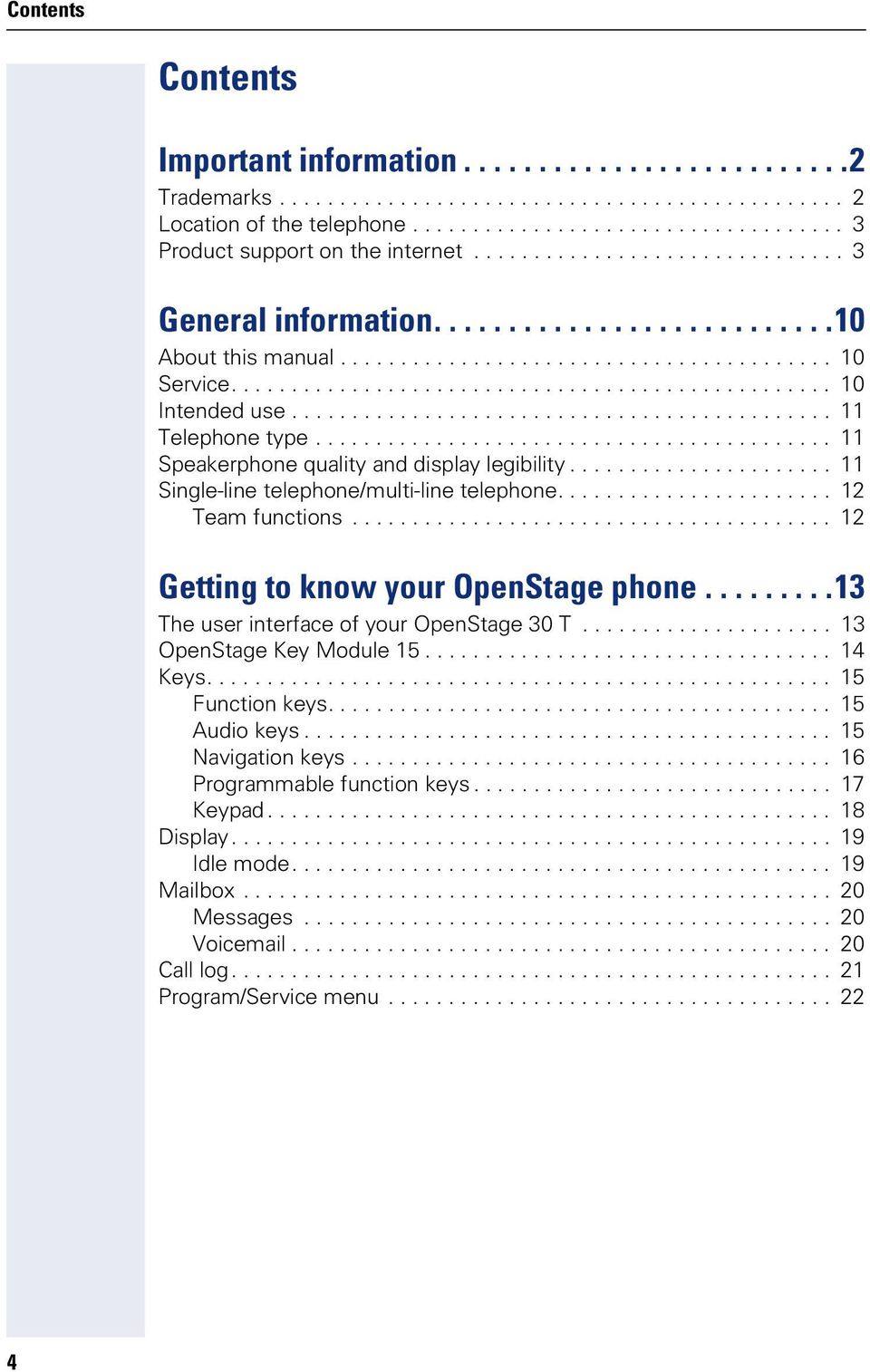
4 Contents Contents Imptant infmation Trademarks Location of the telephone Product suppt on the internet General infmation About this manual Service Intended use Telephone type Speakerphone quality and display legibility Single-line telephone/multi-line telephone Team functions Getting to know your OpenStage phone The user interface of your OpenStage 30 T OpenStage Key Module Keys Function keys Audio keys Navigation keys Programmable function keys Keypad Display Idle mode Mailbox Messages Voic Call log Program/Service menu
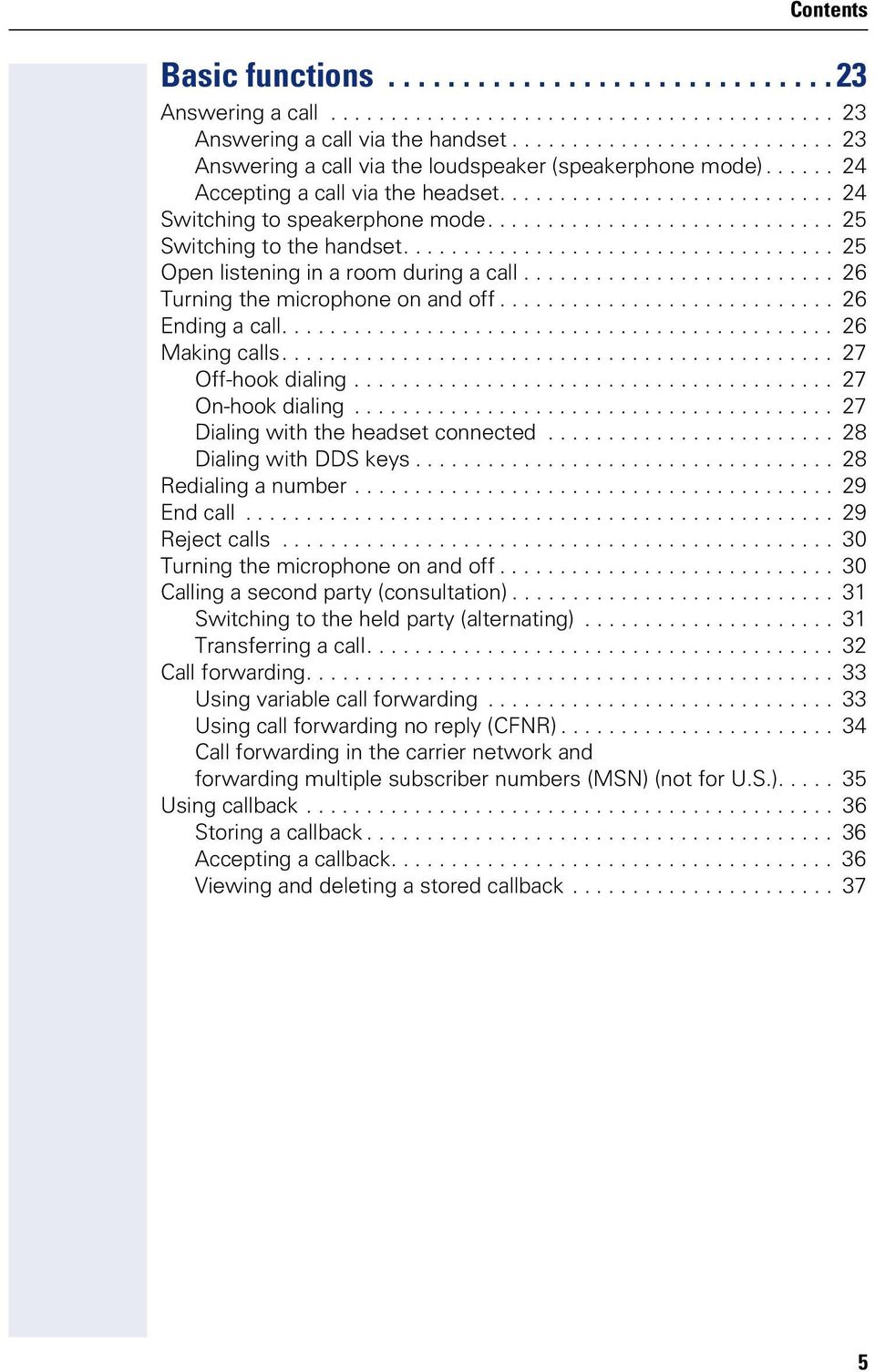
5 Contents Basic functions Answering a call Answering a call via the handset Answering a call via the loudspeaker (speakerphone mode) Accepting a call via the headset Switching to speakerphone mode Switching to the handset Open listening in a room during a call Turning the microphone on and off Ending a call Making calls Off-hook dialing On-hook dialing Dialing with the headset connected Dialing with DDS keys Redialing a number End call Reject calls Turning the microphone on and off Calling a second party (consultation) Switching to the held party (alternating) Transferring a call Call fwarding Using variable call fwarding Using call fwarding no reply (CFNR) Call fwarding in the carrier netwk and fwarding multiple subscriber numbers (MSN) (not f U.S.) Using callback Sting a callback Accepting a callback Viewing and deleting a sted callback
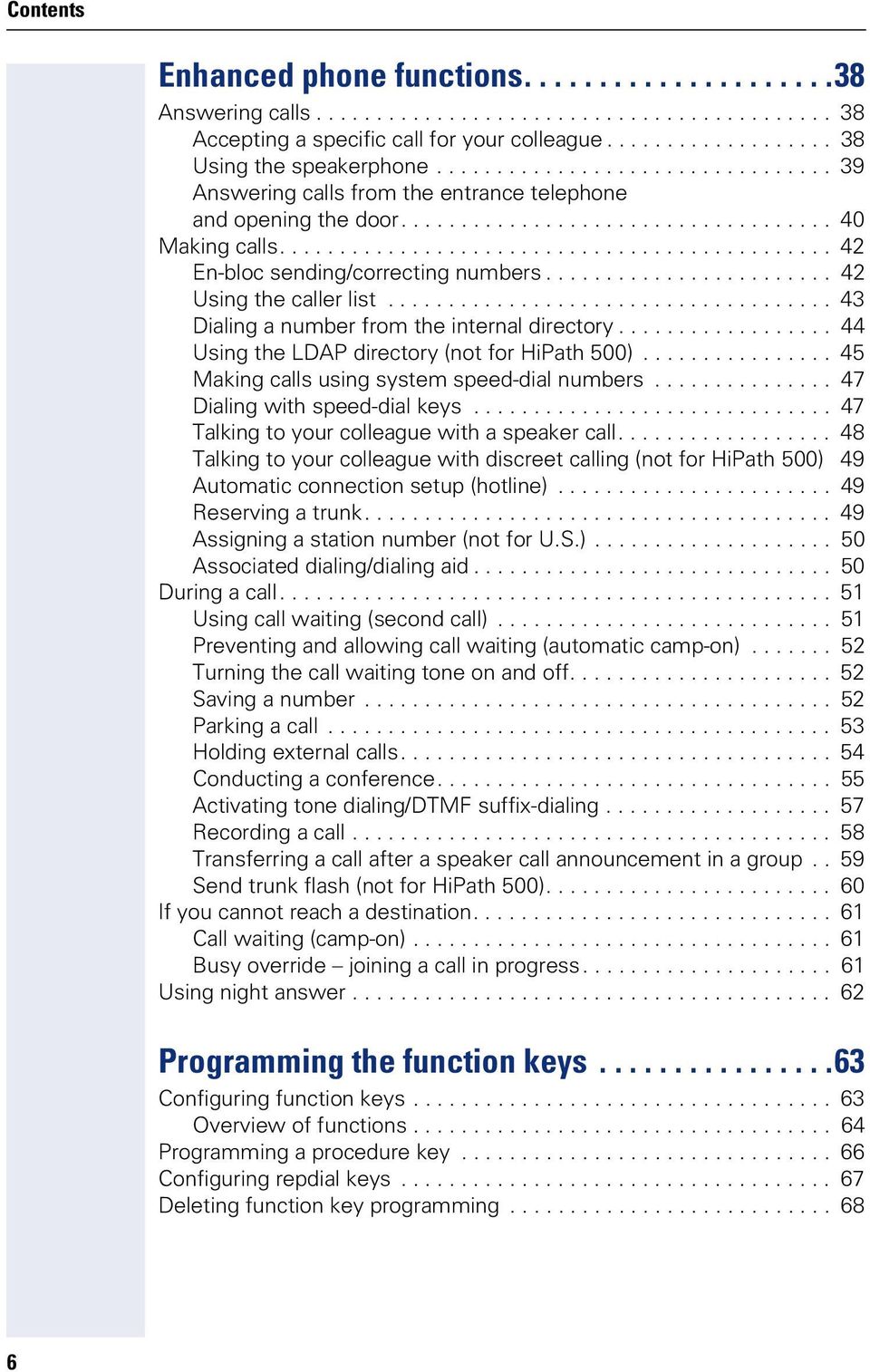
6 Contents Enhanced phone functions Answering calls Accepting a specific call f your colleague Using the speakerphone Answering calls from the entrance telephone and opening the do Making calls En-bloc sending/crecting numbers Using the caller list Dialing a number from the internal directy Using the LDAP directy (not f HiPath 500) Making calls using system speed-dial numbers Dialing with speed-dial keys Talking to your colleague with a speaker call Talking to your colleague with discreet calling (not f HiPath 500) 49 Automatic connection setup (hotline) Reserving a trunk Assigning a station number (not f U.S.) Associated dialing/dialing aid During a call Using call waiting (second call) Preventing and allowing call waiting (automatic camp-on) Turning the call waiting tone on and off Saving a number Parking a call Holding external calls Conducting a conference Activating tone dialing/dtmf suffix-dialing Recding a call Transferring a call after a speaker call announcement in a group.. 59 Send trunk flash (not f HiPath 500) If you cannot reach a destination Call waiting (camp-on) Busy override joining a call in progress Using night answer Programming the function keys Configuring function keys Overview of functions Programming a procedure key Configuring repdial keys Deleting function key programming
7 Contents Displaying and assigning call charges Displaying call charges (not f U.S.) Displaying call charges f another telephone (not f U.S.) Dialing with call charge assignment Privacy/security Turning ringer cutoff on and off Activating/deactivating "Do not disturb" Caller ID suppression Silent Moniting/Secret busy override (not f HiPath 500) Moniting a room Trace call: identifying anonymous callers (not f U.S.) Locking the telephone to prevent unauthized use Locking another telephone to prevent unauthized use Saving your PIN Me functions/services Appointments function Saving appointments Using timed reminders Sending a message Creating and sending a message Viewing and editing incoming messages Leaving an advisy message Deleting advisy messages Displaying the number of waiting calls/overload display Using another telephone like your own f a call Fax details and message on answering machine Changing a number (after exchanging/moving/relocating a phone) Resetting services and functions (system-wide cancellation f a telephone) Activating functions f another telephone Using system functions from outside DISA (direct inward system access) Using functions in ISDN via code dialing (keypad dialing) Controlling connected computers/programs/telephone data service.. 89 Communicating with PC applications over a CSTA interface Controlling relays (only f HiPath 3000) Senss (HiPath 33x0/35x0 only) Paging persons (not f U.S., not f HiPath 500)
8 Contents Making calls in the team/executive/ secretary configuration Lines Line utilization Line seizure Trunk keys Answering calls with the trunk keys Dialing with trunk keys Placing a call on hold on a trunk key and retrieving the held call Making calls on multiple lines alternately MULAP conference release Direct station selection key Using DSS keys to answer calls Calling a team member directly Transferring a call in progress Accepting a call f another team member Fwarding calls on trunks Transferring calls directly to the executive phone Using team functions Activating/deactivating a group call Accepting a call f another member of your team Ringing group Unifm Call Distribution (UCD) Special functions in the LAN (not f HiPath 500) Leaving hunt group/group call Setting up "follow me" call fwarding Using night answer Ringing group Controlling relays (only f HiPath 3000) Opening do

9 Contents Individual phone configuration Setting contrast Adjusting audio settings Adjusting the receiving volume during a call Adjusting the ring volume Adjust ring tone Adjusting the attention ring volume Adjusting the speakerphone to the room acoustics Language f system functions Testing the phone Testing functionality Checking the key assignment Differing display view in a HiPath 4000 environment (not f HiPath 500) Fixing problems Responding to err messages Contact partner in the case of problems Troubleshooting Caring f your telephone Labeling keys Index HiPath 3000 Service Menu

10 General infmation General infmation About this manual This document contains general descriptions of the technical options, which may not always be available in individual cases. The respective features must therefe be individually defined in the terms of the contract. If a particular function on your phone is not available to you, this may be due to one of the following reasons: The function is not configured f you your telephone. Please contact your system suppt representative. Your communications platfm does not feature this function. Please contact your Siemens sales partner f infmation on how to upgrade. This user guide is intended to help you familiarize yourself with OpenStage and all of its functions. It contains imptant infmation on the safe and proper operation of your OpenStage phone. These instructions should be strictly complied with to avoid operating errs and ensure optimum use of your multifunctional telephone in the netwk. These instructions should be read and followed by every person installing, operating programming an OpenStage phone. This user guide is designed to be simple and easy to understand, providing clear step-by-step instructions f operating your OpenStage phone. Administrative tasks are dealt with in a separate manual. The Quick Reference Guide contains quick and reliable explanations of frequently used functions. Service F your own protection, please read the section dealing with safety in detail. Follow the safety instructions carefully in der to avoid endangering yourself other persons and to prevent damage to the unit. The Siemens service department can only help you if you experience problems defects with the phone. Should you have any questions regarding operation, your specialist retailer netwk administrat will gladly help you. F queries regarding connection of the telephone, please contact your netwk provider. If you experience problems defects with the phone, please dial the service number f your country. 10
11 General infmation Intended use The OpenStage phone was developed as a device f speech transmission and should be placed on the desk mounted on the wall. Any other use is regarded as unauthized. Telephone type The identification details (exact product designation and serial number) of your telephone can be found on the nameplate on the underside of the base unit. Specific details concerning your communications platfm can be obtained from your service technician. Please have this infmation ready when you contact our service department regarding faults problems with the product. Speakerphone quality and display legibility To ensure good speakerphone quality, the area in front of the microphone (front right) should be kept clear. The optimum speakerphone distance is 50 cm. Proceed as follows to optimize display legibility: Turn the phone to tilt the display to ensure you have a frontal view of the display while eliminating light reflexes. Adjust the contrast as required page

12 General infmation Single-line telephone/multi-line telephone Your OpenStage 30 T is a "multi-line telephone". This means that your service personnel can configure multiple lines on your phone, which is not the case with single-line phones. Each line is assigned an individual phone number which you can use to make and receive calls. The programmable sens keys function as line keys on multi-line phones page 94. When using a multi-line phone to make and receive calls, certain particulars must be taken into account page 95 ff. The executive-secretary configuration is a special case. This is a multi-line telephone with special features (e.g., "Ring Transfer" and "Accept call"), configured especially f executive/secretary use page 93 ff. Team functions To increase the efficiency of telephony, your service personnel can configure various Team functions such as pickup groups, hunt groups, and call distribution groups. 12

13 Getting to know your OpenStage phone Getting to know your OpenStage phone The following sections describe the most frequently used operating elements and the displays on your OpenStage phone. The user interface of your OpenStage 30 T You can make and receive calls as nmal using the handset. 2 The display permits intuitive operation of the phone page Audio keys are also available, allowing you to optimally configure the audio features on your telephone page Use this function key to open the service menu mailbox page These keys are used f frequently used functions such as disconnecting, redialing and fwarding page The headset key is used e.g. to answer calls. The microphone key is used as Mute. 7 The keypad is provided f input of phone numbers/codes. 8 You operate the telephone with the navigation keys page You can customize your telephone by assigning phone numbers and functions to the function keys page
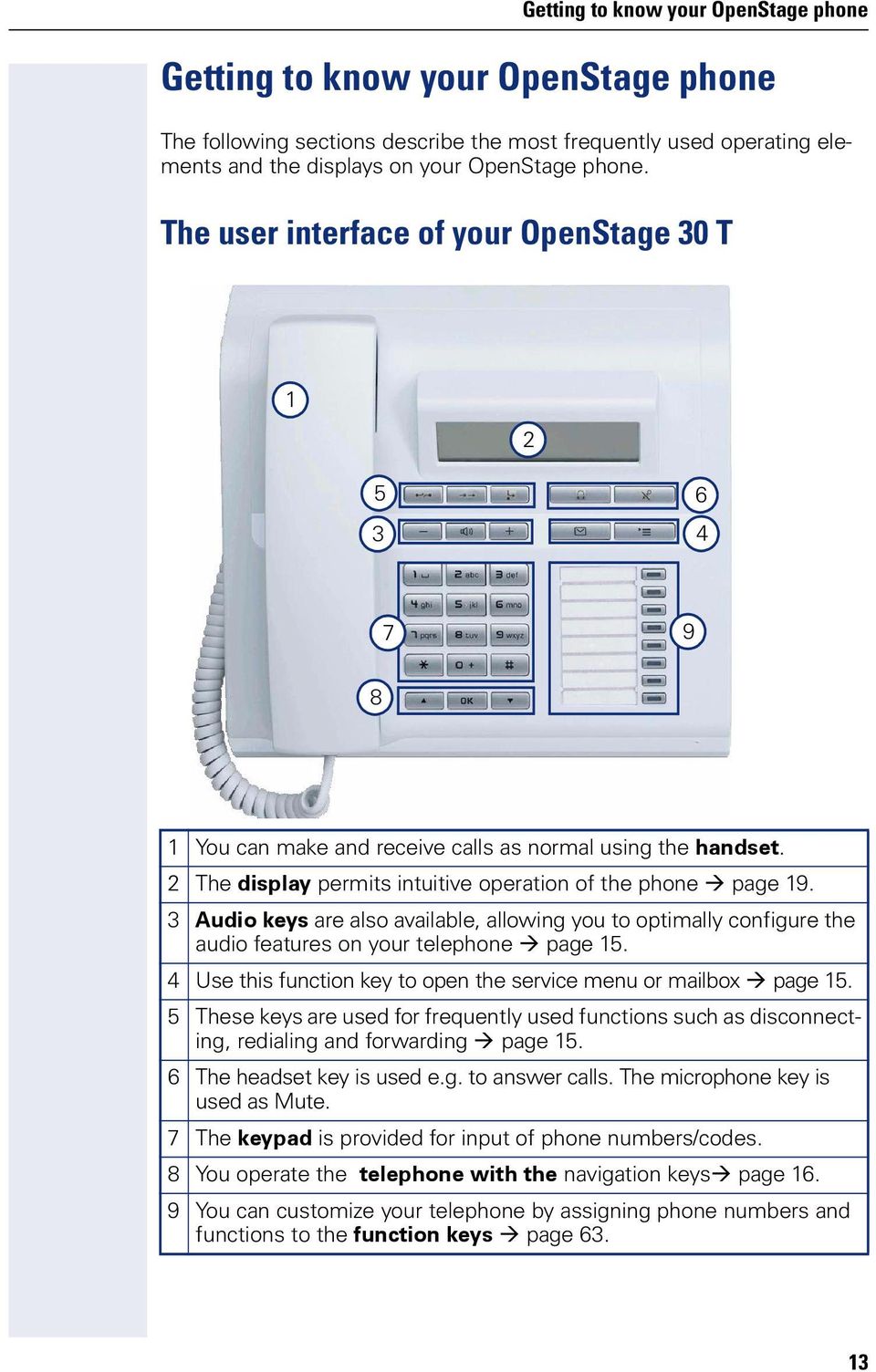
14 Getting to know your OpenStage phone Properties of your OpenStage 30 T Display type LCD, 24 x 2 characters Full-duplex speakerphone function ; Wall mounting ; OpenStage Key Module 15 The OpenStage Key Module 15 is a key module attached to the side of the phone that provides an additional 18 illuminated, programmable sens keys. Like keys on the phone, these keys can be programmed and used accding to your needs page 17. You can only attach one OpenStage Key Module 15 to your OpenStage 30 T. 14

15 Getting to know your OpenStage phone Keys Function keys Key Function when key is pressed s End call (disconnect) page 26., Redial page 29 r Button f fixed call fwarding (with red LED key) page 33. O Open mailbox (with red LED key) page 20. N Open Program/Service menu (with red LED key) page 22. Audio keys Key Function when key is pressed o Making calls using the headset page 24 p Activate/deactivate microphone (also f speakerphone mode) page Set volume lower and contrast brighter page 113. n Turn loudspeaker on/off (with red LED key) page Set volume louder and contrast darker page

16 Getting to know your OpenStage phone Navigation keys These are used to manage most of your phone s functions and display. Key Function when key is pressed < Open the idle menu page 19 browse back in the menu. = Perfm action. : Open the idle menu page 19 browse fward in the menu. 16

17 Getting to know your OpenStage phone Programmable function keys Your OpenStage 30 T has eight illuminated keys to which you can assign functions numbers. Increase the number of programmable function keys by connecting a key module page 14. Peter Fox Destinations? Depending on how they are programmed, you can use the keys as: Function key page 63 Repdial/Direct station selection key page 67 Each key can be programmed with one function. The configuration of direct station selection keys must be activated by your service personnel. Direct station selection keys can be assigned an internal number from the HiPath 4000 netwk. Press the key briefly to activate the programmed function dial the sted number. Your OpenStage is delivered with label strips. Write functions names in the white fields on the label strips. The status of a function is shown by the LED on the cresponding function key. Meaning of LED displays on function keys and DSS keys LED Meaning of function key Meaning of DSS key S Off The function is deactivated. The line is free. T Flashing 1 Indicates the function status. The line is busy. R On The function is activated. There is a call on the line. [1] In this manual, flashing keys are identified by this icon, regardless of the flashing interval. The flashing interval represents different statuses, which are described in detail in the cresponding sections of the manual. The programmable keys on multi-line phones function as trunk keys page

18 Getting to know your OpenStage phone Keypad In cases where text input is possible, you can use the keypad to input text, punctuation and special characters in addition to the digits 0 to 9 and the hash and asterisk symbols. To do this, press the numerical keys repeatedly. Example: To enter the letter "h", press the number 4 key on the keypad twice. To enter a digit in an alphanumerical input field, hold down the relevant key. Alphabetic labeling of dial keys is also useful when entering vanity numbers (letters associated with the phone number s digits as indicated on the telephone spell a name, e.g PATTERN = ). 18
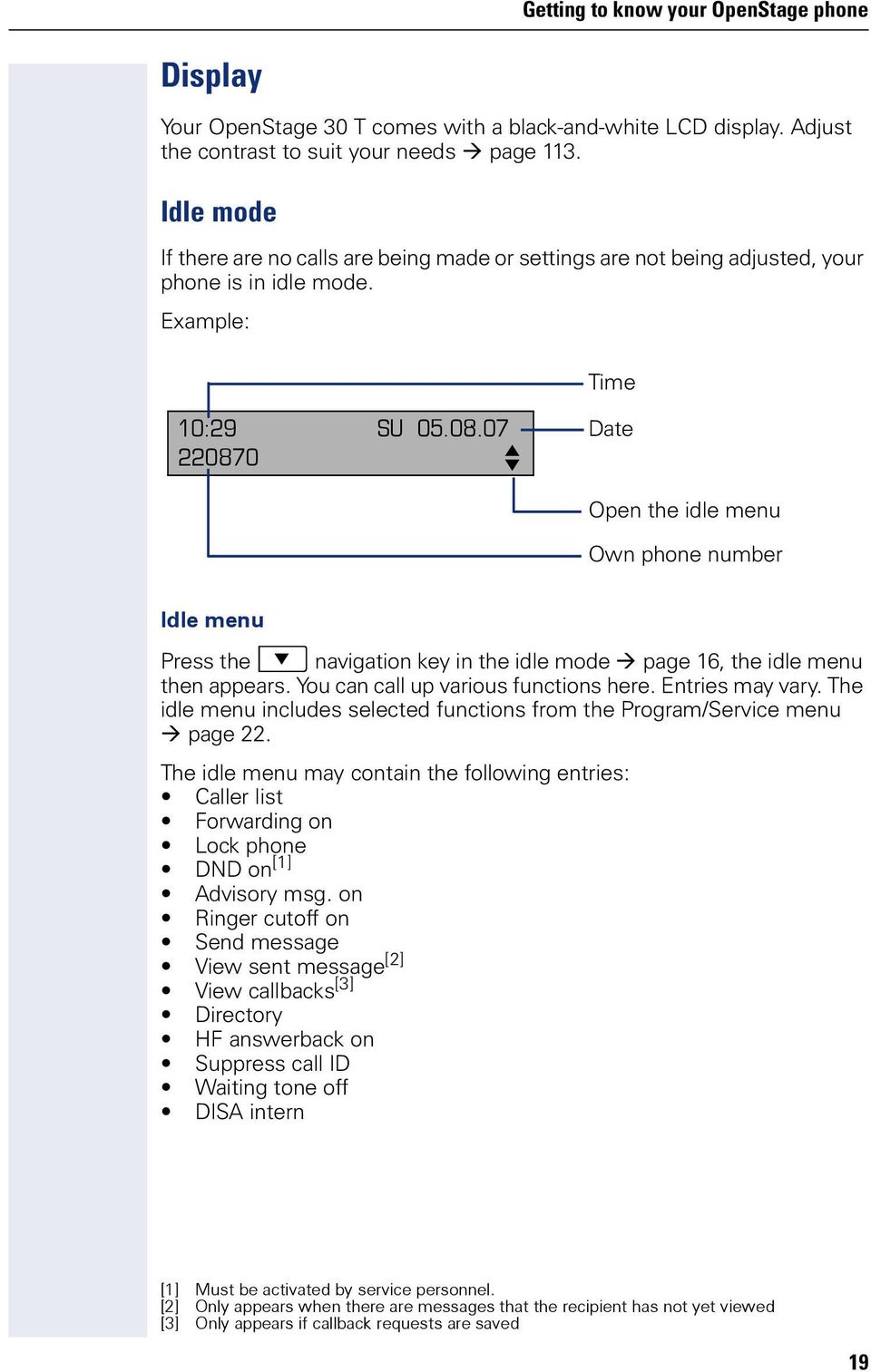
19 Getting to know your OpenStage phone Display Your OpenStage 30 T comes with a black-and-white LCD display. Adjust the contrast to suit your needs page 113. Idle mode If there are no calls are being made settings are not being adjusted, your phone is in idle mode. Example: Time 10:29 SU : f Date Open the idle menu Own phone number Idle menu Press the : navigation key in the idle mode page 16, the idle menu then appears. You can call up various functions here. Entries may vary. The idle menu includes selected functions from the Program/Service menu page 22. The idle menu may contain the following entries: Caller list Fwarding on Lock phone DND on [1] Advisy msg. on Ringer cutoff on Send message View sent message [2] View callbacks [3] Directy HF answerback on Suppress call ID Waiting tone off DISA intern [1] Must be activated by service personnel. [2] Only appears when there are messages that the recipient has not yet viewed [3] Only appears if callback requests are saved 19
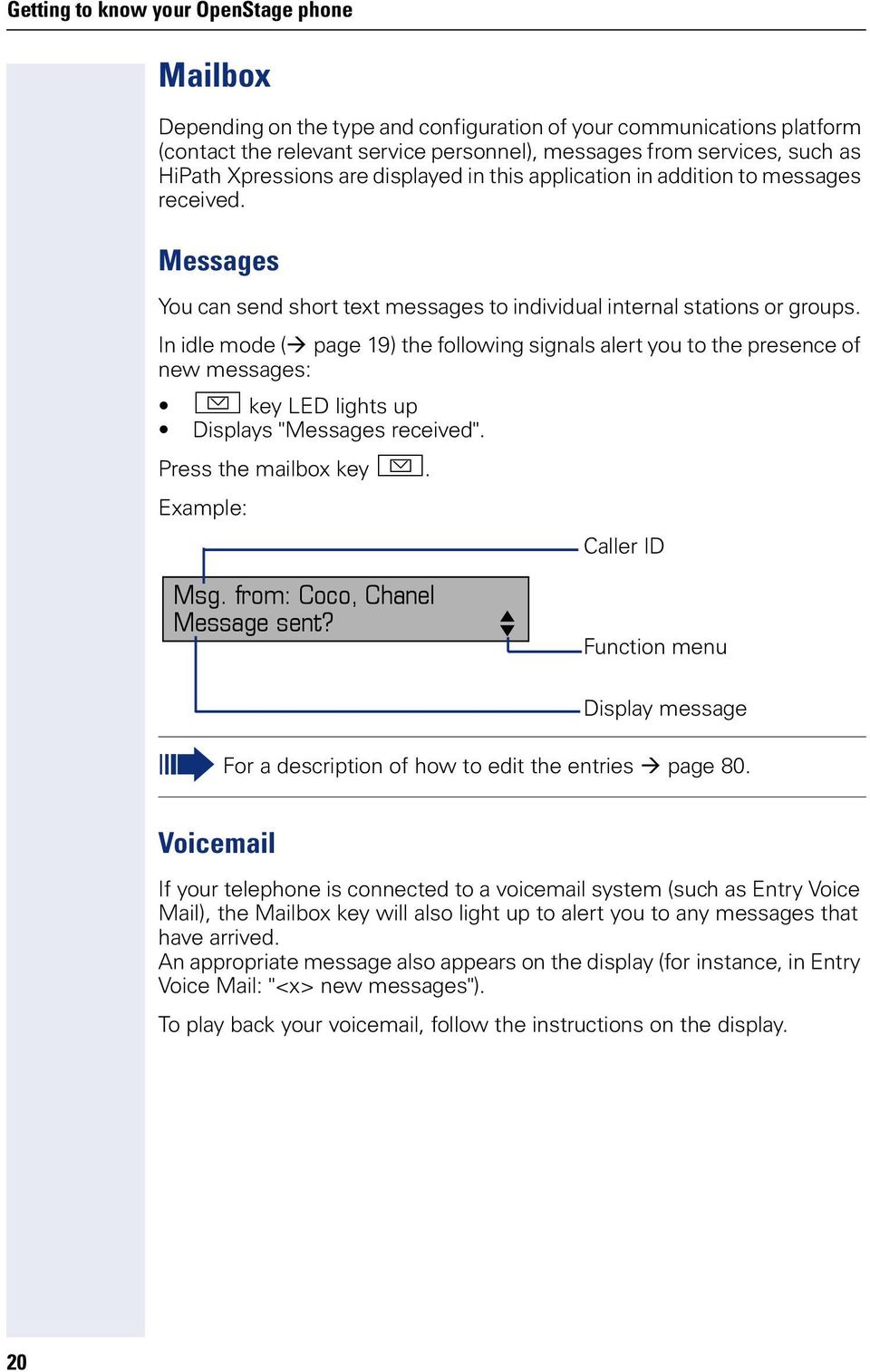
20 Getting to know your OpenStage phone Mailbox Depending on the type and configuration of your communications platfm (contact the relevant service personnel), messages from services, such as HiPath Xpressions are displayed in this application in addition to messages received. Messages You can send sht text messages to individual internal stations groups. In idle mode ( page 19) the following signals alert you to the presence of new messages: O key LED lights up Displays "Messages received". Press the mailbox key O. Example: Caller ID Msg. from: Coco, Chanel Message sent? f Function menu Display message F a description of how to edit the entries page 80. Voic If your telephone is connected to a voic system (such as Entry Voice Mail), the Mailbox key will also light up to alert you to any messages that have arrived. An appropriate message also appears on the display (f instance, in Entry Voice Mail: "<x> new messages"). To play back your voic , follow the instructions on the display. 20
21 Getting to know your OpenStage phone Call log If you are unable to accept an external internal call, the call attempt is sted in the caller list. Answered calls can also be saved (contact your service personnel). Your telephone stes up to ten calls in chronological der. Each call is assigned a time stamp. The most recent entry not yet answered in the list is displayed first. Multiple calls from the same caller do not automatically generate new entries in the caller list. Instead, only the most recent time stamp f this caller is updated and its number incremented. The caller list is automatically displayed page 19 in the idle menu page 43. Callers with suppressed numbers cannot be saved in the call log. Infmation is displayed regarding the caller and the time at which the call was placed. Example: Caller ID PETER Busy :25 f Function menu Time Date Telephone status during a call attempt F a description of how to edit the call logs page
22 Getting to know your OpenStage phone Program/Service menu Use the N menu key to reach the Program/Service menu f your communication system. The menu key LED remains red as long as you are in this menu. Example: Program/Service: *7= Use speed dialing? l Menu title Further entries are available Menu option The menu structure comprises several levels. The first line in this structure shows the menu currently selected while the second line shows an option from this menu. 22
23 Basic functions Basic functions Please read the introducty chapter "Getting to know your OpenStage phone" page 13 carefully befe perfming any of the steps described here on your phone. Answering a call Special default ring signaling is set f your telephone: When you receive an internal call, your telephone rings once every four seconds (single-tone sequence). When you receive an external call, your telephone rings twice in rapid succession every four seconds (dual-tone sequence). When you receive a call from the entrance telephone, your telephone rings three times in rapid succession every four seconds (triple-tone sequence). If a call is waiting, you hear a sht tone (beep) every six seconds. Your service personnel can adjust the ring cadence f external and internal calls f you. In other wds, different ring cadences can be set f different internal callers. The number the name of the caller appears on the display. Answering a call via the handset ^ if nec. + - The phone rings. The caller is displayed. Lift the handset. Set the call volume. 23
24 Basic functions Answering a call via the loudspeaker (speakerphone mode) n if nec. + - Suggestions f using speakerphone mode: Tell the other party that you are using speakerphone mode. The speakerphone wks bests at a low receiving volume. The ideal distance between the user and the telephone set in speakerphone mode is about 50 cm (approx. 20 inches). The phone rings. The caller appears on the screen. Press the key shown. The LED lights up. Raise lower the volume. Keep pressing the key until the desired volume is set. Ending a call n Press the key shown. The LED goes out. Accepting a call via the headset Prerequisite: A headset is connected. o if nec. + - The phone rings. The o key flashes. Press the key shown. Set the call volume. The headset pt on the phone is preset f a cded device and is automatically switched when you use a cdless headset. You must however use the "call answer" function of the headset at least once so that the telephone can make the cresponding setting. 24
25 Basic functions Switching to speakerphone mode People present in the room can participate in your call. Prerequisite: You are conducting a call via the handset. n\ Hold down the key and replace the handset. Then release the key and proceed with your call. if nec. + - Set the call volume. U.S. mode n If your communication system is set to US mode (contact your service personnel), you do not have to hold down the speaker key when replacing the handset when switching to speakerphone mode. Press the key shown. ] Replace the handset. Proceed with your call. if nec. + - Set the call volume. Switching to the handset ^ n Prerequisite: You are conducting a call in speakerphone mode. Lift the handset. The key shown goes out. 25
26 Basic functions Open listening in a room during a call People present in the room can silently monit your call. Let the other party know that you have turned on the speaker. Prerequisite: You are conducting a call via the handset. n n Activating Press the key shown. Deactivating Press the lit key. Turning the microphone on and off To prevent the other party from listening in while you consult with someone in your office, you can temparily switch off the handset microphone the handsfree microphone. Prerequisite: You are conducting a call. Deactivating the microphone p Press the key shown. Activating the microphone p Press the lit key. Ending a call s Press the key shown. n Press the lit key. \ Replace the handset. 26
27 Basic functions Making calls Off-hook dialing ^ j Lift the handset. internal: Enter the station number. External calls: Enter the external code and the station number. The connection is established as soon as your input is complete. On-hook dialing j internal: Enter the station number. External calls: Enter the external code and the station number. The party you are calling answers via loudspeaker. Your system may also be programmed so that you have to press the "internal" key befe you dial an internal number. To call an external party, you have to enter an external code befe dialing the party s telephone number (Prime Line is not active; contact your service personnel). The other party answers with speaker: ^ Lift the handset. On-hook dialing: Speakerphone mode. The called party does not answer is busy: n Press the key shown. The LED goes out. 27
28 Basic functions Dialing with the headset connected j o Prerequisite: The headset is connected. internal: Enter the station number. External calls: Enter the external code and the station number. The headset key lights up. The connection is established as soon as your input is complete. Dialing with DDS keys S Prerequisite: You have saved a number on a DDS key page 67. Press the key with a saved number. If the number is saved on the second layer, press the shift key first. You can press the DDS key during a call and automatically initiate a callback page 31. ^ n Lift the handset. Press the key shown. 28
29 Basic functions Redialing a number The last ten external telephone numbers dialed are sted automatically. If this feature is configured (contact your service personnel), account codes entered are also saved page 71. You can redial them simply by pressing a key. Displaying and dialing saved station numbers Next? Call?, Press the "Redial" key to dial the last number dialed. Press the key twice to dial the next to the last number dialed. Press the key three times to dial the third-to-the-last number dialed. Keep confirming until the phone number you want appears. End call n Press the lit key. \ Replace the handset. 29
30 Basic functions Reject calls You can reject calls which you do not wish to take. The call is then signaled at another definable telephone (contact your service personnel). s Press the "Disconnect" key. If a call cannot be rejected, your telephone will continue to ring. The message "Currently not possible" is displayed (e.g. in the case of recalls). Turning the microphone on and off p p To prevent the other party from listening in while you consult with someone in your office, you can temparily switch off the handset microphone the handsfree microphone. You can also switch on the handsfree microphone to answer an announcement via the telephone speaker (speaker call, page 48). Prerequisite: A connection is set up, the microphone is activated. Press the "microphone" key. The microphone is deactivated. Press the illuminated "microphone" key. The microphone is activated. 30
31 Basic functions Consultation? Calling a second party (consultation) You can call a second party while a call is in progress. The first party is placed on hold. Confirm. j Call the second party. Return to held call? Quit and return? Toggle/Connect? Conference? Leave conference? Return to the first party: Confirm select and confirm the option shown. Switching to the held party (alternating) Combine the calling parties into a three-party conference Allowing call partners to continue a conference after you exit F me infmation on conferences, see page
32 Basic functions Consultation? j Transferring a call If the person you are speaking to wants to talk to another colleague of yours, you can transfer the call that colleague. Confirm. Enter the number of the party to which you want to transfer the call. [ Announce the call, if necessary. Transfer? \ Replace the handset. Select and confirm the option shown [1]. [1] Differing display view in a HiPath 4000 environment (not f HiPath 500) Seite
33 Basic functions Call fwarding Using variable call fwarding You can immediately fward internal external calls to different internal external telephones (destinations). (External destinations require special configuration in the system.) When call fwarding is active, a special dial tone sounds when you lift the handset. If DID DTMF is active (contact your service personnel), you can also fward calls to this destination. Destinations: Fax = 870, DID = 871, Fax-DID = 872. If you are a call fwarding destination, your display will show the number the name of the iginat on the upper line and that of the caller on the lower line. Special features must be taken into consideration if your telephone operates with HiPath 5000 (system netwking via PC netwk) page 108! Fwarding on? r Press the fwarding key. : Open the idle menu page 19. 1=all calls? 2=external calls only? 3=internal calls only? Save? Fwarding off j Confirm select and confirm the option shown select and confirm the option shown. Enter the destination number. Confirm. Deactivating call fwarding 33
34 Basic functions *495=CFNR on? Save? #495=CFNR off? N j N Using call fwarding no reply (CFNR) Calls that are not answered after three rings (=default, can be adjusted by service personnel) that are received while another call is ongoing can be automatically fwarded to a specified telephone. Press the key shown. Enter the destination number. Enter the internal station number f internal destinations Enter the external code and the external station number f external destinations Confirm. Deactivating call fwarding no reply Press the key shown. Delete? Exit Confirm. Select and confirm to deactivate but not delete the fwarding destination. If CFNR is activated, when you hang up, "CFNR to:" appears briefly on the display:
35 Basic functions Trunk FWD on? N Call fwarding in the carrier netwk and fwarding multiple subscriber numbers (MSN) (not f U.S.) If this function has been configured (contact your service personnel), you can fward calls to your assigned multiple subscriber number (MSN) (DID number) directly within the carrier netwk. F example, you can fward your phone line to your home phone after business hours. Press the key shown. 1=immediate? 2=on no answer? 3=on busy? j j Select and confirm the required type of call fwarding select and confirm the option shown. select and confirm the option shown. Enter your DID number. Enter the destination number (without the external code). Save? Trunk FWD off? Confirm. Deactivating call fwarding j Confirm the displayed call fwarding type. Enter your DID number. 35
36 Basic functions Using callback You can request a callback if the internal station called is busy if nobody answers. This also applies f external calls via ISDN exchanges. This feature saves you from having to make repeated attempts to reach the user. You receive a callback When the other party is no longer busy, When the user who did not answer has conducted another call. When configured (contact your service personnel), all callback requests are automatically deleted over night. Sting a callback Callback? Prerequisite: You have reached a busy line no one answers. Confirm. Accepting a callback Answer? ^ n Prerequisite: A callback was saved. Your telephone rings. "Callback:..." appears on the display. Lift the handset. Press the key shown. The LED lights up. You hear a ring tone. 36
37 Basic functions Viewing and deleting a sted callback View callbacks? Next callback? : Open the idle menu page 19. Select and confirm the option shown [1]. Select and confirm to display additional entries. Deleting a displayed entry Delete? Confirm. Exit? N n Ending retrieval Press the key shown. The LED goes out. Press the key shown. The LED goes out. [1] Differing display view in a HiPath 4000 environment (not f HiPath 500) Seite
38 Enhanced phone functions Enhanced phone functions Answering calls Accepting a specific call f your colleague Me features? N You hear another telephone ring. Press the key shown. *59=Pickup - directed? Next? Accept call? if nec. j Select and confirm the option shown [1]. Select and confirm until the name/number of the required subscriber is displayed. Confirm. If you know the number of the telephone that is ringing, enter it directly. 38 [1] Differing display view in a HiPath 4000 environment (not f HiPath 500) Seite 116
39 Enhanced phone functions Mute off? ^ Using the speakerphone A colleague addresses you directly over the speaker with a speaker call. You hear a tone befe the announcement. The other party s name station number appears on the screen. You can conduct the call with the handset in speakerphone mode. Lift the handset and answer the call. Press the "OK" key to confirm your selection and answer the call. If handsfree answerback is enabled (see below), you do not need to switch on the microphone - you can answer directly. You can answer immediately in speakerphone mode. If handsfree answerback is disabled (default setting), follow the procedure described above. Placing a speaker call to a colleague page 48. Enabling and disabling handsfree answerback HF answerback on? HF answerback off? : Open the idle menu page 19. select and confirm the option shown. 39
40 Enhanced phone functions Open do? *61=Open do? ^ ^ j N j j Answering calls from the entrance telephone and opening the do If an entrance telephone has been programmed, you can use your telephone to speak to someone at the entrance telephone and to activate a do opener. If you have the proper authization (contact your service personnel), you can activate the do opener, enabling visits to open the do themselves by entering a 5-digit code (using a DTMF transmitter the keypad installed). Speaking to visits via the entrance telephone Prerequisite: Your telephone rings. Lift the handset within thirty seconds. You are connected to the entrance telephone immediately. Lift the handset after me than thirty seconds. Dial the entrance telephone number. Opening the do from your telephone during a call from the entrance telephone Confirm. Opening the do from your telephone without calling the entrance telephone Press the key shown. Dial the entrance telephone number. Special features must be taken into consideration if your telephone operates with HiPath 5000 (system netwking via PC netwk) page 112! Opening the do with a code (at the do) After ringing the bell, enter the five-digit code (using the keypad a DTMF transmitter). Depending on how the do opener has been programmed, a dobell call signal may may not be fwarded. 40
41 Enhanced phone functions *89=Do opener on? N j Activating the do opener Press the key shown. Dial the entrance telephone number. 3=change passwd? j Enter the five-digit code. Default code = "00000". Select the displayed function and press the "OK" dialog key to change the code. 1=enable with ring? 2=enable w/o ring? #89=Do opener off? N You can also open the do without a dobell ring. Deactivating the do opener Press the key shown. 41
42 Enhanced phone functions Making calls En-bloc sending/crecting numbers j If this feature is configured (contact your service personnel), a connection is not attempted immediately when a station number is entered. This means that you can crect the number if necessary. The station number is only dialed at your specific request. internal: Enter the station number. External calls: Enter the external code and the station number. Dial? Delete number? Cancel? ^ j n Dialing entered/displayed numbers Lift the handset. Confirm. Crecting numbers entered A station number can only be crected as it is being entered. Station numbers sted f number redial, f example, cannot be crected. The last digit entered in each case is deleted. Enter the required digit(s). Canceling en-bloc sending Press the key shown. The LED goes out. 42
43 Enhanced phone functions Using the caller list Detailed infmation, as well as a sample display entry are provided on page 21. Retrieving the caller list Caller list? Next? Prerequisite: Service personnel has set up a caller list f your telephone. : Open the idle menu page 19. Confirm [1]. The latest entry is displayed, see the example on page 21. To view other calls, confirm each subsequent display. Ending retrieval Previous menu? Time/date sent? Call? Delete? N n Press the key shown. The LED goes out. Press the key shown. The LED goes out. Displaying the call time Prerequisite: You have retrieved the caller list and the selected call is displayed page 21. Dialing a station number from the caller list Prerequisite: You have retrieved the caller list and the selected call is displayed. Removing an entry from the caller list Prerequisite: You have retrieved the caller list and the selected call is displayed. Confirm. The caller is automatically deleted from the caller list when a connection is finally set up. [1] Differing display view in a HiPath 4000 environment (not f HiPath 500) Seite
44 Enhanced phone functions Dialing a number from the internal directy The internal directy contains all station numbers and system speed-dial numbers assigned to a name. Contact your service personnel to find out if one was configured f your system. Prerequisite: Names have been assigned to the station numbers sted in the system. Directy? 1=internal? ^ n Lift the handset. Press the key shown. The LED lights up. Confirm. if nec. If several directies have been configured (not f HiPath 500): Confirm. The first entry is displayed on the screen. + - Scroll to next previous entry. Scroll Next? Scroll Previous? Delete Character? Delete Line? Call? j if nec. if nec. select and confirm the option shown. select and confirm the option shown. Enter the name you want to find, just the first few letters, using the alphanumeric keypad page 18. Select and confirm each letter to be deleted. The last letter entered is deleted. If all letters are deleted, the first entry in the directy will be displayed again. All entered letters are deleted, and the first entry in the internal directy is displayed again. The entry you wish to dial appears on the screen 44
45 Enhanced phone functions Directy 2=LDAP? ^ n if nec. Using the LDAP directy (not f HiPath 500) If configured (ask your service personnel), you can search f directy data in the LDAP database and dial the number of any subscriber you find there. Prerequisite: The LDAP search feature has been configured in the system. Lift the handset. Press the key shown. The LED lights up. Confirm. If several directies have been configured: Delete Character? Search? j if nec. if nec. Enter the name you wish to search f using the keypad (max. 16 characters) page 18. You can enter an incomplete name, e.g. "mei" f "Meier". If configured (ask your service personnel), you can also search f surname and first name. To separate surname and first name by a space, enter "0". You can enter incomplete names, e.g. "mei p" f "Meier Peter". Select and confirm each letter to be deleted. The last letter entered is deleted. In large databases, the results of the search may be incomplete if too few characters are entered page 46. Confirm. The name is searched f. This may take a few seconds. 45
46 Enhanced phone functions The result is displayed Call? If only one name is found, it is displayed. Confirm. If several names are found (max. 50), the first name is displayed. + - Scroll to next previous entry, Scroll Next? Scroll Previous? Call? Modify search? Show matches? Modify search? confirm, select and confirm the option shown. If no name is found If your search does not yield any name cresponding to your query, you can extend the range of the search, e.g. by deleting characters. F further procedure, see above. If too many names are found If me than the maximum of 50 names are found cresponding to your query, only an incomplete list of results can be displayed. You can view these results, select any of the names, change the search string (e.g. narrow the search by entering me characters). In this case it is advisable to narrow down the search so that all cresponding names can be displayed. Confirm, to view the incomplete list. F further procedure, see above. Narrow the search down. Select and confirm, in der to change the search string. F further procedure, see above. 46
47 Enhanced phone functions *7=Use speed dialing? N j if nec. j Making calls using system speed-dial numbers Prerequisite: You know the system speed-dial numbers (consult your service personnel). Press the key shown. Select and confirm the option shown [1]. Enter a three-digit speed-dial number. Suffix-dialing If necessary, you can suffix-dial additional digits (f example, the user s extension) at the end of the saved station number. If this feature is configured, a suffix is automatically dialed (f example, "0" f the exchange) if no entries are made within 4 5 seconds. Dialing with speed-dial keys *7=Use speed dialing? N Prerequisite: You have configured speed-dial keys page 47. Press the key shown. Select and confirm the option shown [1]. *92=Change Speed Dial? Change? ) Press the key shown. j Press the required speed-dial key. N Configure a speed-dial key You can program the keys 0 to 9 with ten frequently used phone numbers. Press the key shown. Select and confirm the option shown [1]. Confirm. ) Press the key shown. j Press the required speed-dial key. If the key is already in use, the programmed phone number appears on the screen. [1] Differing display view in a HiPath 4000 environment (not f HiPath 500) Seite
48 Enhanced phone functions Change Save Previous? Next? Change? Delete? Exit? j Confirm. First enter the external code and then the external station number. Confirm. If you make a mistake: This deletes all entered digits. Confirm. select and confirm the option shown select and confirm the option shown. Talking to your colleague with a speaker call *80=Speaker call? You can make a loudspeaker announcement through a loudspeaker if connected (ask your service personnel), to an internal user with a system telephone without any action on their part. : Open the idle menu page 19. j Enter the station number. Responding to a speaker call page
49 Enhanced phone functions Talking to your colleague with discreet calling (not f HiPath 500) ^ If this function has been configured (ask your service personnel), you can join an ongoing call conducted by an internal user at a system telephone with display. You can listen in unnoticed and speak to the internal user without being overheard by the other party (discreet calling). Lift the handset. )945 Enter the code. j Enter your internal station number. Your service personnel can protect your telephone against discreet calling. Automatic connection setup (hotline) ^ If this function is configured (contact your service personnel), the system automatically sets up a connection to a preset internal external destination. Lift the handset. Depending on the setting, the connection is either set up immediately only after a preset period of time (hotline after a timeout). Reserve trunk ^ j Reserving a trunk If configured (ask your service personnel), you can reserve an occupied trunk f yourself. When the line is free, you receive a call and a note on the display. Prerequisite: "Currently busy" appears on the display. Confirm. Reserved line is free: Your telephone rings and the display shows "Trunk is free". Lift the handset. You will hear the dial tone. Enter the external phone number. 49
50 Enhanced phone functions *41=Tempary MSN? *67=Associated dial? N j j ^ ^ N j j Assigning a station number (not f U.S.) If this function has been configured (contact your service personnel), you can selectively assign a specific number (DID number) to your telephone befe making an external call. The assigned number then appears on the called party s display. Press the key shown. Enter the DID number you wish to use. Dial the external number. Associated dialing/dialing aid If this function has been configured (contact your service personnel), you can use a dialing aid to dial numbers and set up calls f your telephone. The operating procedure depends on whether the dialing aid is connected to the S 0 bus the a/b (T/R) pt. You can also use your system telephone as a dialing aid f other telephones. Dialing aid on the S0 bus On the PC, select a destination and start dialing. The speaker on your telephone is switched on. Lift the handset when the other party answers. Dialing aid at the a/b (T/R) pt On the PC, select a destination and start dialing. "Lift the handset" appears on the PC screen. Lift the handset. Dialing aid from your telephone f another telephone Press the key shown. Enter the internal station number ("Dial f:"). Enter the number you wish to dial. 50
51 Enhanced phone functions During a call Using call waiting (second call) Callers can still reach you while you are engaged in another call. A signal alerts you to the waiting call. You can igne accept the second call. When you accept the waiting call, you can either end the first call place it on hold and resume the call later on. You can block the second call the signal tone ( page 52). Prerequisite: You are engaged in a phone call and hear a tone (every six seconds). Ending the first call and answering the waiting call: Call waiting? \ Replace the handset. Your telephone rings. ^ Answer the second call. Lift the handset. Placing the first call on hold and answering the second call: You are immediately connected to the second caller. The first party is placed on hold. Quit and return? Ending the second call and resuming the first one: Confirm. \ Replace the handset. "Recall appears on the display:..." appears on the screen. ^ Lift the handset. 51
52 Enhanced phone functions #490=Call wait.trm.off? *490=Call wait.term.on? N Preventing and allowing call waiting (automatic camp-on) If this function has been configured (ask your service personnel), you can prevent allow a second call page 51 from being signaled by automatic camp-on during an ongoing call. Press the key shown. Select and confirm the option shown [1], Turning the call waiting tone on and off You can suppress the call waiting tone (every six seconds) f external calls. A one-time special dial tone then alerts you to the waiting call. Activating Waiting tone off? : Open the idle menu page 19. Deactivating : Open the idle menu page 19. Waiting tone on? Saving a number You can save your call partner s station number f subsequent redialing from the caller list page 43. Prerequisite: You are conducting a call. Save number? [1] Differing display view in a HiPath 4000 environment (not f HiPath 500) Seite
53 Enhanced phone functions *56=Park a call? N Parking a call You can park up to ten calls, either internal, external, both. Parked calls can be displayed on and picked up from another telephone. This feature is useful if you want to continue a call at another phone. Prerequisite: You are conducting a call. Press the key shown Enter the number of the park slot (0-9) and make a note of it. If the park slot number you entered is not displayed, it is already in use; enter another one. Retrieving a parked call Retrieve call? N Prerequisite: One me calls have been parked. The phone is idle. Press the key shown. Select and confirm the option shown [1] Enter the park slot number you noted earlier. If the park slot number you enter is not in use, you cannot retrieve the call. If a parked call is not picked up, after a specific period of time the call is returned to the telephone from where it was parked (recall). [1] Differing display view in a HiPath 4000 environment (not f HiPath 500) Seite
54 Enhanced phone functions Holding external calls Held on line: 801 If you have programmed a hold key on your phone page 63, you can put external calls on hold. Then all other stations can accept the call on the assigned trunk. S Press the "Hold" key. The message of the relevant trunk appears (e.g. 801) and note the trunk number. If available, the LED of the assigned trunk key flashes slowly. if nec. \ s Replace the handset press the key shown. Depending on the configuration, this may be necessary so other members can also pick up the call on hold. Retrieve line N S j T Accepting call on hold Prerequisite: One me calls are on hold. The phone is idle. Press the key shown. If the "Retrieve" key is available page 63, press it. Enter the noted trunk number. If there is a "Line:" key available f the relevant trunk, it flashes slowly. Press the key shown. 54
55 Enhanced phone functions Start conference? Conference? Return to held call? Add party? Conference? View conf parties? Next? j j j Conducting a conference In a conference call, you can talk to as many as four other parties at the same time. These may be internal external users. Call the first party. Call the second party. Announce the conference. A tone sounds every 30 seconds to indicate that a conference is in progress. If the second party does not answer Confirm. Adding up to five parties to a conference Confirm. You can only add parties to remove them from a conference if you initiated the conference. Call the new party. Announce the conference. Viewing the conference parties The first party is displayed. To display other parties, confirm each subsequent display. Exit list? To exit the list: View conf parties? Next? Remove party? Removing parties from the conference The first party is displayed. Confirm as often as required until the desired party appears. 55
56 Enhanced phone functions Leaving a conference Leave conference? \ Replace the handset, if this feature is configured (contact your service personnel). End conference? Ending a conference \ Replace the handset, if this feature is configured (contact your service personnel). Removing the ISDN central office party from the conference Drop last conf. party? 56
57 Enhanced phone functions Activating tone dialing/dtmf suffix-dialing *53=DTMF dialing? You can transmit dual-tone multifrequency (DTMF) signals to control devices such as an answering machine automatic infmation system. N Press the key shown. j You can use the keys 0 through 9, ) and ( to transmit DTMF signals. Ending the call also deactivates DTMF suffix dialing. Your system may be configured so that you can start DTMF suffix-dialing immediately after setting up a connection. 57
58 Enhanced phone functions Recding a call S If configured (contact your service personnel f details), you can recd an active call. Prerequisite: You are on a call, the "Recding" key is configured page 63. Press the "Recding" key. The LED lights up. You and the other party hear an announcement that recding has started and as long as recding is still running, you hear an acoustic signal approx. every 15 seconds. During recding, it is not possible to add further call parties. Stopping recding R Press the "Recding" key which lights up. The LED goes out. Listening to a recding Playback of the recding depends on the voice recding system used (see the associated user guide). 58
59 Enhanced phone functions Transferring a call after a speaker call announcement in a group Consultation? *80=Speaker call? If this function has been configured (contact your service personnel), you can use a speaker call (announcement, page 102) to announce a call in progress to a group of users page 48. After a member of the group has accepted the call request, you can transfer the waiting party. Prerequisite: You are conducting a call. Confirm. The other party is placed on hold. : Press the key shown. j Enter the group s station number. [ Announce the call. When a member of the group accepts the call page 48, you are connected to this party. Transfer? \ Replace the handset. Select and confirm the option shown [1]. If the connection between the two other parties is not established within 45 seconds, the call from the first part returns to you (recall). [1] Differing display view in a HiPath 4000 environment (not f HiPath 500) Seite
60 Enhanced phone functions *51=Trunk flash? N j Send trunk flash (not f HiPath 500) To activate ISDN-type services and features through the netwk carrier s analog trunks those of other communications platfms (such as "consultation hold"), you must send a signal to the trunks befe dialing the service code telephone number. Prerequisite: You have set up an external connection. Press the key shown. Enter the service code and/ telephone number. 60
61 Enhanced phone functions If you cannot reach a destination Call waiting (camp-on) Camp-on Prerequisite: You have dialed an internal number and hear a busy signal. It is imptant that you reach the called party. Wait (approx. 5 seconds) until "Camp-on" appears on the display and the busy tone is followed by the ring tone. The called party can then respond page 51. The called party can prevent automatic call waiting page 52. If this feature is configured (contact your service personnel), you will hear the ring tone and the message "Camp-on" is immediately displayed. Busy override joining a call in progress Override? This function is only available if it has been configured by the service technician (contact your service personnel). Prerequisite: You have dialed an internal number and hear a busy signal. It is imptant that you reach the called party. The called party and person to whom this party is talking hear an alerting tone every two seconds. If the called party has a system telephone with display, the following appears on the screen: "Override: (Number name)". You can now start talking. 61
62 Enhanced phone functions Using night answer When night answer mode is active, f example during a lunch break after office hours, all external calls are immediately fwarded to a specific internal telephone (night station). The night station can be defined by service personnel ( standard night answer service) by you ( tempary night answer service). Activating Special features must be taken into consideration if your telephone operates with HiPath 5000 (system netwking via PC netwk) page 109! Night answer on? *=default? Press the "OK" dialog key to confirm ( standard night answer service). Save? Night answer off? ) Enter the code ( standard night answer service). j Enter the destination number (= tempary night answer service). Confirm. Deactivating Service personnel can also configure an "automatic night answer service". The automatic night answer service activates at specific times f your telephone depending on how it is programmed. You can deactivate the automatic night answer service replace it with a night answer service you configured (see above). 62
63 Programming the function keys Programming the function keys You can program frequently used functions, station numbers procedures onto the function keys on your OpenStage 30 T key module. Configuring function keys See also page 17. A list of all available functions is displayed, see the overview page 64. Example: Programming the Shift key *91=Key assignment Change key Me features N Open the Program/Service menu page 22. S Press the key shown. Confirm. Shift Key Save incomplete Exit Another key if nec. Confirm. Some functions (e.g. with "Call fwarding") cannot be saved completely. This means that when later initiating the function by pressing the button, further inputs are required. Confirm. The LED displays show the status of the function page 17 and page
64 Programming the function keys Overview of functions The functions are split into the following menus: Destinations Feature Settings PIN and Authization Calls Me features The available functions depend on your configuration. If a function is missing, contact your service personnel. Saved function LED messages S R S R S R T S R T Call fwarding, Fwarding - trunk, Fward Line, Night answer,do not disturb, Telephone lock, Advisy message, Ringer cutoff, HF answerback on/off, Join/leave group, Caller ID suppression, Call wait.term., Waiting tone off, Ring Transfer, Recding, Do opener on/off, Control Relay (only f HiPath 3000), Ringing group on, Shift Key, UCD (Available on/off, Wk on/off), Night answer on/off, MULAP Privacy Release: Saved function is not activated. Saved function is activated. Callback: You have no entry f callback. You have an entry f callback. Repdial key (Internal), Direct station select: Party not on a call. Party is on a call has activated DND. Flashing quickly - I m being called, please accept. Flashing slowly - another party is being called and has not yet answered. Call key, General call key, Trunk key, MULAP Key, Tempary MSN: No call via cresponding trunk. Active call via the cresponding trunk. Flashing quickly - call on the relevant trunk, call pickup is possible by pressing the key. Flashing slowly - a call is placed on hold on the relevant trunk. 64
65 Programming the function keys S R S R T S R S T S R T Trunk group key: At least one trunk is free. All lines in this trunk group are occupied. View call charges: No chargeable calls have been set up since the last check. Chargeable calls have been set up since the last check. Call fwarding, Fward Line: Flashing slowly - your line is a call fwarding destination. Fax details: No fax received no message on the answering machine. Fax received message on the answering machine. View number of calls: No waiting callers. Flashing quickly - callers waiting (certain number is exceeded). Flashing quickly - callers waiting (certain number is reached). Data I/O Service: No connection to an application. Active connection to an application. Flashing slowly, connection to an application is temparily interrupted. The following functions programmed on keys do not have a LED function: Repdial key (external), Procedure key, Trace call, Speed dial, Clear, Lock all phones, Send message, Directy ( 1=internal, 2=LDAP (not f HiPath 500), Call waiting, Toggle/Connect, Conference, Speaker call, Retrieve line, Reserve trunk, Release trunk, Tempary Phone, Override, Park a call, Pickup - directed, Pickup - group, Account code, Show call charges, Page (not f HiPath 500), Answer page, Timed reminder, Open do, DTMF dialing, Recall-key, Room monit, Hold key, Consult internal, Consultation, Associated dial, Associated serv., Tel. data service, Relocate, Discreet Call (not f HiPath 500). 65
66 Programming the function keys Programming a procedure key Numbers and functions which require further input, i.e. which contain several operating steps, can be saved on a key on your telephone. The relevant service personnel must be granted appropriate authization. F example the function "Associated dialing" page 50 together with the required input (phone number to be dialed) can be saved on a key. Numbers which require further input can also be saved. N Open the Program/Service menu page 22. *91=Key assignment Change key S Press the key shown. Confirm. Me features Procedure key j Enter procedure. Example: * *67 Code f associated dial 231 Number of the phone f which the call should be made the number to be called. if nec. S Press "Pause" to enter pauses (a "P" appears on the display). Save Confirm. If you make a mistake: previous Exit Another key This deletes all entered digits. Confirm. 66
67 Programming the function keys Select the saved procedure by pressing the key. Procedures with activatable/deactivatable functions are activated with one press of the button and deactivated with the next. You can press the procedure key during a call to automatically send the saved digits as DTMF signals page 57. F display messages when saving procedures, see page 117. Configuring repdial keys You can also program internal and external station numbers on the second level. The LED function is not available f internal station numbers on the second level. To program the second level, you must program a "Shift" key page 63. See also page 17. *91=Key assignment Change key +=Next layer Destinations Repdial key N Open the Program/Service menu page 22. S Press the key shown. Confirm. if nec. Confirm. Confirm. j Enter the station number. previous Exit Another key If you make a mistake: This deletes all entered digits. Confirm. 67
68 Programming the function keys You dial the saved number by pressing the key page 28. You can also save a number during a call. Deleting function key programming *91=Key assignment Clear key N Open the Program/Service menu page 22. S Press the key shown. 68
69 Displaying and assigning call charges Displaying and assigning call charges *65=Show call charges? N Displaying call charges (not f U.S.) F the current call: Call charges are shown by default on the display when a call ends. If you want to display call charges as they occur during a chargeable call, your service personnel must request this option from the netwk operat. Call charge display must be requested from the netwk operat and configured by the relevant service personnel. Depending on the setting, call charges are displayed during after a call. Depending on the netwk operat, free external calls are also displayed. The message "Free of Charge" appears on the screen either befe during the call. If the cost indication facility has not been installed, the display will show the dialed number and/ the length of the telephone call. If a call is fwarded, call charges are assigned to the destination of the call transfer operation. F all calls and f the last call Connection charges f the last chargeable call made are displayed first. After five seconds, the accumulated connection charge (total) is displayed. Press the key shown. Select and confirm the option shown [1]. [1] Differing display view in a HiPath 4000 environment (not f HiPath 500) Seite
70 Displaying and assigning call charges Next S Displaying call charges f another telephone (not f U.S.) If configured (contact your service personnel), you can also display and print out infmation on chargeable calls f other phones (such as a pay phone). Prerequisite: You have programmed the function "Show call charges" on a key page 63. The LED lights up to indicate that a you have conducted a chargeable call since the last time you viewed the charges. Press the "Call Charges" key. Chargeable calls are displayed. Press to display further chargeable calls. Print Clear Addl infmation Exit select and confirm the option shown select and confirm the option shown select and confirm the option shown. 70
71 Displaying and assigning call charges Dialing with call charge assignment You can assign external calls to certain projects. N *60=Account code? j if nec. ( #=Save? j Prerequisite: Your service personnel have defined account codes f you. Press the key shown. Enter the account code. Press this key. Confirm. May be necessary, depending on configuration; contact your service personnel. Enter the external phone number. You can also enter the account code during a call. 71
72 Privacy/security Privacy/security Turning ringer cutoff on and off If you do not wish to take calls, you can activate the ringer cutoff function. Calls are only identified by one ring signal, and they are shown on the display. Activating Ringer cutoff on? Ringer cutoff off? : Open the idle menu page 19. Select and confirm the option shown [1], Deactivating : Open the idle menu page 19. Activating/deactivating "Do not disturb" If you do not wish to take calls, you can activate do not disturb. Internal callers hear the busy tone, external callers are connected to another phone, which you can specify (contact your service personnel). Activating DND on? DND off? : Open the idle menu page 19. Deactivating : Open the idle menu page 19. Confirm. When you lift the handset, you will hear a special tone (continuous buzzing) reminding you that "Do not disturb" is activated. Authized internal callers automatically override the DND feature after five seconds. [1] Differing display view in a HiPath 4000 environment (not f HiPath 500) Seite
73 Privacy/security Caller ID suppression You can prevent your station number name from appearing on the displays of external parties you call. The feature remains active until you deactivate it. Activating Suppress call ID? Reste caller ID? : Open the idle menu page 19. Deactivating : Open the idle menu page 19. Your service personnel can activate/deactivate caller ID suppression f all phones. )944 Enter the code. j Silent Moniting/Secret busy override (not f HiPath 500) When configured (ask responsible service personnel), you can join in an on-going call conducted by an internal user and monit silently and unnoticed. Enter your internal station number. 73
74 Privacy/security *88=Room monit? N N Moniting a room You can use a phone to monit a room. This function must be enabled on the moniting phone. When you call this phone, you can immediately hear what is happening in that room. Activating the telephone to be monited Press the key shown. You can either leave the telephone in speakerphone mode lift the handset and leave it directed towards the noise source. Deactivating the telephone to be monited Press the lit key. The LED goes out. \ Replace the handset. Moniting the room j Enter the internal station number of the phone located in the room that you wish to monit. *84=Trace call? N Trace call: identifying anonymous callers (not f U.S.) You can identify malicious external callers. You can recd the caller s phone number during a call up to 30 seconds after a call. In this case, you should not hang up. Press the key shown. If the trace is successful, the transmitted data is sted by your netwk operat. Contact your service personnel. 74
75 Privacy/security Locking the telephone to prevent unauthized use You can prevent certain unauthized functions being enabled on your phone during your absence. F example dialing external numbers and access to your mailbox can be prohibited. Ask your service personnel which functions are locked. Locking the phone Lock phone? Unlock phone? : Open the idle menu page 19. select and confirm the option shown. j Enter code (telephone lock) page 76. When the phone is locked, a special dial tone sounds when the handset is lifted. Within the system, users can make calls as nmal. Your phone can also be locked unlocked by an authized party page 76. Unlocking the phone Unlock phone : Open the idle menu page 19. j Enter code (telephone lock) page
76 Privacy/security *943=Lock all phones? *=lock phone? #=unlock phone? *93=Change PIN? N j N j j j Locking another telephone to prevent unauthized use If configured (contact your service personnel), you can lock and unlock other telephones to prevent unauthized access. If a phone user locks his her phone and fgets the personal lock code, you can use this function to unlock the phone. Press the key shown. Enter the internal station number of the phone you wish to lock/unlock. Confirm select and confirm the option shown. Saving your PIN Enter a personal code to use the functions Locking the telephone to prevent unauthized use page 75 f using another telephone like your own page 82 f changing a number page 84. You can save this code. Press the key shown. Confirm. Enter the current five-digit PIN. If you have not yet set a PIN, use "00000" the first time. Enter the new PIN. Re-enter the new PIN. If you fget your code, contact your service personnel. Your code can be reset to "00000". 76
77 Me functions/services Me functions/services Appointments function You can configure your phone to call you to remind you about appointments page 78. You must save the required call times. You can enter a single appointment that will take place in the next twenty-four hours you can enter a daily recurring appointment. Saving appointments N *46=Timed reminder on? j if nec. 2 7 One time only? Daily? Save? Press the key shown. Confirm. Enter a 4-digit time such as 0905 f 9.05 (= 9.05 am) 1430 f (= 2.30 pm). If the selected language is "US English" (configure page 114) you can enter the code 2 f "am" 7 f "pm" (default = "am"). Confirm. Confirm. #46=Timed reminder off? N Deleting and checking a saved appointment Press the key shown. Confirm. Delete? Exit? Confirm. 77
78 Me functions/services Using timed reminders Reminder at 1200 n ^ \ Prerequisite: You have saved a reminder page 77. The saved time arrives. The phone rings. The appointment time is displayed. Press key twice. Lift the handset and replace it again. If you do not answer the timed reminder, it is repeated five times and then deleted. 78
79 Me functions/services Sending a message You can send sht text messages to individual stations groups of stations with system telephones. Creating and sending a message Send message? : Open the idle menu page 19. j Enter the internal station number of the recipient group. 0=Please callback? Select predefined text (can be changed by service personnel) and confirm Enter the code directly. The code is shown on your display with the cresponding message. Enter message text? Send? j Text entry (up to 24 characters) page 18. Confirm. Transmitted text messages are saved as callback requests on system telephones with no display and on ISDN, pulse tone dialing telephones. Displaying and deleting messages you have sent Prerequisite: The recipient has not yet accepted a sent message. View sent message? Message sent? Delete? : Open the idle menu page 19. Confirm. The text message is displayed. The message is deleted. 79
80 Me functions/services View messages? Message sent? Time/date sent? Call sender? Delete? O f Viewing and editing incoming messages Pay attention to the notes on page 20. The LED lights up. Press the key shown. Confirm. The sender s caller ID appears on the display. Confirm. The text message appears on the display. Viewing the transmission time Confirm. Calling the sender Deleting messages 80
81 Me functions/services Leaving an advisy message You can leave messages/advisy messages on your phone s display f internal callers that wish to contact you in your absence. When you receive a call, the message appears on the caller s display. Advisy msg. on : Open the idle menu page 19. 0=Will return at: Select predefined text (can be changed by service personnel) and confirm Enter the code directly. The code is shown on your display with the cresponding message. Predefined messages with a colon can be completed by entering a digit. Enter message text? Save? j Enter message (up to 24 characters) page 18. Confirm. Deleting advisy messages : Open the idle menu page 19. Advisy msg. off? 81
82 Me functions/services Displaying the number of waiting calls/ overload display R You can show the number of external waiting calls on the display if you programmed the "View number of calls" key page 63. Press the " Calls in Q" key. If the number of waiting calls exceeds a preset limit while you are engaged in another call (overload), the LED on the key lights up. Contact your service personnel to find out the waiting call limit. LED off: There are no waiting calls. LED is flashing slowly: The set limit has been reached. LED is flashing quickly: The limit has been exceeded (overload). PIN and Authization? N Using another telephone like your own f a call Other parties can temparily use your phone like their own f an outgoing call. Press the key shown. *508=Tempary Phone? j Select and confirm the option shown [1]. Enter the number of the other user. Change PIN? j Enter the other user s code. page 76. if nec. j If the other user has not set a PIN, he she is prompted to do so on his her phone. Dial the external number. This state is canceled as soon as the call is ended. [1] Differing display view in a HiPath 4000 environment (not f HiPath 500) Seite
83 Me functions/services Fax details and message on answering machine If a fax answering machine is connected to your system and you have assigned the "Fax details" function to a programmable key page 63, the key lights up when a fax a message has been received. Deactivating signaling R Press the flashing "Fax service" key. The LED goes out. 83
84 Me functions/services Relocate? N j Changing a number (after exchanging/ moving/relocating a phone) When configured (consult your service personnel), you can move your number to any other phone. Your phone to date is then assigned the old number of your new phone; the number including phone settings (e. g. programmed keys) are exchanged. Prerequisite: Your old and new telephone are the first telephones at each connection. The telephones are in idle state. The following procedure is carried out on the new phone. Press the key shown. Enter own station number. Complete relocate? j Enter code (telephone lock) page 76. (Not necessary if you have not set a code.) Confirm. If you change numbers of different system phones, programmed keys are replaced with the default assignment. You can however connect your phone to a different pt and then carry out the procedure. 84
85 Me functions/services #0=Reset services? N Resetting services and functions (system-wide cancellation f a telephone) A general reset procedure is available f initiated functions. The following functions are deleted, if enabled: Fwarding on Advisy msg. on Ringing group on Hunt group off Suppress call ID Call waiting tone off Do not disturb on Ringer cutoff on Received messages: View callbacks Press the key shown. Select and confirm the option shown [1]. [1] Differing display view in a HiPath 4000 environment (not f HiPath 500) Seite
86 Me functions/services *83=Associated serv? N j j Activating functions f another telephone If configured (contact your service personnel), you can activate and deactivate the following functions f other phones (associated service): Do not disturb, code: * 97/#97 page 72 Call fwarding, code * 11, * 12, * 13/#1 page 33 Lock and unlock phone, code * 66/#66 page 75 Ringing group, code * 81/#81 page 102 Leave an advisy message, code * 69/#69 page 81 Group call, code * 85/#85 page 102 Reset services and functions, code #0 page 85 Control relays, code * 90/#90 page 91 Night answer, code * 44/#44 page 62 Timed reminders, code * 46/#46 page 77 Press the key shown. Confirm. Enter the internal station number of the phone where you wish to activate the function. Enter code (f example, * 97 f "Do not disturb on"). F any additional input, follow the instructions on your display. 86
87 Me functions/services Using system functions from outside DISA (direct inward system access) j j If configured (contact your service personnel), you can use an external phone like an internal station to set up an outgoing external connection via the system. You can also activate deactivate the following system functions: Reset services and functions, code #0 page 85 Call fwarding, code * 1/#1 page 33 Lock and unlock phone, code * 66/#66 page 75 Save your PIN, code * 93 page 76 Send a message, code * 68/#68 page 79 Leave an advisy message, code * 69/#69 page 81 Ringing group, code * 81/#81 page 102 Group call, code * 85/#85 page 102 Caller ID suppression, code * 86/#86 page 73 Camp-on tone, code * 87/#87 page 52 Open do, code * 61 page 40 Release do opener, code * 89/#89 page 41 Control relays, code * 90/#90 page 91 Do not disturb, code * 97/#97 page 72 Ringer cutoff, code * 98/#98 page 72 Dial using speed dial, code * 7 page 47 Associated service, code * 83 page 86 Prerequisite: Your phone suppts tone dialing (DTMF) you can switch your phone to tone dialing. The phone is not connected to the system. Establish a connection to the system. Enter the station number (contact your service personnel). Wait f the continuous tone (if necessary, switch phone to tone dialing) and enter the internal number assigned to you and the cresponding PIN. ( Enter the code (only required if programmed in the system). 87
88 Me functions/services j j Wait f the dial tone and enter the code f example, * 97 f Do not disturb on. If necessary, make further entries; refer also to the user guide f dial pulse/dtmf phones. Dial the external number. You can only perfm one function/establish one outgoing connection at a time. The connection is cleared as soon as the function is successfully activated. In the case of an external call, the connection is cleared as soon as one of the call partners hangs up. *503=Keypad dialing? N j j Using functions in ISDN via code dialing (keypad dialing) If authized (contact your service personnel), you can access ISDN functions in some regions using codes. Press the key shown. Confirm. Enter the required trunk number (contact your service personnel). Entering a code f required ISDN function (contact your service personnel). Contact your netwk provider to find out which ISDN functions can be code-operated in your country. Siemens Enterprise Communications GmbH & Co. KG shall not be liable f damages/ costs which may be incurred by fraudulent activities remote operation (such as toll fraud). 88
89 Me functions/services *42=Tel. data service? N Controlling connected computers/ programs/telephone data service If this function has been configured (contact your service personnel), you can control connected computers programs running on them, such as hotel services infmation systems, from your telephone. Prerequisite: You have set up a connection. Press the key shown. Confirm. F entering data, you are guided by the connected computer. However, depending on configuration (contact your service personnel), you must activate your entries in one of the following ways: Inputs in en-bloc mode: Enter data. ( Complete entry. Entry complete? Confirm. Inputs in online mode: The connected computer processes your entries directly. ( Enter the code Enter data. 89
90 Me functions/services )494 Enter the code. Communicating with PC applications over a CSTA interface If configured (contact your service personnel), you can use your phone to communicate with PC applications (CSTA = Computer Suppted Telecommunications Applications). You send infmation to the application and receive infmation from the application, f example, via your phone display. j Enter the three-digit ID f the application you wish to control : Use the relevant keys to communicate with the application. Temparily interrupting communication with the application ^ T The phone rings. You answer the call. The "Data I/O" key flashes: Communication to the application is automatically interrupted. Resuming communication with the application T Press the flashing "Data I/O" key. The LED lights up. Ending communication with the application Select and confirm the relevant CSTA message. ^ \ Lift the handset and replace it again. 90
91 Me functions/services Controlling relays (only f HiPath 3000) *90=Control Relay On? #90=Control Relay Off? If this function has been configured (contact your service personnel), you can use up to four relays to enable/ disable different devices (such as a do opener). Depending on how you program the relays, you can activate and deactivate them manually them configure them to activate and deactivate automatically (after timeout). Special features must be taken into consideration if your telephone operates with HiPath 5000 (system netwking via PC netwk) page 111! select and confirm the option shown Enter the relay. Senss (HiPath 33x0/35x0 only) If configured (contact your service personnel), senss are able to recognize signals, call your phone, and display an appropriate message on the screen. 91
92 Me functions/services Paging persons (not f U.S., not f HiPath 500) If radio paging equipment (PSE) is connected to your system (contact your service personnel), you can locate people via their pocket receivers. Pocket receivers signal a call request to the person you want to page. This person can then answer the page at the nearest phone. Paging persons To ensure that you can be found, you must have enabled a ringing group page 104, call fwarding page 33 call fwarding-no answer (service technician) to the internal station number of your PSE. A call request is signaled automatically. Answering the page from the nearest telephone ^ Lift the handset. )59 Enter the code. j Enter own station number. 92
93 Making calls in the team/executive/secretary configuration Making calls in the team/ executive/secretary configuration If configured (consult your service personnel), you belong to a team of subscribers with multiple lines (multiline page 12). Your phone features trunk keys (MULAP keys) page 94. Lines A distinction is made between primary and secondary lines. Each of these line types can be used on a private shared basis page 93. Primary line All multi-line telephones have a primary line. This line can be reached in the usual manner via your public phone number. Incoming calls are signaled on this line. Secondary line The secondary line on your phone is used as a primary line by another subscriber. Your primary line, which is configured on another telephone, simultaneously functions as the secondary line on that telephone. Line utilization Private line A line that is used by a single telephone. This line cannot be used as a secondary line by another telephone. Shared line A line that is configured on multiple telephones. The line status (if configured) is displayed f all telephones that share this line. If, f example, a shared line is being used by a telephone, a status message indicating that this line is busy is displayed on all other telephones. Direct call line A line with a direct connection to another telephone. You can see the status of the line from the LED. 93
94 Making calls in the team/executive/secretary configuration Line seizure Line seizure must be configured (consult your service personnel). If automatic line seizure is configured, a trunk is automatically assigned when you lift the handset press the trunk key. Trunk keys The programmable keys on multi-line phones function as line keys. Every sens key programmed as a "Trunk key" (key label: Transfer Trk) cresponds to a trunk with the result that you can configure up to 8 trunks in OpenStage 30 T. As a team member, you can independently program the following functions on keys page 63: Direct station select Join/leave group (not available on executive phone in an executive/ secretary team) Ring Transfer: On/Off (only in an executive/secretary team) You can also program a sens key with the function "Fward Line" (call fwarding) f each line. LED displays on trunk keys LED S Off T Flashing 1 R On Explanation The line is in idle mode. Incoming call on the line. Hold reminder is activated. The line is on "Hold". The line is busy. [1] In this manual, flashing keys are identified by this icon, regardless of the flashing interval. The flashing interval represents different statuses, which are described in detail in the cresponding sections of the manual. 94
95 Making calls in the team/executive/secretary configuration Answering calls with the trunk keys if nec. T ^ Prerequisite: Your telephone rings the trunk key flashes quickly. Press the trunk key that is flashing quickly. (not necessary if "Prime Line" is active). Lift the handset. On-hook dialing: Speakerphone mode. Dialing with trunk keys if nec. S j ^ Press the free trunk key you wish to use to establish the connection (not necessary if "Prime Line" is active). Dial the phone number. If the party does not answer: Lift the handset. On-hook dialing: Speakerphone mode. Placing a call on hold on a trunk key and retrieving the held call Prerequisite: You are conducting a call via one of your group s trunks. The "Hold" key has been programmed on your telephone page 63. Hold S Press the "Hold" key. if nec. \ s Replace the handset press the disconnect key. Depending on the configuration (contact your service personnel), this may be necessary so other team members can also pick up the call on hold. Retrieving the call T Press the trunk key flashing slowly. 95
96 Making calls in the team/executive/secretary configuration Making calls on multiple lines alternately T T Prerequisite: You are conducting a call via one of your group s trunks. Another trunk key is flashing. Press the flashing trunk key. The first call party is on hold on the other trunk. Press the trunk key flashing slowly. The second call party is on hold. You can switch between lines as often as you wish. Press the trunk key flashing slowly each time. MULAP conference release If configured (consult your service personnel), you can program a sens key on your phone with the function "MULAP Privacy Release" page 63. The default label is "Priv Release". If you program this key, you do not have to use the menu to set up a conference. Your team partner only has to press the flashing trunk key associated with your trunk on his her phone to immediately join the conference. [ You are conducting a call. S T Press the "Priv Release" key. The LED lights up. Up to three team members can now join the conference. Prerequisite: The trunk on which you are speaking is configured on the other phone as a trunk key. Press the flashing trunk key. 96
97 Making calls in the team/executive/secretary configuration Direct station selection key Each team member has a direct station selection key f every other team member. This means that each team member can be reached directly by other team members at the touch of a button. Understanding LED messages from DSS keys S R T T LED on the DSS key is off - the team member is not engaged in a phone call. LED on the DSS key is lit - the team member is engaged in a phone call has activated do not disturb. LED on the DSS key is flashing rapidly - a call has arrived f you and needs to be answered. LED on the DSS keys is flashing slowly - a caller is trying to reach another member of your team, who has not yet answered. Using DSS keys to answer calls if nec. T ^ Prerequisite: Your telephone rings the DSS key flashes. Press the flashing DSS key. This is not necessary if you are called directly (DSS key flashes quickly). Lift the handset. On-hook dialing: Speakerphone mode. Calling a team member directly S R ^ Press the DSS key. If the team member you wish to reach is engaged in another call, the DSS key on your telephone is lit. You can still make the call in this case. If the party does not answer: Lift the handset. On-hook dialing: Speakerphone mode. 97
98 Making calls in the team/executive/secretary configuration Transferring a call in progress S Press the DSS key and announce the call if necessary. \ Replace the handset. s Press the key shown. Accepting a call f another team member T ^ Press the flashing DSS key trunk key. Lift the handset. On-hook dialing: Speakerphone mode. 98
99 Making calls in the team/executive/secretary configuration Fwarding calls on trunks You can immediately fward internal external calls to different internal external telephones (destinations). (External destinations require special configuration in the system). Activating call fwarding f one trunk activates the function f all trunk keys assigned to this trunk in your group. Fward MULAP on N Open the Program/Service menu page 22. S S j If available, press the "CFW MULAP" key. (You have programmed a key with the incomplete "CFW MULAP" function, excluding the call fwarding type and destination page 63.) Press the required line key. Enter the required trunk number. 1=all calls 2=external calls only 3=internal calls only Save j S select and confirm the option shown select and confirm the option shown. Enter the destination number. Confirm. If available, press the "CFW MULAP" key. (You have sted the call fwarding type and destination on the "CFW MULAP" key, page 63.) 99
100 Making calls in the team/executive/secretary configuration Deactivating call fwarding Fward Line: Off N Open the Program/Service menu page 22. R Press the required line key. j R Enter the required trunk number. If available, press the "CFW MULAP" key. If you have activated call fwarding f a trunk, a special dial tone sounds when the line is seized. Understanding LED messages of the "CFW MULAP" key S R T The LED on the "CFW MULAP" key is off - call fwarding is not active f this trunk. The LED on the "CFW MULAP" key lights up - call fwarding is active f this trunk. The LED on the "CFW MULAP" key is flashing slowly, the trunk is the call fwarding destination. 100
101 Making calls in the team/executive/secretary configuration Transferring calls directly to the executive phone S Nmally, all calls f the executive are audibly signaled only by the secretary phone. You can set audible signaling so calls are signaled only by the executive phone by a second phone assigned to it. Prerequisite: On your phone there is a sens key programmed with the function "Ring Transfer". The default label is "Ring xfer". Activating Press the "Ring xfer" key. The LED lights up. Ring Transfer: On Ring Transfer: Off N Open the Program/Service menu page 22. S Press the required line key. j Enter the required trunk number. Deactivating R Press the "Ring xfer" key. The LED goes out. N Open the Program/Service menu page 22. S Press the required line key. j Enter the required trunk number. 101
102 Using team functions Using team functions If configured (consult your service personnel), your telephone is part of a team. The team consists of internal phones that are able to use certain functions. Activating/deactivating a group call Special features must be taken into consideration if your telephone operates with HiPath 5000 (system netwking via PC netwk) page 107! If configured (consult your service personnel), you belong to one me groups of stations, which can be reached via hunt group group call station numbers. Incoming calls are signaled one after the other (= hunt group) simultaneously (= group call) on all phones in the group, until a group member answers the call. Each station in the group can still be reached via their personal station number. You can activate and deactivate the audible signal f a hunt group, group call individual trunks in a group. You are part of a hunt group call group Leave group? Join group? : Open the idle menu page 19. Select and confirm the option shown [1], select and confirm the option shown. S R Press the "Hunt group" key. You belong to multiple groups Leave group? Join group? : Open the idle menu page 19. Select and confirm the option shown [1], select and confirm the option shown. [1] Differing display view in a HiPath 4000 environment (not f HiPath 500) Seite
103 Using team functions S R 301 X Group name 301 Group name Press the "Hunt group" key. If an "X" appears between group/trunk number (such as 301) and group name, the audible tone is active f this group trunk. No "X" means that the audible tone is deactivated. Next? Leave group? Join group? #=Leave all groups *=Rejoin all groups Confirm. The next group/trunk number is displayed with a group name. Select and confirm the option shown [1]. The audible tone f the group/trunk displayed is deactivated. Select and confirm the option shown [1]. The audible tone f the group/trunk displayed is activated. The audible tone f all groups and trunks is deactivated. The audible tone f all groups and trunks is activated. If you have activated the audible tone f another group/trunk deactivated the audible tone f all groups/trunks you belong to, you will hear a special dial tone when you lift the handset. [1] Differing display view in a HiPath 4000 environment (not f HiPath 500) Seite
104 Using team functions Pickup - group? Accepting a call f another member of your team You can use your own telephone to accept calls f other telephones in your team, even while on a call (call pickup groups; contact your service personnel). Prerequisite: Your telephone rings briefly. "Call f:" appears on the upper display line with the station number name of the iginat; the station number name of the caller appears on the lower line. Confirm. *81=Ringing group on? N Ringing group You can have calls f your telephone signaled audibly at up to five other internal phones. The phone that answers the call first receives the call. Special features must be taken into consideration if your telephone operates with HiPath 5000 (system netwking via PC netwk) page 110! Saving, displaying, and deleting telephones f the ringing group Press the key shown. Ringing group off? Follow the display prompts (enter the internal station number). If your phone belongs to a ringing group, your display will show the station number the name of the iginat on the upper line and that of the caller on the lower line. Removing all telephones in a call ringing group 104
105 Using team functions UCD? N Unifm Call Distribution (UCD) If configured (consult your service personnel), you may belong to a group of stations (agents), to which calls are distributed. An incoming call is always assigned to the agent idle the longest. Logging on and off at the beginning and end of your shift Press the key shown. *401=Log on? #401=Log off? UCD? j N Confirm select and confirm the option shown. To log on, enter your identification number ("Agent:"). Contact your service personnel to find out what it is. Logging on and off during your shift Press the key shown. #402=Not available? *402=Available? Confirm. select and confirm the option shown. 105
106 Using team functions UCD? N Requesting and activating a wk time You can request/activate wk time to ensure you have enough time to wrap up the last call. Your phone is excluded from call distribution f a set period until you log back on. Press the key shown. *403=Wk on? #403=Wk off? UCD? N Confirm. select and confirm the option shown. Turning the night service on and off f UCD Press the key shown. *404=UCD night on? #404=UCD night off? UCD? N Confirm. select and confirm the option shown. Display the number of waiting calls Press the key shown. *405=Calls in queue? Confirm. 106
107 Special functions in the LAN (not f HiPath 500) Special functions in the LAN (not f HiPath 500) If your telephone is operating in a HiPath 5000 environment, multiple HiPath 3000 systems are interconnected via a LAN (Local Area Netwk, e. g. proprietary PC netwk). You are conducting a call via the LAN (PC netwk). In this instance, you must note certain particularities f some functions. These are described in this section. Leaving hunt group/group call Prerequisite: You are part of a hunt group/group call page 102 in another HiPath 3000: : Open the idle menu page 19. DISA intern? j Enter the (DISA) call number of the other HiPath = ( Confirm your entry. j Enter the (DISA) station number of your phone. = ( Confirm your entry. Leave group? Join group? j select and confirm the option shown. You belong to multiple groups associated with another HiPath 3000 Enter group number f "directed joining/leaving". 107
108 Special functions in the LAN (not f HiPath 500) Setting up "follow me" call fwarding You can activate/deactivate call fwarding HiPath 5000 f your phone from other phones in the page 33 environment. : Open the idle menu page 19. DISA intern? j (DISA) station number of the HiPath = ( Confirm your entry. j Enter the (DISA) station number of your phone. = ( Confirm your entry. Activating : Open the idle menu page 19. Fwarding on? 1=all calls? 2=external calls only? 3=internal calls only? Save? j Confirm. select and confirm the option shown select and confirm the option shown. Enter the destination phone number. Confirm. Deactivating : Open the idle menu page 19. Fwarding off? 108
109 Special functions in the LAN (not f HiPath 500) Using night answer If authized (contact your service personnel), you can define telephones in other HiPath 3000 communications platfms as the night answer page 62. : Open the idle menu page 19. DISA intern? j Enter the (DISA) call number of the other HiPath = ( Confirm your entry. j Enter the (DISA) station number of your phone. = ( Confirm your entry. Activating : Open the idle menu page 19. Night answer on? Save? j Enter the destination number (= tempary night answer service). Confirm. Deactivating : Open the idle menu page 19. Night answer off? 109
110 Special functions in the LAN (not f HiPath 500) *81=Ringing group on? N Ringing group You can have calls f your telephone signaled audibly at external telephones at telephones in other HiPath 3000 communications platfms page 104. Saving, displaying, and deleting telephones f the ringing group Press the key shown. Add to ringing group? Add another station? Display/remove? #=Entry complete? j select and confirm the option shown select and confirm, then follow the operating instructions. Enter the station number. Confirm. Save? Confirm. Exit? Removing all telephones in a call ringing group Ringing group off? : Open the idle menu page
111 Special functions in the LAN (not f HiPath 500) Controlling relays (only f HiPath 3000) If this feature is configured (contact your service personnel), you can also control relays page 91 in other HiPath 3000 communications platfms. : Open the idle menu page 19. DISA intern? j Enter the (DISA) station number of the HiPath 3000 where you wish to control the relay. = ( Confirm your entry. j Enter the (DISA) station number of the phone you wish to use to control the relay. = ( Confirm your entry. *90=Control Relay On? Confirm #90=Control Relay Off? select and confirm the option shown Enter the relay. 111
112 Special functions in the LAN (not f HiPath 500) Opening do If this feature is configured (contact your service personnel), you can also activate the do opener page 40 in other HiPath 3000 communications platfms. : Open the idle menu page 19. DISA intern? j Enter the (DISA) station number of the HiPath 3000 where you wish to control the do opener. Open do? = ( Confirm your entry. j Enter the (DISA) station number of the phone you wish to use to control the do opener. = ( Confirm your entry. j Z Dial the entrance telephone number. 112
113 Individual phone configuration Individual phone configuration Setting contrast Display contrast? + - f Press one of the keys shown in idle mode page Modify the setting. Keep pressing the key until the desired contrast is set. = Save. Adjusting audio settings Optimize the audio settings on your OpenStage f your environment and accding to your personal requirements. Adjusting the receiving volume during a call You are conducting a call. + - Raise lower the volume. Keep pressing the key until the desired volume is set. = Save. Adjusting the ring volume Ring volume? + - Press one of the keys in idle mode page 19 while a call is in progress. Confirm. + - Raise lower the volume. Keep pressing the key until the desired volume is set. = Save. Adjust ring tone + - Press one of the keys shown in idle mode page 19. Ring tone? + - To adjust the ring tone: Keep pressing the keys until the desired tone is set. = Save. 113
114 Individual phone configuration Adjusting the attention ring volume If you are part of a team with trunk keys, other calls can be signaled acoustically in the team during a call. You will hear the attention ring. + - Press one of the keys shown in idle mode page 19. Attention Ring Vol. + - Raise lower the volume. Keep pressing the key until the desired volume is set. i Save. Adjusting the speakerphone to the room acoustics To help the other party understand you clearly while you are talking into the microphone, you can adjust the telephone to the acoustics in your environment: "Quiet room", "Nmal room" and "Noisy room". + - Press one of the keys shown in idle mode page 19. Speakerphone mode? + - To set the room type: Keep pressing these keys until the setting you want appears on the screen. = Save. Language f system functions Me features? *48= Select language? 15=Spanish? N f Press the key shown. Select the language you wish to use (such as "Spanish") and press the "OK" dialog key to confirm. 114
115 Testing the phone Testing the phone Me features? N Testing functionality You can test your phone s functionality. Prerequisite: The phone is in idle mode. Press the key shown. *940=Phone test? Prog. feature key Exit N S If everything is functioning crectly: all LEDs on the phone flash (only the menu key LED is continuously lit) your station number is displayed the ring tone is audible Checking the key assignment You can check key assignment on your phone to determine which functions are assigned to which keys. Press the key shown. Press any key. The key assignment is displayed. 115
116 Differing display view in a HiPath 4000 environment (not f HiPath 500) Differing display view in a HiPath 4000 environment (not f HiPath 500) Depending on the system configuration, some functions may not always be offered in the display as described in this document. In addition, display texts may differ from those described in this document accding to the system configuration. The following table provides an overview: HiPath 3000 display HiPath 4000 display Description Program/Service Service menu? page 22 Transfer Transfer? page 32 View callbacks Show callback destinations? page 37 Pickup - directed Pickup - directed page 38 Caller list Call list/log? page 43 Use speed dialing Use speed dialing? Change Speed Dial Speed dial? page 47 Call wait.term. Second call release? Call wait.trm.off Second call on/off page 52 Ringer cutoff on/off Ringer cutoff on/off? page 72 Join/leave group Hunt group on/off? page
117 Fixing problems Fixing problems Responding to err messages Invalid entry Not authized Currently not possible Invalid station number Possible causes: Station number is increct. Possible reactions: Enter crect station number. Possible causes: Locked function selected. Possible reactions: Apply to service personnel f authization f relevant function. Possible causes: Dialed a non-existent station number. Called phone is unplugged. Possible reactions: Enter crect station number. Call this station again later. Possible causes: Dialed your own station number. Possible reactions: Enter crect station number. Contact partner in the case of problems Contact your service personnel if a fault persists f me than five minutes, f example. 117
118 Fixing problems Troubleshooting Pressed key does not respond: Check if the key is stuck. Telephone does not ring: Check whether the "Do not disturb" function is activated on your telephone ( page 72). If so, deactivate it. You cannot dial an external number: Check whether your telephone is locked. If the phone is locked, enter your PIN to unlock it page 75. To crect any other problems: First contact the relevant service personnel. If the service personnel are unable to crect the problem, they must contact Customer Service. Caring f your telephone Never allow the telephone to come into contact with coling, oily aggressive agents. Always use a damp antistatic cloth to clean the telephone. Never use a dry cloth. If the telephone is very dirty, clean it with a diluted neutral cleaner containing surfactants, such as a dish detergent. Afterwards remove all traces of the cleaner with a damp cloth (using water only). Never use aggressive alcohol-based cleansers on plastic parts. The use of scouring agents is also fbidden. 118
119 Fixing problems Labeling keys The following options are available f labeling keys of the OpenStage 30 and/ OpenStage Key Module 15 with the functions assigned to them the saved numbers on them: Labeling By hand: Labeling strips are supplied with your OpenStage 30 and OpenStage Key Module 15. Note the function name in the white field on the strip and insert the strip on your OpenStage 30 OpenStage Key Module 15. With a computer via the Internet: You can find the "online labeling tool" together with the user interface at Select the appropriate key labeling tool in your language. You can use the tool online via the browser you can download it f local use. 119
120 Index Index A Activating do opener Advisy message deleting Agents Alternating Announcement Answer timed reminder Answering machine Assigning a DID number Associated dialing/dialing aid Associated service Attention ring volume Audio keys Automatic call waiting Automatic connection setup Automatic line seizure B Busy override... 61, 73 C Call accepting accepting in a team accepting, group distributing ending entrance phone fwarding fwarding in a team holding in a team with trunk keys incoming parking pickup, directed rejecting retrieving from park... 53, 54 transfer after announcement transferring... 32, 98 using DSS keys in a team Call charge assignment Call charges f another telephone f your telephone Call duration Call fwarding MSN in CO Call log Call request Call signal Call volume Call waiting accepting Call waiting (camp-on) tone off Call waiting on/off Call waiting tone on/off Callback Caller ID suppression Caller list, using Calling a second party Calls recding Calls in queue... 82, 105 CE marking... 2 Central telephone lock CFNR Change number Changed phone Charges f another telephone f your telephone Checking the key assignment Code dialing in ISDN Conference Connection setup automatic Connection setup, automatic Consultation Control relays CSTA
121 Index D Details, fax Dialing en-bloc from the caller list with speed dialing with the dialing aid Dialing aid S0 bus Dialing numbers from the internal directy from the LDAP database using redial Direct inward system access (DISA) Direct station select... 64, 97 Directy, internal DISA Discreet calling Display view f HiPath 4000 environment Distributing calls Do not disturb Do release E Editing a dial number Editing dial inputs Editing the station number En-bloc dialing Entrance telephone F Fax details Fwarding MSN in CO multiple subscriber number (MSN) Fwarding MSN in CO Free keys programming Function keys programmed Functions activating/deactivating f another telephone programming on a key resetting using from the outside G General infmation Group call H Handsfree answerback off on HiPath 5000 "follow me" call fwarding group call hunt group night answer opening a do relays ringing group Hold Hotline Hotline delayed Hunt group I Idle mode Imptant infmation... 3 Incoming calls Internal directy IP telephony K key module Keypad Keypad dialing Keys programming saving incomplete
122 Index L LAN telephony LDAP telephone database Leaving an advisy message LED trunk keys LED display direct station selection keys function keys LED messages, understanding. 64, 97, 100 Line seizure, automatic Line utilization Location of the telephone... 3 Locking all phones Locking/unlocking M Mailbox key Making calls Making mobile calls Menu key Message answering deleting/displaying receiving sending Microphone Move function Move with phone MULAP conference release MULAP keys, trunk keys Multi-line telephone Multiple subscriber number (MSN) fwarding N Nameplate Navigation keys Night answer Number saving O Open listening Opening a do with a code OpenStage 30T speakerphone mode function notes setting the room character OpenStage Key Module Operating instructions... 2 Operating steps programming on a key Operational elements Outgoing calls Overload P Parking a call Personal identification number Phone locking another locking/unlocking centrally using another like your own Phone settings Pickup (call)... 38, 104 PIN f a telephone Placing a call on hold in the team Primary line Private line Procedure programming on keys Product designation Program/Service menu Programmed function keys Programming free keys Project calls Project code, account code
123 Index R Radio paging equipment (PSE) Recall Receiving volume Recding Redialing a number from the caller list Relays Relocate Repdial keys Reserve trunk Resetting functions Resetting services Ring transfer in an executive/secretary team Ringer cutoff Ringing group, Room monit S Safety precautions... 2 Save PIN Second call accepting Second layer Secondary line Secret busy override Senss Serial number Shared line Shift Shift key Silent monit no tone Single-line telephone Speaker call Speakerphone notes Speakerphone mode... 24, 25 function... 24, 25 infmation... 3, 11, 24 setting the room character setting the volume speakerphone distance... 3 Special dial tone Speed-dialing dialing saving station speed-dialing suffix-dialing system Station number assigning crecting deactivating display suppressing Station speed-dialing Suffix-dialing automatic DTMF tone dialing System speed-dialing System-wide cancellation T Tel. data service Telephone locking locking/unlocking Telephone database LDAP Telephone maintenance Tempary phone Text answering receiving Text message deleting/displaying sending Three-party conference Timed reminder Toggle/connect in the team Tone dialing Tone dialing (DTMF dialing) Trace call Transfer (call)... 32, 98 after announcement Troubleshooting Trunk flash Trunk keys Trunk, reserving
124 Index U UCD Unanswered calls User suppt V Variable call fwarding Volume keys set W Waiting calls Wk time
125 HiPath 3000 Service Menu HiPath 3000 Service Menu If you click on one of the blue options, you switch to the chapter with the cresponding description the relevant option in the menu. Please note that not all of the listed options and other options on your HiPath 3000 system may not be enabled. *7=Use speed dialing? Abb. dial no: Speaker call: e.g *80=Speaker call Park position: *56=Park a call? Park position: #56=Retrieve call *59=Pickup - directed Answer Project Code: Project Code:12 Please dial *60=Account code #=Save entry e.g Previous *65=Show call charges nnn.nn Euro 0.12 Euro *46=Alarm call on Remind at (HHMM): Remind at (HHMM):1230 One time only Daily Previous 125
126 HiPath 3000 Service Menu #0=Reset services Features Reset DTMF dialing: *53=DTMF dialing *51=Trunk flash No exts in group Internal No: Internal No: Jim Knopf Saved Add another ext *81=Ringing group on Add ext to group Add ext to group Save entry Display/Clear End End Previous End *41=Tempary MSN MSN no.: *508=Tempary Phone Home Extn. no: *91=Prog. feature key Key content:e.g. number Select feature: Press feature key. Change feature Repdial key Delete feature Speed dial Key label Release call Next layer Clear Display Program another key Caller list Call fwarding Call fward. no reply 126
127 HiPath 3000 Service Menu Lock telephone Do not disturb Absence text Silent ringing Fwarding - trunk Send message Message to: Text? f: 16: 0=Please callback 1=Someone is waiting 2=Appointment 3=Urgent call 4=Do not disturb 5=FAX waiting 6=Gespr.wunsch 7=Please come see me 8=Please make copies 9=Ready to depart Ste incomplete feat Previous Mailbox Set Callback Phonebook HF answerback on/off Caller ID suppression Waiting tone off Call waiting Enquiry Toggle/Connect Conference Speaker call Call ext: Call ext: Call Key Save entry Trunk group key Previous Retrieve line Release trunk Tempary MSN MSN no.: MSN no.:16 Save entry Previous Tempary Phone Home Extn. no: Home Extn. no:16 Park a call Save entry 127
128 HiPath 3000 Service Menu Pickup - directed Pickup - group Headset Account code Show call charges View call charges Timed reminder Remind at (HHMM): Remind at (HHMM):1230 One time only Daily Previous Microphone On/Off DTMF dialing Trunk flash Fax details Msg. from:2 back1 Ringing group on Hold key Enquiry internal Trunk key General Call Key Tel. data service TDS code: TDS code:2 Add l infmation Save entry Previous End Data I/O Service UCD View number of calls Shift Key DISA internal DISA Number: DISA Number:2 Entry complete Previous End Procedure key p: p: Save entry Previous End 128
129 HiPath 3000 Service Menu Abb. dial no: *0:- *0:e.g *92=Change Speed Dial Next Next entry Save entry End Change entry Back Delete End Dial Pause *93=Change PIN Lock code:***** New Lock code:***** Re-enter code:***** Lock code saved UCD: Processed by: e.g. 16 UCD *401=Log on #401=Log off #401=Not available *402=Available Previous *47=DISA internal DISA Number: DISA Number:n Entry complete Previous End *491=Hotel terminal Calls f "Station": Calls f "Station": 0x: "Caller" "Caller" Me features #82=Caller list Previous End 09:34 today Call delete Next Re-display List End 129
130 HiPath 3000 Service Menu Destinations Call fwarding all to: all to: e.g Saved Ext. to: Ext. to: e.g Int. to: Int. to: e.g *1=Fwarding on 1=all calls 1=all calls Save entry 2=external calls only 2=external calls only Previous 3=internal calls only 3=internal calls only End End Fwarding off #1=Fwarding off? CFNR to: CFNR to: e.g.1234 CFNR on Save entry *495=CFNR on CFNR on Previous CFNR to: e.g.1234 CFNR off #495=CFNR off delete End *66=Lock telephone Code:**** Telephone locked #66=Unlock telephone Code:**** DND on *97=DND on DND off 130
131 HiPath 3000 Service Menu #97=DND off Text: Out to lunch *69=Absence text on 0=Will return at: Save entry 1=On vacation until: Previous 2=I am out until: 3=Out all day 4=Out to lunch 5=Not available 6=Home phone: 7=Contact 8=Avail at: 9=Am in room: Enter message text End Silent ringing on Silent ringing *98=Silent ringing on Silent ring. off #98=Silent ring. off *68=Send Message Message to: Msg. f XXXXX: Text_Text_Text Sent to XXXXXX 0=Please callback Send 1=Someone is waiting 2=Appointment 3=Urgent call 4=Do not disturb 5=FAX waiting 6=Call reqrd. 7=Please come see me 8=Please make copies 9=Ready to depart Ste incomplete feat Previous End 131
132 HiPath 3000 Service Menu Previous #68=View sent message Message to: XXXX Text_Text_Text Text Time/date sent at:hh:mm today delete delete delete Next Next Next End Previous Previous End #58=View callbacks? *96=HF answerback on HF answerback on #96=HF answerback off HF answerback off *86=Suppress call ID Call ID suppressed #86=Reste caller ID Call ID rested *87=Waiting tone off Waiting tone off #87=Waiting tone on Waiting tone on 132
133 HiPath 3000 Service Menu *55=Call waiting? *57=Pickup - group? *0=Ret. to held call? *2=Toggle/Connect *52=Mute on Mute on Mute off #52=Mute off Mute on Mute off Select language *48= Select language German US English French English Spanish Italian Dutch Ptuguese Finnish Czech Danish Swedish Nwegian Turkish Polish Hungarian Russian 133
134 HiPath 3000 Service Menu Greek Slovenian Croatian Estonian lettisch Lithuanian Chinese Slovak Further languages End Catalan German(2) English(2) Romanian Bulgarian Macedonian Serbian-Cyrillic Serbian-Latin Further languages End Number 19 *940=Phone test "Test process" CFSS to: CFSS to: *9411=CFSS on End Save entry Previous #9411=CFSS off CFSS to: delete End *994=Service call Callback index: Previous? 134
135 Communication f the open minded Siemens Enterprise Communications Copyright Siemens Enterprise Communications GmbH & Co. KG Hofmannstr München Deutschland Siemens Enterprise Communications GmbH & Co. KG is a Trademark Licensee of Siemens AG Reference No: A31003-S2000-U The infmation provided in this document contains merely general descriptions characteristics of perfmance which in case of actual use do not always apply as described which may change as a result of further development of the products. An obligation to provide the respective characteristics shall only exist if expressly agreed in the terms of contract. Availability and technical specifications are subject to change without notice. OpenScape, OpenStage and HiPath are registered trademarks of Siemens Enterprise Communications GmbH & Co. KG. All other company, brand, product and service names are trademarks registered trademarks of their respective holders.
Octopus F100/200/400/650 Octopus F IP-Netpackage Octophon F630 TDM Operating Instructions ================!" ==
 Octopus F100/200/400/650 Octopus F IP-Netpackage Octophon F630 TDM Operating Instructions ================!" == Imptant infmation Imptant infmation Q F safety reasons, the telephone should only be supplied
Documentation. Communication for the open minded. Siemens Enterprise Communications www.siemens.com/open
 Documentation HiPath 2000, HiPath 3000, HiPath 5000 HiPath OpenOffice OpenStage 40, OpenStage 40 G OpenStage Key Module 40 OpenStage Busy Lamp Field 40 Operating Instructions Communication f the open minded
Octopus F100/200/400/650 Octophon F610 TDM Operating Instructions ================!" ==
 Octopus F100/200/400/650 Octophon F610 TDM Operating Instructions ================!" == Important information Important information Never open the telephone or a key module. Should you encounter any problems,
HiPath 3000 HiPath AllServe
 û HiPath 3000 HiPath AllServe Hicom 150 E/H optiset E standard optiset E advance plus/comft optiset E advance conference/conference Operating Instructions Befe You Begin These operating instructions describe
How To Use An Iphone On A Pc Or Macodeo (For A Pc) On A Cell Phone On A Sim Sim (For Macodeor) On An Ipo (Phone) On Pc Or Ipo (Fem
 OpenScape Desk Phone IP 35 G HFA OpenScape Business User Guide A31003-D3530-U101-1-7619 Our Quality and Environmental Management Systems are implemented accding to the requirements of the ISO9001 and ISO14001
Documentation. HiPath 500, HiPath 3000, HiPath 5000 optipoint 500 economy, optipoint 500 basic optipoint 500 standard, optipoint 500 advance
 Documentation HiPath 500, HiPath 3000, HiPath 5000 optipoint 500 economy, optipoint 500 basic optipoint 500 standard, optipoint 500 advance Operating Instructions Communication f the open minded Siemens
Operation. HiPath 4000. OpenStage 20. www.siemens.com/enterprise
 Operation HiPath 4000 OpenStage 20 www.siemens.com/enterprise Imptant Infmation Imptant Infmation Q F safety reasons, the telephone should only be supplied with power: using the iginal power supply unit.
Documentation. HiPath 4000 OpenStage 40, OpenStage 40 G OpenStage Key Module 40 User Guide. Communication for the open minded
 Documentation HiPath 4000 OpenStage 40, OpenStage 40 G OpenStage Key Module 40 User Guide Communication f the open minded Siemens Enterprise Communications www.siemens-enterprise.com Imptant infmation
+L3DWK#6333# +L3DWK#8333#560
 +L3WK#6333# +L3WK#8333#560 +L3WK#$OO6HUYH/#+LFRP#483#(2+ RSWL3RLQW#833#HFRQRP\ RSWL3RLQW#833#EVLF RSWL3RLQW#833#VWQGUG RSWL3RLQW#833#GYQFH 2SHUWLQJ#,QVWUFWLRQV Befe You Begin These operating instructions
HiPath 4000. optipoint 410 economy optipoint 410 economy plus optipoint 410 standard. Operating Instructions
 HiPath 4000 optipoint 410 economy optipoint 410 economy plus optipoint 410 standard Operating Instructions About these Operating Instructions About these Operating Instructions These Operating Instructions
Documentation. HiPath 2000, HiPath 3000, HiPath 5000 HiPath OpenOffice OpenStage 60/60 G, OpenStage 80/80 G OpenStage Key Module User Guide
 Documentation HiPath 2000, HiPath 3000, HiPath 5000 HiPath OpenOffice OpenStage 60/60 G, OpenStage 80/80 G OpenStage Key Module User Guide Communication f the open minded Siemens Enterprise Communications
Documentation. OpenScape Voice. OpenStage15 SIP. User Guide. Communication for the open minded. V1 R3.x V1 R4.x
 Documentation OpenScape Voice OpenStage15 SIP User Guide Communication for the open minded Siemens Enterprise Communications www.siemens-enterprise.com V1 R3.x V1 R4.x Important information Important information
HiPath 4000. optipoint 500 economy optipoint 500 basic optipoint 500 standard optipoint 500 advance. Operating Instructions
 HiPath 4000 optipoint 500 economy optipoint 500 basic optipoint 500 standard optipoint 500 advance Operating Instructions About these Operating Instructions About these Operating Instructions These Operating
HiPath 4000. optipoint 420 advance. Operating Instructions
 HiPath 4000 optipoint 420 advance Operating Instructions About these Operating Instructions About these Operating Instructions These Operating Instructions describe the use of the optipoint 420 advance
OpenScape Desk Phone IP 55G OpenScape Key Module 55 OpenScape Voice. User Guide A31003-S2030-U107-5-7619
 OpenScape Desk Phone IP 55G OpenScape Key Module 55 OpenScape Voice User Guide A31003-S2030-U107-5-7619 Our Quality and Environmental Management Systems are implemented according to the requirements of
HiPath 4000 Hicom 300 E/300 H. User Guide optipoint 500 economy optipoint 500 basic optipoint 500 standard optipoint 500 advance
 s HiPath 4000 Hicom 300 E/300 H User Guide optipoint 500 economy optipoint 500 basic optipoint 500 standard optipoint 500 advance About these Operating Instructions These Operating Instructions describe
Documentation. OpenScape Voice OpenStage 40, OpenStage 40 G OpenStage Key Module 40. Operating Manual. Communication for the open minded
 Documentation OpenScape Voice OpenStage 40, OpenStage 40 G OpenStage Key Module 40 Operating Manual Communication for the open minded Siemens Enterprise Communications www.siemens.com/open V1 R3.x V1 R4.x
DIGITAL TELEPHONE STATION USER QUICK REFERENCE GUIDE
 DIGITAL TELEPHONE STATION USER QUICK REFERENCE GUIDE INTRODUCTION HOLD/DND (Hold/Do Not Disturb) - This button is used to put a call on Hold to set the Do Not Disturb function to prevent any calls from
OpenStage 40 SIP, OpenStage 40 G SIP OpenStage Key Module 40 OpenScape Voice. User Guide A31003-S2030-U106-3-7619
 OpenStage 40 SIP, OpenStage 40 G SIP OpenStage Key Module 40 OpenScape Voice User Guide A31003-S2030-U106-3-7619 Our Quality and Environmental Management Systems are implemented according to the requirements
Documentation. HiPath 8000 OpenStage 60, OpenStage 60 G OpenStage 80, OpenStage 80 G OpenStage Key Module Operating Manual
 Documentation HiPath 8000 OpenStage 60, OpenStage 60 G OpenStage 80, OpenStage 80 G OpenStage Key Module Operating Manual Communication for the open minded Siemens Enterprise Communications www.siemens.com/open
Documentation. OpenScape Voice OpenStage 40 SIP, OpenStage 40 G SIP OpenStage Key Module 40. User Guide. Communication for the open minded
 Documentation OpenScape Voice OpenStage 40 SIP, OpenStage 40 G SIP OpenStage Key Module 40 User Guide Communication for the open minded Siemens Enterprise Communications www.siemens-enterprise.com V1 R3.x
Polycom SoundPoint 320/321 Quick Guide
 Polycom SoundPoint 320/321 Quick Guide ISC Netwking & Telecommunications University of Pennsylvania October 2009, v2 Contents Features... 3 Phone Basics... 4 Making Calls... 4 Answering Calls... 4 Ending
Meridian Digital Telephones
 Ntel Knowledge Netwk Meridian Digital Telephones M3902 M3903 M3904 Quick Reference Guide Enterprise Voice Solutions Customer Documentation While you are away from your desk: Call Fward 38 Contents M3902,
Meridian Digital Telephones
 Ntel Knowledge Netwk Meridian Digital Telephones M3902 M3903 M3904 Quick Reference Guide Enterprise Voice Solutions Customer Documentation While you are away from your desk: Call Fward 38 Contents M3902,
Meridian Digital Telephones
 Ntel Knowledge Netwk Meridian Digital Telephones M3901 M3902 M3903 M3904 User Guide Enterprise Voice Solutions Customer Documentation Contents M3900 Series Meridian Digital Telephone 1 M3901... 1 M3902...
CISCO IP 7962 Series QUICK REFRENCE
 CISCO IP 7962 Series QUICK REFRENCE 1. Programmable Buttons 2. Phone Screen 3. Foot stand Button 4. Messages Button 5. Directies Button 6. Help Button 7. Settings Button 8. Services Button 9. Volume Button
Meridian Digital Telephones
 Ntel Knowledge Netwk Meridian Digital Telephones M3901 M3902 M3903 M3904 User Guide Enterprise Voice Solutions Customer Documentation While you are away from your desk: Call Fward 38 Contents M3900 Series
HiPath 3000 HiPath AllServe
 û HiPath 3000 HiPath AllServe Hicom 150 E/H optipoint 500 economy optipoint 500 basic optipoint 500 standard optipoint 500 advance Operating Instructions Befe You Begin These operating instructions describe
Documentation. HiPath 1100 HiPath 1120, HiPath 1150, HiPath 1190 OpenStage 15 T User Manual. Communication for the open minded
 Documentation HiPath 1100 HiPath 1120, HiPath 1150, HiPath 1190 OpenStage 15 T User Manual Communication f the open minded Siemens Enterprise Communications www.siemens.com/open Introduction Introduction
10 Self-Labeling Keys. Indicator Lamp. Mute Key Volume Control Keys. Speaker. Microphone. Key. Iwatsu ICON Series IX-5810 Digital Key Telephone
 INTRODUCTION Indicat Lamp 10 Self-Labeling Keys Speaker Transfer Key Feature Key Hold/DND Key Date/Time Ext Sys Info 7-Line 24 Character Display Navigation/ Setup Keys 16 Multipurpose Keys 24 keys w/elk
Documentation. OpenScape Voice. OpenStage 5 SIP. User Manual. Communication for the open minded
 Documentation OpenScape Voice OpenStage 5 SIP User Manual Communication for the open minded Siemens Enterprise Communications www.siemens-enterprise.com Important Notes Do not operate the device in environments
2-Line 16 Character Display Date/Time Ext or Sys Info. Indicator Lamp. Mute Key Volume Control Keys. Speaker. Key
 INTRODUCTION Indicat Lamp 2-Line 16 Character Display Date/Time Ext Sys Info Speaker Transfer Key Feature Key Hold/DND Key 9 Multipurpose Keys 18 keys w/ ELK9 Mute Key Volume Control Keys Speaker Key Microphone
User Manual. HiPath 8000. optipoint 410 advance S V7.0 optipoint 420 advance S V7.0. www.siemens.com/enterprise
 User Manual HiPath 8000 optipoint 410 advance S V7.0 optipoint 420 advance S V7.0 www.siemens.com/enterprise Safety Precautions Safety Precautions For Your Safety The IP telephone optipoint 410/420 advance
TABLE: The 2420 Telephone Components
 2420 Telephone TABLE: The 2420 Telephone Components 1. Display, Call Appearance and Feature buttons: Call Appearance Keys allow the user to handle multiple calls and the display shows call information.
Ipiphony Phone System. User Manual. 1 P a g e
 Ipiphony Phone System User Manual 1 P a g e About this Guide This guide explains how to use the basic features of your new Aastra phones. Not all features listed are available by default. Contact your
NEC SV8100 Telephone System User Guide (for SV8100 12-button and 24-button phones)
 NEC SV8100 Telephone System User Guide (for SV8100 12-button and 24-button phones) KEYS AND BUTTONS ON YOUR PHONE Incoming Call/Message Waiting indicator light Flashes red quickly when a call is ringing
1. Primary Phone Line 2. Programmable Button Indicators 3. Soft Key Labels 4. Status Line 5. Call Activity Area 6. Phone Tab 7.
 CISCO IP 7975 Series QUICK REFRENCE 1. Programmable Buttons 2. Foot stand Button 3. Display Button 4. Messages Button 5. Directies Button 6. Help Button 7. Settings Button 8. Services Button 9. Volume
Octopus F50 Octophon F640 SIP Key Module for Octophon F640 SIP Operating Instructions ================!" ==
 Octopus F50 Octophon F640 SIP Key Module for Octophon F640 SIP Operating Instructions ================!" == Important information Important information Q For safety reasons, the telephone should only be
How To Use A Telephone In European Europe
 ISDN-Telephone Integral TS 13 connected to Integral 33 systems Operating Instructions We give you the edge. Familiarise yourself with your telephone Important notes What you should definitely read -- Your
OmniPCX Enterprise. Easy Reflexes TM. Quick Guide
 OmniPCX Enterprise Easy Reflexes TM Quick Guide User Guide Easy REFLEXESÔ Alcatel OmniPCXÔ 4400 Your Easy REFLEXESÔ terminal provides simple and quick access to all the services and features offered by
OfficeSuite Mitel IP Phone User Reference Guide Release 4.1
 OfficeSuite Mitel IP Phone User Reference Guide Release 4.1 2004-2009 Broadview Networks & Natural Convergence Inc. All rights reserved. Table of Contents TABLE OF CONTENTS...I INTRODUCTION...4 WHAT'S
NEC SV8100 Telephone System User Guide (for SV8100 12-button and 24-button phones with CAP/PARK keys)
 NEC SV8100 Telephone System User Guide (for SV8100 12-button and 24-button phones with CAP/PARK keys) KEYS AND BUTTONS ON YOUR PHONE Incoming Call/Message Waiting indicator light Flashes red quickly when
Inter-Tel Eclipse 2. Associate Display and Basic Digital Phone. User s Guide
 Associate Display Phone 560.4200 Basic Digital Phone 560.4100 Inter-Tel Eclipse 2 Associate Display and Basic Digital Phone User s Guide Page 1 of 23 Feature Key Functions Press IC or CALL OUTGOING Unlit
OfficeSuite Cloud-Based Phone System Mitel IP Phone User Reference Guide Release 5.0 Final
 OfficeSuite Cloud-Based Phone System Mitel IP Phone User Reference Guide Release 5.0 Final Note: The information contained in this document is the property of Broadview Networks Inc. and is disclosed to
Documentation. HiPath 500, HiPath 2000, HiPath 3000, HiPath 5000 HiPath OpenOffice EE, HiPath OpenOffice ME HiPath 4000 OpenStage 15 OpenStage 15 T
 Documentation HiPath 500, HiPath 2000, HiPath 3000, HiPath 5000 HiPath OpenOffice EE, HiPath OpenOffice ME HiPath 4000 OpenStage 15 OpenStage 15 T Quick start guide Communication for the open minded Siemens
Ascotel IntelliGate Communications Systems A150 A300 2025 2045 2065. Office 60IP User s Guide
 Ascotel IntelliGate Communications Systems A150 A300 2025 2045 2065 Office 60IP User s Guide Operating and Display Elements Operating and Display Elements 1 4 5 6 7 2 8 9 10 16 11 12 13 17 14 15 3 Operating
Mitel IP Phone User Reference Guide Release 5.0
 830 Parkview Drive North, El Segundo, CA 90245 Tel: 310 747 3232 Fax: 310 747 3233 WWW.UNIVOIP.COM OfficeConnect Mitel IP Phone User Reference Guide Release 5.0 Note: The information contained in this
SAMSUNG HANDSET USER GUIDE FOR DS-5007S / DS-5014S / DS-5038S / DS-5014D / DS-5021D ITP-5107 / ITP-5114D / ITP5121D
 SAMSUNG HANDSET USER GUIDE FOR DS-5007S / DS-5014S / DS-5038S / DS-5014D / DS-5021D ITP-5107 / ITP-5114D / ITP5121D FOR TECHNICAL TIPS PLEASE VISIT OUR WEBSITE www.prptelecom.co.uk 2 Table of Contents
Documentation. HiPath 500, HiPath 2000, HiPath 3000, HiPath 5000 HiPath 4000, HiPath OpenOffice ME OpenStage 40 OpenStage 40 T
 Documentation HiPath 500, HiPath 2000, HiPath 3000, HiPath 5000 HiPath 4000, HiPath OpenOffice ME OpenStage 40 OpenStage 40 T Quick Reference Guide Communication for the open minded Siemens Enterprise
Hicom 300 optiset E standard optiset E advance / advance plus optiset E memory
 s Hicom 300 optiset E standard optiset E advance / advance plus optiset E memory 2 User Guide Introduction... 5 Executive / Secretary Features... 7 Dial Executive / Dial Secretary... 7 Answering Calls
3102 Business Telephone Guide for 3Com Asterisk. Part Number 900-0469-01 Rev AB Published January 2008 http://www.3com.com/
 3102 Business Telephone Guide for 3Com Asterisk Part Number 900-0469-01 Rev AB Published January 2008 http://www.3com.com/ 3Com Corporation 350 Campus Drive Marlborough, MA 01752-3064 Copyright 2007-2008,
VoIP Handset User Manual. Digital Voice Quality Business Grade Handset Easy Plug & Play
 Digital Voice Quality Business Grade Handset Easy Plug & Play Table of Contents 1.0 Getting Started... 1 1.1 Unpacking the box... 1 1.2 Assembling the Phone... 2 2.0 Phone Button Features... 3 3.0 Phone
SIP-T22P User s Guide
 SIP-T22P User s Guide Thank you for choosing this T-22 Enterprise IP Phone. This phone is especially designed for active users in the office environment. It features fashionable and sleek design, and abundant
Introducing your Meridian Digital Telephone 1
 Contents Introducing your Meridian Digital Telephone 1 Meridian Digital Telephones 1 M3820 1 M3310 2 M3110 3 Selecting a position for your Meridian Digital Telephone 4 Parts of your Meridian Digital Telephone
silhouette Cloud-Based Phone System Mitel IP Phone User Reference Guide Release 5.0 Final
 silhouette Cloud-Based Phone System Mitel IP Phone User Reference Guide Release 5.0 Final Contents Introduction...1 Setting your language...1 Setting your language for the web interface...1 Setting your
Mitel 5000 Telephone System
 Mitel 5000 Telephone System Phone Keys & Key Descriptions The following telephone feature descriptions identify the keys on the key panel of your 8528 phone. Handset If you are using a headset or if you
How To Use A Mitel 5340 Ip Phone
 silhouette Mitel IP Phone User Reference Guide Release 4.0 Final Contents Introduction...1 Setting your language...1 Setting your language for the web interface...1 Setting your language for the phone
SIP-T22P & SIP-T22 IP Phone
 SIP-T22P & SIP-T22 IP Phone Microsoft Lync Edition Quick Start Guide (V7.50) www.yealink.com Applies to firmware version 7.7.0.50 later. Packaging Contents The following items are included in your package.
AMHERST COLLEGE SIEMENS HIPATH 4000 OPTIPOINT TELEPHONE TELEPHONE QUICK REFERENCE GUIDE LCD (DISPLAY) VERSION
 AMHERST COLLEGE SIEMENS HIPATH 4000 OPTIPOINT TELEPHONE TELEPHONE QUICK REFERENCE GUIDE LCD (DISPLAY) VERSION Welcome! The OptiPoint digital telephone gives you advanced, easy-to-use features. The display
Avaya 9608 IP Phone Quick Reference User Guide
 Avaya 9608 IP Phone Quick Reference User Guide The phone supports 24 programmable call appearance/feature buttons. The labels for these are displayed in the main display and can be controlled by the adjacent
Documentation. HiPath 500, HiPath 2000, HiPath 3000, HiPath 5000 HiPath 4000, HiPath OpenOffice ME OpenStage 20 OpenStage 20 T
 Documentation HiPath 500, HiPath 2000, HiPath 3000, HiPath 5000 HiPath 4000, HiPath OpenOffice ME OpenStage 20 OpenStage 20 T Quick Reference Guide Communication for the open minded Siemens Enterprise
Octopus E Model 730/930 Octophon 22 Octophon 26 Octophon 28 System Support System Administration Operating Instructions !" ========= Deutsche.
 Octopus E Model 730/930 Octophon 22 Octophon 26 Octophon 28 System Suppt System Administration Operating Instructions Deutsche!" ========= Telekom About These Operating Instructions These operating instructions
User s Guide EKT-824
 User s Guide EKT-824 The Communiqué Telephone Station Table of Contents Introduction 3 About This Guide 3 The Basics Answering and Making Calls 4 Answering an External Call 4 Answering an Internal Call
2 line (1 symbol, 1 display) / 16 character display
 Aastra Office 60 & 60IP Overview of the phone 2 line (1 symbol, 1 display) / 16 character display Message and Phone Status LEDs Absence Redial Phone Book Loudspeaker Microphone key Volume (+ / -) Call
Documentation. HiPath 8000 OpenStage 40. Quick Reference Guide. Communication for the open minded
 Documentation HiPath 8000 OpenStage 40 Quick Reference Guide Communication for the open minded Siemens Enterprise Communications www.siemens-enterprise.com Using Your Telephone Using Your Telephone Function
ABOUT YOUR PHONE... 1 TIPS FOR YOUR COMFORT AND SAFETY... 2. Don't cradle the handset!... 2 Protect your hearing... 2 Adjusting the viewing angle...
 USER GUIDE Contents ABOUT YOUR PHONE... 1 TIPS FOR YOUR COMFORT AND SAFETY... 2 Don't cradle the handset!... 2 Protect your hearing... 2 Adjusting the viewing angle... 2 CUSTOMIZING YOUR PHONE... 4 Ringer
eircom advantage IP Professional phone user guide
 eircom advantage IP Professional phone user guide DM Specifications subject to change without notice. Facilities described may or may not be supported by your network. eircom advantage is the registered
Cisco IP Phone 7941 and 7961 User Guide
 Cisco IP Phone 7941 and 7961 User Guide Depending on configuration, programmable buttons provide access to: Phone lines (line buttons) Speed-dial numbers (speed-dial buttons) 1 The buttons illuminate to
Aastra 673xi / 675xi. Telephony with SIP Phones at the Aastra 800/OpenCom 100 Communications System User Guide
 Aastra 673xi / 675xi Telephony with SIP Phones at the Aastra 800/OpenCom 100 Communications System User Guide Welcome to Aastra Thank you for choosing this Aastra product. Our product meets the strictest
Integral T3 / T3 IP Classic
 Integral T3 / T3 IP Classic connected to Integral 55 Services Internet Call / Contact Center CTI / CRM Messaging Telephony Networking User s guide 2 Table of Contents Table of Contents Table of Contents...
Telephone Features User Guide. BCM50 2.0 Business Communications Manager
 Telephone Features User Guide BCM50 2.0 Business Communications Manager Document Status: Standard Document Version: 01.01 Part Code: NN40020-100 Date: September 2006 Telephone button icons Use this guide
Avaya 1408 and 1416 Telephones - connected to Integral Enterprise - User Guide
 Avaya 1408 and 1416 Telephones - connected to Integral Enterprise - User Guide 16-603463 Issue 1.09 January 2010 2009 Avaya Inc. All Rights Reserved. Notice While reasonable efforts were made to ensure
Multiline Telephone User Guide
 NOTICE Note that when converting this document from its original format to a.pdf file, some minor font and format changes may occur. When viewing and printing this document, we cannot guarantee that your
2 Session buttons. 1 Phone Screen
 1 Phone Screen 2 Session buttons Shows information about your phone, including directory number (extension), call information (for example caller ID, icons for an active call or call on hold) and available
eircom advantage 4800 System Introduction
 eircom advantage 4800 System Introduction Specifications subject to change without notice. Facilities described may or may not be supported by your network. eircom advantage is the registered trademark
Alcatel-Lucent OmniPCX Enterprise Communication Server
 Alcatel-Lucent OmniPCX Enterprise Communication Server Alcatel-Lucent IP Touch 4018 Phone Alcatel-Lucent IP Touch 4008 Phone Alcatel-Lucent 4019 Digital Phone User manual Introduction How to use this
Using Basic Call Management Functions
 Using Basic Call Management Functions This chapter provides instructions on using your basic phone functions. It includes the following sections: Managing the Audio Source and Volume, page 28 Answering
Cisco IP Phone 7960G and Cisco IP Phone 7940G for Cisco IOS Telephony Services
 CHAPTER 1 Cisco IP Phone 7960G and Cisco IP Phone 7940G for Cisco IOS Telephony Services Button Legend The Cisco IP Phone 7960G and the Cisco IP Phone 7940G differ only in the number of available line
Part No.: GA68-00120A Printed in Korea
 Part No.: GA68-00120A Printed in Korea DS 24D/DS 24S KEYSET USER GUIDE SAMSUNG DCS SYSTEM AUGUST 2001 TABLE OF CONTENTS ABOUT THIS BOOK...1 THINGS YOU SHOULD KNOW...2 6 ASSEMBLING YOUR KEYSET...7 OUTSIDE
Guide to using your CISCO IP 6941 phone at Imperial College
 Cisco IP Phone 6941 Cisco IP 6941 Phone Screen 1. Header Displays date, time and extension number 2. Programmable feature button - Shows feature button programming depending on your confi guration 3. Primary
Multiline Telephone User Guide
 NOTICE Note that when converting this document from its original format to a.pdf file, some minor font and format changes may occur causing slight variations from the original printed document. When viewing
Telego User Guide. August 2011 Issue 1. Software Release 1.2
 Telego User Guide August 2011 Issue 1 Software Release 1.2 Copyright, Trademarks, and Legal Disclaimers 2011 Telego Telego, the names of Telego products, and Telego logos are trademarks owned by Telego.
Cisco IP Phone Models 7941 and 7945 Quick Reference Guide December 23, 2011
 Emergency Calls Dial 911 or 3 911 Cisco IP Phone Models 7941 and 7945 Quick Reference Guide December 23, 2011 Place a Call Lift handset (or press the Speaker button, the line button, or New Call soft key)
Information Systems Cisco 7940/7942 IP Phone Quick Reference Guide
 Information Systems Cisco 7940/7942 IP Phone Quick Reference Guide Contents Page: Cisco 7940/7942 IP Phone Quick Reference Guide Contents 2 Introduction 3 Phone Overview 3 How Do I: 4 Place a Call? 4 Put
DS 24D KEYSET USER GUIDE
 DS 24D KEYSET USER GUIDE SAMSUNG idcs 16 SYSTEM March 2005 Samsung Telecommunications America reserves the right without prior notice to revise information in this guide for any reason. Samsung Telecommunications
Cisco IP Phone 7960 / 7940 Quick Reference Guide
 Cisco IP Phone 7960 / 7940 Quick Reference Guide CONTENTS CALLS... 5 Placing a Call... 5 Dialing... 5 Answering a Call... 5 Ending a Call... 5 Muting a Call... 5 Placing a Call on Hold... 5 TRANSFERS...
System Telephone Quick Reference Guide. Version 1.2
 System Telephone Quick Reference Guide Version 1.2 Using Your Telephone Example layout displayed Due to the flexibility built into the system, your Dialling Codes and Feature Capacities may differ from
Welcome to BT Inspiration An introduction to your new BT Inspiration System and its documentation 6 Featurephone basics 7
 Contents PAGE Welcome to BT Inspiration An introduction to your new BT Inspiration System and its documentation 6 Featurephone basics 7 Your BT Inspiration Featurephone 7 Facility menus and scroll keys
Meridian Digital Telephones
 Ntel Knowledge Netwk Meridian Digital Telephones M3901 M3902 M3903 M3904 User Guide Enterprise Voice Solutions Customer Documentation While you are away from your desk: Call Fward 1 Contents M3900 Series
Alcatel OmniPCX Office Alcatel 4018/4019
 Alcatel OmniPCX Office Alcatel 4018/4019 First User manual How Introduction How to use this guide Thank you for choosing a telephone from the 4018/4019 range manufactured by Alcatel. Your terminal has
User Guide. Model 8560 Display Phone Model 8660 IP Phone
 User Guide Model 8560 Display Phone Model 8660 IP Phone AXXESS MODEL 8000 SERIES QUICK REFERENCE GUIDE TO FREQUENTLY USED FEATURES These are the basic instructions for the most frequently used telephone
IP Phone System: Cisco 7960G and 7940G
 IP Phone System: Cisco 7960G and 7940G Table of Contents: IP Phone System 7940G and 7960G CISCO IP PHONE ROAD MAP...1 NAVIGATE THE PHONE SYSTEM AND USE THE LCD SCREEN...2 SOFT KEYS... 2 USE THE NAVIGATION
How To Use A 9608 Phone On A Cell Phone On Sim Sims 2 (Satellite) On A Sims 3 (Cell Phone) On An Iphone Or Ipad Or Ipa 2 (Cellphone) On Sims 4
 AVAYA 9608 SIP DESKPHONE INSTRUCTIONS MESSAGE WAITING INDICATOR YOUR PHONE 9608 PHONE INSTRUCTIONS If there are messages in your Avaya Voice Mailbox, the light on the top right corner of your telephone
Dialog 4220 Lite/Dialog 4222 Office
 Dialog 4220 Lite/Dialog 4222 Office System telephones for MD110 Communication System User Guide Flinders University Table of Contents Description 2 Incoming Calls... 10 Outgoing Calls... 12 During Calls