
Guide to using your CISCO IP 6941 phone at Imperial College
|
|
|
- Neil Watts
- 10 years ago
- Views:
Transcription

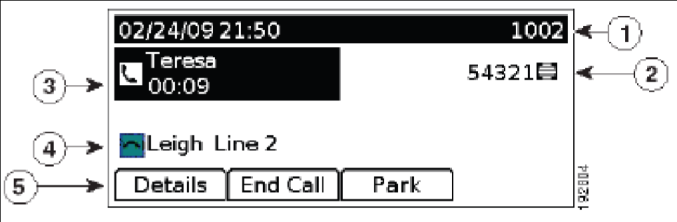
1 Cisco IP Phone 6941 Cisco IP 6941 Phone Screen 1. Header Displays date, time and extension number 2. Programmable feature button - Shows feature button programming depending on your confi guration 3. Primary extension details and other phone information Displays the extension label and other phone information such as placed calls, missed calls, placed calls, and phone menu listings 4. Programmable feature button same as 2 5. Softkey labels Dis plays softkeys for available features or actions. Issued on Page 1 of 7
2 1. Handset light strip Indicates incoming call (flashing red) or new voice mail message (steady red). 2. Phone Screen Shows information about your phone 3. Programmable feature buttons Depending on how your system administrator sets up the phone, programmable feature buttons provide access to: Phone lines Speed-dial numbers Call features Buttons illuminate to indicate status: Green, steady Active call Green, flashing Held call Amber, flashing Incoming call Red, steady Shared line in use Red, flashing Shared line on hold 4. Softkey buttons Enables softkey options on your phone 5. Transfer button Transfers a call 6. Conference button Creates a conference call 7. Hold button Places an active call on hold 8. Navigation bar and Select button Navigation bar allows you to scroll through menus and highlight items. When phone is on hook, displays calls from your Placed Call listing (up arrow) or speed dials (down arrow). The Select button (button with square) allows you to select a highlighted item. 9. Headset button Toggles the headset on or off. When headset is on, the button is lit. 10. Speakerphone button Toggles the two way speakerphone on or off. When speakerphone is on, button is lit. 11. Keypad Allows you to dial numbers, enter letters and select menu items (by entering the item number). 12. Mute button Toggles the microphone on or off. When microphone is muted, button is lit. 13. Volume button Controls the handset, headset, and speakerphone volume (off hook) and ringer volume (on hook) 14. Messages button Auto-dials your voice messaging system 15. Applications button Opens/ closes the Application menu. Use it to access call history, user preferences, phone settings and phone model information. 16. Contacts button Open/ closes the Directories menu. Uses it to access personal and corporate directories. 17. Handset/ Receiver Phone handset/ receiver To transfer a call Announce to the caller you are going to transfer their call 1. Press the Transfer button. The call will go on hold. 2. Dial the extension you wish to transfer to 3. Announce the call. (To return to the caller, if there is no answer, or the extension you require is busy. Press the End Call softkey and then press Resume softkey). 4. Press the Transfer button or the Transfer softkey 5. Replace the receiver To make an inquiry call Whilst you are having a telephone conversation 1. Press the Transfer button. The person you were talking to will be put on hold. 2. Dial the required extension number and speak to your colleague 3. To toggle between the calls press the Swap softkey. Your colleague will go on hold and vice versa each time you press Swap. Issued on Page 2 of 7
3 4. To return to the caller once your colleague has answered your inquiry, or if there is no answer, or the extension you require is busy. If your colleague does not hang up, press the End Call softkey and then press the Resume softkey. To put a call on hold Announce to the caller you are going to them on hold 1. Press Hold button 2. To retrieve the call press the Resume softkey To Pick Up a call for a colleagues extension 1. Lift the receiver 2. Press the PickUp softkey Please note: Your extensions must be in a Pick Up Group to use this feature - To create a Pick Up Group or to change the member extensions, please contact your telecoms rep. To Divert a call Redial [Redial] Press the Divert softkey to send an active, ringing or held call to your voic or to a predetermined extension (set up by your system administrator. Press the Redial softkey to redial the last telephone number you dialed. How to use/ pick up a Monitor/ Pick Up button On a Cisco IP 6941 Phone you can have the spare Programmable feature buttons (see 3 on the diagram above) programmed up as a Monitor/ Pick Up button which illuminates (and rings if requested). To request a Monitor/ Pick Up button please contact your Telecoms Rep. who will need to place an order for a software change. To answer a Monitor/ Pick Up call When the Programmable feature button is flashing amber (and ringing if set up to ring) 1. Lift the receiver 2. Press the feature button which represents your colleague To transfer a Monitor/ Pick Up call Announce to the caller you are going to transfer their call 1. Press the Transfer button. The call will go on hold. 2. Press the feature button which represents your colleague. If the button is lit up red it means your colleague is on the phone, so if you transfer the call it will go to their voic if they have voic . 3. Announce the call. (To return to the caller, if there is no answer, or the extension you require is busy. Press End Call softkey and then press Resume softkey). 4. Press the Transfer button 5. Replace the receiver Issued on Page 3 of 7
4 Directories Service currently not available Call History Call History allows you to view information about the last 150 calls on your phone. A call icon is displayed to indicate the type of call: Received Placed Missed View Call History 3. Press the Exit softkey to exit Filter Call History 3. To sort by missed calls, press the Missed softkey 4. To view all calls in the Call History List, press the All Calls softkey 5. Press the Exit softkey to exit Dial From Call History 3. Navigate to relevant call using Navigation bar 4. Press the Select button (centre of Navigation bar with square on it) or press the softkey Call Please note: For Missed Calls and Received Calls you must prefix the external call entry you chose to dial (by pressing EditDial) with a 9 or 7 otherwise the first digit the system will dial is 0 which will take you to Voice Activated Assistant (VAA) and then the Imperial College operator. Also, it is not possible to ring telephone numbers which start 44/ 54 as these are incoming calls across campuses. Clear Call History 3. Press the More softkey 4. Press the Clear softkey Issued on Page 4 of 7
5 Delete Call Record From Call History 3. Press the More softkey twice 4. Press the Del Call softkey To Make a Conference Call 1. Lift receiver/ press the Speaker button if you want the call to be on two way loud speaker. 2. Dial the first conference delegate. If it is an external call remember to prefix your call with a Press Conference button and the first call will go on hold. 4. Dial the second delegate and let them answer. 5. Press or the Conf softkey and all calls will be connected 6. Repeat steps 3 to 6 until you have all the delegates in the call Please note: The destination to which you can conference in is limited by the class of service the extension has. The max number is 8 Messages If you do not have Unified Messaging when you press, nothing will happen. To request Unified Messaging please contact your Telecoms Rep. To access Unified Messenger 1. Press 2. The system will then say You are connected to Microsoft Exchange, Name (if you have already set up your voic box ) please enter your pin then press the # key 3. Enter your pin and press the # key 4. The system will then say You have X new voice message and X new message. Main menu to listen to your voic messages say voic ... you just then follow the prompts. How to change your ring tone 1. Press Applications button 2. Select Preferences. (Use the Navigation bar and button to scroll and 3. Select Ringtone 4. Select a ringtone 5. Press the Play softkey to hear a sample of the ringer tune 6. Press the Set softkey to select the ringtone 7. Press the Apply softkey to confirm your selection or press the Cancel softkey to go back to the ringtone screen Issued on Page 5 of 7
6 8. Press the softkey to return to the Preferences screen How to change you the volume of the handset, headset or ringer To adjust the handset/ headset volume 1. Lift the receiver/ press the so the button is lit up 2. Use the Volume + and - button until the volume is at an acceptable level 3. Hang up receiver/ / press the so the button is not lit up To adjust the ringer volume Use the black up and down buttons nearest to where you put the How to change the contrast of the screen handset receiver until the volume is at an acceptable level 1. Press Applications button 2. Select Preferences. (Use the Navigation bar and button to scroll and 3. Select Contrast 4. Set the contrast to the level you prefer. (Use the Navigation bar s up and down buttons to adjust the contrast.) 5. Press the Save softkey Do Not Disturb [DND] To Activate the Do Not Disturb (i.e. stop the phone ringing) 1. Press DND Screen will change and display DND is on To Deactivate the Do Not Disturb (i.e. allow the phone to ring) 1. Press DND Screen will change and display DND is off briefly before returning to the default screen For the College Dial 0 (Externally (020) ) Switchboard All internal calls for the Imperial College switchboard (by dialing 0) will be answered by the Interactive Voice Response (IVR). To get to the operator when the IVR answers, press 0 again or say Operator. Issued on Page 6 of 7
7 To log a fault Dial (Externally (020) ) Please have the following details ready: Extension which has fault Socket Reference Location of the faulty Extension (i.e. room number, building and campus ) Alternative Contact number To place a telecom works/ mobile/ Blackberry/ Billing change order Please contact your telecom rep. Issued on Page 7 of 7
Guide to using your CISCO IP 7945 phone at Imperial College London
 Cisco IP Phone 7945 To transfer a call To make an inquiry call Announce to the caller you are going to transfer their call 1. Press the Transfer button. The call will go on hold. 2. Dial the extension
2 Session buttons. 1 Phone Screen
 1 Phone Screen 2 Session buttons Shows information about your phone, including directory number (extension), call information (for example caller ID, icons for an active call or call on hold) and available
Quickstart Guide. Cisco IP Phone 7800 Series
 Quickstart Guide Cisco IP Phone 7800 Series Cisco IP Phone 7800 Series Features 1 2 1) Handset light strip 17 16 15 14 3 4 5 6 7 8 9 10 11 2) Phone screen 3) Softkey button 4) Navigation and select button
Cloud Voice Service Cisco Unified IP Phone 6921 User Guide. (Version 1.0)
 Cisco Unified IP Phone 6921 User Guide (Version 1.0) Table of Content 1 Phone Set Features and Functions... 3 1.1 Operation for IP Phone 6921... 3 2 Location of Control... 4 3 Preference Setup... 6 3.1
Napa Valley College Cisco Telephone User Guide
 Napa Valley College Cisco Telephone User Guide Button Legend 1 Programmable buttons Depending on configuration, programmable buttons provide access to: Phone lines (line buttons) Speed-dial numbers (speed-dial
Cisco Unified IP Phone 6945 User Guide for Cisco Unified Communications Manager Express Version 8.8 (SCCP)
 Cisco Unified IP Phone 6945 User Guide for Cisco Unified Communications Manager Express Version 8.8 (SCCP) First Published: July 22, 2011 Last Modified: July 22, 2011 Americas Headquarters Cisco Systems,
Cisco VoIP 8961/9951/9971 Phones Reference Guide ICIT Technology Training and Advancement [email protected]
 Cisco VoIP 8961/9951/9971 Phones Reference Guide ICIT Technology Training and Advancement [email protected] Updated on 8/1/2014 TABLE OF CONTENTS Phone Overview... 4 Phone Terms... 5 Operating Your Phone...
7971 Basic Phone Overview
 7971 Basic Phone Overview 1 Programmable buttons Configurable buttons that provide access to various phone features 2 Footstand button Allows you to adjust the angle of the phone base. Awakens the touchscreen
IP Telephony. United Nations Office at Geneva
 IP Telephony United Nations Office at Geneva Cisco IP Phone 8945 Summary Summary 1 Phone screen Shows information about your phone, including directory number, call information (for example caller ID,
Cisco Unified IP Phone User Guide for Cisco Unified Communications Manager 8.5 (SCCP and SIP)
 Cisco Unified IP Phone User Guide for Cisco Unified Communications Manager 8.5 (SCCP and SIP) For Cisco Unified IP Phone 6921, 6941, 6945, and 6961 Americas Headquarters Cisco Systems, Inc. 170 West Tasman
Cisco Phone Overview. Voicemail: Internal Hit messages (Envelope) button or dial 10000
 Cisco Phone Overview Providence School Department extensions are 5 digits. Dial 8 to place an outside call. Voicemail: Internal Hit messages (Envelope) button or dial 10000 To place a call, choose one
CISCO IP 7962 Series QUICK REFRENCE
 CISCO IP 7962 Series QUICK REFRENCE 1. Programmable Buttons 2. Phone Screen 3. Foot stand Button 4. Messages Button 5. Directies Button 6. Help Button 7. Settings Button 8. Services Button 9. Volume Button
Setting up & using your IP Telephone
 Setting up & using your IP Telephone Version: 1.8 Last Edited: 09/02/15 Welcome to your new IP Telephone! In order to help you get acquainted with your new phone this helpsheet provides a basic description
IP Phone 7941/7961 User Manual
 IP Phone 7941/7961 User Manual IP Phone User Manual IP Phone User Manual...2 IP Phone Introduction...3 Setting Up Your IP Phone...3 Locating Buttons and Hardware...5 Using Help on Your Phone...7 Choosing
Using the Cisco IP Phone System
 Using the Cisco IP Phone System Chapter 0 The Cisco IP Phones 7970 and 7960G are full-feature telephones that provide voice communication over the same data network that your computer uses, allowing you
Welcome! Cisco 8945 End User Training
 Welcome! Cisco 8945 End User Training Welcome Instructor: Name Schedule: One hour and fifteen minutes Phone Orientation Call Handling Features Voice Mail Reference Cards Conversion: Date and Details Cell
End User Phone Training 7945/7965 Reference Guide
 End User Phone Training 7945/7965 Reference Guide Page 1 Navigation (Scroll) The user may display his/her last calls out using the blue navigation button. Please note that the phone handset will display
How To Use A Cisco Phone On A Cell Phone On An Ipod Or Ipod (For A Cell) On A Pc Or Ipo (For An Ipo) On An Iphone Or Ipok (For Pc Or Mac)
 Cisco IP Communications Solutions End User Training Course Outline Introducing your IP phone Using common telephone features Using telephone feature buttons Voicemail Cisco 7942 Model This full-featured
CISCO SMALL BUSINESS PRO IP PHONE
 CISCO SMALL BUSINESS PRO IP PHONE For Models: SPA501G, SPA502G, SPA504G, SPA508G, and SPA509G Business Communications Solutions 9910 Irvine Center Drive Irvine, CA 92618 www.bcsconsultants.com [ m ] 949.333.1000
Cisco VoIP 8941/8945 Phones Reference Guide ICIT Technology Training and Advancement [email protected]
 Cisco VoIP 8941/8945 Phones Reference Guide ICIT Technology Training and Advancement [email protected] Updated on 7/31/2014 TABLE OF CONTENTS Phone Overview... 4 Phone Terms... 5 Operating Your Phone...
Welcome to Cisco s IP Telephony Phone and Voice Mail Training
 Welcome to Cisco s IP Telephony Phone and Voice Mail Training Last Updated: June 2010 Features and Benefits Full-feature Telephone Provides voice communication over your Data network Phone number moves
Cisco Unified IP Phone User Guide for Cisco Unified Communications Manager 8.5 (SCCP and SIP)
 Cisco Unified IP Phone User Guide for Cisco Unified Communications Manager 8.5 (SCCP and SIP) For Cisco Unified IP Phone 6921, 6941, 6945, and 6961 Americas Headquarters Cisco Systems, Inc. 170 West Tasman
Quick Reference Guide
 Dialing Plan Fill in these important numbers for your dialing plan. Cisco IP 8941/8945 Phone for ADP Network Phone Enterprise Quick Reference Guide Number Description My Direct Dial or Extension Operator/Attendant
CISCO IP PHONE 6945 Series User Guide
 CISCO IP PHONE 6945 Series User Guide Notes Page 15 VOICE MAIL Setting up Voice Mail for the First Time: Press the messages key on your phone. Follow the recorded instruction to record your name, record
TABLE: The 2420 Telephone Components
 2420 Telephone TABLE: The 2420 Telephone Components 1. Display, Call Appearance and Feature buttons: Call Appearance Keys allow the user to handle multiple calls and the display shows call information.
Cisco 8851. Dial Plan. Feature and Session Buttons. Your Phone
 Cisco 8851 Dial Plan Internal Calls: Dial 5-digit extension External Calls: Domestic/Local: 9+1 Area Code + Number Int l: 9+011+Country Code + Number Emergency: 9+911 or 911 Your Phone 1. Incoming call
Cisco Unified Communications System End-User Guide
 Cisco Unified Communications System End-User Guide Version 1.0 Revised July 25, 2012 Customized for Neptune School District Note: Information in this document is drawn from Cisco documentation. These guides
1. Primary Phone Line 2. Programmable Button Indicators 3. Soft Key Labels 4. Status Line 5. Call Activity Area 6. Phone Tab 7.
 CISCO IP 7975 Series QUICK REFRENCE 1. Programmable Buttons 2. Foot stand Button 3. Display Button 4. Messages Button 5. Directies Button 6. Help Button 7. Settings Button 8. Services Button 9. Volume
Cisco IP Phone 7941 and 7961 User Guide
 Cisco IP Phone 7941 and 7961 User Guide Depending on configuration, programmable buttons provide access to: Phone lines (line buttons) Speed-dial numbers (speed-dial buttons) 1 The buttons illuminate to
1608 PHONE INSTRUCTIONS FOR IP OFFICE. 1 Proprietary to CPCS 1608 Document
 1 Proprietary to CPCS 1608 Document CALL HANDLING FEATURES PLACING A CALL To Place an Outside Call Lift the handset and dial the number. To place a call using a headset, press the Headset button and dial
Cisco Unified Communications System End-User Guide
 Cisco Unified Communications System End-User Guide Version 1.0 Revised 11/19/2012 Customized for East Orange School District Note: Information in this document is drawn from Cisco documentation. These
State of Illinois Central Management Services. Training provided to you by Netech Corporation
 State of Illinois Central Management Services Training provided to you by Netech Corporation The phone Basic Calling Functions Making calls, transferring calls Features Call Logs, Corporate Directory Video
Cisco Unified IP Phone 6921
 Cisco Unified IP Phone 691 The Cisco Unified IP Phone 691 provides these features: Phone connections Buttons and hardware Phone screen Footstand Handset rest Audio and Sound Level Volume Control Phone
Quick Start Guide (79xx Series Offices)
 Quick Start Guide (79xx Series Offices) Congratulations on your new phone!! GCSD has upgraded the entire phone system to a modern VOIP (voice over Internet Protocol) system. The biggest things to be aware
Using Basic Call Management Functions
 Using Basic Call Management Functions This chapter provides instructions on using your basic phone functions. It includes the following sections: Managing the Audio Source and Volume, page 28 Answering
Quick Start Guide Cisco 7912 IP Telephone
 Quick Start Guide Cisco 7912 IP Telephone Contents: Cisco 7912 IP Phone Feature and Key Overview...3 Basic Features...5 Installing the IP Phone and Connecting to the Network...5 Placing a Call...5 Answering
VoIP Handset User Manual. Digital Voice Quality Business Grade Handset Easy Plug & Play
 Digital Voice Quality Business Grade Handset Easy Plug & Play Table of Contents 1.0 Getting Started... 1 1.1 Unpacking the box... 1 1.2 Assembling the Phone... 2 2.0 Phone Button Features... 3 3.0 Phone
Cisco Unified IP Phone User Guide for Cisco Unified Communications Manager 8.6 (SCCP and SIP)
 Cisco Unified IP Phone User Guide for Cisco Unified Communications Manager 8.6 (SCCP and SIP) For Cisco Unified IP Phone 6921, 6941, 6945, and 6961 Americas Headquarters Cisco Systems, Inc. 170 West Tasman
For customers in AL, FL, GA, KS, SC, TN. wowforbusiness.com MATRIX USER GUIDE. For Cisco SPA504 & SPA509 IP Phones MGCP.U.1304.O
 wowforbusiness.com MATRIX USER GUIDE For Cisco SPA504 & SPA509 IP Phones MGCP.U.1304.O Matrix User Guide Table of Contents Getting Started...3 CommPortal...3 Support...3 Understanding Your Phone s Lines
St. Paul Public Schools. IP Phone Quick Reference Guide
 St. Paul Public Schools IP Phone Quick Reference Guide Phone Operations Place a Call Internal call: dial the 5-digit extension number External call: dial 9 + the number Pick up the Handset, press the line
Training Guide for Cisco IP Phones 7940/7960
 Training Guide for Cisco IP Phones 7940/7960 LCD Display Indicator Light Foot Stand Adjustment Line Keys Soft Keys Navigation button 1 2 3 4 5 6 7 8 9 * 0 # i Menu buttons Volume Control Sound Control
Information Systems Cisco 7940/7942 IP Phone Quick Reference Guide
 Information Systems Cisco 7940/7942 IP Phone Quick Reference Guide Contents Page: Cisco 7940/7942 IP Phone Quick Reference Guide Contents 2 Introduction 3 Phone Overview 3 How Do I: 4 Place a Call? 4 Put
Polycom VVX410. Full user guide. Gamma, Kings House, Kings Road West, Newbury, Berkshire RG14 5BY
 Polycom VVX410 Full user guide Contents Contents... 2 Introduction... 4 How to set up the Polycom VVX410... 5 Phone Keys and Hardware... 6 Using your phone... 7 Home view... 7 Lines View... 8 Calls View...
Information Systems Cisco 7965 IP Phone Quick Reference Guide
 Information Systems Cisco 7965 IP Phone Quick Reference Guide Contents Cisco 7965 IP Phone Quick Reference Guide Contents Page 2 Introduction 3 Overview of Phone 3 How Do I: 4 Place a Call? 4 Put a Call
Cisco IP Phone Training
 Cisco IP Phone Training TRAINING OVERVIEW Cisco IP Phone & Agent Training Cisco IP Phone 7821, 8831, 8851 Call Control Features Button review User Options How is my phone connected? Voicemail Cisco IP
Cisco VoIP 79XX Phones Reference Guide ICIT Technology Training and Advancement [email protected]. Updated on 7/11/2014
 Cisco VoIP 79XX Phones Reference Guide ICIT Technology Training and Advancement [email protected] Updated on 7/11/2014 1 TABLE OF CONTENTS 2 Phone Overview... 4 2.1 Phone Terms... 5 3 Operating Your Phone...
Cisco Unified IP Phone User Guide for Cisco Unified Communications Manager 8.5 (SCCP and SIP)
 Cisco Unified IP Phone User Guide for Cisco Unified Communications Manager 8.5 (SCCP and SIP) For Cisco Unified IP Phone 8941 and 8945 Americas Headquarters Cisco Systems, Inc. 170 West Tasman Drive San
Cisco SPA 500 Series IP Phones
 Cisco SPA 500 Series IP Phones Cisco Small Business Pro SPA 500 Series IP Phones Models 502G, 504G, 508G, and 509G Cisco SPA 500 Series IP Phones User Guide 1 P age Table of Contents Getting Started...
Polycom IP321 User Guide
 Polycom IP321 User Guide Polycom IP320 Layout Graphical LCD LED Indicator Hook switch Context Sensitive Soft Keys Line 1 Key Hands Free Speaker LED Indicators Dial Key Menu Key Navigation Keys Line 2 Key
Quick Start Guide Cisco 7940/7960 IP Telephone
 Quick Start Guide Cisco 7940/7960 IP Telephone Contents: Cisco 7960/7940 IP Phone Feature and Key Overview...2 Basic Features...5 Installing the IP Phone and Connecting to the Network...5 Adjusting the
AVAYA 9608 & 9611G IP DESKPHONE INSTRUCTIONS
 AVAYA 9608 & 9611G IP DESKPHONE INSTRUCTIONS 1 MESSAGE WAITING INDICATOR PHONE DISPLAY NAVIGATION ARROWS and the OK BUTTON PHONE BUTTON MESSAGE BUTTON CONTACTS HISTORY HOME HEADSET SPEAKER VOLUME BUTTON
How To Use A 9608 Phone On A Cell Phone On Sim Sims 2 (Satellite) On A Sims 3 (Cell Phone) On An Iphone Or Ipad Or Ipa 2 (Cellphone) On Sims 4
 AVAYA 9608 SIP DESKPHONE INSTRUCTIONS MESSAGE WAITING INDICATOR YOUR PHONE 9608 PHONE INSTRUCTIONS If there are messages in your Avaya Voice Mailbox, the light on the top right corner of your telephone
Cisco Unified IP Phone User Guide for Cisco Unified Communications Manager 8.5 (SCCP and SIP)
 Cisco Unified IP Phone User Guide for Cisco Unified Communications Manager 8.5 (SCCP and SIP) For Cisco Unified IP Phone 8941 and 8945 Americas Headquarters Cisco Systems, Inc. 170 West Tasman Drive San
Using Your New Cisco VOIP Phone STANFORD UNIVERSITY INFORMATION TECHNOLOGY SERVICES
 Using Your New Cisco VOIP Phone Agenda Getting to know your IP phone Cisco 8961, 9951 Review the basics and learn about special features Soft Keys Login/Logoff Free Conference Calling Ring tones and images
APTECH IP-PBX QUICK USER S GUIDE. Accounts and Lines
 APTECH IP-PBX QUICK USER S GUIDE Accounts and Lines From a Phone In Off-hook state, select an idle line and dial tone will be heard, or without picking a specific Line start dialing any number and at the
Cisco IP Phone 7960G and Cisco IP Phone 7940G for Cisco IOS Telephony Services
 CHAPTER 1 Cisco IP Phone 7960G and Cisco IP Phone 7940G for Cisco IOS Telephony Services Button Legend The Cisco IP Phone 7960G and the Cisco IP Phone 7940G differ only in the number of available line
Cisco 504 IP Phone. Quick User guide. Produced by: The Nomis Support Desk. [email protected]
 Cisco 504 IP Phone Quick User guide Produced by: The Nomis Support Desk 0844 880 0018 [email protected] Nomis Connections, Connections House, 11a Kings Road, Fleet, Hampshire, GU51 3AA 0844
Cisco IP Phone Training 8/26/15
 Cisco IP Phone Training 8/26/15 Using your Phone This document will provide information on the following: Introduce you to your phone Place, transfer, forward, park and pick up a call Set voice mail passwords
9608/9611 IP Phone User Guide
 CTI INSIGHT www.cons ol tech.com 9608/9611 IP Phone User Guide Answering and Making Calls Placing a call Lift the handset and dial the number. Answering a call Lift the handset If you are using a headset,
Training Guide For 7960 & 7940 Series Cisco IP Phones
 Training Guide For 7960 & 7940 Series Cisco IP Phones Prepared by: Corporate Technologies, LLC 2000 44 th Street SW, Suite 100 Fargo, ND 58103 (701) 893-4000 1 Table of Contents: Section I: GETTING STARTED
Cisco IP Phone Models 7941 and 7945 Quick Reference Guide December 23, 2011
 Emergency Calls Dial 911 or 3 911 Cisco IP Phone Models 7941 and 7945 Quick Reference Guide December 23, 2011 Place a Call Lift handset (or press the Speaker button, the line button, or New Call soft key)
Avaya 9608 IP Phone Quick Reference User Guide
 Avaya 9608 IP Phone Quick Reference User Guide The phone supports 24 programmable call appearance/feature buttons. The labels for these are displayed in the main display and can be controlled by the adjacent
USER GUIDE. Cisco Small Business Pro. SPA 500 Series IP Phones Models 504G, 508G, and 509G. Provided by
 USER GUIDE Cisco Small Business Pro SPA 500 Series IP Phones Models 504G, 508G, and 509G Provided by Understanding Your Phoneʼs Lines and Buttons Use the following graphic and table to identify the parts
Cloud Voice Service. Cisco Unified IP Phone 7942G User Guide. (Version 1.0)
 Cisco Unified IP Phone 7942G User Guide (Version 1.0) Table of Content 1. Phone Set Features and Functions... 2 1.1 Operation for IP Phone 7942G... 3 1.2 Adjusting the Height of the Footstand... 4 2. Preference
Polycom 2-Line Desk Phone Quick Reference Guide
 Polycom 2-Line Desk Phone Quick Reference Guide ACC-1142 PUG Table of Contents INTRODUCTION TO YOUR POLYCOM 2-LINE DESK PHONE... 2 WELCOME... 2 DESK PHONE... 2 HOW TO USE YOUR POLYCOM 2-LINE DESK PHONE...
Cloud Voice Service Remote Extension for Cisco Unified IP Phone 7942G User Guide
 Cloud Voice Service Remote Extension for Cisco Unified IP Phone 7942G User Guide (Version 1.0) Table of Content 1. Phone Set Features and Functions... 2 1.1 Setup the IP Phone... 3 1.2 Adjusting the Height
IP Phone Training. University Information Technology Services. uits.arizona.edu. Revised 05-26-2010
 IP Phone Training Revised 05-26-2010 Know Your IP Phone 1) Line/speed dial buttons 2) Foot stand adjustment 3) Display button 4) Voice Mail button 5) Directories button 6) Help button 7) Settings button
2 line (1 symbol, 1 display) / 16 character display
 Aastra Office 60 & 60IP Overview of the phone 2 line (1 symbol, 1 display) / 16 character display Message and Phone Status LEDs Absence Redial Phone Book Loudspeaker Microphone key Volume (+ / -) Call
Overview of IP Phone. 1 Handset Pick up to place or answer a call. 2 Message Waiting Indicator
 Overview of IP Phone 1 Handset Pick up to place or answer a call. 2 Message Waiting Indicator Displays solid red when you have a new voice mail message. Flashes red during an incoming call. 3 LCD Screen
This chapter describes the features of the Cisco Unified IP Phone 6921, 6941, 6945, and 6961.
 This chapter describes the features of the Cisco Unified IP Phone 69, 694, 6945, and 696. Cisco Unified IP Phone 69 The Cisco Unified IP Phone 69 provides these features: Phone connections Buttons and
IP Phone System: Cisco 7960G and 7940G
 IP Phone System: Cisco 7960G and 7940G Table of Contents: IP Phone System 7940G and 7960G CISCO IP PHONE ROAD MAP...1 NAVIGATE THE PHONE SYSTEM AND USE THE LCD SCREEN...2 SOFT KEYS... 2 USE THE NAVIGATION
Featuring the Vertical Xcelerator IP Phone System DESK PHONE USER GUIDE V1.5
 Featuring the Vertical Xcelerator IP Phone System DESK PHONE USER GUIDE V1.5 For Service Purchased After May 1 st 2009 Table of Contents INTRODUCTION TO YOUR XCELERATOR DESK PHONE... 2 WELCOME... 2 XCELERATOR
Cisco IP Phone 7942 User Training Guide
 Cisco IP Phone 2 User Training Guide 1 1 Key to the Cisco 2: 1 2 = Line Buttons = Foot Adjust Button = Message Button = Mute Button = Headset Button = Volume Button = Directories Button = Help Button =
TABLE OF CONTENTS TABLE OF CONTENTS. 1. Introduction:
 TABLE OF CONTENTS TABLE OF CONTENTS 1. Introduction: General... 4 Telephone Layout... 4 Key Definitions... 5 IP Telephone Log In/Out Hot Desking... 16 Speed Dial Programming Personal or Station... 17 Speed
Cisco IP Phone Training. covers Cisco 7945 & 7965 model phones and general phone usage
 Cisco IP Phone Training covers Cisco 7945 & 7965 model phones and general phone usage Topics Phone Contents for Cisco 7945 and Cisco 7965 Placing, Answering, and Disconnecting Calls Using the Softkeys
How To Use A Cisco Phone With A Cell Phone On A Small Business Ip Phone (Pa300) Or A Small Cell Phone (Ppa500) With A Microsoft Ip Phone (Spa500) On A Business Plan (Small Business)
 USER GUIDE Cisco Small Business Cisco SPA300 Series and SPA500 Series IP Phones with Cisco Unified Communications UC320W Phone Models: SPA301, SPA303, SPA501G, SPA502G, SPA504G, SPA508G, SPA509G, SPA525G,
NEC SV8100 Telephone System User Guide (for SV8100 12-button and 24-button phones with CAP/PARK keys)
 NEC SV8100 Telephone System User Guide (for SV8100 12-button and 24-button phones with CAP/PARK keys) KEYS AND BUTTONS ON YOUR PHONE Incoming Call/Message Waiting indicator light Flashes red quickly when
User Guide for Cisco Unified IP Phones 7961G and 7941G
 User Guide for Cisco Unified IP Phones 7961G and 7941G Common Phone Tasks Softkey Definitions View online help on the phone Press. Place a call Redial a number Switch to the handset during a call Switch
Polycom IP331 User Guide
 Polycom IP331 User Guide 1 Introducing your Polycom IP331 Phone A Polycom IP Phone is a full feature telephone that provides voice communication over an IP (Internet Protocol) network. This phone functions
Your Phones Display and Buttons. Using Your Phone. Personalising Your Phone. Call Handling Features
 Your Phones Display and Buttons Using Your Phone Using Line Keys Using Busy Lamp Fields Handling Missed Calls Do Not Disturb Making Calls Taking Calls Taking Multiple Calls Accessing Voicemail Personalising
Cisco IP Phone 8841 and 8845
 Cisco IP Phone 8841 and 8845 Getting Started 17 Messages button Autodials your voice messaging system (varies by system). 18 Back button Returns to the previous screen or menu. 19 Handset Phone handset.
AVAYA 9608/9611G SIP DESKPHONE INSTRUCTIONS
 AVAYA 9608/9611G SIP DESKPHONE INSTRUCTIONS MESSAGE WAITING INDICATOR PHONE DISPLAY NAVIGATION ARROWS and the OK BUTTON PHONE BUTTON MESSAGE BUTTON CONTACTS HISTORY HOME HEADSET SPEAKER VOLUME BUTTON MUTE
Hosted Phone System User Guide
 Hosted Phone System User Guide GXP-2020 Phone System GXP-2010 Phone System Agency Number: 1234 585 Lifetime Street Sunny, FL 10024 904-646-5837 Last Updated 6/25/2009 User friendly guide to using your
Faculty & Staff Quick Reference Guide to Smith College Telephone & Voicemail Systems
 Faculty & Staff Quick Reference Guide to Smith College Telephone & Voicemail Systems Table of Contents New Employees...2 Setting up Voicemail...3 - Accessing the Voicemail System - Changing your Password
Digital Handset. User Guide. General Sales Phone 1800423181 Fax 08 8234 6700. Installation and Service (office hours) Phone 1800423181
 General Sales Phone 1800423181 Fax 08 8234 6700 Digital Handset Installation and Service (office hours) Phone 1800423181 Fax 08 8234 6700 e-mail [email protected] User Guide KX-T7636AL+ KX-T7630AL
Information Systems Cisco 7945 IP Phone Quick Reference Guide
 Information Systems Cisco 7945 IP Phone Quick Reference Guide Contents Cisco 7945 IP Phone Quick Reference Guide Contents Page 2 Introduction 3 Overview of Phone 3 How Do I: 4 Place a Call? 4 Put a Call
Avaya IP Telephone How To: Basic use and features
 Avaya IP Telephone How To: Basic use and features How To: Page Log in & out of the phone 2 Use the Call Log feature 3 Use the Contacts feature 5 Use the Message feature 6 Use the Directory feature 6 Make
OneSolutions Hosted IP PBX Cisco IP Phone Training
 OneSolutions Hosted IP PBX Cisco IP Phone Training Download the Service User Guides at: http://www.onecommunications.com/knowledgecenter.aspx?id=4704 2009 One Communications. The One Communications logo
User Guide. IP Multimedia 1110, 1120, 1140 & 1150 phones
 User Guide IP Multimedia 1110, 1120, 1140 & 1150 phones Content 1. IP Phone buttons & usage 2. Logging on / off your IP Phone 3. Changing your password 4. Making a call 5. Receiving a call 6. Placing a
Basic Features. Placing a Call. Answering a Call. Ending a Call. Placing a Call on Hold. Redialing a Call. Press the Phone button. Dial the number.
 Basic Features Placing a Call Press the Phone button. Dial the number. Answering a Call Press the Phone button or the Answer softkey. The active call appears in the active call list in the LCD screen.
Hosted VoIP User Guide
 Hosted VoIP User Guide Cisco 500 series Handset Cisco 500 series handset 1 Hosted VoIP Services Welcome to GCI Hosted VoIP services. Detailed below is a basic user guide outlining the simplicity of the
Hosted PBX End User Training Guide For the Polycom Soundpoint IP 321, 331 and 335 Phone
 Hosted PBX End User Training Guide For the Polycom Soundpoint IP 321, 331 and 335 Phone HOSTED PBX END USER TRAINING GUIDE ACCESSING VOICEMAIL To retrieve your voicemail, press the Menu button, button
Quick Reference Guide for SPA9x2 Phones QUICK REFERENCE BUSINESS SERIES. Linksys IP Phone Models: SPA962, SPA942 and SPA922
 Quick Reference Guide for SPA9x2 Phones QUICK REFERENCE BUSINESS SERIES Linksys IP Phone Models: SPA962, SPA942 and SPA922 Phone Buttons and Features Handset Message Waiting Indicator LCD Screen Line Keys
Quick start guide to your IP phone
 Quick start guide to your IP phone IP Phone Model SPA 525G/ SPA 525G2 Note The features available on your phone depend on the type of system to which your phone is connected. Contact your system administrator
Model SPA 303G Quick Start Guide
 mydatavo Model SPA 303G Quick Start Guide Welcome Thank you for choosing Datavo as your business solutions provider. This guide describes how to install your phone and how to perform some basic tasks.
Vertical 4-Line Desk Phone Quick Reference Guide ACC-1145 PUG
 ACC-1145 PUG Vertical 4-Line Desk Phone Quick Reference Guide Table of Contents INTRODUCTION TO YOUR XCELERATOR DESK PHONE... 2 WELCOME... 2 DESK PHONE... 2 HOW TO USE YOUR XCELERATOR DESK PHONE... 3 Answering