
How do I configure the wireless printer using a USB or Ethernet cable and install the printer driver in Windows?
|
|
|
- Nelson Doyle
- 10 years ago
- Views:
Transcription
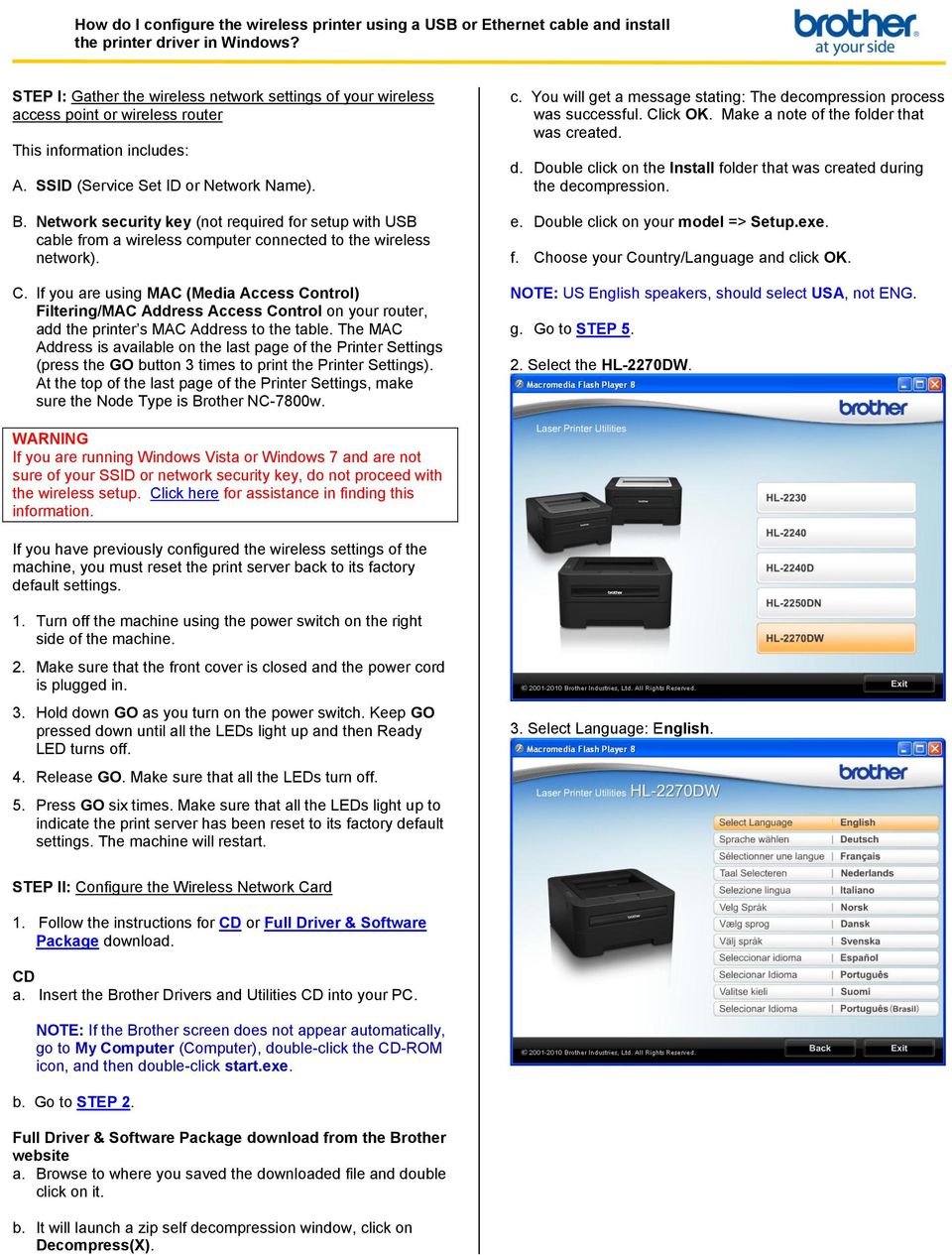
1 How do I configure the wireless printer using a USB or Ethernet cable and install the printer driver in Windows? STEP I: Gather the wireless network settings of your wireless access point or wireless router This information includes: A. SSID (Service Set ID or Network Name). B. Network security key (not required for setup with USB cable from a wireless computer connected to the wireless network). C. If you are using MAC (Media Access Control) Filtering/MAC Address Access Control on your router, add the printer s MAC Address to the table. The MAC Address is available on the last page of the Printer Settings (press the GO button 3 times to print the Printer Settings). At the top of the last page of the Printer Settings, make sure the Node Type is Brother NC-7800w. c. You will get a message stating: The decompression process was successful. Click OK. Make a note of the folder that was created. d. Double click on the Install folder that was created during the decompression. e. Double click on your model => Setup.exe. f. Choose your Country/Language and click OK. NOTE: US English speakers, should select USA, not ENG. g. Go to STEP Select the HL-2270DW. WARNING If you are running Windows Vista or Windows 7 and are not sure of your SSID or network security key, do not proceed with the wireless setup. Click here for assistance in finding this information. If you have previously configured the wireless settings of the machine, you must reset the print server back to its factory default settings. 1. Turn off the machine using the power switch on the right side of the machine. 2. Make sure that the front cover is closed and the power cord is plugged in. 3. Hold down GO as you turn on the power switch. Keep GO pressed down until all the LEDs light up and then Ready LED turns off. 4. Release GO. Make sure that all the LEDs turn off. 5. Press GO six times. Make sure that all the LEDs light up to indicate the print server has been reset to its factory default settings. The machine will restart. 3. Select Language: English. STEP II: Configure the Wireless Network Card 1. Follow the instructions for CD or Full Driver & Software Package download. CD a. Insert the Brother Drivers and Utilities CD into your PC. NOTE: If the Brother screen does not appear automatically, go to My Computer (Computer), double-click the CD-ROM icon, and then double-click start.exe. b. Go to STEP 2. Full Driver & Software Package download from the Brother website a. Browse to where you saved the downloaded file and double click on it. b. It will launch a zip self decompression window, click on Decompress(X).

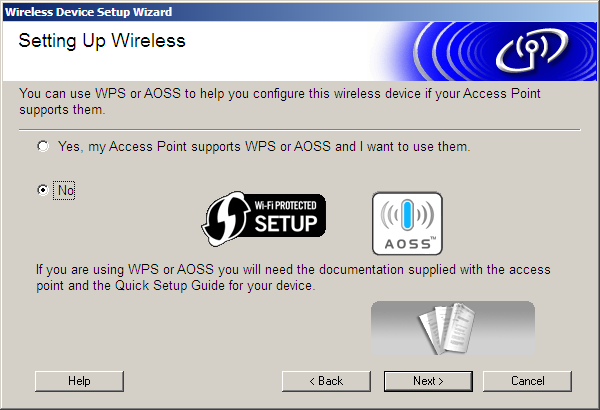
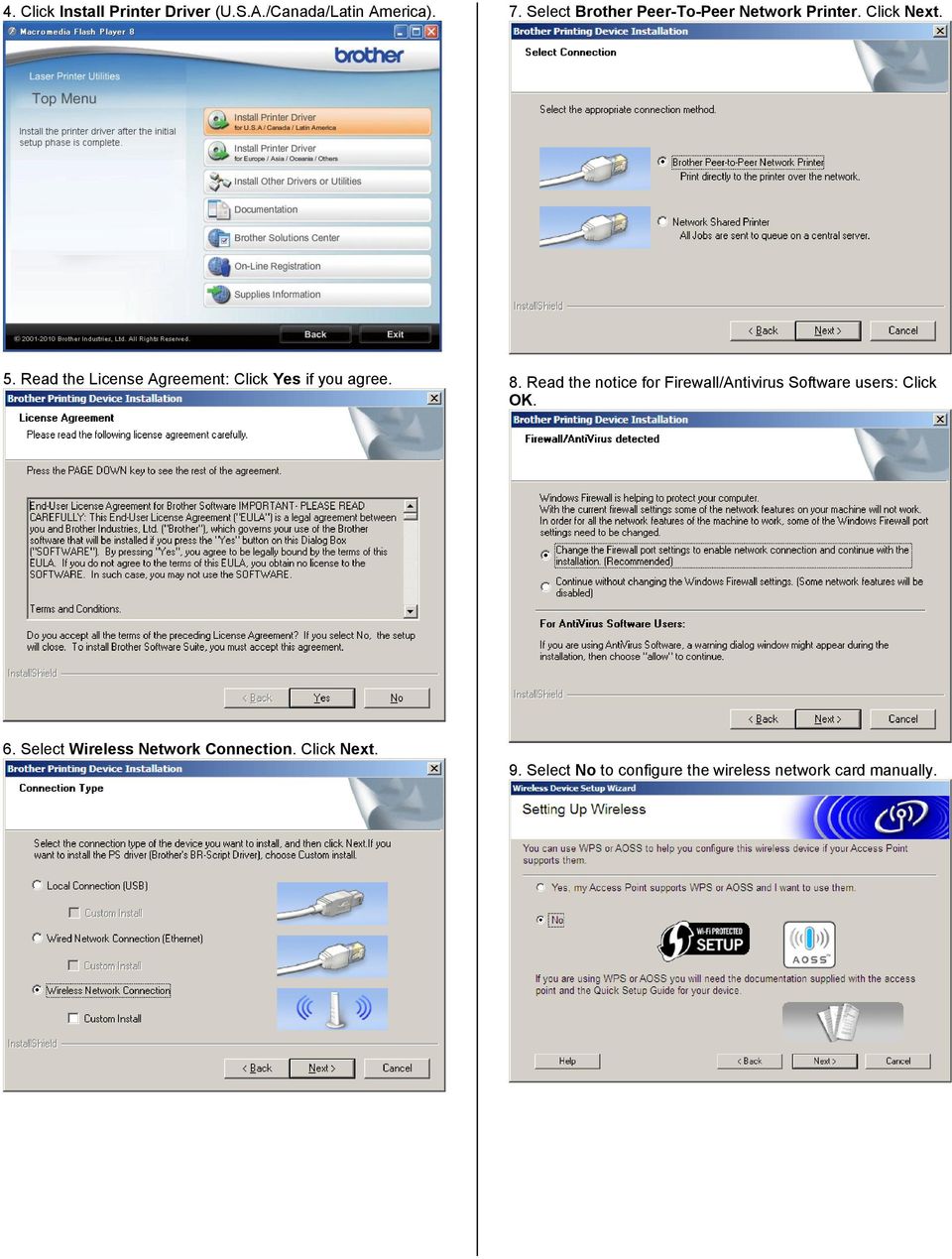
2 4. Click Install Printer Driver (U.S.A./Canada/Latin America). 7. Select Brother Peer-To-Peer Network Printer. Click Next. 5. Read the License Agreement: Click Yes if you agree. 8. Read the notice for Firewall/Antivirus Software users: Click OK. 6. Select Wireless Network Connection. Click Next. 9. Select No to configure the wireless network card manually.
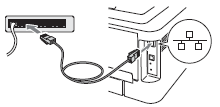

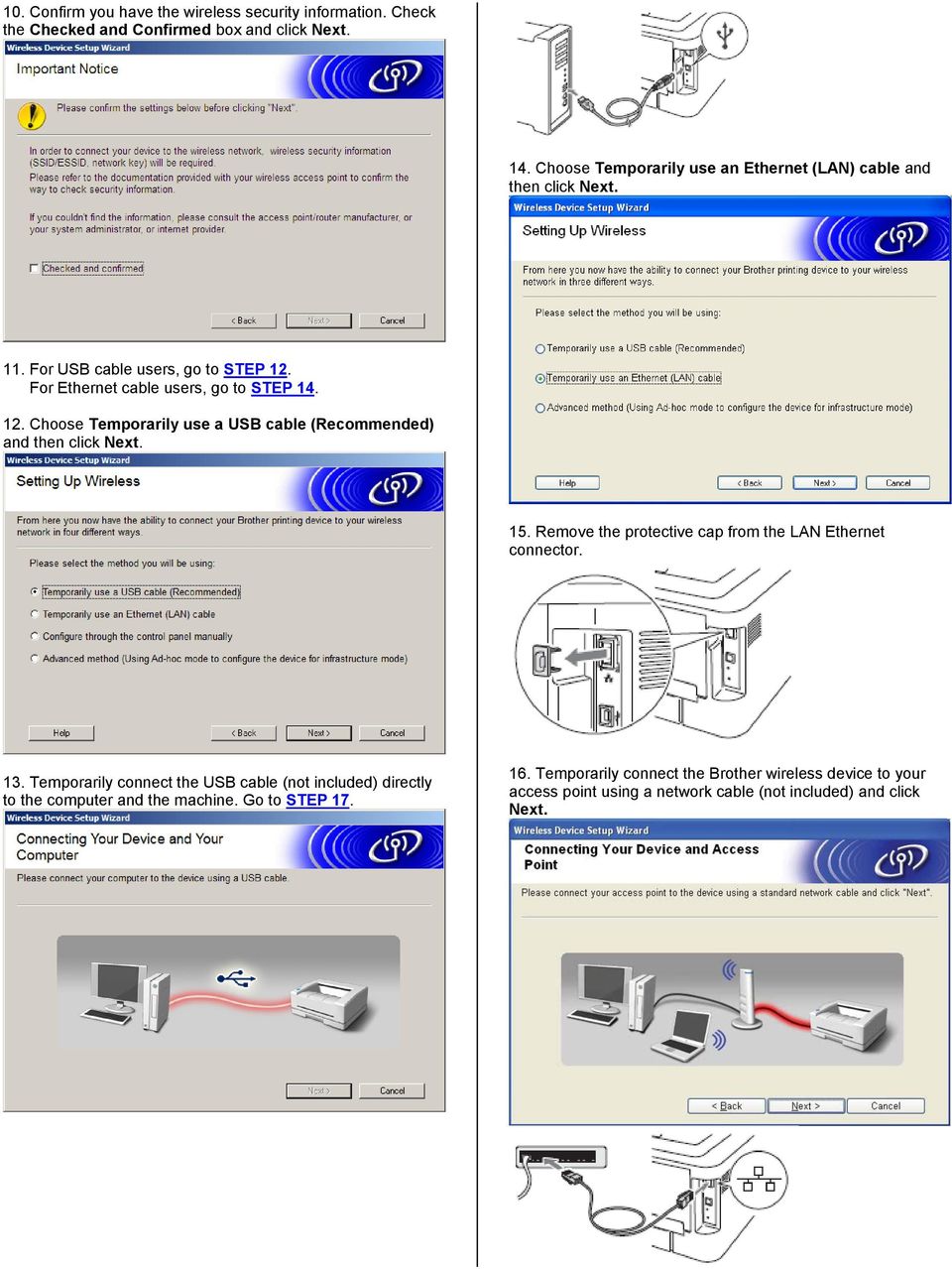
3 10. Confirm you have the wireless security information. Check the Checked and Confirmed box and click Next. 14. Choose Temporarily use an Ethernet (LAN) cable and then click Next. 11. For USB cable users, go to STEP 12. For Ethernet cable users, go to STEP Choose Temporarily use a USB cable (Recommended) and then click Next. 15. Remove the protective cap from the LAN Ethernet connector. 13. Temporarily connect the USB cable (not included) directly to the computer and the machine. Go to STEP Temporarily connect the Brother wireless device to your access point using a network cable (not included) and click Next.

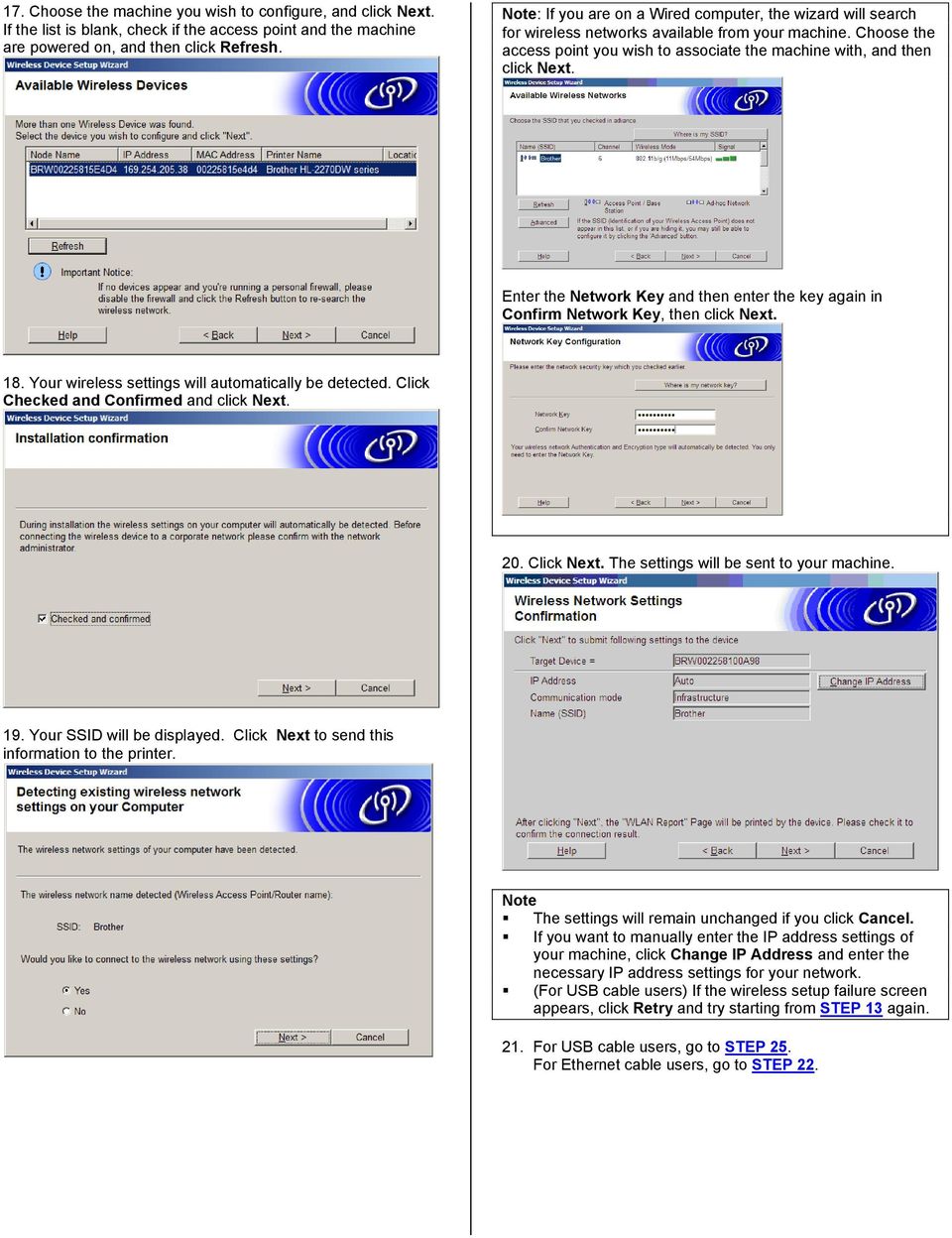
4 17. Choose the machine you wish to configure, and click Next. If the list is blank, check if the access point and the machine are powered on, and then click Refresh. Note: If you are on a Wired computer, the wizard will search for wireless networks available from your machine. Choose the access point you wish to associate the machine with, and then click Next. Enter the Network Key and then enter the key again in Confirm Network Key, then click Next. 18. Your wireless settings will automatically be detected. Click Checked and Confirmed and click Next. 20. Click Next. The settings will be sent to your machine. 19. Your SSID will be displayed. Click Next to send this information to the printer. Note The settings will remain unchanged if you click Cancel. If you want to manually enter the IP address settings of your machine, click Change IP Address and enter the necessary IP address settings for your network. (For USB cable users) If the wireless setup failure screen appears, click Retry and try starting from STEP 13 again. 21. For USB cable users, go to STEP 25. For Ethernet cable users, go to STEP 22.

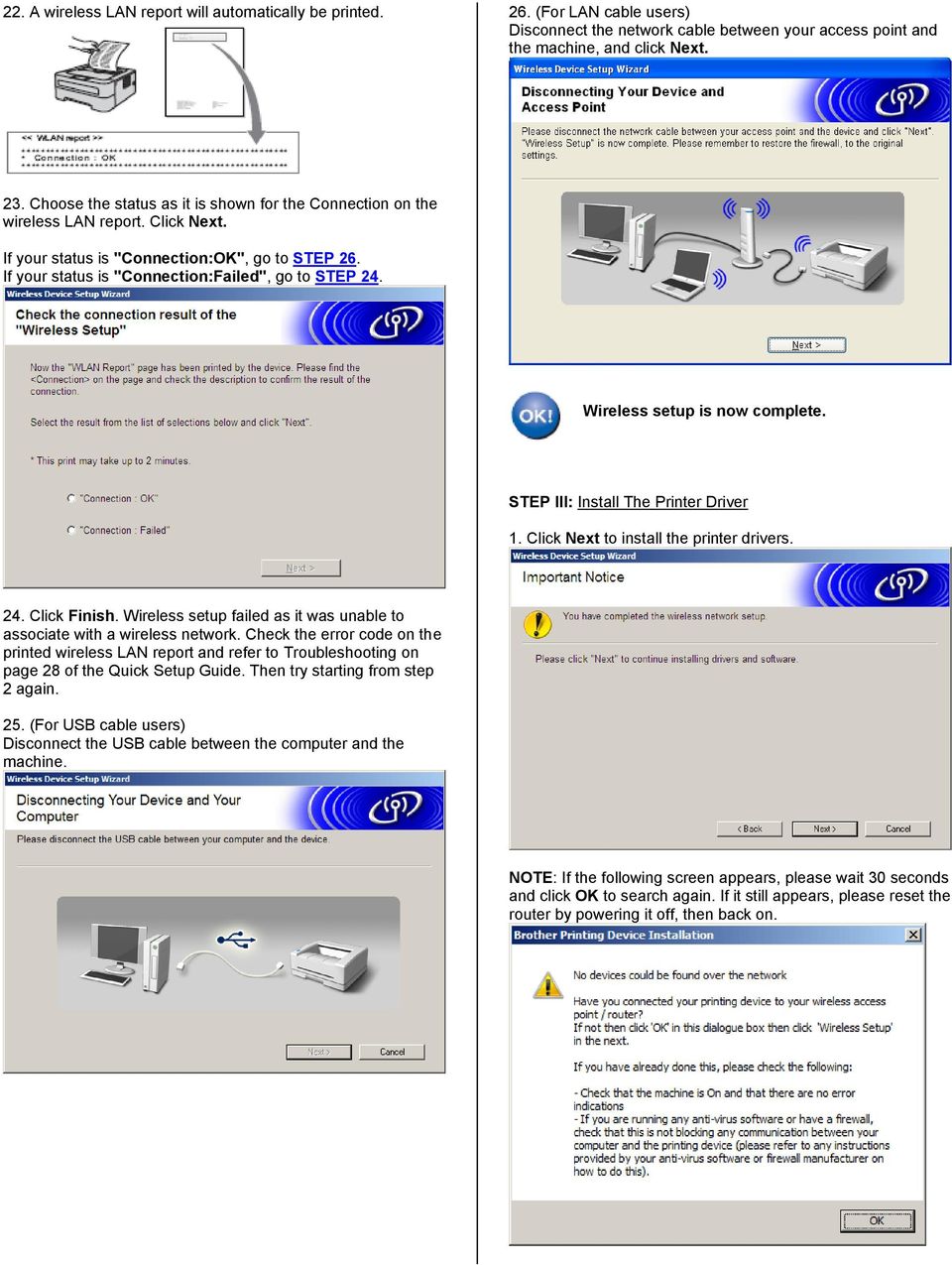
5 22. A wireless LAN report will automatically be printed. 26. (For LAN cable users) Disconnect the network cable between your access point and the machine, and click Next. 23. Choose the status as it is shown for the Connection on the wireless LAN report. Click Next. If your status is "Connection:OK", go to STEP 26. If your status is "Connection:Failed", go to STEP 24. Wireless setup is now complete. STEP III: Install The Printer Driver 1. Click Next to install the printer drivers. 24. Click Finish. Wireless setup failed as it was unable to associate with a wireless network. Check the error code on the printed wireless LAN report and refer to Troubleshooting on page 28 of the Quick Setup Guide. Then try starting from step 2 again. 25. (For USB cable users) Disconnect the USB cable between the computer and the machine. NOTE: If the following screen appears, please wait 30 seconds and click OK to search again. If it still appears, please reset the router by powering it off, then back on.
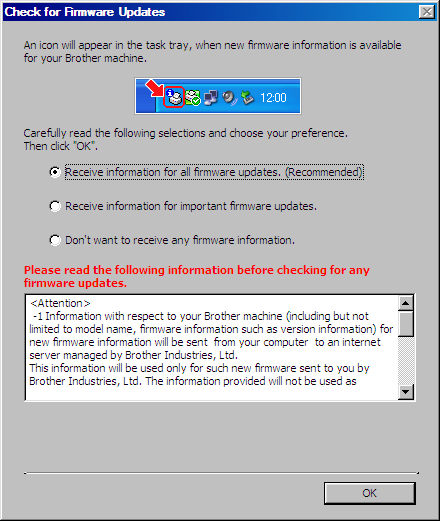
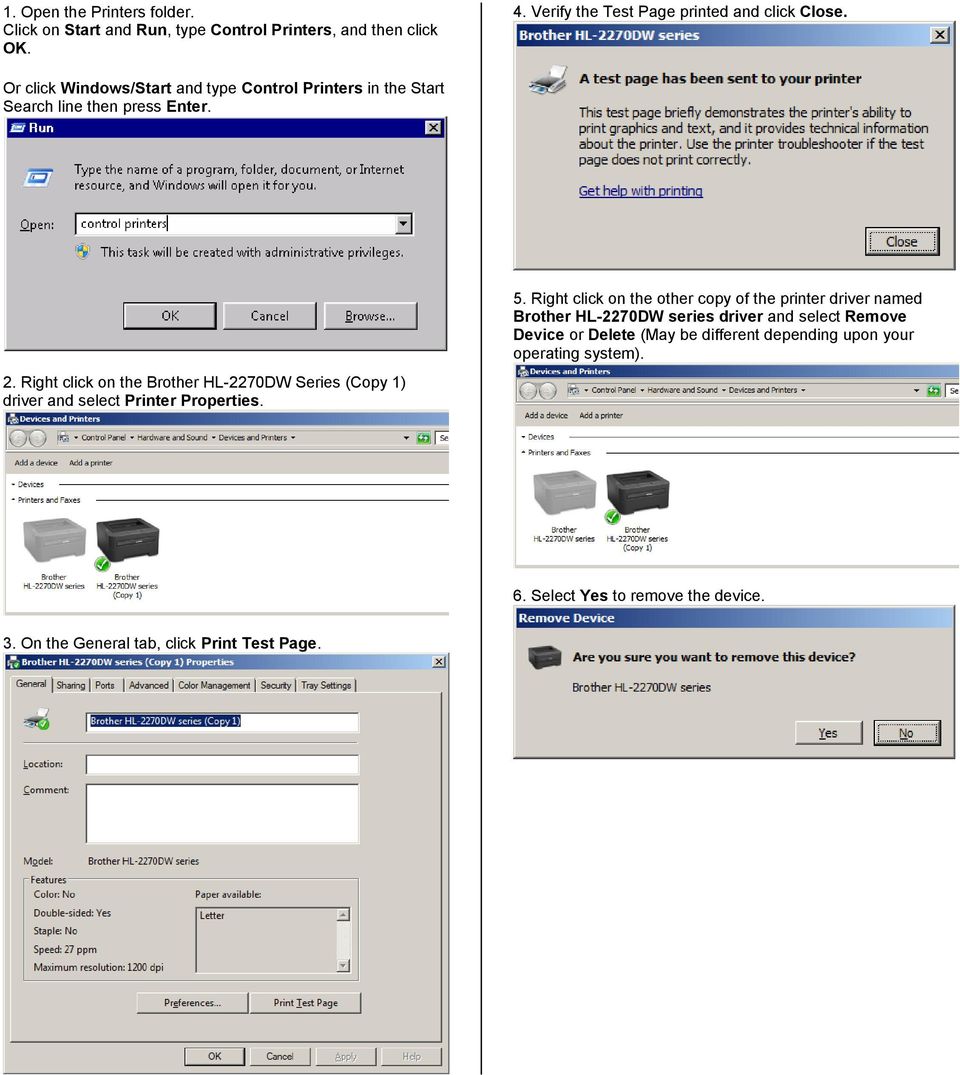
6 2. Select the printer from the list and click Next. 5. Click the checkbox next to Enable the Network Repair Tool and click Finish. 3. Click Next to continue. 6. Select the option you would prefer for receiving firmware update notices and click OK. 4. Online Registration. Click Next to continue. The installation is now complete. - If you performed the installation with the Ethernet cable, installation is complete. - If you performed the installation with the USB cable, go to STEP IV. STEP IV: Remove Duplicate Driver And Print Test Page There is second copy of the driver in the Printers folder. It was installed when the USB cable was connected. It is no longer necessary so it is safe to remove it.

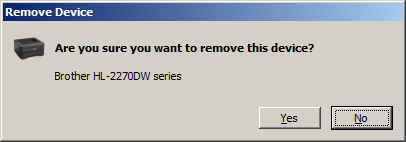
7 1. Open the Printers folder. Click on Start and Run, type Control Printers, and then click OK. 4. Verify the Test Page printed and click Close. Or click Windows/Start and type Control Printers in the Start Search line then press Enter. 2. Right click on the Brother HL-2270DW Series (Copy 1) driver and select Printer Properties. 5. Right click on the other copy of the printer driver named Brother HL-2270DW series driver and select Remove Device or Delete (May be different depending upon your operating system). 6. Select Yes to remove the device. 3. On the General tab, click Print Test Page.
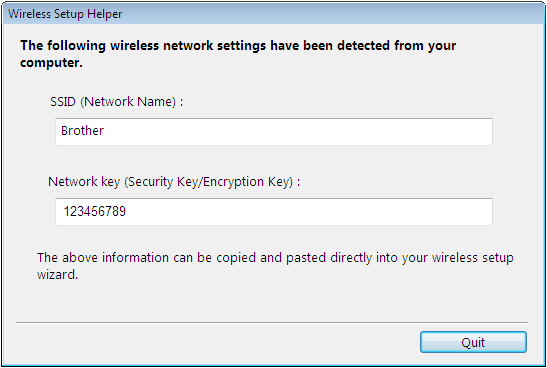
8 How to find your Wireless Security Information in Windows Vista and Windows 7 NOTE: Run this utility on a PC that is connected to your wireless network. 5. Activation Confirmation: Check the Checked and Confirmed box and click Next. 1. Click here to download the Wireless Setup Helper, or open a web browser and go to 2. File Download Security Warning: Click Run 6. Make note of the SSID and Network Key. 3. Internet Explorer Security Warning: Click Run Return to Setup Instructions 4. License Agreement: Click Accept

MFC8890DW Vista Network Connection Repair Instructions
 Difficulty printing from your PC can occur for various reasons. The most common reason a networked Brother machine may stop printing, is because the connection between the computer and the Brother machine
STEP III: Enable the Wireless Network Card. STEP IV: Print out the Printer Settings pages to determine the IP Address
 Title: How do I configure the wireless printer without a network cable and install the printer driver in Windows? NOTE: For successful wireless setup, you MUST know your network security settings. STEP
HL2170W Windows Network Connection Repair Instructions
 Difficulty printing from your PC can occur for various reasons. The most common reason a networked Brother machine may stop printing, is because the connection between the computer and the Brother machine
TE100-P21/TEW-P21G Windows 7 Installation Instruction
 Hardware Installation TE100-P21/TEW-P21G Windows 7 Installation Instruction 1. Go to http://www.trendnet.com/downloads/ to download the Windows 7 Utility. Save the file to your desktop. 2. Right click
Installing Your Printer to the Network for the First Time
 Installing Your Printer to the Network for the First Time PIXMA ip110 Windows OS Wireless Setup Using the USB Cable 1 Installing Your Printer to Your Network for the First Time PIXMA ip110 Windows OS Preparing
MFC6490CW Windows Network Connection Repair Instructions
 Difficulty printing from your PC can occur for various reasons. The most common reason a networked Brother machine may stop printing, is because the connection between the computer and the Brother machine
How do I configure the wireless printer using Wi-Fi Protected Setup or AOSS and install the printer driver in Windows?
 How do I configure the wireless printer using Wi-Fi Protected Setup or AOSS and install the printer driver in Windows? 1. Confirm your WLAN access point/router has the Wi-Fi Protected Setup or AOSS symbol
Print Server Application Guide
 Print Server Application Guide TD W8968 TD W8970 / TD W8970B TD W8980 / TD W8980B Rev: 1.0.0 1910010772 Contents Overview...1 Installation for Windows OS...2 Application for Windows OS...7 How to launch/exit
Print Server Application Guide. This guide applies to the following models.
 Print Server Application Guide This guide applies to the following models. TL-WR842ND TL-WR1042ND TL-WR1043ND TL-WR2543ND TL-WDR4300 CONTENTS Chapter 1. Overview... 1 Chapter 2. Before Installation...
Networking. General networking. Networking overview. Common home network configurations. Wired network example. Wireless network examples
 Networking General networking Networking overview A network is a collection of devices such as computers, printers, Ethernet hubs, wireless access points, and routers connected together for communication
Network Setup Guide. Introduction. Setting up for use over LAN
 Network Setup Guide This manual contains the setup information required to use the machine over wired LAN. If you use the machine with USB connection, refer to your setup sheet. Introduction To use the
1-Port Wireless USB 2.0 Print Server Model # APSUSB201W. Quick Installation Guide. Ver. 2A
 1-Port Wireless USB 2.0 Print Server Model # APSUSB201W Quick Installation Guide Ver. 2A Section 1 Step 1Connect one end of the Ethernet cable to the RJ-45 port of the Print Server and attach the other
STEP III: Enable the Wireless Network Card
 How do I configure the wireless printer without a network cable and install the printer driver in Macintosh OS X? NOTE: For successful wireless setup, you MUST know your network security settings. STEP
Installing Your Multifunction to Your Network for the First Time
 > Installing Your Multifunction to Your Network for the First Time PIXMA MP499 Mac OS 1 > Installing Your Multifunction to Your Network for the First Time PIXMA MP499
MFC7840W Windows Network Connection Repair Instructions
 Difficulty printing from your PC can occur for various reasons. The most common reason a networked Brother machine may stop printing, is because the connection between the computer and the Brother machine
NETWORK USER S GUIDE. Multi-Protocol On-board Ethernet Print Server and Wireless Ethernet Print Server
 Multi-Protocol On-board Ethernet Print Server and Wireless Ethernet Print Server NETWORK USER S GUIDE This Network User's Guide provides useful information of wired and wireless network settings and security
PIGCHAMP MOBILE. PigCHAMP Knowledge Software. Installation Guide for Mobile Units
 PIGCHAMP MOBILE PigCHAMP Knowledge Software Installation Guide for Mobile Units Table of Contents: Important Note:... 4 Chapter 1: PC Setup... 5 A. Install PigCHAMP Mobile Manager on Windows XP...5 B.
Installing Your Multifunction to Your Network for the First Time
 Installing Your Multifunction to Your Network for the First Time PIXMA MG2920 Windows OS 1 Installing Your Multifunction to Your Network for the First Time PIXMA MG2920 Windows OS Preparing to Connect
Network User s Guide
 Network User s Guide Multi-Protocol On-board Ethernet Print Server and Wireless Ethernet Print Server This Network User's Guide provides useful information on wired and wireless network settings and security
Before you start, you should prepare the following items
 Before you start, you should prepare the following items Windows 2000/XP/2003/Vista computer with print server setup CD USB Printer(non-GDI/CAPT) USB Printer cable One 802.11b/g Access Point (optional)
Installation Guide Wireless 4-Port USB Sharing Station. GUWIP204 Part No. M1172-a
 Installation Guide Wireless 4-Port USB Sharing Station 1 GUWIP204 Part No. M1172-a 2011 IOGEAR. All Rights Reserved. PKG-M1172-a IOGEAR, the IOGEAR logo, MiniView, VSE are trademarks or registered trademarks
Software Installation Guide
 Software Installation Guide This manual explains how to install the software over a USB or network connection. Network connection is not available for models SP 200/200S/203S/203SF/204SF. To manually configure
BioWin Network Installation
 BioWin Network Installation Introduction This document outlines the procedures for installing the network version of BioWin. There are three parts to the network version installation: 1. The installation
CMP-102U. Quick Installation Guide
 CMP-102U Quick Installation Guide V1.0 http://www.cnet.com.tw 1 CMP-102U Supports One High-speed USB2.0 Port MFP Server Supports 10/100Mbps Fast Ethernet Network Quick Installation Guide 1 Package Contents:
User Manual Network Interface
 User Manual Network Interface Rev. 1.00 SRP-350plusll SRP-352plusll http://www.bixolon.com Table of Contents 1. Manual Information...3 2. Specifications...3 2-1 Hardware version...3 2-2 Configuration Tool...3
AIM SOFTWARE AND USB DRIVER INSTALLATION PROCEDURE
 AIM SOFTWARE AND USB DRIVER INSTALLATION PROCEDURE CONTENTS AIM software and USB Driver installation Chapter 1 Installing AIM software and AIM USB driver... 2 Chapter 2 Installation under Microsoft Windows
Network User s Guide
 Network User s Guide Multi-Protocol On-board Ethernet Print Server and Wireless Print Server This Network User's Guide provides useful information on wired and wireless network settings and security settings
Movie Cube. User s Guide to Wireless Function
 Movie Cube User s Guide to Wireless Function Table of Contents 1. WLAN USB Adapter Connection...3 2. Wireless Setup...4 2.1 Infrastructure (AP)...5 2.2 Peer to Peer (Ad Hoc)...7 2.3 Settings for PC...8
NETWORK USER S GUIDE. Multi-Protocol On-board Ethernet Multi-function Print Server and Wireless Ethernet Multi-function Print Server
 Multi-Protocol On-board Ethernet Multi-function Print Server and Wireless Ethernet Multi-function Print Server NETWORK USER S GUIDE This Network User's Guide provides useful information of wired and wireless
NETWORK USER S GUIDE. Multi-Protocol On-board Ethernet Print Server and Wireless Ethernet Print Server
 Multi-Protocol On-board Ethernet Print Server and Wireless Ethernet Print Server NETWORK USER S GUIDE This Network User's Guide provides useful information of wired and wireless network settings and security
Ethernet Interface Manual Thermal / Label Printer. Rev. 1.01 Metapace T-1. Metapace T-2 Metapace L-1 Metapace L-2
 Ethernet Interface Manual Thermal / Label Printer Rev. 1.01 Metapace T-1 Metapace T-2 Metapace L-1 Metapace L-2 Table of contents 1. Interface setting Guiding...3 2. Manual Information...4 3. Interface
Colorfly Tablet Upgrade Guide
 Colorfly Tablet Upgrade Guide (PhoenixSuit) 1. Downloading the Firmware and Upgrade Tool 1. Visit the official website http://www.colorful.cn/, choose 产 品 > 数 码 类 > 平 板 电 脑, and click the product to be
NetLINE Wireless Broadband Gateway
 NetLINE Setup Guide Farallon s NetLINE connects to your cable/dsl modem, allowing computers on your local wired and wireless networks to share a single broadband connection to the Internet. This Setup
You may refer the Quick Installation Guide in the package box for more information.
 Hardware Installation: 1. Turn off your modem. 2. Use one Ethernet cable to connect your modem to WAN port (Blue) port of BR-6228nC. 3. Use another Ethernet cable to connect your PC to one LAN Port (Yellow)
HP-1000 Powerline USB Adapter
 HP-1000 Powerline USB Adapter User s manual BEFORE INSTALLATION Plan ahead the installation of your powerline network. Note: You will need at least two powerline adapters to create a powerline network.
How To Use Allnet Configuration Utility On A Pc Or Mac Or Ipad (Powerline) With A Powerline (Powerbook) With Powerline 2.5 (Powerbee) With An Ipad Or Powerplug (Powerplug) With
 Powerline Network Instant Networks for Internet Access and More! Solution for SOHO, SMALL OFFICE AND HOME OFFICE Encryption Management Utility User Guide for ETHERNET BRIDGE ALL1685 Index 1. Introduction...
HP-1000 Powerline Ethernet Adapter
 HP-1000 Powerline Ethernet Adapter User s manual BEFORE INSTALLATION Plan ahead the installation of your powerline network. Note: You will need at least two powerline adapters to create a powerline network.
NETWORK USER S GUIDE. Multi-Protocol On-board Ethernet Multi-function Print Server and Wireless Ethernet Multi-function Print Server
 Multi-Protocol On-board Ethernet Multi-function Print Server and Wireless Ethernet Multi-function Print Server NETWORK USER S GUIDE This Network User's Guide provides useful information of wired and wireless
POWERLINK High Power Wireless LAN 802.11b/g/n USB Adapter User Manual
 Before you proceed with the installation, please notice the following descriptions. Note 1: The following installation was operated under Windows XP. (Procedures are similar for Windows 98SE/Me/2000.)
If you are unable to set up your Linksys Router by using one of the above options, use the steps below to manually configure your router.
 This article describes how to manually configure a Linksys Router for broadband DSL that uses PPPoE (Point-to-Point Protocol over Ethernet) for authentication. For automatic configuration options, please
Installing Your Multifunction to Your Network for the First Time
 Installing Your Multifunction to Your Network for the First Time MAXIFY MB2320 Windows OS Wireless Setup Using Standard Setup 1 Installing Your Multifunction to Your Network for the First Time MAXIFY MB2320
HP Photosmart Wireless series - B109
 HP Photosmart Wireless series - B109 Apply sticker to printer Important! Do NOT connect the USB cable until prompted by the software (Windows users only) 1 Verify box contents 2 Insert the CD for guided
Quick Installation Guide
 Quick Installation Guide TEW-432BRP H/W: v.d1.0r Table of Contents... 1 1. Before You Start... 1 2. Install Router... 2 3. Replacing an existing router... 5 4. Adding the router behind an existing router...
Network DK2 DESkey Installation Guide
 VenturiOne Getting Started Network DK2 DESkey Installation Guide PD-056-306 DESkey Network Server Manual Applied Cytometry CONTENTS 1 DK2 Network Server Overview... 2 2 DK2 Network Server Installation...
Network User s Guide
 Network User s Guide Multi-Protocol On-board Ethernet Multi-function Print Server and Wireless Multi-function Print Server This Network User s Guide provides useful information of wired and wireless network
Printer Driver Installation Guide
 Fujitsu Dot Matrix Printer DL Series Printer Driver Installation Guide - Windows 7 - Windows Server 2008 R2 Rev.01: April 12, 2010 IMPORTANT NOTE TO USERS For Windows 7 / Windows Server 2008 R2, install
c. Securely insert the Ethernet cable from your cable or DSL modem into the Internet port (B) on the WGT634U. Broadband modem
 Start Here Follow these instructions to set up your router. Verify That Basic Requirements Are Met Assure that the following requirements are met: You have your broadband Internet service settings handy.
Windows 98 and Windows Me
 Windows 98 and Windows Me This topic includes: "Preliminary Steps" on page 3-25 "Quick CD-ROM Install Steps" on page 3-26 "Other Methods of Installation" on page 3-26 "Windows 98 and Windows Me Troubleshooting"
Wireless Router Setup Manual
 Wireless Router Setup Manual NETGEAR, Inc. 4500 Great America Parkway Santa Clara, CA 95054 USA 208-10082-02 2006-04 2006 by NETGEAR, Inc. All rights reserved. Trademarks NETGEAR is a trademark of Netgear,
Driver Upgrade Instructions
 Driver Upgrade Instructions Table of Content Installing updated drivers in Microsoft Windows 2 Uninstall Procedure 2 Uninstall Procedure for Windows 7 3 Install Procedure 4 Installing updated drivers in
Installing Your Multifunction to Your Network for the First Time
 Installing Your Multifunction to Your Network for the First Time PIXMA MG3520 Windows OS 1 Installing Your Multifunction to Your Network for the First Time PIXMA MG3520 Windows OS Preparing to Connect
SSL VPN Support Guide
 P a g e 1 SSL VPN Support Guide Revision date: 5/4/10 P a g e 2 Table of Contents Before calling the Support Desk..pg 3 What the Support Desk can assist users with. pg 4 Instructions for PC users (Internet
Getting the most from your Maxtor OneTouch TM USB hard drive and Linksys Network Storage Link
 Getting the most from your Maxtor OneTouch TM USB hard drive and Linksys Network Storage Link Share your OneTouch drive with everyone on your network. With the Linksys Network Storage Link, you can now
801.11n Wireless Broadband Router
 801.11n Wireless Broadband Router WNRT-626 Quick Installation Guide Table of Contents Hardware Installation... 4 Web Configuration... 6 Further Configuration... 8 Thank you for purchasing PLANET 801.11n
Please prepare the following items
 Note Before you start, please make sure all the computers that want to share the printer have successfully installed the printer driver. For details, please refer to your printer s installation guide.
Fibe Internet Connection Hub Reference Guide
 Fibe Internet Connection Hub Reference Guide FibeInternet_ConnectionHub_ReferenceGuide_Eng_V7 1 Bell Internet Service Agreement Use of the Bell Internet service is subject to the terms and conditions of
1. Hardware Installation
 4 Port 10/100M Internet Broadband Router with USB Printer server Quick Installation Guide #4824904AXZZ0 1. Hardware Installation A. System Requirement Before you getting started, make sure that you meet
HP Photosmart C4700 series
 HP Photosmart C4700 series 1 Unpack Important! Do NOT connect the USB cable until prompted by the software! 2 Set up Insert the software CD to start the software installation. For computers without a CD/DVD
SMART INSTALL CONTENTS. Questions and answers
 SMART INSTALL Questions and answers CONTENTS Frequently asked questions...2 Compatibility...3 USB connection...3 Wired or wireless network connection...4 Software CD...5 After installation...6 Software
SATO Network Interface Card Configuration Instructions
 SATO Network Interface Card Configuration Instructions Table of Contents 1. Reset of wired/wireless interface card... 3 2. Installing the All-In-One Utility (recommended)... 4 3. Configuring wired/wireless
2 Setting Up the Hardware for a Wired Ethernet Network... 13. 3 Setting Up the Software for an Ethernet Network... 21
 Contents 1 Networking Basics............................................... 1 Selecting a network connection........................................ 2 Wired Ethernet network...........................................
1 Installation. Note: In Windows operating systems, you must be logged in with administrator rights to install the printer driver.
 Installation A printer driver is an application that manages communication between a printer and your computer. Once installed, the printer driver settings must be configured in the printer Properties
802.11n Wireless Broadband Router WNRT-625
 802.11n Wireless Broadband Router WNRT-625 Quick Installation Guide Table of Contents Introduction... 3 Package Content... 4 Hardware Installation... 5 Web Configuration... 8 Further Configuration...11
LabelWriter. Print Server. User Guide
 LabelWriter Print Server User Guide Copyright 2010 Sanford, L.P. All rights reserved. 08/10 No part of this document or the software may be reproduced or transmitted in any form or by any means or translated
Option nv, Gaston Geenslaan 14, B-3001 Leuven Tel +32 16 317 411 Fax +32 16 207 164 http://www.option.com Page 1 of 14
 Page 1 of 14 ! " #!"#$ % &&' Page 2 of 14 1 INTRODUCTION One of the highly desirable features of the GlobeSurfer III device is the ability to network together Printers and External Hard Disk drives (aka
Network/Floating License Installation Instructions
 Network/Floating License Installation Instructions Installation steps: On the Windows PC that will act as License Manager (SERVER): 1. Install HASP Run-time environment, SERVER 2. Plug in the red USB hardware
Software Installation Guide
 Software Installation Guide This manual explains how to install the software over a USB or network connection. Network connection is not available for models SP 200/200S/203S/203SF/204SF. Flowchart The
StarMOBILE Network Configuration Guide. A guide to configuring your StarMOBILE system for networking
 StarMOBILE Network Configuration Guide A guide to configuring your StarMOBILE system for networking INTRODUCTION... 3 BEFORE YOU BEGIN... 3 1) CONFIRM YOU HAVE THE LATEST SOFTWARE... 3 2) INSTALL THE STARMOBILE
Getting Your Multifunction Back On Your Network After A Router Or Network Change
 Getting Your Multifunction Back On Your Network After A Router Or Network Change PIXMA MX860 Windows OS 1 If any of the following situations exist, you will need to Uninstall and Re-Install the MP Drivers
ENPS-MF1. 1 USB Port. Multifunctional Print Server. Quick Installation Guide V1.0
 ENPS-MF1 1 USB Port Multifunctional Print Server V1.0 Specifications or features are subject to change without prior notice. All brand names or trademarks are the property of their respective owners. Packing
TL-PS310U Single USB 2.0 Port MFP and Storage Server
 TL-PS310U Single USB 2.0 Port MFP and Storage Server Rev: 2.0.0 1910010313 Contents Chapter 1 Introduction... 1 1.1 Product Overview...1 1.2 Network Management...1 1.3 Components and Features...1 1.4 Hardware
Installing Your Printer to Your Network for the First Time
 Installing Your Printer to Your Network for the First Time PIXMA ip8720 Windows OS 1 Installing Your Printer to Your Network for the First Time PIXMA ip8720 Windows OS Preparing to Connect My Printer to
Network Installation Guide. WorkForce 610 Series Artisan 710 Series
 Network Installation Guide WorkForce 610 Series Artisan 710 Series Contents Before You Begin.......................................... 3 Choose Your Connection Type................................ 4 Wireless.............................................
Wireless USB Adapter
 Wireless USB Adapter User s Manual 1 Table of Contents USER S MANUAL... 1 WELCOME... 3 PACKAGE CONTENTS... 3 WIRELESS USB ADAPTER OVERVIEW... 4 INTERFACE... 4 LED DESCRIPTION... 4 WPS BUTTON... 4 WIRELESS
Contents. Section A Networking Basics... 1. 1 Learning the Basics... 3. Section B Wired Ethernet Networking... 17
 Contents Section A Networking Basics...................................... 1 1 Learning the Basics............................................. 3 Selecting a network connection........................................
DIGITAL MULTIFUNCTIONAL SYSTEM
 MODEL: MX-M283N MX-M363N MX-M453N MX-M503N DIGITAL MULTIFUNCTIONAL SYSTEM Software Setup Guide BEFORE INSTALLING THE SOFTWARE SETUP IN A WINDOWS ENVIRONMENT SETUP IN A MACINTOSH ENVIRONMENT TROUBLESHOOTING
LPR for Windows 95/98/Me/2000/XP TCP/IP Printing User s Guide. Rev. 03 (November, 2001)
 LPR for Windows 95/98/Me/2000/XP TCP/IP Printing User s Guide Rev. 03 (November, 2001) Copyright Statement Trademarks Copyright 1997 No part of this publication may be reproduced in any form or by any
Network Installation Guide. Artisan 810 Series
 Network Installation Guide Artisan 810 Series Before You Begin Make sure you installed ink cartridges and loaded paper as described on the Start Here sheet. Then follow the instructions in this guide to
Turn off all of your network devices, including your computer, Modem and the Router.
 Note Please use only wired network connections to configure the Router. Turn off all of your network devices, including your computer, Modem and the Router. Connect the WAN port on your Router to the Modem
USB Driver Installation for Windows XP
 USB Driver Installation for Windows XP USB Serial Converter Driver Installation for Windows XP CAUTION: You must use the drivers on the CD-ROM supplied with your USB Device. DO NOT download drivers from
What is a Home Network? A home network is a collection of two or more home computers connected together through a wired or wireless connection.
 Building A Home Network What is a Home Network? A home network is a collection of two or more home computers connected together through a wired or wireless connection. Why should I network my computers
Applies to: F1PG200ENau Belkin Analogue Telephone Adapter (ATA) Firmware release notes
 Applies to: F1PG200ENau Belkin Analogue Telephone Adapter (ATA) Firmware release notes 1. Voice over IP registration indicator and error codes 2. Error 482 loop detected fixed. This error is caused if
NETWORK USER S GUIDE. Multi-Protocol On-board Ethernet Multi-function Print Server and Wireless Multi-function Print Server
 Multi-Protocol On-board Ethernet Multi-function Print Server and Wireless Multi-function Print Server NETWORK USER S GUIDE This Network User s Guide provides useful information of wired and wireless network
NETWORK USER S GUIDE. Multi-Protocol On-board Ethernet Multi-function Print Server and Wireless Ethernet Multi-function Print Server
 Multi-Protocol On-board Ethernet Multi-function Print Server and Wireless Ethernet Multi-function Print Server NETWORK USER S GUIDE This Network User's Guide provides useful information of wired and wireless
STATISTICA VERSION 11 CONCURRENT NETWORK LICENSE WITH BORROWING INSTALLATION INSTRUCTIONS
 data analysis data mining quality improvement web-based analytics Notes STATISTICA VERSION 11 CONCURRENT NETWORK LICENSE WITH BORROWING INSTALLATION INSTRUCTIONS 1. The installation of the Concurrent network
4-441-095-12 (1) Network Camera
 4-441-095-12 (1) Network Camera SNC easy IP setup Guide Software Version 1.0 Before operating the unit, please read this manual thoroughly and retain it for future reference. 2012 Sony Corporation Table
PLA Series. User s Guide. Quick Start Guide. Powerline Ethernet Adapters. PLA4101, PLA4111, PLA4201, PLA4201 v2, PLA5205, PLA5215, PLA5206, PLA5405
 PLA Series Powerline Ethernet Adapters PLA4101, PLA4111, PLA4201, PLA4201 v2, PLA5205, PLA5215, PLA5206, PLA5405 Utility Version 7.0.1 Edition 1, 05/2014 Default Network Name: HomePlugAV Quick Start Guide
DP-313 Wireless Print Server
 DP-313 Wireless Print Server Quick Installation Guide TCP/IP Printing (LPR for Windows 95/98/Me/2000) Rev. 03 (August, 2001) Copyright Statement Trademarks Copyright 1997 No part of this publication may
Network Printing In Windows 95/98/ME
 Network Printing In Windows 95/98/ME If you are using Windows 2000/ XP: To install a printer on your network using D-Link Print Server or DI-series router with built-in print server you do not need to
Before You Begin You must have at least the following: Web Browser Wired Hub/Switch/Router OR Wireless 802.11b Router CD-ROM Drive
 This product can be set up using any current Web browser, i.e., Internet Explorer 6.0 or Netscape Navigator 7.0 DCS-1000W D-Link 2.4Ghz Wireless Internet Camera Before You Begin You must have at least
Operating Instructions Driver Installation Guide
 Operating Instructions Driver Installation Guide For safe and correct use, be sure to read the Safety Information in "Read This First" before using the machine. TABLE OF CONTENTS 1. Introduction Before
Congratulations on your purchase of a BPM Microsystems device programmer. Your new device programmer was designe d to provid e years of suppor t for
 Congratulations on your purchase of a BPM Microsystems device programmer. Your new device programmer was designe d to provid e years of suppor t for thousand s of devices, with the use of optional socket
Western Digital Backup Drive Installation Instructions
 Western Digital Backup Drive Installation Instructions The Western Digital My Book network attached storage (NAS) device is intended to provide a backup solution for your office. To make the device functional,
Quick Installation Guide Network Management Card
 Rev.1.1 www.cyberpowersystems.com Quick Installation Guide Network Management Card Intelligent Network Management Card allows UPS to be managed, monitored, and configured via SNMP Card Configuration Tool
How To Use Mview On A Powerline 2.2 (Powerline) On A Pc Or Macbook 2 (Powerplst) On An Iphone Or Ipa 2 (Aldo) On Your Iphon 2 (
 mview for V8.53 and Later Motion Software mview is an elevator monitoring application. Through 1 Ethernet, the computer running mview may be connected directly to a single Motion 2000 or Motion 4000 controller
How To Use 1Bay 1Bay From Awn.Net On A Pc Or Mac Or Ipad (For Pc Or Ipa) With A Network Box (For Mac) With An Ipad Or Ipod (For Ipad) With The
 1-bay NAS User Guide INDEX Index... 1 Log in... 2 Basic - Quick Setup... 3 Wizard... 3 Add User... 6 Add Group... 7 Add Share... 9 Control Panel... 11 Control Panel - User and groups... 12 Group Management...
To use your Brother machine in an ad hoc network, complete the steps listed below:
 Description of Problem 100000028554 How do I join the Brother machine to an Adhoc Wireless Network? Description of Solution 200000036605 An Ad-hoc network allows each wireless device to communicate directly
Keri USB-A Connection and Configuration
 Step 1 - Connect the KPC-1 cable to the K-USB. NOTE: The form of the USB converter may vary, so the unit you receive may not be identical to the one displayed here. Step 2 Plug the USB Connector of the
Troubleshooting Sprint Mobile Broadband USB Modem by Novatel Wireless TM (Ovation TM U727)
 Troubleshooting Sprint Mobile Broadband USB Modem by Novatel Wireless TM (Ovation TM U727) If you are unable to resolve your issue using the Troubleshooting steps below, please contact Sprint Customer