
MadgeTech Cloud Services. Manual
|
|
|
- Carmel Cross
- 8 years ago
- Views:
Transcription
1 MadgeTech Cloud Services Manual
2 Thank you for choosing MadgeTech for all of your data logging needs. Compact, accurate and affordable, MadgeTech data loggers can measure and record data for a variety of parameters. Now, with the addition of MadgeTech Cloud Services, monitoring data from around the world is easier than ever. With MadgeTech Cloud Services, a wireless data logging system can securely transmit real-time data to be viewed on any internet or data enabled device such as a computer, tablet or mobile device. Setting Up MadgeTech Cloud Services with the MadgeTech 4 Software Page 3-4 Setting Up MadgeTech Cloud Services with the RFC1000 Cloud Relay Page 5-6 Table of Contents Introduction...3 Setting up MadgeTech Cloud Services with the MadgeTech 4 Software Setting up MadgeTech Cloud Services with the RFC1000 Cloud Relay MadgeTech Cloud Services Overview...9 Main Navigation... 7 Summary... 8 Downloading / Deleting Data... 8 Bulk Data Download... 8 Manage Relays... 9 Logger Settings Screen... 9 Manage Alerts Assigning Alerts to Data Loggers Preferences Screen My Account Screen Support Logout Cloud FAQ's...12 Contact Information...13 About MadgeTech, Inc

3 Setting up MadgeTech Cloud Services with the MadgeTech 4 Software MadgeTech Cloud Services can be used with the PC-based MadgeTech 4 Software with no additional equipment required. Data is sent from the MadgeTech 4 Software to your MadgeTech Cloud Services account, where data can be viewed on any internet enabled device. System Requirements MadgeTech wireless data logger(s). Data loggers must be running in real-time recording mode MadgeTech RFC1000 wireless transceiver MadgeTech Cloud Services account A PC with internet access, running the latest version of the MadgeTech Software Supported Web Browsers Apple Safari Mozilla Firefox Google Chrome Incognito or Private browser tabs are not supported Getting Started Creating a MadgeTech Cloud Services Account 1. Go to cloud.madgetech.com. 2. Click Create an Account. 3. Fill out all of the required fields and click Sign Up! to create a free account. 4. notification will be sent. Click the verify your account link to complete setup. Logging into the MadgeTech Cloud Services Logging into the MadgeTech Cloud Services in the MadgeTech 4 Software 1. Open the MadgeTech 4 Software. 2. Click the File tab, and then click the Options button located at the bottom of the menu. 3. Click the Cloud tab located on the left sidebar. 4. Sign in using the the MadgeTech Cloud Services account and password and click Log in. Logging into MadgeTech Cloud Service via web browser 1. Go to cloud.madgetech.com. 2. Login using the MadgeTech Cloud Services account and password. 3. Once logged in, the browser will display the summary of loggers. If there are loggers connected, they will display as either Active, Stopped or Disconnected. 3


4 Enabling/Disabling Data Loggers within the MadgeTech 4 Software MadgeTech wireless data loggers must be enabled to send data to the cloud. Enabling a data logger for MadgeTech Cloud Services 1. In the MadgeTech 4 Software, select the data logger to connect to the MadgeTech Cloud. Multiple devices can be selected, by holding the CTRL or Shift key and either selecting additional devices or pressing the arrow keys. 2. On the Device tab, in the Control group, click Enable Cloud Monitoring. Users can also right-click on the device and select Enable Cloud Monitoring in the context menu. 3. In the Connected Devices panel, there is a Cloud column. If the Cloud column is not visible, right click on any of the other columns and a drop down menu will appear with other column options. Make sure the Cloud option is selected and a checkmark is visible. 4. If a data logger is cloud enabled and is running in real-time, the Cloud icon will be colored. If the data logger is cloud enabled but stopped or not running in real-time, the cloud icon will appear grey. If the data logger is not connected to the cloud at all, there will be no icon in the Cloud column. Disabling a data logger from MadgeTech Cloud Services 1. In the MadgeTech 4 Software, select a Cloud enabled data logger. Multiple devices can be selected, by holding the CTRL or Shift key and either selecting additional devices or pressing the arrow keys. 2. On the Device tab, in the Control group, click Disable Cloud Monitoring. Users can also right-click on the device and select Disable Cloud Monitoring in the context menu. 3. In the Connected Devices panel, once the data logger is disabled from the cloud, the cloud icon in the cloud column will disappear. Viewing Cloud Data There are two options for viewing and monitoring cloud data 1. From a mobile device, scan the QR code in the Cloud Options menu within the MadgeTech 4 Software. 2. In the MadgeTech 4 Software, on the Device tab, in the Control group, click View Cloud Data. Users can also right-click on a cloud enabled device and select View Cloud Data in the context menu. This will display the cloud data in a web browser on the local PC. 4

5 Setting up MadgeTech Cloud Services with the RFC1000 Cloud Relay The RFC1000 Cloud Relay allows data from MadgeTech wireless loggers to be sent directly to a MadgeTech Cloud Services account, eliminating the need for a central PC and MadgeTech 4 Software. With the RFC1000 Cloud Relay, real-time data can easily be transmitted to the MadgeTech Cloud, where it can be viewed from any internet enabled device. System Requirements MadgeTech wireless data logger(s). Data loggers must be running in real-time recording mode MadgeTech RFC1000 Cloud Relay MadgeTech Cloud Services account Ethernet jack for internet access Electrical outlet Supported Web Browsers Apple Safari Mozilla Firefox Google Chrome Incognito or Private browser tabs are not supported Getting Started Creating a MadgeTech Cloud Services Account 1. Navigate to cloud.madgetech.com. 2. Click Create an Account. 3. Fill out all of the required fields and click Sign Up! 4. You will receive an notification. Click the verify your account link to complete setup. Logging into MadgeTech Cloud Services 1. Navigate to cloud.madgetech.com from any web browser listed above. 2. Login using your account and password. 3. Once logged in, the browser will display the summary of loggers. 5
6 Adding Devices to MadgeTech Cloud Services Claiming an RFC1000 Cloud Relay 1. Go to the menu and select Manage Relays. 2. Click the Claim a Relay button. 3. Insert the RFC1000 Cloud Relay Serial Number and Claim Key, located on the side label on the device enclosure. 4. It may take 1-2 minutes for the RFC1000 Cloud Relay to sync to the MadgeTech Cloud Services account. 5. Once synced, the device will be shown in the My Relays list. Claiming a Data Logger 1. Verify that the data loggers are in wireless transmission mode. 2. Within MadgeTech Cloud Services account, go to the menu and select Manage Relays. 3. Select an RFC1000 Cloud Relay listed under My Relays. 4. Any MadgeTech wireless data loggers on the same network and within range will be listed under Unclaimed Loggers. 5. Click the Claim button next to the data loggers you would like to claim. 6. It may take 1-2 minutes for the wireless data logger to sync. 7. Once synced, the data logger will appear under Loggers Claimed by this Relay. Starting and Stopping a Data Logger Starting a Data Logger 1. From the main menu, select Logger Settings. 2. Within the Logger Settings screen, click on a data logger you would like to start. 3. Within the Status row, click the Start button. 4. It may take 1-2 minutes for the data logger to sync to the MadgeTech Cloud Services account. 5. Once synced, the data logger will start recording. Stopping a Data Logger 1. From the main menu, select Logger Settings. 2. Within the Logger Settings screen, click on a data logger you would like to stop. 3. Within the Status row, click the Stop button. 4. It may take 1-2 minutes for the data logger to sync to the MadgeTech Cloud Services account. 6

7 MadgeTech Cloud Services Overview Menu Data Refresh Status Active Logger List Data Logger Claimed by a RFC1000 Cloud Relay Download Data from Multiple Loggers Data Trend Data Value Data Logger connected to the MadgeTech 4 Software Data Logger Settings Download Data Delete Data Download Data Checkbox Data Graph Stopped Logger List Main Navigation The main navigational menu can be accessed by selecting the icon located at the top left of the screen, next to the Summary header. Summary: The home page of the MadgeTech Cloud Services account. It will show Active, Stopped and Disconnected data loggers. Manage Relays: Claim or release an RFC1000 Cloud Relay Logger Settings: The page will show Active or Inactive data loggers. Users can choose to show or hide the loggers on the cloud and information about the loggers can be displayed here including the Model, Serial Number, Cloud ID, Device ID, Status and Display Options. Manage Alerts: Create and manage alert rules. Preferences: Users can select unit preferences and the time format. My Account: User account information. Support: Users can click this button to launch the default carrier and contact MadgeTech Support. Logout: This will log the user out of the MadgeTech Cloud Services account on the device being used. 7


8 Summary Active Data Loggers On the Summary screen, in the Active section, data loggers that are currently recording in real-time will appear here. Display a graph by clicks on the Device Name or ID. For loggers with more than one channel, users can shuffle through the parameters by clicking on the current reading value. Click on the displayed graph to enhance to a larger view. Stopped Data Loggers Data loggers that are currently running in any mode other than real-time, or are stopped but still cloud enabled, will appear as Stopped on the Summary screen. Disconnected Data Loggers In the Disconnected section of the Summary screen, data loggers that are enabled with the account but are not online will appear as disconnected. Downloading / Deleting Data Clicking on a data logger within the Summary screen will provide the user with a real-time graph view of the data. To the right of the graph, there are three additional options: Logger Settings: View and manage claimed data loggers Download Data: Download data as.xls file Delete Data: Delete recorded data Bulk Data Download Users are able to bulk download data from multiple data loggers. Checkboxes: Use the checkboxes to select multiple data loggers Select All: Selects all enabled data loggers Download Selected: Download data as.xls file 8


9 Manage Relays The Manage Relays section allows users to add and manage RFC1000 Cloud Relays. Claim a Relay: Add a new RFC1000 Cloud Relay to your account. Gear Icon: Manage RFC1000 Cloud Relays Rename the Relay Release the Relay Claim loggers to the Relay Release a logger claimed by the Relay Logger Settings Screen The Logger Settings section allows the user to toggle the visibility of connected data loggers by clicking the Hide or Show button on the right side. This will change how the loggers are displayed on the Summary screen. Clicking the gear icon to the left of the logger will show detailed information about that logger: Cloud ID: Cloud ID number for that data logger Model: The type of logger Serial: The physical device serial number Name: Displays the name of the device Display: Toggle between Device ID or Serial number, to modify the display in the Summary screen Device ID: The user editable Device ID that can be changed in the MadgeTech 4 Software Status: This will indicate if the logger is running, stopped, or disconnected Started: When the device was started Channel: Indicates the wireless channel the device is set on # Rdg: Indicates the number of recorded readings. Rdg Rate: Indicates the reading rate the device is recording at. (only present with the use of the RFC1000 Cloud Relay) Host: Indicates what device the data logger is connected to. Signal: Indicates the signal strength (only present with the use of the RFC1000 Cloud Relay) Battery: Indicates the battery life of the data logger (only present with the use of the RFC1000 Cloud Relay) Manage Alerts: Add or manage alert notifications for the data logger. 9


10 Manage Alerts Alert Rule Text and notifications can be configured when specified threshold limits have been met. To add an alert: Within in the Navigation, go to Manage Alerts. Click Create. The Create New Alert Rule dialog box will popup prompting the user to select from the following: No Readings Channel Threshold Battery Level Fill out the appropriate fields and select Create to save your alert. Alert Contacts Text and alert notifications can be sent to one or multiple contacts. To add a contact: Click the Add button next to Alert Contacts. Fill out the fields. Name: Fill in the name of the contact Method: Select from a SMS (text) or notification Address: Fill in the or phone number Select Create to save your contacts. Assigning Alerts to Data Loggers Once Alert Rules have been created, you may then assign these alerts to claimed data loggers. Select the data logger and click the gear icon to view the settings. Click the Manager Alerts button. Click the Add button. Select an Alarm Rule within the list. 10


11 Preferences Screen The Preferences section allows the user to change the display units for each compatible parameter and the time format. The time format can either be a 12 hour or 24 hour clock. Note: The time displayed is based upon the remote user's location, not the location of the data logger. My Account Screen The Account Management screen displays account information. Account ID: Shows the user associated with the account. Account Type: Shows the account plan currently sign up for. Created: Shows the start date of the account. Max Loggers: Shows the maximum number of devices the account can claim. Status: Shows the payment status of the account. Support The Support button will allow the user to contact MadgeTech for any support or technical questions. This will launch the default carrier. Logout The Logout button will log the user out of the Cloud on the current device. 11
12 Cloud FAQ's Can I log into my basic cloud account on more than one device? Yes, a single basic cloud account can log into multiple devices (ie; mobile phone, tablet, laptop). Can other people use my login? Each basic cloud account is tied to a unique address for one user to remotely view data. As with any membership or service, sharing login information exposes personal information and/or access to preference settings. Sharing login credentials is not prohibited but is not recommended either. Why is my data not showing up in the cloud interface? If you are unable to view data, confirm that the logger has been successfully enabled for cloud monitoring and is actively logging in real-time. I am monitoring data loggers in a different time zone. Which time zone is the cloud displaying? Cloud data is displayed on remote devices with the recipient's local time zone. I started my device in real-time, shut down my computer, and now the cloud is saying the data logger is disconnected. Why can I not see my data? If a logger was configured for cloud viewing using MadgeTech 4 Data Logging Software, the software must be up and running on the central PC in order to transmit data to the MadgeTech Cloud. My reading rate is set to 15 seconds. Why is my cloud data not refreshing that fast? MadgeTech Cloud Services is set to refresh every 60 seconds. However, expanding the graph will display each reading taken at the user selected reading rate. I am recording with a multi-parameter device. How do I view the other parameters? Clicking on the current reading will scroll through the various parameters being recorded. I want to view my data in Fahrenheit, not Celsius. Can I change this? Yes. Users can customize display units on the Preferences page. How do I cancel my account? At the bottom of the Account Management page, there is a Cancel My Subscription button that will allow the deactivation of your account. I cancelled my account but want to use it again. Do I have to sign up again? No, deactivating your account will still allow you to sign in and access the Account Management page, where you can reactivate your account. 12
13 Contact Information For further information on the MadgeTech Cloud Services, please contact us: Sales & General Inquiries: (603) Toll Free: (877) General Information: Sales: Customer Support: About MadgeTech, Inc. MadgeTech, Inc. is a global company based in New England and founded on old-fashioned principles, customer service, quality and trust. MadgeTech s President, Norman Carlson, started the company in 1996 and charted the growth of the product lines and services while maintaining those solid core principles. Our can-do team of engineers and technical staff consistently incorporate new and innovative ideas into our data loggers. In short, we push the envelope, raising the bar in innovation and quality. Our competitors have praised us by adopting many of our ideas as their own. Over time, MadgeTech has become the industry standard in the data logger market. MadgeTech continuously develops new, cutting-edge products, creating solutions for our customers around the world in industries across the board. Our growing network of distributors has expanded our presence to markets far beyond our home headquarters in New Hampshire; our products are now sold in over 70 countries around the world. Our employees are committed to quality and customer satisfaction. Behind the full range of MadgeTech s products and services is the cumulative expertise of experienced engineers, manufacturing and electronic professionals and technicians. Our knowledgeable sales team can offer technical advice to assist in selecting the right product for each application, as well as providing after-sales support. MadgeTech is dedicated to providing customers with reliable, affordable products, hassle-free ordering and excellent service, saving customers time and money. It is our goal to earn your trust in meeting your needs and providing innovative solutions. The products and services that bear the MadgeTech name come with quality assurance and the best support in the industry today. 13
14 Rev MadgeTech, Inc 6 Warner Road, Warner, NH T: (603) F: (603) [email protected]
Video Services Customer Portal
 Getting Started with Time Warner Cable Business Class Video Services Customer Portal A Guide for Administrators Table of Contents Table of Contents... 2 How to Use This Guide... 3 Video Services Quick
mystanwell.com Installing Citrix Client Software Information and Business Systems
 mystanwell.com Installing Citrix Client Software Information and Business Systems Doc No: 020/12 Revision No: Revision Date: Page: 1 of 16 Contents Overview... 3 1. Microsoft Internet Explorer... 3 2.
QuickBooks Windows Web Connect
 QuickBooks for Windows Conversion Instructions QuickBooks Windows 2010-2013 Web Connect Table of Contents TABLE OF CONTENTS... 2 INTRODUCTION... 3 DOCUMENTATION AND PROCEDURES... 3 Task 1: Conversion Preparation...
Recommended Browser Setting for MySBU Portal
 The MySBU portal is built using Microsoft s SharePoint technology framework, therefore, for the best viewing experience, Southwest Baptist University recommends the use of Microsoft s Internet Explorer,
IP-VPN Getting Started. Performance Management Reporting User Guide for IP-VPN
 IP-VPN Getting Started Performance Management Reporting User Guide for IP-VPN January, 2015 2015 by Cox Communications. All rights reserved. No part of this document may be reproduced or transmitted in
Hot Spot (Unsecured) Wireless Access Initial Setup and Login for MCC_HOTSPOT
 CLIENT INSTRUCTIONS PRIMARY KNOWLEDGE AREA Hot Spot (Unsecured) Wireless Access Initial Setup and Login for MCC_HOTSPOT Wireless Windows XP service pack 2 Purpose: Wireless Initial Setup sets the parameters
Initial Setup of Microsoft Outlook with Google Apps Sync for Windows 7. Initial Setup of Microsoft Outlook with Google Apps Sync for Windows 7
 Microsoft Outlook with Initial Setup of Concept This document describes the procedures for setting up the Microsoft Outlook email client to download messages from Google Mail using Internet Message Access
VPN User Guide. For Mac
 VPN User Guide For Mac System Requirements Operating System: Mac OSX. Internet Browser: Safari (Firefox and Google Chrome are NOT currently supported). Disclaimer Your computer must have the system requirements
How to Setup the Remote Access Portal on a PC
 How to Setup the Remote Access Portal on a PC v1.0 1 P a g e Revision History: Name Date Reason Version Evan Miller April 13, 2016 Initial Version 1.0 CONTENTS System Requirements... 2 Installing Java...
Downloading and Installing Interactive Reporting (Hyperion) Web Client
 Use the links below to skip to a specific section in the document: Downloading and Installing Interactive Reporting (Hyperion) Web Client... 1 Introduction... 1 Setup... 1 Identifying the version of Internet
Learning Management System (LMS) Quick Tips. Contents LMS REFERENCE GUIDE
 Learning Management System (LMS) Quick Tips Contents Process Overview... 2 Sign into the LMS... 3 Troubleshooting... 5 Required Software... 5 Mobile devices are not supported... 5 Using the Check System
How To Sync Google Drive On A Mac Computer With A Gmail Account On A Gcd (For A Student) On A Pc Or Mac Or Mac (For An Older Person) On An Ipad Or Ipad (For Older People) On
 Installation and Setup of Google Drive for Students on Mac OS X Purpose: This guide will lead you through the Google Drive Installation and Configuration. Pre-requisites: 1) ODU Student Gmail account 2)
1. Application Overview... 3. 2. System Requirements... 3. 3. Installation... 3. 4. Splash Screen... 4. 5. Registration Screen...
 1 P a g e Table of Contents 1. Application Overview... 3 2. System Requirements... 3 3. Installation... 3 4. Splash Screen... 4 5. Registration Screen... 5 5.1 Registration... 5 6. Login Screen... 7 6.1
Software Manual. For. MadgeTech 4 Data Logger Software
 Software Manual For MadgeTech 4 Data Logger Software Introduction 7 About MadgeTech, Inc... 8 Software Overview 9 Getting Started... 10 System Requirements...10 Software Installation: Installing the MadgeTech
Using the T&D Thermo App with TR-7wf Data Loggers
 Using the T&D Thermo App with TR-7wf Data Loggers T&D Thermo The T&D Thermo App from T&D Corporation can be used to accomplish a variety of functions with the TR-7wf Series of Wi-Fi enabled wireless Data
AlienVault Unified Security Management for Government v4.12 & RT Logic CyberC4:Alert v4.12 User Management Guide
 & RT Logic CyberC4:Alert v4.12 Copyright 2016 AlienVault. All rights reserved. DOCUMENT HISTORY AND VERSION CONTROL Edition Date of Issue Description of Change(s) 01 08/01/15 Initial Version AlienVault,
Solving Java Related Issues with. Advanced Label Printing
 Solving Java Related Issues with Advanced Label Printing Advanced Printing (using Java) is not available using these web browsers Google Chrome v45 onwards Microsoft Edge (default browser shipped with
Sale Grammar School Remote Desktop Services User Instructions
 Sale Grammar School Remote Desktop Services User Instructions Sale Grammar School Remote Desktop Services allows Staff and Students access to a virtual school computer while connected to the internet at
Table of Contents. Troubleshooting Guide for Home Users
 Table of Contents Introduction... 1 Chapter 1: System Requirements... 2 Recommended and Minimum Supported Requirements*... 2 Additional Information... 3 Internet Connectivity... 3 Tablet Compatibility...
Decision Support AITS University Administration. Web Intelligence Rich Client 4.1 User Guide
 Decision Support AITS University Administration Web Intelligence Rich Client 4.1 User Guide 2 P age Web Intelligence 4.1 User Guide Web Intelligence 4.1 User Guide Contents Getting Started in Web Intelligence
Strategic Asset Tracking System User Guide
 Strategic Asset Tracking System User Guide Contents 1 Overview 2 Web Application 2.1 Logging In 2.2 Navigation 2.3 Assets 2.3.1 Favorites 2.3.3 Purchasing 2.3.4 User Fields 2.3.5 History 2.3.6 Import Data
AT&T Business Messaging Account Management
 AT&T Business Messaging Account Management Admin User Guide December 2015 1 Copyright 2015 AT&T Intellectual Property. All rights reserved. AT&T, the AT&T logo and all other AT&T marks contained herein
Ethernet Radio Configuration Guide
 Ethernet Radio Configuration Guide for Gateway, Endpoint, and Repeater Radio Units April 20, 2015 Customer Service 1-866-294-5847 Baseline Inc. www.baselinesystems.com Phone 208-323-1634 FAX 208-323-1834
Website Administration Security Guide
 Website Administration Security Guide September 2012 TABLE OF CONTENTS Introduction... 1 General Overview... 1 System Requirements... 1 Important Administrator Terms... 2 Security Services Administration...
WAM Remote Wireless Asset Monitoring. Website User Guide
 WAM Remote Wireless Asset Monitoring Website User Guide Table of Contents Overview... 2 Login Page... 2 Quick Start Guide...3-4 Locations Page... 5 Devices Page... 5 Register Devices Page... 6 Temp or
Cox Business Online Backup. Download Instructions for Mac and Windows
 Cox Business Online Backup Download Instructions for Mac and Windows February 2014 Table of Contents Table of Contents Downloading Cox Business Online Backup on a Mac... 1 Downloading Cox Business Online
Cox Business Premium Online Backup USER'S GUIDE. Cox Business VERSION 1.0
 Cox Business Premium Online Backup USER'S GUIDE Cox Business VERSION 1.0 Table of Contents ABOUT THIS GUIDE... 4 DOWNLOADING COX BUSINESS PREMIUM ONLINE BACKUP... 5 INSTALLING COX BUSINESS PREMIUM ONLINE
Practice Labs User Guide
 Practice Labs User Guide This page is intentionally blank ~ 0 ~ History of Changes Version Changes Approved by Publish Date 2.0 History of changes table added. Full revision of document in line changes
Lotus inotes v8.5 Quick Reference PDF Guide
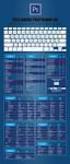 Lotus inotes 8.5 is a browser-based system that gives you access to productivity tools mail, calendar, to do lists, contacts, and more from any computer with a network connection. You can now work in several
TRUST Online u s e r g u i d e v e r s i o n 8. 4 O c t o b e r 2 0 1 3
 TRUSTOnline u s e r g u i d e version 8.4 October 2013 TABLE of CONTENTS Access Trust Online... 1 Login to Trust Online... 1 Enhanced Authentication Login... 3 Select an Account... 5 Locate an Account...
How to install and use the File Sharing Outlook Plugin
 How to install and use the File Sharing Outlook Plugin Thank you for purchasing Green House Data File Sharing. This guide will show you how to install and configure the Outlook Plugin on your desktop.
The UC Learning Center: Disabling Pop-Up Blockers
 The UC Learning Center: Disabling Pop-Up Blockers In order to launch online courses within the UC Learning Center all pop-up blockers must be turned off. This guide will walk you through disabling pop-up
Using the Content Distribution Manager GUI
 CHAPTER 3 Using the Content Distribution Manager GUI The Content Distribution Manager is the central location from which much of the work of creating and managing ACNS networks and hosted content can be
CITRIX REMOTE ACCESS CITRIX DESKTOP
 QUICK REFERENCE GUIDE July 2014 CITRIX REMOTE ACCESS CITRIX DESKTOP OVERVIEW Citrix remote access software enables you to establish a connection to the servers at Goodmans from outside the Firm. Once the
How To Use Senior Systems Cloud Services
 Senior Systems Cloud Services In this guide... Senior Systems Cloud Services 1 Cloud Services User Guide 2 Working In Your Cloud Environment 3 Cloud Profile Management Tool 6 How To Save Files 8 How To
Installing Citrix for Mac
 Installing Citrix for Mac 1) Go to: http://receiver.citrix.com. 2) Click on Download Receiver. 3) On the bottom left hand corner of your computer screen, the Citrix Download should appear. Click on that
ADA Applicant Business Process Guide
 Objectives ADA Applicant Business Process Guide The purpose of this document is to give you an understanding of how to apply and maintain an applicant account at the American Dental Association (ADA).
Akin Gump Strauss Hauer & Feld LLP Remote Access Resources (DUO)
 Akin Gump Strauss Hauer & Feld LLP Remote Access Resources (DUO) Firm Laptop Windows Home PC Mac Computer Apple ipad Android Devices Exit akingump.com 2015 Akin Gump Strauss Hauer & Feld LLP Check Point
GETTING STARTED WITH COVALENT BROWSER
 GETTING STARTED WITH COVALENT BROWSER Contents Getting Started with Covalent Browser... 1 What is the Browser Version?... 4 Logging in... 5 The URL address... 5 Home page... 5 Menu bar... 5 Go To button...
First Security Bank. Retail User Guide. First Security Bank - Retail User Guide
 First Security Bank Retail User Guide Rev: 09/23/2015 UUX Support Overview About the Unified User Experience (UUX) Hardware and software requirements Exploring the Accounts page Accounts The Menu The Sidebar
Online Monitoring User Guide
 High Resolution Temperature Sensing Strip Online Monitoring User Guide 888.637.3282 www.nerdata.com Page 1 of 26 Contents The Aurora Online Monitoring System... 3 1. Creating an Account on the Aurora Online
Medstar Health Dell Services
 Medstar Health Dell Services Non Medstar Device Citrix Connectivity Guide October 2012 Sean Kaminski Dell Services System Admin Consultant 1 Table of Contents Overview...3 What is Citrix and why do I need
Colligo Email Manager 6.2. Offline Mode - User Guide
 6.2 Offline Mode - User Guide Contents Colligo Email Manager 1 Benefits 1 Key Features 1 Platforms Supported 1 Installing and Activating Colligo Email Manager 3 Checking for Updates 4 Updating Your License
SharePoint List Booster Features
 SharePoint List Booster Features Contents Overview... 5 Supported Environment... 5 User Interface... 5 Disabling List Booster, Hiding List Booster Menu and Disabling Cross Page Queries for specific List
TriCore Secure Web Email Gateway User Guide 1
 TriCore Secure Web Email Gateway User Guide This document provides information about TriCore Secure Web Email Gateway. This document is for users who are authorized to send and receive encrypted email
Reference Guide for WebCDM Application 2013 CEICData. All rights reserved.
 Reference Guide for WebCDM Application 2013 CEICData. All rights reserved. Version 1.2 Created On February 5, 2007 Last Modified August 27, 2013 Table of Contents 1 SUPPORTED BROWSERS... 3 1.1 INTERNET
MyNet FAQ s GETTING STARTED: Q: What is the MyNet website address? A: http://mynet.englandnetball.co.uk
 MyNet FAQ s GETTING STARTED: Q: What is the MyNet website address? A: http://mynet.englandnetball.co.uk Q: Can I use any computer? A: The MyNet system is viewed using an internet browser on any computer
Getting Started. Getting Started with Time Warner Cable Business Class. Voice Manager. A Guide for Administrators and Users
 Getting Started Getting Started with Time Warner Cable Business Class Voice Manager A Guide for Administrators and Users Table of Contents Table of Contents... 2 How to Use This Guide... 3 Administrators...
DroboAccess User Manual
 DroboAccess User Manual Release 8.2 The DroboAccess developers June 02, 2016 CONTENTS 1 DroboAccess 8.2 User Manual Introduction 1 2 Configuration of DroboAccess 8.2 3 2.1 Users, passwords and share management................................
ATTENTION: End users should take note that Main Line Health has not verified within a Citrix
 Subject: Citrix Remote Access using PhoneFactor Authentication ATTENTION: End users should take note that Main Line Health has not verified within a Citrix environment the image quality of clinical cal
Whispercast Account Setup Guide 1. Whispercast Account Setup Guide
 Whispercast Account Setup Guide 1 Whispercast Account Setup Guide Whispercast Account Setup Guide 2 Contents Chapter 1 Getting Started... 3 About Whispercast... 3 Get Started with Whispercast... 3 Chapter
KUB Website Troubleshooting
 KUB Website Troubleshooting Are you having problems getting to the KUB website at http://www.kub.org/? If you type in your user ID and password and press the login button, are you routed right back to
TASER AXON System. End-to-End Deployment Guide
 TASER AXON System End-to-End Deployment Guide This document provides step by step instructions for set-up, deployment, and use of the AXON flex and AXON body camera systems in conjunction with the EVIDENCE.com
Management Website User Guide. SecureAnywhere AntiVirus SecureAnywhere Internet Security Plus SecureAnywhere Complete
 Management Website User Guide SecureAnywhere AntiVirus SecureAnywhere Internet Security Plus SecureAnywhere Complete Copyright Management Website User Guide July, 2013 2012-2013 Webroot Software, Inc.
Macintosh Installation and Troubleshooting Guide
 Remote Access Services Apple Macintosh Clients - Installation and Troubleshooting Guide Version 2.1 February 19, 2013 1 P age TABLE OF CONTENTS 1 MACINTOSH MINIMUM REQUIREMENTS... 3 2 REMOTE ACCESS INSTALLATION
D2L: An introduction to CONTENT University of Wisconsin-Parkside
 D2L: An introduction to CONTENT University of Wisconsin-Parkside FOR FACULTY: What is CONTENT? The Content and Course Builder tools both allow you to organize materials in D2L. Content lets you and your
Quicken for Windows Conversion Instructions [Quicken for Windows 2010-2012 WC to WC]
![Quicken for Windows Conversion Instructions [Quicken for Windows 2010-2012 WC to WC]](/thumbs/28/12872479.jpg "Quicken for Windows Conversion Instructions [Quicken for Windows 2010-2012 WC to WC]") Quicken for Windows Conversion Instructions [Quicken for Windows 2010-2012 WC to WC] As Milford Federal Savings & Loan Association completes its system conversion, you will need to modify your Quicken
Quicken for Windows Conversion Instructions [Quicken for Windows 2010-2012 WC to WC] As Milford Federal Savings & Loan Association completes its system conversion, you will need to modify your Quicken
Remedy ITSM Service Request Management Quick Start Guide
 Remedy ITSM Service Request Management Quick Start Guide Table of Contents 1.0 Getting Started With Remedy s Service Request Management. 3 2.0 Submitting a Service Request.7 3.0 Updating a Service Request
MultiSite Manager. User Guide
 MultiSite Manager User Guide Contents 1. Getting Started... 2 Opening the MultiSite Manager... 2 Navigating MultiSite Manager... 2 2. The All Sites tabs... 3 All Sites... 3 Reports... 4 Licenses... 5 3.
SHC Client Remote Access User Guide for Citrix & F5 VPN Edge Client
 SHC Client Remote Access User Guide for Citrix & F5 VPN Edge Client Version 1.1 1/15/2013 This remote access end user reference guide provides an overview of how to install Citrix receiver (a required
How To Use Secureanything On A Mac Or Ipad (For A Mac)
 User Guide for Mac OS X Copyright Webroot SecureAnywhere User Guide for Mac OS X March, 2013 2012-2013 Webroot Software, Inc. All rights reserved. Webroot is a registered trademark and SecureAnywhere is
Amcrest 960H DVR Quick Start Guide
 Amcrest 960H DVR Quick Start Guide Welcome Thank you for purchasing our Amcrest 960H DVR! This quick start guide will help you become familiar with our DVR in a very short time. Before installation and
Hot Spot (Unsecured) Wireless Access Initial Setup and Login for MCC_HOTSPOT
 CLIENT INSTRUCTIONS PRIMARY KNOWLEDGE AREA Hot Spot (Unsecured) Wireless Access Initial Setup and Login for MCC_HOTSPOT Wireless Purpose: Wireless Initial Setup sets the parameters and options associated
PDF Reader configurations
 PDF Reader configurations Quick Links Adobe Internet Explorer Firefox Chrome Safari Adobe: Adobe Reader 8.0 or newer is required to view 1098-T tax statements. Enabling Features In Adobe Acrobat Reader,
CHECKLIST GENERATOR USER MANUAL. RestaurantOwner.com
 CHECKLIST GENERATOR USER MANUAL RestaurantOwner.com OVERVIEW I. About the Checklist Generator a. Purpose The Checklist Generator is a free resource for RestaurantOwner.com members. The purpose of the program
Redtail Integration. Establishing the Redtail Connection. 1. From the Applications dropdown, choose Setup.
 In this user guide, we will demonstrate how to integrate your Redtail service into the emoney platform. This will allow the Advisor to import and link clients currently in Redtail into emoney. Establishing
Salesforce Customer Portal Implementation Guide
 Salesforce Customer Portal Implementation Guide Salesforce, Winter 16 @salesforcedocs Last updated: December 10, 2015 Copyright 2000 2015 salesforce.com, inc. All rights reserved. Salesforce is a registered
AC1200 WiF Range Extender
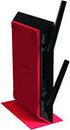 Model EX6150 User Manual September 2015 202-11410-02 350 East Plumeria Drive San Jose, CA 95134 USA Support Thank you for purchasing this NETGEAR product. You can visit www.netgear.com/support to register
Senior Systems Cloud Services
 Senior Systems Cloud Services In this guide... Senior Systems Cloud Services 1 Cloud Services User Guide 2 Working In Your Cloud Environment 3 Cloud Profile Management Tool 6 How To Save Files 8 How To
Qbox User Manual. Version 6.0
 Qbox User Manual Version 6.0 Index Page 3 Page 5 Page 6 Page 7 Page 8 Page 10 Page 11 Page 13 Introduction Setup instructions: new users Setup instructions: users invited to share a folder Adding Sync
Guide to add https://bbmy.ocbc.com as trusted site in Java 7 Update 71. Version of 23 OCBC Bank. All Rights Reserved
 Velocity@ocbc Guide to add https://bbmy.ocbc.com as trusted site in Java 7 Update 71 Version 1.0 141014 1 of 23 Contents Java 7 Update 71 (difficulty logging into Velocity@ocbc)... 3 Uninstall Java Prior
Colligo Email Manager 6.0. Offline Mode - User Guide
 6.0 Offline Mode - User Guide Contents Colligo Email Manager 1 Key Features 1 Benefits 1 Installing and Activating Colligo Email Manager 2 Checking for Updates 3 Updating Your License Key 3 Managing SharePoint
Verified Volunteers. System User Guide 10/2014. For assistance while navigating through the system, please contact Client Services at:
 Verified Volunteers System User Guide 10/2014 For assistance while navigating through the system, please contact Client Services at: [email protected] - (855) 326-1860 - Option 1 Welcome to Verified
Marathon Data Systems
 Marathon Data Systems Executive Dashboard Executive Dashboard is a powerful business intelligence tool that allows owners, managers and executives to: Easily see trends that exist within the data that
www.novell.com/documentation User Guide Novell iprint 1.1 March 2015
 www.novell.com/documentation User Guide Novell iprint 1.1 March 2015 Legal Notices Novell, Inc., makes no representations or warranties with respect to the contents or use of this documentation, and specifically
Using an Edline Gradebook. EGP Teacher Guide
 Using an Edline Gradebook EGP Teacher Guide Table of Contents Introduction...3 Setup...3 Get the Gradebook Web Plugin... 3 Using Your Web Gradebook... 4 Using the Web Gradebook on a Shared Computer...
Velocity Web Services Client 1.0 Installation Guide and Release Notes
 Velocity Web Services Client 1.0 Installation Guide and Release Notes Copyright 2014-2015, Identiv. Last updated June 24, 2015. Overview This document provides the only information about version 1.0 of
Monnit Wi-Fi Sensors. Quick Start Guide
 Monnit Wi-Fi Sensors Quick Start Guide Inside the Box You should find the following items in the box: Monnit Wi-Fi (MoWi ) Sensors 2 x AA Batteries for Each MoWi Sensor Quick Start Guide Note: A MoWi USB
DarwiNet Client Level
 DarwiNet Client Level Table Of Contents Welcome to the Help area for your online payroll system.... 1 Getting Started... 3 Welcome to the Help area for your online payroll system.... 3 Logging In... 4
Datto Drive User Manual
 Datto Drive User Manual NAVIGATING THE DATTO DRIVE INTERFACE By default, the Datto Drive Web interface opens to your Files page. You can add, remove, share files, and make changes based on the access privileges
User Guide. Vehicle Diagnostics by Delphi
 User Guide Vehicle Diagnostics by Delphi Table Of Contents Welcome...9 Is My Vehicle Compatible?...9 Equipment Overview...10 Package Contents...10 System Requirements...11 Installation Requirements...11
User Manual Zultys Outlook Communicator V.2
 Technical Publications January 14 User Manual Zultys Outlook Communicator V.2 Author: Zultys Technical Support Department. Z Z u l t y s, I n c. 7 8 5 L u c e r n e D r i v e S u n n y v a l e, C a l i
DIRECT MESSAGING END USER GUIDE ALABAMA ONE HEALTH RECORD. Unify Data Management Platform 2012/2013 Software Build 5.15
 DIRECT MESSAGING END USER GUIDE ALABAMA ONE HEALTH RECORD Unify Data Management Platform 2012/2013 Software Build 5.15 April 2015 Proprietary and Confidential Property of Truven Health Analytics Inc.
WIDA Assessment Management System (WIDA AMS)
 WIDA Assessment Management System (WIDA AMS) User Guide, Part 1 Data Recognition Corporation (DRC) 13490 Bass Lake Road Maple Grove, MN 55311 Direct: 1-855-787-9615 https://www.wida-ams.us Revision Date: