
Magelis SCU EIO /2013. Magelis SCU. SoMachine Programming Guide 05/2013 EIO
|
|
|
- Sabina Lynch
- 10 years ago
- Views:
Transcription
1 Magelis SCU EIO /2013 Magelis SCU SoMachine Programming Guide 05/2013 EIO
2 The information provided in this documentation contains general descriptions and/or technical characteristics of the performance of the products contained herein. This documentation is not intended as a substitute for and is not to be used for determining suitability or reliability of these products for specific user applications. It is the duty of any such user or integrator to perform the appropriate and complete risk analysis, evaluation and testing of the products with respect to the relevant specific application or use thereof. Neither Schneider Electric nor any of its affiliates or subsidiaries shall be responsible or liable for misuse of the information contained herein. If you have any suggestions for improvements or amendments or have found errors in this publication, please notify us. No part of this document may be reproduced in any form or by any means, electronic or mechanical, including photocopying, without express written permission of Schneider Electric. All pertinent state, regional, and local safety regulations must be observed when installing and using this product. For reasons of safety and to help ensure compliance with documented system data, only the manufacturer should perform repairs to components. When devices are used for applications with technical safety requirements, the relevant instructions must be followed. Failure to use Schneider Electric software or approved software with our hardware products may result in injury, harm, or improper operating results. Failure to observe this information can result in injury or equipment damage Schneider Electric. All rights reserved. 2 EIO /2013

3 Table of Contents Safety Information About the Book Chapter 1 About the Magelis SCU HMI Controller Magelis SCU HMI Controller Devices Overview Chapter 2 How to Configure the Controller How to Configure the HMI Controller Chapter 3 Libraries Libraries Chapter 4 Supported Standard Data Types Supported Standard Data Types Chapter 5 Memory Mapping Memory Organization Chapter 6 Tasks Maximum Number of Tasks Task Configuration Screen Task Types Watchdogs Task Priorities Default Task Configuration Chapter 7 Controller States and Behaviors HMI Controller State Diagram Controller State Diagram HMI Controller States Description Controller States Description State Transitions and System Events Controller States and Output Behavior Commanding State Transitions Error Detection, Types, and Management Remanent Variables EIO /2013 3
4 Chapter 8 Controller Configuration Controller Configuration Applications HMI SCU Controller Settings Chapter 9 Embedded Functions I/O Embedded Function HSC Embedded Function PTO_PWM Embedded Function Analog I/O Embedded Function Analog Temperature Embedded Function Chapter 10 Serial Line Configuration Serial Line Configuration Serial Line Protocol Manager SoMachine Network Manager Modbus Manager Chapter 11 CANopen Configuration CANopen Interface Configuration Chapter 12 Ethernet Configuration IP Address Configuration Chapter 13 Connecting the Magelis SCU HMI Controller to a PC Connecting the Controller to a PC Chapter 14 Firmware Update Upgrading Magelis SCU HMI Controller Firmware/Runtime Chapter 15 Magelis SCU HMI Controller - Troubleshooting and FAQ 111 Troubleshooting Frequently Asked Questions Appendices Appendix A Function and Function Block Representation Differences Between a Function and a Function Block How to Use a Function or a Function Block in IL Language How to Use a Function or a Function Block in ST Language Appendix B Controller Performance Processing Performance Glossary Index EIO /2013

5 Safety Information Important Information NOTICE Read these instructions carefully, and look at the equipment to become familiar with the device before trying to install, operate, or maintain it. The following special messages may appear throughout this documentation or on the equipment to warn of potential hazards or to call attention to information that clarifies or simplifies a procedure. EIO /2013 5
6 PLEASE NOTE Electrical equipment should be installed, operated, serviced, and maintained only by qualified personnel. No responsibility is assumed by Schneider Electric for any consequences arising out of the use of this material. A qualified person is one who has skills and knowledge related to the construction and operation of electrical equipment and its installation, and has received safety training to recognize and avoid the hazards involved. 6 EIO /2013

7 About the Book At a Glance Document Scope The purpose of this document is to help you to configure and program your HMI SCU. For the programming of the HMI portion, please see the Vijeo-Designer online help which can be found in SoMachine. NOTE: Read and understand this document and all related documents before installing, operating, or maintaining your HMI SCU. You should read through the entire document to understand all features. Validity Note This document has been updated with the release of SoMachine V3.1 or later. Related Documents Title of Documentation SoMachine Magelis SCU PLCSystem Library Guide Reference Number EIO (eng), EIO (fre), EIO (ger), EIO (spa), EIO (ita), EIO (chs) EIO /2013 7

8 SoMachine Magelis SCU HSC Library Guide SoMachine Magelis SCU PTO/PWM Library Guide PLCCommunication Library Guide EIO (eng), EIO (fre), EIO (ger), EIO (spa), EIO (ita), EIO (chs) EIO (eng), EIO (fre), EIO (ger), EIO (spa), EIO (ita), EIO (chs) EIO (eng), EIO (fre), EIO (ger), EIO (spa), EIO (ita), EIO (chs) 8 EIO /2013
9 Magelis SCU HMI Controller Hardware Guide EIO (eng), EIO (fre), EIO (ger), EIO (spa), EIO (ita), EIO (chs), EIO (por) You can download these technical publications and other technical information from our website at Product Related Information LOSS OF CONTROL WARNING The designer of any control scheme must consider the potential failure modes of control paths and, for certain critical control functions, provide a means to achieve a safe state during and after a path failure. Examples of critical control functions are emergency stop and overtravel stop, power outage and restart. Separate or redundant control paths must be provided for critical control functions. System control paths may include communication links. Consideration must be given to the implications of unanticipated transmission delays or failures of the link. Observe all accident prevention regulations and local safety guidelines. 1 Each implementation of this equipment must be individually and thoroughly tested for proper operation before being placed into service. Failure to follow these instructions can result in death, serious injury, or equipment damage. 1 For additional information, refer to NEMA ICS 1.1 (latest edition), "Safety Guidelines for the Application, Installation, and Maintenance of Solid State Control" and to NEMA ICS 7.1 (latest edition), "Safety Standards for Construction and Guide for Selection, Installation and Operation of Adjustable-Speed Drive Systems" or their equivalent governing your particular location. EIO /2013 9

10 UNINTENDED EQUIPMENT OPERATION WARNING Only use software approved by Schneider Electric for use with this equipment. Update your application program every time you change the physical hardware configuration. Failure to follow these instructions can result in death, serious injury, or equipment damage. User Comments We welcome your comments about this document. You can reach us by at 10 EIO /2013
11 Magelis SCU About the Magelis SCU HMI Controller EIO /2013 About the Magelis SCU HMI Controller 1 Magelis SCU HMI Controller Devices Overview Overview The Schneider Electric Magelis SCU HMI Controller has various powerful features. This controller can service a wide range of applications. The software configuration and programming is accomplished with the SoMachine software. Key Features Programming languages The Magelis SCU HMI Controller is supported and programmed with the SoMachine software, which supports the following IEC programming languages: IL: Instruction List ST: Structured Text FBD: Function Block Diagram SFC: Sequential Function Chart LD: Ladder Diagram SoMachine software can also be used to program these controllers using CFC (Continuous Function Chart) language. Real-Time Clock (see Magelis SCU, HMI Controller, Hardware Manual) The Magelis SCU HMI Controller includes a Real Time Clock (RTC) system Memory EIO /
12 About the Magelis SCU HMI Controller The table shows the memory specifications: Area Element Size (bytes) System Area System area reserved memory System and diagnostic variables Physical input addresses (%I) 256 Physical output addresses (%Q) 256 Retain variables (1) Persistent retain variables 2044 Application Area Compiled control application User Area Symbols Dynamic Variables Libraries allocation of (1) Not all of the bytes are available for the customer application because some libraries may use retain variables. Embedded Input/Output The following embedded I/O types are available, depending on the controller model (see Magelis SCU, HMI Controller, Hardware Manual): Regular inputs Fast inputs (HSC) Regular outputs Fast outputs (PTO/PWM) Analog inputs Analog outputs Thermocouple inputs RTD (Resistance Temperature Detector) inputs Embedded Communication features 4 types of communication ports are available on the rear panel: Ethernet port CANopen USB programming ports Serial link port For more details, refer to the chapter Integrated Communication Ports (see Magelis SCU, HMI Controller, Hardware Manual). 12 EIO /2013

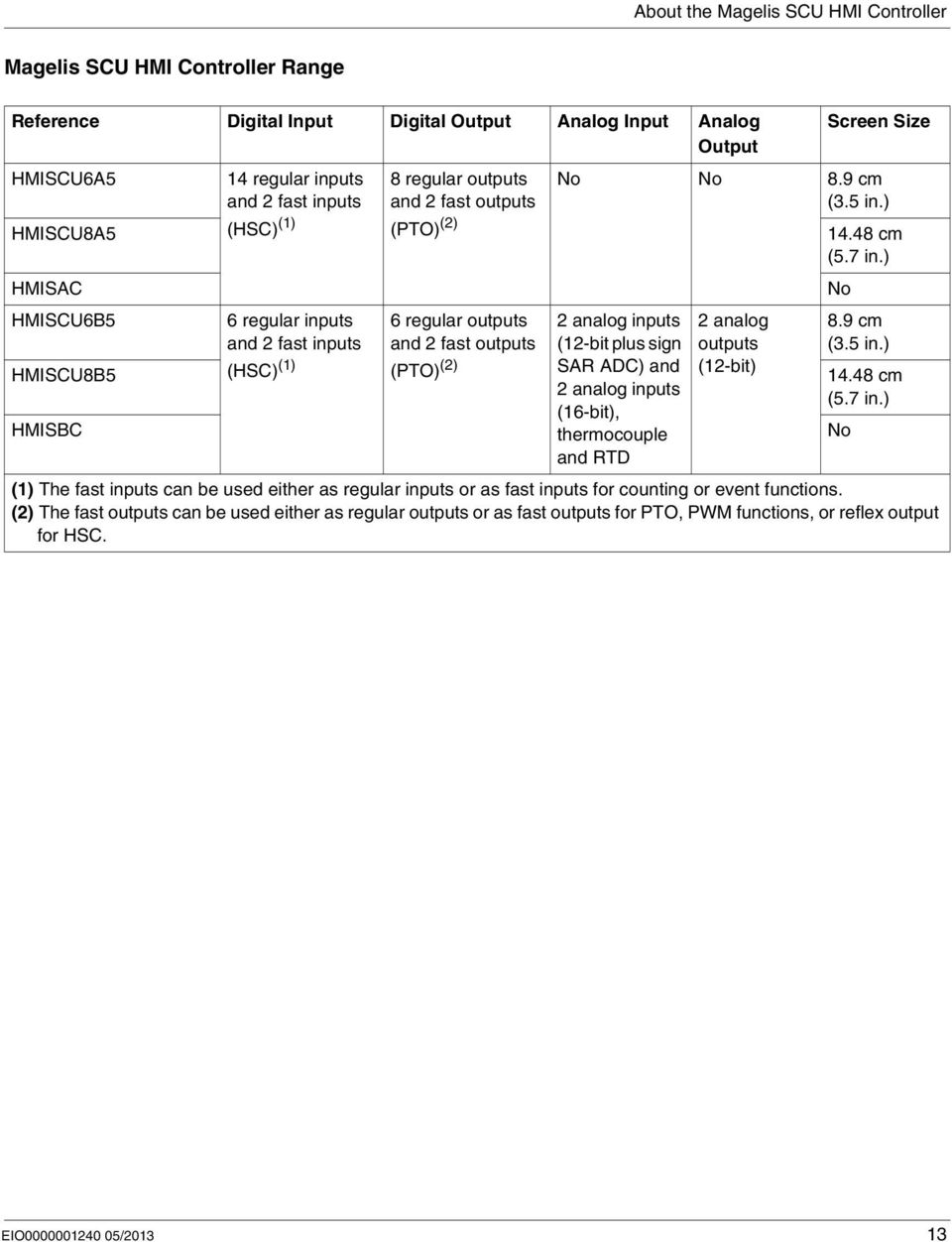
13 About the Magelis SCU HMI Controller Magelis SCU HMI Controller Range Reference Digital Input Digital Output Analog Input Analog Output HMISCU6A5 HMISCU8A5 HMISAC HMISCU6B5 HMISCU8B5 HMISBC 14 regular inputs and 2 fast inputs (HSC) (1) 6 regular inputs and 2 fast inputs (HSC) (1) 8 regular outputs and 2 fast outputs (PTO) (2) 6 regular outputs and 2 fast outputs (PTO) (2) Screen Size No No 8.9 cm (3.5 in.) 2 analog inputs (12-bit plus sign SAR ADC) and 2 analog inputs (16-bit), thermocouple and RTD 2 analog outputs (12-bit) cm (5.7 in.) No 8.9 cm (3.5 in.) cm (5.7 in.) (1) The fast inputs can be used either as regular inputs or as fast inputs for counting or event functions. (2) The fast outputs can be used either as regular outputs or as fast outputs for PTO, PWM functions, or reflex output for HSC. No EIO /
14 About the Magelis SCU HMI Controller 14 EIO /2013

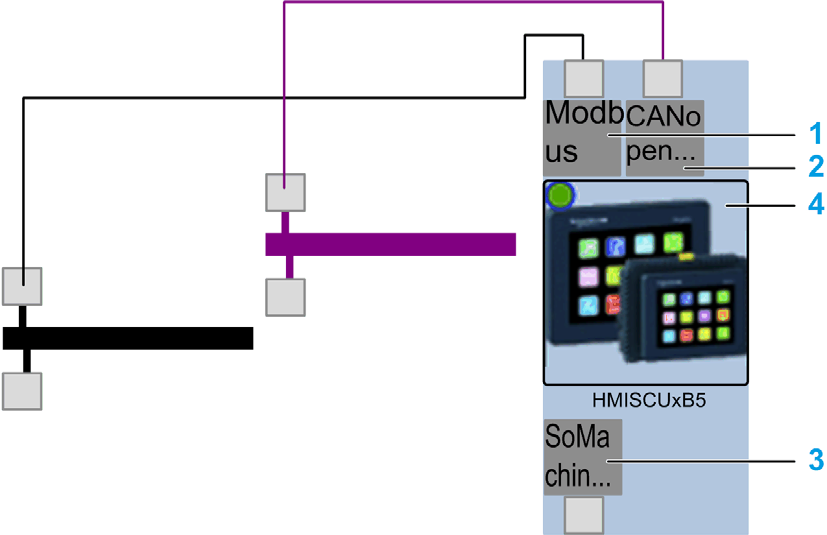
15 Magelis SCU How to Configure the Controller EIO /2013 How to Configure the Controller 2 How to Configure the HMI Controller Introduction Before configuring the HMI controller, you must first create a new project or open an existing project in the SoMachine software (see SoMachine, Programming Guide). Graphical Configuration Editor In the Graphical Configuration Editor (see SoMachine, Programming Guide), the HMI controller is displayed as below: Click on the element to add (if empty) or replace objects: Element Description 1 COM1 (Serial) port manager (SoMachine_Network_Manager by default) 2 CANopen port (CAN) 3 Ethernet port manager 4 Access to the HMI controller configuration screen (double-click the HMI controller) EIO /

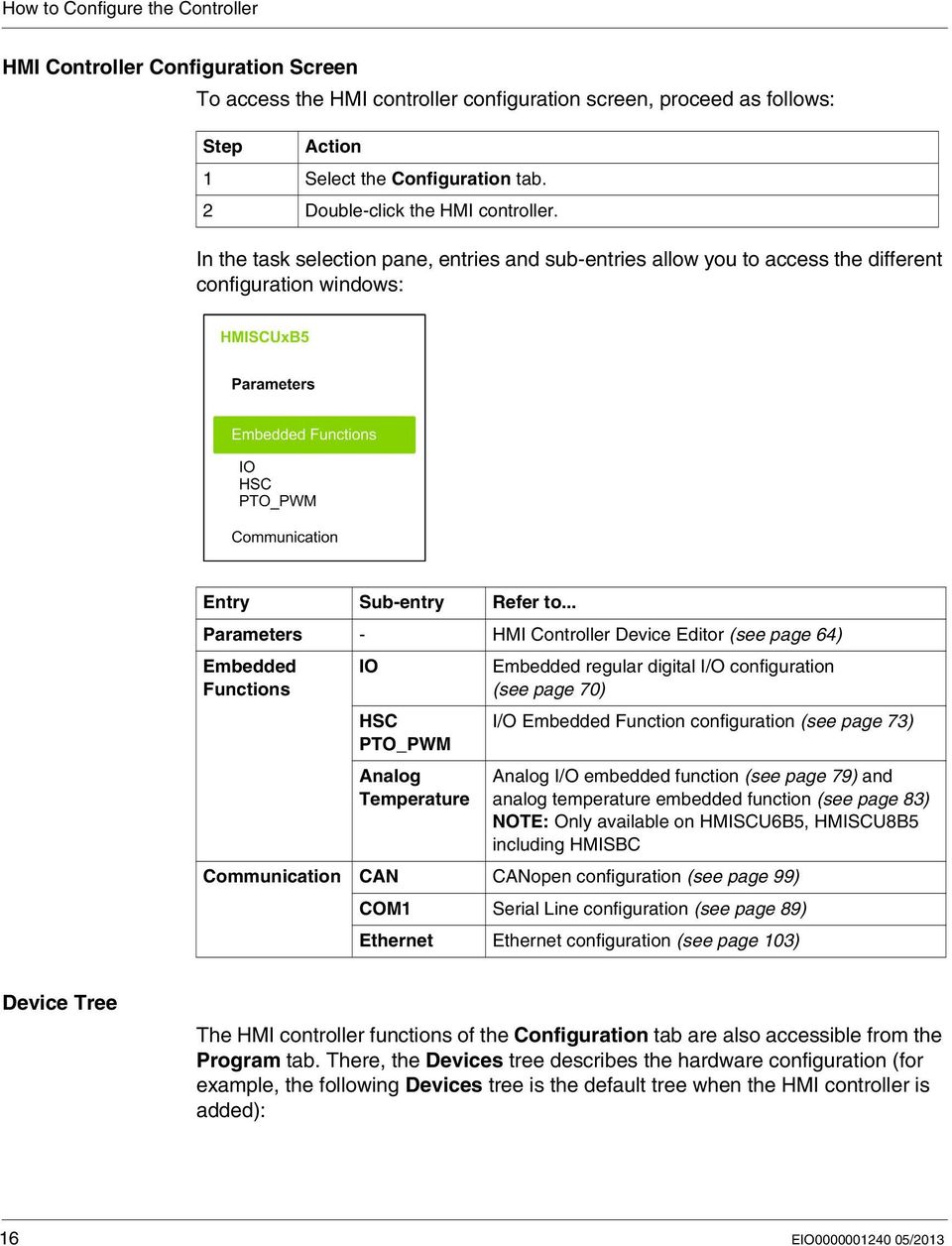
16 How to Configure the Controller HMI Controller Configuration Screen To access the HMI controller configuration screen, proceed as follows: Step Action 1 Select the Configuration tab. 2 Double-click the HMI controller. In the task selection pane, entries and sub-entries allow you to access the different configuration windows: Entry Sub-entry Refer to... Parameters - HMI Controller Device Editor (see page 64) Embedded Functions IO HSC PTO_PWM Analog Temperature Embedded regular digital I/O configuration (see page 70) I/O Embedded Function configuration (see page 73) Analog I/O embedded function (see page 79) and analog temperature embedded function (see page 83) NOTE: Only available on HMISCU6B5, HMISCU8B5 including HMISBC Communication CAN CANopen configuration (see page 99) COM1 Serial Line configuration (see page 89) Ethernet Ethernet configuration (see page 103) Device Tree The HMI controller functions of the Configuration tab are also accessible from the Program tab. There, the Devices tree describes the hardware configuration (for example, the following Devices tree is the default tree when the HMI controller is added): 16 EIO /2013
17 How to Configure the Controller Item PLC Logic Embedded Functions COM1 Ethernet USB CAN Description This part shows items related to the application: Tasks configuration Program Organization Units (POUs) Library manager Global Variable Lists (GVLs) etc. This representation shows the embedded functions. These are the embedded communications. EIO /
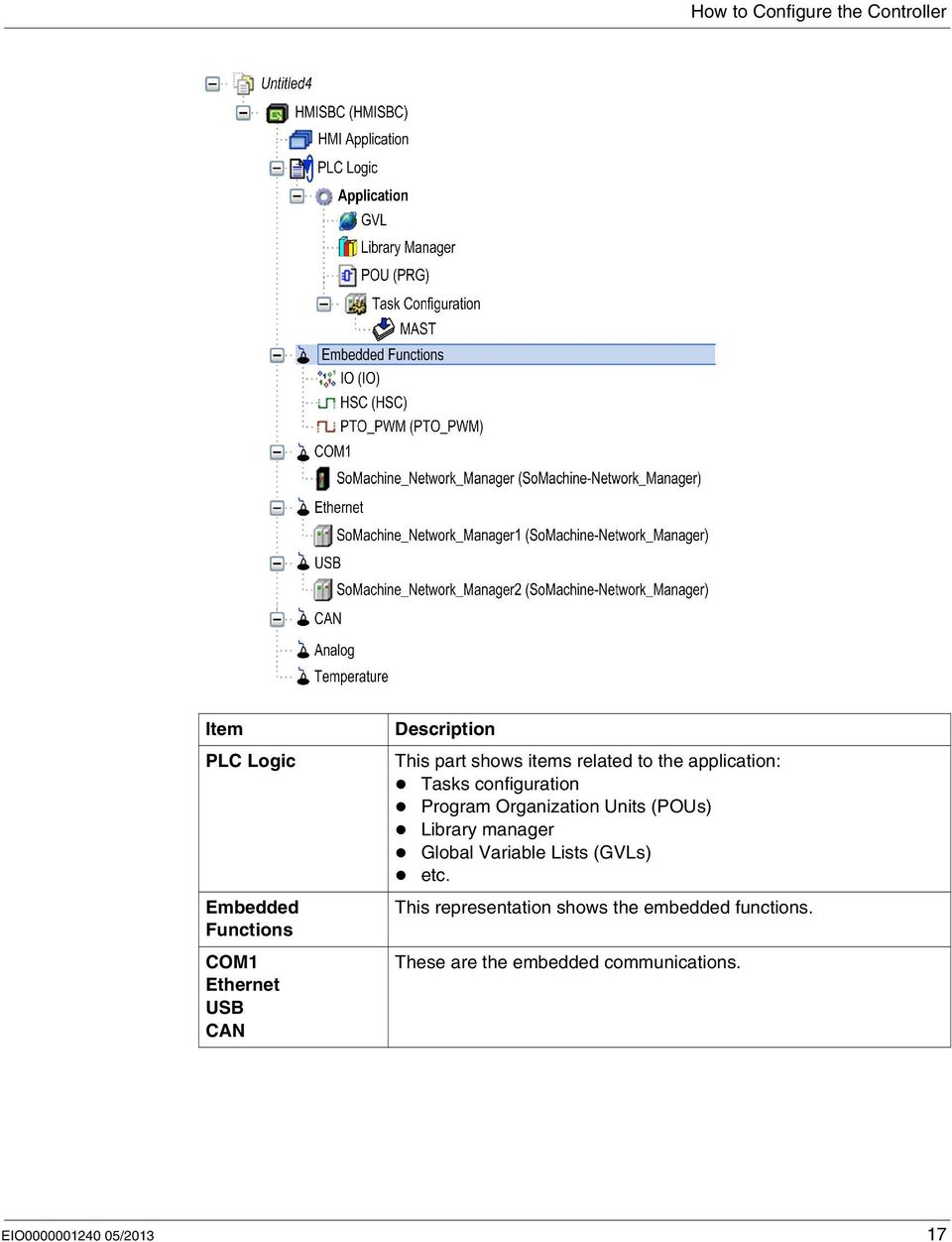
18 How to Configure the Controller Content of Device Tree The device tree represents the objects managed by a specific target (controller or HMI controller). These objects are: application objects (Tasks, etc.), programming objects (POU, GVL, etc.), hardware-related objects (Embedded functions, Embedded I/O, etc.) By default, the device tree includes the following hardware-related objects: Reference HMISCU6A5 HMISCU8A5 HMISCU6B5 HMISCU8B5 HMISCU6B5 HMISCU8B5 Hardware-Related Objects Embedded Functions Communications Embedded Analog I/O IO HSC PTO_PWM COM1 (SoMachine_Network_Manager) Ethernet (SoMachine_Network_Manager1) USB (SoMachine_Network_Manager2) CAN Analog Temperature 18 EIO /2013

19 Magelis SCU Libraries EIO /2013 Libraries 3 Libraries Introduction Libraries provide functions, function blocks, data types and global variables that can be used to develop your project. The Library Manager of SoMachine provides information about the libraries included in your project and allows you to install new ones. For more information on the Library Manager, refer to the CoDeSys online help in SoMachine. Magelis SCU HMI Controller When you select a Magelis SCU HMI Controller for your application, SoMachine automatically loads the following libraries: Library name IoStandard Standard Util HMISCU PLCSystem (see Magelis SCU, SoMachine PLCSystem, Library Guide) Description CmpIoMgr configuration types, ConfigAccess, Parameters and help functions: manages the I/Os in the application. Contains functions and function blocks which are required matching IEC as standard POUs for an IEC programming system. The standard POUs must be tied to the project (standard.library). Analog Monitors, BCD Conversions, Bit/Byte Functions, Controller Datatypes, Function Manipulators, Mathematical Functions, Signals. Contains functions and variables to get information and send commands to the controller system. EIO /

20 Libraries Library name PLCCommunication (see SoMachine, Modbus and ASCII Read/Write Functions, PLCCommunication Library Guide) HMISCU HSC (see Magelis SCU, SoMachine HSC, Library Guide) HMISCU PTOPWM (see Magelis SCU, SoMachine PTO/PWM, Library Guide) Additional libraries: _3SCOS: 3S CANopenStack FDT_CAN: FDT_CANOpenDriver CIA405: CAA CiA 405 (see SoMachine, CANopen Management Functions, CAA CiA 405 Library Guide) Description SysMem, Standard, SE_PLCSystem. These functions facilitate communications between specific devices. Most of them are dedicated to Modbus exchange. Communication functions are processed asynchronously regarding the application task that called the function. Contains function blocks and variables to get information and send commands to the Fast Inputs/Outputs of the Magelis SCU HMI Controller. These function blocks permit you to implement HSC (High Speed Counting) functions on the Fast Inputs/Outputs of the Magelis SCU HMI Controller. Contains function blocks and variables to get information and send commands to the Fast Inputs/Outputs of the Magelis SCU HMI Controller. These function blocks permit you to implement PTO (Pulse Train Output) and PWM (Pulse Width Modulation) functions on the Fast Outputs of the Magelis SCU HMI Controller. The CAA CiA 405 Library offers a set of function blocks to meet the requirements of the CiA405 for the access to the CANopen network from the application (IEC program) of the controller (CANopen master). NOTE: These libraries are not loaded automatically when you add the HMI SCU device. They are added when the CANopen_Optimized child node under CAN is added. 20 EIO /2013

21 Magelis SCU Supported Standard Data Types EIO /2013 Supported Standard Data Types 4 Supported Standard Data Types Supported Standard Data Types The Controller supports the following IEC Data types: Data type Lower limit Upper limit Information content BOOL False True 1 Bit BYTE Bit WORD 0 65, Bit DWORD 0 4,294,967, Bit LWORD Bit SINT Bit USINT Bit INT -32,768 32, Bit UINT 0 65, Bit DINT -2,147,483,648 2,147,483, Bit UDINT 0 4,294,967, Bit LINT Bit ULINT Bit REAL e e Bit LREAL e e Bit STRING 1 character 255 characters 1 character = 1 byte WSTRING 1 character 255 characters 1 character = 1 word TIME Bit For more information on ARRAY, LTIME, DATE, TIME, DATE_AND_TIME, and TIME_OF_DAY, refer to the CoDeSys online help in SoMachine. EIO /
22 Supported Standard Data Types 22 EIO /2013
23 Magelis SCU Memory Mapping EIO /2013 Memory Mapping 5 Memory Organization Introduction This section describes the RAM (Random Access Memory) size for different areas of the Magelis SCU HMI Controller. Memory Mapping The RAM size is 64 Mbytes. The table shows the memory specifications: Area Element Size (bytes) System Area System area reserved memory System and diagnostic variables Physical input addresses (%I) 256 Physical output addresses (%Q) 256 Retain variables (1) Persistent retain variables 2044 Application Area Compiled control application User Area Symbols Dynamic Variables Libraries allocation of (1) Not all of the bytes are available for the customer application because some libraries may use retain variables. The RAM is composed of 4 areas: controller dedicated application memory controller OS memory HMI application memory HMI OS memory EIO /
24 Memory Mapping Memory containing Persistent and Retain variables is preserved and protected. The Persistent and Retain variables will be retained during power outages or when the HMI controller is powered off. System and Diagnostic Variables Variables PLC_R PLC_W Description Structure of HMI controller read-only system variables. Structure of HMI controller read/write system variables. For more information on System Variables, refer to the Magelis SCU SoMachine PLCSystem Library Guide (see Magelis SCU, SoMachine PLCSystem, Library Guide). Library Sizes Library Name Average Size Comment HMISCU HSC (see Magelis SCU, SoMachine HSC, Library Guide) 10 kbytes Depends on the functions used. HMISCU PLCSystem (see Magelis SCU, SoMachine PLCSystem, Library Guide) HMISCU PTO/PWM (see Magelis SCU, SoMachine PTO/PWM, Library Guide) 25 kbytes Always embedded in the application. The use of the functions does not consume additional memory. 10 kbytes Depends on the functions used. PLC Communication 20 kbytes Depends on the functions used. CANopen Stack 115 kbytes Depends on the functions used. Each CANopen Slave consumes approximately an additional 10 kbytes of memory. 24 EIO /2013
25 Memory Mapping Memory Addressing The table describes the memory addressing for the address sizes D, W, B and X: DWORDS/WORDS Bytes X (bits) D0 W0 B0 x x0.0 B1 x x1.0 W1 B2 B3 D1 W2 B4 B5 W3 B6 B7 D2 W4 B Overlap of memory ranges, example: D0 contains B0 - B3, W0 contains B0 and B1, W1 contains B2 and B3. EIO /
26 Memory Mapping 26 EIO /2013
27 Magelis SCU Tasks EIO /2013 Tasks 6 Introduction The Task Configuration node in the SoMachine device tree allows you to define one or several tasks to control the execution of your application program. The task types available are: Cyclic Freewheeling Event This chapter begins with an explanation of these task types and provides information regarding the maximum number of tasks, the default task configuration, and task prioritization. In addition, this chapter introduces the task watchdog function and explains its relationship to task execution. What Is in This Chapter? This chapter contains the following topics: Topic Page Maximum Number of Tasks 28 Task Configuration Screen 29 Task Types 32 Watchdogs 35 Task Priorities 36 Default Task Configuration 39 EIO /
28 Tasks Maximum Number of Tasks Maximum Number of Tasks The maximum number of tasks you can define for the Magelis SCU HMI Controller are: Total number of tasks = 6 Cyclic tasks = 3 Freewheeling tasks = 1 Event tasks = 2 Special Considerations for Freewheeling A Freewheeling task (see page 33) does not have a fixed duration. In Freewheeling mode, each task scan starts when the previous scan has been completed and after a period of system processing (30% of the total duration of the Freewheeling task). NOTE: You should not use a Freewheeling task in a multi-task application when some high priority and time-consuming tasks are running. Doing so runs the risk of provoking a task Watchdog Timeout. You should not assign CANopen to a freewheeling task. CANopen should be assigned to a cyclic task. NOTE: This does not include the time required to process the HMI application (which is normally 25% of Controller CPU time). 28 EIO /2013

29 Tasks Task Configuration Screen Access to Task Configuration Follow these steps to access the Task Configuration: Step Action 1 Click the Program menu: 2 Double-click the task that you want to configure in the device tree of the Devices window: NOTE: For more information on adding a task, refer to the SoMachine CoDeSys online help. Task Configuration Screen Each task configuration has its own parameters which are independent of the other tasks. EIO /
30 Tasks The task Configuration window is composed of 4 parts: The following table describes the fields of the task Configuration screen: Field Name Priority Type Definition You can configure the priority of each task with a number between 0 and 31 (0 is the highest priority, 31 is the lowest). Only 1 task at a time can be running. The priority determines when the task will run: a higher priority task will preempt a lower priority task tasks with same priority will run in turn (2 ms time-slice) NOTE: Do not assign tasks with the same priority. For important safety information, refer to Task Priorities (see page 36). 3 types of tasks are available: Cyclic (see page 32) Freewheeling (see page 33) Event (see page 33) 30 EIO /2013
31 Tasks Field Name Watchdog (see page 35) POUs (see SoMachine, Programming Guide) Definition To configure the watchdog, you must define two parameters: Time: enter the timeout before watchdog execution. Sensitivity: defines the number of expirations of the watchdog timer before the Controller stops program execution and enters into a HALT state (see page 48). The list of POUs (Programming Organization Unit) controlled by the task is defined in the task Configuration window: To add a POU linked to the task, use the command Add POU. To remove a POU from the list, use the command Remove POU. The command Open POU opens the currently selected POU in the appropriate editor. To replace the currently selected POU of the list by another one, use the command Change POU... POUs are executed in the order they appear in the task Configuration window. To rearrange POUs in the list, select a POU and click Move Up or Move Down Clicking any of the POU commands will open the Input Assistant window. NOTE: You can create as many POUs as you want. An application with several small POUs, as opposed to one large POU improves the refresh time of the variables in online mode. EIO /
32 Tasks Task Types Introduction The following section describes the various task types available for your program, along with a description of the task type characteristics. Cyclic Task A Cyclic task is assigned a fixed cycle time using the Interval setting in the Type section of Configuration sub-tab for that task. Each Cyclic task type executes as follows: 1. Read Inputs: The physical input states are written to the %I input memory variables and other system operations are executed. 2. Task Processing: The user code (POU, and so on) defined in the task is processed. The %Q output memory variables are updated according to your application program instructions but not yet written to the physical outputs during this operation. 3. Write Outputs: The %Q output memory variables are modified with any output forcing that has been defined; however, the writing of the physical outputs depends upon the type of output and instructions used. For more information on defining the bus cycle task, refer to the CoDeSys online help in SoMachine and Magelis SCU HMI Controller Settings (see page 66). For more information on I/O behavior, refer to Controller States Detailed Description (see page 41). 4. Remaining Interval time: The controller firmware carries out system processing and any other lower priority tasks. NOTE: If you define too short a period for a cyclic task, it will repeat immediately after the write of the outputs and without executing other lower priority tasks or any system processing. This will affect the execution of all tasks and cause the controller to exceed the system watchdog limits, generating a system watchdog exception. NOTE: You can get and set the interval of a Cyclic Task by application using the GetCurrentTaskCycle and SetCurrentTaskCycle function. (Refer to Toolbox Advance Library Guide for further details.) 32 EIO /2013
33 Tasks Freewheeling Task A Freewheeling task does not have a fixed duration. In Freewheeling mode, each task scan begins when the previous scan has been completed and after a short period of system processing. Each Freewheeling task type executes as follows: 1. Read Inputs: The physical input states are written to the %I input memory variables and other system operations are executed. 2. Task Processing: The user code (POU, and so on) defined in the task is processed. The %Q output memory variables are updated according to your application program instructions but not yet written to the physical outputs during this operation. 3. Write Outputs: The %Q output memory variables are modified with any output forcing that has been defined; however, the writing of the physical outputs depends upon the type of output and instructions used. For more information on defining the bus cycle task, refer to the CoDeSys online help in SoMachine and Magelis SCU HMI Controller Settings (see page 66). For more information on I/O behavior, refer to Controller States Detailed Description (see page 48). 4. System Processing: The controller firmware carries out system processing and any other lower priority tasks (for example: http management, Ethernet management, parameters management). Event Task This type of task is event-driven and is initiated by a program variable. It starts at the rising edge of the boolean variable associated to the trigger event unless preempted by a higher priority task. In that case, the Event task will start as dictated by the task priority assignments. For example, if you have defined a variable called my_var and would like to assign it to an Event, select the Event type on the Configuration sub-tab and click on the Input Assistant button to the right of the Event name field. This will cause the Input Assistant dialog box to appear. In the Input Assistant dialog box, you navigate the tree to find and assign the my_var variable. EIO /
34 Tasks NOTE: The maximum frequency admissible for the event triggering an Event task is governed by the priorities of other tasks and system processes. So you must test your application to ensure reliable event triggering. 34 EIO /2013
35 Tasks Watchdogs Introduction One type of watchdog functionality is implemented for the Magelis SCU HMI Controller: Task Watchdogs: Optional watchdogs that can be defined for each task. These are managed by your application program and are configurable in SoMachine. NOTE: Infinite loops are not interrupted if a user does not set the Task Watchdog manually. Task Watchdogs SoMachine allows you to configure an optional task watchdog for every task defined in your application program. (Task watchdogs are sometimes also referred to as software watchdogs or control timers in the SoMachine online help). When one of your defined task watchdogs reaches its threshold condition, an application error is detected and the controller enters the HALT state. When defining a task watchdog, the following options are available: Time: This defines the allowable maximum execution time for a task. When a task takes longer than this the controller will report a task watchdog exception. Sensitivity: The sensitivity field defines the number of task watchdog exceptions that must occur before the controller detects an application error. A task watchdog is configured on the Configuration sub-tab of the Task Configuration tab for the individual task. To access this tab, double-click the task in the device tree. NOTE: For more information on watchdogs, refer to the CoDeSys online help in SoMachine. EIO /
36 Tasks Task Priorities Introduction You can configure the priority of each task between 0 and 31 (0 is the highest priority, 31 is the lowest). Each task must have a unique priority. If you assign the same priority to more than one task, execution for those tasks is indeterminate and unpredictable, which may lead to unintended consequences. WARNING UNINTENDED EQUIPMENT OPERATION Do not assign the same priority to different tasks. Failure to follow these instructions can result in death, serious injury, or equipment damage. Task Priority Recommendations Priority 0 to 24: Controller tasks. Assign these priorities to tasks with a high realtime requirement. Priority 25 to 31: Background tasks. Assign these priorities to tasks with a low real-time requirement. 36 EIO /2013
37 Tasks Task Preemption Due to Task Priorities When a task cycle starts, it can interrupt any task with lower priority (task preemption). The interrupted task will resume when the higher priority task cycle is finished. NOTE: If the same input is used in different tasks the input image may change during the task cycle of the lower priority task. To improve the likelihood of proper output behavior during multitasking, a warning message will be displayed if outputs in the same byte are used in different tasks. EIO /
38 Tasks WARNING UNINTENDED EQUIPMENT OPERATION Map your inputs so that tasks do not alter the input images in an unexpected manner. Failure to follow these instructions can result in death, serious injury, or equipment damage. 38 EIO /2013
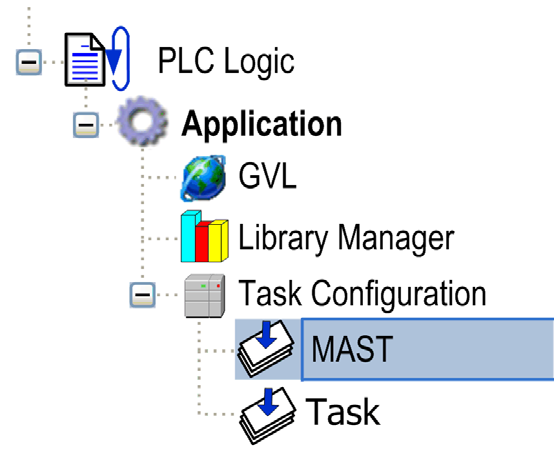
39 Tasks Default Task Configuration Default Task Configuration The MAST task can be configured in Freewheeling or Cyclic mode. The MAST task is automatically created by default in Cyclic mode. Its preset priority is medium (15), its preset interval is 20 ms, and its task watchdog service is activated with a time of 100 ms and a sensitivity of 1. Refer to Task Priorities (see page 36) for more information on priority settings. Refer to Task Watchdogs (see page 35) for more information on watchdogs. Designing an efficient application program is important in systems approaching the maximum number of tasks. In such an application, it can be difficult to keep the resource utilization below the system watchdog threshold. If priority reassignments alone are not sufficient to remain below the threshold, some lower priority tasks can be made to use fewer system resources if the SysTaskWaitSleep function is added to those tasks. For more information about this function, see the optional SysTask library of the system / SysLibs category of libraries. NOTE: Do not delete or change the Name of the MAST task. If you do so, SoMachine detects an error when you attempt to build the application, and you will not be able to download it to the controller. EIO /
40 Tasks 40 EIO /2013
41 Magelis SCU Controller States and Behaviors EIO /2013 Controller States and Behaviors 7 Introduction This chapter provides you with information on controller states, state transitions, and behaviors in response to system events. It begins with a detailed controller state diagram and a description of each state. It then defines the relationship of output states to controller states before explaining the commands and events that result in state transitions. It concludes with information about Remanent variables and the effect of SoMachine task programming options on the behavior of your system. What Is in This Chapter? This chapter contains the following sections: Section Topic Page 7.1 HMI Controller State Diagram HMI Controller States Description State Transitions and System Events 51 EIO /
42 Controller States and Behaviors 7.1 HMI Controller State Diagram 42 EIO /2013
43 Controller States and Behaviors Controller State Diagram Controller State Diagram The following diagram describes the controller operating mode: EIO /
44 Controller States and Behaviors Legend: Controller states are indicated in ALL-CAPS BOLD User and application commands are indicated in Bold System events are indicated in Italics Decisions, decision results and general information are indicated in normal text 44 EIO /2013
45 Controller States and Behaviors (1) For details on STOPPED to RUNNING state transition, refer to Run Command (see page 55). (2) For details on RUNNING to STOPPED state transition, refer to Stop Command (see page 55). Note 1 The Power Cycle (Power Interruption followed by a Power ON) deletes all output forcing settings. Refer to Controller State and Output Behavior for further details. Note 2 The outputs will assume their initialization states. Note 3 HMI download screen is displayed prompting the user to download the firmware, HMI and Control application. Note 4 The application is loaded into RAM after verification of a valid Boot application. Note 5 The state of the controller will be RUNNING after a reboot if the reboot was provoked by a Power Cycle and the HMI application had been downloaded using a Multiple Download... command with option Start all applications after download or online change selected. Note 6 During a successful application download the following events occur: The application is loaded directly into RAM. By default, the Boot application is created and saved into the Flash memory. Note 7 However, there are two important considerations in this regard: Online Change: An online change (partial download) initiated while the controller is in the RUNNING state returns the controller to the RUNNING state if successful. Before using the Login with online change option, test the changes to your application program in a virtual or non-production environment and confirm that the controller and attached equipment assume their expected conditions in the RUNNING state. EIO /
46 Controller States and Behaviors WARNING UNINTENDED EQUIPMENT OPERATION Always verify that online changes to a RUNNING application program operate as expected before downloading them to controllers. Failure to follow these instructions can result in death, serious injury, or equipment damage. NOTE: Online changes to your program are not automatically written to the Boot application, and will be overwritten by the existing Boot application at the next reboot. If you wish your changes to persist through a reboot, manually update the Boot application by selecting Create boot application in the Online menu. Multiple Download: SoMachine has a feature that allows you to perform a full application download to multiple targets on your network or fieldbus. One of the default options when you select the Multiple Download... command is the Start all applications after download or online change option, which restarts all download targets in the RUNNING state, irrespective of their last controller state before the multiple download was initiated. Deselect this option if you do not want all targeted controllers to restart in the RUNNING state. In addition, before using the Multiple Download... option, test the changes to your application program in a virtual or non-production environment and confirm that the targeted controllers and attached equipment assume their expected conditions in the RUNNING state. WARNING UNINTENDED EQUIPMENT OPERATION Always verify that your application program will operate as expected for all targeted controllers and equipment before issuing the "Multiple Download " command with the "Start all applications after download or online change" option selected. Failure to follow these instructions can result in death, serious injury, or equipment damage. Note 8 The SoMachine software platform allows many powerful options for managing task execution and output conditions while the controller is in the STOPPED or HALT states. Refer to Controller State and Output Behavior for further details. 46 EIO /2013
47 Controller States and Behaviors Note 9 To exit the HALT state it is necessary to issue one of the Reset commands (Reset Warm, Reset Cold, Reset Origin), download an application or cycle power. Note 10 The RUNNING state has two exceptional conditions that will be indicated in run state or error messages on HMI screen. RUNNING with External Error: You may exit this exceptional condition by clearing the external error. No controller commands are required. RUNNING with Breakpoint: Refer to Controller State Description (see page 48) for further details on this exceptional condition. EIO /
48 Controller States and Behaviors 7.2 HMI Controller States Description Controller States Description Introduction This section provides a detailed description of the controller states. UNINTENDED EQUIPMENT OPERATION WARNING Never assume that your controller is in a certain controller state before commanding a change of state, configuring your controller options, uploading a program, or modifying the physical configuration of the controller and its connected equipment. Before performing any of these operations, consider the effect on all connected equipment. Before acting on a controller, always positively confirm the controller state by checking for the presence of output forcing, and reviewing the controller status information via SoMachine (1). Failure to follow these instructions can result in death, serious injury, or equipment damage. (1) Note: The controller states can be read in the PLC_R.i_wStatus system variable of the PLCSystem library (see Magelis SCU, SoMachine PLCSystem, Library Guide). Controller States Table The following table describes the controller states: Controller State BOOTING INVALID_OS EMPTY RUNNING Description The controller executes the boot firmware and its own internal self-tests. It then checks the checksum of the firmware and user applications. It does not execute the application nor does it communicate. There is not a valid firmware file present In the Flash memory. The controller does not execute the application. Communication is only possible through the USB host port, and then only for uploading a valid OS. There is no or an invalid application. The controller is executing a valid application. 48 EIO /2013
49 Controller States and Behaviors Controller State RUNNING with Breakpoint RUNNING with detection of an External Error STOPPED STOPPED with detection of an External Error HALT Description This state is the same as the RUNNING state with the following exceptions: The task-processing portion of the program does not resume until the breakpoint is cleared. See online CoDeSys help in SoMachine for details on breakpoints management. This state is the same as the normal RUNNING state. The controller has a valid application that is stopped. See Details of the STOPPED State (see page 49) for an explanation of the behavior of outputs and field buses in this state. This state is the same as the normal STOPPED state. The controller stops executing the application because it has detected an Application or a System Error. This description is the same as for the STOPPED state with the following exceptions: The task responsible for the Application Error always behaves as if the Update I/O while in stop option was not selected. All other tasks follow the actual setting. Details of the STOPPED State The following statements are always true for the STOPPED state: Ethernet, Serial (Modbus, ASCII, etc.), and USB communication services remain operational and commands written by these services can continue to affect the application, the controller state, and the memory variables. All outputs initially assume their configured state (Keep current values or Set all outputs to default) or the state dictated by output forcing if used. The subsequent state of the outputs depends on the value of the Update I/O while in stop setting and on commands received from remote devices. Task and I/O Behavior When Update I/O While In Stop Is Selected When the Update I/O while in stop setting is selected: The Read Inputs operation continues normally. The physical inputs are read and then written to the %I input memory variable. The Task Processing operation is not executed. The Write Outputs operation continues. The %Q output memory variable is updated to reflect either the Keep current values configuration or the Set all outputs to default configuration, adjusted for any output forcing, and then written to the physical outputs. EIO /
50 Controller States and Behaviors NOTE: Expert functions continue to operate. For example, a counter will continue to count. However, these Expert functions do not affect the state of the outputs. The outputs of Expert I/O conform to the behavior stated here. NOTE: Commands received by Ethernet, Serial, USB, and CAN communications can continue to write to the memory variables. Changes to the %Q output memory variables are written to the physical outputs. CAN Behavior When Update I/O While In Stop Is Selected The following is true for the CAN buses when the Update I/O while in stop setting is selected: The CAN bus remains fully operational. Devices on the CAN bus continue to perceive the presence of a functional CAN Master. TPDO and RPDO continue to be exchanged. The optional SDO, if configured, continue to be exchanged. The Heartbeat and Node Guarding functions, if configured, continue to operate. If the Behavior for outputs in Stop field is set to Keep current values, the TPDOs continue to be issued with the last actual values. If the Behavior for outputs in Stop field is Set all outputs to default the last actual values are updated to the default values and subsequent TPDOs are issued with these default values. Task and I/O Behavior When Update I/O While In Stop Is Not Selected When the Update I/O while in stop setting is not selected, the controller sets the I/O to either the Keep current values or Set all outputs to default condition (as adjusted for output forcing if used). After this, the following becomes true: The Read Inputs operation ceases. The %I input memory variable is frozen at its last values. The Task Processing operation is not executed. The Write Outputs operation ceases. The %Q output memory variables can be updated via the Ethernet, Serial, and USB connections. However, the physical outputs are unaffected and retain the state specified by the configuration options. NOTE: Expert functions cease operating. For example, a counter will be stopped. CAN Behavior When Update I/O While In Stop Is Not Selected The following is true for the CAN buses when the Update I/O while in stop setting is not selected: The CAN Master ceases communications. Devices on the CAN bus assume their configured fallback states. TPDO and RPDO exchanges cease. Optional SDO, if configured, exchanges cease. The Heartbeat and Node Guarding functions, if configured, stop. The current or default values, as appropriate, are written to the TPDOs and sent once before stopping the CAN Master. 50 EIO /2013
51 7.3 State Transitions and System Events Controller States and Behaviors Overview This section begins with an explanation of the output states possible for the controller. It then presents the system commands used to transition between controller states and the system events that can also affect these states. It concludes with an explanation of the Remanent variables, and the circumstances under which different variables and data types are retained through state transitions. What Is in This Section? This section contains the following topics: Topic Page Controller States and Output Behavior 52 Commanding State Transitions 55 Error Detection, Types, and Management 60 Remanent Variables 62 EIO /
52 Controller States and Behaviors Controller States and Output Behavior Introduction The Magelis SCU HMI Controller defines output behavior in response to commands and system events in a way that allows for greater flexibility. An understanding of this behavior is necessary before discussing the commands and events that affect controller states. For example, typical controllers define only two options for output behavior in stop: fallback to default value or keep current value. The possible output behaviors and the controller states to which they apply are: Managed by Application Program Keep Current Values Set All Outputs to Default Initialization Values Output Forcing ControllerLockout Feature The ControllerLockout feature locks or unlocks the controller stop mode. A locked controller cannot be restarted until the controller is unlocked. Attempts to restart a locked controller are ignored and a message appears.you can only initiate lockout once the controller is in STOPPED state. If the controller is in RUNNING state and you attempt to lockout, the attempt is ignored and a message appears. The ControllerLockout is not managed through SoMachine, it is an internal boolean variable (_ControllerLockout) of the HMI in Vijeo-Designer. For more information on managing this variable, refer to the Vijeo-Designer Online Help. Managed by Application Program Your application program manages outputs normally. This applies in the RUNNING and RUNNING with External Error states. Keep Current Values You can select this option by choosing Keep current values in the Behavior for outputs in Stop drop-down menu of the PLC settings sub-tab of the Controller Editor. To access the Controller Editor, right-click on the controller in the device tree and select Edit Object. You can also double-click on the name representing the HMISCU device in the Devices windows to access the Controller Editor. 52 EIO /2013
53 Controller States and Behaviors This output behavior applies in the STOPPED controller state. It also applies to CAN bus in the HALT controller state. Outputs are set to and maintained in their current state, although the details of the output behavior varies greatly depending on the setting of the Update I/O while in stop option and the actions commanded via configured fieldbuses. Refer to Controller States Description (see page 48) for more details on these variations.d-se Set All Outputs to Default You can select this option by choosing Set all outputs to default in the Behavior for outputs in Stop drop-down menu of the PLC settings sub-tab of the Controller Editor. To access the Controller Editor, right-click on the controller in the device tree and select Edit Object. This output behavior applies in the STOPPED controller state. It also applies to CAN bus in the HALT controller state. Outputs are set to and maintained in their current state, although the details of the output behavior varies greatly depending on the setting of the Update I/O while in stop option and the actions commanded via configured fieldbuses. Refer to Controller States Description (see page 48)D-SE for more details on these variations. Initialization Values This output state applies in the BOOTING, EMPTY (following power cycle with no boot application or after the detection of a system error), and INVALID_OS states. In the initialization state, analog, transistor and relay outputs assume the following values: For an analog output: Z (High Impedance) For a fast transistor output: Z (High Impedance) For a regular transistor output: 0 Vdc For a relay output: Open Output Forcing The controller allows you to force the state of selected outputs to a defined value for the purposes of system testing, commissioning and maintenance. You are only able to force the value of an output while your controller is connected to SoMachine. To do so you use the Force Values command in the Debug/Watch menu. Output forcing overrides all other commands to an output irrespective of the task programming that is being executed (this does not apply to an output currently used by a controller s embedded functions, such as HSC/PTO/PWM). EIO /
54 Controller States and Behaviors When you logout of SoMachine when output forcing has been defined, you are presented with the option to retain output forcing settings. If you select this option, the output forcing continues to control the state of the selected outputs until you download an application or use one of the Reset commands. When the option Update I/O while in stop is checked (default state), the forced outputs keep the forcing value even when the logic controller is in STOP. Output Forcing Considerations The output you wish to force must be contained in a task that is currently being executed by the controller. Forcing outputs in unexecuted tasks, or in tasks whose execution is delayed either by priorities or events will have no effect on the output. However, once the task that had been delayed is executed, the forcing will take effect at that time. Depending on task execution, the forcing could impact your application in ways that may not be obvious to you. For example, an event task could turn on an output. Later, you may attempt to turn off that output but the event is not being triggered at the time. This would have the effect of the forcing apparently being ignored. Further, at a later time, the event could trigger the task at which point the forcing would take effect. UNINTENDED EQUIPMENT OPERATION WARNING You must have a thorough understanding of how forcing will affect the outputs relative to the tasks being executed. Do not attempt to force I/O that is containted in tasks that you are not certain will be executed in a timely manner, unless your intent is for the forcing to take affect at the next execution of the task whenever that may be. If you force an output and there is no apparent affect on the physical output, do not exit SoMachine without removing the forcing. Failure to follow these instructions can result in death, serious injury, or equipment damage. 54 EIO /2013
55 Controller States and Behaviors Commanding State Transitions Run Command Effect: Commands a transition to the RUNNING controller state. Starting Conditions: BOOTING or STOPPED state. Methods for Issuing a Run Command: SoMachine Online Menu: Select the Start command. By an HMI command using the PLC_W. q_wplccontrol and PLC_W. q_uiopenplccontrol system variables of the PLCSystem library (see Magelis SCU, SoMachine PLCSystem, Library Guide). Login with online change option: An online change (partial download) initiated while the controller is in the RUNNING state returns the controller to the RUNNING state if successful. Multiple Download Command: sets the controllers into the RUNNING state if the Start all applications after download or online change option is selected, irrespective of whether the targeted controllers were initially in the RUNNING, STOPPED, HALT or EMPTY state. The controller is restarted into the RUNNING state automatically under certain conditions. Refer to Controller State Diagram (see page 43) for further details. Stop Command Effect: Commands a transition to the STOPPED controller state. Starting Conditions: BOOTING, EMPTY or RUNNING state. Methods for Issuing a Run Command: SoMachine Online Menu: Select the Stop command. By an internal call by the application or an HMI command using the PLC_W. q_wplccontrol and PLC_W. q_uiopenplccontrol system variables of the PLCSystem library (see Magelis SCU, SoMachine PLCSystem, Library Guide). Login with online change option: An online change (partial download) initiated while the controller is in the STOPPED state returns the controller to the STOPPED state if successful. Download Command: implicitly sets the controller into the STOPPED state. Multiple Download Command: sets the controllers into the STOPPED state if the Start all applications after download or online change option is not selected, irrespective of whether the targeted controllers were initially in the RUNNING, STOPPED, HALT or EMPTY state. EIO /
56 Controller States and Behaviors REBOOT by USB file system download:: The application download from on a USB memory key will issue a REBOOT as its final command. The controller will be rebooted into the STOPPED state provided the other conditions of the boot sequence allow this to occur. Refer to Saving your Application and Firmware on a USB Memory Key (see page 106) and Reboot (see page 105) for further details. The controller is restarted into the STOPPED state automatically under certain conditions. Refer to Controller State Diagram (see page 43) for further details. Reset Warm Effect: Resets all variables, except for the remanent variables, to their default values. Places the controller into the STOPPED state. Starting Conditions: RUNNING, STOPPED, or HALT states. ControllerLockout = 0. Methods for Issuing a Reset Warm Command: SoMachine Online Menu: Select the Reset warm command. By an internal call by the application or an HMI command using the PLC_W. q_wplccontrol and PLC_W. q_uiopenplccontrol system variables of the PLCSystem library (see Magelis SCU, SoMachine PLCSystem, Library Guide). Effects of the Reset Warm Command: 1. The application stops. 2. Forcing is erased. 3. Diagnostic indications for detected errors are reset. 4. The values of the retain variables are maintained. 5. The values of the retain-persistent variables are maintained. 6. All non-located and non-remanent variables are reset to their initialization values. 7. All fieldbus communications are stopped and then restarted after the reset is complete. 8. All I/O are briefly reset to their initialization values and then to their userconfigured default values. For details on variables, refer to Remanent Variables (see page 62). Reset Cold Effect: Resets all variables, except for the retain-persistent type of remanent variables, to their initialization values. Places the controller into the STOPPED state. Starting Conditions: RUNNING, STOPPED, or HALT states. ControllerLockout = EIO /2013
57 Controller States and Behaviors Methods for Issuing a Reset Cold Command: SoMachine Online Menu: Select the Reset cold command. By an internal call by the application or an HMI command using the PLC_W. q_wplccontrol and PLC_W. q_uiopenplccontrol system variables of the PLCSystem library (see Magelis SCU, SoMachine PLCSystem, Library Guide). Effects of the Reset Cold Command: 1. The application stops. 2. Forcing is erased. 3. Diagnostic indications for detected errors are reset. 4. The values of the retain variables are reset to their initialization value. 5. The values of the retain-persistent variables are maintained. 6. All non-located and non-remanent variables are reset to their initialization values. 7. All fieldbus communications are stopped and then restarted after the reset is complete. 8. All I/O are briefly reset to their initialization values and then to their userconfigured default values. For details on variables, refer to Remanent Variables (see page 62). Reset Origin Effect: Resets all variables, including the remanent variables, to their initialization values. Erases all user files on the controller. Places the controller into the EMPTY state. Starting Conditions: RUNNING, STOPPED, or HALT states. ControllerLockout = 0. Methods for Issuing a Reset Origin Command: SoMachine Online Menu: Select the Reset origin command. Effects of the Reset Origin Command: 1. The application stops. 2. Forcing is erased. 3. All user files (Boot application, data logging) are erased. 4. Diagnostic indications for detected errors are reset. 5. The values of the retain variables are reset. 6. The values of the retain-persistent variables are reset. 7. All non-located and non-remanent variables are reset. 8. All fieldbus communications are stopped. 9. Embedded Expert I/O are reset to their previous user-configured default values. 10. All other I/O are reset to their initialization values. For details on variables, refer to Remanent Variables (see page 62). Reboot Effect: Commands a reboot of the controller. EIO /
58 Controller States and Behaviors Starting Conditions: ControllerLockout = 0. Methods for Issuing the Reboot Command: Power cycle. REBOOT by USB file system download: The file application download from on a USB memory key will issue a REBOOT as its final command. The controller will be rebooted into the STOPPED state provided the other conditions of the boot sequence allow this to occur. Refer to Saving your Application and Firmware on a USB Memory Key (see page 106) for further details. Effects of the Reboot: 1. The state of the controller depends on a number of conditions: a. The controller state will be RUNNING if: - The Reboot was provoked by a power cycle, and - Controller state was RUNNING prior to the power cycle. b. The controller state will be STOPPED if: - The Reboot was provoked by a Reboot by script, or - The boot application is different than the application loaded prior to the reboot, or - Controller state was STOPPED prior to a power cycle, or - The previously saved context is invalid. c. The controller state will be EMPTY if: - There is no boot application or the boot application is invalid, or d. The controller state will be INVALID_OS if there is no valid OS. 2. Forcing is maintained if the boot application is loaded successfully. If not, forcing is erased. 3. Diagnostic indications for detected errors are reset. 4. The values of the retain variables are restored if saved context is valid. 5. The values of the retain-persistent variables are restored if saved context is valid. 6. All non-located and non-remanent variables are reset to their initialization values. 7. All fieldbus communications are stopped and restarted after the boot application is loaded successfully. 8. All I/O are reset to their initialization values and then to their user-configured default values if the controller assumes a STOPPED state after the reboot. For details on variables, refer to Remanent Variables (see page 62). NOTE: The Check context test concludes that the context is valid when the application and the remanent variables are the same as defined in the Boot application. NOTE: If you make an online change to your application program while your controller is in the RUNNING or STOPPED state but do not manually update your Boot application, the controller will detect a difference in context at the next reboot, the remanent variables will be reset as per a Reset cold command, and the controller will enter the STOPPED state. 58 EIO /2013
59 Controller States and Behaviors Download Application Effect: Loads your application executable into the RAM memory. Optionally, creates a Boot application in the Flash memory. Starting Conditions: RUNNING, STOPPED, HALT, and EMPTY states. ControllerLockout = 0. Methods for Issuing the Download Application Command: SoMachine: Two options exist for downloading a full application: Download command. Multiple Download command. For important information on the application download commands, refer to Controller State Diagram (see page 43). USB memory key: Load Boot application file using a USB memory key connected to the controller USB host port. The updated file is applied at the next reboot. Refer to Saving your Application and Firmware on a USB Memory Key (see page 106) for further details. Effects of the SoMachine Download Command: 1. The existing application stops and then is erased. 2. If valid, the new application is loaded and the controller assumes a STOPPED state. 3. Forcing is erased. 4. Diagnostic indications for detected errors are reset. 5. The values of the retain variables are reset to their initialization values. 6. The values of any existing retain-persistent variables are maintained. 7. All non-located and non-remanent variables are reset to their initialization values. 8. All fieldbus communications are stopped and then any configured fieldbus of the new application is started after the download is complete. 9. Embedded Expert I/O are reset to their previous user-configured default values and then set to the new user-configured default values after the download is complete. 10. All other I/O are reset to their initialization values and then set to the new userconfigured default values after the download is complete. For details on variables, refer to Remanent Variables (see page 62). Effects of USB memory key Download Command: There are no effect until the next reboot. At the next reboot, the effects are the same as a reboot with an invalid context. Refer to Reboot (see page 105). EIO /
60 Controller States and Behaviors Error Detection, Types, and Management Detected Error Management The controller manages 3 types of detected errors: external detected errors application detected errors system detected errors The following table describes the types of errors that may be detected: Type of Error Detected External Error Detected Application Error Detected Description External errors are detected by the system while RUNNING or STOPPED but do not affect the ongoing controller state. An external error is detected in the following cases: A connected device reports an error to the controller The controller detects an error with an external device whether or not it reports an error, for example when the external device is communicating but not properly configured for use with the controller The controller detects an error with the state of an output The controller detects a loss of communication with a device The boot application in Flash memory is not the same as the one in RAM. Examples: output short circuit missing expansion module communication lost etc. An application error is detected when improper programming is encountered or when a task watchdog threshold is exceeded. Examples: task (software) watchdog exception execution of an unknown function division by zero etc. Resulting Controller State RUNNING with External Error Detected Or STOPPED with External Error Detected HALT 60 EIO /2013
61 Controller States and Behaviors Type of Error Detected System Error Detected Description A system error is detected when the controller enters a condition that cannot be managed during runtime. Most such conditions result from firmware or hardware exceptions, but there are some cases when incorrect programming can result in the detection of a system error, for example, when attempting to write to memory that was reserved during runtime. Examples: System (hardware) watchdog overflow exceeding the defined size of an array etc. NOTE: There are some system errors that can be managed by runtime and are therefore treated like application errors. Resulting Controller State BOOTING EMPTY NOTE: refer to the HMI SCU PLCSystem Library Guide (see Magelis SCU, SoMachine PLCSystem, Library Guide) for more detailed information on diagnostics. EIO /
62 Controller States and Behaviors Remanent Variables Remanent Variables Remanent variables can retain their values in the event of power outages, reboots, resets, and application program downloads. There are two types of remanent variables, declared individually as Retain or Persistent retain. Retain variables can be declared within a POU or as Global. Persistent retain variables, however, are only declarable as Global. Remanent variables are retained only if the battery charge is sufficient. The following table describes the behavior of remanent variables in each case: Action VAR VAR RETAIN VAR GLOBAL PERSISTENT RETAIN Online change to application program X X X Stop X X X Power cycle - X X Reset warm - X X Reset cold - - X Reset origin Download of application program - - X X The value is maintained - The value is re initialized NOTE: VAR PERSISTENT RETAIN symbols must be declared in the Persistent Variables... node. To add the node, right-click the Application in the Devices window, then select Persistent Variables... from the Add Object menu. One cannot simply declare them in a POU or GVL. 62 EIO /2013
63 Magelis SCU Controller Configuration EIO /2013 Controller Configuration 8 Introduction This chapter describes how to configure the Magelis SCU HMI Controller. What Is in This Chapter? This chapter contains the following topics: Topic Page Controller Configuration 64 Applications 65 HMI SCU Controller Settings 66 EIO /

64 Controller Configuration Controller Configuration Controller Configuration Window Double-click the controller name representing the HMI SCU device in the Devices window to access the Controller Configuration window: The table describes the tabs of the Controller Configuration Editor screen: Tab Name Communication Settings Applications (see page 65) PLC Settings (see page 66) Status Information Description Allows you to configure the connection between SoMachine and the controller. For more information, refer to the CoDeSys online help in SoMachine. Shows the applications currently running in the controller and allows you to remove applications from the controller. Configuration of: Application for I/O handing I/O behavior in stop Bus cycle options Displays device-specific status and diagnostic messages. Displays general information on the device (name, description, provider, version, image). 64 EIO /2013

65 Controller Configuration Applications Overview The figure shows the Applications tab: This dialog box allows scanning and removing applications on the Controller. Element Applications on the Controller Description List of the names of applications which have been found on the Controller during the last scan. NOTE: SoMachine controllers currently support only one application in a device at a time. Buttons Refresh List The Controller will be scanned for applications, the list will be updated. Remove The application currently selected in the list will be removed from the Controller. Remove all All applications will be removed from the Controller. For more information, refer to the CoDeSys online help in SoMachine. EIO /
66 Controller Configuration HMI SCU Controller Settings Overview The figure shows the PLC Settings tab: The table describes the elements of the PLC Settings Tab: Element Application for I/O handling PLC settings Update I/O while in stop Behavior for outputs in Stop Update all variables in all devices Description By default, set to Application because there is only one application in the controller. If this option is activated (default), the values of the input channels will be updated when the Controller is stopped. From the selection list choose one of the following options to configure how the values at the output channels should be handled in case of Controller stop: Keep current values: The current values will not be modified. Set all outputs to default: The default (fallback) values resulting from the mapping will be assigned. NOTE: This option is not taken into account for the outputs used by the HSC, PTO or PWM. If this option is activated, then for all devices of the current Controller configuration all I/O variables will get updated in each cycle of the bus cycle task. This corresponds to the option Always update variables, which can be set separately for each device in the I/O Mapping dialog. 66 EIO /2013
67 Controller Configuration Element Bus cycle options Bus cycle task Description This configuration setting is the parent for all Bus cycle task parameters used in the application device tree. Some devices with cyclic calls, such as a CANopen manager, can be attached to a specific task. In the device, when this setting is set to Use parent bus cycle setting, the setting set for the Controller is used. The selection list offers all tasks currently defined in the Task Configuration of the active application. The default setting is the MAST task. NOTE: The selection <unspecified> signifies that the slowest cyclic task possible is used. EIO /
68 Controller Configuration 68 EIO /2013
69 Magelis SCU Embedded Functions EIO /2013 Embedded Functions 9 Overview This chapter describes how to configure the embedded functions of the Magelis SCU HMI Controller. The number of inputs and outputs dedicated to the embedded function depends on the HMI controller reference (see page 13). What Is in This Chapter? This chapter contains the following topics: Topic Page I/O Embedded Function 70 HSC Embedded Function 73 PTO_PWM Embedded Function 76 Analog I/O Embedded Function 79 Analog Temperature Embedded Function 83 EIO /
70 Embedded Functions I/O Embedded Function Overview The embedded I/O function allows configuring of the controller inputs. The table describes the digital inputs of the controllers: Reference Total Number of Digital Inputs Number of Fast Inputs HMISCU6A fast inputs (FI0, FI1) HMISCU8A5 HMISAC HMISCU6B fast inputs (FI0, FI1) HMISCU8B5 HMISBC Accessing the I/O Configuration Window Follow these steps to access the embedded I/O configuration window: Step Description 1 Select the Configuration tab: 2 Double-click the controller. NOTE: You can also right-click the controller and select Edit device parameters. 3 In the Task Pane, click Embedded Functions IO: 70 EIO /2013
71 Embedded Functions I/O Configuration Window The window allows you to configure the embedded digital inputs: NOTE: For more information on the I/O Mapping tab, refer to the CoDeSys online help in SoMachine. When you click the IO Summarize button, the IO Summary window appears. It allows you to check your configured I/O mapping: EIO /
72 Embedded Functions Configuration Parameters For each digital input, you can configure the parameters: Parameter Value Description Constraint Filter No* 3ms 12 ms Reduce the effect of noise on a controller input. Available if Latch and Event are disabled. In the other cases, this parameter is disabled and its value is No. Latch Bounce Filter Run/Stop No* Yes 4µs* 40 µs No* Yes * parameter default value Allows incoming pulses with amplitude widths shorter than the controller scan time to be captured and recorded. Reduces the effect of bounce on a controller input. The Run/Stop input can be used to run or stop a program in the controller This parameter is only available for the fast inputs FI0 and FI1. Available if Run/Stop is disabled. Available if Latch is enabled. In the other cases, this parameter is disabled. Any of the inputs can be configured as Run/Stop, but only one input can be configured for this purpose. NOTE: The parameter is unavailable if the selection displays as gray in color. 72 EIO /2013
73 Embedded Functions HSC Embedded Function Overview The HSC function can execute fast counts of pulses from sensors, encoders, switches, and so on, that are connected to the dedicated fast inputs. There are 2 types of HSC: Simple type: a single input counter (see Magelis SCU, SoMachine HSC, Library Guide). Main type: a counter that uses up to 4 inputs (2 fast inputs and 2 standard inputs) and 2 reflex outputs (see Magelis SCU, SoMachine HSC, Library Guide). Accessing the HSC Configuration Window Follow these steps to access the embedded HSC configuration window: Step Description 1 Select the Configuration tab: 2 Double-click the controller. NOTE: You can also right-click the controller and select Edit device parameters. 3 In the Task pane, click Embedded Functions HSC: EIO /
74 Embedded Functions HSC Configuration Window The figure shows a sample HSC configuration window used to configure the HSC: The table describes the areas of the HSC configuration window: Number Action 1 Select the HSC tab to access each one of the HSC configuration Windows. 2 Select a specific HSC tab to access the HSC channel you need to configure. 3 Choose the type of HSC (Simple or Main) you want. The global variable name representing the channel instance can be defined here. Default for HSC 0 is HSC00, and for HSC 1 is HSC01. 4 You can expand each parameter by clicking the plus sign next to it to access its settings. 5 Configuration window where the HSC parameters are set depending on the mode used. 6 When you click the IO Summarize button, the IO Summary window appears. It allows you to check your configured physical I/O mapping. 74 EIO /2013
75 Embedded Functions For detailed information on configuration parameters, refer to HMI SCU HSC choice matrix (see Magelis SCU, SoMachine HSC, Library Guide). EIO /
76 Embedded Functions PTO_PWM Embedded Function Overview The PTO embedded function can provide 2 different functions: PTO The PTO (Pulse Train Output) implements digital technology (see Magelis SCU, SoMachine PTO/PWM, Library Guide) that provides precise positioning for open loop control of motor drives. PWM The PWM (Pulse Width Modulation) function generates a programmable square wave signal on a dedicated output (see Magelis SCU, SoMachine PTO/PWM, Library Guide) with adjustable duty cycle and frequency. Accessing the PTO_PWM Configuration Window Follow these steps to access the PTO_PWM embedded function configuration window: Step Description 1 Select the Configuration tab: 2 Double-click the controller. NOTE: You can also right-click the controller and select Edit device parameters. 3 In the Task Pane click Embedded Functions PTO_PWM: 76 EIO /2013
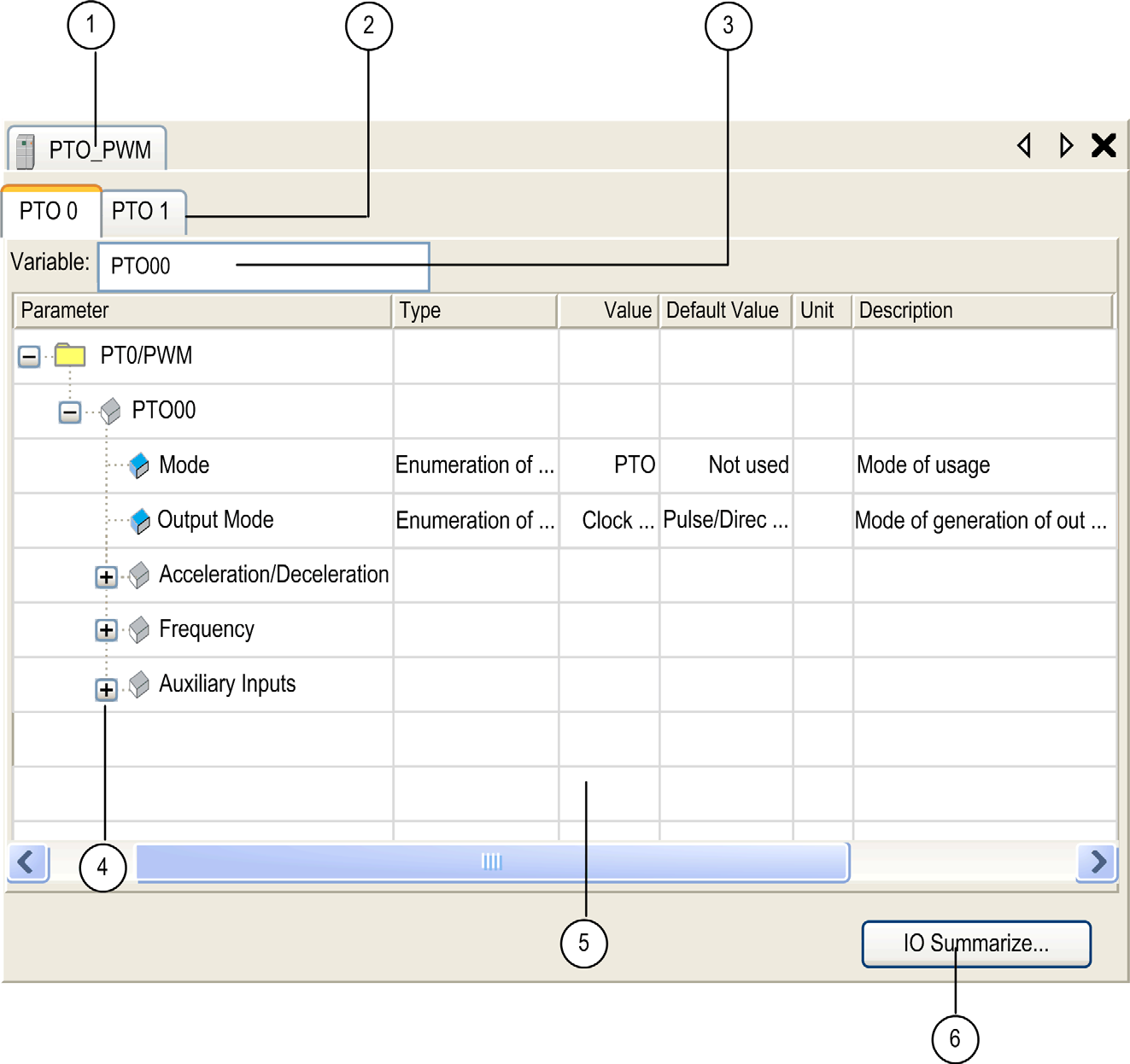
77 Embedded Functions PTO_PWM Configuration Window The figure shows a sample PTO_PWM configuration window used to configure a PTO or PWM: The table describes the areas of the PTO_PWM configuration window: Number Action 1 Select the PTO_PWM tab to access each one of the PTO_PWM configuration Windows. 2 Select a specific PTO tab to access the PTO_PWM channel you need to configure. 3 Choose the type of PTO_PWM (PTO, PWM) you want, use the field Variable to change the Global Variable name representing the instance of the channel. Default variable name for PTO 0 channel is PTO00. For PTO 1 channel, it is PTO01. 4 You can expand each parameter by clicking the plus sign next to it to access its settings. EIO /
78 Embedded Functions Number Action 5 Configuration window where the embedded function is used for: PTO PWM 6 When you click the IO Summarize button, the IO Summary window appears. It shows the configured I/O mapping. For detailed information on configuration parameters, refer to: PTO configuration (see Magelis SCU, SoMachine PTO/PWM, Library Guide). PWM configuration (see Magelis SCU, SoMachine PTO/PWM, Library Guide). 78 EIO /2013
79 Embedded Functions Analog I/O Embedded Function Overview The HMISCU6B5, HMISCU8B5 and HMISBC HMI controllers have embedded analog I/O: 2 analog inputs 2 analog outputs NOTICE INOPERABLE EQUIPMENT Be sure that the physical wiring of the analog circuit is compatible with the software configuration for the analog channel. Failure to follow these instructions can result in equipment damage. For information about the technical characteristics of the analog I/O, refer to the Hardware Guide (see Magelis SCU, HMI Controller, Hardware Manual). Accessing the Analog I/O Configuration Window Follow these steps to access the analog I/O embedded function configuration window: Step Description 1 Select the Configuration tab: 2 Double-click the controller. NOTE: You can also right-click the controller and select Edit device parameters. 3 In the Task Pane, click Embedded Functions Analog IO: EIO /
80 Embedded Functions Analog I/O Configuration Window This window allows you to configure the analog I/O: NOTE: Embedded analog I/Os are always physically updated by the MAST task. For more information on the Analog I/O Mapping tab, refer to the CoDeSys online help in SoMachine. I/O Configuration Tab To configure the HMI SCU, select the I/O Configuration tab. The table describes the analog parameters configuration: Parameter Value Description Constraint Type Not used * V V ma ma Range mode 80 EIO /2013
81 Embedded Functions Parameter Value Description Constraint Scope Normal * Unit Available if Type value is defined. Customized Minimum Maximum Normal Analog input Normal Analog output Customized Analog I/O Normal Analog input Normal Analog output Customized Analog I/O * parameter default value V: V: ma: ma: V: V: ma: ma: V: V: ma: ma: V: V: ma: ma: V: V: ma: ma: V: V: ma: ma: Minimum value Maximum value Not configurable. Not configurable. Inferior that the configured maximum. Configured minimum must be less than the configured maximum. Not configurable. Not configurable. Superior that the configured minimum. Configured maximum must be more than the configured minimum. NOTE: The parameter is unavailable if the selection displays as gray in color. Analog to Digital Conversion Rate Analog-to-digital conversion rate for data acquisition is made using the converter hardware. All analog I/O that are configured are converted every 2 ms. I/O Mapping Tab Variables can be defined and named in the Analog I/O Mapping tab. Additional information such as topological addressing is also provided in this tab. EIO /
82 Embedded Functions This window shows the Analog I/O Mapping tab: The table describes the I/O mapping configuration: Variable Channel Type Default value Description Inputs IW0 INT Current value of the input 0 IW1 Current value of the input 1 Outputs QW0 INT Current value of the output 0 QW1 Current value of the output 1 82 EIO /2013
83 Embedded Functions Analog Temperature Embedded Function Overview The HMISCU6B5, HMISCU8B5 and HMISBC HMI controllers have embedded analog temperature with 2 Inputs. The HMI SCU is designed for various sensor types. The sensor type must be specified because of the different adjustment values. NOTICE INOPERABLE EQUIPMENT Be sure that the physical wiring of the analog circuit is compatible with the software configuration for the analog channel. Failure to follow these instructions can result in equipment damage. For information about the technical characteristics of the analog temperature inputs, refer to the Hardware Guide (see Magelis SCU, HMI Controller, Hardware Manual). Analog Temperature Input Configuration Window This window allows you to configure the analog temperature inputs: NOTE: Embedded analog I/Os are always physically updated by the MAST task. For more information on the Analog I/O Mapping tab, refer to the CoDeSys online help in SoMachine. I/O Configuration Tab To configure the HMI SCU, select the I/O Configuration tab. EIO /
84 Embedded Functions The table describes the analog input parameter configuration: Parameter Value Description Constraint Type Not used * Thermocouple J Thermocouple K Thermocouple R Thermocouple B Thermocouple S Thermocouple T Thermocouple E Thermocouple N PT100 (2/4 Wire) PT1000 (2/4 Wire) NI100 (2/4 Wire) NI1000 (2/4 Wire) PT100 (3 Wire) PT1000 (3 Wire) NI100 (3 Wire) NI1000 (3 Wire) Range mode Scope Not used * Normal Customized Celsius (0.1 C) Fahrenheit (0.1 F) Unit Available if Type value is defined. 84 EIO /2013
85 Embedded Functions Parameter Value Description Constraint Minimum Normal 0 Minimum value Not configurable. Customized Minimum value Lowest configurable value. Celsius Thermocouple J: 2000 Thermocouple K: 2400 Thermocouple R: 0 Thermocouple B: 2000 Thermocouple S: 0 Thermocouple T: 2000 Thermocouple E: 2000 Thermocouple N: 2000 PT100: 2000 PT1000: 2000 NI100: 500 NI1000: 500 Minimum value Not configurable. Fahrenheit Thermocouple J: 3280 Thermocouple K: 4000 Thermocouple R: 32 Thermocouple B: 3920 Thermocouple S: 32 Thermocouple T: 3280 Thermocouple E: 3280 Thermocouple N: 3280 PT100: 3280 PT1000: 3280 NI100: -580 NI1000: -580 Minimum value Not configurable. EIO /
86 Embedded Functions Parameter Value Description Constraint Maximum Normal Maximum value * parameter default value Customized Maximum value Celsius Thermocouple J: 7600 Thermocouple K: Thermocouple R: Thermocouple B: Thermocouple S: Thermocouple T: 4000 Thermocouple E: 9000 Thermocouple N: PT100: 6000 PT1000: 6000 NI100: 2000 NI1000: 2000 Fahrenheit Thermocouple J: Thermocouple K: Thermocouple R: Thermocouple B: Thermocouple S: Thermocouple T: 7520 Thermocouple E: Thermocouple N: PT100: PT1000: NI100: 3920 NI1000: 3920 NOTE: Maximum value Maximum value Not configurable. Highest configurable value. Not configurable. Not configurable. To reduce cycle time, do not activate a channel when there is no sensor connected. The data type is always INT which is a 16 bit integer value. The minimum and maximum values are shown according to the entries in the table above. (for example, for thermocouple J in Celsius the Type would read: INT( )) The parameter is unavailable if the selection displays as gray in color. Analog to Digital Conversion Rate Analog-to-digital conversion rate for data acquisition is made using the converter hardware. All temperature analog I/Os that are configured are converted every 2 ms. 86 EIO /2013
87 Embedded Functions Terminal Temperature (Cold Junction) Compensation Terminal Temperature (Cold Junction) Compensation is measured and calculated internally. No extra temperature measurement of the terminal is required. I/O Mapping Tab Variables can be defined and named in the I/O Mapping tab. Additional information such as topological addressing is also provided in this tab. The table describes the I/O mapping configuration: Variable Channel Type Default Value Description Inputs IW0 INT Current value of the input 0 IW1 Current value of the input 1 EIO /
88 Embedded Functions 88 EIO /2013
89 Magelis SCU Serial Line Configuration EIO /2013 Serial Line Configuration 10 Introduction This chapter describes how to configue the serial line communication of the Magelis SCU HMI Controller. What Is in This Chapter? This chapter contains the following topics: Topic Page Serial Line Configuration 90 Serial Line Protocol Manager 92 SoMachine Network Manager 94 Modbus Manager 95 EIO /
90 Serial Line Configuration Serial Line Configuration Introduction The serial line Configuration window allows configuring the physical parameters of the serial line (baud rate, parity, and so on). The Serial Line port(s) of your controller are configured for the SoMachine protocol by default when new or when you update the controller firmware. The SoMachine protocol is incompatible with other protocols such as that of Modbus Serial Line. In an active Modbus configured serial line, if a new controller is connected or if controller firmware is updated, this can cause the other devices available on the serial line to stop communicating. Check that the controller is not connected to an active Modbus serial line network before downloading a valid application having the concerned port or ports properly configured for the intended protocol. WARNING UNINTENDED EQUIPMENT OPERATION Verify that your application has the Serial Line port(s) properly configured for Modbus before physically connecting the controller to an operational Modbus serial line network. Failure to follow these instructions can result in death, serious injury, or equipment damage. Serial Line Configuration To configure the serial line, proceed as follows: Step Action 1 Select the Configuration tab and double-click the controller. 90 EIO /2013
91 Serial Line Configuration Step Action 2 Click the Communication COM1 entry on the task selection pane. 3 Click the Physical Settings entry. The Configuration window is displayed: NOTE: You can also select the Program tab and double-click the COM1 in the device tree to access the Configuration window. The following parameters must be identical for each serial device connected to the port: Element Baud rate Parity Data bits Stop bits Physical medium Description Transmission speed Used for error detection Number of bits for transmitting data Number of stop bits Specify to use RS-232 or RS-485 EIO /
92 Serial Line Configuration Serial Line Protocol Manager Overview The Magelis SCU HMI Controller is equipped with 1 serial line: Serial Line Supported protocol COM1 Modbus Manager SoMachine Network Manager * Legend. *: Default setting for COM1 The following table indicates the Manager baud rate characteristic: Manager Maximum Baud Rate (bits/s) Supported Baud Rate (bits/s) SoMachine Network Manager , 57600, 38400, 19200, 9600 Modbus Manager , 57600, 38400, 19200, 9600 Adding the Serial Line Protocol Manager Follow these steps to add a protocol manager on the serial line: Step Action 1 Select Configuration tab and double-click the controller. 2 Click Communication COM 1. 3 Click the Protocol Settings entry. 92 EIO /2013
93 Serial Line Configuration Step Action 4 Click the Remove/Change Protocol, and the Add device window is displayed. NOTE: You also can access this window by selecting the Configuration tab and clicking the serial line port of the controller from the graphical configuration editor. 5 Select the manager and click Add and close. EIO /
94 Serial Line Configuration SoMachine Network Manager Introduction The SoMachine Network Manager must be used if you want to exchange variables with a controller such as M238 or M258, or a SoMachine compatible HMI such as the Magelis GTO using SoMachine software protocol. Adding the Manager To add a Manager on Serial Line, proceed as follows: Step Action 1 Select the Configuration tab and double-click on the controller. 2 Click the Communication COM1 entry on the left hand side. 3 Click the Protocol Settings entry. 4 Click the Remove/Change Protocol button. Select the SoMachine-Network_Manager object and click Add and close: Configuring the Manager There is no configuration for the SoMachine Network Manager. 94 EIO /2013
95 Serial Line Configuration Modbus Manager Introduction The Modbus Manager is used for Modbus RTU protocol in master mode. Configuring the Manager To configure the Modbus_Manager of your controller, proceed as follows: Step Action 1 Select the Configuration tab and double-click the controller. 2 Click the Communication COM1 entry on the task selection pane. EIO /
96 Serial Line Configuration Step Action 3 Click the Protocol Settings entry. Result: The Modbus_Manager configuration window is displayed if Modbus_Manager is already configured on this serial line port. Set the parameters as described in the following table: Element Description Addressing The HMI SCU is configured as a master. No other options are available. Address [ ] Modbus address of the device. For Modbus master, this is set to 0. Time between Frames (ms) Serial Line Settings Time to avoid bus-collision. This parameter must be identical for each Modbus device on the link. Displays the parameters specified in [Physical Settings] of the Serial Line configuration menu (see page 90). Modbus Master When the controller is configured as a Modbus Master, the following Function Blocks are supported from the PLCCommunication Library: ADDM READ_VAR SINGLE_WRITE WRITE_READ_VAR WRITE_VAR 96 EIO /2013
97 Serial Line Configuration For further information, see Function Block Descriptions (see SoMachine, Modbus and ASCII Read/Write Functions, PLCCommunication Library Guide) of the PLCCommunication Library (see SoMachine, Modbus and ASCII Read/Write Functions, PLCCommunication Library Guide). EIO /
98 Serial Line Configuration 98 EIO /2013
99 Magelis SCU CANopen Configuration EIO /2013 CANopen Configuration 11 CANopen Interface Configuration To configure the CAN bus of your controller, proceed as follows: Step Action 1 Select the Configuration tab and double-click the controller: 2 Click the Communication entry on the left-hand side of the screen. 3 Click the CAN entry. 4 Click the Physical Settings entry. Result: The tabbed configuration dialog box for CANopen networks is displayed on the right-hand side of the screen. 5 Configure the baudrate (by default: bits/s): NOTE: The Online Bus Access option allows you to block SDO, DTM and NMT sending through the status screen. EIO /
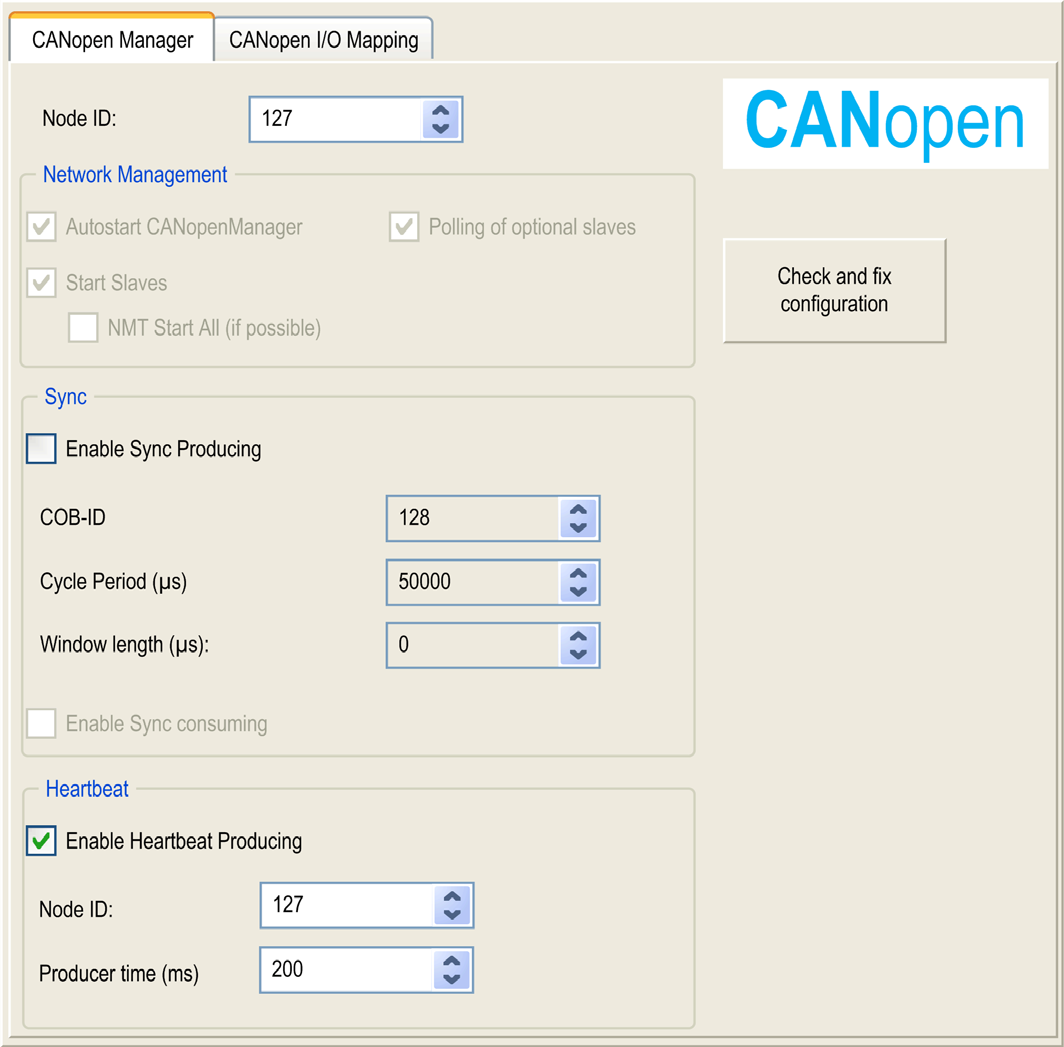
100 CANopen Configuration CANopen Manager Creation and Configuration To create and configure the CANopen Manager, proceed as follows: Step Action 1 Click the Protocol Settings entry and select CANopen Optimized in the Devices window. 2 Click the Add and close button. Result: The CANopen Manager configuration window appears: For more information, refer to the CoDeSys online help in SoMachine. Adding a CANopen Device For more information on adding a CANopen slave device, refer to the CoDeSys online help in SoMachine and Adding Slave Devices to a Communication Manager (see SoMachine, Programming Guide). 100 EIO /2013
101 CANopen Configuration CANopen Operating Limits The Magelis SCU HMI Controller CANopen master has the following recommended operating limits: Maximum number of slave devices 16 Maximum number of Received PDO (RPDO) 32 Maximum number of Transmitted PDO (TPDO) 32 UNINTENDED EQUIPMENT OPERATION WARNING Do not connect more than 16 CANopen slave devices to the controller Program your application to use 32 or fewer Transmit PDO (TPDO) Program your application to use 32 or fewer Receive PDO (RPDO) Failure to follow these instructions can result in death, serious injury, or equipment damage. EIO /
102 CANopen Configuration 102 EIO /2013
103 Magelis SCU Ethernet Configuration EIO /2013 Ethernet Configuration 12 IP Address Configuration Introduction Setting up an Ethernet connection and IP address configuration with the HMI controllers is accomplished with Vijeo-Designer. There are two ways to assign the IP address of the controller with Vijeo-Designer: DHCP server Fixed IP address NOTE: If the above addressing modes are not operational, the PLC starts with a default IP address (see page 104) derived from its MAC address. Ethernet Configuration For the HMI controller, the Ethernet configuration is done via the Vijeo-Designer Property Inspector window: NOTE: The Ethernet configuration parameters are applied after a download of the HMI application. EIO /
104 Ethernet Configuration The following table briefly explains the different parameters needed for setting up an Ethernet configuration: Element Download IP Address DHCP SubnetMask DefaultGateway DNS DNS IP Address Description Choose the project download method you want in the drop down menu list. When configuring ethernet connection, select Ethernet. The project download methods are: Ethernet File System USB SoMachine IP address of the controller. When DHCP is: Enable: The controller automatically retrieves an IP address from a DHCP server. Disabled: The controller uses a static IP address. When using a static IP setting, provide the subnet mask of your network. When using a static IP setting, provide the default gateway of your network. Enable DNS to use domain names instead of IP addresses. When using DNS, provide the IP address for the DNS server. NOTE: For more information on how to configure the Ethernet connection between your computer and the HMI controller, refer to Vijeo-Designer online help. Default IP Address The default IP address is based on MAC address of the device. The first two bytes are 10 and 10. The last two bytes are the last two bytes of the device s MAC address. The default subnet mask is NOTE: A MAC address has an hexadecimal format and an IP address has a decimal format. Convert the MAC address into decimal format. Example: If the MAC address is F F2, the default IP address is EIO /2013
105 Magelis SCU Connecting the Magelis SCU HMI Controller to a PC EIO /2013 Connecting the Magelis SCU HMI Controller to a PC 13 Connecting the Controller to a PC Application Transfer To transfer and run applications, connect your HMISCU to a PC that has SoMachine installed. To transfer an application, use Ethernet, serial link or a USB memory key. NOTICE POSSIBLE ELECTRICAL DAMAGE TO CONTROLLER COMPONENTS Connect the communication cable to the PC before connecting it to the controller. Failure to follow these instructions can result in equipment damage. NOTE: Only one HMISCU can be connected to a computer at a time, except when using Ethernet. Automatic Reboot after Application Transfer The HMISCU automatically reboots after a download of the application, this includes the control part (SoMachine) and the HMI part (Vijeo-Designer). Firmware Update When transferring an application (via Ethernet or a USB memory key), the firmware update is done automatically. As a matter of good practice, you should always have a backup of your application/firmware combination on a USB memory key (see page 106). At the very least, be sure to properly archive your application with the versions of SoMachine it was created and maintained under. Application Download with Firmware Downgrade The HMISCU can download an application and downgrade the firmware from a USB memory key. You must first save the application and the appropriate firmware version on a USB memory key. EIO /
106 Connecting the Magelis SCU HMI Controller to a PC To download an application and downgrade the firmware of your controller follow the steps in the table below: Step Action 1 Turn off the power supply of your controller, prior to connecting the USB memory key. 2 Connect the USB memory key containing the application and firmware into the USB port of your controller. 3 Turn on your controller. Result: The application and the firmware version from the USB memory key are downloaded. NOTE: If you plug a USB memory key containing the application and firmware while the controller is on, a screen is displayed asking you whether you want to install the application from the USB memory key. Saving your Application and Firmware on a USB memory key You can save your application and firmware on a FAT 32 USB memory key. To save, follow the steps in the table below: Step Action 1 Insert a USB memory key into the USB port of your computer. 2 Double-click on HMI Application in the Devices window of your project. Result: The project switches for the HMI and the main Vijeo Designer window appears. 3 Right click on the controller node in the Navigator window, and select Properties. Result: The Property Inspector window appears. 106 EIO /2013
107 Connecting the Magelis SCU HMI Controller to a PC Step Action 4 Select File System from the Download menu as shown in the following figure: 5 Set the directory from the Path menu to the USB memory key. NOTE: Select the root level of your USB memory key. 6 Click the OK button. Result: The directory is now set to the USB memory key. 7 Click Build Download All from the Vijeo Designer main menu bar. Result: The application is saved onto the USB memory key. NOTE: Use a FAT32 USB memory key to save your application and firmware. EIO /
108 Connecting the Magelis SCU HMI Controller to a PC 108 EIO /2013
109 Magelis SCU Firmware Update EIO /2013 Firmware Update 14 Upgrading Magelis SCU HMI Controller Firmware/Runtime Introduction There are three methods of updating the Firmware/Runtime on an HMISCU: Use the Runtime Installer Tool. From the Start Bar in Windows, it is located in: All ProgramsSchneider Electric Vijeo Designer ToolsRuntime Installer. Download an HMI project from a newer version of Vijeo Designer Editor to the HMISCU. This can be done via Vijeo Designer Editor or SoMachine Editor with any connection method. A prompt will appear if the Runtime version on the HMI is older than that of the Vijeo Designer Editor software. Download an HMI project from a newer version of Vijeo Designer Editor to a USB memory stick. Then insert the memory stick into the HMISCU. A prompt will appear on the screen of the HMISCU to install the new project. For more information, refer to the Vijeo Designer Online Help, section Installing Vijeo Designer Runtime. NOTICE LOSS OF APPLICATION DATA Perform a backup of the application program to the hard disk of the PC before attempting a firmware update. Restore the application program to the device after a successful firmware update. Failure to follow these instructions can result in equipment damage. If there is a power outage or communication interruption during the transfer of the application program or a firmware update, your device may become inoperative. If a communication interruption or a power outage occurs, reattempt the transfer. EIO /
110 Firmware Update INOPERABLE EQUIPMENT NOTICE Do not interrupt the transfer of the application program or a firmware update once the transfer has begun. Do not place the device into service until the transfer has completed successfully. Failure to follow these instructions can result in equipment damage. 110 EIO /2013
111 Magelis SCU Magelis SCU HMI Controller - Troubleshooting and FAQ EIO /2013 Magelis SCU HMI Controller - Troubleshooting and FAQ 15 What Is in This Chapter? This chapter contains the following topics: Topic Page Troubleshooting 112 Frequently Asked Questions 116 EIO /
112 Magelis SCU HMI Controller - Troubleshooting and FAQ Troubleshooting Introduction This section lists the possible troubleshooting solutions with the HMISCU, and procedures for troubleshooting them. Transferring the Application is not Possible Possible causes: PC cannot communicate with the controller. SoMachine not configured for the current connection. Is your application valid? Is the CoDeSys gateway running? Is the CoDeSys SP win running? Resolution: Refer to Communication between SoMachine and the HMISCU (see page 112). Your application program must be valid. Refer to the debugging section in the CoDeSys Online-Help. The CoDeSys gateway must be running: a. click the CoDeSys Gateway icon in the task bar, b. select Start Gateway. Communication Between SoMachine and the HMISCU is not Possible. Possible causes: SoMachine not configured for the current connection. Incorrect cable usage. Controller not detected by the PC. Communication settings are not correct. The controller has detected an error or its firmware is invalid. 112 EIO /2013
113 Magelis SCU HMI Controller - Troubleshooting and FAQ Resolution: Follow the flowchart below for troubleshooting purposes and then refer to the next table: Check Action 1 Check that: The cable is correctly linked to the controller and to the PC, and is not damaged, You used the specific cable or adapter, depending on the connection type: Ethernet and Serial link connection. XBTZG935 cable for a USB connection. XBTZG935 and XBTZGUSB or TCSXCNAMUM3P and XBTZGUSBB connection when the controller is mounted on a front panel. EIO /
114 Magelis SCU HMI Controller - Troubleshooting and FAQ Check Action 2 Check that the HMISCU has been detected by your PC: 1. Click Start Control Panel System, then select the Hardware tab and click Device Manager, 2. Check that the HMISCU node appears in the list, as shown below: 3. If the HMISCU node does not appear, or if there is an icon in front of the node, disconnect and reconnect the cable on the controller side. 3 Check that the active path is correct: 1. Double-click the controller node in the device view. 2. Check that the HMISCU node appears in bold, not in italic. If not: a. Stop the CoDeSys Gateway: right click the icon in the task bar and select Stop Gateway. b. Disconnect and reconnect the cable on the controller side. c. Start the CoDeSys Gateway: right click the icon in the task bar and select Start Gateway. d. Select the gateway in the controller window of SoMachine and click Scan network. Select the HMISCU node and click Set active path. NOTE: If your PC is connected to an Ethernet network, its address might have changed. In this case, the currently set active path is no longer correct and the HMISCU node appears in italics. Select the HMISCU node and click Resolve Name. If the node no longer appears in italics, click Set Active Path to correct this. Application Does Not Go To RUN State Possible causes: No POU declared in the task. ControllerLockout activated. Resolution: As POUs are managed by tasks, add a POU to a task: 1. Double-click a task in the device view. 2. Click Add POU in the task window. 3. Select the POU you want to execute in the Input Assistant window and click OK. 4. Unlock ControllerLockout in Vijeo Designer. 114 EIO /2013
115 Magelis SCU HMI Controller - Troubleshooting and FAQ Creating the Boot Application is not Possible Possible cause: Operation not possible while the controller is in RUN state. Resolution: Select Stop Application. Select Create Boot Project. Changing Device Name does not work Possible cause: Application is running. Resolution: Select Stop Application, Change device name. CANopen Heartbeat is not sent on a regular basis Possible cause: Heartbeat value is not correct. Resolution: The Heartbeat of the CANopen master must be reset: Calculate the Heartbeat consumer time: Heartbeat Consumer Time = Producer Time * 1.5 Update the Heartbeat value Monitoring of the POU is slow Possible cause: Task interval is too small or POU is too big. Connection speed low between controller and device (over serial connection). Resolution: Increase the configured task interval. Split the application into smaller POUs. Out of Memory appears on the HMI screen Possible cause: The number of variables and symbols shared between the controller and the HMI is too high. Resolution: Decrease the number of variables and symbols shared between the controller and the HMI. Power cycle the HMI. EIO /
116 Magelis SCU HMI Controller - Troubleshooting and FAQ Frequently Asked Questions What Programming Languages are supported by a HMISCU? The following languages are supported: Continuous Function Chart (CFC) Function Block Diagram (FBD) Instruction List (IL) Ladder Logic Diagram (LD) Sequential Function Chart (SFC) Structured Text (ST) What Variable Types are supported by an HMISCU Controller? Refer to the Supported Variables section. Can I Use the SoMachine Network to Communicate with Equipment Connected to the Serial Line of my HMISCU? Communication is possible with an HMISCU only if the serial line is configured with the Network Protocol. Limitations: Slow access to the remote equipment. You cannot cascade other equipment. For more information, refer to SoMachine - Network/Combo: HMISCU part, available in the appendix of the Vijeo-Designer online help. When Should I Use Freewheeling or Cyclic Mode? Freewheeling or cyclic mode usage: Freewheeling: use this mode if you want a variable cycle time. The next cycle starts after a waiting period equal to 30% of the last cycle execution time. Cyclic: use this mode if you want to control the frequency cycle. How Do I Configure the Watchdog? You can configure the watchdog (control timer per task) using SoMachine by defining the following parameters: Time: Set the maximum period of a given task. If the task execution time exceeds the maximum period, the watchdog is triggered. Sensitivity: Set the number of allowed consecutive and cumulate watchdog overruns before a watchdog trigger is generated. 116 EIO /2013
117 Magelis SCU HMI Controller - Troubleshooting and FAQ Depending on the Time and Sensitivity parameters, if the watchdog is triggered, the controller is stopped and goes into HALT mode. The associated task remains uncompleted, as shown in the following diagram: During a task execution, the firmware: Resets the overtime timer if the watchdog is not triggered. Increments the overtime timer if the watchdog is triggered. In the following example the Sensitivity is set to 5: What does the Start all application after download or online change checkbox do? Case 1: Standalone HMI application download or HMI and Control applications download The BOOT state of the Control application is updated based on the checkbox setting Case 2: Control application download only The setting of the checkbox takes effect after the download/online change The RUN of the control application at BOOT time is not affected Can I connect several HMISCU through several USB ports on my PC? No, this is not supported. EIO /
118 Magelis SCU HMI Controller - Troubleshooting and FAQ When I use a new any controller within SoMachine with a previous HMI application, why can t I communicate anymore? This is because the new controller name in the HMI application (Vijeo-Designer) is not updated. The HMI application is configured with the previous controller name. To update the controller name you can: Update manually (see page 118) the controller name in the HMI application to be consistent with the controller name used in SoMachine, or, Update manually (see page 122) the controller name in SoMachine to be consistent with the controller name used in the HMI application (Vijeo-Designer), or, Create a generic application (see page 124) that can be easily used without modifying the HMI application. How do I select the HMISCU boot up behavior (RUN or STOP) after a power cycle? The RUN/STOP state of the HMISCU depends on the status of the "Start all applications after download or online change" checkbox which appears when you use "Multiple download". If it is checked, the HMISCU will boot in RUN. If not, it will boot in STOP. How do I manually update the any controller within SoMachine name in my HMI application using Vijeo-Designer? Copy the controller device name from SoMachine as explained in the procedure: Step Action 1 Double-click the controller in the Devices tree Result: The Device Editor window opens 2 Select the Controller selection tab 118 EIO /2013
119 Magelis SCU HMI Controller - Troubleshooting and FAQ Step Action 3 Select your controller available in the gateway, as shown in the next figure EIO /
120 Magelis SCU HMI Controller - Troubleshooting and FAQ Step Action 4 Click Edit..., the Device window opens: 5 Copy the controller name available in the Address Device Name field Paste the controller device name into Vijeo-Designer Network Equipment Configuration window, as explained in the procedure: Step Action 1 Double-click IO Manager SoMachineNetwork Your controller from the Vijeo-Designer Navigator Result: The Network Equipment Configuration window opens 120 EIO /2013
121 Magelis SCU HMI Controller - Troubleshooting and FAQ Step Action 2 Paste the controller device name in PLC Configuration Equipment Address field 3 Click the OK button 4 Double-click IO Manager SoMachineNetwork Your HMI from the Vijeo- Designer Navigator Result: The Network Equipment Configuration window opens 5 Paste the controller device name in PLC Configuration Equipment Address field 6 Click the OK button 7 Download the application into your HMI device Result: Your HMI device name is now updated EIO /
122 Magelis SCU HMI Controller - Troubleshooting and FAQ How do I manually update the any controller within SoMachine name in my SoMachine application using Vijeo-Designer? Paste the controller device name from Vijeo-Designer as explained in the procedure: Step Action 1 Double-click IO Manager SoMachineNetwork Your controller from the Vijeo-Designer Navigator Result: The Network Equipment Configuration window opens 2 Copy the controller device name in PLC Configuration Equipment Address field 3 Click the OK button Copy the controller device name into the SoMachine Device Editor as explained in the procedure: Step Action 1 Double-click the controller in the Devices tree Result: The Device Editor window opens 122 EIO /2013
123 Magelis SCU HMI Controller - Troubleshooting and FAQ Step Action 2 Select the Controller selection tab 3 Select your controller available in the gateway, as shown in the next figure EIO /
124 Magelis SCU HMI Controller - Troubleshooting and FAQ Step Action 4 Click Edit..., the Device window opens: 5 Paste the controller name available in the Address Device Name field 6 Click the OK button Result: Your controller device name is now updated How do I create a generic application? The following procedure shows the main steps for creating and using generic application. Note that all these steps are explained in the next paragraphs: Step Action 1 Create a project (see page 125) archive file 2 Save the controller device name used by the HMI device 3 Extract the project archive file 4 Copy the controller device name saved in step 2 5 Use the application with the new controller and the existing HMI application 124 EIO /2013
125 Magelis SCU HMI Controller - Troubleshooting and FAQ Create a Project Archive File Create a project archive file by selecting File Project Archive Save/Send Archive from the SoMachine menu. Why does the Task Monitor always show zero ms for the Average and Minimum Task Times? The HMISCU only supports reporting back of cycle times to a 1 ms resolution, and requires a minimum of 2 ms for one HMI with a Control Process cycle (since the CPU is scheduled to give HMI and Control each 1 ms per 2 ms). If a task requires less than 2 ms (2000 µs) to run, the Task Monitor will show 0 µs. EIO /
126 Magelis SCU HMI Controller - Troubleshooting and FAQ 126 EIO /2013
127 Magelis SCU EIO /2013 Appendices Overview This appendix lists the documents necessary for technical understanding of the HMI SCU Programming Guide. What Is in This Appendix? The appendix contains the following chapters: Chapter Chapter Name Page A Function and Function Block Representation 129 B Controller Performance 137 EIO /
128 128 EIO /2013
129 Magelis SCU Function and Function Block Representation EIO /2013 Function and Function Block Representation A Overview Each function can be represented in the following languages: IL: Instruction List ST: Structured Text LD: Ladder Diagram FBD: Function Block Diagram CFC: Continuous Function Chart This chapter provides functions and function blocks representation examples and explains how to use them for IL and ST languages. What Is in This Chapter? This chapter contains the following topics: Topic Page Differences Between a Function and a Function Block 130 How to Use a Function or a Function Block in IL Language 131 How to Use a Function or a Function Block in ST Language 134 EIO /
130 Function and Function Block Representation Differences Between a Function and a Function Block Function A function: is a POU (Program Organization Unit) that returns one immediate result is directly called with its name (not through an Instance) has no persistent state from one call to the other can be used as an operand in other expressions Examples: boolean operators (AND), calculations, conversion (BYTE_TO_INT) Function Block A function block: is a POU (Program Organization Unit) that returns one or more outputs is always called through an Instance (function block copy with dedicated name and variables) each Instance has a persistent state (outputs and internal variables) from one call to the other Examples: timers, counters In the example, Timer_ON is an instance of the Function Block TON: 130 EIO /2013
131 Function and Function Block Representation How to Use a Function or a Function Block in IL Language General Information This part explains how to implement a Function and a Function Block in IL language. Functions IsFirstMastCycle and SetRTCDrift and Function Block TON are used as examples to show implementations. Using a Function in IL Language This procedure describes how to insert a function in IL language: Step Action 1 Open or create a new POU in Instruction List language. NOTE: The procedure to create a POU is not detailed here. For more information, refer to the SoMachine global help. 2 Create the variables that the function requires. 3 If the function has 1 or more inputs, start loading the first input using LD instruction. 4 Insert a new line below and: type the name of the function in the operator column (left field), or use the Input Assistant to select the function (select Insert Box in context menu). 5 If the function has more than 1 input and when Input Assistant is used, the necessary number of lines is automatically created with??? in the fields on the right. Replace the??? with the appropriate value or variable that corresponds to the order of inputs. 6 Insert a new line to store the result of the function into the appropriate variable: type ST instruction in the operator column (left field) and the variable name in the field on the right. To illustrate the procedure, consider the Functions IsFirstMastCycle (without input parameter) and SetRTCDrift (with input parameters) graphically presented below: Function without input parameter: IsFirstMastCycle Graphical Representation with input parameters: SetRTCDrift EIO /
132 Function and Function Block Representation In IL language, the function name is used directly in the Operator Column: Function IL example of a function without input parameter: IsFirstMastCycle Representation in SoMachine POU IL Editor IL example of a function with input parameters: SetRTCDrift Using a Function Block in IL language This procedure describes how to insert a function block in IL language: Step Action 1 Open or create a new POU in Instruction List language. NOTE: The procedure to create a POU is not detailed here. For more information, refer to the SoMachine global help. 2 Create the variables that the function block requires, including the instance name. 132 EIO /2013
133 Function and Function Block Representation Step Action 3 Function Blocks are called using a CAL instruction: Use the Input Assistant to select the FB (right-click and select Insert Box in context menu). Automatically, the CAL instruction and the necessary I/O are created. Each parameter (I/O) is an instruction: Value to inputs are set by ":=". Values to outputs are set by "=>". 4 In the CAL right-side field, replace??? with the instance name. 5 Replace other??? with an appropriate variable or immediate value. To illustrate the procedure, consider this example with the TON Function Block graphically presented below: Function Block TON Graphical Representation In IL language, the function block name is used directly in the Operator Column: Function Block TON Representation in SoMachine POU IL Editor EIO /
134 Function and Function Block Representation How to Use a Function or a Function Block in ST Language General Information This part explains how to implement a Function and a Function Block in ST language. Function SetRTCDrift and Function Block TON are used as examples to show implementations. Using a Function in ST Language This procedure describes how to insert a function in ST language: Step Action 1 Open or create a new POU in Structured Text language. NOTE: The procedure to create a POU is not detailed here. For more information, refer to the SoMachine global help. 2 Create the variables that the function requires. 3 Use the general syntax in the POU ST Editor for the ST language of a function. The general syntax is: FunctionResult:= FunctionName(VarInput1, VarInput2,.. VarInputx); To illustrate the procedure, consider the function SetRTCDrift graphically presented below: Function SetRTCDrift Graphical Representation The ST language of this function is the following: Function SetRTCDrift Representation in SoMachine POU ST Editor PROGRAM MyProgram_ST VAR mydrift: SINT( ) := 5; myday: DAY_OF_WEEK := SUNDAY; myhour: HOUR := 12; myminute: MINUTE; myrtcadjust: RTCDRIFT_ERROR; END_VAR myrtcadjust:= SetRTCDrift(myDrift, myday, myhour, myminute); 134 EIO /2013
135 Function and Function Block Representation Using a Function Block in ST Language This procedure describes how to insert a function block in ST language: Step Action 1 Open or create a new POU in Structured Text language. NOTE: The procedure to create a POU is not detailed here. For more information, refer to the SoMachine global help. 2 Create the input and output variables and the instance required for the function block: Input variables are the input parameters required by the function block Output variables receive the value returned by the function block 3 Use the general syntax in the POU ST Editor for the ST language of a Function Block. The general syntax is: FunctionBlock_InstanceName(Input1:=VarInput1, Input2:=VarInput2,... Ouput1=>VarOutput1, Ouput2=>VarOutput2,...); To illustrate the procedure, consider this example with the TON function block graphically presented below: Function Block TON Graphical Representation EIO /
136 Function and Function Block Representation This table shows examples of a function block call in ST language: Function Block TON Representation in SoMachine POU ST Editor 136 EIO /2013
137 Magelis SCU HMI SCU - Controller Performance) EIO /2013 Controller Performance B Processing Performance Introduction This chapter provides information about the HMI SCU controller processing performance. Logic Processing The table shows logic processing performance for various logical instructions: IL Instruction Type Addition/subtraction/multiplication of INT Addition/subtraction/multiplication of DINT Addition/subtraction/multiplication of REAL Division of REAL Operation on BOOLEAN, for example, Status:= Status and value LD INT + ST INT LD DINT + ST DINT LD REAL + ST REAL Duration for 1000 Instructions 380 μs 401 μs 7608 μs 15,978 μs 572 μs 386 μs 430 μs 750 μs Basic System Time The table shows the basic overhead performance for each MAST cycle: I/O Type Embedded Inputs & Internal processing Embedded outputs Overhead for each MAST cycle 1500 μs 450 μs EIO /
138 HMI SCU - Controller Performance) HSC, PWM, and PTO Processing The table shows the processing performance for complex functions for each MAST cycle: Complex Function Type HSC Simple HSC Main PWM PTO Simple Overhead for each MAST cycle 150 μs 350 μs 150 μs 200 μs Communication and System Processing Time The communication processing time varies, depending on the number of sent/received requests. 138 EIO /2013
139 Magelis SCU Glossary EIO /2013 Glossary A analog input Converts received voltage or current levels into numerical values. You can store and process these values within the controller. analog output Converts numerical values within the controller and sends out proportional voltage or current levels. ARRAY The systematic arrangement of data objects of a single type in the form of a table defined in controller memory. The syntax is as follows: ARRAY [<dimension>] OF <Type> Example 1: ARRAY [1..2] OF BOOL is a 1-dimensional table with 2 elements of type BOOL. Example 2: ARRAY [1..10, 1..20] OF INT is a 2-dimensional table with 10 x 20 elements of type INT. ASCII (American standard code for Information Interchange) A protocol for representing alphanumeric characters (letters, numbers, certain graphics, and control characters). EIO /
140 Glossary B BCD (binary coded decimal) The format that represents decimal numbers between 0 and 9 with a set of 4 bits (a nybble/nibble, also titled as half byte). In this format, the 4 bits used to encode decimal numbers have an unused range of combinations. For example, the number 2,450 is encoded as BOOL (boolean) A basic data type in computing. A BOOL variable can have one of these values: 0 (FALSE), 1 (TRUE). A bit that is extracted from a word is of type BOOL; for example, %MW10.4 is a fifth bit of memory word number 10. Boot application (boot application) The binary file that contains the application. Usually, it is stored in the PLC and allows PLC to boot on the application that the user has generated. byte A type that is encoded in an 8-bit format, ranging from 16#00 to 16#FF in hexadecimal representation. C CAN (controller area network) A protocol (ISO 11898) for serial bus networks, designed for the interconnection of smart devices (from multiple manufacturers) in smart systems and for real-time industrial applications. Originally developed for use in automobiles, CAN is now used in a variety of industrial automation control environments. CFC (continuous function chart) A graphical programming language (an extension of the IEC standard) based on the function block diagram language that works like a flowchart. However, no networks are used and free positioning of graphic elements is possible, which allows feedback loops. For each block, the inputs are on the left and the outputs on the right. You can link the block outputs to the inputs of other blocks to create complex expressions. 140 EIO /2013
141 Glossary controller Automates industrial processes (also known as programmable logic controller or programmable controller). D DHCP (dynamic host configuration protocol) An advanced extension of BOOTP. DHCP is more advanced, but both DHCP and BOOTP are common. (DHCP can handle BOOTP client requests.) DINT (double integer type) Encoded in 32-bit format. DNS (domain name system) The naming system for computers and devices connected to a LAN or the Internet. DWORD (double word) Encoded in 32-bit format. E equipment A part of a machine including sub-assemblies such as conveyors, turntables, and so on. Ethernet A physical and data link layer technology for LANs, also known as IEE EIO /
142 Glossary F FB (function block) A convenient programming mechanism that consolidates a group of programming instructions to perform a specific and normalized action, such as speed control, interval control, or counting. A function block may comprise configuration data, a set of internal or external operating parameters and usually 1 or more data inputs and outputs. FBD (function block diagram) One of 5 languages for logic or control supported by the standard IEC for control systems. Function block diagram is a graphically oriented programming language. It works with a list of networks, where each network contains a graphical structure of boxes and connection lines, which represents either a logical or arithmetic expression, the call of a function block, a jump, or a return instruction. FBD (function block diagram) One of the 5 languages for logic or control supported by the standard IEC for control systems. Function block diagram is a graphically oriented programming language. It works with a list of networks where each network contains a graphical structure of boxes and connection lines representing either a logical or arithmetic expression, the call of a function block, a jump, or a return instruction. firmware Represents the BIOS, data parameters, and programming instructions that constitute the operating system on a controller. The firmware is stored in non-volatile memory within the controller. freewheeling When a logic controller is in freewheeling scan mode, a new task scan starts as soon as the previous scan has been completed. Contrast with periodic scan mode. H HSC (high-speed counter) 142 EIO /2013
143 Glossary I IEC (international electrotechnical commission) A non-profit and non-governmental international standards organization that prepares and publishes international standards for electrical, electronic, and related technologies. IEC Part 3 of a 3-part IEC standard for industrial automation equipment. IEC is concerned with controller programming languages and defines 2 graphical and 2 textual programming language standards. The graphical programming languages are ladder diagram and function block diagram. The textual programming languages include structured text and instruction list. IL (instruction list) A program written in the language that is composed of a series of text-based instructions executed sequentially by the controller. Each instruction includes a line number, an instruction code, and an operand (refer to IEC ). INT (integer) A whole number encoded in 16 bits. IP (Internet protocol Part of the TCP/IP protocol family that tracks the Internet addresses of devices, routes outgoing messages, and recognizes incoming messages. L LD (ladder diagram) A graphical representation of the instructions of a controller program with symbols for contacts, coils, and blocks in a series of rungs executed sequentially by a controller (refer to IEC ). LINT (long integer) A whole number encoded in a 64-bit format (4 times INT or 2 times DINT). EIO /
144 Glossary LREAL (long real) A floating-point number encoded in a 64-bit format. LWORD (long word) A data type encoded in a 64-bit format. M MAC address (media access control address) A unique 48-bit number associated with a specific piece of hardware. The MAC address is programmed into each network card or device when it is manufactured. MAST A processor task that is run through its programming software. The MAST task has 2 sections: IN: Inputs are copied to the IN section before execution of the MAST task. OUT: Outputs are copied to the OUT section after execution of the MAST task. Modbus The protocol that allows communications between many devices connected to the same network. ms (millisecond) N network A system of interconnected devices that share a common data path and protocol for communications. 144 EIO /2013
145 Glossary P POU (program organization unit) A variable declaration in source code and a corresponding instruction set. POUs facilitate the modular re-use of software programs, functions, and function blocks. Once declared, POUs are available to one another. PTO (pulse train outputs) a fast output that oscillates between off and on in a fixed duty cycle, producing a square wave form. The PTO is especially well suited for applications such as stepper motors, frequency converters, and servo motor control, among others. PWM (pulse width modulation) A fast output that oscillates between off and on in an adjustable duty cycle, producing a rectangular wave form (though you can adjust it to produce a square wave). The PTO is well adapted to simulate or approximate an analog output in that it regulates the voltage of the output over its period making it useful in light dimming or speed control applications, among others. R REAL A data type that is defined as a floating-point number encoded in a 32-bit format. RPDO (receive process data object An unconfirmed broadcast message or sent from a producer device to a consumer device in a CAN-based network. The transmit PDO from the producer device has a specific identifier that corresponds to the receive PDO of the consumer devices. S SDO (service data object) A message used by the field bus master to access (read/write) the object directories of network nodes in CAN-based networks. SDO types include service SDOs (SSDOs) and client SDOs (CSDOs). EIO /
146 Glossary SFC (sequential function chart) A language that is composed of steps with associated actions, transitions with associated logic condition, and directed links between steps and transitions. (The SFC standard is defined in IEC 848. It is IEC compliant.) SINT (signed integer) A 15-bit value plus sign. SL (serial line) ST (structured text) A language that includes complex statements and nested instructions (such as iteration loops, conditional executions, or functions). ST is compliant with IEC STOP A command that causes the controller to stop running an application program. string A variable that is a series of ASCII characters. T task A group of sections and subroutines, executed cyclically or periodically for the MAST task or periodically for the FAST task. A task possesses a level of priority and is linked to inputs and outputs of the controller. These I/O are refreshed in relation to the task. A controller can have several tasks. TPDO (transmit process data object) An unconfirmed broadcast message or sent from a producer device to a consumer device in a CAN-based network. The transmit PDO from the producer device has a specific identifier that corresponds to the receive PDO of the consumer devices. 146 EIO /2013
147 Glossary U UDINT (unsigned double integer) Encoded in 32 bits. UINT (unsigned integer) Encoded in 16 bits. V variable A memory unit that is addressed and modified by a program. W WORD A type encoded in a 16-bit format. EIO /
148 Glossary 148 EIO /2013
149 Magelis SCU Index EIO /2013 Index CBA A analog I/O analog I/O embedded function, 79 analog temperature embedded function, 83 Application Save, 106 C Configuration Ethernet, 103 IP Address Configuration, 103 Controller Connecting the controller, 105 Controller Configuration Access Controller Configuration, 64 Applications, 65 PLC Settings, 66 D Download Application, 105 Download application, 59 E Embedded Functions Configuration Embedded HSC Configuration, 73 Embedded I/O Configuration, 70 embedded functions configuration embedded PTO_PWM configuration, 76 Ethernet Configuration, 103 F FAQ, 116 Connecting Multiple Controller through USB Ports, 117 Controller and HMI Communication, 118 Controller Boot State, 118 Controller Name Update, 118, 122 Generic Application, 124 SoMachine Network Communication, 116 Start all application checkbox, 117 Supported Programming Languages, 116 Supported Variables, 116 Task Mode, 116 Task Monitor, 125 Watchdog Configuration, 116 features key features, 11 Firmware Downgrade, 105 Save, 106 Update, 105 Functions Differences Between a Function and a EIO /
150 Index Function Block, 130 How to Use a Function or a Function Block in IL Language, 131 How to Use a Function or a Function Block in ST Language, 134 I Initialization Values, 53 IP Address Configuration, 103 Default, 104 L libraries, 19 M main features, 11 Memory Mapping, 23 O Output Behavior, 53, 53 Output Forcing, 53 overview, 11 P programming languages IL, ST, FBD, SFC, LD, CFC, 11 S Save Application, 106 Firmware, 106 USB, 106 Serial Line Serial Line Configuration, 90 State diagram, 43 Stop command, 55 T Task Cyclic task, 32 Event task, 33 Freewheeling task, 33 Types, 32 Watchdogs, 35 Troubleshooting, 112 Application Transfer, 112 Boot Application, 115 CANopen Heartbeat, 115 Communication, 112 Device Name, 115 Out of Memory, 115 POU Monitoring, 115 RUN State, 114 U USB Save, 106 R Reboot, 57 Transfer, 105 Remanent variables, 62 Reset cold, 56 Reset origin, 57 Reset warm, 56 Run command, EIO /2013
Modicon LMC058 Motion Controller
 EIO0000000408 0/00 Modicon LMC058 Motion Controller Programming Guide 0/00 EIO0000000408.0 www.schneider-electric.com The information provided in this documentation contains general descriptions and/or
Modicon M241 Logic Controller Programming Guide
 Modicon M241 Logic Controller EIO0000001432 04/2014 Modicon M241 Logic Controller Programming Guide 04/2014 EIO0000001432.02 www.schneider-electric.com The information provided in this documentation contains
SoMachine. Getting & Setting Real Time Clock SysTime Library Guide 04/2012. www.schneider-electric.com EIO0000000667.05. SoMachine
 SoMachine EIO0000000667 04/2012 SoMachine Getting & Setting Real Time Clock SysTime Library Guide 04/2012 EIO0000000667.05 www.schneider-electric.com The information provided in this documentation contains
Modicon M340 Peripheral Remote I/O Adapter BMX PRA 0100 User Manual
 Modicon M340 EIO0000000510 04/2014 Modicon M340 Peripheral Remote I/O Adapter BMX PRA 0100 User Manual 04/2014 EIO0000000510.04 www.schneider-electric.com The information provided in this documentation
Historian SQL Server 2012 Installation Guide
 Historian SQL Server 2012 EIO0000001701 04-10-2013 Historian SQL Server 2012 Installation Guide 04-10-2013 EIO0000001701.00 www.schneider-electric.com The information provided in this documentation contains
SCADAPack E ISaGRAF 3 User Manual
 SCADAPack E ISaGRAF 3 User Manual 2 SCADAPack E ISaGRAF 3 User Manual Table of Contents Part I ISaGRAF 3 User Manual 3 1 Technical... Support 3 2 Safety... Information 4 3 Preface... 6 4 Overview... 8
Backup Recovery User Manual
 Backup Recovery User Manual 04/2014 www.schneider-electric.com The information provided in this documentation contains general descriptions and/or technical characteristics of the performance of the products
Micro800 Programmable Controllers: Getting Started with CIP Client Messaging
 Quick Start Micro800 Programmable Controllers: Getting Started with CIP Client Messaging Catalog Numbers Bulletin 2080-LC30, 2080-LC50 Important User Information Solid-state equipment has operational characteristics
Automating with STEP7 in LAD and FBD
 bisk Automating with STEP7 in LAD and FBD Programmable Controllers SIMATIC S7-300/400 by Hans Berger Publicis MCD Verlag Contents Indroduction 19 1 SIMATIC S7-300/400 Programmable Controller... 20 1.1
Ethernet/IP Explicit Messaging Using Unity Software
 Data Bulletin 8000DB1025 07/2010 Raleigh, NC, USA Ethernet/IP Explicit Messaging Using Unity Software Retain for future use. Overview Presumption Requirements This data bulletin illustrates how to setup
Job Scheduler User Guide IGSS Version 11.0
 Job Scheduler User Guide IGSS Version 11.0 The information provided in this documentation contains general descriptions and/or technical characteristics of the performance of the products contained therein.
7TMITETH. IGSS Mitsubishi FX/Q TCP/IP Interface Driver User Manual. Schneider Electric Denmark A/S
 7TMITETH IGSS Mitsubishi FX/Q TCP/IP Interface Driver User Manual Schneider Electric Denmark A/S Schneider Electric IGSS-Automation Bistruphave 3 DK-3460 Birkerød, Denmark Phone: +45 45 900 700 www.schneider-electric.com
IMPORTANT PRODUCT INFORMATION
 January 2010 IMPORTANT PRODUCT INFORMATION READ THIS INFORMATION FIRST Product: Max-ON Hot-Backup Redundancy Software, Release 2.05 Introduction Max-ON is a trademark of GE Intelligent Platforms, Inc.
Configuring PCAN-Explorer to Monitor Data Traffic on a CANopen Network
 Data Bulletin 8000DB1008 09/2010 Raleigh, NC, USA Configuring PCAN-Explorer to Monitor Data Traffic on a CANopen Network Retain for future use. Overview Presumption Requirements This data bulletin details
Web Designer for Modicon M340, Premium and Quantum
 35016149 02/2010 Web Designer for Modicon M340, Premium and Quantum User Manual 02/2010 35016149.03 www.schneider-electric.com The information provided in this documentation contains general descriptions
Siemens AG. SIMATIC S7 Ethernet 04/2010. www.schneider-electric.com
 Siemens AG SIMATIC S7 Ethernet 04/2010 www.schneider-electric.com 2 Table of Contents Safety Information............................. 5 About the Book................................ 7 Chapter 1 SIMATIC
Automating witfi STEP7 in LAD and FBD
 Automating witfi STEP7 in LAD and FBD Programmable Controllers SIMATIC S7-300/400 by Hans Berger 2nd revised edition, 2001 Publicis MCD Corporate Publishing Contents Contents Indroduction 19 1 SIMATIC
Creating the program. TIA Portal. SIMATIC Creating the program. Loading the block library. Deleting program block Main [OB1] Copying program blocks
![Creating the program. TIA Portal. SIMATIC Creating the program. Loading the block library. Deleting program block Main [OB1] Copying program blocks](/thumbs/37/17675850.jpg "Creating the program. TIA Portal. SIMATIC Creating the program. Loading the block library. Deleting program block Main [OB1] Copying program blocks") Loading the block library 1 Deleting program block Main [OB1] 2 TIA Portal SIMATIC Getting Started Copying program blocks 3 Cyclic interrupt OB 4 Copying tag tables 5 Compiling a project 6 Load project
Loading the block library 1 Deleting program block Main [OB1] 2 TIA Portal SIMATIC Getting Started Copying program blocks 3 Cyclic interrupt OB 4 Copying tag tables 5 Compiling a project 6 Load project
XSOFT-CODESYS-3 PLC programming
 Manual 06/2013 MN048008ZU-EN M004476-01 XSOFT-CODESYS-3 PLC programming Manufacturer Eaton Automation AG Spinnereistrasse 8-14 CH-9008 St. Gallen Switzerland www.eaton.eu www.eaton.com Support Region North
SIMATIC. C7-621, C7-621 AS-i Control Systems. Volume 2 Working with C7 A B C D E. Contents. User Information. Introduction. Startup.
 Contents User Information Introduction 1 Startup 2 SIMATIC C7-621, C7-621 AS-i Control Systems Volume 2 Working with C7 Manual Controlling Controlling with the C7 CPU 3 Addessing, Parameter Assignment,
Validity 1. Improvements in STEP 7 2. Improvements in WinCC 3. Simatic. Readme. Readme
 Validity 1 Improvements in STEP 7 2 Simatic Improvements in WinCC 3 2012 Legal information Warning notice system This manual contains notices you have to observe in order to ensure your personal safety,
SIMATIC. S7-1200 Getting started with S7-1200. Preface. Quick review 1. Installation 2. Create a simple latch circuit 3. Complete the user program 4
 Preface S7-1200 SIMATIC S7-1200 Getting Started Quick review 1 Installation 2 Create a simple latch circuit 3 Complete the user program 4 Use a watch table for monitoring 5 11/2009 A5E02486791-01 Legal
Technical Training Module ( 30 Days)
 Annexure - I Technical Training Module ( 30 Days) Section 1 : Programmable Logic Controller (PLC) 1. Introduction to Programmable Logic Controller - A Brief History, Need and advantages of PLC, PLC configuration,
Library ModbusRTUlib Modbus RTU master communication. TXV 003 52.02 3 rd Issue February 2010 All rights reserved
 R Library ModbusRTUlib Modbus RTU master communication TXV 003 52.02 3 rd Issue February 2010 All rights reserved History of changes Date Issue Description of changes April 2009 1 First issue of ModbusRTULib_V10
StruxureWare Power Monitoring 7.0.1
 StruxureWare Power Monitoring 7.0.1 Installation Guide 7EN02-0308-01 07/2012 Contents Safety information 5 Introduction 7 Summary of topics in this guide 7 Supported operating systems and SQL Server editions
S7-1200 and STEP 7 Basic V10.5
 S7-1200 and STEP 7 Basic V10.5 S7-200 vs. S7-1200 Expandability S7-200 S7-1200 max. 7 Modules max. 3 Modules (CM) max. 8 Modules (SM) Page 2 Advantages of S7-1200, compared to S7-200 I/O Internal periphery
Modicon M340 Firmware
 Modicon M340 Firmware Update procedure 04/2009 eng Edition V2.0 www.schneider-electric.com EIO0000000057.01 Purpose Subject of this Document This document explains how to update Modicon M340 PLC firmware
Attention: The installation of the ABB Automation Builder software requires administrator rights.
 ***************************************************************** Welcome to ABB Automation Builder 1.0.2 ***************************************************************** This README file contains important
Applications & Tools. Configuration of Messages and Alarms in WinCC (TIA Portal) WinCC (TIA Portal) Application description December 2012
 Cover Configuration of Messages and Alarms in WinCC (TIA Portal) WinCC (TIA Portal) Application description December 2012 Applications & Tools Answers for industry. Siemens Industry Online Support This
Ethernet/IP Comms between a WAGO 750-841 and a Mettler Toledo JAGXTREME Terminal Application note
 Ethernet/IP Comms between a WAGO 750-841 and a Mettler Toledo JAGXTREME Terminal, English Version 1.0.0 2 General Copyright 2004 by WAGO Kontakttechnik GmbH All rights reserved. WAGO Kontakttechnik GmbH
Training Document for Comprehensive Automation Solutions Totally Integrated Automation (T I A) MODULE A5 Programming the CPU 314C-2DP
 Training Document for Comprehensive Automation Solutions Totally Integrated Automation (T I A) MODULE T I A Training Document Page 1 of 25 Module This document has been written by Siemens AG for training
Configuring security in ION devices using ION Setup
 70012-0260-00 INSTRUCTION BULLETIN 12/2011 Configuring security in ION devices using ION Setup This document instructs you on how to configure PowerLogic ION devices to help minimize security vulnerabilities,
Using Logix5000 Controllers as Masters or Slaves on Modbus
 Application Solution Using Logix5000 Controllers as Masters or Slaves on Modbus Purpose of the Document This application solution, and the associated RSLogix 5000 project files, help you use Logix5000
Industrial IT. Compact Control Builder AC 800M Version 5.0 SP2. Getting Started Introduction and Installation
 Industrial IT Compact Control Builder AC 800M Version 5.0 SP2 Getting Started Introduction and Installation Industrial IT Compact Control Builder AC 800M Version 5.0 SP2 Getting Started Introduction and
R&S AFQ100A, R&S AFQ100B I/Q Modulation Generator Supplement
 I/Q Modulation Generator Supplement The following description relates to the Operating Manuals, version 03 of R&S AFQ100A, and version 01 of R&S AFQ100B. It encloses the following topics: LXI features,
HP LeftHand SAN Solutions
 HP LeftHand SAN Solutions Support Document Applications Notes Best Practices for Using SolarWinds' ORION to Monitor SANiQ Performance Legal Notices Warranty The only warranties for HP products and services
To perform Ethernet setup and communication verification, first perform RS232 setup and communication verification:
 PURPOSE Verify that communication is established for the following products programming option (488.2 compliant, SCPI only): DCS - M9C & DCS M130, DLM M9E & DLM-M9G & DLM M130, DHP - M9D, P series, SG,
Modbus Communications for PanelView Terminals
 User Guide Modbus Communications for PanelView Terminals Introduction This document describes how to connect and configure communications for the Modbus versions of the PanelView terminals. This document
Logix5000 Controllers Import/Export Project Components
 Programming Manual Logix5000 Controllers Import/Export Project Components Catalog Numbers 1768-L43, 1768-L45 Important user information Read this document and the documents listed in the additional resources
Industrial Process Automation (Exercise)
 Industrial Process Automation, Exercise3: PLC (Programmable INSTITUTE Logic OFController) AUTOMATION SYSTEMS Prof. Dr.-Ing. Wolfgang Meyer PLC design Industrial Process Automation (Exercise) PLC (Programmable
13 Managing Devices. Your computer is an assembly of many components from different manufacturers. LESSON OBJECTIVES
 LESSON 13 Managing Devices OBJECTIVES After completing this lesson, you will be able to: 1. Open System Properties. 2. Use Device Manager. 3. Understand hardware profiles. 4. Set performance options. Estimated
EZ-ZONE RMA & EtherNet/IP Configuration & Startup Using an Allen-Bradley CompactLogix PLC EtherNet/IP Fundamentals
 EtherNet/IP Fundamentals EtherNet/IP is built on the Common Industrial Protocol (CIP) at a foundational level. When communicating using CIP there are two ways to communicate to/from the Master and Slave
Gigabyte Management Console User s Guide (For ASPEED AST 2400 Chipset)
 Gigabyte Management Console User s Guide (For ASPEED AST 2400 Chipset) Version: 1.4 Table of Contents Using Your Gigabyte Management Console... 3 Gigabyte Management Console Key Features and Functions...
Compact Control Builder AC 800M
 Compact Control Builder AC 800M Getting Started Version 5.1.1 Power and productivity for a better world TM Compact Control Builder AC 800M Getting Started Version 5.1.1 NOTICE This document contains information
RPDO 1 TPDO 1 TPDO 5 TPDO 6 TPDO 7 TPDO 8
 EN ZC - 6DI8DO CANopen I/O Module 6 Digital Input 8 Digital Output Or 8 Counters (3 bit) 8 Digital input 8 Digital output User Manual Contents: Features PDOs PDO Type Emergency Message Functional Diagrams
DeviceNet Bus Software Help for Programming an Allen Bradley Control System
 FBP FieldBusPlug V7 DeviceNet Bus Software Help for Programming an Allen Bradley Control System DeviceNet Software Help for Programming an Allen Bradley Control System Contents Page General Purpose...
Sharpdesk V3.5. Push Installation Guide for system administrator Version 3.5.01
 Sharpdesk V3.5 Push Installation Guide for system administrator Version 3.5.01 Copyright 2000-2015 by SHARP CORPORATION. All rights reserved. Reproduction, adaptation or translation without prior written
How To Shut Down A Powerchute On A Hyperv V3.2.2 (Powerchute) On A Powerpack V3 (Powerchip) On An Uniden V3 On A Pc Or Mac (Powercheute)
 User Guide PowerChute Network Shutdown v4.1 Hyper-V and SCVMM 990-4595D-001 07/2015 Schneider Electric Legal Disclaimer The information presented in this manual is not warranted by Schneider Electric to
Chapter 6 Using Network Monitoring Tools
 Chapter 6 Using Network Monitoring Tools This chapter describes how to use the maintenance features of your Wireless-G Router Model WGR614v9. You can access these features by selecting the items under
System 800xA Control AC 800M Getting Started
 System 800xA Control AC 800M Getting Started System Version 5.1 Power and productivity for a better world TM System 800xA Control AC 800M Getting Started System Version 5.1 NOTICE This document contains
How To Set Up A Thermal Cycler With Veritilink Remote Management Software
 Installation Guide VeritiLink Remote Management Software Version 1.0 Installation Guide Getting Started VeritiLink Remote Management Software Version 1.0 Setting Up the Veriti Thermal Cyclers Setting
EIO0000000551 05/2010. SoMachine. Data Logging Functions DataLogging Library Guide 05/2010 EIO0000000551.01. www.schneider-electric.
 EIO0000000551 05/2010 SoMachine Data Logging Functions DataLogging Library Guide 05/2010 EIO0000000551.01 www.schneider-electric.com The information provided in this documentation contains general descriptions
PRT-CTRL-SE. Protege System Controller Reference Manual
 PRT-CTRL-SE Protege System Controller Reference Manual The specifications and descriptions of products and services contained in this document were correct at the time of printing. Integrated Control Technology
PROFINET IO Diagnostics 1
 PROFINET IO is a very cost effective and reliable technology. However, extensive installations can have thousands of PROFINET IO devices operating on many networks. The reliable operation of these networks
Develop a Dallas 1-Wire Master Using the Z8F1680 Series of MCUs
 Develop a Dallas 1-Wire Master Using the Z8F1680 Series of MCUs AN033101-0412 Abstract This describes how to interface the Dallas 1-Wire bus with Zilog s Z8F1680 Series of MCUs as master devices. The Z8F0880,
Versions. Q.station Q.station T. Q.station D. Q.station DT x x
 Most important features: Very high data rates up to 100 khz each channel 100 khz at 16 channels, 10 khz at 128 channels 64 Q.bloxx modules connectable Ethernet interface for configuration and data output
Compact Product Suite Compact Control Builder AC 800M Configuration
 Compact Product Suite Compact Control Builder AC 800M Configuration Version 6.0 Power and productivity for a better world TM Compact Product Suite Compact Control Builder AC 800M Configuration Version
SKP16C62P Tutorial 1 Software Development Process using HEW. Renesas Technology America Inc.
 SKP16C62P Tutorial 1 Software Development Process using HEW Renesas Technology America Inc. 1 Overview The following tutorial is a brief introduction on how to develop and debug programs using HEW (Highperformance
Compuprint 4247 Serial Matrix Printers
 Compuprint 4247 Serial Matrix Printers Remote Printer Management Utility for Serial Matrix Printers MAN10300-00.00 First edition (October 2011) This edition applies to the Compuprint 4247 printers and
Microsoft SQL connection to Sysmac NJ Quick Start Guide
 Microsoft SQL connection to Sysmac NJ Quick Start Guide This Quick Start will show you how to connect to a Microsoft SQL database it will not show you how to set up the database. Watch the corresponding
Industrial IT. Basic Control Software Introduction and Configuration. Compact Control Builder AC 800M. Version 5.0
 Industrial IT Compact Control Builder AC 800M Version 5.0 Basic Control Software Introduction and Configuration Industrial IT Compact Control Builder AC 800M Version 5.0 Basic Control Software Introduction
ivms-5200 Professional Web Manager User Manual
 ivms-5200 Professional Web Manager User Manual UD.6L0202D1651A01 Hikvision ivms-5200 Professional Web Manager User Manual This manual, as well as the software described in it, is furnished under license
EMG Ethernet Modbus Gateway User Manual
 EMG Ethernet Modbus Gateway User Manual Rev 2.2 07/2010 CONTENTS 1. Introduction 1.1. General Features 1.2 Installing the Drivers 2. Configuration 2.1 Main Device Parameters 2.1.1 RS485 Serial Communication
How to read this guide
 How to read this guide The following shows the symbols used in this Quick start guide with descriptions and examples. Symbol Description Example P oint Reference Caution [ ] This symbol explains information
Getting Started - SINAMICS Startdrive. Startdrive. SINAMICS Getting Started - SINAMICS Startdrive. Introduction 1
 Introduction 1 Connecting the drive unit to the PC 2 Startdrive SINAMICS Getting Started - SINAMICS Startdrive Getting Started Creating a project 3 Going online and incorporating devices 4 Commissioning
Monitoring Network DMN
 Monitoring Network DMN User Manual Table of contents Table of contents... 2 1. Product features and capabilities... 3 2. System requirements... 5 3. Getting started with the software... 5 3-1 Installation...
PROCESS AUTOMATION PLANNING AND INTEGRATION INFORMATION LB8106* Integration in Siemens SIMATIC PCS 7
 PROCESS AUTOMATION PLANNING AND INTEGRATION INFORMATION LB8106* Integration in Siemens SIMATIC PCS 7 With regard to the supply of products, the current issue of the following document is applicable: The
COMSPHERE 6700 SERIES NETWORK MANAGEMENT SYSTEM
 COMSPHERE 6700 SERIES NETWORK MANAGEMENT SYSTEM SECURITY MANAGER FEATURE SUPPLEMENT Document No. 6700-A2-GB41-30 February 1998 Copyright 1998 Paradyne Corporation. All rights reserved. Printed in U.S.A.
Legal Notes. Regarding Trademarks. 2012 KYOCERA Document Solutions Inc.
 Legal Notes Unauthorized reproduction of all or part of this guide is prohibited. The information in this guide is subject to change without notice. We cannot be held liable for any problems arising from
The goal is to program the PLC and HMI to count with the following behaviors:
 PLC and HMI Counting Lab The goal is to program the PLC and HMI to count with the following behaviors: 1. The counting should be started and stopped from buttons on the HMI 2. The direction of the count
Modbus and ION Technology
 70072-0104-14 TECHNICAL 06/2009 Modbus and ION Technology Modicon Modbus is a communications protocol widely used in process control industries such as manufacturing. PowerLogic ION meters are compatible
Unity Pro. Unity Loader User Manual 07/2008 eng. 33003805.03
 Unity Pro Unity Loader User Manual 07/2008 eng 33003805.03 www.schneider-electric.com 2 Table of Contents Safety Information.................................... 5 About the Book.......................................7
About This Guide SolarEdge Configuration Tool Software Guide. About This Guide
 Version 2.0 About This Guide 2 About This Guide This user guide is intended for Photovoltaic (PV) system owners, installers, technicians, maintainers, administrators, and integrators who are authorized
NETWORK PRINT MONITOR User Guide
 NETWORK PRINT MONITOR User Guide Legal Notes Unauthorized reproduction of all or part of this guide is prohibited. The information in this guide is subject to change without notice. We cannot be held liable
SIMATIC NET. CP 243-2 AS-Interface Master B C. Preface Contents. Technical Description and Installation Instructions Interface to the User Program
 Preface Contents SIMATIC NET CP 243-2 AS-Interface Master Manual Technical Description and Installation Instructions Interface to the User Program 2 in the S7-200 CPU Access to the Data of the AS-i Slaves
Direct Storage Access Using NetApp SnapDrive. Installation & Administration Guide
 Direct Storage Access Using NetApp SnapDrive Installation & Administration Guide SnapDrive overview... 3 What SnapDrive does... 3 What SnapDrive does not do... 3 Recommendations for using SnapDrive...
Test Center Enterprise. ios Device Onboarding Guide
 Test Center Enterprise ios Device Onboarding Guide Copyright Copyright 2012 Keynote DeviceAnywhere. All Rights Reserved. March 2012. Notice 2012 Keynote DeviceAnywhere. All rights reserved. THE INFORMATION
Citrix EdgeSight for Load Testing User s Guide. Citrx EdgeSight for Load Testing 2.7
 Citrix EdgeSight for Load Testing User s Guide Citrx EdgeSight for Load Testing 2.7 Copyright Use of the product documented in this guide is subject to your prior acceptance of the End User License Agreement.
USER GUIDE WEB-BASED SYSTEM CONTROL APPLICATION. www.pesa.com August 2014 Phone: 256.726.9200. Publication: 81-9059-0703-0, Rev. C
 USER GUIDE WEB-BASED SYSTEM CONTROL APPLICATION Publication: 81-9059-0703-0, Rev. C www.pesa.com Phone: 256.726.9200 Thank You for Choosing PESA!! We appreciate your confidence in our products. PESA produces
National CR16C Family On-Chip Emulation. Contents. Technical Notes V9.11.75
 _ V9.11.75 Technical Notes National CR16C Family On-Chip Emulation Contents Contents... 1 1 Introduction... 2 2 Emulation options... 3 2.1 Hardware Options... 3 2.2 Initialization Sequence... 4 2.3 JTAG
Table Of Contents. 2. Index... 23. iii
 AMC-IP-Config_EN Table Of Contents 1. IP Configuration of the AMC... 1 Using AmcIPConfig... 1 Starting the AmcIpConfig application... 1 Menu and tool bar... 2 File > Options... 3 Scanning... 4 Scanning
Chapter 6 Using Network Monitoring Tools
 Chapter 6 Using Network Monitoring Tools This chapter describes how to use the maintenance features of your RangeMax Wireless-N Gigabit Router WNR3500. You can access these features by selecting the items
Remote Supervisor Adapter II. User s Guide
 Remote Supervisor Adapter II User s Guide Remote Supervisor Adapter II User s Guide Note: Before using this information and the product it supports, read the general information in Appendix B, Notices,
L5354 ControlNet Communications Interface
 L5354 ControlNet Communications Interface Technical Manual HA470733 Issue 2 Copyright SSD Drives Inc 2005 All rights strictly reserved. No part of this document may be stored in a retrieval system, or
Mechanics Bank Mobile Banking Mobile Finance Manager (MFM) Application Windows Mobile Phone Installation
 Mechanics Bank Mobile Banking Mobile Finance Manager (MFM) Application Windows Mobile Phone Installation Thank you for your interest in Mechanics Bank Mobile Banking. This guide will help you get started
Allworx OfficeSafe Operations Guide Release 6.0
 Allworx OfficeSafe Operations Guide Release 6.0 No part of this publication may be reproduced, stored in a retrieval system, or transmitted, in any form or by any means, electronic, mechanical, photocopy,
Getting Started with IntelleView POS Administrator Software
 Getting Started with IntelleView POS Administrator Software Administrator s Guide for Software Version 1.2 About this Guide This administrator s guide explains how to start using your IntelleView POS (IntelleView)
Management Software. Web Browser User s Guide AT-S106. For the AT-GS950/48 Gigabit Ethernet Smart Switch. Version 1.0.0. 613-001339 Rev.
 Management Software AT-S106 Web Browser User s Guide For the AT-GS950/48 Gigabit Ethernet Smart Switch Version 1.0.0 613-001339 Rev. A Copyright 2010 Allied Telesis, Inc. All rights reserved. No part of
WINDOWS PROCESSES AND SERVICES
 OBJECTIVES: Services o task manager o services.msc Process o task manager o process monitor Task Scheduler Event viewer Regedit Services: A Windows service is a computer program that operates in the background.
SIMATIC. Testing Your S7 Programs with S7-PLCSIM. Preface, Contents. Product Overview. Installing the S7-PLCSIM Software. Getting Started with
 Preface, Contents SIMATIC Testing Your S7 Programs with S7-PLCSIM User Manual Product Overview 1 Installing the S7-PLCSIM Software 2 Getting Started with S7-PLCSIM 3 Running a Program on the Simulated
Variable speed drives for synchronous and asynchronous motors
 Imptant infmation Altivar XXXXXX Variable speed drives f synchronous and asynchronous mots ATEX manual F ATEX applications in explosive gas atmosphere in the presence of combustible dust 0/010 S1A0 www.schneider-electric.com
Avalanche Enabler 5.3 User Guide
 Avalanche Enabler 5.3 User Guide 30/05/2012 ii Copyright 2012 by Wavelink Corporation. All rights reserved. Wavelink Corporation 10808 South River Front Parkway, Suite 200 South Jordan, Utah 84095 Telephone:
GE Healthcare Life Sciences UNICORN 5.31. Administration and Technical Manual
 GE Healthcare Life Sciences UNICORN 5.31 Administration and Technical Manual Table of Contents Table of Contents 1 Network setup... 1.1 Network terms and concepts... 1.2 Network environment... 1.3 UNICORN
Industrial IT. Compact Control Builder AC 800M Version 5.0. Getting Started Introduction and Installation
 Industrial IT Compact Control Builder AC 800M Version 5.0 Getting Started Introduction and Installation Industrial IT Compact Control Builder AC 800M Version 5.0 Getting Started Introduction and Installation
iridium for Weinzierl KNX IP BAOS
 iridium for Weinzierl KNX IP BAOS Fast Start: Connection Setting Manual for KNX/EIB bus through IP Interfaces of Weinzierl KNX IP BAOS Review of iridium Software Package for KNX/EIB: iridium turns your
Virtual CD v10. Network Management Server Manual. H+H Software GmbH
 Virtual CD v10 Network Management Server Manual H+H Software GmbH Table of Contents Table of Contents Introduction 1 Legal Notices... 2 What Virtual CD NMS can do for you... 3 New Features in Virtual
GV-Data Capture V3 Series User's Manual
 GV-Data Capture V3 Series User's Manual Before attempting to connect or operate this product, please read these instructions carefully and save this manual for future use. 2006 GeoVision, Inc. All rights
straton Universal control and strong connections. embedded field bus controller soft-plc scada logic
 straton Universal control and strong connections. embedded field bus controller soft-plc scada logic SCADA Logic, Soft-PLC, embedded field bus controller: straton is the universal perfect solution, with
How to Mimic the PanelMate Readout Template with Vijeo Designer
 Data Bulletin 8000DB0709 04/2010 Raleigh, NC, USA How to Mimic the PanelMate Readout Template with Vijeo Designer Retain for future use. Overview The purpose of this data bulletin is to provide step-by-step
Getting Started with Vision 6
 Getting Started with Vision 6 Version 6.9 Notice Copyright 1981-2009 Netop Business Solutions A/S. All Rights Reserved. Portions used under license from third parties. Please send any comments to: Netop