
NI Contents USER MANUAL. Ethernet Expansion Chassis for C Series Modules
|
|
|
- Dorthy Doyle
- 8 years ago
- Views:
Transcription
1 USER MANUAL NI 9147 Ethernet Expansion Chassis for C Series Modules This document describes the features of the NI 9147 and contains information about mounting and operating the device. RJ-45 Ethernet1 USB 2.0 Device Port GigE MAC/PHY Xilinx Zynq-7000 XC7Z020 All-Programmable SOC 512 MB NAND Flash 256 MB DDR3 + + NI 9147 C Series Module C Series Module Hardware Data Contents Configuring the NI Connecting the NI 9147 to the Host Computer or Network Using Ethernet... 2 Configuring Startup Options...3 NI 9147 Features...3 Ports and Connectors... 3 Buttons... 7 LEDs... 8 Chassis Grounding Screw Internal Real-Time Clock...11 Battery Mounting the Device...11 Dimensions...12 Mounting Requirements...13
2 Ambient Temperature...13 Mounting the Device Directly on a Flat Surface Mounting the Device on a Panel Mounting the Device on a DIN Rail Mounting the Device on a Rack...18 Mounting the Device on a Desktop...18 Worldwide Support and Services Configuring the NI 9147 You can connect the NI 9147 to a host computer or network and configure the startup options using the USB device port or the RJ-45 Gigabit Ethernet port 1. Tip Refer to the getting started guide on ni.com/manuals for basic configuration instructions and information about connecting to a host computer using the USB device port. NI recommends using the USB device port for configuration, debug, and maintenance. Connecting the NI 9147 to the Host Computer or Network Using Ethernet Complete the following steps to connect the NI 9147 to a host computer or Ethernet network using the RJ-45 Gigabit Ethernet port 1. NI recommends using the RJ-45 Gigabit Ethernet port 1 for communication with deployed systems. 1. Power on the host computer or Ethernet hub. 2. Connect the RJ-45 Gigabit Ethernet port 1 on the NI 9147 to the host computer or Ethernet hub using a standard Category 5 (CAT-5) or better shielded, twisted-pair Ethernet cable. Caution To prevent data loss and to maintain the integrity of your Ethernet installation, do not use a cable longer than 100 m (328 ft). The NI 9147 attempts to initiate a DHCP network connection the first time you connect using Ethernet. The NI 9147 connects to the network with a link-local IP address with the form x.x if it is unable to initiate a DHCP connection. Finding the NI 9147 on the Network (DHCP) Complete the following steps to find the NI 9147 on a network using DHCP. 1. Disable secondary network interfaces on the host computer, such as a wireless access card on a laptop. 2. Ensure that any anti-virus and firewall software running on the host computer allows connections to the host computer. Note MAX uses UDP Refer to the documentation of your firewall software for information about configuring the firewall to allow communication through the UDP Launch MAX on the host computer. 2 ni.com NI 9147 User Manual
3 4. Expand Remote Systems in the configuration tree and locate your system. Tip MAX lists the system under the model number followed by the serial number, such as NI-CRIO AAA. Configuring Startup Options Complete the following steps to configure the NI 9147 startup options in MAX. 1. In MAX, expand your system under Remote Systems. 2. Select the Startup Settings tab to configure the startup settings. NI 9147 Startup Options You can configure the following NI 9147 startup options. Table 1. NI 9147 Startup Options Startup Option Force Safe Mode Disable FPGA Startup App Description Rebooting the NI 9147 with this setting on starts the NI 9147 without launching LabVIEW Real-Time or any startup applications. In safe mode, the NI 9147 launches only the services necessary for updating configuration and installing software. Rebooting the NI 9147 with this setting on prevents autoloading of any FPGA application. Note When you reset the crio-906x controller either programmatically or by using the RESET button, you also reset the FPGA. All FPGA I/O lines are tri-stated after a reset, and will enter predefined states once loaded. Enable Secure Shell (SSH) Logins Rebooting the NI 9147 with this setting on starts sshd on the NI Starting sshd enables logins over SSH, an encrypted communication protocol. Note Visit ni.com/info and enter the Info Code openssh for more information about SSH. NI 9147 Features The NI 9147 provides the following features. Ports and Connectors The NI 9147 provides the following ports and connectors. NI 9147 User Manual National Instruments 3
4 Figure 1. NI 9147 Ports and Connectors USB Device Port 2. RJ-45 Ethernet Port 1 3. Power Connector RJ-45 Gigabit Ethernet Port The NI 9147 has one tri-speed RJ-45 Gigabit Ethernet port. By default, the Ethernet port is enabled and configured to obtain an IP address automatically. The Ethernet port can be configured in MAX. The following table shows the pinout for the RJ-45 Gigabit Ethernet port. 4 ni.com NI 9147 User Manual
5 Table 2. RJ-45 Gigabit Ethernet Port Pinout Fast Ethernet Signal Gigabit Ethernet Signal Pin Pinout TX+ TX_A+ 1 TX- TX_A- 2 RX+ RX_B+ 3 No Connect TX_C+ 4 No Connect TX_C- 5 RX- RX_B- 6 No Connect RX_D No Connect RX_D- 8 Note The Ethernet port performs automatic crossover configuration so you do not need to use a crossover cable to connect to a host computer. The following NI Ethernet cables are available for the NI Table 3. RJ-45 Gigabit Ethernet Cables Cables Length Part Number CAT-5E Ethernet Cable, shielded 2 m m m Related Information Ethernet LED Indicators on page 10 Power Connector The NI 9147 has a power connector to which you can connect a power supply. The following table shows the pinout for the power connector. Table 4. Power Connector Pinout Pinout Pin Description V C V C Power input Common NI 9147 User Manual National Instruments 5
6 Caution The C terminal is not connected to chassis ground. You can connect the C terminal to chassis ground externally. Refer to the specifications on ni.com/manuals for information about the power supply input range and maximum voltage from terminal to chassis ground. The NI 9147 has reverse-voltage protection. The following NI power supplies and accessories are available for the NI Table 5. Power Accessories Accessory Part Number NI PS-10 Desktop Power Supply, 24 VDC, 5 A, / VAC Input NI PS-14 Industrial Power Supply, 24 to 28 VDC, 3.3 A, VAC Input NI PS-15 Industrial Power Supply, 24 to 28 VDC, 5 A, 100/230 VAC Input NI PS-16 Industrial Power Supply, 24 to 28 VDC, 10 A, 115/230 VAC Input NI PS-17 Industrial Power Supply, 24 to 28 VDC, 20 A, VAC Input Related Information POWER LED Indicators on page 9 USB Device Port The NI 9147 USB device port is intended for device configuration, application deployment, debugging, and maintenance. For example, you can use the USB device port to install software or driver updates during field maintenance instead of interrupting communication on the RJ-45 Ethernet ports. Caution Do not hot-swap USB devices while the NI 9147 is in a hazardous location or connected to high voltages. If the NI 9147 is not in a hazardous location, you can connect and disconnect USB devices without affecting operation. The following table shows the pinout for the USB device port. Description Signal Pin Pinout Pin Signal Description USB data+ D D- USB data- Ground GND 4 1 VCC Cable power (5 V) The following NI cable is available for the NI ni.com NI 9147 User Manual
7 Table 6. USB Device Port Cable Cable Length Part Number NI Locking USB Cable 1 m Buttons The NI 9147 provides the following buttons. Figure 2. NI 9147 Buttons 1 1. RESET Button RESET Button Press the RESET button to reset the processor in the same manner as cycling power. Troubleshooting Network Connectivity You can use the RESET button to troubleshoot network connectivity. Complete the following steps to reset the network adapters to default settings. 1. Hold the RESET button for 5 seconds, and then release it to boot the controller in safe mode and enable Console Out. 2. Hold the RESET button again for 5 seconds to boot the controller into safe mode, enable Console Out, and reset network adapters to default settings. NI 9147 User Manual National Instruments 7
8 System Reset The following figure shows the reset behavior of the NI Press and hold RESET button for < 5 s Figure 3. Reset Button Behavior Press and hold RESET button for 5 s Run Mode Press and hold RESET button for < 5 s Safe Mode FPGA Startup App disabled Press and hold RESET button for 5 s Press and hold RESET button for < 5 s Safe Mode Network settings reset FPGA Startup App disabled Press and hold RESET button for 5 s LEDs The NI 9147 provides the following LEDs. Figure 4. NI 9147 LEDs POWER LED 2. STATUS LED 3. USER1 LED 4. USER FPGA1 LED 5. RJ-45 Ethernet LEDs 8 ni.com NI 9147 User Manual
9 POWER LED Indicators The following table lists the POWER LED indicators. Table 7. POWER LED Indicators LED Pattern Solid Off The NI 9147 is powered on. The NI 9147 is powered off. Indication STATUS LED Indicators The following table describes the STATUS LED indicators. Table 8. STATUS LED Indicators LED Pattern Blinks twice and pauses Indication The NI 9147 is in safe mode. Software is not installed, which is the factory default state, or software has been improperly installed on the NI An error can occur when an attempt to upgrade the software is interrupted. Reinstall software on the NI Refer to the Measurement & Automation Explorer (MAX) Help for information about installing software on the NI Blinks three times and pauses The NI 9147 is in user-directed safe mode, or the NI 9147 is in install mode to indicate that software is currently being installed. This pattern may also indicate that the user has forced the NI 9147 to boot into safe mode by pressing the reset button for longer than five seconds or by enabling safe mode in MAX. Refer to the Measurement & Automation Explorer (MAX) Help for information about safe mode. Blinks four times and pauses The NI 9147 is in safe mode. The software has crashed twice without rebooting or cycling power between crashes. Continuously blinks The NI 9147 has not booted into NI Linux Real-Time. The NI 9147 either booted into an unsupported operating system, was interrupted during the boot process, or detected an unrecoverable software error. On momentarily Off The NI 9147 is booting. No action required. The NI 9147 is in run mode. Software is installed and the operating system is running. NI 9147 User Manual National Instruments 9
10 User LED You can define the USER FPGA1 LED to meet the needs of your application. The following table lists the USER FPGA1 LED indicators. Table 9. User LEDs LED LED Color Description USER FPGA1 Green/Yellow Use the LabVIEW FPGA Module and NI-RIO Device Drivers software to define the USER FPGA1 LED. Use the USER FPGA1 LED to help debug your application or retrieve application status. Refer to the LabVIEW Help for information about programming this LED. Ethernet LED Indicators The following table lists the Ethernet LED indicators. Table 10. Ethernet LED Indicators LED LED Color LED Pattern Indication ACT/LINK Off LAN link not established Green Solid LAN link established Flashing Activity on LAN 10/100/1000 Yellow Solid 1,000 Mbit/s data rate selected Green Solid 100 Mbit/s data rate selected Chassis Grounding Screw The NI 9147 provides a chassis grounding screw. Off 10 Mbit/s data rate selected Figure 5. NI 9147 Chassis Grounding Screw 1 1. Chassis grounding screw For EMC compliance, you must connect the NI 9147 to earth ground through the chassis ground screw. Use wire that is 1.31 mm 2 (16 AWG) solid copper wire with a maximum length of 1.5 m (5 ft). Attach the wire to the earth ground of the electrode system of the facility. 10 ni.com NI 9147 User Manual
11 Caution If you use shielded cabling to connect to a C Series module with a plastic connector, you must attach the cable shield to the chassis grounding terminal using 1.31 mm 2 (16 AWG) or larger wire. Attach a ring lug to the wire and attach the wire to the chassis grounding terminal. Solder the other end of the wire to the cable shield. Use shorter wire for better EMC performance. For more information about ground connections, visit ni.com/info and enter the Info Code emcground. Internal Real-Time Clock The NI 9147 contains an internal real-time clock that maintains system time when the NI 9147 is powered off. The system clock of the NI 9147 is synchronized with the internal real-time clock at startup. You can set the real-time clock using MAX, or you can set the clock programmatically using LabVIEW. Refer to the specifications on ni.com/manuals for the real-time clock accuracy specifications. Battery The NI 9147 contains a lithium cell battery that stores the system clock information when the NI 9147 is powered off. There is only a slight drain on the battery when power is applied to the NI 9147 power connector. The rate at which the battery drains when power is disconnected depends on the ambient storage temperature. For longer battery life, store the NI 9147 at a cooler temperature and apply power to the power connector. Refer to the specifications on ni.com/manuals for the expected battery lifetime. The battery is not user-replaceable. If you need to replace the battery, contact NI. Refer to the specifications on ni.com/manuals for information about battery disposal. Mounting the Device To obtain the maximum allowable ambient temperature of 70 C, you must mount the NI 9147 horizontally on a flat, metallic, vertical surface such as a panel or wall. You can mount the NI 9147 directly to the surface or use the NI Panel Mounting Kit. The following figure shows the NI 9147 mounted horizontally. Figure 6. NI 9147 Horizontal Mounting 1 1. Up NI 9147 User Manual National Instruments 11
12 You can also mount the NI 9147 in other orientations, on a nonmetallic surface, on a 35-mm DIN rail, on a desktop, or in a rack. Mounting the NI 9147 in these or other configurations can reduce the maximum allowable ambient temperature and can affect the typical accuracy of modules in the NI For more information about typical accuracy specifications for C Series modules and temperature deratings caused by different mounting configurations, visit ni.com/info and enter the Info Code criotypical. Caution Make sure that no C Series modules are in the NI 9147 before mounting it. Tip Before using any of these mounting methods, record the serial number from the back of the NI 9147 so that you can identify the NI 9147 in MAX. You will be unable to read the serial number after you mount the NI Dimensions The following figures show the front and side dimensions of the NI For detailed dimensional drawings and 3D models, visit ni.com/dimensions and search for the module number. Figure 7. NI 9147 Front Dimensions 87.3 mm (3.44 in.) mm (7.01 in.) 4.1 mm (0.16 in.) Figure 8. NI 9147 Side Dimensions 44.1 mm (1.74 in.) 29.1 mm (1.15 in.) 44.1 mm (1.73 in.) 14.1 mm (0.55 in.) 12 ni.com NI 9147 User Manual
13 Mounting Requirements Your installation must meet the following requirements for cooling and cabling clearance. Allow 25.4 mm (1.00 in.) on the top and the bottom of the NI 9147 for air circulation, as shown in the following figure. Figure 9. NI 9147 Cooling Dimensions 25.4 mm (1.00 in.) 25.4 mm (1.00 in.) Allow the appropriate space in front of C Series modules for cabling clearance, as shown in the following figure. The different connector types on C Series modules require different cabling clearances. For a complete list of cabling clearances for C Series modules, visit ni.com/info and enter the Info Code crioconn. Figure 10. NI 9147 Cabling Clearance Cabling Clearance 50.8 mm (2.00 in.) 29.1 mm (1.14 in.) 50.8 mm (2.00 in.) Ambient Temperature Measure the ambient temperature at each side of the NI 9147, 63.5 mm (2.50 in.) from the side and 25.4 mm (1.00 in.) forward from the rear of the NI 9147, as shown in the following figure. NI 9147 User Manual National Instruments 13
14 Figure 11. NI 9147 Ambient Temperature Location 63.5 mm 63.5 mm 1 (2.50 in.) (2.50 in.) mm 63.5 mm 1 1 (2.50 in.) (2.50 in.) 25.4 mm (1.00 in.) 25.4 mm (1.00 in.) 1. Location for measuring the ambient temperature Mounting the Device Directly on a Flat Surface For environments with high shock and vibration, NI recommends mounting the NI 9147 directly on a flat, rigid surface using the mounting holes in the NI What to Use NI 9147 Screwdriver, Phillips #2 M4 or number 8 screw (x2), user-provided, longer than mm (0.91 in.) to pass all the way through the NI 9147 What to Do Complete the following steps to mount the NI 9147 directly on a flat surface. 14 ni.com NI 9147 User Manual
15 1. Prepare the surface for mounting the NI 9147 using the Surface Mounting Dimensions. 2. Align the NI 9147 on the surface. 3. Fasten the NI 9147 to the surface using the M4 or number 8 screws appropriate for the surface. Tighten the screws to a maximum torque of 1.3 N m (11.5 lb in.). Surface Mounting Dimensions The following figure shows the surface mounting dimensions for the NI Figure 12. NI 9147 Surface Mounting Dimensions 47.2 mm (1.86 in.) 30.6 mm (1.20 in.) 47.0 mm (1.85 in.) 41.1 mm (1.62 in.) 4.1 mm (0.16 in.) Mounting the Device on a Panel You can use the NI panel mounting kit to mount the NI 9147 on a panel. NI 9147 User Manual National Instruments 15
16 What to Use NI 9147 Screwdriver, Phillips #2 NI panel mounting kit, Panel mounting plate M5 or number 10 screw (x4) What to Do Complete the following steps to mount the NI 9147 on a panel. 1. Align the NI 9147 and the panel mounting plate. 2. Fasten the panel mounting plate to the NI 9147 using the screwdriver and M5 or number 10 screws. NI provides these screws with the panel mounting kit. Tighten the screws to a maximum torque of 1.3 N m (11.5 lb in.). Note You must use the screws provided with the NI panel mounting kit because they are the correct depth and thread for the panel mounting plate. 3. Fasten the panel mounting plate to the surface using the screwdriver and screws that are appropriate for the surface. The maximum screw size is M5 or number 10. Panel Mounting Dimensions The following figure shows the panel mounting dimensions for the NI ni.com NI 9147 User Manual
17 Figure 13. NI 9147 Panel Mounting Dimensions 9.5 mm (0.38 in.) mm (9.25 in.) mm (8.50 in.) 27.3 mm (1.08 in.) 7.2 mm (0.29 in.) 31.7 mm (1.25 in.) 88.1 mm (3.47 in.) 63.5 mm (2.50 in.) Mounting the Device on a DIN Rail You can use the NI DIN rail mounting kit to mount the NI 9147 on a standard 35-mm DIN rail. What to Use NI 9147 Screwdriver, Phillips #2 NI DIN rail mounting kit, DIN rail clip M4 25 flathead screw (x2) What to Do Complete the following steps to mount the NI 9147 on a DIN rail. 1. Align the NI 9147 and the DIN rail clip. NI 9147 User Manual National Instruments 17
18 2. Fasten the DIN rail kit to the NI 9147 using the screwdriver and M4 25 flathead screws. NI provides these screws with the DIN rail mounting kit. Tighten the screws to a maximum torque of 1.3 N m (11.5 lb in.). Note You must use the screws provided with the NI DIN rail mounting kit because they are the correct depth and thread for the DIN rail clip. Clipping the Device on a DIN Rail Complete the following steps to clip the NI 9147 on a DIN rail Insert one edge of the DIN rail into the deeper opening of the DIN rail clip. 2. Press down firmly to compress the spring until the clip locks in place on the DIN rail. Caution Ensure that no C Series modules are in the NI 9147 before removing it from the DIN rail. Mounting the Device on a Rack You can use the following rack mount kits to mount the NI 9147 and other DIN rail-mountable equipment on a standard mm (19 in.) rack. NI Sliding Rack-Mounting Kit, NI Rack-Mounting Kit, Note You must use the NI DIN rail mounting kit, , in addition to a rackmounting kit. Mounting the Device on a Desktop You can use the NI desktop mounting kit to mount the NI 9147 on a desktop. What to Use NI 9147 Screwdriver, Phillips #2 NI desktop mounting kit, Desktop mounting brackets (x2) What to Do Complete the following steps to mount the NI 9147 on a desktop. 18 ni.com NI 9147 User Manual
19 1. Align the brackets with the mounting holes on the ends of the NI Use the screwdriver to tighten the captive screws on the end of the brackets. Worldwide Support and Services The NI website is your complete resource for technical support. At ni.com/support, you have access to everything from troubleshooting and application development self-help resources to and phone assistance from NI Application Engineers. Visit ni.com/services for NI Factory Installation Services, repairs, extended warranty, and other services. Visit ni.com/register to register your NI product. Product registration facilitates technical support and ensures that you receive important information updates from NI. A Declaration of Conformity (DoC) is our claim of compliance with the Council of the European Communities using the manufacturer s declaration of conformity. This system affords the user protection for electromagnetic compatibility (EMC) and product safety. You can obtain the DoC for your product by visiting ni.com/certification. If your product supports calibration, you can obtain the calibration certificate for your product at ni.com/calibration. NI corporate headquarters is located at North Mopac Expressway, Austin, Texas, NI also has offices located around the world. For telephone support in the United States, create your service request at ni.com/support or dial ASK MYNI ( ). For telephone support outside the United States, visit the Worldwide Offices section of ni.com/ niglobal to access the branch office websites, which provide up-to-date contact information, support phone numbers, addresses, and current events. NI 9147 User Manual National Instruments 19
20 Refer to the NI Trademarks and Logo Guidelines at ni.com/trademarks for information on NI trademarks. Other product and company names mentioned herein are trademarks or trade names of their respective companies. For patents covering NI products/technology, refer to the appropriate location: Help»Patents in your software, the patents.txt file on your media, or the National Instruments Patent Notice at ni.com/patents. You can find information about end-user license agreements (EULAs) and third-party legal notices in the readme file for your NI product. Refer to the Export Compliance Information at ni.com/ legal/export-compliance for the NI global trade compliance policy and how to obtain relevant HTS codes, ECCNs, and other import/export data. NI MAKES NO EXPRESS OR IMPLIED WARRANTIES AS TO THE ACCURACY OF THE INFORMATION CONTAINED HEREIN AND SHALL NOT BE LIABLE FOR ANY ERRORS. U.S. Government Customers: The data contained in this manual was developed at private expense and is subject to the applicable limited rights and restricted data rights as set forth in FAR , DFAR , and DFAR National Instruments. All rights reserved B-01 Feb16
CompactRIO crio-9052
 OPERATING INSTRUCTIONS CompactRIO crio-9052 CompactRIO StarFabric Interface 1 POWER BACKUP STATUS FPGA V1 C V2 2 C Rx INPUT 9 35 V 17 W MAX 3 Tx NI crio-9052 CompactRIO StarFabric Interface 1 LEDs 2 Power
NI Real-Time Hypervisor for Windows
 QUICK START GUIDE NI Real-Time Hypervisor Version 2.1 The NI Real-Time Hypervisor provides a platform you can use to develop and run LabVIEW and LabVIEW Real-Time applications simultaneously on a single
DAQ Getting Started Guide
 DAQ Getting Started Guide This guide describes how to confirm your NI data acquisition (DAQ) device is operating properly. Install your application and driver software, then your device, using the instructions
MCR1900 Media Converter 19-Slot Chassis
 MCR1900 Media Converter 19-Slot Chassis Installation Guide Part #5500304-11 Copyright Statement This document must not be reproduced in any way whatsoever, either printed or electronically, without the
NI 9423. NI C Series Overview DATASHEET. 8-Channel Sinking Digital Input Module
 DATASHEET NI 9423 8-Channel Sinking Digital Input Module 8-channel, 100 µs digital input 24 V logic, sinking digital input Compatible with NI CompactDAQ counters 250 Vrms, CAT II isolation 10-position
NI PXI-8232. Installing Your PXI Board INSTALLATION GUIDE
 INSTALLATION GUIDE NI PXI-8232 Installing Your PXI Board This document explains how to install the Ethernet and NI-488.2 drivers for your NI PXI-8232 (part number 189140x-02L, where x is D or higher).
Set Up Your MXI -Express x1 System
 Set Up Your MXI -Express x1 System Terminology This document explains what is needed to set up various MXI-Express x1 hardware configurations. The products covered by this guide are the NI PCI-8361, NI
HP UPS R1500 Generation 3
 HP UPS R1500 Generation 3 Installation Instructions Part Number 650952-001 NOTE: The rating label on the device provides the class (A or B) of the equipment. Class B devices have a Federal Communications
Quick Start Guide. Cisco Small Business. 300 Series Managed Switches
 Quick Start Guide Cisco Small Business 300 Series Managed Switches Welcome Thank you for choosing the Cisco 300 Series Managed Switch, a Cisco Small Business network communications device. This device
FIELDPOINT BUS EXTENDER CABLE
 INSTALLATION GUIDE FIELDPOINT BUS EXTENDER CABLE If you have space constraints, you can use the FieldPoint Bus Extender Cable to mount a FieldPoint bank in two or three rows. Caution You should not use
How To Write A Librao Low Voltage Differential (Lvds) Module On An Nio 6585 Fuserio (Flexrio) Power Supply (Femaleseo) And Power Supply On An Iphone Or Ip
 NI 6585 Specifications This document lists the specifications of the National Instruments 6585 FlexRIO low-voltage differential (LVDS) adapter module. Pair these specifications with your FPGA module specifications.
NI InsightCM Server Version 1.0
 GETTING STARTED NI InsightCM Server Version 1.0 This document contains step-by-step instructions for the setup tasks you must complete to connect an NI Condition Monitoring System to NI InsightCM Server
Provides one channel for Ethernet over existing
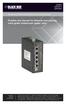 LB304A LBPS301A LBPS304A Hardened Ethernet Extender Quick Start Guide Provides one channel for Ethernet over existing voice-grade copper twisted-pair wire. copper BLACK wire. BOX Customer Support Information
How To Install A Cisco Cisco 520-T1 Router On A Network Card (Cisco) With A Network Cable (Cio) And A Network (Cnet) (Coconc) (Net) And An Ipo (
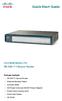 Quick Start Guide Cisco Small Business Pro SR 520-T1 Secure Router Package Contents SR 520-T1 Secure Router Ethernet Network Cable Console Cable AC Power Cord and AD/DC Power Adapter Power Cord Locking
OPTICAL HEADEND PLATFORM OTOHP-NMS NETWORK MONITORING MODULE INSTRUCTION MANUAL
 OPTICAL HEADEND PLATFORM OTOHP-NMS NETWORK MONITORING MODULE INSTRUCTION MANUAL Phone: (209) 586-1022 (800) 545-1022 Fax: (209) 586-1026 OTOHP-NMS Rev. X1 E-Mail: [email protected] www.olsontech.com
5-port / 8-port 10/100BaseTX Industrial Ethernet Switch User Manual
 5-port / 8-port 10/100BaseTX Industrial Ethernet Switch User Manual Content Overview... 1 Introduction... 1 Features... 3 Packing List... 4 Safety Precaution... 4 Hardware Description... 5 Front Panel...
Unpacking the Product. Rack Installation. Then, use the screws provided with the equipment rack to mount the firewall in the rack.
 About This Guide This guide contains step-by-step instructions for setting up the D-Link DFL-260E/860E Firewall. Please note that the model you have purchased may appear slightly different from those shown
Quick Start Guide. Cisco Small Business. 200E Series Advanced Smart Switches
 Quick Start Guide Cisco Small Business 200E Series Advanced Smart Switches Welcome Thank you for choosing the Cisco 200E series Advanced Smart Switch, a Cisco Small Business network communications device.
CM500 High Speed Cable Modem User Manual
 User Manual February 2015 202-11472-04 350 East Plumeria Drive San Jose, CA 95134 USA Support Thank you for selecting NETGEAR products. After installing your device, locate the serial number on the label
System Overview and Terms
 GETTING STARTED NI Condition Monitoring Systems and NI InsightCM Server Version 2.0 This document contains step-by-step instructions for the setup tasks you must complete to connect an NI Condition Monitoring
Tyan Computer. Transport PX22. Service Engineer s Manual
 Tyan Computer Transport PX22 Service Engineer s Manual 1 Precaution To read through the user manual, check all assembly and follow setup process before any operation on this server To keep paper clips,
Express5800/120Ed. Rack Mount Kit Installation Procedures PN: 455-01607-001
 Express5800/120Ed Rack Mount Kit Installation Procedures PN: 455-01607-001 Proprietary Notice and Liability Disclaimer The information disclosed in this document, including all designs and related materials,
Quick Start Guide. RV0xx Series Routers
 Quick Start Guide RV0xx Series Routers RV042 Dual WAN VPN Router RV042G Gigabit Dual WAN VPN Router RV082 Dual WAN VPN Router RV016 Multi-WAN VPN Router Package Contents VPN Router Power Adapter (Cisco
BX7000 Multi-Access Gateway Getting Started Guide
 BX7000 Multi-Access Gateway Getting Started Guide This guide provides instructions on connecting the Juniper Networks BX Series 7000 Multi-Access Gateway to a network. For more information, see the BX7000
How to Set Up Your NSM4000 Appliance
 How to Set Up Your NSM4000 Appliance Juniper Networks NSM4000 is an appliance version of Network and Security Manager (NSM), a software application that centralizes control and management of your Juniper
INSTALLATION GUIDE. Card Reader & Controller with KIM Swipe Reader for Solitaire 850 / 950 / 850L Learnlok PK2930
 INSTALLATION GUIDE Card Reader & Controller with KIM Swipe Reader for Solitaire 850 / 950 / 850L Learnlok PK2930 Card Reader and Controller Model 3.5 with KIM Swipe Reader Table of Contents 1. Features..................................
CM400 High Speed Cable Modem User Manual
 User Manual July 2015 202-11412-02 350 East Plumeria Drive San Jose, CA 95134 USA Support Thank you for selecting NETGEAR products. After installing your device, locate the serial number on the label of
Hardware Installation and Configuration Guide
 Hardware Installation and Configuration Guide Trademark Notices Comtrol, DeviceMaster, and PortVision are registered trademarks of Comtrol Corporation. Ethernet is a registered trademark of Digital Equipment
Quick Start Guide. 500 Series Stackable Managed Switches
 Quick Start Guide 500 Series Stackable Managed Switches Welcome Thank you for choosing the Cisco 500 Series Stackable Managed Switch, a Cisco network communications device. This device is designed to be
IPG/7700 Hardware Manual SYSTECH. Document number 80-001099-7 Revision A
 IPG/7700 Hardware Manual SYSTECH C O R P O R A T I O N Document number 80-001099-7 Revision A Created 2010, and Protected Under the U.S. Copyright Act of 1976. Copyright 2010, SYSTECH Corporation All Rights
Infinity C Reference Guide
 1 2! Infinity C Reference Guide Table of Contents Components... 1 Hardware Setup... 5 SmartDrive Configuration... 12 Startup... 15 Login... 16 System Configuration... 19 DICOM Setup... 20 Monitoring Status...
Installation and start-up guide NETA-21 remote monitoring tool
 Remote monitoring options for ABB drives, converters and inverters Installation and start-up guide NETA-21 remote monitoring tool 3AUA0000096881 REV C Effective: 2013-03-01 2013 ABB Oy. All rights reserved.
Quick Start Guide. RV 120W Wireless-N VPN Firewall. Cisco Small Business
 Quick Start Guide Cisco Small Business RV 120W Wireless-N VPN Firewall Package Contents Wireless-N VPN Firewall Ethernet Cable Power Adapter Quick Start Guide Documentation and Software on CD-ROM Welcome
Wireless Router Setup Manual
 Wireless Router Setup Manual NETGEAR, Inc. 4500 Great America Parkway Santa Clara, CA 95054 USA 208-10082-02 2006-04 2006 by NETGEAR, Inc. All rights reserved. Trademarks NETGEAR is a trademark of Netgear,
BODi rs BD004 Series Bandwidth-on-Demand Internet with Reliability and Survivability. Quick Start Guide NOTES
 NOTES BODi rs BD004 Series Bandwidth-on-Demand Internet with Reliability and Survivability Quick Start Guide This is a Class A device and is not intended for use in a residential environment. Important
P-2024. Quick Start Guide. VoIP Analog Telephone Adaptor DEFAULT LOGIN. IP Address http://192.168.5.1 Password 1234. Version 3.60 7/2007 Edition 1
 P-2024 VoIP Analog Telephone Adaptor Quick Start Guide Version 3.60 7/2007 Edition 1 DEFAULT LOGIN IP Address http://192.168.5.1 Password 1234 Copyright 2007. All rights reserved. Overview Use your P-2024
Quick Start Guide. WAP371 Wireless AC/N Dual Radio Access Point with Single Point Setup Quick Start Guide. Cisco Small Business
 Quick Start Guide Cisco Small Business WAP371 Wireless AC/N Dual Radio Access Point with Single Point Setup Quick Start Guide Versión en Español para México en el CD Version en français sur CD Versione
Moxa EtherDevice Switch
 Moxa EtherDevice Switch EDS-205 Hardware Installation Guide Third Edition, June 2008 2008 Moxa Inc., all rights reserved. Reproduction without permission is prohibited. P/N: 1802002050000 Overview The
R60 USB to CAN interface Manual (1.5 EN)
 R60 USB to CAN interface Manual (1.5 EN) General information R60 USB to CAN interface Manual Version 1.5 EN, 02/2010, DOC01586 Copyright 2010 by ; all rights reserved. Eugen-Adolff-Strasse 134, D-71522
HP 36-Port InfiniBand Switch Cable Management Kit Installation Guide
 HP 36-Port InfiniBand Switch Cable Management Kit Installation Guide HP Part Number: 574412-doc Published: May 2009 Copyright 2009 Hewlett-Packard Development Company, L.P. The information contained herein
Gigabit eco-friendly Ethernet Switch AT-GS900/8. Installation Guide. 613-001352 Rev. A
 Gigabit eco-friendly Ethernet Switch AT-GS900/8 Installation Guide 613-001352 Rev. A Copyright 2010 Allied Telesis, Inc. All rights reserved. No part of this publication may be reproduced without prior
FTW 175 VERIZON Wireless Monitoring System Reference Manual Part Number 7911751VERIZON
 FTW 175 VERIZON Wireless Monitoring System Reference Manual Part Number 7911751VERIZON SERIAL NUMBER Flash Technology, 332 Nichol Mill Lane, Franklin, TN 37067 (615) 261-2000 Front Matter Abstract This
1 Serial RS232 to Ethernet Adapter Installation Guide
 Installation Guide 10/100 Mbps LED (amber color ) Link/Activity LED (green color ) 1. Introduction Thank you for purchasing this 1-port RS232 to Ethernet Adapter (hereinafter referred to as Adapter ).
Smart-UPS RT External Battery Pack Stack/Rack-Mount 6U
 Smart-UPS RT External Battery Pack Stack/Rack-Mount 6U SURT192RMXLBP2 SURT192RMXLBP2J English 990-2485B 02/2009 Introduction About this UPS The American Power Conversion (APC ) SURT192RMXLBP2 external
LIEBERT VNSA Installation Sheet
 LIEBERT VNSA Installation Sheet Description The Liebert vnsa network switch is designed for connecting multiple Ethernet-ready devices and comes in various models. The unit may have: A Liebert icom display
Hardware Reference. Linux Device Server IGW/922 with DIL/NetPC ADNP/9200
 Linux Device Server IGW/922 with DIL/NetPC ADNP/9200 Hardware Reference SSV Embedded Systems Heisterbergallee 72 D-30453 Hannover Phone: +49 (0)511/40 000-0 Fax: +49 (0)511/40 000-40 E-mail: [email protected]
ENET-710. ENET-710 - Ethernet Module ENET-710 JAN / 06 FOUNDATION
 ENET-710 ENET-710 - Ethernet Module JAN / 06 ENET-710 FOUNDATION E N E T 7 1 0 ME smar www.smar.com Specifications and information are subject to change without notice. Up-to-date address information is
Quick Installation Guide 24-port PoE switch with 2 copper Gigabit ports and 2 Gigabit SFP ports (af Version 15.4W)
 Quick Installation Guide 24-port PoE switch with 2 copper Gigabit ports and 2 Gigabit SFP ports (af Version 15.4W) Table of Contents Introduction.. Power Over Ethernet (PoE) & Features.... Unpacking and
Outdoor 33.6W Dual Port Passive Power-over-Ethernet Midspan For External Security Cameras and Wireless Access Points
 Outdoor 33.6W Dual Port Passive Power-over-Ethernet Midspan For External Security Cameras and Wireless Access Points Features SELV Compliant No Detection Passive Injector Gigabit Compatible Full Protection
Cisco Unified IP Conference Phone 8831 Installation
 Cisco Unified IP Conference Phone 8831 Installation Cisco Unified IP Conference Phone 8831 Installation Overview, page 1 Before You Begin, page 1 Cisco Unified IP Conference Phone 8831 Components, page
Version Date Author Description 1.00 19.07.2010 Jpo First version 1.01 21.12.2010 Jpo FET output descriptions made clearer 1.02 04.02.
 +3 # Version Date Author Description 1.00 19.07.2010 Jpo First version 1.01 21.12.2010 Jpo FET output descriptions made clearer 1.02 04.02.2011 Jpo Reset button added 1. Purpose of this user manual...
10/2011 - English Edition 1. Quick Start Guide. NWA1100N-CE CloudEnabled Business N Wireless Access Point
 10/2011 - English Edition 1 Quick Start Guide NWA1100N-CE CloudEnabled Business N Wireless Access Point Package Contents - 1 x ZyXEL NWA1100N-CE Access Point - 2 x Detachable Antennas - 1 x Power Adapter
Acano solution. Acano Solution Installation Guide. Acano. January 2014 76-1002-03-B
 Acano solution Acano Solution Installation Guide Acano January 2014 76-1002-03-B Contents Contents 1 Introduction... 3 1.1 Before You Start... 3 1.1.1 Safety information... 3 1.1.2 You will need the following
HP ProLiant DL380 G6 Carrier-Grade Server Read Before Install
 HP ProLiant DL380 G6 Carrier-Grade Server Read Before Install Carrier-Grade Instructions HP Part Number: AM275-9001A Published: July 2012 Edition: 3 Copyright 2009, 2012 Hewlett-Packard Development Company,
SVC400P/SVC800P. 4/8 Camera Live Tracking Vehicle DVR Installation Manual. Version 1.0
 SVC400P/SVC800P 4/8 Camera Live Tracking Vehicle DVR Installation Manual Version 1.0 1. MAIN FEATURES... 2 2. PRODUCT OVERVIEW... 2 3. DIMENSIONS... 4 4. PACKAGE CONTENTS... 5 5. MOUNTING AND ENVORNMENTAL
2013 Wireless Video Intercom INSTALLATION GUIDE
 2013 Wireless Video Intercom INSTALLATION GUIDE INDEX System configuration and wiring VL-SWD501 System Component.. 4 VL-SWD501EX wiring schematic diagram VL-SWD501EX wiring type and length... 5.... 6 Door
Installation Guide Solar Connect-11
 Installation Guide Solar Connect-11 Version 1.1 Contents Important Product Information 3 System Registration Form 4 Solar Connect-11 Overview 5 Internet & Power Connections 6 Single Phase CT Connections
Hardware Guide CYBERSECURITY, EVOLVED V8.0. EdgeWave iprism Web Security. For more info, visit us at: www.edgewave.com
 CYBERSECURITY, EVOLVED EdgeWave iprism Web Security Hardware Guide V8.0 15333 Avenue of Science, Suite 100 San Diego, CA 92128 Give us a call 1-855-881-2004 Send us an email: [email protected] For more
Phone Adapter. with 2 Ports for Voice-over-IP. Installation and Troubleshooting Guide. Model No. PAP2 Ver. 2. Voice
 Phone Adapter with 2 Ports for Voice-over-IP Voice Installation and Troubleshooting Guide Model No. PAP2 Ver. 2 Copyright and Trademarks Specifications are subject to change without notice. Linksys is
LevelOne IFE-0500 4-Port PoE + 1-Port TP Industrial Fast Ethernet Switch User Manual
 LevelOne IFE-0500 4-Port PoE + 1-Port TP Industrial Fast Ethernet Switch User Manual Ver. 1.0.0-0711 1 FCC Warning This Equipment has been tested and found to comply with the limits for a Class-A digital
HP ProCurve High-Speed Transceivers Installation Guide
 HP ProCurve High-Speed Transceivers Installation Guide Introduction The HP ProCurve High-Speed Transceivers can be installed into a number of HP ProCurve networking devices to provide 100 Mbps and 1000
PCI/PXI ETHERNET ADAPTERS
 INSTALLATION GUIDE PCI/PXI ETHERNET ADAPTERS Installing Your PCI Board National Instruments offers several Ethernet adapters based on the Intel 82559-compatible Ethernet controller. This document explains
Installation Guide. Wireless N Access Point EAP110/EAP120/EAP220
 Installation Guide Wireless N Access Point EAP110/EAP120/EAP220 CONTENTS Network Topology 01 Hardware Overview 02 Hardware Installation 05 1. Installation Requirements... 05 2. Mounting Bracket... 05
Rack Installation Instructions
 Rack Installation Instructions Guidelines This publication provides information about how to install your server into a standard rack cabinet using the rail kit shipped with your server. If you no longer
MAKING MODERN LIVING POSSIBLE. AK-SC255 On-Site Installation Guide DANFOSS ELECTRONIC CONTROLS & SENSORS
 MAKING MODERN LIVING POSSIBLE AK-SC255 On-Site Installation Guide DANFOSS ELECTRONIC CONTROLS & SENSORS How to Use This Guide Read this Guide completely as you install and start up your new AK-SC 255 controller.
QuickSpecs. HP IP Console Switch with Virtual Media Overview
 Overview HP's IP Console Switch with Virtual Media is a key component in managing the heterogeneous data center and along with the IP Viewer software allows remote access to multiple servers running various
Alarm Security Kit - NVR
 Alarm Security Kit - NVR EN The alarm configuration menu (see above right screenshot) allows you to configure and change settings for the PIR movement sensors, window/door sensors, remote controls (key
SMART Board 8070i-SMP and 8070i
 SMART Board 8070i-SMP and 8070i Interactive flat panel Installation guide Product registration If you register your SMART product, we ll notify you of new features and software upgrades. Register online
Setting Up the Cisco Unified IP Phone
 CHAPTER 3 This chapter includes the following topics, which help you install the Cisco Unified IP Phone on an IP telephony network: Before You Begin, page 3-1 Understanding the Cisco Unified IP Phone 7962G
User manual Compact Web PLC WP240 series IEC-line
 User manual Compact Web PLC WP240 series IEC-line update: 09-01-2014 IEC-line by OVERDIGIT overdigit.com 1. General description The WP240 device is a PLC, programmable in IEC61131-3 language using CoDeSys
NeoGate TA Series Quick Installation Guide
 NeoGate TA Series Quick Installation Guide Version: V1.1 Yeastar Technology Co., Ltd. Date: November 18, 2014 http://www.yeastar.com 1/15 Contents NeoGate TA Series Quick Installation Guide 1. Preparation
BiPAC 7404V series. VoIP/(802.11g) ADSL2+ (VPN) Firewall Router. Quick Start Guide
 BiPAC 7404V series VoIP/(802.11g) ADSL2+ (VPN) Firewall Router Quick Start Guide VoIP/(802.11g) ADSL2+ (VPN) Firewall Router For more detailed instructions on configuring and using the Billion VoIP/(802.11g)
Product Specification instalert Rapid Messenger Variable Message Sign
 instalert 2 units to cover any application instalert 18 (ia18): 18 x 28 full matrix instalert 24: (ia24): 24 x 60 full matrix Size, Weight without battery ia18: 30 x 20 x 2.74, 29 lbs ia24: Folds to fits
ELCOMPONENT LTD. User Manual
 ELCOMPONENT LTD R-DCU - Remote Data a Collection Unit User Manual al CONTENTS Page 1. GENERAL... 1 2. SPECIFICATION... 4 3. INSTALLATION AND INSTRUCTIONS... 6 4. INSTRUMENT SET-UP AND RESET... 11 All rights
NeoGate TG Series Installation Guide
 NeoGate TG Series Installation Guide Version: V1.1 Yeastar Technology Co., Ltd. Date: Sept. 2, 2014 http://www.yeastar.com 1/14 Contents NeoGate TG Series Installation Guide 1. Preparation before Installation...
First Steps. Remote Access Gateway IGW/922. with DIL/NetPC ADNP/9200
 Remote Access Gateway IGW/922 with DIL/NetPC ADNP/9200 First Steps SSV Embedded Systems Dünenweg 5 D-30419 Hannover Phone: +49 (0)511/40 000-0 Fax: +49 (0)511/40 000-40 E-mail: [email protected] Document
TerraWave Solutions MIMO Site Survey Battery Pack (Part # TW-SSBP-007) Instructions For Use
 Standard Shipping Contents of the TW-SSBP-007: 1 qty Site Survey Battery Pack (Diagram 1) 1 qty Charger (Diagram 2) 1 qty RJ-45 Red (802.3af) POE Cable (Diagram 3) 1 qty 2 56 Volt Power Cord (Diagram 4)
Zlinx Wireless I/O. Peer-to-Peer and Modbus I/O B&B ELECTRONICS PRODUCT INFORMATION
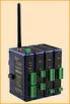 Modular, Customizable Wire Replacement 128 / 256 Bit AES Encryption Software Selectable RF Transmit Power Software Selectable Over-the-air Data Rate Modbus ASCII /RTU Compatible Wide Operating Temperature
PRODUCT: WASHER / WASHER-DRYER COMBO MODEL: AW 120 / AW 122 / AW 125 AWD 120 / AWD 121 / AWD 129
 PRODUCT: WASHER / WASHER-DRYER COMBO MODEL: The information included in this Splendide Repair Manual may change without notice. Please see our web site www.splendide.com/service/docs.html for updates,
Advanced Power over Ethernet Controllers. Datasheet. Models: TS-5-POE, TS-8-PRO, TS-16-CARRIER. Gigabit PoE Ports. Intuitive Configuration Interface
 Advanced Power over Ethernet Controllers Models: TS-5-POE, TS-8-PRO, TS-16-CARRIER Gigabit PoE Ports Intuitive Configuration Interface Advanced Switch Management Features Advanced Gigabit PoE Managed Switch
HP R12000 and R18000 DirectFlow UPS User Guide
 HP R12000 and R18000 DirectFlow UPS User Guide Abstract This document includes installation, configuration, and operation information for the HP R12000 and R18000 DirectFlow UPS. This document is for the
Chapter 5 Cubix XP4 Blade Server
 Chapter 5 Cubix XP4 Blade Server Introduction Cubix designed the XP4 Blade Server to fit inside a BladeStation enclosure. The Blade Server features one or two Intel Pentium 4 Xeon processors, the Intel
16/32 Channel 1U Rack Mount CCTV Power Supply
 16/32 Channel 1U Rack Mount CCTV Power Supply Manual PH-A3224-GUQ Shown 16-Channel 32-Channel PTC PH-A1612-PUQ PH-A3224-PUQ Glass Fuse PH-A1612-GUQ PH-A3224-GUQ Industrial design 12 Amp 3 Amps per channel
Welcome. Unleash Your Phone
 User Manual Welcome Unleash Your Phone For assistance with installation or troubleshooting common problems, please refer to this User Manual or Quick Installation Guide. Please visit www.vonage.com/vta
SNQ-60x0-320 Series Data Center Switch. Quick Installation Guide
 Introduction This guide is to assist the reader with the most basic form of installation and connection to switches in this series. As there is more than one switch in this series, the diagrams might slightly
Hard Disk Drive (HDD)
 Installation Instructions Hard Disk Drive (HDD) Catalog Number 6189V-35HDDST80, 6189V-35HDDST160 Topic Page About This Publication 1 Important User Information 2 Electrostatic Discharge (ESD) Precautions
How To Install A Power Supply (Uplast) With A Battery Pack
 APC Smart-UPS RT SURTA48XLBP/SURTA48XLBPJ External Battery Pack User Manual Introduction/Before Installation About this Manual The APC Smart-UPS RT external battery pack (SURTA48XLBP or SURTA48XLBPJ) connects
AXIS 291 1U Video Server Rack Installation Guide
 AXIS 291 1U Video Server Rack Installation Guide About This Document This document describes how to install Axis blade video servers in the AXIS 291 1U Video Server Rack. Updated versions of this document
StorTrends 3400 Hardware Guide for Onsite Support
 StorTrends 3400 Hardware Guide for Onsite Support MAN-3400-SS 11/21/2012 Copyright 1985-2012 American Megatrends, Inc. All rights reserved. American Megatrends, Inc. 5555 Oakbrook Parkway, Building 200
Mobile Data Power Model: MDP-25
 Mobile Data Power Model: MDP-25 Topic Section Features... 2 Operational Features Summary... 2 Back-up Battery Power Internal Charger Voltage Spike Protection RF Noise Filtering Warning of Imminent Loss
Quick Start Guide. Cisco SPA100 Series Analog Telephone Adapters. SPA112 Two Port Phone Adapter SPA122 ATA with Router
 Quick Start Guide Cisco SPA100 Series Analog Telephone Adapters SPA112 Two Port Phone Adapter SPA122 ATA with Router Package Contents Analog Telephone Adapter Ethernet Cable Power Adapter Quick Start Guide
Unpacking, Installation, and Customization
 Unpacking, Installation, and Customization NetShelter WX Enclosure AR100 AR100HD Contents Unpacking... 1 How to Unpack the Enclosure............................... 1 Please Recycle..........................................
Contents INSTALLATION GUIDE NI RMC-8354
 INSTALLATION GUIDE NI RMC-8354 This guide includes installation information for the NI RMC-8354. For more information about configuring, using, and maintaining the NI RMC-8354, refer to the NI RMC-8354
Cisco TelePresence VCR MSE 8220
 Cisco TelePresence VCR MSE 8220 Getting started 61-0008-05 Contents General information... 3 About the Cisco TelePresence VCR MSE 8220... 3 Port and LED location... 3 LED behavior... 4 Installing the VCR
PowerFlex 700S and 700H Frame 12 DC Bus Connector Kit
 PowerFlex 700S and 700H Frame 12 DC Bus Connector Kit Installation Instructions This document provides instructions for the installation of a DC bus connector kit for PowerFlex 700S and 700H frame 12 drives
Getting Started Guide for the Catalyst 2960-X and 2960-XR Switches
 Getting Started Guide for the Catalyst 2960-X and 2960-XR Switches Getting Started with Your Switch 2 Box Contents 2 Running Express Setup 3 Managing the Switch 7 Planning and Installing a Switch Stack
IMMS-CCC. IMMS-CCC Hardwire Central Interface. Installation Instructions
 IMMS-CCC IMMS-CCC Hardwire Central Interface Installation Instructions TABLE OF CONTENTS... Choose a Location... 1 Connections... 2 Operations... 3 Software Configuration... 4 Troubleshooting... 5 Loopback
Student Halls Network. Connection Guide
 Student Halls Network Connection Guide Contents: Page 3 Page 4 Page 6 Page 10 Page 17 Page 18 Page 19 Page 20 Introduction Network Connection Policy Connecting to the Student Halls Network Connecting to
Cabling Specifications
 APPENDIX A This appendix provides cabling and pinout information for feature cards on the Cisco AS5350XM and Cisco AS5400XM universal gateways. It contains the following sections: 2-Port and 4-Port T1
IP DSLAM IDL-2402. Quick Installation Guide
 IP DSLAM IDL-2402 Quick Installation Guide Table of Contents Package Contents... 3 Overview... 4 Setup the IDL series IP DSLAM... 5 Safety Instruction... 5 Hardware Installation... 6 WEB Configuration...