
Black Box Tech Support: FREE! Live. 24/7.
|
|
|
- Samuel Sherman
- 10 years ago
- Views:
Transcription
1 Black Box Tech Support: FREE! Live. 24/7. Tech support the way it should be. Great tech support is just 20 seconds away at or blackbox.com. About Black Box Black Box Network Services is your source for more than 118,000 networking and infrastructure products. You ll find everything from cabinets and racks and power and surge protection products to media converters and Ethernet switches all supported by free, live 24/7 Tech support available in 20 seconds or less. Copyright All rights reserved blackbox.com
2 LVN5200A LVN5250A LVN5400A September 2009 LVN5600A LVN5800A Veri-NAC Quick Start Guide Veri-NAC the fastest to deploy, easiest to use BOX Network Access Control (NAC) BLACK appliance for Intrusion Prevention, vulnerability management, and regulatory compliance. Customer Support Information Order toll-free in the U.S.: Call BBOX (outside U.S. call ) FREE technical support 24 hours a day, 7 days a week: Call or fax Mailing address: Black Box Corporation, 1000 Park Drive, Lawrence, PA Web site: [email protected]
3 Veri-NAC Quick Start Guide Trademarks Used in this Manual Black Box and the Double Diamond logo are registered trademarks, and Veri-NAC is a trademark, of BB Technologies, Inc. Microsoft and Internet Explorer are registered trademarks of Microsoft Corporation. Mozilla and Firefox are registered trademarks of Mozilla Foundation Corporation. Opera is a trademark of Opera Software ASA Corporation Norway. Any other trademarks mentioned in this manual are acknowledged to be the property of the trademark owners. Page blackbox.com
4 FCC and IC RFI Statements Federal Communications Commission and Industry Canada Radio Frequency Interference Statements This equipment generates, uses, and can radiate radio-frequency energy, and if not installed and used properly, that is, in strict accordance with the manufacturer s instructions, may cause inter ference to radio communication. It has been tested and found to comply with the limits for a Class A computing device in accordance with the specifications in Subpart B of Part 15 of FCC rules, which are designed to provide reasonable protection against such interference when the equipment is operated in a commercial environment. Operation of this equipment in a residential area is likely to cause interference, in which case the user at his own expense will be required to take whatever measures may be necessary to correct the interference. Changes or modifications not expressly approved by the party responsible for compliance could void the user s authority to operate the equipment. This digital apparatus does not exceed the Class A limits for radio noise emis sion from digital apparatus set out in the Radio Interference Regulation of Industry Canada. Le présent appareil numérique n émet pas de bruits radioélectriques dépassant les limites applicables aux appareils numériques de la classe A prescrites dans le Règlement sur le brouillage radioélectrique publié par Industrie Canada. Page 3
5 Veri-NAC Quick Start Guide Instrucciones de Seguridad (Normas Oficiales Mexicanas Electrical Safety Statement) 1. Todas las instrucciones de seguridad y operación deberán ser leídas antes de que el aparato eléctrico sea operado. 2. Las instrucciones de seguridad y operación deberán ser guardadas para referencia futura. 3. Todas las advertencias en el aparato eléctrico y en sus instrucciones de operación deben ser respetadas. 4. Todas las instrucciones de operación y uso deben ser seguidas. 5. El aparato eléctrico no deberá ser usado cerca del agua por ejemplo, cerca de la tina de baño, lavabo, sótano mojado o cerca de una alberca, etc. 6. El aparato eléctrico debe ser usado únicamente con carritos o pedestales que sean recomendados por el fabricante. 7. El aparato eléctrico debe ser montado a la pared o al techo sólo como sea recomendado por el fabricante. 8. Servicio El usuario no debe intentar dar servicio al equipo eléctrico más allá a lo descrito en las instrucciones de operación. Todo otro servicio deberá ser referido a personal de servicio calificado. 9. El aparato eléctrico debe ser situado de tal manera que su posición no interfiera su uso. La colocación del aparato eléctrico sobre una cama, sofá, alfombra o superficie similar puede bloquea la ventilación, no se debe colocar en libreros o gabinetes que impidan el flujo de aire por los orificios de ventilación. 10. El equipo eléctrico deber ser situado fuera del alcance de fuentes de calor como radiadores, registros de calor, estufas u otros aparatos (incluyendo amplificadores) que producen calor. 11. El aparato eléctrico deberá ser connectado a una fuente de poder sólo del tipo descrito en el instructivo de operación, o como se indique en el aparato. 12. Precaución debe ser tomada de tal manera que la tierra fisica y la polarización del equipo no sea eliminada. 13. Los cables de la fuente de poder deben ser guiados de tal manera que no sean pisados ni pellizcados por objetos colocados sobre o contra ellos, poniendo particular atención a los contactos y receptáculos donde salen del aparato. 14. El equipo eléctrico debe ser limpiado únicamente de acuerdo a las recomendaciones del fabricante. 15. En caso de existir, una antena externa deberá ser localizada lejos de las lineas de energia. 16. El cable de corriente deberá ser desconectado del cuando el equipo no sea usado por un largo periodo de tiempo. 17. Cuidado debe ser tomado de tal manera que objectos liquidos no sean derramados sobre la cubierta u orificios de ventilación. 18. Servicio por personal calificado deberá ser provisto cuando: A: El cable de poder o el contacto ha sido dañado; u B: Objectos han caído o líquido ha sido derramado dentro del aparato; o C: El aparato ha sido expuesto a la lluvia; o D: El aparato parece no operar normalmente o muestra un cambio en su desempeño; o E: El aparato ha sido tirado o su cubierta ha sido dañada. Page blackbox.com
6 Table of Contents 1. Setting Up the Veri-NAC Appliance What s Included LVN5200A/LVN5250A and LVN5400A/LVN5600A/LVN5800A Appliances Configuring the Browser Internet Explorer Cache Issues Internet Explorer Security Issues Mozilla Firefox Security Issues Troubleshooting...17 We re here to help! If you have any questions about your application or our products, contact Black Box Tech Support at or go to blackbox.com and click on Talk to Black Box. You ll be live with one of our technical experts in less than 20 seconds. Page 5
7 Veri-NAC Quick Start Guide 1. Setting Up the Veri-NAC Appliance The Veri-NAC Appliance can help provide better Network Access Control and help prevent intrusions on your network. There are five Veri-NAC models: LVN5200A, LVN5250A, LVN5400A, LVN5600A, and LVN5800A rackmountable 1U appliances. 1.1 What s Included Your package should include the following items. If anything is missing or damaged, contact Black Box Technical Support at LVN5200A, LVN5250A: Veri-NAC appliance (2) EVNSL cables This printed Quick Start Guide, a Default Password Sheet, and a License Agreement This QSG, full manual, readme file, and FAQ on CD-ROM Printed read.me document LVN5400A, LVN5600A, LVN5800A: Veri-NAC appliance EVNSL cables ([4] for LVN5400A, [6] for LVN5600A, [8] for LVN5800A) This printed Quick Start Guide, a Default Password Sheet, and License Agreement Printed full manual This QSG, full manual, readme file, and FAQ on CD-ROM Printed read.me document 1.2 LVN5200A/LVN5250A and LVN5400A/LVN5600A/LVN5800A Applicances To set up the Veri-NAC appliance on your network, connect it to the first switch or hub inside your firewall. Then follow these steps: Step One: Connect to Your Network 1. A power cable is included with each Veri-NAC. Connect the power cable to the power jack on the rear side, on the far left end of the appliance and to a 3-prong grounded 120-VAC, 60-Hz outlet. NOTE: We strongly recommend that you plug your Veri-NAC appliance into a surge protector to ensure that your appliance is protected from voltage spikes. 2. Connect your local area network to the Ethernet 0 port (labeled Eth0) on the rear of the Veri-NAC appliance (see Figure 1-2 or 1-4). Figure 1-1 shows the LVN5200A/LVN5250A front panel. Table 1-1 describes its components Figure 1-1. LVN5200A/LVN5250A front panel. Page blackbox.com
8 Chapter 1: Setting Up the Veri-NAC Appliances Table 1-1. LVN5200A/LVN5250A front panel components. Number Component Description 1 System overheat LED Lights when the system overheats 2, 3 Network activity LEDs Lights during activity on the network 4 Hard drive activity LED Lights during activity on the hard drive 5 Power LED Lights when the unit is powered on 6 System reset button Press this button to reset the system 7 Power ON/OFF button Press this button to turn power ON/OFF 8, 9 Vent holes for airflow Allows for system cooling Figure 1-2 shows the LVN5200A/LVN5250A back panel. Table 1-2 describes its components Figure 1-2. LVN5200A/LVN5250A back panel. Table 1-2. LVN5200A/LVN5250A back panel components. Number Component Description 1 IEC 320 power connector Connects to power 2 PS/2 mouse connector Links to PS/2 mouse 3, 12 Air holes Allow cooling 4 Not used 5 Expansion slot cover Covers expansion slots 6 PS/2 keyboard connector Links to PS/2 keyboard 7 (2) USB Type A ports Links to USB peripherals 8 DB9 serial Links to serial connector 9 HD15 VGA Links to monitor 10 Eth 0 Connects to LAN 1 11 Eth 1 Connects to LAN 2 Page 7
9 Veri-NAC Quick Start Guide Figure 1-3 shows the LVN5400A/LVN5600A/LVN5800A models front panel. Table 1-3 lists its components Figure 1-3. LVN5400A/LVN5600A/LVN5800A front panel. Table 1-3. LVN5400A/LVN5600A/LVN5800A components. Number Component Description 1 System overheat LED Lights when the system overheats 2, 3 Network activity LEDs Lights during activity on the network 4 Hard drive activity LED Lights during activity on the hard drive 5 Power LED Lights when the unit is powered on 6 System reset button Press this button to reset the system 7 Power ON/OFF button Press this button to turn power ON/OFF 8, 9 Vent holes for airflow Allows for system cooling Figures 1-4 through 1-6 show the LVN5400A/LVN5600A/LVN5800A models back panels. Table 1-4 lists their components Figure 1-4. LVN5400A back panel Figure 1-5. LVN5600A back panel. Page blackbox.com
10 Chapter 1: Setting Up the Veri-NAC Applicance Figure 1-6. LVN5800A back panel. Table 1-4. LVN5400A/LVN5600A/LVN5800A components. Number Component Description 1 IEC 320 power connector Connects to power 2 PS/2 mouse connector Links to PS/2 mouse 3 Air holes Allow cooling 4 Not used 5 PS/2 keyboard connector Links to PS/2 keyboard 6 (2) USB Type A ports Links to USB peripherals 7 DB9 serial Links to serial connector 8 HD15 VGA Links to monitor 9 Eth 0 (LVN5400A, LVN5600A, LVN5800A) Connects to LAN 0 10 Eth 1 (LVN5400A, LVN5600A, LVN5800A) Connects to LAN 1 11 Eth 2 (LVN5400A, LVN5600A, LVN5800A) Connects to LAN 2 12 Eth 3 (LVN5400A, LVN5600A, LVN5800A) Connects to LAN 3 13 Eth 4 (LVN5600A) Connects to LAN 4 14 Eth 5 (LVN5600A) Connects to LAN 5 15 Eth 4 (LVN5800A) Connects to LAN 4 16 Eth 5 (LVN5800A) Connects to LAN 5 17 Eth 6 (LVN5800A) Connects to LAN 6 18 Eth 7 (LVN5800A) Connects to LAN 7 NOTE: The network cable must be CAT5 cable or higher with RJ-45 connectors. Page 9
11 Veri-NAC Quick Start Guide Step Two: Connect the Monitor and Keyboard 1. Connect the monitor cable to the 15-pin (VGA color) Monitor port on the rear of the appliance. 2. Connect a keyboard to the Keyboard outlet on the rear of the appliance. 3. Press the Power button on the far right front panel of the appliance. The Power LED indicates that power is on, and the network LED flashes indicating network traffic is occurring. On the rear panel, adjacent to the Ethernet port, another LED begins flashing to indicate that network traffic is occurring. After a scan completes, a bootup screen appears. Step Three (A): If Your Environment Is DHCP In a DHCP environment, the IP address, subnet mask, and default gateway settings have been assigned automatically and should appear on the next menu. Do not make any selections or change any settings. Do not save any settings if you have not changed anything. 1. IMPORTANT: Write down the appliance IP address for later use. 2. Disconnect the monitor, keyboard, and computer from the appliance. No further direct connection to the appliance is required. Step Three (B): If Your Environment Is Non-DHCP In a Non-DHCP environment, you must assign the IP address/other settings: 1. Type the number of a parameter at <Make a selection>, then press <Enter>. As prompted, type a new value and press <Enter>. To enter Network Configuration, press <1>. 2. IMPORTANT: Write down the appliance IP address. 3. To set the IP address, press <2> and press <Enter>. At the Enter new IP address prompt, type the IP address (i.e., ) and press <Enter>. The list of settings is displayed with the IP address you entered. 4. Enter values for the Subnet mask <3>, Default gateway <4>, and Host name <6> that apply to your network. 5. To add a DNS server, press <5> and <Enter>. After you have added your DNS servers, press <3> to save your server values, then press <Q> and <Enter> to return to the Main Menu. 6. Disconnect the monitor and keyboard from the Veri-NAC. No further direct connection to the appliance is required. Step Four: Open Ports for Automatic Download To enable downloads to take place, have your System Administrator or Network Engineer open port 443 on your firewall server. Next, access the Veri-NAC through a Web browser window on any system on the same subnet or Local Area Network (LAN). Step Five: Use a Browser to Configure the Veri-NAC 1. To log on, open a secure browser window (with the protocol https instead of just http) using the IP address of the Veri-NAC as the URL. For example, if the Veri-NAC has IP address , the URL to open in your browser would be: (using the default SSL port) OR SSL port number> 2. The Veri-NAC login window appears. 3. Enter the user name and password provided on the Password Sheet delivered with your appliance. 4. Click on the Login button. The License Agreement appears first. Accept this license using the button at the bottom of the screen. (This request to accept will appear at every log in until you accept it.) 5. Next, the Help/Product Overview page of the Veri-NAC opens in the browser with brief descriptions and links to all the other product pages. Page blackbox.com
12 Chapter 1: Setting Up the Veri-NAC Applicance CAUTION: To be sure that Veri-NAC produces accurate results, you must be sure you have downloaded the latest Common Vulnerabilities and Exposure (CVE) vulnerability signatures; later, when Veri-NAC updates itself regularly, it will download new signatures daily, but if you do not add all known vulnerabilities when it starts, it will not realize that it doesn t have them. To be sure you have the latest CVEs initially, you must carry out the next step Downloading CVE Tests. Step Six: Downloading CVE Tests (all models except LVN5200A) If you have the LVN5250A/LVN5400A/LVN5600A/LVN5800A unit, you should be able to run the built-in Common Vulnerabilities and Exposures (CVEs) auditing engine. Before you do anything else with the Veri-NAC, you must download the latest CVE Tests into the Veri-NAC database: CAUTION: If you skip this step, the Veri-NAC will not do its job effectively. 1. Go to the left frame menu bar and select UpdatesgVulnerability Signatures. 2. Click the Update Now button. 3. As long as the appliance is on a network connected to the Internet, you just need to click Download Updates and, after they download, click Install Now. 4. If your appliance is NOT on a network connected to the Internet, you must update from a machine that is. Go to that machine and log in to the Veri-NAC, then click Download Updates. Then browse to the file using the Browse button and click Upload Now to install the update on the Veri-NAC. 5. After you have updated the vulnerability signatures, you may now return to the Vulnerability Signature Updates page and select Daily so that the updates automatically occur daily. Be sure to click Save to save the setting. Step Seven: Discovering All Your Network Assets Before you can turn on alerts and the blocking engine, create a list of all your trusted network assets. To do this: 1. Go to the left frame menu bar and select Network Access ControlgAsset Discovery. 2. If you use NetBIOS on any of your equipment, click the Use NetBIOS Scans for host names. 3. Click the Refresh IPs button and wait approximately 5-15 minutes while the appliance discovers all the trusted network assets on the current subnet. Your Veri-NAC is now up and running. Start reading through the User Guide. In particular, learn about the Network Access ControlgDynamic Detection System as well as the Inventory Alerts. Remember, one of the most powerful features of your Veri- NAC appliance is your PeerBlock engine, so you ll also need to look at the Manage IPs list to determine how to add and remove assets to and from your trust list. Page 11
13 Veri-NAC Quick Start Guide 2. Configuring the Browser Veri-NAC has been verified with the following Web browsers: Microsoft Internet Explorer Versions 5.0, 6.0, 7.0, and 8.0; Mozilla Firefox Versions 2.x and 3.x; and Opera Version Internet Explorer Cache Issues Occasionally, if you perform a task with Veri-NAC, Internet Explorer 6.0 does not immediately update the display. If, for example, you decide to add a custom comment to a report and then recreate the report, when you next open that report or view the Text of Vulnerabilities, your new comment may not display. Instead, you may see the older, cached version of the report. To be sure you see the newest version of the report every time, change your browser settings as follows (see Figure 2-1): Go to the Internet Explorer menu bar and select ToolsgInternet Options. In the Internet Options window, click on the General tab, and then click the Settings button. Under Check for newer versions of stored pages, select Every visit to the page. Figure 2-1. Settings screen. This setting clears the cache and ensures all edits to reports display upon subsequent visits. Page blackbox.com
14 Chapter 2: Configuring the Browser 2.2 Internet Explorer Security Issues In Internet Explorer, you may frequently receive prompts like this (see Figure 2-2): Figure 2-2. Security information prompt. To turn off this prompt: Select ToolsgInternet Options. Click on the Security tab. Click on the Custom Level button. Scroll down to the Miscellaneous category and find Display mixed content. To change the prompt setting, select Enable for this setting, then click OK to save it (see Figure 2-3). Page 13
15 Veri-NAC Quick Start Guide Figure 2-3. Security settings. Page blackbox.com
16 Chapter 2: Configuring the Browser 2.3 Mozilla Firefox Security Issues To get rid of certificate errors in Firefox: 1. On the screen that comes up when you get a certificate error, click on Or you can add an exception (see Figure 2-4). 2. Click on Add Exception. 3. The appliance s IP should be automatically filled in the Server Location field. 4. Click Get CertificategConfirm Security Exception. FIgure 2-4. Secure connection failed screen. Page 15
17 Veri-NAC Quick Start Guide You may also run into a specific Firefox security error that reads Error code: sec_error_reused_issuer_and_serial. To remedy this problem: 1. Go to ToolsgOptionsgAdvancedgEncryption and click on View Certificates (see FIgure 2-5). 2. In the Servers and Authorities tab, remove the appliance certificate by highlighting the appliance s IP and clicking Delete. 3. Try refreshing the page and add the appliance to the exception list. Figure 2-5. Options screen. Page blackbox.com
18 Chapter 2: Configuring Your Browser 3. Troubleshooting For additional help, please consult the User Guide or Black Box Network Services Technical Support at Additionally, you can contact your Authorized Black Box Network Services Reseller for support. For more information, contact Black Box Network Services at Please have the following information ready: Total number of network assets Veri-NAC model and serial number Veri-NAC firmware/software version A network topology diagram Type of firewalls and switches you are using Presence of VLANs, proxy servers, remote subnets What symptoms or issues you are experiencing We re here to help! If you have any questions about your application or our products, contact Black Box Tech Support at or go to blackbox.com and click on Talk to Black Box. You ll be live with one of our technical experts in less than 20 seconds. Page 17
Veri-NAC the fastest to deploy, easiest to use
 LVN5220A LVN5230A LVN5250A-R2 LVN5400A-R2 LVN5600A-R2 LVN5800A-R2 Veri-NAC Quick Start Guide Veri-NAC the fastest to deploy, easiest to use BLACK BOX network access control (NAC) appliance for intrusion
Remote Port USB 2.0 4-Port User Guide
 September 2006 IC248A Remote Port USB 2.0 4-Port User Guide CUSTOMER SUPPORT INFORMATION Order toll-free in the U.S. 24 hours, 7 A.M. Monday to midnight Friday: 877-877-BBOX FREE technical support, 24
Voice Magic Plus MARCH 2001 CP179A CUSTOMER SUPPORT INFORMATION
 MARCH 2001 CP179A Voice Magic Plus CUSTOMER SUPPORT INFORMATION Order toll-free in the U.S.: Call 877-877-BBOX (outside U.S. call 724-746-5500) FREE technical support 24 hours a day, 7 days a week: Call
Copyright 2004. Black Box Corporation. All rights reserved.
 Copyright 2004. Black Box Corporation. All rights reserved. 1000 Park Drive Lawrence, PA 15055-1018 724-746-5500 Fax 724-746-0746 JULY 2004 LR9603A Pure Networking Broadband Router Quick Install Guide
BLACK BOX Works with the Black Box ServReach KVM Gate (KVIP1000A), ServReach KVM Cube (KVIP1001A), or as a standalone device.
 PRP1000A Power Reboot Pod User s Manual Switch on or off, or power cycle 1 to 99 servers. BLACK BOX Works with the Black Box ServReach KVM Gate (KVIP1000A), ServReach KVM Cube (KVIP1001A), or as a standalone
Use this HDMI and HDCP-compliant USB converter for streaming media files stored on BLACK your PC to BOX an HD screen with HDMI input.
 AC346A USB to HD Pro Use this HDMI and HDCP-compliant USB converter for streaming media files stored on BLACK your PC to BOX an HD screen with HDMI input. Customer Support Information Order toll-free in
Monitor Access Unit JUNE 1999 TS760A TS761A TS765A TS766A CUSTOMER SUPPORT INFORMATION
 JUNE 1999 TS760A TS761A TS765A TS766A Monitor Access Unit MON 2 1 2 3 4 5 6 7 8 MON 1 CUSTOMER SUPPORT INFORMATION Order toll-free in the U.S. 24 hours, 7 A.M. Monday to midnight Friday: 877-877-BBOX FREE
High specification KVM switches that interface precisely with the Black Box ServView Rack Tray series.
 NETWORK SERVICES KVT8CATUV KVT1IP8CATUV KVT16CATUV KVT1IP16CATUV KVT4IP16CATUV KVM Modules for ServView Rack Tray High specification KVM switches that interface precisely with the Black Box ServView Rack
Fiber Optic Converter I Fiber Optic Converter II
 JANUARY 1997 LT222A Fiber Optic Converter I Fiber Optic Converter II POWER DATA RX TX CONFIG DATA RX TX CUSTOMER SUPPORT INFORMATION Order toll-free in the U.S. 24 hours, 7 A.M. Monday to midnight Friday:
Quick Start Guide. Rackmount Remote Power Manager. Use this guide to quickly set up your power manager. Customer Support Information
 PS580A-R2 PS581A-R2 PS582A-R2 PS583A-R2 PS568A-R2 PS569A-R2 Rackmount Remote Power Manager Quick Start Guide Use this guide to quickly set up your power manager. Customer Support Information Order toll-free
BLACK BOX. Switch between two or four different HDMI sources to a single display. 2 x 1 or 4 x 1 HDMI Switch 4K VSW-HDMI2X1-4K VSW-HDMI4X1-4K
 VSW-HDMI2X1-4K VSW-HDMI4X1-4K 2 x 1 or 4 x 1 HDMI Switch 4K Switch between two or four different HDMI sources to a single display. BLACK BOX Supports up to 4 K (UHD) resolutions (3840 x 2160). Automatically
User Manual. ipad, Chromebook, Tablet, and Laptop Lockers. Mobile, secure, and powered storage for up to 40 computing devices.
 UD10KP UD20KP UD30KP UD10KP-C UD20KP-C UD30KP-LD UD10KP-LD UD20KP-LD UD40KP ipad, Chromebook, Tablet, and Laptop s User Manual Mobile, secure, and powered storage for up to 40 computing devices. Customer
Black Box Tech Support: FREE! Live. 24/7.
 Black Box Tech Support: FREE! Live. 24/7. Tech support the way it should be. Great tech support is just 30 seconds away at 724-746-5500 or blackbox.com. About Black Box Black Box Network Services is your
Send VGA output to one local monitor and to as many as nine remote monitors BLACK up to 250 BOX feet (76.2 m) away.
 AC056A-R4 AC057A-K-R4 AC056AE-R3 AC159A-R2 AC056A-K-R4 AC058A-R3 AC057AE-R2 AC159A-R3 AC057A-R4 AC056AE-R2 AC057AE-R3 AC160A-R2 AC160A-R3 VGA Video Splitters Send VGA output to one local monitor and to
Turns a VGA monitor into a video monitor with remote switching capability. BLACK BOX
 November 2009 AC328A-R3 Video to VGA Portable Turns a VGA monitor into a video monitor with remote switching capability. BLACK BOX Customer Support Information Order toll-free in the U.S.: Call 877-877-BBOX
Remote Console Port + Remote Power Manager. Quick Start Guide
 JULY 2006 SW549A SW549AE Remote Console Port + Remote Power Manager Quick Start Guide Remote Console Port + Remote Power Manager PWR CLEAR SET ON STATUS RDY DCD ACTIVITY 1 2 3 4 5 6 CUSTOMER SUPPORT INFORMATION
10BASE-T Extender. 10BASE-T Extender FEBRUARY 1999 LZ6000A-R4. Jabber Link Test Activity. Power. Collision. Power 10BASE-T.
 FEBRUARY 1999 LZ6000A-R4 10BASE-T Extender Jabber Link Test Activity Power Collision 10BASE-T Extender Single UTP 10BASE-T Power CUSTOMER SUPPORT INFORMATION Order toll-free in the U.S. 24 hours, 7 A.M.
2-Port DVI Switch with Audio, Serial Control & Long Cable Equalization
 2-Port DVI Switch with Audio, Serial Control & Long Cable Equalization AC1032A-2A Rev A CUSTOMER SUPPORT INFORMATION Order toll-free in the U.S. 24 hours, 7 A.M. Monday to midnight Friday: 877-877-BBOX
JANUARY 2001 TS825A TS826. Microscanner Pro
 JANUARY 2001 TS825A TS826 Microscanner Pro CUSTOMER SUPPORT INFORMATION Order toll-free in the U.S.: Call 877-877-BBOX (outside U.S. call 724-746-5500) FREE technical support 24 hours a day, 7 days a week:
This Web smart switch provides 24 10-/100-/1000-Mbps ports. BLACK BOX
 24-Port Web Smart Gigabit Ethernet Switch This Web smart switch provides 24 10-/100-/1000-Mbps ports. BLACK BOX Supports Gigabit speed on all ports. Customer Support Information Order toll-free in the
Transform your wired projector into a high-end wireless projector.
 Chapter June 2009 AC1131A Wireless Video Presentation System II User s Manual Transform your wired projector into a high-end wireless projector. Includes plug-and-show, 4-to-1 split screen, and PDA wireless
Network Power Switch Jr.
 SEPTEMBER 2001 SWI080A Network Power Switch Jr. CUSTOMER SUPPORT INFORMATION Order toll-free in the U.S.: Call 877-877-BBOX (outside U.S. call 724-746-5500) FREE technical support 24 hours a day, 7 days
VDSL Line Driver DECEMBER 2006 ME0010A-VDSL-R2
 DECEMBER 2006 ME0010A-VDSL-R2 VDSL Line Driver CUSTOMER Order toll-free in the U.S. 24 hours, 7 A.M. Monday to midnight Friday: 877-877-BBOX SUPPORT FREE technical support, 24 hours a day, 7 days a week:
Copyright 2008. Black Box Corporation. All rights reserved.
 Copyright 2008. Black Box Corporation. All rights reserved. 1000 Park Drive Lawrence, PA 15055-1018 724-746-5500 Fax 724-746-0746 FEBRUARY 2008 40416-R2 40417-R2 Flexie Telco Switch CUSTOMER SUPPORT INFORMATION
User Manual. 30-Device ipad, Chromebook, Tablet, and Laptop Cart. Mobile, secure, and powered storage for up to 30 computing devices.
 LCC30H-A LCC30H-AT2 LCC30HC LCC30H-A-HASP LCC30H-AT LCC30H-ACT2 LCC30HCT LCC30H-AC-HASP LCC30H-AC LCC30H LCC30HT2 LCC30H-AT-HASP LCC30H-ACT LCC30HT LCC30HCT2 30-Device ipad, Chromebook, Tablet, and Laptop
USB Director RS422/RS485 Hub 2-Port USB Director RS422 Hub 4-Port NT 4.0 Software Support Upgrade
 APRIL 1999 IC160A IC161A TD150 USB Director RS422/RS485 Hub 2-Port USB Director RS422 Hub 4-Port NT 4.0 Software Support Upgrade USB Director USB RS-422 Hub SYSTEM STATUS USB Director USB RS-422/485 Hub
Extend Ethernet with full-duplex transmission up to 5.696 Mbps more than BLACK four miles over BOX a pair of copper wires.
 December 2009 LR0201A-KIT G.SHDSL Two-Wire Ethernet Network Extender Extend Ethernet with full-duplex transmission up to 5.696 Mbps more than BLACK four miles over BOX a pair of copper wires. Complies
8-Port Serial Host Adapter PCI
 APRIL 2004 IC142C IC190C-R2 8-Port Serial Host Adapter PCI CUSTOMER SUPPORT INFORMATION Order toll-free in the U.S.: Call 877-877-BBOX (outside U.S. call 724-746-5500) FREE technical support 24 hours a
VDSL Line Driver DECEMBER 2004 ME0010A-VDSL ME0011A-VDSL
 DECEMBER 2004 ME0010A-VDSL ME0011A-VDSL VDSL Line Driver CUSTOMER Order toll-free in the U.S. 24 hours, 7 A.M. Monday to midnight Friday: 877-877-BBOX SUPPORT FREE technical support, 24 hours a day, 7
Extend Ethernet with full-duplex transmission up to 10.8 Mbps over two pairs BLACK of copper. BOX
 LR0202A-KIT G.SHDSL Four-Wire Ethernet Network Extender Kit Extend Ethernet with full-duplex transmission up to 10.8 Mbps over two pairs BLACK of copper. BOX Complies with ITU-T Rec. G.991.2 G.shdsl.bis
Digi-Mux HS FEBRUARY 1996 MX700A CUSTOMER SUPPORT INFORMATION
 FEBRUARY 1996 MX700A Digi-Mux HS Digi-Mux HS CH1 CH2 POWER TD RD TD RD CH3 TD RD CH4 TD RD MAIN TD RD DCD SYNC LOSS LOCAL LOOP TEST CUSTOMER SUPPORT INFORMATION Order toll-free in the U.S.: Call 877-877-BBOX
Connect, control, and manage up to 16 serial RS-232/485 devices BLACK BOX via a single USB port on your PC.
 IC162A USB to Multi RS-232/485 Interface Converter Connect, control, and manage up to 16 serial RS-232/485 devices BLACK BOX via a single USB port on your PC. Customer Support Information Order toll-free
Multi-Rate Ethernet Extender
 DECEMBER 2006 LB200A Multi-Rate Ethernet Extender CUSTOMER Order toll-free in the U.S. 24 hours, 7 A.M. Monday to midnight Friday: 877-877-BBOX SUPPORT FREE technical support, 24 hours a day, 7 days a
PC 422/485 Serial Interface
 JUNE 2000 IC030C-R2 IC170C PC 422/485 Serial Interface CUSTOMER SUPPORT INFORMATION Order toll-free in the U.S. 24 hours, 7 A.M. Monday to midnight Friday: 877-877-BBOX FREE technical support, 24 hours
2-Port RS-232 PCI Bus Serial Host Adapter
 AUGUST 2001 IC140C-R2 IC143C IC191C 2-Port RS-232 PCI Bus Serial Host Adapter CUSTOMER SUPPORT INFORMATION Order toll-free in the U.S. 24 hours, 7 A.M. Monday to midnight Friday: 877-877-BBOX FREE technical
Expand existing, leased line, polled networks without adding computer ports BLACK or communications links.
 codes codes codes March TLB704A 2009 codes codes codes RS-232 Buffered Modem Sharing Device, 4-Port Expand existing, leased line, polled networks without adding computer ports BLACK or BOX communications
CAT5 Multi Video System (Video/Audio/RS232)
 DECEMBER 2006 AC1060A AC1061A AC1062A AC1065A AC1066A CAT5 Multi Video System (Video/Audio/RS232) Copyright 2006. Black Box Corporation. All rights reserved. 1000 Park Drive Lawrence, PA 15055 1018 724
Provides first-class HD video transmission
 HD over IP Encoder/Decoder VX-HDV-IP VX-HDV-IP-SDI VX-HDV-IP-HDMI VX-HDV-IP-RM VX-HDV-IP-PSU Provides first-class HD video transmission VX-HDV-IP, rev. 1 FCC and IC RFI Statement FEDERAL COMMUNICATIONS
Express Ethernet Switches
 August, 2002 LB9021A LB9022A Express Ethernet Switches CUSTOMER SUPPORT INFORMATION Order toll-free in the U.S. 24 hours, 7 A.M. Monday to midnight Friday: 877-877-BBOX FREE technical support, 24 hours
USB Single-Port Hub (RS-422/485)
 USB Single-Port Hub (RS-422/485) SEPTEMBER 2001 IC266A CUSTOMER SUPPORT INFORMATION Order toll-free in the U.S.: Call 877-877-BBOX (outside U.S. call 724-746-5500) FREE technical support 24 hours a day,
DeeSel.1 Industrial Ethernet Extender Multi-Drop Unit, G-SHDSL 2-Wire, 5.7 Mbps
 LB532A-M DeeSel.1 Industrial Ethernet Extender Multi-Drop Unit, G-SHDSL 2-Wire, 5.7 Mbps Get multi-drop Ethernet extension over twisted pair with distances of 4.3 miles per hop. Black Box Ethernet Extenders
RS-232/485 Converter
 Code: IC620A MARCH 1998 IC620A-F IC623A-M IC620A-M IC624A-F IC623A-F IC624A-M RS-232/485 Converter SuperSwitch 8 10/100 CUSTOMER SUPPORT INFORMATION Order toll-free in the U.S. 24 hours, 7 A.M. Monday
Copyright 2005. Black Box Corporation. All rights reserved.
 Copyright 2005. Black Box Corporation. All rights reserved. 1000 Park Drive Lawrence, PA 15055-1018 724-746-5500 Fax 724-746-0746 FEBRUARY 2005 LGC1713A-SX LGC1713A-LX 1000BASE-T to MM SX Media Converter
FOM Line Driver ST FOM Line Driver SM
 FERURY 1998 ME540-ST ME540-SM FOM Line Driver ST FOM Line Driver SM CUSTOMER SUPPORT INFORMTION Order toll-free in the U.S.: Call 877-877-OX (outside U.S. call 724-746-5500) FREE technical support 24 hours
Gigabit Compact Media Converter
 LGC5134A-R4 LGC5135A-R4 LGC5137A-R2 LGC5138A-R2 NOVEMBER 2009 LGC5139A-R2 LGC5140A-R2 LGC5141A-R2 LGC5142A-R2 Gigabit Compact Media Converter CUSTOMER SUPPORT INFORMATION Order toll-free in the U.S.: 877-877-BBOX
Video to VGA Converter/Switch
 June 2004 AC135A-R2 Video to VGA Converter/Switch With Audio, RS-232 Control, and PC VGA input CUSTOMER SUPPORT INFORMATION Order toll-free in the U.S. 24 hours, 7 A.M. Monday to midnight Friday: 877-877-BBOX
Copyright 2007. Black Box Corporation. All rights reserved.
 Copyright 2007. Black Box Corporation. All rights reserved. 1000 Park Drive Lawrence, PA 15055-1018 724-746-5500 Fax 724-746-0746 MARCH 2007 KV7012A KV7013A 2- and 4-Port ServSwitch DT Pro KVM Switch CUSTOMER
Short-Haul Modem-FSK RS-485 Modules
 AUGUST 1997 ME840A-M ME840A-S MD3317 MD3318 Short-Haul Modem-FSK RS-485 Modules R R CD SHM-FSK RxD TxD LPBK PWR CUSTOMER SUPPORT INFORMATION Order toll-free in the U.S. 24 hours, 7 A.M. Monday to midnight
T1/E1 Fiberoptic Line Driver (T1/E1 FOLD)
 MT610A-ST MT610A-SM MT610AE-ST MT610AE-SM JUNE 1998 MT611A-ST MT611A-SM MT611AE-ST MT611AE-SM MT613AE-FC MT613A-ST-D48 T1/E1 Fiberoptic Line Driver (T1/E1 FOLD) TEST NORM LOC REM T1 Fiber Optic Line Driver
Pure Networking Broadband Router Users Guide
 JULY 2004 LR9603A Pure Networking Broadband Router Users Guide CUSTOMER SUPPORT INFORMATION Order toll-free in the U.S.: Call 877-877-BBOX (outside U.S. call 724-746-5500) FREE technical support 24 hours
DSLAM Chassis: 1-x-4-Slot or 2-x-12-Slot DSL Access Multiplexor Uplink Module
 JANUARY 2001 LRA1200A-4 LRA1200A-12 LRA1203C DSLAM Chassis: 1-x-4-Slot or 2-x-12-Slot DSL Access Multiplexor Uplink Module CUSTOMER SUPPORT INFORMATION Order toll-free in the U.S.: Call 877-877-BBOX (outside
Gigabit 1000BASE-SX/LX PCI 64-/32-Bit Fiber NICs
 March 2010 LH1660C-SC LH1660C-LC Gigabit 1000BASE-SX/LX PCI 64-/32-Bit Fiber NICs Fully complies with all IEEE 802.3z and 1000BASE-SX/LX standards to BLACK provide BOX a reliable Gigabit Ethernet connection.
Network Management Software
 Network Management Software User s Manual Version 3.2 www.blackbox.com TRADEMARKS All applied-for and registered trademarks are the property of their respective owners. FEDERAL COMMUNICATIONS COMMISSION
Secure Site Manager 8 Secure Site Manager 16 User s Guide
 JANUARY 2007 SW551A SW552A Secure Site Manager 8 Secure Site Manager 16 User s Guide CUSTOMER SUPPORT INFORMATION Order toll-free in the U.S.: Call 877-877-BBOX (outside U.S. call 724-746-5500) FREE technical
 56 Black Box Network Services Black Box Network Services 1 Network Management Software User Manual Version 1.6 040-L3003-001A 11/03 www.blackbox.com 2 Black Box Network Services TRADEMARKS All applied-for
Extend 10/100Base-TX Ethernet up to 10,000 feet (3 km)
 LB410A LB411A LBNC412A High Speed Ethernet Extender Extend 10/100Base-TX Ethernet up to 10,000 feet (3 km) Over a single twisted-pair, Cat 5e/6/7, or even coaxial cable Black Box Ethernet Extenders TABLE
Internet Access Router
 JANUARY 1997 LR0002A-BSDN LR0002A-BV35 LR0002A-TSDN LR0002A-TV35 LR0002A-BUDN LR0002A-BV36 LR0002A-TUDN LR0002A-TV36 LR0002A-BCSU LR0002A-BX21 LR0002A-TCSU LR0002A-TX21 LR0002A-BV24 LR0002A-B530 LR0002A-TV24
RS-232/422/485 2-Port PCI Card, Opto-Isolated
 RS-232/422/485 2-Port PCI Card, Opto-Isolated MAY 2002 IC973C CUSTOMER SUPPORT INFORMATION Order toll-free in the U.S.: Call 877-877-BBOX (outside U.S. call 724-746-5500) FREE technical support 24 hours
Welcome to the ServSwitch Family!
 THE SERVSWITCH FAMILY Welcome to the ServSwitch Family! Thank you for purchasing a BLACK BOX ServSwitch brand KVM remote access product. We appreciate your business, and we think you ll appreciate the
A high performance KVM extender that can transmit up to two high resolution DisplayPort video streams plus high speed USB and digital/ analog audio.
 NETWORK SERVICES ACU5800A Wizard DP Extender A high performance KVM extender that can transmit up to two high resolution DisplayPort video streams plus high speed USB and digital/ analog audio. Allows
LR120A, LR121A, LR122A, LR125A WAN Access Routers. Getting Started Guide
 LR120A, LR121A, LR122A, LR125A WAN Access Routers Getting Started Guide Compliance Information Radio and TV Interference The WAN Access Router generates and uses radio frequency energy, and if not installed
Remote Console Manager User s Manual
 LES1202A LES1204A-3G-R2 LES1203A-M LES1204A-R2 _ Remote Console Manager User s Manual Securely monitor, access, control, and manage your remote computers, networking devices, telecommunications equipment,
1101 and 1102 Secure Device Servers
 LES1101A-R2 LES1102A 1101 and 1102 Secure Device Servers Securely monitor, access, and control the computers, networking devices, telecommunications equipment, and power supplies in your data room or communications
Terminal Server User Guide
 MARCH 2004 Term Server 16-37687-R2 Term Server 8-37688-R2 Rack Term Server 16-40870-R2 Rack Term Server 8-40871-R2 102 Term Server- 41872-R2 104 Term Server - 41874-R2 Terminal Server User Guide CUSTOMER
4-, 8-, and 16-Port ServSwitch EC Series IP KVM Switch
 JANUARY 2006 KV9304A KV9308A KV9316A 4-, 8-, and 16-Port ServSwitch EC Series IP KVM Switch CUSTOMER SUPPORT INFORMATION Order toll-free in the U.S.: Call 877-877-BBOX (outside U.S. call 724-746-5500)
BLACK BOX. Installation Guide. Hybrid PBX and VoIP Gateway with (4) or (12) FXOs
 IPBX424 IPBX1224 Hybrid PBX and VoIP Gateway with (4) or (12) FXOs Installation Guide BLACK BOX Enables your office to communicate through both telephone and VoIP lines. Customer Support Information Order
2-Port RS-232/422/485 PCI Host Adapter
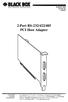 AUGUST 2000 IC133C-R2 IC187C 2-Port RS-232/422/485 PCI Host Adapter CUSTOMER SUPPORT INFORMATION Order toll-free in the U.S. 24 hours, 7 A.M. Monday to midnight Friday: 877-877-BBOX FREE technical support,
Cyclades-TS User Guide. Version TS 1.4.0
 Cyclades-TS User Guide Version TS 1.4.0 This document contains proprietary information of Cyclades and is not to be disclosed or used except in accordance with applicable contracts or agreements. Cyclades
Quick Installation Guide
 Quick Installation Guide TEW-432BRP H/W: v.d1.0r Table of Contents... 1 1. Before You Start... 1 2. Install Router... 2 3. Replacing an existing router... 5 4. Adding the router behind an existing router...
Supports http and SNMP interface for switch management.
 LGB2118A LGB2124A Gigabit Smart Switch Eco Fanless Supports http and SNMP interface for switch management. BLACK BOX The LGB2118A has (16) 10-/100-/1000-Mbps TP ports and (2) Gigabit SFP ports. The LGB2124A
USING YOUR DMX PROFUSION
 Set Up Guide USING YOUR DMX PROFUSION io FOR 1 Connect 2 Set Up 3 Listen SIMPLE PERSONALIZED UNLIMITED ECONOMICAL LICENSED Welcome Thank you for choosing DMX to provide your Pandora listening experience
Barracuda Link Balancer Administrator s Guide
 Barracuda Link Balancer Administrator s Guide Version 1.0 Barracuda Networks Inc. 3175 S. Winchester Blvd. Campbell, CA 95008 http://www.barracuda.com Copyright Notice Copyright 2008, Barracuda Networks
mysensors mysensors Wireless Sensors and Ethernet Gateway Quick Start Guide Information to Users Inside the Box mysensors Ethernet Gateway Quick Start
 mysensors Information to Users mysensors Wireless Sensors and Ethernet Gateway Quick Start Guide This equipment has been tested and found to comply with the limits for a Class B digital devices, pursuant
Follow this procedure to upgrade your Agility ipath v3.3 hardware to a new 4.0 system.
 ACR1000A-T-R2 ACR1002A-R ACR1000A-CTL-24 ACR1000A-CTL-192 ACR1002A-T ACR1000A-CTL ACR1000A-CTL-48 ACR1000A-CTL-288 ACR1012A-T ACR1000A-CTL-8 ACR1000A-CTL-96 ACR1000A-CTL-ULC ACR1000A-R-R2 ACR1000A-CTL-16