
Internet Access Router
|
|
|
- Eric Rice
- 9 years ago
- Views:
Transcription
1 JANUARY 1997 LR0002A-BSDN LR0002A-BV35 LR0002A-TSDN LR0002A-TV35 LR0002A-BUDN LR0002A-BV36 LR0002A-TUDN LR0002A-TV36 LR0002A-BCSU LR0002A-BX21 LR0002A-TCSU LR0002A-TX21 LR0002A-BV24 LR0002A-B530 LR0002A-TV24 LR0002A-T530 Internet Access Router POWER READY Internet Acess Router LAN LINK DATA ERROR CUSTOMER SUPPORT INFORMATION Order toll-free in the U.S. 24 hours, 7 A.M. Monday to midnight Friday: BBOX FREE technical support, 24 hours a day, 7 days a week: Call or fax Mail order: Black Box Corporation, 1000 Park Drive, Lawrence, PA Web site: [email protected]

2 FEDERAL COMMUNICATIONS COMMISSION AND INDUSTRY CANADA RADIO FREQUENCY INTERFERENCE STATEMENTS FCC STATEMENT This equipment generates, uses, and can radiate radio frequency energy and if not installed and used properly, that is, in strict accordance with the manufacturer s instructions, may cause interference to radio communication. It has been tested and found to comply with the limits for a Class A computing device in accordance with the specifications in Subpart J of Part 15 of FCC rules, which are designed to provide reasonable protection against such interference when the equipment is operated in a commercial environment. Operation of this equipment in a residential area is likely to cause interference, in which case the user at his own expense will be required to take whatever measures may be necessary to correct the interference. Changes or modifications not expressly approved by the party responsible for compliance could void the user s authority to operate the equipment. This digital apparatus does not exceed the Class A limits for radio noise emission from digital apparatus set out in the Radio Interference Regulation of Industry Canada. Le présent appareil numérique n émet pas de bruits radioélectriques dépassant les limites applicables aux appareils numériques de classe A prescrites dans le Règlement sur le brouillage radioélectrique publié par Industry Canada. 3

3 INSTRUCCIONES DE SEGURIDAD NORMAS OFICIALES MEXICANAS (NOM) ELECTRICAL SAFETY STATEMENT INSTRUCCIONES DE SEGURIDAD 1. Todas las instrucciones de seguridad y operación deberán ser leídas antes de que el aparato eléctrico sea operado. 2. Las instrucciones de seguridad y operación deberán ser guardadas para referencia futura. 3. Todas las advertencias en el aparato eléctrico y en sus instrucciones de operación deben ser respetadas. 4. Todas las instrucciones de operación y uso deben ser seguidas. 5. El aparato eléctrico no deberá ser usado cerca del agua por ejemplo, cerca de la tina de baño, lavabo, sótano mojado o cerca de una alberca, etc.. 6. El aparato eléctrico debe ser usado únicamente con carritos o pedestales que sean recomendados por el fabricante. 7. El aparato eléctrico debe ser montado a la pared o al techo sólo como sea recomendado por el fabricante. 8. Servicio El usuario no debe intentar dar servicio al equipo eléctrico más allá a lo descrito en las instrucciones de operación. Todo otro servicio deberá ser referido a personal de servicio calificado. 9. El aparato eléctrico debe ser situado de tal manera que su posición no interfiera su uso. La colocación del aparato eléctrico sobre una cama, sofá, alfombra o superficie similar puede bloquea la ventilación, no se debe colocar en libreros o gabinetes que impidan el flujo de aire por los orificios de ventilación. 10. El equipo eléctrico deber ser situado fuera del alcance de fuentes de calor como radiadores, registros de calor, estufas u otros aparatos (incluyendo amplificadores) que producen calor. 4

4 INSTRUCCIONES DE SEGURIDAD 11. El aparato eléctrico deberá ser connectado a una fuente de poder sólo del tipo descrito en el instructivo de operación, o como se indique en el aparato. 12. Precaución debe ser tomada de tal manera que la tierra fisica y la polarización del equipo no sea eliminada. 13. Los cables de la fuente de poder deben ser guiados de tal manera que no sean pisados ni pellizcados por objetos colocados sobre o contra ellos, poniendo particular atención a los contactos y receptáculos donde salen del aparato. 14. El equipo eléctrico debe ser limpiado únicamente de acuerdo a las recomendaciones del fabricante. 15. En caso de existir, una antena externa deberá ser localizada lejos de las lineas de energia. 16. El cable de corriente deberá ser desconectado del cuando el equipo no sea usado por un largo periodo de tiempo. 17. Cuidado debe ser tomado de tal manera que objectos liquidos no sean derramados sobre la cubierta u orificios de ventilación. 18. Servicio por personal calificado deberá ser provisto cuando: A: El cable de poder o el contacto ha sido dañado; u B: Objectos han caído o líquido ha sido derramado dentro del aparato; o C: El aparato ha sido expuesto a la lluvia; o D: El aparato parece no operar normalmente o muestra un cambio en su desempeño; o E: El aparato ha sido tirado o su cubierta ha sido dañada. 5

5 TRADEMARKS IBM and AS/400 are registered trademarks of IBM Corporation. VT52, VT100, VT200, and VT220 are trademarks of Compaq Computer Corporation. Netscape is a registered trademark of Netscape Communications Corporation. Microsoft is a registered trademark of Microsoft Corporation. Macintosh is a registered trademark of Apple Computer, Inc. UNIX is a registered trademark of UNIX System Laboratories, Inc. Novell is a registered trademark of Novell Incorporated. All applied-for and registered trademarks are the property of their respective owners. 6

6 CONTENTS 1. Specifications Introduction Internet Access Router Description Features Application Internet Access Router and Single IP Single IP Features Quick Installation Connecting to the Internet/Intranet as a Public IP net Connecting to the Internet/Intranet as a Private IP net Configuring the Internet Access Router Installation and Operation General Unpacking Site Requirements Cable Connections Front Panel Controls and Indicators Operating Procedure Configuration Initial Setup Connecting to the Terminal Setting a Password Changing the Password Removing the Password Menus and Screens Quick Setup Asynchronous/Synchronous V Synchronous: V.35, V.36, X.21, RS-530, and DDS ISDN Frame Relay: V.24, V.35, V.36, X.21, RS-530 and DDS Security Setup Enabling Telnet Access Enabling SNMP Access Enabling/Disabling the Solid Firewall Diagnostic Tools

7 CONTENTS (continued) 6. Reducing Operating Costs Ways of Reducing Operating Costs Connection on Demand Filtering Van Jacobson Compression LAN Access Security Securing LAN Access Telnet and SNMP Solid Firewall Advanced Configuration Advanced Menu Setup Menu Host Parameters Routing/Bridging Interface Parameters Access Control (Security) WAN Economy Factory Default Options View Menu Device Control Menu List of Operations Appendix A: Single IP A.1 Internet Access Router and Single IP A.2 Features A.2.1 Small Office Internet Access vs. Single PC Internet Access A.2.2 Simultaneous Multiple Access to the Internet/Intranet A.2.3 IP Applications: Web Browsing, FTP, Telnet , News, and Others A.2.4 Solid Firewall A.2.5 Connection and Disconnection on Demand A.2.6 Filtering A.3 How Single IP Works A.4 Implementing Single IP A.5 Questions About Single IP

8 CONTENTS (continued) INTERNET ACCESS ROUTER Appendix B: Fault Isolation and Troubleshooting Appendix C: Interface Specifications and Cable Diagrams Appendix D: Software Download D.1 Introduction D.2 Downloading via XMODEM D.3 Downloading via TFTP

9 LAN Interface 1. Specifications Standard Conforms to IEEE Type B models: 10BASE2 (BNC) (Thin Ethernet); T models: 10BASE-T (UTP) Link Interface Model Interface Connectors Data Rates LR0002A-BSDN ISDN S Interface RJ-45 Up to 64 Kbps LR0002A-BUDN ISDN U Interface RJ-45 Up to 64 Kbps LR0002A-BCSU CSU/DSU RJ-45 Up to 56 Kbps LR0002A-BV24 V.24/RS-232 DB25 female Up to 64 Kbps (asynchronous) 2.4 to Kbps (synchronous) LR0002A-BV35 V pin female Up to T1 LR0002A-BV36 V.36/RS-422 DB37 female Up to T1 LR0002A-BX21 X.21 DB15 female Up to T1 LR0002A-B530 RS-530 DB25 female Up to T1 LR0002A-TSDN ISDN S Interface RJ-45 Up to 64 Kbps LR0002A-TUDN ISDN U Interface RJ-45 Up to 64 Kbps LR0002A-TCSU CSU/DSU RJ-45 Up to 56 Kbps LR0002A-TV24 V.24/RS-232 DB25 female Up to 64 Kbps (asynchronous) 2.4 to Kbps (synchronous) LR0002A-TV35 V pin female Up to T1 LR0002A-TV36 V.36/RS-422 DB37 female Up to T1 LR0002A-TX21 X.21 DB15 female Up to T1 LR0002A-T530 RS-530 DB25 female Up to T1 Protocol Synchronous/asynchronous PPP, SLIP, CSLIP, Multi-link PPP 10

10 Control Interface Type V.24/RS-232 Connector DB9 (rear panel) Data Rate 2.4 to 19.2 Kbps, 8 bits, no parity, automatic rate detection LED Indicators Power ON when unit is powered Ready ON when packets can be transferred LAN Data ON when a packet is received or transmitted on the LAN side LAN Err ON when LAN interface indicates an error Link Data ON when a packet is received or transmitted on the LINK side Link Err ON when LINK interface indicates an error Panel Controls Power ON/OFF Rear-panel power supply Voltage VAC Frequency 47 to 63 Hz Power 10 VA Max. Environment Temperature 32 to 122 F (0 to 50 C) Humidity 0 to 90%, non-condensing Physical Size 1.8 H x 8.5 W x 9.6 D (4.4 x 21.6 x 24 cm) Weight 2.1 lb. (0.96 kg) 11

11 2.1 Internet Access Router Description 2. Introduction The Internet Access Router is a standalone IP router for the small office. It connects a small or medium-sized network to the Internet or Intranet. Quick setup and configuration menus provide on-screen instructions that guide you through installation and configuration procedures. The following models are available: Table 2-1. Internet Access Router Models. Model LAN Interface Link Interface LR0002A-BSDN 10BASE2 (BNC) ISDN S Interface LR0002A-BUDN 10BASE2 (BNC) ISDN U Interface LR0002A-BCSU 10BASE2 (BNC) CSU/DSU LR0002A-BV24 10BASE2 (BNC) V.24/RS-232 LR0002A-BV35 10BASE2 (BNC) V.35 LR0002A-BV36 10BASE2 (BNC) V.36/RS-422 LR0002A-BX21 10BASE2 (BNC) X.21 LR0002A-B530 10BASE2 (BNC) RS-530 LR0002A-TSDN 10BASE-T (UTP) ISDN S Interface LR0002A-TUDN 10BASE-T (UTP) ISDN U Interface LR0002A-TCSU 10BASE-T (UTP) CSU/DSU LR0002A-TV24 10BASE-T (UTP) V.24/RS-232 LR0002A-TV35 10BASE-T (UTP) V.35 LR0002A-TV36 10BASE-T (UTP) V.36/RS-422 LR0002A-TX21 10BASE-T (UTP) X.21 LR0002A-T530 10BASE-T (UTP) RS-530 The Internet Access Router includes a feature called Single IP, which allows users in a small office to connect to the Internet/Intranet quickly and transparently. Connection can be made via ISDN, PSTN, Frame Relay, or Leased Lines. A description of the Single IP features can be found in Section

12 2.2 Features Connects a small office to the Internet/Intranet. Supports Single IP, which allows a user to connect to the Internet/Intranet quickly and transparently. INTERNET ACCESS ROUTER PPP multi-link support enables maximum use of ISDN lines. Integral Frame Relay operating at data rates up to T1. Supports asynchronous, synchronous, ISDN, and CSU/DSU WAN interfaces. Supports 10BASE2 or 10BASE-T LAN interface. Supports TELNET, allowing configuration and control of the device over WAN and LAN. Fast installation can be performed from a terminal emulator or via TELNET. PAP/CHAP provides access authentication. Solid Firewall feature allows the user to block all access from the outside into the LAN. Undesired access to the Router via TELNET or SNMP can be blocked. Connection on demand feature reduces WAN costs. An SNMP agent provides management by any standard SNMP management station. Software downloading is available using XMODEM or TFTP. 2.3 Application The Internet Access Router connects your Ethernet LAN to the Internet or Intranet. Connection is made via ISDN BRI, Frame Relay, PSTN, leased line, or DDS (see Figure 2-1). ISDN BRI (Integrated Services Digital Network) ISDN is a telecommunications standard that is capable of sending digitally encoded voice, data, video, and other signals on the same line. BRI (Basic Rate Interface) indicates that the service is provided over two B channels of 64K each. 13

13 Frame Relay is a network interface that provides high-speed frame or packet transmission with minimum delay and maximum use of bandwidth. PSTN (Public Switched Telephone Network) is the telecommunications network commonly accessed by telephones, key systems, private telephone exchanges, and data equipment. Access can be via regular switched circuits, or dedicated leased lines. DDS (Digital Data Service) Digital leased lines that support transmission rates between 2.4 and 56 Kbps. Internet/ Intranet PSTN Frame Relay ISDN BRI Leased DDS 56 Leased Line Internet Access Router Ethernet LAN Figure 2-1. Typical Application of the Internet Access Router. 14

14 2.4 Internet Access Router and Single IP Single IP is a feature of the Internet Access Router that can be enabled or disabled by the user. When Single IP is enabled, the Router allows users in a small office to connect to the Internet/Intranet quickly and transparently. Connection can be made via ISDN, PSTN, Frame Relay, or leased lines. Single IP also completely protects all the small office users from hackers on the Internet and Intranet. Normally, a LAN requires a complete statically assigned, unique, and legal subnet in order to connect to the Internet or Intranet. Single IP allows an entire small office to connect to the Internet or Corporate Intranet using only one dynamically assigned IP address received from the IP Provider via a dialup modem, ISDN, Frame Relay, or leased-line connection. Single IP is recommended for small-office LANs where up to around 20 users are expected at any one instant to access the Internet/Intranet. 2.5 Single IP Features Allows a small office to connect to the Internet/Intranet in the same way as a single PC. Requires only one legal IP address. Dynamically obtains a single temporary IP address from the Router at the other end of the connection (your Internet service provider, for example) using standard IPCP. Allows a small office to use any private IP subnet. Allows up to 20 users to access the Internet/Intranet via Single IP simultaneously. Allows Web browsing, FTP, Telnet, , News, and other IP applications using any TCP/IP stack on any type of station in the small office. Provides total security against Internet hackers using the Solid Firewall feature. Allows automatic connection and disconnection of the link by Single IP based on actual or specific use of the Internet/Intranet. Allows filtering of traffic on the link to reduce waste of bandwidth and to improve security. 15

15 3. Quick Installation This section describes procedures for quick installation and connection of the Internet Access Router to the Internet/Intranet. A checklist describes things you should do before connecting to the Internet/Intranet. For more detailed installation instructions, refer to Chapter Connecting to the Internet/Intranet as a Public IP Net Use the checklist below to make sure you are ready to connect to the Internet/Intranet. Subscribe to the Internet Service Provider (ISP) and request a static IP subnet. Request a dialup telephone number, your username, and your password from the ISP. Configure this into the Internet Access Router using the Quick Setup option. Check whether a login script is necessary to access the ISP. If it is, call for technical support. Disable the Single IP in the Quick Setup option. Make sure the line (ISDN, PSTN, Frame Relay, or DDS) to the ISP is working properly. Use the static IP subnet you have obtained to configure the LAN IP host addresses of the Internet Access Router. Preparing Your PCs Make sure your PCs have a correctly installed TCP/IP stack such as WinSock or Chameleon. Assign an IP address, from the static IP subnet to each PC. Make sure that each PC has the correct subnet mask. Configure each PC with the Router as the Default Gateway. Configure each PC with the ISP s DNS IP address. Check that your small-office LAN is correctly set up to work with IP. 16

16 3.2 Connecting to the Internet/Intranet as a Private IP net Use the checklist below to make sure you are ready to connect to the Internet/Intranet. Internet Checklist Subscribe to the Internet Service Provider (ISP) and request a single-user subscription connection. Decide on a private IP net for your small-office LAN (Reference RFC 1918). This address should have a different network number from the provider s network number. Otherwise, the chosen IP net number is irrelevant. Request a dialup telephone number, your username and password from the ISP. Configure this into the Router using the Quick Setup option. Check whether a login script is necessary to access the ISP. If it is, call for technical support. Enable the Single IP in the Router Setup option. Make sure the line (ISDN, PSTN, Frame Relay, or DDS) to the ISP is working properly. Use the private IP subnet you have obtained to configure the private host addresses of the Router. Check that your small-office LAN is correctly set up to work with IP. Preparing Your PCs Make sure your PCs have a correctly installed TCP/IP stack such as WinSock or Chameleon. Assign an IP address, unique to the LAN, to each PC. Configure each PC with the Router as the Default Gateway. Make sure that each PC has a correct subnet mask. Configure each PC with the ISP s DNS IP address. Check that your small-office LAN is correctly set up to work with IP. 17

17 3.3 Configuring the Internet Access Router To set up and configure the Router: 1. Connect one of the PCs in your small-office LAN to the Router as a terminal emulator. Connection can be via the control port or TELNET. 2. From the Main Menu, select the Quick Setup option. Follow the onscreen instructions to enter parameters. Your small-office PCs are now ready to connect to the Internet. 18

18 4.1 General INTERNET ACCESS ROUTER 4. Installation and Operation The Internet Access Router is delivered completely assembled. To install the Router, follow the steps below: Unpack the Router Connect to the power source Connect to the LAN Connect to the link Connect to the Terminal Emulator After installing the unit, refer to Chapter 5 for configuration instructions. If you encounter a problem, refer to Appendix B for fault-isolation and troubleshooting instructions. 4.2 Unpacking Inspect the container before unpacking. Report evidence of damage immediately to your dealer. Unpack the equipment as follows: 1. Place the container on a clean, flat surface, cut all straps, and open or remove the top. 2. Take out the Router carefully and place it securely on a clean surface. 3. Inspect the Router for damage. Report any damage found immediately. 19

19 4.3 Site Requirements Before installing the Router, pay attention to the following: Power The Router should be installed within 5 feet (1.5 m) of a grounded AC outlet furnishing 115 VAC (or 230 VAC). WARNING Do not adjust, maintain, or repair the opened device under voltage. You could be shocked! All repairs should be done by competent technicians who are aware of the hazards involved. Front and Rear Panel Clearance Allow at least 4 inches (10 cm) clearance at the rear of the unit for interface cable connections. Operating Environment The operating temperature should be regulated between 32 and 122 F (0 and 50 C) with a relative humidity of up to 90%, noncondensing. Installation in a 19 rack (optional) The Router is designed for installation on top of a bench or shelf or secured to a 19 rack. A rack adapter kit provides the hardware you need to install the unit. 4.4 Cable Connections AC Power Connection AC power should be supplied to the Router through a standard power cable with a grounded three-prong plug. A 1-amp slow-blow fuse is present in the power supply unit. WARNING To prevent electrical fire hazard, always replace the fuse with the same type and rating as indicated. 20

20 1. Connect the power cable to the power port located on the right hand side of the Router rear panel. 2. Connect the three-prong plug to a grounded AC outlet. Connecting to the Link A connector is provided for connection of the interface to the communication link. Refer to Table C-1 for Link connector pin assignments. Note that X.21 and V.36 connections are provided by adapter cables to the RS-530 (25-pin connector) on the Router s rear panel. To connect to the Link: 1. Attach the cable with the interface connector to the link port on the rear panel of the Router. 2. Attach the other side of the cable to the wall outlet or modem. See Figure 4-2 for illustrations of the Router s rear panel with ISDN, V.24, and V.35 connectors. WARNING Take care to insert the ISDN or DDS connector into the assigned port and not into the 10BASE-T port. This can damage the device. Refer to Figure 4-2 for placement of the ports on the rear panel. 21

21 Modem Internet Access Router Figure 4-1. Connecting to the PTT. 22
22 10BASE-T port V.24 connector 10BASE-T port ISDN connector 10BASE-T port V.35 Connector Figure 4-2. Router Rear Panel V.24, ISDN, and V.35 Connectors. 23
23 Connecting to the LAN A standard 10BASE2 (BNC) or 10BASE-T (RJ-45) connector is provided for LAN connection. To connect to the LAN: 1. Attach the cable to the 10BASE-T or 10BASE2 port on the rear panel of the Router. 2. Attach the other end of the cable to the hub (see Figure 4-3). The Router attaches to the network just as a workstation attaches to the network. Figure 4-3. Connecting to the LAN. 24
24 Connecting to the Terminal Emulator The Router features a setup program that can be invoked and run from an ASCII terminal or a PC terminal emulator. The terminal is connected to the DB9 control port on the back panel of the Router. To connect to the terminal emulator: 1. Attach the cable to the RS-232 port on the PC. 2. Attach the other end to the control port on the rear panel of the Router (see Figure 4-4). This DB9 to DB9 cable should be pinned straightthrough. Figure 4-4. Connecting to the Terminal Emulator. 25
25 4.5 Front Panel Controls and Indicators Table 4-1 lists the controls and indicators on the front panel of the Router and their functions. Figure 4-5. Router Front Panel. Table 4-1. Controls and Indicators. Controls and Indicators Function POWER Green LED goes ON when Router is powered on. READY ON when packets can be transferred. LAN DATA ON when a packet is received or transmitted on the LAN side. LAN ERROR ON when LAN interface indicates an error. LINK DATA ON when a packet is received or transmitted on the link side. LINK ERROR ON when LINK interface indicates an error. 26
26 4.6 Operating Procedure Power-On Set the POWER switch on the rear panel to the ON position. The POWER indicator lights, indicating that the Router is on. Operation The Router operation is completely automatic. During normal operation, when the remote workstations are active, the READY indicator lights continuously, the activity indicators blink and the LAN and LINK error indicators remain OFF. Power-Off Switch the POWER switch on the rear panel to the OFF position. WARNING Always ground this unit through the protective earth lead of the power cable. When connecting AC power to this unit, the mains plug should only be inserted in a socket outlet provided with a protective earth contact. The protective action must not be negated by use of an extension cord (power cable) without a protective conductor (grounding). Interrupting the protective (grounding) conductor (inside or outside the unit), or disconnecting the protective earth terminal can make this unit dangerous. 27
27 5.1 Initial Setup 5. Configuration The Internet Access Router features a setup program that is invoked and run from an ASCII terminal or a PC terminal emulator. The terminal/terminal emulator is connected to the DB9 CONTROL port on the back panel of the Internet Access Router. This section describes the procedures necessary to connect to the terminal and to access the main menu of the setup program. To install the terminal, follow the steps outlined below: CONNECTING TO THE TERMINAL 1. Connect a control cable between the DB9 control port on the Internet Access Router and the connector on the terminal (see Figure 4-4) with a straight-through cable. 2. Set the terminal to work at any baud rate from 2.4 to 19.2 Kbps, No Parity, 8 Data Bits. The Router will automatically sense the baud rate. 3. Switch on the Internet Access Router. The operational status screen displays. Press the Enter key several times to invoke the password message SETTING A PASSWORD For first-time operation, or if no configuration password has been specified, the following message appears: WARNING: No configuration password exists Define configuration password? (Y/N): 1. Type Y to set a configuration password. A message appears, prompting you to enter a new configuration password. 2. Type a password. The password can be up to twelve characters. Press the Enter key. A message appears, prompting you to retype the password for verification. 3. Retype the password and press Enter. The Main Menu screen appears (see Section 5.2). 28
28 The password protects entry to the configuration module, preventing unauthorized personnel from changing setup and configuration parameters. NOTE All Internet Access Router password verification routines are CASE SENSITIVE. Once a password has been set, always use the same case as in the original when typing the password CHANGING THE PASSWORD To change the password during normal operation: 1. From the Main Menu, select option 0, Exit, to return to the Operational Status Messages screen. 2. Press Enter several times, you will be prompted to enter the current password. 3. Enter the current password. A message appears, asking if you want to update the current password. Type Y. You will be prompted to re-enter the current password. 4. Re-enter the current password. A message appears prompting you to enter the new password. 5. Enter a new password and re-enter the same password for verification. The Main Menu appears REMOVING THE PASSWORD To delete the current password: 1. Follow the steps above to change the password. When prompted to enter a new password, press Enter without typing a new password. This deletes the current password and removes password protection. 2. Press Enter again when prompted for verification. The Main Menu appears. If the unit doesn t have an IP Address, the Quick Setup menu appears. 29
29 NOTE Use of password protection for the configuration module is recommended. Always use the Exit option in the main menu once configuration has been carried out. This will force use of the password by personnel requiring access to the configuration module. 5.2 Menus and Screens This section provides a brief description of the menus and screens available. THE MAIN MENU The name of the device (Internet Access Router) connected to the terminal is listed at the top of the screen. The Main Menu has five options. To choose an option, you type the number preceding the option. Internet Access Router Main Menu 1. Quick Setup 2. Security Setup 3. Advanced menu 4. Diagnostic tools 8. Exit Choose one of the above: Quick Setup Figure 5-1. Internet Access Router Main Menu. The Quick Setup menu allows adjusting of setup and link configuration parameters while the Internet Access Router is operating. Line-by-line prompting provides minimum input. On screen instructions and explanations guide the user through the setup procedure. Security Setup Use the options in the Security Setup menu to prevent management of the Internet Access Router and entry to your LAN by unauthorized users. 30
30 Advanced Menu The Advanced Menu lists the Internet Access Router configuration parameters and their current values. The user is able to change these parameters and to perform advanced configuration operations not available through the Quick Setup menu. The Advanced Menu includes an option to view interface connections, routing information, and LAN statistics. Resetting the device and software downloads are also performed via the Advanced Menu. Diagnostic Tools Use the Diagnostic Tools menu to verify WAN and LAN connectivity. The Ping feature allows the user to dial (ping) another user on the LAN or WAN. If the remote user replies, WAN connectivity is confirmed up to and including the IP level. Exit Select this option to return to the Operational Status Messages. From the Operational Status Messages screen, you can remove or change the password. 5.3 Quick Setup The Quick Setup option allows you to adjust setup parameters and link configuration when the Internet Access Router is operating (see Chapter 8 for advanced configuration options). Messages appear on the screen, prompting you to accept or modify the current parameter. To accept the current parameter, press Enter. To view options listed in [ ], toggle with the space bar and press Enter. To enter new information, type in the new parameters and press Enter. When all the parameters have been accepted or changed, you are able to view them on the screen. A confirmation message appears requesting that you confirm all the setup changes. The device will reset after saving these changes. To adjust setup parameters: 31
31 1. From the Main Menu, select option 1, Quick Setup. 2. Follow the on-screen instructions to accept or modify the setup parameters. 3. Press Y to save the setup parameters. The Quick Setup menu automatically adapts itself to the built-in link interface. The final screen for each interface and a description of the options in the Quick Setup menu can be found in the sections that follow. Refer to the section that applies to the interface you ordered ASYNCHRONOUS/SYNCHRONOUS V.24 Quick Setup ENTER Accept parameter, SPACE Change parameter IP setup: LAN IP address: , enter new: LAN IP mask: , enter new: Do you want to enable SINGLE IP option? [y] WAN interface V.24 Link mode: [Asynchronous] MODEM type: Microcom DeskPorte ES 28.8 (V.fast) Do you want to change MODEM type? [n] PHONE number: Connection: [Upon traffic to WAN] Disconnect timeout (sec): 600, enter new: 600 SECURITY setup Unit name: Internet Access Router, enter new: Router Do you want to change password? [n] Do you want to save QUICK SETUP (y/n)? y Figure 5-2. Quick Setup Screen. 32
32 IP Setup The fields in the Quick Setup screen are described below: INTERNET ACCESS ROUTER LAN IP Address: The IP address is a unique 4-byte (32-bit) numeric value used to identify a network and a local host on that network. Each IP address consists of four decimal numbers separated by periods (e.g., ). If using the Single IP feature, refer to Appendix A for more information on this parameter. Refer to Figure 5-4 for a description of how the IP address is obtained. This will be the address of the Router on your local LAN. LAN IP Mask: The mask is configured automatically from the IP address class. If the mask should be different, override the default by entering the new mask. Single IP Option: Single IP is a feature of the Internet Access Router that allows users in a small-office LAN to connect to the Internet/Intranet quickly and transparently. Single IP uses a dynamically assigned IP address for all the users (see Appendix A). For most applications, this will be WAN Interface Link Mode: The link mode determines the method in which data is sent across the link. When the mode is synchronous, data bits are transmitted at a fixed rate. The sender and the receiver are synchronized. During asynchronous transmission, data units are sent character-by-character. The characters are preceded by start bits and followed by stop bits. The start and stop bits provide synchronization at the receiver side. Use the space bar to toggle between synchronous and asynchronous mode. Modem type: Allows you to change the modem type and displays a list of modems. Baud Rate: Displays the rate at which data is sent across the link. Use the space bar to toggle between the different baud rates. 33
33 Phone Number: Lists the Internet provider s phone number. To edit the phone number, erase the number with the backspace button on the keyboard and enter the new number. Connection: Use this option to decide when the link between the local LAN and the Internet should be activated. Selecting upon traffic to WAN activates the link only when there is traffic to be sent on the link. This feature is important in reducing operating costs. Toggle between always and upon traffic to WAN. Disconnect Timeout: This parameter defines the condition that has to be met for the link to disconnect. The condition stipulates that the link will disconnect if there is no traffic for the specified amount of time. Traffic Disconnect Timeout Time Link Disconnect Figure 5-3. Disconnect Timeout. 34
34 Security Setup Unit Name: Displays the name assigned to the Internet Access Router for identification by the Internet Provider. To change the unit name, type in the new name and press Enter. This will be used to log in to the ISP when the Router attempts to connect, so this should match the username that the ISP assigned to you. Password: A password assigned to the Internet Access Router for access to the Internet. To change the password, use the space bar to toggle between yes and no. This must be the password the ISP has assigned to you. Internet Access Router Figure 5-4. Obtaining IP Addresses. 35
35 5.3.2 SYNCHRONOUS: V.35, V.36, X.21, RS-530, AND DDS QUICK SETUP ENTER Accept parameter, SPACE Change parameter. IP setup: LAN IP address: , enter new: LAN IP mask: , enter new: Do you want to enable SINGLE IP option? [y] WAN interface V.35 SECURITY setup Unit name: Internet Access Router, enter new: Internet Access Router Do you want to change password? [n] IP Setup Do you want to save QUICK SETUP (y/n)? y Figure 5-5. Quick Setup Screen. LAN IP Address: The IP address is a unique 4-byte (32-bit) numeric value used to identify a network and a local host on that network. Each IP address consists of four decimal numbers separated by periods (e.g ). If using the Single IP feature, refer to Appendix A for more information on this parameter. Refer to Figure 5-4 for a description of how the IP address is obtained. LAN IP Mask: The mask is configured automatically from the IP address class. If the mask differs, enter the new mask. If the mask should be different, override the default by entering the new mask. Single IP Option: Single IP is a feature of the Internet Access Router that allows users in a small-office LAN to connect to the Internet/Intranet quickly and transparently. Single IP uses a single dynamically assigned IP address for all the users. 36
36 Security Setup Unit Name: Displays the name assigned to the Internet Access Router for identification by the Internet Provider. To change the unit name, type in the new name and press Enter. This will be used to log in to the ISP when the Router attempts to connect, so this should match the username that the ISP assigned to you. Password: A password assigned to the Internet Access Router for access to the Internet. To change this password, use the space bar to toggle between yes and no. This must be the password the ISP has assigned to you ISDN QUICK SETUP ENTER Accept parameter, SPACE Change parameter. IP setup: IP address: , enter new: IP mask: , enter new: Do you want to enable SINGLE IP option? [y] WAN interface ISDN BRI Bandwidth: [64] Kbps Protocol: [ETSI] PHONE number: Connection: [Always] SECURITY setup Unit name: lanrang, enter new: lanrang Do you want to change password? [n] Do you want to save QUICK SETUP (y/n)? y Figure 5-6. Quick Setup Screen. 37
37 IP Setup LAN IP Address: The IP address is a unique 4-byte (32-bit) numeric value used to identify a network and a local host on that network. Each IP address consists of four decimal numbers separated by periods (e.g ). If using the Single IP feature, refer to Appendix A for more information on this parameter. Refer to Figure 5-4 for a description of how the IP address is obtained. LAN IP Mask: The mask is configured automatically from the IP address class. If the mask differs, enter the new mask. If the mask should be different, override the default by entering the new mask. Single IP Option: Single IP is a feature of the Internet Access Router that allows users in a small-office LAN to connect to the Internet/Intranet quickly and transparently. Single IP uses a single dynamically assigned IP address for all the users. WAN Interface Bandwidth: The bandwidth is the rate at which data passes through the link. The greater the bandwidth, the more information can be sent through the link at a certain time. The Internet Access Router allows you to work with a bandwidth of 64 Kbps or 128 Kbps. Protocol: The protocol used by the Internet Provider in your area. Toggle between the following protocols: ETSI, National-1, NTT, Israel, 5ESS, 5ESS/PTP, DMS100, and leased. Phone Number: Lists the Internet provider s phone number. To edit the phone number, erase the number with the backspace button on the keyboard and enter the new number. Connection: Use this option to decide when the link between the local LAN and the Internet should be activated. Selecting upon traffic to WAN activates the link only when there is traffic to be sent on the link. This feature is important in reducing operating costs. Toggle between always and upon traffic to WAN. 38
38 Security Setup Unit Name: Displays the name assigned to the Internet Access Router for identification by the Internet Provider. To change the unit name, type in the new name and press Enter. This will be used to log in to the ISP when the Router attempts to connect, so this should match the username that the ISP assigned to you. Password: A password assigned to the Internet Access Router for access to the Internet. To change the password, use the space bar to toggle between yes and no. This must be the password the ISP has assigned to you FRAME RELAY: V.24, V.35, V.36, X.21, RS-530, AND DDS QUICK SETUP ENTER Accept parameter, SPACE Change parameter IP setup: IP address: , enter new: IP mask: , enter new: WAN interface FRAME RELAY MAINTENANCE PROTOCOL: [ANSI T1.617 ANNEX D] DLCI number: 18 enter new: 18 SECURITY setup Unit name: Internet Access Router,enter new: Internet Access Router Do you want to change password? [n] IP Setup Figure 5-7. Quick Setup Screen. 39
39 LAN IP Address: The IP address is a unique 4-byte (32-bit) numeric value used to identify a network and a local host on that network. Each IP address consists of four decimal numbers separated by periods (e.g ). If using the Single IP feature, refer to Appendix A for more information on this parameter. Figure 5-4 shows you how the IP address is obtained. LAN IP Mask: The mask is configured automatically from the IP address class. If the mask differs, enter the new mask. If the mask should be different, override the default by entering the new mask. Single IP Option: This option is not available for Frame Relay. WAN Interface Maintenance Protocol: This parameter defines which maintenance protocol is used in the Frame Relay WAN link: ANSI T1.617 ANNEX D, CCITT Q.933 ANNEX A, LMI, or none. Use the space bar to toggle between the options. DLCI Number: Displays the number of the logical connection. This number can be a decimal number from 16 to 991 and is provided by the Frame Relay provider. Security Setup Unit Name: Displays the name assigned to the Internet Access Router for identification by the Internet Provider. To change the unit name, type in the new name and press Enter. This will be used to log in to the ISP when the Router attempts to connect, so this should match the username that the ISP assigned to you. Password: A password assigned to the Internet Access Router for access to the Internet. To change the password, use the space bar to toggle between yes and no. This must be the password the ISP has assigned to you. 5.4 Security Setup 40
40 The Security Setup menu allows you to enable and disable access to the Internet Access Router and the LAN. The Internet Access Router is protected against access by unauthorized users by disabling access via SNMP and TELNET. The Solid Firewall is used to protect the LAN against undesired entry. To access the Security Setup menu: Select option 2 from the Main Menu. The following screen appears: SECURITY SETUP (Device name Internet Access Router) TELNET access Disable 2. SNMP access Disable 3. FIREWALL options Disable ESC Return to previous menu Choose one of the above: Figure 5-8. Security Setup Menu. The Security Setup options are described below: ENABLING TELNET ACCESS TELNET is supported allowing configuration and control of the Internet Access Router over the WAN and LAN. By default, TELNET access to the Internet Access Router is disabled. This prevents changes being made to the unit s configuration parameters. Enabling this option also allows the user to change the TELNET username and password. To enable TELNET Access: 1. From the Main menu, select option 2, Security Setup. 2. From the Security Setup menu, select option 1, TELNET access. 3. Toggle to y to allow TELNET management. Press Enter. 4. Follow the on-screen instructions to allocate a user name and password. Save the new setup. 41
41 TELNET access setup ENTER Accept parameter, SPACE Change parameter Do you want to permit TELNET management of the device? [y] TELNET user name: Internet Access Router, enter new: Router Do you want to change the TELNET password? [y] Enter new password: * Enter new password verification: * Do you want to save TELNET parameters (y/n)? Figure 5-9. TELNET Access Setup Screen ENABLING SNMP ACCESS By default, the Internet Access Router via SNMP is disabled. Blocking SNMP access prevents changes being made to the unit s configuration parameters. Enabling SNMP access prompts the user to define SNMP management parameters. To enable SNMP access: 1. From the Main menu, select option 2, Security Setup. 2. From the Security Setup menu, select option 2, SNMP access. 3. Toggle to y to allow SNMP management. Press Enter. 4. Enter the read, write, and trap communities. Save the new setup. 42
42 SNMP access setup ENTER Accept parameter, SPACE Change parameter Do you want to permit SNMP management of the device? [y] Read community: Write community: Trap community: public Do you want to save SNMP parameters (y/n)? Figure SNMP Access Setup ENABLING/DISABLING THE SOLID FIREWALL Solid Firewall, when enabled, prevents all access from the Internet/Intranet into the small-office LAN. Traffic may still be sent from the LAN to the WAN. However, there are some limitations applied to the traffic sent from the LAN to the WAN. Refer to Appendix A for further information. By default, Solid Firewall is disabled. To enable the Solid Firewall feature: 1. From the Main Menu, select option 2, Security Setup. 2. From the Security Setup menu, select option 3, Solid Firewall. 3. Toggle to y and press Enter to allow Solid Firewall. Save the new setup. FIREWALL options setup To enable FIREWALL options means that sessions will be forwarded from LAN to WAN but will be blocked from entering the LAN. Do you want to enable FIREWALL options? [n] y Do you want to save FIREWALL setup (y/n)? y Figure FIREWALL Options Setup Screen. 5.5 Diagnostic Tools 43
43 The Diagnostic Tools menu has two options. The Ping option allows you to confirm IP connectivity by pinging (dialing) other IP hosts. If there is a reply from the remote IP host, WAN connectivity is confirmed. The second option, Trace Route, is not currently available. Figure Pinging IP Hosts. To ping another host: 1. From the Main Menu, select option 4. The following menu appears: DIAGNOSTIC TOOLS (Device name WEB) Ping terminal 2. Trace route ESC Return to previous menu Figure Diagnostic Tools Menu. 2. From the Diagnostic Tools menu, select option 1. You are prompted to enter the IP address of the host. 44
44 3. Enter the host s IP address. The Internet Access Router pings the destination host. A message appears showing the result of the request. The Internet Access Router continues pinging the host until you press ESCAPE. PING TERMINAL (Device name WEB) Insert the IP address in the format: xxx.xxx.xxx.xxx Ping IP address: Pinging Reply from time = sec Reply from time = <0.050 sec Reply from time = <0.050 sec ESC Return to previous menu Figure Ping Terminal. 6. Reducing Operating Costs 45
45 6.1 Ways of Reducing Operating Costs The sections below contain information on how to reduce operating costs. At the end of each section, you are directed to the menu that allows you to set up these parameters CONNECTION ON DEMAND Connection on Demand activates the link only when traffic needs to be sent. The user can define conditions for starting and terminating a connection. In this way, the link is not constantly up. Once a connection is established, you are able to define when to terminate and restart the connection. Alternatively, connection and disconnection can be done manually. This ensures that a connection is only established when traffic needs to be sent on the link. To access the Connection on Demand menu: 1. From the Advanced menu, select option 1. The Setup menu appears. 2. From the Setup menu, select option 5. The WAN Economy menu appears. 3. From the WAN Economy menu, select option 2. The Connection on Demand menu appears. 4. Follow the on-screen instructions to set the Connection on Demand parameters FILTERING Filtering allows the user to decide which traffic the Internet Access Router should allow to enter and exit the LAN. Limiting unnecessary traffic saves bandwidth and improves security of the LAN. However, care should be taken to minimize the number of filters defined. Too many filters can reduce the performance of the Internet Access Router. Filtering can be implemented through two modes: blocking or forwarding. When a filter is in the blocking mode, the Internet Access Router tests each packet of data that is sent to or from the LAN. If the packet passes the test, it is blocked from entering or exiting the LAN. In the forwarding mode, passage is allowed if the packet passes the test. For a more detailed description and instructions on implementing Filtering, refer to Section VAN JACOBSON COMPRESSION Compression reduces the number of bits required to represent information in data transmission or storage. In this way, valuable bandwidth and memory 46
46 is saved. Van Jacobson compression is enabled by default. INTERNET ACCESS ROUTER If you decide to disable Van Jacobson compression, follow the steps in Figure 6-1. Figure 6-1. Disabling Van Jacobson Compression. 47
47 7.1 Securing LAN Access 7. LAN Access Security Your small-office LAN can be protected against unauthorized access in two ways: By disabling TELNET and SNMP access. By enabling Solid Firewall TELNET AND SNMP Remote control of the Router is denied by disabling TELNET and SNMP access. By preventing access to the Router, access to the LAN is also prevented. Refer to Section 5.3 for instructions to disable TELNET and SNMP access. NOTE For authentication by the Internet Service Provider, a username and password is assigned to the Internet Access Router. The username and password are entered in the Security Setup section of the Quick Setup screen SOLID FIREWALL Solid Firewall allows IP sessions originating from the LAN to be forwarded to the WAN. IP sessions originating from the WAN are blocked from entering the LAN. Solid Firewall is enabled via the Security Setup menu. For instructions to enable Solid Firewall, refer to Section 5.4. Router TELNET AND SNMP Figure 7-1. Solid Firewall. 48
48 8.1 Advanced Menu INTERNET ACCESS ROUTER 8. Advanced Configuration Internet Access Router Advanced Menu Setup 2. View 3. Device control 8. Exit Choose one of the above: Figure 8-1. Advanced Menu. The options in the Advanced Menu are described below: Setup: Use this menu to modify setup parameters. View: Use this menu to view the configuration screens and information on interface connections, routing tables and statistics. Device Control: The Device Control menu allows you to download the software, perform reset operations, and choose a terminal type. 49
49 8.2 Setup Menu Figure 8-2. Advanced Menu Tree, Setup Option. 50
50 To access the Setup Menu: In the Advanced menu, press 1. The Setup Menu appears. SETUP (Device name WEB) Host parameters 2. Routing/Bridging 3. Interface parameters 4. Access control (Security) 5. WAN economy 6. Factory default options ESC return to previous menu Choose one of the above: Figure 8-3. Setup Menu. The options in the Setup menu are briefly described below. For a detailed description of the submenus, refer to the sections that follow HOST PARAMETERS This option enables you to enter information about the device, the IP host, the SNMP agent, and TFTP. Routing/Bridging Select this option to enter routing or bridging information for the device. Interface Parameters Select this option to set link, ISDN, or Frame Relay parameters. Access Control (security) Select this option to perform security operations. WAN Economy Select this option to reduce traffic over the WAN and to keep the link up only when necessary. 51
51 Factory default options Select this option to return settings to the factory default. Figure 8-4. Advanced Menu Tree, Host Parameters Option. 52
52 To access the Host Parameters menu: 1. In the Advanced menu, press 1. The Setup menu appears. 2. In the Setup menu, press 1. The Host Parameters menu appears. HOST PARAMETERS (Device name WEB) Device ID 2. IP Host 3. SNMP agent 4. TFTP ESC return to previous menu Choose one of the above: Figure 8-5. Host Parameters Menu. The options in the Host Parameters menu are described below. Device ID Use the Device ID menu to view and/or modify the following arbitrary parameters: Device Name: An arbitrary name assigned to the Internet Access Router for identification by the system manager. Contact Person: The name of the person to be contacted with matters pertaining to the system. System Location: Lists the physical location of the device. MAC Address: This option allows the user to assign a MAC address locally. The Internet Access Router can be used with a burned-in address provided by the manufacturer or with the locally administered address. This address must be unique to your network. 53
53 IP Host The options in the IP Host menu are described below: IP Address: The IP address is a unique 4-byte (32-bit) numeric value used to identify a network and a local host on that network. Each IP address consists of four decimal numbers separated by periods (e.g ). IP Mask: The IP mask is configured automatically from the IP address class. If the mask differs, enter the new mask. Default Gateway: Use this option to set the IP address of the default gateway. Routing will be performed to this address by default. IP Host Interface: Use this option to set the host interface to LAN or Link. SNMP Agent Select this option to enter parameters for SNMP management. Read Community: Set the parameters for obtaining information from the SNMP agent. Write Community: Select this option to set parameters for sending information to the SNMP agent. Trap Community: Select this option to set the parameters for obtaining trap messages from the SNMP agent. Manager Table: Select this option to add, clear, or delete parameters from the manager table. The manager table lists the SNMP manager IP addresses and masks. TFTP The options in the TFTP menu are described below: File Server IP Address: The IP address of the TFTP server. File Name: The name and path of the file to be transferred. Retransmitting Timeout: The amount of time that is allowed to pass before a file is retransmitted. 54
54 Total Timeout: The amount of time the user should wait for an acknowledgement from the TFTP server. TFTP Server IP Address: Holds file at C:... Router Figure 8-6. File Transfer to and from TFTP Server. 55
55 8.2.2 ROUTING/BRIDGING Figure 8-7. Routing/Bridging Options. To access the Routing/Bridging menu: 1. In the Advanced menu, press 1. The Setup menu appears. 2. In the Setup menu, press 2. The Routing/Bridging menu appears. 56
56 ROUTING/BRIDGING (Device name WEB) Link 1 IP ROUTER PPP Setup Menu Link Routing/Bridging mode 2. Static stations & nets 3. IP routing settings (PC to LAN) 4. IPX routing settings 5. Station aging (minutes): 60 ESC Return to previous menu Choose one of the above: Figure 8-8. Routing/Bridging Menu. The options in the Routing/Bridging menu are described below: Link Routing/Bridging mode Link Type: This menu is not applicable for this version of the Internet Access Router. Link Protocol: Specifies the link protocol: SLIP, CSLIP, or PPP. Link cost/metric: Use this option to assign a cost to each WAN link for routing purposes. PPP settings: Use this option to set compression options. Compression is used to save bandwidth and memory. 57
57 Static stations and nets Select this option to add, delete, or clear static stations from the network. When selecting a static net for a link, the user defines all nets over which the link will perform routing. The user can set more than one routing net for the same link. Also, more than one link can perform routing to the same net (in this case, the device will learn the IP addresses of the stations connected to each link and will route the frames to the appropriate link according to this information). When setting a static station for a link, the user defines which stations are set in the remote net. A station can be set only once. By setting a static station, the device can transmit frames to the station even though it hasn t been learned yet (that is, even though the station hasn t sent any frames yet). IP Routing Settings This menu is not applicable for this version of the Internet Access Router. IPX Routing Settings This menu is not applicable for this version of the Internet Access Router. Station Aging Station aging determines the amount of time a station is allowed to be inactive before it is removed from the network. A station is inactive when no IP traffic is forwarded or received. 58
58 8.2.3 INTERFACE PARAMETERS Figure 8-9. Interface Parameters Menu Tree. 59
59 To access the Interface Parameters screen: 1. In the Advanced menu, press 1. The Setup menu appears. 2. In the Setup menu, press 3. The Interface Parameters menu appears. INTERFACE PARAMETERS (Device name WEB) Link settings 2. ISDN protocol settings 3. Frame relay DLCI settings 4. X.25/Frame relay setting ESC Return to previous menu Choose one of the above: Figure Interface Parameters Menu. The options in the Interface Parameters menu are described below: Link settings Status: Specifies the status of a link: enabled or disabled. Type: Specifies the type of interface in use: asynchronous, synchronous, Frame Relay, ISDN, or Leased ISDN. Connection: Specifies the type of connection: originate only (for the Internet Access Router, this is the only type of connection available). Connection timeout (sec): The time required by the Internet Access Router to detect a communication failure in the link. Control Signals Mode: The Internet Access Router can be set to ignore or acknowledge the following control signals: RTS (Request to send), CTS (Clear to send), and CD (Carrier Detect). Baud Rate: The rate at which data is sent across the link. Parity: A parity bit is a non-information bit that is added to a group of bits to make sure that the total number of 1 bits in a character is odd or even. Toggle between odd, even, or none. 60
60 Stop Bit: The stop bit is a signal at the end of a character that instructs a receiving device to wait for a subsequent signal. Select this option to toggle between 1 and 2 stop bits. Modem Settings: Select this option to display a menu that allows configuration of modem parameters. ISDN Protocol Setting The Internet Access Router with ISDN connects your Ethernet LAN to the Internet/Intranet at a rate of 64 or 128 Kbps. The Router with an ISDN interface was designed to reduce WAN costs to a minimum. WAN economy is achieved through automatic spoofing and connection-on-demand features for Internet/Intranet access. Router Figure Connection to the Internet over ISDN. 61
61 ISDN Features ISDN BRI. Standard S/T interface. Optional U-interface eliminates the need for an external NTI device. Connection rate from 64 to 128 Kbps. Protocol supported: ETSI (Europe), NTT (Japan), NI-1 (US), 5ESS (US), DMS-100 (US), and Leased ISDN (I.430). Implementing ISDN To activate the ISDN line, you need to do the following: 1. Choose the ISDN protocol. 2. Choose the connection rate (bandwidth): 64 or 128 Kbps. 3. Enter the destination phone number. Figure 8-12 maps the options in the Advanced Menu that are used to configure the Internet Access Router for operation with an ISDN interface. A brief explanation of the Link Settings Parameters follows. 62
62 Figure ISDN Options in the Advanced Menu. 63
63 Dialing Mode Parameters Destination Phone Number: The phone number of the station you want to dial. This parameter is mandatory for dialing out. The other dialing mode parameters are optional. Destination Sub-number: ISDN allows you to dial to an extension of the destination phone number. This parameter is optional. Source Phone Number: The phone number of the person dialing out. This parameter is used by the destination station to identify the caller. Source Sub-Number: An extension number of the person dialing out. Answering Mode Parameters Local Phone Number: The number to which incoming calls are directed. Local Sub-number: The extension to which incoming calls are directed. Local Number for Dialback Dialback Phone Number: Use this option to enter the phone number that is used by the Internet Service Provider (ISP) to dial back the Internet Access Router. When the Router wants to dial up to the ISP, the ISP uses this number to identify and dial back the Internet Access Router (similar to reverse charging). In this way, the PTT bills the ISP and not the caller. This feature is only useful when dialback is enabled on both sides. Dialback Sub-number: The extension used by the ISP for dialback purposes. Frame Relay Frame Relay is a form of wide-area networking that is designed to maximize throughput and minimize cost by simplifying network processing. 64
64 Router Figure Connection to the Internet over Frame Relay. Frame Relay Features Supports permanent virtual circuits (PVC). Supports Frame Relay (IP) encapsulation based on RFC Supports different management maintenance protocols: T1.617/ANNEX D, Q.933/ANNEX A and LMI. Supports self-learning of the maintenance protocol and the DLCI, which enables connection to the Frame Relay network without configuring Frame Relay parameters. Executes congestion control when an explicit congestion notification is received for the DLCI from the Frame Relay network. Frame Relay reduces the transmitted information rate of the DLCI and increases it when the congestion condition is cleared. Supports the Frame Relay SNMP MIB. Implementing Frame Relay Figure 8-14 maps the options in the Advanced Menu that are used to configure the Internet Access Router for operation over a Frame Relay network. 65
65 Frame Relay DLCI setting Figure Frame Relay options in the Advanced Menu. 66
66 Frame Relay Link Parameters The options in the Frame Relay Links Parameters menu are described below. Self Learn DLCI/Maintenance: Determines whether the Internet Access Router will self learn the maintenance protocol on the Frame Relay link and the DLCI and its status (UP or DOWN). When this parameter is disabled (OFF), the user needs to configure the maintenance protocol and the DLCI. CLLM Status: Specifies whether CLLM frames, used for congestion indication, will be supported (ON) or not (OFF). Maintenance Protocol: Specifies the maintenance protocol of the Frame Relay link: T1.617/ANNEX D, Q.933/ANNEX A, LMI or None. This parameter can only be configured if the Self Learn DLCI Maintenance parameter is disabled (OFF). Polling Interval: Specifies the number of seconds between transmission of two successive status enquiry functions. Full Enquiry Interval: Specifies the number of polling intervals after which a full status request frame is transmitted. Error Threshold: Specifies the number of unacknowledged monitored events (status enquiry frames and full status enquiry frames) that can occur in a sliding monitored events window before the link is declared DOWN. Monitored Events: Specifies the number of monitored events (status enquiry frames and full status enquiry frames) in a sliding monitored events window. Frame Relay DLCI Parameters The options in the Frame Relay DLCI Parameters menu are described next. DLCI: Specifies the DLCI number. State: Specifies whether the DLCI is enabled or disabled (for receive/transmit). CIR: Specifies the maximum amount of data, in bits, that the network guarantees to transfer during the measurement interval (the measurement interval is usually one second). The value of this parameter is obtained from the Frame Relay provider. 67
67 Excess: Specifies the maximum number of uncommitted data bits that the network will attempt to deliver during the measurement interval. The value of this parameter should be received from the Frame Relay provider. Throughput: Specifies the average number of data bits per second transferred by the network. When a measurement interval of one second is assigned to the CIR, the throughput value should equal the CIR value. Status: Specifies the status of the DLCI (UP or DOWN) as learned from the Full Status Enquiry reply frame, received from the network. This parameter cannot be configured. 68
68 8.2.4 ACCESS CONTROL (SECURITY) Figure Access Control (Security) Menu Tree. 69
69 To access the Access Control menu: 1. In the Advanced menu, press 1. The Security menu appears. 2. In the Security menu, press 4. The Access Control menu appears. 70 ACCESS CONTROL (Device name WEB) External access security 2. Device security identity 3. Security Host/Guest 4. Advanced PC to LAN Bridge link security ESC Return to previous menu Choose one of the above: Figure Access Control Menu. The options in the Access Control menu are described below: External access security External Access Security: Select this option to protect your LAN against unwanted entry by outside users. Toggle between enable and disable. Minimum accepted PPP security: Select this option to specify the minimum security to none, PAP, or CHAP. Accessible stations/nets: This option does not apply to this version of the Internet Access Router. User Access Profiles: This option does not apply to this version of the Internet Access Router. Device Security Identity Name: A name assigned to the Internet Access Router for access to the Internet Service Provider s central access router. Password: A password assigned to the Internet Access Router for access to the Internet Service Provider s central access router. Security host/guest: This option does not apply to this version of the Internet Access Router. Advanced PC to LAN Security: This option does not apply to this version of the Internet Access Router.
70 8.2.5 WAN ECONOMY Figure WAN Economy Menu Tree. To access the WAN Economy menu: 1. In the Advanced menu, press 1. The Security menu appears. 2. In the Security menu, press 5. The WAN Economy menu appears. 71
71 WAN ECONOMY (Device name WEB) Use these features: - to reduce traffic over the WAN to a minimum and increase t - to keep the link up only when it is required 1. Filters 2. Connection on demand 3. Spoofing 4. Fast retransmission from limit: 2 ESC Return to previous menu Filtering Choose one of the above: Figure WAN Economy Menu. The options in the WAN Economy menu are described below: Filtering allows the user to limit the type of traffic that enters and exits the small office LAN via the Internet Access Router. This feature saves valuable bandwidth and improves security. There are two modes through which filtering can be implemented: blocking and forwarding. Blocking: The block command causes the Internet Access Router to test every packet of data that is sent to or from the LAN. If the packet passes the test, passage is denied. Example: You want to ensure that IP/VDP packets do not go on to the link in the direction of the Internet/Intranet. Thus, you design a filter that tests each packet to see if it is an IP/VDP packet. If the packet tests positive, it is automatically blocked. Forwarding: The forward command works in the same way as the block command. However, with forwarding, if the packet passes the test, it is allowed passage to or from the LAN. Example: You want to allow a certain user on the small-office LAN to access 72
72 the Internet for FTP purposes. To do this, you create a filter to test each packet for the IP host address of the specified user and the FTP socket of the packet. If the packet passes the test, it is forwarded to the Internet/Intranet. Definition of Filter Tests: The user needs to define the filter test that will be applied to every packet that is transmitted. Use any combination of the following parameters to define the filter test: Destination and/or source MAC address of the packet (layer 2). Destination and/or source IP address of the packet. IP socket (upper and lower level) IP packet type (broadcast, multicast) Protocol Operation (block, forward, etc) NOTE Minimize the number of filters defined so as not to unnecessarily reduce the performance of the Internet Access Router. Implementing Filters: Filters can be implemented through the control port, TELNET, or SNMP. First, decide on the mode and conditions for a filter, then follow the instructions below to set filter parameters. Defining Quick Filters: Access the Quick Filters menu to display a list of protocols that can be blocked or forwarded. To block or forward a protocol: 1. From the WAN Economy menu, choose Filters. 2. From the Filters menu, choose Quick Filters. 3. Press the number of the protocol to toggle between no filter, block, or forward. Defining Advanced Filters: Access the Advanced Filters menu to define a mask with certain conditions for each protocol. To define an advanced filter: 73
73 1. From the WAN Economy menu, choose Filters. 2. From the Filters menu, choose Advanced Filters. 3. Follow the on-screen instructions to perform advanced filter operations. Connection on Demand The Connection on Demand menu enables you to determine the startconnection and terminate-connection conditions, as well as the minimum time between two connections and disconnections. You are also able to end or start a connection manually from this menu. Start Connection: Select this option to determine when to start a connection. If the link setup is ISDN (or configured with a modem) and has a dialing number, this option determines when to open the line for transmission and when to dial. Terminate Connection: Select this option to determine when to terminate a link connection: never, on timeout, or conditional. Minimum time between two connects: Defines the timeout period from the end of one session to the start of another. After a connection is terminated, it will reconnect only after the defined period, provided that the conditions to terminate are valid. Minimum time between two disconnects: Defines the timeout period between two link disconnections. After a connection is initiated, it will terminate only after the defined timeout period, provided that the conditions to terminate are valid. Connect Manually: Select this option to start a connection immediately. Disconnect Manually: Select this option to terminate a connection immediately. Spoofing 74
74 The Spoofing feature invokes the transmission of keep alive frames. These frames allow a remote user to logically remain on the local server station list for a specified period of time while the link is disconnected. This enables remote users to avoid re-login procedures to the server after reconnecting the link. The options in the Spoofing menu are described below: Keep alive mode: Select this option to allow the remote user to remain on the local server station list for a specified period of time while the link is disconnected. Timeout PC-LAN bridge links: This option does not apply to this version of the Internet Access Router. RIP/SAP spoofing tables updated timeout: This option does not apply to this version of the Internet Access Router. Change link spoofing mode: Select this option to change the link/spoofing mode to enabled, disabled, or conditional. Fast transmission frame limit This option allows the user to insert the maximum number of acknowledge frames in the buffer to prevent unnecessary retransmissions on the WAN FACTORY DEFAULT OPTIONS The factory default menu allows the user to change all configuration parameters back to their factory defaults. To access the factory default screen: 1. In the Main menu, press 1. The Setup menu appears. 2. From the Setup menu, press 6. A string of text appears, prompting you to reset certain parameters. 3. Press Y to reset the parameters to the factory default, or N to avoid reset. The next string of text appears. The screen in Figure 8-19 displays all the parameters that can be reset. 75
75 Reset MONITOR parameters to factory default? (Y/N): N Reset DEVICE ID parameters to factory default? (Y/N): N Reset MASKS parameters to factory default? (Y/N): N Reset FORWARDING parameters to factory default? (Y/N): N Reset SPOOFING parameters to factory default? (Y/N): N Reset SNMP parameters to factory default? (Y/N): N Reset LINKS parameters to factory default? (Y/N): N Reset DOWN LOAD parameters to factory default? (Y/N): N Reset COD parameters to factory default? (Y/N): N Reset MODEMS parameters to factory default? (Y/N): N Reset ISDN parameters to factory default? (Y/N): N Reset PPP parameters to factory default? (Y/N): N Reset HOST IP parameters to factory default? (Y/N): N Reset SECURITY parameters to factory default? (Y/N): N 8.3 View Menu Figure Factory-Default Parameters. Figure View Menu Tree. To access the View Menu: 76
76 In the Advanced menu, press 2. The View menu appears. VIEW MENU (Device name WEB) Configuration 2. Interface connections 3. Routing tables 4. Statistics ESC Return to previous menu Choose one of the above: Figure View Menu. The options in the View menu are described below: Configuration Allows you to view the configuration parameters for the device and the link, entered through the Setup menu. The Advanced Link Configuration screen displays configuration parameters for a specific link. These screens are display-only and parameters cannot be adjusted through them. Interface connections Select this option to display information about the stations connected to the Internet Access Router. The Interface Connections screen includes information about the type of router connected to a specific interface, the name of the router, and the state of the connection. Routing tables Select this option to display IP routing tables containing IP routing information. Statistics NOTE Bridge, IPX, and IPX service tables do not apply to this version of the Internet Access Router. 77
77 Select this option to display information on the traffic between the networks connected by the Internet Access Router. The statistics enable the user to identify which networks need a greater link speed or multicast/broadcast masking. 8.4 Device Control Menu Figure Device Control Menu Tree. 78
78 To access the Device Control menu: In the Advanced menu, press 3. The Device Control menu appears. DEVICE CONTROL (Device name WEB) Software download 2. Reset options 3. Control other device (bridge link only) 4. Terminal type ESC Return to previous menu Choose one of the above: Figure Device Control Menu. The options in the Device Control menu are described below: Software download Select this option to download a new software version. The download process erases the program code in the device and automatically resets the device. The Internet Access Router runs the download program by downloading the code from FLASH or via the system core code and EPROM. For more detailed information, see Appendix D. Reset options Select this option to reset the device, link, or interface module. Control other devices This option does not apply to this version of the Internet Access Router. Terminal type Select this option to choose a terminal type. Since each terminal type uses different ASCII control codes for cursor control, the Internet Access Router requires this information to clearly display screens on the terminal. 79
79 8.5 List of Operations This section contains a quick reference table of operations, divided into sections according to the Advanced Menu. For your convenience, the keystrokes to carry out these operations are included, starting from the Advanced Menu. Browse through the list to find the action you would like to perform and simply type the figures in the order they appear. This brings you to the required screen. Follow the on-screen instructions to complete the action. Table 8-1. Operations. To... Host Parameters You Press... Change the device name Enter name of contact person Enter the location of the device Set local administered address Set active address to local or burned-in Enter IP address Enter IP mask Enter default gateway Enter IP host interface Set read community Set write community
80 Table 8-1. Operations. To... Host Parameters You Press... Set trap community Add parameter to manager table a Clear parameters in manager table c Delete specific parameters in manager table d Enter file server IP address Enter file name Set retransmitting timeout Set total timeout Routing/Bridging Change link type to SLIP Change link type to CSLIP Change link type to PPP Change link cost/metric Set header and control field compression Set protocol field compression
81 Table 8-1. Operations (continued). To... Routing/Bridging You Press... Set IP compression Enable/disable Multilink Add static station and net a Clear all static stations and nets c Delete static station and net d Enter shared IP net Enable/disable remote workstation IP address Add remote workstation to IP address pool a Delete remote workstation from IP address pool d Clear all IP addresses from IP address pool c Enter primary domain name server Enter secondary domain name server Enter aging time for stations learned by remote
82 Table 8-1. Operations (continued). INTERNET ACCESS ROUTER To... Interface Parameters You Press... Enable/disable link status Set link type to asynchronous Set link type to synchronous Set link type to ISDN Set link type to leased ISDN Set link connection type Set link connection timeout Set control signals mode Set baud rate Set parity to on or off Set number of stop bits Set modem settings Set ISDN protocol
83 Table 8-1. Operations (continued). To... Access Control (Security) You Press... Enable/disable external access security Set minimum accepted PPP security Set access mode to unlimited access Set access mode to limited access Set access mode to static stations/nets only Enter external device name for security identification Enter external device password for security identification WAN Economy Block/forward filters Block/forward IP protocol Set advanced filters Set connection start condition to always Set connection start condition to never Set connection start condition to conditional
84 Table 8-1. Operations (continued). INTERNET ACCESS ROUTER To... WAN Economy You Press... Set connection terminate condition to never Set connection terminate condition to timeout Set connection terminate condition to conditional Set minimum time between two connects Set minimum time between two disconnects Connect link manually Disconnect link manually Disable link spoofing mode Enable link spoofing mode Set conditional link spoofing mode Enter new fast retransmission frame limit Factory Default Options Reset monitor parameters to factory default settings 1.6 Reset device parameters to default settings 1.6 Reset masks parameters to default settings
85 Table 8-1. Operations (continued). To... Factory Default Options You Press... Reset forwarding parameters to default settings 1.6 Reset spoofing parameters to default settings 1.6 Reset SNMP parameters to default settings 1.6 Reset links parameters to default settings 1.6 Reset download parameters to default settings 1.6 Reset COD parameters to default settings 1.6 Reset modem parameters to default settings 1.6 Reset ISDN parameters to default settings 1.6 Reset PPP parameters to default settings 1.6 Reset host IP parameters to default settings 1.6 Reset security parameters to default settings 1.6 Viewing Parameters View configuration parameters 2.1 View advanced configuration parameters 2.1.L 86
86 Table 8-1. Operations (continued). To... Viewing Parameters You Press... View interface connections status 2.2 View IP routing table View LAN statistics 2.4 Clear LAN statistics 2.4.c Update average LAN statistics 2.4.u Device Control Start download for new software version 3.1 Reset device Reset link Reset interface module Control other device 3.3 Set terminal type to VT-100, VT-200, VT-220, ANSI terminals Set terminal type to VT-52, IBM 3101 terminals Set terminal type to other terminals
87 Appendix A: Single IP A.1 Internet Access Router and Single IP The Internet Access Router is a standalone IP router for the small office. Single IP is a feature of the Internet Access Router that can be enabled or disabled by the user. When Single IP is enabled, the Internet Access Router allows users in a small office to connect to the Internet/Intranet quickly and transparently. Connection is via ISDN, PSTN, Frame Relay, or Leased Lines. Single IP also completely protects all the small-office users from hackers on the Internet and Intranet. Normally, a LAN requires a complete statically assigned, unique, and legal subnet in order to connect to the Internet or Intranet. Single IP allows an entire small office to connect to the Internet or Corporate Intranet using only one dynamically assigned IP address received from the ISP via a dial-up modem ISDN connection, leased line, DDS, or Frame Relay. Single IP is recommended for small-office LANs where up to 20 users are expected at any one instant to access the Internet/Intranet via the Internet Access Router. Small Office Router Figure A-1. Small-Office Configuration. 88
88 A.2 Features Allows a small office to connect to the Internet/Intranet in the same way as a single PC. Requires only one legal IP address. Obtains a single legal IP address from the Internet/Intranet Access Router using standard IPCP. Allows a Small Office to access any public IP subnet. Allows up to about 20 users to access the Internet/Intranet via Single IP simultaneously. Allows Web browsing, FTP, Telnet, , News, and other IP applications using any TCP/IP stack on any type of station in the small office. Provides total security against Internet hackers using the Solid Firewall feature. Allows automatic connection and disconnection of the link by Single IP based on actual or specific use of the Internet/Intranet. Allows filtering of traffic on the link to reduce wastage of bandwidth and to improve security. A.2.1 SMALL-OFFICE INTERNET ACCESS VS. SINGLE PC INTERNET ACCESS Configure the Internet Access Router to dial up to a router at the other end of the connection your Internet service provider, for example and to supply a user name and password over PPP. The router at the other end automatically supplies your Internet Access Router with a single temporary IP address using the IPCP protocol the same way that a single PC would connect directly to the ISP. You can connect a complete small-office LAN with a private subnet to Single IP. Through Single IP, all the small-office users can access the Internet/Intranet. The Internet/Intranet provider does not need to specially coordinate or allocate the subnets. 89
89 A.2.2 SIMULTANEOUS MULTIPLE ACCESS TO THE INTERNET/INTRANET Single IP is designed to support up to twenty concurrent users on the smalloffice LAN. You can have more than twenty potential users exist in the small office LAN, but at any given moment, no more than twenty users should access the Internet/Intranet via Single IP. Performance may be impaired when more than twenty concurrent users use the Single IP feature. A.2.3 IP APPLICATIONS: WEB BROWSING, FTP, TELNET, , NEWS, AND OTHERS Single IP allows the use of any WWW browser, such as Netscape or Mosaic, to access the World Wide Web. Refer to the list below for some of the types of Internet and Intranet access supported by Single IP. World Wide Web browsing FTP client News reader Telnet client Ping (outbound) Single IP supports any SOCKS-compatible client application (e.g. Netscape). Access to FTP within Netscape, Gopher access, and access to secure servers is supported. POP3 clients (e.g. Eudora, Pegasus mail, Microsoft Exchange) and other packages and news readers are allowed access to servers through Single IP support. Single IP allows use of FTP client applications that support the method of firewall crossing. For example: WS_FTP, CuteFTP and command-line FTP clients. Connection through another firewall using the same mechanism is also allowed. 90
90 A.2.4 SOLID FIREWALL The Solid Firewall feature prevents all access from the Internet/Intranet into the small office LAN. This feature makes the Small Office LAN invisible to outside users. The Solid Firewall feature is a simple and foolproof way of protecting security-sensitive small offices (e.g. doctors and lawyers) from Internet hackers. A.2.5 CONNECTION AND DISCONNECTION ON COMMAND Single IP can be configured to automatically connect to the link (ISDN, PSTN) whenever IP traffic to the Internet/Intranet is detected on the Small Office LAN. This means that whenever any of the Small Office users opens an application such as Netscape or , Single IP will automatically dial up the Internet/Intranet provider. No manual user intervention is necessary. To save money, Single IP can also be configured to automatically disconnect the link (hang up) when no users access the Internet/Intranet. A.2.6 FILTERING Single IP can be set up to allow or deny connections to or from specified users. Single IP filtering can be used to reduce unnecessary traffic to the Internet/Intranet, to enhance security and to control access to the Internet/Intranet. A.3 How Single IP Works To set up your small office LAN connection to your IP provider quickly and easily, read this section to understand how Single IP works. THE SYSTEM A typical system consists of: one LAN one Internet Access Router an optional modem a public access service such as ISDN, PSTN, or Frame Relay an Internet Service Provider account or Intranet access point 91
91 LAN The user stations are connected to the LAN. Each user station requires its own host IP address. The host IP addresses differ from all the other host IP addresses on the same LAN. However, all the host IP addresses on the LAN must belong to the same subnet. All the stations must have the same IP subnet mask. Internet Access Router The Internet Access Router is connected to the small office LAN via its LAN port. It has its own local IP address which is configured by the user. The local IP host address of the Internet Access Router must belong to the same IP subnet as the other stations on the LAN. The Internet Access Router s subnet mask must also be the same as the other stations on the LAN. Public Access Service The Internet Access Router can be used over a wide variety of links, including ISDN, PSTN, DDS, and Frame Relay. The user may require a modem or a CSU/DSU unit, depending on the type of link used. Internet Service Provider account or Intranet Access Point The Internet Access Router is designed to access an Internet or Intranet router on the other side of the Public Access Service. This can be any router that supports standard PPP and IPCP. Upon each dial in, the Internet Access Router dynamically obtains a single IP address from the router using the IPCP protocol. The Internet Access Router releases the temporary IP address every time it disconnects. The temporarily assigned IP address is not the same as the locally assigned host IP address assigned to the Internet Access Router by the user during the first installation. If you are using the Single IP option, the Router can successfully connect to the ISP through a terminal server as well. IP Functionality The Internet Access Router is a dedicated IP access router for the small office. Make sure you re familiar with the following terms: TCP and UDP IP Addresses IP Ports DNS 92
92 A.4 Implementing Single IP To enable the Single IP feature, note the following points: INTERNET ACCESS ROUTER 1. Single IP must first be configured to connect to the IP Provider over the link layer (ISDN, PSTN, Frame Relay, DDS). Refer to Chapter 5 for instructions on enabling Single IP. Single IP has a built-in utility called Ping. We recommend that you use the Ping feature to confirm that the IP connectivity of the Single IP with the rest of the Internet world is correct, before configuring the LAN. 2. LAN and IP addresses Although Single IP operation is almost completely independent of the LAN, check the following: Each station on the LAN must have an IP address assigned to its LAN port. Each station should have its own unique IP address within the LAN. Each station s IP address should belong to the same subnet as all the other host IP addresses on the small office LAN. Each station s IP address subnet mask should be the same as that of all the other stations on the small office LAN. Any IP address can be used as a host IP address of the stations on the LAN, provided that it follows the rules in this section. However, if the same IP subnet is used on the small-office LAN and also somewhere else in the global Internet, and if the user tries to start an IP session with a station on the same numbered subnet somewhere else in the global Internet, that specific traffic will not get past Single IP. The reason for this is that the Single IP inspects the source and destination subnet of every IP packet sent from the small-office LAN. If the source and destination subnets are the same, the Single IP will not transfer the packet to the IP Provider. To solve this problem, you can use subnets which are called Private Addresses. These addresses are guaranteed by the IP standard not to be used by legal IP stations on the Internet. Private Addresses are reserved for stations that hide behind gateways such as Single IP. Private Addresses (see RFC 1918) exist in the range from through to For a small-office LAN, you can use the subnet mask to allow up to 256 stations on the small- office LAN. We recommend that, since it is the first device in the LAN, you give the Internet Access Router a host IP address of 1 during Quick Setup. 93
93 Example: Three PCs want to connect to the Internet using Single IP. Assign as the Single IP host IP address. For the first PC, allocate an address of , for the second PC s address and as the third PC s address. Set the subnet mask for the Internet Access Router and all the PCs to LAN and DNS s When a user on the small-office LAN generates IP traffic, Single IP automatically checks whether the traffic is destined for a station outside the small office. If it is, Single IP automatically dials up the IP Provider and transfers the traffic to the IP Provider s router. If the user generates traffic for a named destination, such as a DNS server somewhere on the Internet needs to translate the specific destination name into an IP address that is used in all subsequent packets. Small offices with Single IP will usually use the DNS server of the IP provider to do this. Therefore, we recommend that you configure each user on the small-office LAN with the IP address of the DNS server at the IP Provider s site. 94
94 DNS Async interface IP LAN IP Internet Access Router Single IP LAN IP Virtual IP (received from ISP) Internet Access Router Ethernet PC IP MASK DG DNS Small Office PC IP MASK DG DNS Figure A-2. Small-Office LAN Configuration. 95
95 A.5 Questions About Single IP Can I use WFW 3.11, UNIX, Macintosh, or AS/400 on my LAN? Yes, you can. In fact, you can use any operating system that supports TCP/IP. Can I run other protocols (for example, IPX/SPX) on my LAN as well? Yes, you can. The Microsoft network software supports multiple simultaneous protocols. You may find that you get better response on your LAN if you enable NetBEUI and set it as your default protocol. The default protocol is the first protocol that Microsoft Windows networking will try to connect with (except for sockets applications which only support TCP/IP). The default protocol will be used for your local LAN traffic and is slightly more efficient than TCP/IP. If you are running Novell, you will probably want to enable IPX/SPX. Can I ping anything on the Internet from my LAN? Yes, you can. However, you cannot ping from the Internet into the LAN. Why does Single IP sometimes dialup apparently with no reason? Single IP only initiates a dialup when it is trying to connect to something. The reason for apparent dialing without a reason is due to DNS forwarding. To solve the problem, place an entry in the host file of every LAN station that points to the local DNS on the LAN. Why can t I ping anything on my small-office LAN from the Internet? This is not possible since your small office LAN does not exist as far as the global Internet is concerned. The Single IP feature blocks all access initiated from outside the small office towards the LAN. Why can t I get RealAudio (and some UDP clients) to work? Make sure that your RealAudio application is configured to work in TCP mode. 96
96 Appendix B: Fault Isolation and Troubleshooting Some common faults and their solutions are listed in Table B-1. If a persistent fault occurs, confirm that the Internet Access Router is configured properly. Link errors are sometimes caused by loose contact between connectors or lack of cable continuity. Check that all conductors are plugged in properly and that cable quality is good. Table B-1. Troubleshooting Guide. Symptom Possible Cause Recommended Course of Action All front-panel indicators The unit is not 1. Check that power is are OFF. receiving power. supplied to the unit. Red LINK ERROR In synchronous Check the modem indicator is blinking. operation: Corrupted configuration and cables. frames are being received, or the physical connection is unstable. Red LINK ERROR The LINK ERROR 1. Check configuration indicator is ON. indicator will be ON settings. if the link is configured 2. Check the modem in synchronous mode, configuration and cables. and no clock signal is being received. Red LAN ERROR There is a temporary Check cable connectors indicator is blinking. transmission problem. and make sure that the proper cable type is used. 97
97 Table B-1. Troubleshooting Guide (continued). Symptom Possible Cause Recommended Course of Action Red LAN ERROR There is a problem Check that the LAN is indicator is ON. with the LAN connection. connected properly. READY indicator is Traffic from the link Increase link speed or blinking. exceeds the configured use the software masking link rate causing a buffer option to eliminate overflow. unnecessary traffic. READY indicator is OFF. If LAN ERROR indicator Check LAN and Link is ON, or all LINK ERROR connectors. indicators are ON, there is a possible connection problem with the LAN or Link. 98
98 Appendix C: Interface Specifications and Cable Diagrams Table C-1. Interface Signal List (Female Connectors). Signal Source V.24/ V.35 EIA-530 V.36/ X.21 Function RS pin DB25 RS-449 DB15 Description DB25 (female) (female) DB37 (female) (female) Pin Circuit Pin Circuit Pin Circuit Pin Circuit (Function) Protective Common 1 AFrame (Shield) Chassis ground. Ground May be isolated from Signal Ground. Signal Common 7 BSignal102 7AB 19SG 8 (GND) Common Signal Ground GND and DC power supply ground. Transmitted DTE 2 STD(B)103 2BA(A) 4SD(A) 2T(A) Serial digital data Data PTD(A)103 14BA(B) 22SD(B) 9T(B) from Router. The TRANSMITdata transitions must occur on the rising edge of the clock. Request to DTE 4 CRTS105 4CA(A) 7RS(A) 3C(A) ON from the Router Send 19CA(B) 25RS(B) 10C(B) upon completion of CONTROL Self-Test. Clear to DCE 5 DCTS106 5CB(A) 9CS(A) Router expects Send 13CB(B) 27CS(B) CTS ON. Data Set DCE 6 EDSR107 6CC(A) 11DM(A) Not used. Ready 22CC(B) 29DM(B) Data DTE 20 HDTR108 20CD(A) 12TR(A) Constantly ON. Terminal 23CD(A) 30TR(B) Ready Carrier DCE 8 FDCD109 8CF(A) 13RR(A) 5(A) Router expects Detect 10CF(B) 31RR(B) 12(B) DCD ON. Indication Transmit DCE 15 YSCT(A)114 15DB(A) 5ST(A) 6S(A) Router requires Clock ASCT(B)114 12DB(B) 23ST(B) 13S(B) clock for synchron- Signal ization. Timing Receive DCE 17 XCSR(B)115 17DD(A) 8RT(A) Router requires Clock VSCR(A)115 9DD(B) 26RT(B) clock for synchronization. 99
99 Figure C-1. Cable supplied for V.36 Interface. Figure C-2. Cable supplied for V.35 Interface. 100
100 Figure C-3. RJ-45 Connection. Table C-2. Control Cable RJ-45 to DB25 Connection. RJ-45 DB25 Pin Signal Pin Signal Function Function 1 GND 7 GND 5 TX 3 RX 6 RX 2 TX 7 RTS 5 CTS 101
101 Appendix D: Software Download D.1 Introduction The download process erases the program code in the device and automatically resets the device. The Internet Access Router runs the download program and downloads the updated code to the FLASH. There are two ways to perform download: 1. Via the control port of the terminal emulator, using XMODEM protocol. 2. Via the TFTP server (LAN or WAN interface), using TFTP protocol. To start the download process, the user must first erase the old software. Erase the software via the Software download option in the Device Control menu, or via the Rescue menu. To display the rescue menu: 1. Connect to the terminal emulator. 2. Switch on the Internet Access Router and immediately press R several times. The Download Core Version screen appears. 3. Select the desired option and type yes to confirm. D.2 Downloading via XMODEM Follow the steps below to download XMODEM. 1. Connect to the terminal emulator. 2. Switch on the Internet Access Router and press Enter several times. The Download program s Main menu appears. 3. Select option 1 to display the Download Protocol menu. 4. Choose X to select the XMODEM protocol and press Enter. The XMODEM menu appears. 5. Select the download rate (recommended Kbps). 102
102 6. Change the terminal emulation rate to match the download rate. Press Enter. 7. Press S to download the XMODEM in your unit. 8. Upload the new code version (xxx.bin) in the terminal emulator. At the end of the upload process, the unit resets itself and starts working with the new software version. D.3 Downloading via TFTP TFTP is a UDP/IP client-server application. The unit is a client TFTP that starts running after erasing the old software. Operating opposite the client, you need a TFTP server connected to the LAN or WAN interface via an IP network. Before performing the download, configure the following parameters: IP host parameters: IP address, IP mask, and IP default gateway. IP host TFTP parameters: IP address of the TFTP server and the file name and path. Save the above parameters before you erase the old code. The process automatically searches for the TFTP server to start downloading. After erasing the code, you can set or change the old parameters from the CORE code. However, this does not save the parameters in the unit. At the beginning of the download, the following message appears: START DOWNLOAD. During the download process, a counter shows the number of packets that have passed. When the download is complete, the following message appears: DOWNLOAD DONE. 103
103 Copyright Black Box Corporation. All rights reserved Park Drive Lawrence, PA Fax
Copyright 2004. Black Box Corporation. All rights reserved.
 Copyright 2004. Black Box Corporation. All rights reserved. 1000 Park Drive Lawrence, PA 15055-1018 724-746-5500 Fax 724-746-0746 JULY 2004 LR9603A Pure Networking Broadband Router Quick Install Guide
Fiber Optic Converter I Fiber Optic Converter II
 JANUARY 1997 LT222A Fiber Optic Converter I Fiber Optic Converter II POWER DATA RX TX CONFIG DATA RX TX CUSTOMER SUPPORT INFORMATION Order toll-free in the U.S. 24 hours, 7 A.M. Monday to midnight Friday:
Remote Port USB 2.0 4-Port User Guide
 September 2006 IC248A Remote Port USB 2.0 4-Port User Guide CUSTOMER SUPPORT INFORMATION Order toll-free in the U.S. 24 hours, 7 A.M. Monday to midnight Friday: 877-877-BBOX FREE technical support, 24
USB Director RS422/RS485 Hub 2-Port USB Director RS422 Hub 4-Port NT 4.0 Software Support Upgrade
 APRIL 1999 IC160A IC161A TD150 USB Director RS422/RS485 Hub 2-Port USB Director RS422 Hub 4-Port NT 4.0 Software Support Upgrade USB Director USB RS-422 Hub SYSTEM STATUS USB Director USB RS-422/485 Hub
Monitor Access Unit JUNE 1999 TS760A TS761A TS765A TS766A CUSTOMER SUPPORT INFORMATION
 JUNE 1999 TS760A TS761A TS765A TS766A Monitor Access Unit MON 2 1 2 3 4 5 6 7 8 MON 1 CUSTOMER SUPPORT INFORMATION Order toll-free in the U.S. 24 hours, 7 A.M. Monday to midnight Friday: 877-877-BBOX FREE
Voice Magic Plus MARCH 2001 CP179A CUSTOMER SUPPORT INFORMATION
 MARCH 2001 CP179A Voice Magic Plus CUSTOMER SUPPORT INFORMATION Order toll-free in the U.S.: Call 877-877-BBOX (outside U.S. call 724-746-5500) FREE technical support 24 hours a day, 7 days a week: Call
Multi-Rate Ethernet Extender
 DECEMBER 2006 LB200A Multi-Rate Ethernet Extender CUSTOMER Order toll-free in the U.S. 24 hours, 7 A.M. Monday to midnight Friday: 877-877-BBOX SUPPORT FREE technical support, 24 hours a day, 7 days a
User Manual. 30-Device ipad, Chromebook, Tablet, and Laptop Cart. Mobile, secure, and powered storage for up to 30 computing devices.
 LCC30H-A LCC30H-AT2 LCC30HC LCC30H-A-HASP LCC30H-AT LCC30H-ACT2 LCC30HCT LCC30H-AC-HASP LCC30H-AC LCC30H LCC30HT2 LCC30H-AT-HASP LCC30H-ACT LCC30HT LCC30HCT2 30-Device ipad, Chromebook, Tablet, and Laptop
Quick Start Guide. Rackmount Remote Power Manager. Use this guide to quickly set up your power manager. Customer Support Information
 PS580A-R2 PS581A-R2 PS582A-R2 PS583A-R2 PS568A-R2 PS569A-R2 Rackmount Remote Power Manager Quick Start Guide Use this guide to quickly set up your power manager. Customer Support Information Order toll-free
BLACK BOX Works with the Black Box ServReach KVM Gate (KVIP1000A), ServReach KVM Cube (KVIP1001A), or as a standalone device.
 PRP1000A Power Reboot Pod User s Manual Switch on or off, or power cycle 1 to 99 servers. BLACK BOX Works with the Black Box ServReach KVM Gate (KVIP1000A), ServReach KVM Cube (KVIP1001A), or as a standalone
High specification KVM switches that interface precisely with the Black Box ServView Rack Tray series.
 NETWORK SERVICES KVT8CATUV KVT1IP8CATUV KVT16CATUV KVT1IP16CATUV KVT4IP16CATUV KVM Modules for ServView Rack Tray High specification KVM switches that interface precisely with the Black Box ServView Rack
Use this HDMI and HDCP-compliant USB converter for streaming media files stored on BLACK your PC to BOX an HD screen with HDMI input.
 AC346A USB to HD Pro Use this HDMI and HDCP-compliant USB converter for streaming media files stored on BLACK your PC to BOX an HD screen with HDMI input. Customer Support Information Order toll-free in
Black Box Tech Support: FREE! Live. 24/7.
 Black Box Tech Support: FREE! Live. 24/7. Tech support the way it should be. Great tech support is just 30 seconds away at 724-746-5500 or blackbox.com. About Black Box Black Box Network Services is your
Remote Console Port + Remote Power Manager. Quick Start Guide
 JULY 2006 SW549A SW549AE Remote Console Port + Remote Power Manager Quick Start Guide Remote Console Port + Remote Power Manager PWR CLEAR SET ON STATUS RDY DCD ACTIVITY 1 2 3 4 5 6 CUSTOMER SUPPORT INFORMATION
User Manual. ipad, Chromebook, Tablet, and Laptop Lockers. Mobile, secure, and powered storage for up to 40 computing devices.
 UD10KP UD20KP UD30KP UD10KP-C UD20KP-C UD30KP-LD UD10KP-LD UD20KP-LD UD40KP ipad, Chromebook, Tablet, and Laptop s User Manual Mobile, secure, and powered storage for up to 40 computing devices. Customer
Black Box Tech Support: FREE! Live. 24/7.
 Black Box Tech Support: FREE! Live. 24/7. Tech support the way it should be. Great tech support is just 20 seconds away at 724-746-5500 or blackbox.com. About Black Box Black Box Network Services is your
BLACK BOX. Switch between two or four different HDMI sources to a single display. 2 x 1 or 4 x 1 HDMI Switch 4K VSW-HDMI2X1-4K VSW-HDMI4X1-4K
 VSW-HDMI2X1-4K VSW-HDMI4X1-4K 2 x 1 or 4 x 1 HDMI Switch 4K Switch between two or four different HDMI sources to a single display. BLACK BOX Supports up to 4 K (UHD) resolutions (3840 x 2160). Automatically
10BASE-T Extender. 10BASE-T Extender FEBRUARY 1999 LZ6000A-R4. Jabber Link Test Activity. Power. Collision. Power 10BASE-T.
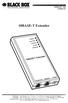 FEBRUARY 1999 LZ6000A-R4 10BASE-T Extender Jabber Link Test Activity Power Collision 10BASE-T Extender Single UTP 10BASE-T Power CUSTOMER SUPPORT INFORMATION Order toll-free in the U.S. 24 hours, 7 A.M.
VDSL Line Driver DECEMBER 2006 ME0010A-VDSL-R2
 DECEMBER 2006 ME0010A-VDSL-R2 VDSL Line Driver CUSTOMER Order toll-free in the U.S. 24 hours, 7 A.M. Monday to midnight Friday: 877-877-BBOX SUPPORT FREE technical support, 24 hours a day, 7 days a week:
Network Power Switch Jr.
 SEPTEMBER 2001 SWI080A Network Power Switch Jr. CUSTOMER SUPPORT INFORMATION Order toll-free in the U.S.: Call 877-877-BBOX (outside U.S. call 724-746-5500) FREE technical support 24 hours a day, 7 days
Gigabit Compact Media Converter
 LGC5134A-R4 LGC5135A-R4 LGC5137A-R2 LGC5138A-R2 NOVEMBER 2009 LGC5139A-R2 LGC5140A-R2 LGC5141A-R2 LGC5142A-R2 Gigabit Compact Media Converter CUSTOMER SUPPORT INFORMATION Order toll-free in the U.S.: 877-877-BBOX
Send VGA output to one local monitor and to as many as nine remote monitors BLACK up to 250 BOX feet (76.2 m) away.
 AC056A-R4 AC057A-K-R4 AC056AE-R3 AC159A-R2 AC056A-K-R4 AC058A-R3 AC057AE-R2 AC159A-R3 AC057A-R4 AC056AE-R2 AC057AE-R3 AC160A-R2 AC160A-R3 VGA Video Splitters Send VGA output to one local monitor and to
Turns a VGA monitor into a video monitor with remote switching capability. BLACK BOX
 November 2009 AC328A-R3 Video to VGA Portable Turns a VGA monitor into a video monitor with remote switching capability. BLACK BOX Customer Support Information Order toll-free in the U.S.: Call 877-877-BBOX
JANUARY 2001 TS825A TS826. Microscanner Pro
 JANUARY 2001 TS825A TS826 Microscanner Pro CUSTOMER SUPPORT INFORMATION Order toll-free in the U.S.: Call 877-877-BBOX (outside U.S. call 724-746-5500) FREE technical support 24 hours a day, 7 days a week:
2-Port DVI Switch with Audio, Serial Control & Long Cable Equalization
 2-Port DVI Switch with Audio, Serial Control & Long Cable Equalization AC1032A-2A Rev A CUSTOMER SUPPORT INFORMATION Order toll-free in the U.S. 24 hours, 7 A.M. Monday to midnight Friday: 877-877-BBOX
This Web smart switch provides 24 10-/100-/1000-Mbps ports. BLACK BOX
 24-Port Web Smart Gigabit Ethernet Switch This Web smart switch provides 24 10-/100-/1000-Mbps ports. BLACK BOX Supports Gigabit speed on all ports. Customer Support Information Order toll-free in the
Copyright 2008. Black Box Corporation. All rights reserved.
 Copyright 2008. Black Box Corporation. All rights reserved. 1000 Park Drive Lawrence, PA 15055-1018 724-746-5500 Fax 724-746-0746 FEBRUARY 2008 40416-R2 40417-R2 Flexie Telco Switch CUSTOMER SUPPORT INFORMATION
Veri-NAC the fastest to deploy, easiest to use
 LVN5220A LVN5230A LVN5250A-R2 LVN5400A-R2 LVN5600A-R2 LVN5800A-R2 Veri-NAC Quick Start Guide Veri-NAC the fastest to deploy, easiest to use BLACK BOX network access control (NAC) appliance for intrusion
Pure Networking Broadband Router Users Guide
 JULY 2004 LR9603A Pure Networking Broadband Router Users Guide CUSTOMER SUPPORT INFORMATION Order toll-free in the U.S.: Call 877-877-BBOX (outside U.S. call 724-746-5500) FREE technical support 24 hours
VDSL Line Driver DECEMBER 2004 ME0010A-VDSL ME0011A-VDSL
 DECEMBER 2004 ME0010A-VDSL ME0011A-VDSL VDSL Line Driver CUSTOMER Order toll-free in the U.S. 24 hours, 7 A.M. Monday to midnight Friday: 877-877-BBOX SUPPORT FREE technical support, 24 hours a day, 7
Transform your wired projector into a high-end wireless projector.
 Chapter June 2009 AC1131A Wireless Video Presentation System II User s Manual Transform your wired projector into a high-end wireless projector. Includes plug-and-show, 4-to-1 split screen, and PDA wireless
8-Port Serial Host Adapter PCI
 APRIL 2004 IC142C IC190C-R2 8-Port Serial Host Adapter PCI CUSTOMER SUPPORT INFORMATION Order toll-free in the U.S.: Call 877-877-BBOX (outside U.S. call 724-746-5500) FREE technical support 24 hours a
Digi-Mux HS FEBRUARY 1996 MX700A CUSTOMER SUPPORT INFORMATION
 FEBRUARY 1996 MX700A Digi-Mux HS Digi-Mux HS CH1 CH2 POWER TD RD TD RD CH3 TD RD CH4 TD RD MAIN TD RD DCD SYNC LOSS LOCAL LOOP TEST CUSTOMER SUPPORT INFORMATION Order toll-free in the U.S.: Call 877-877-BBOX
Extend Ethernet with full-duplex transmission up to 5.696 Mbps more than BLACK four miles over BOX a pair of copper wires.
 December 2009 LR0201A-KIT G.SHDSL Two-Wire Ethernet Network Extender Extend Ethernet with full-duplex transmission up to 5.696 Mbps more than BLACK four miles over BOX a pair of copper wires. Complies
Secure Site Manager 8 Secure Site Manager 16 User s Guide
 JANUARY 2007 SW551A SW552A Secure Site Manager 8 Secure Site Manager 16 User s Guide CUSTOMER SUPPORT INFORMATION Order toll-free in the U.S.: Call 877-877-BBOX (outside U.S. call 724-746-5500) FREE technical
Copyright 2007. Black Box Corporation. All rights reserved.
 Copyright 2007. Black Box Corporation. All rights reserved. 1000 Park Drive Lawrence, PA 15055-1018 724-746-5500 Fax 724-746-0746 MARCH 2007 KV7012A KV7013A 2- and 4-Port ServSwitch DT Pro KVM Switch CUSTOMER
Extend Ethernet with full-duplex transmission up to 10.8 Mbps over two pairs BLACK of copper. BOX
 LR0202A-KIT G.SHDSL Four-Wire Ethernet Network Extender Kit Extend Ethernet with full-duplex transmission up to 10.8 Mbps over two pairs BLACK of copper. BOX Complies with ITU-T Rec. G.991.2 G.shdsl.bis
2-Port RS-232 PCI Bus Serial Host Adapter
 AUGUST 2001 IC140C-R2 IC143C IC191C 2-Port RS-232 PCI Bus Serial Host Adapter CUSTOMER SUPPORT INFORMATION Order toll-free in the U.S. 24 hours, 7 A.M. Monday to midnight Friday: 877-877-BBOX FREE technical
Expand existing, leased line, polled networks without adding computer ports BLACK or communications links.
 codes codes codes March TLB704A 2009 codes codes codes RS-232 Buffered Modem Sharing Device, 4-Port Expand existing, leased line, polled networks without adding computer ports BLACK or BOX communications
DSLAM Chassis: 1-x-4-Slot or 2-x-12-Slot DSL Access Multiplexor Uplink Module
 JANUARY 2001 LRA1200A-4 LRA1200A-12 LRA1203C DSLAM Chassis: 1-x-4-Slot or 2-x-12-Slot DSL Access Multiplexor Uplink Module CUSTOMER SUPPORT INFORMATION Order toll-free in the U.S.: Call 877-877-BBOX (outside
Connect, control, and manage up to 16 serial RS-232/485 devices BLACK BOX via a single USB port on your PC.
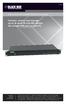 IC162A USB to Multi RS-232/485 Interface Converter Connect, control, and manage up to 16 serial RS-232/485 devices BLACK BOX via a single USB port on your PC. Customer Support Information Order toll-free
PC 422/485 Serial Interface
 JUNE 2000 IC030C-R2 IC170C PC 422/485 Serial Interface CUSTOMER SUPPORT INFORMATION Order toll-free in the U.S. 24 hours, 7 A.M. Monday to midnight Friday: 877-877-BBOX FREE technical support, 24 hours
Express Ethernet Switches
 August, 2002 LB9021A LB9022A Express Ethernet Switches CUSTOMER SUPPORT INFORMATION Order toll-free in the U.S. 24 hours, 7 A.M. Monday to midnight Friday: 877-877-BBOX FREE technical support, 24 hours
DeeSel.1 Industrial Ethernet Extender Multi-Drop Unit, G-SHDSL 2-Wire, 5.7 Mbps
 LB532A-M DeeSel.1 Industrial Ethernet Extender Multi-Drop Unit, G-SHDSL 2-Wire, 5.7 Mbps Get multi-drop Ethernet extension over twisted pair with distances of 4.3 miles per hop. Black Box Ethernet Extenders
USB Single-Port Hub (RS-422/485)
 USB Single-Port Hub (RS-422/485) SEPTEMBER 2001 IC266A CUSTOMER SUPPORT INFORMATION Order toll-free in the U.S.: Call 877-877-BBOX (outside U.S. call 724-746-5500) FREE technical support 24 hours a day,
Extend 10/100Base-TX Ethernet up to 10,000 feet (3 km)
 LB410A LB411A LBNC412A High Speed Ethernet Extender Extend 10/100Base-TX Ethernet up to 10,000 feet (3 km) Over a single twisted-pair, Cat 5e/6/7, or even coaxial cable Black Box Ethernet Extenders TABLE
Copyright 2005. Black Box Corporation. All rights reserved.
 Copyright 2005. Black Box Corporation. All rights reserved. 1000 Park Drive Lawrence, PA 15055-1018 724-746-5500 Fax 724-746-0746 FEBRUARY 2005 LGC1713A-SX LGC1713A-LX 1000BASE-T to MM SX Media Converter
T1/E1 Fiberoptic Line Driver (T1/E1 FOLD)
 MT610A-ST MT610A-SM MT610AE-ST MT610AE-SM JUNE 1998 MT611A-ST MT611A-SM MT611AE-ST MT611AE-SM MT613AE-FC MT613A-ST-D48 T1/E1 Fiberoptic Line Driver (T1/E1 FOLD) TEST NORM LOC REM T1 Fiber Optic Line Driver
RS-232/485 Converter
 Code: IC620A MARCH 1998 IC620A-F IC623A-M IC620A-M IC624A-F IC623A-F IC624A-M RS-232/485 Converter SuperSwitch 8 10/100 CUSTOMER SUPPORT INFORMATION Order toll-free in the U.S. 24 hours, 7 A.M. Monday
LR120A, LR121A, LR122A, LR125A WAN Access Routers. Getting Started Guide
 LR120A, LR121A, LR122A, LR125A WAN Access Routers Getting Started Guide Compliance Information Radio and TV Interference The WAN Access Router generates and uses radio frequency energy, and if not installed
Provides first-class HD video transmission
 HD over IP Encoder/Decoder VX-HDV-IP VX-HDV-IP-SDI VX-HDV-IP-HDMI VX-HDV-IP-RM VX-HDV-IP-PSU Provides first-class HD video transmission VX-HDV-IP, rev. 1 FCC and IC RFI Statement FEDERAL COMMUNICATIONS
CAT5 Multi Video System (Video/Audio/RS232)
 DECEMBER 2006 AC1060A AC1061A AC1062A AC1065A AC1066A CAT5 Multi Video System (Video/Audio/RS232) Copyright 2006. Black Box Corporation. All rights reserved. 1000 Park Drive Lawrence, PA 15055 1018 724
FOM Line Driver ST FOM Line Driver SM
 FERURY 1998 ME540-ST ME540-SM FOM Line Driver ST FOM Line Driver SM CUSTOMER SUPPORT INFORMTION Order toll-free in the U.S.: Call 877-877-OX (outside U.S. call 724-746-5500) FREE technical support 24 hours
Short-Haul Modem-FSK RS-485 Modules
 AUGUST 1997 ME840A-M ME840A-S MD3317 MD3318 Short-Haul Modem-FSK RS-485 Modules R R CD SHM-FSK RxD TxD LPBK PWR CUSTOMER SUPPORT INFORMATION Order toll-free in the U.S. 24 hours, 7 A.M. Monday to midnight
Video to VGA Converter/Switch
 June 2004 AC135A-R2 Video to VGA Converter/Switch With Audio, RS-232 Control, and PC VGA input CUSTOMER SUPPORT INFORMATION Order toll-free in the U.S. 24 hours, 7 A.M. Monday to midnight Friday: 877-877-BBOX
Terminal Server User Guide
 MARCH 2004 Term Server 16-37687-R2 Term Server 8-37688-R2 Rack Term Server 16-40870-R2 Rack Term Server 8-40871-R2 102 Term Server- 41872-R2 104 Term Server - 41874-R2 Terminal Server User Guide CUSTOMER
RS-232/422/485 2-Port PCI Card, Opto-Isolated
 RS-232/422/485 2-Port PCI Card, Opto-Isolated MAY 2002 IC973C CUSTOMER SUPPORT INFORMATION Order toll-free in the U.S.: Call 877-877-BBOX (outside U.S. call 724-746-5500) FREE technical support 24 hours
Welcome to the ServSwitch Family!
 THE SERVSWITCH FAMILY Welcome to the ServSwitch Family! Thank you for purchasing a BLACK BOX ServSwitch brand KVM remote access product. We appreciate your business, and we think you ll appreciate the
A high performance KVM extender that can transmit up to two high resolution DisplayPort video streams plus high speed USB and digital/ analog audio.
 NETWORK SERVICES ACU5800A Wizard DP Extender A high performance KVM extender that can transmit up to two high resolution DisplayPort video streams plus high speed USB and digital/ analog audio. Allows
Broadband Router ESG-103. User s Guide
 Broadband Router ESG-103 User s Guide FCC Warning This equipment has been tested and found to comply with the limits for Class A & Class B digital device, pursuant to Part 15 of the FCC rules. These limits
 56 Black Box Network Services Black Box Network Services 1 Network Management Software User Manual Version 1.6 040-L3003-001A 11/03 www.blackbox.com 2 Black Box Network Services TRADEMARKS All applied-for
Network Management Software
 Network Management Software User s Manual Version 3.2 www.blackbox.com TRADEMARKS All applied-for and registered trademarks are the property of their respective owners. FEDERAL COMMUNICATIONS COMMISSION
Prestige 202H Plus. Quick Start Guide. ISDN Internet Access Router. Version 3.40 12/2004
 Prestige 202H Plus ISDN Internet Access Router Quick Start Guide Version 3.40 12/2004 Table of Contents 1 Introducing the Prestige...3 2 Hardware Installation...4 2.1 Rear Panel...4 2.2 The Front Panel
Gigabit 1000BASE-SX/LX PCI 64-/32-Bit Fiber NICs
 March 2010 LH1660C-SC LH1660C-LC Gigabit 1000BASE-SX/LX PCI 64-/32-Bit Fiber NICs Fully complies with all IEEE 802.3z and 1000BASE-SX/LX standards to BLACK provide BOX a reliable Gigabit Ethernet connection.
1101 and 1102 Secure Device Servers
 LES1101A-R2 LES1102A 1101 and 1102 Secure Device Servers Securely monitor, access, and control the computers, networking devices, telecommunications equipment, and power supplies in your data room or communications
Wireless Router Setup Manual
 Wireless Router Setup Manual NETGEAR, Inc. 4500 Great America Parkway Santa Clara, CA 95054 USA 208-10082-02 2006-04 2006 by NETGEAR, Inc. All rights reserved. Trademarks NETGEAR is a trademark of Netgear,
How To Set Up An Andsl Modem Router For Internet Access
 ADSL Modem Router Setup Manual NETGEAR, Inc. 4500 Great America Parkway Santa Clara, CA 95054 USA 208-10026-01 2006-2 2006 by NETGEAR, Inc. All rights reserved. Trademarks NETGEAR is a trademark of Netgear,
Voice Over Internet Protocol (VoIP) Configuration
 (VoIP) Configuration ENGINEERING REPORT No: 02-003 Introduction This report describes interfacing the IPCS VoIP Gateway Model EGW-902 to an ESTeem Model 192E Wireless Ethernet radio modem in a demonstration
DSL-2600U. User Manual V 1.0
 DSL-2600U User Manual V 1.0 CONTENTS 1. OVERVIEW...3 1.1 ABOUT ADSL...3 1.2 ABOUT ADSL2/2+...3 1.3 FEATURES...3 2 SPECIFICATION...4 2.1 INDICATOR AND INTERFACE...4 2.2 HARDWARE CONNECTION...4 2.3 LED STATUS
BLACK BOX. T1/E1 Link Extenders OCTOBER 2007 MT195A-T1 MT196A-E1
 BLACK BOX NETWORK SERVICES OCTOBER 2007 MT195A-T1 MT196A-E1 T1/E1 Link Extenders Important This is a Class A device and is intended for use in a light industrial environment. It is not intended nor approved
WEB RANger-II Internet Access Router
 Data Sheet WEB RANger-II Wide-ranging Internet and voice connectivity for small or medium size offices IP/IPX routing and standard bridging Data services over E1/T1, fractional E1/T1, Frame Relay, ISDN,
SIP Proxy Server. Administrator Installation and Configuration Guide. V2.31b. 09SIPXM.SY2.31b.EN3
 SIP Proxy Server Administrator Installation and Configuration Guide V2.31b 09SIPXM.SY2.31b.EN3 DSG, DSG logo, InterPBX, InterServer, Blaze Series, VG5000, VG7000, IP590, IP580, IP500, IP510, InterConsole,
How To Set Up A Netvanta For A Pc Or Ipad (Netvanta) With A Network Card (Netvina) With An Ipa (Net Vanta) And A Ppl (Netvi) (Netva)
 VPN WAN LAN PWR STAT TD RD TD RD TD RD VPN WAN LAN PWR STAT TD RD TD RD TD RD NetVanta 3200 NetVanta 3200 NetVanta Series (with T1/FT1 or T1/FT1 + DSX-1 Network Interface Module) Quick Configuration Guide
Linksys Gateway SPA2100-SU Manual
 Linksys Gateway SPA2100-SU Manual Manuel de l'utilisateur Table of Contents Looking for Basic Setup Instructions?... 3 Most Recent Version of this Manual... 3 Advanced Setup Instructions... 4 Wiring Your
BLACK BOX. Installation Guide. Hybrid PBX and VoIP Gateway with (4) or (12) FXOs
 IPBX424 IPBX1224 Hybrid PBX and VoIP Gateway with (4) or (12) FXOs Installation Guide BLACK BOX Enables your office to communicate through both telephone and VoIP lines. Customer Support Information Order
Octal T1-10/100 RIOP Installation Guide
 Octal T1-10/100 RIOP Installation Guide Compatible Systems Corporation 4730 Walnut Street Suite 102 Boulder, Colorado 80301 303-444-9532 800-356-0283 http://www.compatible.com Octal T1-10/100 RIOP Installation