
4-, 8-, and 16-Port ServSwitch EC Series IP KVM Switch
|
|
|
- Scot Merritt
- 9 years ago
- Views:
Transcription
1 JANUARY 2006 KV9304A KV9308A KV9316A 4-, 8-, and 16-Port ServSwitch EC Series IP KVM Switch CUSTOMER SUPPORT INFORMATION Order toll-free in the U.S.: Call BBOX (outside U.S. call ) FREE technical support 24 hours a day, 7 days a week: Call or fax Mailing address: Black Box Corporation, 1000 Park Drive, Lawrence, PA Web site: [email protected]

2

3 FCC AND IC RFI STATEMENTS FEDERAL COMMUNICATIONS COMMISSION AND INDUSTRY CANADA RADIO FREQUENCY INTERFERENCE STATEMENTS Class B Digital Device. This equipment has been tested and found to comply with the limits for a Class B computing device pursuant to Part 15 of the FCC Rules. These limits are designed to provide reasonable protection against harmful interference in a residential installation. However, there is no guarantee that interference will not occur in a particular installation. This equipment generates, uses, and can radiate radio frequency energy, and, if not installed and used in accordance with the instructions, may cause harmful interference to radio communications. If this equipment does cause harmful interference to radio or telephone reception, which can be determined by turning the equipment off and on, the user is encouraged to try to correct the interference by one of the following measures: Reorient or relocate the receiving antenna. Increase the separation between the equipment and receiver. Connect the equipment into an outlet on a circuit different from that to which the receiver is connected. Consult an experienced radio/tv technician for help. CAUTION Changes or modifications not expressly approved by the party responsible for compliance could void the user s authority to operate the equipment. To meet FCC requirements, shielded cables and power cords are required to connect this device to a personal computer or other Class B certified device. This digital apparatus does not exceed the Class B limits for radio noise emission from digital apparatus set out in the Radio Interference Regulation of Industry Canada. Le présent appareil numérique n émet pas de bruits radioélectriques dépassant les limites applicables aux appareils numériques de classe B prescrites dans le Règlement sur le brouillage radioélectrique publié par Industrie Canada. 1

4 4-, 8-, AND 16-PORT SERVSWITCH EC SERIES IP KVM SWITCH NORMAS OFICIALES MEXICANAS (NOM) ELECTRICAL SAFETY STATEMENT INSTRUCCIONES DE SEGURIDAD 2 1. Todas las instrucciones de seguridad y operación deberán ser leídas antes de que el aparato eléctrico sea operado. 2. Las instrucciones de seguridad y operación deberán ser guardadas para referencia futura. 3. Todas las advertencias en el aparato eléctrico y en sus instrucciones de operación deben ser respetadas. 4. Todas las instrucciones de operación y uso deben ser seguidas. 5. El aparato eléctrico no deberá ser usado cerca del agua por ejemplo, cerca de la tina de baño, lavabo, sótano mojado o cerca de una alberca, etc.. 6. El aparato eléctrico debe ser usado únicamente con carritos o pedestales que sean recomendados por el fabricante. 7. El aparato eléctrico debe ser montado a la pared o al techo sólo como sea recomendado por el fabricante. 8. Servicio El usuario no debe intentar dar servicio al equipo eléctrico más allá a lo descrito en las instrucciones de operación. Todo otro servicio deberá ser referido a personal de servicio calificado. 9. El aparato eléctrico debe ser situado de tal manera que su posición no interfiera su uso. La colocación del aparato eléctrico sobre una cama, sofá, alfombra o superficie similar puede bloquea la ventilación, no se debe colocar en libreros o gabinetes que impidan el flujo de aire por los orificios de ventilación. 10. El equipo eléctrico deber ser situado fuera del alcance de fuentes de calor como radiadores, registros de calor, estufas u otros aparatos (incluyendo amplificadores) que producen calor. 11. El aparato eléctrico deberá ser connectado a una fuente de poder sólo del tipo descrito en el instructivo de operación, o como se indique en el aparato.

5 NOM STATEMENT 12. Precaución debe ser tomada de tal manera que la tierra fisica y la polarización del equipo no sea eliminada. 13. Los cables de la fuente de poder deben ser guiados de tal manera que no sean pisados ni pellizcados por objetos colocados sobre o contra ellos, poniendo particular atención a los contactos y receptáculos donde salen del aparato. 14. El equipo eléctrico debe ser limpiado únicamente de acuerdo a las recomendaciones del fabricante. 15. En caso de existir, una antena externa deberá ser localizada lejos de las lineas de energia. 16. El cable de corriente deberá ser desconectado del cuando el equipo no sea usado por un largo periodo de tiempo. 17. Cuidado debe ser tomado de tal manera que objectos liquidos no sean derramados sobre la cubierta u orificios de ventilación. 18. Servicio por personal calificado deberá ser provisto cuando: A: El cable de poder o el contacto ha sido dañado; u B: Objectos han caído o líquido ha sido derramado dentro del aparato; o C: El aparato ha sido expuesto a la lluvia; o D: El aparato parece no operar normalmente o muestra un cambio en su desempeño; o E: El aparato ha sido tirado o su cubierta ha sido dañada. 3

6 4-, 8-, AND 16-PORT SERVSWITCH EC SERIES IP KVM SWITCH TRADEMARKS USED IN THIS MANUAL BLACK BOX and the Double Diamond logo are registered trademarks, and ServSwitch is a trademark of BB Technologies, Inc. Mac OS is a registered trademark of Apple Computer, Inc. Linux is a registered trademark of Linus Torvalds. Java is a trademark, and JavaScript, Sun, and Solaris are registered trademarks of Sun Microsystems, Inc. UL is a registered trademark of Underwriters Laboratories, Inc. UNIX is a registered trademark of UNIX System Laboratories, Inc. (or USL). Any other trademarks mentioned in this manual are acknowledged to be the property of the trademark owners. 4

7 CONTENTS Contents Chapter Page 1. Specifications Overview Introduction Components Front Panel Back Panel What s Included Cables You ll Need to Supply Installation Quick Start Guide Disabling the Mouse Acceleration on the Computers Windows 98 and Windows Windows XP and Windows Server Linux, UNIX, and X-Windows How to Connect Your ServSwitch Access Your ServSwitch and Remotely Control the Host Computer(s) Advanced Operations How to Log in to the ServSwitch (the Home Screen) Configure Your ServSwitch (the Admin/Setup Tab) Network Config (IP Address, Netmask, Gateway) User Accounts (Add, Delete, and Change Passwords) Change System Identification Security Policy, Internal Firewall, and Admin Password Keyboard Mapping Port Numbers to Be Used for Different Services Debug Network Setup Values and Routing SNMP Agent Setup and Configuration RADIUS Authentication Setup Set Date and Time Firmware and Flash Memory Management How to Upload a Custom Certificate How to Speed Up Your ServSwitch

8 4-, 8-, AND 16-PORT SERVSWITCH EC SERIES IP KVM SWITCH Chapter Page 4.3 The Status Tab The Port Numbers Tab The Help! Tab The Copyright Tab The Site Map Tab The Logout Tab Accessing ServSwitch Features Cascade Configuration Selecting Computers Using On-Screen Display (OSD) Selecting Computers Using Hotkey Commands How to Remotely Control the Host Computer(s) Accessing the VNC Interface Web Interface Native VNC Client SSH Tunnel (with Native VNC Client) Using the VNC Menu How to Use the Bribar How to Use the Main Menu How to Use the Virtkeys Menu How to Use the Video Tuning Menu Appendix A. Troubleshooting A.1 Problems/Solutions A.2 Calling Black Box A.3 Shipping and Packaging Appendix B. Supported Protocols Appendix C. About Security Certificate Warnings C.1 Frequently Asked Questions C.2 Installing the New Certificate

9 1. Specifications Maximum Supported Video Mode: Local: 1600 x 85 Hz; Remote: 1024 x 768 (8-bit color) CHAPTER 1: Specifications Connectors: All: (1) barrel connector for power, (1) 8-pin mini-din (reserved for future use), (1) DB9 COM/RS-232 male, (1) HD15 for console, (1) R-port (reserved for future use), (1) RJ-45 LAN, (2) 6-pin mini-din for console keyboard and mouse; KV9304A: (4) HD15 female integrated KVM cable input; KV9308A: (8) HD15 female integrated KVM cable input; KV9316A: (16) HD15 female integrated KVM cable input Indicators: (4) LEDs: (1) Link Activity, (1) System Status, (1) Eth Act, (1) Sys OK Power: 12-VDC power supply; maximum power consumption: 18 watts Size: KV9304A: 1.7"H x 7.3"W x 8.7"D (4.3 x 18.6 x 22 cm); KV9308A, KV9316A: 1.7"H x 15.9"W x 8.7"D (4.3 x 40.4 x 22 cm) 7

10 4-, 8-, AND 16-PORT SERVSWITCH EC SERIES IP KVM SWITCH 2.1 Introduction 2. Overview The 4-, 8-, and 16-Port ServSwitch EC Series IP KVM Switches allow you to use the Internet or your TCP/IP enabled network to remotely monitor and control critical PC servers and workstations using an industry-standard Web browser or VNC client. Or, use On-Screen Display (OSD) or hotkeys to manage the switch. The ServSwitch supports industry-standard networking and management protocols such as TCP/IP and SNMP. It offers secure management options including SSL encryption, SSH tunneling, and RADIUS. The ServSwitch is platform-independent and can be managed using any Java enabled Web browser. 2.2 Components FRONT PANEL Figure 2-1. ServSwitch front-panel view. Table 2-1. Front-panel components. Component LAN Activity LED Description Lights when the LAN is active. System Status LED Lights when the system is OK. 8

11 CHAPTER 2: Overview BACK PANEL Figure 2-2. The 8-Port ServSwitch back-panel view. Table 2-2. Rear-panel components. Component Barrel connector 8-pin mini-din connector DB9 COM/RS-232 connector Eth Act LED Sys OK LED HD15 connector R-Port Reset button RJ-45 connector 6-pin mini-din connectors HD15 connectors Description Connects to a 12-VDC power adapter. Reserved for future use. Connects to a PC for initial setup only. Lights when the network is active. Lights when the network is on. Connect to the shared console monitor. Reserved for future use. Resets the ServSwitch to its default settings. Links to the LAN. Connect to the shared console keyboard and mouse ports. Connect to 4, 8, or 16 servers. 9

12 4-, 8-, AND 16-PORT SERVSWITCH EC SERIES IP KVM SWITCH 2.3 What s Included Your package should include the following items. If anything is missing or damaged, contact Black Box at (1) 4-, 8-, or 16-Port ServSwitch EC Series IP KVM Switch (1) Power adapter (1) AC cord for power adapter (2) rackmount brackets (1) package of screws (1) set of foot pads (1) DB9 RS-232 null-modem serial cable This user s manual 2.4 Cables You ll Need to Supply ServSwitch 3-in-1 Cable (EHN , EHN , EHN9000P-0015, or EHN9000P-0030): These cables connect to PCs that have an HD15 monitor connector and PS/2 keyboard and mouse connectors. The cables are available in 6-, 10-, 15-, and 30-foot (1.8-, 3-, 4.5-, and 9.1-m) versions. ServSwitch 2-in-1 Cable (EHN9000U-0006, EHN9000U-0010, or EHN9000U-0015): These cables connect to PCs that have HD15 monitor and USB keyboard and mouse connectors. The cables are available in 6-, 10-, and 15-foot (1.8-, 3-, and 4.5-m) versions. 10

13 3.1 Quick Start Guide 3. Installation CHAPTER 3: Installation This quick start guide describes three different ways to quickly set up your ServSwitch. Before doing the initial setting: 1. Record your original computer settings, such as TCP/IP, in case you would like to use this computer for other tasks. 2. Make sure you have the latest Java software downloaded from 3. Disable mouse acceleration on the host computer(s) and client computer. See Section 3.2 for details. Hardware you will need for the quick start guide is listed below: (1) 4-, 8-, or 16-Port ServSwitch EC Series IP KVM Switch (1) hub with power adapter (1) computer with a keyboard, mouse, and monitor (2) CAT5 cables with RJ-45 connectors (1) DB9 RS-232 null-modem cable (included) 11

14 4-, 8-, AND 16-PORT SERVSWITCH EC SERIES IP KVM SWITCH THE FIRST WAY: IF YOU DON T HAVE DHCP (DYNAMIC HOST CONFIGURATION PROTOCOL) 1. Connect the CAT5 cable to the LAN port on the ServSwitch unit s back panel. Connect the opposite end of the cable to the hub. 2. Using the second CAT5 cable, connect the hub to the computer. See Figure 3-1. To power adapter 8-Port ServSwitch EC Series IP KVM Switch (KV9308A) CAT5 cable Hub CAT5 cable Laptop computer Figure 3-1. Setting up the ServSwitch without DHCP. 3. Set the IP address of a computer connected on the same network as the ServSwitch to a similar unused address such as and the subnet mask of For a Windows XP environment 4. Click on Start, then right-click on My Network Places. Figure 3-2 appears. 12

15 CHAPTER 3: Installation Figure 3-2. Windows XP Network Connections screen. 5. Right-click on Local Area Connection, then select Properties. See Figure 3-3. Figure 3-3. Local Area Connection, Properties screen. 13

16 4-, 8-, AND 16-PORT SERVSWITCH EC SERIES IP KVM SWITCH 6. Double-click on Internet Protocol (TCP/IP). See Figure 3-4. Figure 3-4. Local Area Connection, Properties, General tab screen. 7. Click on Advanced in Figure 3-4, then click Add to add the IP address and the subnet mask in Figure

17 CHAPTER 3: Installation Figure 3-5. TCP/IP Address screen. THE SECOND WAY: IF YOU HAVE DHCP (DYNAMIC HOST CONFIGURATION PROTOCOL) 1. Write down the ServSwitch unit s MAC address (it s located on a white sticker on the bottom of the ServSwitch). An example of a MAC address is 00-0E-CS A. 2. Power on the ServSwitch and connect it to the network via its LAN port on the back panel. The DHCP will automatically assign an IP address for the ServSwitch. 15

18 4-, 8-, AND 16-PORT SERVSWITCH EC SERIES IP KVM SWITCH 3. Access the DHCP log from your file server. A simple DHCP log looks similar to the one shown in Figure 3-6. Figure 3-6. DHCP log. 4. From the DHCP log shown in Figure 3-6, find the DHCP that s assigned an IP to the ServSwitch ( ). Once you locate this address, do NOT power off the ServSwitch unit s server since it might lease a different IP address. 5. Open a Web browser, and type to access the ServSwitch. Figure 3-7 appears. NOTE Remember to type s after http. (You will see a lock icon on the lower right corner of your screen. This means that all your information is protected by 128-bit SSL encryption.) Figure 3-7. Login screen. 16

19 CHAPTER 3: Installation 6. Type admin for both username and password, then click on the Login button. THE THIRD WAY: USING THE HYPERTERMINAL VIA A SERIAL PORT 1. Connect the DB9 RS-232 null-modem serial cable (included) to the serial port on the ServSwitch unit s rear panel. Connect the opposite end of the cable to the computer s serial port (COM1, COM2, ). See Figure 3-8. Serial port (COM1, COM2) To power adapter DB9 RS-232 null-modem cable Serial port Computer 8-Port ServSwitch EC Series IP KVM Switch (KV9308A) Figure 3-8. Connecting a computer to the ServSwitch unit s serial port. 2. From your computer s Administration screen in Windows XP, select All Programs, Accessories, Communications, and HyperTerminal. See Figure

20 4-, 8-, AND 16-PORT SERVSWITCH EC SERIES IP KVM SWITCH Figure 3-9. Administrator screen. 3. If you ve never set up your HyperTerminal before, it will ask you to enter your phone area code. Enter this, then click on OK. The screen shown in Figure 3-10 appears. Figure Connecting to HyperTerminal. 18

21 CHAPTER 3: Installation 4. In the Name field, enter the name you choose, for example, abc. Next, click on an icon. Then click on OK, or click on Cancel to enter a different name and/or select a different icon. If you click on OK, Figure 3-11 appears. Figure Selecting the Port. 5. From the Connect using drop-down menu, select the serial port that you want to connect, for example, COM1. Click on OK to save or Cancel to cancel. 6. If you click on OK in Figure 3-11, the screen shown in Figure 3-12 appears. 19
22 4-, 8-, AND 16-PORT SERVSWITCH EC SERIES IP KVM SWITCH Figure Port Settings screen. 7. From the Bits per second drop-down menu, select Choose settings for data bits, parity, stop bits, and flow control from their respective drop-down menus. The default values are: Data bits: 8 Parity: None Stop bits: 1 Flow control: Hardware If you change any of these values, you can click on Restore Defaults to return to these values. Click Cancel to cancel the changes, Apply to apply the changes, or OK to save the changes. 8. If you click on OK in Figure 3-12, the screen shown in Figure 3-13 appears. 20
23 CHAPTER 3: Installation Figure HyperTerminal screen. 9. Follow the instructions on the screen. For example, simply type I to set your IP, type F to reset everything back to factory defaults, and so on. NOTE Remember to type W after you make any changes. 3.2 Disabling the Mouse Acceleration on the Computers Many operating systems offer a feature called mouse acceleration that allows the user to adjust the responsiveness of the cursor on the screen to physical movements of the mouse. While this is usually a beneficial interface enhancement, it can interfere with the ServSwitch unit s operation and should be disabled on the managed computers before you attempt a remote session. Follow the instructions in Sections through 3.2.3, depending on your operating system, to disable mouse acceleration for the operating system installed on each managed computer WINDOWS 98 AND WINDOWS From the Control Panel, click on Mouse. 2. From Mouse Properties, click on the Motion tab. 3. Make sure that the Pointer speed bar is centered and Acceleration is set to None. 21
24 4-, 8-, AND 16-PORT SERVSWITCH EC SERIES IP KVM SWITCH WINDOWS XP AND WINDOWS SERVER From the Control Panel, click on Mouse. 2. Go to Pointer Options and turn off Enhance Pointer Precision. 3. Make sure that the Pointer speed bar is centered LINUX, UNIX, AND X-WINDOWS Add this command to your xinitrc xsession or other startup script: xset m 0/ How to Connect Your ServSwitch A typical example of a ServSwitch setup is shown in Figure Refer to this diagram and follow the instructions discussed next when installing the ServSwitch. 22
25 CHAPTER 3: Installation PC H PC G PC B PC A Local monitor To power adapter Local mouse and keyboard Internet or Intranet Remote user A (New York) Remote user B (London) Remote user D (Tokyo) PC 8 PC 7 PC 2 PC 1 Remote user C (Taipei) Figure Sample setup using a 16-port ServSwitch (KV9316A). NOTE The restrictions on functions such as cascading and the assignment of master and slave units apply to all ServSwitch versions. 1. Make sure that the ServSwitch and the computers to be managed are powered off. 2. If desired, mount the 4-, 8-, or 16-Port ServSwitch (KV9304A, KV9308A, or KV9316A) in a standard rack or cabinet. Use the included rackmount brackets and screws. See Figure
26 4-, 8-, AND 16-PORT SERVSWITCH EC SERIES IP KVM SWITCH 24 Figure Rackmounting the ServSwitch. 3. Connect a straight-through Ethernet patch cable to the LAN port on the ServSwitch unit s rear panel. 4. Connect the opposite end of the cable to your network hub, switch, or terminated wall outlet. 5. If you want to use the ServSwitch as a local console, connect a standard keyboard (following the PC99 standard color codes) and mouse (also following the PC99 standard) as marked on the ServSwitch unit s rear panel. 6. Connect a VGA monitor to the video out port on the ServSwitch unit s rear panel. 7. If your managed computers (the computers are often servers or critical systems) have PS/2 connections, attach one end of a three-in-one cable (EHN , EHN , EHN9000P-0015, or EHN9000P-0030) to the computer s available keyboard, mouse, and VGA out ports. Connect the opposite end of the cable (with a single HD15 VGA connector) to one of the PC 1 8 or PC A H ports on the ServSwitch unit s rear panel. Repeat this procedure for each PS/2 enabled managed computer. 8. If your managed computers (the computers are often servers or other critical systems) have USB connections, attach one end of a two-in-one cable (EHN9000U-0006, EHN9000U-0010, or EHN9000U-0015) to the computer s available USB port and video out port. Connect the opposite end of the cable (with a single HD15 VGA connector) to one of the PC 1 8 or PC A H ports on the ServSwitch unit s rear panel. Repeat this procedure for each USB enabled managed computer.
27 CHAPTER 3: Installation 9. Power on the ServSwitch by connecting the AC adapter to a suitable power outlet and the opposite end of the power cord to the 12-VDC port on the ServSwitch unit s rear panel. 10. Power on each of the managed computers, observing normal startup procedures. NOTES 1. You can choose to mix managed computers connected via PS/2 and USB connections as necessary with no impact on features or function. 2. Steps 5 and 6 are required only if you want to manage the ServSwitch and its computers locally (that is, not over the Internet or a LAN). While not required, we recommend adding these devices for easier administration. 3. You can cascade multiple ServSwitch units to increase the total number of possible managed computers. To take advantage of this feature, refer to Section Access Your ServSwitch and Remotely Control the Host Computer(s) As soon as you finish the settings and connections described in Sections 3.1 through 3.3, you are ready to remotely control the host computer(s). Simply open the Web browser and type in the IP you already set up in Section 3.1, then type in the correct username and password. Once you type the username and password, Figure 3-16 appears. 25
28 4-, 8-, AND 16-PORT SERVSWITCH EC SERIES IP KVM SWITCH Figure Remote control access screen. Double-click on the small rectangle window in the middle of the screen shown in Figure You ll get the VNC screen, which is the host computer s screen. NOTE You may need to upgrade or download your Java ( support in your browser before using the VNC screen to remotely control the host computer(s). However, most modern browsers come with a version of Java that s compatible with this application. From the VNC (host computer s) screen, you can control the host computer remotely just like you could if you were physically present at the host computer s location. To log out, simply click on the Logout icon at the top of the screen. 26
29 4. Advanced Operations The Web interface is the most intuitive way to configure the ServSwitch. It also offers a Java based VNC client that you can use to control the managed computers from a remote location. The ServSwitch supports any industry-standard HTML Web browser. To access the Web interface, open your Web browser and type in the IP address of the unit you wish to access/configure. The IP address will be either: a) the address assigned for the LAN port by your DHCP server as identified in Chapter 3, or CHAPTER 4: Advanced Operations b) the fixed IP address you set up (see Section 3.1 for more information). Again, the default IP address for the ServSwitch unit s LAN port is How to Log in to the ServSwitch (the Home Screen) 1. Before you can access the Web configuration interface, you must type in a username and password. The default username and password as shipped from the factory is username admin with a password of admin. See Figure 4-1. NOTE Before the login screen appears, your Web browser may display a warning about an invalid security certificate. This does not affect the security of your data in any way. Whenever you are prompted about a certificate security problem by your browser or the Java VNC client, always choose the option to continue. Figure 4-1. Login screen. 27
30 4-, 8-, AND 16-PORT SERVSWITCH EC SERIES IP KVM SWITCH 2. Once you type in the username and password, click on the Login button to continue. Figure 4-2 appears. Figure 4-2. The Home screen. 3. The Home screen (Figure 4-2) serves two functions. First, it is a place to check the ServSwitch unit s status, view essential system information, and capture screen shots from the managed computers. Second, it is where you can start the integrated Java VNC client interaction with the managed computers by clicking on the large screen shot or choosing one of the VNC client links. To refresh the screen, click on the Refresh button. The Home screen has eight tab options, including Home, Admin/Setup, Status, Port Numbers, Help!, Copyright, Site map, and Logout. These options are described in Sections 4.2 through Configure your ServSwitch (the Admin/Setup Tab) The Setup and Administration Links screen is the menu that allows you to access all the features you need to perform an initial ServSwitch configuration via IP. To get to this screen (Figure 4-3), click on the Admin/Setup tab in the Home screen (Figure 4-2). Each of the options is explained in Sections through
31 CHAPTER 4: Advanced Operations Keyboard mapping Figure 4-3. Setup and Administration Links screen NETWORK CONFIG (IP ADDRESS, NETMASK, GATEWAY) From the Setup and Administration Links screen (Figure 4-3), click on Network config (IP address, netmask, gateway). The screen shown in Figure 4-4 appears. Figure 4-4. Network Configuration screen. 29
32 4-, 8-, AND 16-PORT SERVSWITCH EC SERIES IP KVM SWITCH The options shown in Figure 4-4 are described in Table 4-1. Table 4-1. Network Configuration screen options. Parameter Dynamic Host Configuration Protocol (DHCP) IP Addresses and Routing Port IP Address Subnet Mask Default Gateway Broadcast Domain Name Server (optional) (not shown in Figure 4-4; scroll down in the screen on your monitor to see this option) Commit button (not shown in Figure 4-4; scroll down in the screen on your monitor to see this option) Description Select Enabled or Disabled from the drop-down menu. This feature applies to the LAN port on the rear panel and is enabled by default. When enabled, the unit will automatically configure itself with an IP address when a DHCP server is present. When disabled, the LAN port will use the values assigned to it on the IP Addresses and Routing table at the bottom of Figure 4-4. This table allows you to assign IP information for the LAN port. If you are using DHCP, the values for the LAN port will be filled in automatically and any changes made will not affect the setup. The port is automatically identified as LAN. Type in the IP address for the ServSwitch. Type in the subnet mask for the ServSwitch. Type in the ServSwitch unit s default gateway. Type in the broadcast address, or leave this field blank. This section allows you to specify DNS servers and the default DNS domain suffix in use on the network. If DHCP is enabled, some of these values may be supplied automatically. Click on the Commit button to apply any changes made on the page to the configuration. The new changes do not take effect until the next time the unit restarts. 30
33 CHAPTER 4: Advanced Operations Table 4-1 (continued). Network Configuration screen options. Parameter Description Make changes effective now button (not shown in Figure 4-4; scroll down in the screen on your monitor to see this option) Click on this button to apply the changes and restart the unit so the new settings take effect immediately USER ACCOUNTS (ADD, DELETE, AND CHANGE PASSWORDS) From the Setup and Administration Links screen (Figure 4-3), click on User accounts (add, delete and change passwords). Figure 4-5 appears. Figure 4-5. Users and Passwords screen. This menu allows you to add accounts other than admin to the system. These accounts will not have the authority to change settings, but they can access the Web interface and log in to the VNC console. Table 4-2 describes the options shown in Figure
34 4-, 8-, AND 16-PORT SERVSWITCH EC SERIES IP KVM SWITCH Table 4-2. Users and Passwords screen options. Parameter Description Current Users Create a new user by filling in the form values and choosing the appropriate button below. Username (in Current Users A list of current usernames appears in this field. section) (Only one username is shown in Figure 4-5.) Password (in Current Users section) The current password is indicated by a row of asterisks. Delete user Click on this button to permanently remove the displayed user from the system. Edit User Details Select a user name from the above list (click on its name), then edit the values shown in this form. Leave the password field empty if you do not want to change the password. Username (in Edit User Details section) If you click on a username in the Username field in the Current Users section of the screen, that name will appear in this field. Or, type a new username into this field (or edit an existing username). Password (in Edit User Details section) To keep the password for the selected user the same, leave this field blank. To change the password, type in the new password twice. Record changes button Click on this button to save your changes. 32
35 CHAPTER 4: Advanced Operations CHANGE SYSTEM IDENTIFICATION From the Setup and Administration Links screen (Figure 4-3), click on Change system identification. The Change system identification screen (not shown in this manual) appears. The screen options include machine name, location, contact name, network address, and description. These details are useful for DHCP servers, SNMP agents, and VNC clients. Although these values do not affect the ServSwitch unit s operation, they make it easier to manage PCs or servers on the network SECURITY POLICY, INTERNAL FIREWALL, AND ADMIN PASSWORD From the Setup and Administration Links screen (Figure 4-3), click on Security policy, internal firewall and admin password. Figure 4-6 appears. Figure 4-6. Security Profile screen. Table 4-3. Security Profile screen options. Parameter Description Administrator Password The administrator can change the default password for admin (recommended). Read and consider the comments and instructions on this menu before making any changes, as changing these features could make the unit inaccessible through Web configuration (that is, due to firewall filtering). To prevent the chance for error, you must type in the password twice. 33
36 4-, 8-, AND 16-PORT SERVSWITCH EC SERIES IP KVM SWITCH Table 4-3 (continued). Security Profile screen options. Parameter Description Set master password button Click on this button to save the new password. Idle Session Timeout (scroll down in Figure 4-6 to see this option) When a login session is left unused for some time, disconnect the user. This applies to Web login sessions (via cookies) and SSH logins. Disable this feature by setting the value to zero. Internal Firewall Setup (scroll down in Figure 4-6 to see this option) See the description below. VNC Security Login (scroll down in Figure 4-6 to see this option) See the description on the next page. Access Sharing Policy (scroll down in Figure 4-6 to see this option) See the description on the next page. Internal Firewall Setup As an additional layer of protection, the ServSwitch supports an internal firewall. When this feature is enabled, connections will only be accepted from listed hosts. For example, the administrator can type in /240 in the Accept field. Client computers with an IP address between and can access the ServSwitch with the right username and password. On the other hand, the user can type in /20, for example, in the Reject field. Client computers with IP addresses between and will not be able to access the ServSwitch. There are three ways to type in the IP addresses: 1. Specific IP addresses: for example, , ,. 2. Net Range: for example, / Host Names: for example, yahoo.com, google.com, 34
37 CHAPTER 4: Advanced Operations WARNING Be careful NOT to lock yourself out! Be certain that your IP will be accepted by your filter. VNC Security Login When a new VNC connection is established, the remote user must be authenticated. Standard VNC protocol does not support a username; it only supports passwords. As long as all users have unique passwords, you can infer which user is connecting based on the password provided. But you may enable a second login screen that will require a valid username and password. This is done after the VNC connection is established using menus and prompts generated by the firmware. If the second login screen is enabled, this additional login will be required from Java VNC clients, who have already logged into the Web server securely, and the one-time password scheme cannot be used. Also, VNC normally encrypts passwords and uses a challenge/hashed response system that is more secure than the additional login method. However, this isn t a concern if the entire connection is encrypted with SSH or SSL. Access Sharing Policy Scroll down in Figure 4-6 to see the screen shown in Figure 4-7. Figure 4-7. Access Sharing Policy screen, menu #1. 35
38 4-, 8-, AND 16-PORT SERVSWITCH EC SERIES IP KVM SWITCH Table 4-4 describes the options shown in Figure 4-7. Table 4-4. Access Sharing Policy screen options, menu #1. Parameter Description Drop-down menu #1 There are 3 modes available in this field (described below). Disabled Use regular give/take method (default) By default, all users can take keyboard and mouse control of the system (after connecting via VNC) by clicking the right mouse button. Enforce single user access policy (visible screen) Some circumstances require more strict control of access sharing. The admin user can select this mode for the highest priority access. With a single-user access policy, only one user may control the host computer(s). New connections are permitted, but can only be set by the admin user. Other users will only be able to view the screen until the the first user disconnects (or otherwise gives up control). Then the second user will be able to access the system immediately and control the host computer(s). Enforce single user access policy (blank screen contents) Some circumstances require more strict control of access sharing. The admin user can select this mode for the highest privacy; no one can see what the admin user is doing from the VNC screen. The admin user can blank the screen contents when another user is connected but not controlling the keyboard and mouse. With a single-user access policy, only one user may control the system. New connections are permitted, but only by the admin user. Users will NOT be able to control or even see the host computer(s). Once the first user disconnects (or otherwise gives up control), the second user will be able to access the system immediately. 36
39 CHAPTER 4: Advanced Operations The second drop-down menu options are shown in Figure 4-8. These options are described in Table 4-5. Figure 4-8. Access Sharing Policy screen, menu #2. Table 4-5. Access Sharing Policy screen options, menu #2. Parameter Description Drop-down menu #2 There are two options available; see below. Disabled Local user always has access (default) When this option is selected from the drop-down menu, the local user always has access to the ServSwitch. Enabled Network user given priority When this option is selected from the drop-down menu, the network user has access to the ServSwitch. The local user has no right to control the host computer(s) and can only view them. This is how the admin user can lock out the local user. 37
40 4-, 8-, AND 16-PORT SERVSWITCH EC SERIES IP KVM SWITCH KEYBOARD MAPPING From the Setup and Administration Links screen (Figure 4-3), click on Keyboard mapping. The screen shown in Figure 4-9 appears. Figure 4-9. Keyboard Mapping screen. The options shown in Figure 4-9 are described in Table 4-6. Table 4-6. Keyboard Mapping screen options. Parameter Description Keyboard mapping In many parts of the world, the keyboard has extra keys and/or a different layout to better suit the local language than the default US/English. If your host O/S is expecting a keyboard of a special type, select it from the Select Keyboard Layout drop-down menu. If the wrong value is used here, special language keys will not work, and some basic symbols (such as ) may not even work correctly. The key layout of the remote keyboard must match the key layout of the local keyboard defined here PORT NUMBERS TO BE USED FOR DIFFERENT SERVICES From the Setup and Administration Links screen (Figure 4-3), click on Port numbers to be used for different services. The screen that appears (not shown in this manual) displays all network servers running on this machine. For the security reasons, some services may be disabled or moved to non-standard ports. 38
41 CHAPTER 4: Advanced Operations DEBUG NETWORK SETUP VALUES AND ROUTING From the Setup and Administration Links screen (Figure 4-3), click on Debug network setup values and routing. Figure 4-10 appears. Figure Debug network setup values and routing screen. The options shown in Figure 4-10 are described in Table 4-7. Table 4-7. Debug screen options. Parameter Description Drop-down menu Recent System Log When you select this option from the drop-down menu, the ServSwitch records every log entry, including what time the user logged in and what identification the user logged in. Clear Log Click on this button to clear the log. 39
42 4-, 8-, AND 16-PORT SERVSWITCH EC SERIES IP KVM SWITCH Table 4-7 (continued). Debug screen options. Parameter Description Current Users When you select this option from the drop-down menu, the screen lists the users that are currently logged in. Current Connection When you select this option from the drop-down menu, the screen shows the current IP and what encryption you are using to log in to the ServSwitch. Network Config When you select this option from the drop-down menu, the tables that appear allow you to debug network configuration problems by giving you a view of the current ServSwitch setup. Disconnect all VNC users (scroll down in Figure 4-10 to see this option) When you select this option from the drop-down menu, if users are locked out of the system because someone has left a VNC session connected and their computer cannot be reached through other means, the admin user can close all VNC connections SNMP AGENT SETUP AND CONFIGURATION From the Setup and Administration Links screen (Figure 4-3), click on SNMP agent setup and configuration. The menu that appears (not shown in this manual) allows you to configure the ServSwitch so it can be recognized and managed using industry-standard Simple Network Management Protocol (SNMP) software RADIUS AUTHENTICATION SETUP From the Setup and Administration Links screen (Figure 4-3), click on RADIUS authentication setup. The screen shown in Figure 4-11 appears. 40
43 CHAPTER 4: Advanced Operations Figure RADIUS Configuration screen. Table 4-8 describes the options in Figure Table 4-8. RADIUS Configuration screen options. Parameter Description Use RADIUS for login purposes Select Disable or Enable from the drop-down menu. Server IP Address Type the IP address into this field. Port Type in the UDP port number. Shared Secret This is used to encrypt communications and corresponds to a shared password for the RADIUS server and the client machine. Two additional servers may be defined for backup purposes. Each server will be tried in order, using the indicated number of retries and timeout period, which can be configured on the same page. 41
44 4-, 8-, AND 16-PORT SERVSWITCH EC SERIES IP KVM SWITCH Table 4-8 (continued). RADIUS Configuration screen options. Parameter Description New Secret Type in a new value. Type it in a second time. Request timeout period (seconds) Type in the timeout period in seconds. This is the amount of time that the ServSwitch will allow to elapse between login retries. Number of retries (per server) This is the number of times that the ServSwitch will try to login. Click here to save your RADIUS changes and apply them. Click on the Commit button to save and apply your changes SET DATE AND TIME From the Setup and Administration Links screen (Figure 4-3), click on Set date and time. The screen that appears (not shown in this manual) allows you to set the ServSwitch to Local Time or Universal Coordinated Time (Greenwich Mean Time [GMT]). Date and time from different computers is stored without consideration for time zone. If you are controlling multiple sites in different time zones, we recommend you use GMT for all machines. 42
45 CHAPTER 4: Advanced Operations FIRMWARE AND FLASH MEMORY MANAGEMENT From the Setup and Administration Links screen (Figure 4-3), click on Firmware and flash memory management. A firmware upgrade screen (Figure 4-12) appears. The ServSwitch unit s firmware is online upgradable, upgrading to the latest version. Only the administrator has rights to do so, and must login as admin. Figure Firmware and flash memory management screen. Table 4-9 describes the options shown in Figure Table 4-9. Firmware and flash memory management screen options. Parameter Version Numbers Description These fields list the firmware version numbers. Upgrade button Click on this button to save the version settings. Unit Numbers These fields list the ServSwitch parameters. 43
46 4-, 8-, AND 16-PORT SERVSWITCH EC SERIES IP KVM SWITCH Table 4-9 (continued). Firmware and flash memory management screen options. Parameter Description Auto Self Upgrade Upgrade to latest button The ServSwitch includes an innovative feature allowing the unit to upgrade itself over the Internet. Simply click on the button labeled Upgrade to latest and the unit will go out to the Internet and download the latest version of the system firmware and then install it. If the unit cannot access the Internet directly (perhaps because of a Web proxy or other firewalls), then a page will be shown that causes your browser to download the required file. Save this file to disk and then upload it to the ServSwitch. Get latest version button If you have multiple units to upgrade, you may choose the Get latest version button (scroll down to see this button in the screen). The ServSwitch will not attempt to upgrade the unit directly, but will instead fetch the required file. This file can be uploaded to multiple units manually. 44
47 CHAPTER 4: Advanced Operations NOTES Do NOT turn off power to the unit before this operation completes successfully. It may take several minutes to write to flash memory. The ServSwitch will sometimes reboot as part of the upgrade procedure, depending on which system component is upgraded. You will have to reconnect and re-login in those cases. Wait at least two minutes after pressing Start. Do not assume the upload did not work. There is no status indicator bar to show the progress of the upload. The upload could simply be slow. Each file that is distributed upgrades a different component of the system. Therefore, be sure to apply all files you are given as part of an upgrade. The system knows what to do with each file you give it, and the files are checked for validity before being applied HOW TO UPLOAD A CUSTOM CERTIFICATE From the Setup and Administration Links screen (Figure 4-3), click on Firmware and flash memory management, and then scroll down to the bottom of the screen. Upload your own certificate to replace the factory-supplied SSL certificate here. The ServSwitch requires an RSA private key and corresponding public certificate to be combined into one PEM file. There should be no encryption on the private key and it must be first in the file. Therefore, the ServSwitch expects a text file in this format: -----BEGIN RSA PRIVATE KEY----- [based64 encoded key] -----END RSA PRIVATE KEY BEGIN CERTIFICATE----- [based64 encoded certificate] -----END CERTIFICATE----- [end of file] Uploading the root CA public certificate is optional and only affects the link on the login page. It does not affect operation otherwise. It s just an X.509 PEM file holding a public certificate. 45
48 4-, 8-, AND 16-PORT SERVSWITCH EC SERIES IP KVM SWITCH HOW TO SPEED UP YOUR SERVSWITCH As you log in to the ServSwitch with admin as the username and password (see Figure 3-7), you will get the screen shown in Figure Figure The Home screen. Double-click on the small rectangular window in the middle of the screen. You ll get the VNC screen. That is, you will see the screen of the host computer(s). Scroll down to the bottom of the screen (see Section 6.3). Click on Menu (see Section 6.4). NOTE You may need to upgrade or download your Java ( support in your browser before using the VNC screen to remotely control the host computer(s). However, most modern browsers come with a version of Java that is compatible with this application. From the Main Menu screen (see Figure 4-14), you can select the bandwidth control (next to B/W). There are four modes available: Min, Avg, Max, and Auto. The white button is the mode the system is currently operating in. If you choose Min, Avg, or Max then you will override the default, Auto. As the automatic mode measures actual network performance, you may see the current mode switch from Min up to Avg or Max. The different modes indicate more time spent on compression versus more bandwidth. There is no visual difference between the modes, but there can be a noticeable difference in speed and smoothness. 46
49 CHAPTER 4: Advanced Operations 4.3 The Status Tab Figure Main Menu screen. When you click on the Status Tab in the Home screen (Figure 4-2), the screen shown in Figure 4-10 appears. See Section for details. 4.4 The Port Numbers Tab When you click on the Port Numbers Tab in the Home screen (Figure 4-2), a screen that displays all network servers running on this machine appears. See Section for details. 4.5 The Help! Tab When you click on the Help! Tab in the Home screen, help menus appear. 47
50 4-, 8-, AND 16-PORT SERVSWITCH EC SERIES IP KVM SWITCH 4.6 The Copyright Tab When you click on the Copyright tab in the Home screen (Figure 4-2), the ServSwitch software s copyright information appears on your screen (see Figure 4-15). Figure The Copyright screen. 48
51 4.7 The Site Map Tab CHAPTER 4: Advanced Operations When you click on the Site Map Tab in the Home screen (Figure 4-2), the screen shown in Figure 4-16 appears. Figure The Site Map screen. 4.8 The Logout Tab When you click on the Logout Tab in the Home screen (Figure 4-2), the system logs out. 49
52 4-, 8-, AND 16-PORT SERVSWITCH EC SERIES IP KVM SWITCH 5. Accessing ServSwitch Features Once you access and configure the ServSwitch unit s networking component, you can use it to select and control the managed computers connected to it. This section describes how to add ServSwitch units to the master unit for greater flexibility and how to use the on-screen display (OSD) system to manage your computers. Once you have established a VNC session with the ServSwitch, you can access the KVM features as though you were at a local console. 5.1 Cascade Configuration You can connect a second level of ServSwitch units to one or more of your ServSwitch units via its PC 1 8 ports. The ServSwitch units connected to the first ServSwitch (the master switch) are known as slaves. Once connected, the units will automatically configure themselves as either masters or slaves. You can only connect an equal or smaller ServSwitch to the master: a 16-port master switch can have both 16-port and 8-port slave ServSwitch units, an 8-port master switch can have 8-port and 4-port slaves, and so on. For example, the 16-port unit can support 136 computers, with 8 units of 16-port slave ServSwitch units, each connected to 16 computers. The slave ServSwitch units must be connected to the PC 1 8 ports, not the PC A H ports. To cascade your ServSwitch units, use a 3-in-1 PS/2 ServSwitch cable (EHN , EHN , EHN9000P-0015, or EHN9000P-0030) to connect one of your master switch s PC 1-8 ports to the slave ServSwitch unit s console port. When turning on your cascaded switches, turn on the master switch before turning on any of the others. Figure 5-1 shows a typical cascade configuration. 50
53 CHAPTER 5: Accessing ServSwitch Features PC H PC G PC B PC A Local monitor To power adapter Master ServSwitch Local mouse and keyboard 16-Port ServSwitch (KV9316A) Slave ServSwitch Internet or Intranet Remote user A (New York) Remote user D (Tokyo) Remote user B (London) Remote user C (Taipei) PC 2 PC 1 Figure 5-1. Cascade application. 51
54 4-, 8-, AND 16-PORT SERVSWITCH EC SERIES IP KVM SWITCH 5.2 Selecting Computers Using On-Screen Display (OSD) The ServSwitch can operate via an on-screen display (OSD). To use this option, press the Ctrl key twice within two seconds to see the hotkey menu (an OSD option) if it is enabled. Press the Left-Ctrl key three times within two seconds, and a ServSwitch menu screen appears showing a list of the computers with corresponding port numbers, names, and statuses. See Figure 5-2. Port channel address Currently selected channel address To a 16-port slave Highlighted by arrow keys Security enabled port To an 8-port slave Eye mark enabled Press Enter to go to the slave screen FINANCIAL-1F shown in Figure 5-3. Figure 5-2. OSD screen. Note also that the short form Hotkey menu can be turned on as an OSD function. Just press the F4 key, then select More, then Hotkey menu. See Table 5-1 for Hotkey commands. 52
55 CHAPTER 5: Accessing ServSwitch Features User input port names Master port name (group name) White as power off Green as power on Eye mark selected Figure 5-3. Slave OSD screen. The port number of the currently selected computer is displayed in red, just like the front indicator, at the upper-right corner of the OSD menu. In Figure 5-2, the color of a device name is green if it has power and is ready for operation, or the color is white if it has no power. The OSD menu updates the color when the device s power is activated. For 16-port models, press the PageUp and PageDown keys to view eight other computers. Press the up-arrow, down-arrow, 1 8, or A H keys (depending on the ServSwitch model) to highlight a computer, then press the Enter key to select it. Or, press Esc to exit OSD and remove the OSD menu from the display. The status window then returns to the display and indicates the currently selected computer or operating status. A triangle mark to the right of a name (see Figure 5-2) indicates the port is cascaded to a slave; the number at the left of the triangle mark shows the number of ports the slave has. Pressing the Enter key brings you one level down and another screen (Figure 5-3) pops up listing the names of the computers on that slave. The name of the slave will be shown at the upper right corner of the OSD menu. An eye mark to the right of a name (see Figure 5-3) indicates that computer is selected and monitored in Scan mode. In the OSD, this mark can be switched on or off by pressing function key F2. Press the Esc key to exit OSD and to return to the port/pc screen that you were previously connected to. 53
56 4-, 8-, AND 16-PORT SERVSWITCH EC SERIES IP KVM SWITCH The Function and Escape keys work as follows: Function key F1 allows you to edit a computer or slave s name entry with up to 14 characters. First highlight a port, then press F1 and type the name. Valid characters are A Z, 0 9, and the dash character. If you type lowercase letters, they will be converted to uppercase ones. Press the Backspace key to delete a letter one at a time. Non-volatile memory stores all name entries until you change them, even if the unit is powered down. Function key F2 allows you to switch a computer s eye mark on or off. First, use the up-arrow and down-arrow keys to highlight a computer, then press F2 to switch its eye mark on or off. If Scan Type (described on the next page) is Ready PC, only the power-on and eye-mark selected computers will be displayed sequentially in Scan mode. Function key F3 enables you to lock a computer to prevent unauthorized access. To lock a computer, highlight it and then press F3. Now, for the new password, type in up to four characters (A Z, 0 9) and press the Enter key. A securityenabled computer is marked with a lock symbol following its port number. To permanently disable the security function from a locked computer, highlight it, press F3 and then type in the password. If you want to access the locked computer temporarily, simply highlight it and press the Enter key, then the OSD will ask you for the password. After typing in the correct password, you are allowed to use the computer. This computer is automatically re-locked once you switch to another port. During Scan mode, the OSD skips the password-protected computers. Function key F4 enables more functions, including AutoScan, Manual Scan, Scan Type, Scan Rate, Keyboard Speed, Hotkey Menu, CH Display, and Position. A new screen pops up displaying these functions as described on the next two pages. Most of them are marked with a triangle, indicating there are options to choose from. Use the up-arrow or down-arrow key to select the functions, and then press the Enter key. Available options will be shown in the middle of the screen. Again, use the up-arrow or down-arrow keys to view each option, and then press the Enter key to select it. Press the Esc key to exit the OSD at any time and return to the port/pc screen that you were previously connected to. 54
57 CHAPTER 5: Accessing ServSwitch Features AutoScan In this mode, the ServSwitch automatically switches from one powered-on computer to the next one, sequentially in a fixed interval. During Auto Scan mode, the OSD displays the name of the selected computer. When Auto Scan detects any keyboard or mouse activity, it suspends the scanning until activity stops; it then resumes with the next computer in sequence. To abort the Auto Scan mode, press the left Ctrl key twice, or press any front-panel button. Scan Type and Scan Rate set the scan pattern. Scan Type (press F4, then select More\Scan Type) determines if scanned computers must also be eye mark selected. Scan Rate (press F4, then select More\Scan Rate) sets the duration a computer is displayed before selecting the next one. Manual Scan Scan through powered-on computers one by one using the keyboard control. You can press F4, then select More\Scan Type to determine if scanned computers must also be eye-mark selected. Press the up-arrow key to select the previous computer and the down-arrow key to select the next computer. Press any other key to abort the Manual Scan mode. Scan Type Ready PC (the powered PC) + eye mark: In Scan mode, scan through powered-on and eye-mark selected computers. Only powered PC and eye-mark selected computers will be scanned. Ready PC (the powered PC): In Scan mode, scan through powered-on computers. Only powered-on computers will be scanned. Eye mark only: In Scan mode, scan through any eye-mark selected computer regardless of computer power status. The non-volatile memory stores the Scan Type setting. Scan Rate Sets the duration a computer is displayed in Auto Scan mode. The options are 3 seconds, 8 seconds, 15 seconds, and 30 seconds. The non-volatile memory stores the Scan Rate setting. 55
58 4-, 8-, AND 16-PORT SERVSWITCH EC SERIES IP KVM SWITCH Keyboard Speed The ServSwitch offers a keyboard typematic setting that overrides the similar settings in BIOS and in Windows. Available speed options are Low, Middle, Fast, and Faster at 10, 15, 20, and 30 characters/sec respectively. The non-volatile memory stores the keyboard speed setting. Hotkey Menu When you press the Left-Ctrl key twice within two seconds, the Hotkey menu appears, displaying a list of hotkey commands if the option is On. The Hotkey menu can be turned Off if you prefer not to see it when you press the Left-Ctrl key twice. The non-volatile memory stores the Hotkey menu setting. CH Display Auto Off: After you select a computer, the port number and name of the computer will appear on the screen for 3 seconds then disappear automatically. Always On: The port number and name of a selected computer and/or OSD status displayed on the screen continually. The non-volatile memory stores the CH Display setting. Position The actual display position of the selected computer and/or OSD shifts because of different video resolution; the higher the resolution, the higher the display position. Use the F4 function key (More/Position) to select the position of the OSD menu on the screen. Choose from five options: upper-left (UL), upper-right (UR), lower-left (LL), lower-right (LR), or middle (M). The non-volatile memory stores the position setting. Max. Resolution You can adjust the local monitor resolution under this sub-menu. Select 1024 x 768, 1280 x 1024, or 1600 x 1200 for the local monitor. The remote monitor can only have one setting: 1024 x 768. Esc (Quit) To exit the OSD, press the Esc key. 56
59 CHAPTER 5: Accessing ServSwitch Features 5.3 Selecting Computers Using Keyboard Hotkey Commands Each computer is assigned a numeric ID. To directly switch the KVM control to any computer via a simple keyboard command sequence, do the following: 1. To invoke the hotkey mode, press the Left-Ctrl key twice within two seconds. The switch will beep to indicate that it s in hotkey mode. 2. Enter your desired switch port number (1 4). For example, if you press Left-Ctrl Left-Ctrl 2, you ll select the computer on port 2. Or, do the following: 1. To invoke the hotkey mode, press the Left-Ctrl key twice within two seconds. The switch will beep to indicate that it s in hotkey mode. 2. Press the up-arrow or down-arrow keys to switch to the previous or next port, respectively. Table 5-1 lists the hotkey commands. 57
60 4-, 8-, AND 16-PORT SERVSWITCH EC SERIES IP KVM SWITCH Table 5-1. Hotkey commands. Command Description <Left-Ctrl><Left-Ctrl> X Switch to PC X master port. <Left-Ctrl><Left-Ctrl> X C Switch PC X slave port. <Left-Ctrl><Left-Ctrl> F1 Begin AutoScan. The AutoScan feature allows you to monitor the activity of the connected computers at regular tensecond intervals so that you can monitor the computer activity without having to press the front-panel pushbuttons. This time interval cannot be changed. <Left-Ctrl><Left-Ctrl> Stop AutoScan. <Left-Ctrl><Left-Ctrl> F2 Begin Manual Scan. <Left-Ctrl><Left-Ctrl> <up arrow> Switch to previous active PC. <Left-Ctrl><Left-Ctrl> <down arrow> Switch to next active PC. <Left-Ctrl><Left-Ctrl> F3 Adjust scan rate. The ServSwitch beeps one to three times to indicate scan intervals of 3, 8, 15, and 30 seconds. <Left-Ctrl><Left-Ctrl> F4 Adjust keyboard typematic rate (characters per second). The ServSwitch beeps 1 to 4 times to indicate 10, 15, 20, and 30 characters per second. This setting overrides any BIOS or operating system setting. X = 1 8 or A H, C = Slave port number, F1 F4 = Function keys 58
61 CHAPTER 5: Accessing ServSwitch Features Changing Your Configuration After the initial power on, any device (either a ServSwitch or a PC) can be added or removed from a PC port on the ServSwitch without having to power off the master switch. Make sure that devices are powered off before connecting them to the master switch. NOTE After changing your configuration, the OSD will automatically update to reflect the new configuration. 59
62 4-, 8-, AND 16-PORT SERVSWITCH EC SERIES IP KVM SWITCH 6. How to Remotely Control the Host Computer(s) 6.1 Accessing the VNC Interface There are three ways to communicate with the ServSwitch in order to control the host computer(s): 1. Web interface: The integrated Web server includes a Java based VNC client. This allows easy browser-based remote control. 2. Native VNC client: There are several third-party software programs that use the standard VNC protocol, available in open source and commercial VNC clients. 3. SSH Tunnel: By default, there is a standard SSH server running on Port 22 (the standard SSH port). Once connected via SSH, the VNC traffic is tunneled through the SSH connection and encrypts the VNC session. Each method is discussed briefly in the following section. The type of encryption method or client used is not critical WEB INTERFACE The Java based VNC client that is integrated into the ServSwitch requires a browser with cookies and JavaScript enabled. To start the Java VNC client, log in to the Web configuration interface and click on the thumbnail of the desktop on the Home menu, or follow one of the two links on that page. See Figure
63 CHAPTER 6: How to Remotely Control the Host Computer(s) Click on one of the following options: Java VNC with no encryption (faster). Figure 6-1. Web interface screen. Java VNC with SSL encryption (more secure). Click on the Refresh button to refresh the screen. NOTE You may need to upgrade or download your Java ( support in your browser before using the VNC screen to remotely control the host computer(s). However, most modern browsers come with a version of Java that s compatible with this application. The Java VNC client makes a connection back to the ServSwitch over Port 5900 (by default) or 15900, if encrypted. The encrypted connection is a standard SSL (Secure Socket Layer) encrypted link that encrypts all data from the session, including the actual video pictures. Because Java is considered a safe programming language, the Java VNC client has some limitations. Certain special keystrokes cannot be sent, such as Scroll Lock on the keyboard. 61
64 4-, 8-, AND 16-PORT SERVSWITCH EC SERIES IP KVM SWITCH This client software requires the use of Java 2 (JRE 1.4) to enable features like wheel mouse support. The Sun Microsystems Java site, is an excellent resource to ensure your browser and operating system are up-to-date NATIVE VNC CLIENT This system implements the VNC protocol, so any off-the-shelf VNC client can be used. There are over 17 different VNC clients available and they should all work with this system. This system automatically detects and makes use of certain extensions to the basic RFB protocol that is provided by the better VNC clients. The best client currently is TightVNC ( Binaries are available for Windows, Linux, Mac OS, and many versions of UNIX. Source code for all clients is available there, too. This version of VNC is being actively developed. The authoritative version of VNC is available from RealVNC ( This source base is the original version of VNC, maintained by the original developers of the standard. For a commercial, supported version of VNC, you should consider TridiaVNC ( Their version of VNC is a superset of TightVNC and contains a number of enhancements for use in a larger corporate environment. NOTE Some native VNC clients may require a flag or setting indicating they should use BGR233 encoding by default. If this flag is not set, you may see a garbled picture and the client will fail. The UNIX versions of VNC require the flag -bgr233. For examples on using this flag, review the commands in Section SSH TUNNEL (WITH NATIVE VNC CLIENT) If you are using open SSH, here is the appropriate UNIX command to use, based on the default settings on a machine at : ssh -f -l admin -L 15900: : sleep 60 vncviewer -bgr ::15900 NOTES A copy of these commands, with appropriate values filled in for your current system setting, is provided in the on-line help page. This allows you to cut and paste the required commands accordingly. You have 60 seconds to type the second command before the SSH connection will be terminated. 62
65 CHAPTER 6: How to Remotely Control the Host Computer(s) NOTES (continued) The port number is arbitrary in the above example and can be any number ( ). It is the port number used on your client machine to connect your local SSH instance with the VNC client. If you want to tunnel two or more systems, you will need to use a unique number for each instance on the same SSH client machine. Some UNIX versions of the VNC client have integrated SSH tunneling support. Some clients require your local user ID to be the same as the user ID on the system. Use a command like this: vncviewer -bgr233 -tunnel : Using the VNC Menu One of the ServSwitch unit s unique features is the VNC menu system. Whenever you see a window with a dark blue background and gray edges, this window has been inserted into the VNC data stream so that it is effectively laid over the existing video. These menus allow you to control the ServSwitch unit s many features without using the Web interface or a custom client. To initially connect to the system, double-click on one of the VNC options in the Home screen (Figure 6-1). A window similar to the one shown in Figure 6-2 appears. Figure 6-2. VNC menu. 63
66 4-, 8-, AND 16-PORT SERVSWITCH EC SERIES IP KVM SWITCH This tells you which system you are controlling, what encryption algorithm was used, and what key strength is currently in effect. Click anywhere inside the window to clear it or wait ten seconds. 6.3 How to Use the Bribar Along the bottom of the VNC screen is a dark blue bar with various buttons. We call this feature the bribar. Its purpose is to show a number of critical status values and to provide shortcuts to commonly used features. Figure 6-3 shows a snapshot of what it may look like. There will be slight differences based on optional features and system configuration. Starting from the left side of the bribar, each feature and its function is outlined below. Figure 6-3. A sample bribar. Bandwidth: Indicates the current average bandwidth coming out of the ServSwitch. The second number measures round trip time (RTT) of the connection when it was first established. Resync: Re-aligns the remote and local mouse points so they are on top of each other. Redraw: Redraws the entire screen contents; occurs immediately. Video Adjust: Adjusts the video phase automatically. (This is an option, even though it doesn t appear in the example shown in Figure 6-3.) PS/2 Reset: Resets the PS/2 keyboard and mouse emulation. Use this to recover failed mouse and/or keyboard connections in PS/2 mode. 4, 8: Switches to thumbnail mode, at the indicated size. Ctrl-Alt-Del: Sends this key sequence to the host. It works immediately. Alt-F4: Sends the key sequence to host (closes windows). KVM: Calls up the KVM menu; refer to Chapter 5 for more information. 1 8, A H: Select a specific port simply by clicking once on the number or letter. 64
67 CHAPTER 6: How to Remotely Control the Host Computer(s) Menu: Shows the main menu; refer to Section 6.4 for more information. Video: Shows the video-tuning menu where the picture quality can be adjusted; refer to Section 6.6 for more information. Keys: Shows the VirtKeys menu, which allows you to simulate pressing special keys such as the Windows key or complex multi-key sequences; refer to Section 6.5 for more information. PS/2: This area will show PS/2 (as in this example) to indicate if keyboard and mouse are PS/2 signals. If Autosync appears beneath this indicator, the mouse pointers on the local mouse and the VNC session will be synchronized automatically. [1][A][S]: These flags show the state of the keyboard lights, NumLock, ShiftLock and ScrollLock respectively. X: Click this button to minimize the Bribar. This can be very useful on a client machine whose screen size is the same as the remote machine. No vertical screen space is wasted with the Bribar. Press the F7 key twice to start the main menu, then click on the Bribar to restore the feature. Other items: If the server s screen resolution is larger than 1024 x 768, additional buttons will be shown to the right of the above listed items. These are all keyboard shortcuts and are duplicated in the Keys menu. 6.4 How to Use the Main Menu To access the main menu, press the F7 key twice quickly. You must press the key twice within one second. If you press it once or too slowly, then the ServSwitch will not recognize this command. Pressing the F7 key twice quickly is the only way to get into the menu system if the Bribar is disabled. Figure 6-4 shows the main menu for a typical system. 65
68 4-, 8-, AND 16-PORT SERVSWITCH EC SERIES IP KVM SWITCH Figure 6-4. The Main menu. The main menu window may be moved by clicking and dragging on the title bar. It can be closed by pressing Escape or by clicking on the red X in the top right corner. Various fields from the Main Menu are outlined in the text below and on the next page. Most of the functions operate immediately. Other functions require a response to a confirmation prompt first before performing the requested function. Identification Fixed text label that is defined by the user in the Web interface. This does not affect the operation of the system and is intended to assist with administration. Status Current status of the attached system and the status of the module. 66
69 CHAPTER 6: How to Remotely Control the Host Computer(s) B/W Min/Avg/Max/Auto: Bandwidth control The white button is the mode in which the system is currently operating. If you choose Min, Avg, or Max then you will override the default, Auto. Because the automatic mode measures actual network performance, you may see the current mode switch from Min to Avg or Max. The different modes indicate more time spent on compression versus more bandwidth. There is no visual difference between the modes, but there can be a noticeable difference in speed and smoothness. Mouse Resync button Click on this button to resynchronize the mouse pointer so that the local and remote mouse pointers are on top of each other. PS/2 Reset button Click on this button to reset the PS/2 emulation going to the host and to the attached PS/2 devices. This can be used if the mouse stops responding or the PS/2 keyboard isn't working. Video Reset button Click on this button to reset the input video. When you click on this button, the entire VNC screen refreshes. Thumbnails Switch to smaller thumbnail size screen images (click anywhere on thumbnail to restore it). Each button corresponds to a different sized image, from half size to one-sixteenth. Take Control button When multiple users are connected to the same system, click on this button to take control away from another user. Only one user may control the keyboard and mouse at any time. All users see the same picture. Logout button Click on this button to end the VNC login session and disconnect. Video Tuning Click on this button to access a sub-menu with video adjustments, if automatic picture adjustment does not provide a good quality picture (see Section 6.6). 67
70 4-, 8-, AND 16-PORT SERVSWITCH EC SERIES IP KVM SWITCH VirtKeys button Click on this button to access the virtual keyboard. Virtual keyboard provides a menu with special keys that are often hard to generate but needed by the remote system. The most common key sequence is the Ctrl Alt Del (see Section 6.5). KVM Menu button Click on this button to generate the key sequence used to access the on-screen menu for an enterprise-class ServSwitch or other KVM switch. When these conventional KVM switches are combined with the ServSwitch units described in this manual, this key makes accessing their built-in menu easier, especially from the Java client. This button will only be shown when an external KVM has been enabled via the web interface. Bribar button Click on this button to close or reopen the Bribar window at the bottom of the screen. 6.5 How to Use the VirtKeys Menu Figure 6-5 shows a snapshot of the Virtual Keys window. To get to this screen, click on the VirtKeys button in Figure Figure 6-5. VirtKeys screen. Clicking any button in the top half of the window simulates pressing and releasing the indicated key. In the bottom area of the screen, the Toggles section, clicking
71 CHAPTER 6: How to Remotely Control the Host Computer(s) will also simulate the indicated key being pressed. You may then click in the top part to send another key and release the key at the same time. Alternatively, you may move the mouse outside this window, press the regular key, and then click on the Reset button to release all depressed keys. The VirtKeys menu can be left open while using the host system. You can then click the required button at the suitable time and still interact with the host in a normal fashion. Examples: <Ctrl> <Alt> <F4> : Use L- Ctrl then L- Alt in the Toggles area. Then click on F4. To bring up the Start menu under Windows: Click the L-Windows button at the top left of the above window. 6.6 How to Use the Video Tuning Menu This menu (Figure 6-6) is used to fine-tune the video picture. To get to this screen, click on the Video Tuning button in Figure 6-4. Figure 6-6. Video Tuning menu. The text on the next two pages describes the Video Tuning menu options. 69
72 4-, 8-, AND 16-PORT SERVSWITCH EC SERIES IP KVM SWITCH Auto Everything Press this button to automatically fine-tune all three adjustments. If the test pattern for Color Offset calibration is not present on the screen, then the Color Offset adjustment is skipped. Changes/frame Press this button to indicate the number of 16 x 16 blocks of video that are being sent, on average, for every frame of video. With a static image being displayed by the server, this number will be zero (shown as -nil-). Moving the mouse, for example, will cause the number to jump to about 2 or 3. You may use this number to judge the picture quality as you adjust the controls on this menu. Picture Positioning This option affects the image position on your screen. If you see a black line on either side of your screen, or at the top or bottom, you can use the arrow buttons to shift the image in that direction. Pressing Auto does the same thing for you automatically. Use Save to save the changes you have made manually. Since this adjustment depends on the video mode, separate values are stored for each video mode. Color Offset & Gain This is a fine tuning adjustment that requires the use of a test pattern. There is a copy of the test pattern available on the Help! menu of the integrated Web server. Download that image to the host computer(s). Do not allow scaling, cropping or any other changes to that image. Press the Auto button and the system will calibrate color for the best possible picture in approximately one minute. If the system cannot find the test pattern on the screen, it will say so. Check that the pattern isn t scaled or covered up. It s important to do this operation in 24-bit or 32-bit color video mode (that is, true color). Although the algorithm may work in 16-bit or 8-bit color video modes, the results will not be optimum and usually it won't be able to recognize the test pattern. Advanced Press this button to open the Advanced Video Tuning menu. While the vast majority of users will not need to adjust these settings, it offers a high degree of control of the video settings of your VNC sessions. 70
73 CHAPTER 6: How to Remotely Control the Host Computer(s) Sampling Phase This option does not normally need to be used since the ServSwitch tunes the sampling phase whenever the video mode changes. This button does not require a test pattern, but will perform optimally when used with the ServSwitch unit s standard test pattern. For your reference, the sampling phase number is shown to the right of the Filtering button. Noise Filter This controls the ServSwitch unit s advanced video filtering feature. Unlike other filtering algorithms, the ServSwitch unit s noise filter will only remove noise. It does not degrade the signal quality or readability of small text. You may turn it on and off using the indicated button, or set it to other values using the arrows. Higher numbers cause more filtering and may cause artifacts when moving windows. The most common visual artifact is a vertical line dropping when moving windows horizontally. You may use the Redraw button to correct these or use a lower filter number. This value must be greater than two. 71
74 4-, 8-, AND 16-PORT SERVSWITCH EC SERIES IP KVM SWITCH Appendix A. Troubleshooting A.1 Problems/Solutions NOTE If you are experiencing trouble with your devices, first make sure that all cables are connected to their proper ports and are firmly seated. Problem: I can t connect to the ServSwitch. Solution: 1. Check if the network connection is working (PING the ServSwitch unit s IP address). If not, check the network hardware. Is the ServSwitch powered on? Check if the ServSwitch unit s IP address and all other IP-related settings are correct. Also verify that all the IP infrastructure of your LAN, such as routers, are correctly configured. Without a PING functioning, the ServSwitch can't work. If the network still can t connect to the ServSwitch, see Solution Refer to Section 3.1, choosing the third way: Using the HyperTerminal via Serial Port and type F to reset everything back to the factory defaults. Then, setup the IP address, netmask, and default gateway. Remember to type W after you make any changes. Problem: I can t log in via SSH. Solution: Was the correct user and password given? The default username and password as shipped from the factory is username admin with a password of admin. Configure your browser to accept cookies. The user name and password are case sensitive, so check the status of the Caps Lock key on your keyboard. If you see a warning such as identity of host cannot be verified, and a question about saving the host s fingerprint, this is normal for the first time you connect to any machine running SSH. You should answer yes so that your SSH client saves the host s public key and doesn t re-issue this warning. Problem: I forgot the master password. Solution: Reset the master password. Refer to Section 3.1, choosing the third way: Using the HyperTerminal via Serial Port. Use the S command and type a new password. The old password is not required for this procedure. Remember to type W after you make any changes. 72
75 APPENDIX A: Troubleshooting Problem: The mouse on the remote site does not work or is not synchronized. Solution: 1. Make sure there is only one mouse driver installed in each computer. 2. Set the mouse acceleration to None in the host mouse driver properties. 3. Windows XP has a setting called Enhance pointer precision. Disable this setting for correct mouse synchronization. Problem: The remote mouse and the local mouse don t line up. Solution: Use the mouse resync command in the main menu or press the Resync button on the Bribar. If the mouse pointers still don t line up, verify that mouse acceleration has been disabled. NOTE The Windows login screen does not accept the mouse acceleration option and always has the mouse accelerated regardless of your configuration. Therefore, on this screen it is best to avoid using the mouse. Problem: After Resync, the mouse on the remote site is synchronized, but there is small constant offset between remote and local mouse cursors. Solution: This is a video position error. Normally, a slight video positioning error is perceived as a mouse sync issue. A video positioning error is visible as a black line along the top or bottom (and right or left) edges of the remote screen. On the Video Tuning menu (refer to Section 6.6) use the arrows under Picture Positioning to move the screen until the two pointers exactly line up. Remember to save your position changes. Problem: The monitor works, but the keyboard and mouse do not. Solution: Make sure you haven t swapped the keyboard and mouse cables. 73
76 4-, 8-, AND 16-PORT SERVSWITCH EC SERIES IP KVM SWITCH Problem: The VGA image is not clear. Solution: You may be using poor quality VGA cables. Make sure you are using UL 2919 rated, double-shielded VGA cables. Problem: The quality of video is bad or the picture is grainy. Solution: 1. Use the brightness and contrast settings. 2. Use the auto adjustment feature to correct a flickering video. 3. Read and use Section Also, try the Auto everything button on the Video Tuning menu. 5. Display the test pattern on the host and use Auto Everything. 6. Try a lower refresh rate (60 Hz is best). 7. Enable the noise filter and set to higher value. 8. Use lower resolution if possible (1024 x 768). 9. Reduce number of colors (8-bit or 16-bit color instead of 24/32). 10. Use a better quality video card. Problem: No OSD screen or screen image appears. Solution: You may have selected a powered-off computer. Use the push buttons to select a computer that is powered on. Problem: There is a keyboard error on boot. Solution: You may have a loose keyboard connection. Make sure your keyboard cables are well-seated. 74
77 APPENDIX A: Troubleshooting Problem: The letters on the TFT LCD display are blurry or have shadows. Solution: You may have improper resolution settings. Under the Control Panel, set the VGA output of your computers to match the highest resolution of the LCD monitor with Large Font selected. Problem: The master/slave does not work or there is a double OSD. Solution: 1. Make sure that the slave s console port is connected to one of the master s PC ports. 2. Perform a KVM reset. Make sure that you have removed all power sources from the slave unit before connecting it to the master switch. Problem: The OSD menu is not in the proper position. Solution: The OSD menu has a fixed resolution and its size varies depending on the monitor. Use F4 More/Position (from the OSD menu) to move the OSD menu to a different location. Problem: The up and down arrows don t work in manual scan mode. Solution: Make sure more than one computer is turned on. Manual scan only works with powered computers. Check the scan type (from the OSD menu) and make sure you have selected the proper computers. Problem: Auto Scan does not work. Solution: Make sure more than one computer is turned on. Auto Scan only works with powered on computers. Check the scan type (from the OSD menu) and make sure you have selected the proper computers. Press the Left Control key twice or press any front push button to abort the Auto Scan. 75
78 4-, 8-, AND 16-PORT SERVSWITCH EC SERIES IP KVM SWITCH Problem: I cannot select a computer connected to a slave. Solution: Make sure that the slave s console port is connected to one of the master s PC ports. Only Ports PC 1 to PC 8 can be connected to slaves, even if the master switch has 16 PC ports. Problem: Keyboard strokes are shifted. Solution: Press both Shift keys. Problem: A certificate warning is shown while connecting via HTTPS. Solution: It is normal for a warning dialog to be shown when connecting via HTTPS. The SSL certificate the ServSwitch uses is created when the unit is first produced. It does not contain the correct hostname (subject name) because you can change the hostname as required. For more details, refer to Appendix C. Problem: Windows XP doesn't awake from standby mode. Solution: This is possibly a Windows XP problem. Try not to move the mouse while XP goes into standby mode. Problem: The terminal connection to the ServSwitch for initial configuration cannot be established. Solution: Check that the null-modem cable connected to DCE serial port on the ServSwitch and terminal software is set to the following line parameters: Connection speed: bps No. of bits: 8 Parity: None Stop bits: 1 Flow Control: None 76
79 APPENDIX A: Troubleshooting Connect a computer to the ServSwitch and power this computer on. Power on the ServSwitch while pressing the ESC key on the keyboard connected to it. This will switch the DCE Serial Port 1 to configuration login setting even if it was set to passthrough or modem. Also, Windows HyperTerminal has a bug: if you change baud rates while connected, the screen is updated but the hardware is still at old baud rate. Hang up and reconnect (using icons at top of screen) to make new settings take effect. Problem: If my network has a firewall, what setting do I use on the ServSwitch to open a port into the network? Solution: You shouldn't change any settings in the ServSwitch, but you should open Port 22 for both outbound and inbound connections in your firewall. Port 22 only needs to be opened for inbound connections. You must use SSH tunnel to connect to machine; tunnel to port :5900 for VNC protocol, and :80 for HTTP (Web) control. Or, instead of SSH client, open Ports 443 and (inbound) for HTTPS and encrypted VNC protocol. Then click always on the encrypted link. This is easier because you don't need to set up SSH tunnels. A.2 Calling Black Box If you determine that your 4-, 8-, or 16-Port ServSwitch EC Series IP KVM Switch is malfunctioning, do not attempt to alter or repair the unit. It contains no userserviceable parts. Contact Black Box at Before you do, make a record of the history of the problem. We will be able to provide more efficient and accurate assistance if you have a complete description, including: the nature and duration of the problem. when the problem occurs. the components involved in the problem. any particular application that, when used, appears to create the problem or make it worse. 77
80 4-, 8-, AND 16-PORT SERVSWITCH EC SERIES IP KVM SWITCH A.3 Shipping and Packaging If you need to transport or ship your 4-, 8-, or 16-Port ServSwitch EC Series IP KVM Switch: Package it carefully. We recommend that you use the original container. If you are shipping the 4-, 8-, or 16-Port ServSwitch EC Series IP KVM Switch for repair, make sure you include everything that came in the original package. Before you ship, contact Black Box to get a Return Authorization (RA) number. 78
81 APPENDIX B: Supported Protocols Appendix B. Supported Protocols Service Description Benefits SSH Secure Shell May be used to securely tunnel VNC and HTTP protocols. HTTP Web redirector Convenience server to redirect all Web (to HTTPS) traffic to an encrypted port. Clear-text HTTP is not supported. SNMP SNMP Agent (UDP) Allows integration with existing SNMP network management systems. HTTPS SSLTLS Encrypted Secure control and management of the Web control device and attached system. Screen snapshots may be downloaded. Integrated Java VNC client (with or without encryption) allows control from any Java enabled browser. Password protected. VNC VNC/RFB Protocol Standardized real-time KVM network Server protocol. Compatible with existing VNC client software. VNCS SSL-tunneled VNC VNC protocol tunneled via SSL TLS encryption. Used for secure real-time server control over public networks. DHCP Dynamic IP Setup Eases network setup by fetching IP address Config and other network settings from a centralized server. 79
82 4-, 8-, AND 16-PORT SERVSWITCH EC SERIES IP KVM SWITCH Service Description Benefits RADIUS Centralized Allows integration with existing RADIUS authentication servers, so that user management can be centralized. Supports challenge-response authentication using hardware tokens (like SecurID) and conventional passwords. SYSLOG System event MIT-LCS UDP protocol. Must be configured logging to another via DHCP option. system DNS Domain Name Converts text name into IP address only Service used in the URL specification needed to emulate a CD-ROM. Using this is optional. 80
83 APPENDIX C: About Security Certificate Warnings Appendix C. About Security Certificate Warnings C.1 Frequently Asked Questions What is a security certificate? Sites that employ secure TCP/IP (Internet) connections include a certificate that confirms that users are connecting to a legitimate site and are not being redirected without their knowledge. Certificates are issued by trusted third parties called Certificate Authorities (CAs) and contain essential details about a site that must match the information supplied to your Web browser. Why do I receive a warning when I access the login screen on the ServSwitch? As it redirects you to a secure (SSL) session by default, the login screen may generate a warning from your Web browser or the VNC Java client for two different reasons. First, the CA that has issued the certificate may not yet be recognized as a trusted source by the computer you are using to access the ServSwitch. Second, since the unit could be configured in a number different ways, it is impossible to supply a generic certificate that will match your exact network settings. Is my data safe? Yes. The security certificate does not affect encryption effectiveness in any way, nor does it make the ServSwitch any more vulnerable to outside attacks. Can I prevent the warning from occurring? Yes. You have two options that may prevent the warning from occurring. First, if the Web browser you are using offers the option to ignore the warning for future visits, the browser will no longer generate a warning if that option is selected. Second, if you install the certificate from the ServSwitch onto the remote computer and if the unit is configured with a domain name ending in.com,.net,.org,.gov,.edu,.us,.ca,.uk,.jp, or.tw (for example, remotecontrol.mydomain.net) then the warning should no longer occur. 81
84 4-, 8-, AND 16-PORT SERVSWITCH EC SERIES IP KVM SWITCH C.2 Installing the New Certificate The following instructions detail how to install the certificate from the ServSwitch onto your local computer (in this case, running Windows XP and Internet Explorer). 1. Open your Web browser and go to the ServSwitch login screen. Click the update security certificate link. 2. When prompted, choose Open. 3. A Window will appear that offers information about the certificate. Click on Install Certificate. 4. The Certificate Import Wizard will appear. Select Automatically select the certificate store (default) and click Next. When the next window appears, click Finish. 5. A confirmation dialog will appear asking you if you wish to install the certificate. Click Yes. 6. A message should appear saying the import was successful. Click OK. 82
85 Copyright Black Box Corporation. All rights reserved Park Drive Lawrence, PA Fax
Copyright 2007. Black Box Corporation. All rights reserved.
 Copyright 2007. Black Box Corporation. All rights reserved. 1000 Park Drive Lawrence, PA 15055-1018 724-746-5500 Fax 724-746-0746 MARCH 2007 KV7012A KV7013A 2- and 4-Port ServSwitch DT Pro KVM Switch CUSTOMER
Copyright 2004. Black Box Corporation. All rights reserved.
 Copyright 2004. Black Box Corporation. All rights reserved. 1000 Park Drive Lawrence, PA 15055-1018 724-746-5500 Fax 724-746-0746 JULY 2004 LR9603A Pure Networking Broadband Router Quick Install Guide
Fiber Optic Converter I Fiber Optic Converter II
 JANUARY 1997 LT222A Fiber Optic Converter I Fiber Optic Converter II POWER DATA RX TX CONFIG DATA RX TX CUSTOMER SUPPORT INFORMATION Order toll-free in the U.S. 24 hours, 7 A.M. Monday to midnight Friday:
Remote Port USB 2.0 4-Port User Guide
 September 2006 IC248A Remote Port USB 2.0 4-Port User Guide CUSTOMER SUPPORT INFORMATION Order toll-free in the U.S. 24 hours, 7 A.M. Monday to midnight Friday: 877-877-BBOX FREE technical support, 24
USB Director RS422/RS485 Hub 2-Port USB Director RS422 Hub 4-Port NT 4.0 Software Support Upgrade
 APRIL 1999 IC160A IC161A TD150 USB Director RS422/RS485 Hub 2-Port USB Director RS422 Hub 4-Port NT 4.0 Software Support Upgrade USB Director USB RS-422 Hub SYSTEM STATUS USB Director USB RS-422/485 Hub
User Manual. 30-Device ipad, Chromebook, Tablet, and Laptop Cart. Mobile, secure, and powered storage for up to 30 computing devices.
 LCC30H-A LCC30H-AT2 LCC30HC LCC30H-A-HASP LCC30H-AT LCC30H-ACT2 LCC30HCT LCC30H-AC-HASP LCC30H-AC LCC30H LCC30HT2 LCC30H-AT-HASP LCC30H-ACT LCC30HT LCC30HCT2 30-Device ipad, Chromebook, Tablet, and Laptop
Voice Magic Plus MARCH 2001 CP179A CUSTOMER SUPPORT INFORMATION
 MARCH 2001 CP179A Voice Magic Plus CUSTOMER SUPPORT INFORMATION Order toll-free in the U.S.: Call 877-877-BBOX (outside U.S. call 724-746-5500) FREE technical support 24 hours a day, 7 days a week: Call
Use this HDMI and HDCP-compliant USB converter for streaming media files stored on BLACK your PC to BOX an HD screen with HDMI input.
 AC346A USB to HD Pro Use this HDMI and HDCP-compliant USB converter for streaming media files stored on BLACK your PC to BOX an HD screen with HDMI input. Customer Support Information Order toll-free in
High specification KVM switches that interface precisely with the Black Box ServView Rack Tray series.
 NETWORK SERVICES KVT8CATUV KVT1IP8CATUV KVT16CATUV KVT1IP16CATUV KVT4IP16CATUV KVM Modules for ServView Rack Tray High specification KVM switches that interface precisely with the Black Box ServView Rack
Multi-Rate Ethernet Extender
 DECEMBER 2006 LB200A Multi-Rate Ethernet Extender CUSTOMER Order toll-free in the U.S. 24 hours, 7 A.M. Monday to midnight Friday: 877-877-BBOX SUPPORT FREE technical support, 24 hours a day, 7 days a
Monitor Access Unit JUNE 1999 TS760A TS761A TS765A TS766A CUSTOMER SUPPORT INFORMATION
 JUNE 1999 TS760A TS761A TS765A TS766A Monitor Access Unit MON 2 1 2 3 4 5 6 7 8 MON 1 CUSTOMER SUPPORT INFORMATION Order toll-free in the U.S. 24 hours, 7 A.M. Monday to midnight Friday: 877-877-BBOX FREE
BLACK BOX Works with the Black Box ServReach KVM Gate (KVIP1000A), ServReach KVM Cube (KVIP1001A), or as a standalone device.
 PRP1000A Power Reboot Pod User s Manual Switch on or off, or power cycle 1 to 99 servers. BLACK BOX Works with the Black Box ServReach KVM Gate (KVIP1000A), ServReach KVM Cube (KVIP1001A), or as a standalone
Quick Start Guide. Rackmount Remote Power Manager. Use this guide to quickly set up your power manager. Customer Support Information
 PS580A-R2 PS581A-R2 PS582A-R2 PS583A-R2 PS568A-R2 PS569A-R2 Rackmount Remote Power Manager Quick Start Guide Use this guide to quickly set up your power manager. Customer Support Information Order toll-free
Black Box Tech Support: FREE! Live. 24/7.
 Black Box Tech Support: FREE! Live. 24/7. Tech support the way it should be. Great tech support is just 20 seconds away at 724-746-5500 or blackbox.com. About Black Box Black Box Network Services is your
BLACK BOX. Switch between two or four different HDMI sources to a single display. 2 x 1 or 4 x 1 HDMI Switch 4K VSW-HDMI2X1-4K VSW-HDMI4X1-4K
 VSW-HDMI2X1-4K VSW-HDMI4X1-4K 2 x 1 or 4 x 1 HDMI Switch 4K Switch between two or four different HDMI sources to a single display. BLACK BOX Supports up to 4 K (UHD) resolutions (3840 x 2160). Automatically
Veri-NAC the fastest to deploy, easiest to use
 LVN5220A LVN5230A LVN5250A-R2 LVN5400A-R2 LVN5600A-R2 LVN5800A-R2 Veri-NAC Quick Start Guide Veri-NAC the fastest to deploy, easiest to use BLACK BOX network access control (NAC) appliance for intrusion
Extend 10/100Base-TX Ethernet up to 10,000 feet (3 km)
 LB410A LB411A LBNC412A High Speed Ethernet Extender Extend 10/100Base-TX Ethernet up to 10,000 feet (3 km) Over a single twisted-pair, Cat 5e/6/7, or even coaxial cable Black Box Ethernet Extenders TABLE
RS-232/422/485 2-Port PCI Card, Opto-Isolated
 RS-232/422/485 2-Port PCI Card, Opto-Isolated MAY 2002 IC973C CUSTOMER SUPPORT INFORMATION Order toll-free in the U.S.: Call 877-877-BBOX (outside U.S. call 724-746-5500) FREE technical support 24 hours
Send VGA output to one local monitor and to as many as nine remote monitors BLACK up to 250 BOX feet (76.2 m) away.
 AC056A-R4 AC057A-K-R4 AC056AE-R3 AC159A-R2 AC056A-K-R4 AC058A-R3 AC057AE-R2 AC159A-R3 AC057A-R4 AC056AE-R2 AC057AE-R3 AC160A-R2 AC160A-R3 VGA Video Splitters Send VGA output to one local monitor and to
Pure Networking Broadband Router Users Guide
 JULY 2004 LR9603A Pure Networking Broadband Router Users Guide CUSTOMER SUPPORT INFORMATION Order toll-free in the U.S.: Call 877-877-BBOX (outside U.S. call 724-746-5500) FREE technical support 24 hours
Turns a VGA monitor into a video monitor with remote switching capability. BLACK BOX
 November 2009 AC328A-R3 Video to VGA Portable Turns a VGA monitor into a video monitor with remote switching capability. BLACK BOX Customer Support Information Order toll-free in the U.S.: Call 877-877-BBOX
User Manual. ipad, Chromebook, Tablet, and Laptop Lockers. Mobile, secure, and powered storage for up to 40 computing devices.
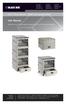 UD10KP UD20KP UD30KP UD10KP-C UD20KP-C UD30KP-LD UD10KP-LD UD20KP-LD UD40KP ipad, Chromebook, Tablet, and Laptop s User Manual Mobile, secure, and powered storage for up to 40 computing devices. Customer
Remote Console Port + Remote Power Manager. Quick Start Guide
 JULY 2006 SW549A SW549AE Remote Console Port + Remote Power Manager Quick Start Guide Remote Console Port + Remote Power Manager PWR CLEAR SET ON STATUS RDY DCD ACTIVITY 1 2 3 4 5 6 CUSTOMER SUPPORT INFORMATION
2-Port DVI Switch with Audio, Serial Control & Long Cable Equalization
 2-Port DVI Switch with Audio, Serial Control & Long Cable Equalization AC1032A-2A Rev A CUSTOMER SUPPORT INFORMATION Order toll-free in the U.S. 24 hours, 7 A.M. Monday to midnight Friday: 877-877-BBOX
Transform your wired projector into a high-end wireless projector.
 Chapter June 2009 AC1131A Wireless Video Presentation System II User s Manual Transform your wired projector into a high-end wireless projector. Includes plug-and-show, 4-to-1 split screen, and PDA wireless
VDSL Line Driver DECEMBER 2006 ME0010A-VDSL-R2
 DECEMBER 2006 ME0010A-VDSL-R2 VDSL Line Driver CUSTOMER Order toll-free in the U.S. 24 hours, 7 A.M. Monday to midnight Friday: 877-877-BBOX SUPPORT FREE technical support, 24 hours a day, 7 days a week:
Black Box Tech Support: FREE! Live. 24/7.
 Black Box Tech Support: FREE! Live. 24/7. Tech support the way it should be. Great tech support is just 30 seconds away at 724-746-5500 or blackbox.com. About Black Box Black Box Network Services is your
This Web smart switch provides 24 10-/100-/1000-Mbps ports. BLACK BOX
 24-Port Web Smart Gigabit Ethernet Switch This Web smart switch provides 24 10-/100-/1000-Mbps ports. BLACK BOX Supports Gigabit speed on all ports. Customer Support Information Order toll-free in the
10BASE-T Extender. 10BASE-T Extender FEBRUARY 1999 LZ6000A-R4. Jabber Link Test Activity. Power. Collision. Power 10BASE-T.
 FEBRUARY 1999 LZ6000A-R4 10BASE-T Extender Jabber Link Test Activity Power Collision 10BASE-T Extender Single UTP 10BASE-T Power CUSTOMER SUPPORT INFORMATION Order toll-free in the U.S. 24 hours, 7 A.M.
Copyright 2008. Black Box Corporation. All rights reserved.
 Copyright 2008. Black Box Corporation. All rights reserved. 1000 Park Drive Lawrence, PA 15055-1018 724-746-5500 Fax 724-746-0746 FEBRUARY 2008 40416-R2 40417-R2 Flexie Telco Switch CUSTOMER SUPPORT INFORMATION
Gigabit Compact Media Converter
 LGC5134A-R4 LGC5135A-R4 LGC5137A-R2 LGC5138A-R2 NOVEMBER 2009 LGC5139A-R2 LGC5140A-R2 LGC5141A-R2 LGC5142A-R2 Gigabit Compact Media Converter CUSTOMER SUPPORT INFORMATION Order toll-free in the U.S.: 877-877-BBOX
JANUARY 2001 TS825A TS826. Microscanner Pro
 JANUARY 2001 TS825A TS826 Microscanner Pro CUSTOMER SUPPORT INFORMATION Order toll-free in the U.S.: Call 877-877-BBOX (outside U.S. call 724-746-5500) FREE technical support 24 hours a day, 7 days a week:
Network Power Switch Jr.
 SEPTEMBER 2001 SWI080A Network Power Switch Jr. CUSTOMER SUPPORT INFORMATION Order toll-free in the U.S.: Call 877-877-BBOX (outside U.S. call 724-746-5500) FREE technical support 24 hours a day, 7 days
VDSL Line Driver DECEMBER 2004 ME0010A-VDSL ME0011A-VDSL
 DECEMBER 2004 ME0010A-VDSL ME0011A-VDSL VDSL Line Driver CUSTOMER Order toll-free in the U.S. 24 hours, 7 A.M. Monday to midnight Friday: 877-877-BBOX SUPPORT FREE technical support, 24 hours a day, 7
Secure Site Manager 8 Secure Site Manager 16 User s Guide
 JANUARY 2007 SW551A SW552A Secure Site Manager 8 Secure Site Manager 16 User s Guide CUSTOMER SUPPORT INFORMATION Order toll-free in the U.S.: Call 877-877-BBOX (outside U.S. call 724-746-5500) FREE technical
DSLAM Chassis: 1-x-4-Slot or 2-x-12-Slot DSL Access Multiplexor Uplink Module
 JANUARY 2001 LRA1200A-4 LRA1200A-12 LRA1203C DSLAM Chassis: 1-x-4-Slot or 2-x-12-Slot DSL Access Multiplexor Uplink Module CUSTOMER SUPPORT INFORMATION Order toll-free in the U.S.: Call 877-877-BBOX (outside
Extend Ethernet with full-duplex transmission up to 5.696 Mbps more than BLACK four miles over BOX a pair of copper wires.
 December 2009 LR0201A-KIT G.SHDSL Two-Wire Ethernet Network Extender Extend Ethernet with full-duplex transmission up to 5.696 Mbps more than BLACK four miles over BOX a pair of copper wires. Complies
Connect, control, and manage up to 16 serial RS-232/485 devices BLACK BOX via a single USB port on your PC.
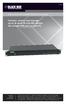 IC162A USB to Multi RS-232/485 Interface Converter Connect, control, and manage up to 16 serial RS-232/485 devices BLACK BOX via a single USB port on your PC. Customer Support Information Order toll-free
8-Port Serial Host Adapter PCI
 APRIL 2004 IC142C IC190C-R2 8-Port Serial Host Adapter PCI CUSTOMER SUPPORT INFORMATION Order toll-free in the U.S.: Call 877-877-BBOX (outside U.S. call 724-746-5500) FREE technical support 24 hours a
Extend Ethernet with full-duplex transmission up to 10.8 Mbps over two pairs BLACK of copper. BOX
 LR0202A-KIT G.SHDSL Four-Wire Ethernet Network Extender Kit Extend Ethernet with full-duplex transmission up to 10.8 Mbps over two pairs BLACK of copper. BOX Complies with ITU-T Rec. G.991.2 G.shdsl.bis
Digi-Mux HS FEBRUARY 1996 MX700A CUSTOMER SUPPORT INFORMATION
 FEBRUARY 1996 MX700A Digi-Mux HS Digi-Mux HS CH1 CH2 POWER TD RD TD RD CH3 TD RD CH4 TD RD MAIN TD RD DCD SYNC LOSS LOCAL LOOP TEST CUSTOMER SUPPORT INFORMATION Order toll-free in the U.S.: Call 877-877-BBOX
Provides first-class HD video transmission
 HD over IP Encoder/Decoder VX-HDV-IP VX-HDV-IP-SDI VX-HDV-IP-HDMI VX-HDV-IP-RM VX-HDV-IP-PSU Provides first-class HD video transmission VX-HDV-IP, rev. 1 FCC and IC RFI Statement FEDERAL COMMUNICATIONS
2-Port RS-232 PCI Bus Serial Host Adapter
 AUGUST 2001 IC140C-R2 IC143C IC191C 2-Port RS-232 PCI Bus Serial Host Adapter CUSTOMER SUPPORT INFORMATION Order toll-free in the U.S. 24 hours, 7 A.M. Monday to midnight Friday: 877-877-BBOX FREE technical
PC 422/485 Serial Interface
 JUNE 2000 IC030C-R2 IC170C PC 422/485 Serial Interface CUSTOMER SUPPORT INFORMATION Order toll-free in the U.S. 24 hours, 7 A.M. Monday to midnight Friday: 877-877-BBOX FREE technical support, 24 hours
BLACK BOX. Installation Guide. Hybrid PBX and VoIP Gateway with (4) or (12) FXOs
 IPBX424 IPBX1224 Hybrid PBX and VoIP Gateway with (4) or (12) FXOs Installation Guide BLACK BOX Enables your office to communicate through both telephone and VoIP lines. Customer Support Information Order
Expand existing, leased line, polled networks without adding computer ports BLACK or communications links.
 codes codes codes March TLB704A 2009 codes codes codes RS-232 Buffered Modem Sharing Device, 4-Port Expand existing, leased line, polled networks without adding computer ports BLACK or BOX communications
2-Port RS-232/422/485 PCI Host Adapter
 AUGUST 2000 IC133C-R2 IC187C 2-Port RS-232/422/485 PCI Host Adapter CUSTOMER SUPPORT INFORMATION Order toll-free in the U.S. 24 hours, 7 A.M. Monday to midnight Friday: 877-877-BBOX FREE technical support,
Internet Access Router
 JANUARY 1997 LR0002A-BSDN LR0002A-BV35 LR0002A-TSDN LR0002A-TV35 LR0002A-BUDN LR0002A-BV36 LR0002A-TUDN LR0002A-TV36 LR0002A-BCSU LR0002A-BX21 LR0002A-TCSU LR0002A-TX21 LR0002A-BV24 LR0002A-B530 LR0002A-TV24
CAT5 Multi Video System (Video/Audio/RS232)
 DECEMBER 2006 AC1060A AC1061A AC1062A AC1065A AC1066A CAT5 Multi Video System (Video/Audio/RS232) Copyright 2006. Black Box Corporation. All rights reserved. 1000 Park Drive Lawrence, PA 15055 1018 724
Express Ethernet Switches
 August, 2002 LB9021A LB9022A Express Ethernet Switches CUSTOMER SUPPORT INFORMATION Order toll-free in the U.S. 24 hours, 7 A.M. Monday to midnight Friday: 877-877-BBOX FREE technical support, 24 hours
USB Single-Port Hub (RS-422/485)
 USB Single-Port Hub (RS-422/485) SEPTEMBER 2001 IC266A CUSTOMER SUPPORT INFORMATION Order toll-free in the U.S.: Call 877-877-BBOX (outside U.S. call 724-746-5500) FREE technical support 24 hours a day,
RS-232/485 Converter
 Code: IC620A MARCH 1998 IC620A-F IC623A-M IC620A-M IC624A-F IC623A-F IC624A-M RS-232/485 Converter SuperSwitch 8 10/100 CUSTOMER SUPPORT INFORMATION Order toll-free in the U.S. 24 hours, 7 A.M. Monday
Welcome to the ServSwitch Family!
 THE SERVSWITCH FAMILY Welcome to the ServSwitch Family! Thank you for purchasing a BLACK BOX ServSwitch brand KVM remote access product. We appreciate your business, and we think you ll appreciate the
DeeSel.1 Industrial Ethernet Extender Multi-Drop Unit, G-SHDSL 2-Wire, 5.7 Mbps
 LB532A-M DeeSel.1 Industrial Ethernet Extender Multi-Drop Unit, G-SHDSL 2-Wire, 5.7 Mbps Get multi-drop Ethernet extension over twisted pair with distances of 4.3 miles per hop. Black Box Ethernet Extenders
Copyright 2005. Black Box Corporation. All rights reserved.
 Copyright 2005. Black Box Corporation. All rights reserved. 1000 Park Drive Lawrence, PA 15055-1018 724-746-5500 Fax 724-746-0746 FEBRUARY 2005 LGC1713A-SX LGC1713A-LX 1000BASE-T to MM SX Media Converter
Video to VGA Converter/Switch
 June 2004 AC135A-R2 Video to VGA Converter/Switch With Audio, RS-232 Control, and PC VGA input CUSTOMER SUPPORT INFORMATION Order toll-free in the U.S. 24 hours, 7 A.M. Monday to midnight Friday: 877-877-BBOX
A high performance KVM extender that can transmit up to two high resolution DisplayPort video streams plus high speed USB and digital/ analog audio.
 NETWORK SERVICES ACU5800A Wizard DP Extender A high performance KVM extender that can transmit up to two high resolution DisplayPort video streams plus high speed USB and digital/ analog audio. Allows
FOM Line Driver ST FOM Line Driver SM
 FERURY 1998 ME540-ST ME540-SM FOM Line Driver ST FOM Line Driver SM CUSTOMER SUPPORT INFORMTION Order toll-free in the U.S.: Call 877-877-OX (outside U.S. call 724-746-5500) FREE technical support 24 hours
USB Mini Print Server PS121. Installation Guide
 USB Mini Print Server PS121 Installation Guide Introduction Thank you for purchasing a NETGEAR PS121 USB Mini Print Server. With this print server you can share your printer with all the computers in your
T1/E1 Fiberoptic Line Driver (T1/E1 FOLD)
 MT610A-ST MT610A-SM MT610AE-ST MT610AE-SM JUNE 1998 MT611A-ST MT611A-SM MT611AE-ST MT611AE-SM MT613AE-FC MT613A-ST-D48 T1/E1 Fiberoptic Line Driver (T1/E1 FOLD) TEST NORM LOC REM T1 Fiber Optic Line Driver
Dominion KX II-101-V2
 Dominion KX II-101-V2 Quick Setup Guide Thank you for your purchase of the Dominion KX II-101-V2, the economical, full-featured, single-port digital KVM-over-IP device. For details on using the KX II-101-V2,
Short-Haul Modem-FSK RS-485 Modules
 AUGUST 1997 ME840A-M ME840A-S MD3317 MD3318 Short-Haul Modem-FSK RS-485 Modules R R CD SHM-FSK RxD TxD LPBK PWR CUSTOMER SUPPORT INFORMATION Order toll-free in the U.S. 24 hours, 7 A.M. Monday to midnight
Connecting the DG-102S VoIP Gateway to your network
 Contents of Package: DG-102S VoIP Station Gateway Power adapter CD-ROM, including User s Manual Quick Install Guide Requirements: RS-232 Console Cable Two RJ-45 CAT-5 Straight-Through Cables For more information
1101 and 1102 Secure Device Servers
 LES1101A-R2 LES1102A 1101 and 1102 Secure Device Servers Securely monitor, access, and control the computers, networking devices, telecommunications equipment, and power supplies in your data room or communications
SecureLinx Spider Duo Quick Start Guide
 SecureLinx Spider Duo Quick Start Guide SecureLinx Spider Duo Quick Start Guide SecureLinx Spider Duo QUICK START GUIDE CONTENTS Overview... 2 What s In The Box... 3 Installation and Network Settings...
Networking Guide Redwood Manager 3.0 August 2013
 Networking Guide Redwood Manager 3.0 August 2013 Table of Contents 1 Introduction... 3 1.1 IP Addresses... 3 1.1.1 Static vs. DHCP... 3 1.2 Required Ports... 4 2 Adding the Redwood Engine to the Network...
TL-PS310U Single USB 2.0 Port MFP and Storage Server
 TL-PS310U Single USB 2.0 Port MFP and Storage Server Rev: 2.0.0 1910010313 Contents Chapter 1 Introduction... 1 1.1 Product Overview...1 1.2 Network Management...1 1.3 Components and Features...1 1.4 Hardware
Deployment Guide: Transparent Mode
 Deployment Guide: Transparent Mode March 15, 2007 Deployment and Task Overview Description Follow the tasks in this guide to deploy the appliance as a transparent-firewall device on your network. This
LR120A, LR121A, LR122A, LR125A WAN Access Routers. Getting Started Guide
 LR120A, LR121A, LR122A, LR125A WAN Access Routers Getting Started Guide Compliance Information Radio and TV Interference The WAN Access Router generates and uses radio frequency energy, and if not installed
Ethernet Radio Configuration Guide
 Ethernet Radio Configuration Guide for Gateway, Endpoint, and Repeater Radio Units April 20, 2015 Customer Service 1-866-294-5847 Baseline Inc. www.baselinesystems.com Phone 208-323-1634 FAX 208-323-1834
Vantage RADIUS 50. Quick Start Guide Version 1.0 3/2005
 Vantage RADIUS 50 Quick Start Guide Version 1.0 3/2005 1 Introducing Vantage RADIUS 50 The Vantage RADIUS (Remote Authentication Dial-In User Service) 50 (referred to in this guide as Vantage RADIUS)
User Manual. PePWave Surf / Surf AP Indoor Series: Surf 200, E200, AP 200, AP 400. PePWave Mesh Connector Indoor Series: MC 200, E200, 400
 User Manual PePWave Surf / Surf AP Indoor Series: Surf 200, E200, AP 200, AP 400 PePWave Mesh Connector Indoor Series: MC 200, E200, 400 PePWave Surf AP Series: Surf AP 200-X, E200-X, 400-X PePWave Surf
Addonics T E C H N O L O G I E S. NAS Adapter. Model: NASU2. 1.0 Key Features
 1.0 Key Features Addonics T E C H N O L O G I E S NAS Adapter Model: NASU2 User Manual Convert any USB 2.0 / 1.1 mass storage device into a Network Attached Storage device Great for adding Addonics Storage
Network Management Software
 Network Management Software User s Manual Version 3.2 www.blackbox.com TRADEMARKS All applied-for and registered trademarks are the property of their respective owners. FEDERAL COMMUNICATIONS COMMISSION
dedicated KVM switch and rackmount screen technology User Manual IP-S101 Combo KVM Extender Designed and manufactured by Austin Hughes
 dedicated KVM switch and rackmount screen technology User Manual IP-S101 Combo KVM Extender Designed and manufactured by Austin Hughes 751 Legal Information First English printing, October 2002 Information