
WorldShip User Guide
|
|
|
- Anis Lora Henry
- 10 years ago
- Views:
Transcription
1 WorldShip 2015 User Guide The WorldShip software provides an easy way to automate your shipping tasks. You can quickly process all your UPS shipments, print labels and invoices, electronically transmit daily shipping information to UPS and track your shipments United Parcel Service of America, Inc. UPS, the UPS brandmark and the color brown are trademarks of United Parcel Service of America, Inc. All rights reserved. 01/15

2 Table of Contents Shipping... 1 Processing Shipments... 1 Processing International Shipments... 3 Processing Shipments with Future Pickup Dates... 5 Processing Returns... 6 Editing Packages and Shipments... 7 Processing Freight Shipments... 8 Profiles Profile Editor Adding a Profile Assigning a Profile to a Shipper Assigning a Profile to a Customer Reports Printing Reports Voiding Packages or Shipments Voiding a Shipment from the Shipping Window Voiding a Package or Shipment from the Shipment History Window after End of Day Marking a Package or Shipment as Voided in the Shipment History Window End of Day Completing the Process Validating, Classifying and Reconciling Addresses Validating Your Address Data Classifying Your Address Data Reconciling Your Address Data History and Tracking Finding Shipments Tracking Packages or Shipments Billing and Rating Features Fuel Surcharge Cost Center Calculator Selecting Bill-To Information Third Party Billing Additional Features and Functionality Quick Commands Creating the Quick Commands List Modifying Quick Commands Error Labels Printed during Batch Processing Custom Labels Selecting Label Stock Creating or Editing a Custom Label Template Custom Label Printing Setup Resources Accessing Help Technical Support Numbers Dangerous Goods Shipments About Dangerous Goods Editing a Dangerous Goods Chemical Record Viewing a Dangerous Goods Chemical Record Processing a Dangerous Goods Shipment United Parcel Service of America, Inc. All rights reserved. 01/15 User Guide i
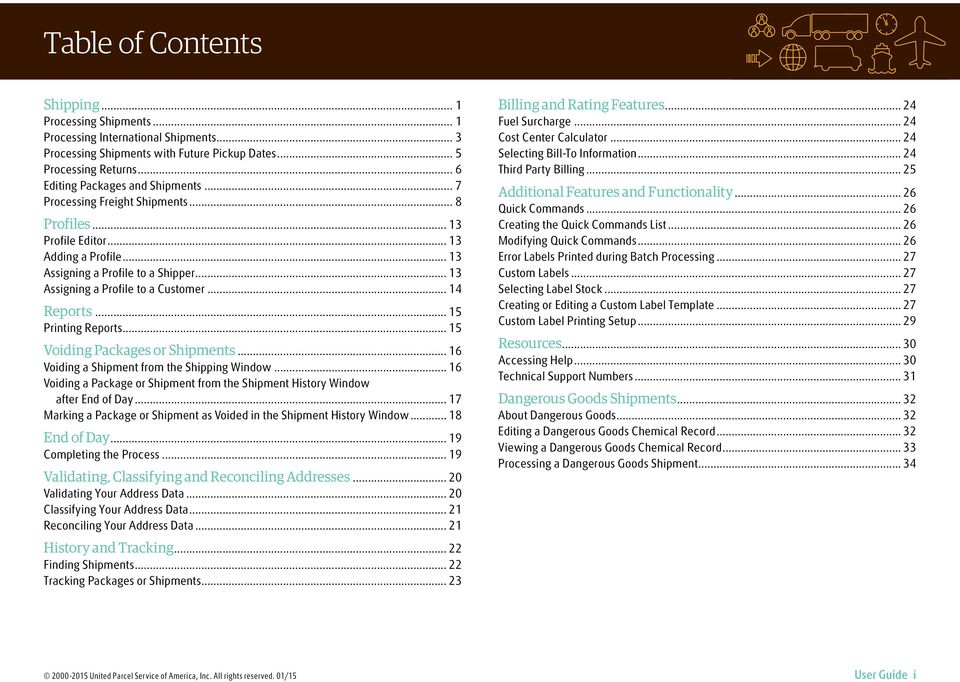
3 Shipping Processing shipments Processing a single-piece shipment 1. Specify the receiver s address. 2. Select a UPS service. 3. Select a package type. 4. Specify the bill-to information. 5. Type the weight of the package. 6. Click Process Shipment. Note: Once you have processed all your packages and shipments, complete the End of Day process. Processing a shipment with options 1. Follow steps 1 through 5 under Processing a Single-Piece Shipment. 2. In the Shipping window, select the Options tab. 3. Select the check box next to the option(s) you wish to apply and complete the additional fields as needed for the option(s). 4. Click Process Shipment. Processing a multiple-piece shipment single address/consignee (U.S., Puerto Rico and Canada) 1. Follow steps 1 through 5 under Processing a Single-Piece Shipment. 2. To add another package to the shipment, click Add and type the weight of the package. 3. To add multiple packages with the same weight, type the number of packages in Pkgs. Click Add. 4. Click Process Shipment. Note: If a procedure does not reference a command, the ribbon is minimized in the screen samples. Use the and in the top right corner to maximize and minimize the ribbon United Parcel Service of America, Inc. All rights reserved. 01/15 User Guide 1
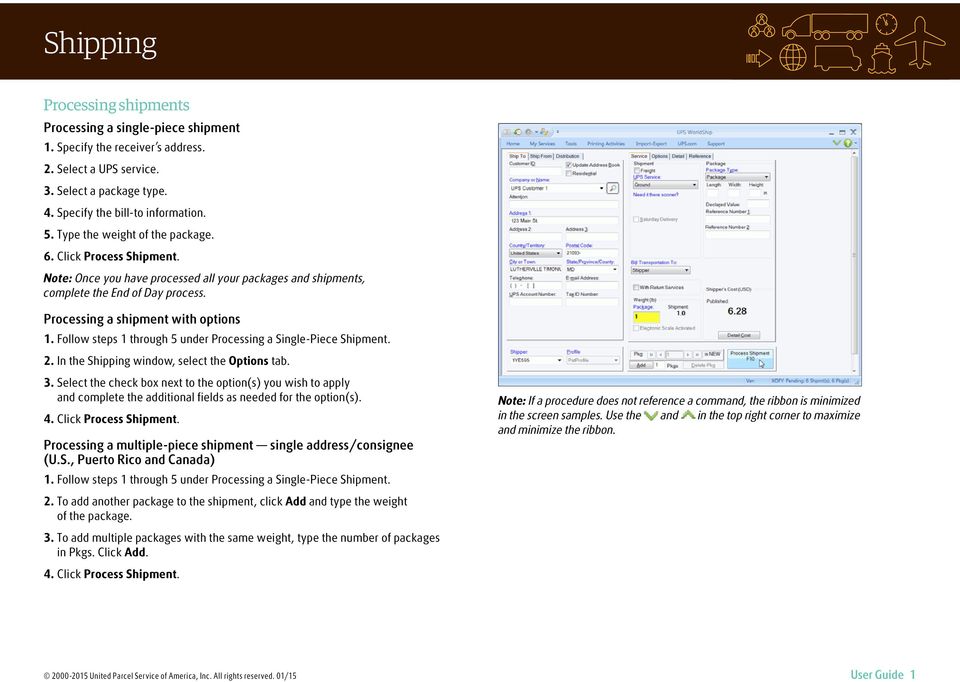
4 Shipping Processing Shipments (continued) Processing Larger Shipments For larger shipments to a single consignee from the U.S., Puerto Rico or Canada, follow these steps: 1. Specify the receiver s address. 2. Select a UPS service. 3. Select a package type. 4. Specify the bill-to information. 5. Select shipment and package options that apply to all packages. 6. On the Home tab, select Multi-piece Shipment. 7. In the Multi-piece Shipment window, type the total number of packages and select a package weight option. If you select Enter Total Shipment Weight, type the total shipment weight in this window. If you select Enter Package Weights on Shipping Window, type the individual package weights in the Shipping window. 8. Click OK. 9. If a package option applies to only one package, use the navigation controls to locate the package and then select the package option. 10. Click Process Shipment United Parcel Service of America, Inc. All rights reserved. 01/15 User Guide 2
5 Shipping Processing International Shipments When you process a package to an international destination, WorldShip can generate the necessary export documentation. Processing a Package 1. Specify the receiver s address. 2. Select a UPS service. 3. Select a package type. 4. Specify the bill-to information. 5. Type a general description of the goods and the weight of the package. 6. Select the Customs Documentation tab to complete the necessary export documentation. 7. Click Process Shipment. Disabling Export Documentation If you currently produce your own export documents, you can disable the export documentation feature in WorldShip by following these steps: 1. On the Tools tab, select Shipper Editor. 2. Click Modify, then select the International tab. 3. Clear the Enable Invoice, Enable NAFTA CO and Enable CO check boxes, or select a filing method other than UPS file my EEI for me under Electronic Export Information, for the document(s) you do not wish to print. Upload Customs Documentation Enabling and selecting UPS Paperless Invoice allows you to upload customs forms created offline instead of attaching hard copies to the shipment. To upload forms, select the Upload My Forms check box on the Customs Documentation tab and locate the forms to upload after you click Process Shipment United Parcel Service of America, Inc. All rights reserved. 01/15 User Guide 3
6 Shipping Processing International Shipments (continued) During shipment processing, you can disable the creation of an invoice by doing the following: 1. In the Shipping window, select the Customs Documentation tab. 2. Clear the Create an Invoice check box. Note: If you disable the invoice creation feature in WorldShip, you should type the customs value for shipments from the U.S. to Canada and Puerto Rico in order to speed up customs clearance. Note: International Shipments whose contents are NOT documents must have three (3) copies of the invoice and any other required export documentation attached to the lead package. To electronically file Electronic Export Information (EEI) with the U.S. Census Bureau, you must first register and become an authorized user of the AESDirect Web site. Then follow these steps: Enabling the AES Pre Departure Option 1. On the Tools tab, select Shipper Editor, click Modify and select the International tab. 2. Under Electronic Export Information, select Self-file with AES Direct (AES option 2) in the Filing Method box, then click OK. Processing an International Shipment using the AES Pre Departure Option 1. Complete the information on the Ship To, Service and Options tabs. 2. On the Ship From tab, type the Tax ID Number and select the Tax ID Type. 3. On the Customs Documentation tab, select the EEI tab. 4. Type the Shipment Reference Number, or click Generate SRN if you want WorldShip to create a unique number in the Shipment Reference Number box. 5. Type the Internal Transaction Number assigned to the shipment. This number is required for Air Freight shipments. 6. Complete the remaining fields and click Submit to AES. 7. WorldShip provides a link to the AESDirect Web site. Be sure to read the Legal Disclaimer, then click Submit EEI to AESWebLink. 8. Complete your submission to the U.S. Census Bureau. 9. After you return to WorldShip, click Process Shipment. For more information, select WorldShip on the Support tab and then UPS WorldShip Help; type AES. International Shipper Agreement/Power of Attorney For U.S. and Puerto Rico Origin Shippers Only: UPS requires an International Shipper Agreement on file or a Power of Attorney attached to the lead package in some cases. For more information, select WorldShip on the Support tab and then UPS WorldShip Help; type either International Shipper Agreement or Power of Attorney United Parcel Service of America, Inc. All rights reserved. 01/15 User Guide 4

7 Shipping Processing Shipments with Future Pickup Dates With WorldShip Future Date Processing, you can process shipments with a pickup date of up to 183 calendar days in the future. Activating Future Date Processing To process shipments with future pickup dates, activate this feature by following these steps: 1. On the Tools tab, select System Preferences and then Shipping. 2. Select the Manually Select Pickup Dates check box under Pickup Date Selection. A warning message asks you to confirm your selection. 3. Click Yes and then OK United Parcel Service of America, Inc. All rights reserved. 01/15 User Guide 5
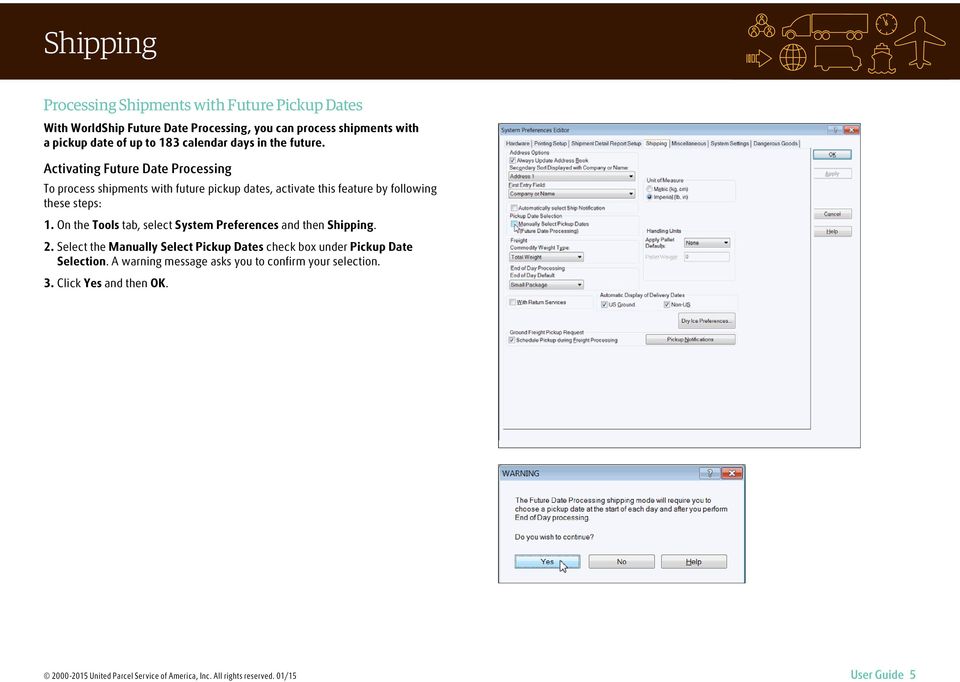
8 Shipping Processing Shipments with Future Pickup Dates (continued) Selecting an Active Pickup Date Once you have set this system preference, the Select Active Pickup Date window asks you to choose a pickup date. If you want to select today s date as the active pickup date, simply click OK. If you want to select a date in the future, click the down arrow, select the pickup date on the calendar and click OK. The active pickup date you select will appear on the title bar at the top of the Shipping and Shipment History windows. As you process shipments, they will be listed, by active pickup date, under Pending Pickup in the Shipment History window. The letter A appears next to the active pickup date. Note: If you do not require the ability to process shipments with a future date, no action is needed. Your system is already configured to process shipments for the current date. Changing an Active Pickup Date To change an active pickup date prior to processing shipments, follow these steps: 1. On the Home tab in the Shipping window, select Pickup Information and then Select Active Pickup Date. 2. In the Select Active Pickup Date window, click the down arrow, select the pickup date on the calendar and click OK. 3. Process your shipments as usual. They will appear in the Shipment History window under the Pending Pickup group for that active pickup date. To change a pickup date for shipments that have been processed: 1. In the Shipment History window, highlight the shipment or Pending Pickup group for which you want to change the date. 2. On the Home tab, select Pickup Date and then Change Pickup Date. 3. In the Change Pickup Date window, click the down arrow, select the pickup date on the calendar and click OK. The shipment(s) appear under the Pending Pickup group for that pickup date. For more information, select WorldShip on the Support tab and then UPS WorldShip Help; type Future Date Processing Procedures. Processing Returns UPS offers a comprehensive portfolio of return services to streamline your merchandise return process. Repeat a shipment in the Shipment History as a return or create a new return package in the Shipping window. Creating a Return 1. Select a UPS service on the Service tab. 2. Select the Options tab and then select Return Services under Shipment Options. 3. Select the return service you want. 4. Specify the merchandise description for the package. 5. If you select Electronic Return Label, click Details and specify the Recipient s Address. 6. Specify the Pickup From address. 7. Select the Service tab, then select a package type, specify the bill-to information and type the weight of the package. 8. Click Process Shipment. Note: Return Services may be limited in your area. Please visit ups.com for a complete list of valid services. Processing a Forward Shipment with a Corresponding Return Shipment 1. Enter shipping information. 2. Select the With Return Services check box on the Service tab. 3. Click Process Shipment. The forward shipment label prints, and the Shipping window automatically fills in the address for the corresponding return shipment. 4. Select the Options tab. The Return Services option will be checked. Select the return service you want and enter a merchandise description. 5. Click Process Shipment. Note: To set a preference for the With Return Services check box, go to the Shipping tab in the System Preferences Editor United Parcel Service of America, Inc. All rights reserved. 01/15 User Guide 6
9 Shipping Editing Packages and Shipments WorldShip allows you to edit packages and shipments you have already processed, but for which you have not yet run the End of Day process. Editing a Package or Shipment 1. Under UPS Pickups in the Shipment History window, select the individual package or shipment you wish to edit. 2. On the Home tab, select Edit/Reconcile. Confirm which package/shipment you need to edit and then make the appropriate changes. 3. Click Process Shipment. (You will be prompted to replace the previously printed label with the regenerated label.) Deleting a Single Package in a Multiple-Piece Shipment 1. Under UPS Pickups in the Shipment History window, select the shipment containing the package you wish to delete. 2. On the Home tab, select Edit/Reconcile. Confirm which package/shipment you need to edit. 3. Using the navigation arrows next to Process Shipment, display the package you wish to delete. 4. Click Delete Pkg. Confirm that you want to delete the package. 5. Click Process Shipment. (You will be prompted to replace the previously printed label with the regenerated label.) U.S. Only: For billing problems, call our Billing Department at and provide the tracking number(s) and pickup record number(s) United Parcel Service of America, Inc. All rights reserved. 01/15 User Guide 7
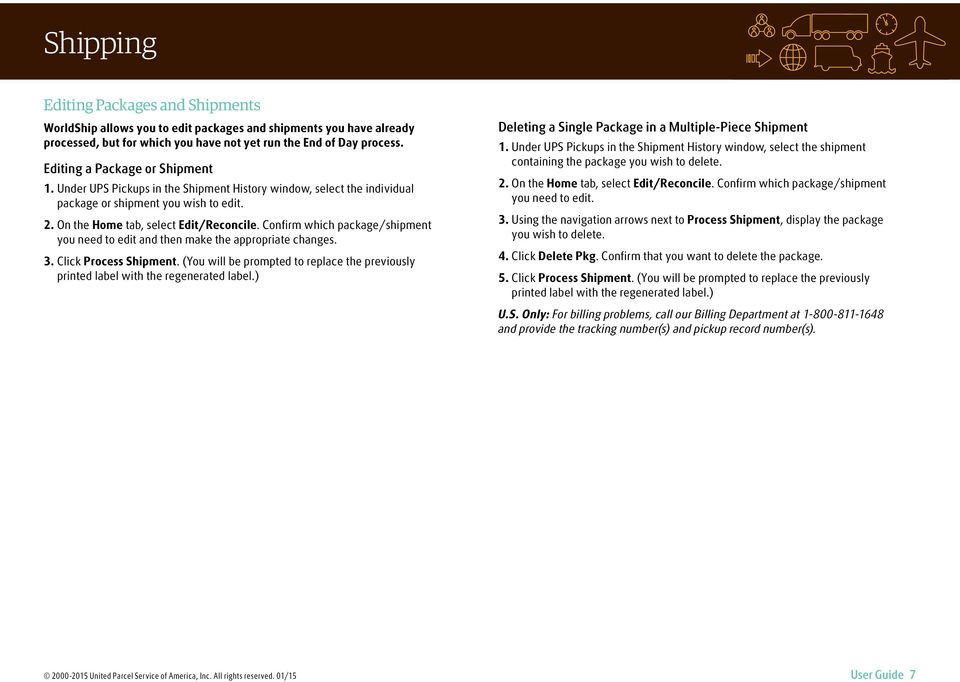
10 Shipping Processing Freight Shipments About Ground Freight Shipments Ground Freight is a general service offering for regional, interregional and long-haul services as well as a full portfolio of specialty solutions in the U.S. (including Alaska and Hawaii), Canada, Puerto Rico, Guam, the U.S. Virgin Islands and Mexico. About Air Freight Shipments Air Freight is a general service offering for regional, interregional and international services as well as a full portfolio of specialty solutions worldwide. Processing a Freight Shipment 1. Select the Freight check box, and either an Air or a Ground Freight UPS service on the Service tab. The remaining fields change depending on the UPS service you select. 2. Specify the Ship To address. 3. Specify the Ship From address. 4. Specify the shipment-level and option details, such as bill-to information, commodity information, shipping options, shipment dimensions, shipment description, shipment reference numbers and a packing list. See Entering Commodity Information. 5. For an international shipment, record the export document and goods details. 6. Decide if you want to complete your shipment now or later. n If you have not completed your shipment, you can save it as a draft by clicking Save (in the lower right corner). The shipment will be saved in Shipment History as a Draft with the date when it was saved. If you created a Packing List for the draft shipment, it will not be saved. When you are ready to continue work on it, select it on the Shipment History window and click Edit/Reconcile Shipment on the Home tab. n If you have completed your shipment, click Process. Note: You can set a shipper setting to print a specific number of labels per handling unit and loose item. On the Tools tab, select Shipper Editor, highlight shipper information and then click Modify. Select the Freight tab and then enter the number of labels to print per handling unit and per loose item United Parcel Service of America, Inc. All rights reserved. 01/15 User Guide 8
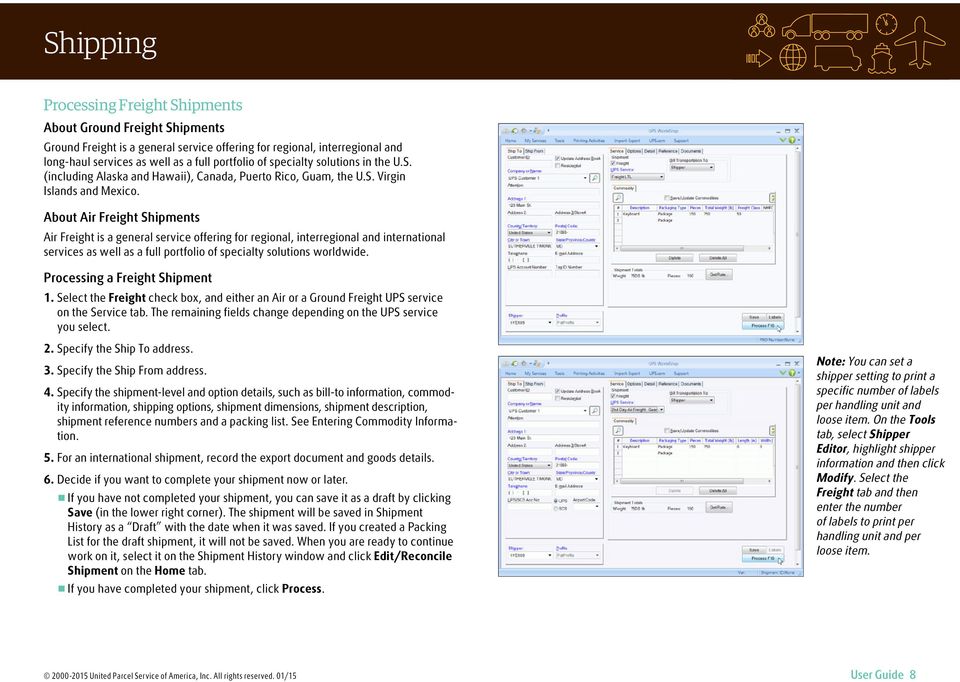
11 Shipping Processing Freight Shipments (continued) Entering Commodity Information 1. Enter information about each line item of your shipment in the Commodity section on the Service tab. The commodity list on the Service tab shows each item that was added to the current shipment. 2. Click Add to add each item to the commodity list, or if necessary, click Clear to clear items in the commodity list. There is no limit to the number of commodities that can be selected or added to the shipment. The limit will be taken care of during shipment processing. Note: As an alternative to manually adding commodities to the commodity list, click Commodity Search and use the Commodity Search window to access commodities entered previously in the Commodity Editor. This search is useful when entering many commodities in a shipment. Requesting Freight Rates To request the shipment rate for the current shipment: 1. Click Get Rate. The Shipment Rates window appears. 2. Review the detailed rate information. 3. Click OK United Parcel Service of America, Inc. All rights reserved. 01/15 User Guide 9
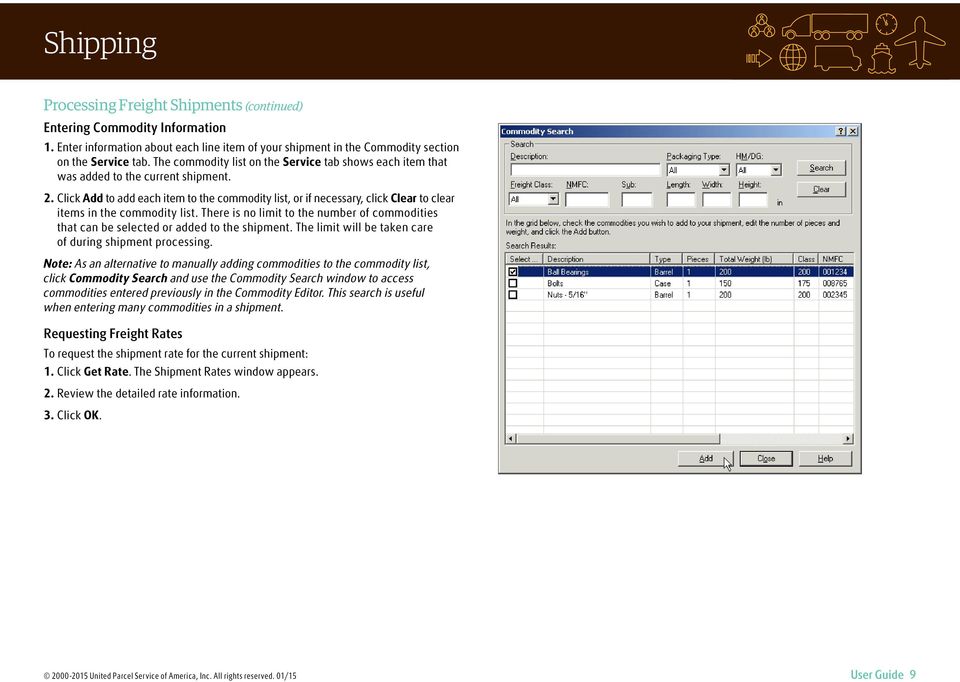
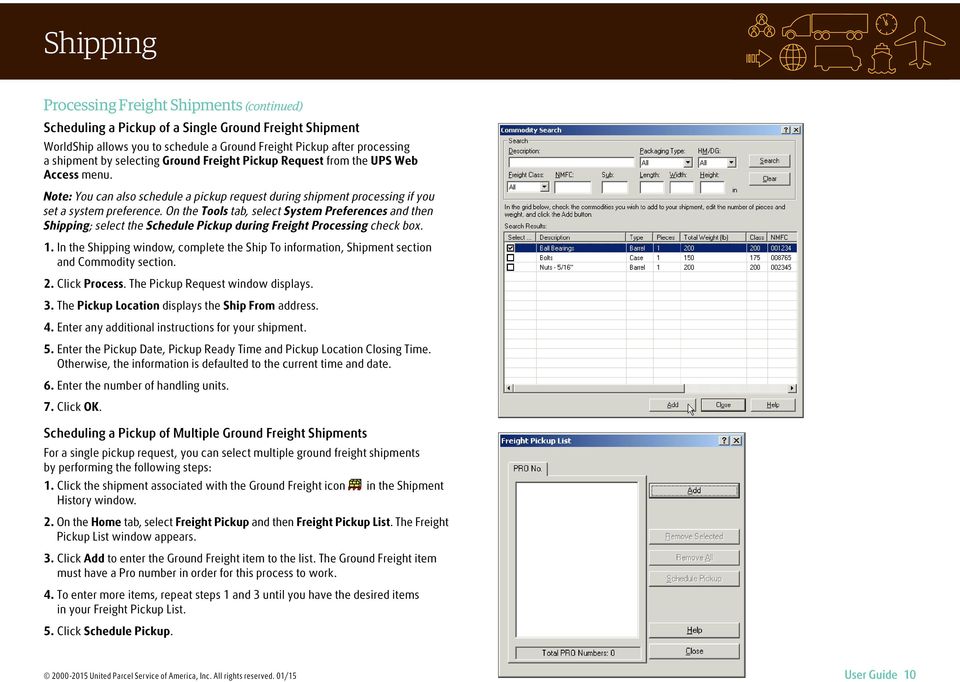
12 Shipping Processing Freight Shipments (continued) Scheduling a Pickup of a Single Ground Freight Shipment WorldShip allows you to schedule a Ground Freight Pickup after processing a shipment by selecting Ground Freight Pickup Request from the UPS Web Access menu. Note: You can also schedule a pickup request during shipment processing if you set a system preference. On the Tools tab, select System Preferences and then Shipping; select the Schedule Pickup during Freight Processing check box. 1. In the Shipping window, complete the Ship To information, Shipment section and Commodity section. 2. Click Process. The Pickup Request window displays. 3. The Pickup Location displays the Ship From address. 4. Enter any additional instructions for your shipment. 5. Enter the Pickup Date, Pickup Ready Time and Pickup Location Closing Time. Otherwise, the information is defaulted to the current time and date. 6. Enter the number of handling units. 7. Click OK. Scheduling a Pickup of Multiple Ground Freight Shipments For a single pickup request, you can select multiple ground freight shipments by performing the following steps: 1. Click the shipment associated with the Ground Freight icon in the Shipment History window. 2. On the Home tab, select Freight Pickup and then Freight Pickup List. The Freight Pickup List window appears. 3. Click Add to enter the Ground Freight item to the list. The Ground Freight item must have a Pro number in order for this process to work. 4. To enter more items, repeat steps 1 and 3 until you have the desired items in your Freight Pickup List. 5. Click Schedule Pickup United Parcel Service of America, Inc. All rights reserved. 01/15 User Guide 10
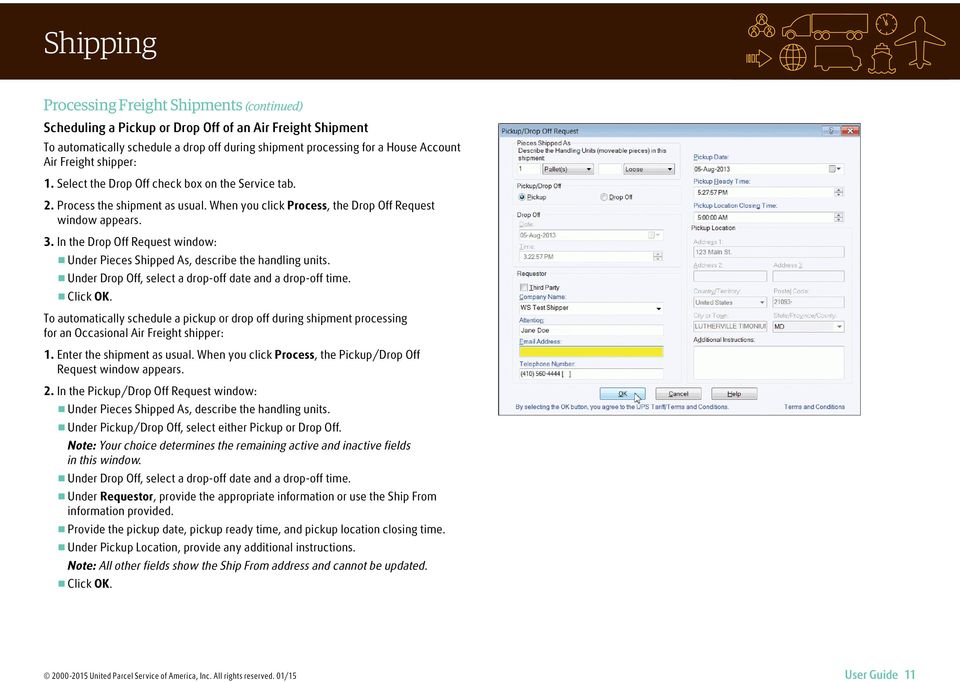
13 Shipping Processing Freight Shipments (continued) Scheduling a Pickup or Drop Off of an Air Freight Shipment To automatically schedule a drop off during shipment processing for a House Account Air Freight shipper: 1. Select the Drop Off check box on the Service tab. 2. Process the shipment as usual. When you click Process, the Drop Off Request window appears. 3. In the Drop Off Request window: n Under Pieces Shipped As, describe the handling units. n Under Drop Off, select a drop-off date and a drop-off time. n Click OK. To automatically schedule a pickup or drop off during shipment processing for an Occasional Air Freight shipper: 1. Enter the shipment as usual. When you click Process, the Pickup/Drop Off Request window appears. 2. In the Pickup/Drop Off Request window: n Under Pieces Shipped As, describe the handling units. n Under Pickup/Drop Off, select either Pickup or Drop Off. Note: Your choice determines the remaining active and inactive fields in this window. n Under Drop Off, select a drop-off date and a drop-off time. n Under Requestor, provide the appropriate information or use the Ship From information provided. n Provide the pickup date, pickup ready time, and pickup location closing time. n Under Pickup Location, provide any additional instructions. Note: All other fields show the Ship From address and cannot be updated. n Click OK United Parcel Service of America, Inc. All rights reserved. 01/15 User Guide 11
14 Shipping Processing Freight Shipments (continued) Viewing Your Freight Shipment(s) in Shipment History To view your freight shipment(s), select the Shipment History window. A icon represents a freight shipment for a specific shipper United Parcel Service of America, Inc. All rights reserved. 01/15 User Guide 12

15 Profiles Profile Editor Use the Profile Editor to add, delete or modify a profile, which is a saved collection of predefined preferences, including various service options, package options, shipment options and reference numbers. Then you can assign the profile to one or more shippers. Adding a Profile 1. On the Tools tab, select Create/Edit Profile. 2. In the Profile Editor Welcome window, click OK. 3. Fill in or select the preferred values for the fields shown on all the tabs. Your choices appear as the defaults in the corresponding fields in the Shipping window. 4. In the ribbon, click Save. 5. In the Profile Save As window, type a unique name, up to 35 characters, and click OK. Note: If you want to base a new profile on an existing profile, select the existing profile name, modify the fields, and in the ribbon, click Save As. In the Profile Save As window, type a unique name, up to 35 characters, and then click OK. Assigning a Profile to a Shipper 1. On the Tools tab, select Create/Edit Profile. 2. In the Profile Editor ribbon, click Assign Profile to Shippers. 3. In the Shipper Profiles window: n To assign a profile to a specific shipper, select the desired profile for that shipper in Profile next to the shipper number. n To assign a particular profile to all shippers, select the desired profile in Assign Profile To All Shippers and click Assign. 4. Click OK and then click Close Profile Editor United Parcel Service of America, Inc. All rights reserved. 01/15 User Guide 13

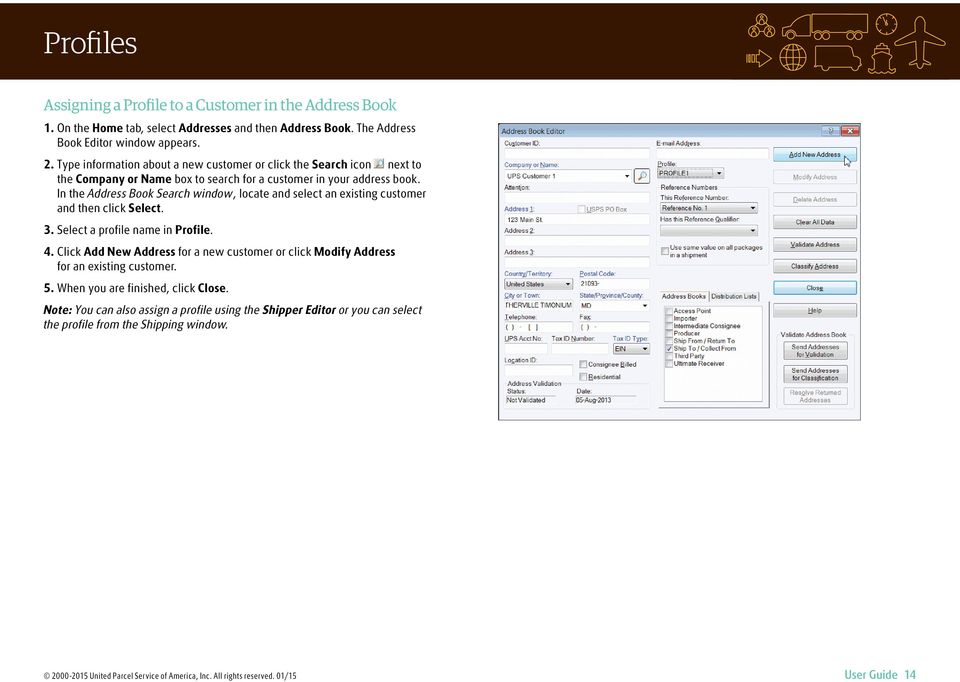
16 Profiles Assigning a Profile to a Customer in the Address Book 1. On the Home tab, select Addresses and then Address Book. The Address Book Editor window appears. 2. Type information about a new customer or click the Search icon next to the Company or Name box to search for a customer in your address book. In the Address Book Search window, locate and select an existing customer and then click Select. 3. Select a profile name in Profile. 4. Click Add New Address for a new customer or click Modify Address for an existing customer. 5. When you are finished, click Close. Note: You can also assign a profile using the Shipper Editor or you can select the profile from the Shipping window United Parcel Service of America, Inc. All rights reserved. 01/15 User Guide 14
17 Reports Printing Reports Each time you complete the End of Day process, the following reports may print automatically: Daily Shipment Detail Report Summarizes all the packages processed since your last End of Day process and lists the recipient and shipping information for each package as well as summary totals. Using the System Preferences Editor, Shipment Detail Report Setup tab, you can choose whether to print this report automatically when you run End of Day. High Value Report Automatically prints during the End of Day process only if you processed a package with a Declared Value exceeding a certain threshold and during shipment processing for Return Services shipments. In addition, this report shows the tracking number, package ID, reference number and Declared Value of each high value package. Important: Be sure to give this report to your UPS driver when he or she picks up the high value packages. The UPS driver signs the report and records the pickup time and the total number of high value packages on the last line of this report. Since these pickup details are on the report the driver takes with the packages, make a copy of the driver s report with the pickup details if you want pickup confirmation for your records. Since pickup details include driver s signature and handwritten information, it cannot be reprinted. UPS Driver Transmission Control (non-u.s./puerto Rico/Canada Origins) Automatically prints during the End of Day process and during close out of Trade Direct consolidated movements only if the destination is other than the U.S. or Puerto Rico. This report verifies the successful transmission of shipment data to UPS during the close-out process. Pickup Summary Barcode Report (U.S./Puerto Rico/Canada Origins)/ UPS Manifest Summary (non-u.s./puerto Rico/Canada Origins) The Pickup Summary Barcode Report automatically prints during the End of Day process, and the UPS Manifest Summary automatically prints during the End of Day process and during close out of consolidated movements. Both reports summarize shipment information about the packages your UPS driver is to pick up. This report includes: n Your account information. n A barcode that includes your account number, a unique shipping record identifier and the total number of packages to be picked up. n Summary information so the UPS driver can verify what is to be picked up. n An area to record the name of the UPS driver who picks up the packages, the pickup time and the total number of packages picked up by the driver. Important: Be sure to give the Pickup Summary Barcode Report to your UPS driver when he or she picks up the packages. The UPS driver scans the barcode on the report. Then the UPS driver signs the report and records the pickup time and the total number of packages on the bottom of the report. Since the UPS driver scans this report but does not take it, you may keep the report for your records. UPS Manifest Detail (non-u.s./puerto Rico/Canada Origins) Automatically prints during the End of Day process if the transmission of your shipment data to UPS fails. This report details shipment information about the packages your UPS driver is to pick up. Important: Be sure to give this report to your UPS driver when he or she picks up your packages. Important: Be sure to give this report to your UPS driver when he or she picks up the packages United Parcel Service of America, Inc. All rights reserved. 01/15 User Guide 15
18 Voiding Packages or Shipments Voiding a Shipment from the Shipping Window WorldShip allows you to void shipments you have already processed but for which you have not run the End of Day process (see below). You can also void packages or shipments after you have run the End of Day process. 1. On the Home tab in the Shipping window, select Void to void or delete a package or shipment. 2. Read the instructions on how to void a shipment and click OK. The Shipment History window appears and the last shipment you processed is highlighted. 3. Confirm the correct shipment is highlighted. Select another shipment if needed. 4. On the Home tab, select Void. 5. Once you confirm the void, a Void icon appears next to the shipment/packages. Note: If the package you are attempting to void has already gone through the End of Day process and the void portal supports voids for your country, you will be taken to the U.S. Void a Shipment application on ups.com (English only). See Voiding a Package or Shipment from the Shipment History window after End of Day below United Parcel Service of America, Inc. All rights reserved. 01/15 User Guide 16

19 Voiding Packages or Shipments Voiding a Package or Shipment from the Shipment History Window after End of Day 1. In the Shipment History window, highlight the tracking number of the package you want to void. 2. On the Home tab, select Void. 3. Click OK. The UPS Void Shipments Page appears for you to complete the void. 4. When you are finished voiding the shipment, return to WorldShip United Parcel Service of America, Inc. All rights reserved. 01/15 User Guide 17

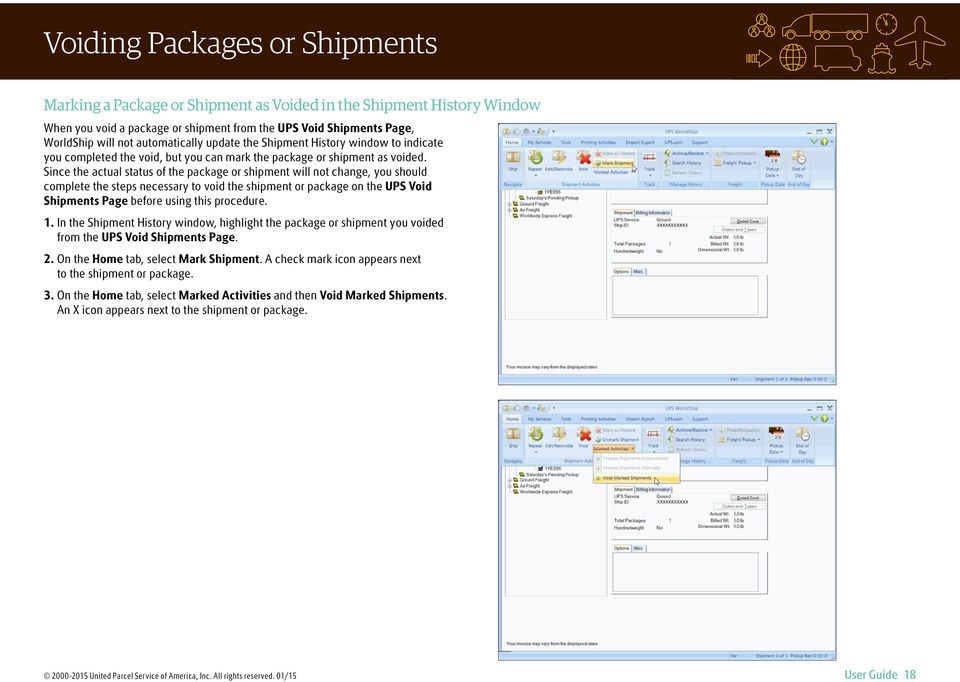
20 Voiding Packages or Shipments Marking a Package or Shipment as Voided in the Shipment History Window When you void a package or shipment from the UPS Void Shipments Page, WorldShip will not automatically update the Shipment History window to indicate you completed the void, but you can mark the package or shipment as voided. Since the actual status of the package or shipment will not change, you should complete the steps necessary to void the shipment or package on the UPS Void Shipments Page before using this procedure. 1. In the Shipment History window, highlight the package or shipment you voided from the UPS Void Shipments Page. 2. On the Home tab, select Mark Shipment. A check mark icon appears next to the shipment or package. 3. On the Home tab, select Marked Activities and then Void Marked Shipments. An X icon appears next to the shipment or package United Parcel Service of America, Inc. All rights reserved. 01/15 User Guide 18
21 End of Day Completing the Process WorldShip electronically transmits your shipment detail to UPS. Separate End of Day processes can be completed for the same pickup day. Once you have finished processing packages for a Pending Pickup group, complete the End of Day process. These steps should be completed prior to the time of pickup. Completing the End of Day Process 1. Select the Pending Pickup group in the Shipment History window. 2. On the Home tab, select End of Day. 3. Confirm you wish to proceed. WorldShip will print the End of Day reports. For more information, see Printing Reports. 4. If Future Date Processing has been activated, the Select Active Pickup window appears. Click the down arrow to select the active pickup date from the calendar (up to 183 days in the future). Click OK. 5. Provide applicable reports to your UPS driver. For more information, see Printing Reports United Parcel Service of America, Inc. All rights reserved. 01/15 User Guide 19
22 Validating, Classifying and Reconciling Addresses Validating Your Address Data Address validation will help you determine if a U.S. 50 address is valid. There are three types of address validation in WorldShip: n Single address, city, state and ZIP Code validation that occurs automatically when shipping a package. WorldShip will suggest alternates if an address appears to be incorrect. n Single street level address validation validates not only the city, state and ZIP Code, but the street address as well. To select this address validation option, press F8 in the Shipping window or on the Home tab, select Addresses and then Validate Ship To Address. WorldShip will quickly check the address and return alternate suggestions if the address is believed to be incorrect or tell you if the address is valid. This process includes ZIP+4 assignments to your address data. n Address Book Validation validates the street, city, state and ZIP Code of every address in the WorldShip address book. To select this address validation option, press Shift and F9 or on the Home tab, select Addresses and then Address Book. In the Address Book Editor, click Send Addresses for Validation. WorldShip collects all of the Address Book entries, validates them and then downloads them to your PC for reconciliation. This process also includes ZIP+4 assignments to your address data. Note: To validate a single address in the Address Book Editor, enter or select the address information and click Validate Address. For step-by-step instructions, select WorldShip on the Support tab and then UPS WorldShip Help; type Validate Addresses United Parcel Service of America, Inc. All rights reserved. 01/15 User Guide 20
23 Validating, Classifying and Reconciling Addresses Classifying Your Address Data Address classification will help you determine if a U.S. 50 or Canada address is residential or commercial. There are two types of address classification in WorldShip: n Single level address classification classifies the current address. To select this address classification option, press F7 in the Shipping window or on the Home tab, select Addresses and then Classify Ship To Address. WorldShip classifies the address shown on the Ship To tab. n Address Book Classification classifies all addresses in the WorldShip address book. To select this address classification option, press Shift and F9 or on the Home tab, select Addresses and then Address Book. In the Address Book Editor, click Send Addresses for Classification. WorldShip collects all of the Address Book entries, classifies them and then downloads them to your PC. For step-by-step instructions, select WorldShip on the Support tab and then UPS WorldShip Help; type Classify Addresses. Reconciling Your Address Data Use the Reconciliation feature to select the best address from a list of possible candidates. For step-by-step instructions, select WorldShip on the Support tab and then UPS WorldShip Help; type Reconcile Addresses United Parcel Service of America, Inc. All rights reserved. 01/15 User Guide 21
24 History and Tracking Finding Shipments 1. To find a shipment that you have processed in the past, select Search History on the Home tab or click Find in the Shipment History window. 2. Fill in the appropriate information you need to find the shipment you are looking for, then click Find. For more information about how to find shipments, select WorldShip on the Support tab and then UPS WorldShip Help; type Find a Shipment United Parcel Service of America, Inc. All rights reserved. 01/15 User Guide 22
25 History and Tracking Tracking Packages or Shipments Tracking from the Shipment History Window 1. To track a single package from the Shipment History window, select a package by highlighting the tracking number. On the Home tab, select Track and then Track This Package. 2. To track multiple packages from the Shipment History window: n Highlight a date to track all packages shipped on a specific date or highlight a shipment to track all packages in a shipment. n On the Home tab, select Track and then Track Multiple. In the Tracking Number Manager window, on the 1Z tab, click Add, then Track List. Note: You can track packages for multiple dates and shipments by highlighting the specific date or shipment and continuing to click Add. Tracking from the UPS Web Site 1. On the UPS.com tab, select UPS Tracking. WorldShip connects you directly to the Tracking Page on the UPS Web site. 2. Type your UPS tracking numbers on the Track Packages & Freight tab and click Track. 3. Follow the instructions. 4. Close the Tracking Page window to return to WorldShip. 3. WorldShip connects you directly to the Tracking Page on ups.com and displays package information. 4. If desired, print the tracking information. 5. Close the Tracking Page window to return to WorldShip United Parcel Service of America, Inc. All rights reserved. 01/15 User Guide 23
26 Billing and Rating Features Fuel Surcharge UPS fuel surcharges are automatically included in the rate displayed for each shipment. The surcharges can change potentially from month to month. A software update will be provided to you automatically. For more detailed information on the UPS Fuel Surcharge, go to ups.com or select WorldShip on the Support tab and then UPS WorldShip Help; type Fuel Surcharge. Cost Center Calculator The Cost Center Calculator helps you to update the shipping charges displayed by WorldShip for shippers. These updated rates do not affect your UPS billed shipping charges. Instead, the updated rates affect only the shipping rates you charge your customers. To open the Cost Center Calculator, select More Tools on the Tools tab and then Cost Center Calculator. When the Cost Center Calculator opens, you will notice the window is divided into left and right panes. Select a shipper in the left pane to display the rate categories (that is, services, accessorials and surcharges) in the right pane. Select a rate category in the left pane or double-click a rate category in the right pane to display all the items you can update for that category in the right pane. For step-by-step instructions on how to modify your rates, select Help on the Help menu in the Cost Center Calculator. Selecting Bill-To Information Use the bill-to fields to indicate who pays for the transportation, duty and tax charges to ship a package, shipment or movement. These fields appear in several windows, including the Service tab in the Shipping window. The bill-to fields include: Bill Transportation To includes Shipper, Receiver, Third Party or Consignee Billed options to indicate who pays the transportation cost to ship the package, shipment or movement. Bill Duty and Tax To includes Shipper, Receiver or Third Party options to indicate who pays the duty and tax costs to ship the package, shipment or movement. Split Duty and Tax check box indicates if you want the transportation payer instead of the tax payer to pay the duty cost to ship the package, shipment or movement. If you select this check box, the Bill Transportation To title changes to Bill Transportation and Duty To, and the Bill Duty and Tax To title changes to Bill Tax To. To reverse this selection, clear the Split Duty and Tax check box. A confirmation message appears each time you select or clear this check box United Parcel Service of America, Inc. All rights reserved. 01/15 User Guide 24
27 Billing and Rating Features Third Party Billing 1. Process shipments as outlined on page 1 of this guide. Here are the steps: n Specify the receiver s address. n Select a UPS service. n Select a package type. n Select Third Party in Bill Transportation To and the Third Party Address window appears. 2. In the Third Party Address window, type the address and account number of the person or company that will pay all of the charges that the shipper would pay for the current shipment. Then click OK. 3. In the Shipping window, type the weight of the package and click Process Shipment United Parcel Service of America, Inc. All rights reserved. 01/15 User Guide 25
28 Additional Features and Functionality Quick Commands The Quick Commands Editor allows you to select from a predefined list of commands and configure those commands for use on the Import/Export tab. See Creating the Quick Commands List. 3. Edit the selected command as follows: n If you added a command that can be added more than once, the Quick Commands Editor window appears so you can configure the selected command. See Modifying Quick Commands. n If you added a command that can be added only once, continue with step 4. Tip: If you want to change the defaults for the selected command, click Edit. See Modifying Quick Commands. 4. Arrange the commands on the Quick Commands list in the desired order: n To move a command up, select the command and click Move Up. n To move a command down, select the command and click Move Down. 5. To view and use the Quick Commands list, on the Import/Export tab, select a command on the Quick Commands list. Modifying Quick Commands 1. On the Import/Export tab, select Create New. 2. In the Quick Commands Editor window, add a new command: n Select the command in the Available Commands box. n Click Add. Creating the Quick Commands List 1. On the Import/Export tab, select Create New. 2. In the Quick Commands Editor window, create a list of commands for the Quick Commands list: n To add a command, select the command in the Available Commands box and click Add. The command is added to the Selected Commands box. n To remove a command, select the command in the Selected Commands box and click Remove. n To remove all commands, click Remove All. If you added a command that can be added more than once, the Quick Commands Editor window appears and shows information for the selected command. The name of the command appears in the title bar. Skip to step 4. If you added a command that can be added only once, the name of the command appears in the Selected Commands box. If you want to edit the command, continue with step 3; otherwise, skip to step To edit an existing command on the Quick Commands list: n Select the command in the Selected Commands box. n Click Edit. The Quick Commands Editor window appears and shows information for the selected command. The name of the command appears in the title bar. To edit a command that can be added more than once, continue with step 4; otherwise, skip to step United Parcel Service of America, Inc. All rights reserved. 01/15 User Guide 26
29 Additional Features and Functionality Modifying Quick Commands (continued) 4. Complete the appropriate action: n For Shipper Number, click the down arrow in the Select Shipper Number box and select a shipper number. n For Profile, click the down arrow in the Select Profile box and select a profile. n For Start Keyed Import, select a map name in the Start Keyed Import box. n For Batch Import, select a map name in the Start Batch Import box. n For Batch Export, select a map name in the Start Batch Export box. 5. To add a tooltip for the command, type up to 80 characters in the Tooltip Text box or use the predefined tooltip. 6. Click OK. 7. Repeat this procedure as needed or click OK. Error Labels Printed during Batch Processing WorldShip now prints error labels by default for each package whose shipment fails validation during Batch Processing. The Label identifies the error with the information needed to correct the package for processing and serves as a placeholder to maintain the proper order of labels to packages. The Print Error Label during Batch Processing option is located under Preferred Label Printing on the Printing Setup tab in the System Preferences Editor window. Custom Labels The Custom Label Editor allows you to create, save, edit and delete multiple templates for custom labels. Custom labels can include an image, a promotional message, text, shipment fields, or a combination of these items. To specify which custom label template to use, assign the labels to print when using a profile or add a button to the custom toolbar. Selecting Label Stock Ensure that the correct label stock is loaded into your label printer. The required label stock varies by the type of custom label template used, as follows: n A Shipment Label Header template allows you to customize the top two-inch extended area of the following label stock dimensions: Thermal 4 x 8 or 4 x 8¼, Laser 8½ x 11 (1 Label per Page), Laser 8½ x 11 (2 Labels per Page), and Laser A4 210 x 297. n A Doc Label template allows you to customize the lower two-inch area of the following label stock dimensions: Thermal 4 x 8 or 4 x 8¼ (Perforated). n A Consignee Label template allows you to customize any portion of the consignee label (an additional label that does not replace the shipment label) on the following label stock dimensions: 4 x 8 or 4 x 6. Creating or Editing a Custom Label Template 1. On the Tools tab, select Create/Edit Custom Labels. The Custom Label Editor window appears. 2. If you want to edit an existing template: n Under Existing Templates, select the template that you want to edit. n Click Edit. The Edit Template window appears. Note: You cannot edit or delete the UPS Sample templates. You can copy and edit a UPS Sample template. See step 3. n Skip to step If you want to create a template based on an existing template, such as a UPS Sample template: n Under Existing Templates, select the template on which you want to base the template. n Click Copy. The Copy Template window appears. n Enter a template name up to 50 characters in the Enter the Name of the New Template box and click OK. The Edit Template window appears. n Skip to step United Parcel Service of America, Inc. All rights reserved. 01/15 User Guide 27
30 Additional Features and Functionality Creating or Editing a Custom Label Template (continued) 4. If you want to delete an existing template: n Under Existing Templates, select the template that you want to delete. n Click Delete. A message asks you to confirm the deletion. n Click Yes. The Custom Label Editor window appears. n Skip to step If you want to create a new template: n Under New Template, click the down arrow in the Template Type box and select a type of label. n Type a name up to 50 characters for the new template in the Template Name box. n Click Create. The Edit Template window appears. 6. Add each element to the canvas using one of the following add options: Note: Sort the WorldShip fields alphabetically by clicking the Field column label. n Add a Field Click the down arrow in the WorldShip Fields box and select a field category. Using the field list under the field category, select a field, and then drag and drop the field to the desired location on the canvas to place the field. n Add Custom Text Type the text up to 45 characters in the Custom Text box, click Add Text, and click the desired location on the canvas to place the text. n Add a Field without Text Select the Add Data Field Only check box. n Add Test Data Select the Display Test Data check box to pre-populate the field with test data. n Add an Image to the Canvas Select an image under Image Library and drag and drop the image to the desired location on the canvas to place the image. n Add an Image to the Image Library Click Add Library Image. In the Add Image window, supply the path to the image or click Browse and browse to and select the image. Then click OK. The image is saved in the Image Library. n Add a Horizontal Line Click Add Line under Template, click and hold the left mouse button to indicate the beginning of the line on the canvas, drag the line to its end, and release the left mouse button United Parcel Service of America, Inc. All rights reserved. 01/15 User Guide 28
31 Additional Features and Functionality Creating or Editing a Custom Label Template (continued) 7. Modify the properties of the fields and text placed on the canvas as needed: n Select the item on the canvas. n Under Field Properties, change the font and alignment, make the text bold, or define a barcode. n Under the WorldShip fields list, change the field length. n Click Modify. 8. Remove field(s) on the canvas as follows: n To remove one field, select the field on the canvas and click Remove. A message asks you to confirm the deletion. Click Yes, and the field is removed from the canvas. n To remove all fields, click Remove All. A message asks you to confirm the deletion. Click Yes, and all fields are removed from the canvas. Custom Label Printing Setup 1. On the Tools tab, select Systems Preferences Editor and then the Printing Setup tab. 2. Highlight the appropriate label printer in the Printer grid and click Printer Setup. 3. In the Label Printer Setup window, ensure that the correct label configuration is selected. Update the Label Stock Dimensions and Extended Area Usage boxes as needed for the intended label type. 4. Click Apply. 5. On the Printing Setup tab, select the appropriate check boxes as needed to indicate a Doc or Consignee label. 6. Click Update and OK. 9. To test the custom label, click Print Test Label. The label prints using the current label printer selection in system preferences. 10. To assign the custom label template to a profile, select the appropriate profile check box under Associate with Profile. The saved custom label template is used for all shipments processed using the selected profile. Note: You can also assign a custom label to a profile by clicking Select Custom Label in the Profile Editor window. 11. Click OK United Parcel Service of America, Inc. All rights reserved. 01/15 User Guide 29
32 Resources Accessing Help You have several options for accessing help: 1. Within the software: WorldShip Help n To search for specific information, select WorldShip on the Support tab and then UPS WorldShip Help. On the Index tab, type the name of the task, term or concept and press Enter. n To find general information about WorldShip, select WorldShip on the Support tab and then UPS WorldShip Help; select the Contents tab and select a topic. n To find help for a specific window, click the? in the top right corner (if available) and then a field, click the Help button (if available) or hold down the Shift key and click F1. n The WorldShip User and Installation Guides are available as PDFs for viewing and printing. Make sure you install the free Adobe Reader software that can be downloaded from adobe.com. Follow the steps below to obtain a copy of the Guides: 1. On the Support tab, select WorldShip and then UPS WorldShip User Guides. 2. In the WorldShip User Guides page, click the Download link for the desired guide. 3. View and print the document as needed. 3. By phone (in the U.S. only): If you have technical questions about WorldShip that cannot be answered by this guide or WorldShip Help, call Be sure you have the following information when you call: n Your UPS account number and WorldShip Software Version (found in the lower right-hand corner of the WorldShip screen). n Name and version of your PC operating system and type of printer. n Communication method (Direct Access or Dial-up Access). For general information, call PICK-UPS ( ). For international shipping information, call On the Web: Go to worldship.ups.com to find additional support documents. ZIP Code is a trademark or registered trademark of its owner. UPS, the UPS brandmark, the color brown, ups.com, WorldShip, Quantum View Notify and PICK-UPS are service marks or trademarks of United Parcel Service of America, Inc. Adobe Reader is a registered trademark of Adobe Systems Incorporated. All rights reserved United Parcel Service of America, Inc. All rights reserved. 01/15 User Guide 30
33 Resources Technical Support Numbers If you have questions about WorldShip that cannot be answered by this guide or WorldShip Help, call the following numbers: Afghanistan / Albania Algeria Argentina Armenia Australia Austria Azerbaijan / , Bahamas Belarus Belgium Bermuda Bolivia Bosnia Brazil or Bulgaria Canada UPS-TECH ( ) Cayman Islands Chile China, People s Republic of / Colombia Costa Rica Cyprus Czech Republic Denmark Dominican Republic Ecuador Egypt , El Salvador Estonia Finland France Germany Ghana Gibraltar Greece Guatemala Honduras then Hong Kong Hungary India / (toll free) Indonesia Ireland, Republic of Israel (0) Italy Ivory Coast Japan Kazakhstan , Korea, South Kyrgyzstan / Latvia Lithuania Luxembourg... FR: Mali Mauritania Mauritius / / Malaysia Mexico Moldova Monaco Morocco...(+212) Netherlands New Zealand Nicaragua Nigeria , Northern Ireland Norway Oman , , Pakistan Panama Paraguay Peru Philippines or Poland Portugal Puerto Rico UPS-TECH ( ) Romania Russia Saudi Arabia Scotland Senegal Serbia Singapore Slovakia (0) Slovenia South Africa Spain Sweden Switzerland Taiwan Thailand Turkey United Arab Emirates (Local), United Kingdom United States Uruguay U.S. Virgin Islands Uzbekistan (71) Venezuela Wales United Parcel Service of America, Inc. All rights reserved. 01/15 User Guide 31
34 Dangerous Goods Shipments About Dangerous Goods Dangerous Goods is a contract service. After upgrading, on the Tools tab, select System Preferences and then Dangerous Goods. You should configure the default settings for the Chemical Record data source and the printing of Dangerous Goods documentation. WorldShip will import Chemical Records from an existing external data source or a WorldShip data source. Editing a Dangerous Goods Chemical Record The Dangerous Goods Chemical Record Editor allows the shipper to view, delete or modify an existing Dangerous Goods record which can then be stored in the Personal Chemical Table. To edit a Dangerous Goods (DG) record: 1. To enter a new chemical record, select New Record from the DG Reference box on the Options tab in the Shipping window (the New Record option only appears if you selected WorldShip as a database resource). 2. The Dangerous Goods Chemical Goods Record Editor window appears. Regulation Set is selected and disabled. The information for Quantity, Unit of Measure and Packaging Type is required, and the Transportation Mode is obtained from the Regulation Set. 3. When you click Save, WorldShip prompts you for any missing information and informs you that the chemical record is saved to the Chemical Table. 4. When you click Delete, WorldShip prompts you to confirm the deletion of the current record from the Chemical Table. 5. When you click Clear, WorldShip alerts you with a warning message if the chemical record was modified and prompts you to clear or preserve the editor United Parcel Service of America, Inc. All rights reserved. 01/15 User Guide 32
35 Dangerous Goods Shipments Viewing a Dangerous Goods Chemical Record You can view chemical records from the Personal Chemical Table or the UPS Chemical Table by selecting the Dangerous Goods Chemical Record Viewer on the My Services tab in the Shipping window or by clicking View Chemical Records in the Dangerous Goods Chemical Record Editor. To view a record from the Personal Chemical Table: 1. In the Dangerous Goods Chemical Record Viewer window, the Chemical Table defaults to Personal, the Regulation Set defaults to All and Search Results displays all records for all regulation sets that currently exist in the Personal Chemical Table. You can enter specific search criteria and filter search results. 2. Select a record and look under Record Details for the record s fields and values. 3. To delete the selected record, click Delete and then confirm the deletion. To view a record from the UPS Chemical Table: 1. In the Dangerous Goods Chemical Record Viewer window, select UPS under Chemical Table. Regulation Set defaults to the first regulation set in the table. The search criteria include the Regulation Set, Identification Number and Proper Shipping Name. Search Results displays all records with the same regulation set determined by the value set in the Regulation Set. 2. Record Details displays the value or content of the currently selected record. You cannot delete the selected record. 3. You can add UPS Chemical data to your Personal Chemical Table for use on Dangerous Goods shipments United Parcel Service of America, Inc. All rights reserved. 01/15 User Guide 33
36 Dangerous Goods Shipments Processing a Dangerous Goods Shipment 1. Specify the Ship To address. 2. Specify the Ship From address. 3. Specify the shipment-level and option details, such as UPS service and bill-to information, commodity information, shipping options, shipment dimensions, shipment description, shipment reference numbers and a packing list. 4. On the Options tab, select Dangerous Goods. 5. Click the down arrow in the Current Regulation Set box and select the appropriate regulation set. 6. Click the down arrow in the DG Reference 1 box and select a DG reference or click Details to search for the DG reference. 7. Repeat steps 5 and 6 if you have additional Dangerous Goods in your shipment. If not, click Process Shipment. To process a Dangerous Goods shipment as part of a freight shipment: 1. Follows steps 1 and 2 above. 2. On the Service tab select the Freight check box, a Ground Freight UPS service, supply the commodity information and the HM/DG check box. 3. On the Options tab, the HAZMAT/Dangerous Goods check box will already be selected. Continue by supplying the Emergency Contact Name and Emergency Telephone. 4. Click Process Shipment United Parcel Service of America, Inc. All rights reserved. 01/15 User Guide 34
WorldShip 2015. Installation Guide. An easy guide to installing and upgrading WorldShip software.
 WorldShip 2015 Installation Guide An easy guide to installing and upgrading WorldShip software. 2000-2015 United Parcel Service of America, Inc. UPS, the UPS brandmark and the color brown are trademarks
Appendix 1: Full Country Rankings
 Appendix 1: Full Country Rankings Below please find the complete rankings of all 75 markets considered in the analysis. Rankings are broken into overall rankings and subsector rankings. Overall Renewable
Know the Facts. Aon Hewitt Country Profiles can help: Support a decision to establish or not establish operations in a specific country.
 Aon Hewitt Country Profiles Your eguide to employment requirements and practices Profiles for nearly 90 countries worldwide Risk. Reinsurance. Human Resources. Know the Facts Whether you are a newcomer
Region Country AT&T Direct Access Code(s) HelpLine Number. Telstra: 1 800 881 011 Optus: 1 800 551 155
 Mondelēz International HelpLine Numbers March 22, 2013 There are many ways to report a concern or suspected misconduct, including discussing it with your supervisor, your supervisor s supervisor, another
World Consumer Income and Expenditure Patterns
 World Consumer Income and Expenditure Patterns 2014 14th edi tion Euromonitor International Ltd. 60-61 Britton Street, EC1M 5UX TableTypeID: 30010; ITtableID: 22914 Income Algeria Income Algeria Income
Global Dialing Comment. Telephone Type. AT&T Direct Number. Access Type. Dial-In Number. Country. Albania Toll-Free 00-800-0010 888-426-6840
 Below is a list of Global Access Numbers, in order by country. If a Country has an AT&T Direct Number, the audio conference requires two-stage dialing. First, dial the AT&T Direct Number. Second, dial
Consolidated International Banking Statistics in Japan
 Total (Transfer Consolidated cross-border claims in all currencies and local claims in non-local currencies Up to and including one year Maturities Over one year up to two years Over two years Public Sector
Cisco Global Cloud Index Supplement: Cloud Readiness Regional Details
 White Paper Cisco Global Cloud Index Supplement: Cloud Readiness Regional Details What You Will Learn The Cisco Global Cloud Index is an ongoing effort to forecast the growth of global data center and
The World Market for Medical, Surgical, or Laboratory Sterilizers: A 2013 Global Trade Perspective
 Brochure More information from http://www.researchandmarkets.com/reports/2389480/ The World Market for Medical, Surgical, or Laboratory Sterilizers: A 2013 Global Trade Perspective Description: This report
Dial 00-800-0010, when prompted to enter calling number, enter 800-544-6666 American Samoa 1-800-544-6666 Number can be dialed directly Angola 0199
 National Financial Services International Calling Instructions Albania 00-800-0010 Dial 00-800-0010, when prompted to enter American Samoa 1-800-544-6666 Number can be dialed directly Angola 0199 Dial
Quantum View Manage Administration Guide
 2010 United Parcel Service of America, Inc. UPS, the UPS brandmark and the color brown are trademarks of United Parcel Service of America, Inc. All rights reserved. Quantum View Manage Administration Guide
Overview menu: ArminLabs - DHL Medical Express Online-Pickup: Access to the Online System
 Access to the Online System Overview menu: Create shipment: Preselected - Here you can order your shipment including the Pickup 0049 821 78093150 ArminLabs DHL Medical Express Online-Pickup-Manual DHL
Global Network Access International Access Rates
 Global Network Access International Access Rates We know that you need to communicate with your partners, colleagues and customers around the world. We make every effort to understand the difficulties
SunGard Best Practice Guide
 SunGard Best Practice Guide What Number Should I Use? www.intercalleurope.com Information Hotline 0871 7000 170 +44 (0)1452 546742 [email protected] Reservations 0870 043 4167 +44 (0)1452
Digital TV Research. http://www.marketresearch.com/digital-tv- Research-v3873/ Publisher Sample
 Digital TV Research http://www.marketresearch.com/digital-tv- Research-v3873/ Publisher Sample Phone: 800.298.5699 (US) or +1.240.747.3093 or +1.240.747.3093 (Int'l) Hours: Monday - Thursday: 5:30am -
WorldShip 2016. Installation Guide. An easy guide to installing and upgrading WorldShip software.
 WorldShip 2016 Installation Guide An easy guide to installing and upgrading WorldShip software. 2000-2016 United Parcel Service of America, Inc. UPS, the UPS brandmark and the color brown are trademarks
ORBITAX ESSENTIAL INTERNATIONAL TAX SOLUTIONS
 REUTERS/Jo Yong-Hak ORBITAX ESSENTIAL INTERNATIONAL TAX SOLUTIONS ALIGN AND STREAMLINE YOUR TAX PLANNING WORKFLOW FOR CROSS-BORDER TRANSACTIONS ACROSS MULTINATIONAL ENTITIES ALIGN YOUR GLOBAL TAX UNIVERSE
Raveh Ravid & Co. CPA. November 2015
 Raveh Ravid & Co. CPA November 2015 About Us Established in 1986 by Abir Raveh, CPA & Itzhak Ravid, CPA 6 Partners, 80 employees Located in Tel Aviv, Israel wide range of professional services highly experienced
FedEx Ship Manager Software Quick Reference Guide
 FedEx Ship Manager Software Quick Reference Guide 1 New install 1 Download and launch the installer file setup.exe. 2 Select "typical install". 4 At the end of the automatic installation, the Installation
Mineral Industry Surveys
 4 Mineral Industry Surveys For information contact: Robert L. Virta, Asbestos Commodity Specialist U.S. Geological Survey 989 National Center Reston, VA 20192 Telephone: 703-648-7726, Fax: (703) 648-7757
Contact Centers Worldwide
 A Contact Centers Worldwide Country Tel.no. Supported lang. Contact Center Albania Algeria 852 665 00 +46 10 71 66160 Angola 89900 +34 91 339 2121 (Port) and Portuguese +34 913394044 +34 913394023 (Por)
Senate Committee: Education and Employment. QUESTION ON NOTICE Budget Estimates 2015-2016
 Senate Committee: Education and Employment QUESTION ON NOTICE Budget Estimates 2015-2016 Outcome: Higher Education Research and International Department of Education and Training Question No. SQ15-000549
Business Phone. Product solutions. Key features
 Product solutions Enjoy free calls and significant savings on your business landline bills with from International. Set-up is simple and you don t need to change your existing telephone numbers, plus there
Foreign Taxes Paid and Foreign Source Income INTECH Global Income Managed Volatility Fund
 Income INTECH Global Income Managed Volatility Fund Australia 0.0066 0.0375 Austria 0.0045 0.0014 Belgium 0.0461 0.0138 Bermuda 0.0000 0.0059 Canada 0.0919 0.0275 Cayman Islands 0.0000 0.0044 China 0.0000
Quantum View Manage User Guide
 2010 United Parcel Service of America, Inc. UPS, the UPS brandmark and the color brown are trademarks of United Parcel Service of America, Inc. All rights reserved. Quantum View Manage User Guide January
FedEx Electronic Trade Documents User Guide for FedEx Ship Manager TM Software
 FedEx Electronic Trade Documents User Guide for FedEx Ship Manager TM Software Overview Welcome to FedEx Electronic Trade Documents. FedEx Ship Manager Software includes this new solution to help streamline
GLOBAL. 2014 Country Well-Being Rankings. D Social (% thriving) E Financial (% thriving) F Community (% thriving) G Physical (% thriving)
 0 0 GLOBAL 0 Country Rankings 0 0 0 0 0 0 0 0 0 0 0 0 0 0 0 0 0 : >0.0% 0.% 0.0% 0.% 0.0% 0.% 0.0% 0.0% A Country s global rank B in three or more elements of well-being C (% thriving) D (% thriving) E
41 T Korea, Rep. 52.3. 42 T Netherlands 51.4. 43 T Japan 51.1. 44 E Bulgaria 51.1. 45 T Argentina 50.8. 46 T Czech Republic 50.4. 47 T Greece 50.
 Overall Results Climate Change Performance Index 2012 Table 1 Rank Country Score** Partial Score Tendency Trend Level Policy 1* Rank Country Score** Partial Score Tendency Trend Level Policy 21 - Egypt***
FDI performance and potential rankings. Astrit Sulstarova Division on Investment and Enterprise UNCTAD
 FDI performance and potential rankings Astrit Sulstarova Division on Investment and Enterprise UNCTAD FDI perfomance index The Inward FDI Performance Index ranks countries by the FDI they receive relative
Editorial for Summer Edition
 Editorial for Summer Edition of the SOCIETAS ET IURISPRUDENTIA 2015 Dear readers and friends, let me introduce the second issue of the third volume of SOCIETAS ET IURISPRUDENTIA, an international scientific
Logix5000 Clock Update Tool V2.00.36. 12/13/2005 Copyright 2005 Rockwell Automation Inc., All Rights Reserved. 1
 Logix5000 Clock Update Tool V2.00.36. 1 Overview Logix5000 Clock Update Tool 1. 1. What is is it? it? 2. 2. How will it it help me? 3. 3. How do do I I use it? it? 4. 4. When can I I get get it? it? 2
Introducing Clinical Trials Insurance Services Ltd
 Introducing Clinical Trials Insurance Services Ltd Important Staff Richard Kelly Managing Director Richard joined CTIS in 2006 having previously managed the Pharmaceutical wholesale division at Heath Lambert
Brochure More information from http://www.researchandmarkets.com/reports/1339929/
 Brochure More information from http://www.researchandmarkets.com/reports/1339929/ The 2011 World Forecasts of Machine Tools That Remove Material by Laser or Light, Photon, Ultrasonic, Electro-Discharge,
List of tables. I. World Trade Developments
 List of tables I. World Trade Developments 1. Overview Table I.1 Growth in the volume of world merchandise exports and production, 2010-2014 39 Table I.2 Growth in the volume of world merchandise trade
Introducing GlobalStar Travel Management
 Introducing GlobalStar Travel Management GlobalStar is a worldwide travel management company owned and managed by local entrepreneurs. In total over 80 market leading enterprises, representing over US$13
Audio Conferencing Service Comprehensive Telecommunications Services Group Number 77017 Award Number 20268 Contract Number PS63110
 Audio Conferencing Comprehensive Telecommunications s Number PS63110 Audio Conferencing, Function or Device Reservationless Conferencing Solution Setup Meeting Center Multimedia Minute - Self-, Automated
Bangladesh Visa fees for foreign nationals
 Bangladesh Visa fees for foreign nationals No. All fees in US $ 1. Afghanistan 5.00 5.00 10.00 2. Albania 2.00 2.00 3.00 3. Algeria 1.00 1.00 2.00 4. Angola 11.00 11.00 22.00 5. Argentina 21.00 21.00 42.00
Supported Payment Methods
 Supported Payment Methods Global In the global payments market, credit cards are the most popular payment method. However, BlueSnap expands the payment selection by including not only the major credit
Enterprise Mobility Suite (EMS) Overview
 Enterprise Mobility Suite (EMS) Overview Industry trends driving IT pressures Devices Apps Big data Cloud 52% of information workers across 17 countries report using 3+ devices for work Enable my employees
Supported Payment Methods
 Sell Globally in a Snap Supported Payment Methods Global In the global payments market, credit cards are the most popular payment method. However, BlueSnap expands the payment selection by including not
International Call Services
 International Call Services Affordable rates for business calls. Wherever you are in the world. We ve got plenty to say when it comes to staying in touch when you re overseas. We have agreements with 443
REUTERS/Jo Yong-Hak ESSENTIAL INTERNATIONAL TAX SOLUTIONS POWERED BY ORBITAX
 REUTERS/Jo Yong-Hak ESSENTIAL INTERNATIONAL TAX SOLUTIONS POWERED BY ORBITAX A CENTRAL INTERNATIONAL TAX DASHBOARD FOR YOUR GLOBAL ENTERPRISE Now for the first time, you can access all the international
Fall 2015 International Student Enrollment
 Fall 2015 International Student Enrollment Prepared by The Office of International Affairs Nova Southeastern University Nova Southeastern University International Student Statistics Fall 2015 International
EMEA BENEFITS BENCHMARKING OFFERING
 EMEA BENEFITS BENCHMARKING OFFERING COVERED COUNTRIES SWEDEN FINLAND NORWAY ESTONIA R U S S I A DENMARK LITHUANIA LATVIA IRELAND PORTUGAL U. K. NETHERLANDS POLAND BELARUS GERMANY BELGIUM CZECH REP. UKRAINE
U.S. Trade Overview, 2013
 U.S. Trade Overview, 213 Stephanie Han & Natalie Soroka Trade and Economic Analysis Industry and Analysis Department of Commerce International Trade Administration October 214 Trade: A Vital Part of the
ISO is the world s largest developer of voluntary international
 The ISO Survey 2005 ISO and The ISO Survey ISO is the world s largest developer of voluntary international standards for business, government and society. Its portfolio at the beginning of June 2006 comprised
Shell Global Helpline - Telephone Numbers
 Shell Global Helpline - Telephone Numbers The Shell Global Helpline allows reports to be submitted by either a web-based form at https://shell.alertline.eu or by utilising one of a number of telephone
.com. Table of contents. Fax to Email
 Table of contents About the product... 3 Homepage description... 3 The header... 4 The central part our rates... 5 The central part - benefits... 6 The central part - for further information... 7 The central
The big pay turnaround: Eurozone recovering, emerging markets falter in 2015
 The big pay turnaround: Eurozone recovering, emerging markets falter in 2015 Global salary rises up compared to last year But workers in key emerging markets will experience real wage cuts Increase in
Ninth United Nations Survey of Crime Trends and Operations of Criminal Justice Systems POLICE
 Indicators as defined by the (- ) POLICE 2. Crimes recorded in criminal (police) statistics, by type of crime including attempts to commit crimes 2.2 Total recorded intentional homicide, completed (c)
DSV Air & Sea, Inc. Aerospace Sector. DSV Air & Sea, Inc. Aerospace
 DSV Air & Sea, Inc. Aerospace Sector DSV Air & Sea, Inc. Aerospace Introduction to DSV DSV is a global supplier of transport and logistics services. We have offices in more than 70 countries and an international
The face of consistent global performance
 Building safety & security global simplified accounts The face of consistent global performance Delivering enterprise-wide safety and security solutions. With more than 500 offices worldwide Johnson Controls
Global Effective Tax Rates
 www.pwc.com/us/nes Global s Global s April 14, 2011 This document has been prepared pursuant to an engagement between PwC and its Client. As to all other parties, it is for general information purposes
Data Modeling & Bureau Scoring Experian for CreditChex
 Data Modeling & Bureau Scoring Experian for CreditChex Karachi Nov. 29 th 2007 Experian Decision Analytics Credit Services Help clients with data and services to make business critical decisions in credit
Reporting practices for domestic and total debt securities
 Last updated: 4 September 2015 Reporting practices for domestic and total debt securities While the BIS debt securities statistics are in principle harmonised with the recommendations in the Handbook on
Global AML Resource Map Over 2000 AML professionals
 www.pwc.co.uk Global AML Resource Map Over 2000 AML professionals January 2016 Global AML Resources: Europe France Italy Jersey / Guernsey 8 Ireland 1 Portugal 7 Luxembourg 5 United Kingdom 1 50 11 Spain
BT Premium Event Call and Web Rate Card
 BT Managed Event and BT Self-Managed Event (also referred to as Express, Plus and Premium) Conference Bridge and Call for Booked Audio Conferencing Services will comprise the following for each phone-conference:
INTERNATIONAL AIR SERVICES TRANSIT AGREEMENT SIGNED AT CHICAGO ON 7 DECEMBER 1944
 State INTERNATIONAL AIR SERVICES TRANSIT AGREEMENT SIGNED AT CHICAGO ON 7 DECEMBER 1944 Entry into force: The Agreement entered into force on 30 January 1945. Status: 130 Parties. This list is based on
FedEx is the preferred and primary courier company for BP small package, parcel and express envelope (up to 150 lbs.) requirements worldwide.
 FedEx is the preferred and primary courier company for BP small package, parcel and express envelope (up to 150 lbs.) requirements worldwide. Corporate Account To set up a corporate account or to update
Triple-play subscriptions to rocket to 400 mil.
 Triple-play criptions to rocket to 400 mil. Global triple-play criptions will reach 400 million by 2017; up by nearly 300 million on the end-2011 total and up by 380 million on the 2007 total, according
Clinical Trials. Local Trial Requirements
 Clinical Trials Clinical trials insurance covers the legal liabilities of the insured in respect of clinical trials for bodily injury arising from the trial. The coverage provided by Newline is on the
PAY MONTHLY ADDITIONAL SERVICES TERMS AND CONDITIONS
 4GEE PHONE PLANS ADDITIONAL SERVICES (ALL STANDARD 12 & 24 MONTH PLANS INCLUDING SIM ONLY PLANS) The following add-ons are available on your plan. We reserve the right to change the add-ons available to
GE Grid Solutions. Providing solutions that keep the world energized Press Conference Call Presentation November 12, 2015. Imagination at work.
 GE Grid Solutions Providing solutions that keep the world energized Press Conference Call Presentation November 12, 2015 Press Conference Call Recording: Toll Free: +1 (855) 859-2056 Toll: +1 (404) 537-3406
DIRECT MARKETING STRATEGY. Web & Software Development Services
 DIRECT MARKETING STRATEGY Web & Software Development Services Document created by : Rakesh Negi Business Development & Market Research Consultant New Delhi, India Skype: rakesh_negi1 MSN: [email protected]
Global Education Office University of New Mexico MSC06 3850, Mesa Vista Hall, Rm. 2120 Tel. 505 277 4032, Fax 505 277 1867, geo@unm.
 Global Education Office University of New Mexico MSC06 3850, Mesa Vista Hall, Rm. 220 Tel. 505 277 4032, Fax 505 277 867, [email protected] Report on International Students, Scholars and Study Abroad Programs
DuchenneConnect. www.duchenneconnect.org
 DuchenneConnect www.duchenneconnect.org 1 What is DuchenneConnect? Web based patient self report registry to link the resources and needs of the Duchenne/Becker muscular dystrophy community, including:
Welcome to Bell Reservationless Audio Conferencing. A guide to help you get started with your new Bell service
 Welcome to Bell Reservationless Audio Conferencing A guide to help you get started with your new Bell service Contents Welcome to Bell Reservationless Audio Conferencing How to get started with Bell Reservationless
How To Calculate The Lorenz Curve
 FACT SHEET 1. Overview 1.1 Developed by an Italian statistician Corrado in the 1910s, is commonly used to indicate income inequality in a society. is a number which has a value between zero and one. As
DIR Contract #DIR-TSO-2610 Amendment #1 Appendix C Price Index
 CONFERENCING SERVICES Customer Price Price per minute/hour/mont h etc. Comment Audio Conferencing Operator Assisted Dial-Out $0.1530 Per Minute OADI Toll-Free Dial-In (Operator Assisted) $0.0816 Per Minute
Quantum View SM Manage Administration Guide
 Quantum View SM Manage Administration Guide January 2005 Table of Contents Table of Contents Overview.......................................... 3 Introduction.................................... 3 System
How To Get A New Phone System For Your Business
 Cisco Phone Systems Telemarketing Script Cold Call 1. Locate Contact: Name listed Owner General Manager / Office Manager Chief BDM (Business Decision Maker) Note: Avoid talking to IT since this is not
GfK PURCHASING POWER INTERNATIONAL
 GfK PURCHASING POWER INTERNATIONAL 1 Agenda 1. Europe 3 2. Americas 45 3. Asia & Near East 54 4. Afrika 66 5. Australia 68 6. Overview of countries and available levels 70 2 2 EUROPE 4 GfK
Brandeis University. International Student & Scholar Statistics
 1 Brandeis University International Student & Scholar Statistics 2014 2 TABLE OF CONTENTS OVERVIEW OF INTERNATIONAL STUDENT & SCHOLAR POPULATION 3 DETAILED INFORMATION ON INTERNATIONAL STUDENT POPULATION
89% 96% 94% 100% 54% Williams 93% financial aid at Williams. completion statistics $44,753 76% class of 2013 average four-year debt: $12,749
 financial aid at Average - $, financial aid is comprehensive, covering books, health insurance, study abroad costs, travel, and personal expenses % % % % cost met by average % of with demonstrated need
Table of Contents. Conferencing Basics 3. Ready Bridge Set Up Options 4. Call Control Features 5. Security Features 6. Call Control Commands 7
 Table of Contents Conferencing Basics 3 Ready Bridge Set Up Options 4 Call Control Features 5 Security Features 6 Call Control Commands 7 Conference Call Recording 8 International Conferencing 10 Page:
COST Presentation. COST Office Brussels, 2013. ESF provides the COST Office through a European Commission contract
 COST Presentation COST Office Brussels, 2013 COST is supported by the EU Framework Programme ESF provides the COST Office through a European Commission contract What is COST? COST is the oldest and widest
Postal rates. As of January 2015
 Postal rates As of January 2015 Sending mail within the Netherlands or to another country? Whatever it is you wish to send, you can count on our services. This leaflet will provide you with the postal
CMMI for SCAMPI SM Class A Appraisal Results 2011 End-Year Update
 CMMI for SCAMPI SM Class A 2011 End-Year Update Software Engineering Institute Carnegie Mellon University Pittsburgh, PA 15213 1 Outline Introduction Current Status Community Trends Organizational Trends
Composition of Premium in Life and Non-life Insurance Segments
 2012 2nd International Conference on Computer and Software Modeling (ICCSM 2012) IPCSIT vol. 54 (2012) (2012) IACSIT Press, Singapore DOI: 10.7763/IPCSIT.2012.V54.16 Composition of Premium in Life and
Cisco Router and Security Device Manager File Management
 Application Note Cisco Router and Security Device Manager File Management Introduction Cisco Router and Security Device Manager (SDM) allows you to view and manage the file system on your Cisco router
www.pwc.com/pk An Update on Foreign Account Tax Compliance Act (FATCA) July 11, 2014 A. F. FERGUSON & CO. A member firm of the PwC network
 www.pwc.com/pk An Update on Foreign Account Tax Compliance Act (FATCA) July 11, 2014 2 General The deadline for agreeing in-substance IGA with the US government expired on June 30, 2014. Pakistan, which
SuccessFactors Employee Central: Cloud Core HR Introduction, Overview, and Roadmap Update Joachim Foerderer, SAP AG
 Orange County Convention Center Orlando, Florida June 3-5, 2014 SuccessFactors Employee Central: Cloud Core HR Introduction, Overview, and Roadmap Update Joachim Foerderer, SAP AG SESSION CODE: 1812 Cloud
I. World trade developments
 I. World trade developments The value of world merchandise exports increased by 20 per cent in 2011 while exports of commercial services grew by 11 per cent. Key developments in 2011: a snapshot Trade
Outsource International Ltd
 Providing global technology solutions for: Carriers Systems Integrators Resellers Outsource Manufacturers International Ltd Government agencies Financial sector Global Technology Solutions Providing global
1 Definitions. 2 Standard Product Warranty
 This Document ( T&C Document ) sets forth the terms under which Advanced Network Technology Laboratories Pte Ltd, ( ANTlabs ) upon Customer s payment of applicable fees and successful registration for
Sulfuric Acid 2013 World Market Outlook and Forecast up to 2017
 Brochure More information from http://www.researchandmarkets.com/reports/2547547/ Sulfuric Acid 2013 World Market Outlook and Forecast up to 2017 Description: Sulfuric Acid 2013 World Market Outlook and
HEALTHIEST COUNTRIES 1 to 40
 BLOOMBERG RANKINGS THE WORLD'S HEALTHIEST COUNTRIES HEALTHIEST COUNTRIES 1 to 40 1 Singapore 89.45% 92.52% 3.07% 2 Italy 89.07 94.61 5.54 3 Australia 88.33 93.19 4.86 4 Switzerland 88.29 93.47 5.17 5 Japan
International Financial Reporting Standards
 International Financial Reporting Standards Of Growing Importance for U.S. Companies Assurance Services there is no longer a choice Three factors may influence your need to consider IFRS. First, many organizations
International Student Population A Statistical Report by The International Office
 International Student Population A Statistical Report by The International Office CURRENT STUDENTS: 2,362 F-1 OPT & STEM OPT STUDENTS: 313 F-2/J-2 DEPENDENTS: 303 TOTAL: 2,978 Basic Information: There
Proforma Cost for international UN Volunteers for UN Partner Agencies for 2016. International UN Volunteers (12 months)
 Proforma Cost for international UN Volunteers for UN Partner Agencies for 2016 Country Of Assignment International UN Volunteers (12 months) International UN Youth Volunteers (12 months) University Volunteers
International Wire Transfers Help Guide Transfer Funds to Overseas Banks
 PERSONAL ONLINE BANKING International Wire Transfers Help Guide Transfer Funds to Overseas Banks Follow the instructions within this guide to Create, Edit, Cancel or Make a new wire transfer from an existing
HP Priority Services - Overview
 HP Priority Services - Overview Premium enterprise-level global support for your entire Install base. May 2016 1 Overview Priority Services: Premium enterprise-level global support for your entire Install
Energy Briefing: Global Crude Oil Demand & Supply
 Energy Briefing: Global Crude Oil Demand & Supply November 6, 215 Dr. Edward Yardeni 516-972-7683 eyardeni@ Debbie Johnson 48-664-1333 djohnson@ Please visit our sites at www. blog. thinking outside the
INTERNATIONAL OVERVIEW John Wilkinson SVP Sales & Products
 INTERNATIONAL OVERVIEW John Wilkinson SVP Sales & Products DE- C I X N G N L A U N C H E V E N T 2 Introduction XConnect provides secure, managed ENUM Registries and SIP based peering services to enable
Brochure More information from http://www.researchandmarkets.com/reports/3278449/
 Brochure More information from http://www.researchandmarkets.com/reports/3278449/ The 2016 World Forecasts of Hand-Operated Date, Sealing, or Numbering Stamps; Devices for Printing or Embossing Labels;
Schedule of Accreditation issued by United Kingdom Accreditation Service 21-47 High Street, Feltham, Middlesex, TW13 4UN, UK
 Schedule of United Kingdom Service 21-47 High Street, Feltham, Middlesex, TW13 4UN, UK ISO/IEC 17021:2011 to provide environmental management systems certification Kitemark Court Davy Avenue Knowlhill
Configuring DHCP for ShoreTel IP Phones
 Configuring DHCP for ShoreTel IP Phones Network Requirements and Preparation 3 Configuring DHCP for ShoreTel IP Phones The ShoreTel server provides the latest application software and configuration information
Chapter 4A: World Opinion on Terrorism
 1 Pew Global Attitudes Project, Spring 2007 Now I m going to read you a list of things that may be problems in our country. As I read each one, please tell me if you think it is a very big problem, a moderately
Strong in service. Worldwide. CHOOSE THE NUMBER ONE.
 Strong in service. Worldwide. CHOOSE THE NUMBER ONE. We are always there for you! Our most important asset is our commitment and our technical expertise. Peter Pauli, Head of After Sales (middle) Roland
MAUVE GROUP GLOBAL EMPLOYMENT SOLUTIONS PORTFOLIO
 MAUVE GROUP GLOBAL SOLUTIONS PORTFOLIO At Mauve Group, we offer a variety of complete employee management services such as Global Employment Solutions (GES), Professional Employment Outsourcing (PEO),