
A quick guide to. Creating Newsletters
|
|
|
- Kevin Davis
- 10 years ago
- Views:
Transcription
1 A quick guide to Creating Newsletters
2 In this guide... Learn how to create attractive, well-designed HTML and plain-text messages to engage your the template, which can be mobile, responsive. Table of Contents Newsletter Create a new newsletter Settings Template Create Recipients Summary My Newsletters 2
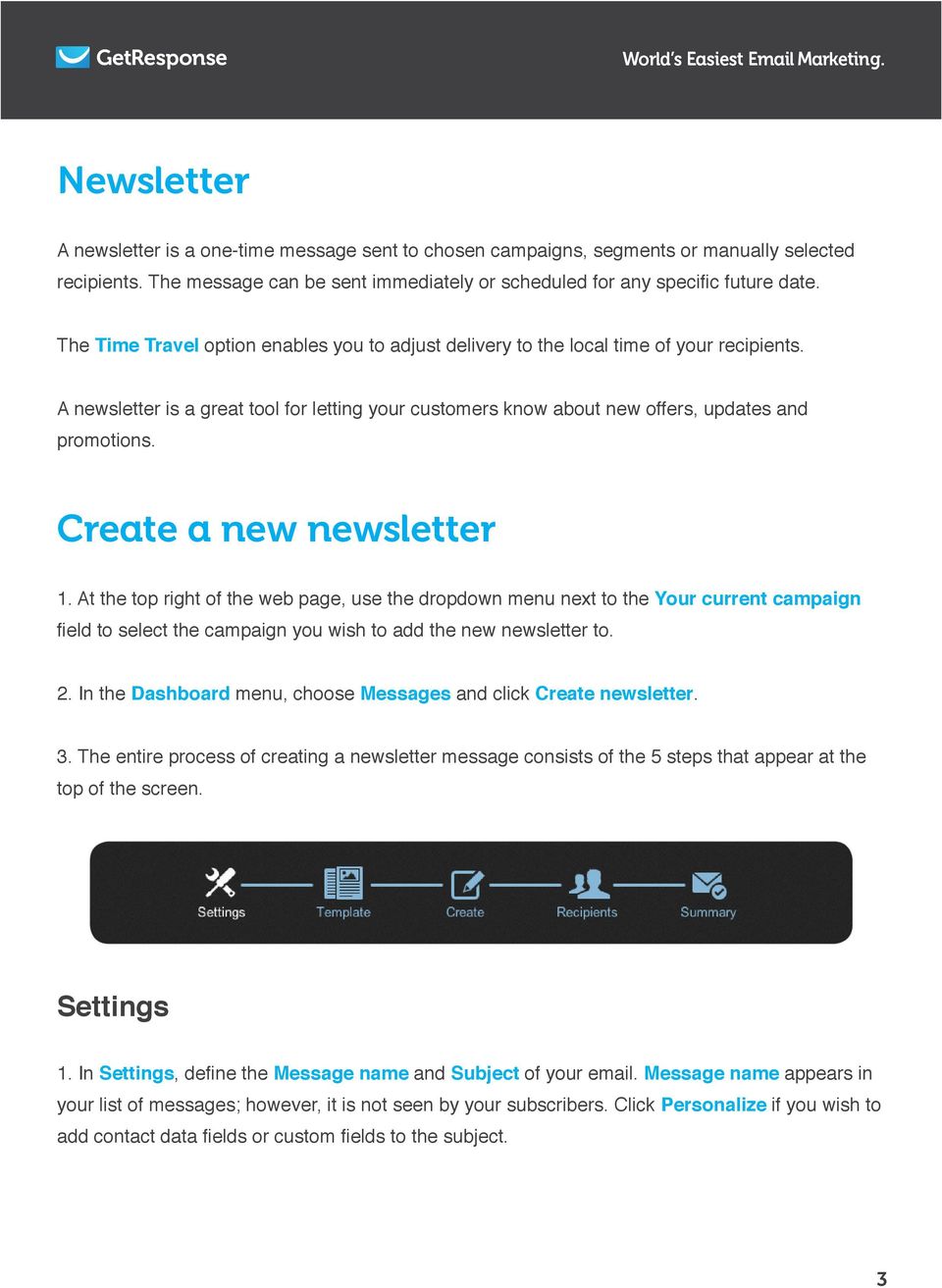
3 Newsletter A newsletter is a one-time message sent to chosen campaigns, segments or manually selected The Time Travel option enables you to adjust delivery to the local time of your recipients. A newsletter is a great tool for letting your customers know about new offers, updates and promotions. Create a new newsletter 1. At the top right of the web page, use the dropdown menu next to the Your current campaign 2. In the Dashboard menu, choose Messages and click Create newsletter. 3. The entire process of creating a newsletter message consists of the 5 steps that appear at the top of the screen. Settings 1. In Settings Message name and Subject of your . Message name appears in your list of messages; however, it is not seen by your subscribers. Click Personalize if you wish to 3
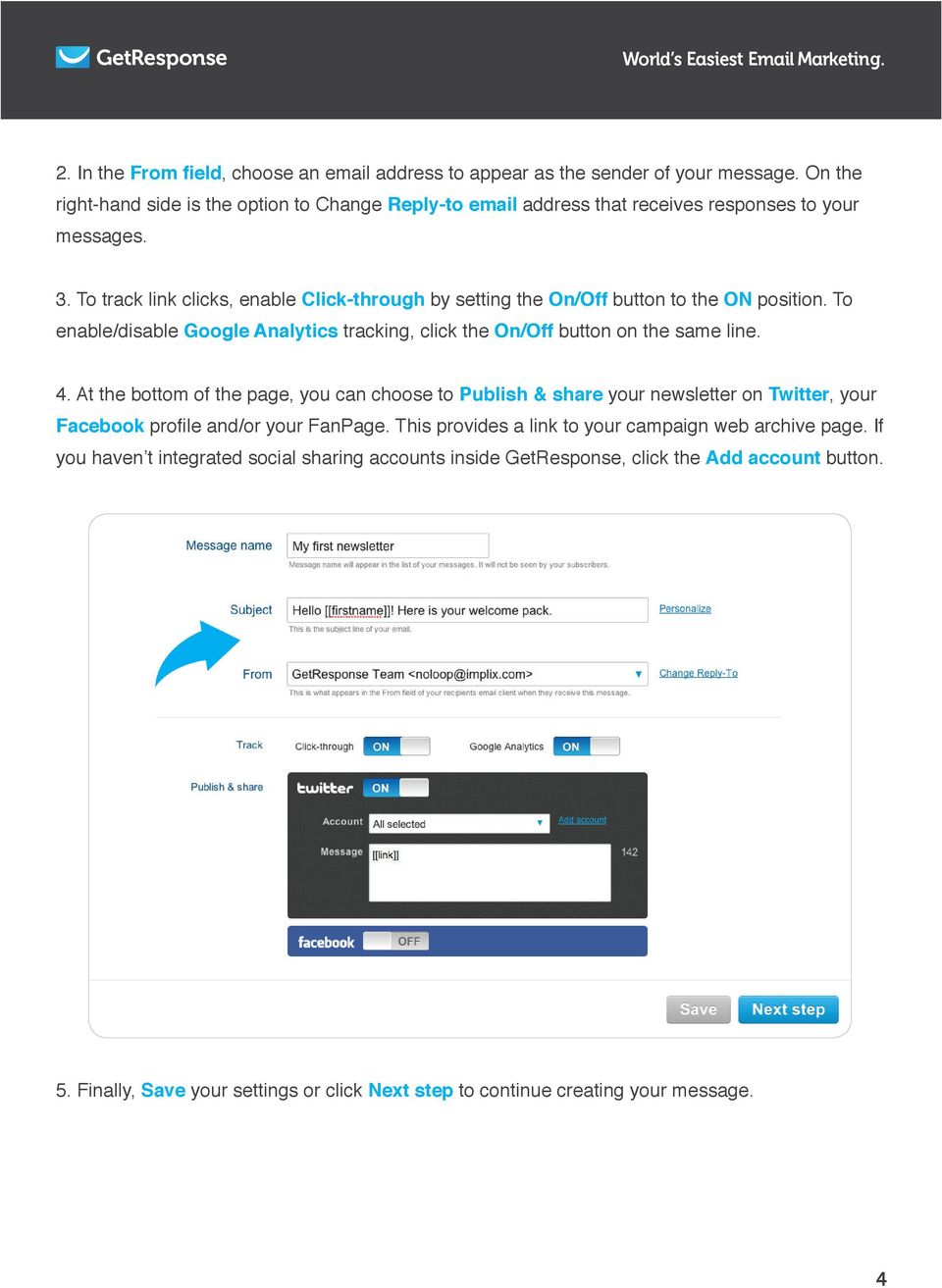
4 2. In the, choose an address to appear as the sender of your message. On the right-hand side is the option to Change Reply-to address that receives responses to your messages. 3. To track link clicks, enable Click-through by setting the On/Off button to the ON position. To enable/disable Google Analytics tracking, click the On/Off button on the same line. 4. At the bottom of the page, you can choose to Publish & share your newsletter on Twitter, your Facebook Add account button. Save your settings or click Next step to continue creating your message. 4
5 Template 1. Choose from hundreds of templates to get you started fast and give your messages a more professional appearance. Templates are organized by industry categories. Most templates have alternate color versions, shown with dots of color below the template image. Click any template to load it into the editor. Optionally, click the Star icon to add the template to Favorites or click the Eye icon 2. To start with a blank template, click Start from scratch and choose the layout that suits you best. 3. To use a previously imported or saved template, click My templates. 4. In the Favorites folder are the templates you have starred. 5. The Import option gives you three ways you to add your own template: paste HTML code, upload a ZIP URL. 6. To create your message in text-only (without HTML elements) click Plain text to go straight to the text editor. Note: With plain text messages, it is not possible to track the open rate. On the right-hand side of the plain text editor are options to add Personalize Wrap long lines. At the bottom of the screen are buttons to add Attachments (max. 400 kb), send a Test message or save it as a Draft or Template Next step. 7. Choose HTML code editor if you feel comfortable writing your message from scratch in HTML. Click Next step to go to the Create step. 5

6 Create 1. When you choose a template, it appears in the message editor. On the right-hand side, choose one of the basic blocks to add to the message. They are titled: header, text block, image block, image&text block, text&image block, horizontal ruler and button. Click any block to drag-and-drop it or double click to add it to the template. Note images. the landscape and portrait views. 2. To edit any block in the message, hover the mouse cursor on it to make the following function buttons appear: A Drag-and-drop the block to another place in the message 6
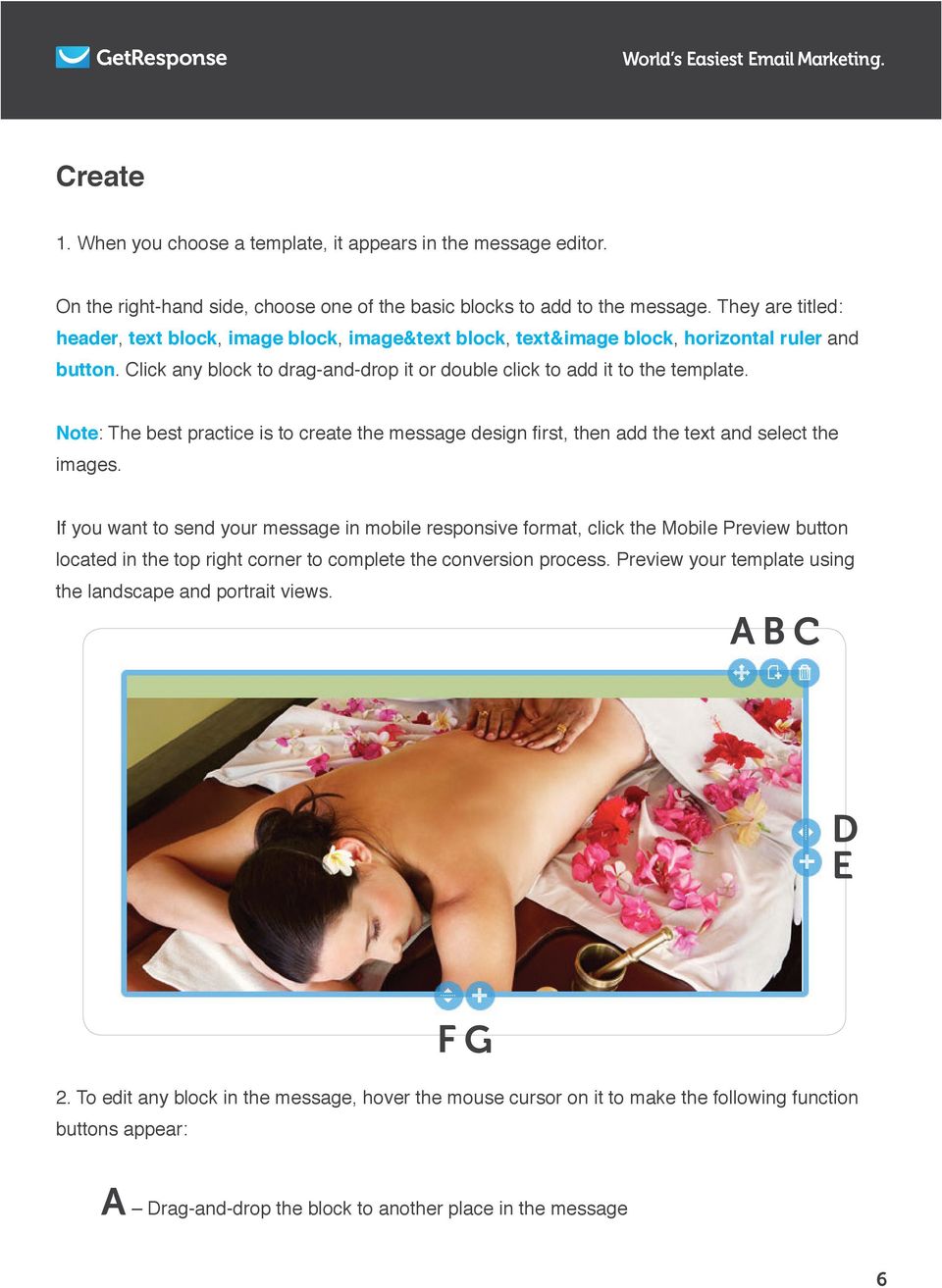
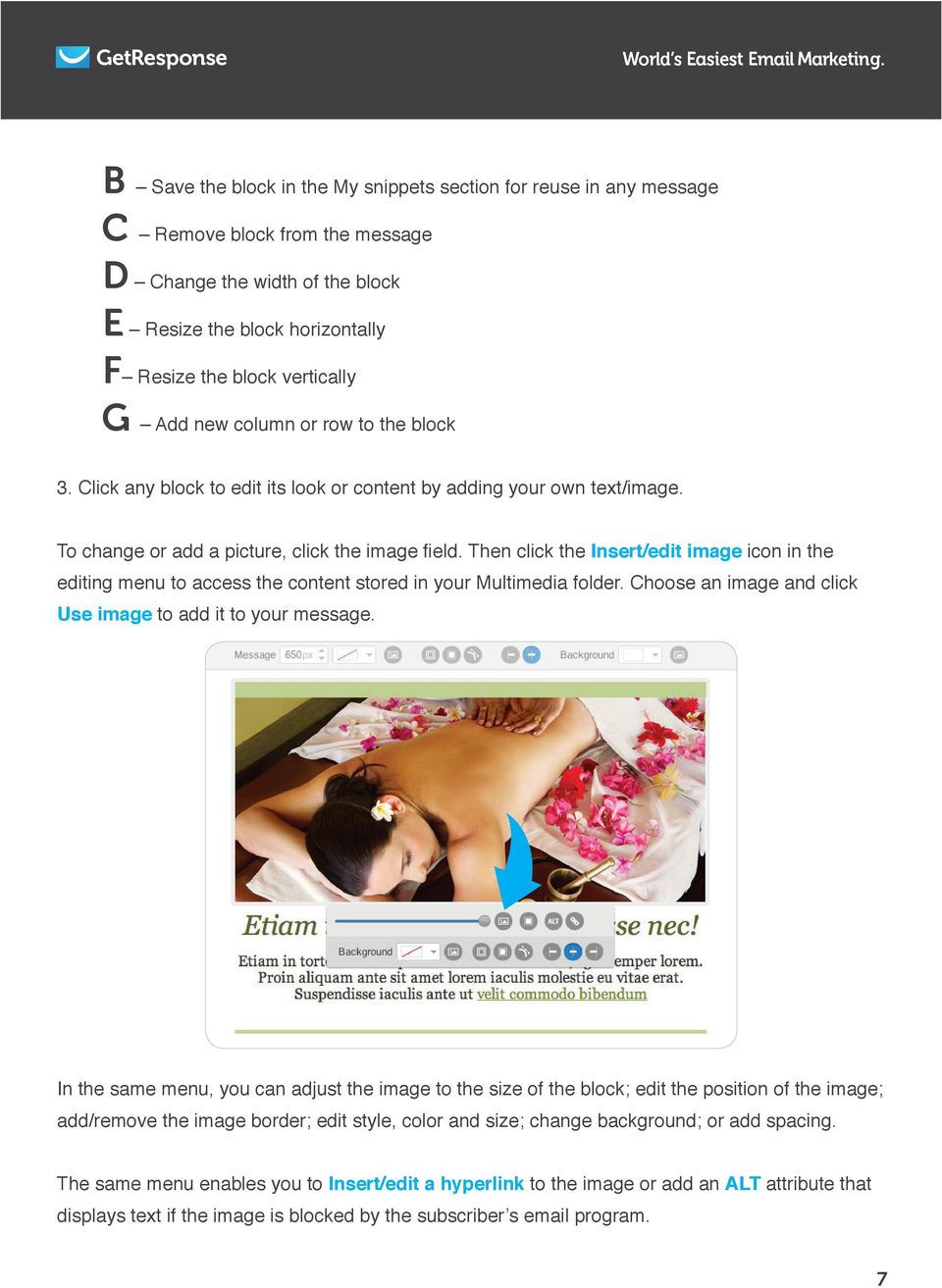
7 B Save the block in the My snippets section for reuse in any message C Remove block from the message D Change the width of the block E Resize the block horizontally F Resize the block vertically G Add new column or row to the block 3. Click any block to edit its look or content by adding your own text/image. Insert/edit image icon in the editing menu to access the content stored in your Multimedia folder. Choose an image and click Use image to add it to your message. In the same menu, you can adjust the image to the size of the block; edit the position of the image; add/remove the image border; edit style, color and size; change background; or add spacing. The same menu enables you to Insert/edit a hyperlink to the image or add an ALT attribute that 7
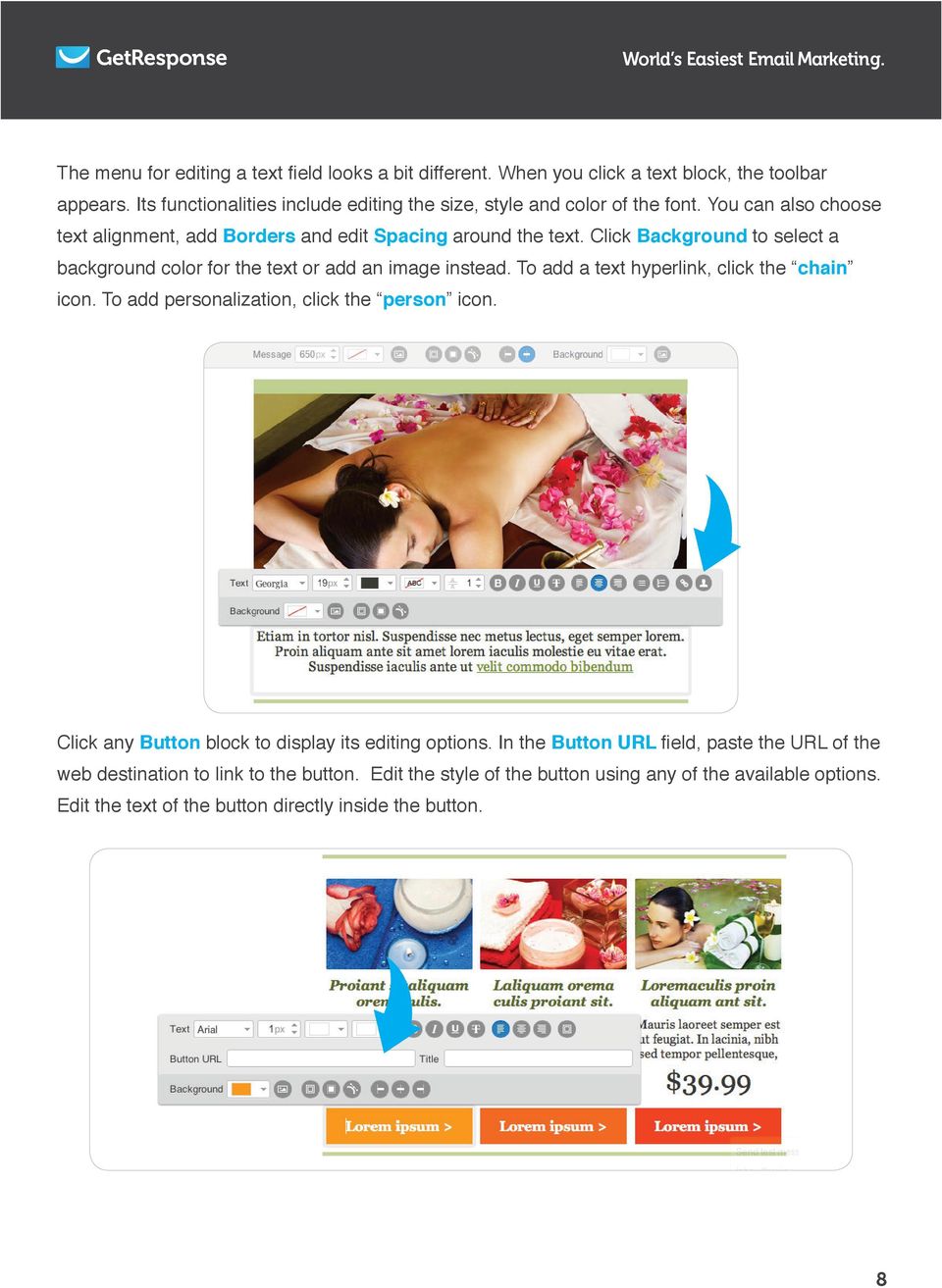
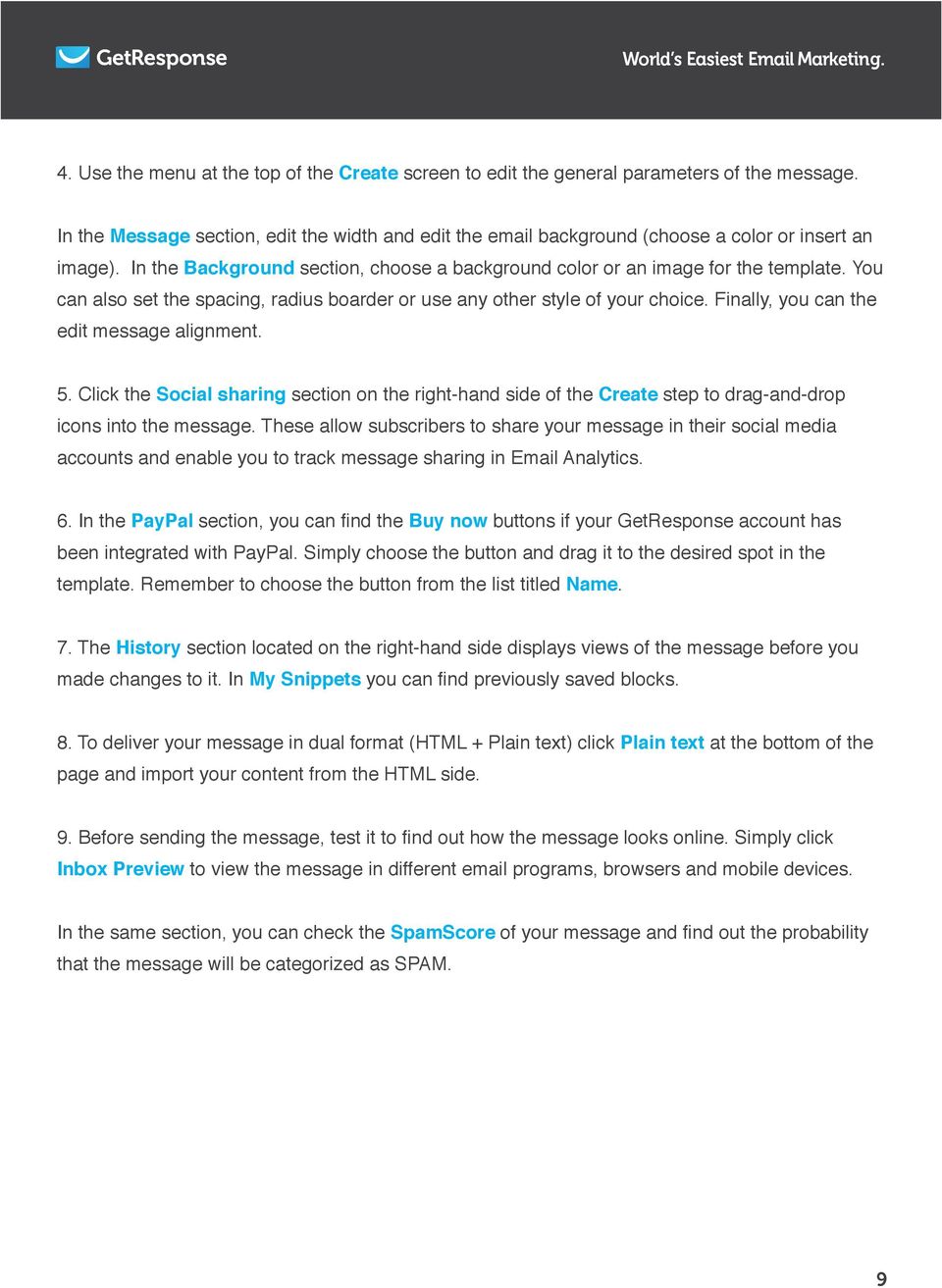
8 World s Easiest Marketing. appears. Its functionalities include editing the size, style and color of the font. You can also choose text alignment, add Borders and edit Spacing around the text. Click Background to select a background color for the text or add an image instead. To add a text hyperlink, click the chain icon. To add personalization, click the person icon. Click any Button block to display its editing options. In the Button URL web destination to link to the button. Edit the style of the button using any of the available options. Edit the text of the button directly inside the button. 8
9 Create screen to edit the general parameters of the message. In the Message section, edit the width and edit the background (choose a color or insert an image). In the Background section, choose a background color or an image for the template. You edit message alignment. 5. Click the Social sharing section on the right-hand side of the Create step to drag-and-drop icons into the message. These allow subscribers to share your message in their social media accounts and enable you to track message sharing in Analytics. 6. In the PayPal Buy now template. Remember to choose the button from the list titled Name. 7. The History section located on the right-hand side displays views of the message before you made changes to it. In My Snippets Plain text at the bottom of the page and import your content from the HTML side. Inbox Preview to view the message in different programs, browsers and mobile devices. In the same section, you can check the SpamScore 9
10 World s Easiest Marketing. 10. To save the message, click Save as and choose its destination. Next step. Recipients or more campaign contact lists. If you have segmented your contacts into groups, you can select groups you would like to include. Note: To segment contacts, go to the Contacts menu and click Search contacts can select the parameters. 2. Next, choose the recipients you would like to exclude when this message is sent. You can exclude contacts that belong to one or more campaigns and contacts that belong to one or more segments. You can also exclude any suppression lists that you have created in Contacts >> Suppression lists. 10

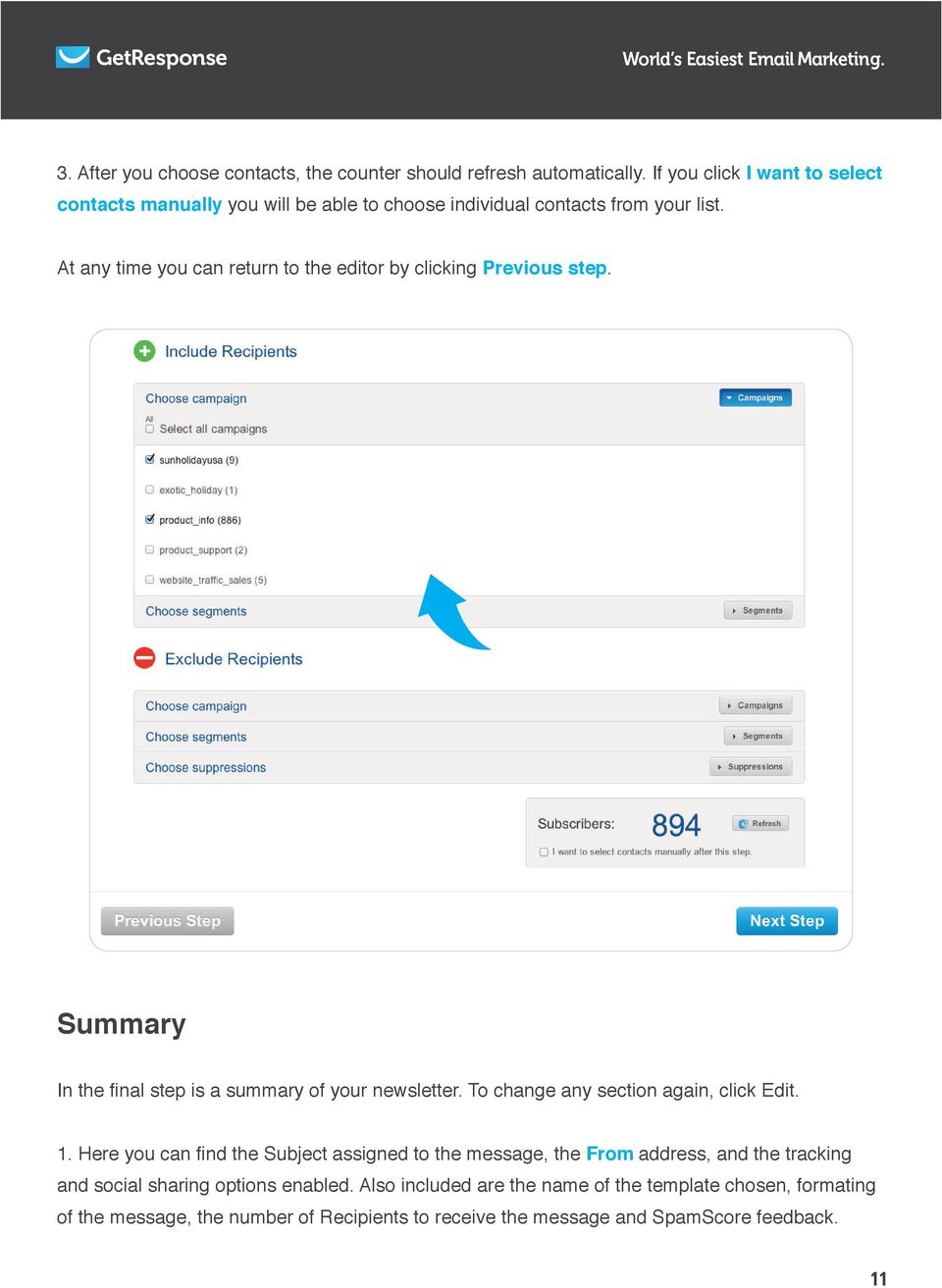
11 3. After you choose contacts, the counter should refresh automatically. If you click I want to select contacts manually you will be able to choose individual contacts from your list. At any time you can return to the editor by clicking Previous step. Summary From address, and the tracking and social sharing options enabled. Also included are the name of the template chosen, formating of the message, the number of Recipients to receive the message and SpamScore feedback. 11
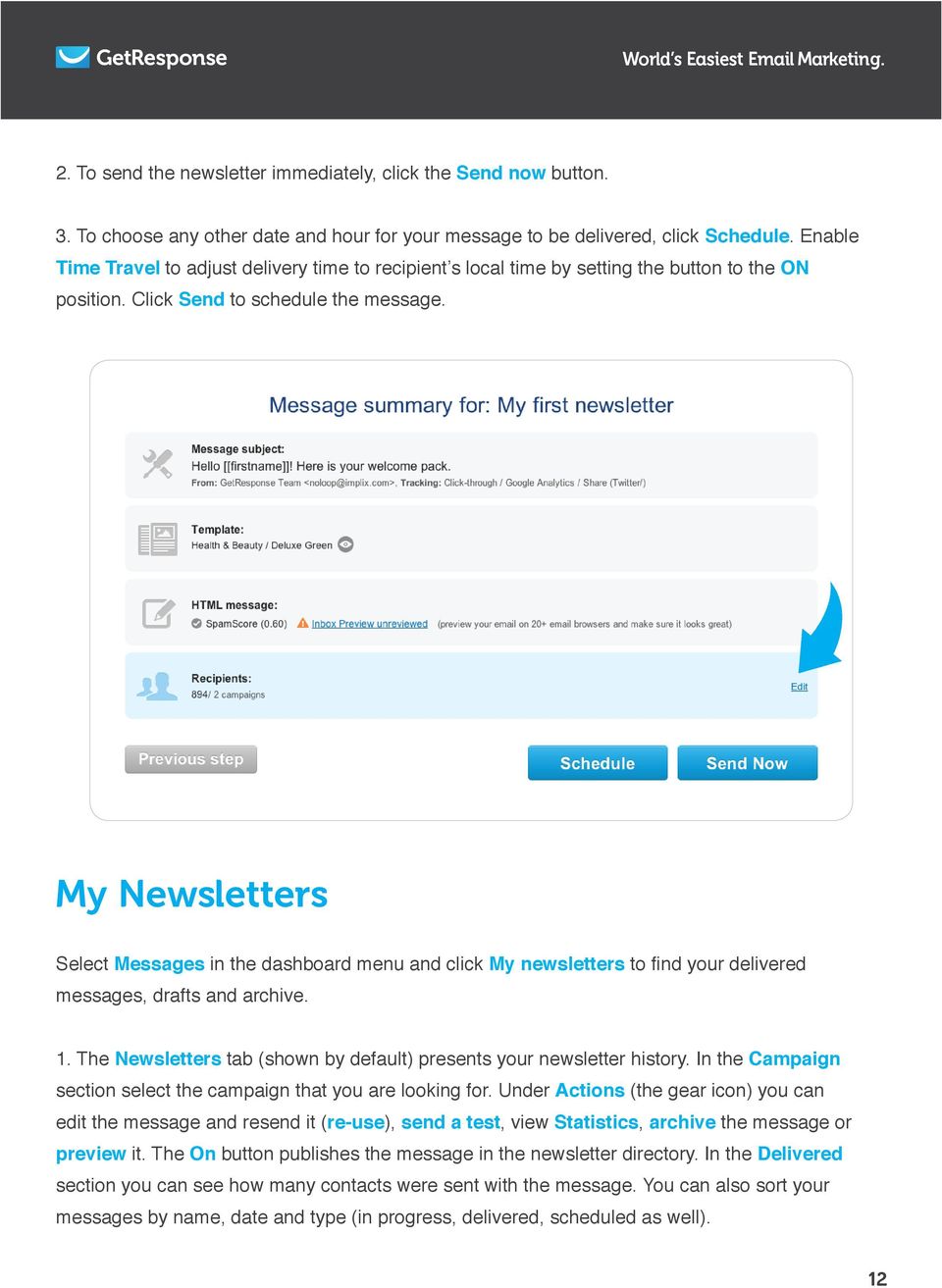
12 2. To send the newsletter immediately, click the Send now button. 3. To choose any other date and hour for your message to be delivered, click Schedule. Enable Time Travel ON position. Click Send to schedule the message. My Newsletters Select Messages in the dashboard menu and click My newsletters messages, drafts and archive. 1. The Newsletters tab (shown by default) presents your newsletter history. In the Campaign Actions (the gear icon) you can edit the message and resend it (re-use), send a test, view Statistics, archive the message or preview it. The On button publishes the message in the newsletter directory. In the Delivered section you can see how many contacts were sent with the message. You can also sort your messages by name, date and type (in progress, delivered, scheduled as well). 12
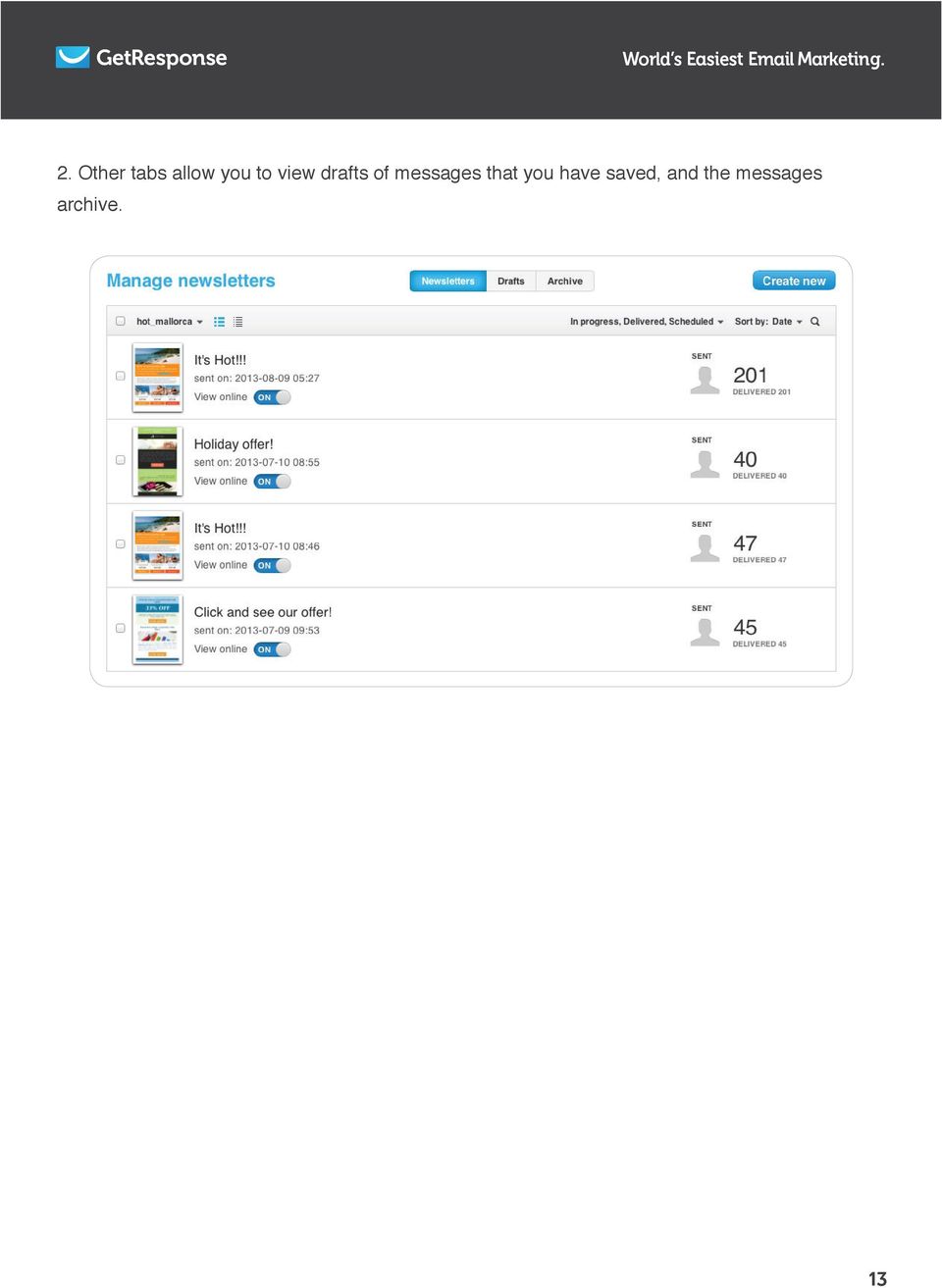
13 2. Other tabs allow you to view drafts of messages that you have saved, and the messages archive. 13
A quick guide to... Creating Newsletters
 A quick guide to... Creating Newsletters In this guide... Learn how to create attractive, well-designed HTML and plain-text messages to engage your contacts, meet their expectations and match their preferences.
A quick guide to... Creating Autoresponders
 A quick guide to... Creating Autoresponders In this guide... Learn how the GetResponse autoresponder puts your follow-up messages on autopilot with drip campaigns, welcome messages and more! Table of Contents
Creating Newsletter Messages
 A quick guide to... Creating Newsletter Messages In this guide... Learn how to create attractive and well-designed plain or HTML messages that will engage your contacts and meet their expectations and
A quick guide to. Social Media
 A quick guide to Social Media In this guide... Learn how to integrate your email marketing with social media to get the most out of online buzz! Use Twitter and Facebook integrations to enable readers
To change title of module, click on settings
 HTML Module: The most widely used module on the websites. This module is very flexible and is used for inserting text, images, tables, hyperlinks, document downloads, and HTML code. Hover the cursor over
Creating an Email with Constant Contact. A step-by-step guide
 Creating an Email with Constant Contact A step-by-step guide About this Manual Once your Constant Contact account is established, use this manual as a guide to help you create your email campaign Here
Creating an Email with Constant Contact. A step-by-step guide
 Creating an Email with Constant Contact A step-by-step guide About this Manual Once your Constant Contact account is established, use this manual as a guide to help you create your email campaign Here
A quick guide to... Managing Multimedia
 A quick guide to... Managing Multimedia In this guide... Learn how the GetResponse Multimedia Studio lets you record, upload and store up to 1GB of audio and video files, photos and documents right from
Ingeniux 8 CMS Web Management System ICIT Technology Training and Advancement ([email protected])
 Ingeniux 8 CMS Web Management System ICIT Technology Training and Advancement ([email protected]) Updated on 10/17/2014 Table of Contents About... 4 Who Can Use It... 4 Log into Ingeniux... 4 Using Ingeniux
Mail Chimp Basics. Glossary
 Mail Chimp Basics Mail Chimp is a web-based application that allows you to create newsletters and send them to others via email. While there are higher-level versions of Mail Chimp, the basic application
A quick guide to... Creating Custom Web Forms
 A quick guide to... Creating Custom Web Forms In this guide... Learn how to create well-designed web forms in seconds. Pick your favorite template then color and shape every aspect of your form until you
introduction to emarketing
 introduction to emarketing emarketing is typically used for promotional campaigns for attendee generation and for attendee communication. It works closely with ereg which also includes email capabilities
A quick guide to... Social Media
 A quick guide to... Social Media In this guide... Learn how to integrate your email marketing with social media to get the most out of online buzz! Use Twitter and Facebook integrations to enable readers
Mastering the JangoMail EditLive HTML Editor
 JangoMail Tutorial Mastering the JangoMail EditLive HTML Editor With JangoMail, you have the option to use our built-in WYSIWYG HTML Editors to compose and send your message. Note: Please disable any pop
How To Avoid Spam On Mailchimp
 Welcome to MailChimp. Email doesn't need to be overwhelming. This guide will help you get your first campaign off the ground. We ll also offer tips for managing your list, viewing your reports, and making
How to Edit an Email. Here are some of the things you can do to customize your email:
 How to Edit an Email Editing a new email created during the Create an Email wizard or editing an existing email in the Edit Email section of the Manage Emails tab is easy, using editing tools you re probably
Recreate your Newsletter Content and Layout within Informz (Workshop) Monica Capogna and Dan Reade. Exercise: Creating two types of Story Layouts
 Recreate your Newsletter Content and Layout within Informz (Workshop) Monica Capogna and Dan Reade Exercise: Creating two types of Story Layouts 1. Creating a basic story layout (with title and content)
Sage Accountants Business Cloud EasyEditor Quick Start Guide
 Sage Accountants Business Cloud EasyEditor Quick Start Guide VERSION 1.0 September 2013 Contents Introduction 3 Overview of the interface 4 Working with elements 6 Adding and moving elements 7 Resizing
Working with the new enudge responsive email styles
 Working with the new enudge responsive email styles This tutorial assumes that you have added one of the mobile responsive colour styles to your email campaign contents. To add an enudge email style to
Joomla Article Advanced Topics: Table Layouts
 Joomla Article Advanced Topics: Table Layouts An HTML Table allows you to arrange data text, images, links, etc., into rows and columns of cells. If you are familiar with spreadsheets, you will understand
Umbraco Content Management System (CMS) User Guide
 Umbraco Content Management System (CMS) User Guide Content & media At the bottom-left of the screen you ll see 2 main sections of the CMS Content and Media. Content is the section that displays by default
Digital Marketing EasyEditor Guide Dynamic
 Surveys ipad Segmentation Reporting Email Sign up Email marketing that works for you Landing Pages Results Digital Marketing EasyEditor Guide Dynamic Questionnaires QR Codes SMS 43 North View, Westbury
EMAIL CAMPAIGNS...5 LIST BUILDER FORMS...
 Basic User Guide Table of Contents INTRODUCTION...1 CAMPAIGNER FEATURES...1 WHO SHOULD READ THIS GUIDE?...1 GETTING STARTED...2 LOGGING IN TO CAMPAIGNER...2 DASHBOARD...3 Modify Your Dashboard...4 EMAIL
Wellesley College Alumnae Association. Volunteer Instructions for Email Template
 Volunteer Instructions for Email Template Instructions: Sending an Email in Harris 1. Log into Harris, using your username and password If you do not remember your username/password, please call 781.283.2331
Course Exercises for the Content Management System. Grazyna Whalley, Laurence Cornford June 2014 AP-CMS2.0. University of Sheffield
 Course Exercises for the Content Management System. Grazyna Whalley, Laurence Cornford June 2014 AP-CMS2.0 University of Sheffield PART 1 1.1 Getting Started 1. Log on to the computer with your usual username
Creating a Newsletter with Microsoft Word
 Creating a Newsletter with Microsoft Word Frank Schneemann In this assignment we are going to use Microsoft Word to create a newsletter that can be used in your classroom instruction. If you already know
Sending Email on Blue Hornet
 Sending Email on Blue Hornet STEP 1 Gathering Your Data A. For existing data from Advance or Outlook, pull email address, first name, last name, and any other variable data you would like to use in the
emarketing Manual- Creating a New Email
 emarketing Manual- Creating a New Email Create a new email: You can create a new email by clicking the button labeled Create New Email located at the top of the main page. Once you click this button, a
Introducing our new Editor: Email Creator
 Introducing our new Editor: Email Creator To view a section click on any header below: Creating a Newsletter... 3 Create From Templates... 4 Use Current Templates... 6 Import from File... 7 Import via
World s Easiest Email Marketing. A quick guide to. A/B Tests. A quick guide to - A/B Tests
 A quick guide to A/B Tests 1 In this guide In this guide you ll learn how to use A/B Testing on key elements of your newsletter to maximize conversion rates. Table of Contents Creating A/B Tests Types
How to Use Swiftpage for Microsoft Outlook
 How to Use Swiftpage for Microsoft Outlook 1 Table of Contents Basics of the Swiftpage for Microsoft Outlook Integration.. 3 How to Install Swiftpage for Microsoft Outlook and Set Up Your Account...4 The
Quick Reference Guide
 Simplified Web Interface for Teachers Quick Reference Guide Online Development Center Site Profile 5 These fields will be pre-populated with your information { 1 2 3 4 Key 1) Website Title: Enter the name
WEBSITE CONTENT MANAGEMENT SYSTEM USER MANUAL CMS Version 2.0 CMS Manual Version 1.0 2-25-13
 WEBSITE CONTENT MANAGEMENT SYSTEM USER MANUAL CMS Version 2.0 CMS Manual Version 1.0 2-25-13 CONTENTS Things to Remember... 2 Browser Requirements... 2 Why Some Areas of Your Website May Not Be CMS Enabled...
On the Email Marketing home page, click the arrow to expand the Admin Tools area. Admin Tools
 Email Marketing How-To Document November 2010 Email Marketing Admin Tools On the Email Marketing home page, click the arrow to expand the Admin Tools area. Admin Tools Global Email Settings Design Templates
Navigate to http://www.weebly.com/
 Navigate to http://www.weebly.com/ If you have a Weebly page, click on the Log In button If you are new to Weebly, Fill in your Full Name, Email, and Password Click on Sign Up, It s Free! Key in a title
Joomla! 2.5.x Training Manual
 Joomla! 2.5.x Training Manual Joomla is an online content management system that keeps track of all content on your website including text, images, links, and documents. This manual includes several tutorials
CONTENTM WEBSITE MANAGEMENT SYSTEM. Getting Started Guide
 CONTENTM WEBSITE MANAGEMENT SYSTEM Getting Started Guide Table of Contents CONTENTM WEBSITE MANAGEMENT SYSTEM... 1 GETTING TO KNOW YOUR SITE...5 PAGE STRUCTURE...5 Templates...5 Menus...5 Content Areas...5
Create Emails using imodules
 1 Create Emails using imodules imodules is an application currently used in a number of areas: alumni online directory, email marketing, event registration, and online fundraising campaigns. It is web-based,
How to Use Swiftpage for SageCRM
 How to Use Swiftpage for SageCRM 1 Table of Contents Basics of the Swiftpage for SageCRM Integration 3 How to Install Swiftpage for SageCRM and Set Up Your Account...4 Accessing Swiftpage s Online Editor
A quick guide to... Getting Started
 A quick guide to... Getting Started In this guide... Learn how to build your list, create engaging email messages, and convert contacts into customers, using industry-leading GetResponse features. Table
How to Use Swiftpage for Microsoft Excel
 How to Use Swiftpage for Microsoft Excel 1 Table of Contents Basics of the Swiftpage for Microsoft Excel Integration....3 How to Install Swiftpage for Microsoft Excel and Set Up Your Account...4 Creating
Welcome to MailChimp.
 Welcome to MailChimp. MailChimp is a powerful, easy way to send email newsletters. This guide will help you get your first campaign off the ground. We ll also offer tips for managing your list, viewing
Create a Google Site in DonsApp
 Create a Google Site in DonsApp 1 Google Web Site Interactive. Constructivist. Collaborative. Communities. WHAT IS GOOGLE SITE? With one single click, you can create a website without any knowledge of
USER GUIDE. Unit 2: Synergy. Chapter 2: Using Schoolwires Synergy
 USER GUIDE Unit 2: Synergy Chapter 2: Using Schoolwires Synergy Schoolwires Synergy & Assist Version 2.0 TABLE OF CONTENTS Introductions... 1 Audience... 1 Objectives... 1 Before You Begin... 1 Getting
VF-Blaster 2.0 VisionFriendly.com 630-553-0000
 VisionFriendly.com 630-553-0000 Table of Contents Subject Page Quick Start Guide 2 8 Easy Steps to Send Out a VF-Blaster 2.0 Email Campaign 2 Upload a List 4 Upload a List 4 Map File Fields to List Fields
A quick guide to... Setting Up Your Campaigns
 A quick guide to... Setting Up Your Campaigns In this guide... Learn how to create a GetResponse email marketing campaign and manage all the built-in options designed to maximize the effectiveness of you
Google Docs Basics Website: http://etc.usf.edu/te/
 Website: http://etc.usf.edu/te/ Google Docs is a free web-based office suite that allows you to store documents online so you can access them from any computer with an internet connection. With Google
SimplyCast emarketing Email User Guide
 SimplyCast emarketing Email User Guide Email User Guide Page 1 Contents 1. Email Overview... 3 2. Features Overview... 3 3. Email Editor Features... 8 4. How to Create an Email Campaign?... 5 5. Additional
Where do I start? DIGICATION E-PORTFOLIO HELP GUIDE. Log in to Digication
 You will be directed to the "Portfolio Settings! page. On this page you will fill out basic DIGICATION E-PORTFOLIO HELP GUIDE Where do I start? Log in to Digication Go to your school!s Digication login
Converting Prospects to Purchasers.
 Email Template Guide LASSO EMAIL TEMPLATE EDITOR... 2 ABOUT LASSO EMAIL TEMPLATE EDITOR... 2 CREATING AN EMAIL TEMPLATE... 2 ACCESSING EMAIL TEMPLATES... 2 ADDING AN EMAIL TEMPLATE FOLDER... 3 BASIC PRINCIPLES
Sample Table. Columns. Column 1 Column 2 Column 3 Row 1 Cell 1 Cell 2 Cell 3 Row 2 Cell 4 Cell 5 Cell 6 Row 3 Cell 7 Cell 8 Cell 9.
 Working with Tables in Microsoft Word The purpose of this document is to lead you through the steps of creating, editing and deleting tables and parts of tables. This document follows a tutorial format
A quick guide to... Effective HTML Messages
 A quick guide to... Effective HTML Messages In this guide... Learn easy and effective ways to engage your subscribers, increase your click-through ratio (CTR), and get better results from your email marketing.
OU Campus Web Content Management
 DRAFT DRAFT DRAFT DRAFT DRAFT DRAFT DRAFT DRAFT DRAFT DRAFT DRAFT DRAFT DRAFT DRAFT DRAFT DRAFT DRAFT OU Campus Web Content Management Table of Contents OU Campus Web Content Management... 1 Introduction
Website Editor User Guide
 CONTENTS Minimum System Requirements... 3 Design Your Website... 3 Choosing your Theme... 4 Choosing your Header Style... 4-5 Website Content Editor... 6 Text Editor Toolbar features... 6 Main Menu Items...
Web Portal User Guide. Version 6.0
 Web Portal User Guide Version 6.0 2013 Pitney Bowes Software Inc. All rights reserved. This document may contain confidential and proprietary information belonging to Pitney Bowes Inc. and/or its subsidiaries
Terminal Four (T4) Site Manager
 Terminal Four (T4) Site Manager Contents Terminal Four (T4) Site Manager... 1 Contents... 1 Login... 2 The Toolbar... 3 An example of a University of Exeter page... 5 Add a section... 6 Add content to
Starting User Guide 11/29/2011
 Table of Content Starting User Guide... 1 Register... 2 Create a new site... 3 Using a Template... 3 From a RSS feed... 5 From Scratch... 5 Edit a site... 6 In a few words... 6 In details... 6 Components
ClubWise Campaign Manager Cheat Sheet 2010-13 COPYRIGHT ALL RIGHTS RESERVED. Page 1
 Campaign Manager Cheat Sheet 2010-13 COPYRIGHT ALL RIGHTS RESERVED Page 1 Thank you for downloading the ClubWise Campaign Manager Cheat Sheet. This document is a quick reference guide to all the features
Mura CMS. (Content Management System) Content Manager Guide
 Mura CMS (Content Management System) Content Manager Guide Table of Contents Table of Contents 1. LOGGING IN...1 2. SITE MANAGER...2 3. ADDING CONTENT (Pages, Folders, etc.)...6 4. WORKING WITH IMAGES...15
Table of Contents. What is ProSite? What is Behance? How do ProSite & Behance work together? Get Started in 6 Easy Steps.
 The Beginners Guide Table of Contents 03 04 05 06 34 35 What is ProSite? What is Behance? How do ProSite & Behance work together? Get Started in 6 Easy Steps See Live Examples Need More Help? What is ProSite?
GUIDE TO EMAIL MARKETING
 GUIDE TO EMAIL MARKETING Using e-mail marketing to communicate with your customers and promote your business 2 April 2012 Version 1.0 Contents Contents 2 Introduction 3 Skill Level 3 Terminology 3 Video
How To Create A Campaign On Facebook.Com
 Seriously powerful email marketing, made easy Table of Contents DOTMAILER QUICK START GUIDE... 3 Main Screen... 4 Getting Started... 6 STEP 1: CAMPAIGN SETTINGS... 7 STEP 2: CAMPAIGN CONTENT... 8 Editing
Using Adobe Dreamweaver CS4 (10.0)
 Getting Started Before you begin create a folder on your desktop called DreamweaverTraining This is where you will save your pages. Inside of the DreamweaverTraining folder, create another folder called
Create a Poster Using Publisher
 Contents 1. Introduction 1. Starting Publisher 2. Create a Poster Template 5. Aligning your images and text 7. Apply a background 12. Add text to your poster 14. Add pictures to your poster 17. Add graphs
Introduction to Drupal
 Introduction to Drupal Login 2 Create a Page 2 Title 2 Body 2 Editor 2 Menu Settings 5 Attached Images 5 Authoring Information 6 Revision Information 6 Publishing Options 6 File Attachments 6 URL Path
ADOBE DREAMWEAVER CS3 TUTORIAL
 ADOBE DREAMWEAVER CS3 TUTORIAL 1 TABLE OF CONTENTS I. GETTING S TARTED... 2 II. CREATING A WEBPAGE... 2 III. DESIGN AND LAYOUT... 3 IV. INSERTING AND USING TABLES... 4 A. WHY USE TABLES... 4 B. HOW TO
Content Builder: How-To Guide
 Content Builder: How-To Guide In-Line Editing Several of the components have in-line editing where you can format the text and include hyperlinks. To access the in-line editing, click the pencil button
Vodafone Business Product Management Group. Hosted Services Announcer Pro V4.6 User Guide
 Vodafone Business Product Management Group Hosted Services Announcer Pro V4.6 User Guide Vodafone Group 2010 Other than as permitted by law, no part of this document may be reproduced, adapted, or distributed,
WYSIWYG Editor in Detail
 WYSIWYG Editor in Detail 1. Print prints contents of the Content window 2. Find And Replace opens the Find and Replace dialogue box 3. Cut removes selected content to clipboard (requires a selection) 4.
Login: https://ipfw.edu/c Quick Guide for dotcms & Accessibility November 2014 Training: http://ipfw.edu/training
 dotcms & Accessibility Folders Creating a New Folder Note: All folders showing on menu must have an index page. 1. Right-click the parent folder in which the new folder will reside. 2. Click New > Folder.
http://docs.oracle.com Oracle Eloqua Emails User Guide
 http://docs.oracle.com Oracle Eloqua Emails User Guide 2015 Oracle Corporation. All rights reserved 08/10/2015 Contents 1 Emails Overview 4 2 Examples of Emails 7 3 Email groups 19 3.0.1 Examples of using
Microsoft Word 2010 Prepared by Computing Services at the Eastman School of Music July 2010
 Microsoft Word 2010 Prepared by Computing Services at the Eastman School of Music July 2010 Contents Microsoft Office Interface... 4 File Ribbon Tab... 5 Microsoft Office Quick Access Toolbar... 6 Appearance
EBOX Digital Content Management System (CMS) User Guide For Site Owners & Administrators
 EBOX Digital Content Management System (CMS) User Guide For Site Owners & Administrators Version 1.0 Last Updated on 15 th October 2011 Table of Contents Introduction... 3 File Manager... 5 Site Log...
Training Manual Version 1.0
 State of Indiana Content Management System Open Text v.11.2 Training Manual Version 1.0 Developed by Table of Contents 1. Getting Started... 4 1.1 Logging In... 4 1.2 OpenText Menu...5 1.3 Selecting a
HOW TO: INSERT A JPEG IN AN EMAIL.
 HOW TO: INSERT A JPEG IN AN EMAIL. Have you been wanting to use marketing materials from Legal & General America but don t know how? Here s the answer. WHAT? Email is one of the fastest ways to send promotional
MICROSOFT OUTLOOK 2010 READ, ORGANIZE, SEND AND RESPONSE E-MAILS
 MICROSOFT OUTLOOK 2010 READ, ORGANIZE, SEND AND RESPONSE E-MAILS Last Edited: 2012-07-09 1 Read Emails... 4 Find the inbox... 4 Change new incoming e-mail notification options... 5 Read email... 6 Change
Website Creation Service: User s Guide
 Service: User s Guide 1 Table of Contents 1) Connecting to Your Online Interface 2) Start Creating Your Website 3) Managing Website Pages 4) Managing Website Content 5) Integrating Widgets and Other Content
Creating Personal Web Sites Using SharePoint Designer 2007
 Creating Personal Web Sites Using SharePoint Designer 2007 Faculty Workshop May 12 th & 13 th, 2009 Overview Create Pictures Home Page: INDEX.htm Other Pages Links from Home Page to Other Pages Prepare
AWeber. Tutorial ebook
 AWeber Tutorial ebook Page 1 Table of Contents Copyright Notices 3 Legal Notices 3 Reach more customers, faster with AWeber Autoresponder 4 Features 4 Benefits 4 Getting Started With AWeber E-mail Marketing
CMS Training Manual. A brief overview of your website s content management system (CMS) with screenshots. CMS Manual
 Training A brief overview of your website s content management system () with screenshots. 1 Contents Logging In:...3 Dashboard:...4 Page List / Search Filter:...5 Common Icons:...6 Adding a New Page:...7
Instructions for Formatting APA Style Papers in Microsoft Word 2010
 Instructions for Formatting APA Style Papers in Microsoft Word 2010 To begin a Microsoft Word 2010 project, click on the Start bar in the lower left corner of the screen. Select All Programs and then find
Chapter 14: Links. Types of Links. 1 Chapter 14: Links
 1 Unlike a word processor, the pages that you create for a website do not really have any order. You can create as many pages as you like, in any order that you like. The way your website is arranged and
Dynamics CRM for Outlook Basics
 Dynamics CRM for Outlook Basics Microsoft Dynamics CRM April, 2015 Contents Welcome to the CRM for Outlook Basics guide... 1 Meet CRM for Outlook.... 2 A new, but comfortably familiar face................................................................
MailChimp Instruction Manual
 MailChimp Instruction Manual Spike HQ This manual contains instructions on how to set up a new email campaign, add and remove contacts and view statistics on completed email campaigns from within MailChimp.
HTML Email Power Tips. HTML messages improve your CTR. World s Easiest Email Marketing.
 A quick guide to Learn easy and effective ways to engage your subscribers, increase your click-through ratio (CTR), and get better results from your email marketing. HTML Email Power Tips Be readable get
UW WEB CONTENT MANAGEMENT SYSTEM (CASCADE SERVER)
 UW WEB CONTENT MANAGEMENT SYSTEM (CASCADE SERVER) LEVEL 1 Information Technology Presented By: UW Institutional Marketing and IT Client Support Services University of Wyoming UW CONTENT MANAGEMENT SYSTEM
Creating and Managing Online Surveys LEVEL 2
 Creating and Managing Online Surveys LEVEL 2 Accessing your online survey account 1. If you are logged into UNF s network, go to https://survey. You will automatically be logged in. 2. If you are not logged
Personal Portfolios on Blackboard
 Personal Portfolios on Blackboard This handout has four parts: 1. Creating Personal Portfolios p. 2-11 2. Creating Personal Artifacts p. 12-17 3. Sharing Personal Portfolios p. 18-22 4. Downloading Personal
Instructions for Formatting MLA Style Papers in Microsoft Word 2010
 Instructions for Formatting MLA Style Papers in Microsoft Word 2010 To begin a Microsoft Word 2010 project, click on the Start bar in the lower left corner of the screen. Select All Programs and then find
How To Create A Campaign On Mailchimp
 Mailchimp Quick Reference Center for Student Leadership and Community Engagement Table of Contents What s Mailchimp? 2 Definitions 2 Creating a Campaign 4 Selecting a Campaign Type, List, and Segment 4
Introduction. If you have any questions along the way, feel free to contact our support team at mailchimp.com/support. Now, let s get started.
 Introduction If you re designing emails in MailChimp, you need to know how to work with a template it s the backbone of every campaign. This guide will teach you how to use our template options and create
Adobe Dreamweaver CC 14 Tutorial
 Adobe Dreamweaver CC 14 Tutorial GETTING STARTED This tutorial focuses on the basic steps involved in creating an attractive, functional website. In using this tutorial you will learn to design a site
Publisher 2010 Cheat Sheet
 April 20, 2012 Publisher 2010 Cheat Sheet Toolbar customize click on arrow and then check the ones you want a shortcut for File Tab (has new, open save, print, and shows recent documents, and has choices
JOOMLA 2.5 MANUAL WEBSITEDESIGN.CO.ZA
 JOOMLA 2.5 MANUAL WEBSITEDESIGN.CO.ZA All information presented in the document has been acquired from http://docs.joomla.org to assist you with your website 1 JOOMLA 2.5 MANUAL WEBSITEDESIGN.CO.ZA BACK
Cascade Server. End User Training Guide. OIT Training and Documentation Services OIT TRAINING AND DOCUMENTATION. oittraining@uta.
 OIT Training and Documentation Services Cascade Server End User Training Guide OIT TRAINING AND DOCUMENTATION [email protected] http://www.uta.edu/oit/cs/training/index.php 2013 CONTENTS 1. Introduction