
Instructions for Formatting MLA Style Papers in Microsoft Word 2010
|
|
|
- Joanna Hutchinson
- 9 years ago
- Views:
Transcription
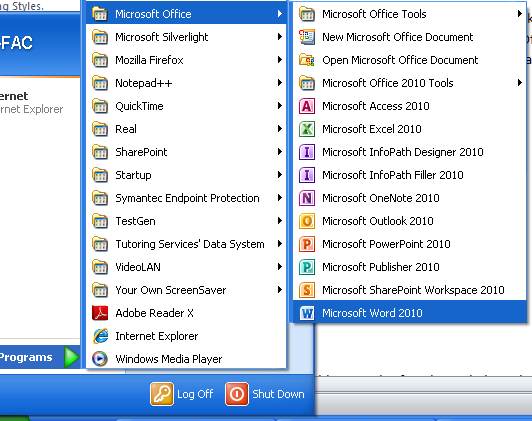
1 Instructions for Formatting MLA Style Papers in Microsoft Word 2010 To begin a Microsoft Word 2010 project, click on the Start bar in the lower left corner of the screen. Select All Programs and then find the folder Microsoft Office. Click on this folder and then select Microsoft Word 2010 from the new pane. The following steps detail how to correctly construct the document. MLA Formatting Guide: Step 1: Times New Roman font Step 2: 12 point font Step 3: 1 inch margins Step 4: Double spaced Step 5: Remove extra space after paragraph Step 6: Page number Step 7: Headings Step 8: Title Step 9: Indent Provided by Tutoring Services 1 MLA Formatting in Word 2010
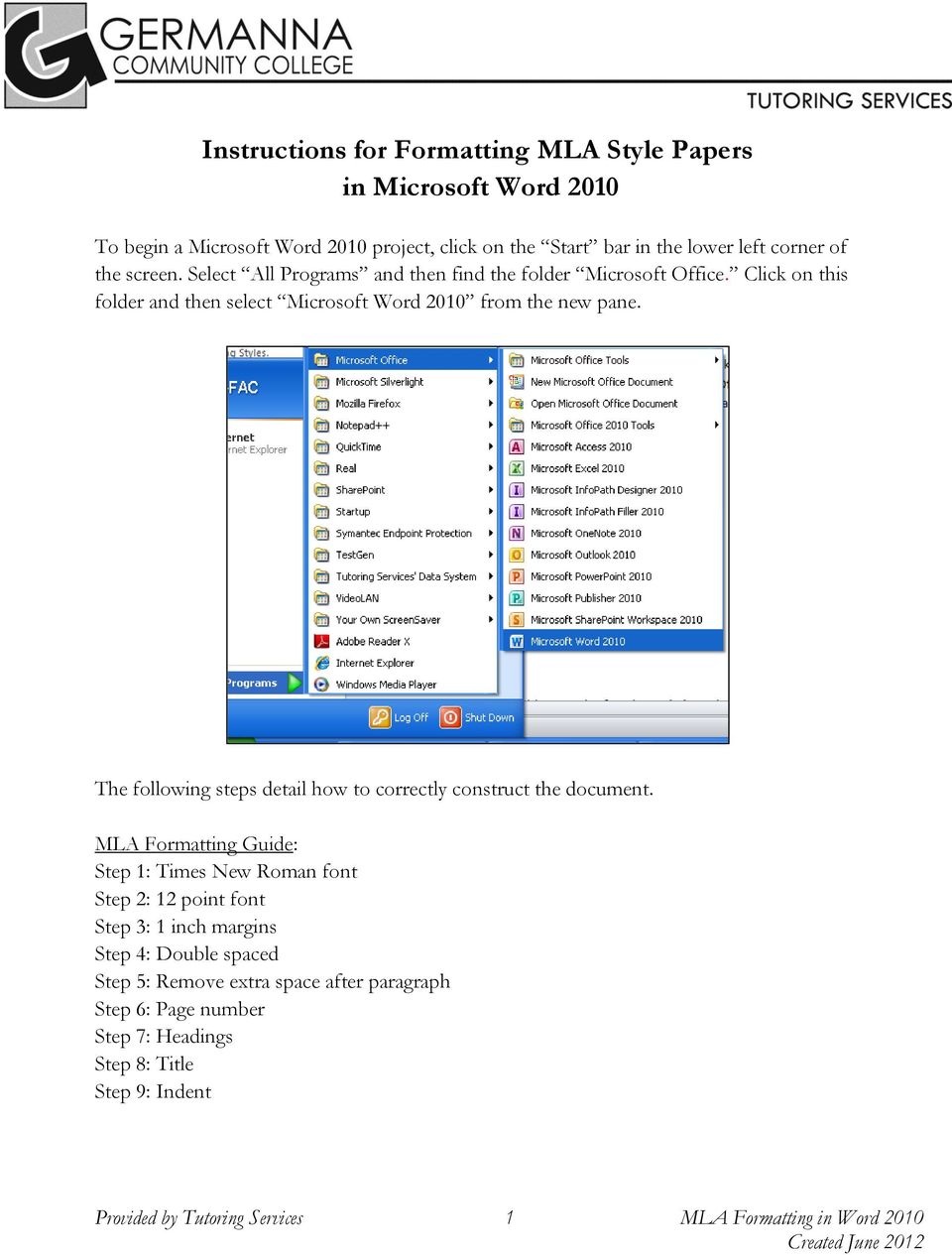
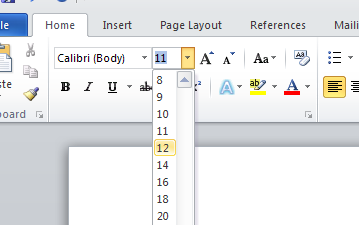
2 1) On the Home ribbon, in the Font box, click on the font drop-down menu (the small arrow next to the word Calibri ) to show available fonts. Use the drop down menu to scroll down and select Times New Roman font (see screenshot below). 2) On the Home ribbon, in the Font box, click on the small arrow on the box that states 11. Using the drop down menu, scroll down and select font size 12 for the paper (see screenshot below). Provided by Tutoring Services 2 MLA Formatting in Word 2010

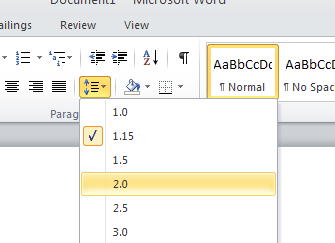
3 3) Word 2010 automatically sets the margins of a new or blank document to 1 inch on all sides. To check the margins, click on the tab that is labeled Page Layout to open the Page Layout ribbon. In the Page Setup box, click on the icon labeled Margins. If necessary, select 1 inch margins if it is not already selected in order to set all margins at 1 inch (see screenshot below). 4) On the Home ribbon, in the Paragraph box, select the Line and Paragraph Spacing icon (two blue arrows facing up and down next two four horizontal lines). On the drop down menu select 2.0 for double spacing (see screenshot below). Provided by Tutoring Services 3 MLA Formatting in Word 2010


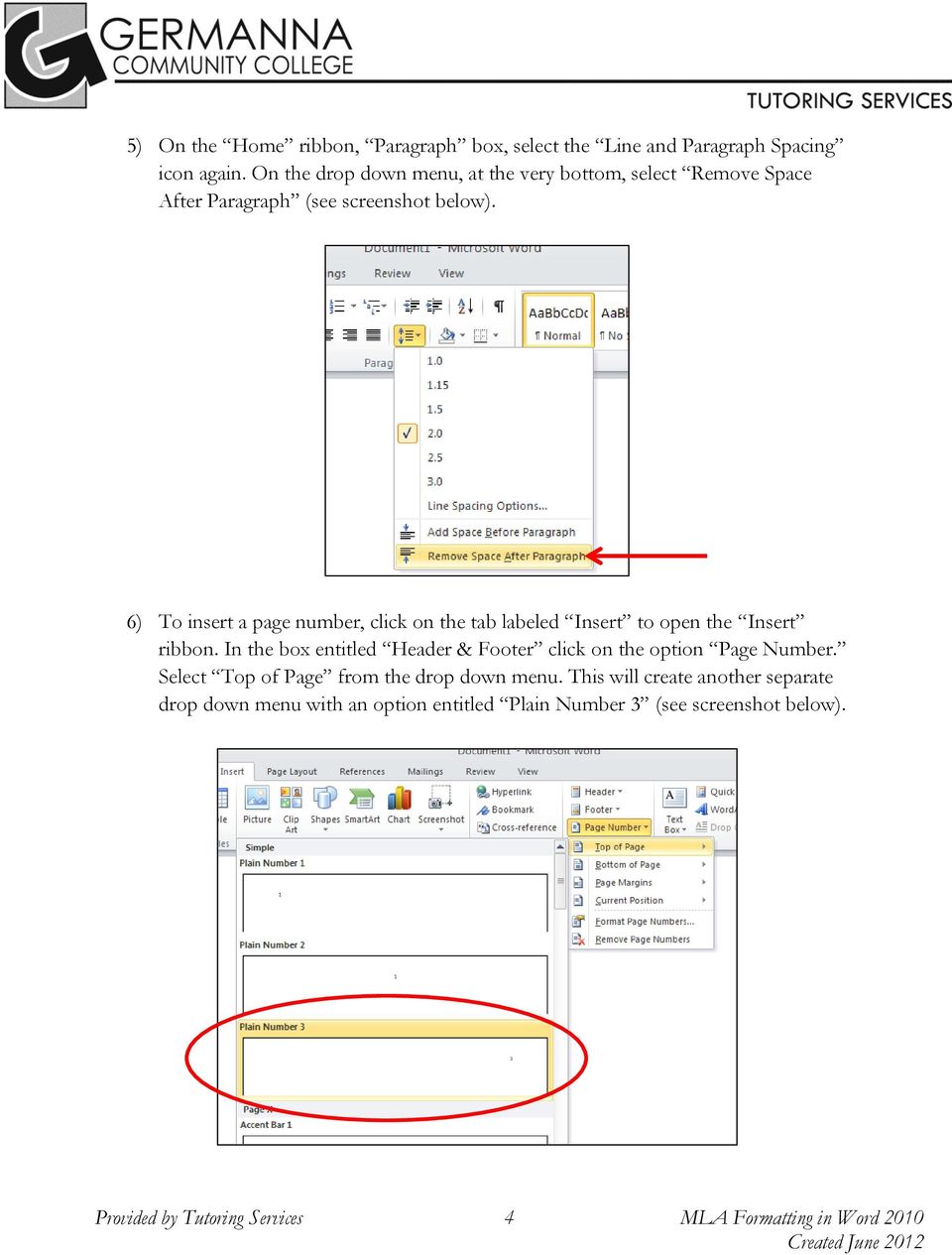
4 5) On the Home ribbon, Paragraph box, select the Line and Paragraph Spacing icon again. On the drop down menu, at the very bottom, select Remove Space After Paragraph (see screenshot below). 6) To insert a page number, click on the tab labeled Insert to open the Insert ribbon. In the box entitled Header & Footer click on the option Page Number. Select Top of Page from the drop down menu. This will create another separate drop down menu with an option entitled Plain Number 3 (see screenshot below). Provided by Tutoring Services 4 MLA Formatting in Word 2010

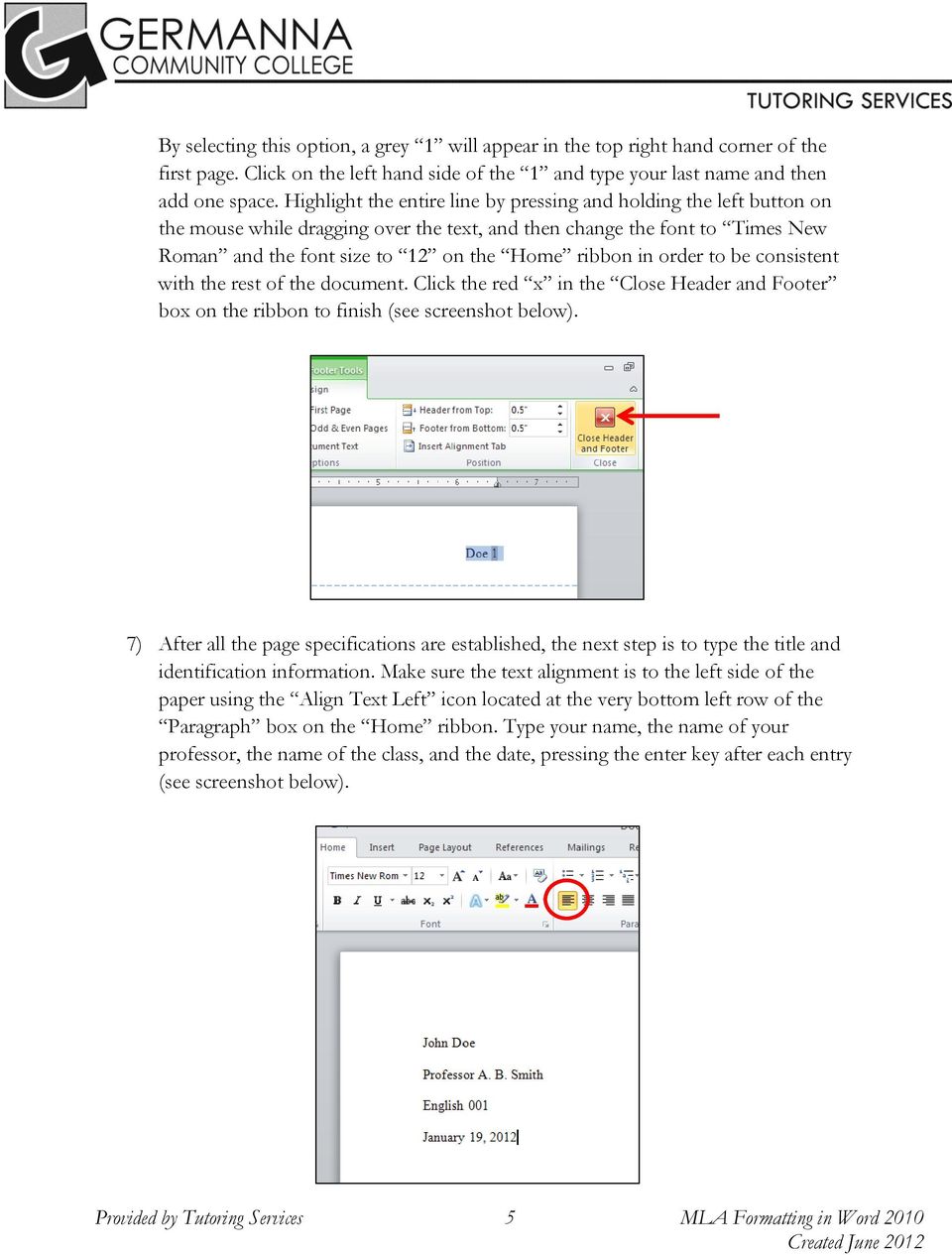
5 By selecting this option, a grey 1 will appear in the top right hand corner of the first page. Click on the left hand side of the 1 and type your last name and then add one space. Highlight the entire line by pressing and holding the left button on the mouse while dragging over the text, and then change the font to Times New Roman and the font size to 12 on the Home ribbon in order to be consistent with the rest of the document. Click the red x in the Close Header and Footer box on the ribbon to finish (see screenshot below). 7) After all the page specifications are established, the next step is to type the title and identification information. Make sure the text alignment is to the left side of the paper using the Align Text Left icon located at the very bottom left row of the Paragraph box on the Home ribbon. Type your name, the name of your professor, the name of the class, and the date, pressing the enter key after each entry (see screenshot below). Provided by Tutoring Services 5 MLA Formatting in Word 2010

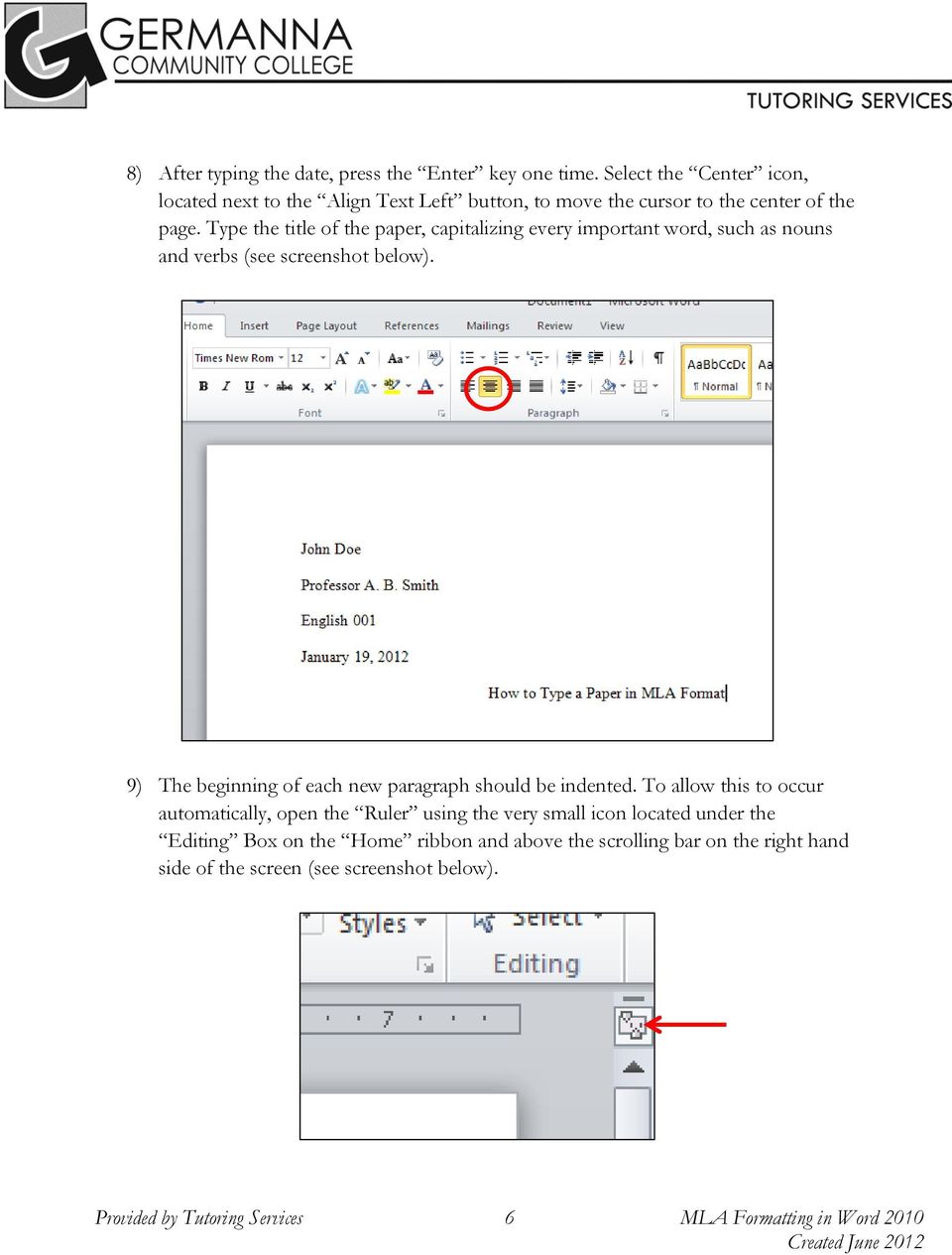
6 8) After typing the date, press the Enter key one time. Select the Center icon, located next to the Align Text Left button, to move the cursor to the center of the page. Type the title of the paper, capitalizing every important word, such as nouns and verbs (see screenshot below). 9) The beginning of each new paragraph should be indented. To allow this to occur automatically, open the Ruler using the very small icon located under the Editing Box on the Home ribbon and above the scrolling bar on the right hand side of the screen (see screenshot below). Provided by Tutoring Services 6 MLA Formatting in Word 2010

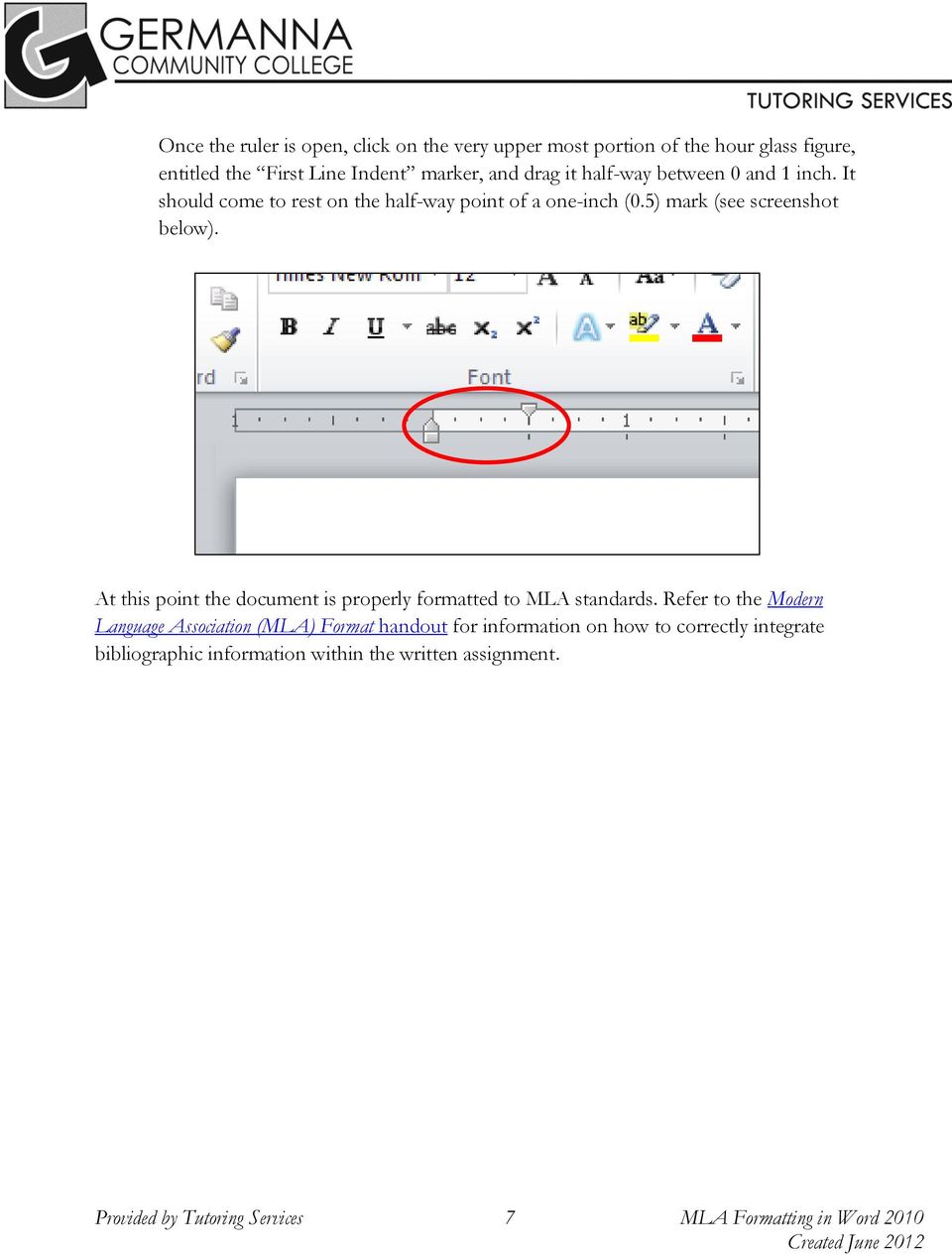
7 Once the ruler is open, click on the very upper most portion of the hour glass figure, entitled the First Line Indent marker, and drag it half-way between 0 and 1 inch. It should come to rest on the half-way point of a one-inch (0.5) mark (see screenshot below). At this point the document is properly formatted to MLA standards. Refer to the Modern Language Association (MLA) Format handout for information on how to correctly integrate bibliographic information within the written assignment. Provided by Tutoring Services 7 MLA Formatting in Word 2010
Instructions for Formatting APA Style Papers in Microsoft Word 2010
 Instructions for Formatting APA Style Papers in Microsoft Word 2010 To begin a Microsoft Word 2010 project, click on the Start bar in the lower left corner of the screen. Select All Programs and then find
Basic Formatting of a Microsoft Word. Document for Word 2003 and 2007. Center for Writing Excellence
 Basic Formatting 1 Basic Formatting of a Microsoft Word Document for Word 2003 and 2007 Center for Writing Excellence Updated April 2009 Basic Formatting 2 Table of Contents GENERAL FORMATTING INFORMATION...
Step-by-Step Instructions for Setting Up a Paper in APA Format
 Step-by-Step Instructions for Setting Up a Paper in APA Format These instructions will help you format all three parts of your paper: 1. the title or cover page 2. the paper 3. the reference page 1. TITLE
Setting Up APA Format (Page and Header) for PC s. Step 1 (Preparing the Pages)
 Setting Up APA Format (Page and Header) for PC s Step 1 (Preparing the Pages) 1. Click WORD 2. Click Page Layout 3. Click Margins 4. Click Normal 5. Click small arrow in right corner of Paragraph Should
Enhanced Formatting and Document Management. Word 2010. Unit 3 Module 3. Diocese of St. Petersburg Office of Training Training@dosp.
 Enhanced Formatting and Document Management Word 2010 Unit 3 Module 3 Diocese of St. Petersburg Office of Training [email protected] This Page Left Intentionally Blank Diocese of St. Petersburg 9/5/2014
WHAT S NEW IN WORD 2010 & HOW TO CUSTOMIZE IT
 WHAT S NEW IN WORD 2010 & HOW TO CUSTOMIZE IT The Ribbon... 2 Default Tabs... 2 Contextual Tabs... 2 Minimizing and Restoring the Ribbon... 3 Customizing the Ribbon... 3 A New Graphic Interface... 5 Live
In this session, we will explain some of the basics of word processing. 1. Start Microsoft Word 11. Edit the Document cut & move
 WORD PROCESSING In this session, we will explain some of the basics of word processing. The following are the outlines: 1. Start Microsoft Word 11. Edit the Document cut & move 2. Describe the Word Screen
MLA Formatting in Microsoft Word 2010/2011
 MLA Formatting in Microsoft Word 2010/2011 Learn to format a research paper in MLA style using Microsoft Word 2010 for Windows and 2011 for Mac. Program Version and Resources for Guide All the recommended
Page Numbering for a Thesis or Dissertation
 Page Numbering for a Thesis or Dissertation Tip: Add Page Numbering to your document after you are finished making all edits. After the page numbering has been added, then add the Table of Contents and/or
paragraph(s). The bottom mark is for all following lines in that paragraph. The rectangle below the marks moves both marks at the same time.
 MS Word, Part 3 & 4 Office 2007 Line Numbering Sometimes it can be helpful to have every line numbered. That way, if someone else is reviewing your document they can tell you exactly which lines they have
Creating APA Style Research Papers (6th Ed.)
 Creating APA Style Research Papers (6th Ed.) All the recommended formatting in this guide was created with Microsoft Word 2010 for Windows and Word 2011 for Mac. If you are going to use another version
BCCC Library. 2. Spacing-. Click the Home tab and then click the little arrow in the Paragraph group.
 Using Microsoft Word 2010 to Write a Turabian Paper The best source for writing research papers is the A Manual for Writers of Research Papers, Theses, and Dissertations (Eighth Edition). A copy is available
HOW TO PAGE A DOCUMENT IN MICROSOFT WORD
 1 HOW TO PAGE A DOCUMENT IN MICROSOFT WORD 1 PAGING A WHOLE DOCUMENT FROM 1 TO Z (Including the first page) 1.1 Arabic Numbers (a) Click the Insert tab. (b) Go to the Header & Footer Section and click
Creating a Newsletter with Microsoft Word
 Creating a Newsletter with Microsoft Word Frank Schneemann In this assignment we are going to use Microsoft Word to create a newsletter that can be used in your classroom instruction. If you already know
nmqwertyuiopasdfghjklzxcvbnmqwer tyuiopasdfghjklzxcvbnmqwertyuiopas dfghjklzxcvbnmqwertyuiopasdfghjklzx
 qwertyuiopasdfghjklzxcvbnmqwertyui opasdfghjklzxcvbnmqwertyuiopasdfgh jklzxcvbnmqwertyuiopasdfghjklzxcvb Instructions for Formatting a nmqwertyuiopasdfghjklzxcvbnmqwer Turabian Paper tyuiopasdfghjklzxcvbnmqwertyuiopas
PAGE NUMBERING FOR THESIS/DISSERTATION
 PAGE NUMBERING FOR THESIS/DISSERTATION PAGE NUMBERS A BRIEF OVERVIEW: Though normally we insert page numbers at the beginning of documents, the graduate school has special requirements regarding page numbers.
Sample Table. Columns. Column 1 Column 2 Column 3 Row 1 Cell 1 Cell 2 Cell 3 Row 2 Cell 4 Cell 5 Cell 6 Row 3 Cell 7 Cell 8 Cell 9.
 Working with Tables in Microsoft Word The purpose of this document is to lead you through the steps of creating, editing and deleting tables and parts of tables. This document follows a tutorial format
Introduction to Microsoft Word 2003
 Introduction to Microsoft Word 2003 Sabeera Kulkarni Information Technology Lab School of Information University of Texas at Austin Fall 2004 1. Objective This tutorial is designed for users who are new
Microsoft Word 2010. Quick Reference Guide. Union Institute & University
 Microsoft Word 2010 Quick Reference Guide Union Institute & University Contents Using Word Help (F1)... 4 Window Contents:... 4 File tab... 4 Quick Access Toolbar... 5 Backstage View... 5 The Ribbon...
Exercise 4 - Practice Creating Text Documents Using WordPad
 Exercise 4 - Practice Creating Text Documents Using WordPad 1. Open and use WordPad by doing the following: A. Click on the Start button on the left side of the taskbar to open the Start window. B. Click
Microsoft PowerPoint 2010 Templates and Slide Masters (Level 3)
 IT Services Microsoft PowerPoint 2010 Templates and Slide Masters (Level 3) Contents Introduction... 1 Installed Templates and Themes... 2 University of Reading Templates... 3 Further Templates and Presentations...
Word 2007 WOWS of Word Office 2007 brings a whole new basket of bells and whistles for our enjoyment. The whistles turn to wows.
 WOWS of Word Office brings a whole new basket of bells and whistles for our enjoyment. The whistles turn to wows. [email protected] Templates Click on the Office Button PDF and select New. You can now change
Maximizing the Use of Slide Masters to Make Global Changes in PowerPoint
 Maximizing the Use of Slide Masters to Make Global Changes in PowerPoint This document provides instructions for using slide masters in Microsoft PowerPoint. Slide masters allow you to make a change just
Microsoft Access 2010 handout
 Microsoft Access 2010 handout Access 2010 is a relational database program you can use to create and manage large quantities of data. You can use Access to manage anything from a home inventory to a giant
MICROSOFT ACCESS 2007 BOOK 2
 MICROSOFT ACCESS 2007 BOOK 2 4.1 INTRODUCTION TO ACCESS FIRST ENCOUNTER WITH ACCESS 2007 P 205 Access is activated by means of Start, Programs, Microsoft Access or clicking on the icon. The window opened
HOW TO MAKE A TABLE OF CONTENTS
 HOW TO MAKE A TABLE OF CONTENTS WHY THIS IS IMPORTANT: MS Word can make a Table of Contents automatically by using heading styles while you are writing your document; however, these instructions will focus
Creating a Poster in PowerPoint 2010. A. Set Up Your Poster
 View the Best Practices in Poster Design located at http://www.emich.edu/training/poster before you begin creating a poster. Then in PowerPoint: (A) set up the poster size and orientation, (B) add and
Microsoft Word 2010 Basics
 Microsoft Word 2010 Basics 1. Start Word if the Word 2007 icon is not on the desktop: a. Click Start>Programs>Microsoft Office>Microsoft Word 2007 b. The Ribbon- seen across the top of Microsoft Word.
DOING MORE WITH WORD: MICROSOFT OFFICE 2010
 University of North Carolina at Chapel Hill Libraries Carrboro Cybrary Chapel Hill Public Library Durham County Public Library DOING MORE WITH WORD: MICROSOFT OFFICE 2010 GETTING STARTED PAGE 02 Prerequisites
Advanced Word for Windows
 Advanced Word for Windows Version: 2002 Academic Computing Support Information Technology Services Tennessee Technological University September 2003 1. Opening Word for Windows In the PC labs, click on
Step 2: Headings and Subheadings
 Step 2: Headings and Subheadings This PDF explains Step 2 of the step-by-step instructions that will help you correctly format your ETD to meet UCF formatting requirements. Step 2 shows you how to set
Merging Labels, Letters, and Envelopes Word 2013
 Merging Labels, Letters, and Envelopes Word 2013 Merging... 1 Types of Merges... 1 The Merging Process... 2 Labels - A Page of the Same... 2 Labels - A Blank Page... 3 Creating Custom Labels... 3 Merged
TLMC WORKSHOP: THESIS FORMATTING IN WORD 2010
 Table of Contents Introduction... 2 Getting Help... 2 Tips... 2 Working with Styles... 3 Applying a Style... 3 Choosing Which Styles to Use... 3 Modifying a Style... 4 Creating A New Style... 4 Setting
How to make a line graph using Excel 2007
 How to make a line graph using Excel 2007 Format your data sheet Make sure you have a title and each column of data has a title. If you are entering data by hand, use time or the independent variable in
Steps to Create a Database
 Steps to Create a Database Design the Database In order for a database to be effective some time should be spent on the layout of the table. Additionally, time should be spent on what the purpose of the
MS Word 2007 practical notes
 MS Word 2007 practical notes Contents Opening Microsoft Word 2007 in the practical room... 4 Screen Layout... 4 The Microsoft Office Button... 4 The Ribbon... 5 Quick Access Toolbar... 5 Moving in the
In this example, Mrs. Smith is looking to create graphs that represent the ethnic diversity of the 24 students in her 4 th grade class.
 Creating a Pie Graph Step-by-step directions In this example, Mrs. Smith is looking to create graphs that represent the ethnic diversity of the 24 students in her 4 th grade class. 1. Enter Data A. Open
Microsoft PowerPoint 2010 Computer Jeopardy Tutorial
 Microsoft PowerPoint 2010 Computer Jeopardy Tutorial 1. Open up Microsoft PowerPoint 2010. 2. Before you begin, save your file to your H drive. Click File > Save As. Under the header that says Organize
Microsoft Word 2010 Prepared by Computing Services at the Eastman School of Music July 2010
 Microsoft Word 2010 Prepared by Computing Services at the Eastman School of Music July 2010 Contents Microsoft Office Interface... 4 File Ribbon Tab... 5 Microsoft Office Quick Access Toolbar... 6 Appearance
Formatting Your Thesis
 Formatting Your Thesis Revised: October 2010 This document has been created to supplement the thesis guide available via the Registrar s website. It will show you how to format various items. When in doubt,
Publisher 2010 Cheat Sheet
 April 20, 2012 Publisher 2010 Cheat Sheet Toolbar customize click on arrow and then check the ones you want a shortcut for File Tab (has new, open save, print, and shows recent documents, and has choices
Handout: Word 2010 Tips and Shortcuts
 Word 2010: Tips and Shortcuts Table of Contents EXPORT A CUSTOMIZED QUICK ACCESS TOOLBAR... 2 IMPORT A CUSTOMIZED QUICK ACCESS TOOLBAR... 2 USE THE FORMAT PAINTER... 3 REPEAT THE LAST ACTION... 3 SHOW
Microsoft PowerPoint 2010 Handout
 Microsoft PowerPoint 2010 Handout PowerPoint is a presentation software program that is part of the Microsoft Office package. This program helps you to enhance your oral presentation and keep the audience
WORDPAD TUTORIAL WINDOWS 7
 WORDPAD TUTORIAL WINDOWS 7 Quick Access bar Home Tab Triangles = More Commands Groups on the Home tab Right paragraph margin Left paragraph Margin & Indent Paragraphs Ruler Hover the mouse pointer over
MICROSOFT WORD TUTORIAL
 MICROSOFT WORD TUTORIAL G E T T I N G S T A R T E D Microsoft Word is one of the most popular word processing programs supported by both Mac and PC platforms. Microsoft Word can be used to create documents,
Information Technologies University of Delaware
 Information Technologies University of Delaware Microsoft Word UDThesis Styles For Dissertations, Education Leadership Portfolio (ELP), Master Theses, and Senior Theses Introduction The UDThesis Styles
Microsoft Word 2010: How to Resize and Move Clip Art
 Microsoft Word 2010: How to Resize and Move Clip Art Resizing Clip Art If your clip art is too big or too small you can resize to suit your needs. Click on your image with the left mouse button. You should
Tutorial: How to Use the Microsoft Citations & Bibliography Tool
 Disclaimers: 1. This tutorial focuses on managing Citations & Bibliography Works Cited (MLA) and References (APA) for documents created in Microsoft Word. This tutorial is not intended to serve as a substitute
Paragraph Formatting 4
 Paragraph Formatting 4 LESSON SKILL MATRIX Skill Exam Objective Objective Number Formatting Paragraphs Set indentation. 2.2.7 Setting Line Spacing in Text and Between Paragraphs Creating and Formatting
Microsoft Word defaults to left justified (aligned) paragraphs. This means that new lines automatically line up with the left margin.
 Microsoft Word Part 2 Office 2007 Microsoft Word 2007 Part 2 Alignment Microsoft Word defaults to left justified (aligned) paragraphs. This means that new lines automatically line up with the left margin.
Creating tables of contents and figures in Word 2013
 Creating tables of contents and figures in Word 2013 Information Services Creating tables of contents and figures in Word 2013 This note shows you how to create a table of contents or a table of figures
Microsoft Word 2007 Module 1
 Microsoft Word 2007 Module 1 http://pds.hccfl.edu/pds Microsoft Word 2007: Module 1 July, 2007 2007 Hillsborough Community College - Professional Development and Web Services Hillsborough Community College
Microsoft Office PowerPoint 2003. Creating a new presentation from a design template. Creating a new presentation from a design template
 Microsoft Office PowerPoint 2003 Tutorial 2 Applying and Modifying Text and Graphic Objects 1 Creating a new presentation from a design template Click File on the menu bar, and then click New Click the
Introduction to Microsoft Word 2008
 1. Launch Microsoft Word icon in Applications > Microsoft Office 2008 (or on the Dock). 2. When the Project Gallery opens, view some of the available Word templates by clicking to expand the Groups, and
MICROSOFT OUTLOOK 2010 WORK WITH CONTACTS
 MICROSOFT OUTLOOK 2010 WORK WITH CONTACTS Last Edited: 2012-07-09 1 Access to Outlook contacts area... 4 Manage Outlook contacts view... 5 Change the view of Contacts area... 5 Business Cards view... 6
PowerPoint 2013: Basic Skills
 PowerPoint 2013: Basic Skills Information Technology September 1, 2014 1 P a g e Getting Started There are a variety of ways to start using PowerPoint software. You can click on a shortcut on your desktop
Basic Microsoft Excel 2007
 Basic Microsoft Excel 2007 The biggest difference between Excel 2007 and its predecessors is the new layout. All of the old functions are still there (with some new additions), but they are now located
Basic Pivot Tables. To begin your pivot table, choose Data, Pivot Table and Pivot Chart Report. 1 of 18
 Basic Pivot Tables Pivot tables summarize data in a quick and easy way. In your job, you could use pivot tables to summarize actual expenses by fund type by object or total amounts. Make sure you do not
HIT THE GROUND RUNNING MS WORD INTRODUCTION
 HIT THE GROUND RUNNING MS WORD INTRODUCTION MS Word is a word processing program. MS Word has many features and with it, a person can create reports, letters, faxes, memos, web pages, newsletters, and
Word 2007: Basics Learning Guide
 Word 2007: Basics Learning Guide Exploring Word At first glance, the new Word 2007 interface may seem a bit unsettling, with fat bands called Ribbons replacing cascading text menus and task bars. This
Creating Accessible Documents in Word 2011 for Mac
 Creating Accessible Documents in Word 2011 for Mac NOTE: Word 2011 for Mac does not offer an Accessibility Checker. After creating your document, you can double-check your work on a PC, to make sure your
Creating a Form. A form is something that is created allowing users to enter information in a more visual manner than a datasheet view.
 Creating a Form A form is something that is created allowing users to enter information in a more visual manner than a datasheet view. In the database object window, click on the word Forms Double Click
Beginning Microsoft Word XP
 Beginning Microsoft Word XP Objective 1: Become acquainted with the Microsoft Word XP environment. Toolbars Standard Toolbar Formatting Toolbar Toolbars provide easy access to commonly used options. The
3. Locate the different selections of Styles from the Home Tab, Styles Group
 Outlining in MS Word 2007 Microsoft Word 2007 provides users with an Outline View and Outlining toolbar, which allows us to create outlines. Outlines in Word are based on Styles. For instance if a line
Personal Portfolios on Blackboard
 Personal Portfolios on Blackboard This handout has four parts: 1. Creating Personal Portfolios p. 2-11 2. Creating Personal Artifacts p. 12-17 3. Sharing Personal Portfolios p. 18-22 4. Downloading Personal
MICROSOFT OUTLOOK 2010 READ, ORGANIZE, SEND AND RESPONSE E-MAILS
 MICROSOFT OUTLOOK 2010 READ, ORGANIZE, SEND AND RESPONSE E-MAILS Last Edited: 2012-07-09 1 Read Emails... 4 Find the inbox... 4 Change new incoming e-mail notification options... 5 Read email... 6 Change
Formatting Text in Microsoft Word
 Formatting Text - 1 of 44 Formatting Text in Microsoft Word Page Setup 2 Centering Text 3 Line Spacing 4 Paragraph Spacing 4 Indenting a Paragraph s First Line 5 Hanging Indentation 5 Indenting an Entire
Creating a Table of Contents in Microsoft Word 2011
 1 Creating a Table of Contents in Microsoft Word 2011 Sections and Pagination in Long Documents When creating a long document like a dissertation, which requires specific formatting for pagination, there
Introduction to Microsoft Access 2007
 Introduction to Microsoft Access 2007 Introduction A database is a collection of information that's related. Access allows you to manage your information in one database file. Within Access there are four
Microsoft Word 2013 Basics
 Microsoft Word 2013 Basics 1. From Start, look for the Word tile and click it. 2. The Ribbon- seen across the top of Microsoft Word. The ribbon contains Tabs, Groups, and Commands a. Tabs sit across the
Introduction to Word 2007
 Introduction to Word 2007 You will notice some obvious changes immediately after starting Word 2007. For starters, the top bar has a completely new look, consisting of new features, buttons and naming
Word basics. Before you begin. What you'll learn. Requirements. Estimated time to complete:
 Word basics Word is a powerful word processing and layout application, but to use it most effectively, you first have to understand the basics. This tutorial introduces some of the tasks and features that
for Windows Users Format an Academic Paper London School of Economics & Political Science 1 lse.ac.uk/imt/training
 Word 2010 for Windows Users Format an Academic Paper London School of Economics & Political Science 1 lse.ac.uk/imt/training How to use this guide I want to Fix my document Format my document Identify
Microsoft Word 2011 Basics for Mac
 1 Microsoft Word 2011 Basics for Mac Word 2011 Basics for Mac Training Objective To introduce the new features of Microsoft Word 2011. To learn the tools and features to get started using Word 2011 more
Microsoft Word 2010 Tutorial
 Microsoft Word 2010 Tutorial GETTING STARTED Microsoft Word is one of the most popular word processing programs supported by both Mac and PC platforms. Microsoft Word can be used to create documents, brochures,
Microsoft PowerPoint Tutorial
 Microsoft PowerPoint Tutorial Contents Starting MS PowerPoint... 1 The MS PowerPoint Window... 2 Title Bar...2 Office Button...3 Saving Your Work... 3 For the first time... 3 While you work... 3 Backing
Microsoft Migrating to Word 2010 from Word 2003
 In This Guide Microsoft Word 2010 looks very different, so we created this guide to help you minimize the learning curve. Read on to learn key parts of the new interface, discover free Word 2010 training,
Advanced Presentation Features and Animation
 There are three features that you should remember as you work within PowerPoint 2007: the Microsoft Office Button, the Quick Access Toolbar, and the Ribbon. The function of these features will be more
NAVIGATION TIPS. Special Tabs
 rp`=j~êëü~ää=påüççä=çñ=_ìëáåéëë Academic Information Services Excel 2007 Cheat Sheet Find Excel 2003 Commands in Excel 2007 Use this handout to find where Excel 2003 commands are located in Excel 2007.
Microsoft Word 2010 Tutorial
 1 Microsoft Word 2010 Tutorial Microsoft Word 2010 is a word-processing program, designed to help you create professional-quality documents. With the finest documentformatting tools, Word helps you organize
Working with sections in Word
 Working with sections in Word Have you have ever wanted to create a Microsoft Word document with some pages numbered in Roman numerals and the rest in Arabic, or include a landscape page to accommodate
Appendix A How to create a data-sharing lab
 Appendix A How to create a data-sharing lab Creating a lab involves completing five major steps: creating lists, then graphs, then the page for lab instructions, then adding forms to the lab instructions,
Word 2010: The Basics Table of Contents THE WORD 2010 WINDOW... 2 SET UP A DOCUMENT... 3 INTRODUCING BACKSTAGE... 3 CREATE A NEW DOCUMENT...
 Word 2010: The Basics Table of Contents THE WORD 2010 WINDOW... 2 SET UP A DOCUMENT... 3 INTRODUCING BACKSTAGE... 3 CREATE A NEW DOCUMENT... 4 Open a blank document... 4 Start a document from a template...
Microsoft Access to Microsoft Word Performing a Mail Merge from an Access Query
 Microsoft Access to Microsoft Word Performing a Mail Merge from an Access Query Performing a Query in Access Before performing a mail merge, we need to set up a query with the necessary fields. Opening
Microsoft PowerPoint 2011
 Microsoft PowerPoint 2011 Starting PowerPoint... 2 Creating Slides in Your Presentation... 3 Beginning with the Title Slide... 3 Inserting a New Slide... 3 Adding an Image to a Slide... 4 Downloading Images
Customizing forms and writing QuickBooks Letters
 LESSON 15 Customizing forms and writing QuickBooks Letters 15 Lesson objectives, 398 Supporting materials, 398 Instructor preparation, 398 To start this lesson, 398 About QuickBooks forms, 399 Customizing
Draw pie charts in Excel
 This activity shows how to draw pie charts in Excel 2007. Open a new Excel workbook. Enter some data you can use your own data if you wish. This table gives the % of European holidays sold by a travel
Microsoft Excel 2013: Macro to apply Custom Margins, Titles, Gridlines, Autofit Width & Add Macro to Quick Access Toolbar & How to Delete a Macro.
 Microsoft Excel 2013: Macro to apply Custom Margins, Titles, Gridlines, Autofit Width & Add Macro to Quick Access Toolbar & How to Delete a Macro. Do you need to always add gridlines, bold the heading
Formatting & Styles Word 2010
 Formatting & Styles Word 2010 Produced by Flinders University Centre for Educational ICT CONTENTS Layout... 1 Using the Ribbon Bar... 2 Minimising the Ribbon Bar... 2 The File Tab... 3 What the Commands
Introduction to Microsoft Access 2013
 Introduction to Microsoft Access 2013 A database is a collection of information that is related. Access allows you to manage your information in one database file. Within Access there are four major objects:
Creating forms in Microsoft Access 2007
 Platform: Windows PC Ref no: USER 166 Date: 14 th January 2008 Version: 1 Authors: Derek Sheward, Claire Napier Creating forms in Microsoft Access 2007 This is the fourth document in a series of five on
Microsoft Word 2013 Tutorial
 Microsoft Word 2013 Tutorial GETTING STARTED Microsoft Word is one of the most popular word processing programs supported by both Mac and PC platforms. Microsoft Word can be used to create documents, brochures,
Microsoft Publisher 2010 What s New!
 Microsoft Publisher 2010 What s New! INTRODUCTION Microsoft Publisher 2010 is a desktop publishing program used to create professional looking publications and communication materials for print. A new
Creating Personal Web Sites Using SharePoint Designer 2007
 Creating Personal Web Sites Using SharePoint Designer 2007 Faculty Workshop May 12 th & 13 th, 2009 Overview Create Pictures Home Page: INDEX.htm Other Pages Links from Home Page to Other Pages Prepare
Windows 95. 2a. Place the pointer on Programs. Move the pointer horizontally to the right into the next window.
 Word Processing Microsoft Works Windows 95 The intention of this section is to instruct basic word processing skills such as creating, editing, formatting, saving and closing a new document. Microsoft
Creating Your Personal Website
 Creating Your Personal Website These instructions will show you how to create a personal webpage for CSULB students using Dreamweaver MX 2004. The page will consist of a title, background image, text,
PowerPoint 2007: Basics Learning Guide
 PowerPoint 2007: Basics Learning Guide What s a PowerPoint Slide? PowerPoint presentations are composed of slides, just like conventional presentations. Like a 35mm film-based slide, each PowerPoint slide
PA Payroll Exercise for Intermediate Excel
 PA Payroll Exercise for Intermediate Excel Follow the directions below to create a payroll exercise. Read through each individual direction before performing it, like you are following recipe instructions.
MICROSOFT ACCESS STEP BY STEP GUIDE
 IGCSE ICT SECTION 11 DATA MANIPULATION MICROSOFT ACCESS STEP BY STEP GUIDE Mark Nicholls ICT Lounge P a g e 1 Contents Task 35 details Page 3 Opening a new Database. Page 4 Importing.csv file into the
Introduction to OpenOffice Writer 2.0 Jessica Kubik Information Technology Lab School of Information University of Texas at Austin Fall 2005
 Introduction to OpenOffice Writer 2.0 Jessica Kubik Information Technology Lab School of Information University of Texas at Austin Fall 2005 Introduction: OpenOffice Writer is a word processing application