
Robot Safety Option Instruction Manual
|
|
|
- Jonas Gilmore
- 10 years ago
- Views:
Transcription
1 Mitsubishi Industrial Robot CR750/CR751 series controller Robot Safety Option Instruction Manual 4F-SF BFP-A3372-B
2
3 Safety Precautions Always read the following precautions and the separate "Safety Manual" before starting use of the robot to learn the required measures to be taken. CAUTION All teaching work must be carried out by an operator who has received special training. (This also applies to maintenance work with the power source turned ON.) Enforcement of safety training CAUTION For teaching work, prepare a work plan related to the methods and procedures of operating the robot, and to the measures to be taken when an error occurs or when restarting. Carry out work following this plan. (This also applies to maintenance work with the power source turned ON.) Preparation of work plan WARNING Prepare a device that allows operation to be stopped immediately during teaching work. (This also applies to maintenance work with the power source turned ON.) Setting of emergency stop switch CAUTION During teaching work, place a sign indicating that teaching work is in progress on the start switch, etc. (This also applies to maintenance work with the power source turned ON.) Indication of teaching work in progress DANGER Provide a fence or enclosure during operation to prevent contact of the operator and robot. Installation of safety fence CAUTION Establish a set signaling method to the related operators for starting work, and follow this method. Signaling of operation start CAUTION As a principle turn the power OFF during maintenance work. Place a sign indicating that maintenance work is in progress on the start switch, etc. Indication of maintenance work in progress CAUTION Before starting work, inspect the robot, emergency stop switch and other related devices, etc., and confirm that there are no errors. Inspection before starting work
4 The points of the precautions given in the separate "Safety Manual" are given below. Refer to the actual "Safety Manual" for details. DANGER When automatic operation of the robot is performed using multiple control devices (GOT, programmable controller, push-button switch), the interlocking of operation rights of the devices, etc. must be designed by the customer. CAUTION Use the robot within the environment given in the specifications. Failure to do so could lead to faults or a drop of reliability. (Temperature, humidity, atmosphere, noise environment, etc.) CAUTION Transport the robot with the designated transportation posture. Transporting the robot in a non-designated posture could lead to personal injuries or faults from dropping. CAUTION Always use the robot installed on a secure table. Use in an instable posture could lead to positional deviation and vibration. CAUTION Wire the cable as far away from noise sources as possible. If placed near a noise source, positional deviation or malfunction could occur. CAUTION Do not apply excessive force on the connector or excessively bend the cable. Failure to observe this could lead to contact defects or wire breakage. CAUTION Make sure that the workpiece weight, including the hand, does not exceed the rated load or tolerable torque. Exceeding these values could lead to alarms or faults. WARNING Securely install the hand and tool, and securely grasp the workpiece. Failure to observe this could lead to personal injuries or damage if the object comes off or flies off during operation. WARNING Securely ground the robot and controller. Failure to observe this could lead to malfunctioning by noise or to electric shock accidents. CAUTION Indicate the operation state during robot operation. Failure to indicate the state could lead to operators approaching the robot or to incorrect operation. WARNING When carrying out teaching work in the robot's movement range, always secure the priority right for the robot control. Failure to observe this could lead to personal injuries or damage if the robot is started with external commands. CAUTION Keep the jog speed as low as possible, and always watch the robot. Failure to do so could lead to interference with the workpiece or peripheral devices.
5 CAUTION After editing the program, always confirm the operation with step operation before starting automatic operation. Failure to do so could lead to interference with peripheral devices because of programming mistakes, etc. CAUTION Make sure that if the safety fence entrance door is opened during automatic operation, the door is locked or that the robot will automatically stop. Failure to do so could lead to personal injuries. CAUTION Never carry out modifications based on personal judgments, non-designated maintenance parts. Failure to observe this could lead to faults or failures. WARNING When the robot arm has to be moved by hand from an external area, do not place hands or fingers in the openings. Failure to observe this could lead to hands or fingers catching depending on the posture. CAUTION Do not stop the robot or apply emergency stop by turning the robot controller's main power OFF. If the robot controller main power is turned OFF during automatic operation, the robot accuracy could be adversely affected. Also a dropped or coasted robot arm could collide with peripheral devices. CAUTION Do not turn OFF the robot controller's main power while rewriting the robot controller's internal information, such as a program and parameter. Turning OFF the robot controller's main power during automatic operation or program/parameter writing could break the internal information of the robot controller. DANGER Do not connect the Handy GOT when using the GOT direct connection function of this product. Failure to observe this may result in property damage or bodily injury because the Handy GOT can automatically operate the robot regardless of whether the operation rights are enabled or not. DANGER Do not connect the Handy GOT to a programmable controller when using an iq Platform compatible product with the CR750-Q/CR751-Q controller. Failure to observe this may result in property damage or bodily injury because the Handy GOT can automatically operate the robot regardless of whether the operation rights are enabled or not. DANGER Do not remove the SSCNET III cable while power is supplied to the multiple CPU system or the servo amplifier. Do not look directly at light emitted from the tip of SSCNET III connectors or SSCNET III cables of the Motion CPU or the servo amplifier. Eye discomfort may be felt if exposed to the light. (Reference: SSCNET III employs a Class 1 or equivalent light source as specified in JIS C 6802 and IEC (domestic standards in Japan).) DANGER Do not remove the SSCNET III cable while power is supplied to the controller. Do not look directly at light emitted from the tip of SSCNET III connectors or SSCNET III cables. Eye discomfort may be felt if exposed to the light. (Reference: SSCNET III employs a Class 1 or equivalent light source as specified in JIS C 6802 and IEC (domestic standards in Japan).)
6 DANGER Attach the cap to the SSCNET III connector after disconnecting the SSCNET III cable. If the cap is not attached, dirt or dust may adhere to the connector pins, resulting in deterioration connector properties, and leading to malfunction. CAUTION Make sure there are no mistakes in the wiring. Connecting differently to the way specified in the manual can result in errors, such as the emergency stop not being released. In order to prevent errors occurring, please be sure to check that all functions (such as the teaching box emergency stop, customer emergency stop, and door switch) are working properly after the wiring setup is completed. CAUTION Use the network equipments (personal computer, USB hub, LAN hub, etc.) confirmed by manufacturer. The thing unsuitable for the FA environment (related with conformity, temperature or noise) exists in the equipments connected to USB. When using network equipment, measures against the noise, such as measures against EMI and the addition of the ferrite core, may be necessary. Please fully confirm the operation by customer. Guarantee and maintenance of the equipment on the market (usual office automation equipment) cannot be performed.
7 Revision history Date of print Manual No. Details of revisions BFP-A3372 First print BFP-A3372-A The safety performance items in "Table 1-2 List of specifications" was added. The risk matters (7)(8) in "Chapter residual risk (Common)" was added BFP-A3372-B The name of Wiring unit was changed to Extended safety unit. The chapter 8 was added. The Table in the section was removed.
8 Introduction Thank you for purchasing an industrial robot from Mitsubishi Electric Corporation. The "robot safety option", used together with external devices such as a safety switch or light curtain, enhances the robot safety function. Before using the "robot safety option", make sure to read and fully understand the contents of this manual. The manual is intended for use on the assumption that you understand basic operations and functions of the Mitsubishi industrial robot. For the basic operation of the robot, refer to the separate "Instruction Manual/Detailed explanations of functions and operations". Symbols in this manual Danger Warning Caution Incorrect handling may result in imminent danger, leading to death or serious injury. Incorrect handling may lead to death or serious injury. Incorrect handling may result in property damage, or danger leading to impairment of the user. No part of this manual may be reproduced by any means or in any form, without prior consent from Mitsubishi. The details of this manual are subject to change without notice. We kindly ask for your understanding. Specification values are based on our standard test methods. An effort has been made to make full descriptions in this manual. However, if any discrepancies or unclear points are found, please contact your service provider. This document is original. All other company names and production names in this document are the trademarks or registered trademarks of their respective owners. We omit and TM in this document. Copyright(C) 2015 MITSUBISHI ELECTRIC CORPORATION ALL RIGHTS RESERVED
9 TABLE OF CONTENTS 1 Function and configuration Overview System configuration Functional block diagram Specifications Risk assessment Residual risks (common) Residual risk (for each function) Installation Confirming the product Installation and connection Fixing of the extended safety unit Connecting with the robot controller Connecting cables to the wiring connector Connecting the wiring connector to the extended safety unit Check items Long life parts Maintenance Signals and wiring Description of signals Electrical specifications Signal operation Connectors and signal assignment Input signal connection example Measures against static electricity / noise Safety monitoring function Safety monitoring function overview Startup Connecting RT ToolBox Password setting Enable/disable Parameter setting Test operation Safety monitoring function Monitoring mode
10 4.3.2 STO function SS1 function SLS function (Speed monitoring function) SLP function (Position monitoring function) STR function (Torque monitoring function) Duplex input monitoring function Parameters Safety monitoring function parameters Parameter List Parameter details Troubleshooting List of errors related to the safety monitoring function Errors involving change in specification Dimensional outline drawings Dimensional outline of the extended safety unit Maximum elapsed time/maximum motion angle Overview Symbol definition Robot arm extention rate RV-F series RH-FH series Stopping time/stopping angle RV-2F RV-4F RV-4FL RV-4FJL RV-7F RV-7FL RV-7FLL RV-13F RV-13FL RV-20F RH-3FH RH-6FH
11 RH-12FH RH-20FH RH-3FHR RH-1FHR
12
13 1 Function and configuration 1 Function and configuration 1.1 Overview This manual provides descriptions on the robot safety option. For the robot arm or robot controller, refer to the corresponding manuals. Using the robot safety option extends the safety monitoring function of robots. The option can be used with safety switches, light curtains, etc. connected. 1.2 System configuration Robot controller Personal computer RT ToolBox2 Robot arm Robot safety option (The figure above shows the extended safety unit.) External device (light curtain, etc.) Fig.1-1 System configuration Table 1-1 System configuration Item Details Remarks Robot arm Vertical multiple-joint type RV-F series RV-2F, RV-4F, RV-4FL, RV-4FJL, RV-7F, RV-7FL, RV-7FLL, RV-13F, RV-13FL, RV-20F Horizontal multiple-joint type RH-F series RH-3FH, RH-6FH, RH-12FH, RH-20FH, RH-3FHR, RH-1FHR Robot controller CR750-Q/CR751-Q Ver.R6 or later CR750-D/CR751-D Ver.S6 or later MELSOFT RT ToolBox2 3D-11C-WINJ 3D-11C-WINE Ver.3.30G or later MELSOFT RT 3D-12C-WINJ Ver.3.30G or later ToolBox2 mini 3D-12C-WINE Additional axes and user mechanisms are not included in the system. Install the software to a personal computer. The software is used to enable the safety monitoring function. Separate purchase is required. Robot safety option 4F-SF The option explained in this instruction manual. External device Light curtain, safety switch, etc. To be prepared by the customer according to the system configuration. Overview 1-1
14 1 Function and configuration 1.3 Functional block diagram Robot safety option Safety input signal (Note) CNUSR21 Safety input signal processing Safety Additional axis Encoder etc. CNUSR22 Signal generation for connection check Signal processing CNUSR2 monitoring function Control Robot controller CN1 CN2 CN1 CN2 Motor Encoder Robot arm Peripheral devices Extended safety unit Note: Safety switch, light curtain, etc. Fig. 1-2 Functional Block Diagram 1-2 Functional block diagram
15 1 Function and configuration 1.4 Specifications Table 1-2 List of specifications Safety function Safety performance Extended safety unit STO SS1 SLS SLP STR Related standart Item Details Remarks Performance Mean time to the occurrence of a dangerous failure Diagnostic coverage Average probability of dangerous failure per hour Structure (IP rating) Environment Input signal Output signal Operating temperature range The function to electrically block the driving energy to the motor of the robot arm The function to control the motor speed of the robot to decelerate The function to monitor whether the TCP speed does not exceed the monitoring speed The function to monitor whether a fixed monitoring position does not exceed the position monitoring plane The function to monitor whether the torque feedback does not exceed the allowable torque width ENISO (2011) EN62061(2006) ENISO (2008) IEC61508 (2010) EN , EN IEC ,EN60204 SIL 2, Category 3 PL d MTTFd 100 [year] DC 90[%] SLS,SLP PFH = [1/h] STR PFH = [1/h] STO PFH = [1/h] IP20 Corresponds to stop category 0 of IEC Corresponds to stop category 1 of IEC EN compliant EN compliant EN compliant 0 to 40 C It must be kept away from heat appliances and other heat sources. Relative humidity 45 to 85% Non-condensing Vibration During transportation: 34 m/s 2 During operation: 5 m/s 2 or lower Atmosphere No corrosive gas / flammable gas / oil mist / dust Installation environment Dedicated stop input (SKIP) Encoder input for tracking Indoors. Place where no intense electromagnetic is generated. No roughness or tilt on the installation surface. One channel For one robot No direct sunlight Do not install the unit on surfaces with high roughness. The function is installed to the robot controller as standard. The function is installed to the robot controller as standard. Safety input Two channels (duplex) It is a unique signal for the robot safety option. Contactor control output for the additional axis 2 bits The function is installed to the robot controller as standard. Robot error output 2 bits The function is installed to the robot controller as standard. Mass About 600 g Mass of the extended safety unit Specifications 1-3
16 1 Function and configuration 1.5 Risk assessment To ensure safety, the user needs to assess all the risks and determines residual risks for the mechanical system as a whole. Companies or individuals who configure the system will accept full responsibility for installation and authorization of the safety system. Assessment for all risks and safety level certification are required for the equipment/system as a whole. The following shows residual risks related to the safety monitoring function of this product Residual risks (common) (1) If the origin settings or parameter settings or programs of a robot controller are incorrect, unexpected operation may occur and safety cannot be ensured. Fully check whether operations are as intended. (2) Until correct installation, wiring, and adjustment are achieved, safety cannot be ensured. (3) Only a qualified person is given the authority to install, start, repair, adjust, etc. the equipment to which devices are installed. Installing or operating the equipment should be done by a trained engineer. (4) For the safety monitoring function, perform the wiring separately from other signal wirings. (5) Protect cables by appropriate means (installing inside the control panel, using a cable guard, etc.). (6) It is recommended to use switches, relays, sensors, etc. conforming to safety standards. For using switches, relays, sensors, etc. not conforming to safety standards, sufficient verification of safety is necessary on the customer side. (7) The safety functions targets only the Robot controller and the robot arm.the safety functions not contain the additional axis (robot additional axis and user mechanism). When the customer uses the additional axis, the customer shall do ensure and the evaluation of the safety of the additional axis and the robot. (8) In order to diagnose the failure of the controller, at least once every six months, please turn off the robot controller s power. The controller executes the fault diagnosis of the hardware when the power is turned on Residual risk (for each function) (1) STO function This function interrupts transmission of power to the motor installed in the robot arm, and may bring variation to a posture of robot arms due to mechanical factors, such as break of timing belts or brake wear, etc. of the robot arm. Periodic maintenance of the robot arm is required. (2) SS1 function This function controls and decelerates the motor speed installed to a robot arm. The movement cannot be stopped immediately after deceleration is started. (3) SLS function This function monitors the TCP speed of the robot, not each part of the robot arm. Depending on the robot posture, some parts of the robot arm may move at the speed higher than the monitoring speed. As this function is activated only when the robot servo is turned ON, this function does not monitor the TCP speed while the robot servo is turned OFF. (4) SLP function In the following cases, the monitoring position may exceed the position monitoring plane. The following shows some concrete examples. At the moment the position monitoring plane is applied, the robot position is beyond the plane. At the moment the position monitoring plane is applied, the robot is moving near the plane at high speed. The robot posture changes with the robot brake released. (5) STR function This function monitors the motor torque for each axis of the robot, not the power generated at each part of the robot. 1-4 Risk assessment
17 1 Function and configuration (6) Duplex input monitoring function This function only monitors whether the duplexed input signals match each other, and does not detect malfunction or misconnection of the connected devices. The robot detects the mismatched signal when a signal mismatch for 0.2 seconds or more occurs. Risk assessment 1-5
18 2 Installation 2 Installation 2.1 Confirming the product Please check to see if the package has all the necessary parts before use. Table 2-1 List of items included in the package Number Item Quantity Outer appearance Model name 1 Extended safety unit 1 U770B068G001 2 Connector for wiring 2 U770D007G51 3 Instruction manual 1 BFP-A3374 CD-ROM 2.2 Installation and connection CAUTION CAUTION CAUTION Make sure the power of the robot controller is turned OFF before fixing the extended safety unit, connecting the robot controller and the extended safety unit, or installing the connector to the extended safety unit. Please pay attention to the orientation of insertion of the connector. The connector may be broken if it is forcibly inserted in an incorrect orientation. When an operator with static electricity installs/connects the product, the robot controller or the extended safety unit may be broken. Start the work after all the charged static electricity is removed Fixing of the extended safety unit Fix the extended safety unit on the place with no vibration using the hole shown in the dimensional outline drawing *1 (Fig. 7-1) with a screw M Confirming the product
19 2 Installation Connecting with the robot controller Connect the cable connector installed to the extended safety unit to CNUSR2 of the robot controller. CAUTION Be careful in inserting the connector to the CR751 controller because CNUSR1 and CNUSR2 have the same shape. Inserting an incorrect connector may lead to malfunction of the controller. (1) CR750 controller Connect CNUSR2 Fig. 2-1 Connection to the CR750 controller (2) CR751 controller Connect CNUSR2 Note: The shape is different depending on its robot type. Fig. 2-2 Connection to the CR751 controller Installation and connection 2-7
20 2 Installation Connecting cables to the wiring connector CAUTION Misconnection of the cables to the wiring connector may lead to malfunction or abnormal behavior of the robot. Be careful in connecting the cables to the wiring connector. The following shows how to connect cables to the wiring connector. Use the cable of AWG#26 to 16 (0.15 to 1.5 mm 2 ). And also use cables with shield to avoid influence of noise. Tools DIN standard flat head screwdriver (thickness: 0.4 mm, width: 2.5 mm) Recommended tools: SZS 0-0.4x2.5 (Phoenix contact) SZF 0-0.4x2.5 (Phoenix contact) (1) Strip off the sheath of the cable. 7 mm (2) Loosen the screw. (3) Insert the cable to the insertion port. 2-8 Installation and connection
21 2 Installation (4) Tighten the screw. Tightening torque: 0.22 to 0.25 Nm Connecting the wiring connector to the extended safety unit Insert the wiring connector to CNUSR21 or CNUSR22 of the extended safety unit. Tighten and fix securely two connector fixing screws mounted on the both sides of the connector using the tool used in wiring operation. (Tightening torque: 0.22 to 0.25 Nm) After fixing is completed, refer to "4.2.5 Test operation" and perform the operation check for the signals specific to the robot safety option. For the other signals, refer to specifications / instruction manual that comes with the robot and perform the operation check. CNUSR21 CNUSR22 Fig. 2-3 Connecting the connector to the extended safety unit 2.3 Check items Check the following items periodically. (1) Make sure the connector is securely fixed to the extended safety unit. (2) Make sure the electric wire does not come off from the wiring connector. (3) Make sure the screw fixing the electric wire to the wiring connector is not loosened. If it is loosened, make sure the electric wire is inserted securely and retighten the screw. (4) Make sure the screw fixing the extended safety unit is not loosened. (5) Make sure the connector inserted to CNUSR2 is securely inserted. Check items 2-9
22 2 Installation 2.4 Long life parts The robot safety option does not have any long life parts. 2.5 Maintenance In case of malfunction of the extended safety unit, the extended safety unit needs to be replaced. Please contact your service provider Long life parts
23 3 Signals and wiring 3 Signals and wiring 3.1 Description of signals Electrical specifications This manual only explains signals specific to the robot safety option. Please refer to the robot specifications for the electrical specifications of the signals not explained in this manual. Fig. 3-1 Electrical specifications (MPI1*/MPICOM1) Item Specifications Internal circuit Type DC input Input point 2 MPI11/MPI14 10k Insulation type Photocoupler insulation Input voltage 24 V±10% Input resistor About 10 kω MPICOM1 Input current About 2mA (COMMON) Common type 2 points / 1 common Fig. 3-2 Electrical specifications (SKIP*1/SKIP*2) Item Specifications Internal circuit Type DC input Input point 2 SKIP21/SKIP31 Insulation type Photocoupler insulation Input voltage 24 V±10% 330 Input resistor About 2.5 kω Input current About 9 ma SKIP22/SKIP32 Common type 1 point / 1 common 2.2k Description of signals 3-11
24 3 Signals and wiring Signal operation DSI1/DSI2 signals are used to switch monitoring contents of the safety monitoring function. Each of the signals is duplex and the state of two input signals need to match. If the state of two input signals does not match, an error occurs. Fig. 3-3 DSI1 operation Input state DSI1-A (SKIP21-SKIP22) DSI1-B (MPI11-MPICOM1) DSI1 state ON ON ON OFF OFF OFF ON OFF Error H2221 occurs. It is treated as ON in the process. OFF ON Error H2221 occurs. It is treated as OFF in the process. Fig. 3-4 DSI2 operation Input state DSI2-A (SKIP31-SKIP32) DSI2-B (MPI14-MPICOM1) DSI2 state ON ON ON OFF OFF OFF ON OFF Error H2222 occurs. It is treated as ON in the process. OFF ON Error H2222 occurs. It is treated as OFF in the process Description of signals
25 3 Signals and wiring 3.2 Connectors and signal assignment Fig. 3-5 Signal assignment of CNUSR21 Pin No. Signal name Function Remarks 1 AXMC11 Additional axis contactor control output The function is the standard 2 AXMC12 Additional axis contactor control output function of the robot. 3 LAH2 Differential encoder A phase signal + side CH2 For details, refer to specifications or instruction 4 LBH2 Differential encoder B phase signal + side CH2 manual that comes with the 5 LZH2 Differential encoder Z phase signal + side CH2 robot. 6 SG Common pin 7 ROBOTERR11 Robot error output 8 ROBOTERR12 Robot error output 9 NC Reserved Unused 10 SKIP11 Dedicated stop input common (COM) The function is the standard 11 SKIP12 Dedicated stop input function of the robot. For details, refer to specifications or instruction manual that comes with the robot. 12 MPI11 Safety input CH1-B DSI1-B 13 MPI14 Safety input CH2-B DSI2-B 14 MPICOM1 Safety input common Common to MPI11 and MPI14 15 NC Reserved Unused 16 NC Reserved Fig. 3-6signal assignment of CNUSR22 Pin No. Signal name Function Remarks 1 AXMC21 Additional axis contactor control output The function is the standard 2 AXMC22 Additional axis contactor control output 3 LAL2 Differential encoder A phase signal - side CH2 4 LBL2 Differential encoder B phase signal - side CH2 5 LZL2 Differential encoder Z phase signal - side CH2 6 SG Common pin 7 ROBOTERR21 Robot error output function of the robot. For details, refer to specifications or instruction manual that comes with the robot. 8 ROBOTERR22 Robot error output 9 NC Reserved Unused 10 SKIP21 Safety input CH2-A DSI1-A 11 SKIP22 Safety input common Common to SKIP21 12 SKIP31 Safety input CH2-A DSI2-A 13 SKIP32 Safety input common Common to SKIP31 14 NC Reserved Unused 15 NC Reserved 16 NC Reserved Connectors and signal assignment 3-13
26 3 Signals and wiring 3.3 Input signal connection example Fig. 3-1 shows a signal connection example. Devices to be connected depend on the user's system configuration. CNUSR CNUSR Additional axis system Power source synchronizing with the additional axis servo amplifier CNUSR CNUSR Encoder Encoder for tracking CNUSR22 Robot contorller CNUSR2 Extended safety unit 7 8 CNUSR Peripheral equipment Robot error output CNUSR Peripheral equipment Dedicated stop input CNUSR CNUSR CNUSR CNUSR Peripheral equipment (*1) Peripheral equipment (*1) Safety input 1 (DSI1) Safety input 2 (DSI2) Specific functions to the robot safety option *1: Use a duplex output device Input signal connection example Fig. 3-2 Input signal connection example
27 3 Signals and wiring 3.4 Measures against static electricity / noise Use a shielded wire to avoid influence of noise. Perform wiring through the shortest path so that the cable length can become shorter. In case of malfunction, etc. due to static electricity or noise, ground the extended safety unit using the terminal for grounding shown in the dimensional outline drawing *2 (Fig. 7-1). Use an M3 screw with a length of 8 mm for grounding. An operator with static electricity should not touch CNUSR21 or CNUSR22. Malfunction may occur due to the static electricity. If there is a possibility of accidental touch, use the electrostatic protection cover shown in Fig. 3-3 to prevent accidental touching of CNUSR21 or CNUSR22. Fix the cover to the extended safety unit using the screw hole shown in Fig. 7-1 *3. Screw to be used: M3, 6 mm long Tightening torque: 0.63 Nm Recommended material: iron Fig. 3-3 Electrostatic protection cover Measures against static electricity / noise 3-15
28 4 Safety monitoring function 4 Safety monitoring function 4.1 Safety monitoring function overview The following functions are available on the robot safety option. (1) STO function(safe torque off) The function electrically blocks the driving energy to the motor of a robot arm. (2) SS1 function(safe stop 1) The function controls and decelerates the motor speed of a robot. The STO function is executed when the stop is conformed. (3) SLS function(safe limited speed):speed monitoring function The function monitors whether the TCP speed does not exceed the monitoring speed. When it exceeds the monitoring speed, the robot generates an error and turns the servo OFF to stop. (4) SLP function(safe limited position):position monitoring function The function monitors whether the fixed position does not exceed the position monitoring plane. When it exceeds the position monitoring plane, the robot generates an error and turns the servo OFF to stop. (5) STR function(safe torque range):torque width monitoring The function monitors whether the torque feedback does not exceed the allowable torque width. When it exceeds the allowable torque width, the robot generates an error and turns the servo OFF to stop. (6) Duplex input monitoring function The system monitors whether the status of the duplex input signals is consistent. The function monitors the DSI signals, DSI1 and DSI2. When the function detects difference, the robot generates an error and turns the servo OFF to stop. 4.2 Startup The safety monitoring function is disabled in the factory default setting. To use the safety monitoring function, refer to the following explanation and enable the function. Separately prepare RT ToolBox2 / RT ToolBox2 mini version 3.30G or later, which is required to enable the safety monitoring function Connecting RT ToolBox2 For setting the safety monitoring function, connect RT ToolBox2 to the controller and perform setting online. For information on how to connect RT ToolBox2 to the controller, refer to the separate "RT ToolBox2 / RT ToolBox2 mini Instruction manual" Password setting The safety monitoring function can not be used unless changing the password from the CAUTION factory default setting A password is set for the parameters related to the safety monitoring function to prevent unintended change of the setting. To use the safety monitoring function, change the factory default password to new one at first. (To confirm the parameter setting, the password is not required.) 4-16 Safety monitoring function overview
29 4 Safety monitoring function (1) Factory default password The factory default password is "MELFASafetyPSWD". Unless the password is changed, error L7378 (Change password) occurs when a parameter change is attempted for a parameter related to the safety monitoring function, and the parameter cannot be changed. (2) Password change The password is changed on the RT ToolBox2 editing screen for parameters related to the safety monitoring function. The editing screen for parameters related to the safety monitoring function is displayed by selecting [Online] [Parameter] [Movement parameter] [Safety] of the workspace. (If the robot is not compatible with the safety monitoring function, [Safety] is not displayed on the [Movement parameter] tree and the editing screen for parameters related to the safety monitoring function cannot be displayed.) Press the [Change password] button on the bottom of the editing screen for parameters related to the safety monitoring function to display [Register/Change Password]. Enter new and old passwords and change the password. Startup 4-17
30 4 Safety monitoring function Use 8 to 32 single-byte characters for the password. Available characters are alphanumeric characters (0 to 9, A to Z, and a to z), and they are case-sensitive. CAUTION If you forget the password, parameters related to the safety monitoring function cannot be changed. Never forget the registered password. If you forgot the password, the memory in the controller needs to be initialized to the factory default setting by robot type resetting operation. For details about the robot type resetting operation, refer to the "Instruction manual/detailed explanations of functions and operations" supplied with the robot arm. CAUTION To prevent unintended change of parameters, keep passwords in a secure place without leakage of the invention to a third party. (3) Entering password When an attempt is made to write a parameter on the editing screen for parameters related to the safety monitoring function, the screen for entering the password appears. Enter a correct password and press the [OK] button to write the parameter to the controller. If the password is incorrect, writing the parameter is not executed. After the error dialog is displayed, the screen for entering passwords appears again. Entering passwords is required for the first attempt to write a parameter after the editing screen for parameters related to the safety monitoring function is displayed. When writing parameters is continued without closing the editing screen for parameters related to the safety monitoring function, it is not necessary to enter the password again Startup
31 4 Safety monitoring function Enable/disable The safety monitoring function is disabled in the factory default setting. To use the safety monitoring function, change the setting of the target parameter to "Enable" on the RT ToolBox2 editing screen for parameters related to the safety monitoring function. Target parameters are as follows. Safety monitoring function Speed monitoring (SLS function) Position monitoring (SLP function) Torque width monitoring (STR function) DSI signal Target parameter name SLSENA SLPENA STRENA DSINO CAUTION CAUTION To enable the safety monitoring function, connect the extended safety unit to the CNUSR2 connector of the controller in advance. If the safety monitoring function is enabled without connecting the extended safety unit, error H2260 (No extended safety unit) occurs. When the origin of the robot is not set, the safety monitoring function cannot be activated even when the function is enabled. Set the origin of the robot before enabling the safety monitoring function Parameter setting Set the parameters related to the safety monitor function on the RT ToolBox2 editing screen for parameters related to the safety monitoring function. (1) Editing screen for parameters related to the safety monitoring function The editing screen for parameters related to the safety monitoring function is displayed by selecting [Online] [Parameter] [Movement parameter] [Safety] of the workspace. The setting of the parameters related to the safety monitoring function can be confirmed/changed on this screen. Parameters are classified under five tabs as shown below. When a parameter setting is changed and the tab change is attempted before writing the parameter to the controller, the dialog for attracting attention appears. Enable/disable setting Position monitoring (plane) setting Startup 4-19
32 4 Safety monitoring function Position monitoring (position) setting Speed monitoring setting Torque width monitoring setting Fig. 4-1 Parameter editing screen for the parameters related to the safety monitoring function CAUTION The setting of the parameters displayed on the editing screen for parameters related to the safety monitoring function can be confirmed or changed only through this screen. The setting cannot be confirmed or changed on the parameter list screen of RT ToolBox2 or the parameter editing screen of the teaching pendant. (2) Parameter setting procedure Set the parameter in the following steps. Connecting RT ToolBox2 Parameter setting Parameter verification Turn ON the power supply again Connect RT ToolBox2 to the controller and put it in the online state. Display the editing screen for parameters related to the safety monitoring function, and set each parameter. Enter the password when you write the setting to the controller. Read each parameter and confirm that it is set correctly. The parameter setting takes effect after the power supply of the controller is turned OFF once, and then turned ON again Startup
33 4 Safety monitoring function Test operation (1) Debugging operation Perform the debugging operation (step feed, etc.) to confirm if the created program operates correctly. (For the debugging operation, refer to the separate "Instruction manual/detailed explanations of functions and operations" supplied with the robot arm.) The safety monitoring function is effective during the debugging operation too. However, note that the robot operation speed or monitoring state of the safety monitoring function may differ from its actual operation. (2) Confirmation of DSI signal The input state of DSI signal can be confirmed on the "DSI CNUSER2 input signal" screen of RT2 ToolBox2. Input the DSI signal individually from the peripheral devices and test to see if ON/OFF state of the signal or wiring is correct. The "DSI CNUSER2 input signal" screen is displayed by selecting [Online] [Monitor] [Signal] [DSI CNUSER2 input signal] of the workspace. Startup 4-21
34 4 Safety monitoring function 4.3 Safety monitoring function Monitoring mode (1) Overview The monitoring mode defines the details of monitoring for the safety monitoring function (SLS/SLP/STR). Specify the mode using the controller mode and the DSI signals. (2) Specifying the monitoring mode The monitoring mode is specified by a state of the controller mode (AUTOMATIC/MANUAL) and ON/OFF of the DSI signals. The correspondence of the state of the controller mode and DSI signals to the monitoring mode is specified as shown below. Table 4-1 Correspondence of the state of the controller mode and DSI signals to the monitoring mode Monitoring mode Controller DSI signal mode DSI1 DSI2 Mode 1 AUTOMATIC ON ON ON Disable *1) Disable *1) ON Disable *1) Disable *1) Mode 2 Mode 2 (A) OFF ON OFF Disable *1) Mode 2 (B) ON OFF Disable *1) OFF Mode 3 OFF OFF Mode M MANUAL - *2) - *2) *1) When -1 is specified for the input signal number of DSI signal, the DSI signal is disabled. *2) When the controller mode is set to MANUAL, the state of DSI signals are not referred to. The following illustration shows an example of monitoring mode changes due to the state changes of the controller mode and DSI signals. (*1) After the state of the controller mode and a DSI signal changes and the reaction time specified by the parameter SFREACT passes, the monitoring mode is changed to the specified one. (*2) When the controller mode is set to MANUAL, the monitoring mode is not changed from Mode M even if the state of DSI signal changes and the reaction time passes. (*3) When the state of a DSI signal changes and returns to the former state before the reaction time passes, the monitoring mode is not changed. (*4) When the state of a DSI signal changes and another DSI signal changes before the reaction time passes, the elapsed time until then is reset, and the monitoring mode is changed after the new reaction time passes Safety monitoring function
35 4 Safety monitoring function (3) Switching the monitoring content by the monitoring mode The monitoring content of SLS function/slp function/str function is switched according to the monitoring mode as shown below. Table 4-2 Correspondence of the monitoring mode to the contents of monitoring Monitoring mode SLS function SLP function STR function Mode 1 No speed monitoring Monitors the position in the plane No torque width monitoring where Mode 1 is specified as the applicable monitoring mode in parameter SLPnMOD (n = 1 to 8). Mode 2 Mode 2(A) Monitors the speed in the setting value of the first element in the parameter Monitors the position in the plane where Mode 2(A) is specified as the applicable monitoring mode in Monitors the torque width using the setting value of parameter STRTRQ2. SLSSPD parameter SLPnMOD. Mode 2(B) Monitors the position in the plane where Mode 2(B) is specified as the applicable monitoring mode in Mode 3 Mode M Monitors the speed in the setting value of the second element in the parameter SLSSPD. Monitors the speed in the setting value of the parameter JOGSPMX. parameter SLPnMOD. Monitors the position in the plane where Mode 3 is specified as the applicable monitoring mode in parameter SLPnMOD. Monitors the position in the plane where Mode M is specified as the applicable monitoring mode in parameter SLPnMOD. Monitors the torque width using the setting value of parameter STRTRQ3. Monitors the torque width using the setting value of parameter STRTRQM. The distinction between (A) and (B) for Mode 2 applies to SLP function only. It does not apply to SLS function and STR function. (4) How to confirm the monitoring mode The state of the monitoring mode is confirmed in the following way. (a) Signal monitor screen The current state of the monitoring mode is displayed on the "DSI CNUSER2 input signal" screen of RT ToolBox2. (b) Dedicated output signal The state of the monitoring mode can be output to the dedicated output signal SFMODE. The following table shows the correspondence of the output signal value to the state of the monitoring mode. Safety monitoring Value of dedicated Monitoring mode function output signal SFMODE Mode M 1 Mode 1 2 Enabled Mode 2(A) 3 Mode 2(B) 4 Mode 3 5 Disabled 0 Safety monitoring function 4-23
36 4 Safety monitoring function (c) Robot status variable The state of the monitoring mode can be confirmed in the robot status variable M_SfMode. M_SfMode [Function] The variable returns a current state of the monitoring mode for the safety monitoring function. [Format] Example) <Numerical variables> = M_SfMode [Terminology] <Numerical variables> [Reference Program] M_Outb(100) = M_SfMode A current state of the monitoring mode is returned. 'The variable outputs a current state of the monitoring mode from the output signal 100 using 8-bit data. [Explanation] (1) The variable returns a current state of the monitoring mode for the safety monitoring function. (2) The variable returns the following value depending on the state of the monitoring mode. Safety monitoring function Monitoring mode M_SfMode value Mode M 1 Mode 1 2 Enabled Mode 2(A) 3 Mode 2(B) 4 Mode 3 5 Disabled 0 (3) The variable is read-only STO function (1) Overview Emergency stop input electrically blocks the driving energy to the motor. (2) Sequence overview STO function is activated by the emergency stop input. When the robot is moving, STO function starts after deceleration by SS1 function Safety monitoring function
37 4 Safety monitoring function SS1 function (1) Overview During the robot operation, the function starts the deceleration by the emergency stop input or when an H level error occurs. After the speed command becomes zero, the STO function is executed. (2) Sequence overview The operation sequence of the SS1 function is as follows. The SS1 function is activated when one of the following situations occurs during the robot operation. Input the emergency stop. An H level error occurs. When the SS1 function is activated, the deceleration starts at the designated deceleration speed. After the speed command becomes zero, the brake is locked and the power supply to the servo motor is blocked. For the value of the elapsed time and the motion angle until the power supply to the motor is blocked after SS1 function is activated, please refer to 8 Maximum elapsed time/maximum motion angle. Safety monitoring function 4-25
38 4 Safety monitoring function SLS function (Speed monitoring function) (1) Overview The function specifies the monitoring speed for the robot TCP speed to restrain the speed command below the monitoring speed, and monitors the actual TCP speed (command/feedback) does not exceed the monitoring speed. If the actual TCP speed exceeds the monitoring speed, error H2300 (detected by the speed feedback) or H2310 (detected by the speed command) occurs and the robot turns the servo OFF to stop. (2) Starting the SLS function The SLS function is activated when the monitoring mode is switched from Mode 1 to Mode 2/3/M. For example, the speed monitoring is started when the DSI1 signal is turned OFF and the monitoring mode is switched from Mode 1 to Mode 2 after the reaction time passes. During the speed monitoring, the function monitors the TCP speed to see if it is below the monitoring speed. When the DSI1 signal is turned ON, the monitoring mode returns to Mode 1 and the speed monitoring is ended after the reaction time passes. CAUTION If the reaction time is changed by the parameter SFREACT, the time required for the deceleration of the robot when the monitoring mode is switched does not change. Therefore, if the reaction time is shorter, an error may occur because the deceleration of the robot is not completed when the monitoring speed is switched depending on the operation. (3) Switching the monitoring speed The monitoring speed can be set for each monitoring mode. When the monitoring mode is switched, the monitoring speed is switched accordingly. Set the monitoring speed in the parameter SLSSPD and JOGSPMX. Monitoring mode Mode 2 Mode 3 Mode M Monitoring speed setting parameter SLSSPD 1st element SLSSPD 2nd element JOGSPMX Besides, the Mode 2 and Mode 3 should satisfy the following conditions. (Mode 2 monitoring speed) (Mode 3 monitoring speed) The following shows the situation of monitoring speed by switching the monitoring speed. When the DSI1 signal is turned OFF and the monitoring mode is switched from Mode 1 to Mode 2, the speed monitoring at the monitoring speed for Mode 2 is started. After that, when the DSI2 signal is turned OFF and 4-26 Safety monitoring function
39 4 Safety monitoring function the monitoring mode is switched to Mode 3, the monitoring speed is switched to the monitoring speed for Mode 3 and the speed monitoring is continued. CAUTION Switching the monitoring mode may lead to the change in motion speed of the robot. Be careful in changing the monitoring mode. (4) Speed monitoring (a) Monitoring the speed command / speed feedback The function monitors the speed command / speed feedback to see if it does not exceed the monitoring speed during the speed monitoring. If the function detects the speed command or speed feedback exceeds the monitoring speed, error H2300 (detected by the speed feedback) or H2310 (detected by the speed command) occurs and the robot turns the servo OFF to stop. CAUTION While the robot servo is turned OFF, the speed monitoring is not performed even if the monitoring mode is Mode 2, Mode 3, or Mode M. (b) Restricting the operation speed The function restricts the speed of the movement performed by the interpolation command or the jog Safety monitoring function 4-27
40 4 Safety monitoring function operation so that the TCP speed may not exceed the monitoring speed during the speed monitoring. Even if the speed exceeding the monitoring speed is specified by the Spd command, in the override setting, or as the jog feed speed, the robot moves so that the speed may not exceed the monitoring speed. CAUTION Restriction on the commanded speed is effective for the movement speed set by the interpolation command or for the jog operation. The restriction is not effective for the correction speed generated by the compliance control, force sense control, or tracking function. Therefore, when the speed monitoring is started while these functions are executed, an error may occur depending on the settings of the operation content or monitoring speed. CAUTION The movement speed under real-time external control (Mxt command) is not restricted. Correct the commanded position according to the monitoring speed on the commanded position generation side SLP function (Position monitoring function) (1) Overview The function defines a plane (position monitoring plane) around the robot to restrict intrusion, and monitors the monitoring positions set for the robot do not exceed the plane. When a monitoring position approaches the position monitoring plane during the operation, the robot stops its operation. Besides, if the monitoring position enters a restricted area beyond the position monitoring plane, error H220m (m is a plane number) occurs and the robot turns the servo OFF to stop. (2) Setting the position monitoring plane Up to eight planes can be set as the position monitoring plane. Set each plane using the following parameters. (a) Parameter SLPmPLN (m = 1 to 8) Specify X, Y, and Z coordinate values [mm] of three points (origin, position on +X axis, and position of +Y axis direction) to set the plane. Besides, even if a base conversion is performed, the relative positional relationship between the robot arm and the position monitoring plane does not change for the position monitoring of the SLP function. Use coordinate values in the base coordinate system for setting the parameters. Position on +X axis Origin Position of +Y axis direction 4-28 Safety monitoring function
41 (b) Parameter SLPmAT (m = 1 to 8) Specify whether the position monitoring plane is enabled (ON) or disabled (OFF). 4 Safety monitoring function Specification OFF ON (Inside) Description Not used for position monitoring. Used for position monitoring. Using the relevant plane as a reference, the operable area of the robot is on the side where the origin of the base coordinates exists. Restricted area Monitoring plane Operable area ON (Outside) Used for position monitoring. Using the relevant plane as a reference, the operable area of the robot is on side where the origin of the base coordinates does not exist. Operable Monitoring plane area Restricted area (c) Parameter SLPmMOD (n = 1 to 8) Select the monitoring mode to be applied to the position monitoring plane from the following modes. Multiple monitoring modes can be selected. Monitoring modes to be selected: Mode 1, Mode 2(A), Mode 2(B), Mode 3, and Mode M (3) Setting the monitoring positions The monitoring position is set as a sphere around the designated position. There are four monitoring positions (two positions on the robot arm and two user-specified positions). Safety monitoring function 4-29
42 4 Safety monitoring function (a) Monitoring positions on the robot arm The center of the sphere for the monitoring positions on the robot arm is specified depending on the robot type as follows. RV-F series RH-F series Monitoring position 1: J3 axis rotation center position Monitoring position 2: J5 axis rotation center position Monitoring position 1: J2 axis rotation center position Monitoring position 2: Lower end of the J3 axis The center position cannot be changed, but the radius value can be changed in parameter SLPRDUS. (b) User-specified monitoring positions The user can specify two monitoring positions separately from those on the robot arm. Each of the monitoring position is specified in parameter SLPCP1/SLPCP2. Setting Description item X, Y, Z Specify the center position of the monitoring position. Set coordinate values [mm] of the X, Y, Z axes along the TOOL coordinate system from the center of the mechanical interface. Radius Specify the radius [mm] of the sphere for the monitoring position. For initial values of parameter SLPCP1/SLPCP2, the center position of the mechanical interface is regarded as the monitoring position Safety monitoring function
43 4 Safety monitoring function (4) 3D monitor display The position monitoring planes and the monitoring positions can be displayed on the 3D monitor of RT ToolBox2. This enables you to monitor the position monitoring planes / monitoring positions. To display the planes/positions on the 3D monitor, select the item(s) to be displayed in [Safe pos. monitoring] on the [Robot display option] screen. To display the [Robot display option] screen, select [3D View] [Robot display option] on the menu bar. Select the item(s) to be displayed and press the [Refresh] button to display them on the 3D monitor. Position monitoring planes can be selected only when they are set as enabled. Safety monitoring function 4-31
44 4 Safety monitoring function (5) Starting the SLP function The SLP function is constantly being executed. The planes subject to the position monitoring are switched based on the current state of the monitoring mode and the setting of each monitoring plane (enable/disable and applicable monitoring mode). For example, in the case each plane is set as shown in the table below, monitoring planes applied/not applied to this function are changed by monitoring mode switching. Table 4-3 An example of setting for each monitoring plane. Monitoring Applicable monitoring mode Enable/Disable plane Mode 1 Mode 2(A) Mode 2(B) Mode 3 Mode M Plane1 Enabled Plane2 Enabled Plane3 Enabled Plane4 Enabled Plane5 Enabled Plane6 Enabled Plane7 Disabled Plane8 Disabled 4-32 Safety monitoring function
45 4 Safety monitoring function (6) Position monitoring During the position monitoring, the function monitors four monitoring positions to see if they do not exceed the position monitoring plane applied at that time. If a monitoring position approaches the position monitoring plane during the operation performed by the interpolation command or for the jog operation, the robot stops its operation (SLP pre-stop status). The behaviors at the stop near the position monitoring plane are as follows. (a) During the operation performed by the interpolation command The [RUN] state is maintained for the automatic operation of the program. The robot operation is stopped, and the execution does not proceed and stops at the line of the interpolation command, but the state does not change to [STOP]. If the target position monitoring plane does not exist in the vicinity due to the monitoring mode change to disable the target position monitoring plane, the SLP pre-stop status is reset and the operation resumes. Besides, when the automatic operation enters the [STOP] state due to a stop input or error occurrence, the SLP pre-stop status is also reset. CAUTION When the monitoring mode is switched, the robot may start motion. Be careful in changing the monitoring mode. (b) During the operation performed for the jog operation A buzzer goes off from the teaching pendant to notify that the position monitoring plane is accessed, and the robot stops. Besides, if the function detects that any one of the monitoring positions exceeds the plane, error H220 m (m is a plane number) occurs and the robot turns the servo OFF to stop. The position monitoring is performed for three types of positions (position command, position feedback, and servo position). The error message of error H220 m changes according to the detected position. CAUTION CAUTION The function to stop the movement at the position near the position monitoring plane is activated against a motion command by the interpolation command or for the jog operation. The function is not activated against a correction command of the compliance control, force sense control, or tracking function. Therefore, even if the motion command is stopped near the position monitoring plane during operation of such functions operation, the target position may reach the position monitoring plane to cause an error. The function to stop the movement near the position monitoring plane is not activated against the real-time external control (Mxt command). Safety monitoring function 4-33
46 4 Safety monitoring function (7) How to confirm the SLP pre-stop status When the robot is stopped during the automatic operation, confirm whether the operation is in the SLP pre-stop status as followings. (a) Operation panel in the front of the controller When the operation is in the SLP pre-stop status, the start button LED lamp on the operation panel blinks. (b) Dedicated output signal The present SLP pre-stop status can be output to the dedicated output signal SLPPRSTP. The following table shows the correspondence of the output signal value to the SLP pre-stop status. SLP pre-stop status Value of the dedicated output signal SLPPRSTP During pre-stop 1 to 8 (Numbers of the position monitoring plane for the stop are output.) Not in pre-stop status 0 (c) Robot status variable The SLP pre-stop status can be confirmed in the robot status variable M_SlpPreStp. M_SlpPreStp [Function] The variable returns the present SLP pre-stop status. [Format] Example) <Numerical variables>=m_slpprestp [Terminology] <Numerical variables> The current SLP pre-stop status is returned. Not in pre-stop status: 0 / During pre-stop: 1 to 8 (number of the applicable position monitoring plane) [Reference Program] M_Outb(100) = M_SlpPreStp 'The variable outputs the present SLP pre-stop status from the output signal 100 using 8-bit data. [Explanation] (1) The variable returns the present SLP pre-stop status. (2) While the robot is stopped in the SLP pre-stop status, the number (1 to 8) of the applicable position monitoring plane is returned. Otherwise, 0 is returned. (3) When the position monitoring (SLP function) is disabled, 0 is always returned. (4) The variable is read-only Safety monitoring function
47 4 Safety monitoring function (8) Restoration after the position monitoring plane is exceeded When the robot is stopped beyond the position monitoring plane, the robot cannot be moved because the error cannot be reset. In such a case, disable or change the mode of the applicable monitoring plane to exclude from the application, and reset the error and retract the robot. Alternatively, release the brake and move the robot to the position where the position monitoring plane is not exceeded, and reset the error. CAUTION While no error exists, if the position monitoring plane is exceeded during the robot movement by the brake release operation, error H220m occurs and the brake is applied at the same time. While the error is occurring, the brake is not applied even if another error occurs while the brake is released. Safety monitoring function 4-35
48 4 Safety monitoring function STR function (Torque monitoring function) (1) Overview The function calculates a presumed torque based on the robot movement, defines an allowable torque width around the presumed torque, and monitors whether the actual torque (torque feedback) is within the allowable width. If the torque feedback exceeds the allowable torque width, error H221n (n is a joint axis number) occurs and the robot turns the servo OFF to stop. (2) Starting the STR function The STR function is started when the monitoring mode is switched from Mode1 to Mode 2/3/M. For example, when the DSI1 signal is turned OFF in Mode 1 and the mode is switched to Mode 2 after the reaction time passes, the torque width monitoring is started. During the torque width monitoring, the function monitors the difference between the presumed torque and the torque feedback to see if it is within the allowable torque width. When the DSI1 signal is turned ON, the mode is returned to Mode 1 after the reaction time passes and the torque width monitoring is ended. (3) Switching the allowable toque width An allowable torque width can be set for each monitoring mode. When the monitoring mode is switched, the allowable width is switched accordingly. Set the allowable width in the parameter STRTRQ2/STRTRQ3/STRTRQM. Monitoring mode Mode 2 Mode 3 Mode M Parameter for the setting of the allowable torque width STRTRQ2 STRTRQ3 STRTRQM The allowable torque width monitoring is performed by switching the monitoring mode as follows. When the DSI1 signal is turned OFF in Mode 1 and the mode is switched to Mode 2, the allowable torque 4-36 Safety monitoring function
49 4 Safety monitoring function width monitoring is started with the allowable torque width for Mode 2. After that, when the DSI2 signal is turned OFF and the mode is switched to Mode 3, the allowable width is switched to the allowable torque width for Mode 3 and the torque width monitoring is continued. (4) Torque width monitoring During the torque width monitoring, the function monitors the difference between the presumed torque and torque feedback to see if it is within the allowable torque. If the torque feedback exceeds the allowable torque, error H221n (n is a joint axis number) occurs and the robot turns the servo OFF to stop. Safety monitoring function 4-37
50 4 Safety monitoring function CAUTION CAUTION When the robot servo is turned OFF, the allowable torque width monitoring is not executed even if the monitoring mode is Mode 2, Mode 3, or Mode M. For calculating the presumed torque, the hand/workpiece condition (parameter HNDDATn and WRKDATn (n=0 to 8)) settings are referenced. For precise calculation, set accurate hand/workpiece condition values. For the hand/workpiece condition, refer to the separate "Instruction manual/detailed explanations of functions and operations" supplied with the robot arm. (5) Confirming the torque width Set the communication setting of the oscillograph function of RT ToolBox2 as shown below to display a graph showing the difference between the presumed torque and torque feedback (error of presumed torque, unit: % rating). Communication setting Communication method Request data selection Setting value Real time monitor Error of presumed torque Fig 4-2 Graphical display of the presumed torque error An error of the presumed torque is calculated when all of the following conditions are satisfied. Torque width monitoring (STR) is enabled. The monitoring mode is any of Mode 2, Mode 3, or Mode M. Robot servo is turned ON. For setting the allowable torque width, actually move the robot and reference the presumed torque error displayed in the graph. For the oscillograph function, refer to the separate "RT ToolBox2 / RT ToolBox2 mini Instruction manual" supplied with the RT ToolBox Safety monitoring function
51 4 Safety monitoring function Duplex input monitoring function (1) Overview The DSI signals specifying the monitoring mode status are duplex input signals, and the function always monitors consistency of the status. When the function detects that the input signals do not match, error H222m (m = 1 or 2: DSI signal number) occurs and the robot turns the servo OFF to stop. (2) Duplex input monitoring The DSI signals, DSI1 and DSI2, are both duplex input signals. DSI signal DSI1 DSI2 Corresponding duplex input DSI1-A, DSI1-B DSI2-A, DSI2-B The function always monitors the status of the duplex input to see if it is consistent, and when the status is not consistent for 0.2 seconds or more, error H222m occurs. If the inconsistency does not continue for 0.2 seconds or more, no error occurs. When the status of the duplex input is inconsistent, the input signal status specified in parameter DSINO is used for specifying the monitoring mode. For the input signal number of DSI signal (parameter DSINO) for which -1 (Disabled) is set, the duplex input signal monitoring is not executed. When signal difference is less than 0.2 seconds, an error does not occur. When signal difference passes for more than 0.2 seconds, an error occurs. Safety monitoring function 4-39
52 5 Parameters 5 Parameters 5.1 Safety monitoring function parameters Parameter List To allow parameter changes to take effect, turn OFF the controller power supply once, and turn it ON again. Table 5-1 Parameters related to the safety monitoring function Setting screen Parameter Parameter name Enable Disable Enable/disable setting for speed monitoring SLSENA Enable/disable setting for position monitoring SLPENA Enable/disable designation for torque width STRENA monitoring DSI signal number DSINO Position monitoring (plane setting) Definition of position monitoring plane SLPmPLN (m = 1 to 8) Attribute of position monitoring plane SLPmAT (m = 1 to 8) Applicable monitoring mode for position monitoring SLPmMOD (m = 1 to 8) plane Position monitoring (position setting) Radius of robot monitoring position SLPRDUS User-specified monitoring position 1 SLPCP1 User-specified monitoring position 2 SLPCP2 Speed monitoring Monitoring speed SLSSPD Reaction time for monitoring mode change SFREACT Torque width monitoring Allowable torque width applied when the STRTRQM monitoring mode is Mode M Allowable torque width applied when the STRTRQ2 monitoring mode is Mode 2 Allowable torque width applied when the STRTRQ3 monitoring mode is Mode 3 Reaction time for monitoring mode change SFREACT Parameter list screen (RT ToolBox2) Monitoring mode output (dedicated output) SFMODE Parameter editing screen (teaching pendant) SLP pre-stop status output (dedicated output) SLPPRSTP 5-40 Safety monitoring function parameters
53 5 Parameters Parameter details The following describes the parameters in each of the safety monitoring function parameter setting screens of RT ToolBox2. (1) Enable/disable setting screen Table 5-2 Safety monitoring function parameters in the Enable/disable setting screen Parameter name SLSENA Enable/disable setting for Specify enable/disable of the speed monitoring function (SLS). speed monitoring SLPENA Enable/disable setting for Specify enable/disable setting of the position monitoring position monitoring function (SLP). STRENA Enable/disable designation for Specify enable/disable setting of the torque width monitoring torque width monitoring function (STR). DSINO DSI signal number Specify the number of the input signal used as DSI. When DSI is not used, set "-1" (disabled). The same value cannot be set in both DSI1 and DSI2. (Except for "-1") Set the following values for using DSI1-A/DSI2-A of the extended safety unit. DSI = 801, DSI2 = 802 Parameter Description Factory default setting Setting range D series: -1, 0 to 255, 801, 802 Q series: -1, 801, 802 Disabled Disabled Disabled DSI1: -1 DSI2: -1 Safety monitoring function parameters 5-41
54 5 Parameters (2) Position monitoring (plane) setting screen * When the plane for which "Attribute" is ON (enabled) is selected in the "Display planes" section, it is displayed in the graphics display section and its positional relationship with the robot can be checked. Note that the graphics display section is not linked with the 3D monitor. Table 5-3 Safety monitoring function parameters in the Position monitoring (plane) setting screen Parameter name SLPmPLN (m = 1 to 8) Parameter Description Factory default setting Definition of position monitoring plane Set the X-, Y-, and Z-axis coordinate values of the three positions (origin, on +X axis, on +Y axis) to define the position monitoring plane. Up to eight planes can be set. For position monitoring, positions in the base coordinate system is used. For defining planes, also use coordinate values in the base coordinate system. When coordinate values that cannot form a plane are specified, error H0230 (Parameter error) occurs at power-on even when the plane is specified to be enabled. Unit: mm (The two digits after the decimal points are significant.) Origin : (0.0, 0.0, 0.0) On +X axis : (0.0, 0.0, 0.0) On +Y axis : (0.0, 0.0, 0.0) On +X axis Origin On +Y axis 5-42 Safety monitoring function parameters
55 5 Parameters Parameter name SLPmAT (m = 1 to 8) Parameter Description Factory default setting Attribute of position monitoring plane Specify whether the set position monitoring plane is ON (enabled) or OFF (disabled). Disabled Specification OFF ON (Inside) ON (Outside) Description Not used for position monitoring. Used for position monitoring. Using the relevant plane as a reference, the operable area of the robot is on the side where the origin of the base coordinates exists. Used for position monitoring. Using the relevant plane as a reference, the operable area of the robot is on side where the origin of the base coordinates does not exist. SLPmMOD (m = 1 to 8) Applicable monitoring mode for position monitoring plane Specify the monitoring mode to be applied to the position monitoring plane. Select the checkbox of the applicable monitoring mode. Multiple monitoring modes can be selected. All disabled Safety monitoring function parameters 5-43
56 5 Parameters (3) Position monitoring (position) setting screen * When a checkbox in the "Display monitoring positions" section is selected, a sphere indicating the monitoring position is displayed in the graphics display section, and its positional relationship with the robot and the sphere size can be checked. Note that the graphics display section is not linked with the 3D monitor. Table 5-4 Safety monitoring function parameters in the position monitoring (position) setting screen Parameter name SLPRDUS Parameter Description Factory default setting Radius of robot monitoring position Specify the radius of the sphere to be used for monitoring position of the robot arm. The center of the sphere is as shown in the table below. Monitoring position Monitoring position 1 Monitoring position 2 RV-F/FL series RV-FJ series J3 axis rotation center J5 axis rotation center RH-FH series RH-FHR series J2 axis rotation center Lower end of the ball screw The minimum setting value differs according to the model. When the value lower than the minimum value is set, the setting is changed to the minimum value at power-on. Monitoring position 1: Minimum value Monitoring position 2: Minimum value (The minimum value differs according to the model.) SLPCP1 SLPCP2 User-specified monitoring position 1 User-specified monitoring position 2 Setting range: Minimum value for each model to Unit: mm (The two digits after the decimal points are significant.) Set the monitoring position (coordinate values and radius) to be used for monitoring position. X, Y, Z Specify the coordinate values of the center position of the sphere placed at the monitoring position. Specify the values on the X, Y, and Z axes of the TOOL coordinate system that has its origin on the mechanical interface. Radius Specify the radius of the sphere placed at the monitoring position. X, Y, Z: (0.0, 0.0, 0.0) Radius: 0.0 Setting range X, Y, Z: to Radius: 0.0 to Unit: mm (The two digits after the decimal points are significant.) 5-44 Safety monitoring function parameters
57 5 Parameters (4) Speed monitoring setting screen Table 5-5 Safety monitoring function parameters in the speed monitoring setting screen Parameter name Parameter Description Factory default setting SLSSPD Monitoring speed Specify the monitoring speed applied when the monitoring Mode 2: mode is Mode 2 or Mode 3. Mode 3: SFREACT Reaction time for monitoring mode change Setting range: 0.0 to However, the following conditions must be satisfied. Mode 2 monitoring speed Mode 3 monitoring speed Unit: mm/s (The two digits after the decimal points are significant.) Specify the time after the DSI signal changes until the monitoring mode and the monitoring speed are switched to new ones. Even when the setting of this parameter is changed, the time required for deceleration when the monitoring mode is switched does not change. Therefore, if the reaction time setting is too short, the speed may reach the monitoring speed during deceleration, and an error may occur. Same as "SFREACT" in the torque width monitoring setting screen. Differs according to the model. Setting range: 0 to Unit: ms Safety monitoring function parameters 5-45
58 5 Parameters (5) Torque width monitoring setting screen Table 5-6 Safety monitoring function parameters in the torque width monitoring setting screen Parameter name STRTRQM STRTRQ2 STRTRQ3 SFREACT Parameter Description Factory default setting Allowable torque width applied when the monitoring mode is Mode M Allowable torque width applied when the monitoring mode is Mode 2 Allowable torque width applied when the monitoring mode is Mode 3 Reaction time for monitoring mode change Specify the allowable torque width applied in the corresponding monitoring mode for each joint axis. The difference between the presumed torque calculated based on the robot movement and the actual torque feedback is monitored. The torque width monitoring error occurs when the setting of this parameter is exceeded. Therefore, the smaller the setting value is, the more likely the error occurs. Use the oscillograph function of RT ToolBox2 to monitor the error of the presumed torque, and set an appropriate value. Setting range: 0 to 300 Unit: % rating Specify the time after the DSI signal changes until the monitoring mode and the allowable torque width are switched to new ones. Same as "SFREACT" in the speed monitoring setting screen. Setting range: 0 to Unit: ms 300 for all axes Differs according to the model Safety monitoring function parameters
59 5 Parameters (6) Dedicated output signals No dedicated parameter setting screen is available for the dedicated output signals SFMODE and SLPPRSTP. Enter the parameter name on the parameter list screen of RT ToolBox2 or the parameter editing screen of the teaching pendant to confirm or change the parameter setting. Fig 5-7 Dedicated output signals for the safety monitoring function Parameter name Name Function Factory default setting SFMODE Monitoring mode output The present value of the monitoring mode is output to the specified signal. The output value is as follows. -1, -1 Monitoring mode Value Safety monitoring 0 function disabled Mode M 1 Mode 1 2 Mode 2(A) 3 Mode 2(B) 4 Mode 3 5 Element 1: Specify the starting number of the output destination. Element 2: Specify the ending number of the output destination. Setting range: -1 to However, the following conditions must be satisfied. Element 1 Element 2 Output signal range: 3 to 16 bits To set "-1" (invalid), set "-1" in both of the 1 st. and 2 nd element. SLPPRSTP SLP pre-stop status output The present SLP pre-stop status is output to the specified signal. - The output value is as follows. SLP pre-stop status Value Pre-stop status 1 to 8 Not in pre-stop status 0 The number 1 to 8 indicates the position monitoring plane which is subject to stopping. -1, -1 Element 1: Specify the starting number of the output destination. Element 2: Specify the ending number of the output destination. Setting range: -1 to However, the following conditions must be satisfied. Element 1 Element 2 Output signal range: 4 to 16 bits To set "-1" (invalid), set "-1" in both of the 1 st. and 2 nd element. Safety monitoring function parameters 5-47
60 6 Troubleshooting 6 Troubleshooting 6.1 List of errors related to the safety monitoring function The table below shows the list of errors related to the safety monitoring function. For details about errors not mentioned in the list, refer to the separate "Instruction manual/ Troubleshooting" supplied with the robot arm. (For errors with numbers suffixed with "*", reset the power supply.) Table 6-1 List of errors related to the safety monitoring function Error number Causes of the error and its countermeasures H0097 * Error message Abnormal MC status Cause The duplex magnetic contactor status signal status is not consistent. Countermeasure The status of the duplex system for the magnetic contactor (MC) is not consistent. After turning OFF the power, turn ON the power again to reset the error. If the same error recurs, contact the manufacturer. H0098 * Error message Abnormal SR status Cause The duplex safety relay status signal status is not consistent. Countermeasure The status of the duplex system for the safety relay (SR) is not consistent. After turning OFF the power, turn ON the power again to reset the error. If the same error recurs, contact the manufacturer. H0210 * Error message Power supply fault (5V) Cause The power supply output voltage is out of the specified range. Countermeasure The output voltage of the 5V power supply is the specified value or higher/lower. After turning OFF the power, turn ON the power again to reset the error. If the same error recurs, contact the manufacturer. H0211 * Error message Power supply fault (3.3V) Cause The power supply output voltage is out of the specified range. Countermeasure The output voltage of the 3.3V power supply is the specified value or higher/lower. After turning OFF the power, turn ON the power again to reset the error. If the same error recurs, contact the manufacturer. H0212 * Error message Power supply fault (2.5V) Cause The power supply output voltage is out of the specified range. Countermeasure The output voltage of the 2.5V power supply is the specified value or higher/lower. After turning OFF the power, turn ON the power again to reset the error. If the same error recurs, contact the manufacturer. H0213 * Error message Power supply fault (1.3V) Cause The power supply output voltage is out of the specified range. Countermeasure The output voltage of the 1.3V power supply is the specified value or higher/lower. After turning OFF the power, turn ON the power again to reset the error. If the same error recurs, contact the manufacturer. H0220 * Error message Memory fault (main CPU) Cause A memory fault is detected. Countermeasure A fault (inconsistent data between writing/reading, broken retention data) is detected for the memory (DRAM) to which the main CPU has access. After turning OFF the power, turn ON the power again to reset the error. If the same error recurs, contact the manufacturer. H0230 * Error message Parameter error (xxxxx) Cause The parameter setting is illegal. Countermeasure The parameter setting is not correct. Check the parameter setting shown in the "(xxxxx)" part of the error message, and set an appropriate value. H0240 * Error message Inconsistent safety function setting Cause The enable/disable setting of the safety function is not consistent. Countermeasure Inconsistency is detected in the enable/disable setting check of the safety monitoring function. After turning OFF the power, turn ON the power again to reset the error. Then, check the enable/disable setting of the safety monitoring function. When the applicable robot is not compatible with the safety monitoring function, disable all the settings of the safety monitoring function. H220m Error message SLP robot position error (command) (The letter Cause A position in excess of the limit is detected by the position monitoring function. "m" indicates Countermeasure The monitoring position calculated based on the robot position command exceeds the the operable area limit defined by the plane of the position monitoring function. Check the monitoring relevant parameter setting such as details of the robot movement or the definition of the plane plane. number 1 to 8.) Error message SLP robot position error (FB) Cause A position in excess of the limit is detected by the position monitoring function List of errors related to the safety monitoring function
61 Error number H221n (The letter "n" indicates the axis number 1 to 8.) H222m * (The letter "m" indicates the DSI number 1 or 2.) Countermeasure Error message Cause Countermeasure Error message Cause Countermeasure Error message Cause Countermeasure Error message Cause Countermeasure Causes of the error and its countermeasures 6 Troubleshooting The monitoring position calculated based on the robot feedback position exceeds the operable area limit defined by the plane of the position monitoring function. Check the relevant parameter setting such as details of the robot movement or the definition of the plane. SLP robot position error (SCPU) A position in excess of the limit is detected by the position monitoring function. The monitoring position calculated by the servo CPU exceeds the operable area limit defined by the plane of the position monitoring function. Check the relevant parameter setting such as details of the robot movement or the definition of the plane. STR robot torque error (MCPU) A torque error is detected by the torque width monitoring function. A feedback torque in excess of the predetermined allowable torque width is detected by the torque width monitoring function of the main CPU. Check the relevant parameter setting such as details of the robot movement, interference with the peripheral equipment, or the allowable torque width / terminal load setting. STR robot torque error (SCPU) A torque error is detected by the torque width monitoring function. A feedback torque in excess of the predetermined allowable torque width is detected by the torque width monitoring function of the servo CPU. Check the relevant parameter setting such as details of the robot movement, interference with the peripheral equipment, or the allowable torque width / terminal load setting. DSI inconsistency The duplex DSI status is not consistent. The duplex DSI signal ON/OFF status is not consistent. Check the following for the DSI. DSI wiring Duplex signal ON/OFF status ON/OFF status switching timing (The error occurs when the ON/OFF status remains inconsistent between the duplex signals for about 0.2 seconds or more.) Parameter DSINO setting H2240 * Error message Origin data change Cause The origin data is changed during execution of the position monitoring function. Countermeasure The error occurs when the origin data is changed by setting the origin during execution of the position monitoring function. After turning OFF the power, turn ON the power again to reset the error. C2250 Error message Safety function execution disabled (No origin setting) Cause The safety function cannot be executed because the origin is not set. Countermeasure The safety monitoring function is not activated when the origin is not set. Set the origin. H2260 * Error message Safety function execution disabled (No extended safety unit) Cause The extended safety unit of the robot safety option is not connected. Countermeasure To use the safety monitoring function, it is necessary to connect the extended safety unit of the robot safety option to the controller. Connect the extended safety unit. If the error occurs even if the extended safety unit is connected, the extended safety unit may be faulty. Contact your service provider. H2300 Error message SLS TCP speed F/B error Cause An excessive speed feedback is detected by the speed monitoring function. Countermeasure A speed feedback exceeding the predetermined speed is detected by the speed monitoring function. Check the robot movement or the monitoring speed setting. Or else, check that the reaction time (parameter SFREACT) setting is not too short. H2310 Error message SLS TCP speed command error Cause An excessive speed command is detected by the speed monitoring function. Countermeasure A speed command exceeding the predetermined speed is detected by the speed monitoring function. Check the robot movement or the monitoring speed setting. Or else, check that the reaction time (parameter SFREACT) setting is not too short. H2320 Error message SF robot control error Cause The robot motion command and the feedback are inconsistent. Countermeasure The robot position command and the feedback position are inconsistent. Check the details of the robot movement, the terminal load setting, or interference with the peripheral equipment. H2340 * Error message SF motion command error Cause A robot motion command error is detected. Countermeasure An error is detected in the conversion process of the robot motion command. After turning OFF the power, turn ON the power again to reset the error. If the same error recurs, contact the manufacturer. H2370 * Error message SF monitoring mode inconsistency Cause The monitoring mode is inconsistent between the main CPU and the servo CPU. List of errors related to the safety monitoring function 6-49
62 6 Troubleshooting Error number H238n * (The letter "n" indicates the axis number 1 to 8.) H6640 * (Detail number = 85000) C7081 (Detail number = 05000) Countermeasure Error message Cause Countermeasure Error message Cause Countermeasure Error message Cause Countermeasure Error message Cause Countermeasure Error message Cause Countermeasure Error message Cause Countermeasure Causes of the error and its countermeasures The monitoring mode status of the functional safety is inconsistent between the main CPU and the servo CPU. After turning OFF the power, turn ON the power again to reset the error. If the same error recurs, contact the manufacturer. SF process error (MCPU) The safety function of the servo CPU is not executed properly. Improper operation of the servo CPU safety function is detected. After turning OFF the power, turn ON the power again to reset the error. If the same error recurs, contact the manufacturer. SF process error (MCPU) A safety function error is detected. A process error of the safety function is detected for the main CPU. After turning OFF the power, turn ON the power again to reset the error. If the same error recurs, contact the manufacturer. Enable/disable setting inconsistency (xxx) The enable/disable setting of the safety monitoring function is inconsistent between the main CPU and the servo CPU. The enable/disable status of the function displayed in the "(xxx)" part of the error message is inconsistent between the main CPU and the servo CPU. Check the relevant parameter setting, turn OFF the power, and turn it ON again. * One of the following is displayed in "(xxx)". DSI, SLS, SLP, or STR SF process error (SCPU) A safety function error is detected. A process error of the safety monitoring function is detected for the servo CPU. After turning OFF the power, turn ON the power again to reset the error. If the same error recurs, contact the manufacturer. Illegal setting of the dedicated signal parameter SFMODE The setting of the dedicated signal parameter SFMODE (safety mode output) is illegal. An error (output bit width of the output signal is less than 3 bits) exists in the dedicated output SFMODE setting. Correct the parameter setting. Illegal CRC during parameter writing The parameter CRC value is illegal. An error is detected in the CRC check in the writing process of a parameter related to the safety monitoring function. Check the communication environment between the robot controller and the personal computer, and perform the writing operation again. L7378 Error message Change password Cause The password has not been changed from the initial value. Countermeasure The password to change functional safety related parameters has not been changed from the initial value. Change the password to new one, and perform parameter setting. The factory default password is MELFASafetyPSWD. 6.2 Errors involving change in specification The specification of the following errors changes when the safety monitoring function is enabled. (1) To reset the following errors while the safety monitoring function is enabled, reset the power supply. Error number Error message H0039 Door switch open signal wiring fault H0044 Operation panel mode key line fault H0045 T/B enable switch line fault H0046 Enabling device wiring fault H0051 External emergency stop wiring fault H0061 Operation panel emergency stop line fault H0071 T/B emergency stop line fault H0074 T/B enable/disable switch line fault H1680 Servo ON timeout H1681 Unexpected servo OFF H1682 Servo ON timeout (safety relay) H1683 Servo ON timeout (contactor welded) (2) When the emergency stop button on the operation panel is pressed while the safety monitoring function is enabled, as well as H0060 (Operation panel emergency stop being input), H0050 (External emergency stop signal being input) occurs Errors involving change in specification
63 7 Dimensional outline drawings 7 Dimensional outline drawings 7.1 Dimensional outline of the extended safety unit *1 *2 *3 *3 Fig. 7-1 Dimensional outline drawings Dimensional outline of the extended safety unit 7-51
64 8 Maximum elapsed time/maximum motion angle 8.1 Overview The values in this chapter shows the elapsed time and motion angle until the power supply to the motor is blocked after SS1 function is activated. When the motion speed is lower, as the time needed for deceleration gets shorter, the processing is executed in shorter elapsed time and in less motion angle than the values shown in this chapter. If the robot is not used properly, the maximum elapsed time and maximum motion angle may be larger than the values in this chapter. 8.2 Symbol definition The symbols in this section are defined as the table below. Symbol Unit Meaning Details L mm Robot arm extention rate Rate of robot arm extension for each axis of rotation. Please refer to 8.3 Robot arm extention rate for details. M % Load rate Rate of robot load against maximum load. For example, means that the robot load is 2.64kg for the robot whose maximum load is 4kg. OVRD % Over The speed of robot movement. t s(second) Stopping time Maximum elapsed time until the power supply to the motor is blocked after SS1 function is activated. deg (degree) Stopping angle Maximum motion angle until the power supply to the motor is blocked after SS1 function is activated. d mm Stopping distance Maximum motion distance until the power supply to the motor is blocked after SS1 function is activated. (only for J3 axis of RH-FH series) 8-52 Overview
65 8.3 Robot arm extention rate RV-F series Axis L=100% L=66% L=33% J1 J3 axis J2 axis J1 axis L=100% L=66% L=33% J2 J2 axis J3 axis J1 axis L=66% L=33% J3 J3 axis J2 axis J1 axis L=100% Note: The robot model in the figure is RV-4F. Robot arm extention rate 8-53
66 8.3.2 RH-FH series Axis L=100% L=66% L=33% J1 J3 axis J2 axis J1 axis L=100% L=66% L=33% J2 J2 axis J3 axis J1 axis L=100% 8-54 Robot arm extention rate
67 8.4 Stopping time/stopping angle RV-2F (1) Stopping time of J1 axis RV-2F J1 axis L=100% RV-2F J1 axis L=66% RV-2F J1 axis L=33% Stopping time/stopping angle 8-55
68 (2) Stopping time of J2 axis RV-2F J2 axis L=100% RV-2F J2 axis L=66% RV-2F J2 axis L=33% Stopping time/stopping angle
69 (3) Stopping time of J3 axis RV-2F J3 axis L=100% Stopping time/stopping angle 8-57
70 (4) Stopping angle of J1 axis RV-2F J1 axis L=100% RV-2F J1 axis L=66% RV-2F J1 axis L=33% 8-58 Stopping time/stopping angle
71 (5) Stopping angle of J2 axis RV-2F J2 axis L=100% RV-2F J2 axis L=66% RV-2F J2 axis L=33% Stopping time/stopping angle 8-59
72 (6) Stopping angle of J3 axis 6 5 RV-2F J3 axis L=100% Stopping time/stopping angle
73 8.4.2 RV-4F (1) Stopping time of J1 axis RV-4F J1 axis L=100% RV-4F J1 axis L=66% RV-4F J1 axis L=33% Stopping time/stopping angle 8-61
74 (2) Stopping time of J2 axis 0.25 RV-4F J2 axis L=100% RV-4F J2 axis L=66% RV-4F J2 axis L=33% Stopping time/stopping angle
75 (3) Stopping time of J3 axis 0.25 RV-4F J3 axis L=100% Stopping time/stopping angle 8-63
76 (4) Stopping angle of J1 axis RV-4F J1 axis L=100% RV-4F J1 axis L=66% RV-4F J1 axis L=33% 8-64 Stopping time/stopping angle
77 (5) Stopping angle of J2 axis RV-4F J2 axis L=100% RV-4F J2 axis L=66% RV-4F J2 axis L=33% Stopping time/stopping angle 8-65
78 (6) Stopping angle of J3 axis RV-4F J3 axis L=100% Stopping time/stopping angle
79 8.4.3 RV-4FL (1) Stopping time of J1 axis RV-4FL J1 axis L=100% RV-4FL J1 axis L=66% RV-4FL J1 axis L=33% Stopping time/stopping angle 8-67
80 (2) Stopping time of J2 axis 0.25 RV-4FL J2 axis L=100% RV-4FL J2 axis L=66% RV-4FL J2 axis L=33% Stopping time/stopping angle
81 (3) Stopping time of J3 axis 0.25 RV-4FL J3 axis L=100% Stopping time/stopping angle 8-69
82 (4) Stopping angle of J1 axis RV-4FL J1 axis L=100% RV-4FL J1 axis L=66% RV-4FL J1 axis L=33% 8-70 Stopping time/stopping angle
83 (5) Stopping angle of J2 axis 5 4 RV-4FL J2 axis L=100% RV-4FL J2 axis L=66% RV-4FL J2 axis L=33% Stopping time/stopping angle 8-71
84 (6) Stopping angle of J3 axis RV-4FL J3 axis L=100% Stopping time/stopping angle
85 8.4.4 RV-4FJL (1) Stopping time of J1 axis RV-4FJL J1 axis L=100% RV-4FJL J1 axis L=66% RV-4FJL J1 axis L=33% Stopping time/stopping angle 8-73
86 (2) Stopping time of J2 axis 0.25 RV-4FJL J2 axis L=100% RV-4FJL J2 axis L=66% RV-4FJL J2 axis L=33% Stopping time/stopping angle
87 (3) Stopping time of J3 axis 0.25 RV-4FJL J3 axis L=100% Stopping time/stopping angle 8-75
88 (4) Stopping angle of J1 axis RV-4FJL J1 axis L=100% RV-4FJL J1 axis L=66% RV-4FJL J1 axis L=33% 8-76 Stopping time/stopping angle
89 (5) Stopping angle of J2 axis 5 4 RV-4FJL J2 axis L=100% RV-4FJL J2 axis L=66% RV-4FJL J2 axis L=33% Stopping time/stopping angle 8-77
90 (6) Stopping angle of J3 axis RV-4FJL J3 axis L=100% Stopping time/stopping angle
91 8.4.5 RV-7F (1) Stopping time of J1 axis RV-7F J1 axis L=100% RV-7F J1 axis L=66% RV-7F J1 axis L=33% Stopping time/stopping angle 8-79
92 (2) Stopping time of J2 axis 0.25 RV-7F J2 axis L=100% RV-7F J2 axis L=66% RV-7F J2 axis L=33% Stopping time/stopping angle
93 (3) Stopping time of J3 axis RV-7F J3 axis L=100% Stopping time/stopping angle 8-81
94 (4) Stopping angle of J1 axis 6 5 RV-7F J1 axis L=100% RV-7F J1 axis L=66% RV-7F J1 axis L=33% 8-82 Stopping time/stopping angle
95 (5) Stopping angle of J2 axis 6 5 RV-7F J2 axis L=100% RV-7F J2 axis L=66% RV-7F J2 axis L=33% Stopping time/stopping angle 8-83
96 (6) Stopping angle of J3 axis RV-7F J3 axis L=100% Stopping time/stopping angle
97 8.4.6 RV-7FL (1) Stopping time of J1 axis RV-7FL J1 axis L=100% RV-7FL J1 axis L=66% RV-7FL J1 axis L=33% Stopping time/stopping angle 8-85
98 (2) Stopping time of J2 axis 0.25 RV-7FL J2 axis L=100% RV-7FL J2 axis L=66% RV-7FL J2 axis L=33% Stopping time/stopping angle
99 (3) Stopping time of J3 axis RV-7FL J3 axis L=100% Stopping time/stopping angle 8-87
100 (4) Stopping angle of J1 axis 5 4 RV-7FL J1 axis L=100% RV-7FL J1 axis L=66% RV-7FL J1 axis L=33% Stopping time/stopping angle
101 (5) Stopping angle of J2 axis RV-7FL J2 axis L=100% RV-7FL J2 axis L=66% RV-7FL J2 axis L=33% Stopping time/stopping angle 8-89
102 (6) Stopping angle of J3 axis RV-7FL J3 axis L=100% Stopping time/stopping angle
103 8.4.7 RV-7FLL (1) Stopping time of J1 axis RV-7FLL J1 axis L=100% RV-7FLL J1 axis L=66% RV-7FLL J1 axis L=33% Stopping time/stopping angle 8-91
104 (2) Stopping time of J2 axis RV-7FLL J2 axis L=100% RV-7FLL J2 axis L=66% RV-7FLL J2 axis L=33% Stopping time/stopping angle
105 (3) Stopping time of J3 axis RV-7FLL J3 axis L=100% Stopping time/stopping angle 8-93
106 (4) Stopping angle of J1 axis RV-7FLL J1 axis L=100% RV-7FLL J1 axis L=66% RV-7FLL J1 axis L=33% 8-94 Stopping time/stopping angle
107 (5) Stopping angle of J2 axis RV-7FLL J2 axis L=100% RV-7FLL J2 axis L=66% RV-7FLL J2 axis L=33% Stopping time/stopping angle 8-95
108 (6) Stopping angle of J3 axis 6 5 RV-7FLL J3 axis L=100% Stopping time/stopping angle
109 8.4.8 RV-13F (1) Stopping time of J1 axis RV-13F J1 axis L=100% RV-13F J1 axis L=66% RV-13F J1 axis L=33% Stopping time/stopping angle 8-97
110 (2) Stopping time of J2 axis RV-13F J2 axis L=100% RV-13F J2 axis L=66% RV-13F J2 axis L=33% 8-98 Stopping time/stopping angle
111 (3) Stopping time of J3 axis RV-13F J3 axis L=100% Stopping time/stopping angle 8-99
112 (4) Stopping angle of J1 axis RV-13F J1 axis L=100% RV-13F J1 axis L=66% RV-13F J1 axis L=33% Stopping time/stopping angle
113 (5) Stopping angle of J2 axis 5 4 RV-13F J2 axis L=100% RV-13F J2 axis L=66% RV-13F J2 axis L=33% Stopping time/stopping angle 8-101
114 (6) Stopping angle of J3 axis 6 5 RV-13F J3 axis L=100% Stopping time/stopping angle
115 8.4.9 RV-13FL (1) Stopping time of J1 axis RV-13FL J1 axis L=100% RV-13FL J1 axis L=66% RV-13FL J1 axis L=33% Stopping time/stopping angle 8-103
116 (2) Stopping time of J2 axis RV-13FL J2 axis L=100% RV-13FL J2 axis L=66% RV-13FL J2 axis L=33% Stopping time/stopping angle
117 (3) Stopping time of J3 axis RV-13FL J3 axis L=100% Stopping time/stopping angle 8-105
118 (4) Stopping angle of J1 axis 5 4 RV-13FL J1 axis L=100% RV-13FL J1 axis L=66% RV-13FL J1 axis L=33% Stopping time/stopping angle
119 (5) Stopping angle of J2 axis RV-13FL J2 axis L=100% RV-13FL J2 axis L=66% RV-13FL J2 axis L=33% Stopping time/stopping angle 8-107
120 (6) Stopping angle of J3 axis RV-13FL J3 axis L=100% Stopping time/stopping angle
121 RV-20F (1) Stopping time of J1 axis RV-20F J1 axis L=100% RV-20F J1 axis L=66% RV-20F J1 axis L=33% Stopping time/stopping angle 8-109
122 (2) Stopping time of J2 axis RV-20F J2 axis L=100% RV-20F J2 axis L=66% RV-20F J2 axis L=33% Stopping time/stopping angle
123 (3) Stopping time of J3 axis RV-20F J3 axis L=100% Stopping time/stopping angle 8-111
124 (4) Stopping angle of J1 axis RV-20F J1 axis L=100% RV-20F J1 axis L=66% RV-20F J1 axis L=33% Stopping time/stopping angle
125 (5) Stopping angle of J2 axis RV-20F J2 axis L=100% RV-20F J2 axis L=66% RV-20F J2 axis L=33% Stopping time/stopping angle 8-113
126 (6) Stopping angle of J3 axis RV-20F J3 axis L=100% Stopping time/stopping angle
127 RH-3FH (1) Stopping time of J1 axis RH-3FH J1 axis L=100% RH-3FH J1 axis L=66% RH-3FH J1 axis L=33% Stopping time/stopping angle 8-115
128 (2) Stopping time of J2 axis RH-3FH J2 axis L=100% (3) Stopping time of J3 axis RH-3FH J3 axis Stopping time/stopping angle
129 (4) Stopping angle of J1 axis RH-3FH J1 axis L=100% RH-3FH J1 axis L=66% RH-3FH J1 axis L=33% Stopping time/stopping angle 8-117
130 (5) Stopping angle of J2 axis 6 5 RH-3FH J2 axis L=100% (6) Stopping distance of J3 axis RH-3FH J3 axis d[mm] Stopping time/stopping angle
131 RH-6FH (1) Stopping time of J1 axis RH-6FH J1 axis L=100% RH-6FH J1 axis L=66% RH-6FH J1 axis L=33% Stopping time/stopping angle 8-119
132 (2) Stopping time of J2 axis RH-6FH J2 axis L=100% (3) Stopping time of J3 axis 0.25 RH-6FH J3 axis Stopping time/stopping angle
133 (4) Stopping angle of J1 axis RH-6FH J1 axis L=100% RH-6FH J1 axis L=66% RH-6FH J1 axis L=33% Stopping time/stopping angle 8-121
134 (5) Stopping angle of J2 axis RH-6FH J2 axis L=100% (6) Stopping distance of J3 axis RH-6FH J3 axis d[mm] Stopping time/stopping angle
135 RH-12FH (1) Stopping time of J1 axis RH-12FH J1 axis L=100% RH-12FH J1 axis L=66% RH-12FH J1 axis L=33% Stopping time/stopping angle 8-123
136 (2) Stopping time of J2 axis 0.25 RH-12FH J2 axis L=100% (3) Stopping time of J3 axis RH-12FH J3 axis Stopping time/stopping angle
137 (4) Stopping angle of J1 axis RH-12FH J1 axis L=100% RH-12FH J1 axis L=66% RH-12FH J1 axis L=33% Stopping time/stopping angle 8-125
138 (5) Stopping angle of J2 axis RH-12FH J2 axis L=100% (6) Stopping distance of J3 axis RH-12FH J3 axis d[mm] Stopping time/stopping angle
139 RH-20FH (1) Stopping time of J1 axis RH-20FH J1 axis L=100% RH-20FH J1 axis L=66% RH-20FH J1 axis L=33 Stopping time/stopping angle 8-127
140 (2) Stopping time of J2 axis RH-20FH J2 axis L=100% (3) Stopping time of J3 axis RH-20FH J3 axis Stopping time/stopping angle
141 (4) Stopping angle of J1 axis RH-20FH J1 axis L=100% RH-20FH J1 axis L=66% RH-20FH J1 axis L=33% Stopping time/stopping angle 8-129
142 (5) Stopping angle of J2 axis RH-20FH J2 axis L=100% (6) Stopping distance of J3 axis 25 RH-20FH J3 axis 20 d[mm] Stopping time/stopping angle
143 RH-3FHR (1) Stopping time of J1 axis RH-3FHR J1 axis L=100% RH-3FHR J1 axis L=66% RH-3FHR J1 axis L=33% Stopping time/stopping angle 8-131
144 (2) Stopping time of J2 axis 0.25 RH-3FHR J2 axis L=100% (3) Stopping time of J3 axis 0.25 RH-3FHR J3 axis Stopping time/stopping angle
145 (4) Stopping angle of J1 axis RH-3FHR J1 axis L=100% RH-3FHR J1 axis L=66% RH-3FHR J1 axis L=33% Stopping time/stopping angle 8-133
146 (5) Stopping angle of J2 axis RH-3FHR J2 axis L=100% (6) Stopping distance of J3 axis RH-3FHR Axis J3 d[mm] Stopping time/stopping angle
147 RH-1FHR (1) Stopping time of J1 axis 0.25 RH-1FHR J1 axis L=100% RH-1FHR J1 axis L=66% RH-1FHR J1 axis L=33% Stopping time/stopping angle 8-135
148 (2) Stopping time of J2 axis 0.25 RH-1FHR J2 axis L=100% (3) Stopping time of J3 axis RH-1FHR J3 axis Stopping time/stopping angle
149 (4) Stopping angle of J1 axis RH-1FHR J1 axis L=100% RH-1FHR J1 axis L=66% RH-1FHR Axis J1 L=33% Stopping time/stopping angle 8-137
150 (5) Stopping angle of J2 axis RH-1FHR J2 axis L=100% (6) Stopping distance of J3 axis RH-1FHR J3 axis d[mm] Stopping time/stopping angle
151
152 Apr., 2015 MEE Printed in Japan on recycled paper. Specifications are subject to change without notice.
How to read this guide
 How to read this guide The following shows the symbols used in this Quick start guide with descriptions and examples. Symbol Description Example P oint Reference Caution [ ] This symbol explains information
CAUTION OPC-LM1-IL. Option Card for Encoder of Line Driver Output. Instruction Manual
 Instruction Manual OPC-LM1-IL Option Card for Encoder of Line Driver Output CAUTION Deliver this instruction manual without fail to those who actually operate the equipment. Read this operation manual
Mitsubishi Industrial Robot
 Mitsubishi Industrial Robot CRn-500 Series INSTRUCTION MANUAL Expansion Serial Interface Tracking Function Manual BFP-A8524- Safety Precautions Always read the following precautions and the separate "Safety
CAUTION OPC-LM1-ID. Option Card for Frequency Divider. Fuji Electric FA Components & Systems Co., Ltd. Instruction Manual
 Instruction Manual Option Card for Frequency Divider Deliver this instruction manual without fail to those who actually operate the equipment. Read this operation manual and understand the description
MILLENIUM INSTALLATION MANUAL NTR 735 A. Simple Automation Control Module (MAS)
 MILLENIUM Table of contents 1. INTRODUCTION 1 2. HARDWARE DESCRIPTION 2 3. INSTALLATION 5 4. CONNECTION 6 5. USER SAFETY AND PROTECTION OF EQUIPMENT 8 1. Introduction The MILLENIUM series has been designed
CONFIGURABLE SAFETY RELAYS
 MSI-m/R, MSI-mx/Rx Configurable MSI Safety Relay with function for efficient material flow in a packaging application Special features Sequential or Parallel with automatic mode detection MSI-mx for separate
SIMATIC S7-300. Getting Started for First Time Users. Order No.: 6ZB5310-0NC02-0BA0 04/2007 A5E01094750-01
 SIMATIC S7-300 Getting Started for First Time Users Order No.: 6ZB5310-0NC02-0BA0 04/2007 A5E01094750-01 Safety Guidelines This manual contains notices you have to observe in order to ensure your personal
CONFIGURABLE SAFETY RELAYS
 MSI-s/R, MSI-sx/Rx Configurable MSI provide important functions for the efficient flow of automated production processes Special features Combined guarding types by connecting up to 4 AOPDs Additional
Brake module AX5021. Documentation. Please read this document carefully before installing and commissioning the brake module!
 Documentation Brake module AX5021 Please read this document carefully before installing and commissioning the brake module! Version : 1.2 : 2012.03.05 Date Article-no. : TDmlAX-5021-0000-0200 Page 2/8
DLP-PU/E Instruction Manual
 Instruction Manual BEFORE USING THE POWER SUPPLY UNIT Pay attention to all warnings and cautions before using the unit. Incorrect usage could lead to an electrical shock, damage to the unit or a fire hazard.
E/P Regulator (DeviceNet TM type) ITV1000/2000/3000/2090-DE* Series
 Doc. No. ITV2-OM00095-B P R O D U C T N A M E E/P Regulator (DeviceNet TM type) MODEL/ Series/ Product Number ITV1000/2000/3000/2090-DE* Series Install and operate the product only after reading the Operation
T7560A,B,C Digital Wall Module
 T7560A,B,C Digital Wall Module HONEYWELL EXCEL 5000 OPEN SYSTEM BEFORE INSTALLATION All wiring must comply with local electrical codes and ordinances or as specified on installation wiring diagrams. Digital
Instruction Manual Copy Adapter "CPAD-C1A" "CP Fuji Electric Systems Co., Ltd. INR-SI47-0886a-EU Rev 052010
 Instruction n Manual Copy Adapter "CPAD-C1A" Thank you for purchasing our Copy Adapter CPAD-C1A. This product is designed to copy function codes and their data, which are stored in the FRENIC-Mini series
Mounting Instructions. Torque Transducer. A0329 3.2 en
 Mounting Instructions Torque Transducer T5 T5 Contents 3 Page Safety instructions.............................................. 4 1 Measuring characteristics..................................... 7 2 Mounting.....................................................
Water Leak Detection System
 Water Leak Detection System Installation and Operating Manual 505-334-5865 ph 505-334-5867 fax www.rodisystems.com email:[email protected] 936 Highway 516 Aztec, NM 87410-2828 Manual Revisions and Copyright
AIR-CONDITIONER SPLIT TYPE
 FILE NO. A08-016 SERVICE MANUAL AIR-CONDITIONER SPLIT TYPE RAS-M10PKVP-E, RAS-M13PKVP-E, RAS-M16PKVP-E, RAS-M18PKVP-E / RAS-M10PKVP-ND, RAS-M13PKVP-ND, RAS-M16PKVP-ND, RAS-M18PKVP-ND / RAS-3M26GAV-E1,
CQM1-SF200/CS1W-SF200
 Safety Relay Unit ( I/O Unit Type) CQM1-SF200/CS1W-SF200 CSM_CQM1-SF200_CS1W-SF200_DS_E_2_1 A Safety Relay Unit That Functions as a I/O Unit. Less Installation Space and Wiring Required. Safety Relay Unit
Daker DK 1, 2, 3 kva. Manuel d installation Installation manual. Part. LE05334AC-07/13-01 GF
 Daker DK 1, 2, 3 kva Manuel d installation Installation manual Part. LE05334AC-07/13-01 GF Daker DK 1, 2, 3 kva Index 1 Introduction 24 2 Conditions of use 24 3 LCD Panel 25 4 Installation 28 5 UPS communicator
LS1024B / LS2024B/ LS3024B. Solar Charge Controller USER MANUAL
 EPSOLAR LS1024B / LS2024B/ LS3024B Solar Charge Controller USER MANUAL Thank you very much for selecting our product! This manual offers important information and suggestions with respect to installation,
NX safety stand-alone
 NX-S@ NX safety stand-alone stand-alone into machine automation Expandable safety system up to 32 safety connections or 63 standard connections controller flexible system lets your freely mix safety I/O
Safety automation solutions
 Operating principle, characteristics Preventa safety s types XPS AV,, For and switch monitoring Operating principle Safety s XPS AV, and are used for monitoring circuits conforming to standards EN/ISO
Adjustment functions for both span and shift have been incorporated
 SENSORS FOR SERIES LED Type Wafer Alignment Sensor FX-0-F FT-F9 FD-F7 EX-F70/F60 M SH-7 FD-L4 M-DW The use of a safe LED light beam now allows for high precision detection with a resolution of 0!m (.8
/ Instruction Manual. Analog Input/Output Interface Card "OPC-G1-AIO"
 / Instruction Manual Analog Input/Output Interface Card "OPC-G1-AIO" Fuji Electric Co., Ltd. INR-SI47-1288b-JE English Version Preface Thank you for purchasing our analog input/output interface card.
GSM Gate Opener GSM Remote Switch RTU5015 User Manual
 GSM Gate, Barrier, Shutter, Garage Door and Door opener Open gate or garage door with a FREE call from your mobile phone! Remote switching machines with a FREE call from your mobile phone! GSM Gate Opener
Addendum to the Operating Instructions
 Drive Technology \ Drive Automation \ System Integration \ Services Addendum to the Operating Instructions MOVIMOT with AS-Interface and AC Motor DT/DV Unit Replacement MOVIMOT MM..C -> MM..D with MLK3A
Machine Automation Controller NJ-series. Startup Guide. for Motion Control W514-E1-01
 Machine Automation Controller NJ-series Startup Guide for Motion Control W514-E1-01 OMRON, 2011 All rights reserved. No part of this publication may be reproduced, stored in a retrieval system, or transmitted,
DVPPF02-H2. PROFIBUS DP Slave Communication Module Application Manual
 DVPPF02-H2 PROFIBUS DP Slave Communication Module Application Manual Warning Please read this instruction carefully before use and follow this instruction to operate the device in order to prevent damages
No. : EX##-OMF0004 OPERATION MANUAL. SI unit EX12#-SMB1
 No. : EX##-OMF0004 OPERATION MANUAL EX12#-SMB1 Contents 1. Safety instructions ------------------------------------------------------ P3 2. Notes ------------------------------------------------------
Application Technique. Safety Function: Magnetic Door Switch Monitoring
 Application Technique Safety Function: Magnetic Door Switch Monitoring Products: MC1 Magnetically-coded Door Switch, Guardmaster Dual-input Safety Relay Safety Rating: CAT. 3, PLd to EN ISO 13849-1: 2008
GSM Gate Opener GSM Remote Switch RTU5015. User Manual. Ver 1.3 Date Issued: 2010-08-18. All rights reserved by King Pigeon Hi-Tech. Co., Ltd.
 GSM Gate, Barrier, Shutter, Garage Door and Door opener Open gate or garage door with a FREE call from your mobile phone! Remote switching machines with a FREE call from your mobile phone! GSM Gate Opener
g9sp Programmable Safety controllers compact Stand-Alone Programmable controller NEW! example of System configuration G9SP
 Programmable Safety controllers g9sp G9SP compact Stand-Alone Programmable controller Stand-alone safety controller for small and mid-sized machinery Easy programming for complex safety control Three types
Business/Home GSM Alarm System. Installation and User Manual
 Business/Home GSM Alarm System Installation and User Manual Brief Introduction: GSM 900/1800/1900 bands, can be used in most parts of the world Full duplex communication with the host Monitor the scene
MAKING MODERN LIVING POSSIBLE. living connect. Installation and User Guide. Danfoss heating
 MAKING MORN LIVING POSSIBLE Danfoss heating living connect Installation and User Guide Contents 1.0 System overview... 3 2.0 Overview of display and control buttons... 3 3.0 Installation - step by step...
MITSUBISHI. Mitsubishi Industrial Robot. Explanations of MOVEMASTER COMMANDS BFP-A8056-D
 MITSUBISHI Mitsubishi Industrial Robot CR1/CR2 Controller INSTRUCTION MANUAL Explanations of MOVEMASTER COMMANDS BFP-A8056-D Safety Precautions Always read the following precautions and the separate "Safety
2013 Wireless Video Intercom INSTALLATION GUIDE
 2013 Wireless Video Intercom INSTALLATION GUIDE INDEX System configuration and wiring VL-SWD501 System Component.. 4 VL-SWD501EX wiring schematic diagram VL-SWD501EX wiring type and length... 5.... 6 Door
Servo System Network SSCNETIII
 Servo System Network Here the History of Optical Networks Mitsubishi Electric Corporation Nagoya Works is a factory certified for ISO14001 (standards for environmental management systems) and ISO9001(standards
ETC TWO STAGE ELECTRONIC TEMPERATURE CONTROL
 RANCO INSTALLATION INSTRUCTIONS ETC TWO STAGE ELECTRONIC TEMPERATURE CONTROL Relay Electrical Ratings PRODUCT DESCRIPTION The Ranco ETC is a microprocessor-based family of electronic temperature controls,
Cross-beam scanning system to detect slim objects. 100 mm 3.937 in
 891 Object Area Sensor General terms and conditions... F-17 Related Information Glossary of terms... P.1359~ Sensor selection guide...p.831~ General precautions... P.1405 PHOTO PHOTO Conforming to EMC
Teleservice via RS232 interface XC100/XC200
 User Manual 10/10 MN0500005Z-EN replaces 07/04 AWB74-1490GB Teleservice via RS interface XC100/XC00 All brand and product names are trademarks or registered trademarks of the owner concerned. Emergency
FCC COMPLIANCE STATEMENT FOR AMERICAN USERS
 FCC COMPLIANCE STATEMENT FOR AMERICAN USERS This equipment has been tested and found to comply with the limits for a CLASS A digital device, pursuant to Part 15 of the FCC Rules. These limits are designed
PASSIVE INFRARED INTRUSION DETECTOR PASSIVE INFRAROOD DETECTOR DETECTEUR D INTRUSION PASSIF INFRAROUGE
 MODEL HAA51 PASSIVE INFRARED INTRUSION DETECTOR PASSIVE INFRAROOD DETECTOR DETECTEUR D INTRUSION PASSIF INFRAROUGE OPERATING MANUAL HAA51 PASSIVE INFRARED INTRUDER DETECTOR INTRODUCTION HAA51 Passive Infrared
Square D Clipsal DIN-Rail Four-Channel Auxiliary Input Unit
 Square D Clipsal DIN-Rail Four-Channel Auxiliary Input Unit SLCLE5504AUX for Use with Wired C-Bus Networks Instruction Bulletin Retain for future use. Square D Clipsal DIN-Rail Four-Channel Auxiliary Input
Precision Miniature Load Cell. Models 8431, 8432 with Overload Protection
 w Technical Product Information Precision Miniature Load Cell with Overload Protection 1. Introduction The load cells in the model 8431 and 8432 series are primarily designed for the measurement of force
User Manual THR840DUK Digital Thermostat
 User Manual THR840DUK Digital Thermostat 50051982-001 Rev. A WARNING: This product must be correctly installed and configured to work properly (see pages 12-24). If you are not experienced in wiring electrical
Mobile Data Power Model: MDP-25
 Mobile Data Power Model: MDP-25 Topic Section Features... 2 Operational Features Summary... 2 Back-up Battery Power Internal Charger Voltage Spike Protection RF Noise Filtering Warning of Imminent Loss
A1000 Cheat Sheet (Open Loop Vector)
 A1000 Cheat Sheet (Open Loop Vector) The following procedure is a supplement to supplied with this equipment and will guide the user in properly wiring the A1000 and. It will also show the user how to
Subminiature Load Cell Model 8417
 w Technical Product Information Subminiature Load Cell 1. Introduction... 2 2. Preparing for use... 2 2.1 Unpacking... 2 2.2 Using the instrument for the first time... 2 2.3 Grounding and potential connection...
Your Advantages For safety application up to PL e / Cat. 4 e.g. SIL 3 Manual or automatic start 0225592. * see variants. Applications.
 Safety Technique SAFEMASTER Emergency Stop Module BG 5924, IP 5924 Your Advantages For safety application up to PL e / Cat. 4 e.g. SIL 3 Manual or automatic start 0225592 BG 5924 IP 5924 Product Description
UI2120G OPERATING MANUAL. Driver for 2-phase Stepping Motor
 HP-7434-4 Driver for 2-phase Stepping Motor UI2120G OPERATING MANUAL Table of contents Introduction...Page 2 1.Safety precautions...page 3 2.Product verification...page 5 3.Names and functions of driver
5-port 10/100Base-TX Industrial Switch (314500) User s Guide
 5-port 10/100Base-TX Industrial Switch (314500) User s Guide COPYRIGHT All rights reserved. No part of this publication may be reproduced, stored in a retrieval system, or transmitted in any form or by
How To Use A Power Supply Unit (Upu)
 BRAVER UPS (Uninterruptible Power System) User s Manual Safety CAUTION! This UPS utilizes voltages that may be hazardous. Do not attempt to disassemble the unit. The unit contains no user replaceable parts.
Doc.No. NDP 192U-02. Electric Pump Controller CE-124P. Instruction Manual
 Doc.No. NDP 192U-02 Electric Pump Controller CE-124P Instruction Manual 1. Parts Name and Function 1) POWER LED Indicate that CE-124P is powered up. 2) START/STOP KEY (SELECTOR KEY) Used to start and stop
UniStream CPU-for-Panel
 UniStream CPU-for-Panel Installation Guide USC-P-B10 Unitronics UniStream platform comprises control devices that provide robust, flexible solutions for industrial automation. This guide provides basic
Power supply unit Model: PAC-SC50KUA
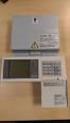 Building Air Conditioning Control System Power supply unit Model: PAC-SC50KUA Installation Manual Contents 1. Safety precautions... 1 2. Product feature... 2 1. Specification... 2 2. Appearance... 2 3.
Description. Dimensions. Features. www.pwb-encoders.com. precision works better
 Description The MEC22 is a high resolution optical hollow shaft encoder that can be fixed quickly and easily on different sizes of motor shafts. The encoder provides two square wave outputs in quadrature
ABB Drives. User s Manual. Pulse Encoder Interface Module RTAC-01
 ABB Drives User s Manual Pulse Encoder Interface Module RTAC-0 Pulse Encoder Interface Module RTAC-0 User s Manual 3AFE 64486853 REV A EN EFFECTIVE:.5.00 00 ABB Oy. All Rights Reserved. Safety instructions
Oil and Coolant Circulating Heating System. Model - OCSM
 Oil and Coolant Circulating Heating System Model - OCSM Installation & Operation Manual 216280-000 REV 2 Identifying Your System The HOTSTART heating system is designed to heat fluids for use in marine
CAUTION! THE 7I29 USES VOLTAGE AND POWER LEVELS THAT REPRESENT A HAZARD TO LIFE AND LIMB.
 7I29 MANUAL Rev 1.5 CAUTION! THE 7I29 USES VOLTAGE AND POWER LEVELS THAT REPRESENT A HAZARD TO LIFE AND LIMB. THE 7I29 IS INTENDED FOR USE BY OEMS THAT WILL INTEGRATE IT INTO A SYSTEM WITH INTERLOCKS AND
Bullet Camera. Installation Guide. Hangzhou Hikvision Digital Technology Co., Ltd. http://www.hikvision.com
 Bullet Camera Installation Guide Hangzhou Hikvision Digital Technology Co., Ltd. http://www.hikvision.com 1 Thank you for purchasing our product. If there are any questions, or requests, please do not
Automation System TROVIS 6400 TROVIS 6493 Compact Controller
 Automation System TROVIS 6400 TROVIS 6493 Compact Controller For panel mounting (front frame 48 x 96 mm/1.89 x 3.78 inch) Application Digital controller to automate industrial and process plants for general
INSTALLATION INSTRUCTIONS
 LIGHTING CONTROL PANELS 4 AND 8 RELAYS INSTALLATION INSTRUCTIONS INSTALLATION OVERVIEW The installation instructions contained in this document are provided as a guide for proper and reliable installation.
MCR1900 Media Converter 19-Slot Chassis
 MCR1900 Media Converter 19-Slot Chassis Installation Guide Part #5500304-11 Copyright Statement This document must not be reproduced in any way whatsoever, either printed or electronically, without the
Digital input modules
 8 172 TX-I/O Digital input modules TXM1.8D TXM1.16D Two fully compatible versions: TXM1.8D: 8 inputs, each with a three-color LED (green, yellow or red) TXM1.16D: As TXM1.8X, but 16 inputs, each with a
CONTROLS DATA MANAGEMENT PROCESS AUTOMATION EUROCUBE. General purpose single phase thyristors and solid state relays Product data.
 425 CONTROLS DATA MANAGEMENT PROCESS AUTOMATION EUROCUBE General purpose single phase thyristors and solid state relays Product data abc 425 EUROCUBE A complete range of low cost solid state relays and
Installation Instructions for Alarm Module Kit A043F059
 Instruction Sheet 07-2013 Installation Instructions for Alarm Module Kit A043F059 1 Introduction The information contained within is based on information available at the time of going to print. In line
Safe Torque Off Option (Series B) for PowerFlex 40P and PowerFlex 70 Enhanced Control AC Drives
 User Manual Safe Torque Off Option (Series B) for PowerFlex 40P and PowerFlex 70 Enhanced Control AC Drives Catalog Number 20A-DG01 Topic Page General Description 2 What Is the DriveGuard Safe Torque Off
SIMATIC NET. CP 243-2 AS-Interface Master B C. Preface Contents. Technical Description and Installation Instructions Interface to the User Program
 Preface Contents SIMATIC NET CP 243-2 AS-Interface Master Manual Technical Description and Installation Instructions Interface to the User Program 2 in the S7-200 CPU Access to the Data of the AS-i Slaves
INSTALLATION GUIDE 1
 INSTALLATION GUIDE 1 Setting information MAC-558IF-E address(mac) MAC-558IF-E serial number(id) MAC-558IF-E code(pin) Indoor unit model name Indoor unit serial number Outdoor unit model name Outdoor unit
Alpha Climatic Programmable Modulating Boiler Energy Manager. Installation and User Instructions
 Alpha Climatic Programmable Modulating Boiler Energy Manager Part No 3.022144 (Hard Wired) Part No 3.022143 (Radio Frequency) Installation and User Instructions 1. Description The Alpha Climatic energy
When any of the following symbols appear, read the associated information carefully. Symbol Meaning Description
 Samba OPLC SM35-J-R20 Installation Guide The Unitronics SM35-J-R20 offers the following onboard I/Os: 12 Digital Inputs, configurable via wiring to include: 1 HSC/Shaft-encoder Input, 2 Analog inputs (only
LEC-T1 Series. Teaching Box for Electric actuator. Applicable models : For Series LEC 6 PRODUCT NAME. MODEL / Series/Product Number
 Doc. no. LEC-OM00504 PRODUCT NAME Teaching Box for Electric actuator MODEL / Series/Product Number LEC-T1 Series Applicable models : For Series LEC 6 Contents Safety Instructions... 5 Changes by teaching
Perle Protocol Transparent Media Converter Modules
 Perle Protocol Transparent Media Converter Modules Installation Guide C-4GPT-DSFP CM-4GPT-DSFP Part# 5500335-10 Overview This document contains instructions necessary for the installation and operation
Model: DC-A2IO Advanced HVAC Controller
 Model: DC-A2IO Advanced HVAC Controller Job Name: Schedule Reference: Date: DC-A2IO Advanced HVAC Controller Package PAC-IF01 M-Net Adapter AL2-14MR-D α2 Simple Application Controller Accessories AL2-2DA
MAKING MODERN LIVING POSSIBLE. AK-SC255 On-Site Installation Guide DANFOSS ELECTRONIC CONTROLS & SENSORS
 MAKING MODERN LIVING POSSIBLE AK-SC255 On-Site Installation Guide DANFOSS ELECTRONIC CONTROLS & SENSORS How to Use This Guide Read this Guide completely as you install and start up your new AK-SC 255 controller.
Inova SV125 Machine Number 4016589
 Inova SV125 Machine Number 4016589 Date of Manufacture: 2011 o Never installed or used; in original crate Configured for 10x10 nested 1.0mL Long syringe Fully automatic vacuum filling and vacuum stoppering
Model 1756 Test Lead Kit
 Keithley Instruments 28775 Aurora Road Cleveland, Ohio 44139 1-888-KEITHLEY http://www.keithley.com Model 1756 Test Lead Kit Gerneral Purpose Test Lead Information Description These test leads allow you
SAFETY MANUAL SIL Switch Amplifier
 PROCESS AUTOMATION SAFETY MANUAL SIL Switch Amplifier KCD2-SR-(Ex)*(.LB)(.SP), HiC282* ISO9001 2 With regard to the supply of products, the current issue of the following document is applicable: The General
Routers and machining centres
 Routers and machining centres Safe working practices HSE information sheet Introduction This information sheet gives practical guidance on safe working practices when using CNC routers and machining centres,
Smart DeviceNet Remote I/O Terminals
 Smart DeviceNet Remote I/O Terminals ather and Use Information for Effective Preventive Maintenance et more useful data for preventive maintenance when you build cost-effective parallel information systems
RI-215A Operator s Manual. Part Number: 71-0045RK Revision 0 Released: 10/3/05
 RI-215A Operator s Manual Part Number: 71-0045RK Revision 0 Released: 10/3/05 Warranty RKI Instruments, Inc., warrants gas alarm equipment sold by us to be free from defects in materials and workmanship,
SECURITY SYSTEM ADP-CAN
 INSTALLATION INSTRUCTION SECURITY SYSTEM ADP-CAN Introduction Motorcar security system ADP-CAN is for motorcars provided with CAN net. It is for the work with the motorcar factory security systems or remote
Clear Glass Sensor. Ordering Information E3S-CR67/62. Optimum Sensor for Detecting Transparent Glass and Plastic Bottles
 Clear Glass Sensor Optimum Sensor for Detecting Transparent Glass and Plastic Bottles E3S-CR67/62 Retroreflective Sensor smoothly detects 5-mm gaps. Detects transparent bottles that have a lens effect.
SAFETY PRECAUTIONS (Please read these instructions before using this equipment.)
 SAFETY PRECAUTIONS (Please read these instructions before using this equipment.) Before using this product, please read this manual and the relevant manuals introduced in this manual carefully and pay
Solid Core and Split Core Adjustable Current Status Switches CSS-O, CSS-C; CSP-O, CSP-C
 Solid Core and Split Core Adjustable Current Status Switches CSS-O, CSS-C; CSP-O, CSP-C DESCRIPTION FEATURES PRODUCT DATA Very low operating trip points LED status indication Integral DIN rail mounting
MicroTech III Rooftop and Self Contained Unit Controller BACnet Communication Module (MS/TP)
 Installation and Maintenance Manual IM 917-1 Group: Controls Part Number: IM 917 Date: October 2009 Supercedes: IM 917 MicroTech III Rooftop and Self Contained Unit Controller BACnet Communication Module
8-port 10/100Base-TX +2-port 100Base-FX Switch. User s Guide
 8-port 10/100Base-TX +2-port 100Base-FX Switch User s Guide COPYRIGHT All rights reserved. No part of this publication may be reproduced, stored in a retrieval system, or transmitted in any form or by
WIRELESS ALARM KIT INSTRUCTION MANUAL COMPLETE ALARM SYSTEM FOR HOME OR BUSINESS. Model Number: IT214054
 WIRELESS ALARM KIT COMPLETE ALARM SYSTEM FOR HOME OR BUSINESS Model Number: IT214054 INSTRUCTION MANUAL Warranty Details/Support This product is warranted against defects for a period of One year if the
How To Set Up An Ecm Display On A D210 (D210) (D2) (Ecm) (Emc) (Mcd) (Power Supply) (Mm) (Camellom) (Ios)
 English Customer Display DM-D210 Installation Manual 401285101 CAUTIONS This document shall apply only to the product(s) identified herein. No part of this document may be reproduced, stored in a retrieval
5-port / 8-port 10/100BaseTX Industrial Ethernet Switch User Manual
 5-port / 8-port 10/100BaseTX Industrial Ethernet Switch User Manual Content Overview... 1 Introduction... 1 Features... 3 Packing List... 4 Safety Precaution... 4 Hardware Description... 5 Front Panel...
SAFETY PRECAUTIONS (Please read these instructions before using this equipment.)
 SAFETY PRECAUTIONS (Please read these instructions before using this equipment.) Before using this product, please read this manual and the relevant manuals introduced in this manual carefully and pay
Users manual. TCW181B-CM_R1 Page 1
 Ethernet controller TCW181B-CM Users manual 1. Short description TCW181B-CM is 8-channel Ethernet relay board, which is designed to work in IP-based networks and managed by WEB interface or SNMP programs.
AI120 AIswitch Series 120 Chassis
 AI120 AIswitch Series 120 Chassis Guide INSTALLATION GUIDE Westell Technologies Part # 030-300715 Rev. A Copyright 2015 by Westell Technologies. All Rights Reserved. Westell, Kentrox and Optima Management
User Manual. Interface Adapter IA1 / Computer Interface EFOY 600 / EFOY 900 / EFOY 1200 / EFOY 1600
 User Manual Interface Adapter IA1 / Computer Interface EFOY 600 / EFOY 900 / EFOY 1200 / EFOY 1600 2 1. Introduction 1. Introduction 1.1 Introduction Thank you for choosing an EFOY product. Please read
NEI-30 VEI-30 Dinion Infrared Imager NEI VEI Series. Quick Install Guide
 NEI-30 VEI-30 Dinion Infrared Imager NEI VEI Series en Quick Install Guide NEI-30 VEI-30 Dinion Infrared Imager Table of Contents en 3 Table of Contents 1 Planning 4 1.1 Hardware Requirements 4 1.2 Pre-installation
USER MANUAL V5.0 ST100
 GPS Vehicle Tracker USER MANUAL V5.0 ST100 Updated on 15 September 2009-1 - Contents 1 Product Overview 3 2 For Your Safety 3 3 ST100 Parameters 3 4 Getting Started 4 4.1 Hardware and Accessories 4 4.2
AC-115 Compact Networked Single Door Controller. Installation and User Manual
 AC-115 Compact Networked Single Controller Installation and User Manual December 2007 Table of Contents Table of Contents 1. Introduction...5 1.1 Key Features... 6 1.2 Technical Specifications... 7 2.
MAC-821SC-E. Centralized On-Off Remote Controller. English ÏÏËÓÈÎ. Русский [FOR INSTALLER] INSTALLATION MANUAL
![MAC-821SC-E. Centralized On-Off Remote Controller. English ÏÏËÓÈÎ. Русский [FOR INSTALLER] INSTALLATION MANUAL](/thumbs/24/3019861.jpg "MAC-821SC-E. Centralized On-Off Remote Controller. English ÏÏËÓÈÎ. Русский [FOR INSTALLER] INSTALLATION MANUAL") Centralized On-Off Remote Controller MC-821SC-E [FOR INSTLLER] INSTLLTION MNUL English [ [ π À À π ] E XEIPI IO O H IøN E KT T H [ [MONTÖR Ç N] MONTJ ELK TBI ÏÏËÓÈÎ [ДЛЯ УСТАНОВИТЕЛЯ] РУКОВОДСТВО ПО УСТАНОВКЕ
Centralized On-Off Remote Controller MC-821SC-E [FOR INSTLLER] INSTLLTION MNUL English [ [ π À À π ] E XEIPI IO O H IøN E KT T H [ [MONTÖR Ç N] MONTJ ELK TBI ÏÏËÓÈÎ [ДЛЯ УСТАНОВИТЕЛЯ] РУКОВОДСТВО ПО УСТАНОВКЕ
First Steps. Remote Access Gateway IGW/922. with DIL/NetPC ADNP/9200
 Remote Access Gateway IGW/922 with DIL/NetPC ADNP/9200 First Steps SSV Embedded Systems Dünenweg 5 D-30419 Hannover Phone: +49 (0)511/40 000-0 Fax: +49 (0)511/40 000-40 E-mail: [email protected] Document
E-STOP relays, safety gate monitors
 Unit features Safety features Gertebild ][Bildunterschrift_NOT_Sch.tuer_Licht Safety relay for monitoring E-STOP pushbuttons, safety gates and light beam devices Approvals Gertemerkmale Positive-guided
T0118 T2118 T3118. Instruction Manual
 Programmable indoor transmitter of temperature T0118 Programmable indoor transmitter of atmospheric pressure T2118 Programmable indoor transmitter of temperature, relative humidity and other derived humidity