
CyberSentry. Instruction manual. Security Event Manager * A2* GE Digital Energy
|
|
|
- Hester Francis
- 10 years ago
- Views:
Transcription
1 GE Digital Energy CyberSentry Security Event Manager Instruction manual CyberSentry SEM software revision: 1.00 GE publication code: A2 (GEK A) GE Digital Energy 650 Markland Street Markham, Ontario Canada L6C 0M1 Tel: Fax: Internet: * A2*

2 Copyright 2013 GE Multilin Inc. All rights reserved. CyberSentry SEM software revision CyberSentry, Digital Energy, Multilin, and GE Multilin are trademarks or registered trademarks of GE Multilin Inc. The contents of this manual are the property of GE Multilin Inc. This documentation is furnished on license and may not be reproduced in whole or in part without the permission of GE Multilin. The manual is for informational use only and is subject to change without notice. Part number: A2 (March 2013)

3 CyberSentry SEM Software Table of contents GLOSSARY Glossary...1 INTRODUCTION Overview...3 Devices supported...3 Unpacking checklist...3 How CyberSentry works...4 CyberSentry workflow...5 Sample event/case...6 For further assistance...8 GETTING STARTED System requirements...9 Operating system...9 Hardware requirements...9 Software required...9 Software restrictions...9 Install the software...10 Installation notes...10 Default user accounts...11 Start the software and log in...11 Enter the activation code...13 Using the trial version...13 Menu structure...14 Home tab...14 System tab...14 Security Dashboard tab...15 Lock computer...15 Log out...15 Exit the software...16 Uninstall the software...16 PREFERENCES Set scan rate and notification...17 CYBERSENTRY SECURITY EVENT MANAGER INSTRUCTION MANUAL iii
4 TABLE OF CONTENTS Set notification...19 Configure syslog...21 Configure compliance reports...25 USER ACCOUNTS Add, update, delete, disable user account...28 Add user account...28 Update user account...29 Delete user account...29 Disable user account...29 View permissions...30 Update contact information...32 Change password...32 Forgot password...33 Groups...34 SECURITY DOMAINS Add, update, delete security domain...35 Add security domain...35 Update security domain...36 Delete security domain...36 Add device...37 Modbus parameters...37 SNMP parameters...39 Assign ports and services...40 Assign device to security domain...40 Delete device...42 AUTHORIZED CONFIGURATION PROFILES Types of security parameters...43 Configuration changes...44 Device events...45 Loss of communication...46 Security...46 Add ACP security parameter...48 Delete ACP security parameter...48 SECURITY DASHBOARD Check online, scan, and error statuses...49 Scan devices...52 Security dashboard explained...52 EVENT/CASE WORKFLOW Monitor and fix event/case...55 Add incident case...58 Search for event/case...59 Close or delete event/case...59 DEVICE PROFILES Generate device profile...61 Add device profile...62 Update device profile...63 Delete device profile...65 iv CYBERSENTRY SECURITY EVENT MANAGER INSTRUCTION MANUAL

5 TABLE OF CONTENTS COMPLIANCE REPORTS View report...69 Generate report...69 Delete report...71 LICENSE MANAGEMENT View software version...73 Manage activation code...73 Update software...73 Transfer software license...74 CYBERSENTRY SECURITY EVENT MANAGER INSTRUCTION MANUAL v

6 TABLE OF CONTENTS vi CYBERSENTRY SECURITY EVENT MANAGER INSTRUCTION MANUAL

7 CyberSentry SEM Software Chapter 0: Glossary Glossary Glossary ABNF ACP CIP CMC CMS COMMS IC MIB NERC PDF SAT SD SE SEM SNMP SMTP SP syslog Augmented Backus-Naur Form (ABNF). The system logs of CyberSentry SEM conform to the ABNF (RFC 5234) definition. Authorized Configuration Profile. A set of rules for the expected behavior of a relay or network device. When a rule is violated, a Security Event or Incident Case is generated. Critical Infrastructure Protection. CyberSentry SEM is one component of CIP. CyberSentry Management Console CyberSentry Monitoring Server Communication Layer that performs the low-level communications (SNMP, Modbus over TCP/IP) Incident Case, such as multiple failed login attempts. The more serious Security Events become Incident Cases. Management Information Base. When adding device profiles,.mib files can be imported. North American Electric Reliability Corporation. CyberSentry SEM complies with NERC standards. Portable Document Format. The file format used for reports generated by CyberSentry SEM. Adobe Reader or a similar viewer is required. Security Audit Trail (SAT) server of CyberSentry SEM that retrieves security trail records from UR and UR Plus devices Security Domain. A group of devices. Devices are grouped in Security Domains so that a set of rules can be applied to the devices. Security Event, such as multiple failed login attempts. The more serious Security Events become Incident Cases. Security Event Manager. The CyberSentry software. Simple Network Management Protocol. SNMP devices are supported by CyberSentry SEM. Simple Mail Transfer Protocol. An SMTP server is required for notification of events detected by CyberSentry SEM. Security Parameter. A single rule. It includes the basic data elements to be acquired from devices for security monitoring and analysis. In the context of Modbus or SNMP devices, they are the setting parameters. System log. CyberSentry SEM can log events to system logs. CYBERSENTRY SECURITY EVENT MANAGER INSTRUCTION MANUAL 1
8 GLOSSARY CHAPTER 0: GLOSSARY 2 CYBERSENTRY SECURITY EVENT MANAGER INSTRUCTION MANUAL

9 CyberSentry SEM Software Chapter 1: Introduction Introduction Overview CyberSentry TM Security Event Manager (SEM) is software for automated Critical Infrastructure Protection (CIP), specifically for auditing, monitoring, and reporting of devices in electrical grids to standards of the North American Electric Reliability Corporation (NERC). The software is typically used in substations. Based on configuration and security policies, CyberSentry SEM initiates and performs security monitoring of power management relays and networking devices. It can record events, detect device setting changes, log security events, raises Incident Cases (ICs), and initiates IC tasks. CyberSentry SEM also generates reports. Devices supported CyberSentry SEM supports the following GE relays and networking devices: UR firmware versions 5.4x to 6.0x UR Plus firmware versions 1.7x and 1.8x ML2400 firmware version 4.01 CyberSentry SEM also supports the following third-party devices: Modbus devices Simple Network Management Protocol (SNMP) devices Unpacking checklist The following items are included with purchase: CyberSentry SEM software (on CD) CYBERSENTRY SECURITY EVENT MANAGER INSTRUCTION MANUAL 3

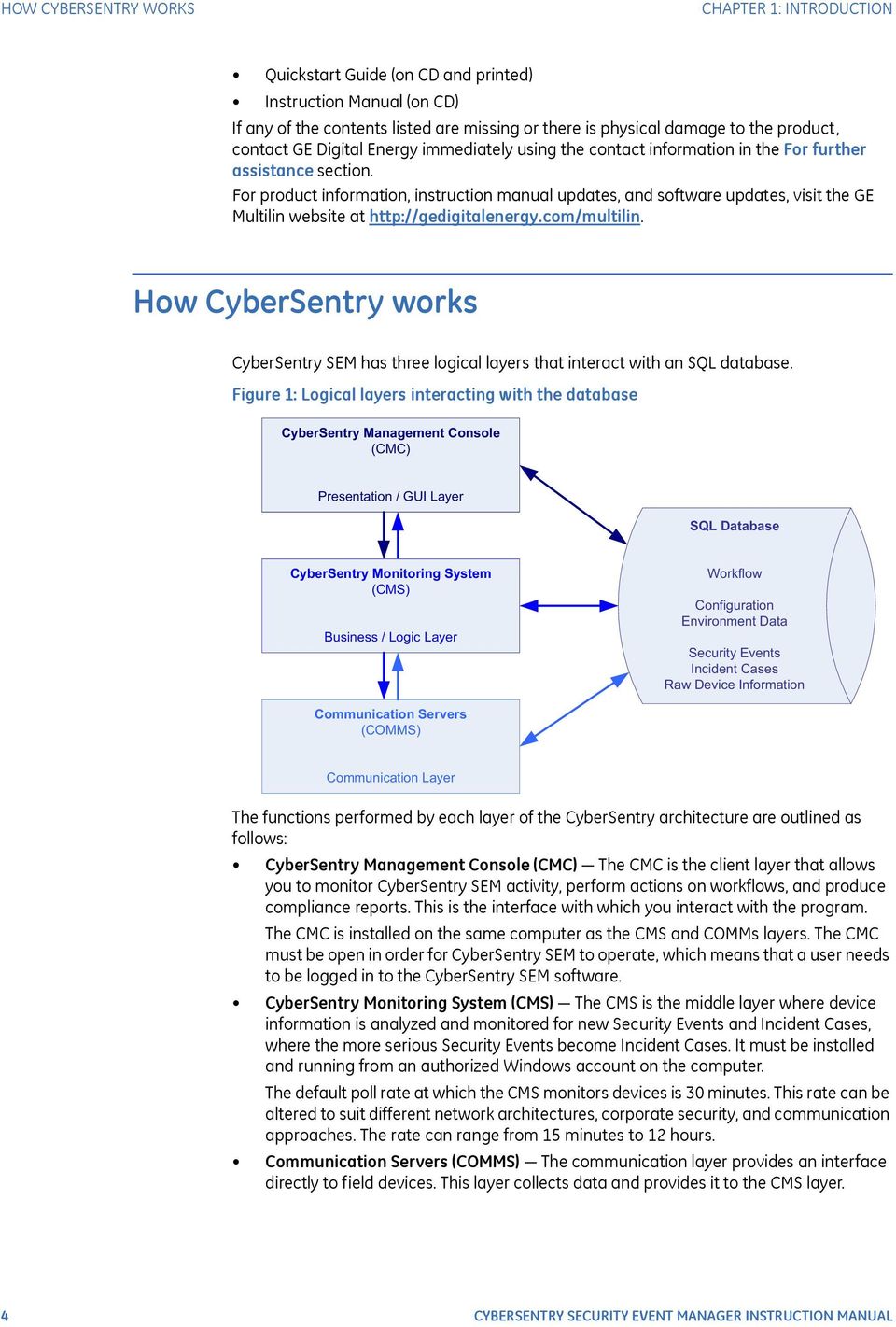
10 HOW CYBERSENTRY WORKS CHAPTER 1: INTRODUCTION Quickstart Guide (on CD and printed) Instruction Manual (on CD) If any of the contents listed are missing or there is physical damage to the product, contact GE Digital Energy immediately using the contact information in the For further assistance section. For product information, instruction manual updates, and software updates, visit the GE Multilin website at How CyberSentry works CyberSentry SEM has three logical layers that interact with an SQL database. Figure 1: Logical layers interacting with the database CyberSentry Management Console (CMC) Presentation / GUI Layer SQL Database CyberSentry Monitoring System (CMS) Business / Logic Layer Workflow Configuration Environment Data Security Events Incident Cases Raw Device Information Communication Servers (COMMS) Communication Layer The functions performed by each layer of the CyberSentry architecture are outlined as follows: CyberSentry Management Console (CMC) The CMC is the client layer that allows you to monitor CyberSentry SEM activity, perform actions on workflows, and produce compliance reports. This is the interface with which you interact with the program. The CMC is installed on the same computer as the CMS and COMMs layers. The CMC must be open in order for CyberSentry SEM to operate, which means that a user needs to be logged in to the CyberSentry SEM software. CyberSentry Monitoring System (CMS) The CMS is the middle layer where device information is analyzed and monitored for new Security Events and Incident Cases, where the more serious Security Events become Incident Cases. It must be installed and running from an authorized Windows account on the computer. The default poll rate at which the CMS monitors devices is 30 minutes. This rate can be altered to suit different network architectures, corporate security, and communication approaches. The rate can range from 15 minutes to 12 hours. Communication Servers (COMMS) The communication layer provides an interface directly to field devices. This layer collects data and provides it to the CMS layer. 4 CYBERSENTRY SECURITY EVENT MANAGER INSTRUCTION MANUAL
11 CHAPTER 1: INTRODUCTION HOW CYBERSENTRY WORKS CyberSentry workflow There are two phases: Phase 1 Setup Configure CyberSentry with details of the system to be monitored Phase 2 Monitor CyberSentry is fully operational and used daily to monitor the system and create reports Figure 2: Phase 1 is configuration Figure 3: Phase 2 is monitoring Step 1: Monitor Security Events/Incidents PHASE 2: MONITOR (daily activity) CyberSentry SEM monitors for new Security Events/ Incident Cases and notifies designated owner. Evaluate Security Events/Incident Cases to determine correct action. Step 2: Perform Workflow Actions Users log in to CyberSentry SEM and manage their assigned activities by updating the workflow status Step 3: Reports Create reports to review activity and for auditing In other words, the process for installing and using CyberSentry SEM is as follows: Install the software Enter the activation code Configure preferences Configure user accounts Configure Security Domains Add and assign devices to the Security Domains Review and add rules (Authorized Configuration Profiles) Check the Security Dashboard and respond to issues, modifying an event/case until it is closed Update the software CYBERSENTRY SECURITY EVENT MANAGER INSTRUCTION MANUAL 5

12 HOW CYBERSENTRY WORKS CHAPTER 1: INTRODUCTION Sample event/case This section outlines an example of setup and workflow for loss of communication with a device. Scenario Create an Authorized Configuration Profile (ACP) for a device that creates a Security Event when communication with a device is lost. Do not "Raise IC". The Security Domain owner is James Brown. Configuration Administrator adds user account for Joe Smith in the Officer category. Administrator adds user account for James Brown, in the Compliance Officer category. James Brown adds a Security Domain, which is simply a category in which to group devices. James Brown adds the device and assigns it to the Security Domain. James Brown adds a security parameter (rule) to monitor communication with the device by adding a Loss of Communication security parameter. By leaving the Raise IC checkbox disabled, any loss of communication is a Security Event instead of a more serious Incident Case. Figure 4: Add rule to monitor for loss of communication with device With configuration complete, the software communicates with the device according to the global scanning frequency set in the Preferences, which is also configured to send notifications. Workflow A month later, the software cannot communicate with the device. The Loss of Communication button on the Security Dashboard changes to red and indicates that there is an issue. James Brown is notified by of the loss of communication. Figure 5: Security Dashboard alarm James Brown clicks the Loss of Communication button to open the event viewer window. He assigns the Security Event to Joe Smith and comments "Joe, can you please see why this device is not communicating. Thanks. James' [Joe gets ] 6 CYBERSENTRY SECURITY EVENT MANAGER INSTRUCTION MANUAL

13 CHAPTER 1: INTRODUCTION HOW CYBERSENTRY WORKS Figure 6: Assign event and comment Joe responds with comments: "James, squirrels chewed through the communication cable. I've attached the picture." He attaches a bitmap image. [James gets ] Joe promotes the Security Event to an Incident Case and reassigns it back to James. [James gets ] As an Incident Case, James assigns it to Joe: "Joe, please repair the communication cable ASAP. Thanks James" [Joe gets ] Joe responds with comments: "James, repairs are made and I've rerouted the wiring. I've attached the picture." He attaches a bitmap image. [James gets ] Joe has completed the work and changes the state to Reviewed. [James gets ] James evaluates Joe's comments and attachment and signs off the Incident Case by closing it with the comment: "Examined photos to approve installation. Device successfully communicating." [no ] James generates a report for his records, including the details and history. As shown in the figure, this includes the comments. CYBERSENTRY SECURITY EVENT MANAGER INSTRUCTION MANUAL 7
![[James gets email] As an Incident Case, James assigns it to Joe: "Joe, please repair the communication cable ASAP.](/docs-images/58/4284496/images/page_13.jpg "Thanks James\" [Joe gets email] Joe responds with comments: \"James, repairs are made and I've rerouted the wiring. I've attached the picture.\" He attaches a bitmap image.")
14 FOR FURTHER ASSISTANCE CHAPTER 1: INTRODUCTION Figure 7: Report for loss of communication event For further assistance For product support, contact the information and call center as follows: GE Digital Energy 650 Markland Street Markham, Ontario Canada L6C 0M1 Worldwide telephone: Europe/Middle East/Africa telephone: North America toll-free: Fax: [email protected] Website: Comments about new features or modifications for specific requirements are welcome. 8 CYBERSENTRY SECURITY EVENT MANAGER INSTRUCTION MANUAL

15 CyberSentry SEM Software Chapter 2: Getting started Getting started System requirements Operating system CyberSentry SEM supports the following Windows operating system: Windows 7 (32-bit) with the latest service pack and patches Hardware requirements The computer requirements are as follows: 2.3 GHz (or better) Intel/AMD processor 4 GB RAM (minimum 2 GB) 1.0 GB free space on hard drive Video card supporting colors 17 inch (minimum) monitor CD drive (when installing from the CD) Ethernet connection Keyboard Mouse or mouse pad Software required The following software must be present on the computer before installing CyberSentry SEM: Adobe Reader or compatible viewer for viewing compliance reports Software restrictions CyberSentry SEM cannot be installed on the same computer with any of the following software: CYBERSENTRY SECURITY EVENT MANAGER INSTRUCTION MANUAL 9

16 INSTALL THE SOFTWARE CHAPTER 2: GETTING STARTED EnerVista TM Integrator EnerVista Energy Aggregator EnerVista Viewpoint Monitoring Either use another computer or uninstall the EnerVista software, ensuring first that the uninstall does not interfere with operation of an electrical grid. Install the software The license allows for installation on one computer. Installation typically is done at a substation. The software typically is installed on a computer shared by multiple users. For example, you install the software, configure four user accounts, and these four users use the computer at different times. notifications are sent to the users as appropriate, which allows the users to respond even while not working at the computer that has CyberSentry SEM installed. CyberSentry SEM can be installed from the CD or a download file. To install the CyberSentry SEM software from the CD: 1. With Adobe Reader installed and EnerVista software not installed, insert the CyberSentry SEM CD in the computer drive. 2. If the installation program does not automatically start, locate the CyberSentrySEM100Setup.exe file on the CD, then click or double-click the file to start the installation. If prompted, click Yes to allow the program to make changes to the computer, and also allow Microsoft.NET framework to be installed. 3. Complete the wizard. All components required by CyberSentry SEM are installed. Default user accounts are created automatically. 4. Start the software and log in, as outlined in the next section. To install the CyberSentry SEM software using the download file: 1. With Adobe Reader installed and EnerVista software not installed, click or double-click the CyberSentrySEM100Setup.exe file. If prompted. click Yes to allow the program to make changes to the computer, and also allow Microsoft.NET framework to be installed. 2. Complete the wizard. All components required by CyberSentry SEM are installed. Default user accounts are created automatically. 3. Start the software and log in, as outlined in the next section. After installing the software, configure it, working through each chapter in this instruction manual to set preferences, user accounts, monitoring, and so on. This instruction manual is located in the following folder: C:\Program Files\GE Digital Energy\CyberSentry SEM. Installation notes CyberSentry SEM uses Microsoft SQL Server 2008 Express database for storage. The name of the SQL Server used is PMCSSQLSERVER. The name of the database is EVENTLOGGERSQL, and the database is located in C:\MSSQL7\Data. 10 CYBERSENTRY SECURITY EVENT MANAGER INSTRUCTION MANUAL

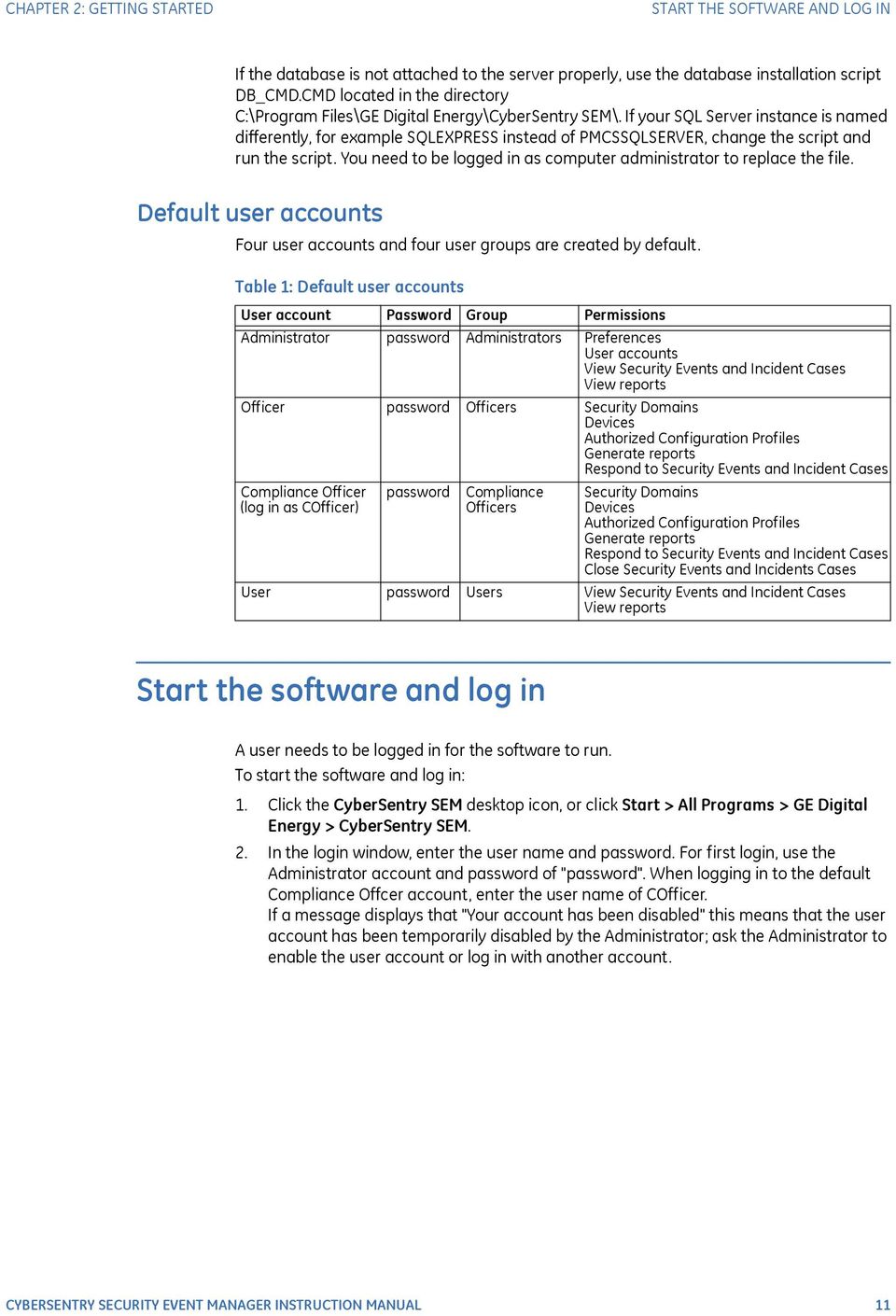
17 CHAPTER 2: GETTING STARTED START THE SOFTWARE AND LOG IN If the database is not attached to the server properly, use the database installation script DB_CMD.CMD located in the directory C:\Program Files\GE Digital Energy\CyberSentry SEM\. If your SQL Server instance is named differently, for example SQLEXPRESS instead of PMCSSQLSERVER, change the script and run the script. You need to be logged in as computer administrator to replace the file. Default user accounts Four user accounts and four user groups are created by default. Table 1: Default user accounts User account Password Group Permissions Administrator password Administrators Preferences User accounts View Security Events and Incident Cases View reports Officer password Officers Security Domains Devices Authorized Configuration Profiles Generate reports Respond to Security Events and Incident Cases Compliance Officer (log in as COfficer) password Compliance Officers Security Domains Devices Authorized Configuration Profiles Generate reports Respond to Security Events and Incident Cases Close Security Events and Incidents Cases User password Users View Security Events and Incident Cases View reports Start the software and log in A user needs to be logged in for the software to run. To start the software and log in: 1. Click the CyberSentry SEM desktop icon, or click Start > All Programs > GE Digital Energy > CyberSentry SEM. 2. In the login window, enter the user name and password. For first login, use the Administrator account and password of "password". When logging in to the default Compliance Offcer account, enter the user name of COfficer. If a message displays that "Your account has been disabled" this means that the user account has been temporarily disabled by the Administrator; ask the Administrator to enable the user account or log in with another account. CYBERSENTRY SECURITY EVENT MANAGER INSTRUCTION MANUAL 11
18 START THE SOFTWARE AND LOG IN CHAPTER 2: GETTING STARTED Figure 8: Login window 3. With first login for any of the default user accounts, a window prompts to specify a new password and security question for the account. Complete the information. 4. To lock the computer and leave the software running, press the Ctrl+Alt+Delete keys, then click the Lock this computer option. Figure 9: Prompt to change password and enter security question After three unsuccessful password attempts, CyberSentry SEM shuts down. A message displays to that effect, and a system log (syslog) message is generated. With successful launch, the Security Dashboard displays (next figure). With successful installation and login, configure the software, working through each chapter in this instruction manual, which is located in the following folder: C:\Program Files\GE Digital Energy\CyberSentry SEM. Start by entering the activation code (next section) and configuring preferences (next chapter). 12 CYBERSENTRY SECURITY EVENT MANAGER INSTRUCTION MANUAL
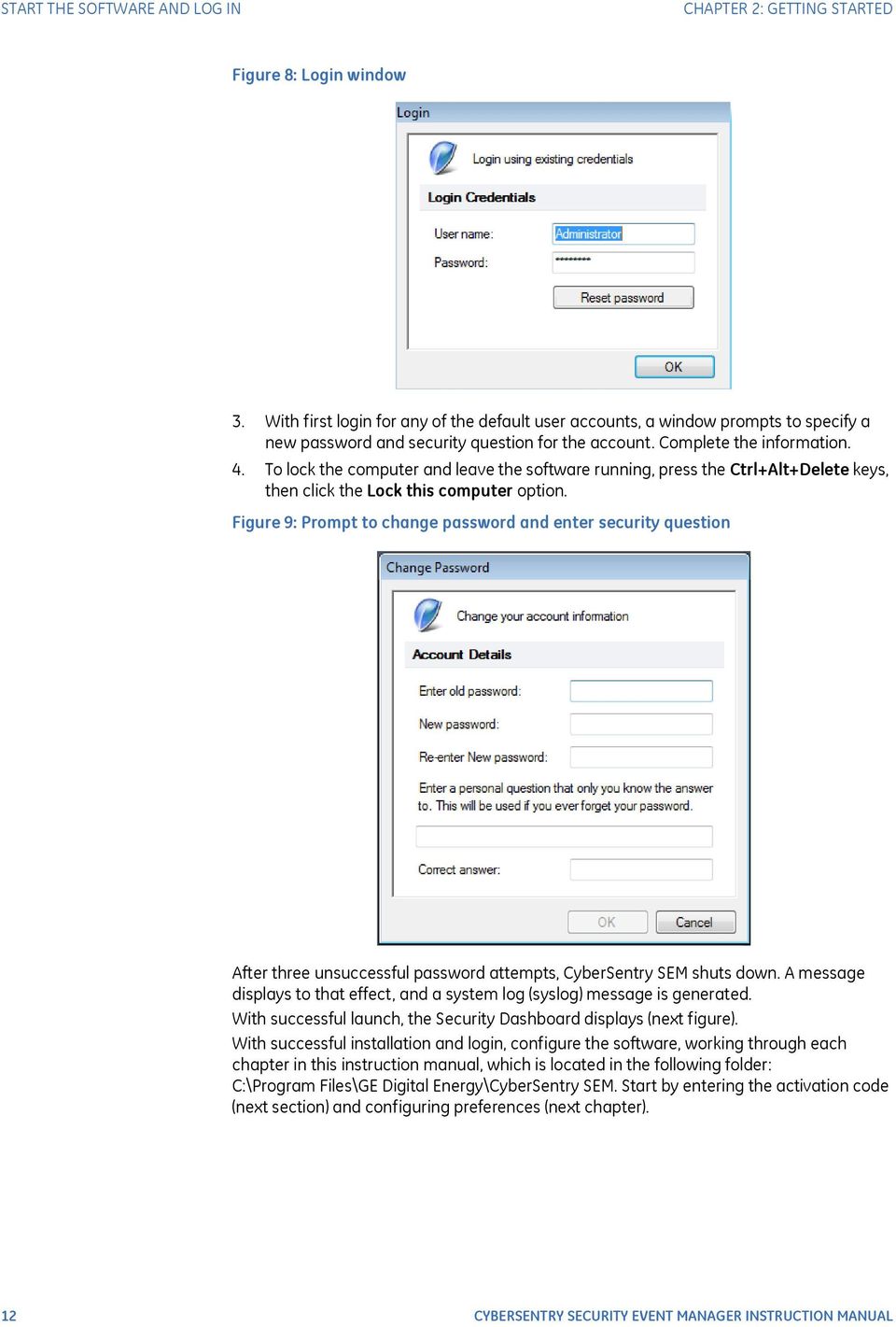
19 CHAPTER 2: GETTING STARTED ENTER THE ACTIVATION CODE Figure 10: Security Dashboard in the software interface Enter the activation code A valid license and activation code are required to run the software. Enter the activation code after installation of the software. To enter the activation code: 1. While logged in to CyberSentry SEM as Administrator, click System > License. 2. In the window that opens, enter the code in the Activation Code field, then click the Unlock button. 3. Click the OK button to exit. Using the trial version On a freshly installed CyberSentry SEM system, a 90-day trial period is provided. After the trial period, the software locks, and you must have a valid activation code to unlock it. Based on the license purchased, CyberSentry SEM limits the number of devices that can be configured in Security Domains to 25, 50, 100, or 150 devices. When in demonstration/trial mode, the number of devices is limited to 25. To view license status: 1. While logged in as Administrator, click System > License. 2. In the window that opens, view the License Status field. The number of days remaining in the trial displays. CYBERSENTRY SECURITY EVENT MANAGER INSTRUCTION MANUAL 13
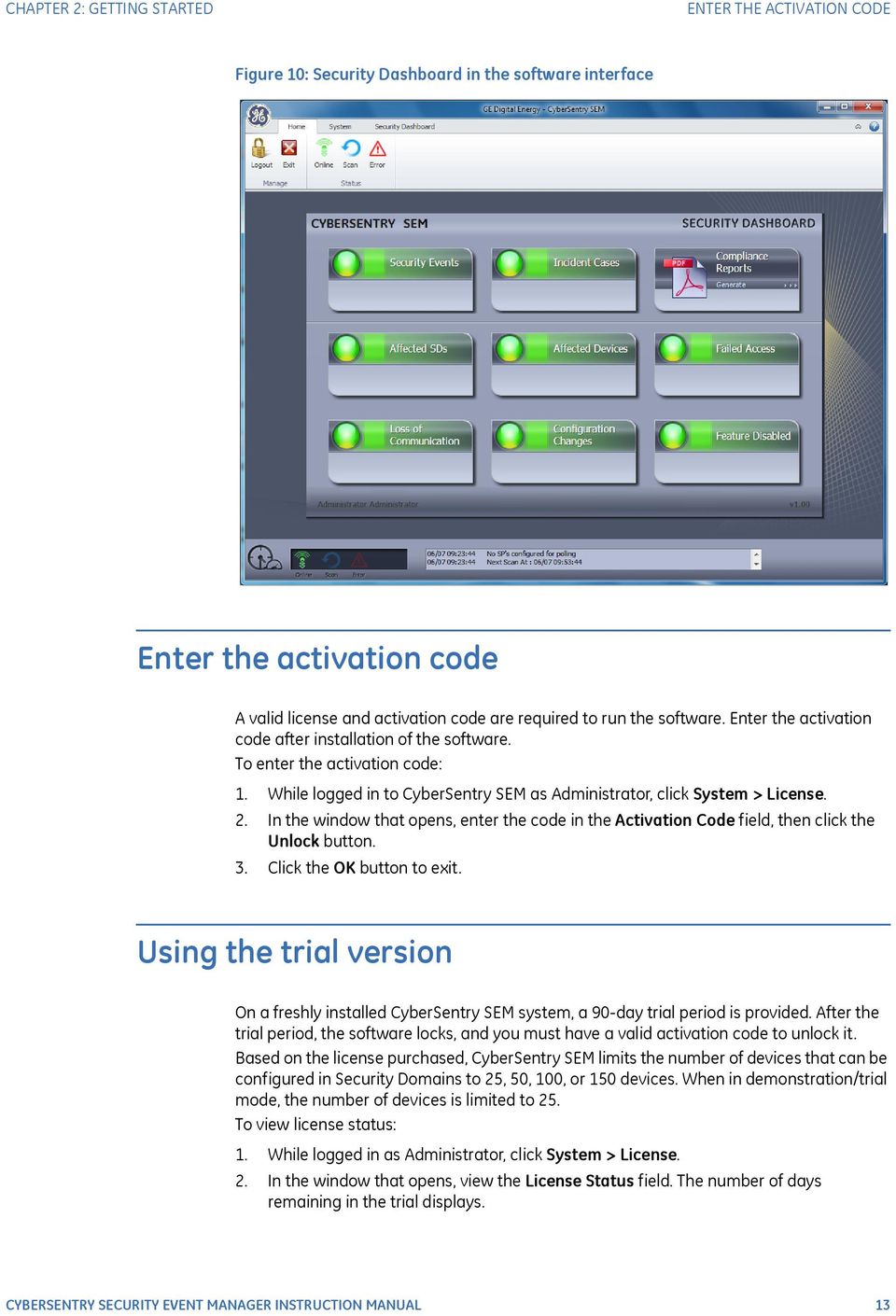
20 MENU STRUCTURE CHAPTER 2: GETTING STARTED Figure 11: View license status To enter the activation code: 1. See the previous section. Menu structure Home tab CyberSentry SEM has the following tabs: Home System Security Dashboard To open the online help, click the question mark icon on the right side of the software window. Use this tab to access status windows, log out, and exit the software. Figure 12: Home tab Logout To log out of a user account and stop monitoring. Exit To log out, stop monitoring, and shut down the software. Online To display current status of the software. See the Security dashboard chapter. Scan To display details of CyberSentry SEM s device scanning. See the Security dashboard chapter. Error To display details of any known error conditions detected by CyberSentry SEM. See the Security dashboard chapter. System tab This tab provides access to administration and configuration functions. Figure 13: System tab 14 CYBERSENTRY SECURITY EVENT MANAGER INSTRUCTION MANUAL

21 CHAPTER 2: GETTING STARTED LOCK COMPUTER Users To manage user accounts. Non-administrators can manage their personal information. See the User accounts chapter. Preferences To manage system preferences, such as scan rate, notification, and system logging. See the Preferences chapter. License To manage the software license and view version. See the License management chapter. SDs To manage the Security Domains and devices. See the Security domains chapter. ACPs To manage the Authorized Configuration Profiles, which are the rules applied during monitoring. See the Authorized configuration profiles chapter. Profiles To add profiles for third-party or customized Modbus/SNMP devices. See the Device profiles chapter. Security Dashboard tab This tab provides functions available for the Security Dashboard window and events/cases. Figure 14: Security Dashboard tab Dashboard To hide/show the Security Dashboard. See the Security dashboard chapter. Event Viewer To open the Event Viewer window. This is the window used to view, respond, and close events and cases. See the Event/case workflow chapter. Create To enter an Incident Case. See the Event/case workflow chapter. Reports To generate a report. See the Compliance reports chapter. Lock computer A user needs to be logged in for the software to monitor devices. An alternative to logging out is to lock the computer, which leaves the software running. To lock the computer: 1. Press the Ctrl+Alt+Delete keys, then click the Lock this computer option. Log out A user needs to be logged in for the software to monitor devices. To log out: 1. Click Home > Logout. CyberSentry SEM logs out of the user account and displays the login window. CYBERSENTRY SECURITY EVENT MANAGER INSTRUCTION MANUAL 15
22 EXIT THE SOFTWARE CHAPTER 2: GETTING STARTED Exit the software The software needs to running for it to monitor devices. To exit the software: 1. Click Home > Exit. 2. Confirm the exit at the prompt. The CyberSentry SEM software closes all communications channels, shuts down, and no longer monitors devices. Uninstall the software To uninstall the software: 1. Click Start > Control Panel. 2. Click Programs and Features. 3. Click CyberSentry SEM. 4. Click Uninstall, and confirm the deletion. The software is deleted. The database is detached but not yet deleted. 5. Delete the EVENTLOGGERSQL database, which is located in C:\MSSQL7\Data. 16 CYBERSENTRY SECURITY EVENT MANAGER INSTRUCTION MANUAL
23 CyberSentry SEM Software Chapter 3: Preferences Preferences There are four panels to manage preferences. Configure them after installation. General scan rate and system tray notification ing notification Syslog log events Compliance Reports configure report location and logo Administrator access is required. Set scan rate and notification Use the General panel to configure scan frequency and system tray notification, which is on by default. To set scan rate and notification: 1. Log in to the CyberSentry SEM software as Administrator. 2. Click System > Preferences. 3. Configure the settings, which are explained as follows. 4. Click the OK button to exit. CYBERSENTRY SECURITY EVENT MANAGER INSTRUCTION MANUAL 17
24 SET SCAN RATE AND NOTIFICATION CHAPTER 3: PREFERENCES Figure 15: General tab to set scan frequency (default settings shown) Scan rate The scan rate is the frequency at which devices are monitored/polled. None To stop scanning, such as for maintenance, when performing configuration, or when the network is down and you want to avoid unwanted messages. Continuous (default) Range: 15 to 720 minutes (12 hours) Default: 30 minutes Hourly Selection: 0 to 45 minutes, in increments of 15 minutes Default: 0 minutes Daily Range: mm:ss Default: 00:00 (midnight) System tray notification Messages appear by default in the system tray on the Windows taskbar when new Security Events and/or Incident Cases are detected. Notification can be turned on and off. Figure 16: Notification of event/case in system tray New security events Enable to display notification when a new Security Event is detected. New incident cases Enable to display notification when a new Incident Case is detected. 18 CYBERSENTRY SECURITY EVENT MANAGER INSTRUCTION MANUAL
25 CHAPTER 3: PREFERENCES SET NOTIFICATION Set notification CyberSentry SEM can be configured to send s when it detects new Security Events, Incident Cases, or other parameters. Recipients are based on the parameter. An example of an notification is the following for a missed deadline to respond to an event/case: Subject: [CyberSentry SEM ] Deadline Date Expired Case: CS Activity: Deadline Date Expired Deadline: GE recommends configuring this function, which is disabled by default. An server compliant with the Simple Mail Transfer Protocol (SMTP) is required, located within your company. To set notification: 1. Log in as Administrator. 2. Click System > Preferences. 3. Click the ing option. 4. Configure the settings, which are explained as follows. 5. Click the Test button to send a test to the user with the message "This is a test from CyberSentry SEM." When an address is entered here that is not registered in the software for the user, a message displays to that effect; add the address under System > Users. If nothing happens when you click the button, this means that you do not have an SMTP server configured correctly in the panel or there is a connection issue with it. 6. Click the OK button to exit. CYBERSENTRY SECURITY EVENT MANAGER INSTRUCTION MANUAL 19
26 SET NOTIFICATION CHAPTER 3: PREFERENCES Figure 17: ing panel to set notification SMTP server address Send Enable to send s for the notification types specified in this panel. SMTP mail server Specify the name of your server, such as hpserver or mail.yourcompany.com. Do not specify the path. Servers located at Internet service providers (ISPs) are not supported; the SMTP server needs to be your own, located within your network. SMTP user credentials CyberSentry SEM s originate from Enter the address to be used in the From field of s sent. This address is typically that of the Administrator of CyberSentry SEM. An example is Notification Specify when to send notifications. New security events / incident cases Default: Enabled Enable to send an when a Security Event or Incident Case is created. Send the to the owner, the assignee, and (when enabled separately) the user performing the activity. When the Incident Case is created by enabling the Raise IC checkbox or a Security Event was manually entered, a "New incident cases" is sent. Otherwise, a "New security events" is sent. 20 CYBERSENTRY SECURITY EVENT MANAGER INSTRUCTION MANUAL
27 CHAPTER 3: PREFERENCES CONFIGURE SYSLOG Change of state Default: Enabled Enable to send an when a Security Event or Incident Case changes state. Examples of state changes are when a Security Event is assigned, when a request is made to review an Incident Case, and when a deadline date expired. Send the to the owner, the assignee, and (when enabled separately) the user performing the activity. Field modified Default: Enabled Enable to send an when a field has been changed for an event/case, for example Add Comment or Add Attachment, or the Security Event or Incident Case has been reassigned to another office. Send the to the owner, the assignee, and (when enabled separately) the user performing the activity. Deadline date expired Default: Enabled In the Event Viewer window, when a comment is made on an event/case or the event/ case is assigned to another user, for example, a deadline is specified and added by the software to the event/case. Enable this checkbox to send an when the deadline date for an event has expired. Send the to the owner and the assignee. Send to the user entering the action Default: Disabled Enable to send notifications to the person performing the activity that causes the notification. Disable to reduce the amount of sent and do not send an to person who initiated the activity because they already know about the activity. Leave disabled to minimize . Configure syslog Several types of system action can be recorded in system logs (syslogs). An example of a syslog message is as follows for a closed Incident Case: 8/22/ :52:42.827: id da55951a-278d-4bd6-a4fa-f6175af8d4af To:[email protected], [email protected] Subject:[CyberSentry SEM ] IC Closed Case: CS Activity: Incident Case Closed Time: :57:50 Description: IC resolved and closed The figure shows an example of a syslog. CYBERSENTRY SECURITY EVENT MANAGER INSTRUCTION MANUAL 21
28 CONFIGURE SYSLOG CHAPTER 3: PREFERENCES Figure 18: Syslog example The computer clock is used for timestamps in the syslogs. Logging is disabled by default. At least one remote server is required, such as a UNIX server. The logs can be sent to one or two servers, referred to as primary and secondary. An example of a free syslog server is Kiwi Syslog Server, shown in the previous figure. The syslog message format conforms to the Augmented Backus-Naur Form (ABNF) (RFC 5234) definition. To configure system logging: 1. Log in as Administrator. 2. Click System > Preferences. 3. Click the Syslog option. 4. Configure the settings, which are explained as follows. 5. Click the Test button(s) to confirm access of the servers. 6. Click the OK button to exit. 22 CYBERSENTRY SECURITY EVENT MANAGER INSTRUCTION MANUAL
29 CHAPTER 3: PREFERENCES CONFIGURE SYSLOG Figure 19: Syslog panel to configure system logs (default settings shown) Primary server address Log to server Enable to log events/cases and software activity, such as a user adding a security parameter in the software, to system logs on the main remote server. Server name Specify the name of the main remote server, such as hpuxserver. Do not specify the path. The maximum number of characters is 80. Port number Default: 514 Specify the port number on the main remote server used for communication. Port 514 typically is used for syslogs. Secondary server address Use of a second server is optional. Log to server Enable to log events/cases and software activity, such as a user adding a security parameter in the software, to system logs on a second remote server. Server name Specify the name of the second remote server, such as hpuxserver2. Do not specify the path. The maximum number of characters is 80. CYBERSENTRY SECURITY EVENT MANAGER INSTRUCTION MANUAL 23
30 CONFIGURE SYSLOG CHAPTER 3: PREFERENCES Port number Default: 514 Specify the port number on the second remote server used for communication. Port 514 typically is used for syslogs. Notification Specify the activities that generate an entry in the syslog. New security event Default: Enabled Enable to record in the syslog when a Security Event is created. New incident case Default: Enabled Enable to record in the syslog when an Incident Case is created. Incident case closed Default: Enabled Enable to record in the syslog when an Incident Case is closed. Environment / configuration change Default: Enabled Enable to record in the syslog when device configuration is changed. Examples are "User FirstOfficer Added SP Control Password Access for Timeout for Device B90_ver600" and "User FirstOfficer Added SP Session for Device N60_version540." System error Default: Enabled Enable to record in the syslog when a system error is generated. An example is the message "SMTP Error: Check the system." Deadline date expired Default: Enabled In the Event Viewer window, when a comment is made on an event/case or the event/ case is assigned to another user, for example, a deadline is specified and added by the software to the event/case. Enable this checkbox to record in the syslog when the deadline date for an event/case has expired. 24 CYBERSENTRY SECURITY EVENT MANAGER INSTRUCTION MANUAL
31 CHAPTER 3: PREFERENCES CONFIGURE COMPLIANCE REPORTS Configure compliance reports Specify the calendar week, location of the reports, and a logo. Figure 20: Compliance Reports panel to specify report location To configure reports: 1. Log in as Administrator. 2. Click System > Preferences. 3. Click the Compliance Reports option. 4. Configure the settings, which are explained as follows. 5. Click the OK button to exit. Calendar week definition Default: Monday to Sunday Specify the calendar week for the reports as Monday to Sunday or as Sunday to Saturday. Reports file location Default: C:\Users\Public\Public Documents Specify where the reports are stored when created. Enter the full path. Any computer accessible through the Browse function can be used. You cannot use an HTTP path. Any user with access to the computer can view the reports when they know the path to the location. Logo file location Default: C:\ProgramData\GE Digital Energy\CyberSentry SEM\Reports\Report_Logo.png To include a logo on the compliance reports, specify the path to the file. An example is C:\Documents and Settings\My Documents\My Pictures. Use a square image. If you specify a non-square image, it is cropped in this panel but later scaled to fit the report, which means that it is formatted as square (and distorted) when a report is generated. The formats supported are BMP, JPG, GIF, and PNG. An error message displays when an unsupported file is accessed; click Continue to close it. CYBERSENTRY SECURITY EVENT MANAGER INSTRUCTION MANUAL 25
32 CONFIGURE COMPLIANCE REPORTS CHAPTER 3: PREFERENCES 26 CYBERSENTRY SECURITY EVENT MANAGER INSTRUCTION MANUAL
33 CyberSentry SEM Software Chapter 4: User accounts User accounts The Administrator can manage user accounts. All other users can manage their contact information, address, and password. After installation, as a minimum, change the passwords and set the addresses for the Administrator and Compliance Officer accounts. During installation, Administrator, Compliance Officer, Officer, and User accounts were created by default. Upon first login for each account, change the default password of "password". Each account is a member of their respective user group, and access to functions depend on permissions. Table 2: Default user accounts User account Password Group Permissions Administrator password Administrators Preferences User accounts View Security Events and Incident Cases View reports Officer password Officers Security Domains Devices Authorized Configuration Profiles Generate reports Respond to Security Events and Incident Cases Compliance Officer (log in as COfficer) password Compliance Officers Security Domains Devices Authorized Configuration Profiles Generate reports Respond to Security Events and Incident Cases Close Security Events and Incidents Cases User password Users View Security Events and Incident Cases View reports The following functions are based on permissions: Add, update, delete, disable user accounts View permissions Update contact information Change password Forgot password Groups CYBERSENTRY SECURITY EVENT MANAGER INSTRUCTION MANUAL 27
34 ADD, UPDATE, DELETE, DISABLE USER ACCOUNT CHAPTER 4: USER ACCOUNTS Add, update, delete, disable user account The Administrator performs these functions. A user is a member of a group and only one group. Only one Administrator account is possible. Figure 21: Managing user accounts Add user account CyberSentry SEM supports 1,000 user accounts. To add a user account: 1. Log in as Administrator. 2. Click System > Users. 3. Click a user account category/group on the left side, such as Officers, which is the core group to respond to Security Events. The types are explained in the View permissions section that follows. Because only a single Administrator account is allowed, this group is not selectable. 4. Click the New User icon. As a minimum, enter a user name, first and last name, and address. 5. Click the OK button to add the account and exit. The default password for the user is "password". The user can set the password and security question when they log in. 6. Access the panel again and click the Test button for the account. This sends a test to the user with the message "This is a test from CyberSentry SEM." The server needs to be configured under System > Preferences for this function to work, otherwise a message displays to that effect. When incorrectly configured, nothing happens when you click the Test button. User name The user name for login must be unique and between 4 and 20 characters long. Once set, only the Administrator can change it. 28 CYBERSENTRY SECURITY EVENT MANAGER INSTRUCTION MANUAL
35 CHAPTER 4: USER ACCOUNTS ADD, UPDATE, DELETE, DISABLE USER ACCOUNT Update user account To update a user account: 1. Click System > Users. 2. Select the user account. When the user logged in belongs to the Users, Officers, or Compliance Officers group, the list displays that account only. Administrators see the entire user list. 3. Change the information. All users can update their Contact Information, Address, and Password. Only the Administrator can change a user name. The Administrator cannot change the password of another user. 4. Click the OK button to exit. Delete user account An alternative to deleting a user account is to disable it. See the Disable user account section that follows. Deleted accounts cannot be recovered. Any Security Events and Incident Cases assigned to them remain available to other users. To delete a user account: 1. Log in as Administrator. 2. Click System > Users. 3. Select the user account. 4. Click the Delete icon. A user cannot delete their own account; ask the Administrator to delete it. 5. At the prompt, confirm the deletion. Before the account is deleted, CyberSentry SEM checks the system for active Security Events and Incident Cases that are assigned to the account. When there are any matches, a message indicates the number of records assigned to the user, and the account is deleted. Any Security Events and Incident Cases assigned to the user remain visible in the system and available to other users. They can be picked up by any Officer or Compliance Officer. 6. Click the OK button to exit. Disable user account An alternative to deleting a user account is to disable it. A disabled user account cannot log in to the software. Any Security Events and Incident Cases assigned to it remain available to other users. To disable a user account: 1. Log in as Administrator. 2. Click System > Users. 3. Select the user account. 4. Click the Disable button, which displays only for the Administrator. The Administrator account cannot be disabled. Before an account is disabled, CyberSentry SEM checks the system for active Security Events and Incident Cases that are assigned to the account. When there are any matches, a message indicates the number of records assigned to the user. When the account is successfully disabled, the Disable button toggles to Enable, and CYBERSENTRY SECURITY EVENT MANAGER INSTRUCTION MANUAL 29
36 VIEW PERMISSIONS CHAPTER 4: USER ACCOUNTS the user is unable to log in. Any Security Events and Incident Cases assigned to the user remain visible in the system and available to other users. They can be picked up by any Officer or Compliance Officer. Figure 22: Disable a user account View permissions There are four types of user accounts/groups, which determine the permissions: Administrator Compliance Officer Officer User All user accounts in a group share the same permissions. Permissions cannot be customized. To view permissions: 1. Click System > Users. 2. Select a user group or user account. The permissions display at the top of the window and are explained as follows. They cannot be modified. Administrator The Administrator can view all information, manage user accounts, and view reports. They cannot modify the Security Domain (SD), device configuration, or perform action on Security Events and Incident Cases. One Administrator account is allowed. Figure 23: Permissions for the Administrator Compliance Officer A Compliance Officer can view and edit information about device and security parameters, as well as workflow and compliance reports. They can manually raise Incident Cases. They can close Security Events and Incident Cases. They cannot manage user accounts other than their own. 30 CYBERSENTRY SECURITY EVENT MANAGER INSTRUCTION MANUAL
37 CHAPTER 4: USER ACCOUNTS VIEW PERMISSIONS Figure 24: Permissions for a Compliance Officer Officer An Officer is the core group that responds to Security Events. They have the same permissions as Compliance Officers except that they cannot close events/cases. Figure 25: Permissions for an Officer User A User can view workflows, meaning events/cases. They can view compliance reports. Figure 26: Permissions for a User CYBERSENTRY SECURITY EVENT MANAGER INSTRUCTION MANUAL 31
38 UPDATE CONTACT INFORMATION CHAPTER 4: USER ACCOUNTS Update contact information All users can update their contact information except the User name field, which the Administrator changes. The Administrator can view all contact information. Figure 27: Contact Information and Address fields To update contact information: 1. See the Update user account section. Change password The rules for passwords are as follows: Length between 6 and 20 characters Contain a minimum of one lowercase letter (a - z) Contain a minimum of one uppercase letter (A - Z) Contain a minimum of one number (0-9) Contain a minimum of one special character from!@#$%* Although "password" is used as the default password, this word cannot be expressly set as a password. When any user attempts to log in with the password of "password", they are prompted to change the password. A user changes their own password. The Administrator cannot change it. Passwords are encrypted in the database. There is no connection to Microsoft Active Directory or the Remote Authentication Dial In User Service (RADIUS) protocol. To change a password: 1. Click System > Users. 2. Select the user account. 3. Click the password Update button and complete the form. 4. Click the OK button to exit. 32 CYBERSENTRY SECURITY EVENT MANAGER INSTRUCTION MANUAL
39 CHAPTER 4: USER ACCOUNTS FORGOT PASSWORD Figure 28: Change the password Forgot password When a user forgets their password, they reset it by clicking the Reset password button in the login window. To reset the password: 1. In the login window, click the Reset password button. When no security question exists for the account, such as for a default user account, a message displays to that effect. In this case, log in with the default password of "password" and set the security question. 2. In the window that opens, enter the Answer to the security question displayed. The answer is case-sensitive. Click OK. 3. In the password reset window that opens, enter a new password, security question, and answer. Then click OK. When the button is not active, cancel out and try again. CYBERSENTRY SECURITY EVENT MANAGER INSTRUCTION MANUAL 33
40 GROUPS CHAPTER 4: USER ACCOUNTS Figure 29: Answer the security question to reset the password Groups There are four fixed user groups: Administrators, Users, Officers, and Compliance Officers. They cannot be renamed, and you cannot add or delete groups. 34 CYBERSENTRY SECURITY EVENT MANAGER INSTRUCTION MANUAL
41 CyberSentry SEM Software Chapter 5: Security domains Security domains A Security Domain (SD) is a set of devices. The purpose of Security Domains is to group devices in order to apply rules for monitoring. All devices monitored by CyberSentry SEM must be in at least one Security Domain. The following action can be performed. To configure the software the first time, you add domains, add devices, and assign them to domains. Add, update, delete Security Domains Add devices Assign devices to the domains Delete devices Users in the Compliance Officer and Officers groups modify these functions. Administrators can view them. Add, update, delete security domain The advantage of naming domains is that each domain has its own set of rules, referred to as Authorized Configuration Profiles (ACPs). The ACPs define how CyberSentry SEM determines Security Events and Incident Cases. Add security domain To add a Security Domain: 1. Log in as a Compliance Officer or Officer. 2. Click System > SDs. 3. Click the New SD icon. 4. Complete the fields, which are explained as follows, and click the OK button to exit. The order of the domains displayed cannot be changed later, so add them in the order in which you want them to appear. Because devices have yet to be assigned to the domain, a message displays when you click OK; click Yes to continue. 5. Add devices (next section). CYBERSENTRY SECURITY EVENT MANAGER INSTRUCTION MANUAL 35
42 ADD, UPDATE, DELETE SECURITY DOMAIN CHAPTER 5: SECURITY DOMAINS Figure 30: Add a Security Domain Name The name of the Security Domain, such as SD1, UR_Devices, or Markham. Security policy Type a description of the policy. An example is "Testing" or "Connection Monitoring" or "Login Monitoring Only." Owner Select an Officer or Compliance Officer to be the owner of the domain. The user accounts are listed by first and last name, not user name. Update security domain The order of the domains cannot be modified. To update a Security Domain: 1. Log in as a Compliance Officer or Officer. 2. Click System > SDs. 3. Click the Security Domain. 4. Update the fields. 5. Click the OK button to exit. Delete security domain To delete a Security Domain: 1. Log in as a Compliance Officer or Officer. 2. Click System > SDs. 3. Click the Security Domain. 4. Click the Delete icon, and confirm the deletion. 5. Click the OK button to exit. 36 CYBERSENTRY SECURITY EVENT MANAGER INSTRUCTION MANUAL
43 CHAPTER 5: SECURITY DOMAINS ADD DEVICE Add device The following devices can be monitored: UR series (versions 5.4x to 6.0x); UR Plus series (versions 1.7x and 1.8x); ML2400 (version 4.01); Modbus; and SNMP. When adding a device, you select a protocol (Modbus or SNMP), then complete the fields. The UR and UR Plus devices are Modbus devices. The ML2400 is an SNMP device. When in doubt, view the device profile under System > Profiles. Depending on the CyberSentry SEM license, 25, 50, 100, or 150 devices can be added. When in trial/demonstration mode, the number of devices is limited to 25. To add a device: 1. If the device is a third-party device, add its profile under System > Profiles. See the Device profiles chapter. 2. Log in as a Compliance Officer or Officer. 3. Click System > SDs. 4. Select the Security Domain on the left side. 5. Click the New Device icon. 6. Select the Protocol from the drop-down list. Select Modbus for UR and UR Plus devices. Select SNMP for the ML From the Device type drop-down list, select the device, then click the Test communication button for SNMP or Read order code button for Modbus to verify communication with the device. 8. Complete the remaining fields, which depend on the communication protocol (Modbus or SNMP) and which are explained as follows. Examples of device names are UR, B30, and ML Click the OK button to exit. Modbus parameters Modbus TCP/IP is supported, where Modbus is a serial communications protocol used to communicate with devices. Three parameters are required: IP address, Modbus port number, and a Modbus slave address. The Ports and services button is explained later. CYBERSENTRY SECURITY EVENT MANAGER INSTRUCTION MANUAL 37
44 ADD DEVICE CHAPTER 5: SECURITY DOMAINS Figure 31: Configure Modbus parameters for a device IP address The IP address of the device. View it in the EnerVista software or on the front panel of the device itself. Modbus port Default: 502 Slave address Default: 254 On the same IP address you can have different devices that differ by slave address. So if you have more than one device using the IP address, enter the device s slave address here. Order Code For the built-in Modbus devices, CyberSentry SEM can communicate with the device to determine the device order code. Click the Read order code button, or manually enter the code. Version For the built-in Modbus devices, CyberSentry SEM can communicate with the device to determine the device version number. Click the Read order code button, or manually select the version number. 38 CYBERSENTRY SECURITY EVENT MANAGER INSTRUCTION MANUAL
45 CHAPTER 5: SECURITY DOMAINS ADD DEVICE SNMP parameters SNMP versions 1, 2, and 3 are supported. Configuration is required for CyberSentry SEM to establish an SNMP link to the network device. The ML2400 supports all three versions of SNMP. Use the version for which your device is configured. SNMP 1 and 2 require a password string when the SNMP device has security enabled for any (read) actions that are performed. The Ports and services button is explained later. Figure 32: Configure for SNMP versions 1 and 2 For SNMP version 3, more fields are completed because it uses a higher level of security than versions 1 and 2. Figure 33: Configure for SNMP version 3 Security name The name is available in the web interface for your device or in its manual. Context name The name is available in the web interface for your device or in its manual. Authentication MD5 Message Digest Algorithm. Developed by Ronald Rivest of MIT. 128 bits. SHA Secure Hash Algorithm. Developed by the US National Security Agency. Considered more secure than MD bits. CYBERSENTRY SECURITY EVENT MANAGER INSTRUCTION MANUAL 39
46 ASSIGN DEVICE TO SECURITY DOMAIN CHAPTER 5: SECURITY DOMAINS Privacy This refers to encryption used. DES Data Encryption Standard. Developed by IBM. 56 bits. AES Advanced Encryption Standard. Supersedes DES. 128, 192, or 256 bits. Assign ports and services Ports are entered for Modbus and SNMP by clicking the Ports and services button. Use this function to create an information list for users of the system, for example the ports that you open. CyberSentry SEM uses the information for documenting setup only; the ports are not used or altered by CyberSentry SEM. Examples of entries are port 514 opened in the firewall for syslog, UDP port, TFTP port, and port 23 for UR and UR Plus to retrieve events. To enter a port or service: 1. Click the Ports and services button. 2. Enter a name, such as UDP. Select port or service from the Type drop-down list. Enable it. Add a description. Click the OK button to exit. The port or service is now associated with the protocol. Figure 34: Configure port for Modbus or SNMP communication Assign device to security domain Each device must be assigned to one or more Security Domains. The concept is shown in the following figure. Each domain has its own rules for CyberSentry SEM to determine Security Events and Incident Cases. 40 CYBERSENTRY SECURITY EVENT MANAGER INSTRUCTION MANUAL
47 CHAPTER 5: SECURITY DOMAINS ASSIGN DEVICE TO SECURITY DOMAIN Figure 35: Group devices by adding to one or more Security Domains Security Zone 1 (SD) ACP Rules 1 Device A Device B Device D Device C Security Zone 2 (SD) ACP Rules 2 Device E Device F Device G Security Zone 3 (SD) ACP Rules 3 To assign a device to a Security Domain: 1. Log in as a Compliance Officer or Officer. 2. Click System > SDs. 3. Expand the domain list and select a device. 4. Click the Assign icon. 5. In the window that opens, enable the checkboxes for the domains to which the devices belongs. 6. Click the OK button to exit. 7. For UR, UR Plus, and ML2400 devices, access the ACPs panel to check the rules added by default for the device (next chapter). Figure 36: Assign device to a Security Domain CYBERSENTRY SECURITY EVENT MANAGER INSTRUCTION MANUAL 41
48 DELETE DEVICE CHAPTER 5: SECURITY DOMAINS Delete device A device can be removed from a Security Domain and/or the system. To delete a device: 1. For devices that have associated Authorized Configuration Profiles (ACPs), delete the ACPs for the device. (Click the System tab, then the ACPs icon.) 2. Log in as a Compliance Officer or Officer. 3. Click System > SDs. 4. Select the device. 5. Click the Delete icon, and confirm the deletion. When the device belongs to more than one domain, a message asks if you want to remove the device from the other domains too. When the device has ACPs associated with it, a message displays asking you to remove them first (see figure); go to System > ACPs. CyberSentry removes the device from the domains and the system (but not the device profiles). The device Security Events and Incident Cases remain in the database, visible in the Event Viewer. 42 CYBERSENTRY SECURITY EVENT MANAGER INSTRUCTION MANUAL
49 CyberSentry SEM Software Chapter 6: Authorized configuration profiles Authorized configuration profiles An Authorized Configuration Profile (ACP) is a set of rules applied to a Security Domain and the devices in the domain. CyberSentry SEM uses the rules to determine when Security Events and Incident Cases have occurred. An Incident Case is more serious than a Security Event; some Security Events become Incident Cases, while an Incident Case cannot become a Security Event. Individual security parameters are created that comprise the ACPs. Some are added by default as examples for UR and UR Plus devices. The following action can be performed. When configuring the software for the first time, you add ACP rules. Add ACP security parameter Delete ACP security parameter Users in the Compliance Officers and Officers groups modify these functions. Administrators can view them. Types of security parameters Several types are rules can be applied to devices: Configuration Changes, Device Events, Loss of Communication, Security, and System. Device support is outlined in the table. Table 3: Security parameters Security parameter Configuration Changes Device Events Devices supported UR UR Plus ML2400 UR UR Plus ML2400 CYBERSENTRY SECURITY EVENT MANAGER INSTRUCTION MANUAL 43
50 TYPES OF SECURITY PARAMETERS CHAPTER 6: AUTHORIZED CONFIGURATION PROFILES Table 3: Security parameters Security parameter Loss of Communication Security System Devices supported UR UR Plus ML2400 Modbus SNMP UR UR Plus ML2400 ML2400 Security parameters are automatically created as examples for supported UR, UR Plus, and ML2400 devices. By editing the profile of a device, data items can be added to the categories (Configuration Changes, Device Events, Security). Review and customize security parameters, add new ones, and/or delete those not used. The software supports positive and negative logic. Positive logic is supported in the Configuration Changes, Device Events, and Loss of Communication categories. Examples are detecting any settings change for a relay and detecting when the firmware run by the relay changed. Negative logic refers to expected values or expected range of values. It is supported in all categories. An example is setting a software trigger when there are more than three invalid password attempts. Enable the Raise IC checkbox to create Incident Cases when issues are detected. Disable the checkbox to create a Security Event instead. Configuration changes These rules monitor settings and password changes in the devices. Figure 37: Monitor device for configuration change The following Configuration Change ACPs are automatically created as examples for UR and UR Plus devices: Setup change (without entering password) Firmware change (firmware version reported by device differs from that entered by user in CyberSentry SEM) Password Any change 44 CYBERSENTRY SECURITY EVENT MANAGER INSTRUCTION MANUAL
51 CHAPTER 6: AUTHORIZED CONFIGURATION PROFILES TYPES OF SECURITY PARAMETERS Device events These rules use events recorded to detect a specific condition. Events retrieval is supported for UR, UR Plus, and ML2400 devices. It is not supported for other devices. Figure 38: Monitor device using events recorded Table 4: Examples of device event values Default Value Description monitoring for devices? UR, UR Plus UNAUTHORIZED ACCESS Failed login attempt UR, UR Plus REMOTE ACCESS DENIED Failed remote login attempt UR, UR Plus ACCESS LOC SETG ON Local setting access enabled ACCESS LOC SETG OFF Local setting access disabled UR, UR Plus ACCESS LOC CMND ON Local command access enabled ACCESS LOC CMND OFF Local command access disabled UR, UR Plus ACCESS REM SETG ON Remote setting access enabled ACCESS REM SETG OFF Remote setting access disabled UR, UR Plus ACCESS REM CMND ON Remote command access enabled ACCESS REM CMND OFF Remote command access disabled LOC SET ACCS AUT OFF Local setting access authorization disabled UR, UR Plus LOC SET ACCS AUT ON Local setting access authorization enabled REM SET ACCS AUT OFF Remote setting access authorization disabled UR, UR Plus REM SET ACCS AUT ON Remote setting access authorization enabled POWER ON Device was turned on POWER OFF Device was turned off or power was lost UR, UR Plus EVENTS CLEARED Events record was manually cleared RELAY IN SERVICE Device was placed in service/in operation RELAY OUT OF SERVICE Device was taken offline/out of service OSCILLOGRAPHY CLEAR The oscillographic graphs were manually cleared DATE/TIME CHANGED Date or time was changed REBOOT COMMAND Device restarted ML2400 INFO-Authentication Traps Disabled ML2400 INFO-Port Security Disabled ML2400 INFO-Authentication Disabled plus more for ML2400 devices CYBERSENTRY SECURITY EVENT MANAGER INSTRUCTION MANUAL 45
52 TYPES OF SECURITY PARAMETERS CHAPTER 6: AUTHORIZED CONFIGURATION PROFILES Figure 39: Default event monitoring for UR and UR Plus devices Loss of communication This parameter is monitored by default for UR, UR Plus, and ML2400 devices. It is also available for any third-party Modbus or SNMP device. As shown in the following figure, you can set the software to raise an Incident Case when it loses communication with a device. This parameter creates a Security Event or Incident Case each time CyberSentry SEM loses communication. For any device, an attempt is made to read the first label in the device profile (for example 750_700.xml). If the read is successful, the device is deemed to communicate. If not, a Security Event or Incident Case is generated. (For more information on device profiles, see the Device profiles chapter.) Figure 40: Monitor device for loss of communication Security These rules are based on a predefined list of security-related Modbus and SNMP registries. There are no entries by default. An example is to raise an Incident Case for more than three incorrect password attempts for login to a device. Set the Parameter field to Invalid Password Attempts, set the Condition field to "greater than," and set the Value 1 field to 3. Enable the Active and Raise IC checkboxes. 46 CYBERSENTRY SECURITY EVENT MANAGER INSTRUCTION MANUAL
53 CHAPTER 6: AUTHORIZED CONFIGURATION PROFILES TYPES OF SECURITY PARAMETERS Figure 41: Monitor device for Modbus security Access Authorized Timeout The timeout delay for local setting access. Command Password The password used for the following functions: changing the state of virtual inputs; clearing the event records; clearing the oscillography records; changing the date and time; clearing the data logger; and clearing the user-programmable pushbutton states. Control Password Access Time The length of inactivity (no local or remote access) required to return to restricted access from the command password level. The length of inactivity required before returning to the restricted access level. Invalid Password Attempts When the number of failed password attempts to the device is greater than a specified value, raise a Security Event or Incident Case. Local Setting Authorized Local (front panel or RS232 interface) setting access supervision. Password Access Events Recording of password access events in the event recorder. Password Lockout Duration The time that the device locks out password access after the number of invalid password entries specified. Remote Setting Authorized Remote setting access supervision. When on, remote setting access is possible, using a password. When off, remote setting access is blocked, even with the correct remote setting password entered. Setting Password The password for changing settings. Setting Password Access Time The length of inactivity (no local or remote access) required to return to restricted access from the command password level. The length of inactivity required before returning to the restricted access level. CYBERSENTRY SECURITY EVENT MANAGER INSTRUCTION MANUAL 47
54 ADD ACP SECURITY PARAMETER CHAPTER 6: AUTHORIZED CONFIGURATION PROFILES Add ACP security parameter Each Security Domain has its own ACP rules for each security category. An example of an ACP is "Loss of Communication." When monitoring a device for Loss of Communication, a Security Event or Incident Case is raised when contact with the device is lost. You select the Security Domain, then the ACP. Users in the Compliance Officers and Officers groups can add them. To add an ACP: 1. Log in as a Compliance Officer or Officer. 2. Click System > ACPs. 3. Select the security parameter category, such as Configuration Changes or Loss of Communication. 4. Click the New SP icon. 5. Complete the fields and click OK. See the previous section for guidance. 6. Click the refresh button to display the real-time device values. Delete ACP security parameter Rules can be deleted. When deleting a device, the ACP security parameters associated with the device must first be deleted. To delete an ACP security parameter: 1. Log in as a Compliance Officer or Officer. 2. Click System > ACPs. 3. Select the security parameter category, such as Configuration Changes or Loss of Communication. 4. Select the rule by clicking its name in the Parameter column. 5. Click the Delete SP icon. The security parameter is deleted. 6. Click the OK button to exit. 48 CYBERSENTRY SECURITY EVENT MANAGER INSTRUCTION MANUAL
55 CyberSentry SEM Software Chapter 7: Security dashboard Security dashboard The Security Dashboard is part of the main interface. It allows access to events, cases, devices, and so on. It is viewable by all users. The following topics are outlined in this chapter: Check status using the taskbar Scan devices Security Dashboard explained Check online, scan, and error statuses The taskbar at the bottom of the dashboard indicates online, scan, and error statuses. It provides the ability to manually invoke a scan. Times are displayed using the 24-hour format, using the computer s clock. This includes preferences, s, dashboard, and compliance reports. The timestamp for the taskbar follows the format mm/dd hh:mm:ss. An example is 04/16 09:28:26 for April 16 at 9:28 and 26 seconds in the morning. Figure 42: Taskbar To show or hide the taskbar: 1. Double-click anywhere outside the Security Dashboard in the main window. Or enable/disable the Status Bar checkbox in the Security Dashboard tab. To check online, scan, or error status: 1. View the appropriate icon on the taskbar. 2. Click it to view details. CYBERSENTRY SECURITY EVENT MANAGER INSTRUCTION MANUAL 49
56 CHECK ONLINE, SCAN, AND ERROR STATUSES CHAPTER 7: SECURITY DASHBOARD Table 5: Taskbar icons Icon Description (green) CyberSentry SEM is online and running properly (blue) (red) CyberSentry SEM is offline or one of the monitoring systems is not running properly CyberSentry SEM is actively performing a scan of the devices CyberSentry SEM is idle and waiting for the next scheduled time to perform a scan There are system errors that require immediate attention Figure 43: Online status details No errors. CyberSentry SEM is operating in normal condition. Table 6: Online status information Indicator Description (green) The module is running in memory (red) The module is expected to be running and is not running in memory. Restart it. CyberSentry SEM GE32MTCP GE32SNMP EventServer SATServer Current condition Software Modbus TCP Simple Network Management Protocol Security Events, Incident Cases, and so on Security Audit Trail (SAT) server that retrieves security trail records from UR and UR Plus devices Waiting for first scan The system just started and not all modules are loaded. When the first scan is executed, all modules required are started and the status updates. Normal All modules indicate green status System Fault: Please restart Any module indicating red status 50 CYBERSENTRY SECURITY EVENT MANAGER INSTRUCTION MANUAL
57 CHAPTER 7: SECURITY DASHBOARD CHECK ONLINE, SCAN, AND ERROR STATUSES Figure 44: Scan details Scheduled scans are not performed while a user is configuring the system. Table 7: Scan status information Message No SPs configured for polling Scan Failed: Unable to request data point... Scan Failed: OPC Exception from Server Description Add security parameters under System > ACPs. The database does not know about the rule noted. Click System> ACPs, access the rule noted and click the OK button. This sends it to the database. Likely caused by incorrect data point configured in profile or possible data points not exported to the server; use profile editor to correct. Then click System> ACPs, access the rule noted and click the OK button. This sends it to the database. Figure 45: Error details CYBERSENTRY SECURITY EVENT MANAGER INSTRUCTION MANUAL 51
58 SCAN DEVICES CHAPTER 7: SECURITY DASHBOARD Table 8: Error status information Error SMTP Error SMTP Connection Failed Description Connection was not established to the server that is used to send notifications. Check configuration under System > Preferences, for example that the SMTP server name is spelled correctly. Check that the server is online and operational. Use another SMTP server. Connection was not established to the server that is used to send notifications. Check configuration under System > Preferences, for example that the SMTP server name is spelled correctly. Check that the server is online and operational. Use another SMTP server. Scan devices In addition to automatic scanning as set in the Preferences, you can manually invoke a scan. To manually invoke a scan: 1. Log in as a Compliance Officer or Officer. 2. Click the scan icon on the taskbar. 3. In the window that opens, click the Start button. When the button is not active, it means that you are logged in as a regular user or Administrator and do not have permission to run a scan; log in with a different account. When the software is scanning, the button toggles to Scan in Progress and the status displays in the window. Scan duration is indicated in the status window. When a scan takes longer than the scan interval specified in the Preferences, the current scan continues and the scheduled scan is skipped (a message displays "Scheduled Scan Skipped - Previous Scan in Progress"). To avoid this situation, lengthen the scan interval in the Preferences. Security dashboard explained The Security Dashboard provides information about Security Domains, Security Events, Incident Cases, devices, and configuration. It is the main interface for viewing, filtering, and resolving issues. All users can view issues. Officers and Compliance Officers can assign and respond to issues. They can create Incident Cases. Compliance Officers close issues. Two statuses are possible, as outlined in the table. 52 CYBERSENTRY SECURITY EVENT MANAGER INSTRUCTION MANUAL
59 CHAPTER 7: SECURITY DASHBOARD SECURITY DASHBOARD EXPLAINED Table 9: Dashboard button status Button Description Green button. Operation normal. Click the button to open a blank Event Viewer window. Red button. Alarm state. The number of matches is indicated, the last timestamp, the device, and issue. Click the button to open the Event Viewer. In the example shown here, changes to configuration settings of a UR device were being monitored and such a change was flagged as a Security Event. A single issue can generate alarms in multiple categories. For example, when a device is offline, alarms are generated on the Security Dashboard the following categories: Incident Cases, Affected SDs, Affected Devices, and Loss of Communication. Simply click one of the buttons to view information about the issue. Table 10: Alarm triggers Button Description Click the button to view open Security Events. Four sources are possible: ACP Rule violated based on ACP entered in CyberSentry SEM software Device Rule violated based on device s ACP configuration Manual Event manually created by Officer or Compliance Officer in CyberSentry SEM CyberSentry Event generated for the software itself, such as failed login to the CyberSentry SEM software Click the button to view open Incident Cases Click the button to view open Security Events and Incident Cases in the Security Domains indicated Click the button to view open Security Events and Incident Cases for the devices indicated Click the button to view open Security Events and Incident Cases that resulted from failed login attempts at the devices indicated CYBERSENTRY SECURITY EVENT MANAGER INSTRUCTION MANUAL 53
60 SECURITY DASHBOARD EXPLAINED CHAPTER 7: SECURITY DASHBOARD Table 10: Alarm triggers Button Description Click the button to view open Security Events and Incident Cases that resulted from loss of communication with the devices indicated Click the button to view open Security Events and Incident Cases that resulted from changes to settings files of the devices indicated Click the button to view open Security Events and Incident Cases that resulted from disabling features of the devices indicated. There is activity in this category only when you add some data items in the profiles for a specific product, for example UR 560 as "Phase Overvoltage Function", "TOC Function" that you assign to the category "Feature Disabled". Based on this data, you add some security parameters. When the conditions are evaluated (on scan) you get a "Feature Disabled" Security Event or Incident Case. 54 CYBERSENTRY SECURITY EVENT MANAGER INSTRUCTION MANUAL
61 CyberSentry SEM Software Chapter 8: Event/case workflow Event/case workflow The following topics are outlined in this chapter: Monitor and fix event/case Add incident case Search for event/case Close or delete event/case Monitor and fix event/case Cases are assigned unique IDs in the format CSYY-nnnnnn, where CS refers to CyberSentry, YY is the last two digits of the calendar year, and nnnnnn is a number that resets to 1 at the beginning of the year. An example is CS for the first case in the calendar year The following figure shows the workflow for Security Events and Incident Cases. From the Security Dashboard, you click buttons to open Event Viewer windows, adding comments and assigning Security Events/Incident Cases, then the Compliance Officer closes them when complete. The workflow must be respected, for example Assign > Review > Close otherwise the event/case cannot be closed. For an example, see the Sample event/case section. CYBERSENTRY SECURITY EVENT MANAGER INSTRUCTION MANUAL 55
62 MONITOR AND FIX EVENT/CASE CHAPTER 8: EVENT/CASE WORKFLOW Figure 46: Workflow for Security Events and Incident Cases The following actions can be performed: Add comments Add attachments Assign Change deadline date Root cause analysis Review Reject Close Reopen When a Security Event gets "promoted," it is considered closed because it is now an Incident Case. An Incident Case cannot revert back to a Security Event. The following table outlines the notifications sent, when Preferences are configured to send them. Table 11: notifications sent Action Owner Assignee User Logged In New Security Event New Incident Case Security Event Comment 56 CYBERSENTRY SECURITY EVENT MANAGER INSTRUCTION MANUAL
63 CHAPTER 8: EVENT/CASE WORKFLOW MONITOR AND FIX EVENT/CASE Table 11: notifications sent Action Owner Assignee User Logged In Incident Case Comment Security Event Attachment Incident Case Attachment Security Event Assignment Incident Case Assignment Raise Incident Case Security Event Close Root Cause Analysis Reject Incident Case Incident Case Close To view and fix event/case (example using Loss of Communication): 1. Click the appropriate button on the dashboard, fo example Loss of Communication. 2. In the window that opens, any issues are listed at the top. In the example shown, communication failures were detected for UR and ML2400 devices. Figure 47: Use Event Viewer to view events/cases and record action 3. To filter events/cases, select parameters on the left side of the window and click the Refresh button. Specifying a date or date range is optional. An example of a relative date is -2m for two months before the current date (options are d for day, w for week, m for month, and y for year). Or, sort the list by clicking the column headings of the event/case list. CYBERSENTRY SECURITY EVENT MANAGER INSTRUCTION MANUAL 57
64 ADD INCIDENT CASE CHAPTER 8: EVENT/CASE WORKFLOW 4. To assign or comment on the issue, enter the information in the Perform Action area at the bottom of the window. You need to be logged in as an Officer or Compliance Officer. Set the Deadline Date field. Then click the Commit button. In the example shown, a comment was added and the case assigned to someone else for follow up. 5. The Assignee then selects Review and adds comments after investigating the event/ case. 6. To close the case, a Compliance Officer selects Close from the Action drop-down list. The workflow is Assign > Review > Close. When the Close option does not display, it means that this workflow order has not been followed or that you are not logged in as a Compliance Officer. Add incident case In addition to having the software automatically create Incident Cases by configuring parameters and rules, Incident Cases can be created manually. To create an Incident Case: 1. Log in as an Officer or Compliance Officer. 2. Click Security Dashboard > Create. 3. In the window that opens, specify the domain and device, then describe the issue. The software automatically assigns the case to the owner of the Security Domain. Figure 48: Create Incident Case 4. Click the Create button. The case is added to the Incident Cases category on the Security Dashboard. It is accessible from this category only. Figure 49: Incident Case added 58 CYBERSENTRY SECURITY EVENT MANAGER INSTRUCTION MANUAL
65 CHAPTER 8: EVENT/CASE WORKFLOW SEARCH FOR EVENT/CASE Search for event/case Search for Security Events and Incident Cases in the Event Viewer window. To search for an event/case: 1. Click Security Dashboard > Event Viewer. 2. In the Event Viewer window that opens, enter the search criteria on the left side. Specifying a date or date range is optional. An example of a relative date is -2m for two months before the current date (options are d for day, w for week, m for month, and y for year). 3. Click the Refresh button. 4. Or sort the list by clicking the column headings at the top of the event/case list. Close or delete event/case To close the case, a Compliance Officer selects Close from the Action drop-down list. The workflow is Assign > Review > Close. When the Close option does not display, it means that this workflow order has not been followed or that you are not logged in as a Compliance Officer. To delete an event or case that is invalid, for example a test case, follow the workflow order to close it. It cannot be deleted outright. CYBERSENTRY SECURITY EVENT MANAGER INSTRUCTION MANUAL 59
66 CLOSE OR DELETE EVENT/CASE CHAPTER 8: EVENT/CASE WORKFLOW 60 CYBERSENTRY SECURITY EVENT MANAGER INSTRUCTION MANUAL
67 CyberSentry SEM Software Chapter 9: Device profiles Device profiles CyberSentry SEM uses device profiles to communicate with the devices. Use the Profiles menu item to maintain device profiles and firmware versioning. Profiles for UR, UR Plus, and ML2400 are added automatically during installation of the CyberSentry SEM software, and they can be updated here, for example when a new version of a device is supported. Information on third-party devices must be added here before adding the devices to Security Domains. The Administrator can view the profiles. Functions are performed by Officers or Compliance Officers. The following tasks are outlined: Generate device profile Add device profile, including importing Update device profile Delete device profile The typical workflow is to add the device, import the device profile, and edit the imported data. Note that not all UR, UR Plus, and ML2400 devices are supported. Even though a device profile is present in the software, the device is not necessarily supported. See the Devices supported section. Generate device profile Use the device to export its profile. EnerVista Viewpoint Monitoring is required. A trial copy can be downloaded from do not install it on the same computer as CyberSentry SEM or EnerVista Integrator. For a Modbus device, a.cdd file is generated. For an SNMP device, a.mib file is generated. To generate the device profile: 1. In EnerVista Viewpoint Monitoring, access the Custom Memory Map editor. CYBERSENTRY SECURITY EVENT MANAGER INSTRUCTION MANUAL 61
68 ADD DEVICE PROFILE CHAPTER 9: DEVICE PROFILES Add device profile You first add the device to the list in the CyberSentry SEM software, then import its profile from its.cdd or.mib file(s). The file name convention of an SNMP file, for example, is DEVTYPE_NNN.mib, where NNN is the version number. An example is ML2400_230.mib. Because mib data can be present in multiple files, there can be more than one.mib file. A device profile can also be entered manually, without importing its profile. The relation between the device profile and the Authorized Configuration Profile (ACP) information is as follows. The ACPs are based on the memory map or MIB files. You can have more information in the memory map/mib files/device profile than you use in the ACPs. In other words, more information is contained in the device profile than is displayed in the ACP panel. To add a device profile by importing: 1. Add the.cdd or.mib file(s) to the computer system, for example copy it to the desktop or from a USB key connected to the computer. 2. Log in to CyberSentry SEM as Officer or Compliance Officer. 3. Click System > Profiles. 4. Click the New icon. 5. In the window that opens, to add a device not already in the list, ignore the Existing device types field, enter the name in the New device type field, enter the Version number, then select the Protocol from the drop-down list. An example is to enter B95P for the B95Plus device, version 1.000, and Modbus. To add a version to an existing device, select the device from the Existing device types drop-down list, ignore the New device type field, and enter the Version number. The following figure shows an example to add version 2.0 of the ML Click the OK button. The profile is added to the list. 7. Select the just-added profile in the list. 8. Click the Import icon. 9. In the window that opens, navigate to and select the.cdd or.mib file(s), then click the OK button. When the software is able to parse the file(s), the profile is imported. 10. After adding the device profile, be sure to select it, click Edit, review the information, then click OK. Clicking OK sends the information to the database, otherwise a scan fails and results in an "Unable to request data point" error. Figure 50: Add new version for existing device 62 CYBERSENTRY SECURITY EVENT MANAGER INSTRUCTION MANUAL
69 CHAPTER 9: DEVICE PROFILES UPDATE DEVICE PROFILE Update device profile You typically edit a profile after adding/importing it. An example is to add a Feature Disabled function. To update a device profile: 1. Log in as Officer or Compliance Officer. 2. Click System > Profiles. 3. Select the device version. 4. Click the Edit icon. The memory map displays. 5. Make any changes. The fields are explained as follows, for Modbus and SNMP devices. 6. Click the Apply button, then the OK button. Modbus device profile The following figure shows the editing window. Figure 51: Memory map of a Modbus device open for editing An example is to add a new data type "CFT_BLOCK" to support the functionality of acquiring data values from a consecutive chunk of Modbus registers. The Modbus memory map editor saves the device profile in a XML format. Label Data point name. Unique name to identify the data point. Modbus Address Modbus address for the given data point in HEX format. Data Type Data type for the given data point. See table for examples. Table 12: Examples of Data Type entries Data type CFT_INT16 CFT_UINT16 CFT_INT32 CFT_UINT32 CFT_ENUMERATION Description Signed 16-bit integer Unsigned 16-bit integer Signed 32-bit integer Unsigned 32-bit integer Enumeration stored in an unsigned 16-bit integer CYBERSENTRY SECURITY EVENT MANAGER INSTRUCTION MANUAL 63
70 UPDATE DEVICE PROFILE CHAPTER 9: DEVICE PROFILES Number of Registers Specify number of Modbus registers for this data type. Modbus Function Which Modbus function to use. Bit Mask Specify which bit from the 16-bit integer value for CFT_BIT data type. Enumeration Reference Specify which enumeration to reference. An enumeration is the set of data values and their corresponding text descriptions. To add, update, or delete the items selectable from the drop-down list, click the Enumeration button. Category Name Specify which category this data points belongs to. To add, update, or delete the items selectable from the drop-down list, click the Categories button. When no labels (data items) are associated with a category, the category is not visible in the ACP list for that specific device type. The Others category is not visible in the ACP list. SNMP device profile The following figure shows the editing window. Figure 52: Memory map of an SNMP device open for editing Label Data point name. Unique name to identify the data point. SNMP OID Object identifier for the given data point. Data Type Data type for the given data point; available data types for SNMP devices are CFT_SINT16, CFT_SINT32, CFT_ENUMRATION and CFT_TEXT. Enumeration Reference Specify which enumeration to reference. An enumeration is the set of data values and their corresponding text descriptions. To add, update, or delete the items selectable from the drop-down list, click the Enumeration button. Category Name Specify which category this data points belongs to. To add, update, or delete the items selectable from the drop-down list, click the Categories button. When no labels (data items) are associated with a category, the category is not visible in the ACP list for that specific device type. The Others category is not visible in the ACP list. 64 CYBERSENTRY SECURITY EVENT MANAGER INSTRUCTION MANUAL
71 CHAPTER 9: DEVICE PROFILES DELETE DEVICE PROFILE Delete device profile To delete a device profile: 1. Log in to CyberSentry SEM as Officer or Compliance Officer. 2. Click System > Profiles. 3. Select the profile in the list. 4. Click the Delete icon, and confirm the deletion. Any rules, Security Events, or Incident Cases associated with the device remain in the system. CYBERSENTRY SECURITY EVENT MANAGER INSTRUCTION MANUAL 65
72 DELETE DEVICE PROFILE CHAPTER 9: DEVICE PROFILES 66 CYBERSENTRY SECURITY EVENT MANAGER INSTRUCTION MANUAL
73 CyberSentry SEM Software Chapter 10: Compliance reports Compliance reports The purpose of the compliance report is to demonstrate that best-effort has been made to ensure the security and integrity of the devices and electrical grid. Reports can include details of action taken and comments made by staff. They are viewed and generated from the Security Dashboard, the main menu, or within the Event Viewer window. They use the Portable Document Format (PDF). As shown in the following figure, there are three sections in a report: Report Summary All Security Domains and devices Security Domain Summary Each Security Domain and device Event Details List of chronological action CYBERSENTRY SECURITY EVENT MANAGER INSTRUCTION MANUAL 67
74 CHAPTER 10: COMPLIANCE REPORTS Figure 53: Report including action and comments The calendar week, logo, and location of reports are configured in the Preferences. Any user with access to the computer can view the reports when they know the path of the location. The following actions can be performed: View report Generate report Delete report 68 CYBERSENTRY SECURITY EVENT MANAGER INSTRUCTION MANUAL
75 CHAPTER 10: COMPLIANCE REPORTS VIEW REPORT View report All users can view reports. The file name is based on date and time generated, such as CyberSentry_Compliance_Report_ pdf, where the timestamp format is YYYY-MM-DD HH-MM-SS. Figure 54: Compliance Reports button on Security Dashboard To view an existing report: 1. Click the Compliance Reports button on the Security Dashboard. Or click Security Dashboard > Reports. 2. Select the report from the Existing reports drop-down list. All reports generated and located in the default folder are available for selection. 3. Click the View button. The report launches. Generate report Filter options include parameters being monitored, dates, and devices. An example is to view all open Incident Cases for a device. To generate a report: 1. Log in as an Officer or Compliance Officer. 2. Click the Compliance Reports button on the Security Dashboard. Or click Security Dashboard > Reports. 3. In the window that opens, select the filter options (outlined as follows), and specify the time period and the device(s). Specifying a date or date range is optional. An example of a relative date is -2m for two months before the current date (options are d for day, w for week, m for month, and y for year). To view details, enable the Show Details checkbox. To view comments by staff, attachments, and assignments, also enable the Include History checkbox. CYBERSENTRY SECURITY EVENT MANAGER INSTRUCTION MANUAL 69
76 GENERATE REPORT CHAPTER 10: COMPLIANCE REPORTS Figure 55: Show Details and Include History options 4. Click the Generate button. When the button is not active, it means that you are not logged in as an Officer or Compliance Officer. Event Type Security Events To generate a report of Security Events. Incident Cases To generate a report of Incident Cases. Both SE and IC To generate a report of Security Events and Incident Cases. Category For all categories, the parameters need to be configured/monitored under System > ACPs in order to display in a report. All To include in the report all types of security parameters, such as failed access, loss of communication, and so on, that were monitored. Failed Access To include bad password attempts in the report. Loss of Communications To include events when communication with a device was lost. Configuration Changes To include any settings and password changes in the devices. Feature Disabled You can add some data items in the profiles for a specific product, for example UR 560 as "Phase Overvoltage Function", "TOC Function" that you assign to the category "Feature Disabled". Based on this data, you add some security parameters. When the conditions are evaluated (on scan) you get some "Feature Disabled" Security Event or Incident Case. Manual To include only Incident Cases that were manually created in the software. 70 CYBERSENTRY SECURITY EVENT MANAGER INSTRUCTION MANUAL
77 CHAPTER 10: COMPLIANCE REPORTS DELETE REPORT Status Open Includes all Incident Cases except closed cases. Includes all Security Events except closed and promoted cases. All Includes all events/cases, including closed ones. Show Details Default: Enabled Enable to include action taken. This means to include details (Date, Category, Assignee, Description, Deadline Date) for all devices in the security domain that generated events/ cases. Include History Default: Enabled Enable to include detailed history of action, such as assignment to another user and comments. Delete report When the list of reports selectable for viewing becomes unwieldy, delete some reports. To delete reports: 1. Determine the location of the reports as follows. Log in as Administrator. Click System > Preferences. Click the Compliance Reports option. View the path in the Reports file location field. 2. Access the folder location, for example C:\Users\Public\Public Documents. 3. Delete unwanted files. CYBERSENTRY SECURITY EVENT MANAGER INSTRUCTION MANUAL 71
78 DELETE REPORT CHAPTER 10: COMPLIANCE REPORTS 72 CYBERSENTRY SECURITY EVENT MANAGER INSTRUCTION MANUAL
79 CyberSentry SEM Software Chapter 11: License management License management The following actions can be performed by the Administrator for license management: View software version Manage activation code Update software Transfer software license View software version To view the version number of the CyberSentry SEM software: 1. Log in as Administrator. 2. Click System > License. 3. View the number in the Version field. Manage activation code A valid software license is required, which is managed using an activation code. See the Enter the activation code section. Update software After initial activation, if CyberSentry SEM license manager detects any license options still available for upgrade, the license upgrade section is enabled in the license management window. Updates are free for a year after purchase. Download them from the GE Multilin website at or ask for a new CD using the contact information contained in the For further assistance section. CYBERSENTRY SECURITY EVENT MANAGER INSTRUCTION MANUAL 73
80 TRANSFER SOFTWARE LICENSE CHAPTER 11: LICENSE MANAGEMENT Based on the license purchased, CyberSentry SEM limits the number of devices that can be configured in the Security Domain to 25, 50, 100, or 150 devices. The license can be upgraded by entering a new activation code. See the Enter the activation code section. Transfer software license The license does not allow installation on more than one computer, but you can move the software license from one CyberSentry SEM installation to another. You cannot move a complete installation with its database to another computer. You need look up the Site ID of the license being moved, then transfer it. To view the Site ID: 1. Log in as Administrator. 2. Click System > License. 3. Record the Site ID. To transfer the license: 1. On the new computer, log in as Administrator. 2. Click System > License. 3. Enter the Site ID in the New Site ID field. 4. Click the Transfer button. 5. Click the OK button to exit. 74 CYBERSENTRY SECURITY EVENT MANAGER INSTRUCTION MANUAL
81 CyberSentry SEM Software Index A Access by user account type...30 ACCESS LOC CMND...45 ACCESS LOG SETG...45 ACCESS REM CMND...45 ACCESS REM SETG...45 Activation code...13 Active Directory...32 Add ACP rules...48 device...37 device profile...62 device to Security Domain...40 Incident Case...58 rules for monitoring...48 Security Domain...35 security parameter...48 user account...28 Address user account...32 Administrator permissions...30 AES encryption...40 B Bit mask...64 C Calendar week for reports...25 Case numbers...55 Category name Modbus...64 SNMP...64 CDD file...62 CIP...3 Clock...22 Close event or case...58 CMC... 4 CMS... 4 Command Password...47 COMMS... 4 Compliance Officer log in as COfficer...11 permissions...30 Compliance reports configure...25 delete...71 explained...67 file location...25 filter...69 generate...69 Include History option...69 logo...25 Show Details option...69 view...69 Configuration Changes rules...44 Configure device in Security Domain...40 device profile notification...19 notification... 17, 19 reports...25 scan rate...17 Security Domains...35 system logs...21 system tray notification...17 user accounts...28 Contact information user accounts...32 Contents of product purchase... 3 Context name, SNMP...39 Control Password Access Time...47 Critical Infrastructure Protection... 3 CyberSentry Management Console... 4 CYBERSENTRY SECURITY EVENT MANAGER INSTRUCTION MANUAL 75
82 INDEX CyberSentry Monitoring System...4 D Data type Modbus...63 SNMP...64 Database...10 Date format... 49, 69 set...58 Date expired notification by notification to syslog...24 Days of week for reports...25 Deadline date expired notification by notification to syslog...24 Deadline date, set...58 Decimal number...64 Default user accounts...27 Delete ACP rules...48 device...42 device profile...65 event or case...59 reports...71 rules for monitoring...48 Security Domain...36 security parameter...48 user account...29 DES encryption...40 Device add...37 add to Security Domain...40 delete...42 monitor...55 profile...61 scan...52 Device events rules...45 Device profile add...62 delete...65 generate...61 SNMP...64 update...63 Devices supported...3 Disable user account...29 Disk space requirements...9 E Edit device profile address for user...27 notification...19, 56 server address...20 test...19 Encryption...32, 40 EnerVista uninstall... 9 Viewpoint Monitoring...61 Enumeration reference Modbus...64 SNMP...64 Error status...49 Errors, scan...51 Event Viewer...55 Exit software...16 F Feature Disabled...70 Filter events...59 reports...69 Frequency of scanning...17 G GE32MTCP...50 GE32SNMP...50 Generate device profile...61 Group devices in Security Domain...40 Groups, user...34 H Hardware requirements... 9 Hardware supported... 3 Help, in software...14 I Incident Case add...58 close...58 comment on...58 delete...59 filter...59 generate report...69 notification by , 56 notification in system tray...18 notification to syslog...24 numbering...55 Raise IC checkbox...44 Include History on reports...69 Include history, reports CYBERSENTRY SECURITY EVENT MANAGER INSTRUCTION MANUAL
83 INDEX Installation activation code, add...13 add user account...28 device, add...37 device, assign...40 install the software...10 log in...11 overview...5 preferences configuration...17 rules and ACPs...43 Security Domains, add...35 update software...73 Introduction...4 Invalid Password Attempts...47 Issue, add manually...58 ML2400 add device...37 default monitoring...45 security parameters...43 versions supported... 3 Modbus add device...37 address...63 device profile...63 fields explained...37 memory map...63 ports and services...40 Modbus function...64 Monitoring status...49 MS Active Directory...32 K Key for software license...13 L Label Modbus...63 SNMP...64 License key...13 limitations...13 Site ID...74 transfer...74 version number...73 Limits on devices...37 LOC SET ACCS AUT...45 Local Setting Authorized...47 Lock computer...15 Locked software...13 Log in...11 Log out...15 Logo for reports...25 Loss of communication rules...46 security parameters...46 Lost password...33 M Manually scan devices...52 MD5 authentication...39 Memory map Modbus...63 SNMP...64 MIB file...62 N Notification system tray...17 Number of registers, Modbus...64 Numbers for cases...55 O Officer permissions...31 Online help...14 OPC exception from server...51 Order code, Modbus...38 Oscillographs...45 Overview... 4 P Password change...32 default...32 forgot...33 lost...33 reset...33 rules...32 Password Access Events...47 Password Lockout Duration...47 Permissions...30 Poll rate...17 Port number Modbus...38 syslog... 23, 24 Ports and services button...40 Preferences notification...19 reports...25 scan rate...17 syslog...21 system tray notification...17 CYBERSENTRY SECURITY EVENT MANAGER INSTRUCTION MANUAL 77
84 INDEX R RADIUS...32 Raise IC checkbox...44 RAM requirements...9 REM SET ACCS AUT...45 Remote Setting Authorized...47 Reports configure...25 delete...71 explained...67 file location...25 filter...69 generate...69 Include History option...69 logo...25 Show Details option...69 view...69 Rules passwords...32 security parameters...43 S SATServer...50 Scan frequency...17 invoke...52 status...49 stop temporarily...18 troubleshoot...51 Scan failed OPC exception from server...51 unable to request data point error...51 Security Dashboard explained... 14, 52 use...55 Security Domain add...35 add device...40 defined...35 delete...36 delete device...42 troubleshooting...13 update...36 Security Event close...58 comment on...58 delete...59 disable Raise IC checkbox...44 filter...59 generate report...69 notification by , 56 notification in system tray...18 notification to syslog...24 numbering...55 Security name, SNMP...39 Security parameter add...48 delete...48 Raise IC checkbox...44 types...43 Setting Password Access Time...47 Setting Password field...47 SHA authentication...39 Show Details on reports...69 Show details, reports...71 Site ID...74 Slave address, Modbus...38 SMTP notification...20 SNMP add device...39 context name...39 device profile...64 fields explained...39 memory map...64 OID...64 ports and services...40 Privacy...40 security name...39 Software activation code...13 install...10 key...13 required... 9 transfer license...74 update...73 version...73 Start software...11 Stop monitoring temporarily...18 Supported hardware... 3 Suspend monitoring temporarily...18 syslog configuration...21 System log...21 System tray notification...17 T Taskbar...49 Third-party devices, add...61 Timestamp...49, 69 Timestamp clock...22 Transfer software license...74 Trial version...13 Troubleshooting...49 U Unable to request data point error...51 Uninstall software...16 UNIX server for syslogs...22 Unpacking checklist CYBERSENTRY SECURITY EVENT MANAGER INSTRUCTION MANUAL
85 INDEX Update contact information, user...32 device profile...63 event or case...55 password...32 Security Domain...36 software...73 user account...29 UR add device...37 default monitoring...45 devices supported...3 security parameters...43 version revision...62 versions supported...3 Use software...55 User accounts add...28 default...27 delete...29 disable...29 groups...34 password defaults...27 permissions...30 summary table...27 update...29 user name...29 User name, change...29 V Version Modbus...38 new device...62 software...73 view...73 W Week for reports...25 What s in the box...3 Workflow... 5, 55 CYBERSENTRY SECURITY EVENT MANAGER INSTRUCTION MANUAL 79
86 INDEX 80 CYBERSENTRY SECURITY EVENT MANAGER INSTRUCTION MANUAL
Copyright 2013 GE Multilin Inc. All rights reserved. CyberSentry SEM software revision 1.00. CyberSentry, Digital Energy, Multilin, and GE Multilin
 Copyright 2013 GE Multilin Inc. All rights reserved. CyberSentry SEM software revision 1.00. CyberSentry, Digital Energy, Multilin, and GE Multilin are trademarks or registered trademarks of GE Multilin
Copyright 2014 GE Multilin Inc. All rights reserved. EnerVista Viewpoint Monitoring Quickstart Guide for version 7.1x. EnerVista, Viewpoint
 Copyright 2014 GE Multilin Inc. All rights reserved. EnerVista Viewpoint Monitoring Quickstart Guide for version 7.1x. EnerVista, Viewpoint Monitoring, Digital Energy, Multilin, and GE Multilin are trademarks
Pearl Echo Installation Checklist
 Pearl Echo Installation Checklist Use this checklist to enter critical installation and setup information that will be required to install Pearl Echo in your network. For detailed deployment instructions
StrikeRisk v6.0 IEC/EN 62305-2 Risk Management Software Getting Started
 StrikeRisk v6.0 IEC/EN 62305-2 Risk Management Software Getting Started Contents StrikeRisk v6.0 Introduction 1/1 1 Installing StrikeRisk System requirements Installing StrikeRisk Installation troubleshooting
Installation Guide for Pulse on Windows Server 2012
 MadCap Software Installation Guide for Pulse on Windows Server 2012 Pulse Copyright 2014 MadCap Software. All rights reserved. Information in this document is subject to change without notice. The software
Server Installation Guide ZENworks Patch Management 6.4 SP2
 Server Installation Guide ZENworks Patch Management 6.4 SP2 02_016N 6.4SP2 Server Installation Guide - 2 - Notices Version Information ZENworks Patch Management Server Installation Guide - ZENworks Patch
Installation Guide for Pulse on Windows Server 2008R2
 MadCap Software Installation Guide for Pulse on Windows Server 2008R2 Pulse Copyright 2014 MadCap Software. All rights reserved. Information in this document is subject to change without notice. The software
ArcGIS 9. Installation Guide: Workgroup for Microsoft SQL Server Express
 ArcGIS 9 Installation Guide: Workgroup for Microsoft SQL Server Express Copyright 2006 ESRI All Rights Reserved. Printed in the United States of America. The information contained in this document is the
LifeSize Control Installation Guide
 LifeSize Control Installation Guide April 2005 Part Number 132-00001-001, Version 1.0 Copyright Notice Copyright 2005 LifeSize Communications. All rights reserved. LifeSize Communications has made every
Spector 360 Deployment Guide. Version 7.3 January 3, 2012
 Spector 360 Deployment Guide Version 7.3 January 3, 2012 Table of Contents Deploy to All Computers... 48 Step 1: Deploy the Servers... 5 Recorder Requirements... 52 Requirements... 5 Control Center Server
Dell Statistica 13.0. Statistica Enterprise Installation Instructions
 Dell Statistica 13.0 2015 Dell Inc. ALL RIGHTS RESERVED. This guide contains proprietary information protected by copyright. The software described in this guide is furnished under a software license or
Mobility Services Platform 3.1.1 Software Installation Guide
 Mobility Services Platform 3.1.1 Software Installation Guide Mobility Services Platform 3.1.1 Software Installation Guide 72E-100159-04 Revision D January 2008 2007 by Motorola, Inc. All rights reserved.
System Administration Training Guide. S100 Installation and Site Management
 System Administration Training Guide S100 Installation and Site Management Table of contents System Requirements for Acumatica ERP 4.2... 5 Learning Objects:... 5 Web Browser... 5 Server Software... 5
Symantec Backup Exec TM 11d for Windows Servers. Quick Installation Guide
 Symantec Backup Exec TM 11d for Windows Servers Quick Installation Guide September 2006 Symantec Legal Notice Copyright 2006 Symantec Corporation. All rights reserved. Symantec, Backup Exec, and the Symantec
Quadro Configuration Console User's Guide. Table of Contents. Table of Contents
 Epygi Technologies Table of Contents Table of Contents About This User s Guide... 3 Introducing the Quadro Configuration Console... 4 Technical Specification... 6 Requirements... 6 System Requirements...
NETWRIX EVENT LOG MANAGER
 NETWRIX EVENT LOG MANAGER QUICK-START GUIDE FOR THE ENTERPRISE EDITION Product Version: 4.0 July/2012. Legal Notice The information in this publication is furnished for information use only, and does not
Compuprint 4247 Serial Matrix Printers
 Compuprint 4247 Serial Matrix Printers Remote Printer Management Utility for Serial Matrix Printers MAN10300-00.00 First edition (October 2011) This edition applies to the Compuprint 4247 printers and
User s Manual. Management Software for ATS
 ATS Monitor User s Manual Management Software for ATS Table of Contents 1. ATS Monitor Overview... 2 2. ATS Monitor Install and Uninstall... 2 2.1. System Requirement... 2 2.2. Software Install... 2 2.3.
MadCap Software. Upgrading Guide. Pulse
 MadCap Software Upgrading Guide Pulse Copyright 2014 MadCap Software. All rights reserved. Information in this document is subject to change without notice. The software described in this document is furnished
VeriSign PKI Client Government Edition v 1.5. VeriSign PKI Client Government. VeriSign PKI Client VeriSign, Inc. Government.
 END USER S GUIDE VeriSign PKI Client Government Edition v 1.5 End User s Guide VeriSign PKI Client Government Version 1.5 Administrator s Guide VeriSign PKI Client VeriSign, Inc. Government Copyright 2010
WhatsUp Gold v16.3 Installation and Configuration Guide
 WhatsUp Gold v16.3 Installation and Configuration Guide Contents Installing and Configuring WhatsUp Gold using WhatsUp Setup Installation Overview... 1 Overview... 1 Security considerations... 2 Standard
VERITAS Backup Exec TM 10.0 for Windows Servers
 VERITAS Backup Exec TM 10.0 for Windows Servers Quick Installation Guide N134418 July 2004 Disclaimer The information contained in this publication is subject to change without notice. VERITAS Software
VisiCount Installation. Revised: 8/28/2012
 VisiCount Installation Revised: 8/28/2012 Introduction... 4 Requirements... 4 General... 4 Server Software... 4 Server Hardware... 4 Fulfilling Server Software Requirements... 5 Installation of Microsoft
Software Version 5.1 November, 2014. Xerox Device Agent User Guide
 Software Version 5.1 November, 2014 Xerox Device Agent User Guide 2014 Xerox Corporation. All rights reserved. Xerox and Xerox and Design are trademarks of Xerox Corporation in the United States and/or
AuthentiMax Software for GloMax -Multi+
 TECHNICAL MANUAL AuthentiMax Software for GloMax -Multi+ Instruc ons for use of Product E8946. TM403 Revised 9/13 AuthentiMax Software for GloMax -Multi+ All technical literature is available on the Internet
Netwrix Auditor for Windows Server
 Netwrix Auditor for Windows Server Quick-Start Guide Version: 7.0 7/7/2015 Legal Notice The information in this publication is furnished for information use only, and does not constitute a commitment from
Spector 360 Deployment Guide. Version 7
 Spector 360 Deployment Guide Version 7 December 11, 2009 Table of Contents Deployment Guide...1 Spector 360 DeploymentGuide... 1 Installing Spector 360... 3 Installing Spector 360 Servers (Details)...
EntraPass WebStation. Installation Manual DN1864-1005
 EntraPass WebStation Installation Manual EntraPass WebStation Installation Manual Table of Contents General Information...1 Copyright Info...1 Technical Support...1 Overview...2 Introduction... 2 Description...
RSA Authentication Agent 7.2 for Microsoft Windows Installation and Administration Guide
 RSA Authentication Agent 7.2 for Microsoft Windows Installation and Administration Guide Contact Information Go to the RSA corporate web site for regional Customer Support telephone and fax numbers: www.rsa.com
http://docs.trendmicro.com
 Trend Micro Incorporated reserves the right to make changes to this document and to the products described herein without notice. Before installing and using the product, please review the readme files,
Netwrix Auditor for Active Directory
 Netwrix Auditor for Active Directory Quick-Start Guide Version: 7.1 10/26/2015 Legal Notice The information in this publication is furnished for information use only, and does not constitute a commitment
Netwrix Auditor for SQL Server
 Netwrix Auditor for SQL Server Quick-Start Guide Version: 7.1 10/26/2015 Legal Notice The information in this publication is furnished for information use only, and does not constitute a commitment from
NSi Mobile Installation Guide. Version 6.2
 NSi Mobile Installation Guide Version 6.2 Revision History Version Date 1.0 October 2, 2012 2.0 September 18, 2013 2 CONTENTS TABLE OF CONTENTS PREFACE... 5 Purpose of this Document... 5 Version Compatibility...
WhatsUp Gold v16.2 Installation and Configuration Guide
 WhatsUp Gold v16.2 Installation and Configuration Guide Contents Installing and Configuring Ipswitch WhatsUp Gold v16.2 using WhatsUp Setup Installing WhatsUp Gold using WhatsUp Setup... 1 Security guidelines
http://docs.trendmicro.com
 Trend Micro Incorporated reserves the right to make changes to this document and to the products described herein without notice. Before installing and using the product, please review the readme files,
Installing the Microsoft Network Driver Interface
 Installing the Microsoft Network Driver Interface Overview This guide explains how to install the PictureTel Live200 Microsoft Network Driver Interface (NDIS) software you have downloaded from PictureTel's
Print Audit 6 - SQL Server 2005 Express Edition
 Print Audit 6 - SQL Server 2005 Express Edition Summary This is a step-by-step guide to install SQL Server 2005 Express Edition to use as a database for Print Audit 6. Pre-Requisites There are a few pre-requisites
Manual POLICY PATROL SECURE FILE TRANSFER
 Manual POLICY PATROL SECURE FILE TRANSFER MANUAL Policy Patrol Secure File Transfer This manual, and the software described in this manual, are copyrighted. No part of this manual or the described software
About This Manual. 2 About This Manual
 Ver.4.1 Important This System Guide applies to RadiNET Pro Ver. 4.1. Please read this System Guide and the User s Manual on the RadiNET Pro CD-ROM carefully to familiarize yourself with safe and effective
Getting Started with Vision 6
 Getting Started with Vision 6 Version 6.9 Notice Copyright 1981-2009 Netop Business Solutions A/S. All Rights Reserved. Portions used under license from third parties. Please send any comments to: Netop
TANDBERG MANAGEMENT SUITE 10.0
 TANDBERG MANAGEMENT SUITE 10.0 Installation Manual Getting Started D12786 Rev.16 This document is not to be reproduced in whole or in part without permission in writing from: Contents INTRODUCTION 3 REQUIREMENTS
EventTracker Enterprise v7.3 Installation Guide
 EventTracker Enterprise v7.3 Installation Guide Publication Date: Sep 11, 2012 EventTracker 8815 Centre Park Drive Columbia MD 21045 www.eventtracker.com Abstract This guide will help the users to install
Installation and Program Essentials
 CS PROFESSIONAL SUITE ACCOUNTING PRODUCTS Installation and Program Essentials version 2015.x.x TL 28970 3/26/2015 Copyright Information Text copyright 1998 2015 by Thomson Reuters. All rights reserved.
Microsoft BackOffice Small Business Server 4.5 Installation Instructions for Compaq Prosignia and ProLiant Servers
 Integration Note October 2000 Prepared by OS Integration Engineering Compaq Computer Corporation Contents Introduction...3 Requirements...3 Minimum Requirements...4 Required Information...5 Additional
Netwrix Auditor for Exchange
 Netwrix Auditor for Exchange Quick-Start Guide Version: 8.0 4/22/2016 Legal Notice The information in this publication is furnished for information use only, and does not constitute a commitment from Netwrix
User Manual. Onsight Management Suite Version 5.1. Another Innovation by Librestream
 User Manual Onsight Management Suite Version 5.1 Another Innovation by Librestream Doc #: 400075-06 May 2012 Information in this document is subject to change without notice. Reproduction in any manner
POLICY PATROL MFT. Manual
 POLICY PATROL MFT Manual MANUAL Policy Patrol MFT This manual, and the software described in this manual, are copyrighted. No part of this manual or the described software may be copied, reproduced, translated
Kaseya Server Instal ation User Guide June 6, 2008
 Kaseya Server Installation User Guide June 6, 2008 About Kaseya Kaseya is a global provider of IT automation software for IT Solution Providers and Public and Private Sector IT organizations. Kaseya's
Sage 200 Web Time & Expenses Guide
 Sage 200 Web Time & Expenses Guide Sage (UK) Limited Copyright Statement Sage (UK) Limited, 2006. All rights reserved If this documentation includes advice or information relating to any matter other than
Bitrix Site Manager ASP.NET. Installation Guide
 Bitrix Site Manager ASP.NET Installation Guide Contents Introduction... 4 Chapter 1. Checking for IIS Installation... 5 Chapter 2. Using An Archive File to Install Bitrix Site Manager ASP.NET... 7 Preliminary
AXIS Camera Station Quick Installation Guide
 AXIS Camera Station Quick Installation Guide Copyright Axis Communications AB April 2005 Rev. 3.5 Part Number 23997 1 Table of Contents Regulatory Information.................................. 3 AXIS Camera
WhatsUp Gold v16.1 Installation and Configuration Guide
 WhatsUp Gold v16.1 Installation and Configuration Guide Contents Installing and Configuring Ipswitch WhatsUp Gold v16.1 using WhatsUp Setup Installing WhatsUp Gold using WhatsUp Setup... 1 Security guidelines
www.novell.com/documentation Server Installation ZENworks Mobile Management 2.7.x August 2013
 www.novell.com/documentation Server Installation ZENworks Mobile Management 2.7.x August 2013 Legal Notices Novell, Inc., makes no representations or warranties with respect to the contents or use of this
TECHNICAL BULLETIN. Configuring Wireless Settings in an i-stat 1 Wireless Analyzer
 i-stat TECHNICAL BULLETIN Configuring Wireless Settings in an i-stat 1 Wireless Analyzer Before configuring wireless settings, please enable the wireless functionality by referring to the Technical Bulletin
Installation Instruction STATISTICA Enterprise Small Business
 Installation Instruction STATISTICA Enterprise Small Business Notes: ❶ The installation of STATISTICA Enterprise Small Business entails two parts: a) a server installation, and b) workstation installations
The United States Office Of Personnel Management eopf Human Resources Specialist Training Manual for eopf Version 4.0.
 The United States Office Of Personnel Management eopf Human Resources Specialist Training Manual for eopf Version 4.0. Copyright 1994-2007 by Northrop Grumman. All rights reserved. Northrop Grumman, the
NetWrix Account Lockout Examiner Version 4.0 Administrator Guide
 NetWrix Account Lockout Examiner Version 4.0 Administrator Guide Table of Contents Concepts... 1 Product Architecture... 1 Product Settings... 2 List of Managed Domains and Domain Controllers... 2 Email
Quick Install Guide. Lumension Endpoint Management and Security Suite 7.1
 Quick Install Guide Lumension Endpoint Management and Security Suite 7.1 Lumension Endpoint Management and Security Suite - 2 - Notices Version Information Lumension Endpoint Management and Security Suite
Intel Unite Solution. Standalone User Guide
 Intel Unite Solution Standalone User Guide Legal Disclaimers & Copyrights All information provided here is subject to change without notice. Contact your Intel representative to obtain the latest Intel
Software Version 5.2 June 2015. Xerox Device Agent User Guide
 Software Version 5.2 June 2015 Xerox Device Agent User Guide 2015 Xerox Corporation. All rights reserved. Xerox, Xerox and Design and Phaser are trademarks of Xerox Corporation in the United States and/or
Legal Notes. Regarding Trademarks. 2012 KYOCERA Document Solutions Inc.
 Legal Notes Unauthorized reproduction of all or part of this guide is prohibited. The information in this guide is subject to change without notice. We cannot be held liable for any problems arising from
Installation & Configuration Guide
 Installation & Configuration Guide Bluebeam Studio Enterprise ( Software ) 2014 Bluebeam Software, Inc. All Rights Reserved. Patents Pending in the U.S. and/or other countries. Bluebeam and Revu are trademarks
FAS Asset Accounting FAS CIP Accounting FAS Asset Inventory SQL Server Installation & Administration Guide Version 2011.1
 FAS Asset Accounting FAS CIP Accounting FAS Asset Inventory SQL Server Installation & Administration Guide Version 2011.1 2011 Sage Software, Inc. All rights reserved. Published by Sage 2325 Dulles Corner
StruxureWare Power Monitoring 7.0.1
 StruxureWare Power Monitoring 7.0.1 Installation Guide 7EN02-0308-01 07/2012 Contents Safety information 5 Introduction 7 Summary of topics in this guide 7 Supported operating systems and SQL Server editions
SC-T35/SC-T45/SC-T46/SC-T47 ViewSonic Device Manager User Guide
 SC-T35/SC-T45/SC-T46/SC-T47 ViewSonic Device Manager User Guide Copyright and Trademark Statements 2014 ViewSonic Computer Corp. All rights reserved. This document contains proprietary information that
Portions of this product were created using LEADTOOLS 1991-2009 LEAD Technologies, Inc. ALL RIGHTS RESERVED.
 Installation Guide Lenel OnGuard 2009 Installation Guide, product version 6.3. This guide is item number DOC-110, revision 1.038, May 2009 Copyright 1992-2009 Lenel Systems International, Inc. Information
SOFTWARE INSTALLATION INSTRUCTIONS
 AUDITGARD LGA Electronic Combination Lock SOFTWARE INSTALLATION INSTRUCTIONS Implementation Package The AuditGard Software implementation package includes: 707013 AuditGard Software Install CD 42145 Programming/Audit
Metalogix SharePoint Backup. Advanced Installation Guide. Publication Date: August 24, 2015
 Metalogix SharePoint Backup Publication Date: August 24, 2015 All Rights Reserved. This software is protected by copyright law and international treaties. Unauthorized reproduction or distribution of this
STATISTICA VERSION 12 STATISTICA ENTERPRISE SMALL BUSINESS INSTALLATION INSTRUCTIONS
 STATISTICA VERSION 12 STATISTICA ENTERPRISE SMALL BUSINESS INSTALLATION INSTRUCTIONS Notes 1. The installation of STATISTICA Enterprise Small Business entails two parts: a) a server installation, and b)
OPERATION MANUAL. MV-410RGB Layout Editor. Version 2.1- higher
 OPERATION MANUAL MV-410RGB Layout Editor Version 2.1- higher Table of Contents 1. Setup... 1 1-1. Overview... 1 1-2. System Requirements... 1 1-3. Operation Flow... 1 1-4. Installing MV-410RGB Layout
GE Measurement & Control. Remote Comms System. Installation and User Reference Guide
 GE Measurement & Control Remote Comms System Installation and User Reference Guide Contents BENEFITS OF REMOTE COMMS SYSTEM... 1 HOW THE REMOTE COMMS SYSTEM WORKS... 3 COMPONENTS OF REMOTE COMMS SYSTEM...
MGC WebCommander Web Server Manager
 MGC WebCommander Web Server Manager Installation and Configuration Guide Version 8.0 Copyright 2006 Polycom, Inc. All Rights Reserved Catalog No. DOC2138B Version 8.0 Proprietary and Confidential The information
QIAsymphony Management Console User Manual
 April 2012 QIAsymphony Management Console User Manual For use with software version 4.0 Sample & Assay Technologies Trademarks QIAGEN, QIAsymphony, Rotor-Gene (QIAGEN Group). InstallShield (Informer Technologies,
NETWRIX EVENT LOG MANAGER
 NETWRIX EVENT LOG MANAGER ADMINISTRATOR S GUIDE Product Version: 4.0 July/2012. Legal Notice The information in this publication is furnished for information use only, and does not constitute a commitment
Web Filter. SurfControl Web Filter 5.0 Installation Guide. www.surfcontrol.com. The World s #1 Web & E-mail Filtering Company
 Web Filter SurfControl Web Filter 5.0 Installation Guide www.surfcontrol.com The World s #1 Web & E-mail Filtering Company NOTICES NOTICES Copyright 2005 SurfControl plc. All rights reserved. No part
STATISTICA VERSION 9 STATISTICA ENTERPRISE INSTALLATION INSTRUCTIONS FOR USE WITH TERMINAL SERVER
 Notes: STATISTICA VERSION 9 STATISTICA ENTERPRISE INSTALLATION INSTRUCTIONS FOR USE WITH TERMINAL SERVER 1. These instructions focus on installation on Windows Terminal Server (WTS), but are applicable
Guide to Installing BBL Crystal MIND on Windows 7
 Guide to Installing BBL Crystal MIND on Windows 7 Introduction The BBL Crystal MIND software can not be directly installed on the Microsoft Windows 7 platform, however it can be installed and run via XP
STIDistrict Server Replacement
 STIDistrict Server Replacement Major Steps Defined This document addresses how to migrate data and applications from an existing STIDistrict (SQL) Server to a new machine. There will be 8 major steps:
Avigilon Control Center Server User Guide
 Avigilon Control Center Server User Guide Version 4.10 PDF-SERVER-D-Rev1 Copyright 2011 Avigilon. All rights reserved. The information presented is subject to change without notice. No copying, distribution,
NETASQ SSO Agent Installation and deployment
 NETASQ SSO Agent Installation and deployment Document version: 1.3 Reference: naentno_sso_agent Page 1 / 20 Copyright NETASQ 2013 General information 3 Principle 3 Requirements 3 Active Directory user
SQL EXPRESS INSTALLATION...
 Contents SQL EXPRESS INSTALLATION... 1 INSTALLING SQL 2012 EXPRESS... 1 SQL EXPRESS CONFIGURATION... 7 BILLQUICK DATABASE... 9 SQL Express Installation The Microsoft SQL Server 2012 Express software is
QUANTIFY INSTALLATION GUIDE
 QUANTIFY INSTALLATION GUIDE Thank you for putting your trust in Avontus! This guide reviews the process of installing Quantify software. For Quantify system requirement information, please refer to the
BitDefender Security for Exchange
 Quick Start Guide Copyright 2011 BitDefender 1. About This Guide This guide will help you install and get started with BitDefender Security for Exchange. For detailed instructions, please refer to the
Manuals for This Product
 Installation Guide Manuals for This Product Manuals for this product have the following structure. Read the manual according to your purpose for using this product. Disc Guides with this symbol are PDF
Administrators Help Manual
 Administrators Help Manual Lepide Active Directory Self Service Lepide Software Private Limited Page 1 Administrators Help Manual for Active Directory Self-Service Lepide Active Directory Self Service
Omtool Server Monitor administrator guide
 Omtool Server Monitor administrator guide May 29, 2008 (4.0342-AA) Omtool, Ltd. 6 Riverside Drive Andover, MA 01810 Phone: +1/1 978 327 5700 Toll-free in the US: +1/1 800 886 7845 Fax: +1/1 978 659 1300
Sophos for Microsoft SharePoint startup guide
 Sophos for Microsoft SharePoint startup guide Product version: 2.0 Document date: March 2011 Contents 1 About this guide...3 2 About Sophos for Microsoft SharePoint...3 3 System requirements...3 4 Planning
Avalanche Site Edition
 Avalanche Site Edition Version 4.8 avse ug 48 20090325 Revised 03/20/2009 ii Copyright 2008 by Wavelink Corporation All rights reserved. Wavelink Corporation 6985 South Union Park Avenue, Suite 335 Midvale,
Symantec Backup Exec 12.5 for Windows Servers. Quick Installation Guide
 Symantec Backup Exec 12.5 for Windows Servers Quick Installation Guide 13897290 Installing Backup Exec This document includes the following topics: System requirements Before you install About the Backup
Table of Contents. CHAPTER 1 About This Guide... 9. CHAPTER 2 Introduction... 11. CHAPTER 3 Database Backup and Restoration... 15
 Table of Contents CHAPTER 1 About This Guide......................... 9 The Installation Guides....................................... 10 CHAPTER 2 Introduction............................ 11 Required
Important. Please read this User s Manual carefully to familiarize yourself with safe and effective usage.
 Important Please read this User s Manual carefully to familiarize yourself with safe and effective usage. About This Manual This manual describes how to install and configure RadiNET Pro Gateway and RadiCS
Installation Guide for Workstations
 Installation Guide for Workstations Copyright 1998-2005, E-Z Data, Inc. All Rights Reserved. No part of this documentation may be copied, reproduced, or translated in any form without the prior written
Netwrix Auditor for SQL Server
 Netwrix Auditor for SQL Server Quick-Start Guide Version: 8.0 4/22/2016 Legal Notice The information in this publication is furnished for information use only, and does not constitute a commitment from
InventoryControl for use with QuoteWerks Quick Start Guide
 InventoryControl for use with QuoteWerks Quick Start Guide Copyright 2013 Wasp Barcode Technologies 1400 10 th St. Plano, TX 75074 All Rights Reserved STATEMENTS IN THIS DOCUMENT REGARDING THIRD PARTY
NetWrix USB Blocker. Version 3.6 Administrator Guide
 NetWrix USB Blocker Version 3.6 Administrator Guide Table of Contents 1. Introduction...3 1.1. What is NetWrix USB Blocker?...3 1.2. Product Architecture...3 2. Licensing...4 3. Operation Guide...5 3.1.
Central Management System
 Central Management System Software Installation Guide Ver. 1.5.0.101115.001 ... ii System Introduction... 3 Client/Server Architecture...3 System Requirements... 4 System Setup...4 Multiple Monitor Configuration...5
Diamond II v2.3 Service Pack 4 Installation Manual
 Diamond II v2.3 Service Pack 4 Installation Manual P/N 460987001B ISS 26APR11 Copyright Disclaimer Trademarks and patents Intended use Software license agreement FCC compliance Certification and compliance
Xactimate v.27 Network Installation
 Xactimate v.27 Network Installation Requirements Like all networked software applications, Xactimate Version 27 must be installed on a workstation connected to a network that has been properly set up and
Core Protection for Virtual Machines 1
 Core Protection for Virtual Machines 1 Comprehensive Threat Protection for Virtual Environments. Installation Guide e Endpoint Security Trend Micro Incorporated reserves the right to make changes to this