
STIDistrict Server Replacement
|
|
|
- Franklin Wade
- 10 years ago
- Views:
Transcription
1 STIDistrict Server Replacement Major Steps Defined This document addresses how to migrate data and applications from an existing STIDistrict (SQL) Server to a new machine. There will be 8 major steps: 1. Backup existing SQL databases to media external from the existing (old) server. 2. Configure new server with identical attributes of old server, such as IP address and server name. 3. Install Microsoft SQL Server Install latest SQL Server Service Pack 5. Restore databases to new server. 6. Configure FTP Server to accept incoming upload files from schools. 7. Install and configure the STIDistrict Import Engine. 8. Notify the State Dept of Education that replication needs to be re-established for your district. Hardware Specifications Download the latest recommended specifications for hardware from Software Required You will need to be sure to have the following software available during the installation: Operating System Windows2000 Server or better, with Internet Information Server (FTP Publishing Service) installed. The computer selected must have the Windows Server operating system, and in most cases will also need the FTP Publishing Service option installed as well. For this reason the district will need to have the WindowsNT or Windows2000 Operating System installation CDs available during the installation. Database Service - Microsoft SQL Server 2000 (Standard Edition) Have the installation CD for Microsoft SQL Server 2000 available during the installation. Also, have the latest service pack install for SQL server available during the installation. (at the time of this document, Service Pack 3 is the most current). STIDistrict Import Engine Installation File This file may be downloaded from the Updates page at Quick Reference Guide STI_ STIDistrict Server Replacement 1
2 Backup Existing Databases Create backups of each SQL database that will be moved to the new server. To create a database backup: At the existing (old) SQL Server, click on Start, then Programs, then Microsoft SQL Server, then Enterprise Manager. Expand the server group, and then expand the server. Expand Databases, right-click on the daisi database, point to All Tasks, and then click Backup Database. In the Name box, type the backup set name. Optionally, in Description, type a description of the backup set. Under Backup, click Database - complete. Under Destination, click Tape or Disk, and then specify a backup destination. If no backup destinations appear, click Add to add an existing destination or to create a new one. Under Overwrite, do one of the following: o o Click Append to media to append the backup to any existing backups on the backup device. Click Overwrite existing media to overwrite any existing backups on the backup device. Click OK to begin the backup. Repeat these steps for each database to be moved to the new server. This will typically include any database with a name such as daisi or STIDistrict. Quick Reference Guide STI_ STIDistrict Server Replacement 2

3 Configure New Server For easiest installation, configure the new server with identical attributes of old server, such as IP address and server name. This will ensure that all client machines that have been configured to attach to the district server will not need to be re-configured. Install Microsoft SQL Server on New Server Install SQL Server Insert the SQL2000 install CD into the CD drive of the STIDistrict Server. The SQL2000 installation menu should start automatically. Proceed with installation steps shown below. Select to install the SQL Server 2000 Components. Quick Reference Guide STI_ STIDistrict Server Replacement 3

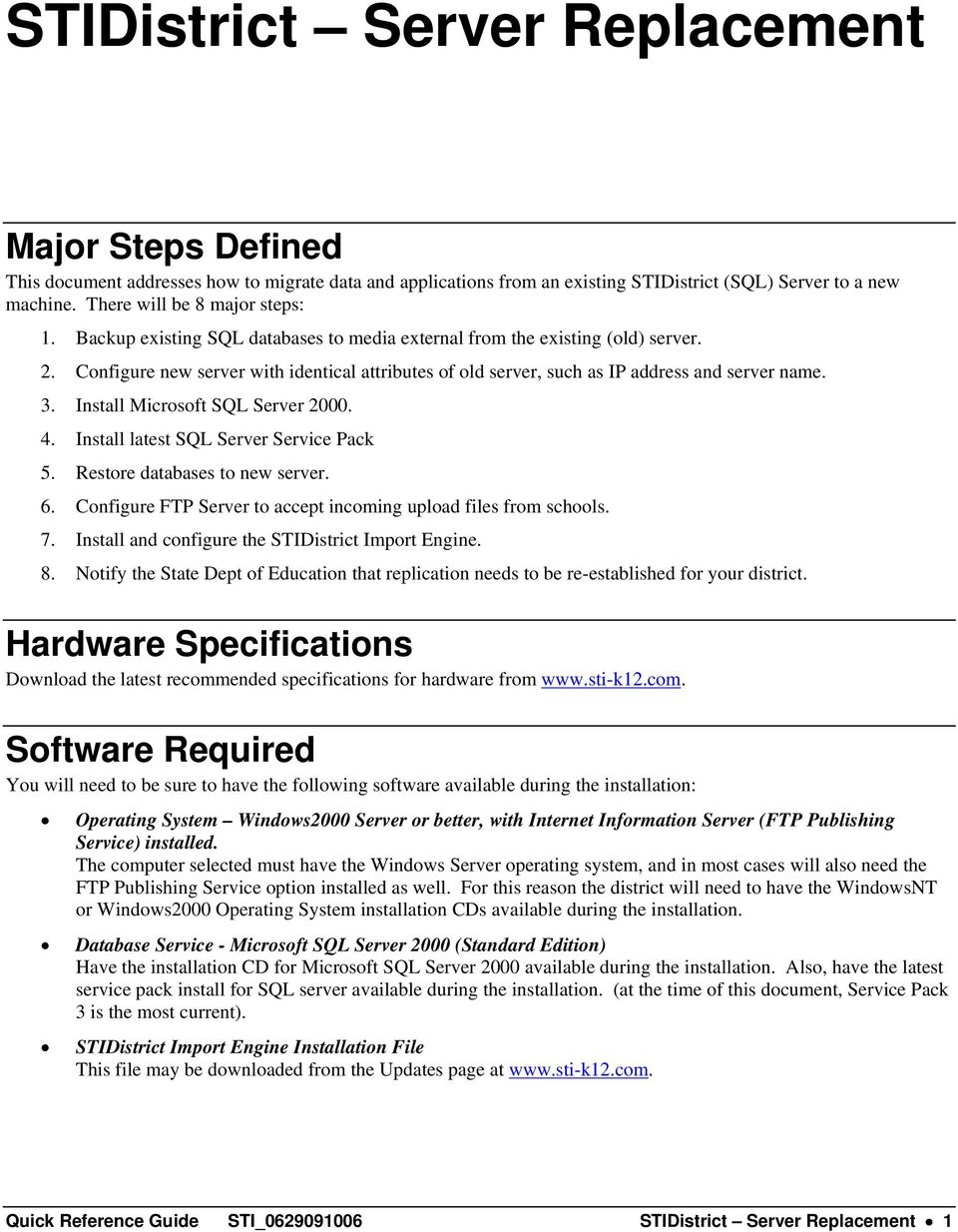
4 Select to install the Database Server. Select to install on the Local Computer, then click Next. Quick Reference Guide STI_ STIDistrict Server Replacement 4
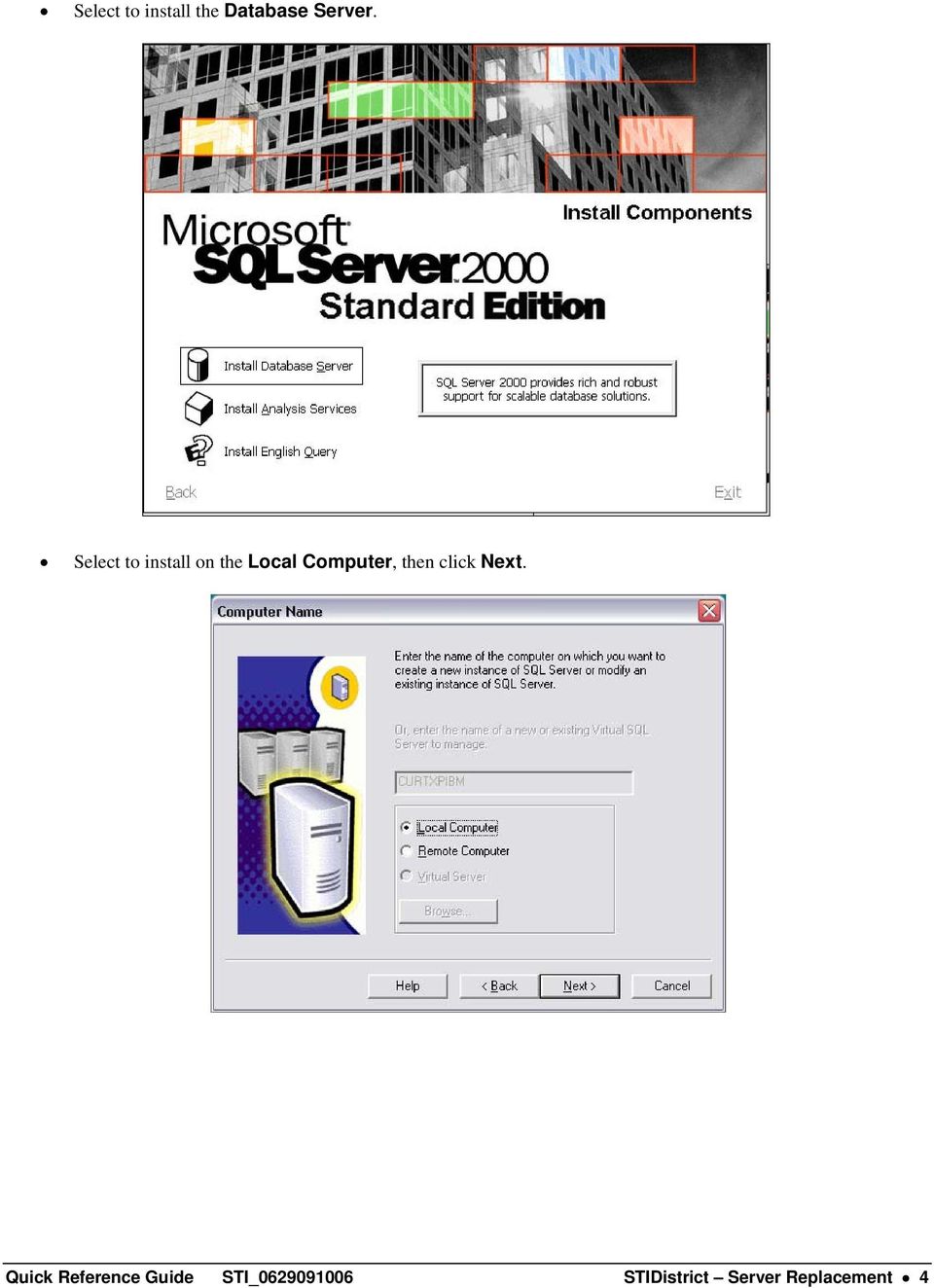
5 Select to Create a new instance of SQL Server, then click Next. Enter the name of the user and/or school district, then click Next. Quick Reference Guide STI_ STIDistrict Server Replacement 5

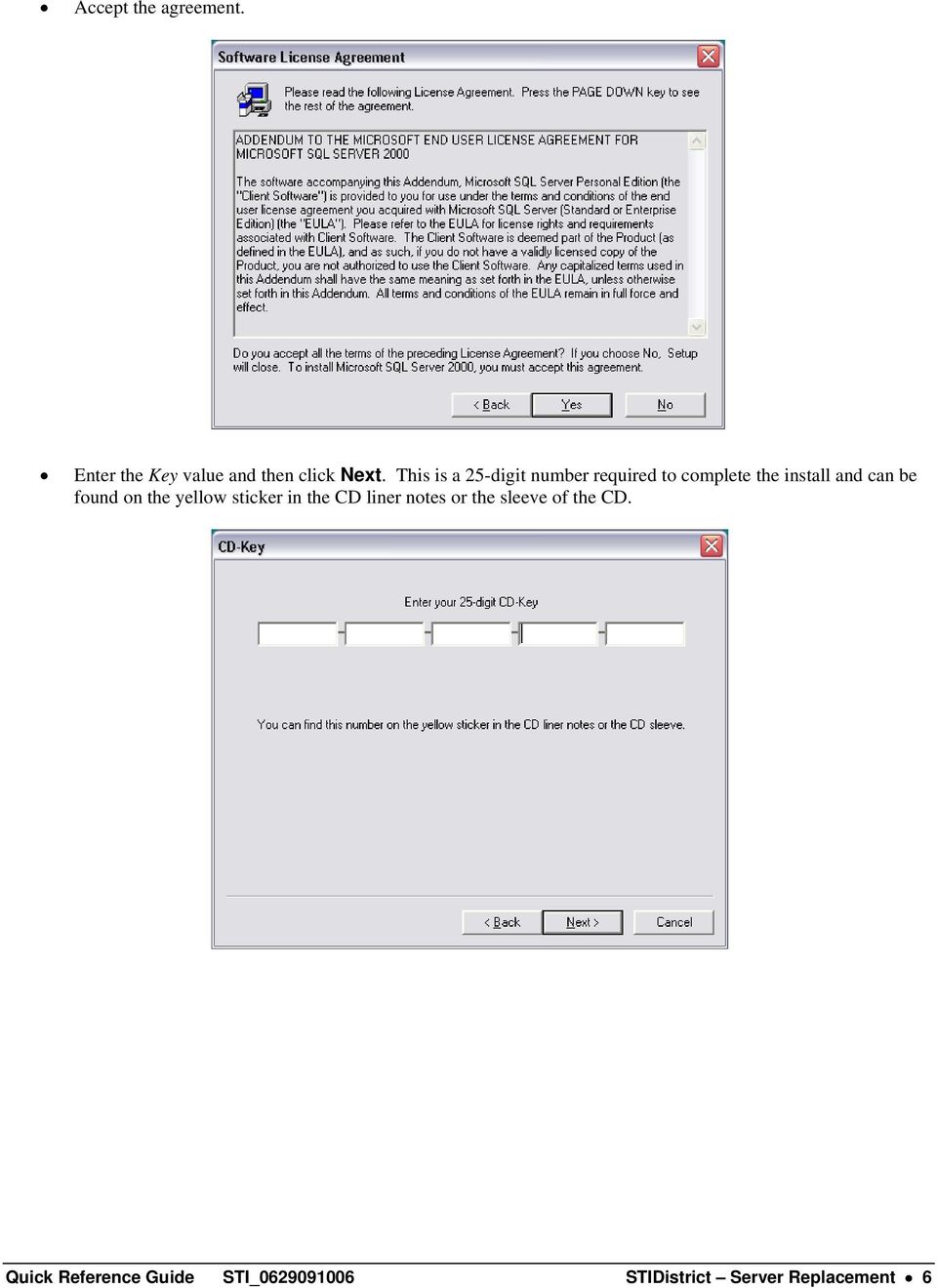
6 Accept the agreement. Enter the Key value and then click Next. This is a 25-digit number required to complete the install and can be found on the yellow sticker in the CD liner notes or the sleeve of the CD. Quick Reference Guide STI_ STIDistrict Server Replacement 6
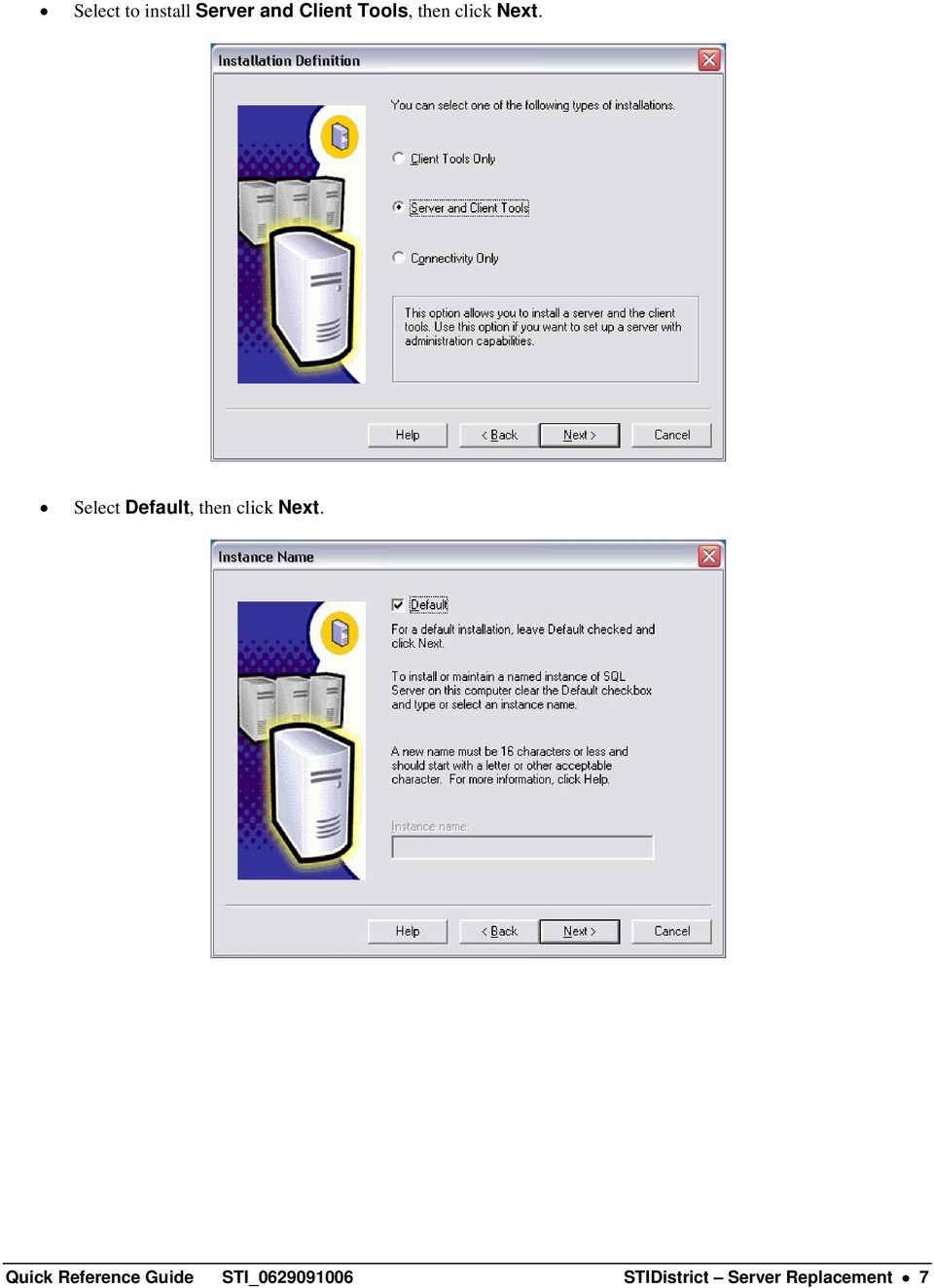
7 Select to install Server and Client Tools, then click Next. Select Default, then click Next. Quick Reference Guide STI_ STIDistrict Server Replacement 7
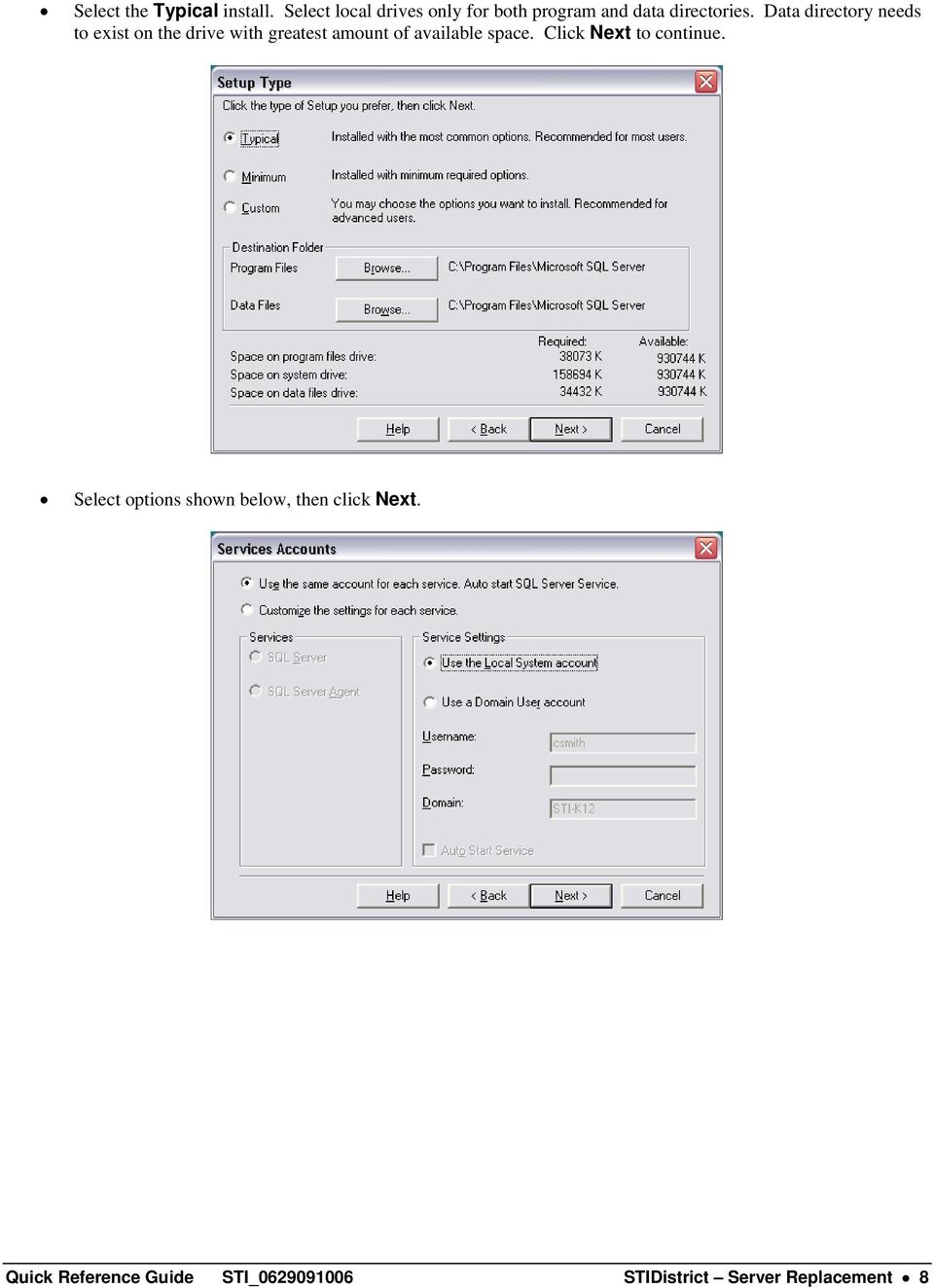
8 Select the Typical install. Select local drives only for both program and data directories. Data directory needs to exist on the drive with greatest amount of available space. Click Next to continue. Select options shown below, then click Next. Quick Reference Guide STI_ STIDistrict Server Replacement 8
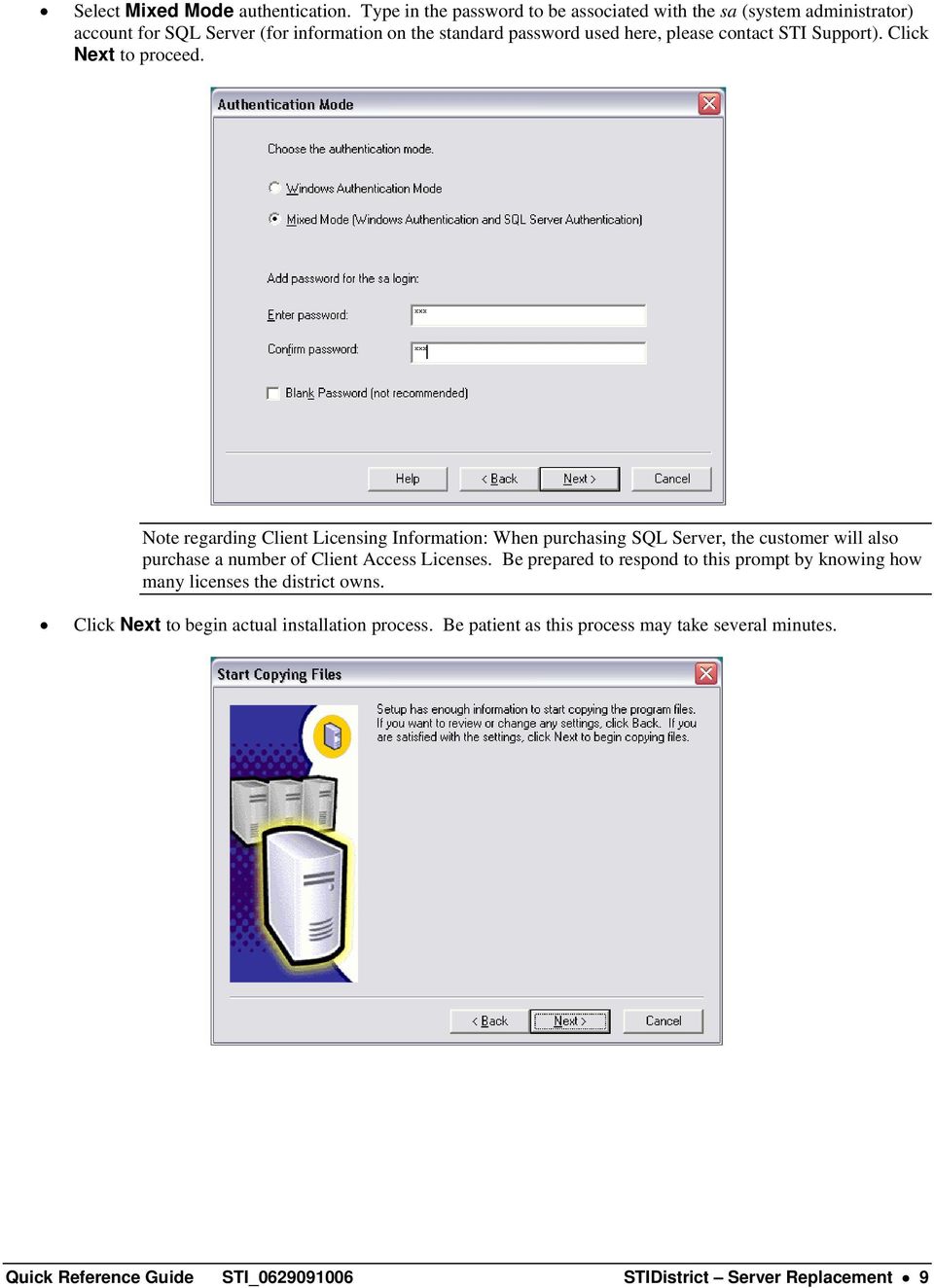
9 Select Mixed Mode authentication. Type in the password to be associated with the sa (system administrator) account for SQL Server (for information on the standard password used here, please contact STI Support). Click Next to proceed. Note regarding Client Licensing Information: When purchasing SQL Server, the customer will also purchase a number of Client Access Licenses. Be prepared to respond to this prompt by knowing how many licenses the district owns. Click Next to begin actual installation process. Be patient as this process may take several minutes. Quick Reference Guide STI_ STIDistrict Server Replacement 9
10 Click Finish to complete the installation. Start the SQL Server Service. o Click on Start Programs Microsoft SQL Server Service Manager. o Select the SQL Server service. o Select the Auto-start service checkbox. o Click the Start/Continue button. o Close the SQL Server Service Manager using the red X. Install SQL Service Pack 3 Follow the steps that follow to install Service Pack 3 for SQL Server. If the Service Pack was not shipped along with SQL Server (separate CD in the SQL Server box), the user will need to download the file named sql2ksp3.exe. For instructions on downloading this file, please visit Execute this file. This will unpack the service pack contents to a folder that you specify. Unpack the files to a folder on a local drive of the STIDistrict Server. From the folder where the files were unpacked, execute the setup.bat file. Quick Reference Guide STI_ STIDistrict Server Replacement 10

11 You will be prompted to reboot if you have never rebooted since installing SQL2000. If this is the case, cancel the installation, reboot, and then begin again by executing the setup.bat file. Take the default options during the installation until you reach the step where asked to select the authentication mode for SQL Server. Select the first option (SQL Server authentication) as shown below. Type in the password for the sa account in the space provided and then click on the Next button. When prompted to respond to the Backwards Compatibility Checklist, select the second option (Upgrade Microsoft ) only. Select whether or not to send Fatal Errors to Microsoft, based on your preference, and then click OK to proceed. Quick Reference Guide STI_ STIDistrict Server Replacement 11

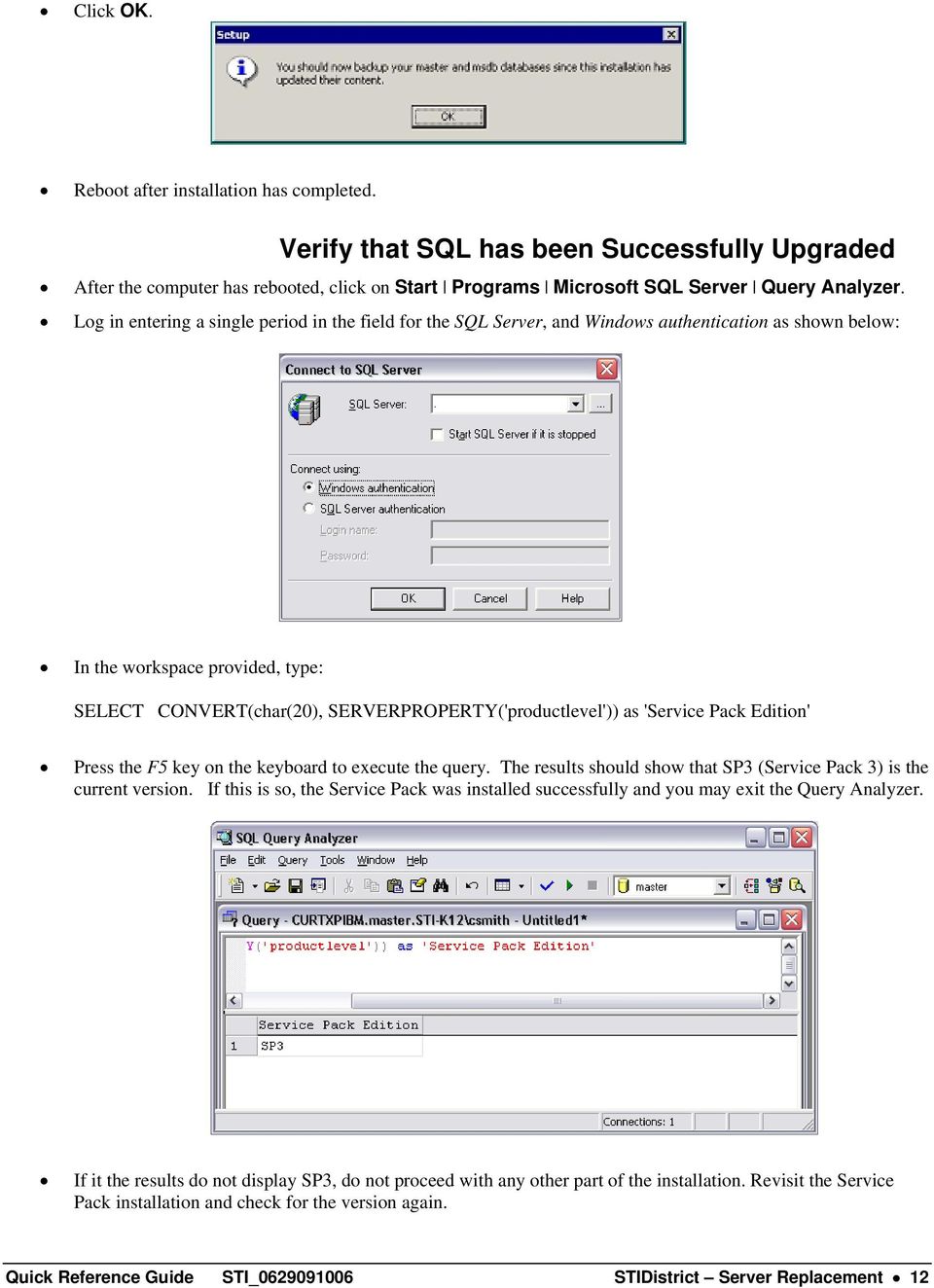
12 Click OK. Reboot after installation has completed. Verify that SQL has been Successfully Upgraded After the computer has rebooted, click on Start Programs Microsoft SQL Server Query Analyzer. Log in entering a single period in the field for the SQL Server, and Windows authentication as shown below: In the workspace provided, type: SELECT CONVERT(char(20), SERVERPROPERTY('productlevel')) as 'Service Pack Edition' Press the F5 key on the keyboard to execute the query. The results should show that SP3 (Service Pack 3) is the current version. If this is so, the Service Pack was installed successfully and you may exit the Query Analyzer. If it the results do not display SP3, do not proceed with any other part of the installation. Revisit the Service Pack installation and check for the version again. Quick Reference Guide STI_ STIDistrict Server Replacement 12
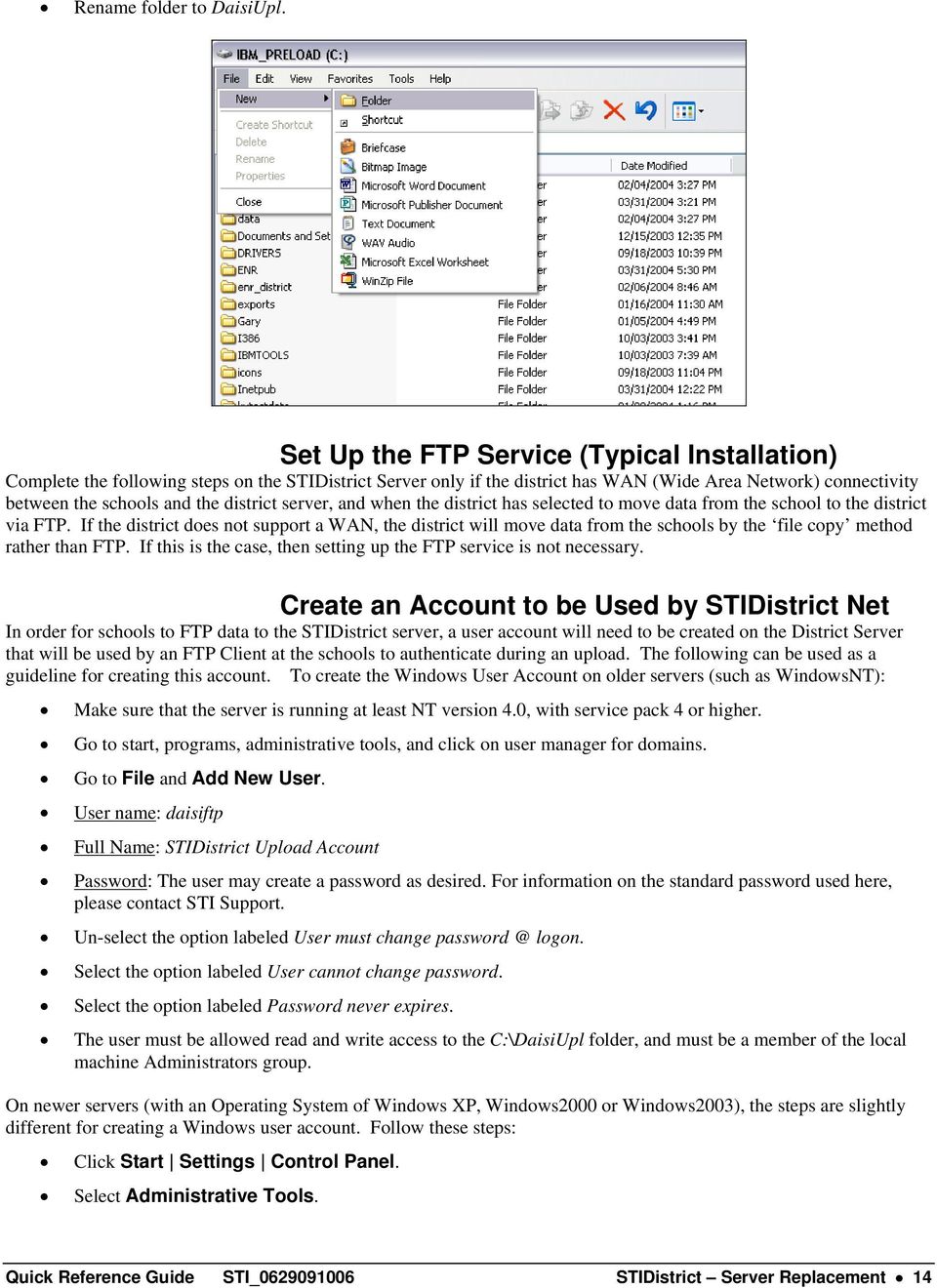
13 Restore Databases from Backups On the new district (SQL) server, restore the databases that were backed up from the old server. To restore from a database backup: At the existing (new) SQL Server, click on Start, then Programs, then Microsoft SQL Server, then Enterprise Manager. Expand the server group, and then expand the server. Right-click on Databases, point to All Tasks, and then click Restore Database. In the field labeled Database to Restore, type the name of the database you are restoring. For example, type daisi if restoring the daisi database. Select the From Device option. Click the Select Devices button. Click Add to select the backup file for the database to be restored. Browse to the file and select it. Click OK Click OK Click on the Options tab. Edit the paths listed for the data and log files to make sure they are valid paths on the new server. These must be local drives. Click OK to begin the restoration of the database. Repeat these steps for each database to be restored to the new server. Configure Server to Accept Uploads Create the DaisiUpl folder Schools will be set up later to upload data from the local school using the STIDistrict Net program. STIDistrict Net will create an upload file, then send it (via FTP or File Copy) to a specific folder on the district server. This folder is typically named DaisiUpl and is typically located on the C: drive of the STIDistrict Server. Double-click on the My Computer icon on the desktop of the STIDistrict Server. Double-click on the C: drive icon. Select File, then New, then Folder. This will create a new folder named New Folder. Right-click on the folder named New Folder, select Rename. Quick Reference Guide STI_ STIDistrict Server Replacement 13
14 Rename folder to DaisiUpl. Set Up the FTP Service (Typical Installation) Complete the following steps on the STIDistrict Server only if the district has WAN (Wide Area Network) connectivity between the schools and the district server, and when the district has selected to move data from the school to the district via FTP. If the district does not support a WAN, the district will move data from the schools by the file copy method rather than FTP. If this is the case, then setting up the FTP service is not necessary. Create an Account to be Used by STIDistrict Net In order for schools to FTP data to the STIDistrict server, a user account will need to be created on the District Server that will be used by an FTP Client at the schools to authenticate during an upload. The following can be used as a guideline for creating this account. To create the Windows User Account on older servers (such as WindowsNT): Make sure that the server is running at least NT version 4.0, with service pack 4 or higher. Go to start, programs, administrative tools, and click on user manager for domains. Go to File and Add New User. User name: daisiftp Full Name: STIDistrict Upload Account Password: The user may create a password as desired. For information on the standard password used here, please contact STI Support. Un-select the option labeled User must change logon. Select the option labeled User cannot change password. Select the option labeled Password never expires. The user must be allowed read and write access to the C:\DaisiUpl folder, and must be a member of the local machine Administrators group. On newer servers (with an Operating System of Windows XP, Windows2000 or Windows2003), the steps are slightly different for creating a Windows user account. Follow these steps: Click Start Settings Control Panel. Select Administrative Tools. Quick Reference Guide STI_ STIDistrict Server Replacement 14
15 Select Computer Management. Drill down to open the Users folder beneath Local Users and Groups. Right-click on the Users folder and select New User. Complete form as shown below. The Password is typically the district number, but this may be customized by the user as needed. The user must be allowed read and write access to the C:\DaisiUpl folder, and must be a member of the local machine Administrators group. Quick Reference Guide STI_ STIDistrict Server Replacement 15

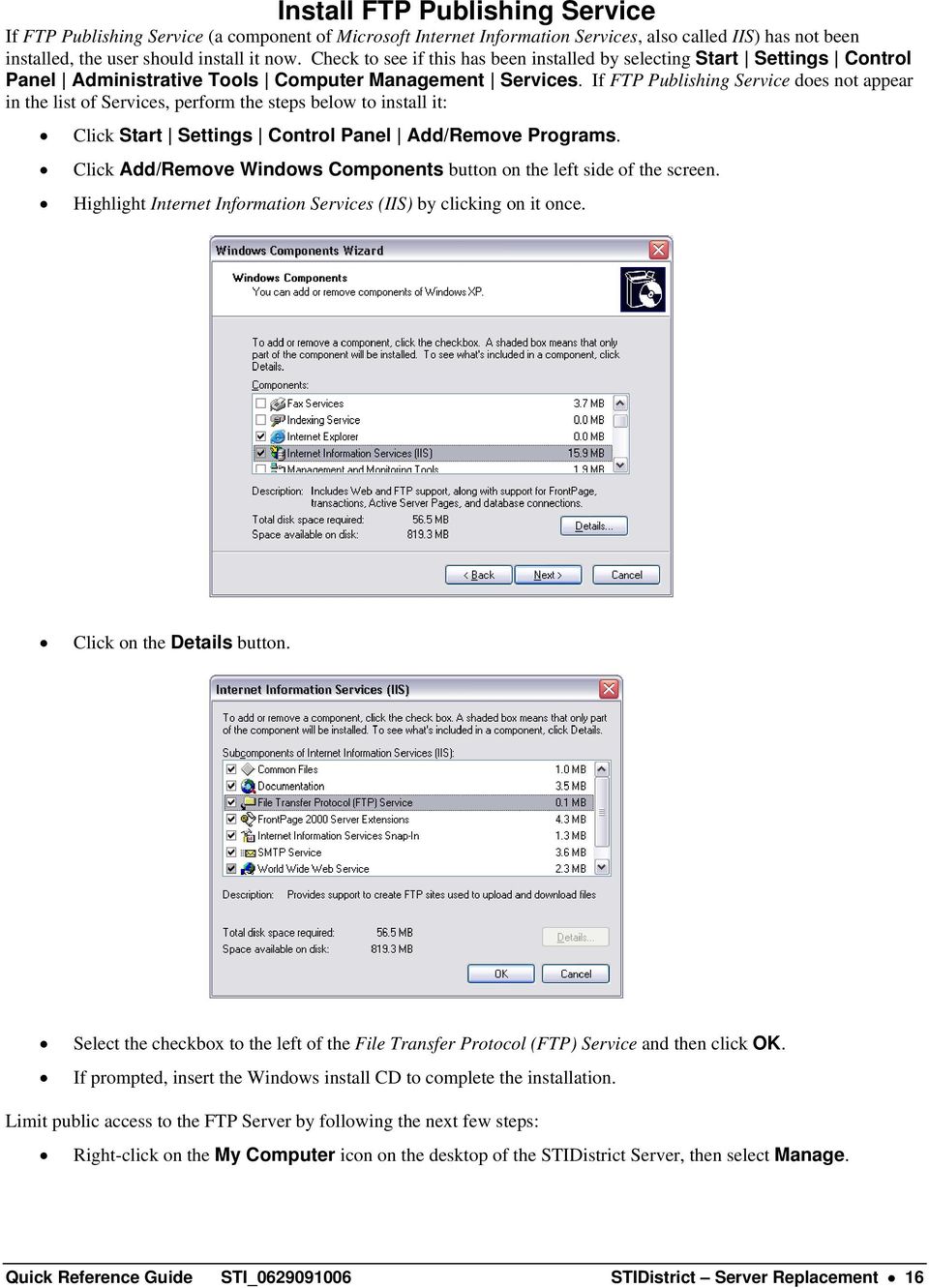
16 Install FTP Publishing Service If FTP Publishing Service (a component of Microsoft Internet Information Services, also called IIS) has not been installed, the user should install it now. Check to see if this has been installed by selecting Start Settings Control Panel Administrative Tools Computer Management Services. If FTP Publishing Service does not appear in the list of Services, perform the steps below to install it: Click Start Settings Control Panel Add/Remove Programs. Click Add/Remove Windows Components button on the left side of the screen. Highlight Internet Information Services (IIS) by clicking on it once. Click on the Details button. Select the checkbox to the left of the File Transfer Protocol (FTP) Service and then click OK. If prompted, insert the Windows install CD to complete the installation. Limit public access to the FTP Server by following the next few steps: Right-click on the My Computer icon on the desktop of the STIDistrict Server, then select Manage. Quick Reference Guide STI_ STIDistrict Server Replacement 16
17 Drill down to select Services and Applications Internet Information Services FTP Sites Default FTP Site. Right-click on Default FTP Site. Select the Security Accounts tab, then de-select the Allow Anonymous Connections checkbox. Create a Virtual Directory Creating a Virtual Directory with XP or 2000 Servers While still in the Computer Management screen: Right-click on Default FTP Site. Select New, then Virtual Directory. Click Next at the Wizard prompt. Quick Reference Guide STI_ STIDistrict Server Replacement 17

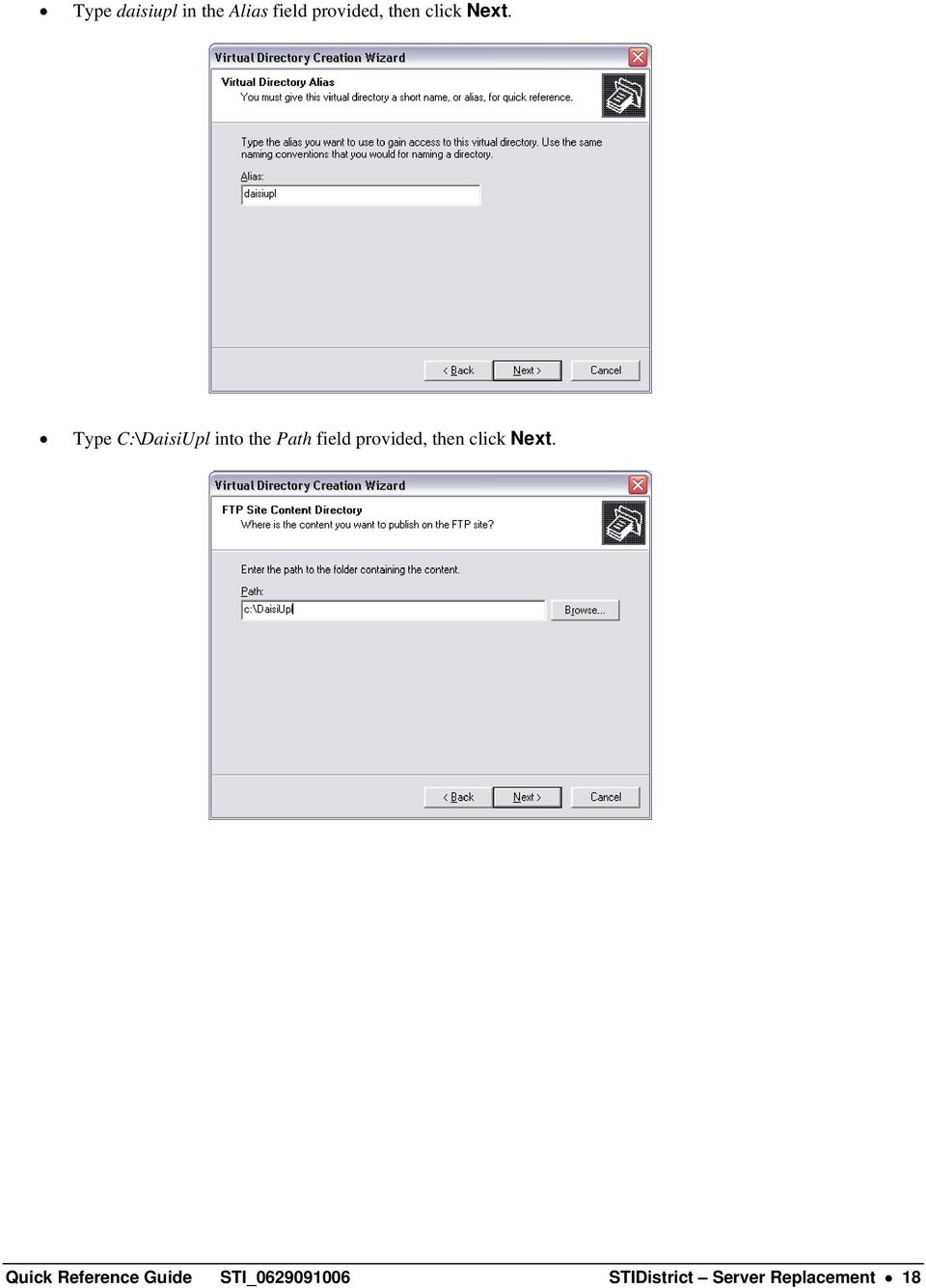
18 Type daisiupl in the Alias field provided, then click Next. Type C:\DaisiUpl into the Path field provided, then click Next. Quick Reference Guide STI_ STIDistrict Server Replacement 18
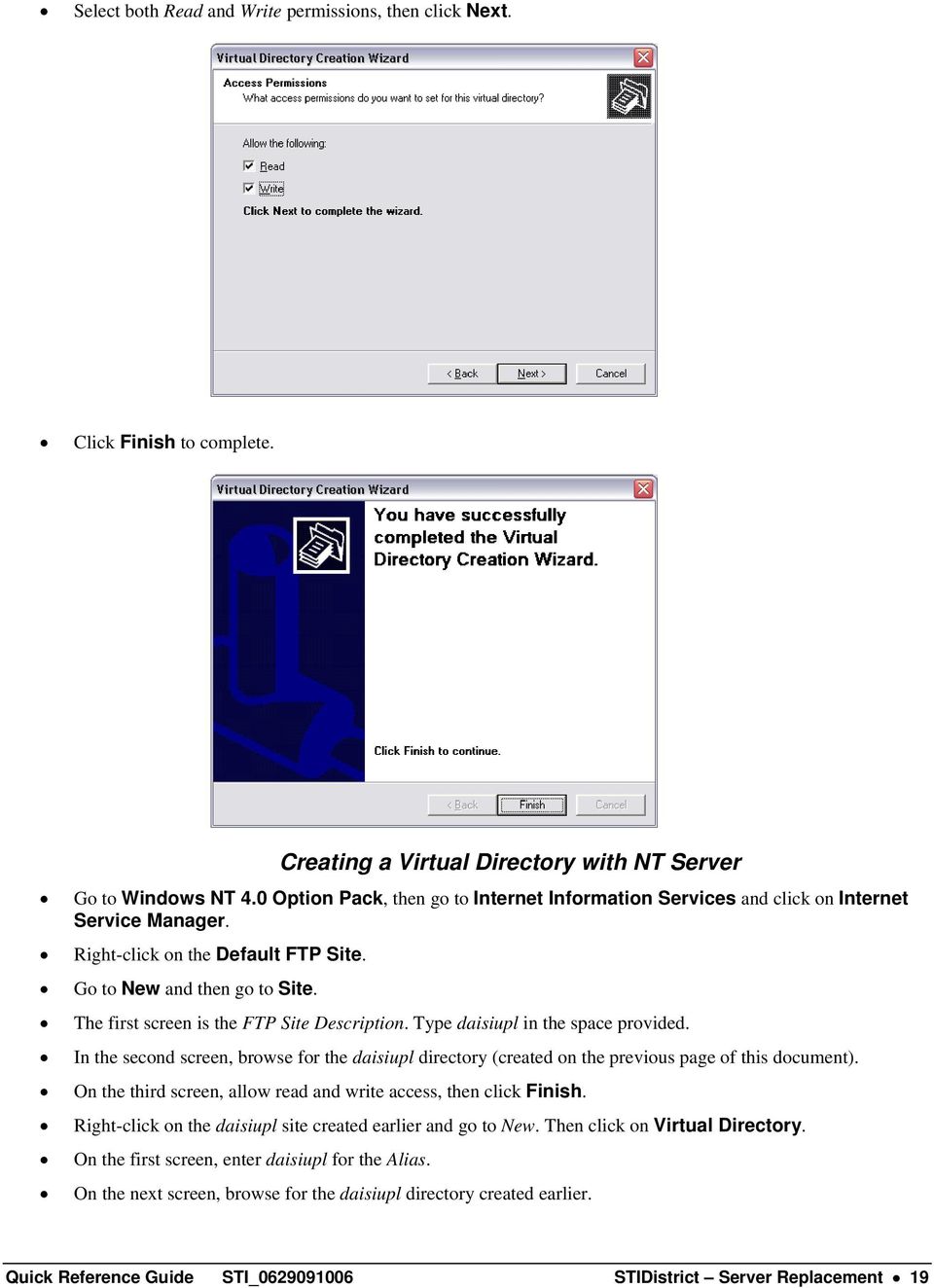
19 Select both Read and Write permissions, then click Next. Click Finish to complete. Creating a Virtual Directory with NT Server Go to Windows NT 4.0 Option Pack, then go to Internet Information Services and click on Internet Service Manager. Right-click on the Default FTP Site. Go to New and then go to Site. The first screen is the FTP Site Description. Type daisiupl in the space provided. In the second screen, browse for the daisiupl directory (created on the previous page of this document). On the third screen, allow read and write access, then click Finish. Right-click on the daisiupl site created earlier and go to New. Then click on Virtual Directory. On the first screen, enter daisiupl for the Alias. On the next screen, browse for the daisiupl directory created earlier. Quick Reference Guide STI_ STIDistrict Server Replacement 19
20 On the next screen, allow read and write access. Then click Finish. Go back to the daisiupl site created above. This should have Stopped beside it. Right-click on this site and select Start. Exit out of Internet Service Manager. Test FTP Site Before visiting schools and installing/configuring STIDistrict Net to upload data to the district server via FTP, users are advised to verify that the FTP Server is running and will allow schools to connect and send data files to the c:\daisiupl directory. The steps below provide a simple way to verify that a school using STIDistrict Net can connect to the server (via an FTP session), authenticate using the daisiftp user account and password, and then write a copy of the upload file to the c:\daisiupl folder on the district server. Follow these steps to test: Create a new text document (go to Start Programs Accessories Notepad) and save it to the C: drive. Name the document testme.txt. Open a DOS window. To do this, click on Start Run, then type Command in the space provided and click OK. At the prompt, type cd\ and then press Enter. At the prompt, type ftp xxx.xxx.xxx.xxx and then press the Enter key. (Replace xxx.xxx.xxx.xxx with the IP address of the local server. If you do not know the IP address of the local server, simply type IPConfig at a DOS prompt and press Enter. This will reveal the IP address.) When prompted for the User, type daisiftp and press Enter. Quick Reference Guide STI_ STIDistrict Server Replacement 20

21 When prompted for the Password, type the password established for this user earlier and press Enter. A message should appear stating User daisiftp logged in. If not, type Bye and then press Enter, then type Exit and press Enter. Revisit the previous steps. If the logged in message still does not appear, continue on to next step. Type cd daisiupl and then press Enter. Type put testme.txt and press Enter. A message should appear indicating that the command was successful. To further verify successful setup, browse to the c:\daisiupl folder to see if the document called testme.txt was copied to that folder. This is a simulation of the process run by the STIDistrict Net upload program at the schools, so if all was successful, the uploads should work. At the FTP prompt, type Bye and then press Enter. At the DOS prompt, type Exit and press Enter. The screen will return to the Windows desktop. Quick Reference Guide STI_ STIDistrict Server Replacement 21
22 Install and Configure the STIDistrict Import Engine. Complete the following steps on the STIDistrict Server. Install the Import Engine To install the Import Engine, download the files called mdac_typ.exe and STIDistrictImport_vXXX.exe (where XXX represents the version number) from Run the mdac_typ.exe file and accept all the defaults. Run the STIDistrictImport_vXXX.exe file (where XXX represents the version number) and accept all the defaults. At the end of the install, choose the Default Library. Select TCP/IP and click OK. Configure the Import Engine Configuration settings will determine what data is to be imported from schools, when it is to be imported, and the SQL database into which the data will be imported. To edit the configuration settings, click on Start Programs STI Applications Import Engine Setup. Refer to the information below when editing the settings. SQL Server Tab SQL Server: Type either the IP Address or the computer name of the STIDistrict server into this field. If SQL is installed on this same box, a single period will also work. Database: Type daisi into this field. Admin ID: Type sa into this field. Password: Type the password associated with the sa account (created during the SQL installation) in SQL server. Quick Reference Guide STI_ STIDistrict Server Replacement 22
23 FTP Directory: Type c:\daisiupl into this field. Import Active Times Tab Use this screen to schedule when the Import Engine will add data to the STIDistrict database. The scheduler allows the import to occur during one-hour increments. Selecting a time will cause the Import Engine to add data during that particular hour. This feature determines when data is actually added to the database. Users should be aware of the times selected so that they may avoid creating important reports and running backups during the times when the data is being added to the database. Enrollment Builder Tab The Enrollment Builder is a program that runs within the Import Engine program. It builds a table in the database with a record for each student, for every day of the school year, which shows the student s enrollment and attendance status on each day. The data in this table is used to create reports in STIDistrict, such as the ADA/ADM Report. Use this screen to schedule the times at which the Enrollment Builder program will run. Users should be aware of the times selected so they may avoid creating important reports and backups during those times when data is being added to the database. Tab (Optional) This tab allows for up to five users to receive messages when failures occur during the import process. Set up each of the following to utilize the feature: SMTP Server: Enter your mail server address here. To utilize notification, check the box to the right of this field labeled Enable. Address (1-5): Enter address for each person to be notified. There are two checkboxes to the right of each address. Check Enable to send only when an error has occurred. Check Log to send the import log after a school has been imported (with or without errors). Return To: When users receive an , this will be displayed as the From: address. Quick Reference Guide STI_ STIDistrict Server Replacement 23
24 Options Tab Select from the following options per the district s preferences. Queue Manager: When configuring a typical installation of the Import Engine, where the program is installed on only one computer in the district, select this option. Import Node ID: When configuring a typical installation of the Import Engine, where the program is installed on only one computer in the district, this should be set at 0 (zero). Import Medical/Special Ed Data: Select this option to import STISets and STIHealth data into the district database. Select this only if the STISets program is installed at the schools. Import GRD (Grade) File: Select this option to import student grades into the STIDistrict database. Auto Delete Orphan Records: Select this option to delete orphan records from the database after each import. An orphan record is any record in the database that does not have a matching student demographic record. Import Inactive Students: Select this option to import inactive student records into the STIDistrict database. Note: A student record is set as inactive at the school when the student is not enrolled at that school, yet the school wishes to keep the student data on file. This is typically done for no-show students on the first day of school. Auto-eliminate Duplicate Inactive Records: Selecting this option will enable an option for the Import Engine to delete inactive student records for students in the district database if an active record exists for the same student anywhere in the district. Delete Backup Files After _ Days: After importing an upload file, the Import Engine saves that file to a backup directory. Select this option to periodically (based on the number of days entered) delete these archived upload files from the backup directory. Selecting this option will not delete any data from the database. Delete Log Files After _ Days: The Import Engine creates a log file as it is importing data. A new file is created each day, and these are stored in the directory where the program is installed. Select this option to periodically (based on the number of days entered) delete these log files from the directory. Contact the State Department of Education Notify the State Dept of Education (Alabama and Kentucky districts only) to let them know that the new server is ready to begin replication. A new snap-shot will be needed, and publications/subscriptions for STIState will need to be recreated. Quick Reference Guide STI_ STIDistrict Server Replacement 24
16.4.3 Lab: Data Backup and Recovery in Windows XP
 16.4.3 Lab: Data Backup and Recovery in Windows XP Introduction Print and complete this lab. In this lab, you will back up data. You will also perform a recovery of the data. Recommended Equipment The
10.3.1.6 Lab - Data Backup and Recovery in Windows XP
 5.0 10.3.1.6 Lab - Data Backup and Recovery in Windows XP Introduction Print and complete this lab. In this lab, you will back up data. You will also perform a recovery of the data. Recommended Equipment
Moving the TRITON Reporting Databases
 Moving the TRITON Reporting Databases Topic 50530 Web, Data, and Email Security Versions 7.7.x, 7.8.x Updated 06-Nov-2013 If you need to move your Microsoft SQL Server database to a new location (directory,
Table of Contents. CHAPTER 1 About This Guide... 9. CHAPTER 2 Introduction... 11. CHAPTER 3 Database Backup and Restoration... 15
 Table of Contents CHAPTER 1 About This Guide......................... 9 The Installation Guides....................................... 10 CHAPTER 2 Introduction............................ 11 Required
VERITAS Backup Exec 9.1 for Windows Servers Quick Installation Guide
 VERITAS Backup Exec 9.1 for Windows Servers Quick Installation Guide N109548 Disclaimer The information contained in this publication is subject to change without notice. VERITAS Software Corporation makes
Migrating MSDE to Microsoft SQL 2008 R2 Express
 How To Updated: 11/11/2011 2011 Shelby Systems, Inc. All Rights Reserved Other brand and product names are trademarks or registered trademarks of the respective holders. If you are still on MSDE 2000,
Portions of this product were created using LEADTOOLS 1991-2009 LEAD Technologies, Inc. ALL RIGHTS RESERVED.
 Installation Guide Lenel OnGuard 2009 Installation Guide, product version 6.3. This guide is item number DOC-110, revision 1.038, May 2009 Copyright 1992-2009 Lenel Systems International, Inc. Information
QUANTIFY INSTALLATION GUIDE
 QUANTIFY INSTALLATION GUIDE Thank you for putting your trust in Avontus! This guide reviews the process of installing Quantify software. For Quantify system requirement information, please refer to the
How To Restore Your Data On A Backup By Mozy (Windows) On A Pc Or Macbook Or Macintosh (Windows 2) On Your Computer Or Mac) On An Pc Or Ipad (Windows 3) On Pc Or Pc Or Micro
 Online Backup by Mozy Restore Common Questions Document Revision Date: June 29, 2012 Online Backup by Mozy Common Questions 1 How do I restore my data? There are five ways of restoring your data: 1) Performing
Operating System Installation Guide
 Operating System Installation Guide This guide provides instructions on the following: Installing the Windows Server 2008 operating systems on page 1 Installing the Windows Small Business Server 2011 operating
Installing the Microsoft Network Driver Interface
 Installing the Microsoft Network Driver Interface Overview This guide explains how to install the PictureTel Live200 Microsoft Network Driver Interface (NDIS) software you have downloaded from PictureTel's
STIDistrict SQL 2000 Database Management Plans
 STIDistrict SQL 2000 Database Management Plans Overview STI recommends that users create SQL database maintenance plans to maintain the integrity of the STIDistrict database. Database maintenance plans
026-1010 Rev 7 06-OCT-2011. Site Manager Installation Guide
 026-1010 Rev 7 06-OCT-2011 Site Manager Installation Guide Retail Solutions 3240 Town Point Drive NW, Suite 100 Kennesaw, GA 30144, USA Phone: 770-425-2724 Fax: 770-425-9319 Table of Contents 1 SERVER
Figure 1: Restore Tab
 Apptix Online Backup by Mozy Restore How do I restore my data? There are five ways of restoring your data: 1) Performing a Restore Using the Restore Tab You can restore files from the Apptix Online Backup
Bosch ReadykeyPRO Unlimited Installation Guide, product version 6.5. This guide is item number DOC-110-2-029, revision 2.029, May 2012.
 Bosch ReadykeyPRO Unlimited Installation Guide, product version 6.5. This guide is item number DOC-110-2-029, revision 2.029, May 2012. Copyright 1995-2012 Lenel Systems International, Inc. Information
Installation Instruction STATISTICA Enterprise Small Business
 Installation Instruction STATISTICA Enterprise Small Business Notes: ❶ The installation of STATISTICA Enterprise Small Business entails two parts: a) a server installation, and b) workstation installations
STATISTICA VERSION 10 STATISTICA ENTERPRISE SERVER INSTALLATION INSTRUCTIONS
 Notes: STATISTICA VERSION 10 STATISTICA ENTERPRISE SERVER INSTALLATION INSTRUCTIONS 1. The installation of the STATISTICA Enterprise Server entails two parts: a) a server installation, and b) workstation
Server & Workstation Installation of Client Profiles for Windows (WAN Edition)
 C ase Manag e m e n t by C l i e n t P rofiles Server & Workstation Installation of Client Profiles for Windows (WAN Edition) T E C H N O L O G Y F O R T H E B U S I N E S S O F L A W Important Note on
Installation Manual Version 8.5 (w/sql Server 2005)
 C ase Manag e m e n t by C l i e n t P rofiles Installation Manual Version 8.5 (w/sql Server 2005) T E C H N O L O G Y F O R T H E B U S I N E S S O F L A W Table of Contents - 2 - Table of Contents SERVER
Install SQL Server 2014 Express Edition
 How To Install SQL Server 2014 Express Edition Updated: 2/4/2016 2016 Shelby Systems, Inc. All Rights Reserved Other brand and product names are trademarks or registered trademarks of the respective holders.
Migrating helpdesk to a new server
 Migrating helpdesk to a new server Table of Contents 1. Helpdesk Migration... 2 Configure Virtual Web on IIS 6 Windows 2003 Server:... 2 Role Services required on IIS 7 Windows 2008 / 2012 Server:... 2
Server & Workstation Installation of Client Profiles for Windows
 C ase Manag e m e n t by C l i e n t P rofiles Server & Workstation Installation of Client Profiles for Windows T E C H N O L O G Y F O R T H E B U S I N E S S O F L A W General Notes to Prepare for Installing
Installing SQL Express. For CribMaster 9.2 and Later
 Installing SQL Express For CribMaster 9.2 and Later CRIBMASTER USER GUIDE Installing SQL Express Document ID: CM9-031-03012012 Copyright CribMaster. 1996, 1997, 1998, 1999, 2000, 2001, 2002, 2003, 2004,
Allworx OfficeSafe Operations Guide Release 6.0
 Allworx OfficeSafe Operations Guide Release 6.0 No part of this publication may be reproduced, stored in a retrieval system, or transmitted, in any form or by any means, electronic, mechanical, photocopy,
Installation Instruction STATISTICA Enterprise Server
 Installation Instruction STATISTICA Enterprise Server Notes: ❶ The installation of STATISTICA Enterprise Server entails two parts: a) a server installation, and b) workstation installations on each of
Cox Business Premium Online Backup USER'S GUIDE. Cox Business VERSION 1.0
 Cox Business Premium Online Backup USER'S GUIDE Cox Business VERSION 1.0 Table of Contents ABOUT THIS GUIDE... 4 DOWNLOADING COX BUSINESS PREMIUM ONLINE BACKUP... 5 INSTALLING COX BUSINESS PREMIUM ONLINE
Bitrix Site Manager ASP.NET. Installation Guide
 Bitrix Site Manager ASP.NET Installation Guide Contents Introduction... 4 Chapter 1. Checking for IIS Installation... 5 Chapter 2. Using An Archive File to Install Bitrix Site Manager ASP.NET... 7 Preliminary
Server Installation: ServerTools
 Server Installation: ServerTools ServerTools Page 1 Table of Contents To Install ServerTools...3 Backup and Restore...6 Purpose...6 Background...6 Requirements...6 Creating a Backup Schedule using the
Portions of this product were created using LEADTOOLS 1991-2010 LEAD Technologies, Inc. ALL RIGHTS RESERVED.
 Installation Guide Lenel OnGuard 2010 Installation Guide, product version 6.4. This guide is item number DOC-110, revision 1.045, May 2010 Copyright 1995-2010 Lenel Systems International, Inc. Information
Moving the Web Security Log Database
 Moving the Web Security Log Database Topic 50530 Web Security Solutions Version 7.7.x, 7.8.x Updated 22-Oct-2013 Version 7.8 introduces support for the Web Security Log Database on Microsoft SQL Server
MGC WebCommander Web Server Manager
 MGC WebCommander Web Server Manager Installation and Configuration Guide Version 8.0 Copyright 2006 Polycom, Inc. All Rights Reserved Catalog No. DOC2138B Version 8.0 Proprietary and Confidential The information
Installing GFI Network Server Monitor
 Installing GFI Network Server Monitor System Requirements Machines running GFI Network Server Monitor require: Windows 2000 (SP1 or higher), 2003 or XP Pro operating systems. Windows scripting host 5.5
Juris Installation / Upgrade Guide
 Juris Installation / Upgrade Guide Version 2.7 2015 LexisNexis. All rights reserved. Copyright and Trademark LexisNexis, Lexis, and the Knowledge Burst logo are registered trademarks of Reed Elsevier Properties
WhatsUp Gold v16.1 Installation and Configuration Guide
 WhatsUp Gold v16.1 Installation and Configuration Guide Contents Installing and Configuring Ipswitch WhatsUp Gold v16.1 using WhatsUp Setup Installing WhatsUp Gold using WhatsUp Setup... 1 Security guidelines
5.6.3 Lab: Registry Backup and Recovery in Windows XP
 5.6.3 Lab: Registry Backup and Recovery in Windows XP Introduction Print and complete this lab. In this lab, you will back up a computer registry. You will also perform a recovery of a computer registry.
1. Set Daylight Savings Time... 3. 2. Create Migrator Account... 3. 3. Assign Migrator Account to Administrator group... 4
 1. Set Daylight Savings Time... 3 a. Have client log into Novell/Local Machine with Administrator Account...3 b. Access Adjust Date/Time...3 c. Make sure the time zone is set to Central Time...3 2. Create
STATISTICA VERSION 12 STATISTICA ENTERPRISE SMALL BUSINESS INSTALLATION INSTRUCTIONS
 STATISTICA VERSION 12 STATISTICA ENTERPRISE SMALL BUSINESS INSTALLATION INSTRUCTIONS Notes 1. The installation of STATISTICA Enterprise Small Business entails two parts: a) a server installation, and b)
Installation Guide v3.0
 Installation Guide v3.0 Shepherd TimeClock 4465 W. Gandy Blvd. Suite 800 Tampa, FL 33611 Phone: 813-882-8292 Fax: 813-839-7829 http://www.shepherdtimeclock.com The information contained in this document
4 Backing Up and Restoring System Software
 4 Backing Up and Restoring System Software In this Chapter... Planning a Backup Strategy, 4-3 Preparing for Disaster Recovery, 4-4 Creating Boot Recovery Diskettes, 4-5 Making a Full Backup Tape, 4-8 Restoring
AXIS 70U - Using Scan-to-File
 AXIS 70U - Using Scan-to-File Introduction This document describes the Scan-to-File feature in the AXIS 70U. The step-by-step instructions describe the process of configuring the AXIS 70U and an FTP server.
Introduction. Before you begin. Installing efax from our CD-ROM. Installing efax after downloading from the internet
 Introduction Before you begin Before you begin installing efax, please check the following: You have received confirmation that your application for the efax service has been processed. The confirmation
BackupAssist v6 quickstart guide
 New features in BackupAssist v6... 2 VSS application backup (Exchange, SQL, SharePoint)... 3 System State backup... 3 Restore files, applications, System State and mailboxes... 4 Fully cloud ready Internet
Symantec Backup Exec 12.5 for Windows Servers. Quick Installation Guide
 Symantec Backup Exec 12.5 for Windows Servers Quick Installation Guide 13897290 Installing Backup Exec This document includes the following topics: System requirements Before you install About the Backup
How To Install And Configure Windows Server 2003 On A Student Computer
 Course: WIN310 Student Lab Setup Guide Microsoft Windows Server 2003 Network Infrastructure (70-291) ISBN: 0-470-06887-6 STUDENT COMPUTER SETUP Hardware Requirements All hardware must be on the Microsoft
Mobility Services Platform 3.1.1 Software Installation Guide
 Mobility Services Platform 3.1.1 Software Installation Guide Mobility Services Platform 3.1.1 Software Installation Guide 72E-100159-04 Revision D January 2008 2007 by Motorola, Inc. All rights reserved.
Networking Best Practices Guide. Version 6.5
 Networking Best Practices Guide Version 6.5 Summer 2010 Copyright: 2010, CCH, a Wolters Kluwer business. All rights reserved. Material in this publication may not be reproduced or transmitted in any form
How To Upgrade Your Microsoft SQL Server for Accounting CS Version 2012.1
 How To Upgrade Your Microsoft SQL Server for Version 2012.1 The first step is to gather important information about your existing configuration. Identify The Database Server and SQL Server Version The
System Administration Training Guide. S100 Installation and Site Management
 System Administration Training Guide S100 Installation and Site Management Table of contents System Requirements for Acumatica ERP 4.2... 5 Learning Objects:... 5 Web Browser... 5 Server Software... 5
Installing GFI MailArchiver
 Installing GFI MailArchiver Introduction This chapter highlights important points you should take into consideration before installing GFI MailArchiver on your network, so that you can make the best decisions
ilaw Installation Procedure
 ilaw Installation Procedure This guide will provide a reference for a full installation of ilaw Case Management Software. Contents ilaw Overview How ilaw works Installing ilaw Server on a PC Installing
STATISTICA VERSION 9 STATISTICA ENTERPRISE INSTALLATION INSTRUCTIONS FOR USE WITH TERMINAL SERVER
 Notes: STATISTICA VERSION 9 STATISTICA ENTERPRISE INSTALLATION INSTRUCTIONS FOR USE WITH TERMINAL SERVER 1. These instructions focus on installation on Windows Terminal Server (WTS), but are applicable
Inmagic ODBC Driver 8.00 Installation and Upgrade Notes
 Inmagic ODBC Driver 8.00 Installation and Upgrade Notes Thank you for purchasing the Inmagic ODBC Driver for DB/Text. This document is for new and upgrade customers. Use the Inmagic ODBC Driver to develop
Installing GFI Network Server Monitor
 Installing GFI Network Server Monitor System requirements Computers running GFI Network Server Monitor require: Windows 2000 (SP4 or higher), 2003 or XP Pro operating systems. Windows scripting host 5.5
Upgrading from MSDE to SQL Server 2005 Express Edition with Advanced Services SP2
 Upgrading from MSDE to SQL Server 2005 Express Edition with Advanced Services SP2 Installation and Configuration Introduction This document will walk you step by step in removing MSDE and the setup and
Symantec Backup Exec TM 11d for Windows Servers. Quick Installation Guide
 Symantec Backup Exec TM 11d for Windows Servers Quick Installation Guide September 2006 Symantec Legal Notice Copyright 2006 Symantec Corporation. All rights reserved. Symantec, Backup Exec, and the Symantec
Exchange Server Backup and Restore
 WHITEPAPER BackupAssist Version 6 www.backupassist.com Cortex I.T. 2001-2007 2 Contents 1. Introduction... 3 1.1 Overview... 3 1.2 Requirements... 3 1.3 Requirements for remote backup of Exchange 2007...
Network Scanner Tool R3.1. User s Guide Version 3.0.04
 Network Scanner Tool R3.1 User s Guide Version 3.0.04 Copyright 2000-2004 by Sharp Corporation. All rights reserved. Reproduction, adaptation or translation without prior written permission is prohibited,
How To Install Database Oasis On A Computer Or Computer (For Free)
 INSTALLATION INSTRUCTIONS Table of Contents Installation Instructions 1 Table of Contents 1 System Requirements 2 Installation 3 Selecting where to Install the Professional Server 3 Installing Prerequisites
Setting Up Your FTP Server
 Requirements:! A computer dedicated to FTP server only! Linksys router! TCP/IP internet connection Steps: Getting Started Configure Static IP on the FTP Server Computer: Setting Up Your FTP Server 1. This
VERITAS Backup Exec TM 10.0 for Windows Servers
 VERITAS Backup Exec TM 10.0 for Windows Servers Quick Installation Guide N134418 July 2004 Disclaimer The information contained in this publication is subject to change without notice. VERITAS Software
WhatsUp Gold v16.2 Installation and Configuration Guide
 WhatsUp Gold v16.2 Installation and Configuration Guide Contents Installing and Configuring Ipswitch WhatsUp Gold v16.2 using WhatsUp Setup Installing WhatsUp Gold using WhatsUp Setup... 1 Security guidelines
How To Create An Easybelle History Database On A Microsoft Powerbook 2.5.2 (Windows)
 Introduction EASYLABEL 6 has several new features for saving the history of label formats. This history can include information about when label formats were edited and printed. In order to save this history,
Installation / Backup \ Restore of a Coffalyser.Net server database using SQL management studio
 Installation / Backup \ Restore of a Coffalyser.Net server database using SQL management studio This document contains instructions how you can obtain a free copy of Microsoft SQL 2008 R2 and perform the
How To Use Gfi Mailarchiver On A Pc Or Macbook With Gfi Email From A Windows 7.5 (Windows 7) On A Microsoft Mail Server On A Gfi Server On An Ipod Or Gfi.Org (
 GFI MailArchiver for Exchange 4 Manual By GFI Software http://www.gfi.com Email: [email protected] Information in this document is subject to change without notice. Companies, names, and data used in examples
SQL 2014 Configuration Guide
 SQL 2014 Configuration Guide 2015 ImproMed, LLC. All rights reserved. No part of this publication may be reproduced, transmitted, transcribed, stored in a retrieval system, or translated into any language
Introduction 1-1 Installing FAS 500 Asset Accounting the First Time 2-1 Installing FAS 500 Asset Accounting: Upgrading from a Prior Version 3-1
 Contents 1. Introduction 1-1 Supported Operating Environments................ 1-1 System Requirements............................. 1-2 Security Requirements........................ 1-3 Installing Server
TANDBERG MANAGEMENT SUITE 10.0
 TANDBERG MANAGEMENT SUITE 10.0 Installation Manual Getting Started D12786 Rev.16 This document is not to be reproduced in whole or in part without permission in writing from: Contents INTRODUCTION 3 REQUIREMENTS
Installation / Migration Guide for Windows 2000/2003 Servers
 PSQL v9 SP1 (9.1) & Installation / Migration Guide for Windows 2000/2003 Servers Ebix, Inc. Corporate Headquarters Concourse Parkway, Suite 3200 Atlanta, GA 30328 USA Phone: 678-281-2020 Fax: 678-281-2019
BackupAssist v6 quickstart guide
 Using the new features in BackupAssist v6... 2 VSS application backup (Exchange, SQL, SharePoint)... 2 Backing up VSS applications... 2 Restoring VSS applications... 3 System State backup and restore...
Print Audit 6 - SQL Server 2005 Express Edition
 Print Audit 6 - SQL Server 2005 Express Edition Summary This is a step-by-step guide to install SQL Server 2005 Express Edition to use as a database for Print Audit 6. Pre-Requisites There are a few pre-requisites
Password Reset Server Installation Guide Windows 8 / 8.1 Windows Server 2012 / R2
 Password Reset Server Installation Guide Windows 8 / 8.1 Windows Server 2012 / R2 Last revised: November 12, 2014 Table of Contents Table of Contents... 2 I. Introduction... 4 A. ASP.NET Website... 4 B.
FAS Asset Accounting FAS CIP Accounting FAS Asset Inventory SQL Server Installation & Administration Guide Version 2011.1
 FAS Asset Accounting FAS CIP Accounting FAS Asset Inventory SQL Server Installation & Administration Guide Version 2011.1 2011 Sage Software, Inc. All rights reserved. Published by Sage 2325 Dulles Corner
Windows Domain Network Configuration Guide
 Windows Domain Network Configuration Guide Windows Domain Network Configuration Guide for CCC Pathways Copyright 2008 by CCC Information Services Inc. All rights reserved. No part of this publication may
Migrating TimeForce To A New Server
 Rev. 4/28/14 Migrating TimeForce To A New Server Table of Contents 1. Installation Prerequisites... 2 Required... 2 Recommended... 3 2. Update to a Migration Compatible Version... 3 Determine the Database
Non-ThinManager Components
 Non-ThinManager Components Microsoft Terminal Servers play an important role in the ThinManager system. It is recommended that you become familiar with the documentation provided by Microsoft about their
WatchGuard Mobile User VPN Guide
 WatchGuard Mobile User VPN Guide Mobile User VPN establishes a secure connection between an unsecured remote host and a protected network over an unsecured network using Internet Protocol Security (IPSec).
Features - Microsoft Data Protection Manager
 Page 1 of 63 Features - Microsoft Data Protection Manager TABLE OF CONTENTS OVERVIEW SYSTEM REQUIREMENTS - MICROSOFT DATA PROTECTION MANAGER INSTALLATION Install the Microsoft Data Protection Manager BACKUP
Installing GFI MailArchiver
 Installing GFI MailArchiver Introduction This chapter highlights important points you should take into consideration before installing GFI MailArchiver on your network, so that you can make the best decisions
WhatsUp Gold v16.3 Installation and Configuration Guide
 WhatsUp Gold v16.3 Installation and Configuration Guide Contents Installing and Configuring WhatsUp Gold using WhatsUp Setup Installation Overview... 1 Overview... 1 Security considerations... 2 Standard
Version 4.61 or Later. Copyright 2013 Interactive Financial Solutions, Inc. All Rights Reserved. ProviderPro Network Administration Guide.
 Version 4.61 or Later Copyright 2013 Interactive Financial Solutions, Inc. All Rights Reserved. ProviderPro Network Administration Guide. This manual, as well as the software described in it, is furnished
Course: WIN310. Student Lab Setup Guide. Summer 2010. Microsoft Windows Server 2003 Network Infrastructure (70-291)
 Course: WIN310 Student Lab Setup Guide Summer 2010 Microsoft Windows Server 2003 Network Infrastructure (70-291) ISBN: 0-470-06887-6 Published by Wiley & Sons 1 STUDENT COMPUTER SETUP Hardware Requirements
Implementing Microsoft SQL Server 2008 Exercise Guide. Database by Design
 Implementing Microsoft SQL Server 2008 Exercise Guide Database by Design Installation Lab: This lab deals with installing the SQL Server 2008 database. The requirements are to have either a Windows 7 machine
Abila MIP. Installation User's Guide
 This is a publication of Abila, Inc. Version 2014.x Copyright 2013 Abila, Inc. All rights reserved. Abila, the Abila logos, and the Abila product and service names mentioned herein are registered trademarks
Installing Client Profiles 6.0
 Gathering Software Installing Client Profiles 6.0 You will need to have the following software to perform the install (I will provide the URL s for you to download these if you need to). SQL 2000 Server
ProSystem fx Document
 ProSystem fx Document Server Upgrade from Version 3.7 to Version 3.8 1 This Document will guide you through the upgrade of Document Version 3.7 to Version 3.8. Do not attempt to upgrade from any other
This document details the following four steps in setting up a Web Server (aka Internet Information Services -IIS) on Windows XP:
 Wazza s QuickStart: Setting up a Web Server (IIS) Windows XP This document details the following four steps in setting up a Web Server (aka Internet Information Services -IIS) on Windows XP: Configuring
Quick Scan Features Setup Guide. Scan to E-mail Setup. See also: System Administration Guide: Contains details about E-mail setup.
 Quick Scan Features Setup Guide XE3024EN0-2 This guide includes instructions for: Scan to E-mail Setup on page 1 Scan to Mailbox Setup on page 6 Network Scanning Setup on page 9 Scan to PC Setup on page
Pearl Echo Installation Checklist
 Pearl Echo Installation Checklist Use this checklist to enter critical installation and setup information that will be required to install Pearl Echo in your network. For detailed deployment instructions
Archive Attender Version 3.5
 Archive Attender Version 3.5 Getting Started Guide Sherpa Software (800) 255-5155 www.sherpasoftware.com Page 1 Under the copyright laws, neither the documentation nor the software can be copied, photocopied,
Installation and Deployment
 Installation and Deployment Help Documentation This document was auto-created from web content and is subject to change at any time. Copyright (c) 2016 SmarterTools Inc. Installation and Deployment SmarterStats
HELIX MEDIA LIBRARY INSTALL GUIDE FOR WINDOWS SERVER 2003 Helix Media Library Version 1.1. Revision Date: July 2011
 HELIX MEDIA LIBRARY INSTALL GUIDE FOR WINDOWS SERVER 2003 Helix Media Library Version 1.1 Revision Date: July 2011 Summary of Contents Summary of Contents... 2 Pre Installation Checklist... 4 Prerequisites...
Setting up Sharp MX-Color Imagers for Inbound Fax Routing to Email or Network Folder
 Setting up Sharp MX-Color Imagers for Inbound Fax Routing to Email or Network Folder MX-2300, MX-2600, MX-2700, MX-3100, MX-3501, MX-4501, MX-5500, MX-6200, MX-6201, MX-7000, MX-7001, *MX-M850, *MX-M950,
Ipswitch WS_FTP Server
 Ipswitch WS_FTP Server User s Guide Software Version 5.0 Ipswitch, Inc Ipswitch Inc. Web: http://www.ipswitch.com 10 Maguire Road Phone: 781.676.5700 Lexington, MA Fax: 781.676.5710 02421 Copyrights The
TIGERPAW EXCHANGE INTEGRATOR SETUP GUIDE V3.6.0 August 26, 2015
 TIGERPAW EXCHANGE INTEGRATOR SETUP GUIDE V3.6.0 August 26, 2015 2201 Thurston Circle Bellevue, NE 68005 www.tigerpawsoftware.com Contents Tigerpaw Exchange Integrator Setup Guide v3.6.0... 1 Contents...
Team Foundation Server 2010, Visual Studio Ultimate 2010, Team Build 2010, & Lab Management Beta 2 Installation Guide
 Page 1 of 243 Team Foundation Server 2010, Visual Studio Ultimate 2010, Team Build 2010, & Lab Management Beta 2 Installation Guide (This is an alpha version of Benjamin Day Consulting, Inc. s installation
Creating client-server setup with multiple clients
 Creating client-server setup with multiple clients Coffalyser.Net uses a SQL client server database model to store all project/experiment- related data. The client-server model has one main application
Topaz Installation Sheet
 Topaz Installation Sheet P/N 460924001E ISS 08FEB12 Content Introduction... 3 Recommended minimum requirements... 3 Setup for Internet Explorer:... 4 Topaz installation... 10 Technical support... 14 Copyright
NetVanta Unified Communications Server Backup and Restore Procedures
 NetVanta Unified Communications Technical Note NetVanta Unified Communications Server Backup and Restore Procedures 1 Introduction 1.1 Overview This document provides backup and restore procedures to protect