
|
|
|
- Marlene Cannon
- 9 years ago
- Views:
Transcription
1

2 Trend Micro Incorporated reserves the right to make changes to this document and to the products described herein without notice. Before installing and using the product, please review the readme files, release notes, and the latest version of the applicable user documentation, which are available from the Trend Micro website at: Trend Micro, the Trend Micro t-ball logo, OfficeScan, and TrendLabs are trademarks or registered trademarks of Trend Micro Incorporated. All other product or company names may be trademarks or registered trademarks of their owners. Copyright Trend Micro Incorporated. All rights reserved. Document Part No. TSEM95923_ Release Date: July 2013
3 The user documentation for Trend Micro Mobile Security 9.0 for Enterprise 9.0 introduces the main features of the product and provides installation instructions for your production environment. Read through the documentation before installing or using the product. Detailed information about how to use specific features within the product is available in the Online Help and the Knowledge Base at the Trend Micro website. Trend Micro always seeks to improve its documentation. If you have questions, comments, or suggestions about this or any Trend Micro document, please contact us at Please evaluate this documentation on the following site:
4

5 Table of Contents Preface Preface... v Audience... vi Mobile Security Documentation... vi Document Conventions... vii Chapter 1: Planning Server Installation Architecture of Mobile Security System Enhanced Security Model (Dual Server Installation) with Cloud Communication Server Enhanced Security Model (Dual Server Installation) with Local Communication Server Basic Security Model (Single Server Installation) Components of Mobile Security System Comparison Between Local and Cloud Communication Servers System Requirements Chapter 2: Setting Up Environment Setting Up Environment for Mobile Security Installation Setting Up Environment for ios Mobile Devices (Optional) Setting Up Environment for BlackBerry Mobile Devices (Optional) Installing Microsoft IIS Web Server Installing SQL Server (Optional) Setting Up Active Directory Account Access Rights (Optional) Applying Network Access Rules for Mobile Security Installing Microsoft Exchange Server Management Tools (Optional) 2-11 Installing BES User Administration Tool (Optional) i

6 Trend Micro Mobile Security 9.0 Installation and Deployment Guide Chapter 3: Installing and Removing Server Components Installing Server Components Before You Install Installation Workflow for Trend Micro Mobile Security Installing Management Server Installing the Local Communication Server SMS Sender Setting Up Exchange Server Integration Upgrading Mobile Security Removing Server Components Chapter 4: Configuring Server Component Initial Server Setup Configuring Database Settings Configuring Communication Server Settings Configuring Device Enrollment Settings Customizing Mobile Security Terms of Use Configuring Active Directory (AD) Settings Configuring Management Server Settings Configuring Exchange Server Integration Settings Configuring Notifications/Reports Settings Configuring Administrator Notifications Verifying Mobile Security Configuration Chapter 5: Handling Mobile Device Agent Supported Mobile Devices and Platforms Device Storage and Memory Setting Up Mobile Device Agent Configuring Server for Invitation Messages (Optional) Installing MDA on Mobile Devices Enrolling MDA to the Mobile Security Server Appendix A: Network Ports Configurations ii

7 Table of Contents Network Ports Configuration for Enhanced Security Model with Cloud Communication Server... A-2 Network Ports Configuration for Enhanced Security Model with Local Communication Server... A-3 Network Ports Configuration for Basic Security Model... A-7 Appendix B: Optional Configurations Using Windows Authentication for SQL Server... B-2 Configuring Communication Server Ports... B-4 Increasing Server Scalability... B-5 Setting Up SCEP... B-6 Appendix C: Generating and Configuring APNs Certificate Understanding APNs Certificate... C-2 Generating an APNs Certificate... C-2 Generating an APNs Certificate from a Windows Server... C-4 Generating an APNs Certificate from a Mac Workstation... C-18 Uploading APNs Certificate to Mobile Security Server... C-23 Generating and Configuring APNs Certificate in Windows 2003 Server Using IIS C-26 Renewing an APNs Certificate... C-26 Index Index... IN-1 iii

8

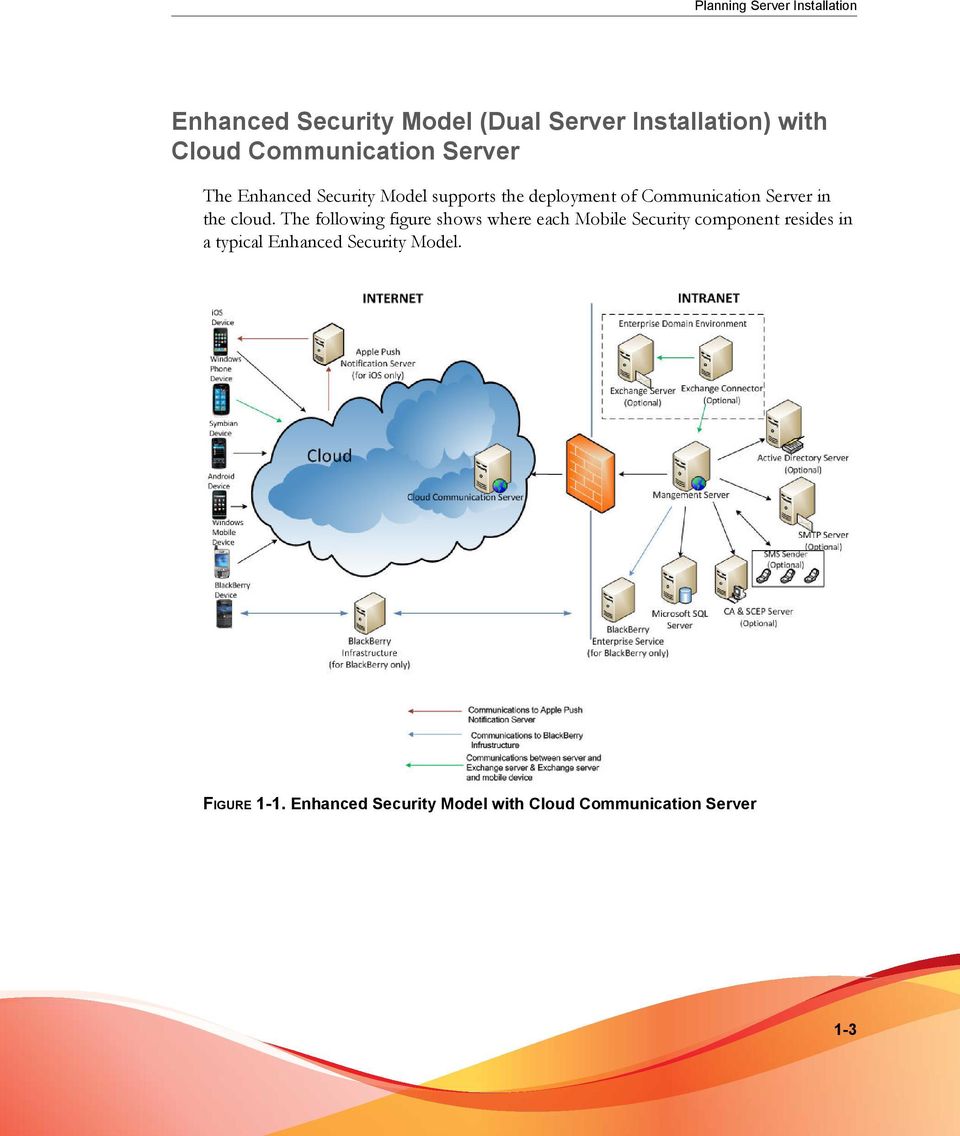
9 Preface Preface Welcome to the Trend Micro Mobile Security for Enterprise 9.0 Installation and Deployment Guide. This guide assists administrators in deploying and managing Trend Micro Mobile Security for Enterprise 9.0. This guide describes various Mobile Security components and the different mobile device agent deployment methods. For updated information about Mobile Security, including mobile device support and the latest builds, visit This Installation and Deployment Guide applies only to Mobile Security version 9.0. It does not apply to other versions of Mobile Security. Trend Micro support is limited to the use of Mobile Security. To obtain support for third-party applications mentioned in this guide, contact their corresponding vendors. This preface discusses the following topics: Audience on page vi Mobile Security Documentation on page vi Document Conventions on page vii v

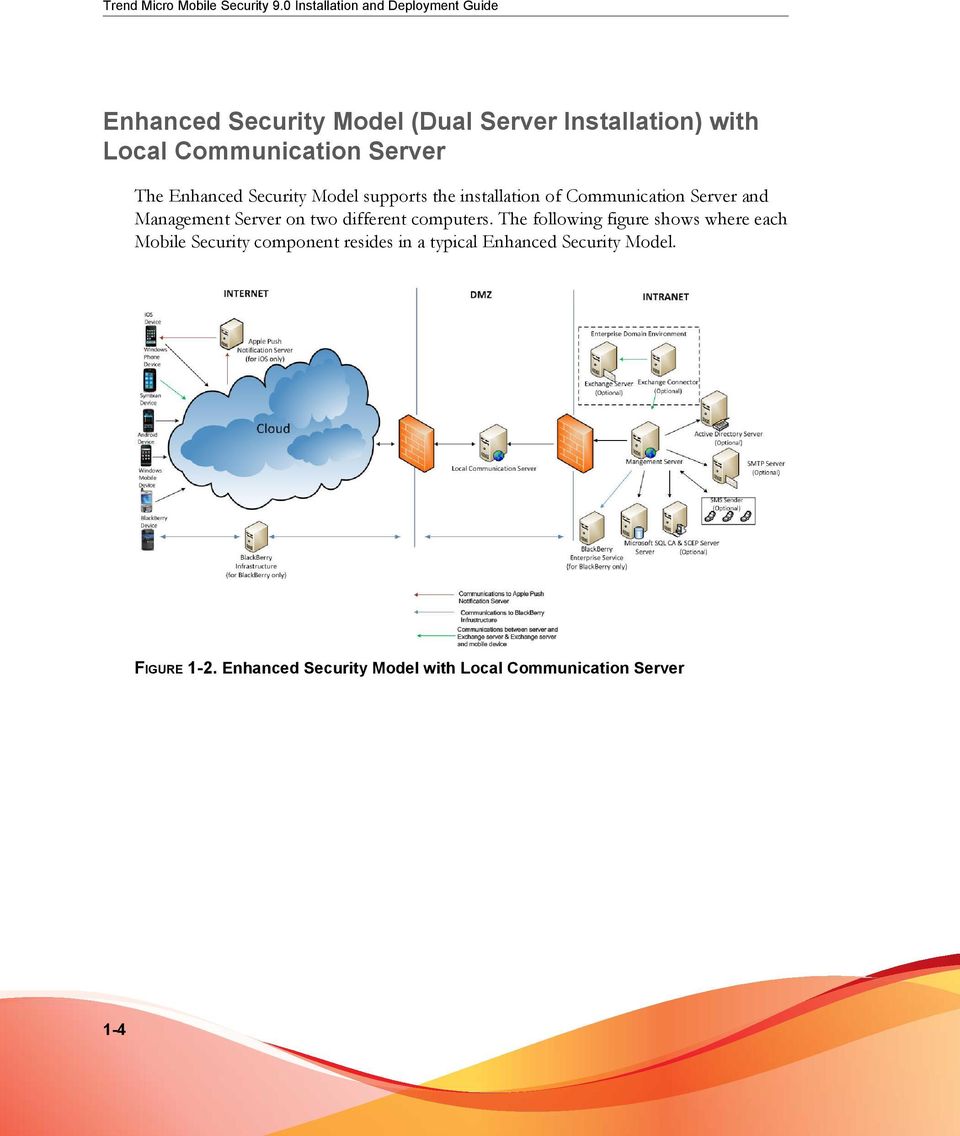
10 Trend Micro Mobile Security 9.0 Installation and Deployment Guide Audience The Mobile Security documentation is intended for both administrators who are responsible for administering and managing Mobile Device Agents in enterprise environments and mobile device users. Administrators should have an intermediate to advanced knowledge of Windows system administration and mobile device policies, including: Installing and configuring Windows servers Installing software on Windows servers Configuring and managing mobile devices (such as smartphones and Pocket PC/ Pocket PC Phone) Network concepts (such as IP address, netmask, topology, and LAN settings) Various network topologies Network devices and their administration Network configurations (such as the use of VLAN, HTTP, and HTTPS) Mobile Security Documentation The Mobile Security documentation consists of the following: Installation and Deployment Guide this guide helps you get up and running by introducing Mobile Security, and assisting with network planning and installation. Administrator s Guide this guide provides detailed Mobile Security configuration policies and technologies. Online help the purpose of online help is to provide how to s for the main product tasks, usage advice, and field-specific information such as valid parameter ranges and optimal values. Readme the Readme contains late-breaking product information that is not found in the online or printed documentation. Topics include a description of new features, installation tips, known issues, and release history. vi
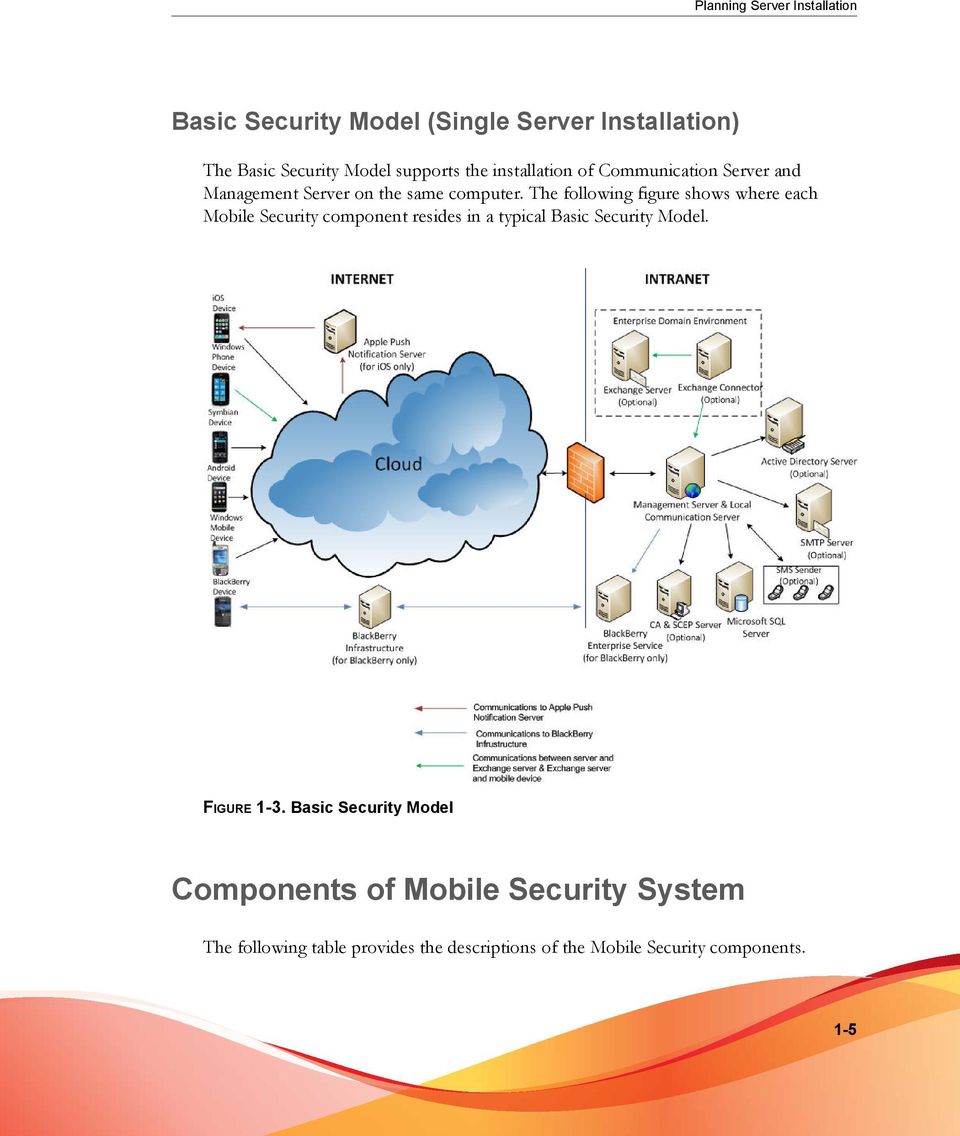
11 Preface Knowledge Base the Knowledge Base is an online database of problem-solving and troubleshooting information. It provides the latest information about known product issues. To access the Knowledge Base, open: Tip Trend Micro recommends checking the corresponding link from the Download Center ( for updates to the product documentation. Document Conventions The documentation uses the following conventions. TABLE 1. Document Conventions CONVENTION UPPER CASE Bold Italics Monospace Navigation > Path DESCRIPTION Acronyms, abbreviations, and names of certain commands and keys on the keyboard Menus and menu commands, command buttons, tabs, and options References to other documents Sample command lines, program code, web URLs, file names, and program output The navigation path to reach a particular screen For example, File > Save means, click File and then click Save on the interface Configuration notes Tip Recommendations or suggestions vii
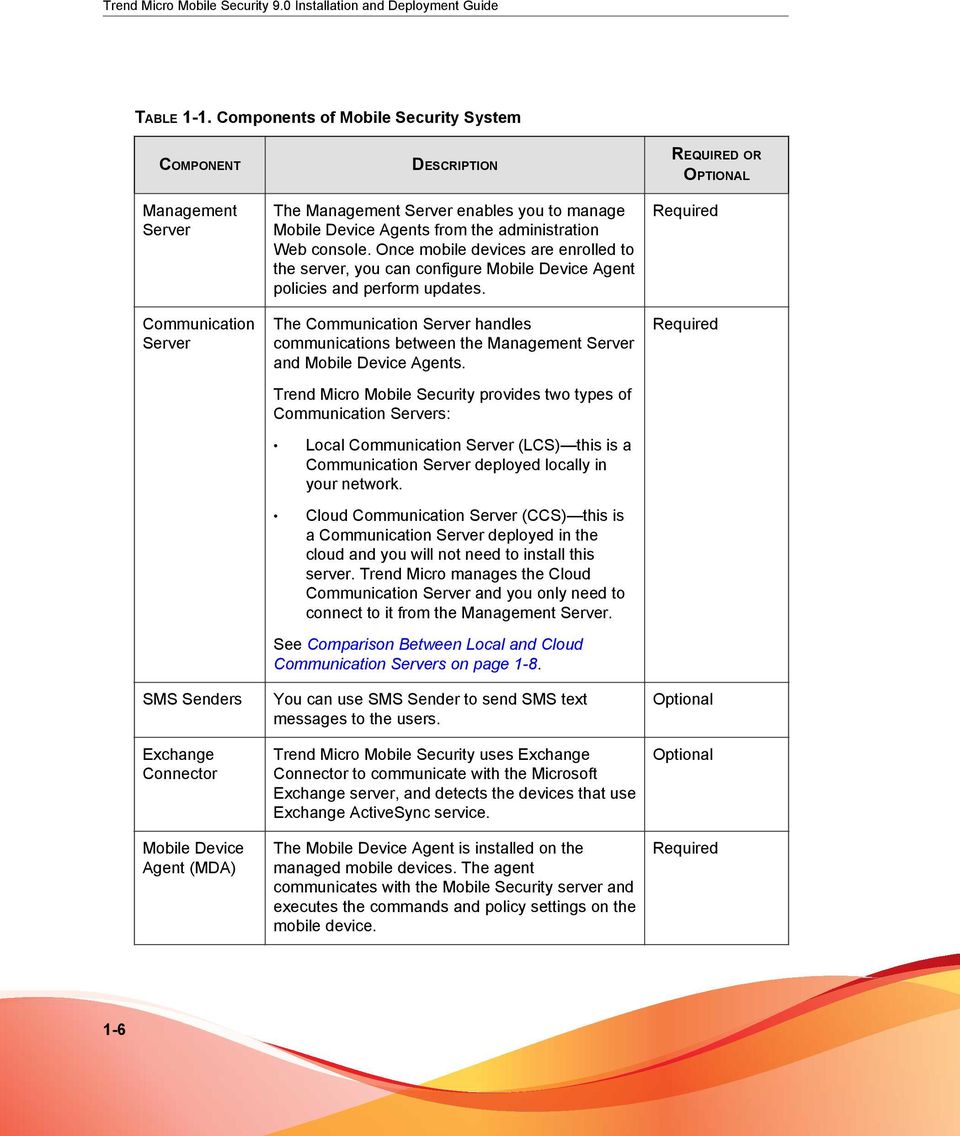
12 Trend Micro Mobile Security 9.0 Installation and Deployment Guide CONVENTION Important DESCRIPTION Information regarding required or default configuration settings and product limitations WARNING! Critical actions and configuration options viii

13 Chapter 1 Planning Server Installation This chapter assists administrators in planning the server components for Trend Micro Mobile Security for Enterprise 9.0. This chapter contains the following sections: Architecture of Mobile Security System on page 1-2 Enhanced Security Model (Dual Server Installation) with Cloud Communication Server on page 1-3 Enhanced Security Model (Dual Server Installation) with Local Communication Server on page 1-4 Basic Security Model (Single Server Installation) on page 1-5 Components of Mobile Security System on page 1-5 System Requirements on page

14 Trend Micro Mobile Security 9.0 Installation and Deployment Guide Architecture of Mobile Security System Depending on your company needs, you can implement Mobile Security with different client-server communication methods. You can also choose to set up one or any combination of client-server communication methods in your network. Trend Micro Mobile Security supports three different models of deployment: Enhanced Security Model (Dual Server Installation) with Cloud Communication Server Enhanced Security Model (Dual Server Installation) with Local Communication Server Basic Security Model (Single Server Installation) 1-2

15 Planning Server Installation Enhanced Security Model (Dual Server Installation) with Cloud Communication Server The Enhanced Security Model supports the deployment of Communication Server in the cloud. The following figure shows where each Mobile Security component resides in a typical Enhanced Security Model. FIGURE 1-1. Enhanced Security Model with Cloud Communication Server 1-3
16 Trend Micro Mobile Security 9.0 Installation and Deployment Guide Enhanced Security Model (Dual Server Installation) with Local Communication Server The Enhanced Security Model supports the installation of Communication Server and Management Server on two different computers. The following figure shows where each Mobile Security component resides in a typical Enhanced Security Model. FIGURE 1-2. Enhanced Security Model with Local Communication Server 1-4
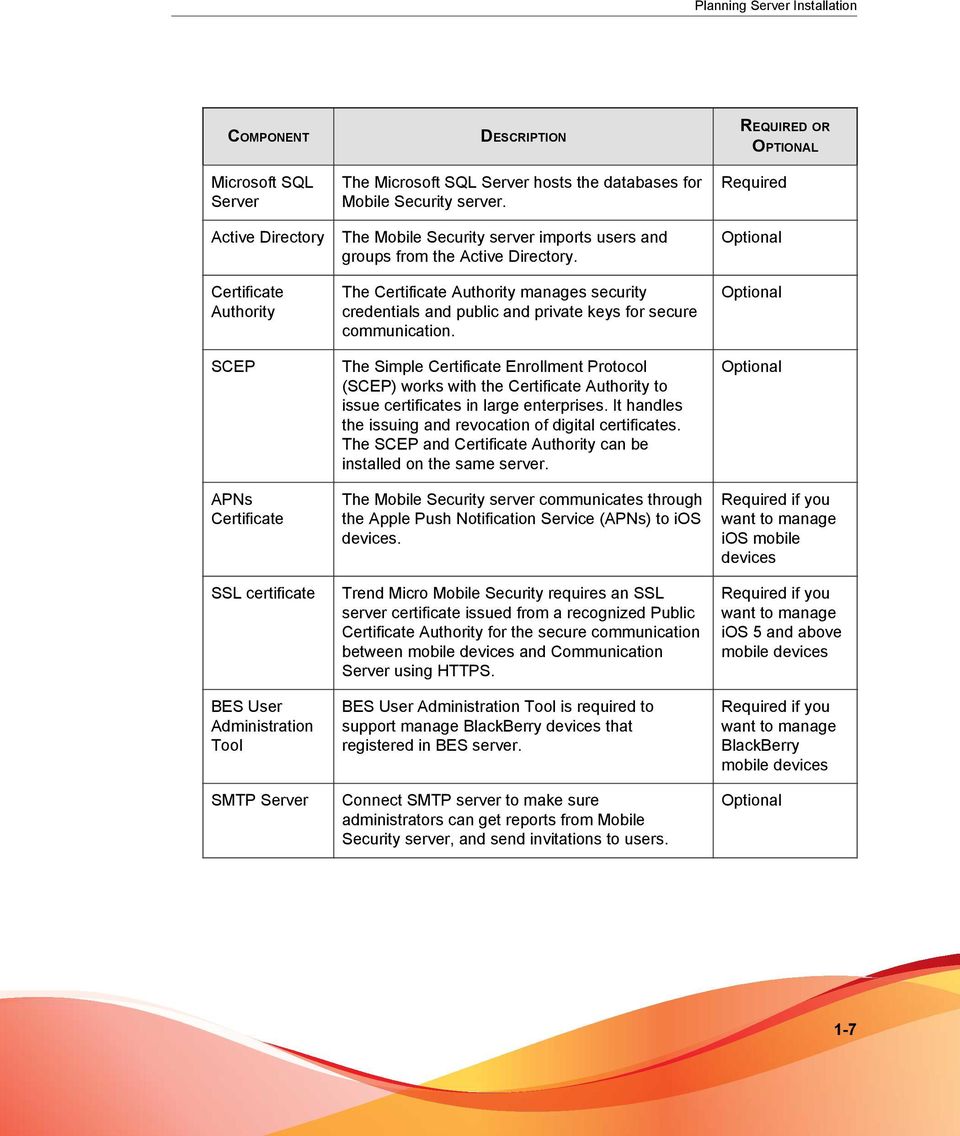
17 Planning Server Installation Basic Security Model (Single Server Installation) The Basic Security Model supports the installation of Communication Server and Management Server on the same computer. The following figure shows where each Mobile Security component resides in a typical Basic Security Model. FIGURE 1-3. Basic Security Model Components of Mobile Security System The following table provides the descriptions of the Mobile Security components. 1-5
18 Trend Micro Mobile Security 9.0 Installation and Deployment Guide TABLE 1-1. Components of Mobile Security System COMPONENT Management Server Communication Server SMS Senders Exchange Connector Mobile Device Agent (MDA) DESCRIPTION The Management Server enables you to manage Mobile Device Agents from the administration Web console. Once mobile devices are enrolled to the server, you can configure Mobile Device Agent policies and perform updates. The Communication Server handles communications between the Management Server and Mobile Device Agents. Trend Micro Mobile Security provides two types of Communication Servers: Local Communication Server (LCS) this is a Communication Server deployed locally in your network. Cloud Communication Server (CCS) this is a Communication Server deployed in the cloud and you will not need to install this server. Trend Micro manages the Cloud Communication Server and you only need to connect to it from the Management Server. See Comparison Between Local and Cloud Communication Servers on page 1-8. You can use SMS Sender to send SMS text messages to the users. Trend Micro Mobile Security uses Exchange Connector to communicate with the Microsoft Exchange server, and detects the devices that use Exchange ActiveSync service. The Mobile Device Agent is installed on the managed mobile devices. The agent communicates with the Mobile Security server and executes the commands and policy settings on the mobile device. REQUIRED OR OPTIONAL Required Required Optional Optional Required 1-6
19 Planning Server Installation COMPONENT DESCRIPTION REQUIRED OR OPTIONAL Microsoft SQL Server Active Directory Certificate Authority SCEP APNs Certificate SSL certificate BES User Administration Tool SMTP Server The Microsoft SQL Server hosts the databases for Mobile Security server. The Mobile Security server imports users and groups from the Active Directory. The Certificate Authority manages security credentials and public and private keys for secure communication. The Simple Certificate Enrollment Protocol (SCEP) works with the Certificate Authority to issue certificates in large enterprises. It handles the issuing and revocation of digital certificates. The SCEP and Certificate Authority can be installed on the same server. The Mobile Security server communicates through the Apple Push Notification Service (APNs) to ios devices. Trend Micro Mobile Security requires an SSL server certificate issued from a recognized Public Certificate Authority for the secure communication between mobile devices and Communication Server using HTTPS. BES User Administration Tool is required to support manage BlackBerry devices that registered in BES server. Connect SMTP server to make sure administrators can get reports from Mobile Security server, and send invitations to users. Required Optional Optional Optional Required if you want to manage ios mobile devices Required if you want to manage ios 5 and above mobile devices Required if you want to manage BlackBerry mobile devices Optional 1-7
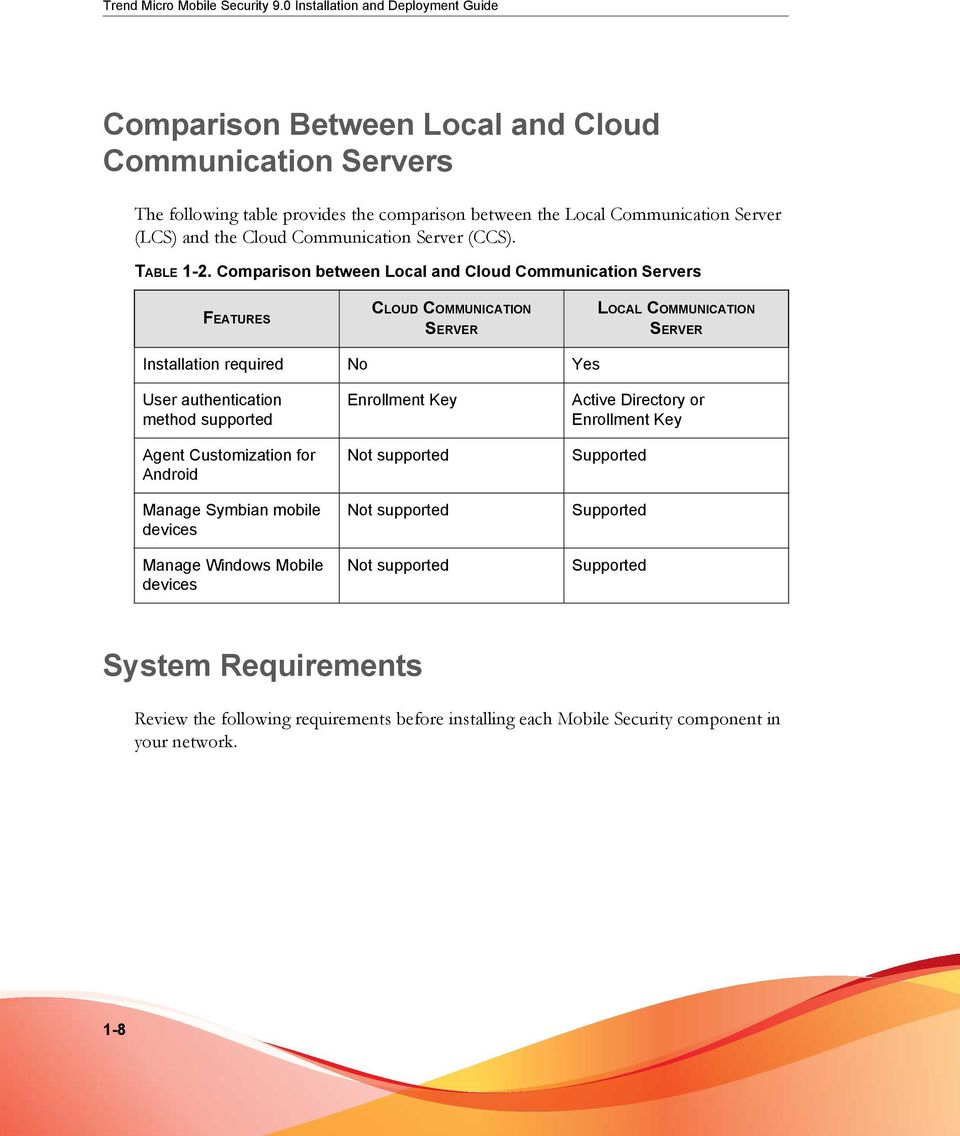
20 Trend Micro Mobile Security 9.0 Installation and Deployment Guide Comparison Between Local and Cloud Communication Servers The following table provides the comparison between the Local Communication Server (LCS) and the Cloud Communication Server (CCS). TABLE 1-2. Comparison between Local and Cloud Communication Servers FEATURES CLOUD COMMUNICATION SERVER LOCAL COMMUNICATION SERVER Installation required No Yes User authentication method supported Agent Customization for Android Manage Symbian mobile devices Manage Windows Mobile devices Enrollment Key Not supported Not supported Not supported Active Directory or Enrollment Key Supported Supported Supported System Requirements Review the following requirements before installing each Mobile Security component in your network. 1-8
21 Planning Server Installation TABLE 1-3. System Requirements COMPONENT Management Server and Communication Server REQUIREMENTS Recommended Platforms Windows Server 2008 R2 Enterprise Edition Windows Server 2008 Enterprise Edition SP1 Windows Server 2003 R2 Enterprise Edition Windows Server 2003 Enterprise Edition Windows Server 2008 Standard Edition Windows Web Server 2008 Edition SP1 Other Platforms Windows 2003 Server Family Windows 2003 R2 Server Family Windows 2008 Server Family Windows 2008 R2 Server Family Windows 2012 Server Hardware 1-GHz Intel Pentium processor or equivalent At least 1-GB of RAM At least 40-MB of available disk space A monitor that supports 800 x 600 resolution at 256 colors or higher 1-9
22 Trend Micro Mobile Security 9.0 Installation and Deployment Guide COMPONENT IIS Web Server for Management Server REQUIREMENTS Microsoft Internet Information Server (IIS) 6.0/7.0/7.5/8.0 The IIS is the integral part of Microsoft Windows and the IIS version numbers correspond to the Windows version installed. Keep the default settings and select When using IIS 7.0 or above for Management Server, keep the default settings and enable and install CGI and ISAPI Extensions in Application Development, HTTP Redirection in Common HTTP Features, and IIS6 management compatibility in Management Tools. Trend Micro Mobile Security does NOT support Apache Web server. SMS Sender Microsoft Exchange Server Android 2.1 or above Microsoft Exchange Server 2007 Microsoft Exchange Server 2010 Web browser Internet Explorer 8.0 or above Chrome 17 or above Firefox 14 or above Safari 6 or above on Mac Adobe Flash player is required for the Mobile Security administration Web console. 1-10
23 Planning Server Installation COMPONENT REQUIREMENTS SQL Server Microsoft SQL Server 2005 Microsoft SQL Server 2005 Express Edition Microsoft SQL Server 2008 Microsoft SQL Server 2008 Express Edition Microsoft SQL Server 2008 R2 Microsoft SQL Server 2008 R2 Express Edition Microsoft SQL Server 2012 Microsoft SQL Server 2012 Express Edition Mobile Security Exchange Connector Platform Windows 2008 R2 (64-bit) Hardware 1-GHz Intel Pentium processor or equivalent At least 1-GB of RAM At least 200-MB of available disk space 1-11
24
25 Chapter 2 Setting Up Environment This chapter provides the information that you will need to set up your environment before you install Trend Micro Mobile Security for Enterprise 9.0. This chapter contains the following sections: Setting Up Environment for Mobile Security Installation on page 2-2 Setting Up Environment for ios Mobile Devices (Optional) on page 2-3 Setting Up Environment for BlackBerry Mobile Devices (Optional) on page 2-6 Installing Microsoft IIS Web Server on page 2-7 Installing SQL Server (Optional) on page 2-8 Setting Up Active Directory Account Access Rights (Optional) on page 2-9 Applying Network Access Rules for Mobile Security on page 2-10 Installing Microsoft Exchange Server Management Tools (Optional) on page 2-11 Installing BES User Administration Tool (Optional) on page
26 Trend Micro Mobile Security 9.0 Installation and Deployment Guide Setting Up Environment for Mobile Security Installation The following table depicts the process of setting up environment for Mobile Security installation. TABLE 2-1. Process of setting up environment for Mobile Security installation STEP ACTION DESCRIPTION Step 1 Install Microsoft IIS Web server on the computer where you plan to install the Management Server. See Installing Microsoft IIS Web Server on page 2-7 for details. Step 2 (Optional) Install database. If you skip this step now, Mobile Security will automatically install Microsoft SQL Server 2005 Express edition during the installation. See Installing SQL Server (Optional) on page 2-8 for details. Step 3 Step 4 (Optional) Set up the Active Directory account access rights. (Optional) Install Microsoft Exchange Server Management Tools. Perform this step if you want to import users from the corporate s Active Directory server. See Setting Up Active Directory Account Access Rights (Optional) on page 2-9 for details. Provides Exchange Server integration with the Mobile Security server to manage Windows Phone, Android, ios mobile devices. See Installing Microsoft Exchange Server Management Tools (Optional) on page 2-11 for details. 2-2
27 Setting Up Environment STEP ACTION DESCRIPTION Step 5 Apply network access rules. See Applying Network Access Rules for Mobile Security on page 2-10 for details. See Network Ports Configurations on page A-1for the complete network ports configuration. Step 6 Step 7 (Optional) Set up environment to manage ios mobile devices. (Optional) Set up environment to manage BlackBerry mobile devices. If you want to manage ios mobile devices, this step is compulsory. See Setting Up Environment for ios Mobile Devices (Optional) on page 2-3. If you want to manage BlackBerry mobile devices, this step is compulsory. See Setting Up Environment for BlackBerry Mobile Devices (Optional) on page 2-6. Setting Up Environment for ios Mobile Devices (Optional) WARNING! Before setting up the environment to manage ios mobile devices, make sure you have performed all the steps mentioned in the following table. The following table depicts the process of setting up environment to manage ios mobile devices. 2-3
28 Trend Micro Mobile Security 9.0 Installation and Deployment Guide TABLE 2-2. Process of setting up environment for ios mobile devices STEP ACTION DESCRIPTION Step 1 Step 2 Set up Apple Push Notification service (APNs) certificate. (Optional) Obtain an SSL server certificate from a recognized Public Certificate Authority. If you want to manage ios4 or above mobile devices, you need to set up the APNs certificate. See Generating and Configuring APNs Certificate on page C-1 for the detailed procedure. SSL certificate provides secure communication between mobile devices and Communication Server. If you want to manage ios 5.x or above mobile devices or plan to use the Local Communication Server, then this step is mandatory. You will need to import a public SSL certificate during the Local Communication Server installation. You can skip this step: if you want to use a private SSL certificate. Mobile Security will create it during the Local Communication Server installation. if you plan to use the Cloud Communication Server. 2-4
29 Setting Up Environment STEP ACTION DESCRIPTION Step 3 (Optional) Set up Simple Certificate Enrollment Protocol (SCEP) for additional security Provides secure communication between mobile devices and Communication Server. See Setting Up SCEP on page B-6 for details. If you already have SCEP set up in your environment, you can skip this step. If you do not want to use SCEP for ios mobile devices, you will need to disable it in Communication Server Settings after you have installed the Management Server and the Communication Server. Refer to Configuring ios Communication Server Settings on page 4-9 for the procedure. 2-5
30 Trend Micro Mobile Security 9.0 Installation and Deployment Guide STEP ACTION DESCRIPTION Step 4 Configure network ports 2195 (TCP) on the Local Communication Server and 5223 on the Wi-Fi network TCP port 2195 allows outbound connection from Communication Server to Apple Push Notification Service on TCP port The hostname of Apple Push Notification Service is gateway.push.apple.com. Port 5223 allows ios devices to receive a push notification from Apple's server especially when connecting through a Wi-Fi network where port 5223 is blocked. However, if the mobile devices are on a 3G network, you do not need to configure this port. See Network Ports Configurations on page A-1 for the complete network ports configuration. Setting Up Environment for BlackBerry Mobile Devices (Optional) WARNING! Before setting up the environment to manage BlackBerry mobile devices, make sure you have performed all the steps mentioned in the following table. The following table depicts the process of setting up environment to manage BlackBerry mobile devices. 2-6
31 Setting Up Environment TABLE 2-3. Process of setting up environment for BlackBerry mobile devices STEP ACTION DESCRIPTION Step 1 Install BlackBerry Enterprise Server (BES) Refer to the following URLs for information about BlackBerry Enterprise Server (BES) 5.x: and Trend Micro Mobile Security only supports BlackBerry Enterprise Server (BES) version 5.x. Step 2 Activate BlackBerry mobile device You must activate the BlackBerry mobile device before you are able to manage them from Mobile Security. Refer to the following URL for details: Step 3 Install BES User Administration Tool on the Management Server Enables Mobile Security to manage BlackBerry mobile devices. See Installing BES User Administration Tool (Optional) on page 2-11 for details. Installing Microsoft IIS Web Server This task is a step in the process of setting up environment for Mobile Security installation. See Setting Up Environment for Mobile Security Installation on page
32 Trend Micro Mobile Security 9.0 Installation and Deployment Guide Procedure Navigate to one of the following URLs for the installation procedure of IIS: For Windows 2003 (IIS 6.0): Library/IIS/750d c-491d-b6c7-5f370d7f26cd.mspx?mfr=true For Windows 2008 or Windows Server 2008 R2 (IIS 7.0 or 7.5) For Windows 2012 (IIS 8.0) When using IIS 7.0 or above for Management Server, keep the default settings, and enable and install CGI and ISAPI Extensions in Application Development, HTTP Redirection in Common HTTP Features, and IIS6 management compatibility in Management Tools. Installing SQL Server (Optional) You can skip this step if you do not want to install any specific SQL server version. Mobile Security will automatically install Microsoft SQL Server 2005 Express edition during the installation. This task is a step in the process of setting up environment for Mobile Security installation. See Setting Up Environment for Mobile Security Installation on page
33 Setting Up Environment Procedure Navigate to one of the following URLs for the installation procedure of SQL Server: For Microsoft SQL Server 2005 (or Express edition): For Microsoft SQL Server 2008/2008 R2 (or Express edition): For Microsoft SQL Server 2012 (or Express edition): Trend Micro recommends using SQL Server Authentication method for SQL Server instead of Windows Authentication. However, you can also configure Windows Authentication for SQL Server. Refer to Using Windows Authentication for SQL Server on page B-2 for details. Setting Up Active Directory Account Access Rights (Optional) You only need to perform this step if you plan to use Active Directory for user authentication or import users from Active Directory. Otherwise, skip this step. If you have not already installed the Active Directory, refer to the following URL for the detailed installation procedure: This task is a step in the process of setting up environment for Mobile Security installation. 2-9
34 Trend Micro Mobile Security 9.0 Installation and Deployment Guide See Setting Up Environment for Mobile Security Installation on page 2-2. Procedure Create an Active Directory Service Account for Mobile Security 9.0 and assign it at least Read-Only access to Active Directory. Refer to the following URL for creating an active directory account for Windows 2008: Applying Network Access Rules for Mobile Security This task is a step in the process of setting up environment for Mobile Security installation. See Setting Up Environment for Mobile Security Installation on page 2-2. Procedure Apply the following network access rules: If you plan to use Active Directory, the Management Server should be able to connect to the Active Directory server. If you are using a firewall, make sure to add an exception in the firewall settings for the Management Server. The Management Server should be able to connect to the SQL server, where the Trend Micro Mobile Security database is installed. If you are using a firewall, make sure to add an exception in the firewall settings on both SQL server and Management Server. Add an exception for port 4343 to ensure an https connection between the Management Server and the Communication Server: If you need to customize this port number, refer to Configuring Communication Server Ports on page B-4 for details. 2-10
35 Setting Up Environment Add exception for port numbers 80 and 443 to ensure that all mobile devices are able to connect to the Communication Server. Installing Microsoft Exchange Server Management Tools (Optional) Microsoft Exchange Server Management Tools provide Exchange Server integration with the Mobile Security server to manage Windows Phone, Android, ios mobile devices. This task is a step in the process of setting up environment for Mobile Security installation. See Setting Up Environment for Mobile Security Installation on page 2-2. Procedure Navigate to one of the following URLs for the installation procedure of Exchange Server Management Tools: For installing Exchange Server Management Tools 2007: For installing Exchange Server Management Tools 2010: Installing BES User Administration Tool (Optional) To manage BlackBerry devices, you need to install BES User Administration Tool on the Management Server. 2-11
36 Trend Micro Mobile Security 9.0 Installation and Deployment Guide WARNING! Before installing BES User Administration Tool, make sure you have already installed the BlackBerry Enterprise Server and have activated the BlackBerry mobile devices. This task is a step in the process of setting up environment for Mobile Security installation. See Setting Up Environment for BlackBerry Mobile Devices (Optional) on page 2-6. Procedure 1. Navigate to the following URL: 2. From the list of Business software, click BlackBerry Enterprise Server Resource Kit, and then read the instructions on the Web page to download the BlackBerry Enterprise Server User Administration Tool v5.0 Service Pack 2 from the BlackBerry Enterprise Server Resource Kit v5.0 Service Pack Refer to the following URL for the installation procedure:
37 Chapter 3 Installing and Removing Server Components This chapter guides the administrators in installing Trend Micro Mobile Security for Enterprise9.0server components. This chapter also guides on how to remove the server components. This chapter contains the following sections: Installing Server Components on page 3-3 Before You Install on page 3-3 Installation Workflow for Trend Micro Mobile Security on page 3-3 Installing Management Server on page 3-4 Accessing the Administration Web Console on page 3-10 Registering the Product on page 3-12 Installing the Local Communication Server on page 3-14 SMS Sender on page 3-16 Installing SMS Sender on page 3-17 Setting Up Exchange Server Integration on page
38 Trend Micro Mobile Security 9.0 Installation and Deployment Guide Configuring Account for Exchange Connector on page 3-18 Installing Exchange Connector on page 3-20 Upgrading Mobile Security on page 3-22 Removing Server Components on page
39 Installing and Removing Server Components Installing Server Components Before You Install Before you proceed to install Mobile Security server components: make sure the Mobile Security components meet the specified system requirements. See System Requirements on page 1-8. You may also need to evaluate your network topology and determine the Mobile Security server components you want to install. make sure you have already performed all the prerequisite steps mentioned in the chapter Setting Up Environment on page 2-1. Installation Workflow for Trend Micro Mobile Security The following table depicts the basic approach to installing Trend Micro Mobile Security. TABLE 3-1. Installation workflow for Trend Micro Mobile Security STEP ACTION DESCRIPTION Step 1 Step 2 Install Mobile Security Management Server Log on to Mobile Security for Enterprise administration Web console See Installing Management Server on page 3-4 for the detailed procedure. See Accessing the Administration Web Console on page 3-10 for the detailed procedure. Step 3 Register the product See Registering the Product on page 3-12 for the detailed procedure. 3-3
40 Trend Micro Mobile Security 9.0 Installation and Deployment Guide STEP ACTION DESCRIPTION Step 4 (Optional) Download and install Local Communication Server You can skip this step if you plan to use the Cloud Communication Server (CCS). See Installing the Local Communication Server on page 3-14 for the detailed procedure. Step 5 (Optional) Install SMS Sender You can skip this step if you do not want to send SMS notifications to users. See Installing SMS Sender on page 3-17 for the detailed procedure. Step 6 (Optional) Install Exchange Connector You can skip this step if you do not want to manage mobile devices that use Exchange ActiveSync. See Installing Exchange Connector on page 3-20 for the detailed procedure. Installing Management Server Mobile Security requires Java Runtime Environment (JRE) to upload.apk file from the Application Management module on the Management Server. The JRE is automatically installed with the installation of the Management Server. However, if the computer where you have installed the Management Server already has the JRE installed, then the Management Server setup will not install JRE. If the existing JRE version is older than 1.6, then you will need to manually uninstall JRE, and install the version 1.6 or above. Procedure 1. Download the Management Server installation program from the following location: 3-4
41 Installing and Removing Server Components regs=nabu&clk=latest&clkval=4231&lang_loc=1 2. Extract the downloaded file and then run the Management Server installation program: MdmServerSetup.exe. The Welcome screen displays. 3. Click Next. The License Agreement screen displays. 4. Select the I agree checkbox and click Next. Mobile Security requires you to install PHP and Microsoft Visual C Redistributable files. If you have already installed them on your computer, the PHP and Microsoft Visual C Redistributable files installation steps will not appear during installation. If the PHP Microsoft Visual C Redistributable files installation screen display, click Next on the screens to continue the installation. 3-5
42 Trend Micro Mobile Security 9.0 Installation and Deployment Guide The Database Options screen displays. FIGURE 3-1. The Database Options screen 5. Do one of the following: If you do not have any database installed or want to create a new database for Mobile Security: a. Select Install Microsoft SQL server 2005 Express on this computer, and click Next. 3-6
43 Installing and Removing Server Components The Database Setup screen displays. FIGURE 3-2. Database Setup screen for new database b. Type a password for your new database and click Next. 3-7
44 Trend Micro Mobile Security 9.0 Installation and Deployment Guide The Setup Progress screen appears and displays the current installation status. FIGURE 3-3. Setup Progress screen c. After the setup completes, click Next. The Server Connection Settings screen displays. If you already have a database installed and want to use the existing database: a. Select Connect to an existing database and click Next. 3-8
45 Installing and Removing Server Components The Existing Database screen displays. FIGURE 3-4. Existing database server information b. Type your existing database server information and click Next The Server Connection Settings screen displays. 6. Select the IP address from the drop-down list and type the server port number and click Next. 7. Select a location where you want to install Mobile Security and click Next. Click Change to select a different location. 8. Click Install to start the installation. The installation progress window appears. After the installation is complete, the Trend Micro Mobile Security Installation Completed screen displays. 3-9
46 Trend Micro Mobile Security 9.0 Installation and Deployment Guide 9. Click Finish. What to do next See Installation Workflow for Trend Micro Mobile Security on page 3-3 for the next configuration task. Accessing the Administration Web Console Procedure 1. Log on to the administration Web console using the following URL structure: <External_domain_name_or_IP_address>:<HTTPS_port>/mdm/web Replace <External_domain_name_or_IP_address> with the actual IP address, and <HTTPS_port> with the actual port number of the Management Server. The following screen appears. FIGURE 3-5. Administration Web console login screen 3-10
47 Installing and Removing Server Components 2. Type a user name and password in the fields provided and click Log In. The default User Name for administration Web console is root and the Password is mobilesecurity. Make sure that you change the administrator password for the user "root" after your first sign in. See Editing an Administrator Account in the Administrator s Guide for the procedure. Important If you are using Internet Explorer to access the administration Web console, make sure the following: the Compatibility View for Web sites options is turned off. See Turning Off Compatibility Mode in Internet Explorer on page 3-11 for details. the JavaScript is enabled on your browser. If you are unable to access the administration Web console in Windows 2012 using Internet Explorer 10 in Metro mode, verify that the Enhanced Protected Mode option is disabled in Internet Explorer. Turning Off Compatibility Mode in Internet Explorer Trend Micro Mobile Security does not support Compatibility View on Internet Explorer. If you are using Internet Explorer to access the Mobile Security administration Web console, turn off the Web browser s Compatibility View for the Web site, if it is enabled. Procedure 1. Open Internet Explorer and click Tools > Compatibility View settings. The Compatibility View Settings window displays. 3-11
48 Trend Micro Mobile Security 9.0 Installation and Deployment Guide 2. If the administration console is added to the Compatibility View list, select the Web site and click Remove. 3. Clear Display intranet sites in Compatibility View and Display all websites in Compatibility View checkboxes, and then click Close. Registering the Product Trend Micro provides all registered users with technical support, malware pattern downloads, and program updates for a specified period after which you must purchase renewal maintenance to continue receiving these services. Register Mobile Security server to ensure that you are eligible to receive the latest security updates and other product and maintenance services. You only need to register Mobile Security server on the Management Server using the Activation Code. Mobile Device Agents automatically obtain license information from the Mobile Security server after the mobile devices are connected and registered to the server. An activation code displays in the following format: xx-xxxx-xxxxx-xxxxx-xxxxx-xxxxx-xxxxx Procedure 1. Log on to the administration Web console. If this is the first time you access the management console, the Product License screen displays; otherwise, click Administration > Product License and click New Activation Code. 2. Type the Activation Code in the fields provided and click Save. 3-12
49 Installing and Removing Server Components FIGURE 3-6. Registering Mobile Security after installation 3. Verify that product registration is successful. Click Dashboard to display the Dashboard screen. You should see the message Trend Micro Mobile Security 9.0 has been activated. if product registration is successful. After the registration is complete, the Getting Started screen displays and guides you through the steps to complete the initial settings. FIGURE 3-7. Getting Started screen 3-13
50 Trend Micro Mobile Security 9.0 Installation and Deployment Guide What to do next See Installation Workflow for Trend Micro Mobile Security on page 3-3 for the next configuration task. Installing the Local Communication Server Procedure 1. Log on to the administration Web console on the computer where you want to install the Communication Server. 2. Click Administration > Communication Server Settings. 3. Click the Common Settings tab. 4. Select the Local Communication Server from the drop down list and then click Click here to download link to download the installation package to the computer on which you want to install the Communication Server. 5. Double-click the setup file to start the installation process. The Welcome screen displays. 6. Click Next. The License Agreement screen displays. 7. Select the I accept the terms in the license agreement and click Next. The Communication Server Connection Settings for Mobile Devices screen appears. 8. Select an IP address from the drop-down list, and type HTTP and HTTPs port numbers for the Communication Server. The IP address and port number on this screen are used for the Communication Server to communicate with the mobile devices. Trend Micro recommends selecting "ALL" for IP address. 3-14
51 Installing and Removing Server Components 9. Click Next. The Communication Server Connection Settings for Management Server screen appears. 10. Select an IP address from the drop down list, and type an HTTPs port number for the Communication Server. The IP address and port number on this screen are used for the Communication Server to communicate with the Management Server. 11. Click Next. Trend Micro recommends selecting "ALL" for IP address. The Server Certificate screen appears. 12. Do one of the following: If you already have an SSL certificate for ios mobile device enrollment, do the following: a. Select Import an existing.pfx or.p12 certificate file and click Next. The Import Certificate screen displays. b. Click Browse and select the public certificate from the hard drive. c. Type certificate password in the Password field. Leave this field blank, if the certificate does not have a password. d. Click Next. If you do not have an SSL certificate for ios mobile device enrollment, or need to create a new one, do the following: a. Select Create a new private certificate and click Next. The Create Certificate screen displays. b. Type the Communication Server IP address in the Common Name field and a certificate password in the Password field. 3-15
52 Trend Micro Mobile Security 9.0 Installation and Deployment Guide c. Click Next. 13. Select a location where you want to install Mobile Security and click Next. Click Change to select a different location. 14. Click Install to start the installation. The installation progress window appears. After the installation is complete, the Installation Completed screen displays. 15. Click Finish. What to do next See Installation Workflow for Trend Micro Mobile Security on page 3-3 for the next configuration task. SMS Sender You can use SMS Sender to send SMS messages to the users. SMS senders are designated Android mobile devices connected to the Management Server over network connections. An SMS sender receives commands from server and relays them to mobile devices via SMS text messages. SMS text messages may be used to notify mobile devices to: download and install Mobile Device Agent enroll Mobile Device Agent to the Mobile Security server update the Mobile Device Agent components from the Mobile Security server synchronize policies with the Mobile Security server wipe, lock or locate the remote mobile device 3-16
53 Installing and Removing Server Components Installing SMS Sender If you do not use SMS Sender, only the remote lock and remote wipe instructions will not be pushed to the Windows Mobile devices. However, all other features will work as normal. Also, if you do not use SMS Sender, all the features of Mobile Security will work as normal for ios, Android, BlackBerry and Symbian mobile devices. Procedure 1. On the Management Server, copy the setup file from the folder \Mobile Security\SmsSender to a memory card for the supported device. 2. Insert the memory card to the device and run the setup file to install the SMS Sender program. After the installation is complete, the SMS Sender application icon appears in the application list. What to do next See Installation Workflow for Trend Micro Mobile Security on page 3-3 for the next configuration task. Setting Up Exchange Server Integration Exchange Server integration is required to establish the communication between Management Server and the Exchange Server. Trend Micro Mobile Security supports Exchange Server 2007 or later only, and provides Exchange Server Integration support for Windows Phone, ios and Android mobile devices. The following table depicts the process of setting up Exchange Server Integration for Trend Micro Mobile Security. 3-17
54 Trend Micro Mobile Security 9.0 Installation and Deployment Guide TABLE 3-2. Process for setting up Exchange Server Integration STEP ACTION DESCRIPTION Step 1 Step 2 Install Microsoft Exchange Server Management Tools Configure an account for Exchange Connector Before configuring Exchange Server Settings, you must install Microsoft Exchange Server Management Tools on the computer where you want to install Exchange Connector. See Installing Microsoft Exchange Server Management Tools (Optional) on page Provides access rights for Exchange Connector. See Configuring Account for Exchange Connector on page 3-18 for the detailed procedure. Step 3 Install Exchange Connector Establishes communication between Management Server and the Exchange Server. See Installing Exchange Connector on page 3-20 for the detailed procedure. Step 4 Configure Exchange Server Integration Settings See Configuring Exchange Server Integration Settings on page 4-17 for the detailed procedure. Configuring Account for Exchange Connector Procedure 1. Create a user account in Active Directory server. 2. On to the computer where you want to install Exchange Connector, navigate to Start > Administrator Tools > Computer Management and do the following. a. Expand the Local Users and Groups folder from the left tree, and then double-click Groups. 3-18
55 Installing and Removing Server Components b. Right-click Administrators and click Properties. c. Click Add button on the General tab, and do the following: i. Type the user name that you created in Step 1 on page 3-18 of this procedure in the Login name field and click Search. Select Users, Computers, Services, Accounts, or Group dialog box appears. ii. iii. Type the user name with the domain name (for example: domainname \username) in the Enter the object name to select field and click Check Names. Click OK. d. Click OK on the Administrator Properties dialog box. 3. On to the Active Directory server, do the following: a. Navigate to Start > Administrative Tools > Active Directory Users and Computers. b. Expand the Users folder from the left tree. c. Right-click the account (user name) you created in Step 1 on page 3-18 of this procedure and click Add to a group. d. Do one of the following: For Exchange Server 2007, type Exchange Organization Management in the Enter the object name to select field and click Check Names. For Exchange Server 2010, type Organization Administrators in the Enter the object name to select field and click Check Names. e. Click OK and then click OK on the confirmation screen. 4. On to the Active Directory server, do the following: a. Navigate to Start > Administrative Tools > Active Directory Users and Computers. 3-19
56 Trend Micro Mobile Security 9.0 Installation and Deployment Guide b. From the menu bar, click View > Advanced Features. c. Expand the Users folder from the left tree. d. Right-click the account (user name) you created in Step 1 on page 3-18 of this procedure and click Properties. e. On the Security tab, click Add. f. Type the user name you created in Step 1 on page 3-18 with the domain name (for example: domainname\username) in the Enter the object name to select field, click Check Names, and then click OK. g. Select the user name in Group or user name list, and click Advanced. h. Select Include inheritable permissions from this object s parent and click OK. i. Click OK on the Properties dialog box. Installing Exchange Connector You must install the Exchange Connector on the computer: where Microsoft Exchange Server Management Tools are installed, which is in the same domain as Exchange Server, and should be able to connect to the Management server. Procedure 1. Log on to the administration Web console. 2. Click Administration > Exchange Server Integration. 3. Click Click here to download and save the ExchangeConnector.zip file on to your computer. 3-20
57 Installing and Removing Server Components 4. Extract the ExchangeConnector.zip file content and run the ExchangeConnector.exe file. The Exchange Connector setup wizard appears. 5. Click Next on the Welcome screen. 6. Select I accept the terms in the license agreement and click Next. The setup now checks if the Microsoft Exchange Management Tools are installed on the computer. If they are installed, setup displays the following screen. FIGURE 3-8. Successful Exchange Management installation check 7. Click Next on the Checking System Requirements screen. 8. Click Browse and select the destination folder where you want to install the Exchange Connector, and then click Next. 3-21
58 Trend Micro Mobile Security 9.0 Installation and Deployment Guide The Service Account screen displays. 9. Type the user name, password and domain name (that you created in Configuring Account for Exchange Connector on page 3-18) to access the Exchange Management Tools, and click Next. 10. Review the settings on the Review Settings screen and click Install. The setup starts installing the Exchange Connector. 11. When the installation completes, click Next and then click Finish. The time it takes to import mobile devices information from the Exchange Server to the Mobile Security server depends on the number of mobile devices you want to import. For example, it may take up to several hours to import the information of 5000 mobile devices from the Exchange Server to Mobile Security server. What to do next See Installation Workflow for Trend Micro Mobile Security on page 3-3 for other configuration tasks. See Setting Up Exchange Server Integration on page 3-17 for the next task to set up Exchange Server Integration. Upgrading Mobile Security Trend Micro Mobile Security does not provide upgrading to v9.0 from an older version. However, Trend Micro provides a Migration Tool to migrate your data from an older version to your latest installation of v9.0. Removing Server Components This section guides you through the steps you need to perform to remove the Management Server and the Communication Server. 3-22
59 Installing and Removing Server Components Procedure 1. From the Windows Control Panel, double-click Programs and Features. The Uninstall or change a program window displays. 2. Select one of the following: Trend Micro Local Communication Server to uninstall Communication Server Trend Micro Mobile Security to uninstall Management Server 3. Click Uninstall. A dialog box displays. 4. On the dialog box, select Automatically close applications and attempt to restart them after setup is complete and click OK. 3-23
60
61 Chapter 4 Configuring Server Component This chapter assists administrators in configuring the server components for Trend Micro Mobile Security for Enterprise 9.0. This chapter contains the following sections: Initial Server Setup on page 4-3 Configuring Database Settings on page 4-5 Configuring Communication Server Settings on page 4-6 Configuring Common Communication Server Settings on page 4-6 Configuring Android Communication Server Settings on page 4-8 Configuring ios Communication Server Settings on page 4-9 Configuring BlackBerry Communication Server Settings on page 4-11 Configuring Device Enrollment Settings on page 4-12 Customizing Mobile Security Terms of Use on page 4-14 Configuring Active Directory (AD) Settings on page 4-15 Configuring Management Server Settings on page 4-16 Configuring Exchange Server Integration Settings on page
62 Trend Micro Mobile Security 9.0 Installation and Deployment Guide Exchange Connector Statuses on page 4-17 Configuring Notifications/Reports Settings on page 4-18 Configuring Administrator Notifications on page 4-19 Verifying Mobile Security Configuration on page
63 Configuring Server Component Initial Server Setup The following table depicts the initial server setup of Trend Micro Mobile Security after installation. TABLE 4-1. Initial setup of Mobile Security server STEP ACTION DESCRIPTION Step 1 Step 2 Step 3 Step 4 Step 5 Step 6 Step 7 Configure Database settings. Configure Communication Server settings. (Optional) Configure Communication Server settings for Android. (Optional) Configure Communication Server settings for ios. (Optional) Configure Communication Server settings for BlackBerry. Configure Device Enrollment settings. (Optional) Customize the Mobile Security Terms of Use. See Configuring Database Settings on page 4-5 for the detailed procedure. See Configuring Common Communication Server Settings on page 4-6 for the detailed procedure. You can skip this step if you do not want to manage Android mobile devices. See Configuring Android Communication Server Settings on page 4-8 for the detailed procedure. You can skip this step if you do not want to manage ios mobile devices. See Configuring ios Communication Server Settings on page 4-9 for the detailed procedure. You can skip this step if you do not want to manage BlackBerry mobile devices. See Configuring BlackBerry Communication Server Settings on page 4-11 for the detailed procedure. See Configuring Device Enrollment Settings on page 4-12 for the detailed procedure. You can skip this step if you want to use the default Mobile Security Terms of Use. See Customizing Mobile Security Terms of Use on page 4-14 for the detailed procedure. 4-3
64 Trend Micro Mobile Security 9.0 Installation and Deployment Guide STEP ACTION DESCRIPTION Step 8 Step 9 Step 10 Step 11 Step 12 Step 13 (Optional) Configure Active Directory settings. (Optional) Configure Management Server settings. (Optional) Configure Exchange Server Integration Settings. (Optional) Configure Notifications/Reports Settings. (Optional) Configure Administrator Notifications. Verify Mobile Security configuration (Recommended). You can skip this step if you do not want to import users from the Active Directory server. See Configuring Active Directory (AD) Settings on page 4-15 for the detailed procedure. You can skip this step if your Management Server does not use a proxy to access the Internet and you want to use the default server IP address and port number. See Configuring Management Server Settings on page 4-16 for the detailed procedure. You can skip this step if you do not want to manage mobile devices that use Exchange ActiveSync. See Configuring Exchange Server Integration Settings on page 4-17 for the detailed procedure. You can skip this step if do not want to send invitation SMS text messages or s to users. See Configuring Notifications/Reports Settings on page You can skip this step if you do not want to receive the error message notifications and regular scheduled reports via . See Configuring Administrator Notifications on page 4-19 for the detailed procedure. Use the Configuration and Verification screen to verify the Mobile Security configurations. See Verifying Mobile Security Configuration on page 4-20 for the procedure. 4-4
65 Configuring Server Component STEP ACTION DESCRIPTION Step 14 Change the administrator account password for the administration Web console. Use the Administration Account Management screen after logging into the administration Web console. Refer to the topic Editing Administrator Account in the Administrator s Guide for the procedure. You must complete the initial server setup for the Mobile Security server before you continue to install Mobile Device Agent on mobile devices. Configuring Database Settings Procedure 1. Log on to the administration Web console. 2. Click Administration > Database Settings. 3. Type the server name or IP address, your user name, password and the database name. If you are using a specific port for SQL server, use the format: For SQL Server: <SQL server name or IP address>,<port> For SQL Server Express: <SQL server name or IP address>,<port>\<instance name of SQL Server Express> 4. Click Save. What to do next See Initial Server Setup on page 4-3 for the next configuration task. 4-5
66 Trend Micro Mobile Security 9.0 Installation and Deployment Guide Configuring Communication Server Settings Communication Server Settings screen provides the following settings: Common Settings to configure the basic settings for the Communication Server. Android Settings to configure the notification and agent customization settings for Android mobile device management. ios Settings to configure the SCEP settings and upload the APNs and SSL certificates for ios mobile device management. BlackBerry Settings to configure the BlackBerry Enterprise Server settings for BlackBerry mobile device management. Configuring Common Communication Server Settings Procedure 1. Log on to the administration Web console. 2. Click Administration > Communication Server Settings. 3. Click the Common Settings tab. 4. Under section Communication Server Type, select one of the following two options: Local Communication Server if you have already installed the Communication Server locally in your network. Cloud Communication Server if you want to use Communication Server deployed in the cloud. 5. Under section Settings for Communication Between Communication Server and Mobile Devices, configure the following: External domain name or IP address the domain name or IP address of the Local Communication Server. 4-6
67 Configuring Server Component HTTP port and HTTPS port used for Local Communication Server to communicate with mobile devices. The default HTTP and HTTPS ports are 8080 and If you configure both of these ports, the mobile devices will use HTTPS port to communicate with the Communication Server. The mobile devices will use the HTTP port only if they are unable to communicate using the HTTPS port. 6. Under section Settings for Communication Between Communication Server and Management Server, configure the following: Communication Server name or IP address the domain name or IP address of the Local Communication Server. HTTPS Port used for Local Communication Server to communicate with the Management Server. If you need to customize the HTTPS port, refer to Configuring Communication Server Ports on page B-4 for details. 7. Under section Information Collection Frequency, configure the following: Information collection frequency select the frequency when Mobile Security collects the information about the applications installed on mobile devices. Information collection frequency when mobile device is in roaming select the frequency when Mobile Security collects the information about the applications installed on mobile devices when the mobile device is in roaming. 4-7
68 Trend Micro Mobile Security 9.0 Installation and Deployment Guide 8. Click Save. This setting only applies to Android and ios mobile devices. Mobile Security will collect the information about the applications installed on the mobile device at the time the mobile device was enrolled and then according to the frequency you have selected. Changing the frequency will reset the timer, but Mobile Security will collect this information at the same time of the day. What to do next See Initial Server Setup on page 4-3 for the next configuration task. Configuring Android Communication Server Settings Procedure 1. Log on to the administration Web console. 2. Click Administration > Communication Server Settings. 3. Click the Android Settings tab. 4. Under section Push Notifications Settings, select Enable push notification if you want to send push notifications to Android mobile devices. If you do not enable this setting, the Android mobile device users will manually need to update the company policies on the mobile device. 5. Under section Agent Customization, select Enable agent customization to add the server IP address and port number in the Android client application that users will download from the Mobile Security server. It will also automatically add the preset Enrollment Key to the Android client application, if the Enable preset Enrollment Key option is selected in Device Enrollment Settings. 4-8
69 Configuring Server Component This means, the server IP address, port number and preset Enrollment Key will be automatically filled in the client application and users will not need to type this information manually. 6. Click Save. This setting is disabled if you are using Cloud Communication Server. What to do next See Initial Server Setup on page 4-3 for the next configuration task. Configuring ios Communication Server Settings Procedure 1. Log on to the administration Web console. 2. Click Administration > Communication Server Settings. 3. Click the ios Settings tab. 4. Under section Apple Push Notification service (APNs) Settings, configure the following: Certificate type: Select your certificate type. Certificate: Select APNs certificate from the drop-down list, or upload a new one. 5. Under section Simple Certificate Enrollment Protocol (SCEP) Settings, configure the following: a. Select Enable SCEP. b. If enabled, fill the fields with the following information: SCEP user URL: 4-9
70 Trend Micro Mobile Security 9.0 Installation and Deployment Guide SCEP admin URL: For Windows Server 2008: For Windows Server 2003: User account: <SCEP Server login user name> User password: <SCEP Server login user password> Certificate name: <a name for certificate> Subject: O=TrendMicro,CN=Enroll 6. Under section Client Profile Signing Credential, configure the following: Client Profile Signing Credential: Select a certificate for signing credential from the drop-down list, or upload a new one. 7. Click Save. What to do next See Initial Server Setup on page 4-3 for the next configuration task. 4-10
71 Configuring Server Component Configuring BlackBerry Communication Server Settings Before configuring BlackBerry Communication Server settings, you must install brkbesuseradminclient command tool on the Mobile Security Management Server. To find BlackBerry Command Tool path: 1. Log on to the BlackBerry Administration Service. 2. From Servers and components menu, click BlackBerry Solution topology > BlackBerry Domain > Component View. 3. On the right pane, you can see the BlackBerry Enterprise Server instance name. Procedure 1. Log on to the administration Web console. 2. Click Administration > Communication Server Settings. 3. Click the BlackBerry Settings tab. 4. Under section BlackBerry Administration Service Credentials, configure the following: Server name: BES server name (your computer name) or IP address where you have installed the BES Administration Service Port: the port for BES Administration Tool to connect to the BES server. The default port is 443. User account: administrator name for the BES Administration Service Password: password for the user account Domain name: BES server domain name If your Mobile Security server cannot connect with BES server using BES server name, type the BES server IP address in the Server name field. 4-11
72 Trend Micro Mobile Security 9.0 Installation and Deployment Guide 5. Under section BlackBerry Database Settings, configure the following: Database address: BES configuration database name or IP address User name: database user name You need to create a database user with the Connection and Read permissions for the database. Password: Database user login password Database name: BES configuration database name For BlackBerry Database settings, Trend Micro Mobile Security only supports SQL Server authentication mode for SQL server. 6. Under section BlackBerry Command Tool Settings, configure the following: Tool path: BlackBerry Administration Tool installation path. For example: C:\Program Files\Research In Motion\BlackBerry Enterprise Server Resource Kit\BlackBerry Enterprise Server User Administration Tool Client 7. Click Save. What to do next See Initial Server Setup on page 4-3 for the next configuration task. Configuring Device Enrollment Settings Procedure 1. Log on to the administration Web console. 2. Click Administration > Device Enrollment Settings. 4-12
73 Configuring Server Component 3. Click the Authentication tab. 4. Under section User Authentication, select one of the following: Authenticate using Active Directory to use the user information from the Active Directory to authenticate mobile devices. Authenticate using enrollment key to use an enrollment key to authenticate mobile devices. Mobile Security will automatically generate an enrollment key and send it to mobile devices in the invitation message. Enrollment key usage limitation select one of the following: Use for multiple times select this if you want to use one enrollment key for every mobile device to enroll. Use for one time select this if you want to use a different enrollment key for every mobile device to enroll. Enrollment key expires after select this setting if you want to discontinue using the automatically generated enrollment key after a certain time, and then select the time from the drop-down list. Use preset Enrollment Key select this setting if you want to manually generate the enrollment key and then click Generate to generate the enrollment key. This enrollment key will not be sent to the user in the invitation message. Enrollment Key expires on select this setting if you want to discontinue using the manually generated enrollment key on a certain date, and then select the date from the calendar. 5. Under section Device Authentication, select one of the following: Do not authenticate to disable device authentication for mobile devices. Authenticate using IMEI or Wi-Fi MAC address this setting enables you to upload a list of mobile devices that you want to authenticate. a. Click Export allowed device list template to download the template and create the allowed device list. 4-13
74 Trend Micro Mobile Security 9.0 Installation and Deployment Guide b. After you have created the list, click Browse to select and import the list of mobile devices that you created in the previous step. c. Click Check Data Format to verify the data format in the allowed devices list. After verification, Mobile Security displays all the mobile devices in the Allowed Devices' Status list. d. Select one of the following options: Delete unauthenticated devices to delete the mobile devices that already exist in the Device Management screen but do not exist in the allowed device list that you import. Display unauthenticated devices in group "Unauthenticated" to move all the enrolled mobile devices that already exist in the Device Management screen but do not exist in the allowed device list that you import to the group Unauthenticated. 6. Click Save. If you use Device Authentication, Mobile Security will regroup all the mobile devices according to the allowed device list that you use. What to do next See Initial Server Setup on page 4-3 for the next configuration task. Customizing Mobile Security Terms of Use You can customize the Terms of Use for the users who would download, install and use the Mobile Device Agent. Procedure 1. Log on to the administration Web console. 2. Click Administration > Device Enrollment Settings. 4-14
75 Configuring Server Component 3. On the Terms of Use Customization tab, click Download Terms of Use Sample and save the Eula_agreement.zip file on to your computer. 4. Extract the Eula_agreement.zip file content. 5. Using an HTML editor, open the Eula_agreement.html file, make the modifications as required and then save the file. 6. On the Terms of Use Customization tab of Device Enrollment Settings screen, click Browse and then select the file you modified in the previous step (Step 5 on page 4-15) of this procedure, and click Open. The Terms of Use Preview updates to the uploaded file content. 7. Click Save. What to do next See Initial Server Setup on page 4-3 for the next configuration task. Configuring Active Directory (AD) Settings Trend Micro Mobile Security 9.0 provides you the option to configure user authentication based on the Active Directory (AD). Once configured, you can also use your corporate Active Directory to add mobile devices to the device list. If you do not want to use Active Directory for user authentication or if you do not want to add users from the Active Directory, then you do not need to configure this setting. Procedure 1. Log on to the administration Web console. 2. Click Administration > Active Directory Settings. 3. Type the host name or its IP address, its port number, your domain user name and your password. 4. Click Save. 4-15
76 Trend Micro Mobile Security 9.0 Installation and Deployment Guide What to do next See Initial Server Setup on page 4-3 for the next configuration task. Configuring Management Server Settings Procedure 1. Log on to the administration Web console. 2. Click Administration > Management Server Settings. 3. Click the Connection tab, and specify the Management Server name or IP address and its port number. The default port number for Management Server is 443. The IP address and port number on this screen are used to access the administration Web console through a Web browser. 4. If the Management Server uses a proxy server to connect to Internet, specify the proxy settings in the Proxy tab: a. On the Proxy tab, select Use the following proxy settings for Management Server, and specify the proxy server name or IP address and its port number. b. If the proxy server needs authentication, type the user ID and password in the Proxy Authentication section. 5. Click Save. You will now need to use the new IP address and port number to log on to the administration Web console. What to do next See Initial Server Setup on page 4-3 for the next configuration task. 4-16
77 Configuring Server Component Configuring Exchange Server Integration Settings Procedure 1. Under Exchange Connector section, select Enable this option to ensure only compliant mobile devices access the Exchange server. Refer to Exchange Connector Statuses on page 4-17 for the different statuses of Exchange Connector displayed on the Exchange Server Integration screen. 2. Under section Exchange Access Control, do the following: a. Select Allow access to corporate data ( s, calender, contacts, etc.) for the following devices and then select one of the following: Only healthy devices Healthy and non-compliant devices See the topic Dashboard Information in the Administrator s Guide about the different mobile device registration statuses. b. Select the number of days after which the devices except the selected devices will be blocked from the drop-down list. 3. Click Save. What to do next See Initial Server Setup on page 4-3 for the next configuration task. For other steps of setting up Exchange Server integration, see Setting Up Exchange Server Integration on page Exchange Connector Statuses The following table lists the different Exchange Connector statuses displayed on the Exchange Server Integration screen. 4-17
78 Trend Micro Mobile Security 9.0 Installation and Deployment Guide TABLE 4-2. Exchange Connector statuses STATUS DESCRIPTION Normal Waiting for Exchange Connector Warning Disconnected Disabled Exchange Connector is connected with the Management Server. The Management Server is waiting for the Exchange Connector to connect to the Management Server. The Exchange Connector is not connected with the Management Server for more than five minutes. The Exchange Connector is not connected with the Management Server for more than nine minutes. Exchange Connector is connected with the Management Server but disabled in Mobile Security Exchange Server Integration Settings. Configuring Notifications/Reports Settings You may configure the notification source to send out the notification messages to the administrators. This setting is also required if you want to send the Mobile Device Agent installation and enrollment details to the users through SMS text message and/or . Procedure 1. Log on to the administration Web console. 2. Click Notifications/Reports > Settings. 3. You can now configure SMTP server settings and the SMS sender list for outgoing notifications: To configure SMTP server settings for notification messages: type the From address, the SMTP server IP address and its port number. If the 4-18
79 Configuring Server Component SMTP server requires authentication, select Authentication, and then type the user name and password. To configure text message notifications: in the SMS Sender Settings section, click Add, type the phone number of an SMS sender on the pop-up that appears, and then click Save. The SMS sender list displays the phone number that you added. Check that the Status field displays Connected for the number you have configured. If the Status field displays Disconnected, make sure the SMS sender can connect to the Management server. WARNING! Ensure the phone number used here is the same as the one configured on the SMS sender device. If not, the SMS sender will not be able to connect to the Management server. What to do next See Initial Server Setup on page 4-3 for the next configuration task. For other steps in setting up Mobile Device Agent, see Setting Up Mobile Device Agent on page 5-4. Configuring Administrator Notifications You can configure Administrator Notifications and Reports setting to receive the error message notifications and regular scheduled reports via . Procedure 1. Log on to the administration Web console. 2. Click Notifications/Reports > Administrator Notifications/Reports. 3. Select the notifications and reports you want to receive via , and then click on individual notifications and reports to modify their contents. Click Save when done, to return back to the Administrator Notifications and Reports screen. 4-19
80 Trend Micro Mobile Security 9.0 Installation and Deployment Guide 4. Click Save. When you select reports that you want to receive, you can also adjust their frequencies individually from the drop-down list after each report. What to do next See Initial Server Setup on page 4-3 for the next configuration task. Verifying Mobile Security Configuration Mobile Security provides the Configuration and Verification screen to verify if all the settings that you have configured are correct. Procedure 1. Log on to the administration Web console. 2. Click Administration > Configuration and Verification. 3. Click Verify Mobile Security Configuration. What to do next See Initial Server Setup on page 4-3 for the next configuration task. 4-20
81 Chapter 5 Handling Mobile Device Agent This chapter provides the mobile device requirements and models that Mobile Device Agent supports, and discusses the different mobile device agent deployment methods on different platforms. This chapter contains the following sections: Supported Mobile Devices and Platforms on page 5-3 Device Storage and Memory on page 5-3 Setting Up Mobile Device Agent on page 5-4 Configuring Server for Invitation Messages (Optional) on page 5-5 Configuring Installation Message on page 5-5 Sending Invitation to Mobile Devices on page 5-6 Installing MDA on Mobile Devices on page 5-9 ios Mobile Devices on page 5-10 Android, Symbian and Windows Mobile Devices on page 5-10 Agent Installation Packages on page 5-13 Enrolling MDA to the Mobile Security Server on page 5-13 Symbian and Windows Mobile Devices on page
82 Trend Micro Mobile Security 9.0 Installation and Deployment Guide Android Mobile Devices on page 5-14 ios Mobile Devices on page
83 Handling Mobile Device Agent Supported Mobile Devices and Platforms Make sure the mobile devices can connect to the Communication Server through Wi-Fi, 3G/GPRS, or using the Internet connection on a host computer. Before installing and using the Mobile Security mobile device agent program (known as the Mobile Device Agent) on mobile devices, ensure that your mobile devices meet the requirements. Device Storage and Memory TABLE 5-1. System Requirements OPERATING SYSTEM MEMORY (MB) STORAGE (MB) Windows Mobile 5 Pocket PC/Pocket PC Phone Windows Mobile 6 Classic/ Professional Windows Mobile 5 Smartphone 3 5 Windows Mobile 6 Standard 3 5 Symbian OS 9.x S60 3rd/5th Edition 2 5 Android 2.1 or above 10 8 ios 4.3 or above 4 3 For BlackBerry mobile devices, Mobile Security supports BES 5.x. 5-3
84 Trend Micro Mobile Security 9.0 Installation and Deployment Guide BlackBerry mobile devices do not require any Mobile Security client software (Mobile Device Agent) installation. Setting Up Mobile Device Agent TABLE 5-2. Process of Setting Up Mobile Device Agent STEP ACTION DESCRIPTION Step 1 (Optional) Install the SMS Sender If you want to send the installation and enrollment details to the users using SMS text message and/or , perform these steps. If you do not want to send notifications by SMS, you need to install an SMS Sender. See Installing SMS Sender on page 3-17 for the detailed procedure. Step 2 (Optional) Configure notifications settings for mobile devices. See Configuring Notifications/ Reports Settings on page 4-18 for the detailed procedure. Step 3 (Optional) Configure the installation message that Mobile Security sends in an and/or a text message to the users. The installation message includes the URL that users can access to download and install the MDA setup package. See Configuring Installation Message on page 5-5 for the detailed procedure. Step 4 (Optional) Send invitation to mobile devices See Sending Invitation to Mobile Devices on page 5-6 for the detailed procedure. Step 5 Install MDA on mobile devices See Installing MDA on Mobile Devices on page 5-9 for the detailed procedure. 5-4
85 Handling Mobile Device Agent STEP ACTION DESCRIPTION Step 6 Enrolling MDA with the Mobile Security server See Enrolling MDA to the Mobile Security Server on page 5-13 for the detailed procedure. Configuring Server for Invitation Messages (Optional) You can set up the invitation messages to send the installation and enrollment details to the users using SMS text message and/or . You may skip this section if you do not want to use the invitation message for MDA installation and enrollment. Configuring Installation Message Use the Installation Message screen to type the message you want to display. This task is a step in the process for setting up Mobile Device Agent. See Setting Up Mobile Device Agent on page 5-4. Procedure 1. Log on to the administration Web console. 2. Click Notifications/Reports > User Notifications. 3. Click the text Mobile Device Enrollment to open the Mobile Device Enrollment configuration screen. 4. Check the default subject, and/or the text message in the related text box(es), and modify them if required. The installation message must include the characters "%DOWNLOADURL%" which will automatically be replaced with the URL that allow users to download the Mobile Device Agent setup file. 5-5
86 Trend Micro Mobile Security 9.0 Installation and Deployment Guide 5. Click Save. The notification only sends the download link for downloading client setup files, and will not automatically fill the server IP address and port number in the enrollment screen. 6. Click Notifications/Reports > User Notifications. 7. Select Mobile Device Enrollment and click Save. Sending Invitation to Mobile Devices This task is a step in the process for setting up Mobile Device Agent. See Setting Up Mobile Device Agent on page 5-4. Procedure 1. Log on to the Mobile Securityadministration Web console. 2. Click Devices on the menu bar. The Devices screen displays. 3. You can now invite one mobile device, a batch of mobile devices, a user or an group (distribution list) from the Active Directory: To invite a mobile device: a. Click Invite Users > Invite Single User. The Invite Single User window pops up. b. On the Invite Single User window, configure the following fields: Phone number type the phone number of a mobile device. To ensure that the mobile device can receive notification messages successfully from an SMS sender, you may type the country code (1-5 digits long). You do not have to type the international direct dialing prefix. 5-6
87 Handling Mobile Device Agent type the user address to send notification mail. User Name type the name of the mobile device to identify the device in the device tree. Group select the name of the group to which the mobile device belongs from the drop-down list. You can always change the group to which the mobile device agent belongs. Tip To invite more devices, click the button. To invite a batch of mobile devices: a. Click Invite Users > Invite Batch. b. Type the device information using the following format in the text box on the window that displays: Phone_number, _address, device_name, group_name, asset_number (optional), description(optional); Use semicolon (;) or "CR" to separate each device information. c. Click Validate to verify that the device information conforms to the specified format. To invite a user or an group (distribution list) from the Active Directory: 4. Click Save. a. Click Invite Users > Invite from Active Directory. b. Type the user information in the search field provided, and click Search. c. Select the users from the search result, and then click Invite Devices. 5-7
88 Trend Micro Mobile Security 9.0 Installation and Deployment Guide Mobile Security sends invitation SMS or to the users of the invited devices. Sending Invitation to Mobile Devices This task is a step in the process for setting up Mobile Device Agent. See Setting Up Mobile Device Agent on page 5-4. Procedure 1. Log on to the Mobile Securityadministration Web console. 2. Click Devices on the menu bar. The Devices screen displays. 3. You can now invite one mobile device, a batch of mobile devices, a user or an group (distribution list) from the Active Directory: To invite a mobile device: a. Click Invite Users > Invite Single User. The Invite Single User window pops up. b. On the Invite Single User window, configure the following fields: Phone number type the phone number of a mobile device. To ensure that the mobile device can receive notification messages successfully from an SMS sender, you may type the country code (1-5 digits long). You do not have to type the international direct dialing prefix. type the user address to send notification mail. User Name type the name of the mobile device to identify the device in the device tree. Group select the name of the group to which the mobile device belongs from the drop-down list. You can always change the group to which the mobile device agent belongs. 5-8
89 Handling Mobile Device Agent Tip To invite more devices, click the button. To invite a batch of mobile devices: a. Click Invite Users > Invite Batch. b. Type the device information using the following format in the text box on the window that displays: Phone_number, _address, device_name, group_name, asset_number (optional), description(optional); Use semicolon (;) or "CR" to separate each device information. c. Click Validate to verify that the device information conforms to the specified format. To invite a user or an group (distribution list) from the Active Directory: 4. Click Save. a. Click Invite Users > Invite from Active Directory. b. Type the user information in the search field provided, and click Search. c. Select the users from the search result, and then click Invite Devices. Mobile Security sends invitation SMS or to the users of the invited devices. Installing MDA on Mobile Devices This task is a step in the process for setting up Mobile Device Agent. See Setting Up Mobile Device Agent on page
90 Trend Micro Mobile Security 9.0 Installation and Deployment Guide ios Mobile Devices You can install the MDA for ios mobile devices from the Apple store. To download and install the MDA, go to the Apple store, search for the app ENT Security, and tap Install. Android, Symbian and Windows Mobile Devices You can install the MDA for Android, Symbian or Windows Mobile devices using one of the following methods: Installation Method 1 Download and install the MDA directly on a mobile device. See Installation Method I on page 5-10 for the procedure. Installation Method II Download the MDA installation package on a computer using a Web browser, then transfer it to the mobile device and install. See Installation Method II on page 5-11 for the procedure. Installation Method III Download the MDA installation package on a computer using Mobile Device Management console, then transfer it to the mobile device and install. See Installation Method III on page 5-12 for the procedure. Installation Method I This method enables you to download and install the MDA directly on a Mobile Device. See Installation Method II on page 5-11 and Installation Method III on page 5-12 for the other two methods. Procedure 1. Do one of the following: If you are using Local Communication Server or the Cloud Communication Server, open the text message or received from Mobile Security, and access the URL on the mobile device where you want to install the MDA to download the installation package. 5-10
91 Handling Mobile Device Agent If you are using Local Communication Server, access one of the following URLs using a Web browser on the mobile device where you want to install the MDA to download the installation package: or Replace External_domain_name_or_IP_address, HTTP_port, and HPTTS_port as you configured in Administration > Communication Server Settings > Common Settings > Settings for Communication Between Communication Server and Mobile Devices. 2. If the installation does not start automatically, launch the installation package and complete the installation. Installation Method II If you are using Local Communication Server, this method enables you to download the MDA installation package on a computer using a Web browser, then transfer it to the mobile device and install. See Installation Method I on page 5-10 and Installation Method III on page 5-12 for the other two methods. Procedure 1. On a computer, navigate to one of the following URLs to download the installation package: or
92 Trend Micro Mobile Security 9.0 Installation and Deployment Guide Replace External_domain_name_or_IP_address, HTTP_port, and HPTTS_port as you configured in Administration > Communication Server Settings > Common Settings > Settings for Communication Between Communication Server and Mobile Devices. 2. Select the operating system of the mobile device to download the appropriate installation package. Refer to Agent Installation Packages on page 5-13 for the appropriate installation package for different mobile operating systems. 3. Copy the installation package to the mobile device. 4. Launch the installation package and complete the installation. Installation Method III This method enables you to download the MDA installation package on a computer using administration Web console, then transfer it to the mobile device and install. See Installation Method I on page 5-10 and Installation Method II on page 5-11 for the other two methods. Procedure 1. Log on to the administration Web console. 2. Click Administration > Device Enrollment Settings. 3. On the Agent Installation tab, select the agent installation package you want to download and click Download to download the ZIP file to your computer. 4. Extract the ZIP file and copy the appropriate installation package to the mobile device. Refer to Agent Installation Packages on page 5-13 for the appropriate installation package for different mobile operating systems. 5. Launch the installation package and complete the installation. 5-12
93 Handling Mobile Device Agent Agent Installation Packages Mobile Security provides different agent installation packages for different operating systems as listed in the following table. TABLE 5-3. Agent installation packages OPERATING SYSTEM Windows Mobile 5 Pocket PC/Pocket PC Phone Windows Mobile 6 Classic/Professional Windows Mobile 5 Smartphone Windows Mobile 6 Standard Symbian OS 9.x S60 3rd/5th Edition Android 2.1 or above INSTALLATION PACKAGE MobileSecurity_PPC.cab MobileSecurity_PPC.cab MobileSecurity_SP.cab MobileSecurity_SP.cab MobileSecurity_S60.sis TmmsSuite.apk Enrolling MDA to the Mobile Security Server You will need to manually enroll the MDA to the Mobile Security if you install the MDA manually or if the automatic enrollment process fails. This task is a step in the process for setting up Mobile Device Agent. Symbian and Windows Mobile Devices Procedure 1. Start the Mobile Device Agent program on the mobile device. The Register screen displays. 2. Type a descriptive name for the device, the DNS name or IP address, HTTP or HTTPS port number of the Communication Server, the domain user name and its password. Click Register. 5-13
94 Trend Micro Mobile Security 9.0 Installation and Deployment Guide Symbian mobile devices can only use HTTP to communicate with the Communication Server. Windows Mobile devices can only use HTTP to register, but can use HTTP or HTTPS for further communications depending on the settings you configured in Settings for Communication Between Communication Server and Mobile Devices while configuring the common Communication Server settings. See Configuring Common Communication Server Settings on page 4-6. If the Mobile Security server requires the Enrollment Key for authentication, the user may type anything in the Domain User Name field and the Enrollment Key in the Password field to register. Otherwise, the mobile device may not be registered. 3. After the registration is completed, view the license information in the About screen (Menu > About) on the mobile device. You can also see the device status on the Mobile Security server. The enrollment process may take several minutes depending on your network speed. Android Mobile Devices You can enroll the MDA using one of the following methods: Enroll using QR-code. Use this method if you are using Local Communication Server or the Cloud Communication Server. Enroll using server address. Use this method if you are using Local Communication Server. Enroll without using server address. Use this method if you are using Cloud Communication Server. 5-14
95 Handling Mobile Device Agent Enrolling Using QR-code Procedure 1. Start the Mobile Device Agent program on the mobile device. 2. Tap Enroll Using QR Code. 3. Open the invitation on a computer or another mobile device and scan the QR code received in the invitation using the mobile device camera. 4. If required, type the username and password in the fields provided, and tap OK. 5. Tap Accept on the Terms of Use screen that appears. The Mobile Device Agent will be enrolled with the Mobile Security server. Enrolling Using Server Address Procedure 1. Start the Mobile Device Agent program on the mobile device. 2. Tap Enroll Manually. 3. Tap the Local Server tab, type the server address and port number in the relevant fields and then tap Next. 4. Type the Enrollment Key or the username and password in the relevant fields and tap Next. The Terms of Use screen appears. 5. Tap Accept. The Mobile Device Agent will be enrolled with the Mobile Security server. 5-15
96 Trend Micro Mobile Security 9.0 Installation and Deployment Guide Enrolling Without Using Server Address Procedure 1. Start the Mobile Device Agent program on the mobile device. 2. Tap Enroll Manually. 3. Tap the Cloud Server tab, type the Enrollment Key you have received in the invitation , and then tap Next. The Terms of Use screen appears. 4. Tap Accept. The Mobile Device Agent will be enrolled with the Mobile Security server. ios Mobile Devices To be able to manage ios mobile devices from the Mobile Security server, you must install a provisioning profile on the mobile devices. This provisioning profile must identify you (through your development certificate) and your device (by listing its unique device identifier). WARNING! The JavaScript must be enabled for Safari on ios mobile devices for enrollment. Otherwise, the enrollment will be unsuccessful. You can enroll the MDA using one of the following methods: Enroll using QR-code. Use this method if you are using Local Communication Server or the Cloud Communication Server. Enroll using server address. Use this method if you are using Local Communication Server. Enroll without using server address. 5-16
97 Handling Mobile Device Agent Use this method if you are using Cloud Communication Server. Enrolling Using QR-code Procedure 1. Start the Mobile Device Agent program on the mobile device. 2. Tap Enroll Using QR Code. 3. Open the invitation on a computer or another mobile device and scan the QR code received in the invitation using the mobile device camera. 4. Tap OK. A dialog box may pops up requiring you to install Root CA configured for the Local Communication Server. If you do not see this dialog box, skip steps 4 to 6 and proceed directly to step 7. The Install Profile screen for TMMSMDM-CA displays. 5. On the Install Profile screen, tap Install, and then on the Warning screen, tap Install. 6. After the profile is installed, click Done on the Profile Installed screen. 7. If required, type the username and password in the fields provided, and tap Log In. The Terms of Use screen displays. 8. Tap Agree. The Install Profile screen for MDM Enrollment Profile displays. 9. On the Install Profile screen, tap Install, and then tap Install Now on the confirmation pop-up dialog box. 10. If the mobile device requires a passcode, type your passcode on the Enter Passcode screen that appears, and then tap Done. 5-17
98 Trend Micro Mobile Security 9.0 Installation and Deployment Guide The Installing Profile screen appears. 11. Tap Install on the Warning confirmation screen. The profile installation process begins. After the process is completed, the Profile Installed screen displays. 12. Tap Done. Enrolling Using Server Address Procedure 1. Start the Mobile Device Agentprogram on the mobile device. 2. Tap Enroll Manually. 3. Tap the Local Server tab, type the server address and port number in the relevant fields and then tap Enroll. 4. Type the Enrollment Key or the username and password in the relevant fields and tap Next. A dialog box pops up requiring you to install Root CA configured for the Communication Server. 5. Click OK. A dialog box may pops up requiring you to install Root CA configured for the Local Communication Server. If you do not see this dialog box, skip steps 5 to 7 and proceed directly to step 8. The Install Profile screen for TMMSMDM-CA displays. 6. On the Install Profile screen, tap Install, and then on the Warning screen, tap Install. 7. After the profile is installed, click Done on the Profile Installed screen. 5-18
99 Handling Mobile Device Agent 8. If required, type the username and password in the fields provided, and tap Log In. The Terms of Use screen displays. 9. Tap Agree. The Install Profile screen for MDM Enrollment Profile displays. 10. On the Install Profile screen, tap Install, and then tap Install Now on the confirmation pop-up dialog box. 11. If the mobile device requires a passcode, type your passcode on the Enter Passcode screen that appears, and then tap Done. The Installing Profile screen appears. 12. Tap Install on the Warning confirmation screen. The profile installation process begins. After the process is completed, the Profile Installed screen displays. 13. Tap Done. Enrolling Without Using Server Address Procedure 1. Start the Mobile Device Agent program on the mobile device. 2. Tap Enroll Manually. 3. On the Cloud Server tab, type the authentication code and then tap Enroll. The Terms of Use screen displays. 4. Tap Agree. The Install Profile screen for MDM Enrollment Profile displays. 5. On the Install Profile screen, tap Install, and then tap Install Now on the confirmation pop-up dialog box. 5-19
100 Trend Micro Mobile Security 9.0 Installation and Deployment Guide 6. If the mobile device requires a passcode, type your passcode on the Enter Passcode screen that appears, and then tap Done. The Installing Profile screen appears. 7. Tap Install on the Warning confirmation screen. The profile installation process begins. After the process is completed, the Profile Installed screen displays. 8. Tap Done. 5-20
101 Appendix A Network Ports Configurations This appendix provides all the network ports configurations that you need while installing Trend Micro Mobile Security. This appendix contains the following sections: Network Ports Configuration for Enhanced Security Model with Cloud Communication Server on page A-2 Network Ports Configuration for Enhanced Security Model with Local Communication Server on page A-3 Network Ports Configuration for Basic Security Model on page A-7 A-1
102 Trend Micro Mobile Security 9.0 Installation and Deployment Guide Network Ports Configuration for Enhanced Security Model with Cloud Communication Server If you are using the enhanced security model (dual server installation) with Cloud Communication Server, configure the following network ports for Mobile Security components: COMPONENT NETWORK PORTS DETAILS Management Server Active Directory Simple Certificate Enrollment Protocol (SCEP) Server Open HTTPS port 443. This is the default HTTPS port number. If you want to change the HTTPS port number that you want to use for Management Server, see Configuring Management Server Settings on page 4-16 for the details. Open one of the following ports: TCP port 389 (Domain Controller) for Management Server TCP port 3268 (Global Category) for Management Server Open HTTP port 80 for Communication Server and ios mobile devices. Used for accessing the Mobile Security administration Web console. Used for user authentication using Active Directory. If you are not using Active Directory to authenticate or import users, this port is not required. Used for ios mobile devices enrollment. If you are not using SCEP server to manage ios mobile devices, this port is not required. A-2
103 Network Ports Configurations COMPONENT NETWORK PORTS DETAILS SQL Server Open the following ports: TCP port 1433 for Mobile Security server. UDP port 1434 for Mobile Security server. Establishes a connection between the Mobile Security server and the remote SQL server. BlackBerry Enterprise Server (BES) This is the default TCP port to connect to the SQL Server. However, you can also use a different port for SQL server, if required. Open the following ports: Open TCP port 3101 for BES Server Routing Protocol (SRP) Infrastructure. Open TCP port 443 for Management Server and BES command tool If you are not using Mobile Security to manage BlackBerry mobile devices, these port are not required. Network Ports Configuration for Enhanced Security Model with Local Communication Server If you are using the enhanced security model (dual server installation) with Local Communication Server, configure the following network ports for Mobile Security components: A-3
104 Trend Micro Mobile Security 9.0 Installation and Deployment Guide COMPONENT NETWORK PORTS DETAILS Management Server Open HTTPS port 443. This is the default HTTP port number. If want to change the HTTPS port number that you want to use for Management Server, see Configuring Management Server Settings on page 4-16 for the details. Used for accessing the Mobile Security administration Web console. A-4
105 Network Ports Configurations COMPONENT NETWORK PORTS DETAILS Communication Server Open HTTP port This is the default HTTP port number for the dual server configuration. If you want to change the HTTP port number that you want to use for mobile devices to communicate with the Communication Server during the installation, see Configuring Common Communication Server Settings on page 4-6 for the details. Open HTTPS port This is the default HTTPS port number for the dual server configuration. Open TCP port 2195 for Apple Push Notification service (APNs) server. The hostname of Apple Push Notification Service is gateway.push.apple.com. Open the TCP port This is the default port to allow inbound connection to Communication Server from Management Server. If you want to change the HTTP port number that you want to use for mobile devices to communicate with the Communication Server during the installation, see Configuring Common Communication Server Settings on page 4-6 for the details. Used for communication between mobile devices and the Communication Server. Used for secure communication between mobile devices and the Communication Server. Enables Apple s APNs server to manage ios mobile devices. If you are not using APNs server to manage ios mobile devices, this port is not required. Establishes a connection between the Management Server and the Communication Server. A-5
106 Trend Micro Mobile Security 9.0 Installation and Deployment Guide COMPONENT NETWORK PORTS DETAILS Active Directory Simple Certificate Enrollment Protocol (SCEP) Server SQL Server Open one of the following ports: TCP port 389 (Domain Controller) for Management Server TCP port 3268 (Global Category) for Management Server Open HTTP port 80 for Communication Server and ios mobile devices. Open the following ports: TCP port 1433 for Management Server UDP port 1434 for Management Server Used for user authentication using Active Directory. If you are not using Active Directory to authenticate or import users, this port is not required. Used for ios mobile devices enrollment. If you are not using SCEP server to manage ios mobile devices, this port is not required. Establishes a connection between the Communication Server and the Management Server with the remote SQL server. BlackBerry Enterprise Server (BES) TCP port 1433 is the default port to connect to the SQL Server. However, you can also use a different TCP port for SQL server, if required. Open the following ports: Open TCP port 3101 for BES Server Routing Protocol (SRP) Infrastructure. Open TCP port 443 for Management Server and BES command tool If you are not using Mobile Security to manage BlackBerry mobile devices, these port are not required. A-6
107 Network Ports Configurations Network Ports Configuration for Basic Security Model If you are using the basic security model (single server installation), configure the following network ports for Mobile Security components: A-7
108 Trend Micro Mobile Security 9.0 Installation and Deployment Guide COMPONENT NETWORK PORTS DETAILS Management Server and Local Communication Server Open HTTPS port 443. This is the default HTTP port number for the singe server configuration. However, you can change the HTTPS port number that you want to use for Management Server. See Configuring Management Server Settings on page 4-16 for the details. Open HTTP port This is the default HTTP port number for the dual server configuration. Open HTTPS port This is the default HTTPS port number for the dual server configuration. If you want to change the HTTP port number that you want to use for mobile devices to communicate with the Communication Server during the installation, see Configuring Common Communication Server Settings on page 4-6 for the details. User for accessing the Mobile Security administration Web console. Used for communication between mobile devices and the Mobile Security server. Used for secure communication between mobile devices and the Mobile Security Server. A-8 Open TCP port 2195 for Apple Push Notification service (APNs) server. The hostname of Apple Push Notification Service is gateway.push.apple.com. Enables Apple s APNs server to manage ios mobile devices. If you are not managing ios mobile devices, this port is not required.
109 Network Ports Configurations COMPONENT NETWORK PORTS DETAILS Active Directory Simple Certificate Enrollment Protocol (SCEP) Server SQL Server Open one of the following ports: TCP port 389 (Domain Controller) for Management Server TCP port 3268 (Global Category) for Management Server Open HTTP port 80 for Communication Server and ios mobile devices. Open the following ports: TCP port 1433 for Mobile Security server. UDP port 1434 for Mobile Security server. Used for user authentication using Active Directory. If you are not using Active Directory to authenticate or import users, this port is not required. Used for ios mobile devices enrollment. If you are not using SCEP server to manage ios mobile devices, this port is not required. Establishes a connection between the Mobile Security server and the remote SQL server. BlackBerry Enterprise Server (BES) This is the default TCP port to connect to the SQL Server. However, you can also use a different port for SQL server, if required. Open the following ports: Open TCP port 3101 for BES Server Routing Protocol (SRP) Infrastructure. Open TCP port 443 for Management Server and BES command tool If you are not using Mobile Security to manage BlackBerry mobile devices, these port are not required. A-9
110
111 Appendix B Optional Configurations This appendix provides optional configuration procedures that you can perform while installing Trend Micro Mobile Security. This appendix contains the following sections: Using Windows Authentication for SQL Server on page B-2 Configuring Communication Server Ports on page B-4 Increasing Server Scalability on page B-5 Setting Up SCEP on page B-6 B-1
112 Trend Micro Mobile Security 9.0 Installation and Deployment Guide Using Windows Authentication for SQL Server Trend Micro recommends using SQL Server Authentication method for SQL Server instead of Windows Authentication. However, you can also configure Windows Authentication for SQL Server. Procedure 1. Create a user account in Active Directory server with the Mobile Security database access rights. You may skip this step if you already have a user account with the required access rights. a. Create a user account in Active Directory server. b. Start SQL Server Management Studio and connect to the Mobile Security database. c. Expand the Security folder from the tree on the Object Explorer. d. Right-click Logins and then click New Logins. e. Click General from the Select a page on the left, and do the following: i. Type the user name that you created in Step a on page B-2 of this procedure in the Login name field and click Search. Select User or Group dialog box appears. ii. iii. Type the user name with the domain name (for example: domainname \username) in the Enter the object name to select field and click Check Names. Click OK. f. Select Server Roles from the Select a page on the left, and select the following roles: public sysadmin g. Click OK. B-2
113 Optional Configurations The user account appears in the Logins folder on the Object Explorer. 2. Add Mobile Security Management Server in to the same domain as Active Directory server. 3. On the Management Server, navigate to Start > Administrator Tools > Computer Management and do the following. a. Expand the Local Users and Groups folder from the left tree, and then double-click Groups. b. Right-click Administrators and click Properties. c. Click Add button on the General tab, and do the following: i. Type the user name that you created in Step a on page B-2 of this procedure in the Login name field and click Search. Select Users, Computers, Services, Accounts, or Group dialog box appears. ii. iii. Type the user name with the domain name (for example: domainname \username) in the Enter the object name to select field and click Check Names. Click OK. d. Click OK on the Administrator Properties dialog box. 4. On the Management Server, go to the following location: C:\Program Files\Trend Micro\ Mobile Security\ or C:\Program Files(x86)\Trend Micro \Mobile Security\) 5. Open TmDatabase.ini in a text editor. If the TmDatabase.ini file does not exist, create a file using text editor and name it TmDatabase.ini. 6. Add the following text into the TmDatabase.ini file: B-3
114 Trend Micro Mobile Security 9.0 Installation and Deployment Guide ConnectionStringFormat=Provider=sqloledb;Data Source= %server%;initial Catalog=%database%;Integrated Security=SSPI; FIGURE B-1. TmDatabase.ini file 7. On the Management Server, open Windows Services, and double-click Mobile Security Management Module Service. 8. On the Log On tab, select This account: and type the account name that will access the database, and its password in Password and Confirm password fields, and then click OK. 9. Right-click on the Mobile Security Management Module Service in the services list, and then click Restart. 10. Configure database settings on administration Web console: a. Log on to the administration Web console. b. Click Administration > Database Settings. c. Type the database server IP address, user name, password and the database name. d. Click Save. Configuring Communication Server Ports Trend Micro Mobile Security 9.0 enables to you to customize the Communication Server ports that it uses to establish the connection with the Management Server. B-4
115 Optional Configurations Procedure 1. On the computer where Communication Server is installed, open the configuration.xml file in a text editor (located in C:\Program Files \Trend Micro\Communication Server\ or C:\Program Files(x86)\Trend Micro\Communication Server\) 2. Modify the values of mdms_https_port to your required port number. 3. Save and then close configuration.xml file. 4. Open Windows services, and right-click Mobile Security Communication Service, and then click Restart. 5. Log on to the administration Web console. 6. Click Administration > Communication Server Settings > Common Settings. 7. Under Settings for Communication Between Communication Server and Management Server section, change the value of HTTPS Port to the port number you have configured in Step 2 on page B-5 of this procedure. 8. Click Save. Increasing Server Scalability Depending on your requirements, you can increase the server scalability and improve server performance. Procedure 1. Open the Internet Information Services (IIS) Manager, and select the server on which you want to perform this procedure. 2. Click Application Pools in the left pane, select the AppPool where Mobile Security is installed from the list in the center pane, and then click Advanced Settings... in the right pane. The Advanced Settings dialog box appears. B-5
116 Trend Micro Mobile Security 9.0 Installation and Deployment Guide 3. On the Advanced Settings dialog box, make the following changes: a. Change the value of the parameter Queue Length to b. Change the value of the parameter Maximum Worker Processes to 5 or more. 4. After making the changes, Click OK, and close the Internet Information Services (IIS) Manager. 5. Open Windows Command prompt, and then do the following: a. Type the following command to change the value of IIS concurrent request limit to : c:\windows\system32\inetsrv\appcmd.exe set config / section:serverruntime /appconcurrentrequestlimit: To verify this change, open file applicationhost.config by typing command file %systemroot%\system32\inetsrv\config \applicationhost.config in the Command prompt, and then verify the value of parameter serverruntime appconcurrentrequestlimit, which should be b. Type the following command to change IIS concurrent request limit to in the Windows registry: reg add HKLM\System\CurrentControlSet\Services\HTTP \Parameters /v MaxConnections /t REG_DWORD /d Setting Up SCEP Setting up Simple Certificate Enrollment Protocol (SCEP) provides additional security for ios mobile devices. See Setting Up Environment for ios Mobile Devices (Optional) on page 2-3. B-6
117 Optional Configurations Procedure 1. Install Certificate Authority For the detailed Certificate Authority installation procedure, refer to the following URL: If you do not want to use SCEP, you do not need to install the Certificate Authority. 2. Configure Simple Certificate Enrollment Protocol (SCEP) If you have set up SCEP on Windows Server 2008, install the Network Device Enrollment Service for Windows Server. Refer to the following URL for the installation and deployment procedure of Network Device Enrollment Service: or If you want to use SCEP, Trend Micro recommends using it on Windows Server If you have set up SCEP on Windows Server 2003, install the SCEP Add-on for Certificate Services. Go to the following URL to download SCEP Add-on for Certificate Services: or D036-41D B2D01&displaylang=e&displaylang=en 3. Verify system clocks B-7
118 Trend Micro Mobile Security 9.0 Installation and Deployment Guide Make sure that the system clocks of SCEP server, Communication Server and the Management Server are set to the correct time. 4. Modify Policy Module properties for Certificate Authority: a. On the computer where Certificate Authority is installed, open the Certification Authority management console. b. Click Policy Module tab, and then click Properties. c. Select Follow the settings in the certificate template, if applicable. Otherwise, automatically issue the certificate. d. Click OK. 5. Apply the following set of rules: ios mobile devices should be able to connect to the Communication Server. Communication Server should be able to connect to the SCEP server. ios mobile devices should be able to directly connect to the SCEP server when enrolling to the Mobile Security server. 6. Verify the SCEP installation (Optional): For SCEP running on Windows Server 2008, access the following URL from the Communication Server: Replace SCEPServerIP with the actual SCEP server IP address in the URL. For SCEP running on Windows Server 2003, access the following URL from the Communication Server: Replace SCEPServerIP with the actual SCEP server IP address in the URL. B-8
119 Optional Configurations If you see the Web page similar to the following, your server is configured correctly: FIGURE B-2. Configuration Verification When ios mobile device enrolls, it will be able to access the following URL: The ios mobile device only needs to connect to the SCEP server for enrollment, and does not require this connection for any further use. B-9
120
121 Appendix C Generating and Configuring APNs Certificate Trend Micro Mobile Security requires the Apple Push Notification service (APNs) certificate to manage ios mobile devices. This appendix introduces the detailed procedure of generating the APNs certificate and then uploading it to the Mobile Security server. For other setup requirements, see Setting Up Environment for ios Mobile Devices (Optional) on page 2-3. This appendix contains the following sections: Understanding APNs Certificate on page C-2 Generating an APNs Certificate on page C-2 Generating an APNs Certificate from a Windows Server on page C-4 Generating an APNs Certificate from a Mac Workstation on page C-18 Uploading APNs Certificate to Mobile Security Server on page C-23 Generating and Configuring APNs Certificate in Windows 2003 Server Using IIS 6.0 on page C-26 C-1
122 Trend Micro Mobile Security 9.0 Installation and Deployment Guide Understanding APNs Certificate The Apple Push Notification service (APNs) enables Trend Micro Mobile Security for Enterprise server to securely communicate to your devices over-the-air (OTA). Each organization needs its own APNs certificate to ensure a secure mechanism for their devices to communicate across Apple's push notification network. Trend Micro Mobile Security for Enterprise uses your APNs certificate to send notifications to your devices when the Administrator requests information or manage your ios devices. Only the notification is sent through the APNs server. FIGURE C-1. Notification process Generating an APNs Certificate This section explains the process of generating Apple Push Notification Service certificate for ios mobile devices management. Procedure 1. Generate a Certificate Signing Request (CSR) from a Windows Server or a Mac Workstation. C-2
123 Generating and Configuring APNs Certificate 2. Have Trend Micro or Apple sign the CSR. Using certificate signed by Trend Micro: Trend Micro provides a simple process to sign your CSR: a. Go to the Trend Micro APNs Certificate Signing Portal to provide your corporate s information, your product Activation Code and a copy of your CSR: Once the request is submitted to the portal, an with the signed CSR will be sent to you. b. Using a verified Apple ID, upload the signed CSR to Apple Push Certificates Portal. Apple will generate an APNs certificate. Using certificate signed by Apple: If you want to use the certificate signed by Apple, make sure that you have the following before you proceed: An existing Apple Enterprise Developer account ( developer.apple.com/programs/ios/enterprise) Your developer account role assigned as an Agent (Admin role will not work) Administrator permissions on your Windows Server or Mac OS X workstation To use the certificate signed by Apple, see Using the Certificate Signed by Apple on page C-10 for Windows or Using the Certificate Signed by Apple on page C-20 for Mac. 3. Install your APNs certificate on your Windows Server or a Mac Workstation, and then export the certificate to save it or your computer. Once you have exported the certificate, proceed to upload this certificate to the Trend Micro Mobile Security server. C-3
124 Trend Micro Mobile Security 9.0 Installation and Deployment Guide Generating an APNs Certificate from a Windows Server The following steps will guide you to generate an APNs certificate from a Windows Server. If you have already generated your certificate from a Mac OS X workstation, you can skip this section and upload your certificate to Trend Micro Mobile Security for Enterprise MDM server. Step 1: Generating a Certificate Signing Request Procedure 1. Navigate to StartAdministrative ToolsInternet Information Services (IIS) Manager, and select the server name. 2. Double-click Server Certificates icon. FIGURE C-2. Accessing Server Certificates C-4
125 Generating and Configuring APNs Certificate The IIS version 7.0 is used to configure APNs certificate in this document. 3. From the Actions pane on the right, click Create Certificate Request. The Request Certificate wizard appears. FIGURE C-3. Starting Request Certificate wizard 4. In the Distinguished Name Properties window, type the following: Common name the name associated with your Apple Developer account Organization the legally registered name of your organization/company Organizational unit the name of your department within the organization City/locality the city in which your organization is located State/province the state or province in which your organization is located C-5
126 Trend Micro Mobile Security 9.0 Installation and Deployment Guide Country/region the country or region in which your organization is located FIGURE C-4. Distinguished Name Properties screen 5. Click Next. Cryptographic Service Provider Properties window appears. 6. Select Microsoft RSA SChannel Cryptographic Provider in the Cryptographic service provider field and 2048 in the Bit length field, and then click Next. C-6
127 Generating and Configuring APNs Certificate FIGURE C-5. Cryptographic Service Provider Properties screen 7. Select a location where you want to save the certificate request file. Make sure to remember the filename and the location where you save the file. C-7
128 Trend Micro Mobile Security 9.0 Installation and Deployment Guide FIGURE C-6. File Name screen 8. Click Finish. You have now created a CSR and are ready to upload it to your Apple development portal. Important Trend Micro recommends you to save the CSR file you have just created at a secure location. You will need to use it again when you renew your APNs certificate next time. Using a different APNs certificate will require you to enroll all the ios mobile device again to the Mobile Security server. Refer to Renewing an APNs Certificate on page C-26for details. C-8
129 Generating and Configuring APNs Certificate Step 2: Uploading CSR and Generating the APNs Certificate After you have generated the CSR, you can now do one of the following: Upload the CSR to the Trend Micro CSR Signing Portal to get it signed by Trend Micro, and then use it to generate the APNs certificate. Upload the CSR to the Apple Development portal to get it signed by Apple, and then use it to generate the APNs certificate. The following procedure assumes that you use the APNs certificate signed by Trend Micro. If you want to use the APNs certificate signed by Apple, skip this procedure and refer to Using the Certificate Signed by Apple on page C-10 for Windows or Using the Certificate Signed by Apple on page C-20 for Mac. Procedure 1. On a Web browser, navigate to the following URL: 2. Fill the applicable fields and upload the CSR you have just generated, and then click Proceed. Trend Micro will sign and return you the signed certificate. 3. Download the signed certificate from the Trend Micro portal or from the that you have received. 4. Upload the CSR to the Apple Push Certificates Portal: a. Open the Web browser and navigate to the following URL: b. Sign in with your Apple ID and password. The Get Started page displays. c. Click Create a Certificate button. C-9
130 Trend Micro Mobile Security 9.0 Installation and Deployment Guide The Terms of Use screen appears. d. Click Accept to agree with the terms. Create a New Push Certificate screen displays. e. Click Browse, select the file already signed by Trend Micro, and then click Upload. Wait until the portal generates the APNs certificate (.pem) file. f. Click Download to save the.pem file to your computer, and then proceed to Step 3: Installing Your APNs Certificate on page C-12 for Windows. Using the Certificate Signed by Apple Skip this procedure if you have already obtained the APNs certificate signed by Trend Micro. Procedure 1. On the Web browser, navigate to the following URL: 2. Click the Member Center link. 3. Sign in with your Apple ID and password. 4. Click ios Provisioning Portal. If you do not see the ios Provisioning Portal, your development account has not been set up for ios development. 5. On the left pane, click App IDs, and then click New App ID. 6. Fill in the applicable fields. The Bundle Identifier (App ID Suffix) notation field must be: com.apple.mgmt.mycompany.tmms C-10
131 Generating and Configuring APNs Certificate Replace mycompany with your company name. 7. Click Submit. down The Bundle Identifier (App ID Suffix) notation value. You will need this value while configuring Mobile Security server. The App ID that you have just added appears in the list. 8. Click Configure. Tip If you do not see or cannot click Configure, verify that you are signed in with the Agent role. 9. Select Enable for Apple Push Notification service, and then click Configure for Production Push SSL Certificate. Tip If you are unable to select Enable for Apple Push Notification service, try using Safari or Firefox Web browser, and verify that you are signed in with the Agent role. 10. SSL Certificate Assistant wizard will appear, instructing you to create a Certificate Signing Request (that you have already created in Step 1: Generating a Certificate Signing Request on page C-18). Click Continue. 11. Click Choose File and upload the Certificate Signing Request file that you created in Step 1: Generating a Certificate Signing Request on page C-18. (For example, CertificateSigningRequest.certSigningRequest2). 12. Click Generate. When completed, the screen will appear confirming that your APNs SSL certificate has been generated. 13. Click Continue. C-11
132 Trend Micro Mobile Security 9.0 Installation and Deployment Guide The Download & Install Your Apple Push Notification server SSL Certificate screen displays. 14. Click Download to save the.cer file to your computer, and then proceed to Step 3: Installing Your APNs Certificate on page C-12 for Windows. To install the APNs certificate on Windows computer, you must manually change the file extension from.pem to.cer. Step 3: Installing Your APNs Certificate Procedure 1. Navigate to Start > Administrative Tools > Internet Information Services (IIS) Manager, select the server name, and then double-click Server Certificates. 2. From the Actions pane on the right, click Complete Certificate Request. C-12
133 Generating and Configuring APNs Certificate The Complete Certificate Request wizard appears. FIGURE C-7. Complete Certificate Request If you are using IIS 7.5, clicking Complete Certificate Request may display the following error message: A certificate chain could not be built to a trusted root authority. If this happens, refer to Configuring IIS 7.5 for APNs Certificate Installation on page C-17 for the procedure to resolve this issue. 3. Select the.cer certificate file that you downloaded from the Apple Developer Portal, and type Trend Micro Mobile Security for Enterprise MDM APNs in the Friendly name field. C-13
134 Trend Micro Mobile Security 9.0 Installation and Deployment Guide If you generated the certificate file from the Mac Workstation, you must manually change the.pem file extension to.cer. FIGURE C-8. Specify Certificate Authority Response screen Tip 4. Click OK. The friendly name is not a part of the certificate itself, but is used by the server administrator to easily distinguish the certificate. The certificate will be installed on the server. 5. Verify that your Apple Production Push Services certificate appears on the Server Certificates list. If you can see the certificate, follow the next steps to export the C-14
135 Generating and Configuring APNs Certificate certificate and upload it to the Trend Micro Mobile Security for Enterprise MDM server. 6. Right-click on the certificate in the Server Certificates list, and then click Export. FIGURE C-9. Exporting the certificate 7. Select the location where you want to save the file, choose a password for exporting, and then click OK. C-15
136 Trend Micro Mobile Security 9.0 Installation and Deployment Guide FIGURE C-10. Specifying password for the certificate Tip If you only have the option to save as a.cer file rather than a.pfx, then you are not correctly exporting the certificate. Make sure you have selected the correct file to export. Make sure to remember the password, or keep it in the secure place. The password will be required when uploading the certificate to Trend Micro Mobile Security for Enterprise MDM server. After completing all these steps, you should have the following items: APNs certificate (.pfx format, not.cer format) The password that you set when exporting the certificate You are now ready to upload your certificate to Trend Micro Mobile Security server. See Uploading APNs Certificate to Mobile Security Server on page C-23 for the procedure. C-16
137 Generating and Configuring APNs Certificate Configuring IIS 7.5 for APNs Certificate Installation If you are using IIS 7.5, uploading the certificate to IIS may fail with the following message: A certificate chain could not be built to a trusted root authority. This can happen due to the following reasons: The APNs certificate is signed by the Apple Root CA instead of a public CA. The enhanced check for the trusted root CA by IIS 7.5. Procedure 1. Download the Apple Root certificate and Application Integration certificate from the following URL: 2. Double-click Apple Root certificate, and then on the Certificate window, click Install Certificate. 3. On the welcome screen, click Next. 4. Select Place all certificates in the following store and then click Browse. 5. On the Select Certificate Store window, select Show physical stores, then click Trusted Root Certification Authorities > Local Computer and then click OK. 6. Click Next on the Certificate Import Wizard screen, then click Finish. 7. Repeat Step 2 on page C-17 to Step 5 on page C-17 for Application Integration certificate. However, in Step 4 on page C-17, click Intermediate Certification Authorities > Local Computer instead of Trusted Root Certification Authorities > Local Computer. C-17
138 Trend Micro Mobile Security 9.0 Installation and Deployment Guide Generating an APNs Certificate from a Mac Workstation The following procedure will guide you to generate an APNs certificate using a Mac OS X workstation. For Windows Server you may skip this section, and proceed to Generating an APNs Certificate from a Windows Server on page C-4. Step 1: Generating a Certificate Signing Request Procedure 1. On you Mac computer, go to Applications > Utilities > Keychain Access. 2. On the left pane, select login in the Keychain section, and then select Certificates in the Category section. 3. From the top menu bar, select Keychain Access > Certificate Assistant > Request a Certificate From a Certificate Authority. The Certificate Assistant wizard displays. 4. Type the address and registered Apple Developer account name in User Address and Common Name fields, select Saved to disk, and then click Continue. 5. Select the location where you want to save the file, and then click Save. You have now created a CSR and are ready to upload it to your Apple development portal. Important Trend Micro recommends you to save the CSR file you have just created at a secure location. You will need to use it again when you renew your APNs certificate next time. Using a different APNs certificate will require you to enroll all the ios mobile device again to the Mobile Security server. Refer to Renewing an APNs Certificate on page C-26for details. C-18
139 Generating and Configuring APNs Certificate Step 2: Uploading CSR and Generating the APNs Certificate After you have generated the CSR, you can now do one of the following: Upload the CSR to the Trend Micro CSR Signing Portal to get it signed by Trend Micro, and then use it to generate the APNs certificate. Upload the CSR to the Apple Development portal to get it signed by Apple, and then use it to generate the APNs certificate. The following procedure assumes that you use the APNs certificate signed by Trend Micro. If you want to use the APNs certificate signed by Apple, skip this procedure and refer to Using the Certificate Signed by Apple on page C-10 for Windows or Using the Certificate Signed by Apple on page C-20 for Mac. Procedure 1. On a Web browser, navigate to the following URL: 2. Fill the applicable fields and upload the CSR you have just generated, and then click Proceed. Trend Micro will sign and return you the signed certificate. 3. Download the signed certificate from the Trend Micro portal or from the that you have received. 4. Upload the CSR to the Apple Push Certificates Portal: a. Open the Web browser and navigate to the following URL: b. Sign in with your Apple ID and password. The Get Started page displays. c. Click Create a Certificate button. C-19
140 Trend Micro Mobile Security 9.0 Installation and Deployment Guide The Terms of Use screen appears. d. Click Accept to agree with the terms. Create a New Push Certificate screen displays. e. Click Browse, select the file already signed by Trend Micro, and then click Upload. Wait until the portal generates the APNs certificate (.pem) file. f. Click Download to save the.pem file to your computer, and then proceed to Step 3: Installing Your APNs Certificate on page C-22 for Mac. Using the Certificate Signed by Apple Skip this procedure if you have already obtained the APNs certificate signed by Trend Micro. Procedure 1. On the Web browser, navigate to the following URL: 2. Click the Member Center link. 3. Sign in with your Apple ID and password. 4. Click ios Provisioning Portal. If you do not see the ios Provisioning Portal, your development account has not been set up for ios development. 5. On the left pane, click App IDs, and then click New App ID. 6. Fill in the applicable fields. The Bundle Identifier (App ID Suffix) notation field must be: com.apple.mgmt.mycompany.tmms C-20
141 Generating and Configuring APNs Certificate Replace mycompany with your company name. 7. Click Submit. down The Bundle Identifier (App ID Suffix) notation value. You will need this value while configuring Mobile Security server. The App ID that you have just added appears in the list. 8. Click Configure. Tip If you do not see or cannot click Configure, verify that you are signed in with the Agent role. 9. Select Enable for Apple Push Notification service, and then click Configure for Production Push SSL Certificate. Tip If you are unable to select Enable for Apple Push Notification service, try using Safari or Firefox Web browser, and verify that you are signed in with the Agent role. 10. SSL Certificate Assistant wizard will appear, instructing you to create a Certificate Signing Request (that you have already created in Step 1: Generating a Certificate Signing Request on page C-18). Click Continue. 11. Click Choose File and upload the Certificate Signing Request file that you created in Step 1: Generating a Certificate Signing Request on page C-18. (For example, CertificateSigningRequest.certSigningRequest2). 12. Click Generate. When completed, the screen will appear confirming that your APNs SSL certificate has been generated. 13. Click Continue. C-21
142 Trend Micro Mobile Security 9.0 Installation and Deployment Guide The Download & Install Your Apple Push Notification server SSL Certificate screen displays. 14. Click Download to save the.cer file to your computer, and then proceed to Step 3: Installing Your APNs Certificate on page C-22 for Mac. Step 3: Installing Your APNs Certificate Procedure 1. Go to the location where you downloaded the file, and then double-click the file to automatically upload it to Keychain Access and complete the signing request. 2. Navigate to Applications > Utilities > Keychain Access. 3. On the left pane, select login in the Keychain section, and then select Certificates in the Category section. 4. Verify that your Apple Production Push Services certificate appears on the list, and it has an associate private key beneath it when you expand it. If you can see the certificate, follow the next steps to export the certificate and upload it to the Trend Micro Mobile Security server. If you do not see your APNs certificate or the private key is not showing, verify you have the login keychain selected, the Certificates category selected and your certificate key has been expanded. If you still do not see your certificate, repeat all of the steps above. 5. Right-click (or hold down the Ctrl key and click) the private key and click Export. 6. Choose the file name and location where you want to save the file, and then select Personal Information Exchange (.p12) file format. C-22
143 Generating and Configuring APNs Certificate Tip 7. Click Save. If you only have the option to save as a.cer file rather than a.p12, then you are not correctly exporting the certificate. Make sure you selected the private key to export in the last step, and your file format is Personal Information Exchange (.p12). 8. Choose a password for exporting, and then click OK. Tip Make sure to remember the password, or keep it in the secure place. The password will be required when uploading the certificate to Trend Micro Mobile Security for Enterprise MDM server. After completing all these steps, you should have the following items: APNs certificate (.p12 format, not.cer format) The password that you set when exporting the certificate You are now ready to upload your certificate to Trend Micro Mobile Security server. See Uploading APNs Certificate to Mobile Security Server on page C-23 for the procedure. Uploading APNs Certificate to Mobile Security Server This section explains the process of uploading Apple Push Notification service (APNs) certificate to Trend Micro Mobile Security for Enterprise server to start managing ios devices. C-23
144 Trend Micro Mobile Security 9.0 Installation and Deployment Guide Make sure that you have the following before you begin: APNs certificate file (the.pfx or.p12 format, not the.cer format) The password that you had set when exporting the certificate The administrator account of Trend Micro Mobile Security for Enterprise MDM server Procedure 1. Log on to the administration Web console. 2. Do one of the following: Click Administration > Certificate Management, click Add, select the Apple Push Notification Server certificate from the hard disk, and then click Save. FIGURE C-11. Add certificate through Certificate Management C-24
145 Generating and Configuring APNs Certificate Click Administration > Communication Server Settings, click ios Settings tab, and then select the Apple Push Notification Server certificate from the hard disk in the Certificate field, and then click Save. FIGURE C-12. Add certificate through Communication Server settings After completing these steps, you can now manage your ios mobile devices. C-25
146 Trend Micro Mobile Security 9.0 Installation and Deployment Guide Generating and Configuring APNs Certificate in Windows 2003 Server Using IIS 6.0 Refer to the following URL for the detailed steps on generating and configuring APNs certificate in Windows 2003 Server using Internet Information Services (IIS) 6.0: Renewing an APNs Certificate You need to renew your APNs certificate before it is expired to continue managing ios mobile devices. Refer to the following URL for the detailed procedure: To renew the APNs certificate, you will need to use the same CSR file that you used to generate the APNs certificate. If you do have the same CSR file available, you can generate a new APNs certificate. However, using a different APNs certificate will require you to enroll all the ios mobile device again to the Mobile Security server. C-26
147 Index Symbols.apk file, 3-4 A activation code format, 3-12 Active Directory Service Account, 2-10 settings, 4-15 administration Web console, 3-11 URL, 3-10 username and password, 3-11 agent installation packages, 5-13 Android settings push notifications, 4-8 APNs certificate about, C-2 Apple Push Certificates Portal, C-3 Certificate Signing Portal, C-3 Certificate Signing Request, C-2 hostname, A-8 Apple development portal, C-8, C-18 Apple Push Notification Service hostname, 2-6 Apple store, 5-10 authentication key, 5-14 B BES User Administration Tool, 2-11 BlackBerry settings Command Tool, 4-11 BlackBerry Settings Administration Tool installation path, 4-12 BES server, 4-11 database user, 4-12 SQL Server authentication mode, 4-12 C common settings Communication Server type, 4-6 information collection frequency, 4-7 Communication Server Connection Settings, 3-14, 3-15 Communication Server settings, 4-6 Android settings, 4-6 BlackBerry settings, 4-6 common settings, 4-6 ios settings, 4-6 Compatibility View, 3-11 configuration.xml file, B-5 D distinguished name properties, C-5 E enrollment settings authentication, 4-13 enrollment key, 4-13 Enterprise MDM server, C-15 environment BlackBerry mobile devices, 2-6 installation, 2-2 ios mobile devices, 2-3 error message, C-13 Eula_agreement.zip file, 4-15 Exchange Connector statuses, 4-17 Exchange Server ExchangeConnector.zip file, 3-20 Management Tools, 3-18, 3-20 IN-1
148 Trend Micro Mobile Security 9.0 Installation and Deployment Guide supported versions, 3-17 F friendly name, C-14 I IIS concurrent request limit, B-6 IIS Manager, B-5 invitation message, 5-5 ios settings APNs certificate, 4-9 SCEP settings, 4-9 J Java Runtime Environment, 3-4 L LCS installation creating certificate, 3-15 importing certificate, 3-15 SSL certificate, 3-15 M Management Server default port number, 4-16 installation program, 3-4 MDA enrollment Android, 5-14 ios, 5-16 Symbian and Windows, 5-13 MDA installation methods, 5-10 Microsoft Exchange Server Management Tools, 2-11 Mobile Security Active Directory, 1-7 architecture, 1-2 Basic Security Model, 1-2, 1-5 BES User Administration Tool, 1-7 certificate APNs certificate, 1-7 authority, 1-7 public and private keys, 1-7 SCEP, 1-7 security credentials, 1-7 SSL certificate, 1-7 Cloud Communication Server, 1-6 communication methods, 1-2 Communication Server, 1-6 Communication Server types, 1-6 components, 1-5 deployment models, 1-2 Enhanced Security Model Cloud Communication Server, 1-2, 1-3 Local Communication Server, 1-2, 1-4 Exchange Connector, 1-6 Local Communication Server, 1-6 Management Server, 1-6 Microsoft SQL Server, 1-7 Mobile Device Agent, 1-6 SMS Sender, 1-6 SMTP server, 1-7 system requirements, 1-8 IIS, 1-10 Management Server and Communication Server, 1-9 Microsoft Exchange Server, 1-10 Mobile Security Exchange Connector, 1-11 SMS Sender, 1-10 SQL Server, 1-11 Web browser, 1-10 updated information, v IN-2
149 Index N network access rules, 2-10 notifications/reports settings SMS sender list, 4-19 SMTP server settings, 4-18 P password administration Web console, 3-11 password for certificate, C-15, C-23 port configuration Basic Security Model Active Directory, A-9 BES, A-9 Local Communication Server, A-8 Management Server, A-8 SCEP Server, A-9 SQL Server, A-9 Cloud Communication Server Active Directory, A-2 BES, A-3 Management Server, A-2 SCEP Server, A-2 SQL Server, A-3 Local Communication Server Active Directory, A-6 BES, A-6 Communication Server, A-5 Management Server, A-4 SCEP Server, A-6 SQL Server, A-6 Product License screen, 3-12 S SCEP Certificate Authority, B-7 Network Device Enrollment Service, B-7 SMS message, 3-16 SMS sender, 3-16 setup file, 3-17 SQL Server Authentication method, 2-9 system requirements BES 5.x, 5-3 T TmDatabase.ini, B-3 R remote lock, 3-17 remote wipe, 3-17 IN-3
150
151
http://docs.trendmicro.com
 Trend Micro Incorporated reserves the right to make changes to this document and to the products described herein without notice. Before installing and using the product, please review the readme files,
http://www.trendmicro.com/download
 Trend Micro Incorporated reserves the right to make changes to this document and to the products described herein without notice. Before installing and using the software, please review the readme files,
Copyright 2012 Trend Micro Incorporated. All rights reserved.
 Trend Micro Incorporated reserves the right to make changes to this document and to the products described herein without notice. Before installing and using the software, please review the readme files,
Core Protection for Virtual Machines 1
 Core Protection for Virtual Machines 1 Comprehensive Threat Protection for Virtual Environments. Installation Guide e Endpoint Security Trend Micro Incorporated reserves the right to make changes to this
http://docs.trendmicro.com/en-us/smb/hosted-email-security.aspx
 Trend Micro Incorporated reserves the right to make changes to this document and to the product described herein without notice. Before installing and using the product, review the readme files, release
http://docs.trendmicro.com
 Trend Micro Incorporated reserves the right to make changes to this document and to the products described herein without notice. Before installing and using the product, please review the readme files,
http://www.trendmicro.com/download
 Trend Micro Incorporated reserves the right to make changes to this document and to the products described herein without notice. Before installing and using the software, please review the readme files,
Copyright 2013 Trend Micro Incorporated. All rights reserved.
 Trend Micro Incorporated reserves the right to make changes to this document and to the products described herein without notice. Before installing and using the software, please review the readme files,
http://docs.trendmicro.com/en-us/home.aspx
 Trend Micro Incorporated reserves the right to make changes to this document and to the product described herein without notice. Before installing and using the product, please review the readme files,
Sophos Mobile Control Installation guide. Product version: 3.5
 Sophos Mobile Control Installation guide Product version: 3.5 Document date: July 2013 Contents 1 Introduction...3 2 The Sophos Mobile Control server...4 3 Set up Sophos Mobile Control...10 4 External
Installation Guide for Pulse on Windows Server 2012
 MadCap Software Installation Guide for Pulse on Windows Server 2012 Pulse Copyright 2014 MadCap Software. All rights reserved. Information in this document is subject to change without notice. The software
Trend Micro Incorporated reserves the right to make changes to this document and to the products described herein without notice.
 Trend Micro Incorporated reserves the right to make changes to this document and to the products described herein without notice. Before installing and using the software, please review the readme files,
Trend Micro Email Encryption Gateway 5
 Trend Micro Email Encryption Gateway 5 Secured by Private Post Quick Installation Guide m Messaging Security Trend Micro Incorporated reserves the right to make changes to this document and to the products
NSi Mobile Installation Guide. Version 6.2
 NSi Mobile Installation Guide Version 6.2 Revision History Version Date 1.0 October 2, 2012 2.0 September 18, 2013 2 CONTENTS TABLE OF CONTENTS PREFACE... 5 Purpose of this Document... 5 Version Compatibility...
Installation Guide for Pulse on Windows Server 2008R2
 MadCap Software Installation Guide for Pulse on Windows Server 2008R2 Pulse Copyright 2014 MadCap Software. All rights reserved. Information in this document is subject to change without notice. The software
SMART Vantage. Installation guide
 SMART Vantage Installation guide Product registration If you register your SMART product, we ll notify you of new features and software upgrades. Register online at smarttech.com/registration. Keep the
BlackBerry Enterprise Service 10. Version: 10.2. Configuration Guide
 BlackBerry Enterprise Service 10 Version: 10.2 Configuration Guide Published: 2015-02-27 SWD-20150227164548686 Contents 1 Introduction...7 About this guide...8 What is BlackBerry Enterprise Service 10?...9
Enterprise Manager. Version 6.2. Installation Guide
 Enterprise Manager Version 6.2 Installation Guide Enterprise Manager 6.2 Installation Guide Document Number 680-028-014 Revision Date Description A August 2012 Initial release to support version 6.2.1
Sophos Mobile Control Installation guide. Product version: 3
 Sophos Mobile Control Installation guide Product version: 3 Document date: January 2013 Contents 1 Introduction...3 2 The Sophos Mobile Control server...4 3 Set up Sophos Mobile Control...16 4 External
www.novell.com/documentation Server Installation ZENworks Mobile Management 2.7.x August 2013
 www.novell.com/documentation Server Installation ZENworks Mobile Management 2.7.x August 2013 Legal Notices Novell, Inc., makes no representations or warranties with respect to the contents or use of this
Sophos Mobile Control Installation guide
 Sophos Mobile Control Installation guide Product version: 2.5 Document date: July 2012 Contents 1 Introduction... 3 2 The Sophos Mobile Control server... 4 3 Set up Sophos Mobile Control... 13 4 Running
Trend Micro Incorporated reserves the right to make changes to this document and to the products described herein without notice.
 Trend Micro Incorporated reserves the right to make changes to this document and to the products described herein without notice. Before installing and using the software, please review the readme files,
Server Installation Guide ZENworks Patch Management 6.4 SP2
 Server Installation Guide ZENworks Patch Management 6.4 SP2 02_016N 6.4SP2 Server Installation Guide - 2 - Notices Version Information ZENworks Patch Management Server Installation Guide - ZENworks Patch
Sophos Mobile Control Installation guide. Product version: 3.6
 Sophos Mobile Control Installation guide Product version: 3.6 Document date: November 2013 Contents 1 Introduction...3 2 The Sophos Mobile Control server...5 3 Set up Sophos Mobile Control...11 4 External
Configuration Guide. BES12 Cloud
 Configuration Guide BES12 Cloud Published: 2016-04-08 SWD-20160408113328879 Contents About this guide... 6 Getting started... 7 Configuring BES12 for the first time...7 Administrator permissions you need
LifeSize Control Installation Guide
 LifeSize Control Installation Guide April 2005 Part Number 132-00001-001, Version 1.0 Copyright Notice Copyright 2005 LifeSize Communications. All rights reserved. LifeSize Communications has made every
Copyright 2013, 3CX Ltd. http://www.3cx.com E-mail: [email protected]
 Manual Copyright 2013, 3CX Ltd. http://www.3cx.com E-mail: [email protected] Information in this document is subject to change without notice. Companies names and data used in examples herein are fictitious
Mobile Device Management Version 8. Last updated: 17-10-14
 Mobile Device Management Version 8 Last updated: 17-10-14 Copyright 2013, 2X Ltd. http://www.2x.com E mail: [email protected] Information in this document is subject to change without notice. Companies names
QuickStart Guide for Managing Mobile Devices. Version 9.2
 QuickStart Guide for Managing Mobile Devices Version 9.2 JAMF Software, LLC 2013 JAMF Software, LLC. All rights reserved. JAMF Software has made all efforts to ensure that this guide is accurate. JAMF
MGC WebCommander Web Server Manager
 MGC WebCommander Web Server Manager Installation and Configuration Guide Version 8.0 Copyright 2006 Polycom, Inc. All Rights Reserved Catalog No. DOC2138B Version 8.0 Proprietary and Confidential The information
Server Software Installation Guide
 Server Software Installation Guide This guide provides information on...... The architecture model for GO!Enterprise MDM system setup... Hardware and supporting software requirements for GO!Enterprise
Kaspersky Lab Mobile Device Management Deployment Guide
 Kaspersky Lab Mobile Device Management Deployment Guide Introduction With the release of Kaspersky Security Center 10.0 a new functionality has been implemented which allows centralized management of mobile
NovaBACKUP xsp Version 15.0 Upgrade Guide
 NovaBACKUP xsp Version 15.0 Upgrade Guide NovaStor / November 2013 2013 NovaStor, all rights reserved. All trademarks are the property of their respective owners. Features and specifications are subject
Product Manual. MDM On Premise Installation Version 8.1. Last Updated: 06/07/15
 Product Manual MDM On Premise Installation Version 8.1 Last Updated: 06/07/15 Parallels IP Holdings GmbH Vordergasse 59 8200 Schaffhausen Switzerland Tel: + 41 52 632 0411 Fax: + 41 52 672 2010 www.parallels.com
Interworks. Interworks Cloud Platform Installation Guide
 Interworks Interworks Cloud Platform Installation Guide Published: March, 2014 This document contains information proprietary to Interworks and its receipt or possession does not convey any rights to reproduce,
Installing and Configuring vcenter Multi-Hypervisor Manager
 Installing and Configuring vcenter Multi-Hypervisor Manager vcenter Server 5.1 vcenter Multi-Hypervisor Manager 1.1 This document supports the version of each product listed and supports all subsequent
QuickStart Guide for Mobile Device Management. Version 8.6
 QuickStart Guide for Mobile Device Management Version 8.6 JAMF Software, LLC 2012 JAMF Software, LLC. All rights reserved. JAMF Software has made all efforts to ensure that this guide is accurate. JAMF
QuickStart Guide for Mobile Device Management
 QuickStart Guide for Mobile Device Management Version 8.5 Inventory Configuration Security Management Distribution JAMF Software, LLC 2012 JAMF Software, LLC. All rights reserved. JAMF Software has made
Sage HRMS 2014 Sage Employee Self Service Tech Installation Guide for Windows 2003, 2008, and 2012. October 2013
 Sage HRMS 2014 Sage Employee Self Service Tech Installation Guide for Windows 2003, 2008, and 2012 October 2013 This is a publication of Sage Software, Inc. Document version: October 17, 2013 Copyright
Upgrading from Call Center Reporting to Reporting for Contact Center. BCM Contact Center
 Upgrading from Call Center Reporting to Reporting for Contact Center BCM Contact Center Document Number: NN40010-400 Document Status: Standard Document Version: 02.00 Date: June 2006 Copyright Nortel Networks
User Manual. Onsight Management Suite Version 5.1. Another Innovation by Librestream
 User Manual Onsight Management Suite Version 5.1 Another Innovation by Librestream Doc #: 400075-06 May 2012 Information in this document is subject to change without notice. Reproduction in any manner
026-1010 Rev 7 06-OCT-2011. Site Manager Installation Guide
 026-1010 Rev 7 06-OCT-2011 Site Manager Installation Guide Retail Solutions 3240 Town Point Drive NW, Suite 100 Kennesaw, GA 30144, USA Phone: 770-425-2724 Fax: 770-425-9319 Table of Contents 1 SERVER
Kaseya Server Instal ation User Guide June 6, 2008
 Kaseya Server Installation User Guide June 6, 2008 About Kaseya Kaseya is a global provider of IT automation software for IT Solution Providers and Public and Private Sector IT organizations. Kaseya's
Installing Management Applications on VNX for File
 EMC VNX Series Release 8.1 Installing Management Applications on VNX for File P/N 300-015-111 Rev 01 EMC Corporation Corporate Headquarters: Hopkinton, MA 01748-9103 1-508-435-1000 www.emc.com Copyright
User Guide. CTERA Agent. August 2011 Version 3.0
 User Guide CTERA Agent August 2011 Version 3.0 Copyright 2009-2011 CTERA Networks Ltd. All rights reserved. No part of this document may be reproduced in any form or by any means without written permission
FileMaker Server 10. Getting Started Guide
 FileMaker Server 10 Getting Started Guide 2007-2009 FileMaker, Inc. All rights reserved. FileMaker, Inc. 5201 Patrick Henry Drive Santa Clara, California 95054 FileMaker, the file folder logo, Bento and
DESLock+ Basic Setup Guide Version 1.20, rev: June 9th 2014
 DESLock+ Basic Setup Guide Version 1.20, rev: June 9th 2014 Contents Overview... 2 System requirements:... 2 Before installing... 3 Download and installation... 3 Configure DESLock+ Enterprise Server...
FileMaker Server 11. Getting Started Guide
 FileMaker Server 11 Getting Started Guide 2004 2010 FileMaker, Inc. All Rights Reserved. FileMaker, Inc. 5201 Patrick Henry Drive Santa Clara, California 95054 FileMaker and Bento are trademarks of FileMaker,
http://docs.trendmicro.com/en-us/enterprise/trend-micro-endpoint-applicationcontrol.aspx
 Trend Micro Incorporated reserves the right to make changes to this document and to the product described herein without notice. Before installing and using the product, review the readme files, release
Installation Instruction STATISTICA Enterprise Server
 Installation Instruction STATISTICA Enterprise Server Notes: ❶ The installation of STATISTICA Enterprise Server entails two parts: a) a server installation, and b) workstation installations on each of
Setting Up a Unisphere Management Station for the VNX Series P/N 300-011-796 Revision A01 January 5, 2010
 Setting Up a Unisphere Management Station for the VNX Series P/N 300-011-796 Revision A01 January 5, 2010 This document describes the different types of Unisphere management stations and tells how to install
SC-T35/SC-T45/SC-T46/SC-T47 ViewSonic Device Manager User Guide
 SC-T35/SC-T45/SC-T46/SC-T47 ViewSonic Device Manager User Guide Copyright and Trademark Statements 2014 ViewSonic Computer Corp. All rights reserved. This document contains proprietary information that
DameWare Server. Administrator Guide
 DameWare Server Administrator Guide About DameWare Contact Information Team Contact Information Sales 1.866.270.1449 General Support Technical Support Customer Service User Forums http://www.dameware.com/customers.aspx
TANDBERG MANAGEMENT SUITE 10.0
 TANDBERG MANAGEMENT SUITE 10.0 Installation Manual Getting Started D12786 Rev.16 This document is not to be reproduced in whole or in part without permission in writing from: Contents INTRODUCTION 3 REQUIREMENTS
Upgrading Your Web Server from ClientBase Browser Version 2.0 or Above to Version 2.1.1
 Upgrading Your Web Server from ClientBase Browser Version 2.0 or Above to Version 2.1.1 Introduction Successful ClientBase Browser usage depends on proper hardware, setup and installation. This section
Architecture and Data Flow Overview. BlackBerry Enterprise Service 10 721-08877-123 Version: 10.2. Quick Reference
 Architecture and Data Flow Overview BlackBerry Enterprise Service 10 721-08877-123 Version: Quick Reference Published: 2013-11-28 SWD-20131128130321045 Contents Key components of BlackBerry Enterprise
JAMF Software Server Installation and Configuration Guide for Linux. Version 9.2
 JAMF Software Server Installation and Configuration Guide for Linux Version 9.2 JAMF Software, LLC 2013 JAMF Software, LLC. All rights reserved. JAMF Software has made all efforts to ensure that this guide
Sophos Mobile Control SaaS startup guide. Product version: 6
 Sophos Mobile Control SaaS startup guide Product version: 6 Document date: January 2016 Contents 1 About this guide...4 2 About Sophos Mobile Control...5 3 What are the key steps?...7 4 Change your password...8
System Administration Training Guide. S100 Installation and Site Management
 System Administration Training Guide S100 Installation and Site Management Table of contents System Requirements for Acumatica ERP 4.2... 5 Learning Objects:... 5 Web Browser... 5 Server Software... 5
Quick Install Guide. Lumension Endpoint Management and Security Suite 7.1
 Quick Install Guide Lumension Endpoint Management and Security Suite 7.1 Lumension Endpoint Management and Security Suite - 2 - Notices Version Information Lumension Endpoint Management and Security Suite
MadCap Software. Upgrading Guide. Pulse
 MadCap Software Upgrading Guide Pulse Copyright 2014 MadCap Software. All rights reserved. Information in this document is subject to change without notice. The software described in this document is furnished
NETWRIX WINDOWS SERVER CHANGE REPORTER
 NETWRIX WINDOWS SERVER CHANGE REPORTER INSTALLATION AND CONFIGURATION GUIDE Product Version: 4.0 March 2013. Legal Notice The information in this publication is furnished for information use only, and
Trend Micro Incorporated reserves the right to make changes to this document and to the products described herein without notice.
 Trend Micro Incorporated reserves the right to make changes to this document and to the products described herein without notice. Before installing and using the software, please review the readme files,
NETWRIX EVENT LOG MANAGER
 NETWRIX EVENT LOG MANAGER QUICK-START GUIDE FOR THE ENTERPRISE EDITION Product Version: 4.0 July/2012. Legal Notice The information in this publication is furnished for information use only, and does not
Server Installation Manual 4.4.1
 Server Installation Manual 4.4.1 1. Product Information Product: BackupAgent Server Version: 4.4.1 2. Introduction BackupAgent Server has several features. The application is a web application and offers:
Preparing for GO!Enterprise MDM On-Demand Service
 Preparing for GO!Enterprise MDM On-Demand Service This guide provides information on...... An overview of GO!Enterprise MDM... Preparing your environment for GO!Enterprise MDM On-Demand... Firewall rules
How to Install Microsoft Mobile Information Server 2002 Server ActiveSync. Joey Masterson
 How to Install Microsoft Mobile Information Server 2002 Server ActiveSync Joey Masterson How to Install Microsoft Mobile Information Server 2002 Server ActiveSync Joey Masterson Copyright Information
Introduction to Mobile Access Gateway Installation
 Introduction to Mobile Access Gateway Installation This document describes the installation process for the Mobile Access Gateway (MAG), which is an enterprise integration component that provides a secure
Desktop Surveillance Help
 Desktop Surveillance Help Table of Contents About... 9 What s New... 10 System Requirements... 11 Updating from Desktop Surveillance 2.6 to Desktop Surveillance 3.2... 13 Program Structure... 14 Getting
Administration Guide. BlackBerry Enterprise Service 12. Version 12.0
 Administration Guide BlackBerry Enterprise Service 12 Version 12.0 Published: 2015-01-16 SWD-20150116150104141 Contents Introduction... 9 About this guide...10 What is BES12?...11 Key features of BES12...
Installation Guide: Delta Module Manager Launcher
 Installation Guide: Delta Module Manager Launcher Overview... 2 Delta Module Manager Launcher... 2 Pre-Installation Considerations... 3 Hardware Requirements... 3 Software Requirements... 3 Virtualisation...
Important. Please read this User s Manual carefully to familiarize yourself with safe and effective usage.
 Important Please read this User s Manual carefully to familiarize yourself with safe and effective usage. About This Manual This manual describes how to install and configure RadiNET Pro Gateway and RadiCS
FileMaker Server 13. Getting Started Guide
 FileMaker Server 13 Getting Started Guide 2007 2013 FileMaker, Inc. All Rights Reserved. FileMaker, Inc. 5201 Patrick Henry Drive Santa Clara, California 95054 FileMaker and Bento are trademarks of FileMaker,
Sophos Mobile Control Startup guide. Product version: 3
 Sophos Mobile Control Startup guide Product version: 3 Document date: January 2013 Contents 1 About this guide...3 2 What are the key steps?...5 3 Log in as a super administrator...6 4 Activate Sophos
F-Secure Messaging Security Gateway. Deployment Guide
 F-Secure Messaging Security Gateway Deployment Guide TOC F-Secure Messaging Security Gateway Contents Chapter 1: Deploying F-Secure Messaging Security Gateway...3 1.1 The typical product deployment model...4
NTP Software File Auditor for Windows Edition
 NTP Software File Auditor for Windows Edition An NTP Software Installation Guide Abstract This guide provides a short introduction to installation and initial configuration of NTP Software File Auditor
XenClient Enterprise Synchronizer Installation Guide
 XenClient Enterprise Synchronizer Installation Guide Version 5.1.0 March 26, 2014 Table of Contents About this Guide...3 Hardware, Software and Browser Requirements...3 BIOS Settings...4 Adding Hyper-V
WebSpy Vantage Ultimate 2.2 Web Module Administrators Guide
 WebSpy Vantage Ultimate 2.2 Web Module Administrators Guide This document is intended to help you get started using WebSpy Vantage Ultimate and the Web Module. For more detailed information, please see
Media Server Installation & Administration Guide
 Media Server Installation & Administration Guide Smarter Surveillance for a Safer World On-Net Surveillance Systems, Inc. One Blue Hill Plaza, 7 th Floor, PO Box 1555 Pearl River, NY 10965 Phone: (845)
IM Security for Microsoft Office Communications Server 1 Instant Protection for Instant Messaging
 TM IM Security for Microsoft Office Communications Server 1 Instant Protection for Instant Messaging Installation and Deployment Guide m s Messaging Security Trend Micro Incorporated reserves the right
CTERA Agent for Windows
 User Guide CTERA Agent for Windows May 2012 Version 3.1 Copyright 2009-2012 CTERA Networks Ltd. All rights reserved. No part of this document may be reproduced in any form or by any means without written
JAMF Software Server Installation and Configuration Guide for OS X. Version 9.2
 JAMF Software Server Installation and Configuration Guide for OS X Version 9.2 JAMF Software, LLC 2013 JAMF Software, LLC. All rights reserved. JAMF Software has made all efforts to ensure that this guide
Installation and Configuration Guide
 Installation and Configuration Guide BlackBerry Resource Kit for BlackBerry Enterprise Service 10 Version 10.2 Published: 2015-11-12 SWD-20151112124827386 Contents Overview: BlackBerry Enterprise Service
Defender 5.7 - Token Deployment System Quick Start Guide
 Defender 5.7 - Token Deployment System Quick Start Guide This guide describes how to install, configure and use the Defender Token Deployment System, based on default settings and how to self register
Sharp Remote Device Manager (SRDM) Server Software Setup Guide
 Sharp Remote Device Manager (SRDM) Server Software Setup Guide This Guide explains how to install the software which is required in order to use Sharp Remote Device Manager (SRDM). SRDM is a web-based
VERITAS Backup Exec 9.1 for Windows Servers Quick Installation Guide
 VERITAS Backup Exec 9.1 for Windows Servers Quick Installation Guide N109548 Disclaimer The information contained in this publication is subject to change without notice. VERITAS Software Corporation makes
Version 3.8. Installation Guide
 Version 3.8 Installation Guide Copyright 2007 Jetro Platforms, Ltd. All rights reserved. This document is being furnished by Jetro Platforms for information purposes only to licensed users of the Jetro
VMware vcenter Log Insight Getting Started Guide
 VMware vcenter Log Insight Getting Started Guide vcenter Log Insight 1.5 This document supports the version of each product listed and supports all subsequent versions until the document is replaced by
Introduction to the EIS Guide
 Introduction to the EIS Guide The AirWatch Enterprise Integration Service (EIS) provides organizations the ability to securely integrate with back-end enterprise systems from either the AirWatch SaaS environment
FileMaker Server 12. Getting Started Guide
 FileMaker Server 12 Getting Started Guide 2007 2012 FileMaker, Inc. All Rights Reserved. FileMaker, Inc. 5201 Patrick Henry Drive Santa Clara, California 95054 FileMaker and Bento are trademarks of FileMaker,
Installation & Configuration Guide
 Installation & Configuration Guide Bluebeam Studio Enterprise ( Software ) 2014 Bluebeam Software, Inc. All Rights Reserved. Patents Pending in the U.S. and/or other countries. Bluebeam and Revu are trademarks
Table of Contents. Preface. Chapter 1: Getting Started with Endpoint Application Control. Chapter 2: Updating Components
 Table of Contents Preface Preface... v Endpoint Application Control Documentation... vi Audience... vi Document Conventions... vii Terminology... viii Chapter 1: Getting Started with Endpoint Application
License Patrol TM Mac Client Installation Guide 7.0 for Mac OS X. September 2015 VERALAB TM
 License Patrol TM Mac Client Installation Guide 7.0 for Mac OS X September 2015 VERALAB TM License Patrol Client Installation Guide, 7.0 for Mac OS X. Copyright 2015 VeraLab Inc. All rights reserved. The
Ekran System Help File
 Ekran System Help File Table of Contents About... 9 What s New... 10 System Requirements... 11 Updating Ekran to version 4.1... 13 Program Structure... 14 Getting Started... 15 Deployment Process... 15
http://docs.trendmicro.com
 Trend Micro Incorporated reserves the right to make changes to this document and to the product described herein without notice. Before installing and using the product, review the readme files, release
Sophos Mobile Control Startup guide. Product version: 3.5
 Sophos Mobile Control Startup guide Product version: 3.5 Document date: July 2013 Contents 1 About this guide...3 2 What are the key steps?...5 3 Log in as a super administrator...6 4 Activate Sophos Mobile
JAMF Software Server Installation and Configuration Guide for OS X. Version 9.0
 JAMF Software Server Installation and Configuration Guide for OS X Version 9.0 JAMF Software, LLC 2013 JAMF Software, LLC. All rights reserved. JAMF Software has made all efforts to ensure that this guide
CTERA Agent for Mac OS-X
 User Guide CTERA Agent for Mac OS-X September 2013 Version 4.0 Copyright 2009-2013 CTERA Networks Ltd. All rights reserved. No part of this document may be reproduced in any form or by any means without
GUARD1 PLUS SE Administrator's Manual
 GUARD1 PLUS SE Administrator's Manual Version 4.4 30700 Bainbridge Road Solon, Ohio 44139 Phone 216-595-0890 Fax 216-595-0991 [email protected] www.guard1.com i 2010 TimeKeeping Systems, Inc. GUARD1 PLUS
Web Filter. SurfControl Web Filter 5.0 Installation Guide. www.surfcontrol.com. The World s #1 Web & E-mail Filtering Company
 Web Filter SurfControl Web Filter 5.0 Installation Guide www.surfcontrol.com The World s #1 Web & E-mail Filtering Company NOTICES NOTICES Copyright 2005 SurfControl plc. All rights reserved. No part