
Spector 360 Deployment Guide. Version 7
|
|
|
- Annice Lewis
- 10 years ago
- Views:
Transcription
1 Spector 360 Deployment Guide Version 7 December 11, 2009
2

3 Table of Contents Deployment Guide...1 Spector 360 DeploymentGuide... 1 Installing Spector Installing Spector 360 Servers (Details) Network vs. Local Service Credentials Installing the Databases with SQL Server Express Installing a Full SQL Server Database Installing the Dashboard Installing the Control Center Server Installing the Primary Server Installing the Data Vault Server Installing the Web Filter Server Installing the Control Center Application Registering Spector Installing Extra Servers from a Command Line Installing the Spector 360 Recorder Installing the Spector 360 Recorder on a Test Computer Installing the Spector 360 Recorder on All Computers Installing the Spector 360 Recorder Manually Updating and Uninstalling Downloading the Setup Program Testing the New Version on a Separate Computer Updating from Version Updating from Version Migrating from Spector CNE Importing Data from a CNE Data Vault Reverting to a Previous Version Uninstalling Spector 360 Components About Spector How Spector 360 Works What's New in Spector Spector 360 Documentation Running the Control Center and Dashboard Excluding Spector 360 from Antivirus Detection System & Network Requirements...91 Spector 360 System Requirements Server Components and the Network Estimating the Database Size Spector 360 Recorders and the Network Deploying in a Domain Network Deploying in a Windows Workgroup Deploying in a Novell Network Deploying on a Windows Terminal Server or Citrix Client Recorders on Windows XP Home Troubleshooting Troubleshooting Installation Errors SpectorSoft Corporation, All rights reserved. iii

4 Spector 360 Deployment Guide SpectorSoft Information Contact Us Copyrights and Trademarks Index iv SpectorSoft Corporation, All rights reserved.

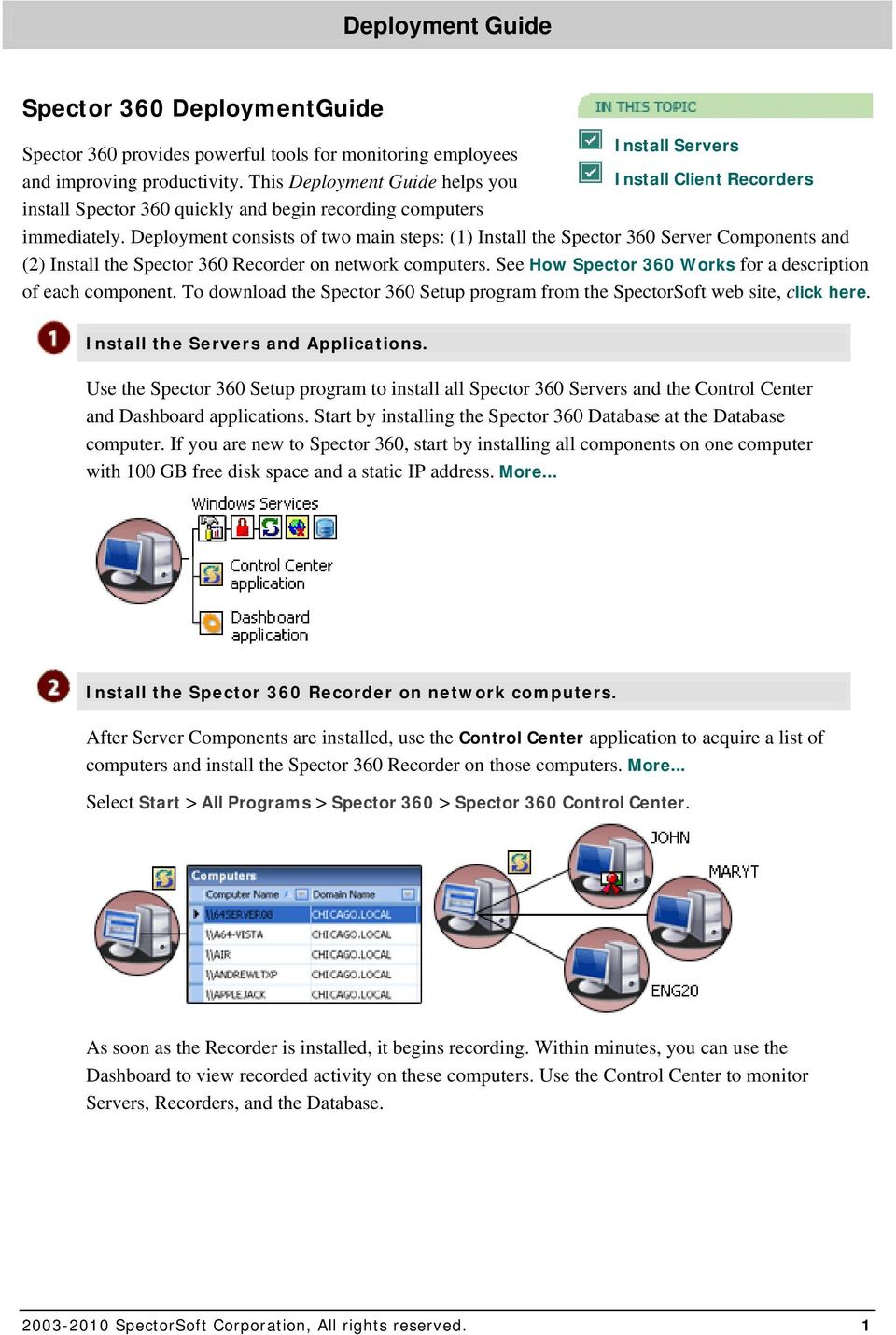
5 Deployment Guide Spector 360 DeploymentGuide Install Servers Spector 360 provides powerful tools for monitoring employees and improving productivity. This Deployment Guide helps you Install Client Recorders install Spector 360 quickly and begin recording computers immediately. Deployment consists of two main steps: (1) Install the Spector 360 Server Components and (2) Install the Spector 360 Recorder on network computers. See How Spector 360 Works for a description of each component. To download the Spector 360 Setup program from the SpectorSoft web site, click here. Install the Servers and Applications. Use the Spector 360 Setup program to install all Spector 360 Servers and the Control Center and Dashboard applications. Start by installing the Spector 360 Database at the Database computer. If you are new to Spector 360, start by installing all components on one computer with 100 GB free disk space and a static IP address. More... Install the Spector 360 Recorder on network computers. After Server Components are installed, use the Control Center application to acquire a list of computers and install the Spector 360 Recorder on those computers. More... Select Start > All Programs > Spector 360 > Spector 360 Control Center. As soon as the Recorder is installed, it begins recording. Within minutes, you can use the Dashboard to view recorded activity on these computers. Use the Control Center to monitor Servers, Recorders, and the Database SpectorSoft Corporation, All rights reserved. 1
6 Spector 360 Deployment Guide To "exclude" SpectorSoft from anti-virus/anti-spyware scanning at computers, see Excluding Spector 360 from Antivirus Detection in this guide. Spector 360 allows you to assign a Recorder Profile and a Recorder Version to each computer. You can adjust recording on computers simply by adjusting the profile and (if you wish) update the version automatically SpectorSoft Corporation, All rights reserved.
7 Installing Spector 360 Installing Spector 360 One Spector 360 Setup program installs all Spector 360 Server and Application Components. The instructions below link to detailed install instructions for each component. Run the Setup at the computer where MS SQL Server and the Databases will be installed. Install this version over a previous version of Spector 360 or over Spector CNE. Remove any SpectorSoft recording product installed on this computer before beginning. Start the Setup Program Enter SA Password Select Server Accounts Install the Database Install the Dashboard Install the Servers Install the Control Center Register Spector 360 Start the Setup program: 1. Launch the Setup program: From the online Download page, select Run when prompted - OR - Double-click the downloaded Setup program icon - OR - Insert the CD in your CD drive to auto-start the Setup program. Spector 360 requires.net Framework version 2.0. If a message appears telling you.net cannot be found or needs to be upgraded, exit the Spector 360 Setup and search for the free Microsoft.NET download on the Internet. It takes only a few moments to download and install. 2. Choose components to install. If you are new to Spector 360, we recommend accepting the default selection, "All Spector 360 Components." Deselect "All Spector 360 Components" to make a different selection. Possible choices for a new installation are: All Spector 360 Components - OR SpectorSoft Corporation, All rights reserved. 3
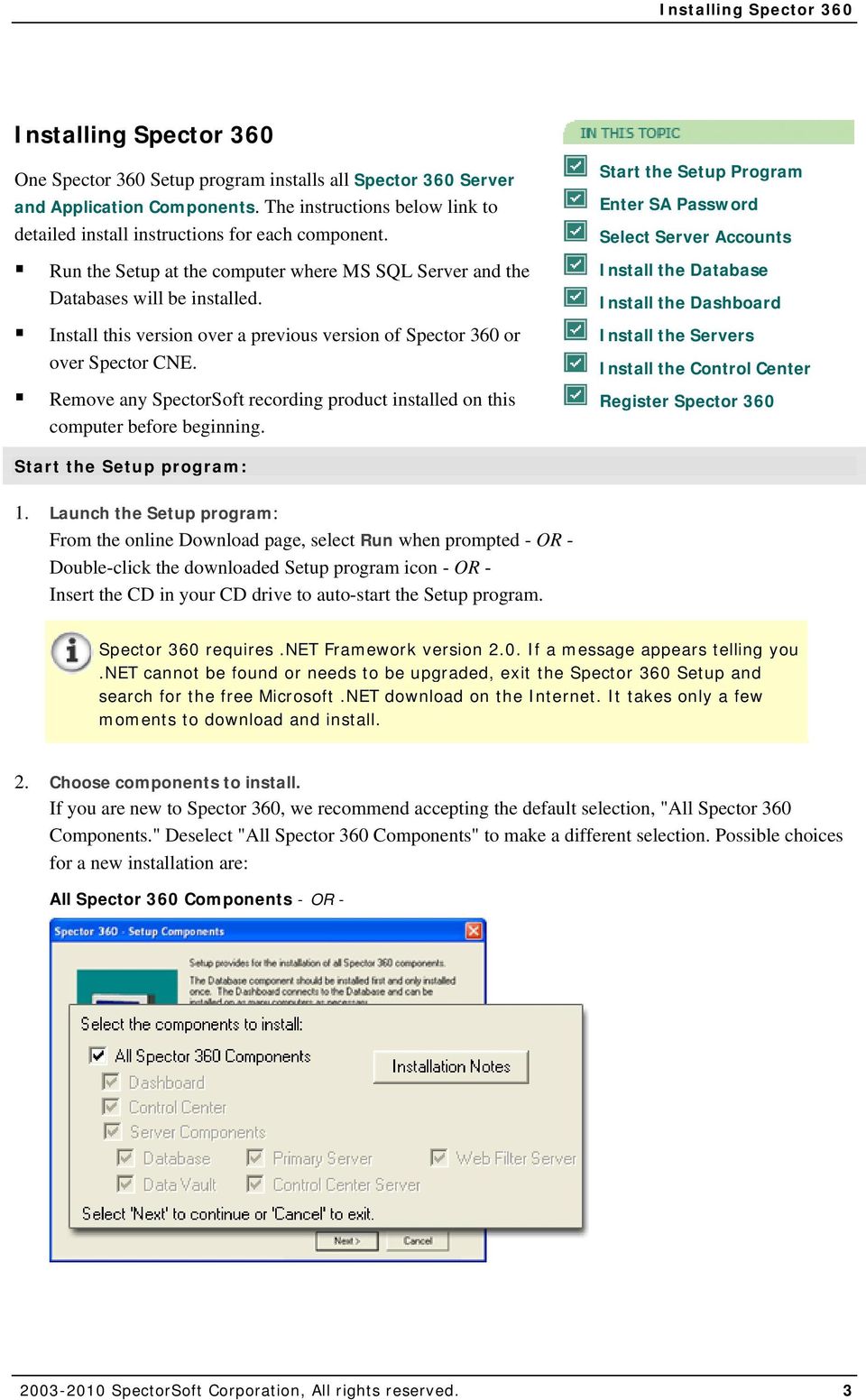
8 Spector 360 Deployment Guide Server Components (and Control Center) - OR - Control Center, Database, Data Vault If you make this selection, you will need to re-run Setup to install the remaining Server Components in order to complete step one of Deployment. Click the Installation Notes button if you wish to read or print additional instructions before starting. The notes will be presented again at the end of the installation. Click Next to continue. If the Reinstall Components checkbox appears, Spector 360 components were found on this computer. You can install over an old version, but you must install and upgrade ALL Spector 360 components (including all Dashboards and Control Centers) to complete the upgrade. See Updating Spector Accept the license agreement. Read the license agreement, and if you agree to the terms, click Yes to accept them. If you click No, you will exit the Setup program. 4. Enter your serial number. If you are updating Spector 360, the serial number is provided. Otherwise, you'll find your Spector 360 serial number in your Spector 360 purchase confirmation . Copy the serial number from the (Ctrl+C) and paste it (Ctrl+V) into the form. If you are typing the serial number, be aware that all characters are numeric, except the 5th and 6th characters, which are letters. Click OK to continue SpectorSoft Corporation, All rights reserved.
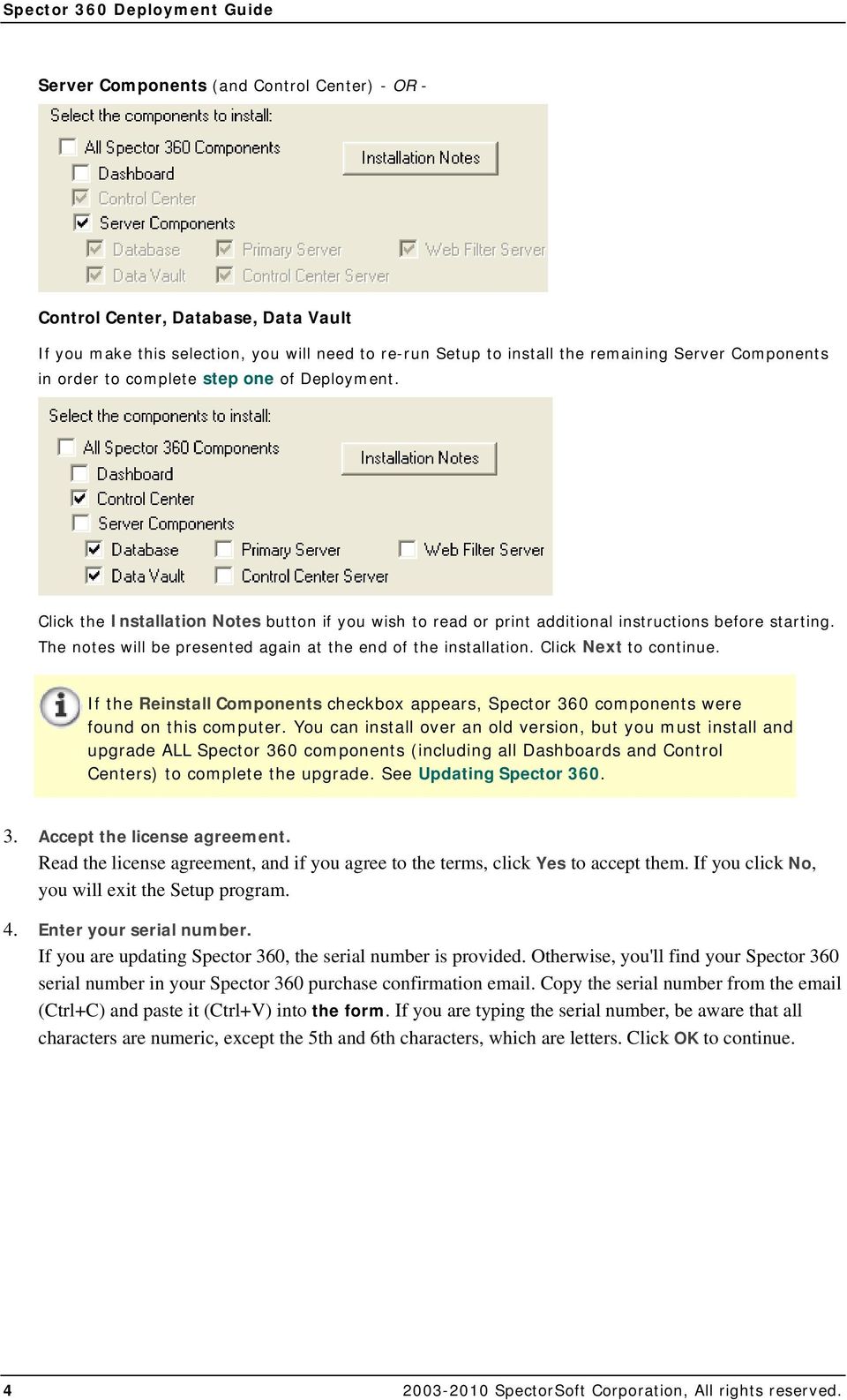
9 Installing Spector 360 Enter the System Administrator password. Enter a password to use for the System Administrator account on the SQL Server Database instance (SPECTOR360). If you are installing over a previous version of Spector 360, enter the SA password for your existing database. The user name for the SA account is "sa." You will need SA credentials to start the Dashboard or Control Center (with access to the Database) the first time and to update Spector 360. The password must be six characters long and include three of the four following criteria. A message appears if the password does not meet the criteria. Uppercase letters Lowercase letters Numbers Non-alphabetic characters, such as # ^ _ - The SA account will be configured as the built-in master administrator of Spector SpectorSoft Corporation, All rights reserved. 5
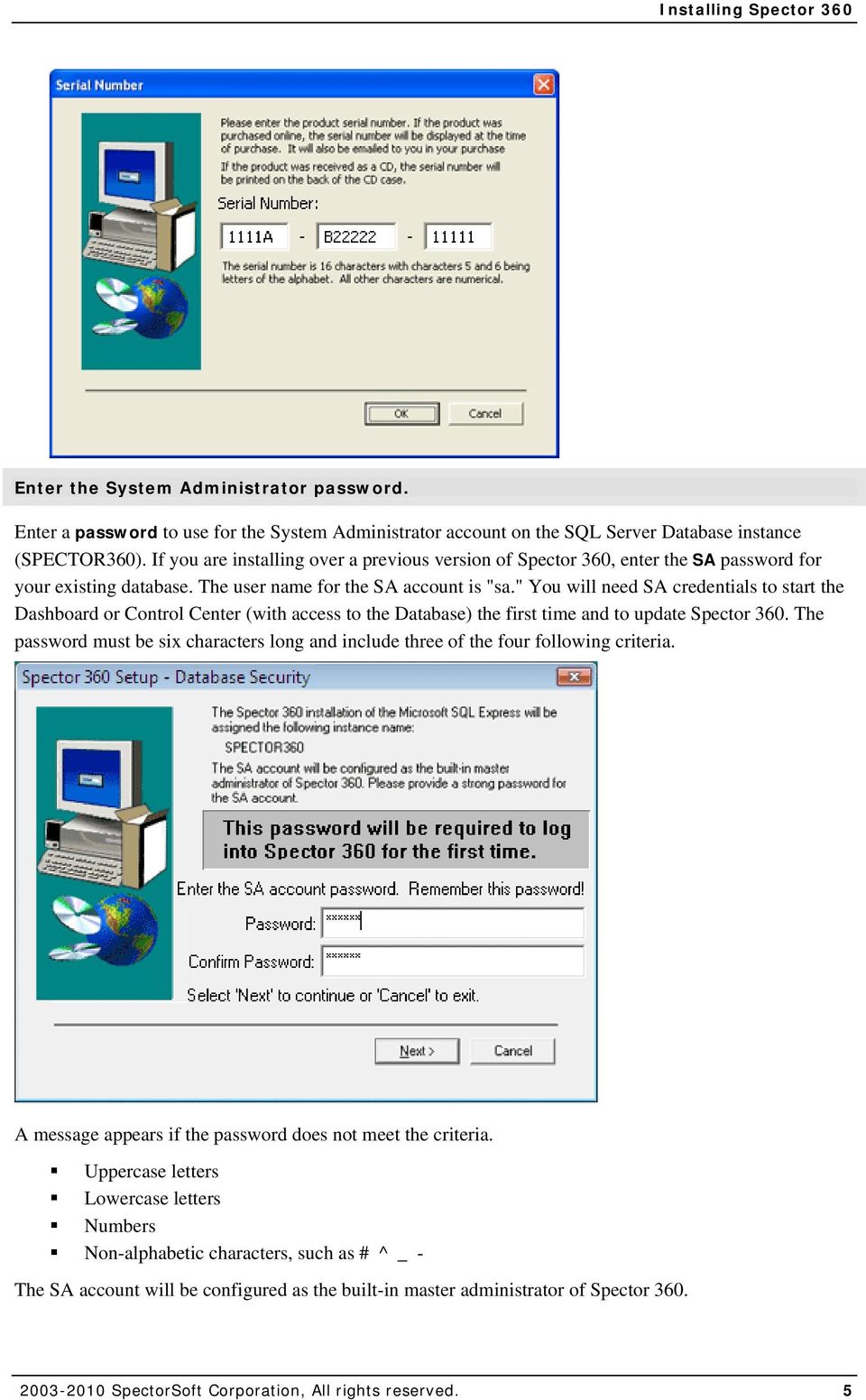
10 Spector 360 Deployment Guide Click Next to continue. Do not use the following reserved characters in the System Administrator password: / ' " [ ] { } ( ), ;? $ \. or <space>. Remember this password and keep it secure! Change the password frequently (immediately if you suspect it has been compromised). Select Local System or Network accounts for Servers. Choose to install Servers under the Local System or a Network account. For help making selections, see Network vs. Local Service Credentials. If you choose "Network," you will be prompted to enter the Network account credentials for the Server (or return to the default, Local Account setting). The Control Center Server ALWAYS uses Network account credentials. You will be prompted to enter credentials for a Domain Administrator, or for an Administrator-level account defined on each Recorder computer. This gives the Control Center Server access to manage the computers. Install SQL Server and the Spector 360 Database. Be sure to read Estimating the Database Size before you begin. Following the on-screen instructions to install MS SQL Server and the 360 Database files. Click the links below for more details. If you are installing Spector 360 with SQL Server 2005 Express, click here. The Setup will also install the Spector 360 SQL Agent. If you are installing Spector 360 with full SQL Server 2005, click here. You will be asked to set the STORAGE database size SpectorSoft Corporation, All rights reserved.

11 Installing Spector 360 If you are using a Network Account for the SQL Server service, when you are prompted, enter the account credentials. If you are prompted to open ports in the Windows XP firewall, click OK. Allow the Database installation to complete, and then click Finish. Install the Dashboard. Click Next to begin the installation. Follow on-screen instructions. If you need more help, click here. You will be prompted to specify the Spector 360 Database instance in the format computer\spector360. Be sure to name the computer where you installed the Spector 360 Databases (in the step above). Click OK. Finish the Dashboard Setup by clicking Finish. Install the Server Components. If you are installing over existing 360 Servers, you will be prompted to stop each Server before installing it. If you selected a Network Account for a Server, you will be prompted to enter the account credentials. 1. Choose an installation path for Server Components. If you are installing all components, this will be the base path to your Spector 360 server installation. The default folder is C:\Program Files\SpectorSoft\Spector 360. Use the Browse button if you wish to select a different destination. You will have the opportunity to direct the installation of each component to a different computer as you proceed in the Setup SpectorSoft Corporation, All rights reserved. 7
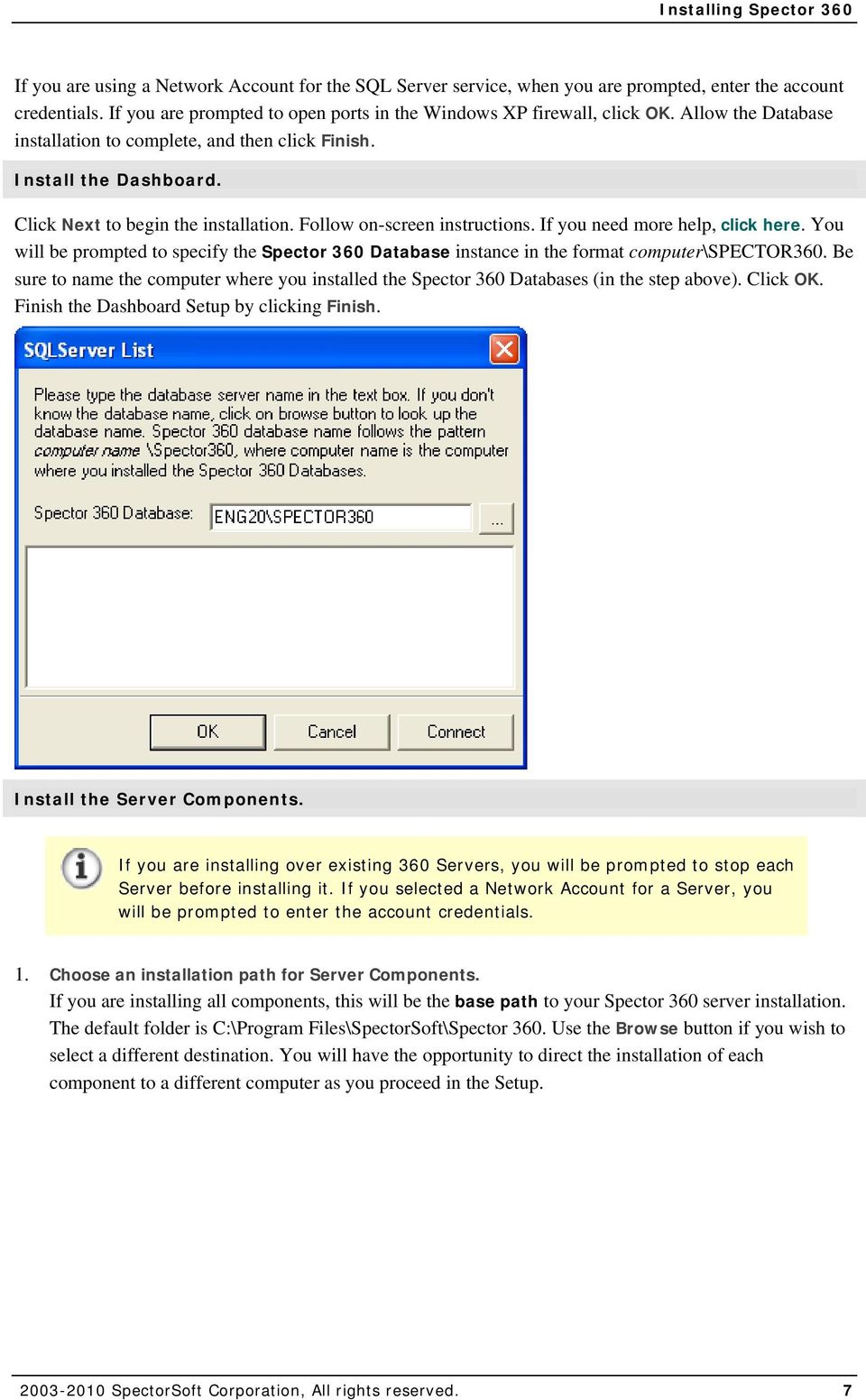
12 Spector 360 Deployment Guide Click Next. 2. Download Setup files. Click Next and wait for the files to download. 3. Install Servers, starting with the Control Center Server (CCS). Make sure you supply Domain Network Administrator credentials, or credentials for another established login that is a member of each computer's Administrators Group. For CCS installation details, click here SpectorSoft Corporation, All rights reserved.
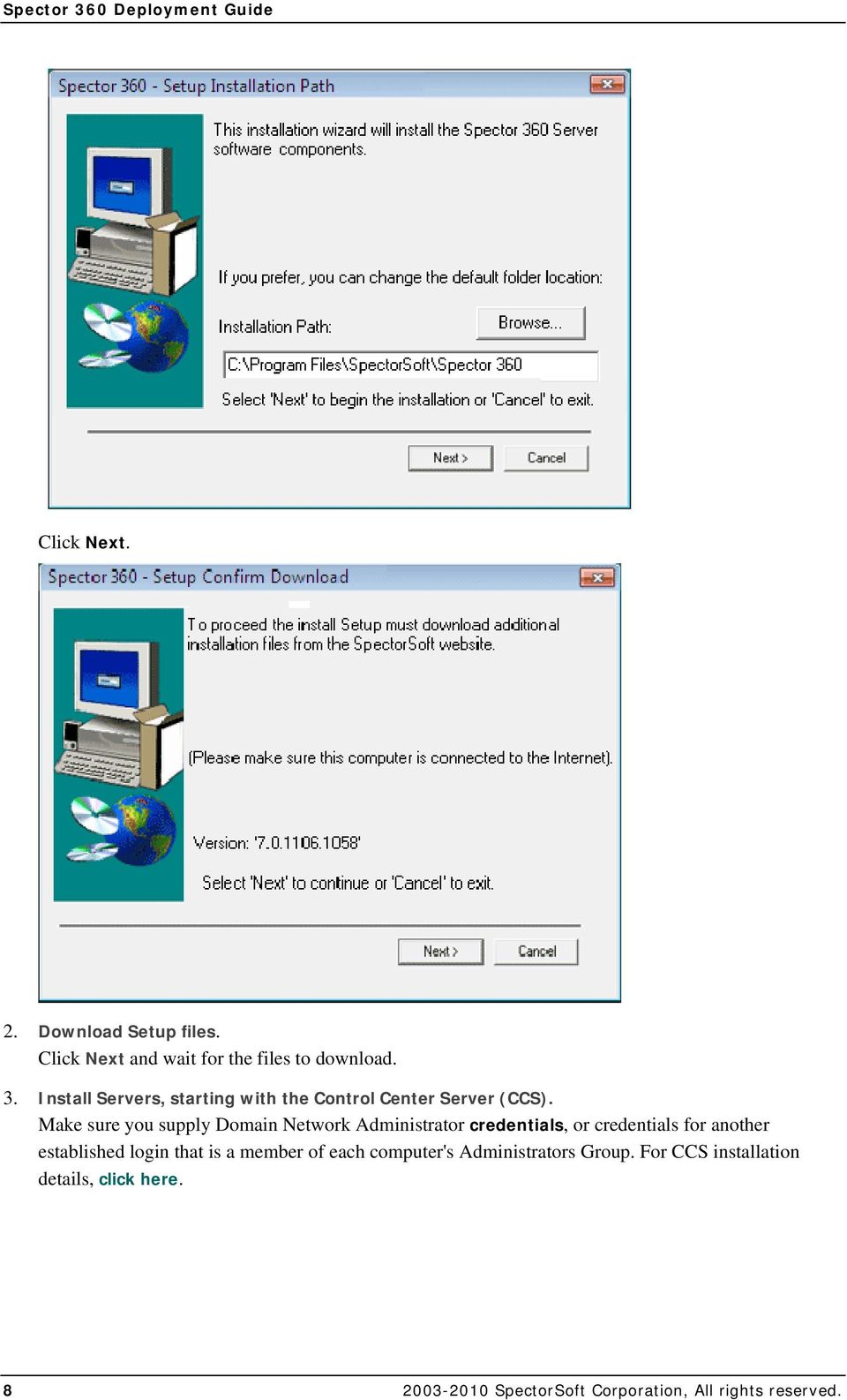
13 Installing Spector Prepare to unlock. A message appears telling you that an unlock code for the number of computer licenses purchased will be required at the end of this installation. The unlock code will arrive via after you register the installation. Click OK. 5. Install the Primary Server. Choose this computer or another computer. For details, click here. 6. Install the Data Vault Server. Choose this computer or another computer. For details, click here. You will need to specify the File Storage Location (Base Path) where captured Screen Snapshot and Attachment files will be stored. 7. Install the Web Filter Server. Choose this computer or another computer. For details, click here. 8. Wait for all services to be installed. When all selections have been made, wait as the Server Components are installed and the services are started. Install the Control Center application. For Control Center installation details, click here. Start the Control Center wizard. Follow on-screen instructions to install this application. You must install a Control Center on the computer where the Spector 360 Database resides for Database Management purposes SpectorSoft Corporation, All rights reserved. 9

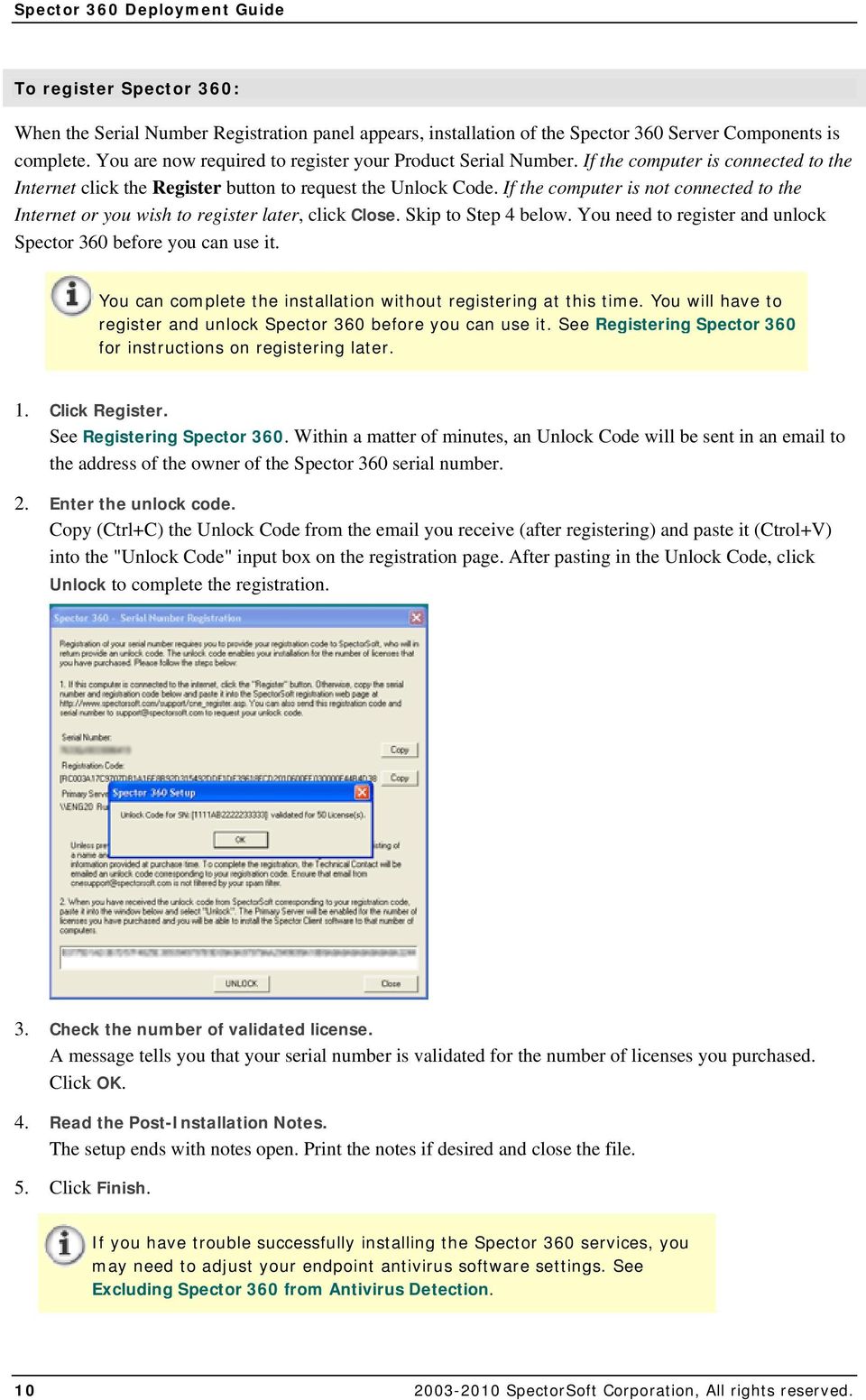
14 Spector 360 Deployment Guide To register Spector 360: When the Serial Number Registration panel appears, installation of the Spector 360 Server Components is complete. You are now required to register your Product Serial Number. If the computer is connected to the Internet click the Register button to request the Unlock Code. If the computer is not connected to the Internet or you wish to register later, click Close. Skip to Step 4 below. You need to register and unlock Spector 360 before you can use it. You can complete the installation without registering at this time. You will have to register and unlock Spector 360 before you can use it. See Registering Spector 360 for instructions on registering later. 1. Click Register. See Registering Spector 360. Within a matter of minutes, an Unlock Code will be sent in an to the address of the owner of the Spector 360 serial number. 2. Enter the unlock code. Copy (Ctrl+C) the Unlock Code from the you receive (after registering) and paste it (Ctrol+V) into the "Unlock Code" input box on the registration page. After pasting in the Unlock Code, click Unlock to complete the registration. 3. Check the number of validated license. A message tells you that your serial number is validated for the number of licenses you purchased. Click OK. 4. Read the Post-Installation Notes. The setup ends with notes open. Print the notes if desired and close the file. 5. Click Finish. If you have trouble successfully installing the Spector 360 services, you may need to adjust your endpoint antivirus software settings. See Excluding Spector 360 from Antivirus Detection SpectorSoft Corporation, All rights reserved.
15 Installing Spector 360 Next Steps: Now that Spector 360 is installed, your next steps are to: Test the Server Components. Make sure all services are running and components are communicating. Install Recorders. More... Begin configuring and installing the Spector 360 Recorder on network computers SpectorSoft Corporation, All rights reserved. 11

16 Spector 360 Deployment Guide Installing Spector 360 Servers (Details) Network vs. Local Service Credentials The Setup program installs Windows services for the SQL Server, Primary Server, Data Vault, Web Filter Server, and Control Center Server. Some of these services rely on account credentials to access other computers and/or the SQL Server (database) data. Be sure to use credentials that have appropriate access to the computer(s) the Server needs to access. Later on in the Setup procedure you will be prompted to supply the account credentials for the network installation. The Setup program automatically creates SQL database credentials for a Servers that access the Database, based on the account you select. If you plan to install all Server Components on one computer: Select Local System for all components. The component services will be installed to run under the Local System account. This is the easiest configuration, if the computer can handle the needs of the Spector 360 Databases in terms of disk space and processing power. Click Next to proceed. If you plan to install Server Components on different computers: Select Network for component services you would like to install and run under one or more network accounts. Network credentials allow a service read/write permission on another computer. Make your selections on this panel and click Next to continue. Note: Setup ALWAYS prompts for the Control Center credentials, which should be for a Domain Administrator level network account. It is NOT necessary to request a Network installation for the Primary Server if it will be running on a separate machine SpectorSoft Corporation, All rights reserved.
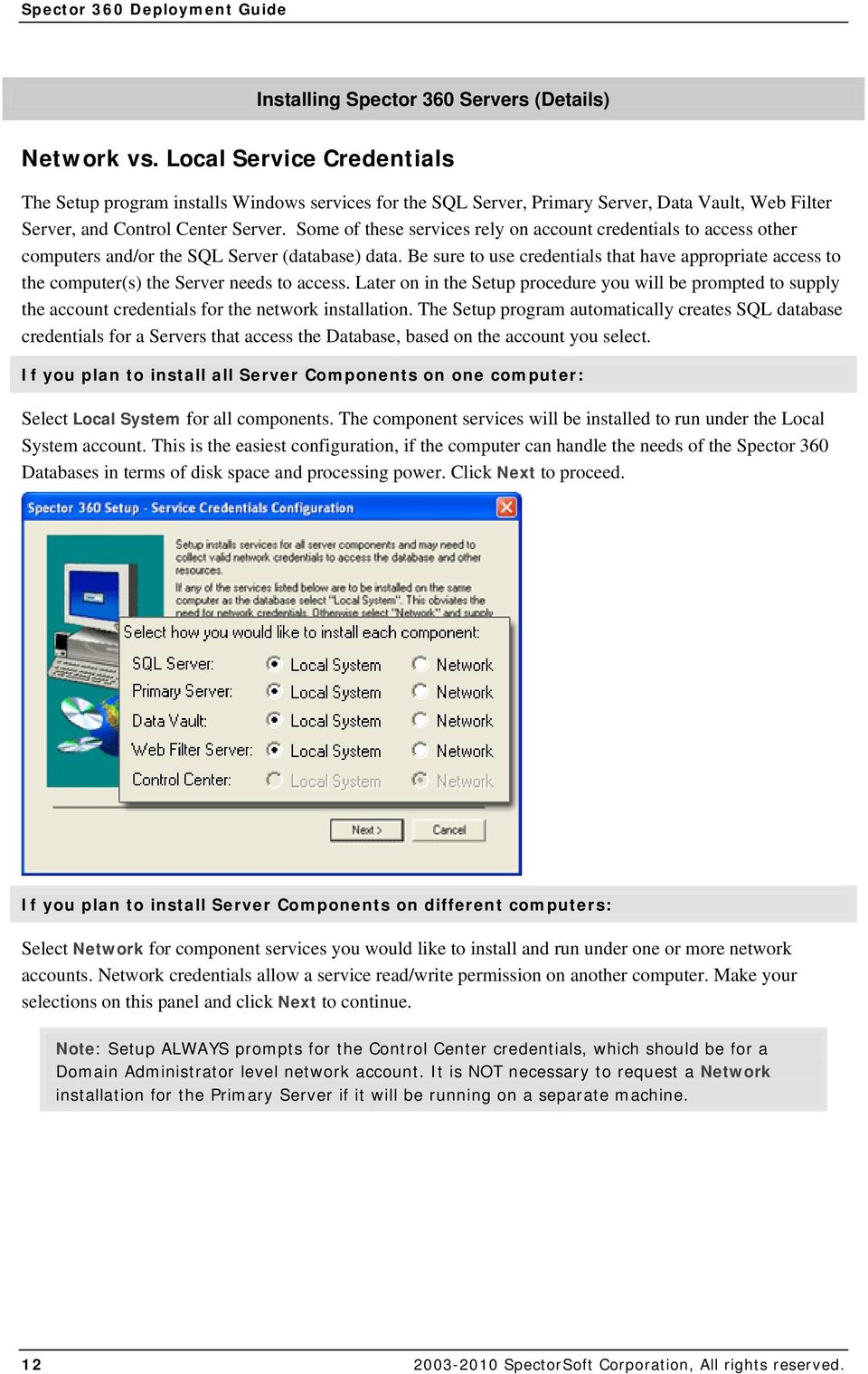
17 Network vs. Local Service Credentials SQL Server - The safest configuration is to install the SQL Server, the 360 Databases, and the File Storage Folder on one computer. Use network credentials if you plan to install any of these on a separate computer, or you want to be able to Backup or Archive data to a machine different from the one the current STORAGE database is running on. Primary Server - Generally this service can run under the local system account. Data Vault - Requires access to the Database computer and the File Storage Folder. If you want to store Screen Snapshots and Attachments (which can take up a lot of space) on a separate machine from the Database machine, use a network account for the Data Vault (DV) service. Also, if you have a large system and plan to install multiple DV Servers to maximize performance, select a network account installation. Web Filter Server - Requires access to the Database computer. If you have thousands of web sites to filter and would like to install the Web Filter Server on a separate machine from the Database to maximize performance, or if you plan to install multiple servers, select a network account installation. Control Center Server - MUST run under a Network Domain Administrator (or equivalent) account. The account must provide Administrator-level privileges on all network computers running the Recorder. With these privileges, the Control Center can fully monitor the status of and configure Client computers. If you change the default selection, a message appears before installation of each service allowing you to change back to the Local System Account before continuing. Click Yes to keep your Network selection SpectorSoft Corporation, All rights reserved. 13

18 Spector 360 Deployment Guide You can change the service account later. You can change the account under which any service runs (and change from local to network or vice versa) after installation. Use the Control Center's Server tool. Next: Return to Server Component Steps Installing the Database Installing the Databases with SQL Server Express If you have purchased fewer than 1,000 computer licenses, the installation includes Microsoft SQL Server Express 2005 with a SpectorSoft SQL Job Agent. If you have purchased 1,000 or more computer licenses, see Installing the Databases with Full SQL Server. The location where you install the Spector 360 Databases must be accessible to all computers running the Dashboard or Control Center. The Dashboard relies on connection to the database. If you are upgrading Spector 360: Use the previous SA password. See Updating Spector 360. If you are upgrading from Spector 360 Version 6.1, the Setup will automatically moves data from the old MSDE instance to the new SQL Server instance and uninstalls MSDE. To install the Spector 360 Database: 1. A message informs you that Setup will install Spector 360 Databases and MS SQL Express or full MS SQL Server after checking for the required disk space. Click Next to begin. If the Setup determines that there is not enough free space for this installation, a message will appear. You should have ample free disk space if you have accounted for the Spector 360 Requirements and Estimating the Database Size SpectorSoft Corporation, All rights reserved.
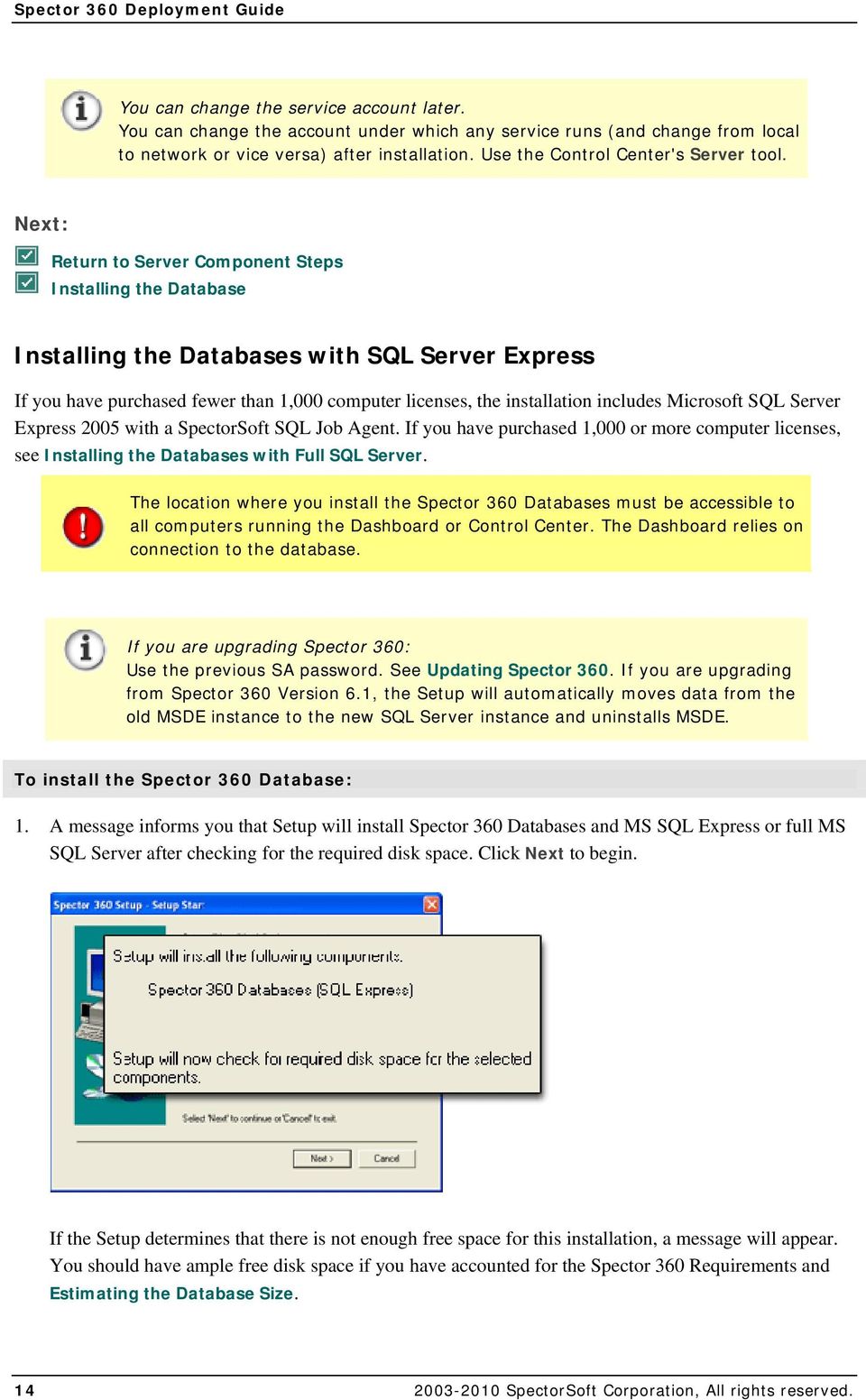
19 Installing the Databases with SQL Server Express 2. Select an installation path for SQL Server and for the 360 Database files. Accept the default location for the SQL Server installation AND for the Spector 360 Database files (C:\Program Files\Microsoft SQL Server) or Browse to and select a different location and click OK. The MS SQL Server files and the 360 Database files can be installed at different locations, but must be in constant communication. Use Network Account credentials for the SQL Server service if components will be distributed. Click Next to proceed. If a selected installation path does not exist, respond Yes at the prompt to create it. The Spector 360 database is given the instance name SPECTOR360. The edition of SQL Server installed depends on the number of computer licenses you have purchased. 3. You may be prompted to download files. If the computer you are installing on is connected to the Internet, the latest components will automatically be downloaded from SpectorSoft, and you can skip this step. If you receive the following prompt, make sure the computer is connected to the Internet, and then compare the "Current" version supplied by this Setup program to the "New" version found at the web site. Click Next SpectorSoft Corporation, All rights reserved. 15

20 Spector 360 Deployment Guide The database version you are about to install is displayed as the "Current" version on this panel. Downloading is necessary only when a newer version is available at the SpectorSoft web site. 4. Wait as SQL Server is installed. Wait as files are downloaded, extracted; the SQL Server Database is installed, configured and tested; and various scripts are executed. 5. Install SQL Agent Setup (SQL Server 2005 Express only). If your installation includes SQL Server 2005 Express, the Spector 360 SQL Agent Setup Wizard now begins. Click Next to start. 6. Select an installation folder for the SQL Agent. The default location is C:\Program Files\Spectorsoft\Spector 360 Sql Agent\. Click Browse to navigate to and select a different location for the SQL Agent SpectorSoft Corporation, All rights reserved.
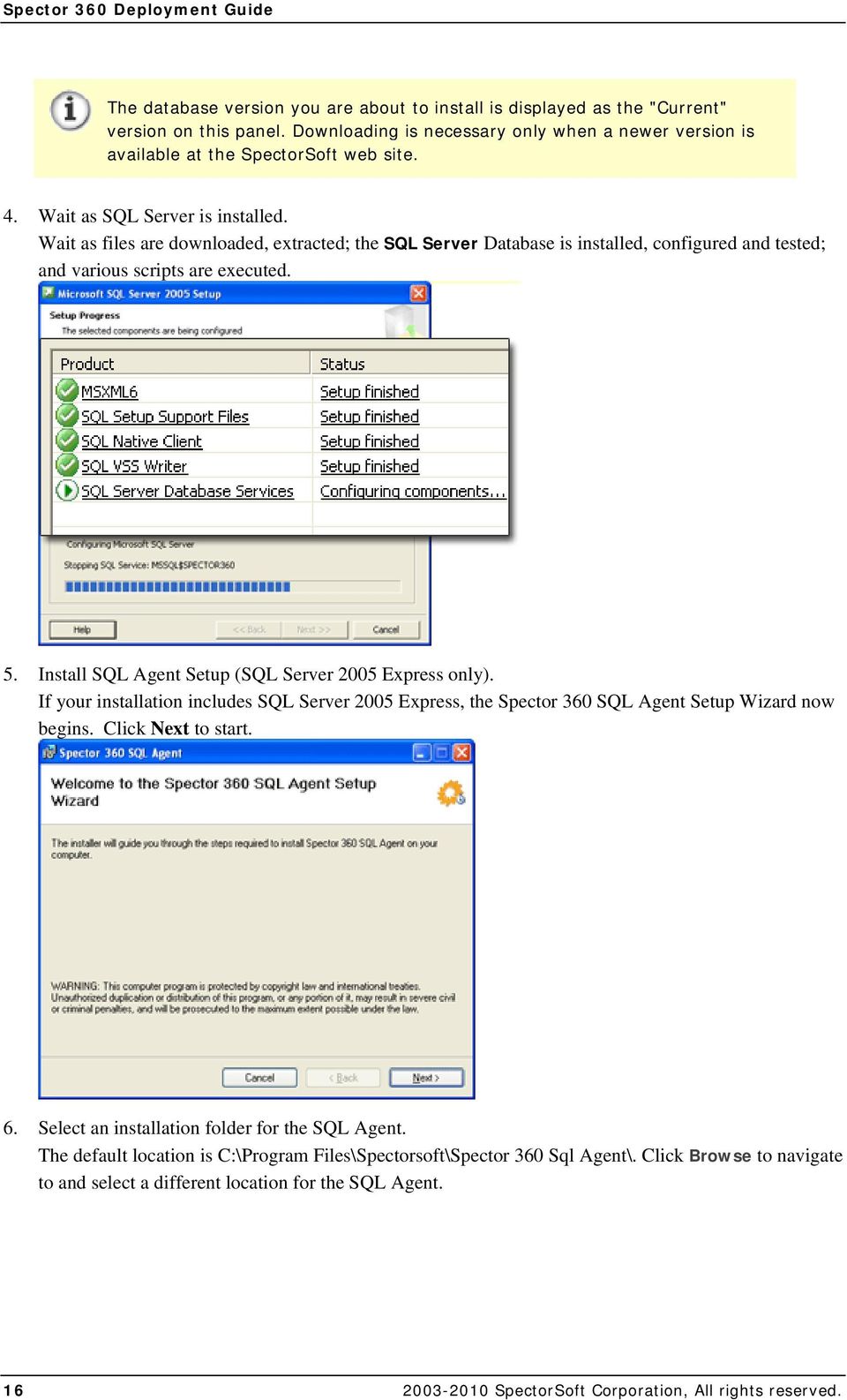
21 Installing the Databases with SQL Server Express If you wish, click Disk Cost to determine disk space on available drives. Space required by the SQL Agent appears in the "Required" column, next to "Available" disk space, followed by the "Difference" between Available and Required. From this panel, click OK to return to Select Installation Folder. Click Next to accept the Installation Folder and continue. 7. Click Next to Confirm the Installation Wait for the Agent to be installed SpectorSoft Corporation, All rights reserved. 17
22 Spector 360 Deployment Guide 8. Click Close when the installation of the SQL Agent is complete. 9. If you have selected Network credentials for the SQL Server, you are prompted to confirm your choice. Otherwise, the installation continues. Click Yes to continue installing the service under network credentials. Click No to use the Local System Account. If you select Yes, enter the account credentials for the SQL Server service. Use the format DOMAIN\USENAME. 10. Wait as the Setup tests the SQL Server, copies files, and executes scripts. 11. If you have Windows XP, a message tells you that Ports 1055 and 1434 will be opened in your Windows XP Firewall to allow access to the Spector 360 Database. Click OK. 12. When Spector 360 Database setup is complete, click Finish. The Setup proceeds to installation of the Dashboard application SpectorSoft Corporation, All rights reserved.
23 Installing the Databases with SQL Server Express The SQL Server instance takes the name computer\spector360, where computer is the name of the machine where the database is installed. Next Step: Return to Server Component Steps Installing the Dashboard SpectorSoft Corporation, All rights reserved. 19
24 Spector 360 Deployment Guide Installing a Full SQL Server Database If you have purchased SQL Server with Spector 360, the provided installation includes the full Microsoft SQL Server If you will be using a separately purchased Microsoft SQL Server 2005 (Standard or Enterprise), the installation prompts you to locate the MS SQL Server install files. If you are installing SQL Server 2005 Express, see Installing the Database with SQL Server Express. The location where you install the Spector 360 Databases must be accessible to all computers running the Dashboard. The Dashboard relies on connection to the database. If you are upgrading Spector 360 Use the previous SA password. If you are upgrading from Spector 360 Version 6.1, the Setup will automatically move data from the old MSDE instance to the new SQL Server instance and uninstall MSDE. To install the Spector 360 Database: 1. If you have purchased Spector 360 without the SQL Server Database, the Setup prompts for SQL Server installation files that it can use to configure the Spector 360 Database. Click Browse to navigate to and select the location of your SQL Server install location or install media. If you have purchased MS SQL Server with Spector 360, this prompt does not appear. 2. A message informs you that Setup will install Spector 360 Databases. Click Next to begin. If the computer you are installing on is connected to the Internet, the latest components will be downloaded SpectorSoft Corporation, All rights reserved.
25 Installing a Full SQL Server Database from SpectorSoft. If you are prompted to download files, make sure the computer is connected to the Internet, and then compare the "Current" version supplied by this Setup program to the "New" version found at the web site. 3. Accept or change the installation paths for MS SQL Server and the 360 Database files. Accept the default location for the SQL Server installation AND for the Spector 360 Database files (C:\Program Files\Microsoft SQL Server) or Browse to and select a different location and click OK. The MS SQL Server files and the 360 Database files can be installed at different locations, but must be in constant communication. Use Network Account credentials for the SQL Server service if components will be distributed. Click Next to proceed. If a selected installation path does not exist, respond Yes at the prompt to create it. 4. Select the Initial Database Size. The Initial Database Size determines the maximum size of STORAGE databases. Refer to Estimating the Database Size for information on how to calculate a database size and the amount of disk space required. When your first STORAGE database reaches the size selected here, it "clones" to create a new database of the same size. Click Next to proceed. Wait for database script execution to run SpectorSoft Corporation, All rights reserved. 21
26 Spector 360 Deployment Guide The Spector 360 database is given the instance name SPECTOR360. The edition of SQL Server installed depends on the number of computer licenses you have purchased. 5. You may be prompted to download files. If you have downloaded the Setup program from the SpectorSoft web site and are installing for the first time, the latest files are automatically downloaded, and you can skip this step. The database version you are about to install is displayed as the "Current " version on this panel. Downloading is necessary only when a newer version is available at the SpectorSoft web site. 6. SQL Server installation begins automatically. Wait as files are downloaded, extracted, the SQL Server Database is configured and tested, and scripts are executed. This process can take time. 7. Wait as SQL Server Service Paks are installed. 8. Wait as the Spector 360 Database files are copied and scripts are executed. 9. When Spector 360 Database setup is complete, click Finish. The Setup proceeds to installation of the Dashboard application. The SQL Server instance takes the name computer\spector360, where computer is the name of the machine where the database is installed. Next Step: Return to Server Component Steps Installing the Dashboard SpectorSoft Corporation, All rights reserved.
27 Installing the Dashboard Installing the Dashboard The Dashboard installs with the Server Components as part of a complete Setup. You can use the Setup program to install ONLY the Dashboard on managers' computers on the network. These Dashboard with Servers Dashboard-only Install managers will use the Dashboard to access and view recorded activity. See the Spector 360 Dashboard Guide. The Spector 360 Dashboard requires Microsoft.NET Framework (DNF) and Microsoft Data Access Components (MDAC). If the Setup program does not find the correct.net component, it displays a message and you must download and install it. Setup automatically installs MDAC if it is not found. If the components already exist on the computer, the Setup does not install them. To install the Dashboard: 1. Following Database installation, click Next and wait for Setup to prepare the Dashboard installation. 2. If you are prompted, download newer Spector 360 Dashboard files from the SpectorSoft web site. If the "Current" version is the latest version available, you will NOT see this prompt. Wait as files are downloaded. 3. Click Next at the install wizard welcome to start the installation SpectorSoft Corporation, All rights reserved. 23
28 Spector 360 Deployment Guide 4. Choose a destination folder for the Dashboard program: The default location is C:\Program Files\Spector 360\Spector 360 Dashboard. If you wish, click Change to navigate to a different location. Select a location or type a path next to "Folder name," and click OK. Click Next to accept the destination folder. 5. Install the application: Confirm the setup type and destination folder. Click Back to make changes. Click Install to proceed. Wait for the application to be installed. 6. Specify the Spector 360 Database this Dashboard will access: Enter computer\spector360 where computer is the name of the computer where you have installed the Spector 360 Databases. If you are installing all components on this computer, use this computer's name. Click the [...] button to select computer\spector360 from a list of computers with SQL Server SpectorSoft Corporation, All rights reserved.
29 Installing the Dashboard 7. If you wish, click Connect to test the current computer's ability to connect to the SQL Server instance you selected. Login to the database using the System Administrator sa login name and the password you defined in the Database Setup step above. Click OK. A message tells you if the connection was successful. Click OK. Even if the connection is not successful, you can continue setting up the Dashboard. You will get a chance to enter database and connection information later. Also, see Installation Errors. Click OK to accept the Spector 360 SQL Server instance. 8. When the install wizard has completed, click Finish. If you are installing all Server Components, continue with the Control Center installation SpectorSoft Corporation, All rights reserved. 25
30 Spector 360 Deployment Guide Proceed with Server Installation. Note: After installing the Dashboard, create a Dashboard login for each manager. See Running the Control Center and Dashboard. To start a Dashboard-only install: 1. Run the Setup sp360setup*.exe program. Make sure you are using the same version you used to install the Spector 360 Database. Double-click the downloaded program icon or insert the CD in your CD drive to auto-start the Setup program. If any Spector 360 for Network components have been installed on this computer, you are prompted to choose to uninstall or reinstall components. 2. Deselect "All Spector 360 Components" and select only Dashboard for installation. 3. Read the license agreement, and if you agree to the terms click Yes to accept them. 4. Enter your 16-character Spector 360 serial number and click OK. You will NOT have to re-register and unlock the installation if the Server Components are already registered. 5. Follow the installation wizard steps (as shown above) until you are prompted to Finish the installation. You may be prompted to restart the computer. Next: Return to Server Component Steps Installing the Control Center SpectorSoft Corporation, All rights reserved.
31 Installing the Control Center Server Installing the Control Center Server Install the Control Center Server BEFORE you install other Servers and the Control Center application. Click Next to begin the Server portion of the installation and wait for files to download. The Control Center Server (CCS communicates with network computers and the Control Center Application. This Server must be running to handle communication with computers and remote configuration and installation of the Recorder on computers. Although multiple Control Center applications can be installed, only one CCS is installed. To install the Control Center Server: 1. A message informs you that a Windows service will be installed on this computer to give the Control Center regular status updates on the computers you will be recording. Click OK. In order to retrieve information about network computers, the CCS requires Administrator privileges on those computers. Ideally, you have a Domain Administrator account or an account that has Administrator privileges established as a member of the Administrator group on each computer. See Server Components and the Network SpectorSoft Corporation, All rights reserved. 27
32 Spector 360 Deployment Guide 2. Set the credentials for the CCS to use. If you provided Network credentials for the SQL Server service, a message appears asking if you would like to reuse the credentials. Click Yes to reuse the credentials entered before and go on to Step 3 Click No to enter different network credentials. If you have not provided credentials, in the Account Information box, enter the User Name in the format DOMAIN\USER and enter the Password twice. Use Domain Administrator or equivalent credentials. Click OK. 3. A message informs you that you will need to register your serial number and obtain an unlock code. Click OK. 4. Continue on to Installing the Primary Server. Next: Return to Server Component Steps Installing the Primary Server SpectorSoft Corporation, All rights reserved.
33 Installing the Primary Server Installing the Primary Server The Primary Server communicates with all Spector 360 Recorders to provide licensing and software updates. A Recorder will not operate properly unless it has a license and can establish network connection to the Primary Server. To install the Primary Server: Select where to install the Primary Server: Install on This Computer - Install this Server on the current computer. Install on Another Computer (enter the computer name in field below) - Direct the installation to another computer. Click the Browse button to browse the network and select a computer, or enter a SpectorSoft Corporation, All rights reserved. 29
34 Spector 360 Deployment Guide name in the Computer Name field. You must be logged in under administrator credentials for the computer. Primary Server is Already Installed (enter computer name in field below) - Use this option ONLY when you have already installed the Primary Server for this version of Spector 360. Computer Name - If you do not choose "Install on This Computer," enter the Computer Name where the Primary Server will be or is installed. Browse - Click this button to locate and select a computer on the network. Install PS Service with Network Credentials - Check this option to install the Primary Server Windows service under network account credentials (not usually necessary). Clear thi0s option to use the Local System Account. Credentials - When you click the Credentials button, the Account Information box appears. This prompt also appears if you click Next with "Network Credentials" checked and have not supplied them. Supply the domain\username and password for the network account. Click OK. Reuse Credentials - If you have already supplied network credentials for the CCS and click Next with "Network Credentials" checked, a prompt asks if you want to reuse those credentials. Click Yes to continue using the same credentials (you don't have to enter them again) or No to go the Account Information box and enter different account credentials. Click Next to continue the Setup. If a Primary Server was previously installed, you are prompted to stop it now in preparation for reinstallation. Click OK. Continue on to setup the Data Vault SpectorSoft Corporation, All rights reserved.
35 Installing the Data Vault Server Next: Return to Server Component Steps Installing the Data Vault Server Installing the Data Vault Server The Data Vault Server receives recorded activity from Recorders across the network, sends Attachment and Screen Snapshot files to File Storage folders, and processes the "raw" recorded data for insertion into the Spector 360 Database. If unable to connect to the Data Vault, a Recorder will continue to record and store the recordings locally until the Data Vault is accessible. This Server must be running for recorded activity to be stored in the Spector 360 Database and appear in the Dashboard. If you are using Setup to install ONLY a Data Vault Server, see below. If you direct the Data Vault Server installation to a computer remote from where the Spector 360 Setup is being run, the C$ Administrator share must be enabled on that remote computer or the service cannot be installed. If you install the DV service separately from the Spector 360 Databases, be sure to install it using Network Credentials. This ensures the Windows DV service will have access to the SQL Server database instance. To install the Data Vault Server: 1. Locate the SQL Server SpectorSoft Corporation, All rights reserved. 31
36 Spector 360 Deployment Guide 2. Select a location for installing the Data Vault (DV) service. Install on This Computer - Install this Server on the current computer. Install on Another Computer (enter the computer name in field below) - Direct the installation to another computer. Click the Browse button to browse the network and select a computer, or enter a name in the Computer Name field. You must be logged in under administrator credentials for the computer. Data Vault is Already Installed (enter computer name in field below) - Use this option ONLY when you have already installed a Data Vault for this version of Spector 360. Computer Name - If you do not choose "Install on This Computer," enter the Computer Name where the Data Vault will be or is installed. Browse - Click this button to locate and select a computer on the network. 3. Install the Data Vault with Local or Network Credentials. Install DV Service with Network Credentials - Check this option to install the service under network account credentials. Clear this option to use the Local System Account. Credentials - When you click the Credentials button, the Account Information box appears. This prompt also appears if you click Next with "Network Credentials" checked and have not supplied them. Supply the domain\username and password for the network account. Click OK SpectorSoft Corporation, All rights reserved.
37 Installing the Data Vault Server Reuse Credentials - If you have already supplied network credentials for the CCS or Primary Server and click Next with "Network Credentials" checked, a prompt asks if you want to reuse those credentials. Click Yes to continue using the same credentials (you don't have to enter them again) or No to go the Account Information box and enter different account credentials. Click Next to continue the Setup. 4. Specify the File Storage Location. Specify the base path to the location where Screen Snapshots and Attachments will be stored. The default path is C:\Spector360Data. If you wish, use the Browse button to find and select another location. Click Next to continue SpectorSoft Corporation, All rights reserved. 33
38 Spector 360 Deployment Guide The File Storage location (Base Path) requires approximately 500 MB free disk space per user / per month. For example, to store 2 months of data for 30 users would require 500 * 30 * 2 = 30000, or 30 GB. The DV Service credentials must have full access to read and write files at this location. In addition, you will need to "share" the location with other Dashboard users. 5. Continue on to install the Web Filter Server. All services are installed following the last Server prompt. To install ONLY the Data Vault Server: Be sure to install the Database and Control Center Server (CCS) before installing the Data Vault. If you use more than one Data Vault Server, each must communicate with the Database using the SAME network credentials. Select the Data Vault from the Select Components panel, or use a command line to install. Accept the License Agreement and enter your Serial Number before following the steps below. You can also install extra Data Vault and Web Filtering Servers from a command line. See Installing Extra Servers from a Command Line. 1. Enter the computer where the Spector 360 SQL Server instance resides. Enter the SA password. Click Next SpectorSoft Corporation, All rights reserved.
39 Installing the Data Vault Server 2. Wait for a script to test the connection. 3. Select a Local System or Network account to run this Data Vault Server service. If you are installing a Data Vault at a different computer from the central Spector 360 Database, select Network. 4. Choose your Spector 360 Server installation path. This is the path where software will be installed on the computer you select. Click Yes if necessary to create the path. 5. Select Install on This Computer to install Data Vault Server on the current computer. Select Install on Another Computer and enter the computer name if you are not running Setup on the computer where you want this Data Vault to reside. 6. If you are installing the Data Vault separately from the Database, click the Credentials button. Enter Network account User Name and Password. Click OK. Click Next. If required, an exception is added to the Windows firewall rules at port SpectorSoft Corporation, All rights reserved. 35
40 Spector 360 Deployment Guide 7. Choose the File Storage Location for this Data Vault, by default C:\Spector360Data. The Data Vault will store Screen Snapshots and Attachments at this location. If you are using a centralized Database with File Storage location, you can use this Data Vault's Control Center after installation to change the path to the central location. 8. Wait as files are installed. Click Finish. Next: Return to Server Component Steps Install the Web Filter Server Installing the Web Filter Server OPTIONAL. The Web Filter Server enforces Web Filtering rules. Computers where the Recorder is installed query the Web Filter Server before accessing the Internet, and the Web Filter Server applies filtering rules provided by the Spector 360 Database. If you will not be using Spector 360 Web Filtering, there is no need to install this component. If you direct the Web Filter Server (WFS) installation to a computer remote from where the Spector 360 Setup is being run, the C$ Administrator share must be enabled on that remote computer or the service cannot be installed. If you install the WFS service separately from the Spector 360 Databases, be sure to install it using Network Credentials. This ensures the service will have access to the SQL Server database instance. To use the centralized Web Filtering feature, you must enable Server Web Filtering in the Recorder's Computer Profile under the "Block" tab. Do this from the Control Center's Computers tool. To install the Web Filter Server: 1. Select where to install the service SpectorSoft Corporation, All rights reserved.
41 Installing the Web Filter Server Install on This Computer - Install this Server on the current computer. Install on Another Computer (enter the computer name in field below) - Direct the installation to another computer. Click the Browse button to browse the network and select a computer, or enter a name in the Computer Name field. You must be logged in under administrator credentials for the computer you select. Data Vault is Already Installed (enter computer name in field below) - Use this option ONLY when you have already installed a Data Vault for this version of Spector 360. Computer Name - If you do not choose "Install on This Computer," enter the Computer Name where the Data Vault will be or is installed. Browse - Click this button to locate and select a computer on the network. 2. Install the Data Vault with Local or Network Credentials. Install DV Service with Network Credentials - Check this option to install the service under network account credentials. Clear this option to use the Local System Account. Credentials - When you click the Credentials button, the Account Information box appears. This prompt also appears if you click Next with "Network Credentials" checked and have not supplied them. Supply the domain\username and password for the network account. Click OK SpectorSoft Corporation, All rights reserved. 37
42 Spector 360 Deployment Guide Reuse Credentials - If you have already supplied network credentials for another server and click Next with "Network Credentials" checked, a prompt asks if you want to reuse those credentials. Click Yes to continue using the same credentials (you don't have to enter them again) or No to go the Account Information box and enter different account credentials. Click Next to continue the Setup. 3. If the WFS was previously installed, you are prompted to stop it now in preparation for reinstallation. Click OK. 4. When you are ready, click Next on the Setup Web Filter Server panel to continue. Wait as all remaining Server Components are installed. Continue on to set up the Control Center application. Next: Return to Server Component Steps Installing the Control Center Application SpectorSoft Corporation, All rights reserved.
43 Installing the Control Center Application Installing the Control Center Application The Control Center application installs with the Server Components as part of a complete Spector 360 Setup. You must Control Center-only Install install a Control Center on the Spector 360 Database computer to manage Databases. You can also use the Setup program to install ONLY the Control Center on administrators' computers on the network. These administrators will use the Control Center to manage Recorders, the Database, Web Filtering, and/or Event Alerts. See the Spector 360 Administrator's Guide. The Spector 360 Control Center requires Microsoft.NET Framework (DNF). If the Setup program does not find the correct.net component, it displays a message and you must download it from the Microsoft web site and install it. To install the Control Center with Servers: 1. At the Welcome pane, click Next to continue. Control Center with Servers 2. Select the Control Center Installation Folder If you want to change the Control Center installation folder, click Browse and navigate to and select a new folder. The default is C:\Program Files\SpectorSoft\Spector 360 Control Center(v70) SpectorSoft Corporation, All rights reserved. 39
44 Spector 360 Deployment Guide If you want to check disk space, click Disk Cost. Select Everyone to allow any logged in user to access the Control Center. Select Just me to allow ONLY the current Windows user to access the Control Center. Click Next to continue, Back to return to the previous panel, or Cancel to exit. 3. Confirm the installation. Click Next to continue, Back to return to the previous panel, or Cancel to exit. 4. Wait for the application to be installed SpectorSoft Corporation, All rights reserved.
45 Installing the Control Center Application 5. When the installation is complete, click Close. Continue on to Registration. To install the Control Center only: All Server Components should already be installed. 1. Run the Spector 360 Setup program. Accept the License Agreement and enter the Serial Number, if necessary, before following the steps below. 2. Choose an installation path for the Control Center application. 3. Identify the location of Control Center Server. Enter the computer name where you initially installed the servers, or click Browse to find the Server computer on the network. Click Next to continue SpectorSoft Corporation, All rights reserved. 41
46 Spector 360 Deployment Guide 4. Confirm that you are NOT installing the Control Center Server, and verify that this server and the Primary Server are located and accessible on the network. Click Yes. 5. Verify that the Primary Server is already installed. Enter the name of the Primary Server computer. Click Next. 6. Locate the Spector 360 SQL Server instance. Click Next. 7. Locate the Data Vault Server. Click Next SpectorSoft Corporation, All rights reserved.
47 Installing the Control Center Application 8. Locate the Web Filter Server (screen similar to above). Click Next. 9. Wait for the files to install. 10. Click Finish. The Control Center application is now installed. Next: Return to Server Component Steps Registering and Unlocking SpectorSoft Corporation, All rights reserved. 43
48 Spector 360 Deployment Guide Registering Spector 360 You must register your serial number with SpectorSoft to run Spector 360. When you register, you receive an Unlock Code by that enables deployment of the Spector 360 Recorder for the number of licenses purchased. You will NOT be able to install the Recorder and capture activity without the Unlock Code. If the Setup computer did not have the Internet connection required to register, or if you chose to "Finish" the Setup before registering, follow these instructions. To register your Serial Number: 1. Open the Serial Number Registration panel: At the computer where the Primary Server is installed, double-click the system tray icon for the Primary Server. On the Primary Server Administration window, click Register SN - OR - Open the Control Center application. Select the Computers > Manage Computer Licenses. Select Register Serial Number from the Task Navigation pane, or click Register on the toolbar. Start > All Programs > Spector 360 > Spector 360 Control Center 2. If the computer is connected to the Internet: Click the Register button on the Serial Number Registration panel. A web browser window automatically opens to Step 2 of 2 of the online SpectorSoft Registration procedure. Your registration information has been sent. If the computer is NOT connected to the Internet: At the Serial Number Registration panel, use the Copy button to copy the Serial Number and paste it into a document. Copy the Registration Code number and paste it into the document. Take the document with these numbers to a computer that has Internet connection. Open a web browser to the SpectorSoft Registration page on the Internet: SpectorSoft Corporation, All rights reserved.
49 Registering Spector Follow the instructions to use your Serial Number and Registration Code to register. 3. Wait to receive the Unlock Code in an . When you register, an is sent to the address of the contact who made the SpectorSoft purchase. When the arrives, open it and double-click on the Unlock Code in the body of the . Use Ctrl+C to copy it. The containing the Unlock Code is sent to the address of the contact who purchased Spector Paste the Unlock Code in the field on the Registration panel. Use Ctrl+A and Ctrl+C to copy the unlock code from the . Use Ctrl+V to paste the code directly in the field at the bottom of the Serial Number Registration panel. If you are at a different computer, paste the Unlock Code into a document and transport the document to the Primary Server or Control Center computer, where you can paste the Unlock Code in the field at the bottom of the Register Serial Number panel. 5. Click the Unlock button below the unlock field. If Spector 360 is successfully unlocked, a message confirms the number of Client Licenses for which your Serial Number is valid. Click OK. The Serial Number and licenses should now be available in both the Primary Server Administration window and in the Control Center's Manage Computer Licenses window SpectorSoft Corporation, All rights reserved. 45
50 Spector 360 Deployment Guide Installing Extra Servers from a Command Line It's possible to install an additional Data Vault or Web Filter Server from the Spector 360 Setup program. You can either run the Setup program after installing the base Server Components and select ONLY the Data Vault or Web Filter Server, or you can run the Setup program from a command line. To install servers from a command line: 1. Download the Setup program to a hard drive, if necessary. (You can do this at the SpectorSoft web site using your serial number.) 2. Select Windows Start > Run and type cmd in the run box. Press Enter. 3. At the console prompt, navigate to the folder where the Setup program exists and use the following command: sp360setup70.exe /e If you have already installed the Server Components, the Setup program launches to the Extra Servers panel. 4. Check the type of Server you wish to install. Click Next. 5. Agree to the License Agreement. 6. Enter your serial number. If you are running Setup from where Server Components are already installed, the serial number will appear. 7. Enter the computer where Spector 360 Database (SQL Server instance) is installed. Type the SA Password to the Database. Click Next SpectorSoft Corporation, All rights reserved.
51 Installing Extra Servers from a Command Line 8. Choose whether to install the Server under the Local System or Network Account credentials. If the Data Vault or WFS will be installed on any computer OTHER than the Database computer, select Network. 9. Choose your Spector 360 Server installation path. This is the path where software will be installed on the computer you select. 10. Select the computer where you want to install the Server. Install on This Computer: Install the Server on the computer where you are running the Setup. Install on Another Computer: Install the Server on a computer remote from where you are running the Setup. Enter the computer name. [Server] Is Already Installed (enter computer name in field below). Use this option when the service is already installed and you do not want it to install another instance SpectorSoft Corporation, All rights reserved. 47
52 Spector 360 Deployment Guide 11. Click Credentials and enter the Network credentials to use for the Server. Click Next. If you are installing a second Data Vault, use the SAME network credentials for both Data Vault Servers. If you are installing a second WFS, use the SAME network credentials for both WFS Servers. 12. If the Server was previously installed on the computer, a message appears. You can choose to stop the Server and reinstall it. 13. Follow instructions to complete the installation. The Server icon should appear in the system tray of the computer where it is installed. Be sure to ADD the server to the Control Center. To have Client Recorders use the extra Server, you will need to change the Recorder Profile Server Settings to name the extra Server computer. See the Administrator's Guide for these procedures SpectorSoft Corporation, All rights reserved.
53 Installing the Spector 360 Recorder on a Test Computer Installing the Spector 360 Recorder Installing the Spector 360 Recorder on a Test Computer Once the Server Components are installed, registered, and unlocked, you can begin installing the Spector 360 Version 7 Recorder on computers you wish to monitor. If you are updating Spector 360, the new Spector 360 Control Center will display your previous computer list. This topic tells you how to install a "test" Recorder on a computer. You must have a license for each computer receiving a Recorder installation. To "exclude" SpectorSoft from anti-virus/anti-spyware scanning at computers, see Excluding Spector 360 from Antivirus Detection in this guide. Recorder software on all computers must be upgraded to version 7.0 or greater. Older versions will not deliver data to your new Spector 360 installation until they have been upgraded. You do NOT need to uninstall the old Recorder from a computer before installing the new version. To install a test Recorder on a computer: To test communication, recording, and profile settings, begin by installing the Recorder on one or two "test" computers. 1. Open the Control Center. Select Windows Start > All Programs > Spector 360 > Spector 360 Control Center. It is not necessary to log in to the Database to install Recorders. Either cancel the login panel or enter your Database (initially, the SA) credentials. 2. Open the Add New Computers Wizard. a. In the Control Center, select the Computers tool from the lower left pane. b. Select Manage Computers in the upper left pane. The Control Center opens to the Manage Computers view SpectorSoft Corporation, All rights reserved. 49
54 Spector 360 Deployment Guide c. Select Add Computers from the left Task Navigation pane or click New on the Toolbar. 3. On the first wizard panel, click Next. The wizard leads you through the steps necessary for acquiring your computer list and installing the Recorder. You may want to start by installing and testing the Recorder on one test computer. 4. Choose how to acquire the computers. To install one Client Recorder for testing purposes, select the top option, Type one or more computers names. Click Next. Other installation options are described in the Spector 360 Administrator's Guide. You can use the Add Computers wizard multiple times to build a complete computer list. Computers already in the list will not be added again. 5. Add a computer. Click the Add button. In the field that appears, Type the domain name in the Domain field. Click in the Computer Name field and type the name of the Windows machine as known on the network. Leave the DEFAULTGROUP selection as is. You can define groups and move computers to them later. Press Enter on your keyboard to add this computer. Click Next SpectorSoft Corporation, All rights reserved.
55 Installing the Spector 360 Recorder on a Test Computer 6. Schedule the Recorder installation. The next panel allows you to skip installation for now or set an installation schedule. For your test installation, select Schedule installation for and set the schedule to about five minutes in the future. For now, leave "Don't automatically update the Spector Recorder" selected. Click Next. 7. Select a Recording Profile. The profile determines recording settings on the computer when to take snapshots, which programs to record, whether to enable Web Filtering, and so on. At first, only the Initial Profile provided with Spector 360 is listed. If you choose "Don't assign a Recording Profile or Build to these computers," the wizard closes, and the computer is added to the list. Default settings will be used for installation (or no installation will take place). To install a test Recorder, leave the Initial Profile selected and click Next SpectorSoft Corporation, All rights reserved. 51
56 Spector 360 Deployment Guide 8. Select a Recorder Version. Make sure you select the latest (new) Recorder version. Click Next. 9. Save your changes. On the final panel click Finish. Your test computer has been scheduled for a Recorder installation. Wait several minutes for the Control Center Server to accomplish the task. 10. The computer restarts. As soon as the computer restarts, the Spector 360 Recorder has been fully installed and should start recording. View the recorded activity from a Spector 360 Dashboard (Windows Start > All Programs > Spector 360 > Spector 360 Dashboard). The "Troubleshooting" section in the Spector 360 Administrator's Guide provides help with Recorder installation and data delivery problems you might have SpectorSoft Corporation, All rights reserved.
57 Installing the Spector 360 Recorder on All Computers Observe how your antivirus / anti-spyware software handles the installation and presence of the Recorder on a test computer. You may need to configure an ongoing exclusion to avoid detection and maintain "stealth." See Excluding from Antivirus Detection. Installing the Spector 360 Recorder on All Computers To complete Spector 360 deployment, you must install or reinstall the Spector 360 Recorder on all computers you plan to record. A license is required for each computer receiving an installation. Follow the directions below for installing on ALL computers, or creating a list of all computers and then installing on SELECT computers. You can test communication, privileges, and Windows services on a computer BEFORE or AFTER attempting to install the Recorder by using Run Computer Diagnostics (under Manage Computers). See the Administrator's Guide. To list all computers and install the Recorder automatically: There are several options for installing on multiple computers. Select Computers and Manage Computers in the Control Center. 1. Select Add Computers. If you have not listed all computers, follow the instructions to step through the Add Computers wizard (as described in Installing on a Test Computer). 2. Acquire a complete list of network computers. The best sources for building a complete list of network computers are "Active Directory," "Network Discovery," or "Import a list of computer names." You will want to include computers where an older Recorder is already installed, since the Recorder MUST be updated to work with Spector 360 installation. 3. Edit the list, if necessary. The Add Computers wizard allows you to edit the list you are adding to include ONLY the computers SpectorSoft Corporation, All rights reserved. 53
58 Spector 360 Deployment Guide you wish to record. Alternatively, you can create a list of ALL computers without scheduling recording, and install the Recorder later, as described below. 4. Complete the wizard. Once you approve the list of computers, you can schedule the installation, select automatic Recorder updates if you wish, and assign a profile to ALL computers in the list. The provided Initial Profile provides optimal and efficient recording settings, but does not enable Web Filtering. Select the latest Recorder Version (7XXX) supplied with your Spector 360 Installation. Earlier versions will NOT work with the new installation. The default profile setting is Reboot Client Computer After Installation. Computers will restart to complete the scheduled installation. You can disable this setting in the Recording Profile from the General Options > Client Options panel. The installation will then be complete when users themselves restart their computers. Select from the Computers list for installation. If you prefer, create a list of computers (as described above) and then select computers for Recorder installation. From the Control Center's Manage Computers: 1. Select (highlight) computers to receive an installation. You can select one, several (Shift or Ctrl) or all computers (Ctrl+A) to receive a Recorder installation. If you set up Groups of computers, you can select one or more Groups to receive installation. 2. Select Install the Recorder. Select this command from the Task Navigation pane or from the context (right-click) menu. 3. Set a time for the installation. See Scheduling an Installation in the Administrator's Guide. When you click OK, the Recorder Install task is "Pending" in the Computers list until the scheduled time SpectorSoft Corporation, All rights reserved.
59 Installing the Spector 360 Recorder on All Computers 4. Confirm reinstallation of Recorders, if necessary. If one or more of the selected computers detects a previous Recorder version, a message appears. Click Yes to install the new Recorder over the old version, or No to cancel the installation. The computers selected to receive an installation will use either the Recorder profile and version that has already been assigned to them, or they will use the defaults. Observe how your antivirus / anti-spyware software handles the installation and presence of the Recorder. You may need to configure an ongoing exclusion to avoid detection and maintain "stealth" at recorded computers. See Excluding from Antivirus Detection. It's easy to update a profile, or assign a different profile or version to one or more computers, after the Recorder is installed. See the Administrator's Guide SpectorSoft Corporation, All rights reserved. 55
60 Spector 360 Deployment Guide Installing the Spector 360 Recorder Manually It is possible to install the Spector 360 Recorder at the computer without "pushing" the installation through the Spector 360 Control Center. A "manual installation" executes an configured installation file at the local computer. It may be required for computers with XP Home or older operating systems, and can be useful if another method of distributing software is preferred. A manual installation requires the *.sds file (a proprietary SpectorSoft file), which is generated by the Control Center when you schedule a particular Recorder configuration to any computer. To install the Recorder manually at the computer: 1. Select a computer from the Manage Computers list. If necessary, use the Add Computers wizard or the "Advanced" Add Computers box to list the computers where you need to install manually. It's possible to select a single "test" computer and follow the steps below to create a Recorder installation file that can be executed on many computers not currently in the Computers list. 2. In the Add Computers wizard or Add New Computer (advanced) box: a. Select any Recording Profile and Version (7.0 or greater) for the manual install. If you wish, create a New profile. b. Select Don't Install the Spector Recorder. c. Make your preferred choice for updating the Recorder software. It is possible to update Spector 360 Recorder software automatically from the Control Center, even if the Recorder was initially installed manually. d. Save your changes or Finish the wizard. As soon as you apply this configuration to a computer, a new.sds file that you can use for the manual installation is created. 3. Note the profile file name. (If you are using the Initial Profile, you can skip this step.) To locate the correct file for manual installation, select Manage Computer Profiles from the Task Navigation pane. Click Show File Names on the toolbar. This adds a column to the Manage Computer Profiles view, showing the ".ini" file name (GUID) of each configuration that has been applied to a computer SpectorSoft Corporation, All rights reserved.
61 Installing the Spector 360 Recorder Manually 4. Locate the correct.sds file. Use Windows to open your Spector 360 "SDSFiles" program folder. The default location is C:\Program Files\SpectorSoft\Spector360\SDSFiles on the Control Center Server (CCS) computer. If you are using the Initial Profile with no changes, the correct file is SPSetup7XXX_Settings.sds, where 7XXX is the latest Recorder Version. If you have applied another profile, the file name takes the format SPSetup_7XXX_guid.sds, where 7XXX is the Recorder Version and guid is the name of the.ini configuration listed in Computer Profiles. 5. Copy the file and rename it with an.exe extension. For example, SPsetup_7370_ sds could be changed to SPsetup_7370_Manual.exe. 6. Run the file to install the Client Recorder. Copy the.exe file to a location where you can access it from the computer you wish to record. As soon as the Recorder reports to the Control Center Server (CCS), computers it is installed on populate the Control Center's Computer list. Changes to the profile and Recorder Version updates (if requested) will be supplied automatically. Unless you have changed the recording profile, a manual install will run without displaying dialog boxes and will restart the computer when finished SpectorSoft Corporation, All rights reserved. 57
62 Spector 360 Deployment Guide Updating and Uninstalling Downloading the Setup Program If you do not have a Spector 360 Installation CD, you can acquire the Setup program from the SpectorSoft web site. Your serial number is required both to acquire the Setup and to install Spector 360. Look for your serial number in your original purchase receipt, or on the back of the CD holder (if a CD was purchased). Once you have the Spector 360 Control Center is installed, you can your the serial number in the Control Center's Computers > Manage Computer Licenses. If you have misplaced your product serial number, contact us. You can acquire an installation CD-ROM by contacting SpectorSoft. To view download options: Go directly to the SpectorSoft Download page ( web page - OR - If you still have an earlier version of Spector 360 installed, open the Dashboard and select Help > Get Updates from the menu bar. If you already have Spector 360 version 7.0 installed, select the Control Center Home tool and Check for Spector 360 Updates. If an update is available, a message appears telling you a new version is available and asking if you want to download it. The message tells you the current version number. Click Yes to begin. Your first stop is the SpectorSoft Download page, where you have several choices for downloading. To download the Setup: At the SpectorSoft Download page, enter your serial number. You have several options for downloading: Online Installation At the machine where you want to install the Spector 360 Database, run the Setup program directly from the Internet link. The setup automatically detects the Spector 360 components installed on your computer and updates them. Click Run at the prompt to download files, and then Run the Setup program immediately, if you wish. This option should be used when you have plenty of network/internet bandwidth. Download Compressed Install File Download a compressed, self-extracting.exe install file. Once the file is downloaded, execute it to update your installation. This option is useful for updating components where Internet access is available. Download a CD Image Download a CD image file (.iso format) of the Spector 360 installation CD. You can burn the CD image to media and use the executable Setup file on the CD to update Spector 360 components on any computer. This option is useful when you have multiple installations (e.g., several Dashboards) to perform and do not want to use Internet bandwidth SpectorSoft Corporation, All rights reserved.
63 Testing the New Version on a Separate Computer Testing the New Version on a Separate Computer You may want to install and test the new version of Spector 360 separately from your existing installation. To do this, run the Setup on a separate computer, leaving your old installation intact. Restore a Full Backup of your Database at the new Database computer and install one or two Recorders on network computers. When you are ready, install the Recorder on all computers you wish to monitor from the new Control Center. Make sure the new computer meets requirements for the Server Components and databases. If you need to purchase additional computer licenses or obtain a temporary second serial number, contact SpectorSoft. To install the new version on a separate computer: 1. If necessary, obtain a temporary serial number. If you want to keep the older version up and running while you try the new version, obtain your second serial number by clicking the link in the box above. 2. Create a Full Database Backup. Use Management > Database Jobs 3. Start the Setup Program. On a separate computer, you will be performing a fresh installation. We recommend installing all components on a single computer to begin. If you want to distribute components, start the Setup on the computer where you wish to install the MS SQL Server and 360 Databases. You must install a Control Center application on the Database computer. 4. Install Spector 360. Follow instructions in Installing the Spector 360 to install all components. Use your temporary, second serial number to start the installation. 5. Register and unlock the new version. You will need to obtain an unlock code. 6. Open the new Control Center. When the Setup is complete, select Start > All Programs > Spector 360 > Spector 360 Control Center. Enter the SA user name and password. Select Servers in the lower left navigation pane and make sure the Servers are running as expected. 7. Restore a Database Backup from the Control Center. When the installation is complete, copy the Backup folder from the previous version to the new computer's hard drive. In the Control Center, select Database > Manage Backup and Restore. From the toolbar at the top of the window, select Restore > Browse for Restore Folder and locate the Backup folder. Wait several minutes for the backup to complete. 8. Install Recorders. From the Control Center select Computers > Manage Computers. Click New on the toolbar to add a few test computers and install the Recorder on them. See Installing on a Test Computer. 9. Share the File Storage Folder. You will need to "share" the new File Storage area (C:\Spector360Data) for Dashboard users so that SpectorSoft Corporation, All rights reserved. 59
64 Spector 360 Deployment Guide they will be able to view Attachments and Screen Snapshots. You can use the same share name as you used before. In the Control Center, select Database, Database Configuration, and Modify file storage location. 10. Open the new Dashboard. Test the new Dashboard for connection to the Spector 360 Database and access to recorded data. 11. Uninstall one version. When you are ready to move to the updated version, uninstall the previous version. Contact SpectorSoft support to cancel the second serial number. If you decide to revert to the previous version, uninstall the new version and contact SpectorSoft. Updating from Version 6.2 Select Help > About from the Dashboard or Control Center menu to verify the version of Spector 360 you have currently installed. If you wish, you can install and test the new version on a separate computer or install directly over your existing 360. Installation notes: Back up the Database Install Over Previous Version Install on a New Computer Revert to Previous Version Although the data in your current database should not be compromised, make sure you perform a Full Backup of the databases and move the Backup folder to a non-default location before upgrading Spector 360. To ensure database compatibility, be sure to install the latest SQL Server and Spector 360 Databases on your server BEFORE you update Dashboards. This version of Spector 360 uses the Control Center for Database Management. You must install a Control Center application on the Database computer (the Dashboard is not required on this computer). You can install the Control Center Server (CCS) elsewhere on the network if you wish. To back up the database: Before running the new Spector 360 Setup program: 1. Open your current Dashboard, and select Management, and Jobs. 2. Select Full Backup on the Jobs pane, and click Backup Now on the toolbar. 3. Wait for the Backup to complete. 4. Move the Backup Folder to another, non-default location. The default location for a Backup folder is: C:\Program Files\Microsoft SQL Server\MSSQL\Spctr_Backup To install over the previous version: Read the Download page or Installation Notes to see if there are special installation instructions. In general, follow these steps to install a Spector 360 update over an existing installation. 1. Start the Setup program. The Setup detects existing components and prompts you to Reinstall components. If you deselect this SpectorSoft Corporation, All rights reserved.
65 Updating from Version 6.2 option, the prompt will be to Uninstall components. Leave the default selection to install over existing Spector 360 components. 2. Begin the upgrade. a. Read the license agreement and click Yes to accept the terms. b. Confirm your 16-character Spector 360 serial number. Click OK. c. Enter your current SA (System Administrator) password for the database you are using now. d. Choose Local System or Network service credentials. Decide how you want to install Server Component services this time. See Network vs. Local Service Credentials for more information. 3. Follow instructions to upgrade ALL components. This version of Spector 360 requires that you update all components. When prompted, stop each existing Server to allow the installation. You will update: MS SQL Server and 360 Database (existing Databases will not be overwritten) Dashboard Control Center Server Primary Server Data Vault Server SpectorSoft Corporation, All rights reserved. 61
66 Spector 360 Deployment Guide Web Filter Server Control Center application 4. Finish the Setup. 5. Upgrade all Dashboards. If you have other Dashboards installed, use the new Setup version 7.0 program to update the Dashboard at each computer where the Dashboard is used. Make sure you test the updated Dashboard for connection to the new Spector 360 Database at each computer. Updated Dashboard Profile When you update the Dashboard application, the Dashboard profile (folders of predefined charts, reports, and data forms as well as default criteria settings) may also be updated. When the Dashboard is started after an upgrade, the user has an option to save the new profile settings to a separate folder. By choosing this option, the Dashboard user does not overwrite customized charts and criteria settings. See the Spector 360 Dashboard Guide. 6. Install one or two Spector 360 Recorders on computers. Open the newly installed Spector 360 Control Center and select Computers and Manage Computers. Add and install the Recorder on "test" computers, following instructions in Installing the Recorder. Use the Spector 360 Dashboard to view activity on the test computers. When you feel comfortable with this version of Spector 360, complete the final step. 7. Re-install all Recorders. You will need to reinstall ALL Recorders on the network. Old Recorders will not deliver data to the new Data Vault / Database. Follow the instructions in Installing the Recorder. To install separately: If you want to try the new version of Spector 360 on a different server computer, follow the instructions in Testing the New Version on a Separate Computer. Before switching completely to the new version, be sure to: Re-install ALL Recorders. Use the NEW Spector 360 Control Center to add all computers and install the Recorder on them. You do not need to uninstall the existing Recorder. See Installing the Recorder. Uninstall the previous Spector 360 components. When you are ready, remove the Spector 360 servers using Windows Start > All Programs > Spector 360 > Uninstall at the server computer. You can use only one Primary Server per serial number. To revert to the previous version: You will NOT be able to restore a Backup from the NEW Database to the old Database. Make sure you keep an OLD VERSION Backup available. 1. Uninstall Recorders. An old version will NOT be able to communicate with NEW Recorders SpectorSoft Corporation, All rights reserved.
67 Updating from Version Uninstall the new version. Remove all Spector 360 Servers and applications. All data will be removed. Keep a Backup folder at a separate location so that you will be able to restore any data you might have recorded when you upgrade again. 3. Reinstall the old version. Be sure to use the SAME version you used before; if the Database is incompatible, you will NOT be able to restore the previously backed up data. 4. Restore the data from the previous version. You will NOT be able to restore data from a new version of Spector 360. Use procedures for the old version. 5. Reinstall Recorders from the previous version. You will NOT be able to use the new Recorder software with your old installation. Updating from Version 6.1 Select Help > About from the Dashboard or Control Center menu to verify the version of Spector 360 you have currently installed. Spector 360 Version 6.1 uses MSDE for its database instance. To perform the upgrade to 7.0, the Setup program will copy the data to MS SQL Server and then remove MSDE. This requires extra disk space. Make sure you have at least three times the size of your current database in free disk space. Back up the Database Install Over Previous Version Install on a New Computer Revert to Previous Version You can install directly over your existing Spector 360 installation without losing data, or you can test the new version on a separate computer and then restore a Backup at that computer. Installation notes: To ensure database compatibility, be sure to install the latest SQL Server and Spector 360 Databases on your server BEFORE you update the Dashboard. This version of Spector 360 uses the Control Center for Database Management. You must install a Control Center application on the Database computer (the Dashboard is not required on this computer). You can install the Control Center Server (CCS) elsewhere on the network if you wish. This version of Spector 360 requires.net Framework version 2.0. If a message appears telling you.net cannot be found or needs to be upgraded, exit the Spector 360 Setup and search for the free Microsoft.NET download on the Internet. It takes only a few moments to download and install. If you uninstall Spector 360 before installing the update you will lose your current database! Following the update, you will have to (1) stop the Data Vault service to prevent data from being accepted in the new, empty database; (2) restore the "Previous Version" Full Backup you made; and then (3) restart the Data Vault service after the restore SpectorSoft Corporation, All rights reserved. 63
68 Spector 360 Deployment Guide To back up the database: Although the data in your current database should not be compromised, make sure you perform a Full Backup of the databases and move the Backup folder to a non-default location before upgrading Spector Open your current Dashboard, and select Management, and Jobs. 2. Select Full Backup on the Jobs pane and click Backup Now on the toolbar. 3. Wait for the Backup to complete. 4. Move the Backup Folder to another, non-default location. The Backup folder can be found in: C:\Program Files\Microsoft SQL Server\MSSQL$SPECTOR360\Backup. To install over the previous version: Read the Download page or Installation Notes to see if there are special installation instructions. In general, follow these steps to install a Spector 360 update over an existing installation. 1. Make sure you have plenty of disk space. You will start at the Database computer, and the process of importing your previous data to the new Database will require about 3 times the space your existing Database uses. 2. Start the Setup program. The Setup detects existing components and prompts you to Reinstall components. If you deselect this option, the prompt will be to Uninstall components. Leave the default selection to install all Spector 360 components. 3. Begin the upgrade. a. Read the license agreement and click Yes to accept the terms. b. Confirm your 16-character Spector 360 serial number. Click OK. c. Enter your current SA (System Administrator) password for the database you are using now. The Setup requires the SA password to access the current database, which will be moved to the new database instance. You will prompted to define a new SA password if your current SA password does not follow new, stricter password rules. d. Choose Local System or Network service credentials. Decide how you want to install Server Component services this time. See Network vs. Local Service Credentials for more information SpectorSoft Corporation, All rights reserved.
69 Updating from Version Upgrade the Database. The new Spector 360 Setup program installs a full version of Microsoft SQL Server 2005 Express OR Microsoft SQL Server 2005 Standard. Your existing data will be moved to the new databases. The Setup program will then REMOVE the previous installation of MSDE. If you are installing MS SQL Server 2005 Express, a SpectorSoft Job Agent service will also be installed. a. You are prompted to uninstall MSDE. Respond Yes to this prompt. b. Enter a NEW System Administrator (SA) password. This password automatically replaces your previous SA password in the new SQL Server 2005 database instance SpectorSoft Corporation, All rights reserved. 65
70 Spector 360 Deployment Guide c. The password must be six characters long and include three of the four following criteria. A message appears if the password does not meet the criteria. 1. Uppercase letters 2. Lowercase letters 3. Numbers 4. Non-alphabetic characters, such as # ^ _ - Click Next to continue. Do not use the following reserved characters in the System Administrator password: / ' " [ ] { } ( ), ;? $ \. or <space>. d. Wait for Setup to download, extract, and configure the files. Click Next. Setup checks for space, executes scripts, and tests the Microsoft SQL Server services. Following the SQL Server Database setup, the Spector 360 Databases are upgraded and all previous data is moved into the new database. The old MSDE SQL Server database instance is removed SpectorSoft Corporation, All rights reserved.
71 Updating from Version 6.1 e. For more details on installing the Databases, see Installing the Databases with SQL Server Express or Installing the Databases with Full SQL Server, depending on which version of SQL Server you will be using. 5. Upgrade the Dashboard. 6. Upgrade all Server Components. Control Center Server Primary Server Data Vault Server Web Filter Server 7. Install the new Control Center application. For Control Center installation details, click here. Start the Control Center wizard. Follow on-screen instructions to install this application. You must install a Control Center on the computer where the Spector 360 Database resides for Database Management purposes. 8. Finish the Setup. 9. Upgrade all Dashboards. If you have other Dashboards installed, use the new Setup version 7.0 program to update the Dashboard at each computer where the Dashboard is used. Make sure you test the updated Dashboard for connection to the new Spector 360 Database at each computer. Remember to use the NEW SA password to open the Dashboard. Updated Dashboard Profile When you update the Dashboard application, the Dashboard profile (folders of predefined charts, reports, and data forms as well as default criteria settings) may also be updated. When the Dashboard is started after an upgrade, the user has an option to save the new profile settings to a separate folder. By choosing this option, the Dashboard user does not overwrite customized charts and criteria settings. See the Spector 360 Dashboard Guide. 10. Install one or two Spector 360 Recorders on computers. Open the newly installed Spector 360 Control Center and select Computers and Manage Computers. Add and install the Recorder on "test" computers, following instructions in Installing the Recorder. Use the Spector 360 Dashboard to view activity on the test computers. When you feel comfortable with Spector 360, complete the final step. 11. Re-install Recorders. You will need to reinstall ALL Recorders on the network. Old Recorders will not deliver data to the new Data Vault / Database. Follow the instructions in Installing the Recorder. To install Spector 360 separately: You may want to install and test the new version of Spector 360 separately from your existing installation. To do this, run the Setup on a separate computer, leaving your old installation intact. Follow instructions in Testing the New Version on a Separate Computer. Keep these points in mind: You need a serial number for the test Primary Server. You will need to request a temporary serial number from SpectorSoft to unlock a second instance of SpectorSoft Corporation, All rights reserved. 67
72 Spector 360 Deployment Guide your Spector 360 installation. When you have this serial number, register and unlock the new installation. You will install a new MS SQL Server instance. This version of Spector 360 installs MS SQL Server for its database instance, and since you are installing on a "fresh" computer, the database starts with no data. If you are installing MS SQL Server 2005 Express, a SpectorSoft Job Agent service will also be installed. You will need a new SA password. You will be required to use a new SA password that meets stricter security requirements. When you restore a Database Backup to your "test" installation from your existing installation, you will be prompted for BOTH the old and the new SA passwords. Re-install ALL Recorders. When you are ready to use the new version, use the NEW Spector 360 Control Center to add all computers and install the Recorder on them. You do not need to uninstall the existing Recorder. See Installing the Recorder. Uninstall the previous Spector 360 components. When you are ready, remove the Spector 360 servers using Windows Start > All Programs > Spector 360 > Uninstall at the server computer. You can use only one Primary Server per serial number. To revert to the previous version: You will NOT be able to restore a Backup from the NEW Database to the old Database. Make sure you keep an OLD VERSION Backup available. 1. Uninstall Recorders. An old version will NOT be able to communicate with NEW Recorders. 2. Uninstall the new version. Remove all Spector 360 Servers and applications. All data will be removed. Keep a Backup folder at a separate location so that you will be able to restore any data you might have recorded when you upgrade again. 3. Reinstall the old version. Be sure to use the SAME version you used before; if the Database is incompatible, you will NOT be able to restore the previously backed up data. 4. Restore the data. Use procedures for the old version. 5. Reinstall Recorders SpectorSoft Corporation, All rights reserved.
73 Migrating from Spector CNE Migrating from Spector CNE Install Spector 360 Separately It is possible to migrate from Spector CNE to Spector 360 and, if you have been using Version 4.3 or later, add your existing CNE Data Vault(s) to the Spector 360 Database. Spector 360 will require installation of its own network Server Components, registration of its own serial number, and installation of its own Client Recorder. Install Spector 360 over CNE Before making the change from CNE to 360, decide whether you want to install Spector 360 over your current Spector CNE installation or on a separate computer. We highly recommend installing Spector 360 on a separate computer for test purposes and/or gradual (incremental) deployment, especially if you have a large Spector CNE installation. You can begin using Spector 360 on a few computers, while continuing to run Spector CNE from another server. As you become comfortable with Spector 360, you can gradually move more computers from CNE to 360 recording. If you are using Spector CNE 4.2 or earlier, you will not be able to import your data into the Spector 360 Databases. To install Spector 360 separately: 1. Check the requirements. Make sure the server computer(s) meet requirements for the Spector 360 Server Components and Database. 2. Install all Spector 360 components. Follow instructions in Installing Spector 360 to install Server Components and a Dashboard on the new computer. Register and unlock the installation. 3. Install one or two Spector 360 Recorders on computers. Open the newly installed Spector 360 Control Center and select Computers and Manage Computers. Add and install the Recorder on "test" computers following instructions in Installing the Recorder. You do not have to uninstall the Spector CNE client. Use the Spector 360 Dashboard to view activity on the test computers. When you feel comfortable with Spector 360, complete the next steps. 4. Stop the Spector CNE Data Vault service. This forces all client computers to hold data locally while you import the latest data files from your CNE Data Vault folders to the Spector 360 Database. Spector CNE clients will continue to record, and data will not be lost. 5. Import Spector CNE data using the Spector 360 Import Utility. If you have a Spector CNE Data Vault (version 4.3 or higher), run the Import Utility to populate your Spector 360 Database with existing data. Do this before installing the Spector 360 Recorder on clients. See Running the Import Utility SpectorSoft Corporation, All rights reserved. 69
74 Spector 360 Deployment Guide 6. Re-install Recorders. Use the new Spector 360 Control Center to add all computers and install the Recorder on them. You do not need to uninstall the Spector CNE Recorder. See Installing the Recorder. 7. Uninstall Spector CNE. When you are ready, remove the Spector CNE servers using Windows Start > All Programs > Spector CNE > Uninstall at the server computer. To install Spector 360 over your current CNE installation: 1. Check the requirements. Make sure your existing computer(s) meet requirements for the Server Components and Database in addition to existing CNE Data Vaults. 2. Back up your Spector CNE Data Vault. Even though the Spector 360 Setup does not overwrite the data, copy or move the C:\SpectorData folder (may have another name in your installation of Spector CNE) and its subfolders to another location for safety. The Spector 360 Import Utility will allow you to point to the new location and import or link to existing folders for Screen Snapshot and Attachment files. 3. Install all Spector 360 Components. You do not need to uninstall Spector CNE Server Components. Follow instructions in Installing Spector All Spector Server components will be replaced with the following: Spector 360 Databases (with Microsoft SQL Server) the Dashboard, which will be your "viewer" a new Control Center Server a new Primary Server (Spector 360 registration required) a new Data Vault Server a Web Filter Server a new Control Center application the Import Utility, which allows you to import Spector CNE 4.3 (or higher) data into a Spector SpectorSoft Corporation, All rights reserved.
75 Migrating from Spector CNE Database Register and unlock the installation. Configuration files are preserved. The computer list (network configuration file) will be preserved and should appear in the new Control Center when you open it. Your existing Data Vault folders are preserved. When the installation is complete, you can run the Import Utility to populate the new Spector 360 Database with your existing Spector CNE data. 5. Import Spector CNE data. If you have a Spector CNE Data Vault (version 4.3 or higher), run the Import Utility to populate your Spector 360 database with existing data. See Running the Import Utility. Do this before installing the Spector 360 Recorder. Spector CNE clients will continue to record and store data at the computers; this data will be held locally and will not be lost. 6. Install one or two Spector 360 Recorders on computers. Open the newly installed Spector 360 Control Center and select Computers and Manage Computers. Add and install the Recorder on "test" computers, following instructions in Installing the Recorder. Use the Spector 360 Dashboard to view activity on the test computers. When you feel comfortable with Spector 360, complete the final step. 7. Re-install Recorders. You will need to reinstall ALL Recorders on the network. Old Recorders will not deliver data to the new Data Vault / Database. Follow the instructions in Installing the Recorder Be aware that you cannot "undo" the Spector 360 installation. If you decide to go back to Spector CNE, you must uninstall Spector 360, reinstall (and re-register) Spector CNE, and redeploy Clients SpectorSoft Corporation, All rights reserved. 71
76 Spector 360 Deployment Guide Importing Data from a CNE Data Vault When fully installed, Spector 360 will automatically populate its Database with the recordings received by the Data Vault Service. An Import Utility (FileToSQL.exe) allows you to populate a Spector 360 Database with data from pre-existing Spector CNE Data Vault files, as long as you were using Spector CNE version 4.3, 4.4, or 6.0. The Import Utility is automatically installed with the Spector 360 Database. Only the Spector 360 System Administrator (SA) login can import data into a Spector 360 Database. You can run the Import Utility on more than one Spector CNE Data Vault to consolidate all data in one Spector 360 Database. You can re-use the Import Utility on the same CNE Data Vault after a period of time to retrieve new data, if necessary. The Import Utility can take from 5 minutes to 10 hours to populate the database, depending on the amount of data in the Data Vault, your system capacity, and if the Spector 360 Database and the existing CNE Data Vault are on separate computers the network capacity. To import CNE data into the 360 Database: 1. Start the Import Utility: Open the Windows Start menu, select All Programs, Spector 360, and Spector 360 SQL Import Utility. At the Welcome screen, click Next. 2. Specify the SQL Server location: At the Database Configuration screen, click Browse to display all instances of SQL Server currently available on the network. Select the computer\spector360 instance you installed as part of the Spector 360 setup, where computer is the Windows computer name where SQL Server and the Data Vault are installed. 3. Log in to the database: Select Use SQL Server Authentication, enter sa as the user name and the password you defined for the System Administrator (SA) while installing the database SpectorSoft Corporation, All rights reserved.
77 Importing Data from a CNE Data Vault Click Next on the Database Configuration panel. 4. Specify the Data Vault source location: Source Folder: Enter the location of the Source Folder for the Data Vault, or click Browse to navigate to the location of the Spector CNE Data Vault you wish to import. Select the directory and click OK. Include Subfolders: Leave this option checked if you want to import data from all subfolders in the specified location. If you do not check this item, only data files in the named location are imported. Data Extension: Leave the sdf data file name extension as is, unless you have changed the file extension for your Spector CNE data files. Press Next. 5. Specify options for the import: Import Snapshot Events: Check this option if you want to import existing Screen Snapshots into the Spector 360 Data Vault. Leave it blank if you do not want to import Snapshots. Make sure you have enough disk space to hold past, present, and future Snapshot files. See Estimating the Database Size. Use Existing Folder Structure: Check this option to have the Spector 360 point to Snapshots in their original location in the Spector CNE Data Vault rather than importing them into the new Spector 360 Data Vault; you save disk space, but the files cannot be encrypted. If you plan to archive and remove CNE Data Vault files after the import is finished, do not check this option. Copy Snapshot Files: Check to import and optionally encrypt Snapshot files SpectorSoft Corporation, All rights reserved. 73
78 Spector 360 Deployment Guide Encryption Type: Select a file encryption from the drop-down list. The encryption will be applied to each file as it is imported: None - no encryption applied, files can be opened as is Internal - applies SpectorSoft encryption format 3DES - applies "Triple Data Encryption Standard" (a NIST standard) format with 3 stages of encryption Import Attachments: Check this option to import all attachment files. Leave it blank if you do not wish to view Spector CNE attachments from the Dashboard. Encryption Type: Select a file encryption from the drop-down list (None or 3DES). The encryption will be applied to each file as it is imported. Reimport Previously Imported Files: The Import Utility is able to mark data files that have and have not been imported. If you are using the Import Utility to add recently captured data from your Data Vault to the database, leave this option blank. Check this option to import all data from the Spector CNE Data Vault, including data that has already been imported. Do not select the Reimport Previously Imported Files option unless you want to import all data. Importing data that is already in the database results in duplication of event recordings in the Dashboard. Import Today's Data Files: The Import Utility imports data recordings in full days. If you want to import all data for viewing in Dashboard, leave this option blank. You can get a full day's recordings for today on a subsequent import. Check this option only if you want today's recorded events, even though additional data recording could take place after the import SpectorSoft Corporation, All rights reserved.
79 Importing Data from a CNE Data Vault Do not select the Import Today's Data Files option unless you know for sure that no new data will be added to the Data Vault files by Spector CNE 4.3 for today. Combine Local Users into One Account: Check this option to import user names that may be recorded as a local user on different computers (for example: Computer1\sallyj, Computer2\sallyj) as one user (<Combined>\sallyj). This is particularly useful for Novell networks. All data for the combined user is consolidated. Leave this option blank if this is not a problem. Output Folder: Select a folder to store the imported Snapshot and Attachment files. You can create a new folder with any name you wish. Click Next. If you will not be importing Screen Snapshot or attachments, you do not have to choose an output folder. 6. Click Finish. The Import Utility connects to the Spector 360 Database, and the import begins. If the Import Utility fails to connect to the database, follow instructions to begin the Import "wizard" again and be sure to log in as the SQL System Administrator using the password you defined during the database setup. 7. Importing the data: A status screen displays data being imported and the import progress. Click OK when the import is complete. You are now ready to begin using the Spector 360 Dashboard. 8. Review the import log. If errors occur, you can review the log file (filetosql.log), a text file with date and time stamps showing SpectorSoft Corporation, All rights reserved. 75
80 Spector 360 Deployment Guide errors that occurred during the import. The file is saved at C:\Program Files\SpectorSoft\Spector360\filetosql. It is normal for an import to have a few errors; this will not prevent you from using the Dashboard. If you have more than 50 errors, contact SpectorSoft and be prepared to send the Import Log File (filetosql.txt) located in the same folder as the Import Utility. Reverting to a Previous Version It's possible to revert back to the previous version of Spector 360 if you are not comfortable with the new version, but you MUST restore the earlier, "Previous Version," Backup you created before upgrading. A backup created by the newer version will NOT work with an older version of Spector 360. To revert to the previous version: 1. Uninstall the new version. Follow instructions in Uninstalling 360 Components to remove all components of the new version. 2. Install the older version. Install the older version from your previous Install CD or download. You will need to re-register your serial number and obtain a new unlock code. 3. Restore the "Previous Version" Full Backup. Use the older Dashboard (Jobs Management) to perform a Restore of the "Previous Version" Backup data. You cannot restore a backup from a new version of Spector 360. Click Refresh to verify that data has been restored. See the Spector 360 Dashboard Guide. 4. Deploy Recorders from the previous version. Use the Deployment Utility in previous version's Control Center to build a Spector 360 Recorder install file. Reinstall all Recorders. You can contact SpectorSoft 24 hours a day, 7 days a week for assistance SpectorSoft Corporation, All rights reserved.
81 Uninstalling Spector 360 Components Uninstalling Spector 360 Components Use the Spector 360 Setup program to uninstall Server Components. Uninstall completely removes Spector 360 Server Components and/or the Dashboard from a computer. You may wish to uninstall to remove, move, or fully repair Server Components. Uninstalling Uninstall the Database Uninstall Components If your goal is to move the Spector 360 Database from one computer to another, be sure to use the Dashboard Management's Jobs tool and perform a Full Backup function before proceeding. Copy your backup folder to a location other than the default, which is: \\...\Microsoft SQL Server\MSSQL.1\MSSQL\Spctr_Backup\ Note: It's usually not required to uninstall Spector 360 before installing an upgrade. Check the Spector 360 Installation Notes for the upgrade to see what is required. To uninstall Spector 360 components: 1. Select Windows Start > All Programs > Spector 360 > Uninstall Spector 360. You can also double-click the downloaded sp360setup program icon or load the installation CD to auto-start the Setup program. Make sure you use the Setup program for the current installation. 2. Uncheck the Reinstall Components option, if necessary. The Setup program detects the components that are already installed, and marks them for uninstall by checking them. 3. Select the components to uninstall. All Spector 360 Components: Select this option to remove all components that have been installed. To uninstall one or more specific components: Deselect the first option and other components, leaving only those components checked that you wish to uninstall. For example, to remove the Dashboard from a computer (leaving the Server Components in place), select only Dashboard SpectorSoft Corporation, All rights reserved. 77
82 Spector 360 Deployment Guide 4. Follow on-screen instructions to remove the selected components. You will be prompted to restart the computer after a full uninstall. To uninstall Spector 360 Databases (Microsoft SQL Server): 1. If you have chosen to uninstall All Spector 360 Components, all Server Components, or the Database, you are informed that Setup will uninstall Spector 360 Databases. Click Next. 2. A prompt asks "Do you also want to remove all Spector 360 databases?" The \Data folder contains the data the database is currently using. The backup data is stored in a \Backup folder. Make sure you have moved your latest Backup folder to another location if you plan to restore it. Click Yes to permanently remove the databases. If you select No, you will exit the Setup program. Click No if you want to perform a Backup before continuing... Exit the Setup program. Open the Control Center and select Database. Select Manage Backup and Restore. Click Backup on the toolbar and select Backup Databases. When the Backup is complete, use Windows to copy the \Backup folder to a non-default location. Finally, start the Setup program again and respond Yes to the above prompt. 3. Wait as files are extracted and Microsoft SQL Server Setup performs its own uninstall. 4. When the Spector 360 Database changes have completed successfully, click Finish. You proceed to the Spector 360 Dashboard Uninstall. To uninstall other components: Use the Setup program at any computer where any server component or a Dashboard is installed to remove the component. The Setup program automatically detects which component is installed and prompts you to uninstall that component. Follow the instructions on screen to step through the uninstall process. You will be asked to restart your computer when all components are removed SpectorSoft Corporation, All rights reserved.
83 About Spector 360 How Spector 360 Works Spector 360 relies on a Client Recorder, Server Components, a SQL Server Database instance, and the Control Center and Dashboard applications. Recorder Servers Database Spector 360 Recorder Control Center Dashboard A hidden program on each user's PC, the Recorder automatically runs whenever the computer is on, recording user activity. It takes snapshots of the user's screen. It captures sent and received, chat and instant messaging, keystrokes typed, web sites visited, programs used, network connections made, documents transferred, and log on/off times. The Recorder automatically uploads its recorded data files (containing "event" records) to the Data Vault Server at regular intervals. You will manage Recorder configuration and installation from the Spector 360 Control Center application. Server Components Server components are Windows services installed at a central location that communicate with the Client Recorders. You will manage the Servers from the Spector 360 Control Center application. The Primary Server communicates with all Spector 360 Recorders to provide licensing and software updates. A Recorder will not operate properly unless it has a license and can establish network connection to the Primary Server. The Data Vault Server receives recorded activity from Recorders across the network, sends Attachment and Screen Snapshot files to File Storage folders, and processes the "raw" recorded data for insertion into the Spector 360 Database. If unable to connect to the Data Vault, a Recorder will continue to SpectorSoft Corporation, All rights reserved. 79
84 Spector 360 Deployment Guide record and store the recordings locally until the Data Vault is accessible. This Server must be running for recorded activity to be stored in the Spector 360 Database and appear in the Dashboard. The Control Center Server (CCS communicates with network computers and the Control Center Application. This Server must be running to handle communication with computers and remote configuration and installation of the Recorder on computers. Although multiple Control Center applications can be installed, only one CCS is installed. OPTIONAL. The Web Filter Server enforces Web Filtering rules. Computers where the Recorder is installed query the Web Filter Server before accessing the Internet, and the Web Filter Server applies filtering rules provided by the Spector 360 Database. If you will not be using Spector 360 Web Filtering, there is no need to install this component SpectorSoft Corporation, All rights reserved.
85 How Spector 360 Works Database & File Storage The Spector 360 Database is a SQL Server instance that stores and retrieves recorded Recorder data, Web Filtering data, Event Alert data, Dashboard and Control Center users, and other Spector 360 configuration information. Spector 360 uses Microsoft SQL Server 2005 or 2005 Express as its SQL Server database management system. If your Spector 360 purchase includes MS SQL Server 2005 Express, an additional Job Agent service (Spector360 SQL Agent) is included to handle certain database tasks. You will manage the Database from the Spector 360 Control Center application. The File Storage Location, external to the Database (by default located at C:\Spector360Data on the Database machine), holds Attachment and Screen Snapshot files associated with event data in the Database. All Dashboard users will require "permission" to access and read files from this location. You will set up a "share" and manage the File Storage Location from the Spector 360 Control Center application. Control Center The Spector 360 Control Center application communicates with the Control Center Server (CCS), the network computers, and the Database. One Control Center must be installed on the same computer as the Database for Database management. Multiple Control Centers can be installed, allowing various administrators to configure and install Recorders or set up centralized Alerting and Web Filtering policies. All Control Centers communicate with one, centralized CCS SpectorSoft Corporation, All rights reserved. 81
86 Spector 360 Deployment Guide Dashboard The Dashboard application allows managers to query and display data from recorded computers in charts and reports. The Dashboard uses connection to the Database Server to query the Database by date, time, user, computer, and other event criteria. Multiple Dashboard applications can be installed. All Dashboards use data from the one, centralized Spector 360 Database. See the Spector 360 Dashboard Guide to start learning how to use the Dashboard to review, analyze, and report on recorded data. What's New in Spector 360 Spector 360 version 7.0 adds the following features. New administrative capabilities: Centralized Event Alerts From the Control Center or Dashboard, you now can define rules to detect data from any recorded user activity that matches conditions you specify. As soon as Event Alert conditions are met, an "alert" is recorded. notification can also be sent to the appropriate supervisor for immediate response. For example... Your company may be interested in: Who sends large attachments? To which domain or network location are large files uploaded? Who off-loads data (from confidential folders) to a removable drive? Which of these activities occur during, or outside of, business hours? Centralized Event Alerts New Control Center New Dashboard Views New Recording Support Automatic Updates Massively Scalable Updated Control Center Application The all new Control Center offers automatic deployment and easy updating of the Spector 360 Recorder across your network. By adding Spector 360 Database management to the same "toolbox" as SpectorSoft Corporation, All rights reserved.
87 What's New in Spector 360 Server and Client Recorder management, the new Control Center facilitates one-stop, point-and-click administration of your Spector 360 installation. Access Control by "Tool" Spector 360 users now can be limited by "tool" (such as Reports, Quick View, Web Filtering, or Database Management) in addition to event type and user. For example, a network administrator can be restricted from viewing sensitive user activity in the Dashboard, while a department supervisor can be restricted from tampering with centralized management functions. Profile-based Recorder Settings Assign recording "profiles" to sets of computers, and then update "Record" settings by simply changing the profile. Powerful Control Center Server Behind the Control Center application, a single, back-end service (the CCS) has capability to automatically add new computers entering the network and install and update the Recorder software and configuration. New Dashboard views of data: Event Alert Reporting Alert charts and reports show results from your new, customized Event Alert profiles. Navigate from summary charts to event details; discover what may have contributed to an alert event. Group-aware Reporting Charts, reports, and grids now can draw data from Dashboard "groups" of users, computers, domains, or programs - in addition to individuals - allowing you to "zoom out" to a more generalized perspective. Which departments or locations have problems? Instead of viewing top programs used, view top groups of programs: Are they work-related or recreational? Are expensive tools not being used enough? Web Event Reporting by Category Web Filtering domain categories now are available for Dashboard views of Internet usage. Rather than viewing data from individual domains recorded, choose a category (such as "Shopping" or "Adult Sites") that includes dozens or hundreds of domains. There's no setup work to it - Spector 360 provides extensive, predefined domain categories for you. New recording support The Spector 360 Recorder now supports: Native 64-bit systems Each Recorder installation automatically detects 64-bit and 32-bit systems, and installs and configures itself accordingly. Lotus Notes recording The Recorder now includes support for capturing Lotus Notes messaging. Support for Terminal Services and Citrix Published Applications Organizations using Windows Terminal Services (Microsoft Remote Desktop) or Citrix can install the Spector 360 Recorder on the central server. In addition to recording activity in Desktop published mode, the Recorder will now capture activity from individual published applications at all workstations SpectorSoft Corporation, All rights reserved. 83
88 Spector 360 Deployment Guide Post form data The post form method of communication (commonly used for blogging) between a browser and web server, plus the data posted, is now fully captured and viewable in the Dashboard's Web Sites Visited events. Keystroke review of posted data Actual keystrokes are captured for side-by-side display with post form web events, revealing the complete blog session context - even when data is encrypted on upload. Time and Date Stamps on Screen Snapshots When you export Screen Snapshots to graphic files, an optional date and time stamp clearly identifies when the snapshot was taken. Simply send the graphic file to any external agency or attorney who requires time-stamped, visual review. Automatic updates: Web Filtering Database Periodic updates to Web Filtering domain categories can be automatically downloaded to your Spector 360 WFS Database. Each download adds categories and/or URLs to enhance Web Filtering coverage of the latest problem sites. Recorder Software Updates Spector 360 now allows (optional) automatic installation and updates of Recorder software. It's possible to instruct Spector 360 to automatically install the latest Recorder on every new computer that joins the network. Massively Scalable Communication New communication technology used by Spector 360 components allows for massive scalability of your Spector 360 installation, limited only by server machine resources. A single installation can support thousands of client computer licenses. Spector 360 Documentation Three Spector 360 user guides are available: Spector 360 Deployment Guide: This guide provides information on requirements, configuration, and helps you through the installation process. Spector 360 Administrator's Guide: Describes how to use the Control Center to manage the Spector 360 Recorders, the Servers, and the Database. Spector 360 Dashboard Guide: Describes how to use the Dashboard to query and view the recorded data. SpectorSoft also provides an online Knowledge Base to answer your questions about Spector SpectorSoft Corporation, All rights reserved.
89 Running the Control Center and Dashboard Running the Control Center and Dashboard When you have installed all components, test the applications by starting them and logging in to the Database. When you have just installed Spector 360, and do not have an existing data, the only way to access the Database is through the SA account created during Setup. The SA account has access to the SQL Server database and all features within the Control Center and Dashboard applications. We recommend that you guard this password carefully. Do not use the use the SA login for regular Dashboard or Control Center operation. After logging in under SA, create a "Master" login account to perform administrative functions. To log in to the Control Center: It's possible to open the Control Center without logging into the Database. However, if you do not log in, you will not have access to Database Management, Web Filtering, or Event Alert functions. 1. Select Start > All Programs > Spector 360 > Spector 360 Control Center. 2. At the login prompt, select the computer\spector360 SQL Server instance. If you are not logging into the Database, click Cancel or press Esc. 3. Select SQL Server authentication and enter the SA credentials: Username: sa Password: The password you defined during setup 4. Click the Login button. To log in to the Dashboard: The Dashboard requires Database login. 1. Select Start > All Programs > Spector 360 > Spector 360 Dashboard. 2. Select the computer\spector360 SQL Server instance. 3. Select SQL Server authentication and enter the SA credentials: Username: sa Password: The password you defined during setup 4. Click the Login button. The Dashboard opens by default to Quick View charts. When you launch Dashboard before activity recordings are added to the database, no data is available no charts appear in Quick View. If you have existing Spector CNE data, run the Import Utility to populate the database, and then refresh the Dashboard SpectorSoft Corporation, All rights reserved. 85
90 Spector 360 Deployment Guide Excluding Spector 360 from Antivirus Detection Exclude by Risk Name When the Spector 360 Servers and Recorders are installed on a Exclude by File Name network where endpoint antivirus software (McAfee, Symantec, etc.) is deployed, there is a small chance the antivirus software may classify a component as a threat and remove it. This could happen during installation of the Recorder or anytime following installation. Steps you can take to prevent detection are: Disable the antivirus software while installing. It's extremely rare, but some antivirus software packages will detect installation activity and immediately remove or quarantine files. Turning off or partially disabling antivirus/anti-spyware scanning ensures you will be able to complete the Server and Recorder software installations. After the Recorders are installed, reactivate normal antivirus scanning. Instructions for specific packages are provided in the Spector 360 Knowledge Base. Exclude the SpectorSoft risk name. Some antivirus/anti-spyware packages allow you to exclude the SpectorSoft signature or "risk name" during scans. The package must list SpectorSoft products as a possible risk that you can exclude; or SpectorSoft software must have already been detected as a "risk," as described below. Add all SpectorSoft filenames to a whitelist. Nearly all antivirus / anti-spyware packages allow you to specify files to exclude from scans. By adding all installed Server and Recorder file names to a whitelist, you can ensure the antivirus software will bypass these files in subsequent scans and not remove or quarantine them. To do this, you must install the Spector Recorder using fixed filenames, as described below. These steps are ONLY necessary if SpectorSoft is being detected by your antivirus or anti-spyware software! To exclude Spector 360 by risk name: Simply go into the antivirus software settings and select the SpectorSoft risk name (representing the signature) from the vendor's provided list to be excluded from future antivirus scans. Instructions for preventing detection by the following packages are provided in the Spector 360 KnowledgeBase. The advantage of excluding by risk name is that all SpectorSoft software will be excluded from scans. You do not have to install the Recorder using fixed filenames or list specific SpectorSoft files anywhere, which preserves stealth. The disadvantage of this method is that you may need to update the antivirus configuration as the software updates its "risk names." SpectorSoft Corporation, All rights reserved.
91 Excluding Spector 360 from Antivirus Detection Vendor Antivirus Risk Name Symantec AntiVirus 10.0x Client Remacc.Spector Symantec Antivirus 10.0x Server Spyware.Eblaster, Spyware.Spector McAfee Managed VirusScan Spector McAfee Enterprise Edition 8.0i Spyware-eBlaster Spyware Doctor Spyware Doctor Spector Pro Keylogger, eblaster Sunbelt CounterSpy eblaster, Spector Trend Micro OfficeScan SPYW_SPECTOR.A, SPYW_SPECTOR.B If your antivirus software does not list SpectorSoft in its list of risk names, and you prefer this method over creating a whitelist of all Spector 360 filenames, you can obtain the risk name by allowing the Recorder (or Servers) to be detected. Follow these procedures to exclude the SpectorSoft risk name. Install a single "dummy" Recorder. If you're using managed server-side antivirus package, install the dummy on another computer on the network. Note that you may have to turn off scanning while completing the installation. Wait for the antivirus software to detect the Recorder. Use the antivirus detection information to exclude the SpectorSoft risk name from future scans. Install the Recorder on network computers (you may have to turn off scanning again while you do this). When re-enabled, the antivirus software will now ignore the SpectorSoft files it previously discovered on the "dummy" Recorder. Keep in mind that a savvy user who is able to access and read the antivirus exclusionary list may figure out the Recorder is capturing activities on his or her computer. To exclude Spector 360 detection by filename: 1. Install the Recorder using fixed filenames. Make sure the Spector Recorder has been (or will be) installed on client computers using fixed filenames. To check the configuration, from the Control Center, open each Recorder Profile assigned to computers and select General Options > Client Options. Make sure the Use Fixed Filenames option is checked SpectorSoft Corporation, All rights reserved. 87
92 Spector 360 Deployment Guide If the Recorder was already installed on a computer using random filenames, the Client Service will retain its previous, random name. You will need to uninstall the Recorder before reinstalling with fixed filenames. 2. Exclude all Spector 360 Recorder and Server filenames. Open your antivirus software. The filenames for the Recorder, the 64-bit Recorder, and the Server software are listed below. Enter ALL Recorder Files listed in the first two columns and ALL Server files listed in the third column in the exclusion list. If you wish, exclude the entire folder \..\SpectorSoft\* from scanning rather than listing all files. Refer to the Spector 360 KnowledgeBase for instructions on creating a whitelist in Symantec, McAfee, and other antivirus / anti-spyware programs. Even though the Recorder filenames are cryptic and not stored in an obvious location, a savvy user with access to the antivirus "whitelist" and Admin permissions may be able to locate and remove the files. If this is a concern, do not use fixed filenames. The advantage to excluding files from antivirus scanning in a whitelist is that, even if the antivirus software updates or changes its "risk names," the installed files will not be scanned. You do not have to worry about changing the antivirus risk exclusion. The disadvantage to excluding a whitelist of files is that the Recorder will be installed with the same, fixed filenames on all computers. This may sacrifice the "stealth" of the software SpectorSoft Corporation, All rights reserved.
93 Excluding Spector 360 from Antivirus Detection Recorder Files 64-bit Recorder Files Server Files C:\...\SYSTEM32 cmproxfr.dll nmcpusym.dll secadtr.dll sgvrfy32.exe svrltwp.dll svrlser.dll svrltmgr.dll vdorctrl.dll wshvtx.exe wzodlg32.dll C:\...\SYSTEM32\drivers* vdorctrl.sys C:\...\SYSTEM32 cmproxfr.dll nmcpusym.dll sgvrfy32.exe svrltwp.dll svrltmgr.dll vdorctrl.dll C:\...\SYSTEM32\drivers* vdorctrl.sys C:\...\SysWOW64 mxcrsc32.exe nmcpusym.dll secadtr.dll svrlser.dll svrltmgr.dll svrltwp.dll wshvtx.exe wzodlg32.dll C:\...\SYSTEM32 SPLicenseManager.exe SPLicenseManager.log SPWebFilterSvr.exe SPWebFilterSvr.log SPDataServer.exe SPDataServer.log CNESvrMgr.exe CNECDLL3.dll CNECDLL4.dll CENotify.dll msocxushell.dll C:\...\SpectorSoft\Spector 360 Admin.exe CEAdmin.cfg CEAdmin.dll CEAdminExt.dll CEAdminRT.log CENotify.dll CESetup.exe CNECommDll.dll CNESvrMgr.exe ControlCenterXP.msc DeploymentGuide.chm ExportCtl2.dll FileToSql.exe msnwcfg.ini MSVxRsc.dll NetConfig.xml PostRead360.htm Read360.htm Settings.ini SPCEAdminSvc.exe SPCEAdminSvc.log SPDataServer.exe SPDataServer.log SpectorCNE.chm SPLicenseManager.exe SPLicenseManager.log SPSetup.exe spsetup_settings.sds SPUninst.exe SPUninst64.exe SPWebFilterSvr.exe SPWebFilterSvr.log VersionInfo.txt [Other files that you create:] *.XML *.SDS *.INI C:\Program Files\SpectorSoft\Setup: <DIR> 360DotNet <DIR> Cne FileManipCommon.dll FileManipDriver.exe FileManipDriver.exe.config FileToSql.cmp license.txt SpectorSoft Corporation, All rights reserved. 89
94 Spector 360 Deployment Guide msdesetup.log msvcr71.dll msxml6_x86.msi osql.exe SACSDataVault.sql.log SACSSqlAgent.sql.log SACSSqlServer.sql.log setup.exe setup.ini setup.rll spctrdb_createaddlogintest.sql spctrdb_createaddlogintest.sql.log SPCTR_ADMIN_Data.cmp SPCTR_ADMIN_Log.cmp SPCTR_CUST_Data.cmp SPCTR_CUST_Log.cmp SPCTR_DB_CreateNewSPs.sql SPCTR_DB_CreateNewSPs.sql.log SPCTR_DB_Install.sql SPCTR_DB_InstalX.sql SPCTR_DB_InstalX.sql.log SPCTR_DB_Preupgrade.sql SPCTR_DB_ProductInfo.sql SPCTR_DB_ProductInfo.sql.log SPCTR_DB_Settings.sql SPCTR_DB_Settings.sql.log SPCTR_DB_TestConnect.sql SPCTR_DB_TestConnect.sql.log SPCTR_DB_TestLogin.sql SPCTR_DB_Uninstall.sql SPCTR_DB_Uninstall.sql.log SPCTR_DB_Upgrade.sql SPCTR_DB_UpgradeFrom2000.sql SPCTR_DB_UpgradeFrom2000.sql.log SPCTR_DB_UpgradeFrom2K_step2.sql.log SPCTR_DB_UpgradeFrom2K_step3.sql SPCTR_DB_UpgradeFrom2K_step4.sql.log SPCTR_DB_UpgradeFrom2K_step5.sql SPCTR_DB_UpgradeFrom2K_step5.sql.log SPCTR_DB_UpgradeFrom2K_stepX.sql SPCTR_DB_UpgradeFrom2K_stepX.sql.log Spector360SqlAgent.msi SpectorSoft.Spector360.SqlAgentService. SqlAgentInterface.cmp SpectorSoft.Spector360.SQLCLR.cmp sqdedev.dll SQLEXPR.EXE sqlresld.dll SqlRun.cab SqlRun01.msi sqlsut.dll sqlunirl.dll usp_migration_detach2kdbs.sql usp_migration_detach2kdbs.sql.log VersionInfo.txt VersionInfo.txtX WFSCategories.cmp * Only installed on Vista/Server 2008 machines SpectorSoft Corporation, All rights reserved.
95 Spector 360 System Requirements System & Network Requirements Spector 360 System Requirements The Spector 360 Setup program installs all required Spector 360 Server Components. We recommend initially installing all components on a single server computer and later, when you are certain Spector 360 is correctly deployed, distributing components to other computers as needed. Administrator Credentials Single Server Client Recorder Dashboard Database Distributed Servers To install (or uninstall) Spector 360 components requires Administrator-user credentials for the computer(s) where components are installed. You must be logged in to Windows under a Domain Administrator, or equivalent, Windows account. In addition, the Control Center Server will require Domain Administrator or equivalent credentials to manage computers and Spector 360 across the network. You provide these credentials during Setup when you install the Control Center Server. Single-Server Configuration You can use Setup to install ALL Server Components, Microsoft SQL Server, a Control Center, and a Dashboard on a single computer. The "single server" computer requires network access to all computers. In this configuration, all Spector 360 Servers can run under the computer's Local System account. A single administrator station will require: Operating System*: Windows XP Professional Windows Server 2003 Windows Server 2008 Windows Vista Windows 2000, or Windows 64-bit Editions Disk space is a concern for the Spector 360 Database component, which will create backups and continue to grow. Make sure you have free disk space to support: 25 Computer Licenses - Minimum 100 GB Computer Licenses- Minimum 200 GB Computer Licenses - Minimum 500 GB More than 100 Computer Licenses - More than 500 GB See Estimating the Database Size 512 MB RAM depending on the OS; 1 GB+ RAM recommended 600-MHz Pentium III or faster processor; 1 GHz+ processor recommended SpectorSoft Corporation, All rights reserved. 91
96 Spector 360 Deployment Guide Static IP address for the server computer Computer is always up and running Internet access to register and obtain an Unlock Code during Setup and to receive updates. *NTFS File System Microsoft SQL Server 2005 depends on the features of an NTFS file system. Make sure the computer OS where you install the Spector 360 Database uses the NTFS and not the FAT32 file system. Client Recorder The Spector 360 Recorder requires network communication with the Primary Server, Control Center, Data Vault Server, and Web Filter Server. A single Recorder installation requires: Windows XP Professional Windows Server 2003 Windows Vista Windows 2000 Windows 64-bit Editions 50 MB free hard disk space Administrator share level access (C$) to the computer is available File and Printer Sharing must be enabled (applies to Vista) Registry Services must be enabled (for remote management) A SpectorSoft license for each Client Recorder installation (e.g., a 100-Computer license to install the Recorder on 100 computers) Dashboard Each Dashboard requires network access to the Spector 360 Database (SQL Server instance). As many Dashboards as needed can be installed on the network. The Dashboard installation requires: Windows XP Professional Windows Server 2003 Windows Server 2008 Windows Vista Windows 2000, or Windows 64-bit Editions 56 MB free hard disk space 280 MB (x86), 610 MB (x64) for Microsoft.NET Framework 2.0, if it has not been installed (available as a free download from Microsoft) Windows login or SQL login privileges to the Database SpectorSoft Corporation, All rights reserved.
97 Spector 360 System Requirements Note: Each Dashboard requires permissions for accessing the File Storage Location where Screen Snapshot and Attachment files are stored. By default, this is the C$ Share on the Database computer. You can change the network share for security. See Sharing the File Storage Folder. Control Center Each Control Center requires network access to the Control Center Server. If the user has privileges to log in to and access the Database, connection to the SQL Server instance is required. As many Control Centers as needed can be installed on the network. The Control Center installation requires: Windows XP Professional Windows Server 2003 Windows Server 2008 Windows Vista Windows 2000, or Windows 64-bit Editions 56 MB free hard disk space 280 MB (x86), 610 MB (x64) for Microsoft.NET Framework 2.0, if it has not been installed (available as a free download from Microsoft) Windows login or SQL login privileges to the Database, if Web Filtering, Event Alerts, or Database Management will be used (Recorders can be configured and installed without Database access) Database and File Storage The Spector 360 Database requires network communication with all Servers except the Primary Server. Be sure to install a Control Center on the Database computer. Spector 360 provides Microsoft SQL Server 2005 for 1,000 or more client computers or the more efficient Microsoft SQL Server 2005 Express for fewer than 1,000 client computers. It is also possible to install a Spector 360 Database instance using an existing Microsoft SQL Server 2005 installation. Microsoft SQL Server 2005 depends on the features and file size maximums used by NTFS. Make sure the computer OS where you install the Spector 360 Database uses the NTFS and not the FAT32 file system. Windows XP Professional Windows Server 2003 Windows Server 2008 Windows Vista Windows 2000, or Windows 64-bit Editions 4 GB free disk space to install SQL Server 2005 Express or Standard 25 GB minimum to install the 360 Databases. Disk space is a concern for the Spector 360 Databases, which will create backups and continue to grow. Make sure you have free disk space to support: Up to 25 Clients GB free disk space Clients GB SpectorSoft Corporation, All rights reserved. 93
98 Spector 360 Deployment Guide Clients GB More than 100 Clients - More than 500 GB See Estimating the Database Size 400+ MB per user, per month, for the File Storage location See Estimating the Database Size As needed, Firewall exceptions that allow the Dashboard to connect to the SQL Server (created on Setup) A locally installed Control Center is required for certain Database Management functions Distributed Server Configuration You can install Server Components on different computers across the network. Each non-local server will run under a network account with permission to access appropriate locations on the network. The disk space sizes listed below are for individual, installed components; the computer on which you run the Setup will require at least 200 MB to handle the Setup files. Each Server requires: Windows XP Professional Windows Server 2003 Windows Server 2008 Windows Vista Windows 2000, or Windows 64-bit Editions Static IP address Computer is always on Primary Server also requires: Only one Primary Server is installed 1 MB free space to install Direct network access to each client computer One Primary Server can manage up to 10,000 Client Recorder licenses. The Primary Server listens at IP port to allow Recorders to retrieve licensing; a Windows Firewall exception is created during Setup, as needed Internet access for registration and updates (optional) Control Center Server also requires: Only one Control Center Server (CCS) is installed 1 MB free space to install Domain Administrator credentials (or equivalent) provided during Setup to manage computers and servers SpectorSoft Corporation, All rights reserved.
99 Spector 360 System Requirements Direct network access to each client computer The CCS uses IP port to communicate with computers for Recorder installation and configuration; a Windows Firewall exception is created during Setup, as needed Direct network access to all other Servers Direct network access to the Database (If the user is accessing the Database) Credentials for CCS for read/write access to the Database are provided to the service on Setup, using the Local System or Network Account, as you select Data Vault Server also requires: Best results if installed on the Database / File Storage Location computer. You may install multiple Data Vault Servers for a single Primary Server, but each Data Vault should use the same Database credentials 205 MB free to install Direct access to each client computer The Data Vault uses IP port to receive recorded events from Recorders; a Windows Firewall exception is created during Setup, as needed Direct network access to the Database Permission to write to the Database and to File Storage Location folders is created automatically during Setup using the Local System or Network Account, as you select The Web Filter Server also requires: You may install multiple Web Filter Servers (WFS), but each should use the same Database credentials 1 MB free space to install Direct access to each client computer The WFS uses IP port to receive and filter Recorder requests to go online; a Windows Firewall exception is created during Setup, as needed When there are thousands of web sites to filter, you may decide to install the Web Filter Server on its own computer so that web filtering doesn't interfere with other database processing SpectorSoft Corporation, All rights reserved. 95
100 Spector 360 Deployment Guide Server Components and the Network The following requirements allow the communication between the computers you will be recording (the Recorder) and Spector 360 Server Components. The notes in this topic apply to ALL Windows networks. To deploy on your type of network: Privileges on Computers Static IP Address Communication Ports Computer Is Running Internet Access Read the appropriate topic: Deploying in a Domain Network Deploying in a Windows Workgroup Deploying on Windows Terminal Server or Citrix Deploying in a Novell Network Administrator Privileges on computers The Control Center Server must have Windows local Administrator privileges (with the administrative C$ share enabled) on computers (a) to install the Recorder remotely and (b) to retrieve the status of the recorded computer on the network. You need to give the Control Center service the Administrator account information when you install the service. In a domain network, local Administrator privileges are automatically provided to a Domain Administrator user account, so it makes sense to use the Domain Administrator account for the Control Center installation. If you do not have a domain network with a Domain Administrator account, you can modify each computer's local Administrator user group to include the Control Center user. For a Windows Workgroup, the exact same Administrator-level account (user name and password) must be added to each computer's local Administrator user group. See Deploying in a Windows Workgroup. Note: The Control Center Server is the only Server Component that requires privileges on network computers. Static IP Address(es) Each computer must be able to resolve the computer names where the various Server Components are installed. We recommend that you do NOT use DHCP on computers where you install Server Components because it changes the IP address on connection to the network, and the computer may not be able to resolve the names. Make sure you install the Server Components on a computer using a static IP address. Communication Ports The Recorder communicates with various Server Components using specific ports. If you install Server Components on a Windows XP computer, a rule will automatically be added to open the needed port in the Windows XP Firewall. Make sure these ports will be available for use by Spector 360 and do not interfere with other activity on your particular network. If necessary, you can change the SpectorSoft Server "Listen IP" ports from the Control Center Server and each Profile's Server Settings. Control Center Recorder: Port SpectorSoft Corporation, All rights reserved.
101 Server Components and the Network Recorder Data Vault service: Port Recorder Primary Server: Port Recorder Control Center Server: Port Recorder Web Server Filter: Port Dashboard Spector 360 SQL Server: Ports 1111 and 1424 Spector 360 SQL Server available for connection: Port 1434 Computer Is Up and Running For your Spector 360 installation to work correctly, each Server Component needs to be on a machine that is up and running at all times. Internet Access Spector 360 software components do NOT require access to the Internet. However, we highly recommend performing the Spector 360 Setup from a computer with Internet access. The latest files can be downloaded from the Internet, and the Spector 360 serial number can be registered immediately through a web connection (see Registering). In addition, if the Control Center application has Internet access, you can download software updates and distribute them to the computers SpectorSoft Corporation, All rights reserved. 97
102 Spector 360 Deployment Guide Estimating the Database Size The required hard disk space for MS SQL Server, the Spector 360 Databases, and the File Storage location (Snapshots and Attachments) depends on which version of SQL Server you are installing, whether or not you plan to record Attachments and Screen Snapshots, and how many computers you are recording. This topic provides some guidelines for estimating the disk size your data will require. SQL Server Express SQL Server Standard File Storage Ongoing Estimating The "Spector 360 Database" actually includes several databases, which are fully described in the Spector 360 Administrator's Guide. The STORAGE database is where activity recordings are stored. New STORAGE databases are automatically created when a maximum size is reached. The LOOKUP database allows query of the data and grows with the STORAGE database. The DATA VAULT database receives recordings from Spector 360 Recorders before processing them for storage in the STORAGE database and is sized to match the maximum STORAGE size. Other databases (for Web Filtering and administrative purposes) do not change in size as data is recorded. MS SQL Server Express and 360 Databases A Spector 360 Setup for fewer than 1,000 Client Recorders installs Microsoft SQL Server Express. The initial installation, before Spector 360 is actively being used, requires minimum disk space as listed below. For a realistic deployment, use these guidelines: 25 Recorders installed - Minimum 100 GB Recorders installed - Minimum 200 GB Recorders installed - Minimum 500 GB More than 100 Recorders installed - More than 500 GB MS SQL Server Express - (installed separately) 350 MB free disk space Spector 360 Databases - 30 GB free disk space (bare minimum) includes the databases below plus 13 GB buffer space to deploy and begin monitoring STORAGE Database: 4 GB LOOKUP Database: 4 GB DATA VAULT Database: 4 GB Other 360 Databases (ADMIN, AUDITING, CUSTOMER, SEARCH, WFS FILTER, WFS SYSTEM): About 5 GB Total (SQL Server and 360 Databases) - About 30 GB SpectorSoft Corporation, All rights reserved.
103 Estimating the Database Size Be aware that as soon as Recorders are installed, the STORAGE database begins to fill with data, and at the maximum 4 GB size, a new STORAGE database will automatically be created. By default, the Database Backups are automatically created (on the same computer). Screen Snapshot files and Attachments (if requested) are directed to the File Storage location, where they quickly take up disk space. Read Ongoing Estimating below, and consult the Space Management and Data Retention topics in the Spector 360 Administrator Guide for help in managing disk space issues. MS SQL Server Standard Edition and 360 Databases A Spector 360 Setup for 1,000 or more Recorders installs MS SQL Server Standard Edition. You may have specially requested the standard SQL Server, or you may be using your own installation of SQL Server to install a Spector 360 SQL Server instance. The Standard (or Enterprise) version of SQL Server allows you to set the database size. The initial installation, before Spector 360 is actively being used, requires minimum disk space as listed below. For a realistic deployment, no matter what database size you set, allow at least 100 GB free disk space. Consult the table and example below for a more accurate assessment. MS SQL Server Standard - (installed separately) 350 MB free disk space. 360 STORAGE Database - User-defined. SQL Server Standard Edition allows you to set the initial STORAGE database size during installation. 360 LOOKUP Database - Will be created at the same size as the user-defined STORAGE database. 360 DATA VAULT (DV) Database - Will be sized based on the user-defined STORAGE size, as shown in the table below. User-defined size is: DATA VAULT DB will require: 0-20 GB 4 GB GB 8 GB Greater than 50 GB 16 GB Other 360 Databases - 5 GB free disk space Total - Depends on the user-defined size: User-defined size * 2 (STORAGE and LOOKUP) + DATA VAULT (see table above) + 5 GB (SQL Server and other 360 databases) SpectorSoft Corporation, All rights reserved. 99
104 Spector 360 Deployment Guide EXAMPLE: If you define a STORAGE database size of 25 GB, the minimum disk space free required will be about 63 GB. 350 MB = MS SQL Server Standard 25 GB = User-defined STORAGE database 25 GB = LOOKUP database 8 GB = DATA VAULT database (see table above) 5 GB = Other 360 databases 63.5 GB = Approximate Total Setting a large user-defined STORAGE database size (e.g., 100 GB) can cause lengthy Backup, Restore, and Archive times, and could slow down Dashboard searches and queries. You can use the Control Center (Database Configuration) to change the maximum size of future STORAGE databases. However, the size you define on SQL Server installation remains in effect for other databases. File Storage - Attachments The Data Vault Server directs recorded activity to the Database and directs Screen Snapshot and Attachment files to the File Storage Location, by default C:\Spector360Data on the Database computer. attachment recording is OFF by default, and attachments are not captured. If attachment recording is turned ON in the Recorder Profile Settings, the default maximum size of attachments captured is 100K. Files up to 100K attached to sent or received will be captured and stored in the File Storage location; anything larger will not be captured. You can change the settings to capture ALL attachments, but be aware that file attachments can take up a great deal of disk space. File Storage - Screen Snapshots Screen Snapshots are "pictures" of the computer screen stored as graphic files. By default, the Recorder takes a snapshot every 30 seconds while there is user activity. The Screen Snapshot recording storage requirements (per user) are based on several factors, including: The amount of time the user was active on the computer The resolution of the user's desktop and number of monitors used The color depth that Spector is configured to record in (grey scale or color) The frequency with which areas of the user's screen change For example, a user with an 800 x 600 display engaged in computer activity for 2 hours a day, who is being recorded in grey scale, is going to have a significantly lower storage requirement than a user with two 1280 x 1024 displays engaged in activity for 6 hours a day, who is being recorded in color. You can control the frequency and color depth of snapshot files from the Recorder Profile Settings. Ongoing Estimating Every organization has different usage needs. Monitor the weekly and monthly rate of hard disk space used for event recording at your site so that you can respond immediately when disk space begins to run out SpectorSoft Corporation, All rights reserved.
105 Estimating the Database Size Check the Maximum and Current Size of the databases using the Control Center's Database tool on a weekly basis. Estimate your own rates of usage, and then establish policies for managing disk space. Events Recorded SQL Server Express - Requires 4.5 GB minimum for each STORAGE database. SQL Server Standard - Requires user-defined size times 2 (to account for the LOOKUP and other databases) for each STORAGE database. The user-defined size you set is the maximum size for the first STORAGE database to be used by Spector 360. When a STORAGE database reaches the maximum size (for SQL Server Express installations, 4 MB) a new STORAGE database is automatically created. You may end up with several active STORAGE databases. The Dashboard allows you to archive older STORAGE databases. In addition, the Dashboard provides Space Management and data retention functions that allow you to ensure sufficient hard disk space for newly collected data. See the Spector 360 Dashboard Guide. Rate of STORAGE Usage Per user - Requires about 50 MB each month. The "per user" rate of database space consumption depends on the number and activity of your users. Roughly, you can estimate a rate of 50 MB per user, per month, for users working an 8-hr day. So, if you are recording 20 average employees, the STORAGE database will receive about 1 GB of recorded data per month. The Dashboard provides Archive and Space Management options that allow you to manage disk space and the size of your databases as the data continues to grow. Rate of File Storage Location Usage Per user - About 400 MB each month. Check the File Storage folders (default path is C:\Spector360Data) containing Snapshot and Attachment files on a weekly basis. Screen Snapshot and Attachment Files are stored as files in a folder. Roughly, the rate of disk space consumption is about 400 MB per user, per month, for users working an 8-hr day. This formula is based on: (1) Snapshot frequency of 1 every 30 seconds (2) Recording in grey scale (3) 1024x768 display (4) The user is active 8-hours per day for one month (5) Attachment recording is OFF So, if you are recording 20 average employees, about 8 GB per month would be needed for the File Storage Location. Note: If you are importing data from Spector CNE, you can conserve space by directing the Import Utility to set a path to the existing Snapshot and Attachment folders in your Spector CNE data rather than copying them to a new location. However, if you choose this option, the Snapshots and Attachments will not be encrypted SpectorSoft Corporation, All rights reserved. 101
106 Spector 360 Deployment Guide Spector 360 Recorders and the Network You will install the Recorder on computers on your network AFTER the Server Components are installed. All options for Recorder installation are provided in the Spector 360 Administrator's Guide, but you can get started by referring to Installing the Recorder in this guide. In addition to meeting system requirements, computers require the following to receive a Recorder installation. One License per Computer Network Access to Servers Domain Admin Login Windows OS Options Enabled Access through Firewall One license for each recorded computer You must have a license for each computer on which you install the Recorder. The purchase confirmation you received from SpectorSoft shows your serial number and the number of computer licenses you have purchased. For each computer where a Recorder is installed, a license is used. Network access to the Servers Each Recorder requires TCP/IP network access to the Servers. The computer(s) where the Server Components are installed must be up and running and on the network at all times: If the Primary Server is unavailable to provide licensing to the recorded computers, the Recorders will become unavailable to the Control Center and stop sending recorded events to the Data Vault. If the Data Vault Server is unavailable, the Recorders will not be able to upload data. If the Web Filter Server is unavailable, centralized Web Filtering will not be applied to computers. The Recorders need to resolve the names of the Server Components computer(s) to an IP address. SpectorSoft recommends using a static IP address rather than the computer's name. Refer to the Spector 360 Administrator's Guide for more about configuring communication. Computer Diagnostics are provided to determine whether a network computer can communicate with the Control Center. Domain Administrator Login As the Control Center user attempting to install or uninstall Recorders on computers, you must have logged in to Windows with Domain Administrator or equivalent credentials. Windows operating system options enabled Administrative C$ Share Access - The computer must have administrative C$ share access enabled. Instructions are provided in the Administrator's Guide. File and Printer Sharing Enabled - ALL computers must have File and Printer Sharing services enabled. These services normally are already enabled in Windows Vista, XP and 2000 operating systems. The Control Center provides a Diagnostics function that allows you to check the status of a computer's services SpectorSoft Corporation, All rights reserved.
107 Deploying in a Domain Network Remote Registry Enabled - Spector 360 allows you to install or update the Recorder remotely from the Control Center on network computers. To accomplish this, the computer must have Remote Registry Services enabled. Access through Firewall The Recorder installation automatically creates a Windows firewall exception for port 2468 on the computer. Through this port, the Recorder attempts to listen for connection to the Control Center Server. The Recorder makes connection to the Data Vault and Primary Server through their IP ports and 16769, and to the Web Filter Server through its port (see Server Components and the Network). Make sure there is no conflicting usage of these ports. If File and Printer Sharing is not enabled, the computer will not be properly detected on the network by the Control Center. Deploying in a Domain Network Spector 360 for Networks was designed for a domain network environment, with at least one Windows Domain Controller to validate a user's administrative privileges. A managed domain network is already configured for centralized management. After installing the Spector 360 Server Components, you will be able to install the Spector 360 Recorder on network computers from the Control Center. Required. The Control Center Server must have Local Administrator privileges on each computer in order to control the remote computers. Any computer, in turn, must be able to authenticate that the Control Center has Local Administrator privileges before it allows control. If you supply Domain Administrator credentials to the Control Center Server, it will have control, as set by Domain Group Policy, over all aspects of the Recorder installation and administration. Other Networks: Spector 360 acts on a Citrix and Microsoft Terminal Server network as it would on a Windows Domain Network. Without a domain name server, Spector 360 behaves as if it were in a Windows Workgroup environment. Deploying in a Windows Workgroup Spector 360 was designed for domain networks, but it's possible to configure a Windows Workgroup for Spector 360 management. Set up 360 Management Because the Control Center and CCS require administrator privileges on each network computer, you will need to define a Local Administrator User at each workstation. In addition, you should check each computers network and the local security policy settings. Follow the steps below, consulting your Windows operating system Help for complete details. To prepare client computers for management: Prepare Client Computers 1. At each computer, set up a common local administrator account. Use the Windows Control Panel > User Accounts to add a new user account. Grant this user SpectorSoft Corporation, All rights reserved. 103
108 Spector 360 Deployment Guide Administrator level of access. Create exactly the same account (user name and password) at each computer. This account will give Spector 360 access to each computer. The admin005 account is a local administrator on each computer 2. Make sure the computer belongs to the correct workgroup. Use Control Panel > System to view the current workgroup setting. If necessary, change settings so that this computer is a member of the same workgroup as the others. 3. Change the security policy to allow user authentication. This may or may not be a problem. If a Guest Login prompt appears when Spector 360 connects to the computer, you won t be able to log on as administrator. Change the Local Security Policy to prevent this from happening. The steps may be: Control Panel > Administrative Tools > Local Security Policy > Local Policies > Security Options > Network access: Sharing and security for local accounts. Enable this setting for local security: Classic local users authenticate as themselves 4. Restart the computer. While you are the computer, you could make sure File and Printer Sharing is on and C$ Administrative Share is enabled. More... To set up Spector 360 management: At the computer where Spector 360 Server Components are installed: 1. Define the same common Windows administrator user account and log on to Windows using this account. 2. Give Spector 360 Servers the common administrator account credentials. You can do this during Spector 360 Setup: Choose a Network Account for Servers and when you are prompted for credentials, specify the common administrator account SpectorSoft Corporation, All rights reserved.
109 Deploying in a Windows Workgroup OR - If you've already installed the Servers, change credentials from the Control Center: Select Servers, right-click on each Server and select Modify. Change the account credentials for the Server. Note: It does NOT matter which user is logged on to a computer as long as the account as described above exists in the local Administrators group on the computer SpectorSoft Corporation, All rights reserved. 105
110 Spector 360 Deployment Guide Deploying in a Novell Network Spector 360 acts in a similar fashion on a Novell Network as it would on a Windows Network, and Administrator authentication Local Login at each computer is often the issue. There are a few distinctions Combined Users that are noted below. The biggest potential problem occurs when the underlying local Windows accounts are not configured properly. For instance, if all Novell users are mapped to a common local Windows account, the Spector 360 recordings will appear confusing. To deploy when users log in to a domain: Domain Login If users log on to both the local machine and the Novell Server at the same time, during Setup provide the Control Center with a login account that meets these specifications: The Windows User used for the Control Center must be a member of the Local Administrators Group on the on the Server computer. The Windows User must be a member of the Administrators Group on each machine you wish to administer. This can be accomplished by the current Windows user being a member of the Domain Admin group, and that group, in turn, being in the Local Administrator group of the machines to be administered. Note: If an improperly credentialed Windows account is used, the Control Center will not function properly. To deploy when users log in locally: If users do not log on to a domain, Spector 360 behaves exactly as if it were in a Windows Workgroup environment. Follow the instructions to create a common Administrator account, as described in Deploying in a Windows Workgroup. Provide the Control Center with the common Administrator account during Setup and when installing Clients. To view consolidated user data: Spector 360 stores user information as a part of the recorded data. On a Novell network, one user may have multiple designations depending on where and how the user logs in (e.g., COMPUTER1\jane and COMPUTER2\jane). To prevent multiple sets of data per user, Spector 360 provides an option to combine the user names into one "account," with one set of data records (<Combined>\jane). This setting is provided in the Control Center, under Data Vault Properties SpectorSoft Corporation, All rights reserved.
111 Deploying on a Windows Terminal Server or Citrix Deploying on a Windows Terminal Server or Citrix Spector 360 Server Components will operate in a Terminal Server or Citrix environment, provided requirements are met. The Spector 360 Client Recorder will capture sessions from a Windows Terminal or Citrix Server where either Full Desktop or "Published Applications" are used. Simply install the Recorder on the server computer itself, using normal Recorder installation procedures. The Spector 360 Recorder now captures workstation activity within published applications from a Citrix server. SpectorSoft requires customers using this type of platform to purchase a license for each user who will be logging in to the server. To install the Recorder on the terminal server: Normal installation considerations apply. For example, if the Server happens to be operating on a Windows Workgroup, you need to establish a local Administrator account for the Control Center and use manual Recorder installation (if you prefer to install at each workstation). It's possible to install Spector 360 Server Components and the Client Recorder on the same machine. However, you must remove any previous SpectorSoft recording software BEFORE installing (or updating) Server Components. You can install the Recorder after the Spector 360 Setup is complete. To view and manage recorded data: The Recorder captures activity under the login name of the user who performed the activity. This means the Recorder will capture , web sites visited, keystrokes, and all other activities for DOMAIN\SALLY, DOMAIN\PETER and DOMAIN\JIM as they use the terminal services, even when activity occurs simultaneously. The data is received and stored in the Database by user and can be viewed by user (and other criteria) in the Dashboard. Keep an eye on performance and usage. As more users connect and are recorded, the more difficult it becomes for the Recorder to take Screen Snapshots for each user every 30 seconds. Use the Recorder Profile settings to reduce frequency of (or disable) Screen Snapshots, or consider disabling other activity recording SpectorSoft Corporation, All rights reserved. 107
112 Spector 360 Deployment Guide Client Recorders on Windows XP Home Client computers running under Windows XP Home operating systems may not have the Windows services enabled required by the Control Center. The Spector 360 Administrator's Guide provides complete instructions for configuring Windows services. The easiest solution is to just make sure File and Printer Sharing is enabled and then install the Recorder manually at the computer. To monitor these computers you must: Enable File and Printer Sharing. How to... Enable Administrative Share C$. How to... Have account credentials with local Administrator-level access to these computers (on a domain network, this can be the Domain Administrator account). Ensure there is TCP/IP connection between these computers and the Primary Server and the Data Vault Server. Install the Recorder manually. How to SpectorSoft Corporation, All rights reserved.
113 Troubleshooting Troubleshooting SpectorSoft is committed to providing you with the best overall product experience. Our products are designed with superior quality and ease of use in mind, but we understand that issues do arise from time to time that require outside help. Follow these steps to get answers to questions when you are having trouble. To test installation of Spector 360: Verify Servers are running. See Running the Control Center and Dashboard. Select the Servers button from the lower left navigation pane. Select a Server and "Modify the selected Server." Each Server's status should be "Running." The Data Vault and Web Filter Servers should correctly identify the Database computer. Consult "Troubleshooting" in the Spector 360 Administrator's Guide if there is a problem. Control Center Server Data Vault Server Primary Server Web Filter Server Database Server, Spector Agent (and SQL Agent if full SQL Server is installed) Verify a test Recorder installation. Select Computers and Manage Computers in the Control Center. Make sure the status of the test computer updates to "Installed" with the proper Recorder version in the Computers list. Run the Dashboard to check recording and the Database. See Running the Control Center and Dashboard. If you are using a "test" Recorder, perform various activities at the computer and refresh the Dashboard to populate its views of data. If you are upgrading, you can restore a backup or import CNE Data Vault files to populate the Dashboard views. Consult "Troubleshooting" in the Spector 360 Administrator's Guide or Dashboard Guide if there is a problem. Share the File Storage folder. Set up all Dashboards with a "Share" to the File Storage Location (default is C:\Spector360Data on the Data Vault computer). See Share the File Storage folder. If you have problems with deployment: Consult the Spector 360 Guides. Consult the Table of Contents and Index of this guide. Refer to the following guides for in-depth instructions and troubleshooting techniques: Spector 360 Administrator's Guide (for Servers, Recorders, and the Database) Spector 360 Dashboard Guide (for the Dashboard) Make sure you have updated ALL Spector 360 components. All new components are required for this version SpectorSoft Corporation, All rights reserved. 109
114 Spector 360 Deployment Guide Make sure anti-virus/anti-spyware software is not removing the Recorder. If your virus protection software is detecting and removing the Client or other components, see Excluding Spector 360 from Antivirus Detection. Make sure you have installed the NEW Spector 360 Recorder. Spector 360 Version 7.0 requires that you install new Recorder Version 7.0 (or higher) software on all computers. Computers running older versions of Recorder software will not be able to deliver data to the central Database, but they will continue to collect data. When you install the new Recorder, it will locate and upload existing data files on the client computer to the Data Vault for processing in the Database. Keep your installation up to date. Check for and update all Spector 360 components when possible. SpectorSoft supplies minor updates free of charge, between the major releases. Updates may include minor functionality improvements and software bug fixes that solve problems. Read the Support FAQs Visit Technical Support's Online FAQs (Frequently Asked Questions) to view the most common and easiest to resolve support requests. You will be required to enter your registered Serial Number. Update Your Virus Protection and Windows Files Improper recording may result when there are underlying Windows issues on your computer, for example unwanted viruses, software conflicts, or an out-of-date Windows program. Consult the Knowledge Base The SpectorSoft Knowledge Base is a web-based source for up-to-date articles on product functionality, program compatibility, and known bugs / fixes to help you solve technical issues. You will be required to enter your registered Serial Number. or Call Technical Support When all else fails, contact Technical Support SpectorSoft Corporation, All rights reserved.
115 Troubleshooting Installation Errors Setup has detected...an existing version of Spector Professional or Client installed on this computer... You need to uninstall any version of the Spector Client Recorder on the computer if you want to install the Control Center. If you want to install Server Components and the Control Center, take steps to remove the Spector Client before continuing, and then restart the Setup program. MSVCR71.dll is missing. If this error message appears during install, Microsoft.Net Framework is not installed or cannot be found. You may be attempting to install components in an improper order. Uninstall all components and begin again. The.Net component is installed (if not found) with the Dashboard. The passwords do not match. Appears during Database Setup, Database Security, SA login to the SPECTOR360 SQL Server instance. The password you entered in the "Confirm Password" field does not match the password entered in the first "Password" field. Click OK and carefully retype the password in the Password and Confirm Password fields. Database test Connect Failed...please re-enter password. Appears during Database Setup, Database Security, SA login to the SPECTOR360 SQL Server instance. If you are reinstalling over a current Spector 360 SQL Server instance, you must enter the last SA password defined for the default instance. Error: Account credentials were not properly supplied! Appears during Server Component Setup, Control Center Administrator-level Account Information. There is a problem with the format of your user name and password entry. Make sure you have correctly entered the "Password" and "Confirm Password." Unable to process unlock code... The unlock code is not valid, was not correctly copied and pasted from the registration and unlock , or is the wrong code. Note that if you uninstall and reinstall the Primary Server you will need to re-register with SpectorSoft and receive a new unlock code SpectorSoft Corporation, All rights reserved. 111
116
117 SpectorSoft Information Contact Us General SpectorSoft Corporation 1555 Indian River Blvd., B-210 Vero Beach, FL USA Web: U.S. & Canada: International: Sales Contact our sales staff for pre-sales questions, upgrade options, adding computer licenses, and information about the latest SpectorSoft products. Monday - Friday; 9:00 AM to 10:00 PM EST Saturday & Sunday; 10:00 AM to 6:00 PM EST Web inquiries: [email protected] Sales Fax: Technical Support Contact SpectorSoft engineers if you have any difficulties at all, 24 hours a day, seven days a week. Web: Request Support [email protected] Suggestions and Comments SpectorSoft is always interested in hearing from our customers. If you would like to make a suggestion that would improve this product or the Online Help, do not hesitate to contact us SpectorSoft Corporation, All rights reserved. 113
118 Spector 360 Deployment Guide Copyrights and Trademarks Copyright Notice Copyright 2008 SpectorSoft Corporation, 1555 Indian River Blvd., B-210, Vero Beach, Florida U.S.A. All rights reserved. Spector 360, Copyright SpectorSoft Corporation. SpectorSoft and Spector are Registered Trademarks of SpectorSoft Corporation. This software includes code under license from Microsoft Corporation Microsoft Corporation. All rights reserved. Other Trademarks Microsoft, Microsoft SQL Server, Microsoft Internet Explorer logo, Microsoft Office Compatible logo, Explorer, Windows, Windows logo, Windows Vista, Windows XP, Windows 98, Windows ME, and Windows 2000, and / or other Microsoft products referenced herein are either registered trademarks or trademarks of Microsoft Corporation in the U.S. and / or other countries. All other trademarks and service marks are the property of their respective owners SpectorSoft Corporation, All rights reserved.
119 Index SQL Agent A About this release Active Directory Antivirus / ant-spyware C Citrix Client Recorder Installation Network requirements System requirements Combine users Command line setup Configuration Contact Control Center installation Control Center Server installation Copy snapshot files Copyright D Dashboard installation Dashboard, starting the first time Data Vault Service Database Backing up Database sizing Deployment steps... 1 Disk cost Disk space DNF Documentation Domain Administrator Domain group privileges Domain network Download options Download Spector 360 database files... 3 E Encryption Error messages Errors on import Estimating the database size Exclude from antivirus detection F File and printer sharing Filetosql.log Firewall exception Firewall ports Fixed filenames I Import Utility attachments Installation... 3 Snapshots Install... 3 Client Recorder Control Center application Control Center Server Dashboard Data Vault Server Databases Extra servers From a command line Older version On a new 'test Over Spector 360 version Over Spector 360 version Over Spector CNE Primary Server Web Filter Server L Local Administrator privileges Local System Account credentials M Manual installation of Client... 49, 102 MDAC Microsoft.NET Framework Microsoft SQL Server Migrating from Spector CNE Multi-user network N Netconfig.xml Network credentials Network name resolution Network requirements for Client Novell requirements SpectorSoft Corporation, All rights reserved. 115
120 Spector 360 Deployment Guide P Password... 3 Primary Server Installation... 3 Internet access Network requirements Reinstall R Registering Registration during setup... 3 Reimport previously imported files Remote registry services Revert to previous version...63, 76 Risk name S SA account SA password Sales Serial number... 3 Server Components Installation... 3 Uninstall Upgrade or re-install Set credentials... 3 Setup program Snapshot / attachment file size Spector 360 database files... 3 SpectorSoft SPSetup_settings.sds SQL Agent SQL Server Static IP System Administrator password... 3 T Task Scheduler Technical support Terminal server Test connection... 3 Test the new version on a separate computer Trademarks Troubleshooting U Uninstall Updating...60, 63 Use existing folder structure W Web Filter Server What's new Windows services Windows Workgroup Windows XP Home SpectorSoft Corporation, All rights reserved.
Spector 360 Deployment Guide. Version 7.3 January 3, 2012
 Spector 360 Deployment Guide Version 7.3 January 3, 2012 Table of Contents Deploy to All Computers... 48 Step 1: Deploy the Servers... 5 Recorder Requirements... 52 Requirements... 5 Control Center Server
WhatsUp Gold v16.1 Installation and Configuration Guide
 WhatsUp Gold v16.1 Installation and Configuration Guide Contents Installing and Configuring Ipswitch WhatsUp Gold v16.1 using WhatsUp Setup Installing WhatsUp Gold using WhatsUp Setup... 1 Security guidelines
WhatsUp Gold v16.2 Installation and Configuration Guide
 WhatsUp Gold v16.2 Installation and Configuration Guide Contents Installing and Configuring Ipswitch WhatsUp Gold v16.2 using WhatsUp Setup Installing WhatsUp Gold using WhatsUp Setup... 1 Security guidelines
TANDBERG MANAGEMENT SUITE 10.0
 TANDBERG MANAGEMENT SUITE 10.0 Installation Manual Getting Started D12786 Rev.16 This document is not to be reproduced in whole or in part without permission in writing from: Contents INTRODUCTION 3 REQUIREMENTS
safend a w a v e s y s t e m s c o m p a n y
 safend a w a v e s y s t e m s c o m p a n y SAFEND Data Protection Suite Installation Guide Version 3.4.5 Important Notice This guide is delivered subject to the following conditions and restrictions:
Introduction and Overview
 Inmagic Content Server Workgroup 10.00 Microsoft SQL Server 2005 Express Edition Installation Notes Introduction and Overview These installation notes are intended for the following scenarios: 1) New installations
WhatsUp Gold v16.2 MSP Edition Deployment Guide This guide provides information about installing and configuring WhatsUp Gold MSP Edition to central
 WhatsUp Gold v16.2 MSP Edition Deployment Guide This guide provides information about installing and configuring WhatsUp Gold MSP Edition to central and remote sites. Contents Table of Contents Using WhatsUp
InventoryControl for use with QuoteWerks Quick Start Guide
 InventoryControl for use with QuoteWerks Quick Start Guide Copyright 2013 Wasp Barcode Technologies 1400 10 th St. Plano, TX 75074 All Rights Reserved STATEMENTS IN THIS DOCUMENT REGARDING THIRD PARTY
WhatsUp Gold v16.3 Installation and Configuration Guide
 WhatsUp Gold v16.3 Installation and Configuration Guide Contents Installing and Configuring WhatsUp Gold using WhatsUp Setup Installation Overview... 1 Overview... 1 Security considerations... 2 Standard
MIGRATING TO AVALANCHE 5.0 WITH MS SQL SERVER
 MIGRATING TO AVALANCHE 5.0 WITH MS SQL SERVER This document provides instructions for migrating to Avalanche 5.0 from an installation of Avalanche MC 4.6 or newer using MS SQL Server 2005. You can continue
Installation Instructions Release Version 15.0 January 30 th, 2011
 Release Version 15.0 January 30 th, 2011 ARGUS Software: ARGUS Valuation - DCF The contents of this document are considered proprietary by ARGUS Software, the information enclosed and any portion thereof
How To Install Database Oasis On A Computer Or Computer (For Free)
 INSTALLATION INSTRUCTIONS Table of Contents Installation Instructions 1 Table of Contents 1 System Requirements 2 Installation 3 Selecting where to Install the Professional Server 3 Installing Prerequisites
Crystal Reports Installation Guide
 Crystal Reports Installation Guide Version XI Infor Global Solutions, Inc. Copyright 2006 Infor IP Holdings C.V. and/or its affiliates or licensors. All rights reserved. The Infor word and design marks
Installation Instruction STATISTICA Enterprise Server
 Installation Instruction STATISTICA Enterprise Server Notes: ❶ The installation of STATISTICA Enterprise Server entails two parts: a) a server installation, and b) workstation installations on each of
How To Create An Easybelle History Database On A Microsoft Powerbook 2.5.2 (Windows)
 Introduction EASYLABEL 6 has several new features for saving the history of label formats. This history can include information about when label formats were edited and printed. In order to save this history,
Desktop Surveillance Help
 Desktop Surveillance Help Table of Contents About... 9 What s New... 10 System Requirements... 11 Updating from Desktop Surveillance 2.6 to Desktop Surveillance 3.2... 13 Program Structure... 14 Getting
Desktop Deployment Guide ARGUS Enterprise 10.6. 5/29/2015 ARGUS Software An Altus Group Company
 ARGUS Enterprise 10.6 5/29/2015 ARGUS Software An Altus Group Company for ARGUS Enterprise Version 10.6 5/29/2015 Published by: ARGUS Software, Inc. 3050 Post Oak Boulevard Suite 900 Houston, Texas 77056
User Manual. Onsight Management Suite Version 5.1. Another Innovation by Librestream
 User Manual Onsight Management Suite Version 5.1 Another Innovation by Librestream Doc #: 400075-06 May 2012 Information in this document is subject to change without notice. Reproduction in any manner
Abila MIP. Installation User's Guide
 This is a publication of Abila, Inc. Version 2014.x Copyright 2013 Abila, Inc. All rights reserved. Abila, the Abila logos, and the Abila product and service names mentioned herein are registered trademarks
Installation Instruction STATISTICA Enterprise Small Business
 Installation Instruction STATISTICA Enterprise Small Business Notes: ❶ The installation of STATISTICA Enterprise Small Business entails two parts: a) a server installation, and b) workstation installations
Reconfiguring VMware vsphere Update Manager
 Reconfiguring VMware vsphere Update Manager vsphere Update Manager 6.0 This document supports the version of each product listed and supports all subsequent versions until the document is replaced by a
STATISTICA VERSION 12 STATISTICA ENTERPRISE SMALL BUSINESS INSTALLATION INSTRUCTIONS
 STATISTICA VERSION 12 STATISTICA ENTERPRISE SMALL BUSINESS INSTALLATION INSTRUCTIONS Notes 1. The installation of STATISTICA Enterprise Small Business entails two parts: a) a server installation, and b)
ESET REMOTE ADMINISTRATOR. Migration guide
 ESET REMOTE ADMINISTRATOR Migration guide ESET REMOTE ADMINISTRATOR migration guide Copyright 2012 by ESET, spol. s r.o. ESET REMOTE ADMINISTRATOR was developed by ESET, spol. s r.o. For more information
Issue Tracking Anywhere Installation Guide
 TM Issue Tracking Anywhere Installation Guide The leading developer of version control and issue tracking software Table of Contents Introduction...3 Installation Guide...3 Installation Prerequisites...3
How To Use Senior Systems Cloud Services
 Senior Systems Cloud Services In this guide... Senior Systems Cloud Services 1 Cloud Services User Guide 2 Working In Your Cloud Environment 3 Cloud Profile Management Tool 6 How To Save Files 8 How To
Snow Inventory. Installing and Evaluating
 Snow Inventory Installing and Evaluating Snow Software AB 2002 Table of Contents Introduction...3 1. Evaluate Requirements...3 2. Download Software...3 3. Obtain License Key...4 4. Install Snow Inventory
ArcGIS 9. Installation Guide: Workgroup for Microsoft SQL Server Express
 ArcGIS 9 Installation Guide: Workgroup for Microsoft SQL Server Express Copyright 2006 ESRI All Rights Reserved. Printed in the United States of America. The information contained in this document is the
NTP Software File Auditor for Windows Edition
 NTP Software File Auditor for Windows Edition An NTP Software Installation Guide Abstract This guide provides a short introduction to installation and initial configuration of NTP Software File Auditor
Juris Installation / Upgrade Guide
 Juris Installation / Upgrade Guide Version 2.7 2015 LexisNexis. All rights reserved. Copyright and Trademark LexisNexis, Lexis, and the Knowledge Burst logo are registered trademarks of Reed Elsevier Properties
Portions of this product were created using LEADTOOLS 1991-2009 LEAD Technologies, Inc. ALL RIGHTS RESERVED.
 Installation Guide Lenel OnGuard 2009 Installation Guide, product version 6.3. This guide is item number DOC-110, revision 1.038, May 2009 Copyright 1992-2009 Lenel Systems International, Inc. Information
STATISTICA VERSION 9 STATISTICA ENTERPRISE INSTALLATION INSTRUCTIONS FOR USE WITH TERMINAL SERVER
 Notes: STATISTICA VERSION 9 STATISTICA ENTERPRISE INSTALLATION INSTRUCTIONS FOR USE WITH TERMINAL SERVER 1. These instructions focus on installation on Windows Terminal Server (WTS), but are applicable
Installing GFI MailSecurity
 Installing GFI MailSecurity Introduction This chapter explains how to install and configure GFI MailSecurity. You can install GFI MailSecurity directly on your mail server or you can choose to install
Abila MIP. Installation Guide
 This is a publication of Abila, Inc. Version 2015.x Copyright 2014 Abila, Inc. All rights reserved. Abila, the Abila logos, and the Abila product and service names mentioned herein are registered trademarks
Sophos Enterprise Console server to server migration guide. Product version: 5.1 Document date: June 2012
 Sophos Enterprise Console server to server migration guide Product : 5.1 Document date: June 2012 Contents 1 About this guide...3 2 Terminology...4 3 Assumptions...5 4 Prerequisite...6 5 What are the key
Kaseya 2. Installation guide. Version 7.0. English
 Kaseya 2 Kaseya Server Setup Installation guide Version 7.0 English September 4, 2014 Agreement The purchase and use of all Software and Services is subject to the Agreement as defined in Kaseya s Click-Accept
Sophos for Microsoft SharePoint startup guide
 Sophos for Microsoft SharePoint startup guide Product version: 2.0 Document date: March 2011 Contents 1 About this guide...3 2 About Sophos for Microsoft SharePoint...3 3 System requirements...3 4 Planning
Installing and Configuring WhatsUp Gold
 Installing and Configuring WhatsUp Gold This guide provides information about installing and configuring WhatsUp Gold v14.2, including instructions on how to run the WhatsUp web interface through an Internet
SOS Suite Installation Guide
 SOS Suite Installation Guide rev. 8/31/2010 Contents Overview Upgrading from SOS 2009 and Older Pre-Installation Recommendations Network Installations System Requirements Preparing for Installation Installing
User Guide. Version 3.2. Copyright 2002-2009 Snow Software AB. All rights reserved.
 Version 3.2 User Guide Copyright 2002-2009 Snow Software AB. All rights reserved. This manual and computer program is protected by copyright law and international treaties. Unauthorized reproduction or
GUARD1 PLUS SE Administrator's Manual
 GUARD1 PLUS SE Administrator's Manual Version 4.4 30700 Bainbridge Road Solon, Ohio 44139 Phone 216-595-0890 Fax 216-595-0991 [email protected] www.guard1.com i 2010 TimeKeeping Systems, Inc. GUARD1 PLUS
STATISTICA VERSION 10 STATISTICA ENTERPRISE SERVER INSTALLATION INSTRUCTIONS
 Notes: STATISTICA VERSION 10 STATISTICA ENTERPRISE SERVER INSTALLATION INSTRUCTIONS 1. The installation of the STATISTICA Enterprise Server entails two parts: a) a server installation, and b) workstation
Bitrix Site Manager ASP.NET. Installation Guide
 Bitrix Site Manager ASP.NET Installation Guide Contents Introduction... 4 Chapter 1. Checking for IIS Installation... 5 Chapter 2. Using An Archive File to Install Bitrix Site Manager ASP.NET... 7 Preliminary
Upgrading from MSDE to SQL Server 2005 Express Edition with Advanced Services SP2
 Upgrading from MSDE to SQL Server 2005 Express Edition with Advanced Services SP2 Installation and Configuration Introduction This document will walk you step by step in removing MSDE and the setup and
VERITAS Backup Exec 9.1 for Windows Servers Quick Installation Guide
 VERITAS Backup Exec 9.1 for Windows Servers Quick Installation Guide N109548 Disclaimer The information contained in this publication is subject to change without notice. VERITAS Software Corporation makes
Pearl Echo Installation Checklist
 Pearl Echo Installation Checklist Use this checklist to enter critical installation and setup information that will be required to install Pearl Echo in your network. For detailed deployment instructions
MGC WebCommander Web Server Manager
 MGC WebCommander Web Server Manager Installation and Configuration Guide Version 8.0 Copyright 2006 Polycom, Inc. All Rights Reserved Catalog No. DOC2138B Version 8.0 Proprietary and Confidential The information
Nexio Connectus with Nexio G-Scribe
 Nexio Connectus with Nexio G-Scribe 2.1.2 3/20/2014 Edition: A 2.1.2 Publication Information 2014 Imagine Communications. Proprietary and Confidential. Imagine Communications considers this document and
Table of Contents. CHAPTER 1 About This Guide... 9. CHAPTER 2 Introduction... 11. CHAPTER 3 Database Backup and Restoration... 15
 Table of Contents CHAPTER 1 About This Guide......................... 9 The Installation Guides....................................... 10 CHAPTER 2 Introduction............................ 11 Required
Version 4.61 or Later. Copyright 2013 Interactive Financial Solutions, Inc. All Rights Reserved. ProviderPro Network Administration Guide.
 Version 4.61 or Later Copyright 2013 Interactive Financial Solutions, Inc. All Rights Reserved. ProviderPro Network Administration Guide. This manual, as well as the software described in it, is furnished
Bosch ReadykeyPRO Unlimited Installation Guide, product version 6.5. This guide is item number DOC-110-2-029, revision 2.029, May 2012.
 Bosch ReadykeyPRO Unlimited Installation Guide, product version 6.5. This guide is item number DOC-110-2-029, revision 2.029, May 2012. Copyright 1995-2012 Lenel Systems International, Inc. Information
Ekran System Help File
 Ekran System Help File Table of Contents About... 9 What s New... 10 System Requirements... 11 Updating Ekran to version 4.1... 13 Program Structure... 14 Getting Started... 15 Deployment Process... 15
Mobility Services Platform 3.1.1 Software Installation Guide
 Mobility Services Platform 3.1.1 Software Installation Guide Mobility Services Platform 3.1.1 Software Installation Guide 72E-100159-04 Revision D January 2008 2007 by Motorola, Inc. All rights reserved.
Image Assistant. User Guide. Image Assistant. Laplink Software, Inc. User Guide. The ONLY Way to Restore an Old Image to a New PC!
 1 Image Assistant Laplink Software, Inc. Customer Service/Technical Support: Web: http://www.laplink.com/help E-mail: [email protected] Laplink Software, Inc. 14335 NE 24th Street, Suite 201
Ajera 7 Installation Guide
 Ajera 7 Installation Guide Ajera 7 Installation Guide NOTICE This documentation and the Axium software programs may only be used in accordance with the accompanying Axium Software License and Services
Migrating MSDE to Microsoft SQL 2008 R2 Express
 How To Updated: 11/11/2011 2011 Shelby Systems, Inc. All Rights Reserved Other brand and product names are trademarks or registered trademarks of the respective holders. If you are still on MSDE 2000,
Acronis Backup & Recovery 10 Advanced Server Virtual Edition. Quick Start Guide
 Acronis Backup & Recovery 10 Advanced Server Virtual Edition Quick Start Guide Table of contents 1 Main components...3 2 License server...3 3 Supported operating systems...3 3.1 Agents... 3 3.2 License
NSi Mobile Installation Guide. Version 6.2
 NSi Mobile Installation Guide Version 6.2 Revision History Version Date 1.0 October 2, 2012 2.0 September 18, 2013 2 CONTENTS TABLE OF CONTENTS PREFACE... 5 Purpose of this Document... 5 Version Compatibility...
Migrating TimeForce To A New Server
 Rev. 4/28/14 Migrating TimeForce To A New Server Table of Contents 1. Installation Prerequisites... 2 Required... 2 Recommended... 3 2. Update to a Migration Compatible Version... 3 Determine the Database
Sophos Enterprise Console server to server migration guide. Product version: 5.2
 Sophos Enterprise Console server to server migration guide Product : 5.2 Document date: December 2014 Contents 1 About this guide...3 2 Terminology...4 3 Assumptions...5 4 Prerequisite...6 5 What are the
Synchronizer Installation
 Synchronizer Installation Synchronizer Installation Synchronizer Installation This document provides instructions for installing Synchronizer. Synchronizer performs all the administrative tasks for XenClient
0651 Installing PointCentral 8.0 For the First Time
 Prerequisites Microsoft Windows Server 2003 or Windows Server 2008 Microsoft.NET Framework 4 Microsoft SQL Server 2005 or SQL Server 2008 IIS **For Windows Server 2003. You must manually configure IIS6
SC-T35/SC-T45/SC-T46/SC-T47 ViewSonic Device Manager User Guide
 SC-T35/SC-T45/SC-T46/SC-T47 ViewSonic Device Manager User Guide Copyright and Trademark Statements 2014 ViewSonic Computer Corp. All rights reserved. This document contains proprietary information that
DOCSVAULT Document Management System for everyone
 Installation Guide DOCSVAULT Document Management System for everyone 9 v Desktop and Web Client v On Premises Solution v Intelligent Data Capture v Email Automation v Workflow & Record Retention Installing
Kaseya Server Instal ation User Guide June 6, 2008
 Kaseya Server Installation User Guide June 6, 2008 About Kaseya Kaseya is a global provider of IT automation software for IT Solution Providers and Public and Private Sector IT organizations. Kaseya's
System Administration Training Guide. S100 Installation and Site Management
 System Administration Training Guide S100 Installation and Site Management Table of contents System Requirements for Acumatica ERP 4.2... 5 Learning Objects:... 5 Web Browser... 5 Server Software... 5
Sophos Anti-Virus for NetApp Storage Systems startup guide. Runs on Windows 2000 and later
 Sophos Anti-Virus for NetApp Storage Systems startup guide Runs on Windows 2000 and later Document date: July 2007 Contents About this guide...4 About Sophos Anti-Virus for NetApp Storage Systems...5
Introduction 1-1 Installing FAS 500 Asset Accounting the First Time 2-1 Installing FAS 500 Asset Accounting: Upgrading from a Prior Version 3-1
 Contents 1. Introduction 1-1 Supported Operating Environments................ 1-1 System Requirements............................. 1-2 Security Requirements........................ 1-3 Installing Server
This Deployment Guide is intended for administrators in charge of planning, implementing and
 YOUR AUTOMATED EMPLOYEE Foxtrot Deployment Guide Enterprise Edition Introduction This Deployment Guide is intended for administrators in charge of planning, implementing and maintaining the deployment
MapInfo Professional 12.0 Licensing and Activation
 MapInfo Professional 12.0 Asia Pacific/Australia: Phone: +61 2 9437 6255 [email protected] [email protected] www.pitneybowes.com.au/software Canada: Phone: 1 800 268 3282 [email protected]
VERITAS Backup Exec TM 10.0 for Windows Servers
 VERITAS Backup Exec TM 10.0 for Windows Servers Quick Installation Guide N134418 July 2004 Disclaimer The information contained in this publication is subject to change without notice. VERITAS Software
Installation Guide for Pulse on Windows Server 2012
 MadCap Software Installation Guide for Pulse on Windows Server 2012 Pulse Copyright 2014 MadCap Software. All rights reserved. Information in this document is subject to change without notice. The software
Portions of this product were created using LEADTOOLS 1991-2010 LEAD Technologies, Inc. ALL RIGHTS RESERVED.
 Installation Guide Lenel OnGuard 2010 Installation Guide, product version 6.4. This guide is item number DOC-110, revision 1.045, May 2010 Copyright 1995-2010 Lenel Systems International, Inc. Information
Installation Notes for Outpost Network Security (ONS) version 3.2
 Outpost Network Security Installation Notes version 3.2 Page 1 Installation Notes for Outpost Network Security (ONS) version 3.2 Contents Installation Notes for Outpost Network Security (ONS) version 3.2...
1. Installation Overview
 Quick Install Guide 1. Installation Overview Thank you for selecting Bitdefender Business Solutions to protect your business. This document enables you to quickly get started with the installation of Bitdefender
Installation / Migration Guide for Windows 2000/2003 Servers
 PSQL v9 SP1 (9.1) & Installation / Migration Guide for Windows 2000/2003 Servers Ebix, Inc. Corporate Headquarters Concourse Parkway, Suite 3200 Atlanta, GA 30328 USA Phone: 678-281-2020 Fax: 678-281-2019
QUANTIFY INSTALLATION GUIDE
 QUANTIFY INSTALLATION GUIDE Thank you for putting your trust in Avontus! This guide reviews the process of installing Quantify software. For Quantify system requirement information, please refer to the
Inmagic ODBC Driver 8.00 Installation and Upgrade Notes
 Inmagic ODBC Driver 8.00 Installation and Upgrade Notes Thank you for purchasing the Inmagic ODBC Driver for DB/Text. This document is for new and upgrade customers. Use the Inmagic ODBC Driver to develop
PLEASE NOTE: The client data used in these manuals is purely fictional.
 Welcome! CAREWare Quick Start guides will walk you through the basics of setting up, managing and using the main CAREWare functions. It is intended for non-technical users who just need to get basic information
Net Protector Admin Console
 Net Protector Admin Console USER MANUAL www.indiaantivirus.com -1. Introduction Admin Console is a Centralized Anti-Virus Control and Management. It helps the administrators of small and large office networks
Partner. Sage Pastel. Accounting. Installation Guide
 Sage Pastel Accounting Partner Installation Guide Sage Pastel: +27 11 304 3000 Sage Pastel Intl: +27 11 304 3400 www.pastel.co.za www.sagepastel.com [email protected] [email protected] Sage Pastel Accounting
Getting Started. Symantec Client Security. About Symantec Client Security. How to get started
 Getting Started Symantec Client Security About Security Security provides scalable, cross-platform firewall, intrusion prevention, and antivirus protection for workstations and antivirus protection for
Browser Client 2.0 Admin Guide
 Browser Client is a web-based application that allows users to point their browser at a URL and view live video from a set of Intellex units. Browser Client 2.0 is compatible with Intellex 3.2 software.
Network Setup Guide. Introduction. Setting up for use over LAN
 Network Setup Guide This manual contains the setup information required to use the machine over wired LAN. If you use the machine with USB connection, refer to your setup sheet. Introduction To use the
4cast Client Specification and Installation
 4cast Client Specification and Installation Version 2015.00 10 November 2014 Innovative Solutions for Education Management www.drakelane.co.uk System requirements The client requires Administrative rights
Sage Intelligence Financial Reporting for Sage ERP X3 Version 6.5 Installation Guide
 Sage Intelligence Financial Reporting for Sage ERP X3 Version 6.5 Installation Guide Table of Contents TABLE OF CONTENTS... 3 1.0 INTRODUCTION... 1 1.1 HOW TO USE THIS GUIDE... 1 1.2 TOPIC SUMMARY...
SmartSync Monitor Help
 1.0 (Build 15) 2 Table of Contents Foreword 0 Part I Welcome to SmartSync Monitor 3 Part II Getting Started 4 1 Copyright... 4 2 System... requirements and installation 4 3 Uninstalling... 5 6 Part III
File Auditor for NAS, Net App Edition
 File Auditor for NAS, Net App Edition Installation Guide Revision 1.2 - July 2015 This guide provides a short introduction to the installation and initial configuration of NTP Software File Auditor for
026-1010 Rev 7 06-OCT-2011. Site Manager Installation Guide
 026-1010 Rev 7 06-OCT-2011 Site Manager Installation Guide Retail Solutions 3240 Town Point Drive NW, Suite 100 Kennesaw, GA 30144, USA Phone: 770-425-2724 Fax: 770-425-9319 Table of Contents 1 SERVER
Metalogix SharePoint Backup. Advanced Installation Guide. Publication Date: August 24, 2015
 Metalogix SharePoint Backup Publication Date: August 24, 2015 All Rights Reserved. This software is protected by copyright law and international treaties. Unauthorized reproduction or distribution of this
NovaBACKUP xsp Version 15.0 Upgrade Guide
 NovaBACKUP xsp Version 15.0 Upgrade Guide NovaStor / November 2013 2013 NovaStor, all rights reserved. All trademarks are the property of their respective owners. Features and specifications are subject
Guide to Installing BBL Crystal MIND on Windows 7
 Guide to Installing BBL Crystal MIND on Windows 7 Introduction The BBL Crystal MIND software can not be directly installed on the Microsoft Windows 7 platform, however it can be installed and run via XP
Legal Notes. Regarding Trademarks. 2013 KYOCERA Document Solutions Inc.
 Legal Notes Unauthorized reproduction of all or part of this guide is prohibited. The information in this guide is subject to change without notice. We cannot be held liable for any problems arising from
Installing GFI MailSecurity
 Installing GFI MailSecurity Introduction This chapter explains how to install and configure GFI MailSecurity. You can install GFI MailSecurity directly on your mail server or you can choose to install
Setting Up a Unisphere Management Station for the VNX Series P/N 300-011-796 Revision A01 January 5, 2010
 Setting Up a Unisphere Management Station for the VNX Series P/N 300-011-796 Revision A01 January 5, 2010 This document describes the different types of Unisphere management stations and tells how to install
FileMaker Server 15. Getting Started Guide
 FileMaker Server 15 Getting Started Guide 2007 2016 FileMaker, Inc. All Rights Reserved. FileMaker, Inc. 5201 Patrick Henry Drive Santa Clara, California 95054 FileMaker and FileMaker Go are trademarks
How To Upgrade A Websense Log Server On A Windows 7.6 On A Powerbook (Windows) On A Thumbdrive Or Ipad (Windows 7.5) On An Ubuntu 7.3.2 (Windows 8) Or Windows
 Websense v7.6 Install or Upgrade Checklist Greetings from Websense Technical Support. Most Websense upgrades complete successfully, and from my years of troubleshooting, I have learned a number of steps
Embarcadero Performance Center 2.7 Installation Guide
 Embarcadero Performance Center 2.7 Installation Guide Copyright 1994-2009 Embarcadero Technologies, Inc. Embarcadero Technologies, Inc. 100 California Street, 12th Floor San Francisco, CA 94111 U.S.A.
JAVS Scheduled Publishing. Installation/Configuration... 4 Manual Operation... 6 Automating Scheduled Publishing... 7 Windows XP... 7 Windows 7...
 1 2 Copyright JAVS 1981-2010 Contents Scheduled Publishing... 4 Installation/Configuration... 4 Manual Operation... 6 Automating Scheduled Publishing... 7 Windows XP... 7 Windows 7... 12 Copyright JAVS
Getting started. Symantec AntiVirus Corporate Edition. About Symantec AntiVirus. How to get started
 Getting started Corporate Edition Copyright 2005 Corporation. All rights reserved. Printed in the U.S.A. 03/05 PN: 10362873 and the logo are U.S. registered trademarks of Corporation. is a trademark of
FAS Asset Accounting FAS CIP Accounting FAS Asset Inventory SQL Server Installation & Administration Guide Version 2011.1
 FAS Asset Accounting FAS CIP Accounting FAS Asset Inventory SQL Server Installation & Administration Guide Version 2011.1 2011 Sage Software, Inc. All rights reserved. Published by Sage 2325 Dulles Corner