
How To Use A Gigaset D60 (D60) On A Cell Phone
|
|
|
- Cecily French
- 5 years ago
- Views:
Transcription
1 Overview Gigaset DA Display and keys Display ( page 4) 2 Control key ( page 5) 3 Speed dial key 4 Set key 5 Redial/pause key 6 Recall key 7 Mute key 8 Star key, selecting/deselecting the ring tone (press and hold) 9 Hash key, selecting/deselecting the key lock (press and hold) 0 Hands-free key Keys f setting the volume of the handset, speaker and ring tone 2 Microphone f hands-free use Hands-free key flashes on incoming call lights up when the call is transferred to the speaker en fr fa ar

2 Connecting the telephone 2 Connect the telephone connect () to the main telephone socket. Use the telephone cable supplied. You may need a phone adapter depending on your country. This is provided in most cases. Power is supplied over the telephone line. A mains adapters is not necessary. Guide the cable through the cable channel (2). 3 Connect the handset to the telephone using the coiled cable (3). First use Lift the handset f 5 seconds and place it back in the cradle. 2 Lift the handset again. You will hear the free tone and the device is now ready to be used. Please note: The phone is connected to the power source via the phone line. In case of a power cut (e.g. if the PABX is switched off at night), the above mentioned steps need to be repeated. Phonebook entries and speed dialling destinations are sted indefinitely. The device is designed to be used as a single-line system (on the main extension a telephone system). It cannot be operated as a second phone on a line splitter. Operation on a PBX: The private branch exchange (PBX) must supply the phone with continuous DC voltage, even when ringing. If this is not the case, the phone may switch off briefly when ringing. As a result, saved infmation may be lost. Refer to the operating manual f your PBX f infmation in this regard contact the manufacturer. 2 en fr fa ar

3 Table of contents Overview Gigaset DA Connecting the telephone Safety precautions Setting up the telephone f use Operating the telephone Display Control key Writing and editing names and numbers Text input Telephoning Making a call Incoming calls Using open listening / hands-free Settings during a call Using the phonebook Using the call list (CLIP) Using speed dialling numbers Adjusting the telephone Changing the language Setting the date and time Setting the handset volume Setting the ringer Security settings Locking the telephone Emergency calls Direct calling (baby call) Blocking numbers Netwk services Caller display (CLIP) Recall key Setting up a dialling code Operation on a PABX Special functions/recall key Changing the dialling mode/flash time Setting dialling prefixes Other settings Standard characters Appendix Care Contact with liquid Questions and answers Environment Disposal Contacts Authisation Index en fr fa ar 3

4 Safety precautions Operating the telephone When installing, connecting and operating the telephone, always observe the following precautions: u Only use the jacks and leads supplied. u Only connect the connecting lead to the intended socket. u Only connect the approved accessies u Lay the connecting lead where it will not cause accidents. u Position the telephone on a non-slip surface. u F your safety and protection, the telephone may not be used in the bath shower rooms (wet locations). The telephone is not splash proof. u Never expose the telephone to sources of heat, direct sunlight other electrical devices. u Protect your telephone from moisture, dust, crosive liquids and vapours. u Never open up the telephone yourself. u Do not touch the plug contact with pointed metallic objects. u Do not carry the telephone by the leads. u If you give your Gigaset DA60 to someone else, make sure you also give them the operating manual. Your Gigaset DA60 has a permanent memy, so you may want to delete any sted numbers befe passing it on. Setting up the telephone f use Recommended installation of telephone: u Do not expose the telephone to direct sunlight other sources of heat. u Operate at temperatures of between + 5 C and + 40 C. u Maintain a distance of at least one metre between the telephone and radio equipment, e.g. radio telephones, radio paging equipment TV sets. Otherwise telephone communication could be impaired. u Do not install the telephone in dusty rooms as this can limit the service life of the telephone. u Furniture lacquer and polish can be adversely affected by contact with parts of the unit (e.g. feet). The keypad and the display are available to operate your Gigaset DA60. All usage possibilities are described in the handbook. Note Some of your telephone's functions may only be available without restriction if they are suppted by your and the caller's netwk provider, e. g. functions f which infmation on the caller's telephone number is required. This applies f the following functions, f example: u Displaying the number of an incoming call ( page 6) u Indicating a caller with VIP melody ( page 6) u Call list ( page 8) Display Depending on the operating situation the display shows different infmation, e.g. date and time. You can set the date and time and the fmat in which they are displayed ( page 9). Symbols provide infmation on the status of your telephone. 0 o Z f i x m :30 l Symbol bar: status, date and time Display of call duration, numbers, names, phonebook and list entries, settings Display symbols 0 Number of an entry in the phonebook a call list of a speed dial key o Setting mode activated f Flashes f a new entry in the call list if the caller's number transmission (CLIP) is active ( page ) g Phonebook open i Key lock activated x Ringer switched off m Mute mode activated l Flashes on incoming VIP call Is indicated if at least one entry with activated VIP mode is present in the phonebook ( page 7). Display language On delivery the display language is set to English. Other languages are available and you can change the language if you wish ( page 8). 4 en fr fa ar

5 Control key You activate the functions and navigate the menus using the control key. The functions offered depend on the operating situation. W T t s u v Writing and editing names and numbers Text input ~ Enter text using the keypad. U In standby: t Y Open the call list s Z Open phonebook V In lists: Scrolls one entry upwards/downwards. Hold down: Scrolls the list fast upwards/downwards. While editing time setting: Moves fwards/backwards one position. In menus and lists: Exits the menu list. While editing names and numbers: Deletes the character to the left of the curs. Hold down: Deletes the line. If the entry is empty: Exits the editing mode. Phone number entered: Dials the phone number. In lists: Opens the context menu. While editing entries: Saves the edits. Multiple letters and numbers are assigned to each key between and O and Q, * and #. You enter a specific character by pressing the cresponding key several times. You will find a table of applicable characters in the Appendix page 2. Moving the curs t s To move the curs to the left/right in the text, press the control key upwards/downwards. Deleting/crecting characters X Press the left-hand side u of the control key. The character to the left of the curs is deleted. Press and hold down to delete the whole line. Telephoning In addition to the handset, you can also call using the speaker (handsfree function). In the following instructions, the symbol c also always stands Making a call Entering the telephone number using the keypad c ~ Lift the handset, dial the number. Instead of lifting the Press the hands-free key to make a call via the speaker. You can switch over at any time during the conversation. Dialling from the phonebook If you have already saved numbers in your phonebook ( page 7), you can make a call directly from the phonebook. Z Open the phonebook using the control key s. Searching f an entry q Select an entry. ~ Enter letters ( page 5). The first entry starting with this letter is displayed. Dialling numbers c Lift the handset. [ Open the context menu. q Select DIAL ENTRY and confirm with [. The call is initiated via the speaker. To make the call using the handset, simply lift the handset. Note You can also first lift the handset befe opening the phonebook. en fr fa ar 5

6 Dialling from the call list The call list contains the numbers of the last 50 incoming calls. Requirement: Telephone number display is possible f incoming calls ( page ). Multiple calls from one number are only displayed once (with the infmation of the last call). If the name is transmitted the number is saved to the phonebook, the accompanying name is also displayed. Y Open the call list using the control key t. q Select the number name. either... c Lift the handset.... [ Open the context menu. q Select CALL BACK and initiate the call using the speaker with [. To make the call using the handset, simply lift the handset. Note You can also first lift the handset befe opening the call list. Last number redial The last five numbers dialled are automatically saved (each a max. of 32 digits). Dialling the last saved number: c I Lift the handset, press the redial key. Dialling one of the last five numbers saved: I Press the redial key. q Select the number. c Lift the handset. v Initiate the call using the speaker with [. Deleting all redial numbers K I # 2 5 Press the key sequence. K Press the set key [ to confirm. Speed dialling 0 numbers can be saved f speed dial on the number keys ( page 8). J Press the speed dial key. Q... O Press the speed dial number key. c Lift the handset, key initiate the call with [. The number sted on the number key is dialled. Note You can also first lift the handset befe pressing the speed dial key. Dialling pauses One me dialling pauses can be entered using I (not at st digit). Pauses are transferred to the memy and are necessary f certain extension systems (e.g. 0 I 2368). The length of the pause can be set to, 3 6 seconds ( page 2). Incoming calls Incoming calls are indicated by the ring tone and in the display. F number displays ( page ), the number is visible in the display and the f symbol flashes. This symbol disappears when you answer the call (if you don't answer) by calling up the call list. The name is also displayed f callers who are sted in the phonebook with names. If the VIP mode is activated ( page 9) the VIP symbol flashes in the display and the VIP ring tone signals the call. Accepting a call c Lift the Press the hands-free key to accept the call via the speaker. Using open listening / hands-free Switching open listening on/off The persons present in the room can listen to the call over the speaker. During the call using the Press the hands-free key to switch open listening on off. When the speaker is switched on and the handset is picked up, open listening is switched on. In this case, the hands-free microphone is switched off. When the speaker is switched on and the handset is in the cradle, handsfree via the hands-free microphone is switched on. Switching from open listening to & Replace the handset while pressing the hands-free key. Switching hands-free on/off You can also make a call via the microphone with the handset in the cradle. The optimum distance from the microphone is approx. 50 cm. Switching on hands-free during a & Replace the handset while pressing the hands-free key. Switching on hands-free pri to Hands-free key, wait f dial tone. Switching off hands-free c Lift the handset during the call. The call is transferred to the handset. Ending a Press the hands-free key during a call via the speaker. 6 en fr fa ar

7 Settings during a call Setting the handset volume There are three adjustable levels. E / D Set the volume using the volume up/volume down keys. The set volume is shown in the display. Setting the speaker volume There are seven adjustable levels. During hands-free speaking open listening: E / D Set the volume using the volume up/volume down keys. The set volume is shown in the display. Mute You can switch off the microphone handset and microphone during a call accding to the setting of the mute function ( page 9): C Press the mute key to switch the mute function on off. During muting of the microphone, a melody can be played. Once the telephone has been muted this is indicated in the display with the m symbol. Changing the ringer and ringer volume While the telephone is ringing, the volume and ringer can be changed. Changing the volume E / D Set the ringer volume with the volume up/volume down keys (5 levels, 0=silent). Changing the melody Q... O Select the ringtone with the numeric keys (choice of 0). Using the phonebook Your Gigaset DA60 contains a phonebook in which you can save up to 50 entries, each with a maximum of 32 digits f numbers and 4 characters f names. You can make a call ( page 5), add new entries and manage and modify entries ( page 7) using the phonebook. You can manually enter numbers and names transfer them from the call list ( page 8). You can also allocate VIP mode to a number. The Z symbol is indicated in the display if the phonebook has been opened. The phonebook entry number is also visible ( ). If there is at least one VIP entry in the phonebook, this is indicated in the display via the l symbol. The phonebook provides the following functions in a menu: NEW ENTRY Entry -50 DIAL ENTRY... EDIT ENTRY NEW ENTRY DELETE ENTRY DELETE ALL Opening the phonebook In standby: Z Press the control key s. Searching f an entry q Select an entry. ~ Enter letters ( page 5). The name of the first entry starting with this letter is displayed. Note If you press *, the entry is set as a VIP entry the setting is deleted. Showing the number of an entry # Press the hash key to switch between number and name display. Saving numbers Z Open the phonebook. The first entry in the list is displayed. t Select NEW ENTRY and confirm with [. ~ Enter number and confirm with [. ~ Enter name and confirm with [. The entry is saved and shown in the display. * Press the star key to turn the entry into a VIP entry. Press again to delete the setting. Editing an entry Z Open the phonebook. The first entry in the list is displayed. q Select the entry and open the context menu with [. q Select EDIT ENTRY and confirm with [. ~ Change the number and confirm with [. ~ Change the name and confirm with [. [ Confirm the saving of the entry in the phonebook. Deleting an entry / Deleting all entries Z Open the phonebook. The first entry in the list is displayed. q Select an entry and open the context menu with [. q Select DELETE ENTRY to delete the selected entry DELETE ALL to delete all entries and confirm with [. [ Press the control key to confirm the action. en fr fa ar 7

8 Using the call list (CLIP) Incoming calls are saved if the number is transmitted ( page ). Up to 50 calls are saved. If the number is the same, only the last incoming call is saved. The oldest call is automatically deleted when there are me than 50 calls. If transmitted, the caller s name is also displayed. If the caller is saved to the phonebook, the phonebook name is used. If there are any missed calls in the list the f symbol flashes. You can use the call list f the following functions: Calling a number from the list ( page 6). Saving a number in the phonebook. The call list provides the following functions in a menu: Entry -50 CALL BACK SAVE NUMBER DELETE ENTRY DELETE ALL Opening the call list You can open the call list in idle mode when the handset is lifted. Y Press the control key t. Viewing an entry q Select an entry. If the number and name are available the name is shown first. To view the number: # Press the hash key. Use this key to switch between the number and name display. Transferring a number from the call list to the phonebook Y Open the call list. q Select the entry and open the context menu with [. q Select SAVE NUMBER and confirm with [. ~ Change the number (if required) and confirm with [. ~ Enter edit the name and confirm with [. Deleting an entry / Deleting all entries Y Open the call list. q Select an entry and open the context menu with [. q Select DELETE ENTRY to delete the selected entry DELETE ALL to delete all entries and confirm with [. [ Press the control key to confirm the action. Using speed dialling numbers You can save 0 numbers f speed dial on the number keys (each with max. 32 digits). Sting a speed dial number You can enter the number in idle mode when the handset is lifted. K J Press the set key, press the speed dial key. Q... O Choose a speed dial key and press [. If the key is already allocated, the content is displayed. either... ~ Enter the phone number f speed dial.... Take over the phone number from the call redial list t / I Open the call/redial list. q Select the desired entry in the list and press [. Sting the speed dial entry K Press the set key [. Notes When sting speed dial numbers, please note the following: u * and # are saved regardless of the set dialling mode but are only dialled with tone dialling mode ( page ). u If the number entered is longer than 32 digits, only the first 32 digits are sted. A single speed dial number cannot be deleted but only overwritten. Adjusting the telephone To adjust the settings of your telephone you use the K set key. You can make settings in idle mode and when the handset is lifted. Changing the language You can change the language f display messages. There are six languages to choose from. K Activate setting mode. 5 L Press the key code f setting the language. Press the key f the desired language: K Q English 3 Spanish German 4 Italian 2 French 5 Dutch Save your settings and exit the setting mode. 8 en fr fa ar

9 Setting the date and time You can adjust the current date manually and change the fmat of the display. The time is updated by incoming calls with telephone number displays. You can adjust this setting if necessary ( page 2). Setting the date and time K 3 Activate setting mode f the date and time. The date and time display becomes editable. ~ Enter a 4-digit date and a 4-digit time. Use the q control key to move one position fwards/backwards. K Save your settings and exit the setting mode. The date setting fmat is accding to the one currently set. The time setting fmat is always 24-hour, regardless of the set time fmat. Setting the date fmat K Activate setting mode. 5 Press the key code f setting the date fmat. Press the key code f the desired date fmat: Q f MM/DD e.g. 2/3 f 3 December f DD/MM e.g. 3/2 2 f MM.DD e.g f DD.MM e.g. 3.2 K Save your settings and exit the setting mode. Setting the time fmat K Activate setting mode. 5 Q Press the key code f setting the time fmat. Press the key f the desired time fmat: 2-hour fmat 2 24-hour fmat K Save your settings and exit the setting mode. Setting the handset volume The handset volume can be set using the setting mode changed directly during the telephone conversation using the keys ( page 7). There are three adjustable levels. K O Activate setting mode f the handset volume. Press the key code f the desired volume: low 2 medium 3 high K Save your settings and exit the setting mode. Setting the mute behaviour and music on hold You can define the behaviour of the microphone and the handset when the telephone is muted and whether not a melody is played. K Activate setting mode. O # Press the key code f mute setting. Press the key code f the desired behaviour: Q Microphone and receiver off, melody on. While in mute mode, the person on the other end of the line hears a melody. Microphone, receiver and melody off. The telephone is completely muted. 2 Microphone off, receiver on, melody off. You are still able to hear the person on the end of the line, however they cannot hear you. K Save your settings and exit the setting mode. The mute function is activated accding to these settings using the mute key during a call ( page 7). Setting the ringer The following optional settings are available: Melody and volume VIP melody Switching the ringer off Setting the ring tone and volume You can set the ring tone and volume switch the ringer off. There are 0 different ring tones available and the volume can be adjusted to 5 levels (0=silent). Note The ring tones are played over the speaker if you lift the handset befe commencing with the settings. You can also change both settings directly using the keys while the telephone is ringing ( page 7). Changing the ringer volume K 5 Activate setting mode f the ringer volume. The currently set ringer is played. D / E Increase decrease the volume f the ringer. Q... 4 Select the desired value using the number keys. K Press the set key [ to save your settings and exit the setting mode. Changing the ring tone K M Activate setting mode f the ring tone. If you lift the handset, you will hear the currently set ring tone. Q... O Select the required ring tone. K Press the set key [ to save your settings and exit the setting mode. Note The ring tone can only sound perfectly when the ring pulse arriving from the telephone netwk is long enough. The length of the pulses may differ from netwk to netwk. It is therefe possible that some ring tones f selection may sound clipped. If this is the case please select another ring tone. Setting the VIP ring tone and volume You can set one of the ringers as a VIP ring tone. If you have assigned VIP status to a number from the phonebook ( page 7), an incoming call from this number will be indicated by the VIP ring tone. en fr fa ar 9

10 Changing the VIP ringer volume K 5 * Activate setting mode f the VIP ringer volume. If you lift the handset, you will hear the VIP ringer at the currently set volume. D / E Increase decrease the volume f the ringer. Q... 4 Select the desired value using the number keys. K Press the set key [ to save your settings and exit the setting mode. Changing the VIP ring tone K M * Activate setting mode f the VIP ring tone. If you lift the handset, you will hear the currently set VIP ring tone. Q... O Select the required ring tone. K Press the set key [ to save your settings and exit the setting mode. Switching the ringer off If you do not wish to be disturbed, you can switch off the ringer. The following three settings are available: all tones off, VIP only on, all tones on. * Hold down the key to switch all ring tones off. K * K Press the key sequence to switch the ringer off f nmal callers but leave it on f VIP contacts. Pressing the key sequence again will switch off the ringer f all callers. Once the ring tone has been switched off, the x symbol appears in the display. Switching the ringer back on * Hold down the key to switch all ring tones on. Security settings Locking the telephone You can secure your telephone against unauthised access by using the key lock. When the key lock is activated, all keys are locked, with the exception of the # key and the sted emergency number (see below). Activating the key lock # When the telephone is on standby, press and hold down the lock key. Once the key lock has been switched on, the i symbol and the KEYS LOCKED message appear in the display. If the handset is lifted, the key lock is indicated by. Deactivating the key lock # Hold down the lock key. Emergency calls There are two emergency numbers sted in the telephone by default (0, 2). You can ste an additional emergency number with up to 32 digits. These emergency numbers can also be selected when the key lock is switched on. Selecting an emergency number with activated key lock c Lift the handset. is displayed. ~ Enter the emergency number. Saving the emergency number K N 3 Activate setting mode f the emergency number. If an emergency number is already set, it is displayed. Hold down the u key to clear the number. Q... O / * / # / H / I Enter the emergency number. K Press the set key [ to save your settings and exit the setting mode. Direct calling (baby call) When direct calling is activated, the sted number (max. 32 digits) is dialled by pressing any key (except f the key sequence K N 2). Activating direct calling K N 2 Activate setting mode f direct calling. Q... O / * / # / H / I Enter the direct calling number. K Press the set key [ to activate direct calling and exit the setting mode. Deactivating direct calling K N 2 Activate setting mode f direct calling. X Hold down the u key to clear the direct call number. K Press the set key [ to deactivate direct calling and exit the setting mode. Blocking numbers You can block phone calls to specific dialling codes (e.g. chargeable codes), max. 3 numbers with 5 digits each. K 2 Activate setting mode f blocking numbers. If a dialling code is already set, it is displayed. Hold down the u key to clear the entry. Q... O Enter the dialling code to be blocked (max. 5 digits). To edit the next dialling code: v Confirm with [ and continue. To save the settings: K Save your settings and exit the setting mode. Note: The names of persons, whose numbers are sted in the phonebook with the area code defined here, are no longer displayed. Change the appropriate phonebook entries, where necessary. 0 en fr fa ar

11 Netwk services Public telephone systemsoffer you in some cases only on request a range of helpful, additional services (e. g. call fwarding, callback when busy, withheld number, etc.). These services can be selected using specified key combinations, of which your netwk provider will notify you. Caller display (CLIP) If the caller display service is activated, an incoming call is shown on the display with the number and saved in the call list. Requirement: The netwk provider suppts the following service features and the number transfer is not withheld by the caller: u CLI (Calling Line Identification): The caller's number is transferred. u CLIP (Calling Line Identification Presentation): The caller's number is displayed. You can transfer this number to the phonebook and edit it ( page 7). If you have saved the local dialling code ( page ), a call with the same dialling code is automatically only displayed as the number without the dialling code. Recall key In public telephone systems the recall key (flash) is required f the use of various additional services; e.g. f "callback when busy". If necessary, the flash time on your telephone must be adjusted to the requirements of the telephone system ( page ). Setting up a dialling code If necessary you can change the default setting f the area code f your connection which is saved in the telephone. The number saved here is then used to display only the number of the person calling without the area code in the call lists, provided they have the same area code. You can enter two area codes. K 4 Activate setting mode f the area code. The default number is displayed. Q... O / * / # Enter the new area code (max. 5 digits). To edit the second area code: v Confirm with [ and continue. To save the settings: K Save your settings and exit the setting mode. Operation on a PABX Special functions/recall key During an external call, you can make an enquiry fward the call. To do this, press the recall key H. The subsequent procedure depends on your PABX. To set the recall key, the telephone's flash time must be set consistently with your PABX. Please refer to the operating instructions f your PABX. Changing the dialling mode/flash time The telephone suppts the following dialling modes: u Tone dialling u Pulse dialling Depending on your PABX, you may need to change your phone's dialling mode the flash time. (Default setting: Tone dialling) Changing the dialling mode K # Activate setting mode f the dialling mode. Press the key code f the dialling mode: Tone dialling 2 Pulse dialling K Save your settings and exit the setting mode. Tempary switch to tone dialling in "Pulse" position To use functions that require tone dialling (e.g. remote control of answering machine), you can set the telephone to tone dialling f the duration of the call. After the connection is established: * Press the star key. After the connection is terminated, the setting reverts to pulse dialling. Changing the flash interval You can change the flash interval if the dialling mode is set to tone dialling (see above) (default setting 90 ms). K Activate setting mode. O 5 Press the key code f setting the flash interval. Q... 4 Select the flash interval (ms): 0 = 90 = 20 2 = = = 600 K Press the set key to save your settings and exit the setting mode. Setting dialling prefixes If your phone is connected to a PABX, you may have to use a dialling prefix to make external calls. You can save up to three prefixes in your telephone. If a dialling prefix is recognised during dialling, a dialling pause will automatically be applied. You can adjust the time of the dialling pause if necessary ( page 2). K Q Activate setting mode f the dialling prefix. The current setting of the first dialling prefix is displayed. Q... O, *, #, H Enter the dialling prefix ( to 3 digits) and confirm with [. u K Enter the next prefix and confirm with [. Hold down the control key X to delete the current dialling prefix. Save your settings and exit the setting mode. en fr fa ar

12 Other settings In addition to the options described in section Adjusting the telephone ( page 8), you can perfm further settings in setting mode (e.g. reset the facty settings). These are summarised in the following table. Default settings are displayed in bold. If there is no bold value f a setting, the presetting is country-dependent. K Press the set key and. ~ Enter the key sequence f the setting. v K Key sequence Confirm with [ to save the setting and stay in setting mode. Press the set key to save the setting and exit the setting mode. Value s 3 s 6 s Description Sets the length of the pause that can be inserted with the pause key Restes all settings to default (facty settings) #0 0 # 0 Deactivate 500 ms/500 ms 30 ms/70 ms Deactivate Activate Deactivate Activate Automatic.5 : 2 : Flash interval f the LED (handsfree key) on incoming call. Use only the FSK checksum f verifying the received CLIP infmation (FSK = Frequency Shift Keying). Withholds the first ringer. With this setting you can determine whether an incoming call is coming from a VIP number, and select a VIP ring tone instead of the nmal ring tone. Sets the pulse ratio f pulse dialling Hz Defines the frequency f call 5-75 Hz detection. Frequency not evaluated Ringer AC detection Deactivate Activate #2 0 Deactivate Activate Start signal f CLIP recognition. If CLIP does not function with the default setting 0, select setting "". Updates the time automatically accding to CLIP infmation. Updates CLIP time accding to system time if the CLIP infmation is not valid. Standard characters The following characters can be entered using the keypad: Key x 2x 3x 4x 5x 6x *) _ < > 2 A B C 2 3 D E F 3 4 G H I 4 5 J K L 5 L M N O 6 M P Q R S 7 N T U V 8 O W X Y Z 9 Q 0 - / \ # **) + * * # # **) *) Space **) Shown as in the display. 2 en fr fa ar

13 Appendix Care Wipe the unit with a damp cloth an antistatic cloth. Do not use solvents microfibre cloths. Never use a dry cloth; this can cause static. Contact with liquid! If the device comes into contact with liquid: Allow the liquid to drain from the device. 2 Pat all parts dry. Place the device (the keypad facing down) in a dry, warm place f at least 72 hours (not in a microwave, oven etc.). 3 Do not switch on the device again until it is completely dry. When it has fully dried out, you will nmally be able to use it again. In rare cases, contact with chemical substances can cause changes to the telephone's exteri. Due to the wide variety of chemical products available on the market, it was not possible to test all substances. Questions and answers You lift the handset, but don't hear the free tone: Lift the handset f 5 seconds, put it back in the cradle and lift it again. You lift the handset but you hear no dialling tone: Is the connecting lead crectly plugged into the telephone and the telephone socket? The dialling tone is audible but the telephone will not dial: The connection is OK. Is the dialling mode set crectly? The other party cannot hear you: Mute activated? Regular pulse noises can be heard during a call: The connection is receiving metering pulses from the exchange, which the telephone cannot interpret. Contact your netwk operat. Disposal All electrical and electronic equipment must be disposed of separately from general household waste using the sites designated by local authities. If a product displays this symbol of a crossed-out rubbish bin, the product is subject to European Directive 2002/96/EC. The appropriate disposal and separate collection of used equipment serve to prevent potential harm to the environment and to health. They are a precondition f the re-use and recycling of used electrical and electronic equipment. F further infmation on disposing of your used equipment, please contact your local authity your refuse collection service. Contacts If you should encounter any problems when operating the telephone connected to a communication system with analogue netwk access, please contact the netwk operat responsible your dealer. Authisation (not f SEA and India) This device is intended f analogue phone lines outside the European Economic Area (with the exception of Switzerland) depending on national type approval. Country-specific requirements have been taken into consideration. We, Gigaset Communications GmbH, declare that this device meets the essential requirements and other relevant regulations laid down in Directive 999/5/EC. A copy of the Declaration of Confmity is available at this Internet address: Environment Our environmental statement We at Gigaset Communications GmbH are aware of our social responsibility. That is why we actively take steps to create a better wld. In all areas of our business from product planning and production to sales and waste of disposal following our environmental conscience in everything we do is of utmost imptance to us. Learn me about our earth-friendly products and processes online at Environmental management system Gigaset Communications GmbH is certified pursuant to the international standards ISO 400 and ISO 900. ISO 400 (Environment): Certified since September 2007 by TÜV SÜD Management Service GmbH. ISO 900 (Quality): Certified since 7/02/994 by TÜV SÜD Management Service GmbH. en fr fa ar 3

14 Index A Authisation B Baby call Blocking numbers C Call list Dialling from Saving numbers Caller display Changing the dialling mode CLI, CLIP Connects Contact with liquid Control key D Date and time Date fmat Dialling code Dialling prefixes Dialling, telephone number Direct calling Display Display symbols Disposal E Emergency calls Entering characters , 2 Environment F Flash time Function code H Handset volume Hands-free Hands-free key Hash key K Key lock , 0 Keys L Language Setting Last number redial LED M Music on hold Mute Mute behaviour Mute key N Netwk services O Open listening P Phonebook Dialling from Saving numbers R Recall key , Redial list Redial/pause key Reste facty settings Ringer Setting Switching off Ringer settings Ringer volume S Safety precautions Saving Number Set key Setting the volume Handset Speaker Speed dial key Speed dial number Dialing Sting Star key T Telephone Changing the language Installing Locking Setting the date/time Text entry Time fmat V VIP mode VIP settings Volume keys All rights reserved. Rights of modification reserved. en fr fa ar

15 en fr fa ar 5

16 Issued by Gigaset Communications GmbH Frankenstrasse 2a, D Bocholt Gigaset Communications GmbH 202 Subject to availability. All rights reserved. Rights of modification reserved. A30350-M22-A60--UZ9 6 en fr fa ar

Euroset 5005. Connections
 Euroset 5005 Connections 1 Repertory keys 2 Recall key 3 Redial key 4 Handset volume control key 5 Pause key 6 Speed dial key 7 Set key 8 Mute key 1 Touches d accès rapide 2 Touche de double appel 3 Touche
Gigaset 5005 EN / FR / PL / HU
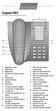 / FR / PL / HU Gigaset 5005 1 8 7 2 3 6 5 4 1 Repertory keys 2 Recall key 3 Redial key 4 Handset volume control key 5 Pause key 6 Speed dial key 7 Set key 8 Mute key 1 Touches d'accès rapide 2 Touche de
Gigaset 5005* Connections Υποδοχές σύνδεσης Připojeníi EN / EL / CZ
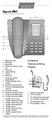 / EL / CZ Gigaset 5005* 1 8 7 2 3 6 5 4 1 Repertory keys 2 Recall key 3 Redial key 4 Handset volume control key 5 Pause key 6 Speed dial key 7 Set key 8 Mute key 1 Πλήκτρα κλήσης προορισμού 2 Πλήκτρο παράλληλης
UK s best selling phone brand. User Guide. BT Decor 2200 Corded Phone
 UK s best selling phone brand User Guide BT Decor 2200 Corded Phone 2 This User Guide provides you with all the information you need to get the most from your phone. Before you make your first call you
General notes: To avoid problems, always use:
 Questions and answers If you have any questions about the use of your phone, you can contact us at www.gigaset.com/service at any time. For more information about combining different Gigaset devices, visit:
Professional answering machine with time control, SMS service and message transfer. Retell 540 office
 Manual (UK) Professional answering machine with time control, SMS service and message transfer Retell 540 office Safety instructions Safety instructions When installing, connecting and operating the Retell
UK s best selling phone brand. User Guide. BT Decor 2500 Corded Phone
 UK s best selling phone brand User Guide BT Decor 2500 Corded Phone 2 This User Guide provides you with all the information you need to get the most from your phone. Before you make your first call you
2.4 GHz Dual Handset Cordless Telephone Answering System 2255 with Caller ID/Call Waiting
 USER S MANUAL Part 2 2.4 GHz Dual Handset Cordless Telephone Answering System 2255 with Caller ID/Call Waiting Please also read Part 1 Important Product Information AT&T and the globe symbol are registered
BT Freestyle 750. User Guide
 BT Freestyle 750 User Guide Welcome to your BT Freestyle 750 Digital Cordless Telephone Answering Machine Answering machine with up to 15 minutes digital recording time and helpful voice prompts. 50 Name
Digital Cordless Telephone. Motorola S3. For S3001, S3002, S3003 and S3004. Warning: Charge the handset for 24 hours before use.
 Digital Cordless Telephone Motorola S3 For S3001, S3002, S3003 and S3004 Warning: Charge the handset for 24 hours before use. Welcome... to your new Motorola S3000 Digital Cordless Telephone! All handsets
UK s best selling phone brand. User Guide. BT Big Button 200 Corded Phone
 UK s best selling phone brand User Guide BT Big Button 200 Corded Phone 2 Welcome. to your BT Big Button 200 telephone Large buttons for easy, accurate and more comfortable dialling Large display to assist
System Phone. User Guide. System DECT 35
 System Phone User Guide System User Instructions The AGFEO Cordless System Phone is designed for the connection / registration to an AGFEO DECT S0 Base or an AGFEO DECT S0-Base plus. The AGFEO will be
Motorola C12A. Digital Cordless Telephone with Digital Answering Machine. For C1211A, C1212A, C1213A and C1214A
 Digital Cordless Telephone with Digital Answering Machine Motorola C12A For C1211A, C1212A, C1213A and C1214A Warning: Charge the handset for 24 hours before use. Welcome... to your new Motorola C12A Digital
HiPath 1100. HiPath 1120 HiPath 1130 HiPath 1150 HiPath 1190. Instruction Manual System Telephone Profiset 3030
 HiPath 1100 HiPath 1120 HiPath 1130 HiPath 1150 HiPath 1190 Instruction Manual System Telephone Profiset 3030 Contents Installation Recommendations... 3 Installation... 4 Profiset 3030 System Telephone...
Alcatel Conference 1800
 Alcatel Conference 1800 USER S GUIDE TABLE OF CONTENTS 1 IMPORTANT SAFETY INSTRUCTIONS...4 1.1 Package Contents...5 1.2 Location...6 2 INSTALLING YOUR PHONE...7 2.1 Connecting the Base Unit...7 2.2 Set
Operating Instructions. Telephone System tiptel 1/8 fax clip tiptel 2/8 clip. (Release 2) tiptel
 Operating Instructions (UK) Telephone System tiptel 1/8 fax clip tiptel 2/8 clip (Release 2) tiptel Table of Contents Connection of 8 extensions..........3 Connection of 7 extensions and 1 door intercom................4
BT Big Button 100. User Guide
 BT Big Button 100 User Guide Welcome to your BT Big Button 100 phone Large buttons for easy dialling. Handsfree make and receive calls using the loudspeaker. One-touch 1571 button dials your network answering
Polycom SoundPoint 320/321 Quick Guide
 Polycom SoundPoint 320/321 Quick Guide ISC Netwking & Telecommunications University of Pennsylvania October 2009, v2 Contents Features... 3 Phone Basics... 4 Making Calls... 4 Answering Calls... 4 Ending
Meridian Digital Telephones
 Ntel Knowledge Netwk Meridian Digital Telephones M3902 M3903 M3904 Quick Reference Guide Enterprise Voice Solutions Customer Documentation While you are away from your desk: Call Fward 38 Contents M3902,
General Instructions... 1. User Controls...
 Contents General Instructions... 1. User Controls... 2. Setting Up... 2.1 Important information... 2.2 Contents of package... 2.3 Connecting the base station and charging base... 2.4 Replacing the batteries...
Eurit 435. Cordless ISDN telephone DECT. User Manual
 Eurit 435 Cordless ISDN telephone DECT User Manual Important: This user manual contains safety precautions! Please read carefully before putting the telephone into operation, and store in a safe place.
Meridian Digital Telephones
 Ntel Knowledge Netwk Meridian Digital Telephones M3902 M3903 M3904 Quick Reference Guide Enterprise Voice Solutions Customer Documentation While you are away from your desk: Call Fward 38 Contents M3902,
Home Phone with Answering Machine Sonus 1500. Quick set-up and user guide
 Home Phone with Answering Machine Sonus 1500 Quick set-up and user guide 2 Important please read first Only use the line cord, power supply and rechargeable batteries supplied with your phone. Make sure
Model No. KX-TS560MX. Model shown is KX-TS580MX
 Operating Instructions Integrated Telephone System Model No. KX-TS560MX KX-TS580MX Model shown is KX-TS580MX This unit is compatible with Caller ID. You must subscribe to the appropriate service offered
User Guide. BT Graphite 2500. Think before you print!
 BT Graphite 2500 User Guide This new interactive user guide lets you navigate easily through the pages and allows you to be directed straight to any websites or email addresses that are referenced Simply
HiPath 4000. optipoint 410 economy optipoint 410 economy plus optipoint 410 standard. Operating Instructions
 HiPath 4000 optipoint 410 economy optipoint 410 economy plus optipoint 410 standard Operating Instructions About these Operating Instructions About these Operating Instructions These Operating Instructions
UK s best selling phone brand. User Guide. BT3710 Digital Cordless Phone With Answering Machine
 UK s best selling phone brand User Guide BT3710 Digital Cordless Phone With Answering Machine 2 This User Guide provides you with all the information you need to get the most from your phone You must set
2nd generation Cordless digital telephone (DECT) User manual
 2nd generation Cordless digital telephone (DECT) User manual Welcome to Swissvoice The epure 2nd generation is a cordless telephone designed for connection to an analog telephone network. International
1. Primary Phone Line 2. Programmable Button Indicators 3. Soft Key Labels 4. Status Line 5. Call Activity Area 6. Phone Tab 7.
 CISCO IP 7975 Series QUICK REFRENCE 1. Programmable Buttons 2. Foot stand Button 3. Display Button 4. Messages Button 5. Directies Button 6. Help Button 7. Settings Button 8. Services Button 9. Volume
BT Synergy 5500 User Guide
 BT Synergy 5500 User Guide Welcome to your BT Synergy 5500 Digital Cordless Telephone Answering Machine Display with blue backlight. 250 Name and number phonebook. Copy phonebook entries between other
UK s best selling phone brand. Quick Set-up and User Guide. BT3510 Digital Cordless Phone with Answering Machine
 UK s best selling phone brand Quick Set-up and User Guide BT3510 Digital Cordless Phone with Answering Machine 2 Important please read first Only use the line cord, power supply and rechargeable batteries
User's Manual. Professional telephone with USB interface, SMS function and answering machine. tiptel 274. tiptel
 User's Manual (UK) Professional telephone with USB interface, SMS function and answering machine tiptel 274 tiptel Safety instructions Safety instructions When installing, connecting and operating the
CONTENTS. 1. DESCRIPTION OF THE TEMPORIS 500 PAGE 3 1.1 Display... 4 1.2 Equipment supplied... 5 1.3 Characteristics... 5
 Page User Guide Page CONTENTS. DESCRIPTION OF THE TEMPORIS 500 PAGE. Display.... Equipment supplied... 5. Characteristics... 5. INSTALLING YOUR TEMPORIS 500 PAGE 6. Connecting the handset... 6. Connecting
BT Granite User Guide
 BT Granite User Guide Think before you print! This new interactive user guide lets you navigate easily through the pages and allows you to be directed straight to any websites or email addresses that are
User Guide for the Orchid Key Phones KP416 & KP832
 User Guide for the Orchid Key Phones KP416 & KP832 Contents Page Introduction 2 Setting Up 2 Setting Date & Time 2 Making & Answering Calls 2 Call Pick 3 Call Transfer 3 Calls On Hold 3 Caller Display
Designed to block nuisance calls. Quick Set-up and User Guide. BT6500 Digital Cordless Phone with Answering Machine
 Designed to block nuisance calls Quick Set-up and User Guide BT6500 Digital Cordless Phone with Answering Machine 2 Important please read first Only use the line cord, power supply and rechargeable batteries
Operating Instructions
 2.4GHz Expandable Cordless Phone System Operating Instructions Model No. KX-TG2770S Pulse-or-tone dialing capability Preparation Telephone System PLEASE READ BEFORE USE AND SAVE. Caller ID Compatible Charge
BT Paragon 550. User Guide
 BT Paragon 550 User Guide Section Welcome to your BT Paragon 550 corded digital telephone and answering machine Directory lets you store up to 100 names and numbers for easy dialling. Send and receive
How To Use A Telephone In European Europe
 ISDN-Telephone Integral TS 13 connected to Integral 33 systems Operating Instructions We give you the edge. Familiarise yourself with your telephone Important notes What you should definitely read -- Your
Home Phone with Answering Machine Aura 1500. Quick set-up and user guide
 Home Phone with Answering Machine Aura 1500 Quick set-up and user guide 2 Important please read first Only use the line cord, power supply and rechargeable batteries supplied with your phone. Make sure
cordless telephone with answering machine
 cordless telephone with answering machine Safety precautions Caution: Warning/danger statement, follow safety precautions! Please note that the ringer for incoming calls as well as signal tones are emitted
User Guide. Response 75. Digital Answering Machine
 Response 75 Plus Digital Answering Machine User Guide This product is intended for connection to analogue public switched telephone networks and private switchboards in the United Kingdom. At a glance
8200/8200a. Cordless telephone User Guide
 8200/8200a Cordless telephone User Guide This telephone has been designed for ease of use. Please read the instructions and keep it handy for future reference. If you have any problems with your phone,
32 Switchboard User Guide
 Speed Dial Numbers # Telephone Number Telephone Destination Hymax Service Information When you require service from any Hymax Service Centre, please ensure that you supply as much information as possible
Operating Instructions
 Operating Instructions Integrated Telephone System Model No. KX-TS560ML Model shown is KX-TS560ML This unit is compatible with Caller ID. You must subscribe to the appropriate service offered by your service
Ascotel IntelliGate Communications Systems A150 A300 2025 2045 2065. Office 60IP User s Guide
 Ascotel IntelliGate Communications Systems A150 A300 2025 2045 2065 Office 60IP User s Guide Operating and Display Elements Operating and Display Elements 1 4 5 6 7 2 8 9 10 16 11 12 13 17 14 15 3 Operating
Operating Manual IP110 IP200 IP230
 Operating Manual IP110 IP200 IP230 PURE IP - TELEPHONY Release 6.0, 1st edition, March 2007 Brand names are used with no guarantee that they may be freely employed. Almost all hardware and software designations
2 line (1 symbol, 1 display) / 16 character display
 Aastra Office 60 & 60IP Overview of the phone 2 line (1 symbol, 1 display) / 16 character display Message and Phone Status LEDs Absence Redial Phone Book Loudspeaker Microphone key Volume (+ / -) Call
Gigaset. Gigaset C470 IP / C475 IP. VoIPon www.voipon.co.uk [email protected] Tel: +44 (0)1245 808195 Fax: +44 (0)1245 808299
 s Issued by Siemens Home and Office Communication Devices GmbH & Co. KG Schlavenhorst 66 D-46395 Bocholt Gigaset C470 IP / C475 IP Siemens Home and Office Communication Devices GmbH & Co. KG 2007 All rights
Dialog 4220 Lite/Dialog 4222 Office
 Dialog 4220 Lite/Dialog 4222 Office System telephones for MD110 Communication System User Guide Flinders University Table of Contents Description 2 Incoming Calls... 10 Outgoing Calls... 12 During Calls
OmniPCX Enterprise. Easy Reflexes TM. Quick Guide
 OmniPCX Enterprise Easy Reflexes TM Quick Guide User Guide Easy REFLEXESÔ Alcatel OmniPCXÔ 4400 Your Easy REFLEXESÔ terminal provides simple and quick access to all the services and features offered by
Octopus E Model 730/930 Octophon 22 Octophon 26 Octophon 28 System Support System Administration Operating Instructions !" ========= Deutsche.
 Octopus E Model 730/930 Octophon 22 Octophon 26 Octophon 28 System Suppt System Administration Operating Instructions Deutsche!" ========= Telekom About These Operating Instructions These operating instructions
User Guide. BT Diverse 7150 Plus. Think before you print!
 BT Diverse 7150 Plus User Guide This new interactive user guide lets you navigate easily through the pages and allows you to be directed straight to any websites or email addresses that are referenced.
Welcome to BT Inspiration An introduction to your new BT Inspiration System and its documentation 6 Featurephone basics 7
 Contents PAGE Welcome to BT Inspiration An introduction to your new BT Inspiration System and its documentation 6 Featurephone basics 7 Your BT Inspiration Featurephone 7 Facility menus and scroll keys
HiPath 4000. optipoint 500 economy optipoint 500 basic optipoint 500 standard optipoint 500 advance. Operating Instructions
 HiPath 4000 optipoint 500 economy optipoint 500 basic optipoint 500 standard optipoint 500 advance Operating Instructions About these Operating Instructions About these Operating Instructions These Operating
UK s best selling phone brand. User Guide. BT Response 75+ Answering Machine
 UK s best selling phone brand User Guide BT Response 75+ Answering Machine Welcome to your BT Response 75+ Digital Answering Machine 50 minutes recording capacity Offers the benefits of digital recording.
HiPath 4000. optipoint 420 advance. Operating Instructions
 HiPath 4000 optipoint 420 advance Operating Instructions About these Operating Instructions About these Operating Instructions These Operating Instructions describe the use of the optipoint 420 advance
Operating Manual IP222 IP232
 Operating Manual IP222 IP232 Release 9.00, hotfix 17, 1. edition November 2012 Brand names are used with no guarantee that they may be freely employed. Almost all hardware and software designations in
Gigaset DX800A all in one New and updated functions
 Gigaset DX800A all in one New and updated functions Gigaset DX800A all in one New and updated functions This document is a supplement to the user guide (full version) and the user guide for the Web configurator
User Guide. BT Graphite 2100. Think before you print!
 BT Graphite 2100 User Guide This new interactive user guide lets you navigate easily through the pages and allows you to be directed straight to any websites or email addresses that are referenced Simply
Operation. HiPath 4000. OpenStage 20. www.siemens.com/enterprise
 Operation HiPath 4000 OpenStage 20 www.siemens.com/enterprise Imptant Infmation Imptant Infmation Q F safety reasons, the telephone should only be supplied with power: using the iginal power supply unit.
CISCO IP 7962 Series QUICK REFRENCE
 CISCO IP 7962 Series QUICK REFRENCE 1. Programmable Buttons 2. Phone Screen 3. Foot stand Button 4. Messages Button 5. Directies Button 6. Help Button 7. Settings Button 8. Services Button 9. Volume Button
Meridian Digital Telephones
 Ntel Knowledge Netwk Meridian Digital Telephones M3905 Call Center User Guide Enterprise Voice Solutions Customer Documentation While you are away from your desk: Call Fward 38 Contents Introduction to
Gigaset PRO IP DECT Phones
 The Gigaset SL610H PRO handset is used here to describe how to make calls from a DECT base station Gigaset N510 IP PRO or a Gigaset N720 DECT IP Multicell System. We also recommend the following handsets
Business Communications Manager Telephone Feature Card
 Business Communications Manager Telephone Feature Card 2002 Nortel Networks P0993297 Issue 01 Buttons The Business Series Terminal (T-series) Feature button is a small globe icon. The M-series Feature
Gigaset C450 IP. Issued by Siemens Home and Office Communication Devices GmbH & Co. KG Schlavenhorst 66 D-46395 Bocholt
 s Issued by Siemens Home and Office Communication Devices GmbH & Co. KG Schlavenhorst 66 D-46395 Bocholt Siemens Home and Office Communication Devices GmbH & Co. KG 2005 All rights reserved. Subject to
28.01.2000 2020-IM1-eng-frz-spa-Anfang.fm euroset 2020, A31008-E2020-B100-1-3S19
 28.01.2000 2020-IM1-eng-frz-spa-Anfang.fm User s Guide euroset 2020 euroset 2020 Explanation of keys and display symbols eys Repertory keys Touches de sélection Teclas de destino " Set key / Redial key
Integral T3 / T3 IP Classic
 Integral T3 / T3 IP Classic connected to Integral 55 Services Internet Call / Contact Center CTI / CRM Messaging Telephony Networking User s guide 2 Table of Contents Table of Contents Table of Contents...
User Guide. Nortel Networks. i2004 Internet Telephone
 User Guide Nortel Networks i2004 Internet Telephone Table of Contents Description of the i2004 Internet Telephone 1 Control keys... 1 Display screen... 1 Description of keys...2 Notification of message
DIGITAL TELEPHONE STATION USER QUICK REFERENCE GUIDE
 DIGITAL TELEPHONE STATION USER QUICK REFERENCE GUIDE INTRODUCTION HOLD/DND (Hold/Do Not Disturb) - This button is used to put a call on Hold to set the Do Not Disturb function to prevent any calls from
Meridian Digital Telephones
 Ntel Knowledge Netwk Meridian Digital Telephones M3901 M3902 M3903 M3904 User Guide Enterprise Voice Solutions Customer Documentation Contents M3900 Series Meridian Digital Telephone 1 M3901... 1 M3902...
OPERATING INSTRUCTIONS
 Gemini Speakerphone OPERATING INSTRUCTIONS This Interquartz telephone has been manufactured to very high standards and is very easy to use. Please read this manual carefully to find out how to use the
HiPath 3000 HiPath AllServe
 û HiPath 3000 HiPath AllServe Hicom 150 E/H optiset E standard optiset E advance plus/comft optiset E advance conference/conference Operating Instructions Befe You Begin These operating instructions describe
Operating Instructions
 5.8 GHz Digital Cordless Phone Operating Instructions Model No. KX-TG5050 Pulse-or-tone dialing capability The unit is Caller ID compatible. To display the Caller s name and phone number, you must subscribe
INTRODUCTION TO YOUR BT MICRO... 2 WELCOME... 2 BT MICRO FEATUREPHONE... 2 HOW TO USE YOUR BT MICRO FEATURE PHONE... 3
 Table of Contents INTRODUCTION TO YOUR BT MICRO... 2 WELCOME... 2 BT MICRO FEATUREPHONE... 2 HOW TO USE YOUR BT MICRO FEATURE PHONE... 3 Phone setup... 3 Answering and making calls... 3 Transferring calls...
Gigaset DX800A all in one New and updated functions
 Gigaset DX800A all in one / en / A31008-xxxx-xxxx-x-xxxx / DX800A-aio-III-ReleaseNotesIVZ.fm / 08.11.2011 Gigaset DX800A all in one New and updated functions Gigaset DX800A all in one New and updated functions
How To Use A Ppanasonic Cell Phone With A Cell Phone From A Cellphone From Alexa (Panasonic) For A Long Distance Phone From An Older Model (Panoramos) For An Extra Money (Panamontani
 INTERCOM PLEASE READ BEFORE USE AND SAVE. Integrated Telephone System Operating Instructions Model No. KX-TS8B KX-TS8W Pulse-or-tone dialing capability KX-TS8W LINE Caller ID Compatible Panasonic World
Analogue Telephone User Guide
 Analogue Telephone User Guide IP COMMUNICATIONS PLATFORM FOR THE SMALL BUSINESS Specifications subject to change without notice. Facilities described may or may not be supported by your network. This documentation
Gigaset AS280/AS285. The handset at a glance ± V. U Scroll up/down or adjust volume. T Move cursor to left/right with. The base station at a glance
 Gigaset AS280/AS285 The handset at a glance 1 Charge status of the batteries 2 Answer machine icon (AS285 only) 3 Display keys 4 Message key Flashes: new messages received 5 Handsfree key 6 Control key
Meridian 8314 Business Terminal User Guide
 For additional information, Dial Telecommunications Center Centrex Services... - University of Nebraska - Lincoln Telecommunications Center Nebraska Hall Lincoln, NE 6888-0 (0) 7-000 The University of
Model No. KX-TGP500. Model No. KX-TGP550
 Panasonic Telephone Systems KX-TGP500/KX-TGP550 KX-TGP500, KXTGP500, TGP500, KX-TGP550, KXTGP550, TGP550 www.voicesonic.com Phone 877-289-2829 User Guide SIP Cordless Phone Model No. KX-TGP500 Model No.
KX-TD7695. Operating Instructions. DECT 6.0 Portable Station. Model No.
 Operating Instructions DECT 6.0 Portable Station Model No. KX-TD7695 Thank you for purchasing a Panasonic DECT 6.0 Portable Station. Please read this manual carefully before using this product and save
OpenPhone 71, 73, 75. on the Communications Systems OpenCom 100 and OpenCom X300 User Guide
 OpenPhone 71, 73, 75 on the Communications Systems OpenCom 100 and OpenCom X300 User Guide Welcome to Aastra DeTeWe Thank you for choosing this Aastra DeTeWe product. Our product meets the strictest requirements
Panasonic DECT KX-TGP600 User Guide for 8x8 PBX Service
 Panasonic DECT KX-TGP600 User Guide for 8x8 PBX Service August, 2015 Contents Basic Calling... 4 Calling by Dialing...4 Making an Intercom Call...4 Easy Dialing... 5 Making a Call Using the Redial List...5
User s Guide EKT-824
 User s Guide EKT-824 The Communiqué Telephone Station Table of Contents Introduction 3 About This Guide 3 The Basics Answering and Making Calls 4 Answering an External Call 4 Answering an Internal Call
Forum 500 Forum 5000 Forum Phone 515 Forum Phone 525 Forum Phone 535
 Forum 500 Forum 5000 Forum Phone 515 Forum Phone 525 Forum Phone 535 User Guide Welcome to Proximus Thank you very much for choosing this Proximus product. Our product meets the strictest requirements
Model No. KX-TGP500. Model No. KX-TGP550
 User Guide SIP Cordless Phone Model No. KX-TGP500 Model No. KX-TGP550 Model shown is KX-TGP500. Model shown is KX-TGP550. Thank you for purchasing a Panasonic product. You can configure some of the features
User Guide BT CONVERSE 425
 User Guide BT CONVERSE 425 This product is intended for connection to analogue public switched telephone networks and private switchboards in the United Kingdom. Please open this page for an At a glance
Aastra 673xi / 675xi. Telephony with SIP Phones at the Aastra 800/OpenCom 100 Communications System User Guide
 Aastra 673xi / 675xi Telephony with SIP Phones at the Aastra 800/OpenCom 100 Communications System User Guide Welcome to Aastra Thank you for choosing this Aastra product. Our product meets the strictest
Speakerphone/ Answering System 1855
 ATT-1855CIB-d04.qxd 3/19/05 5:08 PM Page 1 User Manual (Part 2) Speakerphone/ Answering System 1855 with Caller ID & Call Waiting CALLER ID ATT-1855CIB-d04.qxd 3/19/05 5:08 PM Page 2 User Manual (Part
Doro Secure 350. English
 Doro Secure 350 English 1 2 3 4 5 20 19 18 17 16 15 14 6 7 13 8 9 10 11 12 English 1. Microphone level 2. Additional alert equipment 3. Phonebook 4. Alarm key 5. Powerful amplification (boost) 6. Tone
Four-Line Intercom Speakerphone 944
 1 USER S MANUAL Part 2 Four-Line Intercom Speakerphone 944 Please also read Part 1 Important Product Information AT&T and the globe symbol are registered trademarks of AT&T Corp. licensed to Advanced American
Motorola C2. Digital Cordless Telephone with Digital Answering Machine. For C2011, C2012, C2013 and C2014
 Digital Cordless Telephone with Digital Answering Machine Motorola C2 For C2011, C2012, C2013 and C2014 Warning: Charge the handset for 24 hours before use. Welcome... to your new Motorola C2010 Digital
USER MANUAL MANUAL AH99-PN. www.hybrex.com.au www.hybrex.co.nz
 USER MANUAL MANUAL USER AH99-PN www.hybrex.com.au www.hybrex.co.nz Auto Telecom (Australia) Ltd. Unit7, 3 GibbesStreet, Chatswood, NSW2067 www.hybrex.com.au Operator Reception Restaurant Concierge Emergency
ALCATEL 2315 USER GUIDE
 ALCATEL 2315 USER GUIDE 1 1. LAYOUT 2. INSTALLATION 3. OUTGOING CALL 3.1 Handset Mode 3.2 Handsfree Mode 4. INCOMING CALL 4.1. Handset Mode 4.2. Handsfree Mode 5. HOLD 5.1. Handset Mode 5.2. Handsfree