
AT&T. PARTNER Plus Communications System Installation and Programming Guide
|
|
|
- Tabitha Gaines
- 10 years ago
- Views:
Transcription
1 AT&T PARTNER Plus Communications System Installation and Programming Guide

2 Copyright 1990 AT&T All Rights Reserved Printed in U.S.A. AT&T Issue 2 October 1990 Notice Every effort was made to ensure that the information in this document was complete and accurate at the time of printing. However, information is subject to change. Federal Communications Commission (FCC) Information For important FCC interference, registration, and repair information, see appendix C of this document. Trademarks PARTNER is a trademark of AT&T. MAGIC-ON-HOLD is a registered trademark of AT&T. MLS-6, MLS-12, and MLS-12D are trademarks of AT&T. SYSTIMAX is a trademark of AT&T. Warranty AT&T provides a limited warranty to this product. Refer to AT&T Limited Warranty and Limitation of Liability in chapter 9 of the System Manager's Guide. Ordering Information The order number for this book is To order copies of this document, call in the U.S. or in Canada. For more information on how to order this and other PARTNER TM Plus system reference materials, refer to Reference Materials in the Introduction. For information on ordering replacement parts, accessories, and other compatible equipment, refer to the System Manager's Guide, appendix B. Support Telephone Numbers AT&T provides a toll-free customer helpline 24 hours a day. In the U.S. call the AT&T Helpline at if you need assistance when installing, programming, or using your system. In Canada call one of the following Technical Assistance Centers for service or technical assistance: Eastern Canada and Ottawa: Ontario: Central and Western Canada:

3 Contents About This Guide 1 System Components and Specifications Hardware An Example System Setup Specifications Installing the Hardware General Guidelines Installing the Control Unit Installing Telephones and Other Equipment Removing/Replacing Modules System Programming Overview General Instructions Programming Procedures Centralized Telephone Programming Overview Programming Procedures

4 A Programming for Operation Behind PBX or Centrex B Dialing Restrictions Summary C FCC Information IN Index

5 About This Guide The PARTNER TM Plus Communications System is friendly and easy-to-use. Its digital technology provides features that give busy, growing businesses an advantage in today s marketplace. The system is easy to install and program. As your business grows, you can expand the system and reprogram it with little effort and disruption. This Installation and Programming Guide is a comprehensive guide to setting up the PARTNER Plus system. Step-by-step instructions help you install, expand, and program the system. A companion book, the System Manager s Guide, tells you how to use the system s features and how to customize individual telephones. How to Use This Guide If you are installing the system for the first time, we suggest you read this guide completely. Chapter 1 is an overview of the system, while the other chapters give specific information on installation and programming. If you are installing additional equipment, see chapter 2, Installing the System, chapter 3, System Programming, and chapter 4, Centralized Telephone Programming. If you need to reprogram the system, see chapter 3, System Programming. If you need to reprogram telephones, see chapter 4, Centralized Telephone Programming. If you are connecting the PARTNER Plus system to a PBX or Centrex, see appendix A, Programming for Operation Behind PBX or Centrex. If you need information on calling restrictions, see appendix B, Dialing Restrictions Summary. Product Safety Labels This book contains several product safety labels, identified by a A CAUTION label indicates the presence of a hazard that will or can cause property damage or minor personal injury if the hazard is not avoided. Carefully read the WARNING label on p. 2-2 and p Opening the 206 modules or backplane will expose you to hazardous voltages, which can cause severe personal injury or death. About This Guide i

6 Reference Materials The following materials are available to help you install, program, and use the PARTNER Plus system (the order numbers are in parentheses): System Planner provides the forms needed to plan and record how your system and telephones are to be programmed. If you need a System Planner, contact your AT&T customer service representative or authorized dealer. Installation and Programming Guide ( ) provides instructions for installing the hardware and programming the system. System Manager s Guide ( ) provides instructions for using the system and its features. Quick Reference for Users with MLS-Model Telephones ( , package of 6) contain basic instructions for using MLS-model phones with the PARTNER Plus system. To order additional reference materials (except the System Planner, call the AT&T Customer Information Center: In the U. S.: In Canada: How to Comment on This Guide A feedback form is located at the end of this guide, after the appendices. If the feedback form is missing, send your comments and recommendations for changes to: A. Sherwood AT&T General Business Systems 99 Jefferson Road (Room 2B-63) Parsippany, NJ Fax: ii About This Guide

7 System Components and Specifications 1 1-i

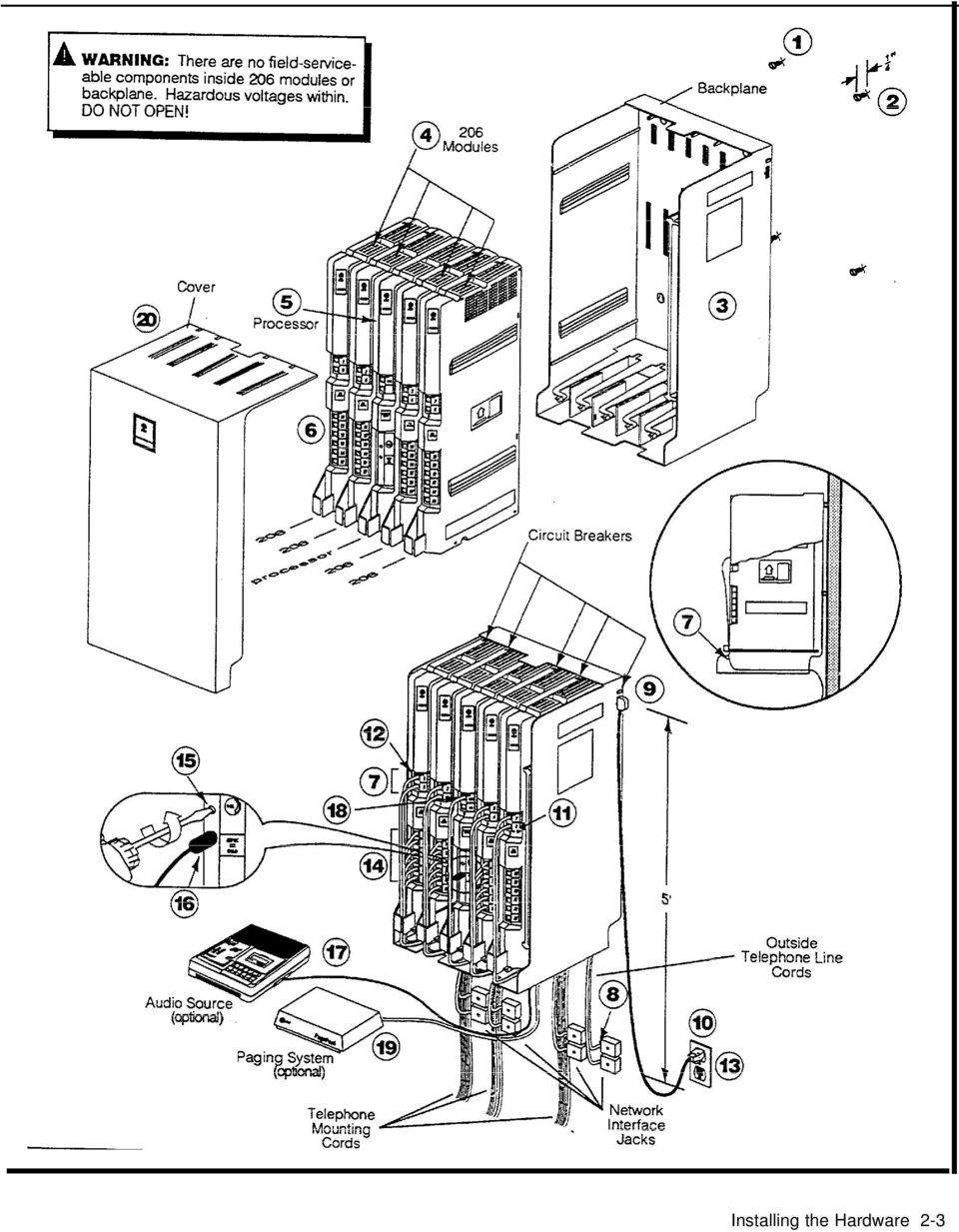
8 Hardware The PARTNER Plus system s modular hardware design makes it easy to install and expand. The main system component is the control unit, to which you connect telephones and other equipment. Control Unit The control unit includes: Processor Module. The processor module contains the software that controls the system s features. It also has two jacks for connecting a loudspeaker paging system and an audio source for music on hold. 206 Modules. Phone lines, phones, and other equipment connect to the modular jacks on 206 modules. Each module has jacks for 2 lines and 6 extensions. A system can have up to four 206 modules for a maximum of 8 lines and 24 extensions. The system requires at least one 206 module (purchased separately). Backplane. All the modules slide easily into the backplane, which channels power to the system. Cover. The cover slides onto the front of the backplane. PARTNER TeIephones AT&T manufactures three Multi-Line Series (MLS) telephones specifically designed to work with your PARTNER Plus system: Model MLS-12D TM for up to 8 outside lines, has 12 buttons with dual lights, 6 buttons without lights, a built-in speaker and microphone, and a display. We refer to this phone as the PARTNER display phone. Model MLS-12 is the same as model MLS-12D without the display. We refer to this phone as the PARTNER 12-button phone. Model MLS-6 TM for up to 4 outside lines, has 6 buttons with dual lights and a built-in speaker. We refer to this phone as the PARTNER 6-button phone. The system can have any combination of these phones, but extension 10 must have a PARTNER display phone, for system programming. Other Equipment When connecting standard equipment to the PARTNER Plus system, the total ringer equivalence number (REN) of the device(s) connected to each 206 extension jack cannot exceed 2. The REN is listed on a label on the device. The PARTNER PIUS system also works with industry-standard telecommunications equipment. You can connect equipment such as standard, single-line touch-tone or rotary phones, fax and answering machines, modems, and doorphones to the system without expensive adapters or additional phone lines. You can connect a standard device to an extension jack by itself or combined with another device. For example, you can connect a phone and an answering machine to one extension by using an AT&T 267F2 bridging adapter (two included with each 206 module). System Components and Specifications 1-1

9 An Example System Setup This PARTNER Plus System has 4 outside lines and 8 extensions connected to a variety of PARTNER phones and other equipment. The boldface numbers refer to the following list which gives a brief description of the system s hardware components. Control Unit. The heart of the PARTNER Plus system, the control unit consists of a backplane, cover (not shown), one processor module, plus up to four 206 modules. The backplane channels power to the system and connects the incoming telephone lines to the system. Processor Module. The processor module contains the electronics that provide most of the system features. It also has audio and paging jacks. Page Jack. The loudspeaker paging system plugs directly to this modular jack. Music-On-Hold Jack. The audio source plugs directly into this RCA jack. 206 Module. Each 206 module has jacks for 2 incoming telephone lines and 6 extensions. The system can have up to four 206 modules. Line Jacks. Outside telephone lines connect to the top 2 jacks on each 206 module. Extension Jacks. Telephones and other telecommunications equipment connect to the bottom 6 jacks on the 206 modules. AC Power. An ordinary 110 VAC grounded wall outlet (not controlled by an on/off switch) supplies power to the control unit. Network Interface Jacks. Incoming telephone lines service the system through these jacks. These lines can be from the local telephone company or another system, such as a PBX (Private Branch Exchange) or Centrex. PARTNER Display Phone: Extension 10. The system operator in this example is the receptionist on extension 10 and has a PARTNER display phone. This phone can handle 8 outside lines and has a display showing the time, number dialed, duration of call, and programming messages. Also, its programmable buttons (two with lights) can be programmed to store additional features and Auto Dial numbers. Because the display is required for system programming, extension 10 on your system must also have an PARTNER display phone. Standard Touch-Tone Telephone Used as a Power FailureTeIephone. In a power failure, the first extension jack on each 206 module connects to the first outside line on that module to provide continuous service to standard non-partner telephones. In this example system, the PARTNER phone on extension 10 will not work during a power failure. However, the receptionist can use the standard touch-tone phone connected to extension 10 to place and receive calls on line 1. AT&T 267F2 Bridging Adapter. This adapter combines the standard touch-tone phone and the PARTNER display phone on one extension jack. The adapter has two modular jacks, one for each phone. You can use the bridging adapter to combine any two devices (PARTNER telephones, industry-standard telephones, or other equipment) on one extension jack as long as the total Ringer Equivalence Number on each extension jack is 2 or less. (A device s Ringer Equivalence Number REN--is shown on its UL label.) The bridging adapter plugs into a wall jack or directly into an extension jack on the 206 module. PARTNER 12-Button Phone. This phone is Iike the PARTNER display phone, but it has no display. PARTNER 6-Button Phone and Answering Machine. Using a 267F2 bridging adapter, both a PARTNER 6-button phone and an answering machine are connected to one extension. The PARTNER 6-button phone accommodates up to 4 outside lines. Industry-Standard Telephone. A standard single-line touch-tone phone (such as you might have in your home) is connected directly to the extension jack. Doorphone. A doorphone is installed at the entrance. When someone at the entrance presses the button on the doorphone, up to 5 designated telephones in the office ring automatically. Bell. A loud bell connected directly to the extension jack rings when the extension is called. Fax Machine and Standard Telephone. A fax machine and standard touch-tone phone are connected together on an extension jack. This setup lets you share the fax line with a telephone. If you pick up the phone and hear a fax signal, you can simply hang up to let the fax machine receive the call. Alternatively, you can use a PARTNER phone at another extension to monitor the fax machine ( Fax Management ). To do so, first use System Programming to identify the fax machine extension. Then program a lighted button on a PARTNER phone with the fax extension number as an Auto Dial number. You can then use the Auto Dial number to quickly transfer calls from that extension to the fax machine. In addition, the light on that button shows whether the fax machine is in use, busy, returning a call you transferred to it, or not answering calls. If your AT&T fax machine includes the Notify feature, the fax machine can also notify you when a fax has been received. Modem. A modem connected directly to an extension jack provides data communications capability to the personal computer. Loudspeaker Paging System. A paging system is connected to the modular PAGE jack on the processor module. The PARTNER Plus system is compatible with AT&T s paging systems. Music-On-Hold Source. AT&T s MAGIC-ON-HOLD cassette deck is connected to the RCA jack on the processor module to provide customized music and messages for callers on hold. For information on MAGIC-ON-HOLD, call your AT&T representative or the AT&T Sourcebook at You can connect any type of audio equipment to your system (including a CD player, casette player, stereo receiver, etc.), but you must supply an audio cord with an RCA plug. NOTE: Users of equipment that rebroadcasts copyrighted music or other material may be required to obtain a license from a third party such as ASCAP or BMI. Figure 1-1 Example System Setup 1-2 System Components and Specifications

10 System Components and Specifications 1-3

11 Specifications A Table 1-1 Technical and Environmental Specifications Capacities System 206 Module Extension Jack 8 outside lines via line jacks on 2 outside lines four 206 modules 6 extensions 24 extensions via extension jacks on four 206 modules 1 loudspeaker paging system via PAGE jack on processor module 1 audio source via MUSIC ON HOLD jack on processor module 2 doorphones, using 2 extension jacks Maximum 2 devices per extension jack, total REN on jack not to exceed 2* (2 devices require AT&T 267F2 bridging adapter) No more than one PARTNER phone per jack. A PARTNER display phone must be connected to Extension 10. Dimensions Processor/206 modules 11 (D) x 17"(H) x 1.5 (W) or 4.3cm x 6.6cm x.58cm Control unit 12 (D) x 19"(H) x 11 (W) or 4.7cm x 6.8cm x 4.3cm (assembled) PARTNER telephones 9.5 (D) x 5"(H) x 6.75 (W) or 3.7cm x 1.9cm x 2.6cm (assembled) Weights Processor module 4.0 lbs or 8.8 kgs (approx.) 206 module 4.5 Ibs or 9.9 kgs Backplane & cover 5.5 Ibs or 12.2 kgs MLS-6 telephone 1.8 lbs or 4.0 kgs MLS-12 telephone 2.0 Ibs or 4.4 kgs MLS-12D telephone 2.1 Ibs or 4.6 kgs Switch Fabric Electrical Specifications Extension Jack Specifications Environmental Requirements Control Unit Full digital, nonblocking 2 amps at full system capacity 200 watts at full system capacity 4-day memory backup (96 hours) Dissipation of power (65 watts during normal operation) 684 BTUs/hour at peak; 225 BTUs/hr at normal Ringing voltage: +5VDC, -140 VDC peak to peak; Trapezoidal wave shaping 48-volt talk battery Ringing frequency: 20 Hz Mount on a wall or sturdy, level surface at least 2 feet (.6 meters) from the floor (wall mounting strongly recommended) Locate within 5 feet (1.5 meters) of an electrical outlet not controlled by a switch and within 5 feet (1.5 meters) of the network interface jacks, when using supplied 7 - (2.1-meter) cords Operating temperature 32 to +I04 F (0 to +40 o C), not in direct sunlight Humidity 15%-90%, noncondensing For proper ventilation and easy replacement of modules, provide at least 6 (2.34cm) clearance at the top and sides and 1 foot (0.3 meters) at the front of the control unit. Locate in an area free of excess moisture, corrosive gases, dust, and chemicals *The two devices combined on an extension jack can be a PARTNER phone with a standard device, or two standard devices; DO NOT connect two PARTNER phones to the same extension jack. If a device lists two RENs, use the higher number when adding up RENs. 1-4 System Components and Specifications

12 Table 1-1 Technical and Environmental Specifications (cont.) Electrical Requirements VAC, Hz, 3-prong outlet separate ground, separately fused at 15 amps Outlet must not be controlled by an on/off switch Grounding to comply with Underwriters Laboratories (UL) 1459: A. An insulated grounding conductor that is not smaller in size and equivalent in insulation material and thickness to the grounded and ungrounded branch circuit supply conductors, except that it is green with or without one or more yellow stripes, is to be installed as part of the circuit that supplies the product or system. B. The grounding conductor mentioned in item A is to be connected to ground at the service equipment. C. The attachment-plug receptacles in the vicinity of the product or system are all to be of a grounding type, and the grounding conductors serving these receptacles are to be connected to earth ground at the service equipment. Wiring Local Phone Company Information MLS-model phones: AT&T SYSTIMAX TM or at least 2-pair (4-wire) star ( home run not loop ) Other standard telecommunications equipment (single-line phones, fax machines, answering machines, etc.): 1-pair (2-wire) mounting cords (AT&T D2R mounting cords recommended) Bridging adapter: AT&T 267F2 Range: 1,000 feet (305 meters) for MLS phones; 3,000 feet (915 meters) for standard devices FCC registration number: AS5 USA KF-E REN outside line jack: 0.9A per line jack REN (PARTNER phone): 0 (zero) Jack type: RJ11C Loop start lines System Components and Specifications 1-5

13 Installing the Hardware 2 2-i

14 General Guidelines If you combine a standard phone and PARTNER phone on one extension, you may want to turn off the ringer of the standard phone during normal use. Instructions for installing the control unit, telephones, and other equipment are on the following pages (figures 2-1 to 2-3). Before you begin, please note the following guidelines: Using the System Planner is essential for knowing where phones and other equipment are to be installed, and how the system and phones are to be programmed. Install the control unit so that it meets the environmental and electrical requirements listed on p If wall mounting the control unit, you will need four #12 screws appropriate for the type of wall and weight of the control unit. When connecting wires to the jacks on a 206 module, leave at least 2 feet of slack for removing the module without first disconnecting the wires. If you later replace the module, you can remove the old module with the wires in place and plug them into the new module one at a time. PARTNER phones require at least 2-pair wiring and are compatible with AT&T 4-pair PDS wiring. Standard phones and other equipment require 1-pair mounting cords (AT&T D2R mounting cords recommended). When connecting two devices to a single extension, use only an AT&T 267F2 bridging adapter. Connect a PARTNER display phone to extension 10 for system programming. Do not connect doorphones to extensions 10, 16, 22, or 28. Do not install telephones out of the building. A hotline phone must be a standard, single-line phone, not a PARTNER telephone. However, the hotline phone can ring any type of phone. During a power outage, neither the system s features nor PARTNER phones work. However, standard, single-line touch-tone or rotary phones connected to extensions 10, 16, 22, and/or 28 can be used to place and receive calls. These extensions connect directly to lines 1, 3, 5, and 7, respectively. To prepare for a power failure, AT&T recommends: Store standard phones close to extensions 10, 16, 22, and/or 28. During a power failure, replace the PARTNER phone with the standard phone. Or, connect a standard phone to these extensions at all times, either by itself or combined with an PARTNER phone via a 267F2 bridging adapter. Do not program a Hotline on extension 10, 16, 22, or 28 to keep these extensions available for power failure use. If upgrading from a one-module PARTNER system, remove the rubber feet that may be attached to the 206 module before installing. If upgrading from a two-module PARTNER system, remove the module connector from the the two modules. Installing the Hardware 2-1

15 Installing the Control Unit CAUTION: To prevent electrostatic discharge, overheating, or other damage, environmental and electrical conditions must meet the specifications on p MOUNT THE BACKPLANE ON A WALL Hold the backplane in place on the wall. Using the four screw keyholes in the backplane as a template, mark the screw locations on the wall. Start the four #12 screws, Ieaving thereabout 1/4 out from the wall. Use screws appropriate for the wall surfacewhen loaded with five modules, the control unit weighs 37.5 pounds. Slip the backplane onto the screws and tighten them. INSERT THE MODULES CAUTION: Do not connect AC power cord before inserting modules. Slide the first 206 module straight into the left most slot of the backplane. Push slowly but firmly until the module snaps into place (you should hear and feel two snaps). The module must be securely attached to the rear of the backplane and held into place by the locking tab on the bottom front of the backplane/module slot. Insert the next 206 module in the second slot from the left. Note the alignment of dovetails between each module when modules are installed next to each other. CAUTION: Do not force the module. If it does not insert easily, pull down on the front locking tab, remove the module, clear any obstruction, and insert the module again. Insert the processor module in the center slot. Insert the other 206 modules from left to right, without skipping slots. Label the line and extension jacks as shown below: TEST THE SYSTEM Connect the AC power cord to the power jack on the top right rear of the backplane. Press firmly until it locks into place. Make sure the circuit breakers on each module and the backplane are pushed in. Plug the other end of the power cord into a grounded 3- prong wall outlet not controlled by a switch. Check all green lights on the front of the unit. If any lights are out, remove the power cord and reseat the module. To test the lines, plug a PARTNER 12-button phone into extension 10. Press the line button for each outside line and listen for dial tone. Repeat for extensions 16, 22, and 28. Disconnect the power cord before continuing. CONNECT THE MODULAR TELEPHONE CORDS Connect the modular telephone cords from the telephones to the extension jacks on the 206 modules, starting with the top extension jack on the leftmost 206 module. Route the cords through the hook on the front of the module, then through the slot between the module and the base of the backplane. Leave at least 2 feet of slack in the cords so that you can easily reconnect the cords during replacement. CONNECT THE MUSIC-ON-HOLD SOURCE (OPTIONAL) Follow these steps to connect the audio source to the control unit. (Assemble and use according to the manufacturer s directions.) Using a flathead screwdriver, turn the volume control on the processor counterclockwise to the lowest setting. Insert the RCA plug into the RCA jack on the processor (labeled MUSIC ON HOLD). Route the cord through the hook on the front of the module and the slot between the module and the base of the backplane. Connect the cord to the music-on-hold source according to the manufacturer s directions. Finally, adjust the volume using the volume control on the processor. Place a call on hold and listen to the level while adjusting. If you do not hear music at any volume setting, check system programming procedure #602 (chapter 3). CONNECT THE LOUDSPEAKER PAGING SYSTEM (OPTIONAL) Only the steps for connection to the control unit are included here. Follow the rnanufacturer's directions for setting up and using it. CONNECT THE OUTSIDE TELEPHONE LINE CORDS Test for dial tone at the network interface jacks before connecting outside lines. Connect the outside telephone line cords to the line jacks on the 206 modules, starting with the top line jack on the leftmost 206 module. Route the cords alongside the telephone cords. Leave at least 2 feet of slack in the cords so that you can easily reconnect the cords during replacement. Connect the free end of each line cord to the appropriate network interface jacks. Insert the modular plug for the paging system into the modular jack labeled PAGE on the processor. Route the cord as described in step 16. Connect the cord to the loudspeaker paging system according to the manufacturer s directions. CONNECT THE AC POWER CORD Connect the power cord as described in steps 9, 10, and 11. INSTALL THE OUTSIDE COVER Holding the sides of the cover, slide the cover onto the front of the modules until it meets the backplane. Figure 2-1 Control Unit Installation 2-2 Installing the Hardware

16 Installing the Hardware 2-3
17 Installing Telephones and Other Equipment CAUTION: PARTNER phones must be connected with a 2-pair telephone wire. Other equipment must be connected with a 1-pair mounting cord (AT&T D2R mounting cords recommended). DESK MOUNTING A PARTNER PHONE Plug one end of the handset cord into the jack on the handset. Plug the other end of the cord into the small jack on the left side of the base. Plug one end of the telephone mounting cord into the big jack on the base of the phone. Push the cord in place along the channel on the base of the telephone. If you want to raise the angle of the phone, install the telephone stand. To attach the stand to the base of the phone, gently place the phone upside down with the low end of the phone to your right. Insert the tab on the narrow end of the stand into the right slot on the base of the phone. Then insert the other tab into the left slot, pushing the stand down and slightly inward until the tab locks into place. Plug the other end of the mounting cord into the modular wall jack. Test the intercom. Lift the handset, then press an [Intercom] button. You should hear an intercom dial tone. If not see chapter 8, in the System Manager s Guide ( Phone Has Lights but No Dial Tone ). TEST PROCEDURE FOR PARTNER PHONES To test the power and lights on a PARTNER phone: Test the outside line connection. I-M the handset and press an outside line button. You should hear an outside dial tone. If not, see chapter 8, in the System Manager s Guide ( Phone Has Lights but No Dial Tone"). Slide thequick Reference card under the telephone. Label the button sheet and insert as follows: 1 Remove the clear plastic cover from the phone--gently press down on the center tab, then lift. 2 Place a button label sheet on the phone so the holes on the sheet fit over the buttons. 3 Replace the plastic cover. Press and hold [#] button for 5 seconds. Before releasing the [#] button, lift the handset. All lights should light, the ringer should sound, and on the PARTNER display phone, a test pattern should appear on the display. If not, call the Helpline at Replace handset. The phone is in normal operating mode. Figure 2-2 Desk Mounting a PARTNER Telephone 2-4 Installing the Hardware

18 WALL MOUNTING A PARTNER TELEPHONE WARNING: Do not attempt to unscrew the base from the phone. To do so will expose you to a risk of electrical shock. Reverse the plastic hook that sits in the earpiece part of the handset cradle. To attach the stand to the base of the phone, gently place the phone upside down with the low end of the phone to the tight. Insert the tab on the narrow end of the stand into the left slot on the base of the phone. Then insert the other tab into the right slot, pushing the stand down and slightly inward until the tab locks into place. Attaching the stand is a required step. Do not attempt to wall mount a corded PARTNER phone without first attaching the stand. Finally, plug one end of the handset cord into the jack on the handset. Plug the other end into the small jack on the side of the base. If you need a shorter cord, use AT&T s 2-foot D4BU-29 mounting cord (not provided). Test the inside and outside line connections as described in steps 5 and 6 of figure 2-2. Label the phone as described in step 8 of figure 2-2. Test the telephone as described in figure 2-2. Place the Quick Reference card near the telephone. Test a telephone by lifting the handset. You should hear a dial tone, indicating a good connection on the line. If you don t, see chapter 8, in the System Manager s Guide, ( Phone Has Lights but No Dial Tone ). If you install a fax machine and want to assign a Fax Management button, see p to program the extension as a fax extension. If you install a doorphone, program the system to recognize the Doorphone and Doorphone Alert extensions. Seepages 3-32 and INSTALLING TWO DEVICES ON ONE EXTENSION 2 CAUTION: To avoid malfunction, follow these installation instructions, not the ones provided with the equipment. After assembling the equipment, plug the mounting cord of the non-partner device into the top jack of the 267F2 bridging adapter. Plug the PARTNER phone or second standard device into the bottom jack (the one with four wires). If the standard device s mounting cord is loose, use an AT&T D2R mounting cord instead. Plug the adapter into the modular wall jack or directly into the extension jack of a 206 module. Below is an example: lnstalling STANDARD TELEPHONES AND OTHER EQUIPMENT Assemble the equipment according to the manufacturer s instructions. Plug the mounting cord into the modular wall jack. If the plug is loose in the jack, use an AT&T D2R mounting cord. To order, see appendix B in the System Manager s Guide. 3 4 Test the intercom and outside lines as described in steps 5 and 6 of figure 2-2. If installing two phones on one extension, test connection: 1 Pickup the handset of the first phone and listen for dial tone. 2 Pickup the handset of the second phone and listen for dial tone. 3 If no dial tone, see chapter 8, in the System Manager s Guide, ( Phone Has Lights but No Dial Tone ). Figure 2-3 Wall Mounting a PARTNER Telephone and Installing Other Equipment Installing the Hardware 2-5

19 Removing/Replacing Modules Removing a Module To remove a processor or 206 module: 1. Disconnect the AC power cord from the wall outlet. 2. Remove the control unit cover by sliding it directly off the backplane. 3. Grasp the front top of the module with one hand while holding down the locking tab at the base of the module with the other hand. With the locking tab down, put one finger of the same hand in the wire bracket on the bottom front of the module. Using both hands, pull the module forward and out, being careful not to strain the wires connected to the module. (If there is not enough slack in the wires, label and disconnect them before removing the module. ) WARNING: There are no field-serviceable components inside the 206 modules or backplane. Hazardous voltages within. DO NOT OPEN THE MODULES! Replacing a Module Figure 2-4. Removing 206 Module To replace a defective processor or 206 module: Complete the steps above for removing the module. Disconnect the first telephone line from the old module and connect it to the new module. Repeat for the second telephone line (if applicable). Disconnect the first extension line from the old module and connect it to the new module. Repeat for the other extensions. Insert the new module as described on page 2-2. Connect the AC power cord. The system performs the necessary reset procedures automatically. You should not need to reprogram the system unless you replaced the processor module, or unless you added or removed telephone lines and/or extensions when replacing the 206 modules. 2-6 Installing the Hardware

20 System Programming 3 3-i

21 Alphabetic List of Procedures Abbreviated Ringing Allowed List Assignment Allowed Phone Number Lists Automatic Privacy Calling Group Extensions Copy Settings Dial Mode Disallowed List Assignment Disallowed Phone Number Lists Display Language Doorphone 1 Extension Doorphone 2 Extension Doorphone Alert Extensions Emergency Phone Number List Fax Machine Extensions Hold Disconnect Time Hotline Line Assignment Line Type Line Use Restriction Music On Hold Night Service Button Night Service Group Number of Lines Outgoing Call Restrictions Outside Conference PBX Dial-Out Code Pickup Group Extensions Recall Timer Duration Rotary Dialing Timeout System Date System Day System Password SystemReset ProgrammingSaved System Speed Dial Numbers System Time Toll Call Prefix Transfer Return Rings o ii System Programming
22 Overview This chapter provides instructions for programming your system. Your PARTNER Plus system was programmed at the factory so that it works when installed. However, the needs of your business may require that you change some or all of the factory settings. System programming allows you to change these factory settings. For example, each year when the time changes from Standard Time to Daylight Savings Time, you will want to change the system time. This change is easy to make through system programming. System programming also lets you customize the system to work best for your business. For example, you may not want all extensions to have all outside lines. Using system programming, you can assign lines on an extension-by-extension basis. Programming Methods The PARTNER Plus system has more than 30 system programming procedures, each identified by a 3-digit code. Using these codes, you can program the system in one of two ways: Direct Method. With this method, you enter the procedure s 3-digit code followed by data. This method is best for completing one or two procedures at a sitting. Cycle Method. With this method, you cycle through the procedures in numerical order. This method is best for programming the system the first time or for changing several settings. You can skip procedures without changing their settings. Detailed instructions for programming are included in the rest of this chapter, beginning on p Once you are familiar with the basic programming steps, the Programming Quick Reference on the inside back cover of this guide especially useful. This chart lists all the procedures and possible settings. The Programming Extension System programming must be performed at extension 10 on a PARTNER display phone. As you program, messages on the display prompt you to enter data. You can program the system with the handset on or off the phone; you may even be on a call. This capability is useful for working with technical support personnel on troubleshooting. However, you cannot be on the speaker or microphone during programming. The Programming Overlay The normal functions of several buttons on the PARTNER display phone at extension 10 change during system programming. For example, the left [ Intercom ] button becomes [ System Program ], the button used to enter program mode. To identify these buttons while programming, place the programming overlay provided with the system on the dial pad of extension 10. Figure 3-1 shows the programming overlay with descriptions of the special buttons. System Programming 3-1
23 Figure 3-1 Programming Overlay 3-2 System Programming
24 General Instructions Remember to place the programming overlay on the dial pad of extension 10 before starting. When you go to another procedure, start with step 2 of the instructions for the new procedure. You can also exit program mode by lifting and replacing the handset, or by replacing it if it has been lifted. Programming the PARTNER Plus system requires no complicated steps or intensive training. By following the detailed instructions given in the rest of this chapter, you can quickly change system settings. As you become familiar with programming, use the Programming Quick Reference on the inside back cover of this guide for procedure codes and settings. The detailed instructions for each procedure include: A brief description of the procedure Valid data entries or procedure settings Considerations for how the procedure interacts with other procedures (if appropriate) Programming notes and steps including: Entering system program mode Selecting the procedure Selecting items lines, extensions, list, and phone numbers if necessary Entering data The instructions use the initial factory setting (designated with an in the valid entries section). if your system has been previously programmed, the displays may differ. Once you ve completed the steps in the detailed instructions, the data setting is saved. You can now go to another procedure, return the data to the factory setting, or exit program mode. Instructions for these choices are given in the box shown on the bottom of every two pages: = Factory Setting To go to the next procedure: [ Next Proc ] To go to a specific procedure: [ # ] [ x ] [ x ] [ x ] [ x ] To go to the previous procedure: [ Prev Proc ] (where XXX is the procedure number) To return data to the factory setting: [ Remove ] To exit system programming: [ Feature ] [ 0 ] [ 0 ] System Programming 3-3
25 Programming Procedures System Date Code: #101 If your system has been previously programmed, the displays may differ. Description: The month, day, and year that appears on PARTNER display phones Valid Entries: Any date 1. Press [ Feature ] [ 0 ] [ 0 ] [ System Program ] [ System Program ] [ # ] [ 1 ] [ 0 ] [ 1 ]. System Date Data See the box at the bottom of this page for a summary of options of what to do next. 2. Enter today s date in the form MMDDYY, using leading zeroes for all single-digit months and dates. For example, to enter December 4, 1990, press [ 1 ] [ 2 ] [ 0 ] [ 4 ] [ 9 ] [ 0 ]. The System Date Data System Day Code: #102 Description: The day of the week that appears on PARTNER display phones Valid Entries: 1 = Sunday 4 = Wednesday 6 = Friday 2 = Monday 5 = Thursday 7 = Saturday 3 = Tuesday Programmi ng Steps: 1. Press [ Feature ] [ 0 ] [ 0 ] [ System Program ] [ System Program ] [ # ] [ 1 ] [ 0 ] [ 2 ]. System Day 1 Sun 2. Change the day by entering a new setting number as listed above. example, to set the day to Tuesday, press [ 3 ]. The System Day 3 Tue For Or press [ Next Data ] or [ Prev Data ] until the correct day of the week shows on the display. = Factory Setting Togo to the next procedure: [ Next Proc ] To go to a specific procedure: [# ] [ X ] [ X ] [ X ] Togo to the previous procedure: [ Prev Proc ] (where X X X is the procedure number) To return data to the factory setting: [ Remove ] To exit system programming: [ Feature ] [ 0 ] [ 0 ] 3-4 System Programming
26 System Time Code: #103 Even though you enter the time in 24-hour notation, it appears on display phones as a.m. and p.m. after you program it. Description: The time, in 24-hour military-style notation Valid Entries: Any time Programming Notes: Enter the time in 24-hour notation, commonly known as military time. In this scheme, the hours of the day are 0000 (12 midnight) to 2359 (11:59 p.m.). Since each time must have four digits, use leading zeroes when necessary. For example, to set the time to 9:00 a.m., enter [ 0 ] [ 9 ] [ 0 ] [ 0 ]. To set the time to 4:45 p.m., enter [ # ] [ 1 ] [ 0 ] [ 3 ]. Number of Lines Code: # Press [ Feature ] [ 0 ] [ 0 ] [ System Program ] [ System Program ] [ # ] [ 1 ] [ 0 ] [ 3 ]. The System Time Data Enter a new time in 24-hour notation. For example, to set the time to 2:15 p.m., press [ 1 ] [ 4 ] [ 1 ] [ 5 ]. The System Time Data 1415 Description: Use this procedure as a quick way to assign the same number of outside lines to all extensions when first setting up the system. You can assign all or only some of the outside lines to all extensions. If you assign fewer lines than the total number of lines in the system, the system assigns the lines in order. For example, if you assign 5 lines but there are 8 outside lines, the system assigns lines 1 through 5 to all extensions. Valid Entries: Considerations: 0 through 8 lines 2 lines per 206 module installed To add or delete specific lines on specific extensions, use procedure #301, Line Assignment. If you later add more lines to the system, use procedure #301 to assign them to extensions rather than this procedure, which returns the Line Assignment (#301 ), Automatic Line Selection (p. 4-3), and Line Ringing Options (p. 4-4) to the factory settings. 1. Press [ Feature ] [ 0 ] [ 0 ] [ System Program ] [ System Program ] [ # ] [ 1 ] [ 0 ] [ 4 ]. The Number Of Lines 8 Lines 2. Enter the correct number of lines. For example, to tell the system there are 7 outside lines, press [ 7 ]. The Number Of Lines 7 Lines System Programming 3-5
27 Transfer Return Code: #105 Rings Description: Defines the number of times an extension should ring with a transferred call before the call returns to the originating extension. Valid Entries: 0 (transferred calls not returned to originating extension) 1 through 9 4 Considerations: If you have a fax machine or an answering machine connected to the system, set this number greater than the number of rings these devices wait before answering. This value prevents a call transferred to these machines from returning before it is answered. PBX Dial-Out Code Code: #106 See appendix A for more information on programming for PBX and Centrex. 1. Press [ Feature ] [ 0 ] [ 0 ] [ System Program ] [ System Program ] [ # ] [ 1 ] [ 0 ] [ 5 ]. The Transfer Return 4 Rings 2. Enter a different setting. For example, to set a transfer return of 5 rings, press [ 5 ]. The Transfer Return 5 Rings Description: If your system is connected to a PBX (Private Branch Exchange) or a Centrex system instead of directly to the local telephone company s switching system, use this procedure to identify the digit you dial to get an outside line. Valid Entries: 0 through 9 9 Consideration: Use procedure #202, Line Type, to identify the lines that are connected to the PBX or Centrex. Do not include the dial-out code in System Speed Dial, Personal Speed Dial, and Auto Dial numbers. The system automatically supplies it. 1. Press [ Feature ] [ 0 ] [ 0 ] [ System Program ] [ System Program ] [ # ] [ 1 ] [ 0 ] [ 6 ]. The PBX DialOut Code Data 9 2. Enter the correct dial-out code. For example, if you dial [ 8 ] to dial out, press [ 8 ]. The PBX DialOut Code Data System Programming
28 Recall Timer Code: #107 Duration Description: Changes the length of the timed signal (a switchhook flash) executed by the Recall feature (p. 4-8) and by the Recall function of speed dialing (p. 3-36). Recall sends this timed signal over the phone line to the local telephone company or PBX/Centrex to which the system is connected. Typically you use the Recall feature to access PBX or Centrex features such as Call Waiting. Change the factory setting of the recall timer only under three conditions: If your PARTNER Plus system is connected to Centrex, set the recall timer to 800 milliseconds (msec) by entering [ 3 ] [ 2 ]. If your PARTNER Plus system is connected to a PBX or Centrex and Recall drops calls, shorten the time. If pressing Recall has no effect, lengthen the time. Valid Entries: 01 through 80 (25 to 2000 msec in 25 msec increments) 18 (450 msec) 1. Press [ Feature ] [ 0 ] [ 0 ] [ System Program ] [ System Program ] [ # ] [ 1 ] [ 0 ] [ 7 ]. The Recall Timer msec 2. Enter a different recall timer setting by pressing [ Next Data ] or [ Prev Data ]. For example, to shorten the recail timer to 400 msec, press [ Prev Data ] twice. The Recall Timer msec Or enter the setting number directly. For example, to set the recall timer to 800 msec, press [ 3 ] [ 2 ]. 3. If you are using Recall to access PBX or Centrex features, test the new Recall Timer Duration by trying to use these features: If the call is disconnected, shorten the time. If the Recall signal has no effect, lengthen the time. = Factory Setting To go to the next procedure: [ Next Proc ] To go to a specific procedure: [# ] [ x ] [ x ] [ x ] [ x ] To go to the previous procedure: [ Prev Proc ] (where XX X is the procedure number) To return data to the factory setting: Remove [ ] To exit system programming: [ Feature ] [ 0 ] [ 0 ] System Programming 3-7
29 Rotary Dialing Code: #108 Time out Description: If you have any rotary lines and are having trouble calling out on standard touch-tone phones, use this procedure to change the length of the Rotary Dialing Timeout. For example, if users dial slowly and calls are not completed or are connected to wrong numbers, lengthen the timeout. Do not change this setting unless the system is experiencing problems. Valid Entries: 1 = 4 seconds 2 = 8 seconds 3 = 12 seconds Considerations: Use this procedure only if the Dial Mode (#201) for at least one outside line in the system is set to rotary. 1. Press [ Feature ] [ 0 ] [ 0 ] [ System Program ] [ System Program ] [ # ] [ 1 ] [ 0 ] [ 8 ]. The Rotary Timeout 2 8-secs 2. Change the Rotary Dialing Timeout by entering the setting number as listed above. For example, to lengthen the Rotary Dialing Timeout to 12 seconds, press [3]. The Rotary Timeout 3 12-sees Outside Conference Code: #109 Description: Prevents everyone on the system from including outside parties in conference calls. Valid Entries: 1 = Allow conference calls with outside parties 2 = Deny conference calls with outside parties 1. Press [ Feature ] [ 0 ] [ 0 ] [ System Program ] [ System Program ] [ # ] [ 1 ] [ 0 ] [ 9 ]. The Outside Conf 1 Allowed 2. To deny conference calls with outside parties, press [ Next Data ]. The Outside Conf 2 Disallowed 3-8 System Programming
30 Dial Mode Code: #201 Description: Identifies each outside line as either touch-tone or rotary. Valid Entries: 1 = Touch-tone line 2 = Rotary line Considerations: If you are using touch-tone phones on rotary lines, you may need to adjust the Rotary Dialing Timeout (#108). 1. Press [ Feature ] [ 0 ] [ 0 ] [ System Program ] [ System Program ] [ # ] [ 2 ] [ 0 ] [ 1 ]. The Dial Mode Line: 2. Enter the first line to be programmed. For example, to program line 8, press [ 8 ]. The Dial Mode L8 1 Touch Tone 3. To change the dial mode, press [ Next Data ]. The Dial Mode L8 2 Rotary To program another line, press [Next Item] or [ Prev Item ] until the correct line number shows on the display. Follow step 3 to change the dialing mode. Repeat for all lines that you want to change. = Factory Setting To go to the next procedure: [ Next Proc ] To go to a specific procedure: [ # ] [ 2 ] [ 0 ] [ 1 ]. The To go to the previous procedure: [ Prev Proc ] (where XXX is the procedure number) To return data to the factory setting: [ Remove ] To exit system programming: [ Feature ] [ 0 ] [ 0 ] System Programming 3-9
31 Line Type Code: #202 Description: Identifies each outside line as being connected to the local telephone company or to a PBX or a Centrex system. See appendix A for more information on programming for PBX or Centrex. Valid Entries: 1 = CO (local telephone company line) 2 = PBX or Centrex line Considerations: If any lines are connected to a PBX or a Centrex system, use procedure #106, PBX Dial-Out Code, to identify the PBX/Centrex dial-out code. If any lines are connected to a Centrex system, use procedure #107, Recall Timer Duration, to change the recall timer to 800 milliseconds. 1. Press [ Feature ] [ 0 ] [ 0 ] [ System Program ] [ System Program ] [ # ] [ 2 ] [ 0 ] [ 2 ]. The Line Type Line: 2. Enter the first line to be programmed. For example, to program line 1, press [ 1 ]. The Line Type L1 1 co 3. To change the line type, press [ Next Data ]. The Line Type L1 2 PBX To program another line, press [ Next Item ] or [ Prev Item ] until the correct line number shows on the display. Follow step 3 to change the line type. Repeat for every line in the system System Programming
32 Hold Disconnect Code: #203 Time Description: When a caller on hold hangs up, the local telephone company may send a special signal to the PARTNER Plus system to free the line. There are two possible signals: a long signal (450 milliseconds) used by most telephone companies, or a short signal (50 milliseconds) used by a few telephone companies. The length of the signal is called the hold disconnect time. If you put a line on hold and the call doesn t go away within a minute or two after the caller hangs up, use this procedure to change the hold disconnect time. If the telephone company sends no signal, changing the hold disconnect time has no effect. In this situation, disconnect held calls manually by taking the call off hold and hanging it up. Valid Entries: 1 = Long (450 msec) 2 = Short (50 msec) 1. Press [ Feature ] [ 0 ] [ 0 ] [ System Program ] [ System Program ] [ # ] [ 2 ] [ 0 ] [ 3 ]. The HoldDisconnct Line: 2. Enter the first line to be programmed. For example, to program line 2, press [ 2 ]. The HoldDisconnct L2 1 Long 3. To change the disconnect time, press [ Next Data ]. The HoldDisconnct L2 2 Short To program another line, press [ Next Item ] or [ Prev Item ] until the correct line number shows on the display. Follow step 3 to change the disconnect time. Repeat for each line in the system. = Factory Setting To go to the next procedure: Need [ Proc ] To go to a specific procedure: [ # ] [ x ] [ x ] [ x ] To go to the previous procedure: [ Prev Proc ] (where XXX is the procedure number) To return data to the factory setting: [ Remove ] To exit system programming: [ Feature ] [ 0 ] [ 0 ] System Programming 3-11
33 Line Assignment Hotline and doorphone extensions should not have outside lines assigned to them, to prevent calls from being made or received on them. Assigning lines to particular line buttons is useful for grouping similar lines (such as inbound and outbound WATS lines) on adjacent line buttons (such as D and H). Assign only as many lines to an extension as that extension can use. For example, a PARTNER 6-button phone can have only four outside lines. Code: #301 Description: Use this procedure to change the line assignments on specific extensions. These changes include adding lines, deleting lines, and setting the order of the lines on a PARTNER phone s line buttons. Valid Entries: 1 = Assigned 2 = Not assigned Considerations: Use this procedure to fine tune the number of lines assigned to all extensions through procedure #104, Number of Lines. For example, if you used procedure #104 to assign 5 lines to all extensions and there are 8 lines in the system, use procedure #301 to assign lines 6, 7, and 8 to specific extensions. Programming Notes: When you use procedure #301 to assign a line to an extension with a PARTNER phone, the line goes to the first unused line button on the phone. The order in which line buttons are assigned appears at the left. For example, if the extension has no lines assigned to it and you assign line 4 first, that line is put on line button A. If the extension had two other lines assigned to it, line 4 would be put on line button C. To change the order of existing line assignments, first unassign the lines and then reassign them in the desired order. 1. Press [ Feature ] [ 0 ] [ 0 ] [ System Program ] [ System Program ] [ # ] [ 3 ] [ 0 ] [ 1 ]. The LineAssign Extension: 2. Enter the extension number to be programmed (10 through 33). For example, to program extension 15, press [ 1 ] [ 5 ]. The LineAssign 15 Line: 3. Enter the line to be assigned or unassigned. For example, to select line 1, press [ 1 ]. The LineAssign 15 L1 1 Assigned If you don t want an extension to have the line, press [ Next Data ]. The LineAssign 15 L1 2 Not Assigned To program another line for this extension, press [ Next Item ] or [ Prev Item ] until the correct line number shows on the display. Repeat step 3. Label the line assignments on each PARTNER phone. To program another extension, press [ Next Proc ] [ Prev Proc ] and begin at step System Programming
34 Line Use Code: #302 Restriction Description: Use this procedure to restrict extensions from receiving and/or making outside calls on specific lines. Since you program line use restrictions for each line at each extension, you can restrict some lines on an extension while not restricting others. Restricting the use of a line is the most extreme way to restrict dialing on the PARTNER Plus system. For example, an extension with a the set to "in only or "no access, cannot select the line to dial out, even emergency numbers. There are other, less extreme ways to restrict dialing. See appendix B for a summary of dialing restrictions. Valid Entries: 1 = 2 = 3 = 4= 1. Press [ Feature ] No restriction (all calls permitted on that line) Out only (can only make outside calls, not receive them, on that line) In only (can only receive calls, not make them, on that line) No access (the line appears on the phone but cannot receive or make calls; can receive transferred calls) [ 0 ] [ 0 ] [ System Program ] [ System Program ] [ # ] [ 3 ] [ 0 ] [ 2 ]. The Restrict Extension: 2. Enter the extension to be programmed. For example, to program extension 23, press [ 2 ] [ 3 ]. The Restrict 23 Line: 3. Enter the line number to be restricted at this extension. For example, to restrict line 2, press [ 2 ]. The Restrict 23 L2 1 No Restriction 4. To change the line restriction for this extension, enter the appropriate setting number listed above. For example, to restrict the line to incoming calls, press [ 3 ]. The Restrict 23 L3 3 In Only To restrict another line at this extension, press [ Next Item ] or [ Prev Item ] until the line number shows on the display. Repeat step 4. To restrict another extension, press [ Next Proc ] [ Prev Proc ] (or [ # ] [ 3 ] [ 0 ] [ 2 ], and begin at step 2. = Factory Settinq To go to the next procedure: [ Next Proc ] To go to a specific procedure: [ # ] [ x ] [ x ] [ x ] Togo to the previous procedure: [ Prev Proc ] (where XXX is the procedure number) To return data to the factory setting: [ Remove ] To exit system programming: [ Feature ] [ 0 ] [ 0 ] System Programming 3-13
35 Display Language Code: #303 If you change the language for extension 10, the display messages immediately start appearing in the new language. 1. Description: Sets the language on the display of a PARTNER display phone. The language is set for each extension, so phones on the same PARTNER system can display different languages. Valid Entries: 1 = English 2 = Spanish 3 = French Press [ Feature ] [ 0 ] [ 0 ] [ System Program ] [ System Program ] [ # ] [ 3 ] [ 0 ] [ 3 ]. The Language Extension: Enter the extension to be programmed. For example, to program extension 11, press [ 1 ] [ 1 ]. The Language 11 1 English To change the display language, enter the appropriate setting number as listed above. For example, to change the display messages to Spanish, press [ 2 ]. The Language 11 2 Spanish To change the display language for another extension, press [ Next Item ] or [ Prev Item ] until the extension number shows on the display. Repeat step System Programming
36 Automatic Privacy Code: #304 Description: Automatically prevents users with the same lines from joining telephone conversations on a specific extension. This feature is typically used for extensions connected to fax Valid Entries: 1 = Assigned to extension machines and modems, which 2 = Not assigned make and receive data calls that should not be interrupted. Considerations: A user can override Automatic Privacy with the Privacy feature (p. 4-l0). 1. Press [ Feature ] [ 0 ] [ 0 ] [ System Program ] [ System Program ] [ # ] [ 3 ] [ 0 ] [ 4 ]. The Auto Privacy Extension: 2. Enter the extension to be programmed. For example, to program extension 16, press [ 1 ] [ 6 ]. The Auto Privacy 16 2 Not Assigned 3. To assign Automatic Privacy to the extension, press [ Next Data ] until the Auto Privacy 16 1 Assigned To program another extension, press [ Next Item ] or [ Prev Item ] until the extension number shows on the display. Repeat step 3. = Factory Setting To go to the next procedure: [ Next Proc ] To go to a specific procedure: [# ] [ x ] [ x ] [ x ] To go to the previous procedure: [ Prev Preoc ] (where XXX is the procedure number) To return data to the factory setting: [ Remove ] To exit system programming: [ Feature ] [ 0 ] [ 0 ] System Programming 3-15
37 Abbreviated Code: #305 Ringing Description: Use this procedure to turn Abbreviated Ringing on or off. When a user is on a call and Abbreviated Ringing is on (the factory setting), an incoming call rings only once. The light next to the line button flashes until Receptionists, and others who the call is answered or the caller hangs up. This feature prevents an incoming handle many calls quickly, often call from distracting a user busy on another call. To allow calls to ring repeat- turn Abbreviated Ringing off, so edly at a specific extension, turn Abbreviated Ringing off for that extension. they have an audible reminder of incoming calls. Valid Entries: 1 = Active/On (incoming calls ring once) 2 = Not active/off (incoming calls ring repeatedly) 1. Press [ Feature ] [ 0 ] [ 0 ] [ System Program ] [ System Program ] [ # ] [ 3 ] [ 0 ] [ 5 ]. The display reads Abbrev. Ring Extension: 2. Enter the extension to be programmed. For example, to program extension 10, press [ 1 ] [ 0 ]. The Abbrev. Ring 10 1 Active 3. To turn Abbreviated Ringing off, press [ Next Data ] until the Abbrev. Ring 10 2 Not Active To program another extension, press [ Next Item ] or [ Prev Item ] until the extension number shows on the display. Repeat step System Programming
38 Copy Settings Code: #399 Description: Copies the following settings from any extension to any other extension: #301 Line Assignment #408 Allowed List Assignment #302 Line Use Restriction #501 Pickup Group Extensions #303 Display Language #502 Calling Group Extensions #304 Automatic Privacy #504 Night Service Group #305 Abbreviated Ringing #601 Fax Machine Extensions #401 Outgoing Call Restrictions Automatic Line Selection (p. 4-3) #405 Disallowed List Assignment Line Ringing Options (p. 4-4) Valid Entries: Any valid source extension number (the extension copied from) and any valid target extension number (the extension copied to) Progamming Notes: This procedure is skipped in the sequence of programming procedures. To use this procedure, enter the procedure code directly (see step 1). 1. Press [Feature ] [ 0 ] [ 0 ] [ System Program ] [ System Program ] [ # ] [ 3 ] [ 9 ] [ 9 ]. The Copy Extension: 2. Enter the extension to copy from. For example, to copy extension 18, press [ 1 ] [ 8 ]. The Copy 18 Data Enter the extension to copy to. Any extension except the source extension is valid. For example, to copy to extension 22, press [ 2 ] [ 2 ]. The display reads: Copy 18 Data 22 To copy the same settings to another extension, enter the new extension number. To copy another extension s settings, press [ Next Item ] or [ Prev Item ] until the extension shows on the display. Repeat step 3. = Factory Setting To go to the next procedure: [ Next Proc ] To go to a specific procedure: [# ] [ x ] [ x ] [ x ] To go to the previous procedure: [ Prev Proc ] (where XXX is the procedure number) To return data to the factory setting: [ Remove ] To exit system programming: [ Feature ] [ 0 ] [ 0 ] System Programming 3-17
39 Outgoing Call Code: #401 Restrictions Description: Restricts the types of calls an extension can make. An extension can be restricted to inside calling only, or to local and inside calling. Outgoing While procedures that restrict Call Restrictions apply to all lines assigned to the extension. The System Passdialing are very effective, absolute protection against misuse word (#403), Emergency Phone Number List (#406), Disallowed and Allowed Phone Number Lists (#404 and #407) override Outgoing Call Restrictions. cannot be guaranteed. PARTNER phones give you more Valid Entries: 1 = protection against such misuse than standard phones. There- 2= fore, we strongly recommend that 3= you install PARTNER phones where restricting phone use is important. See appendix B for a complete summary of dialing restrictions. No restriction (can make toll, local, and inside calls) Inside only (can make inside calls only) Local only (can make local outside and inside calls only) 1. Press [ Feature ] [ 0 ] [ 0 ] [ System Program ] [ System Program ] [ # ] [ 4 ] [ 0 ] [ 1 ]. The Call Restrict Extension: 2. Enter the extension to be programmed. For example, to select extension 30, press [ 3 ] [ 0 ]. The Call Restrict 30 1 No Restriction 3. To change the type of call restriction, enter the appropriate setting number as listed above. For example, to restrict this extension to local and intercom calling, press [ 3 ]. The Call Restrict 30 3 Local Only To program another extension, press [ Next Item ] or [ Prev Item ] until the extension number shows on the display. Repeat step System Programming
40 Toll Call Prefix Code: #402 Description: Phone companies recognize long distance calls in either of two ways: a telephone number preceded by 0 or 1 plus an area code or a telephone number preceded only by an area code. Use this procedure to tell the PARTNER Plus system which method your phone company uses. Valid Entries: 1 = 0 or 1 plus the area code 2 = Area code only (0 or 1 not necessary) 1. Press [ Feature ] [ 0 ] [ 0 ] [ System Program ] [ System Program ] [ # ] [ 4 ] [ 0 ] [ 3 ]. The Toll Call Prefix 1 0/1 + AreaCd 2. To change the toll call prefix, press [ Next Data ] until the appropriate setting appears. For example, Toll Call Prefix 2 Area Code Only System Password Code: #403 Description: Identifies the 4-digit password that lets a user override Outgoing Call Restrictions (#401). You can also use the password with Night Service (#503 and #504) to restrict after-hours dialing. Valid Entries: Any 4 digits Entering the password allows you to override several dialing restrictions. See appendix B for a sum- mary of dialing restrictions. Considerations: If you assign a password using this procedure, you must enter the password when-turning Night Service (#503) on or off. 1. Press [ Feature ] [ 0 ] [ 0 ] [ System Program ] [ System Program ] [ # ] [ 4 ] [ 0 ] [ 3 ]. The Set Password Data---- If a password has previously been set, it will appear on the display. 2. Enter or change the password using the dial pad. For example, to set the password to 5747, press [ 5 ] [ 7 ] [ 4 ] [ 7 ]. The Set Password Data5747 To remove a password, press [ Remove ] = Factory Setting To go to the next procedure: [ Next Proc ] Togo to a specific procedure: #[ ] [ x ] [ x ] [ x ] To go to the previous procedure: [ Prev Proc ] (where XXX is the procedure number) To return data to the factory setting: Remove [ ] To exit system programming: [ Feature ] [ 0 ] [ 0 ] System Programming 3-19
41 Disallowed Code: #404 Phone Number Description: Specifies telephone numbers that users cannot dial. For example, Lists you may want to prevent calls to a specific telephone number or to categories of numbers such as calls to 976 numbers. Use this procedure to create up to four See appendix B for a summary of lists of up to 10 telephone numbers each. Then use procedure #405, dialing restrictions. Disallowed List Assignment, to assign the lists to specific extensions. Valid Entries: List numbers 1 to 4 Maximum 10 telephone numbers per list Maximum 12 digits per telephone number Wildcard character (!) to match any single digit 1. Press [ Feature ] [ 0 ] [ 0 ] [ System Program ] [ System Program ] [ # ] [ 4 ] [ 0 ] [ 4 ]. The DisallowLst List No: 2. Enter the list to be set up (1 through 4). For example, to select list 1, press [ 1 ]. The DisallowLst 1 Entry: 3. Select a list entry (01 through 10). For example, to select entry 01, press [ 0 ] [ 1 ]. The DisallowLst 1 01 Data Enter the first telephone number, following the guidelines given in the Programming Notes on the following page. As an example, to prevent local 976 dialing, press [ 9 ] [ 7 ] [ 6 ]. The DisallowLst 1 01 Data To save the telephone number in memory, press [ Enter ]. To enter other phone numbers in this list, press [ Next Item ] and repeat steps 4 and 5. To change a phone number, press [ Remove ] and repeat steps 4 and 5. To delete a phone number, press [ Remove ]. To create another list, press [ # ] [ 4 ] [ 0 ] [ 4 ] and start at step 2 above. = Factory Setting To go to the next procedure: [ Next Proc ] To go to a specific procedure: [ # ] [ x ] [ x ] [ x ] To go to the previous procedure: [ Prev Proc ] (where XXX is the procedure number) To return data to the factory setting: [ Remove ] To exit system programming: [ Feature ] [ 0 ] [ 0 ] 3-20 System Programming
42 Programming Notes: To program telephone numbers, dial the number as you would normally. You can also use the "wildcard character to stand for any digit in a phone number. For example, if you want to prevent users from making calls to area codes 202 and 212, you could enter each area code separately or combine them in one entry using the wildcard to stand for the middle digit. Using the wildcard, you would press [ 2 ] [ Wild ] [ 2 ]. The wildcard character appears as a! on the display: 2! 2 When you use the wildcard, be sure that you do not inadvertently prevent a call that should be allowed. In the example above, if we do not include a toll prefix (1 or 0), this entry would prevent calls to exchanges 222, 232, 242, 252, 262, 272, 282, and 292 as well as area codes 202 and 212, since the wildcard matches any digit. The examples below include normally-dialed numbers and wildcards. Specific Telephone Numbers. Dial the telephone number directly, followed by [ Enter ]. For example, to prevent calls to local directory assistance, press [ 4 ] [ 1 ] [ 1] [ Enter ].. All Telephone Numbers in One Area Code. The following lists use 900 chat numbers as an example of preventing calls to an area code. The entries for toll calls differ, depending on the Toll Call Prefix (#402). Make sure the Toll Call Prefix is set correctly for your dialing area. If it is not, entries on the Disallowed and Allowed Phone Number Lists may not be handled correctly. List 1 (Toll Call Prefix required) 1900 Prevents direct-dial calls to area code Prevents operator-assisted calls to area code 900 List 2 (Toll Call Prefix not required) 900 Prevents all ca!ls to area code 900 All Telephone Numbers in One Exchange. The following lists use 976 as an example of preventing all local and long distance calls to an exchange. List 1 (Toll) 976 1!0!976 1!1!976 0!0!976 0!1! Call Prefix required) Prevents local calls Prevents direct-dial calls to area codes with 0 as the second digit Prevents direct-dial calls to area codes with 1 as the second digit Prevents operator-assisted calls to area codes with 0 as the second digit Prevents operator-assisted calls to area codes with 1 as the second digit Prevents direct-dial in-state calls (needed only when 0 or 1 is required for in-state toll tails) Prevents operator-assisted in-state calls (needed only when 0 or 1 is required for in-state toll calls) List 2 (Toll Call Prefix not required) 976 Prevents local calls!0!976 Prevents calls to area codes with 0 as the second digit, such as 203!1!976 Prevents calls to area codes with the 1 as the second digit, such as 212 International Long Distance. To prevent international calls, enter the international prefix numbers, [ 0 ] [ 1 ] [ 1 ] Enter ]. System Programming 3-21
43 Disallowed List Code: #405 Assignment Description: After creating Disallowed Phone Number Lists (#404), use this procedure to assign them to specific extensions. For example, you can assign list 1 to extensions 27 and 28, and list 2 to extension 28 only. Valid Entries: 1 = Assigned to extension 2 = Not assigned to extension 1. Press [ Feature ] [ 0 ] [ 0 ] [ System Program ] [ System Program ] [ # ] [ 4 ] [ 0 ] [ 5 ]. The DisallowTo Extension: 2. Enter the extension to be programmed. For example, to program extension 27, press [ 2 ] [ 7 ]. The DisallowTo 27 List No: 3. Enter the list to be assigned to the extension. For example, to select list 1, press [ 1 ]. The DisallowTo Not Assigned 4. To assign the list, press [ Next Data ] until the DisallowTo Assigned 5. To assign another list to this extension, press [ Next Item ] or [ Prev Item ] until the list number shows on the display. Repeat step 4. To program another extension, press [ Next Proc ] [ Prev Proc ] (or [ # ] [ 4 ] [ 0 ] [ 5 ], and begin at step System Programming
44 Emergency Code: #406 Phone Number Description: Specifies emergency telephone numbers, such as 911, that can List be dialed from any extension regardless of other dialing restrictions, except Line Use Restriction (#302). See appendix B for a summary of dialing restrictions. Valid Entries: 10 telephone numbers, 1 to 12 digits each Typical list entries include: (local information) 611 (Iocal phone company repair) 911 (emergency services) Boss s home phone number Programming Notes: The emergency list can contain specific telephone numbers or categories of telephone numbers. See Disallowed Phone Number Lists (#404) for detailed instructions on programming telephone numbers. IMPORTANT: When programming emergency numbers and/or making test calls to emergency numbers: 1. Remain on the line and briefly explain to the dispatcher the reason for the call before hanging up. 2. Perform such activities in the off-peak hours, such as early morning or late evening. Press [ Feature ] [ 0 ] [ 0 ] [ System Program ] [ System Program ] [ # ] [ 4 ] [ 0 ] [ 6 ]. The EmergencyList Entry: Select a list entry (01 through 10). For example, to select entry 03, press [ 0 ] [ 3 ]. The EmergencyList 03 Data Enter the telephone number. For example, to allow local directory service dialing, press [ 4 ] [ 1 ] [ 1 ] [ Enter ]. The EmergencyList 03 Data411 To select another list entry, press [ Next Item ] or [ Prev Item ] until the new entry number shows on the display. Repeat step 3. To correct an incorrect telephone number, press [ Remove ] and enter the correct phone number. To delete a telephone number, press [ Remove ]. = Factory Setting To go to the next procedure: [ Next Prov ] To go to a specific procedure: [ # ] [ x ] [ x ] [ x ] To go to the previous procedure: [ Prev Proc ] (where XXX is the procedure number) To return data to the factory setting: [ Remove ] To exit system programming: [ Feature ] [ 0 ] [ 0 ] System Programming 3-23
45 Allowed Code: #407 Phone Number Description: Specifies telephone numbers that users can dial regardless of Lists other dialing restrictions. For example, even though you restricted all 976 dialing through Disallowed Phone Number Lists (#404), you can permit calls to the 976 weather number by entering that number in an allowed list. Using this procedure, you can create up to four lists of up to 10 telephone numbers each. Use procedure #408 (Allowed List Assignment) to assign the lists to specific extensions. See appendix B for a summary of dialing restrictions. Valid Entries: List numbers 1 to 4 Maximum 10 telephone numbers per list Maximum 12 digits per telephone number Wildcard character (!) to match any single digit 1. Press [ Feature ] [ 0 ] [ 0 ] [ System Program ] [ System Program ] [ # ] [ 4 ] [ 0 ] [ 7 ]. The AllowList List No: 2. Selecting lists and entering phone numbers is the same for this procedure as for Disallowed Phone Number Lists (#404). See pp and 3-21 for instructions on creating lists of phone numbers. Allowed List Assignment Code: #408 Description: After creating Allowed Phone Number Lists (#407), use this procedure to assign them to specific extensions. For example, you can assign list 1 to extensions 17 and 18, and list 2 to extension 18 only. Valid Entries: 1 = Assigned to extension 2 = Not assigned to extension 1. Press [ Feature ] [ 0 ] [ 0 ] [ System Program ] [ System Program ] [ # ] [ 4 ] [ 0 ] [ 8 ]. The A11owTo Extension: 2. Selecting extensions and lists for for this procedure is the same as for Disallowed List Assignment (#405). See p for instructions on assigning lists to extensions System Programming
46 Pickup Group Code: #501 Extensions Description: Identifies the extensions in the Pickup Group-the group of extensions whose outside calls can be answered by any extension on the system. When an outside call rings at an extension in the Pickup Group, any other extension on the system can answer the ringing line by pressing [ Intercom ] [ 6 ] [ 6 ]. The system automatically connects the call to the extension, even though the extension may not be in the group and may not have that line assigned to it. The Pickup Group feature is useful when an extension needs to answer calls on lines not assigned to that phone. For example, during lunch, one person may be designated to answer all calls that come into the Pickup Group. YOU can answer calls to the Valid Entries: 1 = Assigned (extension is in the Pickup Group) Pickup Group with one touch by 2 = Not assigned (extension is not in the Pickup Group) programming it on a button. See p Considerations: The system can have only one Pickup Group. 1. Press [ Features ] [ 0 ] [ 0 ] [ System Program ] [ System Program ] [ # ] [ 5 ] [ 0 ] [ 1 ]. The Pickup Group Extension: 2. Enter the extension to be programmed. For example, to program extension 29, press [ 2 ] [ 9 ]. The Pickup Group 29 1 Assigned 3. To remove the extension from the group, press [ Next Data ] until the display reads: Pickup Group 29 2 Not Assigned To program another extension, press [ Next Item ] or [ Prev Item ] until the extension number shows on the display. Repeat step 3. = Factory Setting To go to the next procedure: [ Next Proc ] To go to a specific procedure: [ # ] [ x ] [ x ] [ x ] To go to the previous procedure: [ Prev Proc ] (where XXX is the procedure number) To return data to the factory setting: [ Remove ] To exit system programming: [ Feature ] [ 0 ] [ 0 ] System Programming 3-25
47 Calling Group Code: #502 Extensions Description: Identifies the extensions in the Calling Group-the group of extensions that can be called at the same time. Any user on the system can ring all the phones in the Calling Group by dialing [ Intercom ]. Users can also voice signal the phones in the Calling Group by dialing [ Intercom ] [ * ] [ 7 ] [ 1 ]. This feature is useful for conversing with a group of users such as a sales pool or customer service representatives. Valid Entries: 1 = Assigned (extension in the Calling Group) 2 = Not assigned (extension not in the Calling Group) Considerations: The system can have only one Calling Group. Do not assign extensions with fax machines, answering machines, hotline. phones, and doorphones to the Calling Group. 1. Press [ Feature ] [ 0 ] [ 0 ] [ System Program ] [ System Program ] [ # ] [ 5 ] [ 0 ] [ 2 ]. The Calling Group Extension: 2. Enter the extension to be programmed. For example, to select extension 31, press [ 3 ] [ 1 ]. The Calling Group 31 1 Assigned 3. To remove the extension from the group, press [ New Data ] until the display reads: Calling Group 31 2 Not Assigned To program another extension, press [ Next Item ] or [ Prev Item ] until the extension number shows on the display. Repeat step System Programming
48 Night Service Button Code: #503 Description: To use the Night Service feature, you must program it onto the PARTNER display phone at extension 10. This procedure automatically assigns Night Service to the second programmable feature button with lights: Night Service is useful if you want all phones to ring after hours. For example, the Shipping Department does not answer calls during the day, but after hours you want them to answer incoming calls. Night Service with a System Password is useful for controlling unauthorized use of phones after hours. To turn Night Service on and off, simply press this button. When Night Service is on, all lines ring immediately, regardless of their normal Line Ringing Options (see p. 4-4). Night Service affects only the extensions in the Night Service Group. Use procedure #504 to setup the Night Service Group. Valid Entries: 1 = Night Service assigned 2 = Night Service not assigned Considerations: If you program a System Password (#403) as well as Night Service, the password must be entered when turning Night Service on or off. In addition, when Night Service is on, users in the Night Service Group can dial only Emergency Numbers (#406) and Marked System Speed Dial Numbers (p. 3-34) without entering the System Password. Programming Notes: This procedure erases any feature or Auto Dial number you may have previously programmed onto the Night Service button. If Night Service is assigned, you cannot program another feature on this button, unless you remove Night Service first. A Night Service button can be programmed only for extension Press [ Feature ] [ 0 ] [ 0 ] [ System Program ] [ System Program ] [ # ] [ 5 ] [ 0 ] [ 3 ]. The Night Service 2 Not Assigned 2. To program Night Service onto the Night Service button, press [ Next Data ] until the Night Service 1 Assigned-Ext10 3. Label the Night Service button on extension 10. = Factory Setting To go to the next procedure: [ Next Proc ] To go to a specific procedure: [# ] [ x ] [ x ] [ x ] To go to the previous procedure: [ Prev Proc ] (where XX X is the procedure number) To return data to the factory setting: Remove [ ] To exit system programming: [ Feature ] [ 0 ] [ 0 ] System Programming 3-27
49 Night Service Group Code: #504 Description: Identifies the extensions in the Night Service Group. When Night Service is on and a call comes in, all extensions in the Night Service Group ring immediately. In addition, restricted Night Service (when the system has a password) limits the Night Service Group extensions to dialing only numbers on the Emergency Phone Number List (#403) and Marked System Speed Dial Numbers (p. 3-34). Valid Entries: 1 = Extension is in the group 2 = Extension is not in the group Considerations: Do not include hotline extensions in the Night Service Group. If you program a System Password (#403) as well as Night Service (#503), extensions in the Night Service Group will not be able to make outside calls (other than Emergency Numbers and marked System Speed Dial Numbers) without first entering the password. The system is programmed at the factory with all extensions in the Night Service Group. Therefore, remove any extensions from the Night Service Group that should be allowed to make outside calls at night, unless of course the person at that extension knows the password. 1. Press [ Feature ] [ 0 ] [ 0 ] [ System Program ] [ System Program ] [ # ] [ 5 ] [ 0 ] [ 4 ]. The NS Group Extension: 2. Enter the extension to be programmed. For example, to program extension 13, press [ 1 ] [ 3 ]. The NS Group 13 1 Assigned 3. To remove the extension from the group, press [ Next Data ] until the NS Group 13 2 Not Assigned To program another extension, press [ Next Item ] or [ Prev Item ] until the extension number shows on the display. Repeat step System Prograrnming
50 Fax Machine Code: #601 Extensions Description: If you have a fax machine connected to the system and want to monitor its status with a Fax Management button (see the System Manager s Guide, chapter 7), use this procedure to identify the fax extension. Valid Entries: 1 = Extension assigned 2 = Extension not assigned Considerations: To prevent other extensions from interrupting a fax call, program the fax extension for Automatic Privacy (#304). You can install both a telephone and a fax machine on the same extension using an AT&T 267F2 bridging adapter. This lets you receive both voice and fax calls on the same line (but not at the same time). If you pick up the phone and hear a fax signal, you can simply hang up to let the fax machine receive the call. In addition, if the telephone on the extension is a PARTNER phone with lights, the light on the button for the fax line shows whether the fax machine is in use or busy. Programming Steps 1. Press [ Feature ] [ 0 ] [ 0 ] [ System Program ] [ System Program ] [ # ] [ 6 ] [ 0 ] [ 1 ]. The Facsimile Extension: 2. Enter the extension to be programmed. For example, to select extension 30, press [ 3 ] [ 0 ]. The Facsimile 30 2 Not Assigned 3. To identify the extension as a fax machine, press [ Next Data ] until the Facsimile 30 1 Assigned To program another extension, press [ Next Item ] or until the extension number shows on the display. Repeat step 3. = Factory Setting To go to the next procedure: [ Next Proc ] To go to a specific procedure: [# ] [ x ] [ x ] [ x ] To go to the previous procedure: [ Prev Proc ] (where XXX is the procedure number) To return data to the factory setting: [ Remove ] To exit system programming: [ Feature ] [ 0 ] [ 0 ] System Programming 3-29
51 Music On Hold Code: #602 Description: Activates or deactivates the Music-on-Hold jack on the processor module. To provide music or taped messages to callers on hold, the Music-on- Hold jack must be active and an audio source attached to the jack. Valid Entries: 1 = Active 2 = Not active Considerations: If no audio source is attached to the system, we recommend changing the setting to not active. If the audio source develops trouble (such as a bad tape), you can quickly turn it off by setting the jack to not active until you are able to solve the problem. Users of equipment that rebroadcasts copyrighted music or other material may be required to obtain a license from a third party such as ASCAP or BMI. 1. Press [ Feature ] [ 0 ] [ 0 ] [ System Program ] [ System Program ] [ # ] [ 6 ] [ 0 ] [ 2 ]. The Music On Hold 1 Active 2. To deactivate the music-on-hold jack, press [ Next Data ] until the display reads: Music On Hold 2 Not Active = Factory Setting To go to the next procedure: [ Next Proc ] To go to a specific procedure: [ # ] [ x ] [ x ] [ x ] [ x ]. The To go to the previous procedure: [ Prev Proc ] (where XXX is the procedure number) To return data to the factory setting: [ Remove ] To exit system programming: [ Feature ] [ 0 ] [ 0 ] 3-30 System Programming
52 Hotline Code: #603 Description: Identifies the hotline extension and the extension it automatically rings (the alert extension). When someone lifts the handset of the hotline telephone, the alert extension rings. You can set up several hotline and alert extension pairs. The alert extension can be the same or different for one or more hotline extensions. Valid Entries: Considerations: A hotline extension An alert extension No hotline or alert assigned The hotline telephone must be a standard; single-line touch-tone or rotary telephone. A hotline cannot be a doorphone. Assigning a hotline to a doorphone extension cancels the doorphone setting. To prevent outside calls from being made or received on the hotline, use Line Assignment (#301) to remove all outside lines from the hotline extension. Include only intercoms in the Automatic Line Selection for the hotline extension (p. 4-3). Remove hotline extensions from the Night Service Group (#504) and Calling Group (#502). Programming Notes: When programming the hotline, you first enter the hotline extension and then the alert extension. Enter the hotline and alert extensions as different extensions. Extension 10 cannot be a hotline extension (although it can bean alert extension). 1. Press [ Feature ] [ 0 ] [ 0 ] [ System Program ] [ System Program ] [ # ] [6 ] [ 0 ] [ 3 ]. The Hot Line Extension: 2. Enter the hotline extension (11 through 33). For example, to program extension 33 as the hotline, press [ 3 ] [ 3 ]. The Hot Line 33 Data Enter the alert extension (10 through 33). For example, to use extension 32 as the alert extension, press [ 3 ] [ 2 ]. The Hot Line 33 Data 32 To program another hotline, press [ Next Item ] or [ Prev Item ] until the new hotline extension number shows on the display. Repeat step 3.. System Programming 3-31
53 Doorphone 1 Extension Code: #604 A doorphone consists of a speaker and a button. It is usually placed near an entrance for screening visitors. Description: You can connect up to two doorphones to the PARTNER Plus system. Each doorphone can ring up to five other alert extensions. Use this procedure to identify the extension to which the first doorphone is connected. Use procedure #605 to identify the second doorphone extension. Use procedure #606 to assign the alert extensions for both doorphones. Valid Entries: Extensions 11, 12, 13, 14, 15, 17, 18, 19, 20, 21, 23, 24, 25, 26, 27, 29, 30, 31, 32, 33 None assigned Considerations: A doorphone extension cannot be a hotline extension at the same time. Assigning a doorphone on a hotline (or other doorphone) extension cancels the hotline (or doorphone) programming. However, hotlines and doorphones can have the same alert extensions. 1. Press [ Feature ] [ 0 ] [ 0 ] [ System Program ] [ # ] [ 6 ] [ 0 ] [ 4 ]. The Door Phone 1 Data Enter the doorphone extension. For example, to select extension 21, press [ 2 ] [ 1 ]. The Door Phone 1 Data 20 Doorphone 2 Extension Code: #605 Description: See the description for Doorphone 1 Extension (#604), above. Doorphone 2 has a different ring from Doorphone 1. Valid Entries: Extensions 11,12, 13, 14, 15, 17, 18, 19, 20, 21, 23, 24, 25, 26, 27, 29, 30, 31, 32, 33 None assigned Considerations: See the considerations for Doorphone 1 Extension (#604), above. 1. Press [ Feature ] [ 0 ] [ 0 ] [ System Program ] [ System Program ] [ # ] [ 6 ] [ 0 ] [ 5 ]. The Door Phone 2 Data Enter the doorphone extension. For example, to select extension 21, press [ 2 ] [ 1 ]. The Door Phone 2 Data System Programming
54 Doorphone Code: #606 Alert Description: Identifies the extension or extensions that ring when someone Extensions presses the button on a doorphone. Each doorphone can have up to five alert extensions. The doorphones can have five individual alert extensions or they can share alert extensions. Use procedures #604 and #605 (Doorphone 1 and Doorphone 2 Extensions) to assign doorphone extensions. Valid Entries: 1 = Not an alert extension 2 = Doorphone 1 alert extension 3 = Doorphone 2 alert extension 4 = Both doors alert extension 1. Press [ Feature ] [ 0 ] [ 0 ] [ System Program ] [ System Program ] [ # ] [ 6 ] [ 0 ] [ 6 ]. The DoorPhneAlert Extension: 2. Enter the first alert extension. For example, to select extension 10, press [ 1 ] [ 0 ]. The DoorPhneAlert 10 1 No Alert 3. To change the alert status, enter the appropriate setting as listed above. For example, to make this extension an alert for both doorphone extensions, press [ 4 ]. The DoorPhneAlert 10 4 Doors 1 and 2 To select another alert extension, press [ Next Item ] or [ Prev Item ] until the extension number shows on the display. Repeat step 3. IMPORTANT: If you press [ Next Proc ], the system skips procedure #728, System Reset Programming Saved and returns to procedure #101, System Date. To use procedure #728 at this point, you must enter [ # ] [ 7 ] [ 2 ] [ 8 ]. = Factory Setting To go to the next procedure: [ Next Proc ] To go to a specific procedure: [ # ] [ x ] [ x ] [ x ] To go to the previous procedure: [ Prev Proc ] (where XXX is the procedure number) To return data to the factory setting: [ Remove ] To exit system programming: [ Feature ] [ 0 ] [ 0 ] System Programming 3-33
55 System Reset Code: #728 Programming Description: Resets the system while retaining the currently programmed Saved settings. Reset the system only when it fails to function correctly after a power failure or down period. Considerations: The system reset begins immediately and takes only a few seconds. You cannot interrupt the reset process. You cannot use any telephones in the system during the reset process. Resetting the system disconnects all active calls. 1. Press [ Feature ] [ 0 ] [ 0 ] [ System Program ] [ System Program ] [ # ] [ 7 ] [ 2 ] [ 8 ]. The Reset- Save All When the reset is completed, the system is no longer in program mode and the current date and time appear on the display. System Speed Numbers Dial Marked System Speed Dial numbers are not displayed when users of PARTNER display phones dial them. Description: You can program a list of up to 60 frequently dialed numbers into the PARTNER Plus system. Anyone on the system can then dial these numbers by pressing [ Feature ] and the 2-digit code you assign the number during programming. Regular System Speed Dial numbers do not override other dialing restrictions for an extension. To program System Speed Dial numbers that override these restrictions, mark them by entering a star ( [ * ] ) before the phone number. Valid Entries: Any phone number (up to 20 digits) assigned codes 20 through 79 No number assigned to any code See appendix B for a summary of dialing restrictions. Considerations: Individuals can program up to 20 additional speed dial numbers on their own telephones. These Personal Speed Dial numbers use codes 80 through 99 (see chapter 3 of the System Manager s Guide). You can also program Personal Speed Dial numbers from extension 10 (p. 4-5). Programming Notes: System Speed Dial numbers can be programmed only from extension 10. Refer to the System Speed Dial forms in the System Planner and System Manager s Guide for the list of numbers to be programmed. When entering a phone number, you can include special functions as well as digits (see table 3-1 on page 3-36) System Programming
56 1. Press [ Feature ] [ 0 ] [ 0 ]. The PROGRAM EXT Enter the 2-digit code you want to assign the phone number by pressing [ Feature ] and 2 digits between 20 and 79. For example, to assign code 20, press [ Feature ] [ 2 ] [ 0 ]. If a number is already assigned to the code, it appears in the display. If no number is assigned to the code, the display reads: Blank 3. Enter the phone number. For example, to program to code 20, press [ 5 ] [ 5 ] [ 5 ] [ 4 ] [ 7 ] [ 5 ] [ 7 ]. The To mark the speed dial number, precede the number by *. For example, to mark the number , enter [ * ] [ 5 ] [ 5 ] [ 5 ] [ 1 ] [ 0 ] [ 0 ] [ 1 ]. The * To include special functions in the phone number, see table 3-1 on p To program another System Speed Dial number, start from step 2. To program over an existing number, enter the new number after selecting the 2-digit code. To remove a System Speed Dial number, enter the number s 2-digit code and press [ Mic ] once. To exit the program mode at any time, press [ Feature ] [ 0 ] [ 0 ]. System Programming 3-35
57 Table 3-1 Special Dialing Functions Function Button Display Description and Example Pause [ Hold ] P Inserts a 1.5-second pause in the dialing sequence to wait for a response, such as a dial tone or computer voice message. Example: To call an answering machine at , wait 4.5 seconds, then dial 321 to retrieve messages, enter [ 5 ] [ 5 ] [ 5 ] [ 0 ] [5 ] [ 2 ] [ 9 ] [ Hold ] [ Hold ] [ 3 ] [ 2 ] [ 1 ]. Recall [ Spkr ] R Sends a timed switchhook flash needed to alert the system on the other end (such as a PBX or Centrex), and to use some local telephone company custom calling features (such as Call Waiting). Use Recall only as the first entry in a speed dial number. Example: To use a favorite Centrex feature, you have to send a timed switchhook flash and then dial 388. Enter [ Spkr ] [ 3 ] [ 8 ][ 8 ]. Stop [ Mic ] S Stops the dialing sequence so the user can enter additional digits, such as a credit card number or password. Press [ Feature ] and the 2-digit speed dial code to continue. Note: Since PARTNER 6-button phones have no [ Mic ] button, the Stop dialing function is not available on those phones. Example: Your local bank-by-phone service requires you to enter a password before the account number. To program a marked speed dial number to call the bank at , include a stop for manually entering the password, and continue with the bank account number ( ), enter [ * ] [ 5 ] [ 5 ] [ 5 ] [ 7 ] [ 8 ] [ 9 ] [ 8 ] [ Mic ] [ [ 6 ] [ 7 ] [ 9 ] [ 5 ] [ 5 ] [ 6 ] [ 8 ] [ 8 ]. Marking the phone number prevents the account number from being displayed when users dial it. Touch-Tone [ Transfer ] T Sends touch tones over a rotary line to electronic equip- Enable ment such as answering machines and bank computers. Example: Your system is connected to rotary lines but you want to call an answering machine at to retrieve messages. Since the answering machine requires touch tones, enter [ 5 ] [ 5 ] [ 5 ] [ 3 ] [ 4 ] [ Transfer ]. All digits pressed during the rest of the call are sent as touch tones System Programming
58 Centralized Telephone Programming 4 4-i
59 Alphabetic List of Procedures Auto Dial Numbers Automatic Line Selection Call Pickup Calling Group Conference Drop Do Not Disturb Exclusive Hold Last Number Redial Line Ringing Options Loudspeaker Paging Message Light Off Message Light On Personal Speed Dial Numbers Pickup Group Privacy Recall Save Number Redial Touch-Tone Enable ii Centralized Telephone Programming
60 Overview Most of the dialing features can be used without programming them on buttons. A PARTNER 6-button phone with 4 lines assigned to it has no programmable buttons. PARTNER telephones are ready to use when installed. However, just as the system can be programmed to meet your business s needs, the phones can be programmed to meet users needs. Individual users can program their own phones. In addition, you can program any phone on the system from extension 10. Programming from extension 10 is called centralized telephone programming, the topic of this chapter. Centralized telephone programming provides an easy way to customize phones for users. Of course, any time users need to reprogram their phones, they can do so directly at their own phones. For instructions on programming at the phone itself, see the System Manager s Guide or the Quick Reference Card. Through centralized telephone programming you can program the following: Automatic Line Selection identifies the order of lines that the user is connected to when he or she lifts the handset. Line Ringing Options defines how the lines at each phone ring. You can program these two features only from extension 10; individual users cannot program them at their own phones. Quick Dial Numbers include Personal Speed Dial and Auto Dial numbers. Personal Speed Dial numbers are phone numbers that the user can dial by pressing [ Feature ] and a 2-digit code assigned during programming. Unlike System Speed Dial numbers, Personal Speed Dial numbers are available only at the phone on which they are programmed. Auto Dial numbers are programmed onto a button for one-touch dialing. Dialing Features include a variety of useful features such as Privacy and Loudspeaker Paging. Through telephone programming, you can put these features on the programmable buttons of PARTNER phones to give users one-touch access to the feature. During centralized telephone programming, the PARTNER display phone at extension 10 takes on the characteristics of the telephone being programmed. These characteristics include the telephone model (MLS-12D, MLS-12, and MLS-6), the lines assigned to it, and any system programming for that extension. The only characteristic extension 10 does not take on is the display. When you program a phone without a display, display messages still appear on the display at extension 10. You can program Auto Dial numbers and dialing features on programmable buttons and unused line buttons, as shown in figure 4-1. When you enter centralized telephone programming mode, green lights appear next to used line buttons. The rest of this chapter gives detailed descriptions and instructions for centralized telephone programming. As you program, keep in mind the following: The Privacy and Do Not Disturb features require buttons with lights. They are noted by a in the instructions. If you program a feature on an unused line button and later assign a line to that button, the programming is erased. As you program buttons, mark their functions on the labeling sheet provided with the user s phone (see figure 4-1). Centralized Telephone Programming 4-1
61 PARTNER Display and PARTNER 12-Button Phones PARTNER 6-Button Phone Figure 4-1 Buttons and Labeling Sheets for PARTNER Phones 4-2 Centralized Telephone Programming
62 Programming Procedures Automatic Line Selection For example, lines 1 and 2 are assigned to an extension. If line 1 is free, the system connects the user to that line. If line 1 is busy but line 2 is free, the system connects the user to line 2. If both lines are busy the system connects tie user to an intercom line (if available). Description: When a user lifts the handset to make a call without first pressing a line button, the system connects him or her to a line, as determined by the Automatic Line Selection. The factory set order connects the user to the first available outside line assigned to the extension, in numerical order. This procedure changes the factory setting. Valid Entries: Considerations: Any available lines (outside and intercom) for that extension, in any order Line 1, 2, 3, 4, 5, 6, 7, 8, Intercom (at an extension with all lines assigned) You must set the Automatic Line Selection before completing any other centralized telephone programming. (Or skip it for the factory setting.) For extensions used mainly to call other extensions, program Intercom first. For standard touch-tone or rotary phones, program Intercom first. For hotline and doorphone extensions, program Intercom only. Programming Notes: You do not need to include all available lines for an extension, only the ones you want the system to search through and connect automatically. If you include a line that is not assigned to the extension, the system skips it when connecting the user to a line. 1. Press [ Feature ] [ 0 ] [ 0 ] [ System Program ] [ System Program] [ Central Tel Prog ]. The CENTRAL TEL PROG Extension: 2. Enter the extension to be programmed (11 through 33). For example, to program extension 13, press [ 1 ] [ 3 ]. The PROGRAM EXT 13 All lines assigned to the extension are indicated by green lights next to the line buttons. For extensions with standard touch-tone and rotary phones, remember to press an intercom button first. To copy the Automatic Line Selection (as well as other system settings) to other extensions, use Copy Settings (#399). 3. Press the star (*) twice: [ * ] [ * ]. 4. Press the line and/or intercom buttons in the desired order. For each button pressed, the Auto Line Select 5. To exit Automatic Line Selection, press the star (*) twice: [ * ] [ * ]. To program another feature on this extension, go to step 3 for that feature. = Factory Setting To program another extension, press [ Central Tel Prog ] and continue from step 2. To go to system programming mode, press [ Central Tel Prog ] [ System Program ]. To exit centralized telephone programming, press [ Feature ] [ 0 ] [ 0 ]. Centralized Telephone Programming 4-3
63 Line Ringing Description: Each outside line assigned to an extension can ring immediately, Options be delayed 20 seconds before ringing, or not ring at all. Delayed ring is useful for backup coverage on shared lines, such as for secretaries who cover each otther's lines. No ring is useful for phones with no regular users, such as in conference rooms. Valid Entries: Immediate ring Delayed ring No ring 1. Press [ Feature ] [ 0 ] [ 0 ] [ System Program ] [ System Program ] [ Central TelProg ]. The CENTRAL TEL PROG Extension: 2. Enter the extension to be programmed. For example, to program extension 15, press [ 1 ] [ 5 ]. The PROGRAM EXT 15 All lines assigned to the extension are indicated by green lights next to the line buttons. 3. To view or change the ringing option on any line, press the outside line button until the correct setting appears on the display. If a line is not assigned to that button, the green light next to the line button is off. The following examples set different options for lines 1, 2, and 3 on this extension. The line number appears in the display as L1, L2, or L3. Immediate Ring. The green light next to the button for line 1 is on steady and the display shows the ring option and line number: Immed. Ring - L1 Delayed Ring. The green light next to the button for line 2 flashes slowly and the display shows the ring option and line number: Delayed Ring - L2 No Ring. The green light next to the button for line 3 flutters quickly and the display shows the ring option and line number: No Ring - L3 To copy the Line Ringing Options (as well as other system settings) to other extensions, use Copy Settings (#399). To program another feature on this extension, go to step 3 for that feature. 4-4 Centralized Telephone Programming
64 Personal Speed Dial Numbers Description: You can program up to 20 frequently dialed numbers for each extension. The user can then dial these numbers by pressing [ Feature ] and the 2-digit code you assign the number during programming. Personal Speed Dial numbers do not override other restrictions assigned to an extension. Valid Entries: Any phone number (up to 20 digits) assigned codes 80 through 99 No number assigned to any code Considerations: You cannot program a Personal Speed Dial code onto a button. Programming Notes: If you program emergency numbers as Personal Speed Dial numbers, follow these guidelines when testing them: 1. Remain on the line and briefly explain to the dispatcher the reason for the call before hanging up. 2. Perform such activities in the off-peak hours, such as early morning or late evening. 1. Press [ Feature ][ 0 ] [ 0 ] [ System Program ] [ System Program ] [ Central Tel Prog ]. The CENTRAL TEL PROG Extension: 2. Enter the extension to be programmed. For example, to select extension 17, press [ 1 ] [ 7 ]. The PROGRAM EXT Enter the 2-digit code you want to assign the phone number by pressing [ Feature ] and 2 digits between 80 and 99. For example, to assign code 80, press [ Feature ] [ 8 ] [ 0 ]. If a number is already assigned to the code, it appears in the display. If no number is assigned to the code, the display reads: Blank 4. Enter the phone number according to the instructions given for System Speed Dial numbers on p To program another feature on this extension, go to step 3 for that feature. = Factory Setting To program another extension, press [ Central Tel Prog ] and continue from step 2. To go to system programming mode, press [ Central Tel Prog ] [ System Program ]. To exit centralized telephone programming, press [ Feature ] [ [ 0 ] [ 0 ]. Centralized Telephone Programming 4-5
65 Auto Dial Numbers Programming an Auto Dial extension provides one-touch transfer of calls to that extension, and one-touch conferencing. Programming an Auto Dial extension number onto a button with lights shows the calling activity at the extension. Description: Use this procedure to program outside telephone numbers or other extension numbers onto buttons for one-touch dialing. Auto Dial numbers do not override the dialing restrictions for the extension. Considerations: You cannot program System and Personal Speed Dial codes as Auto Dial numbers. To setup a Fax Management button, program the fax extension (assigned through Fax Management Extensions, #601) as an Auto Dial number on a button with lights. See chapter 7 of the System Manager s Guide for using the Fax Management button. Programming Notes: If you program emergency numbers for Auto Dialing, follow these guidelines when testing them: 1. Remain on the line and briefly explain to the dispatcher the reason for the call before hanging up. 2. Perform such activities in the off-peak hours, such as early morning or late evening. 1. Press [ Feature ] [ 0 ] [ 0 ] [ System Program ] [ System Program ] [ Central Tel Prog ]. The CENTRAL TEL PROG Extension: 2. Enter the extension to be programmed. For example, to program extension 33, press [ 3 ] [ 3 ]. The PROGRAM EXT 33 You can include special functions (such as a Pause or Stop) in the phone number. See p Select a button to program by pressing any programmable button. 4. Enter either an outside phone number or an extension number: Outside Telephone Number. Simply dial the telephone number (up to 20 digits). For example, to program , press [ 5 ] [ 5 ] [ 5 ] [ 2 ] [ 3 ] [ 9 ] [ 8 ]. The Extension Number. Press the left [ Intercom ] button followed by the 2- digit extension number. For example, to assign extension 20, press [ Intercom ] [ [ 2 ] [ 0 ]. The Intercom 20 To program another feature on this extension, go to step 3 for that feature. To erase a button setting, press the button to be erased and [ Mic ]. To program another extension, press [ Central Tel Prog ] and continue from step 2. To go to system programming mode, press Central [ Tel Prog] [ System Program ]. To exit centralized telephone programming, press [ Feature ] [ [ 0 ] [ 0 ]. 4-6 Centralized Telephone Programming
66 Do Not Disturb Feature Code: 01 You cannot use this feature unless you program it on a button with lights. Description: Prevents a telephone from ringing. When Do Not Disturb is on, outside callers hear ringing while inside callers hear a busy signal. By programming this feature on a button, the user can turn Do Not Disturb on and off with one touch. Programming Notes: The Do Not Disturb feature requires a programmable button with lights. When the Do Not Disturb feature is on, the light is also on, indicating that the phone will not ring. To avoid missing calls when this feature is not needed, turn it off. Exclusive Hold Feature Code: Press [ Feature ] [ 0 ] [ 0 ] [ System Program ] [ System Program ] [ Central Tel Prog ]. The CENTRAL TEL PROG Extension: 2. Enter the extension to be programmed. For example, to program extension 25, press [ 2 ] [ 5 ]. The PROGRAM EXT Select a button to program by pressing any programmable button with lights. 4. Press [ Feature ]. The Do Not Disturb To program another feature on this extension, go to step 3 for that feature. Description: Keeps a call private when it is placed on hold by preventing other users with that line from picking it up. By programming this feature on a button, the user can place a call on Exclusive Hold with one touch. 1. Press [ Feature ] [ 0 ] [ 0 ] [ System Program ] [ System Program ] [ Central Tel Prog ]. The CENTRAL TEL PROG Extension: 2. Enter the extension to be programmed. For example, to program extension 11, press [ 1 ] [ 1 ]. The PROGRAM EXT Select a button to program by pressing any programmable button. 4. Press [ Feature ] [ 0 ] [ 2 ]. The Exclusive Hold To program another feature on this extension, go to step 3 for that feature. Centralized Telephone Programming 4-7
67 Recall Feature Code: 03 If users have problems with the recall signal, you may need to reset the Recall Timer Duration (#l07). Description: Sends a timed switchhook flash over the telephone line. The user may need to send a recall signal to use certain Centrex or PBX features, such as Call Waiting. By programming this feature on a button, the user can send a recall signal with one touch. 1. Press [ Feature ] [ 0 ] [ 0 ] [ System Program ] [ System Program ] [ Central Tel Prog ]. The CENTRAL TEL PROG Extension: 2. Enter the extension to be programmed. For example, to program extension 19, press [ 1 ] [ 9 ]. The dispiay reads: PROGRAM EXT Select a button to program by pressing any programmable button. 4. Press [ Feature ] [ 0 ] [ 3 ]. The Recall To program another feature on this extension, go to step 3 for that feature. Save Number Redial Feature Code: 04 Unlike Last Number Redial (p. 4-9), this feature lets the user make other calls before redialing the saved number. A phone can have more.than one Save Number Redial button. Description: Saves an outside phone number into temporary memory for later redialing. The number stays in the memory until the user saves a new number. By programming this feature on a button, the user can save the number with one touch and later dial it with one touch. System Speed Dial numbers cannot be saved. 1. Press [ Feature ] [ 0 ] [ 0 ] [ System Program ] [ System Program ] [ Central Tel Prog ]. The CENTRAL TEL PROG Extension: 2. Enter the extension to be programmed. For example, to program extension 21, press [ 2 ] [ 1 ]. The PROGRAM EXT Select a button to program by pressing any programmable button. 4. Press [ Feature ] [ 0 ] [ 3 ]. The SaveNumberRedial To program another feature on this extension, go to step 3 for that feature. 4-8 Centralized Telephone Programming
68 Last Number Redial Feature Code: 05 Description: Redials the last outside number dialed at the extension (maximum 20 digits per phone number). By programming this feature on a button, the user can redial the number with one touch. System Speed Dial numbers cannot be saved for redialing Press [ Feature ] [ 0 ] [ 0 ] [ System Program ] [ System Program ] [ Central Tel Prog ]. The CENTRAL TEL PROG Extension: Enter the extension to be programmed. For example, to program extension 31, press [ 3 ] [ 1 ]. The PROGRAM EXT Select a button to program by pressing any programmable button. Press [ Feature ]. The LastNumberRedial To program another feature on this extension, go to step 3 for that feature. Conference Drop Feature Code: 06 Description: Drops the last outside party added to a conference call without disconnecting the other parties. By programming this feature on a button, the user can use the Conference Drop feature with one touch Press [ Feature ] [ 0 ] [ 0 ] [ System Program ] [ System Program ] [ Central Tel Prog ]. The CENTRAL TEL PROG Extension: Enter the extension to be programmed. For example, to program extension 18, press [ 1 ] [ 8 ]. The PROGRAM EXT Select a button to program by pressing any programmable button. Press [ Feature ] [ 0 ] [ 6 ]. The Drop To program another feature on this extension, go to step 3 for that feature. To erase a button setting, press the button to be erased and [ Mic ]. To program another extension, press [ Central Tel Prog ] and continue from step 2. To go to system programming mode, press [ Central Tel Prog] [ System Program ]. To exit centralized telephone programming, press [ Feature ] [ 0 ] [ 0 ]. Centralized Telephone Programming 4-9
69 Privacy You cannot use this feature unless you program it on a button with lights. Feature Code: 07 Description: Prevents other users with the same line from joining telephone conversations. By programming this feature on a button, the user can turn Privacy on and off with one touch. Considerations: If an extension has Automatic Privacy (#304), the user can turn it off and on with Privacy. Programming Notes: Privacy requires a programmable button with lights. When Privacy is on, the light is also on indicating that others cannot join calls. 1. Press [ Feature ] [ 0 ] [ 0 ] [ System Program ] [ System Program ] [ Central Tel Prog ]. The CENTRAL TEL PROG Extension: 2. Enter the extension to be programmed. For example, to program extension 24, press [ 2 ] [ 4 ]. The PROGRAM EXT Select a button to program by pressing any programmable button with lights. 4. Press [ Featue ] [ 0 ] [ 7 ]. The Privacy To program another feature on this extension, go to step 3 for that feature. Touch-Tone Enable Use Touch-Tone Enable only after a call is connected. Feature Code: 08 Description: If the system has rotary lines, this features enables the phone to send touch-tone signals over a rotary line. For example, a user may need to send touch tones to retrieve messages from an answering machine. By programming this feature on a button, the user can turn on Touch-Tone Enable with one touch. 1. Press [ Feature ] [ 0 ] [ 0 ] [ System Program ] [ System Program ] [ Central Tel Prog ]. Th e CENTRAL TEL PROG Extension: 2. Enter the extension to be programmed. For example, to program extension 29, press [ 2 ] [ 9 ]. The PROGRAM EXT Select a button to program by pressing any programmable button. 4. Press [ Feature ] [ 0 ] [ 8 ]. The TouchTone Enable To program another feature on this. extension, go to step 3 for that feature Centralized Telephone Programming
70 Message Light On Feature Code: 09 Description: Alerts another extension that there is a message for it by turning on the Message light at that extension. By programming this feature on a button, the user can turn on the message light at a PARTNER phone by pressing the button and dialing the extension. 1. Press [ Feature ] [ 0 ] [ 0 ] [ System Program ] [ System Program ] [ Central Tel Prog ]. The CENTRAL TEL PROG Extension: 2. Enter the extension to be programmed. For example, to program extension 33, press [ 3 ] [ 3 ]. The PROGRAM EXT Select a button to program by pressing any programmable button. 4. Press [ Feature ] [ 0 ] [ 9 ]. The Msg Light On To program another feature on this extension, go to step 3 for that feature. Message Light Off Feature Code: 10 Description: Turns off the Message light at another extension. By programming this feature on a button, the user can turn off the message light at a PARTNER phone by pressing the button and dialing the extension. 1. Press [ Feature ] [ 0 ] [ 0 ] [ System Program ] [ System Program ] [ Central Tel Prog ]. The CENTRAL TEL PROG Extension: 2. Enter the extension to be programmed. For example, to program extension 33, press [ 3 ] [ 3 ]. The PROGRAM EXT Select a button to program by pressing any programmable button. Press [ Feature ] [ 1 ] [ 0 ]. The Msg Light Off To program another feature on this extension, go to step 3 for that feature. To erase a button setting, press the button to be erased and [ Mic ]. To program another extension, press [ Central Tel Prog ] and continue from step 2. Togo to system programming mode, press [ Central Tel Prog ] [ System Program ].. To exit centralized telephone programming, press [ Feature ] [ 0 ] [ 0 ]. Centralized Telephone Programming 4-11
71 Call Pickup This feature is useful for oifficemates who agree to answer each other s calls. Description: Enables the user to answer any call ringing on a specific extension. By programming this feature on a button, the user can pick up a call on that extension with one touch. Programming Steps 1. Press [ Feature ] [ 0 ] [ 0 ] [ System Program ] [ System Program ] [ Central Tel Prog ]. The CENTRAL TEL PROG Extension: 2. Enter the extension to be programmed. For example, to program extension 22, press [ 2 ] [ 2 ]. The PROGRAM EXT Select a button to program by pressing any programmable button. Enter the extension to be answered by pressing the left [ Intercom ] button, followed by [ 6 ] [ x ] [ x ], where XX is the extension number (10 through 33). For example, to answer calls on extension 23, press [ Intercom ] [ 6 ] [ 2 ] [ 3 ]. The Call Pickup 23 To program another feature on this extension, go to step 3 for that feature. Pickup Group Description: Enables the user to answer an outside call ringing on any extension in the Pickup Group even if the user s phone does not have that line. By programming this feature on a button, the user can pickup calls in the group with one touch. The Pickup Group is assigned through system programming procedure # Press [ Feature ] [ 0 ] [ 0 ] [ System Program ] [ System Program ] [ Central Tel Prog ]. The CENTRAL TEL PROG Extension: 2. Enter the extension to be programmed. For example, to program extension 27, press [ 2 ] [ 7 ]. The PROGRAM EXT Select a button to program by pressing any programmable button. 4. Press the left [ Intercom ] button, followed by [ 6 ] [ 6 ]. The Call Pickup Grp To program another feature on this extension, go to step 3 for that feature Centralized Telephone Programming
72 Loudspeaker Paging Description: If the system has a loudspeaker paging system, this feature activates it. By programming this feature on a button, the user can activate the loudspeaker with one touch. 1. Press [ Feature ] [ 0 ] [ 0 ] [ System Program ] [ System Program ] [ Central Tel Prog ]. The CENTRAL TEL PROG Extension: 2. Enter the extension to be programmed. For example, to program extension 28, press [ 2 ] [ 8 ]. The PROGRAM EXT Select a button to program by pressing any programmable button. 4. Press the left [ Intercom ] button, followed by [ 7 ] [ 0 ]. The Loudspeaker Page To program another feature on this extension, go to step 3 for that feature. Calling Group Description: Enables the user to simultaneously call all the extensions in the Calling Group. By programming this feature on a button, the user can call the group with one touch. The Calling Group is assigned through system programming procedure # Press [ Feature ] [ 0 ] [ 0 ] [ System Program ] [ System Program ] [ Central Tel Prog ]. The CENTRAL TEL PROG Extension: 2. Enter the extension to be programmed. For example, to program extension 14, press [ 1 ] [ 4 ]. The PROGRAM EXT Select a button to program by pressing any programmable button. Press the left [ Intercom ] button, followed by [ 7 ] [ 1 ]. The Calling Group To program another feature on this extension, go to step 3 for that feature. To erase a button setting, press the button to be erased and [ Mic ]. To program another extension, press [ Central Tel Prog ] and continue from step 2. To go to system programming mode, press [ Central Tel Prog ] [ System Program ]. To exit centralized telephone, press [ Feature ] [ 0 ] [ 0 ]. Centralized Telephone Programming 4-13
73 Programming for Operation Behind PBX or Centrex If you are connecting your PARTNER Plus system to a PBX (Private Branch Exchange) or Centrex system, instead of directly to local telephone company lines, there are two ways to program the system. Your choice depends on what kinds of calls your users tend to make. If they make most of their calls to outside parties and/or to other extensions in the PARTNER Plus system, choose Programming Method A. If they make most of their calls to PBX/Centrex extensions, choose Programming Method B. The method you choose affects how you program Speed Dial and Auto Dial numbers, and how the Last Number Redial and Save Number Redial features work. These important considerations are discussed for each programming method. Programming Method A Use this method when most calls are made to outside parties and/or to other extensions on the PARTNER Plus system. 1. Be sure no dialing restrictions have been programmed for all lines and extensions, as follows: Outgoing Call Restrictions (#401 ) set to no restriction. No Disallowed Phone Number Lists (#404 and #405). 2. Program the PBX Dial-Out Code (#106) to be the digit you dial to get an outside line (0 through 9). The factory setting is Program the Recall Timer Duration (#107) as follows: For use with a PBX system, set to 450 milliseconds (press [ 1 ] [ 8 ] when prompted to enter data). For use with a Centrex system, set to 800 milliseconds (press [ 3 ] [ 2 ] when prompted to enter data). 4. Program the Line Type (#202) to be PBX for every line connected to the PBX or Centrex system. Programming for PBX or Centrex A-1
74 Considerations: PBX or Centrex extension numbers cannot be used as System Speed Dial numbers, Personal Speed Dial numbers, or Auto Dial numbers. Last Number Redial and Save Number Redial will not work properly when the last or saved number was a PBX or Centrex extension number. However, a user can dial a PBX or Centrex extension number directly. Programming Method B Use when most calls are made to PBX or Centrex extensions. 1. Follow steps 1 through 3 in Programming Method A, above. 2. Program the Line Type (#202) to be CO for every line connected to the PBX or Centrex system. Considerations: Outside numbers, PBX/Centrex extension numbers, and PARTNER Plus extension numbers can be used as System Speed Dial numbers, Personal Speed Dial numbers, and Auto Dial numbers. To program an outside number, first program the PBX dial-out code, then two pauses, then the number. For example, if the dial-out code is 9, to program as a System Speed Dial number, enter [ 9 ] [ Hold ] [ Hold ] [ 5 ] [ 5 ] [ 5 ] [ 1 ] [ 2 ] [ 1 ] [ 2 ]. To program a PBX/Centrex extension number or a PARTNER Plus extension number, do not enter [ 9 ] [ Hold ] [ Hold ] before the number. Last Number Redial and Save Number Redial cannot be used for outside numbers. However, they can be used for PBX/Centrex extension numbers and PARTNER Plus extension numbers. A-2 Programming for PBX or Centrex
75 Dialing Restrictions Summary While procedures that restrict dialing are very effective, absolute protection against misuse cannot be guaranteed. PARTNER phones give more protection than standard phones. Therefore, we strongly recommend that you install PARTNER phones where restricting phone use is important. No Outside Line Access The PARTNER Plus system includes several ways to restrict dialing from individual extensions. This appendix discusses the dialing restrictions and ways to override the restrictions. The system programming procedures necessary to set the restrictions are also included. In general, you can restrict all outside dialing from an extension or allow outside dialing with varying limitations. These limitations may be as simple as preventing calls to a specific phone number through a Disallowed Phone Number List. Or they may be as complex as combining Allowed Phone Number Lists, Disallowed Phone Number Lists, and Outgoing Call Restrictions to allow a user to call just the numbers he or she needs for business. All of the restrictions work on a per extension basis so you can tailor the restrictions to your users. This appendix is designed to give you information about the restrictions and how they interact. As you decide on the restrictions to assign users, be careful not to make them too tight or too loose. And remember, you can change them at any time through system programming. Three programming procedures prevent an extension from ever dialing out on a specific line. Two of them work by not assigning the line (or lines) to the extension. The third restricts the type of calls that can be placed on the line. These restrictions cannot be overridden. #301 Line Assignment. Using this procedure, you can selectively assign lines to extensions. To prevent an extension from having access to a line, unassign it. #302 Line Use Restriction. Using this procedure, you can restrict the type of calls allowed on a line assigned to an extension. A line can be unrestricted (that is, any type of call is allowed), restricted to making outgoing calls only, restricted to receiving incoming calls only, or restricted to no access. If you restrict a line on an extension to incoming calls only, the user cannot select the line to dial out at all (even numbers on the Emergency Phone Number List or Marked System Speed Dial numbers). If a line is unrestricted or restricted to outgoing calls only, use the restrictions discussed in the rest of this appendix to restrict dialing. Dialing Restrictions Summary B-1
76 Outside Dialing Allowed When an extension is allowed access to an outside line, several dialing restrictions can apply. First, regardless of other restrictions, some types of calls are always allowed. Second, you can restrict dialing after normal business hours through Night Service. Finally, you can limit dialing through Allowed Phone Number Lists, Disallowed Phone Number Lists, and outgoing Call Restrictions. Calls Always Allowed Three types of calls are always allowed: #406-Emergency Phone Numbers. A number on the Emergency List is always allowed. Marked System Speed Dial Numbers. System Speed Dial Numbers programmed with a star (*) are always allowed. Unmarked System Speed Dial Numbers are allowed only if they meet the other restrictions listed in the following two sections. #403-System Password Entered Before Dialing. Phone numbers dialed after entering the system password are always allowed. Night Service Restrictions There are two types of Night Service: without the system password and with the system password. Night Service without a password has no additional effect on dialing restrictions. Night Service with a password places additional dialing restrictions on the members of the Night Service Group. Use procedures #503 (Night Service Button) and #504 (Night Service Group) to program Night Service. Use procedure #403 (System Password) to assign a password. When Night Service with a password is on, extensions in the Night Service. Group are prevented from dialing all numbers except: Emergency Numbers Marked System Speed Dial Numbers Phone numbers dialed after entering the System Password. Limited Outside Dialing During normal operation or when Night Service is on without a password, dialing can be restricted by these additional procedures: #407 and #408 Allowed Phone Number Lists. A user can dial a number on an Allowed Phone Number List assigned to the extension. Allowed Phone Number Lists override Disallowed Phone Number Lists (#404) and Outgoing Call Restrictions (#401) but not Night Service with a password. #404 and #405-Disallowed Phone Number Lists. A user cannot dial a number on a Disallowed Phone Number List assigned to the extension, unless it is an Allowed Phone number, an Emergency Phone number, or a Marked System Speed Dial number. B-2 Dialing Restrictions Summary
77 #401 Outgoing Call Restrictions. Using this procedure, you set one of three dialing restrictions for each extension: No restriction allows long distance, local, and inside calling. Local only allows local and inside calling only (make sure the Toll Call Prefix is set properly, #402). Inside only allows inside calls only. The Outgoing Call Restrictions apply to all lines assigned to that extension. If the call has not been allowed or stopped by any of the preceding procedures, the system looks at the Outgoing Call Restrictions for that extension and determines whether or not the call is allowed. Dialing Restrictions: An Example The following diagram shows what happens when a user makes a call. The system checks the number against all the dialing restrictions set on the system and the extension. When the number passes a restriction, it goes to the next one, if necessary. When the number violates a restriction, the call is stopped and the user hears a reorder (fast busy signal) tone. In this example, the user is dialing on a line that has an outgoing Call Restriction set to local only. In addition, the extension has an Allowed Phone Number List with a 1800 entry on it. Notice that the system keeps checking the number until it finds a valid reason to complete it or stop it. Dial: Emergency Number? No, keep checking Marked System Speed Dial Number? No, keep checking System Password Entered? No, keep checking Night Service On? No, keep checking Allowed Phone Number? No, keep checking Dial: Emergency Number? No, keep checking Marked System Speed Dial Number? No, keep checking System Password Entered? No, keep checking Night Service On? No, keep checking Allowed Phone Number? Yes, call completed Disallowed Phone Number? No, keep checking Outgoing Call Restrictions Violated? Yes, call dropped and reorder tone given Dialing Restrictions Summary B-3
78 FCC Information Federal Communications Commission (FCC) Warning Statement This equipment has been tested and found to comply with the limits for a Class A digital device, pursuant to Part 15 of FCC rules. These limits are designed to provide reasonable protection against harmful interference when the equipment is operated in a commercial environment. This equipment generates, uses, and can radiate radio frequency energy and, if not installed and used in accordance with the instruction manuals, may cause harmful interference to radio communications. Operation of this equipment in a residential area is likely to cause harmful interference, in which case the user will have to correct the interference at his or her own expense. FCC Notification and Repair Information This equipment is registered with the FCC in accordance with Part 68 of its rules. In compliance with those rules, you are advised of the following: Means of Connection: Connection to the telephone network shall be through a standard network interface jack USOC RJ11C. These USOCs must be ordered from your Telephone Company. This equipment may not be used with party lines or coin telephone lines. Notification to the Telephone Companies: Before connecting this equipment, you or your equipment supplier must notify your local telephone company s business office of the following: The telephone number(s) you will be using with this equipment. The appropriate registration number and ringer equivalence number (REN), which can be found on the right hand side of the control unit. The facility interface code, which is 02LS2. FCC Information C-1
79 You must also notify your local telephone company if and when this equipment is permanently disconnected from the line(s). Repair Instructions: If you experience trouble because your equipment is malfunctioning, the FCC requires that the equipment not be used and that it be disconnected from the network until the problem has been corrected. Repairs to this equipment can only be made by the manufacturers, their authorized agents, or by others who may be authorized by the FCC. In the event repairs are needed on this equipment, please contact the National Service Assistance Center (NSAC) at For warranty information, see chapter 9 of the System Manager s Guide. Rights of the Local Telephone Company: If this equipment causes harm to the telephone network, the local telephone company may discontinue your service temporarily. If possible, they will notify you in advance. But if advance notice is not practical, you will be notified as soon as possible. You will also be advised of your right to file a complaint with the FCC. Your local telephone company may make changes in its facilities, equipment, operations, or procedures that affect the proper functioning of this equipment. If they do, you will be notified in advance to give you an opportunity to maintain uninterrupted telephone service. Hearing Aid Compatibility: The custom telephones for this system are compatible with inductively coupled hearing aids as prescribed by the FCC. C-2 FCC Information
80 Index D 206 module, 1-1, 1-2, F2 bridging adapter, 1-2, 1-3, 2-5 A Abbreviated Ringing (#305), 3-16 Adjustable stand, 2-4 Allowed List Assignment (#408), 3-24, B-2 Allowed Phone Number Lists (#407), 3-24, B-2 Audio source, installing, 2-2, 2-3 Auto Dial Numbers, 4-6 Auto intercom, see Auto Dial numbers Automatic Line Selection, 4-3 Automatic Privacy (#304), 3-15 B Backplane description, 1-1, 1-3 mounting, 2-2, 2-3 Bells, 1-2, 1-3 Busy lamp field, see Auto Dial numbers Bridging adapter, AT&T 267F2, 1-2, 1-3, 1-4, 2-1, 2-5 C Call Pickup, 4-12 Call Restrictions, Outgoing (#401 ), 3-18, B-3 Calling Group, 4-13 Calling Group Extensions (#502), 3-26 Capacities, 1-4 Centralized telephone programming, 4-1 to 4-13 Centrex, operation behind, A-1 to A2 Circuit breakers, 2-3 Combination extension, installing, 2-5 Conference Drop, 4-9 Conference restriction, 3-8 Control unit description, 1-1, 1-2, 1-3 installation, 2-2 to 2-3 Copy Settings (#399), 3-17 Date, System (#101), 3-4 Day, System (#102), 3-4 Delayed ring, 4-4 Desk mounting a PARTNER phone, 2-4 Dial Mode (#201), 3-9 Dialing restrictions, summary, B-1 to B-3 Direct station status, see Auto Dial numbers Dial-out code (PBX/Centrex), 3-6 Dimensions, 1-4 Disallowed List Assignment (#405), 3-22, B-2 Disallowed Phone Number Lists (#404), 3-20 to 3-21, B-2 Display Language (#303), 3-14 Display phone, required for programming, 1-2 Do Not Disturb, 4-7 Doorphones description, 1-2, 1-3, 2-1 Doorphone Alert Extensions (#606), 3-33 Doorphone Extensions (#604/605), 3-32 programming for, 2-5 Drop, Conference, 4-9 E Electrical specifications, 1-4 Emergency Phone Number List (#406), 3-23, B-2 Environmental specifications, 1-4 to 1-5 Exclusive Hold, 4-7 Extension 10, 1-2, 3-1 Extension jacks, 1-2, 1-3 F Fax machine, example setup, 1-2, 1-3 Fax Machine Extensions (#601), 3-29 Fax Management button, 1-2, 3-29 FCC information, C-1 to C-2 Foreign language, 3-14 French displays, 3-14 G Grounding requirements, 1-4 IN-i
81 Group, Calling, 3-26, 4-13 Group, Night Service, 3-28 Group, Pickup, 3-25, 4-12 Guidelines for installation, 2-1 H Hardware, 1-1 to 1-3 Hearing aid compatibility, C-2 Hold Disconnect Time (#203), 3-11 Hold, Exclusive, 4-7 Hotline (#603), 3-31 programming for, 2-1 standard phone used as, 2-1 I Immediate ring, 4-4 Industry-standard devices, 1-1, 1-2, 1-3 Installation, hardware 267F2 bridging adapter, 2-5 audio source, 2-2, 2-3 combination extension, 2-5 control unit, 2-2 to 2-3 guidelines for, 2-1 loudspeaker paging system, 2-2, 2-3 modules, 2-2, 2-3 music on hold source, 2-2, 2-3 PARTNER phone, 2-4 to 2-5 standard devices, 2-5 telephones, 2-4 to 2-5 two devices on one extension, 2-5 wires, 2-2, 2-3 J Jacks extension, 1-2, 1-3 line, 1-2, 1-3 network interface, 1-2, 1-3 music on hold, 1-2, 1-3 page, 1-2, 1-3 L Labeling buttons, 4-2 Language, Display (#303), 3-14 Last Number Redial, 4-9 Line Assignment (#301 ), 3-12, B-1 Line cords, connecting, 2-2, 2-3 Line jacks, 1-2, 1-3 Line Ringing Options, 4-4 Line Selection, Automatic, 4-3 Line Type (#202), 3-10 Line Use Restriction (#302), 3-13, B-1 Lines in system, 3-5, 3-9, 3-10, 3-12 Lines, assigning lines to extensions, 3-12, B-1 Lines, Number of (#104), 3-5 Lines, restricting use at individual extensions 3-13, B-1 Loudspeaker paging example setup, 1-2, 1-3 installation, 2-2, 2-3 programming feature on a telephone, 4-13 M Marked System Speed Dial Numbers, 3-34 to 3-36, B-2 Message Light Off, 4-11 Message Light On, 4-11 MLS-model telephones, 1-1, 1-2, 1-3 Modem, 1-2, 1-3 Modular telephone cords, connecting, 2-2, 2-3 Module connector, 2-1 Modules 206 module, 1-1, 1-2, 1-3 description, 1-1, 1-2, 1-3 installing, 2-2, 2-3 processor, 1-1, 1-2, 1-3 removing, 2-6 replacing, 2-6 Mounting cords, connecting, 2-2, 2-3 Mounting locations, 1-4, 2-1 Music On Hold jack, 1-2, 1-3 installing audio source, 2-2, 2-3 programming Music On Hold (#602), 3-30 N Network interface jacks, 1-2, 1-3 Night Service Button (#503), 3-27 using with password, B-2 Night Service Group (#504), 3-28 No ring, 4-4 Number of Lines (#104), 3-5 IN-ii
82 O One-touch transfer, see Auto Dial Numbers Outgoing Call Restrictions (#401 ), 3-18, B-3 Outside Conference restriction (#109), 3-8 Overlay, programming, 3-1 to 3-2 P Page jack, 1-2, 1-3 Paging system (see Loudspeaker paging) PARTNER telephones description, 1-1, 1-2, 1-3 installation, 2-4 to 2-5 Password, System (#403), 3-19, B-2 Pause, programming function in phone number, 3-36 PBX Dial-Out Code (#106), 3-6 PBX, operation behind, A-1 to A2 Personal Speed Dial Numbers, 4-5 Pickup Group, 4-12 Pickup Group Extensions (#501 ), 3-25 Pickup, Call, 4-12 Power failure, 1-2, 1-3, 2-1 Privacy (see also Automatic Privacy), 4-10 Privacy, Automatic (#304), 3-15 Processor module, 1-1, 1-2, 1-3 Programming overlay, 3-1 to 3-2 programmable buttons, 4-1 to 4-2 programming, centralized telephone, 4-1 to 4-13 programming phone numbers on a button, 3-36, 4-6 Q Quick Reference, 3-1, 3-3, Inside back cover system, 3-1 to 3-36 Quick Reference cards, ii Quick Reference, Programming, Inside back cover Redial, Last Number, 4-9 Redial, Save Number, 4-8 Removing modules, 2-6 Replacing modules, 2-6 Resetting the system, 3-34 Restrictions, dialing, B-1 to B-3 Restrictions, Outgoing Call (#401), 3-18, B-3 Ringer Equivalence Number (REN), 1-4, 1-5 Ringing, Abbreviated (#305), 3-16 Rings, Transfer Return (#105), 3-6 Rotary Dialing Timeout (#108), 3-8 Rotary lines, 3-8, 3-9 S Save Number Redial, 4-8 Settings, Copy (#399), 3-17 Setup, example system, 1-2 to 1-3 Sharing an extension jack, 2-5 Spanish displays, 3-14 Specifications, 1-4 to 1-5 Speed dial numbers, programming, 3-34 to 3-36, 4-5 Standard devices description, 1-1 to 1-3 installation, 2-5 Stop, programming function in phone number, 3-36 Switch fabric, 1-4 Switchhook flash, 3-7 System capacities, 1-4 System Date (#101), 3-4 System Day (#102), 3-4 System Manager s Guide, i System Password (#403), 3-19, B-2 System Planner, ii, 2-1 System programming (see also Programming) general instructions, 3-3 individual procedures, 3-4 to 3-36 methods of, 3-1 to 3-2 overlay, 3-1 to 3-2 overview, 3-1 to 3-2 quick reference, Inside back cover System Reset (#728), 3-34 System Speed Dial Numbers, 3-34 to 3-36 System Time (#103), 3-5 R Recall programming feature on a button, 4-8 programming function in phone number, 3-36 Recall Timer Duration (#107), 3-7 T Technical specifications, 1-4 to 1-5 Telephone company notification, C-1 Telephone line cords, installing, 2-2, 2-3 IN-iii
83 Telephones installation, 2-4 to 2-5 programming centrally, 4-1 to 4-13 Time, System (#103), 3-5 Toll Call Prefix (#402), 3-19 Touch-Tone Enable programming feature on a button, 4-10 programming function in phone number, 3-36 Touch-tone lines, 3-9 Transfer Return Rings (#105), 3-6 W Wall mounting a PARTNER phone, 2-5 Weights, 1-4 Wires, connecting, 2-2 to 2-3 Wiring specifications, 1-5, 2-1 IN-iv
84 Programming Quick Reference Centralized Telephone Programming and System Speed Dial Numbers Perform these procedures at Extension 10, using a PARTNER display phone (MLS-12D) Place the Programming Overlay on the phone's dial pad. SYSTEM SPEED DIAL NUMBERS (p. 3-34) PRESS [ Feature ] to enter system program mode PRESS [ Feature ] followed by a 2-digit code (20 to 79) DIAL the telephone number (up to 20 digits and special functions) To include special functions in the telephone number PRESS [ Transfer ] for Touch-Tone Enable PRESS [ Mic ] to Stop dialing NOTE: When programming PRESS [ Hold ] for Pause emergency numbers (such as PRESS [ Speaker ] for Recall Speed Dial and Auto Dial numbers) and/or placing test calls To mark a number (which overrides dialing to emergency numbers: restrictions). 1. DIAL [ * ] before the telephone number To remove the number DIAL the 2-digit code 2. PRESS [ Mic ] To leave program mode Remain on the fine and briefly explain to the dispatcher the reason for the call before hanging up. Perform such activities in the off-peak hours, such as early morning or late evening. CENTRALIZED TELEPHONE PROGRAMMING TO ENTER PROGRAM MODE TO PROGRAM ANOTHER FEATURE TO ERASE A FEATURE OR AUTO 1. PRESS [ Feature ] [ 0 ] [ 0 ] AT THE SAME EXTENSION DIAL BUTTON 2. PRESS [ System Program ] [ System Program ] [ Central Tel Program ] After you finish changing a setting, simply 1. PRESS the programmed button continue with the instructions in the box 2. PRESS [ Feature ] [ 0 ] [ 0 ] 3. DIAL the extension number to be preprogrammed shown for the new feature on this page Buttons on which lines are assigned for the extension light up to TO CHANGE SETTlNGS FOR TO LEAVE PROGRAM MODE show the current tine Ringing setting; remaining buttons can be programmed with Auto Dial numbers or features ANOTHER EXTENSION 1. PRESS [ Feature ] [ 0 ] [ 0 ] 1. PRESS [ Central Tel Program ] 2. DIAL the number of the new extension NOTE: Program Automatic Line Selection first AUTOMATIC LINE SELECTI0N (p. 4-3) PRESS [ * ] [ * ] EXCLUSIVE HOLD (p. 4-7) PRESS a programming button PRESS [ Feature ] [ 0 ] [ 2 ] I RECALL (p. 4-8) PRESS a programming button PRESS [ Feature ] [ 0 ] [ 3 ] I SAVE NUMBER REDIAL (p. 4-8) PRESS a programmable button PRESS [ Feature ] [ 0 ] [ 4 ] I PRESS the the/intercom buttons in the desired order PRESS [ * ] [ * ] MESSAGE LIGHT OFF (p ) I PRESS a programmable button LINE RINGING (p. 4-4) PRESS [ Feature ] [ 1 ] [ 0 ] PRESS each line button until the I desired ringing option appears in the display CALL PICKUP ( p. 4-12) PRESS a programmable button I PRESS [ Intercom ] [ 6 ] PERSONAL SPEED DIAL NUMBERS (p. 4-5) DIAL the extension number PRESS [ Feature ] LAST NUMBER REDIAL (p. 4-8) I DIAL a 2-dgit code (80 to 99) PRESS a programmable button PICKUP GROUP (p. 4-12) DIAL the telephone number (up to 20 PRESS [ Feature ] [ 0 ] [ 5 ] PRESS a programmable button digits and special functions) PRESS [ Intercom ] [ 6 ] [ 6 ] See System Speed Dial I Numbers for special functions I I CONFERENCE DROP (p. 4-9) AUTO DIALING-INSIDE AND PRESS a programming button LOUDSPEAKER PAGING (p. 4-13) 0UTSIDENUMBERS (p. 4-6) PRESS [ Feature ] [ 0 ] [ 7 ] PRESS a programmable button PRESS a programmable button I PRESS [ Intercom ] [ 7 ] [ 0 ] To program an outside number: I PRIVACY (p. 4-10) DIAL the number PRESS a programmable button with CALLING GROUP (p. 4-13) To program an extension: lights PRESS a programmable button PRESS left [ Intercom ] PRESS [ Feature ] [ 0 ] [ 7 ] PRESS [ Intercom ] [ 7 ] [ 1 ] PRESS the ext # I DO NOT DISTURB (p. 4-7) PRESS a programmable button with lights PRESS [ Feature ] [ 0 ] [ 1 ] TOUCH-TONE ENABLE (p. 4-10) PRESS a programmable button PRESS [ Feature ] [ 0 ] [ 8 ] I MESSAGE LIGHT ON (p. 4-11) PRESS a programmable button PRESS [ Feature ] [ 0 ] [ 9 ] I For System Programming, see next page.
85 SYSTEM PROGRAMMING TO ENTER PROGRAM MODE TO GO TO A PARTICULAR PROCEDURE TO RETURN DATA TO FACTORY SETTlNG: Press [ Feature ] [ 0 ] [ 0 ] [ System Program ] [ System Program ] DIAL ITS 3-DIGIT CODE Press [ Remove ] TO CYCLE THROUGH THE PROCEDURES Example: [ # ] [ 1 ] [ 0 ] [ 1 ] TO LEAVE SYSTEM PROGRAM MODE: Press [ Next Proc ] or [ Prev Proc ] Press [ Feature ] [ 0 ] [ 0 ] I = Factory Setting * NOTE: Procedure #104 is a shortcut procedure that assigns all extensions and changes the following procedures to their factory settings: Line Type (#202), Hold Disconnect Time (#203), Automatic Line Selection, and Line Ringing Options. To change line assignments without affecting other settings, use Line Assignment (#301). SYSTEM DATE (p. 3-4) DIAL #101 DIAL the date in MMDDY form SYSTEM DAY (p. 3-4) DIAL #102 DIAL 1 = Sunday 3 2 = Monday 3 = Tuesday 4 = Wednesday 5 = Thursday 6 = Friday 7 = Saturday SYSTEM TIME (p. 3-5) DIAL #103 DIAL the date in hhmm form Use 24-hour, military-style notation NUMBER OF LINES (p. 3-5)* DIAL #104 Dial one digit for the number of outside lines in the sustem (0 to 8) ( = 2 per 206 module) TRANSFER RETURN RINGS (p. 3-6) DIAL #105 DIAL one digit for the number of rings before a transferred call returns to the originator (0 to 9) ( = 4) PBX DIAL-OUT CODE (p. 3-6) DIAL #106 DIAL the digit for the code needed to reach a PBX or Centrex (0 to 9) ( = 9) DIAL MODE ( p. 3-9) DIAL #201 DIAL a fine number DIAL 1 = Touch-Tone 2 = Rotary PRESS [ Next Item ] to program another line LINE TYPE (P. 3 10) DIAL #202 DIAL a line number DIAL 1 = CO (outside line) 2 = PBX PRESS [ Next Item ] to program another line HOW DISCONNECT TIME (p. 3-11) DIAL #203 DIAL a line number DIAL 1 = Long (450 msec) 2 = Short (50 msec) PRESS [ Next Item ] to program another line LINE ASSIGNMENT (p. 3-12) DIAL #301 DIAL an extension number DIAL a line number (1 to 8) DIAL 1 = Assigned 2 = Not Assigned PRESS [ Next tem ] to program another line for this extension LINE USE RESTRICTI0N (p. 3-13) DIAL #302 DIAL an extension number DIAL a line number DIAL 1 = No Restriction 2 = Outgoing Only 3 = Incoming Only 4 = No Access PRESS [ Next Item ] to program another line DISPLAY LANGUAGE (p. 3-14) DIAL #303 DIAL an extension number DIAL 1 = English 2 = Spanish 3 = French PRESS [ Next Item ] program another extension AUTOMATIC PRIVACY (p. 3-15) DIAL #304 DIAL an extension number DIAL 1 = Assigned 2 = Not Assigned PRESS [ Next Item ] to program another extension RECALL TIMER DURATION (p. 3-7) DIAL #107 DIAL two digits to set the length of a switchhook flash (01 to 80) where 1=25 mseo ( = 18, 450 msec) ROTARY DIALING TIMEOUT (p. 38) DIAL #108 DIAL 1 = 4 seconds 2 = 8 seconds 3 =12 seconds OUTSIDE CONFERENCE (P. 38) DIAL #109 DIAL 1 = Allowed 2 = Disallowed ABBREVIATED RINGING (p DIAL #305 DIAL an extension number DIAL 1 = Active (On-1 ring) 2 = Not Active (Off-repeat ringing) PRESS [ Next Item ] to program another extension COPY SETTINGS (p. 3-17) (skipped when cycling) DIAL #399 DIAL a source extension number DIAL a target extension number For Centralized Telephone Programming and System Speed Dial Numbers, see previous page.
86 SYSTEM RESET- PROGRAMMING SAVED (p. 3-34) DIAL #728 CAUTION: Disconnects active calls. RESTRICTIONS GROUPS OPTIONAL EQUIPMENT OUTGOING CALL RESTRlCTI0NS (p. 3-18) DIAL #401 DIAL an extension number DIAL 1 = No Restriction 2 = Inside (intercom) Only 3 = Local (intercom and local) PRESS [ Next Item ] to select another extension TOLL CALL PREFIX (p. 3-19) DIAL #402 DIAL 1= 0/1 plus Area Code 2 = Area Code Only SYSTEM PASSWORD (p. 3-19) DIAL #403 EMERGENCY PHONE NUMBER LIST (p. 3-23) DIAL #406 DIAL a list entry (01 to 10) To add entry: DIAL the telephone number (up to12 digits) PRESS [ Enter ] To remove entry PRESS [ Remove ] PRESS [ Next Item ] to program another list entry PICKUP GROUP EXTENSIONS (p. 325) DIAL #501 DIAL an extexsion number DIAL 1 = Assigned to group 2 = Not assigned to group PRESS [ Next Item ] to select another extension CALLING GROUP EXTENSIONS (p. 3-26) DIAL #502 DIAL an extension number DIAL 1 = Assigned to group 2 = Not Assigned to group PRESS [ Next Item ] to select another extension FAX MACHINE EXTENSIONS* (pp. 1-2 and 3-29) DIAL #601 DIAL an extension number DIAL 1 = Assigned 2 = Not Assigned PRESS [ Next Item ] to select another extension MUSIC ON HOLD (p. 3-30) DIAL #602 DIAL 1 = Active 2 = Not Active HOTLINE (p. 3-31) DIAL #603 DIAL an extension number (except 10) to be the hotline DlAL 4 digits to set the password ALLOWED PHONE NUMBER NIGHTSERVICE BUTTON (p. 3-27) LISTS (p. 3-24) DIAL an extension number (except the DIAL #503 hotline) to be the alerted DISALLOWED PRONE NUMBER DIAL #407 extension DIAL 1 = Assgned to ext 10 LISTS (p. 3-20) DIAL a list number (1 to 4) 2 = Not assigned To remove the hotline and alert: DIAL #404 DIAL a list entry (01 to 10) PRESS [ Remove ] DIAL a list number (1 to 4) To add entry: NIGHTSERVICE GROUP (p. 3-28) DIAL the telephone number (up DOORPHONE 1EXTENSION (p. 3-32) to 12 digits) DIAL #504 DIAL #604 PRESS [ Entry ] DIAL an extension number DIAL a list entry (01 to 10) To add entry: DIAL the telephone number (up to 12 digits) PRESS [ Enter ] DIAL an extension number (11-15, 17-21, 23-27, 29-33) To remove entry DIAL 1 = Assigned to group PRESS [ Remove ] 2 = Not assigned to group To remove enter: PRESS [ Next Item ] to select another PRESS [ Next Item ] to select another DOORPHONE EXTENSION (p. 3-32) PRESS [ Remove ] list entry extension DIAL #605 PRESS [ Next Item ] to select another list NOTE: Allowed List overrides entry Disallowed List. DIAL an extension number (11-15, 17-21, 23-27, 29-33) DISALLOWED LIST ASSIGNMENT (p. 3-22) DIAL #405 DIAL an extension number DIAL a list number DIAL 1 = Assigned 2 = Not Assigned PRESS [ Next Item ] to program another ALLOWED LIST ASSIGNMENTS (p. 3-24) DIAL #408 DIAL an extension number DIAL a list number DIAL 1 = Assigned 2 = Not Assigned PRESS [ Next Item ] to select another list DOORPHONE ALERT EXTENSIONS (p. 3-33) DIAL #606 DIAL an extension number (except a doorphone extension) DIAL 1 = Not an alert 2 = Doorphone 1 alert 3 = Doorphone 2 alert 4 = Doors 1 and 2 PRESS [ Next Item ] to select another extension (up to 5 alert extensions per doorphone) *FAX MANAGEMENT To monitor the status of fax machines from a PARTNER phone: 1. Use System programing procedure #601 to identified extensions connected to fax machines. 2. For each fax extension to be monitored from a PARTNER phone, use Centralized Telephone Programming to program a lighted button on the phone with the fax extension as an Auto Dial number. Label the phone s Auto Dial buttons appropriately (for example, "FAX X12"). Programming Quick Reference System Programming Perform these procedures at Extension 10, using a PARTNER display phone (MLS-12D). Place the Programming Overlay on the phone s dial pad.
87 Issue 2, October Comcode Graphics AT&T 1988
PARTNER II Communications System Release 1 Installation and Use
 518-455-310 September 1991 PARTNER II Communications System Release 1 Installation and Use AT&T Proprietary This book contains proprietary information of AT&T and is not to be disclosed or used except
AT&T. PARTNER II Communications System Release 4.0 Programming and Use
 AT&T PARTNER II Communications System Release 4.0 Programming and Use Copyright 1994 AT&T AT&T 518-455-326 All Rights Reserved Issue 1 Printed in U.S.A. August 1994 Notice Every effort was made to ensure
AT&T MERLIN COMMUNICATIONS SYSTEM ADMINISTRATION MANUAL: MODELS 206 AND 410 WITH FEATURE PACKAGE 1
 AT&T MERLIN COMMUNICATIONS SYSTEM ADMINISTRATION MANUAL: MODELS 206 AND 410 WITH FEATURE PACKAGE 1 Table of Contents Page How to Use This Manual The MERLIN Voice Terminal Setting the Control Unit Model
The following is a set of definitions used in FAQs for the Partner product line:
 Frequently Asked Questions Office Switching Systems Partner/Partner II/Partner Plus The following is a set of definitions used in FAQs for the Partner product line: PR1 = Partner Release 1 PR2,3,4 = Partner
2.4 GHz Dual Handset Cordless Telephone Answering System 2255 with Caller ID/Call Waiting
 USER S MANUAL Part 2 2.4 GHz Dual Handset Cordless Telephone Answering System 2255 with Caller ID/Call Waiting Please also read Part 1 Important Product Information AT&T and the globe symbol are registered
Four-Line Intercom Speakerphone 944
 1 USER S MANUAL Part 2 Four-Line Intercom Speakerphone 944 Please also read Part 1 Important Product Information AT&T and the globe symbol are registered trademarks of AT&T Corp. licensed to Advanced American
PARTNER Voice Messaging PC Card. Installation, Programming and Use
 PARTNER Voice Messaging PC Card Installation, Programming and Use 518-456-100 Issue 2 November 1997 Copyright 1998, Lucent Technologies 518-456-100 All Rights Reserved Issue 2 Printed in USA April 1998
PARTNER Voice Messaging PC Card
 Lucent Technologies Bell Labs Innovations PARTNER Voice Messaging PC Card For the PARTNER Advanced Communications System Installation, Programming and Use Copyright 1997, Lucent Technologies 518-456-100
Personal Speed Dial Numbers
 Personal Speed Dial Numbers To dial a Personal Speed Dial number: Press Feature followed by the Dial Code. See panel 4 for programming instructions. Your system may also be programmed with System Speed
Personal Speed Dial Numbers
 Personal Speed Dial Numbers To dial a Personal Speed Dial number: Press [ Feature ] followed by the Dial Code. See panel 4 for programming instructions. Your system may also be programmed with System Speed
Lucent Technologies Bell Labs Innovations. MERLIN Plus. COMMUNICATIONS SYSTEM Release 2 System Manual
 Lucent Technologies Bell Labs Innovations MERLIN Plus COMMUNICATIONS SYSTEM Release 2 System Manual 999-507-148 Issue 3 August 1990 1990 AT&T All Rights Reserved Printed in U.S.A. 999-507-148 Issue 3 August
AT&T MERLIN COMMUNICATIONS SYSTEM INSTALLATION GUIDE: MODELS 206 AND 410
 AT&T MERLIN COMMUNICATIONS SYSTEM INSTALLATION GUIDE: MODELS 06 AND 0 Table of Contents Introduction Getting Started Installing the Control Unit Position the Control Unit Set the Control Unit Switches
FUTURE CALL PICTURE CARE PHONE MODEL: FC-1007 USER MANUAL
 FUTURE CALL PICTURE CARE PHONE MODEL: FC-1007 USER MANUAL Please follow instructions for repairing if any otherwise do not alter or repair any parts of device except specified. IMPORTANT SAFETY INSTRUCTIONS
Part 2. Copyright 1998 Philips Consumer Communications L.P. All rights reserved. Printed in Mexico. Issue 1AT&T 848229506
 2 User's Manual for Two-Line Digital Answering System Telephone with Speakerphone 1872 Fold open this paper for information about this telephone's installation and operation. Please read Part 1 Important
AT&T. PARTNER Plus/PARTNER II. Quick Reference for Use with MLS-Series Telephones. Communications System
 AT&T PARTNER Plus/PARTNER II Communications System Quick Reference for Use with MLS-Series Telephones Copyright 1994 AT&T All Rights Reserved Printed in U.S.A. 518-455-327 Issue 1 August 1994 MLS-34D,
How To Connect A Music Source To A Cartridge
 Lucent Technologies Bell Labs Innovations CIB 2871 (151A) Music-On-Hold/Paging Cartridge Type II (6102) (103979977) CIB 2871 Comcode 103979977 Issue 4 January 1997 CIB 2871 (151A) Music-On-Hold/Paging
Bizfō n 680. Administrator's Guide
 Bizfō n 680 Administrator's Guide Bizfon, Inc. 50 Stiles Road Salem, NH 03079 Tel 800.282.6163 Fax 877.603.4149 www.bizfon.com Notice 2005 Bizfon, Inc. All rights reserved. This document is subject to
Operating Instructions
 PLEASE READ BEFORE USE AND SAVE. Integrated Telephone System Model No. KX-T7FXW Pulse-or-tone dialing capability Operating Instructions Preparation Basic Operation Advanced Operation Useful Information
Four-Line Small Business System Speakerphone 945
 945 CIB 2ATT 3/14/05 9:58 AM Page III USER S MANUAL Part 2 Four-Line Small Business System Speakerphone 945 Please also read Part 1 Important Product Information 2005 Advanced American Telephones. All
ADA COMPLIANT BOX STYLE TELEPHONE INSTALLATION, PROGRAMMING AND OPERATING INSTRUCTIONS FOR MODEL PBX
 ADA COMPLIANT BOX STYLE TELEPHONE INSTALLATION, PROGRAMMING AND OPERATING INSTRUCTIONS FOR MODEL PBX INSTALLATION INSTRUCTIONS Step 1. Determine the position for the Hands-free phone in the elevator phone
How To Use A Ppanasonic Cell Phone With A Cell Phone From A Cellphone From Alexa (Panasonic) For A Long Distance Phone From An Older Model (Panoramos) For An Extra Money (Panamontani
 INTERCOM PLEASE READ BEFORE USE AND SAVE. Integrated Telephone System Operating Instructions Model No. KX-TS8B KX-TS8W Pulse-or-tone dialing capability KX-TS8W LINE Caller ID Compatible Panasonic World
Four-Line Intercom Speakerphone 964
 1 USER S MANUAL Part 2 Four-Line Intercom Speakerphone 964 2000 Advanced American Telephones. All rights reserved. Printed in Indonesia. 850002940 Issue 1AT&T 6/00 Please also read Part 1 Important Product
Venture Multiline Communications System
 THREE LINE TELEPHONE User Guide Venture Multiline Communications System Introduction...1 Your Venture phone... 2 Key descriptions... 3 Unpacking the phone... 4 Getting started...5 Preparing for the installation...
AT&T Small Business System Speakerphone with Digital Answering System and Caller ID Call Waiting 984
 USER S MANUAL Part 2 AT&T Small Business System Speakerphone with Digital Answering System and Caller ID Call Waiting 984 Please also read Part 1 Important Product Information 2004 Advanced American Telephones.
Four-Line Intercom Speakerphone 955
 1 USER S Revised: August 3, 2000 MANUAL Part 2 Four-Line Intercom Speakerphone 955 2000 Advanced American Telephones. All rights reserved. Printed in Indonesia. 850004037 Issue 1AT&T 8/00 Please also read
AT&T. DEFINITY Communications. and System 85 8102 and 8110 Telephone User's Guide. System Generic 2
 AT&T DEFINITY Communications System Generic and System 85 810 and 8110 Telephone User's Guide NOTICE While reasonable efforts were made to ensure that the information in this document was complete and
Model PBX 416+ Programming & User Guide
 Model PBX 416+ Programming & User Guide 1 Introduction... 5 Installation hints... 5 Wall mounting... 5 System programming... 6 System password... 6 Changing the password... 6 Exchange line set up... 6
Automatic Phone-Out Home Monitoring Systems
 Automatic Phone-Out Home Monitoring Systems Power Outage and Freeze Alarm Model Number: THP202 Power Outage, Freeze and Flood Alarm Product Description Model Number: THP201 These monitoring systems are
AT&T SPIRIT. Communications System User Manual
 AT&T SPIRIT Communications System User Manual Table of Contents How to Use this Manual 2 Key to Symbols 4 Ringing Patterns 5 Groups (2448 System) 5 Indicator Light Patterns 5 Parts of the Telephones 6
Personal Assistance System Owner's Guide
 Owner's Guide PSC07 READ THIS FIRST This equipment generates and uses radio frequency energy, and if not installed and used properly, that is, in strict accordance with the manufacturers instructions,
AT&T MERLIN COMMUNICATIONS SYSTEM USER S GUIDE MODELS 206, 410 AND 820 WITH FEATURE PACKAGE 2
 AT&T MERLIN COMMUNICATIONS SYSTEM USER S GUIDE MODELS 206, 410 AND 820 WITH FEATURE PACKAGE 2 Table of Contents Page Page Available Features Key to Symbols Placing and Answering Calls Line Buttons and
EP4300 4 Line Intercom Speakerphone with Caller ID and Jumbo Pivoting Display
 EP4300 4 Line Intercom Speakerphone with Caller ID and Jumbo Pivoting Display User s Guide Please read before using telephone Getting Started Congratulations! You ve purchased a HGC EP4300 System Intercom
AT&T. MERLIN Plus COMMUNICATIONS SYSTEM. Training Manual
 AT&T MERLIN Plus COMMUNICATIONS SYSTEM Training Manual 1986 AT&T All Rights Reserved Printed in USA Issue 1 December 1986 NOTICE The information in this document is subject to change without notice. AT&T
Quick Reference Guide For Partner ACS R5 System Programming
 System Programming From extension 10 or 11 (Any MLS display phone) dial Feature 00, then press the Left Intercom button 2 times to enter System Programming. The numbers in parentheses after the program
Model PBX 416 Plus System Administration Guide
 Model PBX 416 Plus System Administration Guide Introduction 4 Installation Hints 4 System Programming 5 - System Password 5 - Changing Password 5 - Entering password in Direct 5 Dial Mode Exchange Line
MERLIN. Service and Maintenance Manual: Models 206, 410, and 820
 MERLIN Service and Maintenance Manual: Models 206, 410, and 820 518-600-012IS Comcode 103973152 Issue 1 February 1985 MERLINTM COMMUNICATIONS SYSTEM SERVICE AND MAINTENANCE MANUAL: MODELS 206, 410, AND
Big Button Plus 20200
 Big Button Plus 20200 Congratulations on your selection of the Big Button Plus 20200 from Northwestern Bell Phones. This quality telephone, like all Genuine BELL products, has been designed to give you
Model PBX 308 Plus System Administration Guide
 Model PBX 308 Plus System Administration Guide Introduction 4 Installation Hints 4 System Programming 5 - System Password 5 - Changing Password 5 Exchange Line Set up 6 - Caller Display 6 - Setting Date
AT&T Small Business System Speakerphone with Intercom and Caller ID/Call Waiting 974
 974QSG_(Rev14)ml_23.5.06 5/23/06 11:28 AM Page 1 QUICK START GUIDE AT&T Small Business System Speakerphone with Intercom and Caller ID/Call Waiting 974 This Quick Start Guide provides basic instructions.
User s manual. ML17929 Two-line corded telephone with caller ID/call waiting
 User s manual ML17929 Two-line corded telephone with caller ID/call waiting Congratulations on purchasing your new AT&T product. Before using this AT&T product, please read Important safety information
Operating Instructions
 Integrated Telephone System Model No. KX-TS05HGW PLEASE READ BEFORE USE AND SAVE. Pulse-or-tone dialing capability Operating Instructions Preparation Basic Operation Advanced Operation Useful Information
User s manual. 993 Two-line speakerphone with caller ID/call waiting
 User s manual 993 Two-line speakerphone with caller ID/call waiting Congratulations on purchasing your new AT&T product Before using this AT&T product, please read the Important product information on
User s manual. speakerphone/ answering system and answering system with caller ID/call waiting caller ID/ call waiting
 User s manual 1080 Corded 4-Line small telephone/ business small system business with digital system/ speakerphone/ answering system and answering system with caller ID/call waiting caller ID/ call waiting
KX-TS2300HGW. Operating Instructions. Integrated Telephone System. Model No. Pulse-or-tone dialing capability
 Integrated Telephone System Model No. KX-TS300HGW Pulse-or-tone dialing capability Operating Instructions Contents: Location of Controls................ 3 Settings......................... 4 Connecting
NVM-2. Voice Mail with Automated Attendant. Set Up Guide. Part No. 17690SET02 Issue 1-0, December 1997 (2412)
 NVM-2 Voice Mail with Automated Attendant Set Up Guide Part No. 17690SET02 Issue 1-0, December 1997 (2412) 4 FOREST PARKWAY, SHELTON, CONNECTICUT 06484 TEL: 203-926-5400 FAX: 203-929-0535 This manual has
AT&T. DEFINITY Communications. 7410 Plus Voice Terminal User's Guide. and System 85. System Generic 2
 AT&T DEFINITY Communications System Generic 2 and System 85 7410 Plus Voice Terminal User's Guide NOTICE While reasonable efforts were made to ensure that the information in this document was complete
How To Use A U.S. Cell Phone At Home
 U.S. Cellular Home Phone 1 Contents Getting to Know Your Device...5 Appearance... 5 LED Indicators... 6 Device Installation...7 Before You Begin... 7 Installing the Battery... 7 Installing the Power Adapter...
Four-Line Small Business System Speakerphone 945
 945QSG_(rev22)ml23.5.06 5/23/06 11:29 AM Page 1 QUICK START GUIDE Four-Line Small Business System Speakerphone 945 This Quick Start Guide provides basic instructions. For additional installation options
AT&T Small Business System Speakerphone with Intercom and Caller ID/Call Waiting 974
 974CIB_(Rev11-12)ml24.05.06 5/24/06 9:29 PM Page II USER S MANUAL Part 2 AT&T Small Business System Speakerphone with Intercom and Caller ID/Call Waiting 974 For Customer Service Or Product Information,
User s manual. 1070 4-Line small business system with caller ID/call waiting and speakerphone
 User s manual 100 4-Line small business system with caller ID/call waiting and speakerphone 1 Congratulations on purchasing your new AT&T product. Before using this AT&T product, please read the Important
OnQ 2x10 KSU/PBX Telephone System P/N 364565-01. User s Guide P/N 1307724 Rev. A
 OnQ 2x10 KSU/PBX Telephone System P/N 364565-01 User s Guide P/N 1307724 Rev. A For information regarding any of the products discussed in this user s guide, contact your local OnQ product installer or
OM2260VW2 USER MANUAL VERIZON WIRELESS HOME PHONE CONNECT
 OM2260VW2 USER MANUAL VERIZON WIRELESS HOME PHONE CONNECT Welcome to Verizon Wireless Thank you for choosing Verizon Wireless Home Phone Connect. You re now connected to the power of America s most reliable
MCR1900 Media Converter 19-Slot Chassis
 MCR1900 Media Converter 19-Slot Chassis Installation Guide Part #5500304-11 Copyright Statement This document must not be reproduced in any way whatsoever, either printed or electronically, without the
User s Guide EKT-824
 User s Guide EKT-824 The Communiqué Telephone Station Table of Contents Introduction 3 About This Guide 3 The Basics Answering and Making Calls 4 Answering an External Call 4 Answering an Internal Call
VPP T1250 Emergency Telephones Installation & Operation Manual
 VPP T1250 Emergency Telephones Installation & Operation Manual T1250B T1250S T1250E Janus is a brand of Avire Avire Inc 415 Oser Avenue, Suite Q, Hauppauge, New York 11788 Phone: 631 864 3699 Toll Free:
LINE POWERED ADA TELEPHONE USER S MANUAL Use With Part Numbers 11-580, 11-581, 11-582, 11-583, 11-585,11-586 and 11-589
 LINE POWERED ADA TELEPHONE USER S MANUAL Use With Part Numbers 11-580, 11-581, 11-582, 11-583, 11-585,11-586 and 11-589 6200 Brent Drive, Toledo, Ohio 43611 Phone: 800-837-1066 Fax: 419-729-5764 Email:
AT&T. MG9150J Issue 1 October 1995. PARTNER Plus, PARTNER II Communications System Programming Quick Reference
 AT&T MG9150J Issue 1 October 1995 PARTNER Plus, PARTNER II Communications System Programming Quick Reference Graphics AT&T 1988 Centralized Telephone Programming Quick Reference Place the Programming Overlay
Meridian 8314 Business Terminal User Guide
 For additional information, Dial Telecommunications Center Centrex Services... - University of Nebraska - Lincoln Telecommunications Center Nebraska Hall Lincoln, NE 6888-0 (0) 7-000 The University of
User s Manual. w w w. v t e c h p h o n e s. c o m. Model: ia5874, ia5876, ia5877
 User s Manual w w w. v t e c h p h o n e s. c o m Model: ia5874, ia5876, ia5877 Table of Contents GETTING STARTED................... 4 Before You Begin..................... 4 Parts Check List:...................
System Administration Guide. Model KS 832. Expandable up to 1664
 System Administration Guide Model KS 832 Expandable up to 1664 Introduction 4 Installation Hints 4 System Programming 5 - System Password 5 - Changing Password 5 Exchange Line Set up 6 - Caller Display
2-9451. Four-Line Business Phone with Intercom User s Guide. We bring good things to life.
 2-9451 Four-Line Business Phone with Intercom User s Guide We bring good things to life. FCC REGISTRATION INFORMATION Your telephone equipment is registered with the Federal Communications Commission and
User s manual. Corded telephone. w w w.v t e c h c a n a d a. c o m. Big Button Big Display. Model:CD1281 DIR CID
 User s manual w w w.v t e c h c a n a d a. c o m DIR CID Model:CD1281 Corded telephone Big Button Big Display Congratulations on purchasing your new VTech product. Before using this telephone, please read
Digital Phone Installation & User Guide
 Digital Phone Installation & User Guide Telephone #1 Voicemail PIN Telephone #2 Voicemail PIN skybeam high speed internet digital phone We would like you to verify that the 911 address we have for you
Dialog 4220 Lite/Dialog 4222 Office
 Dialog 4220 Lite/Dialog 4222 Office System telephones for MD110 Communication System User Guide Flinders University Table of Contents Description 2 Incoming Calls... 10 Outgoing Calls... 12 During Calls
Universal Host. Desktop Digital Hybrid. User Guide. JK Audio
 Universal Host Desktop Digital Hybrid User Guide JK Audio Introduction Universal Host will allow you to send and receive audio through your multi-line PBX, ISDN, VoIP or analog telephone. While this may
Technical Guide for Installation and Maintenance
 EV4500 ET4300 810-ECA 800-EFM Technical Guide for Installation and Maintenance Please read before using telephone. Getting Started Technical Guide for Installation and Maintenance What is the Epic System?
B100. single-line business telephone
 users guide B100 single-line business telephone B100 TELEPHONE DIAGRAM TABLE OF CONTENTS 1) FEATURES......2 1.1 FLASH 1.2 LAST NUMBER REDIAL 1.3 MUTE 1.4 HANDSET VOLUME CONTROL 1.5 DATA PORT 1.6 HEARING
4 Line Intercom Speakerphone User s Guide. Please read this manual before operating this product for the first time.
 4 Line Intercom Speakerphone User s Guide Please read this manual before operating this product for the first time. Model 25413/14 Important Information Equipment Approval Information Your telephone equipment
User s manual. w w w. v t e c h p h o n e s. c o m. Models: mi6885/mi6889/mi6890
 User s manual w w w. v t e c h p h o n e s. c o m Models: mi6885/mi6889/mi6890 Table of contents Getting started...................... 5 Parts checklist for mi6885............... 5 Parts checklist for
User s manual. 1070 4-Line small business system with caller ID/call waiting and speakerphone
 User s manual 1070 4-Line small business system with caller ID/call waiting and speakerphone 7 1 Congratulations on purchasing your new AT&T product. Before using this AT&T product, please read the Important
Models: CS6328-2/CS6328-3/ CS6328-4/CS6328-5/ CS6329/CS6329-2/ CS6329-3/CS6329-4/ CS6329-5. User s manual. w w w.v t e c h p h o n e s.
 Models: CS6328-2/CS6328-3/ CS6328-4/CS6328-5/ CS6329/CS6329-2/ CS6329-3/CS6329-4/ CS6329-5 User s manual w w w.v t e c h p h o n e s. c o m Congratulations on purchasing your new VTech product. Before
Security Auto Dialer. Owner s Manual. Please read before using this equipment.
 Security Auto Dialer Owner s Manual Please read before using this equipment. ˆ Contents Features... 2 FCC Statement... 3 Lightning... 3 A Quick Look at Your Auto Dialer... 4 Installation... 5 Selecting
Complete user s manual
 Complete user s manual www.vtechphones.com Models: CS6619/CS6619-2 Congratulations on purchasing your new VTech product. Before using this telephone, please read Important safety instructions on page 53
Business Audio System: Music & Messaging MP3 Player. by Grace Digital Audio. User Guide. Model No. GDI-USBM10
 Business Audio System: Music & Messaging MP3 Player by Grace Digital Audio User Guide Model No. GDI-USBM10 User Guide Contents Introduction 2 Safety & General Use Information 2 Features 3 Set Up & Operation
CarePartner Telephone With Reminders
 Philips wordmark and Lifeline K100 CarePartner Telephone With Reminders Model 9500 User s Manual Black and white version For use with newsprint and other one-color applications. 1 x P height 1 x P height
Digital Telephone Answering Device
 43-3801.fm Page 1 Friday, April 21, 2000 9:25 AM Cat. No. 43-3801 OWNER S MANUAL Please read before using this equipment. Digital Telephone Answering Device with Day/Time Voice Stamp 43-3801.fm Page 2
Speakerphone/ Answering System 1855
 ATT-1855CIB-d04.qxd 3/19/05 5:08 PM Page 1 User Manual (Part 2) Speakerphone/ Answering System 1855 with Caller ID & Call Waiting CALLER ID ATT-1855CIB-d04.qxd 3/19/05 5:08 PM Page 2 User Manual (Part
Quick start guide. ML17939/17959 Two-line corded telephone/ answering system with caller ID/call waiting
 Quick start guide ML17939/17959 Two-line corded telephone/ answering system with caller ID/call waiting Installation preparation You must install the power adapter before using the telephone. See pages
User Guide VERIZON WIRELESS HOME PHONE CONNECT
 User Guide VERIZON WIRELESS HOME PHONE CONNECT label Welcome to Verizon Wireless Thank you for choosing Verizon Wireless Home Phone Connect. You re now connected to America s most reliable wireless network.
PBXport. Rackmount PBX Digital Hybrid. User Guide. JK Audio
 PBXport Rackmount PBX Digital Hybrid User Guide JK Audio Introduction PBXport will allow you to send and receive audio through your multiline PBX, ISDN or analog telephone. While this may seem like a simple
PagePac PAGEPAL V-5335700
 PagePac Issue 3 by PAGEPAL V-5335700 INTRODUCTION The PagePal unit interfaces most telephone systems (PBX, KTS, Centrex) to virtually any public address audio system. In addition, PagePal furnishes inputs
CS540. Wireless Headset System. User Guide
 CS540 Wireless Headset System User Guide Contents Welcome 3 What s in the Box 4 Base and Headset Basics 5 Accessories 6 Customize Your Headset 7 Change Headset Configuration 7 Left Earloop Assembly 7 Headband
2-Line Professional Digital Answering Machine
 2-Line Professional Digital Answering Machine Owner s Manual Please read before using this equipment. ˆ Contents Contents... 2 Important Information... 3 Features... 5 Preparation... 6 Connecting to the
Basic Alarm BD-5000. A. What You Will Need: 1. One 9-volt alkaline or lithium battery (not included). 2. Phillips screwdriver (not included) 2
 Basic Alarm BD-5000 1 Model BD-5000 Thank you for purchasing the Basic Alarm BD-5000. If you should ever have any questions or concerns about this product, feel free to contact us. Our phone number, web
Single Line Business Telephones Desk, Wall, and Trimline Models User s Guide
 Single Line Business Telephones Desk, Wall, and Trimline Models User s Guide 999-500-270 Issue 4 July 2003 NOTICE While reasonable efforts were made to ensure that the information in this document was
CS510 /CS520. Wireless Headset System. User Guide
 CS510 /CS520 Wireless Headset System User Guide Contents Welcome 3 What s in the Box 4 Base and Headset Basics 5 Accessories 6 Headset Set Up 7 Connect Your Desk Phone 8 Connect the Power 8 Charge the
Instruction Manual. CORTELCO 2700 Single-Line / Multi-Feature Set
 1 Instruction Manual CORTELCO 2700 Single-Line / Multi-Feature Set Table of Contents Why VoiceManager SM with Cortelco Phones?... 2 Cortelco 2700 Set Features... 3 Telephone Set Part Identification...
OWNER S INSTRUCTION MANUAL
 OWNER S INSTRUCTION MANUAL 2-LINE PHONE 9225 MODEL IR-9225 THANK YOU FOR PURCHASING THE 2-LINE PHONE 9225 We want you to know all about your new Telephone,how to install it, the features it provides, and
Quick start guide. CL4939 Big button big display telephone/answering system with caller ID/ call waiting
 Quick start guide CL4939 Big button big display telephone/answering system with caller ID/ call waiting Introduction This quick start guide provides you basic installation and use instructions A limited
Model PBX 308 Plus System Administration Guide
 Model PBX 308 Plus System Administration Guide Introduction 3 Installation Hints 4 System Programming 5 IMPORTANT Exchange Lines 6 Assign Incoming calls to ring Nominated Extensions 7 Cascade Ringing Of
Model PBX816ex. Programming & User Guide
 Model PBX816ex Programming & User Guide 1 Introduction... 5 Installation hints... 5 Expanding Your System 5 System programming... 6 System password... 6 Changing the password... 6 Exchange line set up...
Model 25425. 4-Line Intercom Speakerphone with Answering System and Caller ID User s Guide. Quick Guide on Pgs. 7-13
 4-Line Intercom Speakerphone with Answering System and Caller ID User s Guide Quick Guide on Pgs. 7-13 Please read this manual before operating product for the first time. Model 25425 Important Information
Vista. Vista 150 User Guide
 Vista Vista 150 User Guide TABLE of CONTENTS Call Waiting Display 1 Installing your Vista telephone 2 Checking your telephone 2 Key reference 3 Personalizing your telephone 3 Options 4 Visual Call Waiting
USER INSTRUCTIONS DESCRIPTION:
 ISA Information Security Associates, LLC. Information Security Associates, LLC TD 2 TapZap TM TELEPHONE SECURITY DEVICE OPERATOR S MANUAL Rev: January 8, 2008 ENTIRE CONTENTS COPYRIGHT 2007 INFORMATION
The Bizfon is sold direct through the web site, through our telephone sales division and through our dealer network.
 Who is Bizfon, Inc? What is a Bizfon? Bizfon, Inc. is a developer, manufacturer and marketer of full featured, affordable phone systems for the SOHO (small office/home office) market. Bizfon, Inc. was
466-1936 Rev E October 2004 ZZZ*(6HFXULW\FRP. Part No: 60-883-95R. CareGard. User Guide
 ) *(6HFXULW\ 466-1936 Rev E October 2004 ZZZ*(6HFXULW\FRP Part No: 60-883-95R CareGard User Guide FCC Notices FCC Part 15 Information to the User Changes or modifications not expressly approved by GE Security