
Tabletop FireWire 800, USB 2.0 and esata enclosure with RAID 1, RAID 0 and Spanning modes
|
|
|
- Lilian Clarke
- 10 years ago
- Views:
Transcription
1 GT 062E Manual Tabletop FireWire 800, USB 2.0 and esata enclosure with RAID 1, RAID 0 and Spanning modes GT 062E Manual.pdf August 23, 2011 Proprietary Notice and Disclaimer Unless noted otherwise, this document and the information herein disclosed are proprietary to Glyph Technologies, 3736 Kellogg Road, Cortland NY ( GLYPH ). Any person or entity to whom this document is furnished or having possession thereof, by acceptance, assumes custody thereof and agrees that the document is given in confidence and will not be copied or reproduced in whole or in part, nor used or revealed to any person in any manner except to meet the purposes for which it was delivered. Additional rights and obligations regarding this document and its contents may be defined by a separate written agreement with GLYPH, and if so, such separate written agreement shall be controlling. The information in this document is subject to change without notice, and should not be construed as a commitment by GLYPH. Although GLYPH will make every effort to inform users of substantive errors, GLYPH disclaims all liability for any loss or damage resulting from the use of this manual or any software described herein, including without limitation contingent, special, or incidental liability Glyph Technologies. All rights reserved. Specifications are subject to change without notice. Glyph and the Glyph logo are registered trademarks of Glyph Technologies. All other brands and product names mentioned are trademarks of their respective holders. 1

2 Contacting Glyph Please use the following contact information to contact Glyph and its distributors. Glyph USA offers phone support Monday through Friday, 8:00 am to 5:00 PM Eastern Time. Note: DO NOT ship any return goods to the mailing addresses below unless you have a valid RMA number. All goods will be refused delivery unless a valid RMA number is displayed on the outside of the package. United States of America Glyph Technologies 3736 Kellogg Rd. Cortland, NY USA Phone: Fax: Sales Contact [email protected] Technical Support: [email protected] Unpacking Your GT 062E Your Glyph GT 062E and accessories are packaged in a sturdy shipping container. Please inspect the container for evidence of shipping damage and mishandling. If the container is damaged, file a report with the carrier or dealer immediately. Do not attempt to unpack and operate your GT 062E until the carrier or dealer confirms the damage. If the container is in good condition, proceed with unpacking the GT 062E. Verify that all of the items described in the next section are present and in good condition. If any of the items you expect to find in your container is missing or damaged, contact the dealer before proceeding any further. In any case, do keep the shipping container and all packing materials in a safe place. The GT 062E package includes: GT 062E External Hard Drive Glyph Manager software installer CD 9-Pin FireWire 800 Cable USB 2.0 Cable (A to Mini-B) IEC Power Cable 2

3 About the GT 062E and Drive Modes The GT 062E enclosure contains two hard disk drives, which function as one single volume. Through the use of the Glyph Manager software utility, it supports three drive modes: RAID 1 (mirroring), RAID 0 (striping), and Spanning. Each drive mode has its own advantages, depending upon the application. RAID 1 (mirroring) offers data redundancy and real-time backup by writing the same data to the two hard drives at the same time. Should a drive failure happen, data is still available on the remaining drive. In RAID 1 mode, the two drives are seen by the computer as one volume, but with half the capacity. For example, a 1TB GT 062E will be seen as a 500GB drive. Reading and writing occurs on both drives simultaneously so that each of the drives contains exactly the same data, mirroring each other. If either of the drives should fail the other is there to seamlessly continue to provide operation. RAID 0 (striping) increases the performance of the drive system by spreading the data across two drives. RAID 0 is a proven technology for editing video, working with huge graphics files, sound libraries, and streaming instruments that play hundreds of samples simultaneously. RAID 0 is the default shipping drive mode. In RAID 0 (striping) mode, the two drives are seen by the computer as one large drive, and reading and writing occurs on both drives simultaneously. It is designed to increase the performance and data throughput of the drive system. The GT 062E s built-in RAID controller splits each piece of data across both of the drives in segments and distributes the I/O burden. Since data is written without any form of parity data-checking, it allows for the fastest data transfer of all other RAID levels. However, if one drive becomes damaged, the data on both drives can become corrupted. RAID 0 is not redundant or fault tolerant like RAID levels 1, 3, and 5, but the trade off is that it s the fastest of all RAID levels. MAKE SURE TO BACKUP YOUR DATA OFTEN! In Spanning mode, the two drives are seen as one large drive and data is written sequentially across them. When the first drive fills to the limit, data is then written to the second drive. This mode is useful for applications requiring large volumes, but not requiring the speed of RAID 0. Spanning does not provide any performance or redundancy benefits. Using the GT 062E with Pro Tools Software The 3TB and 4TB GT 062E models only support Pro Tools when they are configured in RAID 1 mode. This is because RAID 1 shows to the operating system as half the total capacity (1.5TB for the 3TB, and 2TB for the 4TB). Currently, Pro Tools is limited to volumes that are 2TB or less in size. If you attempt to record or playback from any locations on the disk above 2TB, Pro Tools will give errors. If you set your GT 062E to Spanning or RAID 0 mode, it will work until it is filled to 2TB, then it will give errors. This is currently an open issue that we expect will be resolved in future releases of Pro Tools. 3

4 Using the GT 062E with Windows 2000 / XP Older versions of Windows, such as 2000 and XP 32-bit, use Master Boot Record which doesn t support volumes larger than 2TB. When the total capacity of the RAID is 2TB or higher, you must format the array using GPT in Windows. GPT format is only supported by Windows XP 64-bit Edition, Windows 2003 Server, Windows Vista, Windows 7, and Mac OS X. GPT format will not work with XP 32-bit or older Windows operating systems. If you want to use Windows 2000 and/or XP 32-bit, you ll need to run the GT 062E in RAID 1 mode because RAID 1 creates a usable volume that is half the total capacity (1.5TB for the 3TB, and 2TB for the 4TB). GT 062E Ports The fastest interface on the GT 062E is esata and there is one esata port on the rear panel. In RAID 0 mode, the GT 062E can sustain over 200MB/sec (read speed) when connected via esata to a fast esata card such as a Sonnet E4P card. FireWire 800 is the next fastest and there are two FW800 ports on the rear panel. Officially, these IEEE 1394b ports run at up to 800Mbits/sec. If using FW800, one of these ports should be connected to your computer, and the other should be connected to other downstream FireWire devices. It doesn t matter which port you connect to the computer, they are functionally identical. If your computer has a FireWire 400 port only, you can use a FW400 to FW800 adapter cable, which is available from Glyph. If your computer doesn t have any FireWire ports you can either purchase an esata or FireWire adapter card (recommended), or use the USB 2.0 port on the back of the GT 062E. Front panel LED The GT 062E front panel has a single bi-color LED. The LED will display solid blue when power is on. The LED will flash blue when there is disk activity. The LED will flash or display a solid red color when error conditions exits with the drives inside the array. Those error conditions are discussed in greater detail below. NOTE: It is normal for the LED to flash red when the unit is powered on. Since the drives inside the GT 062E take a few seconds to spin up, they are offline for a moment when the controller looks for them, and the red warning LED comes on. When they fully spin up the controller sees that everything is normal, and turns the red LED off. Setting up the GT 062E NOTE: It is advisable that the Glyph Manager software be installed prior to following the instructions below. 1. Position the GT 062E by placing the unit on a flat, level surface, or install the unit into a rack with one of Glyph s rack kits. Caution: Speakers are magnetic devices; they can harm your data if they re too close to your hard drives or tapes. 2. Connect the power cable. Make sure that the power is off on all of your computer equipment and the GT 062E. Connect the power cable to the back of the GT 062E. Plug the three-prong plug into an appropriate power receptacle, preferably with surge and spike protection. 3. Connect the FireWire 800, USB, or esata cable. Plug one end of the cable into your computer s port, and the other into the back of the GT 062E. Both FireWire 800 ports are functionally identical, so it doesn t matter which one you use. 4

5 4. Power up the GT 062E and power up your computer. 5. If you re using Mac OS X, the icon should mount on your desktop. If you re using Windows, please follow the formatting instructions for Windows later in this manual. Understanding Glyph Manager Software NOTE: For information on installing Glyph Manager, see installation instructions later in this manual The Glyph GT 062E ships with Glyph Manager 4 software, a utility for Mac OS X and Windows. When a GT 062E is connected to the computer either by USB, esata, or FireWire 800, information about the drives contained within the GT 062E will be displayed. Glyph Manager essentially does two things: 1. Configures the GT 062E in one of the three drive modes: RAID 1, RAID 0, and Spanning 2. Constantly monitors the health of the drives and fan, and displays the health status. When a problem is detected, Glyph Manager alerts the user by animating in the Mac OS X dock or displaying an error balloon from the Windows System Tray. Data can then be backed up before any is lost due to drive failure. NOTE: Glyph Manager requires special configurations to communicate with the GT 062E over esata. Below are the two conditions in which Glyph Manager will function over esata: 1. On Mac laptops running OS X when connected to the FirmTek SeriTek/2SM2-E ExpressCard Adapter 2. On Windows XP, Vista and Windows 7 machines with motherboards that include onboard esata The Glyph Manager screen display: When installed in the MAC OS X, the left hand pane of the Glyph Manager screen displays general information regarding all Glyph enclosures that can be monitored (GT 062, GT 062E). Each will be displayed with a status state, Model and Serial number. The status of all the enclosure states will be displayed in the System Status box below. The right hand pane will display information specific to whichever of the enclosure units is highlighted. In both Windows and Mac OS X, Glyph Manager monitors several functional parameters of your Glyph GT 062E drive arrays including Serial number, Volume name, connection type, configuration, selected configuration, fan speed, enclosure and individual drive temperatures, array and drive health. Additionally, in Windows, Glyph Manager monitors the Quick Removal Policy. For how to change this policy, please see the article Windows Write Performance on the Glyph web site ( WinXP_Vista_write_performance.pdf). NOTE: Glyph Manager does not, however, format your GT 062E. After configuring your GT 062E in one of the three drive modes, you must take further steps to format your GT 062E and prepare it for use. These steps are explained in the next sections. 5

6 Array Information: Displayed are the Serial number of the selected enclosure, the volume name (once the drive has been partitioned) and the connection type. Configuration and Selected Configuration: Normally the Configuration and Selected Configuration should match. Configuration is the current disk array configuration, as it was last set. Selected configuration is the new configuration that it s being changed to, which is set using the Change Configuration utility. These would be mismatched if you are in the process of changing from one drive mode to another, such as changing from RAID 0 to RAID 1. If these are mismatched, you can set them to match in one of 2 ways: 1. Answer yes to initialize the disk question when Glyph Manager first detects the newly selected array. This changes to the Selected configuration. 2. Use Glyph Manager to change Selected configuration to match Configuration. This keeps the current configuration. Fan Speed: The Glyph Manager software controls the enclosure s internal fan rpm, and it is normal for it to vary. It is possible at times for the software to turn the fan off, so a speed of 0 is also a normal condition. The fan speed display is used in helping to diagnose problems relating to excessive temperatures. Temperature: Individual drive temperatures are monitored, as well as the temperature of the bridge (the internal circuits). Drive temperatures over 68 C is detrimental to continued proper operation of the drives. Status: Indicates array functionality. A properly functioning array condition is Fully operational. Other states are: Initialized, Degraded operation and Halted. Degraded operation means that a drive has failed. Due to the redundant nature of a RAID 1 array no data has been lost and operation can continue. However, the failure of another drive will result in data loss. The failed drive should be replaced as soon as possible. Halted means that the RAID array cannot continue operation due to drive failure and that data has been lost. A drive failure is catastrophic when the array is configured as either Spanning or RAID 0. A loss of a single drive will result in the loss of all data. LED behavior relating to Glyph Manager: Any error that results in the system state Halted generates a solid red LED on the front panel of the drive. All other errors - including RAID state mismatch - result in the blinking red LED. All errors will animate the Glyph ball in the dock under OS X or generate an error balloon under Windows. NOTE: It is normal for the LED to flash red when the unit is powered on. Since the drives inside the GT 062E take a few seconds to spin up, they are offline for a moment when the controller looks for them, and the red warning LED comes on. When they fully spin up the controller sees that everything is normal, and turns the red LED off. 6

7 Init status: In normal operation the status should be Success. Possible error conditions are Disk too small, Incorrect disk count, Invalid RAID set, Multiple RAID sets, Disk erase fail and Unknown init error. Any of these messages indicate a problem with the RAID array. Individual drive information: Port Status: Indicates the condition of the drive within the array Active means the disk is in use in the array Hot standby means that a RAID mode has been selected that includes a standby drive that will be automatically added to the array to replace a failed drive. Spare and Unused mean that a RAID mode has been selected that does not require the drive. Rebuilding indicates that the drive is in use in the array but that the data is being rebuilt. Under normal operation this will not occur. Occasionally after an improper shutdown - for example if the unit was powered down while data was being written to the disk - you may see a rebuild. If you see repeated rebuilds, please contact Glyph support. Failed means that the drive has been removed from the array due to failure. Missing means that no drive is detected, likely due to disk failure. Drive errors and rebuild status: Persistent and recoverable errors: Recoverable errors are write errors that required a retry to complete. Persistent errors indicate a disk area that cannot be read from or written to. These should normally be zero. Non-zero numbers indicate a drive that is starting to fail. Drive smart status: For Active drives smart status should normally be Disk OK. Disk failing - DANGER! and SMART not enabled indicate a drive problem which requires the drive be replaced. 7

8 Glyph Manager Operation In Mac OS X The GT 062E ships in RAID 0 mode, and drive mode changes are done by using the Glyph Manager software utility (not the OS X Disk Utility). Disk Utility is used to format the new device after drive mode changes are made. READ THIS FIRST! Changing drive modes with Glyph Manager will require you to re-format the GT 062E, and result in erasing all of the current data on the drive. Make sure you backup all data before doing so! To change the drive mode, follow these steps: 1. Install Glyph Manager software. 2. Connect the GT 062E via FireWire or USB, and open Glyph Manager software. If you have more than one GT 062E connected, choose the desired unit from the list on the left. You can identify the units by their volume names, or by their PCBA serial numbers, which are located on a sticker on the bottom of each unit. The serial number in Glyph Manager should match the PCBA serial number on the sticker. NOTE: To change drive modes, the GT 062E must be connected via FireWire or USB. Glyph Manager will monitor an esata connected GT 062E, but will not allow you to change drive modes. 8

9 3. Un-mount the volume(s) associated with the unit you are configuring by dragging them to the trash in the Finder. This is very important to ensure successful drive mode change because it forces Mac OS to forget the current configuration. 4. Click the Change Configuration button. 5. Select the desired configuration on the following screen and click the Change button. Note that the top selection (single drive) is not selectable at this time. 6. The next window requires that you verify the change request. Click OK to change the drive configuration. NOTE: ALL DATA ON THE DRIVES WILL BE DESTROYED. 7. The next window reports that the drive configuration has changed. After a few seconds the system will update, and Glyph Manager will display the new drive configuration. Click OK in this window. 7. The next window prompts you to finalize the new configuration. Click YES to accept the configuration change. 8. At this point you may see the Mac OS Disk Insertion window. Now that the drive configuration has changed, Mac OS has re-discovered the GT 062E and prompts you to format the newly configured device. If you see the window below, click Eject. If you do not see this message, simply go to step 9. 9

10 9. Power off the GT 062E, unplug the FireWire or esata cable, plug the cable back in, then power it back on again. This is important to force Mac OS to forget any current drive information. 10. If you get the Disk Insertion dialog box, this time click Initialize which will open Disk Utility. If not, open Disk Utility from your System Volume > Applications Folder > Utilities Folder, and format the new volumes. Mac OS X formatting instructions can be found later in this manual. Glyph Manager Operation in Windows XP, Vista, and Windows 7 Glyph Manager will start automatically and will display a Glyph icon in the lower right corner of the system tray. Right clicking on this icon and then selecting Show will invoke Glyph Manager to the screen. NOTE: With Vista, Windows Defender will block the automatic launch of Glyph Manager. Right click on the Windows Defender icon in the system tray to unblock Glyph Manager. With Windows 7, it is necessary to launch Glyph Manager manually using Start/All Programs/ Glyph Manager. When a GT 062E is connected to the computer either by USB, esata or FireWire 800, information about the drives within the 062E will be displayed. To change the mode of the drives, click the Change Drive Configuration button and select the desired configuration on the following screen. 10

11 Select the desired configuration on the following screen and click the Select button. Note that the top selection (single drive) is not selectable at this time. Confirm the changed configuration by clicking Continue on the following screen. Finally, click Initialize to initialize the drive array with the new configuration. Note: After changing drive mode, it is necessary to utilize the Windows Control Panel/Administrative Tools/ Computer Management/Disk Management to format the drives in their new configuration before they will be usable. The Glyph Manager menu options are as follows: File contains the method to close the program. Tools contains Options with four settings involving the starting and stopping of Glyph Manager. Help contains About Glyph Manager information as well as help files. Glyph Manager also tells you the Windows policy settings for your GT 062E. If the line reads quick removal BAD, then you may experience slow write speeds to the Glyph drive. This setting only applies when using FireWire 800. The default Windows settings for FireWire-connected drives can reduce your Glyph drive performance by as much as 90%. This problem is easily corrected, just follow the instructions in the Glyph document _WinXP_Vista_write_performance.pdf. This document is available on the support pages of our website and also on the Glyph Manager CD. Known Restrictions in Glyph Manager 4: Windows Vista requires Service Pack 1. 11

12 Glyph Manager Installation Glyph Manager Installation in Mac OS X: Insert the Glyph Manager CD, or to get the latest version of Glyph Manager, go to the support section of and download the version for your operating system. The Mac version of Glyph Manager 4 supports Mac OS 10.4 and above. It is a Universal Binary (supports both Intel and PowerPC Macs). You can find your operating system version by going to the Apple Menu and clicking on About This Mac. Glyph Manager can run in the background automatically under OS X by using System Preferences/System Accounts/Login Items/Add (+) then selecting Glyph Manager from the Applications folder. Check the Hide box to load the Glyph Manager on the Dashboard at login. The above actions are specific to the Account name selected. It is necessary to perform these same steps for each Account name desired to have Glyph Manager automatically load at login. Note: We recommend that you set Glyph Manager to run in the background because it will alert you to any problems with your GT 062E, and allow you to backup your data before any is lost. Glyph Manager Installation in Windows XP, Vista, 7: Insert the Glyph Manager CD, or to get the latest version of Glyph Manager, go to the support section of and download the version for your operating system. The Windows version of Glyph Manager 4 supports Windows XP and above. Windows Vista must be patched with Service Pack 1 to allow installation of Glyph Manager. If your installation of Vista is configured for automatic updates, Service Pack 1 is automatically downloaded. If it is not, you must download Service Pack 1 from Microsoft. Double click the file called setup.exe and then accept the End User Licensing Agreement. Next, accept (or change) the target install folder. The installation will create a Start Menu folder by default. Check the box marked Don t create a Start Menu folder if a Start Menu folder is not desired. The install routine will NOT create a desktop icon by default, check the box marked Create a desktop icon if one is desired. Since there are options to disable this automatic launch of Glyph Manager, it is recommended that at least one of the above options (icon or Start Menu folder) be used to provide a manual way to launch Glyph Manager. NOTE: Glyph Manager will start automatically when the computer is booted (except with Vista and Windows 7. With Vista, Windows Defender will block the automatic launch of Glyph Manager. Right click on the Windows Defender icon in the system tray to unblock Glyph Manager. With Windows 7, it is necessary to launch Glyph Manager manually using Start/All Programs/Glyph Manager. The final step of the installation provides three options: View readme.doc, Launch Microsoft.NET Framework Version 2.0, and Launch Glyph Manager The readme.doc contains support contact information and should be reviewed. Glyph Manager requires Microsoft.NET Framework Version 2.0 to be installed. It is recommended that this option be allowed. If.NET Framework Version 2.0 is already installed, the Glyph Manager installation will not attempt to overwrite what s already there. If the installation does detect an existing.net Framework Version 2.0 already installed, a Maintenance Mode dialog box will appear offering the choice to Repair or Uninstall. Neither of these options should be selected and the Cancel button should be clicked. Taking this action will require confirmation by clicking Yes in response to the Are you sure message that follows. Lastly, click Finish in the Setup Cancelled dialog box. 12

13 Formatting Instructions Windows 2000 / XP / Vista / Windows 7 Formatting Instructions 1. Right-click My Computer and click Manage. 2. In the Computer Management window, under Storage, click Disk Management. The Write Signature wizard pops up. 3. Use the wizard to write a signature to the new drive. If you want only one partition we suggest using a primary partition and selecting the maximum size. In most cases you ll want to use NTFS volumes, this is the default for most versions of Windows. Choose FAT32 if you want to use the drives with Windows 98 or ME, or if you want to use the drive with Windows and Mac OS. 4. Formatting will take a few minutes, after which your drive will be ready to use. Windows 98 / 98SE Formatting Instructions 1. From your computer s task bar, go to Start > Programs > MS-DOS Prompt. 2. At the prompt, type fdisk and press Enter. You ll see a long message about disk support. 3. Enter Y (type Y and press Enter). 4. You are invited to make a choice. Enter 5 to change the current fixed disk drive. MS-DOS displays the connected disk drives. 5. Enter the number of the disk that has no corresponding drive letter. 6. You are invited to make a choice (same list as in Step 3). Enter 1 to create a primary DOS partition. Your computer verifies the drive s integrity, after which you are asked to choose whether you want to use all the space available. 7. Enter Y to opt for using the maximum available space. Your computer again verifies the drive s integrity. 8. When the drive s integrity has been verified, press ESC (Escape) three times to exit fdisk. 9. At the prompt, type exit. 10. Restart your computer. Your new drive is now ready to use. 13

14 Mac OS X Formatting Instructions Since your GT 062E comes pre-formatted for Macintosh you don t need to format them on installation. If you decide to reformat or partition your drive at a later date, use Disk Utility (supplied with the Mac OS X operating system). Caution: This procedure will destroy any data currently on the drive. Before formatting a drive, save any important data it contains. 1. Open Disk Utility: -Double click on your internal hard drive mounted on the desktop -Open Applications Folder > Utilities Folder > double click on Disk Utility 2. Select your GT 062E drive from the list on the left. The top entry represents the device and the entry underneath it represents the volume associated with that device. Click on the top device which will say something like XXXGB Glyph Technologies. 3. Click the Erase tab on the right side of the screen. 4. Choose the desired volume format from the drop-down list. Glyph recommends the default Mac OS Extended (Journaled). 5. Click in the Name field and type the desired name for the drive. This name will identify the drive on the desktop. 6. Click the Install Mac OS 9 Disk Driver button if you would like your drive to be compatible with OS Click the Erase button to erase your drive. Your new drive should automatically mount on the desktop as a Glyph volume. Mac OS 9 Formatting Instructions Since Glyph drives come pre-formatted for Macintosh you don t need to format them on installation. If you decide to reformat or partition your drive at a later date, you can use the Erase Disk command in the Mac OS 9 operating system. This command will erase all the data on a volume and create a new file system. Erase disk will not allow you to re-partition a FireWire drive or create a different volume structure than what was previously there. Caution: This procedure will destroy any data currently on the drive. Before formatting a drive, save any important data it contains. 1. Select the volume by clicking on it once in the Finder 2. Go to the Special menu and select Erase Disk... The Erase Disk dialog box opens to verify your decision to erase the disk. 3. In the Name field, enter the new name for the disk or leave the name as it is. 4. In the Format drop-down menu, choose an Extended volume and click Erase. 14

15 More Information GT 062E Features Brushed, stainless steel face plate 1/8 thick (3MM) Scratch-resistant black powder-coated aluminum chassis Engineered to support professional audio and video Supports three software-selectable drive modes: RAID 1, RAID 0, and Spanning 200MB/sec sustained transfer rate Internal power supply, no wall wart, internal quiet fan GT 062E Specifications Part Number GT062E1F-xxx (xxx is equal to total capacity) Interfaces (2) 9-pin FW800 rear ports (1) esata rear port (1) USB 2.0 Hi-speed rear port Bridging Chip Oxford 936 Maximum Transfer Rate esata: 300MB/sec (3Gb/sec) Sustained Transfer Rate esata: >200MB/sec Dimensions H 1.7 x W 8.6 x D 9.5 Configuration Desktop enclosure (rack mount optional) Weight 5.9 lb. / 2.7 kg Internal Power Supply Universal v 50/60 Hz OS Compatibility Mac OS 8.6, 9.X, 10.X Microsoft Windows 98SE, ME, 2000, XP, Vista, 7 Modern Unix-based, Linux, or BSD Warranty 3 Years 2 Years Free Basic Data Recovery* 1 Year Overnight Advance Replacement in USA (Continental 48 states) Content Creation Applications Qualified with Final Cut Pro, Avid Media Composer, Adobe Premiere. Qualified with all major audio production packages that support FireWire storage, including Digidesign Pro Tools, Steinberg Nuendo and Cubase, Apple Logic, MOTU Digital Performer, Cakewalk Sonar, Sony Vegas and more... Configuration The GT 062E can be rack mounted in a standard 19-inch rack with Glyph s optional rack kits. There is a single kit (part# GT-RACKEAR) for mounting one drive, and a dual kit (part# GT-RACKEAR2) for mounting two drives. The dual kit allows any two of Glyph s GT Series tabletop drives to be mounted in a single rack space. *While Glyph is not obligated to recover lost data, we always give it our best effort. Nonetheless, we can t guarantee we ll always be successful. 15

16 About esata esata is an external interface technology that grew from the internal SATA I interface. The GT 062E s esata port supports speeds up to 3 Gb/sec (300 MB/sec), much faster than FireWire 400 or FireWire 800. Shielded esata cables up to 2 meters in length are available. esata cables are different than SATA I cables, they are shielded and cannot be used with internal SATA I connectors. esata uses a point-to-point connection, therefore each esata drive needs to be connected to its own esata port. Most computers do not have built-in esata, so you ll need a PCI card to connect your drive with esata. Glyph sells various esata cards. About FireWire 800 FireWire 800 supports speeds up to 800 Mb/sec, twice as fast as FireWire 400. If your computer does not have built-in FireWire 800, you ll need a PCI card to achieve a true FireWire 800 connection. Most 800 ports are Bi-Lingual, which means they speak both FireWire 400 and FireWire 800. If you connect a 400 device to an 800 device, you will be running at 400 speed maximum. FireWire is forward-compatible and back-compatible, but the bus always runs at the speed of the slowest link. Beta cables are used to connect 800 devices to 800 devices. Bi-Lingual cables are available to connect 400 devices to 800 devices. Bi-Lingual cables have a 9-pin Bi-Lingual connector at one end and a 4-pin or 6-pin FireWire 400 connector at the other end Frequently Asked Questions Q: How do I know if I have the correct version of Glyph Manager? To get the latest version of Glyph Manager, go to the support section of and download the version for your operating system. Q: Do I need to have Glyph Manager installed to use the GT 062E? No, Glyph Manager is used for configuration and monitoring only. It is required to change drive configuration or monitor drive health. It is not necessary to install Glyph Manager, but it is recommended. Q: Do I need any drivers to use the GT 062E? No drivers are required to read and write to the drive using esata, FireWire or USB. A driver is required to use Glyph Manager to change configuration or monitor drive health. All necessary drivers are installed as part of the Glyph Manager installation. Q: Do I need RAID software? 16

17 RAID software is not needed because the RAID intelligence is built into GT 062E hardware. To configure as a RAID 0 or RAID 1 array, use the Glyph Manager software to switch drive modes, and format the drive. Instructions for re-initializing your drive are included in this manual. Q: My Windows computer doesn t show the drive in My Computer. What s up? The default format on the GT 062E is for the Macintosh, and Windows doesn t recognize it. Once you have connected the GT 062E to your Windows PC, you have to re-initialize it for use with Windows. For Windows XP and 2000, that s going to be NTFS format; for Win98/SE, that will be FAT32 format. Instructions for re-initializing your drive are included in this manual. Q: I m using Windows 2000 and/or XP 32-bit and my volume is bigger that 2TB. Why does my GT o62e not show up correctly? Older versions of Windows, such as 2000 and XP 32-bit, use Master Boot Record which doesn t support volumes larger than 2TB. If you want to use Windows 2000 and/or XP 32-bit, you ll need to use RAID 1 which will present a volume that is less than 2TB. Q: I m still running Mac OS 9 or Win/ME. Can I still use the GT 062E? Yes. You can connect the USB port on the drive to your OS 9 or Win/ME machine. You cannot run Glyph Manager to change configuration or monitor drive status, however the GT 062E will run in the last drive mode that it was set to. Q: What are the differences between FireWire 800 and FireWire 400? Speed and Protocol. FireWire 800 has a max transfer rate of 800 Mb/sec (about 100 MB/sec peak). FireWire 400 has a max transfer rate of 400 Mb/sec (about 50 MB/sec peak). The higher bus speed helps with things like large file copies and RAID, where FireWire 400 bus speed can be a limiting factor. FireWire 800 uses IEEE- 1394b Beta protocol; FireWire 400 uses IEEE-1394a DS protocol. For more information, be sure to check out the Glyph website at There is information posted there concerning FireWire 800/1394B, as well as information about the rest of Glyph s product line. Q: How can I make my drive work across Windows and Mac platforms? The only file system that works well between Mac OS and Windows is FAT 32, otherwise known as MS-DOS file system. This is a native Windows file system, but Mac OS 9 and X will mount FAT 32 volumes. Mac OS 9 and 10.1.x would only work with FAT 32 partitions less than 32GB. While Mac OS 10.2.x increased that limitation to 128GB, it wasn t until Mac OS 10.3.x that you could use FAT 32 partitions of any size. Mac OS 10.3.x can additionally read NTFS volumes but cannot write to them. See next question for information specific to Pro Tools software. Q: How can I use my drive with Windows and Mac Pro Tools systems? If you are trying to use a hard drive between Windows and Mac Pro Tools systems, FAT 32 will not work for you because a Mac running Pro Tools can only work with HFS formatted volumes. Your best option is to install MacDrive ( on your Windows machine to mount your Mac formatted volumes. 17

StudioRAID mini. Production-Quality Portable RAID USB 3.0, FireWire 800, esata host connectivity
 StudioRAID mini Production-Quality Portable RAID USB 3.0, FireWire 800, esata host connectivity Proprietary Notice and Disclaimer Unless noted otherwise, this document and the information herein disclosed
4-Drive RAID Array with FireWire 800 and 400, USB 2.0 and esata
 ForteRAID Manual 4-Drive RAID Array with FireWire 800 and 400, USB 2.0 and esata 610031-2.0 ForteRAID Manual.pdf November 21, 2011 Proprietary Notice and Disclaimer Unless noted otherwise, this document
EC2-2 Port esata Card Quickstart
 EC2-2 Port esata Card Quickstart Two Port PCI Express esata Adapter 610029-1.5 EC2-2 Port esata Quickstart.pdf June 9, 2011 Proprietary Notice and Disclaimer Unless noted otherwise, this document and the
is605 Dual-Bay Storage Enclosure for 3.5 Serial ATA Hard Drives FW400 + FW800 + USB2.0 Combo External RAID 0, 1 Subsystem User Manual
 is605 Dual-Bay Storage Enclosure for 3.5 Serial ATA Hard Drives FW400 + FW800 + USB2.0 Combo External RAID 0, 1 Subsystem User Manual (English/Deutsch/ 中 文 ) v1.0 August 23, 2007 Table of Contents CHAPTER
Taurus - RAID. Dual-Bay Storage Enclosure for 3.5 Serial ATA Hard Drives. User Manual
 Dual-Bay Storage Enclosure for 3.5 Serial ATA Hard Drives User Manual v1.0 August 23, 2007 EN Table of Contents CHAPTER 1 - INTRODUCTION 1 CHAPTER 3 - SYSTEM SET UP 9 ICON KEY 1 THE TAURUS RAID 1 AVAILABLE
Taurus Super-S3 LCM. Dual-Bay RAID Storage Enclosure for two 3.5-inch Serial ATA Hard Drives. User Manual March 31, 2014 v1.2 www.akitio.
 Dual-Bay RAID Storage Enclosure for two 3.5-inch Serial ATA Hard Drives User Manual March 31, 2014 v1.2 www.akitio.com EN Table of Contents Table of Contents 1 Introduction... 1 1.1 Technical Specifications...
FUSION R400 RAID USB 3.0
 FUSION R400 RAID USB 3.0 1U Rackmount 4-Drive Hardware RAID 5 SATA Storage System with USB 3.0 Interface User s Guide For Windows Contents 1 Fusion R400 RAID USB 3.0 Features 1 2 Drive Installation and
USER S MANUAL. www.vantecusa.com
 USER S MANUAL www.vantecusa.com Package Contents: Dual 3.5 RAID Enclosure w/fan USB 3.0 & esata Interface 1 NexStar MX 2 USB 3.0 Cable 3 esata Cable 4 Power Adapter 5 User s Manual 6 Enclosure Stand 7
**Please read this manual carefully before you use the product**
 -1- **Please read this manual carefully before you use the product** Description: The CEB-2355S is a multifunction storage device designed in a special body structure, which can be simply connected to
GENERAL INFORMATION COPYRIGHT... 3 NOTICES... 3 XD5 PRECAUTIONS... 3 INTRODUCTION... 4 FEATURES... 4 SYSTEM REQUIREMENT... 4
 1 Table of Contents GENERAL INFORMATION COPYRIGHT... 3 NOTICES... 3 XD5 PRECAUTIONS... 3 INTRODUCTION... 4 FEATURES... 4 SYSTEM REQUIREMENT... 4 XD5 FAMILULARIZATION... 5 PACKAGE CONTENTS... 5 HARDWARE
XL-RAID-SATA2-USB. User Manual. v.1.2 (January, 2010)
 XL-RAID-SATA2-USB User Manual v.1.2 (January, 2010) With regard to this manual Thank you for using the product of Xtendlan Technology Inc. This manual will introduce XTENDLAN XL-RAID-SATA2-USB. Before
Verbatim PowerBay 4-Bay RAID Multi-Interface Drive Version 1.00
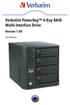 Verbatim PowerBay 4-Bay RAID Multi-Interface Drive Version 1.00 User Manual Table of Contents Introduction... 2 Package Contents... 2 Controls, Connectors and Indicators... 2 About the Hard Drive... 4
Hydra Super-S Combo. 4-Bay RAID Storage Enclosure (3.5 SATA HDD) User Manual July 29, 2009 - v1.3
 4-Bay RAID Storage Enclosure (3.5 SATA HDD) User Manual July 29, 2009 - v1.3 EN Introduction 1 Introduction 1.1 System Requirements 1.1.1 PC Requirements Minimum Intel Pentium III CPU 500MHz, 128MB RAM
Owner s Manual. www.vantecusa.com. Model:NST-285U2-BK(Onyx Black) Model:NST-285U2-SL(Metallic Silver)
 Owner s Manual www.vantecusa.com Model:NST-285U2-BK(Onyx Black) Model:NST-285U2-SL(Metallic Silver) All Registered Trademarks Belong To Their Respected Companies. Copyright 2007 Vantec Thermal Technologies.
Intel Rapid Storage Technology
 Intel Rapid Storage Technology User Guide August 2011 Revision 1.0 1 Document Number: XXXXXX INFORMATION IN THIS DOCUMENT IS PROVIDED IN CONNECTION WITH INTEL PRODUCTS. NO LICENSE, EXPRESS OR IMPLIED,
Dual/Quad 3.5 SATA to USB 3.0 & esata External Hard Drive RAID/Non-RAID Enclosure w/fan. User s Manual
 Dual/Quad 3.5 SATA to USB 3.0 & esata External Hard Drive RAID/Non-RAID Enclosure w/fan User s Manual Package Contents: NextStar HX4/HX4R NextStar HX2R 1 2 1 2 3 4 3 4 5 6 5 6 7 1 NexStar HX4R/HX4 2 USB
Access G-RAID mini by its high-speed Interface esata, FireWire 800 (FireWire 400 via included cable) or USB 2.0 ports.
 Table of Contents Introduction Safety Precautions System Requirements What s in the Box G-RAID mini Overview Installing G-RAID mini G-RAID mini Warning LED Operation RAID Levels Explained Configuring G-RAID
M5281/M5283. Serial ATA and Parallel ATA Host Controller. RAID BIOS/Driver/Utility Manual
 Serial ATA and Parallel ATA Host Controller Rev. 0.96 December 03, 2003 Copyright 2003 ULi Electronics Inc. All rights reserved. COPYRIGHT NOTICE All information in this document is considered ULi Electronics
The SATA II PCIe RAID is an ultra high-speed two channel Serial ATA Generation II RAID controller for use in PCI Express enabled systems.
 SATA II PCIe RAID Quick Installation Guide Introducing the SATA II PCIe RAID The SATA II PCIe RAID is an ultra high-speed two channel Serial ATA Generation II RAID controller for use in PCI Express enabled
Ultra ATA 133 RAID PCI Pro
 Ultra ATA 133 RAID PCI Pro 1-1 Introduction Quick Installation Guide This ultra high-speed dual channel Ultra ATA/133 RAID controller is designed to support RAID 0, 1, 0+1 and JBOD. RAID configurations
SATA RAID SIL 3112 CONTROLLER USER S MANUAL
 SATA RAID SIL 3112 CONTROLLER USER S MANUAL 120410056E1N Copyright Copyright 2003. All rights reserved. No part of this publication may be reproduced, transmitted, transcribed, stored in a retrieval system
Contents. Getting Started...1. Managing Your Drives...14. Backing Up & Restoring Folders...28. Synchronizing Folders...48. Managing Security...
 Contents Getting Started.....................................................1 Using the Formatting Tool........................................1 Preparing the Software Manually..................................4
How To Set Up A Hard Drive With A Harddrive With A 2Gb Hard Drive (I386) And 2Gb Drive (Amd64) On A Hardrive (I219) (Iee) (Amd66) (Ai219
 1 Package Contents Device User manual Power adapter Power cord USB 2.0 Cable FireWire 800 Cable (IEEE1394.B) esata cable 2 Front View of the Device A Drive eject button B LED indicator C Front door panel
Serial ATA RAID PCI. User's Manual
 Serial ATA RAID PCI User's Manual Chapter 1 Introduction Table of Contents 1-1 Features and Benefits. 1 1-2 System Requirements. 1 Chapter 2 RAID Arrays 2-1 RAID Overview.. 2 2-1.1 RAID 0 (striping)...
Portable External Hard Drive. Quick Start Guide
 Portable External Hard Drive Quick Start Guide Contents Seagate external hard drive with a USB 2.0 interface USB 2.0 Y cable Quick Start Guide Seagate Extra Value CD Requirements Your new Seagate portable
NAS HARD DRIVE ENCLOSURE USER MANUAL. S T O R E n S H A R E MUSIC DATA PHOTO MOVIE
 NAS HARD DRIVE ENCLOSURE USER MANUAL S T O R E n S H A R E MUSIC DATA PHOTO MOVIE w w w. v a n t e c u s a. c o m Package Contents: NexStar LX External 3.5 HDD NAS Enclosure: User Manual NexStar LX External
Boot Camp Installation & Setup Guide
 Boot Camp Installation & Setup Guide Contents 3 Introduction 4 Installation overview 4 Step 1: Check for updates 4 Step 2: Prepare your Mac for Windows 4 Step 3: Install Windows on your Mac 4 Step 4: Install
SATA RAID Function (Only for chipset Sil3132 used) User s Manual
 SATA RAID Function (Only for chipset Sil3132 used) User s Manual 12ME-SI3132-001 Table of Contents 1 WELCOME...4 1.1 SATARAID5 FEATURES...4 2 AN INTRODUCTION TO RAID...5 2.1 DISK STRIPING (RAID 0)...5
ToughTech Duo Users Manual
 ToughTech Duo Users Manual Models Covered: ToughTech Duo-QR ToughTech Duo-3SR RAID, RAID 0 and Single Drive operation modes. Default RAID Mirroring to assure data integrity and protection on the road.
RAID User Guide. Edition. Trademarks V1.0 P/N: 91-187C51GME0-00
 RAID User Guide Edition V1.0 P/N: 91-187C51GME0-00 Trademarks All brand or product names mentioned are trademarks or registered trademarks of their respective holders. Contents NVIDIA RAID...1 RAID Arrays...1
2 Bay FireWire 800/400/USB RAID Solution RAID 0, RAID 1, & JBOD. User Manual
 2 Bay FireWire 800/400/USB RAID Solution RAID 0, RAID 1, & JBOD User Manual CalDigit, Inc. 1941 Miraloma Ave, Unit B Placentia, CA 92870 USA www.caldigit.com The information of the products in this manual
Intel Matrix Storage Manager 8.x
 Intel Matrix Storage Manager 8.x User's Manual January 2009 Revision 1.0 Document Number: XXXXXX INFORMATION IN THIS DOCUMENT IS PROVIDED IN CONNECTION WITH INTEL PRODUCTS. NO LICENSE, EXPRESS OR IMPLIED,
Boot Camp Installation & Setup Guide
 Boot Camp Installation & Setup Guide Contents 4 Introduction 5 What You Need 6 Installation Overview 6 Step 1: Check for updates. 6 Step 2: Open Boot Camp Assistant. 6 Step 3: Install Windows. 6 Step 4:
SATA II 4 Port PCI RAID Card RC217 User Manual
 SATA II 4 Port PCI RAID Card RC217 SATA II 4 Port PCI RAID Card This Manual is for many Models of SATAII RAID5 HBA that uses Silicon Image SATA II SiI3124 chipset: 1) 32bit PCI bus host card 2) 64bit PCI-X
Recovers Lost or Deleted Pictures from: Any Memory Card Type Any Brand Using Any Mass Storage Reader
 Recovers Lost or Deleted Pictures from: Any Memory Card Type Any Brand Using Any Mass Storage Reader Reader and Media not included Image Recovery - Recovers lost or deleted image files (JPEG, TIFF and
SiS S-ATA User s Manual. Quick User s Guide. Version 0.1
 SiS S-ATA User s Manual Quick User s Guide Version 0.1 Edition April 2003 Copyright Trademarks SiS is a registered trademark of Silicon Integrated Systems Corp. All brand or product names mentioned are
5-Bay Raid Sub-System Smart Removable 3.5" SATA Multiple Bay Data Storage Device User's Manual
 5-Bay Raid Sub-System Smart Removable 3.5" SATA Multiple Bay Data Storage Device User's Manual www.vipower.com Table of Contents 1. How the SteelVine (VPMP-75511R/VPMA-75511R) Operates... 1 1-1 SteelVine
Boot Camp Installation & Setup Guide
 Boot Camp Installation & Setup Guide Contents 3 Introduction 3 What You Need 4 Installation Overview 4 Step 1: Check for updates 4 Step 2: Prepare your Mac for Windows 4 Step 3: Install Windows 4 Step
Mini-EPic System of RAID
 Mini-EPICa USB/IEEE 1394-to-SATA II RAID Subsystem Revision 1.2 Contents Preface... 3 Before You Begin... 4 Chapter 1 Introduction... 6 1.1 Technical Specification... 7 1.2 Identifying Parts of the RAID
2-Bay Raid Sub-System Smart Removable 3.5" SATA Multiple Bay Data Storage Device User's Manual
 2-Bay Raid Sub-System Smart Removable 3.5" SATA Multiple Bay Data Storage Device User's Manual www.vipower.com Table of Contents 1. How the SteelVine (VPMP-75211R/VPMA-75211R) Operates... 1 1-1 SteelVine
ESATA PCI CARD. User s Manual
 ESATA PCI CARD User s Manual Introduction... 3 System Requirements... 3 RAID Introduction... 3 BIOS Configuration Utility... 5 Configuring Arrays... 5 RAID Mode Definitions... 5 BIOS Configuration Utility...
HP dx5150 RAID Installation and Setup Guide Version 1.10. Document Part Number: 403571-001
 HP dx5150 RAID Installation and Setup Guide Version 1.10 Document Part Number: 403571-001 July 2005 Copyright 2005 Hewlett-Packard Development Company, L.P. The information contained herein is subject
SATA 150 RAID. user. Model 176767 MAN-176767-UM-1007-01
 SATA 150 RAID Controller PCI Card user manual Model 176767 MAN-176767-UM-1007-01 introduction Thank you for purchasing this MANHATTAN SATA 150 RAID Controller PCI Card, Model 176767. The easy-to-follow
User Guide HD-WLU3R1 DriveStation Duo
 User Guide HD-WLU3R1 DriveStation Duo EN 35011790 ver.01 Front Panel Layout Power LED Power On: blue RAID Maintenance: purple Power Off: off Access LEDs Access: blinking green Failure: red Rebuild: blinking
SiS 180 S-ATA User s Manual. Quick User s Guide. Version 0.1
 SiS 180 S-ATA User s Manual Quick User s Guide Version 0.1 Edition April 2003 Copyright Trademarks SiS is a registered trademark of Silicon Integrated Systems Corp. All brand or product names mentioned
Maxtor OneTouch User's Guide
 EXTERNAL HARD DRIVE Maxtor OneTouch User's Guide TM II P/N:20259600 i Contents 1 Introduction................................................. 1 Maxtor OneTouch II Drive Components............................
SiS964/SiS180 SATA w/ RAID User s Manual. Quick User s Guide. Version 0.3
 SiS964/SiS180 SATA w/ RAID User s Manual Quick User s Guide Version 0.3 Edition December 2003 Copyright 2003 Silicon Integrated Systems Corp. Trademarks SiS is a registered trademark of Silicon Integrated
RAID Manual. Edition. Trademarks V1.0 P/N: 91-187-CK8-A5-0E
 RAID Manual Edition V1.0 P/N: 91-187-CK8-A5-0E Trademarks All brand or product names mentioned are trademarks or registered trademarks of their respective holders. Contents NVIDIA RAID... 1 RAID Arrays...
2.6.1 Creating an Acronis account... 11 2.6.2 Subscription to Acronis Cloud... 11. 3 Creating bootable rescue media... 12
 USER'S GUIDE Table of contents 1 Introduction...3 1.1 What is Acronis True Image 2015?... 3 1.2 New in this version... 3 1.3 System requirements... 4 1.4 Install, update or remove Acronis True Image 2015...
3.5'' SATA to USB 3.0 & esata External Hard Drive Enclosure U SER S MANUA L
 3.5'' SATA to USB 3.0 & esata External Hard Drive Enclosure U SER S MANUA L Package Contents: 3.5'' SATA to USB 3.0 & esata External Hard Drive Enclosure 1 3.5" HDD Enclosure 2 Power Adapter 3 USB 3.0
A+ Guide to Managing and Maintaining Your PC, 7e. Chapter 16 Fixing Windows Problems
 A+ Guide to Managing and Maintaining Your PC, 7e Chapter 16 Fixing Windows Problems Objectives Learn what to do when a hardware device, application, or Windows component gives a problem Learn what to do
ITE RAID Controller USER MANUAL
 ITE RAID Controller USER MANUAL 120410096E1N Copyright Copyright 2004. All rights reserved. No part of this publication may be reproduced, transmitted, transcribed, stored in a retrieval system or translated
Update: About Apple RAID Version 1.5 About this update
 apple Update: About Apple RAID Version 1.5 About this update This update describes new features and capabilities of Apple RAID Software version 1.5, which includes improvements that increase the performance
DF-7506 1-to-2 SATA II RAID Box
 DF-7506 1-to-2 SATA II RAID Box Version 1.0 Table of Contents Chapter 1 Product Introduction...3 1.1 Features...3 1.1.1 Shipping Package Content...3 1.2 Front View...4 1.3 Rear View...6 1.4 Disk Drive
Hydra esata. 4-Bay RAID Storage Enclosure. User Manual January 16, 2009 - v1.0
 4-Bay RAID Storage Enclosure User Manual January 16, 2009 - v1.0 EN Table of Contents 1 Introduction... 1 1.1 System Requirements... 1 1.1.1 PC Requirements... 1 1.1.2 Mac Requirements... 1 1.1.3 Supported
Guardian MAXimus ASSEMBLY MANUAL & USER GUIDE
 Guardian MAXimus ASSEMBLY MANUAL & USER GUIDE TABLE OF CONTENTS 1. INTRODUCTION...1 1.1 MINIMUM SYSTEM REQUIREMENTS 1.1.1 Apple Mac Requirements 1.1.2 PC Requirements 1.1.3 Supported Drives 1.2 PACKAGE
VIA RAID Installation Guide
 VIA RAID Installation Guide 1 VIA BIOS RAID Installation Guide.... 3 1.1 Introduction of RAID... 3 1.2 RAID Configuration Precautions... 3 1.3 BIOS Configuration Utility.. 4 1.3.1 Enter BIOS Configuration
Cool USB 2.0/eSATA to SATA Docking Duplicator Quick Installation Guide
 Cool USB 2.0/eSATA to SATA Docking Duplicator Quick Installation Guide Introducing the SATA Docking Duplicator The Cool USB 2.0/eSATA to SATA Docking Duplicator adds extra storage space to your computer
Serial ATA RAID PCI Card
 Serial ATA RAID PCI Card User Manual 1 Features Silicon Image SiI3512 SATA controller chip Compliant with PCI Specification, Rev. 2.3 Compliant with Serial ATA 1.0 specification Provides two independent
How To Set Up A Raid On A Hard Disk Drive On A Sasa S964 (Sasa) (Sasa) (Ios) (Tos) And Sas964 S9 64 (Sata) (
 SiS964/SiS180 SATA w/ RAID User s Manual Quick User s Guide Version 0.3 Edition December 2003 Copyright 2003 Silicon Integrated Systems Corp. Trademarks SiS is a registered trademark of Silicon Integrated
USB3.0/eSATA/1394b-to-SATA II RAID SUBSYSTEM
 USB3.0/eSATA/1394b-to-SATA II RAID SUBSYSTEM Revision 1.0 Contents Preface... 3 Before You Begin... 4 Chapter 1 Introduction... 6 1.1 Technical Specification... 7 1.2 Identifying Parts of the RAID Subsystem...
RAID configuration and driver installation guide
 Server systems and motherboards RAID configuration and driver installation guide For AP130-E1 5U Rackmount Server AP1720-E2 5U Rackmount Server NCCH-DL Motherboard PSCH-L Motherboard E1600 First edition
Hi-Speed USB Flash Disk User s Manual Guide
 Hi-Speed USB Flash Disk User s Manual Guide System Requirements Windows 98, ME, 2000, XP, Mac OS 10.1, Linux 2.4 or above AMD or Intel Pentium 133MHz or better based computer USB 1.1, USB 2.0 or higher
SiS964 RAID. User s Manual. Edition. Trademarks V1.0 P/N: 91-187-U49-M2-0E
 SiS964 RAID User s Manual Edition V1.0 P/N: 91-187-U49-M2-0E Trademarks All brand or product names mentioned are trademarks or registered trademarks of their respective holders. CONTENTS Introduction...
5-BAY RAID STATION. Manual
 5-BAY RAID STATION Manual Content 1. Features 3 1.1 Overview 3 1.2 SATA features 3 1.3 USB features 4 2. Specifications 4 3. System requirements 4 4. The device at a glance 4 4.1 Rear panel 5 4.2 The LED
VIA / JMicron RAID Installation Guide
 VIA / JMicron RAID Installation Guide 1. Introduction to VIA / JMicron RAID Installation Guide. 3 2. VIA RAID Installation Guide. 3 2.1 VIA BIOS RAID Installation Guide.. 3 2.1.1 Introduction of RAID.
EXTERNAL 2.5 IDE & SATA HARD DRIVE ENCLOSURE USER MANUAL
 EXTERNAL 2.5 IDE & SATA HARD DRIVE ENCLOSURE USER MANUAL w w w. v a n t e c u s a. c o m Package Contents: NexStar 3 External 2.5 HDD Enclosure: Driver CD User Manual NexStar 3 External 2.5 HDD Enclosure
2-Disk RAID USB and esata External Hard Drive. User Guide English
 2-Disk RAID USB and esata External Hard Drive User Guide English 1 Contents Introduction 3 Drive Contents: IMPORTANT Notice 3 Nero BACKITUP 2 Software 3 Controls, Connectors and Indicators 4 Front Panel
Chapter 2 Array Configuration [SATA Setup Utility] This chapter explains array configurations using this array controller.
![Chapter 2 Array Configuration [SATA Setup Utility] This chapter explains array configurations using this array controller.](/thumbs/21/1077848.jpg "Chapter 2 Array Configuration [SATA Setup Utility] This chapter explains array configurations using this array controller.") Embedded MegaRAID SATA User's Guide Areas Covered Before Reading This Manual This section explains the notes for your safety and conventions used in this manual. Chapter 1 Overview This chapter introduces
Embedded MegaRAID SATA User's Guide Areas Covered Before Reading This Manual This section explains the notes for your safety and conventions used in this manual. Chapter 1 Overview This chapter introduces
BrightStor ARCserve Backup for Windows
 BrightStor ARCserve Backup for Windows Tape RAID Option Guide r11.5 D01183-1E This documentation and related computer software program (hereinafter referred to as the "Documentation") is for the end user's
User Guide. The Leader in Personal Storage
 User Guide The Leader in Personal Storage Copyright Apricorn, Inc. 2006. All rights reserved. Windows and MS-DOS are registered trademarks of Microsoft Corporation. All other trademarks and copyrights
4 Bay External Hard Drive Array RAID Tower esata USB 3.0 Enclosure. StarTech ID: SAT3540U3ER
 4 Bay External Hard Drive Array RAID Tower esata USB 3.0 Enclosure StarTech ID: SAT3540U3ER The SAT3540U3ER 4-Drive USB 3.0/eSATA to 3.5" SATA RAID Enclosure is a high-performance external RAID storage
Manual IB-3620 Series
 IB-RD3620SU3 1 IB-3620U3 CONTENT 1. Introduction... 3 1.1 General Information... 3 2. Hardware IB-3620 Series... 4 2.1 LED Indication / Button Front Panel... 4 2.2 Rear View... 5 3. HDD Installation...
PRODUCT MANUAL. High-Performance Removable Drive Storage System. g-technology.com
 PRODUCT MANUAL High-Performance Removable Drive Storage System g-technology.com Table of Contents Table of Contents Safety & General Use Safety Precautions...4 Backup Your Data...5 About Your G-RAID Introduction...7
SATA+Ultra ATA RAID CONTROLLER RC212. User Manual
 SATA+Ultra ATA RAID CONTROLLER RC212 Contents Feature and benefits Package contents System requirement Magic Switch introduction and jumper setting Hardware installation Important message for user RAID
CRU RTX 800-TR User Manual
 CRU RTX 800-TR User Manual Features Supports JBOD and RAID levels 0, 1, 4, 5, 6, and 10 in hardware, with easy configuration using ATTO Technology s RAID management software. CRU TrayFree bays make adding
OWC Mercury Elite Pro Dual ASSEMBLY MANUAL & USER GUIDE
 OWC Mercury Elite Pro Dual ASSEMBLY MANUAL & USER GUIDE TABLE OF CONTENTS 1. INTRODUCTION...1 1.1 MINIMUM SYSTEM REQUIREMENTS 1.1.1 Apple Mac Requirements 1.1.2 PC Requirements 1.1.3 Supported Drives 1.2
PRODUCT MANUAL. Professional High-Performance Dual-Drive Storage System. g-technology.com
 PRODUCT MANUAL Professional High-Performance Dual-Drive Storage System g-technology.com Table Table of Contents Welcome to G-RAID Table of Contents Safety & General Use Safety Precautions... 4 Backup Your
USB 2.0 VGA ADAPTER USER MANUAL
 USB 2.0 VGA ADAPTER USER MANUAL CONTENTS INTRODUCTION... 3 FEATURES... 3 SYSTEM REQUIREMENTS... 3 PACKAGE CONTENTS... 3 SUPPORTED COMMON DISPLAY RESOLUTION... 4 TECHNICAL SPECIFICATIONS... 4 INSTALLATION
SATARaid Serial ATA RAID Management Software
 SATARaid Serial ATA RAID Management Software 05/12/04 Silicon Image, Inc. 1060 East Arques Ave. Sunnyvale CA 94085 (408) 616-4000 www.siliconimage.com Copyright 2003, Silicon Image, Inc. All rights reserved.
Serial ATA 4-Channel RAID Quick Installation Guide
 Serial ATA 4-Channel RAID Quick Installation Guide Introducing the Serial ATA 4-Channel RAID The Serial ATA 4-Channel RAID is an ultra high-speed four channel Serial ATA controller for use in Pentium class
BounceBack Server Solution Reference Guide
 BounceBack Server Solution Reference Guide Contents Introduction... 2 System Requirements... 3 Initial Setup... 4 BounceBack Server Appliance Front View... 5 BounceBack Server Appliance Rear View... 6
Using RAID Admin and Disk Utility
 Using RAID Admin and Disk Utility Xserve RAID Includes instructions for creating RAID arrays and monitoring Xserve RAID systems K Apple Computer, Inc. 2003 Apple Computer, Inc. All rights reserved. Under
USB 2.0 3.5 External Hard Disk Drive
 USB 2.0 3.5 External Hard Disk Drive System Requirements Notebook or Desktop PC with USB2.0 or USB1.1 port. Windows 98SE/Me/2000, or Windows XP (Make sure the device driver for USB Host controller has
SATA1.5G/ATA133 RAID Controller Card RC215 User Manual
 SATA1.5G/ATA133 RAID Controller Card RC215 Features and Benefits Compliant with Serial ATA 1.0 specification Compliant with PCI Specification, revision 2.2 Provides three independent channels to connect
Data Lifeguard Tools. Software Manual
 Data Lifeguard Tools Software Manual WD Data Lifeguard Tools User Manual Information furnished by WD is believed to be accurate and reliable; however, no responsibility is assumed by WD for its use nor
VAIO Computer Recovery Options Guide
 VAIO Computer Recovery Options Guide This guide provides information about restoring individual software programs, software drivers, drive partition(s), or the hard disk drive to the original factory settings.
How To Set Up A Hard Disk Drive With A Rkd (Sr5650) And A Hard Drive (Srs5650-Wbs1/Sb2)
 Version : 1.0 SR5650-4S-WBS1 SR5650-4S-SB2 User Manual SOHORAID Series Introduction About this Manual Thank you for using the product of RAIDON Technology Inc. This user manual will introduce the STARDOM
Onboard-RAID. Onboard-RAID supports striping (RAID 0), mirroring (RAID 1), striping/mirroring (RAID 0+1), or spanning (JBOD) operation, respectively.
 1. Introduction Onboard-RAID IEI s Onboard-RAID is designed with Promise IDE RAID controller to provide a cost-effective, high performance RAID that adds performance and/or reliability to systems using
Hydra Super-S LCM. 4-Bay RAID Storage Enclosure for four 3.5-inch Serial ATA Hard Drives. User Manual August 18, 2011 - v1.0 www.akitio.
 Hydra Super-S LCM 4-Bay RAID Storage Enclosure for four 3.5-inch Serial ATA Hard Drives User Manual August 18, 2011 - v1.0 www.akitio.com EN Hydra Super-S LCM Table of Contents Table of Contents 1 Introduction...
RocketStor SMART RAID
 RocketStor SMART RAID User Guide v1.0 1 Copyright HighPoint Technologies Inc., 1995-2012. All rights reserved. OS X and Macintosh are registered trademarks of Apple Corporation. All other trademarks and
G SPEED High-Speed, RAID Protected Storage System
 PRODUCT MANUAL G SPEED High-Speed, RAID Protected Storage System g-technology.com G SPEED Table Table of Contents Welcome to G-SPEED Table of Contents Safety & General Use Safety Precautions...4 Backup
D i g i g r a m. sound card range. Professional stereo and multichannel sound cards. Installation and set-up
 D i g i g r a m VX sound card range Professional stereo and multichannel sound cards Table of contents VX Cards General information...4 Supported cards...4 System requirements...4 MacIntosh...4 System
G-SPEED es PRO Mac Installation Guide (with G-Tech PCIe RAID controller)
 G-SPEED es PRO Mac Installation Guide (with G-Tech PCIe RAID controller) TABLE OF CONTENTS 1. INTRODUCTION (Pg 4) 2. SAFETY PRECAUTIONS 3. SYSTEM REQUIREMENTS 4. WHAT S IN THE BOX 5. G-SPEED es PRO OVERVIEW
esata 6G RAID PCIe 2.0 Controller Card
 esata 6G RAID PCIe 2.0 Controller Card User Manual Table of Contents Part 1: Introduction Page 3 a. Overview Page 3 b. MAXPower esata 6G RAID Features Page 3 c. What is esata 6Gb/s? Page 3 d. What is RAID?
FANTEC MR-35DU3-6G USER MANUAL
 FANTEC MR-35DU3-6G USER MANUAL Menu Menu... 1 1. Product Introduction... 2 2. Operation... 3 2.1 RAID mode setup... 4 2.1.1 JBOD Modus... 5 2.1.2 BIG Modus... 6 2.1.3 RAID0... 7 2.1.4 RAID1... 8 2.1.5
Configuring ThinkServer RAID 100 on the TS140 and TS440
 Configuring ThinkServer RAID 100 on the TS140 and TS440 Lenovo ThinkServer TS Series Servers Lenovo Enterprise Product Group Version 1.0 September 17, 2013 2013 Lenovo. All rights reserved. LENOVO PROVIDES
Corsair Flash Voyager USB 2.0 Flash Drive UFD Utility User s Manual
 Corsair Flash Voyager USB 2.0 Flash Drive UFD Utility User s Manual Contents For AP v2.10.0.0 Release For Windows 98/ME/2000/XP Version 1.1B (08/27/2004) Contents...1 Introduction...1 Features & Specifications...2
Getting Started. rp5800, rp5700 and rp3000 Models
 Getting Started rp5800, rp5700 and rp3000 Models Copyright 2011 Hewlett-Packard Development Company, L.P. The information contained herein is subject to change without notice. Microsoft, Windows, and Windows
SATARAID5 Serial ATA RAID5 Management Software
 SATARAID5 Serial ATA RAID5 Management Software Home Edition Preliminary Draft Subject to Change Without Notice 05/7/04 Silicon Image, Inc. 1060 East Arques Ave. Sunnyvale CA 94085 (408) 616-4000 www.siliconimage.com