
SATA+Ultra ATA RAID CONTROLLER RC212. User Manual
|
|
|
- Avis Quinn
- 10 years ago
- Views:
Transcription
1 SATA+Ultra ATA RAID CONTROLLER RC212

2 Contents Feature and benefits Package contents System requirement Magic Switch introduction and jumper setting Hardware installation Important message for user RAID introduction RAID 0 RAID 1 RAID 0+1 Driver installation Quick guide Detail guide
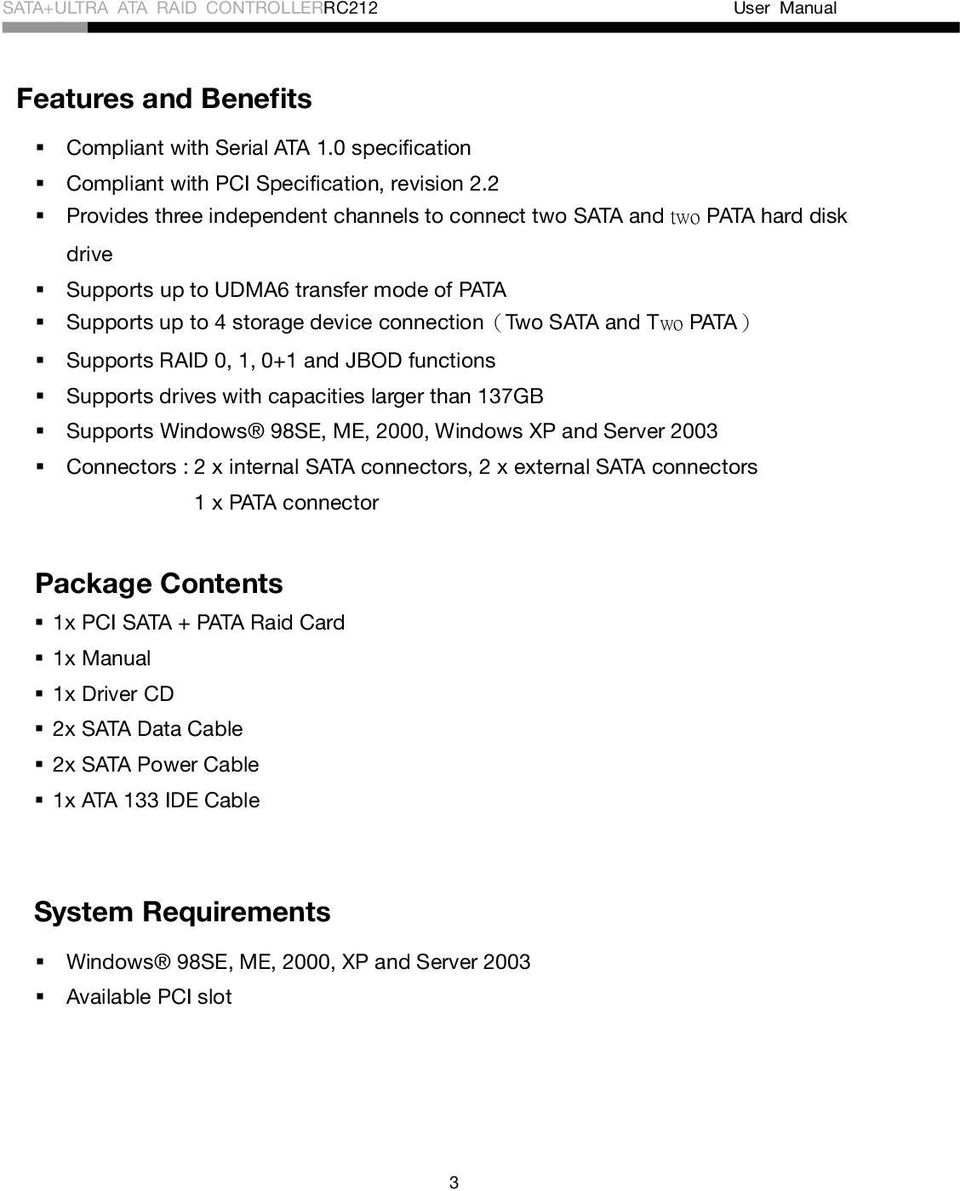
3 Features and Benefits Compliant with Serial ATA 1.0 specification Compliant with PCI Specification, revision 2.2 Provides three independent channels to connect two SATA and two PATA hard disk drive Supports up to UDMA6 transfer mode of PATA Supports up to 4 storage device connection(two SATA and Two PATA) Supports RAID 0, 1, 0+1 and JBOD functions Supports drives with capacities larger than 137GB Supports Windows 98SE, ME, 2000, Windows XP and Server 2003 Connectors : 2 x internal SATA connectors, 2 x external SATA connectors 1 x PATA connector Package Contents 1x PCI SATA + PATA Raid Card 1x Manual 1x Driver CD 2x SATA Data Cable 2x SATA Power Cable 1x ATA 133 IDE Cable System Requirements Windows 98SE, ME, 2000, XP and Server 2003 Available PCI slot 3
4 Magic Switch introduction and jumper setting Before installing the VIA VT6421 RAID PCI Card, please see the photo below which shows all the ports & jumpers on this PCI Card. A B C D E F G SATA Connector (External) SATA Connector (External) SATA Connector (Internal) SATA Connector (Internal) PATA Connector Jumpers control BC Switch Jumpers control AD Switch 4

5 IDE/RAID: Jumper Settings JP J8-J11 J12-J close 2-3 close 1-2 close 2-3 close Description Enable SATA Connector B Enable SATA Connector C Enable SATA Connector A Enable SATA Connector D Default Mode is all jumper 2-3 close, so C-D is active and A-B is inactive on default. 1.There are four SATA ports in RC212 RAID adapter. We named these ports character A through D. Ports C to D are internal SATA ports and A to B are external SATA ports. By changing the jumper setting (F and G) on RC212 that allows you to utilize 2 ports of this card. With different jumper setting you can active port A, B, C and D. Note: There are four SATA ports in PCI SATA+PATA RAID card. We named these ports 5
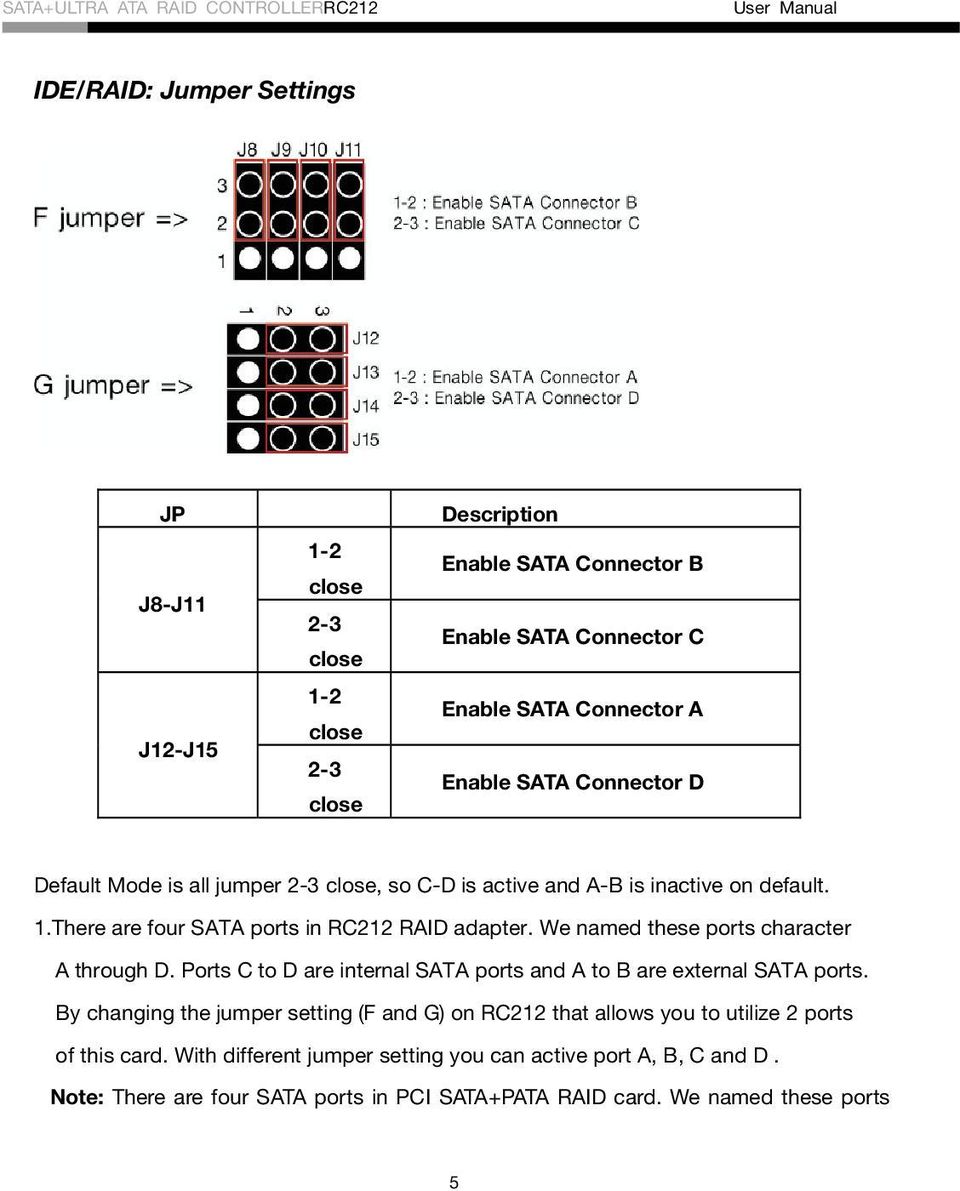
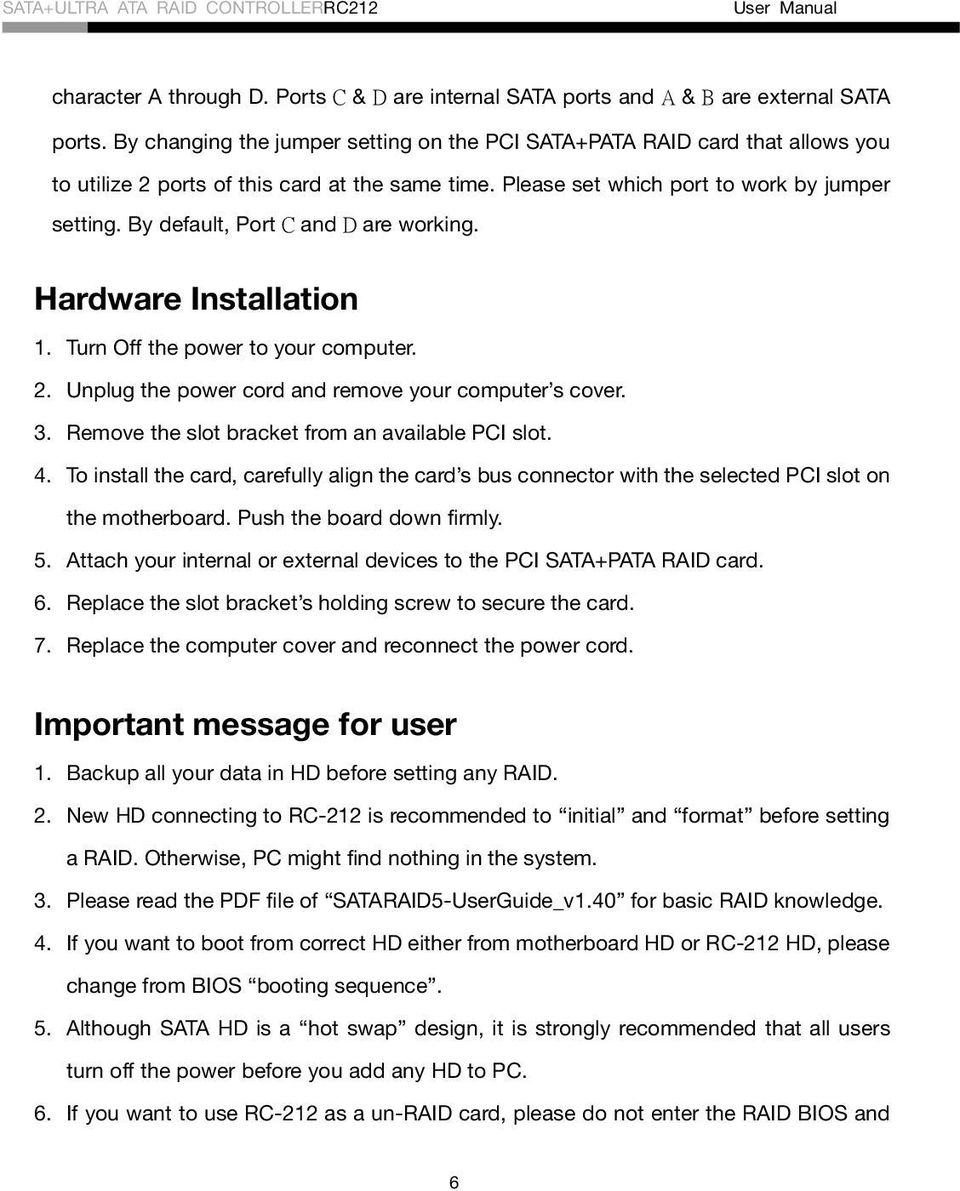
6 character A through D. Ports C & D are internal SATA ports and A & B are external SATA ports. By changing the jumper setting on the PCI SATA+PATA RAID card that allows you to utilize 2 ports of this card at the same time. Please set which port to work by jumper setting. By default, Port C and D are working. Hardware Installation 1. Turn Off the power to your computer. 2. Unplug the power cord and remove your computer s cover. 3. Remove the slot bracket from an available PCI slot. 4. To install the card, carefully align the card s bus connector with the selected PCI slot on the motherboard. Push the board down firmly. 5. Attach your internal or external devices to the PCI SATA+PATA RAID card. 6. Replace the slot bracket s holding screw to secure the card. 7. Replace the computer cover and reconnect the power cord. Important message for user 1. Backup all your data in HD before setting any RAID. 2. New HD connecting to RC-212 is recommended to initial and format before setting a RAID. Otherwise, PC might find nothing in the system. 3. Please read the PDF file of SATARAID5-UserGuide_v1.40 for basic RAID knowledge. 4. If you want to boot from correct HD either from motherboard HD or RC-212 HD, please change from BIOS booting sequence. 5. Although SATA HD is a hot swap design, it is strongly recommended that all users turn off the power before you add any HD to PC. 6. If you want to use RC-212 as a un-raid card, please do not enter the RAID BIOS and 6
7 set any RAID set at the beginning of booting. You can jump to P11 Driver installation directly to complete the install. The only different is ignoring the step of RAID setting and the driver setting is the same as a RAID card. RAID Arrays RAID Arrays are setup in the PCI SATA+PATA RAID card s BIOS. There are four configurations supported: RAID level/type Configurations Number of disks needed RAID 0 Disk Striping 2 or 3 or 4 RAID 1 Disk Mirroring 2 RAID 0+1 Disk Striping + Mirroring 4 JBOD Disk Concatenation 2 or 3 or 4 RAID 0 (Striping) This RAID array to be used on New/Blank hard drives. Striping will destroy existing data on the hard drive. Auto Configuration is recommended. For applications that require custom chunk size, Manual Configuration is offered. Auto configuration (recommended) The default chunk size is 64k when selecting Auto configuration. 1. As the BIOS boots press Tab when prompted to enter the RAID BIOS. 2. At the RAID utility main menu select Create Array, press Enter. 3. At the next screen select Auto Setup For Performance, press Enter. 7
8 4. When asked Auto Create array will destroy all data on disks. Continue? (Y/N), press Y to accept. 5. And then a Create New Raid Success!! Message will be displayed. Press ESC to quit then go back to the RAID utility main menu. 6. Press ESC to exit the BIOS. 7. When asked Do you really want to exit the utility? (Y/N), press Y to accept. Manual configuration 1. As the BIOS boots press Tab when prompted to enter the RAID BIOS. 2. At the RAID utility main menu select Create Array, press Enter. 3. At the next screen select Array Mode RAID 1 (Mirroring), press Enter. 4. At the next screen select RAID 0 for performance, press Enter. 5. At the next screen select Select Disk Drives, press Enter. 6. Please use arrow keys and to switch the disk, then press Enter to mark the selected disk. 7. Select Block Size 64, press Enter. 8. Select chunk size from 4K, 8K, 16K, 32K or 64K, then press Enter. 9. Select Start Create Process, press Enter. 10. When asked The data on the selected disk will be destroied. Continue? (Y/N), press Y to accept. 11. And then a Create New Raid Success!! Message will be displayed. Press ESC to quit then go back to the RAID utility main menu. 12. Press ESC to exit the BIOS. 13. When asked Do you really want to exit the utility? (Y/N), press Y to accept. 8
9 RAID 1 (Mirroring) For New/Blank Hard Drives 1. As the BIOS boots press Tab when prompted to enter the RAID BIOS. 2. At the RAID utility main menu select Create Array, press Enter. 3. At the next screen select Auto Setup For Data Security, press Enter. 4. When asked Auto Create array will destroy all data on disks. Continue? (Y/N), press Y to accept. 5. And then a Create New Raid Success!! Message will be displayed. Press ESC to quit then go back to the RAID utility main menu. 6. Press ESC to exit the BIOS. 7. When asked Do you really want to exit the utility? (Y/N), press Y to accept. For Existing Hard Drives with Data 1. As the BIOS boots press Tab when prompted to enter the RAID BIOS. 2. At the RAID utility main menu select Create Array, press Enter. 3. At the next screen select Array Mode RAID 1 (Mirroring), press Enter. 4. At the next screen select RAID 1 for data protection, press Enter. 5. At the next screen select Select Disk Drives, press Enter. 6. Please use arrow keys and to select the Source drive, press Enter. 7. Please use arrow keys and to select the Mirror(Target) drive, press Enter. 8. Select Start Create Process, press Enter. 9. When asked Save the data on source disk to mirror after creation? (Y/N), press Y to accept. 10. The set will be built. The status of the built is displayed in the menu. 11. When build is completed, a Create New Raid Success!! Message will pop up inform 9
10 you that build is finished. Rebuild Mirror Drive 12. When a failure to one member occurs, you will be notified by the RAID BIOS during boot. The steps below will guide you in rebuilding a failed mirror set. 13. Replace he failed drive(s) with one of equal or greater capacity, then start the computer. 14. Then you will see the following message shown by the PCI SATA+PATA RAID card s BIOS on the screen. Power off and check the failed drive Destory the Mirroring Relationship Choose replacement drive and rebuild Continue to boot 15. Select Choose replacement drive and rebuild, press Enter. 16. Select the replacement drive then press Enter. 17. When asked WARNING: Would you like to Continue? Press Y/N?, press Y to accept. 18. The set will be rebuilt. The status of the rebuild is displayed in the menu. 19. When rebuild is completed, a Enter the VIA RAID Utility after exiting?(y/n) message will pop up inform you that rebuild is finished, press N to reboot system. RAID 0+1 (Mirroring+Striping) This RAID array to be used on New/Blank hard drives, do not use existing hard drive(s) with data. To create a RAID 0+1 set four hard drives are required. Auto configuration (recommended) The default chunk size is 64k when selecting Auto configuration. 10
11 1. As the BIOS boots press Tab when prompted to enter the RAID BIOS. 2. At the RAID utility main menu select Create Array, press Enter. 3. At the next screen select Auto Setup (Safe, Performance), press Enter. 4. When asked Auto Create array will destroy all data on disks. Continue? (Y/N), press Y to accept. 5. And then a Create New Raid Success!! Message will be displayed. Press ESC to quit then go back to the RAID utility main menu. 6. Press ESC to exit the BIOS. 7. When asked Do you really want to exit the utility? (Y/N), press Y to accept. Manual configuration 1. As the BIOS boots press Tab when prompted to enter the RAID BIOS. 2. At RAID utility main menu select Create Array, press Enter. 3. At the next screen select Array Mode RAID 1 (Mirroring), press Enter. 4. At the next screen select RAID 0/1, press Enter. 5. At the next screen select Select Disk Drives, press Enter. 6. Please use arrow keys and to select the first drive, press Enter. 7. Please use arrow keys and to select the second drive, press Enter. 8. Please use arrow keys and to select the third drive, press Enter. 9. Please use arrow keys and to select the fourth drive, press Enter. 10. Select Block Size 64, press Enter. 11. Select chunk size from 4K, 8K, 16K, 32K or 64K, then press Enter. 12. Select Start Create Process, press Enter. 13. When asked The data on the selected disk will be destroied. Continue? (Y/N), press Y to accept. 11
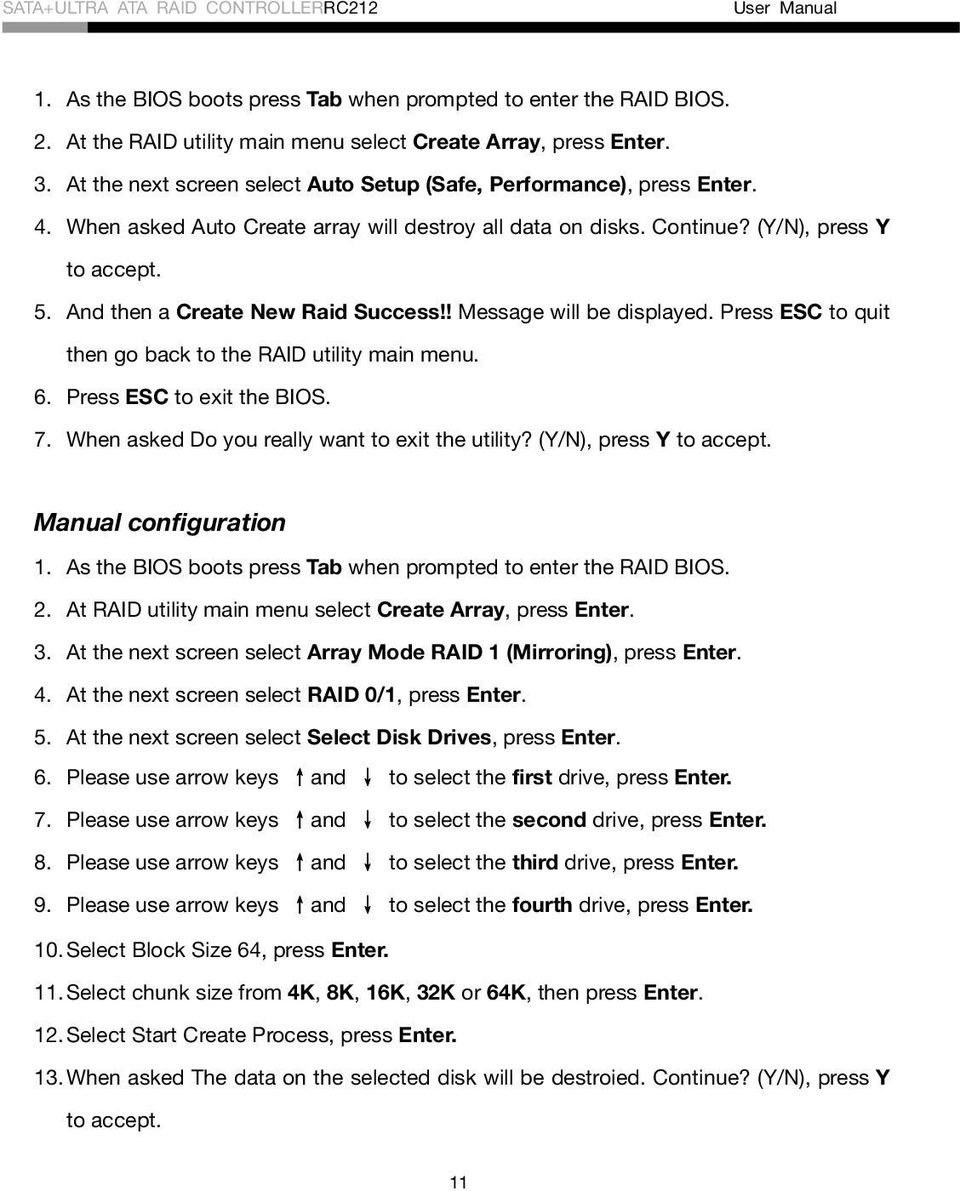
12 14. And then a Create New Raid Success!! Message will be displayed. Press ESC to quit then go back to the RAID utility main menu. 15. Press ESC to exit the BIOS. 16. When asked Do you really want to exit the utility? (Y/N), press Y to accept. SPAN (JBOD) 1. As the BIOS boots press Tab when prompted to enter the RAID BIOS. 2. At the RAID utility main menu select Create Array, press Enter. 3. At the next screen select Auto Setup For Capacity, press Enter. 4. When asked Auto Create array will destroy all data on disks. Continue? (Y/N), press Y to accept. 5. And then a Create New Raid Success!! Message will be displayed. Press ESC to quit then go back to the RAID utility main menu. 6. Press ESC to exit the BIOS. 7. When asked Do you really want to exit the utility? (Y/N), press Y to accept. Delete RAID Disk Drive 1. As the BIOS boots press Tab when prompted to enter the RAID BIOS. 2. At the RAID utility main menu select Delete Array, press Enter 3. Please use arrow keys and to select the RAID set then press Enter. 4. When asked The selected array will be destoried. Are you sure? Continue? Press Y/N, press Y to confirm. BIOS Configuration The PCI SATA+PATA RAID card s BIOS will appear every time your system starts up. 12
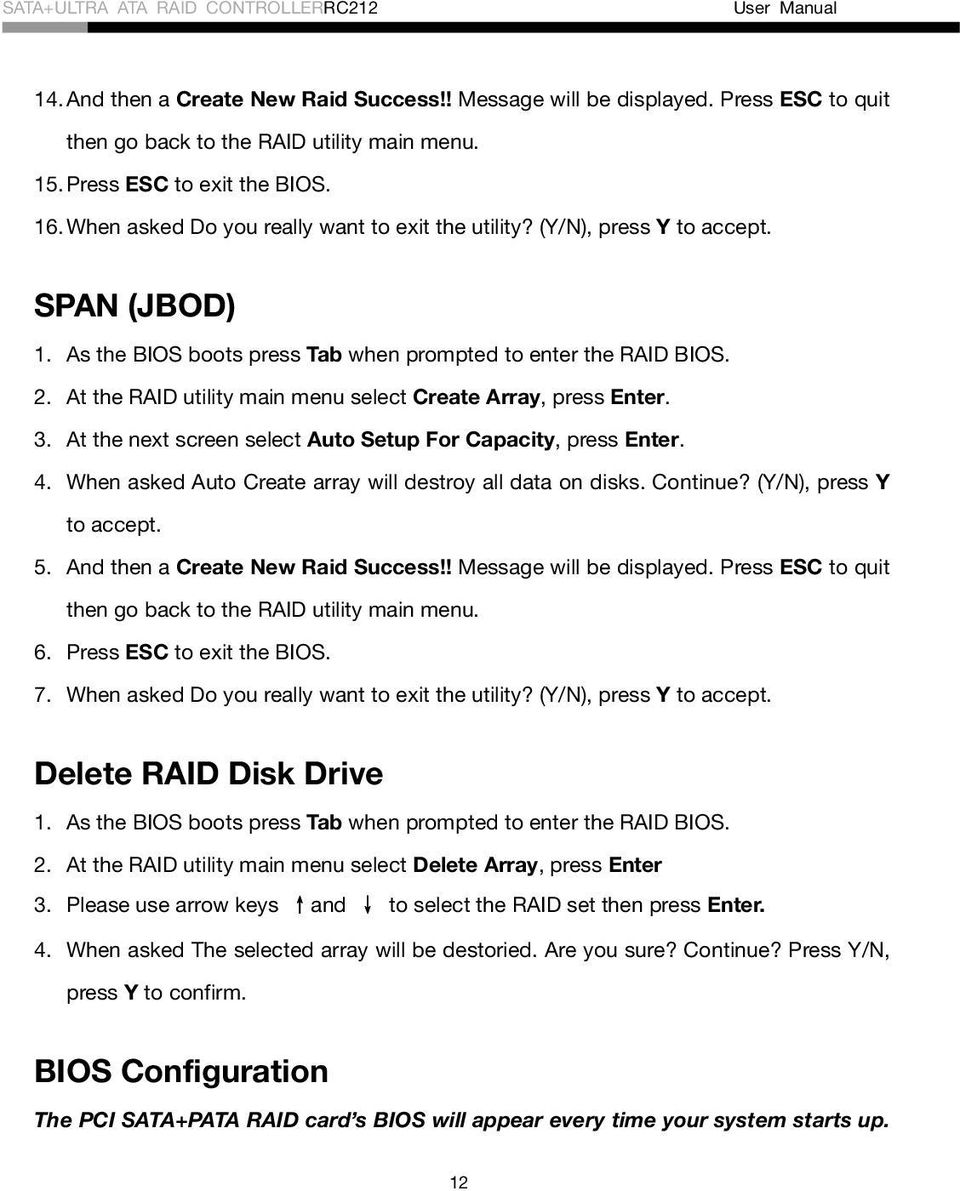
13 During this (POST) process, the BIOS will show up and indicate the devices attached to it. Driver Installation Quick guide: 1. If you want to add RC-212 to an existing OS, set up RC-212 into a PCI slot. Enter the OS and install RC-212 with driver disk. In this case, PC is booting up by an existing HD connecting to motherboard. After RC-212 is installed complete, you can add HD and set the RAID by RAID BIOS. 2. If you want to add RC-212 to a new PC without any OS, you need to boot the OS from HD connecting to RC-212 instead of motherboard. a. Put the driver (the driver must fit the OS you want to install to the HD) into a floppy disk and keep it in the floppy drive. b. Plug the HD. Turn on PC, enter and complete the RAID set. After you complete, save and left the setting. c. Inset Windows installation disk and start the windows installation. d. Press F6 at the beginning as the blue screen scanning. 3. Please follow below steps a~f to complete the installation. 13

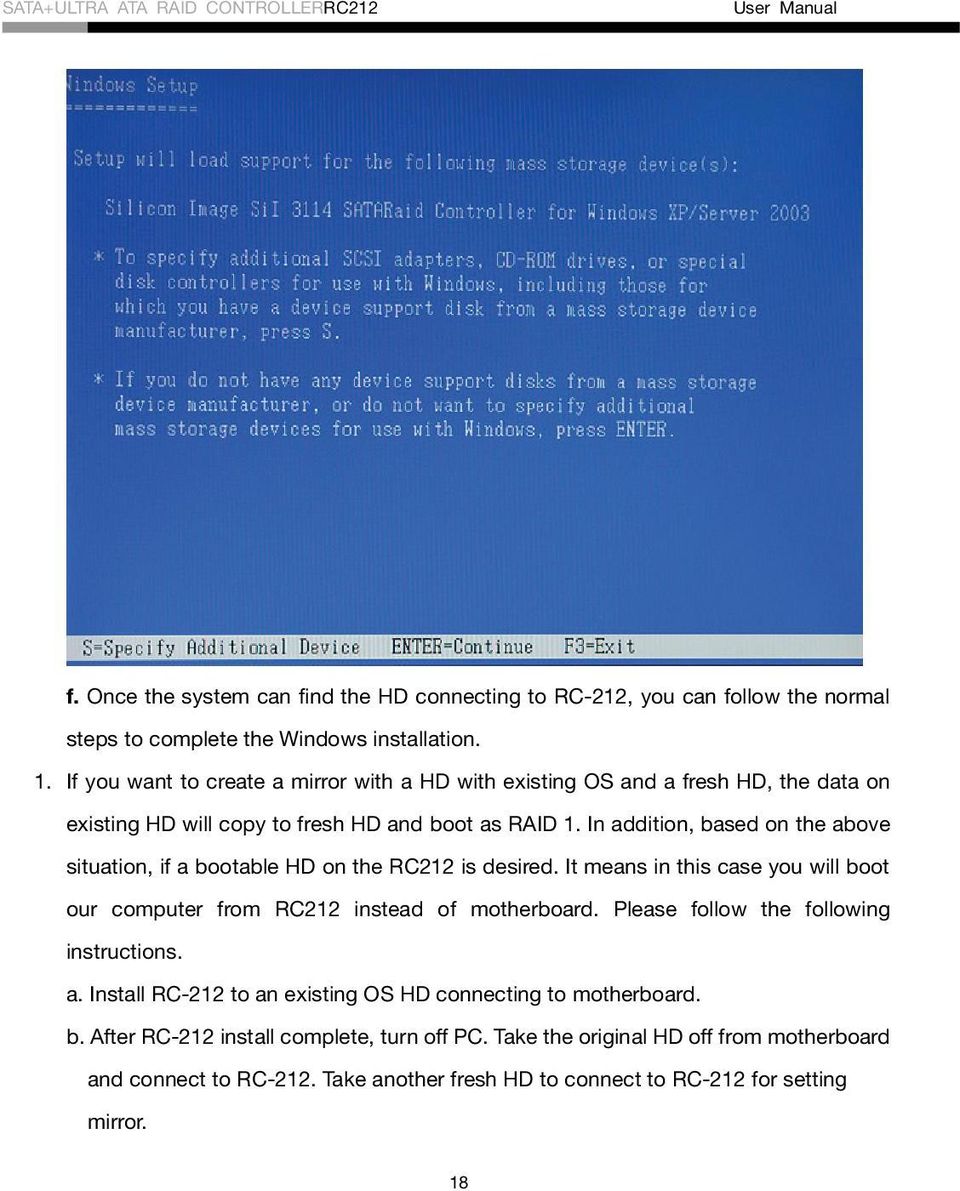
14 This will let PC boot from a HD controller instead of motherboard HD. e. Keep the floppy in floppy drive and follow the installation. Press S when the screen shows as the following picture. 14

15 Choose the correct OS which you are going to install when system asks you. If below screen happens, please choose Standard PC with C-Step i

16 Keep the floppy disk in floppy drive. PC will notice you as below if you take them off from the drive. 16

17 The installation of RC-212 by floppy drive will be completed and the system will detect the HD which now plug on the card. After you install RC-212 successfully by floppy disk, installation will lead you back to the same screen as below and then press enter to left the setting. 17

18 f. Once the system can find the HD connecting to RC-212, you can follow the normal steps to complete the Windows installation. 1. If you want to create a mirror with a HD with existing OS and a fresh HD, the data on existing HD will copy to fresh HD and boot as RAID 1. In addition, based on the above situation, if a bootable HD on the RC212 is desired. It means in this case you will boot our computer from RC212 instead of motherboard. Please follow the following instructions. a. Install RC-212 to an existing OS HD connecting to motherboard. b. After RC-212 install complete, turn off PC. Take the original HD off from motherboard and connect to RC-212. Take another fresh HD to connect to RC-212 for setting mirror. 18
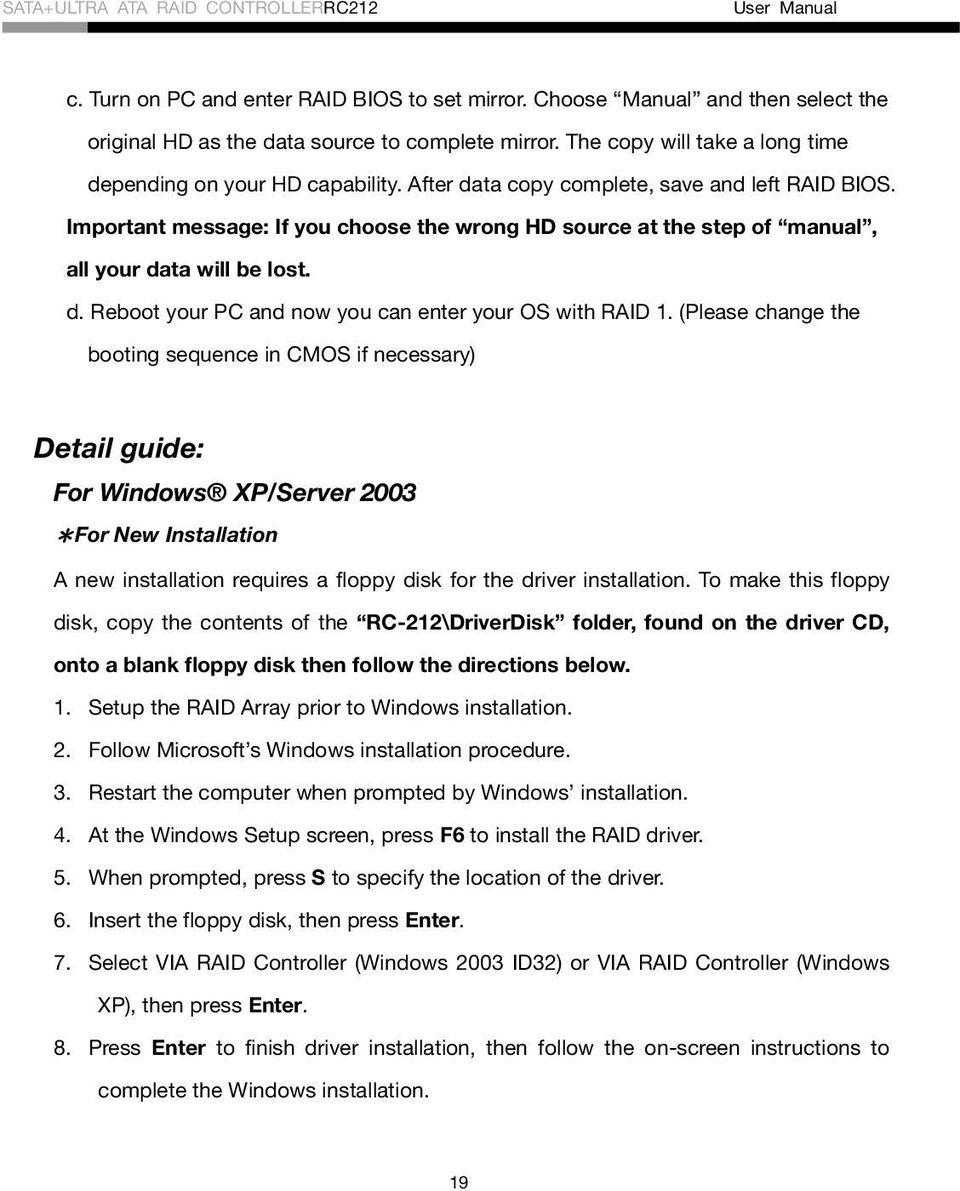
19 c. Turn on PC and enter RAID BIOS to set mirror. Choose Manual and then select the original HD as the data source to complete mirror. The copy will take a long time depending on your HD capability. After data copy complete, save and left RAID BIOS. Important message: If you choose the wrong HD source at the step of manual, all your data will be lost. d. Reboot your PC and now you can enter your OS with RAID 1. (Please change the booting sequence in CMOS if necessary) Detail guide: For Windows XP/Server 2003 *For New Installation A new installation requires a floppy disk for the driver installation. To make this floppy disk, copy the contents of the RC-212\DriverDisk folder, found on the driver CD, onto a blank floppy disk then follow the directions below. 1. Setup the RAID Array prior to Windows installation. 2. Follow Microsoft s Windows installation procedure. 3. Restart the computer when prompted by Windows installation. 4. At the Windows Setup screen, press F6 to install the RAID driver. 5. When prompted, press S to specify the location of the driver. 6. Insert the floppy disk, then press Enter. 7. Select VIA RAID Controller (Windows 2003 ID32) or VIA RAID Controller (Windows XP), then press Enter. 8. Press Enter to finish driver installation, then follow the on-screen instructions to complete the Windows installation. 19
20 *For An Existing Installation 1. Setup the RAID Array prior to driver installation and boot up to Windows. 2. At the Found New Hardware Wizard window pop-up, please click Cancel button to cancel the driver installation for the device at this moment. The driver for this device will be installed in the next step. 3. Please insert the CD driver bound with PCI SATA+PATA RAID card into your CD-ROM Drive. 4. At the Windows desktop, click Start, then Run. 5. Type D:\RC-212\Setup.exe, click OK. (Change D:\ to match your CD-ROM drive letter) 6. Follow the on-screen instructions to complete the installation. 7. Restart Windows to complete the installation. For Windows 2000 *For A New Installation A new installation requires a floppy disk for the driver installation. To make this floppy disk, copy the contents of the RC-212\DriverDisk folder, found on the driver CD, onto a blank floppy disk then follow the directions below. 1. Setup the RAID Array prior to Windows installation. 2. Follow Windows 2000 installation procedure. 3. Restart the computer when prompted by the installation. 4. At the Windows 2000 Setup screen, press F6 to install the RAID driver. 5. When prompted, press S to specify the location of the driver. 6. Insert the floppy disk, then press Enter. 20

21 7. Select VIA RAID Controller (Windows 2000), then press Enter. 8. Press Enter again to finish driver installation, then follow the on-screen instructions to complete the Windows installation. *For An Existing Installation 1. Setup the RAID Array prior to driver installation and boot up to Windows. 2. At the Found New Hardware Wizard window pop-up, please click Cancel button to cancel the driver installation for the device at this moment. The driver for this device will be installed in the next step. 3. Please insert the CD driver bound with PCI SATA+PATA RAID card into your CD-ROM Drive. 4. At the Windows desktop, click Start, then Run. 5. Type D:\RC-212\Setup.exe, click OK. (Change D:\ to match your CD-ROM drive letter) 6. Follow the on-screen instructions to complete the installation. 7. Restart Windows to complete the installation. *To Verify Windows 2000/XP/Server 2003 Installation 1. Right click My Computer and click Manage. 2. Select Device Manager. 3. Double click SCSI and RAID Controller, then double click VIA VT6421 RAID Controller to display driver properties. A message this device is working properly is displayed in the dialog box, the driver has been correctly installed. 21
22 For Windows 98SE/Me *For New Installation 1. Setup the RAID array prior to Windows installation. 2. Follow Microsoft procedures to install Windows 98SE/Me accordingly. 3. Once Windows has installed and booted. Please insert the CD driver bound with PCI SATA+PATA RAID card into your CD-ROM Drive. 4. At the Windows desktop, click Start, then Run. 5. Type D:\RC-212\Setup.exe, click OK. (Change D:\ to match your CD-ROM drive letter) 6. Follow the on-screen instructions to complete the installation, and then restart your system. 7. Once you have rebooted your computer. Windows 98SE/Me will detect the PCI SATA+PATA RAID card and find a VIA VT6421 RAID Controller device. When the Add New Hardware Wizard asks What would you like to do?, select Specify the location of driver (Advanced) and click Next button. 8. When the Add New Hardware asks for the driver installation, uncheck all the boxes to allow Windows 98SE/Me search its own driver database. Click Next to start the search. 9. The Add New Hardware Wizard will find the driver for the device VIA VT6421 RAID Controller. Click Next to continue. 10. When the driver installation is complete, click Finish. 11. Your computer must be restarted in order to complete the installation, click Yes to restart your computer. 22
23 *For An Existing Installation 1. Setup the RAID Array prior to driver installation and boot up to Windows. 2. At the Found New Hardware Wizard window pop-up, please click Cancel button to cancel the driver installation for the device at this moment. The driver for this device will be installed in the next step. 3. Please insert the CD driver bound with PCI SATA+PATA RAID card into your CD-ROM Drive. 4. At the Windows desktop, click Start, then Run. 5. Type D:\RC-212\Setup.exe, click OK. (Change D:\ to match your CD-ROM drive letter) 6. Follow the on-screen instructions to complete the installation, and then restart your system. 7. Once you have rebooted your computer. Windows 98SE/Me will detect the PCI SATA+PATA RAID card and find a VIA VT6421 RAID Controller device. When the Add New Hardware Wizard asks What would you like to do?, select Specify the location of driver (Advanced) and click Next button. 8. When the Add New Hardware asks for the driver installation, uncheck all the boxes to allow Windows 98SE/Me search its own driver database. Click Next to start the search. 9. The Add New Hardware Wizard will find the driver for the device VIA VT6421 RAID Controller. Click Next to continue. 10. When the driver installation is complete, click Finish. 11. Your computer must be restarted in order to complete the installation, click Yes to restart your computer. 23
24 *To Verify Windows 98SE/Me Installation 1. Right click My Computer, click Properties, then click Device Manager. 2. Double click SCSI Controllers, VIA VT6421 RAID Controller should be displayed. 3. Highlight VIA VT6421 RAID Controller and click Properties. A message this device is working properly is displayed in the dialog box, the driver has been correctly installed. Thank you for purchasing a quality Rosewill Product. Please register your product at : for complete warranty information and future support for your product. 24
SATA1.5G/ATA133 RAID Controller Card RC215 User Manual
 SATA1.5G/ATA133 RAID Controller Card RC215 Features and Benefits Compliant with Serial ATA 1.0 specification Compliant with PCI Specification, revision 2.2 Provides three independent channels to connect
PCI SATA + PATA Raid Card
 PCI SATA + PATA Raid Card User Manual Ver. 5.00 All brand names and trademarks are properties of their Respective owners. Features and Benefits Compliant with Serial ATA 1.0 specification Compliant with
Serial ATA RAID PCI Card
 Serial ATA RAID PCI Card User Manual 1 Features Silicon Image SiI3512 SATA controller chip Compliant with PCI Specification, Rev. 2.3 Compliant with Serial ATA 1.0 specification Provides two independent
Encore SATA2 RAID PCIe Card
 Encore SATA2 RAID PCIe Card User Manual Ver. 2.00 All brand names and trademarks are properties of their Respective owners. 1 Features and Benefits Compliant with PCI Express Base Specification 1.0a Compliant
4+1 SATA II 300 IDE/PATA PCI-E. Combo Host Card w/ RAID & Port. Multiplier
 4+1 SATA II 300 IDE/PATA PCI-E Combo Host Card w/ RAID & Port Multiplier User Manual Model: UGT-IS100R All brand names and trademarks are properties of their respective owners. w w w. v a n t e c u s a.
6-Port SATA II 150 PCI Host Card w/raid
 6-Port SATA II 150 PCI Host Card w/raid User Manual Model: UGT-ST310R All brand names and trademarks are properties of their respective owners. w w w. v a n t e c u s a. c o m Table of Contents 1. Bus
PCI ATA 133 RAID Controller Card. User Manual
 PCI ATA 133 RAID Controller Card User Manual Features and Benefits Silicon Image SiI 0680 Compliant with UltraDMA6 ATA/133 specifications Compliant with PCI v2.2 Plug-n-Play Provides two independent Ultra
Serial ATA RAID PCI. User's Manual
 Serial ATA RAID PCI User's Manual Chapter 1 Introduction Table of Contents 1-1 Features and Benefits. 1 1-2 System Requirements. 1 Chapter 2 RAID Arrays 2-1 RAID Overview.. 2 2-1.1 RAID 0 (striping)...
VT8237 SATA RAID User Manual
 VT8237 SATA RAID User Manual Enter BIOS Configuration Utility When the system powers on, the following information will appear on screen. Press the Tab key to enter BIOS configuration utility. 39 VIA Technologies,Inc.VIA
Ultra ATA 133 RAID PCI Pro
 Ultra ATA 133 RAID PCI Pro 1-1 Introduction Quick Installation Guide This ultra high-speed dual channel Ultra ATA/133 RAID controller is designed to support RAID 0, 1, 0+1 and JBOD. RAID configurations
Serial ATA 4-Channel RAID Quick Installation Guide
 Serial ATA 4-Channel RAID Quick Installation Guide Introducing the Serial ATA 4-Channel RAID The Serial ATA 4-Channel RAID is an ultra high-speed four channel Serial ATA controller for use in Pentium class
RAID installation guide for ITE8212F
 RAID installation guide for ITE8212F Contents Contents 2 1 Introduction 3 1.1 About this Guide 3 1.2 The Basics 3 1.2.1 What is RAID? 3 1.2.2 Advantages of RAID 3 1.2.3 Disadvantages of RAID 3 1.3 Different
The SATA II PCIe RAID is an ultra high-speed two channel Serial ATA Generation II RAID controller for use in PCI Express enabled systems.
 SATA II PCIe RAID Quick Installation Guide Introducing the SATA II PCIe RAID The SATA II PCIe RAID is an ultra high-speed two channel Serial ATA Generation II RAID controller for use in PCI Express enabled
M5281/M5283. Serial ATA and Parallel ATA Host Controller. RAID BIOS/Driver/Utility Manual
 Serial ATA and Parallel ATA Host Controller Rev. 0.96 December 03, 2003 Copyright 2003 ULi Electronics Inc. All rights reserved. COPYRIGHT NOTICE All information in this document is considered ULi Electronics
SATA 6G PCIe Card User Manual Model: UGT-ST622
 SATA 6G PCIe Card User Manual Model: UGT-ST622 All brand names and trademarks are properties of their respective owners www.vantecusa.com Contents: Chapter 1: Introduction... 3 1.1 Product Introduction...
4 Channel 6-Port SATA 6Gb/s PCIe RAID Host Card
 4 Channel 6-Port SATA 6Gb/s PCIe RAID Host Card User Manual Model: UGT-ST644R All brand names and trademarks are properties of their respective owners www.vantecusa.com Contents: Chapter 1: Introduction...
SATA II 4 Port PCI RAID Card RC217 User Manual
 SATA II 4 Port PCI RAID Card RC217 SATA II 4 Port PCI RAID Card This Manual is for many Models of SATAII RAID5 HBA that uses Silicon Image SATA II SiI3124 chipset: 1) 32bit PCI bus host card 2) 64bit PCI-X
Table of Contents. Configuring IDE RAID Hard Drive(s) (Controller GigaRAID (IT8212))... 2
 Table of Contents Configuring IDE RAID Hard Drive(s) (Controller GigaRAID (IT8212))... 2 (1) Installing IDE hard drive(s) in your system... 2 (2) Configuring GigaRAID controller mode and boot sequence
SiS964 RAID. User s Manual. Edition. Trademarks V1.0 P/N: 91-187-U49-M2-0E
 SiS964 RAID User s Manual Edition V1.0 P/N: 91-187-U49-M2-0E Trademarks All brand or product names mentioned are trademarks or registered trademarks of their respective holders. CONTENTS Introduction...
SATA II PCIe RAID Quick Installation Guide
 SATA II PCIe RAID Quick Installation Guide Introducing the SATA II PCIe RAID The SATA II PCIe RAID is an ultra high-speed two channel Serial ATA Generation II RAID controller for use in PCI Express enabled
SATA II PCIe RAID Quick Installation Guide
 SATA II PCIe RAID Quick Installation Guide Introducing the SATA II PCIe RAID The SATA II PCIe RAID is an ultra high-speed two channel Serial ATA Generation II RAID controller for use in PCI Express enabled
VIA / JMicron RAID Installation Guide
 VIA / JMicron RAID Installation Guide 1. Introduction to VIA / JMicron RAID Installation Guide. 3 2. VIA RAID Installation Guide. 3 2.1 VIA BIOS RAID Installation Guide.. 3 2.1.1 Introduction of RAID.
English. Configuring SATA Hard Drive(s)
 Configuring SATA Hard Drive(s) To configure SATA hard drive(s), follow the steps below: (1) Install SATA hard drive(s) in your system. (2) Configure SATA controller mode and boot sequence in BIOS Setup.
RAID Manual. Edition. Trademarks V1.0 P/N: 91-187-CK8-A5-0E
 RAID Manual Edition V1.0 P/N: 91-187-CK8-A5-0E Trademarks All brand or product names mentioned are trademarks or registered trademarks of their respective holders. Contents NVIDIA RAID... 1 RAID Arrays...
SATA II-150 PCI RAID
 SATA II-150 PCI RAID Quick Installation Guide Introducing the SATA II-150 PCI RAID The SATA II-150 PCI RAID is an ultra high-speed two channel Serial ATA Generation II RAID controller for use in PCI enabled
How To Set Up A Raid On A Hard Disk Drive On A Sasa S964 (Sasa) (Sasa) (Ios) (Tos) And Sas964 S9 64 (Sata) (
 SiS964/SiS180 SATA w/ RAID User s Manual Quick User s Guide Version 0.3 Edition December 2003 Copyright 2003 Silicon Integrated Systems Corp. Trademarks SiS is a registered trademark of Silicon Integrated
SiS964/SiS180 SATA w/ RAID User s Manual. Quick User s Guide. Version 0.3
 SiS964/SiS180 SATA w/ RAID User s Manual Quick User s Guide Version 0.3 Edition December 2003 Copyright 2003 Silicon Integrated Systems Corp. Trademarks SiS is a registered trademark of Silicon Integrated
RAID installation guide for Silicon Image SiI3114
 RAID installation guide for Silicon Image SiI3114 Contents Contents 2 1 Introduction 4 1.1 About this Guide 4 1.2 The Basics 4 1.2.1 What is RAID? 4 1.2.2 Advantages of RAID 4 1.2.3 Disadvantages of RAID
User manual Ver: 2.0. SATA 150 4-Channel PCI RAID Card
 User manual Ver: 2.0 SATA 150 4-Channel PCI RAID Card Features *Silicon Image SiI3114 SATA controller chip *Compliant with PCI Specification, Rev. 2.3, 32-bit, 33/66Mhz *Compliant with Serial ATA 1.0 specification
PCIe SATA 6G Raid Card
 PCIe SATA 6G Raid Card User Manual Ver. 1.00 All brand names and trademarks are properties of their respective owners. Contents: Chapter 1: Introduction... 3 1.1 Product Introduction... 3 1.2 Features...
VIA RAID configurations
 VIA RAID configurations The motherboard includes a high performance IDE RAID controller integrated in the VIA VT8237R southbridge chipset. It supports RAID 0, RAID 1 and JBOD with two independent Serial
SERIAL ATA HOST CONTROLLER CARD USER MANUAL SATA3112-150R SATA3112-150I WARNING
 SD-SIL3112-041103 SERIAL ATA HOST CONTROLLER CARD USER MANUAL SATA3112-150R SATA3112-150I WARNING Before installing and activating RAID function, please make sure you have a complete backup of your existing
SiS 180 S-ATA User s Manual. Quick User s Guide. Version 0.1
 SiS 180 S-ATA User s Manual Quick User s Guide Version 0.1 Edition April 2003 Copyright Trademarks SiS is a registered trademark of Silicon Integrated Systems Corp. All brand or product names mentioned
SiS S-ATA User s Manual. Quick User s Guide. Version 0.1
 SiS S-ATA User s Manual Quick User s Guide Version 0.1 Edition April 2003 Copyright Trademarks SiS is a registered trademark of Silicon Integrated Systems Corp. All brand or product names mentioned are
NVIDIA RAID Installation Guide
 NVIDIA RAID Installation Guide 1. NVIDIA BIOS RAID Installation Guide.. 2 1.1 Introduction to RAID. 2 1.2 RAID Configurations Precautions.. 3 1.3 Create Disk Array. 4 2. NVIDIA Windows RAID Installation
VIA RAID Installation Guide
 VIA RAID Installation Guide 1 VIA BIOS RAID Installation Guide.... 3 1.1 Introduction of RAID... 3 1.2 RAID Configuration Precautions... 3 1.3 BIOS Configuration Utility.. 4 1.3.1 Enter BIOS Configuration
Onboard-RAID. Onboard-RAID supports striping (RAID 0), mirroring (RAID 1), striping/mirroring (RAID 0+1), or spanning (JBOD) operation, respectively.
 1. Introduction Onboard-RAID IEI s Onboard-RAID is designed with Promise IDE RAID controller to provide a cost-effective, high performance RAID that adds performance and/or reliability to systems using
Serial ATA 2 Ports PCI Host
 Serial ATA 2 Ports PCI Host This Manual is for the various Model of 2ports SATA HBA: Model A: Low Profile Serial ATA Internal 2 Ports Model B: Low Profile External 1 Port + Internal 1 Port Model C: Low
RAID User Guide. Edition. Trademarks V1.0 P/N: 91-187C51GME0-00
 RAID User Guide Edition V1.0 P/N: 91-187C51GME0-00 Trademarks All brand or product names mentioned are trademarks or registered trademarks of their respective holders. Contents NVIDIA RAID...1 RAID Arrays...1
SATA RAID Function (Only for chipset Sil3132 used) User s Manual
 SATA RAID Function (Only for chipset Sil3132 used) User s Manual 12ME-SI3132-001 Table of Contents 1 WELCOME...4 1.1 SATARAID5 FEATURES...4 2 AN INTRODUCTION TO RAID...5 2.1 DISK STRIPING (RAID 0)...5
SATA 150 RAID. user. Model 176767 MAN-176767-UM-1007-01
 SATA 150 RAID Controller PCI Card user manual Model 176767 MAN-176767-UM-1007-01 introduction Thank you for purchasing this MANHATTAN SATA 150 RAID Controller PCI Card, Model 176767. The easy-to-follow
Intel ESB2 SATA RAID Setup Guidelines
 Intel ESB2 SATA RAID Setup Guidelines Intel ESB2 SATA RAID Setup Guidelines After all the hardware has been installed, you must first configure Intel ESB2 SATA RAID Settings before you install the Windows
ITE RAID Controller USER MANUAL
 ITE RAID Controller USER MANUAL 120410096E1N Copyright Copyright 2004. All rights reserved. No part of this publication may be reproduced, transmitted, transcribed, stored in a retrieval system or translated
Guide to SATA Hard Disks Installation and RAID Configuration
 Guide to SATA Hard Disks Installation and RAID Configuration 1. Guide to SATA Hard Disks Installation... 2 1.1 Serial ATA (SATA) Hard Disks Installation... 2 2. Guide to RAID Configurations... 3 2.1 Introduction
IDE2410 ATA-100 IDE RAID Card. Version 1.0
 IDE2410 ATA-100 IDE RAID Card Version 1.0 Contents 1.0 Features....P.3 2.0 System Requirement.P.3 3.0 Installing the ATA/100 IDE Controller Card P.4 4.0 Driver Installation..P.4 5.0 RAID Explained.P.7
How To Set Up Your Motherboard With A Power Supply And Power Supply On A Microtower 2.2 (Ios) With A Hard Disk Drive On A Mini Usb 2.3 (I386) With An External Hard Disk (I2)
 4-1-4 Configuring SATA Hard Drive(s) To configure SATA hard drive(s), follow the steps below: (1) Install SATA hard drive(s) in your system. (2) Configure SATA controller mode and boot sequence in BIOS
esata 3.0Gbps RAID ExpressCard
 esata 3.0Gbps RAID ExpressCard 1. Introduction Quick Installation Guide The esata 3.0Gbps 2-channel RAID ExpressCard provides two ultra high-speed esata channels with RAID 0/1 features into your notebook
The UltraATA 133 PCI is an ultra high-speed dual channel Ultra ATA/133 controller board for use in Pentium-class computer.
 UltraATA 133 PCI Quick Installation Guide Introducing the UltraATA 133 PCI The UltraATA 133 PCI is an ultra high-speed dual channel Ultra ATA/133 controller board for use in Pentium-class computer. Features
Promise FastTrak 100-Lite RAID Controller
 Promise FastTrak 100-Lite RAID Controller User s Manual Version 1.3, November 9, 2001 Copyright Copyright by Promise Technology, Inc. ( Promise ), XP. No part of this manual may be reproduced or transmitted
RocketRAID 1640. User's Manual. Revision: 1.0 Date: Mar. 2003 HighPoint Technologies, Inc.
 RocketRAID 1640 User's Manual Revision: 1.0 Date: Mar. 2003 HighPoint Technologies, Inc. Copyright Copyright 2003 HighPoint Technologies, Inc.. This document contains materials protected by International
HP dx5150 RAID Installation and Setup Guide Version 1.10. Document Part Number: 403571-001
 HP dx5150 RAID Installation and Setup Guide Version 1.10 Document Part Number: 403571-001 July 2005 Copyright 2005 Hewlett-Packard Development Company, L.P. The information contained herein is subject
UltraATA 100 PCI RAID TM
 UltraATA 100 PCI RAID TM User s Manual SIIG s ONLINE SUPPORT and Product Registration Visit SIIG s web site at www.siig.com and click ONLINE SUPPORT for instant technical support. Also, click REGISTRATION
AMD RAID Installation Guide
 AMD RAID Installation Guide 1. AMD BIOS RAID Installation Guide.. 2 1.1 Introduction to RAID.. 2 1.2 RAID Configurations Precautions 3 1.3 Installing Windows XP / XP 64-bit / Vista / Vista 64-bit With
Low Profile Ultra ATA-133 RAID PCI Host
 Low Profile Ultra ATA-133 RAID PCI Host User Manual English LINDY No. 70642 www.lindy.com LINDY ELECTRONICS LIMITED & LINDY-ELEKTRONIK GMBH - FIRST EDITION (November 2004) 1. Introduction This Low Profile
ATA-133 IDE RAID Card. Version 1.1
 ATA-133 IDE RAID Card Version 1.1 Contents 1.0 Features....P.3 2.0 Package Content....P.3 3.0 System Requirement.P.3 4.0 Installing the ATA/133 IDE Controller Card P.4 5.0 Driver Installation..P.5 6.0
AMD RAID Installation Guide
 AMD RAID Installation Guide 1. AMD BIOS RAID Installation Guide.. 2 1.1 Introduction to RAID.. 2 1.2 RAID Configurations Precautions 3 1.3 Installing Windows 7 / 7 64-bit / Vista / Vista 64-bit / XP /
46xx_47xx_1546_1547 RAID Recovery/Set Up Instructions
 46xx_47xx_1546_1547 RAID Recovery/Set Up Instructions Note: The Windows RAID utility should handle most RAID recovery situations without any trouble. In Windows, when the ICON in the RAID utility turns
RAID configuration and driver installation guide
 Server systems and motherboards RAID configuration and driver installation guide For AP130-E1 5U Rackmount Server AP1720-E2 5U Rackmount Server NCCH-DL Motherboard PSCH-L Motherboard E1600 First edition
USB 2.0 3.5 External Hard Disk Drive
 USB 2.0 3.5 External Hard Disk Drive System Requirements Notebook or Desktop PC with USB2.0 or USB1.1 port. Windows 98SE/Me/2000, or Windows XP (Make sure the device driver for USB Host controller has
Chapter 2 Installation
 Installation Chapter 2 Installation This chapter will guide you through the installation of the Quartet Serial PCI. There are no jumpers or switches to set for this PCI Plug-n-Play board. 2-1 Hardware
SATA150 TX2PLUS, TX4 QUICK START GUIDE. Version 1.2
 SATA150 TX2PLUS, TX4 QUICK START GUIDE Version 1.2 SATA150 TX2plus, TX4 Copyright 2002 Promise Technology, Inc. Copyright by Promise Technology, Inc. (Promise Technology). No part of this manual may be
Intel ICH7R/ICH9R/ICH10R HostRAID Setup Guidelines
 Intel ICH7R/ICH9R/ICH10R HostRAID Setup Guidelines Intel ICH7R/ICH9R/ICH10R HostRAID Setup Guidelines After all hardware has been installed, you must fi rst confi gure the Intel SATA HostRAID settings
GigaRAID (IT8212) ATA RAID Controller USER S MANUAL
 GigaRAID (IT8212) ATA RAID Controller USER S MANUAL 12ME-IT8212-006R Copyright Copyright by GIGA-BYTE TECHNOLOGY CO., LTD. ( GBT ) No part of this manual may be reproduced or transmitted in any from without
Serial ATA PCI Quick Installation Guide
 Serial ATA PCI Quick Installation Guide Introducing the Serial ATA PCI The Serial ATA PCI is an ultra high-speed dual channel Serial ATA controller board for use in Pentium-class computers. It achieves
PCI SATA Controller Card Model: SY-PCI40010
 SY-PCI40010 1 PCI SATA Controller Card Model: SY-PCI40010 User Manual Ver. 2.00 Chipset: Silicon Image SIL3124 SY-PCI40010 2 Product Introduction The Silicon Image Sil3124 Serial ATA I/II to PCI-X32/64-bit
SATA II-150 PCI Quick Installation Guide
 SATA II-150 PCI Quick Installation Guide Introducing the SATA II-150 PCI The SATA II-150 PCI is an ultra high-speed dual channel Serial ATA Generation 2 controller for use in PCI enabled systems. Features
Intel Matrix Storage Manager 8.x
 Intel Matrix Storage Manager 8.x User's Manual January 2009 Revision 1.0 Document Number: XXXXXX INFORMATION IN THIS DOCUMENT IS PROVIDED IN CONNECTION WITH INTEL PRODUCTS. NO LICENSE, EXPRESS OR IMPLIED,
Table of Contents 1. INTRODUCTION TO THE DC-200 RAID CARD... 3
 Table of Contents 1. INTRODUCTION TO THE DC-200 RAID CARD... 3 1.1 UNDERSTANDING RAID CONCEPTS... 3 1.2 OVERVIEW OF DC-200 RAID CARD... 3 1.2.1 Features and specifications of the DC-200 RAID card... 5
RocketRAID 1820. User, s Manual. Revision: 1.0 Date: Sept. 2003 HighPoint Technologies, Inc.
 RocketRAID 1820 User, s Manual Revision: 1.0 Date: Sept. 2003 HighPoint Technologies, Inc. Notice Reasonable effort has been made to ensure that the information in this manual is accurate. HighPoint assumes
Serial-ATA IDE Card. Version 1.0
 Serial-ATA IDE Card Version 1.0 Contents 1.0 Features....P.3 2.0 System Requirement.P.3 3.0 Driver Installation..P.4 Windows NT4.0 / 2000 / XP Fresh Installation.. P4 Windows 98SE / ME Fresh Installation.
Addonics. 4-Port External SATA II PCI/PCI-X RAID5 Controller Card (ADS3GX4R5-E) User s Guide Revision 1.1 T E C H N O L O G I E S
 Addonics T E C H N O L O G I E S 4-Port External SATA II PCI/PCI-X RAID5 Controller Card (ADS3GX4R5-E) User s Guide Revision 1.1 FCC Warning Statement This equipment has been tested and found to comply
DESKTOP. Internal Drive Installation Guide
 DESKTOP Internal Drive Installation Guide Seagate Desktop Installation Guide 2013 Seagate Technology LLC. All rights reserved. Seagate, Seagate Technology, the Wave logo, and FreeAgent are trademarks or
Intel Rapid Storage Technology
 Intel Rapid Storage Technology User Guide August 2011 Revision 1.0 1 Document Number: XXXXXX INFORMATION IN THIS DOCUMENT IS PROVIDED IN CONNECTION WITH INTEL PRODUCTS. NO LICENSE, EXPRESS OR IMPLIED,
RAID Option Installation
 RAID Option Installation Introduction RAID option is a PCI board including two HDD. The RAID option installation is carried out in 4 main phases: Pase A: Hardware installation Phase B: Configuration of
Promise RAID Function
 Promise RAID Function (Only For Chipset 20265/20276 Used) USER S MANUAL 12ME-RAI276-001 RAID Function Copyright Copyright by GIGA-BYTE TECHNOLOGY CO., LTD. ( GBT ) No part of this manual may be reproduced
LSI Software RAID Configuration Utility
 LSI Software RAID Configuration Utility E8581 First Edition August 2013 Copyright 2013 ASUSTeK COMPUTER INC. All Rights Reserved. No part of this manual, including the products and software described in
Using ATI Array Management Software (WebPAM)
 Redundant Array of Independent Disks (RAID) on HP Compaq dc5750 Business PCs Using ATI Array Management Software (WebPAM) Introduction............................................................ 2 Mirroring
Winlead Dialer Software Users Manual Addendum 3 Installing Winlead Dialer Software on the Windows 2000 System
 Winlead Dialer Software Users Manual Addendum 3 Installing Winlead Dialer Software on the Windows 2000 System Copyright 2002 by Winlead Dialer Software 1.0 - Install Guide for Winlead Dialer Software Software
Data Lifeguard Tools. Software Manual
 Data Lifeguard Tools Software Manual WD Data Lifeguard Tools User Manual Information furnished by WD is believed to be accurate and reliable; however, no responsibility is assumed by WD for its use nor
AMD RAID Installation Guide
 AMD RAID Installation Guide 1. AMD BIOS RAID Installation Guide.. 2 1.1 Introduction to RAID.. 2 1.2 RAID Configurations Precautions 3 1.3 Installing Windows 8 / 8 64-bit / 7 / 7 64-bit / Vista TM / Vista
EX-3516 4-Port SATA3 RAID/HyperDuo PCIe(x2) Card
 EX-3516 4-Port SATA3 RAID/HyperDuo PCIe(x2) Card Thank you for purchasing this 4-Port SATA3 RAID/HyperDuo PCIe Card. It is designed to support up to 4 SATA3 ports in RAID 0 and RAID 1, RAID 0+1 modes and
ESATA PCI CARD. User s Manual
 ESATA PCI CARD User s Manual Introduction... 3 System Requirements... 3 RAID Introduction... 3 BIOS Configuration Utility... 5 Configuring Arrays... 5 RAID Mode Definitions... 5 BIOS Configuration Utility...
Configuring ThinkServer RAID 100 on the TS140 and TS440
 Configuring ThinkServer RAID 100 on the TS140 and TS440 Lenovo ThinkServer TS Series Servers Lenovo Enterprise Product Group Version 1.0 September 17, 2013 2013 Lenovo. All rights reserved. LENOVO PROVIDES
Guide to SATA Hard Disks Installation and RAID Configuration
 Guide to SATA Hard Disks Installation and RAID Configuration 1. Guide to SATA Hard Disks Installation... 2 1.1 Serial ATA (SATA) Hard Disks Installation... 2 2. Guide to RAID Configurations... 3 2.1 Introduction
PCIe Gigabit Ethernet Card
 PCIe Gigabit Ethernet Card User Manual Ver. 2.00 All brand names and trademarks are properties of their Respective owners. 1 Features Designed to meet PCI Express Base Specification Revision 1.0a Single-lane
2-Serial/1-Parallel Port PCI Adapter RC303 User Manual
 Overview This PCI I/O card is a dual UART with 1284 printer interface port controller with PCI bus interface and uses an all-in-one solution from NeMos Technology, which provides superior performance and
SATARAID5 Serial ATA RAID5 Management Software
 SATARAID5 Serial ATA RAID5 Management Software Home Edition Preliminary Draft Subject to Change Without Notice 05/7/04 Silicon Image, Inc. 1060 East Arques Ave. Sunnyvale CA 94085 (408) 616-4000 www.siliconimage.com
FASTTRAK USER MANUAL TX2200, TX2300. Version 3.2
 FASTTRAK TX2200, TX2300 USER MANUAL Version 3.2 FastTrak TX2200, TX2300 User Manual Copyright 2007 Promise Technology, Inc. All Rights Reserved. Copyright by Promise Technology, Inc. (Promise Technology).
INTRODUCTION INSTALLING THE SCSI CARD 2940UW PRO
 2940UWPro-ig.qxd 12/21/98 9:55 AM Page 1 INTRODUCTION With the SCSI Card 2940UW Pro, you can connect up to 15 SCSI devices to any IBM-compatible computer with PCI expansion slots. This installation guide
4 Port PCI SATA RAID Controller Adapter Card
 4 Port PCI SATA RAID Controller Adapter Card PCISATA4R1 *actual product may vary from photos DE: Bedienungsanleitung - de.startech.com FR: Guide de l'utilisateur - fr.startech.com ES: Guía del usuario
2.5" XTreme Files OS & Data Backup/Restore User Manual Please read the Instruction manual before using the XTreme Files (X Series) 1.
 2.5" XTreme Files OS & Data Backup/Restore User Manual Please read the Instruction manual before using the XTreme Files (X Series) 1. The suggested interface for your computer is USB2.0 to have better
Windows XP Manual Installation
 Windows XP Manual Installation Installation of the drivers for your video card can be fairly easy if the following steps are followed carefully. There are a few things to keep in mind before proceeding
Serial ATA ( ULi M1573)... 2
 Serial ATA ( ULi M1573)... 2 (1) SATA... 2 (2) BIOS SATA... 3 (3) RAID BIOS RAID... 5 (4) SATA... 13 (5) SATA... 15 Serial ATA ( ULi M1573) SATA (1) SATA (2) BIOS SATA (3)* RAID BIOS RAID (4) SATA (5)
Serial/ Parallel Combo PCi Card user manual
 Serial/ Parallel Combo PCi Card user manual Model 165495 MAN-165495-UM-1007-02 introduction Thank you for purchasing this MANHATTAN Serial/Parallel Combo PCI Card, Model 165495. The easy-to-follow instructions
SATARAID5 Serial ATA RAID5 Management Software. Users Manual
 SATARAID5 Serial ATA RAID5 Management Software Home Edition Users Manual 03/14/05 Silicon Image, Inc. 1060 East Arques Ave. Sunnyvale CA 94085 (408) 616-4000 www.siliconimage.com Copyright 2004, Silicon
MaxAttach NAS 4000 Series OS 2.2 Hard Disk Drive Replacement
 MaxAttach NAS 4000 Series MaxAttach NAS 4000 Series OS 2.2 Hard Disk Drive Replacement DOCUMENT OVERVIEW Who Should Use This Instruction Set This MaxAttach NAS 4000 Series by Maxtor HDD Replacement Instruction
XTreme Files OS & Data Backup/Restore User Manual Please read the Instruction manual before using the XTreme Files (F Series) 1.
 XTreme Files OS & Data Backup/Restore User Manual Please read the Instruction manual before using the XTreme Files (F Series) 1. The suggested interface for your computer is USB2.0 to have better speed
www.devicemanuals.eu
 AMD RAID Introduction The integrate one SATA host controller separately, and support RAID function for performance and reliability. SB950 SATA RAID provides support for RAID 0 (Striping), RAID 1 (Mirroring),
2-Serial/1-Parallel Port PCI Adapter
 2-Serial/1-Parallel Port PCI Adapter User Manual Ver. 2.00 All brand names and trademarks are properties of their Respective owners. 1 Features and Benefits Features Supports Standard Parallel Port(SPP),