
FUSION R400 RAID USB 3.0
|
|
|
- Constance Jordan
- 10 years ago
- Views:
Transcription
1 FUSION R400 RAID USB 3.0 1U Rackmount 4-Drive Hardware RAID 5 SATA Storage System with USB 3.0 Interface User s Guide For Windows

2

3 Contents 1 Fusion R400 RAID USB 3.0 Features 1 2 Drive Installation and Enclosure Setup 2 Install Drives Connect the Fusion R400 RAID USB 3.0 to Computer and Power Outlet 3 Drive Mode Descriptions 3 RAID 0: Striping, No Redundancy RAID 10: Striping, Mirror Spans Two Drives Span: Concatenation, Volume Spans Four Drives RAID 5: Striping, Parity Distributed Among Drives JBOD: Just a Bunch of Disks 4 Drive Mode Configuration Instructions 5 General Information Select Drive Mode 5 Drive Formatting Instructions 6 OS X Users Instructions Windows 8/7/Vista and Server 2012/2008 Users Instructions Linux Users Information 6 Status LED Indications 7 System Powered, No Data Reads or Writes Drive Activity Drive Not Recognized RAID 5 or RAID 10 Rebuild Bad Drive Detected 7 Specifications, Warnings, and Additional Information 8 Specifications Safety Precautions Warnings FCC Compliance Contacting Customer Serrvice Visit Our Website

4 This page left intentionally blank

5 1 Fusion R400 RAID USB 3.0 Features ➊ ➋ ➌ ➍ ➎ ➎ ➎ ➎ 1 Power Indicator LED This blue LED lights when the Fusion R400 RAID USB 3.0 is powered. 2 Rebuild Indicator LED This orange LED lights when the Fusion R400 RAID USB 3.0 is rebuilding the data on a RAID 5 or 10 RAID set. 3 Mode Change Confirmation; Drive 1 Presence, Activity, and Fault Indicator LED This LED lights red when the Drive Mode Change Switch is pressed. It also indicates Drive 1 s ready state (solid green), read and write activity (flashes green), and fault status (OFF). Note that the LED will remain off if the drive in drive bay 1 is not recognized. 4 Presence, Activity, and Fault Indicator LEDs for Drives 2 4 These LEDs indicate the ready state (solid green), read and write activity (flashes green), and fault status (OFF) for drives 2 4. Note that an LED will remain off if the corresponding drive is not recognized (or if no drive is installed). 5 Drive Tray To remove a drive tray, press its handle in until it pops out, then pull out the entire tray. To insert a drive tray, insert it into the drive bay until it stops, and then push its handle in until it latches closed. ➏ ➐ ➑ ➒ ➓ 6 Power Switch 7 Power Cord Socket 8 Drive Mode Change Switch Press and hold this switch for three or more seconds to activate the selected drive mode. WARNING: Once you press and hold the Mode Change Switch for more than three seconds while the R400 RAID USB 3.0 is powered, any files stored on the system are lost and cannot be recovered! 9 Drive Mode Setting Switch Select the drive mode setting using this switch. 10 USB 3.0 Interface Port This port is compatible with the included Sonnet USB 3.0 cable and other USB 3.0 cables. It is also compatible with USB 2.0 cables. However; when a USB 2.0 cable is used, the R400 RAID USB 3.0 s performance will be reduced by as much as 85 percent. 1

6 2 Drive Installation and Enclosure Setup Install Drives 1. Remove the Fusion R400 RAID USB 3.0 from its packaging, and then place it on a flat, level surface. drive tray 2. If you intend to use the Fusion enclosure in a rack and need to be able to slide the enclosure in and out of the rack, install the Sonnet rack slide set (or equivalent), sold separately: FUS-RSS-P for " deep racks FUS-RSS-S for " deep racks FUS-RSS for " deep racks FUS-RSS-L for " deep racks 3. Push in a drive tray s handle until it pops out (Figure 1). Pull the handle toward you to slide out and remove the drive tray. WARNING: When handling computer products, take care to prevent components from being damaged by static electricity; avoid working in carpeted areas. Handle hard drives only by their edges and avoid touching connector traces and component pins. 4. Remove a SATA drive from its packaging and set it in on a flat, level surface with the label side down. Open the supplied tube of threadlocker and apply a single drop inside each of the four screw holes on the bottom of the drive (Figure 2). 5. Turn the tray upside down and lay it on top of the drive, with the back of the tray facing toward the drive s connectors (Figure 3). 6. Using four of the supplied screws, secure the drive tray to the drive; tighten each screw to secure the tray snugly to the drive; do not overtighten the screws (Figure 3). WARNING: When securing the trays to the hard drives, you must verify the screw heads are flush with the tray. Otherwise, a screw may catch on the enclosure and prevent you from removing it. 7. Carefully slide the drive module (label side up) back into the enclosure until it stops, and then push the handle in until it clicks to secure the drive module inside the enclosure (Figure 4). screw hole screw hole Push in Figure 1 threadlocker Figure 2 screw hole screw hole 8. Repeat steps 3 7 for the remaining drives, and then install the Fusion R400 RAID USB 3.0 into the rack or set it on the surface which it will reside. Connect the Fusion R400 RAID USB 3.0 to Computer and Power Outlet 1. Using the supplied USB 3.0 cable, connect the Fusion R400 RAID USB 3.0 to a USB 3.0 port on your computer. Figure 3 Support Note: The Fusion R400 RAID USB 3.0 requires a USB 3.0 cable and a USB 3.0 port on your computer to achieve full performance. Connecting the Fusion storage system to your computer using a USB 2.0 cable, or connecting it to a USB 2.0 port will result in reduced performance. 2. Connect the supplied power cable between the Fusion R400 RAID USB 3.0 and a grounded wall outlet or power strip; verify the cable is plugged in securely. push handle in until it clicks Figure 4 2

7 3 Drive Mode Descriptions The following two pages describe the various drive modes supported by the R400 RAID USB 3.0. To configure the Fusion R400 RAID USB 3.0 s drives, refer to Select Drive Mode on page 5. RAID 0: Striping, No Redundancy Support Note: In all modes except JBOD, Sonnet strongly recommends you use four identical drives in the Fusion R400 RAID USB 3.0. Due to varying operating characteristics, the use of different drives may lead to issues ranging from reduced total capacity, to louder operation, to RAID failures. RAID 0: Striping, No Redundancy RAID 0 (striping) is based on the concept that increased performance can be achieved by simultaneously accessing data across multiple drives, increasing data transfer rates while reducing average access time by overlapping drive seeks. Drives are accessed alternately, as if stacked one on top of the other. Although RAID 0 is typically used by applications requiring high performance for non-critical data, when used in the R400 RAID USB 3.0 it s only advantage next to RAID 5 is increased formatted capacity. RAID 0 provides no data protection; If one drive fails, all data within that stripe set is lost. See Figure 5. Stripe 1 Stripe 2 Stripe 3 Disk 1 Disk 2 Disk 3 Disk 4 Figure 5 RAID 10: Striping, Mirror Spans Two Drives When configured as a RAID 0 volume, the volume size is equal to the full capacity of the drives. Disk 1 Disk 2 Disk 3 Disk 4 WARNING: RAID 5 and 10 configuration improves data accessibility and reliability during normal operations. However, you still need a good backup strategy for long-term protection of your data. RAID 10: Striping, Mirror Spans Two Drives RAID 10 increases data transfer rates while ensuring security by writing the exact same data simultaneously to two or more different drives. Any one of the four drives can fail, and the volume will continue to function. RAID 10 is used in applications requiring higher performance and redundancy, combining the attributes of RAID Levels 1 and 0. See Figure 6. Stripe 1 Stripe 2 Stripe 3 Data 1 Data 1 Data 2 Data 3 Data 3 Data 4 Data 5 Data 5 Data 6 Figure 6 Span (Concatenation, Big) Data 2 Data 4 Data 6 RAID 10 offer 50% of the total capacity of the four drives. Disk 1 Disk 2 Disk 3 Disk 4 Span: Concatenation, Volume Spans Four Drives Span mode creates a single, large volume that spans all four drives, writing files to the capacity of the first drive, then the second drive, and so on. See Figure 7. Span mode provides no data protection. Data 1 Data 2 Data 3 Data 25 Data 26 Data 27 Data 49 Data 50 Data 51 Data 73 Data 74 Data 75 When configured as a spanned volume, the total volume size depends on the drive with the smallest capacity. Data 4 Data 28 Data 52 Data 76 Data 5 Data 29 Data 53 Data 77 Data 6 Data 30 Data 54 Data 78 Figure 7 3

8 3 Drive Mode Descriptions RAID 5: Striping, Parity Distributed Among Drives RAID 5 configuration increases reliability while using fewer drives than RAID 10 mirroring by using parity redundancy: parity is distributed across multiple drives. Any one of the four drives can fail, and the volume will continue to function. See Figure 8. When the failed drive is replaced, the parity data on the three other drives is used to rebuild the RAID volume with data spread across all four drives. In the R400 RAID USB 3.0, RAID 5 configuration offers 75% of the four drives total capacity. For example, if your system has four 4TB drives, the total unformatted capacity is 16TB. After configuring the drives in RAID 5 mode, approximately 12TB is available for storage, with the other 4TB set aside for parity. RAID 5: Striping, Parity Distributed Among Drives Stripe 1 Stripe 2 Stripe 3 Stripe 4 Disk 1 Data 1 Data 5 Data 9 Parity Disk 2 Data 2 Data 6 Parity 7 9 Data 10 Disk 3 Data 3 Parity 4 6 Data 7 Data 11 Disk 4 Parity 1 3 Data 4 Data 8 Data 12 Figure 8 JBOD: Just a Bunch of Disks JBOD mode enables all four drives to be available individually at the same time for normal storage operations. See Figure 9. JBOD provides no data protection. JBOD offers the full capacity of each of the drives. JBOD (Just a Bunch of Disks) Disk 1 Disk 2 Disk 3 Disk 4 Data 1 Data 5 Data 9 Data 13 Data 2 Data 6 Data 10 Data 14 Data 3 Data 7 Data 11 Data 15 Data 4 Data 8 Data 12 Data 16 Figure 9 4

9 4 Drive Mode Configuration Instructions General Information Drives installed into the Fusion R400 RAID USB 3.0 must be configured first by the enclosure itself (drive mode), and then by your computer s operating system. Select the drive mode following the directions below. Select Drive Mode 1. With drives installed, power up the Fusion R400 RAID USB 3.0 enclosure. 2. Using a small screwdriver, turn the MODE Setting switch on the back of the enclosure to the position that matches the mode you wish to use (Figure 10). Figure Press and hold the MODE Change switch for more than three seconds (Figure 11); the Drive 1 LED will light red, while the LEDs for Drives 2 4 will light green until you release the button (Figure 11). Once you release the button, all four drive LEDs will flash green as the mode change takes place. LED Operation Drive Mode Selection LED lights RED to indicate mode change button pressed LEDs turn on WARNING: Reconfiguring the drives in your Fusion R400 RAID USB 3.0 enclosure requires you to reformat them. Reformatting the drives will erase any data on them! If there is any data on them, back it up before configuring the drives. Power Rebuild Turn on your computer; you may now format the drives using your computer s operating system drive formatting application; go to the next page. Figure 11 5

10 5 Drive Formatting Instructions OS X Users Instructions 1. After the Fusion R400 RAID USB 3.0 finishes configuring the drives, a Disk Insertion window will appear stating that there is an unreadable volume; click Initialize, and then Disk Utility will open. Note that if you configured the drives as JBOD, multiple Disk Insertion windows will open; clicking Initialize on the first window will cause Disk Utility to launch. 2. In the Disk Utility window, RAID 0-, RAID 10-, Span-, and RAID 5-configured drives will appear as a single volume; JBOD-configured drives will each appear as a single volume. Select the volume, and then click the Erase tab at the top of the window. 3. Select a drive format and name for the volume, and then click the Erase button; a window will appear asking you to approve your choice. 4. Click Erase; the R400 RAID USB 3.0 volume will appear on your computer s desktop. 5. Repeat steps 2 4 as necessary if the drives were JBODconfigured. Otherwise, close Disk Utility; the R400 RAID USB 3.0 is ready for use. Windows 8/7/Vista and Server 2012/2008 Users Instructions 1. Click the Start button, and then right-click Manage; the Computer Management window opens. 2. In the Computer Management window, click Storage on the left, and then double-click Disk Management. 3. When the Initialize Disk window appears, select the RAID volume you created. Select the MBR partition style if you need to access your RAID storage from a computer running Windows XP Professional or 32-bit Windows Server 2003; otherwise, select GPT. Click OK. 4. In the Disk Management window, the Fusion R400 RAID USB 3.0 s drives will appear (listed as unallocated ) as a single volume (unless they were configured as JBOD). Right-click where the word unallocated appears, and then select New Simple Volume. 5. When the Welcome to the New Simple Volume Wizard window appears, click next to start the process. 6. Follow the remaining steps to complete the process. Note: If you do not select the quick format option, this process will take much longer to complete. 7. When the Assign Drive Letter or Path window appears, select Assign the following drive letter, choose a letter, and then click Next. 8. When the Format Partition window appears, enter a new name for the volume table if you d like. Select Perform a quick format, and then click Next. 9. When the next window appears, click Finish. 10. Repeat steps 4 9 as necessary if the drives were JBODconfigured. 11. Depending on how you configured the drives, the volume may already be available to the system. Once the volume has been formatted and finishes building, the R400 RAID USB 3.0 is ready for use. Linux Users Information For Linux drive formatting information, please contact your Linux/Unix vendor. 6

11 6 Status LED Indications System Powered, No Data Reads or Writes When the Fusion R400 RAID USB 3.0 is powered on, and no data is being written or read, the Power and Drive LEDs turn on (Figure 12). System Powered, No Data Reads or Writes LEDs stay on Power Rebuild Figure 12 Drive Activity When data is being read from or written to a drive, its corresponding LED will flash during read and write activity (Figure 13). Drive Activity (Data Reads and Writes) LEDs flash Power Rebuild Figure 13 Drive Not Recognized When one or more drive LEDs is off while the others remain lit, the corresponding drive(s) is not recognized (Figure 14). There are a few possible causes for a drive to not be recognized, including: the corresponding drive module is not plugged securely into the enclosure or the drive itself has failed. There is a small chance that the enclosure is defective. Drive Not Recognized LEDs flash or stay on LED stays off Power Rebuild Figure 14 RAID 5 or RAID 10 Rebuild After inserting a drive into the R400 RAID USB 3.0 enclosure to replace a failed drive from a RAID 5 or RAID 10 group (or putting in a new drive to be cloned to), the Rebuild LED lights up orange, and the Drive LEDs flash with activity until the RAID has been rebuilt or the clone copy completed (Figure 15). Once the rebuild is complete, the Rebuild LED turns off. Please note that a RAID 5 or RAID 10 rebuild operation may take several hours to complete. RAID 5 or RAID 10 Rebuild LED stays on LEDs flash Power Rebuild Figure 15 7

12 7 Specifications, Warnings, and Additional Information Specifications Compatibility Compatible with Mac, Windows, and Linux computers with an esata interface External Connector One USB 3.0 Data Transfer Speed Up to 250 MB/s, depending on interface used and drive configuration OS Support Platform independent Supported Drive Configurations Power Supply Hardware-based RAID 0, 5, and 10; span, and JBOD Universal 220W, V AC, 50 60Hz Operating Temperature 32 to 104 F (0 C to +40 C) Dimensions (WxDxH) 17.0 x x 1.75 in. (43.2 x 41.3 x 4.4 cm) Weight lbs (6,74 kg) RoHS Compliant Yes Package Contents Rackmount disk enclosure Four 3.5" drive trays One USB 3.0 cable Power cord User's guide Tube of threadlocker Drive mounting screws SAFETY PRECAUTIONS Please read this section carefully before proceeding. These precautions explain the correct and safe use of this device, thereby helping to prevent injury to you or others, and also help you to minimize the risk of damaging the device. Warnings Always follow the basic warnings listed here to avoid the risk of serious injury or death from electrical shock, short-circuiting, fire, and other hazards. These warnings include, but are not limited to: With the exception of the user-swappable parts, do not attempt to disassemble or modify the enclosure. If this device appears to be malfunctioning, contact your reseller or local distributor. Do not drop the enclosure; dropping or mishandling of the enclosure or adapter card may result in a malfunction leaving the product inoperable. Do not expose the device to rain, use it near water or containers that contain liquids which might spill into any openings, or in damp or wet conditions. If unusual smells, sounds, or smoke come from the device, or if liquids enter it, switch it off immediately and unplug it from the electrical outlet. Follow the instructions in this manual carefully; contact your reseller or local distributor for additional advice not covered in this User s Guide. FCC Compliance Fusion R400 RAID USB 3.0 complies with Part 15 of the FCC Rules. Operation is subject to the following two conditions: This device may not cause harmful interference, AND this device must accept any interference received, including interference that may cause undesired operation. Contacting Customer Service The Sonnet Web site located at has the most current support information and technical updates. Before you call Customer Service, please check our Web site for the latest updates and online support files, and check this User s Guide for helpful information. When you call Customer Service, have the following information available so the customer service staff can better assist you: Product name Product serial number Date and place of purchase Hard drive model(s) Computer model Operating system Software/firmware versions USA Customers If further assistance is needed, please contact Sonnet Customer Service at: Tel: (Monday Friday, 7 a.m. 4 p.m. Pacific Time) [email protected] For Customers Outside the USA For support on this product, contact your reseller or local distributor. Visit Our Web Site For the most current product information and online support files, visit the Sonnet Web site at Register your product online at com to be informed of future upgrades and product releases Sonnet Technologies, Inc. All rights reserved. Sonnet, the Sonnet logotype, Simply Fast, the Simply Fast logotype, Creativity Stored Here, and Fusion are trademarks of Sonnet Technologies, Inc. Mac, the Mac logo, and OS X are trademarks of Apple Inc., registered in the United States and other countries. Other product names are trademarks of their respective owners. Product specifications subject to change without notice. Printed in the USA. UG-FUS-R4BR5-0TB-E-A

Taurus Super-S3 LCM. Dual-Bay RAID Storage Enclosure for two 3.5-inch Serial ATA Hard Drives. User Manual March 31, 2014 v1.2 www.akitio.
 Dual-Bay RAID Storage Enclosure for two 3.5-inch Serial ATA Hard Drives User Manual March 31, 2014 v1.2 www.akitio.com EN Table of Contents Table of Contents 1 Introduction... 1 1.1 Technical Specifications...
GENERAL INFORMATION COPYRIGHT... 3 NOTICES... 3 XD5 PRECAUTIONS... 3 INTRODUCTION... 4 FEATURES... 4 SYSTEM REQUIREMENT... 4
 1 Table of Contents GENERAL INFORMATION COPYRIGHT... 3 NOTICES... 3 XD5 PRECAUTIONS... 3 INTRODUCTION... 4 FEATURES... 4 SYSTEM REQUIREMENT... 4 XD5 FAMILULARIZATION... 5 PACKAGE CONTENTS... 5 HARDWARE
2 Bay FireWire 800/400/USB RAID Solution RAID 0, RAID 1, & JBOD. User Manual
 2 Bay FireWire 800/400/USB RAID Solution RAID 0, RAID 1, & JBOD User Manual CalDigit, Inc. 1941 Miraloma Ave, Unit B Placentia, CA 92870 USA www.caldigit.com The information of the products in this manual
Hydra Super-S Combo. 4-Bay RAID Storage Enclosure (3.5 SATA HDD) User Manual July 29, 2009 - v1.3
 4-Bay RAID Storage Enclosure (3.5 SATA HDD) User Manual July 29, 2009 - v1.3 EN Introduction 1 Introduction 1.1 System Requirements 1.1.1 PC Requirements Minimum Intel Pentium III CPU 500MHz, 128MB RAM
Guardian MAXimus ASSEMBLY MANUAL & USER GUIDE
 Guardian MAXimus ASSEMBLY MANUAL & USER GUIDE TABLE OF CONTENTS 1. INTRODUCTION...1 1.1 MINIMUM SYSTEM REQUIREMENTS 1.1.1 Apple Mac Requirements 1.1.2 PC Requirements 1.1.3 Supported Drives 1.2 PACKAGE
**Please read this manual carefully before you use the product**
 -1- **Please read this manual carefully before you use the product** Description: The CEB-2355S is a multifunction storage device designed in a special body structure, which can be simply connected to
OWC Mercury Elite Pro Dual ASSEMBLY MANUAL & USER GUIDE
 OWC Mercury Elite Pro Dual ASSEMBLY MANUAL & USER GUIDE TABLE OF CONTENTS 1. INTRODUCTION...1 1.1 MINIMUM SYSTEM REQUIREMENTS 1.1.1 Apple Mac Requirements 1.1.2 PC Requirements 1.1.3 Supported Drives 1.2
USER S MANUAL. www.vantecusa.com
 USER S MANUAL www.vantecusa.com Package Contents: Dual 3.5 RAID Enclosure w/fan USB 3.0 & esata Interface 1 NexStar MX 2 USB 3.0 Cable 3 esata Cable 4 Power Adapter 5 User s Manual 6 Enclosure Stand 7
is605 Dual-Bay Storage Enclosure for 3.5 Serial ATA Hard Drives FW400 + FW800 + USB2.0 Combo External RAID 0, 1 Subsystem User Manual
 is605 Dual-Bay Storage Enclosure for 3.5 Serial ATA Hard Drives FW400 + FW800 + USB2.0 Combo External RAID 0, 1 Subsystem User Manual (English/Deutsch/ 中 文 ) v1.0 August 23, 2007 Table of Contents CHAPTER
How To Set Up A Hard Drive With A Harddrive With A 2Gb Hard Drive (I386) And 2Gb Drive (Amd64) On A Hardrive (I219) (Iee) (Amd66) (Ai219
 1 Package Contents Device User manual Power adapter Power cord USB 2.0 Cable FireWire 800 Cable (IEEE1394.B) esata cable 2 Front View of the Device A Drive eject button B LED indicator C Front door panel
Taurus - RAID. Dual-Bay Storage Enclosure for 3.5 Serial ATA Hard Drives. User Manual
 Dual-Bay Storage Enclosure for 3.5 Serial ATA Hard Drives User Manual v1.0 August 23, 2007 EN Table of Contents CHAPTER 1 - INTRODUCTION 1 CHAPTER 3 - SYSTEM SET UP 9 ICON KEY 1 THE TAURUS RAID 1 AVAILABLE
Hydra esata. 4-Bay RAID Storage Enclosure. User Manual January 16, 2009 - v1.0
 4-Bay RAID Storage Enclosure User Manual January 16, 2009 - v1.0 EN Table of Contents 1 Introduction... 1 1.1 System Requirements... 1 1.1.1 PC Requirements... 1 1.1.2 Mac Requirements... 1 1.1.3 Supported
Dual/Quad 3.5 SATA to USB 3.0 & esata External Hard Drive RAID/Non-RAID Enclosure w/fan. User s Manual
 Dual/Quad 3.5 SATA to USB 3.0 & esata External Hard Drive RAID/Non-RAID Enclosure w/fan User s Manual Package Contents: NextStar HX4/HX4R NextStar HX2R 1 2 1 2 3 4 3 4 5 6 5 6 7 1 NexStar HX4R/HX4 2 USB
User s Manual. Home CR-H212. 2.5 2-BAY RAID Storage Enclosure
 User s Manual Home CR-H212 2.5 2-BAY RAID Storage Enclosure 1 Introduction 1.1 Features - 2-Bay Bus Powered Portable RAID Enclosure -Works with SATA HDD or SSD -Supports Big (JBOD), RAID0, RAID1, and Normal
Mercury Helios 2 ASSEMBLY MANUAL & USER GUIDE
 Mercury Helios 2 ASSEMBLY MANUAL & USER GUIDE TABLE OF CONTENTS INTRODUCTION...1 1.1 MINIMUM SYSTEM REQUIREMENTS 1.1.1 Apple Mac Requirements 1.1.2 PC Requirements 1.1.3 Supported PCIe Cards 1.2 PACKAGE
User Manual. For more information visit www.caldigit.com
 User Manual For more information visit www.caldigit.com Contents 1. Introduction 03 Package Contents 06 T3 Diagram 07 2. Using the T3 08 Connecting the T3 08 How to create a RAID 09 - Mac OS X 09 - Windows
2 Bay USB 3.0 RAID 3.5in HDD Enclosure
 2 Bay USB 3.0 RAID 3.5in HDD Enclosure SAT3520U3SR *actual product may vary from photos DE: Bedienungsanleitung - de.startech.com FR: Guide de l'utilisateur - fr.startech.com ES: Guía del usuario - es.startech.com
Manual IB-3620 Series
 IB-RD3620SU3 1 IB-3620U3 CONTENT 1. Introduction... 3 1.1 General Information... 3 2. Hardware IB-3620 Series... 4 2.1 LED Indication / Button Front Panel... 4 2.2 Rear View... 5 3. HDD Installation...
3.5 Dual Bay USB 3.0 RAID HDD Enclosure
 3.5 Dual Bay USB 3.0 RAID HDD Enclosure User Manual August 11, 2011 v1.1 MFG Part # MT2U3-MP BARCODE Introduction 1 Introduction 1.1 System Requirements 1.1.1 PC Requirements Minimum Intel Pentium III
FANTEC MR-35DU3-6G USER MANUAL
 FANTEC MR-35DU3-6G USER MANUAL Menu Menu... 1 1. Product Introduction... 2 2. Operation... 3 2.1 RAID mode setup... 4 2.1.1 JBOD Modus... 5 2.1.2 BIG Modus... 6 2.1.3 RAID0... 7 2.1.4 RAID1... 8 2.1.5
OWC Mercury Elite Pro Qx2 ASSEMBLY MANUAL & USER GUIDE
 OWC Mercury Elite Pro Qx2 ASSEMBLY MANUAL & USER GUIDE TABLE OF CONTENTS 1. INTRODUCTION...1 1.1 MINIMUM SYSTEM REQUIREMENTS 1.1.1 Apple Mac Requirements 1.1.2 PC Requirements 1.1.3 Supported Hard Drives
XL-RAID-SATA2-USB. User Manual. v.1.2 (January, 2010)
 XL-RAID-SATA2-USB User Manual v.1.2 (January, 2010) With regard to this manual Thank you for using the product of Xtendlan Technology Inc. This manual will introduce XTENDLAN XL-RAID-SATA2-USB. Before
USB3.0/eSATA/1394b-to-SATA II RAID SUBSYSTEM
 USB3.0/eSATA/1394b-to-SATA II RAID SUBSYSTEM Revision 1.0 Contents Preface... 3 Before You Begin... 4 Chapter 1 Introduction... 6 1.1 Technical Specification... 7 1.2 Identifying Parts of the RAID Subsystem...
Hydra Super-S LCM. 4-Bay RAID Storage Enclosure for four 3.5-inch Serial ATA Hard Drives. User Manual August 18, 2011 - v1.0 www.akitio.
 Hydra Super-S LCM 4-Bay RAID Storage Enclosure for four 3.5-inch Serial ATA Hard Drives User Manual August 18, 2011 - v1.0 www.akitio.com EN Hydra Super-S LCM Table of Contents Table of Contents 1 Introduction...
NVIDIA RAID Installation Guide
 NVIDIA RAID Installation Guide 1. NVIDIA BIOS RAID Installation Guide.. 2 1.1 Introduction to RAID. 2 1.2 RAID Configurations Precautions.. 3 1.3 Create Disk Array. 4 2. NVIDIA Windows RAID Installation
DF-7506 1-to-2 SATA II RAID Box
 DF-7506 1-to-2 SATA II RAID Box Version 1.0 Table of Contents Chapter 1 Product Introduction...3 1.1 Features...3 1.1.1 Shipping Package Content...3 1.2 Front View...4 1.3 Rear View...6 1.4 Disk Drive
MaxAttach NAS 4000 Series OS 2.2 Hard Disk Drive Replacement
 MaxAttach NAS 4000 Series MaxAttach NAS 4000 Series OS 2.2 Hard Disk Drive Replacement DOCUMENT OVERVIEW Who Should Use This Instruction Set This MaxAttach NAS 4000 Series by Maxtor HDD Replacement Instruction
esata External Storage
 esata External Storage Operation Manual DA-ES110 Before reading this manual This operation manual contains basic instruction on installing and using esata External Storage, an IDIS product. Users who are
2-Disk RAID USB and esata External Hard Drive. User Guide English
 2-Disk RAID USB and esata External Hard Drive User Guide English 1 Contents Introduction 3 Drive Contents: IMPORTANT Notice 3 Nero BACKITUP 2 Software 3 Controls, Connectors and Indicators 4 Front Panel
SoftRAID 5 QUICK START GUIDE. for OWC ThunderBay
 SoftRAID 5 QUICK START GUIDE for OWC ThunderBay TABLE OF CONTENTS INTRODUCTION...1 1.1 MINIMUM SYSTEM REQUIREMENTS 1.2 FEATURES 1.3 ABOUT THIS MANUAL SYSTEM SETUP...2 2.1 GETTING STARTED 2.2 INITIALIZING,
5-Bay Raid Sub-System Smart Removable 3.5" SATA Multiple Bay Data Storage Device User's Manual
 5-Bay Raid Sub-System Smart Removable 3.5" SATA Multiple Bay Data Storage Device User's Manual www.vipower.com Table of Contents 1. How the SteelVine (VPMP-75511R/VPMA-75511R) Operates... 1 1-1 SteelVine
Verbatim PowerBay 4-Bay RAID Multi-Interface Drive Version 1.00
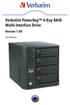 Verbatim PowerBay 4-Bay RAID Multi-Interface Drive Version 1.00 User Manual Table of Contents Introduction... 2 Package Contents... 2 Controls, Connectors and Indicators... 2 About the Hard Drive... 4
FANTEC MR-35HDC HARD DISK COPYSTATION
 FANTEC MR-35HDC HARD DISK COPYSTATION POWER Red= Blue=Dup 0 Copy Start 1 Compare Mute BIG Prescan JBOG Erase Reset USER MANUAL MENU MENU... 1 1. Product Introduction... 2 2. Operation in function... 3
Dual msata SSD to 2.5in SATA SSD Converter with RAID
 Dual msata SSD to 2.5in SATA SSD Converter with RAID 25SAT22MSAT *actual product may vary from photos DE: Bedienungsanleitung - de.startech.com FR: Guide de l'utilisateur - fr.startech.com ES: Guía del
RTX. RTX 430-3QR User Manual. Quadruple Connectivity RTX430-3QR is compatible with four different interfaces; USB3, USB2, esata, and FireWire 800.
 RTX 430-3QR User Manual Models Covered: RTX430-3QR TM RTX Quadruple Connectivity RTX430-3QR is compatible with four different interfaces; USB3, USB2, esata, and FireWire 800. Five Easy-to-Configure RAID
Tablet Management Rack 16
 Tablet Management Rack 16 User's Guide Table of Contents Hazard Symbols Review... 2 Components... 2 Charging Set-up... 3-4 LED and Syncing... 4-5 Cleaning and Maintenance... 6 Specifications... 6 Service
Mini-EPic System of RAID
 Mini-EPICa USB/IEEE 1394-to-SATA II RAID Subsystem Revision 1.2 Contents Preface... 3 Before You Begin... 4 Chapter 1 Introduction... 6 1.1 Technical Specification... 7 1.2 Identifying Parts of the RAID
User Guide HD-WLU3R1 DriveStation Duo
 User Guide HD-WLU3R1 DriveStation Duo EN 35011790 ver.01 Front Panel Layout Power LED Power On: blue RAID Maintenance: purple Power Off: off Access LEDs Access: blinking green Failure: red Rebuild: blinking
4 Bay External Hard Drive Array RAID Tower esata USB 3.0 Enclosure. StarTech ID: SAT3540U3ER
 4 Bay External Hard Drive Array RAID Tower esata USB 3.0 Enclosure StarTech ID: SAT3540U3ER The SAT3540U3ER 4-Drive USB 3.0/eSATA to 3.5" SATA RAID Enclosure is a high-performance external RAID storage
2-Bay Raid Sub-System Smart Removable 3.5" SATA Multiple Bay Data Storage Device User's Manual
 2-Bay Raid Sub-System Smart Removable 3.5" SATA Multiple Bay Data Storage Device User's Manual www.vipower.com Table of Contents 1. How the SteelVine (VPMP-75211R/VPMA-75211R) Operates... 1 1-1 SteelVine
Your Data Security Guardian. SafeTANK GR5630-WSB3+ User Manual. v.1.0 (Oct, 2012) www.raidon.com.tw
 SafeTANK GR5630-WSB3+ User Manual v..0 (Oct, 202) Introduction Thank you for purchasing RAIDON products. This manual will introduce the GR5630-WSB3+. Before using your GR5630-WSB3+, please read this manual
istar User Manual for Comsol USB Flash Drive
 istar User Manual for Comsol USB Flash Drive Format Utility Introduction Type of Format Quick: Full: Configure device only: Erase and check blocks at the same time. If there are any Bad blocks, mark them
1. User Safety Instructions
 Please note that this product is an Electromagnetic Compatibility (A-class) device that is meant to benefit a seller or user outside of home-use. It is the sole responsibility of the user to recover any
TOWERRAID TR8M-B TR8M
 TOWERRAID TR8M-B TR8M DETAILED USER S MANUAL v1.0 Table of Contents TABLE OF CONTENTS...2 CHAPTER 1 - OVERVIEW...4 1.1 PRECAUTION...4 1.2 FEATURES...4 1.2.1 DATA SECURITY...4 1.2.2 DATA VERSATILITY...4
CRU RTX 800-TR User Manual
 CRU RTX 800-TR User Manual Features Supports JBOD and RAID levels 0, 1, 4, 5, 6, and 10 in hardware, with easy configuration using ATTO Technology s RAID management software. CRU TrayFree bays make adding
3.5'' SATA to USB 3.0 & esata External Hard Drive Enclosure U SER S MANUA L
 3.5'' SATA to USB 3.0 & esata External Hard Drive Enclosure U SER S MANUA L Package Contents: 3.5'' SATA to USB 3.0 & esata External Hard Drive Enclosure 1 3.5" HDD Enclosure 2 Power Adapter 3 USB 3.0
Serial ATA RAID PCI. User's Manual
 Serial ATA RAID PCI User's Manual Chapter 1 Introduction Table of Contents 1-1 Features and Benefits. 1 1-2 System Requirements. 1 Chapter 2 RAID Arrays 2-1 RAID Overview.. 2 2-1.1 RAID 0 (striping)...
4 Bay External Hard Drive Array RAID Tower esata USB 3.0 Enclosure. StarTech ID: SAT3540U3ER
 4 Bay External Hard Drive Array RAID Tower esata USB 3.0 Enclosure StarTech ID: SAT3540U3ER The SAT3540U3ER 4-Drive USB 3.0/eSATA to 3.5" SATA RAID Enclosure is a high-performance external RAID storage
3.5 USB 3.0 to SATA III HDD Enclosure with UASP Support
 3.5 USB 3.0 to SATA III HDD Enclosure with UASP Support S3510BMU33 S3510SMU33 *actual product may vary from photos DE: Bedienungsanleitung - de.startech.com FR: Guide de l'utilisateur - fr.startech.com
VIA / JMicron RAID Installation Guide
 VIA / JMicron RAID Installation Guide 1. Introduction to VIA / JMicron RAID Installation Guide. 3 2. VIA RAID Installation Guide. 3 2.1 VIA BIOS RAID Installation Guide.. 3 2.1.1 Introduction of RAID.
Users Guide & Owners Manual
 Hardware RAID-1 (Mirror) Performance Storage Solution Users Guide & Owners Manual 1 INTRODUCTION 1.1 SYSTEM REQUIREMENTS 1.1.1 Mac Requirements 1.1.2 PC Requirements 1.1.3 Supported Hard Drives 1.2 CONTENTS
esata 6G RAID PCIe 2.0 Controller Card
 esata 6G RAID PCIe 2.0 Controller Card User Manual Table of Contents Part 1: Introduction Page 3 a. Overview Page 3 b. MAXPower esata 6G RAID Features Page 3 c. What is esata 6Gb/s? Page 3 d. What is RAID?
for 3.5 Serial ATA Hard Drive with One-touch Backup G-S350SU
 Green USB2.0/eSATA Combo Enclosure for 3.5 Serial ATA Hard Drive with One-touch Backup G-S350SU User s Manual CONTENTS INTRODUCING GREEN USB2.0/ESATA 3.5 Hard Drive ENCLOSURE 3 About this Guide 3 System
BounceBack Server Solution Reference Guide
 BounceBack Server Solution Reference Guide Contents Introduction... 2 System Requirements... 3 Initial Setup... 4 BounceBack Server Appliance Front View... 5 BounceBack Server Appliance Rear View... 6
USB 3.0 to SATA 3.5" Enclosure Installation Guide
 USB 3.0 to SATA 3.5" Enclosure Installation Guide Introduction The USB 3.0 to SATA 3.5" Enclosure is designed to support USB equipped computers. This enclosure provides large capacity mobile storage using
EN-CAHDD2B-D. Instruction Manual. Dual-Bay USB 2.0 RAID Dock
 Instruction Manual Dual-Bay USB.0 RAID Dock Cavalry, the names of series and the Cavalry logo are registered trademarks of Cavalry Storage. All other trademarks or registered trademarks are the property
Removable 2.5 SATA HDD Backup System
 Removable 2.5 SATA HDD Backup System SAT2510U3REM SAT2510U3S *actual product may vary from photos DE: Bedienungsanleitung - de.startech.com FR: Guide de l'utilisateur - fr.startech.com ES: Guía del usuario
SATA+Ultra ATA RAID CONTROLLER RC212. User Manual
 SATA+Ultra ATA RAID CONTROLLER RC212 Contents Feature and benefits Package contents System requirement Magic Switch introduction and jumper setting Hardware installation Important message for user RAID
Internal Drive Mounted Dual SATA Hard Drive RAID Adapter
 Internal Drive Mounted Dual SATA Hard Drive RAID Adapter S322SAT3R *actual product may vary from photos DE: Bedienungsanleitung - de.startech.com FR: Guide de l'utilisateur - fr.startech.com ES: Guía del
RocketStor SMART RAID
 RocketStor SMART RAID User Guide v1.0 1 Copyright HighPoint Technologies Inc., 1995-2012. All rights reserved. OS X and Macintosh are registered trademarks of Apple Corporation. All other trademarks and
USB 3.0/eSATA Dual 3.5 SATA HDD Enclosure
 USB 3.0/eSATA Dual 3.5 SATA HDD Enclosure S3520BU33ER / S3520WU33ER *actual product may vary from photos DE: Bedienungsanleitung - de.startech.com FR: Guide de l'utilisateur - fr.startech.com ES: Guía
5-BAY RAID STATION. Manual
 5-BAY RAID STATION Manual Content 1. Features 3 1.1 Overview 3 1.2 SATA features 3 1.3 USB features 4 2. Specifications 4 3. System requirements 4 4. The device at a glance 4 4.1 Rear panel 5 4.2 The LED
RAID installation guide for Silicon Image SiI3114
 RAID installation guide for Silicon Image SiI3114 Contents Contents 2 1 Introduction 4 1.1 About this Guide 4 1.2 The Basics 4 1.2.1 What is RAID? 4 1.2.2 Advantages of RAID 4 1.2.3 Disadvantages of RAID
SATA II 4 Port PCI RAID Card RC217 User Manual
 SATA II 4 Port PCI RAID Card RC217 SATA II 4 Port PCI RAID Card This Manual is for many Models of SATAII RAID5 HBA that uses Silicon Image SATA II SiI3124 chipset: 1) 32bit PCI bus host card 2) 64bit PCI-X
Duo Pro Drive User Guide document version 1.0 (071011)
 Duo Pro Drive User Guide document version 1.0 (071011) Copyright 2007 Fabrik, Inc. All rights reserved. This publication is protected by copyright and international treaty. No part of this publication
VIA RAID Installation Guide
 VIA RAID Installation Guide 1 VIA BIOS RAID Installation Guide.... 3 1.1 Introduction of RAID... 3 1.2 RAID Configuration Precautions... 3 1.3 BIOS Configuration Utility.. 4 1.3.1 Enter BIOS Configuration
Quick Start Guide for Tempo RAID66
 Quick Start Guide for Tempo RAID66 You Should Have The following items should be included in your product package: One Tempo RAID66 PCI Macintosh Two Ultra ATA/66 Cables (supports four internal hard drives)
RAID. User Manual. For more information visit www.caldigit.com
 RAID User Manual For more information visit www.caldigit.com Contents 1. Introduction 03 Package Contents 06 T4 Diagram 07 2. Using the T4 08 Installing the Software 08 Connecting the T4 09 Create a RAID
Quick Start Guide. RV 120W Wireless-N VPN Firewall. Cisco Small Business
 Quick Start Guide Cisco Small Business RV 120W Wireless-N VPN Firewall Package Contents Wireless-N VPN Firewall Ethernet Cable Power Adapter Quick Start Guide Documentation and Software on CD-ROM Welcome
TeraStation WS Setup Manual www.buffalotech.com
 TeraStation WS Setup Manual www.buffalotech.com 35011179 ver.01 Contents Chapter 1 Getting started...3 Package Contents... 3 Diagrams... 4 Initial Setup... 7 Log in to Windows Storage Server... 14 Chapter
User Manual. 2 Bay Docking Station
 FANTEC MR-CopyDU3 User Manual 2 Bay Docking Station With One Touch Backup (OTB) and Copy Function Hardware: PC and Notebooks, Macintosh USB 1.1, USB 2.0 or USB 3.0 interface Features: 2,5 or 3,5 SATA I,II,III
ToughTech Duo Users Manual
 ToughTech Duo Users Manual Models Covered: ToughTech Duo-QR ToughTech Duo-3SR RAID, RAID 0 and Single Drive operation modes. Default RAID Mirroring to assure data integrity and protection on the road.
USB to IDE SATA Standalone Hard Drive Duplicator Dock StarTech ID: UNIDUPDOCK
 USB to IDE SATA Standalone Hard Drive Duplicator Dock StarTech ID: UNIDUPDOCK The UNIDUPDOCK Universal SATA/IDE Dual Drive Hard Drive Duplicator functions as both a convenient hard drive copying/imaging
High Density RocketRAID 2711 + Rocket EJ220 Device Board Data RAID Installation Guide
 High Density RocketRAID 2711 + Rocket EJ220 Device Board Data RAID Installation Guide Introduction The HighPoint High Density Storage Solutions hammer down high density storage cost over a single mini-
ZOTAC RAIDbox User s Manual
 ZOTAC RAIDbox User s Manual No part of this manual, including the products and software described in it, may be reproduced, transmitted, transcribed, stored in a retrieval system, or translated into any
TOWERRAID TR4M-B TR4M
 TOWERRAID TR4M-B TR4M DETAILED USER S MANUAL v1.0 Table of Contents CHAPTER 1 - OVERVIEW...4 1.1 PRECAUTION...4 1.2 FEATURES...4 1.2.1 DATA SECURITY...4 1.2.2 DATA VERSATILITY...4 1.3 EASE OF USE...4 1.4
HP UPS R1500 Generation 3
 HP UPS R1500 Generation 3 Installation Instructions Part Number 650952-001 NOTE: The rating label on the device provides the class (A or B) of the equipment. Class B devices have a Federal Communications
How To Set Up A Hard Disk Drive With A Rkd (Sr5650) And A Hard Drive (Srs5650-Wbs1/Sb2)
 Version : 1.0 SR5650-4S-WBS1 SR5650-4S-SB2 User Manual SOHORAID Series Introduction About this Manual Thank you for using the product of RAIDON Technology Inc. This user manual will introduce the STARDOM
StudioRAID mini. Production-Quality Portable RAID USB 3.0, FireWire 800, esata host connectivity
 StudioRAID mini Production-Quality Portable RAID USB 3.0, FireWire 800, esata host connectivity Proprietary Notice and Disclaimer Unless noted otherwise, this document and the information herein disclosed
2.5 HDD Enclosure Kit
 2.5 HDD Enclosure Kit User s Manual Introduction... 2 Important Reminders for all Enclosures... 2 Important Reminders for Encrypted HDD Enclosures... 2 Getting Started... 4 Assembling the 2.5 HDD Enclosure
3.5in esata USB Dual Removable SATA RAID External Hard Drive Enclosure StarTech ID: S352U2RER
 3.5in esata USB Dual Removable SATA RAID External Hard Drive Enclosure StarTech ID: S352U2RER This esata/usb External Dual SATA Hot-swap Hard Drive Enclosure lets you install two 3.5in SATA (SATA, SATA
G SPEED High-Speed, RAID Protected Storage System
 PRODUCT MANUAL G SPEED High-Speed, RAID Protected Storage System g-technology.com G SPEED Table Table of Contents Welcome to G-SPEED Table of Contents Safety & General Use Safety Precautions...4 Backup
Version : 1.0. SR3620-2S-SB2 User Manual. SOHORAID Series
 Version : 1.0 SR3620-2S-SB2 User Manual SOHORAID Series Introduction About this Manual Thank you for using the product of RAIDON Technology Inc. This user manual will introduce the STARDOM SR3620-2S-SB2
QuickStart Installation Guide
 DataDock II QuickStart Installation Guide Windows & Mac Thank you for choosing Fantom Drives! Your Fantom Drives DataDock II has been built to the highest standard of quality and workmanship, is compatible
RAID SYSTEMS SOFTWARE USER MANUAL. www.xcellongear.com
 RAID SYSTEMS SOFTWARE USER MANUAL www.xcellongear.com Contents Basic Mode................................................... 3 RAID and Disk Information.................................... 3 Event Log
USB to IDE SATA Standalone HDD Hard Drive Duplicator Dock. StarTech ID: UNIDUPDOCK
 USB to IDE SATA Standalone HDD Hard Drive Duplicator Dock StarTech ID: UNIDUPDOCK The UNIDUPDOCK Universal SATA/IDE Dual Hard Drive Duplicator functions as both a convenient solid state (SSD) or hard drive
How To Use A Sata Dsa Hard Disk Storage System
 EXTERNAL RAID STORAGE OF HDDS INSTRUCTION MANUAL CAUTION RISK OF ELECTRIC SHOCK CAUTION TO REDUCE THE RISK OF ELECTRIC SHOCK, DO NOT OPEN COVER. NO USER SERVICEABLE PARTS INSIDE. REFER SERVICING TO QUALIFIED
Mini-EPICa SATA II-to-SATA II RAID SUBSYSTEM
 Mini-EPICa SATA II-to-SATA II RAID SUBSYSTEM Revision 1.5 Contents Preface... 3 Before You Begin... 4 Chapter 1 Introduction... 6 1.1 Technical Specification... 7 1.2 Identifying Parts of the RAID Subsystem...
StorTrends 3400 Hardware Guide for Onsite Support
 StorTrends 3400 Hardware Guide for Onsite Support MAN-3400-SS 11/21/2012 Copyright 1985-2012 American Megatrends, Inc. All rights reserved. American Megatrends, Inc. 5555 Oakbrook Parkway, Building 200
This guide explains how to install an Intel Solid-State Drive (Intel SSD) in a SATA-based desktop or notebook computer.
 Installation Guide This guide explains how to install an (Intel SSD) in a SATA-based desktop or notebook computer. The instructions include migrating your data from your current storage device (such as
DataTale SMART 2 Bay RAID System
 TM DataTale SMART 2 Bay RAID System www.datawatchtech.com Smart and user-friendly data management experience User s Manual USB 2.0 esata FireWire 400 FireWire 800 Please go onto Data Watch website at http://www.datawatchtech.com
Server RSV-S8 User Manual
 Content 1 WELCOME...3 1.1 PRECAUTION... 3 1.2 FEATURES... 3 1.2.1 DATA SECURITY... 3 1.2.2 DATA PERFORMANCE... 3 1.2.3 DATA VERSATILITY... 3 1.3 EASE OF USE... 4 1.4 SPECIFICATIONS... 4 1.5 SUPPORTED OPERATING
Dual M.2 NGFF SATA RAID Adapter
 Dual M.2 NGFF SATA RAID Adapter 25S22M2NGFFR *actual product may vary from photos DE: Bedienungsanleitung - de.startech.com FR: Guide de l'utilisateur - fr.startech.com ES: Guía del usuario - es.startech.com
Serial ATA Hard Drive Enclosure
 SAT2510U2E SAT2510BU2E Instruction Manual Serial ATA Hard Drive Enclosure 2.5 esata/usb External Hard Drive Enclosure for Serial ATA Hard Drives FCC Compliance Statement This equipment has been tested
iosafe 1513+ Quick Start Guide Powered by Synology DSM
 iosafe 1513+ Quick Start Guide Powered by Synology DSM 910-11568-00 Rev03 QUICKSTART GUIDE, NC, 1513+, ENG Table of Contents Chapter 1: Before You Start Package Contents... 3 iosafe at a Glance... 4 Safety
Sonnet Web Management Tool User s Guide. for Fusion Fibre Channel Storage Systems
 Sonnet Web Management Tool User s Guide for Fusion Fibre Channel Storage Systems Contents 1.0 Getting Started... 1 Discovering the IP address Optional - Setting up Internet Explorer Beginning Initial
User Guide. The Leader in Personal Storage
 User Guide The Leader in Personal Storage Copyright Apricorn, Inc. 2006. All rights reserved. Windows and MS-DOS are registered trademarks of Microsoft Corporation. All other trademarks and copyrights
PL2775 JBOD / BIG / RAID0 / RAID1 Mode Application
 Application Note PL2775 USB 3.0 to Dual SATA Bridge Controller User Manual (JBOD/BIG/RAID0/RAID1 Mode Features) Introduction The PL2775 is a low-power single-chip SuperSpeed USB 3.0 to Dual SATA II compliant