
SMART BOARD USER GUIDE FOR PC TABLE OF CONTENTS I. BEFORE YOU USE THE SMART BOARD. What is it?
|
|
|
- Maud Hodges
- 9 years ago
- Views:
Transcription

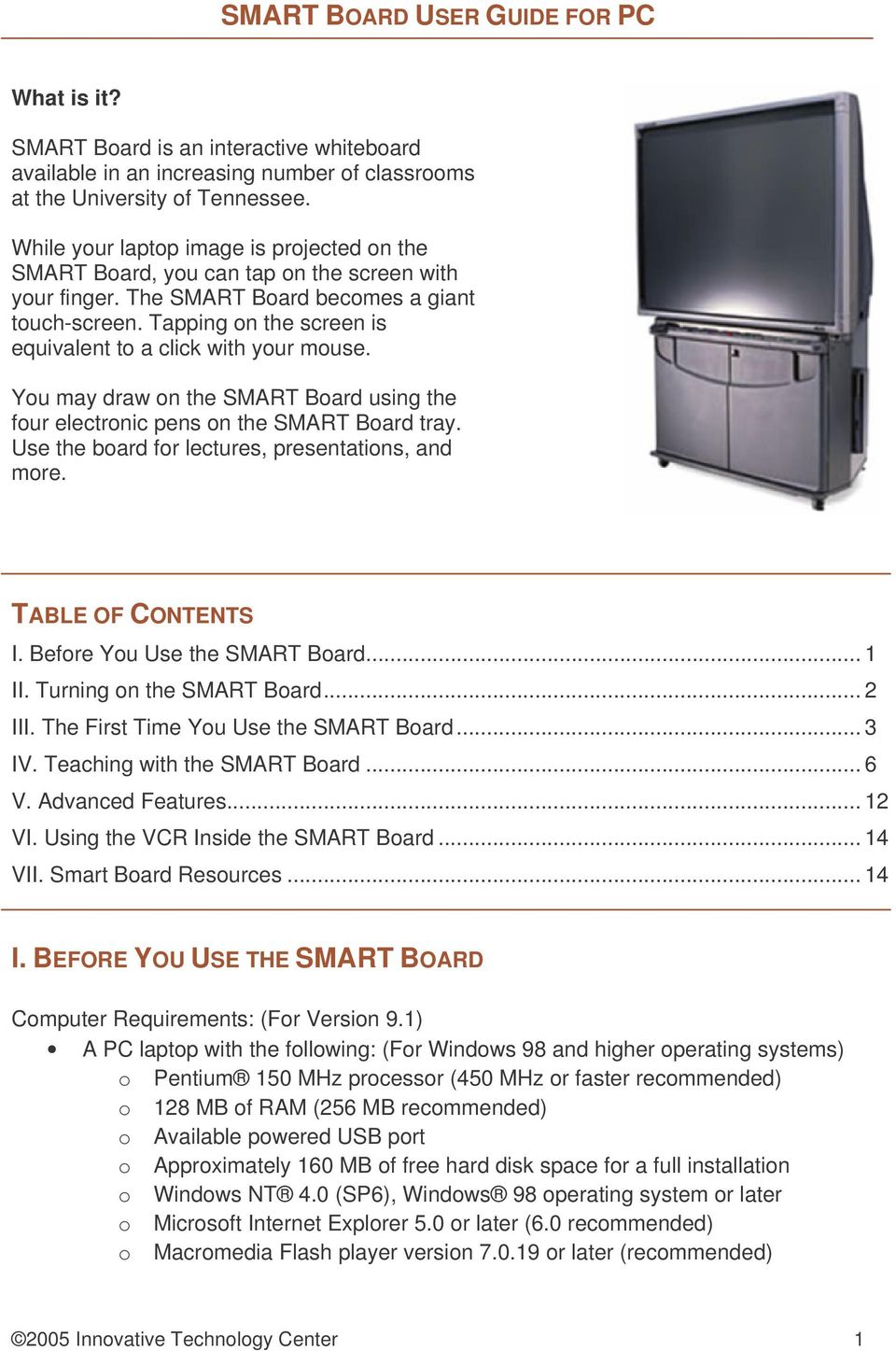
1 SMART BOARD USER GUIDE FOR PC What is it? SMART Board is an interactive whiteboard available in an increasing number of classrooms at the University of Tennessee. While your laptop image is projected on the SMART Board, you can tap on the screen with your finger. The SMART Board becomes a giant touch-screen. Tapping on the screen is equivalent to a click with your mouse. You may draw on the SMART Board using the four electronic pens on the SMART Board tray. Use the board for lectures, presentations, and more. TABLE OF CONTENTS I. Before You Use the SMART Board... 1 II. Turning on the SMART Board... 2 III. The First Time You Use the SMART Board... 3 IV. Teaching with the SMART Board... 6 V. Advanced Features VI. Using the VCR Inside the SMART Board VII. Smart Board Resources I. BEFORE YOU USE THE SMART BOARD Computer Requirements: (For Version 9.1) A PC laptop with the following: (For Windows 98 and higher operating systems) o Pentium 150 MHz processor (450 MHz or faster recommended) o 128 MB of RAM (256 MB recommended) o Available powered USB port o Approximately 160 MB of free hard disk space for a full installation o Windows NT 4.0 (SP6), Windows 98 operating system or later o Microsoft Internet Explorer 5.0 or later (6.0 recommended) o Macromedia Flash player version or later (recommended) 2005 Innovative Technology Center 1
2 SMART Board Software Download the free SMART Board software from this website: Follow the installation instructions available on the web site above. Make sure you have the latest version and update periodically. If you experience trouble installing the software, call IT Engineering Services at for technical support. II. TURNING ON THE SMART BOARD Steps for turning on the board in rooms with only a SMART Board: 1. Place your laptop on the shelf of the SMART Board and connect it to the two cables on the shelf. One cable connects to the USB port, and the other cable connects to the VGA port of your computer. USB VGA 2. Turn on your computer. 3. Press the power button on the right on the SMART Board. 4. Press the source select button (indicated with arrow) until laptop is selected as the source (laptop is selected when the center light is illuminated, as below). Source Select Power Button 5. If all connections are intact and the laptop button is selected, but there is a blue "No Signal Source" screen on the board, press Function F8 on a Dell or Function F3 on a Gateway to get a picture. On other PCs, look for a button that says LCD Innovative Technology Center 2


3 III. THE FIRST TIME YOU USE THE SMART BOARD A. LAUNCHING THE SMART BOARD SOFTWARE 1. If the SMART Board icon is not visible in the system tray (the bottom right hand corner of the taskbar), double-click the SMART Board icon located on the desktop to launch the software: 2. A small SMART Board icon will then appear in the system tray. 3. Click on this icon to display the SmartBoard menu. B. DETECTING THE SMART BOARD: When you connect to the SMART Board, if you see the SMART Board icon located in the system tray, the SMART Board is ready to use. If there is a detection problem, you will see the following error. To detect the SMART Board, follow the directions given below. 1. Click Yes Innovative Technology Center 3


4 2. The SMART Board Settings window (below, left) will appear. Click on Add SMART Product button to start automatically SMART Board detection process. 3. If the SMART Board detection process is successful, you will see the red exclamation mark is changed to a green check in the SMART Board Settings window (below, left). Click OK, and you will see the SMART Board Control Panel window (below, right). Close this window to continue using your computer with SMART Board applications. 4. If it does not work, check your connections, and restart your computer. Then, try the detection process from the beginning Innovative Technology Center 4


5 C. ORIENTING THE SMART BOARD The first time you use your computer with the SMART Board, and subsequently if the board does not appear to be working correctly, you may need to orient the board. 1. Click on the SMART Board Icon in the system tray. Select Orient from the menu. 2. The standard orientation pattern will appear on the SMART Board screen. Use your finger or one of the pens to touch the 9 points as shown below Innovative Technology Center 5


6 IV. TEACHING WITH THE SMART BOARD A. DISPLAYING IMAGES ON THE SMART BOARD Anything you can display on your computer monitor will be projected onto the SMART Board when you are connected to the system. For example, you could display: Word Documents Images Pages on the Internet PowerPoint Presentations Statistical or Design Programs Touching the SMART Board is equivalent to clicking on your computer screen using your mouse. Tap once on the board for a single mouse click; tap twice on the board for a double click. B. DRAWING ON THE BOARD Use the colored, electronic pens in the SMART Board tray to draw on the board. Do NOT write on the SMART Board with dry-erase markers or pens. Note that the SMART pens are interchangeable. They will write in the color of the lighted empty pen tray. Try to keep the pens in the correct trays. Also note that if you remove a pen from the tray, your finger will act as a pen and you cannot tap on the screen as if it is a mouse. Return the pen to its tray (or select mouse from the Floating Toolbar) to be able to tap on the screen again. Use the round, black eraser to erase your marks. Press firmly when using the eraser. To erase a large area, use the circle and tap method: using the eraser, draw a circle around the area you want to erase, and tap in the center. To customize your pen colors, Choose the SMART Board Control Panel from the SMART Board menu Innovative Technology Center 6


7 The SMART Board Control Panel will appear (below, left). Click on the Pen and Button Settings button; another window will appear (below, right). Select one of the four pen buttons, the eraser button, or mouse/keyboard buttons to customize. With the pens, you can change the color, transparency, thickness, and line style. With the eraser, you can change the eraser thickness, and with mouse/keyboard buttons, you can assign other actions to SMART Board mouse/keyboard buttons. Your customized settings will be kept on your computer until you hit the Defaults button. C. STARTING THE SMART BOARD START CENTER The SMART Board Start Center holds all of the controls for the SMART Board. There are multiple ways to complete a task in the SMART Board software. For this tutorial, only one way will be explained. 1. On a PC, click on the SMART Board icon in the system tray. 2. From the menu select Start Center. 3. Use the Start Center to access the Notebook, Recorder, Video Player, Keyboard, Floating Tools, and Control Panel as described below (see above for using Orient) Innovative Technology Center 7

8 D. USING THE FLOATING TOOLS The Floating Tools allows you access to a variety of one-touch controls. To launch the Floating Tools, you need to click on the Floating Tools icon in the Start Center; this will launch the default Floating Tools. You will also realize that whenever you pick up a pen from SMART Board tray, the minimized Floating Tools with only two buttons (camera and undo) appears. Clicking on the arrow icon regular Floating Tools. will expand the toolbar to the If you wish to move the Floating Tools around, grab by the bar located on the left of the Floating Tools, and drag to a desired position. The default toolbar looks like this: Default options on the Floating Tools are: Capture an Area - when you select this tool the mouse will change; then drag your mouse diagonally across the area of the screen you want to capture to the SMART Notebook. Use Mouse Cursor this is the default tool Pen tool use to create annotations on screen Highlighter use your hand or a pen to highlight in yellow Restore Cleared Page (Undo) Eraser erase with a pen or your hand Right-click of the mouse your next tab (or click) on the screen will be a right-click More use to reach options like customizing or closing the Floating Tools 2005 Innovative Technology Center 8


9 Customizing Floating Tools To customize your toolbar, Launch the Floating Tools, if it is not started yet. Click on the More button, and select Customize Floating Tools option. Customize Floating Tools window will appear (below), use the options to customize the Floating Tools. E. USING THE SMART NOTEBOOK There are three ways to get information into the Notebook. You can use the Screen Capture Tools while working with other programs such as Word or PowerPoint. The captured information will be transferred to the SMART Notebook. You can import image and Flash files to the SMART Notebook by using the SMART Notebook s Insert menu. You can create annotations while working with the SMART Notebook. Using the Screen Capture Tools On the default Floating Tools, the top left button allows you to take a partial screen capture and save it to the Notebook. If you would like to have other screen capturing options, you can customize your Floating Tools and add other options (please refer to Customizing Floating Tools above). Another option to capture screen images is to using the Screen Capture Toolbar Innovative Technology Center 9


10 To launch the Screen Capture Toolbar: Start the SMART Notebook from the Start Center. From the View menu, select Screen Capture Toolbar. The Screen Capture Toolbar Capture an Area when you select this tool the mouse will change; then drag your mouse diagonally across the area of the screen you want to capture to the SMART Notebook. Window Capture when you select this tool, select the window you want to capture to the SMART Notebook, and the active window will be shaded. Screen Capture when you select this tool, the whole screen will be captured to SMART Notebook. If Save to new page is checked, the captured images will be located in a new page of SMART Notebook. Creating Annotations in the SMART Notebook 1. If it is not started, start the SMART Notebook from Start Center. 2. Draw or write in the Notebook with one of the pens or select the pen from the Floating Tools. 3. After use, replace the pen in the pen tray. If you selected the pen from the Floating Tools, select the mouse arrow again Innovative Technology Center 10

11 4. If you want to convert the handwriting to text, click on the object to select it. If you select it, a border around the object and arrow will appear. Click on the arrow button, and select one of the options to convert it to text. If none of them is appropriate, delete the object and try to write clearly. Note: You may also use the SMART Keyboard to write on a SMART Notebook page. Select the keyboard by pressing the button next to the pen trays with a picture of a keyboard on it (or choose Keyboard from the Start Center). The image of a keyboard will appear on the screen. You may choose your option for data entry from the dropdown menu (see the following image). First, tap at the desired location on the SMART Notebook page. Then, enter your information in the SMART Keyboard. The information will be displayed as typed characters at the desired location on the SMART Notebook page. Saving or Exporting Notebook Files You can save or export SMART Notebook files in several formats: Notebook files, Image files, HTML files, or PDF files. To save the annotations as SMART Notebook file, from File menu select save. To export as an image file or HTML file, or PDF file, from File menu select Export and export window will appear. Select the desired format to export to, and enter a file name; then click the Export button. F. USING THE NOTEBOOK WITH POWERPOINT 1. Launch PowerPoint and open your presentation. From the View menu, select Slide Show to begin your presentation. 2. When you enter Slide Show mode, the presentation floating toolbar will appear. 3. You may also get a popup message asking if you want to single-click or doubleclick to move to the next slide. Choose your selection and press OK. If you 2005 Innovative Technology Center 11


12 have active URLs in the presentation, choosing the double click is recommended; otherwise, you will not be able to follow URLs. 4. To move backward and forward between slides, you may: a. Click on the left and right arrow buttons on the toolbar above or b. Tap on the screen once, and then tap again to the right of your initial tap to move forward; tap on the screen once, and then tap again to the left of your initial tap to move backward. V. ADVANCED FEATURES A. SAVING ANNOTATIONS WITH POWERPOINT You have an option to save drawings or notations made on the SMART Board to the PowerPoint presentation itself so that when you next open the presentation, your notations will be there. To do so: Click on the menu button in the center of the presentation floating tools pictured below. Select Save Annotations to PowerPoint. In addition, you can copy a picture of the slide with your notations on it to the SMART Notebook, leaving your PowerPoint file as it was. From the PowerPoint floating toolbar, press the menu button in the center Select Capture to Notebook. B. RECORDER The Recorder allows you to simultaneously record your voice and video of the screen as you draw and change the display on the screen, effectively creating a narrated video. Note: If you are running Windows 2000 or XP, the first time you use the recorder it will recommend that you set your Hardware Acceleration to none. To do so, select Control Panel > Display > Settings > Advanced > Troubleshooting and set to None. To record, you will need a microphone either built-in or connected to your laptop. Make sure the volume is not muted Innovative Technology Center 12


13 To open the Recorder: From the Start Center, select Recorder The Recorder controls will appear: Press the Record button to start recording, press Stop when you are finished. Your voice will be saved along with everything that is displayed or written on the board while you record. By default, the file saved will be in movie format (.avi) and can be viewed using Windows Media Player, Real Player, Quicktime, or similar software. From Menu, you can change your preferences and have the file saved as a SMART Recorder file that can be viewed with Smart Media Player. NOTE: Files tend to be about 10MB per minute, so if you record an entire lecture, your file will be very, very large. You will need special storage space on a server for files this size if you want to put them on the web. C. OTHER TOOLS For information about other tools available with SMART Board software, please refer to Quick Reference: SMART Board Tools at ools.pdf. For information about the Aware Tools, please refer to Hands-on Practice: Using Microsoft Windows Applications on a SMART Board Interactive Whiteboard at windowsapps.pdf Innovative Technology Center 13

14 VI. USING THE VCR INSIDE THE SMART BOARD Note: The following applies to rooms with stand-alone SMART Board. 1. Turn on the SMART Board by pressing the power button. Wait 15 second for the board to warm up. The light next to the power button will flash while it is warming up. 2. Press the source select button until the light beside the third (bottom) choice is lit. Source Select Power Button 3. Put a tape in the VCR. The tape will play automatically. 4. Use the left hand set of up and down arrow buttons pictured above to adjust the volume. 5. When finished viewing, press Stop on the VCR and eject the tape. 6. To return to laptop mode when finished with the VCR, press the source select button again until the laptop light is illuminated as it is in the picture above. VII. SMART BOARD RESOURCES Technical Support call IT Engineering Services at or [email protected]. SMART Technologies, Inc. & SMART Board Software: User Guides and FAQs: or Training classes - call the Innovative Technology Center at or visit Version 01/05/ Innovative Technology Center 14

SMART Board User Guide for PC
 SMART Board User Guide for PC What is it? The SMART Board is an interactive whiteboard available in an increasing number of classrooms at the University of Tennessee. While your laptop image is projected
SMART Board User Guide for Mac
 SMART Board User Guide for Mac What is it? SMART Board is an interactive whiteboard available in an increasing number of classrooms at the University of Tennessee. While your laptop image is projected
SMART Board Menu. Full Reference Guide
 SMART Board Full Reference Guide Start-Up After entering Windows, click on the desktop icon SMART Board Tools. The SMART Board icon will appear in the system tray on the bottom right of the screen. Turn
How to use a SMART Board
 1 How to use a SMART Board Basic instructions on how to set up the SMART Board and how to use the SMART Board with both PC and Mac laptops. Contents Page 2: SMART Board Set Up Instructions Page 3: SMART
Introduction to Smart Board. Table of Contents. Connection Basics 3. Using the Board (Basics) 4. The Floating Tools Toolbar 5-6
 Introduction to Smart Board Table of Contents Overview 2 Connection Basics 3 Using the Board (Basics) 4 The Floating Tools Toolbar 5-6 The Smartboard Smart Tool Buttons Collecting and Sharing Content with
SMART Board Interactive Whiteboard Setup with USB Cable
 SMART Board Interactive Whiteboard Setup with USB Cable The instructions below are for the SMART Board interactive whiteboard 500 series and apply to both desktop and laptop computers. Ready Light USB
GOALS: The goal for this session is: OBJECTIVES: By the end of the lesson participants should be able to: MATERIALS: Instructor ACTVITIES: EVALUATION:
 GOALS: The goal for this session is: Learn how to connect and use the SMART Board for effective instruction Ability to annotate and save work using Microsoft Office and SMART Notebook Software OBJECTIVES:
2. How to Use SMART Board as a Projector and Whiteboard
 Page 1 Smart Board Getting Started Smart Board is an interactive whiteboard developed by SMART Technologies that combines the capabilities of a data projector and a white board. Use the SMART Board to
SB101 SMART Board 101
 SB101 SMART Board 101 Pieces and Parts SMART Board with cable connected to a laptop or desktop computer LCD projector with cable connected to the computer Computer SMART Board cable (use the appropriate
SMART Board Tips & Tricks (version 9.0) Getting Started. SMART Tools vs. SMART Notebook software
 SMART Board Tips & Tricks (version 9.0) Getting Started SMART Tools vs. SMART Notebook software Click the SMART Board icon (in the system tray at the bottom right of your screen) to access the SMART Board
SMART Board Training Outline Trainer: Basel Badran
 Sharjah Higher Colleges of Technology SMART Board Training Outline Trainer: Basel Badran What is a SMART Board? o Concept & Technology SMART Board Components: o Smart Tools Start Center Recorder Keyboard
AD201, STC106, STC109, STC204, STC302, STC304, STC309, STC311
 Smart Classrooms information & instructions Smart Classrooms are located in: Administration Building Arts & Science Building Academic & Technical Building Library STC AD003, AD209, AD208, AD202 & AD201,
SMART Sympodium and Notebook Software 9.5
 SMART Sympodium and Notebook Software 9.5 What is a SMART Sympodium? Equipped with the same software as SMART Board interactive whiteboards, SMART Sympodium interactive pen displays are perfect for presenting
Hands-On Practice. Basic Functionality
 Basic Functionality Your school or company has just moved one of your SMART Board interactive whiteboards into a new room because you were unable to access the Internet from the old location. You will
Hands-on Practice. Hands-on Practice. Learning Topics
 Using Microsoft PowerPoint Software on a SMART Board Interactive Whiteboard You make presentations for a reason to communicate a message. With a SMART Board interactive whiteboard, you can focus the attention
SMART Board Interactive Whiteboard Basics Tip Sheet for ABP Faculty
 SMART Board Interactive Whiteboard Basics Tip Sheet for ABP Faculty Introduction The SMART Board interactive whiteboard is touch sensitive and operates as part of a system that includes a computer and
SMART Boards. If the board is connected to a different computer - Orientation is needed whenever you connect it to a new or different computer.
 SMART Boards What is a SMART Board? The SMART Board is an interactive whiteboard that converts a computer and date projector into a powerful tool for teaching and learning. With the computer image projected
Task Card #2 SMART Board: Notebook
 Task Card #2 SMART Board: Notebook Objectives: Participants will learn how to utilize the SMART Notebook. Table of Contents: Launching The SMART Notebook Page 1 Entering Text Page 1 Top Toolbar Page 2
Using. An excerpt from Smart Technology's getting started manual explaining the basics of the SmartBoard and how to use it.
 Using An excerpt from Smart Technology's getting started manual explaining the basics of the SmartBoard and how to use it. Quick Reference Hardware Basics for Front Projection SMART Board Interactive Whiteboards
Smart Board Basics. December, 2009. Rebecca Clemente Department of Education
 Smart Board Basics December, 2009 Rebecca Clemente Department of Education Contents Obtaining the software... 3 What your students will need... 3 Writing in the Notebook... 4 Saving... 5 Change handwriting
SMART Board 9 Software Tips and Tricks
 SMART Board 9 Software Tips and Tricks Tips for Writing and Adding Content Drawing (or erasing) fine lines For precise control of the digital ink, change the pen setting to use the thinnest line width.
iclassroom Guide for Faculty SMARTBoard 680i Unifi 35 Learning Technology Department
 iclassroom Guide for Faculty SMARTBoard 680i Unifi 35 Learning Technology Department ScratchPad Information Select the ScratchPad option from the Startup Menu on the SMARTBoard Then you should get a White
Florence School District #1
 Florence School District #1 Module 2: SMART Board Basics and Beyond 1 SMART Board Software and Beyond In SMART Notebook software, you can create or open SMART Notebook software (.notebook) files. After
BrightLink Pro. Quick Reference. BrightLink Interaction. BrightLink Pro Features. 1 Turning on and Calibrating the Projector
 BrightLink Pro BrightLink Interaction Three interactive modes are available: Whiteboard mode Quick Reference This card will help you get started using your BrightLink Pro interactive projector. Use one
Start Here. BrightLink Interaction. 1 Connect your computer and turn on the projector
 BrightLink Interaction The BrightLink interactive pens turn any wall or table into an interactive area, either with or without a computer. With a computer, you can use Easy Interactive Tools (dual pens).
SMART Ink 1.5. Windows operating systems. Scan the following QR code to view the SMART Ink Help on your smart phone or other mobile device.
 SMART Ink 1.5 Windows operating systems User s guide Scan the following QR code to view the SMART Ink Help on your smart phone or other mobile device. Trademark notice SMART Ink, SMART Notebook, SMART
SMART Board TM Interactive Whiteboard Learner Workbook
 SMART Board TM Interactive Whiteboard Learner Workbook Bringing people and ideas together. TM Suite 600, 1177 11th Avenue SW, Calgary, AB CANADA T2R 1K9 Toll-free 1.888.42.SMART, ext. 2690 Tel. 403.245.0333
SMART BOARD Essentials
 SMART BOARD Essentials Date: October, 2013 Version: 1.0 Version Control Information Version Date Description 1.0 21/10/2013 Course release File Path S:\ADM-HR\L-and-OD\Staff Development\Enterprise System
Hardware Basics for Front Projection SMART Board Interactive Whiteboards
 Hardware Basics for Front Projection SMART Board Interactive Whiteboards The SMART Board interactive whiteboard is touch sensitive and operates as part of a system that includes a computer and a projector.
Using SMART Boards. Display Power (Projector) & PC Buttons on the Console
 Using SMART Boards A SMART board works with a computer, projector, digital pens, and software called Notebook. The computer screen is projected to the SMART Board, where the board s surface allows you
The SMART Board Interactive Whiteboard
 The SMART Board Interactive Whiteboard 1. Press the power button, the indicator ring flashes green to indicate that the projector lamp is starting up. The What would you like to do? menu will be displayed.
Teaching Space User Guide
 Teaching Space User Guide AMX Touch Screen Controller and Sympodium. Frequently Asked Questions: There s no computer audio playing in the room? 1) Check that the volume is not muted on the AMX touchscreen
SMART Board Interactive Whiteboard Learner Workbook
 SMART Board Interactive Whiteboard Learner Workbook Bringing people and ideas together. TM Suite 300, 1207 11th Avenue SW, Calgary, AB CANADA T3C 0M5 Toll-free 1.888.42.SMART, ext. 2690 Tel. 403.245.0333
Mimio Interactive. Pad and Bar. Technology Integration Department. Last update: 2/15/2013
 Mimio Interactive Technology Integration Department Last update: 2/15/2013 Getting Started 1. Mimio Bars or Pads (MS Science, and HS) may be checked out from the library. 2. You must have mimio software
Interactive Whiteboard Functionality Overview... 4. Choosing Pen Style... 5. Erasing / Modifying Writing... 6. Undo / Redo... 6. Email...
 Quick Start Guide 1 Stand-alone Usage Interactive Whiteboard Functionality Overview... 4 Choosing Pen Style... 5 Erasing / Modifying Writing... 6 Undo / Redo... 6 Email... 7 Import / Open file... 7 Saving
SMART Board Software for Macintosh Computers FAQ
 SMART Board Software for Macintosh Computers FAQ NOTE: The following FAQs relate to the latest SMART Board software release and apply only to Macintosh computers. The latest version of SMART Board software
SMART Board Software for Macintosh FAQ
 SMART Board Software for Macintosh FAQ NOTE: The following FAQs relate to the latest SMART Board Software for Macintosh release and apply only to Macintosh computers. SMART Board Software for Macintosh
Sanako Study 1200 USER GUIDE
 Sanako Study 1200 USER GUIDE Copyright 2015 Sanako Corporation. All rights reserved. Microsoft is a registered trademark. Microsoft Windows Vista, Windows 7 and Windows 8 are trademarks of Microsoft Corporation.
Using Your Polyvision Digital Whiteboard and Walk-and-Talk
 Using Your Polyvision Digital Whiteboard and Walk-and-Talk What is Walk-and-Talk? The Walk-and-Talk Digital Whiteboard is a remote control operated interactive system that connects to your computer. You
BIGPOND ONLINE STORAGE USER GUIDE Issue 1.1.0-18 August 2005
 BIGPOND ONLINE STORAGE USER GUIDE Issue 1.1.0-18 August 2005 PLEASE NOTE: The contents of this publication, and any associated documentation provided to you, must not be disclosed to any third party without
Smartboard Tutorial. 1. Setting up the Smart Board and Presentation Cart. 2. Orienting the Board. 3. Smartboard Toolbars. 4. Inserting a New Slide
 Smartboard Tutorial 1. Setting up the Smart Board and Presentation Cart 2. Orienting the Board 3. Smartboard Toolbars 4. Inserting a New Slide 5. Inserting an Object 6. Setting a Picture Transparency 7.
Instructional Technology & Distance Education
 Lincoln Land Community College When you first enter a classroom, you ll most likely want to start by turning on the projector and projecting your computer desktop. You can switch to another source to project
SMART Board Training Packet. Notebook Software 10.0
 SMART Board Training Packet Notebook Software 10.0 Chris de Treville [email protected] 6301 Benjamin Road Suite 101 Tampa, FL 33634 p: 813.884.7168 f: 813.882.9508 SMART Board Welcome Center
PowerPoint 2007: Basics Learning Guide
 PowerPoint 2007: Basics Learning Guide What s a PowerPoint Slide? PowerPoint presentations are composed of slides, just like conventional presentations. Like a 35mm film-based slide, each PowerPoint slide
Elluminate Live! Troubleshooting Guide
 Elluminate Live! Troubleshooting Guide Windows 95/98/Me/NT/2000/XP 2001-2004 Elluminate, Inc. All Rights Reserved. Contents Section 1 Getting Started...1 Prerequisites...1 Minimum System Requirements...1
SMART Board Beginning
 SMART Board Beginning Downloading the Software... 2 600 Series SMART Board... 2 800 Series SMART Board... 3 SMART Board Cleaning Options... 4 SMART Board Pens... 4 SMART Board Help... 4 Using the On Screen
Ready Light on lowerright of frame bezel
 Version 10 SMART Board Interactive Whiteboard Basics This Quick Reference Guide provides an overview of the information you need to begin using a SMART Board interactive whiteboard. Before you begin, make
EasyMP Network Projection Operation Guide
 EasyMP Network Projection Operation Guide Contents 2 Before Use Functions of EasyMP Network Projection... 5 Sharing the Projector... 5 Various Screen Transfer Functions... 5 Installing the Software...
Sharing Files and Whiteboards
 Your user role in a meeting determines your level of file sharing. The type of files you can share include documents, presentations, and videos. About Sharing Files, page 1 Changing Views in a File or
User Tutorial on Changing Frame Size, Window Size, and Screen Resolution for The Original Version of The Cancer-Rates.Info/NJ Application
 User Tutorial on Changing Frame Size, Window Size, and Screen Resolution for The Original Version of The Cancer-Rates.Info/NJ Application Introduction The original version of Cancer-Rates.Info/NJ, like
Epson Brightlink Interactive Board and Pen Training. Step One: Install the Brightlink Easy Interactive Driver
 California State University, Fullerton Campus Information Technology Division Documentation and Training Services Handout Epson Brightlink Interactive Board and Pen Training Downloading Brightlink Drivers
Embroidery Fonts Plus ( EFP ) Tutorial Guide Version 1.0505
 Embroidery Fonts Plus ( EFP ) Tutorial Guide Version 1.0505 1 Contents Chapter 1 System Requirements.................. 3 Chapter 2 Quick Start Installation.................. 4 System Requirements................
Windows XP Pro: Basics 1
 NORTHWEST MISSOURI STATE UNIVERSITY ONLINE USER S GUIDE 2004 Windows XP Pro: Basics 1 Getting on the Northwest Network Getting on the Northwest network is easy with a university-provided PC, which has
Welcome to Bridgit @ CSU The Software Used To Data Conference.
 Welcome to Bridgit @ CSU The Software Used To Data Conference. Overview SMART Bridgit software is a client/server application that lets you share programs and information with anyone, anywhere in the world.
PN-L702B LCD MONITOR TOUCH PANEL DRIVER OPERATION MANUAL. Version 2.1
 PN-L702B LCD MONITOR TOUCH PANEL DRIVER OPERATION MANUAL Version 2.1 Contents Setting up the PC...3 Installing the touch panel driver...3 Touch Panel Settings...4 How to configure settings...4 Calibration...5
STARTING WEBSTER...3 GETTING STARTED WITH WEBSTER TOOLS...5
 Table of Contents STARTING WEBSTER...3 GETTING STARTED WITH WEBSTER TOOLS...5 WEBSTER SMARTBOARD ICONS...5 THE WEBSTER SOFTWARE MAIN WINDOW...6 THE WEBSTER COMMAND TOOLBAR...7 THE PROJECTION TOOLBAR...8
Smart Sync. Computer Classroom Management Software. What is SMART Sync? Table of Contents
 Smart Sync Computer Classroom Management Software What is SMART Sync? SMART Sync software helps instructors manage the computers in their classroom. SMART Sync keeps a student engaged and focused, and
Maxtor OneTouch User's Guide
 EXTERNAL HARD DRIVE Maxtor OneTouch User's Guide TM II P/N:20259600 i Contents 1 Introduction................................................. 1 Maxtor OneTouch II Drive Components............................
OPERATION MANUAL. MV-410RGB Layout Editor. Version 2.1- higher
 OPERATION MANUAL MV-410RGB Layout Editor Version 2.1- higher Table of Contents 1. Setup... 1 1-1. Overview... 1 1-2. System Requirements... 1 1-3. Operation Flow... 1 1-4. Installing MV-410RGB Layout
How To Use An Easymp Network Projector On A Computer Or Network Projection On A Network Or Network On A Pc Or Mac Or Ipnet On A Laptop Or Ipro Or Ipo On A Powerbook On A Microsoft Computer On A Mini
 EasyMP Network Projection Operation Guide Contents 2 Before Use Functions of EasyMP Network Projection....................... 5 Sharing the Projector....................................................
How To Use An Easymp Network Projection Software On A Projector On A Computer Or Computer
 EasyMP Network Projection Operation Guide Contents 2 Before Use Functions of EasyMP Network Projection....................... 5 Sharing the Projector....................................................
Norms for Learning Centers
 Norms for Learning Centers Work collaboratively through each learning center. Problem solve together. Have fun. May 21 7:50 PM 1 station 1 Hardware location: SMART Board May 21 6:22 PM 2 Hardware Connections
Cassette2CD Wizard User's Manual
 Cassette2CD Wizard User's Manual Table of Contents 1. Installation Instructions a. Connecting tape-deck to the computer b. Installing the Software 2. Using Cassette2CD Wizard a. Setting up and Testing
Toolbars and Tabs in SMART Notebook Software
 Toolbars and Tabs in SMART Notebook Software This quick reference introduces you to the toolbar, full screen toolbar and side tabs in SMART Notebook collaborative learning software. Toolbar The SMART Notebook
SMARTstuff. The first rule for using an interactive whiteboard is very simple and of the utmost importance: Have faith in yourself you can do this!
 SMARTstuff The first rule for using an interactive whiteboard is very simple and of the utmost importance: Have faith in yourself you can do this! Getting Started This booklet will cover the following
Introduction to Mac Operating System: Snow Leopard
 Introduction to Mac Operating System: Snow Leopard Switching the Computer On 1. Press the round button on the back of the computer to turn the computer on. If the screen is black, but the lights are lit
User Guide for Windows 10
 User Guide for Windows 10 System requirements E10684 First Edition July 2015 To facilitate a smoother transition from your previous operating system, read the system requirements below before upgrading
Unified Communications Using Microsoft Office Live Meeting 2007
 Unified Communications Using Microsoft Office Live Meeting 2007 Text version of online course. Contents Unified Communications... 1 About Microsoft Office Live Meeting 2007... 3 Copyright Information...
Inking in MS Office 2013
 VIRGINIA TECH Inking in MS Office 2013 Getting Started Guide Instructional Technology Team, College of Engineering Last Updated: Fall 2013 Email [email protected] if you need additional assistance after
Simple Computer Backup
 Title: Simple Computer Backup (Win 7 and 8) Author: Nancy DeMarte Date Created: 11/10/13 Date(s) Revised: 1/20/15 Simple Computer Backup This tutorial includes these methods of backing up your PC files:
Lync 2013 - Online Meeting & Conference Call Guide
 Lync 2013 - Online Meeting & Conference Call Guide Alteva Hosted Lync Version:00 QUICK LINKS Schedule an Online Meeting Change Meeting Access and Presenter Options Join from a Computer with Lync Installed
SMART Notebook 10 User s Guide. Linux Operating Systems
 SMART Notebook 10 User s Guide Linux Operating Systems Product Registration If you register your SMART product, we ll notify you of new features and software upgrades. Register online at www.smarttech.com/registration.
Using Microsoft PowerPoint Software on a SMART Board Interactive Whiteboard
 Using Microsoft PowerPoint Software on a SMART Board Interactive Whiteboard When you use Microsoft PowerPoint software in conjunction with a SMART Board interactive whiteboard, presentations become more
What s New in SMART Board Software 9.0 for Windows Operating Systems
 What s New in SMART Board Software 9.0 for Windows Operating Systems If you ve used SMART Board software before, you ll notice many changes in version 9.0. In this document, we ll introduce version 9.0
Table Of Contents. Table Of Contents
 Table Of Contents Table Of Contents Basics Calibration Function Buttons Mouse Operations Whiteboard Pen Variations Normal Pen Intelli-Pen Text Recognition Search text in Google Search text in Wikipedia
Interactive Whiteboard Learner Workbook
 SMART Fundamentals Interactive Whiteboard Learner Workbook Bringing people and ideas together. TM 1207 11th Avenue SW, Suite 300, Calgary, AB, T3C 0M5 CANADA Toll-free 1.888.42.SMART, ext. 8536 Fax 403.228.2500
SMART NOTEBOOK 10. Instructional Technology Enhancing ACHievement
 SMART NOTEBOOK 10 Instructional Technology Enhancing ACHievement TABLE OF CONTENTS SMART Notebook 10 Themes... 3 Page Groups... 4 Magic Pen... 5 Shape Pen... 6 Tables... 7 Object Animation... 8 Aligning
For safe and correct use, be sure to read the Safety Information in Read This First before using the machine. Operating Instructions
 For safe and correct use, be sure to read the Safety Information in Read This First before using the machine. Operating Instructions TABLE OF CONTENTS Introduction...6 How to Read This Manual...7 Symbols...7
SMART Notebook software training for SMART Board users
 Learner Workbook SMART Notebook software training for SMART Board users Level 1 For Windows operating systems Trainer Information Name Phone E-mail Getting started... 1 How does the SMART Board interactive
Hands-On Practice. Using Notebook Software in the Office
 Using Notebook Software in the Office Before You Start Before you begin your meeting, ensure that your computer is turned on and the SMART Board interactive whiteboard is connected and oriented. The SMART
Using Microsoft Producer for PowerPoint to Record Accounting Lectures
 Using Microsoft Producer for PowerPoint to Record Accounting Lectures A presentation to the 2007 Conference of the Teachers of Accounting at Two-Year Colleges May 17-19, Indianapolis, IN Presenter: Lou
Sharing a Screen, Documents or Whiteboard in Cisco Unified MeetingPlace
 Sharing a Screen, Documents or Whiteboard in Cisco Unified MeetingPlace Release: 7.0 Revision Date: December 9, 2009 1:29 pm This section describes how to use the features in the Cisco Unified MeetingPlace
OneNote 2013 Tutorial
 VIRGINIA TECH OneNote 2013 Tutorial Getting Started Guide Instructional Technology Team, College of Engineering Last Updated: Spring 2014 Email [email protected] if you need additional assistance after
Smartboard and Notebook 10 What s New
 Smartboard and Notebook 10 What s New Smartboard Markers and Eraser (for use with all programs): You may use your finger as the mouse. Press down twice to double click Hold your finger down for a few seconds
Inside Blackboard Collaborate for Moderators
 Inside Blackboard Collaborate for Moderators Entering a Blackboard Collaborate Web Conference 1. The first time you click on the name of the web conference you wish to enter, you will need to download
Windows Movie Maker 2012
 Windows Movie Maker 2012 Open Windows Movie Maker A shortcut for Movie Maker should be on the desktop, but if it is not, you can search for the program by touching the right edge of the screen and swiping
SMART board 101. SMART board 101 Training
 SMART board 101 SMART board 101 Training For those who want to learn/remember how to connect it, turn it on, configure it, and feel better about using it at a basic level. We will talk about how the SMART
Microsoft PowerPoint Tutorial
 Microsoft PowerPoint Tutorial Contents Starting MS PowerPoint... 1 The MS PowerPoint Window... 2 Title Bar...2 Office Button...3 Saving Your Work... 3 For the first time... 3 While you work... 3 Backing
SMART Notebook: Basics and Application
 SMART Notebook: Basics and Application Table of Contents TESS Connection... 3 Version Number... 3 Tour of the Window... 5 The Main Toolbar... 5 The Sidebar... 18 Page Sorter... 19 The Gallery... 23 Searching...
Screencast-o-matic ProPage Basics
 Screencast-o-matic software can be used to create presentations, lectures, demos and other courserelated recordings anything you can capture on your computer screen and/or webcam including live action,
Cool Smart Board Tricks and Tools
 Cool Smart Board Tricks and Tools Dual Page Display and Pinning You can easily toggle between dual and single page display with the dual page button on the toolbar. When in Dual Page mode you can pin one
WebEx Sharing Resources
 WebEx Sharing Resources OTS PUBLICATION: WX0 REVISED: 4/8/06 04 TOWSON UNIVERSITY OFFICE OF TECHNOLOGY SERVICES =Shortcut =Advice =Caution Introduction During a WebEx session, the host has the ability
SMART Board Interactive Whiteboard FAQs for Windows
 SMART Board Interactive Whiteboard FAQs for Windows See also: Installation FAQs SMART Board Software FAQs Why does nothing happen when I press a Help button in SMART Board 9.x software? If you have Windows
WebEx. Remote Support. User s Guide
 WebEx Remote Support User s Guide Version 6.5 Copyright WebEx Communications, Inc. reserves the right to make changes in the information contained in this publication without prior notice. The reader should
Welcome to The Grid 2
 Welcome to 1 Thanks for choosing! These training cards will help you learn about, providing step-by-step instructions for the key skills you will need and introducing the included resources. What does
HOW TO BURN A CD/DVD IN WINDOWS XP. Data Projects
 Page 1 HOW TO BURN A CD/DVD IN WINDOWS XP There are two ways to burn files to a CD or DVD using Windows XP: 1. Using Sonic RecordNow! Plus or 2. Using the Windows Explorer CD Burning with Sonic Recordnow!