
User Guide FOR TOSHIBA STORAGE PLACE
|
|
|
- Bridget Reynolds
- 9 years ago
- Views:
Transcription
1 User Guide FOR TOSHIBA STORAGE PLACE

2 (This page left blank for 2-sided "book" printing.)

3 Table of Contents Overview... 5 System Requirements... 5 Storage Place Interfaces... 5 Getting Started... 6 Using Storage Place... 8 Make another Folder Available... 8 Sharing a File or Folder Removing a Folder Create an a la carte Playlist How to Cancel Your Account Subscription Frequently Asked Questions iii
4 Toshiba Storage Place User Guide (This page left blank for 2-sided "book" printing.) iv
5 Overview Overview Storage Place is a mobile client that allows you to access and share your files no matter where they are stored. With Storage Place and virtually any mobile device, you can access and share files from: Computers (Windows) Android Mobile Devices ios Mobile Devices Storage Place Cloud storage WebDAV storage You can also stream your music and video libraries to your work computer or mobile device and share photos and other files with your Facebook friends. Storage Place has localized language support for English, Italian, French, German, Spanish, and Chinese (both Traditional and Simplified). System Requirements Storage Place is supported on the Windows operating system. Storage Place works with any modern browser, including Internet Explorer, Safari, Firefox, and Google Chrome. Mobile access applications are available for all of your ipad, iphone, and Android devices. Storage Place Interfaces Storage Place interfaces include a desktop agent, a web application, and mobile agents. Storage Place Desktop Agent The Storage Place Desktop Agent is the core to the Storage Place access and online file sharing service. This small app resides on your computer, on the desktop status bar, and allows your devices to work securely and easily over the web. The Storage Place Desktop Agent is the key to creating your home, work, and on-the-go networks. To use the app, simply login with your Toshiba ID and you ll be connected to your Storage Place account. Storage Place Web App Once the agent is installed, you can immediately access and share files through the Storage Place web app. On the Storage Place website, simply sign in using your address and password to gain full access to all of your digital content. Add other devices by installing the Storage Place desktop or mobile apps. The Storage Place web app lets you easily share content with family and friends, and offers features and functionality such as a rich photo viewing, audio streaming, and much more. The Storage Place web app lets you manage and share the folders you want visible, while providing secure, lightning-quick access to all of your digital content residing on your personal network from any web browser. Storage Place Mobile Agent It s also possible to access your desktop content from your mobile devices. Mobile applications are available for all of your ios and Android devices. Now your content is available, even when you re on the go! 5

6 Toshiba Storage Place User Guide Getting Started Storage Place is a network service with supporting software that offers secure, full-time access to all your digital content. Storage Place provides access from any device smartphones, Netbooks, remote computers, and laptops, using the secure Storage Place network and the Storage Place desktop agent that resides on your home or work computer that has the files you want to share. Step 1: Download and install the desktop application Download the Storage Place application to your desktop. Step 2: Install Storage Place to your mobile device In your device's app store, search for the Storage Place app and install it. Step 3: Sign up for Storage Place Create a Storage Place account. Sign Up for Storage Place on the Web Go to to register for an account. Click Start Your Free Trial Now to begin. You will be prompted to Log In with your Toshiba ID or Sign Up to create one. Follow the simple registration steps, and you will be automatically taken to your new Storage Place account. Immediately after creating your account, you can start enjoying the benefits of Storage Place to access and share your digital content anytime, anywhere. 6

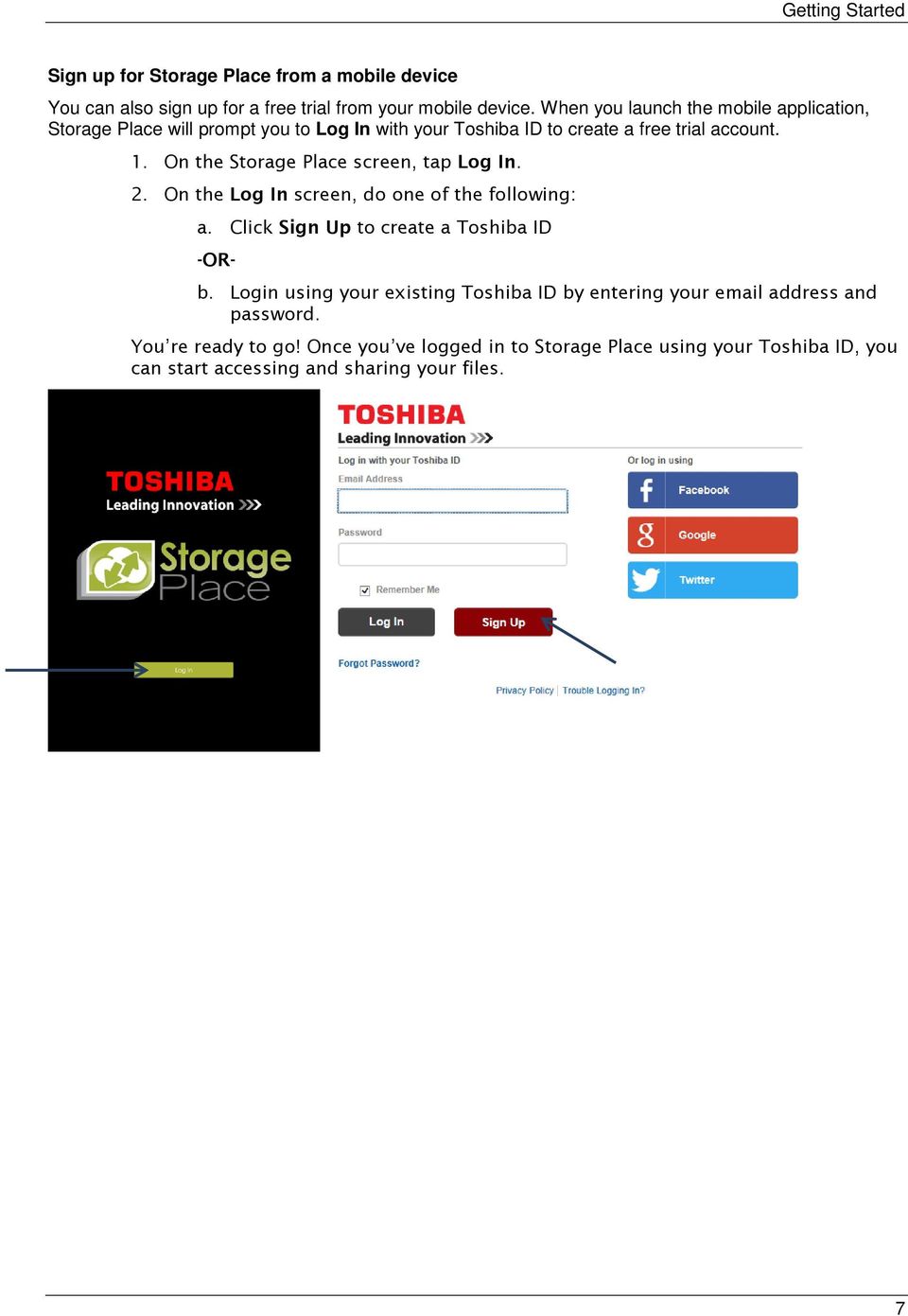
7 Getting Started Sign up for Storage Place from a mobile device You can also sign up for a free trial from your mobile device. When you launch the mobile application, Storage Place will prompt you to Log In with your Toshiba ID to create a free trial account. 1. On the Storage Place screen, tap Log In. 2. On the Log In screen, do one of the following: a. Click Sign Up to create a Toshiba ID -OR- b. Login using your existing Toshiba ID by entering your address and password. You re ready to go! Once you ve logged in to Storage Place using your Toshiba ID, you can start accessing and sharing your files. 7
8 Toshiba Storage Place User Guide Using Storage Place Make another Folder Available When you add a device, an initial share is automatically established for user convenience. Follow the steps below to make shortcuts to folders anywhere on your file system. To establish a folder share 1. Log In to the Storage Place web application ( ) using your Toshiba ID. 2. Navigate to the My Files page. 3. Click on the gear / cog icon that appears when hovering the mouse over your device s title. 4. The Manage Folders page appears. In the bottom left corner, click Make Another Folder Available. 8

9 Using Storage Place 5. Click either Drives or Network depending on the location of the folder or item you want to access. The view will expand and show a more detailed folder structure. 9
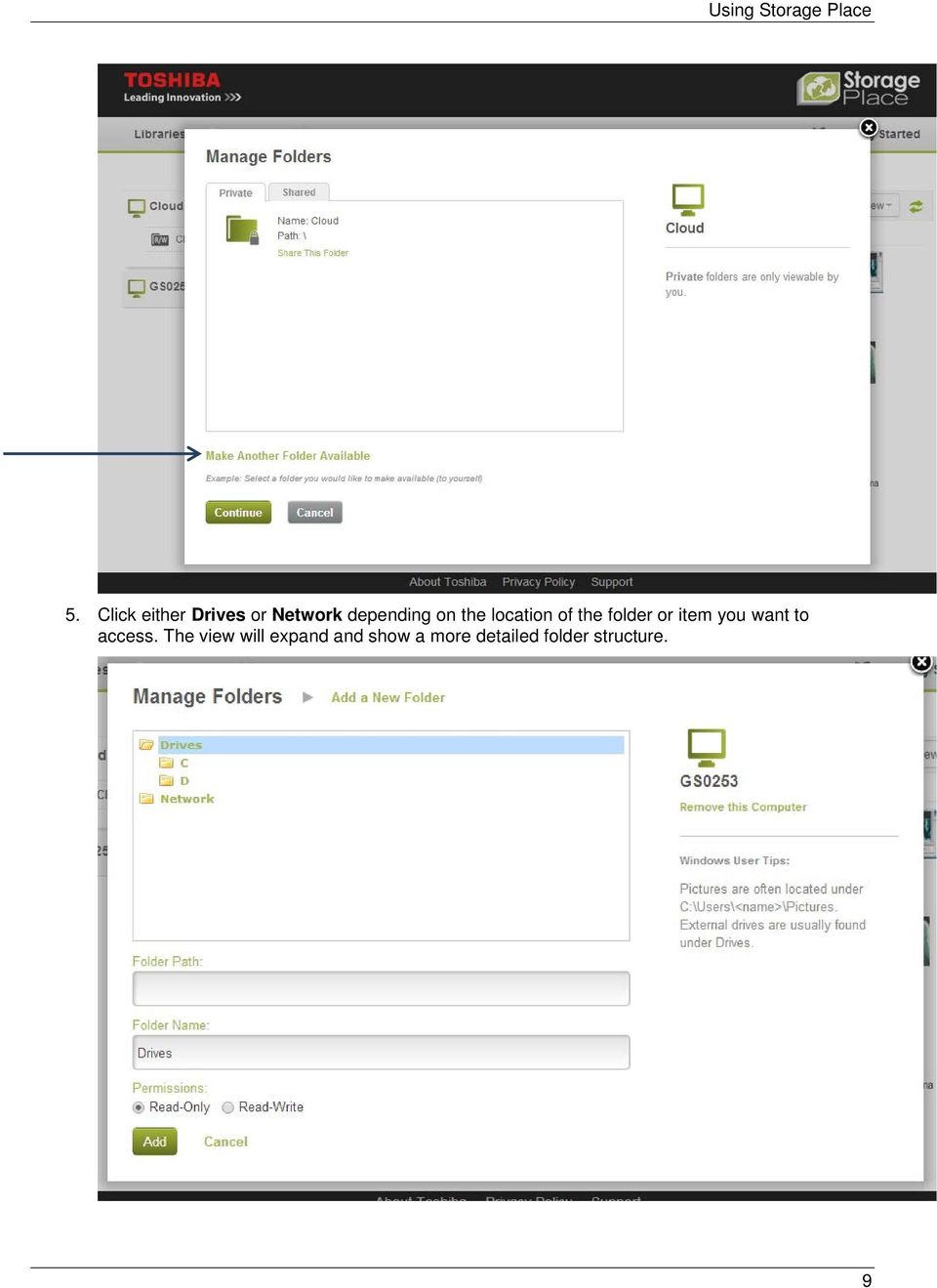
10 Toshiba Storage Place User Guide 6. Select the file and contents to create a shortcut for. Make note of the Folder Path, Folder Name (this can be changed provided the name does not already exist), and Permissions (choose Read- Only for security or Read-Write to be able to edit). 7. Click Add. The screen will switch back to Manage Folders, and you should now see your new share listed. 8. Click Continue at the bottom of the page. 9. The new folder share will be setup on the My Files page under the device to which it belongs. Sharing a File or Folder 1. Log In to the Storage Place web application ( ) using your Toshiba ID. 2. Navigate to the My Files page. 3. In the browsing window, place your cursor over any file or folder, and click on the cog icon, to display Options. 4. Click Share This File/Folder. 5. Enter the s of those you want to share with, along with a customizable message, and a link will be sent to them. 6. Files shared with existing users also show up on the Shared With Me page of their account. 10

11 Using Storage Place Removing a Folder If you no longer use a particular folder shortcut, you can remove it. To remove a folder share 1. Log In to the Storage Place web application ( ) using your Toshiba ID. 2. Navigate to the My Files page. 3. Click on the gear icon beside the device on which the folder exists. The Manage Folders screen will appear. 4. Locate the folder that you wish to remove. Click Remove. 5. A confirmation message appears. Check that you are removing the desired folder, and then click Remove. (Note that this removes access to the folder, but does not erase content from its original location). 11

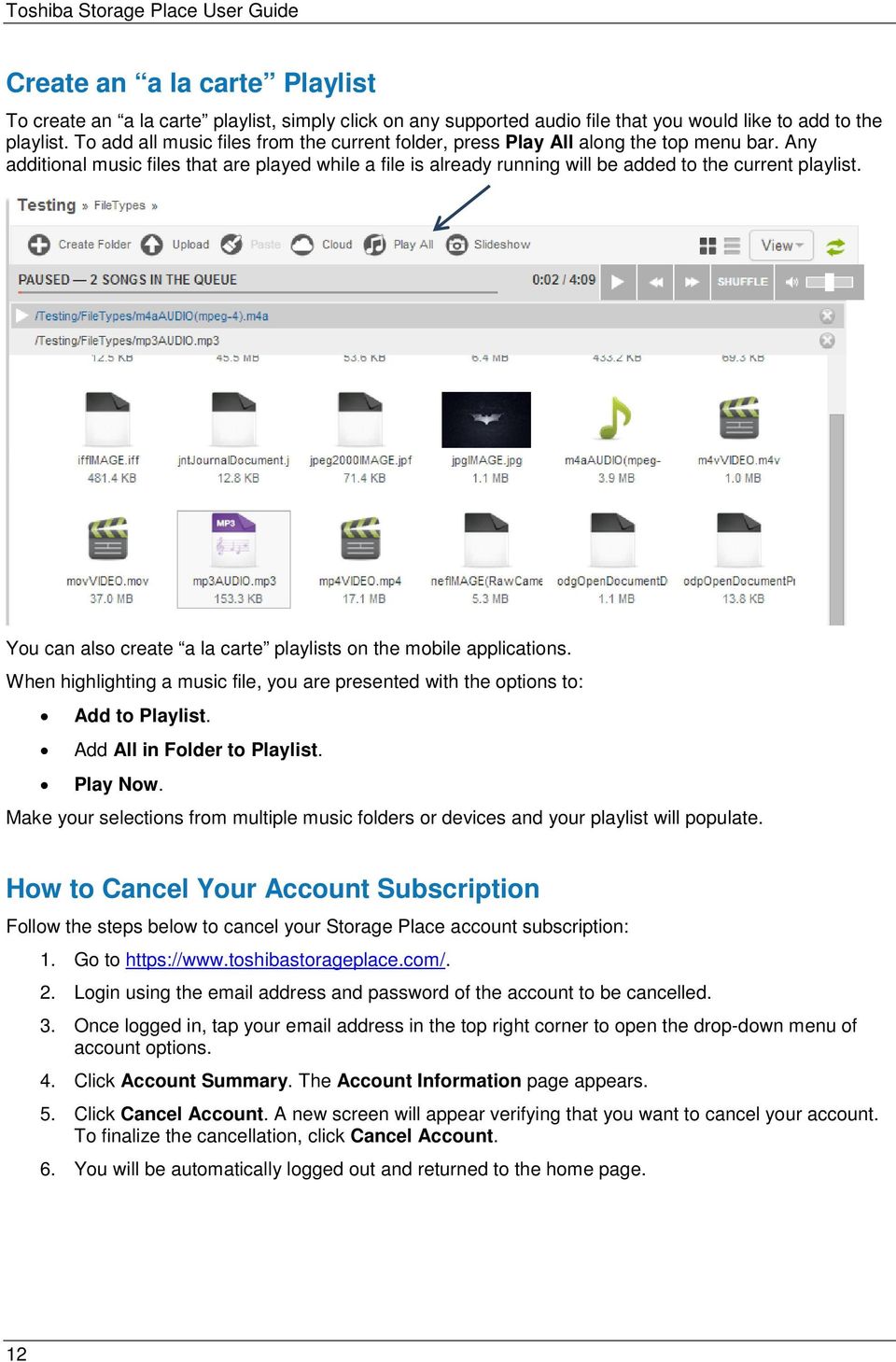
12 Toshiba Storage Place User Guide Create an a la carte Playlist To create an a la carte playlist, simply click on any supported audio file that you would like to add to the playlist. To add all music files from the current folder, press Play All along the top menu bar. Any additional music files that are played while a file is already running will be added to the current playlist. You can also create a la carte playlists on the mobile applications. When highlighting a music file, you are presented with the options to: Add to Playlist. Add All in Folder to Playlist. Play Now. Make your selections from multiple music folders or devices and your playlist will populate. How to Cancel Your Account Subscription Follow the steps below to cancel your Storage Place account subscription: 1. Go to 2. Login using the address and password of the account to be cancelled. 3. Once logged in, tap your address in the top right corner to open the drop-down menu of account options. 4. Click Account Summary. The Account Information page appears. 5. Click Cancel Account. A new screen will appear verifying that you want to cancel your account. To finalize the cancellation, click Cancel Account. 6. You will be automatically logged out and returned to the home page. 12
13 Frequently Asked Questions Frequently Asked Questions What if I turn my computer off at night or put it on sleep mode? For security, Storage Place requires a computer to be on and running in order for you to have access to its files. If your computer is asleep or turned off, you will not be able to access your content via Storage Place. In this way, you always have the final word over file access. Storage Place displays the status of all your computers when you log in via the Web, so you can see which devices are online. What if I have content on many computers in the home? No problem. Adding more computers to Storage Place is easy. Simply install the Storage Place desktop agent on any additional computers that you want to add (available on the Getting Started page). Or if you have your computers on a single network, you can add shortcuts to any network content via the Make Another Folder Available function. How do I add additional computers? Using the computer you want to add, download the desktop agent from the Getting Started page. Install the agent and then log in with your Storage Place credentials to gain access. What do I do if I have content in other places? If you already have Storage Place installed on a home computer, but you have your content in other places on your drive(s), this content can be easily accessed with Storage Place by simply adding the content locations as Storage Place folders. How do I add additional folders? From anywhere, sign into your account on Place.com. Click the Settings gear icon next to the chosen device and then click the Make Another Folder Available link. From there, browse and add the folder you want to make accessible and you are finished! You can now access that folder via your mobile device or any browser. Can I share my Storage Place folders with family and friends? Absolutely! With Storage Place personal sharing you can share your digital content such as photos and video with your family and friends very easily. Simply click on the gear icon when hovering over any file or folder to bring up its options. Select Share This File/Folder to begin sharing! Can I use Web folders (also known as WebDAV) to mount or map home storage? Sure. If you are a tech savvy Storage Place user, then you can also access your home content using an HTTP web standard called WebDAV, which is short for Web-based Distributed Authoring and Versioning. It is a set of extensions to the HTTP protocol that allows users to collaboratively edit and manage files on remote web servers. How secure is Storage Place? Storage Place is the most secure home access and sharing solution ever built. We have leveraged years of corporate network security experience to bring Storage Place to everyone. Using the best security practices and technology, we can proudly say your content safety is the most important aspect of the Storage Place solutions. We have leveraged years of corporate network security experience to create the most secure remote access and sharing solution available. Using the best security practices and technology, content safety is the most important aspect of the Storage Place solution. 13

14 Toshiba Storage Place User Guide Does Storage Place copy or save my content anywhere? Storage Place leverages its cloud services to compress, encrypt, and optimize your traffic and content for the ideal user experience and efficient use of your network. How does Storage Place ensure protection of my digital content? Storage Place communications leverage SSL for all communications between you and your digital content. SSL encryption is the same strong protection offered by financial institutions worldwide to protect financial transactions over the Internet. How does Storage Place protect my password? Storage Place protects all user passwords using a one-way hashing algorithm than cannot be reversed. We recommend that users follow best practices by choosing strong passwords that cannot easily be guessed or cracked, and by carefully safeguarding their passwords. Does Storage Place require any changes to my firewall? No. Storage Place works across every brand of personal and most corporate firewalls, and absolutely no changes are required for any network security device at home, work, or anywhere else. 14
DroboAccess User Manual
 DroboAccess User Manual Release 8.2 The DroboAccess developers June 02, 2016 CONTENTS 1 DroboAccess 8.2 User Manual Introduction 1 2 Configuration of DroboAccess 8.2 3 2.1 Users, passwords and share management................................
Windows 8.1 User Guide
 Windows 8.1 User Guide This guide has been created to assist with lectures held in the ANU Information Commons. Further tips and training for using Windows 8.1 can be found on the IT Services website.
Egnyte for Power and Standard Users. User Guide
 Egnyte for Power and Standard Users User Guide Egnyte Inc. 1350 West Middlefield Road. Mountain View, CA 94043, USA Phone: 877-7EGNYTE (877-734-6983) Revised June 2015 Table of Contents Chapter 1: Getting
Install and End User Reference Guide for Direct Access to Citrix Applications
 Install and End User Reference Guide for Direct Access to Citrix Applications Version 1.0 7/26/2013 This remote access end user reference guide provides an overview of how to install Citrix receiver (a
Business Media Platform (BMP)
 (BMP) The BWW (BMP) is an in-house BWW communications platform, controlled, developed and owned by BWW, utilizing and maximizing Apple, Cloud and Internet technologies, compatible with ios and Android
Store & Share Quick Start
 Store & Share Quick Start What is Store & Share? Store & Share is a service that allows you to upload all of your content (documents, music, video, executable files) into a centralized cloud storage. You
ONLINE ACCOUNTABILITY FOR EVERY DEVICE. Quick Reference Guide V1.0
 ONLINE ACCOUNTABILITY FOR EVERY DEVICE Quick Reference Guide V1.0 TABLE OF CONTENTS ACCOUNT SET UP Creating an X3watch account DOWNLOADING AND INSTALLING X3WATCH System Requirements How to install on a
Remote Access End User Reference Guide for SHC Portal Access
 Remote Access End User Reference Guide for SHC Portal Access Version 2.0 6/7/2012 This remote access end user reference guide provides an overview of how to install Citrix receiver, which is a required
MultiSite Manager. Setup Guide
 MultiSite Manager Setup Guide Contents 1. Introduction... 2 How MultiSite Manager works... 2 How MultiSite Manager is implemented... 2 2. MultiSite Manager requirements... 3 Operating System requirements...
Mobile: Getting Started with Workday for ipad
 Install and Log in to Workday From your ipad: 1. Tap the App Store Application icon. 2. Tap Search and enter Workday. 3. Select Workday for ipad from the search results. 4. Tap Free to install the app.
SHC Client Remote Access User Guide for Citrix & F5 VPN Edge Client
 SHC Client Remote Access User Guide for Citrix & F5 VPN Edge Client Version 1.1 1/15/2013 This remote access end user reference guide provides an overview of how to install Citrix receiver (a required
Zoom Video Conferencing
 Zoom Video Conferencing Desktop Windows/Mac Tablet ipad/android Smartphone iphone/android Laptop Windows/Mac Logitech B920-HD Webcam Logitech BCC950 ConferenceCam David Douglas IT Support NMWCC Eastern
Net 2. NetApp Electronic Library. User Guide for Net 2 Client Version 6.0a
 Net 2 NetApp Electronic Library User Guide for Net 2 Client Version 6.0a Table of Contents 1 INTRODUCTION AND KEY FEATURES... 3 SOME OF THE KEY FEATURES INCLUDE:... 3 INSTALLATION PREREQUISITES:... 3 2
Client Portal User Guide
 NetClient CS Client Portal User Guide Simple, Secure and Always-On Document Sharing ACCOUNTING AUDIT TAX TECHNOLOGY CONSULTING BUSINESS ADVISORY SERVICES Contents Introduction... 1 System requirements
PrinterOn Mobile App for ios and Android
 PrinterOn Mobile App for ios and Android User Guide Version 3.4 Contents Chapter 1: Getting started... 4 Features of the PrinterOn Mobile App... 4 Support for PrinterOn Secure Release Anywhere printer
Seagate NAS OS 4 Reviewers Guide: NAS / NAS Pro / Business Storage Rackmounts
 Seagate NAS OS 4 Reviewers Guide: NAS / NAS Pro / Business Storage Rackmounts Seagate NAS OS 4 Reviewers Guide 2 Purpose of this guide Experience the most common use cases for the product, learn about
OfficeSuite HD Meeting User Manual
 OfficeSuite HD Meeting User Manual Welcome to Broadview Networks OfficeSuite HD Meeting. Our service unifies cloud video conferencing, simple online meeting and mobile collaboration into one easy-to-use
/ 1. Online Banking User Guide SouthStateBank.com / (800) 277-2175
 / 1 Online Banking User Guide SouthStateBank.com / (800) 277-2175 Welcome Thank you for using South State s Online Banking. Whether you are a first time user or an existing user, this guide will walk you
Single Sign-On Portal User Reference (Okta Cloud SSO)
 Single Sign-On Portal User Reference (Okta Cloud SSO) Contents Okta Single Sign-on Portal... 3 Initial account creation and configuration... 3 First time manual login to the Okta Single Sign-on Portal...
Getting Started with Zoom
 Getting Started with Zoom The Institute of Agriculture has recently purchased a site license for a new cloud-based video conferencing service known as Zoom. If you have ever connected to a GoToMeeting,
How to Set Up SSL VPN for Off Campus Access to UC eresources
 How to Set Up SSL VPN for Off Campus Access to UC eresources Contents How to Set Up SSL VPN for Off Campus Access to UC eresources... 1 Off Campus Access via SSL VPN... 2 SSL VPN (Secure Sockets Layer
Welcome to ncrypted Cloud!... 4 Getting Started 1.1... 5 Register for ncrypted Cloud... 5. Getting Started 1.2... 7 Download ncrypted Cloud...
 Windows User Manual Welcome to ncrypted Cloud!... 4 Getting Started 1.1... 5 Register for ncrypted Cloud... 5 Getting Started 1.2... 7 Download ncrypted Cloud... 7 Getting Started 1.3... 9 Access ncrypted
Initial Setup of Microsoft Outlook 2011 with IMAP for OS X Lion
 Initial Setup of Microsoft Outlook Concept This document describes the procedures for setting up the Microsoft Outlook email client to download messages from Google Mail using Internet Message Access Protocol
Novell Filr. Mobile Client
 Novell Filr Mobile Client 0 Table of Contents Quick Start 3 Supported Mobile Devices 3 Supported Languages 4 File Viewing Support 4 FILES THAT CANNOT BE VIEWED IN THE FILR APP 4 FILES THAT GIVE A WARNING
How To Set Up Dataprotect
 How To Set Up Dataprotect This document will show you how to install and configure your computer for a Typical installation. If you have questions about configuring a Custom installation please contact
Zinio FAQ. » I created a Library Collection account but I did not receive my confirmation email. Why not?
 Zinio FAQ» I created a Library Collection account but I did not receive my confirmation email. Why not? The notification emails are sent automatically after you subscribe and should show up in your email
Akin Gump Strauss Hauer & Feld LLP Remote Access Resources
 Akin Gump Strauss Hauer & Feld LLP Remote Access Resources Firm Laptop Windows Home PC Mac Computer Apple ipad Android Devices Exit akingump.com 2013 Akin Gump Strauss Hauer & Feld LLP Checkpoint VPN (Firm
Available on VitalSource
 User Guide Available on VitalSource Welcome to Pageburst on VitalSource all of your Elsevier ebooks at your fingertips! This user guide contains the information you will need to redeem your access code
PolyU Connect. OneDrive for Business. User Guide
 PolyU Connect OneDrive for Business User Guide Version 2.4 Last Update: 7 October 2014 PolyU Connect: www.polyu.edu.hk/connect ITS HelpCentre Support: www.polyu.edu.hk/hots ITS HelpCentre Support Hotline:
How to Remotely Access the C&CDHB Network from a Personal Device
 How to Remotely Access the C&CDHB Network from a Personal Device 13/09/2012 Contents Installing the Citrix Receiver for Windows PCs... 2 Installing the Citrix Receiver for Mac OS X... 6 Installing the
LEARNING RESOURCE CENTRE. Guide to Microsoft Office Online and One Drive
 LEARNING RESOURCE CENTRE Guide to Microsoft Office Online and One Drive LEARNING RESOURCE CENTRE JULY 2015 Table of Contents Microsoft Office Online... 3 How to create folders... 6 How to change the document
1. Right click using your mouse on the desktop and select New Shortcut.
 offers 3 login page styles: Standard Login, List Login or Quick Time Punch. Each login page can be saved as a shortcut to your desktop or as a bookmark for easy fast login access. For quicker access to
OneDrive for Business
 OneDrive for Business User Guide IRM Department Table of Contents Section A Exploring OneDrive for Business... 3 Features... 3 Accessing OneDrive for Business... 3 Section B Installing OneDrive for Business
SAS Visual Analytics 7.2 for SAS Cloud: Quick-Start Guide
 SAS Visual Analytics 7.2 for SAS Cloud: Quick-Start Guide Introduction This quick-start guide covers tasks that account administrators need to perform to set up SAS Visual Statistics and SAS Visual Analytics
www.thedatalocker.com Customer Service: 1-877-264-3715 Email Us: [email protected]
 TheDataLocker online backup allows you to store, backup and retrieve any computer data over the internet to a secured remote system. Its main function is to generate a duplicate of your important files
An Introduction to Box.com
 An Introduction to Box.com Box is an online file sharing and cloud content management service and it provides features such as: Security controls Space Mobility Online collaboration Mobile access Version
USER GUIDE CLOUDME FOR WD SENTINEL
 USER GUIDE CLOUDME FOR WD SENTINEL Page 2 of 18 TABLE OF CONTENTS INTRODUCTION 3 Safe European Storage How does this really work? 3 3 GETTING STARTED 4 Setting up an account Setting up a company account
XenApp & XenDesktop Documentation. Help Desk (202) 994-8096 www.columbian.gwu.edu/ots
 XenApp & XenDesktop Documentation Help Desk (202) 994-8096 www.columbian.gwu.edu/ots 1 Version Date Comments Author v1.0 June 2011 Initial Version R. Shore v2.0 December 2011 Full Revision R. Shore v2.1
Using the owncloud Android App
 Using the owncloud Android App Accessing your files on your owncloud server via the Web interface is easy and convenient, as you can use any Web browser on any operating system without installing special
FreeAgent GoFlex Home User Guide
 FreeAgent GoFlex Home User Guide FreeAgent GoFlex Home User Guide 2011 Seagate Technology LLC. All rights reserved. Seagate, Seagate Technology, the Wave logo, and FreeAgent are trademarks or registered
Remote Desktop Web Access. Using Remote Desktop Web Access
 Remote Desktop Web Access What is RD Web Access? RD Web Access is a Computer Science service that allows you to access department software and machines from your Windows or OS X computer, both on and off
AUT OneDrive for Business. Instructions for Using OneDrive on Windows Platform
 AUT OneDrive for Business Instructions for Using OneDrive on Windows Platform Contents 1 What s OneDrive for Business?... 3 2 Storing Files... 5 1.1 Saving and Opening files from your Office applications...
Novell Filr 1.0.x Mobile App Quick Start
 Novell Filr 1.0.x Mobile App Quick Start February 2014 Novell Quick Start Novell Filr allows you to easily access all your files and folders from your desktop, browser, or a mobile device. In addition,
PrinterOn Mobile Applications for ios and Android
 PrinterOn Mobile Applications for ios and Android Table of Contents 1. Key Features & Functionality... 4 1.1. Printer Discovery... 4 1.1.1. Location-Based Search... 4 1.1.2. Keyword Search... 5 1.1.3.
Access Your Cisco Smart Storage Remotely Via WebDAV
 Application Note Access Your Cisco Smart Storage Remotely Via WebDAV WebDAV (Web-based Distributed Authoring and Versioning), is a set of extensions to the HTTP(S) protocol that allows a web server to
Technology Services Group Procedures. IH Anywhere guide. 0 P a g e
 VDI Pilot Technology Services Group Procedures IH Anywhere guide 0 P a g e Installation Disable Apple Security Table of Contents IH Anywhere for Apple OSX (MAC)... 2 1. Installation... 2 Disable Apple
Spike Tech Tip: How to use your online, cloud-based tools for Spike
 Spike Tech Tip: How to use your online, cloud-based tools for Spike September 30, 2015 Tech Tip: How to use your online, cloud-based tools for Spike ikegps introduced a beta version of its cloud-based
ATTENTION: End users should take note that Main Line Health has not verified within a Citrix
 Subject: Citrix Remote Access using PhoneFactor Authentication ATTENTION: End users should take note that Main Line Health has not verified within a Citrix environment the image quality of clinical cal
Remote Desktop Gateway. Accessing a Campus Managed Device (Windows Only) from home.
 Remote Desktop Gateway Accessing a Campus Managed Device (Windows Only) from home. Contents Introduction... 2 Quick Reference... 2 Gateway Setup - Windows Desktop... 3 Gateway Setup Windows App... 4 Gateway
Flexible Identity Federation
 Flexible Identity Federation User guide version 1.0.1 Publication History Date Description Revision 2015.09.25 initial release 1.0.0 2015.12.10 minor corrections 1.0.1 Copyright Orange Business Services
ON24 MOBILE WEBCASTING USER GUIDE AND FAQ FEBRUARY 2015
 FEBRUARY 2015 MOBILE ATTENDEE GUIDE ON24 s Mobile Webcasting console allows you to bring your webcast directly to your audience, regardless of location. Users on mobile devices can register, attend, and
Not a smoke detector! STK3350 instructions
 Not a smoke detector! STK3350 instructions Table of contents Features list 1: Direct Connection from WiFi 2: Enable AP Client 3: Installing the micro SD Card (Not included) 4: Configure the camera using
NOTE: New directions for accessing the Parent Portal using Single Sign On
 NOTE: New directions for accessing the Parent Portal using Single Sign On PROCESS STEPS SCREEN SHOTS Launch a web browser (Internet Explorer, Safari, or FireFox) and go to PowerSchool Parent Portal URL:
/ 1. Online Banking User Guide SouthStateBank.com / (800) 277-2175
 / 1 Online Banking User Guide SouthStateBank.com / (800) 277-2175 Welcome Thank you for using South State s Online Banking. Whether you are a first time user or an existing user, this guide will walk you
Akin Gump Strauss Hauer & Feld LLP Remote Access Resources (DUO)
 Akin Gump Strauss Hauer & Feld LLP Remote Access Resources (DUO) Firm Laptop Windows Home PC Mac Computer Apple ipad Android Devices Exit akingump.com 2015 Akin Gump Strauss Hauer & Feld LLP Check Point
Google Drive lets you store and share all your stuff, including documents, videos, images and other files that are important to
 What are Docs & Drive? Docs Use Google Docs, Sheets and Slides for document editing anywhere, anytime. Google Docs is an online word processor that lets you create and format text documents and collaborate
The Coast to Coast AM Podcast for itunes 11
 The Coast to Coast AM Podcast for itunes 11 System Requirements In order to run itunes 11, please see the system requirements at http://www.apple.com/itunes/download/. A Note on Downloading Directly to
Quick Start Guide Using OneDisk with the Tappin Service
 Quick Start Guide Using OneDisk with the Tappin Service Copyright 2013, Tappin, Inc. All rights reserved. Tappin and the Tappin logo are trademarks of Tappin, Inc. All other trademarks are the property
ASUS WebStorage Client-based for Windows [Advanced] User Manual
![ASUS WebStorage Client-based for Windows [Advanced] User Manual](/thumbs/40/21159954.jpg "ASUS WebStorage Client-based for Windows [Advanced] User Manual") ASUS WebStorage Client-based for Windows [Advanced] User Manual 1 Welcome to ASUS WebStorage, your personal cloud space Our function panel will help you better understand ASUS WebStorage services. The
ASUS WebStorage Client-based for Windows [Advanced] User Manual 1 Welcome to ASUS WebStorage, your personal cloud space Our function panel will help you better understand ASUS WebStorage services. The
Remote Service Manager Installation & Configuration Guide
 Remote Service Manager Installation & Configuration Guide TABLE OF CONTENTS OVERVIEW... 3 SYSTEM REQUIREMENTS... 3 SERVER REQUIREMENTS... 3 CLIENT REQUIREMENTS... 4 NAMED USER LICENSING AND SUPPORT...
Instructions on accessing your journal s content on your new app
 Instructions on accessing your journal s content on your new app There are three main methods to access content on your journal app depending on how you normally view your journal online. 1. Do you normally
ViewPoint Mobile Quick Start Guide
 ViewPoint Mobile Quick Start Guide Step 1 Download the ViewPoint Mobile application. This MUST be done on the ios device, NOT the computer you sync your ios device with. The application will automatically
Commack UFSD Remote Access for Microsoft Windows Vista, 7 and 8 Apple Macs, ipads, iphones And Android devices
 Commack UFSD Remote Access for Microsoft Windows Vista, 7 and 8 Apple Macs, ipads, iphones And Android devices This allows district staff and students to access the Commack UFSD network from home or anywhere
Getting started with OneDrive
 Getting started with OneDrive What is OneDrive? OneDrive is an online storage area intended for business purposes. Your OneDrive library is managed by the University. You can use it to share documents
Old National offers both Mobile Web and a Mobile App, so you can choose the best fit for your device type. Either solution enables you to:
 Your bank. For your mobile life. Getting started You live life on the move, and Old National Mobile Banking goes right along with you. Whether you re at work, play, running errands or on vacation, you
INTRODUCTION TO CLOUD STORAGE
 University of North Carolina at Chapel Hill Libraries Carrboro Cybrary Chapel Hill Public Library Durham County Public Library INTRODUCTION TO CLOUD STORAGE GETTING STARTED PAGE 02 Class Overview What
You can find the installer for the +Cloud Application on your SanDisk flash drive.
 Installation You can find the installer for the +Cloud Application on your SanDisk flash drive. Make sure that your computer is connected to the internet. Next plug in the flash drive and double click
A Step-by-Step Patient Guide to Upload Medical Images to the Cleveland Clinic Neurological Institute
 A Step-by-Step Patient Guide to Upload Medical Images to the Cleveland Clinic Neurological Institute Cleveland Clinic 1995-2014. All Rights Reserved. v.08.05.14 Table of Contents Get Started Step 1: Locate
MultiSite Manager. Setup Guide
 MultiSite Manager Setup Guide Contents 1. Introduction... 2 How MultiSite Manager works... 2 How MultiSite Manager is implemented... 2 2. MultiSite Manager requirements... 3 Operating System requirements...
ACCESSING CERNER ON A MAC (October 1, 2012)
 ACCESSING CERNER ON A MAC (October 1, 2012) For any questions regarding these instructions, or for assistance with accessing Cerner from a Mac, iphone or ipad please contact Dr. Behra at [email protected].
The Rush 24/7 Podcast for itunes 11
 The Rush 24/7 Podcast for itunes 11 System Requirements In order to run itunes 11, please see the system requirements at http://www.apple.com/itunes/download/. A Note on Downloading Directly to Mobile
Office of Information Technology Connecting to Microsoft Exchange User Guide
 OVERVIEW The Office of Information Technology is migrating its messaging infrastructure from Microsoft Exchange 2003 to Microsoft Exchange 2010. Moving to the latest technology will provide many enhancements
Law School Computing Services User Memo
 Law School Computing Services User Memo Accessing and Using Shared No. 37 7/28/2015 Email Accounts in Outlook Overview: Many Law School departments and organizations use shared email accounts. Shared email
OPS Data Quick Start Guide
 OPS Data Quick Start Guide OPS Data Features Guide Revision: October, 2014 Technical Support (24/7) - (334) 705-1605 http://www.opelikapower.com Quick Start Guide OPS Data: Beginning today, you have access
GOOGLE DRIVE: Guide for Students and Teachers
 GOOGLE DRIVE: Guide for Students and Teachers Your classroom resources online, anywhere at any time. This guide will introduce you to Google Drive, which provides unlimited online cloud storage as part
Password Depot for Android
 Password Depot for Android Table Of Contents Table Of Contents... 2 User interface... 3 Action Bar... 3 Overflow Menu... 4 Entry menu... 5 Context Bar... 6 Settings... 7 Creating a password file... 8 Opening
User s Guide For Department of Facility Services
 Doc s File Server User s Guide For Department of Facility Services For Ver : 7.2.88.1020 Rev : 1_05-27-2011 Created by : Elliott Jeyaseelan 2 Table of Contents SERVER LOGIN & AUTHENTICATION REQUIREMENTS
Country Club Bank- Mobile Banking FAQs
 Country Club Bank- Mobile Banking FAQs GENERAL... 2 MOBILE BANKING- WHAT IS IT?... 2 TEXT BANKING... 3 PHONE ENROLLMENT... 4 MOBILE BILLPAY... 5 TROUBLESHOOTING... 6 General How much does this service
Citrix Client Install Instructions
 Citrix Client Install Instructions If you are using Citrix remotely, Information Technology Services recommends updating Citrix client to the newest version available online. You must be an administrator
8x8 Click2Pop User Guide
 USER GUIDE 8x8 User Guide Getting Started with April 2014 Contents Introduction... 3 What s new.... 3 8x8.... 3 Here is how works...4 8x8 Click2Connect.... 4 Requirements.... 4 Installation on Microsoft
Utilizing SASED OneDrive Cloud Storage
 Utilizing SASED OneDrive Cloud Storage Technology Department 5/29/15 The purpose of this document is to provide guidance on how to transfer and access SASED documents and folders on your SASED provided
Windows 7 Hula POS Server Installation Guide
 Windows 7 Hula POS Server Installation Guide Step-by-step instructions for installing the Hula POS Server on a PC running Microsoft Windows 7 1 Table of Contents Introduction... 3 Getting Started... 3
UP L18 Enhanced MDM and Updated Email Protection Hands-On Lab
 UP L18 Enhanced MDM and Updated Email Protection Hands-On Lab Description The Symantec App Center platform continues to expand it s offering with new enhanced support for native agent based device management
Personal Cloud. Support Guide for Mac Computers. Storing and sharing your content 2
 Personal Cloud Support Guide for Mac Computers Storing and sharing your content 2 Getting started 2 How to use the application 2 Managing your content 2 Adding content manually 3 Renaming files 3 Moving
PRACTICE LINK. Getting Started. version 1.0.x. Digita Support: 08450 180 909 Digita Sales: 08450 180 907 digita.com
 PRACTICE LINK Getting Started version 1.0.x Digita Support: 08450 180 909 Digita Sales: 08450 180 907 digita.com TL 28615 (11/17/14) Copyright Information Text copyright 2010 2014 by Thomson Reuters. All
stream.jw.org - Viewer User Guide Table of Contents
 Table of Contents Quick Start... 4 1.0 Introduction... 5 1.1 Objective... 5 1.2 Scope... 5 1.3 Terms & Definitions... 5 2.0 Technical Requirements... 6 2.1 Computer... 6 2.2 Credentials... 6 2.3 Internet...
Junos Pulse VPN Client Installation
 Junos Pulse VPN Client Installation Windows 7 Installation p 2-6 Windows 8.1 Installation p 7-11 Macintosh version 10.6 and greater p 12-17 *This vpn appliance is to replace the Legacy SP vpn client Cisco
Anchor End-User Guide
 Table of Contents How to Access Your Account How to Upload Files How to Download the Desktop Sync Folder Sync Folder How to Share a File 3 rd Party Share from Web UI 3 rd Party Share from Sync Folder Team-Share
Getting Started. Getting Started with Time Warner Cable Business Class. Voice Manager. A Guide for Administrators and Users
 Getting Started Getting Started with Time Warner Cable Business Class Voice Manager A Guide for Administrators and Users Table of Contents Table of Contents... 2 How to Use This Guide... 3 Administrators...
CDUfiles User Guide. Chapter 1: Accessing your data with CDUfiles. Sign In. CDUfiles User Guide Page 1. Here are the first steps to using CDUfiles.
 CDUfiles User Guide Chapter 1: Accessing your data with CDUfiles Here are the first steps to using CDUfiles. Sign In Open your web browser and enter cdufiles.cdu.edu.au or Note: Use cdufiles.egnyte.com
Simple yet Powerful Storage
 Simple yet Powerful Storage Featuring with new QTS 4.0 Operating System The TS-220 is a powerful yet easy to use network storage center for data storage, backup, synchronization, remote access, and home
User guide. Business Email
 User guide Business Email June 2013 Contents Introduction 3 Logging on to the UC Management Centre User Interface 3 Exchange User Summary 4 Downloading Outlook 5 Outlook Configuration 6 Configuring Outlook
1. Application Overview... 3. 2. System Requirements... 3. 3. Installation... 3. 4. Splash Screen... 4. 5. Registration Screen...
 1 P a g e Table of Contents 1. Application Overview... 3 2. System Requirements... 3 3. Installation... 3 4. Splash Screen... 4 5. Registration Screen... 5 5.1 Registration... 5 6. Login Screen... 7 6.1
Two-Factor Authentication (2FA) Registration Instructions Symantec VIP Access
 Two-Factor Authentication (2FA) Registration Instructions Symantec VIP Access To strengthen KBR information security and safeguard company data, Information Technology will implement two-factor authentication
B&SC Office 365 Email
 B&SC Office 365 Email Microsoft Office 365 In its continuous efforts to provide the highest quality student experience, Bryant & Stratton College is giving students access to a new tool for accessing email.
CTERA Agent for Mac OS-X
 User Guide CTERA Agent for Mac OS-X September 2013 Version 4.0 Copyright 2009-2013 CTERA Networks Ltd. All rights reserved. No part of this document may be reproduced in any form or by any means without
General. What is Freegal?
 General What is Freegal? Freegal is a downloadable music service from your library. All you need is your library card number and, if your library requires it, a PIN. Freegal offers access to about 3 million
USER GUIDE CLOUDME FOR WD SENTINEL
 USER GUIDE CLOUDME FOR WD SENTINEL Document 2013-11-17 Page 2 of 13 TABLE OF CONTENTS INTRODUCTION 2 Safe European Storage 2 How does this really work? 2 GETTING STARTED 3 Setting up an account 3 Setting
WatchDox Administrator's Guide. Application Version 3.7.5
 Application Version 3.7.5 Confidentiality This document contains confidential material that is proprietary WatchDox. The information and ideas herein may not be disclosed to any unauthorized individuals