
Gigaset AL180/AL185/AL280/AL285
|
|
|
- Mervyn Glenn
- 9 years ago
- Views:
Transcription
1 1 Gigaset AL180/AL185/AL280/AL285 The handset at a glance 1 Charge status of the batteries 2 Answer machine icon (AL185/AL285 only) 3 Display keys 4 Message key Flashes: new messages received 5 AL180/AL185: h Directory key AL280/AL285: d Handsfree key 6 Control key (u) 7 Talk key 8 AL280/AL285: h Directory key (press down on the control key) 9 End call key and On/Off key 10 Ringer tone on/off (press and hold in idle status) 11 Keypad lock on/off (press and hold) 12 Recall key - Consultation call (flash) - Dialling pause (press and hold) 13 Microphone 14 "Microphone off" key ± V :56 INT MENU Display key on handset: Pressing a key launches the function that appears above that key in the display. Display Function when pressed INT Call other registered handsets p. 10. MENU Open main/submenu (see Menu tree p. 15). Go back one menu level. U Scroll up/down or adjust volume with u. T Move cursor to left/right with u. Backspace deletes one character at a time. OK Confirm menu function or save entry. The base station at a glance AL185/AL285 base station AL180/AL280 base station 1 1 Registration/paging key : Search for handsets (press briefly, "Paging" p. 10) Register handsets (press and hold p. 10). 2 On/Off key: activate and deactivate answer machine. Lights up: answer machine is activated. Flashes: there is at least one new message or message is in the process of being recorded. Flashes very quickly for about four seconds: memory is full. 3 Volume keys: ( = quieter; + = louder) During message playback: adjust the speaking volume. While phone is ringing: adjust ringer volume. 4 Play/Stop key: Play back messages from the answer machine, or cancel playback. During message playback: 5 delete current message. 6 Skip to the start of the current message (press once) or go to the previous message (press twice). 7 Skip to next message.

2 Safety precautions Read this user guide and the safety precautions carefully before use. Explain their contents and the potential hazards associated with using the telephone to your children. $ ƒ Only use the mains unit supplied. Fit only the recommended, rechargeable batteries ( p. 13), i.e. never use a conventional (non-rechargeable) battery or other battery types as this could result in significant health risks and personal injury. The operation of medical appliances may be affected. Be aware of the technical conditions in your particular environment, e.g. doctor's surgery. Do not hold the rear of the handset to your ear when it is ringing. Otherwise you risk serious and permanent damage to your hearing. The handset may cause an unpleasant humming noise in hearing aids. Do not install the phone in a bathroom or shower room. The handset and base station are not splashproof. Do not use your phone in environments with a potential explosion hazard, e.g. paint shops. If you give your Gigaset to someone else, make sure you also give them the user guide. Please remove faulty base stations from use or have them repaired by Service, as they could interfere with other wireless services. Disposal Batteries should not be disposed of in general household waste. Observe the local waste disposal regulations, details of which can be obtained from your local authority or the dealer you purchased the product from. All electrical and electronic equipment must be disposed of separately from general household waste using the sites designated by local authorities. If a product displays this symbol of a crossed-out rubbish bin, the product is subject to European Directive 2002/96/EC. The appropriate disposal and separate collection of used equipment serve to prevent potential harm to the environment and to health. They are a precondition for the re-use and recycling of used electrical and electronic equipment. For further information on disposing of your used equipment, please contact your local authority, your refuse collection service or the dealer you purchased the product from. Emergency numbers cannot be dialled if the keypad lock ( p. 1) is activated! Not all of the functions described in this user guide are available in all countries. 2 Care Wipe the base station, charging cradle and handset with a damp cloth (do not use solvent) or an antistatic cloth. Never use a dry cloth. This can cause static. Contact with liquid If the handset has come into contact with liquid: Switch off the handset and remove the battery pack immediately. Allow the liquid to drain from the handset. Pat all parts dry, then place the handset with the battery compartment open and the keypad facing down in a dry, warm place for at least 72 hours (not in a microwave, oven etc.). Do not switch on the handset again until it is completely dry. When it has fully dried out, you will normally be able to use it again. ECO DECT You are helping to protect the environment with your Gigaset AL180/AL185/AL280/AL285. Reduced energy consumption Your telephone has an energy-saving adapter plug and uses less energy. Reduced transmission power The transmission power of your telephone is reduced automatically: The handset's transmission power is reduced depending on the distance to the base station. The transmission power on the base station is reduced to virtually zero when only one handset is registered and the handset is in the base station. You can reduce the transmission power of the handset and base station even more by using Eco Mode/Eco Mode+ (see Menu tree p. 16): Eco Mode: 80% transmission power reduction in standby mode and during a call (the range of the base station is reduced). Eco Mode+: 100% transmission power deactivation in standby mode (top left display icon ½). Press and hold the talk key c to check that the base station can be reached. You will hear the ringing tone if the base station can be reached.!

3 First steps 3 Check the pack contents One Gigaset AL180/AL185/AL280/AL285 base station, one mains adapter, one Gigaset AL18H/AL28H handset, one phone cord, two batteries, one battery cover, one user guide. If you have purchased a model with multiple handsets, the package should contain two batteries, a battery cover and a charging cradle with mains adapter for each additional handset. Setting up the base station and charging cradle (if included) The base station and charging cradle are designed for use in enclosed dry rooms with a temperature range of +5 C to +45 C. Set up the base station at a central location on a flat, non-slip surface in your house or apartment. Please note Pay attention to the range of the base station. This is up to 300 m in unobstructed outdoor areas and up to 50 m inside buildings. The range is reduced when Eco Mode is activated ( p. 16). The phone's feet do not usually leave any marks on surfaces. However, due to the multitude of different varnishes and polishes used on today's furnishings, the occurrence of marks on the surfaces cannot be completely ruled out. You can also mount the base station and charging cradle on the wall. Please note: Never expose the telephone to the influence of heat sources, direct sunlight or other electrical devices. Protect your Gigaset from moisture, dust, corrosive liquids and vapours. Connecting the base station First connect the mains adapter 1. Then connect the telephone jack 2 and insert the cables into the cable ducts Please note: The mains adapter must always be connected, as the phone will not operate without mains connection. Only use the mains adapter and phone cord supplied. Pin connections on telephone cables can vary.

4 * 4 Connecting the charging cradle (if included) 2 1 Connect the flat plug from the power supply 1. Plug the mains adapter into the plug socket 2. 2 If you need to disconnect the plug from the charging cradle, press the release button 1 and disconnect the plug 2. 1 Setting up the handset for use The display is protected by a plastic film. Please remove the protective film! Inserting the batteries and closing the battery cover Warning Use only the rechargeable batteries recommended by Gigaset Communicatons GmbH ( p. 13). Never use a conventional (non-rechargeable) battery or other battery types as this could result in significant health risks and personal injury. For example, the batteries could explode. The phone could also malfunction or be damaged as a result of using batteries that are not of the recommended type. *Gigaset Communications GmbH is a trademark licensee of Siemens AG.

5 5 Insert the batteries the right way round. The polarity is indicated in/on the battery compartment. a b First insert the battery cover at the top a. Then press the cover b until it clicks into place. If you need to open the battery cover, for instance to replace the batteries, place your fingertip in the cavity on the casing and pull the battery cover upwards. Placing the handset in the base station and registering V Put into base MENU Before you can use the phone, you must first register the handset to the base station. Place the handset with the display facing up in the base station. V Registering The handset registers automatically. Registration can take up to 5 minutes. Do not remove the handset from the base station during this time. INT V MENU After successful registration, the idle screen is displayed. Charge status of the batteries: = e V U (flat to full) = flashes: batteries almost flat e V U flashes: charging If you have purchased a model with multiple handsets, repeat the registration process for each individual handset. Handsets are assigned the lowest available internal number (1-4). If more than one handset is registered to the base station, the internal handset number appears in the top left of the display, e.g. 2. If the internal numbers 1 4 are already assigned to other devices, the number 4 will be overwritten.

6 6 Please note Each key press interrupts the automatic registration. If automatic registration does not work, the handset will have to be registered manually ( p. 10). Only place the handset in the base station or charging cradle that is intended for it. Initial charging and discharging of the batteries The correct charge level can only be displayed if the batteries are first fully charged and discharged. 8 h Place the handset in the base station or charging cradle for eight hours. Then remove the handset from the base station or charging cradle and do not replace it until the batteries are completely discharged. Please note After the first battery charge and discharge you may replace your handset in the base station or charging cradle after every call. Always repeat the charging and discharging procedure if you remove the batteries from the handset and reinsert them. The batteries may warm up during charging. This is not dangerous. After a while, the charge capacity of the batteries will decrease for technical reasons. Setting the date and time Set the date and time so that the correct date and time can be assigned to incoming calls, and so that the alarm can be used. MENU Settings OK Date/Time OK Date: ~ (enter the day, month and year in 6-digit format) OK Time: ~ (enter hours and minutes in 4-digit format) OK (display message: Saved) a (press and hold to return to idle status) Please note When entering the time and date, you can move the position of an entry to the left or right by pressing the control button up or down. Display in idle status Once the phone is registered and the time set, the idle display is shown as in this example. If the answer machine is activated (AL185/AL285), the answer machine icon will be displayed in the header. Your answer machine is set with a pre-recorded announcement. Activating/deactivating the handset ± V :56 INT MENU Press and hold the a key to activate or deactivate the handset. If you place a deactivated handset in the base station or charging cradle, it will automatically activate. Your phone is now ready for use. If you have any questions about using your phone, please read the tips on troubleshooting ("Questions and answers" p. 13) or contact our Customer Care team p. 14.

7 7 Making calls Making external calls and ending calls External calls are calls using the public telephone network. ~ (Enter the phone number) c. The phone number is dialled. (Or you can first press and hold c [dial tone] and then enter the number.) During the call you can adjust the earpiece volume using t and set the volume with u. End the call/cancel dialling: Press the end call key a. You can automatically insert a network provider dialling code before any phone number (see Menu tree "Preselection" p. 16). Accepting a call The handset indicates an incoming call by ringing and by a display on the screen. Press the talk key c to accept the call. When Auto Answer is activated (see Menu tree p. 16), simply remove the handset from the base station/charging cradle. In idle status, use t to activate the menu for setting the call volume and use u to set the volume. Calling Line Identification When you get a call, the caller's number will be displayed on your handset; the caller's name will be displayed if it is stored in the directory. Preconditions: 1 You have asked your network provider for the caller's number (CLIP) to be displayed on your handset screen. 2 The caller has asked the network provider for his number to be identified (CLI). appears in the display if you have not requested Calling Line Identification, Withheld appears if the caller has withheld CLI, and Unavailable appears if CLI has not been requested. Muting You can mute your handset when making external calls. Your caller can no longer hear you. Press the "Microphone off" key m during the call to activate/deactivate the function. Handsfree (AL280/AL285 only) Activating while dialling: Enter the number ~ and press the handsfree key d. Switching between earpiece and handsfree mode: During a call and when listening to the answer machine (AL285 only), press the handsfree key d to activate or deactivate handsfree talking. During a call, use t to activate the menu for setting the handsfree volume and use u to set the volume. Using the directory and lists Directory To open the directory: press h. You can save up to 40 (AL180/AL185) or 80 (AL280/285) phone numbers (max. 32 digits) with corresponding names (max. 14 characters). Enter letters/characters p. 12. Saving the first number in the directory h New Entry? OK ~ (enter number) OK ~ (enter number) OK Storing a number in the directory h MENU New Entry OK ~ (enter number) OK ~ (enter number) OK Selecting a directory entry Open the directory with h. You have the following options: Use u to scroll through the entries until the required name is selected. Enter the first character of the name and scroll to the entry with u, if required. Dialling with the directory h u (select entry) c Using other functions h u (select entry) MENU

8 8 The following functions can be selected with u: New Entry Save new phone number. Show Number Display the phone number. Use Number Edit or add to the number. Then dial or use other functions with MENU. Edit Entry Delete Entry Send Entry Delete List Send List Shortcut Using shortcut keys You can assign directory entries to the keys 0 and 2 9: h u (select entry) MENU Shortcut OK ~ (press the key you want to assign the entry to) To dial, press and hold the required shortcut key. Sending the directory to another handset Preconditions: The sending and receiving handsets must both be registered to the same base station. The other handset and the base station can send and receive directory entries. h u (select entry) MENU Send Entry / Send List OK ~ (enter the internal number of the receiving handset) OK Last number redial list Edit selected entry. Delete selected entry. Send a single entry to another handset ( p. 8). Delete all directory entries. Send the complete list to another handset ( p. 8). For shortcuts, assign the current entry to a key. This list contains the ten last dialled numbers. Dialling from the last number redial list c (press briefly) u (select entry) c Managing entries in the last number redial list c (press briefly) u (select entry) MENU You can select the following settings: Use Number Edit or add to the number. Then dial or use other functions with MENU. Copy to Dir. Delete Entry Delete List Copy an entry to the directory. Delete selected entry. Delete all entries. Calls list/answer machine (network mailbox) list An advisory tone sounds and the message key flashes as soon as a new entry appears in the calls list/answer machine list. A message appears in the display. When you press the f key, all the lists are displayed. If only one list contains new messages, this will be opened automatically. Please note: If calls are saved in the network mailbox, you will receive a message if the appropriate settings have been made (depending on your network provider). Calls list Precondition: CLIP ( p. 7) Depending on the type of list set, the calls list contains ( p. 16) answered calls missed calls calls recorded by the answer machine (AL185/ AL285 only) Depending on the type of list set, all numbers of the last 25 incoming calls are saved or just the missed calls are saved. The calls list is displayed as follows: CallsList Number of new entries + number of old, read entries Open the calls list f CallsList OK The last incoming call is displayed. If necessary, use u to select another entry. Using other functions u (select entry) MENU The following functions can be selected with u: Delete Entry Delete current entry. Copy to Dir. Copy an entry to the directory. Date/Time Call date and time (if set). Status New Call: new missed call. Old Call: entry already read. Answ.: call taken. Delete List Warning! All old and new entries will be deleted. Calling back a caller from the calls list f CallsList OK u (select entry) c

9 9 Answer machine list (AL185/AL285 only) You can use the answer machine list to listen to the messages that are on the answer machine. The answer machine list is displayed as follows: Voic Number of new messages + number of old, played back messages Opening the answer machine list f Voic OK If you have new messages, playback will start with the first new message, otherwise with the first old message. Using other functions u (Select entry) MENU The following functions can be selected with u: Continue Resume paused playback. Volume Set the volume. Copy to Dir. Copy an entry to the directory. Delete all old Delete all old messages. Operating the answer machine (AL185/AL285) The answer machine can be operated from the handset or by using the key on the base station ( p. 1). The telephone is supplied with a pre-recorded announcement. You can only record your own announcement messages using the handset. This pre-recorded announcement is used if no personal announcement is available. If the memory is full, the answer machine switches itself off automatically. It activates again automatically when you delete old messages. Activating/deactivating the answer machine MENU Voice Mail OK Answer Mach. OK ( = on) When you switch on the answer machine, the ± icon appears in the display. Recording your own announcement MENU Voice Mail OK Announcements OK Rec announce OK Speak after OK OK You hear the ready tone (short tone). Now speak your announcement (at least 3 sec.). Press OK to confirm or press a or to reject your recording. After recording, the announcement is played back for you to check. Please note: Recording ends automatically when the max. recording time of 170 seconds is reached or if there is a break in speaking of more than 2 seconds. Playing back or deleting announcements See Menu tree p. 15. Playing/deleting messages Open the answer machine list to play back messages. Stopping and controlling playback During message playback: 2 Stop playback. Press 2 again to resume. t Go to the start of the current message. 2 x t Skip to the previous message. v Skip to the next message. 2 x v Skip to the next message but one. Deleting individual messages While playback is paused, press the display key. Deleting all old messages During playback or pause: MENU Delete all old OK (Confirm the security prompt) Picking up a call from the answer machine You can still accept a call while the answer machine is recording the message by pressing c. Recording stops and you can speak to the caller. Setting up the answer machine The answer machine has already been preset at the factory. Make individual settings using the handset. Details on how to set a delay time, after which the answer machine is to answer a call, as well as details on how to set the recording length and activate call screening during the recording, are available from the Menu tree p. 15. Setting a different language You can change the language used for voice prompts and the pre-recorded announcement. MENU (starts the procedure). Selecting the language: 0 (English), 1 (French), 2 (Arabian). The display shows Saved.

10 10 Assigning key 1 for fast access to the answer machine (network mailbox) Simply press and hold key 1 on the handset and you will be connected directly to the answer machine (network mailbox). See Menu tree p. 15. Remote operation when on the move You can check and activate your answer machine from any other telephone (hotel, pay phone etc.). Preconditions: You have set a system PIN other than 0000 p. 16. The phone you are using for remote operation has touch tone dialling (DTMF), i.e. you hear different tones when you press the keys. Calling the answer machine and playing back messages ~ (Dial your own number) while listening to your announcement: press the 9 key and enter the system PIN The following keys are used for operation: A Go to the start of the current message. Press twice to go back to the previous message. B Stop playback. Press again to resume. 3 Skip to next message. 0 Delete current message. Activating the answer machine ~ (Enter your own number and allow the phone to ring until you hear the message: "Please enter PIN") ~ enter system PIN Your answer machine is activated. It tells you how much memory time is left. The messages are now played back. The answer machine cannot be deactivated remotely. Locating a handset ("paging") You can locate your handset using the base station. Briefly press the registration/paging key on the base station ( p. 1). All handsets will ring simultaneously ("paging"), even if the ringer tones are deactivated. End paging: briefly press the register/paging key on the base station ( p. 1) or the talk key c on a handset. Registering handsets You can register up to four handsets on your base station (Gigaset AL18H/AL28H) recommended). Please note: Each additional handset must be registered on the base station in order for it to work properly! For automatic registration of handsets to Gigaset AL180/AL185/AL280/AL285, see p. 5. Manual registration of handsets to Gigaset AL180/AL185/AL280/AL On the handset: MENU Settings OK Handset OK Register HS Enter the system PIN of the base station (default is 0000) OK. Registering flashes in the display. 2. On the base station: within 60 sec. of entering the system PIN, press and hold the registration/ paging key ( p. 1) (min. 3 sec.). Registration takes approx. 1 minute. De-registering handsets Handsets can only be de-registered by resetting the base station to its default settings. This will also reset every other setting p. 11. If you have only registered handsets for other GAPcompatible devices, these can only be de-registered with a hardware reset p. 11. Using several handsets Making internal calls Internal calls are free calls to other handsets that are registered to the same base station. To make a call to other handsets, press INT ~ (1...4, enter internal number of the handset) OK, the handset is called or INT star key P OK, all handsets are called. When a participant answers you can speak to them. To end the call, press a.

11 11 Internal consultation call/connecting a call You are in conversation with an external participant. Press the INT key and call one or all handsets. The external participant hears the hold music. Before the internal participant has answered, press the end call key a; the call is diverted to the participant who answers the call. After the internal participant has answered, you can talk to him. Press the end call key a; the call is diverted, or press the display key ; you are reconnected to the external participant. Listening in to an external call You are conducting an external call. An internal participant can listen in on this call and take part in the conversation (conference). Precondition: The Listening in function must be activated. Activating/deactivating listening in MENU Settings OK Base OK Listening in OK ( = on) Internal listening in (conference) You want to listen in to an existing external call. Briefly press and hold the c key. You can listen in to the call. All participants hear a signal tone. To end: press the end call key a. All participants hear a signal tone. If the first internal participant presses the end call key a, the handset that has "listened in" remains connected to the external participant. Setting the alarm clock Activating/deactivating the alarm clock MENU Alarm Clock OK Activation OK ( = on) When activated: Set the wake-up time OK When the alarm clock rings, press any key to switch it off for 24 hours. If the alarm clock is set, the wake-up icon 9 will appear on the screen and the wake-up time will be displayed instead of the date. Setting the wake-up time MENU Alarm Clock OK Wake-up time OK Enter the wake-up time in hours and minutes, then press OK. Phone settings For details on how to make audio settings, see Menu tree p. 15. For details on how to set the system PIN on the base station, see the Menu tree p. 16. Changing the display language MENU Settings OK Handset OK Language OK select the language OK The current language is indicated by. If you accidentally choose a language you do not understand: MENU (press the keys one after the other) Select the correct language with u and press OK. Resetting the handset You can reset individual settings and changes that you have made. Entries in the directory, the calls list and the handset's registration to the base station will be retained. MENU Settings OK Handset OK Reset Handset OK Cancel the reset with a. Restoring the base station to the factory settings When restoring factory settings: All handsets are de-registered Individual settings are reset All lists are deleted The system PIN is reset to the original code 0000 Only the date and time are retained. Software reset MENU Settings OK Base OK Base Reset OK Hardware reset Disconnect the power cord from the base station. Hold down the registration/paging key ( p. 1) on the base station while reconnecting the power cable to the base station. Release the key after approximately 5 seconds. Repeater mode With a repeater you can increase the range of your base station. You will need to activate repeater mode ( p. 16). Repeater mode and Eco mode or Eco mode+ ( p. 1) cancel each other out.

12 Operating the base station on the PABX The following settings are only necessary when your PABX requires them, see the user guide for your PABX. When entering the digits, enter them slowly one after the other. Changing the dialling mode MENU 4 I O 1 1 The number for the set dialling mode flashes: 0 = touch tone dialling (DTMF); 1 = dial pulsing (DP) enter number OK. Setting recall MENU 4 I O 1 2 The number for the current recall flashes: 0 = 80 ms; 1 = 100 ms; 2 = 120 ms; 3 = 400 ms; 4 = 250 ms; 5 = 300 ms; 6 = 600 ms; 7 = 800 ms enter number OK. Changing pause after line seizure You can set the length of the pause inserted between pressing the talk key c and sending the phone number. MENU 4 I O 1 O The number for the current pause length flashes: 1 = 1 sec.; 2 = 3 sec.; 3 = 7 sec. enter number OK. Changing the pause after the recall key MENU 4 I O 1 4 The number for the current pause length flashes: 1 = 800 ms; 2 = 1600 ms; 3 = 3200 ms enter number OK. 12 Appendix Entering letters/characters Press the relevant key the number of times indicated. Briefly press the hash key # to switch from "Abc" to "123" mode, from "123" to "abc"mode and from "abc" to "Abc" mode. Standard characters 1x 2x 3x 4x 5x 6x 7x 8x 9x 10x 11x 12x 13x 14x 1 1) 1 $ 2 a b c 2 ä á à â ã ç I d e f 3 ë é è ê 4 g h i 4 ï í ì î 5 j k l 5 L m n o 6 ö ñ ó ò ô õ M p q r s 7 ß N t u v 8 ü ú ù û O w x y z 9 ÿ ý æ ø å Q.,?! : " ; _ P * / ( ) < = > % # Abc --> > abc \ & 1) Space Arabic 1) Space 1x 2x 3x 4x 5x 6x 7x 8x 9x 10x 11x 12x 1) 1 1 $ 2 2 a b c I 3 d e f 4 4 g h i 5 5 j k l L 6 m n o M 7 p q r s N 8 t u v O 9 w x y z Q.,?! : ; _ P * / ( ) < = > % # Abc --> > abc \ &

13 13 Specifications Recommended batteries Technology: Nickel-metal-hydride (NiMH) Size: AAA (Micro, HR03) Voltage: 1.2 V Capacity: mah We recommend the following types of battery: GP 550/700 mah Yuasa Phone 700/800 mah Peacebay 550/650 mah (Valid at the time of going to press) The handset is supplied with recommended batteries. Base station power consumption In standby mode Handset in base station Handset outside base station During a call General specifications DECT standard GAP standard Range Base station power supply Environmental conditions in operation Questions and answers approx. 1.3 W approx. 1.3 W approx. 1.5 W is supported is supported up to 300 m outdoors up to 50 m indoors 230 V ~/50 Hz +5 C to +45 C, 20% to 75% elative humidity Problem Cause Solution You cannot hear a ringer/ dialling tone from the fixed line network. Error tone sounds after system PIN prompt. PIN forgotten. Authorisation The phone cord supplied has not been used or has been replaced by a new cord with the wrong jack connections. The system PIN you have entered is incorrect. Please always use the phone cord supplied or ensure that the pin connections are correct when purchasing from a retailer: 3-4 assignment of telephone leads/ EURO CTR37. Reset the system PIN to the default 0000 p. 11. All handsets are de-registered. All settings are reset. All lists are deleted. This device is intended for connection to analogue networks outside the EEA (with the exception of Switzerland) depending on national type approval. Country-specific requirements have been taken into consideration. We, Gigaset Communications GmbH, declare that this device meets the essential requirements and other relevant regulations laid down in Directive 1999/5/CE. A copy of the 1999/5/EC Declaration of Conformity is available at this Internet address: If you have any queries about the use of your telephone, visit our website at for 24-hour support. The table below contains a list of common problems and possible solutions. Problem Cause Solution Nothing appears in the display. No wireless connection to the base station, Base flashes in the display. The handset is not switched on. The batteries are flat. The handset is outside the range of the base station. The handset is not registered. The base station is not turned on. Press the end call key a for approx. 5 seconds or place the handset in the base station. Charge or replace the batteries. Move the handset closer to the base station. Register the handset p. 10. Check the mains connector on the base station p. 3.

14 14 Service (Customer Care) You can get assistance easily when you have technical questions or questions about how to use your device by using our online support service on the Internet at: This site can be accessed at any time wherever you are. It will give you 24/7 support for all our products. It also a list of FAQs and answers plus user guides for you to download. You will also find frequently asked questions and answers in the Questions and Answers section of this user guide in the appendix. If the device needs to be repaired, please contact one of our Customer Care Centers: Abu Dhabi Argentina Australia Austria (0,065 Euro/Min.) Bahrain Belgium Bosnia Herzegovina Brazil Grande Capitais e Regiões Metropolitanas: (11) R$ 0,14 (US$ 0,069) Demais localidades: R$ 0,20 (US$ 0,098) Bulgaria Canada China (RMB 0.11) Croatia / (0,23 Kn) Czech Republic Denmark Dubai Egypt Finland France (Appel national) Germany (0,14 Euro/Min. aus dem Festnetz der Deutschen Telekom. Für Anrufe aus den Mobilfunknetzen können abweichende Preise gelten) Greece (0,026 Euro) Hong Kong Hungary (27 Ft) India Please refer to your local warranty card Ireland Israel Italy Jordan /1/2 Kuwait Latvia Lebanon Luxembourg Malaysia Malta Mexico ( Gigaset) Netherlands (0,25 Euro/min.) New Zealand Norway Oman Poland Portugal (351) Romania Russia (495) Serbia Singapore Slovak Republic (4,428 sk) Slovenija South Africa Spain Sweden Switzerland (0,08 SFr./Min.) Taiwan Thailand Turkey Ukraine United Arab Emirates United Kingdom USA (toll free) Please have your record of purchase ready when calling. Replacement or repair services are not offered in countries where our product is not sold by authorised dealers.

15 Menu tree Your phone has an extensive range of features. These are offered in the form of menus. To select a function while the phone is in idle status, press MENU (open menu), use the t and v keys to scroll to the function you require and press OK to confirm. To return to idle status: press and hold the a key. 1 Alarm Clock Activation Activating/deactivating the alarm clock 1-2 Wake-up time Input format: HHMM 2 Audio Settings As an alternative to selecting functions using the t and v buttons, you can also enter the digit combination that is in front of the function in the menu tree. For setting the time and date, for example: MENU 4 1 OK 2-1 Handset Volume Can be set to one of 3 levels (AL180/AL185) 2-1 Handset Volume Earpiece Can be set to one of 3 levels (AL280/AL285) Speaker Can be set to one of 5 levels (AL280/AL285) 2-2 Ringer Volume 5 levels + "crescendo" available 2-3 Ringer Melody External Calls 10 ringer tones available for external calls Internal Calls 10 ringer tones available for internal calls Alarm Clock 10 ringer tones available for alarm clock 2-4 Advis. Tones During a conversation 2-5 Battery Low Off Warning tone to indicate battery is almost flat: never On always During Call only during a call 3 Voice Mail 3-1 Set Key 1 (all devices) (Devices with answer machine only) Netw. Mailbx Assign key 1 with network mailbox and enter the network mailbox number (in idle status, press and hold key 1 to dial). Netw. Mailbx: your network provider's answer machine; must be requested separately. The network mailbox list can be displayed if your network provider supports this function and if key 1 has been assigned with the network mailbox Answer Mach. Assign key 1 with answer machine (in idle status, press and hold to dial). 3-2 Answer Mach. Activating/deactivating the answer machine 3-3 Call Screening Handset You can use the loudspeaker on the handset to screen a message that is being recorded (AL285 only) Base You can use the loudspeaker on the base station to screen a message that is being recorded. 3-4 Announcements Rec announce p Play announce Play your announcement Del announce Delete your announcement

16 Message Length Maximum Do not limit the recording time for each call Minute Limit the recording time to 1 minute per call Minutes Limit the recording time to 2 minutes per call Minutes Limit the recording time to 3 minutes per call. 3-6 Ring Delay Immediately Call is answered immediately. 4 Settings sec Call is answered after 10 seconds sec Call is answered after 18 seconds sec Call is answered after 30 seconds Auto If there are no new messages, the answer machine answers a call after 18 seconds. If new messages are present, the answer machine answers a call after just 10 seconds. 4-1 Date/Time Enter date (DDMMYY format), then time (HHMM format) 4-2 Handset Language Set the display language p Auto Answer Automatically activate/deactivate auto answer p Register HS Manually register the handset p Reset Handset Reset the handset p Base Audio Settings (AL185/AL285 only) Ringer Volume 5 level settings + "crescendo" + "off" Ringer Melody 10 selectable melodies Call list type Missed Calls p All Calls p System PIN Change system PIN (default is 0000) Base Reset Restore factory settings p Additional Repeater Activating/deactivating p Eco Mode+ Activating/deactivating p Eco Mode Activating/deactivating p Listening in Activate/deactivate the function p Preselection Presel. Number Network provider dialling code, should be inserted automatically before the dialled phone number With Preselect First digits of the dialling codes, should be dialled with preselection Without Presel First digits of dialling codes, should be dialled without preselection.

Gigaset AS280/AS285. The handset at a glance ± V. U Scroll up/down or adjust volume. T Move cursor to left/right with. The base station at a glance
 Gigaset AS280/AS285 The handset at a glance 1 Charge status of the batteries 2 Answer machine icon (AS285 only) 3 Display keys 4 Message key Flashes: new messages received 5 Handsfree key 6 Control key
Gigaset AL140/AL145 ECO DECT. The handset at a glance ± V. The base station at a glance
 Gigaset AL140/AL145 The handset at a glance 1 Charge status of the batteries 2 Answer machine icon (AL145 only) 3 Display keys 4 Message key 5 Control key (u) 6 Talk key 7 Directory key (press down on
Gigaset AS180/AS185/AS280/AS285
 1 Gigaset AS180/AS185/AS280/AS285 The handset at a glance 1 Charge status of the batteries 2 Answer machine icon (AS185/AS285 only) 3 Display keys 4 Message key Flashes: new messages received 5 AS180/AS185:
Gigaset AL180/AL185/AL280/AL285
 Gigaset AL180/AL185/AL280/AL285 The handset at a glance 1 Charge status of the batteries 2 Answer machine icon (AL185/AL285 only) 3 Display keys 4 Message key Flashes: new messages received 5 AL180/AL185:
Motorola C12A. Digital Cordless Telephone with Digital Answering Machine. For C1211A, C1212A, C1213A and C1214A
 Digital Cordless Telephone with Digital Answering Machine Motorola C12A For C1211A, C1212A, C1213A and C1214A Warning: Charge the handset for 24 hours before use. Welcome... to your new Motorola C12A Digital
General notes: To avoid problems, always use:
 Questions and answers If you have any questions about the use of your phone, you can contact us at www.gigaset.com/service at any time. For more information about combining different Gigaset devices, visit:
Motorola C2. Digital Cordless Telephone with Digital Answering Machine. For C2011, C2012, C2013 and C2014
 Digital Cordless Telephone with Digital Answering Machine Motorola C2 For C2011, C2012, C2013 and C2014 Warning: Charge the handset for 24 hours before use. Welcome... to your new Motorola C2010 Digital
GIGASET. INSPIRING CONVERSATION. A580 IP
 GIGSET. INSPIRING CONVERSTION. 580 IP 2 Safety precautions Warning: Read the safety precautions and the user guide on the CD before use. Explain their content and the potential hazards associated with
UK s best selling phone brand. User Guide. BT3710 Digital Cordless Phone With Answering Machine
 UK s best selling phone brand User Guide BT3710 Digital Cordless Phone With Answering Machine 2 This User Guide provides you with all the information you need to get the most from your phone You must set
Gigaset. Gigaset C470 IP / C475 IP. VoIPon www.voipon.co.uk [email protected] Tel: +44 (0)1245 808195 Fax: +44 (0)1245 808299
 s Issued by Siemens Home and Office Communication Devices GmbH & Co. KG Schlavenhorst 66 D-46395 Bocholt Gigaset C470 IP / C475 IP Siemens Home and Office Communication Devices GmbH & Co. KG 2007 All rights
Gigaset C450 IP. Issued by Siemens Home and Office Communication Devices GmbH & Co. KG Schlavenhorst 66 D-46395 Bocholt
 s Issued by Siemens Home and Office Communication Devices GmbH & Co. KG Schlavenhorst 66 D-46395 Bocholt Siemens Home and Office Communication Devices GmbH & Co. KG 2005 All rights reserved. Subject to
User Guide. BT Graphite 2500. Think before you print!
 BT Graphite 2500 User Guide This new interactive user guide lets you navigate easily through the pages and allows you to be directed straight to any websites or email addresses that are referenced Simply
User s manual. www.vtech.com DECT
 User s manual www.vtech.com Model: DS6321 DECT Table of contents 1. IMPORTANT SAFETY INSTRUCTIONS...1 2. SETTING UP THE TELEPHONE...2 2.1 Package contents...2 2.2 Location...2 2.3 Connecting the base station...3
Gigaset AS180/AS280. The handset at a glance. h Directory key. d Handsfree key. U Scroll up/down or adjust. T Move cursor to left/right
 Gigaset AS180/AS280 The handset at a glance 1 Charge status of the batteries 2 Display keys 3 Message key Flashes: new messages received 4 AS180: h Directory key AS280: d Handsfree key 5 Control key (u)
BT Freestyle 750. User Guide
 BT Freestyle 750 User Guide Welcome to your BT Freestyle 750 Digital Cordless Telephone Answering Machine Answering machine with up to 15 minutes digital recording time and helpful voice prompts. 50 Name
Gigaset PRO IP DECT Phones
 The Gigaset SL610H PRO handset is used here to describe how to make calls from a DECT base station Gigaset N510 IP PRO or a Gigaset N720 DECT IP Multicell System. We also recommend the following handsets
User Guide. BT Graphite 2100. Think before you print!
 BT Graphite 2100 User Guide This new interactive user guide lets you navigate easily through the pages and allows you to be directed straight to any websites or email addresses that are referenced Simply
User Guide. BT Concero 1500. Think before you print!
 BT Concero 1500 User Guide This new interactive user guide lets you navigate easily through the pages and allows you to be directed straight to any websites or email addresses that are referenced. Simply
UK s best selling phone brand. User Guide. BT Decor 2200 Corded Phone
 UK s best selling phone brand User Guide BT Decor 2200 Corded Phone 2 This User Guide provides you with all the information you need to get the most from your phone. Before you make your first call you
2.4 GHz Dual Handset Cordless Telephone Answering System 2255 with Caller ID/Call Waiting
 USER S MANUAL Part 2 2.4 GHz Dual Handset Cordless Telephone Answering System 2255 with Caller ID/Call Waiting Please also read Part 1 Important Product Information AT&T and the globe symbol are registered
BT Granite User Guide
 BT Granite User Guide Think before you print! This new interactive user guide lets you navigate easily through the pages and allows you to be directed straight to any websites or email addresses that are
UK s best selling phone brand. User Guide. BT Decor 2500 Corded Phone
 UK s best selling phone brand User Guide BT Decor 2500 Corded Phone 2 This User Guide provides you with all the information you need to get the most from your phone. Before you make your first call you
How To Use A Gigaset D60 (D60) On A Cell Phone
 Overview Gigaset DA60 2 3 4 5 6 7 8 9 0 2 Display and keys Display ( page 4) 2 Control key ( page 5) 3 Speed dial key 4 Set key 5 Redial/pause key 6 Recall key 7 Mute key 8 Star key, selecting/deselecting
UK s best selling phone brand. Quick Set-up and User Guide. BT3510 Digital Cordless Phone with Answering Machine
 UK s best selling phone brand Quick Set-up and User Guide BT3510 Digital Cordless Phone with Answering Machine 2 Important please read first Only use the line cord, power supply and rechargeable batteries
2nd generation Cordless digital telephone (DECT) User manual
 2nd generation Cordless digital telephone (DECT) User manual Welcome to Swissvoice The epure 2nd generation is a cordless telephone designed for connection to an analog telephone network. International
Home Phone with Answering Machine Sonus 1500. Quick set-up and user guide
 Home Phone with Answering Machine Sonus 1500 Quick set-up and user guide 2 Important please read first Only use the line cord, power supply and rechargeable batteries supplied with your phone. Make sure
Euroset 5005. Connections
 Euroset 5005 Connections 1 Repertory keys 2 Recall key 3 Redial key 4 Handset volume control key 5 Pause key 6 Speed dial key 7 Set key 8 Mute key 1 Touches d accès rapide 2 Touche de double appel 3 Touche
UK s best selling phone brand. Quick Set-up and User Guide. BT1000 Digital Cordless Phone
 UK s best selling phone brand Quick Set-up and User Guide BT1000 Digital Cordless Phone 2 Important please read first Only use the line cord, power supply (item code 066773) and the rechargeable batteries
UK s best selling phone brand. BT7600 Nuisance Call Blocker Digital Cordless Phone with Answering Machine
 UK s best selling phone brand Quick Set-up and User Guide BT7600 Nuisance Call Blocker Digital Cordless Phone with Answering Machine 2 Important please read first Only use the line cord, power supply and
Gigaset Repeater. Siemens Aktiengesellschaft, issued by Siemens Communications Haidenauplatz 1 D-81667 Munich
 s Siemens Aktiengesellschaft, issued by Siemens Communications Haidenauplatz 1 D-81667 Munich Siemens AG 2004 All rights reserved. Subject to availability. Rights of modification reserved. Gigaset Repeater
Quick Set-up and User Guide. BT4500 Big Button Cordless Phone with Answer Machine. Designed to block nuisance calls
 Designed to block nuisance calls Quick Set-up and User Guide BT4500 Big Button Cordless Phone with Answer Machine 1666 BT4500 UG [5].indd 1 09/04/2013 15:04 2 Important please read first Only use the line
GIGASET. INSPIRING CONVERSATION. A580 IP IP A580
 GIGASET. INSPIRING CONVERSATION. A580 IP IP A580 The handset at a glance 15 14 13 12 11 10 9 8 Ð INT 1 V 10.10.08 07:15 Þ Menu 1 2 3 4 5 6 7 The handset at a glance Handset keys 1 Display in idle status
Gigaset C470 IP / C475 IP. Gigaset
 s Gigaset C470 IP / C475 IP Gigaset The handset at a glance 18 17 16 15 14 13 12 11 10 9 8 Ð ½Ã V INT 1 15.01.08 09:45 INT SMS Handset keys 1 Display in idle status (example) 2 Charge status of the batteries
User s Guide. DECT 6.0 Cordless / Corded Phones with Answering System. Warning
 User s Guide L702C / L703C / L704C / L705C / L706C L702CM / L703CM / L704CM / L705CM / L706CM DECT 6.0 Cordless / Corded Phones with Answering System Warning Use only the adapter and telephone line cord
User s Guide. DECT 6.0 Cordless / Corded Phones with Answering System. Warning. For L402C / L403C / L404C / L405C
 User s Guide For L402C / L403C / L404C / L405C DECT 6.0 Cordless / Corded Phones with Answering System Warning Use only the power adapters and telephone line cords provided in the box. Welcome... to your
Gigaset DX800A all in one New and updated functions
 Gigaset DX800A all in one / en / A31008-xxxx-xxxx-x-xxxx / DX800A-aio-III-ReleaseNotesIVZ.fm / 08.11.2011 Gigaset DX800A all in one New and updated functions Gigaset DX800A all in one New and updated functions
UK s best selling phone brand. User Guide. BT Big Button 200 Corded Phone
 UK s best selling phone brand User Guide BT Big Button 200 Corded Phone 2 Welcome. to your BT Big Button 200 telephone Large buttons for easy, accurate and more comfortable dialling Large display to assist
User Guide BT CONVERSE 425
 User Guide BT CONVERSE 425 This product is intended for connection to analogue public switched telephone networks and private switchboards in the United Kingdom. Please open this page for an At a glance
cordless telephone with answering machine
 cordless telephone with answering machine Safety precautions Caution: Warning/danger statement, follow safety precautions! Please note that the ringer for incoming calls as well as signal tones are emitted
Gigaset 5005* Connections Υποδοχές σύνδεσης Připojeníi EN / EL / CZ
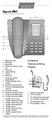 / EL / CZ Gigaset 5005* 1 8 7 2 3 6 5 4 1 Repertory keys 2 Recall key 3 Redial key 4 Handset volume control key 5 Pause key 6 Speed dial key 7 Set key 8 Mute key 1 Πλήκτρα κλήσης προορισμού 2 Πλήκτρο παράλληλης
Digital Cordless Telephone. Motorola S3. For S3001, S3002, S3003 and S3004. Warning: Charge the handset for 24 hours before use.
 Digital Cordless Telephone Motorola S3 For S3001, S3002, S3003 and S3004 Warning: Charge the handset for 24 hours before use. Welcome... to your new Motorola S3000 Digital Cordless Telephone! All handsets
Professional answering machine with time control, SMS service and message transfer. Retell 540 office
 Manual (UK) Professional answering machine with time control, SMS service and message transfer Retell 540 office Safety instructions Safety instructions When installing, connecting and operating the Retell
Home Phone with Answering Machine Aura 1500. Quick set-up and user guide
 Home Phone with Answering Machine Aura 1500 Quick set-up and user guide 2 Important please read first Only use the line cord, power supply and rechargeable batteries supplied with your phone. Make sure
Gigaset 5005 EN / FR / PL / HU
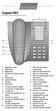 / FR / PL / HU Gigaset 5005 1 8 7 2 3 6 5 4 1 Repertory keys 2 Recall key 3 Redial key 4 Handset volume control key 5 Pause key 6 Speed dial key 7 Set key 8 Mute key 1 Touches d'accès rapide 2 Touche de
User Guide. BT Inspire 1500. Think before you print!
 BT Inspire 1500 User Guide This new interactive user guide lets you navigate easily through the pages and allows you to be directed straight to any websites or email addresses that are referenced. Simply
User Guide. BT Diverse 7150 Plus. Think before you print!
 BT Diverse 7150 Plus User Guide This new interactive user guide lets you navigate easily through the pages and allows you to be directed straight to any websites or email addresses that are referenced.
Overview INT 1. Overview
 Contents Contents Overview..............................................................................2 Safety precautions.....................................................................4 Getting
User s manual. w w w. v t e c h p h o n e s. c o m. Models: mi6885/mi6889/mi6890
 User s manual w w w. v t e c h p h o n e s. c o m Models: mi6885/mi6889/mi6890 Table of contents Getting started...................... 5 Parts checklist for mi6885............... 5 Parts checklist for
BT s toughest phone with 1km outdoor range. Quick Set-up and User Guide. BT Elements 1K Digital Cordless Phone with Answer Machine
 BT s toughest phone with 1km outdoor range Quick Set-up and User Guide BT Elements 1K Digital Cordless Phone with Answer Machine 2 Important please read first Only use the line cord, power supply and rechargeable
Part 2. Copyright 1998 Philips Consumer Communications L.P. All rights reserved. Printed in Mexico. Issue 1AT&T 848229506
 2 User's Manual for Two-Line Digital Answering System Telephone with Speakerphone 1872 Fold open this paper for information about this telephone's installation and operation. Please read Part 1 Important
A free call from your Roadpost satellite phone: +1.905.272.5665. A free call from North America: +1.888.622.7368
 READ THIS GUIDE BEFORE USING YOUR SERVICE Roadpost Satellite Service Iridium 9555 User Guide Customer Care A free call from your Roadpost satellite phone: A free call from North America: +1.888.622.7368
BT Synergy 5500 User Guide
 BT Synergy 5500 User Guide Welcome to your BT Synergy 5500 Digital Cordless Telephone Answering Machine Display with blue backlight. 250 Name and number phonebook. Copy phonebook entries between other
Designed to block nuisance calls. Quick Set-up and User Guide. BT6500 Digital Cordless Phone with Answering Machine
 Designed to block nuisance calls Quick Set-up and User Guide BT6500 Digital Cordless Phone with Answering Machine 2 Important please read first Only use the line cord, power supply and rechargeable batteries
SIP-DECT Aastra 600c/d Messaging & Alerting Applications
 SIP-DECT Aastra 600c/d Messaging & Alerting Applications Handset Release 5.0 User s Guide https://pbxweb.aastra.com/doc_finder/docfinder/_en.pdf?get&dnr= Welcome to Aastra Thank you for choosing this Aastra
HiPath 1100. HiPath 1120 HiPath 1130 HiPath 1150 HiPath 1190. Instruction Manual System Telephone Profiset 3030
 HiPath 1100 HiPath 1120 HiPath 1130 HiPath 1150 HiPath 1190 Instruction Manual System Telephone Profiset 3030 Contents Installation Recommendations... 3 Installation... 4 Profiset 3030 System Telephone...
Gigaset DX800A all in one New and updated functions
 Gigaset DX800A all in one New and updated functions Gigaset DX800A all in one New and updated functions This document is a supplement to the user guide (full version) and the user guide for the Web configurator
8200/8200a. Cordless telephone User Guide
 8200/8200a Cordless telephone User Guide This telephone has been designed for ease of use. Please read the instructions and keep it handy for future reference. If you have any problems with your phone,
General Instructions... 1. User Controls...
 Contents General Instructions... 1. User Controls... 2. Setting Up... 2.1 Important information... 2.2 Contents of package... 2.3 Connecting the base station and charging base... 2.4 Replacing the batteries...
Quick start guide. CL84109/CL84209/CL84309 DECT 6.0 corded/cordless telephone/answering system with caller ID/call waiting
 Quick start guide CL84109/CL84209/CL84309 DECT 6.0 corded/cordless telephone/answering system with caller ID/call waiting Installation You must install and charge the battery before using the telephone.
Converse 320. Userfriendly Guide
 Converse 0 Userfriendly Guide Return Diversion Minder On Off At a glance IMPORTANT Next Inserts a space in a number when storing numbers in the memory. Clear Used to edit numbers when pre-dialling or when
User Guide. Response 75. Digital Answering Machine
 Response 75 Plus Digital Answering Machine User Guide This product is intended for connection to analogue public switched telephone networks and private switchboards in the United Kingdom. At a glance
Alcatel Conference 1800
 Alcatel Conference 1800 USER S GUIDE TABLE OF CONTENTS 1 IMPORTANT SAFETY INSTRUCTIONS...4 1.1 Package Contents...5 1.2 Location...6 2 INSTALLING YOUR PHONE...7 2.1 Connecting the Base Unit...7 2.2 Set
Gigaset C610/610A IP your perfect companion
 Congratulations By purchasing a Gigaset, you have chosen a brand that is fully committed to sustainability. This product s packaging is eco-friendly! To learn more, visit www.gigaset.com. Gigaset C610/610A
BT Big Button 100. User Guide
 BT Big Button 100 User Guide Welcome to your BT Big Button 100 phone Large buttons for easy dialling. Handsfree make and receive calls using the loudspeaker. One-touch 1571 button dials your network answering
UK s best selling phone brand. User Guide. BT Response 75+ Answering Machine
 UK s best selling phone brand User Guide BT Response 75+ Answering Machine Welcome to your BT Response 75+ Digital Answering Machine 50 minutes recording capacity Offers the benefits of digital recording.
s mobile Gigaset C1/C2/S1colour/SL1colour Issued by Information and Communication mobile Haidenauplatz 1 D-81667 Munich
 BA Gigaset C1_C2_S1_SL1 15.06.2004 12:47 Uhr Seite 1 s mobile Issued by Information and Communication mobile Haidenauplatz 1 D-81667 Munich Siemens AG 2004 All rights reserved. Subject to availability.
 DO NOT RETURN THIS PRODUCT TO THE STORE! Please read the following important information For Siemens Customer Care, product operation information, or for problem resolution, call toll-free 1-888-777-0211
Gigaset S685 IP / S675 IP. Gigaset
 s Gigaset S685 IP / S675 IP Gigaset The handset at a glance 19 18 17 16 15 14 13 12 11 10 9 8 Ð ½òÃ V INT 1 15.01.08 09:45? SMS Handset keys 1 Display in idle status (example) 2 Charge status of the batteries
Important Information
 Important Information Digital Proprietary Telephones Quick Reference Guide Model KX-T7625E/KX-T7630E KX-T7633E/KX-T7636E When using the KX-T7600 series, keep the following conditions in mind. If there
Eurit 435. Cordless ISDN telephone DECT. User Manual
 Eurit 435 Cordless ISDN telephone DECT User Manual Important: This user manual contains safety precautions! Please read carefully before putting the telephone into operation, and store in a safe place.
Printed in China. Issue 1.2 AT&T 03/07. Advanced American Telephones. AT&T and the AT&T logo are trademarks of AT&T Knowledge Ventures, licensed to
 2007 Advanced American Telephones. All rights reserved. AT&T and the AT&T logo are trademarks of AT&T Knowledge Ventures, licensed to Advanced American Telephones. Printed in China. Issue 1.2 AT&T 03/07
Operating Instructions
 PLEASE READ BEFORE USE AND SAVE. Integrated Telephone System Model No. KX-T7FXW Pulse-or-tone dialing capability Operating Instructions Preparation Basic Operation Advanced Operation Useful Information
System Phone. User Guide. System DECT 35
 System Phone User Guide System User Instructions The AGFEO Cordless System Phone is designed for the connection / registration to an AGFEO DECT S0 Base or an AGFEO DECT S0-Base plus. The AGFEO will be
Gigaset N300/N300A IP Your powerful housemate
 Congratulations By purchasing a Gigaset, you have chosen a brand that is fully committed to sustainability. This product s packaging is eco-friendly! To learn more, visit www.gigaset.com. Gigaset N300/N300A
INTRODUCTION TO YOUR BT MICRO... 2 WELCOME... 2 BT MICRO FEATUREPHONE... 2 HOW TO USE YOUR BT MICRO FEATURE PHONE... 3
 Table of Contents INTRODUCTION TO YOUR BT MICRO... 2 WELCOME... 2 BT MICRO FEATUREPHONE... 2 HOW TO USE YOUR BT MICRO FEATURE PHONE... 3 Phone setup... 3 Answering and making calls... 3 Transferring calls...
Quick Set-up and User Guide. BT8500 Advanced Call Blocker Digital Cordless Phone with Answering Machine 100% Block. Nuisance Calls
 Block up to 100% Nuisance Calls Call Guardian Block up to 100% of Nuisance Calls Quick Set-up and User Guide BT8500 Advanced Call Blocker Digital Cordless Phone with Answering Machine PQ RS PQ RS Volume
User guide The Konftel 200W conference phone
 User guide The Konftel 200W conference phone English Conference phones for every situation This product is equipped with OmniSound, the crystal clear sound. DECT conforms to the GAP standard DECT Digital
Operating Instructions
 Integrated Telephone System Model No. KX-TS05HGW PLEASE READ BEFORE USE AND SAVE. Pulse-or-tone dialing capability Operating Instructions Preparation Basic Operation Advanced Operation Useful Information
Nokia Bluetooth Headset BH-607. Issue 2. 1
 Nokia Bluetooth Headset BH-607 2 3 1 4 5 6 7 8 9 11 10 Issue 2. 1 12 13 14 DECLARATION OF CONFORMITY Hereby, NOKIA CORPORATION declares that this BH-607 product is in compliance with the essential requirements
User s Manual. w w w. v t e c h p h o n e s. c o m. Model: ia5874, ia5876, ia5877
 User s Manual w w w. v t e c h p h o n e s. c o m Model: ia5874, ia5876, ia5877 Table of Contents GETTING STARTED................... 4 Before You Begin..................... 4 Parts Check List:...................
Quick start guide. ML17939/17959 Two-line corded telephone/ answering system with caller ID/call waiting
 Quick start guide ML17939/17959 Two-line corded telephone/ answering system with caller ID/call waiting Installation preparation You must install the power adapter before using the telephone. See pages
BT Paragon 550. User Guide
 BT Paragon 550 User Guide Section Welcome to your BT Paragon 550 corded digital telephone and answering machine Directory lets you store up to 100 names and numbers for easy dialling. Send and receive
Quick start guide E5827 5.8 GHz corded/cordless telephone/answering system with caller ID/ call waiting
 Quick start guide E5827 5.8 GHz corded/cordless telephone/answering system with caller ID/ call waiting Battery installation & charging After installing the battery, you may be able to make or receive
Nokia Bluetooth Stereo Headset BH-221
 Nokia Bluetooth Stereo Headset BH-221 Issue 2.0 2 Introduction About your headset With the Nokia Bluetooth Stereo Headset BH-221, you can handle calls hands-free, enjoy your favourite music, and listen
Digital Proprietary Telephones
 Digital Proprietary Telephones Quick Ref erence er G uide uid MODELS KX-DT343 KX-DT346 LTD KT-DT300 Q_R_Guide_EN_FA.indd 1 7/14/09 8:50:39 AM Important Information Digital Proprietary Telephones
Edition 4 26 March 97. Response 130 telephone and answering machine. User guide
 Edition 4 26 March 97 Response 130 telephone and answering machine User guide At a glance Directory label For making a note of numbers stored in the memories. One-touch dial memory buttons Allows you to
User s manual. TL86109 DECT 6.0 2-line corded/cordless telephone/ answering system with BLUETOOTH wireless technology
 User s manual TL86109 DECT 6.0 2-line corded/cordless telephone/ answering system with BLUETOOTH wireless technology Congratulations on purchasing your new AT&T product. Before using this AT&T product,
BUSINESS COMMUNICATIONS DIVISION. IP4100 SIP DECT User Guide
 BUSINESS COMMUNICATIONS DIVISION IP4100 SIP DECT User Guide TOSHIBA IP4100 DECT HANDSET END USER GUIDE FEATURES Toshiba IP4100 DECT Handset Features 2.0 inch colour TFT back-lit display Li-ion battery
Telstra V850a. Cordless Telephone User Guide. If you have any problems with your phone, refer to the Help section of this User Guide.
 Telstra V850a Cordless Telephone User Guide This telephone has been designed for ease of use. Please read the instructions in (Setting up the Telstra V850a) and keep it handy for future reference. If you
Ascotel IntelliGate Communications Systems A150 A300 2025 2045 2065. Office 60IP User s Guide
 Ascotel IntelliGate Communications Systems A150 A300 2025 2045 2065 Office 60IP User s Guide Operating and Display Elements Operating and Display Elements 1 4 5 6 7 2 8 9 10 16 11 12 13 17 14 15 3 Operating
User Guide E814CC Amplified Big Button Cordless Phone with Corded Digital Answering Machine
 User Guide E814CC Amplified Big Button Cordless Phone with Corded Digital Answering Machine important safety instructions Warnings: Privacy of communications may not be ensured when using this phone.
User s Guide. DECT 6.0 Cordless Phones with Answering System. Warning. For L401 / L402 / L403 / L404 / L405
 User s Guide For L401 / L402 / L403 / L404 / L405 DECT 6.0 Cordless Phones with Answering System Warning Use only the power adapters and telephone line cord provided in the box. Welcome... to your new
Operating Manual IP110 IP200 IP230
 Operating Manual IP110 IP200 IP230 PURE IP - TELEPHONY Release 6.0, 1st edition, March 2007 Brand names are used with no guarantee that they may be freely employed. Almost all hardware and software designations
Dialog 4220 Lite/Dialog 4222 Office
 Dialog 4220 Lite/Dialog 4222 Office System telephones for MD110 Communication System User Guide Flinders University Table of Contents Description 2 Incoming Calls... 10 Outgoing Calls... 12 During Calls
BigTel 280. Bedienungsanleitung. User manual. Mode d emploi
 BigTel 280 Bedienungsanleitung User manual Mode d emploi DE GB FR TABLE OF CONTENTS Safety Information...................................2 Preparing the Telephone..............................5 Operating