
VAS 5054A User Manual. VAS 5054A Remote Diagnosis Head. User Manual, VAS 5054A.
|
|
|
- Adam Randall
- 9 years ago
- Views:
Transcription
1 VAS 5054A Remote Diagnosis Head User Manual, VAS 5054A

2 Contents 1 General Information How to Use This Manual Features and Application Areas Delivery Scope Notes 4 2 Application and Use of the VAS 5054A Properties System Requirements System Overview 6 3 Installation and Setup Connecting the VAS 5054A to the Vehicle Installing the Bluetooth Adapter and Bluetooth Software on the Application PC Configuring the Bluetooth Security Settings Setting up a Connection to the VAS 5054A Installing the Diagnostic Application Changing the PIN Manually Adding a VAS 5054A Connecting and Installing the VAS 5054A via USB 22 4 Using the VAS 5054A with a Diagnostic Application 25 5 Diagnostic Interface Configuration Utility 26 6 Frequently Asked Questions (FAQs) General Information Bluetooth Software Error Messages during Self-Diagnosis 33 7 Appendix VAS 5054A Specifications Status Display Pin Assignment of the Vehicle Connector Self-Diagnosis EC Declaration of Conformity Approvals Safety Notice Support 41 User Manual VAS 5054A V1.06 All rights reserved. Page 2

3 1 General Information 1.1 How to Use This Manual This manual provides information about the following topics: Installing, configuring and operating the VAS 5054A Remote Diagnosis Head Technical specification of the VAS 5054A (in the Appendix) The VAS 5054A User Manual is provided in the Help directory on the installation CD of the Volkswagen diagnostic tools. After installation is complete, you can open the User Manual by clicking VAS5054 Manual in the program group of your diagnostic application on the Windows Start menu. Note Due to further development of the software, the screenshots included in this document may differ slightly from what you see on screen. The screenshots are shown in English in this manual. As the Bluetooth software and the diagnostic applications support multiple languages, the user interface during installation in many cases will be displayed in the language of your operating system. If the language version of your operating system is not supported, the user interface will be shown in English. 1.2 Features and Application Areas The VAS 5054A Remote Diagnosis Head provides Volkswagen diagnostic applications with easy-to-use wireless access to the onboard vehicle systems. With its compact design, its integrated diagnostic connector and its wireless connection via Bluetooth, the VAS 5054A is the perfect choice for servicing, production and road tests in particular. Special features: Bluetooth and USB interface to the PC Housing with integrated diagnostic connector Reliable and efficient handling of diagnostic protocols in the VAS 5054A Power supplied by vehicle, thus saving notebook battery power during mobile operation Power management ensures load reduction for the vehicle battery during downtimes Status display 1.3 Delivery Scope The Remote Diagnosis Head is supplied in a carrying case containing the following components: 1 VAS 5054A Remote Diagnosis Head 1 USB cable (VAS5054/1) 1 Optional CD with diagnostic application incl. User Manual for VAS 5054A in PDF format Optionally available: Recommended VAS5054/2 Bluetooth adapter User Manual VAS 5054A V1.06 All rights reserved. Page 3

4 1.4 Notes Follow the instructions in chapter 3 step by step to ensure proper installation. Do not open the housing of the VAS 5054A. In case of defect, please return the VAS 5054A to Softing for servicing. The service address is given in chapter 7.8, Support. Use only the accessories supplied with the device. Keep in mind to disconnect the VAS 5054A from the vehicle's diagnostic connector when you are finished. The VAS 5054A draws power when connected to the vehicle. It may drain the vehicle's battery if you leave it connected for an extended period of time after the ignition is turned off. Take advantage of the VAS 5054A's power-save features and have the device power off automatically or sound an alarm after a specified period of non-use. For details see chapter 5. Cleaning and care Protect the contacts of the diagnostic connector from dust and dirt. Keep the VAS 5054A in the carrying case when not in use. Make sure the cover for the USB port of the VAS 5054A is closed. Protect the VAS 5054A from temperatures above 80 C. For example, do not leave it on the vehicle's dashboard in direct sunlight. Even though the device is protected against splash water, contact with water or corrosive substances should be avoided. Avoid excessive shock. User Manual VAS 5054A V1.06 All rights reserved. Page 4

5 2 Application and Use of the VAS 5054A 2.1 Properties The VAS 5054A is a universal diagnostic interface for the vehicles of the Volkswagen Group and all OBD vehicle systems from other manufacturers. The integrated Bluetooth interface connects the vehicle with a notebook, desktop PC or test system. No cables are needed for vehicle diagnostics using the VAS 5054A. The range of the wireless Bluetooth connection is 5 to 10 meters, depending on the environment and the type of Bluetooth adapter used on the PC side. The Serial Port Profile (SPP) is used for data transfer via Bluetooth. Different Bluetooth security levels are supported. The following vehicle bus systems are supported: K line (ISO9141-2) High-speed CAN (ISO ) Low-speed CAN (ISO ) J1850 (SAE J1850) The vehicle protocols are handled directly in the VAS 5054A. This ensures fast response times and a reliable real-time behavior independently of the PC operating system. Every time a connection is established, the VAS 5054A software is synchonized with the version installed on the application PC. The VAS 5054A thus automatically adopts any new features provided after a new software version has been installed on the application PC. 2.2 System Requirements To operate the VAS 5054A, your computer must meet the following system requirements: PC, notebook, 100% IBM compatible Operating system Windows XP Service Pack 2. Installation requires administrator rights. The computer must have a Bluetooth interface that supports the Bluetooth Serial Port Profile. One free USB port (for special applications such as configuring the VAS 5054A or if wireless communication is not permitted). Note The Windows NT4, Windows 95/98/ME and Windows Vista operating systems are not supported by the VAS 5054A driver software. To use the VAS 5054A with Windows 2000, see FAQ 1 in the Appendix. User Manual VAS 5054A V1.06 All rights reserved. Page 5

6 2.3 System Overview The diagnostic application and the associated Diagnostic Base System are installed on the application PC. The Diagnostic Base System can access the VAS 5054A via Bluetooth or USB. Access via Bluetooth: After a connection to the VAS 5054A has been set up, the Bluetooth software provides a virtual serial COM port (Bluetooth Serial Port Profile). The Diagnostic Base System uses this COM port to communicate with the VAS 5054A. You need to specify this port when you install the diagnostic application. Access via USB: You can also connect the VAS 5054A to the application PC by using the supplied USB cable. Windows detects the VAS 5054A through Plug and Play, and automatically installs the drivers copied when you installed the diagnostic application. Setup of the VAS 5054A is then complete and the device is ready for use by the diagnostic application. Bluetooth adapter Application PC with diagnostic application VAS 5054A Fig. 2-1 Overview of a Bluetooth connection User Manual VAS 5054A V1.06 All rights reserved. Page 6

7 3 Installation and Setup To install, please take the following steps which are described in detail further below: 1. Connect the VAS 5054A to the vehicle. 2. Install the Bluetooth adapter on the application PC. 3. Configure the Bluetooth adapter software: Security settings. 4. Set up a connection to the VAS 5054A. 5. Install the application software. 6. Change the PIN for the VAS 5054A. Note You need administrator rights to run the setup programs on the application PC. 3.1 Connecting the VAS 5054A to the Vehicle When you plug the VAS 5054A into the vehicle's diagnostic connector, the VAS 5054A is supplied with power and ready for use. The blue status indicator on the front of the Bluetooth Diagnostic Head flashes every second. You can connect the VAS 5054A to the application PC or repair shop tester either wirelessly via Bluetooth or by using a USB cable. As soon as a connection to the PC has been established, the status indicator is on continuously. During data exchange via Bluetooth or USB, the status indicator flashes according to data volume. 3.2 Installing the Bluetooth Adapter and Bluetooth Software on the Application PC To communicate with the VAS 5054A, the application PC must have a Bluetooth adapter installed. Some application PCs (e.g. modern notebooks) feature a built-in Bluetooth interface. If your PC does not have Bluetooth, you need to install a Bluetooth adapter or Bluetooth PC card. In that case, you can order the VAS 5054A together with a suitable Bluetooth USB adapter (VAS5054/2). The following description of how to configure the Bluetooth software refers to this adapter. For information on installing and setting up the VAS 5054A using Bluetooth software from other manufacturers, please see FAQ 7 in the Appendix. Please also note the limitations detailed in that section with regard to operating the VAS 5054A with those software versions. Installing the VAS5054/2 Bluetooth USB adapter Follow the instructions below if you will be using the Bluetooth software that comes with Windows XP Service Pack 2. You will need a Bluetooth adapter that can be found by Windows XP. New adapter models might not be supported by Windows XP. Therefore, it is recommended to use the VAS5054/2 Bluetooth adapter that is available as an option. User Manual VAS 5054A V1.06 All rights reserved. Page 7

8 The following instructions apply only when you are installing the recommended Bluetooth adapter, using the Bluetooth software supplied with Windows XP Service Pack 2: 1. Start up Windows XP and log on with a user account with administrator rights. 2. Plug the Bluetooth adapter into a USB port on your computer. Note Please always use the same USB port for your Bluetooth USB adapter. Windows will install other COM ports if you connect the Bluetooth USB adapter to a different USB port. Your diagnostic application will not work in that case. 3. Windows XP SP2 automatically detects the VAS 5054/2 Bluetooth adapter and installs the appropriate drivers. Fig. 3-1 Windows XP Service Pack 2 automatically detects the Bluetooth adapter After a while, a message informs you that the adapter has been successfully installed (Fig. 3-2). You can now set up a Bluetooth connection to the VAS 5054A. Fig. 3-2 Windows XP Service Pack 2 automatically installs the Bluetooth adapter 3.3 Configuring the Bluetooth Security Settings For security reasons, it is essential to make the following settings in the Bluetooth software in order to prevent unauthorized access to the application PC from the outside. Open Bluetooth Devices in Control Panel. Go to the Options tab and disable the Allow Bluetooth devices to connect to this computer check box in the Connections section for security reasons. It is recommended to enable the Show the Bluetooth icon in the notification area check box (see Fig. 3-3). The Bluetooth icon is then permanently displayed in the notification area of the taskbar. User Manual VAS 5054A V1.06 All rights reserved. Page 8

9 Fig. 3-3 Bluetooth software settings of Windows XP Service Pack Setting up a Connection to the VAS 5054A 1. Open Bluetooth Devices in Control Panel. On the Devices tab, you can search for Bluetooth devices in range. Please note that the VAS 5054A has to be plugged into the vehicle's diagnostic connector for power supply. Click Add. A dialog box opens. Check the My device is set up and ready to be found box (see Fig. 3-4) and then click Next>. User Manual VAS 5054A V1.06 All rights reserved. Page 9

10 Fig. 3-4 Confirmation that the VAS5054A is ready 2. The wizard scans the range for Bluetooth devices and displays the devices found (Fig. 3-5). Select your VAS 5054A and click Next>. If your VAS 5054A is not listed, please make sure that: Note the VAS 5054A is supplied with power from the vehicle's diagnostic connector (flashing status indicator next to the USB connector on the VAS 5054A), the VAS 5054A is within range (the distance between PC and VAS 5054A should not exceed 10 meters), the VAS 5054A is not connected to the PC via USB, the VAS 5054A is not currently connected to another PC via Bluetooth. Click Search Again. User Manual VAS 5054A V1.06 All rights reserved. Page 10

11 Fig. 3-5 Finding Bluetooth devices 3. Enter the passkey (Bluetooth PIN) (Fig. 3-6). The device is delivered with the PIN preset to the serial number given on the device. Confirm your entry with Next>. Fig. 3-6 Entering the passkey 4. A Bluetooth serial port is installed on your PC (in Fig. 3-7: COM3). Please note down the number of the outgoing COM port. Click Finish. User Manual VAS 5054A V1.06 All rights reserved. Page 11

12 Fig. 3-7 The newly configured COM port is displayed 3.5 Installing the Diagnostic Application 1. Make sure you have logged on with a user account with administrator rights before you start installing. Uninstall previous versions of your diagnostic application. Start the Setup.exe program on the CD that came with your diagnostic application (e.g. VAS 5065). Click Next> to continue installation. Fig. 3-8 Welcome screen of the setup program of the diagnostic application (here: VAS5065) User Manual VAS 5054A V1.06 All rights reserved. Page 12

13 2. Select VAS 5054 as the diagnostic interface. Fig. 3-9 Selecting the diagnostic interface 3. Confirm that Bluetooth has been installed on your system. How to install the Bluetooth adapter is described in section 3.2. Fig Confirmation that Bluetooth is installed and ready for use User Manual VAS 5054A V1.06 All rights reserved. Page 13

14 4. Confirm that your VAS 5054A has been connected via Bluetooth. How to establish a connection to the VAS 5054A is described in section 3.2. Fig Confirmation that a connection to the VAS 5054A has been set up 5. Leave the default component selection unchanged and click Next> to continue installation. Fig Selecting the components to be installed User Manual VAS 5054A V1.06 All rights reserved. Page 14

15 6. Select the destination folder in which you want to install the Diagnostic Base System. The Diagnostic Base System consists of the following components: EDIABAS with control unit description files, DTS, and the EDIC and VAS 5054A driver software. The default folder is C:\DBaseSys. Click Next> to continue installation. Fig Destination folder for installing the Diagnostic Base System 7. Choose the Program Manager Group. If required, you may select the appropriate group from the list of existing Program Manager Groups or you can use or edit the default preset by the setup program. Continue installation with Next>. User Manual VAS 5054A V1.06 All rights reserved. Page 15

16 Fig Selecting the Program Manager Group 8. Select the destination folder in which you want to install your self-diagnosis application. Click Next> to continue installation. Fig Selecting the destination folder for installing the self-diagnosis application 9. Toward the end of the installation process, the drivers for the diagnostic interface are installed. This may take a while (Fig. 3-16). User Manual VAS 5054A V1.06 All rights reserved. Page 16

17 Fig Installing the drivers for the diagnostic interface 10. When the Select EDIC to install message appears, select VAS 5054 as the interface. Fig Selecting the desired diagnostic interface: VAS 5054 If this message is not displayed, a different EDIC is currently connected to your system or an EDIC or a VAS 5054A was configured at a earlier time. Conclude the installation. Then click EDIC Hardware Installation in the program group of the diagnostic application and add the VAS 5054A manually (see section 3.7). User Manual VAS 5054A V1.06 All rights reserved. Page 17

18 11. Make sure the VAS 5054A has been correctly configured in your Bluetooth software and is within your PC's range. Click OK. Fig Message informing you that the Bluetooth adapter has to be installed and a connection to the diagnostic interface has to be set up 12. Select the COM port that was displayed when you configured the VAS 5054A in your Bluetooth software. Finish the installation with OK. Fig Selecting the COM port connected to the VAS 5054A User Manual VAS 5054A V1.06 All rights reserved. Page 18

19 If the following error message (Fig. 3-20) is displayed, your VAS 5054A is outside the range of your Bluetooth adapter or you have selected the wrong COM port. Fig Error message informing you that connecting to the VAS 5054A failed Click OK. The installation is completed without setting up the VAS 5054A. In your Bluetooth software, look up the COM port to which your VAS 5054A is connected. If necessary, have the Bluetooth software search for Bluetooth devices again and connect to the VAS 5054A. After installation is complete, launch the EDIC Hardware Installation program from the Program Manager Group of your diagnostic application and repeat the installation (see section 3.7). 13. Conclude the setup program. The VAS 5054A can now be accessed by your diagnostic application. Please note that, after you have started your application, loading the firmware for the first time will take approx. one minute. User Manual VAS 5054A V1.06 All rights reserved. Page 19

20 3.6 Changing the PIN The VAS 5054A is delivered with the Bluetooth PIN preset to the 9-digit numeric serial number of the device. Before putting the device into operation, you need to change the Bluetooth PIN according to Volkswagen specifications: The PIN must consist of at least 6 characters comprising letters and numbers. You can also use special characters. Changing the preset Bluetooth PIN Connect your VAS 5054A to your computer, if possible via USB. Launch the Diagnostic Interface Configuration Utility configuration program from the Start menu of your diagnostic application. When connecting the device via Bluetooth, please read chapter 5. In the PIN box of the Bluetooth Parameter section, enter a new PIN according to Volkswagen specifications: The PIN must consist of at least 6 digits containing letters and numbers. Make sure the Security Mode is set to 4 (see Fig. 3-21). Confirm your changes with OK. The next time a connection to the VAS 5054A is established, the Bluetooth software will ask you to enter the new PIN. Fig Changing the Bluetooth PIN of the VAS 5054A The program is described in detail in chapter 5. User Manual VAS 5054A V1.06 All rights reserved. Page 20

21 3.7 Manually Adding a VAS 5054A If you have already installed a different EDIC or if you were not asked to install the VAS 5054A during the installation process, you need to install it manually. Launch the EDIC Hardware Installation program from the Start menu of your diagnostic application. Fig Launching the EDIC Hardware Installation program Click the Add EDIC button. Select VAS 5054 from the list and click OK. Fig Selecting the diagnostic interface to be installed: VAS 5054 User Manual VAS 5054A V1.06 All rights reserved. Page 21
22 Make sure the VAS 5054A has been correctly configured in your Bluetooth software and is within your PC's range. Click OK. Fig Selecting the COM port connected to the VAS 5054A Select the COM port that was assigned to the VAS 5054A by your Bluetooth software. Confirm with OK. Then exit the program with OK. If several interfaces are installed on your system, you are automatically asked to select an interface when you launch your diagnostic application. 3.8 Connecting and Installing the VAS 5054A via USB In special cases you can also operate the VAS 5054A using a USB cable connection: To configure the VAS 5054A in the Diagnostic Interface Configuration Utility program (Bluetooth settings, activation of the built-in buzzer, auto power off), For use in areas in which wireless communication is not permitted, For applications that require a high-performance connection to the vehicle. If you want to install the VAS 5054A only via USB when installing the application software, do not yet connect the VAS 5054A to your PC. When the Select EDIC to install dialog box opens, click Cancel. The application software is completed without installing a diagnostic interface. Plug the VAS 5054A into the diagnostic connector. Open the rubber cover on the front of the VAS 5054A and attach the mini USB connector of the supplied USB cable. Connect the USB cable to a USB port on your application PC. The following description assumes that the diagnostic application has already been installed. User Manual VAS 5054A V1.06 All rights reserved. Page 22
23 Fig Windows Found New Hardware Wizard Windows automatically detects the VAS 5054A through Plug and Play. In Windows 2000 the drivers are installed without a confirmation prompt, in Windows XP the Found New Hardware Wizard launches (see Fig. 3-25). When prompted if you want to connect to Windows Update, select No, not this time (Fig. 3-25). Click Next> to continue installation. Select the Install the software automatically radio button and click Next> (Fig. 3-26). Click Finish to close the wizard (Fig. 3-27). Fig Automatic installation of the driver files for the VAS 5054A User Manual VAS 5054A V1.06 All rights reserved. Page 23
24 Fig Completing the wizard Your PC is now set up for a USB connection to the VAS 5054A and ready for use with your diagnostic application. User Manual VAS 5054A V1.06 All rights reserved. Page 24
25 4 Using the VAS 5054A with a Diagnostic Application Start your diagnostic application. If no diagnostic application has been installed on your PC before, a dialog box will be displayed when you start the application for the first time. In the dialog box, enter the distribution center/importer number and the dealer number. Information on how to obtain these numbers is provided in the documentation that came with your diagnostic application. If you have changed the PIN of the VAS 5054A, you are prompted to enter the new PIN in the application PC. Type in the new PIN and confirm your entry. The firmware is loaded into the VAS 5054A. This will take about a minute when you start the application for the first time. The next time, your VAS 5054A will be available in a few seconds. Note As Bluetooth connections have a low bandwidth, processes involving the transmission of large data volumes will take longer than with vehicle interfaces connected directly to the PC. Fig. 4-1 User interface of the VAS 5065 immediately after startup After loading the VAS 5054A firmware, the startup screen of your diagnostic application is displayed. User Manual VAS 5054A V1.06 All rights reserved. Page 25
26 5 Diagnostic Interface Configuration Utility You can configure the Bluetooth settings of the VAS 5054A and set the built-in buzzer and auto power off timers with the Diagnostic Interface Configuration Utility program. To launch the program, go to the Windows Start menu and select Diagnostic Interface Configuration Utility on the menu of your diagnostic application. Configuration can be done via USB or Bluetooth. USB should be preferred. Configuration via Bluetooth is only possible if no VAS 5054A is connected via USB. A list of the COM ports on your computer is then displayed automatically. Please choose the one your VAS 5054A is connected to. Note If you do not know the PIN of the VAS 5054A, you cannot connect via Bluetooth! Use the USB cable to configure the VAS 5054A. Fig. 5-1 Configuring the VAS 5054A The following options are offered: Timer Parameter/ Buzzer Time Buzzer Time Enable / Disable The built-in buzzer serves to avoid forgetting the device in the vehicle. The VAS 5054A can be configured to sound an alarm after a specified time. Select this check box to activate the buzzer in the VAS 5054A. User Manual VAS 5054A V1.06 All rights reserved. Page 26
27 Buzzer Time sec. Timer Parameter/ Power Off Time Power Off Time Enable / Disable Power Off Time sec. Bluetooth Parameter PIN The value you enter in this box defines the time after which the alarm is sounded if the connection to the application PC is interrupted (USB cable disconnected or Bluetooth connection closed). A Bluetooth connection is also interrupted when the diagnostic application is in the startup screen. The minimum timeout is 15 seconds, the maximum timeout seconds. The VAS 5054A features a standby mode which ensures load reduction for the vehicle battery during downtimes. The device will be powered off automatically after a userselectable time. While in standby mode, the current consumption is typically 5 ma at 12V. The device switches on again when the ignition signal state changes from 0V to the positive vehicle voltage (e.g. 12 V). Select this check box to activate auto power off. The value you enter in this box defines the time after which the device powers off if the connection to the application PC is interrupted (USB cable disconnected or Bluetooth connection closed). A Bluetooth connection is also interrupted when the diagnostic application is in the startup screen. The minimum timeout is 15 seconds, the maximum timeout seconds. Input box for the PIN. The PIN protects Bluetooth devices from unauthorized access. According to Volkswagen specifications, the PIN has to have at least 6 digits containing letters, numbers and special characters. The maximum PIN length is 16 characters. When you change the PIN, you have to enter the new PIN in your Bluetooth software as well. The Bluetooth software will prompt you for the new PIN when you establish a connection. Local Name Input box for the device name. When you click into this box, the original device name is cleared. Enter a new name. The serial number of the VAS 5054A is automatically appended, enclosed in angle brackets. This name is displayed by your Bluetooth software when you search for Bluetooth devices. After changing the device name, you have to re-enter the PIN in the Bluetooth software. User Manual VAS 5054A V1.06 All rights reserved. Page 27
28 Security Mode Security settings for the Bluetooth connection. The security modes are defined as follows: Mode 1: No security Mode 2: Security at service level (PIN required) Mode 3: Security at connection level (PIN required) Mode 4: Security at connection level with encryption (PIN required) The specifications prescribed by Volkswagen require the use of Security Mode 4. After changing the security mode, you have to re-enter the PIN in the Bluetooth software. By clicking Cancel, you can cancel the program at any time without changing the configuration. Clicking OK applies the data to the device. Selecting Set Defaults applies the defaults (Buzzer Time and Power Off Time = Disable, Security Mode = 4, PIN = Serial number of the VAS 5054). The program closes automatically after transferring the new settings to the VAS 5054A. User Manual VAS 5054A V1.06 All rights reserved. Page 28
29 6 Frequently Asked Questions (FAQs) 6.1 General Information FAQ 1 Can I use the VAS 5054A with Windows versions earlier than Windows XP Service Pack 2? You can basically use Windows versions from Windows 2000 Service Pack 4 onwards. However, there is no specific Bluetooth adapter recommendation for these operating systems. The recommended Bluetooth adapter VAS5054/2 is only released for the Microsoft Bluetooth software that comes with Windows XP Service Pack 2. Therefore, no support can be offered if installation problems occur under these operating systems. Windows 95, 98, ME, NT 4 cannot be used. FAQ 2 What specifications does Volkswagen make regarding data security for wireless Bluetooth connections? To prevent unauthorized access to the Remote Diagnosis Head and the application PC by third parties, specific security measures must be taken: Use a PIN consisting of at least six digits containing numbers, letters and special characters. Use the highest Bluetooth security mode (Security Mode 4). Disable all services that are not needed. Disable general discovery. How to make the required settings is described in chapter 5. FAQ 3 What happens if I move out of range during vehicle diagnostics? The connection is interrupted. The tester will not display an error message at first. Only when you select a function that requires a connection to the vehicle system, the error message The interface (EDIC) does not respond or The connection to the interface is disrupted will appear. Move back into range. Click Aborting and restart the vehicle diagnostics. FAQ 4 What happens if the VAS 5054A is out of range when I start the diagnostics? It cannot connect to the diagnostic interface. After a while, the error message The EDIC-API delivers a system error will appear. Move back into range. Click Aborting and restart the vehicle diagnostics. User Manual VAS 5054A V1.06 All rights reserved. Page 29
30 FAQ 5 Where can I look up the PIN of my VAS 5054A? How can I change the Bluetooth PIN? Use the Diagnostic Interface Configuration Utility program. A detailed description is provided in chapter Bluetooth Software FAQ 6 How can I find out which COM port is assigned to my VAS 5054A? If you are using the Bluetooth software supplied with Windows XP Service Pack 2, open the Bluetooth settings by selecting Bluetooth Devices in Control Panel. Click on the COM Ports tab. A list of the Bluetooth COM ports is displayed. The outgoing COM port to the VAS 5054A is the one assigned. Fig. 6-1 List of the COM ports in the Windows XP Service Pack 2 Bluetooth software If you are using other Bluetooth software, please refer to the relevant sections in the documentation that came with your Bluetooth adapter. User Manual VAS 5054A V1.06 All rights reserved. Page 30
31 FAQ 7 I am using Bluetooth software that is not described in this manual. What do I have to do to use the VAS 5054A with this Bluetooth software? A wide variety of Bluetooth adapters is available in the market today. The manufacturers provide matching software packages for the setup and operation of their Bluetooth adapters. In most cases, this software only allows use of the associated Bluetooth adapter, which means that an adapter from a different manufacturer cannot be used with this software. The individual software packages differ in functionality and use. Therefore, this manual cannot provide any details on the individual installation steps. The following description illustrates the general procedure. How these steps are implemented in your specific Bluetooth software is described in your Bluetooth adapter's documentation. Follow the basic procedure described in this manual as far as possible. Check which Bluetooth software your Bluetooth adapter uses. If you have already installed the Bluetooth software, please read the relevant information provided on the software's About or Help menu. If you have not yet installed your Bluetooth software, start the installation and read the License Agreement to see which company is given as the Licensor. The Licensor of the Bluetooth software is usually not the manufacturer of the Bluetooth hardware, but in most cases one of the following companies: Broadcom/Widcomm, IVT Corporation or Toshiba. The Bluetooth software provided on your computer may not be suitable for use with the VAS 5054A. In that case you may have to uninstall the existing Bluetooth software and, instead, use the recommended VAS5054/2 Bluetooth adapter together with the Bluetooth software supplied with Windows XP Service Pack 2. Please note that no support is provided on the use of any of the Bluetooth software versions listed in the following table. Problems have occurred with some of these software versions when used in conjunction with the VAS 5054A. Note It is advisable to use Microsoft's Bluetooth software that comes with Windows XP Service Pack 2. A suitable Bluetooth adapter is available as an option (item no. VAS5054/2). User Manual VAS 5054A V1.06 All rights reserved. Page 31
32 The following other standard Bluetooth software has been tested for use with the VAS 5054A: Software Remarks A problem was encountered with the current versions of the Bluetooth software from Broadcom: Broadcom/Widcomm Bluetooth Software No Bluetooth connection can be established to VAS 5054A devices set to Security Mode 4. The VAS 5054A is delivered preset to this security mode. The specifications prescribed by Volkswagen do not permit setting the device to a lower security mode. If this problem occurs with the version you are using, you have to uninstall the software. Order and use the recommended Bluetooth adapter VAS5054/2. IVT Blue Soleil Bluetooth Software No problems encountered so far Long-term stability problems were encountered with all the versions of the Bluetooth software from Toshiba that have been tested so far: Toshiba Bluetooth Software After prolonged intense communication with a vehicle system (as is usually the case e.g. when using the self-diagnosis function Read measuring value block), the software might fail to respond. As there is no possibility to prevent this from happening, it is strongly recommended not to use Bluetooth adapters that come with this software. Use the recommended Bluetooth adapter VAS5054/2 instead. Basic installation procedure Make sure your Bluetooth software supports the Serial Port Profile (SPP), which it usually will. You cannot use Bluetooth software that does not support this profile. The Bluetooth software for your Bluetooth adapter can detect the VAS 5054A via Bluetooth. A virtual serial COM port is installed on your application PC. The Bluetooth software uses this Bluetooth COM port to establish a connection between the VAS 5054A and the application PC. If your Bluetooth hardware was supplied with Bluetooth software that is not described in this manual, please use the following basic installation procedure: 1. Keep the PC's Bluetooth adapter ready, but do not connect it yet. If you have already plugged in the adapter, click Cancel (if the Windows hardware wizard appears), remove the adapter and restart your PC. 2. Install the software package supplied with your adapter. When prompted by the setup program, connect the Bluetooth adapter and continue installation. Note: The following steps might also be part of the installation process for your Bluetooth software. User Manual VAS 5054A V1.06 All rights reserved. Page 32
33 3. After installation is complete, the VAS 5054A must be detected by the Bluetooth software. The software offers a function for listing all the Bluetooth devices in range. Make sure your VAS 5054A is connected to the power supply and is within range. The VAS 5054A then has to appear in this list. Select the VAS 5054A the list and have the software discover the services provided by the VAS 5054A (a Bluetooth serial port is the only service that is allowed to be discovered). A prompt appears asking you to enter the PIN of the VAS 5054A. Type in the serial number of the VAS 5054A, which is indicated on the ID plate. 4. Using the Bluetooth software, connect to the VAS 5054A. The connection may have already been established during service discovery. A COM port for outgoing connections, which was created by the Bluetooth software, is displayed on your PC. You will need the identifier of this COM port when installing the application software. 5. Install the application software as described in sections 3.5 to Error Messages during Self-Diagnosis FAQ 8 I get the error message: No EDIC is installed. What does that mean? No VAS 5054A is currently installed. Connect to the VAS 5054A with your Bluetooth software. Note down the COM port that your Bluetooth software has assigned to the VAS 5054A. Install the VAS 5054A you want to use with your diagnostic application. You will find a detailed description of how this is done in section 3.7. FAQ 9 I get the error message The EDIC-API delivers a system error. In the details, the error IFH-0002 (NO RESPONSE FROM INTERFACE) is indicated. What does that mean? The connection to the VAS 5054A has been interrupted. Possible reason: The VAS 5054A was (temporarily) disconnected from the power supply during a diagnostic session. Plug the VAS 5054A back in. Click Aborting and restart your diagnostic session. FAQ 10 I get the error message The EDIC-API delivers a system error. In the details, the error IFH-0003 (DATATRANSMISSION TO INTERFACE DISTURBED) is indicated. What does that mean? The connection to the VAS 5054A has been interrupted. Possible reason: The VAS 5054A was (temporarily) disconnected from the power supply during a diagnostic session. Plug the VAS 5054A back in. Click Aborting and restart your diagnostic session. User Manual VAS 5054A V1.06 All rights reserved. Page 33
34 FAQ 11 I get the error message The EDIC-API delivers a system error. In the details, the error IFH-0020 (DRIVER ERROR) is indicated. What does that mean? The driver cannot open the Bluetooth COM port. Consequently no connection can be established to the VAS 5054A. Possible reasons: The Bluetooth software displays an error message when opening the COM port because the VAS 5054A is out of range or not connected to the diagnostic connector. Move back into range and/or plug the VAS 5054A back in. Click Aborting and restart your diagnostic session. User Manual VAS 5054A V1.06 All rights reserved. Page 34
35 7 Appendix 7.1 VAS 5054A Specifications Dimensions Approx. 114 x 48 x 25 mm Weight Approx. 100 g, with USB cable approx. 120g Color RAL 7021 Power supply V via vehicle diagnostic connector Current consumption Approx. 200 ma at 12V PC interface Bluetooth V1.2 Class 2 (range approx. 10 m) USB V2.0 Full Speed, 12 Mbits/s, mini USB jack (type B) Vehicle interface Diagnostic connector in acc. with ISO or SAE J1962 CAN One CAN 2.0B channel with CAN high-speed physical bus in acc. with ISO and CAN low-speed physical bus in acc. with ISO ISO K- and L-line for 12V vehicle systems SAE J1850 SAE J1850 PWM and VPW Digital input For ignition-on signal (KL15) Power save mode Automatic power off after a settable time, power-on by ignition Temperature range Operation: C Storage: C 7.2 Status Display The VAS 5054A is provided with a status indicator which shows the status of communication with the application PC via USB or Bluetooth. In the case of a connection failure to the application PC, the indicator flashes every second. As soon as a connection to the PC has been established, the status indicator is on continuously. During data exchange via Bluetooth or USB, the status indicator flashes according to data volume. User Manual VAS 5054A V1.06 All rights reserved. Page 35
36 7.3 Pin Assignment of the Vehicle Connector The vehicle signals of the VAS 5054A are assigned to the 16-pin male connector in accordance with SAE-J1962 and ISO No. Signal name 1 KL15 (switched vehicle battery voltage) 2 J1850-P 3 n.c. 4 KL31 vehicle ground 5 KL31 vehicle ground 6 CAN-H (high-speed CAN) 7 ISO-K 8 CAN-H (low-speed CAN) 9 CAN-L (low-speed CAN) 10 J1850-N 11 n.c. 12 n.c. 13 n.c. 14 CAN-L (high-speed CAN) 15 ISO-L 16 KL30 vehicle battery voltage n.c. not connected User Manual VAS 5054A V1.06 All rights reserved. Page 36
37 7.4 Self-Diagnosis To test the VAS 5054A, you can run a self-diagnosis by selecting VAS5054 Self-Diagnosis on the Administration menu of the diagnostic application. The self-diagnosis routine tests important functions of the VAS 5054A. The successful completion of the self-diagnosis is indicated by OK. If an error occurs, an error number followed by n.i.o (Not OK) is displayed. The following table shows the error causes assigned to the individual error numbers: Error number Error description / tested function 1, 2, 3 Internal error 8 Error on vehicle bus access K-line 11 Error on vehicle bus access L-line 13 Error on vehicle bus access high-speed CAN 14 Error on vehicle bus access low-speed CAN 15 Error on vehicle bus access J1850-PWM 16 Error on vehicle bus access J1850-VPW The self-diagnosis also checks the connection to the PC: When you have connected the VAS 5054A with the supplied USB cable, the function of the USB interface is tested. When you have connected the VAS 5054A via Bluetooth, the function of the Bluetooth interface is tested. This requires a configured Bluetooth connection. To ensure proper execution of the self-diagnosis, make sure that the vehicle bus is connected according to the bus specification and that the pins are open. Note For technical reasons the self-diagnosis can only test important functions of the VAS 5054A. User Manual VAS 5054A V1.06 All rights reserved. Page 37
38 7.5 EC Declaration of Conformity User Manual VAS 5054A V1.06 All rights reserved. Page 38
39 7.6 Approvals Operation of the VAS 5054A via the Bluetooth interface is permitted only in the following countries: EU countries Switzerland Liechtenstein Norway Iceland Monaco U.S.A Hong Kong Approvals for other countries are in progress. Notice for the EU countries, Switzerland, Liechtenstein, Norway, Iceland and Monaco: See also: 7.5 EC Declaration of Conformity Warning This device is classified as Class A equipment. This equipment may cause radio interference in residential areas; in this event, the operating company may be required to take appropriate measures. Remark If direct or indirect static discharge (ESD) occurs during USB communication from the application PC to the VAS 5054A, data transmission might be interrupted. Notice for the U.S.A: This device contains a transmitter with FCC-ID: R7TAMB2300, This device complies with Part 15 of the FCC Rules. Operation is subject to the following two conditions: 1. this device may not cause harmful interference, and 2. this device must accept any interference received, including interference that may cause undesired operation. Note This equipment has been tested and found to comply with the limits for a Class A digital device, pursuant to part 15 subpart B of the FCC Rules. These limits are designed to provide reasonable protection against harmful interference when the equipment is operated in an industrial environment. This equipment generates, User Manual VAS 5054A V1.06 All rights reserved. Page 39
40 uses, and can radiate radio frequency energy and, if not installed and used in accordance with the instruction manual, may cause harmful interference to radio communications. Operation of this equipment in a residential area is likely to cause harmful interference in which case the user will be required to correct the interference at his own expense. Notice for Canada: Canadian Compliance Statement This Class A Digital apparatus meets all the requirements of the Canadian Interference-Causing Equipment Regulations. Cet appareil numérique da la classe A respecte les exigences du Règlement sur le matériel brouilleur du Canada. This device complies with the RSS-210 of Industry Canada. Operation is subject to the following two conditions: 1. this device may not cause harmful interference, and 2. this device must accept any interference received, including interference that may cause undesired operation. User Manual VAS 5054A V1.06 All rights reserved. Page 40
41 7.7 Safety Notice Note The VAS 5054A is supplied with power by the vehicle's OBDII interface. The KL30 line of the OBDII interface must be protected by a safety fuse (current rating 40A)! 7.8 Support Please follow the steps detailed in this manual, which describe the installation and operation of the Bluetooth adapter and the VAS 5054A. If you have any technical questions about the installation and use of the VAS 5054A, which are not dealt with in this manual, please contact us In case of questions regarding your diagnostic application, please contact the technical support given in the relevant documentation. User Manual VAS 5054A V1.06 All rights reserved. Page 41
EPSON USB/Parallel Adapter User s Guide
 EPSON USB/Parallel Adapter User s Guide EPSON Stylus COLOR 440 EPSON Stylus COLOR 800 EPSON Stylus COLOR 600 EPSON Stylus COLOR 850 EPSON Stylus COLOR 640 EPSON Stylus COLOR 1520 EPSON Stylus Photo EX
EPSON USB/Parallel Adapter User s Guide
 EPSON USB/Parallel Adapter User s Guide EPSON Stylus COLOR 440 EPSON Stylus COLOR 1520 EPSON Stylus COLOR 600 EPSON Stylus COLOR 3000 EPSON Stylus COLOR 640 EPSON Stylus Photo 700 EPSON Stylus COLOR 660
Bluetooth Installation
 Overview Why Bluetooth? There were good reasons to use Bluetooth for this application. First, we've had customer requests for a way to locate the computer farther from the firearm, on the other side of
USB-Link 2 Installation and Setup Manual
 USB-Link 2 Installation and Setup Manual USB-Link 2 IDSC Holdings LLC retains all ownership rights to USB-Link 2 and its documentation. The USB-Link 2 source code is a confidential trade secret of IDSC
AXIS 5810 A Bluetooth Print Plug. Quick Start
 AXIS 5810 AXIS 5810 A Bluetooth Print Plug Quick Start BLUETOOTH is a trademark owned by its proprietor and used by Axis Communications AB under license 1 AXIS 5810 Regulatory Information Regulatory Information
HP-1000E v2. User s Manual. Powerline Ethernet Adapter. HP1000E v2 User s Manual
 HP-1000E v2 Powerline Ethernet Adapter User s Manual HP1000E v2 User s Manual Table of Contents Chapter 1: Introduction...1 Chapter 2: Planning your Powerline Network...1 Network Topology...1 Chapter 3:
Bluetooth Wireless USB Adapter. User Manual (GBU221/321)
 Bluetooth Wireless USB Adapter User Manual (GBU221/321) 1 2007 IOGEAR. All Rights Reserved. M0345 IOGEAR, the IOGEAR logo, MiniView, VSE are trademarks or registered trademarks of IOGEAR, Inc. Microsoft
Wireless Optical Mouse
 Wireless Optical Mouse User s Manual Model PD950P FCC STATEMENT PD950P This device complies with part 15 of FCC Rules. Operation is subject to the following two conditions: (1) this device may not cause
USB VoIP Phone Adapter. User s Manual
 USB VoIP Phone Adapter User s Manual FCC Certifications This Equipment has been tested and found to comply with the limits for a Class B digital device, pursuant to part 15 and part 68 of the FCC Rules.
IEEE 802.11b WLAN PC Card
 IEEE 802.11b WLAN PC Card User s Guide Version: 1.3 August 2001 Please install the Utility/Driver first before inserting the PCMCIA Card. FCC Class B Radio Frequency Interference Statement The manufacturer
Regulatory Compliance. IC Certification. FCC Certification. Declaration of Conformity
 VP6495 Regulatory Compliance This device complies with Part 15 of the FCC Rules. Operation is subject to the following two conditions: (1) This device may not cause harmful interference, and (2) This device
Bluetooth Wireless USB Adapter. User Manual (GBU211 / GBU311)
 Bluetooth Wireless USB Adapter User Manual (GBU211 / GBU311) Welcome Thank you for purchasing one of the most feature-rich Bluetooth to USB adapters available. IOGEAR s Bluetooth to USB adapters are first-rate
Bluetooth Wireless USB Adapter. User Manual (GBU221P)
 Bluetooth Wireless USB Adapter User Manual (GBU221P) 1 2006 IOGEAR. All Rights Reserved. M0394 IOGEAR, the IOGEAR logo, MiniView, VSE are trademarks or registered trademarks of IOGEAR, Inc. Microsoft and
How To Use An Imclean Dad (Dvd) With A Car Or Car (Dcd) On A Computer Or Car
 IMclean Manual Note: Before you start, Please Fill out the enclosed disclosure form send to Drew Technologies LIMITED WARRANTY Drew Technologies, Inc. guarantees that every IMClean device as well as included
WUA-0605 300Mbps Wireless USB Network Adapter
 WUA-0605 300Mbps Wireless USB Network Adapter User Manual V1.0 Certification FCC CE FCC Statement This equipment has been tested and found to comply with the limits for a Class B digital device, pursuant
HP SuperSpeed USB 3.0 PCIe x1 Card. User Guide
 HP SuperSpeed USB 3.0 PCIe x1 Card User Guide Copyright 2010 Hewlett-Packard Development Company, L.P. The information contained herein is subject to change without notice. Microsoft, Windows, and Windows
Bluetooth CompactFlash Card User Manual (GBC201)
 Bluetooth CompactFlash Card User Manual (GBC201) Thank you for purchasing IOGEAR Bluetooth CompactFlash card for PDAs! The IOGEAR Bluetooth Compact Flash Card for PDAs fits into both Type I and Type II
USB2VGA. Instruction Manual. USB to VGA Adapter. USB 2.0 to VGA External Multi Monitor Video Adapter
 USB to VGA Adapter USB2VGA Instruction Manual USB 2.0 to VGA External Multi Monitor Video Adapter FCC Compliance Statement This equipment has been tested and found to comply with the limits for a Class
A6210 WiFi USB Adapter 802.11ac USB 3.0 Dual Band User Manual
 802.11ac USB 3.0 Dual Band User Manual August 2014 202-11373-01 350 East Plumeria Drive San Jose, CA 95134 USA Support Thank you for selecting NETGEAR products. After installing your device, locate the
Installation Instructions for 9555 USB Driver
 Prior to using the data modem features of your 9555 handset; you must first install the VCOMPORT 9555 USB Driver. This driver is compatible with: Windows XP Service Pack 2, Windows 2000 Service Pack 4,
Targus USB Port Adapter USER S GUIDE. Making Your Mobile Life Easier. Making Your Mobile Life Easier.
 Targus USB Port Adapter Making Your Mobile Life Easier. Visit our Web site at: www.targus.com Features and specifications are subject to change without notice. 2002 Targus Corp. 400-0066-001A USER S GUIDE
Creatix 802.11g Adapter CTX405 V.1/V.2 User Manual
 Creatix 802.11g Adapter CTX405 V.1/V.2 User Manual 1 Safety instructions for Creatix 802.11g Adapter This equipment has been designed and tested in accordance with the requirements of Standard EN60950.
Wireless Keyboard & Optical Mouse. User Manual
 Wireless Keyboard & Optical Mouse User Manual Table of Contents Introduction... 1 Software Compatibility... 1 Product Features... 2 Quick Installation Setup for PS/2 Connections (PC-only)... 5 Quick Installation
1 Installation. Note: In Windows operating systems, you must be logged in with administrator rights to install the printer driver.
 Installation A printer driver is an application that manages communication between a printer and your computer. Once installed, the printer driver settings must be configured in the printer Properties
2 Setting Up the Hardware for a Wired Ethernet Network... 13. 3 Setting Up the Software for an Ethernet Network... 21
 Contents 1 Networking Basics............................................... 1 Selecting a network connection........................................ 2 Wired Ethernet network...........................................
USB-2.0 Mobile Mini Hub USER S GUIDE. Making Your Mobile Life Easier. Making Your Mobile Life Easier.
 USB-2.0 Mobile Mini Hub Making Your Mobile Life Easier. Visit our Web site at: www.targus.com Features and specifications are subject to change without notice. 2002 Targus Corp. 400-0093-001A USER S GUIDE
USB Mini Print Server PS121. Installation Guide
 USB Mini Print Server PS121 Installation Guide Introduction Thank you for purchasing a NETGEAR PS121 USB Mini Print Server. With this print server you can share your printer with all the computers in your
Plantronics Calisto Headset with Bluetooth USB Adapter User Guide 56-K61A-23010
 56-K61A-23010 Plantronics Calisto Headset with Bluetooth USB Adapter User Guide Contents Package Contents... 1 Product Features... 2 Wearing Your Headset... 3 Powering Your Headset and USB Bluetooth Adapter...
Installation Instructions
 Installation Instructions Windows USB driver for Installation If a Diagnostic Interface with USB is connected to a PC with a Windows operating system 98, ME, XP or Vista for the first time, it is necessary
Contents. Section A Networking Basics... 1. 1 Learning the Basics... 3. Section B Wired Ethernet Networking... 17
 Contents Section A Networking Basics...................................... 1 1 Learning the Basics............................................. 3 Selecting a network connection........................................
MADRIX NEO Quick Start Guide & User Manual
 MADRIX NEO Quick Start Guide & User Manual 4 th Edition, Last Update: March 2011 Thank You for Purchasing MADRIX NEO Please read this manual carefully and thoroughly before using the MADRIX NEO. Make sure
PCMCIA Wireless LAN Card User s Manual
 PCMCIA Wireless LAN Card User s Manual Rev 1.0 Regulatory compliance FCC Warning This equipment has been tested and found to comply with the limits for a Class B digital device, pursuant to part 15 of
Vmed QUICKSTART PC-DISPLAY INSTALLATION & PC-Display and Bluetooth Instructions
 QUICKSTART PC-DISPLAY INSTALLATION & BLUETOOTH SETUP INSTRUCTIONS Vmed PC-Display and Bluetooth Instructions This is the Quick Start manual for PC-Display software. The complete software user manual for
INSTALL GUIDE Making Your Mobile Life Easier.
 Targus USB Bluetooth Adapter Making Your Mobile Life Easier. Visit our Web site at: www.targus.com Features and specifications are subject to change without notice 2005 Targus Group International, Inc.
Wireless Optical Travel Mouse
 Wireless Optical Travel Mouse User s Manual PLEASE READ THESE INSTRUCTIONS CAREFULLY BEFORE INSTALLING THIS DEVICE. Table of Contents FCC Statement Page 3 Introduction.. Page 6 Package Contents.. Page
Ethernet Radio Configuration Guide
 Ethernet Radio Configuration Guide for Gateway, Endpoint, and Repeater Radio Units April 20, 2015 Customer Service 1-866-294-5847 Baseline Inc. www.baselinesystems.com Phone 208-323-1634 FAX 208-323-1834
DriveRight. Fleet Management Software. Getting Started Guide. CarChip. DriveRight. Drivers. Vehicles. Product #8186
 DriveRight Fleet Management Software Getting Started Guide CarChip DriveRight Drivers Vehicles Product #8186 DriveRight Fleet Management Software Getting Started Guide; P/N 8186 Davis Instruments Part
Xerox EX Print Server, Powered by Fiery, for the Xerox 700 Digital Color Press. Printing from Windows
 Xerox EX Print Server, Powered by Fiery, for the Xerox 700 Digital Color Press Printing from Windows 2008 Electronics for Imaging, Inc. The information in this publication is covered under Legal Notices
HDMI or Component Standalone Capture Device 1080p
 HDMI or Component Standalone Capture Device 1080p USB2HDCAPS *actual product may vary from photos DE: Bedienungsanleitung - de.startech.com FR: Guide de l'utilisateur - fr.startech.com ES: Guía del usuario
USB to VGA Adapter USB2VGAE2. Instruction Manual. USB 2.0 to VGA Multi Monitor External Video Adapter
 USB to VGA Adapter USB2VGAE2 Instruction Manual USB 2.0 to VGA Multi Monitor External Video Adapter *Please ensure that the driver installation is complete prior to the physical installation of the USB
Point of view HDMI Smart TV dongle Mini RF Keyboard
 Point of view HDMI Smart TV dongle Mini RF Keyboard English Contents Contents... 1 General notices for use... 2 Disclaimer... 2 Box Contents... 2 1. HDMI TV dongle... 3 1.1. Product display... 3 1.2. Instructions
USB Fieldbus Interface
 AW7060MNL, Rev 2 May 2014 USB Fieldbus Interface May 2014 Copyright Emerson Process Management, 2014. All rights reserved. Printed in the USA. Trademarks The Emerson logo is a trademark and service mark
Guide for Remote Control PDA
 030.0051.01.0 Guide for Remote Control PDA For Use with Bluetooth and a PC Running Windows 7 Table of Contents A. Required Parts... 3 B. PC Software Installation... 3 C. Configure PC Software... 4 D. Testing
TOSHIBA GA-1310. Printing from Windows
 TOSHIBA GA-1310 Printing from Windows 2009 Electronics for Imaging, Inc. The information in this publication is covered under Legal Notices for this product. 45081979 04 February 2009 CONTENTS 3 CONTENTS
Edgeport/E USB ETHERNET ADAPTER. Installation Guide. Model: Edgeport/E
 Edgeport/E USB ETHERNET ADAPTER Installation Guide Model: Edgeport/E www.digi.com Table of Contents Edgeport/E...2 Interpreting the LEDs...2 Cabling Edgeport/E...2 Installing the Drivers...2 Twisted Pair
User s Manual Model KB990W
 Wireless Internet Keyboard & Optical Mouse User s Manual Model KB990W FCC Statement This device complies with part 15 of FCC Rules. Operation is subject to the following two conditions: (1) this device
VIVA 4G LTE Mini Router. Quick Start Guide
 VIVA 4G LTE Mini Router Quick Start Guide Thank you for choosing the VIVA 4G LTE Mini Router (hereinafter referred to as the E57) The supported functions and actual appearance are subject to the product
Fiery EX4112/4127. Printing from Windows
 Fiery EX4112/4127 Printing from Windows 2008 Electronics for Imaging, Inc. The information in this publication is covered under Legal Notices for this product. 45083884 01 April 2009 CONTENTS 3 CONTENTS
LabelWriter. Print Server. User Guide
 LabelWriter Print Server User Guide Copyright 2010 Sanford, L.P. All rights reserved. 08/10 No part of this document or the software may be reproduced or transmitted in any form or by any means or translated
Diamond II v2.3 Service Pack 4 Installation Manual
 Diamond II v2.3 Service Pack 4 Installation Manual P/N 460987001B ISS 26APR11 Copyright Disclaimer Trademarks and patents Intended use Software license agreement FCC compliance Certification and compliance
2.5/3.5 SATA HDD Docking Station
 SATADOCKU2 SATADOCKU2E SATADOCK22UE 2.5/3.5 SATA HDD Docking Station FCC Compliance Statement This equipment has been tested and found to comply with the limits for a Class B digital device, pursuant to
SA-9600 Surface Area Software Manual
 SA-9600 Surface Area Software Manual Version 4.0 Introduction The operation and data Presentation of the SA-9600 Surface Area analyzer is performed using a Microsoft Windows based software package. The
Turbo 85 Mbps Powerline Ethernet Adapter Model # APL8512. User s Manual. Ver. 1A
 Turbo 85 Mbps Powerline Ethernet Adapter Model # APL8512 User s Manual Ver. 1A Table of Contents 1. Introduction... 3 1.1 Package Contents... 3 1.2 Features... 3 2. Installing Adapters... 4 3. Installing
Wireless USB Adapter Set
 Wireless USB Adapter Set User guide v2 www.olidata.com/wusb Table of contents 1 Introduction... 2 1.1 Package contents... 2 1.2 System requirements... 3 1.3 Installation steps in short... 3 2 Software
Wireless Internet Keyboard and Laser Mouse
 Wireless Internet Keyboard and Laser Mouse User s Manual Model KB1045LSR FCC STATEMENT KB1045LSR This device complies with part 15 of FCC Rules. Operation is subject to the following two conditions: (1)
Fig. 2. Fig. 1a. Fig. 1b. Fig. 3
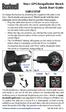 Neo+ GPS Rangefinder Watch Quick Start Guide SIMPLE SETUP 1) Charge the battery by attaching the supplied USB cable to the Neo+ Watch (make sure you are in Watch mode with the time displayed, not on the
User guide. Stereo Bluetooth Headset SBH50
 User guide Stereo Bluetooth Headset SBH50 Contents Stereo Bluetooth Headset User guide...3 Introduction...4 Function overview...4 Hardware overview...4 Status icon overview...5 Basics...6 Charging the
Product information and manual for SensLab BT-Adapter (Model type: BT060721) for wireless data transfer of measurement data of Lactate Scout-handheld
 Product information and manual for SensLab BT-Adapter (Model type: BT060721) for wireless data transfer of measurement data of Lactate Scout-handheld device with Windows PC and suitable Software-applications
56-A11A-10511. Plantronics Calisto Headset with Bluetooth USB Adapter. User Guide
 56-A11A-10511 Plantronics Calisto Headset with Bluetooth USB Adapter User Guide Table of Contents Package Contents... 1 Product Features... 2 Wearing Your Headset... 3 Powering... 4 Charging... 5 Indicator
ENGLISH. Polar IrDA USB Adapter and Bridge Driver User manual
 Polar IrDA USB Adapter and Bridge Driver User manual CONTENTS 1. GENERAL... 3 2. DRIVER INSTALLATION... 4 Driver Installation With Windows Vista and Windows 7 Operating Systems... 7 3. HARDWARE INSTALLATION...
User guide. Miracast Wireless Display IM10
 User guide Miracast Wireless Display IM10 Contents Miracast Wireless Display User guide...3 Setting up the Miracast Wireless Display...4 Hardware overview...4 Turning on and connecting the Miracast Wireless
Using your Bluetooth laptop with the Logitech wireless hub
 Using your Bluetooth laptop with the Logitech wireless hub 2003 Logitech, Inc. Contents Introduction 3 Product compatibility 3 About this guide 4 Get connected 5 Connecting your Bluetooth laptop 5 Checking
HP Bluetooth Pendant Headphones User Guide
 HP Bluetooth Pendant Headphones User Guide Copyright 2008 Hewlett-Packard Development Company, L.P. Windows and Windows Vista are either trademarks or registered trademarks of Microsoft Corporation in
Wireless-N High Power USB Wi-Fi Adapter Quick Installation Guide
 Wireless-N High Power USB Wi-Fi Adapter Quick Installation Guide Introduction The Wireless-N High Power USB Wi-Fi Adapter adds high speed wireless network connectivity to any USB port equipped computer.
User Manual USB Laptop KVM Switch. GCS661U Part No. M1069
 User Manual USB Laptop KVM Switch 1 GCS661U Part No. M1069 2 Table of Contents User Notice 4 A Note About Terminology 5 Overview 6 Features 7 Package Contents 8 Requirements 9 Operating System Support
Wireless LAN 802.11g USB Adapter
 Wireless LAN 802.11g USB Adapter User s Guide Version 1.0 User s Guide 0 Copyright statement No part of this publication may be reproduced, stored in a retrieval system, or transmitted in any form or by
Wireless Keyboard and Optical Mouse Bundle
 Wireless Keyboard and Optical Mouse Bundle Enjoy the freedom of wireless optical precision User Manual F8E832-BNDL TABLE OF CONTENTS Introduction....................................1 Compatible Equipment............................2
USB Scrolling Optical Mini Mouse
 USB Scrolling Optical Mini Mouse Owner s Manual Please read before using this equipment. ˆ Contents Features... 3 System Requirements... 4 FCC Declaration of Conformity... 5 The FCC Wants You to Know...
Professional USB to Serial Adapter Hub with COM Retention
 Professional USB to Serial Adapter Hub with COM Retention ICUSB2321X ICUSB2322X ICUSB2324X *actual product may vary from photos *actual product may vary from photos DE: Bedienungsanleitung - de.startech.com
Laser Wireless Rechargeable Mouse. User s Manual
 Laser Wireless Rechargeable Mouse Model #: LM8000WR User s Manual Rev. 060801 User s Record: To provide quality customer service and technical support, it is suggested that you keep the following information
Table of Contents. 1. Overview... 3. 1.1 Materials Required. 3 1.2 System Requirements. 3 1.3 User Mode 3. 2. Installation Instructions..
 Table of Contents 1. Overview..... 3 1.1 Materials Required. 3 1.2 System Requirements. 3 1.3 User Mode 3 2. Installation Instructions.. 4 2.1 Installing the On Call Diabetes Management Software. 4 2.2
Installation Guide 1-port USB 2.0 Print Server 1 GPSU21
 Installation Guide 1-port USB 2.0 Print Server 1 GPSU21 2 Welcome Thank you for purchasing this 1-port USB 2.0 Print Server that allows any networked computer to share a USB printer. It complies with USB
User Guide USB 2.0 LAPTOP DOCKING STATION WITH VIDEO N2953
 USB 2.0 LAPTOP DOCKING STATION WITH VIDEO 410-1864-001B / ACP51US 1 YEAR LIMITED WARRANTY: We pride ourselves on the quality of our products. For complete warranty details and a list of our worldwide offices,
EASE Scan Tool Customers. SECTION I - Installation
 Please Install Your EASE Scan Tool DVD Before Installing Any Other Software That Came With Your Package. SECTION I - Installation ATTENTION: Do NOT connect an EASE Vehicle Interface Device to your Computer
N600 WiFi USB Adapter
 Model WNDA3100v3 User Manual December 2014 202-11470-01 350 East Plumeria Drive San Jose, CA 95134 USA Support Thank you for selecting NETGEAR products. After installing your device, locate the serial
XConsole GUI setup communication manual September 2010.
 XConsole GUI setup communication manual September 2010. XConsole is compatible with Microsoft XP, Vista and Windows 7. The software will also work if using Boot camp on a Mac. IMPORTANT NOTES: - Do NOT
Meridian 1 Meridian 1 Attendant PC LAN Interface Installation Guide
 Meridian 1 Meridian 1 Attendant PC LAN Interface Installation Guide Document Number: P0874391 Document Release: Standard 1.00 Date: November 1997 Year Publish FCC TM 1997 All rights reserved Printed in
Features Reference. About Unified Communication System. Before Using This Machine. Starting a Meeting. What You Can Do During the Meeting
 Features Reference About Unified Communication System Before Using This Machine Starting a Meeting What You Can Do During the Meeting Leaving a Meeting Managing Address Book Changing Network Configuration
CANON FAX L360 SOFTWARE MANUAL
 CANON FAX L360 SOFTWARE MANUAL Before You Begin the Installation: a Checklist 2 To ensure a smooth and successful installation, take some time before you begin to plan and prepare for the installation
TL-PS310U Single USB 2.0 Port MFP and Storage Server
 TL-PS310U Single USB 2.0 Port MFP and Storage Server Rev: 2.0.0 1910010313 Contents Chapter 1 Introduction... 1 1.1 Product Overview...1 1.2 Network Management...1 1.3 Components and Features...1 1.4 Hardware
Guide to Installing BBL Crystal MIND on Windows 7
 Guide to Installing BBL Crystal MIND on Windows 7 Introduction The BBL Crystal MIND software can not be directly installed on the Microsoft Windows 7 platform, however it can be installed and run via XP
INDEX. Trademarks All name and product s trademarks mentioned below are the property of their respective companies.
 USB2.0 EASY IDE ADAPTER INDEX Trademarks ---------------------------------------------------------------------------- Introduction ---------------------------------------------------------------------------
User s Manual. Powerline 200M Ethernet Bridge
 User s Manual Powerline 200M Ethernet Bridge Index 1. Powerline Networking Installation...2 1.1 Simple step to install Powerline Networking...2 1.2 Application Block Diagram...3 1.3 Benefits...5 1.4 Features...5
Iridium Extreme TM Satellite Phone. Data Services Manual
 Iridium Extreme TM Satellite Phone Data Services Manual Table of Contents 1 OVERVIEW... 1 2 HOW IT WORKS... 1 3 BEFORE INSTALLING... 2 4 USB DRIVER INSTALLATION... 3 5 MODEM INSTALLATION AND CONFIGURATION...
Chapter 1 Downloading Images to Your Computer (Windows)
 Software User Guide For the safe use of your camera, be sure to read the Safety Precautions thoroughly before use. Types of software installed on your computer varies depending on the method of installation
USB 2.0 to 10/100Mbps Ethernet Adapter UE-9521. User Manual
 USB 2.0 to 10/100Mbps Ethernet Adapter UE-9521 User Manual 1 Copyright Copyright 2004 by PLANET Technology Corp. All rights reserved. No part of this publication may be reproduced, transmitted, transcribed,
Using the Microsoft Bluetooth Stack
 Using the Microsoft Bluetooth Stack Microsoft s Service Pack 2 for Windows XP includes its own Bluetooth stack. The stack has limited support for Bluetooth applications compared to other Windows-based
WHQL Certification Approval...2 User Interface...3 SUNIX s COMLab..4
 INDEX WHQL Certification Approval...2 User Interface....3 SUNIX s COMLab..4 1.0 Introduction...5 2.0 Specification..5 2.1 Features 2.2 Universal Serial PCI Card 2.3 RS-232 Specification 2.4 Low Profile
Duplex ID Card & License Scanner. User Guide
 Duplex ID Card & License Scanner User Guide CE Conformity and FCC Statement This equipment has been tested and found to comply with the limits of the European Council Directive on the approximation of
Universal Serial Bus (USB) to DH-485 Interface Converter
 Installation Instructions Universal Serial Bus (USB) to DH-485 Interface Converter Catalog Number 1747-UIC Contents Overview..................................................3 Computer and Operating System
Speedlink software will run on Windows NT, Windows 7, and Windows 8; it will run on both 32 byte and 64 byte versions of Windows.
 Guide to the Speedlink software and drivers. Status Instruments has a range of process control equipment that can be configured using the Speedlink software. Some equipment will connect directly to a Windows
USB to RS-422/485 Serial Adapter (ID-SC0911-S1/SC0A11-S1) User s Manual
 USB to RS-422/485 Serial Adapter (ID-SC0911-S1/SC0A11-S1) User s Manual 1 Copyright Statement No part of this publication may be reproduced in any form by any means without the prior written permission.
USB 3.0 & 2.0 Hub with Gigabit Ethernet and 5V/ 4A Adapter Quick Installation Guide
 Introduction USB 3.0 & 2.0 Hub with Gigabit Ethernet and 5V/ 4A Adapter Quick Installation Guide The USB 3.0 & 2.0 Hub with Gigabit Ethernet and 5V/4A Adapter provides 6 additional USB 3.0 & 2.0 ports
FX-BTCVT Bluetooth Commissioning Converter Commissioning Guide
 FX-BTCVT Bluetooth Commissioning Converter Commissioning Guide FX-BTCVT-1 (Bluetooth Commissioning Converter) Code No. LIT-12011665 Issued December 5, 2014 Refer to the QuickLIT website for the most up-to-date
Contents Contents Contents Overview Charging your headset Wearing the headset Powering on the headset Connecting your headset for dictation
 1 Contents Contents Contents 2 Overview 3 Charging your headset 4 Wearing the headset 4 Powering on the headset 4 Connecting your headset for dictation 5 The adapter 5 Adjusting your computer's audio settings
Ash Capture Control User Guide
 Ash Capture Control User Guide Revision 1.4 Table of Contents Software Installation... 3 Hardware Installation... 6 System Block Diagram... 7 Using Ash Capture Control... 8 Launching the Application...
IDE ATA/133 Controller
 IDE ATA/133 Controller 2 Port PCI ATA-133 IDE Adapter Card PCIIDE2 Actual product may vary from photo FCC Compliance Statement This equipment has been tested and found to comply with the limits for a Class
DisplayPort 2-Port KVM Switch Installation Guide
 DisplayPort 2-Port KVM Switch Installation Guide Introduction The DisplayPort 2-Port KVM Switch shares one DisplayPort display between two DisplayPort computers. Key Features and Benefits Access multiple