
Targus USB Port Adapter USER S GUIDE. Making Your Mobile Life Easier. Making Your Mobile Life Easier.
|
|
|
- Whitney Marian Bond
- 9 years ago
- Views:
Transcription
1 Targus USB Port Adapter Making Your Mobile Life Easier. Visit our Web site at: Features and specifications are subject to change without notice Targus Corp A USER S GUIDE Making Your Mobile Life Easier. BRUSSELS HANNOVER BARCELONA TOKYO MILANO AMSTERDAM SINGAPORE LONDON PARIS NEW YORK LOS ANGELES TORONTO HONG KONG SYDNEY

2 Targus USB Port Adapter Congratulations on your purchase of a Targus USB Port Adapter. This ultra portable expansion cable directly connects to your computer via a Universal Serial Bus (USB) port. This user s guide describes how to connect the adapter to your computer, install software and hardware drivers, and attach and configure devices. It applies to the following models: PA082 Mobile Mini Port Replicator (serial and parallel) PA084 USB to Ethernet Cable PA088 USB to Serial Cable PA096 USB to Parallel Cable In addition to this user s guide, this package contains one of the Targus USB Port Adapter models listed above and a driver software diskette. System Requirements To use the adapter, your computer must meet the following hardware requirements and run one of the operating systems listed below. Hardware PC with a Pentium processor or equivalent and a hard disk drive USB V.1.1 compliant port Standard diskette drive Operating System Windows 98/Me/ 2000/XP 2

3 Installing the Device and Drivers To use the Targus USB Port Adapter, you must first install its driver software onto your computer. Then, you can connect it to your computer and install the hardware drivers for the adapter s port(s). WARNING: You must install the driver software BEFORE connecting the adapter to your computer. Otherwise, the adapter will not work properly. Installing the Driver Software and Connecting the Adapter to Your Computer 1 Turn on your computer (if it s turned off). 2 Insert the driver software diskette into your computer s diskette drive. 3 Click Start, Run, then enter A:\Setup.exe (where A: is the path of your diskette drive) and click OK. The Welcome screen appears. Sample Welcome screen (Windows XP operating system) 3

4 4 Click Next. 5 If you are running the Windows XP operating system, the Important Information screen appears. Click Next. The Setup program begins installing the software drivers. The Driver Setup Complete screen appears. Sample Driver Setup Complete screen (Windows XP operating system) 6 Click Finish. You can now connect the adapter to your computer. To do this, plug the standard USB end of the cable ( ) into an available USB port on your computer. 4

5 Installing the Hardware Drivers Depending on which model of adapter you have, the adapter needs one or more of the following device drivers installed for its ports: Ethernet 10/100 Serial Interface Controller Parallel Interface Controller Windows 98/Me Operating System Once you have installed the driver software and connected the adapter to your computer, the device drivers for the ports begin installing automatically. This installation process takes a few minutes. The operating system does not prompt when installation is complete. Watch for all applicable hardware drivers to be installed before opening another application or connecting devices to the adapter. 5

6 Windows 2000/XP Operating System If you are running one of these operating systems, you may be prompted to install one or more of the hardware drivers. Sample Found New Hardware Wizard screen (Windows XP operating system) To install the drivers: 1 Select Install the software automatically (Recommended) and click Next. The Found New Hardware Wizard program begins installing the hardware drivers. The Completing the Found New Hardware Wizard screen appears. 2 Click Finish and repeat as needed for each device. 3 Restart your computer. 6

7 Connecting Devices to the Adapter When connecting new devices to the adapter, you may need to install additional drivers. Consider the following guidelines: If your computer is running the Windows 98 operating system, a series of screens appear, beginning with the Add New Hardware Wizard, to guide you through the driver installation process. If your computer is running the Windows Millennium Edition, Windows 2000 or Windows XP operating system, the device drivers install automatically. When connecting a new device to the adapter, you must run the Setup or Install program for that device. When connecting a device to the adapter, do not force the cable connector into the port on the adapter, to avoid possible damage. If the cable connector does not attach smoothly, turn the connector over and try attaching it again. Serial Port To connect serial devices to the adapter and install device drivers: 1 Disconnect the adapter from your computer s USB port (if connected). 2 Attach the RS232 device to the serial port on the adapter. 3 Reconnect the adapter to your computer s USB port. 4 Follow any on-screen instructions that may appear to install the default drivers. NOTES: The Windows 98/Me/2000 operating systems support Plug and Play operation. 7

8 When connecting a serial device to the adapter, you must disconnect then reconnect the adapter s USB connector in order for the new device to work properly. Before you can use a serial mouse with the adapter, you must install it as an HID-compliant mouse, which your computer will recognize as a USB mouse. Parallel Port Connecting and Configuring a Printer for the First Time To connect a parallel printer: 1 Plug the printer cable into the parallel port on the adapter. 2 Install the printer software driver according to the instructions that come with the device. 3 When prompted to select a port, choose PB (USB port). If this port does not appear in the list, choose the LPT1 port, complete the manufacturer s setup for your printer, and refer to the instructions below to redirect your printer. Checking and Redirecting the Printer Port Settings Follow these instructions to check the printer port settings and redirect your printer from the LPT1 port to the PB (USB port) on the adapter. 1 With the printer connected to the adapter s parallel port, select Start, Settings, and then Printers. 2 Right-click the printer device you are reassigning and select Properties. 8

9 3 In the Printer Properties window, select Details or Connection for the Printer. (Section titles vary, so check your printer s user manual for specific instructions.) 4 Change the setting to PB (USB port) to redirect printing to the adapter. Ethernet Port To connect an RJ-45 ethernet cable, attach the cable connector to the ethernet port on the adapter. Additional procedures to connect to an actual network depend on the type of network you are using. Contact your network administrator for detailed instructions. Troubleshooting General Device Not Working Disconnect the adapter from your computer s USB port, then reconnect it. Check that your computer is turned on, that it is charged (if running on a battery) and that the device is plugged in and turned on (if applicable). Make sure that the adapter is firmly connected to both your computer and the device. Disconnect the device from the adapter, then reconnect it and restart your computer. Verify that you ran the Setup or Install program for the device. Make sure that the device appears in Device Manager. For more information refer to the following instructions (overleaf). 9

10 Verifying Devices are Installed You can view the devices installed on your computer from the Device Manager window in System Properties. To access Device Manager for the Windows 98/Me operating systems, right-click My Computer, then click Properties, and the Device Manager tab. For the Windows 2000/XP operating systems, right-click My Computer, then click Properties, the Hardware tab, and the Device Manager button. Sample Device Manager screen (Windows 98 operating system) From the Device Manager window, depending on the model of adapter you have, expand the following: Model PA082 Mobile Mini Port Replicator Human Interface Devices displays USB Human Interface Device (Windows Me/2000/XP operating system) 10

11 Parallel Port displays Parallel Interface Controller (Windows 98 operating system) Ports (COM & LPT) displays the path Serial on USB [COMx] if present (where x is the COM port number) (Windows 98 operating system) Universal Serial Bus controllers displays the USB Port Adapter. Model PA084 USB to Ethernet Cable Network adapters displays USB Ethernet 10/100 Universal Serial Bus controllers displays the USB Port Adapter. Model PA088 USB to Serial Cable Human Interface Devices displays USB Human Interface Device (Windows Me/2000/XP operating system) Ports (COM & LPT) displays the path Serial on USB [COMx] if present (where x is the COM port number) (Windows 98 operating system) Universal Serial Bus controllers displays the USB Port Adapter. Mouse (or Mice and other pointing devices) check that the HID-compliant mouse is present (if you have installed a serial mouse) Model PA096 USB to Parallel Cable Parallel Port displays Parallel Interface Controller (Windows 98 operating system) Universal Serial Bus controllers displays the USB Port Adapter. 11

12 Parallel Port (Models PA082 and PA096) Printer Not Found If your parallel printer is not working, refer to Checking and Redirecting the Printer Port Settings on page 8 for instructions on how to verify and change the port settings. Serial Port (Models PA082 and PA088) Verifying a Serial Modem Connection When attaching a modem to the serial (RS232) port, verify that the port assigned to your modem is Serial USB (COMx), where x is the number of the COM port. If the operating system does not detect automatically that your modem is assigned to Serial USB (COMx), rerun the Hardware Wizard and choose Select from a list instead of Autodetect. Then, select Serial USB (COMx) as the COM port. Specifications Cable Length PA082 PA084 PA088 PA096 1-foot (0.3 m) 6-foot (1.8 m) 6-foot (1.8 m) 6-foot (1.8 m) Power Consumption PA082 PA084 PA088 PA ma 120 ma 150 ma 150 ma 12

13 Technical Support In the unlikely event that you encounter a problem with your Targus accessory, please contact our technical support team at: [email protected] Internet: Our knowledgeable staff is also available to answer your questions through one of the following telephone numbers. North America Monday through Friday, 8:00 a.m. (08:00) to 8:00 p.m. (20:00) Eastern time: US & Canada Europe Belgium Denmark France Germany Italy Netherlands Spain Sweden Switzerland United Kingdom Eastern Europe & others

14 Product Registration For more efficient customer service and to activate the product s warranty, Targus recommends that you register your Targus accessory shortly after purchasing it. To register your Targus accessory, go to: You will need to provide your full name, address, phone number, and company information (if applicable). Warranty Targus warrants this product to be free from defects in materials and workmanship for one year. If your Targus accessory is found to be defective within that time, we will promptly repair or replace it. This warranty does not cover accidental damage, wear and tear, or consequential or incidental loss. Under no conditions is Targus liable for loss of, or damage to a computer; nor loss of, or damage to, programs, records, or data; nor any consequential or incidental damages, even if Targus has been informed of their possibility. This warranty does not affect your statutory rights. Warranty Registration at: Regulatory Compliance This device complies with Part 15 of the FCC Rules. Operation is subject to the following two conditions: (1) This device may not cause harmful interference, and (2) This device must accept any interference received, including interference that may cause undesired operation. FCC Statement Tested to Comply This equipment has been tested and found to comply with the limits of a Class B digital device, pursuant to Part 15 of the FCC Rules. These limits are designed to provide reasonable protection against harmful interference in a residential installation. This equipment generates, uses, and can radiate radio frequency energy and if not installed and used in accordance with the instructions, may cause harmful interference to radio communications. However, there is no guarantee that interference will not occur in a particular installation. 14

15 If this equipment does cause harmful interference to radio or television reception, which can be determined by turning the equipment off and on, the user is encouraged to try to correct the interference by one or more of the following measures: Reorient or relocate the receiving antenna Increase the separation between the equipment and receiver Move the computer away from the receiver Connect the equipment into an outlet on a circuit different from that to which the receiver is connected. Windows is a registered trademark of Microsoft Corporation. All other trademarks are the property of their respective owners. 15

USB-2.0 Mobile Mini Hub USER S GUIDE. Making Your Mobile Life Easier. Making Your Mobile Life Easier.
 USB-2.0 Mobile Mini Hub Making Your Mobile Life Easier. Visit our Web site at: www.targus.com Features and specifications are subject to change without notice. 2002 Targus Corp. 400-0093-001A USER S GUIDE
How To Connect A Port Replicator With An Ethernet To A Usb Port From A Usb Device
 USB Mobile Port Replicator with Ethernet NOTEBOOK COMPUTER MOBILE PORT REPLICATOR User s Guide INTRODUCTION Congratulations on your purchase of the Targus USB Mobile Port Replicator with Ethernet! It is
Targus Wireless Remote Presenter USER S GUIDE. Making Your Mobile Life Easier. Making Your Mobile Life Easier.
 Targus Wireless Remote Presenter Making Your Mobile Life Easier. Visit our Web site at: www.targus.com Features and specifications are subject to change without notice. 2003 Targus Corp. 400-0110-001B
INSTALL GUIDE Making Your Mobile Life Easier.
 Targus USB Bluetooth Adapter Making Your Mobile Life Easier. Visit our Web site at: www.targus.com Features and specifications are subject to change without notice 2005 Targus Group International, Inc.
Wireless RF Mouse USER S GUIDE. Making Your Mobile Life Easier. Making Your Mobile Life Easier.
 Wireless RF Mouse Making Your Mobile Life Easier. Visit our Web site at: www.targus.com Features and specifications are subject to change without notice. 2003 Targus Corp. 400-0120-001B USER S GUIDE Making
Targus Wireless RF Mouse USER S GUIDE. Making Your Mobile Life Easier.
 Targus Wireless RF Mouse Visit our Web site at: www.targus.com Features and specifications are subject to change without notice. 2004 Targus Group International and Targus, Inc.. 400-0111-001B USER S GUIDE
Wireless Stow-N-Go Keypad USER GUIDE
 Wireless Stow-N-Go Keypad USER GUIDE Table of Contents Introduction...3 System Requirements...3 Installing the Battery...4 Connecting the Receiver and Installing the Default Drivers...5 Turning the Keypad
User Guide USB 2.0 LAPTOP DOCKING STATION WITH VIDEO N2953
 USB 2.0 LAPTOP DOCKING STATION WITH VIDEO 410-1864-001B / ACP51US 1 YEAR LIMITED WARRANTY: We pride ourselves on the quality of our products. For complete warranty details and a list of our worldwide offices,
User Guide. Cordless Optical Mouse N2953
 Cordless Optical Mouse 410-XXXXXXXXXXX 1 YEAR LIMITED WARRANTY: We pride ourselves on the quality of our products. For complete warranty details and a list of our worldwide offices, please visit www.targus.com.
User Guide. Soft-Touch TM Bluetooth Laser Mouse N2953
 Soft-Touch TM Bluetooth Laser Mouse 410-XXXXXXXXXXX 1 YEAR LIMITED WARRANTY: We pride ourselves on the quality of our products. For complete warranty details and a list of our worldwide offices, please
Wireless Mouse USER GUIDE. for Mac. www.targus.com/us/formac ONE YEAR LIMITED WARRANTY N2953
 AMW43US / 410-1514-001C N2953 www.targus.com/us/formac 2008 Manufactured or imported by Targus Group International, Inc. (for U.S. sales: 1211 North Miller Street, Anaheim, CA 92806 USA, for Australia
High Speed File Share Cable USER GUIDE
 High Speed File Share Cable USER GUIDE Visit our Website at www.targus.com/emea Features and specifications are subject to change without notice. 2008 Targus Group International, Inc. and Targus, Inc.
USER GUIDE. USB 2.0 DVD/CD-ROM Slim External Drive
 USB 2.0 DVD/CD-ROM Slim External Drive USER GUIDE Visit our Website at www.targus.com Features and specifications subject to change without notice. 2007 Targus Group International, Inc. and Targus, Inc.
PCI Express Serial Card
 PCI Express Serial Card 1 Port 16650 PCI Express Serial Card 2 Port 16650 PCI Express Serial Card PEX1S550 PEX2S550 Actual product may vary from photo FCC Compliance Statement This equipment has been tested
1394 CardBus Quick Installation Guide
 1394 CardBus Quick Installation Guide Introducing the 1394 Cardbus The 1394 CardBus is designed to add FireWire (1394) interface to notebook computers for easy connection to DV camcorders, hard disk drives
File Share Cable USER GUIDE. for Mac. www.targus.com/us/formac ONE YEAR LIMITED WARRANTY N2953
 N2953 USER GUIDE ACC9602US / 410-1486-001A www.targus.com/us/formac 2008 Manufactured or imported by Targus Group International, Inc. (for U.S. sales: 1211 North Miller Street, Anaheim, CA 92806 USA, for
User Guide. BLUETOOTH WIRELESS KEYBOARD for ipad
 BLUETOOTH WIRELESS KEYBOARD for ipad 410-2119-001A / AKB32US 1 YEAR LIMITED WARRANTY: We pride ourselves on the quality of our products. For complete warranty details and a list of our worldwide offices,
USB 2.0 4-Port Hub with USB Power Cable. User s Manual
 USB 2.0 4-Port Hub with USB Power Cable Model: UH2500 User s Manual 251104-109159 Rev. 061107 User s Record: To provide quality customer service and technical support, it is suggested that you keep the
Optical Wireless Mouse. User s Manual
 Optical Wireless Mouse Model : OM4000W User s Manual 110935-109154 Rev. 061101 User s Record: To provide quality customer service and technical support, it is suggested that you keep the following information
PCI USB 2.0 Card. 3 Port PCI USB 2.0 Card PCI330USB2. Instruction Manual. Actual product my vary from photo
 PCI USB 2.0 Card 3 Port PCI USB 2.0 Card PCI330USB2 Instruction Manual Actual product my vary from photo FCC Compliance Statement This equipment has been tested and found to comply with the limits for
USB2VGA. Instruction Manual. USB to VGA Adapter. USB 2.0 to VGA External Multi Monitor Video Adapter
 USB to VGA Adapter USB2VGA Instruction Manual USB 2.0 to VGA External Multi Monitor Video Adapter FCC Compliance Statement This equipment has been tested and found to comply with the limits for a Class
Laser Wireless Rechargeable Mouse. User s Manual
 Laser Wireless Rechargeable Mouse Model #: LM8000WR User s Manual Rev. 060801 User s Record: To provide quality customer service and technical support, it is suggested that you keep the following information
USB to RS232 Adapter User s Manual
 USB to RS232 Adapter User s Manual 34000212 Rev0 Table of Contents Warnings...3 Introduction...4 USB to RS232 Adapter Package Contents...4 Setup Procedure...5 Setup Procedure for Windows 98, ME, and 2000...5
Targus Bluetooth Keyboard for Tablets
 1 BLUETOOTH KEYBOARD for Tablets 410-2153-001B / AKB33US 1 YEAR LIMITED WARRANTY: We pride ourselves on the quality of our products. For complete warranty details and a list of our worldwide offices, please
Professional USB to Serial Adapter Hub with COM Retention
 Professional USB to Serial Adapter Hub with COM Retention ICUSB2321X ICUSB2322X ICUSB2324X *actual product may vary from photos *actual product may vary from photos DE: Bedienungsanleitung - de.startech.com
USB Scrolling Optical Mini Mouse
 USB Scrolling Optical Mini Mouse Owner s Manual Please read before using this equipment. ˆ Contents Features... 3 System Requirements... 4 FCC Declaration of Conformity... 5 The FCC Wants You to Know...
USB to VGA Adapter USB2VGAE2. Instruction Manual. USB 2.0 to VGA Multi Monitor External Video Adapter
 USB to VGA Adapter USB2VGAE2 Instruction Manual USB 2.0 to VGA Multi Monitor External Video Adapter *Please ensure that the driver installation is complete prior to the physical installation of the USB
USB 2.0 to 10/100Mbps Ethernet Adapter UE-9521. User Manual
 USB 2.0 to 10/100Mbps Ethernet Adapter UE-9521 User Manual 1 Copyright Copyright 2004 by PLANET Technology Corp. All rights reserved. No part of this publication may be reproduced, transmitted, transcribed,
LabelWriter. Print Server. User Guide
 LabelWriter Print Server User Guide Copyright 2010 Sanford, L.P. All rights reserved. 08/10 No part of this document or the software may be reproduced or transmitted in any form or by any means or translated
USB Mini Print Server PS121. Installation Guide
 USB Mini Print Server PS121 Installation Guide Introduction Thank you for purchasing a NETGEAR PS121 USB Mini Print Server. With this print server you can share your printer with all the computers in your
IDE ATA/133 Controller
 IDE ATA/133 Controller 2 Port PCI ATA-133 IDE Adapter Card PCIIDE2 Actual product may vary from photo FCC Compliance Statement This equipment has been tested and found to comply with the limits for a Class
PCI Express USB Card. PCI Express 4 Port USB 2.0 card PEX400USB2. Instruction Manual. Actual product may vary from photo
 PCI Express USB Card PCI Express 4 Port USB 2.0 card PEX400USB2 Actual product may vary from photo FCC Compliance Statement This equipment has been tested and found to comply with the limits for a Class
Wireless Optical Travel Mouse
 Wireless Optical Travel Mouse User s Manual PLEASE READ THESE INSTRUCTIONS CAREFULLY BEFORE INSTALLING THIS DEVICE. Table of Contents FCC Statement Page 3 Introduction.. Page 6 Package Contents.. Page
SATA PCI Express Adapter PEXSATA22I
 SATA PCI Express Adapter PEXSATA22I FCC Compliance Statement This equipment has been tested and found to comply with the limits for a Class B digital device, pursuant to part 15 of the FCC Rules. These
Serial ATA PCI Quick Installation Guide
 Serial ATA PCI Quick Installation Guide Introducing the Serial ATA PCI The Serial ATA PCI is an ultra high-speed dual channel Serial ATA controller board for use in Pentium-class computers. It achieves
PCI Express FireWire & USB 2.0 card
 PCI Express FireWire & USB 2.0 card PCI Express Firewire 800 and USB 2.0 card PEX3U3F800 Actual product may vary from photo FCC Compliance Statement This equipment has been tested and found to comply with
PCI USB 2.0 Card PCI225USB PCI225USB_LP PCI425USB PCI625USB2I. Instruction Manual. Actual product may vary from photo
 PCI USB 2.0 Card 2 Port High-Speed USB 2.0 PCI Card 2 Port High-Speed USB 2.0 Low-Profile PCI Card 4 Port High-Speed USB 2.0 PCI Card 6 Port High-Speed USB 2.0 PCI Card PCI225USB PCI225USB_LP PCI425USB
USB Serial Adapter ICUSB232SM3. Instruction Manual. 1-Port 3ft USB to RS232 DB9 Serial Adapter Cable
 ICUSB232SM3 Instruction Manual USB Serial Adapter 1-Port 3ft USB to RS232 DB9 Serial Adapter Cable Manual Revision:07/25/2011 For the most up-to-date information, please visit www.startech.com FCC Compliance
EZ-USB 2.0 CardBus Card
 EZ-USB 2.0 CardBus Card User Manual www.apricorn.com Table of Contents Introduction...... 1 Installation....... 2-3 Drivers (Windows XP & Windows 2000).. 4 Drivers (Windows 98, 98SE, ME)... 5 Attaching
Instruction Guide. 4 Port Laptop-Sized USB 2.0 Mini Hub ST4200MINI. The Professionals Source For Hard-to-Find Computer Parts
 USB 2.0 HUB 4 Port Laptop-Sized USB 2.0 Mini Hub ST4200MINI Instruction Guide * Actual product may vary from photo The Professionals Source For Hard-to-Find Computer Parts FCC COMPLIANCE STATEMENT This
USB to DVI Video Adapter
 USB2DVI Instruction Manual USB to DVI Video Adapter USB 2.0 to DVI External Multi Monitor Video Adapter FCC Compliance Statement This equipment has been tested and found to comply with the limits for a
Serial ATA Hard Drive Enclosure
 SAT2510U2E SAT2510BU2E Instruction Manual Serial ATA Hard Drive Enclosure 2.5 esata/usb External Hard Drive Enclosure for Serial ATA Hard Drives FCC Compliance Statement This equipment has been tested
Installation Guide 1-port USB 2.0 Print Server 1 GPSU21
 Installation Guide 1-port USB 2.0 Print Server 1 GPSU21 2 Welcome Thank you for purchasing this 1-port USB 2.0 Print Server that allows any networked computer to share a USB printer. It complies with USB
1 Port FTDI USB to RS232 Null Modem Adapter
 1 Port FTDI USB to RS232 Null Modem Adapter ICUSB232FTN *actual product may vary from photos DE: Bedienungsanleitung - de.startech.com FR: Guide de l'utilisateur - fr.startech.com ES: Guía del usuario
PCI Express USB 3.0 Controller Adapter Card
 PEXUSB3S2 Instruction Manual PCI Express USB 3.0 Controller Adapter Card 2-Port PCI Express SuperSpeed USB 3.0 Controller Adapter Card FCC Compliance Statement This equipment has been tested and found
2.5/3.5 SATA HDD Docking Station
 SATADOCKU2 SATADOCKU2E SATADOCK22UE 2.5/3.5 SATA HDD Docking Station FCC Compliance Statement This equipment has been tested and found to comply with the limits for a Class B digital device, pursuant to
ExpressCard USB 3.0 Controller Adapter Card
 ECUSB3S2 Instruction Manual ExpressCard USB 3.0 Controller Adapter Card 2-Port ExpressCard SuperSpeed USB 3.0 Controller Adapter Card FCC Compliance Statement This equipment has been tested and found to
USB to RS232 Serial DB9 Adapter Cable
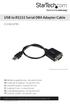 USB to RS232 Serial DB9 Adapter Cable ICUSB232PRO *actual product may vary from photos DE: Bedienungsanleitung - de.startech.com FR: Guide de l'utilisateur - fr.startech.com ES: Guía del usuario - es.startech.com
User Guide LAPTOP CHARGER WITH SMARTPHONE BACKUP BATTERY N2953
 LAPTOP CHARGER WITH SMARTPHONE BACKUP BATTERY 410-2438-001B/ APM035US 2 YEARS LIMITED WARRANTY: We pride ourselves on the quality of our products. For complete warranty details and a list of our worldwide
1789 Norwood Avenue Itasca, Illinois 60143-1095 630-893-1600 Customer Service: 1-800-945-4545 http://www.fellowes.com
 1789 Norwood Avenue Itasca, Illinois 60143-1095 630-893-1600 Customer Service: 1-800-945-4545 http://www.fellowes.com Australia Tullamarine, Vic. Benelux Vianen, NL Canada Markham, Ont. France Rennes,
Serial ATA Hard Drive Docking Station
 Serial ATA Hard Drive Docking Station UNIDOCK2U Instruction Manual USB to SATA, IDE External Hard Drive Docking Station for 2.5 or 3.5 Hard Drives FCC Compliance Statement This equipment has been tested
XTEND 900 MHZ WIRELESS MODEM For use with VEEDER-ROOT EMR³ DATALINK INSTALLATION INSTRUCTIONS Manual 577013-859, Rev. B
 INTRODUCTION This Installation Guide Contains the necessary information to Connect the Wireless Modems to the EMR³ Interconnect Box and the Office Computer for running the EMR³ Datalink Program. For Specific
2 Port PCI to IDE Controller Card
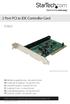 2 Port PCI to IDE Controller Card PCIIDE2 *actual product may vary from photos DE: Bedienungsanleitung - de.startech.com FR: Guide de l'utilisateur - fr.startech.com ES: Guía del usuario - es.startech.com
TL-PS310U Single USB 2.0 Port MFP and Storage Server
 TL-PS310U Single USB 2.0 Port MFP and Storage Server Rev: 2.0.0 1910010313 Contents Chapter 1 Introduction... 1 1.1 Product Overview...1 1.2 Network Management...1 1.3 Components and Features...1 1.4 Hardware
Instruction Guide. 2/4/6-port PCI USB 2.0 card PCI225USB PCI425USB PCI625USB2I. The Professionals Source For Hard-to-Find Computer Parts
 USB 2.0 CARD 2/4/6-port PCI USB 2.0 card PCI225USB PCI425USB PCI625USB2I Instruction Guide *PCI225USB shown * Actual product may vary from photo The Professionals Source For Hard-to-Find Computer Parts
USB to IDE or SATA Adapter
 USB to IDE or SATA Adapter USB 2.0 to IDE or SATA Adapter Cable USB2SATAIDE Instruction Manual Actual product may vary from photo FCC Compliance Statement This equipment has been tested and found to comply
PCI Express USB 2.0 Adapter Card
 PEXUSB400 Instruction Manual PCI Express USB 2.0 Adapter Card 4-Port (Independent) PCI Express to High Speed USB 2.0 Adapter Card FCC Compliance Statement This equipment has been tested and found to comply
If anything is damaged or missing, contact your dealer.
 User Manual UN-201 Read this guide thoroughly and follow the installation and operation procedures carefully in order to prevent any damage to the units and/or any devices that connect to them. This package
Jabra LINK 220 Jabra LINK 220a
 Jabra LINK 220 Jabra LINK 220a USER MANUAL www.jabra.com 1 2009 GN Netcom A/S. All Rights Reserved. This user guide is published by GN Netcom A/S. The information in this user guide is furnished for informational
Dual-Cool Notebook Cooler Pad. User s Manual
 Dual-Cool Notebook Cooler Pad Model #: CF4500U User s Manual Rev. 060801 User s Record: To provide quality customer service and technical support, it is suggested that you keep the following information
How To Use The Catc Netmate Usb/Ethernet Link On A Single Pc Or Ipad Or Ipa (For A Laptop) With A Microsoft Ipa Microsoft Microsoft Usb/Netmate (For An Ip
 Computer Access Technology Corporation 2403 Walsh Avenue, Santa Clara, CA 95051-1302 Tel: +1/408.727.6600 Fax: +1/408.727.6622 CATC NetMate USB/Ethernet Link User s Manual Version 1.51 23 October, 2001
SATA II-150 PCI Quick Installation Guide
 SATA II-150 PCI Quick Installation Guide Introducing the SATA II-150 PCI The SATA II-150 PCI is an ultra high-speed dual channel Serial ATA Generation 2 controller for use in PCI enabled systems. Features
Wireless Optical Mouse
 Wireless Optical Mouse User s Manual Model PD950P FCC STATEMENT PD950P This device complies with part 15 of FCC Rules. Operation is subject to the following two conditions: (1) this device may not cause
USER S MANUAL USB TO IrDA ADAPTER
 USER S MANUAL USB TO IrDA ADAPTER SCM IrDA-ZIO ( Y-160 ) 1. Introduction USB to IrDA bridge adapter is for enabling IrDA wireless data communication through a standard USB port. Powered from USB bus, this
2-Port RS232 Serial PCI with 16950 UART Quick Installation Guide
 2-Port RS232 Serial PCI with 16950 UART Quick Installation Guide Introduction The 2-Port RS232 Serial PCI with 16950 UART high-speed serial card provides two RS-232 9-pin serial ports. Key Features and
3.5 External Hard Drive Enclosure
 UNI3510U2E / UNI3510U2EGB UNI3510U2EB / UNI3510UEBGB Instruction Manual 3.5 External Hard Drive Enclosure 3.5 esata/usb 2.0 to IDE/SATA External Hard Drive Enclosure with One-Touch Backup FCC Compliance
USB 3.0 to HDMI Adapter with 3-Port USB 3.0 Hub USB 3.0 to VGA Adapter with 3-Port USB 3.0 Hub
 USB 3.0 to HDMI Adapter with 3-Port USB 3.0 Hub USB 3.0 to VGA Adapter with 3-Port USB 3.0 Hub USB32HDEH3 / USB32VGAEH3 *actual product may vary from photos DE: Bedienungsanleitung - de.startech.com FR:
Quick 1.3MP WebCam with Night Vision
 Quick 1.3MP WebCam with Night Vision Model #: WC1100BLU, WC1200RED WC1300BLK, WC1400YLW User s Manual PID # 031362/3/4/5-109281 Rev. 100524 All brand name and trademarks are the property of their respective
Introduction. Setting Up Your Remote Installing the Battery. Contents. System Requirements
 410-1680-001E / AMP09US 1 YEAR LIMITED WARRANTY: We pride ourselves on the quality of our products. For complete warranty details and a list of our worldwide offices, please visit www.targus. com. Features
EPSON USB/Parallel Adapter User s Guide
 EPSON USB/Parallel Adapter User s Guide EPSON Stylus COLOR 440 EPSON Stylus COLOR 800 EPSON Stylus COLOR 600 EPSON Stylus COLOR 850 EPSON Stylus COLOR 640 EPSON Stylus COLOR 1520 EPSON Stylus Photo EX
USB to Serial Quick Installation Guide
 Introduction USB to Serial Quick Installation Guide SIIG's USB to Serial is designed to instantly add an additional RS232 9-pin serial port to your computer via an available USB port. Key Features and
External USB 2.0 DVD-RW Drive
 External USB 2.0 DVD-RW Drive External Slim USB 2.0 8x DVD-RW Drive SLIMDVDRW8U2 Actual product may vary from photo FCC Compliance Statement This equipment has been tested and found to comply with the
PCI Express esata/sata 6Gbps Controller
 PCI Express esata/sata 6Gbps Controller PEXESAT322I *actual product may vary from photos DE: Bedienungsanleitung - de.startech.com FR: Guide de l'utilisateur - fr.startech.com ES: Guía del usuario - es.startech.com
user manual IH-W350DB IH-W351DW MyLife webcam pro 5.0 megapixel max resolution
 IH-W350DB IH-W351DW MyLife webcam pro 5.0 megapixel max resolution Congratulations on the purchase of your new MyLife webcam pro. This product comes with a limited lifetime warranty. Before using your
Regulatory Compliance. IC Certification. FCC Certification. Declaration of Conformity
 VP6495 Regulatory Compliance This device complies with Part 15 of the FCC Rules. Operation is subject to the following two conditions: (1) This device may not cause harmful interference, and (2) This device
User s Manual Model KB990W
 Wireless Internet Keyboard & Optical Mouse User s Manual Model KB990W FCC Statement This device complies with part 15 of FCC Rules. Operation is subject to the following two conditions: (1) this device
Wireless Travel Mouse with 5-Buttons User Manual
 Wireless Travel Mouse with 5-Buttons User Manual Product Features 1. Radio frequency 27MHz wireless transmission 2. Use of 256 ID codes to prevent interference between several wireless mice being used
1-Port PCI Gigabit Ethernet Network Card
 1-Port PCI Gigabit Ethernet Network Card ST1000BT32 *actual product may vary from photos DE: Bedienungsanleitung - de.startech.com FR: Guide de l'utilisateur - fr.startech.com ES: Guía del usuario - es.startech.com
Duplex ID Card & License Scanner. User Guide
 Duplex ID Card & License Scanner User Guide CE Conformity and FCC Statement This equipment has been tested and found to comply with the limits of the European Council Directive on the approximation of
Meridian 1 Meridian 1 Attendant PC LAN Interface Installation Guide
 Meridian 1 Meridian 1 Attendant PC LAN Interface Installation Guide Document Number: P0874391 Document Release: Standard 1.00 Date: November 1997 Year Publish FCC TM 1997 All rights reserved Printed in
10/100 Mbps USB Print Server
 10/100 Mbps USB Print Server PM1115U *actual product may vary from photos DE: Bedienungsanleitung - de.startech.com FR: Guide de l'utilisateur - fr.startech.com ES: Guía del usuario - es.startech.com IT:
DELORME. Getting Started with. Earthmate GPS BT-20. Bluetooth
 DELORME Getting Started with GPS BT-20 Bluetooth Earthmate Table of Contents Overview... 2 Hardware Features... 2 Using the Earthmate GPS BT-20... 3 Charging the Battery... 4 Troubleshooting... 4 Hardware
7 Port PCI USB Card Adapter
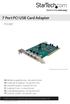 7 Port PCI USB Card Adapter PCIUSB7 *actual product may vary from photos DE: Bedienungsanleitung - de.startech.com FR: Guide de l'utilisateur - fr.startech.com ES: Guía del usuario - es.startech.com IT:
2 Port USB Keyboard Mouse Switch Cable with File Transfer for PC and Mac
 2 Port USB Keyboard Mouse Switch Cable with File Transfer for PC and Mac SVKMS2 *actual product may vary from photos DE: Bedienungsanleitung - de.startech.com FR: Guide de l'utilisateur - fr.startech.com
USER S MANUAL USB FILE TRANSFER CABLE
 1. Introduction USER S MANUAL USB FILE TRANSFER CABLE Congratulations on your purchase of the PC-Linq, an USB file transfer cable. This unique cable allows you to easily connect two computers with USB
4 Port PCI Express Low Profile High Speed USB Card
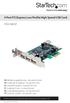 4 Port PCI Express Low Profile High Speed USB Card PEXUSB4DP DE: Bedienungsanleitung - de.startech.com FR: Guide de l'utilisateur - fr.startech.com ES: Guía del usuario - es.startech.com IT: Guida per
Bluetooth Wireless USB Adapter. User Manual (GBU211 / GBU311)
 Bluetooth Wireless USB Adapter User Manual (GBU211 / GBU311) Welcome Thank you for purchasing one of the most feature-rich Bluetooth to USB adapters available. IOGEAR s Bluetooth to USB adapters are first-rate
EPSON USB/Parallel Adapter User s Guide
 EPSON USB/Parallel Adapter User s Guide EPSON Stylus COLOR 440 EPSON Stylus COLOR 1520 EPSON Stylus COLOR 600 EPSON Stylus COLOR 3000 EPSON Stylus COLOR 640 EPSON Stylus Photo 700 EPSON Stylus COLOR 660
Congratulations on your HomePortal purchase. To install your HomePortal and configure your home network, follow these steps.
 Notice to Users 2003 2Wire, Inc. All rights reserved. This manual in whole or in part, may not be reproduced, translated, or reduced to any machine-readable form without prior written approval. 2WIRE PROVIDES
USB to Serial Quick Installation Guide
 Introduction USB to Serial Quick Installation Guide The USB to Serial adapter converts one USB port to multiple 9-pin (DB9) serial ports. Features and Benefits Full support for Windows-based software Low
PCI Superspeed USB 3.0 Cards
 PCI Superspeed USB 3.0 Cards PCIUSB3S22 PCIUSB3S4 *PCIUSB3S22 Shown DE: Bedienungsanleitung - de.startech.com FR: Guide de l'utilisateur - fr.startech.com ES: Guía del usuario - es.startech.com IT: Guida
USB-to-Serial RS-232 Hub USB-to-Serial RS-422/485 Hub USER MANUAL UC2322 / UC2324 / UC4852 / UC4854
 USB-to-Serial RS-232 Hub USB-to-Serial RS-422/485 Hub USER MANUAL UC2322 / UC2324 / UC4852 / UC4854 FCC Information This equipment has been tested and found to comply with the limits for a Class B digital
Wireless Keyboard and Optical Mouse Bundle
 Wireless Keyboard and Optical Mouse Bundle Enjoy the freedom of wireless optical precision User Manual F8E832-BNDL TABLE OF CONTENTS Introduction....................................1 Compatible Equipment............................2
External Hard Drive esata & USB 2.0 Combo. User Guide English
 External Hard Drive esata & USB 2.0 Combo User Guide English Contents Introduction 3 Controls, Connectors and Indicators 3 Front Panel Area 3 Rear Panel Area 3 About the Hard Drive 4 Locating the Drive
Rapier V1. Laser Gaming Mouse. User Guide English
 Rapier V1 Laser Gaming Mouse User Guide English Contents Welcome 3 Whats in the Pack 3 Key Features 3 Button Assignment 3 Rapier V1 Installation 4 Software Introduction 4 Rapier V1 Gamer Toolkit 4 Funtion
MACTek Corporation. USB HART Interface. Users Manual
 MACTek Corporation USB HART Interface DM01003100AA February, 2003 LIMITED WARRANTY VIATOR Interface for HART MACTek Corporation warrants this Interface and all of its component against defects in materials