
METROLOGIC INSTRUMENTS, INC.
|
|
|
- Ami Carter
- 9 years ago
- Views:
Transcription
1 METROLOGIC INSTRUMENTS, INC. MS951 Hand-Held Laser Scanner including all scanner configurations Programming Guide MLPN 2366 Printed in USA November 1998

2 Locations: USA Corporate Headquarters South America Metrologic Instruments, Inc. Metrologic Instruments 90 Coles Road Rua Flórida 1.821, 5 Andar-Brooklin Blackwood, NJ CEP , São Paulo-SP, BrasilCustomer Service: ID-METRO Outside Brazil: Tel: Tel: Fax: Fax: [email protected] [email protected] In Brazil: Mailing Address: Metrologic do Brasil Ltda. P.O. Box 307 Tel: Bellmawr, NJ Fax: [email protected] Europe ASIA Metrologic Instruments GmbH Metrologic Asia (PTE) Ltd. Dornierstrasse 2 31, Kaki Bukit Road Puchheim b. #05-08, Munich, Germany Techlink Tel: Singapore Fax: Tel: [email protected] Fax: [email protected] Copyright 1998 by Metrologic Instruments, Inc. All rights reserved. No part of this work may be reproduced, transmitted, or stored in any form or by any means without prior written consent, except by reviewer, who may quote brief passages in a review, or provided for in the Copyright Act of Products and brand names mentioned in this document are trademarks of their respective companies.

3 Table of Contents Scope of the MS951 Programming Guide... 1 Programming the Scanner... 2 Enter Program Mode... 3 Recall Defaults... 3 Laser Activation Range... 4 Laser Operation... 4 Same Symbol Re-Scan... 5 Identical Symbol Re-Scan Indicator vs 2 Scan Buffers... 5 Decode Options... 6 Beeper Tones... 7 Audible Indicators for Communication Timeouts... 8 RS-232 Interface... 9 RS-232 Parameter - Baud Rate... 9 RS-232 Parameter - Parity RS-232 Parameter - Data Bits RS-232 Parameter - Hardware Handshaking RS-232 Parameter - Software Handshaking Intercharacter Delay RS-232 Parameter - Scanning Control (DTR Signal) DE Disable Command Longitudinal Record Redundacy Check (LRC)... 14

4 Record Header/Terminator Select... 14, 15 UPC/EAN Identifiers Keyboard Wedge (KB) Interface KB Parameter - Keyboard Type KB Parameter - Keyboard Country Type KB Parameter - Caps Lock Mode KB Parameter - Alt Mode KB Parameter - Inter Scan Code Delay (AT and PS/2 Modes) KB Parameter - XT - Clean-Up Bit Record/Header Terminator Select... 22, 23 Intercharacter Delay KB Parameter - Special Features OCIA Options IBM 46XX Options IBM 46XX Parameter - Inter Record Delay Light Pen Options Light Pen Emulation Code Type Selections Minimum Code Length for All Code Types Code Length Minimum Feature UPC/EAN Code UPC-A Options UPC-E Options... 33, 34

5 UCC Supplemental Options Supplemental ISBN Options Coupon Code , 36 Code , 37 Codabar Interleaved 2 of 5 (ITF) Interleaved 2 of 5 (ITF) Symbol Lengths ITF Minimum Symbol Length Test MSI Plessey Check Digit... 42, 43 UK Plessey Options ScanPal Data Collector Test Modes Special Features User Programmable Prefix and Suffix ID Characters RB0 - RB9 Bar Codes ASCII Reference Table PC Extended Reference Key Tables... 55, 56 Reserved Codes Disclaimer Index

6 Scope of the MS951 Programming Guide This Manual contains all of the configuration codes for all versions of the MS951 hand-held bar code scanner products. Not all hardware versions of the scanner support all of the features universally. PC Keyboard Wedge units do not use baud rates. Light Pen emulation scanners should not try to drop UPC/EAN check digits. Some features will deliver different results based upon the primary interface selected. Emphasis will be placed on PC Keyboard Wedge and RS-232 applications. Keyboard Wedge units default to Keyboard Wedge communications. All other units default to RS-232 parameters. 1

7 Programming the Scanner The scanner is shipped from the factory programmed to a set of default conditions noted in this guide by an asterisk that appears before the brief definition. Since each host system is unique, the scanner has to be configured to match your host system requirements. 1. Connect the scanner to the host system or power source. (Refer to the Installation and User s Guide MLPN 2365.) 2. Scan the ENTER/EXIT PROGRAM MODE bar code. (The unit will beep three times.) Enter/Exit Program Mode * * 3. Scan by positioning the output window within two inches of each code. (When the first menu selection has been scanned, the laser will stay on until the ENTER/EXIT PROGRAM MODE code is scanned again. If no scanning occurs for 30 seconds while the scanner is in program mode, the unit will beep three times and all changes made will be lost. If this occurs, return to Step 1.) 4. Upon completing the scanning of the appropriate configuration options, scan the ENTER/EXIT PROGRAM MODE bar code again. (The new options will be saved and the scanner is ready for normal operation.) Note: While in program mode, the scanner will make a razz sound when:! the bar code it is scanning is not a program mode code type;! the feature is not currently supported in the firmware;! the feature is not supported on the scanner s hardware configuration. The sound serves as an audible indication that the scanner will not support that feature. 2

8 Recall Defaults D F 1 Enter Program Mode **Ability to Enter Program Mode After Any Scan R 1 8 Enter Program Mode Only on First Scan R 1 9 When this option is selected, programming can be entered by scann-ing the ENTER/EXIT PROGRAM MODE bar code after power up or during normal scanning operation. When this option is selected, the scanner will only enter program mode after power-up. Scan the ENTER/ EXIT PROGRAM MODE bar code immediately after the scanner first receives power. This option prevents the scanner from accidentally entering program mode during normal scanning operation. Recall Defaults If during programming of the scanner, there is a need to return to the original factory settings, scan the RECALL DEFAULTS bar code. Any settings selected during that session or a previous session will be lost. Recall Defaults D F 1 3

9 Enter/Exit Program Mode Laser Activation Range * * Short Range Activation Out of the Stand R S 1 Short Range Activation In the Stand R S 3 **Long Range Activation Out of the Stand R S 2 **Long Range Activation In the Stand R S 4 Laser Operation When this option is selected, the IR sensor is guaranteed to be activated when the position of the scanning window three inches from the object. When this option is selected, the IR sensor is guaranteed to be activated when an object is presented three inches from the scanning window. When this option is selected, the IR sensor is guaranteed to be activated when the position of the scanning window is eight inches from the object. When this option is selected, the IR sensor is guaranteed to be activated when an object is presented eight inches from the scanning window. ** Normal Scan This option is the default setting. When the laser is activated by the IR sensor, the laser beam emits from the output window and displays a constant, horizontal line R S 5 until a bar code is sensed or until the scanner timeout elapses. Pulsing Scan R S 6 Custom Scan L P 8 When the laser is activated by the IR sensor, the laser beam emits from the output window and displays a horizontal line that pulses until a bar code is sensed or until the scanner timeout elapses. This option is available for special applications. Do not scan the CUSTOM SCAN bar code unless instructed by a Metrologic representative. 4

10 Recall Defaults D F 1 Same Symbol Re-Scan The scanner is programmed with a same symbol timeout. For SHORT SAME SYMBOL RE-SCAN, the time delay is ½ second, while the LONG SAME SYMBOL RE- SCAN delay is 1 second. These numbers represent how much time that a bar Short Same Symbol Re-Scan R 3 0 code must be out of the scan field before that bar code can be scanned again. ** Long Same Symbol Re-Scan Identical Symbol Re-Scan Indicator R 3 1 During the same symbol timeout, the LED s do not ** Disable Green LED provide an indication of when the unit is ready to begin scanning the same symbol again. To program a LED to flash when thepreset delay is over, configure E X 6 the scanner to Green LED Enabled. Enable Green LED 1 vs 2 Scan Buffers E X 5 This feature controls the number of bar codes Enable 2 Scan Buffers considered for the purposes of the same symbol re-scan. The default, 1 scan buffer only compares new scanned data against the last bar code scanned. R scan buffers allow the scanner to test the last 2 bar codes scanned for same symbol re-scan **Enable 1 Scan Buffer purposes. R 9 3 5

11 Enter/Exit Program Mode * * Decode Options Enable 2X Redundancy (MECCA) R 8 6 *Disable 2X Redundancy (MECCA) R 8 7 The following bar codes are very useful when working with Code 39 and Codabar applications. Enable Double Border Requirement (large inter-character space requirement) R A N **Disable Double Border Requirement (large inter-character space requirement) R A O 6

12 Recall Defaults D F 1 Beeper Tones The scanner can be programmed to emit a certain tone. If necessary, scan the appropriate bar code on page 3. Alternate Tone 1...Low Tone Alternate Tone 2...High Tone (Default) Alternate Tone 3...Medium Tone No Tone Alternate Tone 1 B P 1 **Alternate Tone 2 B P 2 Alternate Tone 3 B P 3 No Tone B P 4 7

13 Enter/Exit Program Mode * * Audible Indicators for Communication Timeouts Two Second Timeout When this option is selected, the scanner will timeout if it does not transmit its data to the host after two seconds during communication. This is O C 5 only valid in modes where some type of ** No Two Second handshaking is involved. Timeout O C 6 Razz Beep on Timeout O C 7 ** No Tone On Timeout When this option is selected, the scanner will produce an audible razzberry tone when communications have timed out. O C 8 Three Beep on Timeout O C 9 When this option is selected, the scanner will beep three times when communications have timed out. ** Beep Before Transmit When this option is chosen, the scanner will beep before each label is transmitted. R 5 0 Beep After Transmit R 5 1 When this option is chosen, the scanner will beep after each label is transmitted. Generally used in conjunction with 2 second communications time out. Especially useful with OCIA and IBM 46XX applications. 8

14 Recall Defaults D F 1 RS-232 Interface ** Enable RS-232 Interface L P 2 RS-232 Parameter - Baud Rate A baud rate is a unit that measures the speed with which information is transferred. The baud rate of the scanner must equal the baud rate of the host device. The available baud rates range from 300 to Baud Rate B R Baud Rate B R Baud Rate B R Baud Rate B R Baud Rate B R 6 ** 9600 Baud Rate B R Baud Rate B R Baud Rate B R 1 9

15 Enter/Exit Program Mode RS-232 Parameter - Parity * * Parity is an additional digit that makes the number of bits in the ASCII code odd or even. The scanner s parity must match the host s parity. **Space Parity Select this option to make the parity bit always 0. P A 1 Even Parity Select this option to make the additional parity bit either a 0 or 1 to guarantee an even number of bits. P A 3 Mark Parity Select this option to make the parity bit always 1. P A 2 Odd Parity Select this option to make the additional parity bit either a 0 or 1 to guarantee an odd number of bits. P A 4 RS-232 Parameter - Data Bits RS-232 serial communication requires ASCII data to be transmitted in either 7 or 8 data bits. In addition, one parity bit will be transmitted. If necessary, scan the appropriate bar code that matches your host device s requirements. Generally, if 7 data bits are selected, 2 stop bits are transmitted. If 8 data bits are selected, 1 stop bit is transmitted. Stop bits are actually just an idle transmit line. From the scanners perspective, they are only important if the scanner is receiving more than 1 byte of information at a time. For most applications, the scanner is a transmit only device. 8 Data Bits D 8 1 ** 7 Data Bits D

16 Recall Defaults D F 1 RS-232 Parameter - Hardware Handshaking To prevent scanned information from being lost during transmission, your host device may require an RTS/CTS signal. When the RTS/CTS (Request To Send/Clear To Send) is enabled, the scanner will output an RTS signal and wait for a CTS signal before any data is transmitted. The default setting of RTS/CTS is disabled. If necessary, scan the ENABLE RTS/CTS bar code. R 5 6 R 5 7 Enable RTS/CTS H H 1 ** Disable RTS/CTS H H 2 ** Character RTS/CTS When this option is chosen, the scanner will activate and deactivate its RTS signal on each character that it transmits. Message RTS/CTS When this option is chosen, the scanner will activate and deactivate its RTS signal on each message that it transmits. This mode should normally be enabled for Sanyo registers. RS-232 Parameter - Software Handshaking For control of the data transmission process, use ACK/NAK or XON/XOFF instead of or in addition to the RTS/CTS hardware handshaking option. Enable ACK/NAK When this option is enabled, the scanner will not scan again unless an ACK (ASCII 06H) is received after transmission of a bar code. If an S H 2 NAK (ASCII 15H) is received, the scanner will ** Disable ACK/NAK retransmit the bar code. S H 1 Enable XON/XOFF S H 4 ** Disable XON/XOFF When this option is enabled, the scanner will stop transmission whenever an XOFF (ASCII 13H) is received. Transmission will resume after an XON (ASCII 11H) is received. S H 3 11

17 Enter/Exit Program Mode Intercharacter Delay * * The time specified with an Intercharacter delay bar code represents the interim of time between transmission of characters. Some host systems require this delay when receiving transmissions, others do not. If necessary, scan the appropriate bar code. No Intercharacter Delay R 2 0 **1 Millisecond Intercharacter Delay R Millisecond Intercharacter Delay R Millisecond Intercharacter Delay R

18 Recall Defaults D F 1 RS-232 Parameter - Scanning Control (DTR Signal) When the DTR (Data Terminal Ready) input is enabled, the scanner will not transmit unless an active (+12V) DTR signal is present on the scanner s DTR input pin. The scanner can be disabled by making DTR inactive (-12V) at the DTR input pin. The DTR Scan Disable feature will prevent any scanning when the Enable DTR input feature is chosen. Before enabling the Enable DTR Scan Disable feature, first scan the EN- ABLE DTR INPUT bar code. To turn off this feature, scan the Recall Defaults bar code. "DE" Disable Command Enable DTR Input H H 3 ** Disable DTR Input H H 4 Enable DTR Scan Disable R 3 2 Enable "DE" Disable Command R 9 4 When this option is enabled, the scanner will stop scanning when it receives an ASCII "D"from the host device. Scanning will resume when the scanner receives an ASCII "E". This feature will only work with RS-232 communication. *Disable "DE" Disable Command R 9 5 When this option is chosen, the scanner will not stop scanning when it receives an ASCII "D" from the host device. 13

19 Enter/Exit Program Mode * * Longitudinal Redundancy Check (LRC) A Longitudinal Redundancy Check (LRC)is an error checking character that is calculated across a sequence of data characters. It is determined by exclusive ORing (XOR) the characters to be checked, starting with an initial value of 00H. The result, an "LRC byte" is then transmitted following the data stream and used by the receiving computer to determine if the information was received correctly. In the scanner's case, XOR is performed prior to adding parity bits. Enable LRC Calc+ Transmit RS232 R 5 8 **Disable LRC Calc+ Transmit RS232 R 5 9 Start LRC on First RS232 Byte When the LRC is enabled, the scanner defaults to starting the LRC on the second byte of information transmitted. Optionally, the calculation can start on the first byte transmitted. R A 0 **Start LRC on Second RS232 Byte Record Header/Terminator Select R 9 9 ** CR On When this option is on, the scanner will transmit a Carriage Return after each bar code. T R 2 CR Off T R 1 ** LF On When this option is on, the scanner will transmit a Line Feed after each bar code. T R 4 LF Off T R 3 14

20 Recall Defaults D F 1 STX Prefix On When this option is on, the scanner will transmit a Start of TeXt (ASCII 02H) before each bar code. T R 6 ** STX Prefix Off T R 5 ETX Suffix On When this option is on, the scanner will transmit an End of TeXt (ASCII 03H) after each bar code. T R 8 ** ETX Suffix Off T R 7 Tab Prefix On When this option is on, the scanner will transmit a TAB (ASCII 09H) before each bar code. T B 2 ** Tab Prefix Off T B 1 Tab Suffix On When this option is on, the scanner will transmit a TAB (ASCII 09H) after each bar code. T B 4 ** Tab Suffix Off T B 3 15

21 Enter/Exit Program Mode UPC/EAN Identifiers * * Prefix ID On P X 2 ** Prefix ID Off When this option is on, the scanner will transmit a prefix before any UPC/EAN bar codes. The prefixes are A (UPC-A), E0 (UPC-E), F (EAN-13), and FF (EAN-8). P X 1 Suffix ID On S X 2 ** Suffix ID Off When this option is on, the scanner will transmit a suffix after any UPC/EAN bar codes. The suffixes are A (UPC- A), E (UPC-E), F (EAN-13), and F (EAN-8). S X 1 16
22 Recall Defaults D F 1 Keyboard Wedge (KB) Interface Scan the ENABLE KB WEDGE INTERFACE bar code if your communication requirement is keyboard emulation. The scanner will provide keyboard emulation by converting the scanned bar code data to the PC keyboard scan code equivalent. The keyboard settings will only work with a Version 47 (KBWEDGE) MS951 scanner. Enable Keyboard Wedge Interface R 2 4 KB Parameter - Keyboard Type The following bar codes are used to define the type of keyboard in use. If necessary, scan the appropriate bar code. ** AT Keyboard (includes IBM PS/2: Models 50, 55, 60, 80) L P 3 XT Keyboard L P 4 Enable IBM PS/2 Keyboard (Models 30, 70, 8556) S H 4 ** Disable IBM PS/2 Keyboard (Models 30, 70, 8556) S H 3 Enable Single-Ended Keyboard Emulation R
23 Enter/Exit Program Mode * * KB Parameter - Keyboard Country Type The following bar codes are used to define the keyboard country type. If necessary, scan the appropriate bar code. ** USA Keyboard B R 8 UK Keyboard B R 2 France Keyboard B R 3 Germany Keyboard B R 4 Italy Keyboard B R 5 Spain Keyboard B R 6 Belgium Keyboard B R 1 IBM KB4700 Financial Keyboard B R 7 Swiss Keyboard B R 9 18
24 Recall Defaults D F 1 Reserved B R A Reserved B R B Reserved B R C Reserved B R D Reserved B R E Reserved B R F 19
25 Enter/Exit Program Mode * * KB Parameter - Caps Lock Mode When Caps Lock is used on the keyboard, choose ENABLE CAPS LOCK. Once enabled, the scanner will simulate Caps Lock keyboard input. This mode will not work with all keyboard types. Enable Caps Lock R 4 6 ** Disable Caps Lock To detect automatically if Caps Lock is used, enable AUTODETECTION CAPS LOCK MODE. This will only work with an AT computer. R 4 7 Enable Auto Detection Caps Lock Mode R 6 8 ** Disable Auto Detection Caps Lock Mode KB Parameter - Alt Mode When this option is enabled, the scanner will duplicate this keyboard sequence: Hold down the Alt key; type the decimal number that corresponds to the appropriate keyboard character. Caution should be observed when using Alt mode because a scanner to host application conflict may occur if the host software application uses the Alt key as a Hot key. R 6 9 Enable Alt Mode H H 3 **Disable Alt Mode H H 4 20
26 Recall Defaults D F 1 KB Parameter - Inter Scan Code Delay (AT and PS/2 Modes) The time specified with an inter scan code delay bar code represents the amount of time between individual 9 bit scan codes. Each character of a bar code takes between two and twelve of these scan codes to be passed through to the PC via the keyboard interface. This parameter may need to be adjusted for operation with certain PC keyboard BIOS s. Network operating systems often use microprocessor time slices to service network information requests instead of the keyboard interface. While not an issue with manually entered key strokes, this timing can be critical with automatic scanner data entry. Inter-scancode delays can be a useful system tuning tool in these environments. ** 800 Microsecond Delay O C Millisecond Delay O C 9 15 Millisecond Delay O C 7 KB Parameter - XT - Clean-Up Bit Some keyboard BIOS's require a "clean-up bit" to Enable Cleanup Bit be transmitted prior to an actual scan code being clocked over to the motherboard. Enabling this feature will cause the scanner to send this extra H H 1 bit to the host computer. More commonly found on older XT style BIOS's, and some AT BIOS's. (required by some NEC machines). ** Disable Cleanup Bit H H 2 21
27 Enter/Exit Program Mode T R 2 * * Record Header/Terminator Select ** CR On When this option is on, the scanner will transmit a Carriage Return after each bar code. CR Off T R 1 LF On T R 4 **LF Off When this option is on, the scanner will transmit a Line Feed after each bar code. T R 3 STX Prefix On T R 6 ** STX Prefix Off When this option is on, the scanner will transmit a Start of TeXt (ASCII 02H) before each bar code. T R 5 ETX Suffix On T R 8 ** ETX Suffix Off When this option is on, the scanner will transmit an End of TeXt (ASCII 03H) after each bar code. T R 7 Tab Prefix On When this option is on, the scanner will transmit a TAB (ASCII 09H) before each bar code. T B 2 ** Tab Prefix Off T B 3 22
28 Recall Defaults D F 1 Tab Suffix On When this option is on, the scanner will transmit a TAB (ASCII 09H) after each bar code. T B 4 ** Tab Suffix Off T B 3 Intercharacter Delay The time specified with an Intercharacter delay bar code represents the interim of time between transmission of characters. Some host systems require this delay when receiving transmissions, others do not. If necessary, scan the appropriate bar code. No Intercharacter Delay R Millisecond Intercharacter Delay R 2 1 **10 Millisecond Intercharacter Delay R Millisecond Intercharacter Delay R
29 Enter/Exit Program Mode * * KB Parameter - Special Features ** Transmit F0H Break Code When transmit F0H break code is chosen, (AT and PS/2 modes only) the scanner will transmit an F0H between make and break key codes. P A 1 Do Not Transmit F0H Break Code Suppress F0H break code transmission between the make and break key codes. P A 3 Reserved P A 2 Reserved P A 4 Reserved O C 5 Reserved O C 6 24
30 Recall Defaults D F 1 OCIA Options Scan the ENABLE OCIA INTERFACE bar code Enable OCIA Interface if your communications requirement is OCIA (Optically Coupled Interface Adapter). This is a clocked (by the host) serial interface. Also, choose Z Z 1 the various format that your host device requires. These settings will only work if with a Version 9 (OCIA) MS951 scanner. NCR - S Format O C 1 NCR - F Format O C 2 ** DTS/NIXDORF O C 3 DTS/SIEMENS O C 4 25
31 Enter/Exit Program Mode * * IBM 46XX Options If the scanner will be communicating Enable IBM 46XX Interface with an IBM 46XX register, scan the ENABLE IBM 46XX INTERFACE bar code. Then, scan one of the Z Z 2 following bar codes. These settings Emulating IBM 4500/Port 9? will only work if with a Version 11 (46XX) MS951 scanner. I B 3 Emulating 3687/4014/Port 17 I B 1 ** Emulating IBM 1520/Port 5b IBM 46XX Parameter - Inter Record Delay I B 2 The time specified with an inter record delay bar code represents the interim of time between transmission of bar codes. The inter record delay is a useful tool for regulating the flow of the bar code data to the terminal through the operating system device drivers. Some applications software are not as efficient as they could be in managing the scanner data. Selecting longer inter-record delays can prevent data loss during long print routines and file look-ups. No Inter Record Delay R 2 0 ** 25 m/sec Inter Record Delay R m/sec Inter Record Delay R m/sec Inter Record Delay R
32 Recall Defaults D F 1 Light Pen Options If your scanner will be used in place of a light pen, scan the ENABLE LIGHT PEN INTERFACE bar code. When this interface is enabled, the scanner can output a bar or space as the high signal. Enable the appropriate option for your specific application. When TRANSMIT AS CODE 39 is enabled, the scanner will output the bar code s bar or space high signal as Code 39. These settings will only work with a Version 15 (LTPN) MS951 scanner. Enable Light Pen Interface L P 1 ** Bars High L P 3 Spaces High L P 4 ** Transmit as Scanned L P 5 Transmit as Code 39 L P 6 Poll Light Pen 5 Volts R 5 8 ** No Polling Light Pen When this option is enabled, the scanner will wait for an active source voltage before transmitting the data. R
33 Enter/Exit Program Mode * * Light Pen Emulation Feature Some light pen decoders require an extra toggle of the data line before they will recognize a border condition. Others require that while idle, the data line be the polarity of a bar instead of a space. Enabling this feature can satisfy these requirements. Enable Reverse Polarity Idle for Light Pen R 0 8 **Disable Reverse Polarity Idle for Light Pen Code Type Selections R 0 9 The following bar codes are used to program the scanner to read different types of bar codes. The default setting for all of the bar code types is enable. To improve reliability, disable the code types that will not be used. This will not decrease the time it takes for the scanner to scan a bar code, but it will prevent the operator from accidentally scanning bar code types that should not be included in your application. **Enable UPC C T A Disable UPC C T B ** Enable EAN C T C Disable EAN C T D 28
34 Recall Defaults D F 1 ** Enable Code 39 C T E Disable Code 39 C T F ** Enable Codabar C T I Disable Codabar C T J ** Enable Code 128 C T G Disable Code 128 C T H ** Enable Code 93 C T K Disable Code 93 C T L ** Enable Interleaved 2 of 5 C T M Disable Interleaved 2 of 5 C T N 29
35 Enter/Exit Program Mode * * Enable Code 11 R 4 1 ** Disable Code 11 R 4 2 Enable MSI Plessey R 0 2 ** Disable MSI Plessey R 0 3 Enable UK Plessey R 7 7 ** Disable UK Plessey R 7 8 Enable Airline 2 of 5 R 6 4 ** Disable Airline 2 of 5 R 6 5 Enable Telepen R 7 5 ** Disable Telepen R 7 6 **Disable Alphanumeric Telepen R B H Enable Alphanumeric Telepen R B G 30
36 Recall Defaults D F 1 Minimum Code Length for All Code Types The minimum number of characters in the bar codes that will be scanned should be specified by scanning one of the following bar codes. For example, when the minimum is 3, the scanner will not scan bar codes that has less than 3 characters. Minimum 1 Character E X 7 ** Minimum 3 Characters E X 8 Minimum 6 Characters Code Length Minimum Feature E X 9 A custom minimum character length can be configured for non-upc/ean type bar codes. Scan RBA followed by the digits in the RB0-RB9 range (on page 55) that match the 3 digit decimal number for the minimum. (e.g. RBA, RB0, RB1, RB6 for a 16 character minimum) The scanner will not scan codes with fewer than the configured minimum of characters. A custom character lock length can be configured for non-upc/ean type bar codes. Scan RBB followed by the digits in the RB0-RB9 range that match the 3 digit decimal number for the lock length. (e.g. RBB, RB0, RB1, RB2 for a 12 character lock length) The scanner will only scan bar codes with the number of characters that match the configured lock length. Set minimum character length R B A Set character lock length R B B 31
37 Enter/Exit Program Mode * * UPC/EAN Code UPC and EAN are typical bar code types. The default settings for UPC and EAN are enabled. ** Enable UPC C T A Disable UPC C T B ** Enable EAN C T C Disable EAN UPC-A Options **Transmit UPC-A Number Sys L Z 5 Do Not Transmit UPC-A Number Sys C T D When this option is selected, the scanner will transmit the UPC-A number system character. Metrologic strongly discourages the disabling of this feature because uplicate numbers may result in the database when the scanner is programmed not to transmit the UPC-A number system character. L Z 6 **UPC-A Check Digit On C K 4 When this option is on, the scanner will transmit the UPC-A check digit. UPC-A Check Digit Off C K 3 Convert UPC-A to EAN-13 When this option is selected, the scanner will convert UPC-A to EAN-13 by transmitting L Z 3 a leading zero before the bar code. ** Do Not Convert UPC-A to EAN-13 L Z 4 32
38 Recall Defaults D F 1 UPC-E Options Expand UPC-E E X 1 When this option is selected, the scanner will expand UPC-E to the 12 digit equivalent UPC-A. ** Do Not Expand UPC-E UPC-E Check Digit On E X 2 When this option is on, the scanner will transmit the UPC-E check digit. C K 2 ** UPC-E Check Digit Off C K 1 UPC-E Leading 0 On L Z 1 ** UPC-E Leading 0 Off When this option is on, the scanner will output a zero before each UPC-E bar code. L Z 2 Disable EAN-8 Check Digit Transmission R 3 6 ** Enable EAN-8 Check Digit Transmission R 3 7 Disable EAN-13 Check Digit Transmission R 3 8 ** Enable EAN-13 Check Digit Transmission R
39 Enter/Exit Program Mode Convert EAN-8 to EAN-13 R 5 2 ** Do Not Convert EAN-8 to EAN-13 * * When this option is selected, the scanner will convert EAN-8 to EAN-13 by transmitting five zeroes before the bar code. R 5 3 Enable $ Prefix ID for UPC/EAN R 7 0 ** Disable $ Prefix ID for UPC/EAN R 7 1 UCC Supplemental Options Enable 2 Digit Supps When this option is enabled, the scanner will scan 2 digit supplementals. ** Disable 2 Digit Supps S P 1 S P 3 S P 2 Enable 5 Digit Supps When this option is enabled, the scanner will scan 5 digit supplementals. ** Disable 5 Digit Supps Enable Bookland S P 5 S P 4 When this option is enabled, the scanner will require that a 5-digit supplement be scanned whenever an EAN-13 code begins with 978. ** Disable Bookland Supplement Required S P 7 S P 6 When this option is selected, all UPC/EAN labels that are scanned must have a supplement. ** Supplement Not Required S P 8 34
40 Recall Defaults Supplemental ISBN Options D F 1 These features convert Bookland bar codes to a variety of International Standard Book Number (ISBN) formats. Enable Bookland to ISBN R A F **Disable Bookland to ISBN R A G Enable Transmit ISBN CD R A H **Disable Transmit ISBN CD R A I Enable ISBN Reformatting R A J **Disable ISBN Reformatting R A K Coupon Code 128 Supplemental scanning - perform in program mode - up to 80 numeric characters is automatic. Enable Coupon Code 128 R A 3 *Disable Coupon Code 128 R A 4 35
41 Enter/Exit Program Mode * * Enable ] C1 Transmit Coupon C128 R A 5 *Disable ] C1 Transmit Coupon C128 R A 6 Code 39 **Enable Code 39 When this option is enabled, the scanner will scan Code 39 bar codes. C T E Disable Code 39 C T F Enable Mod 43 Check Digit M D 1 ** Disable Mod 43 Check Digit When this option is enabled, the scanner will only scan Code 39 bar codes that have a Modulo 43 check digit. M D 2 **Transmit Mod 43 Check Digit M D 3 R 1 0 When this option is selected, the scanner will transmit to the host the Modulo 43 check digit of Code 39. Do Not Transmit Mod 43 Check Digit Note: Mod 43 check digit testing must be enabled to suppress M D 4 check digit transmit. Enable Full ASCII Code 39 When this option is enabled, the scanner will scan full ASCII Code 39 bar codes. ** Disable Full ASCII Code 39 R
42 Recall Defaults D F 1 Enable Italian Pharmaceutical R 4 3 ** Disable Italian Pharmaceutical R 4 4 Enable Code 39 Start/Stop Character Transmit R 7 4 ** Disable Code 39 Start/Stop Character Transmit R 3 3 Codabar **Enable Codabar C T 1 When this option is enabled, the scanner will scan Codabar bar codes. Disable Codabar Transmit Start/Stop C B 2 C T J When this option is selected, the scanner will transmit Codabar s start and stop characters before and after each bar code. ** Do Not Transmit Start/Stop Enable CLSI Editing C B 4 C B 1 When this option is enabled, the scanner will perform CLSI library type editing before the information is transmitted to the host. This editing only works with 14 digit Codabar type labels. ** Disable CLSI Editing C B 3 37
43 Enter/Exit Program Mode Interleaved 2 of 5 (ITF) C T M * * ** Enable ITF When this option is enabled, the scanner will scan Interleaved 2 of 5 (ITF) bar codes. Disable ITF C T N Enable ITF Check Digit I T 2 ** Disable ITF Check Digit When this option is enabled, the scanner will scan ITF bar codes that have a Modulo 10 check digit. I T 1 ** Transmit MOD 10 When the transmit option is chosen, the ITF Check Digit scanner will transmit the ITF MOD 10 check character. This feature works with the ITF check digit option. Both must be enabled in order for R 5 4 this feature to work. Do Not Transmit Note: ITF Mod 10 check digit testing must MOD 10 ITF Check Digit be enabled to suppress check digit transmit. R
44 Recall Defaults D F 1 Interleaved 2 of 5 (ITF) Symbol Lengths The number of ITF digits in the bar codes that will be scanned should be specified by scanning the appropriate bar codes. A maximum of two bar code lengths can be specified. If all of the bar codes that will be scanned are variable lengths, program the scanner to VARIABLE LENGTH. ** Variable Length I Digits I Digits I Digits I Digits I Digits I Digits I Digits I Digits I
45 Enter/Exit Program Mode * * 18 Digits I Digits I Digits I Digits I Digits I Digits I Digits I Digits I Digits I Digits I Digits I
46 Recall Defaults D F 1 40 Digits I Digits I Digits I Digits I Digits I Digits I
47 Enter/Exit Program Mode * * ITF Minimum Symbol Length Test A custom minimum character length can be configured for only ITF bar codes. This leaves shorter minimum lengths for other code types possible. The scanner will not scan codes with fewer than the configured minimum of characters. To activate, first scan an ITF character lock length. Then scan RBC-enable minimum test. This feature overrides ITF character locking. Enable ITF Minimum Symbol Length Test R B C Disable ITF Minimum Symbol Length Test R B D MSI Plessey Check Digit Enable MSI Plessey R 0 2 When this option is enabled, the scanner will scan MSI Plessey bar codes. ** Disable MSI Plessey R 0 3 **Enable MSI Plessey Test of Check Digit R 0 4 When this option is enabled, the scanner will check the MSI Plessey bar code for a proper check digit. Disable MSI Plessey Test of Check Digit **Enable MSI Plessey Mod 10 Check Digit R 0 5 When this option is enabled, the scanner will scan MSI Plessey bar codes that have a single Modulo 10 check digit. R
48 Recall Defaults D F 1 MSI Plessey Mod 10/10 Check Digit R 0 7 **Transmit MSI Plessey Check Digit(s) R 1 2 Do Not Transmit MSI Plessey Check Digit(s) When this option is selected, the scanner will scan MSI Plessey bar codes that have a double Modulo 10 check digit. When this option is selected, the scanner will transmit MSI Plessey s check digit(s) character. This option works with the Plessey Mod 10 and/or Plessey Mod 10/10 features. This option and one or both of the Plessey Mod options must be enabled in order for this feature to work. R 1 3 UK Plessey Options Enable UK Plessey R 7 7 When this option is enabled, the scanner will scan UK Plessey bar codes. ** Disable UK Plessey Transmit UK Plessey Check Digit(s) R 8 1 R 7 8 When this option is selected, the scanner will transmit Plessey s check digit(s) character. ** Do Not Transmit UK Plessey Check Digit(s) Enable UK Plessey Special Format R 7 9 R 8 2 When this option is enabled, the scanner will output the data in the special format required by some UK libraries. ** Disable UK Plessey Special Format R 8 0 Enable A to X Conversion (UK) **Disable A to Z Conversion (UK) R A Y R A Z 43
49 Enter/Exit Program Mode ScanPal Data Collector * * The Metrologic ScanPal is a data collection terminal used with the MS951 scanner. The following bar codes are used to configure the scanner to communicate with the ScanPal. Default to ScanPal Communication Parameters I B 5 Transmit Code ID L P 6 **Do Not Transmit Code ID When this option is selected, the scanner s parameters will automatically change to the default settings of the ScanPal data collector. When this mode is selected, the scanner will transmit a code type identifier before each bar code. This feature is used with the ScanPal for special applications. L P 5 Test Modes Scan Count S M 3 Scannability S M 2 *Normal Scan S M 1 Transmit Scanner Parameters I B 6 When this option is scanned, the scanner will enter scan count test mode. The firmware number of the scanner will also be transmitted to the host device. Do not enable this feature unless instructed to do so by a Metrologic representative. When this option is enabled, the scanner will enter scannability test mode. Do not enable this feature unless instructed to do so by a Metrologic representative. When this option is selected, the scanner will exit from scannability or scan count test modes. When this option is selected, the scanner will transmit (via Keyboard Wedge and at 9600 baud via RS-232) its current configuration. 44
50 Recall Defaults D F 1 Special Features The special features options are for special applications. Do not enable any of the special features options unless instructed by a Metrologic representative. ** Disable Sanyo 635 ECR Protocol R 0 0 Enable Sanyo 635 ECR Protocol R 0 1 Enable Post Software ID Characters R 0 8 ** Disable Post Software ID Characters R 0 9 Enable NEWCODE Mode A R 1 4 ** Disable NEWCODE Mode A R 1 5 Enable NEWCODE Mode B R 1 6 ** Disable NEWCODE Mode B R 1 7 Enable SNI Beetle Mode R 2 5 ** Disable SNI Beetle Mode R
51 Enter/Exit Program Mode * * Golden Bountiful Formatting R 2 9 Enable Sineko Mode R 4 5 Enable Caps Lock Mode (for the MI951 external wedge) R 4 6 R 4 7 Once Sineko mode is enabled, the only way to disable this feature is by scanning the Recall Defaults bar code. Enable this option when Caps Lock is used on the keyboard. Once enabled, Metrologic s MS951 (RS- 232) hand-held scanner will simulate Caps Lock keyboard input when used with Metrologic s MI951 external ** Disable Caps Lock Mode keyboard wedge. This mode may not work with all applications. Enable French Wyse 120V PC Term R 6 6 ** Disable French Wyse 120V PC Term R 6 7 Enable Intermec Polling Mode D (limited function ) R A 1 Disable Intermec Polling Mode D (limited function ) R A 2 Enable Dayton Hudson RS232 R A 9 46
52 Recall Defaults D F 1 Enable Dayton Hudson 468X/9B (STD 468X Port 9B) R A A Enable Rochford Thompson Mode R A B Disable Rochford Thompson Mode R A C Enable RTS Counter Toggle R A L Disable RTS Counter Toggle When enabled, the RTS output line is pulsed high for approx imately 15 milliseconds following the transmission of the bar code data to the host computer. R A M Enable BEEP on BEL RS232 R B E Disable BEEP on BEL The scanner will beep upon receiving an ASCII Bell character (07H) via the RS-232 port. R B F Enable Bancomer Mode R 2 7 Disable Bancomer Mode Locks on 16, 20, 23, 28 and 30 character bar codes. Enable FedEx Parsing R 9 8 **Disable FedEx Parsing R B I This feature should be used with 32 character ITF Lock. R B J 47
53 Enter/Exit Program Mode * * User Programmable Prefix and Suffix ID Characters User selected prefix/suffix characters can be programmed into the scanner by scanning the 3 digit decimal equivalent of the ASCII character into the appropriate character location with the RB0-RB9 bar codes. For example, scan RAT, RB0, RB0, RB7 (007 = decimal equivalent of an ASCII "BEL" character) and the scanner will transmit an ASCII "BEL" character before each bar code. For single character prefixes or suffixes always configure the "1st" position. Use the ASCII Reference Table on pages for the decimal equivalents. Some PC keyboard extended keys like F1-F12 can also be supported. See the PC Extended Key Reference Table on pages 55 and 56. 1st Programmable Prefix ID R A T 2nd Programmable Prefix ID R A U 1st Programmable Suffix ID R A V 2nd Programmable Suffix ID R A W Clear All Programmable Prefixes and Suffixes R A X 48
54 RB0 - RB9 Bar Codes A 3 digit decimal value must be entered for the desired ID Character. RB0-0 R B 0 RB1-1 R B 1 RB2-2 R B 2 RB3-3 R B 3 RB4-4 R B 4 RB5-5 R B 5 RB6-6 R B 6 RB7-7 R B 7 RB8-8 R B 8 RB9-9 R B 9 49
55 ASCII Reference Table HEX Value Decimal Character Control Keyboard value Eqv SOH A 02 2 STX B 03 3 ETX C 04 4 EOT D 05 5 ENQ E 06 6 ACK F 07 7 BEL G 08 8 BS H 09 9 HT I 0A 10 LF J 0B 11 VT K 0C 12 FF L 0D 13 CR M 0E 14 SO N 0F 15 SI O DLE P DC1 Q DC2 R DC3 S DC4 T NAK U SYN V ETB W CAN X EM Y 50
56 HEX Value Decimal Character Control/Alternate Eqv value 1A 26 SUB Z 1B 27 ESC [ 1C 28 FS \ 1D 29 GS ] 1E 30 RS ^ 1F 31 US _ SP space, blank 21 33! " # $ % & ' apostrophe ( ) 2A 42 * 2B C 44, comma 2D 45 - minus 2E 46. period 2F 47 / number zero number one
57 HEX Value Decimal Character Control/Alternate Eqv value A 58 : 3B 59 ; 3C 60 < less than 3D 61 = 3E 62 > greater than 3F 63? 40 shift P A B C D E F G H I letter I 4A 74 J 4B 75 K 4C 76 L 4D 77 M 52
58 HEX Value Decimal Character Control/Alternate Eqv value 4E 78 N 4F 79 O letter O P Q R S T U V W X Y 5A 90 Z 5B 91 [ shift K 5C 92 \ shift L 5D 93 ] shift M 5E 94 ^ 8, shift N 5F 95 _ 7, shift O, underscore ` accent grave a b c d e f g 53
59 HEX Value Decimal Character Control/Alternate Eqv value h I 6A 106 j 6B 107 k 6C 108 l 6D 109 m 6E 110 n 6F 111 o p q r s t u v w x y 7A 122 z 7B 123 { 7C 124 vertical slash 7D 125 } alt mode ~ (alt mode) 7F 127 DEL delete, rubout 54
60 PC Extended Reference Key Tables The following keys on a PC 101 keyboard can be sent as prefix and suffix ID characters in Keyboard Wedge units. To a send keycode, load the appropriate prefix/suffix code with the decimal value listed in the prefix/suffix value column. KEY AT XT/PS2 PREFIX/SUFFIX VALUE SCAN SCAN CODE HEX DECIMAL CODE UP ARROW 75H 48H 80H = 128 DOWN ARROW 72H 50H 81H = 129 RIGHT ARROW 74H 4DH 82H = 130 LEFT ARROW 6BH 4BH 83H = 131 INSERT KEY 70H 52H 84H = 132 DELETE KEY 71H 53H 85H = 133 HOME KEY 6CH 47H 86H = 134 END KEY 69H 4FH 87H = 135 PAGE UP KEY 7DH 49H 88H = 136 PAGE DOWN KEY 7AH 51H 89H = 137 RIGHT ALT KEY 11H 38H 8AH = 138 RIGHT CTRL KEY 14H 1DH 8BH = 139 RESERVED 00H 00H 8CH = 140 RESERVED 00H 00H 8DH = 141 NUMERIC <ENTER> 5AH 1CH 8EH = 142 NUMERIC / 4AH 35H 8FH =
61 PC Extended Key Reference Tables Continued Function keys F1 - F12 and other keys (No E0H required) KEY AT XT/PS2 PREFIX/SUFFIX SCAN SCAN VALUE CODE CODE HEX DECIMAL F1 05H 3BH 90H = 144 F2 06H 3CH 91H = 145 F3 04H 3DH 92H = 146 F4 0CH 3EH 93H = 147 F5 03H 3FH 94H = 148 F6 0BH 40H 95H = 149 F7 83H 41H 96H = 150 F8 0AH 42H 97H = 151 F9 01H 43H 98H = 152 F10 09H 44H 99H = 153 F11 78H 57H 9AH = 154 F12 07H 58H 9BH = 155 NUMERIC + 79H 4EH 9CH = 156 NUMERIC - 7BH 4AH 9DH = 157 NUMERIC * 7CH 37H 9EH = 158 CAPS LOCK 58H 3AH 9FH = 159 NUM LOCK 77H 45H A0H = 160 LEFT ALT KEY 11H 38H A1H = 161 LEFT CTRL KEY 14H 1DH A2H = 162 LEFT SHIFT 12H 2AH A3H = 163 RIGHT SHIFT 59H 36H A4H =
62 Reserved Codes Metrologic has reserved the codes on the following pages for features that will be added at a later date. Do not assign a function for any of the reserved codes. These former reserved codes have been assigned functions by Metrologic. Code Page # Assigned Function R24 17 Enable Keyboard Wedge Interface R27 47 Enable Bancomer Mode R29 46 Golden Bountiful Formatting R33 37 Disable Code 39 Start/Stop Character Transmit R68 20 Enable AutoDetection Caps Lock Mode R69 20 ** Disable AutoDetection Caps Lock Mode R70 34 Enable $ Prefix ID for UPC/EAN R71 34 ** Disable $ Prefix ID for UPC/EAN R74 37 Enable Code 39 Start/Stop Character Transmit R75 30 Enable Telepen R76 30 ** Disable Telepen R77 30, 43 Enable UK Plessey R78 30, 43 ** Disable UK Plessey R79 43 Enable UK Plessey Special Format R80 43 ** Disable UK Plessey Special Format R81 43 Transmit UK Plessey Check Digit R82 43 ** Do Not Transmit UK Plessey Check Digit R86 6 Enable 2X redundancy (MECCA) R87 6 Disable 2X redundancy (MECCA) R92 5 Enable 2 Scan Buffers R93 5 **Enable 1 Scan Buffer R94 13 Enable DE Disable Command R95 13 *Disable DE Disable Command R98 47 Disable Bancomer Mode R99 14 Disable LRC Transmit Via RS232 RA0 14 Enable LRC Transmit Via RS232 RA1 46 Enable Intermec Polling Mode D (Limited Function) RA2 46 Disable Polling Mode D RA3 35 Enable Coupon Code 128 RA4 35 Disable Coupon Code 128 RA5 36 Enable ] C1 Transmit Coupon C128 RA6 36 Disable ] C1 Transmit Coupon C128 RA9 46 Enable Dayton Hudson RS232 57
63 RAA 47 Enable Dayton Hudson 468X/9B (STD 468X Port 9B) RAB 47 Enable Rochford Thompson Mode RAC 47 Disable Rochford Thompson Mode RAF 35 Enable Bookland To ISBN RAG 35 Disable Bookland To ISBN RAH 35 Enable Transmit ISBN CD RAI 35 Disable Transmit ISBN CD RAJ 35 Enable ISBN Reformatting RAK 35 Disable ISBN Reformatting RAL 47 Enable RTS Counter Toggle RAM 47 Disable RTS Counter Toggle RAN 6 Enable Double Border Request RAO 6 Disable Double Border Request RAT 48 1st Programmable Prefix ID RAU 48 2nd Programmable Prefix ID RAV 48 1st Programmable Suffix ID RAW 48 2nd Programmable Suffix ID RAX 48 Clear All Programmable Prefixes and Suffixes RAY 43 Enable A to X Conversion (UK) RAZ 43 Disable A to Z Conversion (UK) 58
64 R S 7 R S 8 R 2 8 R 3 4 R 3 5 R 4 0 R 4 8 R 4 9 R 6 0 R 6 1 R 6 2 R 6 3 R 7 2 R 7 3 R 8 3 R 8 4 R
65 R 8 8 R 8 9 R 9 0 R 9 1 R 9 6 R 9 7 R A 7 R A 8 R A D R A E R A P R A Q R A R R A S R B K R B L R B M 60
66 R B N R B O R B P R B Q R B R R B S R B T R B U R B V R B W R B X R B Y R B Z R C 0 R C 1 R C 2 R C 3 61
67 R C 4 R C 5 R C 6 R C 7 R C 8 R C 9 R C A R C B R C C R C D R C E R C F R C G R C H R C I R C J R C K 62
68 R C L R C M R C N R C O R C P R C Q R C R R C S R C T R C U R C V R C W R C X R C Y R C Z R D 0 R D 1 63
69 R D 2 R D 3 R D 4 R D 5 R D 6 R D 7 R D 8 R D 9 R D A R D B R D C R D D R D E R D F R D G R D H R D I 64
70 R D J R D K R D L R D M R D N R D O R D P R D Q R D R R D S R D T R D U R D V R D W R D X R D Y R D Z 65
71 R E 0 R E 1 R E 2 R E 3 R E 4 R E 5 R E 6 R E 7 R E 8 R E 9 R E A R E B R E C R E D R E E R E F R E G 66
72 R E H R E I R E J R E K R E L R E M R E N R E O R E P R E Q R E R R E S R E T R E U R E V R E W R E X 67
73 R E Y R E Z 68
74 Disclaimer Disclaimer Metrologic Instruments, Inc. and the author or authors make no claims or warranties with respect to the contents or accuracy of this publication, or the product it describes, including any warranties of fitness or merchantability for a particular purpose. Any stated or expressed warranties are in lieu of all obligations or liability for any damages, whether special, indirect, or consequential, arising out of or in connection with the use of this publication or the product it describes. Furthermore, the right is reserved to make any changes to this publication without obligation to notify any person of such changes. Metrologic also reserves the right to make any changes to the product described herein. Exclusion des responsabilités Metrologic Instruments, Inc. et le/les auteur(s) ne sont ni garants, ni responsables pour l- 'exhaustivité et la correction des informations contenues dans cette brochure - que ce soit r- elativement à leur teneur et à l' exactitude - ou pour le produit qui y est décrit. Ils ne sont en outre responsables d'aucune garantie de propriété ou de qualité pour un usage particulier. Toutes les assurances nommées ou exprimées excluent toute garantie ou responsabilité pour les dommages spéciaux, indirects ou des suites de l'utilisation de cette brochure ou du produit qui y est décrit respectivement. en rapport avec l'emploi de cette brochure et du produit qui y est décrit. Il leur est également réservé le droit de procéder à des modifications de cette brochure sans avoir à en avertir qui que ce soit. Metrologic se réserve en outre le droit de procéder à des modifications du produit qui y est décrit. Haftungsausschluß Metrologic Instruments, Inc. und der/die Autor(en) übernehmen keinerlei Gewähr und haften nicht für die Richtigkeit im Hinblick auf Inhalt oder Genauigkeit der Angaben dieser Veröffentlichung oder des hierin beschriebenen Produkts. Sie übernehmen ebenso keinerlei Eignungsgarantie oder Gewährleistung durchschnittlicher Qualität für einen bestimmten Zweck. Alle benannten oder ausdrücklichen Zusicherungen schließen sämtliche Verpflichtungen oder Haftungen aus jeglichem Schaden aus, ganz gleich ob speziell, indirekt oder als Folge der Verwendung dieser Veröffentlichung oder des hierin beschriebenen Produkts bzw. in Zusammenhang mit der Verwendung dieser Veröffentlichung oder des hierin beschriebenen Produkts. Darüber hinaus wird das Recht vorbehalten, Änderungen an dieser Veröffentlichung vorzunehmen ohne die Verpflichtung, irgend jemanden über solche Änderungen zu unterrichten. Metrologic behält sich ferner das Recht vor, Änderungen an dem hierin beschriebenen Produkt vorzunehmen. Esclusione della responsabilità La Metrologic Instruments, Inc. e l autore/gli autori non assumono nessuna garanzia e non rispondono della correttezza per quanto riguarda il contenuto o la precisione di quanto indicato nel presente Manuale o del prodotto in esso descritto. Neppure essi assumono una garanzia per l idoneità o una garanzia della qualità media per un determinato scopo. Tutte le garanzie citate o fatte espressamente escludono qualsiasi obbligo o responsabilità derivanti da qualsiasi danno, indipendentemente dal fatto che questo obbligo/questa responsabilità risulti in particolare, i- ndirettamente o come conseguenza dall uso del presente Manuale o del prodotto in esso descritto oppure se è legato/a all uso del presente Manuale o del prodotto in esso descritto. Inoltre ci si riserva il diritto di modificare il presente Manuale senza essere obbligati ad informare persona alcuna circa dette modifiche. Metrologic si riserva il diritto di apportare modifiche al prodotto descritto nel presente Manuale. 69
75 Index A ACK/NAK 11 Airline 2 of 5 30 Alt Mode 20 B Baud Rate 9 Beep after transmit 8 before transmit 8 razz 2, 8 Beeper Tones 6 Bookland 34 C Caps Lock Mode 20, 46 Carriage Return (CR) 14, 22 Character RTS/CTS 11 CLSI 37 Codabar enable/disable 29, 37 transmit start/stop 37 E EAN Code $ prefix id 34 Code enable/disable 28, 32 Code 39 EAN-13 enable/disable 29, 36 check digit 33 full ASCII 36 EAN-8 mod 43 check digit 36 check digit 33 transmit mod 43 check EAN-8 to EAN digit 36 ETX Suffix 15, 22 Code Code Length minimum 1 character 31 minimum 3 characters 31 minumum 6 characters 31 Code Type Airline 2 of 5 30 Codabar 29, 37 Code Code Code 39 29, 36 Code EAN 28, 32 Interleaved 2 of 529, 38 MSI Plessey 30, 42 Telepen 30 UK Plessey 30, 43 UPC 28, 32 Custom Scan 4 D Data Bits 10 Default 3, 17 DTR input 13 scan disable 13 DTS/NIXDORF 25 DTS/SIEMENS 25 F FOH Break Code 24 French Wyse 120V PC Term 46 G Golden Bountiful Formatting 46 I IBM 46XX interface 26 emulating emulating 3687/
76 emulating L Laser inter record delay 26 Inter Record Delay 125 m/sec m/sec m/sec 26 none 26 Inter Scan Code Delay 15 milisecond milisecond microsecond 21 Intercharacter Delay 12, 23 Interleaved 2 of 5 check digit 38 enable/disable 29, 38 symbol lengths 38 transmit mod 10 check digit 38 IR Sensor long range activation 4 short range activation 4 Italian Pharmaceutical 37 K Keyboard AT 17 enable interface 17 IBM KB4700 financial 18 PS/2 17 XT 17 Keyboard Country Type Belgium 18 France 18 Germany 18 Italy 18 Spain 18 UK 18 USA 18 Keyboard Wedge alt mode 20 caps lock 20 FOH break code 24 inter scan code delay 21 long range activation 4 short range activation 4 LED enable/disable green rescan indicator 6 Light Pen bars high 27 interface 27 poll 5 volts 27 spaces high 27 transmit as code transmit as scanned 27 Line Feed (LF) 14, 22 M Message RTS/CTS 11 MSI Plessey enable/disable 30, 42 mod 10 check digit 42 mod 10/10 check digit 43 test of check digit 42 transmit check digits 43 N NCR-F Format 25 NCR-S Format 25 NEWCODE mode A 45 mode B 45 Normal Scan 4 O OCIA P Parity DTS/NIXDORF 25 DTS/SIEMENS 25 interface 25 NCR-F format 25 NCR-S format 25 even 10 71
77 mark 10 2 digit 34 odd 10 5 digit 34 space 10 required 34 Poll Light Peb 5 Volts 27 Post Software IS Characters 45 Prefix ID 16 STX 14, 22 tab 15, 22 Prefix ID $ for UPC/EAN 34 Program Mode after any scan 3 enter/exit 2 only on first scan 3 Pulsing Scan 4 R Recall Defaults 3 Reserved Codes 56 RS RTS/CTS character 11 enable/disable 11 message 11 S Same Symbol Re-Scan 5 $ prefix id enable/disable 34 28, 32 Sanyo 635 ECR Protocol 45 UPC-A Scan check digit 32 custom 4 convert to EAN normal 4 UPC-E pulsing 4 check digit 33 ScanPal expand 33 default to communica- leading 0 tion parameters 44 transmit code id 44 Sineko Mode 46 SNI Beetle Mode 45 STX Prefix 14, 22 Suffix ETX 15, 22 ID 16 tab 15, 23 Supplemental T Tab prefix 15, 22 suffix 15, 23 Telepen 30 Test Modes normal scan 44 scan count 44 scannability 44 transmit scanner parameters 44 Time-out razz beep 8 three beep 8 two second 8 U UK Plessey enable/disable 30, 43 special format 43 transmit check digit 43 UPC X XON/XOFF 11 72
E-i. Section E. Code Formatting. E/D = Enable/Disable T/DNT = Transmit/Do Not Transmit EX/DNEX = Expand/Do Not Expand
 Section E Code Formatting E/D = Enable/Disable T/DNT = Transmit/Do Not Transmit EX/DNEX = Expand/Do Not Expand C/DNC = Convert/Do Not Convert E/DNE = Enable/Do Not Enable T/DNT UPC-A Check Digit (E - 1)
METROLOGIC INSTRUMENTS, INC.
 METROLOGIC INSTRUMENTS, INC. IS4120 ScanQuest Laser Scan Engine Programming Guide MLPN 2343 Printed in USA March 1998 Locations: USA Corporate Headquarters Europe Metrologic Instruments, Inc. Metrologic
MetroSelect Programming Guide. MLPN 2407/December 1998
 MetroSelect Programming Guide MLPN 2407/December 1998 Locations: USA Corporate Headquarters Europe Metrologic Instruments, Inc. Metrologic Instruments GmbH 90 Coles Road Dornierstrasse 2 Blackwood, NJ
MetroSelect Single Line Configuration Guide. MS9500 Voyager Series i
 MetroSelect Single Line Configuration Guide MS9500 Voyager Series i LOCATIONS Corporate Headquarters Metrologic Instruments, Inc. Customer Service: 1-800-ID-METRO 90 Coles Road Tel: 856-228-8100 Blackwood,
METROLOGIC INSTRUMENTS INC. MetroSelect Single-Line Configuration Guide
 METROLOGIC INSTRUMENTS INC. MetroSelect Single-Line Configuration Guide Copyright 2005 by Metrologic Instruments, Inc. All rights reserved. No part of this work may be reproduced, transmitted, or stored
Voyager 9520/40 Voyager GS9590 Eclipse 5145
 Voyager 9520/40 Voyager GS9590 Eclipse 5145 Quick Start Guide Aller à www.honeywellaidc.com pour le français. Vai a www.honeywellaidc.com per l'italiano. Gehe zu www.honeywellaidc.com für Deutsch. Ir a
BARCODE READER V 2.1 EN USER MANUAL
 BARCODE READER V 2.1 EN USER MANUAL INSTALLATION OF YOUR DEVICE PS-2 Connection RS-232 Connection (need 5Volts power supply) 1 INSTALLATION OF YOUR DEVICE USB Connection 2 USING THIS MANUAL TO SETUP YOUR
METROLOGIC INSTRUMENTS, INC. MetroSelect Configuration Guide
 METROLOGIC INSTRUMENTS, INC. MetroSelect Configuration Guide Copyright 2005 by Metrologic Instruments, Inc. All rights reserved. No part of this work may be reproduced, transmitted, or stored in any form
MetroSelect. Single-Line Scanner. Configuration Guide
 MetroSelect Single-Line Scanner Configuration Guide Disclaimer Honeywell International Inc. ( HII ) reserves the right to make changes in specifications and other information contained in this document
Xi2000 Series Configuration Guide
 U.S. Default Settings Sequence Reset Scanner Xi2000 Series Configuration Guide Auto-Sense Mode ON UPC-A Convert to EAN-13 OFF UPC-E Lead Zero ON Save Changes POS-X, Inc. 2130 Grant St. Bellingham, WA 98225
Part No. : MUL-53221-07 PROGRAMMING GUIDE
 Part No. : MUL-53221-07 PROGRAMMING GUIDE PROGRAMMING GUIDE for BARCODE SCANNERS The guide can be used as keyboard emulation, RS- 232C serial interface, and USB 1.1 interface and wand emulation. IMPORTANT
Laser Barcode Scanner User s Manual
 Laser Barcode Scanner User s Manual FCC Compliance This equipment has been tested and found to comply with the limits for a Class A digital device, pursuant to Part 15 of the FCC Rules. These limits are
HANDHELD LASER SCANNER
 HANDHELD LASER SCANNER PROGRAMMING GUIDE PSC Scanning, Inc. En Suisse: 959 Terry Street GOMARO s.a. Eugene, Oregon 97402-9120 1123 Aclens - Switzerland Telephone: (541) 683-5700 http://www.gomaro.ch/ Toll
Allen-Bradley. Bar Code. 2-D Hand-Held. Programming Guide. Bar Code. Scanners. (Cat. No. 2755-HTG-4)
 Allen-Bradley 2-D Hand-Held Bar Code Scanners Bar Code Programming Guide (Cat. No. 2755-HTG-4) Important User Information The illustrations, charts, sample programs and layout examples shown in this guide
Laser Barcode Scanner
 Laser Barcode Scanner User s Manual FCC Compliance This equipment has been tested and found to comply with the limits for a Class A digital device, pursuant to Part 15 of the FCC Rules. These limits are
DUET / VS800 Scanner. DUET Scanner VS800 Scanner. Programming Kit
 DUET / VS800 Scanner DUET Scanner VS800 Scanner Programming Kit PSC Scanning, Inc. 959 Terry Street Eugene, Oregon 97402 Telephone: (541) 683-5700 Telefax: (541) 345-7140 PSC and the PSC logo are registered
Index...1. Introduction...3. Installation- Keyboard Wedge...3 RS-232...3 USB...3. Default Setting for each barcode shown as below:...
 Index Index...1 Introduction...3 Installation- Keyboard Wedge...3 RS-232...3 USB...3 Default Setting for each barcode shown as below:...4 Programming the MS320...5 Interface Selection...7 Keyboard wedge...8
METROLOGIC INSTRUMENTS, INC. USB Addendum for the IS4220 Programming Guide (MLPN 00-02343x)
 METROLOGIC INSTRUMENTS, INC. USB Addendum for the IS4220 Programming Guide (MLPN 00-02343x) LOCATIONS CORPORATE HEADQUARTERS NORTH AMERICA EUROPEAN, MIDDLE EAST & AFRICAN HEADQUARTERS USA, NEW JERSEY
Enter/Exit programming
 P/N: MUL-53247-02 Enter/Exit programming (This barcode is also found at back cover page.) Framed values are default values. All Rights Reserved This guide is designed for advanced settings of Hand Free
BI-300. Barcode configuration and commands Manual
 BI-300 Barcode configuration and commands Manual 1. Introduction This instruction manual is designed to set-up bar code scanner particularly to optimize the function of BI-300 bar code scanner. Terminal
DL910 SERIES. Instruction Manual
 DL910 SERIES Instruction Manual DL910 SERIES INSTRUCTION MANUAL ALL RIGHTS RESERVED Datalogic reserves the right to make modifications and improvements without prior notification. Datalogic shall not
METROLOGIC INSTRUMENTS, INC. IS4225 ScanGlove USB Addendum for the MetroSelect Single-Line Configuration Guide
 METROLOGIC INSTRUMENTS, INC. IS4225 ScanGlove USB Addendum for the MetroSelect Single-Line Configuration Guide Copyright 2005 by Metrologic Instruments, Inc. All rights reserved. No part of this work may
Scanner Configuration
 Scanner Configuration SmartScan Manual DOC Version 2.21 This document is specifically designed for the user to print two pages per sheet of paper with optimal print quality. Copyright 2005~ 2008 CIPHERLAB
Bar Code CCD Scanner OPERATION MANUAL
 ISO 9002 Certified Lead with technology Win customers with service Bar Code CCD Scanner OPERATION MANUAL 69 Jarltech International Inc. 1998. All rights reserved. Under the copyright laws, this manual
QuickScan i. QD2100 Barcode Imager. Product Reference Guide
 QuickScan i QD2100 Barcode Imager Product Reference Guide Configuring the Interface KEYBOARD FEATURES AT, PS/2 25-286, 30-286, 50, 50Z, 60, 70, 80, 90 & 95 w/standard Key Encoding Select KBD-AT Keyboard
MK-SERIE 1000/1500/2000 AllOfBarcode.de Michael Krug - 83278Traunstein BARCODE SCANNER
 MK-SERIE 1000/1500/2000 AllOfBarcode.de Michael Krug - 83278Traunstein BARCODE SCANNER Configuration Guide - 1 - Table of Contents Chapter 1 System Information 1.1 About this manual 3 1.2 How to set up
Barcode Scanning Made Easy. WWS500 Programming Guide
 Barcode Scanning Made Easy WWS500 Programming Guide Table of Contents Chapter 1. Introduction...........................2 Chapter 2. Barcode Symbologies...................3 Chapter 3. Quick Start............................4
Barcode Magstripe. Decoder & Scanner. Programming Manual
 Barcode Magstripe Decoder & Scanner Programming Manual CONTENTS Getting Started... 2 Setup Procedures... 3 Setup Flow Chart...4 Group 0 : Interface Selection... 5 Group 1 : Device Selection for keyboard
CD-3860 Bar Code Scanner User s Manual
 CD-3860 Bar Code Scanner User s Manual Important Notice Rev. Original No warranty of any kind is made in regard to this material, including, but not limited to, implied warranties of merchantability or
S302D. Programming Guide. 2D Imaging Barcode Scanner. Advanced Handheld High-Speed Laser Scanner
 S302D 2D Imaging Barcode Scanner Programming Guide 1 Advanced Handheld High-Speed Laser Scanner Revision History Changes to the original manual are listed below: Version Date Description of Version 1.0
HAND-HELD DEVICES II. Software Configuration Manual
 HAND-HELD DEVICES II Software Configuration Manual HAND-HELD DEVICES II SOFTWARE CONFIGURATION MANUAL DATALOGIC S.p.A. Via Candini 2 40012 - Lippo di Calderara di Reno Bologna - Italy Hand-Held Devices
Barcode Scanning Made Easy. Programming Guide
 Barcode Scanning Made Easy Programming Guide CCD Scanner Programming Guide Please Read Note: The Wasp WCS3900 Series Scanners are ready to scan the most popular barcodes out of the box. This manual should
Laser Scanner Programming Guide (SE923 laser engine)
 Laser Scanner Programming Guide (SE923 laser engine) CONTENT Technical note... 5 How to recognise the type of the laser barcode engine... 5 How to program the laser barcode reader into default value...
Wireless Laser Barcode Scanner ils 6300BU. User s Manual
 Wireless Laser Barcode Scanner ils 6300BU User s Manual FCC Compliance This equipment has been tested and found to comply with the limits for a Class A digital device, pursuant to Part 15 of the FCC Rules.
Enter/Exit Programming Mode
 Enter/Exit Programming Mode (This barcode can also be found at back cover page.) Framed values are default values. IMPORTANT NOTICE No warranty of any kind is made in regard to this material, including,
 Bar Code Reader Models 1000/1002 USER'S MANUAL 2190 Regal Parkway Euless, TX 76040 (817) 571-9015 (800) 648-4452 FAX (817) 685-6232 FCC NOTICE WARNING: This equipment generates, uses and can radiate radio
Product Reference Guide
 PowerScan 7000 SRI Product Reference Guide Datalogic Scanning, Inc. 959 Terry Street Eugene, Oregon 97402 Telephone: (541) 683-5700 Fax: (541) 345-7140 An Unpublished Work - All rights reserved. No part
Create!form Barcodes. User Guide
 Create!form Barcodes User Guide Barcodes User Guide Version 6.3 Copyright Bottomline Technologies, Inc. 2008. All Rights Reserved Printed in the United States of America Information in this document is
Register your product and get support at www.philips.com/dictation DPM8500. Barcode scanner configuration guide
 Register your product and get support at www.philips.com/dictation DPM8500 Barcode scanner configuration guide Table of contents 1 Introduction 5 Operational Parameters 5 Parameter defaults 5 2 Set default
ASCII Code. Numerous codes were invented, including Émile Baudot's code (known as Baudot
 ASCII Code Data coding Morse code was the first code used for long-distance communication. Samuel F.B. Morse invented it in 1844. This code is made up of dots and dashes (a sort of binary code). It was
NOTICE: respective owner. Note: Specification is subject to changes without. notice.
 0 NOTICE: This device complies with Part 15 of the FCC Rules. Operation shall be subject to the following two conditions: (1) This device may not cause harmful interface, and (2) This device must accept
Programming Reference Guide HP USB Barcode Scanner
 Programming Reference Guide HP USB Barcode Scanner Document Part Number: 430944-002 August 2006 Print this document before setting up the HP USB Barcode Scanner. The document provides the programming bar
URL encoding uses hex code prefixed by %. Quoted Printable encoding uses hex code prefixed by =.
 ASCII = American National Standard Code for Information Interchange ANSI X3.4 1986 (R1997) (PDF), ANSI INCITS 4 1986 (R1997) (Printed Edition) Coded Character Set 7 Bit American National Standard Code
Scanner Configuration Manager Manual. for PC type computers
 Scanner Configuration Manager Manual for PC type computers TABLE OF CONTENTS 1. SCANNER CONFIGURATION MANAGER......... 1 Start it Up...................... 1 First Look...................... 3 Settings......................
MK-5200 2D Imager Barcode Scanner Configuration Guide
 MK-5200 2D Imager Barcode Scanner Configuration Guide V 1.2 Programming the Engine Code Programming On/Off Read the barcode to activate Code Programming function. One or more Code Programming barcodes
MS100 Bar Code Pen Reader
 MS100 Bar Code Pen Reader AdventureJan General Advisory Improper handling, storage, environmental influences and /or product modification can lead to problems during use. This is particularly true if repairs
TaoTronics Laser Barcode Scanner User s Manual
 TaoTronics Laser Barcode Scanner User s Manual SETUP from PC keyboard For KBW or KBW/RS232 interface 1 Features * Simple installation,keyboard Wedge Serial, Wand Emulation tc * Superior keyboard wedge
Revision History. Advanced Handheld CCD/Laser Scanner
 Revision History Changes to the original manual are listed below: Version Date Description of Version 1.0 September 9, 2010 Initial release 1.1 February 18, 2011 Added Blink mode selections. i Important
SocketScan Software Advanced Programming Guide
 SocketScan Software Advanced Programming Guide A guide to help you program symbology and parameter settings for the following Socket barcode scanning products: Secure Digital Scan Card Series 3 CompactFlash
2 Advanced Scanner Configuration Guide
 2 Advanced Scanner Configuration Guide Table of contents Introduction...4 Operational Parameters...4 Set Default Parameter...7 Default Parameters...7 Beeper Volume...7 Beeper Tone...8 Beeper Frequency
QuickScan TM L QD 2300 Bar Code Scanner
 QuickScan TM L QD 2300 Bar Code Scanner Product Reference Guide Datalogic ADC, Inc. 959 Terry Street Eugene, OR 97402 USA Telephone: (541) 683-5700 Fax: (541) 345-7140 2007-2014 Datalogic ADC, Inc. An
QuickScan Mobile. Reference Manual
 QuickScan Mobile Reference Manual Datalogic Scanning, Inc. 959 Terry Street Eugene, Oregon 97402 USA Telephone: (541) 683-5700 Fax: (541) 345-7140 An Unpublished Work - All rights reserved. No part of
QuickScan L. Barcode Scanner. Advanced Data Formatting (ADF) Guide
 QuickScan L Barcode Scanner Advanced Data Formatting (ADF) Guide Datalogic Scanning, Inc. 959 Terry Street Eugene, Oregon 97402 Telephone: (541) 683-5700 Fax: (541) 345-7140 An Unpublished Work - All rights
CHAPTER 8 BAR CODE CONTROL
 CHAPTER 8 BAR CODE CONTROL CHAPTER 8 BAR CODE CONTROL - 1 CONTENTS 1. INTRODUCTION...3 2. PRINT BAR CODES OR EXPANDED CHARACTERS... 4 3. DEFINITION OF PARAMETERS... 5 3.1. Bar Code Mode... 5 3.2. Bar Code
Product Reference Guide. QuickScan TM QS6500/QS6500BT. General Purpose Handheld Linear Imager Bar Code Reader with Bluetooth Wireless Technology
 QuickScan TM QS6500/QS6500BT General Purpose Handheld Linear Imager Bar Code Reader with Bluetooth Wireless Technology Product Reference Guide Datalogic Scanning, Inc. 959 Terry Street Eugene, Oregon 97402
QuickScan QS6500/QS6500BT
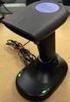 QuickScan QS6500/QS6500BT Product Reference Guide PSC Inc 959 Terry Street Eugene, Oregon 97402 Telephone: (541) 683-5700 Fax: (541) 345-7140 An Unpublished Work - All rights reserved. No part of the contents
plc numbers - 13.1 Encoded values; BCD and ASCII Error detection; parity, gray code and checksums
 plc numbers - 3. Topics: Number bases; binary, octal, decimal, hexadecimal Binary calculations; s compliments, addition, subtraction and Boolean operations Encoded values; BCD and ASCII Error detection;
LS6300 Lecteur de code-barres laser
 WWW.SYMCOD.COM Manuel LS6300 Lecteur de code-barres laser Version: 30/04/2013 Introduction Le lecteur laser Symcod LS6300 est une solution très abordable pour la gestion de vos opérations. Toujours à la
Barcode reader setup manual
 Barcode reader setup manual Setup procedures are as follows: 1 Scan Begin setting 2 Scan your required function and its corresponding barcode 3 Scan End setting 4 All the setting parameters will be saved
BARCODE IMAGER. Programming Manual International Edition, Rev. A1
 BARCODE IMAGER International Edition, Rev. A Revision History Rev. No. Released Date Description Rev.. Beta Aug., 8 First Release Rev.. Beta Aug., 8 Page 9 Vibrator Default value is changed from Disable
CCD Programming Guide
 CCD Programming Guide Please Read Note: The Wasp CCD Scanner is ready to scan the most popular bar codes out of the box. This manual should only be used to make changes in the configuration of the scanner
USER'S GUIDE NUSCAN 2100 Series
 BARCODE SCANNER USER'S GUIDE NUSCAN 2100 Series Table of Contents 1. Limited Warranty...1 2. Introduction...2 3. Contents...3 4. Barcode Symbologies...3 5. Product Introduction...3 6. Installation...4
The ASCII Character Set
 The ASCII Character Set The American Standard Code for Information Interchange or ASCII assigns values between 0 and 255 for upper and lower case letters, numeric digits, punctuation marks and other symbols.
MD6 Series 2D Barcode Scanner
 MD6 Series 2D Barcode Scanner User Manual Version: MD6_UM_EN_V1.1.9 2 Warning: Ensure that the optional DC adapter works at +5V, especially for the RS-232 interface cable. NOTICE: 1. All software, including
All brand, product and service, and trademark names are the property of their registered owners.
 Copyright 2010 EQUATOR LIMITED All rights reserved. All intellectual property rights are the property of their owners. EQUATOR LIMITED is authorized the right to use the software; it is provided under
METROLOGIC INSTRUMENTS, INC. Area Imaging Bar Code Supplemental Configuration Guide
 METROLOGIC INSTRUMENTS, INC. Area Imaging Bar Code Supplemental Configuration Guide Copyright 2007 by Metrologic Instruments, Inc. All rights reserved. No part of this work may be reproduced, transmitted,
Symbols in subject lines. An in-depth look at symbols
 An in-depth look at symbols What is the advantage of using symbols in subject lines? The age of personal emails has changed significantly due to the social media boom, and instead, people are receving
Users Manual. QuickBarII Single-Chip Bar Code Decoder
 Users Manual QuickBarII Single-Chip Bar Code Decoder REV E Dec. 22, 2009 LIMITED WARRANTY ID TECH warrants to the original purchaser for a period of 12 months from the date of invoice that this product
Memory is implemented as an array of electronic switches
 Memory Structure Memory is implemented as an array of electronic switches Each switch can be in one of two states 0 or 1, on or off, true or false, purple or gold, sitting or standing BInary digits (bits)
Advanced Handheld High-Speed Laser Scanner
 1 Revision History Changes to the original manual are listed below: Version Date of Version 1.0 Jun. 25, 2010 Initial release 1.1 Sep. 07, 2010 Add configuration barcode value. Add settings of Code 11,
Appendix C: Keyboard Scan Codes
 Thi d t t d ith F M k 4 0 2 Appendix C: Keyboard Scan Codes Table 90: PC Keyboard Scan Codes (in hex) Key Down Up Key Down Up Key Down Up Key Down Up Esc 1 81 [ { 1A 9A, < 33 B3 center 4C CC 1! 2 82 ]
Magellan TM 3200VSi. On-Counter Vertical Presentation Scanner. Product Reference Guide
 Magellan TM 3200VSi On-Counter Vertical Presentation Scanner Product Reference Guide Datalogic Scanning, Inc. 959 Terry Street Eugene, Oregon 97402 USA Telephone: (541) 683-5700 Fax: (541) 345-7140 An
ESPA 4.4.4 Nov 1984 PROPOSAL FOR SERIAL DATA INTERFACE FOR PAGING EQUIPMENT CONTENTS 1. INTRODUCTION 2. CHARACTER DESCRIPTION
 PROPOSAL FOR SERIAL DATA INTERFACE FOR PAGING EQUIPMENT CONTENTS 1. INTRODUCTION 2. CHARACTER DESCRIPTION 2.1 CHARACTER STRUCTURE 2.2 THE CHARACTER SET 2.3 CONTROL CHARACTERS 2.3.1 Transmission control
APPENDIX E COMMAND BARCODES
 APPENDIX E COMMAND BARCODES Scan command barcode(s) to quickly configure the Socket Bluetooth Cordless Hand Scanner v3 (1D laser versions). By default, the CHS is in HID mode as a Keyboard device. IMPORTANT!
QUICK START GUIDE. Wasp WLS 9500. www.waspbarcode.com
 QUICK START GUIDE Wasp WLS 9500 www.waspbarcode.com LED Scan Window Beeper Trigger CORD ATTACHMENT Model Number and Serial Number appear here. Cable interface Interface cable modular connector Interface
METROLOGIC INSTRUMENTS, INC. MS7320 InVista Series Installation and User s Guide
 METROLOGIC INSTRUMENTS, INC. MS7320 InVista Series Installation and User s Guide LOCATIONS CORPORATE HEADQUARTERS North America Metrologic Instruments, Inc. Customer Service: 1-800-ID-METRO 90 Coles Road
Model 200 / 250 / 260 Programming Guide
 Model 200 / 250 / 260 Programming Guide E-SEEK Inc. R & D Center 9471 Ridgehaven Court #E San Diego, CA 92123 Tel: 858-495-1900 Fax: 858-495-1901 Sales & Marketing 245 Fischer Ave #D5 Costa Mesa, CA 92626
METROLOGIC INSTRUMENTS, INC. MS1690 Focus Area Imaging Bar Code Scanner Supplemental Configuration Guide
 METROLOGIC INSTRUMENTS, INC. MS1690 Focus Area Imaging Bar Code Scanner Supplemental Configuration Guide Copyright 2005 by Metrologic Instruments, Inc. All rights reserved. No part of this work may be
Touch TD1100 Family General Purpose Corded Handheld Contact Imager Bar Code Reader
 Touch TD1100 Family General Purpose Corded Handheld Contact Imager Bar Code Reader Product Reference Guide Datalogic ADC, Inc. 959 Terry Street Eugene, Oregon 97402 USA Telephone: (541) 683-5700 Fax: (541)
TAP Interface Specifications
 TAP Interface Specifications This Document is for those who want to develop their own paging control software or add an interface for the WaveWare v9 Series Paging Encoder to their existing software applications.
Symbol LS9203. Product Reference Guide
 Symbol LS9203 Product Reference Guide Symbol LS9203 Product Reference Guide 72E-71538-03 Revision A February 2007 Motorola, Inc. 2007. All rights reserved. No part of this publication may be reproduced
Programming Menu V3.9
 BAR CODE Programming Menu V3.9 Notice The manufacturer shall not be liable for technical or editorial errors or omissions contained herein; nor for incidental or consequential damages in connection with
Metrologic MS1690 2D Scanner Installation Guide
 Metrologic MS1690 2D Scanner Installation Guide Revision 1.0 Revision History 1.0 04/17/2007 Initial Release The latest version of this document can be found in the following places: Internally for Cerner
QuickScan QS2500 Handheld Bar Code Scanner. Product Reference Guide
 QuickScan QS2500 Handheld Bar Code Scanner Product Reference Guide PSC Inc 959 Terry Street Eugene, Oregon 97402 Telephone: (541) 683-5700 Fax: (541) 345-7140 An Unpublished Work - All rights reserved.
BCST-20 Barcode Scanner. Instruction Manual. www.inateck.com
 BCST-20 Barcode Scanner Instruction Manual www.inateck.com IMPORTANT NOTICE Safety Precaution * DO NOT disassemble the scanner, or place foreign matter into the scanner causing a short circuit or circuit
User s Manual. Decoding Laser Scanner P/N 063496-003
 User s Manual Decoding Laser Scanner P/N 063496-003 Intermec Corporation 6001 36th Avenue West P.O. Box 4280 Everett, WA 98203-9280 U.S. service and technical support: 1-800-755-5505 U.S. media supplies
LS 4004 ISBT 128/ABC Codabar Product Reference Guide
 LS 4004 ISBT 128/ABC Codabar Product Reference Guide Click on red text at any location in the manual to jump to the specified chapter, topic, or reference. About This Manual Introduction to LS 4004 ISBT
Command Emulator STAR Line Mode Command Specifications
 Line Thermal Printer Command Emulator STAR Line Mode Command Specifications Revision 0.01 Star Micronics Co., Ltd. Special Products Division Table of Contents 1. Command Emulator 2 1-1) Command List 2
ASCII CODES WITH GREEK CHARACTERS
 ASCII CODES WITH GREEK CHARACTERS Dec Hex Char Description 0 0 NUL (Null) 1 1 SOH (Start of Header) 2 2 STX (Start of Text) 3 3 ETX (End of Text) 4 4 EOT (End of Transmission) 5 5 ENQ (Enquiry) 6 6 ACK
PROPERTY MANAGEMENT SYSTEM
 PROPERTY MANAGEMENT SYSTEM COMMUNICATION INTERFACE SPECIFICATION NEC America, Inc. NDA-305-00 Revision.0 June, 998 Stock # 24727 LIABILITY DISCLAIMER NEC America reserves the right to change the specifications,
Symbol LS1203. Product Reference Guide
 Symbol LS1203 Product Reference Guide LS1203 Product Reference Guide 72E-73953-04 Revision A November 2012 ii Symbol LS1203 Product Reference Guide Motorola Solutions, Inc. All rights reserved. No part
because we care MS910 Wireless Barcode Scanner Quick Guide Full user s manual is available on the enclosed CD. Version 1.2 400947G
 because we care MS910 Wireless Barcode Scanner Quick Guide Full user s manual is available on the enclosed CD. Version 1.2 400947G because we care OUT OF THE BOX INTRODUCTION 2. Trigger 3. LED Indicator
Symbol LS2208 Product Reference Guide
 Symbol LS2208 Product Reference Guide Symbol LS2208 Product Reference Guide 72E-58808-07 Revision A August 2010 ii Symbol LS2208 Product Reference Guide 2007-2010 by Motorola, Inc. All rights reserved.
Magellan TM 800i. On-Counter Presentation Omnidirectional Bar Code Reader. Product Reference Guide
 Magellan TM 800i On-Counter Presentation Omnidirectional Bar Code Reader Product Reference Guide Datalogic Scanning, Inc. 959 Terry Street Eugene, Oregon 97402 USA Telephone: (541) 683-5700 Fax: (541)
1.1 Notice... 3 1.2 Introduction... 4 1.3 Codes Read... 4 1.4 Installation... 4 1.5 Pin Assignment... 6. Configuration - General
 BAR CODE Contents Chapter 1 Description 1.1 Notice... 3 1.2 Introduction... 4 1.3 Codes Read... 4 1.4 Installation... 4 1.5 Pin Assignment... 6 Chapter 2 Configuration - General 2.1 Flow Chart... 8 2.2
Configure Your FuzzyScan
 Configure Your FuzzyScan A Series of Intelligent Bar Code Reader with NeuroFuzzy Decoding Before you trying to configure the FuzzyScan, you must refer to the Quick Installation chapter of reading devices
MINIMAG. Magnetic Stripe Reader Keyboard Wedge. User s Manual
 MINIMAG Magnetic Stripe Reader Keyboard Wedge User s Manual TM Agency Approved Specifications for subpart B of part 15 of FCC rule for a Class A computing device. Limited Warranty ID TECH warrants to the
MIRROR VT/5250 Terminal Emulation
 MIRROR VT/5250 Terminal Emulation 9300 / 9400 / 9500CE / 9600 Series Mobile Computers DOC Version 1.12 Copyright 2007~ 2009 CIPHERLAB CO., LTD. All rights reserved The software contains proprietary information
BAR CODE 39 ELFRING FONTS INC.
 ELFRING FONTS INC. BAR CODE 39 This package includes 18 versions of a bar code 39 font in scalable TrueType and PostScript formats, a Windows utility, Bar39.exe, that helps you make bar codes, and Visual