
Register your product and get support at DPM8500. Barcode scanner configuration guide
|
|
|
- Simon Shaw
- 9 years ago
- Views:
Transcription
1 Register your product and get support at DPM8500 Barcode scanner configuration guide

2

3 Table of contents 1 Introduction 5 Operational Parameters 5 Parameter defaults 5 2 Set default parameter 7 3 UPC/EAN 8 Enable/Disable UPC-A 8 Enable/Disable UPC-E 8 Enable/Disable UPC-E1 9 Enable/Disable EAN-8 9 Enable/Disable EAN Enable/Disable Bookland EAN 10 Bookland ISBN Format 11 Decode UPC/EAN Supplementals 11 Decode UPC/EAN Supplemental Redundancy 13 UPC/EAN/JAN Supplemental AIM ID Format 13 Transmit UPC-A Check Digit 14 Transmit UPC-E Check Digit 15 Transmit UPC-E1 Check Digit 15 UPC-A Preamble 16 UPC-E Preamble 17 UPC-E1 Preamble 18 Convert UPC-E to UPC-A 18 Convert UPC-E1 to UPC-A 19 EAN Zero Extend 19 UPC/EAN Security Level 20 UCC Coupon Extended Code 21 Coupon Report 22 ISSN EAN 23 4 Code Enable/Disable Code Set Lengths for Code Enable/Disable GS1-128 (formerly UCC/EAN-128) 26 Enable/Disable ISBT ISBT Concatenation 27 Check ISBT Table 27 ISBT Concatenation Redundancy 28 5 Code Enable/Disable Code Enable/Disable Trioptic Code Convert Code 39 to Code 32 (Italian Pharma Code) 30 Code 32 Prefix 30 Set Lengths for Code Code 39 Check Digit Verification 32 Transmit Code 39 Check Digit 32 Enable/Disable Code 39 Full ASCII 33 6 Code Enable/Disable Code Set Lengths for Code Code Enable/Disable Code Set Lengths for Code Code 11 Check Digit Verification 38 Transmit Code 11 Check Digits 38 8 Interleaved 2 of 5 39 Enable/Disable Interleaved 2 of 5 39 Set Lengths for Interleaved 2 of 5 39 I 2 of 5 Check Digit Verification 40 Transmit I 2 of 5 Check Digit 41 Convert I 2 of 5 to EAN Discrete 2 of 5 42 Enable/Disable Discrete 2 of 5 42 Set Lengths for Discrete 2 of Chinese 2 of 5 44 Enable/Disable Chinese 2 of Matrix 2 of 5 45 Enable/Disable Matrix 2 of 5 45 Set Lengths for Matrix 2 of 5 46 Matrix 2 of 5 Redundancy 47 Matrix 2 of 5 Check Digit 47 Transmit Matrix 2 of 5 Check Digit Inverse 1D Codabar 49 Enable/Disable Codabar 49 Set Lengths for Codabar 49 CLSI Editing 50 NOTIS Editing MSI 51 Enable/Disable MSI 51 Set Lengths for MSI 51 MSI Check Digits 52 Transmit MSI Check Digit 52 MSI Check Digit Algorithm GS1-DataBar 54 Enable/Disable GS1 DataBar Omnidirectional 54 Enable/Disable GS1 DataBar Limited 54 Enable/Disable GS1 DataBar Expanded 55 Convert GS1 DataBar to UPC/EAN Numeric Bar Codes 56 Cancel 57 Barcode scanner configuration guide 3

4 4 Barcode scanner configuration guide

5 1 Introduction This booklet describes the programmable parameters, and provides bar codes for programming the Pocket Memo dictation recorder with barcode scanner. Operational Parameters The Pocket Memo dictation recorder with barcode scanner is shipped with the factory default settings shown in the table below. These factory default values are stored in non-volatile memory and are preserved even when the scanner is powered down. To change the parameter values: a Scan the appropriate bar codes included in this chapter. XThe X new values replace the existing memory values. b The factory default values can be recalled by scanning the RESTORE DEFAULTS bar code on page 7. Parameter defaults The table lists the factory defaults for all parameters. To change any option, scan the appropriate bar code(s). Parameter Parameter no (Hex) Factory default Set Factory Default All Defaults UPC/EAN UPC-A 01h Enable UPC-E 02h Enable UPC-E1 0Ch Disable EAN-8 04h Enable EAN-13 03h Enable Bookland EAN 53h Disable Bookland ISBN Format F1h 40h ISBN-10 Decode UPC/EAN Supplementals 10h Ignore Decode UPC/EAN Supplemental Redundancy 50h 7 UPC/EAN/JAN Supplemental AIM ID Format F1h A0h Combined Transmit UPC-A Check Digit 28h Enable Transmit UPC-E Check Digit 29h Enable Transmit UPC-E1 Check Digit 2Ah Enable UPC-A Preamble 22h System Character UPC-E Preamble 23h System Character UPC-E1 Preamble 24h System Character Convert UPC-E to A 25h Disable Convert UPC-E1 to A 26h Disable EAN-8 Zero Extend 27h Disable UPC/EAN Security Level 4Dh 1 UCC Coupon Extended Code 55h Disable Coupon Report F1h DAh Both Coupon Formats ISSN EAN F1h 69h Disable Code 128 Code h Enable Set Length(s) for Code 128 D1h 1-55 D2h GS1-128 (formerly UCC/EAN-128) 0Eh Enable ISBT h Enable ISBT Concatenation F1h 41h Disable Check ISBT Table F1h 42h Enable ISBT Concatenation Redundancy DFh 10 Code 39 Code 39 00h Enable Trioptic Code 39 0Dh Disable Convert Code 39 to Code 32 56h Disable Barcode scanner configuration guide 5

6 Parameter Parameter no (Hex) Factory default Code 32 Prefix E7h Disable Set Length(s) for Code 39 12h h Code 39 Check Digit Verification 30h Disable Transmit Code 39 Check Digit 2Bh Disable Code 39 Full ASCII Conversion 11h Disable Code 93 Code 93 09h Disable Set Length(s) for Code 93 1Ah Bh Code 11 Code 11 0Ah Disable Set Lengths for Code 11 1Ch 4 to 55 1Dh Code 11 Check Digit Verification 34h Disable Transmit Code 11 Check Digit(s) 2Fh Disable Interleaved 2 of 5 Interleaved 2 of 5 06h Enable Set Length(s) for I 2 of 5 16h 14 17h I 2 of 5 Check Digit Verification 31h Disable Transmit I 2 of 5 Check Digit 2Ch Disable Convert I 2 of 5 to EAN 13 52h Disable Discrete 2 of 5 Discrete 2 of 5 05h Disable Set Length(s) for D 2 of 5 14h 12 15h Chinese 2 of 5 Chinese 2 of 5 F0h 98h Disable Matrix 2 of 5 Matrix 2 of 5 F1h 6Ah Disable Matrix 2 of 5 Lengths F1h 6Bh 14 F1h 6Ch Matrix 2 of 5 Redundancy F1h 6Dh Disable Matrix 2 of 5 Check Digit F1h 6Eh Disable Transmit Matrix 2 of 5 Check Digit F1h 6Fh Disable Inverse 1D Inverse 1D F1h 4Ah Regular Codabar Codabar 07h Disable Set Lengths for Codabar 18h h CLSI Editing 36h Disable NOTIS Editing 37h Disable MSI MSI 0Bh Disable Set Length(s) for MSI 1Eh Fh MSI Check Digits 32h One Transmit MSI Check Digit 2Eh Disable MSI Check Digit Algorithm 33h Mod 10/Mod 10 GS1 DataBar GS1 DataBar Omnidirectional F0h 52h Enable GS1 DataBar Limited F0h 53h Enable GS1 DataBar Expanded F0h 54h Enable Convert GS1 DataBar to UPC/EAN F0h 8Dh Disable 6 Barcode scanner configuration guide

7 Set Default Parameter 2 Set default parameter Scan Set Factory Defaults to restore the factory default values listed in Table 4-1 on page 4-2. Scan Set Factory Defaults to restore the factory default values listed in the table on page 5. Set Factory Defaults LED On Time Parameter # 88h This parameter sets the maximum time decode processing continues during a scan attempt. It is programmable in 0.1 second increments from 0.50 to 25.5 seconds. To set an LED On Time, scan the bar code below. Next scan two numeric bar codes beginning on page 4-73 that correspond to the desired on time. Single digit numbers must have a leading zero. For example, to set an on time of 0.5 seconds, scan the bar code below, then scan the "0", "5" and "0" bar codes; to set an on time of 10.5 seconds, scan the bar code below, then scan the "1", "0" and "5" bar codes. To change the selection or cancel an incorrect entry, scan Cancel on page LED On Time (Default: 3.0 sec.) Barcode scanner configuration guide 7

8 UPC/EAN UPC/EAN 3 UPC/EAN Enable/Disable UPC-A Enable/Disable Parameter # 01hUPC-A Parameter # 01h To Enable/Disable enable or disable UPC-A UPC-A, scan the appropriate bar code below. To Parameter enable or # 01h disable UPC-A, scan the appropriate bar code below. To enable or disable UPC-A, scan the appropriate bar code below. *Enable UPC-A *Enable UPC-A Enable/Disable UPC-E Enable/Disable Parameter # 02hUPC-E Parameter # 02h Disable UPC-A Disable UPC-A Enable/Disable UPC-E To Parameter enable or # 02h disable UPC-E, scan the appropriate bar code below. To enable or disable UPC-E, scan the appropriate bar code below. To enable or disable UPC-E, scan the appropriate bar code below. *Enable UPC-E *Enable UPC-E Disable UPC-E Disable UPC-E 8 Barcode scanner configuration guide

9 Parameter # 0Ch To enable or disable UPC-E1, scan the appropriate bar code below. To enable or disable UPC-E1, scan the appropriate bar code below. Enable/Disable UPC-E1 NOTE UPC-E1 is not a UCC (Uniform Code Council) approved symbology. Parameter NOTE # 0ChUPC-E1 is not a UCC (Uniform Code Council) approved symbology. To enable or disable UPC-E1, scan the appropriate bar code below. NOTE: UPC-E1 is not a UCC (Uniform Code Council) approved symbology. Enable UPC-E1 Enable UPC-E1 Enable/Disable EAN-8 Enable/Disable EAN-8 Parameter # 04h Parameter # 04h Enable/Disable EAN-8 *Disable UPC-E1 *Disable UPC-E1 To Parameter enable or # 04h disable EAN-8, scan the appropriate bar code below. To To enable or or disable EAN-8, EAN-8, scan the scan appropriate the appropriate bar code below. bar code below. *Enable EAN-8 *Enable EAN-8 Disable EAN-8 Disable EAN-8 Barcode scanner configuration guide 9

10 Parameter Enable/Disable # 03hEAN-13 Parameter # 03h To Enable/Disable enable or disable EAN-13EAN-13, scan the appropriate bar code below. To Parameter enable # or 03h disable EAN-13, scan the appropriate bar code below. To enable or disable EAN-13, scan the appropriate bar code below *Enable EAN-13 *Enable EAN-13 Enable/Disable Bookland EAN Parameter Enable/Disable # h53hbookland EAN Disable EAN-13 Disable EAN-13 Enable/Disable Bookland EAN To Parameter enable or # h53h disable # EAN h53hbookland, scan the appropriate bar code below. To enable or disable EAN Bookland, scan the appropriate bar code below. To enable or disable EAN Bookland, scan the appropriate bar code below. Enable Bookland EAN Enable Bookland EAN *Disable Bookland EAN *Disable Bookland EAN NOTE: If you enable Bookland EAN, select a Bookland ISBN Format. Also select either Decode UPC/EAN Supplementals, Autodiscriminate UPC/ EAN Supplementals, NOTE If you or Enable enable 978/979 Bookland Supplemental EAN, select Mode a Bookland in Decode ISBN UPC/EAN Format Supplementals. on page Also select either Decode UPC/EAN Supplementals, Autodiscriminate UPC/EAN Supplementals, or Enable 978/979 Supplemental NOTE Mode If you in enable Decode Bookland UPC/EAN EAN, Supplementals select a Bookland on page ISBN Format on page Also select either Decode UPC/EAN Supplementals, Autodiscriminate UPC/EAN Supplementals, or Enable 978/979 Supplemental Mode in Decode UPC/EAN Supplementals on page Barcode scanner configuration guide

11 Parameter # F1h 40h If Bookland ISBN EAN Format is enabled, select one of the following formats for Bookland data: Parameter Bookland # F1h 40h ISBN-10 - The digital scanner reports Bookland data starting with 978 in traditional 10-digit format with the If Bookland special EAN Bookland is enabled, check select one digit of the for following backward-compatibility. formats for Bookland Data data: starting with 979 is not considered Bookland in this Bookland mode. ISBN-10 - The digital scanner reports Bookland data starting with 978 in traditional 10-digit format with the special Bookland check digit for backward-compatibility. Data starting with 979 is not considered Bookland in this mode. Bookland ISBN-13 - The digital scanner reports Bookland data (starting with either 978 or 979) as EAN-13 in 13-digit Bookland format ISBN-13 to meet - The the digital 2007 scanner ISBN-13 reports protocol. Bookland data (starting with either 978 or 979) as EAN-13 in 13-digit format to meet the 2007 ISBN-13 protocol. *Bookland ISBN-10 Bookland ISBN-13 NOTE: For NOTE Bookland For EAN Bookland to function EAN properly, to function ensure properly, Bookland ensure EAN Bookland is enabled (see EAN Enable/Disable is enabled (see Bookland Enable/Disable EAN), then select Bookland either Decode UPC/EAN Supplementals, EAN on Autodiscriminate page 4-15), then UPC/EAN select either Supplementals, Decode UPC/EAN or Enable 978/979 Supplementals, Supplemental Autodiscriminate Mode in Decode UPC/EAN Supplementals. Supplementals, or Enable 978/979 Supplemental Mode in Decode UPC/EAN Supplementals on page Decode UPC/EAN Supplementals Parameter # 10h Supplementals are bar codes appended according to specific format conventions (e.g., UPC A+2, UPC E+2, EAN 13+2). The following options are available: If you select Ignore UPC/EAN with Supplementals, and the scanner is presented with a UPC/EAN plus supplemental symbol, the scanner decodes UPC/EAN and ignores the supplemental characters. If you select Decode UPC/EAN with Supplementals, the scanner only decodes UPC/EAN symbols with supplemental characters, and ignores symbols without supplementals. If you select Autodiscriminate UPC/EAN Supplementals, the scanner decodes UPC/EAN symbols with supplemental characters immediately. If the symbol does not have a supplemental, the scanner must decode the bar code the number of times set via Decode UPC/EAN Supplemental Redundancy before transmitting its data to confirm that there is no supplemental. If you select one of the following Supplemental Mode options, the scanner immediately transmits EAN-13 bar codes starting with that prefix that have supplemental characters. If the symbol does not have a supplemental, the scanner must decode the bar code the number of times set via Decode UPC/EAN Supplemental Redundancy before transmitting its data to confirm that there is no supplemental. The scanner transmits UPC/ EAN bar codes that do not have that prefix immediately. Enable 378/379 Supplemental Mode. Enable 978/979 Supplemental Mode.»» NOTE: If you select 978/979 Supplemental Mode and are scanning Bookland EAN bar codes, see Enable/Disable Bookland EAN to enable Bookland EAN, and select a format using Bookland ISBN Format. Enable 977 Supplemental Mode. Enable 414/419/434/439 Supplemental Mode. Enable 491 Supplemental Mode. Enable Smart Supplemental Mode - applies to EAN-13 bar codes starting with any prefix listed previously.»» NOTE: To minimize the risk of invalid data transmission, select either to decode or ignore supplemental characters. Barcode scanner configuration guide 11

12 Decode UPC/EAN Supplementals (continued) Select the desired option option by scanning by scanning one of the one following of the bar following codes. bar codes. Decode UPC/EAN With Supplementals *Ignore UPC/EAN With Supplementals Autodiscriminate UPC/EAN Supplementals (02h) Enable 378/379 Supplemental Mode (04h) Enable 978/979 Supplemental Mode (05h) 12 Barcode scanner configuration guide

13 Decode UPC/EAN Supplementals (continued) Decode UPC/EAN Supplementals (continued) Enable 977 Supplemental Mode Enable 977 Supplemental (07h) Mode (07h) Enable 414/419/434/439 Supplemental Mode Enable 414/419/434/439 (06h) Supplemental Mode (06h) Enable 491 Supplemental Mode Enable 491 Supplemental (08h) Mode (08h) Enable Smart Supplemental Mode Enable Smart Supplemental (03h) Mode (03h) Decode UPC/EAN Supplemental Redundancy Decode UPC/EAN Supplemental Redundancy Parameter # 50h Parameter # 50h Decode UPC/EAN Supplemental Redundancy With Parameter Autodiscriminate # 50h UPC/EAN Supplementals selected, this option adjusts the number of times a symbol without supplementals With With Autodiscriminate are decoded UPC/EAN UPC/EAN before Supplementals Supplementals transmission. selected, this selected, The option range adjusts this from option the number 2 adjusts to 20 of times. the a number symbol Five or without of above times supplementals is a recommended symbol are without decoded when decoding supplementals before transmission. a mix are of The UPC/EAN decoded range is from before symbols 2 to transmission. 20 with times. and Five without or The above range supplementals, is recommended is from 2 when to and 20 decoding the times. autodiscriminate a Five mix of or UPC/EAN above option is symbols recommended is with selected. and without when decoding supplementals, a mix and of the UPC/EAN autodiscriminate symbols option with is selected. and without Scan the supplementals, bar code below to and select the a decode autodiscriminate redundancy value. option Next is scan selected. two numeric bar Scan the bar code below to select a decode redundancy value. Next scan two numeric bar codes beginning on page codes beginning on page 56. Single digit numbers must have a leading zero. To change the selection or cancel an incorrect entry, scan Cancel on page Single Scan the digit bar numbers code below must to have select a leading a decode zero. redundancy To change value. the selection Next scan or two cancel numeric an incorrect bar codes entry, beginning scan Cancel on page on page Single digit numbers must have a leading zero. To change the selection or cancel an incorrect entry, scan Cancel on page Decode UPC/EAN Supplemental Redundancy Decode UPC/EAN (Default: Supplemental 7) Redundancy (Default: 7) Barcode scanner configuration guide 13

14 Parameter # F1h A0h Select an output format when reporting UPC/EAN/JAN bar codes with Supplementals with Transmit Code ID Character on page UPC/EAN/JAN 4-67 set to Supplemental AIM Code AIM ID Character: ID Format Parameter Separate # F1h - transmit A0h UPC/EAN with supplementals with separate AIM IDs but one transmission, i.e.: Select an ]E<0 output or format 4><data>]E<1 when reporting 2>[supplemental UPC/EAN/JAN bar codes data] with Supplementals with Transmit Code ID Character set to AIM Code ID Character: Combined transmit UPC/EAN with supplementals with one AIM ID and one transmission, i.e.: Separate - transmit UPC/EAN with supplementals with separate AIM IDs but one transmission, i.e.: ]E<0 ]E3<data+supplemental or 4><data>]E<1 or 2>[supplemental data> data] Combined Separate transmit Transmissions UPC/EAN - with transmit supplementals UPC/EAN with one with AIM supplementals ID and one transmission, with separate i.e.: AIM IDs and separate transmissions, ]E3<data+supplemental i.e.: data> Separate ]E<0 Transmissions or 4><data> - transmit UPC/EAN with supplementals with separate AIM IDs and separate transmissions, i.e.: ]E<0 ]E<1 or 4><data> or 2>[supplemental data] ]E<1 or 2>[supplemental data] Separate *Combined Parameter Menus 4-21 Transmit UPC-A Check Digit Parameter # 28h Separate Transmissions NEW END Transmit UPC-A Check Digit Scan the appropriate bar code below to transmit the symbol with or without the UPC-A check digit. Parameter # 28h Scan the appropriate bar code below to transmit the symbol with or without the UPC-A check digit. *Transmit UPC-A Check Digit Transmit UPC-E Check Digit Do Not Transmit UPC-A Check Digit 14 Barcode scanner configuration guide Parameter # 29h

15 Transmit UPC-E Check Digit Parameter # 29h Transmit UPC-E Check Digit Scan Parameter the appropriate # 29h bar code below to transmit the symbol with or without the UPC-E check digit. Scan the appropriate bar code below to transmit the symbol with or without the UPC-E check digit. *Transmit UPC-E Check Digit 4-22 SE655 Decoded Linear Imaging Engine Transmit UPC-E1 Check Digit Transmit UPC-E1 Check Digit Parameter # 2Ah Do Not Transmit UPC-E Check Digit Parameter # 2Ah Scan the appropriate bar bar code code below below to transmit to transmit the symbol the with symbol or without with the or UPC-E1 without check the digit. UPC-E1 check digit. *Transmit UPC-E1 Check Digit UPC-A Preamble Parameter # 22h Do Not Transmit UPC-E1 Check Digit Preamble characters (Country Code and System Character) can be transmitted as part of a UPC-A symbol. Select one of the following options for transmitting UPC-A preamble to the host device: transmit system character only, transmit system character and country code ( 0 for USA), or transmit no preamble. No Preamble (<DATA>) Barcode scanner configuration guide 15

16 UPC-A Preamble UPC-A Preamble Parameter # 22h Parameter # 22h Preamble characters (Country Code and System Character) can be transmitted as part of a UPC-A symbol. Select one of the following options for Preamble characters (Country Code and System Character) can be transmitted as part of a UPC-A symbol. Select one of transmitting UPC-A preamble to the host device: transmit system character only, transmit system character and country code ( 0 for USA), or the following options for transmitting UPC-A preamble to the host device: transmit system character only, transmit system character transmit no and preamble. country code ( 0 for USA), or transmit no preamble. No Preamble (<DATA>) *System Character (<SYSTEM CHARACTER> <DATA>) System Character & Country Code (< COUNTRY CODE> <SYSTEM CHARACTER> <DATA>) (02h) 16 Barcode scanner configuration guide

17 UPC-E Preamble Parameter # 23h UPC-E Preamble Preamble Parameter characters # 23h (Country Code and System Character) can be transmitted as part of a UPC-E symbol. Select one of the Preamble following characters options (Country for transmitting Code and System UPC-E Character) preamble can be to transmitted the host device: as part of transmit a UPC-E symbol. system Select character one of the only, following transmit options system for character and country code ( 0 for USA), or transmit no preamble. transmitting UPC-E preamble to the host device: transmit system character only, transmit system character and country code ( 0 for USA), or transmit no preamble. No Preamble (<DATA>) *System Character (<SYSTEM CHARACTER> <DATA>) System Character & Country Code (< COUNTRY CODE> <SYSTEM CHARACTER> <DATA>) (02h) Barcode scanner configuration guide 17

18 UPC-E1 Preamble Parameter # 24h UPC-E1 Preamble Preamble characters (Country Code and System Character) can be transmitted as part of a UPC-E1 symbol. Select one of Parameter # 24h the following options for transmitting UPC-E1 preamble to the host device: transmit system character only, transmit system Preamble characters (Country Code and System Character) can be transmitted as part of a UPC-E1 symbol. Select one of the following options for character and country code ( 0 for USA), or transmit no preamble. transmitting UPC-E1 preamble to the host device: transmit system character only, transmit system character and country code ( 0 for USA), or transmit no preamble. No Preamble (<DATA>) *System Character (<SYSTEM CHARACTER> <DATA>) Convert UPC-E to UPC-A Parameter # 25h System Character & Country Code (< COUNTRY CODE> <SYSTEM CHARACTER> <DATA>) (02h) Parameter Menus 4-25 Convert UPC-E to UPC-A Enable Parameter this # parameter 25h to convert UPC-E (zero suppressed) decoded data to UPC-A format before transmission. After conversion, Enable this parameter data follows to convert UPC-A UPC-E format (zero suppressed) and is affected decoded by data UPC-A to UPC-A programming format before selections transmission. (e.g., After Preamble, conversion, data Check follows Digit). UPC-A format and is affected by UPC-A programming selections (e.g., Preamble, Check Digit). Scan DO NOT CONVERT UPC-E TO UPC-A to transmit UPC-E (zero suppressed) decoded data. Scan DO NOT CONVERT UPC-E TO UPC-A to transmit UPC-E (zero suppressed) decoded data. Convert UPC-E to UPC-A (Enable) *Do Not Convert UPC-E to UPC-A (Disable) Convert UPC-E1 to UPC-A Parameter # 26h Enable 18 this parameter to convert UPC-E1 (zero suppressed) decoded data to UPC-A format Barcode before scanner transmission. configuration After guide conversion, data follows UPC-A format and is affected by UPC-A programming selections (e.g., Preamble, Check Digit).

19 Convert UPC-E1 to UPC-A Parameter # 26h Convert UPC-E1 to UPC-A Enable Parameter this # parameter 26h to convert UPC-E1 (zero suppressed) decoded data to UPC-A format before transmission. After conversion, Enable this parameter data follows to convert UPC-A UPC-E1 format (zero and suppressed) is affected decoded by UPC-A data to UPC-A programming format before selections transmission. (e.g., After Preamble, conversion, Check data follows Digit). UPC-A format and is affected by UPC-A programming selections (e.g., Preamble, Check Digit). Scan DO NOT CONVERT UPC-E TO UPC-A to transmit UPC-E1 (zero suppressed) decoded data. Scan DO NOT CONVERT UPC-E TO UPC-A to transmit UPC-E1 (zero suppressed) decoded data. Convert UPC-E1 to UPC-A (Enable) 4-26 SE655 Decoded Linear Imaging Engine EAN Zero Extend Parameter # 27h *Do Not Convert UPC-E1 to UPC-A (Disable) EAN Zero Extend When enabled, this parameter adds five leading zeros to decoded EAN-8 symbols to make them compatible in format to EAN-13 Parameter symbols. # 27h When enabled, this parameter adds five leading zeros to decoded EAN-8 symbols to make them compatible in format to EAN-13 symbols. Disable this parameter to transmit EAN-8 symbols as is. Disable this parameter to transmit EAN-8 symbols as is. Enable EAN Zero Extend *Disable EAN Zero Extend Barcode scanner configuration guide 19

20 UPC/EAN Security Level Parameter # 4Dh UPC/EAN Security Level Parameter # 4Dh The The SE655 scanner offers four levels levels of decode of decode security security for UPC/EAN for UPC/EAN bar codes. Increasing bar codes. levels Increasing of security are levels provided of security for decreasing are levels provided of bar for code decreasing quality. Select levels higher of levels bar of code security quality. for decreasing Select levels higher of bar levels code of quality. security Increasing for decreasing security decreases levels the scan of bar engine s code aggressiveness, quality. Increasing so choose security decreases the scan engine s aggressiveness, so choose only that level of security necessary for the application. only that level of security necessary for the application. UPC/EAN Security Level 0 UPC/EAN Security Level 0 This default setting allows allows the scan the engine scan to engine operate to in operate its most aggressive in its most state, aggressive while providing state, sufficient while security providing in decoding sufficient most in-spec security UPC/ in decoding EAN bar codes. most in-spec UPC/EAN bar codes. UPC/EAN Security Level 0 UPC/EAN Security Level 1 UPC/EAN Security Level 1 As bar code As bar code quality quality levels levels diminish, diminish, certain characters certain characters become prone become to mis-decodes prone before to mis-decodes others (i.e., 1, before 2, 7, 8). others If mis-decodes (i.e., 1, of poorly 2, 7, 8). printed If mis-decodes of poorly printed bar codes occur, and the mis-decodes are limited to these characters, select this security bar codes occur, and the mis-decodes are limited to these characters, select this security level. level. *UPC/EAN Security Level 1 UPC/EAN Security Level 2 UPC/EAN Security Level 2 If mis-decodes of poorly printed bar codes occur, and the mis-decodes are not limited to characters 1, 2, 7, and 8, select If mis-decodes of poorly printed bar codes occur, and the mis-decodes are not limited to characters 1, 2, 7, and 8, select this security level. this security level. UPC/EAN Security Level 2 (02h) UPC/EAN Security Level 3 UPC/EAN Security Level 3 If misdecodes If still still occur occur after after selecting selecting Security Security Level 2, select Level this 2, security select level. this Be security advised, selecting level. Be this advised, option an selecting extreme measure this option against is misdecoding severely out of spec bar codes. Selection of this level of security significantly impairs the decoding ability of the scan engine. If this level of impairs the decoding ability of the scan engine. If this level of security is necessary, try to improve the quality of the bar security is necessary, try to improve the quality of the bar codes. an extreme measure against mis-decoding severely out of spec bar codes. Selection of this level of security significantly codes. UPC/EAN Security Level 3 (03h) 20 Barcode scanner configuration guide

21 UCC Coupon Extended Code Parameter # 55h UCC Coupon Extended Code The Parameter UCC Coupon # 55h Extended Code is an additional bar code adjacent to a UCC Coupon Code. To enable or disable UCC Coupon The UCC Extended Coupon Extended Code, scan Code is the an additional appropriate bar code bar adjacent code below. to a UCC Coupon Code. To enable or disable UCC Coupon Extended Code, scan the appropriate bar code below. Enable UCC Coupon Extended Code *Disable UCC Coupon Extended Code Barcode scanner configuration guide 21
22 Parameter # F1h DAh Traditional Coupon Report coupon symbols (old coupon symbols) are composed of two bar codes: UPC/EAN and Code128. A new coupon symbol Parameter is composed # F1h DAh of a single Databar Expanded bar code. The new coupon format offers more options for purchase values (up to $999.99) and supports complex discount offers such as a second purchase requirement. Traditional coupon symbols (old coupon symbols) are composed of two bar codes: UPC/EAN and Code128. A new coupon symbol is composed of a An single interim Databar coupon Expanded symbol bar code. also The exists new that coupon contains format offers both more types options of bar for codes: purchase UPC/EAN values (up to and $999.99) Databar and supports Expanded. complex This discount format accommodates offers such as a second both purchase retailers requirement. that do not recognize or use the additional information included in the new coupon symbol, as well as those who can process new coupon symbols. An interim coupon symbol also exists that contains both types of bar codes: UPC/EAN and Databar Expanded. This format accommodates both Scan retailers a bar that code do not below recognize to select or use the one additional of the information following included options in for the decoding new coupon coupon symbol, as symbols: well as those who can process new coupon symbols. Old Coupon Symbols - Scanning an old coupon symbol reports both UPC and Code 128, scanning an interim coupon symbol reports UPC, and scanning a new coupon symbol reports nothing (no decode). Scan a bar code below to select one of the following options for decoding coupon symbols: Old New Coupon Coupon Symbols Symbols - Scanning - Scanning old coupon an symbol old coupon reports symbol both UPC reports and Code either 128, scanning UPC or an Code interim 128, coupon and symbol scanning reports an UPC, interim and scanning coupon a new symbol coupon or symbol a new reports coupon nothing symbol (no decode). reports Databar Expanded. New Both Coupon Coupon Symbols Formats - Scanning - Scanning old coupon an old symbol coupon reports symbol either UPC reports Code both 128, UPC and scanning and Code an interim 128, coupon and scanning symbol or an a new interim coupon symbol symbol reports or Databar a new Expanded. coupon symbol reports Databar Expanded. Both Coupon Formats - Scanning an old coupon symbol reports both UPC and Code 128, and scanning an interim coupon symbol or a new coupon symbol reports Databar Expanded. Old Coupon Symbols New Coupon Symbols *Both Coupon Formats (02h) 22 Barcode scanner configuration guide
23 ISSN EAN Parameter # F1h 69h ISSN EAN To Parameter enable or # F1h disable 69h ISSN EAN, scan the appropriate bar code below To enable or disable ISSN EAN, scan the appropriate bar code below Enable ISSN EAN *Disable ISSN EAN Barcode scanner configuration guide 23
24 Code Code 128 Enable/Disable Code 128 Parameter # 08h Enable/Disable Code 128 To enable or disable Code 128, scan the appropriate bar code below. Parameter # 08h To enable or disable Code 128, scan the appropriate bar code below. *Enable Code 128 Set Lengths for Code 128 Parameter # L1 = D1h L2 = D2h Disable Code 128 The length of a code refers to the number of characters (i.e., human readable characters), including check digit(s) the code contains. Set lengths for Code 128 to any length, one or two discrete lengths, or lengths within a specific range. NOTE When setting lengths for different bar code types, enter a leading zero for single digit numbers. One Discrete Length - Select this option to decode only Code 128 symbols containing a selected length. Select the length using the numeric bar codes beginning on page For example, to decode only Code 128 symbols with 14 characters, scan Code One Discrete Length, then scan 1 followed by 4. To correct an error or change the selection, scan Cancel on page Two Discrete Lengths - Select this option to decode only Code 128 symbols containing either of two selected lengths. Select lengths using the numeric bar codes beginning on page For example, to decode only Code 128 symbols containing either 2 or 14 characters, select Code Two Discrete Lengths, then scan 0, 2, 1, and then 4. To correct an error or change the selection, scan Cancel on page Length Within Range - Select this option to decode a Code 128 symbol with a specific length range. Select lengths using numeric bar codes beginning on page For example, to decode Code 128 symbols containing between 4 and 12 characters, first scan Code Length Within Range. Then scan 0, 4, 1, and 2 (enter a leading zero for single digit numbers). To correct an error or change the selection, scan Cancel on page Any Length - Select this option to decode Code 128 symbols containing any number of characters within the digital scanner s capability. 24 Barcode scanner configuration guide
25 Set Lengths for Code 128 Parameter # L1 = D1h L2 = D2h The length of a code refers to the number of characters (i.e., human readable characters), including check digit(s) the code contains. Set lengths for Code 128 to any length, one or two discrete lengths, or lengths within a specific range. NOTE: When setting lengths for different bar code types, enter a leading zero for single digit numbers. One Discrete Length - Select this option to decode only Code 128 symbols containing a selected length. Select the length using the numeric bar codes beginning on page 56. For example, to decode only Code 128 symbols with 14 characters, scan Code One Discrete Length, then scan 1 followed by 4. To correct an error or change the selection, scan Cancel on page 57. Two Discrete Lengths - Select this option to decode only Code 128 symbols containing either of two selected lengths. Select lengths using the numeric bar codes beginning on page 56. For example, to decode only Code 128 symbols containing either 2 or 14 characters, select Code SE655 Decoded Linear Imaging Engine Two Discrete Lengths, then scan 0, 2, 1, and then 4. To correct an error or change the selection, scan Cancel on page 57. Length Within Range - Select this option to decode a Code 128 symbol with a specific length range. Select lengths using numeric bar codes beginning on page 56. For example, to decode Code 128 symbols containing between 4 and 12 characters, first scan Code Length Within Range. Then scan 0, 4, 1, and 2 (enter a leading zero for single digit numbers). To correct an error or change the selection, scan Cancel on page Set Lengths for Code 128 (continued) 57. Any Length - Select this option to decode Code 128 symbols containing any number of characters within the digital scanner s capability. Code One Discrete Length Code Two Discrete Lengths Code Length Within Range *Code Any Length Barcode scanner configuration guide 25
26 Enable/Disable Parameter # 0EhGS1-128 (formerly UCC/EAN-128) To enable or disable GS1-128, scan the appropriate bar code below. (See Appendix A, Miscellaneous Code Information for Parameter # 0Eh details Enable/Disable on GS1-128 (formerly UCC/EAN-128).) To Parameter enable or # disable 0Eh GS1-128, scan the appropriate bar code below. (See Appendix A, Miscellaneous Code Information for details To enable on or GS1-128 disable GS1-128, (formerly scan UCC/EAN-128).) the appropriate bar code below. (See Appendix A, Miscellaneous Code Information for details on GS1-128 (formerly UCC/EAN-128).) *Enable GS1-128 *Enable GS1-128 Enable/Disable ISBT 128 Enable/Disable Parameter # 54hISBT 128 Disable GS1-128 Disable GS1-128 Enable/Disable ISBT 128 To Parameter enable or # 54h disable ISBT 128, scan the appropriate bar code below. # 54h To enable or disable ISBT 128, scan the appropriate bar code below. To enable or disable ISBT 128, scan the appropriate bar code below. *Enable ISBT 128 *Enable ISBT 128 Disable ISBT 128 Disable ISBT Barcode scanner configuration guide
27 Select an option for concatenating pairs of ISBT code types: ISBT If Concatenation you select Disable ISBT Concatenation, the digital scanner does not concatenate pairs of ISBT codes it encounters. Parameter # F1h 41h Select If an you option select for concatenating Enable ISBT pairs Concatenation, of ISBT code types: there must be two ISBT codes in order for the digital scanner to decode If you and select perform Disable concatenation. ISBT Concatenation, The the digital digital scanner scanner does does not concatenate not decode pairs single of ISBT ISBT codes symbols. it encounters. If you If you select select Enable Autodiscriminate ISBT Concatenation, there ISBT must Concatenation, be two ISBT codes in the order digital for the scanner digital scanner decodes to decode and concatenates and perform concatenation. pairs of ISBT The digital codes scanner immediately. does not decode If only single a single ISBT symbols. ISBT symbol is present, the digital scanner must decode the symbol the number of If you times select set Autodiscriminate via ISBT Concatenation ISBT Concatenation, Redundancy the digital scanner on page decodes 4-35 and before concatenates transmitting pairs of its ISBT data codes to immediately. confirm that If only there a single is no ISBT additional symbol is present, ISBT symbol the digital scanner must decode the symbol the number of times set via ISBT Concatenation Redundancy before transmitting its data to confirm that there is no additional ISBT symbol *Disable ISBT Concatenation Enable ISBT Concatenation Parameter Menus 4-35 Check ISBT Table Parameter # F1h 42h Autodiscriminate ISBT Concatenation Check ISBT Table The ISBT specification includes a table that lists several types of ISBT bar codes that are commonly used in pairs. If you set Parameter ISBT Concatenation # F1h 42h to Enable, enable Check ISBT Table to concatenate only those pairs found in this table. Other types The ISBT of ISBT specification codes includes are not a table concatenated. that lists several types of ISBT bar codes that are commonly used in pairs. If you set ISBT Concatenation to Enable, enable Check ISBT Table to concatenate only those pairs found in this table. Other types of ISBT codes are not concatenated. *Enable Check ISBT Table Disable Check ISBT Table ISBT Concatenation Redundancy Parameter # DFh If you Barcode set scanner ISBT Concatenation configuration guide to Autodiscriminate, use this parameter to set the number of times the digital scanner 27 must decode an ISBT symbol before determining that there is no additional symbol.
28 Parameter # DFh If you set ISBT Concatenation to Autodiscriminate, use this parameter to set the number of times the digital scanner must ISBT decode Concatenation an ISBT Redundancy symbol before determining that there is no additional symbol. Parameter # DFh Scan the bar code below, then scan two numeric bar codes in Numeric Bar Codes on page 4-73 to set a value between 2 and If you 20. set Enter ISBT Concatenation a leading zero to Autodiscriminate, for single digit use numbers. this parameter To correct to set the an number error or of change times the a digital selection, scanner must scan decode Cancel ISBT on page symbol The before default determining is 10. that there is no additional symbol. Scan the bar code below, then scan two numeric bar codes in Numeric Bar Codes on page 56 to set a value between 2 and 20. Enter a leading zero for single digit numbers. To correct an error or change a selection, scan Cancel on page 57. The default is 10. ISBT Concatenation Redundancy 28 Barcode scanner configuration guide
29 Code 39 Code 5 Code Enable/Disable Code 39 Enable/Disable Parameter # 00h Code 39 Parameter # 00h Enable/Disable Code 39 To Parameter enable or # 00h disable Code 39, scan the appropriate bar code below. To To enable or disable Code Code 39, scan 39, the scan appropriate the appropriate bar code below. bar code below. *Enable Code 39 *Enable Code 39 Enable/Disable Trioptic Code 39 Enable/Disable Parameter # 0Dh Trioptic Code 39 Parameter # 0Dh Enable/Disable Trioptic Code 39 Disable Code 39 Disable Code 39 Parameter # 0Dh Trioptic Code 39 is a variant of Code 39 used in marking computer tape cartridges. Trioptic Code 39 symbols always contain Trioptic six Code characters. 39 is a variant of Code 39 used in marking computer tape cartridges. Trioptic Code 39 symbols always contain six characters. Trioptic Code 39 is a variant of Code 39 used in marking computer tape cartridges. Trioptic Code 39 symbols always contain To To enable six or characters. disable Trioptic Trioptic Code Code 39, scan 39, the scan appropriate the appropriate bar code below. bar code below. To enable or disable Trioptic Code 39, scan the appropriate bar code below. Enable Trioptic Code 39 Enable Trioptic Code 39 *Disable Trioptic Code 39 *Disable Trioptic Code 39 NOTE NOTE: Trioptic Code Trioptic 39 and Code Code and Full Code ASCII 39 cannot Full ASCII be enabled cannot simultaneously. be enabled If simultaneously. the Enable Trioptic If Code the Enable 39 setting Trioptic is not Code accepted*, disable 39 setting is not accepted*, disable Code 39 Full ASCII and try again. Code 39 NOTE Full ASCII Trioptic and try Code again. 39 and Code 39 Full ASCII cannot be enabled simultaneously. If the Enable Trioptic Code 39 * An setting SSI parameter is not accepted*, entry error, disable event Code ID 07h, 39 Full is sent ASCII to the and host try again. if packeted data communication is * An SSI parameter enabled entry error, to inform event the ID 07h, user is that sent the to the parameter host if packeted change data was communication not accepted. is enabled to inform the user that the parameter change was not accepted. * An SSI parameter entry error, event ID 07h, is sent to the host if packeted data communication is enabled to inform the user that the parameter change was not accepted. Barcode scanner configuration guide 29
30 Convert Code 39 to Code 32 (Italian Pharma Code) Code 32 is a variant of Code 39 used by the Italian pharmaceutical industry. Scan the appropriate bar code below to enable or disable Parameter converting # 56h Code 39 to Code 32. Convert Code 39 to Code 32 (Italian Pharma Code) Code 32 is a variant of Code 39 used by the Italian pharmaceutical industry. Scan the appropriate bar code below to enable Parameter NOTE # 56hCode 39 must be enabled in order for this parameter to function. or disable converting Code 39 to Code 32. Code 32 is a variant of Code 39 used by the Italian pharmaceutical industry. Scan the appropriate bar code below to enable or disable converting Code 39 NOTE to Code Code must be enabled in order for this parameter to function. NOTE: Code 39 must be enabled in order for this parameter to function. Enable Convert Code 39 to Code 32 Enable Convert Code 39 to Code 32 Code 32 Prefix Parameter # E7h Code 32 Prefix *Disable Convert Code 39 to Code 32 *Disable Convert Code 39 to Code 32 Code 32 Prefix Enable this parameter to add the prefix character A to all Code 32 bar codes. Convert Code 39 to Code 32 (Italian Pharma Parameter Code) # E7h must # E7h be enabled for this parameter to function. Enable this parameter to add the prefix character A to all Code 32 bar codes. Convert Code 39 to Code 32 (Italian Pharma Code) must be enabled Enable for this this parameter parameter to function. to add the prefix character A to all Code 32 bar codes. Convert Code 39 to Code 32 (Italian Pharma Code) must be enabled for this parameter to function. Enable Code 32 Prefix Enable Code 32 Prefix *Disable Code 32 Prefix *Disable Code 32 Prefix 30 Barcode scanner configuration guide
31 The length of a code refers to the number of characters (i.e., human readable characters), including check digit(s) the code The contains. Parameter length Lengths of a code for # L1 refers Code = 12h to 39 the may L2 number = 13h set of for characters any length, (i.e., one human or two readable discrete characters), lengths, or lengths including within check a specific digit(s) range. the code If contains. Code 39 Full Lengths ASCII for is Code enabled, 39 may Length be set Within for any a Range length, or one Any or Length two discrete are the lengths, preferred or lengths options. within To set a specific lengths via range. serial If The Code commands, Set length Lengths 39 Full of for see ASCII a Code code Setting is 39 refers enabled, Code to the Lengths number Via Within of Serial characters a Range Commands (i.e., or Any human on Length page readable A-7. are the characters), preferred options. including To check set lengths digit(s) via the serial code contains. commands, Parameter Lengths # see L1 = Setting 12h for L2 Code = Code 13h 39 Lengths may be set Via for Serial any Commands length, one on or two page discrete A-7. lengths, or lengths within a specific range. If Code 39 The length NOTE Full ASCII of a code When is refers setting enabled, to the lengths, Length number single Within of characters digit numbers a Range (i.e., human must or Any readable always Length characters), be preceded are the including by preferred a check leading digit(s) zero. options. To set lengths via serial the code contains. Lengths for Code commands, 39 may NOTE see be set for When Setting any length, setting Code one lengths, Lengths or two discrete single Via digit Serial lengths, numbers Commands or lengths must within always on page a specific be preceded A-7. range. If Code by a 39 leading Full ASCII zero. is enabled, Length Within a Range or One Any Discrete Length are Length the preferred - This options. option limits decodes to only those Code 39 symbols containing a selected length. Lengths NOTE When setting lengths, single digit numbers must always be preceded by a leading zero. One are selected Discrete from Length the numeric - This option bar codes limits beginning decodes to on only page those Code For example, 39 symbols to containing decode only a selected Code 39 length. symbols Lengths with 14 characters, are NOTE: selected When scan from setting Code the lengths, numeric 39 single - One bar digit Discrete numbers codes beginning must Length, always then on be preceded page scan by followed a leading For example, zero. by 4. To to change decode the only selection Code 39 or symbols cancel with an 14 incorrect characters, One Discrete entry, scan Length scan Code Cancel - 39 This - One option on page Discrete limits decodes Length, to then only scan those 1 followed Code 39 by symbols 4. To change containing the a selection selected or length. cancel Lengths an incorrect are One selected Discrete entry, from Length scan the - This Cancel numeric option on limits bar page decodes beginning to only those on Code page 39 symbols For containing example, a selected to decode length. Lengths only Code are selected 39 symbols from the with numeric 14 characters, bar codes beginning scan Code on page For One example, Discrete to decode Length, only Code then 39 scan symbols 1 followed with 14 characters, by 4. To scan change Code the 39 - selection One Discrete or Length, cancel then an scan incorrect 1 followed entry, by 4. To scan change Cancel the selection page or cancel an incorrect entry, scan Cancel. Code 39 - One Discrete Length Code 39 - One Discrete Length Two Discrete Lengths - This option limits decodes to only those Code 39 symbols containing either of two selected lengths. Two Discrete Lengths Lengths are selected - This from option the limits numeric Code decodes bar codes 39 - to One only beginning Discrete those Code on page Length 39 symbols For containing example, to either decode of two only selected those Code lengths. 39 Lengths symbols are containing selected either from 2 the or numeric 14 characters, bar codes select beginning Code 39 on - page Two Discrete For Lengths, example, to then decode scan only 0, 2, those 1, and then Code Two Discrete To symbols change Lengths containing the selection - This either option or 2 cancel or limits 14 characters, an decodes incorrect to select only entry, Code those scan 39 Code Cancel - Two 39 Discrete symbols on page containing Lengths, then either scan of two 0, 2, selected 1, and Two Discrete Lengths - This option limits decodes to only those Code 39 symbols containing either of two selected lengths. Lengths are selected from then lengths. 4. To Lengths change are the selected selection from or the cancel numeric an incorrect bar codes entry, beginning scan on Cancel page on page For example, to decode only those Code the numeric bar codes beginning on page 56. For example, to decode only those Code 39 symbols containing either 2 or 14 characters, select Code 39 symbols containing either 2 or 14 characters, select Code 39 - Two Discrete Lengths, then scan 0, 2, 1, and then Two To Discrete change Lengths, the then selection scan 0, 2, or 1, cancel and then an 4. To incorrect change the entry, selection scan or cancel Cancel incorrect on page entry, scan Cancel on page 57. Code 39 - Two Discrete Lengths Code 39 - Two Discrete Lengths Length Within Range - This option limits decodes to only those Code 39 symbols within a specified range. For example, Length Within to decode Range Code - This 39 option symbols limits containing Code decodes between 39 - to Two only Discrete those 4 and 12 Code characters, Lengths 39 symbols first within scan Code a specified 39 - Length range. Within For example, Range. Then to decode scan 0, Code 4, 1, and symbols Numeric containing bar codes between begin on 4 and page characters, To change first the scan selection Code 39 or - cancel Length an Within incorrect entry, Range. Length scan Then Within Cancel scan Range on 0, 4, page 1, - This and option Numeric limits bar decodes to begin only on those page Code To symbols change the within selection a specified or cancel range. incorrect For Length Within Range - This option limits decodes to only those Code 39 symbols within a specified range. For example, to decode Code 39 symbols entry, example, scan to Cancel decode on Code page symbols containing between 4 and 12 characters, first scan Code 39 - Length Within containing between 4 and 12 characters, first scan Code 39 - Length Within Range. Then scan 0, 4, 1, and 2. Numeric bar codes begin on page 56. Range. Then scan 0, 4, 1, and 2. Numeric bar codes begin on page To change the selection or cancel an incorrect entry, To change scan the Cancel selection on or page cancel an incorrect entry, scan Cancel on page 57. Code 39 - Length Within Range Code 39 - Length Within Range Any Length - Scan this option to decode Code 39 symbols containing any number of characters. Any Length - Scan this option to decode Code Code symbols - Length containing Within any Range number of characters. Any Length - Scan this option to decode Code 39 symbols containing any number of characters. Any Length - Scan this option to decode Code 39 symbols containing any number of characters. Code 39 - Any Length Code 39 - Any Length Code 39 - Any Length Barcode scanner configuration guide 31
32 Parameter # 30h with specified check digit algorithm. Only those Code 39 symbols which include a modulo 43 check digit are decoded. Only Code 39 Check Digit Verification enable this feature if your Code 39 symbols contain a module 43 check digit. When this feature is enabled, the scan engine checks the integrity of all Code 39 symbols to verify that the data complies Code Parameter 39 Check Digit # Verification 30h with specified check digit algorithm. Only those Code 39 symbols which include a modulo 43 check digit are decoded. Only When enable Parameter this this feature # feature 30h is if enabled, your Code the 39 scan symbols engine contain checks a module the integrity 43 check of all digit. Code 39 symbols to verify that the data complies with When specified this feature check is enabled, digit algorithm. the scan engine Only checks those the integrity Code 39 of symbols all Code 39 which symbols include to verify a that modulo the data 43 complies check with digit specified are decoded. check digit Only enable algorithm. this Only feature those if Code your 39 Code symbols 39 which symbols include contain a modulo a 43 module check digit 43 are check decoded. digit. Only enable this feature if your Code 39 symbols contain a module 43 check digit. Verify Code 39 Check Digit Verify Code 39 Check Digit Verify Code 39 Check Digit *Do Not Verify Code 39 Check Digit Transmit Code 39 Check Digit Parameter # 2Bh *Do Not Verify Code 39 Check Digit Transmit Code 39 Check Digit Scan this symbol to transmit the check digit with the data. Transmit Parameter Code # 2Bh 39 Check Digit Transmit Code 39 Check Digit Scan this symbol to transmit the check digit with the data. Parameter # 2Bh # 2Bh Scan this symbol to transmit the check digit with the data. Scan this symbol to transmit the check digit with the data. *Do Not Verify Code 39 Check Digit Transmit Code 39 Check Digit (Enable) Transmit Code 39 Check Digit (Enable) Scan this symbol to transmit data without the check digit. Transmit Code 39 Check Digit (Enable) Scan this symbol to transmit data without the check digit. Scan this symbol to transmit data without the check digit. Scan this symbol to transmit data without the check digit. *Do Not Transmit Code 39 Check Digit (Disable) *Do Not Transmit Code 39 Check Digit (Disable) *Do Not Transmit Code 39 Check Digit (Disable) 32 Barcode scanner configuration guide
33 Enable/Disable Code 39 Full ASCII Parameter # 11h Enable/Disable Code 39 Full ASCII Code Parameter 39 Full # 11h ASCII is a variant of Code 39 which pairs characters to encode the full ASCII character set. To enable or disable Code 39 Code Full ASCII 39 Full is a variant ASCII, of scan Code 39 the which appropriate pairs characters bar code to encode below. the full ASCII character set. To enable or disable Code 39 Full ASCII, scan the appropriate bar code below. Enable Code 39 Full ASCII *Disable Code 39 Full ASCII NOTE: Trioptic Code 39 and Code 39 Full ASCII cannot be enabled simultaneously. If the Enable Trioptic Code 39 setting is not accepted*, disable Code 39 Full ASCII and try again. NOTE Trioptic Code 39 and Code 39 Full ASCII cannot be enabled simultaneously. If the Enable Trioptic Code 39 setting is not accepted*, disable Code 39 Full ASCII and try again. *An SSI parameter entry error, event ID 07h, is sent to the host if packeted data communication is enabled to inform the user that the parameter change was not accepted. *An SSI parameter entry error, event ID 07h, is sent to the host if packeted data communication is enabled to inform the user that the parameter change was not accepted. Barcode scanner configuration guide 33
34 Code 93 6 Code 93 Enable/Disable Code 93 Parameter # 09h Enable/Disable Code 93 To Parameter enable or # 09h disable Code 93, scan the appropriate bar code below. To enable or disable Code 93, scan the appropriate bar code below. Enable Code 93 Set Lengths for Code 93 Parameter # L1 = 1Ah L2 = 1Bh *Disable Code 93 The length of a code refers to the number of characters (i.e., human readable characters), including check digit(s) the code contains. Lengths for Code 93 may be set for any length, one or two discrete lengths, or lengths within a specific range. To set lengths via serial commands, see Setting Code Lengths Via Serial Commands on page A-7. One Discrete Length - Select this option to decode only those codes containing a selected length. For example, select Code 93 One Discrete Length, then scan 1, 4, to limit the decoding to only Code 93 symbols containing 14 characters. Numeric bar codes begin on page To change the selection or cancel an incorrect entry, scan Cancel on page Code 93 - One Discrete Length 34 Barcode scanner configuration guide
35 Set Lengths for Code 93 Parameter # L1 = 1Ah L2 = 1Bh Set Lengths for Code 93 The Parameter length # of L1 a code = 1Ah refers L2 = 1Bh to the number of characters (i.e., human readable characters), including check digit(s) the code contains. The length Lengths of a code for refers Code to the 93 number may be of characters set for any (i.e., length, human readable one or characters), two discrete including lengths, check or digit(s) lengths the code within contains. a specific Lengths range. for Code To set lengths via serial commands, see Setting Code Lengths Via Serial Commands on page A may be set for any length, one or two discrete lengths, or lengths within a specific range. One Discrete Length - Select this option to decode only those codes containing a selected length. For example, select Code One Discrete 93 One Length Discrete - Select Length, this option then to decode scan only 1, 4, those to limit codes the containing decoding a selected to only length. Code For 93 example, symbols select containing Code 93 One 14 Discrete characters. Length, 4 - then 42 scan SE655 1, 4, to Decoded limit the decoding Linear to only Imaging Code 93 Engine Numeric symbols containing 14 characters. Numeric bar codes begin on page 56. To change the 42 SE655 bar codes Decoded begin Linear on page Imaging To Engine change the selection or cancel an incorrect entry, scan Cancel on page selection or cancel an incorrect entry, scan Cancel on page SE655 Decoded Linear Imaging Engine Set Lengths for Code 93 (continued) Set Lengths for Code 93 (continued) Two Discrete Lengths - Select this option to decode only those codes containing two selected lengths. For example, Set Lengths for Code 93 (continued) select Two Discrete Code 93 Lengths Two Discrete - Select Lengths, this option then to decode scan 0, only 2, 1, those 4, to codes limit the containing decoding two to only selected Code lengths. 93 symbols For example, containing select Two 2 or 14 Code Discrete characters. 93 Two Discrete Lengths Numeric - Select bar Lengths, this codes option begin then to Code on scan decode page 930, - 2, only One 1, those Discrete 4, To to change limit codes Length the the decoding containing selection to two or only selected cancel Code an 93 lengths. incorrect symbols For entry, containing example, scan 2 select Cancel or 14 Code on characters. page 93 Two Numeric bar codes begin on page To change the selection or cancel an incorrect entry, scan Discrete Lengths, then scan 0, 2, 1, 4, to limit the decoding to only Code 93 symbols containing Cancel 2 Two or 14 Discrete on page characters. Lengths Numeric Select this option bar codes to decode begin only on those page codes containing To change two selected the selection lengths. For or example, cancel select an incorrect Code 93 Two entry, Discrete scan Cancel Lengths, on then page scan , 2, 1, 4, to limit the decoding to only Code 93 symbols containing 2 or 14 characters. Numeric bar codes begin on page 56. To change the selection or cancel an incorrect entry, scan Cancel on page 57. Code 93 - Two Discrete Lengths Code 93 - Two Discrete Lengths Length Within Range - This option sets the unit to decode a code type within a specified range. For example, to decode Length Code Within 93 Range symbols - This containing option sets between the Code unit 4 and 93 to - 12 Two decode characters, Discrete a code first Lengths type scan within Code a 93 specified Length range. Within For Range, example, then scan to decode 0, 4, 1 and Code Length Within Within 2 (single 93 symbols Range Range digit - This option - numbers containing This sets option must between the unit sets always to decode the be 4 and unit preceded 12 characters, a code to type decode by a within leading first specified code type zero). scan Code range. within Numeric 93 Length For example, a specified bar codes Within to decode range. begin Range, Code 93 For on symbols example, page then scan containing to To change 0, 4, 1 and decode the 2 Code selection (single digit 93 symbols or cancel numbers containing an must incorrect always between entry, be 4 scan preceded and 12 Cancel by characters, on a leading page first zero). Numeric bar codes begin on page To scan Code 93 Length Within Range, then scan change between the 4 and selection 12 characters, or cancel first scan Code incorrect 93 Length entry, Within scan Range, Cancel then scan on page 0, 4, and 2 (single digit numbers must always be preceded by a 0, 4, 1 and 2 (single digit numbers must always be preceded by a leading zero). Numeric bar codes begin on page To leading zero). Numeric bar codes begin on page 56. To change the selection or cancel an incorrect entry, scan Cancel on page 57: change the selection or cancel an incorrect entry, scan Cancel on page Code 93 - Length Within Range Code 93 - Length Within Range Any Length - Scan this option to decode Code 93 symbols containing any number of characters. Any - Scan this option to decode Code Code symbols - Length containing Within any Range Any Length - Scan this option to decode Code 93 symbols containing any number of characters. number of characters. Any Length - Scan this option to decode Code 93 symbols containing any number of characters. Code 93 - Any Length Code 93 - Any Length Code 93 - Any Length Barcode scanner configuration guide 35
36 Code 11 7 Code 11 Enable/Disable Code 11 Parameter # 0Ah Enable/Disable Code 11 To Parameter enable or # 0Ah disable Code 11, scan the appropriate bar code below. To enable or disable Code 11, scan the appropriate bar code below. Enable Code 11 Set Lengths for Code 11 Parameter # L1 = 1Ch L2 = 1Dh *Disable Code 11 The length of a code refers to the number of characters (i.e., human readable characters), including check digit(s) the code contains. Set lengths for Code 11 to any length, one or two discrete lengths, or lengths within a specific range. One Discrete Length - Select this option to decode only Code 11 symbols containing a selected length. Select the length using the numeric bar codes beginning on page For example, to decode only Code 11 symbols with 14 characters, scan Code 11 - One Discrete Length, then scan 1 followed by 4. To correct an error or to change the selection, scan Cancel on page Two Discrete Lengths - Select this option to decode only Code 11 symbols containing either of two selected lengths. Select lengths using the numeric bar codes beginning on page For example, to decode only those Code 11 symbols containing either 2 or 14 characters, select Code 11 - Two Discrete Lengths, then scan 0, 2, 1, and then 4. To correct an error or to change the selection, scan Cancel on page Length Within Range - Select this option to decode a Code 11 symbol with a specific length range. Select lengths using numeric bar codes beginning on page For example, to decode Code 11 symbols containing between 4 and 12 characters, first scan Code 11 - Length Within Range. Then scan 0, 4, 1, and 2 (single digit numbers must always be preceded by a leading zero). To correct an error or change the selection, scan Cancel on page Any Length - Scan this option to decode Code 11 symbols containing any number of characters within the scan engine capability. 36 Barcode scanner configuration guide
37 Set Lengths for Code 11 Parameter # L1 = 1Ch L2 = 1Dh The length of a code refers to the number of characters (i.e., human readable characters), including check digit(s) the code contains. Set lengths for Code 11 to any length, one or two discrete lengths, or lengths within a specific range. One Discrete Length - Select this option to decode only Code 11 symbols containing a selected length. Select the length using the numeric bar codes beginning on page 56. For example, to decode only Code 11 symbols with 14 characters, scan Code 11 - One Discrete Length, then scan 1 followed by 4. To correct an error or to change the selection, scan Cancel on page 57. Two Discrete Lengths - Select this option to decode only Code 11 symbols containing either of two selected lengths. Select lengths using the numeric bar codes beginning on page 56. For example, to decode only those Code 11 symbols containing either 2 or 14 characters, select Code 11 - Two Discrete Lengths, then scan 0, 2, 1, and then 4. To correct an error or to change the selection, scan Cancel on page SE655 Decoded Linear Imaging Engine Length Within Range - Select this option to decode a Code 11 symbol with a specific length range. Select lengths using numeric bar codes beginning on page 56. For example, to decode Code 11 symbols containing between 4 and 12 characters, first scan Code 11 - Length Within Range. Then scan 0, 4, 1, and 2 (single digit numbers must always be preceded by a leading zero). To correct an error or change the selection, scan Cancel on Set Lengths for Code 11 (continued) page 57. Any Length - Scan this option to decode Code 11 symbols containing any number of characters within the scan engine capability. Code 11 - One Discrete Length Code 11 - Two Discrete Lengths Code 11 - Length Within Range Code 11 - Any Length Barcode scanner configuration guide 37
38 Code 11 Check Digit Verification Code 11 Check Digit Verification Parameter # 34h Parameter # 34h This This feature allows the the scan scan engine engine to check to the check integrity the of integrity all Code 11 of symbols all Code to verify 11 symbols that the data to verify complies that with the data specified complies check digit with the specified algorithm. check This selects digit the algorithm. check digit This mechanism selects for the decoded check digit Code mechanism 11 bar code. The for options the decoded are to check Code for 11 one bar check code. digit, check The options for two are to check for one check digit, check for two check digits, or disable the feature. check digits, or disable the feature. To enable this feature, scan the bar code below corresponding to the number of check digits encoded in your Code 11 To enable this feature, scan the bar code below corresponding to the number of check digits encoded in your Code 11 symbols. symbols. *Disable One Check Digit 4-46 SE655 Decoded Linear Imaging Engine Transmit Code 11 Check Digits Two Check Digits (02h) Parameter # 2Fh Transmit Code 11 Check Digits This Parameter feature # selects 2Fh whether or not to transmit the Code 11 check digit(s). This feature selects whether or not to transmit the Code 11 check digit(s). Transmit Code 11 Check Digit(s) (Enable) *Do Not Transmit Code 11 Check Digit(s) (Disable) NOTE: Code 11 Check Digit Verification must be enabled for this parameter to function. NOTE Code 11 Check Digit Verification must be enabled for this parameter to function. 38 Barcode scanner configuration guide
39 Parameter # 06h Interleaved 2 of 5 To enable or disable Interleaved 2 of 5, scan the appropriate bar code below. 8 Interleaved 2 of 5 Enable/Disable Interleaved 2 of 5 Parameter # 06h Enable/Disable Interleaved 2 of 5 To Parameter enable or # 06h disable Interleaved 2 of 5, scan the appropriate bar code below. To enable or disable Interleaved 2 of 5, scan the appropriate bar code below. *Enable Interleaved 2 of 5 Set Lengths for Interleaved 2 of 5 Parameter # L1 = 16h L2 = 17h *Enable Interleaved 2 of 5 Disable Interleaved 2 of 5 Disable Interleaved 2 of 5 The length of a code refers to the number of characters (i.e., human readable characters), including check digit(s) the code Set Lengths for Interleaved 2 of 5 contains. Set Lengths for for I 2 Interleaved of 5 may be set 2 for of any 5 length, one or two discrete lengths, or lengths within a specific range. To set Parameter lengths # via L1 serial = 16h L2 commands, = 17h see Setting Code Lengths Via Serial Commands on page B-8. The Parameter length of a code # refers L1 to = the 16h number L2 = of 17h characters (i.e., human readable characters), including check digit(s) the code contains. Lengths for I 2 of 5 may be NOTE set for any When length, setting one or lengths, two discrete single lengths, digit numbers or lengths must within always a specific be range. preceded by a leading zero. The length of a code refers to the number of characters (i.e., human readable characters), including check digit(s) the code contains. NOTE: When Lengths setting for lengths, I 2 of single 5 may digit numbers set for must any always length, be preceded one or by two a leading discrete zero. lengths, or lengths within a specific range. To One Discrete Length - Select this option to decode only those codes containing a selected length. For example, select I 2 set lengths via serial commands, see Setting Code Lengths Via Serial Commands on page B-8. of One 5 One Discrete Discrete Length - Length, Select this then option scan to decode 1, 4, only to decode those codes only containing I 2 of 5 a symbols selected length. containing For example, 14 characters. select I 2 of 5 Numeric One Discrete bar Length, codes begin on page To change the selection or cancel an incorrect entry, scan Cancel on page then scan 1, 4, to decode only I 2 of 5 symbols containing 14 characters. Numeric bar codes begin on page 56. To change the selection or cancel an NOTE When setting lengths, single digit numbers must always be preceded by a leading zero. incorrect entry, scan Cancel on page SE655 Decoded Linear Imaging Engine One Discrete Length - Select this option to decode only those codes containing a selected length. For example, select I 2 of 5 One Discrete Length, then scan 1, 4, to decode only I 2 of 5 symbols containing 14 characters. Numeric bar codes begin on page To change the selection or cancel an incorrect entry, scan Cancel on page Set Lengths for Interleaved 2 of 5 (continued) I 2 of 5 - One Discrete Length Two Discrete Lengths - Select this option to decode only those codes containing two selected lengths. For example, select Two Discrete I 2 of 5 Lengths Two Discrete - Select this Lengths, option to decode then scan only those 0, 6, codes 1, 4, containing to decode two only selected I 2 lengths. of 5 symbols For example, containing select I 2 of 6 5 or Two 14 Discrete characters. Numeric bar codes begin on page To change the selection or cancel an incorrect entry, scan Cancel on page Lengths, then scan 0, 6, 1, 4, to decode only I 2 of 5 symbols containing 6 or 14 characters. Numeric bar codes begin on page 56. To change the selection or cancel an incorrect entry, scan Cancel on page 57. I 2 of 5 - One Discrete Length I 2 of 5 - Two Discrete Lengths Length Within Range - Select this option to decode only codes within a specified range. For example, to decode I 2 of 5 symbols containing between 4 and 12 characters, first scan I 2 of 5 Length Within Range, then scan 0, 4, 1 and 2 (single digit numbers must always be preceded by a leading zero). Numeric bar codes begin on page To change the selection or cancel an incorrect entry, scan Cancel on page Barcode scanner configuration guide I 2 of 5 - Length Within Range 39
40 digit numbers must always be preceded by a leading zero). Numeric bar codes begin on page To change the Length Within Range - Select this option to decode only codes within a specified range. For example, to decode I 2 of 5 selection or cancel an incorrect entry, scan Cancel on page symbols containing between 4 and 12 characters, first scan I 2 of 5 Length Within Range, then scan 0, 4, 1 and 2 (single digit Length numbers Within Range must - always Select this be option preceded to decode by only a leading codes within zero). a specified Numeric range. bar For codes example, begin to decode on page I 2 of symbols To change containing the between selection or cancel an incorrect entry, scan Cancel on page and 12 characters, first scan I 2 of 5 Length Within Range, then scan 0, 4, 1 and 2 (single digit numbers must always be preceded by a leading zero). Numeric bar codes begin on page 56. To change the selection or cancel an incorrect entry, scan Cancel on page 57. I 2 of 5 - Length Within Range Any Length - Scan this option to decode I 2 of 5 symbols containing any number of characters. I 2 of 5 - Length Within Range Any NOTE - Scan Selecting Any Length - Scan this option this this option option to decode to decode may lead I 2 of 5 symbols I 2 to of misdecodes containing 5 symbols for any containing I 2 of 5 codes. number of characters. any number of characters. NOTE: Selecting NOTE Selecting this option this may option lead to misdecodes may lead to for misdecodes I 2 of 5 codes. for I 2 of 5 codes. Parameter Menus 4-49 I 2 of 5 Check Digit Verification I 2 of 5 - Any Length Parameter # 31h I 2 of 5 Check Digit Verification I 2 of 5 - Any Length When enabled, this parameter checks the integrity of an I 2 of 5 symbol to ensure it complies with a specified algorithm, Parameter # 31h either USS (Uniform Symbology Specification), or OPCC (Optical Product Code Council). When enabled, this parameter checks the integrity of an I 2 of 5 symbol to ensure it complies with a specified algorithm, either USS (Uniform Symbology Specification), or OPCC (Optical Product Code Council). *Disable USS Check Digit Transmit I 2 of 5 Check Digit Parameter # 2Ch Scan this symbol to transmit the check digit with the data. OPCC Check Digit (02h) Transmit I 2 of 5 Check Digit (Enable) 40 Barcode scanner configuration guide
41 Transmit I 2 of 5 Check Digit Transmit I 2 of 5 Check Digit Parameter # 2Ch Parameter # 2Ch Transmit I 2 of 5 Check Digit Scan Parameter this symbol # 2Ch to transmit the check digit with the data. Scan this symbol to transmit to transmit the check the check digit with digit the data. with the data. Transmit I 2 of 5 Check Digit (Enable) Transmit I 2 of 5 Check Digit (Enable) Scan this symbol to transmit data without the check digit. Scan Scan this symbol to transmit to transmit data without data without the check the digit. check digit SE655 Decoded Linear Imaging Engine Convert I 2 of 5 to EAN-13 *Do Not Transmit I 2 of 5 Check Digit (Disable) *Do Not Transmit I 2 of 5 Check Digit (Disable) Parameter # 52h This Convert parameter I 2 of 5 converts to EAN-13a 14 character I 2 of 5 code into EAN-13, and transmits to the host as EAN-13. To accomplish this, I 2 Parameter of 5 must # 52h be enabled, one length must be set to 14, and the code must have a leading zero and a valid EAN-13 check digit. This parameter converts a 14 character I 2 of 5 code into EAN-13, and transmits to the host as EAN-13. To accomplish this, I 2 of 5 must be enabled, one length must be set to 14, and the code must have a leading zero and a valid EAN-13 check digit. Convert I 2 of 5 to EAN-13 (Enable) *Do Not Convert I 2 of 5 to EAN-13 (Disable) Barcode scanner configuration guide 41
42 Discrete 2 of 5 Discrete 2 of 5 Enable/Disable Discrete 2 of 5 Enable/Disable Parameter # 05hDiscrete 2 of 5 Enable/Disable Parameter # 05h Discrete 2 of 5 Parameter # 05h 9 Discrete 2 of 5 To enable or disable Discrete 2 of 5, scan the appropriate bar code below. To enable or disable Discrete 2 of 5, scan the appropriate bar code below. Enable/Disable Discrete 2 of 5 To enable or disable Discrete 2 of 5, scan the appropriate bar code below. Parameter # 05h To enable or disable Discrete 2 of 5, scan the appropriate bar code below. Enable Discrete 2 of 5 Enable Discrete 2 of 5 Enable Discrete 2 of 5 Set Lengths for Discrete 2 of 5 Set Parameter Lengths # for L1 = Discrete 14h L2 = 215h of 5 Set Parameter Lengths # for L1 = Discrete 14h L2 = 2 15h of 5 Parameter # L1 = 14h L2 = 15h *Disable Discrete 2 of 5 *Disable Discrete 2 of 5 *Disable Discrete 2 of 5 Set Lengths for Discrete 2 of 5 The length of a code refers to the number of characters (i.e., human readable characters), including check digit(s) the code contains. Parameter Lengths # L1 = 14h for L2 D = 215h of 5 may be set for any length, one or two discrete lengths, or lengths within a specific range. To The set The lengths of of via a a code serial code refers refers commands, to the to the number see number of Setting of characters characters Code (i.e., human Lengths (i.e., readable Via human characters), Serial readable Commands characters), including check on page including digit(s) A-7. check digit(s) the code the code contains. Lengths for D 2 contains. Lengths for D 2 of 5 may be set for any length, one or two discrete lengths, or lengths within a specific range. To One The of 5 length may be of set a for code any length, refers one to the or two number discrete of lengths, characters or lengths (i.e., within human a specific readable range. characters), including check digit(s) the code set lengths Discrete via Length serial commands, - Select this see option Setting to decode Code Lengths only those Via codes Serial containing Commands a on selected page A-7. length. For example, select D 2 contains. of 5 One Lengths Discrete for Length, D 2 of 5 then may scan be set 1, for 4, any to decode length, only one D or 2 two of 5 discrete symbols lengths, containing or lengths 14 characters. within a specific Numeric range. bar To One set One lengths Discrete via Length Length serial - Select commands, - Select this option this see to option decode Setting to only decode Code those Lengths codes only containing those Via codes Serial a selected containing Commands length. For a on example, selected page select A-7. length. D 2 of For 5 One example, Discrete select Length, codes begin on page To change the selection or cancel an incorrect entry, scan Cancel on page D 2 of then 5 scan One 1, Discrete 4, to decode Length, only D 2 of then 5 symbols scan containing 1, 4, to decode 14 characters. only Numeric D 2 of 5 bar symbols codes begin containing page To characters. change the selection Numeric or cancel bar One Discrete Length - Select this option to decode only those codes containing a selected length. For example, select D codes an incorrect begin entry, on page scan Cancel on To page change 57. the selection or cancel an incorrect entry, scan Cancel on page of 5 One Discrete Length, then scan 1, 4, to decode only D 2 of 5 symbols containing 14 characters. Numeric bar codes begin on page To change the selection or cancel an incorrect entry, scan Cancel on page D 2 of 5 - One Discrete Length Two Discrete Lengths - Select this option to D decode 2 of 5 - only One those Discrete codes Length containing two selected lengths. For example, select D 2 of 5 Two Discrete Lengths, then scan 0, 2, 1, 4, to decode only D 2 of 5 symbols containing 2 or 14 characters. Two Two Discrete Numeric Lengths - Select bar - Select codes this option this begin to option decode on page to only D decode 2 those of 5 codes To - only One change containing those Discrete the codes two selection selected Length containing lengths. or cancel two For example, selected an incorrect select lengths. D entry, 2 of For 5 scan Two example, Discrete Cancel on select D 2 of 5 Two Discrete Lengths, then scan 0, 2, 1, 4, to decode only D 2 of 5 symbols containing 2 or 14 Two page Lengths, Discrete then scan Lengths 0, 2, 1, 4, - to Select decode this only option D 2 of 5 to symbols decode containing only those 2 or 14 codes characters. containing Numeric two bar codes selected begin lengths. on page 56. For To change example, the characters. Numeric bar codes begin on page To change the selection or cancel an incorrect entry, scan Cancel on select selection D 2 or of cancel 5 Two an incorrect Discrete entry, Lengths, scan Cancel then on page scan 57. 0, 2, 1, 4, to decode only D 2 of 5 symbols containing 2 or 14 page characters SE655 Numeric Decoded bar codes Linear begin Imaging on page Engine To change the selection or cancel an incorrect entry, scan Cancel on page Set Lengths for Discrete 2 of 5 (continued) D 2 of 5 - Two Discrete Lengths Length Within Range - Select this option to decode codes within a specified range. For example, to decode D 2 of 5 symbols Length Within containing Range - between Select this 4 option and to 12 decode characters, codes D 2 within of first 5 - a scan Two specified D Discrete 2 range. of 5 For Length Lengths example, Within to decode Range, D 2 of then 5 symbols scan containing 0, 4, 1 and between 2 (single 4 digit and numbers 12 characters, must first be scan preceded D 2 of 5 Length by a Within leading Range, then scan 0, 4, 1 and 2 (single digit numbers must be preceded by a leading zero). Numeric D zero). 2 of 5 Numeric - Two Discrete bar codes Lengths begin on page To change the selection or cancel bar codes an begin incorrect on page entry, 56. To scan change Cancel the selection page or cancel an incorrect entry, scan Cancel on page 57. D 2 of 5 - Length Within Range Any Length - Scan this option to decode D 2 of 5 symbols containing any number of characters. Any Length - Scan this option to decode D 2 of 5 symbols containing any number of characters. 42 NOTE Selecting this option may lead to misdecodes for D 2 of 5 codes. Barcode scanner configuration guide
43 NOTE Selecting this option may lead to misdecodes for D 2 of 5 codes. NOTE: Selecting this option may lead to misdecodes for D 2 of 5 codes. D 2 of 5 - Any Length Barcode scanner configuration guide 43
44 Chinese 2 of 5 10 Chinese 2 of 5 Enable/Disable Chinese 2 of 5 Parameter # F0h 98h Enable/Disable Chinese 2 of 5 To Parameter enable or # F0h disable 98h Chinese 2 of 5, scan the appropriate bar code below. To enable or disable Chinese 2 of 5, scan the appropriate bar code below. Enable Chinese 2 of 5 *Disable Chinese 2 of 5 44 Barcode scanner configuration guide
45 Matrix 2 of 5 11 Matrix 2 of 5 Enable/Disable Matrix 2 of 5 Parameter # F1h 6Ah Enable/Disable Matrix 2 of 5 To enable or disable Matrix 2 of 5, scan the appropriate bar code below. Parameter # F1h 6Ah To enable or disable Matrix 2 of 5, scan the appropriate bar code below. Enable Matrix 2 of 5 Set Lengths for Matrix 2 of 5 Parameter # L1 = F1h 6Bh L2 = F1h 6Ch *Disable Matrix 2 of 5 The length of a code refers to the number of characters (i.e., human readable characters), including check digit(s) the code contains. Set lengths for Matrix 2 of 5 to any length, one or two discrete lengths, or lengths within a specific range. One Discrete Length - Select this option to decode only Matrix 2 of 5 symbols containing a selected length. Select the length using the numeric bar codes beginning on page For example, to decode only Matrix 2 of 5 symbols with 14 characters, scan Matrix 2 of 5 - One Discrete Length, then scan 1 followed by 4. To correct an error or to change the selection, scan Cancel on page Two Discrete Lengths - Select this option to decode only Matrix 2 of 5 symbols containing either of two selected lengths. Select lengths using the numeric bar codes beginning on page For example, to decode only Matrix 2 of 5 symbols containing either 2 or 14 characters, select Matrix 2 of 5 - Two Discrete Lengths, then scan 0, 2, 1, and then 4. To correct an error or to change the selection, scan Cancel on page Length Within Range - Select this option to decode a Matrix 2 of 5 symbol with a specific length range. Select lengths using the numeric bar codes beginning on page For example, to decode Matrix 2 of 5 symbols containing between 4 and 12 characters, first scan Matrix 2 of 5 - Length Within Range. Then scan 0, 4, 1, and 2 (enter a leading zero for single digit numbers). To correct an error or change the selection, scan Cancel on page Any Length - Scan this option to decode Matrix 2 of 5 symbols containing any number of characters within the digital scanner s capability. Barcode scanner configuration guide 45
46 Set Lengths for Matrix 2 of 5 Parameter # L1 = F1h 6Bh L2 = F1h 6Ch The length of a code refers to the number of characters (i.e., human readable characters), including check digit(s) the code contains. Set lengths for Matrix 2 of 5 to any length, one or two discrete lengths, or lengths within a specific range. One Discrete Length - Select this option to decode only Matrix 2 of 5 symbols containing a selected length. Select the length using the numeric bar codes beginning on page 56. For example, to decode only Matrix 2 of 5 symbols with 14 characters, scan Matrix 2 of 5 - One Discrete Length, then scan 1 followed by 4. To correct an error or to change the selection, scan Cancel on page 57. Two Discrete Lengths - Select this option to decode only Matrix 2 of 5 symbols containing either of two selected lengths. Select lengths using the numeric bar codes beginning on page 56. For example, to decode only Matrix 2 of 5 symbols containing either 2 or 14 characters, select Matrix 2 of 5 - Two Discrete Lengths, then scan 0, 2, 1, and then 4. To correct an error or to change the selection, scan Cancel on page 57. Length Within Range - Select this option to decode a Matrix 2 of 5 symbol with a specific length range. Select lengths using the numeric bar codes beginning on page 56. For example, to decode Matrix 2 of 5 symbols containing between 4 and 12 characters, first scan Matrix 2 of 5 - Length Within Range. Then scan 0, 4, 1, and 2 (enter a leading zero for single digit numbers). To correct an error or change the selection, scan Cancel on Set Lengths for Matrix 2 of 5 (continued) page 57. Parameter Menus 4-55 Any Length - Scan this option to decode Matrix 2 of 5 symbols containing any number of characters within the digital scanner s capability. *Matrix 2 of 5 - One Discrete Length Matrix 2 of 5 - Two Discrete Lengths Matrix 2 of 5 - Length Within Range Matrix 2 of 5 Redundancy Parameter # F1h 6Dh Matrix 2 of 5 - Any Length To enable or disable Matrix 2 of 5 redundancy, scan the appropriate bar code below. Enable Matrix 2 of 5 Redundancy 46 Barcode scanner configuration guide
47 dundancy Matrix 2 of 5 Redundancy h 6Dh Parameter # F1h 6Dh Matrix 2 of 5 Redundancy trix 2 of 5 redundancy, scan the appropriate To enable bar or code disable below. Matrix 2 of 5 redundancy, scan the appropriate bar code below. Parameter # F1h 6Dh To enable or disable Matrix 2 of 5 redundancy, scan the appropriate bar code below. atrix 2 of 5 Redundancy 4-56 SE655 Decoded Linear Imaging Engine 4-56 SE655 Decoded Linear Imaging Engine Matrix 2 of 5 Check Digit Matrix Parameter 2 of # 5 F1h Check 6EhDigit Enable Matrix 2 of 5 Redundancy *Disable Matrix 2 of 5 Redundancy *Disable Matrix 2 of 5 Red The Parameter check digit is the # F1h last 6Eh character of the symbol used to verify the integrity of the data. Scan the appropriate bar code below Matrix to 2 transmit of 5 Check the Digit bar code data with or without the Matrix 2 of 5 check digit. The Parameter check digit # F1h is 6Eh the last character of the symbol used to verify the integrity of the data. Scan the appropriate bar code below The check to transmit digit is the the last bar character code of data the symbol with or used without to verify the the Matrix integrity 2 of of the 5 check data. Scan digit. the appropriate bar code below to transmit the bar code data with or without the Matrix 2 of 5 check digit. Enable Matrix 2 of 5 Check Digit Enable Matrix 2 of 5 Check Digit Transmit Matrix 2 of 5 Check Digit Transmit Parameter Matrix # F1h 26Fh of 5 Check Digit *Disable Matrix 2 of 5 Check Digit *Disable Matrix 2 of 5 Check Digit Transmit Matrix 2 of 5 Check Digit Scan Parameter a bar # code F1h 6Fh below # F1h to 6Fh transmit Matrix 2 of 5 data with or without the check digit. Scan a bar code below to transmit Matrix 2 of 5 data with or without the check digit. Scan a bar code below to transmit Matrix 2 of 5 data with or without the check digit. Transmit Matrix 2 of 5 Check Digit Transmit Matrix 2 of 5 Check Digit Barcode scanner configuration guide *Do Not Transmit Matrix 2 of 5 Check Digit *Do Not Transmit Matrix 2 of 5 Check Digit 47
48 Inverse 1D Parameter # F1h 4Ah 12 Inverse 1D This parameter sets the 1D inverse decoder setting. Options are: Parameter Regular # F1h Only 4Ah- the digital scanner decodes regular 1D bar codes only. This parameter Inverse Only sets the - the 1D digital inverse decoder scanner setting. decodes Options inverse are: 1D bar codes only. Regular Only - the digital scanner decodes regular 1D bar codes only. Inverse Autodetect - the digital scanner decodes both regular and inverse 1D bar codes. Inverse Only - the digital scanner decodes inverse 1D bar codes only. Inverse Autodetect - the digital scanner decodes both regular and inverse 1D bar codes. *Regular (00h Inverse Only Inverse Autodetect (02h) 48 Barcode scanner configuration guide
49 Enable/Disable Codabar Codabar 13 Codabar Parameter # 07h Enable/Disable Codabar To enable or disable Codabar, scan the appropriate bar code below. Parameter # 07h Enable/Disable Codabar To Parameter enable or # 07h disable Codabar, scan the appropriate bar code below. To enable or disable Codabar, scan the appropriate bar code below. Enable Codabar Enable Codabar Set Lengths for Codabar Parameter # L1 = 18h L2 = 19h Set Lengths for Codabar *Disable Codabar *Disable Codabar Set Lengths for Codabar The length of a code refers to the number of characters (i.e., human readable characters), including check digit(s) the code contains. Parameter Lengths # L1 = 18h for # L1 L2 Codabar = 19h 18h may L2 = be 19h set for any length, one or two discrete lengths, or lengths within a specific range. To set The lengths of via a code serial refers commands, to the number see of Setting characters Code (i.e., human Lengths readable Via characters), Serial Commands including check on page digit(s) A-7. the code contains. Lengths for The Codabar length may of be a code set for refers any length, to the one number or two discrete of characters lengths, or lengths (i.e., human within a readable specific range. characters), including check digit(s) the code One Discrete Length - Select this option to decode only those codes containing a selected length. For example, select contains. Lengths for Codabar may be set for any length, one or two discrete lengths, or lengths within a specific range. To Codabar One Discrete Length, then scan 1, 4, to decode only Codabar symbols containing 14 characters. Numeric bar set One lengths Discrete via Length serial - Select commands, this option see to decode Setting only Code those Lengths codes containing Via Serial a selected Commands length. For on example, page select A-7. Codabar One Discrete Length, codes begin on page To change the selection or cancel an incorrect entry, scan Cancel on page then scan 1, 4, to decode only Codabar symbols containing 14 characters. Numeric bar codes begin on page 56. To change the selection or cancel One Discrete Length - Select this option to decode only those codes containing a selected length. For example, select an incorrect entry, scan Cancel on page 57. Codabar One Discrete Length, then scan 1, 4, to decode only Codabar symbols containing 14 characters. Numeric bar codes begin on page To change the selection or cancel an incorrect entry, scan Cancel on page Codabar (continued) Codabar (continued) Codabar - One Discrete Length Parameter Menus 4-59 Parameter Menus 4-59 Two Two Discrete Lengths - This - option This option sets the unit sets to the decode unit only to decode those codes only containing those codes two selected containing lengths. For two example, selected select lengths. Codabar For Two example, Discrete Lengths, select then Codabar scan 0, 2, Two 1, 4, Discrete to decode only Lengths, Codabar then symbols scan - One containing 0, 2, 1, Discrete 6 or 4, Length 14 to characters. decode only Numeric Codabar codes symbols begin on containing page 56. To 6 or 14 characters. Numeric bar codes begin on page To change the selection or cancel an incorrect entry, scan Cancel change the selection or cancel an incorrect entry, scan Cancel on page 57. on Two page Discrete Lengths - This option sets the unit to decode only those codes containing two selected lengths. For example, select Codabar Two Discrete Lengths, then scan 0, 2, 1, 4, to decode only Codabar symbols containing 6 or 14 characters. Numeric bar codes begin on page To change the selection or cancel an incorrect entry, scan Cancel on page Codabar - Two Discrete Lengths Length Within Range - Select this option to decode a code within a specified range. For example, to decode Codabar Codabar - Two Discrete Lengths symbols containing between 4 and 12 characters, first scan Codabar Length Within Range, then scan 0, 4, 1 and 2 (single digit numbers Range must - Select always this be option preceded to decode by a leading a code zero). within Numeric a specified bar codes Length Within Range - Select this option to decode a code within a specified range. For example, to decode range. begin Codabar For example, on page symbols containing to decode To change between Codabar the 4 selection symbols and 12 characters, containing or cancel an first between incorrect scan Codabar 4 and entry, Length 12 scan Within characters, Cancel Range, then first on scan scan page 0, 4, Codabar and 2 (single Length digit numbers Within must Range, always then be preceded scan 0, by 4, a leading 1 and zero). 2 (single digit numbers must always be preceded by a leading zero). Numeric bar codes begin on page To change the Numeric bar codes begin on page 56. To change the selection or cancel an incorrect entry, scan Cancel on page 57. selection or cancel an incorrect entry, scan Cancel on page Codabar - Length Within Range Any Any Length - Scan - Scan this option this option to decode to decode Codabar Codabar symbols containing symbols any containing number of characters. any number of characters. Codabar - Length Within Range Any Barcode Length scanner - Scan configuration this option guide to decode Codabar symbols containing any number of characters. 49
50 4-60 SE655 Decoded Linear Imaging Engine Any Length - Scan this option to decode Codabar symbols containing any number of characters SE655 Decoded Linear Imaging Engine CLSI Editing CLSI Parameter Editing# 36h Codabar - Any Length When Parameter enabled, this # parameter 36h strips the start and stop characters and inserts a space after the first, fifth, and tenth characters of a 14-character Codabar symbol. When CLSI Editing enabled, this parameter strips the start and stop characters and inserts a space after the first, fifth, and tenth characters Parameter NOTE # of 36h a Symbol 14-character length does Codabar not include symbol. start and stop characters. When enabled, this parameter strips the start and stop characters and inserts a space after the first, fifth, and tenth characters of a 14-character Codabar NOTE symbol. Symbol length does not include start and stop characters. NOTE: Symbol length does not include start and stop characters. Enable CLSI Editing Enable CLSI Editing NOTIS Editing NOTIS Parameter Editing # 37h *Disable CLSI Editing *Disable CLSI Editing NOTIS Editing When Parameter enabled, # 37hthis # parameter 37h strips the start and stop characters from decoded Codabar symbol. When enabled, this parameter strips the start and stop characters from decoded Codabar symbol. When enabled, this parameter strips the start and stop characters from decoded Codabar symbol. Enable NOTIS Editing Enable NOTIS Editing *Disable NOTIS Editing *Disable NOTIS Editing 50 Barcode scanner configuration guide
51 MSI 14 MSI Enable/Disable MSI Parameter # 0Bh Enable/Disable MSI To enable or disable MSI, scan the appropriate bar code below. Parameter # 0Bh To enable or disable MSI, scan the appropriate bar code below. Enable MSI 4-62 SE655 Decoded Linear Imaging Engine 4-62 SE655 Decoded Linear Imaging Engine Set Lengths for MSI Set Lengths for MSI Parameter # L1 = 1Eh L2 = 1Fh Parameter # L1 = 1Eh L2 = 1Fh *Disable MSI Set Lengths for MSI The length of a code refers to the number of characters (i.e., human readable characters) the code contains, and includes The check Parameter length digits. # of L1 Lengths a = code 1Eh L2 refers for = 1Fh MSI to can the number set for of any characters length, one (i.e., or human two discrete readable lengths, characters) or lengths the code within contains, a specific and range. includes See check Table 4 - The 62length B-5 digits. SE655 on of a page Lengths Decoded refers B-9 for to MSI Linear the ASCII number can equivalents. Imaging be of set characters for Engine any To (i.e., length, set human lengths one readable or via two serial characters) discrete commands, the lengths, code contains, see or Setting lengths and includes Code within check Lengths a specific digits. Lengths Via range. Serial for See MSI Table Commands can be B-5 set on for on any page page length, B-9 A-7. one for or ASCII two discrete equivalents. lengths, or To lengths set lengths within a specific via serial range. commands, see Setting Code Lengths Via Serial Commands on page A-7. One One Discrete Length Length - Select - Select this option this to option decode to only decode those codes only containing those codes a selected containing length. For a example, selected select length. MSI - For One example, Discrete Length, select then One MSI Discrete Length - Select this option to decode only those codes containing a selected length. For example, select scan Set - One 1, 4, Lengths Discrete to decode only for Length, MSI MSIthen scan 1, 4, to decode only MSI symbols containing 14 characters. Numeric bar codes symbols containing 14 characters. Numeric bar codes begin on page 56. To change the selection or cancel an incorrect MSI begin - One on page Discrete Length, To change then scan selection 1, 4, to or decode cancel an only incorrect MSI symbols entry, scan containing Cancel 14 on characters. page Numeric bar codes entry, scan Cancel on page 57. begin on page To change the selection or cancel an incorrect entry, scan Cancel on page Parameter # L1 = 1Eh L2 = 1Fh The length of a code refers to the number of characters (i.e., human readable characters) the code contains, and includes check digits. Lengths for MSI can be set for any length, one or two discrete lengths, or lengths within a specific range. See Table B-5 on page B-9 for ASCII equivalents. To MSI set - lengths One Discrete via serial Length commands, see Setting Code Lengths Via Serial Commands on page A-7. MSI - One Discrete Length Two Discrete Lengths - Select this option to decode only those codes containing two selected lengths. For example, Two select One Two Discrete MSI - Two Lengths Length Discrete - Select - - Select this Lengths, option this this to option then decode to scan to only decode those 0, 6, codes only 1, only 4, those containing to decode codes two only selected containing MSI lengths. symbols a two selected For example, selected containing length. select lengths. 6 MSI For 14 - example, Two For characters. Discrete example, select Numeric select MSI - One Lengths, MSI then bar Discrete - Two codes scan 0, Discrete 6, begin Length, 1, 4, to on decode Lengths, page then scan only MSI then 1, symbols To scan 4, change to decode containing 0, 6, the 1, 4, selection only 6 or to 14 decode MSI characters. or symbols cancel only Numeric MSI containing an symbols incorrect 14 bar codes containing entry, characters. begin scan page 656. Cancel or Numeric To 14 change characters. on bar page codes the Numeric begin on bar page codes begin To change on page the selection To change or cancel the an selection incorrect entry, cancel scan incorrect Cancel on entry, page scan Cancel on page selection or cancel an incorrect entry, scan Cancel on page 57. MSI - One Discrete Length MSI - Two Discrete Lengths Two Discrete Lengths - Select this option to decode MSI - Two only Discrete those codes Lengths containing two selected lengths. For example, select Length MSI Within - Two Range Range Discrete - Select - Select this Lengths, option this to option decode then scan to codes decode 0, within 6, 1, codes a specified 4, to within decode range. a For specified only example, MSI range. symbols to decode For containing MSI example, symbols 6 containing to or decode 14 characters. between MSI symbols 4 and 12 Length containing Numeric characters, Within bar between first codes scan Range MSI begin 4 and Length - Select on 12 Within page characters, this Range, option then To first to change scan decode scan 0, 4, MSI the 1 codes and selection Length 2 (single within digit Within or a numbers cancel specified Range, must range. incorrect always then For scan be entry, preceded example, 0, 4, scan 1 by and a to leading Cancel decode 2 (single zero). on MSI page Numeric digit symbols bar numbers containing must between always 4 and be preceded 12 characters, by a leading first scan zero). MSI Numeric Length bar Within codes Range, begin then on page scan , 4, 1 To and change 2 (single the selection digit or codes begin on page 56. To change the selection or cancel an incorrect entry, scan Cancel on page 57. numbers cancel an must incorrect always entry, be preceded scan Cancel by a on leading page zero) Numeric bar codes begin on page To change the selection or cancel an incorrect entry, scan Cancel on page MSI - Two Discrete Lengths Length Any Length Within - Scan Range this option - Select to decode this MSI option Plessey to symbols decode MSI containing - Length codes any within Within number a specified Range of characters. range. For example, to decode MSI symbols containing between 4 and 12 characters, first scan MSI MSI - Length Length Within Within Range Range, then scan 0, 4, 1 and 2 (single digit Any numbers Length must - Scan always this be option preceded to decode by a leading MSI Plessey zero). Numeric symbols bar containing codes begin any number on page of characters. To change the selection or Any cancel Barcode Length an scanner incorrect - Scan configuration entry, this option scan guide to Cancel decode on MSI page Plessey symbols containing any number of characters. 51
52 NOTE Selecting this option may lead to misdecodes for MSI codes. MSI Check Digits NOTE: Selecting this option may lead to misdecodes for MSI codes. MSI Parameter Check # Digits 32h Parameter # 32h Parameter Menus 4-63 These check digits at the end of the bar code verify the integrity of the data. At least one check digit is always required. Check MSI digits Check are not Digits automatically transmitted with the data. These check digits at the end of the bar code verify the integrity of the data. At least one check digit is always required. Check MSI Parameter digits Check are not # Digits 32h automatically transmitted with the MSI data. - Any Length Parameter # 32h These check digits at the end of the bar code verify the integrity of the data. At least one check digit is always required. Check MSI Check digits Digits are not automatically transmitted with the data. These check digits at the end of the bar code verify the integrity of the data. At least one check digit is always required. Check Parameter digits # are 32h not automatically transmitted with the data. These check digits at the end of the bar code verify the integrity *One of the MSI data. Check At least Digit one check digit is always required. Check digits are not automatically transmitted with the data. *One MSI Check Digit If two check digits are selected, also select an MSI Check Digit Algorithm on page If two check digits are selected, also select an MSI *One Check MSI Digit Check Algorithm Digit on page *One MSI Check Digit If two check digits are selected, also select an MSI Check Digit Algorithm on page If two If two check digits are are selected, selected, also select also an select MSI Check an MSI Digit Check Algorithm. Digit Algorithm on page Two MSI Check Digit Two MSI Check Digit Transmit MSI Check Digit Two MSI Check Digit Transmit Parameter MSI # 2Eh Check Digit Two MSI Check Digit Scan Parameter this symbol to # transmit 2Eh the check digit with the data. Transmit Transmit MSI Check MSI Digit Check Digit Scan this symbol to transmit the check digit with the data. Parameter Transmit # 2Eh MSI # 2Eh Check Digit Scan this symbol to transmit the check digit with the data. Scan Parameter this symbol to # transmit 2Eh the check digit with the data. Scan this symbol to transmit the check digit with the data. Transmit MSI Check Digit (Enable) Transmit MSI Check Digit (Enable) Scan this symbol to transmit data without the check digit. Scan this symbol to transmit to transmit data without data without the check the Transmit digit. check digit. MSI Check Digit (Enable) Transmit MSI Check Digit (Enable) Scan this symbol to transmit data without the check digit. Scan this symbol to transmit data without the check digit. *Do Not Transmit MSI Check Digit (Disable) *Do Not Transmit MSI Check Digit (Disable) *Do Not Transmit MSI Check Digit (Disable) *Do Not Transmit MSI Check Digit (Disable) Parameter Menus Barcode scanner configuration guide
53 Parameter # 33h When MSI Check the Two Digit MSI Algorithm check digits option is selected, an additional verification is required to ensure integrity. Select one of the following algorithms. Parameter # 33h When the Two MSI check digits option is selected, an additional verification is required to ensure integrity. Select one of the following algorithms. MOD 10/ MOD 11 *MOD 10/ MOD 10 Barcode scanner configuration guide 53
54 GS1-DataBar Enable/Disable GS1 DataBar Omnidirectional 15 GS1-DataBar Parameter # F0h 52h Enable/Disable GS1 DataBar Omnidirectional To enable or disable GS1 DataBar Omnidirectional, scan the appropriate bar code below. Parameter # F0h 52h Enable/Disable GS1 DataBar Omnidirectional To Parameter enable or # F0h disable 52h GS1 DataBar Omnidirectional, scan the appropriate bar code below. To enable or disable GS1 DataBar Omnidirectional, scan the appropriate bar code below. *Enable GS1 DataBar Omnidirectional *Enable GS1 DataBar Omnidirectional Enable/Disable GS1 DataBar Limited Parameter # F0h 53h Enable/Disable GS1 DataBar Limited Disable GS1 DataBar Omnidirectional Disable GS1 DataBar Omnidirectional Enable/Disable GS1 DataBar Limited To Parameter enable or # F0h disable 53h GS1 DataBar Limited, scan the appropriate bar code below. # F0h 53h To enable or disable GS1 DataBar Limited, scan the appropriate bar code below. To enable or disable GS1 DataBar Limited, scan the appropriate bar code below. *Enable GS1 DataBar Limited *Enable GS1 DataBar Limited Disable GS1 DataBar Limited Disable GS1 DataBar Limited 54 Barcode scanner configuration guide
55 Enable/Disable Parameter # F0h GS1 54h DataBar Expanded Parameter # F0h 54h To enable or disable GS1 DataBar Expanded, scan the appropriate bar code below. Enable/Disable GS1 DataBar Expanded To enable or disable GS1 DataBar Expanded, scan the appropriate bar code below. Parameter # F0h 54h To enable or disable GS1 DataBar Expanded, scan the appropriate bar code below. *Enable GS1 DataBar Expanded *Enable GS1 DataBar Expanded Convert GS1 DataBar to UPC/EAN Convert Parameter GS1 # F0h DataBar 8Dh to UPC/EAN Convert GS1 DataBar to UPC/EAN Parameter # F0h 8Dh Disable GS1 DataBar Expanded Disable GS1 DataBar Expanded Parameter # F0h 8Dh This parameter only applies to GS1 DataBar Omnidirectional and GS1 DataBar Limited symbols. When this conversion is enabled, This parameter GS1 DataBar only applies Omnidirectional to GS1 DataBar Omnidirectional and GS1 DataBar and GS1 Limited DataBar Limited symbols symbols. encoding When a this single conversion zero is as enabled, the first GS1 digit DataBar have the This leading Omnidirectional parameter '010' stripped and only GS1 applies and DataBar the to Limited bar GS1 code DataBar symbols reported encoding Omnidirectional as a EAN-13. single zero as and the GS1 first digit DataBar have the Limited leading 010 symbols. stripped When and the this bar code conversion reported is as enabled, EAN-13. GS1 DataBar Omnidirectional and GS1 DataBar Limited symbols encoding a single zero as the first digit have the leading Bar codes '010' beginning stripped with and two the or bar more code zeros reported but not as six EAN-13. zeros have the leading '0100' stripped and the bar code reported as UPC-A. Bar codes The beginning UPC-A with Preamble two or more parameter zeros but not to six transmit zeros have the the system leading character 0100 stripped and and country the bar code reported applies as to UPC-A. converted The UPC-A bar Bar codes. codes beginning with two or more zeros but not six zeros have the leading '0100' stripped and the bar code reported as Preamble Note parameter that neither to transmit the the system system character character and nor country the check code applies digit can to converted be stripped. bar codes. Note that neither the system character nor UPC-A. The UPC-A Preamble parameter to transmit the system character and country code applies to converted bar codes. the check Note digit that can neither be stripped. the system character nor the check digit can be stripped. Enable Convert GS1 DataBar to UPC/EAN Enable Convert GS1 DataBar to UPC/EAN *Disable Convert GS1 DataBar to UPC/EAN *Disable Convert GS1 DataBar to UPC/EAN Barcode scanner configuration guide 55
56 Numeric Bar Codes 16 Numeric Bar Codes For parameters requiring specific numeric values, scan the appropriately numbered bar code(s). For parameters requiring specific numeric values, scan the appropriately numbered bar code(s) Barcode scanner configuration guide
57 Numeric Bar Codes (continued) Cancel Cancel To Cancel change the selection or cancel an incorrect entry, scan the bar code below. To To change the the selection or cancel or cancel incorrect an incorrect entry, scan entry, the bar scan code below. the bar code below. 9 9 Cancel Cancel Barcode scanner configuration guide 57
58 Specifications are subject to change without notice Speech Processing Solutions GmbH. All rights reserved. Philips and the Philips shield emblem are registered trademarks of Koninklijke Philips Electronics N.V. and are used by Speech Processing Solutions GmbH under license from Koninklijke Philips Electronics N.V. All trademarks are the property of their respective owners. Document version 1.0, 2013/04/10.
Programming Reference Guide HP USB Barcode Scanner
 Programming Reference Guide HP USB Barcode Scanner Document Part Number: 430944-002 August 2006 Print this document before setting up the HP USB Barcode Scanner. The document provides the programming bar
Laser Scanner Programming Guide (SE923 laser engine)
 Laser Scanner Programming Guide (SE923 laser engine) CONTENT Technical note... 5 How to recognise the type of the laser barcode engine... 5 How to program the laser barcode reader into default value...
SocketScan Software Advanced Programming Guide
 SocketScan Software Advanced Programming Guide A guide to help you program symbology and parameter settings for the following Socket barcode scanning products: Secure Digital Scan Card Series 3 CompactFlash
2 Advanced Scanner Configuration Guide
 2 Advanced Scanner Configuration Guide Table of contents Introduction...4 Operational Parameters...4 Set Default Parameter...7 Default Parameters...7 Beeper Volume...7 Beeper Tone...8 Beeper Frequency
APPENDIX E COMMAND BARCODES
 APPENDIX E COMMAND BARCODES Scan command barcode(s) to quickly configure the Socket Bluetooth Cordless Hand Scanner v3 (1D laser versions). By default, the CHS is in HID mode as a Keyboard device. IMPORTANT!
Operating Manual BCSi-1 *
 Operating Manual BCSi-1 * Barcode scanner Doc.Nr.:60000340 MANUAL BCSI-1 REV 1.8 EN.DOC 19.12.08 A.J. - 1 - List of Contents List of Contents...2 Introduction...3 BCSi-1 * models available...4 Technical
QUICK START GUIDE. Wasp WLS 9500. www.waspbarcode.com
 QUICK START GUIDE Wasp WLS 9500 www.waspbarcode.com LED Scan Window Beeper Trigger CORD ATTACHMENT Model Number and Serial Number appear here. Cable interface Interface cable modular connector Interface
MIRROR VT/5250 Terminal Emulation
 MIRROR VT/5250 Terminal Emulation 9300 / 9400 / 9500CE / 9600 Series Mobile Computers DOC Version 1.12 Copyright 2007~ 2009 CIPHERLAB CO., LTD. All rights reserved The software contains proprietary information
MetroSelect Programming Guide. MLPN 2407/December 1998
 MetroSelect Programming Guide MLPN 2407/December 1998 Locations: USA Corporate Headquarters Europe Metrologic Instruments, Inc. Metrologic Instruments GmbH 90 Coles Road Dornierstrasse 2 Blackwood, NJ
METROLOGIC INSTRUMENTS INC. MetroSelect Single-Line Configuration Guide
 METROLOGIC INSTRUMENTS INC. MetroSelect Single-Line Configuration Guide Copyright 2005 by Metrologic Instruments, Inc. All rights reserved. No part of this work may be reproduced, transmitted, or stored
Symbol CS3000 Series Scanner Product Reference Guide
 Symbol CS3000 Series Scanner Product Reference Guide Symbol CS3000 Series Scanner Product Reference Guide 72E-136088-01 July 2010 ii Symbol CS3000 Series Scanner Product Reference Guide 2010 by Motorola,
MetroSelect. Single-Line Scanner. Configuration Guide
 MetroSelect Single-Line Scanner Configuration Guide Disclaimer Honeywell International Inc. ( HII ) reserves the right to make changes in specifications and other information contained in this document
METROLOGIC INSTRUMENTS, INC. MetroSelect Configuration Guide
 METROLOGIC INSTRUMENTS, INC. MetroSelect Configuration Guide Copyright 2005 by Metrologic Instruments, Inc. All rights reserved. No part of this work may be reproduced, transmitted, or stored in any form
Symbol LS9203. Product Reference Guide
 Symbol LS9203 Product Reference Guide Symbol LS9203 Product Reference Guide 72E-71538-03 Revision A February 2007 Motorola, Inc. 2007. All rights reserved. No part of this publication may be reproduced
LS 4004 ISBT 128/ABC Codabar Product Reference Guide
 LS 4004 ISBT 128/ABC Codabar Product Reference Guide Click on red text at any location in the manual to jump to the specified chapter, topic, or reference. About This Manual Introduction to LS 4004 ISBT
Symbol CS3000 Series Scanner Product Reference Guide
 Symbol CS3000 Series Scanner Product Reference Guide Symbol CS3000 Series Scanner Product Reference Guide 72E-136088-02 October 2010 ii Symbol CS3000 Series Scanner Product Reference Guide 2010 by Motorola,
CS3000 SERIES SCANNER PRODUCT REFERENCE GUIDE
 CS3000 SERIES SCANNER PRODUCT REFERENCE GUIDE CS3000 SERIES SCANNER PRODUCT REFERENCE GUIDE 72E-136088-04 Revision A February 2013 ii CS3000 Series Scanner Product Reference Guide 2013 Motorola Solutions,
BI-300. Barcode configuration and commands Manual
 BI-300 Barcode configuration and commands Manual 1. Introduction This instruction manual is designed to set-up bar code scanner particularly to optimize the function of BI-300 bar code scanner. Terminal
Laser Barcode Scanner
 Laser Barcode Scanner User s Manual FCC Compliance This equipment has been tested and found to comply with the limits for a Class A digital device, pursuant to Part 15 of the FCC Rules. These limits are
Allen-Bradley. Bar Code. 2-D Hand-Held. Programming Guide. Bar Code. Scanners. (Cat. No. 2755-HTG-4)
 Allen-Bradley 2-D Hand-Held Bar Code Scanners Bar Code Programming Guide (Cat. No. 2755-HTG-4) Important User Information The illustrations, charts, sample programs and layout examples shown in this guide
QuickScan i. QD2100 Barcode Imager. Product Reference Guide
 QuickScan i QD2100 Barcode Imager Product Reference Guide Configuring the Interface KEYBOARD FEATURES AT, PS/2 25-286, 30-286, 50, 50Z, 60, 70, 80, 90 & 95 w/standard Key Encoding Select KBD-AT Keyboard
May 2001. Prepared: Product version: Keyword: Accelio Present Central 5.4. Original value:
 : Page 1 : : ANSI/AIM BC2-1995, Uniform Symbology Specification - Interleaved 2 of 5 0 2 of 5 Industrial Interleaved 2 of 5 (also called I-2/5 and ITF) is suitable for encoding general purpose all-numeric
Laser Barcode Scanner User s Manual
 Laser Barcode Scanner User s Manual FCC Compliance This equipment has been tested and found to comply with the limits for a Class A digital device, pursuant to Part 15 of the FCC Rules. These limits are
TaoTronics Laser Barcode Scanner User s Manual
 TaoTronics Laser Barcode Scanner User s Manual SETUP from PC keyboard For KBW or KBW/RS232 interface 1 Features * Simple installation,keyboard Wedge Serial, Wand Emulation tc * Superior keyboard wedge
S302D. Programming Guide. 2D Imaging Barcode Scanner. Advanced Handheld High-Speed Laser Scanner
 S302D 2D Imaging Barcode Scanner Programming Guide 1 Advanced Handheld High-Speed Laser Scanner Revision History Changes to the original manual are listed below: Version Date Description of Version 1.0
The process to convert a computer message into a bar code symbol is a fourstep
 Bar Code Symbologies A bar code symbology is a system for representing data in the bars and spaces of a bar code. A bar code consists of a number of printed bars and intervening spaces. The width of the
Barcode Scanner User Manual V6.6.2
 Barcode Scanner User Manual V6.6.2 CONTENTS.......................................................................................... 1 1 2 2 3 4 13 14 15 17 17 19 19 20 22 23 23 28 29 33 42 60 65 85 87
Integrated Scanner Programming Guide
 Integrated Scanner Programming Guide E-SW-SCANNERPG-N 2010 Copyright by LXE, Inc, An EMS Technologies Company. All Rights Reserved. Notices LXE Inc. reserves the right to make improvements or changes to
Part No. : MUL-53221-07 PROGRAMMING GUIDE
 Part No. : MUL-53221-07 PROGRAMMING GUIDE PROGRAMMING GUIDE for BARCODE SCANNERS The guide can be used as keyboard emulation, RS- 232C serial interface, and USB 1.1 interface and wand emulation. IMPORTANT
CT20 Barcode Scanner User Manual
 CT20 Barcode Scanner User Manual IMPORTANT NOTICE Safety Precaution * DO NOT disassemble the scanner, or place foreign matter into the scanner cause a short circuit or circuit damage. * DO NOT expose the
BCST-20 Barcode Scanner. Instruction Manual. www.inateck.com
 BCST-20 Barcode Scanner Instruction Manual www.inateck.com IMPORTANT NOTICE Safety Precaution * DO NOT disassemble the scanner, or place foreign matter into the scanner causing a short circuit or circuit
Symbol LS1203. Product Reference Guide
 Symbol LS1203 Product Reference Guide LS1203 Product Reference Guide 72E-73953-04 Revision A November 2012 ii Symbol LS1203 Product Reference Guide Motorola Solutions, Inc. All rights reserved. No part
Xi2000 Series Configuration Guide
 U.S. Default Settings Sequence Reset Scanner Xi2000 Series Configuration Guide Auto-Sense Mode ON UPC-A Convert to EAN-13 OFF UPC-E Lead Zero ON Save Changes POS-X, Inc. 2130 Grant St. Bellingham, WA 98225
BARCODE READER V 2.1 EN USER MANUAL
 BARCODE READER V 2.1 EN USER MANUAL INSTALLATION OF YOUR DEVICE PS-2 Connection RS-232 Connection (need 5Volts power supply) 1 INSTALLATION OF YOUR DEVICE USB Connection 2 USING THIS MANUAL TO SETUP YOUR
Wireless Laser Barcode Scanner ils 6300BU. User s Manual
 Wireless Laser Barcode Scanner ils 6300BU User s Manual FCC Compliance This equipment has been tested and found to comply with the limits for a Class A digital device, pursuant to Part 15 of the FCC Rules.
QuickScan TM L QD 2300 Bar Code Scanner
 QuickScan TM L QD 2300 Bar Code Scanner Product Reference Guide Datalogic ADC, Inc. 959 Terry Street Eugene, OR 97402 USA Telephone: (541) 683-5700 Fax: (541) 345-7140 2007-2014 Datalogic ADC, Inc. An
Barcode Scanning Made Easy. Programming Guide
 Barcode Scanning Made Easy Programming Guide CCD Scanner Programming Guide Please Read Note: The Wasp WCS3900 Series Scanners are ready to scan the most popular barcodes out of the box. This manual should
Symbol DS3408 Product Reference Guide
 Symbol DS3408 Product Reference Guide Symbol DS3408 Product Reference Guide 72E-68456-09 Revision A August 2010 ii DS3408 Product Reference Guide 2007-2010 by Motorola, Inc. All rights reserved. No part
LI4278 PRODUCT REFERENCE GUIDE
 LI4278 PRODUCT REFERENCE GUIDE LI4278 PRODUCT REFERENCE GUIDE 72E-151834-01 Revision A January 2012 ii LI4278 PRODUCT REFERENCE GUIDE No part of this publication may be reproduced or used in any form,
Index...1. Introduction...3. Installation- Keyboard Wedge...3 RS-232...3 USB...3. Default Setting for each barcode shown as below:...
 Index Index...1 Introduction...3 Installation- Keyboard Wedge...3 RS-232...3 USB...3 Default Setting for each barcode shown as below:...4 Programming the MS320...5 Interface Selection...7 Keyboard wedge...8
LS6300 Lecteur de code-barres laser
 WWW.SYMCOD.COM Manuel LS6300 Lecteur de code-barres laser Version: 30/04/2013 Introduction Le lecteur laser Symcod LS6300 est une solution très abordable pour la gestion de vos opérations. Toujours à la
E-i. Section E. Code Formatting. E/D = Enable/Disable T/DNT = Transmit/Do Not Transmit EX/DNEX = Expand/Do Not Expand
 Section E Code Formatting E/D = Enable/Disable T/DNT = Transmit/Do Not Transmit EX/DNEX = Expand/Do Not Expand C/DNC = Convert/Do Not Convert E/DNE = Enable/Do Not Enable T/DNT UPC-A Check Digit (E - 1)
Barcode Scanning Made Easy. WWS500 Programming Guide
 Barcode Scanning Made Easy WWS500 Programming Guide Table of Contents Chapter 1. Introduction...........................2 Chapter 2. Barcode Symbologies...................3 Chapter 3. Quick Start............................4
Enter/Exit Programming Mode
 Enter/Exit Programming Mode (This barcode can also be found at back cover page.) Framed values are default values. IMPORTANT NOTICE No warranty of any kind is made in regard to this material, including,
CS4070 SCANNER PRODUCT REFERENCE GUIDE
 CS4070 SCANNER PRODUCT REFERENCE GUIDE CS4070 SCANNER PRODUCT REFERENCE GUIDE MN000762A01 Revision A August 2014 ii CS4070 Scanner Product Reference Guide No part of this publication may be reproduced
All brand, product and service, and trademark names are the property of their registered owners.
 Copyright 2010 EQUATOR LIMITED All rights reserved. All intellectual property rights are the property of their owners. EQUATOR LIMITED is authorized the right to use the software; it is provided under
Symbol LS4208. Product Reference Guide
 Symbol LS4208 Product Reference Guide Symbol LS4208 Product Reference Guide 72E-69413-07 Revision A November 2012 ii Symbol LS4208 Product Reference Guide 2009-2012 Motorola Solutions, Inc. All rights
TMCT-10 Barcode Scanner User Manual. 102, 5661-99 St. Edmonton, AB T6E 3N8 Ph. 780.988.0215 Fax 780.988.0465
 TMCT-10 Barcode Scanner User Manual 102, 5661-99 St. Edmonton, AB T6E 3N8 Ph. 780.988.0215 Fax 780.988.0465 IMPORTANT NOTICE Safety Precaution * DO NOT disassemble the scanner, or place foreign matter
Identification of products that require activation at the Pointof-sale. www.gs1.eu The global language of business. in Europe
 in Europe Identification of products that require activation at the Pointof-sale Technical specifications for GS1 DataBar Version 1.0, November 2014 www.gs1.eu The global language of business Contents
DL910 SERIES. Instruction Manual
 DL910 SERIES Instruction Manual DL910 SERIES INSTRUCTION MANUAL ALL RIGHTS RESERVED Datalogic reserves the right to make modifications and improvements without prior notification. Datalogic shall not
QuickScan L. Barcode Scanner. Advanced Data Formatting (ADF) Guide
 QuickScan L Barcode Scanner Advanced Data Formatting (ADF) Guide Datalogic Scanning, Inc. 959 Terry Street Eugene, Oregon 97402 Telephone: (541) 683-5700 Fax: (541) 345-7140 An Unpublished Work - All rights
Symbol LS2208 Product Reference Guide
 Symbol LS2208 Product Reference Guide Symbol LS2208 Product Reference Guide 72E-58808-07 Revision A August 2010 ii Symbol LS2208 Product Reference Guide 2007-2010 by Motorola, Inc. All rights reserved.
QuickScan Mobile. Reference Manual
 QuickScan Mobile Reference Manual Datalogic Scanning, Inc. 959 Terry Street Eugene, Oregon 97402 USA Telephone: (541) 683-5700 Fax: (541) 345-7140 An Unpublished Work - All rights reserved. No part of
MK-5200 2D Imager Barcode Scanner Configuration Guide
 MK-5200 2D Imager Barcode Scanner Configuration Guide V 1.2 Programming the Engine Code Programming On/Off Read the barcode to activate Code Programming function. One or more Code Programming barcodes
Universal Serial Bus (USB)
 Universal Serial Bus (USB) HID Point of Sale Usage Tables 5 March 2001 Version 1.02 Please send comments via electronic mail to: [email protected] 1998, 1999, 2001 USB Implementers Forum All rights reserved.
Enter/Exit programming
 P/N: MUL-53247-02 Enter/Exit programming (This barcode is also found at back cover page.) Framed values are default values. All Rights Reserved This guide is designed for advanced settings of Hand Free
The Truth About UPC Bar Codes
 About the Author Gary Elfring has worked with bar codes since 1979. His software company, Elfring Fonts, Inc sells programs to print bar codes and licenses bar code technology to other firms. He has created
MD6 Series 2D Barcode Scanner
 MD6 Series 2D Barcode Scanner User Manual Version: MD6_UM_EN_V1.1.9 2 Warning: Ensure that the optional DC adapter works at +5V, especially for the RS-232 interface cable. NOTICE: 1. All software, including
MetroSelect Single Line Configuration Guide. MS9500 Voyager Series i
 MetroSelect Single Line Configuration Guide MS9500 Voyager Series i LOCATIONS Corporate Headquarters Metrologic Instruments, Inc. Customer Service: 1-800-ID-METRO 90 Coles Road Tel: 856-228-8100 Blackwood,
MK-SERIE 1000/1500/2000 AllOfBarcode.de Michael Krug - 83278Traunstein BARCODE SCANNER
 MK-SERIE 1000/1500/2000 AllOfBarcode.de Michael Krug - 83278Traunstein BARCODE SCANNER Configuration Guide - 1 - Table of Contents Chapter 1 System Information 1.1 About this manual 3 1.2 How to set up
CD-3860 Bar Code Scanner User s Manual
 CD-3860 Bar Code Scanner User s Manual Important Notice Rev. Original No warranty of any kind is made in regard to this material, including, but not limited to, implied warranties of merchantability or
Create!form Barcodes. User Guide
 Create!form Barcodes User Guide Barcodes User Guide Version 6.3 Copyright Bottomline Technologies, Inc. 2008. All Rights Reserved Printed in the United States of America Information in this document is
Scanner Configuration
 Scanner Configuration SmartScan Manual DOC Version 2.21 This document is specifically designed for the user to print two pages per sheet of paper with optimal print quality. Copyright 2005~ 2008 CIPHERLAB
BARCODE IMAGER. Programming Manual International Edition, Rev. A1
 BARCODE IMAGER International Edition, Rev. A Revision History Rev. No. Released Date Description Rev.. Beta Aug., 8 First Release Rev.. Beta Aug., 8 Page 9 Vibrator Default value is changed from Disable
AN INTRODUCTION TO THE GLOBAL TRADE ITEM NUMBER (GTIN) TABLE OF CONTENTS
 TABLE OF CONTENTS What Is a Global Trade Item Number?... 3 What Is a GTIN Used For?... 3 Key Attributes of the GTIN... 3 Business Benefits of Using GTINs... 3 How Is the GTIN Formed?... 4 Which GTIN Is
Voyager 9520/40 Voyager GS9590 Eclipse 5145
 Voyager 9520/40 Voyager GS9590 Eclipse 5145 Quick Start Guide Aller à www.honeywellaidc.com pour le français. Vai a www.honeywellaidc.com per l'italiano. Gehe zu www.honeywellaidc.com für Deutsch. Ir a
HAND-HELD DEVICES II. Software Configuration Manual
 HAND-HELD DEVICES II Software Configuration Manual HAND-HELD DEVICES II SOFTWARE CONFIGURATION MANUAL DATALOGIC S.p.A. Via Candini 2 40012 - Lippo di Calderara di Reno Bologna - Italy Hand-Held Devices
NLS-FR20 Series Fixed Mount Barcode Scanner. User Guide
 NLS-FR20 Series Fixed Mount Barcode Scanner User Guide Disclaimer 2015 Fujian Newland Auto-ID Tech. Co., Ltd. All rights reserved. Please read through the manual carefully before using the product and
 Bar Code Reader Models 1000/1002 USER'S MANUAL 2190 Regal Parkway Euless, TX 76040 (817) 571-9015 (800) 648-4452 FAX (817) 685-6232 FCC NOTICE WARNING: This equipment generates, uses and can radiate radio
1704 Barcode Scanner. Setup barcodes included. Version 1.08
 1704 Barcode Scanner Setup barcodes included. Version 1.08 Copyright 2010~2012 CIPHERLAB CO., LTD. All rights reserved The software contains proprietary information of CIPHERLAB CO., LTD.; it is provided
METROLOGIC INSTRUMENTS, INC. Area Imaging Bar Code Supplemental Configuration Guide
 METROLOGIC INSTRUMENTS, INC. Area Imaging Bar Code Supplemental Configuration Guide Copyright 2007 by Metrologic Instruments, Inc. All rights reserved. No part of this work may be reproduced, transmitted,
Wireless Scanner. User s Manual - MS910 - Version 1.0
 Wireless Scanner - MS910 - User s Manual Version 1.0 Table of Contents Chapter 1 Overview... 1 Introducing the MS910... 1 Package Contents... 2 Chapter 2 Installation and Connection... 5 Connecting (Pairing)
NOTICE: respective owner. Note: Specification is subject to changes without. notice.
 0 NOTICE: This device complies with Part 15 of the FCC Rules. Operation shall be subject to the following two conditions: (1) This device may not cause harmful interface, and (2) This device must accept
BAR CODE CONTROL BAR CODE CONTROL - 1
 BAR CODE CONTROL BAR CODE CONTROL - 1 CONTENTS 1. INTRODUCTION... 3 2. PRINT BAR CODES OR EXPANDED CHARACTERS... 4 3. DEFINITION OF PARAMETERS... 5 3.1. Bar Code Mode............ 5 3.2. Bar Code Style,
Barcodes principle. Identification systems (IDFS) Department of Control and Telematics Faculty of Transportation Sciences, CTU in Prague
 Barcodes principle Identification systems (IDFS) Department of Control and Telematics Faculty of Transportation Sciences, CTU in Prague Contents How does it work? Bulls eye code PostNet 1D Bar code 2D
Chapter 1 LS1203. Product Reference Guide
 Chapter 1 LS1203 Product Reference Guide LS1203 Product Reference Guide 72E-73953-01 Revision A January 2006 2006 by Symbol Technologies, Inc. All rights reserved. No part of this publication may be reproduced
Bar Code CCD Scanner OPERATION MANUAL
 ISO 9002 Certified Lead with technology Win customers with service Bar Code CCD Scanner OPERATION MANUAL 69 Jarltech International Inc. 1998. All rights reserved. Under the copyright laws, this manual
BAR CODE GUIDELINES Revision 12/18/2015
 BAR CODE GUIDELINES Revision 12/18/2015 General Bar Code Guidelines Pep Boys has a commitment to increasing supply chain efficiency. Barcode scanning is a proven way to identify products at the item level.
WHITE PAPER. GS1 DataBar in the Retail World
 WHITE PAPER GS1 DataBar in the Retail World Introduction In 2006, GS1 adopted GS1 DataBar bar codes after a global task force reviewed a comprehensive business case promoting the symbology for various
Barcode Command. ConnectCode Barcode Software. http://www.connectcode.net/barcodesoftwaremac.shtml
 ConnectCode Barcode Software Barcode Command http://www.connectcode.net/barcodesoftwaremac.shtml Copyright (c) 2012, ConnectCode All Rights Reserved. ConnectCode accepts no responsibility for any adverse
The ID Technology. Introduction to GS1 Barcodes
 The ID Technology Introduction to GS1 Barcodes Contents GS1 - The Basics 2 Starting Point - GTIN 3 GTIN Labels for Cases - ITF-14 5 Adding More Data - GS1 128 6 GS1 Application Identifiers 7 Logistics
UCC 128 Carton Label
 UCC 128 Carton Label 1 Compliance guidelines for UCC 128 Label UCC /EAN 128 symbology The UCC / EAN-128 symbology and the associated Application Identifiers (AIs) are used to represent the SSCC, and any
Touch TD1100 Family General Purpose Corded Handheld Contact Imager Bar Code Reader
 Touch TD1100 Family General Purpose Corded Handheld Contact Imager Bar Code Reader Product Reference Guide Datalogic ADC, Inc. 959 Terry Street Eugene, Oregon 97402 USA Telephone: (541) 683-5700 Fax: (541)
Item Level Marking SUMMARY OF IMPORTANT TERMS: - ITEM LEVEL BARCODES:
 Item Level Marking First, there has to be clarity on the terms used to describe the numbers used for item level marking and the barcodes that encode these numbers. It is very important you read through
HANDHELD LASER SCANNER
 HANDHELD LASER SCANNER PROGRAMMING GUIDE PSC Scanning, Inc. En Suisse: 959 Terry Street GOMARO s.a. Eugene, Oregon 97402-9120 1123 Aclens - Switzerland Telephone: (541) 683-5700 http://www.gomaro.ch/ Toll
Users Manual. QuickBarII Single-Chip Bar Code Decoder
 Users Manual QuickBarII Single-Chip Bar Code Decoder REV E Dec. 22, 2009 LIMITED WARRANTY ID TECH warrants to the original purchaser for a period of 12 months from the date of invoice that this product
QR Codes and Other Symbols Seen in Mobile Commerce
 QR Codes and Other Symbols Seen in Mobile Commerce This section describes bar code symbols frequently encountered in mobile commerce campaigns. and typical applications for each are listed. One symbology,
DUET / VS800 Scanner. DUET Scanner VS800 Scanner. Programming Kit
 DUET / VS800 Scanner DUET Scanner VS800 Scanner Programming Kit PSC Scanning, Inc. 959 Terry Street Eugene, Oregon 97402 Telephone: (541) 683-5700 Telefax: (541) 345-7140 PSC and the PSC logo are registered
OPN_DL UTILITY SOFTWARE. INSTALLATION AND USER GUIDE - v2.03
 OPN_DL UTILITY SOFTWARE INSTALLATION AND USER GUIDE - v2.03 Electronic Reading Systems Ltd 14 Wolseley Business Park Kempston Beds MK42 7PW Tel: 01234 855300 Fax: 01234 855446 CONTENTS 1.0 INTRODUCTION
QuickScan TM Lite QW2100
 QuickScan TM Lite QW2100 General Purpose Corded Handheld Linear Imager Bar Code Reader Product Reference Guide Datalogic ADC, Inc. 959 Terry Street Eugene, OR 97402 USA Telephone: (541) 683-5700 Fax: (541)
Wi-Fi Barcode Scanner
 Wireless Wi-Fi Barcode Scanner A world-class Wi-Fi barcode scanner for enterprise WLAN connectivity Thanks to the convergence of the cutting-edge FuzzyScan 2.0 Imaging Technology and IEEE 802.11 wireless
1166 / 1266 Barcode Scanner
 1166 / 1266 Barcode Scanner Setup barcodes included. Version 3.03 Copyright 2005~2014 CIPHERLAB CO., LTD. All rights reserved The software contains proprietary information of CIPHERLAB CO., LTD.; it is
Symbol LS3578 Product Reference Guide
 Symbol LS3578 Product Reference Guide Symbol LS3578 Product Reference Guide 72E-93911-02 Revision A April 2008 ii Symbol LS3578 Product Reference Guide 2007-2008 by Motorola, Inc. All rights reserved.
DS4208 Digital Scanner. Product Reference Guide
 DS4208 Digital Scanner Product Reference Guide DS4208 Digital Scanner Product Reference Guide 72E-139232-04 Revision A November 2013 ii DS4208 Digital Scanner Product Reference Guide 2011-2013 Motorola
GS1 DataBar: The Future of Retail Product Identification
 GS1 DataBar: The Future of Retail Product Identification October 2008 Datalogic Mobile Copyright Datalogic 2007-2008 What We ll Cover Current product identification standards UPC/EAN bar codes Global Trade
Are you ready to transition to the GS1 DataBar?
 Are you ready to transition to the GS1 DataBar? Understanding the GS1 DataBar Transition An NCR White Paper 2009 Experience a new world of interaction 2009 NCR Corporation Executive summary 1 The GS1 DataBar
Product Reference Guide. QuickScan TM QS6500/QS6500BT. General Purpose Handheld Linear Imager Bar Code Reader with Bluetooth Wireless Technology
 QuickScan TM QS6500/QS6500BT General Purpose Handheld Linear Imager Bar Code Reader with Bluetooth Wireless Technology Product Reference Guide Datalogic Scanning, Inc. 959 Terry Street Eugene, Oregon 97402
HHSL Barcode Guidelines Version 1.0 - September 2, 2014 HHSL Barcode Guidelines Version 1.0 - September 2, 2014 Page #1 of 14
 Table of Contents HHSL Barcode Guidelines Version 1.0 - September 2, 2014 HHSL Barcode Guidelines Version 1.0 - September 2, 2014 Page #1 of 14 Table of Contents Table of Contents: Page # BARCODE GUIDELINES...
QuickScan QS6500/QS6500BT
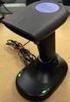 QuickScan QS6500/QS6500BT Product Reference Guide PSC Inc 959 Terry Street Eugene, Oregon 97402 Telephone: (541) 683-5700 Fax: (541) 345-7140 An Unpublished Work - All rights reserved. No part of the contents
1.1 Notice... 3 1.2 Introduction... 4 1.3 Codes Read... 4 1.4 Installation... 4 1.5 Pin Assignment... 6. Configuration - General
 BAR CODE Contents Chapter 1 Description 1.1 Notice... 3 1.2 Introduction... 4 1.3 Codes Read... 4 1.4 Installation... 4 1.5 Pin Assignment... 6 Chapter 2 Configuration - General 2.1 Flow Chart... 8 2.2