
Programming Reference Guide HP USB Barcode Scanner
|
|
|
- Rosamund Ryan
- 9 years ago
- Views:
Transcription
1 Programming Reference Guide HP USB Barcode Scanner Document Part Number: August 2006 Print this document before setting up the HP USB Barcode Scanner. The document provides the programming bar codes necessary for selecting features for the scanner.

2 Copyright 2006 Hewlett-Packard Development Company, L.P. The information contained herein is subject to change without notice. The only warranties for HP products and services are set forth in the express warranty statements accompanying such products and services. Nothing herein should be construed as constituting an additional warranty. HP shall not be liable for technical or editorial errors or omissions contained herein. This document contains proprietary information that is protected by copyright. No part of this document may be photocopied, reproduced, or translated to another language without the prior written consent of Hewlett-Packard Company. ÅWARNING: Text set off in this manner indicates that failure to follow directions could result in bodily harm or loss of life. ÄCAUTION: Text set off in this manner indicates that failure to follow directions could result in damage to equipment or loss of information. Programming Reference Guide HP USB Barcode Scanner First Edition (August 2006) Document Part Number:

3 Contents 1 Programming Your Scanner Chapter Descriptions Symbologies Scanning Sequence Examples Errors While Scanning Symbology Default Parameters Symbologies Parameters UPC/EAN Code Code Code Code Interleaved 2 of 5 (ITF) Discrete 2 of 5 (DTF) Chinese 2 of Codabar (NW - 7) MSI RSS (Reduced Space Symbology) Miscellaneous Scanner Options Scanning Sequence Examples Errors While Scanning Miscellaneous Default Parameters Miscellaneous Scanner Parameters Transmit Code ID Character Programming Reference Guide iii

4 Contents Prefix/Suffix Values Scan Data Transmission Format FN1 Substitution Values Transmit No Read Message Synapse Interface Advance Data Formatting Rules: Criteria Linked to Actions Using ADF Bar Codes ADF Bar Code Menu Example Special Commands Criteria Numeric Keypad Actions Setup Field(s) Modify Data Send Keystroke (Control Characters and Keyboard Characters) Alphanumeric Keyboard Standard Default Parameters 6 Programming Reference Symbol Code Identifiers AIM Code Identifiers Sample Bar Codes Code UPC/EAN UPC-A, 100% EAN-13, 100% CODE Interleaved 2 of iv Programming Reference Guide

5 Contents RSS Numeric Bar Codes 0, , 3, , 6, , Cancel Programming Reference Guide v

6 Contents vi Programming Reference Guide

7 1 Programming Your Scanner You have the option to program your scanner to perform various functions or activate different features. This guide describes the features and provides the programming bar codes necessary for selecting these features for your scanner. The scanner is shipped with the default settings described in the Chapter 4, Programming User Preferences, of the HP USB Barcode Scanner User guide. If the default values suite your requirements, programming may not be necessary. Feature values are set by scanning single bar codes or short bar code sequences. The settings are stored in non-volatile memory and are preserved even when the scanner is powered down. Throughout the programming bar code menus, the default values are indicated with an asterisk (*). Chapter Descriptions Chapter 2, Symbologies describes all symbology features and provides the programming bar codes necessary for selecting these features for your scanner. Chapter 3, Miscellaneous Scanner Options includes commonly used bar codes to customize how your data is transmitted to your USB host device. Chapter 4, Advanced Data Formatting (ADF) describes how to customize scanned data before transmitting to the USB host. Programming Reference Guide 1 1

8 Programming Your Scanner Chapter 5, Standard Default Parameters provides a table of USB and miscellaneous scanner defaults. Chapter 6, Programming Reference provides a table of AIM code identifiers ASCII character conversions, and keyboard maps. Chapter 7, Sample Bar Codes includes sample bar codes. Chapter 8, Numeric Bar Codes includes the numeric bar codes to scan for parameters requiring specific numeric values. 1 2 Programming Reference Guide

9 2 Symbologies This chapter describes all symbology features and provides the programming bar codes necessary for selecting these features for your scanner. Scanning Sequence Examples In most cases you need only scan one bar code to set a specific parameter value. For example, if you want to transmit bar code data without the UPC-A check digit, simply scan the Do Not Transmit UPC-A Check Digit bar code listed under the Transmit UPC-A/UPC-E/UPCE1 Check Digit section in this chapter. The scanner issues a fast warble beep and the LED turns green, signifying a successful parameter entry. Other parameters, such as Set Length(s) for D 2 of 5 require that you scan several bar codes in the proper sequence. Refer to the individual parameter, like Set Length(s) for D 2 of 5 in this chapter, for this procedure. Errors While Scanning Unless otherwise specified, if you make an error during a scanning sequence, just re-scan the correct parameter. Programming Reference Guide 2 1

10 Symbologies Symbology Default Parameters The following table lists the defaults for all symbologies parameters. If you want to change any option, scan the appropriate bar code(s) provided in the Symbologies Parameters section in this chapter. Symbology Default Table Parameter Default UPC/EAN UPC-A UPC-E UPC-E1 EAN-8/Jan 8 EAN-13/Jan 13 Bookland EAN Decode UPC/EAN/JAN Supplementals (2 and 5 digits) UPC/EAN/Jan Supplemental Redundancy Transmit UPC-A Check Digit Transmit UPC-E Check Digit Transmit UPC-E1 Check Digit UPC-A Preamble UPC-E Preamble Enable Enable Disable Enable Enable Disable Ignore 7 Enable Enable Enable System Character System Character 2 2 Programming Reference Guide

11 Symbologies Symbology Default Table Parameter Convert UPC-E to A Convert UPC-E1 to A EAN-8/JAN-8 Extend Default Disable Disable Disable UPC/EAN Security Levels 0 UCC Coupon Extended Code Disable Code 128 Code 128 UCC/EAN-128 Enable Enable Code 39 Code 39 Trioptic Code 39 Convert Code 39 to Code 32 (Italian Pharmacy Code) Code 32 Prefix Enable Disable Disable Disable Set Length(s) for Code 39 2 to 55 Code 39 Check Digit Verification Transmit Code 39 Check Digit Code 39 Full ASCII Conversion Buffer Code 39 Disable Disable Disable Disable Code 93 Programming Reference Guide 2 3

12 Symbologies Symbology Default Table Parameter Code 93 Default Disable Set Length(s) for Code 93 4 to 55 Code 11 Code 11 Disable Set Lengths for Code 11 4 to 55 Code 11 Check Digit Verification Transmit Code 11 Check Digit(s) Disable Disable Interleaved 2 of 5 (ITF) Interleaved 2 of 5 (ITF) Enable Set Lengths of 12 or of 5 Check Digit Verification Disable Transmit 12 of 5 Check Digit Convert 12 of 5 to EAN 13 Disable Disable Discrete 2 of 5 (DTF) Discrete 2 of 5 Disable Set Length(s) for D 2 of 5 12 Chinese 2 of 5 Enable/Disable Chinese 2 of 5 Disable Codabar (NW-7) Codabar Disable 2 4 Programming Reference Guide

13 Symbologies Symbology Default Table Parameter Default Set Lengths for Codebar 5 to 55 CLSI Editing NOTIS Editing Disable Disable MSI MSI Disable Set Length(s) for MSI 1 to 55 MSI Check Digits Transmit MSI Digit One Disable MSI Check Digit Algorithm Mode 10/Mod 10 RSS (Reduced Space Symbology) RSS 14 RSS Limited RSS Expanded Convert RSS to UPC/EAN Disable Disable Disable Disable Symbology - Specific Security Levels Redundancy Level 1 Programming Reference Guide 2 5

14 Symbologies Symbologies Parameters UPC/EAN Enable/Disable UPC-A/UPC-E To enable or disable UPC-A or UPC-E, scan the appropriate bar code below. *Enable UPC-A Disable UPC-A *Enable UPC-E Disable UPC-E 2 6 Programming Reference Guide

15 Symbologies Enable/Disable UPC-E1 UPC-E1 is disabled by default. To enable or disable UPC-E1, scan the appropriate bar code below. UPC-E1 is not a UCC (Uniform Code Council) approved symbology. Enable UPC-E1 *Disable UPC-E1 Programming Reference Guide 2 7

16 Symbologies Enable/Disable EAN-13/EAN-8 To enable or disable EAN-13 or EAN-8, scan the appropriate bar code below. *Enable EAN-13 Disable EAN-13 *Enable EAN-8 Disable EAN Programming Reference Guide

17 Symbologies Enable/Disable Bookland EAN To enable or disable Bookland EAN, scan the appropriate bar code below. Enable Bookland EAN *Disable Bookland EAN Decode UPC/EAN/JAN Supplementals Supplementals are bar codes appended according to specific format conventions (e.g., UPC A+2, UPC E+2, EAN 13+2). Six options are available. If Decode UPC/EAN Only With Supplementals is selected, UPC/EAN symbols without supplementals are not decoded. If Ignore Supplementals is selected, and the scanner is presented with a UPC/EAN with a supplemental, the UPC/EAN is decoded and the supplemental bar code is ignored. An Autodiscriminate Option is also available. If this option is selected, choose an appropriate UPC/EAN/JAN Supplemental Redundancy value in this chapter. A value of 5 or more is recommended. Programming Reference Guide 2 9

18 Symbologies Enable 378/379 Supplemental Mode to enable only EAN13 bar codes starting with a 378 or 379 prefix to be delayed by the supplemental search process. All other UPC/EAN bar codes are exempted from the search and are reported instantly upon their decode. Select Enable 978 Supplemental Mode to enable only EAN13 bar codes starting with a 978 prefix to be delayed by the supplemental search process. All other UPC/EAN bar codes are exempted from the search and are reported instantly upon their decode. Select Enable Smart Supplemental Mode to enable only EAN13 bar codes starting with a 378, 379, or 978 prefix to be delayed by the supplemental search process. All other UPC/EAN bar codes are exempted from the search and are reported instantly upon their decode. In order to minimze the risk of invalid data transmission, it is recommended that you select either to decode or ignore supplemental characters. Decode UPC/EAN/JAN Only With Supplementals *Ignore Supplementals 2 10 Programming Reference Guide

19 Symbologies Autodiscriminate UPC/EAN/JAN Supplementals Enable 378/379 Supplemental Mode Enable 978 Supplemental Mode Enable Smart Supplemental Mode Programming Reference Guide 2 11

20 Symbologies UPC/EAN/JAN Supplemental Redundancy With Autodiscriminate UPC/EAN/JAN Supplementals selected, this option adjusts the number of times a symbol without supplementals is decoded before transmission. The range is from two to thirty times. Five or above is recommended when decoding a mix of UPC/EAN symbols with and without supplementals, and the autodiscriminate option is selected. The default is set at 7. Scan the bar code below to set a decode redundancy value. Next, scan two numeric bar codes from Chapter 8 in this guide. Single digit numbers must have a leading zero. If you make an error, or want to change your selection, scan Cancel. UPC/EAN/JAN Supplemental Redundancy 2 12 Programming Reference Guide

21 Symbologies Transmit UPC-A/UPC-E/UPC-E1 Check Digit The check digit is the last character of the symbol used to verify the integrity of the data. Scan the appropriate bar code below to transmit the bar code data with or without the UPCA, UPC-E or UPC-E1 check digit. It is always verified to guarantee the integrity of the data. *Transmit UPC-A Check Digit Do Not Transmit UPC-A Check Digit *Transmit UPC-E Check Digit Do Not Transmit UPC-E Check Digit Programming Reference Guide 2 13
22 Symbologies *Transmit UPC-E1 Check Digit Do Not Transmit UPC-E1 Check Digit 2 14 Programming Reference Guide
23 Symbologies UPC-A Preamble Preamble characters are part of the UPC symbol consisting of Country Code and System Character. Three options are given for transmitting UPC-A preamble to the host device: transmit System Character only, transmit System Character and Country Code ( 0 for USA), and no preamble transmitted. Select the appropriate option to match the USB host system. No Preamble (<DATA>) *System Character (<SYSTEM CHARACTER> <DATA>) System Character & Country Code (< COUNTRY CODE> <SYSTEM CHARACTER> <DATA>) Programming Reference Guide 2 15
24 Symbologies UPC-E Preamble Preamble characters are part of the UPC symbol consisting of Country Code and System Character. Three options are given for transmitting UPC-E preamble to the host device: transmit System Character only, transmit System Character and Country Code ( 0 for USA), and no preamble transmitted. Select the appropriate option to match the USB host system. No Preamble (<DATA>) *System Character (<SYSTEM CHARACTER> <DATA>) System Character & Country Code (< COUNTRY CODE> <SYSTEM CHARACTER> <DATA>) 2 16 Programming Reference Guide
25 Symbologies UPC-E1 Preamble Preamble characters are part of the UPC symbol consisting of Country Code and System Character. Three options are given for transmitting UPC-E1 preamble to the host device: transmit System Character only, transmit System Character and Country Code ( 0 for USA), and no preamble transmitted. Select the appropriate option to match the USB host system. No Preamble (<DATA>) *System Character (<SYSTEM CHARACTER> <DATA>) System Character & Country Code (< COUNTRY CODE> <SYSTEM CHARACTER> <DATA>) Programming Reference Guide 2 17
26 Symbologies Convert UPC-E to UPC-A When enabled, UPC-E (zero suppressed) decoded data is converted to UPC-A format before transmission. After conversion, the data follows UPC-A format and is affected by UPC-A programming selections (e.g., Preamble, Check Digit). When disabled, UPC-E decoded data is transmitted as UPC-E data, without conversion. Convert UPC-E to UPC-A (Enable) *Do Not Convert UPC-E to UPC-A (Disable) 2 18 Programming Reference Guide
27 Symbologies Convert UPC-E1 to UPC-A When enabled, UPC-E1 decoded data is converted to UPC-A format before transmission. After conversion, the data follows UPC-A format and is affected by UPC-A programming selections (e.g., Preamble, Check Digit). When disabled, UPC-E1 decoded data is transmitted as UPC-E1 data, without conversion. Convert UPC-E1 to UPC-A (Enable) *Do Not Convert UPC-E1 to UPC-A (Disable) Programming Reference Guide 2 19
28 Symbologies EAN-8/JAN-8 Extend When enabled, this parameter adds five leading zeros to decoded EAN-8 symbols to make them compatible in format to EAN-13 symbols. When disabled, EAN-8 symbols are transmitted as is. Enable EAN/JAN Zero Extend *Disable EAN/JAN Zero Extend 2 20 Programming Reference Guide
29 Symbologies UPC/EAN Security Level The scanner offers four levels of decode security for UPC/EAN bar codes. Increasing levels of security are provided for decreasing levels of bar code quality. There is an inverse relationship between security and scanner decode speed, so be sure to choose only that level of security necessary for any given application. UPC/EAN Security Level 0 This is the default setting which allows the scanner to operate fastest, while providing sufficient security in decoding in-spec UPC/EAN bar codes. *UPC/EAN Security Level 0 UPC/EAN Security Level 1 As bar code quality levels diminish, certain characters become prone to misdecodes before others (i.e., 1, 2, 7, 8). If you are experiencing misdecodes of poorly printed bar codes, and the misdecodes are limited to these characters, select this security level. UPC/EAN Security Level 1 Programming Reference Guide 2 21
30 Symbologies UPC/EAN Security Level 2 If you are experiencing misdecodes of poorly printed bar codes, and the misdecodes are not limited to characters 1, 2, 7, and 8, select this security level. UPC/EAN Security Level 2 UPC/EAN Security Level 3 If you have tried Security Level 2, and are still experiencing misdecodes, select this security level. Be advised, selecting this option is an extreme measure against misdecoding severely out of spec bar codes. Selection of this level of security may significantly impair the decoding ability of the scanner. If this level of security is necessary, you should try to improve the quality of your bar codes. UPC/EAN Security Level Programming Reference Guide
31 Symbologies UCC Coupon Extended Code When enabled, this parameter decodes UPCA barcodes starting with digit 5, EAN-13 barcodes starting with digit 99, and UPCA/EAN-128 Coupon Codes. UPCA, EAN-13 and EAN-128 must be enabled to scan all types of Coupon Codes. Enable UCC Coupon Extended Code *Disable UCC Coupon Extended Code Autodiscrimination of the EAN128 (right half) of a coupon code is controlled by the Decode UPC/EAN Supplemental Redundancy parameter. Programming Reference Guide 2 23
32 Symbologies Code 128 Enable/Disable Code 128 To enable or disable Code 128, scan the appropriate bar code below. *Enable Code 128 Disable Code Programming Reference Guide
33 Symbologies Enable/Disable UCC/EAN-128 To enable or disable UCC/EAN-128, scan the appropriate bar code below. *Enable UCC/EAN-128 Disable UCC/EAN-128 Programming Reference Guide 2 25
34 Symbologies Code 39 Enable/Disable Code 39 To enable or disable Code 39, scan the appropriate bar code below. *Enable Code 39 Disable Code Programming Reference Guide
35 Symbologies Enable/Disable Trioptic Code 39 Trioptic Code 39 is a variant of Code 39 used in the marking of computer tape cartridges. Trioptic Code 39 symbols always contain six characters. To enable or disable Trioptic Code 39, scan the appropriate bar code below. Enable Trioptic Code 39 *Disable Trioptic Code 39 Triopic Code 39 and Code 39 Full ASCII can not be enabled simultaneously. Programming Reference Guide 2 27
36 Symbologies Convert Code 39 to Code 32 Code 32 is a variant of Code 39 used by the Italian pharmaceutical industry. Scan the appropriate bar code below to enable or disable converting Code 39 to Code 32. Code 39 must be enabled in order for this parameter to function. Enable Convert Code 39 to Code 32 *Disable Convert Code 39 to Code Programming Reference Guide
37 Symbologies Code 32 Prefix Scan the appropriate bar code below to enable or disable adding the prefix character A to all Code 32 bar codes. Convert Code 39 to Code 32 must be enabled for this parameter to function. Enable Code 32 Prefix *Disable Code 32 Prefix Set Lengths for Code 39 The length of a code refers to the number of characters (i.e., human readable characters), including check digit(s) the code contains. Lengths for Code 39 may be set for any length, one or two discrete lengths, or lengths within a specific range. If Code 39 Full ASCII is enabled, Length Within a Range or Any Length are the preferred options. Programming Reference Guide 2 29
38 Symbologies When setting lengths for different bar code types by scanning single digit numbers, single digit numbers must always be preceded by a leading zero. One Discrete Length - This option allows you to decode only those Code 39 symbols containing a selected length. Lengths are selected from the numeric bar codes available in Chapter 8 of this guide. For example, to decode only Code 39 symbols with 14 characters, scan Code 39 - One Discrete Length, then scan 1 followed by 4. If you make an error or wish to change your selection, scan Cancel. Code 39 - One Discrete Length Two Discrete Lengths - This option allows you to decode only those Code 39 symbols containing either of two selected lengths. Lengths are selected from the numeric bar codes available in Chapter 8 of this guide. For example, to decode only those Code 39 symbols containing either 2 or 14 characters, select Code 39 - Two Discrete Lengths, then scan 0, 2, 1, and then 4. If you make an error or wish to change your selection, scan Cancel. Code 39 - Two Discrete Lengths 2 30 Programming Reference Guide
39 Symbologies Length Within Range - This option allows you to decode a Code 39 symbol with a specific length range. The length range is selected from numeric bar codes available in Chapter 8 of this guide. For example, to decode Code 39 symbols containing between 4 and 12 characters, first scan Code 39 - Length Within Range. Then scan 0, 4, 1, and 2 (single digit numbers must always be preceded by a leading zero). If you make an error or wish to change your selection, scan Cancel. Code 39 - Length Within Range Any Length - Scanning this option allows you to decode Code 39 symbols containing any number of characters within the scanner capability. Code 39 - Any Length Programming Reference Guide 2 31
40 Symbologies Code 39 Check Digit Verification When this feature is enabled, the scanner checks the integrity of all Code 39 symbols to verify that the data complies with specified check digit algorithm. Only those Code 39 symbols which include a modulo 43 check digit are decoded when this feature is enabled. This feature should only be enabled if your code 39 symbols contain a Modulo 43 check digit. Enable Code 39 Check Digit *Disable Code 39 Check Digit 2 32 Programming Reference Guide
41 Symbologies Transmit Code 39 Check Digit Scan a bar code below to transmit Code 39 data with or without the check digit. Transmit Code 39 Check Digit (Enable) *Do Not Transmit Code 39 Check Digit (Disable) Code 39 Check Digit Verification must be enabled for this parameter to function. Programming Reference Guide 2 33
42 Symbologies Code 39 Full ASCII Conversion Code 39 Full ASCII is a variant of Code 39 which pairs characters to encode the full ASCII character set. To enable or disable Code 39 Full ASCII, scan the following appropriate bar code. Enable Code 39 Full ASCII *Disable Code 39 Full ASCII Trioptic Code 39 and Code 39 Full ASCII can not be enabled simultaneously. Code 39 Full ASCII Correlation is host-dependent. Refer to Chapter 5 in this guide for the USB host conversion table Programming Reference Guide
43 Symbologies Code 39 Buffering (Scan and Store) This feature allows the scanner to accumulate data from multiple Code 39 symbols. When you select the Scan and Store option (Buffer Code 39), all Code 39 symbols having a leading space as a first character are temporarily buffered in the unit to be transmitted later. The leading space is not buffered. Decode of a valid Code 39 symbol with no leading space causes transmission in sequence of all buffered data in a first-in first-out format, plus transmission of the triggering symbol. See the following pages for further details. When the Do Not Buffer Code 39 option is selected, all decoded Code 39 symbols are transmitted immediately without being stored in the buffer. This feature affects Code 39 only. If you select Buffer Code 39, we recommend that you configure the scanner to decode Code 39 symbology only. Buffer Code 39 (Enable) *Do Not Buffer Code 39 (Disable) Programming Reference Guide 2 35
44 Symbologies While there is data in the transmission buffer, selecting Do Not Buffer Code 39 is not allowed. The buffer holds 200 bytes of information. To disable Code 39 buffering when there is data in the transmission buffer, first force the buffer transmission (see Transmit Buffer in this chapter) or clear the buffer. Buffer Data To buffer data, Code 39 buffering must be enabled and a Code 39 symbol must be read with a space immediately following the start pattern. Unless the data overflows the transmission buffer, the scanner issues a lo/hi beep to indicate successful decode and buffering. (For overflow conditions, see Overfilling Transmission Buffer in this chapter.) The scanner adds the decoded data excluding the leading space to the transmission buffer. No transmission occurs. Clear Transmission Buffer To clear the transmission buffer, scan the Clear Buffer bar code below, which contains only a start character, a dash (minus), and a stop character. The scanner issues a short hi/lo/hi beep. The scanner erases the transmission buffer. No transmission occurs. Clear Buffer 2 36 Programming Reference Guide
45 Symbologies The Clear Buffer contains only the dash (minus) character. In order to scan this command, be sure Code 39 length is set to include length 1. Transmit Buffer There are two methods to transmit the Code 39 buffer. 1. Scan the Transmit Buffer bar code below. Only a start character, a plus (+), and a stop character. The scanner transmits and clears the buffer. The scanner issues a Lo/Hi beep. Transmit Buffer 2. Scan a Code 39 bar code with a leading character other than a space. The scanner appends new decode data to buffered data. The scanner transmits and clears the buffer. The scanner signals that the buffer was transmitted with a lo/hi beep. Scanner transmits and clears the buffer. The Transmit Buffer contains only a plus (+) character. In order to scan this command, be sure Code 39 length is set to include length 1. Programming Reference Guide 2 37
46 Symbologies Overfilling Transmission Buffer The Code 39 buffer holds 200 characters. If the symbol just read results in an overflow of the transmission buffer: The scanner indicates that the symbol was rejected by issuing three long, high beeps. No transmission occurs. The data in the buffer is not affected. Attempt to Transmit an Empty Buffer If the symbol just read was the Transmit Buffer symbol and the Code 39 buffer is empty: A short lo/hi/lo beep signals that the buffer is empty. No transmission occurs. The buffer remains empty Programming Reference Guide
47 Symbologies Code 93 Enable/Disable Code 93 To enable or disable Code 93, scan the appropriate bar code below. Enable Code 93 *Disable Code 93 Programming Reference Guide 2 39
48 Symbologies Set Lengths for Code 93 The length of a code refers to the number of characters (i.e., human readable characters), including check digit(s) the code contains. Lengths for Code 93 may be set for any length, one or two discrete lengths, or lengths within a specific range. One Discrete Length - This option allows you to decode only those Code 93 symbols containing a selected length. Lengths are selected from the numeric bar codes available in Chapter 8 of this guide. For example, to decode only Code 93 symbols with 14 characters, scan Code 93 - One Discrete Length, then scan 1 followed by 4. If you make an error or wish to change your selection, scan Cancel. Code 93 - One Discrete Length Two Discrete Lengths - This option allows you to decode only those Code 93 symbols containing either of two selected lengths. Lengths are selected from the numeric bar codes available in Chapter 8 of this guide. For example, to decode only those Code 93symbols containing either 2 or 14 characters, select Code 93 - Two Discrete Lengths, then scan 0, 2, 1, and then 4. If you make an error or wish to change your selection, scan Cancel. Code 93 - Two Discrete Lengths 2 40 Programming Reference Guide
49 Symbologies Length Within Range - This option allows you to decode a Code 93 symbol with a specific length range. The length range is selected from numeric bar codes is available in Chapter 8 of this guide. For example, to decode Code 93 symbols containing between 4 and 12 characters, first scan Code 93 - Length Within Range. Then scan 0, 4, 1, and 2 (single digit numbers must always be preceded by a leading zero). If you make an error or wish to change your selection, scan Cancel. Code 93 - Length Within Range Any Length - Scanning this option allows you to decode Code 93 symbols containing any number of characters within the scanner s capability. Code 93 - Any Length Programming Reference Guide 2 41
50 Symbologies Code 11 To enable or disable Code 11, scan the appropriate bar code below. Enable Code 11 *Disable Code Programming Reference Guide
51 Symbologies Set Lengths for Code 11 The length of a code refers to the number of characters (i.e., human readable characters), including check digit(s) the code contains. Lengths for Code 11 may be set for any length, one or two discrete lengths, or lengths within a specific range. One Discrete Length - This option allows you to decode only those Code 11 symbols containing a selected length. Lengths are selected from the numeric bar codes beginning available in Chapter 8 of this guide. For example, to decode only Code 11 symbols with 14 characters, scan Code 11 - One Discrete Length, then scan 1 followed by 4. If you make an error or wish to change your selection, scan Cancel. Code 11 - One Discrete Length Two Discrete Lengths - This option allows you to decode only those Code 11 symbols containing either of two selected lengths. Lengths are selected from the numeric bar codes available in Chapter 8 of this guide. For example, to decode only those Code 11 symbols containing either 2 or 14 characters, select Code 11 - Two Discrete Lengths, then scan 0, 2, 1, and then 4. If you make an error or wish to change your selection, scan Cancel. Code 11 - Two Discrete Lengths Programming Reference Guide 2 43
52 Symbologies Length Within Range - This option allows you to decode a Code 11 symbol with a specific length range. The length range is selected from numeric bar codes available in Chapter 8 of this guide. For example, to decode Code 11 symbols containing between 4 and 12 characters, first scan Code 11 - Length Within Range. Then scan 0, 4, 1, and 2 (single digit numbers must always be preceded by a leading zero). If you make an error or wish to change your selection, scan Cancel. Code 11 - Length Within Range Any Length - Scanning this option allows you to decode Code 11 symbols containing any number of characters within the scanner capability. Code 11 - Any Length 2 44 Programming Reference Guide
53 Symbologies Code 11 Check Digit Verification This feature allows the scanner to check the integrity of all Code 11 symbols to verify that the data complies with the specified check digit algorithm. This selects the check digit mechanism for the decoded Code 11 bar code. The options are to check for one check digit, check for two check digits, or disable the feature. To enable this feature, scan the bar code below corresponding to the number of check digits encoded in your Code 11 symbols. *Disable One Check Digit Two Check Digits Programming Reference Guide 2 45
54 Symbologies Transmit Code 11 Check Digits This feature selects whether or not to transmit the Code 11 check digit(s). Transmit Code 11 Check Digit(s) (Enable) *Do Not Transmit Code 11 Check Digit(s) (Disable) Code 11 Check Digit Verification must be enabled for this parameter to function Programming Reference Guide
55 Symbologies Interleaved 2 of 5 (ITF) Enable/Disable Interleaved 2 of 5 To enable or disable Interleaved 2 of 5, scan the appropriate bar code below, and select an Interleaved 2 of 5 length from the following pages. *Enable Interleaved 2 of 5 Disable Interleaved 2 of 5 Programming Reference Guide 2 47
56 Symbologies Set Lengths for Interleaved 2 of 5 The length of a code refers to the number of characters (i.e., human readable characters), including check digit(s) the code contains. Lengths for I 2 of 5 may be set for any length, one or two discrete lengths, or lengths within a specific range. One Discrete Length - This option allows you to decode only those I 2 of 5 symbols containing a selected length. Lengths are selected from the numeric bar codes available in Chapter 8 of this guide. For example, to decode only I 2 of 5 symbols with 14 characters, scan I 2 of 5 - One Discrete Length, then scan 1 followed by 4. If you make an error or wish to change your selection, scan Cancel. I 2 of 5 - One Discrete Length Two Discrete Lengths - This option allows you to decode only those I 2 of 5 symbols containing either of two selected lengths. Lengths are selected from the numeric bar codes available in Chapter 8 of this guide. For example, to decode only those I 2 of 5 symbols containing either 2 or 14 characters, select I 2 of 5 - Two Discrete Lengths, then scan 0, 2, 1, and then 4. If you make an error or wish to change your selection, scan Cancel. I 2 of 5 - Two Discrete Lengths 2 48 Programming Reference Guide
57 Symbologies Length Within Range - This option allows you to decode an I 2 of 5 symbol with a specific length range. The length range is selected from numeric bar codes available in Chapter 8 of this guide. For example, to decode I 2 of 5 symbols containing between 4 and 12 characters, first scan I 2 of 5 - Length Within Range. Then scan 0, 4, 1, and 2 (single digit numbers must always be preceded by a leading zero). If you make an error or wish to change your selection, scan Cancel. I 2 of 5 - Length Within Range Any Length - Scanning this option allows you to decode I 2 of 5 symbols containing any number of characters within the scanner capability. Due to the construction of the I 2 of 5 symbology, it is possible for a scan line covering only a portion of the code to be interpreted as a complete scan, yielding less data than is actually encoded in the bar code. To prevent this from happening, it is recommended that specific lengths (I2 of 5 - One Discrete Length - Two Discrete Lengths) be selected for I2 of 5 applications. I 2 of 5 - Any Length Programming Reference Guide 2 49
58 Symbologies I 2 of 5 Check Digit Verification When this feature is enabled, the scanner checks the integrity of all I 2 of 5 symbols to verify the data complies with either the specified Uniform Symbology Specification (USS), or the Optical Product Code Council (OPCC) check digit algorithm. *Disable USS Check Digit OPCC Check Digit 2 50 Programming Reference Guide
59 Symbologies Transmit I 2 of 5 Check Digit Scan the appropriate bar code below to transmit I 2 of 5 data with or without the check digit. Transmit I 2 of 5 Check Digit (Enable) *Do Not Transmit I 2 of 5 Check Digit (Disable) Programming Reference Guide 2 51
60 Symbologies Convert I 2 of 5 to EAN-13 This parameter converts a 14 character I 2 of 5 code into EAN-13, and transmits to the host as EAN-13. In order to accomplish this, the I 2 of 5 code must be enabled, and the code must have a leading zero and a valid EAN-13 check digit. Scanning a single bar code below, Convert I 2 of 5 to EAN-13 (Enable), accomplishes this function. Convert I 2 of 5 to EAN-13 (Enable) *Do Not Convert I 2 of 5 to EAN-13 (Disable) 2 52 Programming Reference Guide
61 Symbologies Discrete 2 of 5 (DTF) Enable/Disable Discrete 2 of 5 To enable or disable Discrete 2 of 5, scan the appropriate bar code below. Enable Discrete 2 of 5 *Disable Discrete 2 of 5 Programming Reference Guide 2 53
62 Symbologies Set Lengths for Discrete 2 of 5 The length of a code refers to the number of characters (i.e., human readable characters), including check digit(s) the code contains. Lengths for D 2 of 5 may be set for any length, one or two discrete lengths, or lengths within a specific range. One Discrete Length - This option allows you to decode only those D 2 of 5 symbols containing a selected length. Lengths are selected from the numeric bar codes available in Chapter 8 of this guide. For example, to decode only D 2 of 5 symbols with 14 characters, scan D 2 of 5 - One Discrete Length, then scan 1 followed by 4. If you make an error or wish to change your selection, scan Cancel. D 2 of 5 - One Discrete Length Two Discrete Lengths - This option allows you to decode only those D 2 of 5 symbols containing either of two selected lengths. Lengths are selected from the numeric bar codes available in Chapter 8 of this guide. For example, to decode only those D 2 of 5 symbols containing either 2 or 14 characters, select D 2 of 5 - Two Discrete Lengths, then scan 0, 2, 1, and then 4. If you make an error or wish to change your selection, scan Cancel. D 2 of 5 - Two Discrete Lengths 2 54 Programming Reference Guide
63 Symbologies Length Within Range - This option allows you to decode an D 2 of 5 symbol with a specific length range. The length range is selected from numeric bar codes available in Chapter 8 of this guide. For example, to decode D 2 of 5 symbols containing between 4 and 12 characters, first scan D 2 of 5 - Length Within Range. Then scan 0, 4, 1, and 2 (single digit numbers must always be preceded by a leading zero). If you make an error or wish to change your selection, scan Cancel. D 2 of 5 - Length Within Range Any Length - Scanning this option allows you to decode D 2 of 5 symbols containing any number of characters within the scanner capability. Due to the construction of the D 2 of 5 symbology, it is possible for a scan line covering only a portion of the code to be interpreted as a complete scan, yielding less data than is actually encoded in the bar code. To prevent this from happening, it is recommended that specific lengths (D 2 of 5- One Discrete Length - Two Discrete Lengths) be selected for D 2 of 5 applications. D 2 of 5 - Any Length Programming Reference Guide 2 55
64 Symbologies Chinese 2 of 5 Enable/Disable Chinese 2 of 5 To enable or disable Chinese 2 of 5, scan the appropriate bar code below. Enable Chinese 2 of 5 *Disable Chinese 2 of Programming Reference Guide
65 Symbologies Codabar (NW - 7) Enable/Disable Codabar To enable or disable Codabar, scan the appropriate bar code below. Enable Codabar *Disable Codabar Programming Reference Guide 2 57
66 Symbologies Set Lengths for Codabar The length of a code refers to the number of characters (i.e., human readable characters), including check digit(s) the code contains. Lengths for Codabar may be set for any length, one or two discrete lengths, or lengths within a specific range. One Discrete Length - This option allows you to decode only those Codabar symbols containing a selected length. Lengths are selected from the numeric bar codes available in Chapter 8 of this guide. For example, to decode only Codabar symbols with 14 characters, scan Codabar - One Discrete Length, then scan 1 followed by 4. If you make an error or wish to change your selection, scan Cancel. Codabar - One Discrete Length Two Discrete Lengths - This option allows you to decode only those Codabar symbols containing either of two selected lengths. Lengths are selected from the numeric bar codes available in Chapter 8 of this guide. For example, to decode only those Codabar symbols containing either 2 or 14 characters, select Codabar - Two Discrete Lengths, then scan 0, 2, 1, and then 4. If you make an error or wish to change your selection, scan Cancel. Codabar - Two Discrete Lengths 2 58 Programming Reference Guide
67 Symbologies Length Within Range - This option allows you to decode a Codabar symbol with a specific length range. The length range is selected from numeric bar codes available in Chapter 8 of this guide. For example, to decode Codabar symbols containing between 4 and 12 characters, first scan Codabar - Length Within Range. Then scan 0, 4, 1, and 2 (single digit numbers must always be preceded by a leading zero). If you make an error or wish to change your selection, scan Cancel. Codabar - Length Within Range Any Length - Scanning this option allows you to decode Codabar symbols containing any number of characters within the scanner capability. Codabar - Any Length Programming Reference Guide 2 59
68 Symbologies CLSI Editing When enabled, this parameter strips the start and stop characters and inserts a space after the first, fifth, and tenth characters of a 14-character Codabar symbol. Enable this feature if your host system requires this data format. Symbol length does not include start and stop characters. Enable CLSI Editing *Disable CLSI Editing 2 60 Programming Reference Guide
69 Symbologies NOTIS Editing When enabled, this parameter strips the start and stop characters from a decoded Codabar symbol. Enable this feature if your host system requires this data format. Enable NOTIS Editing *Disable NOTIS Editing Programming Reference Guide 2 61
70 Symbologies MSI Enable/Disable MSI To enable or disable MSI, scan the appropriate bar code below. Enable MSI *Disable MSI 2 62 Programming Reference Guide
71 Symbologies Set Lengths for MSI The length of a code refers to the number of characters (i.e., human readable characters), including check digit(s) the code contains. Lengths for MSI may be set for any length, one or two discrete lengths, or lengths within a specific range. One Discrete Length - This option allows you to decode only those MSI symbols containing a selected length. Lengths are selected from the numeric bar codes available in Chapter 8 of this guide. For example, to decode only MSI symbols with 14 characters, scan MSI - One Discrete Length, then scan 1 followed by 4. If you make an error or wish to change your selection, scan Cancel. MSI - One Discrete Length Two Discrete Lengths - This option allows you to decode only those MSI symbols containing either of two selected lengths. Lengths are selected from the numeric bar codes available in Chapter 8 of this guide. For example, to decode only those MSI symbols containing either 2 or 14 characters, select MSI - Two Discrete Lengths, then scan 0, 2, 1, and then 4. If you make an error or wish to change your selection, scan Cancel. MSI - Two Discrete Lengths Programming Reference Guide 2 63
72 Symbologies Length Within Range - This option allows you to decode an MSI symbol with a specific length range. The length range is selected from numeric bar codes available in Chapter 8 of this guide. For example, to decode MSI symbols containing between 4 and 12 characters, first scan MSI - Length Within Range. Then scan 0, 4, 1, and 2 (single digit numbers must always be preceded by a leading zero). If you make an error or wish to change your selection, scan Cancel. MSI - Length Within Range Any Length - Scanning this option allows you to decode MSI symbols containing any number of characters within the scanner capability. Due to the construction of the MSI symbology, it is possible for a scan line covering only a portion of the code to be interpreted as a complete scan, yielding less data than is actually encoded in the bar code. To prevent this from happening, it is recommended that specific lengths (MIS - One Discrete Length - Two Discrete Lengths) be selected for MIS applications. MSI - Any Length 2 64 Programming Reference Guide
73 Symbologies MSI Check Digits With MSI symbols, one check digit is mandatory and always verified by the reader. The second check digit is optional. If your MSI codes include two check digits, enable the verification of the second check digit by scanning the barcode below. Refer to MSI Check Digit Algorithm in this chapter for the selection of second digit algorithms. *One MSI Check Digit Two MSI Check Digits Programming Reference Guide 2 65
74 Symbologies Transmit MSI Check Digit(s) Scan a bar code below to transmit MSI data with or without the check digit. Transmit MSI Check Digit(s) (Enable) *Do Not Transmit MSI Check Digit(s) (Disable) 2 66 Programming Reference Guide
75 Symbologies MSI Check Digit Algorithm Two algorithms are possible for the verification of the second MSI check digit. Select the bar code below corresponding to the algorithm used to encode your check digit. MOD 10/MOD 11 *MOD 10/MOD 10 Programming Reference Guide 2 67
76 Symbologies RSS (Reduced Space Symbology) RSS The variants of RSS are RSS 14, RSS Expanded, and RSS Limited. The limited and expanded versions have stacked variants. Scan the appropriate bar code below to enable or disable each variant of RSS. Enable RSS 14 *Disable RSS 14 Enable RSS Limited 2 68 Programming Reference Guide
77 Symbologies *Disable RSS Limited Enable RSS Expanded *Disable RSS Expanded Programming Reference Guide 2 69
78 Symbologies Convert RSS to UPC/EAN This parameter only applies to RSS-14 and RSS Limited symbols not decoded as part of a Composite symbol. When this conversion is enabled, RSS-14 and RSS Limited symbols encoding a single zero as the first digit have the leading '010' stripped and the bar code reported as EAN-13. Bar codes beginning with two or more zeros but not six zeros have the leading '0100' stripped and the bar code reported as UPC-A. The UPC-A Preamble parameter to transmit the system character and country code applies to converted bar codes. Note that neither the system character nor the check digit can be stripped. Enable *Disable 2 70 Programming Reference Guide
79 Symbologies Redundancy Level The HP USB Barcode Scanner offers four levels of decode redundancy. Higher redundancy levels are selected for decreasing levels of bar code quality. As redundancy levels increase, the scanner s aggressiveness decreases. Select the redundancy level appropriate for the bar code quality. Redundancy Level 1 The following code types must be successfully read twice before being decoded: Code Type Code Length Codabar MSI D 2 of 5 8 characters or less 4 characters or less 8 characters or less 1 2 of 5 8 characters or less *REDUNDANCY LEVEL 1 Programming Reference Guide 2 71
80 Symbologies Redundancy Level 2 The following code types must be successfully read twice before being decoded: Code Type All Code Length All REDUNDANCY LEVEL Programming Reference Guide
81 Symbologies Redundancy Level 3 Code types other than the following must be successfully read twice before being decoded. The following codes must be read three times: Code Type MSL Plessey D 2 or 5 Code Length 4 characters or less 8 characters or less 1 2 of 5 8 characters or less Codabar 8 characters or less Redundancy Level 4 REDUNDANCY LEVEL 3 The following code types must be successfully read three times before being decoded: Code Type All Code Length All REDUNDANCY LEVEL 4 Programming Reference Guide 2 73
82 Symbologies Security Level The HP USB Barcode Scanner offers four levels of decode security for delta bar codes. These include the Code 128 family, UPC/EAN and Code 93. Increasing levels of security are provided for decreasing levels of bar code quality. There is an inverse relationship between security and scanner aggressiveness, so be sure to choose only that level of security necessary for any given application. Security Level 0 This is the default setting which allows the scanner to operate in its most aggressive state, while providing sufficient security in decoding most in-spec bar codes. Security Level 1 *SECURITY LEVEL 0 Select this option if misdecodes occur. This security level should eliminate most misdecodes. SECURITY LEVEL Programming Reference Guide
83 Symbologies Security Level 2 Select this option if Security level 1 fails to eliminate misdecodes. Security Level 3 SECURITY LEVEL 2 If Security Level 2 has been tried and misdecodes are still occurring, select this security level. Be advised, selecting this option is an extreme measure against mis-decoding severely out of spec bar codes. Selection of this level of security significantly impairs the decoding ability of the scanner. If this level of security is necessary, try to improve the quality of the bar codes. SECURITY LEVEL 3 Programming Reference Guide 2 75
84 Symbologies Bi-directional Redundancy Bi-directional Redundancy is used for added security to linear code type security levels. When enabled, a bar code must be successfully scanned in both directions (forward and reverse) before reporting a good decode. Enable Bi-directional Redundancy *Disable Bi-directional Redundancy 2 76 Programming Reference Guide
85 Symbologies Intercharacter Gap Size The Code 39 and Codabar symbologies have an intercharacter gap that is customarily quite small. Due to various barcode-printing technologies, this gap may grow larger than the maximum size allowed, causing the scanner to be unable to decode the symbol. If this problem is encountered, then the "Large Intercharacter Gaps" parameter should be scanned, to tolerate these out-of-specification barcodes. *Normal Intercharacter Gaps Large Intercharacter Gaps Programming Reference Guide 2 77
86 Symbologies 2 78 Programming Reference Guide
87 3 Miscellaneous Scanner Options This chapter includes commonly used bar codes to customize how your data is transmitted to the USB host device. Refer to the Symbologies and Advanced Data Formatting chapters in this guide for customizing data for transmission to the USB host device. Scanning Sequence Examples In most cases you need only scan one bar code to set a specific parameter value. Parameters, such as Prefix Value, require that you scan several bar codes in the proper sequence. Refer to each individual parameter for descriptions of this procedure. Errors While Scanning Unless otherwise specified, if you make an error during a scanning sequence, just re-scan the correct parameter. Programming Reference Guide 3 1
88 Miscellaneous Scanner Options Miscellaneous Default Parameters The following table lists the defaults for miscellaneous scanner options parameters. If you wish to change any option, scan the appropriate bar code(s) provided in the Miscellaneous Scanner Parameters section. Miscellaneous Scanner Options Default Parameter Transmit Code ID Character Prefix Value Suffix Value Scan Data Transmission Format FN1 Substitution Values Transmit No Read Message Synapse Interface Transmit Code ID Character Default None 7013 <CR><LF> 7013 <CR><LF> Data as is Set Disable Standard None 3 2 Programming Reference Guide
89 Miscellaneous Scanner Options Miscellaneous Scanner Parameters Transmit Code ID Character A Code ID character identifies the code type of a scanned bar code. This may be useful when the scanner is decoding more than one code type. In addition to any single character prefix already selected, the Code ID character is inserted between the prefix and the decoded symbol. The user may select no Code ID character, a Symbol Code ID character, or an AIM Code ID character. For Code ID Characters, see Symbol Code Identifiers and AIM Code Identifiers in Chapter 6 of this guide. Symbol Code ID Character AIM Code ID Character *None Programming Reference Guide 3 3
90 Miscellaneous Scanner Options Prefix/Suffix Values A prefix/suffix may be appended to scan data for use in data editing. These values are set by scanning a four-digit number (i.e., four bar codes) that corresponds to key codes for various terminals. Numeric codes are available in chapter 8 of this guide. If you make an error or wish to change your selection, scan Cancel. Scan Prefix Scan Suffix 3 4 Programming Reference Guide
91 Miscellaneous Scanner Options Scan Data Transmission Format To change the Scan Data Transmission Format, scan the Scan Options bar code below. Then select one of four options: Data As Is <DATA> <SUFFIX> <PREFIX> <DATA> <PREFIX> <DATA> <SUFFIX> When you have made your selection, scan the Enter bar code available in this chapter. If you make a mistake, scan the Data Format Cancel bar code. If you need to have a carriage return/enter after each bar code scanned, scan the following bar codes in order: 1. <SCAN OPTIONS> 2. <DATA> <SUFFIX> 3. Enter (see barcode in this chapter) Scan Options Programming Reference Guide 3 5
92 Miscellaneous Scanner Options *Data As Is <DATA> <SUFFIX> <PREFIX> <DATA> <PREFIX> <DATA> <SUFFIX> 3 6 Programming Reference Guide
93 Miscellaneous Scanner Options Enter Data Format Cancel FN1 Substitution Values The USB HID Keyboard host support a FN1 Substitution feature. When enabled any FN1 character (0x1b) in an EAN128 barcode is substituted with a value. This value defaults to 7013 (Enter Key) 1. To select a FN1 Substitution Value, scan the bar code below. Set FN1 Substitution Value Programming Reference Guide 3 7
94 Miscellaneous Scanner Options 2. Look up the keystroke desired for FN1 Substitution in the USB ASCII Character Set table in chapter 3 of the HP USB Barcode Scanner User Guide. Enter the 4-digit ASCII Value by scanning each digit in the Numeric Bar Codes in chapter 8 of this guide. 3. To correct an error or change the selection, scan CANCEL. To enable FN1 Substitution for USB HID Keyboard, scan the Enable USB Keyboard FN1 Substitution bar code in Chapter 3 of the HP USB Barcode Scanner User Guide. Transmit No Read Message Scan a bar code below to select whether or not a No Read message is transmitted. When enabled, the characters NR are transmitted when a bar code is not decoded. When disabled, if a symbol does not decode, nothing is sent to the host. Enable No Read *Disable No Read 3 8 Programming Reference Guide
95 Miscellaneous Scanner Options Synapse Interface The auto-detection of a Synapse cable needs to vary in duration depending on the type of Synapse connection. If a scanner is connected to another scanner using a Synapse cable then the Auxiliary Synapse Port connection should be used. In all other cases, where the cable is used, the default setting is recommended. Should the user want to disconnect and reconnect the scanner from a Synapse cable that is connected to a live host via a Synapse, then the "Plug and Play" setting should be used. This setting should not be changed from the default if an on-board wedge host is enabled. *Standard Synapse Connection Auxiliary Synapse Port Connection Plug and Play Synapse Connection Programming Reference Guide 3 9
96 Miscellaneous Scanner Options 3 10 Programming Reference Guide
97 4 Advance Data Formatting Advanced Data Formatting (ADF) is a means of customizing data before transmission to your USB host device. Scan data can be edited to suit your particular requirements. ADF can be implemented through scanning a related series of bar codes, which allows the scanner to be setup and programmed with Advanced Data Formatting (ADF) Rules. Rules: Criteria Linked to Actions In ADF, data is customized through rules. These rules perform detailed actions when the data meets certain criteria. One rule may consist of single or multiple criteria applied to single or multiple actions. For instance, a data formatting rule could be the following: Criteria: When scan data is Code 39, length 12, and data at the start position is the string 129, Actions: pad all sends with zeros to length 8, send all data up to X, send a space. If a Code 39 bar code of 1299X is scanned, the following is transmitted: <space>. If a Code 39 bar code of 1299X15598 is scanned, this rule is ignored because the length criteria has not been met. The rule specifies the editing conditions and requirements before data transmission occurs. Programming Reference Guide 4 1
98 Advance Data Formatting Using ADF Bar Codes When you program a rule, make sure the rule is logically correct. Plan ahead before you start scanning. To program each data formatting rule: Start the Rule. Scan the Begin New Rule bar code in this chapter. Criteria. Scan the bar codes for all pertinent criteria. Criteria can include code type (e.g., Code 128), code length, or data that contains a specific character string (e.g., the digits 129 ). These options are described in the Criteria section. Actions. Scan all actions related to, or affecting, these criteria. The actions of a rule specify how to format the data for transmission. These options are described in ADF Bar Code Menu Example in this chapter. Save the Rule. Scan the Save Rule bar code in this chapter. This places the rule in the top position in the rule buffer. If you make errors during this process, some special-purpose bar codes may be useful: Erase Criteria and Start Again, Erase Actions and Start Again, Erase Previously Saved Rule, etc. Criteria, actions, and entire rules may be erased by scanning the appropriate bar code. Beeper Definitions described in chaper 4 of the HP USB Barcode Scan User Guide help guide you through the programming steps. 4 2 Programming Reference Guide
99 Advance Data Formatting ADF Bar Code Menu Example This section provides an example of how ADF rules are entered and used for scan data. An auto parts distribution center wants to encode manufacturer ID, part number, and destination code into their own Code 128 bar codes. The distribution center also has products that carry UPC bar codes, placed there by the manufacturer. The Code 128 bar codes have the following format: MMMMMPPPPPDD Where: M = Manufacturer ID P = Part Number D = Destination Code The distribution center uses a PC with dedicated control characters for manufacturer ID <CTRL M>, part number <CTRL P>, and destination code <CTRL D>. At this center the UPC data is treated as manufacturer ID code. The following rules need to be entered: When scanning data of code type Code 128, send the next 5 characters, send the manufacturer ID key <CTRL M>, send the next 5 characters, send the part number key <CTRL P>, send the next 2 characters, send the destination code key <CTRL D>. When scanning data of code type UPC/EAN, send all data, send the manufacturer ID key <CTRL M>. To enter these rules, follow the steps below: Programming Reference Guide 4 3
100 Advance Data Formatting Rule 1: The Code 128 Scanning Rule Step Bar Code Beep Indication 1 Begin New Rule High High 2 Code 128 High High 3 Send next 5 characters High High 4 Send <CTRL M> High High 5 Send next 5 characters High High 6 Send <CTRL P> High High 7 Send next 2 characters High High 8 Send <CTRL D> High High 9 Save Rule High Low High Low Rule 2: The UPC Scanning Rule Step Bar Code Beep Indication 1 Begin New Rule High High 2 UPC/EAN8 High High 3 Send all remaining data High High 4 Send <CTRL M> High High 5 Save Rule High Low High Low 4 4 Programming Reference Guide
101 Advance Data Formatting If you made any mistakes while entering this rule, scan the Quit Entering Rules bar code. If you already saved the rule, scan the Erase Previously Saved Rule bar code. Alternate Rule Sets ADF rules may be grouped into one of four alternate sets which can be turned on and off when needed. This is useful when you want to format the same message in different ways. For example, a Code 128 bar code contains the following information: Class (2 digits), Stock Number (8) digits, Price (5 digits) This bar code might look like this: Where Class = 24 Stock Number Price = Ordinarily you would send this data as follows: 24 (class key) (stock key) (enter key) But, when there is a sale, you may want to send only the following: 24 (class key) (stock key) and the cashier will key the price manually. To implement this, you would first enter an ADF rule that applies to the normal situation. This rule may look like this: Programming Reference Guide 4 5
102 Advance Data Formatting When scanning a bar code of length 15, send the next 2 characters, send the class key, send the next 8 characters, send the stock key, send the data that remains, send the Enter key. The sale rule may look like this: When scanning a bar code of length 15, send the next 2 characters, send the class key, send the next 8 characters, send the stock key. To switch between the two sets of rules, a switching rule must be programmed. This rule specifies what type of bar code must be scanned to switch between the rule sets. For example, in the case of the sale rule above, the rule programmer wants the cashier to scan the bar code M before a sale. To do this, a rule can be entered as follows: When scanning a bar code of length 1 that begins with M, select rule set number 1. Another rule could be programmed to switch back. When scanning a bar code of length 1 that begins with N, turn off rule set number 1. The switching back to normal rules can also be done in the sale rule. For example, the rule may look like this: When scanning a bar code of length 15, send the next 2 characters, send the class key, send the next 8 characters, send the stock key, turn off rule set 1. It is recommended that you scan the Disable All Rule Sets bar code after programming a rule belonging to an alternate rule set. In addition to enabling and disabling rule sets within the rules, you can enable or disable them by scanning the appropriate bar codes. 4 6 Programming Reference Guide
103 Advance Data Formatting Rules Hierarchy (in Bar Codes) The order of programming individual rules is important.the most general rule should be programmed last. All programmed rules are stored in a buffer. As they are programmed, they are stored at the top of a rules list. If three rules have been created, the list would be configured as follows: Third Rule Second Rule First Rule When data is scanned, the rules list is checked from top to bottom to determine if the criteria matches (and therefore, if the actions should occur). Input is modified into the data format specified by the first matching set of criteria it finds. Be sure that your most general rule is the last one programmed. For example, if the THIRD rule states: When scanning a bar code of any length, send all data, then send the ENTER key. And the SECOND rule states: When scanning a Code 128 bar code of length 12, send the first four characters, then send the ENTER key, then send all remaining data. If a Code 128 bar code of length 12 were scanned, the THIRD rule would be in effect. The SECOND rule would appear to not function. Note also that ADF rules are actually created when you use the standard data editing functions. Scan options are entered as ADF rules, and the hierarchy mentioned above also applies to them. For the HP USB Barcode Scanner, this applies to prefix/suffix programming in the parameter Scan Data Transmission Format. Programming Reference Guide 4 7
104 Advance Data Formatting These rules reside in the same rule list as ADF Rules, so the order of their creation is also important. Default Rules Every unit has a default rule to send all scan data. Units with custom software may have one or more default rules burned in. The rules hierarchy checks user programmable rules first, then the default rules. Default rules can be disabled by entering the following general rule in the user programmable buffer: When receiving scan data, send all data. Since this rule always applies, ADF will never go into the default rules. Special Commands Pause Duration This parameter along with the Send Pause parameter (see Send Pause parameter in this chapter) allows a pause to be inserted in the data transmission. Pauses are set by scanning a two-digit number (i.e., two bar codes), and are measured in 0.1 second intervals. For example, scanning bar codes 0 and 1 inserts a 0.1 second pause; 0 and 5 gives you a 0.5 second delay. Numeric bar codes are available in chapter 8 of this chapter. If you make an error or wish to change your selection, scan Cancel. Pause Duration 4 8 Programming Reference Guide
105 Advance Data Formatting Begin New Rule Scan this bar code to start entering a new rule. Begin New Rule Save Rule Scan this bar code to save the rule you entered. Save Rule Programming Reference Guide 4 9
106 Advance Data Formatting Erase Use these bar codes to erase criteria, actions or rules. Erase Criteria And Start Again Erase Actions And Start Again Erase Previously Saved Rule Erase All Rules Quit Entering Rules Scan this bar code to quit entering rules. Quit Entering Rules 4 10 Programming Reference Guide
107 Advance Data Formatting Disable Rule Set Use these bar codes to disable rule sets. Disable Rule Set 1 Disable Rule Set 2 Disable Rule Set 3 Disable Rule Set 4 Disable All Rule Sets Programming Reference Guide 4 11
108 Advance Data Formatting Criteria Code Types Select any number of code types to be affected. All selected codes must be scanned in succession, prior to selecting other criteria. If you don't select a code type, all code types will be affected. Code 39 Codabar RSS 14 RSS Limited RSS Expanded Code Programming Reference Guide
109 Advance Data Formatting Scan the bar codes for all code types desired before selecting other criteria. D 2 OF 5 IATA 2 OF 5 I 2 OF 5 Code 93 UPC-A UPC-E EAN-8 EAN-13 Programming Reference Guide 4 13
110 Advance Data Formatting MSI UCC/EAN 128 UPC-E1 Bookland EAN Trioptic Code 39 Chinese 2 of 5 Coupon Code 4 14 Programming Reference Guide
111 Advance Data Formatting Code Lengths Define the number of characters the selected code type must contain. If you don't select a code length, selected code types of any length will be affected. Scan these bar codes to define the number of characters the selected code types must contain. Select one length per rule only. 1 Character 2 Characters 3 Characters 4 Characters 5 Characters 6 Characters Programming Reference Guide 4 15
112 Advance Data Formatting 7 Characters 8 Characters 9 Characters 10 Characters 11 Characters 12 Characters 4 16 Programming Reference Guide
113 Advance Data Formatting 13 Characters 14 Characters 15 Characters 16 Characters 17 Characters 18 Characters Programming Reference Guide 4 17
114 Advance Data Formatting 19 Characters 20 Characters 21 Characters 22 Characters 23 Characters 24 Characters 4 18 Programming Reference Guide
115 Advance Data Formatting 25 Characters 26 Characters 27 Characters 28 Characters 29 Characters 30 Characters Programming Reference Guide 4 19
116 Advance Data Formatting Message Containing A Specific Data String Use this feature to select whether the formatting affects data that begins with a specific character or data string, or contains a specific character or data string. There are 4 features: Specific String at Start Specific String, Any Location Any Message OK Rule Belongs to Set Specific String at Start Scan this bar code, then scan the bar codes representing the desired character or characters (up to a total of 8) available in the Alphanumeric Keyboard section of his chapter. After scanning the following bar code: 1. Enter a string using the Alphanumeric Keyboard bar codes available in this chapter. 2. Scan End Of Message bar code available in this chapter. Specific String At Start 4 20 Programming Reference Guide
117 Advance Data Formatting Specific String, Any Location Scan this bar code, then, using the Numeric Keypad section in this chapter, scan a two-digit number representing the position (use a leading zero if necessary). Then scan the desired character or characters (up to a total of 8) on the Alphanumeric Keyboard section in this chapter, followed by the End Of Message bar code available in this chapter. After scanning the following bar code: 1. Enter a location using the Numeric Keypad bar code in this chapter. 1. Enter a string using the Alphanumeric Keyboard bar codes in this chapter. 2. Scan End Of Message bar code in this chapter. Specific String Any Location Any Message OK By not scanning any bar code, all selected code types are formatted, regardless of information contained. Programming Reference Guide 4 21
118 Advance Data Formatting Numeric Keypad Bar codes on this page should not be confused with those on the alphanumeric keyboard Cancel 4 22 Programming Reference Guide
119 Advance Data Formatting Rule Belongs To Set Select the set a rule belongs to. (There are four possible rule sets.) Refer to Alternate Rule Sets in this chapter for more information about rule sets. Scan a bar code below to select which set a rule belongs to. Rule Belongs To Set 1 Rule Belongs To Set 2 Rule Belongs To Set 3 Rule Belongs To Set 4 Programming Reference Guide 4 23
120 Advance Data Formatting Actions Send Data Select how to format the data for transmission. Send all data that remains, send all data up to a specific character selected from the Alphanumeric Keyboard section in this chapter, or send the next N characters. N = any number from 1 to 254, selected from the Alphanumeric Keyboard section Programming Reference Guide
121 Advance Data Formatting Use these bar codes to send data: Send Data Up To Character Send All Data That Remains Send Next Character Send Next 2 Characters Send Next 3 Characters Send Next 4 Characters Send Next 5 Characters Send Next 6 Characters Send Next 7 Characters Programming Reference Guide 4 25
122 Advance Data Formatting Send Next 8 Characters Send Next 9 Characters Send Next 10 Characters Send Next 11 Characters Send Next 12 Characters Send Next 13 Characters Send Next 14 Characters Send Next 15 Characters Send Next 16 Characters Send Next 17 Characters 4 26 Programming Reference Guide
123 Advance Data Formatting Send Next 18 Characters Send Next 19 Characters Send Next 20 Characters Programming Reference Guide 4 27
124 Advance Data Formatting Setup Field(s) Setup Field(s) Definitions Table Parameter Description Move Cursor Move Cursor to a Character Move Cursor to Start of Data Move Cursor Past a Character Skip Ahead N Characters Scan the Move Cursor To Character bar code, then any printable ASCII character from the Alphanumeric Keyboard. When this is used, the cursor moves to the position after the matching character. If the character is not there, the rule fails and ADF tries the next rule. Scan this bar code to move cursor to the beginning of the data. This parameter moves the cursor past all sequential occurrences of a selected character. For example, if the selected character is A, then the cursor moves past A, AA, AAA, etc. Scan the Move Cursor Past Character bar code, then select a character from the Alphanumeric Keyboard. If the character is not there, the cursor does not move (i.e., has no effect). Scan one of these bar codes to select the number of positions ahead you wish to move the cursor Programming Reference Guide
125 Advance Data Formatting Setup Field(s) Definitions Table Parameter Skip Back N Characters Send Preset Value Description Scan one of these bar codes to select the number of positions back you wish to move the cursor. Send Values 1 through 6 by scanning the appropriate bar code. Value 1 = Scan Suffix Value 2 = Scan Prefix Values 3-6 are not applicable Move Cursor Scan a bar code below to move the cursor in relation to a specified character. Then enter a character by scanning a bar code from the Alphanumeric Keyboard. If there is no match when the rule is interpreted and the rule fails, the next rule is checked. Move Cursor To Character Move Cursor To Start Move Cursor Past Character Programming Reference Guide 4 29
126 Advance Data Formatting Send Pause Scan the bar code below to insert a pause in the transmission of data. The length of this pause is controlled by the value of the Pause Duration parameter. Send Pause 4 30 Programming Reference Guide
127 Advance Data Formatting Skip Ahead Use the following bar codes to skip ahead characters. Skip Ahead 1 Character Skip Ahead 2 Characters Skip Ahead 3 Characters Skip Ahead 4 Characters Skip Ahead 5 Characters Skip Ahead 6 Characters Skip Ahead 7 Characters Skip Ahead 8 Characters Programming Reference Guide 4 31
128 Advance Data Formatting Skip Ahead 9 Characters Skip Ahead 10 Characters 4 32 Programming Reference Guide
129 Advance Data Formatting Skip Back Use the following bar codes to skip back characters. Skip Back 1 Characters Skip Back 2 Characters Skip Back 3 Characters Skip Back 4 Characters Skip Back 5 Characters Skip Back 6 Characters Skip Back 7 Characters Skip Back 8 Characters Programming Reference Guide 4 33
130 Advance Data Formatting Skip Back 9 Characters Skip Back 10 Characters Send Preset Value Use these bar codes to send preset values. Send Value 1 Send Value 2 Send Value 3 Send Value 4 Send Value 5 Send Value Programming Reference Guide
131 Advance Data Formatting Modify Data Modify data in the ways listed. The following actions work for all send commands that follow it within a rule. If you program pad zeros to length 6, send next 3 characters, stop padding, send next 5 characters, three zeros are added to the first send, and the next send is unaffected by the padding. These options do not apply to the Send Keystroke or Send Preset Value options. Remove All Spaces To remove all spaces in the send commands that follow, scan this bar code. Crunch All Spaces To leave one space between words, scan this bar code. This also removes all leading and trailing spaces. Stop Space Removal Scan this bar code to disable space removal. Remove Leading Zeros Scan this bar code to remove all leading zeros. Stop Zero Removal Scan this bar code to disable the removal of zeros. Programming Reference Guide 4 35
132 Advance Data Formatting Use the bar codes below to modify data. Remove All Spaces Crunch All Spaces Stop Space Removal Remove Leading Zeros Stop Zero Removal 4 36 Programming Reference Guide
133 Advance Data Formatting Pad Data with Spaces To pad data to the left, scan the bar code containing the desired number of spaces. This parameter is activated by Send commands. Pad Spaces To Length 1 Pad Spaces To Length 2 Pad Spaces To Length 3 Pad Spaces To Length 4 Pad Spaces To Length 5 Pad Spaces To Length 6 Pad Spaces To Length 7 Pad Spaces To Length 8 Programming Reference Guide 4 37
134 Advance Data Formatting Pad Spaces To Length 9 Pad Spaces To Length 10 Pad Spaces To Length 11 Pad Spaces To Length 12 Pad Spaces To Length 13 Pad Spaces To Length 14 Pad Spaces To Length 15 Pad Spaces To Length Programming Reference Guide
135 Advance Data Formatting Pad Spaces To Length 17 Pad Spaces To Length 18 Pad Spaces To Length 19 Pad Spaces To Length 20 Pad Spaces To Length 21 Pad Spaces To Length 22 Pad Spaces To Length 23 Pad Spaces To Length 24 Programming Reference Guide 4 39
136 Advance Data Formatting Pad Spaces To Length 25 Pad Spaces To Length 26 Pad Spaces To Length 27 Pad Spaces To Length 28 Pad Spaces To Length 29 Pad Spaces To Length 30 Stop Pad Spaces 4 40 Programming Reference Guide
137 Advance Data Formatting Pad Data with Zeros To pad data to the left, scan the bar code containing the desired number of zeros. This parameter is activated by Send commands. Pad Zeros To Length 1 Pad Zeros To Length 2 Pad Zeros To Length 3 Pad Zeros To Length 4 Pad Zeros To Length 5 Pad Zeros To Length 6 Pad Zeros To Length 7 Pad Zeros To Length 8 Programming Reference Guide 4 41
138 Advance Data Formatting Pad Zeros To Length 9 Pad Zeros To Length 10 Pad Zeros To Length 11 Pad Zeros To Length 12 Pad Zeros To Length 13 Pad Zeros To Length 14 Pad Zeros To Length 15 Pad Zeros To Length Programming Reference Guide
139 Advance Data Formatting Pad Zeros To Length 17 Pad Zeros To Length 18 Pad Zeros To Length 19 Pad Zeros To Length 20 Pad Zeros To Length 21 Pad Zeros To Length 22 Pad Zeros To Length 23 Pad Zeros To Length 24 Programming Reference Guide 4 43
140 Advance Data Formatting Pad Zeros To Length 25 Pad Zeros To Length 26 Pad Zeros To Length 27 Pad Zeros To Length 28 Pad Zeros To Length 29 Pad Zeros To Length 30 Stop Pad Zeros 4 44 Programming Reference Guide
141 Advance Data Formatting Beeps Select a beep sequence for each ADF rule. Beep Once Beep Twice Beep Three Times Programming Reference Guide 4 45
142 Advance Data Formatting Send Keystroke (Control Characters and Keyboard Characters) Control Characters Scan the Send bar code for the keystroke you wish to send. Send Control 2 Send Control A Send Control B Send Control C Send Control D Send Control E Send Control F Send Control G 4 46 Programming Reference Guide
143 Advance Data Formatting Send Control H Send Control I Send Control J Send Control K Send Control L Send Control M Send Control N Send Control O Programming Reference Guide 4 47
144 Advance Data Formatting Send Control P Send Control Q Send Control R Send Control S Send Control T Send Control U Send Control V Send Control W 4 48 Programming Reference Guide
145 Advance Data Formatting Send Control X Send Control Y Send Control Z Send Control [ Send Control \ Send Control ] Send Control 6 Send Control - Programming Reference Guide 4 49
146 Advance Data Formatting Keyboard Characters Scam the Send_ bar code for the keyboard characters you want to send. Send Space Send! Send Send # Send $ Send % Send & Send 4 50 Programming Reference Guide
147 Advance Data Formatting Send ( Send ) Send * Send + Send, Send - Send. Send / Programming Reference Guide 4 51
148 Advance Data Formatting Send 0 Send 1 Send 2 Send 3 Send 4 Send 5 Send 6 Send Programming Reference Guide
149 Advance Data Formatting Send 8 Send 9 Send : Send ; Send < Send = Send > Send? Programming Reference Guide 4 53
150 Advance Data Formatting Send A Send B Send C Send D Send E Send F Send G 4 54 Programming Reference Guide
151 Advance Data Formatting Send H Send I Send J Send K Send L Send M Send N Send O Programming Reference Guide 4 55
152 Advance Data Formatting Send P Send Q Send R Send S Send T Send U Send V Send W 4 56 Programming Reference Guide
153 Advance Data Formatting Send X Send Y Send Z Send [ Send \ Send ] Send ^ Send _ Programming Reference Guide 4 57
154 Advance Data Formatting Send ` Send a Send b Send c Send d Send e Send f Send g 4 58 Programming Reference Guide
155 Advance Data Formatting Send h Send i Send j Send k Send l Send m Send n Send o Programming Reference Guide 4 59
156 Advance Data Formatting Send p Send q Send r Send s Send t Send u Send v Send w 4 60 Programming Reference Guide
157 Advance Data Formatting Send x Send y Send z Send { Send Send } Send ~ Programming Reference Guide 4 61
158 Advance Data Formatting Send ALT Characters Send Alt 2 Send Alt A Send Alt B Send Alt C Send Alt D Send Alt E Send Alt F Send Alt G 4 62 Programming Reference Guide
159 Advance Data Formatting Send Alt H Send Alt I Send Alt J Send Alt K Send Alt L Send Alt M Send Alt N Send Alt O Programming Reference Guide 4 63
160 Advance Data Formatting Send Alt P Send Alt Q Send Alt R Send Alt S Send Alt T Send Alt U Send Alt V Send Alt W 4 64 Programming Reference Guide
161 Advance Data Formatting Send Alt X Send Alt Y Send Alt Z Send Alt [ Send Alt \ Send Alt ] Send Alt 6 Send Alt - Programming Reference Guide 4 65
162 Advance Data Formatting Send Keypad Characters Send Keypad * Send Keypad + Send Keypad - Send Keypad. Send Keypad / Send Keypad 0 Send Keypad 1 Send Keypad 2 Send Keypad 3 Send Keypad Programming Reference Guide
163 Advance Data Formatting Send Keypad 5 Send Keypad 6 Send Keypad 7 Send Keypad 8 Send Keypad 9 Send Keypad Enter Send Keypad Numlock- NUM LOCK Programming Reference Guide 4 67
164 Advance Data Formatting Send Break Key Send Delete Key Send Page Up Key Send End Key Send Page Down Key Send Pause Key Send Scroll Lock Key Send Backspace Key Send Tab Key Send Print Screen Key 4 68 Programming Reference Guide
165 Advance Data Formatting Send Insert Key Send Home Key Send Enter Key Send Escape Key Send Up Arrow Key Send Down Arrow Key Send Left Arrow Key Send Right Arrow Key Programming Reference Guide 4 69
166 Advance Data Formatting Send Function Key Send F1 Key Send F2 Key Send F3 Key Send F4 Key Send F5 Key Send F6 Key Send F7 Key Send F8 Key Send F9 Key Send F10 Key 4 70 Programming Reference Guide
167 Advance Data Formatting Send F11 Key Send F12 Key Send F13 Key Send F14 Key Send F15 Key Send F16 Key Send F17 Key Send F18 Key Send F19 Key Send F20 Key Programming Reference Guide 4 71
168 Advance Data Formatting Send F21 Key Send F22 Key Send F23 Key Send F24 Key 4 72 Programming Reference Guide
169 Advance Data Formatting Send PF1 Key Send PF2 Key Send PF3 Key Send PF4 Key Send PF5 Key Send PF6 Key Send PF7 Key Send PF8 Key Send PF9 Key Send PF10 Key Programming Reference Guide 4 73
170 Advance Data Formatting Send PF11 Key Send PF12 Key Send PF13 Key Send PF14 Key Send PF15 Key Send PF16 Key Send PF17 Key Send PF18 Key Send PF19 Key Send PF20 Key 4 74 Programming Reference Guide
171 Advance Data Formatting Send PF21 Key Send PF22 Key Send PF23 Key Send PF24 Key Send PF25 Key Send PF26 Key Send PF27 Key Send PF28 Key Send PF29 Key Send PF30 Key Programming Reference Guide 4 75
172 Advance Data Formatting Send Right Control Key The Send Right Control Key action will send a tap (press and release) of the Right Control Key. Send Right Control Key 4 76 Programming Reference Guide
173 Advance Data Formatting Send Graphic User Interface (GUI) Characters The Send Graphic User Interface Character actions will tap the specified key while holding the System Dependent Graphic User Interface (GUI) Key. The definition of the Graphic User Interface key is dependant upon the attached system: Send GUI 0 Send GUI 1 Send GUI 2 Send GUI 3 Programming Reference Guide 4 77
174 Advance Data Formatting Send GUI 4 Send GUI 5 Send GUI 6 Send GUI 7 Send GUI 8 Send GUI Programming Reference Guide
175 Advance Data Formatting Send GUI A Send GUI B Send GUI C Send GUI D Send GUI E Send GUI F Programming Reference Guide 4 79
176 Advance Data Formatting Send GUI G Send GUI H Send GUI I Send GUI J Send GUI K Send GUI L 4 80 Programming Reference Guide
177 Advance Data Formatting Send GUI M Send GUI N Send GUI O Send GUI P Send GUI Q Send GUI R Programming Reference Guide 4 81
178 Advance Data Formatting Send GUI S Send GUI T Send GUI U Send GUI V Send GUI W Send GUI X 4 82 Programming Reference Guide
179 Advance Data Formatting Send GUI Y Send GUI Z Programming Reference Guide 4 83
180 Advance Data Formatting Turn On/Off Rule Sets Use these bar codes to turn rule sets on and off. Turn On Rule Set 1 Turn On Rule Set 2 Turn On Rule Set 3 Turn On Rule Set 4 Turn Off Rule Set 1 Turn Off Rule Set 2 Turn Off Rule Set 3 Turn Off Rule Set Programming Reference Guide
181 Advance Data Formatting Alphanumeric Keyboard Space # $ % * + - (Dash). /! Programming Reference Guide 4 85
182 Advance Data Formatting & ( ) : ; < = > 4 86 Programming Reference Guide
183 Advance Data [ \ ] ^ _ (Underscore) ` Programming Reference Guide 4 87
184 Advance Data Formatting Bar codes on this page should not be confused with those on the numeric keypad Programming Reference Guide
185 Advance Data Formatting A B C D E F G H I J Programming Reference Guide 4 89
186 Advance Data Formatting K L M N O P Q R S T 4 90 Programming Reference Guide
187 Advance Data Formatting U V W X Y Z Cancel End Of Message Programming Reference Guide 4 91
188 Advance Data Formatting a b c d e f g h i j 4 92 Programming Reference Guide
189 Advance Data Formatting k l m n o p q r s t Programming Reference Guide 4 93
190 Advance Data Formatting u v w x y z { } ~ 4 94 Programming Reference Guide
191 5 Standard Default Parameters User Preferences Default Parameter Set Default Parameter Beeper Tone Beeper Volume Power Mode Laser On Time Beep After Good Decode Default All Defaults Medium High Continuous On 3.0 Sec Enable USB Host Parameters Parameter USB USB Country Keyboard Types (Country Codes) USB Keystroke Delay USB CAPS Lock Override Default HID Keyboard Emulation North American No Delay Disable Programming Reference Guide 5 1
192 Standard Default Parameters USB Host Parameters Parameter USB Ignore Unknown Characters Emulate Keypad USB keyboard FN1 Substitution Function Key Mapping Simulated Caps Lock Convert Case Default Enable Disable Disable Disable Disable No Case Conversion Symbology Default Parameter Default UPC/EAN UPC-A UPC-E UPC-E1 EAN-8/Jan 8 EAN-13/Jan 13 Bookland EAN Decode UPC/EAN/JAN Supplementals (2 and 5 digits) UPC/EAN/Jan Supplemental Redundancy Enable Enable Disable Enable Enable Disable Ignore Programming Reference Guide
193 Standard Default Parameters Symbology Default Parameter Transmit UPC-A Check Digit Transmit UPC-E Check Digit Transmit UPC-E1 Check Digit UPC-A Preamble UPC-E Preamble Convert UPC-E to A Convert UPC-E1 to A EAN-8/JAN-8 Extend Default Enable Enable Enable System Character System Character Disable Disable Disable UPC/EAN Security Levels 0 UCC Coupon Extended Code Disable Code 128 Code 128 UCC/EAN-128 Enable Enable Code 39 Code 39 Trioptic Code 39 Convert Code 39 to Code 32 (Italian Pharmacy Code) Code 32 Prefix Enable Disable Disable Disable Set Length(s) for Code 39 2 to 55 Programming Reference Guide 5 3
194 Standard Default Parameters Symbology Default Parameter Code 39 Check Digit Verification Transmit Code 39 Check Digit Code 39 Full ASCII Conversion Buffer Code 39 Default Disable Disable Disable Disable Code 93 Code 93 Disable Set Length(s) for Code 93 4 to 55 Code 11 Code 11 Disable Set Lengths for Code 11 4 to 55 Code 11 Check Digit Verification Transmit Code 11 Check Digit(s) Disable Disable Interleaved 2 of 5 (ITF) Interleaved 2 of 5 (ITF) Enable Set Lengths of 12 or of 5 Check Digit Verification Disable Transmit 12 of 5 Check Digit Convert 12 of 5 to EAN 13 Disable Disable Discrete 2 of 5 (DTF) Discrete 2 of 5 Disable 5 4 Programming Reference Guide
195 Standard Default Parameters Symbology Default Parameter Default Set Length(s) for D 2 of 5 12 Chinese 2 of 5 Enable/Disable Chinese 2 of 5 Disable Codabar (NW-7) Codabar Disable Set Lengths for Codebar 5 to 55 CLSI Editing NOTIS Editing Disable Disable MSI MSI Disable Set Length(s) for MSI 1 to 55 MSI Check Digits Transmit MSI Digit One Disable MSI Check Digit Algorithm Mode 10/Mod 10 RSS (Reduced Space Symbology) RSS 14 RSS Limited RSS Expanded Convert RSS to UPC/EAN Disable Disable Disable Disable Programming Reference Guide 5 5
196 Standard Default Parameters Symbology Default Parameter Default Symbology - Specific Security Levels Redundancy Level 1 Miscellaneous Scanner Options Default Parameter Transmit Code ID Character Prefix Value Suffix Value Scan Data Transmission Format FN1 Substitution Values Transmit No Read Message Synapse Interface Transmit Code ID Character Default None 7013 <CR><LF> 7013 <CR><LF> Data as is Set Disable Standard None 5 6 Programming Reference Guide
197 6 Programming Reference Symbol Code Identifiers Symbol Code Characters Code Character A Code Type UPC-A, UPC-E, UPC-E1, EAN-8, EAN-13 B Code 39, Code 32 C Codabar D Code 128 E Code 93 F Interleaved 2 of 5 G Discrete 2 of 5, or Discrete 2 of 5 IATA H Code 11 J K L MSI UCC/EAN-128 Bookland EAN M Trioptic Code 39 Programming Reference Guide 6 1
198 Programming Reference Symbol Code Characters Code Character N R Code Type Coupon Code RSS Family T UCC Composite TLC 39 AIM Code Identifiers Each AIM Code Identifier contains the three-character string ]cm where: ] = Flag Character (ASCII 93) c = Code Character (see AIM Code Characters table) m = Modifier Character (see Modifier Characters table) AIM Code Characters Code Character A Code Type Code 39, Code 39 Full ASCII, Code 32 C Code 128, Coupon (Code 128 portion) E e F UPC/EAN, Coupon (UPC portion) RSS Family Codabar G Code Programming Reference Guide
199 Programming Reference AIM Code Characters Code Character Code Type H Code 11 I Interleaved 2 of 5 M MSI S D2 of 5, IATA 2 of 5 X Code 39 X N R Bookland EAN Coupon Code RSS Family T UCC Composite TLC 39 The modifier character is the sum of the applicable option values based on the Modifier Characters table below. Modifier Characters Code Type Option Value Option Code 39 0 No check character of Full ASCII processing. 1 Reader has checked one check character. 3 Reader has checked and stripped check character Programming Reference Guide 6 3
200 Programming Reference Modifier Characters Code Type Option Value Option 4 Reader has performed Full ASCII character conversion. 5 Reader has performed Full ASCII character conversion and checked one check character. 7 Reader has performed Full ASCII character conversion and checked and stripped check character. Example:A Full ASCII bar code with check character W, A+I+MI+DW, is transmitted as ]A7AIMID where 7 = (3+4). Triopic Code 39 0 No option specified at this time. Always transmit 0. Example:A Trioptic bar code is transmitted as ]X Standard data packet, no Function code 1 in first symbol position. 1 Function code 1 in first symbol character position. 2 Function code 1 in second symbol character position. Example:A Code (EAN) 128 bar code with Function 1 character FNC1 in the first position, AIMID is transmitted as ]C1AIMID. 1 2 of 5 0 No check digit processing 1 Reader has validated check digit. 6 4 Programming Reference Guide
201 Programming Reference Modifier Characters Code Type Option Value Option 3 Reader has validated and stripped check digit. Example:An I 2 of 5 bar code without check digit, 4123, is transmitted as ]I04123 Codabar 0 No check digit processing. 1 Reader has checked check digit. 3 Reader has stripped check digit before transmission. Example:A Codabar bar code without check digit, 4123, is transmitted as ]F Code 93 0 No options specified at this time. Always transmit 0. Example:A Code 93 bar code is transmitted as ]G MSI 0 Check digits are sent. 1 No check digit is sent. Example:An MSI bar code 4123, with a single check digit checked, is transmitted as ]M14123 D 2 of 5 0 No options specified at this time. Always transmit 0. UPC/EAN 0 Standard packet in full EAN country code format, which is 13 digits for UPC-A and UPC-E (not including supplemental data). Programming Reference Guide 6 5
202 Programming Reference Modifier Characters Code Type Option Value Option 1 Two-digits supplement data only. 2 Five-digit supplement data only. 4 EAN-8 data packet. Example:A UPC-A bar code is transmitted as ]E Bookland EAN 0 No options specified at this time. Always transmit 0. Example:A Bookland EAN bar code X is transmitted as ]X X Code 11 0 Single check digit. 1 Two check digits. 3 Check characters validated but not transmitted. 6 6 Programming Reference Guide
203 7 Sample Bar Codes Code ABC UPC/EAN UPC-A, 100% Programming Reference Guide 7 1
204 Sample Bar Codes EAN-13, 100% CODE Interleaved 2 of Programming Reference Guide
205 Sample Bar Codes RSS 14 RSS 14 must be enabled to read the bar code below (see Enable RSS 14 in Chapter 2 of this guide) Programming Reference Guide 7 3
206 Sample Bar Codes 7 4 Programming Reference Guide
207 8 Numeric Bar Codes 0, 1 For parameters requiring specific numeric values, scan the appropriately numbered bar code(s). 0 1 Programming Reference Guide 8 1
208 Numeric Bar Codes 2, 3, Programming Reference Guide
209 Numeric Bar Codes 5, 6, Programming Reference Guide 8 3
210 Numeric Bar Codes 8, Cancel If you make an error or wish to change your selection, scan the bar code below. Cancel 8 4 Programming Reference Guide
Laser Scanner Programming Guide (SE923 laser engine)
 Laser Scanner Programming Guide (SE923 laser engine) CONTENT Technical note... 5 How to recognise the type of the laser barcode engine... 5 How to program the laser barcode reader into default value...
Register your product and get support at www.philips.com/dictation DPM8500. Barcode scanner configuration guide
 Register your product and get support at www.philips.com/dictation DPM8500 Barcode scanner configuration guide Table of contents 1 Introduction 5 Operational Parameters 5 Parameter defaults 5 2 Set default
SocketScan Software Advanced Programming Guide
 SocketScan Software Advanced Programming Guide A guide to help you program symbology and parameter settings for the following Socket barcode scanning products: Secure Digital Scan Card Series 3 CompactFlash
2 Advanced Scanner Configuration Guide
 2 Advanced Scanner Configuration Guide Table of contents Introduction...4 Operational Parameters...4 Set Default Parameter...7 Default Parameters...7 Beeper Volume...7 Beeper Tone...8 Beeper Frequency
Operating Manual BCSi-1 *
 Operating Manual BCSi-1 * Barcode scanner Doc.Nr.:60000340 MANUAL BCSI-1 REV 1.8 EN.DOC 19.12.08 A.J. - 1 - List of Contents List of Contents...2 Introduction...3 BCSi-1 * models available...4 Technical
APPENDIX E COMMAND BARCODES
 APPENDIX E COMMAND BARCODES Scan command barcode(s) to quickly configure the Socket Bluetooth Cordless Hand Scanner v3 (1D laser versions). By default, the CHS is in HID mode as a Keyboard device. IMPORTANT!
LS 4004 ISBT 128/ABC Codabar Product Reference Guide
 LS 4004 ISBT 128/ABC Codabar Product Reference Guide Click on red text at any location in the manual to jump to the specified chapter, topic, or reference. About This Manual Introduction to LS 4004 ISBT
MetroSelect Programming Guide. MLPN 2407/December 1998
 MetroSelect Programming Guide MLPN 2407/December 1998 Locations: USA Corporate Headquarters Europe Metrologic Instruments, Inc. Metrologic Instruments GmbH 90 Coles Road Dornierstrasse 2 Blackwood, NJ
QUICK START GUIDE. Wasp WLS 9500. www.waspbarcode.com
 QUICK START GUIDE Wasp WLS 9500 www.waspbarcode.com LED Scan Window Beeper Trigger CORD ATTACHMENT Model Number and Serial Number appear here. Cable interface Interface cable modular connector Interface
Symbol LS9203. Product Reference Guide
 Symbol LS9203 Product Reference Guide Symbol LS9203 Product Reference Guide 72E-71538-03 Revision A February 2007 Motorola, Inc. 2007. All rights reserved. No part of this publication may be reproduced
MIRROR VT/5250 Terminal Emulation
 MIRROR VT/5250 Terminal Emulation 9300 / 9400 / 9500CE / 9600 Series Mobile Computers DOC Version 1.12 Copyright 2007~ 2009 CIPHERLAB CO., LTD. All rights reserved The software contains proprietary information
QuickScan L. Barcode Scanner. Advanced Data Formatting (ADF) Guide
 QuickScan L Barcode Scanner Advanced Data Formatting (ADF) Guide Datalogic Scanning, Inc. 959 Terry Street Eugene, Oregon 97402 Telephone: (541) 683-5700 Fax: (541) 345-7140 An Unpublished Work - All rights
METROLOGIC INSTRUMENTS, INC. MetroSelect Configuration Guide
 METROLOGIC INSTRUMENTS, INC. MetroSelect Configuration Guide Copyright 2005 by Metrologic Instruments, Inc. All rights reserved. No part of this work may be reproduced, transmitted, or stored in any form
METROLOGIC INSTRUMENTS INC. MetroSelect Single-Line Configuration Guide
 METROLOGIC INSTRUMENTS INC. MetroSelect Single-Line Configuration Guide Copyright 2005 by Metrologic Instruments, Inc. All rights reserved. No part of this work may be reproduced, transmitted, or stored
Laser Barcode Scanner
 Laser Barcode Scanner User s Manual FCC Compliance This equipment has been tested and found to comply with the limits for a Class A digital device, pursuant to Part 15 of the FCC Rules. These limits are
Wireless Laser Barcode Scanner ils 6300BU. User s Manual
 Wireless Laser Barcode Scanner ils 6300BU User s Manual FCC Compliance This equipment has been tested and found to comply with the limits for a Class A digital device, pursuant to Part 15 of the FCC Rules.
Laser Barcode Scanner User s Manual
 Laser Barcode Scanner User s Manual FCC Compliance This equipment has been tested and found to comply with the limits for a Class A digital device, pursuant to Part 15 of the FCC Rules. These limits are
Allen-Bradley. Bar Code. 2-D Hand-Held. Programming Guide. Bar Code. Scanners. (Cat. No. 2755-HTG-4)
 Allen-Bradley 2-D Hand-Held Bar Code Scanners Bar Code Programming Guide (Cat. No. 2755-HTG-4) Important User Information The illustrations, charts, sample programs and layout examples shown in this guide
Symbol LS1203. Product Reference Guide
 Symbol LS1203 Product Reference Guide LS1203 Product Reference Guide 72E-73953-04 Revision A November 2012 ii Symbol LS1203 Product Reference Guide Motorola Solutions, Inc. All rights reserved. No part
TaoTronics Laser Barcode Scanner User s Manual
 TaoTronics Laser Barcode Scanner User s Manual SETUP from PC keyboard For KBW or KBW/RS232 interface 1 Features * Simple installation,keyboard Wedge Serial, Wand Emulation tc * Superior keyboard wedge
BI-300. Barcode configuration and commands Manual
 BI-300 Barcode configuration and commands Manual 1. Introduction This instruction manual is designed to set-up bar code scanner particularly to optimize the function of BI-300 bar code scanner. Terminal
Symbol CS3000 Series Scanner Product Reference Guide
 Symbol CS3000 Series Scanner Product Reference Guide Symbol CS3000 Series Scanner Product Reference Guide 72E-136088-01 July 2010 ii Symbol CS3000 Series Scanner Product Reference Guide 2010 by Motorola,
Symbol LS2208 Product Reference Guide
 Symbol LS2208 Product Reference Guide Symbol LS2208 Product Reference Guide 72E-58808-07 Revision A August 2010 ii Symbol LS2208 Product Reference Guide 2007-2010 by Motorola, Inc. All rights reserved.
MetroSelect. Single-Line Scanner. Configuration Guide
 MetroSelect Single-Line Scanner Configuration Guide Disclaimer Honeywell International Inc. ( HII ) reserves the right to make changes in specifications and other information contained in this document
QuickScan TM L QD 2300 Bar Code Scanner
 QuickScan TM L QD 2300 Bar Code Scanner Product Reference Guide Datalogic ADC, Inc. 959 Terry Street Eugene, OR 97402 USA Telephone: (541) 683-5700 Fax: (541) 345-7140 2007-2014 Datalogic ADC, Inc. An
User Guide HP USB Barcode Scanner for Point of Sale System
 User Guide HP USB Barcode Scanner for Point of Sale System Document Part Number:419218-002 August 2006 Print this document before setting up the HP USB Barcode Scanner. The document provides the programming
Symbol LS4208. Product Reference Guide
 Symbol LS4208 Product Reference Guide Symbol LS4208 Product Reference Guide 72E-69413-07 Revision A November 2012 ii Symbol LS4208 Product Reference Guide 2009-2012 Motorola Solutions, Inc. All rights
The process to convert a computer message into a bar code symbol is a fourstep
 Bar Code Symbologies A bar code symbology is a system for representing data in the bars and spaces of a bar code. A bar code consists of a number of printed bars and intervening spaces. The width of the
CS3000 SERIES SCANNER PRODUCT REFERENCE GUIDE
 CS3000 SERIES SCANNER PRODUCT REFERENCE GUIDE CS3000 SERIES SCANNER PRODUCT REFERENCE GUIDE 72E-136088-04 Revision A February 2013 ii CS3000 Series Scanner Product Reference Guide 2013 Motorola Solutions,
E-i. Section E. Code Formatting. E/D = Enable/Disable T/DNT = Transmit/Do Not Transmit EX/DNEX = Expand/Do Not Expand
 Section E Code Formatting E/D = Enable/Disable T/DNT = Transmit/Do Not Transmit EX/DNEX = Expand/Do Not Expand C/DNC = Convert/Do Not Convert E/DNE = Enable/Do Not Enable T/DNT UPC-A Check Digit (E - 1)
Symbol CS3000 Series Scanner Product Reference Guide
 Symbol CS3000 Series Scanner Product Reference Guide Symbol CS3000 Series Scanner Product Reference Guide 72E-136088-02 October 2010 ii Symbol CS3000 Series Scanner Product Reference Guide 2010 by Motorola,
Barcode Scanning Made Easy. Programming Guide
 Barcode Scanning Made Easy Programming Guide CCD Scanner Programming Guide Please Read Note: The Wasp WCS3900 Series Scanners are ready to scan the most popular barcodes out of the box. This manual should
Barcode Scanner User Manual V6.6.2
 Barcode Scanner User Manual V6.6.2 CONTENTS.......................................................................................... 1 1 2 2 3 4 13 14 15 17 17 19 19 20 22 23 23 28 29 33 42 60 65 85 87
LI4278 PRODUCT REFERENCE GUIDE
 LI4278 PRODUCT REFERENCE GUIDE LI4278 PRODUCT REFERENCE GUIDE 72E-151834-01 Revision A January 2012 ii LI4278 PRODUCT REFERENCE GUIDE No part of this publication may be reproduced or used in any form,
Barcode Scanning Made Easy. WWS500 Programming Guide
 Barcode Scanning Made Easy WWS500 Programming Guide Table of Contents Chapter 1. Introduction...........................2 Chapter 2. Barcode Symbologies...................3 Chapter 3. Quick Start............................4
S302D. Programming Guide. 2D Imaging Barcode Scanner. Advanced Handheld High-Speed Laser Scanner
 S302D 2D Imaging Barcode Scanner Programming Guide 1 Advanced Handheld High-Speed Laser Scanner Revision History Changes to the original manual are listed below: Version Date Description of Version 1.0
Voyager 9520/40 Voyager GS9590 Eclipse 5145
 Voyager 9520/40 Voyager GS9590 Eclipse 5145 Quick Start Guide Aller à www.honeywellaidc.com pour le français. Vai a www.honeywellaidc.com per l'italiano. Gehe zu www.honeywellaidc.com für Deutsch. Ir a
Chapter 1 LS1203. Product Reference Guide
 Chapter 1 LS1203 Product Reference Guide LS1203 Product Reference Guide 72E-73953-01 Revision A January 2006 2006 by Symbol Technologies, Inc. All rights reserved. No part of this publication may be reproduced
Symbol DS3408 Product Reference Guide
 Symbol DS3408 Product Reference Guide Symbol DS3408 Product Reference Guide 72E-68456-09 Revision A August 2010 ii DS3408 Product Reference Guide 2007-2010 by Motorola, Inc. All rights reserved. No part
The Truth About UPC Bar Codes
 About the Author Gary Elfring has worked with bar codes since 1979. His software company, Elfring Fonts, Inc sells programs to print bar codes and licenses bar code technology to other firms. He has created
BCST-20 Barcode Scanner. Instruction Manual. www.inateck.com
 BCST-20 Barcode Scanner Instruction Manual www.inateck.com IMPORTANT NOTICE Safety Precaution * DO NOT disassemble the scanner, or place foreign matter into the scanner causing a short circuit or circuit
QuickScan i. QD2100 Barcode Imager. Product Reference Guide
 QuickScan i QD2100 Barcode Imager Product Reference Guide Configuring the Interface KEYBOARD FEATURES AT, PS/2 25-286, 30-286, 50, 50Z, 60, 70, 80, 90 & 95 w/standard Key Encoding Select KBD-AT Keyboard
Index...1. Introduction...3. Installation- Keyboard Wedge...3 RS-232...3 USB...3. Default Setting for each barcode shown as below:...
 Index Index...1 Introduction...3 Installation- Keyboard Wedge...3 RS-232...3 USB...3 Default Setting for each barcode shown as below:...4 Programming the MS320...5 Interface Selection...7 Keyboard wedge...8
LS6300 Lecteur de code-barres laser
 WWW.SYMCOD.COM Manuel LS6300 Lecteur de code-barres laser Version: 30/04/2013 Introduction Le lecteur laser Symcod LS6300 est une solution très abordable pour la gestion de vos opérations. Toujours à la
Xi2000 Series Configuration Guide
 U.S. Default Settings Sequence Reset Scanner Xi2000 Series Configuration Guide Auto-Sense Mode ON UPC-A Convert to EAN-13 OFF UPC-E Lead Zero ON Save Changes POS-X, Inc. 2130 Grant St. Bellingham, WA 98225
May 2001. Prepared: Product version: Keyword: Accelio Present Central 5.4. Original value:
 : Page 1 : : ANSI/AIM BC2-1995, Uniform Symbology Specification - Interleaved 2 of 5 0 2 of 5 Industrial Interleaved 2 of 5 (also called I-2/5 and ITF) is suitable for encoding general purpose all-numeric
BARCODE READER V 2.1 EN USER MANUAL
 BARCODE READER V 2.1 EN USER MANUAL INSTALLATION OF YOUR DEVICE PS-2 Connection RS-232 Connection (need 5Volts power supply) 1 INSTALLATION OF YOUR DEVICE USB Connection 2 USING THIS MANUAL TO SETUP YOUR
Scanner Configuration
 Scanner Configuration SmartScan Manual DOC Version 2.21 This document is specifically designed for the user to print two pages per sheet of paper with optimal print quality. Copyright 2005~ 2008 CIPHERLAB
CS4070 SCANNER PRODUCT REFERENCE GUIDE
 CS4070 SCANNER PRODUCT REFERENCE GUIDE CS4070 SCANNER PRODUCT REFERENCE GUIDE MN000762A01 Revision A August 2014 ii CS4070 Scanner Product Reference Guide No part of this publication may be reproduced
MK-5200 2D Imager Barcode Scanner Configuration Guide
 MK-5200 2D Imager Barcode Scanner Configuration Guide V 1.2 Programming the Engine Code Programming On/Off Read the barcode to activate Code Programming function. One or more Code Programming barcodes
CT20 Barcode Scanner User Manual
 CT20 Barcode Scanner User Manual IMPORTANT NOTICE Safety Precaution * DO NOT disassemble the scanner, or place foreign matter into the scanner cause a short circuit or circuit damage. * DO NOT expose the
 Bar Code Reader Models 1000/1002 USER'S MANUAL 2190 Regal Parkway Euless, TX 76040 (817) 571-9015 (800) 648-4452 FAX (817) 685-6232 FCC NOTICE WARNING: This equipment generates, uses and can radiate radio
Users Manual. QuickBarII Single-Chip Bar Code Decoder
 Users Manual QuickBarII Single-Chip Bar Code Decoder REV E Dec. 22, 2009 LIMITED WARRANTY ID TECH warrants to the original purchaser for a period of 12 months from the date of invoice that this product
Universal Serial Bus (USB)
 Universal Serial Bus (USB) HID Point of Sale Usage Tables 5 March 2001 Version 1.02 Please send comments via electronic mail to: [email protected] 1998, 1999, 2001 USB Implementers Forum All rights reserved.
Enter/Exit Programming Mode
 Enter/Exit Programming Mode (This barcode can also be found at back cover page.) Framed values are default values. IMPORTANT NOTICE No warranty of any kind is made in regard to this material, including,
Create!form Barcodes. User Guide
 Create!form Barcodes User Guide Barcodes User Guide Version 6.3 Copyright Bottomline Technologies, Inc. 2008. All Rights Reserved Printed in the United States of America Information in this document is
MS100 Bar Code Pen Reader
 MS100 Bar Code Pen Reader AdventureJan General Advisory Improper handling, storage, environmental influences and /or product modification can lead to problems during use. This is particularly true if repairs
TMCT-10 Barcode Scanner User Manual. 102, 5661-99 St. Edmonton, AB T6E 3N8 Ph. 780.988.0215 Fax 780.988.0465
 TMCT-10 Barcode Scanner User Manual 102, 5661-99 St. Edmonton, AB T6E 3N8 Ph. 780.988.0215 Fax 780.988.0465 IMPORTANT NOTICE Safety Precaution * DO NOT disassemble the scanner, or place foreign matter
Wireless Scanner. User s Manual - MS910 - Version 1.0
 Wireless Scanner - MS910 - User s Manual Version 1.0 Table of Contents Chapter 1 Overview... 1 Introducing the MS910... 1 Package Contents... 2 Chapter 2 Installation and Connection... 5 Connecting (Pairing)
Part No. : MUL-53221-07 PROGRAMMING GUIDE
 Part No. : MUL-53221-07 PROGRAMMING GUIDE PROGRAMMING GUIDE for BARCODE SCANNERS The guide can be used as keyboard emulation, RS- 232C serial interface, and USB 1.1 interface and wand emulation. IMPORTANT
DUET / VS800 Scanner. DUET Scanner VS800 Scanner. Programming Kit
 DUET / VS800 Scanner DUET Scanner VS800 Scanner Programming Kit PSC Scanning, Inc. 959 Terry Street Eugene, Oregon 97402 Telephone: (541) 683-5700 Telefax: (541) 345-7140 PSC and the PSC logo are registered
Integrated Scanner Programming Guide
 Integrated Scanner Programming Guide E-SW-SCANNERPG-N 2010 Copyright by LXE, Inc, An EMS Technologies Company. All Rights Reserved. Notices LXE Inc. reserves the right to make improvements or changes to
HS-251xW-TS Series Laser Barcode Scanner User s Manual
 HS-251xW-TS Series Laser Barcode Scanner User s Manual FCC Notes: This equipment generates, uses, and can radiate radio frequency energy and, if not installed and used in accordance with the instructions
NOTICE: respective owner. Note: Specification is subject to changes without. notice.
 0 NOTICE: This device complies with Part 15 of the FCC Rules. Operation shall be subject to the following two conditions: (1) This device may not cause harmful interface, and (2) This device must accept
MD6 Series 2D Barcode Scanner
 MD6 Series 2D Barcode Scanner User Manual Version: MD6_UM_EN_V1.1.9 2 Warning: Ensure that the optional DC adapter works at +5V, especially for the RS-232 interface cable. NOTICE: 1. All software, including
Enter/Exit programming
 P/N: MUL-53247-02 Enter/Exit programming (This barcode is also found at back cover page.) Framed values are default values. All Rights Reserved This guide is designed for advanced settings of Hand Free
OPR3301 USER MANUAL (OS version: RBJV0211 / Application version: RFJ35530)
 CAUTION: This information is subject to change without prior notice. Copyright 2010, Opticon Sensors Europe BV, all rights reserved. This manual may not, in whole or in part, be copied, photocopied, reproduced,
HP Point of Sale (POS) Peripherals Configuration Guide 2D Imaging / Linear / Presentation Scanner
 HP Point of Sale (POS) Peripherals Configuration Guide 2D Imaging / Linear / Presentation Scanner Document Version 3.42 December 2011 1 Copyright 2007-2011 Hewlett-Packard Development Company, L.P. The
MetroSelect Single Line Configuration Guide. MS9500 Voyager Series i
 MetroSelect Single Line Configuration Guide MS9500 Voyager Series i LOCATIONS Corporate Headquarters Metrologic Instruments, Inc. Customer Service: 1-800-ID-METRO 90 Coles Road Tel: 856-228-8100 Blackwood,
All brand, product and service, and trademark names are the property of their registered owners.
 Copyright 2010 EQUATOR LIMITED All rights reserved. All intellectual property rights are the property of their owners. EQUATOR LIMITED is authorized the right to use the software; it is provided under
Barcode Definitions. Labels: Getting Started. Overview. Defining a barcode definition
 1 Labels: Getting Started Barcode Definitions Overview Barcode definitions contain information for different types of barcodes. You may skip this document if you are not printing barcodes, or if you are
Symbol LS3578 Product Reference Guide
 Symbol LS3578 Product Reference Guide Symbol LS3578 Product Reference Guide 72E-93911-02 Revision A April 2008 ii Symbol LS3578 Product Reference Guide 2007-2008 by Motorola, Inc. All rights reserved.
DS4208 Digital Scanner. Product Reference Guide
 DS4208 Digital Scanner Product Reference Guide DS4208 Digital Scanner Product Reference Guide 72E-139232-04 Revision A November 2013 ii DS4208 Digital Scanner Product Reference Guide 2011-2013 Motorola
Wi-Fi Barcode Scanner
 Wireless Wi-Fi Barcode Scanner A world-class Wi-Fi barcode scanner for enterprise WLAN connectivity Thanks to the convergence of the cutting-edge FuzzyScan 2.0 Imaging Technology and IEEE 802.11 wireless
DL910 SERIES. Instruction Manual
 DL910 SERIES Instruction Manual DL910 SERIES INSTRUCTION MANUAL ALL RIGHTS RESERVED Datalogic reserves the right to make modifications and improvements without prior notification. Datalogic shall not
CD-3860 Bar Code Scanner User s Manual
 CD-3860 Bar Code Scanner User s Manual Important Notice Rev. Original No warranty of any kind is made in regard to this material, including, but not limited to, implied warranties of merchantability or
METROLOGIC INSTRUMENTS, INC. Area Imaging Bar Code Supplemental Configuration Guide
 METROLOGIC INSTRUMENTS, INC. Area Imaging Bar Code Supplemental Configuration Guide Copyright 2007 by Metrologic Instruments, Inc. All rights reserved. No part of this work may be reproduced, transmitted,
Bar Code CCD Scanner OPERATION MANUAL
 ISO 9002 Certified Lead with technology Win customers with service Bar Code CCD Scanner OPERATION MANUAL 69 Jarltech International Inc. 1998. All rights reserved. Under the copyright laws, this manual
Configuration Guide HP Point of Sale (POS) Accessories. Document Version 1.00
 Configuration Guide HP Point of Sale (POS) Accessories Document Version 1.00 May 2006 1 Copyright 2006 Hewlett-Packard Development Company, L.P. The information contained herein is subject to change without
HAND-HELD DEVICES II. Software Configuration Manual
 HAND-HELD DEVICES II Software Configuration Manual HAND-HELD DEVICES II SOFTWARE CONFIGURATION MANUAL DATALOGIC S.p.A. Via Candini 2 40012 - Lippo di Calderara di Reno Bologna - Italy Hand-Held Devices
Product Reference Guide. QuickScan TM QS6500/QS6500BT. General Purpose Handheld Linear Imager Bar Code Reader with Bluetooth Wireless Technology
 QuickScan TM QS6500/QS6500BT General Purpose Handheld Linear Imager Bar Code Reader with Bluetooth Wireless Technology Product Reference Guide Datalogic Scanning, Inc. 959 Terry Street Eugene, Oregon 97402
QuickScan Mobile. Reference Manual
 QuickScan Mobile Reference Manual Datalogic Scanning, Inc. 959 Terry Street Eugene, Oregon 97402 USA Telephone: (541) 683-5700 Fax: (541) 345-7140 An Unpublished Work - All rights reserved. No part of
Xenon 1900. Corded Area-Imaging Scanner. Quick Start Guide
 Xenon 1900 Corded Area-Imaging Scanner Quick Start Guide Note: Refer to your user s guide for information about cleaning your device. For localized language versions of this document, go to www.honeywellaidc.com.
Layman's Guide to ANSI X3.182
 Layman's Guide to ANSI X3.182 This Guideline was developed by AIM USA, an affiliate of AIM International, the world-wide trade association for manufacturers and providers of automatic data collection
USER'S GUIDE NUSCAN 2100 Series
 BARCODE SCANNER USER'S GUIDE NUSCAN 2100 Series Table of Contents 1. Limited Warranty...1 2. Introduction...2 3. Contents...3 4. Barcode Symbologies...3 5. Product Introduction...3 6. Installation...4
BARCODE PRINTING SET UP BARCODE PRINTING
 21 BARCODE PRINTING The Barcode Printing option can be purchased for an additional cost. You will receive a floppy disk or CD that you can use to activate this feature. SET UP BARCODE PRINTING To start,
1166 / 1266 Barcode Scanner
 1166 / 1266 Barcode Scanner Setup barcodes included. Version 3.03 Copyright 2005~2014 CIPHERLAB CO., LTD. All rights reserved The software contains proprietary information of CIPHERLAB CO., LTD.; it is
QuickScan QS6500/QS6500BT
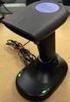 QuickScan QS6500/QS6500BT Product Reference Guide PSC Inc 959 Terry Street Eugene, Oregon 97402 Telephone: (541) 683-5700 Fax: (541) 345-7140 An Unpublished Work - All rights reserved. No part of the contents
Synapse Smart Cable for NEC PC 9821 Interface Guide
 Synapse Smart Cable for NEC PC 9821 Interface Guide 73-12805-0152 Revision A March 1996 For the following Model Configuration: STI80-0152 73-12805-0152 Revision A March 1996 FCC Information This equipment
HP USB Smartcard CCID Keyboard. User Guide
 HP USB Smartcard CCID Keyboard User Guide Copyright 2013 Hewlett-Packard Development Company, L.P. The information contained herein is subject to change without notice. Microsoft, Windows, and Windows
dlsoft Barcodes By dlsoft
 dlsoft Barcodes By dlsoft This manual was produced using ComponentOne Doc-To-Help. Contents Barcodes 1 Introduction...1 1D Barcodes...1 Barcode types supported...2 Barcode Types Table...3 EAN...4 ISBN...6
NLS-FR20 Series Fixed Mount Barcode Scanner. User Guide
 NLS-FR20 Series Fixed Mount Barcode Scanner User Guide Disclaimer 2015 Fujian Newland Auto-ID Tech. Co., Ltd. All rights reserved. Please read through the manual carefully before using the product and
PowerScan 7000 2D Imager
 PowerScan 7000 2D Imager Product Reference Guide Datalogic Scanning, Inc. 959 Terry Street Eugene, Oregon 97402 Telephone: (541) 683-5700 Fax: (541) 345-7140 An Unpublished Work - All rights reserved.
Product Reference Guide
 PowerScan 7000 SRI Product Reference Guide Datalogic Scanning, Inc. 959 Terry Street Eugene, Oregon 97402 Telephone: (541) 683-5700 Fax: (541) 345-7140 An Unpublished Work - All rights reserved. No part
Scanner Configuration Manager Manual. for PC type computers
 Scanner Configuration Manager Manual for PC type computers TABLE OF CONTENTS 1. SCANNER CONFIGURATION MANAGER......... 1 Start it Up...................... 1 First Look...................... 3 Settings......................
ScanMaster for Scanner Configuration
 ScanMaster for Scanner Configuration For 1 Series Barcode Scanners: 1070, 1500, 1502 (1D, tethered) 1560, 1562, 1660, 1661 (1D, cordless) 1504, 1704 (2D, tethered) 1564, 1664 (2D, cordless) Version 1.30
Voyager 1202g BF. Quick Start Guide. Cordless Single-Line Laser Bar Code Scanner and CCB00-010BT-01N-BF base
 Voyager 1202g BF Cordless Single-Line Laser Bar Code Scanner and CCB00-010BT-01N-BF base Quick Start Guide Aller à www.honeywellaidc.com pour le français. Vai a www.honeywellaidc.com per l'italiano. Gehe
BAR CODE GUIDELINES Revision 12/18/2015
 BAR CODE GUIDELINES Revision 12/18/2015 General Bar Code Guidelines Pep Boys has a commitment to increasing supply chain efficiency. Barcode scanning is a proven way to identify products at the item level.