
DUET / VS800 Scanner. DUET Scanner VS800 Scanner. Programming Kit
|
|
|
- Warren Patterson
- 9 years ago
- Views:
Transcription
1 DUET / VS800 Scanner DUET Scanner VS800 Scanner Programming Kit
2 PSC Scanning, Inc. 959 Terry Street Eugene, Oregon Telephone: (541) Telefax: (541) PSC and the PSC logo are registered trademarks of PSC INC. Duet and VS800 are trademarks of PSC INC. This manual and its contents are copyrighted, with all rights reserved. Under copyright law, this manual may not be copied in whole or in part without the prior written consent of PSC. The same proprietary and copyright notices must appear on any permitted copies as appear on the original. This exception does not permit copies to be made for others, whether or not sold. Under the law, copying includes translating into another language or format. The information and specifications contained in this manual are subject to change without notice. PSC shall not be held liable for damages resulting from the use or misuse of the information contained herein.
3 Contents Programming Your Scanner... 2 Programmable Features... 5 Return to Factory Settings... 6 Additional Features... 7 Programmable Rear Scan Line... 9 Programmable Speaker Features LED Lamp/Indication Features Timeouts Setting Laser Timeout Setting Motor Timeout Setting Double Read Timeout Interface Selection Changing Interfaces RS-232 Interface Configuration RS-232 Restrictions RS-232 Host Echo Feature RS-232 ACK/NAK Options OCIA Interface Configuration Wand Interface Configuration Keyboard Wedge Interface Configuration IBM 46xx Configuration R i
4 Label Transmit Format Configuration Items Setting Label I.D Symbology Selection UPC/EAN Options UPC/EAN Expansion UPC/EAN Check Digit Transmission UPC/EAN/Instore Minimum Read Settings Code 39 Options Code 39 Stitching Options Code 128 Options Code 128 Minimum Read Settings Interleaved 2 of 5 Options I 2 of 5 Minimum Read Settings I 2 of 5 Length Control I 2 of 5 Fixed Length Codabar Options Codabar Minimum Read Settings MSI/Plessey Options MSI/Plessey Minimum Read Settings Index ii Duet and VS800 Scanner Programming Kit
5 Programming with Bar Codes This programming kit contains the procedures and bar code programming labels necessary to set the scanner's programmable features. R
6 Programming Your Scanner To program your scanner: 1. Power up the scanner to be programmed by one of the following methods: Connect the scanner's interface cable at the scanner. Plug the AC/DC Adapter into an electrical outlet of the appropriate voltage and connect its other end at either the port located on the scanner's interface cable connector (furthest from the scanner) or its "pigtail" connection (see Figure 1 * ). If the scanner is configured to receive power off the terminal (POT), connect the scanner via its interface cable to a working host terminal. Wait for the scanner to complete the Selftest routine and emit four tones. The green lamp will light dimly, indicating that the scanner is in normal Operating Mode. 2 Duet and VS800 Scanner Programming Kit
7 Figure 1. Power Up Scanner Duet Scanner I/F Cable 4 AC Power 1 Barrel Type Connector Interface Connector Host Terminal * Connector To Host 3 Terminal DC Power Supply Connector 2 AC/DC Power Supply 1. Connnect the I/F cable to the scanner. 2. Connect the DC power cord into the side of the connector.* 3. Connect the I/F cable into the host terminal. 4. Connect the AC/DC power supply into an AC outlet. Power-Off Terminal 1. Connect the I/F cable to the scanner. 2. Connect the I/F cable to the host terminal AC/DC Power Adapter Interface Connector Interface Connector Duet Scanner 1 Host Terminal Connector * I/F Cable 2 To Host Terminal Duet Scanner I/F Cable 1 AC Power AC/DC Power Adapter 4 Host Terminal Connector * 2 3 DC Power Connector AC/DC power supply into DC power connector 1. Connnect the I/F cable to the scanner. 2. Connect the I/F cable to the terminal. 3. Connect the DC power plug into the DC power connector. 4. Connect the AC/DC power supply into an AC outlet. * Your host terminal connection may be different. R
8 2. Put the scanner into Programming Mode by scanning the Programming Switch bar code located on the next page and on the inside back cover. The green LED flashes continuously indicating that the scanner is in Programming Mode. 3. Scan the programming bar code(s) for the feature you want to change. The scanner will emit three beeps to indicate that the bar code has been read and the setting has been stored in the scanner s memory. Scan the remaining programming bar codes as required. If a bar code scanned is not a valid programming bar code, the scanner will emit a chirping (rapid beeping) rejection tone. 4. After all the desired programming bar codes have been successfully scanned, exit Programming Mode by scanning the Programming Switch bar code once again. The scanner will reset and emit four beeps during the power-up sequence. 4 Duet and VS800 Scanner Programming Kit
9 The green lamp will light dimly, indicating that the scanner is ready for normal operation. Switch Label Programmable Features The remainder of this programming kit contains programming bar codes for all programmable features for the Duet and VS800 scanners. Refer to the detailed features listing shown in the index at the back of this manual to find the individual features that you wish to change. R
10 Return to Factory Settings Use this bar code to reset all options back to the original factory default settings for the current interface. For example, if your scanner's current interface is RS-232, all settings will return to the scanner's original factory settings for the RS-232 interface. NOTE Any settings you have selected in a previous programming session will be lost Duet and VS800 Scanner Programming Kit
11 Additional Features Other features are available for the scanner that are not included in this programming kit. Call PSC technical support for more information. Some features not included here are: EAN13 number system digit (NSD) EAN two label configuration items (includes several options) UPC/EAN price/weight check digit options Addon label configuration items (includes several options) Coupon label configuration items (includes several options) Italian Pharmacode 39 Keyboard Wedge send special characters, also quiet interval RS-232 ACK/NAK (includes several options) R
12 Full label editing configuration (includes several options for RS-232 and Keyboard Wedge) Symbology-specific Label I.D. control (Keyboard Wedge and RS-232 interfaces) Codabar fixed length control MSI/Plessey fixed length control 8 Duet and VS800 Scanner Programming Kit
13 Programmable Rear Scan Line The scanner s standard configuration comes with the single rear scan line pointer always on and ready for use. The bar codes on the next page allow you to change the operation of the rear scan line to be completely off until you push the button. Pressing the button automatically activates both the spotter beam and bar code reading. To change your scanner s settings, use the rear scan line to scan the Switch Label, then the label for setting the rear laser mode and scan the Switch Label again. The scanner will reset and invoke the new mode of operation. This setting will be saved. R
14 Rear Window Laser Always On Rear Window Laser on When Trigger is Pressed Duet and VS800 Scanner Programming Kit
15 Programmable Speaker Features The speaker has six programmable features: The speaker's Good Read Indication can be turned on or off. Good Read Tone Length can be adjusted to one of three different settings. Good read Volume can be set to one of three levels. Speaker Tone (pitch/frequency) can be programmed to sound at one of three settings. The tone sounded at power-up (Power - up Tone) can be enabled or disabled. When to Indicate Good Read R
16 Speaker ("Good Read" Indication): ON Use this bar code to enable the speaker's "good read" indication Duet and VS800 Scanner Programming Kit
17 Speaker ("Good Read" Indication): Off Use this bar code to disable the speaker's "good read" indication R
18 "Good Read" Tone Length = 100 ms. Use this bar code to set the "good read" tone length to 100 milliseconds Duet and VS800 Scanner Programming Kit
19 "Good Read" Tone Length = 250 ms. Use this bar code to set the "good read" tone length to 250 milliseconds R
20 "Good Read" Tone Length = 500 ms. Use this bar code to set the "good read" tone length to 500 milliseconds Duet and VS800 Scanner Programming Kit
21 Speaker Volume = Low Use this bar code to set the speaker volume to low R
22 Speaker Volume = Medium Use this bar code to set the speaker volume to medium Duet and VS800 Scanner Programming Kit
23 Speaker Volume = High Use this bar code to set the speaker volume to high R
24 Speaker Tone = Low Use this bar code to set the speaker tone to low Duet and VS800 Scanner Programming Kit
25 Speaker Tone = Medium Use this bar code to set the speaker tone to medium R
26 Speaker Tone = High Use this bar code to set the speaker tone to high Duet and VS800 Scanner Programming Kit
27 Power-up Tone Enable Use this bar code to enable the tone sounded on power-up R
28 Power-up Tone Disable Use this bar code to disable the tone sounded on power-up Duet and VS800 Scanner Programming Kit
29 When to Indicate "Good Read" = After Decode Use this bar code to indicate a "good read" after a bar code has been successfully decoded R
30 When to Indicate "Good Read" = After Transmit Use this bar code to indicate a "good read" after successfully transmitting the bar code data to the host Duet and VS800 Scanner Programming Kit
31 When to Indicate "Good Read" = CTS Goes Inactive, Then Active (RS-232 ONLY) Use this bar code to indicate "good read" after CTS switches from inactive to active R
32 LED Lamp/Indication Features LED Features The scanner's LED lamp can be programmed to indicate the scanner is idle: LED lamp is off when scanner is idle LED lamp is dim when scanner is idle 28 Duet and VS800 Scanner Programming Kit
33 LED Lamp When Scanner is Idle = OFF Use this bar code to set the LED lamp to OFF when the scanner is idle R
34 LED Lamp When Scanner is Idle = DIM Use this bar code to set the LED lamp to DIM when the scanner is idle Duet and VS800 Scanner Programming Kit
35 Timeouts Timeouts allow you to shut off the scanner's laser and/or motor if the scanner isn't used for a predetermined period of time. This feature is included to reduce power consumption and lengthen scanner life. NOTE Laser safety requires that the laser switch off before the motor. If you set the motor timeout shorter than the laser timeout, the laser will switch off when the motor times out. R
36 Setting Laser Timeout The laser timeout programming bar codes set the time for switching the laser off if the scanner isn't used. The selections are: Laser timeout = 5 minutes Laser timeout = 10 minutes Laser timeout = 15 minutes 32 Duet and VS800 Scanner Programming Kit
37 Laser Timeout = 5 Minutes Use this bar code to set the laser timeout to 5 minutes R
38 Laser Timeout = 10 Minutes Use this bar code to set the laser timeout to 10 minutes Duet and VS800 Scanner Programming Kit
39 Laser Timeout = 15 Minutes Use this bar code to set the laser timeout to 15 minutes R
40 Setting Motor Timeout The Motor Timeout programming bar codes set the time for switching the motor off if the scanner isn't used. The motor will not timeout before the laser times out. The selections are: Motor timeout = 5 minutes Motor timeout = 15 minutes Motor timeout = 30 minutes Motor timeout = 60 minutes 36 Duet and VS800 Scanner Programming Kit
41 Motor Timeout = 5 Minutes Use this bar code to set the motor timeout to 5 minutes R
42 Motor Timeout = 15 Minutes Use this bar code to set the motor timeout to 15 minutes Duet and VS800 Scanner Programming Kit
43 Motor Timeout = 30 Minutes Use this bar code to set the motor timeout to 30 minutes R
44 Motor Timeout = 60 Minutes Use this bar code to set the motor timeout to 60 minutes Duet and VS800 Scanner Programming Kit
45 Setting Double Read Timeout The double read timeout sets a time limit that determines how much time must pass before reading the same bar code (e.g. two identical items) again. A typical setting is 600 ms. The selections are: Double read timeout = 400 milliseconds Double read timeout = 500 milliseconds Double read timeout = 600 milliseconds Double read timeout = 800 milliseconds Double read timeout = 1 second R
46 Double Read Timeout = 400 ms. Use this bar code to set the double read timeout to 400 ms Duet and VS800 Scanner Programming Kit
47 Double Read Timeout = 500 ms. Use this bar code to set the double read timeout to 500 ms R
48 Double Read Timeout = 600 ms. Use this bar code to set the double read timeout to 600 ms. This is the recommended setting Duet and VS800 Scanner Programming Kit
49 Double Read Timeout = 800 ms. Use this bar code to set the double read timeout to 800 ms R
50 Double Read Timeout = 1 second Use this bar code to set the double read timeout to 1 second Duet and VS800 Scanner Programming Kit
51 Interface Selection The scanner must be configured to operate with your POS terminal. The following interfaces are supported: OCIA (PSC) IBM 4683 (port 17) OCIA (NCR) IBM 4683 (port 5B) OCIA (NCR 9-bit) IBM 4683 (port 9B) OCIA (SNI) IBM 4682/3 (port E) RS-232 (PSC) Wand Emulation RS-232 (SNI) Keyboard Wedge (Types listed below) PCs Supported 1 IBM AT & compatible, PS/ , , 50, 50Z, 60, 70, 80, 90 &95. Use country mode to configure specific foreign keyboards. 2 IBM AT & compatible, PS/ , , 50, 50Z, 60, 70, 80, 90 & 95 w/foreign keyboard ALT mode 3 PC/XT w/us keyboard 4 PC/XT w/foreign keyboard ALT mode 5 PS/2 25 and 30 w/us keyboard 6 PS/2 25 and 30 w/foreign keyboard ALT mode 7 IBM 317x, 318x, 319x, 34xx w/122 key keyboard 8 IBM 31xx w/102 key keyboard (terminal keyboard) 9 Japanese DOS 101 key (TDOS) 10 NEC 9801 R
52 Changing Interfaces Before changing the interface (I/F), ensure that the correct I/F board is present in the scanner. Call your PSC dealer if you're not sure how to check this. To change the scanner's current interface: 1. Place the scanner in Programming Mode (see Programming Your Scanner at the front of this manual). 2. Locate the programming bar code in this section for the required interface type (for example: RS-232) and scan the bar code. 3. It may be necessary to configure certain features for the interface selected (such as baud rate or parity) to ensure proper function with the host terminal. Proceed to the configuration section for that interface (for example: RS-232 Configuration) and determine which (if any) settings should be modified. 4. After programming all the chosen features, exit Programming Mode (see Programming Your Scanner at the front of this manual). 48 Duet and VS800 Scanner Programming Kit
53 Host I/F UPC/ EAN* Family Symbologies Supported Code of 5 Codabar Code 128 MSI/ Plessey OCIA/PSC OCIA-NCR 8 bit OCIA-SNI OCIA-NCR 9 bit RS-232 RS-232- SNI IBM 4683 Port 5B IBM 4683 Port 9B IBM 4682 Port E IBM 4683 Port 17 Wand Emul Keybd Wedge (all) * UPC/EAN family P2, P5 and Code 128 addons are supported by some interfaces. R
54 Interface Type = OCIA (PSC) Scan this bar code to select the PSC OCIA interface protocol Duet and VS800 Scanner Programming Kit
55 Interface Type = OCIA (NCR 8 Bit) Scan this bar code to select the OCIA interface type compatible with an NCR 8 bit POS system R
56 Interface Type = OCIA (NCR 9 Bit) Scan this bar code to select the OCIA interface type compatible with an NCR 9 bit POS system Duet and VS800 Scanner Programming Kit
57 Interface Type = OCIA (SNI) Scan this bar code to select the OCIA interface type compatible with an SNI POS system R
58 Interface Type = RS-232 (PSC) Scan this bar code to select the standard RS-232 interface type Duet and VS800 Scanner Programming Kit
59 Interface Type = RS-232 (SNI) Scan this bar code to select the RS-232 interface type compatible with an SNI POS system R
60 Interface Type = IBM 4683 (Port 17) Scan this bar code to select the IBM 4683 Port 17 interface type Duet and VS800 Scanner Programming Kit
61 Interface Type = IBM 4683 (Port 5B) Scan this bar code to select the IBM 4683 Port 5B interface type R
62 Interface Type = IBM 4683 (Port 9B) Scan this bar code to select the IBM 4683 Port 9B interface type Duet and VS800 Scanner Programming Kit
63 Interface Type = IBM 4682/3 (Port E) Scan this bar code to select the IBM 4682/3 Port E interface type R
64 Interface Type = Wand Emulation Scan this bar code to select Wand Emulation as the active interface type Duet and VS800 Scanner Programming Kit
65 Interface Type = Keyboard Wedge Type: IBM AT & Compatible PS-2 US/Foreign Scan this bar code to select the IBM AT & Compatible PS-2 Keyboard Wedge as the active interface type. This interface supports the following: IBM AT & compatible w/us keyboard. PS/ , , 50, 50Z, 60, 70, 80, 90 & 95 w/us keyboard (Use country mode to configure specific foreign keyboards) R
66 Interface Type = Keyboard Wedge Type: IBM AT & Compatible PS-2, Foreign ALT Scan this bar code to select the IBM AT & Compatible PS-2, with foreign keyboard ALT mode as the active interface type. The type B Keyboard Wedge interface supports the following: IBM AT & compatible w/foreign keyboard ALT mode. PS/ , , 50, 50Z, 60, 70, 80, 90 w/foreign keyboard ALT mode Duet and VS800 Scanner Programming Kit
67 Interface Type = Keyboard Wedge Type: PC/XT (with US Keyboard) Scan this bar code to select PC/XT with (US keyboard) Keyboard Wedge as the active interface type R
68 Interface Type = Keyboard Wedge Type: PC/XT (with Foreign Keyboard ALT Mode) Scan this bar code to select the PC/XT with foreign keyboard ALT mode Keyboard Wedge as the active interface type Duet and VS800 Scanner Programming Kit
69 Interface Type = Keyboard Wedge Type: PS/2 25 and 30 (w/us Keyboard) Scan this bar code to select the PS/2 25 and 30 (with US keyboard) Keyboard Wedge as the active interface type R
70 Interface Type = Keyboard Wedge Type: PS/2 25 and 30 (w/foreign Keyboard ALT Mode) Scan this bar code to select the PS/2 25 and 30 (with foreign keyboard ALT mode) Keyboard Wedge as the active interface type Duet and VS800 Scanner Programming Kit
71 Interface Type = Keyboard Wedge Type: IBM 317x, 318x, 319x, 34xx w/122 Key Keyboard Scan this bar code to select IBM 317x, 318x, 319x, 34xx (w/122 key keyboard) Keyboard Wedge as the active interface type R
72 Interface Type = Keyboard Wedge Type: IBM 31xx w/102 Key (Terminal) Keyboard Scan this bar code to select the IBM 31xx w/102 key (terminal keyboard) Keyboard Wedge as the active interface type Duet and VS800 Scanner Programming Kit
73 Interface Type = Keyboard Wedge Type: Japanese DOS 101 Key (TDOS) Scan this bar code to select the Japanese DOS 101 Key (TDOS) Keyboard Wedge as the active interface type R
74 Interface Type = Keyboard Wedge Type: NEC 9801 Scan this bar code to select the NEC 9801 Keyboard Wedge as the active interface type Duet and VS800 Scanner Programming Kit
75 RS-232 Interface Configuration The programming bar codes in this section pertain only to POS terminals with an RS-232 communication interface. In order for the POS terminal and scanner to communicate, the scanner's configuration must match the communication settings of the POS terminal. Typically, the scanner's factory default configuration has been preset to match your POS terminal requirements. RS-232 interface communication options are: Baud Rate Parity Data Bits Stop Bits Hardware Control (CTS Flow/Scan Control) Software Control (Xon/Xoff) Host Echo Intercharacter Delay NOTE The RS-232 interface must first be selected (reference the Interface Selection section of this manual) before you can set the RS-232 options in this section. R
76 RS-232 Restrictions RS-232 interface hardware and software data flow control features are mutually exclusive and both should not be enabled at the same time. CTS/RTS hardware flow control. If this feature is enabled, Xon/Off (software flow control) should be disabled. The result of enabling both flow controls is unpredictable. Xon/Xoff software flow control. If this feature is enabled, CTS/RTS (hardware flow control) should be disabled. The result of enabling both flow controls is unpredictable. 72 Duet and VS800 Scanner Programming Kit
77 RS-232: Baud Rate = 1200 Use this bar code to set the RS-232 baud rate to R
78 RS-232: Baud Rate = 2400 Use this bar code to set the RS-232 baud rate to Duet and VS800 Scanner Programming Kit
79 RS-232: Baud Rate = 4800 Use this bar code to set the RS-232 baud rate to R
80 RS-232: Baud Rate = 9600 Use this bar code to set the RS-232 baud rate to Duet and VS800 Scanner Programming Kit
81 RS-232: Baud Rate = Use this bar code to set the RS-232 baud rate to R
82 RS-232: Baud Rate = Use this bar code to set the RS-232 baud rate to Duet and VS800 Scanner Programming Kit
83 RS-232: Parity = None Use this bar code to set parity to None R
84 RS-232: Parity = Even Use this bar code to set parity to Even Duet and VS800 Scanner Programming Kit
85 RS-232: Parity = Odd Use this bar code to set parity to Odd R
86 RS-232: Parity = Mark Use this bar code to set parity to Mark Duet and VS800 Scanner Programming Kit
87 RS-232: Parity = Space Use this label to set parity to Space R
88 RS-232: Data Bits = 7 Use this bar code to set the RS-232 data format to seven bits Duet and VS800 Scanner Programming Kit
89 RS-232: Data Bits = 8 Use this bar code to set the RS-232 data format to eight data bits R
90 RS-232: Stop Bits = 1 Use this bar code to set the number of stop bits to one Duet and VS800 Scanner Programming Kit
91 RS-232: Stop Bits = 2 Use this bar code to set the number of stop bits to two R
92 RS-232: CTS Flow Control Enable When Clear To Send (CTS) flow control is enabled, the CTS signal controls the transmission of data to the host. NOTE If this feature is enabled, Xon/Off (software flow control) should be disabled (scan the bar code: Xon/Xoff Disable). The result of enabling both flow controls is unpredictable. Scan the bar code below to enable CTS flow control Duet and VS800 Scanner Programming Kit
93 RS-232: CTS Scan Control Enable When this option is enabled, the Clear To Send (CTS) line must be active for the scanner to read and transmit data. While the CTS line is inactive, the scanner will remain in a host disabled state. Following a successful transmission, the CTS signal must transition to inactive and then to active to enable scanning for the next bar code. Scan the bar code below to enable CTS scan control R
94 RS-232: Hardware Control Disable When hardware control (CTS flow control and/or CTS scan control) is disabled, the scanner will transmit data to the host regardless of any activity on the CTS line. Scan the bar code below to disable hardware control Duet and VS800 Scanner Programming Kit
95 RS-232: Software Control (Xon/Xoff) Enable Use this bar code to enable Xon/ Xoff for data flow control. NOTE If this feature is enabled, CTS Flow Control should be disabled (scan the bar code: Hardware Control Disable). The result of enabling both flow controls is unpredictable. This configuration item will be ignored if Host Echo is enabled R
96 RS-232: Software Control (Xon/Xoff) Disable Use this bar code to disable Xon/ Xoff (no data flow control) Duet and VS800 Scanner Programming Kit
97 RS-232 Host Echo Feature The scanner can be configured to echo (to the host) all characters received. The scanner shall echo character data as well as an RS- 232 break. The priority of transmission is: 1. Break data 2. Label data 3. Echo data NOTE If the transmission is inhibited for any reason, the character will be buffered until transmission is enabled. Additional characters received during this time will overwrite the buffered character. When transmission with parity has been configured, the scanner will calculate and apply the proper parity to the data being transmitted. The parity of the received data is ignored. R
98 RS-232: Host Echo Enable Scan this bar code to enable Host Echo Duet and VS800 Scanner Programming Kit
99 RS-232: Host Echo Disable Scan this bar code to disable Host Echo R
100 RS-232: Intercharacter Delay = 0 This feature sets the delay between the end of one character and the beginning of the next, in 10 millisecond increments. This delay is enforced between all transmitted elements including host echo characters. Scan this bar code to set intercharacter delay to specify no delay Duet and VS800 Scanner Programming Kit
101 RS-232: Intercharacter Delay = 10 ms. Delay Scan this bar code to set intercharacter delay to 10 milliseconds R
102 RS-232: Intercharacter Delay = 20 ms. Delay Scan this bar code to set intercharacter delay to 20 milliseconds Duet and VS800 Scanner Programming Kit
103 RS-232: Intercharacter Delay = 30 ms. Delay Scan this bar code to set intercharacter delay to 30 milliseconds R
104 RS-232: Intercharacter Delay = 40 ms. Delay Scan this bar code to set intercharacter delay to 40 milliseconds Duet and VS800 Scanner Programming Kit
105 RS-232: Intercharacter Delay = 50 ms. Delay Scan this bar code to set intercharacter delay to 50 milliseconds R
106 RS-232: Intercharacter Delay = 60 ms. Delay Scan this bar code to set intercharacter delay to 60 milliseconds Duet and VS800 Scanner Programming Kit
107 RS-232: Intercharacter Delay = 70 ms. Delay Scan this bar code to set intercharacter delay to 70 milliseconds R
108 RS-232: Intercharacter Delay = 80 ms. Delay Scan this bar code to set intercharacter delay to 80 milliseconds Duet and VS800 Scanner Programming Kit
109 RS-232: Intercharacter Delay = 90 ms. Delay Scan this bar code to set intercharacter delay to 90 milliseconds R
110 RS-232: Intercharacter Delay = 100 ms. Delay Scan this bar code to set intercharacter delay to 100 milliseconds Duet and VS800 Scanner Programming Kit
111 RS-232: Intercharacter Delay = 120 ms. Delay Scan this bar code to set intercharacter delay to 120 milliseconds R
112 RS-232: Intercharacter Delay = 140 ms. Delay Scan this bar code to set intercharacter delay to 140 milliseconds Duet and VS800 Scanner Programming Kit
113 RS-232 ACK/NAK Options Several ACK/NAK parameters can be set for your scanner. Contact your PSC dealer if the specific ACK/NAK option you wish to set is not included in this section. Options for RS-232 ACK/NAK are: Disable ACK/NAK Enable ACK/NAK for bar code transmission Enable ACK/NAK for host command acknowledge Enable ACK/NAK for bar code transmission and host command acknowledge R
114 RS-232: ACK/NAK Disable Scan this bar code to disable the ACK/NAK feature Duet and VS800 Scanner Programming Kit
115 RS-232: ACK/NAK Enable for Bar Code Transmission Scan this bar code to enable the ACK/NAK feature for bar code transmission R
116 RS-232: ACK/NAK Enable for Host Command Acknowledge Scan this bar code to enable the ACK/NAK feature for host command acknowledge Duet and VS800 Scanner Programming Kit
117 RS-232: ACK/NAK Enable for Bar Code Transmission and Host Acknowledge Scan this bar code to enable the ACK/NAK feature for bar code transmission and host acknowledge R
118 OCIA Interface Configuration The following programming bar codes pertain only to POS terminals with an OCIA communication interface. In order for the POS terminal and scanner to communicate, the scanner's configuration must match the communication settings of the POS terminal. Typically, the scanner's factory default configuration has been preset to match your POS terminal requirements. OCIA interface communication options are: Intercharacter Delay Host Commands Beep on "Not on File" NOTE The OCIA interface must first be selected (reference the Interface Selection section of this manual) before you can set the OCIA options in this section. 114 Duet and VS800 Scanner Programming Kit
119 OCIA: Intercharacter Delay Enable Scan this bar code to enable an OCIA intercharacter delay of 70 microseconds R
120 OCIA: Intercharacter Delay Disable Scan this label to disable the OCIA intercharacter delay Duet and VS800 Scanner Programming Kit
121 OCIA: Host Commands Enable The scanner can be configured to respond to host commands. Scan this bar code to enable scanner response to OCIA host commands R
122 OCIA: Host Commands Disable The scanner can be configured to respond to host commands. Scan this bar code to disable scanner response to OCIA host commands Duet and VS800 Scanner Programming Kit
123 OCIA: Beep On Not On File Enable When enabled, this feature will cause the scanner to sound 21 Good Read Beeps upon receipt of a Not On File command from the host. Note OCIA host commands must be enabled for this option to work (scan the OCIA: Host Commands Enable bar code). Scan this bar code to enable the "beep on not on file" option R
124 OCIA: Beep On Not On File Disable Scan this bar code to disable the "beep on not on file" option Duet and VS800 Scanner Programming Kit
125 Wand Interface Configuration The following programming bar codes pertain only to POS terminals with the Wand Emulation communication interface. In order for the POS terminal and scanner to communicate, the scanner's configuration must match the communication settings of the POS terminal. Typically, the scanner's factory default configuration has been preset to match your POS terminal requirements. Wand interface communication options are: Polarity Signal Speed Idle State Label Format Leading Noise NOTE The Wand interface must first be selected (reference the Interface Selection section of this manual) before you can set the Wand options in this section. R
126 Wand Emulation: Polarity = Bars Low Scan this bar code to set quiet zones and spaces high and bars low Duet and VS800 Scanner Programming Kit
127 Wand Emulation: Polarity = Bars High Scan this bar code to set quiet zones and spaces low and bars high R
128 Wand Emulation: Signal Speed = 330µs Scan this bar code to set signal speed at 330µs per nominal bar or space Duet and VS800 Scanner Programming Kit
129 Wand Emulation: Signal Speed = 660µs Scan this bar code to set signal speed at 660µs per nominal bar or space R
130 Wand Emulation: Idle State = Low Idle state refers to the TTL logic level of the Wand Emulation signal when not in use. When the idle state is low, the output signal is between 0.0 and 0.7 VDC; the standard TTL logic low range. Scan this bar code to set the idle to low Duet and VS800 Scanner Programming Kit
131 Wand Emulation: Idle State = High Idle state refers to the TTL logic level of the Wand Emulation signal when not in use. When the idle state is high, the output signal is between 2.4 and 5.25 VDC, the standard TTL logic high range. Scan this bar code to set the idle to high R
132 Wand Emulation: Label Format = Normal Mode Scan this bar code to instruct the scanner to send label data to the host in its original format without any translation Duet and VS800 Scanner Programming Kit
133 Wand Emulation: Label Format = Code 39 Scan this bar code to instruct the scanner to translate label data into Code 39 format before sending it to the host R
134 Wand Emulation: Label Format = Code 39 Full ASCII Scan this bar code to instruct the scanner to translate label data into Code 39 full ASCII format before sending it to the host. Label data that is not in the Code 39 character set will be transmitted using full ASCII encoding Duet and VS800 Scanner Programming Kit
135 Wand Emulation: Label Format = Code 128 Scan this bar code to instruct the scanner to translate label data into Code 128 format before sending it to the host. The label will be rejected if it contains data that is not in the Code 128 character set R
136 Wand Emulation: Leading Noise Enable When this option is enabled, the scanner generates noise transitions prior to sending the label data to the host. This noise signal notifies the host that label data is coming. Scan this bar code to enable the feature Duet and VS800 Scanner Programming Kit
137 Wand Emulation: Leading Noise Disable When this option is enabled, the scanner generates noise transitions prior to sending the label data to the host. This noise signal notifies the host that label data is coming. Scan this bar code to disable the feature R
138 Keyboard Wedge Interface Configuration The following programming bar codes pertain only to POS terminals with a Keyboard Wedge communication interface. In order for the POS terminal and scanner to communicate, the scanner's configuration must match the communication settings of the POS terminal. Typically, the scanner's factory default configuration has been preset to match your POS terminal requirements. Keyboard Wedge interface communication options are: Intercharacter Delay Keyboard Support Country/Language Selection Caps Lock NOTE The Keyboard Wedge interface must first be selected (reference the Interface Selection section of this manual) before you can set the options in this section. 134 Duet and VS800 Scanner Programming Kit
139 Keyboard Wedge: Intercharacter Delay = 5ms. Scan this bar code to set the Keyboard Wedge intercharacter delay to 5 milliseconds (the minimum delay setting) R
140 Keyboard Wedge: Intercharacter Delay = 10ms. Scan this bar code to set the Keyboard Wedge intercharacter delay to 10 milliseconds Duet and VS800 Scanner Programming Kit
141 Keyboard Wedge: Intercharacter Delay = 20ms. Scan this bar code to set the Keyboard Wedge intercharacter delay to 20 milliseconds R
142 Keyboard Wedge: Intercharacter Delay = 50ms. Scan this bar code to set the Keyboard Wedge intercharacter delay to 50 milliseconds Duet and VS800 Scanner Programming Kit
143 Keyboard Wedge: Keyboard Support Disable Scan this bar code if you are using a system with an external keyboard R
144 Keyboard Wedge: Keyboard Support Enable Scan this bar code if you are using a system with no external keyboard Duet and VS800 Scanner Programming Kit
145 Keyboard Wedge: Country Mode = USA Scan this bar code to select USA as the country/language supported by the keyboard R
146 Keyboard Wedge: Country Mode = Belgium Scan this bar code to select Belgium as the country/language supported by the keyboard Duet and VS800 Scanner Programming Kit
147 Keyboard Wedge: Country Mode = Britain Scan this bar code to select Britain as the country/language supported by the keyboard R
148 Keyboard Wedge: Country Mode = Denmark Scan this bar code to select Denmark as the country/language supported by the keyboard Duet and VS800 Scanner Programming Kit
149 Keyboard Wedge: Country Mode = France Scan this bar code to select France as the country/language supported by the keyboard R
150 Keyboard Wedge: Country Mode = Germany Scan this bar code to select Germany as the country/language supported by the keyboard Duet and VS800 Scanner Programming Kit
151 Keyboard Wedge: Country Mode = Japan Scan this bar code to select Japan as the country/language supported by the keyboard R
152 Keyboard Wedge: Country Mode = Italy Scan this bar code to select Italy as the country/language supported by the keyboard Duet and VS800 Scanner Programming Kit
153 Keyboard Wedge: Country Mode = Norway Scan this bar code to select Norway as the country/language supported by the keyboard R
154 Keyboard Wedge: Country Mode = Portugal Scan this bar code to select Portugal as the country/language supported by the keyboard Duet and VS800 Scanner Programming Kit
155 Keyboard Wedge: Country Mode = Spain Scan this bar code to select Spain as the country/language supported by the keyboard R
156 Keyboard Wedge: Country Mode = Sweden Scan this bar code to select Sweden as the country/language supported by the keyboard Duet and VS800 Scanner Programming Kit
157 Keyboard Wedge: Country Mode = Switzerland Scan this bar code to select Switzerland as the country/ language supported by the keyboard R
158 Keyboard Wedge: Caps Lock = Off Scan this bar code to send character data (to the host) in normal format Duet and VS800 Scanner Programming Kit
159 Keyboard Wedge: Caps Lock = On Scan this bar code to send character data (to the host) in reverse case: (a z) = (A Z) (A Z) = (a z) Use this feature if your caps lock is on R
160 Keyboard Wedge: Caps Lock = Shift-Lock Scan this bar code to send character data (to the host) in shifted case. Use this feature if your Shift Lock is on. NOTE For use with Keyboard Wedge Interface Type G (122-key keyboard) ONLY Duet and VS800 Scanner Programming Kit
161 IBM 46xx Configuration The following programming bar codes pertain only to POS terminals with IBM 46xx communication interfaces. In order for the POS terminal and scanner to communicate, the scanner's configuration must match the communication settings of the POS terminal. Typically, the scanner's factory default configuration has been preset to match your POS terminal requirements. 46xx communication options are: Limit Command Set Transmit in Code 39 Format Transmit Unsolicited Status NOTE The IBM 46xx interface must first be selected (reference the Interface Selection section of this manual) before you can set the options in this section. R
162 IBM 46xx: Limit Command Set Scanning this bar code will cause the scanner to appear to accept disable laser commands from the host, but in fact, not process these commands. Status responses to the host, however, will indicate the the laser has been disabled Duet and VS800 Scanner Programming Kit
163 IBM 46xx: Do Not Limit Command Set Scan this bar code to disable the Limit Command Set feature R
164 IBM 46xx: Transmit in Code 39 Format Enable Scanning this bar code will set the scanner's symbology identifier to Code 39. Bar codes scanned while this feature is enabled will be transmitted to the host as Code 39, with no data checking or conversion Duet and VS800 Scanner Programming Kit
165 IBM 46xx: Transmit in Code 39 Format Disable Scan this bar code to disable the Transmit in Code 39 feature R
166 IBM 46xx: Transmit Unsolicited Status Enable Scan this bar code to cause the scanner to transmit a status message to the host upon receipt of an SNRM. NOTE This feature should be used with IBM Port 5B and Port 17 terminals Duet and VS800 Scanner Programming Kit
167 IBM 46xx: Transmit Unsolicited Status Disable Scan this bar code to disable the Transmit Unsolicited Status feature. NOTE Disable this feature when the scanner is used with IBM Port 9B and Port E terminals R
168 Label Transmit Format Configuration Items (RS-232 and Keyboard Wedge Interfaces Only) If you need to send information in addition to label data, the scanner can be configured to transmit symbology specific identifier characters (Label I.D.). Label transmit options are: Transmit Label I.D. as Prefix (Preamble) Transmit Label I.D. as Suffix (Postamble) Disable Label I.D. Global Suffix 164 Duet and VS800 Scanner Programming Kit
169 Setting Label I.D. Label identifiers consist of one or two ASCII characters that can precede or follow barcode label data as it is transmitted to the host. The host uses these characters as a means of distinguishing between symbologies. The established industry standards used are symbology-specific label identifiers, and are listed in the table below. Most scanners will be factory configured with the label I.D. used as a prefix. UPC-A... 'A' UPC-E... 'E' EAN-8... 'FF' EAN 'F' UPC-A (2 add-on)... 'A' UPC-A (5 Add-on)... 'A' UPC-A (8 Add-on)... 'A' UPC-E (2 add-on)... 'E' UPC-E (5 Add-on)... 'E' UPC-E (8 Add-on)... 'E' EAN-8 (2 add-on)... 'FF' EAN-8 (5 Add-on)... 'FF' EAN-8 (8 Add-on)... 'FF' EAN-13 (2 add-on)... 'F' EAN-13 (5 Add-on)... 'F' EAN-13 (8 Add-on)... 'F' Code '*' Codabar... '%' Interleaved.2 of 5... 'i' Code '&' Code '#' MSI/Plessey... '@' R
170 Transmit Label I.D. as Prefix Scan this bar code to transmit the label I.D. as a prefix Duet and VS800 Scanner Programming Kit
171 Transmit Label I.D. as Suffix Scan this bar code to transmit the label I.D. as a suffix R
172 Transmit Label I.D. Disable Scan this bar code to disable transmission of the label I.D. (prefix and/or suffix) Duet and VS800 Scanner Programming Kit
173 Global Suffix = None Scan this bar code to transmit no global suffix R
174 Global Suffix = <CR> Scan this bar code to transmit a carriage return as the global suffix Duet and VS800 Scanner Programming Kit
175 Global Suffix = <CR><LF> (RS-232 ONLY) Scan this bar code to transmit a carriage return and line feed as the global suffix R
176 Symbology Selection The scanner has the ability to read and autodiscriminate between the following bar code types (symbologies): UPC/EAN (symbology family) Code 39 Code 128 Codabar Interleaved 2 of 5 (I 2 of 5) MSI/Plessey Any combination of the symbologies listed can be enabled simultaneously; however, to improve scanning performance, you should enable only those symbologies that will be in active use. NOTE If Code 39 stitching is enabled, Code 39 and the UPC/EAN family will be the ONLY symbologies that can be recognized. 172 Duet and VS800 Scanner Programming Kit
177 Symbology Selection continued The programming bar codes for symbology selection are contained on the following pages. Be sure the symbology you wish to select is compatible with your POS terminal before you change these settings (see the Symbologies Supported table in the Interface Selection section of this kit). To change symbologies: 1. Place the scanner in Programming Mode (see Programming Your Scanner at the front of this manual). 2. Locate the programming bar code in this section for the symbology you wish to enable or disable (for example: Code 39 Enable) and scan the bar code. 3. You may desire or need to select certain options for the symbology selected. Proceed to the options section for that symbology (for example: Code 39 Options) and determine which (if any) option settings should be modified. R
178 4. After programming all the chosen features, exit Programming Mode (see Programming Your Scanner at the front of this manual). UPC/EAN Symbology Family Enable Use this bar code to enable UPC and EAN bar codes as active symbologies. NOTE The UPC/EAN symbology family also includes the Japanese Article Numbering system (JAN) Duet and VS800 Scanner Programming Kit
179 UPC/EAN Symbology Family Disable Use this bar code to disable UPC and EAN as active symbologies. NOTE The UPC/EAN symbology family is always active for the purpose of reading programming bar code labels. Scanning this bar code disables UPC/EAN transmission to the host (disables decoding of UPC/EAN non-programming labels) R
180 Code 39 Enable Use this bar code to select Code 39 as an active symbology Duet and VS800 Scanner Programming Kit
181 Code 39 Disable Use this bar code to disable Code 39 as an active symbology R
182 Code 128 Enable Use this bar code to enable Code 128 as an active symbology Duet and VS800 Scanner Programming Kit
183 Code 128 Disable Use this bar code to disable Code 128 as an active symbology R
184 Codabar Enable Use this bar code to enable Codabar as an active symbology Duet and VS800 Scanner Programming Kit
185 Codabar Disable Use this bar code to disable Codabar as an active symbology R
186 I 2 of 5 Enable Use this bar code to enable Interleaved 2 of 5 as an active symbology Duet and VS800 Scanner Programming Kit
187 I 2 of 5 Disable Use this bar code to disable Interleaved 2 of 5 as an active symbology R
188 MSI/Plessey Enable Use this bar code to enable MSI/Plessey as an active symbology Duet and VS800 Scanner Programming Kit
189 MSI/Plessey Disable Use this bar code to disable MSI/Plessey as an active symbology R
190 UPC/EAN Options UPC/EAN family symbology options are contained on the following several pages. These options include: UPC/EAN Expansion Check Digit Transmision Number System Digit (NSD) Transmission Minimum Read To use options available in this section: 1. Place the scanner in Programming Mode (see Programming Your Scanner at the front of this manual). 2. If UPC/EAN bar codes have not been enabled as active symbologies for the scanner being programmed, go to the Symbology Selection section of this manual and scan the UPC/EAN Symbology Enable programming bar code. 3. Scan the bar codes in this section to modify the desired UPC/EAN options. 186 Duet and VS800 Scanner Programming Kit
191 4. After programming all the chosen features, exit Programming Mode (reference Programming Your Scanner at the front of this manual). R
192 UPC/EAN Expansion The bar codes on the following pages allow you to change the UPC/EAN data transmission format. UPC-E to UPC-A Expansion Enable Use this bar code to enable the expansion of UPC-E data to UPC-A format before transmission to the host terminal. Enabling this feature will automatically disable the 'Expand UPC-E to EAN-13' feature Duet and VS800 Scanner Programming Kit
193 UPC-E to UPC-A Expansion Disable Use this bar code to disable the expansion of UPC-E data to UPC-A format before transmission to the host terminal R
194 UPC-E to EAN-13 Expansion Enable Use this bar code to enable the expansion of UPC-E data to EAN-13 format before transmission to the host terminal. Enabling this feature will automatically disable the 'Expand UPC-E to UPC-A' feature Duet and VS800 Scanner Programming Kit
195 UPC-E to EAN-13 Expansion Disable Use this bar code to disable the expansion of UPC-E data to EAN-13 format before transmission to the host terminal R
196 UPC-A to EAN-13 Expansion Enable Use this bar code to enable the expansion of UPC-A data to EAN-13 format before transmission to the host terminal Duet and VS800 Scanner Programming Kit
197 UPC-A to EAN-13 Expansion Disable Use this bar code to disable the expansion of UPC-A data to EAN- 13 format before transmission to the host terminal R
198 EAN-8 to EAN-13 Expansion Enable Use this bar code to enable the expansion of EAN-8 data to EAN- 13 format before transmission to the host terminal Duet and VS800 Scanner Programming Kit
199 EAN-8 to EAN-13 Expansion Disable Use this bar code to disable the expansion of EAN-8 data to EAN-13 format before transmission to the host terminal R
200 UPC/EAN Check Digit Transmission The following pages contain the programming bar codes for enabling and disabling the transmission of UPC and EAN check digits. UPC-A Check Digit Transmission UPC-E Check Digit Transmission EAN-8 Check Digit Transmission EAN-13 Check Digit Transmission UPC-E Number System Digit (NSD) Transmission 196 Duet and VS800 Scanner Programming Kit
201 UPC-A Check Digit Transmission Enable Use this bar code to enable sending the UPC-A check digit to the host R
202 UPC-A Check Digit Transmission Disable Use this bar code to disable sending the UPC-A check digit to the host Duet and VS800 Scanner Programming Kit
203 UPC-E Check Digit Transmission Enable Use this bar code to enable sending the UPC-E check digit to the host R
204 UPC-E Check Digit Transmission Disable Use this bar code to disable sending the UPC-E check digit to the host Duet and VS800 Scanner Programming Kit
205 EAN-8 Check Digit Transmission Enable Use this bar code to enable sending the EAN-8 check digit to the host R
206 EAN-8 Check Digit Transmission Disable Use this bar code to disable sending the EAN-8 check digit to the host Duet and VS800 Scanner Programming Kit
207 EAN-13 Check Digit Transmission Enable Use this bar code to enable sending the EAN-13 check digit to the host R
208 EAN-13 Check Digit Transmission Disable Use this bar code to disable sending the EAN-13 check digit to the host Duet and VS800 Scanner Programming Kit
209 UPC-A Number System Digit Transmission Enable Use this bar code to enable sending the UPC-A Number System Digit (NSD) to the host R
210 UPC-A Number System Digit Transmission Disable Use this bar code to disable sending the UPC-A Number System Digit (NSD) to the host. NOTE Disabling this feature may cause potential data duplication Duet and VS800 Scanner Programming Kit
211 UPC-E Number System Digit Transmission Enable Use this bar code to enable sending the UPC-E Number System Digit (NSD) to the host R
212 UPC-E Number System Digit Transmission Disable Use this bar code to disable sending the UPC-E Number System Digit (NSD) to the host Duet and VS800 Scanner Programming Kit
213 UPC/EAN/Instore Minimum Read Settings Minimum read settings define the minimum number of consecutive times a bar code must be decoded with the same result before it is accepted as a good read. A higher minimum read setting offers more assurance that a bar code has been read correctly, while a lower setting allows faster scanning performance. Selections for this option are: UPC-A Minimum Read (1, 2, 3, or 4) UPC-E Minimum Read (1, 2, 3, or 4) EAN-8 Minimum Read (1, 2, 3, or 4) EAN-13 Minimum Read (1, 2, 3, or 4) Instore Printed Bar Codes Minimum Read (1, 2, 3, or 4) R
214 UPC-A Minimum Read = 1 Use this bar code to set the UPC-A minimum read to Duet and VS800 Scanner Programming Kit
215 UPC-A Minimum Read = 2 Use this bar code to set the UPC-A minimum read to R
216 UPC-A Minimum Read = 3 Use this bar code to set the UPC-A minimum read to Duet and VS800 Scanner Programming Kit
217 UPC-A Minimum Read = 4 Use this bar code to set the UPC-A minimum read to R
218 UPC-E Minimum Read = 1 Use this bar code to set the UPC-E minimum read to Duet and VS800 Scanner Programming Kit
219 UPC-E Minimum Read = 2 Use this bar code to set the UPC-E minimum read to R
220 UPC-E Minimum Read = 3 Use this bar code to set the UPC-E minimum read to Duet and VS800 Scanner Programming Kit
221 UPC-E Minimum Read = 4 Use this bar code to set the UPC-E minimum read to R
222 EAN-8 Minimum Read = 1 Use this bar code to set the EAN-8 minimum read to Duet and VS800 Scanner Programming Kit
223 EAN 8-Minimum Read = 2 Use this bar code to set the EAN-8 minimum read to R
224 EAN-8 Minimum Read = 3 Use this bar code to set the EAN-8 minimum read to Duet and VS800 Scanner Programming Kit
225 EAN-8 Minimum Read = 4 Use this bar code to set the EAN-8 minimum read to R
226 EAN-13 Minimum Read = 1 Use this bar code to set the EAN-13 minimum read to Duet and VS800 Scanner Programming Kit
227 EAN-13 Minimum Read = 2 Use this bar code to set the EAN-13 minimum read to R
228 EAN-13 Minimum Read = 3 Use this bar code to set the EAN-13 minimum read to Duet and VS800 Scanner Programming Kit
229 EAN-13 Minimum Read = 4 Use this bar code to set the EAN-13 minimum read to R
230 Instore Minimum Read = 1 Use this bar code to set the Instore label minimum read to 1. NOTE Instore labels are typically defined as: UPCA bar codes with a Number System Digit (NSD) of 2 or 4 or EAN-8 or EAN13 bar codes with flag 1 or Duet and VS800 Scanner Programming Kit
231 Instore Minimum Read = 2 Use this bar code to set the Instore label minimum read to R
232 Instore Minimum Read = 3 Use this bar code to set the Instore label minimum read to Duet and VS800 Scanner Programming Kit
233 Instore Minimum Read = 4 Use this bar code to set the Instore label minimum read to R
234 Code 39 Options Options for the Code 39 symbology are contained on the following several pages. These options include: Check Character Verification Check Character Transmission Minimum Read Code 39 Stitching Full ASCII Translation Start/Stop Characters To use options available in this section: 1. Verify that Code 39 is a symbology supported by the scanner's current interface (see the Symbologies Supported table in the Interface Selection section of this manual). 2. Place the scanner in Programming Mode (see Programming Your Scanner at the front of this manual). 230 Duet and VS800 Scanner Programming Kit
235 3. If Code 39 has not been enabled as an active symbology for the scanner being programmed, go to the Symbology Selection section of this manual and scan the Code 39 Enable programming bar code. 4. Scan the bar codes in this section to modify the desired Code 39 options. 5. After programming all the chosen features, exit Programming Mode (see Programming Your Scanner at the front of this manual). R
236 Code 39: Check Character Verify Use this bar code to enable calculation and verification of the optional Code 39 check character. (The check character will not be sent to the host unless you also enable Code 39: Check Character Send). This feature checks to see if data collected matches the bar code's internal check character Duet and VS800 Scanner Programming Kit
237 Code 39: Check Character Don't Verify Using this bar code disables verification of the Code 39 check character. If you disable this feature, you should also scan the bar code that disables sending the Code 39 check character R
238 Code 39: Check Character Send Use this bar code to instruct the scanner to send an optional Code 39 check character to the host terminal. This feature will have no affect unless Code 39: Check Character Verify is also enabled Duet and VS800 Scanner Programming Kit
239 Code 39: Check Character Don't Send Use this bar code to disable transmission of an optional Code 39 check character to the host terminal R
240 Code 39 Minimum Read Settings Minimum read settings define the minimum number of consecutive times a bar code must be decoded with the same result before it is accepted as a good read. A higher minimum read setting offers more assurance that a bar code has been correctly read, while a lower setting allows faster scanning performance. Selections for this option are: Code 39: Minimum Read = 1 Use this setting when you do not experience misreads. Code 39: Minimum Read = 2 Use this setting when you occasionally experience misreads. Code 39: Minimum Read = 3 Use this setting when you regularly experience misreads. Code 39: Minimum Read = 4 Use this setting when misreads are a common problem. If you must use settings of 3 or 4, examine your bar code printing/production methods. 236 Duet and VS800 Scanner Programming Kit
241 Code 39: Minimum Read = 1 Use this bar code to set the Code 39 minimum read setting to R
242 Code 39: Minimum Read = 2 Use this bar code to set the Code 39 minimum read setting to Duet and VS800 Scanner Programming Kit
243 Code 39: Minimum Read = 3 Use this bar code to set the Code 39 minimum read setting to R
244 Code 39: Minimum Read = 4 Use this bar code to set the Code 39 minimum read setting to Duet and VS800 Scanner Programming Kit
245 Code 39 Stitching Options The scanner can be configured to perform Code 39 stitching, an advanced method of decoding Code 39 bar codes that are damaged, hard to read, or extended in length. NOTE When Code 39 stitching is enabled, UPC/ EAN and Code 39 bar codes are the only symbologies that can be decoded by the scanner (see the Symbology Selection section of this manual). Enabling Code 39 stitching requires that a stitching length be specified from the selections on the following pages. Code 39 stitching options are: Code 39 Stitching Enable/Disable Code 39 Stitching Length selectable length from 6 to 20 characters incremented by one (6,7,8,9, etc.) R
246 Code 39: Stitching Enable The scanner can be configured to perform Code 39 stitching. If enabled, a valid stitching length must be provided Duet and VS800 Scanner Programming Kit
247 Code 39: Stitching Disable Use this bar code to disable Code 39 stitching R
248 Code 39: Stitching Length = 6 This bar code specifies a fixed length of 6 for the Code 39 stitching decoder. This item applies only when Code 39 stitching is configured as enabled Duet and VS800 Scanner Programming Kit
249 Code 39: Stitching Length = 7 This bar code specifies a fixed length of 7 for the Code 39 stitching decoder. This item applies only when Code 39 stitching is configured as enabled R
250 Code 39: Stitching Length = 8 This bar code specifies a fixed length of 8 for the Code 39 stitching decoder. This item applies only when Code 39 stitching is configured as enabled Duet and VS800 Scanner Programming Kit
251 Code 39: Stitching Length = 9 This bar code specifies a fixed length of 9 for the Code 39 stitching decoder. This item applies only when Code 39 stitching is configured as enabled R
252 Code 39: Stitching Length = 10 This bar code specifies a fixed length of 10 for the Code 39 stitching decoder. This item applies only when Code 39 stitching is configured as enabled Duet and VS800 Scanner Programming Kit
253 Code 39: Stitching Length = 11 This bar code specifies a fixed length of 11 for the Code 39 stitching decoder. This item applies only when Code 39 stitching is configured as enabled R
254 Code 39: Stitching Length = 12 This bar code specifies a fixed length of 12 for the Code 39 stitching decoder. This item applies only when Code 39 stitching is configured as enabled Duet and VS800 Scanner Programming Kit
255 Code 39: Stitching Length = 13 This bar code specifies a fixed length of 13 for the Code 39 stitching decoder. This item applies only when Code 39 stitching is configured as enabled R
256 Code 39: Stitching Length = 14 This bar code specifies a fixed length of 14 for the Code 39 stitching decoder. This item applies only when Code 39 stitching is configured as enabled Duet and VS800 Scanner Programming Kit
257 Code 39: Stitching Length = 15 This bar code specifies a fixed length of 15 for the Code 39 stitching decoder. This item applies only when Code 39 stitching is configured as enabled R
258 Code 39: Stitching Length = 16 This bar code specifies a fixed length of 16 for the Code 39 stitching decoder. This item applies only when Code 39 stitching is configured as enabled Duet and VS800 Scanner Programming Kit
259 Code 39: Stitching Length = 17 This bar code specifies a fixed length of 17 for the Code 39 stitching decoder. This item applies only when Code 39 stitching is configured as enabled R
260 Code 39: Stitching Length = 18 This bar code specifies a fixed length of 18 for the Code 39 stitching decoder. This item applies only when Code 39 stitching is configured as enabled Duet and VS800 Scanner Programming Kit
261 Code 39: Stitching Length = 19 This bar code specifies a fixed length of 19 for the Code 39 stitching decoder. This item applies only when Code 39 stitching is configured as enabled R
262 Code 39: Stitching Length = 20 This bar code specifies a fixed length of 20 for the Code 39 stitching decoder. This item applies only when Code 39 stitching is configured as enabled Duet and VS800 Scanner Programming Kit
263 Code 39: Full ASCII Enable Use this bar code to enable the scanner to read Code 39 bar codes using the full set of ASCII 1 mode symbols. (Ordinarily, Code 39 is limited to only 42 ASCII symbols.) 1 Refer to the AIM Uniform Symbology Specification for Code 39 ANSI/AIM-BC R
264 Code 39: Full ASCII Disable Use this bar code to instruct the scanner to read the standard Code 39 ANSII symbol set (42 characters), rather than the full set of ASCII mode symbols Duet and VS800 Scanner Programming Kit
265 Code 39: Start/Stop Characters Send Scan this bar code to enable transmission of Code 39 start/ stop characters R
266 Code 39: Start/Stop Characters Don't Send Scan this bar code to disable transmission of Code 39 start/stop characters. NOTE If there are no data characters, start/stop characters will be sent Duet and VS800 Scanner Programming Kit
267 Code 128 Options Options for the Code 128 symbology are contained on the following pages. These options include: Minimum Read AIM Symbology Prefix Transmit Function Characters To use options available in this section: 1. Verify that Code 128 is a symbology supported by the scanner's current interface (see the Symbologies Supported table in the Interface Selection section of this manual). 2. Place the scanner in Programming Mode (see Programming Your Scanner at the front of this manual). 3. If Code 128 has not been enabled as an active symbology for the scanner being programmed, go to the Symbology Selection section of this manual and scan the Code 128 Enable programming bar code. R
268 4. Scan the bar codes in this section to modify the desired Code 128 options. 5. After programming all the chosen features, exit Programming Mode. (See Programming Your Scanner at the front of this manual.) 264 Duet and VS800 Scanner Programming Kit
269 Code 128 Minimum Read Settings Minimum read settings define the minimum number of consecutive times a bar code must be decoded with the same result before it is accepted as a good read. A higher minimum read setting offers more assurance that a bar code has been correctly read, while a lower setting allows faster scanning performance. Selections for this option are: Code 128: Minimum Read = 1 Use this setting when you do not experience misreads. Code 128: Minimum Read = 2 Use this setting when you occasionally experience misreads. Code 128: Minimum Read = 3 Use this setting when you regularly experience misreads. Code 128: Minimum Read = 4 Use this setting when misreads are a common problem. If you must use settings of 3 or 4, examine your bar code printing/production methods. R
270 Code 128: Minimum Read = 1 Use this bar code to set the Code 128 minimum read setting to Duet and VS800 Scanner Programming Kit
271 Code 128: Minimum Read = 2 Use this bar code to set the Code 128 minimum read setting to R
272 Code 128: Minimum Read = 3 Use this bar code to set the Code 128 minimum read setting to Duet and VS800 Scanner Programming Kit
273 Code 128: Minimum Read = 4 Use this bar code to set the Code 128 minimum read setting to R
274 Code 128: UCC/AIM Symbology ID Enable The addition of the AIM defined symbology identifier to Code 128 bar codes can be enabled or disabled. Scan this bar code to enable addition of the AIM defined symbology identifier prefix to the bar code data Duet and VS800 Scanner Programming Kit
275 Code 128: UCC/AIM Symbology ID Disable The addition of the AIM defined symbology identifier to Code 128 bar codes can be enabled or disabled. Scan this bar code to disable addition of the AIM defined symbology identifier prefix to the bar code data R
276 Code 128: Transmit Function Chars Enable Scan this bar code to enable transmission of Code 128 function characters 1, 2, 3 and 4 to the host terminal. NOTE This should be disabled for all interfaces except Wand Emulation, otherwise results are unpredictable. For Wand Emulation, this feature is meaningful only if Wand Transmit Label Format is set to either "Transmit in normal mode," or "Transmit in Code 128 format." Duet and VS800 Scanner Programming Kit
277 Code 128: Transmit Function Chars Disable Scan this bar code to disable transmission of C128 function characters R
278 Interleaved 2 of 5 Options Options for the Interleaved 2 of 5 (I 2 of 5) symbology are contained on the following several pages. These options include: Check Character Verification Check Character Transmission Minimum Read Fixed Length Control To use options available in this section: 1. Verify that I 2 of 5 is a symbology supported by the scanner's current interface (see the Symbologies Supported table in the Interface Selection section of this manual). 2. Place the scanner in Programming Mode (see Programming Your Scanner at the front of this manual). 3. If I 2 of 5 has not been enabled as an active symbology for the scanner being programmed, go to the Symbology Selection section of this manual 274 Duet and VS800 Scanner Programming Kit
279 and scan the I 2 of 5 Enable programming bar code. 4. Scan the bar codes in this section to modify the desired I 2 of 5 options. 5. After programming all the chosen features, exit Programming Mode. (see Programming Your Scanner at the front of this manual.) R
280 I 2 of 5: Check Character Verify Use this bar code to enable calculation and verification of the optional I 2 of 5 check character. (The check character will not be sent to the host unless you also enable Interleaved 2 of 5: Check Character Send). This feature checks to see if data collected matches the bar code's internal check character. Check your system interface communications requirements before changing this setting Duet and VS800 Scanner Programming Kit
281 I 2 of 5: Check Character Don't Verify Use this bar code to disable verification of the I 2 of 5 check character. If you disable this feature, you should also scan the I 2 of 5: Check Character Don't Send bar code. Check your system interface communications requirements before changing this setting R
282 I 2 of 5: Check Character Send Use this bar code to instruct the scanner to send an optional I 2 of 5 check character to the host terminal. This feature will have no affect unless Interleaved 2 of 5: Check Digit Verify is also enabled. Check your system interface communications requirements before changing this setting Duet and VS800 Scanner Programming Kit
283 I 2 of 5: Check Character Don't Send Use this bar code to disable transmission of an optional I 2 of 5 check character to the host terminal. This feature is only required for some host interfaces. Check your system interface communications requirements before changing this setting R
284 I 2 of 5 Minimum Read Settings Minimum read settings define the minimum number of consecutive times a bar code must be decoded with the same result before it is accepted as a good read. A higher minimum read setting offers more assurance that a bar code has been correctly read, while a lower setting allows faster scanning performance. Selections for this option are: I 2 of 5: Minimum Read = 1 Use this setting when you do not experience misreads. I 2 of 5: Minimum Read = 2 Use this setting when you occasionally experience misreads. I 2 of 5: Minimum Read = 3 Use this setting when you regularly experience misreads. I 2 of 5: Minimum Read = 4 Use this setting when misreads are a common problem. If you must use settings of 3 or 4, examine your bar code printing/production methods. 280 Duet and VS800 Scanner Programming Kit
285 I 2 of 5: Minimum Read = 1 Use this bar code to set the I 2 of 5 minimum read setting to R
286 I 2 of 5: Minimum Read = 2 Use this bar code to set the I 2 of 5 minimum read setting to Duet and VS800 Scanner Programming Kit
287 I 2 of 5: Minimum Read = 3 Use this bar code to set the I 2 of 5 minimum read setting to R
288 I 2 of 5: Minimum Read = 4 Use this bar code to set the I 2 of 5 minimum read setting to Duet and VS800 Scanner Programming Kit
289 I 2 of 5 Length Control The I 2 of 5 symbology is subject to misreads, since a scanner may read only a portion of an I 2 of 5 bar code and the decoder can erroneously interpret the portion as the entire bar code. Two safeguards for this problem are offered in this programming kit: Set a Minimum Allowable Length for I 2 of 5 bar codes. This length is selectable from 4 to 32 characters (even numbers only). Set one or two Fixed Lengths. This option causes the scanner to read only I 2 of 5 bar codes that are of a specified length or lengths. NOTE The minimum allowable length setting will only apply when the fixed length option is disabled. R
290 I 2 of 5: Minimum Allowable Length = 4 Use this bar code to set the I 2 of 5 minimum allowable length to 4 (including the check character) Duet and VS800 Scanner Programming Kit
291 I 2 of 5: Minimum Allowable Length = 6 Use this bar code to set the I 2 of 5 minimum allowable length to 6 (including the check character) R
292 I 2 of 5: Minimum Allowable Length = 8 Use this bar code to set the I 2 of 5 minimum allowable length to 8 (including the check character) Duet and VS800 Scanner Programming Kit
293 I 2 of 5: Minimum Allowable Length = 10 Use this bar code to set the I 2 of 5 minimum allowable length to 10 (including the check character) R
294 I 2 of 5: Minimum Allowable Length = 12 Use this bar code to set the I 2 of 5 minimum allowable length to 12 (including the check character) Duet and VS800 Scanner Programming Kit
295 I 2 of 5: Minimum Allowable Length = 14 Use this bar code to set the I 2 of 5 minimum allowable length to 14 (including the check character) R
296 I 2 of 5: Minimum Allowable Length = 16 Use this bar code to set the I 2 of 5 minimum allowable length to 16 (including the check character) Duet and VS800 Scanner Programming Kit
297 I 2 of 5: Minimum Allowable Length = 18 Use this bar code to set the I 2 of 5 minimum allowable length to 18 (including the check character) R
298 I 2 of 5: Minimum Allowable Length = 20 Use this bar code to set the I 2 of 5 minimum allowable length to 20 (including the check character) Duet and VS800 Scanner Programming Kit
299 I 2 of 5: Minimum Allowable Length = 22 Use this bar code to set the I 2 of 5 minimum allowable length to 22 (including the check character) R
300 I 2 of 5: Minimum Allowable Length = 24 Use this bar code to set the I 2 of 5 minimum allowable length to 24 (including the check character) Duet and VS800 Scanner Programming Kit
301 I 2 of 5: Minimum Allowable Length = 26 Use this bar code to set the I 2 of 5 minimum allowable length to 26 (including the check character) R
302 I 2 of 5: Minimum Allowable Length = 28 Use this bar code to set the I 2 of 5 minimum allowable length to 28 (including the check character) Duet and VS800 Scanner Programming Kit
303 I 2 of 5: Minimum Allowable Length = 30 Use this bar code to set the I 2 of 5 minimum allowable length to 30 (including the check character) R
304 I 2 of 5: Minimum Allowable Length = 32 Use this bar code to set the I 2 of 5 minimum allowable length to 32 (including the check character) Duet and VS800 Scanner Programming Kit
305 I 2 of 5 Fixed Length A fixed length defines for the scanner exactly how many characters should be present in the I 2 of 5 barcodes you plan to scan. This helps to avoid incomplete or erroneous bar code scans. You have the option of specifying either one or two fixed lengths for this symbology. NOTE If you choose not to set fixed length(s), it is recommended that you set a minimum allowable length for I 2 of 5 bar codes since this symbology is frequently subject to partial/misreads. To define I 2 of 5 Fixed Length(s): 1. Place the scanner in Programming Mode (see Programming Your Scanner at the front of this manual). 2. Scan the I 2 of 5: Fixed Length Control Enable bar code. R
306 3. Determine the fixed length(s) you require. Example: You plan to scan I 2 of 5 bar codes that are six characters long or 14 characters long (including their check digit(s). 4. Scan the appropriate first fixed length bar code. For our example, you would scan the I 2 of 5: First Fixed Length = 6 bar code. 5. Scan the appropriate second fixed length bar code. For our example, you would scan the I 2 of 5: Second Fixed Length = 14 bar code. NOTE If no second fixed length is required, scan the No Second Fixed Length bar code. This instructs the scanner to recognize bar codes containing the first fixed length only. 6. After programming all the chosen features, exit Programming Mode. (see Programming Your Scanner at the front of this manual.) 302 Duet and VS800 Scanner Programming Kit
307 I 2 of 5: Fixed Length Control Enable Scan this bar code to enable you to specify fixed lengths. This feature is described on the previous pages R
308 I 2 of 5: Fixed Length Control Disable Scan this bar code to disable fixed length specifications. When no fixed length is specified, the scanner will read any length I 2 of 5 bar code Duet and VS800 Scanner Programming Kit
309 I 2 of 5: First Fixed Length = 4 Scan the bar code below to set the first I 2 of 5 fixed length to 4 characters. The scanner will read and decode I 2 of 5 bar codes of ONLY this exact length (with the exception of a second fixed length you may set using the I 2 of 5: Second Fixed Length programming bar codes from this section) R
310 I 2 of 5: First Fixed Length = 6 Scan the bar code below to set the first I 2 of 5 fixed length to 6 characters. The scanner will read and decode I 2 of 5 bar codes of ONLY this exact length (with the exception of a second fixed length you may set using the I 2 of 5: Second Fixed Length programming bar codes from this section) Duet and VS800 Scanner Programming Kit
311 I 2 of 5: First Fixed Length = 8 Scan the bar code below to set the first I 2 of 5 fixed length to 8 characters. The scanner will read and decode I 2 of 5 bar codes of ONLY this exact length (with the exception of a second fixed length you may set using the I 2 of 5: Second Fixed Length programming bar codes from this section) R
312 I 2 of 5: First Fixed Length = 10 Scan the bar code below to set the first I 2 of 5 fixed length to 10 characters. The scanner will read and decode I 2 of 5 bar codes of ONLY this exact length (with the exception of a second fixed length you may set using the I 2 of 5: Second Fixed Length programming bar codes from this section) Duet and VS800 Scanner Programming Kit
313 I 2 of 5: First Fixed Length = 12 Scan the bar code below to set the first I 2 of 5 fixed length to 12 characters. The scanner will read and decode I 2 of 5 bar codes of ONLY this exact length (with the exception of a second fixed length you may set using the I 2 of 5: Second Fixed Length programming bar codes from this section) R
314 I 2 of 5: First Fixed Length = 14 Scan the bar code below to set the first I 2 of 5 fixed length to 14 characters. The scanner will read and decode I 2 of 5 bar codes of ONLY this exact length (with the exception of a second fixed length you may set using the I 2 of 5: Second Fixed Length programming bar codes from this section) Duet and VS800 Scanner Programming Kit
315 I 2 of 5: First Fixed Length = 16 Scan the bar code below to set the first I 2 of 5 fixed length to 16 characters. The scanner will read and decode I 2 of 5 bar codes of ONLY this exact length (with the exception of a second fixed length you may set using the I 2 of 5: Second Fixed Length programming bar codes from this section) R
316 I 2 of 5: First Fixed Length = 18 Scan the bar code below to set the first I 2 of 5 fixed length to 18 characters. The scanner will read and decode I 2 of 5 bar codes of ONLY this exact length (with the exception of a second fixed length you may set using the I 2 of 5: Second Fixed Length programming bar codes from this section) Duet and VS800 Scanner Programming Kit
317 I 2 of 5: First Fixed Length = 20 Scan the bar code below to set the first I 2 of 5 fixed length to 20 characters. The scanner will read and decode I 2 of 5 bar codes of ONLY this exact length (with the exception of a second fixed length you may set using the I 2 of 5: Second Fixed Length programming bar codes from this section) R
318 I 2 of 5: First Fixed Length = 22 Scan the bar code below to set the first I 2 of 5 fixed length to 22 characters. The scanner will read and decode I 2 of 5 bar codes of ONLY this exact length (with the exception of a second fixed length you may set using the I 2 of 5: Second Fixed Length programming bar codes from this section) Duet and VS800 Scanner Programming Kit
319 I 2 of 5: First Fixed Length = 24 Scan the bar code below to set the first I 2 of 5 fixed length to 24 characters. The scanner will read and decode I 2 of 5 bar codes of ONLY this exact length (with the exception of a second fixed length you may set using the I 2 of 5: Second Fixed Length programming bar codes from this section) R
320 I 2 of 5: First Fixed Length = 26 Scan the bar code below to set the first I 2 of 5 fixed length to 26 characters. The scanner will read and decode I 2 of 5 bar codes of ONLY this exact length (with the exception of a second fixed length you may set using the I 2 of 5: Second Fixed Length programming bar codes from this section) Duet and VS800 Scanner Programming Kit
321 I 2 of 5: First Fixed Length = 28 Scan the bar code below to set the first I 2 of 5 fixed length to 28 characters. The scanner will read and decode I 2 of 5 bar codes of ONLY this exact length (with the exception of a second fixed length you may set using the I 2 of 5: Second Fixed Length programming bar codes from this section) R
322 I 2 of 5: First Fixed Length = 30 Scan the bar code below to set the first I 2 of 5 fixed length to 30 characters. The scanner will read and decode I 2 of 5 bar codes of ONLY this exact length (with the exception of a second fixed length you may set using the I 2 of 5: Second Fixed Length programming bar codes from this section) Duet and VS800 Scanner Programming Kit
323 I 2 of 5: First Fixed Length = 32 Scan the bar code below to set the first I 2 of 5 fixed length to 32 characters. The scanner will read and decode I 2 of 5 bar codes of ONLY this exact length (with the exception of a second fixed length you may set using the I 2 of 5: Second Fixed Length programming bar codes from this section) R
324 I 2 of 5: No Second Fixed Length Scan the bar code below if you do not need to set a second fixed length for I 2 of 5 bar codes. The scanner will read and decode I 2 of 5 bar codes containing ONLY the number of characters you previously set for the first fixed length Duet and VS800 Scanner Programming Kit
325 I 2 of 5: Second Fixed Length = 4 Scan the bar code below to set the second I 2 of 5 fixed length to 4 characters. The scanner will read and decode I 2 of 5 bar codes of ONLY this exact length or those containing the number of characters you previously set for the first fixed length R
326 I 2 of 5: Second Fixed Length = 6 Scan the bar code below to set the second I 2 of 5 fixed length to 6 characters. The scanner will read and decode I 2 of 5 bar codes of ONLY this exact length or those containing the number of characters you previously set for the first fixed length Duet and VS800 Scanner Programming Kit
327 I 2 of 5: Second Fixed Length = 8 Scan the bar code below to set the second I 2 of 5 fixed length to 8 characters. The scanner will read and decode I 2 of 5 bar codes of ONLY this exact length or those containing the number of characters you previously set for the first fixed length R
328 I 2 of 5: Second Fixed Length = 10 Scan the bar code below to set the second I 2 of 5 fixed length to 10 characters. The scanner will read and decode I 2 of 5 bar codes of ONLY this exact length or those containing the number of characters you previously set for the first fixed length Duet and VS800 Scanner Programming Kit
329 I 2 of 5: Second Fixed Length = 12 Scan the bar code below to set the second I 2 of 5 fixed length to 12 characters. The scanner will read and decode I 2 of 5 bar codes of ONLY this exact length or those containing the number of characters you previously set for the first fixed length R
330 I 2 of 5: Second Fixed Length = 14 Scan the bar code below to set the second I 2 of 5 fixed length to 14 characters. The scanner will read and decode I 2 of 5 bar codes of ONLY this exact length or those containing the number of characters you previously set for the first fixed length Duet and VS800 Scanner Programming Kit
331 I 2 of 5: Second Fixed Length = 16 Scan the bar code below to set the second I 2 of 5 fixed length to 16 characters. The scanner will read and decode I 2 of 5 bar codes of ONLY this exact length or those containing the number of characters you previously set for the first fixed length R
332 I 2 of 5: Second Fixed Length = 18 Scan the bar code below to set the second I 2 of 5 fixed length to 18 characters. The scanner will read and decode I 2 of 5 bar codes of ONLY this exact length or those containing the number of characters you previously set for the first fixed length Duet and VS800 Scanner Programming Kit
333 I 2 of 5: Second Fixed Length = 20 Scan the bar code below to set the second I 2 of 5 fixed length to 20 characters. The scanner will read and decode I 2 of 5 bar codes of ONLY this exact length or those containing the number of characters you previously set for the first fixed length R
334 I 2 of 5: Second Fixed Length = 22 Scan the bar code below to set the second I 2 of 5 fixed length to 22 characters. The scanner will read and decode I 2 of 5 bar codes of ONLY this exact length or those containing the number of characters you previously set for the first fixed length Duet and VS800 Scanner Programming Kit
335 I 2 of 5: Second Fixed Length = 24 Scan the bar code below to set the second I 2 of 5 fixed length to 24 characters. The scanner will read and decode I 2 of 5 bar codes of ONLY this exact length or those containing the number of characters you previously set for the first fixed length R
336 I 2 of 5: Second Fixed Length = 26 Scan the bar code below to set the second I 2 of 5 fixed length to 26 characters. The scanner will read and decode I 2 of 5 bar codes of ONLY this exact length or those containing the number of characters you previously set for the first fixed length Duet and VS800 Scanner Programming Kit
337 I 2 of 5: Second Fixed Length = 28 Scan the bar code below to set the second I 2 of 5 fixed length to 28 characters. The scanner will read and decode I 2 of 5 bar codes of ONLY this exact length or those containing the number of characters you previously set for the first fixed length R
338 I 2 of 5: Second Fixed Length = 30 Scan the bar code below to set the second I 2 of 5 fixed length to 30 characters. The scanner will read and decode I 2 of 5 bar codes of ONLY this exact length or those containing the number of characters you previously set for the first fixed length Duet and VS800 Scanner Programming Kit
339 I 2 of 5: Second Fixed Length = 32 Scan the bar code below to set the second I 2 of 5 fixed length to 32 characters. The scanner will read and decode I 2 of 5 bar codes of ONLY this exact length or those containing the number of characters you previously set for the first fixed length R
340 Codabar Options Options for the Codabar symbology are contained on the following pages. These options include: Check Character Verification Check Character Transmission Minimum Read Start/Stop Characters To use options available in this section: 1. Verify that Codabar is a symbology supported by the scanner's current interface (see the Symbologies Supported table in the Interface Selection section of this manual). 2. Place the scanner in Programming Mode (see Programming Your Scanner at the front of this manual). 3. If Codabar has not been enabled as an active symbology for the scanner being programmed, go to the Symbology Selection section of this manual and scan the Codabar Enable programming bar code. 336 Duet and VS800 Scanner Programming Kit
341 4. Scan the bar codes in this section to modify the desired Codabar options. 5. After programming all the chosen features, exit Programming Mode. (See Programming Your Scanner at the front of this manual.) R
342 Codabar: Check Character Verify Use this bar code to enable calculation and verification of the optional Codabar check character. (The check character will not be sent to the host unless you also enable Codabar: Check Character Send). This feature checks to see if data collected matches the bar code's internal check character Duet and VS800 Scanner Programming Kit
343 Codabar: Check Character Don't Verify Use this bar code to disable verification of the Codabar check character. If you disable this feature, you should also scan the bar code that disables sending the Codabar check character R
344 Codabar: Check Character Send Use this bar code to instruct the scanner to send an optional Codabar check character to the host terminal. This feature will have no affect unless Codabar: Check Character Verify is also enabled Duet and VS800 Scanner Programming Kit
345 Codabar: Check Character Don't Send Use this bar code to disable transmission of the optional Codabar check character to the host terminal R
346 Codabar Minimum Read Settings Minimum read settings define the minimum number of consecutive times a bar code must be decoded with the same result before it is accepted as a good read. A higher minimum read setting offers more assurance that a bar code has been correctly read, while a lower setting allows faster scanning performance. Selections for this option are: Codabar: Minimum Read = 1 Use this setting when you do not experience misreads. Codabar: Minimum Read = 2 Use this setting when you occasionally experience misreads. Codabar: Minimum Read = 3 Use this setting when you regularly experience misreads. Codabar: Minimum Read = 4 Use this setting when misreads are a common problem. If you must use settings of 3 or 4, examine your bar code printing/production methods. 342 Duet and VS800 Scanner Programming Kit
347 Codabar: Minimum Read = 1 Use this bar code to set the Codabar minimum read setting to R
348 Codabar: Minimum Read = 2 Use this bar code to set the Codabar minimum read setting to Duet and VS800 Scanner Programming Kit
349 Codabar: Minimum Read = 3 Use this bar code to set the Codabar minimum read setting to R
350 Codabar: Minimum Read = 4 Use this bar code to set the Codabar minimum read setting to Duet and VS800 Scanner Programming Kit
351 Codabar: Start/Stop Character Send Scan this bar code to enable transmission of Codabar start/ stop characters R
352 Codabar: Start/Stop Character Don't Send Scan this bar code to disable transmission of Codabar start/ stop characters Duet and VS800 Scanner Programming Kit
353 Codabar: Start/Stop Char Set ABCD/TN*E Scan this bar code to select the Codabar start/stop character set format: ABCD/TN*E R
354 Codabar: Start/Stop Char Set ABCD/ABCD Scan this bar code to select the Codabar start/stop character set format: ABCD/ABCD Duet and VS800 Scanner Programming Kit
355 Codabar: Start/Stop Char Set abcd/tn*e Scan this bar code to select the Codabar start/stop character set format: abcd/tn*e R
356 Codabar: Start/Stop Char Set abcd/abcd Scan this bar code to select the Codabar start/stop character set format: abcd/abcd Duet and VS800 Scanner Programming Kit
357 Codabar: Start/Stop Character Match Enable Scan this bar code to require that start and stop characters match R
358 Codabar: Start/Stop Character Match Disable Scan this bar code to disable the requirement that start and stop characters must match Duet and VS800 Scanner Programming Kit
359 MSI/Plessey Options Options for the MSI/Plessey symbology are contained on the following several pages. These options include: Check Character Verification Check Character Transmission Minimum Read To use options available in this section: 1. Be sure that MSI/Plessey is compatible with your POS terminal before you select this symbology and set its options (see the Symbologies Supported table in the Interface Selection section of this kit). 2. Place the scanner in Programming Mode (see Programming Your Scanner at the front of this manual). 3. If MSI/Plessey has not been enabled as an active symbology for the scanner being programmed, go to the Symbology Selection section of this manual R
360 and scan the MSI/Plessey Enable programming bar code. 4. Scan the bar codes in this section to modify the desired MSI/Plessey options. 5. After programming all the chosen features, exit Programming Mode. (See Programming Your Scanner at the front of this manual.) 356 Duet and VS800 Scanner Programming Kit
361 MSI/Plessey: Check Character Verify Use this bar code to enable calculation and verification of the one or two optional MSI/Plessey check character(s). (The check character(s) will not be sent to the host unless you also enable MSI/ Plessey: Check Character Send). This feature checks to see if data collected matches the bar code s internal check character(s) R
362 MSI/Plessey: Check Character Don t Verify Use this bar code to disable verification of the MSI/Plessey check character(s). If you disable this feature, you should also scan the bar code that disables sending the MSI/Plessey check character(s) Duet and VS800 Scanner Programming Kit
363 MSI/Plessey: Number of Check Characters = 1 Scan this bar code to calculate and verify one (1) MSI/Plessey check character R
364 MSI/Plessey: Number of Check Characters = 2 Scan this bar code to calculate and verify two (2) MSI/Plessey check characters Duet and VS800 Scanner Programming Kit
365 MSI/Plessey: Check Character Send Use this bar code to instruct the scanner to send the optional MSI/ Plessey check character(s) to the host terminal. This feature will have no affect unless MSI/Plessey: Check Character Verify is also enabled R
366 MSI/Plessey: Check Character Don t Send Use this bar code to disable transmission of the optional MSI/ Plessey check character(s) to the host terminal Duet and VS800 Scanner Programming Kit
367 MSI/Plessey Minimum Read Settings Minimum read settings define the minimum number of consecutive times a bar code must be decoded with the same result before it is accepted as a good read. A higher minimum read setting offers more assurance that a bar code has been correctly read, while a lower setting allows faster scanning performance. Selections for this option are: MSI/Plessey: Minimum Read = 1 Use this setting when you do not experience misreads. MSI/Plessey: Minimum Read = 2 Use this setting when you occasionally experience misreads. MSI/Plessey: Minimum Read = 3 Use this setting when you regularly experience misreads. MSI/Plessey: Minimum Read = 4 Use this setting when misreads are a common problem. If you must use settings of 3 or 4, examine your bar code printing/production methods. R
368 MSI/Plessey: Minimum Read = 1 Use this bar code to set the MSI/ Plessey minimum read setting to Duet and VS800 Scanner Programming Kit
369 MSI/Plessey: Minimum Read = 2 Use this bar code to set the MSI/ Plessey minimum read setting to R
370 MSI/Plessey: Minimum Read = 3 Use this bar code to set the MSI/ Plessey minimum read setting to Duet and VS800 Scanner Programming Kit
371 MSI/Plessey: Minimum Read = 4 Use this bar code to set the MSI/ Plessey minimum read setting to R
372 Index C Codabar Disable Codabar Enable Codabar: Check Character Don't Send Codabar: Check Character Don't Verify Codabar: Check Character Send Codabar: Check Character Verify Codabar: Minimum Read = Codabar: Minimum Read = Codabar: Minimum Read = Codabar: Minimum Read = Codabar: Start/Stop Char Set ABCD/ABCD Codabar: Start/Stop Char Set abcd/abcd Codabar: Start/Stop Char Set ABCD/TN*E Codabar: Start/Stop Char Set abcd/tn*e Codabar: Start/Stop Character Don't Send Codabar: Start/Stop Character Match Disable Codabar: Start/Stop Character Match Enable Code 128 Disable Code 128 Enable Code 128: Minimum Read = Code 128: Minimum Read = Code 128: Minimum Read = Duet and VS800 Scanner Programming Kit
373 Code 128: Minimum Read = Code 128: Transmit Function Chars Disable Code 128: Transmit Function Chars Enable Code 128: UCC/AIM Symbology ID Disable Code 128: UCC/AIM Symbology ID Enable Code 39 Disable Code 39 Enable Code 39: Check Character Don't Send Code 39: Check Character Don't Verify Code 39: Check Character Send Code 39: Check Character Verify Code 39: Full ASCII Disable Code 39: Full ASCII Enable Code 39: Minimum Read = Code 39: Minimum Read = Code 39: Minimum Read = Code 39: Minimum Read = Code 39: Start/Stop Characters Don't Send Code 39: Start/Stop Characters Send Code 39: Stitching Disable Code 39: Stitching Enable Code 39: Stitching Length = Code 39: Stitching Length = Code 39: Stitching Length = Code 39: Stitching Length = Code 39: Stitching Length = Code 39: Stitching Length = R
374 Code 39: Stitching Length = Code 39: Stitching Length = Code 39: Stitching Length = Code 39: Stitching Length = Code 39: Stitching Length = Code 39: Stitching Length = Code 39: Stitching Length = Code 39: Stitching Length = Code 39: Stitching Length = D Double Read Timeout = 1 second Double Read Timeout = 400 ms Double Read Timeout = 500 ms Double Read Timeout = 800 ms Double Timeout = 600 ms E EAN 8-Minimum Read = EAN-13 Check Digit Transmission Disable EAN-13 Check Digit Transmission Enable EAN-13 Minimum Read = EAN-13 Minimum Read = EAN-13 Minimum Read = EAN-13 Minimum Read = EAN-8 Check Digit Transmission Disable Duet and VS800 Scanner Programming Kit
375 EAN-8 Check Digit Transmission Enable EAN-8 Minimum Read = EAN-8 Minimum Read = EAN-8 Minimum Read = G Global Suffix = <CR> Global Suffix = <CR><LF>(RS-232 ONLY) Global Suffix = None "Good Read" Tone Length = 100 ms "Good Read" Tone Length = 250 ms "Good Read" Tone Length = 500 ms I I 2 of 5 Disable I 2 of 5 Enable I 2 of 5: Check Character Don't Verify I 2 of 5: Check Character Verify I 2 of 5: First Fixed Length = I 2 of 5: First Fixed Length = I 2 of 5: First Fixed Length = I 2 of 5: First Fixed Length = I 2 of 5: First Fixed Length = I 2 of 5: First Fixed Length = I 2 of 5: First Fixed Length = I 2 of 5: First Fixed Length = R
376 I 2 of 5: First Fixed Length = I 2 of 5: First Fixed Length = I 2 of 5: First Fixed Length = I 2 of 5: First Fixed Length = I 2 of 5: First Fixed Length = I 2 of 5: First Fixed Length = I 2 of 5: First Fixed Length = I 2 of 5: Fixed Length Control Disable I 2 of 5: Fixed Length Control Enable I 2 of 5: Minimum Allowable Length = I 2 of 5: Minimum Allowable Length = I 2 of 5: Minimum Allowable Length = I 2 of 5: Minimum Allowable Length = I 2 of 5: Minimum Allowable Length = I 2 of 5: Minimum Allowable Length = I 2 of 5: Minimum Allowable Length = I 2 of 5: Minimum Allowable Length = I 2 of 5: Minimum Allowable Length = I 2 of 5: Minimum Allowable Length = I 2 of 5: Minimum Allowable Length = I 2 of 5: Minimum Allowable Length = I 2 of 5: Minimum Allowable Length = I 2 of 5: Minimum Allowable Length = I 2 of 5: Minimum Allowable Length = I 2 of 5: Minimum Read = I 2 of 5: Minimum Read = I 2 of 5: Minimum Read = Duet and VS800 Scanner Programming Kit
377 I 2 of 5: Minimum Read = I 2 of 5: No Second Fixed Length I 2 of 5: Second Fixed Length = I 2 of 5: Second Fixed Length = I 2 of 5: Second Fixed Length = I 2 of 5: Second Fixed Length = I 2 of 5: Second Fixed Length = I 2 of 5: Second Fixed Length = I 2 of 5: Second Fixed Length = I 2 of 5: Second Fixed Length = I 2 of 5: Second Fixed Length = I 2 of 5: Second Fixed Length = I 2 of 5: Second Fixed Length = I 2 of 5: Second Fixed Length = I 2 of 5: Second Fixed Length = I 2 of 5: Second Fixed Length = I 2 of 5: Second Fixed Length = IBM 46xx: Do Not Limit Command Set IBM 46xx: Limit Command Set IBM 46xx: Transmit in Code 39 Format Disable IBM 46xx: Transmit in Code 39 Format Enable IBM 46xx: Transmit Unsolicited Status Disable IBM 46xx: Transmit Unsolicited Status Enable Instore Minimum Read = Instore Minimum Read = Instore Minimum Read = Instore Minimum Read = R
378 Interface Type = IBM 4682/3 (Port E) Interface Type = IBM 4683 (Port 17) Interface Type = IBM 4683 (Port 5B) Interface Type = IBM 4683 (Port 9B) Interface Type = Keyboard Wedge Type:IBM 317x, Interface Type = Keyboard Wedge Type:IBM 31xx w/ Interface Type = Keyboard Wedge Type:IBM AT & Comp 61, 62 Interface Type = Keyboard Wedge Type:Japanese DOS Interface Type = Keyboard Wedge Type:NEC Interface Type = Keyboard Wedge Type:PC/XT (with f Interface Type = Keyboard Wedge Type:PC/XT (with U Interface Type = Keyboard Wedge Type:PS/2 25 and , 66 Interface Type = OCIA (NCR 8 Bit) Interface Type = OCIA (NCR 9 Bit) Interface Type = OCIA (PSC) Interface Type = OCIA (SNI) Interface Type = RS-232 (PSC) Interface Type = RS-232 (SNI) Interface Type = Wand Emulation K Keyboard Wedge: Caps Lock = Off Keyboard Wedge: Caps Lock = On Keyboard Wedge: Caps Lock = Shift-Lock Keyboard Wedge: Country Mode = Belgium Keyboard Wedge: Country Mode = Britain Duet and VS800 Scanner Programming Kit
379 Keyboard Wedge: Country Mode = Denmark Keyboard Wedge: Country Mode = France Keyboard Wedge: Country Mode = Germany Keyboard Wedge: Country Mode = Italy Keyboard Wedge: Country Mode = Japan Keyboard Wedge: Country Mode = Norway Keyboard Wedge: Country Mode = Portugal Keyboard Wedge: Country Mode = Spain Keyboard Wedge: Country Mode = Sweden Keyboard Wedge: Country Mode = Switzerland Keyboard Wedge: Country Mode = USA Keyboard Wedge: Intercharacter Delay = 10ms Keyboard Wedge: Intercharacter Delay = 20ms Keyboard Wedge: Intercharacter Delay = 50ms Keyboard Wedge: Intercharacter Delay = 5ms Keyboard Wedge: Keyboard Support Disable Keyboard Wedge: Keyboard Support Enable L Laser Timeout = 10 Minutes Laser Timeout = 15 Minutes Laser Timeout = 5 Minutes LED Lamp When Scanner is Idle = DIM LED Lamp When Scanner is Idle = OFF R
380 M Motor Timeout = 15 Minutes Motor Timeout = 30 Minutes Motor Timeout = 5 Minutes Motor Timeout = 60 Minutes MSI/Plessey Disable MSI/Plessey Enable O OCIA: Beep On Not On File Disable OCIA: Beep On Not On File Enable OCIA: Host Commands Disable OCIA: Host Commands Enable OCIA: Intercharacter Delay Disable OCIA: Intercharacter Delay Enable P Power up Tone Disable Power up Tone Enable R Return to Factory Settings... 6 RS-232: ACK/NAK Enablefor Bar Code Transmission RS-232: ACK/NAK Disable Duet and VS800 Scanner Programming Kit
381 RS-232: ACK/NAK Enable for Bar Code Transmission RS-232: ACK/NAK Enable for Host Command Acknowled RS-232: Baud Rate = RS-232: Baud Rate = RS-232: Baud Rate = RS-232: Baud Rate = RS-232: Baud Rate = RS-232: Baud Rate = RS-232: CTS Flow Control Enable RS-232: CTS Scan Control Enable RS-232: Data Bits = RS-232: Data Bits = RS-232: Hardware Control Disable RS-232: Host Echo Disable RS-232: Host Echo Enable RS-232: Intercharacter Delay = RS-232: Intercharacter Delay = 10 ms. Delay RS-232: Intercharacter Delay = 100 ms. Delay RS-232: Intercharacter Delay = 120 ms. Delay RS-232: Intercharacter Delay = 140 ms. Delay RS-232: Intercharacter Delay = 20 ms. Delay RS-232: Intercharacter Delay = 30 ms. Delay RS-232: Intercharacter Delay = 40 ms. Delay RS-232: Intercharacter Delay = 50 ms. Delay RS-232: Intercharacter Delay = 60 ms. Delay RS-232: Intercharacter Delay = 70 ms. Delay RS-232: Intercharacter Delay = 80 ms. Delay R
382 RS-232: Intercharacter Delay = 90 ms. Delay RS-232: Parity = Even RS-232: Parity = Mark RS-232: Parity = None RS-232: Parity = Odd RS-232: Parity = Space RS-232: Software Control (Xon/Xoff) Disable RS-232: Software Control (Xon/Xoff) Enable RS-232: Stop Bits = RS-232: Stop Bits = S Speaker ("Good Read" Indication): Off Speaker ("Good Read" Indication): ON Speaker Tone = High Speaker Tone = Low Speaker Tone = Medium Speaker Volume = High Speaker Volume = Low Speaker Volume = Medium T Transmit Label I.D. Disable Transmit Label I.D. as Prefix Transmit Label I.D. as Suffix Duet and VS800 Scanner Programming Kit
383 U UPC-A Check Digit Transmission Disable UPC-A Check Digit Transmission Enable UPC-A Minimum Read = UPC-A Minimum Read = UPC-A Minimum Read = UPC-A Minimum Read = UPC-A to EAN-13 Expansion Disable UPC-A to EAN-13 Expansion Enable UPC-ANumber System Digit Transmission Disable UPC-ANumber System Digit Transmission Enable UPC-E Check Digit Transmission Disable UPC-E Check Digit Transmission Enable UPC-E Minimum Read = UPC-E Minimum Read = UPC-E Minimum Read = UPC-E Minimum Read = UPC-E to EAN-13 Expansion Disable UPC-E to EAN-13 Expansion Enable UPC-E to UPC-A Expansion Disable UPC-E to UPC-A Expansion Enable UPC-ENumber System Digit Transmission Disable UPC-ENumber System Digit Transmission Enable UPC/EAN Symbology Family Disable UPC/EAN Symbology Family Enable R
384 W Wand Emulation: Idle State = High Wand Emulation: Idle State = Low Wand Emulation: Label Format = Code Wand Emulation: Label Format = Code Wand Emulation: Label Format = Normal Mode Wand Emulation: Label Format= Code 39 Full ASCII Wand Emulation: Leading Noise Disable Wand Emulation: Leading Noise Enable Wand Emulation: Polarity = Bars High Wand Emulation: Polarity = Bars Low Wand Emulation: Signal Speed = 330µs Wand Emulation: Signal Speed = 660µs When to Indicate "Good Read" = After Transmit When to Indicate "Good Read" = CTS Goes Inactive Duet and VS800 Scanner Programming Kit
385 Switch Label All programming sessions must begin with the Switch label in order for the scanner to recognize them as programming labels and end with the Switch label for the scanner to store the changes you have made. When changing (programming) a feature, it is a good practice to cover the label on the opposite page to prevent the scanner from reading both labels since it reads both the leading and trailing edges of all items that are scanned. Switch Label
386 PSC, Inc. 959 Terry Street Eugene, OR Telephone: (541) Fax: (541) PSC INC. R (Rev. E) 03/04
HANDHELD LASER SCANNER
 HANDHELD LASER SCANNER PROGRAMMING GUIDE PSC Scanning, Inc. En Suisse: 959 Terry Street GOMARO s.a. Eugene, Oregon 97402-9120 1123 Aclens - Switzerland Telephone: (541) 683-5700 http://www.gomaro.ch/ Toll
Laser Barcode Scanner User s Manual
 Laser Barcode Scanner User s Manual FCC Compliance This equipment has been tested and found to comply with the limits for a Class A digital device, pursuant to Part 15 of the FCC Rules. These limits are
E-i. Section E. Code Formatting. E/D = Enable/Disable T/DNT = Transmit/Do Not Transmit EX/DNEX = Expand/Do Not Expand
 Section E Code Formatting E/D = Enable/Disable T/DNT = Transmit/Do Not Transmit EX/DNEX = Expand/Do Not Expand C/DNC = Convert/Do Not Convert E/DNE = Enable/Do Not Enable T/DNT UPC-A Check Digit (E - 1)
QuickScan i. QD2100 Barcode Imager. Product Reference Guide
 QuickScan i QD2100 Barcode Imager Product Reference Guide Configuring the Interface KEYBOARD FEATURES AT, PS/2 25-286, 30-286, 50, 50Z, 60, 70, 80, 90 & 95 w/standard Key Encoding Select KBD-AT Keyboard
Product Reference Guide
 PowerScan 7000 SRI Product Reference Guide Datalogic Scanning, Inc. 959 Terry Street Eugene, Oregon 97402 Telephone: (541) 683-5700 Fax: (541) 345-7140 An Unpublished Work - All rights reserved. No part
Laser Barcode Scanner
 Laser Barcode Scanner User s Manual FCC Compliance This equipment has been tested and found to comply with the limits for a Class A digital device, pursuant to Part 15 of the FCC Rules. These limits are
Allen-Bradley. Bar Code. 2-D Hand-Held. Programming Guide. Bar Code. Scanners. (Cat. No. 2755-HTG-4)
 Allen-Bradley 2-D Hand-Held Bar Code Scanners Bar Code Programming Guide (Cat. No. 2755-HTG-4) Important User Information The illustrations, charts, sample programs and layout examples shown in this guide
Xi2000 Series Configuration Guide
 U.S. Default Settings Sequence Reset Scanner Xi2000 Series Configuration Guide Auto-Sense Mode ON UPC-A Convert to EAN-13 OFF UPC-E Lead Zero ON Save Changes POS-X, Inc. 2130 Grant St. Bellingham, WA 98225
METROLOGIC INSTRUMENTS, INC. MetroSelect Configuration Guide
 METROLOGIC INSTRUMENTS, INC. MetroSelect Configuration Guide Copyright 2005 by Metrologic Instruments, Inc. All rights reserved. No part of this work may be reproduced, transmitted, or stored in any form
Wireless Laser Barcode Scanner ils 6300BU. User s Manual
 Wireless Laser Barcode Scanner ils 6300BU User s Manual FCC Compliance This equipment has been tested and found to comply with the limits for a Class A digital device, pursuant to Part 15 of the FCC Rules.
QuickScan QS6500/QS6500BT
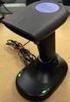 QuickScan QS6500/QS6500BT Product Reference Guide PSC Inc 959 Terry Street Eugene, Oregon 97402 Telephone: (541) 683-5700 Fax: (541) 345-7140 An Unpublished Work - All rights reserved. No part of the contents
Laser Scanner Programming Guide (SE923 laser engine)
 Laser Scanner Programming Guide (SE923 laser engine) CONTENT Technical note... 5 How to recognise the type of the laser barcode engine... 5 How to program the laser barcode reader into default value...
Barcode Magstripe. Decoder & Scanner. Programming Manual
 Barcode Magstripe Decoder & Scanner Programming Manual CONTENTS Getting Started... 2 Setup Procedures... 3 Setup Flow Chart...4 Group 0 : Interface Selection... 5 Group 1 : Device Selection for keyboard
Product Reference Guide. QuickScan TM QS6500/QS6500BT. General Purpose Handheld Linear Imager Bar Code Reader with Bluetooth Wireless Technology
 QuickScan TM QS6500/QS6500BT General Purpose Handheld Linear Imager Bar Code Reader with Bluetooth Wireless Technology Product Reference Guide Datalogic Scanning, Inc. 959 Terry Street Eugene, Oregon 97402
Index...1. Introduction...3. Installation- Keyboard Wedge...3 RS-232...3 USB...3. Default Setting for each barcode shown as below:...
 Index Index...1 Introduction...3 Installation- Keyboard Wedge...3 RS-232...3 USB...3 Default Setting for each barcode shown as below:...4 Programming the MS320...5 Interface Selection...7 Keyboard wedge...8
Part No. : MUL-53221-07 PROGRAMMING GUIDE
 Part No. : MUL-53221-07 PROGRAMMING GUIDE PROGRAMMING GUIDE for BARCODE SCANNERS The guide can be used as keyboard emulation, RS- 232C serial interface, and USB 1.1 interface and wand emulation. IMPORTANT
METROLOGIC INSTRUMENTS INC. MetroSelect Single-Line Configuration Guide
 METROLOGIC INSTRUMENTS INC. MetroSelect Single-Line Configuration Guide Copyright 2005 by Metrologic Instruments, Inc. All rights reserved. No part of this work may be reproduced, transmitted, or stored
Voyager 9520/40 Voyager GS9590 Eclipse 5145
 Voyager 9520/40 Voyager GS9590 Eclipse 5145 Quick Start Guide Aller à www.honeywellaidc.com pour le français. Vai a www.honeywellaidc.com per l'italiano. Gehe zu www.honeywellaidc.com für Deutsch. Ir a
METROLOGIC INSTRUMENTS, INC. IS4225 ScanGlove USB Addendum for the MetroSelect Single-Line Configuration Guide
 METROLOGIC INSTRUMENTS, INC. IS4225 ScanGlove USB Addendum for the MetroSelect Single-Line Configuration Guide Copyright 2005 by Metrologic Instruments, Inc. All rights reserved. No part of this work may
Scanner Configuration
 Scanner Configuration SmartScan Manual DOC Version 2.21 This document is specifically designed for the user to print two pages per sheet of paper with optimal print quality. Copyright 2005~ 2008 CIPHERLAB
BARCODE READER V 2.1 EN USER MANUAL
 BARCODE READER V 2.1 EN USER MANUAL INSTALLATION OF YOUR DEVICE PS-2 Connection RS-232 Connection (need 5Volts power supply) 1 INSTALLATION OF YOUR DEVICE USB Connection 2 USING THIS MANUAL TO SETUP YOUR
Enter/Exit programming
 P/N: MUL-53247-02 Enter/Exit programming (This barcode is also found at back cover page.) Framed values are default values. All Rights Reserved This guide is designed for advanced settings of Hand Free
USER'S GUIDE NUSCAN 2100 Series
 BARCODE SCANNER USER'S GUIDE NUSCAN 2100 Series Table of Contents 1. Limited Warranty...1 2. Introduction...2 3. Contents...3 4. Barcode Symbologies...3 5. Product Introduction...3 6. Installation...4
Metrologic MS1690 2D Scanner Installation Guide
 Metrologic MS1690 2D Scanner Installation Guide Revision 1.0 Revision History 1.0 04/17/2007 Initial Release The latest version of this document can be found in the following places: Internally for Cerner
Programming Reference Guide HP USB Barcode Scanner
 Programming Reference Guide HP USB Barcode Scanner Document Part Number: 430944-002 August 2006 Print this document before setting up the HP USB Barcode Scanner. The document provides the programming bar
HAND-HELD DEVICES II. Software Configuration Manual
 HAND-HELD DEVICES II Software Configuration Manual HAND-HELD DEVICES II SOFTWARE CONFIGURATION MANUAL DATALOGIC S.p.A. Via Candini 2 40012 - Lippo di Calderara di Reno Bologna - Italy Hand-Held Devices
Enter/Exit Programming Mode
 Enter/Exit Programming Mode (This barcode can also be found at back cover page.) Framed values are default values. IMPORTANT NOTICE No warranty of any kind is made in regard to this material, including,
All brand, product and service, and trademark names are the property of their registered owners.
 Copyright 2010 EQUATOR LIMITED All rights reserved. All intellectual property rights are the property of their owners. EQUATOR LIMITED is authorized the right to use the software; it is provided under
MS100 Bar Code Pen Reader
 MS100 Bar Code Pen Reader AdventureJan General Advisory Improper handling, storage, environmental influences and /or product modification can lead to problems during use. This is particularly true if repairs
MetroSelect. Single-Line Scanner. Configuration Guide
 MetroSelect Single-Line Scanner Configuration Guide Disclaimer Honeywell International Inc. ( HII ) reserves the right to make changes in specifications and other information contained in this document
QuickScan Mobile. Reference Manual
 QuickScan Mobile Reference Manual Datalogic Scanning, Inc. 959 Terry Street Eugene, Oregon 97402 USA Telephone: (541) 683-5700 Fax: (541) 345-7140 An Unpublished Work - All rights reserved. No part of
MetroSelect Programming Guide. MLPN 2407/December 1998
 MetroSelect Programming Guide MLPN 2407/December 1998 Locations: USA Corporate Headquarters Europe Metrologic Instruments, Inc. Metrologic Instruments GmbH 90 Coles Road Dornierstrasse 2 Blackwood, NJ
Touch TD1100 Family General Purpose Corded Handheld Contact Imager Bar Code Reader
 Touch TD1100 Family General Purpose Corded Handheld Contact Imager Bar Code Reader Product Reference Guide Datalogic ADC, Inc. 959 Terry Street Eugene, Oregon 97402 USA Telephone: (541) 683-5700 Fax: (541)
TaoTronics Laser Barcode Scanner User s Manual
 TaoTronics Laser Barcode Scanner User s Manual SETUP from PC keyboard For KBW or KBW/RS232 interface 1 Features * Simple installation,keyboard Wedge Serial, Wand Emulation tc * Superior keyboard wedge
Magellan TM 3200VSi. On-Counter Vertical Presentation Scanner. Product Reference Guide
 Magellan TM 3200VSi On-Counter Vertical Presentation Scanner Product Reference Guide Datalogic Scanning, Inc. 959 Terry Street Eugene, Oregon 97402 USA Telephone: (541) 683-5700 Fax: (541) 345-7140 An
QuickScan TM L QD 2300 Bar Code Scanner
 QuickScan TM L QD 2300 Bar Code Scanner Product Reference Guide Datalogic ADC, Inc. 959 Terry Street Eugene, OR 97402 USA Telephone: (541) 683-5700 Fax: (541) 345-7140 2007-2014 Datalogic ADC, Inc. An
Bar Code CCD Scanner OPERATION MANUAL
 ISO 9002 Certified Lead with technology Win customers with service Bar Code CCD Scanner OPERATION MANUAL 69 Jarltech International Inc. 1998. All rights reserved. Under the copyright laws, this manual
MetroSelect Single Line Configuration Guide. MS9500 Voyager Series i
 MetroSelect Single Line Configuration Guide MS9500 Voyager Series i LOCATIONS Corporate Headquarters Metrologic Instruments, Inc. Customer Service: 1-800-ID-METRO 90 Coles Road Tel: 856-228-8100 Blackwood,
QuickScan L. Barcode Scanner. Advanced Data Formatting (ADF) Guide
 QuickScan L Barcode Scanner Advanced Data Formatting (ADF) Guide Datalogic Scanning, Inc. 959 Terry Street Eugene, Oregon 97402 Telephone: (541) 683-5700 Fax: (541) 345-7140 An Unpublished Work - All rights
Voyager 1202g BF. Quick Start Guide. Cordless Single-Line Laser Bar Code Scanner and CCB00-010BT-01N-BF base
 Voyager 1202g BF Cordless Single-Line Laser Bar Code Scanner and CCB00-010BT-01N-BF base Quick Start Guide Aller à www.honeywellaidc.com pour le français. Vai a www.honeywellaidc.com per l'italiano. Gehe
2 Advanced Scanner Configuration Guide
 2 Advanced Scanner Configuration Guide Table of contents Introduction...4 Operational Parameters...4 Set Default Parameter...7 Default Parameters...7 Beeper Volume...7 Beeper Tone...8 Beeper Frequency
Barcode Scanner User Manual V6.6.2
 Barcode Scanner User Manual V6.6.2 CONTENTS.......................................................................................... 1 1 2 2 3 4 13 14 15 17 17 19 19 20 22 23 23 28 29 33 42 60 65 85 87
BCST-20 Barcode Scanner. Instruction Manual. www.inateck.com
 BCST-20 Barcode Scanner Instruction Manual www.inateck.com IMPORTANT NOTICE Safety Precaution * DO NOT disassemble the scanner, or place foreign matter into the scanner causing a short circuit or circuit
CD-3860 Bar Code Scanner User s Manual
 CD-3860 Bar Code Scanner User s Manual Important Notice Rev. Original No warranty of any kind is made in regard to this material, including, but not limited to, implied warranties of merchantability or
QuickScan TM Lite QW2100
 QuickScan TM Lite QW2100 General Purpose Corded Handheld Linear Imager Bar Code Reader Product Reference Guide Datalogic Scanning, Inc. 959 Terry Street Eugene, Oregon 97402 USA Telephone: (541) 683-5700
LS6300 Lecteur de code-barres laser
 WWW.SYMCOD.COM Manuel LS6300 Lecteur de code-barres laser Version: 30/04/2013 Introduction Le lecteur laser Symcod LS6300 est une solution très abordable pour la gestion de vos opérations. Toujours à la
QuickScan TM Lite QW2100
 QuickScan TM Lite QW2100 General Purpose Corded Handheld Linear Imager Bar Code Reader Product Reference Guide Datalogic ADC, Inc. 959 Terry Street Eugene, OR 97402 USA Telephone: (541) 683-5700 Fax: (541)
APPENDIX E COMMAND BARCODES
 APPENDIX E COMMAND BARCODES Scan command barcode(s) to quickly configure the Socket Bluetooth Cordless Hand Scanner v3 (1D laser versions). By default, the CHS is in HID mode as a Keyboard device. IMPORTANT!
PowerScan 7000 2D Imager
 PowerScan 7000 2D Imager Product Reference Guide Datalogic Scanning, Inc. 959 Terry Street Eugene, Oregon 97402 Telephone: (541) 683-5700 Fax: (541) 345-7140 An Unpublished Work - All rights reserved.
Magellan TM 800i. On-Counter Presentation Omnidirectional Bar Code Reader. Product Reference Guide
 Magellan TM 800i On-Counter Presentation Omnidirectional Bar Code Reader Product Reference Guide Datalogic Scanning, Inc. 959 Terry Street Eugene, Oregon 97402 USA Telephone: (541) 683-5700 Fax: (541)
NOTICE: respective owner. Note: Specification is subject to changes without. notice.
 0 NOTICE: This device complies with Part 15 of the FCC Rules. Operation shall be subject to the following two conditions: (1) This device may not cause harmful interface, and (2) This device must accept
Users Manual. QuickBarII Single-Chip Bar Code Decoder
 Users Manual QuickBarII Single-Chip Bar Code Decoder REV E Dec. 22, 2009 LIMITED WARRANTY ID TECH warrants to the original purchaser for a period of 12 months from the date of invoice that this product
SocketScan Software Advanced Programming Guide
 SocketScan Software Advanced Programming Guide A guide to help you program symbology and parameter settings for the following Socket barcode scanning products: Secure Digital Scan Card Series 3 CompactFlash
Quick Installation. A Series of Intelligent Bar Code Reader with NeuroFuzzy Decoding. Quick Installation
 Quick Installation A Series of Intelligent Bar Code Reader with NeuroFuzzy Decoding This chapter intends to get your new FuzzyScan scanner working with your existing system within minutes. General instructions
Xenon 1900. Corded Area-Imaging Scanner. Quick Start Guide
 Xenon 1900 Corded Area-Imaging Scanner Quick Start Guide Note: Refer to your user s guide for information about cleaning your device. For localized language versions of this document, go to www.honeywellaidc.com.
METROLOGIC INSTRUMENTS, INC. USB Addendum for the IS4220 Programming Guide (MLPN 00-02343x)
 METROLOGIC INSTRUMENTS, INC. USB Addendum for the IS4220 Programming Guide (MLPN 00-02343x) LOCATIONS CORPORATE HEADQUARTERS NORTH AMERICA EUROPEAN, MIDDLE EAST & AFRICAN HEADQUARTERS USA, NEW JERSEY
ScanMaster for Scanner Configuration
 ScanMaster for Scanner Configuration For 1 Series Barcode Scanners: 1070, 1500, 1502 (1D, tethered) 1560, 1562, 1660, 1661 (1D, cordless) 1504, 1704 (2D, tethered) 1564, 1664 (2D, cordless) Version 1.30
1500/1502 Series Barcode Scanner
 1500/1502 Series Barcode Scanner Setup barcodes included. Version 1.20 Copyright 2008~2015 CIPHERLAB CO., LTD. All rights reserved The software contains proprietary information of CIPHERLAB CO., LTD.;
S302D. Programming Guide. 2D Imaging Barcode Scanner. Advanced Handheld High-Speed Laser Scanner
 S302D 2D Imaging Barcode Scanner Programming Guide 1 Advanced Handheld High-Speed Laser Scanner Revision History Changes to the original manual are listed below: Version Date Description of Version 1.0
Bluetooth Version FUZZYSCAN FAMILY. Quick Start Guide WIRELESS SCANNER
 Bluetooth Version FUZZYSCAN FAMILY Quick Start Guide WIRELESS SCANNER Getting Familiar with Your FuzzyScan Thank you for choosing Cino FuzzyScan Bluetooth Cordless Image Scanner. Powered by the combination
MK-SERIE 1000/1500/2000 AllOfBarcode.de Michael Krug - 83278Traunstein BARCODE SCANNER
 MK-SERIE 1000/1500/2000 AllOfBarcode.de Michael Krug - 83278Traunstein BARCODE SCANNER Configuration Guide - 1 - Table of Contents Chapter 1 System Information 1.1 About this manual 3 1.2 How to set up
Register your product and get support at www.philips.com/dictation DPM8500. Barcode scanner configuration guide
 Register your product and get support at www.philips.com/dictation DPM8500 Barcode scanner configuration guide Table of contents 1 Introduction 5 Operational Parameters 5 Parameter defaults 5 2 Set default
Voyager 1202g. Quick Start Guide. Cordless Single-Line Laser Bar Code Scanner
 Voyager 1202g Cordless Single-Line Laser Bar Code Scanner Quick Start Guide Aller à www.honeywellaidc.com pour le français. Vai a www.honeywellaidc.com per l'italiano. Gehe zu www.honeywellaidc.com für
BI-300. Barcode configuration and commands Manual
 BI-300 Barcode configuration and commands Manual 1. Introduction This instruction manual is designed to set-up bar code scanner particularly to optimize the function of BI-300 bar code scanner. Terminal
QUICK START GUIDE. Wasp WLS 9500. www.waspbarcode.com
 QUICK START GUIDE Wasp WLS 9500 www.waspbarcode.com LED Scan Window Beeper Trigger CORD ATTACHMENT Model Number and Serial Number appear here. Cable interface Interface cable modular connector Interface
TMCT-10 Barcode Scanner User Manual. 102, 5661-99 St. Edmonton, AB T6E 3N8 Ph. 780.988.0215 Fax 780.988.0465
 TMCT-10 Barcode Scanner User Manual 102, 5661-99 St. Edmonton, AB T6E 3N8 Ph. 780.988.0215 Fax 780.988.0465 IMPORTANT NOTICE Safety Precaution * DO NOT disassemble the scanner, or place foreign matter
Symbol LS9203. Product Reference Guide
 Symbol LS9203 Product Reference Guide Symbol LS9203 Product Reference Guide 72E-71538-03 Revision A February 2007 Motorola, Inc. 2007. All rights reserved. No part of this publication may be reproduced
QuickScan QS2500 Handheld Bar Code Scanner. Product Reference Guide
 QuickScan QS2500 Handheld Bar Code Scanner Product Reference Guide PSC Inc 959 Terry Street Eugene, Oregon 97402 Telephone: (541) 683-5700 Fax: (541) 345-7140 An Unpublished Work - All rights reserved.
Barcode reader setup manual
 Barcode reader setup manual Setup procedures are as follows: 1 Scan Begin setting 2 Scan your required function and its corresponding barcode 3 Scan End setting 4 All the setting parameters will be saved
GateKeeper: Barcode Scanner Setup. Rev. 20130410
 GateKeeper: Barcode Scanner Setup Table of Contents I. Introduction...3 A. Why Use a Serial Interface Barcode Scanner?...3 B. Adding a Serial Port to your computer...3 C. GateKeeper and Member Check-In...3
CT20 Barcode Scanner User Manual
 CT20 Barcode Scanner User Manual IMPORTANT NOTICE Safety Precaution * DO NOT disassemble the scanner, or place foreign matter into the scanner cause a short circuit or circuit damage. * DO NOT expose the
User s Manual. Decoding Laser Scanner P/N 063496-003
 User s Manual Decoding Laser Scanner P/N 063496-003 Intermec Corporation 6001 36th Avenue West P.O. Box 4280 Everett, WA 98203-9280 U.S. service and technical support: 1-800-755-5505 U.S. media supplies
Scanner Configuration Manager Manual. for PC type computers
 Scanner Configuration Manager Manual for PC type computers TABLE OF CONTENTS 1. SCANNER CONFIGURATION MANAGER......... 1 Start it Up...................... 1 First Look...................... 3 Settings......................
because we care MS910 Wireless Barcode Scanner Quick Guide Full user s manual is available on the enclosed CD. Version 1.2 400947G
 because we care MS910 Wireless Barcode Scanner Quick Guide Full user s manual is available on the enclosed CD. Version 1.2 400947G because we care OUT OF THE BOX INTRODUCTION 2. Trigger 3. LED Indicator
1166 / 1266 Barcode Scanner
 1166 / 1266 Barcode Scanner Setup barcodes included. Version 3.03 Copyright 2005~2014 CIPHERLAB CO., LTD. All rights reserved The software contains proprietary information of CIPHERLAB CO., LTD.; it is
Synergy Controller Application Note 4 March 2012, Revision F Tidal Engineering Corporation 2012. Synergy Controller Bar Code Reader Applications
 Synergy Controller Bar Code Reader Applications Synergy Controller with Hand Held Products Bar Code Scanner OCR-A Labeled Part Introduction The value of the ubiquitous Bar Code Scanner for speeding data
Symbol LS1203. Product Reference Guide
 Symbol LS1203 Product Reference Guide LS1203 Product Reference Guide 72E-73953-04 Revision A November 2012 ii Symbol LS1203 Product Reference Guide Motorola Solutions, Inc. All rights reserved. No part
CNC File Transfer Box. Connecting the CNC File Transfer. CNC Transfer Program
 CNC File Transfer Box The CNC File Transfer connects a serial CNC device to the network so files can be easily transferred from a computer to the CNC equipment. Any computer on the network can transfer
Revision History. Advanced Handheld CCD/Laser Scanner
 Revision History Changes to the original manual are listed below: Version Date Description of Version 1.0 September 9, 2010 Initial release 1.1 February 18, 2011 Added Blink mode selections. i Important
Gryphon Family General Purpose Handheld Linear Imager or Laser Bar Code Readers
 Gryphon Family General Purpose Handheld Linear Imager or Laser Bar Code Readers Gryphon I GD4100/GM4100 Gryphon BT4100/ L GD4300 Product Reference Guide Datalogic Scanning, Inc. 959 Terry Street Eugene,
OPN_DL UTILITY SOFTWARE. INSTALLATION AND USER GUIDE - v2.03
 OPN_DL UTILITY SOFTWARE INSTALLATION AND USER GUIDE - v2.03 Electronic Reading Systems Ltd 14 Wolseley Business Park Kempston Beds MK42 7PW Tel: 01234 855300 Fax: 01234 855446 CONTENTS 1.0 INTRODUCTION
DL910 SERIES. Instruction Manual
 DL910 SERIES Instruction Manual DL910 SERIES INSTRUCTION MANUAL ALL RIGHTS RESERVED Datalogic reserves the right to make modifications and improvements without prior notification. Datalogic shall not
Barcode Scanning Made Easy. Programming Guide
 Barcode Scanning Made Easy Programming Guide CCD Scanner Programming Guide Please Read Note: The Wasp WCS3900 Series Scanners are ready to scan the most popular barcodes out of the box. This manual should
Barcode Scanning Made Easy. WWS500 Programming Guide
 Barcode Scanning Made Easy WWS500 Programming Guide Table of Contents Chapter 1. Introduction...........................2 Chapter 2. Barcode Symbologies...................3 Chapter 3. Quick Start............................4
VersaScan II. Barcode Scanner Quick Start Manual. ID TECH 10721 Walker Street Cypress, CA 90630 (714) 761-6368 www.idtechproducts.
 VersaScan II TM Barcode Scanner Quick Start Manual ID TECH 10721 Walker Street Cypress, CA 90630 (714) 761-6368 www.idtechproducts.com 80105501-001 rev.a FCC WARNING STATEMENT This equipment has been tested
MagellanTM 2200VS and 2300HS
 MagellanTM 2200VS and 2300HS Enhanced Product Reference Guide Datalogic Scanning, Inc. 959 Terry Street Eugene, Oregon 97402 USA Telephone: (541) 683-5700 Fax: (541) 345-7140 An Unpublished Work - All
TCP/IP MODULE CA-ETHR-A INSTALLATION MANUAL
 TCP/IP MODULE CA-ETHR-A INSTALLATION MANUAL w w w. c d v g r o u p. c o m CA-ETHR-A: TCP/IP Module Installation Manual Page Table of Contents Introduction...5 Hardware Components... 6 Technical Specifications...
Baracoda RoadRunners. User Guide. This document is to be used with the Baracoda RoadRunners. Baracoda RoadRunners
 User Guide Baracoda RoadRunners This document is to be used with the Baracoda RoadRunners Baracoda RoadRunners Package contents Check that you have the following items. Contact your reseller if any item
1560/1562 Barcode Scanner
 1560/1562 Barcode Scanner Setup barcodes included. Version 1.13 Copyright 2009~2014 CIPHERLAB CO., LTD. All rights reserved The software contains proprietary information of CIPHERLAB CO., LTD.; it is provided
Gryphon I GD44XX/GBT4400 General Purpose Handheld Area Imager Bar Code Reader
 Gryphon I GD44XX/GBT4400 General Purpose Handheld Area Imager Bar Code Reader Product Reference Guide Datalogic Scanning, Inc. 959 Terry Street Eugene, Oregon 97402 USA Telephone: (541) 683-5700 Fax: (541)
Configure Your FuzzyScan
 Configure Your FuzzyScan A Series of Intelligent Bar Code Reader with NeuroFuzzy Decoding Before you trying to configure the FuzzyScan, you must refer to the Quick Installation chapter of reading devices
3800 Linear Series. Quick Start Guide
 3800 Linear Series Quick Start Guide Note: Refer to your user s guide for information about cleaning your device. For localized language versions of this document, go to www.honeywell.com/aidc. Getting
Synapse Smart Cable for NEC PC 9821 Interface Guide
 Synapse Smart Cable for NEC PC 9821 Interface Guide 73-12805-0152 Revision A March 1996 For the following Model Configuration: STI80-0152 73-12805-0152 Revision A March 1996 FCC Information This equipment
1704 Barcode Scanner. Setup barcodes included. Version 1.08
 1704 Barcode Scanner Setup barcodes included. Version 1.08 Copyright 2010~2012 CIPHERLAB CO., LTD. All rights reserved The software contains proprietary information of CIPHERLAB CO., LTD.; it is provided
Gryphon 2D Family General Purpose Handheld Area Imager Bar Code Reader Gryphon I GD44XX/GBT4400/GM440X
 Gryphon 2D Family General Purpose Handheld Area Imager Bar Code Reader Gryphon I GD44XX/GBT4400/GM440X Product Reference Guide Datalogic Scanning, Inc. 959 Terry Street Eugene, Oregon 97402 USA Telephone:
Virtual Integrated Design Getting started with RS232 Hex Com Tool v6.0
 Virtual Integrated Design Getting started with RS232 Hex Com Tool v6.0 Copyright, 1999-2007 Virtual Integrated Design, All rights reserved. 1 Contents: 1. The Main Window. 2. The Port Setup Window. 3.
MK-5200 2D Imager Barcode Scanner Configuration Guide
 MK-5200 2D Imager Barcode Scanner Configuration Guide V 1.2 Programming the Engine Code Programming On/Off Read the barcode to activate Code Programming function. One or more Code Programming barcodes
ACU-1000 Manual Addendum Replacement of CPM-2 with CPM-4
 ACU-1000 Manual Addendum Replacement of CPM-2 with CPM-4 1 PURPOSE:... 1 2 CPM-4/CPM-2 COMPATIBILITY... 2 2.1 NETWORK CABLES... 2 2.2 FACTORY DEFAULT SETTINGS... 2 2.3 CHANGING THE RS-232 SERIAL PORT BAUD
MD6 Series 2D Barcode Scanner
 MD6 Series 2D Barcode Scanner User Manual Version: MD6_UM_EN_V1.1.9 2 Warning: Ensure that the optional DC adapter works at +5V, especially for the RS-232 interface cable. NOTICE: 1. All software, including