
Experiment # 1 AIM: Study and practice of Internal & External DOS commands.
|
|
|
- Lynette Chase
- 9 years ago
- Views:
Transcription
1 Experiment # 1 AIM: Study and practice of Internal & External DOS commands. In DOS systems, the internal commands reside in COMMAND.COM, which loads into memory when the computer system is started; these commands do not reside on disk. The external commands are files that do reside on disk and have an extension of.com,.exe, or.bat. Both command types are executed from the MS-DOS prompt. Internal Commands: CHDIR(CD) CLS DATE DEL(ERASE) DIR EXIT MKDIR(MD) REM RENAME(REN) RMDIR(RD) TIME VER OUTPUT: Internal Commands: CHDIR(CD) cd d: Changes current directory to D Directory. CLS cls Running the cls command at the command prompt would clear your screen of all previous text and only return the prompt. DATE date Display the current date and prompt for a new one. If no date is entered, the current date will be kept. DEL(ERASE) del c:\windows\test.tmp Delete the c:\windows\test.tmp in the windows directory if it exists. DIR dir Lists all files and directories in the directory that you are currently in. External Commands: Ping Arp Chkdsk FTP Help Hostname Ipconfig logoff Power Print Reg Shutdown External Commands: Systeminfo systeminfo The above command would display information about the computer and the operating system, including networking information, and installed hotfixes. Arp arp -a Interface Internet Address Physical Address Type F7-23 static Chkdsk chkdsk Will display all information described above and also report any crossed linked files. Mem mem bytes total conventional memory bytes available to MS-DOS largest executable program size bytes total contiguous extended memory 0 bytes available contiguous extended memory bytes available XMS memory MS-DOS resident in High Memory Area Help HELP [command] command - displays help information on that command.
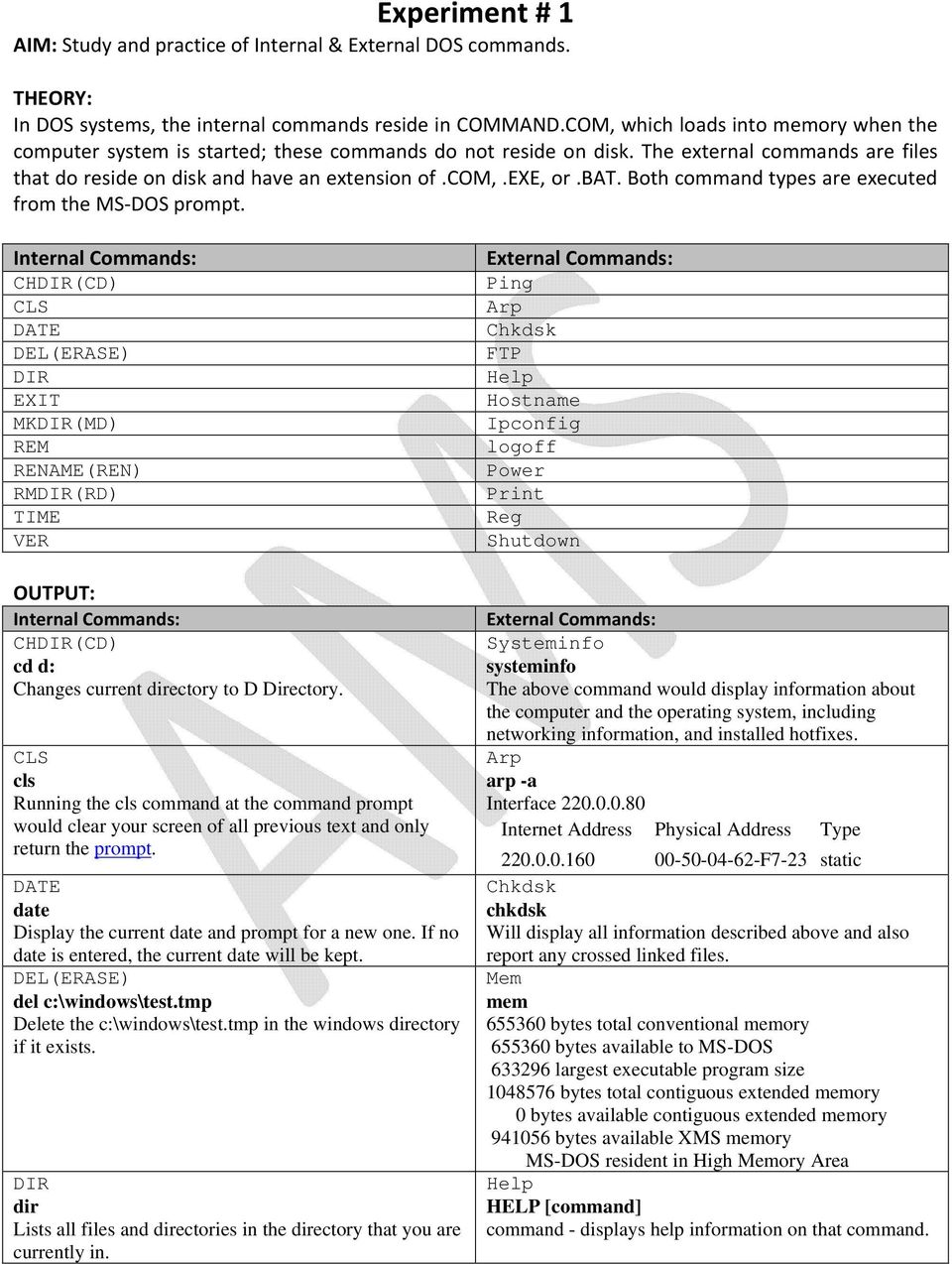
2 EXIT exit it returns to the windows desktop and quits from the command prompt. MKDIR(MD) md test The above example creates the "test" directory in the directory you are currently in. Vol vol c: Display the volume of drive c: as shown in the below example. Volume in drive C has no label. Volume Serial Number is 1C24-AB20 RENAME(REN) rename c:\chope hope Rename the directory chope to hope. RMDIR(RD) rmdir c:\test Remove the test directory, if empty. TIME Time Displays the system time. VER ver Display what version of MS-DOS or Windows command prompt you're using. Below is an example of what this may look like. Microsoft Windows XP [Version ] Hostname hostname Running the command would display the hostname for the computer. Ipconfig ipconfig Ethernet adapter Local Area Connection: Connection-specific DNS Suffix. : hsd1.ut.comcast.net. IP Address : Subnet Mask : Default Gateway : logoff logoff Would immediately log off the profile currently logged into Windows. Power power std Monitors hardware devices and then chooses the best power procedure for each. Print print c:\file.txt /c /d:lpt1 Prints the file file.txt to the parallel port lpt1. Scandisk scandisk c: /autofix Scandisk the main hard disk drive for any errors and if found automatically fix those errors. Shutdown shutdown -s This would display a Windows System Shutdown window for 30 seconds, warning the user that the computer is going to shutdown.

3 Experiment # 2 AIM: Study and Practice of MS windows Folder related operations, My-Computer, window explorer, Control Panel. Folders In Windows, the files, folders, and subfolders are represented by small pictures called icons. The icon for folders and subfolders intuitively looks like a folder. Every Windows folder provides easy access to common file and folder management tasks. When you open any folder on your computer, a list of hyperlinked tasks is displayed next to the folder contents. You can select a file or folder, and then click a task to rename, copy, move, or delete it. Folder related operations Create Delete Rename Copy Move Modify Customize My Computer In Windows, you can locate and manage your files and directories (folders) in either My Computer or Explorer. My Computer is most convenient for viewing one directory or window at a time; Explorer is your best choice when you want to view or reorganize files in different parts of your computer. In My Computer, you choose a drive, and by default, view icons or a list of folders and files in that drive. Your view is one window at a time, unless you choose explore in My Computer to move to Explorer, which makes it easy to work in a particular folder, but difficult to move between folders. When you open a folder in My Computer, a new window opens; when you open a folder within that window, another window opens. Soon your screen is cluttered with windows, unless you initially choose, in view, options to use a single window. Windows Explorer Windows Explorer is an application that provides detailed information about your files, folders, and drives. You can use it to see how your files are organized and to copy, move, and rename files, as well as perform other tasks pertaining to files, folders, and drives. The simplest way to access Windows Explorer is to right-click the Start menu or the My Computer icon and selects Explore. If your keyboard has a Windows logo key, you can press Win-e to launch Windows Explorer. Alternatively, you can access it from the Start menu. In newer operating systems, it is under Accessories. Control Panel Control Panel is full of specialized tools that are used to change the way Windows looks and behaves. Some of these tools help you adjust settings that make your computer more fun to use. For example, use Mouse to replace standard mouse pointers with animated icons that move on your screen, or use

4 Sounds and Audio Devices to replace standard system sounds with sounds you choose. Other tools help you set up Windows so that your computer is easier to use. For example, if you are left-handed, you can use Mouse to switch the mouse buttons so that the button on the right performs the primary functions of selecting and dragging. To open Control Panel, click Start and then click Control Panel. If your computer is set up in Classic view using the more familiar Start menu, click Start, point to Settings, and then click Control Panel. Experiment # 3 AIM: Study and practice of Basic linux Commands ls, cp, mv, rm, chmod, kill, ps etc. Linux Linux is an operating system that was initially created as a hobby by a young student, Linus Torvalds, at the University of Helsinki in Finland. Linus had an interest in Minix, a small UNIX system, and decided to develop a system that exceeded the Minix standards. He began his work in 1991 when he released version 0.02 and worked steadily until 1994 when version 1.0 of the Linux Kernel was released. The kernel, at the heart of all Linux systems, is developed and released under the GNU General Public License and its source code is freely available to everyone. It is this kernel that forms the base around which a Linux operating system is developed. OUTPUT: Command Example Description cd Change directory cd /home Change the current working directory to /home. The '/' indicates relative to root, and no matter what directory you are in when you execute this command, the directory will be changed to "/home". cd httpd Change the current working directory to httpd, relative to the current location which is "/home". The full path of the new working directory is "/home/httpd". cd.. Move to the parent directory of the current directory. This command will make the current working directory "/home. cd ~ Move to the user's home directory which is "/home/username". The '~' indicates the users home directory. cp Copy files cp myfile yourfile Copy the files "myfile" to the file "yourfile" in the current working directory. This command will create the file "yourfile" if it doesn't exist. It will normally overwrite it without warning if it exists. cp -i myfile yourfile With the "-i" option, if the file "yourfile" exists, you will be prompted before it is overwritten. cp -i /data/myfile. Copy the file "/data/myfile" to the current working directory and name it "myfile". Prompt before overwriting the file. cp -dpr srcdir destdir Copy all files from the directory "srcdir" to the directory "destdir" preserving links (-p option), file attributes (-p option), and copy recursively (-r option). With these options, a directory and all it contents can be copied to another directory. logout Logs the current user off the system. ls List files ls List files in the current working directory except those starting with. and only show the file name. ls -al List all files in the current working directory in long listing format showing permissions, ownership, size, and time and date stamp

5 mv Move or rename files mv -i myfile yourfile mv -i /data/myfile. Move the file from "myfile" to "yourfile". This effectively changes the name of "myfile" to "yourfile". Move the file from "myfile" from the directory "/data" to the current working directory. pwd Show the name of the current working directory more /etc/profile Lists the contents of the "/etc/profile" file to the screen one page at a time. shutdown Shuts the system down. shutdown -h now shutdown -r now Shuts the system down to halt immediately. Shuts the system down immediately and the system reboots. rm This command is used to remove or delete files and directories rm directory2 This will delete the directory - directory2 chmod ps chmod u+x file chmod 751 file chmod u=rwx,g=rx,o=x file chmod =r file chmod 444 file chmod a-wx,a+r file chmod 4755 file ps ps -ef ps -l change file access permissions Add execute-by-user permission to file: Either of them will assign read/write/execute permission by owner (7), read/execute permission by group (5), and execute-only permission by others (1) to file Any one of them will assign read-only permission to file for everyone: This makes the executable setuid, assigns read/write/execute permission by owner, and assigns read/execute permission by group and others Typing ps alone would list the current running processes. Below is an example of the output that would be generated by the ps command. PID TTY TIME CMD 6874 pts/9 0:00 ksh 6877 pts/9 0:01 csh 418 pts/9 0:00 csh Display full information about each of the processes currently running. UID PID PPID C STIME TTY TIME CMD hope Sep27? 00:00:06 sshd: hope@pts/87 hope Sep27 pts/87 00:00:00 -csh hope :17 pts/87 00:00:00 ps -ef Displays processes including those that are in a wait state, similar to the below example. F S UID PID PPID C PRI NI ADDR SZ WCHAN TTY TIME CMD 0 T finish pts/0 00:00:00 pico 0 R pts/0 00:00:00 ps 4 S wait pts/0 00:00:00 bash

6 kill kill [-s] [-l] %pid kill command is used to kill the background process. -s -l -pid Specify the signal to send. The signal may be given as a signal name or number. Write all values of signal supported by the implementation, if no operand is given. Process id or job id. -9 Force to kill a process.

7 Experiment # 4 AIM: Creation and editing of Text files using MS- word. MS-Word: Microsoft Word is a word processing software package. You can use it to type letters, reports, and other documents. This lesson introduces you to the Word window. You use the Word window to interact with Microsoft Word. Getting Started Open Microsoft Word by clicking on Start > All Programs and selecting Microsoft Word from the list. Word will open with a blank document. You will see the flashing cursor at the top left corner of the page, ready for you to start typing. If you hold your mouse over any of the icons in the menu bars or toolbars, you will see a quick description of what those buttons do. If you can't see any of the toolbars mentioned in this article (mainly the Standard and Formatting toolbars), you may have to instruct Word to show them by clicking View then Toolbars and putting a tick by any toolbars you want to show. TASK: Create a MS-Word.doc file contain yours complete biodata. Experiment # 5 AIM: Creation and operating of spreadsheet using MS-Excel. MS-Excel: Microsoft Excel is an electronic spreadsheet that runs on a personal computer. You can use it to organize your data into rows and columns. You can also use it to perform mathematical calculations quickly. This tutorial teaches Microsoft Excel basics. Although knowledge of how to navigate in a Windows environment is helpful, this tutorial was created for the computer novice. This lesson will introduce you to the Excel window. You use the window to interact with Excel. Getting Started Click on the Start button, point to Programs, and following by Microsoft Office and click on Microsoft Office Excel TASK: Create a MS-Excel.xls file contain mark sheet of 10 th and 12 th Standards.

8 Experiment # 6 AIM: Creation and editing power-point slides using MS- power point. MS-Power Point: PowerPoint is a presentation software package. With PowerPoint, you can easily create slide shows. Trainers and other presenters use slide shows to illustrate their presentations. This tutorial teaches PowerPoint basics. This lesson introduces you to the PowerPoint window. You use the window to interact with PowerPoint. Microsoft PowerPoint 2003 is a program designed to create and use a presentation. This Guide will take you through getting started and building your confidence in the skills needed to use the software productively Getting Started To start PowerPoint, go to the Start menu and select Programs ->Microsoft Office ->Power Point. TASK: Create a MS-Power Point Presentation.ppt file Covers the topic Computer Organization. Experiment # 7 AIM: Creation and manipulation of database table using SQL in MS-Access. MS-Access: Microsoft Access 2003 is a powerful, yet easy to learn, relational database application for Microsoft Windows. It introduces fundamental database concepts and operations and illustrates how they are performed in Microsoft Access Access is a pseudo-relational database management system from Microsoft that combines the relational Microsoft Jet Database Engine with a graphical user interface and software-development tools. It is a member of the Microsoft Office suite of applications Getting Started Click the Windows Start button, located in the bottom-left corner of the screen. Use the mouse to move the pointer over the words All Programs. A menu pops up to the right of All Programs. The programs and menus you see listed depend on the programs installed on your computer, so your menu will probably look somewhat different from other users' menus. On the All Programs menu, move the pointer over the words Microsoft Office 2003, then point to and click Microsoft Office Access 2003.

9 TASK: Create a MS-Access database.mdb file to store the results of students. Fields Student Name Class Date of Birth Marks Obtained Division Type Text Number Date/Time Number Number Number Rank Experiment # 8 AIM: WAP to illustrate Arithmetic expressions. (Implement the addition, multiplication, subtraction and division). CODE: #include<iostream.h> #include<conio.h> #include<process.h> class arithmetic public: void add() double a, b, c; cout<<"addition OF TWO NUMBERS"; cout<<"\n\n\nenter The Number#1 :: "; cin>>a; cout<<"\nenter the Number#2 :: "; cin>>b; c=a+b; cout<<"\n\nsum = "<<c; void sub() double a, b, c; cout<<"substraction OF TWO NUMBERS"; cout<<"\n\n\nenter The Number#1 :: "; cin>>a; cout<<"\nenter the Number#2 :: "; cin>>b; c=a-b; cout<<"\n\nsub = "<<c; void mul() double a, b, c; cout<<"multiplication OF TWO NUMBERS"; cout<<"\n\n\nenter The Number#1 :: "; cin>>a; cout<<"\nenter the Number#2 :: "; cin>>b; c=a*b; ; cout<<"\n\nmul = "<<c; void div() double a, b, c; cout<<"division OF TWO NUMBERS"; cout<<"\n\n\nenter The Number#1 :: "; cin>>a; cout<<"\nenter the Number#2 :: "; cin>>b; c=a/b; cout<<"\n\nqnt = "<<c; void main() a: clrscr(); int i; cout<<"\n*************************"; cout<<"\n*****enter The Value*****"; cout<<"\n*************************"; cout<<"\n\n\t1 --> Addition"; cout<<"\n\t2 --> Subtraction"; cout<<"\n\t3 --> Multiplication"; cout<<"\n\t4 --> Division"; cout<<"\n\t0 --> Exit"; cout<<"\n\n\tvalue = "; cin>>i; clrscr(); arithmetic obj; switch(i) case 0 : exit(0); case 1 : obj.add();

10 break; case 2 : obj.sub(); break; case 3 : obj.mul(); break; case 4 : obj.div(); goto a; getch(); default : break; break; Experiment # 9 AIM: WAP to illustrate Arrays. (Implement the addition of array elements). CODE: #include<iostream.h> #include<conio.h> void main() int index, a[10]; int sum=0; for(index=0;index<10;index++) cout<< Enter The <<i<< th Element = ; cin>>a[i]; sum = sum + a[i]; cout<<endl<< \n\n\n ; cout<< SUM of ARRAY = <<sum; Experiment # 10 AIM: WAP to illustrate functions. (Implement the table generator). CODE: #include<iostream.h> #include<conio.h> void table(int i); void main() int a; cout<< Enter The Number For The Table= ;

11 cin>>a; table(a); getch(); void table(int i) int number, index, temp; number = i; for (index=1; index<=10; i++) temp = index * number; cout<< number * <<index<< = <<temp<<endl; Experiment # 11 AIM: WAP to illustrate constructor & Destructor. (Display the working of constructor and destructor). CODE: #include<iostream.h> #include<conio.h> class mycpp public: ; Void main() myclass obj; obj.add(5,6) ; getch(); mycpp() cout<< THIS IS THE CONSTRUCTOR FUNCTION CALL. ; void add(int I, int j) int k = i + j; cout<< SUM = <<k; ~mycpp() cout<< THIS IS THE DESTRUCTOR FUNCTION CALL. ;

Introduction to Operating Systems
 Introduction to Operating Systems It is important that you familiarize yourself with Windows and Linux in preparation for this course. The exercises in this book assume a basic knowledge of both of these
Introduction to MS WINDOWS XP
 Introduction to MS WINDOWS XP Mouse Desktop Windows Applications File handling Introduction to MS Windows XP 2 Table of Contents What is Windows XP?... 3 Windows within Windows... 3 The Desktop... 3 The
New Lab Intro to KDE Terminal Konsole
 New Lab Intro to KDE Terminal Konsole After completing this lab activity the student will be able to; Access the KDE Terminal Konsole and enter basic commands. Enter commands using a typical command line
Tutorial Guide to the IS Unix Service
 Tutorial Guide to the IS Unix Service The aim of this guide is to help people to start using the facilities available on the Unix and Linux servers managed by Information Services. It refers in particular
Moxa Device Manager 2.0 User s Guide
 First Edition, March 2009 www.moxa.com/product 2009 Moxa Inc. All rights reserved. Reproduction without permission is prohibited. Moxa Device Manager 2.0 User Guide The software described in this manual
FILE TRANSFER PROTOCOL (FTP) SITE
 FILE TRANSFER PROTOCOL (FTP) SITE Section 1 - SPIN System Overview As part of the digital plan submission process that Registries is currently implementing a File Transfer Protocol (FTP) site has been
LECTURE-7. Introduction to DOS. Introduction to UNIX/LINUX OS. Introduction to Windows. Topics:
 Topics: LECTURE-7 Introduction to DOS. Introduction to UNIX/LINUX OS. Introduction to Windows. BASIC INTRODUCTION TO DOS OPERATING SYSTEM DISK OPERATING SYSTEM (DOS) In the 1980s or early 1990s, the operating
warpct.com Basic Computer Skills MS Windows XP Workbook courseware by WARP! Computer Training
 warpct.com courseware by WARP! Computer Training Basic Computer Skills MS Windows XP Workbook Welcome! Thank you for evaluating a portion of this workbook. If you have any questions or comments regarding
User Guide for Windows 10
 User Guide for Windows 10 System requirements E10684 First Edition July 2015 To facilitate a smoother transition from your previous operating system, read the system requirements below before upgrading
After studying this lesson, you will have a clear understanding of, what an Operating System is. functions of an Operating System
 After studying this lesson, you will have a clear understanding of, what an Operating System is functions of an Operating System User Interfaces how to use Windows Operating System 5.1 Introduction As
File Manager Pro User Guide. Version 3.0
 File Manager Pro User Guide Version 3.0 Contents Introduction... 3 1.1. Navigation... 3 2. File Manager Pro... 5 2.1. Changing directories... 5 2.2. Deleting files... 5 2.3. Renaming files... 6 2.4. Copying
Moxa Device Manager 2.3 User s Manual
 User s Manual Third Edition, March 2011 www.moxa.com/product 2011 Moxa Inc. All rights reserved. User s Manual The software described in this manual is furnished under a license agreement and may be used
Presentations and PowerPoint
 V-1.1 PART V Presentations and PowerPoint V-1.2 Computer Fundamentals V-1.3 LESSON 1 Creating a Presentation After completing this lesson, you will be able to: Start Microsoft PowerPoint. Explore the PowerPoint
Introduction to the UNIX Operating System and Open Windows Desktop Environment
 Introduction to the UNIX Operating System and Open Windows Desktop Environment Welcome to the Unix world! And welcome to the Unity300. As you may have already noticed, there are three Sun Microsystems
Introduction To Microsoft Office PowerPoint 2007. Bob Booth July 2008 AP-PPT5
 Introduction To Microsoft Office PowerPoint 2007. Bob Booth July 2008 AP-PPT5 University of Sheffield Contents 1. INTRODUCTION... 3 2. GETTING STARTED... 4 2.1 STARTING POWERPOINT... 4 3. THE USER INTERFACE...
Getting Started on the Computer With Mouseaerobics! Windows XP
 This handout was modified from materials supplied by the Bill and Melinda Gates Foundation through a grant to the Manchester City Library. Getting Started on the Computer With Mouseaerobics! Windows XP
Chapter 23 File Management (FM)
 Chapter 23 File Management (FM) Most Windows tasks involve working with and managing Files and Folders.Windows uses folders to provide a storage system for the files on your computer, just as you use manila
Lab 1: Introduction to the network lab
 CSCI 312 - DATA COMMUNICATIONS AND NETWORKS FALL, 2014 Lab 1: Introduction to the network lab NOTE: Be sure to bring a flash drive to the lab; you will need it to save your data. For this and future labs,
BIGPOND ONLINE STORAGE USER GUIDE Issue 1.1.0-18 August 2005
 BIGPOND ONLINE STORAGE USER GUIDE Issue 1.1.0-18 August 2005 PLEASE NOTE: The contents of this publication, and any associated documentation provided to you, must not be disclosed to any third party without
Guest PC. for Mac OS X. User Guide. Version 1.6. Copyright 1996-2005 Lismore Software Systems, Ltd. All rights reserved.
 Guest PC for Mac OS X Version 1.6 User Guide Copyright 1996-2005 Lismore Software Systems, Ltd. All rights reserved. Table of Contents About Guest PC... 1 About your Virtual Computer... 1 Creating a Virtual
Module 1. 4 Login-Send Message to Teacher
 Module 1. 4 Login-Send Message to Teacher Students, in this lesson you will 1. Learn to login to your InterAct account. 2. Learn how to send an email message. Logging on to Students Online 1. Launch the
Hands-on Practice. Hands-on Practice. Learning Topics
 Using Microsoft PowerPoint Software on a SMART Board Interactive Whiteboard You make presentations for a reason to communicate a message. With a SMART Board interactive whiteboard, you can focus the attention
TEL2821/IS2150: INTRODUCTION TO SECURITY Lab: Operating Systems and Access Control
 TEL2821/IS2150: INTRODUCTION TO SECURITY Lab: Operating Systems and Access Control Version 3.4, Last Edited 9/10/2011 Students Name: Date of Experiment: Read the following guidelines before working in
After going through this lesson you would be able to:
 18 :: Data Entry Operations 2 Operating System 2.1 INTRODUCTION The operating system in these days uses a graphical user interface (GUI). Here you do not have to remember all the commands by heart. The
Kernel. What is an Operating System? Systems Software and Application Software. The core of an OS is called kernel, which. Module 9: Operating Systems
 Module 9: Operating Systems Objective What is an operating system (OS)? OS kernel, and basic functions OS Examples: MS-DOS, MS Windows, Mac OS Unix/Linux Features of modern OS Graphical operating system
c. Securely insert the Ethernet cable from your cable or DSL modem into the Internet port (B) on the WGT634U. Broadband modem
 Start Here Follow these instructions to set up your router. Verify That Basic Requirements Are Met Assure that the following requirements are met: You have your broadband Internet service settings handy.
OPERATION MANUAL. MV-410RGB Layout Editor. Version 2.1- higher
 OPERATION MANUAL MV-410RGB Layout Editor Version 2.1- higher Table of Contents 1. Setup... 1 1-1. Overview... 1 1-2. System Requirements... 1 1-3. Operation Flow... 1 1-4. Installing MV-410RGB Layout
Working With Your FTP Site
 Working With Your FTP Site Welcome to your FTP Site! The UnlimitedFTP (UFTP) software will allow you to run from any web page using Netscape, Internet Explorer, Opera, Mozilla or Safari browsers. It can
Installing S500 Power Monitor Software and LabVIEW Run-time Engine
 EigenLight S500 Power Monitor Software Manual Software Installation... 1 Installing S500 Power Monitor Software and LabVIEW Run-time Engine... 1 Install Drivers for Windows XP... 4 Install VISA run-time...
StrikeRisk v6.0 IEC/EN 62305-2 Risk Management Software Getting Started
 StrikeRisk v6.0 IEC/EN 62305-2 Risk Management Software Getting Started Contents StrikeRisk v6.0 Introduction 1/1 1 Installing StrikeRisk System requirements Installing StrikeRisk Installation troubleshooting
Chapter 2 Preparing Your Network
 Chapter 2 Preparing Your Network This document describes how to prepare your network to connect to the Internet through a router and how to verify the readiness of your broadband Internet service from
Windows XP Managing Your Files
 Windows XP Managing Your Files Objective 1: Understand your computer s filing system Your computer's filing system has three basic divisions: files, folders, and drives. 1. File- everything saved on your
Getting Started with Vision 6
 Getting Started with Vision 6 Version 6.9 Notice Copyright 1981-2009 Netop Business Solutions A/S. All Rights Reserved. Portions used under license from third parties. Please send any comments to: Netop
Introduction to Windows XP Operating System
 Introduction to Windows XP Operating System Introduction to Windows XP Operating System Document Syllabus Course Description: This workshop will introduce basic Windows operating system concepts. Using
File Management Using Microsoft Windows
 File Management Using Microsoft Windows lab 2 Objectives: Upon successful completion of Lab 2, you will be able to Define the terms file and folder Understand file and memory storage capacity concepts
College of Continuing Education Video Production Room
 College of Continuing Education Video Production Room To Begin a Session: Step 1: Turn on the Station by pressing the red switch near the desktop monitor. By doing this the following equipment will be
Specific Information for installation and use of the database Report Tool used with FTSW100 software.
 Database Report Tool This manual contains: Specific Information for installation and use of the database Report Tool used with FTSW100 software. Database Report Tool for use with FTSW100 versions 2.01
Computer Networks I Laboratory Exercise 1
 Computer Networks I Laboratory Exercise 1 The lab is divided into two parts where the first part is a basic PC network TCP/IP configuration and connection to the Internet. The second part is building a
Windows XP Pro: Basics 1
 NORTHWEST MISSOURI STATE UNIVERSITY ONLINE USER S GUIDE 2004 Windows XP Pro: Basics 1 Getting on the Northwest Network Getting on the Northwest network is easy with a university-provided PC, which has
ICS Technology. PADS Viewer Manual. ICS Technology Inc PO Box 4063 Middletown, NJ 077748 732-671-5400 www.icstec.com
 ICS Technology PADS Viewer Manual ICS Technology Inc PO Box 4063 Middletown, NJ 077748 732-671-5400 www.icstec.com Welcome to PADS Viewer Page 1 of 1 Welcome to PADS Viewer Welcome to PADS (Public Area
Quick Start Guide for SAXTAX 2010 Programs
 Quick Start Guide for SAXTAX 2010 Programs 1. Installation: Installing from a Link: Please click on the link provided in the setup email received. You will automatically be prompted with a download window.
SA-9600 Surface Area Software Manual
 SA-9600 Surface Area Software Manual Version 4.0 Introduction The operation and data Presentation of the SA-9600 Surface Area analyzer is performed using a Microsoft Windows based software package. The
Opening a Command Shell
 Opening a Command Shell Win Cmd Line 1 In WinXP, go to the Programs Menu, select Accessories and then Command Prompt. In Win7, go to the All Programs, select Accessories and then Command Prompt. Note you
Unix Sampler. PEOPLE whoami id who
 Unix Sampler PEOPLE whoami id who finger username hostname grep pattern /etc/passwd Learn about yourself. See who is logged on Find out about the person who has an account called username on this host
6 USING WINDOWS XP 6.1 INTRODUCTION
 6 USING WINDOWS XP 6.1 INTRODUCTION The windows operating system started with the introduction of Windows OS and Windows for work group for networking. Since then it has come a long way and Windows 95,
5COMPUTER SCIENCE For Class IX (marks 55)
 5COMPUTER SCIENCE For Class IX (marks 55) 1. Introduction to Computers o History and development of computers - Types of computers (analogue, digital, hybrid) - Classification of digital computers (micro,
SAPIP GUI INSTALLATION. Table of Contents
 QUICK START GUIDE SAPIP GUI INSTALLATION Table of Contents 1. Install CSU cable driver for SapIP..2-3 2. Check for pre-requisite for SAPIP GUI install......2 3. Check for pre-requisite for SAPIP GUI install...2-6
Skype for Business User Guide
 Skype for Business User Guide Contents Accessing Skype for Business... 2 Starting Skype for Business on your desktop... 2 Subsequent access to Skype for Business... 3 Changing Skype for Business startup
GETTING STARTED TABLE OF CONTENTS
 Windows 7 Tutorial GETTING STARTED An operating system, sometimes called an OS, is the main program the computer uses to function properly. Operating systems act as a link between you, the user, and the
File Management Windows
 File Management Windows : Explorer Navigating the Windows File Structure 1. The Windows Explorer can be opened from the Start Button, Programs menu and clicking on the Windows Explorer application OR by
Ultra Thin Client TC-401 TC-402. Users s Guide
 Ultra Thin Client TC-401 TC-402 Users s Guide CONTENT 1. OVERVIEW... 3 1.1 HARDWARE SPECIFICATION... 3 1.2 SOFTWARE OVERVIEW... 4 1.3 HARDWARE OVERVIEW...5 1.4 NETWORK CONNECTION... 7 2. INSTALLING THE
Installing the SSH Client v3.2.2 For Microsoft Windows
 WIN1011 June 2003 Installing the SSH Client v3.2.2 For Microsoft Windows OVERVIEW... 1 SYSTEM REQUIREMENTS... 2 INSTALLING THE SSH PACKAGE... 2 STARTING THE PROGRAMS... 5 USING THE SHELL CLIENT... 8 USING
Produced by Flinders University Centre for Educational ICT. PivotTables Excel 2010
 Produced by Flinders University Centre for Educational ICT PivotTables Excel 2010 CONTENTS Layout... 1 The Ribbon Bar... 2 Minimising the Ribbon Bar... 2 The File Tab... 3 What the Commands and Buttons
Centre for Learning and Academic Development. IT Training. File Management. Windows Vista. Version 1.0 www.skills.bham.ac.uk
 Centre for Learning and Academic Development IT Training File Management Windows Vista Version 1.0 www.skills.bham.ac.uk File Management Windows Vista Author: Phil Smith and Linda Clark Version: 1.0, August
Operating Systems. and Windows
 Operating Systems and Windows What is an Operating System? The most important program that runs on your computer. It manages all other programs on the machine. Every PC has to have one to run other applications
Understanding Files and Folders
 Windows Files and Folders Overview Before I get into Windows XP's method of file management, let's spend a little space on a files and folder refresher course. (Just in case you forgot, of course.) The
Model 288B Charge Plate Graphing Software Operators Guide
 Monroe Electronics, Inc. Model 288B Charge Plate Graphing Software Operators Guide P/N 0340175 288BGraph (80207) Software V2.01 100 Housel Ave PO Box 535 Lyndonville NY 14098 1-800-821-6001 585-765-2254
1. Installing The Monitoring Software
 SD7000 Digital Microphone Monitor Software manual Table of Contents 1. Installing The Monitor Software 1.1 Setting Up Receivers For Monitoring 1.2 Running The Application 1.3 Shutdown 2. The Detail Monitoring
Microsoft Access 2007 Introduction
 Microsoft Access 2007 Introduction Access is the database management system in Microsoft Office. A database is an organized collection of facts about a particular subject. Examples of databases are an
Section 5 Icons and Shortcuts
 ECDL Section 5 Icons and Shortcuts Section 5 Icons and Shortcuts By the end of this section you should be able to: Open files in their default programs Create, edit and delete shortcuts Select and move
itunes Song Library and/or Music CD Conversion Software Installation & Operational Instructions
 itunes Song Library and/or Music CD Conversion Software Installation & Operational Instructions Copyright 2010 Southwestern Microsystems Inc. All rights reserved. Revision: B Dated: 5/22/2011 General Information
Legal Notes. Regarding Trademarks. 2012 KYOCERA Document Solutions Inc.
 Legal Notes Unauthorized reproduction of all or part of this guide is prohibited. The information in this guide is subject to change without notice. We cannot be held liable for any problems arising from
Database File. Table. Field. Datatype. Value. Department of Computer and Mathematical Sciences
 Unit 4 Introduction to Spreadsheet and Database, pages 1 of 12 Department of Computer and Mathematical Sciences CS 1305 Intro to Computer Technology 15 Module 15: Introduction to Microsoft Access Objectives:
SMART Board Training Outline Trainer: Basel Badran
 Sharjah Higher Colleges of Technology SMART Board Training Outline Trainer: Basel Badran What is a SMART Board? o Concept & Technology SMART Board Components: o Smart Tools Start Center Recorder Keyboard
Standalone recorder instruction
 Standalone recorder instruction 1,Product profile... 2 2. Hardware interface... 2 2.1 2 &4 &8 channel standalone recorder front panel... 2 2.2 8&16 channel standalone recorder device interface... 3 3,
PowerPoint 2013: Basic Skills
 PowerPoint 2013: Basic Skills Information Technology September 1, 2014 1 P a g e Getting Started There are a variety of ways to start using PowerPoint software. You can click on a shortcut on your desktop
Microsoft XP Professional Remote Desktop Connection
 Microsoft XP Professional Remote Desktop Connection With Remote Desktop, you get full, secure access to your work computer via an Internet or network connection. For example, you can connect to your office
Instrument Software Update Instructions. Keysight X-Series Signal Analyzers (PXA/MXA/EXA/CXA) Upgrading an older version to A.12.
 Instrument Software Update Instructions Keysight X-Series Signal Analyzers (PXA/MXA/EXA/CXA) Purpose Upgrading an older version to A.12.09 and above The purpose of this document is to outline the instrument
IT Quick Reference Guides Using Windows 7
 IT Quick Reference Guides Using Windows 7 Windows Guides This sheet covers many of the basic commands for using the Windows 7 operating system. WELCOME TO WINDOWS 7 After you log into your machine, the
Windows 8.1 Update 1 Supplement
 Illustrated Series Guide to Windows 8.1 Update 1 Changes June 2014 Table of Contents (CTRL+Click a link to navigate directly to Part 1, 2, 3, or 4.) Part 1: What Version of Windows Am I Using? Part 2:
EASE Scan Tool Customers. SECTION I - Installation
 Please Install Your EASE Scan Tool DVD Before Installing Any Other Software That Came With Your Package. SECTION I - Installation ATTENTION: Do NOT connect an EASE Vehicle Interface Device to your Computer
Lesson 07: MS ACCESS - Handout. Introduction to database (30 mins)
 Lesson 07: MS ACCESS - Handout Handout Introduction to database (30 mins) Microsoft Access is a database application. A database is a collection of related information put together in database objects.
new Business Online Technical Troubleshooting Guide
 new Business Online Technical Troubleshooting Guide TABLE OF CONTENTS How to install Java 1.6 Page 3 How to install Java 1.6 without ActiveX control Page 6 How to uninstall Java Runtime Environment Page
Adobe Captivate Tips for Success
 Adobe Captivate Tips for Success Before you begin editing your Captivate project, make sure you create a back up copy of your.cp file in case you delete something you need later. 1 Before You Record Your
In-Class Lab Assignment
 In-Class Lab Assignment Prepared by Ms. Delores J. Reaves Please bring copy to class!!!!! Introduction to Windows (the Operating System) Understanding File Management F ile management is the process of
SFTP Server User Login Instructions. Open Internet explorer and enter the following url: https://sftp.sae.org
 SFTP Server User Login Instructions Open Internet explorer and enter the following url: https://sftp.sae.org You will be prompted for a user id and password as such. Please enter your account id and password.
University of Toronto
 1 University of Toronto APS 105 Computer Fundamentals A Tutorial about UNIX Basics Fall 2011 I. INTRODUCTION This document serves as your introduction to the computers we will be using in this course.
Windows XP File Management
 Windows XP File Management As you work with a computer creating more and more documents, you need to find a way to keep this information organized. Without a good organizational method, all your files
Compuprint 4247 Serial Matrix Printers
 Compuprint 4247 Serial Matrix Printers Remote Printer Management Utility for Serial Matrix Printers MAN10300-00.00 First edition (October 2011) This edition applies to the Compuprint 4247 printers and
FUGU - SFTP FOR MACS- REFERENCE GUIDE
 Information Technology FUGU - SFTP FOR MACS- REFERENCE GUIDE INTRODUCTION This document assumes that Fugu is already installed on your computer. If you don t have Fugu, CSUN faculty, staff and students
Creating a Database in Access
 Creating a Database in Access Microsoft Access is a database application. A database is collection of records and files organized for a particular purpose. For example, you could use a database to store
Qvis Security Technical Support Field Manual LX Series
 Table of Contents Page 1: Motion Detection 1.0 Configuring Motion Detection for LX Apollo / LX Zeus DVRs 2 1.1 Motion Playback on LX Apollo / LX Zeus DVRs 3 1.2 Scheduling Motion and Continuous Recording
Parallels. for your Linux or Windows Server. Small Business Panel. Getting Started Guide. Parallels Small Business Panel // Linux & Windows Server
 Getting Started Guide Parallels Small Business Panel for your Linux or Windows Server Getting Started Guide Page 1 Getting Started Guide: Parallels Small Business Panel, Linux & Windows Server Version
CCNA Discovery 4.0.3.0 Networking for Homes and Small Businesses Student Packet Tracer Lab Manual
 4.0.3.0 Networking for Homes and Small Businesses Student Packet Tracer Lab Manual This document is exclusive property of Cisco Systems, Inc. Permission is granted to print and copy this document for non-commercial
Unified Communications Using Microsoft Office Live Meeting 2007
 Unified Communications Using Microsoft Office Live Meeting 2007 Text version of online course. Contents Unified Communications... 1 About Microsoft Office Live Meeting 2007... 3 Copyright Information...
EasySuite. User Guide V1.0
 EasySuite User Guide V1.0 1 Launch EasySuite...3 Stop the EasySuite:...4 System Requirements...5 EasyCopy...6 Function Description...7 File Transfer...9 EasyMover...12 Function Descriptions of EasyMover...12
Microsoft Excel Basics
 COMMUNITY TECHNICAL SUPPORT Microsoft Excel Basics Introduction to Excel Click on the program icon in Launcher or the Microsoft Office Shortcut Bar. A worksheet is a grid, made up of columns, which are
1 Basic commands. 2 Terminology. CS61B, Fall 2009 Simple UNIX Commands P. N. Hilfinger
 CS61B, Fall 2009 Simple UNIX Commands P. N. Hilfinger 1 Basic commands This section describes a list of commonly used commands that are available on the EECS UNIX systems. Most commands are executed by
MDM Mass Configuration Tool User s Manual
 User s Manual First Edition, October 2010 www.moxa.com/product 2010 Moxa Inc. All rights reserved. Reproduction without permission is prohibited. User s Manual The software described in this manual is
Creating client-server setup with multiple clients
 Creating client-server setup with multiple clients Coffalyser.Net uses a SQL client server database model to store all project/experiment- related data. The client-server model has one main application
SnagIt Add-Ins User Guide
 Version 8.1 User Guide By TechSmith Corp. User Guide User Guide Contents User s Guide 1 Overview...1 Word, PowerPoint, and Excel Add-Ins...2 Outlook Add-In...2 Internet Explorer / Windows Explorer Add-In...2
Qbox User Manual. Version 7.0
 Qbox User Manual Version 7.0 Index Page 3 Page 6 Page 8 Page 9 Page 10 Page 12 Page 14 Page 16 Introduction Setup instructions: users creating their own account Setup instructions: invited users and team
Microsoft PowerPoint 2010
 Microsoft PowerPoint 2010 Starting PowerPoint... 2 PowerPoint Window Properties... 2 The Ribbon... 3 Default Tabs... 3 Contextual Tabs... 3 Minimizing and Restoring the Ribbon... 4 The Backstage View...
Getting Started with Command Prompts
 Getting Started with Command Prompts Updated March, 2013 Some courses such as TeenCoder : Java Programming will ask the student to perform tasks from a command prompt (Windows) or Terminal window (Mac
Create a New Database in Access 2010
 Create a New Database in Access 2010 Table of Contents OVERVIEW... 1 CREATING A DATABASE... 1 ADDING TO A DATABASE... 2 CREATE A DATABASE BY USING A TEMPLATE... 2 CREATE A DATABASE WITHOUT USING A TEMPLATE...
Introduction to Windows XP
 Introduction to Windows XP Academic Computing Support Information Technology Services Tennessee Technological University January 2003 1. What s new in XP New colorful interface. More stable than 9x/Me
Microsoft Excel 2007. Introduction to Microsoft Excel 2007
 Microsoft Excel 2007 Introduction to Microsoft Excel 2007 Excel is an electronic spreadsheet to organize your data into rows and columns. One can use it to perform basic to advanced level mathematical
BaseManager & BACnet Manager VM Server Configuration Guide
 BaseManager & BACnet Manager VM Server Configuration Guide For Self-Hosted BaseManager & BACnet Manager Servers Deployed as Virtual Machines August 27, 2015 Customer Service 1-866-294-5847 i Baseline Inc.