
Wasabi 360 Ultra User Guide
|
|
|
- Jordan Walters
- 9 years ago
- Views:
Transcription
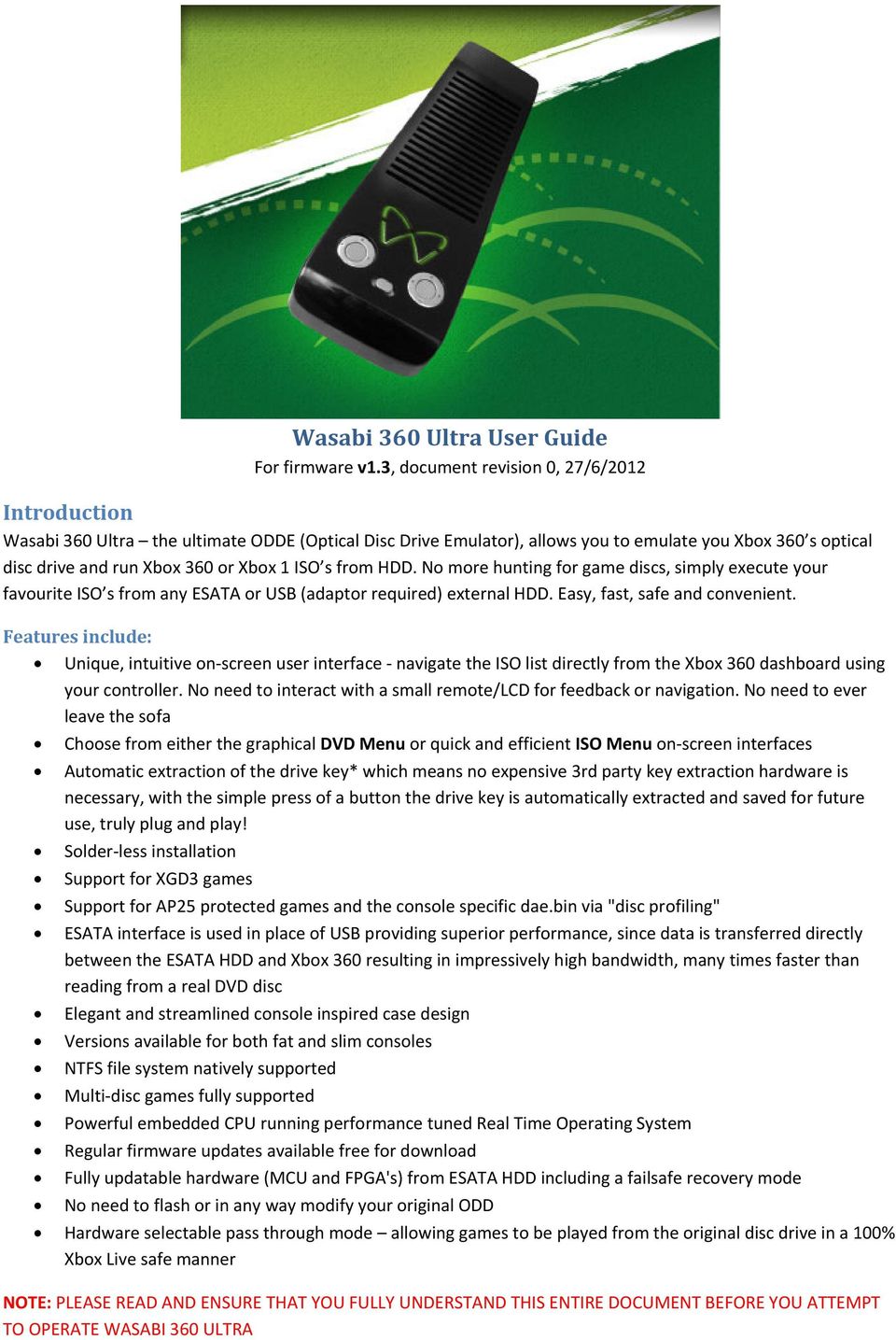
1 Wasabi 360 Ultra User Guide For firmware v1.3, document revision 0, 27/6/2012 Introduction Wasabi 360 Ultra the ultimate ODDE (Optical Disc Drive Emulator), allows you to emulate you Xbox 360 s optical disc drive and run Xbox 360 or Xbox 1 ISO s from HDD. No more hunting for game discs, simply execute your favourite ISO s from any ESATA or USB (adaptor required) external HDD. Easy, fast, safe and convenient. Features include: Unique, intuitive on screen user interface navigate the ISO list directly from the Xbox 360 dashboard using your controller. No need to interact with a small remote/lcd for feedback or navigation. No need to ever leave the sofa Choose from either the graphical DVD Menu or quick and efficient ISO Menu on screen interfaces Automatic extraction of the drive key* which means no expensive 3rd party key extraction hardware is necessary, with the simple press of a button the drive key is automatically extracted and saved for future use, truly plug and play! Solder less installation Support for XGD3 games Support for AP25 protected games and the console specific dae.bin via "disc profiling" ESATA interface is used in place of USB providing superior performance, since data is transferred directly between the ESATA HDD and Xbox 360 resulting in impressively high bandwidth, many times faster than reading from a real DVD disc Elegant and streamlined console inspired case design Versions available for both fat and slim consoles NTFS file system natively supported Multi disc games fully supported Powerful embedded CPU running performance tuned Real Time Operating System Regular firmware updates available free for download Fully updatable hardware (MCU and FPGA's) from ESATA HDD including a failsafe recovery mode No need to flash or in any way modify your original ODD Hardware selectable pass through mode allowing games to be played from the original disc drive in a 100% Xbox Live safe manner NOTE: PLEASE READ AND ENSURE THAT YOU FULLY UNDERSTAND THIS ENTIRE DOCUMENT BEFORE YOU ATTEMPT TO OPERATE WASABI 360 ULTRA
2 Usage Overview Wasabi 360 Ultra sits between your Xbox 360 motherboard and ODD (Optical Disc Drive). Two fundamental modes of operation are supported, pass through and emulation mode. The current mode is selected by the mode switch. The mode of operation should only be changed while the Xbox 360 is powered off, do not toggle the switch while the Xbox 360 is powered on. Please note the difference in the operation of the mode switch between Wasabi 360 Phat and Slim models.

3 Pass through Mode In pass through mode, your original ODD is connected directly to the Xbox 360, with Wasabi 360 Ultra effectively disabled. In this mode you can play original game discs, DVD movies etc and safely sign in to Xbox Live to play games online. Emulation Mode In emulation mode, Wasabi 360 Ultra is connected to your Xbox 360 and replaces your ODD. From this mode you can enjoy playing ISO s directly from the attached HDD. Wasabi 360 Ultra supports two different types of on screen menu system, each with its own unique advantages: DVDMenu ISO Menu Skinnable, customisable Several layouts to choose from Supports displaying game icons A Z jump buttons Must be used in conjunction with PC side software to generate the menu Fast and efficient Menu is automatically generated each time the Xbox 360 is turned on; no PC side software required DVDMenu looks more attractive and is customisable, but it requires you to run PC side software each time you add/remove games from your HDD in order to regenerate the menu. ISO Menu has a more simplistic appearance; however it s faster to scroll through items and the list is automatically generated without the need of PC side software. Wasabi 360 Ultra will default to using ISO Menu, and will only switch to DVDMenu after the menu has been installed on your HDD. Further details on each type of menu system follow. ISO Menu When the Xbox 360 is initially powered on, Wasabi 360 Ultra will scan the attached HDD and generate a listing of available ISO files. This will subsequently be used to display the on screen menu system. To access the ISO Menu and select an ISO file to play, navigate to apps \ my apps \ Video Player in the Xbox 360 dashboard and then select Current Disc. You will be presented with the list of ISO files on your HDD, represented as a series of folders. Using your controller, navigate this list and when you have decided which item you would like to play, press the A button to enter that folder. You will then be presented with a message saying ISO selected. Please eject disc. At this stage you must eject Wasabi either by pressing the eject button on the front of the console, an Xbox 360 remote control, or using the controller to navigate back to the main dash screen where you can select Mixed Media Disc and then press Y to eject. At this point Wasabi 360 Ultra will mount the selected ISO and after a few seconds the Xbox 360 will show that game as inserted in the same way it would with any regular game disc. You may then start playing at your leisure (if the game has not already automatically started due to the dashboard auto start feature).

4 How to find the ISO list When you wish to switch to a different game, the procedure is just as simple. Return to the Xbox 360 dashboard and then eject the disc again using any of the methods described above. Wasabi 360 Ultra will then re mount the mixed media disc which makes up the menu system, and you may browse the menu system and select a new ISO just as previously. If you are playing a multi disc game, you may change ISO s without leaving the game. When the game instructs you to insert another disc, first eject the emulated ISO by pressing the eject button on your console. Then press the guide button on your controller (the one with the X logo on it) to bring up the Xbox Guide menu. Scroll right to the Media tab, then Select Music and finally Current Disc. You will be presented with your list of ISO s represented by folders, in the same manner as the standard menu system. Select the ISO you wish to change to, and press the eject button on your console one final time. Wasabi 360 Ultra will then mount the selected ISO. Press the guide button again to return to the game, which will now continue loading with the correct ISO mounted. How to change discs in game You may mount any type of ISO file, including DVD movie and mixed media ISO files. This allows you to watch DVD movies and enjoy video, audio and image media from data ISO files stored on your HDD.

5 DVDMenu DVDMenu is a graphical, customisable alternative to the standard ISO menu system. It works by generating a graphical menu system as a DVD movie, which you can then "play" using the Xbox 360 DVD player and then navigate the menu in order to select your desired ISO. DVDMenu is skinnable and fully customisable. The menu is broken down into several pages, each with previous/next page navigation buttons and also 6 alphabetical navigation buttons so that you may jump to a specific page containing game names starting with a specific letter, in order to facilitate simple and direct navigation. We have initially included two themes, "Icons" and "List". The icons theme displays 4 ISO items per page, using the game icons embedded in each Xbox 360 ISO. The list theme displays 10 items per page, with no icons, for those who wish to enjoy quicker navigation. Icons theme List theme Unfortunately it is not possible for Wasabi 360 Ultra to generate the DVDMenu data files in real time; rather a PCside application must be used. This means that when you add or remove ISO files from your HDD, you must re run the DVDMenu tool in order to synchronise DVDMenu with the current contents of your HDD. We have designed the PC side application with user friendliness in mind. Simply select your Wasabi 360 HDD, select the theme and click Start and the tool will take care of the rest. Furthermore, all the settings such as HDD path are remembered next time, so when you want to update your DVDMenu it s simply a matter of running the DVDMenu Tool and clicking Start. The DVDMenu Tool PC application automatically extracts information from each ISO file such as the game icon, game name and multi disc game information. This information is then used to automatically generate the menu system. DVDMenu Tool PC application Once you have used the DVDMenu Tool PC application to generate the menu, simply re connect your HDD to your Wasabi 360 Ultra and power on your Xbox 360. At the dashboard main screen, select Play DVD, which will launch the menu system.

6 How to launch the DVDMenu Navigate the menu and select your desired ISO by pressing the A button. You will then be presented with a message saying File selected. Stop DVD playback and eject to mount the selected file. At this stage you must eject Wasabi either by pressing the eject button on the front of the console, an Xbox 360 remote control, or using the controller to stop DVD playback, navigate back to the main dash screen where you can select Play DVD and then press Y to eject. At this point Wasabi 360 Ultra will mount the selected ISO and after a few seconds the Xbox 360 will show that game as inserted in the same way it would with any regular game disc. You may then start playing at your leisure (if the game has not already automatically started due to the dashboard auto start feature). If you are playing a multi disc title and need to change ISO s without leaving the game, this can be achieved in a similar way to the method explained above for ISO Menu. The only difference to the procedure is that you must hold down the RIGHT button on the Wasabi 360 Ultra control panel whilst you press eject on your Xbox. Once you have used the PC software to install DVDMenu on you Wasabi 360 s HDD, the DVDMenu will be used by default and take precedence over the standard ISO Menu. Should you wish to revert back to the ISO menu, perform one of the following two options: 1. Set the < disabledvdmenu> property in wasabi.xml to 1 2. Remove the \wasabi\ wasabi menu.iso file from your Wasabi 360 s HDD In order to use the Wasabi 360 Ultra DVDMenu Tool software, you must have DVDStyler installed on your PC. You may download the DVDMenu Tool software from the official Wasabi 360 Ultra website at and DVDStyler from Initial Preparation Drive Key Before you can use Wasabi 360 Ultra, you must first obtain the drive key that corresponds to your Xbox 360. Every single Xbox 360 has a unique drive key and you must obtain the one that specifically matches your Xbox. Wasabi 360 Ultra can currently automatically extract the drive key from the following ODD drives (support for additional drive types is currently under development): Xbox Slim LiteOn 16D4S with firmware 9504, 0225, 0401, 0272, 1071 If your Xbox 360 does not use one of the above drives, then you will need to manually obtain your drive key through other means. We recommend the use of a piece of software called Jungle Flasher which can extract drive keys from almost any Xbox 360 drive. You will need a way to connect the drive to your PC in order to use Jungle Flasher; often this will involve additional hardware. Please see the documentation accompanying Jungle Flasher for further information.

7 The steps to configure your drive key with Wasabi 360 Ultra depends on if you can take advantage of the automatic key extraction or if you must manually obtain the drive key through other means please refer to the corresponding section below: Manual Drive Key Configuration Once you have obtained the drive key for your Xbox 360, you should have a file called Key.bin which contains the 16 byte key in binary format. If you have used Jungle Flasher to obtain your drive key, you can generate a Key.bin file by selecting the FirmwareTool 32 tab and then pressing the Save Drive Key button. The Key.bin file must be placed at a specific location on the HDD you will connect to Wasabi 360 Ultra. In the root directory of your HDD there should be a folder called wasabi; if this does not exist then create it. Place the Key.bin file inside the wasabi folder, so you end up with the file path X:\wasabi\Key.bin where X: is the drive letter for your external HDD. Extract key.bin with Jungle Flasher Automatic Drive Key Extraction If your Xbox 360 uses a LiteOn 16D4S drive then you can take advantage of the automatic drive key extraction feature meaning there is no need prepare key.bin on your HDD. All you need to do is have Wasabi 360 Ultra extract the key from your drive once, and then the key is saved to the Wasabi's onboard storage for future use. Each subsequent time you turn on your Xbox 360, the previously saved drive key will be automatically retrieved and used to load game ISO's. The procedure for automatic key extraction is simple: 1. With your Xbox 360 powered off, hold down the LEFT button on the Wasabi 360 Ultra control panel and power on your Xbox 360. Keep the button held down until you see output on your TV 2. Once the Xbox 360 has booted to the dashboard, you can navigate to the "virtual ISO" menu system as you would normally do to select games, and view the result of the key extraction operation 3. If the operation was successful (which should always be the case) then you should power off your Xbox 360. Your drive key is now saved to Wasabi 360 Ultra's onboard storage. Power the Xbox 360 back on to enjoy your game ISOs Successful drive key extraction

8 AP25 Setup AP25 is a new Xbox 360 copy protection scheme affecting some of the more recent games, where the Xbox 360 tries to verify the presence of an original disc by querying data that is derived from the physical structure of the game disc. In order to use AP25 protected titles with Wasabi 360 Ultra, you must have a scan of the physical structure of the corresponding original game disc, hereafter known as the topology data. There are currently two sources for topology data: the ap25db.bin file included with the Wasabi 360 Ultra firmware, and topology data embedded in ixtreme LT v3 ISO images. Inside the Wasabi 360 Ultra firmware download archive is a file named ap25db.bin place this file on your HDD in the wasabi folder. This included database contains verified topology data for most current AP25 games. If you try to play a game for which the corresponding topology data is not found in the database, then Wasabi 360 Ultra will attempt to use topology embedded in the ISO itself. If the correct topology data is not found in the ISO either, then AP25 authentication will fail and you will be unable to play that game. If this happens then you will be returned to the Xbox dashboard with a disc read error message. Wasabi 360 Ultra has special protection in place so that if you experience such an AP25 authentication failure, your console will not be flagged for an Xbox Live ban. Wasabi 360 Ultra Firmware Wasabi 360 Ultra ships from the factory without any firmware installed. Before you may use the device for the first time, you must perform the initial firmware installation. Download the latest firmware build from the official Wasabi 360 Ultra website. Inside the archive will be a folder labelled wasabi, and within this folder there will be files labelled wasabi update.bin which contains the firmware update data, and ap25db.bin which contains the AP25 topology database. Copy the wasabi folder from the archive to the root directory of your Wasabi 360 Ultra s HDD, so that you have the following file structure (where X is the drive letter of your HDD): X:\wasabi\wasabi update.bin X:\wasabi\ap25db.bin Make sure you overwrite any old wasabi update.bin and ap25db.bin files! Once you have copied the files into place, then you may install the update according to the following procedure: 1. Power off your Xbox 360, and power on your HDD 2. Ensure that pass through mode is selected, by placing the mode switch in the correct position THIS IS IMPORTANT 3. Hold down the SELECT button on the Wasabi 360 Ultra control panel (the button by itself, away from the remaining buttons) 4. While holding down the SELECT button, turn on your Xbox 360. A blue LED should start blinking on your Wasabi 360 Ultra. This indicates that the update process is underway. DO NOT TURN OFF YOUR XBOX 360 OR OTHERWISE DISCONNECT POWER FROM WASABI 360 ULTRA UNTIL THE UPDATE IS COMPLETE! 5. After a few moments, a green LED should turn on to indicate that the update was successful. If for any reason the update failed, a red LED will turn on instead. Please see the troubleshooting section for more information. 6. Once the update has completed, as indicated by either a solid green or red LED, switch off your Xbox You may now delete the wasabi update.bin file from your HDD as it is no longer required 8. Select emulation mode by placing the mode switch in the correct position. Providing you have correctly setup your drive key according to the directions above, your Wasabi 360 Ultra is now ready to use. Enjoy! These same steps should be followed whenever you need to install a new firmware release in future. PLEASE NOTE: Currently, Wasabi 360 Ultra firmware supports HDD s larger than 2TB HOWEVER when it comes to installing firmware updates, the wasabi update.bin file must be stored on a HDD smaller than 2TB. This limitation will be removed in the near future.

9 Hard Disk Drive Wasabi 360 Ultra connects to external HDD s via an ESATA port. Any ESATA enclosure is supported, along with USB HDD s if you are making use of the Wasabi ESATA > USB adaptor. The HDD must be formatted with the NTFS file system. Wasabi 360 Ultra will only scan the root directory for ISO files, so place all your game ISO s in the root directory of your HDD. The files must be named with a.iso extension. As explained above, there must be a folder labelled wasabi in the root of your HDD. This folder is where the firmware update, AP25 database, drive Key.bin (if applicable) and XML configuration file reside: IMPORTANT NOTE: When you connect your HDD to your PC in order to copy files or otherwise modify its contents, ALWAYS remember to use the safely remove hardware feature of Windows (or for Linux/etc, properly un mount the mass storage device). Failure to do so may result in corruption on your HDD! Configuration XML File Various advanced Wasabi 360 Ultra settings are configurable via the wasabi.xml file. A copy of this file containing the default settings is included with each Wasabi 360 Ultra firmware release. If you wish to customise any of the settings included in this configuration file, then you must edit the XML accordingly and then copy wasabi.xml to the wasabi folder on your HDD (alongside ap25db.bin etc). Configurable items are as follows: automountlastiso Auto mount the last used ISO when booting the Xbox 360 (default: YES) displaylastisofirst Display the last used ISO at the top of the ISO selection list (default: YES) blockdashupdates Block dash updates from running off a mounted ISO (if you wish to update your Xbox, this should be done from Live or a USB stick with Wasabi in pass through mode) (default: YES) isofolder The path to the folder on your HDD which holds ISO files (default: /) alwaysusekeybin Ignore any drive key stored in Wasabi 360's onboard flash and force the use of key.bin on the HDD (default: NO) Precautions There are some precautions to keep in mind both before using your Wasabi 360 Ultra for the first time, and continuing its use into the future: Do not update your Xbox 360 system software (dashboard) past the most recent version explicitly supported by Wasabi 360 Ultra. The latest system software version currently supported by Wasabi 360 Ultra is listed on the official website at Do not connect to Xbox Live while you are using Wasabi 360 Ultra in emulation mode. Xbox Live is currently not supported unless you have booted your Xbox 360 with Wasabi 360 Ultra in pass through mode (whereby you would play games from your ODD rather than Wasabi) If you wish to update your Xbox 360 console firmware, this should be done in pass through mode from USB, from Xbox Live or from an original game disc containing the update. Do not attempt to update your Xbox 360 firmware while Wasabi 360 Ultra is running in emulation mode. Be warned, failure to adhere to the above precautions could result in your console getting banned from Xbox Live or other issues.

10 FAQ Is there a way to check the software/hardware version of my Wasabi 360 Ultra? Turn on the Xbox 360 while holding the UP button on the Wasabi 360 Ultra control interface, and then navigate to the menu system. Instead of displaying the list of ISO s, the version information for your Wasabi 360 Ultra will be displayed. To leave this mode and revert back to normal operation, simply cycle power on your Xbox 360 and do not hold down any buttons upon the next power up. Do I need a working original ODD in order to use Wasabi 360 Ultra? At the current time, a functioning original ODD is required in order to use Wasabi 360 Ultra. Furthermore, to avoid issues the ODD should not be modified with a custom firmware such as ixtreme. We plan to release a firmware update capable of functioning without any ODD attached in the future. Troubleshooting There are several situations which will result in Wasabi 360 Ultra displaying an error message instead of the ISO list when you navigate to Video Library in order to display the menu system. These error messages are explained below: ERROR: NTFS cluster size is not 4kb non standard cluster sizes are not supported, your HDD must be formatted with NTFS using the standard 4kb cluster size ERROR: HDD not NTFS formatted the HDD connected to your Wasabi 360 Ultra MUST be formatted with NTFS. Other file system formats such as FAT32 are not supported (due to the fact that FAT32 cannot accommodate files larger than 4GB) ERROR: HDD not connected a HDD could not be detected. Check that the HDD is properly connected to Wasabi 360 Ultra and reset the Xbox 360 ERROR: ODD not connected the ODD connection could not be detected. The original disc drive for your Xbox 360 must be connected as per the instructions in the installation manual. Check the connection and try again ERROR: \wasabi\key.bin not found the Key.bin file was not found on your HDD. Ensure that your Key.bin file is placed on the HDD according to the preceding instructions Other potential error conditions which do not involve such an error message include: If more recent games (using AP25 and/or XGD3) do not work, this is probably due to a conflict caused by custom firmware such as ixtreme installed on your ODD. Reverting your ODD back to its original firmware should resolve such issues. If Wasabi 360 Ultra is partially functional in emulation mode (it shows a list of ISO s on your HDD) but when you press eject nothing happens and/or in pass through mode you cannot eject the ODD, then you have installed the power cable incorrectly. The end of the power cable with the red and green wires must connect to the ODD and not the Xbox motherboard. If you get black screen, Exx error messages or generally intermittent failures then there is likely a problem with the cables (either SATA or power). Carefully disconnect all cables and re set them. Test your Wasabi 360 Ultra again before re assembling the Xbox 360. There are several error conditions that may occur while attempting to update the firmware and are indicated by the state of the LED s under the buttons on the Wasabi 360 Ultra control panel, as follows: Red + white flashing a HDD could not be detected Red + blue flashing wasabi update.bin could not be found on the HDD Red flashing wasabi update.bin is corrupt. Please try copying again and make sure you safely remove hardware

11 Further Information and Contact Wasabi 360 Ultra official website: Technical Support e mail: [email protected] Wholesale enquiry e mail: [email protected] Please see our official website for news, downloads, tutorials, videos and our official Facebook and Twitter pages.

Wasabi 360 Ultra User Guide
 Wasabi 360 Ultra User Guide For firmware v1.0, document revision 0 Introduction Wasabi 360 Ultra the ultimate ODDE (Optical Disc Drive Emulator), allows you to emulate you Xbox 360 s optical disc drive
Selection of E3 ODE PRO or PS3 BD DRIVE mode
 E3 ODE PRO User Manual v1.23 The E3 ODE PRO is the best ODE for PS3 in the world. NO restart, No eject, easy to upgrade and easy to use. E3 ODE PRO support all slim console include 2XXX, 3XXX and 4XXX.
Lizard Standalone Mode Guide Version 1.0:
 Lizard Standalone Mode Guide Version 1.0: SECTION 1. DESCRIPTION The standalone Mode in Lizard will allow you go totally on the road, without having to carry a computer with you. The wiring for it its
HOW TO TRANSFER FILES BETWEEN EEN IDL7000 PVR AND USB2 DEVICE
 HOW TO TRANSFER FILES BETWEEN EEN IDL7000 PVR AND USB2 DEVICE CONTENTS CONTENTS...2 FOREWORD...3 TRANSFERRING FILES BETWEEN IDL7000M PVR AND USB2 DEVICE...4 CONNECTING AN EXTERNAL USB2 DEVICE...4 COPYING
FreeAgent DockStar Network Adapter User Guide
 FreeAgent DockStar Network Adapter User Guide FreeAgent DockStar Network Adapter User Guide 2010 Seagate Technology LLC. All rights reserved. Seagate, Seagate Technology, the Wave logo, and FreeAgent are
SOFTWARE MANUAL. Please ensure that you read the instruction manual carefully before use. About software
 SOFTWARE MANUAL Please ensure that you read the instruction manual carefully before use Software Notes The attached software is a camera driver and image editing software tool for Windows. Under no circumstances
OPPO MediaControl HD App: Handy touch control adds more fun to home theatre enjoyment
 OPPO MediaControl HD App: Handy touch control adds more fun to home theatre enjoyment Designed for OPPO Blu-ray players, the recently upgraded MediaControl HD app incorporates functions of an IR remote
TestManager Administration Guide
 TestManager Administration Guide RedRat Ltd July 2015 For TestManager Version 4.57-1 - Contents 1. Introduction... 3 2. TestManager Setup Overview... 3 3. TestManager Roles... 4 4. Connection to the TestManager
LevelOne MUS-1001. 1GB Smart Flash. User Manual V1.0.0-0610
 LevelOne MUS-1001 1GB Smart Flash User Manual V1.0.0-0610 CONTENT CHAPTER 1 INTRODUCTION...4 1.1 About this Manual...4 1.2 Support Services...5 CHAPTER 2 PRODUCT OVERVIEW...6 2.1 Package Contents...6 2.2
VHS2DVD Wizard User's Manual
 VHS2DVD Wizard User's Manual Table of Contents 1. Installation Instructions a. Installation Package Contents b. Installation Instructions c. Setting Up the Computer for Video Capturing i. Adjust the Screen
STB- 2. Installation and Operation Manual
 STB- 2 Installation and Operation Manual Index 1 Unpacking your STB- 2 2 Installation 3 WIFI connectivity 4 Remote Control 5 Selecting Video Mode 6 Start Page 7 Watching TV / TV Guide 8 Recording & Playing
HP MediaSmart Server Software Upgrade from v.1 to v.3
 HP MediaSmart Server Software Upgrade from v.1 to v.3 Table of Contents Upgrade Your Server Software to HP MediaSmart Server v.3 2 Before You Begin 3 What's New... 3 Features That Will Change... 4 Prepare
HP MediaSmart Server Software Upgrade from v.2 to v.3
 HP MediaSmart Server Software Upgrade from v.2 to v.3 Table of Contents Table of Contents Upgrade Your Server Software to HP MediaSmart Server v.3 2 Before You Begin 3 What's New 3 Features That Will
Archives About ARCHOS TV+
 About ARCHOS TV+ General Questions I have installed a firmware/plug-in/game file on my Archos TV+ but it is not recognized by the device. You may have not correctly copied your file on the device. If it
Installing the USB driver for Firmware 7 or later For use with E-blocks programmer boards and PICmicro Development boards.
 Installing the USB driver for Firmware 7 or later For use with E-blocks programmer boards and PICmicro Development boards. Matrix Multimedia USB PICmicro programmer boards with Firmware version 7 or later
Media Control Server MCS-EX Integration Guide for RTI Control Systems
 Media Control Server MCS-EX Integration Guide for RTI Control Systems Version 2.0-1 - Table of Contents Overview... 3 Setting up MCS for RTI Control.... 5 Requirements.... 5 Preparation.... 5 Programming
User Guide Software Version 2.1.0
 Intel Solid State Drive Firmware Update Tool User Guide Software Version 2.1.0 Order Number: 322570-007US Intel disclaims all express and implied warranties, including without limitation, the implied warranties
Universal Push2TV HD Adapter PTVU1000 Installation Guide
 Universal Push2TV HD Adapter PTVU1000 Installation Guide 2011 NETGEAR, Inc. All rights reserved. No part of this publication may be reproduced, transmitted, transcribed, stored in a retrieval system, or
Using GIGABYTE Notebook for the First Time
 Congratulations on your purchase of the GIGABYTE Notebook P7! This Manual will help you to get started with setting up your notebook. For more detailed information, please visit our website at http://www.gigabyte.com.
HP Personal Workstations Step-By- Step Instructions for Upgrading Windows Vista or Windows XP Systems to Windows 7
 HP Personal Workstations Step-By- Step Instructions for Upgrading Windows Vista or Windows XP Systems to Windows 7 September 15, 2009 Introduction HP is committed to supporting our customer s operating
Frequently Asked Questions: Cisco Jabber 9.x for Android
 Frequently Asked Questions Frequently Asked Questions: Cisco Jabber 9.x for Android Frequently Asked Questions (FAQs) 2 Setup 2 Basics 4 Connectivity 8 Calls 9 Contacts and Directory Search 14 Voicemail
Getting to Know Xsight... 3. Home Screen and Everyday Use... 9. Settings... 11. PC Setup... 17. 2 www.oneforall.com
 User Manual English English Getting to Know Xsight........................................ 3 Unpacking and Setting Up Xsight............................................................. 3 Using Xsight
Instrument Software Update Instructions. Keysight X-Series Signal Analyzers (PXA/MXA/EXA/CXA) Upgrading an older version to A.12.
 Instrument Software Update Instructions Keysight X-Series Signal Analyzers (PXA/MXA/EXA/CXA) Purpose Upgrading an older version to A.12.09 and above The purpose of this document is to outline the instrument
CABLE ONE ALL DIGITAL
 CABLE ONE ALL DIGITAL The world is going All Digital and so is Cable ONE. With the switch from analog to digital technology, Cable ONE will be able to add new channels, especially more HD channels, and
DVB-T STICK LT. User Manual. USB DVB-T dongle for receiving aerial TV channels MT4171
 DVB-T STICK LT USB DVB-T dongle for receiving aerial TV channels MT4171 User Manual EN Index Index 2 Introduction 2 Package content 2 System Requirements 2 Device installation 3 Software installation 3
ATV310B User Manual. V1.1 www.mygica.es
 ATV310B User Manual V1.1 www.mygica.es 1 Introduction Mygica ATV310B is a product connected to your TV via HDMI that turn your TV to a multifunction smart TV. It is a revolutionary entertainment on your
EZ DUPE DVD/CD Duplicator
 EZ DUPE DVD/CD Duplicator User s Manual Version 3.0 0 TABLE OF CONTENTS Introduction 2 Setup 11 LCD Front Panel Overview 2 o Auto Start Time 11 Menu Overview 3-5 o Display Mode 12 Functions 6 o Button
Using GIGABYTE Notebook for the First Time
 Congratulations on your purchase of the GIGABYTE Notebook! This Manual will help you to get started with setting up your notebook. For more detailed information, please visit our website at http://www.gigabyte.com.
v4: How to create a BartPE Rescue CD for Macrium Reflect
 So, you ve created your Linux based recovery CD, you push it in and boot up and it doesn t find your hard drives, network or both what s next? If the Linux Based Recovery CD option doesn t work for you
Mini Android PC. User Manual. Copyright Edis Trading (HK) Limited 2008-2012. All Rights Reserved.
 Mini Android PC User Manual Page 1 of 23 INDEX SAFETY INSTRUCTIONS...3 APPEARANCE INTRODUCTION...4 INITIAL OPERATION...5 1.HARDWARE CONNECTION INSTRUCTIONS...5 2.OS INTERFACE...5 3.MANAGEMENT SOFTWARE
Important HP Media Center PC Updates
 Important HP Media Center PC Updates Your system uses Microsoft Windows XP Media Center Edition 2005. Before starting the system and using the Media Center setup wizard, please read this updated information
C6 Easy Imaging Total Computer Backup. User Guide
 C6 Easy Imaging Total Computer Backup User Guide Clickfree and the Clickfree logo are trademarks or registered trademarks of Storage Appliance Corporation. Other product names used in this guide are recognized
Parallels Transporter Agent
 Parallels Transporter Agent User's Guide Copyright 1999-2015 Parallels IP Holdings GmbH and its affiliates. All rights reserved. Parallels IP Holdings GmbH Vordergasse 59 8200 Schaffhausen Switzerland
Quick Start. Nighthawk X8 AC5300 Tri-Band WiFi Router Model R8500. Package Contents. NETGEAR, Inc. 350 East Plumeria Drive San Jose, CA 95134 USA
 Support Thank you for purchasing this NETGEAR product. You can visit www.netgear.com/support to register your product, get help, access the latest downloads and user manuals, and join our community. We
DVR GUIDE. Using your DVR/Multi-Room DVR. 1-866-WAVE-123 wavebroadband.com
 DVR GUIDE Using your DVR/Multi-Room DVR 1-866-WAVE-123 wavebroadband.com Table of Contents Control Live TV... 4 Playback Controls... 5 Remote Control Arrow Buttons... 5 Status Bar... 5 Pause... 6 Rewind...
Quick user guide for the Vista Quantum 960H range of DVRs, models included
 Quantum 960H DVR range Quick User guide Quick user guide for the Vista Quantum 960H range of DVRs, models included QX960H08-xxx QX960H16-xxx QP960H04-xxx QP960H08-xxx QP960H16-xxx Full manual found on
Weather Direct Displays show Lost Forecast (blank boxes in the picture icons)
 Weather Direct Displays show Lost Forecast (blank boxes in the picture icons) Many routine events can cause a Lost Forecast situation. Examples include: Power outage Change batteries Internet down in your
Fiery Clone Tool For Embedded Servers User Guide
 Fiery Clone Tool For Embedded Servers User Guide Fiery Clone Tool allows you to clone image files to a folder on a USB flash drive connected to the Fiery server. You can restore the image file to the Fiery
Network Attached Storage User Manual
 http://www.icybox.de IB-NAS902 Network Attached Storage User Manual Content Content... 2 Introduction... 3 SMB... 3 FTP... 3 DHCP... 3 More than a NAS... 3 Package content... 4 Take a look at the IB-NAS902...
Set up and using the WinTV v7 application with HD PVR 2
 Set up and using the WinTV v7 application with HD PVR 2 To run the WinTV v7 application for watching TV, recording videos and playing them back on your PC, double click on the WinTV icon on your Windows
User Guide for Windows 10
 User Guide for Windows 10 System requirements E10684 First Edition July 2015 To facilitate a smoother transition from your previous operating system, read the system requirements below before upgrading
Compaq Presario MyMovieSTUDIO. Getting Started
 Compaq Presario MyMovieSTUDIO Getting Started Congratulations and welcome to the Compaq Presario MyMovieSTUDIO leading edge digital video editing and DVD authoring desktop computer. You ve purchased a
UNIVERSAL REMOTE CONTROL GUIDE
 UNIVERSAL REMOTE CONTROL GUIDE Service provided by We Keep You Connected Your new AT6400 AllTouch Infrared (IR) Universal Remote Control (remote) is a true universal remote, functioning as four remotes
Concert Hall Sound You Can Hold In Your. Hand. Users Manual 0.9
 Concert Hall Sound You Can Hold In Your Hand Users Manual 0.9 1 Greetings Thank you for purchasing Calyx M. Calyx M is a product made for people who love music and want to listen no matter when or where
c. Securely insert the Ethernet cable from your cable or DSL modem into the Internet port (B) on the WGT634U. Broadband modem
 Start Here Follow these instructions to set up your router. Verify That Basic Requirements Are Met Assure that the following requirements are met: You have your broadband Internet service settings handy.
Movie Cube. User s Guide to Wireless Function
 Movie Cube User s Guide to Wireless Function Table of Contents 1. WLAN USB Adapter Connection...3 2. Wireless Setup...4 2.1 Infrastructure (AP)...5 2.2 Peer to Peer (Ad Hoc)...7 2.3 Settings for PC...8
Carry it Easy. User Guide
 Carry it Easy User Guide User Manual Version 3.2 2004-2010 CoSoSys Ltd. Carry it Easy User Manual Table of Contents Table of Contents... I 1. Introduction... 1 2. System Requirements... 1 3. Installation...
PLA Series. User s Guide. Quick Start Guide. Powerline Ethernet Adapters. PLA4101, PLA4111, PLA4201, PLA4201 v2, PLA5205, PLA5215, PLA5206, PLA5405
 PLA Series Powerline Ethernet Adapters PLA4101, PLA4111, PLA4201, PLA4201 v2, PLA5205, PLA5215, PLA5206, PLA5405 Utility Version 7.0.1 Edition 1, 05/2014 Default Network Name: HomePlugAV Quick Start Guide
Digital Video Recorder
 EN Digital Video Recorder Hardware Quick Start Guide Welcome! Lets get started. QH16_42000914E Swann 2014 1 1 Getting to know your DVR Congratulations on your purchase of Swann s latest DVR security system!
STEELSERIES FREE MOBILE WIRELESS CONTROLLER USER GUIDE
 STEELSERIES FREE MOBILE WIRELESS CONTROLLER USER GUIDE INTRODUCTION Thank you for choosing the SteelSeries Free Mobile Controller! This controller is designed by SteelSeries, a dedicated manufacturer of
Quick Start Guide Vodafone Mobile Broadband USB Stick. Designed for Vodafone
 Quick Start Guide Vodafone Mobile Broadband USB Stick Designed for Vodafone Welcome to the world of mobile communications 1 Welcome 2 Set up your USB Stick 3 Start the software 4 Software overview (Microsoft
T R O U B L E S H O O T I N G T I P S
 T R O U B L E S H O O T I N G T I P S D I C T A T I O N M O D U L E 1.) PROBLEM: MEMORY ERROR/FORMAT MESSAGE OR LOCK SYMBOL ON RECORDER A.) Solution: DO NOT TRY TO USE THE RECORDER. Using the recorder
Samsung Drive Manager FAQ
 Samsung Drive Manager FAQ Installation Q: My Samsung External Hard Drive is connected but nothing is happening. A: Check the USB cable connection. If your Samsung External Hard Drive is connected properly,
Maxtor OneTouch User's Guide
 EXTERNAL HARD DRIVE Maxtor OneTouch User's Guide TM II P/N:20259600 i Contents 1 Introduction................................................. 1 Maxtor OneTouch II Drive Components............................
HDD Docking Station for 2.5 /3.5 SATA HDD with esata Connector User Manual
 Declaration Thank you for purchasing. Please read these instructions carefully before use. Notice Make sure that all cables are connected before turning the power on. Do not use the Docking station in
3.5'' SATA to USB 3.0 & esata External Hard Drive Enclosure U SER S MANUA L
 3.5'' SATA to USB 3.0 & esata External Hard Drive Enclosure U SER S MANUA L Package Contents: 3.5'' SATA to USB 3.0 & esata External Hard Drive Enclosure 1 3.5" HDD Enclosure 2 Power Adapter 3 USB 3.0
Lenovo IdeaCentre Q180 Series
 Machine type: 10087/3110 Lenovo IdeaCentre Q180 Series User Guide Version 1.0 2011.09 31500665 Important Safety Information Before using this manual, it is important that you read and understand all of
USER MANUAL DataLocker Enterprise
 USER MANUAL DataLocker Enterprise ------------------------ March 2014 ------------------------ 1 Contents At a Glance Advanced 3 Introduction 17 Special features 5 About the Enterprise 19 Master admin
DSD Native DAC Setup Guide
 CHANNEL D Pure Music DSD Native DAC Setup Guide Release 1.0 Copyright 2012 Channel D www.channel-d.com CHANNEL D Pure Music DSD Native DAC Setup Guide These instructions outline the setup steps required
Hydra esata. 4-Bay RAID Storage Enclosure. User Manual January 16, 2009 - v1.0
 4-Bay RAID Storage Enclosure User Manual January 16, 2009 - v1.0 EN Table of Contents 1 Introduction... 1 1.1 System Requirements... 1 1.1.1 PC Requirements... 1 1.1.2 Mac Requirements... 1 1.1.3 Supported
3.5 Dual Bay USB 3.0 RAID HDD Enclosure
 3.5 Dual Bay USB 3.0 RAID HDD Enclosure User Manual August 11, 2011 v1.1 MFG Part # MT2U3-MP BARCODE Introduction 1 Introduction 1.1 System Requirements 1.1.1 PC Requirements Minimum Intel Pentium III
Vess A2000 Series. NVR Storage Appliance. Windows Recovery Instructions. Version 1.0. 2014 PROMISE Technology, Inc. All Rights Reserved.
 Vess A2000 Series NVR Storage Appliance Windows Recovery Instructions Version 1.0 2014 PROMISE Technology, Inc. All Rights Reserved. Contents Introduction 1 Different ways to backup the system disk 2 Before
MobileLite Wireless G2 5-in-1 Mobile Companion User Manual
 MobileLite Wireless G2 5-in-1 Mobile Companion User Manual Document No. 480-MLWG2-021315.A00 Kingston MobileLite Wireless Page 1 of 21 Table of Contents Introduction... 3 What s Included:... 3 Getting
genie app and genie mobile app
 genie app and genie mobile app User Manual 350 East Plumeria Drive San Jose, CA 95134 USA June 2012 202-10933-02 v1.0 2012 NETGEAR, Inc. All rights reserved No part of this publication may be reproduced,
Lenovo Miix 2 8. User Guide. Read the safety notices and important tips in the included manuals before using your computer.
 Lenovo Miix 2 8 User Guide Read the safety notices and important tips in the included manuals before using your computer. Notes Before using the product, be sure to read Lenovo Safety and General Information
ViviCam 25 Digital Camera User s Manual
 ViviCam 25 Digital Camera User s Manual 2010 Sakar International, Inc. All rights reserved. Windows and the Windows logo are registered trademarks of Microsoft Corporation. All other trademarks are the
If this PDF has opened in Full Screen mode, you can quit by pressing Alt and F4, or press escape to view in normal mode. Click here to start.
 You are reading an interactive PDF. If you are reading it in Adobe s Acrobat reader, you will be able to take advantage of links: where text is blue, you can jump to the next instruction. In addition you
LG External HDD Hard Disk Drive XG1
 LG External HDD Hard Disk Drive XG1 - Thank you for purchasing this product. - This user manual contains instructions on how to use the product properly. - Please read this manual carefully. - Be sure
MediaQ M310. Quick Start HUAWEI TECHNOLOGIES CO., LTD.
 MediaQ M310 Quick Start HUAWEI TECHNOLOGIES CO., LTD. 1 Welcome Thank you for choosing HUAWEI MediaQ M310. With your MediaQ, you can: > Integrate your home media and access a variety of applications. >
Thank you for purchasing the Mobile WiFi. This Mobile WiFi brings you a high speed wireless network connection.
 Quick Start Thank you for purchasing the Mobile WiFi. This Mobile WiFi brings you a high speed wireless network connection. This document will help you understand your Mobile WiFi so you can start using
Hi! Let s get started.
 Hi! Let s get started. What s in the Box Roku player Remote control 2 x AAA batteries for remote A/V cable RCA Power adapter Get to know your roku A Front view B C F Back view D E A B C D E F Status light
SSD Firmware Update Utility Guide
 SSD Firmware Update Utility Guide Crucial m4 2.5 SSD Firmware Revision 070H Firmware Update Guide for Windows 8 (Update from Rev 0001, 0002, 0009, 0309, 000F, 010G, 040H to Rev 070H) Introduction This
DESKTOP. Internal Drive Installation Guide
 DESKTOP Internal Drive Installation Guide Seagate Desktop Installation Guide 2013 Seagate Technology LLC. All rights reserved. Seagate, Seagate Technology, the Wave logo, and FreeAgent are trademarks or
Point of View SmartTV-500 Center - Android 4.2. General notices for use...2 Disclaimer...2 Box Contents...2
 Point of View SmartTV-500 Center - Android 4.2 English Table of Contents General notices for use...2 Disclaimer...2 Box Contents...2 1.0 Product basics...3 1.1 Buttons and connections... 3 1.2 Connecting
HP External Hard Disk Drive Backup Solution by Seagate User Guide. November 2004 (First Edition) Part Number 373652-001
 HP External Hard Disk Drive Backup Solution by Seagate User Guide November 2004 (First Edition) Part Number 373652-001 Copyright 2004 Hewlett-Packard Development Company, L.P. The information contained
JROTC CURRICULUM MANAGER INSTALLATION GUIDE VERSION 2.0
 JROTC CURRICULUM MANAGER INSTALLATION GUIDE VERSION 2.0 Updated November 24, 2014 Table of Contents Curriculum Manager Installation Instructions... 6 Set-up Steps... 6 Step 1... 7 Pre-Install Instructions...
edgebooks Quick Start Guide 4
 edgebooks Quick Start Guide 4 memories made easy SECTION 1: Installing FotoFusion Please follow the steps in this section to install FotoFusion to your computer. 1. Please close all open applications prior
Instructions for the ACER Laptops
 20 Manor Road Ruislip Middlesex HA4 7LB Telephone: +44(0)1895 624 774 E-Mail: [email protected] Website: www.llmedia.com Instructions for the ACER Laptops Always, after connecting to a projector, switch
Figure 1 Sample WiseLink screens, showing MP3 music files (left) and photos (right) available as shared files from your networked PC or media server
 SAMSUNG S GUIDE TO DLNA Welcome to the era of 21 st -century television! Samsung s added a new level of functionality to its HDTVs with DLNA CERTIFIED connectivity. Now, your compatible Samsung HDTV can
Amcrest 960H DVR Quick Start Guide
 Amcrest 960H DVR Quick Start Guide Welcome Thank you for purchasing our Amcrest 960H DVR! This quick start guide will help you become familiar with our DVR in a very short time. Before installation and
How To Set Up A Hard Drive With A Harddrive With A 2Gb Hard Drive (I386) And 2Gb Drive (Amd64) On A Hardrive (I219) (Iee) (Amd66) (Ai219
 1 Package Contents Device User manual Power adapter Power cord USB 2.0 Cable FireWire 800 Cable (IEEE1394.B) esata cable 2 Front View of the Device A Drive eject button B LED indicator C Front door panel
SMART CONSOLE Software and Firmware Upgrade Procedure
 Smart Console Technical Document 114-01 20/04/07 SMART CONSOLE Software and Firmware Upgrade Procedure Overview Professional and Elite Series This document describes the process of upgrading both the software
TANDBERG MANAGEMENT SUITE 10.0
 TANDBERG MANAGEMENT SUITE 10.0 Installation Manual Getting Started D12786 Rev.16 This document is not to be reproduced in whole or in part without permission in writing from: Contents INTRODUCTION 3 REQUIREMENTS
Dual-boot Windows 10 alongside Windows 8
 Most of the people are very much interested to install the newly launched Operating System Windows 10 on their devices. But, it is not recommended to directly use Windows 10 as the primary OS because it
Addonics T E C H N O L O G I E S. NAS Adapter. Model: NASU2. 1.0 Key Features
 1.0 Key Features Addonics T E C H N O L O G I E S NAS Adapter Model: NASU2 User Manual Convert any USB 2.0 / 1.1 mass storage device into a Network Attached Storage device Great for adding Addonics Storage
Quick Start Guide. Hybrid DVR DS-9000 Series Hybrid DVR DS-7600 Series Hybrid DVR. NVR DS-9600 Series NVR
 Quick Start Guide Hybrid DVR DS-9000 Series Hybrid DVR DS-7600 Series Hybrid DVR NVR DS-9600 Series NVR Analog DVR DS-9100 Series DS-8100 Series DS-7300 Series DS-7200 Series NOTE: For more detailed information,
ICS Technology. PADS Viewer Manual. ICS Technology Inc PO Box 4063 Middletown, NJ 077748 732-671-5400 www.icstec.com
 ICS Technology PADS Viewer Manual ICS Technology Inc PO Box 4063 Middletown, NJ 077748 732-671-5400 www.icstec.com Welcome to PADS Viewer Page 1 of 1 Welcome to PADS Viewer Welcome to PADS (Public Area
Cassette2CD Wizard User's Manual
 Cassette2CD Wizard User's Manual Table of Contents 1. Installation Instructions a. Connecting tape-deck to the computer b. Installing the Software 2. Using Cassette2CD Wizard a. Setting up and Testing
AVH-X4500BT and AVH-X2500BT Firmware Update for iphone 5 Compatibility (August 2013)
 AVH-X4500BT and AVH-X2500BT Firmware Update for iphone 5 Compatibility (August 2013) This firmware update applies only to AVH-X4500BT and AVH-X2500BT units sold in the United States and Canada and provides
Table of Contents. Use. Troubleshooting. Setup. Welcome. 11 How to arm/disarm system/camera(s) 19 Sync Module setup issues. 3 Installing the Blink app
 User Guide Table of Contents Welcome Setup Use Troubleshooting 2 What s in the box 2 What you need 3 Installing the Blink app 4 Setting up the Sync Module 5 Connecting the Sync Module to Your Wi-Fi 7 Adding
VMware Horizon FLEX User Guide
 Horizon FLEX 1.5 This document supports the version of each product listed and supports all subsequent versions until the document is replaced by a new edition. To check for more recent editions of this
THE. solution. STORe it. SHARE it.
 THE small business solution THE HP Storageworks X510 Data Vault STORe it. SECURE it. SHARE it. T H E H P S t o r a g e w o r k s X 51 0 D a t a V a u l t data protection just got less puzzling If, like
TechniSat HDFS Satellite HD Digital Receiver. USB Recorder Instructions
 TechniSat HDFS Satellite HD Digital Receiver USB Recorder Instructions 1 Contents 1 Contents...2 2 Introduction...3 3 Getting Started...4 3.1 Formatting...4 4 Scheduled Recording...6 4.1 Manual Timer...6
F-Series Desktop User Manual F20. English - Europe/New Zealand
 F-Series Desktop User Manual F20 en English - Europe/New Zealand Contents Key to icons and text...3 What is F-Series Desktop?...4 How do I install F-Series Desktop onto my computer?...4 How do I subscribe
Type Message Description Probable Cause Suggested Action. Fan in the system is not functioning or room temperature
 Table of Content Error Messages List... 2 Troubleshooting the Storage System... 3 I can t access the Manager... 3 I forgot the password for logging in to the Manager... 3 The users can t access the shared
1 DVR 670 Series firmware version 2.1.2 (date 2014-06-17)
 Video Recorder 670 Series 1 DVR 670 Series firmware version 2.1.2 (date 2014-06-17) File name: 600rtseries_2.1.2_140617.bin - When a unit detects a HDD error, the DVR will automatically reboot so that
DVB-T2 DIGITAL TV BOX
 DVB-T2 DIGITAL TV BOX QUALITY OF DIGITAL TELEVISION MT4159 User Manual EN 2 Index Index...2 Introduction...3 Front panel...3 Rear panel...3 Remote control...4 Hardware configuration...5 Connecting tuner
Using GIGABYTE Notebook for the First Time
 P34 V6.0 Congratulations on your purchase of the GIGABYTE Notebook. This manual will help you to get started with setting up your notebook. The final product configuration depends on the model at the point
Mini PC Quick Start Guide
 Mini PC Quick Start Guide For model: TBS802A, TBS802B, TBS8210, TBS8220, TBS8240 Product Overview: TBS provides series mini size computers for fulfilling personal multimedia and work needs. Most such mini