
AT&T USBConnect Mercury Getting Started Guide
|
|
|
- Molly Ryan
- 9 years ago
- Views:
Transcription
1 AT&T USBConnect Mercury Getting Started Guide

2 Welcome to AT&T Thank you for purchasing the AT&T USBConnect Mercury. Please use either this Getting Started Guide or our web tutorial available at att.com/wirelesstutorials for the most complete and up-to-date information available to set up your device. 2

3 Table of Contents What s in the box? 4 Getting started 5 Insert the SIM Card 6 Windows Vista, XP, and Install the software 7 Connect to the AT&T network and access the Internet 7 AT&T Communication Manager 8 Using AT&T Communication Manager 9 Using AT&T Communication Manager for Wi-Fi 11 To use AT&T Wi-Fi Service 11 To connect to other Wi-Fi networks 12 Mac OS 13 Install the software 13 Connect to the AT&T network and access the Internet 13 Sierra Wireless Watcher 14 Using Watcher 15 Getting to know your device 16 Using a memory card 17 Attaching the carry strap 18 FAQ 19 Troubleshooting your device 19 Find more information 20 3

4 What s in the box? Your package contains 3 items: 1 AT&T USBConnect Mercury 2 Carry strap 3 Getting Started Guide 4

5 Getting Started To get started, you need about 15 minutes and the following: AT&T USBConnect Mercury Cap The Mercury sends and receives data between your laptop and the AT&T network. The Mercury includes the necessary software. No installation CD is required. AT&T SIM Card The SIM card stores the wireless number for your Mercury and subscriber information enabling access to the AT&T network. 5

6 Insert the SIM Card (time required 1 minute) 1. Remove the cap from the end of the USBConnect Mercury. 2. Insert the notched end of the SIM card into the top slot on the Mercury above the USB connector. Be sure to push the SIM card completely into the slot until it clicks into place and is fully inserted. If you are running Windows on your computer, go to page 7. If you are running Mac OS X on your computer, go go page 13. 6

7 Windows Vista, XP and 2000 Install the software (time required 10 minutes) AT&T Communication Manager (ACM) supports laptops with Microsoft Windows Vista, XP and 2000 and allows you to control how and when you connect to wireless networks. ACM will auto-install the first time you insert your Mercury into your laptop and then be available whenever needed. 1. Carefully push the Mercury into the USB port on your laptop. 2. After you insert the Mercury into the laptop for the first time, the AT&T Communication Manager (ACM) software will automatically start and guide you through the installation process. 3. Once installation is complete, restart your laptop when prompted. If AT&T Communication Manager does not automatically start the first time you insert the Mercury into your laptop: 1. Double-click My Computer (Windows XP or 2000) or Computer (Windows Vista) on your desktop. 2. Click the TRU-Install drive (usually E: or F: drive). 3. Under the TRU-Install drive, go to Win/ATT and double-click the Setup.exe file. 4. Leave the Mercury in the laptop and follow the on-screen instructions. 5. Restart your computer when prompted to successfully complete the installation of AT&T Communication Manager. Connect to the AT&T network and access the Internet (time required 3 minutes) 1. Double-click the ACM shortcut icon installed on your desktop. 2. Wait while the USBConnect Mercury initiates. 3. Click the Connect button after it turns orange. 4. Open your browser and access the Internet. Once connected, the Connect button will change to Disconnect to allow you to end your session. 7

8 AT&T Communication Manager AT&T Communication Manager (ACM) is a software application that lets you control your connections to either the AT&T mobile network nationwide using the Mercury or to available Wi-Fi networks including thousands of AT&T hotspots using the built in Wi-Fi capability of your laptop. ACM offers a range of tools and features to manage those connections, find the best connection available, and make that connection quickly. Please note that connections to the AT&T mobile network and AT&T hotspots require that the Mercury be inserted into the laptop and that the device has an active SIM and a valid rate plan. 1 Use GSM (Mobile) Network 2 Use Wi-Fi Network Click Here to Connect / Disconnect Connection Status Indicator G Indicator Signal Strength Indicator Carrier Indicator 7 VPN Connection 6 Text Messages 8

9 Using AT&T Communication Manager GSM mobile network interface The GSM interface allows you to control your connection to mobile networks worldwide. Wi-Fi network interface The Wi-Fi interface allows you to control your connections with Wi-Fi networks, including home, office, and public hotspot networks. 3G indicator This indicator appears when the AT&T 3G network is available. AT&T 3G networks are in almost all major metro areas and provide the highest data transfer rates. When 3G networks are not available, the Mercury will automatically default to EDGE (also known as 2G) networks. Signal strength indicator This indicator shows the strength of the wireless signal that you are receiving. Carrier indicator This indicator shows which wireless network your device is associated with. For example, if you are connected to AT&T s mobile network, the wireless carrier indicator will read AT&T. 9

10 Text messages button Click this button to read and write text messages using Communication Manager. Messages will be sent and received using your LaptopConnect wireless number. Please note that additional charges may apply for text messaging services. VPN connection button If you have configured Communication Manager to launch your Virtual Private Network (VPN), you may use this button to launch your VPN client. VPN connections are configured in the VPN tab of the Settings window. Connection status indicator When this indicator reads Ready, simply click the orange Connect button to connect to a wireless network. When this indicator reads Connected, you have an active session with a wireless network. This indicator can also display error messages if there is a problem with your connection. Connect / Disconnect button To connect to the network shown in the Carrier Indicator, click the orange Connect button. When this button reads Disconnect, you have an active session with a wireless network and may click the button to disconnect from the network. 10

11 Using AT&T Communication Manager for Wi-Fi If your laptop has an internal Wi-Fi modem or Wi-Fi capability, AT&T Communication Manager can be used to manage your connection to any home, business or AT&T hotspot. Please note that connection to AT&T hotspots requires a qualified AT&T DataConnect service plan. See for eligibility details. To use AT&T Wi-Fi service: 1. Insert your Mercury and launch ACM ACM will automatically identify available Wi-Fi networks. Click Connect when prompted to connect to an AT&T hotspot. ACM will take a moment to establish your connection. After ACM confirms a connection is established, launch your browser, application or other Internet application. 11

12 To connect to other Wi-Fi networks: 1. Launch ACM (you do not need to insert your Mercury). 2. ACM will automatically identify available Wi-Fi networks. 3. To see the list of available networks, click on the xx Wi-Fi networks available (below the Connect button). 4. Select the network you prefer and click Connect. 5. If the network is secure or encrypted, you may be prompted to enter additional information for access. 6. After ACM confirms a connection is established, launch your browser, application, or other Internet application. 12

13 Mac OS Install the software (time required 2 minutes) Sierra Wireless Watcher supports laptops with Mac OS X or later and allows you to control how and when you connect to wireless networks. 1. Insert the Mercury into the USB port on your laptop. 2. Double-click the installer package. If you do not see the installer package, open Finder and go to TRU-Install device. 3. Follow the on-screen instructions. The Mercury is ready to use once the software is successfully installed. Connect to the AT&T network and access the Internet (time required 3 minutes) 1. Click the Watcher icon in the Dock. 2. When the Watcher window opens, click Connect. 13

14 Sierra Wireless Watcher Sierra Wireless Watcher lets you control your connections to the AT&T mobile network nationwide using the Mercury and your Mac laptop. It offers a range of tools and features to manage those connections, find the best connection available, and make that connection quickly. Please note that connections to the AT&T mobile network require that Mercury be inserted into the laptop and that the device has an active SIM and a valid rate plan. 3G Indicator 1 Signal Strength Indicator Roaming Indicator 2 4 AT&T AT&T Carrier Indicator 3 5 Click here to Connect / Disconnect 14

15 Using Watcher G indicator This indicator appears when the AT&T 3G network is available. AT&T 3G networks are in almost all major metro areas and provide the highest data transfer rates. When 3G networks are not available, the Mercury will automatically default to EDGE (also known as 2G) networks. Signal strength indicator This indicator shows the strength of the wireless signal that you are receiving. Carrier indicator This indicator shows which wireless network your device is associated with. For example, if you are connected to AT&T s mobile network, the wireless carrier indicator will read AT&T. Roaming indicator This indicator shows your roaming status. When the indicator is gray, you are within AT&T s local coverage area. When the indicator is black, you are in a preferred roaming area. Connect / Disconnect button To connect to the network shown in the carrier indicator, click the Connect button. When this button reads, Disconnect, you have an active session with a wireless network and may click the button to disconnect from the network. 15

16 Getting to Know Your Device LED - Power LED - Data LED Color How To To Interpret LED Color How To Interpret Solid Not powered Solid Unable to detect service Blinking Firmware is being updated. Do not remove yourrmercury. Blinking 3G network detected Blinking Initializing Blinking 2G network detected Solid Powered on Solid Connected to 3G network Solid Mercury error Solid Connected to 2G network 16

17 Using a Memory Card The Mercury is built to accommodate an microsd memory card (not included in package). A memory card will allow you to store and transfer important data from one computer to another, expanding the already extensive functionality of this device. The memory card appears as a USB memory drive. You can copy, paste and drag files to and from it. Inserting a Memory Card SIM card slot Memory card slot 1. Remove the cap. 2. Insert the memory card into the lower slot at the end of the Mercury, as shown in the illustration. 3. Insert the Mercury into the computer s USB slot. Removing a Memory Card 1. Remove the cap. 2. Push the memory card in and then release it. 3. Gently pull the memory card out. 17

18 Attaching the Carry Strap To help protect your Mercury, please keep the cap on the USB connector when not in use. A short carry strap has been included to keep everything together. It s a good idea to thread the carry strap through the cap and Mercury, as shown in the illustrations

19 FAQ How do I find my wireless number? If you have ACM open, go to the Help menu and select My Wireless Number. You can also find your wireless number on your sales receipt and monthly statements. What do I do if ACM says No SIM? Remove the Mercury from the computer and insert your AT&T SIM card. See page 6 for details. If you do not have a SIM card, contact AT&T. Troubleshooting your device If ACM displays Mobile Disabled If AT&T Communication Manager displays a Mobile Disabled error, 1. Enable the Mercury: a. In the ACM window, click the Connections tab. b. Position your mouse over the Adapters drop-down menu, and click Turn on GSM. Wait for the ACM to detect the Mercury. 2. If the ACM still reports Mobile Disabled, contact AT&T Customer Support for assistance. If ACM displays No Wireless Device Detected If AT&T Communication Manager displays a No Wireless Device Detected error, 1. Click Start, and then click Control Panel. 2. Double-click TRU-Install. 3. When you are prompted to switch to modem mode, click OK. 19

20 Find More Information On the web Interactive web tutorials are available at att.com/wirelesstutorials. Select Manufacturer: Sierra Wireless and Model: Mercury from the drop down menus. Detailed support information including device specifications, troubleshooting, user forums and knowledge base articles are available at att.com/devicesupport. From a phone Call AT&T Customer Care at for assistance with your device or service. Please enter the 10-digit wireless phone number associated with your AT&T USBConnect Mercury when prompted. This will ensure you get routed to a specialized Care team. The wireless phone number associated with your Mercury can be found: On your sales receipt; or On your monthly statement; or In ACM under the Help menu, select My Wireless Number. Note: You must have the Mercury inserted into your laptop to find your wireless number. Sierra Wireless is a trademark of Sierra Wireless, Inc. Microsoft and Windows are either registered trademarks or trademarks of Microsoft Corporation in the United States and/or other countries. All other brand or product names are or may be trademarks of, and are used to identify products or services of, their respective owners AT&T Intellectual Property. All rights reserved. AT&T, AT&T logo and other marks contained herein are trademarks of AT&T Intellectual Property and/or AT&T affiliated companies Rev. 1.2

AT&T USBConnect Turbo Quickstart
 AT&T USBConnect Turbo Quickstart Welcome to AT&T Please use this Quickstart to get a brief overview of the major features and services available with your new AT&T USBConnect Turbo and your DataConnect
TELSTRA ELITE TM MOBILE BROADBAND USB QUICK START GUIDE
 TELSTRA ELITE TM MOBILE BROADBAND USB QUICK START GUIDE WELCOME TO THE TELSTRA ELITE MOBILE BROADBAND USB The following steps will guide you through installing your Telstra Elite Mobile Broadband USB,
AT&T USBConnect Momentum 4G Quickstart
 AT&T USBConnect Momentum 4G Quickstart Welcome to AT&T Thank you for purchasing the AT&T USBConnect Momentum 4G*. Please use this Quickstart for a brief overview of device setup OR take advantage of our
Quick Start. AirCard 340U USB Modem
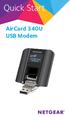 Quick Start AirCard 340U USB Modem Get Started The NETGEAR AirCard 340U USB Modem delivers 4G LTE connections to your laptop. This small, convenient device features a built-in LCD display to monitor connection
Sierra Wireless AirCard Watcher Help for Mac OS X
 Sierra Wireless AirCard Watcher Help for Mac OS X Sierra Wireless AirCard Watcher allows you to manage and monitor the connection between your modem and the network. With Watcher, you can: Determine signal
Quick Start Guide Vodafone Mobile Broadband USB Stick. Designed for Vodafone
 Quick Start Guide Vodafone Mobile Broadband USB Stick Designed for Vodafone Welcome to the world of mobile communications 1 Welcome 2 Set up your USB Stick 3 Start the software 4 Software overview (Microsoft
Getting to Know Your Mobile Internet Key
 Thank you for choosing the Huawei E3276 4G LTE Mobile Internet Key. With your Mobile Internet Key, you can enjoy a full high speed Internet experience on the go. This guide shows you how to set-up and
Quick Start Guide Vodafone Mobile Connect USB Stick
 Quick Start Guide Vodafone Mobile Connect USB Stick Welcome to the world of mobile communications 1 Welcome 2 Set up your USB Stick 3 Start the software 4 Software overview 5 Connect 6 SMS text messaging
Quick Start Guide Vodafone Mobile Connect USB Stick. Designed for Vodafone
 Quick Start Guide Vodafone Mobile Connect USB Stick Designed for Vodafone Welcome to the world of mobile communications 1 Welcome 2 Set up your USB Stick 3 Start the software 4 Software overview 5 Connect
Getting started guide 3G Turbo Stick. 3G Novatel Wireless U760 USB modem
 Getting started guide 3G Turbo Stick 3G Novatel Wireless U760 USB modem Welcome Thank you for purchasing the 3G Novatel Wireless U760 USB modem from Bell. This two-in-one Turbo Stick with memory storage
Quick Start Guide Vodafone Mobile Connect USB Stick. Designed for Vodafone
 Quick Start Guide Vodafone Mobile Connect USB Stick Designed for Vodafone Welcome to the world of mobile communications 1 Welcome 2 Set up your USB Stick 3 Start the software 4 Software overview 5 Connect
Contents. Business Everywhere user guide. 1. Introduction. 2. How to Install/Uninstall Business Everywhere. 3. The Business Everywhere interface
 Contents 1. Introduction 2. How to Install/Uninstall Business Everywhere 3. The Business Everywhere interface 4. Launching Business Everywhere 5. Connection 6. Business Everywhere management tools 7. Troubleshooting
Designed for Vodafone
 Quick Start Guide Vodafone Mobile Connect USB Modem Designed for Vodafone Welcome to your new USB data modem, designed for Vodafone with 3G and 3G Broadband. We ll now take you through the simple process
Quick Start Guide Vodafone Mobile Broadband USB Modem Stick. Designed for Vodafone
 Quick Start Guide Vodafone Mobile Broadband USB Modem Stick Designed for Vodafone Welcome to the world of mobile communications 1 Welcome 2 Set up your USB Modem Stick 3 Start the software 4 Software overview
VIVA 4G LTE Mini Router. Quick Start Guide
 VIVA 4G LTE Mini Router Quick Start Guide Thank you for choosing the VIVA 4G LTE Mini Router (hereinafter referred to as the E57) The supported functions and actual appearance are subject to the product
Quick Start Guide Vodafone Mobile Broadband USB Stick. Designed for Vodafone
 Quick Start Guide Vodafone Mobile Broadband USB Stick Designed for Vodafone Welcome to the world of mobile communications 1 Welcome 2 Set up your USB Stick 3 Start the software 4 Software overview 5 Connect
User Guide Vodafone Mobile Broadband USB Modem K4203. Designed by Vodafone
 User Guide Vodafone Mobile Broadband USB Modem K20 Designed by Vodafone Welcome to the world of mobile communications 1 Welcome 2 Set up your USB Modem Windows 7, Windows Vista, Windows XP Windows 8 5
User Guide HUAWEI UML397. Welcome to HUAWEI
 User Guide HUAWEI UML397 Welcome to HUAWEI 1 Huawei UML397 4G LTE Wireless Modem User Manual CHAPTER 1 BEFORE USING YOUR UML397 WIRELESS MODEM ABOUT THIS USER MANUAL...4 WHAT S INSIDE THE PRODUCT PACKAGE...4
Sierra Wireless AirCard USB Modem. User Guide. 2131232 Rev. 10
 Sierra Wireless AirCard USB Modem User Guide 2131232 Rev. 10 Preface Important Notice Safety and Hazards Due to the nature of wireless communications, transmission and reception of data can never be guaranteed.
MOBILE INTERNET QUICK START GUIDE. Laptop Card. Motorola W100 4G/3G USB LAPTOP CARD
 MOBILE INTERNET QUICK START GUIDE Laptop Card Motorola W100 4G/3G USB LAPTOP CARD Welcome to Time Warner Cable Mobile Internet With Time Warner Cable Mobile Internet, you have a super-fast online connection
Quick Start Guide Vodafone Mobile Broadband USB Stick. Designed for Vodafone
 Quick Start Guide Vodafone Mobile Broadband USB Stick Designed for Vodafone Welcome to the world of mobile communications 1 Welcome 2 Set up your USB Stick 3 Start the application 4 Connect Standard window
Wi-Fi Router Huawei E5. User Guide
 Wi-Fi Router Huawei E5 User Guide 1 Content Modem Description Specification SW installation guide User manual Troubleshooting Terms 2 Modem Description Huawei E5830 HSDPA Wifi-router and a USB modem combined
GETTING TO KNOW YOUR TELSTRA PRE-PAID 3G USB + WI-FI
 FOR MORE INFORMATION CALL 125 8880 or FROM A NON-TELSTRA PHONE, CALL 13 2200 AND SAY PRE-PAID VISIT telstra.com/ppmbb VISIT A TELSTRA STORE OR PARTNER GETTING TO KNOW YOUR TELSTRA PRE-PAID 3G USB + WI-FI
A6210 WiFi USB Adapter 802.11ac USB 3.0 Dual Band User Manual
 802.11ac USB 3.0 Dual Band User Manual August 2014 202-11373-01 350 East Plumeria Drive San Jose, CA 95134 USA Support Thank you for selecting NETGEAR products. After installing your device, locate the
User Guide Vodafone Pocket WiFi Pro. Designed by Vodafone
 User Guide Vodafone Pocket WiFi Pro Designed by Vodafone Welcome to the world of mobile communications 1 Welcome 2 Device overview 3 Getting started: setup 4 Getting started: use 5 Pocket WiFi online dashboard
Installation & User Guide Vodafone Mobile Broadband USB Stick. Designed for Vodafone
 Installation & User Guide Vodafone Mobile Broadband USB Stick Designed for Vodafone 4 5 6 8 9 9 0 8 Welcome Set up your USB Stick Start the software Software overview Connect SMS text messaging SMS contacts
Thank you for choosing Huwei E589 4G Mobile WiFi
 Thank you for choosing Huwei E589 4G Mobile WiFi This guide briefly describes the functions of your Huawei E589 4G Mobile WiFi. For more details, see help on the web management page. See Accessing the
GETTING TO KNOW YOUR 4G USB
 GETTING TO KNOW YOUR Telstra Pre-paid 4G USB LET S GET THIS SHOW ON THE ROAD WHAT S INSIDE Your Telstra Pre-Paid 4G USB has been tested to the highest standards to deliver you the best possible coverage
AIRCARD 310U QUICK START
 OPTUS Mobile BROADBAND AIRCARD 310U USB MODEM 02 Optus mobile BROADBAND AIRCARD 310U USB Modem QUICK START INSTALLATION GUIDE OPTUS Mobile BROADBAND AIRCARD 310U USB MODEM 02 Contents 01 Package Contents
Now with. Quick Start. User Guide Vodafone Mobile Broadband USB Stick K3773. Designed by Vodafone
 Now with Quick Start User Guide Vodafone Mobile Broadband USB Stick K3773 Designed by Vodafone Welcome to the world of mobile communications 1 Welcome 2 Set up your USB Stick 3 QuickStart manual installation
USER GUIDE AC2600 MU-MIMO GIGABIT ROUTER. Model# EA8500
 USER GUIDE AC2600 MU-MIMO GIGABIT ROUTER Model# EA8500 Table of Contents Product overview EA8500.....................................1 Setting Up Your Router Where to find more help.........................
USER GUIDE AC2400. DUAL BAND GIGABIT Wi Fi ROUTER. Model# E8350
 USER GUIDE AC2400 DUAL BAND GIGABIT Wi Fi ROUTER Model# E8350 Table of Contents Product overview E8350..................................... 1 Setting Up Your E-Series Router Where to find more help.........................
User Guide Vodafone Mobile Broadband USB Modem K4606. Designed by Vodafone
 User Guide Vodafone Mobile Broadband USB Modem K4606 Designed by Vodafone Welcome to the world of mobile communications 1 Welcome 2 Set up your USB Modem 3 Windows 8 installation and user experience 4
MOBILE INTERNET HUAWEI E220 3G USB MODEM
 MOBILE INTERNET HUAWEI E220 3G USB MODEM With this modem you can easily: Access the internet Send or receive text messages Manage contacts The E220 package box contains the following items: One E220 HSDPA
Mobility with Eye-Fi Scanning Guide
 Mobility with Eye-Fi Scanning Guide Scan and Transfer Images Wirelessly with Eye-Fi This document is to be used in addition to the scanner s user guide located on the installation disc. The instructions
User Guide. Overdrive Pro 3G/4G Mobile Hotspot. by Sierra Wireless. www.sprint.com
 User Guide Overdrive Pro 3G/4G Mobile Hotspot by Sierra Wireless www.sprint.com 2011 Sprint. SPRINT and the logo are trademarks of Sprint. Other marks are the property of their respective owners. 3/9/11
BigPond Wi-Fi 4G Advanced II AirCard 790S User Manual
 AirCard 790S User Manual October 2014 202-11471-02 350 East Plumeria Drive San Jose, CA 95134 USA Support Contact your Internet service provider for technical support. Compliance For regulatory compliance
How To Use A Suerrawireless.Com Modem (Bcm) For Free
 Sierra Wireless USB Modem User Guide 2131350 Rev 1.1 Important Notice Safety and Hazards Due to the nature of wireless communications, transmission and reception of data can never be guaranteed. Data
Quick Start Guide Vodafone Mobile Connect USB Modem
 Quick Start Guide Vodafone Mobile Connect USB Modem Designed for Vodafone Welcome to your new USB data modem, designed for Vodafone with 3G and 3G Broadband. We ll now take you through the simple process
EPSON Stylus. Start Here
 EPSON Stylus C84 EPSON Stylus Start Here C84 CPD-16675R1 4043482-00 XXX 1 Unpack 1 Remove everything from the box. Paper support Printer Manual Power cord Ink cartridges CD-ROM 2 Remove all the blue tape
Troubleshooting Sprint Mobile Broadband USB Modem by Novatel Wireless TM (Ovation TM U727)
 Troubleshooting Sprint Mobile Broadband USB Modem by Novatel Wireless TM (Ovation TM U727) If you are unable to resolve your issue using the Troubleshooting steps below, please contact Sprint Customer
HP Photosmart C4700 series
 HP Photosmart C4700 series 1 Unpack Important! Do NOT connect the USB cable until prompted by the software! 2 Set up Insert the software CD to start the software installation. For computers without a CD/DVD
Using your Bluetooth laptop with the Logitech wireless hub
 Using your Bluetooth laptop with the Logitech wireless hub 2003 Logitech, Inc. Contents Introduction 3 Product compatibility 3 About this guide 4 Get connected 5 Connecting your Bluetooth laptop 5 Checking
HP Photosmart Wireless series - B109
 HP Photosmart Wireless series - B109 Apply sticker to printer Important! Do NOT connect the USB cable until prompted by the software (Windows users only) 1 Verify box contents 2 Insert the CD for guided
Windows 10.1 Tablet (UB-15MS10 and UB-15MS10SA) FAQ December 2014
 Windows 10.1 Tablet (UB-15MS10 and UB-15MS10SA) FAQ December 2014 Navigation... 2 Question 1: What are charms used for?... 2 Question 2: How do I navigate while using a mouse or trackpad?... 3 Question
N600 WiFi USB Adapter
 Model WNDA3100v3 User Manual December 2014 202-11470-01 350 East Plumeria Drive San Jose, CA 95134 USA Support Thank you for selecting NETGEAR products. After installing your device, locate the serial
Verizon Remote Access User Guide
 Version 17.12 Last Updated: August 2012 2012 Verizon. All Rights Reserved. The Verizon names and logos and all other names, logos, and slogans identifying Verizon s products and services are trademarks
Telstra Wi-Fi 4GX Advanced III AirCard 810S User Manual
 AirCard 810S User Manual July 2015 202-11529-02 350 East Plumeria Drive San Jose, CA 95134 USA Support Contact Telstra at livechat.telstra.com for technical support. Compliance For regulatory compliance
Thank you for choosing HUAWEI Mobile WiFi
 Thank you for choosing HUAWEI Mobile WiFi Supported functions and actual appearance depend on the specific models you purchased. The illustrations are provided for your reference only. For details about
FAQ Sprint Mobile Broadband USB Modem 598U By Sierra Wireless
 Page 1 of 5 FAQ Sprint Mobile Broadband USB Modem 598U By Sierra Wireless Q: What is the 598U USB modem by Sierra Wireless? A: The 598U provides broadband access via Sprint s 3G network when plugged into
3G USB Modem. Model AC329U. User Manual. February 2014 202-11357-02. 350 East Plumeria Drive San Jose, CA 95134 USA
 3G USB Modem Model AC329U User Manual February 2014 202-11357-02 350 East Plumeria Drive San Jose, CA 95134 USA Support Thank you for selecting NETGEAR products. After installing your device, locate the
Network Installation Guide. WorkForce 610 Series Artisan 710 Series
 Network Installation Guide WorkForce 610 Series Artisan 710 Series Contents Before You Begin.......................................... 3 Choose Your Connection Type................................ 4 Wireless.............................................
User Guide Vodafone Mobile Wi-Fi R210. Designed by Vodafone
 User Guide Vodafone Mobile Wi-Fi R210 Designed by Vodafone Welcome to the world of mobile communications 1 Welcome 2 Device overview 3 Getting started: Step 1 4 Getting started: Step 2 5 Mobile Wi-Fi web
Sprint Mobile Broadband Card by Sierra Wireless AirCard 597E www.sprint.com
 Sprint Mobile Broadband Card by Sierra Wireless AirCard 597E www.sprint.com 2011 Sprint Nextel. All rights reserved. SPRINT and other trademarks are trademarks of Sprint Nextel. Table of Contents Welcome
Thank you for choosing the HUAWEI EC5805 Wireless Modem (E5).
 Thank you for choosing the HUAWEI EC5805 Wireless Modem (E5). Note: Supported functions and actual appearance depend on the specific models you purchased. The following illustrations are provided for your
User Guide Vodafone Pocket WiFi 4G. Designed by Vodafone
 User Guide Vodafone Pocket WiFi 4G Designed by Vodafone Welcome to the world of mobile communications 1 Welcome 2 Device overview 3 Getting started: setup 4 Getting started: use 5 Pocket WiFi online dashboard
User Guide Vodafone Mobile Wi-Fi R206-Z. Designed by Vodafone
 User Guide Vodafone Mobile Wi-Fi R206-Z Designed by Vodafone Welcome to the world of mobile communications 1 Welcome 2 Device overview 3 Getting started: Step 1 4 Getting started: Step 2 5 Mobile Wi-Fi
EnGenius ERB9250 300M Range Extender. Quick Start Guide
 EnGenius ERB9250 300M Range Extender Quick Start Guide Package Contents One ERB9250 300M Range Extender One 12V/1A power adapter Two 2dBi 2.4GHz SMA antennas One Ethernet cable One CD-ROM with user s manual
FreeAgent DockStar Network Adapter User Guide
 FreeAgent DockStar Network Adapter User Guide FreeAgent DockStar Network Adapter User Guide 2010 Seagate Technology LLC. All rights reserved. Seagate, Seagate Technology, the Wave logo, and FreeAgent are
Quickstart Guide Vodafone Mobile Wi-Fi R209-Z
 Quickstart Guide Vodafone Mobile Wi-Fi R209-Z Welcome to the world of mobile communications 1 Welcome 2 Device overview 3 Getting started 5 Mobile Wi-Fi Web app 6 Web app overview 7 Current network panel
1-Port Wireless USB 2.0 Print Server Model # APSUSB201W. Quick Installation Guide. Ver. 2A
 1-Port Wireless USB 2.0 Print Server Model # APSUSB201W Quick Installation Guide Ver. 2A Section 1 Step 1Connect one end of the Ethernet cable to the RJ-45 port of the Print Server and attach the other
KPN Mobiel Internet Dashboard Getting Started Guide
 KPN Mobiel Internet Dashboard Getting Started Guide Table of Contents Introduction...1 Introduction...1 About This Help File...1 What do the LED colors mean?...2 What do the LED colors mean?...2 Mobiel
Mac OS X 10.6 Snow Leopard Installation and Setup Guide
 Mac OS X 10.6 Snow Leopard Installation and Setup Guide Read this document before you install Mac OS X. It includes important information about installing Mac OS X. For more information about Mac OS X,
Print Server Application Guide. This guide applies to the following models.
 Print Server Application Guide This guide applies to the following models. TL-WR842ND TL-WR1042ND TL-WR1043ND TL-WR2543ND TL-WDR4300 CONTENTS Chapter 1. Overview... 1 Chapter 2. Before Installation...
Quick Start Guide 3G Router from Vodafone
 Quick Start Guide 3G Router from Vodafone Welcome to the world of mobile communications Router Function Overview and System Requirements 1 Basic router set-up 2 Insert the SIM Card 2 Connect to the Power
Network Setup Guide. Introduction. Setting up for use over LAN
 Network Setup Guide This manual contains the setup information required to use the machine over wired LAN. If you use the machine with USB connection, refer to your setup sheet. Introduction To use the
Internet and Email Help. Table of Contents:
 Internet and Email Help The following tips are provided to assist you in troubleshooting and managing your Plex Internet and email services. For additional issues or concerns, you may also call our Product
FlashAir Configuration Software. User s Manual. (Windows) Revision 2
 FlashAir Configuration Software User s Manual (Windows) Revision 2 1 FlashAir Configuration Software ( Software ) Support OS: Microsoft Windows XP SP3/ Windows Vista SP2 / Windows 7 (32bit/64bit) Software
AirCard 782S Mobile Hotspot
 AirCard 782S Mobile Hotspot User Guide 2400353 Rev 1 Preface Important Notice Safety and Hazards Limitation of Liability Due to the nature of wireless communications, transmission and reception of data
Nighthawk AC1900 WiF Range Extender
 Nighthawk AC1900 WiF Range Extender Model EX7000 User Manual December 2014 202-11469-01 350 East Plumeria Drive San Jose, CA 95134 USA Nighthawk AC1900 WiF Range Extender Support Thank you for selecting
Wireless Remote Control of the TT24
 of the TT24 Updated: 7/20/04 by Benjamin Olswang The TT24 includes a powerful piece of software called TT Control. With this software, you can monitor and control the TT24 console from a PC attached via
quick reference guide
 quick reference guide / Product Overview Product Overview Wireless (Blue) The Wireless LED lights up when the wireless feature is enabled. It flashes when the Valet sends or receives data over the wireless
Huawei E5220 Mobile Hotspot User Guide Contents
 Huawei E5220 Mobile Hotspot User Guide Contents Getting to Know Your Mobile WiFi... 2 Application Scenarios... 2 Appearance... 2 Indicator... 2 SSID and Wireless Network Encryption Key... 2 Installing
3G USB Modem. Model AC327U. User Manual. February 2014 202-11356-01. 350 East Plumeria Drive San Jose, CA 95134 USA
 3G USB Modem Model AC327U User Manual February 2014 202-11356-01 350 East Plumeria Drive San Jose, CA 95134 USA Support Thank you for selecting NETGEAR products. After installing your device, locate the
Network Installation Guide. Artisan 810 Series
 Network Installation Guide Artisan 810 Series Before You Begin Make sure you installed ink cartridges and loaded paper as described on the Start Here sheet. Then follow the instructions in this guide to
Networking. General networking. Networking overview. Common home network configurations. Wired network example. Wireless network examples
 Networking General networking Networking overview A network is a collection of devices such as computers, printers, Ethernet hubs, wireless access points, and routers connected together for communication
Troubleshooting Guide
 Sprint Mobile Hotspot MiFi TM 2200 by Novatel Wireless Troubleshooting Guide If you are experiencing any issues with your MiFi 2200, please complete or validate the following before reviewing the rest
GETTING TO KNOW YOUR TELSTRA PRE-PAID 3G WI-FI
 GETTING TO KNOW YOUR TELSTRA PRE-PAID 3G WI-FI LET S GET THIS SHOW ON THE ROAD You must be excited about your brand new Telstra Pre-Paid 3G Wi-Fi. This guide will help you get connected as quickly and
Print Server Application Guide
 Print Server Application Guide TD W8968 TD W8970 / TD W8970B TD W8980 / TD W8980B Rev: 1.0.0 1910010772 Contents Overview...1 Installation for Windows OS...2 Application for Windows OS...7 How to launch/exit
User Guide Vodafone Mobile Wi-Fi R206-Z. Designed by Vodafone
 User Guide Vodafone Mobile Wi-Fi R206-Z Designed by Vodafone Welcome to the world of mobile communications 1 Welcome 2 Device overview 3 Getting started: Step 1 4 Getting started: Step 2 5 Mobile Wi-Fi
N300 Wireless Gigabit Router Setup Manual
 N300 Wireless Gigabit Router Setup Manual NETGEAR, Inc. 350 E. Plumeria Drive San Jose, CA 95134 USA June 2010 208-10443-03 v1.0 2010 by NETGEAR, Inc. All rights reserved. Trademarks NETGEAR and the NETGEAR
VERIZON WIRELESS VZACCESS MANAGER QUICK START GUIDE FOR PC CARDS
 VERIZON WIRELESS VZACCESS MANAGER QUICK START GUIDE FOR PC CARDS WELCOME Congratulations on purchasing VZAccess Manager the most popular data connectivity solution for wireless Internet access. This Quick
hp digital home networking wireless USB network adapter hn210w quick start guide
 hp digital home networking wireless USB network adapter hn210w quick start guide Revision #: 15 Page: 1 of 11 Printed: 08/15/01 04:44 PM The Hewlett-Packard Company makes no warranty of any kind with regard
Thank you for purchasing the Huawei E5332 Mobile WiFi. This quick start guide will help you to get started right away.
 Thank you for purchasing the Huawei E5332 Mobile WiFi. This quick start guide will help you to get started right away. You can connect your Huawei E5332 to the internet through any WiFi enabled device
Installing Sage ACT! 2013 for New Users
 Installing Sage ACT! 2013 for New Users Installing Sage ACT! 2013 for New Users Copyright 2012 Sage Software, Inc. All Rights Reserved. Sage, the Sage logos, ACT!, and the Sage product and service names
Quickstart Guide Vodafone Mobile Wi-Fi R207
 Quickstart Guide Vodafone Mobile Wi-Fi R207 Welcome to the world of mobile communications 1 Welcome 2 Device overview 3 Getting started 5 Mobile Wi-Fi Web app 6 Web app overview 7 Current network panel
MF652 USB Modem User Guide
 MF652 USB Modem User Guide Connection Manager Software Guide... 2 Using your USB Modem... 4 Task bar information... 6 Using the SMS Interface... 7 Using the Phonebook... 9 Phonebook Notes:...10 Settings...11
User Guide Vodafone Pocket WiFi Extreme. Designed by Vodafone
 User Guide Vodafone Pocket WiFi Extreme Designed by Vodafone Welcome to the world of mobile communications 1 Welcome 2 Device overview 3 Getting started: setup 4 Getting started: use 5 Pocket WiFi online
Internet Guide. Prepared for 55 John Street
 Internet Guide Prepared for 55 John Street I. Internet Service How do I connect to the Internet? WiFi (Wireless Connectivity) is available throughout the building. In order to connect, you will need a
Frequently Asked Questions
 FAQs Frequently Asked Questions Connecting your Linksys router to the Internet 1 What computer operating systems does my Linksys router support? 1 Why can t I connect my computer or device to my router?
910 Series Photo Jetprinter. Setup Solutions
 910 Series Photo Jetprinter Setup Solutions Edition: September 2004 The following paragraph does not apply to any country where such provisions are inconsistent with local law: LEXMARK INTERNATIONAL, INC.,
Quickstart Guide Vodafone Mobile Broadband K4607-Z USB Stick. Designed by Vodafone
 Quickstart Guide Vodafone Mobile Broadband K4607-Z USB Stick Designed by Vodafone Welcome to the world of mobile communications 1 Welcome 2 Set up your USB Stick 4 Windows 7, Windows Vista Windows XP 6
RouteFinder SOHO. Quick Start Guide. SOHO Security Appliance. EDGE Models RF825-E, RF825-E-AP CDMA Models RF825-C-Nx, RF825-C-Nx-AP
 RouteFinder SOHO SOHO Security Appliance EDGE Models RF825-E, RF825-E-AP CDMA Models RF825-C-Nx, RF825-C-Nx-AP Quick Start Guide RouteFinder RF825 Series Quick Start Guide RouteFinder SOHO Security Appliance
Easy Setup Guide for the Sony Network Camera
 -878-191-11 (1) Easy Setup Guide for the Sony Network Camera For setup, a computer running the Microsoft Windows Operating System is required. For monitoring camera images, Microsoft Internet Explorer
The Wireless LAN (Local Area Network) USB adapter can be operated in one of the two following networking configurations :
 SAGEM Wi-Fi 11g USB ADAPTER Quick Start Guide About this guide This Quick Start Guide describes how to install and operate your SAGEM Wi-Fi 11g USB ADAPTER. Please read this manual before you install the
Business Wireless Internet quick install guide
 Read me first Business Wireless Internet quick install guide Wi-Fi and email set-up instructions included Actiontec Wireless Gateway TELUS Internet account information Record your personal account information
telstra.com/mbb 13 2200 visit a telstra store or partner GETTING TO KNOW YOUR TELSTRA WI-FI 4GX ADVANCED III
 telstra.com/mbb 13 2200 visit a telstra store or partner GETTING TO KNOW YOUR TELSTRA WI-FI 4GX ADVANCED III LET S GET THIS SHOW ON THE ROAD WHAT S INSIDE Your Telstra Wi-Fi 4GX Advanced III has been tested
TelkomInternet APN Device Settings
 TelkomInternet APN Device Settings Page 2 of 32 1. Telkom Devices 1.1. Huawei Mobile WiFi E5330 setting Switch the device on Connect the device using the USB cable Using your web browser, go to http://192.168.8.1