
User Guide Vodafone Mobile Broadband USB Modem K4606. Designed by Vodafone
|
|
|
- Lesley Johnston
- 10 years ago
- Views:
Transcription
1 User Guide Vodafone Mobile Broadband USB Modem K4606 Designed by Vodafone

2 Welcome to the world of mobile communications 1 Welcome 2 Set up your USB Modem 3 Windows 8 installation and user experience 4 Connection window 5 QuickStart window layout 6 QuickStart view: Current network panel 7 SMS view 8 Account view 9 USB Modem LED lights 10 Hints and tips 15 Glossary
3 Welcome Your new Vodafone Mobile Broadband USB Modem connects your computer to the internet over the Vodafone mobile phone network. The Vodafone QuickStart technology built into the device lets you connect quickly, simply and easily. Browse the web You can now access the web and any other internet service wherever there s a mobile phone network. Pick up s Keep up to date with your s, wherever you are. Send and receive SMS text messages You can send and receive SMS text messages straight from your computer. The SMS application provides an easy way to view messages, write new ones, and manage them. System Requirements To use this USB Modem and the Vodafone Mobile Broadband application, you need: A computer running Microsoft Windows 8, Windows 7 (SP1 recommended), Windows Vista (SP2 recommended), or Windows XP (SP3 recommended), or an Apple Mac running Mac OS X 10.5 (Intel ), 10.6, 10.7 or 10.8 (all with latest updates). A USB socket. Administrator rights on your computer. 1
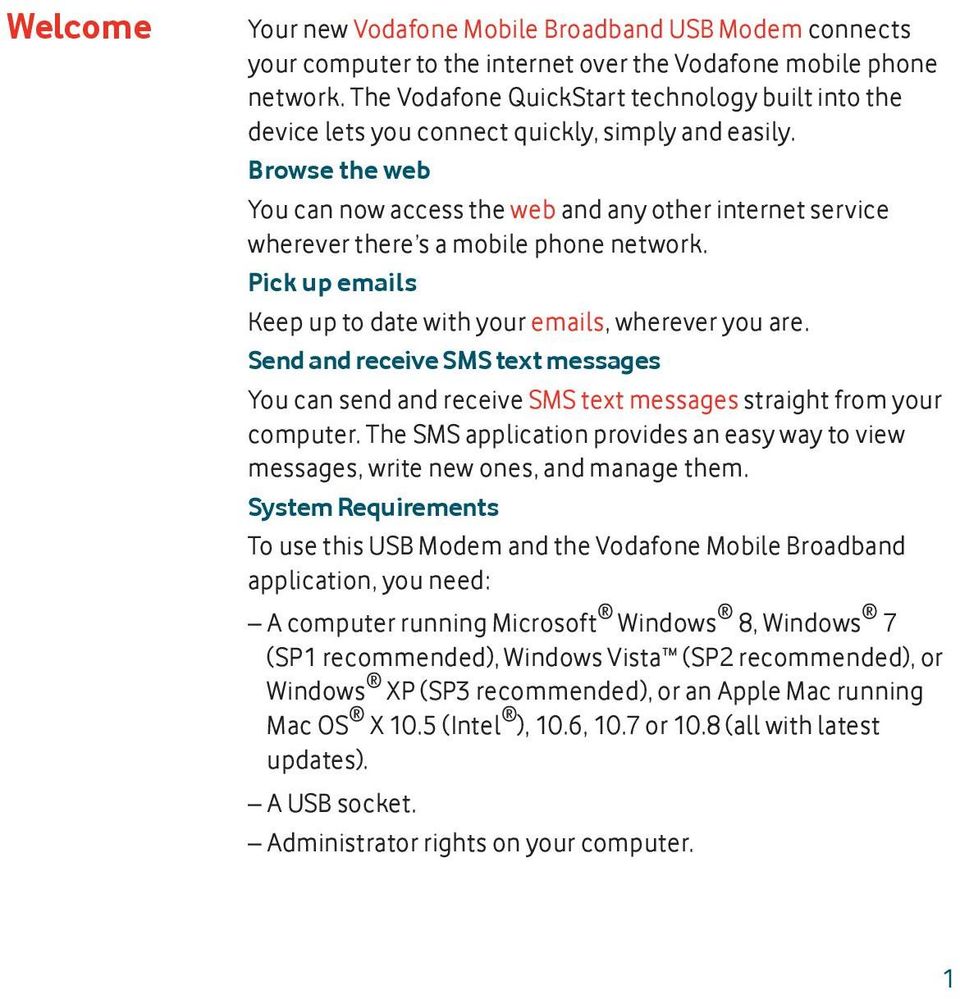
4 Set up your USB Modem Note: Some computers may be set up to prevent automatic installation of the VMB Lite service from your USB Modem. In this case, follow the steps in the hints and tips section to manually install the VMB Lite service on your computer. On a Windows 8 PC the user experience is slightly different. This is explained on the next page. Step 1 Slide the front cover off the USB Modem and insert your SIM and Micro SD card (sold separately) as shown. Micro SD card SIM card Step 2 Important. If you have an earlier version of the VMB software on your computer, you must un-install the VMB software completely and re-boot your PC before inserting this USB Modem. Step 3 Plug the USB Modem fi rmly into your computer s USB port. You should see a progress bar whilst the Vodafone Mobile Broadband service is installed on your computer from the USB Modem. Once setup is complete, the Vodafone Mobile Broadband application is started automatically, and you are connected to the Vodafone network (if a PIN is required you will see a popup screen requesting it before you can connect). The LED on the USB Modem will change from flashing to solid, and you will see 2 popup screens. 2
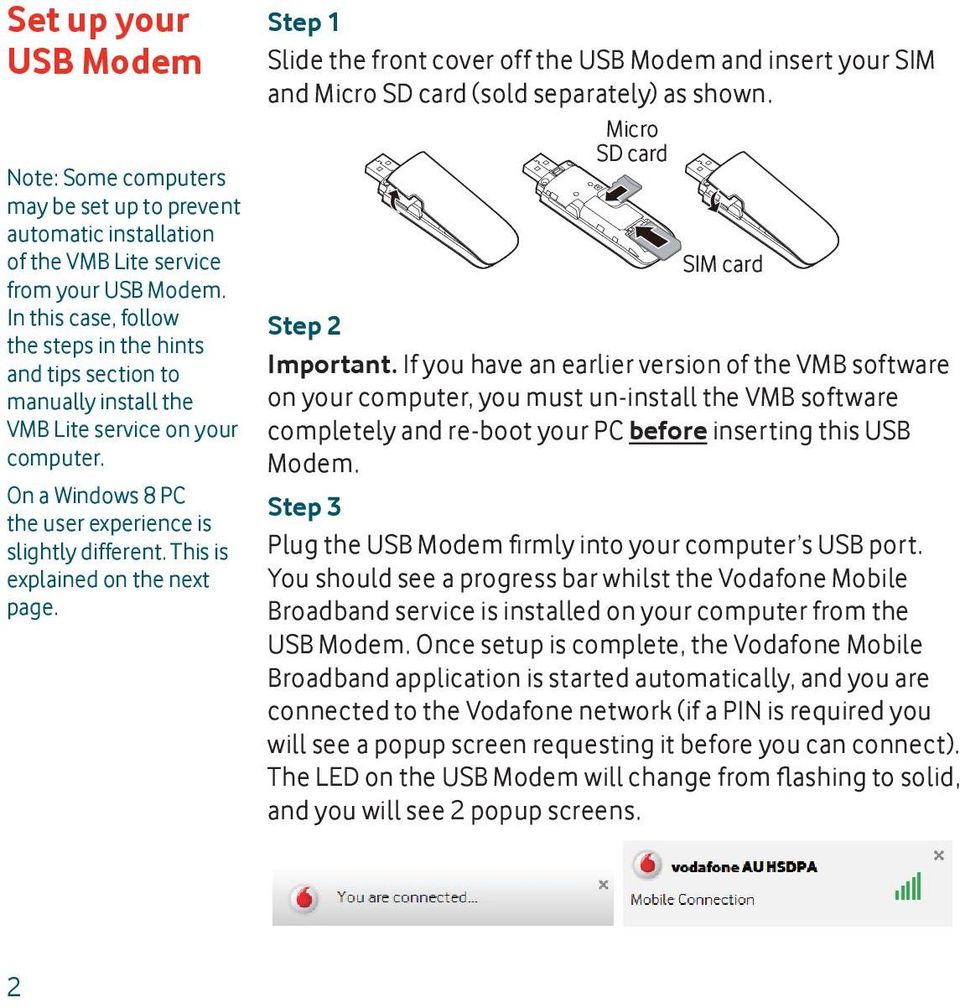
5 Windows 8 installation and user experience On a Windows 8 PC the Mobile Broadband user experience is slightly different as the mobile network connectivity is managed within the Windows 8 operating system. When you plug in the USB Modem, you need to open the charms (Search, Share, Start, Device and Settings), and select Settings > Networks (or Your Wi-Fi Network Name) > Mobile Broadband. Select Connect Automatically if required, then click Connect. Initially the Connection Manager will show Get recommended app and this will change to View my account when the Mobile Broadband application has been automatically downloaded by Windows 8. Note: The Mobile Broadband application can be launched by selecting the application Tile or View My Account Link in the Networks area of the Settings charm 3
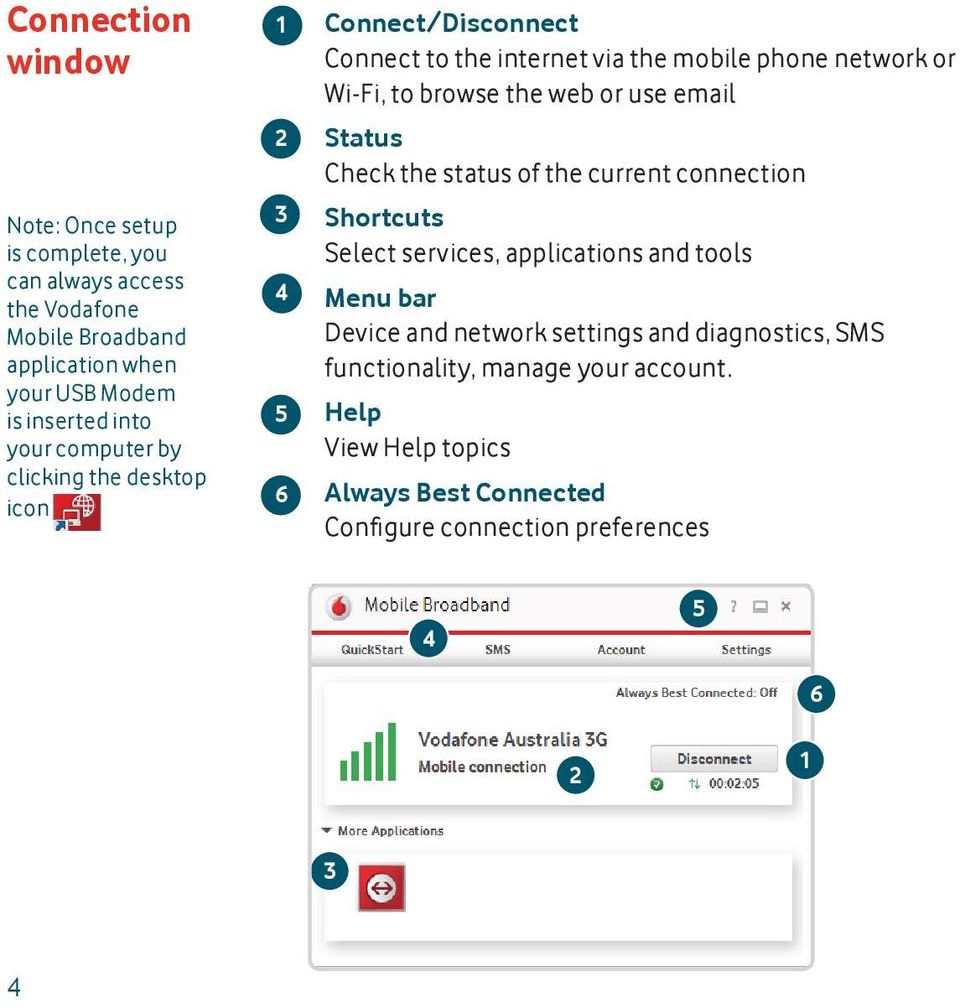
6 Connection window Note: Once setup is complete, you can always access the Vodafone Mobile Broadband application when your USB Modem is inserted into your computer by clicking the desktop icon Connect/Disconnect Connect to the internet via the mobile phone network or Wi-Fi, to browse the web or use Status Check the status of the current connection Shortcuts Select services, applications and tools Menu bar Device and network settings and diagnostics, SMS functionality, manage your account. Help View Help topics Always Best Connected Confi gure connection preferences
7 QuickStart window layout Navigation tabs Select QuickStart, SMS or Account view Navigation bar Select an area within each view Current network panel Status of mobile broadband network connection Content area Content for current area Context help Context-sensitive help for current area (scroll down) Language selection Defaults to browser language Note: Every window in the QuickStart application has this same standard layout. Context-sensitive help for each window is always available at the bottom of the window. Sometimes an additional Menu bar will appear on the left of the window In the QuickStart view Settings area you can: Set options for automatic connection to the mobile network Specify the SIM PIN number (if required by your network) Set other options via the Menu bar on the left-hand side of the window
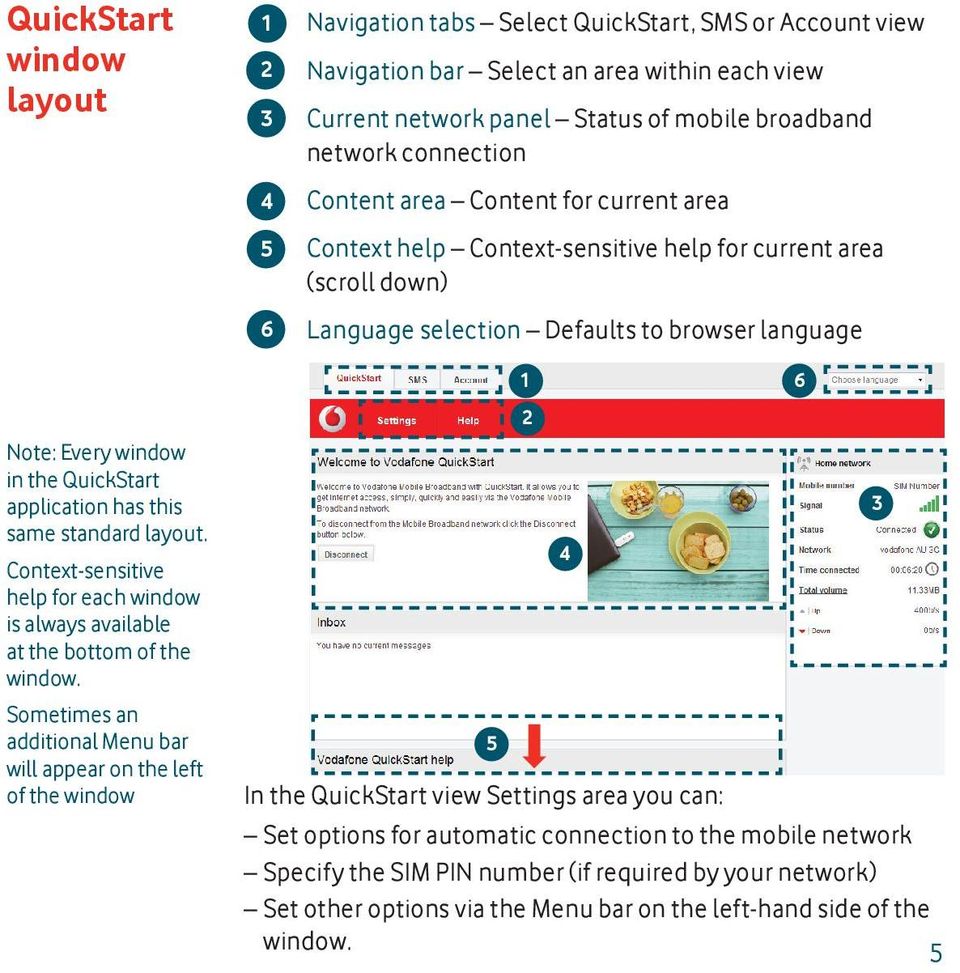
8 QuickStart view: Current network panel Note: Whenever you insert your USB Modem into your computer you are connected to the mobile network. Automatic network connection can be disabled from the Settings area in the QuickStart view. The QuickStart application can also be accessed from the Vodafone Mobile Broadband desktop icon. The Current network panel appears on the right-hand side of every screen within the QuickStart application. Roaming network is displayed when you are roaming on another operator s network, or Home network. Mobile number Shown if permitted by your network operator Signal More bars indicates better mobile broadband network signal Status Tick when connected to network; Cross when not connected Network Name and type of currently connected network Time connected For current connection to network Total volume Approximate cumulative data usage Up / Down Approximate connection speed: Up to the network from your computer, and Down from the network 6

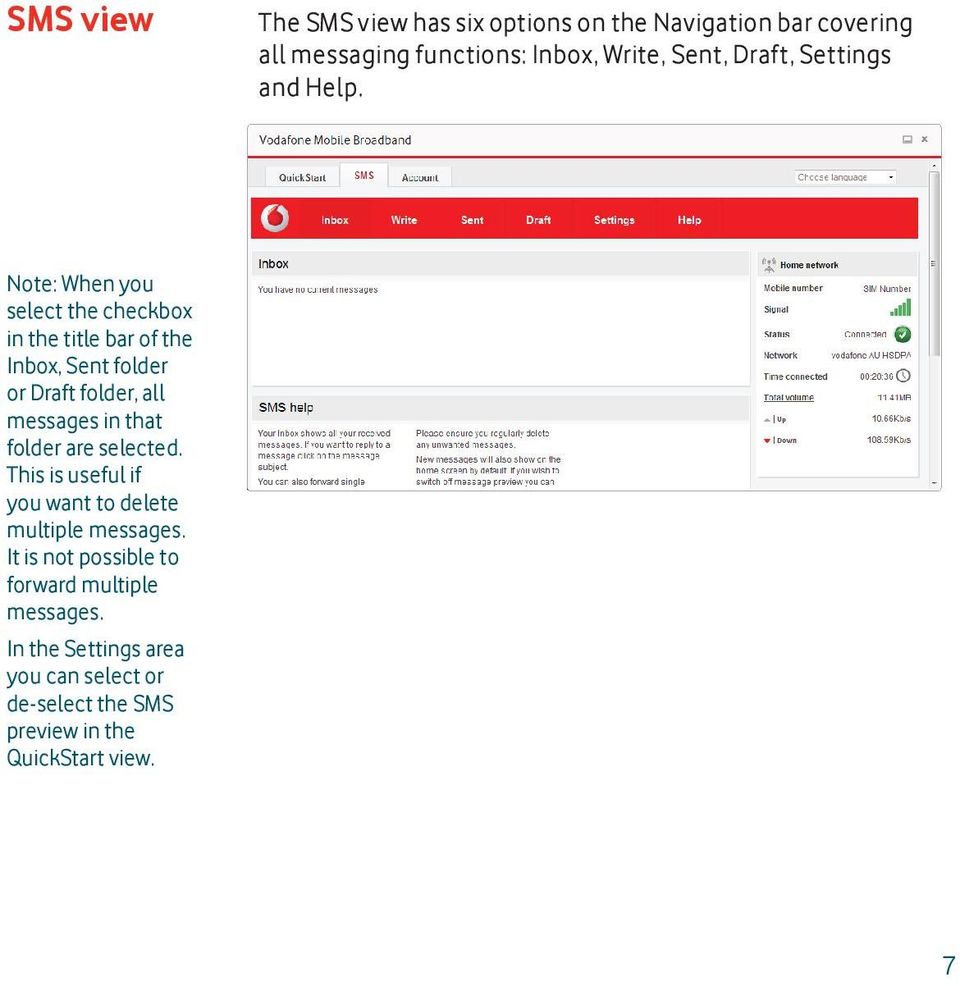
9 SMS view The SMS view has six options on the Navigation bar covering all messaging functions: Inbox, Write, Sent, Draft, Settings and Help. Note: When you select the checkbox in the title bar of the Inbox, Sent folder or Draft folder, all messages in that folder are selected. This is useful if you want to delete multiple messages. It is not possible to forward multiple messages. In the Settings area you can select or de-select the SMS preview in the QuickStart view. 7
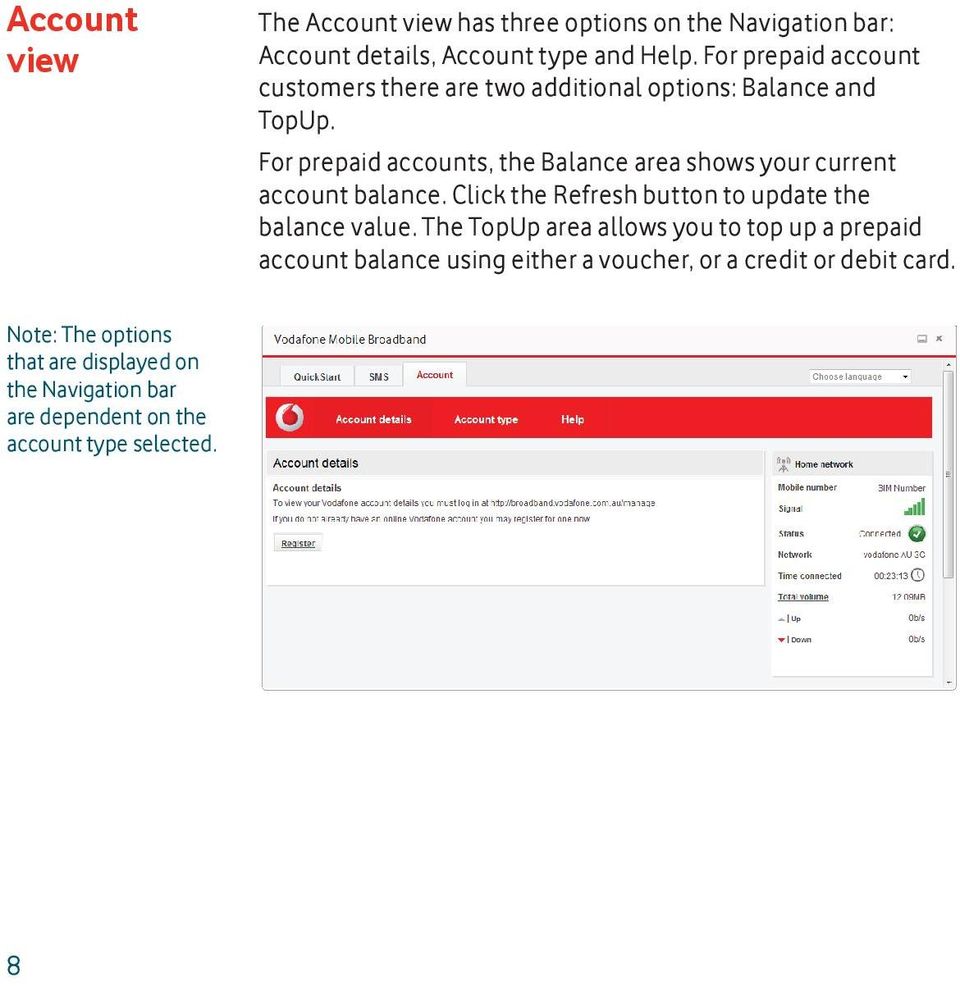
10 Account view The Account view has three options on the Navigation bar: Account details, Account type and Help. For prepaid account customers there are two additional options: Balance and TopUp. For prepaid accounts, the Balance area shows your current account balance. Click the Refresh button to update the balance value. The TopUp area allows you to top up a prepaid account balance using either a voucher, or a credit or debit card. Note: The options that are displayed on the Navigation bar are dependent on the account type selected. 8
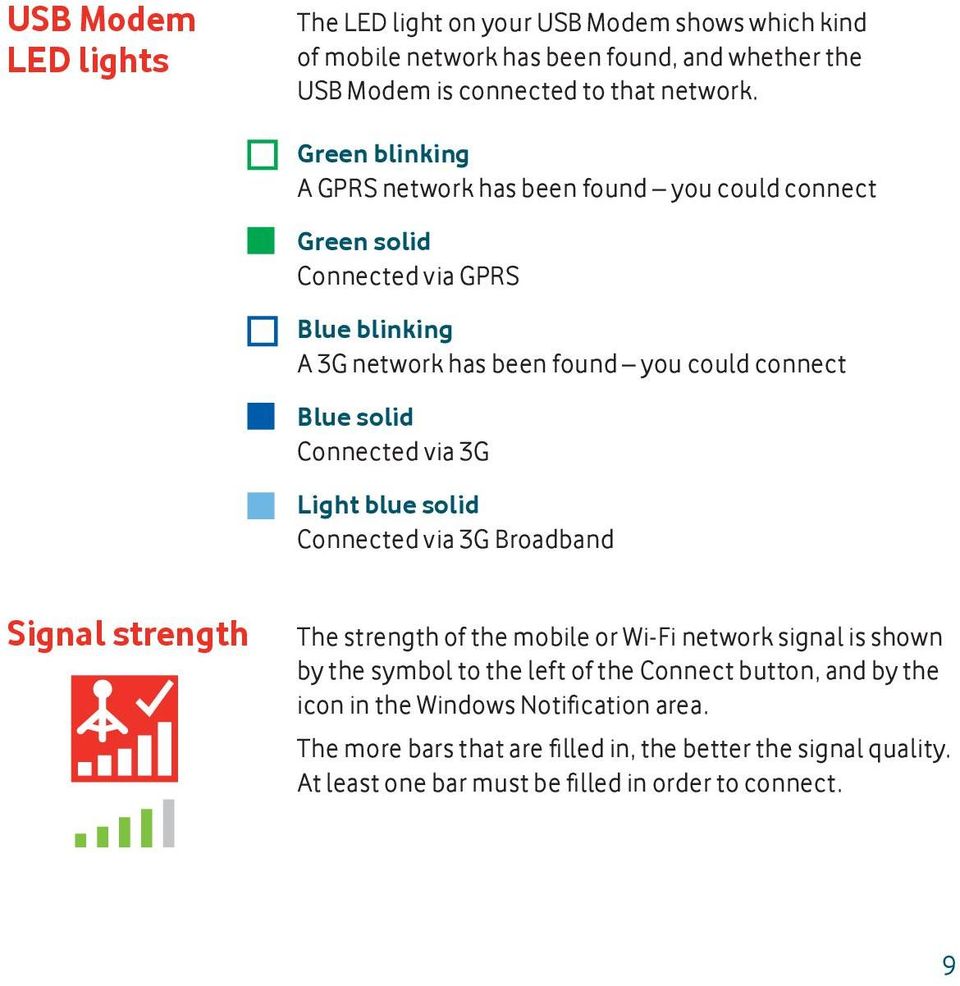
11 USB Modem LED lights The LED light on your USB Modem shows which kind of mobile network has been found, and whether the USB Modem is connected to that network. Green blinking A GPRS network has been found you could connect Green solid Connected via GPRS Blue blinking A 3G network has been found you could connect Blue solid Connected via 3G Light blue solid Connected via 3G Broadband Signal strength The strength of the mobile or Wi-Fi network signal is shown by the symbol to the left of the Connect button, and by the icon in the Windows Notifi cation area. The more bars that are fi lled in, the better the signal quality. At least one bar must be fi lled in order to connect. 9
12 Hints and tips Note: The correct software has the Vodafone Mobile Broadband with QuickStart splashscreen, and you should be able to access all the functions referenced in this QSG by clicking on the Vodafone Mobile Broadband desktop icon. Install problems on PC with older version of VMB If you had a problem installing the software (the symptoms could be any of the following): a new desktop icon for VMB was not created on your desktop, or when you run VMB from the desktop shortcut you do not get a new software splash screen displayed which says Vodafone Mobile Broadband with QuickStart, or when you insert the device you do not see it appear as a CD ROM device on your computer, or when running VMB you receive a Device Not Detected message. The cause of the problem could be an issue with an incomplete un-install of an earlier version of the Vodafone Mobile Broadband software already installed for an older device. This problem may appear on all PCs with Windows operating systems. It should not occur on Apple devices. Vodafone have developed a clean-up tool to remove the old version of the software correctly, it is available from Download the clean-up tool and unzip the fi les. After removing the current VMB software (remove using Windows), run the clean-up tool (VmbCleanup.exe) and select all 3 options Settings, Data and Device Registration. Re-boot your PC and then insert your new USB Modem, and the correct VMB software should install automatically. 10
13 Vodafone Mobile Broadband software manual installation On Microsoft Windows computers Plug your USB Modem into your computer Right-click on the VMB Lite 10.* drive in My Computer (Start menu>computer on Vista and Windows 7) Select Open or Explore Double-click the fi le called setup_vmb_lite.exe on your USB Modem You will see a progress bar. It may take a few minutes to set up your USB Modem, but once setup is complete, the Vodafone Mobile Broadband application will start and automatically connect you to the mobile network. If for some reason the application does not start, select Vodafone Mobile Broadband from the Windows Start menu, or double-click the Vodafone Mobile Broadband desktop icon. On Mac OS X computers When you plug your USB Modem in for the fi rst time, a disk named Vodafone Mobile Broadband will popup on your desktop. Double click on the Vodafone Mobile Broadband app to start installation. You will be asked to select your account type during this process. Vodafone Mobile Broadband will start automatically after installation. 11
14 The application won t install on Windows If the software does not install, or the install progress bar keeps looping From the Windows Start menu, select Settings> Control Panel>System>Hardware>Device Manager Expand Universal Serial Bus Controllers Right-click USB Mass Storage Device and select Uninstall If your devices are not reloaded, select Scan for Hardware changes from the Action menu. Cannot open QuickStart application window The following things may prevent you from opening the Vodafone QuickStart application window by double-clicking the desktop shortcut: Your computer already has a connection via an ethernet LAN cable Your computer already has a connection via a Wi-Fi network You may be using a VPN (Virtual Private Network). Unplugging the LAN cable, switching off Wi-Fi on your computer, or exiting your VPN, and then re-inserting the USB Modem, or re-starting the PC may solve the problem. 12
15 Note: If you can see the application window in your browser, you can find more hints and tips in the Help area. Selecting the Help option on the Navigation bar in any view, and then Diagnostics in the Menu bar, may help you to identify a problem. This area also shows information that may be required if you need to contact Support at your mobile network operator. Select Support from the Menu bar for more information and local support. No network can be found Change your physical location: in a building, move closer to a window, move higher up, or go outside Open the QuickStart application window Select the Settings heading on the Navigation bar Select the Network entry in the Menu bar on the left Click Search to search for available networks See if you can connect to one of the allowed networks listed Click Save to save your change If you are abroad, contact Support, and check that data services and roaming are enabled on your account. Re-installing the software If you want to re-install the software from the USB Modem, you need to fi rst delete the Vodafone Mobile Broadband Service software from your computer. From the Windows Start menu, select Settings> Control Panel>Add or Remove Programs (XP) or Programs and Features (Windows 7) Run the Vodafone Mobile Broadband Uninstaller Re-insert your USB Modem and the software will re-install. 13

16 No connection can be opened (1) Check the device status (click on desktop shortcut, select the QuickStart tab, Help on Settings bar, and select Diagnostics from the menu). This may indicate the source of the problem. No connection can be opened (2) Wait a few minutes and try to connect again. This is most often a temporary problem, especially if an Error 631 or Error 619 isreferenced. If the problem persists, please call Support. Close the application window and then re-open it Re-start your computer Open the QuickStart application window Select the Settings heading on the Navigation bar Select the Network entry in the Menu bar on the left Check which option is selected. If the option is set to a Preferred option, set it to an Only option Click Save to save your change If you are using a VPN (Virtual Private Network), contact the administrator of your VPN Select the Account tab Select the Account type heading in the Navigation bar Check that the type of account you have with your mobile network operator is selected in the drop-down menu. 14
17 Glossary Bearer Built-in data card USB Modem EDGE GPRS GSM Home network HSPA HSUPA 3G 3G broadband Roaming SIM Communication method used for data transport over the mobile network, eg. 3G Broadband, HSPA, 3G, etc. Mobile data card built into notebook computer. Enables data connections over the mobile phone network. A device for your computer that you can use to open a data connection over the mobile phone network. An enhancement to the GPRS bearer offering higher speeds, although not as fast as 3G Broadband. The General Packet Radio Service is a bearer offering higher data speeds than GSM, on which it is based. Global System for Mobile Communication. The network of the mobile operator who provided your SIM. High-Speed Packet Access bearer, enhancing 3G, including both HSUPA (Uplink) and HSDPA (Downlink). High-Speed Uplink Packet Access bearer. The third-generation mobile phone service, as UMTS (Universal Mobile Telecommunications System) is also known, is a bearer providing higher data speeds. The latest enhancement to the 3G bearer. You can use your mobile device on any other mobile network that has a roaming agreement with your operator, whether in your country or abroad. Your Subscriber Identity Module is the postage-stamp-sized chip that you will have received together with your mobile contract. Your SIM has gold contacts on one side. 15
18

19

20 The term Mobile Broadband together with the birds design is a trademark of GSMC Limited. Vodafone Vodafone and the Vodafone logos are trade marks of the Vodafone Group. Any product or company names mentioned herein may be the trade marks of their respective owners. Product Code: K /13_en_AU

Now with. Quick Start. User Guide Vodafone Mobile Broadband USB Stick K3773. Designed by Vodafone
 Now with Quick Start User Guide Vodafone Mobile Broadband USB Stick K3773 Designed by Vodafone Welcome to the world of mobile communications 1 Welcome 2 Set up your USB Stick 3 QuickStart manual installation
Quick Start Guide Vodafone Mobile Broadband USB Stick. Designed for Vodafone
 Quick Start Guide Vodafone Mobile Broadband USB Stick Designed for Vodafone Welcome to the world of mobile communications 1 Welcome 2 Set up your USB Stick 3 Start the application 4 Connect Standard window
User Guide Vodafone Pocket WiFi Pro. Designed by Vodafone
 User Guide Vodafone Pocket WiFi Pro Designed by Vodafone Welcome to the world of mobile communications 1 Welcome 2 Device overview 3 Getting started: setup 4 Getting started: use 5 Pocket WiFi online dashboard
User Guide Vodafone Mobile Wi-Fi R210. Designed by Vodafone
 User Guide Vodafone Mobile Wi-Fi R210 Designed by Vodafone Welcome to the world of mobile communications 1 Welcome 2 Device overview 3 Getting started: Step 1 4 Getting started: Step 2 5 Mobile Wi-Fi web
User Guide Vodafone Mobile Wi-Fi R206-Z. Designed by Vodafone
 User Guide Vodafone Mobile Wi-Fi R206-Z Designed by Vodafone Welcome to the world of mobile communications 1 Welcome 2 Device overview 3 Getting started: Step 1 4 Getting started: Step 2 5 Mobile Wi-Fi
Quick Start Guide Vodafone Mobile Broadband USB Stick. Designed for Vodafone
 Quick Start Guide Vodafone Mobile Broadband USB Stick Designed for Vodafone Welcome to the world of mobile communications 1 Welcome 2 Set up your USB Stick 3 Start the software 4 Software overview 5 Connect
User Guide Vodafone Mobile Broadband USB Modem K4203. Designed by Vodafone
 User Guide Vodafone Mobile Broadband USB Modem K20 Designed by Vodafone Welcome to the world of mobile communications 1 Welcome 2 Set up your USB Modem Windows 7, Windows Vista, Windows XP Windows 8 5
User Guide Vodafone Mobile Wi-Fi R212. Designed by Vodafone
 User Guide Vodafone Mobile Wi-Fi R212 Designed by Vodafone Welcome to the world of mobile communications 1 Welcome 2 Device overview 3 Getting started: Step 1 4 Getting started: Step 2 5 Mobile Wi-Fi web
User Guide Vodafone Mobile Wi-Fi R206-Z. Designed by Vodafone
 User Guide Vodafone Mobile Wi-Fi R206-Z Designed by Vodafone Welcome to the world of mobile communications 1 Welcome 2 Device overview 3 Getting started: Step 1 4 Getting started: Step 2 5 Mobile Wi-Fi
Quick Start Guide Vodafone Mobile Connect USB Stick. Designed for Vodafone
 Quick Start Guide Vodafone Mobile Connect USB Stick Designed for Vodafone Welcome to the world of mobile communications 1 Welcome 2 Set up your USB Stick 3 Start the software 4 Software overview 5 Connect
Quick Start Guide Vodafone Mobile Broadband USB Stick. Designed for Vodafone
 Quick Start Guide Vodafone Mobile Broadband USB Stick Designed for Vodafone Welcome to the world of mobile communications 1 Welcome 2 Set up your USB Stick 3 Start the software 4 Software overview (Microsoft
Quick Start Guide Vodafone Mobile Broadband USB Modem Stick. Designed for Vodafone
 Quick Start Guide Vodafone Mobile Broadband USB Modem Stick Designed for Vodafone Welcome to the world of mobile communications 1 Welcome 2 Set up your USB Modem Stick 3 Start the software 4 Software overview
Quick Start Guide Vodafone Mobile Connect USB Stick. Designed for Vodafone
 Quick Start Guide Vodafone Mobile Connect USB Stick Designed for Vodafone Welcome to the world of mobile communications 1 Welcome 2 Set up your USB Stick 3 Start the software 4 Software overview 5 Connect
User Guide Vodafone Pocket WiFi 4G. Designed by Vodafone
 User Guide Vodafone Pocket WiFi 4G Designed by Vodafone Welcome to the world of mobile communications 1 Welcome 2 Device overview 3 Getting started: setup 4 Getting started: use 5 Pocket WiFi online dashboard
User Guide Vodafone Pocket WiFi Extreme. Designed by Vodafone
 User Guide Vodafone Pocket WiFi Extreme Designed by Vodafone Welcome to the world of mobile communications 1 Welcome 2 Device overview 3 Getting started: setup 4 Getting started: use 5 Pocket WiFi online
Quickstart Guide Vodafone Mobile Broadband K4607-Z USB Stick. Designed by Vodafone
 Quickstart Guide Vodafone Mobile Broadband K4607-Z USB Stick Designed by Vodafone Welcome to the world of mobile communications 1 Welcome 2 Set up your USB Stick 4 Windows 7, Windows Vista Windows XP 6
Quick Start Guide Vodafone Mobile Connect USB Stick
 Quick Start Guide Vodafone Mobile Connect USB Stick Welcome to the world of mobile communications 1 Welcome 2 Set up your USB Stick 3 Start the software 4 Software overview 5 Connect 6 SMS text messaging
Installation & User Guide Vodafone Mobile Broadband USB Stick. Designed for Vodafone
 Installation & User Guide Vodafone Mobile Broadband USB Stick Designed for Vodafone 4 5 6 8 9 9 0 8 Welcome Set up your USB Stick Start the software Software overview Connect SMS text messaging SMS contacts
Quick Start Guide Vodafone Mobile Broadband USB Dongle K3772-Z. Designed by Vodafone
 Quick Start Guide Vodafone Mobile Broadband USB Dongle K3772-Z Designed by Vodafone Welcome to the world of mobile communications 1 2 3 4 5 6 Welcome Set up your USB dongle Get connected Pay as you go
Designed for Vodafone
 Quick Start Guide Vodafone Mobile Connect USB Modem Designed for Vodafone Welcome to your new USB data modem, designed for Vodafone with 3G and 3G Broadband. We ll now take you through the simple process
Quickstart Guide Vodafone Mobile Wi-Fi R216-Z
 Quickstart Guide Vodafone Mobile Wi-Fi R216-Z Welcome to the world of mobile communications 1 Welcome 2 Device overview 3 Getting started 5 Mobile Wi-Fi Web app 6 Web app overview 7 Current network panel
Quickstart Guide Vodafone Mobile Wi-Fi R209-Z
 Quickstart Guide Vodafone Mobile Wi-Fi R209-Z Welcome to the world of mobile communications 1 Welcome 2 Device overview 3 Getting started 5 Mobile Wi-Fi Web app 6 Web app overview 7 Current network panel
Quick Start Guide Vodafone Mobile Connect USB Modem
 Quick Start Guide Vodafone Mobile Connect USB Modem Designed for Vodafone Welcome to your new USB data modem, designed for Vodafone with 3G and 3G Broadband. We ll now take you through the simple process
Quickstart Guide Vodafone Mobile Wi-Fi R207
 Quickstart Guide Vodafone Mobile Wi-Fi R207 Welcome to the world of mobile communications 1 Welcome 2 Device overview 3 Getting started 5 Mobile Wi-Fi Web app 6 Web app overview 7 Current network panel
User Guide: Vodafone Mobile Broadband
 User Guide: Vodafone Mobile Broadband Contents Introduction... 3 Vodafone Mobile Broadband... 4 Application Start... 4 Main View... 4 Pre-Pay Account Option... 4 My Account tab... 5 Customer Messaging...
User Guide HUAWEI UML397. Welcome to HUAWEI
 User Guide HUAWEI UML397 Welcome to HUAWEI 1 Huawei UML397 4G LTE Wireless Modem User Manual CHAPTER 1 BEFORE USING YOUR UML397 WIRELESS MODEM ABOUT THIS USER MANUAL...4 WHAT S INSIDE THE PRODUCT PACKAGE...4
Quick Start Guide. Vodafone Mobile Wi-Fi Vodafone R201
 Quick Start Guide Vodafone Mobile Wi-Fi Vodafone R201 Welcome to the world of Vodafone Mobile Broadband 1 Introduction 2 Device Overview 3 Getting Started 7 Connecting To The Vodafone Mobile Wi-Fi Device
TPG MOBILE BROADBAND QUICK SETUP GUIDE
 TPG MOBILE BROADBAND QUICK SETUP GUIDE TPG USB E1762 Modem Thank you for choosing TPG Mobile Broadband and USB E1762 modem. This User Guide provides step by step instructions that will take you through
Sierra Wireless AirCard Watcher Help for Mac OS X
 Sierra Wireless AirCard Watcher Help for Mac OS X Sierra Wireless AirCard Watcher allows you to manage and monitor the connection between your modem and the network. With Watcher, you can: Determine signal
ø Mobile Broadband User Guide Pay & Go
 ø Mobile Broadband User Guide Pay & Go USB Modem E160 We re better, connected What s ø Mobile Broadband? ø Mobile Broadband lets you use the internet almost anywhere. And it includes connection to any
Networking. General networking. Networking overview. Common home network configurations. Wired network example. Wireless network examples
 Networking General networking Networking overview A network is a collection of devices such as computers, printers, Ethernet hubs, wireless access points, and routers connected together for communication
MF652 USB Modem User Guide
 MF652 USB Modem User Guide Connection Manager Software Guide... 2 Using your USB Modem... 4 Task bar information... 6 Using the SMS Interface... 7 Using the Phonebook... 9 Phonebook Notes:...10 Settings...11
Advanced Configuration Guide. Vodafone Mobile Wi-Fi Vodafone R215
 Vodafone Mobile Wi-Fi Vodafone R215 Table of Contents Welcome... 3 1. Getting Started Initial Connection and Security Settings... 4 1.1 Vodafone Mobile Wi-Fi Overview... 5 1.1.1 System Requirements...
MOBILE INTERNET DONGLE USERGUIDE
 MOBILE INTERNET DONGLE USERGUIDE Mobile Internet Dongle User guide Ver 1.0 Authored by Akugizibwe Simon Peter Page 1 Note: The contents of this user guide have been compiled strictly for Airtel Uganda
Iridium Extreme TM Satellite Phone. Data Services Manual
 Iridium Extreme TM Satellite Phone Data Services Manual Table of Contents 1 OVERVIEW... 1 2 HOW IT WORKS... 1 3 BEFORE INSTALLING... 2 4 USB DRIVER INSTALLATION... 3 5 MODEM INSTALLATION AND CONFIGURATION...
Connection Manager (V8.8) Your guide to getting started
 Connection Manager (V8.8) Your guide to getting started Contents Windows Setting up mobile broadband... 1 Mac Setting up mobile broadband...11 Ways to pay and help Pay & Go... 17 Buying internet access...
Huawei E169 & E220 Status Lights
 Huawei E169 & E220 Status Lights 3G Wireless Troubleshooting Connection Issues 1. Have you correctly inserted the SIM card into the USB Modem? Please ensure the SIM card is correctly inserted. The gold
Getting to Know Your Mobile Internet Key
 Thank you for choosing the Huawei E3276 4G LTE Mobile Internet Key. With your Mobile Internet Key, you can enjoy a full high speed Internet experience on the go. This guide shows you how to set-up and
3G USB Modem. Model AC329U. User Manual. February 2014 202-11357-02. 350 East Plumeria Drive San Jose, CA 95134 USA
 3G USB Modem Model AC329U User Manual February 2014 202-11357-02 350 East Plumeria Drive San Jose, CA 95134 USA Support Thank you for selecting NETGEAR products. After installing your device, locate the
Contents. Business Everywhere user guide. 1. Introduction. 2. How to Install/Uninstall Business Everywhere. 3. The Business Everywhere interface
 Contents 1. Introduction 2. How to Install/Uninstall Business Everywhere 3. The Business Everywhere interface 4. Launching Business Everywhere 5. Connection 6. Business Everywhere management tools 7. Troubleshooting
Verizon Remote Access User Guide
 Version 17.12 Last Updated: August 2012 2012 Verizon. All Rights Reserved. The Verizon names and logos and all other names, logos, and slogans identifying Verizon s products and services are trademarks
Mobile Broadband Manager Guide Huawei E8278
 Mobile Broadband Manager Guide Huawei E8278 What s mobile broadband? Mobile broadband means you can surf the internet when you re out and about. 4G mobile broadband is the same but using our glorious 4G
Vodafone Mobile Broadband via the phone
 Vodafone Mobile Broadband via the phone Getting started guide: PC internet via the phone software install Make the most of now Contents Vodafone Mobile Broadband via the phone 3 System requirements 3 What
N600 WiFi USB Adapter
 Model WNDA3100v3 User Manual December 2014 202-11470-01 350 East Plumeria Drive San Jose, CA 95134 USA Support Thank you for selecting NETGEAR products. After installing your device, locate the serial
3G USB Modem. Model AC327U. User Manual. February 2014 202-11356-01. 350 East Plumeria Drive San Jose, CA 95134 USA
 3G USB Modem Model AC327U User Manual February 2014 202-11356-01 350 East Plumeria Drive San Jose, CA 95134 USA Support Thank you for selecting NETGEAR products. After installing your device, locate the
Wi-Fi Router Huawei E5. User Guide
 Wi-Fi Router Huawei E5 User Guide 1 Content Modem Description Specification SW installation guide User manual Troubleshooting Terms 2 Modem Description Huawei E5830 HSDPA Wifi-router and a USB modem combined
XConsole GUI setup communication manual September 2010.
 XConsole GUI setup communication manual September 2010. XConsole is compatible with Microsoft XP, Vista and Windows 7. The software will also work if using Boot camp on a Mac. IMPORTANT NOTES: - Do NOT
Contents. Hardware Configuration... 27 Uninstalling Shortcuts Black...29
 Contents Getting Started...1 Check your Computer meets the Minimum Requirements... 1 Ensure your Computer is Running in Normal Sized Fonts... 7 Ensure your Regional Settings are Correct... 9 Reboot your
Advanced Configuration Guide. Vodafone Mobile Broadband Hotspot Vodafone MiFi 2352
 Vodafone MiFi 2352 Table of Contents Welcome... 4 1. Getting Started... 5 1.1 Overview... 6 1.2 Power sources for the... 7 1.3 Install SIM Card and Battery... 8 1.4 Battery Tips... 9 1.5 LED States...
Mobiel Internet Dashboard. Manual
 Mobiel Internet Dashboard Manual Contents Chapter 1 Welcome to the Mobiel Internet Dashboard support manual Chapter 4 The Mobiel Internet Dashboard interface About this manual 6 Opening the Mobiel Internet
Additional Requirements for ARES-G2 / RSA-G2. One Ethernet 10 Base T/100 Base TX network card required for communication with the instrument.
 TA Instruments TRIOS Software Installation Instructions Installation Requirements Your TRIOS Instrument Control software includes all the components necessary to install or update the TRIOS software, as
Quick Start Guide 3G Router from Vodafone
 Quick Start Guide 3G Router from Vodafone Welcome to the world of mobile communications Router Function Overview and System Requirements 1 Basic router set-up 2 Insert the SIM Card 2 Connect to the Power
TELSTRA ELITE TM MOBILE BROADBAND USB QUICK START GUIDE
 TELSTRA ELITE TM MOBILE BROADBAND USB QUICK START GUIDE WELCOME TO THE TELSTRA ELITE MOBILE BROADBAND USB The following steps will guide you through installing your Telstra Elite Mobile Broadband USB,
Bosco Internet Setup Guide For Zest Apartments. Windows XP, Vista and Mac OS X
 Bosco Internet Setup Guide For Zest Apartments Windows XP, Vista and Mac OS X Contents Page Windows XP... 3 Windows Vista... 19 Mac OS X... 25 Bosco Internet Setup Guide - Page 2 How to get connected at
Quick-Start Guide 007-SE01-001. Gigaset. Residential Wireless Gateway SE567/SE568. Gigaset Communications GmbH is a trademark licensee of Siemens AG
 Quick-Start Guide 007-SE01-001 Gigaset Residential Wireless Gateway SE567/SE568 Gigaset Communications GmbH is a trademark licensee of Siemens AG Before you begin... Verify that the following items came
NETGEAR genie Apps. User Manual. 350 East Plumeria Drive San Jose, CA 95134 USA. August 2012 202-10933-04 v1.0
 User Manual 350 East Plumeria Drive San Jose, CA 95134 USA August 2012 202-10933-04 v1.0 Support Thank you for choosing NETGEAR. To register your product, get the latest product updates, get support online,
Chapter 1 Downloading Images to Your Computer (Windows)
 Software User Guide For the safe use of your camera, be sure to read the Safety Precautions thoroughly before use. Types of software installed on your computer varies depending on the method of installation
A6210 WiFi USB Adapter 802.11ac USB 3.0 Dual Band User Manual
 802.11ac USB 3.0 Dual Band User Manual August 2014 202-11373-01 350 East Plumeria Drive San Jose, CA 95134 USA Support Thank you for selecting NETGEAR products. After installing your device, locate the
Internet for Everyone In-Room Instructions January 2011 Version 1.3
 Internet for Everyone In-Room Instructions January 2011 Version 1.3 Everywhere Internet 2006 Page 1 of 17 Connecting your computer to the Everywhere Internet network in your room 1. You need a network
Frequently Asked Questions
 FAQs Frequently Asked Questions Connecting your Linksys router to the Internet 1 What computer operating systems does my Linksys router support? 1 Why can t I connect my computer or device to my router?
AT&T USBConnect Mercury Getting Started Guide
 AT&T USBConnect Mercury Getting Started Guide Welcome to AT&T Thank you for purchasing the AT&T USBConnect Mercury. Please use either this Getting Started Guide or our web tutorial available at att.com/wirelesstutorials
MOBILE INTERNET HUAWEI E220 3G USB MODEM
 MOBILE INTERNET HUAWEI E220 3G USB MODEM With this modem you can easily: Access the internet Send or receive text messages Manage contacts The E220 package box contains the following items: One E220 HSDPA
Verizon Wireless VZAccessSM Manager User's Guide
 Verizon Wireless VZAccessSM Manager User's Guide I Verizon Wireless VZAccess Manager Table of Contents Part I Introduction 3 1 Supported Services... 3 2 System Requirements... 3 3 Setup Overview... 4 Part
OPERATION MANUAL. MV-410RGB Layout Editor. Version 2.1- higher
 OPERATION MANUAL MV-410RGB Layout Editor Version 2.1- higher Table of Contents 1. Setup... 1 1-1. Overview... 1 1-2. System Requirements... 1 1-3. Operation Flow... 1 1-4. Installing MV-410RGB Layout
Centran Version 4 Getting Started Guide KABA MAS. Table Of Contents
 Page 1 Centran Version 4 Getting Started Guide KABA MAS Kaba Mas Welcome Kaba Mas, part of the world-wide Kaba group, is the world's leading manufacturer and supplier of high security, electronic safe
Installing Global Logger USB Drivers
 Installing Global Logger USB Drivers For 32-bit Windows 8, skip to the section labeled, Continue with Driver Installation. For 64-bit Windows 8, start the process here. At the time of this writing, the
VZAccess Manager User Guide
 VZAccess Manager User Guide Table of Contents Chapter 1 Introduction... 1 VZAccess Manager from Verizon Wireless... 1 Features and Supported Services... 1 What is Mobile Broadband?... Error! Bookmark not
VirtualXP Users Guide
 VirtualXP Users Guide Contents Chapter 1: Introduction... 2 Chapter 2: Install and Uninstall VirtualXP... 3 2.1 System Requirement... 3 2.2 Installing VirtualXP... 3 2.3 Uninstalling VirtualXP... 3 Chapter
GETTING TO KNOW YOUR 4G USB
 GETTING TO KNOW YOUR Telstra Pre-paid 4G USB LET S GET THIS SHOW ON THE ROAD WHAT S INSIDE Your Telstra Pre-Paid 4G USB has been tested to the highest standards to deliver you the best possible coverage
USB DATA Link Cable USER MANUAL. (Model: DA-70011-1) GO! Suite Quick Start Guide
 USB DATA Link Cable USER MANUAL (Model: DA-70011-1) GO! Suite Quick Start Guide - GO! Suite Introduction - GO! Bridge Introduction - Remote Share Introduction - Folder Sync - Outlook Sync GO! Bridge for
Quick Start. AirCard 340U USB Modem
 Quick Start AirCard 340U USB Modem Get Started The NETGEAR AirCard 340U USB Modem delivers 4G LTE connections to your laptop. This small, convenient device features a built-in LCD display to monitor connection
Installation Instructions
 Installation Instructions Windows USB driver for Installation If a Diagnostic Interface with USB is connected to a PC with a Windows operating system 98, ME, XP or Vista for the first time, it is necessary
Internet and Email Help. Table of Contents:
 Internet and Email Help The following tips are provided to assist you in troubleshooting and managing your Plex Internet and email services. For additional issues or concerns, you may also call our Product
F.A.Q. Mustek A3 scanners 600-1200-2400
 F.A.Q. Mustek A3 scanners 600-1200-2400 Q- When I connect the scanner there is no light on the scanner, is the scanner working? A- There is no LED on the scanner that indicates if the scanner is switched
HDDtoGO. User Guide. User Manual Version 3.4 2004-2010 CoSoSys SRL 2010 A-DATA Technology Co., Ltd. HDDtoGO User Manual
 HDDtoGO User Guide User Manual Version 3.4 2004-2010 CoSoSys SRL 2010 A-DATA Technology Co., Ltd. HDDtoGO User Manual Table of Contents Table of Contents...1 1. Introduction...2 2. System Requirements...3
AT&T USBConnect Turbo Quickstart
 AT&T USBConnect Turbo Quickstart Welcome to AT&T Please use this Quickstart to get a brief overview of the major features and services available with your new AT&T USBConnect Turbo and your DataConnect
OSM 2007 MONITORING SOFTWARE
 OSM 2007 MONITORING SOFTWARE Contents Preparation...3 Software Installation...4 Configuring OSM...6 Connecting a Device...16 Connecting to Station Monitoring Software...19 Troubleshooting...23 Installing
Troubleshooting Sprint Mobile Broadband USB Modem by Novatel Wireless TM (Ovation TM U727)
 Troubleshooting Sprint Mobile Broadband USB Modem by Novatel Wireless TM (Ovation TM U727) If you are unable to resolve your issue using the Troubleshooting steps below, please contact Sprint Customer
GETTING TO KNOW YOUR TELSTRA PRE-PAID 3G USB + WI-FI
 FOR MORE INFORMATION CALL 125 8880 or FROM A NON-TELSTRA PHONE, CALL 13 2200 AND SAY PRE-PAID VISIT telstra.com/ppmbb VISIT A TELSTRA STORE OR PARTNER GETTING TO KNOW YOUR TELSTRA PRE-PAID 3G USB + WI-FI
PIGCHAMP MOBILE. PigCHAMP Knowledge Software. Installation Guide for Mobile Units
 PIGCHAMP MOBILE PigCHAMP Knowledge Software Installation Guide for Mobile Units Table of Contents: Important Note:... 4 Chapter 1: PC Setup... 5 A. Install PigCHAMP Mobile Manager on Windows XP...5 B.
Guide to Installing BBL Crystal MIND on Windows 7
 Guide to Installing BBL Crystal MIND on Windows 7 Introduction The BBL Crystal MIND software can not be directly installed on the Microsoft Windows 7 platform, however it can be installed and run via XP
Business Wireless Internet quick install guide
 Read me first Business Wireless Internet quick install guide Wi-Fi and email set-up instructions included Actiontec Wireless Gateway TELUS Internet account information Record your personal account information
Sprint Mobile Broadband Card by Sierra Wireless AirCard 597E www.sprint.com
 Sprint Mobile Broadband Card by Sierra Wireless AirCard 597E www.sprint.com 2011 Sprint Nextel. All rights reserved. SPRINT and other trademarks are trademarks of Sprint Nextel. Table of Contents Welcome
Network Setup Guide. Introduction. Setting up for use over LAN
 Network Setup Guide This manual contains the setup information required to use the machine over wired LAN. If you use the machine with USB connection, refer to your setup sheet. Introduction To use the
Printer Support Guide. FedEx Ship Manager Software
 Printer Support Guide FedEx Ship Manager Software Printer FAQs Installing Printer Drivers How do I download and install the Zebra printer drivers? To download and install the current Zebra printer drivers
Troubleshooting Guide
 Sprint Mobile Hotspot MiFi TM 2200 by Novatel Wireless Troubleshooting Guide If you are experiencing any issues with your MiFi 2200, please complete or validate the following before reviewing the rest
Allworx OfficeSafe Operations Guide Release 6.0
 Allworx OfficeSafe Operations Guide Release 6.0 No part of this publication may be reproduced, stored in a retrieval system, or transmitted, in any form or by any means, electronic, mechanical, photocopy,
EASE Scan Tool Customers. SECTION I - Installation
 Please Install Your EASE Scan Tool DVD Before Installing Any Other Software That Came With Your Package. SECTION I - Installation ATTENTION: Do NOT connect an EASE Vehicle Interface Device to your Computer
Vodafone Text Centre User Guide for Microsoft Outlook
 Vodafone Text Centre User Guide for Microsoft Outlook 1 Contents Introduction 1 System requirements 2 Installation 3 The installation guide 3 First use 5 Send a message 8 Select recipient 8 Enter the message
MOBILE INTERNET QUICK START GUIDE. Laptop Card. Motorola W100 4G/3G USB LAPTOP CARD
 MOBILE INTERNET QUICK START GUIDE Laptop Card Motorola W100 4G/3G USB LAPTOP CARD Welcome to Time Warner Cable Mobile Internet With Time Warner Cable Mobile Internet, you have a super-fast online connection
DSL Self-install Kit Instructions. SpeedStream 4100
 DSL Self-install Kit Instructions SpeedStream 4100 Cover and installation notes Page 1 1. Verify your system requirements Page 2 2. Verify the contents of your DSL Self-Install kit Page 2 3. Install filters
USB 3.0 to Gigabit Ethernet Adapter
 USB 3.0 to Gigabit Ethernet Adapter User Manual Ver. 1.00 All brand names and trademarks are properties of their respective owners. Contents: Chapter 1: Introduction... 3 1.1 Product Introduction... 3
Resolving USB Driver Problems
 130 LogTag User Guide (1.8) Resolving USB Driver Problems Every USB device requires the appropriate driver files to be installed prior to them being successfully used on a computer. The installation process
USB DATA Link Cable USER MANUAL. (Model: DA-70010-1) GO! Suite Quick Start Guide
 USB DATA Link Cable USER MANUAL (Model: DA-70010-1) GO! Suite Quick Start Guide - GO! Suite Introduction - GO! Bridge Introduction - Remote Share Introduction - Folder Sync - Outlook Sync GO! Suite Quick
Ethernet Radio Configuration Guide
 Ethernet Radio Configuration Guide for Gateway, Endpoint, and Repeater Radio Units April 20, 2015 Customer Service 1-866-294-5847 Baseline Inc. www.baselinesystems.com Phone 208-323-1634 FAX 208-323-1834
Telfort Mobile Internet Software User Manual
 Telfort Mobile Internet Software User Manual [Mac version 3.0] (Birdstep BEC 2.9, November 2011) Contents Welcome!... 4 Introduction... 4 Getting Started... 5 What do the LED colors mean?... 5 Start the
The following pages will help you to solve issues linked to the installation and first use of the Wintech Manager software and Wintech USB computer.
 WINTECH MANAGER FAQ The purpose of this document is not to replace the complete user guide delivered on the Wintech Manager s CD. Most of the common question you may have about the use of the Wintech Manager
Intel Unite Solution. Standalone User Guide
 Intel Unite Solution Standalone User Guide Legal Disclaimers & Copyrights All information provided here is subject to change without notice. Contact your Intel representative to obtain the latest Intel