
Quick Start Guide Vodafone Mobile Connect USB Stick
|
|
|
- Hortense Pearson
- 10 years ago
- Views:
Transcription
1 Quick Start Guide Vodafone Mobile Connect USB Stick

2 Welcome to the world of mobile communications 1 Welcome 2 Set up your USB Stick 3 Start the software 4 Software overview 5 Connect 6 SMS text messaging 7 SMS contacts 9 USB Stick LED light 9 Signal strength 10 Hints and tips 12 Glossary
3 Welcome Your new Vodafone Mobile Connect USB Stick lets you connect your computer to the internet over the Vodafone high-speed mobile phone network. Browse the web You can now access the web and any other internet service wherever there s a mobile phone network. Pick up s Keep up to date with your s, wherever you are. You can also access your personal accounts even web-based accounts like Hotmail. Send and receive SMS text messages* You can send and receive SMS text messages straight from your computer. Vodafone SMS provides an easy way to view messages, write new ones, and manage contact details. System Requirements To use this USB Stick and the Vodafone Mobile Connect software, you need: A computer running Microsoft Windows Vista, Windows XP or Windows 2000, or an Apple Mac running Mac OS X or above At least 50 MB free disk space and 256 MB RAM memory A USB 2.0 socket Administrator rights on your computer. * SMS is currently only supported on computers running Microsoft Windows. 1
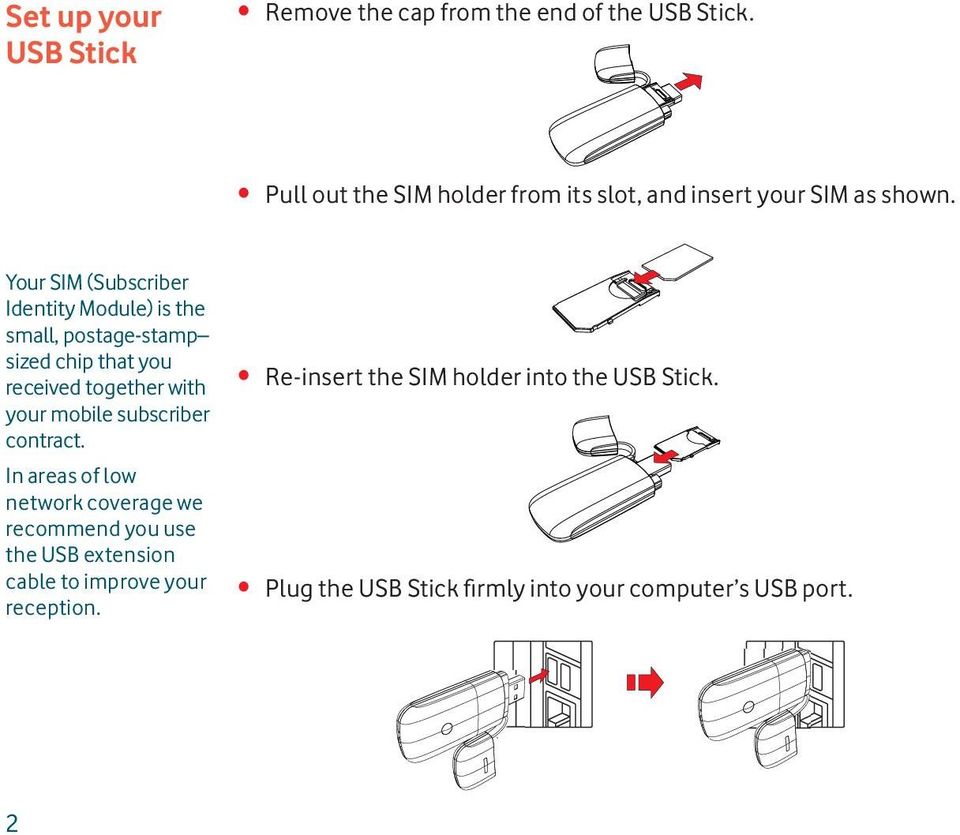
4 Set up your USB Stick Remove the cap from the end of the USB Stick. Pull out the SIM holder from its slot, and insert your SIM as shown. Your SIM (Subscriber Identity Module) is the small, postage-stamp sized chip that you received together with your mobile subscriber contract. In areas of low network coverage we recommend you use the USB extension cable to improve your reception. Re-insert the SIM holder into the USB Stick. Plug the USB Stick firmly into your computer s USB port. 2
5 Start the software On Microsoft Windows computers The software setup should start automatically, and proceed to set up your USB Stick. If for some reason the setup does not start, doubleclick the file called setup.exe on the USB Stick. Follow the on-screen instructions. Setting up your USB Stick may take a few minutes, but once the setup is finished, the Vodafone Mobile Connect Lite software should start automatically. If for some reason the program does not start, select Vodafone Mobile Connect Lite from the Windows Start menu. On Mac OS X computers The first time you plug in your USB Stick, it will show up on your desktop like a standard USB memory stick. From the USB Stick window, doubleclick the file called Vodafone MC Installer, and follow the on-screen instructions. Once your Mac has restarted, the USB Stick will no longer appear, but you will see the Vodafone Mobile Connect software in your Applications folder. Double-click the program to set up a mobile connection. 3
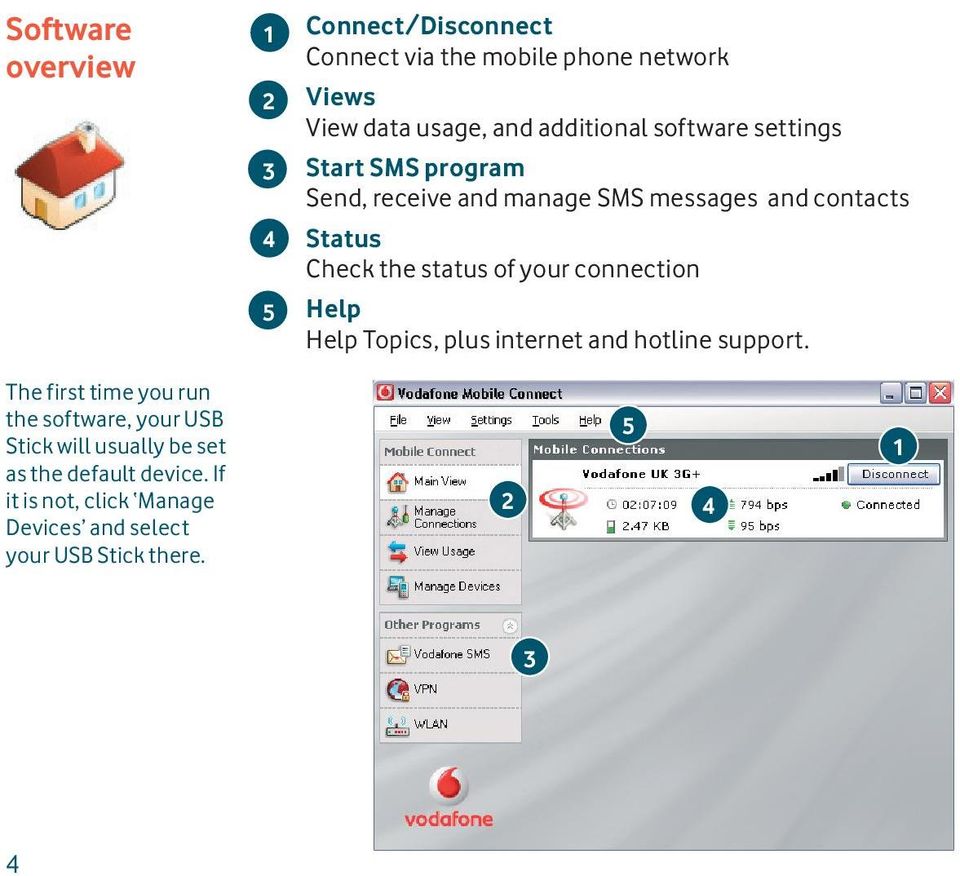
6 Software overview Connect/Disconnect Connect via the mobile phone network Views View data usage, and additional software settings Start SMS program Send, receive and manage SMS messages and contacts Status Check the status of your connection Help Help Topics, plus internet and hotline support. The first time you run the software, your USB Stick will usually be set as the default device. If it is not, click Manage Devices and select your USB Stick there
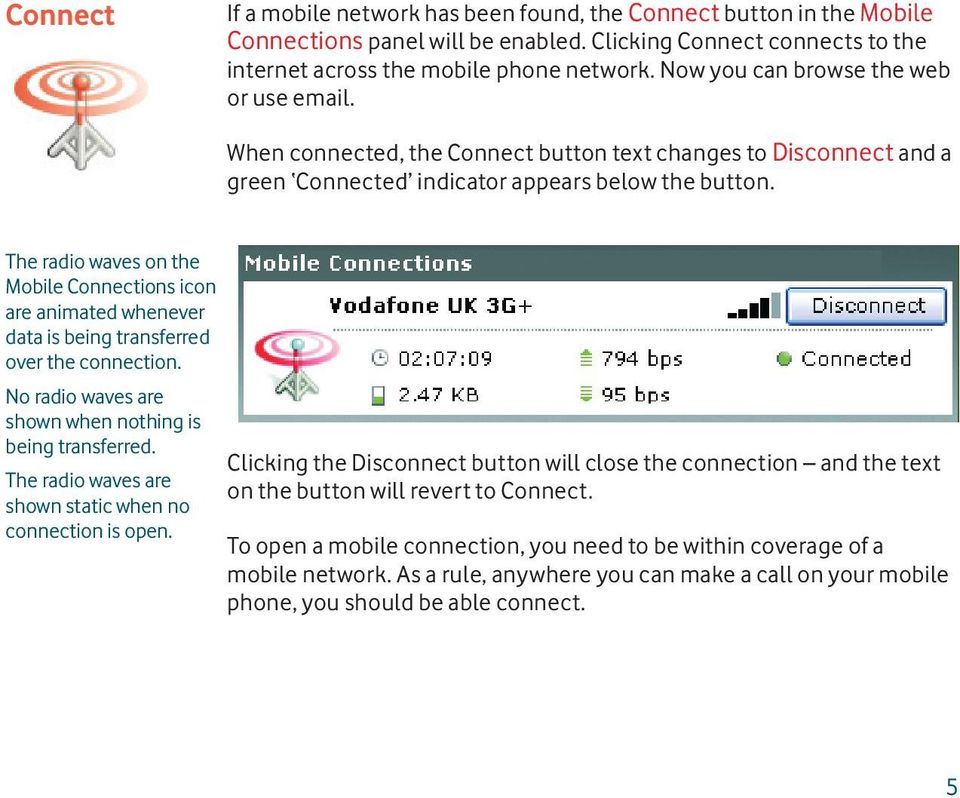
7 Connect If a mobile network has been found, the Connect button in the Mobile Connections panel will be enabled. Clicking Connect connects to the internet across the mobile phone network. Now you can browse the web or use . When connected, the Connect button text changes to Disconnect and a green Connected indicator appears below the button. The radio waves on the Mobile Connections icon are animated whenever data is being transferred over the connection. No radio waves are shown when nothing is being transferred. The radio waves are shown static when no connection is open. Clicking the Disconnect button will close the connection and the text on the button will revert to Connect. To open a mobile connection, you need to be within coverage of a mobile network. As a rule, anywhere you can make a call on your mobile phone, you should be able connect. 5
8 SMS Text Messaging Click Vodafone SMS on the navigation bar in the main window of the Vodafone Mobile Connect Lite software to open the SMS program. To send an SMS Click New at the left-hand end of the SMS toolbar to create a new SMS text message. 1 Address Enter the recipients here, or choose them from Contacts 2 Message Write your message here 3 Send Click on the Send button to send your message. The number displayed to the person who receives your message will be from your data SIM, not your mobile phone. Use a short signature to make sure people know you sent them a message: Settings/Messages/ Signature After your SMS has been sent, it will be stored in the Sent list.

9 Receiving SMS When you receive a new message, an SMS Notification is shown briefly so you can respond to it directly. The received message can also be read from the Inbox in the main Vodafone SMS window. The Vodafone SMS software will receive text messages whenever you have mobile network coverage. 7

10 SMS Contacts Click Contacts on the SMS navigation bar to open the Contacts list, in which you can save SMS numbers that you use frequently as contacts with names. New SMS Contact Clicking the New button on the SMS toolbar opens a new contact window. Enter the name and number of your contact using the international format for the number, eg

11 USB Stick LED light The LED light on your USB Stick shows which kind of mobile network has been found, and whether the USB Stick is connected to that network. Green double blinking Searching for a GPRS/EDGE network Green blinking A GPRS/EDGE network has been found you could connect Green solid Connected via GPRS/EDGE Signal strength The strength of the mobile network signal is shown by the symbol to the left of the Connect button, and by the icon in the Windows Notification area. The more bars that are filled in, the better the mobile network signal quality. At least one bar must be filled in order to connect. 9

12 Hints and tips 10 If you don t see your USB Stick in the list of devices Remove the USB Stick Re-start your computer Re-insert the USB Stick. If no network can be found Change your physical location: in a building, move closer to a window, move higher up, or go outside (Windows) Select View/View Available Mobile Connections and see if you can connect to a particular network in the list shown Contact Support, and check that data services and roaming are enabled on your account. If no connection can be opened Wait a few minutes and try to connect again. This is most often a temporary problem, especially if an Error 631 or Error 619 is referenced Select File/Exit to exit the Vodafone Mobile Connect Lite software completely, and then re-start it again Re-start your computer (Windows) Click Manage Connections and select a different Network Preference in the drop-down menu in the Mobile Connections panel. (Mac) Start the Vodafone Mobile Connect software, and select one of the other options in the lower part of the main window. If you are using a VPN (Virtual Private Network), contact your company IT administrator.

13 For further help, please visit vodafone.com, or call Vodafone Support on XXX or XXXXXXX. If you have problems when roaming (Windows) Select View/Available Mobile Connections and try opening one of the connections shown Contact Support, and check roaming is enabled for your account Check the name of the current network in the Mobile Connections panel. If it is not Vodafone or a Partner, select a different network from View/Available Mobile Connections. Check software update preferences Set your operating system and other programs to notify you of software updates instead of downloading them automatically otherwise they may slow down your mobile connection, or exceed your data usage limit. Usage indication The usage window only displays an indication of your data usage. Please refer to your invoice for the actual amount of data transferred. 11

14 Glossary Built-in data card Data card/ USB stick EDGE EV-DO GPRS GSM Roaming SIM Mobile data card built into notebook computer. Enables data connections over the mobile phone network. A device for a computer that is used to open a data connection over the mobile phone network. An enhancement to GPRS networks offering higher speeds. A high-speed mobile data standard used mostly in the USA. Frequent travellers to the USA should contact their mobile network operator about using special Vodafone Mobile Connect data cards and software in the USA. Standard for transferring data over mobile phone (GSM) networks. It generally provides wide coverage and moderate data speeds. (General Packet Radio System). A standard for mobile telecommunications (Global System for Mobile communications), supported by over 680 operators in 210 countries and territories. Connecting via networks other than your own operator s network. This typically occurs when you are abroad, but is also possible in your own country. The Subscriber Identity Module is the small, postage-stampsized chip that you will have received together with your mobile subscriber contract. The SIM has gold contacts on one side. 12

15

16 Vodafone Vodafone and the Vodafone logos are trade marks of the Vodafone Group. Any product or company names mentioned herein may be the trade marks of their respective owners. 14 Product Code: K2525 VMCLite /08_en_GB
Quick Start Guide Vodafone Mobile Connect USB Stick. Designed for Vodafone
 Quick Start Guide Vodafone Mobile Connect USB Stick Designed for Vodafone Welcome to the world of mobile communications 1 Welcome 2 Set up your USB Stick 3 Start the software 4 Software overview 5 Connect
Quick Start Guide Vodafone Mobile Connect USB Stick. Designed for Vodafone
 Quick Start Guide Vodafone Mobile Connect USB Stick Designed for Vodafone Welcome to the world of mobile communications 1 Welcome 2 Set up your USB Stick 3 Start the software 4 Software overview 5 Connect
Quick Start Guide Vodafone Mobile Broadband USB Stick. Designed for Vodafone
 Quick Start Guide Vodafone Mobile Broadband USB Stick Designed for Vodafone Welcome to the world of mobile communications 1 Welcome 2 Set up your USB Stick 3 Start the software 4 Software overview 5 Connect
Quick Start Guide Vodafone Mobile Broadband USB Stick. Designed for Vodafone
 Quick Start Guide Vodafone Mobile Broadband USB Stick Designed for Vodafone Welcome to the world of mobile communications 1 Welcome 2 Set up your USB Stick 3 Start the software 4 Software overview (Microsoft
Installation & User Guide Vodafone Mobile Broadband USB Stick. Designed for Vodafone
 Installation & User Guide Vodafone Mobile Broadband USB Stick Designed for Vodafone 4 5 6 8 9 9 0 8 Welcome Set up your USB Stick Start the software Software overview Connect SMS text messaging SMS contacts
Quick Start Guide Vodafone Mobile Broadband USB Modem Stick. Designed for Vodafone
 Quick Start Guide Vodafone Mobile Broadband USB Modem Stick Designed for Vodafone Welcome to the world of mobile communications 1 Welcome 2 Set up your USB Modem Stick 3 Start the software 4 Software overview
Quick Start Guide Vodafone Mobile Broadband USB Stick. Designed for Vodafone
 Quick Start Guide Vodafone Mobile Broadband USB Stick Designed for Vodafone Welcome to the world of mobile communications 1 Welcome 2 Set up your USB Stick 3 Start the application 4 Connect Standard window
Designed for Vodafone
 Quick Start Guide Vodafone Mobile Connect USB Modem Designed for Vodafone Welcome to your new USB data modem, designed for Vodafone with 3G and 3G Broadband. We ll now take you through the simple process
Now with. Quick Start. User Guide Vodafone Mobile Broadband USB Stick K3773. Designed by Vodafone
 Now with Quick Start User Guide Vodafone Mobile Broadband USB Stick K3773 Designed by Vodafone Welcome to the world of mobile communications 1 Welcome 2 Set up your USB Stick 3 QuickStart manual installation
User Guide Vodafone Mobile Broadband USB Modem K4606. Designed by Vodafone
 User Guide Vodafone Mobile Broadband USB Modem K4606 Designed by Vodafone Welcome to the world of mobile communications 1 Welcome 2 Set up your USB Modem 3 Windows 8 installation and user experience 4
Quick Start Guide Vodafone Mobile Connect USB Modem
 Quick Start Guide Vodafone Mobile Connect USB Modem Designed for Vodafone Welcome to your new USB data modem, designed for Vodafone with 3G and 3G Broadband. We ll now take you through the simple process
User Guide Vodafone Mobile Broadband USB Modem K4203. Designed by Vodafone
 User Guide Vodafone Mobile Broadband USB Modem K20 Designed by Vodafone Welcome to the world of mobile communications 1 Welcome 2 Set up your USB Modem Windows 7, Windows Vista, Windows XP Windows 8 5
Quickstart Guide Vodafone Mobile Broadband K4607-Z USB Stick. Designed by Vodafone
 Quickstart Guide Vodafone Mobile Broadband K4607-Z USB Stick Designed by Vodafone Welcome to the world of mobile communications 1 Welcome 2 Set up your USB Stick 4 Windows 7, Windows Vista Windows XP 6
User Guide Vodafone Mobile Wi-Fi R206-Z. Designed by Vodafone
 User Guide Vodafone Mobile Wi-Fi R206-Z Designed by Vodafone Welcome to the world of mobile communications 1 Welcome 2 Device overview 3 Getting started: Step 1 4 Getting started: Step 2 5 Mobile Wi-Fi
User Guide Vodafone Mobile Wi-Fi R212. Designed by Vodafone
 User Guide Vodafone Mobile Wi-Fi R212 Designed by Vodafone Welcome to the world of mobile communications 1 Welcome 2 Device overview 3 Getting started: Step 1 4 Getting started: Step 2 5 Mobile Wi-Fi web
User Guide Vodafone Mobile Wi-Fi R210. Designed by Vodafone
 User Guide Vodafone Mobile Wi-Fi R210 Designed by Vodafone Welcome to the world of mobile communications 1 Welcome 2 Device overview 3 Getting started: Step 1 4 Getting started: Step 2 5 Mobile Wi-Fi web
User Guide Vodafone Pocket WiFi Pro. Designed by Vodafone
 User Guide Vodafone Pocket WiFi Pro Designed by Vodafone Welcome to the world of mobile communications 1 Welcome 2 Device overview 3 Getting started: setup 4 Getting started: use 5 Pocket WiFi online dashboard
User Guide Vodafone Mobile Wi-Fi R206-Z. Designed by Vodafone
 User Guide Vodafone Mobile Wi-Fi R206-Z Designed by Vodafone Welcome to the world of mobile communications 1 Welcome 2 Device overview 3 Getting started: Step 1 4 Getting started: Step 2 5 Mobile Wi-Fi
User Guide Vodafone Pocket WiFi Extreme. Designed by Vodafone
 User Guide Vodafone Pocket WiFi Extreme Designed by Vodafone Welcome to the world of mobile communications 1 Welcome 2 Device overview 3 Getting started: setup 4 Getting started: use 5 Pocket WiFi online
User Guide Vodafone Pocket WiFi 4G. Designed by Vodafone
 User Guide Vodafone Pocket WiFi 4G Designed by Vodafone Welcome to the world of mobile communications 1 Welcome 2 Device overview 3 Getting started: setup 4 Getting started: use 5 Pocket WiFi online dashboard
Quickstart Guide Vodafone Mobile Wi-Fi R209-Z
 Quickstart Guide Vodafone Mobile Wi-Fi R209-Z Welcome to the world of mobile communications 1 Welcome 2 Device overview 3 Getting started 5 Mobile Wi-Fi Web app 6 Web app overview 7 Current network panel
Quickstart Guide Vodafone Mobile Wi-Fi R216-Z
 Quickstart Guide Vodafone Mobile Wi-Fi R216-Z Welcome to the world of mobile communications 1 Welcome 2 Device overview 3 Getting started 5 Mobile Wi-Fi Web app 6 Web app overview 7 Current network panel
Quickstart Guide Vodafone Mobile Wi-Fi R207
 Quickstart Guide Vodafone Mobile Wi-Fi R207 Welcome to the world of mobile communications 1 Welcome 2 Device overview 3 Getting started 5 Mobile Wi-Fi Web app 6 Web app overview 7 Current network panel
Quick Start Guide Vodafone Mobile Broadband USB Dongle K3772-Z. Designed by Vodafone
 Quick Start Guide Vodafone Mobile Broadband USB Dongle K3772-Z Designed by Vodafone Welcome to the world of mobile communications 1 2 3 4 5 6 Welcome Set up your USB dongle Get connected Pay as you go
User Guide: Vodafone Mobile Broadband
 User Guide: Vodafone Mobile Broadband Contents Introduction... 3 Vodafone Mobile Broadband... 4 Application Start... 4 Main View... 4 Pre-Pay Account Option... 4 My Account tab... 5 Customer Messaging...
TELSTRA ELITE TM MOBILE BROADBAND USB QUICK START GUIDE
 TELSTRA ELITE TM MOBILE BROADBAND USB QUICK START GUIDE WELCOME TO THE TELSTRA ELITE MOBILE BROADBAND USB The following steps will guide you through installing your Telstra Elite Mobile Broadband USB,
User Guide HUAWEI UML397. Welcome to HUAWEI
 User Guide HUAWEI UML397 Welcome to HUAWEI 1 Huawei UML397 4G LTE Wireless Modem User Manual CHAPTER 1 BEFORE USING YOUR UML397 WIRELESS MODEM ABOUT THIS USER MANUAL...4 WHAT S INSIDE THE PRODUCT PACKAGE...4
AT&T USBConnect Mercury Getting Started Guide
 AT&T USBConnect Mercury Getting Started Guide Welcome to AT&T Thank you for purchasing the AT&T USBConnect Mercury. Please use either this Getting Started Guide or our web tutorial available at att.com/wirelesstutorials
Quick Start Guide 3G Router from Vodafone
 Quick Start Guide 3G Router from Vodafone Welcome to the world of mobile communications Router Function Overview and System Requirements 1 Basic router set-up 2 Insert the SIM Card 2 Connect to the Power
ø Mobile Broadband User Guide Pay & Go
 ø Mobile Broadband User Guide Pay & Go USB Modem E160 We re better, connected What s ø Mobile Broadband? ø Mobile Broadband lets you use the internet almost anywhere. And it includes connection to any
TPG MOBILE BROADBAND QUICK SETUP GUIDE
 TPG MOBILE BROADBAND QUICK SETUP GUIDE TPG USB E1762 Modem Thank you for choosing TPG Mobile Broadband and USB E1762 modem. This User Guide provides step by step instructions that will take you through
Getting to Know Your Mobile Internet Key
 Thank you for choosing the Huawei E3276 4G LTE Mobile Internet Key. With your Mobile Internet Key, you can enjoy a full high speed Internet experience on the go. This guide shows you how to set-up and
Advanced Configuration Guide. Vodafone Mobile Broadband Hotspot Vodafone MiFi 2352
 Vodafone MiFi 2352 Table of Contents Welcome... 4 1. Getting Started... 5 1.1 Overview... 6 1.2 Power sources for the... 7 1.3 Install SIM Card and Battery... 8 1.4 Battery Tips... 9 1.5 LED States...
Connection Manager (V8.8) Your guide to getting started
 Connection Manager (V8.8) Your guide to getting started Contents Windows Setting up mobile broadband... 1 Mac Setting up mobile broadband...11 Ways to pay and help Pay & Go... 17 Buying internet access...
MF652 USB Modem User Guide
 MF652 USB Modem User Guide Connection Manager Software Guide... 2 Using your USB Modem... 4 Task bar information... 6 Using the SMS Interface... 7 Using the Phonebook... 9 Phonebook Notes:...10 Settings...11
Vodafone Mobile Broadband via the phone
 Vodafone Mobile Broadband via the phone Getting started guide: PC internet via the phone software install Make the most of now Contents Vodafone Mobile Broadband via the phone 3 System requirements 3 What
MOBILE INTERNET DONGLE USERGUIDE
 MOBILE INTERNET DONGLE USERGUIDE Mobile Internet Dongle User guide Ver 1.0 Authored by Akugizibwe Simon Peter Page 1 Note: The contents of this user guide have been compiled strictly for Airtel Uganda
Sierra Wireless AirCard Watcher Help for Mac OS X
 Sierra Wireless AirCard Watcher Help for Mac OS X Sierra Wireless AirCard Watcher allows you to manage and monitor the connection between your modem and the network. With Watcher, you can: Determine signal
Contents. Business Everywhere user guide. 1. Introduction. 2. How to Install/Uninstall Business Everywhere. 3. The Business Everywhere interface
 Contents 1. Introduction 2. How to Install/Uninstall Business Everywhere 3. The Business Everywhere interface 4. Launching Business Everywhere 5. Connection 6. Business Everywhere management tools 7. Troubleshooting
Verizon Remote Access User Guide
 Version 17.12 Last Updated: August 2012 2012 Verizon. All Rights Reserved. The Verizon names and logos and all other names, logos, and slogans identifying Verizon s products and services are trademarks
AT&T USBConnect Turbo Quickstart
 AT&T USBConnect Turbo Quickstart Welcome to AT&T Please use this Quickstart to get a brief overview of the major features and services available with your new AT&T USBConnect Turbo and your DataConnect
Quick Start Guide. Vodafone Mobile Wi-Fi Vodafone R201
 Quick Start Guide Vodafone Mobile Wi-Fi Vodafone R201 Welcome to the world of Vodafone Mobile Broadband 1 Introduction 2 Device Overview 3 Getting Started 7 Connecting To The Vodafone Mobile Wi-Fi Device
ScanShell.Net Install Guide
 ScanShell.Net Install Guide Please install the software first - DO NOT PLUG IN THE SCANNER The scanner has been carefully packaged to avoid damage during transportation. Before operating the scanner, please
Networking. General networking. Networking overview. Common home network configurations. Wired network example. Wireless network examples
 Networking General networking Networking overview A network is a collection of devices such as computers, printers, Ethernet hubs, wireless access points, and routers connected together for communication
HP Photosmart C4700 series
 HP Photosmart C4700 series 1 Unpack Important! Do NOT connect the USB cable until prompted by the software! 2 Set up Insert the software CD to start the software installation. For computers without a CD/DVD
MOBILE INTERNET QUICK START GUIDE. Laptop Card. Motorola W100 4G/3G USB LAPTOP CARD
 MOBILE INTERNET QUICK START GUIDE Laptop Card Motorola W100 4G/3G USB LAPTOP CARD Welcome to Time Warner Cable Mobile Internet With Time Warner Cable Mobile Internet, you have a super-fast online connection
Overview... 2 How to Add New Documents... 3 Adding a Note / SMS or Phone Message... 3 Adding a New Letter... 4. How to Create Letter Templates...
 THE DOCUMENT MANAGER Chapter 14 THE DOCUMENT MANAGER CONTENTS Overview... 2 How to Add New Documents... 3 Adding a Note / SMS or Phone Message... 3 Adding a New Letter... 4 How to Create Letter Templates...
MY WORLD GIS. Installation Instructions
 MY WORLD GIS Version 4.1 Installation Instructions Copyright 2007 by Northwestern University. All rights reserved. Created August 15, 2002 Last Revised April 14, 2008 2. Launching the Installer On the
SAPIP GUI INSTALLATION. Table of Contents
 QUICK START GUIDE SAPIP GUI INSTALLATION Table of Contents 1. Install CSU cable driver for SapIP..2-3 2. Check for pre-requisite for SAPIP GUI install......2 3. Check for pre-requisite for SAPIP GUI install...2-6
Wi-Fi Router Huawei E5. User Guide
 Wi-Fi Router Huawei E5 User Guide 1 Content Modem Description Specification SW installation guide User manual Troubleshooting Terms 2 Modem Description Huawei E5830 HSDPA Wifi-router and a USB modem combined
How to Download Images Using Olympus Auto-Connect USB Cameras and Olympus Master
 How to Download Images Using Olympus Auto-Connect USB Cameras and Olympus Master Introduction Auto-Connect USB is a feature that allows Olympus digital cameras to emulate a Hard disk drive when connected
Internet for Everyone In-Room Instructions January 2011 Version 1.3
 Internet for Everyone In-Room Instructions January 2011 Version 1.3 Everywhere Internet 2006 Page 1 of 17 Connecting your computer to the Everywhere Internet network in your room 1. You need a network
1.0. User s Guide & Manual USB 2.0 FLASH DRIVE
 1.0 USB 2.0 FLASH DRIVE User s Guide & Manual Index Introduction 1 CHAPTER1 Features & Specifications 2 CHAPTER2 System Requirements 4 CHAPTER3 Getting Started Installation of the Windows 98SE Driver 5
Vodafone Text Centre User Guide for Microsoft Outlook
 Vodafone Text Centre User Guide for Microsoft Outlook 1 Contents Introduction 1 System requirements 2 Installation 3 The installation guide 3 First use 5 Send a message 8 Select recipient 8 Enter the message
Network Setup Guide. Introduction. Setting up for use over LAN
 Network Setup Guide This manual contains the setup information required to use the machine over wired LAN. If you use the machine with USB connection, refer to your setup sheet. Introduction To use the
USB Driver Installation for Windows XP
 USB Driver Installation for Windows XP USB Serial Converter Driver Installation for Windows XP CAUTION: You must use the drivers on the CD-ROM supplied with your USB Device. DO NOT download drivers from
SoundLAB Software Download Software from the Bogen website: www.bogen.com/software
 SPLM DIGITAL SOUND PRESSURE LEVEL METER SoundLAB Software INSTALLATION & INSTRUCTION MANUAL Download Software from the Bogen website: www.bogen.com/software Specifications are subject to change without
GETTING TO KNOW YOUR TELSTRA PRE-PAID 3G WI-FI
 GETTING TO KNOW YOUR TELSTRA PRE-PAID 3G WI-FI LET S GET THIS SHOW ON THE ROAD You must be excited about your brand new Telstra Pre-Paid 3G Wi-Fi. This guide will help you get connected as quickly and
GETTING TO KNOW YOUR PRE-PAID TELSTRA WI-FI 4G
 GETTING TO KNOW YOUR PRE-PAID TELSTRA WI-FI 4G LET S GET THIS SHOW ON THE ROAD You must be excited about your brand new Pre-Paid Telstra Wi-Fi 4G. This guide will help you get connected as quickly and
Guide to Installing BBL Crystal MIND on Windows 7
 Guide to Installing BBL Crystal MIND on Windows 7 Introduction The BBL Crystal MIND software can not be directly installed on the Microsoft Windows 7 platform, however it can be installed and run via XP
HP Photosmart Wireless series - B109
 HP Photosmart Wireless series - B109 Apply sticker to printer Important! Do NOT connect the USB cable until prompted by the software (Windows users only) 1 Verify box contents 2 Insert the CD for guided
Internet and Email Help. Table of Contents:
 Internet and Email Help The following tips are provided to assist you in troubleshooting and managing your Plex Internet and email services. For additional issues or concerns, you may also call our Product
Additional Requirements for ARES-G2 / RSA-G2. One Ethernet 10 Base T/100 Base TX network card required for communication with the instrument.
 TA Instruments TRIOS Software Installation Instructions Installation Requirements Your TRIOS Instrument Control software includes all the components necessary to install or update the TRIOS software, as
Sprint Mobile Broadband Card by Sierra Wireless AirCard 597E www.sprint.com
 Sprint Mobile Broadband Card by Sierra Wireless AirCard 597E www.sprint.com 2011 Sprint Nextel. All rights reserved. SPRINT and other trademarks are trademarks of Sprint Nextel. Table of Contents Welcome
This Quick User Guide helps you install and get started with IRISCard Anywhere 5 and IRISCard Corporate 5 scanners.
 This Quick User Guide helps you install and get started with IRISCard Anywhere 5 and IRISCard Corporate 5 scanners. The software delivered with these scanners is: - Cardiris Pro 5 and Cardiris Corporate
MOBILE INTERNET HUAWEI E220 3G USB MODEM
 MOBILE INTERNET HUAWEI E220 3G USB MODEM With this modem you can easily: Access the internet Send or receive text messages Manage contacts The E220 package box contains the following items: One E220 HSDPA
3M Occupational Health and Environmental Safety 3M E-A-Rfit Validation System. Version 4.2 Software Installation Guide (Upgrade) 1 P age
 3M Occupational Health and Environmental Safety 3M E-A-Rfit Validation System Version 4.2 Software Installation Guide (Upgrade) 1 P age Contents Important Information Read First... 3 Software Download...
EPSON Stylus. Start Here
 EPSON Stylus C84 EPSON Stylus Start Here C84 CPD-16675R1 4043482-00 XXX 1 Unpack 1 Remove everything from the box. Paper support Printer Manual Power cord Ink cartridges CD-ROM 2 Remove all the blue tape
Allworx Installation Course
 VPN Hello and welcome. In the VPN section we will cover the steps for enabling the VPN feature on the Allworx server and how to set up a VPN connection to the Allworx System from your PC. Page 1 VPN The
User Manual. Version 1.0.0.0. Yeastar Technology Co., Ltd.
 User Manual Version 1.0.0.0 Yeastar Technology Co., Ltd. Table of Contents 1 Introduction 3 2 Installing MySMS Software 4 3 Managing MySMS 9 3.1 Accessing MySMS 9 3.2 Multi-User Accounts 10 3.3 Managing
Magaya Software Installation Guide
 Magaya Software Installation Guide MAGAYA SOFTWARE INSTALLATION GUIDE INTRODUCTION Introduction This installation guide explains the system requirements for installing any Magaya software, the steps to
Quick Start Guide. SYSTEM REQUIREMENTS Mac OS X 10.6-10.9 Mavericks 64-bit processor A Mac with an Intel processor 1GB of memory 64MB of free space
 Quick Start Guide Send & Upload Files easily using DropSend Direct Windows SYSTEM REQUIREMENTS OS: Windows XP SP2/Vista/7 & 8 32 bit or 64 bit CPU: 400 MHz or higher RAM: 128 MB or more Hard Drive: 5 MB
Playing Audio through the Zodiac DAC using S/PDIF (electrical or optical input cable) Source. Playing Audio through the Zodiac DAC using USB Sources
 Using the Zodiac DAC with Mac OS X (Screenshots taken using OS X Version 10.6.6) Playing Audio through the Zodiac DAC using S/PDIF (electrical or optical input cable) Source Playing Audio through the Zodiac
ImageMate USB 3.0 Reader/Writer
 ImageMate USB 3.0 Reader/Writer User Guide Version 1.0 SDDR-289 All-in-One Reader/Writer CompactFlash, SD, SDHC, SDXC, minisd, minisdhc, microsd, microsdhc, microsdxc, MultiMediaCard, MMCplus, MMCmobile,
Model SL355 Noise Dosimeter/Datalogger
 Model SL355 Noise Dosimeter/Datalogger Software Help Guide Software Introduction The SL355 Noise Dosimeter software allows for setup and retrieval of recorded data in the Noise Dosimeter. A total of 20
Midland BT Updater BTUpdater Program Program file (x86) ), Midland
 Midland BT Updater After you downloaded the BT Updater setup application from the web site, double click on it and follow the installation procedure. The BTUpdater application is automatically installed
Mobile Broadband Manager Guide Huawei E8278
 Mobile Broadband Manager Guide Huawei E8278 What s mobile broadband? Mobile broadband means you can surf the internet when you re out and about. 4G mobile broadband is the same but using our glorious 4G
e-dpp 4.0.2 May 2013 Quick Installation Guide Microsoft Windows 2003 Server, XP, Vista, 7 Access Database
 e-dpp 4.0.2 May 2013 Microsoft Windows 2003 Server, XP, Vista, 7 Access Database ELTECHS Engineering and Consulting Co., Ltd., Japan www.eltechs.co.jp Tel No. +81 (47) 490-1010 Fax No. +81 (47) 490-1011
USB Modem User Guide ZTE MF823
 Need any help? Please visit www.bt.com/business/help/mobilebroadband Xxx BT Business Mobile Broadband USB Modem User Guide ZTE MF823 1 Contents Contents Quick Start Set-up / What s In Your Pack 3 Minimum
Installing USB Drivers With Microsoft Windows XP
 Installing USB Drivers With Microsoft Windows XP Legal Notice No part of this guide may be reproduced, transmitted, transcribed, stored in a retrieval system, or translated into any computer language,
Getting started guide 3G Turbo Stick. 3G Novatel Wireless U760 USB modem
 Getting started guide 3G Turbo Stick 3G Novatel Wireless U760 USB modem Welcome Thank you for purchasing the 3G Novatel Wireless U760 USB modem from Bell. This two-in-one Turbo Stick with memory storage
A Teacher s Guide to Updating Multiple TI-Nspire. Handhelds
 1 A Teacher s Guide to Updating Multiple TI-Nspire s Table of Contents Introduction... 3 Get Started... 3 Method Comparison Chart... 4 Helpful Tips... 5 Method I Step by Step: Sending Updates Using Unit-to-Unit
Centran Version 4 Getting Started Guide KABA MAS. Table Of Contents
 Page 1 Centran Version 4 Getting Started Guide KABA MAS Kaba Mas Welcome Kaba Mas, part of the world-wide Kaba group, is the world's leading manufacturer and supplier of high security, electronic safe
3G USB Modem. Model AC329U. User Manual. February 2014 202-11357-02. 350 East Plumeria Drive San Jose, CA 95134 USA
 3G USB Modem Model AC329U User Manual February 2014 202-11357-02 350 East Plumeria Drive San Jose, CA 95134 USA Support Thank you for selecting NETGEAR products. After installing your device, locate the
The FlexiSchools Online Order Management System Installation Guide
 The FlexiSchools Online Order Management System Installation Guide FlexiSchools May 2012 Page 1 of 18 Installation Pack Welcome to the FlexiSchools system. You will have received a disc containing: Sato
Preface. Manual Revisions. Revision Date Description 1.0 March 18, 2009 DWM-156 Revision A1 with firmware version 1.00. Trademarks
 Preface D-Link reserves the right to revise this publication and to make changes in the content hereof without obligation to notify any person or organization of such revisions or changes. Manual Revisions
HYPERLINK Internet PC setup guide. HYPERLINK Internet support helpdesk at 1-866-302-5525.
 HYPERLINK Internet support helpdesk at 1-866-302-5525. Congratulations on your new residence and welcome to HYPERLINK Internet service. In a few short moments you will be connected to one of the fastest
SENDING EMAILS & MESSAGES TO GROUPS
 SENDING EMAILS & MESSAGES TO GROUPS Table of Contents What is the Difference between Emails and Selltis Messaging?... 3 Configuring your Email Settings... 4 Sending Emails to Groups Option A: Tasks...
N600 WiFi USB Adapter
 Model WNDA3100v3 User Manual December 2014 202-11470-01 350 East Plumeria Drive San Jose, CA 95134 USA Support Thank you for selecting NETGEAR products. After installing your device, locate the serial
GETTING TO KNOW YOUR 4G USB
 GETTING TO KNOW YOUR Telstra Pre-paid 4G USB LET S GET THIS SHOW ON THE ROAD WHAT S INSIDE Your Telstra Pre-Paid 4G USB has been tested to the highest standards to deliver you the best possible coverage
Client Program Installation Guide
 Siku Quanshu (Wenyuange Edition) Online Subscription Services Client Program Installation Guide 1. System Requirements The minimum requirements of the Siku Quanshu (Wenyuange Edition) Online Subscription
DOE VPN Client Installation and Setup Guide March 2011
 DOE VPN Client Installation and Setup Guide March 2011 Table of Contents Introduction... 3 System Requirements... 3 Microsoft Windows... 3 Mac OS X... 4 Windows... 4 Installation for the Cisco AnyConnect
USB DATA Link Cable USER MANUAL. (Model: DA-70011-1) GO! Suite Quick Start Guide
 USB DATA Link Cable USER MANUAL (Model: DA-70011-1) GO! Suite Quick Start Guide - GO! Suite Introduction - GO! Bridge Introduction - Remote Share Introduction - Folder Sync - Outlook Sync GO! Bridge for
SA-9600 Surface Area Software Manual
 SA-9600 Surface Area Software Manual Version 4.0 Introduction The operation and data Presentation of the SA-9600 Surface Area analyzer is performed using a Microsoft Windows based software package. The
Bosco Internet Setup Guide For Zest Apartments. Windows XP, Vista and Mac OS X
 Bosco Internet Setup Guide For Zest Apartments Windows XP, Vista and Mac OS X Contents Page Windows XP... 3 Windows Vista... 19 Mac OS X... 25 Bosco Internet Setup Guide - Page 2 How to get connected at
Duplex ID Card & License Scanner. User Guide
 Duplex ID Card & License Scanner User Guide CE Conformity and FCC Statement This equipment has been tested and found to comply with the limits of the European Council Directive on the approximation of
Print Server Application Guide. This guide applies to the following models.
 Print Server Application Guide This guide applies to the following models. TL-WR842ND TL-WR1042ND TL-WR1043ND TL-WR2543ND TL-WDR4300 CONTENTS Chapter 1. Overview... 1 Chapter 2. Before Installation...
Iridium Extreme TM Satellite Phone. Data Services Manual
 Iridium Extreme TM Satellite Phone Data Services Manual Table of Contents 1 OVERVIEW... 1 2 HOW IT WORKS... 1 3 BEFORE INSTALLING... 2 4 USB DRIVER INSTALLATION... 3 5 MODEM INSTALLATION AND CONFIGURATION...