
MF652 USB Modem User Guide
|
|
|
- Douglas Jenkins
- 10 years ago
- Views:
Transcription
1 MF652 USB Modem User Guide Connection Manager Software Guide... 2 Using your USB Modem... 4 Task bar information... 6 Using the SMS Interface... 7 Using the Phonebook... 9 Phonebook Notes:...10 Settings...11 Using a microsd memory card...13 Troubleshooting Guide...14 System requirements...17 SIM card and microsd insertion...18 Step by Step Installation...20 Software Removal...23 Radiation from Electronic Devices SAR...23 Precautions and Safety Information...24 Technical Specifications...26 Page 1
2 Connection Manager Software Guide After installation the Connection Manager will launch. The modem takes a few minutes to initialise. You ll be ready to go as soon as the Connect button is available. TIP Connect becomes available when the modem is fully installed and the SIM card is connected to the network. Please allow sufficient time for installation and network registration. Page 2
3 LED indicator Red Green solid Green blinking Blue solid Blue blinking Modem Status Offline. Not registered on the network Registered on the 2G network Active data transfer on the 2G network Registered on the 3G network Active data transfer on the 3G network Installation Notes The installation will create a new icon on your desktop and a new program listing under Start-Programs If you have problems with the installation please contact your supplier or see zte.com.au/optus for more assistance and FAQ s If you can t connect to the internet check your SIM card is inserted correctly and is activated for data services. Advanced users should check device manager to see if the drivers are fully installed. See zte.com.au/optus for details. See the Troubleshooting section in this User Guide for further assistance. Page 3
4 Using your USB Modem Press Connect to start a data connection using your USB modem Launch your intended application, eg web browser, etc. When you have finished your internet or connection remember to return to the software interface and press Disconnect to end your session When the software is minimized double click the icon on the task bar to re-open the Connection Manager. TIP After the computer wakes from hibernation or standby mode you may need to remove and re-insert the modem. Page 4
5 Internet connection records To view your connection records click on Data records: The graph shows the upload and download speeds updated in real time. Click on the Data record tab to view upload and download history. Data usage is approximate. Please contact your service provider for actual usage. Page 5
6 Task bar information When you minimise the software the window will minimise to an icon on the system tray. The program is still active in the background but disappears to free your normal Windows space. Double click the task bar icon to restore the Connection Manager. Right Click the task bar icon to access the following menu: Log Displays the system log file (for support purposes) Diagnostics Open Diagnostics (serial no., software version etc) Help Open the help file Exit Close the software and switch off the modem Safe Removal of Hardware To remove your USB modem from the computer first close the Connection Manager then use the safe removal of hardware process for Windows or Eject for MAC OS. If you remove the USB modem when it is active the Phonebook records may become corrupted. Safely remove the modem, eg. Windows Systems: Left click the icon on the Windows taskbar Click on Safely Remove Hardware Remove the USB modem Page 6
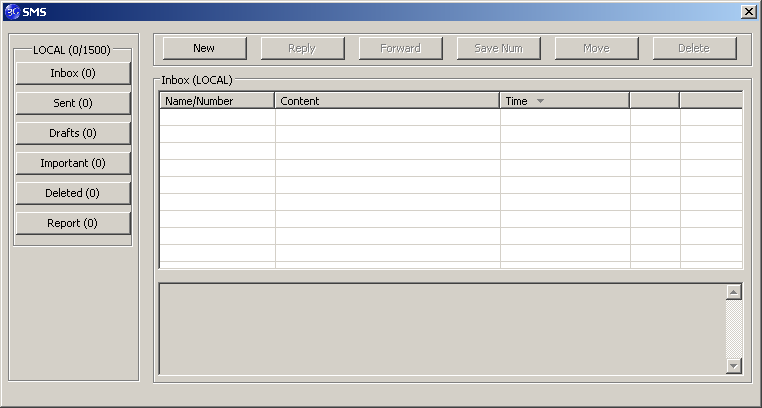
7 Using the SMS Interface Click the SMS button to use the SMS Interface: The message content is displayed here Read Incoming Messages The inbox is displayed by default. Select a message from the Inbox. The message content and details are displayed in the window below the inbox summary list. Click on the column headers to sort by Name/Number, Content or Time Page 7

8 Create a new message Select New and enter the recipient s number Use ; to separate multiple recipients if required Press To for the Phonebook interface Click into the text field to enter text Click Send when finished or Save to store in Drafts Enter the recipients number here Please note: The maximum number of characters per SMS is 160. If you send more than 1 SMS you will get charged for multiple messages. After the message is sent it is saved in the Outbox. If the message fails to send the icon is marked with a red cross Page 8
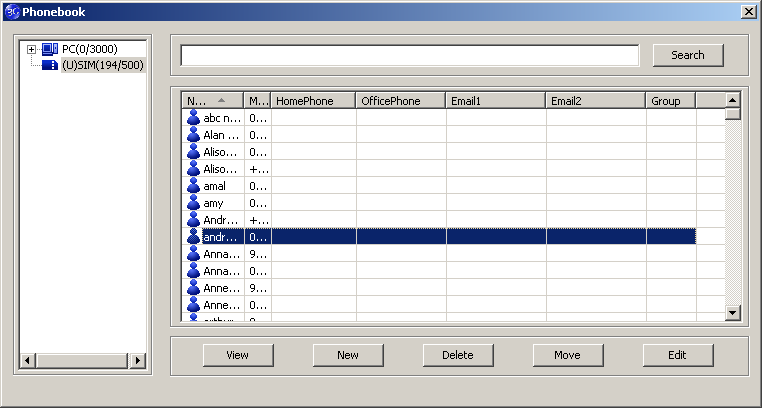
9 Using the Phonebook Click the Phonebook button to select the phonebook interface. Select from PC or USIM: To create a new contact click New New Contact, enter the details and select OK to finish. You can choose the Save location as the PC or the USIM card. The default location is on the PC. Page 9
10 Phonebook Notes: If your storage location is PC then you can also save to a Group Use the Search box to find contacts by name or number Select the following functions using the buttons at the bottom of the screen: View New Delete Move Edit View the selected contact s information Create a new contact Delete contacts or groups Move the contact between the SIM and the PC Edit the contact information Tip To avoid corrupting the phonebook file wait for the connection manager to close before removing the modem and always use the Safe removal of hardware process. Page 10

11 Settings Click the Settings button to select the settings interface. Connection Settings: The setting Data is pre-configured for your network. If you have a private VPN you may need to create a new connection configuration. This feature is designed for IT Administrators in a corporate environment and is generally not required to be changed by end users. Page 11
12 Settings > Network Selection (Default = Automatic) These settings are pre-configured for your network. There is no need to change any of these settings. Manual mode will perform a scan of available networks. Settings > Network Preferences (Default = Automatic) These settings are pre-configured for your network. There is no need to change any of these settings. Selecting UMTS/HSPA will lock the modem to 3G services only. Selecting GSM/EDGE will lock the modem to 2G services only. Settings > SMS Settings These settings are pre-configured for your network. There is no need to change any of these settings. If you go overseas or use a foreign SIM card you may need to change the local SMS Centre number. Consult your service provider for more details. Settings > Sounds The default system sounds can be personalised if required. Browse to your chosen sound to change the alert tones specified. Settings > Security You can enable a PIN number that is requested when the Connection Manager is launched. This can protect you against unwanted use. The PIN number is stored on the SIM card. Page 12
13 Using a microsd memory card You can insert a microsd memory card up to 32GB to use the modem as a mass storage device. Safely remove your modem from your computer Open the side port to access the microsd slot There is a diagram showing the correct orientation of the microsd card printed on the port cover Check the correct orientation and carefully insert the microsd card Close the port cover and insert your device into your computer The microsd card will appear as an external drive on your computer system Always handle memory cards with care and avoid static discharge microsd cards supported to 2GB are FAT 16 format. microsd HC cards supported to 32GB are FAT 32 format. If you want to remove the modem please use the Safe Removal of Hardware to stop the removable disk first. For more details see the Safe Removal of Hardware process. Page 13
14 Troubleshooting Guide If you have any problems with your modem please check this section. If the problem still exists test on an alternate PC and contact your service provider. Check zte.com.au/optus for more details. Problem Possible Causes Suggested Solution The user Start the program interface doesn t manually by going PC configuration is start or stays Start > Program Files not correct. Initialising after or use the desktop (No Autorun) the modem is shortcut. Check the plugged in. drivers, try Safe Mode. The modem has no signal. The antenna is at the wrong angle or position. You have no network coverage. Check your SIM card active and inserted correctly. Use the extension cable and adjust the angle and position of the USB modem. Try moving location until you get good reception. Try the extension cable. Check your SIM insertion, account and PIN number if applied. Page 14
15 Problem Possible Causes Suggested Solution Contact your Service Message sent The SMS centre Provider. Enter the failed. number isn t correct. correct number in the Message settings. Data connection failed. The modem cannot connect to the internet abroad (Roaming) You have no network coverage. The APN configuration is wrong The manual network selection is wrong. You are using the wrong APN. You don t have roaming enabled on your plan. Try moving location until you get good reception. Try the extender cable Check with your service provider and set the APN in the configuration settings. Select the correct network for your service provider. Restore Automatic mode. Consult your service provider. Contact your service provider to enable roaming. Page 15
16 Problem Possible Causes Suggested Solution No warning tone. The PC soundcard is disabled or on low volume. Check the audio card and adjust the volume. The microsd card cannot be read or is not found. Re-insert the microsd card. The maximum capacity is 32GB. The card is not formatted correctly. Try another microsd card and make sure the capacity and format is correct. 2GB is FAT16 format 32GB is FAT32 format Troubleshooting Tips 1. Install and test the modem in another computer 2. Check your SIM is working in another device eg mobile phone 3. Insert a known working SIM card into your modem 4. Confirm your account is active contact your service provider 5. Uninstall the modem and re-install using Safe Mode. Consult a PC technician if required. Check the drivers in Device Manager 6. If the software installation does not start or has failed try downloading the current version from zte.com.au/optus Page 16
17 System requirements 1. USB port x 1 (USB 1.0 or 2.0*) 2. System Requirements: a. PC Windows 7, Vista, XP b. Mac - OSX and above CPU Hard Disk RAM Display 1GHz Pentium or above 20GB or above 512M or above 800 x 600 minimum 3. You need to have Administrator rights to install and run the software 4. We suggest you switch off your anti-virus software before installing the USB modem. In some cases protection software can prevent automatic installation. It is possible to start the installation process manually by clicking the Autorun icon when it appears. Tips *USB 2.0 ports are preferred because they are much faster Identify the type of port on your PC and use version 2 ports Use the USB extender cable to obtain optimum reception Page 17
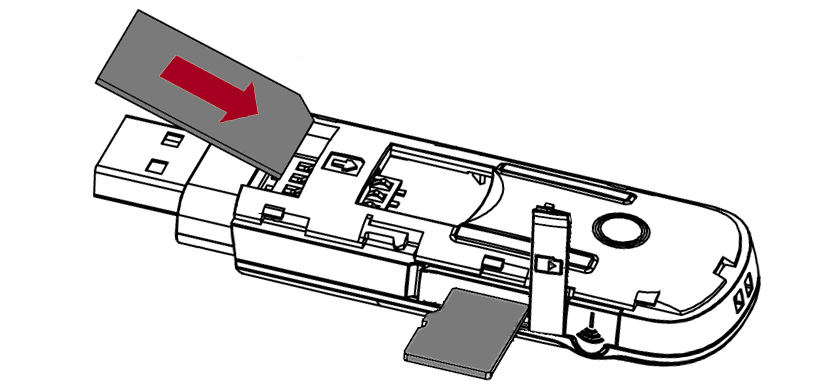
18 SIM card and microsd insertion 1. Open the modem top cover to access the SIM and microsd slot 2. Insert the SIM card as shown with the gold contacts facing down and the bevelled corner on the outside edge of the modem. 3. Push the SIM card in as far as it will go and replace the modem cover. Optional Insert a microsd card as shown to use the modem as an external storage device. Tip: There is a diagram showing the correct orientation of SIM card embossed on top of the SIM slot. Page 18
19 Installation Guide The installation and management software is pre-loaded onto your USB modem. Wait for your system to be fully loaded then insert the modem into your computer and follow the instructions on-screen. You ll be up and connected in about 5 minutes. There are three main steps to the installation process: 1. Device insertion; USB drivers are installed by your system 2. Install shield launches and installs the Connection Manager 3. Connection Manager launches and continues to install the modem drivers and then initializes the modem If nothing happens your system configuration may be preventing Autorun. Manual installation process Windows users: Browse to the device and select Install.exe to start the installation. (Start > My Computer > Modem > Install.exe) MAC users: Go to Computer, open the CD-ROM named Modem, and double click the Connection Manager icon. You can download the install files from zte.com.au/optus Page 19
20 Step by Step Installation The installation method shown below is for Windows XP. Other operating systems will follow a similar but not necessarily identical installation process: Page 20
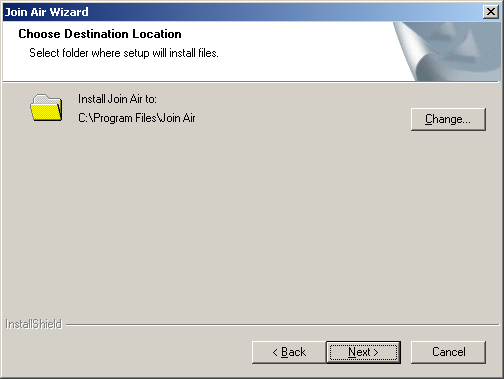
21 Press Next to accept the default folder location, or press Change to define your own path. Page 21

22 Please wait a few seconds for the installation to proceed Click Finish to complete the installation. Page 22
23 Software Removal If you wish to uninstall the application please follow the procedure below: Windows Start Programs Connection Manager Uninstall Follow the prompts and press Yes to continue. MAC OS X Go to Applications, select Uninstall Connection Manager. Follow the prompts to remove the software. Radiation from Electronic Devices SAR The USB Wireless modem is a transmitting device with similar output power to a mobile phone. It uses an internal antenna to connect to the mobile network. To get the best performance from your device do not cover or shield the device in any way as this will lead to increased output power. Always leave a clear space around the device to allow the transmit and receive signals to propagate. SAR tests have been completed and comply with the Australia and New Zealand regulatory requirements. Page 23
24 Precautions and Safety Information Some electronic devices are susceptible to electromagnetic interference. The modem is a transmitting device and may cause interference to sensitive electronic equipment such as audio systems, vehicle systems and medical equipment. Please consult the manufacturer of the other device before using the modem. Operating of laptop or desktop PCs with the modem may interfere with medical devices like hearing aids and pacemakers. Please keep the modem more than 20 centimetres away from such medical devices. Turn the modem off if necessary. Consult a physician or the manufacturer of the medical device before using the modem near such devices. Be aware of the regulations when using the modem at places such as oil refineries or chemical factories, where there are explosive gases or explosive products being processed. Turn off your modem as instructed. Don t touch the antenna area unnecessarily whilst connected. This can affect your modem performance and reduce the signal quality. Store the modem out of the reach of children. The modem may cause injury or get damaged. The modem contains sensitive electronic circuitry. Do not expose the modem to any liquids, high temperatures or shock. Only use original accessories or accessories that are authorized Page 24
25 by the manufacturer. Using unauthorized accessories may affect your modem s performance, damage your modem and violate related national regulations. Avoid using the modem in areas that emit electromagnetic waves or in enclosed metallic structures eg lifts. The modem is not waterproof. Please keep it dry and store it in a cool, dry place. Don t use the modem immediately after a sudden temperature change eg from an air conditioned environment to high temperature and humidity outside. In such cases there could be condensing moisture inside the modem which can cause internal damage. Unplug the modem and leave it for 30 minutes before use. Always handle the modem with care. Be careful not to drop or bend the modem. There are no user serviceable parts inside the modem. Unauthorised dismantling or repair will void the warranty. Declaration of Conformity We declare under our sole responsibility that the product(s) detailed in this manual, and in combination with our accessories, conform with the essential requirements of The Radio Communications Standard (Electro-magnetic Radiation Human Exposure) Page 25
26 Technical Specifications Network and Band UMTS 900, 2100 MHz with Rx Diversity. compatibility GSM 850, 900, 1800, 1900 MHz Size and Weight 81.2 x 26.5 x 14.5mm. Approx 28g Data Rate HSDPA (download) up to 21 Mbps* HSUPA (upload) up to 5.76 Mbps* Power requirements 5V with current 100mA 450mA max Max Emitted Power In 3G WCDMA Mode: 250mW In 2G GSM/GPRS Mode: 2W Interface USB 2.0 Operating systems Windows 7, Vista & XP SP2 & above Mac OS X and above Functions High speed wireless data, internet, microsd memory, SMS Memory card 2GB microsd - 32GB microsd HC Temperature range -5ºC to +45ºC Page 26
1 USB Modem Introduction
 1 USB Modem Introduction 1.1 Introduction Thank you for choosing the ZTE MF636 USB modem. Please read this manual carefully and keep it for future reference. The pictures, symbols and contents in this
KPN USB-modem. User Manual
 KPN USB-modem User Manual Contents 1 Modem Introduction 3 1.1 Introduction 3 1.2 Warning and Notice 3 1.3 Applicability Scope 4 1.4 System requirements 4 1.5 Functions 4 1.6 Specification 5 1.7 LED indications
GETTING TO KNOW YOUR TELSTRA PRE-PAID 3G USB + WI-FI
 FOR MORE INFORMATION CALL 125 8880 or FROM A NON-TELSTRA PHONE, CALL 13 2200 AND SAY PRE-PAID VISIT telstra.com/ppmbb VISIT A TELSTRA STORE OR PARTNER GETTING TO KNOW YOUR TELSTRA PRE-PAID 3G USB + WI-FI
GETTING TO KNOW YOUR TELSTRA PRE-PAID 3G WI-FI
 GETTING TO KNOW YOUR TELSTRA PRE-PAID 3G WI-FI LET S GET THIS SHOW ON THE ROAD You must be excited about your brand new Telstra Pre-Paid 3G Wi-Fi. This guide will help you get connected as quickly and
User Guide HUAWEI UML397. Welcome to HUAWEI
 User Guide HUAWEI UML397 Welcome to HUAWEI 1 Huawei UML397 4G LTE Wireless Modem User Manual CHAPTER 1 BEFORE USING YOUR UML397 WIRELESS MODEM ABOUT THIS USER MANUAL...4 WHAT S INSIDE THE PRODUCT PACKAGE...4
USB Modem User Guide ZTE MF823
 Need any help? Please visit www.bt.com/business/help/mobilebroadband Xxx BT Business Mobile Broadband USB Modem User Guide ZTE MF823 1 Contents Contents Quick Start Set-up / What s In Your Pack 3 Minimum
TPG MOBILE BROADBAND QUICK SETUP GUIDE
 TPG MOBILE BROADBAND QUICK SETUP GUIDE TPG USB E1762 Modem Thank you for choosing TPG Mobile Broadband and USB E1762 modem. This User Guide provides step by step instructions that will take you through
GETTING TO KNOW YOUR 4G USB
 GETTING TO KNOW YOUR Telstra Pre-paid 4G USB LET S GET THIS SHOW ON THE ROAD WHAT S INSIDE Your Telstra Pre-Paid 4G USB has been tested to the highest standards to deliver you the best possible coverage
125 8880 telstra.com/ppmbb visit a telstra store or partner GETTING TO KNOW YOUR
 FOR MORE INFORMATIoN: 125 8880 telstra.com/ppmbb visit a telstra store or partner GETTING TO KNOW YOUR Telstra PRE-paid 4G wi-fi LET S GET THIS SHOW ON THE ROad WHAT S INSIDE Your Telstra Pre-Paid 4G Wi-Fi
GETTING TO KNOW YOUR PRE-PAID TELSTRA WI-FI 4G
 GETTING TO KNOW YOUR PRE-PAID TELSTRA WI-FI 4G LET S GET THIS SHOW ON THE ROAD You must be excited about your brand new Pre-Paid Telstra Wi-Fi 4G. This guide will help you get connected as quickly and
WELCOME. Thank you for choosing the Boost Mobile Wi-Fi. To get the most from your
 WELCOME Thank you for choosing the Boost Mobile Wi-Fi. To get the most from your device and to keep it in the best condition please read this manual thoroughly. The following parts are supplied in the
3G USB Modem. Model AC329U. User Manual. February 2014 202-11357-02. 350 East Plumeria Drive San Jose, CA 95134 USA
 3G USB Modem Model AC329U User Manual February 2014 202-11357-02 350 East Plumeria Drive San Jose, CA 95134 USA Support Thank you for selecting NETGEAR products. After installing your device, locate the
Quick Start Guide Vodafone Mobile Connect USB Stick. Designed for Vodafone
 Quick Start Guide Vodafone Mobile Connect USB Stick Designed for Vodafone Welcome to the world of mobile communications 1 Welcome 2 Set up your USB Stick 3 Start the software 4 Software overview 5 Connect
Quick Start Guide Vodafone Mobile Connect USB Stick. Designed for Vodafone
 Quick Start Guide Vodafone Mobile Connect USB Stick Designed for Vodafone Welcome to the world of mobile communications 1 Welcome 2 Set up your USB Stick 3 Start the software 4 Software overview 5 Connect
Wi-Fi Router Huawei E5. User Guide
 Wi-Fi Router Huawei E5 User Guide 1 Content Modem Description Specification SW installation guide User manual Troubleshooting Terms 2 Modem Description Huawei E5830 HSDPA Wifi-router and a USB modem combined
Now with. Quick Start. User Guide Vodafone Mobile Broadband USB Stick K3773. Designed by Vodafone
 Now with Quick Start User Guide Vodafone Mobile Broadband USB Stick K3773 Designed by Vodafone Welcome to the world of mobile communications 1 Welcome 2 Set up your USB Stick 3 QuickStart manual installation
3G USB Modem. Model AC327U. User Manual. February 2014 202-11356-01. 350 East Plumeria Drive San Jose, CA 95134 USA
 3G USB Modem Model AC327U User Manual February 2014 202-11356-01 350 East Plumeria Drive San Jose, CA 95134 USA Support Thank you for selecting NETGEAR products. After installing your device, locate the
User Guide Vodafone Mobile Wi-Fi R206-Z. Designed by Vodafone
 User Guide Vodafone Mobile Wi-Fi R206-Z Designed by Vodafone Welcome to the world of mobile communications 1 Welcome 2 Device overview 3 Getting started: Step 1 4 Getting started: Step 2 5 Mobile Wi-Fi
User Guide Vodafone Pocket WiFi Pro. Designed by Vodafone
 User Guide Vodafone Pocket WiFi Pro Designed by Vodafone Welcome to the world of mobile communications 1 Welcome 2 Device overview 3 Getting started: setup 4 Getting started: use 5 Pocket WiFi online dashboard
Contents. Business Everywhere user guide. 1. Introduction. 2. How to Install/Uninstall Business Everywhere. 3. The Business Everywhere interface
 Contents 1. Introduction 2. How to Install/Uninstall Business Everywhere 3. The Business Everywhere interface 4. Launching Business Everywhere 5. Connection 6. Business Everywhere management tools 7. Troubleshooting
User Guide Vodafone Mobile Broadband USB Modem K4606. Designed by Vodafone
 User Guide Vodafone Mobile Broadband USB Modem K4606 Designed by Vodafone Welcome to the world of mobile communications 1 Welcome 2 Set up your USB Modem 3 Windows 8 installation and user experience 4
ZTE USB Modem. User Manual
 ZTE USB Modem User Manual 1 Copyright 2011 by ZTE Corporation All rights reserved. No part of this publication may be excerpted, reproduced, translated or utilized in any form or by any means, electronic
MOBILE INTERNET DONGLE USERGUIDE
 MOBILE INTERNET DONGLE USERGUIDE Mobile Internet Dongle User guide Ver 1.0 Authored by Akugizibwe Simon Peter Page 1 Note: The contents of this user guide have been compiled strictly for Airtel Uganda
AIRCARD 310U QUICK START
 OPTUS Mobile BROADBAND AIRCARD 310U USB MODEM 02 Optus mobile BROADBAND AIRCARD 310U USB Modem QUICK START INSTALLATION GUIDE OPTUS Mobile BROADBAND AIRCARD 310U USB MODEM 02 Contents 01 Package Contents
User Guide Vodafone Mobile Wi-Fi R210. Designed by Vodafone
 User Guide Vodafone Mobile Wi-Fi R210 Designed by Vodafone Welcome to the world of mobile communications 1 Welcome 2 Device overview 3 Getting started: Step 1 4 Getting started: Step 2 5 Mobile Wi-Fi web
User Guide Vodafone Mobile Wi-Fi R206-Z. Designed by Vodafone
 User Guide Vodafone Mobile Wi-Fi R206-Z Designed by Vodafone Welcome to the world of mobile communications 1 Welcome 2 Device overview 3 Getting started: Step 1 4 Getting started: Step 2 5 Mobile Wi-Fi
ø Mobile Broadband User Guide Pay & Go
 ø Mobile Broadband User Guide Pay & Go USB Modem E160 We re better, connected What s ø Mobile Broadband? ø Mobile Broadband lets you use the internet almost anywhere. And it includes connection to any
WELCOME. Wireless Router 1 AC Charger 1 USB charging cable 1 Quick Start User Guide 1 Security Settings card 1
 WELCOME Thank you for choosing the Telstra ELITE Pre-Paid Mobile Wi-Fi. To get the most from your wireless router and to keep it in the best condition please read this manual thoroughly. The following
Getting to Know Your Mobile Internet Key
 Thank you for choosing the Huawei E3276 4G LTE Mobile Internet Key. With your Mobile Internet Key, you can enjoy a full high speed Internet experience on the go. This guide shows you how to set-up and
Sierra Wireless AirCard Watcher Help for Mac OS X
 Sierra Wireless AirCard Watcher Help for Mac OS X Sierra Wireless AirCard Watcher allows you to manage and monitor the connection between your modem and the network. With Watcher, you can: Determine signal
Preface. Manual Revisions. Revision Date Description 1.0 March 18, 2009 DWM-156 Revision A1 with firmware version 1.00. Trademarks
 Preface D-Link reserves the right to revise this publication and to make changes in the content hereof without obligation to notify any person or organization of such revisions or changes. Manual Revisions
Quick Start Guide Vodafone Mobile Broadband USB Stick. Designed for Vodafone
 Quick Start Guide Vodafone Mobile Broadband USB Stick Designed for Vodafone Welcome to the world of mobile communications 1 Welcome 2 Set up your USB Stick 3 Start the software 4 Software overview (Microsoft
N600 WiFi USB Adapter
 Model WNDA3100v3 User Manual December 2014 202-11470-01 350 East Plumeria Drive San Jose, CA 95134 USA Support Thank you for selecting NETGEAR products. After installing your device, locate the serial
Installation & User Guide Vodafone Mobile Broadband USB Stick. Designed for Vodafone
 Installation & User Guide Vodafone Mobile Broadband USB Stick Designed for Vodafone 4 5 6 8 9 9 0 8 Welcome Set up your USB Stick Start the software Software overview Connect SMS text messaging SMS contacts
MOBILE INTERNET HUAWEI E220 3G USB MODEM
 MOBILE INTERNET HUAWEI E220 3G USB MODEM With this modem you can easily: Access the internet Send or receive text messages Manage contacts The E220 package box contains the following items: One E220 HSDPA
KPN USB-Modem 2 (HSUPA) Quick Start Manual
 KPN USB-Modem 2 (HSUPA) Quick Start Manual Table of Contents What Is in Your Packet 2 Getting to Know Your KPN USB-Modem 2 3 Preparation 4 Installation/Removal Guide 5 Safety Information 7 Acronyms and
WF720 Wireless Home Phone User Manual
 WF720 Wireless Home Phone User Manual Content Getting to Know Your Device... 3 Appearance...3 LED Indicator...4 Device Installation... 5 Before You Begin...5 Installing the SIM Card and the Battery...5
FOR MORE INFORMATION. 125 8880 or from a non-telstra phone 13 2200 and say pre-paid telstra.com/ppmbb visit a telstra store or partner
 FOR MORE INFORMATION 125 8880 or from a non-telstra phone 13 2200 and say pre-paid telstra.com/ppmbb visit a telstra store or partner getting to know your telstra pre-paid 4G WI-FI (760S) LET S GET THIS
Quick Start Guide Vodafone Mobile Broadband USB Stick. Designed for Vodafone
 Quick Start Guide Vodafone Mobile Broadband USB Stick Designed for Vodafone Welcome to the world of mobile communications 1 Welcome 2 Set up your USB Stick 3 Start the software 4 Software overview 5 Connect
How To Use A U.S. Cell Phone At Home
 U.S. Cellular Home Phone 1 Contents Getting to Know Your Device...5 Appearance... 5 LED Indicators... 6 Device Installation...7 Before You Begin... 7 Installing the Battery... 7 Installing the Power Adapter...
DWM-221. User Manual. 2014/07/07 Ver. 1.00(EU)
 DWM-221 User Manual 2014/07/07 Ver. 1.00(EU) Index LTE USB Adapter Introduction... 2 Internet service... 5 SMS service... 6 Contacts... 10 USSD... 13 STATISTICS... 14 Settings... 15 FAQs... 19 Technical
Quick Start Guide Vodafone Mobile Broadband USB Stick. Designed for Vodafone
 Quick Start Guide Vodafone Mobile Broadband USB Stick Designed for Vodafone Welcome to the world of mobile communications 1 Welcome 2 Set up your USB Stick 3 Start the application 4 Connect Standard window
Quick Start Guide Vodafone Mobile Connect USB Stick
 Quick Start Guide Vodafone Mobile Connect USB Stick Welcome to the world of mobile communications 1 Welcome 2 Set up your USB Stick 3 Start the software 4 Software overview 5 Connect 6 SMS text messaging
User Guide Vodafone Mobile Wi-Fi R212. Designed by Vodafone
 User Guide Vodafone Mobile Wi-Fi R212 Designed by Vodafone Welcome to the world of mobile communications 1 Welcome 2 Device overview 3 Getting started: Step 1 4 Getting started: Step 2 5 Mobile Wi-Fi web
USB HSPA Modem. User Manual
 USB HSPA Modem User Manual Congratulations on your purchase of this USB HSPA Modem. The readme file helps you surf the Internet, send and receive SMS, manage contacts and use many other functions with
BROADBAND. Mini WiFi Modem MF62. User Guide
 BROADBAND Mini WiFi Modem MF62 User Guide IS YOUR ACCOUNT ACTIVATED? Pre-Paid Customers First up, you need to activate your service: CLICK virginmobile.com.au/activate NB: You ll need a different internet
Networking. General networking. Networking overview. Common home network configurations. Wired network example. Wireless network examples
 Networking General networking Networking overview A network is a collection of devices such as computers, printers, Ethernet hubs, wireless access points, and routers connected together for communication
TELSTRA ELITE TM MOBILE BROADBAND USB QUICK START GUIDE
 TELSTRA ELITE TM MOBILE BROADBAND USB QUICK START GUIDE WELCOME TO THE TELSTRA ELITE MOBILE BROADBAND USB The following steps will guide you through installing your Telstra Elite Mobile Broadband USB,
GETTING TO KNOW YOUR NEW TELSTRA MOBILE WI-FI 4G
 GETTING TO KNOW YOUR NEW TELSTRA MOBILE WI-FI 4G LET S GET THIS SHOW ON THE ROAD You must be excited about your brand new Telstra Mobile Wi-Fi 4G. This guide will help you get started as quickly and easily
USER MANUAL TOUGH DRIVE CUSTOM EXTERNAL MOBILE HARD DRIVE / 2.5" / USB 2.0. Rev. 848
 USER MANUAL TOUGH DRIVE CUSTOM EXTERNAL MOBILE HARD DRIVE / 2.5" / USB 2.0 WIN & Mac Rev. 848 Freecom ToughDrive Custom Dear user! Thank you for choosing the Freecom ToughDrive Custom as an external hard
Quick Start Guide Vodafone Mobile Broadband USB Modem Stick. Designed for Vodafone
 Quick Start Guide Vodafone Mobile Broadband USB Modem Stick Designed for Vodafone Welcome to the world of mobile communications 1 Welcome 2 Set up your USB Modem Stick 3 Start the software 4 Software overview
Troubleshooting Sprint Mobile Broadband USB Modem by Novatel Wireless TM (Ovation TM U727)
 Troubleshooting Sprint Mobile Broadband USB Modem by Novatel Wireless TM (Ovation TM U727) If you are unable to resolve your issue using the Troubleshooting steps below, please contact Sprint Customer
USB Modem User Guide ZTE MF667
 Need any help? Please visit www.bt.com/business/help/mobilebroadband Xxx BT Business Mobile Broadband USB Modem User Guide ZTE MF667 1 Contents Contents Quick Start Set-up / What s In Your Pack 3 Minimum
Huawei E169 & E220 Status Lights
 Huawei E169 & E220 Status Lights 3G Wireless Troubleshooting Connection Issues 1. Have you correctly inserted the SIM card into the USB Modem? Please ensure the SIM card is correctly inserted. The gold
User Guide Vodafone Pocket WiFi 4G. Designed by Vodafone
 User Guide Vodafone Pocket WiFi 4G Designed by Vodafone Welcome to the world of mobile communications 1 Welcome 2 Device overview 3 Getting started: setup 4 Getting started: use 5 Pocket WiFi online dashboard
Mobiel Internet Dashboard. Manual
 Mobiel Internet Dashboard Manual Contents Chapter 1 Welcome to the Mobiel Internet Dashboard support manual Chapter 4 The Mobiel Internet Dashboard interface About this manual 6 Opening the Mobiel Internet
telstra.com/mbb 13 2200 visit a telstra store or partner GETTING TO KNOW YOUR TELSTRA WI-FI 4GX ADVANCED III
 telstra.com/mbb 13 2200 visit a telstra store or partner GETTING TO KNOW YOUR TELSTRA WI-FI 4GX ADVANCED III LET S GET THIS SHOW ON THE ROAD WHAT S INSIDE Your Telstra Wi-Fi 4GX Advanced III has been tested
Ethernet Radio Configuration Guide
 Ethernet Radio Configuration Guide for Gateway, Endpoint, and Repeater Radio Units April 20, 2015 Customer Service 1-866-294-5847 Baseline Inc. www.baselinesystems.com Phone 208-323-1634 FAX 208-323-1834
GLOBAL. The world s local mobile phone. Quick Start Guide
 GLOBAL The world s local mobile phone Quick Start Guide 1 SAR This mobile phone meets applicable national SAR limits of 2.0 W/Kg. The specific maximum SAR values can be found in the SAR information section
Inserting the SIM card in the MobiGater device. Connecting the MobiGater Device
 WWW.MOBIGATER.COM 2 Inserting the SIM card in the MobiGater device There is a small cover on the bottom side of the MobiGater device Move the cover in the direction from? to. Move the SIM card holder in
TL-PS310U Single USB 2.0 Port MFP and Storage Server
 TL-PS310U Single USB 2.0 Port MFP and Storage Server Rev: 2.0.0 1910010313 Contents Chapter 1 Introduction... 1 1.1 Product Overview...1 1.2 Network Management...1 1.3 Components and Features...1 1.4 Hardware
Nokia USB Modem. Issue 1.1
 Nokia USB Modem Issue 1.1 2 Contents About your USB modem 3 Get started 3 Parts 3 Insert the SIM card 4 Insert a memory card 4 Install the connection manager 6 Uninstall from your computer 6 Internet connection
WIRELESS BROADBAND. Self-Help Guide. MiFi Modem (MF60) PortaFi Modem (MF70)
 WIRELESS BROADBAND Self-Help Guide MiFi Modem (MF60) PortaFi Modem (MF70) contents understanding the LED light on the modem how to measure the current download and upload internet speeds how to manage
A6210 WiFi USB Adapter 802.11ac USB 3.0 Dual Band User Manual
 802.11ac USB 3.0 Dual Band User Manual August 2014 202-11373-01 350 East Plumeria Drive San Jose, CA 95134 USA Support Thank you for selecting NETGEAR products. After installing your device, locate the
Sprint Mobile Broadband Card by Sierra Wireless AirCard 597E www.sprint.com
 Sprint Mobile Broadband Card by Sierra Wireless AirCard 597E www.sprint.com 2011 Sprint Nextel. All rights reserved. SPRINT and other trademarks are trademarks of Sprint Nextel. Table of Contents Welcome
Quick Start. Nighthawk X8 AC5300 Tri-Band WiFi Router Model R8500. Package Contents. NETGEAR, Inc. 350 East Plumeria Drive San Jose, CA 95134 USA
 Support Thank you for purchasing this NETGEAR product. You can visit www.netgear.com/support to register your product, get help, access the latest downloads and user manuals, and join our community. We
User Guide Vodafone Mobile Broadband USB Modem K4203. Designed by Vodafone
 User Guide Vodafone Mobile Broadband USB Modem K20 Designed by Vodafone Welcome to the world of mobile communications 1 Welcome 2 Set up your USB Modem Windows 7, Windows Vista, Windows XP Windows 8 5
Contents. Hardware Configuration... 27 Uninstalling Shortcuts Black...29
 Contents Getting Started...1 Check your Computer meets the Minimum Requirements... 1 Ensure your Computer is Running in Normal Sized Fonts... 7 Ensure your Regional Settings are Correct... 9 Reboot your
USB Modem User Guide ZTE MF636
 Need any help? Please visit www.bt.com/business/help/mobilebroadband Xxx BT Business Mobile Broadband USB Modem User Guide ZTE MF636 Contents Contents Quick Start Set-up / What s In Your Pack 3 Minimum
GSM Desktop phone DPH101. User manual v1.00
 GSM Desktop phone DPH101 User manual v1.00 LEGAL NOTICE Copyright 2011 TELTONIKA Ltd. All rights reserved. Reproduction, transfer, distribution or storage of part or all of the contents in this document
BIGPOND ULTIMATE MOBILE BROADBAND WI-FI QUICK START GUIDE
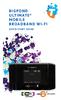 BIGPOND ULTIMATE MOBILE BROADBAND WI-FI QUICK START GUIDE WARNINGS AND SAFETY NOTICES Please read all the safety notices before using this device. The BigPond Ultimate Mobile Broadband Wi-Fi is designed
MF636 USB Modem. Quick Start User Guide
 -1- ZTE Rogers MF636 USB Modem Quick Start User Guide www.ztecanada.com ZTE Corporation, 2008. -2-1. Insert the SIM Card into the modem The SIM slot is located above the USB connector Before using the
Refer to the Troubleshooting section first if you experience a problem with the product.
 D3 Station Your product comes with a quick start guide and a user s manual. Following the instructions and precautions of this manual will ensure easier and more enjoyable use of your D3 Station External
Digital Photo Bank / Portable HDD Pan Ocean E350 User Manual
 Digital Photo Bank / Portable HDD Pan Ocean E350 User Manual Installing a hard disk 1. Power off the unit. 2. Remove the bottom cover from the unit by removing four screws. 3. Insert the 2.5 HDD to the
User Guide USB 2.0 LAPTOP DOCKING STATION WITH VIDEO N2953
 USB 2.0 LAPTOP DOCKING STATION WITH VIDEO 410-1864-001B / ACP51US 1 YEAR LIMITED WARRANTY: We pride ourselves on the quality of our products. For complete warranty details and a list of our worldwide offices,
HP Photosmart Wireless series - B109
 HP Photosmart Wireless series - B109 Apply sticker to printer Important! Do NOT connect the USB cable until prompted by the software (Windows users only) 1 Verify box contents 2 Insert the CD for guided
Chapter 1 Downloading Images to Your Computer (Windows)
 Software User Guide For the safe use of your camera, be sure to read the Safety Precautions thoroughly before use. Types of software installed on your computer varies depending on the method of installation
Lexia Network Installation Instructions
 Lexia Network Installation Instructions For Lexia Early Reading 3.x, Primary Reading 1.x, Foundation Reading 1.x, Strategies for Older Students 4.x, Cross-Trainer 1.x and Quick Reading Test 2.x (NOT for
User Guide Vodafone Pocket WiFi Extreme. Designed by Vodafone
 User Guide Vodafone Pocket WiFi Extreme Designed by Vodafone Welcome to the world of mobile communications 1 Welcome 2 Device overview 3 Getting started: setup 4 Getting started: use 5 Pocket WiFi online
The following pages will help you to solve issues linked to the installation and first use of the Wintech Manager software and Wintech USB computer.
 WINTECH MANAGER FAQ The purpose of this document is not to replace the complete user guide delivered on the Wintech Manager s CD. Most of the common question you may have about the use of the Wintech Manager
Congratulations on your HomePortal purchase. To install your HomePortal and configure your home network, follow these steps.
 Notice to Users 2003 2Wire, Inc. All rights reserved. This manual in whole or in part, may not be reproduced, translated, or reduced to any machine-readable form without prior written approval. 2WIRE PROVIDES
DPH-50U VoIP USB Phone Adapter Quick User Guide
 DPH-50U VoIP USB Phone Adapter Quick User Guide Version 1.0 TABLE OF CONTENTS 1. INTRODUCTION...3 2. PACKAGE CONTENTS...4 3. REQUIREMENTS...5 4. DPH-50U INSTALLATION...6 5. ENABLING DPH-50U...16 6. DPH-50U
LockView 4.3.1 CompX Database & Network Configuration & Installation Manual
 LockView 4.3.1 CompX Database & Network Configuration & Installation Manual Table of Contents CompX Database & Network Configuration & Installation Manual Introduction... 4 Installation Requirements...
Verizon Remote Access User Guide
 Version 17.12 Last Updated: August 2012 2012 Verizon. All Rights Reserved. The Verizon names and logos and all other names, logos, and slogans identifying Verizon s products and services are trademarks
Wireless Mouse USER GUIDE. for Mac. www.targus.com/us/formac ONE YEAR LIMITED WARRANTY N2953
 AMW43US / 410-1514-001C N2953 www.targus.com/us/formac 2008 Manufactured or imported by Targus Group International, Inc. (for U.S. sales: 1211 North Miller Street, Anaheim, CA 92806 USA, for Australia
reflecta Super 8 Scanner
 reflecta Super 8 Scanner User Manual 1 FEDERAL COMMUNICATIONS COMMISSION (FCC) STATEMENT This Equipment has been tested and found to comply with the limits for a class B digital device, pursuant to Part
Net USER GUIDE MEDIA SHARING DEVICE
 FCC DECLARATION OF CONFORMANCE This device complies with Part 15 of the FCC Rules. Operation is subject to the following two conditions: (1) this device may not cause harmful interference, and (2) this
Telstra Wi-Fi 4GX Advanced III AirCard 810S User Manual
 AirCard 810S User Manual July 2015 202-11529-02 350 East Plumeria Drive San Jose, CA 95134 USA Support Contact Telstra at livechat.telstra.com for technical support. Compliance For regulatory compliance
Wireless N 300 Mini USB Adapter. Model # AWLL6086 User s Manual. Rev. 1.0
 Wireless N 300 Mini USB Adapter Model # AWLL6086 User s Manual Rev. 1.0 Table of Contents 1. Introduction...2 1.1 Package Contents...2 1.2 Features...2 2. Install the Wireless Adapter...3 3. Install the
The Wireless LAN (Local Area Network) USB adapter can be operated in one of the two following networking configurations :
 SAGEM Wi-Fi 11g USB ADAPTER Quick Start Guide About this guide This Quick Start Guide describes how to install and operate your SAGEM Wi-Fi 11g USB ADAPTER. Please read this manual before you install the
Pleiades USB/LAN. User Manual. & Installation Guide. External Storage Enclosure for 3.5 Hard Drive. v1.1
 Pleiades USB/LAN External Storage Enclosure for 3.5 Hard Drive User Manual & Installation Guide v1.1 Table of Contents CHAPTER 1 - INTRODUCTION - 1 - CHAPTER 4 LAN DISK SETUP - 11 - ICON KEY - 1 - NETWORK
Designed for Vodafone
 Quick Start Guide Vodafone Mobile Connect USB Modem Designed for Vodafone Welcome to your new USB data modem, designed for Vodafone with 3G and 3G Broadband. We ll now take you through the simple process
Table of Contents. 1. Overview... 3. 1.1 Materials Required. 3 1.2 System Requirements. 3 1.3 User Mode 3. 2. Installation Instructions..
 Table of Contents 1. Overview..... 3 1.1 Materials Required. 3 1.2 System Requirements. 3 1.3 User Mode 3 2. Installation Instructions.. 4 2.1 Installing the On Call Diabetes Management Software. 4 2.2
Maxtor OneTouch User's Guide
 EXTERNAL HARD DRIVE Maxtor OneTouch User's Guide TM II P/N:20259600 i Contents 1 Introduction................................................. 1 Maxtor OneTouch II Drive Components............................
AIM SOFTWARE AND USB DRIVER INSTALLATION PROCEDURE
 AIM SOFTWARE AND USB DRIVER INSTALLATION PROCEDURE CONTENTS AIM software and USB Driver installation Chapter 1 Installing AIM software and AIM USB driver... 2 Chapter 2 Installation under Microsoft Windows
Features Reference. About Unified Communication System. Before Using This Machine. Starting a Meeting. What You Can Do During the Meeting
 Features Reference About Unified Communication System Before Using This Machine Starting a Meeting What You Can Do During the Meeting Leaving a Meeting Managing Address Book Changing Network Configuration