
SMART NOTEBOOK 10. Instructional Technology Enhancing ACHievement
|
|
|
- Georgina Atkins
- 9 years ago
- Views:
Transcription
1 SMART NOTEBOOK 10 Instructional Technology Enhancing ACHievement
2 TABLE OF CONTENTS SMART Notebook 10 Themes... 3 Page Groups... 4 Magic Pen... 5 Shape Pen... 6 Tables... 7 Object Animation... 8 Aligning Objects... 8 Recording a Notebook Page... 9 Printing Pages Exporting Pages Lesson Activity Toolkit Activities Games Graphics Tools Smartboard Skills Checklist


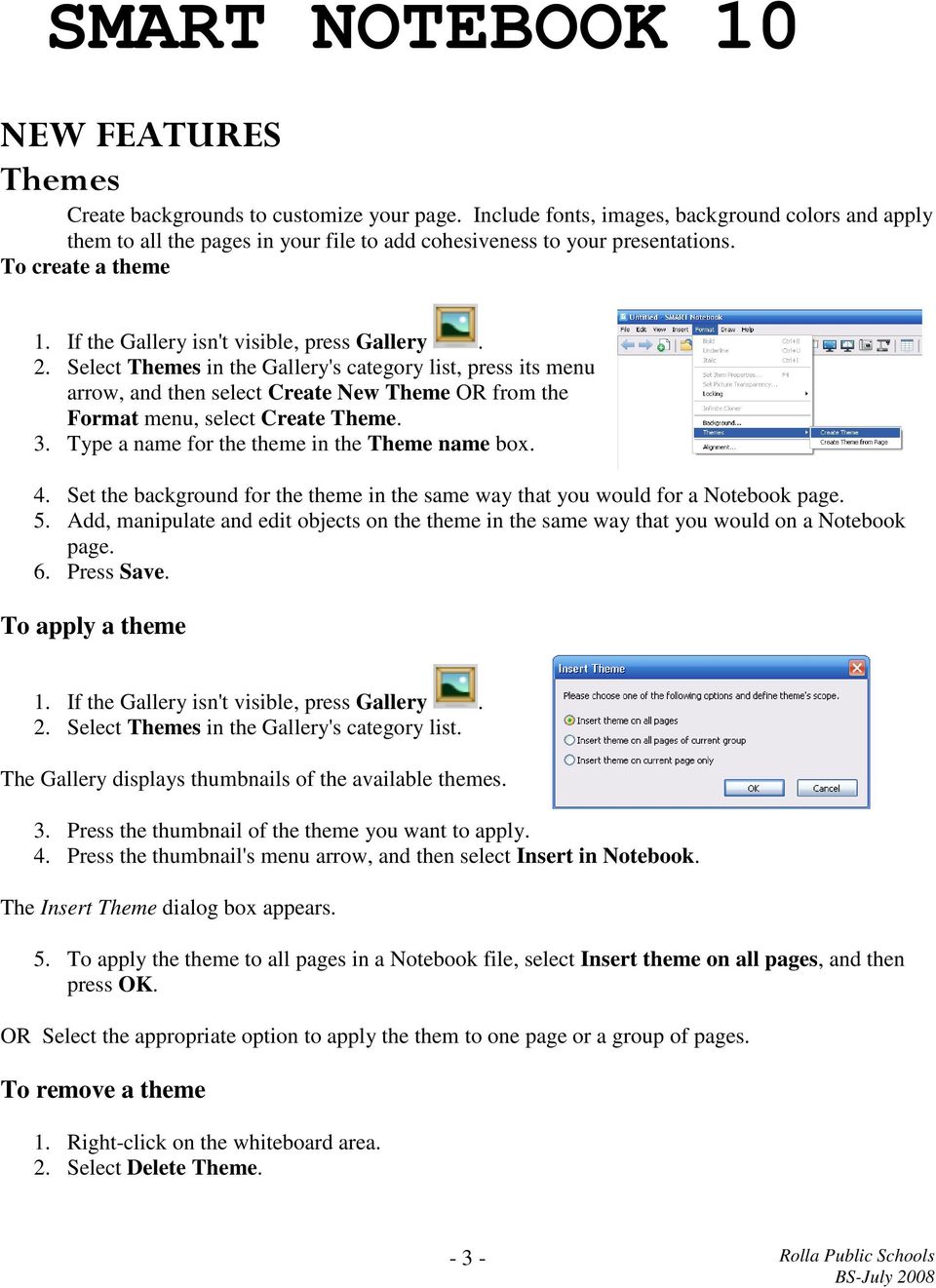
3 SMART NOTEBOOK 10 NEW FEATURES Themes Create backgrounds to customize your page. Include fonts, images, background colors and apply them to all the pages in your file to add cohesiveness to your presentations. To create a theme 1. If the Gallery isn't visible, press Gallery. 2. Select Themes in the Gallery's category list, press its menu arrow, and then select Create New Theme OR from the Format menu, select Create Theme. 3. Type a name for the theme in the Theme name box. 4. Set the background for the theme in the same way that you would for a Notebook page. 5. Add, manipulate and edit objects on the theme in the same way that you would on a Notebook page. 6. Press Save. To apply a theme 1. If the Gallery isn't visible, press Gallery. 2. Select Themes in the Gallery's category list. The Gallery displays thumbnails of the available themes. 3. Press the thumbnail of the theme you want to apply. 4. Press the thumbnail's menu arrow, and then select Insert in Notebook. The Insert Theme dialog box appears. 5. To apply the theme to all pages in a Notebook file, select Insert theme on all pages, and then press OK. OR Select the appropriate option to apply the them to one page or a group of pages. To remove a theme 1. Right-click on the whiteboard area. 2. Select Delete Theme

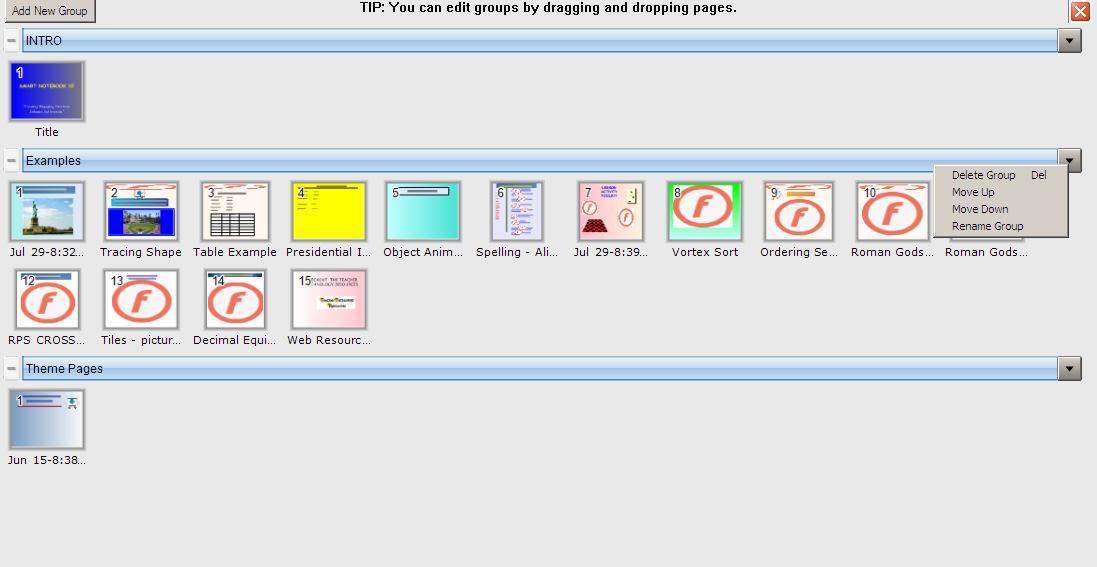
4 Page Groups Organize your SMART Notebook pages into different groups. The groups can be used to categorize your pages for easy reference. To Manage Groups: 1. From the Page Sorter, select the Groups button. Select Edit Groups. 2. Name your group appropriately. 3. Use the Group Menu to rename and rearrange the groups! Close the Group Window! Use the Group Menu to manage the groups! Magic Pen Creating a Fading Object Using the Magic Pen You can create freehand objects that slowly fade after approximately ten seconds using the Magic Pen (sometimes referred to as the Presentation Pen). To create a fading object 1. Press Magic Pen. 2. Using your finger or pen tray pen (interactive whiteboards) or tethered pen (interactive pen displays), write or draw objects on the interactive screen. The objects slowly fade after approximately ten seconds
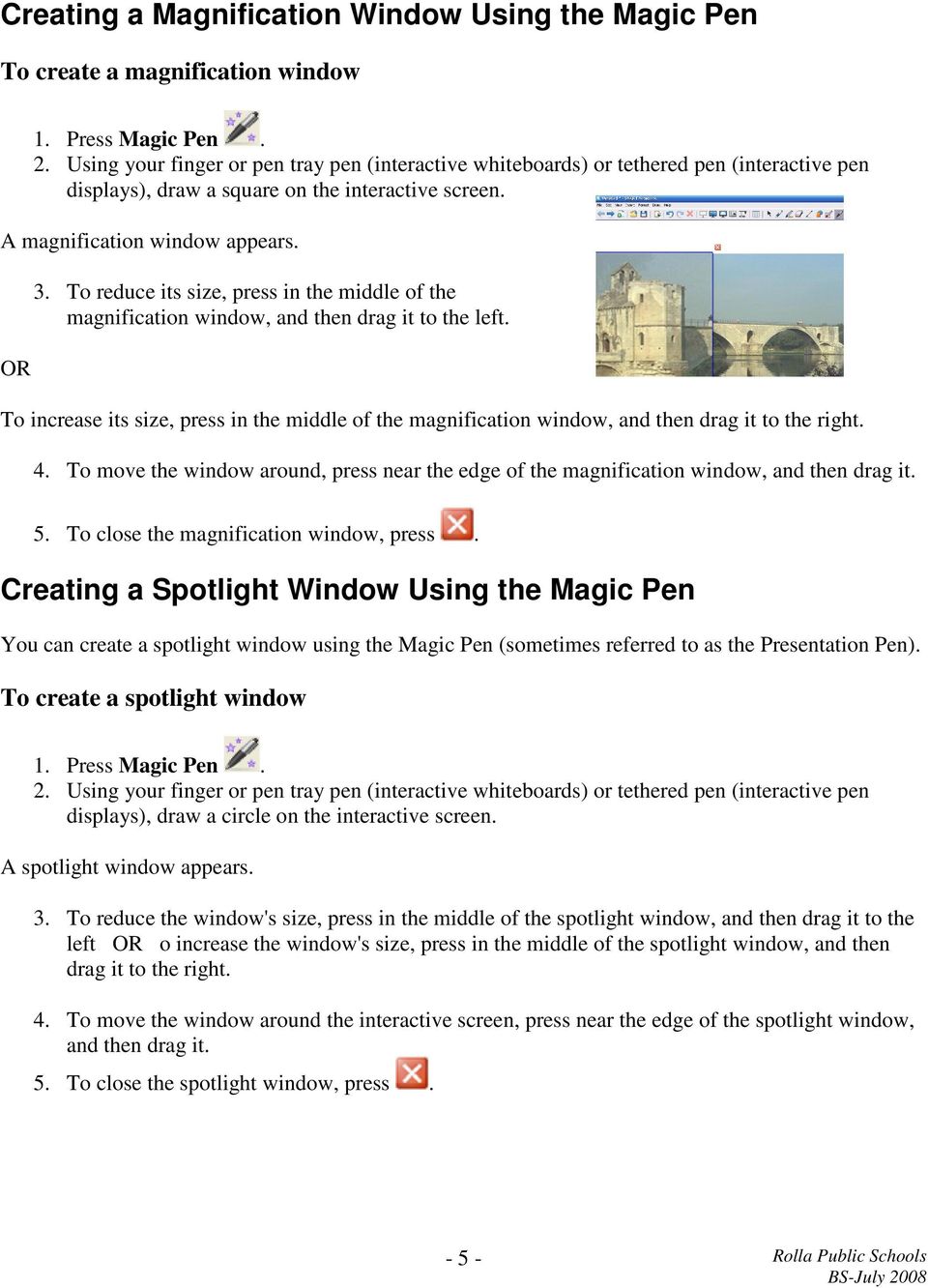
5 Creating a Magnification Window Using the Magic Pen To create a magnification window 1. Press Magic Pen. 2. Using your finger or pen tray pen (interactive whiteboards) or tethered pen (interactive pen displays), draw a square on the interactive screen. A magnification window appears. OR 3. To reduce its size, press in the middle of the magnification window, and then drag it to the left. To increase its size, press in the middle of the magnification window, and then drag it to the right. 4. To move the window around, press near the edge of the magnification window, and then drag it. 5. To close the magnification window, press. Creating a Spotlight Window Using the Magic Pen You can create a spotlight window using the Magic Pen (sometimes referred to as the Presentation Pen). To create a spotlight window 1. Press Magic Pen. 2. Using your finger or pen tray pen (interactive whiteboards) or tethered pen (interactive pen displays), draw a circle on the interactive screen. A spotlight window appears. 3. To reduce the window's size, press in the middle of the spotlight window, and then drag it to the left OR o increase the window's size, press in the middle of the spotlight window, and then drag it to the right. 4. To move the window around the interactive screen, press near the edge of the spotlight window, and then drag it. 5. To close the spotlight window, press
6 Shape Pen Converts hand-drawn lines, circles, squares, rectangles, triangles and arcs into Shape objects that you can fully customize. It also converts freehand shapes, so you can create any shape you need. Once you ve created a shape, you can set the line and fill colors, line style and transparency. To customize a shape and then add it to a page 1. Press Shapes, and then select an available shape. OR use the Shape pen to draw a shape. 2. If the Properties tab isn't visible, press Properties. 3. Press Line Style. 4. Select the color, thickness and style for the shape's outline. 5. Press Fill Effects. 6. Select the transparency and fill effects for the shape. NOTE: If you want to save this shape for future use, press Save Tool Settings. 7. Create a shape by pressing where you want to place the shape and dragging until the shape is the size you want. TIP: You can create perfect circles, squares, triangles and other shapes by pressing and holding SHIFT as you draw the shape. SPELL CHECK Notebook 10 now has a spell check feature. To Spell Check 1. Move to the page where you want to start the spell check. 2. From the Edit menu, select Check Spelling or press F

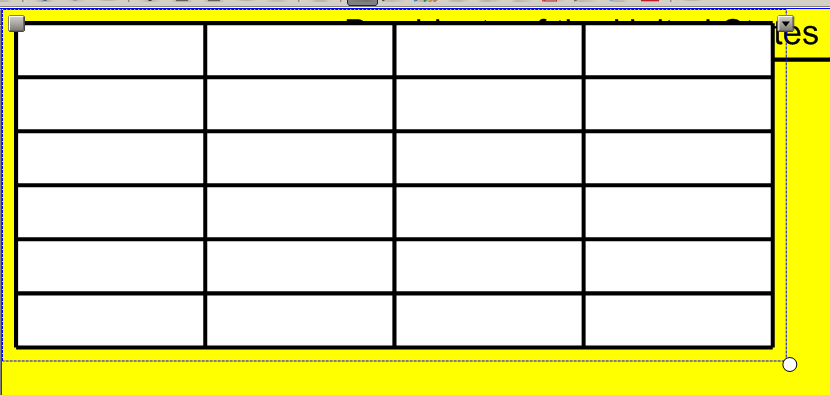
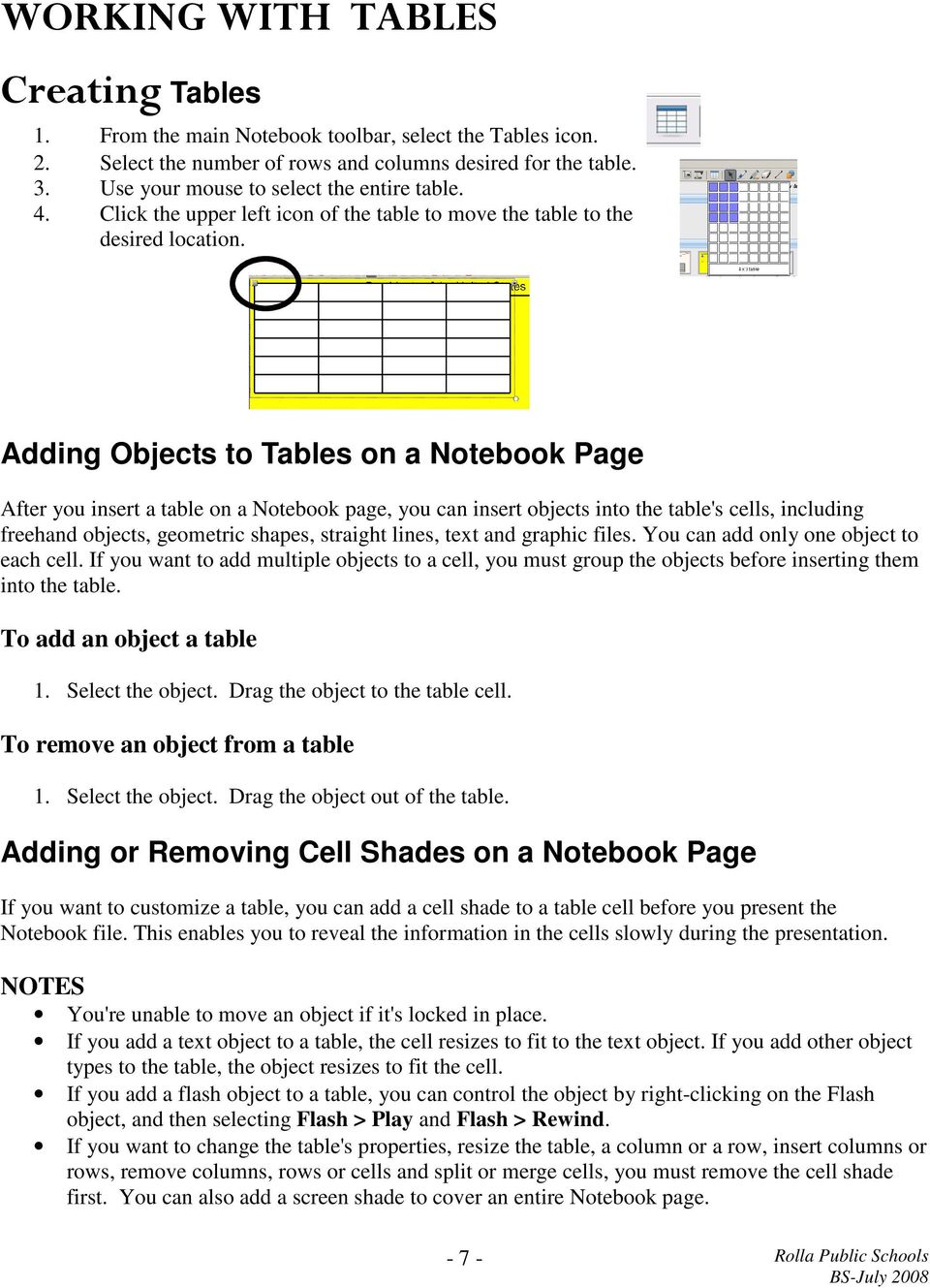
7 WORKING WITH TABLES Creating Tables 1. From the main Notebook toolbar, select the Tables icon. 2. Select the number of rows and columns desired for the table. 3. Use your mouse to select the entire table. 4. Click the upper left icon of the table to move the table to the desired location. Adding Objects to Tables on a Notebook Page After you insert a table on a Notebook page, you can insert objects into the table's cells, including freehand objects, geometric shapes, straight lines, text and graphic files. You can add only one object to each cell. If you want to add multiple objects to a cell, you must group the objects before inserting them into the table. To add an object a table 1. Select the object. Drag the object to the table cell. To remove an object from a table 1. Select the object. Drag the object out of the table. Adding or Removing Cell Shades on a Notebook Page If you want to customize a table, you can add a cell shade to a table cell before you present the Notebook file. This enables you to reveal the information in the cells slowly during the presentation. NOTES You're unable to move an object if it's locked in place. If you add a text object to a table, the cell resizes to fit to the text object. If you add other object types to the table, the object resizes to fit the cell. If you add a flash object to a table, you can control the object by right-clicking on the Flash object, and then selecting Flash > Play and Flash > Rewind. If you want to change the table's properties, resize the table, a column or a row, insert columns or rows, remove columns, rows or cells and split or merge cells, you must remove the cell shade first. You can also add a screen shade to cover an entire Notebook page
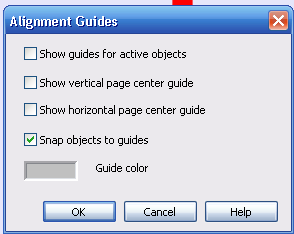
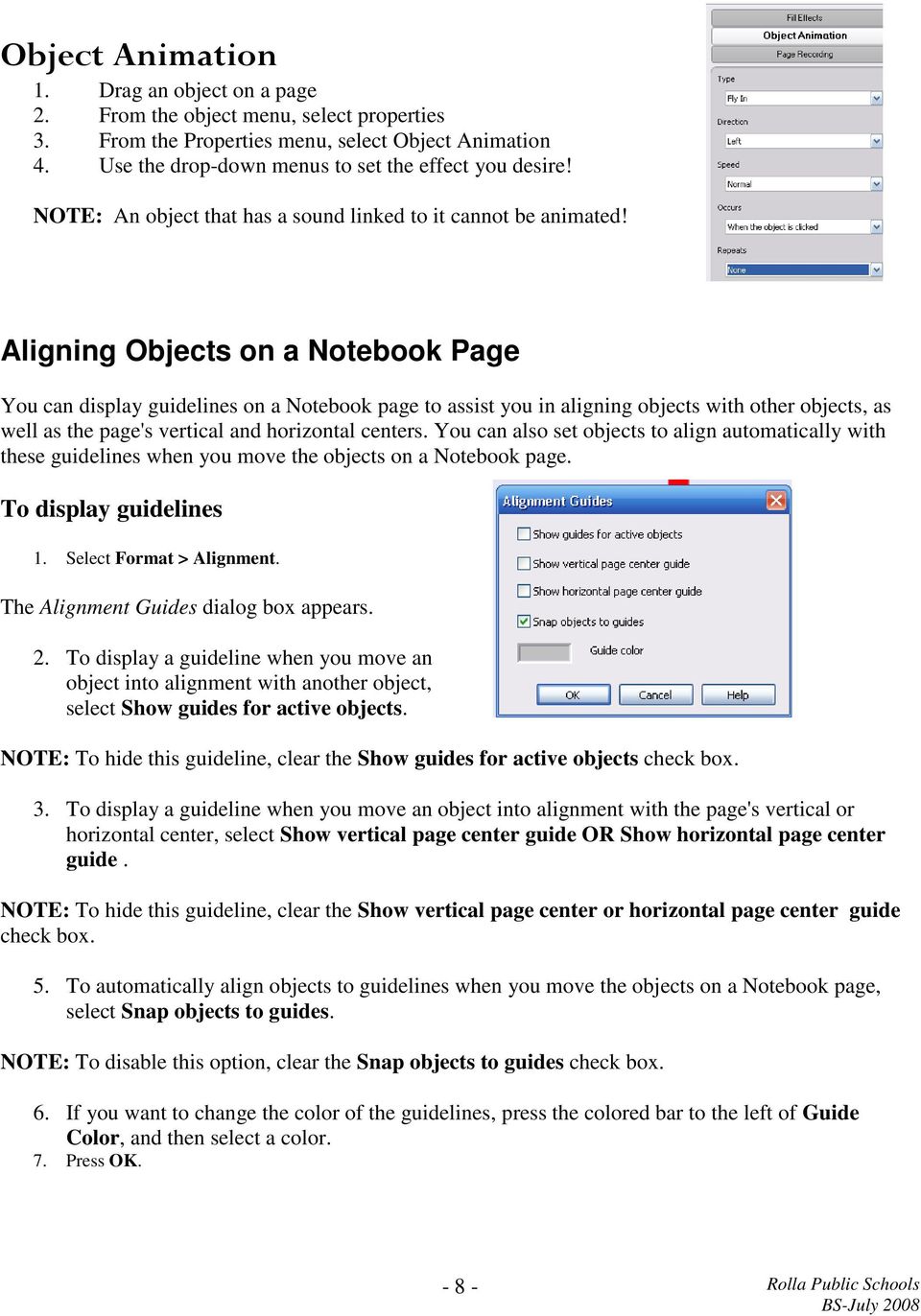
8 Object Animation 1. Drag an object on a page 2. From the object menu, select properties 3. From the Properties menu, select Object Animation 4. Use the drop-down menus to set the effect you desire! NOTE: An object that has a sound linked to it cannot be animated! Aligning Objects on a Notebook Page You can display guidelines on a Notebook page to assist you in aligning objects with other objects, as well as the page's vertical and horizontal centers. You can also set objects to align automatically with these guidelines when you move the objects on a Notebook page. To display guidelines 1. Select Format > Alignment. The Alignment Guides dialog box appears. 2. To display a guideline when you move an object into alignment with another object, select Show guides for active objects. NOTE: To hide this guideline, clear the Show guides for active objects check box. 3. To display a guideline when you move an object into alignment with the page's vertical or horizontal center, select Show vertical page center guide OR Show horizontal page center guide. NOTE: To hide this guideline, clear the Show vertical page center or horizontal page center guide check box. 5. To automatically align objects to guidelines when you move the objects on a Notebook page, select Snap objects to guides. NOTE: To disable this option, clear the Snap objects to guides check box. 6. If you want to change the color of the guidelines, press the colored bar to the left of Guide Color, and then select a color. 7. Press OK
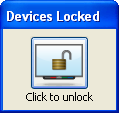
9 Recording a Notebook Page The Properties tab enables you to record your actions on the current Notebook page using Page Recording options. NOTE: You can also record your actions on the interactive screen, including your actions in programs other than Notebook software, using SMART Recorder. With SMART Recorder, you can record a full screen, specified window or rectangular portion of the screen. If you connect a microphone to your computer, you can also record audio. To record a Notebook page 1. If the Properties tab isn't visible, press Properties. 2. Press Page Recording Start Recording. A red circle appears in the upper left corner of the whiteboard area. 4. Perform the actions that you want to record on the current page. 5. When you finish performing these actions, press Stop Recording. 6. Press Play to view the recording. 7. Control the playback of the recording using the Page Recording toolbar. Locking SMART Products You can lock SMART products to prevent them from communicating with their connected computer. To lock all SMART products Press the SMART Board icon all SMART Devices. in the notification area, and then select Other SMART Tools > Lock The Devices Locked floating tool appears. To unlock all SMART devices Press the All Devices Locked floating tool button
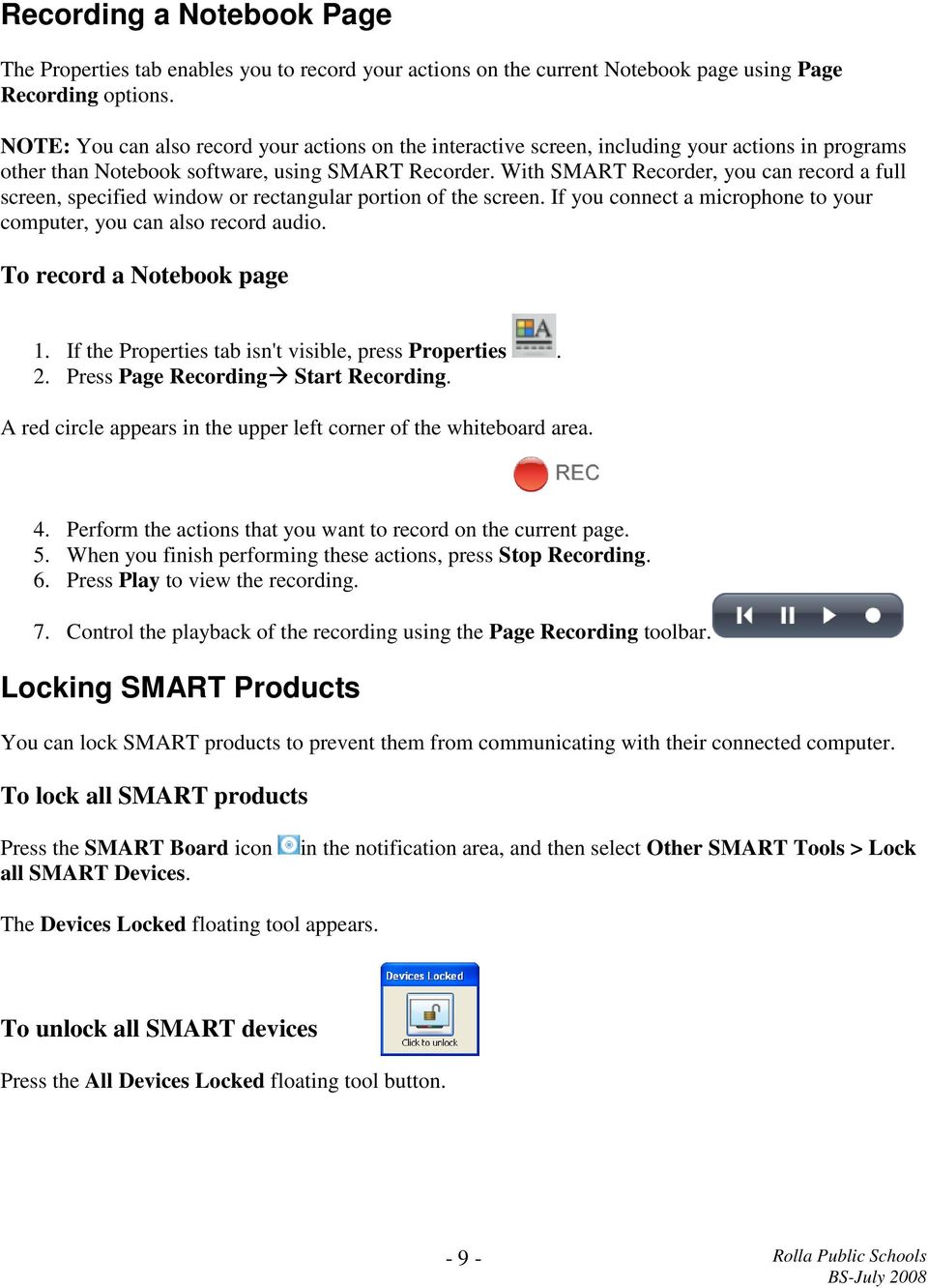
10 MISC TIPS AND TRICKS PRINTING PAGES Print Notebook files or individual Notebook pages. You can print the pages as thumbnails, handouts or full pages. 1. From the File menu Select Print. 2. Choose the appropriate options to customize your printing. EXPORTING PAGES Export files in a variety of formats, PDF, HTML and.jpg. 1. From the File menu Select Export. 2. Choose the file type. NOTES:

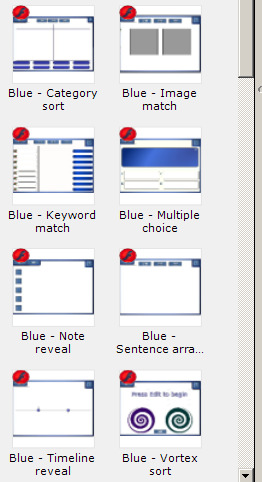
11 LESSON ACTIVITY TOOLKIT Games, Interaction, Title Pages and More! Activities Activity Description Category sort Organize keywords into two or three categories Image match Keyword match Multiple choice Note reveal Match up to five terms to their corresponding images or Gallery objects. To add an image to the activity, drag the image onto the work area and send it behind the activity by selecting Order > Send to Back from the object drop-down menu. Match keywords to their definitions. Create up to 10 multiple choice questions and specify the correct answers. During an activity, select an answer to see if it is correct, and receive an overall grade at the end of the question set. Reveal five lines of text individually in your preferred order. Sentence arrange Arrange up to eight sentences in the proper order. For example, to test understanding, students can organize the steps of an important process or a story line. Tiles Use Timeline reveal Vortex sort Use between 8 and 35 tiles to hide and reveal an image, Gallery object or text. To add an image to the activity, drag the image onto the work area, and send it behind the activity by selecting Order >Send to Back from the object drop-down menu. You can also add text to the front of the tiles to create quiz games and puzzles. Present dates in chronological order using a timeline and associated descriptions. Sort items into two categories, receiving instant feedback with each attempt
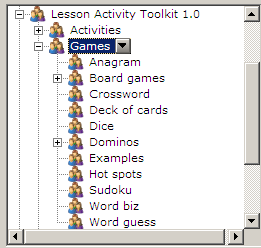

12 GAMES Anagram Checkers Crossword Deck of cards Participants can rearrange letters to form a specific word. You can provide a clue, set a timer, adjust the speed of the game and include up to five anagrams in one game. Checkerboards, complete with playing pieces, are provided. Participants can move the pieces around on the board and group pieces together as required. Generate your own crossword puzzle by entering your Words and Clues into this tool. When completing the puzzle, participants can enter words using either the On-Screen Keyboard or a pen tool. A Solve button reveals the correct answers. This game is useful for introducing and reviewing vocabulary. Individual playing cards are available for use in a game or lesson activity. Dice Dominos Hot spots Sudoku Word biz Word guess Interactive dice are available that you can roll with a single touch. Individual dominos that you can use in a game or lesson activity are available in both black and white. Use one of the images that is provided, for example, the world map, a human body, a grid, a Venn diagram, or add your own image. Set hot spots and a question. Participants touch the area on the image o respond to the question. This activity can be scored. The game is good for reviewing how to label an object and geography. To add an image to the game, drag the image onto the work area and send it behind the game by selecting Order > Send to Back from the object drop-down menu. Participants can complete a Sudoku puzzle, with three levels of difficulty on-screen using a pen tool or the On-Screen Keyboard. The Hint button adds a number to the puzzle, and the Solve button will show the answers. This game is a fun way to start a math class. Participants select letters, in the correct order, from a grid to answer a question you set in advance. This activity can be timed, and you can modify the speed. You can include up to eight words in one Word biz game, making this game a good choice for reviewing spelling and vocabulary words. Participants guess letters to form a pre-determined word. There are three game formats available to select from (soccer, basketball and tomato splat). You can include up to 10 words in one game, making this activity useful for review
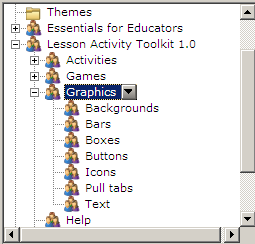
13 Graphics I Icons and images from the Graphics folder will help you create sophisticated and engaging lessons. Title bars and pull tabs can be dragged directly onto the Notebook software page. You can add links to buttons and icons to make the lesson more interactive and engaging, and improve the flow. To modify the text included in a graphic: 1. Select the graphic, and select Ungroup from the graphic s drop-down menu. 2. Once you have modified the text, select the graphic and the text at the same time. 3. Select Group from an object drop-down menu to regroup the text and the image as one graphic object. Help The Help folder contains a link to the Lesson Activity Toolkit webpage, where you can find additional information and supporting materials for the toolkit. Pages Ready-made pages make it easy for you to add structure and style to your lessons. You can find templates for title pages and standard lesson activity pages complete with title bars containing notes in the Pages folder. To change the text on these pages, just highlight the existing text and start typing. The title pages include Teachers notes and Lesson notes, useful tools for documenting learning objectives and lesson instructions. To create a professional looking lesson, consider selecting a colored template and using matching buttons and graphics from the Graphics folder. Pages are available in both Adobe Flash and Notebook page format

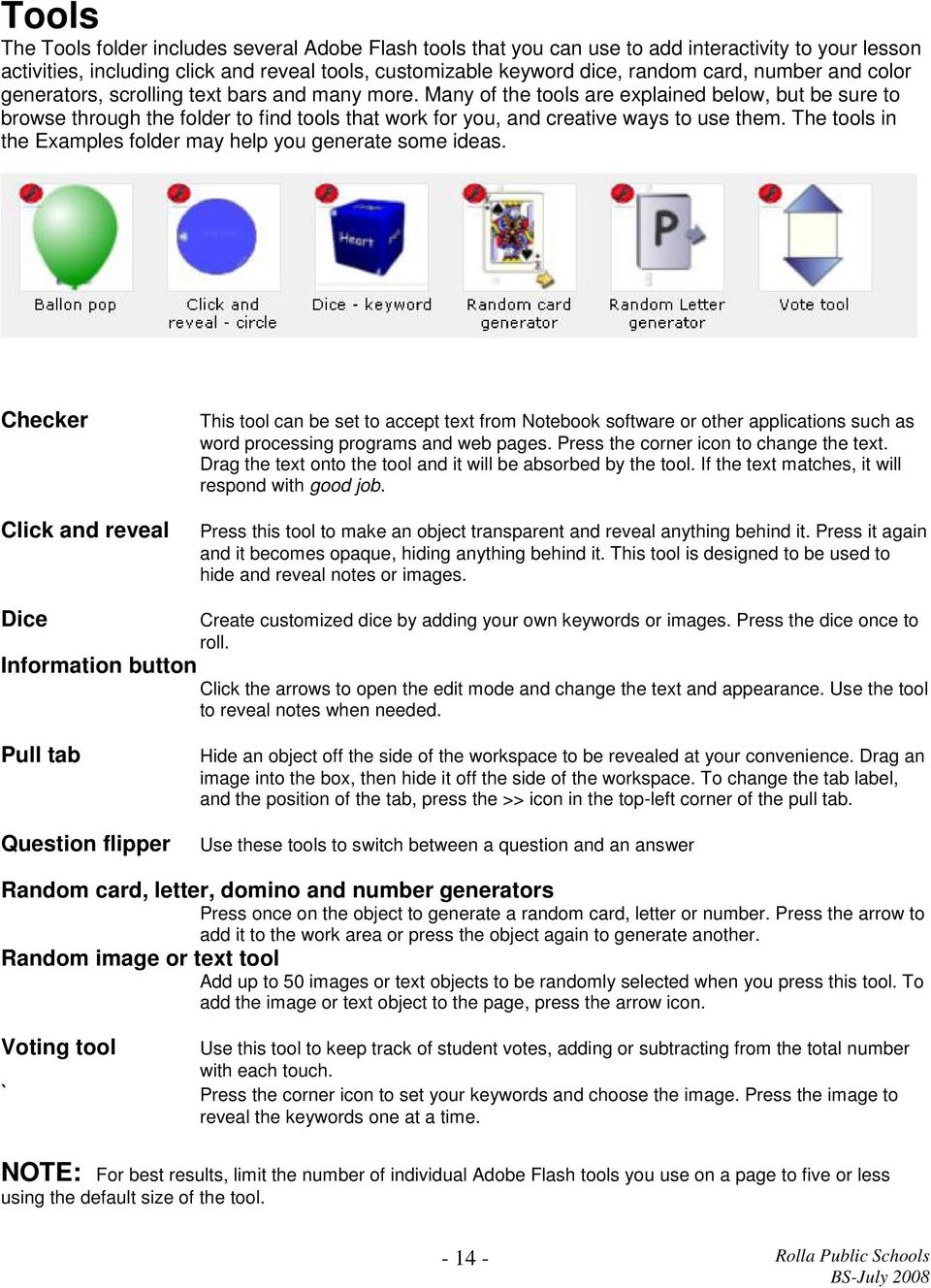
14 Tools The Tools folder includes several Adobe Flash tools that you can use to add interactivity to your lesson activities, including click and reveal tools, customizable keyword dice, random card, number and color generators, scrolling text bars and many more. Many of the tools are explained below, but be sure to browse through the folder to find tools that work for you, and creative ways to use them. The tools in the Examples folder may help you generate some ideas. Checker Click and reveal This tool can be set to accept text from Notebook software or other applications such as word processing programs and web pages. Press the corner icon to change the text. Drag the text onto the tool and it will be absorbed by the tool. If the text matches, it will respond with good job. Press this tool to make an object transparent and reveal anything behind it. Press it again and it becomes opaque, hiding anything behind it. This tool is designed to be used to hide and reveal notes or images. Dice Create customized dice by adding your own keywords or images. Press the dice once to roll. Information button Click the arrows to open the edit mode and change the text and appearance. Use the tool to reveal notes when needed. Pull tab Question flipper Hide an object off the side of the workspace to be revealed at your convenience. Drag an image into the box, then hide it off the side of the workspace. To change the tab label, and the position of the tab, press the >> icon in the top-left corner of the pull tab. Use these tools to switch between a question and an answer Random card, letter, domino and number generators Press once on the object to generate a random card, letter or number. Press the arrow to add it to the work area or press the object again to generate another. Random image or text tool Add up to 50 images or text objects to be randomly selected when you press this tool. To add the image or text object to the page, press the arrow icon. Voting tool ` Use this tool to keep track of student votes, adding or subtracting from the total number with each touch. Press the corner icon to set your keywords and choose the image. Press the image to reveal the keywords one at a time. NOTE: For best results, limit the number of individual Adobe Flash tools you use on a page to five or less using the default size of the tool
15 SMARTBOARD SKILLS CHECKLIST Rename a page Clone a page Insert a page Insert a graphic from the internet Export a lesson Draw and format shapes Customize a Pen Change the page background color Convert writing to text Layer objects Align objects Infinite clone an object Group / ungroup objects Identify the three types of files in the gallery Add page or object to the gallery Hyperlink to another page Hyperlink to a website Insert a sound object Display dual pages Pin a page Create a title page using the Lesson Activity Toolkit Use the checker tool Create a hide and reveal activity Change the orientation points Create an interactive review activity Smart Notebook print capture an existing document Insert an attachment Insert a flash file Use the SmartTools (i.e. Spotlight, magnifier & screen shade)

16 - 16 -

Florence School District #1
 Florence School District #1 Training Module 2 Designing Lessons Designing Interactive SMART Board Lessons- Revised June 2009 1 Designing Interactive SMART Board Lessons Lesson activities need to be designed
Smart Board Notebook Software A guide for new Smart Board users
 Smart Board Notebook Software A guide for new Smart Board users This guide will address the following tasks in Notebook: 1. Adding shapes, text, and pictures. 2. Searching the Gallery. 3. Arranging objects
SMART Notebook 10 User s Guide. Linux Operating Systems
 SMART Notebook 10 User s Guide Linux Operating Systems Product Registration If you register your SMART product, we ll notify you of new features and software upgrades. Register online at www.smarttech.com/registration.
Enhancing Your Smart Board Lessons
 Idea #1: Dragging -great for sorting or matching Hint: Right click on object (or click arrow) to pull down menu and choose Locking Allow Move. Another Hint: Make sure you put each item in its own text
Hands-On Practice. Basic Functionality
 Hands-On Practice Basic Functionality Your school or company has just moved one of your SMART Board interactive whiteboards into a new room because you were unable to access the Internet from the old location.
SMART Notebook 10 Software for Mac Computers. Creating SMART Notebook Files
 SMART Notebook 10 Software for Mac Computers Creating SMART Notebook Files Product Registration If you register your SMART product, we ll notify you of new features and software upgrades. Register online
2. How to Use SMART Board as a Projector and Whiteboard
 Page 1 Smart Board Getting Started Smart Board is an interactive whiteboard developed by SMART Technologies that combines the capabilities of a data projector and a white board. Use the SMART Board to
SMART Board Training Outline Trainer: Basel Badran
 Sharjah Higher Colleges of Technology SMART Board Training Outline Trainer: Basel Badran What is a SMART Board? o Concept & Technology SMART Board Components: o Smart Tools Start Center Recorder Keyboard
Notebook software training for SMART Board users. Learner workbook. Level 2
 Notebook software training for SMART Board users Level 2 Learner workbook 10552-08 - Notebook Software Training Covers April 2008 - Learner Workbook - v2.indd 2 4/22/2008 4:04:23 PM Best practices and
Introduction to Smart Board. Table of Contents. Connection Basics 3. Using the Board (Basics) 4. The Floating Tools Toolbar 5-6
 Introduction to Smart Board Table of Contents Overview 2 Connection Basics 3 Using the Board (Basics) 4 The Floating Tools Toolbar 5-6 The Smartboard Smart Tool Buttons Collecting and Sharing Content with
SMART BOARD Essentials
 SMART BOARD Essentials Date: October, 2013 Version: 1.0 Version Control Information Version Date Description 1.0 21/10/2013 Course release File Path S:\ADM-HR\L-and-OD\Staff Development\Enterprise System
Task Card #2 SMART Board: Notebook
 Task Card #2 SMART Board: Notebook Objectives: Participants will learn how to utilize the SMART Notebook. Table of Contents: Launching The SMART Notebook Page 1 Entering Text Page 1 Top Toolbar Page 2
Toolbars and Tabs in SMART Notebook Software
 Toolbars and Tabs in SMART Notebook Software This quick reference introduces you to the toolbar, full screen toolbar and side tabs in SMART Notebook collaborative learning software. Toolbar The SMART Notebook
User s Guide. SMART Notebook Software. for Windows operating systems
 User s Guide SMART Notebook Software for Windows operating systems Trademark Notice SMART Board, Sympodium, Bridgit, AirLiner, DViT, the SMART logo and smarttech are trademarks or registered trademarks
SMART Board Training Packet. Notebook Software 10.0
 SMART Board Training Packet Notebook Software 10.0 Chris de Treville [email protected] 6301 Benjamin Road Suite 101 Tampa, FL 33634 p: 813.884.7168 f: 813.882.9508 SMART Board Welcome Center
SMART Boards. If the board is connected to a different computer - Orientation is needed whenever you connect it to a new or different computer.
 SMART Boards What is a SMART Board? The SMART Board is an interactive whiteboard that converts a computer and date projector into a powerful tool for teaching and learning. With the computer image projected
SMART Sympodium and Notebook Software 9.5
 SMART Sympodium and Notebook Software 9.5 What is a SMART Sympodium? Equipped with the same software as SMART Board interactive whiteboards, SMART Sympodium interactive pen displays are perfect for presenting
Smartboard and Notebook 10 What s New
 Smartboard and Notebook 10 What s New Smartboard Markers and Eraser (for use with all programs): You may use your finger as the mouse. Press down twice to double click Hold your finger down for a few seconds
SMART Board Beginning
 SMART Board Beginning Downloading the Software... 2 600 Series SMART Board... 2 800 Series SMART Board... 3 SMART Board Cleaning Options... 4 SMART Board Pens... 4 SMART Board Help... 4 Using the On Screen
SMART Board Interactive Whiteboard Setup with USB Cable
 SMART Board Interactive Whiteboard Setup with USB Cable The instructions below are for the SMART Board interactive whiteboard 500 series and apply to both desktop and laptop computers. Ready Light USB
Mimio Interactive. Pad and Bar. Technology Integration Department. Last update: 2/15/2013
 Mimio Interactive Technology Integration Department Last update: 2/15/2013 Getting Started 1. Mimio Bars or Pads (MS Science, and HS) may be checked out from the library. 2. You must have mimio software
Microsoft PowerPoint 2011
 Microsoft PowerPoint 2011 Starting PowerPoint... 2 Creating Slides in Your Presentation... 3 Beginning with the Title Slide... 3 Inserting a New Slide... 3 Adding an Image to a Slide... 4 Downloading Images
Hands-On Practice. Using Notebook Software in the Office
 Using Notebook Software in the Office Before You Start Before you begin your meeting, ensure that your computer is turned on and the SMART Board interactive whiteboard is connected and oriented. The SMART
[Not for Circulation]
![[Not for Circulation]](/thumbs/39/20045725.jpg "[Not for Circulation]") Using SMART Notebook SMART Notebook is software meant to supplement use with the SMART Board. The software helps users create interactive presentations, and offers a variety of ways to enhance presenting
Using SMART Notebook SMART Notebook is software meant to supplement use with the SMART Board. The software helps users create interactive presentations, and offers a variety of ways to enhance presenting
SMART Notebook TM Software Training for SMART Board TM Users
 Learner Workbook SMART Notebook TM Software Training for SMART Board TM Users Level 1 Trainer Information Name Phone E-mail Getting started...1 How does the SMART Board interactive whiteboard work?...
SMART Board Tips & Tricks (version 9.0) Getting Started. SMART Tools vs. SMART Notebook software
 SMART Board Tips & Tricks (version 9.0) Getting Started SMART Tools vs. SMART Notebook software Click the SMART Board icon (in the system tray at the bottom right of your screen) to access the SMART Board
Cool Smart Board Tricks and Tools
 Cool Smart Board Tricks and Tools Dual Page Display and Pinning You can easily toggle between dual and single page display with the dual page button on the toolbar. When in Dual Page mode you can pin one
SMART Notebook: Basics and Application
 SMART Notebook: Basics and Application Table of Contents TESS Connection... 3 Version Number... 3 Tour of the Window... 5 The Main Toolbar... 5 The Sidebar... 18 Page Sorter... 19 The Gallery... 23 Searching...
Hardware Basics for Front Projection SMART Board Interactive Whiteboards
 Hardware Basics for Front Projection SMART Board Interactive Whiteboards The SMART Board interactive whiteboard is touch sensitive and operates as part of a system that includes a computer and a projector.
What s New in SMART Board Software 9.0 for Windows Operating Systems
 What s New in SMART Board Software 9.0 for Windows Operating Systems If you ve used SMART Board software before, you ll notice many changes in version 9.0. In this document, we ll introduce version 9.0
PowerPoint 2007 Basics Website: http://etc.usf.edu/te/
 Website: http://etc.usf.edu/te/ PowerPoint is the presentation program included in the Microsoft Office suite. With PowerPoint, you can create engaging presentations that can be presented in person, online,
The Notebook Software Activity Guide
 The Notebook Software Activity Guide The Notebook software activity guide is intended to act as a reference of the best practices for creating and presenting lesson activities using Notebook software.
Microsoft PowerPoint 2010
 Microsoft PowerPoint 2010 Starting PowerPoint... 2 PowerPoint Window Properties... 2 The Ribbon... 3 Default Tabs... 3 Contextual Tabs... 3 Minimizing and Restoring the Ribbon... 4 The Backstage View...
Florence School District #1
 Florence School District #1 Module 2: SMART Board Basics and Beyond 1 SMART Board Software and Beyond In SMART Notebook software, you can create or open SMART Notebook software (.notebook) files. After
SMART Board Menu. Full Reference Guide
 SMART Board Full Reference Guide Start-Up After entering Windows, click on the desktop icon SMART Board Tools. The SMART Board icon will appear in the system tray on the bottom right of the screen. Turn
SMART Board TM Interactive Whiteboard Learner Workbook
 SMART Board TM Interactive Whiteboard Learner Workbook Bringing people and ideas together. TM Suite 600, 1177 11th Avenue SW, Calgary, AB CANADA T2R 1K9 Toll-free 1.888.42.SMART, ext. 2690 Tel. 403.245.0333
Microsoft PowerPoint 2008
 Microsoft PowerPoint 2008 Starting PowerPoint... 2 Creating Slides in Your Presentation... 3 Beginning with the Title Slide... 3 Inserting a New Slide... 3 Slide Layouts... 3 Adding an Image to a Slide...
Interactive Whiteboard Learner Workbook
 SMART Fundamentals Interactive Whiteboard Learner Workbook Bringing people and ideas together. TM 1207 11th Avenue SW, Suite 300, Calgary, AB, T3C 0M5 CANADA Toll-free 1.888.42.SMART, ext. 8536 Fax 403.228.2500
Microsoft Office PowerPoint 2003. Creating a new presentation from a design template. Creating a new presentation from a design template
 Microsoft Office PowerPoint 2003 Tutorial 2 Applying and Modifying Text and Graphic Objects 1 Creating a new presentation from a design template Click File on the menu bar, and then click New Click the
PowerPoint 2013: Basic Skills
 PowerPoint 2013: Basic Skills Information Technology September 1, 2014 1 P a g e Getting Started There are a variety of ways to start using PowerPoint software. You can click on a shortcut on your desktop
SMART Board Interactive Whiteboard Learner Workbook
 SMART Board Interactive Whiteboard Learner Workbook Bringing people and ideas together. TM Suite 300, 1207 11th Avenue SW, Calgary, AB CANADA T3C 0M5 Toll-free 1.888.42.SMART, ext. 2690 Tel. 403.245.0333
SB101 SMART Board 101
 SB101 SMART Board 101 Pieces and Parts SMART Board with cable connected to a laptop or desktop computer LCD projector with cable connected to the computer Computer SMART Board cable (use the appropriate
SMART Meeting Pro 4.0 SP3 software
 Help us make this document better smarttech.com/feedback/170897 SMART Meeting Pro 4.0 SP3 software USER S GUIDE Product registration If you register your SMART product, we ll notify you of new features
WHAT S NEW IN WORD 2010 & HOW TO CUSTOMIZE IT
 WHAT S NEW IN WORD 2010 & HOW TO CUSTOMIZE IT The Ribbon... 2 Default Tabs... 2 Contextual Tabs... 2 Minimizing and Restoring the Ribbon... 3 Customizing the Ribbon... 3 A New Graphic Interface... 5 Live
Epson Brightlink Interactive Board and Pen Training. Step One: Install the Brightlink Easy Interactive Driver
 California State University, Fullerton Campus Information Technology Division Documentation and Training Services Handout Epson Brightlink Interactive Board and Pen Training Downloading Brightlink Drivers
SMART Notebook Training
 Learner Workbook SMART Notebook Training Beginner session Trainer Information Name Phone E-mail Getting started...1 Using SMART Notebook software for the first time... 2 Finding tools in SMART Notebook
Advanced Presentation Features and Animation
 There are three features that you should remember as you work within PowerPoint 2007: the Microsoft Office Button, the Quick Access Toolbar, and the Ribbon. The function of these features will be more
Introduction To Microsoft Office PowerPoint 2007. Bob Booth July 2008 AP-PPT5
 Introduction To Microsoft Office PowerPoint 2007. Bob Booth July 2008 AP-PPT5 University of Sheffield Contents 1. INTRODUCTION... 3 2. GETTING STARTED... 4 2.1 STARTING POWERPOINT... 4 3. THE USER INTERFACE...
SMART Board 9 Software Tips and Tricks
 SMART Board 9 Software Tips and Tricks Tips for Writing and Adding Content Drawing (or erasing) fine lines For precise control of the digital ink, change the pen setting to use the thinnest line width.
Smartboard Tutorial. 1. Setting up the Smart Board and Presentation Cart. 2. Orienting the Board. 3. Smartboard Toolbars. 4. Inserting a New Slide
 Smartboard Tutorial 1. Setting up the Smart Board and Presentation Cart 2. Orienting the Board 3. Smartboard Toolbars 4. Inserting a New Slide 5. Inserting an Object 6. Setting a Picture Transparency 7.
SMART Notebook software training for SMART Board users
 Learner Workbook SMART Notebook software training for SMART Board users Level 1 For Windows operating systems Trainer Information Name Phone E-mail Getting started... 1 How does the SMART Board interactive
Ready Light on lowerright of frame bezel
 Version 10 SMART Board Interactive Whiteboard Basics This Quick Reference Guide provides an overview of the information you need to begin using a SMART Board interactive whiteboard. Before you begin, make
Handout: Word 2010 Tips and Shortcuts
 Word 2010: Tips and Shortcuts Table of Contents EXPORT A CUSTOMIZED QUICK ACCESS TOOLBAR... 2 IMPORT A CUSTOMIZED QUICK ACCESS TOOLBAR... 2 USE THE FORMAT PAINTER... 3 REPEAT THE LAST ACTION... 3 SHOW
SMART Ink 1.5. Windows operating systems. Scan the following QR code to view the SMART Ink Help on your smart phone or other mobile device.
 SMART Ink 1.5 Windows operating systems User s guide Scan the following QR code to view the SMART Ink Help on your smart phone or other mobile device. Trademark notice SMART Ink, SMART Notebook, SMART
Google Docs Basics Website: http://etc.usf.edu/te/
 Website: http://etc.usf.edu/te/ Google Docs is a free web-based office suite that allows you to store documents online so you can access them from any computer with an internet connection. With Google
Microsoft PowerPoint 2010 Handout
 Microsoft PowerPoint 2010 Handout PowerPoint is a presentation software program that is part of the Microsoft Office package. This program helps you to enhance your oral presentation and keep the audience
Using Microsoft Word. Working With Objects
 Using Microsoft Word Many Word documents will require elements that were created in programs other than Word, such as the picture to the right. Nontext elements in a document are referred to as Objects
Triggers & Actions 10
 Triggers & Actions 10 CHAPTER Introduction Triggers and actions are the building blocks that you can use to create interactivity and custom features. Once you understand how these building blocks work,
Welcome to SMART Notebook TM 11 collaborative learning software
 Welcome to SMART Notebook TM 11 collaborative learning software SMART Notebook Software Tutorial Review features and get started quickly To access this tutorial later, go to: 1 What s new in SMART Notebook
SMARTstuff. The first rule for using an interactive whiteboard is very simple and of the utmost importance: Have faith in yourself you can do this!
 SMARTstuff The first rule for using an interactive whiteboard is very simple and of the utmost importance: Have faith in yourself you can do this! Getting Started This booklet will cover the following
In this session, we will explain some of the basics of word processing. 1. Start Microsoft Word 11. Edit the Document cut & move
 WORD PROCESSING In this session, we will explain some of the basics of word processing. The following are the outlines: 1. Start Microsoft Word 11. Edit the Document cut & move 2. Describe the Word Screen
Hands-On Practice. Basic Functionality
 Basic Functionality Your school or company has just moved one of your SMART Board interactive whiteboards into a new room because you were unable to access the Internet from the old location. You will
SMART Board User Guide for PC
 SMART Board User Guide for PC What is it? The SMART Board is an interactive whiteboard available in an increasing number of classrooms at the University of Tennessee. While your laptop image is projected
Acrobat PDF Forms - Part 2
 Acrobat PDF Forms - Part 2 PDF Form Fields In this lesson, you will be given a file named Information Request Form that can be used in either Word 2003 or Word 2007. This lesson will guide you through
Creating Web Pages with Microsoft FrontPage
 Creating Web Pages with Microsoft FrontPage 1. Page Properties 1.1 Basic page information Choose File Properties. Type the name of the Title of the page, for example Template. And then click OK. Short
National RTAP Marketing Transit Toolkit Customizing Templates in Microsoft Publisher
 National RTAP Marketing Transit Toolkit Customizing Templates in Microsoft Publisher Customizing the Templates in Microsoft Publisher Microsoft Publisher is part of the Microsoft Office Suite, so most
Introduction to Microsoft Word 2008
 1. Launch Microsoft Word icon in Applications > Microsoft Office 2008 (or on the Dock). 2. When the Project Gallery opens, view some of the available Word templates by clicking to expand the Groups, and
SMART BOARD USER GUIDE FOR PC TABLE OF CONTENTS I. BEFORE YOU USE THE SMART BOARD. What is it?
 SMART BOARD USER GUIDE FOR PC What is it? SMART Board is an interactive whiteboard available in an increasing number of classrooms at the University of Tennessee. While your laptop image is projected on
Kaplan Higher Education Seminar Student User Guide
 Kaplan Higher Education Seminar Student User Guide Kaplan Higher Education and Professional Education R08.05.15 Table of Contents Getting Started... 1 Software Requirements... 1 Seminar Types... 1 Accessing
Using SMART Notebook (Overview)
 Using SMART Notebook (Overview) A SMART Notebook is an electronic notebook that can capture and save images, objects and notes that are created on a SMART Board i.e. you can write student responses over
Chapter 14: Links. Types of Links. 1 Chapter 14: Links
 1 Unlike a word processor, the pages that you create for a website do not really have any order. You can create as many pages as you like, in any order that you like. The way your website is arranged and
Microsoft Office PowerPoint 2013
 Microsoft Office PowerPoint 2013 Navigating the PowerPoint 2013 Environment The Ribbon: The ribbon is where you will access a majority of the commands you will use to create and develop your presentation.
Microsoft Publisher 2010 What s New!
 Microsoft Publisher 2010 What s New! INTRODUCTION Microsoft Publisher 2010 is a desktop publishing program used to create professional looking publications and communication materials for print. A new
You can learn more about Stick around by visiting stickaround.info and by finding Stick Around on social media.
 Stick Around Play, design, and share sorting and labeling puzzles! Stick Around comes with an assortment of example puzzles, including ordering decimals and classifying rocks. It's the player's job to
Module One: Getting Started... 6. Opening Outlook... 6. Setting Up Outlook for the First Time... 7. Understanding the Interface...
 2 CONTENTS Module One: Getting Started... 6 Opening Outlook... 6 Setting Up Outlook for the First Time... 7 Understanding the Interface...12 Using Backstage View...14 Viewing Your Inbox...15 Closing Outlook...17
Sample Table. Columns. Column 1 Column 2 Column 3 Row 1 Cell 1 Cell 2 Cell 3 Row 2 Cell 4 Cell 5 Cell 6 Row 3 Cell 7 Cell 8 Cell 9.
 Working with Tables in Microsoft Word The purpose of this document is to lead you through the steps of creating, editing and deleting tables and parts of tables. This document follows a tutorial format
How to create pop-up menus
 How to create pop-up menus Pop-up menus are menus that are displayed in a browser when a site visitor moves the pointer over or clicks a trigger image. Items in a pop-up menu can have URL links attached
Communicate: In Print
 Communicate: In Print A simple guide Work areas Communicate: In Print has two different modes in which to edit your documents: Create and Adjust modes. These are easily interchangeable and the toolbars
Microsoft Word 2010. Quick Reference Guide. Union Institute & University
 Microsoft Word 2010 Quick Reference Guide Union Institute & University Contents Using Word Help (F1)... 4 Window Contents:... 4 File tab... 4 Quick Access Toolbar... 5 Backstage View... 5 The Ribbon...
paragraph(s). The bottom mark is for all following lines in that paragraph. The rectangle below the marks moves both marks at the same time.
 MS Word, Part 3 & 4 Office 2007 Line Numbering Sometimes it can be helpful to have every line numbered. That way, if someone else is reviewing your document they can tell you exactly which lines they have
Excel 2003 Tutorial I
 This tutorial was adapted from a tutorial by see its complete version at http://www.fgcu.edu/support/office2000/excel/index.html Excel 2003 Tutorial I Spreadsheet Basics Screen Layout Title bar Menu bar
SMART Board User Guide for Mac
 SMART Board User Guide for Mac What is it? SMART Board is an interactive whiteboard available in an increasing number of classrooms at the University of Tennessee. While your laptop image is projected
Adobe Illustrator CS5 Part 1: Introduction to Illustrator
 CALIFORNIA STATE UNIVERSITY, LOS ANGELES INFORMATION TECHNOLOGY SERVICES Adobe Illustrator CS5 Part 1: Introduction to Illustrator Summer 2011, Version 1.0 Table of Contents Introduction...2 Downloading
Increasing Productivity and Collaboration with Google Docs. Charina Ong Educational Technologist [email protected]
 Increasing Productivity and Collaboration with Google Docs [email protected] Table of Contents About the Workshop... i Workshop Objectives... i Session Prerequisites... i Google Apps... 1 Creating
Microsoft Access 2010 handout
 Microsoft Access 2010 handout Access 2010 is a relational database program you can use to create and manage large quantities of data. You can use Access to manage anything from a home inventory to a giant
Windows 8.1 Update 1 Supplement
 Illustrated Series Guide to Windows 8.1 Update 1 Changes June 2014 Table of Contents (CTRL+Click a link to navigate directly to Part 1, 2, 3, or 4.) Part 1: What Version of Windows Am I Using? Part 2:
Publisher 2010 Cheat Sheet
 April 20, 2012 Publisher 2010 Cheat Sheet Toolbar customize click on arrow and then check the ones you want a shortcut for File Tab (has new, open save, print, and shows recent documents, and has choices
Logo Design Studio Pro Guide
 Logo Design Studio Pro Guide This guide is distributed with software that includes an end-user agreement, this guide, as well as the software described in it, is furnished under license and may be used
Smart Sync. Computer Classroom Management Software. What is SMART Sync? Table of Contents
 Smart Sync Computer Classroom Management Software What is SMART Sync? SMART Sync software helps instructors manage the computers in their classroom. SMART Sync keeps a student engaged and focused, and
PowerPoint 2007: Basics Learning Guide
 PowerPoint 2007: Basics Learning Guide What s a PowerPoint Slide? PowerPoint presentations are composed of slides, just like conventional presentations. Like a 35mm film-based slide, each PowerPoint slide
AD201, STC106, STC109, STC204, STC302, STC304, STC309, STC311
 Smart Classrooms information & instructions Smart Classrooms are located in: Administration Building Arts & Science Building Academic & Technical Building Library STC AD003, AD209, AD208, AD202 & AD201,