
Use of e- readers- Report from Loughborough University Library
|
|
|
- Tabitha Barrett
- 9 years ago
- Views:
Transcription
1 Use of e- readers- Report from Loughborough University Library Peter Lund * Ann O Brien (Department of Information Science) Nick Loakes (Student Summer Intern, Department of Information Science) Katie Appleton* Bryan Dawson * *University Library April 2011

2 Introduction E-readers are becoming increasingly common since April 2010 sales of the ipad have reached 12 million units. Although exact sales of the Kindle are unknown, over Christmas 2010 the Kindle outstripped Harry Potter as the biggest selling item on the Amazon web site(1). The e-ink used by devices such as the Kindle, Sony Touch and iriver Story enables books to be read in broad daylight and without problems associated with screen glare. The ability to store large numbers of books and PDFs are other reasons that the Kindle and similar devices are developing quickly for personal use. An as yet unpublished Library survey indicates that of 1107 respondents some 25% had access to e- books from some mobile device (54 had Kindles, 17 Sony readers, 48 ipads, 153 other - mainly ipod Touch and iphone). This project sought to explore how the Library might make use of, or support the use of, e-readers. Literature review and other e-reader projects There are a large number of news articles discussing e-readers, concentrating on new product announcements and particular advantages to the consumer of each one. A number of these are listed in the bibliography. Most instructive discussions are those highlighting the potential use of e-readers in academic libraries and these were recently provided by Dougherty (2) and by Drinkwater(3). Drinkwater in particular illustrates a number of weaknesses of e-readers: 1. Lack of academic content 2. Fiddly, fragile, needs charging 3. DRM (Digital Rights Management) 4. Environmental e.g. inability to replace a battery Drinkwater concludes that it may be that the devices sit better as a very specialised consumer device than as part of a core library service. Polanka (4) who posts a blog on e-books has edited a book No Shelf Required: e-books in libraries which neatly summarises the use of e-books in libraries and contains some case studies of the use of e-readers in US academic libraries. 2 P a g e

3 A number of university libraries have undertaken initiatives involving e- readers. As part of this project the authors contacted those responsible for the following projects: North Carolina State University week loan lending of Kindles for user selected leisure reading and a Kindle DX for newspapers on 4 hour loan. Sony Readers for classics. (5) University of Newcastle lending Sony Readers for use with PDFs (6) Loughborough College lending ipads for searching key databases e.g. Mintel within the Library Standards Digital Rights Management (DRM) on many e-books is very restrictive and a mix of standards hampers flexibility for libraries seeking to provide an e-reader service. To acquire an e-book to read on your Kindle you must buy from Amazon. The iriver Story and Sony reader Books use the epub standard and Adobe Digital Editions which facilitates the downloading of e-books from various sources. Freely available material from Project Gutenberg can be downloaded to these devices whilst other leisure reading material may be purchased from e.g. Waterstones or W.H. Smith s but not Amazon. The ipad allows use of e-books bought through Apple s proprietary ibooks software, though a Kindle app is also available. Digital Rights management and restrictive licensing make it very difficult to lend e-book readers with content. e-readers trialled The capabilities of the following e-readers were assessed: ipad, Kindle, iriver Story, Sony Reader Touch edition, ipod Touch. An evaluation was made by Nick Loakes (Student Summer Intern, at the Department of Information Science) as to the ability of each reader to support a range of functions, these being: Tools for academic use highlighting, notes, bookmarks Navigation search features, page numbering system, jump to page Reading on the device screen orientation, font sizes, zoom features, reading PDFs 3 P a g e

4 Downloading content wifi, buying books, free content, PDFs, formats supported Battery life and charging Using evaluation scores assigned by Nick, the Sony Reader Touch edition narrowly beat the Kindle into second place, the Sony Reader Touch Edition scoring highly in the Tools for academic use category. See Appendix 1 spreadsheet for more detail. Rather than repeating similar trials our project sought to evaluate a range of e- readers and explore how these might be used in the following areas: e-books on reading lists Leisure reading PDFs Inter-Library loans Newspapers Teaching support This report now explores the potential of each of these areas of use. e-books on reading lists Loughborough University Library has two preferred suppliers of e-books: DawsonERA and EBL. Such e-books are delivered online and can be accessed through networked workstations and laptops using Athens authentication. When canvassed at a major e-book conference (SLIC October 2010) none of the major e-book suppliers seem to be developing any services to e-reader devices and e-books. DawsonERA do not allow e-books to be accessed from an e-reader device, though via the internet e-books could be accessed on an ipad. EBL do allow the downloading of their e-books onto such e-reader devices which support the epub standard and have Adobe Digital Editions installed. This includes the iriver Story and Sony Reader. A number of EBL e-books are 4 P a g e

5 available on reading lists. Using a script from the Library Systems team the project group were able to determine that a number of Geography and Politics modules contained multiple items available as e-books from EBL. However, determined users who follow the lengthy download instructions (Appendix 2) will find that, due to the Digital Rights Management installed, their reward is the ability to read and annotate the book for one day only in the majority of cases. Most unsatisfactory! Recommendation 1: under current DRM restrictions there appears to be no scope for purchasing e-readers to support use of reading list material. Leisure reading The Library has a significant number of works of fiction within its collections and also helps to support a University book group. Whilst members of the book group were interested in trying out e-readers there would be a significant workload for the Library in making these e-readers available. Taking the Kindle as an example, lending content contravenes the user agreement. It would however be possible to lend the device by de-registering it. The user would then register it to themselves and purchase Amazon e-books to read for themselves on the device. On completion of the loan the reader would deregister the Kindle again, thus deleting the paid for content and return the Kindle to the Library where upon it would await another user. This approach is being undertaken as a service at NCSU Libraries which has a track record of lending technology (op cit). Orion Pozo at NCSU indicates that lending Kindles is straightforward (7) and is well received by users but the advantage does seem to be limited to offering students the opportunity to try a Kindle. One member of the Loughborough Radar Book Group has acquired a Kindle whilst another partially sighted member of the book group has found that the Kindle DX with its large 9 inch screen and ability to adjust the font size makes it advantageous for reading. Recommendation 2: lending Kindles for leisure reading would be costly in staff time and the only advantage would be to enable users to try before they buy 5 P a g e

6 PDFs Just as e-readers have the advantages of storing large numbers of books so too can they store large numbers of PDFs. Indeed PDFs can easily be stored on most of these devices by attaching the power cable to the USB port on a workstation. Each of the devices tested had its unique advantages over the others and an analysis of the PDF functionality is contained in Appendix 4. For document reading, matt screen surfaces are less tiring to read from than touchscreens, but more difficult to keep clean than glossy ones. Touchscreens are clumsy at this level of detail your smallest finger is bigger than several words on the screen so although a generation of ipod users have got used to large icons taking over the display, it isn t good interface design for a learning device. On all devices, font size of PDFs cannot be increased easily unlike e- books. This makes reading many journal articles as PDFs on the standard 6 inch screen of the iriver Story, Sony Reader and the 6 inch Kindle an imperfect experience. To store PDFs on the Apple ipad requires the PDFs to be transferred via an itunes account. Once transferred these PDFs are easily readable. Alternatively where wifi is available, PDFs can be viewed through a Safari browser. Apps can also be purchased though these haven t been tested. In conclusion, pre-existing PDFs tend to be more easily readable on a 9inch Kindle DX and on the ipad. The ipad also has the ability to display in colour. The multi-functionality of the ipad makes it very useful for reading PDFs of journal articles while travelling for instance. At least one academic at Loughborough is using an ipad to read PDFs. However storing associated bibliographic data for citation purposes is currently unwieldy since itunes was designed for music. If using a Kindle, it is worth converting a PDF to Amazon s.azw format it usually works well, and results in a more usable file. However the process can silently fail with complex layouts, so a converted file should be proof-read before release to students. Owners could do the conversion for themselves, for free. This native format is more flexible than PDF on a Kindle. 6 P a g e

7 Recommendation 3: the ipad has potential for reading PDFs. Knowledge of how to transfer PDFs to ipad in particular could therefore be useful to Library staff. Inter-Library loans Electronic delivery of journal articles has been offered by the British Library for some years. However in practice this Secure Electronic Delivery or SED has proved somewhat problematic to operate due to various restrictions placed on the service and Loughborough University ceased advertising it in One of the main restrictions is that the recipient needs to have a copy of Adobe Digital Editions loaded on their workstation. This software is required for users of the Sony Touch e-reader and the iriver Story so it seemed possible that electronic delivery of inter library loans could be an added benefit for users owning these devices. A trial was carried out. Downloading of SED ILLs was very similar to downloading the EBL Books. A file is downloaded from the source (BL in this case) and into Adobe Digital Editions on a PC (for Rights management / format conversion). A copy is then moved onto the e-reader (via the relevant software). Step by step details of how to do this are in Appendix 3. The process of transferring the SEDs to a device can be time consuming and may even take longer than it would to read most journal articles. Problems were also found with reading the ILLs on the Sony and iriver Story devices (the two trialled with ILLs) as the small text cannot be magnified. It is also important to note that ILLs are time limited and that they will not be available on devices for any longer than they could be read for on PCs (whereas print documents could be kept for as long as required). Also, once a link has been activated to the PDF, it cannot be re-activated. So, if the user has opened it, but not saved it in Adobe Digital Editions then it would be lost, potentially with the cost of their department having to purchase a replacement ILL, and the extra time delay before the user can read it. In conclusion it was found that whilst it is technically possible to acquire and read inter library loans via SED the service was still not sufficiently robust to 7 P a g e

8 merit introducing the service. The British Library is now phasing out the SED in favour of FileOpen advertised as The British Library s preferred DRM service although the same DRM issues apply. Recommendation 4: continue to monitor developments in the British Library s electronic delivery DRM services, including the currently preferred FileOpen service, to see if there is any improvement. Newspapers Apps exist to enable newspapers such as The Times and Sunday Times by subscription to be read on the ipad. The Independent and a number of US newspapers are also freely available. The Kindle has subscriptions for Times, FT, Mail, Telegraph and Independent available. Reading newspapers on larger format e-readers was found to be quite satisfactory for personal use. NCSU lend a Kindle DX loaded with newspapers for 4 hour loan, however whilst this could be a way of encouraging students to read newspapers it would appear to be an expensive way of lending them. If a critical mass of major newspapers become available in this medium it may be worth considering the development of a service whereby readers can borrow e-readers to search and view newspapers. Recommendation 5: Monitor the marketplace to see if more newspapers become available. Teaching support Some US universities e.g. Princeton (8) have issued e-readers to students with specific texts preloaded to facilitate consistent reading of prescribed texts. At Loughborough module EAB027 Shakespeare Page to Stage is one instance where the lecturer (Gabriel Egan) has a need for students to consult specific editions of set texts in class. This module only runs in semester 2 and three students will trial the use of Kindles to see if this approach is successful. Results of this trial will be reported in June P a g e

9 Citing references Since books read on e-readers do not have pagination this can make citing quotations from such works more difficult and it will be necessary to offer guidance. Macquarrie University and the University of New South Wales already do this. Recommendation 6: Loughborough University Library should offer How to cite guidance for e-books on e-readers. In the absence of Libguides software this should be provided on LEARN or Web pages. Conclusions Digital Rights Management severely restricts the ability of Loughborough University Library to lend e-readers with pre-installed content. The project has helped develop library expertise in the use and support of e-readers and further staff training will be undertaken to advise students and staff seeking to use their e-readers in the Library. Whilst some e-books are available on reading lists, only a few of these can be read on e-readers. Publishers and e-book suppliers seem reluctant to expand in this area. Provision of Inter-library loans to e-readers is possible but is too staff intensive and overly complex to be a viable service. Leisure reading of e-books on devices can be a particularly pleasurable experience works well and the ability to increase text size will be welcomed by partially sighted readers. E-readers may yet overcome some of these barriers, for instance coloured e-ink is becoming available (9) to increase the flexibility of use of e-readers. Tablets like the ipad have more flexible uses e.g. for reading newspapers and PDFs. Recommendations for Loughborough University Library 1. There appears to be little scope for purchasing e-readers to support use on reading list material. 9 P a g e

10 2. There is no financial incentive in purchasing e-readers to facilitate leisure reading. 3. Training on e-readers should be provided to facilitate Library staff to support students and staff at enquiry desks. 4. Continue to monitor developments in the British Library s electronic delivery DRM provision to see if the service improves. 5. Monitor the marketplace to see if more newspapers become available. 6. Loughborough University Library should offer How to cite guidance for e-books on e-readers. This should be provided on LEARN or Web pages. Acknowledgements Although using an e-reader is mainly straightforward the project team is grateful for technical help received from the Library Systems and Support Services teams. 10 P a g e

11 List of References (1) Arthur C. Kindle beats Harry Potter to become Amazon's best-selling product. The Guardian 2010;Main section(30 December 2010):24. (2) Dougherty WC. Managing Technology: E-Readers: Passing Fad or Trend of the Future? Journal of Academic Librarianship 2010;36(3): (3) Drinkwater K. E-book readers: what are librarians to make of them? Sconul Focus 2010;49:4-9. (4) Polanka S. No shelf required : e-books in libraries. Chicago: American Library Association; (5) NCSU Libraries. E-book reader lending. 2010; Available at: Accessed January 13, (6) University of Newcastle. Borrow a Sony e-book reader. Available at: Accessed January 13, (7) Pozo O. How to check out a Kindle at the NCSU Libraries. 2010; Available at: Accessed 02/10, (8) Cliatt C. Kindle pilot results highlight possibilities for paper reduction. 2010; Available at: Accessed 02/10, (9) Taylor R. Colour e-readers set for 2011 release. 2011; Available at: Accessed 02/10, P a g e

12 Appendix 1 Feature/eReader iriver story Amazon Kindle Sony reader touch edition ipad ipod touch Tools for academic use highlighting no yes, can highlight a passage and add a note to it notes no yes, notes can be made by themselves or with highlights bookmarks additional comments/score out of 10 Navigating the device yes, you can bookmark pages but cannot add a note to the bookmark not very useful for making notes about books/ 2 yes, but cannot add notes to bookmarks. you can view all notes and bookmarks for a book when in that book using the menu button./ 7 you can highlight pages easily you can make notes on their own as well as making notes to go with highlights and bookmarks you can bookmark pages and put notes with them viewing notes/highlights/bookmarks can be done from main menu and each book, and it is easy to look through them/ 9 you can make highlights and notes to go with them notes can be made and all notes/highlights for a book can be read in one place bookmarks can be made, but you can't make a note with bookmarks good overall/ 8 yes yes yes, but cannot make a note to go with the bookmark similar to ipad, works well despite small screen/ 7 save your last page? yes yes yes yes yes page numbering system yes, shown at bottom page number always shown at bottom page shown at bottom yes easy to jump between pages? yes, simply use option button and pick any page yes, there is a 'go to' option. You can also 'go to' the table of contents and find page or chapter. yes, using 'go to page' feature, and you can also view a table of contents using options. History feature is also useful for viewing recent pages you can view a table of contents while reading, and you use a slider bar to navigate through the book. slider bar used to navigate the book, and there is a button that allows you view a table of contents and jump to a chapter 12 P a g e

13 Search features additional comments/score out of 10 Reading on the device yes. Can search main menu for a certain book and can search book when reading, but only for single words. search features quite good, single word search limits scope however/ 7 yes, can search book and main menu, as well as kindle store. Searching more than one term finds where words are close together. very good, comprehensive and easy to find relevant page/ 8 can search through for term easily. Can search more than one word. navigation is easy, helped by tough screen / 8 can search could not find search feature more than one word, finds only when words are directly next to each other. 8 6 screen orientation Font sizes 2 way, horizontal or vertical 3 zoom settings for font size. small, medium or large. zoom features no additional zoom no zoom feature unless reading PDFs 4 way rotation 2 way orientation 4 way orientation based on movement of device in your hand. Can be over sensitive, meaning orientation changes when you don't want it to. 8 font sizes 5 font sizes only 2 font sizes, however the big screen makes this can zoom using a slider bar in addition to 5 sizes. acceptable. no zoom not changeable 5 font sizes, can use sepia and black on white background (kindle app) no zoom Reading PDFs Glare, ease of reading on the eye, screen quality awkward to read due to poor zoom features. When orientation is changed it appears you cannot zoom. contrast of the screen is not great, some glare but not too bad 150%, 200%, 300% and 'actual size' options for zooming, and the screen rotation make reading PDFs not too difficult, but still not ideal. screen quality good, e-ink. Very little glare, easy to read PDFs are ok to read, and orientation and slider zoom bar can be used to make text bigger. gives off glare, possibly due to touch screen, contrast of screen is good however gives off glare. Screen is good quality but not e-ink so could hurt eyes when reading there are various apps said to allow you to read PDFs. some glare, small screen can be a problem but can still read on it. 13 P a g e

14 additional comments/score out of 10 Downloading Content font/zoom not good enough/ 4 lots of options allow users to choose what they want/ 8 glare makes reading difficult which is a shame/ 6 glare and lack of e-ink let the reading experience down/ 6 good considering the size on the screen/ 6 downloading using device wifi no wifi yes, can download from kindle store via wifi/3g no yes yes buying books free content PDFs other formats additional comments/score out of 10 Epub books can be bought from online shops such as WHSmiths and waterstones, so not limited by where you buy books supports Epub so free books such as books on Guttenberg are easy to download onto the device. supports PDF but they are not easy to view supports word documents and excel files. However similar issues to the PDF issue. Epub files easy to get onto device, and not limited to one store/ 8 kindle store only, which limits you (DRM). However amazon does have largest collection of ebooks there are free books available on the kindle store, which are easily downloaded, however other free content such as Epub files must be converted to work on kindle. supports PDFs and they are readable with zoom. DRM limits greatly what the kindle supports, and this is its only downfall when it comes to downloadable content. very very good other than limitations to kindle bookstore/ 7 can buy books from number of bookstores, WHSmiths, Waterstones and Mills and Boon supports epub so downloading free content is easy PDFs are supported, easy to put on device and easy to read. can put photos, MP3 on it as well. good selection of ways to get books on, and you can install a programme to your PC to make it easy (bit like itunes)/ 8 done through itunes, or you can use kindle app there is free content on ibookstore and kindle store. Supports epub files supports PDFs ipad supports various other file types as it is a multi function device. It supports MP3, photos, and you can view word documents, although editing them is trickier. very good options when it comes to downloading, freedom of choosing between kindle store and ibookstore/ 8 14 P a g e

15 Battery and charging battery life e-ink so battery lasts long time. e-ink Up to 9 hours with 3G on. mains charging? no Yes, Kindles now supplied with mains charger yes additional comments/score out of Overall score out of P a g e

16 Appendix 2. Downloading EBL Books to the Sony Reader (PRS-600 Touch Edition) Please note that EBL books can only be downloaded / loaned for a set amount of time (usually one day). After this time they will no longer be accessible via the e- reader, although you can download them again. Or 1. Make sure you have Adobe Digital Editions on your PC. ( 2. Make sure you have the ebook Library installed on your PC. When the Reader is first plugged in a box should appear giving the option to Install e-book Library. Please note that this software is not automatically included on Library PCs and would need a member of Library Systems Team to do this. I m not sure about the situation elsewhere in the University. 3. Plug the Reader into the USB port of the PC with the USB connector (the Reader itself should be switched off at this point). 4. Download the EBL book from the Library Catalogue or Reading List and save to the Digital Editions folder on your PC. Your Athens username and password will be required. 5. If the books do not automatically open as PDFs in your Adobe Digital Editions: Open up the Digital Editions folder on your PC and minimise the size of the screen; Open up the Adobe Digital Edition software; Drag and drop the EBL book PDF from the Digital Editions folder over onto the Adobe Digital Edition screen. 6. Option 1: Open up the ebook Library: Click on the File menu at the top left of the screen, then select Import files ; Locate the ebook PDF in your Digital Editions folder; Drag and drop the correct file from the list onto Reader on the left hand side menu (just above Computer ). If Reader does not appear in the menu please make sure the Reader is connected into the PC. Wait until the file finishes downloading. Option 2: Open up Adobe Digital Editions and go to the thumbnails of the books; 16 P a g e

17 Move the thumbnail of the required book into the PRS-600 option on the left hand side menu; Please note that you still need to have ebook Library installed on your PC to use this option. The presence of the Reader will not be recognised within Adobe Digital Editions without it. 7. Disconnect the Reader from your PC. 8. Switch on the Reader and the book should appear in the list of books on the device. There will also be a timer representing the amount of time left to read the book. 9. After the allotted e-book download time has ended a No entry sign will be displayed when attempting to access the e-book. At this point it will need to be manually deleted from the Reader it doesn t automatically disappear. N.B. If the Reader has previously been registered to another person s Adobe account, then the Reader will recognise this and ask if the user wishes to link the Reader to the new person s Adobe account instead. If an and password are requested, these will be the same as for the Adobe account used to register to download Digital Editions. 17 P a g e

18 Appendix 3 Downloading ILL SEDs to the Sony Reader (PRS-600 Touch Edition) Please note that ILL SEDs may be time limited. After this time they may no longer be accessible via the e-reader. Or 1. Make sure you have Adobe Digital Editions on your PC. ( (Also available as a staff download from IT Services). 2. Make sure you have the ebook Library installed on your PC. When the Reader is first plugged in a box should appear giving the option to Install e-book Library. Please note that this software is not automatically included on Library PCs and would need a member of Library Systems Team to do this. I m not sure about the situation elsewhere in the University. 3. Plug the Reader into the USB port of the PC with the USB connector (the Reader itself should be switched off at this point). 4. Download the ILL SED and save to the Digital Editions folder on your PC. 5. If the ILL does not automatically open as a PDF in your Adobe Digital Editions: Open up the Digital Editions folder on your PC and minimise the size of the screen; Open up the Adobe Digital Edition software; Drag and drop the PDF from the Digital Editions folder over onto the Adobe Digital Edition screen. 6. Option 1: Open up the ebook Library: Click on the File menu at the top left of the screen, then select Import files ; Locate the PDF in your Digital Editions folder; Drag and drop the correct file from the list onto Reader on the left hand side menu (just above Computer ). If Reader does not appear in the menu please make sure the Reader is connected into the PC. Wait until the file finishes downloading. Option 2: Open up Adobe Digital Editions and go to the thumbnails of the PDFs; 18 P a g e

19 Move the thumbnail of the required PDF into the PRS-600 option on the left hand side menu; Please note that you still need to have ebook Library installed on your PC to use this option. The presence of the Reader will not be recognised within Adobe Digital Editions without it. 7. Disconnect the Reader from your PC. 8. Switch on the Reader and the book should appear in the list of books/items on the device. There should also be a timer representing the amount of time left to read the item. N.B. If the Reader has previously been registered to another person s Adobe account, then the Reader will recognise this and ask if the user wishes to link the Reader to the new person s Adobe account instead. If an and password are requested, these will be the same as for the Adobe account used to register to download Digital Editions. 19 P a g e

20 Appendix 4 PDF Functionality of e-readers PDF functionality on e-readers Acrobat Kindle Kindle iriver iriver Sony Apple converted converted Pro PC 3G DX Story Story reflow PRC-600 ipad Kindle 3G Kindle DX functionality Rotate image Y Y auto Y Y Y auto Y auto Zoom image Y 4-stages 4-stages infinite Y Y infinite 4-stages 4-stages Pan/scroll image Y Y Y N Y Y N N N Graphics in document Y Y Y Y Y Y Y Y Y Reflow text on resize N N N optional Y Y N Y Y Search text Y Y Y Y Y Y N* Y Y Hyperlinks within document Y N N N N Y N N N URL hyperlinks Y N N N N N N N N Headers & footers Y Y Y Y Y Y Y N N Footnotes Y Y Y Fill in Acrobat forms Y N N N N N N N N View sticky notes Y dumb icon dumb icon N N dumb icon N N N View attachments Y N N N N N N N N Text-to-speech Y N N N N N Y Y Y Sound in document Y N N N N N N N N Video in document Y N N N N N N N N Apart from the larger screen and the auto-rotation, there was no software difference between the Kindle 3G and Kindle 2 DX. 20 P a g e

There are a variety of ways to read ebooks from the Stirling Libraries and Archives ebooks Collection.
 1 Guide Contents Using Stirling Libraries and Archives ebook Service 2 Downloading to Adobe Digital Editions 6 Transferring to an E-Reader from Adobe Digital 7 Editions Downloading to an Apple ipad and
INTRODUCTION TO ebooks
 University of North Carolina at Chapel Hill Libraries Carrboro Cybrary Chapel Hill Public Library Durham County Public Library INTRODUCTION TO ebooks GETTING STARTED PAGE 02 Prerequisites What You Will
Download and Read ebooks
 Download and Read ebooks Many ebooks are available online, and as well as being read on ereaders and tablets (e.g. ipads) they may be downloaded and read on your computer. Books which have been scanned
Step-by-Step Instructions Download and Transfer of OverDrive Titles to Devices!
 Nook (Non-Tablet) Compatible with Barnes & Noble ebooks and Adobe EPUB ebook Step-by-Step Instructions Download and Transfer of OverDrive Titles to Devices! If this is the first time you are using your
What Customers Want from Kindle Books
 What Customers Want from Kindle Books Nancy A. Allmang [[email protected]] is reference librarian and Biosystems, Materials Science and Engineering Laboratory, and National Center for Neutron Research
About your Kobo ereader...5
 Kobo Mini User Guide Table of Contents About your Kobo ereader...5 Anatomy of your Kobo ereader...5 Charging your Kobo ereader...7 Charging your Kobo ereader with a wall adapter...8 Turning your Kobo ereader
How to Borrow Adobe EPUB Ebooks From Your iphone and ipod Touch
 How to Borrow Adobe EPUB Ebooks From Your iphone and ipod Touch What you will need before starting: 1. WIFI or 3G connection 2. Westlake Porter Public Library Card number (located on the back of your card,
When and how do I receive my ebook after purchasing it? Do ebooks come in different formats? What s the difference between these formats?
 Is An ebook refers to a electronic version of a book, as opposed to a printed copy. after purchasing it? After you purchase your ebook, you will be redirected to a download screen. DO NOT NAVIGATE AWAY
LexisNexis Law School ebooks / etextbooks FAQs LexisNexis Store Purchases
 LexisNexis Law School ebooks / etextbooks FAQs LexisNexis Store Purchases General Questions about ebooks/etextbooks Digital Rights Management/Adobe/User Accounts LexisNexis Store Purchases/Downloading
Dawsonera v5 Online Reader User Guide (June 2015) Table of Contents
 Dawsonera v5 Online Reader User Guide (June 2015) Table of Contents Accessing the table of contents... 2 Searching within the ebook... 2 Notes... 2 How to add a note... 2 How to edit a note... 3 How to
About your ereader... 4
 Kobo Glo User Guide Table of Contents About your ereader... 4 Anatomy of your ereader... 5 Charging your ereader... 7 Using the touch screen... 8 Putting your ereader to sleep and waking it up... 10 Using
Downloading an Acted ebook Accessing an ActEd ebook on more than 1 computer/device Printing an ActEd ebook
 ActEd ebooks FAQs Contents EBOOKS DEVICES AND SOFTWARE Checking you have a compatible computer and device Installing the applications Registering with Adobe Downloading a test ebook Accessing an ebook
Downloadable ebooks and Audiobooks at McKinney Public Library
 Downloadable ebooks and Audiobooks at McKinney Public Library Contents 1. How to Borrow a Title 2. EPUB ebooks: Using Adobe Digital Editions 3. EPUB ebooks: Using the OverDrive App (includes Kindle Fire)
About your Kobo ereader...5
 Kobo Touch User Guide Table of Contents About your Kobo ereader...5 Anatomy of your Kobo ereader...5 Charging your Kobo ereader...7 Charging your Kobo ereader with a wall adapter...8 Turning your Kobo
Using the Online ebooks Library. Moray Council Libraries & Information Services. For more information log on to http://moray.libraryebooks.co.
 Using the Online ebooks Library Moray Council Libraries & Information Services For more information log on to http://moray.libraryebooks.co.uk How does the ebooks Service work? Log in to ebooks website
Axis 360 Guides Table of Contents. Axis 360 & Blio ebooks with Android Devices (1/30/14)
 Axis 360 Guides Table of Contents Axis 360 & Blio ebooks with Android Devices (1/30/14) Axis 360 & Blio ebooks with eread Devices or a Computer (1/30/14) Axis 360 & Blio ebooks with ios Devices (1/30/14)
How to borrow and download an ebook using Bolinda (PC)
 How to borrow and download an ebook using Bolinda (PC) Before you begin, you will need: Your library card number and PIN An email address Note: If you have already installed Adobe Digital Editions on your
LIBRARY MEMBER USER GUIDE
 LIBRARY MEMBER USER GUIDE CONTENTS PAGE Part 1) How to create a new account... 2 Part 2) How to checkout a magazine issue... 4 Part 3) How to download Zinio Reader 4... 10 a) For your PC... 10 b) For your
Introduction to dobe Acrobat XI Pro
 Introduction to dobe Acrobat XI Pro Introduction to Adobe Acrobat XI Pro is licensed under the Creative Commons Attribution-NonCommercial-NoDerivatives 4.0 International License. To view a copy of this
Welcome to your NOOK Tablet. Quick Start Guide
 Welcome to your NOOK Tablet Quick Start Guide Charge your NOOK 1 You must fully charge your NOOK before using it the first time. Plug your NOOK into a wall outlet using the Power Adapter and USB Cable
How to find and access e-books from the Library Catalogue
 How to find and access e-books from the Library Catalogue An increasing number of books are now available in electronic format as e-books or electronic books. The College has over 5000 e-books which you
Islington ebooks Help / FAQs
 Islington ebooks Help / FAQs How does the ebook Service work? Using your Library Card and pin, an Islington Libraries user can login into a secure ebook service and select up to 4 ebooks to download at
Borrowing NWRLS ebooks with your Kindle No Software to download! No USB cable required if you have Wi-Fi!
 Borrowing NWRLS ebooks with your Kindle No Software to download! No USB cable required if you have Wi-Fi! What you will need: An Amazon Kindle, or a device with the Kindle app A computer to checkout your
Electronic Book and e-reader Device Report
 Electronic Book and e-reader Device Report OBERLIN, OH (Oct. 2010) Over the past six months or so, there has been much attention given to electronic books and e-readers, particularly as to their use in
2. Sign in by selecting Shire of Mundaring from the dropdown menu and then typing in your library card number and the PIN mundaring (lower case).
 ebook downloading detailed explanation Library staff will try to help you if you experience problems downloading ebooks. However it must be realised that there are so many devices that staff might not
KOBO EREADER USER GUIDE, JUNE 2011
 KOBO EREADER USER GUIDE, JUNE 2011 TABLE OF CONTENTS Section 1 - Getting Started ereader basics... 3 Reading a book... 7 Adding books from the Kobo Store... 10 Using Kobo Desktop with your ereader... 12
NOOK for ios User Guide 2
 Nook Digital, LLC, 1166 Avenue of the Americas, New York, NY 10036 U.S.A. 2014-2015 NOOK Digital, LLC. All rights reserved. ArticleView, LendMe, NOOK, NOOK Book, NOOK Cloud, NOOK Comics, NOOK Kids, NOOK
Ebook functionality by supplier/publisher
 Ebook functionality by supplier/publisher If you are accessing this guide from LibrarySearch, please check the details tab for the publisher name. Then scroll down the page to find the matching information.
TouchCopy is designed to help you get the most out of your ipod, ipod Touch, iphone or ipad.
 Introduction TouchCopy is designed to help you get the most out of your ipod, ipod Touch, iphone or ipad. With TouchCopy you can back up your music to itunes or your computer. But that's just the beginning,
3M Cloud Library for Wyoming: User Guide for PC/MacOS
 3M Cloud Library for Wyoming: User Guide for PC/MacOS April 2015 How to Use 3M Cloud Library *These instructions are for users who wish to read on a computer or transfer books to an ereader. See the help
The Coast to Coast AM Podcast for itunes 11
 The Coast to Coast AM Podcast for itunes 11 System Requirements In order to run itunes 11, please see the system requirements at http://www.apple.com/itunes/download/. A Note on Downloading Directly to
To Download Library Books Onto Your NOOK E-READER
 Using 3M CLOUD LIBRARY BOFG JJ To Download Library Books Onto Your NOOK E-READER (black-and-white) Please note that the following instructions are specifically designed for all models of the Nook E-Ink
Lenovo ThinkPad Tablet Using PDF readers
 Lenovo ThinkPad Tablet Using PDF readers Introduction These notes explain how to use various PDF reader applications on the Lenovo ThinkPad tablet. If you have any technical queries, please contact the
BryteWave K-12 Edition
 BryteWave K-12 Edition BryteWave K-12 Edition delivers a consistent reading environment whether you are reading from your desktop, tablet, or smartphone. Click the Follett Shelf icon in the top-left corner
Download and Installation Instructions for. Kindle Downloadable ebooks for BlackBerry.
 Download and Installation Instructions for Kindle Downloadable ebooks for BlackBerry For BlackBerry Z10 Devices Overview With the recent release of the Amazon Kindle software for the BlackBerry Z10 device,
Adobe Reader 7.0 Frequently Asked Questions for Digital Edition Users
 FAQ Adobe Reader 7.0 TOPICS 1 General 4 Adobe DRM 4 digital edition support 4 Activation 5 Mac OS support 6 PDA support General Q: What is a digital edition (formerly known as an ebook)? A: A digital edition
The Rush 24/7 Podcast for itunes 11
 The Rush 24/7 Podcast for itunes 11 System Requirements In order to run itunes 11, please see the system requirements at http://www.apple.com/itunes/download/. A Note on Downloading Directly to Mobile
Using e-books on mobile devices
 Using e-books on mobile devices E-books on EBL, EBSCOhost and Ebrary can be downloaded for use on desktop PCs, laptops and tablets. This requires Adobe Digital Editions or, for tablets, Bluefire Reader.
STEP #1 - REQUIRED SOFTWARE AND AUTHORIZATION -- INSTALL ADOBE DIGITAL EDITIONS ON YOUR COMPUTER
 You can borrow ebooks and eaudiobooks from the library and download them on to your Nook Simple Touch and/or older model. You will need to attach the Nook to your computer via the USB port and sideload
E-Books and E-Book Readers
 E-Books and E-Book Readers Prepared by the Monroe County Library System E-Book Readers Key Points to Remember Not all e-book readers will read all e-book file formats. Some e-book readers are limited to
PDF Expert for ipad User guide
 PDF Expert for ipad User guide 2011 Readdle Inc. 2 Contents Introduction Chapter 1: Copying documents to PDF Expert USB file transfer using itunes File Sharing Saving attachments from Mail and other ipad
Downloading Adobe ebooks from Regina Public Library s Overdrive Website: www.library2go.sk.ca
 The following instructions are for Sony, Kobo, Pandigital, Literati and Nook ereaders, as well as for PC and Mac computers. Kobo Vox, ipad, iphone and Android users can use the free Overdrive Media Console
Kobo Touch ereader USER GUIDE
 Kobo Touch ereader USER GUIDE Kobo Touch ereader User Guide 1 Kobo Touch User Guide TABLE OF CONTENTS Getting Started... 4 Anatomy of your ereader... 5 Charging your ereader... 6 Going to sleep and waking
University of Pretoria Kindle finding its way in the UP Library Services. By Refilwe Matatiele & Jana du Toit
 University of Pretoria Kindle finding its way in the UP Library Services By Refilwe Matatiele & Jana du Toit By the end of this session you should be able to: Getting started with your kindle Getting to
CONTENTS PAGE. c) Our Recommended Settings... 14. d) Overview...7. i. Check Out and Download a book... 27
 USER GUIDE CONTENTS PAGE Top Tip: Hold down the Ctrl key on your keyboard and using your mouse click on the heading below to be taken to the page Introduction... 3 1. How to create a new account... 3 2.
Linux With Linux the usage of epub formats is currently limited. To enable the usage of epub formats, you need to install Wine.
 From the to the ebook-reader Status: November 2014 Contents 1. Requirements 2. Installation of Adobe Digital Editions 3. Creating an Adobe ID 4. Authorising Adobe Digital Editions with your Adobe ID 5.
EBooks: Expanding the School Library
 EBooks: Expanding the School Library Presenter: Dr. Terry Cavanaugh & Dr. Cathy Cavanaugh Email: [email protected] & [email protected] Web: http://drscavanaugh.org/ebooks/ As of 2004 the Million Book Project
Mantano Reader for Android
 Mantano Reader for Android User Manual - Version 1.6.1 October 20, 2011 2 rue du Helder 75009 Paris T +33 (0)1 42 47 05 61 F +33 (0)9 81 38 49 19 E [email protected] W www.mantano.com Mantano Reader
About your Kobo ereader...5
 User Guide Kobo Aura H2O User Guide Table of Contents About your Kobo ereader...5 Anatomy of your Kobo ereader...5 Waterproofing your Kobo ereader...7 Using your Kobo ereader around water...9 Charging
3M Cloud Library Reading Apps
 M Cloud Library Reading Apps User's Guide This manual provides information on using the M Cloud Library reading apps, which include apps for the iphone, ipad, Android tablets and phones, and the PC. M,
Enjoying EPUB ebooks on Your Nook
 Enjoying EPUB ebooks on Your Nook From the New Hampshire Downloadable Books Consortium Outline: 1. Download & Install Adobe Digital Editions. 2. Register for an Adobe account or use your existing account
GoodReader User Guide. Version 1.0 GoodReader version 3.16.0
 GoodReader User Guide Version 1.0 GoodReader version 3.16.0 Contents Operating GoodReader 1 Send PDF files to Your ipad 2 Copy Files with itunes 2 Copy Files to a Cloud Service 5 Download Files from the
Worksheet - Document management and Cloud Services on the ipad
 Worksheet - Document management and Cloud Services on the ipad This worksheet requires installation of the following ipad apps: Adobe Reader, Google Drive, Chrome, Windows Skydrive, Dropbox and Goodreader.
2006-2011, SHAPE Services www.shapeservices.com
 RDM+ Remote Desktop for Mobiles For touchscreen BlackBerry devices Getting Started Guide... 2 1. Installing RDM+ Client on a BlackBerry... 2 2. Starting the client... 2 3. Registration and trial... 3 4.
LIBRARY MEMBER USER GUIDE
 LIBRARY MEMBER USER GUIDE CONTENTS PAGE Part 1) How to create a new account... 2 Part 2) How to checkout a magazine issue... 4 Part 3) How to download and use Zinio Reader 4... 8 a) For your PC... 8 b)
To download and install directly to your phone
 Important update: To continue logging in from T-Mobile HotSpot locations, you will need to update the T-Mobile HotSpot Login Utility on your Wing. This upgrade takes only a few minutes. There are two ways
Creating & Viewing ebooks and Story Books for ipad Dan Herlihy
 Creating an ebook Creating & Viewing ebooks and Story Books for ipad Dan Herlihy There are many approaches to creating an ebook. You can create a book in a word processing program such as Open Office or
Salesforce Classic Guide for iphone
 Salesforce Classic Guide for iphone Version 37.0, Summer 16 @salesforcedocs Last updated: July 12, 2016 Copyright 2000 2016 salesforce.com, inc. All rights reserved. Salesforce is a registered trademark
1. Register for an Adobe ID
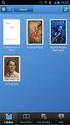 Process OverDrive ebooks on PC or Mac (PDF, EPUB) 1. Register for an Adobe ID (required to transfer/access ebooks on any portable device or ereader) 2. Download Adobe Digital Editions software to your
Making sense of mobile phones
 Making sense of mobile phones Contents Making sense of mobile phones About mobiles 3 Where can I buy a mobile phone? 4 Which mobile phone is right for me? 5 How do I set up my mobile phone? 7 How do I
WELCOME 8. CHAPTER 1: Getting Started with Your Kindle 17. 1.1 Views of Kindle... 17 Front View... 17 Back View... 20 Top View... 21 Bottom View...
 TABLE OF CONTENTS WELCOME 8 CHAPTER 1: Getting Started with Your Kindle 17 1.1 Views of Kindle....................................................... 17 Front View...........................................................
Adobe Acrobat X Pro Creating & Working with PDF Documents
 Adobe Acrobat X Pro Creating & Working with PDF Documents Overview Creating PDF documents is useful when you want to maintain the format of your document(s). As a PDF document, your file maintains its
CinePlay 1.1.2. User Manual
 CinePlay User Manual 1 CinePlay 1.1.2 User Manual CinePlay is a professional ios video player complete with timecode overlays, markers, masking, safe areas and much more. It is ideal for dailies, portfolios,
About Kobo Desktop... 4. Downloading and installing Kobo Desktop... 5. Installing Kobo Desktop for Windows... 5 Installing Kobo Desktop for Mac...
 Kobo Touch User Guide TABLE OF CONTENTS About Kobo Desktop... 4 Downloading and installing Kobo Desktop... 5 Installing Kobo Desktop for Windows... 5 Installing Kobo Desktop for Mac... 6 Buying ebooks
Foxit MobilePDF for ios Quick Guide
 for ios 1 Contents Chapter 1 Description... 3 Chapter 2 Main Menu... 5 Chapter 3 File Management... 7 Chapter 4 Viewing PDF Files... 8 Chapter 5 Annotation... 13 Chapter 6 Signatures... 18 Chapter 7 Text
How to Transfer your ebook to your Favorite Reading Device
 How to Transfer your ebook to your Favorite Reading Device Table of Contents Table of Contents.. 1 How to Transfer files to Kindle. 2 How to upload a.mobi file to your Kindle via email.. 2 How to upload
Report Claire Creaser, LISU
 Accessibility of top 1,000 titles of 2012 Report Claire Creaser, LISU This research report contains an analysis undertaken by Claire Creaser of Loughborough University for RNIB in April 2013. For further
How to Download an Ebook in 3 Easy Steps
 For reading on your computer Step 1: Register with Adobe (Click here to register with Adobe.) Make a note of the email address and password you use - you will need them later.? Why Adobe? ebook rights
Installing and viewing your ebooks
 Installing and viewing your ebooks o install and view your ebook, please see the instructions below: VitalSource ebooks For Windows PC and Apple Mac OS X Desktops Download and install the free VitalSource
P WEBSITE P CATALOGUES P PRICE GUIDES P ONLINE CLOUD STORAGE P e-commerce System. Printed and Electronic (e-documents) Users Guide. vbradug-15.10.
 P WEBSITE P CATALOGUES P PRICE GUIDES P ONLINE CLOUD STORAGE P e-commerce System Printed and Electronic (e-documents) vbradug-5.0.02 Users Guide 205 Bradfield Trading Ltd. All rights reserved. Reproduction
Your guide to finding academic information for Engineering
 Your guide to finding academic information for Engineering This guide is designed to introduce you to electronic academic databases relevant to Engineering. Online databases contain large amounts of current
Accessing Audiobooks FRIDAY, APRIL 12, 2013. PRESENTED BY BRYNN WHITE [email protected]. Audiobooks 101 PAGE 3. Getting Started PAGE 4
 FRIDAY, APRIL 12, 2013 PRESENTED BY BRYNN WHITE [email protected] Audiobooks 101 PAGE 3 Getting Started PAGE 4 OneClickdigital PAGE 6 Finding Audiobooks in the Library PAGE 17 Free Audiobook Websites
OpenIMS 4.2. Document Management Server. User manual
 OpenIMS 4.2 Document Management Server User manual OpenSesame ICT BV Index 1 INTRODUCTION...4 1.1 Client specifications...4 2 INTRODUCTION OPENIMS DMS...5 2.1 Login...5 2.2 Language choice...5 3 OPENIMS
Frequently Asked Questions for the USA TODAY e-newspaper
 Frequently Asked Questions for the USA TODAY e-newspaper Navigating the USA TODAY e-newspaper A look at the toolbar Toolbar Functions, Buttons, and Descriptions The tab marked Contents will take the e-reader
Documents To Go. User Manual for BlackBerry Smartphone
 Documents To Go User Manual for BlackBerry Smartphone Full user manual, with individual application details and demonstrations of common operations in Documents To Go for BlackBerry. Contents Documents
Read. ebooks: Read, Create, Publish July 20, 2011 8:00-12:00 Cache the Wave Barnstable High School
 ebooks: Read, Create, Publish July 20, 2011 8:00-12:00 Cache the Wave Barnstable High School Read ebooks ebook is short for electronic book. They are essentially electronic or digital copies of printed
ebooks: From Adobe InDesign to the Kindle Store
 Technical Paper ebooks: From Adobe InDesign to the Kindle Store Table of Contents 1 A multiplicity of formats 2 Step 1: Export InDesign document to EPUB 5 Step 2: Convert EPUB to MOBI 9 Step 3: Preview
Overview Help Files Viewing Photos
 User s Guide Overview SpyderGallery is a free mobile App from Datacolor, designed to provide color accurate viewing of images on your mobile device. The Image Viewer can be used with no special preparation;
Gauge Drawing Tool... 8. Slider Drawing Tool... 8. Toggle Button Drawing Tool... 8. One-Way List Drawing Tool... 8
 v. 20120510 Table of Contents RTiPanel Overview and Requirements... 3 Software Requirements:... 3 Hardware Requirements:... 3 Network Requirements:... 3 Licensing Requirements:... 4 Basic Integration Designer
Know How to Use epukapuka on a Tablet January 2015
 Know How to Use epukapuka on a Tablet January 2015 What is epukapuka? epukapuka is a website that gives you access to borrow ebooks and eaudiobooks using your Hutt City Library card and password. ebooks
KINDLE USER S GUIDE 4 th EDITION
 Table of Contents WELCOME 8 CHAPTER 1: Getting Started with Your Kindle 18 1.1 Views of Kindle....................................................... 18 Front View...........................................................
Mobility with Eye-Fi Scanning Guide
 Mobility with Eye-Fi Scanning Guide Scan and Transfer Images Wirelessly with Eye-Fi This document is to be used in addition to the scanner s user guide located on the installation disc. The instructions
General. What is Freegal?
 General What is Freegal? Freegal is a downloadable music service from your library. All you need is your library card number and, if your library requires it, a PIN. Freegal offers access to about 3 million
MyPrint instructions; printing, scanning and copying. version 1.3 EN march 2015
 MyPrint instructions; printing, scanning and copying version 1.3 EN march 2015 TOC 1 Introduction to myprint 3 1.1 Print credit and payments 3 1.2 Accepting the terms 3 2 Upgrading credit (students only)
Taylor & Francis Online Mobile FAQs
 Taylor & Francis Online Mobile FAQs ACCESS Q. How do I access Taylor & Francis Online Mobile? A. Open the browser on your mobile device and enter the URL www.tandfonline.com. As you are accessing the site
THOMSON REUTERS PROVIEW. The ereader app for PC, Mac, Android and ipad for Sweet & Maxwell ebooks USER GUIDE CLICK HERE TO START
 THOMSON REUTERS PROVIEW The ereader app for PC, Mac, Android and ipad for Sweet & Maxwell ebooks USER GUIDE CLICK HERE TO START CONTENTS ACCESSING PROVIEW 3 YOUR LIBRARY 4 ebook FEATURES 5 SEARCHING WITHIN
KINDLE USER S GUIDE 5 th EDITION
 Table of Contents WELCOME 9 CHAPTER 1: Getting Started with Your Kindle 20 1.1 Views of Kindle....................................................... 20 Front View...........................................................
PDF Expert Enterprise User guide
 PDF Expert Enterprise User guide 2012 Readdle Inc. 2 INTRODUCTION 3 CHAPTER 1: DOCUMENT VIEWING AND MANAGING IN PDF EXPERT ENTERPRISE 4 Reading and working with PDF documents 4 Managing files and folders
A comparison of e-book readers (features)
 A comparison of e-book readers (features) Maker/ Vendor Model Screen size Touch screen Color Operating system Web browser Wi-Fi Other apps Speech features Sync. Highlight** Kindle Touch*, but Kindle Touch
Central Arkansas Library System E-Library
 Central Arkansas Library E-Library Android Devices P a g e 1 Central Arkansas Library System E-Library Android Devices Central Arkansas Library System E-Library Android Devices 1. Android Devices 2. Preparing
ASUS WebStorage Client-based for Windows [Advanced] User Manual
![ASUS WebStorage Client-based for Windows [Advanced] User Manual](/thumbs/40/21159954.jpg "ASUS WebStorage Client-based for Windows [Advanced] User Manual") ASUS WebStorage Client-based for Windows [Advanced] User Manual 1 Welcome to ASUS WebStorage, your personal cloud space Our function panel will help you better understand ASUS WebStorage services. The
ASUS WebStorage Client-based for Windows [Advanced] User Manual 1 Welcome to ASUS WebStorage, your personal cloud space Our function panel will help you better understand ASUS WebStorage services. The
SweetPea3R-200 User Guide Version 1.1
 SweetPea3R-200 User Guide Version 1.1 For safety and warranty information, please refer to the Quick Start Guide included in the box with your unit. Thank you for purchasing a SweetPea3. As this is a new
The Kindle: A Background for the Novice
 The Kindle: A Background for the Novice A4/6I Educational Technologies Research Services, Air University 1 March 2010 1 Abstract EReaders are growing in popularity as more and more digital text is made
To download and install directly to your phone
 Important update: To continue logging in from T-Mobile HotSpot locations, you will need to update the T-Mobile HotSpot Login Utility on your Dash. This upgrade takes only a few minutes. There are two ways
Hands-on Guide. FileMaker Pro. Using FileMaker Pro with Microsoft Office
 Hands-on Guide FileMaker Pro Using FileMaker Pro with Microsoft Office Table of Contents Introduction... 3 Before You Get Started... 4 Sharing Data between FileMaker Pro and Microsoft Excel... 5 Drag and
Creating Hyperlinks & Buttons InDesign CS6
 Creating Hyperlinks & Buttons Adobe DPS, InDesign CS6 1 Creating Hyperlinks & Buttons InDesign CS6 Hyperlinks panel overview You can create hyperlinks so that when you export to Adobe PDF or SWF in InDesign,
Generate Android App
 Generate Android App This paper describes how someone with no programming experience can generate an Android application in minutes without writing any code. The application, also called an APK file can
Brief Guide v0.3. Based on Android Version 1.7.6.1. Work in Progress
 Brief Guide v0.3 Based on Android Version 1.7.6.1 Work in Progress File Manager ❾ ❿ ❺ ❻ ❼ ❽ ⓫ Manage files create folder, rename, delete, copy or move files and folders Import files and folders to My docs