
Nortel Contact Center Agent Desktop User Guide NN
|
|
|
- Anabel Watson
- 9 years ago
- Views:
Transcription
1 NN
2 Document status: Standard Document issue: Document date: 23 August 2010 Product release: Release 7.0 Job function: Fundamentals Type: Technical Document Language type: EN Copyright Nortel Networks. All Rights Reserved. While the information in this document is believed to be accurate and reliable, except as otherwise expressly agreed to in writing NORTEL PROVIDES THIS DOCUMENT "AS IS" WITHOUT WARRANTY OR CONDITION OF ANY KIND, EITHER EXPRESS OR IMPLIED. The information and/or products described in this document are subject to change without notice. Nortel, Nortel Networks, the Nortel logo, and the Globemark are trademarks of Nortel Networks. VxWorks is a trademark of Wind River Systems, Inc. All other trademarks are the property of their respective owners.
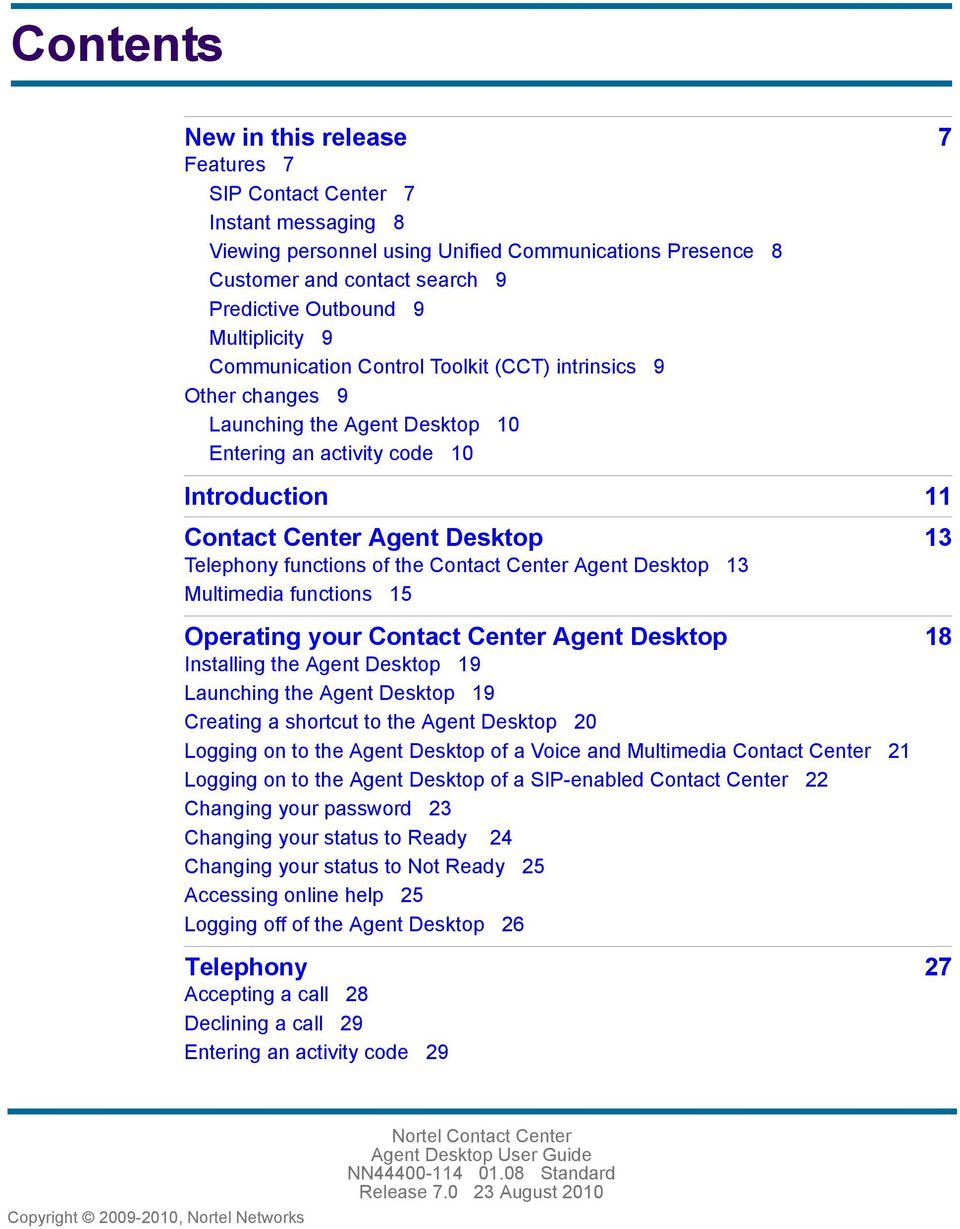
3 Contents New in this release 7 Features 7 SIP Contact Center 7 Instant messaging 8 Viewing personnel using Unified Communications Presence 8 Customer and contact search 9 Predictive Outbound 9 Multiplicity 9 Communication Control Toolkit (CCT) intrinsics 9 Other changes 9 Launching the Agent Desktop 10 Entering an activity code 10 Introduction 11 Contact Center Agent Desktop 13 Telephony functions of the Contact Center Agent Desktop 13 Multimedia functions 15 Operating your Contact Center Agent Desktop 18 Installing the Agent Desktop 19 Launching the Agent Desktop 19 Creating a shortcut to the Agent Desktop 20 Logging on to the Agent Desktop of a Voice and Multimedia Contact Center 21 Logging on to the Agent Desktop of a SIP-enabled Contact Center 22 Changing your password 23 Changing your status to Ready 24 Changing your status to Not Ready 25 Accessing online help 25 Logging off of the Agent Desktop 26 Telephony 27 Accepting a call 28 Declining a call 29 Entering an activity code 29
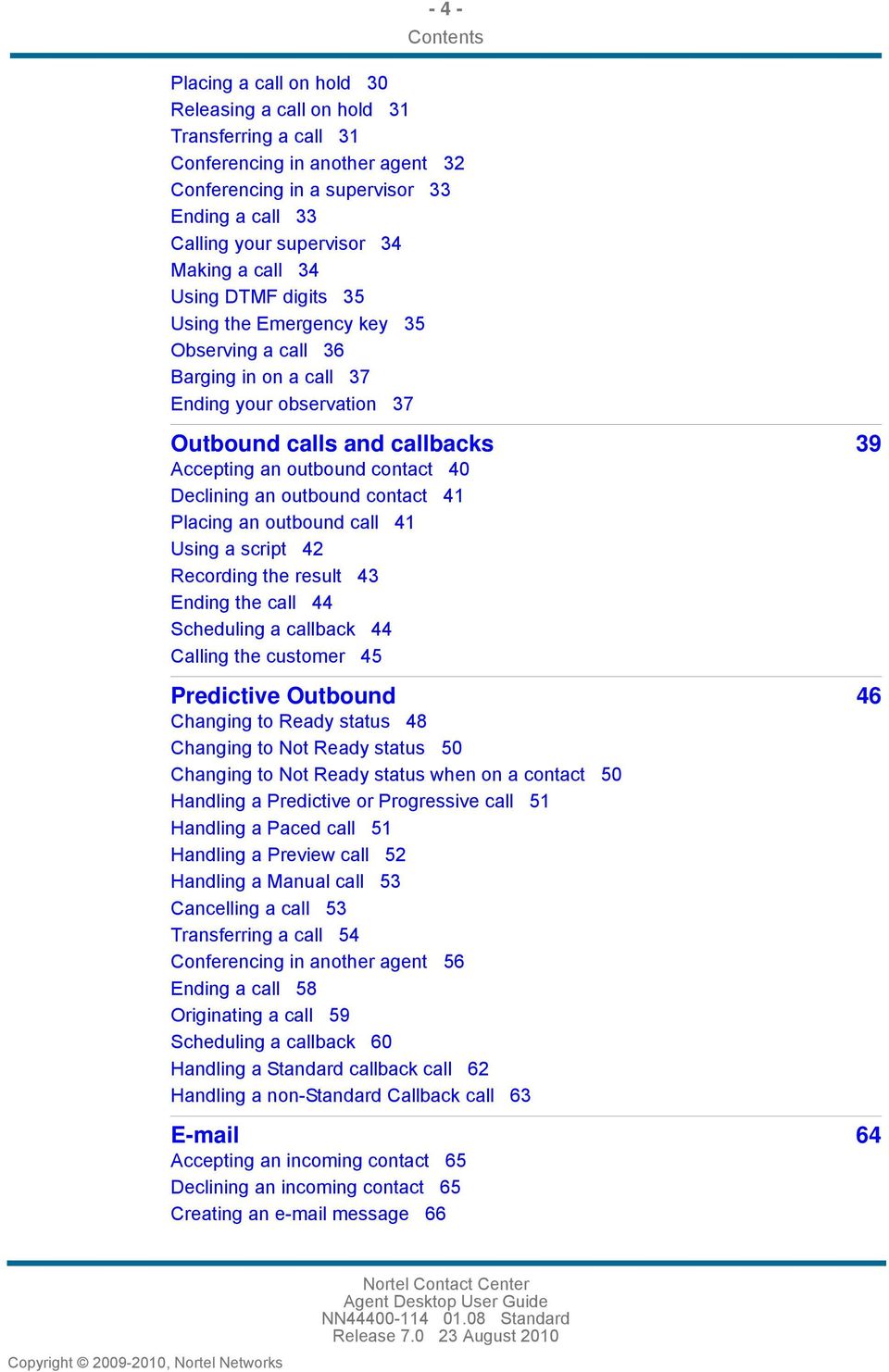
4 - 4 - Contents Placing a call on hold 30 Releasing a call on hold 31 Transferring a call 31 Conferencing in another agent 32 Conferencing in a supervisor 33 Ending a call 33 Calling your supervisor 34 Making a call 34 Using DTMF digits 35 Using the Emergency key 35 Observing a call 36 Barging in on a call 37 Ending your observation 37 Outbound calls and callbacks 39 Accepting an outbound contact 40 Declining an outbound contact 41 Placing an outbound call 41 Using a script 42 Recording the result 43 Ending the call 44 Scheduling a callback 44 Calling the customer 45 Predictive Outbound 46 Changing to Ready status 48 Changing to Not Ready status 50 Changing to Not Ready status when on a contact 50 Handling a Predictive or Progressive call 51 Handling a Paced call 51 Handling a Preview call 52 Handling a Manual call 53 Cancelling a call 53 Transferring a call 54 Conferencing in another agent 56 Ending a call 58 Originating a call 59 Scheduling a callback 60 Handling a Standard callback call 62 Handling a non-standard Callback call Accepting an incoming contact 65 Declining an incoming contact 65 Creating an message 66
5 - 5 - Contents Verifying customer information 67 Replying to an message 68 Using the address book to reply to a contact 69 Removing a name from the recipient list 70 Creating a template response 70 Defining your default template folder 71 Using a template response 71 Defining your default attachment folder 72 Adding an attachment to your response 72 Viewing attachments 73 Removing an attachment from an response 73 Using the spell-check feature 74 Closing the contact 75 Postponing work on a contact 75 Following up on a contact 76 Transferring a contact within the contact center 78 Transferring a contact outside the contact center 78 Printing contact details 79 Web communications 80 Accepting a Web communications contact 81 Customizing a tab name 83 Declining a Web communications contact 83 Sending a chat message 84 Adding an auto-phrase to a chat message 84 Displaying timestamps 85 Pushing a Web page to a customer 85 Selecting a predefined URL to send to a contact 86 Ending the Text Chat session 87 Sending the chat log in an message 87 Instant messaging 88 Accepting an instant message 89 Declining an instant message 90 Sending an instant message 90 Using an auto-phrase 91 Using suggested Web pages 91 Using spellcheck in an instant message 92 Viewing personnel using UC Presence 92 Transferring an instant message using UC Presence 93 Consulting on an instant message using UC Presence 94 Conferencing an instant message using UC Presence 95 Transferring an instant message using the Toolbar 95 Consulting on an instant message using the Toolbar 96 Conferencing an instant message using the Toolbar 97
6 Ending an instant message Contents Customer and contact details 98 Creating a customer record 99 Searching for a customer 100 Adding or editing customer information 101 Viewing a CCT intrinsic 101 Copying a CCT intrinsic 102 Viewing the Auto Launch Application 102 Running a CCT intrinsic-associated application 103 Searching for a contact 103 Printing search results 105 Viewing a contact 105 Opening a contact 106 Closing contacts (supervisors only) 107
7 New in this release The following sections detail what is new in the Agent Desktop User Guide (NN ). Features (page 7) Other changes (page 9) Features See the following sections for information about feature changes: SIP Contact Center (page 7) Instant messaging (page 8) Viewing personnel using Unified Communications Presence (page 8) Customer and contact search (page 9) Predictive Outbound (page 9) Multiplicity (page 9) Communication Control Toolkit (CCT) intrinsics (page 9) SIP Contact Center Contact Center Agent Desktop (CCAD) supports the full version of SIP enabled Contact Center and the Express version of SIP Contact Center. CCAD works with the Microsoft Office Communications Server to handle instant messaging in a SIP enabled Contact Center. Contact Center (CC) Express does not use an Office Communications Server (OCS). CC Express therefore does not support Unified Communications (UC) Presence. Because Instant Messaging requires presence to work, CCAD in a Contact Center Express solution cannot support Instant Messaging. SIP Contact Center does not support: Blind Transfer Emergency Key
8 - 8 - New in this release Transfer or conference DN calls to RoutePoint Address Contact Center Express does not support: Instant messaging Viewing personnel using Unified Communications Presence Predictive Outbound Blind Transfer Emergency Key Instant messaging Instant messaging (IM) is now available for Agent Desktop users in SIP enabled Contact Centers where an Office Communications Server is part of the solution. You can access online, real-time messaging and accept, decline, send, consult on, conference, or transfer instant messages using Agent Desktop. Note: Contact Center Express does not support IM. Viewing personnel using Unified Communications Presence Use the Unified Communications (UC) Presence feature to view and contact personnel in the contact center. You can group and list personnel by their areas of expertise (for example, Product experts or Service delivery experts) to help determine the best agent to select when consulting on or transferring an instant message. You can also use UC Presence to view and contact external parties using instant messaging. You can determine the availability of a person and then send, consult on, conference, or transfer an instant message to the person. UC Presence has two tabs, My Contacts and CC Contacts. The My Contacts tab lists agents that you configure. The CC Contacts tab lists Instant Expert groups that a site administrator configures. Only a site administrator can add or remove experts from an Instant Experts group. With the Instant Experts feature, you have instant access to centrally administered lists of IM-enabled experts and other agents. Instant Experts also offers the following dynamic features: automatic display of IM experts groups, for example, always-on contacts automatic display of skillset specific expert groups when you accept a contact automatic display of keyword-triggered experts when you enter predefined terms in an IM chat For more information about Instant Experts, see Instant messaging (page 88).
9 - 9 - New in this release Note: the Unified Communications (UC) Presence feature is only available in SIP enabled Contact Centers where an Office Communications Server is part of the solution. Note: Contact Center Express does not support the Unified Communications (UC) Presence feature. Customer and contact search Use Enhanced customer and contact search options to search Closed Reason Codes or Agent Login IDs that you can select from a list, or a date or date range when the contact was closed. New buttons accompany multiplepage search results. You can click the Next, Previous, First, or Last arrow buttons to move through pages of search output. Predictive Outbound Administrators create Outbound campaigns using the customer database, custom scripts, and Predictive Outbound settings that determine how the calls are presented to agents with Predictive skillsets. Based on how the Administrator configures the campaign, calls can be dialled by the system or by the agent and presented to the agent automatically or with time for the agent to preview the contact. The Predictive Outbound feature requires additional hardware and software to be purchased and installed with Contact Center 7.0. Note: Predictive Outbound is not supported in Contact Center Express. Multiplicity With the Multiplicity feature, you can manage multiple web communications contact simultaneously with a different contact type, for example, an contact or a voice contact. You can click the Additional Contact button to accept each additional contact. Communication Control Toolkit (CCT) intrinsics After you accept a voice contact, CCT intrinsics allows you to perform the following actions: View CCT intrinsics-associated applications Start a CCT intrinsic-associated application Copy a CCT intrinsic-associated application to the clipboard Other changes See the following sections for information about changes that are not featurerelated: Launching the Agent Desktop (page 10)

10 New in this release Entering an activity code (page 10) Launching the Agent Desktop Contact Center Agent Desktop deploys using.net Click Once Deployment. All agents need the new URL for Contact Center Agent Desktop 7.0 to install and launch the Agent Desktop from their client PCs. Entering an activity code Agent Desktop now supports text-based activity codes as well as numeric codes. Activity codes defined in Contact Center Manager Server appear on the Activity Code list in Contact Center Agent Desktop. Each Activity Code appears twice in the Activity Code list, once with the numeric value displayed before the text value and once with the text value displayed before the numeric value. As you type the text or numbers to search for an activity code, the type-ahead feature shortens the list of matching characters to help you find the correct activity code.

11 Introduction Contact Center Agent Desktop is a single-interface client application used by contact center agents to interact with customers. Contact Center Agent Desktop agents can respond to customer contacts through a variety of media, including phone, outbound contacts, , Web communication, and instant messaging. The Contact Center Agent Desktop provides automation for customer responses to eliminate repetitive actions, such as typing a common response in an message. Contact Center Agent Desktop uses Microsoft.NET Framework 3.5 Click Once Deployment technology, which means that an agent can install and launch the application by entering a URL address in Windows Explorer or Internet Explorer. Contact Center Agent Desktop can run with the Agent Desktop Display application, which shows current statistics for the agent who handles contacts. Contact Center supervisors can change the status of a contact or reassign a contact to another agent. Phone sets and Soft Phones are not supported in SIP-based Contact Centers, including Contact Center Express. Agents must only use the Agent Desktop for call control. Using Phone sets or Soft Phones can cause inaccurate status on the Contact Center Agent Desktop, in real time and in historical statistics. Prerequisites Ensure that you have reviewed the installation procedures. Ensure that the following are installed on the client machine: either Windows XP Professional with service pack 2 or Windows Vista Microsoft Internet Explorer 6.0 or later Microsoft.NET Framework 3.5 Windows Installer 3.1 Redistributable (v2) Microsoft Visual C SP1 Redistributable Package (x86)

12 Introduction Navigation Contact Center Agent Desktop (page 13) Operating your Contact Center Agent Desktop (page 18) Telephony (page 27) Outbound calls and callbacks (page 39) (page 64) Web communications (page 80) Instant messaging (page 88) Customer and contact details (page 98)

13 Contact Center Agent Desktop Agents use the Contact Center Agent Desktop to handle voice, outbound, , and instant messaging contacts, depending on the installation and licenses. Use the Contact Center Agent Desktop in the following situations: to handle voice contacts when Contact Center Agent Desktop is installed on a Nortel Communication Control Toolkit server to handle voice contacts, outbound contacts (voice calls from the contact center to customers), messages, or Web communications contacts when Agent Desktop is installed on a Multimedia server to work with the Microsoft Office Communications Server to handle voice and instant messaging in a SIP-enabled contact center This chapter also describes the general interface of the Contact Center Agent Desktop application, which comprises two components: telephony toolbar multimedia toolbar The Contact Center Agent Desktop also provides a status indicator and a contact timer. Navigation Telephony functions of the Contact Center Agent Desktop (page 13) Multimedia functions (page 15) Telephony functions of the Contact Center Agent Desktop The telephony toolbar contains buttons used to access functions that are similar to the buttons on your telephone:

14 Contact Center Agent Desktop Telephony toolbar functions Accept Accept the new contact. Release/Reject Click Release to end the current call. The Reject button appears when a contact is offered to the agent. Originate Make a call. Hold/UnHold Place a call on Hold. Click UnHold to release the call from Hold. Transfer Transfer a call to an agent, skillset, or external party. Conference Conference an agent or external party into the current call. Ready/Not Ready Change your state from Ready to Not Ready or from Not Ready to Ready. Logged In/Logged Out Log on to the Agent Desktop. If you are logged on, you can log off. Call List View a list of calls you are currently working on. Set Activity Code Enter an activity code to indicate the type of call you are performing. For example, you can have an activity code for sales. Your supervisor or administrator provides the activity codes. The telephony toolbar shows the Activity Code box based on the configuration of your contact center. DTMF Add digits in response to interactive voice requests. Emergency Immediately connect with your supervisor in case of an emergency. This is not supported in SIP enabled Contact Centers Supervisor Conference your supervisor into your current call. Observe Supervisors can listen in to a call between an agent and a customer. The telephony toolbar by default shows the call list and the Activity Code box. By default, the DTMF, Emergency, Supervisor, and Observe functions are hidden. Click the overflow toolbar control on the right to expand the toolbar and access these functions.
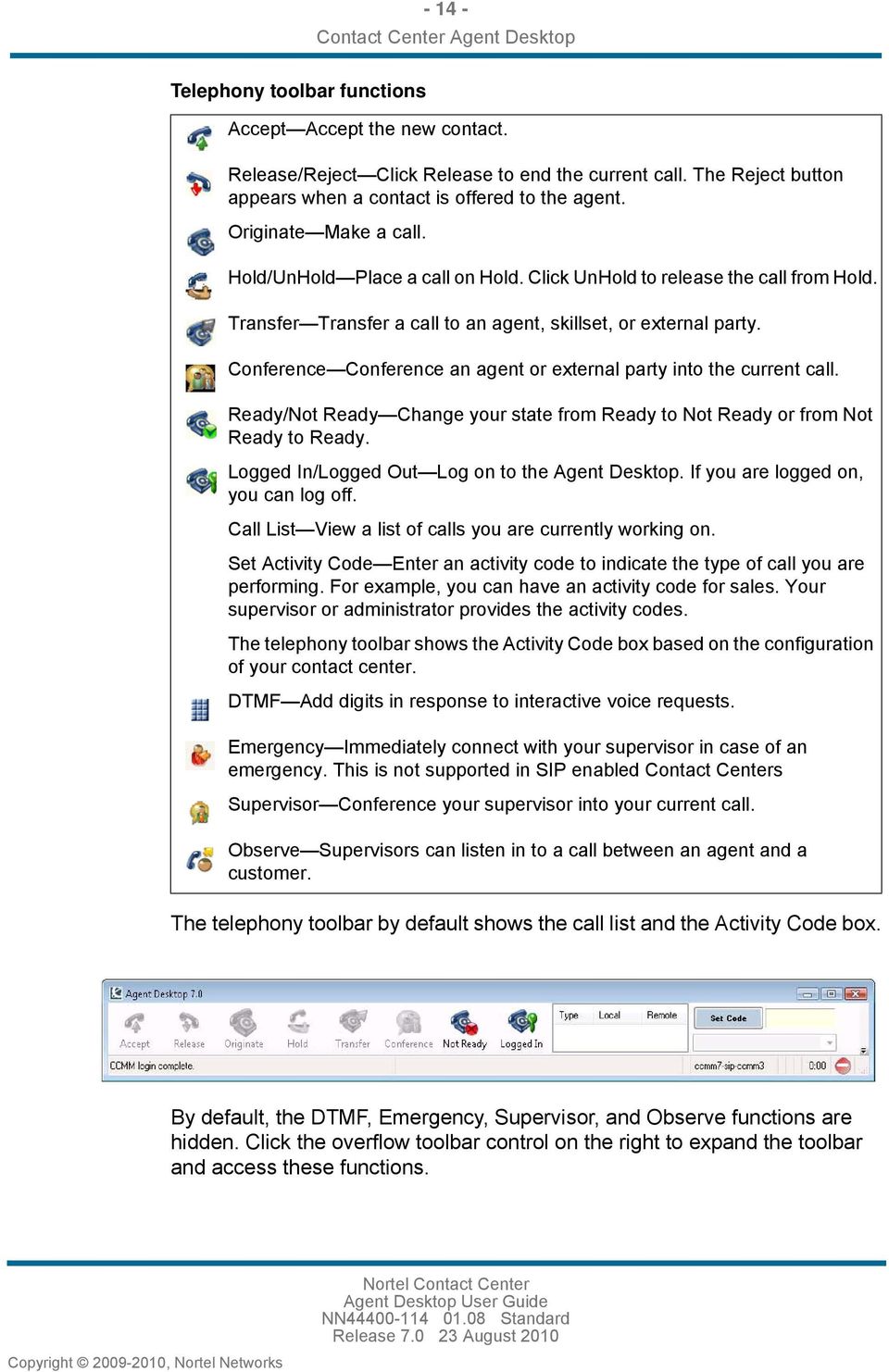
15 Contact Center Agent Desktop Attention: In a SIP-enabled contact center, including Contact Center Express, you must perform all telephony tasks using the Agent Desktop toolbar. Performing telephony tasks using your telephone is not supported. Attention: In a SIP-enabled contact center, transfer or conference of DN calls to RoutePoint Address is not supported. Multimedia functions The multimedia toolbar contains buttons used to create other contact types and access multimedia functions. The multimedia toolbar is enabled only for agents who have multimedia licensing through the Contact Center Multimedia Server. Use the toggle bar in the bottom left corner of the telephony toolbar to access the multimedia functions. Multimedia toolbar functions Customer Details Review and edit the information about a customer. Customer Search Search for customers in the Multimedia database. Contact Search Search for contacts in the Multimedia database. Schedule Callback Create a future outbound call to a customer. Customer Create an outgoing message to a new or existing customer. User Settings Configure user settings such as the default location for attachments, the default location for user templates, the spelling dictionary, the agent signatures and password changes.
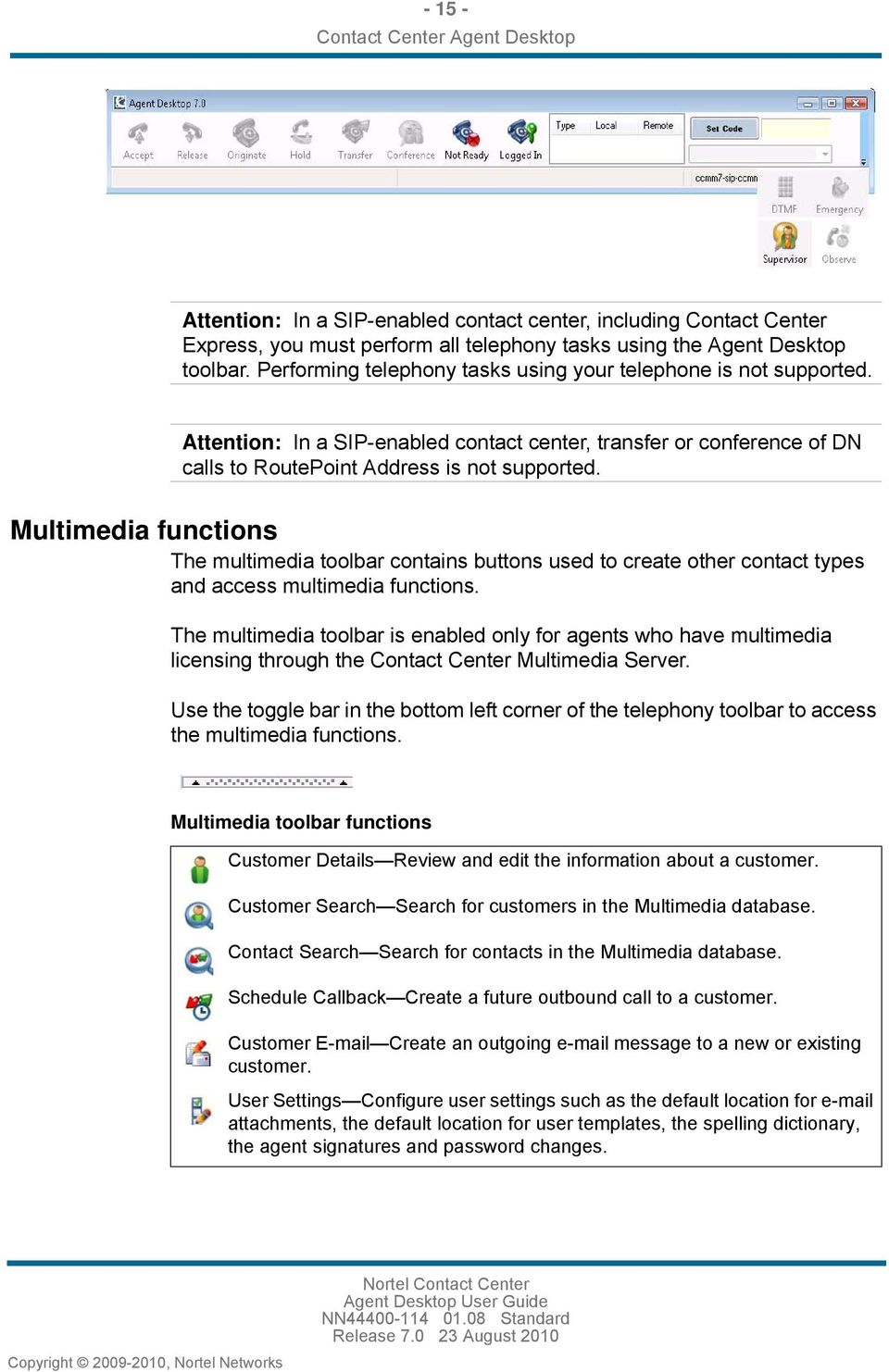
16 Contact Center Agent Desktop Multimedia toolbar functions (continued) UC Presence Access UC Presence feature. This feature is not supported in Contact Center Express. Help Get help for the current window. Access Contact Center Agent Desktop About information. The multimedia window shows the information related to the items selected on the toolbar. For example, for user settings, the following window appears. During a Web communications contact, the following indicators can appear. Web communications icons A contact disconnects. Indicates, in a text chat, that a contact sends the last message that is older than 30 seconds.
17 Contact Center Agent Desktop Web communications icons (continued) Indicates, in a text chat, that a contact sends the last message that is less than 30 seconds old. Indicates, in a text chat, that an agent sends the last message that is older than 60 seconds.

18 Operating your Contact Center Agent Desktop Use the Contact Center Agent Desktop to handle voice contacts, or voice, outbound, , Web communications, and instant messaging contacts, depending on the installation and licenses. This chapter describes the functionality of the Contact Center Agent Desktop in the following situations: Handle voice contacts when Contact Center Agent Desktop is installed on a Nortel Communication Control Toolkit server. Handle voice contacts, outbound contacts (voice calls from the contact center to customers), messages, or Web communications contacts when Agent Desktop is installed on a Multimedia server. Work in a SIP-enabled contact center, to handle voice and instant messaging. Using the Contact Center Multimedia Administrator, the administrator can configure the Agent Desktop to give visual and audible alerts when a contact is presented. Audible Alert: The Agent Desktop emits a beep. Bring to Front: The Agent Desktop comes to the front of the desktop to cover all current windows. Give Focus: The Agent Desktop window is given focus so that all actions in other windows are stopped. Navigation Installing the Agent Desktop (page 19) Launching the Agent Desktop (page 19) Creating a shortcut to the Agent Desktop (page 20) Logging on to the Agent Desktop of a Voice and Multimedia Contact Center (page 21)

19 Operating your Contact Center Agent Desktop Logging on to the Agent Desktop of a SIP-enabled Contact Center (page 22) Changing your password (page 23) Changing your status to Ready (page 24) Changing your status to Not Ready (page 25) Accessing online help (page 25) Logging off of the Agent Desktop (page 26) Installing the Agent Desktop Install the Agent Desktop if you are launching the application for the first time or if you are launching the application following installation of an upgrade or a patch. Prerequisites Ensure that the administrator has configured your Windows User ID in CCT and that you have a valid User ID, Password, and Domain for use with Contact Center Agent Desktop. 1 In Windows Explorer or Internet Explorer, enter the HTTP address (URL) provided by your system administrator. The correct URL format is <Contact Center Multimedia servername>/agentdesktop. 2 Click Launch CCAD. 3 Click Install. Launching the Agent Desktop Launch the Agent Desktop when you are ready to open the application.

20 Operating your Contact Center Agent Desktop If you are logging on to the Agent Desktop to handle Predictive Outbound contacts, there can be a delay to log in to all of the required applications. If the delay occurs after the agent logs on to Contact Center Manager Server or Contact Center Multimedia, and before logging on to the SER software, ensure that CPSEE Application server name is in host file of the client machine. Prerequisites Ensure that you have installed Contact Center Agent Desktop. See Installing the Agent Desktop (page 19). Ensure that the administrator has configured your Windows User ID in CCT and that you have a valid User ID, Password, and Domain for use with Contact Center Agent Desktop. 1 In Windows Explorer or Internet Explorer, enter the HTTP address (URL) provided by your system administrator. The correct URL format is <Contact Center Multimedia servername>/agentdesktop. 2 Click Launch CCAD. 3 Click Windows Start, All Programs, Nortel, Agent Desktop. The Agent Desktop toolbar appears. If a CCT Connection Failure message appears, your Windows User ID has not been configured on CCT. Click Retry to enter valid User Credentials or click Cancel to exit the application. Creating a shortcut to the Agent Desktop Create a shortcut to the Agent Desktop to quickly access the application without manually entering the URL. Prerequisites Ensure that you have installed Contact Center Agent Desktop. See Installing the Agent Desktop (page 19).
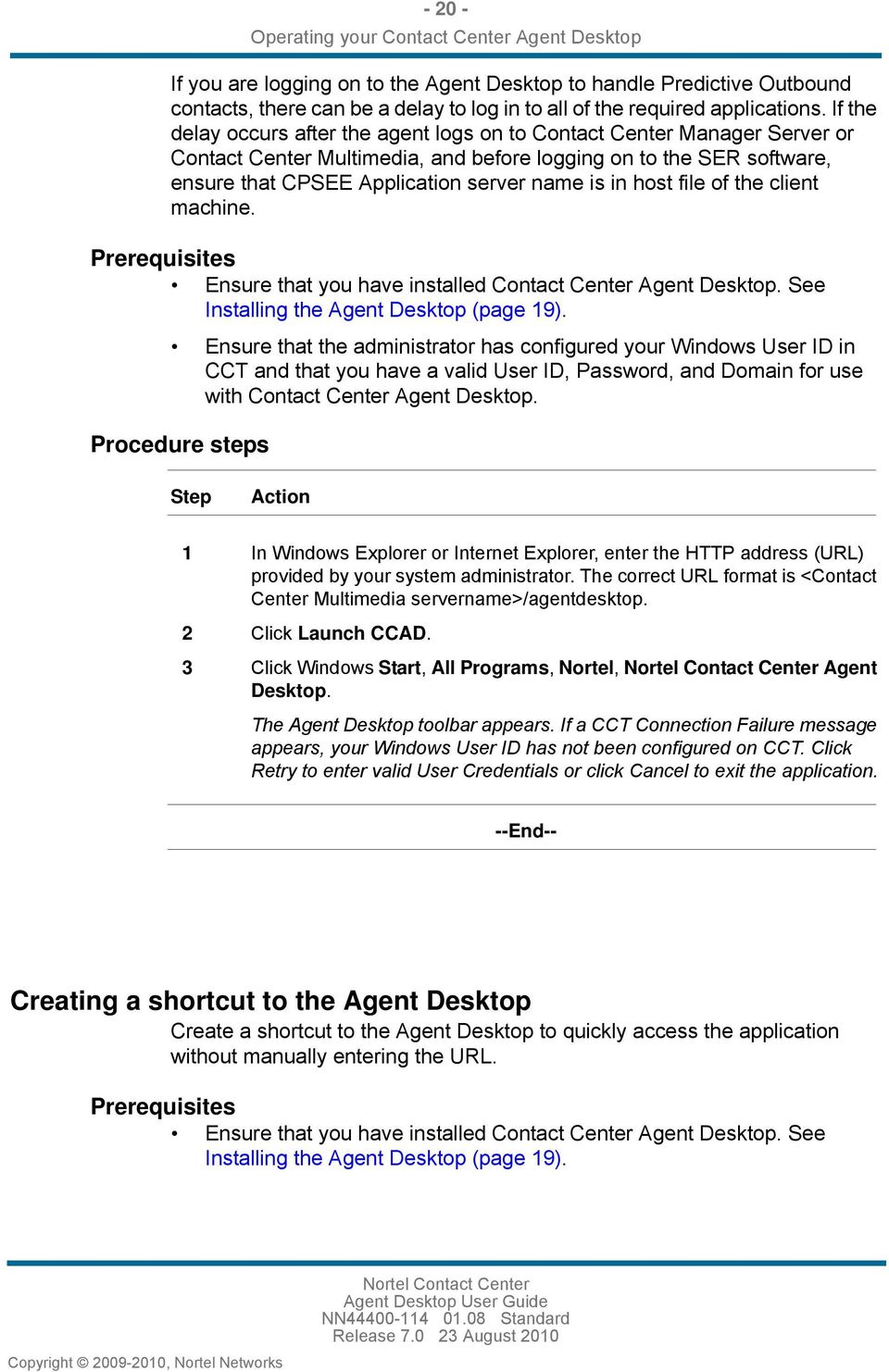
21 Operating your Contact Center Agent Desktop 1 Click Start, All Programs, Nortel. 2 Right-click Contact Center Agent Desktop. 3 Select Send To, Desktop (create shortcut). Logging on to the Agent Desktop of a Voice and Multimedia Contact Center Log on to the Agent Desktop after you start the Contact Center Agent Desktop application. When you log on, the system automatically configures your status to Not Ready. Change your status to Ready to indicate that you are available to handle all media types for which you are licensed (for example, voice, outbound, or Web communications contacts). If you are assigned to a skillset for a particular media, you can receive and create contacts in that media. 1 Launch the Contact Center Agent Desktop. 2 If you have Hot Desking enabled, enter your workstation name when prompted. 3 On the Agent Desktop telephony toolbar, click Logged Out. One of the following occurs, depending on which type of agent you are: If you are an agent who handles messages or outbound calls, the Enter Login details window appears. Enter your ID and Password. If you handle voice contacts only, a logon prompt does not appear. Your logon ID is automatically filled in based on the Communication Control Toolkit implementation for your contact center. The system verifies your logon ID and automatically logs you on to the Agent Desktop application. The Logged Out button changes to Logged In.
22 Operating your Contact Center Agent Desktop Variable definitions Description ID Password Value Your logon ID appears in the ID box, based on the Communication Control Toolkit implementation for your contact center. Initially, for multimedia agents, your password is the same as your Agent Logon ID. You must change your password using the steps in Changing your password (page 23). The system verifies your password and logs you on to the Agent Desktop application. The Logged Out button changes to Logged In Logging on to the Agent Desktop of a SIP-enabled Contact Center Log on to the Agent Desktop after you start the Contact Center Agent Desktop application. When you log on, the system automatically configures your status to Not Ready. Change your status to Ready to indicate that you are available to handle all media types for which you are licensed (for example, voice, outbound, or instant messaging contacts). If you are assigned to a skillset for a particular media, you can receive and create contacts in that media. 1 Launch the Contact Center Agent Desktop. 2 On the Agent Desktop telephony toolbar, click Logged Out. 3 In the Enter Login details window, perform one of the following tasks: Attention: This step does not apply in Contact Center Express solutions. If your user profile is configured in Office Communicator (OC) and OC is installed on the PC running Agent Desktop, ensure that the information in the Sign-in name, Password, Domain, Uri, and Server name or IP fields is correct.
23 Operating your Contact Center Agent Desktop If your user profile is saved locally on the PC running Agent Desktop, click Load saved profile. If you are creating a new user profile, enter your Sign-in name, Password, Domain, Uri, and Server name or IP, and then click Save this profile. 4 Click OK. 5 If an OC client is running on the PC running Agent Desktop, a warning message appears. Click Yes to close the OC client. Variable definitions Description Sign-in name Password Domain Uri Server name or IP Value Username (for example, agent5001). Password for Username. The Windows domain in which the Username and Password are configured in Active Directory. The SIP URI of the Windows user (for example, sip:[email protected] or [email protected]). The Fully Qualified Domain Name (FQDN) of the Office Communications Server in the Domain (for example, OCS_Server.mydomain.com). Changing your password Change your password from the default password if you are an agent who handles multimedia contacts. The default password is the same as your Agent Logon ID. If you forget your password, contact your administrator who can reset your password on the Contact Center Multimedia server. Prerequisites Close all open contacts.
24 Operating your Contact Center Agent Desktop 1 If the multimedia component does not appear, click the icon under Accept on the telephony toolbar. 2 On the Multimedia toolbar, click User Settings. 3 Select Change Password. 4 In the Current Password box, type your current password. 5 In the New Password box, type your new password. Your new password cannot be the same as your Agent Logon ID. 6 In the Confirm Password box, retype your new password. 7 Click Save. Changing your status to Ready Change your status to Ready when you are available to create or receive contacts depending on your assigned skillsets. When you change your status to Ready in a SIP-enabled contact center, your UC Presence status automatically changes to Available. 1 Click Not Ready. The system places you in Ready status. The Not Ready button changes to Ready.
25 Operating your Contact Center Agent Desktop Changing your status to Not Ready Change your status to Not Ready when you can create new contacts, but cannot receive them. If your administrator configured Not Ready reasons, you must select a reason when you change your status to Not Ready. When you change your status to Not Ready in a SIP-enabled contact center, your UC Presence status automatically changes to Do Not Disturb. Your supervisor or administrator provides the activity codes for the Not Ready reasons. The activity codes defined in Contact Center Management Server appear in the Contact Center Agent Desktop list. Alphanumeric codes are available. 1 Click Ready. The system places you in Not Ready status. The Ready button changes to Not Ready. Accessing online help Access online help when you need immediate help to perform tasks. Contact Center Agent Desktop includes online help for both agents and supervisors. Note: Pressing the F1 key will launch the online help. 1 Expand the Multimedia toolbar. 2 In the window for which you want to see help, click the Help icon in the Toolbar.
26 Operating your Contact Center Agent Desktop Logging off of the Agent Desktop Log off of the Agent Desktop when you are ready to exit the application. If you close the Agent Desktop without logging off, a warning message appears asking you to confirm that you want to close the Agent Desktop and log off. Prerequisites Ensure that you do not have a contact open. If a contact is open, you must close the contacts before you log off of the application. 1 On the telephony toolbar, click Logged in.
27 Telephony This chapter describes how to handle incoming telephone calls from customers in Contact Center Agent Desktop. You can use the Contact Center Agent Desktop to perform the following telephone tasks: Accept and decline incoming contacts. Enter an activity code. Place and release a call on hold. Transfer a call to another party. Conference a call. Make a call. End a call. Call a supervisor. Handle an emergency. Although you can use your telephone to perform certain functions, Nortel recommends that you use the Agent Desktop toolbar to perform all telephony functions, such as logging on or off, changing your ready status, accepting or rejecting a call, placing a customer on hold, transferring a customer, calling a supervisor, and releasing a call. Do not perform any of the preceding telephony tasks by using a mixture of steps on your telephone and the telephony toolbar. For example, do not place a call on hold using your telephone and then retrieve the call by clicking Unhold on the toolbar. Attention: In a SIP-enabled contact center, including Contact Center Express, you must perform all telephony tasks using the Agent Desktop toolbar. Performing telephony tasks using your telephone is not supported.
28 Telephony Attention: In a SIP-enabled contact center, transfer or conference of DN calls to RoutePoint Address is not supported. Navigation Accepting a call (page 28) Declining a call (page 29) Entering an activity code (page 29) Placing a call on hold (page 30) Releasing a call on hold (page 31) Transferring a call (page 31) Conferencing in another agent (page 32) Conferencing in a supervisor (page 33) Ending a call (page 33) Calling your supervisor (page 34) Making a call (page 34) Using DTMF digits (page 35) Using the Emergency key (page 35) Observing a call (page 36) Ending your observation (page 37) Barging in on a call (page 37) Accepting a call Accept and work with telephone calls by using the telephony toolbar in the Agent Desktop interface. When you accept an incoming contact, you connect to that contact. The relevant telephony toolbar icons become active and the call timer appears in the status bar. If your administrator configured your call center to run in Force Call mode, you must handle all contacts presented to you. Prerequisites Ensure that you are in Ready state. Ensure that you have a skillset designated for handling telephone calls.
29 Telephony 1 From the Agent Desktop application, click Accept. Declining a call Decline a call if you want to reject the contact and place the contact back in the queue. The contact is then queued to another agent and your status becomes Not Ready. You cannot receive new incoming contacts until you change your status to Ready. Prerequisites Ensure that you are in Ready state. Ensure that you have a skillset designated for handling telephone calls. 1 From the Agent Desktop application, click Reject. Entering an activity code Enter one or more activity codes during your calls by using the telephony toolbar. Activity codes provide a method to track the time that agents spend on various types of calls. For example, you can use an activity code to track sales calls by entering that activity code in the Agent Desktop during salesrelated calls.
30 Telephony Activity codes are also used to enter Not Ready reasons. You can select Activity Codes when you are on a contact. You can select Not Ready codes when your status is Not Ready. Your supervisor or system administrator provides Activity codes. You can use alphanumeric codes. Activity codes that are defined in Contact Center Management Server appear on the Contact Center Agent Desktop list. If a new activity code is added while you are logged on to the Agent Desktop, you must log off the Agent Desktop and log back on before you can select the new code from the list. The Activity Code box appears on the telephony toolbar, based on your contact center configuration. For example, if you can handle voice contacts only, the Activity Code list is not populated. 1 In the Activity Code box on the telephony toolbar, enter a code to indicate the activity of the call. Placing a call on hold Place a call on hold to interrupt your current call. When you want to speak to the caller again, release the call from hold. The Hold button flashes orange when a call is on hold. 1 On the telephony toolbar, click Hold. The call is placed on hold, the status bar color changes to orange, and the Hold button changes to Unhold and starts flashing.
31 Telephony Releasing a call on hold Release a call that you placed on hold when you want to speak to the caller again. 1 On the telephony toolbar, click Unhold. The call is taken off hold, the status bar color changes to green, and the Unhold button changes to Hold. Transferring a call You can transfer a call to another agent in your contact center. You can perform a supervised transfer or a blind transfer. In a supervised transfer, the call is placed on hold, and you speak to the third party before completing the transfer. In a blind transfer, which is the default option, you transfer the call without speaking to the third party. 1 On the telephony toolbar, click Transfer. 2 In the Transfer window, select Blind Transfer or Supervised Transfer. 3 In the Number to Transfer box, type the number to which you want to transfer the call. If you select Supervised Transfer, the active call is placed on hold and a call is placed to the third party. While you speak with the third party, the Transfer and Hold buttons both flash to indicate that you have a customer on hold and that you must complete the transfer. 4 Click OK. The call is transferred to the third party and is dropped from your telephone. The call timer stops and the status bar color changes to yellow indicating that you are available to take another call.
32 Telephony Attention: If you are transferring a call to a voic system, you must ensure that you select the outgoing call, and not the call you received on the CCAD call list to ensure that the correct DTMF tones are transferred to the voic system. Attention: Blind Transfer is not supported in SIP-enabled Contact Centers, including Contact Center Express. However you can complete the transfer before the third party answers the call. Attention: In a SIP-enabled contact center, transfer or conference of DN calls to RoutePoint Address is not supported. Conferencing in another agent Conference in another agent if you want to speak to your customer and another agent from the contact center. 1 On the telephony toolbar, click Conference to place the customer on hold and open the Conference window. 2 In the Conference window, in the Number box, type the number of the agent to conference into the call. 3 Click OK to begin the conference. 4 Speak with the agent, if necessary, before you conference in the customer. 5 Click Conference again to take the customer off hold and conference in the customer and the other agent. Attention: In a SIP-enabled contact center, transfer or conference of DN calls to RoutePoint Address is not supported.
33 Telephony Conferencing in a supervisor Conference in a supervisor if you want to speak to your customer and your contact center supervisor. 1 On the telephony toolbar, click Supervisor to place the customer on hold and conference in your supervisor. 2 Speak to your supervisor, if necessary, before you conference in the customer. 3 Click Supervisor again to take the customer off hold and conference in the customer and your supervisor. Ending a call End a call when a call is completed. If you were in Ready status before the call, you automatically return to Ready when you terminate the call. If you require time to perform call wrap-up tasks before you accept another call, change your status to Not Ready and enter a Not Ready Reason Code in the Code field of the telephony toolbar. The Activity Code box for entering the Not Ready Reason Code appears on the telephony toolbar, based on your contact center configuration. 1 On the telephony toolbar, click Release.
34 Telephony Calling your supervisor You can call your supervisor if you are not currently handling a call. To call a supervisor when you are on a call, see Conferencing in a supervisor (page 33). 1 On the telephony toolbar, click Supervisor. Making a call Make a call using the Contact Center Agent Desktop. Ensure that you follow the correct steps based on the type of phone number you want to call: the default phone number a new external phone number a new internal phone number 1 On the telephony toolbar, click Originate. 2 In the Enter Destination dialog box, to dial the default phone number, click OK. OR Type an external phone number in the Destination Number box. If necessary, type the number required to access an external line in the Trunk Access Code box. Ensure the Use check box is checked, and then click OK. OR Type an internal phone number in the Destination Number box. Ensure the Use check box is cleared, and then click OK. 3 Click Release when you complete the call. 4 If required by your supervisor, enter an activity code in the Activity Code box, and then press Enter.
35 Telephony Using DTMF digits Use the Dual-tone Multifrequency feature (DTMF) if, during a call, you must navigate through a call center menu or dial numbers to access voice messages. 1 On the telephony toolbar, click your pointer on the arrow on the right side of the toolbar. 2 Enter the numbers on the keypad that appears. Using the Emergency key Use the Emergency key if you require immediate assistance from your contact center supervisor while handling a call. For example, if you talk to a customer who suddenly threatens you, you may want to add your supervisor to the call immediately. The caller is not placed on hold when the supervisor is conferenced in an emergency. 1 On the telephony toolbar, click Emergency. Your supervisor is added to the call immediately and conferenced in with both you and the customer.
36 Telephony Attention: Emergency key is not supported in SIP-enabled contact centers, including Contact Center Express. Observing a call Observe a call when a supervisor or agent-supervisor wants to listen in on a call. In a SIP-enabled contact center, both the observe and barge-in functions can be used to listen in on a call. When using the observe function, the supervisor or agent-supervisor can listen to a call without being heard. When using the barge-in function, the supervisor or agent-supervisor can participate in a call between the agent and the customer. The agent or customer on the contact center call cannot hear the supervisor join or leave the call. The supervisor or agent-supervisor actions do not affect the original call or the normal connect and disconnect actions of the agent and customer conversation. An agent-supervisor can handle calls and be a supervisor to other agents. Only one supervisor at a time can observe a call, and the supervisor can observe only one call at a time. Prerequisites Ensure that your contact center is SIP-enabled. Ensure that you log on to the Contact Center Agent Desktop. Ensure that you have either supervisor or agent-supervisor privileges. 1 Click the blue arrow on the right side of the telephony toolbar to expand the toolbar. 2 Click Observe. In the Assigned Agents box, the green circle indicates the assigned agents that are ready to receive calls, and the red circle indicates the assigned agents that are not ready to receive calls
37 Telephony 3 In the Supervisor Control dialog box, under Current Agent Contacts, select the call that you want to observe. 4 Click Observe. A new call is presented on the Agent Desktop of the Supervisor. The new call is not a contact center call, so the agent does not need to be ready. The call connects the Supervisor or Agent-Supervisor to the selected Agent call. 5 Accept the call ringing on your Agent Desktop. Barging in on a call Barge in on a call if you are observing a call that needs immediate supervisor attention. When using the barge-in function, the supervisor or agentsupervisor can participate in a call between the agent and the customer. The agent or customer on the contact center call cannot hear the supervisor join or leave the call. The supervisor or agent-supervisor actions do not affect the original call or the normal connect and disconnect actions of the agent and customer conversation. 1 In the Supervisor Control dialog box, click Barge-In. Ending your observation End your observation when you no longer need to observe the agent and customer conversation. The agent and the customer on the contact center call cannot hear the supervisor join or leave the call. The supervisor or agentsupervisor actions do not affect the original call or the normal connect and disconnect actions of the agent and customer conversation.
38 Telephony 1 On the Agent Desktop telephony toolbar, click Release.
39 Outbound calls and callbacks This chapter describes how to handle outbound calls and callbacks. Outbound campaigns are created by the campaign administrator. When a campaign is running, the system pushes outbound contacts to your desktop in the same way that the system presents voice or multimedia contacts. When you accept an outbound contact, you are actively working on a call. When you accept an outbound contact, the Agent Desktop displays the customer information and any other information related to the campaign. Some campaigns include a script for you to follow during the call. If the campaign administrator selects manual agent dial, you can call the customer after you review the customer and campaign information. If the campaign administrator selects autodial, the system automatically places the call for you after a predetermined number of seconds. You use the Agent Desktop interface to handle an outbound call: Accept the incoming contact. Review and update customer information. Follow a script. Assign a disposition code. You can also use the Agent Desktop to create a callback. Both customers and agents can create scheduled callbacks. If your contact center is licensed for Web communications, a customer can request a call from an agent through a Customer Interface Web site. From the Web site, the customer can specify the reason they are requesting the callback, as well as a date and time for the call. An agent can schedule a callback to a customer using the Schedule Callback button on the Multimedia toolbar. The Schedule Callback feature is available only if your contact center is licensed for outbound contacts. However, a scheduled callback is not associated with an outbound campaign.
40 Outbound calls and callbacks At the specified date and time, the Contact Center Agent Desktop presents the contact to an agent with the appropriate skillsets. To perform a callback, an agent must be assigned a skillset to handle outbound contacts. Navigation Accepting an outbound contact (page 40) Declining an outbound contact (page 41) Placing an outbound call (page 41) Using a script (page 42) Recording the result (page 43) Ending the call (page 44) Scheduling a callback (page 44) Calling the customer (page 45) Accepting an outbound contact Use the Agent Desktop interface to accept and handle outbound campaigns, one call at a time. Your outbound administrator can configure the outbound calls to be made immediately after you accept a call, specify a number of seconds before the call is placed, or enable the agent to make the call. By using the Contact Center Multimedia Administrator, an administrator can configure the Agent Desktop to give visual and audible alerts when a contact is presented. The Contact Center Multimedia Server Administration Guide describes how to enable or disable these features. Prerequisites Ensure that you are in Ready state. Ensure that you have a skillset for handling outbound contacts. 1 On the Agent Desktop, click Accept. When you accept an incoming contact, you connect to the customer. The Agent Desktop expands to show the customer details and the defined script
41 Outbound calls and callbacks for the call, the call is dialed according to the settings in the outbound campaign, and the call timer appears on the status bar. Declining an outbound contact You can decline an outbound contact if you are unavailable to accept a call. Change your status to Not Ready if you are unavailable to handle contacts. 1 On the Agent Desktop, click Reject. Placing an outbound call Place an outbound call by accepting or opening an outbound contact. You can then review the customer details and outbound contact script. Your outbound administrator can configure the outbound calls to be made immediately after you accept a call, or specify a number of seconds before the call is placed. After you accept or open an outbound contact, you can call the customer and perform the following tasks: Verify customer information. After you successfully place the call, confirm that you have reached the correct customer by reviewing the contact information with the customer. Follow the script or complete the questionnaire, if applicable. Complete the call and assign a disposition code, schedule a callback if required, enter any applicable notes, and save the call results.
42 Outbound calls and callbacks Prerequisites Understand how to use a script. Understand how to record the result of a call. 1 On the telephony toolbar, click Originate. 2 In the Enter Destination window, click OK to dial the default customer telephone number. 3 If you can speak with the customer, proceed with the call by using a script, if applicable. 4 If you cannot speak with the customer, record the result of the call to update the contact with the appropriate disposition code, reschedule the call, and add any applicable notes. 5 Verify the customer information and update any customer contact fields required. Using a script Use a script if the campaign administrator assigned an agent script to the outbound campaign. The content of your script depends on the campaign. The script can contain an introduction, a conclusion, and a number of questions or suggested phrases. As you progress through the script with the customer, you can record your answers or comments directly on the Script Questions tab. The customer responses are saved automatically. Attention: If the campaign administrator did not assign an agent script to the outbound campaign, the Script Questions tab does not appear. 1 On the telephony toolbar, click the Script Questions tab.
43 Outbound calls and callbacks 2 Read the introduction to the customer. 3 Read each question in the script to the customer. 4 Record the customer responses by using one of the three methods defined on the Script Questions tab (the customer responses are saved automatically): Select an option from the list. Depending on the outbound campaign, you can read the options to your customer to select the appropriate response. Select an option. Type the customer comments in a text box. 5 To disconnect from the call, click Release. Recording the result Record the result of a call by selecting a disposition code at the end of each outbound call. The campaign administrator defines disposition codes to use for each campaign. The disposition codes can be different in every campaign. Some disposition codes indicate that the call was completed (for example, Not Interested or Sale Made), while other disposition codes indicate that the call was not completed (for example, No Answer or Number Busy). If the call was not completed, or the customer requested a callback, you can schedule a callback. 1 Click the Disposition codes tab. 2 Select the disposition code that most accurately reflects the result of your call.
44 Outbound calls and callbacks Ending the call End the call after you verify the customer details, answer all of the questions in the script, and record a disposition code. If the disposition code is configured to do so, the script questions and answers are saved in the multimedia database. Contact your supervisor or administrator for more information about which disposition codes to select. If the call is incomplete, or the customer requests a callback, you can schedule a callback. 1 Click Finish. Scheduling a callback Schedule a callback if you made a call from your desktop and the customer was not available. You can also schedule a callback in response to an message or telephone request from a customer. A scheduled callback outbound contact is not pegged against an outbound campaign. Prerequisites Ensure that you are not working on another contact. Ensure that your telephony toolbar is open. 1 Open the Multimedia toolbar. 2 Click Schedule Callback. 3 In the Schedule Callback window, select a skillset from the list to direct the contact to the most appropriate agent skills. 4 Select either an active agent for the call, or choose a specific agent from a list of all agents.
45 Outbound calls and callbacks 5 In the Subject box, type a subject for the callback. 6 In the Time box, select the time to perform the callback. 7 In the Date box, select the date to perform the callback. 8 In the Reason box, type additional information about the contact or the customer. Only agents and supervisors can view the information in the Reason box. 9 Click Send. The scheduled callback is entered into the database, ready to be routed when the selected date and time occurs. Calling the customer Call a customer when you need to manually place a call. With an outbound campaign contact, your administrator can configure the call to be automatically dialed when you accept the contact. A scheduled callback contact cannot be configured to be dialed automatically. You must manually place the call after you review the contact information. Prerequisites Ensure that you are assigned to an outbound skillset. 1 When the contact is presented to your desktop, click Accept. 2 On the telephony toolbar, click Originate. 3 In the Enter Destination dialog box, click OK to dial the default customer telephone number. 4 When you complete the call, click Release. 5 If required by your supervisor, enter an activity code in the Activity Code box, and then press Enter.
46 Predictive Outbound This chapter describes how to handle Predictive Outbound contacts in Contact Center Agent Desktop. Administrators create Outbound campaigns using the customer database, customized scripts, and Predictive Outbound settings that determine how the calls are presented to agents with Predictive skillsets. Based on how the Administrator configures the campaign, calls can be dialled by the system or by the agent and presented to the agent automatically or with time for the agent to preview the contact. The Predictive Outbound feature requires additional hardware and software to be purchased and installed with Contact Center 7.0. You can use the Predictive Outbound features to perform the following telephone tasks: Accept incoming contacts. Cancel incoming contacts. Place a call on hold. Transfer a call to another party. Conference a call. End a call. Schedule a callback. There are five dialing options in Predictive Outbound for delivering contacts to the Contact Center Agent Desktop. The dialing option used is determined by the Administrator during configuration of the campaign that is routing the contact to the Agent Desktop. The five dialing options are: Predictive: Contact Center sends a record to the dialer for automatic outbound processing. The contact is displayed on the Agent Desktop and the customer receives the call simultaneously. The agent cannot cancel the contact or dial the number.
47 Predictive Outbound Paced: Contact Center presents a record to the agent for review while the customer is being dialed. The agent cannot cancel the contact or dial the number. Preview: Contact Center presents a record to the agent for review. After a configured period of time passes, the system dials the default number for the customer. Before this period of time passes, the agent can cancel the contact or dial the number manually. Progressive: Similar to the Predictive dialing option, Contact Center sends a record to the dialer for automatic outbound processing. The contact is displayed on the Agent Desktop and the customer receives the call simultaneously. The agent cannot cancel the contact or dial the number. Unlike the Predictive dialing option, Contact Center prevents the number of calls in progress from exceeding the number of Idle agents. Manual: Contact Center presents a record to the agent for review. No time limit is given. The agent can cancel the contact or dial the number manually and the call is completed using the CS 1000 switch. This dialing option is manual. Attention: Do not perform any of the preceding telephony tasks by using a mixture of steps on your telephone and the telephony toolbar. For example, do not place a call on hold using your telephone and then retrieve the call by clicking Unhold on the toolbar. Attention: Predictive Outbound is not supported in Contact Center Express. Prerequisites for Predictive Outbound Your Contact Center must have the hardware and software required to configure and use the Predictive Outbound feature. You must have configured agents with Predictive skillsets. Navigation Changing to Ready status (page 48) Changing to Not Ready status (page 50) Changing to Not Ready status when on a contact (page 50) Handling a Predictive or Progressive call (page 51) Handling a Paced call (page 51) Handling a Preview call (page 52) Handling a Manual call (page 53) Cancelling a call (page 53)
48 Predictive Outbound Transferring a call (page 54) Conferencing in another agent (page 56) Ending a call (page 58) Originating a call (page 59) Scheduling a callback (page 60) Handling a Standard callback call (page 62) Changing to Ready status Change to Ready status after logging in to Agent Desktop or any time when you are ready to accept contacts. 1 From the Agent Desktop application, click Not Ready. The agent status changes to Ready. Procedure job aid Predictive Outbound statuses Predictive Outbound status Description s Allowed Not Ready The agent cannot receive any contacts. This is the initial status following agent login. Click Ready. Log off Agent Desktop. Ready The agent can receive a contact. Click Not Ready. Log off Agent Desktop. Talking The agent is connected to a contact. Click Transfer, Conference, Hold, Consult, Not Ready (pending), Callback, Disposition, or Hangup. Preview The agent has received a contact on the Agent Desktop and is previewing the contact before dialing, canceling, or receiving the contact. Dial the contact s phone number. Cancel the contact. Receive the call when the timer expires.
49 Predictive Outbound Predictive Outbound statuses Predictive Outbound status Description s Allowed Preview(Paced) Preview(Manual) Preview Callback Preview Callback(Manual) Wrapup TalkCustomerHold The agent has received a contact on the Agent Desktop and is previewing the contact before the system automatically connects the call. The agent has received a contact on the Agent Desktop and is previewing the contact before dialing or canceling. The agent has received a callback contact on the Agent Desktop and is previewing the contact before dialing, canceling, or receiving the contact. The agent has received a callback contact on the Agent Desktop and is previewing the contact before dialing or canceling. This status appears if: - the agent hangs up on the contact - the contact hangs up on the agent - the DN disconnects The agent is consulting with another agent while the customer is on hold. None. Dial the contact s phone number. Cancel the contact. Dial the contact s phone number. Cancel the contact. Receive the call when the timer expires. Dial the contact s phone number. Cancel the contact. Click Disposition, Originate, Callback, Not Ready (pending), or Hangup (if a secondary call is connected). Click Hangup, Callback, Not Ready (pending), Transfer, or Conference. Voice Only The agent is being consulted. Click Hangup or Hold. Conferenced(Owner) Conferenced(Passive) ConferencedExt(Owner The agent is consulting with another agent and a customer. The agent is being consulted by another agent and a customer. The agent is consulting with an external party outside the contact center and a customer. Click Leave Conference, Disposition, Hold, or Not Ready (pending). Click Hangup or Hold. Click Leave Conference, Disposition, Hold, or Not Ready (pending).
50 Predictive Outbound Changing to Not Ready status Change to Not Ready status to indicate that you are not ready to accept contacts. Prerequisites Ensure that you have no active contact. 1 From the Agent Desktop application, click Ready. The agent status changes to Not Ready. Changing to Not Ready status when on a contact Change to Not Ready status when still on a contact to indicate that you will not be ready to accept contacts when the current contact is completed. Prerequisites Ensure that you have an active contact. 1 From the Agent Desktop application, click Ready. The button changes to Not Ready. However, the agent status change remains pending and does not change to Not Ready until the current contact ends.
51 Predictive Outbound Handling a Predictive or Progressive call Handling a Predictive or Progressive call involves the same procedure for the agent. However, the Administrator can use Progressive calls to prevent the system from dialing calls that exceed the number of Idle agents. Predictive and Progressive calls are delivered to your Agent Desktop automatically. The customer is on the line and the Customer Details and call script appear on your Agent Desktop. Prerequisites Ensure that you are in Ready status. 1 Respond to the call when it is presented to you. Your agent status is Talking. Handling a Paced call Handling a Paced call enables you to preview a call while it is being dialed by the system. You cannot cancel the call or dial the customer s phone number. Prerequisites Ensure that you are in Ready status. 1 Preview the Customer Details and the call script that appear on the Agent Desktop. Your agent status is Preview(Paced). 2 Respond to the call when it is presented to you. Your agent status is Talking.
52 Predictive Outbound Handling a Preview call Handling a Preview call enables you to preview a call before you or the system dials the customer s phone number. You are given a predefined time period to preview the contact. Before this time period expires, you can Dial the customer s phone number or Cancel the contact. When the Preview time period expires, the system dials the customer and presents the call to you. Prerequisites Ensure that you are in Ready status. 1 Preview the Customer Details and the call script that appears on the Agent Desktop. Your agent status is Preview. The Preview time period begins to time down and the Time Remaining is displayed in the Preview Contact dialog box. 2 Choose one of the following actions: Select one of the customer phone numbers that appears in the Preview Contact dialog box, and click Dial to call the customer. Click Cancel to cancel the contact. Respond to the call when the Preview time period expires and the system automatically presents the call to you. If you or the system dials the customer, your agent status is Talking. If you Cancel the contact, your agent status is Ready.
53 Predictive Outbound Handling a Manual call Handle a Manual call using a procedure similar to handling a Preview call. However, a Manual call is handled through the CS 1000 switch and not through the Predictive Outbound features. Prerequisites Ensure that you are in Ready status. 1 Preview the Customer Details and the call script that appears on the Agent Desktop. Your agent status is Preview(Manual). 2 Choose one of the following actions: Select one of the customer phone numbers that appears in the Preview Contact dialog box, and click Dial to call the customer. Click Cancel to cancel the contact. If you dial the customer, your agent status is Talking. If you Cancel the contact, your agent status is Ready. Cancelling a call Cancel a call if you want to reject a contact and place the contact back in the queue. You can cancel only Preview or Manual Predictive Outbound calls. Prerequisites Ensure that you are in Ready status. Ensure that you have a Predictive skillset designated for handling telephone calls.
54 Predictive Outbound 1 Preview the Customer Details and the call script that appears on the Agent Desktop. Your agent status is Preview or Preview(Manual). 2 In the Preview Contact dialog box, click Cancel. The contact is returned to the queue. Transferring a call You can transfer a call to another agent in your contact center. Transferring a call involves several steps, particularly if the agent to whom you want to transfer a call is not in Ready status when the initial request is made. When you select an Agent (or Skillset, Work Session, or Phone) and click Consult, a request to connect to the agent is generated. Following the request, one of the following occurs. If the requested agent is not logged in, the Consult attempt fails immediately. The originating agent can try to transfer the call to another agent or can click Close to cancel the request. If the requested agent is logged in, but not in Ready status, the request continues for 60 seconds. If the agent becomes available during this time, the consult is routed to the agent, the customer is placed on Hold, and both agents have a voice connection. The originating agent s status is TalkCustomerHold. The consulted agent s status is VoiceOnly. The originating agent can complete the transfer by clicking the Transfer button. The originating agent s status is Ready. The consulted agent s status is Talking. If the requested agent is logged in, but not in Ready status, and does not become available after 60 seconds, the request times out. The originating agent can try to transfer the call to another agent or can click Close to cancel the request. At any time while the request is being made, the originating agent can click Cancel to cancel the request. All other buttons on the Transfer dialog box are disabled while the request is being made.
55 Predictive Outbound An agent with predictive outbound skillsets can encounter the following scenarios during a call transfer: If an agent uses SER to perform a supervised transfer to an invalid or busy phone number, the agent hears a busy signal. To avoid a call disconnect, the agent must not complete the transfer if there is a busy signal. The agent must confirm that the third party is available before a transfer completion. If an agent uses SER to perform a blind transfer to an invalid or busy phone number, the agent hears no indication that the third party is unavailable. To avoid a call disconnect, the agent must confirm that the third party is available before the transfer attempt. Prerequisites Ensure that the agent to which you want to transfer a call has a Predictive skillset and they are in Ready status. 1 On the Agent Desktop toolbar, click Transfer. 2 In the Transfer dialog box, select whether you want to transfer the call by Skillset, Agent, Work Session, or Phone number, and then select the party to whom you want to transfer the call from the updated list of available options. OR Type a phone number in the Number to Dial field. Attention: In manual mode, if you press the Transfer/Conference buttons on the phone, the Transfer/Conference dialog box will not appear on CCAD as it does for other modes of predictive outbound. 3 Click Consult. If the requested agent is available, Consult changes to Transfer. A voice connection is established between the originating agent and the consulted agent. The customer is placed on Hold. The originating agent s status is TalkCustomerHold. The consulted agent s status is VoiceOnly. 4 Speak to the consulted agent and provide any information needed before completing the transfer. 5 Click Transfer. The transfer is completed. If the call is transferred to another agent, the originating agent is in Ready status and the consulted agent is in Talking status. If the call is transferred to an external party, the originating agent is in Wrapup status.
56 Predictive Outbound Attention: In a SIP Contact Center transfer or conference of DN calls to RoutePoint Address is not supported. Conferencing in another agent You can conference in another agent in your contact center. Conferencing in another agent involves several steps, particularly if the agent you want to conference in is not in Ready status when the initial request is made. When you select an Agent (or Skillset, Work Session, or Phone) and click Consult, a request to connect to the agent is generated. Following the request, one of the following occurs. If the requested agent is not logged in, the Consult attempt fails immediately. The originating agent can try to conference in another agent or can click Close to cancel the request. If the requested agent is logged in, but not in Ready status, the request continues for 60 seconds. If the agent becomes available during this time, the consult is routed to the agent, the customer is placed on Hold, and both agents have a voice connection. The originating agent s status is TalkCustomerHold. The consulted agent s status is VoiceOnly. The originating agent can add the customer to the call and begin the conference by clicking the Conference button. The originating agent s status is Talking. The consulted agent s status is Talking. If the requested agent is logged in, but not in Ready status, and does not become available after 60 seconds, the request times out. The originating agent can try to conference in another agent or can click Close to cancel the request. At any time while the request is being made, the originating agent can click Cancel to cancel the request. All other buttons on the Conference dialog box are disabled while the request is being made. If an agent with predictive outbound skillsets uses SER to initiate a conference call to an invalid or busy phone number, the agent hears a busy signal. To avoid a call disconnect, the agent must not complete a conference call if there is a busy signal. The agent must confirm that the third party is available before completing a conference call.
57 Predictive Outbound Prerequisites Ensure that the agent you want to conference in has a Predictive skillset and they are in Ready status. 1 On the Agent Desktop toolbar, click Conference. 2 In the Conference dialog box, select whether you want to conference to an agent by Skillset, Agent, Work Session, or Phone number, and then select the party you want to conference in from the updated list of available options. OR Type a phone number in the Number to Dial field. Attention: In manual mode, if you press the Transfer/Conference buttons on the phone, the Transfer/Conference dialog box will not appear on CCAD as it does for other modes of predictive outbound. 3 Click Consult. If the requested agent is available, Consult changes to Conference. A voice connection is established between the originating agent and the consulted agent. The customer is placed on Hold. The originating agent s status is TalkCustomerHold. The consulted agent s status is VoiceOnly. 4 Speak to the consulted agent and provide any information needed before adding the customer to the conference call. 5 Click Conference. The conference call is active. The originating agent is in Talking status. The consulted agent is in Talking status. Attention: In a SIP Contact Center transfer or conference of DN calls to RoutePoint Address is not supported.
58 Predictive Outbound Ending a call End a call when a call is completed. Depending on your current agent status when you click Release, different options are presented that provide different results. The Hangup and Leave Conference options disconnect you from the call. The Disposition option opens a Disposition Codes dialog box that displays both system and user-defined disposition codes. After you select a disposition code and click OK, the contact is closed. 1 On the telephony toolbar, click Release. A menu appears displaying choices based on your current agent status. See Options when ending a call (page 58). 2 Select a choice from the menu: Hangup Disposition Leave Conference Hangup and Leave Conference disconnect the agent from the call. Disposition displays a dialog box for the agent to select a disposition code before ending the contact. 3 If you clicked Disposition in 2, select a disposition code from the Disposition Codes dialog, and then click OK. Procedure job aid Options when ending a call Predictive Outbound status Options available after clicking Release Result Talking Hangup The agent is disconnected from the customer and enters Wrapup status. Talking Disposition The Disposition Codes dialog box appears. Wrapup (available if a second call is connected) Hangup The call is disconnected.
59 Predictive Outbound Options when ending a call Predictive Outbound status Options available after clicking Release Result Wrapup Disposition The Disposition Codes dialog box appears. TalkCustomerHold (available for an agent who initiated a consultation and placed the customer on Hold) Voice Only (available for an agent being consulted) Hangup Hangup The agent being consulted is disconnected. The remaining agent is reconnected with the customer and returns to Talking status. The agent being consulted is disconnected and returns to Ready status. The remaining agent remains connected with the customer. Conferenced(Owner) Disposition The Disposition Codes dialog box appears. Conferenced(Passive) Leave Conference The agent being consulted is disconnected. The remaining agent remains connected with the customer. ConferencedExt(Owner) Leave Conference The agent is disconnected from the external party and the customer. ConferencedExt(Owner) Disposition Contact The Disposition Codes dialog box appears. Originating a call You can originate a call to a customer when you are in Wrapup status. Prerequisites Ensure that you are in Wrapup status. 1 Click Originate.
60 Predictive Outbound 2 Select one of the customer phone numbers in the Select Destination box OR Manually type a phone number in the Number To Dial box. 3 Click Dial. Scheduling a callback Schedule a callback when you want to arrange a callback with a customer for a future date or time. Prerequisites Ensure that you have a Predictive skillset designated for handling telephone calls. 1 Click Schedule Callback. 2 In the Schedule Callback window, select a Date and Time for the callback. 3 Select whether the time for the callback should be based on the Agent Local Time or the Customer Local Time. 4 Select one of the customer phone numbers in the Phone list OR Manually type a phone number in the Number box. 5 Select the Type of callback. 6 Select an Agent for the callback. 7 Type a note in the Memo box, if applicable to the callback. 8 Click OK.
61 Predictive Outbound Procedure job aid Schedule Callback fields Field Date Time Descriptions Date for the scheduled callback. Time for the scheduled callback. The default for the scheduled callback is the current Call Center time plus twenty minutes. Agent Local Time or Customer Local Time The location where the Date and Time apply. Select Agent Local Time to use the Date and Time of the call center for the callback. Select Customer Local Time to use the Date and Time of the customer s location for the callback. Number Phone Type Manual phone number to use for the callback. If a manually entered phone number is in the Number field, it will be used instead of a phone number in the Phone list. List of available phone numbers for the customer. To use a select number in the Phone list, ensure that the Number field is empty. Type of callback or Predictive Outbound campaign. The Type selected determines the Agent and Team names that can be selected. The callback types are: Standard: The callback goes to any available agent in the original Predictive Outbound campaign type. Personal: The callback goes to the agent scheduling the callback, regardless of the Predictive Outbound campaign type or Team assigned. Enterprise Campaign: The callback goes to the next available agent, if the agent scheduling the callback is not available. Private Campaign: The callback goes to the agent scheduling the callback. Enterprise Team: The callback goes to the next available agent in the assigned Team. Private Team: The callback waits for the agent scheduling the callback to be assigned to the Team.
62 Schedule Callback fields Predictive Outbound Field Agent Team Memo Descriptions Agent for the callback. The Team selected determines the Agent names that can be selected. Team for the callback. The Type of callback determines the Team names that can be selected. Memo text entered by the agent scheduling the callback will appear at the bottom of the call script when the callback contact is presented to an agent. Handling a Standard callback call Handling a Standard callback call is similar to handling a normal call in each mode of predictive (Manual, Paced, Preview, Progressive and Predictive) apart from memo text. A contact is presented to an agent as a result of a scheduled Standard callback type. A Standard callback call is delivered to your Agent Desktop automatically. The Customer Details and call script, including any Memo notes entered when the scheduled callback was created, appear on your Agent Desktop. You can preview or cancel or dial the customer's phone number if the contact presented to the agent is Preview or Manual contact. Prerequisites Ensure that you are in Ready status. The work session on CPSEE Application server is active. 1 Respond to the call when it is presented to you. Your agent status is Talking.
63 Predictive Outbound Handling a non-standard Callback call Handling a non-standard callback call is similar to handling a Preview call for the agent. A contact is presented to an agent as a result of a scheduled callback of any of the following types: Personal Enterprise Campaign Private Campaign Enterprise Team Private Team Any of these callback call types enable you to preview a call before you or the system dials the customer s phone number. You are given a predefined time period to preview the contact. Before this time period expires, you can Dial the customer s phone number or Cancel the contact. When the Preview time period expires, the system dials the customer and presents the call to you. Prerequisites Ensure that you are in Ready status. 1 Preview the Customer Details and the call script that appears on the Agent Desktop. Your agent status is PreviewCallback. The Preview time period begins to time down and the Time Remaining is displayed in the Preview Contact dialog box. 2 Choose one of the following actions: Select one of the customer phone numbers that appears in the Preview Contact dialog box, and click Dial to call the customer. Click Cancel to cancel the contact. Respond to the call when the Preview time period expires and the system automatically presents the call to you. If you or the system dials the customer, your agent status is Talking. If you Cancel the contact, your agent status is Ready.
64 When you review multimedia contacts, you can reply to the customer by using messages. This chapter describes how to perform tasks. Use the Agent Desktop to perform the following tasks when you handle an e- mail message: Accept the incoming contact. Review and update customer information. Send a reply. Add an attachment. Insert a template or autosignature. Forward an message. Finish an message. You can use the Agent Desktop to create a new message. Prerequisites Ensure that your status is Ready. Ensure that you have the assigned skillset to handle messages. Navigation Accepting an incoming contact (page 65) Declining an incoming contact (page 65) Creating an message (page 66) Verifying customer information (page 67) Replying to an message (page 68) Using the address book to reply to a contact (page 69) Removing a name from the recipient list (page 70) Creating a template response (page 70)
65 Defining your default template folder (page 71) Using a template response (page 71) Defining your default attachment folder (page 72) Adding an attachment to your response (page 72) Viewing attachments (page 73) Removing an attachment from an response (page 73) Using the spell-check feature (page 74) Closing the contact (page 75) Postponing work on a contact (page 75) Following up on a contact (page 76) Transferring a contact within the contact center (page 78) Transferring a contact outside the contact center (page 78) Printing contact details (page 79) Accepting an incoming contact Accept an incoming contact to display customer details and begin contact with a customer. The Agent Desktop expands to show the customer details and the call timer appears in the status bar. 1 On the Agent Desktop, click Accept. Declining an incoming contact Decline an incoming contact if you cannot handle the call. The telephony toolbar icons become inactive, except for the Originate button, which you can use to call a customer.
66 On the Agent Desktop, click Reject. Creating an message Create an message to send additional information to a customer. The contact is saved in the Multimedia database. Prerequisites Ensure that you are assigned to an skillset. Ensure that you are not currently handling a contact. 1 On the multimedia toolbar, click Customer . If the multimedia toolbar is not visible, click the toggle bar under the Accept button on the telephony toolbar to open the multimedia component, and then click Customer E- mail. 2 In the To box, enter the address of the customer and add additional Cc or Bcc addresses as required. 3 In the Subject box, type the message subject. 4 In the body text box, type the message text. You can type text or use a response template. 5 To add an attachment, click Attach. 6 Select the appropriate skillset from the Skillset drop-down list. 7 In the Agent Note box, type any information about the contact or the customer. Only agents and supervisors can view the information in the Agent Note box. 8 Click Send. The system searches the database for the customer address. If the customer does not exist in the database, the system creates a new
67 customer record, as well as a new contact and response record. The contact is closed automatically. Verifying customer information Verify customer information by viewing the left side of the Multimedia window, which shows customer details, the history of recent customer interactions, and other information. If you accept a contact, or choose to read a contact, a maximum of 15 contacts appear before your selection and a maximum of 15 contacts appear after your selection on the History tab. Use the navigation arrow buttons to scroll through the contacts that appear in the customer history. A page shows a maximum of 31 contacts. The status bar indicates the contacts you are viewing and the total number of contacts in the history list. You can use the Customer History on the left-hand pane of the Agent Desktop window to view details of previous interactions with the customer, including automatic responses sent and the content of previous messages. 1 On the Agent Desktop, click the Details tab to verify customer contact information. 2 Click the History tab to view the various actions in the customer history, including Reply, Contact rescheduled, to customer, and Transfer actions. 3 Click the CI Details tab to view additional details.
68 Replying to an message Reply to an message when a customer sends an to the contact center requesting a response. Create a response to a customer in the same format as the original request. You can use several features in the Agent Desktop interface to create your e- mail response in HTML or plain text: the address book one or more response templates an autosignature an attached file the spelling checker You can also add a comment to an message in the Agent Note box for reference for later communications with the customer. The customer does not see the content of the Agent Note box. Prerequisites Ensure that you understand how to use the address book to reply to a contact. See Using the address book to reply to a contact (page 69). Ensure that you understand how to create a template response. See Using a template response (page 71). Ensure that you understand how to use the spell-check feature. See Using the spell-check feature (page 74). Ensure that you understand how to add attachments to an message. See Adding an attachment to your response (page 72). 1 After you review the customer contact, click Reply. 2 In the Response window, accept the default To address, with the same address from which the message was sent, or click To, Cc, or Bcc to add other addresses from the corporate address book or multimedia database. 3 In the Subject box, accept the subject currently displayed or edit the subject. 4 Add text to the reply using one or both of the following methods: Type the message text. Add a template response.
69 To sign the or to insert an autosignature, click the Insert autosignature button. 6 If you use HTML text and you want to bold, underline, or italicize any text, select the text and click the appropriate button to apply formatting. You cannot format plain text. 7 To change the text size, select the text and click the up arrow to increase the font size, or click the down arrow to decrease the font size. 8 To perform a spell check, click the Check Spelling icon. 9 To add an attachment to the response, click Attach. 10 Select the appropriate skillset from the Skillset drop-down list. 11 In the Agent Note box, type additional information about the contact or the customer. Only agents and supervisors can view the information in the Agent Note box. 12 Click Send. 13 Close the contact. If required, select a reason for closing the contact. Using the address book to reply to a contact Use the address book to search for an address in the corporate address book or in the customer database when you use to reply to a customer or transfer a contact. You can search for addresses to add to the To, carbon copy (Cc), or blind carbon copy (Bcc) fields of your message. The address book can contain information from an external directory, a local directory, or a customer database. 1 In the window, click To, Cc, or Bcc. 2 In the Select Names dialog box, in the Search for records from box, select the database to search. The address book appears and displays a list of entries from the database in the left pane, sorted in alphabetical order by last name. 3 Type a name in the search field in the following format: last name, first name. The search field is not case-sensitive.
70 The list scrolls to the appropriate name or the closest match. 4 Select a name, and then click To, Cc, or Bcc to add the name to the appropriate recipient list. You can double-click on a name to add it to the To list. 5 To display additional details about any name that appears in the address book, select the name, and then right-click Properties. 6 Click Close to close the Properties window and return to the address book. 7 After you select all required recipients for the message, click OK. Removing a name from the recipient list Remove a name from the recipient list if you do not want to send the to the contact. Removing a name from your recipient list does not remove the name from your address book or database. 1 Select the name from the To, Cc, or Bcc field, and then press Delete on your keyboard. Creating a template response Create and store your own templates to use predefined messages or responses to typical customer queries. You can use part of all of the template text as your response.
71 Create the response message in a text editor, such as Notepad. 2 Click Save As. 3 Name the file using a descriptive name and ensure that the file name has a.txt extension (for example, WarrantyURL.txt). 4 Navigate to the folder where you want to store the template response file. 5 Save the file. Defining your default template folder Define the location of the default template folder to use if you want to use a template in an response. 1 On the multimedia toolbar, click User Settings. 2 In the Default Template Location box, type the complete path to the template folder or click Change to select a new folder location. 3 Click Save. Using a template response Use a template response that you previously created for responses to typical customer queries. 1 In the window, click the Insert Template icon.
72 Navigate to the template folder. If you defined a template folder in the user settings, the default template folder automatically appears. 3 Select the template file, and then click Open. 4 If necessary, edit the text in the body of the message. Defining your default attachment folder Define a default attachment folder where you store and access files to add as attachments to messages. You can add a file from the Shared Files folder that your administrator creates, or you can navigate to any other directory, folder, or subfolder on your computer and attach a file from there. You must save file attachments with UTF-8 encoding. 1 On the multimedia toolbar, click User Settings. 2 In the Default Attachment Location box, type the path to the folder containing the attachment, or click Change to change the current folder location. 3 Click Save. Adding an attachment to your response You can add one or more file attachments to any message that you send to a customer.
73 Click Attach. If you defined an attachment folder in the user settings, the default attachment folder automatically appears. If you want to add a file from a different location, navigate to the appropriate directory or folder. 2 Locate and select the file that you want to attach. 3 Click Open. Viewing attachments View attachments that a customer attached, as well as any files that you, or another agent, attached, using the Contact Details window. Attention: Some Internet browsers do not support some attachment formats. 1 In the Contact Details window, click the History tab. 2 Double-click Attachments to view attachments in a new browser window. Removing an attachment from an response You can remove one or more attachments from an response to a contact.
74 Click Remove. 2 In the Select Attachment(s) to remove list, select the attachment you want to delete. Use Ctrl+click to select multiple attachments. 3 Click OK. Using the spell-check feature Use the spell-check feature on the Agent Desktop interface to locate spelling errors in your message. You can enable or disable the automatic spellcheck feature. You can use the User Settings window to select a default language for the spell-check dictionary. You can also specify a spell-check dictionary for a particular message by selecting a language from the list on the right side of the toolbar. The spell-check feature highlights words in the subject and body that are considered incorrect and presents alternatives, which you can accept or ignore. If you accept the change, the new spelling replaces the original word. If you ignore the change, the original spelling remains. The spell-check feature closes automatically when it can find no more misspelled words. Attention: The spell-check feature does not check spelling in attachments. 1 When you finish typing your message, click the spell-check icon. 2 If the spell-check feature highlights a word, perform one of the following steps: Click Ignore to keep the original spelling of the word.
75 Click Ignore All to keep the original spelling of all instances of the word. Click Add to add the selected word to the dictionary. Click Replace to replace the word with the suggested text. Click Replace All to replace all instances of the word with the suggested text and to add the word to the dictionary. Click Options to configure conditions for the spell-check feature, such as to ignore words with digits, words in uppercase, and words with HTML tags. Click Cancel to terminate the spell-check feature. Closing the contact Close the contact when the contact is complete. When you close a contact, select a Closed Reason code. The Closed Reason codes that appear are applicable to the contact type being closed. 1 Click Close to complete the contact. 2 Select one of the configured Closed Reason codes that best describes the reason you closed your message. Postponing work on a contact Postpone work on a contact if you are waiting for further information for the contact.
76 Prerequisites Copy and save text from an message that you started to have the information available when the contact becomes active again. Otherwise, if you started an message and the work is postponed, the content of the message is lost. 1 Click Reschedule to postpone work on the contact. You still own the contact and can continue to work on the contact when you receive a reply from the external source. 2 In the Present Contact at dialog box, enter the time and date to reopen the contact. The default Pending timer is configured in the Contact Center Multimedia Administrator. The contact reopens when the Pending timer expires. 3 In the Agent Note field, add a note to the contact to remind yourself why the contact is in Pending state. You can view the pending contact in the History tab. Following up on a contact Follow up on a contact after you complete a contact but want to perform a follow-up action, for example, if you want to transfer a contact to another agent. 1 Click Follow-up. 2 Perform the necessary follow-up action on the contact. Attention: In a SIP Contact Center transfer or conference of DN calls to RoutePoint Address is not supported.
77
78 Transferring a contact within the contact center Transfer a contact to another skillset or to a specific agent within the contact center. When you transfer a contact to a skillset or agent, you also transfer ownership of the contact. The system automatically forwards the entire contact, including any attachments, to the new agent. You can also add new attachments to the contact. 1 Click Transfer. 2 Click the Skillset tab to assign the contact to any agent with a particular skillset, or click the Agent tab to assign the contact to a specific agent. 3 Select the skillset or agent to which you want to transfer the contact. 4 In the Agent Note box, type a brief note about the reason for the transfer. 5 Click Transfer. Attention: In a SIP Contact Center transfer or conference of DN calls to RoutePoint Address is not supported. Transferring a contact outside the contact center Transfer a contact to an address outside the contact center for consultation. When you transfer a contact to an external address, you must manually add any attachments you want to send with the . 1 Click Transfer.
79 Click the External tab. 3 Enter the address to which you want to transfer the contact, or click To to select an address from the corporate address book. 4 In the Agent Note box, type a brief note about the reason for the transfer. 5 To add an attachment, click Attach. 6 Click Transfer. Printing contact details Print contact details to print a summary of the interaction with a contact. All information shown in the bottom left of the or outbound contact window prints. 1 Click Print.
80 Web communications With the Web communications feature, you can communicate directly with customers in real time over the Internet. You can use the Contact Center Agent Desktop to perform the following tasks during a text chat: Accept an incoming contact. Review and update customer information. Send an automated response. Push a Web page. Check whether the customer s browser is still connected. Check the time of the last customer action and whether the customer is currently typing a message. Respond to the customer ( or voice) if more information or clarification is needed. End a chat session. This chapter describes how to perform the tasks for text chat sessions. Prerequisites for Web communications Ensure that both you and the customer use Web browsers that work with JavaScript and frames. Netscape 4.7 or later, Internet Explorer 5.5 or later, or Firefox are examples of acceptable browsers for the customer. Attention: Support is not available for microbrowsers, such as those available for Win CE 2.0, WinTV, PDAs, or other portable devices. Navigation Accepting a Web communications contact (page 81) Customizing a tab name (page 83) Declining a Web communications contact (page 83) Sending a chat message (page 84)
81 Web communications Adding an auto-phrase to a chat message (page 84) Displaying timestamps (page 85) Pushing a Web page to a customer (page 85) Selecting a predefined URL to send to a contact (page 86) Ending the Text Chat session (page 87) Sending the chat log in an message (page 87) Accepting a Web communications contact Accept a Web communications contact to communicate privately with a customer in real time over the Internet. An agent and a customer can use the text chat component of the Contact Center Agent Desktop to conduct a twoway conversation by exchanging messages. A customer requests a chat session by clicking a text chat icon on the Web site. The customer is presented with a form to fill in and can select the appropriate skillset, subject, and objective for their chat session and is then placed into Web-on-hold, or a similar treatment configured in your contact center, while waiting for an agent to accept their chat request. The text chat frame displays a complete record of the conversation as well as any URLs that you have previewed or pushed to the customer. Each chat message can contain up to 4045 characters. The Agent Desktop can be configured to give visual and audible alerts when a contact is presented. These features are configured by an administrator, using the Contact Center Multimedia Administrator. For information about enabling or disabling these features, see the Contact Center Multimedia Server Administration Guide. With the Multiplicity feature, if you handle an Instant Message (IM) Web communication contact, you can accept additional contacts, for example an contact or a voice contact. However, after you accept a contact different than an IM Web communication contact, you can accept no more additional contacts until you end the contact. You can handle multiple IM web communication contacts simultaneously with a different contact types, for example, an contact or a voice contact. Click on a contact tab to switch between the active contacts A Summary Panel displays, next to the Additional Contact button, displays information about the selected tab, for example, skillset, contact name and elapsed time.
82 Web communications After you accept the contact, you can view the customer details and a history of all past interactions with the contact center in the left pane, such as the last message sent by the customer, whether the customer s browser is still connected to the session, and whether the customer is currently typing a message. The right pane shows the tools used for Web communications. Send the Message Add the comments from the Chat box to the Conversation frame. Push the URL Send a selected URL to the customer s browser. Preview the URL Preview the URL in the Enter URL box. Add the selected auto phrase Adds the selected auto-phrase to the Conversation frame. Select the text alignment Change the direction of text from left to right to right to left and vice versa. chat log Select the check box to a copy of the chat log to the customer. Display timestamps Select the check box to display a timestamp to the left of each message you send and receive. Prerequisites Ensure that your status is set to Ready. Ensure that you have the skillset assigned for handling Web communications. 1 On the telephony toolbar, click Accept. 2 To accept an additional contact, click Additional Contact. Attention: Your site administrator configures the maximum number of additional contacts you can manage.
83 Web communications Customizing a tab name If you have multiple IM Web communications contacts, customize the tab name to identify the received contact. 1 On the CCAD right panel, double-click the required tab. 2 Type the <contact name>. Variable definitions Variable <contact name> Value The keyword you use to identify the customer, for example the first or last name. Declining a Web communications contact Decline a Web communications contact when you are not available to chat with a customer and you want to place the contact back in the queue. 1 On the telephony toolbar, click Reject. The contact is placed back in the queue and into Web-on-hold. Your status is set to Not Ready.
84 Web communications Sending a chat message Send a chat message to communicate privately with a customer in real time over the Internet. 1 In the Chat box, type the text of your comments to the customer. 2 Click the Send the Message icon. Your name or agent label appears in the Conversation frame, followed by your comments. Adding an auto-phrase to a chat message Add an auto-phrase to a chat message when you want to select a commonly used phrase from a configured list. 1 In the Chat box, select the auto-phrase you want to use from the list. 2 Click the Auto-phrase icon. The auto-phrase is added to the Chat box. When the chat message is completed and saved, the auto-phrase is added to the Conversation frame and the Text Chat log.
85 Web communications Displaying timestamps Display timestamps on messages if you want to record the time that the messages occurred and display timestamps on the screen and in the Text Chat log. If you select the Show checkbox during a text chat session, the timestamps appear only on messages from that point in the session. Messages sent or received before you selected the Show checkbox do not display a timestamp. 1 Click the Show checkbox, located below the conversation window. Pushing a Web page to a customer Push a Web page to a customer s browser if you decide that a Web page can assist with the contact. Use the Page Push feature to push a Web page. The customer can also push a Web page to your browser. Page Push has the following limitations: Some Web pages do not appear the same when pushed to the other person s browser. For example, with personalized Web pages that can be customized to display weather or news, each person sees their own version of the page. Dynamic pages that are customized through the use of cookies can appear differently because you and the customer each have separate cookies. Cookies are never shared by you and the customer. Framed pages cannot be pushed completely. The URL defining the frameset is pushed, but the individual URLs in each frame are not pushed. After a page is pushed, if either you or the customer follows a link to another page, the other person does not see that change. If you and the customer both click the Push Page icon at approximately the same time, you both see the form that was pushed last. However, both URLs appear in the Text Chat log.
86 Web communications If a customer pushes more than one page to you, or you push several pages to a customer, only the most recent page shows in your browser. 1 In the Enter URL box, enter the URL of the Web page you want to send to the customer. 2 If you want to preview the URL, click the Preview the URL icon. 3 Click the Push the URL icon. The page is pushed to the customer s browser and the URL is added to the Conversation frame and the Text Chat log. If the Do not display Pushed pages locally check box is cleared, an Internet browser opens and the Web page appears on your desktop. Selecting a predefined URL to send to a contact Select a URL from a list of predefined URLs to send to a contact when you want to choose a Web page currently associated with your skillset. 1 In the Enter URL box, select a predefined URL from the list. 2 If you want to preview the URL, click the Preview the URL icon. 3 Click the Push the URL icon.
87 Web communications Ending the Text Chat session End the text chat session when the contact is completed. The text chat history is saved automatically and can be printed. 1 Click Finish. 2 In the Notes box, enter notes about the contact. 3 If closed reasons are required, choose a closed reason. 4 Click Close. 5 Repeat step 1 to step 4 to close each additional Web communications contact. Sending the chat log in an message If your contact center is licensed for , you can send a copy of the completed text chat log by to the customer. 1 Select the Chat Log check box, which is below the conversation window.
88 Instant messaging Use the Instant Message (IM) window to communicate with customers over the Internet in real time. You can use the Instant Message window to perform the following tasks: Accept an instant message. Decline an instant message. Send an instant message. Use an auto-phrase. View personnel using Unified Communications (UC) Presence. Consult on an instant message. Conference an instant message. Transfer an instant message. End an instant message. You can perform the tasks with an agent from your contacts list in My Contacts tab or an agent from an Instant Experts group in CC Contacts tab. When you request a Consult, Conference, or Transfer with another agent, the text that you type appears in a separate conversation window that is not visible to the customer. During the request, you can change a Consult or a Transfer to a Conference or you can Close the request. When the other agent accepts a Conference or Transfer request, the conversation resumes in the Contact Center Agent Desktop (CCAD) Conversation window. Note: IM is not supported in Contact Center Express. Prerequisites for instant messaging Ensure that your contact center is SIP-enabled. Ensure that both you and the customer use Web browsers that work with JavaScript and frames.
89 Instant messaging Attention: Support is not available for microbrowsers or portable devices. Navigation Accepting an instant message (page 89) Declining an instant message (page 90) Sending an instant message (page 90) Using an auto-phrase (page 91) Using suggested Web pages (page 91) Using spellcheck in an instant message (page 92) Viewing personnel using UC Presence (page 92) Transferring an instant message using UC Presence (page 93) Consulting on an instant message using UC Presence (page 94) Conferencing an instant message using UC Presence (page 95) Transferring an instant message using the Toolbar (page 95) Consulting on an instant message using the Toolbar (page 96) Conferencing an instant message using the Toolbar (page 97) Ending an instant message (page 97) Accepting an instant message Accept an instant message request to communicate with a customer. When an instant message contact is routed to you, it appears in the Telephony toolbar. The Accept and Reject buttons flash. Prerequisites Ensure that you work with an Office Communications Server in your contact center. Ensure that your status is Ready. Ensure that you have been assigned a skillset to handle instant messages.
90 Instant messaging 1 On the telephony toolbar, click Accept. The pane on the left of the Agent Desktop shows the customer details and history of all past interactions with the contact center. The pane on the right shows the text window and the tools available for instant messages. Declining an instant message Decline an instant message request if you are sent a contact that you cannot receive. When an instant message contact is routed to you, it appears in the Telephony toolbar. The Accept and Reject buttons flash. 1 On the telephony toolbar, click Reject. The contact is placed back in the queue and your status changes to Not Ready. Sending an instant message Send a response to an instant message that you accepted from a customer. 1 In the text box, type your comments to the customer
91 Instant messaging 2 Review your comments before you send them by using the scroll bars if necessary. 3 Click Send. Your name or agent label appears before your comments in the conversation frame. Using an auto-phrase Use an auto-phrase to add commonly used text to an instant message. The administrator defines auto-phrases using the Contact Center Multimedia Administrator. 1 In the Conversation window, click Suggest Phrase. 2 Click the auto-phrase you want to use from the list.the auto-phrase is added to the Conversation preview window. 3 Edit the text if necessary. 4 Click Send. Using suggested Web pages Use a suggested Web page to add a commonly used Web page URL to an instant message. The administrator defines suggested Web pages using the Contact Center Multimedia Administrator.
92 Instant messaging 1 In the Conversation window, click Suggest Web Page. 2 Click the Web page you want to use from the list.the Web page is added to the Conversation preview window. 3 Click Send. Using spellcheck in an instant message Use spellcheck to check spelling before you send an instant message. 1 In the Conversation window, click ABC. 2 Click the appropriate button when spellcheck highlights a word that is not found in the dictionary. 3 When the spellcheck is complete, click Send. Viewing personnel using UC Presence View personnel in your contact center using UC Presence. You can view all personnel or a subset of them according to their current status (for example, Available, Busy, Do Not Disturb, Inactive, Offline, or Away). UC presence control has two tabs: My Contacts and CC Contacts. The My Contacts tab lists contacts that you configure with Microsoft Office Communicator (OC). The CC Contacts tab lists the Instant Experts groups that a site administrator configures.
93 Instant messaging A site administrator can configure default Instant Experts groups to load automatically after you log on to CCAD. The name of the default Instant Expert groups have an underscore ( _ ) in front, for example, _autoload. Other skillset-associated and keyword-associated Instant Experts groups appear after you accept an incoming multimedia contact. The default Instant Experts groups appear first in the list of groups. After confirming that a contact is available by using UC Presence, you can send, consult on, transfer, or conference an instant message to the contact. 1 On the Multimedia toolbar, click UC Presence. 2 To view your contacts, click My Contacts tab. 3 To view Instant Experts groups, click CC Contacts tab. Transferring an instant message using UC Presence Transfer an instant message to another person, after you confirm that the person is available by using UC Presence. 1 On the Multimedia toolbar, click UC Presence. 2 To transfer a message to an agent from your list, click My Contacts tab and perform step 4 to step 6. 3 To transfer a message to an agent from an Instant Experts group, click CC Contacts tab and perform step 4 to step 6. 4 Determine the person you want to transfer the instant message to, and confirm that they are available. 5 Right-click the name of the person and click Transfer.
94 Instant messaging The person you want to transfer the instant message to must click Accept. The current instant message text then appears in the person s Conversation window. 6 Click Complete Transfer. The instant message is now transferred to the person and is no appears on your Agent Desktop. Your status is Ready. Consulting on an instant message using UC Presence Consult on an instant message with another person after you confirm that the person is available by using UC Presence. 1 On the Multimedia toolbar, click UC Presence. 2 To consult an agent from your contacts list, click My Contacts tab, and perform step 4 to step 6. 3 To consult an agent from an Instant Experts group, click CC Contacts tab, and perform step 4 to step 6. 4 Determine the person with whom you want to consult, and confirm that they are available. 5 Right-click the name of the person, and then click Consult. The person you want to consult must click Accept. The current instant message text then appears in the person s Conversation window. 6 When your conversation is complete, click Close.
95 Instant messaging Conferencing an instant message using UC Presence Conference an instant message with another person after you confirm that the person is available by using UC Presence. 1 On the Multimedia toolbar, click UC Presence. 2 To conference with an agent from your contacts list, click My Contacts tab, and perform step 4 to step 7. 3 To conference with an agent from an Instant Experts group, click CC Contacts tab, and perform step 4 to step 7. 4 Determine the person with whom you want to consult, and confirm that they are available. 5 Right-click the name of the person, and click Conference. The original Consult window closes and a new Conversation window appears. The person you want to conference in must click Accept to participate in the instant message conference. The current instant message text then appears in the person s Conversation window. 6 Click Complete Conference. The new Conversation window closes and the original Conversation window reappears. When the new person begins typing, the participant list above the text displays updated contact information for all participants in the conference. 7 To leave the conference, click Close. A message in blue appears in the Conversation window to indicate when a participant leaves the conference. The departure is added as an to the Contact History. Transferring an instant message using the Toolbar Transfer an instant message to another available person.
96 Instant messaging 1 On the telephony toolbar, click Transfer. 2 Determine the person you want to transfer the instant message to, and confirm that they are available. 3 Right-click the name of the person and click Transfer. The person you want to transfer the instant message to must click Accept. The current instant message text then appears in the person s Conversation window. 4 Click Complete Transfer. The instant message is now transferred to the person and is no longer displayed on your Agent Desktop. Your status is set to Ready. Consulting on an instant message using the Toolbar Consult on an instant message with another available person. 1 On the telephony toolbar, click Conference. 2 Determine the person with whom you want to consult, and confirm that they are available. 3 Right-click the name of the person and then click Consult. The person you want to consult must click Accept. The current instant message text then appears in the person s Conversation window. 4 When your conversation is complete, click Close.
97 Instant messaging Conferencing an instant message using the Toolbar Conference an instant message to another available person. 1 On the telephony toolbar, click Conference. 2 Determine the person with whom you want to consult, and confirm that they are available. 3 Right-click the name of the person and click Conference. The original Consult window closes and a new Conversation window appears. The person you want to conference in must click Accept to participate in the instant message conference. The current instant message text then appears in the person s Conversation window. 4 Click Complete Conference. The new Conversation window closes and the original Conversation window reappears. When the new person begins typing, the participant list above the text displays updated contact information for all participants in the conference. 5 When you want to leave the conference, click Close. A message in blue appears in the Conversation window to indicate when a participant leaves the conference. The departure is added as an to the Contact History. Ending an instant message End an instant message when the contact is complete. 1 Click Close.
98 Customer and contact details Use the Multimedia component to create, search, view, and edit customer and contact details. With Contact Center Agent Desktop, you can perform the following tasks: Create a customer record. Search for a customer. Add or edit customer information. Search for a contact. Print search results. View a contact. Open a contact. Close contacts (supervisors only). In the Customer Details tab, you can view Communication Control Toolkit (CCT) intrinsics. Prerequisites for working with customer and contact details Ensure that you have permission to handle outbound, , or Web communications. Ensure that you are a supervisor if you want to close multiple contacts. Navigation Creating a customer record (page 99) Searching for a customer (page 100) Adding or editing customer information (page 101) Viewing a CCT intrinsic (page 101) Copying a CCT intrinsic (page 102) Viewing the Auto Launch Application (page 102) Running a CCT intrinsic-associated application (page 103)
99 Customer and contact details Searching for a contact (page 103) Printing search results (page 105) Viewing a contact (page 105) Opening a contact (page 106) Closing contacts (supervisors only) (page 107) Creating a customer record Create a customer record if the multimedia database does not currently have information about a customer. You can type the information directly into the dialog box, or you can copy text from an open contact into the customer details information. You must enter either a telephone number, address, or SIP Uri for a valid customer record. Entering only a customer name does not create a customer record in the database. If you create more than one address for a customer, you must select a default address to use when you begin a contact with the customer. Prerequisites Ensure that you have no customer records currently open. 1 In the Customer Details window, click Create. 2 In the Title box, select a salutory title for the customer. 3 In the Last Name box, type the surname of the customer. 4 In the First Name box, type the given names for the customer. 5 In the Address box, type an address for the customer. 6 In the SIPUri box, enter a SIP Uri for the customer. 7 In the Phone Type box, select the type of phone number. 8 In the remaining telephone number boxes, type the international code, area code, and telephone number. 9 Click Save.
100 Customer and contact details Searching for a customer Search for a customer to view or edit customer details or if you want to create or review a customer contact. You can search for a customer based on one or more of the following criteria: First Name Last Name Preferred Agent (the agent who typically handles the contacts for the customer, based on who created the customer record, who handled the first contact by the customer, or who clicked Take Ownership of the customer record) Address Phone Number Address SipUri Prerequisites Ensure that the multimedia toolbar is visible. 1 Click Customer Search. 2 In the first column, select the criteria to use for the search (for example, Last Name or Phone Number). 3 In the second column, select the logical operators for the search criteria (for example, is or is not). 4 In the third column, type your search value (for example, Smith). 5 Click Search. 6 To sort the search results by a column, click the column heading of the field by which you want to sort. 7 Double-click the customer record to open.
101 Customer and contact details Adding or editing customer information Add or edit customer information when a change to a customer record is required. Prerequisites Ensure that you have no customer records currently open. Ensure that you have permission to handle outbound, , or Web communications contacts. 1 Click the Details tab of the Customer Details pane. 2 Click Edit to change the customer information or Add to add new information to the customer details. 3 Select the information to add or change. 4 Copy and paste the information from the text of a contact, or type the information into the field. 5 If you add additional telephone numbers or addresses, be sure to select one as the default. 6 Click Save. Viewing a CCT intrinsic View a CCT intrinsic to copy the intrinsic or start an associated application. Prerequisites You must accept a contact.
102 Customer and contact details 1 On the Contact Center Agent Desktop window, click Customer Details. 2 Click Customer Details. 3 In the Custom Fields section, click the Intrinsic tab. The CCT intrinsics appear. Copying a CCT intrinsic Copy a CCT intrinsic to use the intrinsic in another application. 1 On the Contact Center Agent Desktop window, click Customer Details. 2 In the Custom Fields section, click the Intrinsics tab. 3 Right-click the required CCT intrinsic. 4 Click Copy. Viewing the Auto Launch Application You can view the Auto Launch Application to identify which default application starts after you accept a voice contact. Prerequisites You must accept a voice contact.
103 Customer and contact details 1 On the Contact Center Agent Desktop window, click Customer Details. 2 In the Custom Fields section, click the Intrinsics tab. In the Auto Launch Application section, the default application appears with a check mark. Running a CCT intrinsic-associated application If you need an application to manage a voice contact, run a CCT intrinsicassociated application. Prerequisites You must accept a voice contact. 1 On the Contact Center Agent Desktop window, click Customer Details. 2 In the Custom Fields section, click the Intrinsics tab. 3 Right-click the required CCT intrinsic value. 4 Select the required application. Searching for a contact Search for a contact to create or review a customer contact.
104 Customer and contact details You can search for a contact based on one or more of the following criteria: Agent (is, is not) Last action (is, is not) ID (less than, equal to, greater than) Subject (contains, begins with, ends with) Status (is, is not) Closed reason (is, is not) activity code Closed date (before, on, after) Skillset (is, is not) Type (is, is not) of contact Disposition code (is, is not) Mail To (contains, begins with, ends with) Mail From (contains, begins with, ends with) Arrival date (before, on, after) The search results display the Agent who worked most recently on the contact. If the search results in more contacts than one page can show, use the arrows to move to the Next, Previous, First, and Last page of the search results. Prerequisites Ensure that the multimedia toolbar is visible. 1 Click Contact Search. 2 In the first column, select the criteria to use for the search (for example, Status or Skillset). 3 In the second column, select the logical operators for the search criteria (for example, is or is not). 4 In the third column, type your search value (for example, Closed). 5 Click Search. 6 To sort the search results by a column, click the column heading of the field by which you want to sort. 7 Double-click the contact to open.
105 Customer and contact details Printing search results You can print the search results of either a customer or contact search. Prerequisites Ensure that you have a printer set up and that you know the correct printer settings to select. 1 Generate the search results for a customer or contact search. 2 Click the Print icon. 3 Select the correct settings for your printer. Viewing a contact View a contact if you want to review information for a contact, for example, to see how an agent handled a particular contact. You cannot change information in the contact because the contact is not open. Prerequisites Ensure that your status is Not Ready.
106 Customer and contact details 1 On the History tab of the Customer Details window, select the contact to open. 2 Right-click and select Read-only Contact. You can also double-click a contact to open the contact details. 3 View the contact details on the right pane of the Agent Desktop window. Opening a contact Open a contact to add or edit information, to complete an outbound call, or to send a reply to an message. You can open a contact only if you have ownership of the customer on the contact. Prerequisites Ensure that your status is Not Ready. Ensure that no other agent is currently working on the contact. 1 On the History tab of the Customer Details window, select the contact to open. 2 If Take Ownership appears on the Contact History tab, another agent currently owns the customer and you cannot open this contact. If necessary, click Take Ownership to own the customer and click Yes to confirm. 3 Ensure that your status is Not Ready. 4 Right-click and select Pull Contact. If the Pull Contact item is not available, another agent currently has the contact open and you can only view the contact. 5 Click Yes to open the contact.
107 Customer and contact details The Agent Desktop automatically changes your status to Ready and answers the pulled contact. 6 View the contact details on the right pane of the Agent Desktop window. You can now complete an outbound call, reply to an message, or add an attachment to an message. Closing contacts (supervisors only) Supervisors can close contacts, if they want to remove a single contact or a group of contacts, by changing the contact status from Open to Closed. You must enter a reason for closing contacts. Prerequisites Ensure that you are a supervisor. Ensure that no agent is currently working on any contact that you want to close. 1 Select the contact to close or select multiple contacts by pressing the Ctrl key while you click each contact. Selected contacts are highlighted blue. 2 Right-click and select Close All. 3 In the Close Contact Details window, type the reason for closing the selected contacts. 4 Click Close.
108
109 Copyright Nortel Networks. All Rights Reserved. Publication: NN Document status: Standard Document issue: Document date: 23 August 2010 Product release: Release 7.0 Job function: Fundamentals While the information in this document is believed to be accurate and reliable, except as otherwise expressly agreed to in writing NORTEL PROVIDES THIS DOCUMENT "AS IS" WITHOUT WARRANTY OR CONDITION OF ANY KIND, EITHER EXPRESS OR IMPLIED. The information and/or products described in this document are subject to change without notice. Nortel, Nortel Networks, the Nortel logo, and the Globemark are trademarks of Nortel Networks. VxWorks is a trademark of Wind River Systems, Inc. All other trademarks are the property of their respective owners. To provide feedback or to report a problem in this document, go to
How To Use The Contact Center Agent Desktop On A Cell Phone On A Pc Or Mac Or Ipad (For A Cell) On A Sim Sims Or Ipa (For An Ipa) On An Ipad Or Ipac (For Pc
 297-2183-945 Nortel Contact Center Agent Desktop User Guide Product release 6.0 Standard 7.02 June 2009 Nortel Contact Center Agent Desktop User Guide Publication number: 297-2183-945 Product release:
ShoreTel Enterprise Contact Center Using Agent Toolbar
 ShoreTel Enterprise Contact Center Using Agent Toolbar USER GUIDES RELEASE 7 Document and Software Copyrights Copyright 1998 2011 ShoreTel, Inc. All rights reserved. Printed in the United States of America.
ShoreTel Contact Center Using ShoreWare Agent Toolbar
 ShoreTel Contact Center Using ShoreWare Agent Toolbar USER GUIDES RELEASE 6 Document and Software Copyrights Copyright 1998 2010 ShoreTel, Inc. All rights reserved. Printed in the United States of America.
ShoreTel Enterprise Contact Center 8 Using Agent Toolbar
 ShoreTel Enterprise Contact Center 8 Using Agent Toolbar November 2012 Legal Notices Document and Software Copyrights Copyright 1998-2012 by ShoreTel Inc., Sunnyvale, California, USA. All rights reserved.
Corporate Telephony Toolbar User Guide
 Corporate Telephony Toolbar User Guide 1 Table of Contents 1 Introduction...6 1.1 About Corporate Telephony Toolbar... 6 1.2 About This Guide... 6 1.3 Accessing The Toolbar... 6 1.4 First Time Login...
MySphere Assistant User Guide
 MySphere Assistant User Guide Release 070420 Document Version 1 TeleSphere 9237 E. Via de Ventura Blvd. 2 nd Floor Scottsdale, AZ 85258 888-MYSPHERE 480.385.7007 WWW.TELESPHERE.COM Page 1 of 44 Table of
<Insert Picture Here> Contact Center Anywhere: Interaction Manager (IM) Overview
 Contact Center Anywhere: Interaction Manager (IM) Overview What is Interaction Manager? Interaction Manager is the software that each call center agent uses to take and place customer
Enterprise Toolbar User s Guide. Revised March 2015
 Revised March 2015 Copyright Notice Trademarks Copyright 2007 DSCI, LLC All rights reserved. Any technical documentation that is made available by DSCI, LLC is proprietary and confidential and is considered
Verizon Collaboration Plug-In for Microsoft Outlook User Guide
 Verizon Collaboration Plug-In for Microsoft Outlook User Guide Version 4.11 Last Updated: July 2011 2011 Verizon. All Rights Reserved. The Verizon and Verizon Business names and logos and all other names,
Hosted VoIP Phone System. Desktop Toolbar User Guide
 Hosted VoIP Phone System Desktop Toolbar User Guide Contents 1 Introduction... 3 1.1 System Requirements... 3 2 Installing the Telesystem Hosted VoIP Toolbar... 4 3 Accessing the Hosted VoIP Toolbar...
OCS Client Installation - Quick Start Guide. Web Conferencing & Secure Instant Messaging via Microsoft Office Communications Server 2007
 OCS Client Installation - Quick Start Guide Web Conferencing & Secure Instant Messaging via Microsoft Office Communications Server 2007 MailStreet Live Support: 866-461-0851 Document Revision: March, 2010
MiVoice Integration for Salesforce
 MiVoice Integration for Salesforce USER GUIDE MiVoice Integration for Salesforce User Guide, Version 1, April 2014. Part number 58014124 Mitel is a registered trademark of Mitel Networks Corporation. Salesforce
Using Avaya Flare Experience for Windows
 Using Avaya Flare Experience for Windows Release 9.0 Issue 02.01 September 2013 Contents Chapter 1: About Flare Experience... 5 About Flare Experience... 5 Main window... 6 Button descriptions... 10 Chapter
Verizon Collaboration Plug-In for Microsoft Outlook User Guide
 Verizon Collaboration Plug-In for Microsoft Outlook User Guide Version 4.11 Last Updated: July 2011 2011 Verizon. All Rights Reserved. The Verizon and Verizon Business names and logos and all other names,
Assistant Enterprise. User Guide. www.lumosnetworks.com 3-27-08
 Assistant Enterprise User Guide www.lumosnetworks.com 3-27-08 Assistant Enterprise (Toolbar) Guide Copyright Notice Trademarks Copyright 2007 BroadSoft, Inc. All rights reserved. Any technical documentation
Hosted PBX Call Control Toolbar Guide
 Hosted PBX Call Control Toolbar Guide 10/15/2014 TELEPACIFIC CALL CONTROL TOOLBAR Call Control Toolbar in IE or Firefox: Call Control Toolbar in Outlook 2010: Log In and Log Out To log in, click Login.
Personal Communication Manager Quick Reference Guide. www.bellaliant.net/personalcommunicationmanager/
 Personal Communication Manager Quick Reference Guide www.bellaliant.net/personalcommunicationmanager/ LEGAL NOTICE Copyright 2009 Nortel Networks. All Rights Reserved. This document is not to be copied,
Quick Start Guide. Web Conferencing & Secure Instant Messaging via Microsoft Office Communications Server 2007. Apptix Live Support: 866-428-0128
 Quick Start Guide Web Conferencing & Secure Instant Messaging via Microsoft Office Communications Server 2007 Apptix Live Support: 866-428-0128 Quick Start Guide / Introduction Page 2 of 6 Quick Start
Telephony Toolbar Corporate. User Guide
 Telephony Toolbar Corporate User Guide Release 7.1 March 2011 Table of Contents 1 About This Guide...7 1.1 Open Telephony Toolbar - Corporate... 7 1.2 First Time Login... 8 1.3 Subsequent Use... 11 2 Using
Supervisors. Quick Reference Guide
 Avaya Aura Contact Center 6 Supervisors Quick Reference Guide AACC6 1.0.2 4.2012 Avaya Aura Contact Center 6 Supervisors Quick Reference Guide Overview The Avaya Aura Contact Center 6 Administration tool
Business Communicator for Android
 Business Communicator for Android Product Guide Release 9.3.0 Document Version 1 Copyright Notice Copyright 2012 BroadSoft, Inc. All rights reserved. Microsoft, MSN, Windows, and the Windows logo are registered
Assistant-Enterprise Toolbar Go to http://www.vc3.com/support/pages/voiceadvantage-guides.aspx to access the toolbar download.
 Assistant-Enterprise Toolbar Go to http://www.vc3.com/support/pages/voiceadvantage-guides.aspx to access the toolbar download. Assistant Enterprise Toolbar in Internet Explorer: Assistant Enterprise Toolbar
Inter-Tel Audio and Web Conferencing
 MITEL Inter-Tel Audio and Web Conferencing User Guide NOTICE This Inter-Tel Audio and Web Conferencing User Guide is released by Inter-Tel, Inc. as a guide for end-users. It provides information necessary
Business Communications Solutions 9910 Irvine Center Drive Irvine, CA 92618 www.bcsconsultants.com [ m ] 949.333.1000 [ f ] 949.333.
![Business Communications Solutions 9910 Irvine Center Drive Irvine, CA 92618 www.bcsconsultants.com [ m ] 949.333.1000 [ f ] 949.333.](/thumbs/28/12943220.jpg "Business Communications Solutions 9910 Irvine Center Drive Irvine, CA 92618 www.bcsconsultants.com [ m ] 949.333.1000 [ f ] 949.333.") VERTICAL VIEWPOINT 2.0 USER GUIDE Business Communications Solutions 9910 Irvine Center Drive Irvine, CA 92618 www.bcsconsultants.com [ m ] 949.333.1000 [ f ] 949.333.1001 TABLE OF CONTENTS Logging on to
VERTICAL VIEWPOINT 2.0 USER GUIDE Business Communications Solutions 9910 Irvine Center Drive Irvine, CA 92618 www.bcsconsultants.com [ m ] 949.333.1000 [ f ] 949.333.1001 TABLE OF CONTENTS Logging on to
Wave 4.5. Wave ViewPoint Mobile 2.0. User Guide
 Wave 4.5 Wave ViewPoint Mobile 2.0 User Guide 2014 by Vertical Communications, Inc. All rights reserved. Vertical Communications and the Vertical Communications logo and combinations thereof and Applications
IP Office 3.2 Phone Manager User Guide
 IP Office 3.2 Phone Manager User Guide 15-600988 Issue 14b (14 th June 2006) 2006 Avaya Inc. All Rights Reserved. Introduction Notice While reasonable efforts were made to ensure that the information in
Lync for Mac Get Help Guide
 How do I download the Lync Client Tool for Mac? The Lync Client allows you to use your computer as a telephone as well as enabling the unified communication features. Part 1: Installing the Lync Client
Microsoft Office Communicator 2007 R2 Getting Started Guide. Published: December 2008
 Microsoft Office Communicator 2007 R2 Getting Started Guide Published: December 2008 Information in this document, including URL and other Internet Web site references, is subject to change without notice.
Contents. Business Solutions. Page
 C 2012 Contents Page Premium User Toolbar Assistant... 2 First Time Login... 4 Login Button... 4 Subsequent Use... 5 Dial Number... 6 Redial Number... 6 Dial from Contacts (Outlook Edition)... 6 Dialing
UniCom with Office Communicator and Live Meeting. Quick Start Guide
 UniCom with Office Communicator and Live Meeting Quick Start Guide Table of Contents Understanding UniCom and Office Communicator... 1 What is UniCom?... 1 What Is Office Communicator?... 1 Who Can Use
Audio and Web Conferencing
 MITEL Audio and Web Conferencing User Guide Notice This User Guide is released by Mitel Networks Corporation as a guide for end users. It provides information necessary to use Audio and Web Conferencing.
---------------------------------------------------------------------------- ------- --------- Virtual Contact Center
 ---------------------------------------------------------------------------- ------- --------- Virtual Contact Center Copyright 2013, 8x8, Inc. All rights reserved. This document is provided for information
Personal Call Manager User Guide. BCM Business Communications Manager
 Personal Call Manager User Guide BCM Business Communications Manager Document Status: Standard Document Version: 04.01 Document Number: NN40010-104 Date: August 2008 Copyright Nortel Networks 2005 2008
Administration Client Administration
 Administration Client Administration NN44400-611 Document status: Standard Document revision: 01.08 Document release date: 24 August 2010 Product release: Release 7.0 Job function: Administration Type:
Personal Call Manager. User Guide
 Personal Call Manager User Guide Document and Software Copyrights Copyright 1998-2005 by ShoreTel Inc., Sunnyvale, California, U.S.A. All rights reserved. Printed in the United States of America. Contents
Fidelity ACD Agent. User Guide
 Fidelity ACD Agent User Guide TABLE OF CONTENTS 1- BASIC CONCEPTS...3 2- START THE FIDELITY ACD AGENT PROGRAM...4 3- USING THE FIDELITY ACD AGENT PROGRAM...5 3.1 Registering... 5 3.2 Answering an Incoming
Load Bulletin ADP, Inc. Dealer Services 1950 Hassell Road Hoffman Estates, IL 60169-6308
 Load Bulletin ADP, Inc. Dealer Services 1950 Hassell Road Hoffman Estates, IL 60169-6308 Make sure the media label contains this number: NP-ASP-AE1.0 ADP Network Phone ASP Assistant Enterprise Loading
OmniTouch 8400 Instant Communications Suite. My Instant Communicator Desktop User guide. Release 6.7
 OmniTouch 8400 Instant Communications Suite My Instant Communicator Desktop User guide Release 6.7 8AL 90219 USAE ed01 Sept 2012 Table of content MY INSTANT COMMUNICATOR FOR THE PERSONAL COMPUTER... 3
User Manual. 3CX VOIP client / Soft phone Version 6.0
 User Manual 3CX VOIP client / Soft phone Version 6.0 Copyright 2006-2008, 3CX ltd. http:// E-mail: [email protected] Information in this document is subject to change without notice. Companies names and data
How To Use Allworx On A Pc Or Mac Or Ipod Or Ipo Or Ipode Or Ipro Or Iporode Or Mac (For A Mac) Or Ipore Or Ipos Or Ipob Or Ipocode (
 Allworx User s Guide (Release 7.2.3.x) No part of this publication may be reproduced, stored in a retrieval system, or transmitted, in any form or by any means, electronic, mechanical, photocopy, recording,
TIPT UC-ONE IOS/ANDROID PC & MAC DESKTOP CLIENT GUIDE
 TIPT UC-ONE IOS/ANDROID PC & MAC DESKTOP CLIENT GUIDE WELCOME TO TIPT UC-ONE CLIENT! CONVENTIONS USED IN THIS GUIDE The following typographical conventions are used in this guide for simplicity and readability:
Help Menu. Kakapo Systems Ltd 1
 Help Menu 1. Introducing Unity 2. Initial Login and Setup 3. Getting Started 3.1. Resizing Unity 3.2. Maximising and Minimising 3.2.1. Using Unity From the System Tray 4. Call Control 4.1. Make a Call
Title page. IP Phone 2004. Call Center User Guide. Nortel Communication Server 1000
 Title page Nortel Communication Server 1000 IP Phone 2004 Call Center User Guide Revision history Revision history May 2007 Standard 01.01. This document is issued to support Communication Server 1000
Using Avaya Aura Messaging
 Using Avaya Aura Messaging Release 6.3.2 Issue 1 December 2014 Contents Chapter 1: Getting Started... 4 Messaging overview... 4 Prerequisites... 4 Accessing your mailbox from any phone... 4 Accessing the
MegaPath Call Center Agent/Supervisor
 MegaPath Call Center Agent/Supervisor User Guide Table of Contents 1 Introduction to Call Center...9 1.1 Call Center Agent... 9 1.2 Call Center Supervisor... 10 2 Getting Started... 12 2.1 Launch Call
Part No. P0935737 02. Multimedia Call Center. Set Up and Operation Guide
 Part No. P0935737 02 Multimedia Call Center Set Up and Operation Guide 2 Multimedia Call Center Set Up and Operation Guide Copyright 2001 Nortel Networks All rights reserved. 2001. The information in this
Upgrading from Call Center Reporting to Reporting for Contact Center. BCM Contact Center
 Upgrading from Call Center Reporting to Reporting for Contact Center BCM Contact Center Document Number: NN40010-400 Document Status: Standard Document Version: 02.00 Date: June 2006 Copyright Nortel Networks
MXIE User s Guide. Introduction
 Introduction MXIE is the software interface by which system users can access MX services and resources. This guide introduces the most frequently used MXIE operations. Refer to the MXIE User s Manual for
ipbx Call Center User s Guide Agent and Supervisor
 Agent and Supervisor Revised September 2013 Table of Contents 1 Introduction to ipbx Call Center... 8 1.1 ipbx Call Center Agent... 9 1.2 Monitor IM&P Contacts... 10 1.2.1 Subscriber to Contact... 10 1.2.2
Receptionist console. User guide 1.1
 Receptionist console User guide 1.1 Contents Introduction and purpose... 4 Common deployments of the receptionist console... 5 Fixed Receptionist Console... 5 Soft Receptionist Console... 5 Multiple site
Application Notes for Microsoft Office Communicator Clients with Avaya Communication Manager Phones - Issue 1.1
 Avaya Solution & Interoperability Test Lab Application Notes for Microsoft Office Communicator Clients with Avaya Communication Manager Phones - Issue 1.1 Abstract These Application Notes describe the
Microsoft Office Communicator 2007 Getting Started Guide. Published: July 2007
 Microsoft Office Communicator 2007 Getting Started Guide Published: July 2007 Information in this document, including URL and other Internet Web site references, is subject to change without notice. Unless
UM8000 MAIL USER GUIDE
 UM8000 MAIL USER GUIDE INT-2076 (UNIV) Issue 1.0 INTRODUCTION Welcome to UM8000 Mail User Guide. The UM8000 Mail is a simple yet powerful voice messaging system that can greet your callers and record your
Using the. Call Manager Features. (Student Guide)
 Using the Call Manager Features (Student Guide) Document and Software Copyrights Copyright 1998-2005 by ShoreTel Inc., Sunnyvale, California, U.S.A. All rights reserved. Printed in the United States of
Hosted VoIP Phone System. Admin Portal User Guide for. Call Center Administration
 Hosted VoIP Phone System Admin Portal User Guide for Call Center Administration Contents Table of Figures... 4 1 About this Guide... 6 2 Accessing the Hosted VoIP Phone System Administration Portal...
ShoreTel Communicator User Guide Professional
 ShoreTel Communicator User Guide Professional Using Communicator for Basic Call Handling Features and Functions Making Calls Type Name of desired party or enter Extension Number in Quick Dialer When populated
UniCom Enterprise Phone (Polycom CX600) User Guide
 UniCom Enterprise Phone (Polycom CX600) User Guide 1 6 What is UniCom Enterprise?...1 Frequently Used Make a Call...6 What is Microsoft Lync?...1 Call Functions Use Call Controls...7 Who can use UniCom
About. IP Centrex App for ios Tablet. User Guide
 About IP Centrex App for ios Tablet User Guide December, 2015 1 2015 by Cox Communications. All rights reserved. No part of this document may be reproduced or transmitted in any form or by any means, electronic,
Virtual Office Account Manager Phone System Setup Guide. 8x8 Virtual Office Phone System Setup Guide
 8x8 Virtual Office Version 1.1, October 2011 Contents Introduction...3 System Requirements...4 Supported Operating Systems....4 Required Plug-ins....4 Supported Browsers....4 Required Firewall Ports...4
Zed One Hosted VoIP Telephony User Guide. A document to provide end user guidance on enterprise-class Hosted VoIP Telephony solution.
 Zed One Hosted VoIP Telephony User Guide A document to provide end user guidance on enterprise-class Hosted VoIP Telephony solution. Contents Unity Desktop Client Quick Start User Guide... 3 Broadworks
To access your mailbox by computer. For assistance, call:
 User Guide 2002 Active Voice, LLC. All rights reserved. First edition 2002. Repartee and TeLANophy are trademarks of Active Voice LLC. To access your mailbox by computer 1. Launch Mailbox Manager. 2. When
OPENSCAPE UNIFIED COMMUNICATION (UC) WEB CLIENT USER GUIDE A B C D E F G H I
 OPENSCAPE UNIFIED COMMUNICATION (UC) WEB CLIENT USER GUIDE The UNIFY OpenScape Unified Communication (UC) Application allows users to easily communicate with contacts, create conference calls, create web
Hosted PBX. TelePacific Communicator User Guide. Desktop Edition
 Hosted PBX TelePacific Communicator User Guide Desktop Edition 11/19/2014 CONTENTS Login... 2 Home Window... 3 Status Flag... 4 My Room... 6 Contacts Screen... 6 History... 8 Directory... 9 Dialpad...
IP Office Phone Manager Users Guide
 IP Office Phone Manager Users Guide 40DHB0002USAR Issue 6 (03/04/2002) Contents Getting Started... 3 Introduction... 3 Getting Started... 4 Phone Manager... 5 Main Window... 5 Call Status... 6 Call History...
Coral Message Center (CMC)
 Coral Message Center (CMC) User Guide Version 2.1 for Windows The flexible way to communicate. 2002-2003 Active Voice LLC All rights reserved. First edition 2003. 1 for Yes, 2 for No, PhoneBASIC, Repartee,
What is My Teamwork? What s new in this release? MY TEAMWORK 5.0 QUICK START GUIDE
 MY TEAMWORK 5.0 QUICK START GUIDE What is My Teamwork? My Teamwork is a converged communications solution that combines presence-aware instant messaging with the ability to make phone calls, conference
User Guide. IP Multimedia 1110, 1120, 1140 & 1150 phones
 User Guide IP Multimedia 1110, 1120, 1140 & 1150 phones Content 1. IP Phone buttons & usage 2. Logging on / off your IP Phone 3. Changing your password 4. Making a call 5. Receiving a call 6. Placing a
Contents. Cbeyond Communicator for Mobile (ios) extends TotalCloud Phone System (TCPS) calling capabilities to an iphone.
 Cbeyond Communicator for TotalCloud Phone System for Mobile Cbeyond Communicator for Mobile (ios) extends TotalCloud Phone System (TCPS) calling capabilities to an iphone. Cbeyond Communicator is an intuitive
Clear Connections in the Cloud SM. Call Center Agent and Supervisor Client Software User Guide. Revised and Effective May 6, 2014 1
 Clear Connections in the Cloud SM Call Center Agent and Supervisor Client Software User Guide Revised and Effective May 6, 2014 1 Contents Purpose... 10 Interface Overview... 11 Call Center Agent... 11
Logging In. Supervisor Set Up. Contents. No table of contents entries found.
 Contents No table of contents entries found. Logging In Launch the Mysphere Call Center icon located on your desktop by double clicking it. Your log in screen will appear. (To create an icon on your desktop,
Extension Manual. 3CX Assistant, MyPhone User portal, Dial codes & Voice mail for 3CX Phone System Version 8.0
 Extension Manual 3CX Assistant, MyPhone User portal, Dial codes & Voice mail for 3CX Phone System Version 8.0 Copyright 2006-2009, 3CX ltd. http:// E-mail: [email protected] Information in this document is
ShoreTel 11. ShoreTel Communicator for Windows Guide
 ShoreTel 11 ShoreTel Communicator for Windows Guide USER GUIDES RELEASE 11 Document and Software Copyrights Copyright 1998 2010 by ShoreTel, inc., Sunnyvale, California, U.S.A. All rights reserved. Printed
VoiceManager User Guide Release 2.0
 VoiceManager User Guide Release 2.0 Cox Communications Policies Terms and Conditions Customer Obligations/911 Disclaimer Refer to item (8) of the Cox Communications Policies, Terms and Conditions, Customer
Datasharp Optimum Connect Toolbar
 Datasharp Optimum Connect Toolbar User Guide Release 17 Document Version 1 WWW.DATASHARP.CO.UK Table of Contents 1 About This Guide...6 1.1 Open Datasharp Optimum Connect Toolbar... 6 1.2 First Time Login...
MOBILITY FOR iphone USER GUIDE
 MOBILITY FOR iphone USER GUIDE VERSION 20.0.2 401 Market Street, First Floor Philadelphia, PA 19106 877.258.3722 www.alteva.com Table of Contentsl 1. About Alteva Mobility for iphone... 3 2. Installation...
Wave IP 2.0 SP1. Wave ViewPoint User Guide
 Wave IP 2.0 SP1 Wave ViewPoint User Guide 2011 by Vertical Communications, Inc. All rights reserved. Vertical Communications and the Vertical Communications logo and combinations thereof and Vertical ViewPoint
Receptionist Console User Guide
 Receptionist Console User Guide Contents 1.0 Introduction and Purpose... 4 2.0 Common deployments of the Receptionist Console... 4 2.1 Fixed Receptionist Console... 4 2.2 Soft Receptionist Console... 4
For Mac User Directions, see page 5
 Windows Vista, Windows 7, and Windows XP with Service Pack 3 Remote Desktop Access For Mac User Directions, see page 5 This instruction allows district staff and students to access the Commack UFSD network
Unified Communicator Advanced Training Handout
 Unified Communicator Advanced Training Handout About Unified Communicator Advanced (UCA) Video Summary (must have access to the internet for this to launch) http://www.mitel.tv/videos/mitel_unified_communicator_advanced_na
Orchestra Call Centre Agent Software Version 3
 Orchestra Call Centre Agent Software Version 3 User Guide v1.0 (Installation & Configuration) Converged Solutions Pte Ltd 1 Table of Contents Installation and Setup for Orchestra AgentIV... 3 Answering
SIP Software for IP Phone 1140E Quick Reference
 For a complete user guide, refer to SIP Software Release 3.0 for IP Phone 1140E User Guide (NN43113-101). IP Phone 1140E Fixed Keys The IP Phone 1140E is available with either icon fixed keys or English
User Guide. IP Multimedia m6350 Client
 User Guide IP Multimedia m6350 Client Content 1. IP Multimedia m6350 buttons & usage 2. Logging on / off your PC Phone 3. Changing your password 4. Making a call 5. Receiving a call 6. Answering a call
UniCom Enterprise Phone (Polycom CX600) User Guide
 UniCom Enterprise Phone (Polycom CX600) User Guide 1 6 What is UniCom Enterprise?...1 Frequently Used Make a Call...6 What is Microsoft Lync?...1 Call Functions Use Call Controls...7 Who can use UniCom
OmniTouch 8400 Instant Communications Suite. My Instant Communicator for Microsoft Outlook User guide. Release 6.7
 OmniTouch 8400 Instant Communications Suite My Instant Communicator for Microsoft Outlook User guide Release 6.7 8AL 90243USAD ed01 Sept 2012 Table of contents 1 MY INSTANT COMMUNICATOR FOR MICROSOFT OUTLOOK...
MTS Hosted Unified Business Mobile Communicator iphone User Guide
 MTS Hosted Unified Business Mobile Communicator iphone User Guide www.mts.ca 2 Product release version: 10.4 Document version: 1.03 Date: February 4, 2015 The information in this document is believed to
1 VoIP/PBX Axxess Server
 - 1 1 VoIP/PBX Axxess Server The Axxess Server supports comprehensive Voice Over Internet Protocol network services, which are based on the Open Source Asterisk VoIP software. The Axxess Server VoIP telephony
CLIENT APPLICATION USER GUIDE
 CLIENT APPLICATION USER GUIDE NOTICE The information contained in this document is believed to be accurate in all respects but is not warranted by Mitel Networks Corporation (MITEL ). The information is
Application Notes for Configuring Microsoft Office Communications Server 2007 R2 and Avaya IP Office PSTN Call Routing - Issue 1.0
 Avaya Solution & Interoperability Test Lab Application Notes for Configuring Microsoft Office Communications Server 2007 R2 and Avaya IP Office PSTN Call Routing - Issue 1.0 Abstract These Application
Cisco Jabber for Mac (Cisco WebEx Connect)
 Frequently Asked Questions Cisco Jabber for Mac (Cisco WebEx Connect) FAQs 2 Basics 2 Setup 4 Presence Status 7 Contacts 9 Chat 12 Calls 15 Voicemail 22 Meetings and Desktop Share 23 Troubleshooting 24
Lumos Networks Business Communicator for PC
 Lumos Networks Business Communicator for PC User Guide Release 9.3.0 www.lumosnetworks.com Table of Contents 1 Introduction...1 2 Sign In...3 3 Set Up Client...4 4 Call Settings...5 4.1 Service Management...
Communicator for Mac Help
 Communicator for Mac Help About the ShoreTel Communicator Introduction to the ShoreTel Communicator for Mac ShoreTel Communicator elements Learn about the window layout, panels, icons, buttons and notifications
Masergy Unity Client User Guide with FAQ. 1-800-942-4700 masergy.com
 Masergy Unity Client User Guide with FAQ Quick Guide Content Initial Login and Setup... 4 Introducing Masergy Unity... 4 Logging In/Out of Call Center Groups... 4 Hoteling... 4 Window Layout... 5 Resizing
HOSTED THIN CALL CENTER USER GUIDE AGENT/SUPERVISOR 2850-004 Release 20
 HOSTED THIN CALL CENTER USER GUIDE AGENT/SUPERVISOR 2850-004 Release 20 2811 Internet Blvd Frisco, Texas 75034-1851 Tel +1 469 365 3000 Tel +1 800 468 3266 www.aastrausa.com 2014 Clearspan is a Registered
NetVanta Unified Communications Server. Administrator Guide. Version 5.2
 NetVanta Unified Communications NetVanta Unified Communications Server Administrator Guide Version 5.2 619500001-1B September 2012 UCS Administrator Guide Trademarks Any brand names and product names included
Table of Contents. IP Centrex App for Android Mobile. User Guide
 Table of Contents IP Centrex App for Android Mobile User Guide December, 2015 1 2015 by Cox Communications. All rights reserved. No part of this document may be reproduced or transmitted in any form or
VoIP Quick Start Guide
 VoIP Quick Start Guide VoIP is made up of three elements: The Phone The Software (optional) The Web Version of the software (optional) Your new voice mail can be accessed by calling (971-722) 8988. Or,
Email Signatures. Advanced User s Guide. Version 2.0
 Advanced User s Guide Version 2.0 Contents Email Signatures... 3 About the Documentation... 3 Ifbyphone on the Web... 3 Copying Click-to-XyZ Code... 4 Logging in to your ifbyphone Account... 4 Web-Based
Table of Contents INTRODUCTION... 5 ADMINISTRATION... 6 MANAGING ACD GROUPS... 8
 WorldSmart ACD Help Table of Contents INTRODUCTION... 5 OVERVIEW... 5 WHO CAN CREATE AND MANAGE ACD... 5 ADMINISTRATION... 6 CREATING A NEW GROUP... 6 ASSIGN PHONE NUMBER... 7 MANAGING ACD GROUPS... 8
Wave ISM 1.5 SP2. Wave ViewPoint User Guide
 Wave ISM 1.5 SP2 Wave ViewPoint User Guide Release 1.5 SP2 2009 by Vertical Communications, Inc. All rights reserved. Vertical Communications and the Vertical Communications logo and combinations thereof