
Bevo POS Software. Operations Manual Lee Ann Ln Naples, FL
|
|
|
- Nathan Leonard
- 9 years ago
- Views:
Transcription
1 Bevo POS Software Bevo POS Software 6201 Lee Ann Ln Naples, FL The Bevo POS provides detailed descriptions of every function in the system along with step by step procedures to perform these functions. For your convenience, the manual is divided in to two parts: POS and Back Office.

2 Table of Contents POS Login Employee Manager Fingerprint Delivery Reservation Time Clock Employee Specials Item List Messages Schedule Open and Close Procedures Cashier In Cashier Out Close Day Send Batch Full Service Operations Table Layout Overview Controllers Table Statistics Quick Service Operations Overview

3 6.0 Phone Order Operations Controllers Pick Up Delivery Bar Tab Operations Search Filter Controllers Order Screen Functions Controllers View All Review Check Split Transfer Item Functions Apply Discount Retailer Operations Overview Controllers Input Item Additional Functions Customer Customer Form Search

4 Back Office Dashboard Overview Search Filter System Settings Store Tax Map Printer Drawer POS Node Revenue Group Comments Specials Mail Pay Methods Gratuity Coupon Time Events Store Settings Table Layout Payment Gateway Batch Transaction Log View

5 3.0 Menu Department Category Subcategory Coursing Serving Size Serving Size Group Menu Item Prefixes Modifier Modifier Group Update Menu Price Combo Pack Employees Employees Time Adjustment Assign Employee Messages Job Code Settings Inventory Customer Reports

6 Please Note: If any of the following topics or features are in Gray text, they are not yet available or currently in development. 5

7 Part I POS 1.0 Log In At the beginning of every day, the ID login screen is the first step to using the Bevo POS system. From this screen, an employee can: Clock in or out and print their time sheet... pg. 8 Managers can log in to the back office... pg. 2 Bartenders can quickly access their tabs... pg. 7 Drivers can log in to the Delivery screen... pg. 7 View specials, 86 item list, messages, and schedule... pg. 8,9 Log in to Operation to easily view reports... pg. 6,7 1.1 Employee Login All employees, from managers to bussers, will be assigned a Primary Access Code from the back office. They will then use this code to log in to the Bevo POS system. By using the keyboard or the touch screen number pad, they enter their number and start the day. If the business chooses, they may assign employee swipe cards. If this is the case, employees may swipe their card through the attached card swipe and log in that way. Employees will need to hit when finished. 6

8 1.2 Back Office Login If a manager needs to access the back office to change any system settings, they will use the Back Office log in function. 1. Select the User Name 2. Enter the Password 3. Login 1.3 Bar Tab For quick bar tab access, employees may enter in their access code and instead of Login, they may click Bar Tab. The user will then be brought directly to their list of bar tabs. 1.4 Operation Managers and cashiers may find this quick access button useful when they need to close their audits, close the day, view reports, and many other functions. Users will need to enter their access code and select Operation. 1.5 Delivery If an employee is restricted to only the Delivery operations, for example a driver, they will need to enter their access code or swipe their card and select Delivery. 7

9 2.0 Time Clock In order to login to the system, employees are required to Clock In (excluding Managers). This function can be found under the restaurant logo:. 2.1 Employee 1. Select the green arrow to unlock the Time Clock function 2. Select Check In to clock in or out 3. If an employee has multiple job codes, this pop up will show: a. The employee will then have to select one job code 4. Submit 5. Repeat the process to clock out a. Verify your shift 2.2 Specials If a manager chooses, they may program a specials list from the back office. This list can then be viewed by all employees from the Login screen so they know which items to advertise to their customers. No login ID is required, select to view the list. 8

10 2.3 Item Stock List If your business is tracking inventory on any of the items, a list will automatically be compiled of items that are low on stock or completely out. The low stock level warning can be set in the back office. No login ID is required, select to view the list. 2.4 Messages Managers have the option to leave messages for their employees. These messages can be created in the back office. Enter your access code and select to view your messages. 2.5 Schedule If an employee needs to view or print their schedule, they will be able to do this from the login screen. Enter your access code and select to view your schedule. 3.0 Opening and Closing Procedure To begin the day on the Bevo system, all scheduled employees will need to clock in before placing any orders and if your business has a cash drawer, a beginning drawer balance will need to be entered for cashier job codes (beginning balance entry is optional). 9

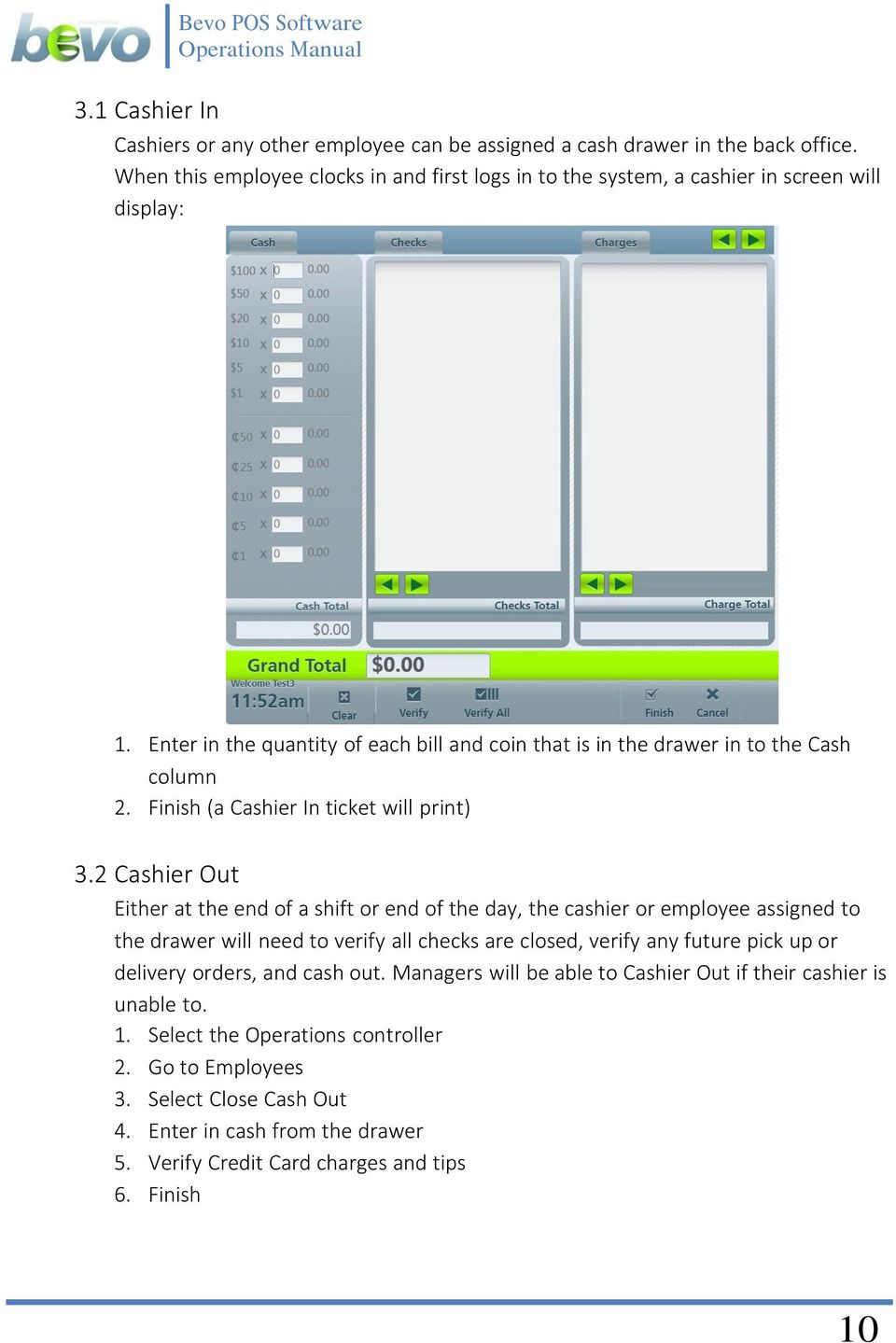
11 3.1 Cashier In Cashiers or any other employee can be assigned a cash drawer in the back office. When this employee clocks in and first logs in to the system, a cashier in screen will display: 1. Enter in the quantity of each bill and coin that is in the drawer in to the Cash column 2. Finish (a Cashier In ticket will print) 3.2 Cashier Out Either at the end of a shift or end of the day, the cashier or employee assigned to the drawer will need to verify all checks are closed, verify any future pick up or delivery orders, and cash out. Managers will be able to Cashier Out if their cashier is unable to. 1. Select the Operations controller 2. Go to Employees 3. Select Close Cash Out 4. Enter in cash from the drawer 5. Verify Credit Card charges and tips 6. Finish 10
12 If the drawer balances out correctly, you will receive a confirmation message and a Cashier Out ticket will print. Otherwise, your drawer is Over or Short; this will require the manager to enter a reason why. 11

13 3.3 Close the Day Once the Close Cash Out is completed, the Daily Close can be performed. The report you will see reflects the sales data from the current day and can be ed or printed. Once you select Close the Day, all sales data will stored and start from zero for the next day. 12

14 3.4 Batch Out Batch Out is the last step in the Closing Procedure. The batch out procedure is necessary if you are processing credit cards on your Bevo system. After the day is closed, your credit transactions can be batched automatically or done manually. Automatic From the back office, managers can set the system to process credit cards after the close out is complete. Manual From the back office, managers can go to the Batch Transaction section and send the batch from that screen. Tips can be applied here as well. 13

15 4.0 Full Service Operations For restaurants with one or more dining areas, the Dine-In service type is the best option. The first screen after logging in will be Table Layout. 4.1 Tab le Layout Ov erview From this screen, servers will be able to perform all the functions necessary to take care of customers as well as other employee functions. By design, only one layout can be displayed at a time. To move to the next section, use the scroll arrows at the top right of the screen. 4.2 Controllers Controllers are the buttons found at the bottom of every screen on the POS and they will differ for every setting (Full service, Delivery, Bar, etc.). You must first click the controller then the item you wish to apply its function to. 1. New Check Use this button to create a new check on a table. 14

16 2. Split Split Check: 1. Select Split check 2. Select the table that has the check to be split 3. Enter the number of times the check will be split 4. Select the items you wish to move to the second check 5. Save and Close Now when you select this table, you will be asked to choose which check you want to edit. 15

17 Split by Seat: 1. Select Split by Seat 2. Select the table you need to add more seats to 3. Click Add to increase the number of seats on the check 4. Move the items to appropriate seats or Split Evenly among the seats 5. Pay by seat or 6. Save and Close 16

18 3. Pay Check Use this for a fast way to close a check for your customer; it will take you directly to the payment screen. 1. Select Pay Check 2. Select the table you wish to close 3. Choose payment method 4. Submit 4. Transfer - Transfer Table: 1. Select Transfer Table 2. Choose an empty table to transfer to Transfer Server: 1. Select the server that will be doing the transfer 2. Select the tables to be transferred 3. Select the server that will be receiving the transfer 4. Transfer or Cancel 17

19 5. Merge Use this function if two separate tables wish to combine checks; a new check number will be created after the merge. 1. Select Merge 2. Select the tables you wish to merge together 3. Done or Remove to select different tables 6. Float For restaurants that also have a bar, you can use this function to start a bar tab until a table opens up. 1. Select Float 2. Enter customer name and attach credit card if necessary 3. Transfer to Table Layout when a table is open 7. Status This function allows all employees to check overall restaurant statistics and order status. Restaurant Status: 1. Select Restaurant Status 18

20 Layout Status: 1. Select Layout Stat 2. Use green arrows to go from layout to the next Table Status: 1. Select Table Status 2. Select a Table 8. Print Select the Print controller first and then the table or tab you wish to print. 9. Operation There are many options in this screen for employees and managers to use to monitor their business. From employee performance to applying tips and closing the day to system operations, the Operations controller is where owners and managers can monitor their business, employees, and the software itself. My Performance This is a graphical layout of the restaurant and its employee performance. Managers can also find this screen in the back office, under Dashboard. - Use Daily, Weekly, Quarterly, Yearly, and Sales by Period to filter sales data - Use the Search function on the right to filter by employee 19

21 Employee 1. Close Cash out - This screen is where cashiers and managers go to count down the cash drawer and verify all non-cash tenders. a. Enter in dollar and change amounts according to what is in the cash drawer b. Verify non-cash tenders c. Apply or edit tips d. Finish or Delete to start over; a cash out report will print 2. Apply Tips From here, any employee with appropriate access can apply tips to gift card and credit card transactions. a. Enter Check number or scroll through charges and select the one you want to apply tip to b. Enter Tip Amount c. Enter d. Filter at the bottom for Total in gray, Tip Applied in orange, and Offline transactions in red 3. View Sales This function will display current day and historical sales; you may view or print from this screen. 20
22 Financial 1. Reopen Cash out Managers only may reopen a closed cash out and edit the cash amounts and tips, then close again; an updated cash out report will print. 2. Print Cash out Managers only may print a closed cash out 3. Paid In If a location has an entry fee or cover charge for special occasions, the managers can make a Paid In entry. a. Enter amount b. Select a reason c. Enter who the money is being paid in from d. Enter additional comments e. Finish 4. Paid Out If a location needs to take money from the cash drawer to pay for supplies, live entertainment, tips, etc. they will use the Paid Out function. a. Enter amount b. Select a reason c. Enter who the money is going to d. Enter additional comments e. Finish 5. Additional Amount If the cash drawer is low or out of any bills or change, a manager may select Additional Amount and add to the Cashier In screen. 6. Refunds Managers may refund current or past checks with the customer receipt or refund a customer that does not have their receipt. With Receipt a. Select a check from the screen or use the search for a past date b. Refund the entire amount or enter in a custom amount c. Choose refund method d. Submit 21
23 Without Receipt a. Select Without Receipt b. Select refund amount c. Refund d. Select refund method e. Submit 7. Close the Day Managers will close any unclosed cash outs and close the entire day. Reports This is the report center where managers can view, print, or any of their current day reports. All historical reports after a day has been closed can be found in the Back Office Reports section. System During initial set up or if new configuration is required, Managers and support technicians can go to the System section to test and trouble shoot the system. a. Print test kitchen, receipt, and report printers b. Open Cash Drawer c. Calibrate test connection with multiple systems d. Remote Login allows remote users to access the system e. Network Test test internet connection 10. Cancel This will take all users back to the Log In screen. 22
24 4.3 Table Statistics From this screen, employees can view, filter, search, and edit Active, Closed, and Voided transactions for the current day. 1. Search Enter table number, tab name, or server name and Search. 2. Sort Tabs View Active, Closed, and Voided checks for the day. Closed Tab 1. Void Check Select Void Check then the actual check you wish to void. You will also be prompted to select a payment type to process the refund. 2. Void Item Select Void Item then the check you wish to view. Select the item you want to void and then select 23
25 3. Void Payment Select Void Payment then the check you wish to remove payment on. You will be prompted to enter a Void Reason and then select the payment method and then Delete to process the refund. This check will now show as Active. 4. Transfer Payment If the payment needs to change from credit card to cash for example, you can use this feature to change payment. 5. Reopen Check Select Reopen Check and then the actual check you wish to reopen. At this point you can edit the check, if no changes are made then the check will not be reopened. 3. Filter All Checks in gray, Seated in green, Check Down (meaning check has been printed and given to customer) in yellow, On Hold (meaning an item(s) on the check is on hold) in orange, and Expired checks in red. 5.0 Quick Service Operations For restaurants that offer fast food service, little to no seating, no wait staff, and/or only offer walk in, pick up, and delivery, Quick Service settings will be the best option. Walk-in orders will be placed and paid for one after the other from the same screen. 5.1 Overview 1. To activate the Quick Service type, you must go to the Back Office (refer to page 35 for step by step procedure) 2. When users log in to the system, the first screen that appears will be the Order screen. From here users can open and close checks from the same screen. Select All at the top of the screen to navigate to the Table Statistics screen. 3. Managers and Cashiers can also perform their duties from the Table Statistics screen. To return to the Order screen, select New Check. 24
26 6.0 Phone Orders For restaurants that take phone orders for pick up or delivery, the Phone Orders section should be enabled. Both of these order types can be tracked on the same screen. 6.1 Controllers 1. Add Use to create a new pick up or delivery order for the current day or for a future date 2. Edit From the pop up, select to edit the customer information or to edit the order 3. Cancel Order Voids the order you select 4. Transfer to Dining Switches the order to the table you choose and will now store in the Table Layout and Table Statistics tabs 5. Tender Order Apply payment to selected order; does not close out the order 6. Print Select one or multiple orders to print 25
27 7. Arrival Only active from the Out tab; applies only to delivery orders a. Select Arrival b. Select the order c. Apply payment if balance has not already been paid 8. Departure Only active from the New tab a. Select Departure b. Select the Driver (all orders assigned to the selected driver will depart and move to the Out tab) c. For Pick up You will need to select Departure to complete these orders; if payment was already done then it will automatically close 9. Apply Tip Only active from the Complete tab; applies to pick up and delivery orders (see pg. 13 for procedure) 10. Operation - There are many options in this screen for employees and managers to use to monitor their business. From employee performance to applying tips and closing the day to system operations, the Operations controller is where owners and managers can monitor their business, employees, and the software itself. 11. Cancel This will take all users back to the Log In screen. 12. Filter - All displays pick-up and delivery orders, Delivery will have drivers assigned to the orders, Pick Up will not, paid orders will have a check mark icon, and all orders can be filtered with column headers. 6.2 Pick Up Pick Up is a type of Phone Order where a customer can call in and place an order; they will be able to pay over the phone with credit card or when they arrive at the location. 1. Select Add to create new order; Select the phone icon for Caller Id users 26
28 2. Enter Phone Number, First and Last Name, Order Type, Pick up time, and Pick up date; for returning customers, all required fields will auto complete after phone number is entered 3. Press Order or Repeat a previous order 4. Modify order if needed, apply Payment, or Finish 5. Select Departure when customer picks up the order 6.3 Delivery Delivery is the other type of phone order where a customer places an order over the phone, applies a credit card payment, or pay the driver in cash when the order arrives. 1. Select Add to create a new order; select the phone icon for Caller Id users 2. Enter phone number, first and last name, order type, time, date, address, city, state, and zip; these are the required fields a. Assign driver ahead of time if necessary b. Get Directions to view a Google Map of possible routes from your location to the customer s location 3. Repeat a past order or select Order for a new one 4. Add items then Finish 5. If driver was not previously assigned, select the Driver then the Order to assign the driver to that order; perform the same steps to change to another driver 27
29 7.0 Bar Tab Bartenders can use the Bar Tab function to start tabs for customers with their name, with a credit card (manual enter or swipe), and with credit card preauthorization. For high volume bars and night clubs, employees will be able to view numerous tabs on one screen and use the filters to sort through them. For fast pace bar environments, take advantage of the Quick Bar feature where unless you choose to create a tab, you remain on the order screen for all checks. 1. Search Enter tab name or check number (shown in gray on the tab icon) 2. Filter All tabs in gray, Served in green, Check down in yellow, On Hold in orange, and Expired in red 3. Controllers 28
30 a. New Tab Swipe or manually enter credit card, turn Pre-Auth off to enter Customer Name only, and then Process b. Split Tab Select tab and enter number of times to split the tab and select items to move to the other check; rename the tab(s) if needed c. Pay Tab Goes to Payment screen after tab selection d. Transfer see pg. 10 and 11 e. Merge see pg. 11 f. Status see pg. 12 g. Print Select tab then Print h. Operation see pg. 13 through 16 i. Cancel - If user is a manager, this will exit them to the back office. If user is an employee, this will exit them to the log in screen. 29
31 8.0 Order Screen Functions The Order Screen is where employees will spend most of their time. After taking the customer s order, there are various options and changes that can be made to the order. Keep in mind that some of these functions require Manager approval. 8.1 Controllers 1. Void This will delete the entire check. If no items have been sent to the kitchen, this will not need manager approval. If items have been sent to the kitchen, the system will require a void reason and manager approval. 2. Print Use this to print the check for customers ready to pay 3. Options This controller will open up another menu that will give employees more ways to customize the order. a. Tax exempt Removes tax from the entire order b. Print Prints the customer check 30
32 c. Open Item Use to add an item not on the menu and add a price i. Enter Item Name ii. Enter Price iii. Select a tax if necessary iv. Done d. Gift Card Use if customer wishes to purchase a gift card i. Swipe card ii. Select expiration date if necessary iii. Enter Charge Amount iv. Save e. Issue Coupon Option for managers to use for customer satisfaction purposes, loyalty programs, etc. i. Select Coupon to attach (this will print on receipt with barcode) f. Combo Offer If combo items need to be manually applied to each check, use this button g. Count Down Quick Action button to add or subtract inventory to/from an item h. Discount Applies programmed or open discount to entire check i. Gratuity Apply gratuity to a check i. Select programmed gratuity or manually enter gratuity amount/percentage j. Search Item Brings up a search bar for the entire menu k. Apply Coupon Use when a customer brings in a coupon and wishes to use the discount on this order i. Scan or manually enter in coupon code ii. Verify information and Apply l. Customer Can be used to add a customer for membership, loyalty program, house account, etc. m. Hold Used to place a hold on the entire check i. Select Manual or Automatic ii. Done 4. Quantity For large orders of the same item, use Quantity to select amount then the item 5. Order Sends all the new items on the check to the kitchen; indicated with a check mark icon. The controller allows you to stay on the screen and continue ordering. 31
33 6. Cash Fast Cash screen a. Use number pad to enter cash amount or b. Use green fast cash buttons or c. Use Exact or closest buttons d. Enter 7. Payment Use for cash and any non-cash tenders a. Use same options as seen on Fast Cash screen or b. Credit Card or c. Any other noncash tenders that have been enabled d. Enter amount on number pad first then payment method for partial tender 8. Finish If you press this with no items selected, the system will prompt you to save the sale or cancel it. If you press this after selecting menu items, the system will send these items to the kitchen. 32
34 8.2 View Checks From the Order screen, employees are able to click All to view all tables or tabs and view all seats that are on one order. These options can be found at the top left of the screen as shown below: 8.3 Review Check At the bottom of the check on the order screen, there is a collapsible panel, indicated with a green arrow. From here employees can review the check, split by seat or split the check. Review check will show the entire order, taxes, discounts, gratuities, total, and any paid amounts along with the check options. 8.4 Split See pages 13 and 14 for the procedures on split by check and split by seat. 8.5 Transfer No matter what order type you started with when you entered the order screen; you can always transfer it to another order type from this screen. Click the order type and select from list where you wish to transfer it: 8.6 Item Functions When you click on an item listed on the check, there are a set of options that will pop up in place of the menu. From here there are various options you can perform on an item basis. 1. Hold Place an item on manual or automatic hold if it is not ready to be sent to the kitchen yet. Refer to page 29 for the Hold procedure. 2. Fire If an item was placed on manual hold, use this function to release it 3. Void- This will only void the item. If it has already been sent to the kitchen, you will need manager approval to void the item. 4. Repeat Item Use this to copy the item 5. Quantity Refer to page 29 for instructions on using Quantity 33
35 6. Recipe If an item was programmed in the back office with a recipe, you can view it here: 7. Attach Request For customers with special requests on how their food is made, use Attach Request. This will print under the item on the kitchen ticket. 8. Open Price For customer satisfaction or other reasons, a manager can edit the price of an item using this function. Use the number pad to enter in the new price and select Done. 9. Add Coursing For reporting and kitchen purposes, you can add or change a current coursing setting 10. Tax Exempt This will remove the tax only on the item selected 11. To-Go Item If the kitchen needs to make an item as a to-go order, select this option and a to-go icon will print next to the item on the kitchen ticket 12. Item Discount Applies the selected discount to only the item selected 8.7 Apply Discounts There are two ways to apply discounts: by programming them in the back office or using the open discount function; open discounts are for manager access only. 1. Select the item 2. Select Item Discount 3. Select a preprogrammed discount or 4. Select Open Discount 5. Select Amount or Percentage 6. Enter Amount 7. Type in Reason 8. Apply 34
36 9.0 Retailer Operations For Retail locations, Bevo offers an additional module that will store merchandise inventory with appropriate SKU numbers. Any locations that have a retail store and a restaurant combination, will be able to switch easily between Retail and Table Service functions and even assign certain employees to only one function or the other. 9.1 Overview With the Retailer function, employees will be able to use a bar code scanner to enter all items on to the check, apply discounts, open and close the day, process gift cards, etc. all on one screen (similar to Quick Service for restaurant locations). 35
37 Part II Back Office 1.0 My Performance Bevo POS Software In addition to general reports, the Dashboard in the Back Office displays graphical representations of various sales aspects. The Bevo software makes it easy for users to sort and filter through sales ratios so owners and managers can track their business free of hassle. 1.1 Overview The Dashboard was designed to work as a leader board. For the graphs, all the highest dollar or percentage amounts are shown in green to accent the leader. The top right and center blocks, highlight the most pertinent sales data that managers need to access quickly. 1.2 Search by Employee Using the search box on the right side of the screen, you can enter in an employee s name or select from the list below to display all statistics according to that employee. Only employees that are on the clock will be displayed in this section. 1.3 Filter 1. Sales by Period view daily, weekly, quarterly, and annual data; these can be customized in the System Settings Section (2.0) 36
38 2. Sales by Shift depending on which shifts you have programmed in section 2.1, you can see the sales during those designated periods 2.0 System Settings When preparing your software for the first time or making any changes to how it operates, you will go to System Settings. 2.1 Store a. Store Details business name, location, and icon that will appear on the log in screen b. Business Hours set opening and closing time as well as break times c. Owner Info contact information of owner d. Shifts important to set for reports 2.2 Tax 1. Select a tax to edit or select Add to create a new one 2. Enter the name 3. Enter the percentage 4. Choose to make it a Default take (applies to all menu items without having to assign it to them) or a Tax on Tax (for states required to apply sales and a state tax on items) or neither (you can add the tax on to selected items in the menu) 5. Save 37
39 2.3 Map Printers Bevo POS Software 1. Click printer to edit or Add to assign a new printer 2. Enter in desired name (ex. Receipt) 3. Select the Printer Type (Com Port or Printer or TCP/IP printers) 4. Select the Com port or select the network name or enter the IP address 5. Save 2.4 Drawers 1. Click drawer to edit or Add to create a new drawer 2. Enter in desired name 3. Select Drawer Port (most commonly you will select a printer instead of a COM port) 4. Select Port Name (in most cases this will be the receipt printer) 5. Save 2.5 POS Node Generally, this option is used for large locations with more than one system. You will be able to set each terminal to operate a certain way, report to revenue groups, etc. a. POS Node Detail i. POS Node Name ii. Revenue Group where any sales on this terminal report to iii. Service Type select what type of operations this terminal will be used to perform iv. Layout only applicable to Dine-In Service Type; select a single layout to display for this terminal (if none selected all layouts will show) v. Cash Drawer select the drawer that was programmed in Drawer section b. Printer Setup select your receipt and remote (kitchen) printers based on what was programmed in the Map Printers section 38
40 2.6 Revenue Group (Optional) This function is also beneficial for locations with more than one system. Based on your needs, create revenue groups that will separate your sales. 1. Select to edit or click Add to create a new group 2. Enter in the name 3. Enter in Start and End Time 4. Save 2.7 Comments Comments can be used to attach to customer orders, used as void reasons, for paid in and out reasons, and so on. This is a faster alternative to typing in a comment each time it s required. 1. Select to edit or click Add to create a new comment 2. Enter the desired Comment Name 3. Select the appropriate type 4. Enter in the text that will show either on the reports, tickets, receipts, etc. 5. Save 2.8 Specials Any specials programmed will be displayed on the log in screen when the specials icon is selected: 1. Select one or multiple dates 2. Enter in the description 3. Save 2.9 Mail Send s directly from the software. Format is identical to traditional ; hit Send when all required fields are completed Pay Methods Depending on your location, you may not accept all payment types; limit what your employees will see on the payment screen here. By default, there will be Cash, Credit Card, House Account, and Gift Card already programmed in to your system. 1. Select to edit or click Add to create a new pay method 2. Enter the name that will display on the payment screen 3. Select the type from the list that is supported by the software 4. For Credit Cards, Payment Gateway will need to be selected 39
41 5. You may choose to make a method visible or not by selecting the Active check box 6. Save 2.11 Gratuity With this software, you will be able to program two types of gratuity: manual and automatic. 1. Select to edit or click Add to create a new gratuity 2. Enter Gratuity Name 3. Enter the percentage 4. Set restrictions by entering a minimum and maximum customer count 5. Set to calculate on Net Sale (after tax is subtracted out) or Gross Sale (before tax is taken out) 6. For gratuity to automatically apply based on the Customer Count, select Auto Gratuity 7. Select the check box to print on the check or not 2.12 Coupon For newspaper coupons, Groupon, Living Social, ed coupons, etc. tract them with the Bevo software and bar code technology if a scanner is being used. a. Coupon Detail i. Enter Name ii. Select the type iii. Coupon number is automatically generated iv. Terms of the coupon v. Select whether the coupon will be item or amount based b. Discount Detail i. Enter the type of discount ii. Enter the dollar or percentage amount 2.13 Time Events In this section, you will program discounts, happy hours, specials, etc. a. Time Event Details i. Enter the name ii. Select the type For discounts, select Check or Item Discount iii. Set Priority (optional) iv. Select Applicable Type v. Customer Type (optional) vi. Restrict Access (optional) vii. Assign to specific terminal(s) (optional) viii. Options unselect Auto Time Event for regular discounts 40
42 b. Range Details i. Depending on the type you selected, you will either set a condition here or select a menu category/subcategory/item ii. Add Range c. Offer Details i. Select offer type ii. Enter in price or percentage based on selected type d. Availability i. Select Always Available or set date and/or time restrictions 2.14 Store Settings Store Settings contains various register options to further customize the behavior of your system. a. General Settings b. Terminal Settings i. Receipt Printer 1. Set the number of copies to print 2. Enter a message to print at the bottom of each receipt (optional) 3. Select modifiers to print in red option (mainly for kitchen printers) c. Delivery Settings i. Calculate Charge by Zip Code option (select after programming zip codes and setting their upcharges) ii. Set Delivery Charge Type by dollar amount or percentage of the sale (optional) iii. Set Production Time iv. Divide the delivery charge up between the store and the driver (optional) 41
43 2.15 Table Layout All of the objects in the table layout except for the floor are resizable and rotatable. d. Add adds a new layout i. Enter layout Name ii. Save e. Table choose from circle, square, or rectangle tables i. ii. Table number and Seat count are required f. Game ideal for sports bars wanting to charge extra for pay per view or special events or billiards tables g. Floor select a floor design h. Objects add foliage, decorations, etc. i. Bar add a bar object j. Walls choose between straight and bent wall objects to customize k. Save l. Delete removes the entire layout m. Delete Object removes selected object 42
44 2.16 Payment Gateway This section is set up prior to you receiving the system. Payment Gateway is only required for locations accepting credit cards. Information cannot be edited Batch Transaction Batch refers to credit card sales. If your location accepts them, you will need to batch or process them at the end of each day or before the start of the next day. The batch can be set up to process immediately after Close the Day. 1. Verify list of current charges and tips 2. Process Offline Charges (only necessary if a charge is highlighted in red) 3. Submit Batch 2.18 Log View Log view is a nice tool for owners and managers to use to see who is logging on to the system and when. 43
45 3.0 Menu For all new customers, initial menu programming is provided along with Menu training before going live with the system. For your reference, please see the sections below. 3.1 Department When you begin programming a menu, Departments are required and should be created first. A couple examples are Food, Alcohol, and Merchandise departments. All categories and items are assigned to a department and will report to each day s Sales by Department report. 1. Select to edit or Add to create a new department 2. Type in Name 3. Type in Description (optional) 4. Save 3.2 Category Categories are also required when programming your menu. Depending on your menu, this is how you will differentiate between your menu items. For example, a pizza parlor will probably have a Pizza, Calzone, Beverages, and Sides categories. a. Category Detail i. Select to edit or Add to create a new category ii. Enter Name iii. Select Department iv. Select Coursing v. Check Mandatory if you want to force your employees to select an item from this category before moving on 44
46 vi. Serving Size option applies to all items in this category vii. Gratuity Exempt and Driver License Check options b. Printer i. Select one or more printer for items in this category to print to c. Time Event i. Select up to five time events d. Button Style i. Choose icon that will display on the order screen e. Tax i. Select Tax Inclusive (optional) ii. Select one or more taxes iii. Add Tax f. Modifier i. Choose a modifier group ii. Select modifiers from the group iii. Add a min and max quantity (optional; default is unlimited) g. Availability i. Limit when category is available (default is always available) ii. Save 3.3 Subcategory Subcategories help you to further break down your menu and to organize it better for both reporting and ease of ordering reasons. For example, if you have a full bar, you can break your Beverage category down in to Nonalcoholic, Beer, Wine, and Liquor subcategories. a. Subcategory Detail i. Select to edit or Add to create new subcategory ii. Enter Name iii. Select Category iv. Coursing is preselected based on the Category v. Check Mandatory if you want to force your employees to select an item from this category before moving on vi. Serving Size option applies to all items in this category vii. Gratuity Exempt and Driver License Check options b. Printer i. Only use if you want to Override the Category printer selection c. Time Event i. Only use if you want to Override the Category time event selection d. Tax i. Only use if you want to Override the Category tax selection e. Modifier i. Only use if you want to Override the Category modifier selection 45
47 f. Availability i. Limit when subcategory is available (default is always available) ii. Save 3.4 Coursing Courses are required and are also preprogrammed in to every system (Appetizer, Entrée, and Dessert). Of course you can still add, edit, or delete any of these. 1. Select to Edit or Add to create a new course 2. Enter Name 3. Select Time Delay (optional); auto sends item to kitchen at the end of the time delay 4. Save 3.5 Serving Size Serving Sizes make it easy for you to select the size for one item instead of programming an item for each size. Simplest example is small, medium, and large serving sizes. The size will show in front of the item it applies to on the order screen and on the kitchen ticket. 1. Select to edit or Add to create a new size 2. Enter Name 3. Save 3.6 Serving Size Group In this section, you are able to put any serving sizes you created in to one or multiple groups. This way you can attach an entire group to a Category or item instead of one size at a time. 1. Select to edit or Add to create a new group 2. Enter Name 3. Select sizes included in this group 4. Save 3.7 Prefixes Prefixes go in front of modifiers and inform the kitchen how they should prepare the modifier. A couple examples would be extra or on the side; extra peppers or ranch dressing on the side. 1. Select to edit or Add to create a new prefix 2. Enter Name 3. Enter Description for kitchen ticket (optional) 4. Add an upcharge (additional charges correspond to price level settings) 5. Save 46
48 3.8 Modifier Modifiers add on to menu items and display indented under the item on the order screen and the kitchen ticket. Some examples of modifiers are your pizza toppings or entrée sides. a. Modifier Details i. Select to edit or Add to create a new modifier ii. Enter Name iii. Select type iv. Unselect Unlimited to make modifier a countdown item (optional) a. Enter Quantity v. Select Serving Size Group (optional) vi. Modify With to attach another modifier to this one (optional) b. Printer Set Up i. Select printer ii. Alternate printer selection is for back up (optional) c. Tax i. Select tax ii. Inclusive (optional) iii. Add Tax d. Prefix i. Select as one or multiple prefixes ii. Add Prefix e. Inventory f. Save 3.9 Modifier Group a. Modifier Group i. Select to edit or Add to create a new group ii. Enter Name iii. Enter an overall group upcharge (optional) iv. Enable pizza slice selection (optional) v. Enable Matrix Screen (displays all modifier groups attached to an item on the screen at one time; optional) b. Modifiers i. Select one or multiple modifiers to attach to the group ii. Add Modifier c. Save 47
49 3.10 Menu Item a. Menu Item Setup i. Select to edit or Add to create a new item ii. Enter Name iii. Select Category iv. Select Subcategory (optional) v. Department is selected based on Category settings vi. Select Type vii. Select Coursing viii. Enter Price ix. Override tax if different from Category (optional) x. Select Printer if different from Category (optional) xi. Unselect Unlimited in order to activate item count down and select beginning Quantity b. Modifier i. Override and select Modifier Group if different from Category (optional) c. Time Events i. Override and select Time Event if different from Category (optional) d. Availability i. Deselect Always Available if you want to limit when this item can be ordered e. Order Type f. Price Center g. Inventory h. Menu Options (optional) i. Barcode scan or manual enter ii. Set Loyalty Points iii. Scan PLU iv. Set Production Time v. Restrict who can access this item vi. Check Age Limit for alcoholic beverages vii. Options viii. Recipe ix. Food Cost for inventory purposes x. Save 48
50 3.11 Combo Pack The Bevo Combo option comes in handy for quick service locations that offer meals with a drink, entrée, and a side for one price. a. Combo Pack Details i. Enter Name ii. Select Type iii. Auto Detection (whenever the selected items are ordered together, the combo price activates) b. Prices i. Enter Price (multiple prices correspond to price level settings) c. Elements i. Select Match Type (Match 1 is always first) ii. Select Item Type iii. Select Menu Item iv. Add Match v. If Multiple Combo Type was selected, the next match will be Match 2 vi. Add Match d. Availability i. Limit when this combo is available (optional) ii. Save 3.12 QuickBooks 3.13 Category Layout Customize the layout of your menu on the order screen. a. Category Layout i. Select from Alphabetic, ID or order of programmed, or Position Based ii. If Position based is selected, go to Category Layout under Menu iii. Select Layout Type: Category 49
51 iv. Click and drag the Category name to the a button on the grid v. To move a category already on the grid, click the item you wish to move and then the empty button you want to move it to vi. Save b. Subcategory Layout i. Select from Alphabetic, ID or order of programmed, or Position Based ii. If Position based is selected, go to Category Layout under Menu iii. Select Layout Type: Category Based Subcategory iv. Select Item Type (these are your categories) v. Click and drag the subcategories on the left to the grid vi. Save c. Category Based Menu Item i. Select from Alphabetic, ID or order of programmed, or Position Based ii. If Position based is selected, go to Category Layout under Menu iii. Select Layout Type: Category Based Menu iv. Select Item Type (these are your categories) v. Click and drag the menu items on the left to the grid vi. Save d. Subcategory Based Menu Item i. Select from Alphabetic, ID or order of programmed, or Position Based 50
52 ii. iii. iv. If Position based is selected, go to Category Layout under Menu Select Layout Type: Subcategory Based Menu Select Item Type (these are your subcategories) v. Click and drag the menu items on the left to the grid vi. Save 3.14 Menu Settings a. Menu Item Settings set a charge for ½, 1/3, and ¼ sections (mainly used for pizza items) 4.0 Employees When you first begin the programming of your system, creating your employees and assigning them to appropriate job codes (security access) should be first. 4.1 User Information In this section, you will create employees, assign access codes, and restrict their access to the system by selecting job code(s). a. User Details i. Enter First and Last Name (Middle Name is optional) ii. Enter Nick Name (this will show on POS operations; optional) iii. Select Date of Birth iv. Age will auto fill based on DOB v. Enter Social Security number (optional) vi. Upload User Image (optional) 51
53 b. User Contact (optional) i. Enter Address ii. Enter Phone Number iii. Enter Mobile Number iv. Enter Address v. Select City vi. Select State vii. Select Country c. User Credential i. Enter User Name and Password (manager job code only) ii. Confirm Password iii. Enter Primary Access Code iv. Enter Secondary Access Code (optional) d. User Settings (optional) i. Set Language Preference ii. Enter Exemptions iii. Set Tax Status e. Security Access Level i. Select one or multiple Job Codes ii. Select Opening Screen iii. Enter Hire Date iv. Select Inactive (optional) f. Wage Detail i. Select Pay Period ii. Select Wage by Hour or Salary iii. Enter Salary or Hourly amount g. Back Office, POS, Payment, Threshold These options are preselected based on job code. To customize further, go through the options and either check or uncheck each box you wish to enable or disable. h. Save 52
54 4.2 Time Adjustment From time to time, employees forget to punch in or miss a break. To correct these errors, Managers can come to this screen and adjust or add a time for the selected employee. 1. Select a name from the list or choose a name from the drop down to create a new time clock entry 2. Select the date 3. Select Job Code (for multiple job code employees only) 4. Enter Time 5. Save 4.3 Business Hour Extension 4.4 Assign Employee By default, employees are not restricted to which layout and tables they can use for the Dine-In service type. Depending on your location however, you might need to assign your employees to certain layouts and tables. 1. Select Employee 2. Assign him/her all day or set the date(s) and Time 3. Select Shift(s) 4. Select the Terminal 5. Select the Cash Drawer 6. Select Revenue Group 7. Select a Layout 8. Select Tables 9. Save 53
55 4.5 Messages Managers have the option to leave messages to one or multiple employees. These messages will display on the Log In screen when the user access code is entered and the mail icon is selected. 1. Enter Subject 2. Select employee(s) to send to 3. Enter Content 4. Save 4.5 Job Code By default, there are five standard job codes already programmed in to your system: Bartender, Busser, Cashier, Driver, Manager, and Server. All six of these job codes have default settings as well. If you choose to add another job code, you will have to go through and set the options you want available for that job code. You are also able to change the default options set to the preprogrammed job codes. a. Main Info i. Enter Job Title ii. Select the first screen that will show when a user with this job code logs in b. Back Office i. Enabling Manager opens up the rest of the options (for non-manager access leave this unchecked and move on to the next section) ii. Enabling Back Office opens up all the functions in the back office, go through these and limit accordingly iii. Store, Customer, and Menu enable or disable accordingly iv. Inventory and Employee are only available under the Manager option c. POS i. Enabling POS opens up the rest of the options, limit accordingly d. Payment i. Select All to include all payment types or click which ones you want to show on the payment screen e. Threshold i. For managers, these options are always enabled, for anyone else, select the options accordingly ii. You can also put dollar amount limits on all these options 4.6 Employee Settings To further customize your employee operations, view the options found in employee settings. a. Allow early and late clock in and set time clock restrictions for minors 5.0 Inventory 54
56 6.0 Customer The customer section of the back office gives you access to every customer type: House Account, Phone Orders, Members, and Loyalty customers. You can add, edit, and delete customers from this section. 6.1 Customer Level 6.2 Customer a. Required fields: First Name, Last Name, Phone, Type, Address, City, State, Country, Zip b. Select from list on the left to edit a current customer 6.3 Loyalty Level 6.4 Membership Type 6.5 Country a. Add to create a new Country or select from list to edit b. Enter name c. Save 6.6 State a. Add to create a new State or select from list to edit b. Enter name c. Select Country d. Save 55
57 6.7 City a. Add to create a new City or select from list to edit b. Enter name c. Select State d. Save 7.0 Reports The reports module is very simple and easy to learn. You are able to select any one of the report selections, choose a specific report, select a date or range, and Run. You may also print, , export to PDF, or export to CSV files. 56
ZeusPOS User s Manual TABLE OF CONTENTS
 ZeusPOS User s Manual TABLE OF CONTENTS ZeusPOS Configuration Pag. Getting Started.. 2 Store Setup.. 4 Software Activation... 5 Employee Setup... 6 Table Setup.. 7 Menu Categories.. 8 Menu Setup.. 9 Items
WELCOME TO REVEL SYSTEMS RETAIL SERVICE... 5 STARTING YOUR WORK... 6. Logging In to Your POS... 7. Refreshing the POS Settings...
 Retail Service User Guide. Page 2 of 81 Table of Contents WELCOME TO REVEL SYSTEMS RETAIL SERVICE... 5 STARTING YOUR WORK... 6 Logging In to Your POS... 7 Refreshing the POS Settings... 8 Clocking In and
POS ON CLOUD. User Manual. v1.06
 POS ON CLOUD 1 POS ON CLOUD User Manual v1.06 POS ON CLOUD 2 Table Of Contents 1 Installation...p. 5 1.1.1 Installing POS On Cloud...p. 5 2 Configuration...p. 7 2.1 Configuring Your Store...p. 7 2.1.1
Point Of Sale Payment Processing
 Point Of Sale Payment Processing TechStorm http://www.gotechstorm.com/howto/pos.pdf Contents Point of Sale Payment Processing... 3 Transaction Flow for processing sales... 3 Barcode Scan an Item... 3 Choose
Condiments... 37 Touch Repeat... 38 Repeat Round... 38
 1 USER GUIDE MICROS 3700 Making it work This guide contains step-by-step instructions for using your Micros 3700 POS System. Depending on the programming done for your site, some of the applications will
RESTAURANT POS FEATURES
 This free list will help you choose the best touch screen restaurant POS software and system for your restaurant. Copyright 2002 www.poshelpdesk.com All Rights Reserved The document and the content are
User Manual. CashFootprint Retail Point-of-Sale, Professional Edition. Copyright 2011-2013, LotHill Solutions, LLC. All rights reserved.
 CashFootprint Retail Point-of-Sale, Professional Edition User Manual Copyright 2011-2013, LotHill Solutions, LLC. All rights reserved. LotHill Solutions, LLC 8616 Kell Ave. S. Minneapolis, MN 55437 Toll:
A point-of-sale system with all the options you need
 A point-of-sale system with all the options you need Our origins and our philosophy Future POS is designed and enhanced by the team of developers at Cutting Edge Solutions. The objective of Cutting Edge
Maitre D Back Office User Manual
 Maitre D Back Office User Manual Maitre D software serves you better Page 1 of 135 The Maitre'D Back Office Start-up Guide is intended primarily for restaurant owners and managers, but is equally suited
Introduction... iv Version 3... iv Purpose... iv
 Visual Information Products Inc. 111 Regina Road, Suite 1, Woodbridge, Ontario, Canada, L4L 8N5 Tel: 905-264-7001 Fax: 905-264-7071 E-mail: [email protected] Website: www.visualtouchpos.com Copyright
Payco, Inc. Evolution and Employee Portal. Payco Services, Inc.., 2013. 1 Home
 Payco, Inc. Evolution and Employee Portal Payco Services, Inc.., 2013 1 Table of Contents Payco Services, Inc.., 2013 Table of Contents Installing Evolution... 4 Commonly Used Buttons... 5 Employee Information...
Copyright 2009. Wolf Track Software
 Copyright 2009. Wolf Track Software No part of this publication may be reproduced in any form, by Photostat, Microfilm, xerography, or any other means, which are now known, or to be invented, or incorporated
Inventek Point of Sale 7.0. Quick Start. Sigma Software Solutions, Inc. Manual
 Inventek Point of Sale 7.0 Quick Start Sigma Software Solutions, Inc. Manual Inventek POS Quick Start Login Procedure You are now ready to begin using the Inventek Point of Sale program. To open the software,
POS: Manager Manual Version: 01/01/2012
 Version: 01/01/2012 Table of Contents Getting Started 3 3 3 3 Post a Credit Card Transaction 8 System Time... Connectivity Indicator Light. Sign-in Pad Clock In / Out. Declare Tips. Close Day.. Halo Community
DiPOS User Manual. Tel: 510-770-1388. Fax: 510-257-1610. [email protected]. Address: 44835 Industrial Dr., Fremont, CA 94538
 DiPOS User Manual Tel: 510-770-1388 Fax: 510-257-1610 Email: Website: [email protected] www.dinatouch.com Address: 44835 Industrial Dr., Fremont, CA 94538 Table Status: DiPOS User Manual a. White Empty
TranPOS for Restaurant Manual VERSION 5.1.0
 TranPOS for Restaurant Manual VERSION 5.1.0 INTRODUCTION... 4 OVERVIEW... 4 FEATURES... 4 SYSTEM REQUIREMENTS AND HARDWARE RECOMMENDATIONS... 5 SOFTWARE INSTALLATION... 7 INSTALLATION... 7 PASSWORD...
First Data POS Value Exchange TM Restaurant Solution Users Guide TABLE OF CONTENTS 1. MENU DESIGN 2. JOBS AND EMPLOYEES 3. SERVER QUICK START GUIDE
 First Data POS Value Exchange TM Restaurant Solution Users Guide TABLE OF CONTENTS 1. MENU DESIGN 2. JOBS AND EMPLOYEES 3. SERVER QUICK START GUIDE 4. CASH AND TIPS 5. MANAGEMENT OPTIONS 6. PRINTER GUIDE
Invoicing 6.3.9 Manual. 2012... Coherent Software Solutions
 Invoicing 6.3.9 Manual 2 Invoicing 6.3.9 Manual Table of Contents Part I Welcome to Aura Invoicing 4 Part II Getting Started with Aura Invoicing 6 Part III Starting a New Till Shift 10 Part IV Processing
POS:201. Essential Managers Guide to Menumate Point of Sale
 POS:201 Essential Managers Guide to Menumate Point of Sale Contents Setting up staff... 3 Time Clock... 5 Setting up Discounts & Surcharges... 6 The Basics... 6 More Options... 7 Auto Times... 8 Happy
February 2010 Version 6.1
 HansaWorld University Point Of Sales (POS) Training Material HansaWorld Ltd. February 2010 Version 6.1 Table Of Contents INTRODUCTION...5 What is Point Of Sales?...5 THE 4 DIFFERENT WAYS OF USING POS...6
Point OS. Point OS is a windows based software which will work on most computers
 Point OS Point OS is a full featured restaurant point of sale system designed for Fine Dining, Full Service Restaurants, Quick Service Restaurants, Bars and Clubs. Point OS is a windows based software
1.1. Pay In / Pay Out.. 3. 1.2. Payment Mode Master 4-5. 1.3. Unit of Measurement (UOM). 6. 1.4. TAX Master. 7. 1.5. Department Master..
 INDEX 1. MASTERS 1.1. Pay In / Pay Out.. 3 1.2. Payment Mode Master 4-5 1.3. Unit of Measurement (UOM). 6 1.4. TAX Master. 7 1.5. Department Master.. 8-9 1.6. Category Master.10-11 1.7. Stock Keeping Unit
PixelPoint Users Manual
 PixelPoint Users Manual Table Of Contents Welcome...1 Publication Details...3 What's New...5 PixelPoint POS Version 8.0...5 Employee Functions...7 Employee Functions Overview...7 Basic Order...8 Shift
Chapter 28. Poi nt of Sale But. FrontDesk v4.1.25. Point of Sale Menus. Voiding Invoices. Redeeming Gift Certificates. Revised on: 06/10/2009
 Chapter 28 Point of Sale FrontDesk v4.1.25 Point of Sale Poi nt of Sale But tons Point of Sale Menus Opening and Closing Register Drawers Making a Sale Voiding Invoices Reprinting Receipts Selling Gift
Retail POS User s Guide. Microsoft Dynamics AX for Retail
 Retail POS User s Guide Microsoft Dynamics AX for Retail January 2011 Microsoft Dynamics is a line of integrated, adaptable business management solutions that enables you and your people to make business
Point of Sale Procedures. Quick Reference
 Point of Sale Procedures Quick Reference Hard Copy Not Controlled Controlled Copy Available On-line Table of Contents How To Charge to Charge Accounts... 1 Closing an Open Check... 2 Creating a Recipe...
Table of Contents. www.scholastic.com/bookfairs/easyscan
 Quick Start Guide Table of Contents Equipment Setup and Break-Down 1-2 Processing a Sale 3 Payment Types 3 Tax Change 3 Scanning Items 4 Price Checks 4 Voids 4 Returns 4 Reprints 4 Gift Certificates 5
Envision Credit Card Processing
 A Guide for Processing Transactions with Envision's Credit Card Module I Table of Contents Part I Credit Card Processing Setup 1 Part II Credit Card Processing 2 1 Entering Tips... 3 2 Processing the Credit
Greater Giving Online Software. Go Time. Quick Start Guide PRE-EVENT
 Greater Giving Online Software Go Time Quick Start Guide PRE-EVENT Equipment and Internet Setup Set up registration equipment (laptops, ipads, tablets, PC s) Test internet connection on all devices you
Maitre'D Back Office Start-up Guide 2005 Edition
 Maitre'D Back Office Start-up Guide 2005 Edition i Copyright The Maitre'D Back Office Start-up Guide is intended primarily for restaurant owners and managers, but is equally suited for corporate IT departments.
Octopus and the Octopus Logo are trademarks of ELEOS WEB PTE LTD, registered in Singapore and other countries
 Octopus and the Octopus Logo are trademarks of ELEOS WEB PTE LTD, registered in Singapore and other countries 1 1. Introducing the Octopus Point-of-Sale (POS) System The Octopus Point-of-Sale System, unlike
Revel Systems Management Console Dashboard
 Revel Systems Management Console Dashboard Getting Started... 4 Setting your Establishment... 4 Overview... 5 Employees... 5 Summary... 5 Employees... 5 Web Access... 7 Roles... 7 Schedules... 9 Summary...
The manager s world revolves around five aspects when it comes to your Micros 3700 point-of-sale system:
 1 MANAGER GUIDE Micros 3700 The manager s world revolves around five aspects when it comes to your Micros 3700 point-of-sale system: 1. Powering Up! Enabling your operating system 2. POS Configurator 3.
ONE POS User Manual. A brief hand guide for ONE ERP POS SYSTEM MYIT SOLUTION. Latest update on: 03/09/12
 ONE POS User Manual A brief hand guide for ONE ERP POS SYSTEM MYIT SOLUTION Latest update on: 03/09/12 TABLE OF CONTENTS CHAPTER 1 - SETTINGS Database Setup... 3 Printer Configuration... 5 Cash Drawer
OVERVIEW SALES END OF DAY TIMECLOCK LOGIN PRACTICE. QuickBooks Point Of Sale User Manual
 OVERVIEW SALES END OF DAY TIMECLOCK LOGIN PRACTICE QuickBooks Point Of Sale User Manual Overview QuickBooks Point of Sale (POS) is used to ring up sales, manage customers, provide inventory control, and
INVENTORY MANAGEMENT. TechStorm. http://www.gotechstorm.com/howto/inventorymanagement.pdf
 INVENTORY MANAGEMENT TechStorm http://www.gotechstorm.com/howto/inventorymanagement.pdf Inventory Management Table Of Contents Add Inventory Items In Tablet... 3 Transaction Flow for Adding Inventory in
BusinessMan CRM. Contents. Walkthrough. Computech IT Services Ltd 2011. Tuesday, June 1 st 2014 Technical Document -1015 Version 6.
 Contents. Table of Figures... 2 Businessman Enterprise Overview... 3 System Settings... 3 Human Resources... 4 User Management... 5 Customers... 7 Prospects... 9 Document Management 9 Sales Dashboard...
Getting Started with POS. Omni POS Getting Started Manual. switched on accounting
 Omni POS Getting Started Manual switched on accounting i i Getting Started with Omni POS Table Of Contents Overview...1 Setting up POS...2 Initial Steps...2 Tellers...2 POS Clearing Account...3 Printing...4
Strategic Asset Tracking System User Guide
 Strategic Asset Tracking System User Guide Contents 1 Overview 2 Web Application 2.1 Logging In 2.2 Navigation 2.3 Assets 2.3.1 Favorites 2.3.3 Purchasing 2.3.4 User Fields 2.3.5 History 2.3.6 Import Data
Table of Contents. www.scholastic.com/bookfairs/easyscan
 Quick Start Guide Table of Contents Equipment Setup and Break-Down 1-2 Processing a Sale 3 Payment Types 3 Tax Change 3 Scanning Items 4 Price Checks 4 Voids 4 Returns 4 Reprints 4 Gift Certificates 5
Infusion Business Software Update 8.200
 Infusion Business Software Update 8.200 Administration The re-index process now has an option to complete all the Integrity checks for Customers, Suppliers, Products and Financials along with a History
TCS Payment Processing Interface 1.0
 TCS Payment Processing Interface 1.0 Purpose: Integrate Shift 4 payment card processing into TCS Reservations. Setup: To configure TCS reservations for use with Shift 4 UTG. First install the Shift4 UTG
POS and a Whole Lot More!
 POS and a Whole Lot More! MicroSale POS System MicroSale POS System Every POS can enter the order, add modifiers, send the order to the kitchen, print the check and process the credit card payment! If
Version 6.0 USER MANUAL
 X-Charge Version 6.0 USER MANUAL X-Charge Version 6.0 10/10/2005 User Manual 4 Copyright 2005 by CAM Commerce Solutions, Inc. All rights reserved worldwide. This manual, as well as the software described
How do I Sell A Used Item? How do I Close a Repair with Inventory Used? How do I Reprint Barcode Label? How do I edit Clock In/Out entries?
 1 How do I Sell A Used Item? Mouse over the List tab on the Dashboard. Click on Used Phone. Scroll through the list or enter item name or IMEI number in the search bar. Once item is found, click on the
Table of Contents Introduction... 13 Getting Started... 16
 Manager Manual Table of Contents Introduction... 13 Overview... 13 Features... 13 Professional Main Features... 13 Point Of Sale Features... 13 Back Office Features... 14 Integrated Music System... 14
BUSINESS SOFTWARE SOLUTIONS. Processing Credits Cards In Business Plus Accounting
 BUSINESS SOFTWARE SOLUTIONS Processing Credits Cards In Business Plus Accounting Table of Contents Processing Credit Cards in the Restaurant System...4 Processing Credit Cards in Touch Screen POS...6 Processing
S ect io n 1 - Basics Log in 1. 2. 3. Clock-In Screen Note: Working With Tables WWT
 Sect ion 1- Basics The Log in Screen allows the user to enter their employee number and read any pertinent information. 1. Touch the floating logo; the log-in screen will display 2. Read the messages displayed
VinNOW-TSYS Integration Setup
 VinNOW-TSYS Integration Setup Once your account is established with TSYS, and installation appoint should have been arranged. If not, contact your sales representative as these steps should be done for
Copyright 2009. Wolf Track Software
 Copyright 2009. Wolf Track Software No part of this publication may be reproduced in any form, by Photostat, Microfilm, xerography, or any other means, which are now known, or to be invented, or incorporated
SoftTouch table service
 SoftTouch table service combines the rich look of high resolution custom floor plans with comprehensive functionality ranging from quick order entry and instant check printing to full fine dining coursing.
User Guide Veezi Loyalty. Vista Entertainment Solutions 2015-03-23
 User Guide Veezi Loyalty Vista Entertainment Solutions 2015-03-23 Copyright Notice Copyright 1996-2015 Vista Entertainment Solutions Ltd. All rights reserved. Veezi is a Registered Trademark of Vista Entertainment
ONE POS USER MANUAL Copy Right One Touch Ltd, 1992-2014 All Rights Reserved John Mackay Page 1 23/05/2014
 ONE POS USER MANUAL John Mackay Page 1 23/05/2014 Contents 01 - Front Cover 02 - Contents 03 - Introduction 04 - System Setup 08 - Till Mode 09 - Basic Usage (completing a sale) 10 - Printing Receipts
2TouchPOS Operations Reference Guide
 2TouchPOS Operations Reference Guide 2013 Xenios LLC 82 Saint Paul Street Rochester, NY 14604 Phone 585.325.5242 Fax 585.325.6989 Table of Contents About this Document... 3 Employee Operations... 4 Quick
Keep your search simple. Only the last name is required. First name and Phone are optional.
 Creating a new Parts Invoice A Part Invoice is used to record part sales to a customer. When opening a new Parts Invoice, Dealer Logic will assign the next Invoice Number. The date will be the date the
Contents SECTION 1 5 SECTION 2 9
 Contents SECTION 1 5 INTRODUCTION 6 STARTING UP 7 Starting the Workstations 7 Running Onetap 7 Logging On 7 Using the On Screen Keyboard 7 Minimise Onetap 8 Restore Onetap 8 Exiting and Shutting Down 9
USING THE MODEL IQ 1000 INTELLICLOCK
 USING THE MODEL IQ 1000 INTELLICLOCK The IQ 1000 is an advanced model of time clock with many features and benefits designed to offer you a wide range of options in how you collect your time and attendance
Results CRM 2012 User Manual
 Results CRM 2012 User Manual A Guide to Using Results CRM Standard, Results CRM Plus, & Results CRM Business Suite Table of Contents Installation Instructions... 1 Single User & Evaluation Installation
Intellect Platform - The Workflow Engine Basic HelpDesk Troubleticket System - A102
 Intellect Platform - The Workflow Engine Basic HelpDesk Troubleticket System - A102 Interneer, Inc. Updated on 2/22/2012 Created by Erika Keresztyen Fahey 2 Workflow - A102 - Basic HelpDesk Ticketing System
Software Suite. Software that serves you better
 Software Suite Software that serves you better Point-Of-Sale A new level of reliability and expertise Our Maitre D Point of Sale software is fully integrated with the Back-Office application. The POS Suite
POINT OF SALE CASHIER GUIDE
 POINT OF SALE CASHIER GUIDE CONTENTS Document Overview... 3 Basic Navigation... 3 Enter Sales... 4 Customer... 5 Add Product... 9 Collect Payment... 17 Time Clock... 19 Clock In... 19 Clock Out... 20 Price
Envision Credit Card Processing With EMV
 Envision Credit Card Processing With EMV A Guide for Processing Transactions with Envision's Integrated Credit Card Module and an EMV Device I Envision Credit Card Processing With EMV Table of Contents
Step-by-Step Instructions for Using OPOL Order Manager
 Step-by-Step Instructions for Using OPOL Order Manager Getting Started: 1. Once you have logged on to OPOL, you will automatically be taken to the Order Manager screen. At the bottom of the screen there
Point-of-Sale Quick Start User Guide
 Point-of-Sale Quick Start User Guide A guide for winery staff to learn and understand the operations of the POS service. This guide complements the POS Installation Guide and the online help text. Revised
Table of Contents TIME CLOCK...2
 Table of Contents TIME CLOCK...2 PUNCH IN / OUT...2 CLOCK IN / OUT BREAK...2 DAILY WAGE COST...3 Wage Cost Log...4 Wage Cost Setup...4 TODAY S TIME TOTALS...5 PAY PERIOD REPORT...5 PAY PERIOD SUMMARY REPORT...5
Click to begin. Employees
 Click to begin Employees This document will guide you through setting up Employees in Maitre D. The Employee setup allows you to customize a record for each employee that uses the workstation. There are
Vendor Configuration, Ordering, and Receiving. Kroll 9.1. Kroll 9.1
 Vendor Configuration, Ordering, and Receiving Kroll 9.1 Kroll 9.1 Contents Vendor Configuration... 1 Catalog Tab... 3 Ordering Tab... 6 Receiving Tab... 7 General Tab... 9 Preventing OTC Inventory Adjustments...
Financial Software Payments Module
 epnplugin Financial Software Payments Module epnplugin Installation and User Guide epnplugin Financial Software Payments Module 1 Overview... 6 2 Requirements & Preparations... 7 3 Equipment... 8 4 Installation...
Software Editor & Business Consulting
 Software Editor & Business Consulting 2013 NSD - All rights reserved 1 NSD Restaurants Management System NSD RMS - V 5.01 Overview 2 The NSD RMS is developed based on the best business practice and rules,
01646 601992 (Office Hours) 07699 731616 (Pager) Contents
 BACK OFFICE MANUAL Contents Introduction... 3 Adding New Sales Items To The EPOS System... 6 To Create A New Product Category... 6 Adding A New PLU... 7 Product Options... 8 Product Modifiers... 9 EPOS
credit card version 6
 credit card version 6 Use this guide for SalonBiz /SpaBiz Virtual Black Box Version 6. Authorizing a Credit Card Sale 1. Create a ticket for the client as usual; select the appropriate credit card payment
talech Software Guide
 talech Software Guide 0 REGISTER 05 SETTINGS Overview 0 Overview 5 Creating New Orders 0 Taxes 6 Open & Closed Orders 05 Printers 7 Issuing an Item Refund 06 Employees 8 Issuing a Payment Refund 07 Payments
The answer to your Point of Sale System Needs!
 Over 30,000 installations Aldelo Systems has helped thousands of restaurants manage their POS and store operations more effectively over the years. Low cost, feature rich and easy to use Aldelo Systems
PRINT FLEET MANAGER USER MANUAL
 PRINT FLEET MANAGER USER MANUAL 1 Disclaimer of warranties and limitation of liabilities ( YES ) reserves all rights in the program as delivered. The program or any portion thereof may not be reproduced
The POS system can track sales by various payment methods like cash, checks, credit cards, coupons, and gift certificates.
 Point-Of-Sale Overview You can use the Point-of-Sale module (POS) to create Cash Receipts, Invoices, and receive A/R Payments. In addition, you can create returns for Receipts and Invoices. The POS system
Focus POS Systems. Table of contents
 Focus POS Systems Table of contents 1. Focus User Manual Setup 2. Focus Setup 3. Focus Info 4. Focus End User Configuration 5. File 6. Employees 6.1 Employees 6.1.1 Add a New Employee 6.1.2 Modifying Existing
BUSINESS/COLLEGE USER GUIDE
 BUSINESS/COLLEGE USER GUIDE Table of Contents: 2 1 2 2-3 4-8 9-12 13-17 18 19-22 22-24 25-27 28 29-32 32-33 34-45 Setting Properties Logging in Navigating the Administrative Program District Information
Customers can use debit cards for order payment. However, the implementation is significantly different for U.S. and Canadian shops.
 D Customers can use debit cards for order payment. However, the implementation is significantly different for U.S. and Canadian shops. in U.S. Shops In the United States, you can enter debit transactions
Bank Account 1 September 2015
 Chapter 8 Training Notes Bank Account 1 September 2015 BANK ACCOUNTS Bank Accounts, or Bank Records, are typically setup in PrintBoss after the application is installed and provide options to work with
Decision Support AITS University Administration. Web Intelligence Rich Client 4.1 User Guide
 Decision Support AITS University Administration Web Intelligence Rich Client 4.1 User Guide 2 P age Web Intelligence 4.1 User Guide Web Intelligence 4.1 User Guide Contents Getting Started in Web Intelligence
RESTAURANT POS. RedFin Restaurant MANAGE SAVE GROW
 RedFin Restaurant WINDOWS -BASED RESTAURANT POS Whether a multi-national chain or a small shop, RedFin Restaurant will help pave your way to success and a more profitable business. MANAGE SAVE GROW A Recipe
Contact Information Sales/Marketing [email protected] Support [email protected]
 Product Summary UpFront Software is a windows-based Point of Sale software system designed to meet the needs of the Grocery and Convenience store industries. The system offers a wide variety of features
Credit & Debit Application
 USER MANUAL ALL TERMINAL PRODUCTS Credit & Debit Application Magic Models: C5, X5, X8, M3, M8 V Series Models: V5, V8, V9, V8 Plus, V9 Plus 1 Dejavoo Systems Instruction Manual V429.12 Instruction Manual
Overview - ecommerce Integration 2. How it Works 2. CHECKLIST: Before Beginning 2. ecommerce Integration Frequently Asked Questions 3
 Table of Contents: Overview - ecommerce Integration 2 How it Works 2 CHECKLIST: Before Beginning 2 ecommerce Integration Frequently Asked Questions 3 Stock Export for ecommerce 5 Configure Ascend Products
MAITRE D STANDARD OPERATING PROCEDURES
 MAITRE D STANDARD OPERATING PROCEDURES Version 1.0 March 2013 1 CONTENTS Basic Sale... 5 Adding and removing items from a sale... 8 Clearing a Sale... 8 Closing out to a EMV Credit/Debit... 10 How to open
Enterprise Management System (EMS) Guide
 Enterprise Management System (EMS) Guide Revel is proud to debut the first components of its new Enterprise Management System or EMS. The EMS will allow for centralized administration of multiple establishments.
Introduction. Epos tills capture the sales information to ensure you make better decisions
 EPOS FEATURES TILLS Introduction Epos tills capture the sales information to ensure you make better decisions Openxpos stock system has two till versions depending on the product range and serving method
Using Microsoft Dynamics AX 2012
 Exercise Guide Andreas Luszczak Using Microsoft Dynamics AX 2012 Springer Vieweg, 2nd Edition 2012 ISBN 978-3-8348-1742-6 September 2012 VI Exercise Guide Registered and/or industrial names, trade names,
How To Sync Between Quickbooks And Act
 QSalesData User Guide Note: In addition to this User Guide, we have an extensive Online Video Library that you can access from our website: www.qsalesdata.com/onlinevideos Updated: 11/14/2014 Installing
Quick Start Guide. www.uptrendsinfra.com
 Quick Start Guide Uptrends Infra is a cloud service that monitors your on-premise hardware and software infrastructure. This Quick Start Guide contains the instructions to get you up to speed with your
Merchant Center User Guide
 Merchant Center User Guide Logging In The Merchant Center is the online management tool for your Groupon promotions. Here you can track redemption, read customer comments and view customer demographic
Sync Guide. Sync Overview. Before the Event. During the Event. After the Event. Greater Giving Event Software
 Sync Guide Sync Overview Timeline Equipment Terms + This guide will instruct you on how to transfer data between Greater Giving Event Software and Auctionpay Master terminal Before, During and After your
WALKIN HAIR BEAUTY SPA CLINIC. it suits you SCHOOL. v1.0
 WALKIN HAIR BEAUTY SPA CLINIC it suits you SCHOOL v1.0 What you may have missed since Shortcuts 7.4.8 Using this Document... 1 New Modules... 1 Shortcuts Services Manager... 1 Self Check-in... 1 Online
384 PastPerfect Museum Software User s Guide THE CONTACTS SCREEN
 20 CONTACTS In this chapter, we will show you how PastPerfect can help you manage your patrons and memberships. PastPerfect s contact management features automate tracking donors, potential donors, current
ACHieve Access 4.3 User Guide for Corporate Customers
 ACHieve Access 4.3 User Guide for Corporate Customers January 2015 Citizens Bank 1 February 2015 Table of Contents SECTION 1: OVERVIEW... 4 Chapter 1: Introduction... 5 How to Use This Manual... 5 Overview
OFBIZ POS USER MANUAL
 OFBIZ POS USER MANUAL Version 9.11 Release Date 2009-11-01 Apache OFBiz (http://ofbiz.apache.org) is a trademark of The Apache Software Foundation Page 1/24 OFBIZ POS USER MANUAL Version 9.11 Release Date
Quick Start Guide. Microinvest Warehouse Pro Light Restaurant
 Quick Start Guide Warehouse Pro Light Restaurant 2013 I. Application Installation During the initial installation of the product, the application gets to know the computer system, on which it shall work
NEXTGEN TRAINING TRANSACTIONS. I. Vendor Maintenance. Purchase Order Entry. Invoice Entry. Cash Disbursements. V. Journal Entry Cash Receipts
 TRANSACTIONS I. Vendor Maintenance II. Purchase Order Entry III. Invoice Entry NEXTGEN TRAINING IV. Cash Disbursements V. Journal Entry Cash Receipts Janet Cowart VI. VII. Queries/Reports Bank Statement
VinNOW/TSYS Integration Setup. Overview
 Overview TSYS credit card processing communications to the gateway are all done via LAN internet linked PAX payment terminals. The terminals supplied by TSYS have the client s merchant account information
Table of Contents CONFIGURING RESTAURANT PRO EXPRESS 1 REGISTERING RESTAURANT PRO EXPRESS 1 10 STEPS TO GETTING STARTED 2
 Table of Contents CONFIGURING RESTAURANT PRO EXPRESS 1 REGISTERING RESTAURANT PRO EXPRESS 1 10 STEPS TO GETTING STARTED 2 STEP 1 - PLUG IN THE EQUIPMENT 2 STEP 2 - INSTALL AND START RESTAURANT PRO EXPRESS