
The manager s world revolves around five aspects when it comes to your Micros 3700 point-of-sale system:
|
|
|
- Cody Floyd
- 10 years ago
- Views:
Transcription
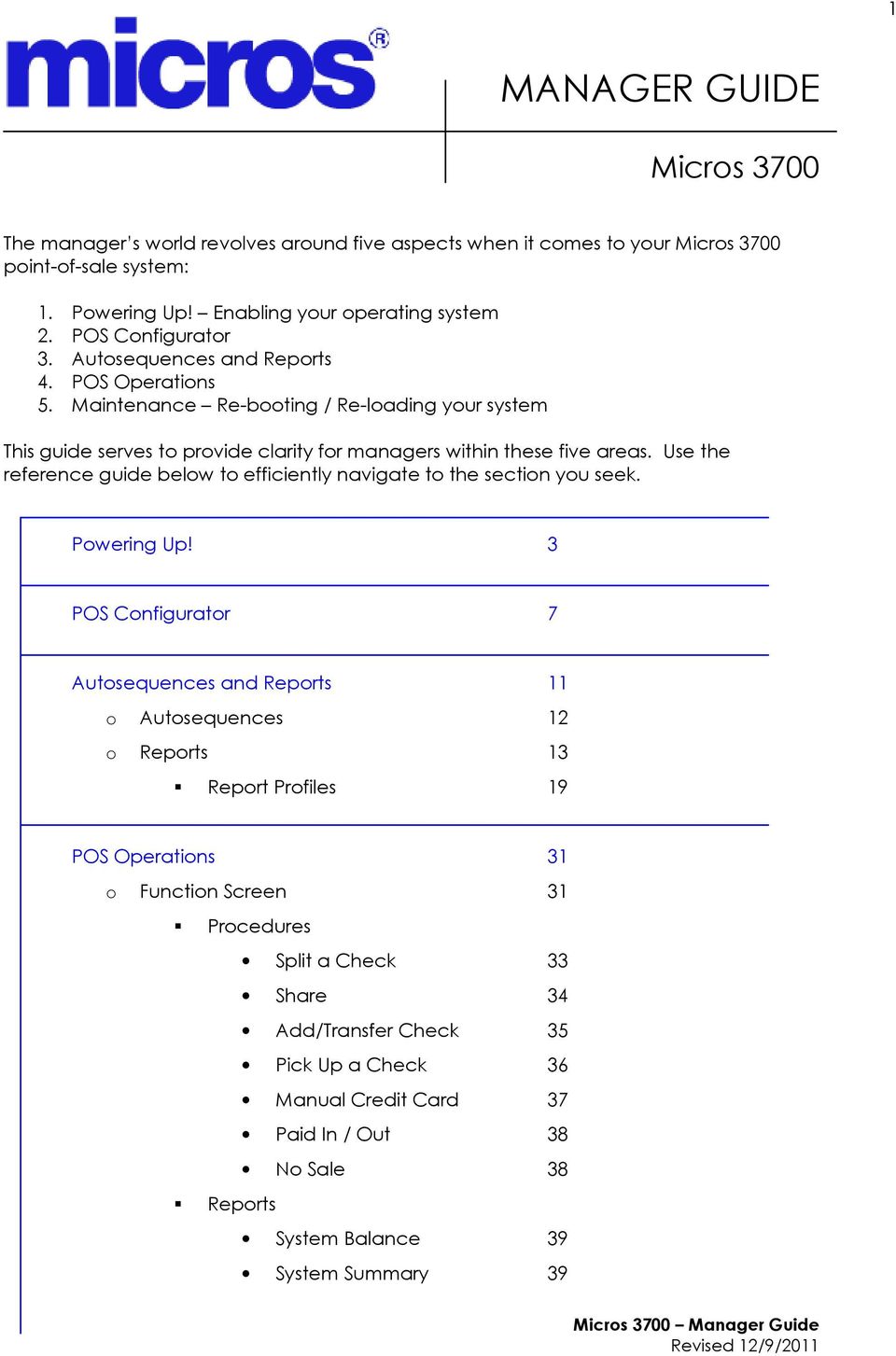
1 1 MANAGER GUIDE Micros 3700 The manager s world revolves around five aspects when it comes to your Micros 3700 point-of-sale system: 1. Powering Up! Enabling your operating system 2. POS Configurator 3. Autosequences and Reports 4. POS Operations 5. Maintenance Re-booting / Re-loading your system This guide serves to provide clarity for managers within these five areas. Use the reference guide below to efficiently navigate to the section you seek. Powering Up! 3 POS Configurator 7 Autosequences and Reports 11 o Autosequences 12 o Reports 13 Report Profiles 19 POS Operations 31 o Function Screen 31 Procedures Split a Check 33 Share 34 Add/Transfer Check 35 Pick Up a Check 36 Manual Credit Card 37 Paid In / Out 38 No Sale 38 Reports System Balance 39 System Summary 39
2 2 Open Checks 39 Employee Open Checks 39 Serving Period 40 Clock In Status 40 Dashboard 41 Check Functions 43 Reopen Closed Check 43 o Manager Procedures 45 Reports 47 Procedures 49 Timecard Adjustments 49 Close Shift 51 Serving Period 51 Redirect Printer 52 Employee Shift 53 Employee ID 54 Employee Assignment 55 Menu Item Availability 56 Menu Item Prices 57 Assign Drawer 58 Cashier Reporting 61 Begin Till Loan 63 Navigation 65 Maintenance 67 o Rebooting your System 67 o Reloading your Database 68

3 3 Powering Up! Micros 3700 is essentially driven from your back-of-house server. For the most part, your POS system is always running. If for some reason your system is not up and running, it s relatively easy to re-start the connection. Your system is running on one of two operating systems: version 3.2 or 4.0. The means by which you re-start the connection is subtly different for the two versions. Read through the next couple of pages for to determine your course of action. Version 3.2 Start up via MICROS Control Panel Version 4.0 Start up via Start RES shortcut found on the desktop Here it is in a little more detail: Version Initial programming should have all necessary icons on the desktop: 2. If these icons are not present, they can be found through the Start menu: Start / Programs / MICROS applications / MICROS Control Panel


4 4 3. With the MICROS Control Panel now open, you want to click on Front of House Switching status from Off to Front Of House Select OK This means All systems are go!


5 5 Version Double-click on Start RES icon, found on your desktop: 2. If it s not found here, go through the Start menu: start / Programs / MICROS applications / MICROS Control Panel 3. The MICROS Control Panel will look like this: 4. Your Log In screen should pop up on the server. Minimize this so you can work off your server on other applications. Your Workstations will load and then be ready to go!

6 6


7 7 POS Configurator Appropriately named, the POS Configurator services many of the different ways in which your system is configured. Fortunately, the bulk of these configurations have taken place during the initial programming. For you, the primary reason that you use the POS Configurator is the adding and editing of employees. Follow these steps to add or edit employee information: 1. From the desktop, sign into POS Configurator. 2. Log In using your manager code. 3. Select from the Employees tab.

8 8 4. The first step when adding a new employee is to click the plus sign towards the top of the screen: 5. From here, there are four tabs in which information for your employees needs to be added/edited: a. General tab SAVE UNDO ADD DELETE For this example, employee #67 has been generated. This number can be changed by double-clicking on it; a new available number can then be entered. Fill in all applicable information. When you move to the next tab, information from this tab will be saved.


9 9 b. POS tab c. Hourly Job tab d. Security tab 6. Once these tabs are filled in, click the green check mark to save. That s it. The information will automatically be uploaded to the POS workstations.

10 10


11 11 Autosequences and Reports Autosequences and Reports Reports are reports are reports. There are no surprises here as to what you will find. Autosequences, on the other hand, involve a little more definition: Essentially, Autosequences are an automated sequence of events that can run reports, stored procedures, and external programs (manually or at scheduled periods of time). Setting up the Autosequences for your business is truly a matter of preference, based in large part on what information you value. We will cover this more in depth shortly. And even though reports are still reports, we will have even more detail to share on these options. To get started You can then start the module by double-clicking the icon on your PC s desktop. If the Autosequences and Reports icon is not visible, from the Start Menu select: Programs / MICROS 3700 Applications / Autosequences and Reports. When prompted, enter your Employee ID number and password, and then click OK. You must be specifically privileged to run reports.

12 12 Autosequences The lists of Autosequence reports are generally determined early on in the programming to suit the needs and wants of the business. Accordingly, what is available on this screen will vary from business to business. Running an Autosequence Many autosequences are run automatically at programmed times. Some autosequences, however, can be run manually. To run an autosequence, start the Autosequences and Reports module. When you log in, the module opens to the Autosequences folder. Any autosequences you are privileged to use appear as buttons on the folder. (Autosequence privilege levels are assigned to employee classes in Employee Classes / Privileges / Autosequences. The privilege level required to run a specific autosequence is assigned in Autosequences / Privilege.) To run an autosequence, click the appropriate button. A window opens with a message saying the autosequence has started. When the autosequence is finished, the message DONE appears in the window. Some autosequences may be programmed to prompt the user for information, such as a date range. When this happens, a window opens prompting for information.

13 13 Reports Reports come in three formats: full-page, 40-column and POS. A full-page report is designed for standard-size paper, and can be printed on any Windowscompatible printer, excluding dot-matrix printers. All reports include a full-page version. A 40-column report includes basically the same information as the full-page version, but is formatted to be 40 characters wide and is designed to be printed on a MICROS roll printer. A POS report is a 40-column report designed to run from the User Workstation for the entire system. POS reports must be run through an autosequence and can only print on a thermal or auto-cut roll printer. These reports look like standard 40- column reports, but do not use Crystal Report templates and can not be modified. Most reports are designed to provide either revenue center-level or system-level information. For example, the System Sales Detail Report is inherently a systemwide report; you cannot select the revenue centers to include in the report. You can, however, specify a revenue center or range of revenue centers for the Revenue Center Sales Detail Report. The following are common report selection options: Date Many reports include a from date and to date as selection options. The default value is always today s business date. For reports that are not consolidated, a report will be produced for each business day included in the range you specify. For consolidated reports, one report will be produced that provides combined totals for the period you specify. Revenue Center You can specify one revenue center or a range of revenue centers. All revenue center reports include this selection option. Shift You can specify one shift or a range of shifts. The default is always the current shift. This selection option is included on all employee and cashier reports. Employee You can specify one employee or a range of employees. This selection option is included on all employee reports. Cashier You can specify one cashier or a range of cashiers. This selection option is included on all cashier reports. Menu Item You can specify one menu item or a range of menu items. This selection option is included on all menu item reports.

14 14 Group By This option is available only on menu item reports. You can specify if menu items should be grouped by family group, major group, or menu item group. Time Period This option is available only on time period reports. You can specify one time period or a range of time periods for the report. Regarding employee shifts - The system tracks and stores employee shift information. When the option Employee Classes / Clock In / Sign In / Increment employee shift on Clock In is enabled, every time an employee clocks in and is not returning from a break the system automatically increments the employee shift. Reports can be run based on the employee s previous shift, current shift, or a specified date range. With that covered, let s get into the heart of the Reports Switch the tab from Autosequences to Reports: On the Reports folder, related reports are grouped together in general category boxes. Within the general category boxes are more specific category buttons.

15 15 Your Reports are grouped into the following categories: Sales Balance Period Cash Management Guest Check Employee Labor KDS Group Menu Item GSS Other From these report categories, a host of reports are available. In just a bit, we ll share the nutshell version of what each report entails. This will allow you to better pick and choose what reports best suit your business Before we get to the detail of the reports, we need to cover one more bonus with these specific reports. When you have selected the report you wish to generate, you will be prompted for range information. This allows you to specify the information to include or exclude from the report. Different reports require different range information. You can see the possible options for each range by clicking the icon beside each field.

16 16 Preview or Print When you have made the necessary range selections, you can choose to either preview or print the report by clicking the appropriate button at the bottom of the window. If you select preview, the report displays on your screen in the Report Viewer. You can make the report larger or smaller on the screen by clicking the Zoom button. You can also print the report from the Report Viewer. If you click the Print button, the report will be printed on the printer designated as your default printer in the Control Panel. You can select a different printer in Report Viewer using File / Printer Setup. Now, on to the reports The 3700 reports are designed to be easy to learn and to use. Standard blocks of related information are presented repeatedly in a consistent format, so you can quickly recognize them and become familiar with them. These blocks of information are called profiles. Each report is made up of one or more profiles. The explanation of each report includes a list of the profiles included in the report. These profile descriptions are designed to give you a general understanding of what each column in the report is and where the numbers originate. This information is useful when you work with an unfamiliar report, or when you decide which reports will provide the information you need. Quick recap After opening up Autosequences and Reports, select the Reports tab:

17 17 Now, select the specific category. For example, if you select Sales from the Sales Balance category box, a host of options appears: It is from here that you will select the specific report you want, and then select the date range. As you can tell, you have more than a few options! Beginning on the next page, we will breakdown the profiles of the different reports available.

18 18

19 19 Report Profiles Sales Profile The Sales profile provides sales quantity and gross and net value amounts, as well as percentage of total amounts. Return quantity and percentage amounts, and discount values and percentages are also included. Consolidated Revenue Center Sales Detail - This report provides the same information as the Revenue Center Sales Detail Report, but for a range of business days. Consolidated System Sales Detail - This report provides the same information as the System Sales Detail Report, but for a range of business days. Daily Revenue Center Sales Detail - This report provides detailed sales information, as well as guest, check, and table totals, percentages, and averages for each order type in the revenue center. Tracking group and labor category information is also included. This information can be useful, for example, in balancing banks, and comparing sales activity between outlets or departments. The report can also be helpful for financial forecasting and determining staff requirements. Daily System Sales Detail - This report provides detailed sales information, as well as guest, check, and table totals, percentages, and averages for each order type in the system. Tracking group and labor category information is also included. Detailed Sales Profile - This profile provides detailed information on sales, including discounts, returns, voids, corrections, and check data. o Included here are all the fields in the basic Detailed Sales profile. Some reports that use this profile include additional information in the profile. When this occurs, the additional information is explained with the report. Sales and Guest Profile - This profile includes information about sales, guests, checks, and tables for different order types. Credit Card Batch Detail Report - This report gives you detailed information about each record in a settlement batch. Use this report to balance your bank statement. You can print it before or after a

20 20 batch is transferred. It can be printed manually or as part of an autosequences. Credit Card Batch Transfer Status Report - This report tells you the status of a batch that was transferred to the credit card processor to be settled. Any records that were not settled are listed under the status line along with an explanation. Run this report after transferring a batch and use it to determine if any records were not settled. This report can be printed manually or as part of an autosequence. Driver-Specific Information - Much of the Credit Card Batch Transfer Status Report includes driver-specific information. Status and error messages are often similar, but not the same, for different drivers. Driver-specific information shows up in two areas on the report: Tip Profile - The Tip profile includes information on gross receipts and charged receipts, as well as tip details. Detailed Sales and Tip Profile - This profile is a combination of the Detailed Sales profile and the Tip profile. Consolidated Revenue Center Tip Totals - This report summarizes total tip activity during the selected period for a revenue center and provides revenue center totals and a grand total. Consolidated System Tip Totals - This report summarizes total tip activity that occurred during a selected period for the establishment. Tax Profile - The Tax profile is used for all the tax-related reports. It includes the type, rate, and amount collected for each tax rate programmed on the Tax Rates form. It also includes taxable, tax exempt and net sales information. Consolidated Revenue Center Tax Totals - This report is similar to the Revenue Center Tax Totals Report except the tax totals are summarized for the date range, rather than being listed separately for each day. Revenue center totals and grand total amounts are included. Consolidated System Tax Totals - This report is similar to the System Tax Totals Report except the tax totals are summarized for the date range, rather than being listed separately for each day. Period totals are included. Daily Revenue Center Tax Totals - This report summarizes tax collections by active tax rate for a revenue center and provides revenue center totals, daily totals, and grand total amounts. Daily System Tax Totals - This report summarizes tax collections by active tax rate for an entire system and provides daily total and grand total amounts.

21 21 Labor Category Profile The Labor Category profile provides information on the number of hours worked and the associated wages by labor category. Labor/Sales Profile Information in the Labor/Sales profile is listed by revenue center. Within each revenue center, the figures are grouped by job category. Each job is listed separately, and totals are provided for each job category, as well as for the revenue center. Employee Labor Profile The Employee Labor profile provides information on the number of hours an employee worked and the associated wages. Clock In Status - This report is designed to indicate which employees are clocked in at the time the report is generated. This information can be useful for a variety of reasons. For example, at the beginning of a shift, you can determine if anyone is late. You may want a list of the employees that are currently working when you make decisions about who to send home early. Or, before generating any of the labor reports, you may want to verify that everyone is clocked out. Consolidated Employee Job Summary - This report is similar to the Employee Job Summary except information for each employee is consolidated into one set of figures for each job, rather than being individually listed by date. The report also provides totals for each employee for the period of the report, and grand total figures that include all employees on the report. Consolidated Revenue Center Job Summary - This report is similar to the Revenue Center Job Summary except information for each revenue center is consolidated, rather than being individually listed by date. Consolidated Job Summary - This report is similar to the System Job Summary except information for each revenue center is consolidated, rather than being individually listed by date. Employee Job Summary - This report summarizes labor information by job. It also provides weekly and period totals. This information can be useful in analyzing scheduling and the wages of employees. For example, by reviewing this report you could discover that you have scheduled too many individuals in one labor classification and not enough in another. Employee Timecard and Detail Report - This report provides an accounting of work performed by each employee: the dates, times, and job of each clock in and clock out, the total hours of regular and overtime worked at each job, and the gross pay earned.
22 22 Labor Availability - This report provides a count of all employees (by job) who are clocked in (including those on break) at the time the report is generated. This is particularly useful for establishments that need a quick summary, by job, of the number of employees that are currently active in the system. It also provides management with an efficient way to confirming that the scheduled number of employees are available. Revenue Center Job Summary - This report summarizes labor information by job for each revenue center. It also provides labor category totals, revenue center totals, and daily totals. System Job Summary - This report summarizes labor information by job for the entire system. Labor category totals and daily totals are also provided. Reporting for Cash Management is part of this software application. Refer to your Cash Management Guide for detailed information. Consolidated Employee Detail Totals - The Consolidated Employee Detail Report provides the same detailed financial information as the Daily Employee Detail Report, but for a range of business dates. Consolidated Employee Detail Totals by Revenue Center - This report provides detailed financial information for an employee or a range of employees for a range of business dates for a Revenue Center. Consolidated Employee Tip Totals - This report summarizes the total tip activity by employee. Consolidated Employee Tip Totals by Revenue Center - This report summarizes the total tip activity, by Revenue Center, for employees over several business days. Employee Detail Totals - The Daily Employee Detail report provides detailed financial information for an individual employee or a range of
23 23 employees. This information can be used to balance an employee s bank, determine tips due, or track an employee s sales performance. This report includes the following profiles: Sales and Guest profile Tracking Group profile Detailed Sales and Tip profile The profile has been modified for this report. It includes these extra fields: o o o No Sale Transferred In Transferred Out Employee Detail Totals by Revenue Center - This report provides detailed financial information for an employee or a range of employees for a Revenue Center. This information can be used to determine tips due or track employee sales performance. Employee Sales and Tip Totals by Revenue Center - This report provides a summary of sales and tip information for each employee within a Revenue Center. Employee Tip Totals - This report summarizes the total tip activity by employee. (This report can be run as a UWS report and looks like the 40-column Crystal Report.) Employee Tip Totals by Revenue Center - This report summarizes the total tip activity within a Revenue Center by employees. Cashier Detail Totals - The Cashier Detail Report provides detailed information, including tracking totals, on one cashier or a range of cashiers. This report includes the following profiles: Detailed Sales profile Sales and Guest profile Tracking Group profile Cashier Detail Totals by Revenue Center - The Cashier Detail Total by Revenue Center report provides detailed information, including tracking totals, on one cashier or a range of cashiers within a Revenue Center. This report too covers the following profiles: Detailed Sales profile Sales and Guest profile Tracking Group profile
24 24 Cashier Summary Totals - Cashier reports are a means of tracking financial information (tendering detail, amounts transferred in or out, cash draw balance, etc.) for each cashier in your system. This report provides a financial summary for one or more cashiers in a concise format. This report includes the following profiles: Detailed Sales profile Sales and Guest profile Cashier Summary Totals by Revenue Center - This report provides a financial summary for one or more cashiers in a Revenue Center. This report includes the following profiles: Detail Sales profile Sales and Guest profile Consolidated Cashier Detail Totals - The Consolidated Cashier Detail Report provides the same information as the Cashier Detail Report, but for a range of business days. Consolidated Cashier Detail Totals by Revenue Center - The Consolidates Cashier Detail Report by Revenue Center provides tracking information for a range of business days for a Revenue Center. Consolidated Revenue Center Time Period Summary - This report provides the same information as the Revenue Center Time Period Summary Report, but for a range of business days. Consolidated Revenue Center Time Period Totals - This report provides the same information as the Revenue Center Time Period Totals Report, but for a range of business days. Consolidated System Time Period Summary - This report provides the same information as the System Time Period Summary Report, but for a range of business days. Consolidated System Time Period Summary w/ graph This report is identical to the Consolidated System Time Period Summary, with the addition of a graph that charts net sales by time period.
25 25 Consolidated System Time Period Totals - This report provides the same information as the System Time Period Totals Report, but for a range of business days. Revenue Center Time Period Detail - This report is identical to the Revenue Center Time Period Totals Report, with the addition of tracking group and labor category information. Revenue Center Time Period Summary - This report provides a summary of sales, guest, check, and table information for each time period in the specified revenue center. Revenue center totals, daily totals, and grand totals are also included. Revenue Center Time Period Totals - This report provides sales information for each selected revenue center by time period for each order type. The report includes net sales, turn time, and guest, check, and table details. Revenue center totals, daily totals, and grand totals are also included. System Time Period Detail - This report is identical to the System Time Period Totals Report, with the addition of tracking group and labor category information. System Time Period Summary - This report provides a summary of sales, guest, check, and table information for each time period in the system. Daily totals and grand totals are also included. System Time Period Totals - This report provides a summary of sales, guest, check, and table information for each time period in the system. Sales are listed by order type. Employee Closed Guest Checks Report - This report lists all checks that have been closed by an employee, including reopened checks that were closed again, and memo tenders. In addition, symbols appear in the margin next to the check number to indicate if the check was split (s), edited (e), cancelled (c), added (a), transferred (x), part of a block transfer (b), or a fast transaction (f). This information can be used as an employee audit trail, and can be helpful if the hard copy of the check is lost. Employee Open Guest Checks Report - This report lists all checks that remain open at the time the report is generated. It can be used to identify the owners of open checks so they can be closed. This report is usually run before running autosequences.
26 26 Daily RVC Group Sales Detail Subtotal by Category - This report provides a detailed summary of sales quantities, returns, item discounts, gross sales, and net sales for each group. Percentage information is also included. Information for each day is presented separately, with totals for each revenue center and each day, and grand totals for the period of the report. Subtotals by category are also included. Daily RVC Group Sales Detail - This report provides a detailed summary of sales quantities, returns, item discounts, gross sales, and net sales for this group. It also includes percentage information for each of these categories. Information for each day is presented separately, with totals for each revenue center and each day, and grand totals for the period of the report. This report is similar to the Daily RVC Group Sales Detail Subtotal by Category Report, but subtotal information is not provided. Consolidated RVC Group Sales Detail Subtotal by Category - This report provides a detailed summary of sales quantities, returns, item discounts, gross sales, and net sales for each group. Percentage information is also included. Totals are provided for each revenue center, as well as a grand total and net sales total for the period of the report. Subtotals by category are also included. This report is almost identical to the Daily Revenue Center Group Sales Detail Report Subtotal by Category, except the information for the period of the report is consolidated into one set of figures, rather than being presented separately for each day. Consolidated RVC Group Sales Detail - This report is similar to the Consolidated RVC Group Sales Detail Subtotal by Category Report, but subtotal information is not provided. Daily RVC Group Sales Summary - This report provides a brief summary of sales quantities, and net sales for each group, as well as percentages for each. Information for each day is presented separately, with totals for each revenue center and each day, and a grand total for net sales for the period of the report.
27 27 Consolidated RVC Group Sales Summary - This report provides a brief summary of sales quantities, and net sales for each group, as well as percentages for each. Totals are provided for each revenue center, as well as a grand total and net sales total for the period of the report. This report is almost identical to the Daily Revenue Center Group Sales Summary Report, except the information for the period of the report is consolidated into one set of figures, rather than being presented separately for each day. Daily SYS Group Sales Detail Subtotal by Category - This report provides a detailed summary of sales quantities, returns, item discounts, gross sales, and net sales for each group. Percentage information is also included. Information for each day is presented separately, with totals for each day, and grand totals for the period of the report. This report is almost identical to the Daily System Group Sales Detail Report, except it includes subtotals by category. Daily SYS Group Sales Detail - This report provides a detailed summary of sales quantities, returns, item discounts, gross sales, and net sales for each group. Percentage information is also included. Information for each day is presented separately, with totals for each day, and grand totals for the period of the report. This report is similar to the Daily SYS Group Sales Detail Subtotal by Category Report except subtotal information is not included. Consolidated System Group Sales Detail Subtotal by Category - This report provides a detailed summary of sales quantities, returns, item discounts, gross sales, and net sales for each group. Percentage information is also included. Grand totals are provided for the period of the report. This report is almost identical to the Daily System Group Sales Detail Report, except the information for the period of the report is consolidated into one set of figures, rather than being presented separately for each day. Consolidated System Group Sales Detail - This report is similar to the Consolidated System Group Sales Detail Subtotal by Category, but subtotal information is not provided. Consolidated System Group Sales Detail w/graph - This report is identical to the Consolidated System Group Sales Detail Report with the addition of a graph. The graph is a pie chart showing sales of each group as a percentage of total sales. Daily System Group Sales Summary - This report provides a brief summary of sales quantities, and net sales for each group, as well as
28 28 percentages for each. Information for each day is presented separately, with daily totals, and a net sales total with subtotal discounts taken out. Consolidated System Group Sales Summary - This report provides a brief summary of sales quantities, and net sales for each group, as well as percentages for each. Information for each day is presented separately, with daily totals, and a net sales total with subtotal discounts taken out. This report is almost identical to the System Group Sales Summary Report, except the information for the period of the report is consolidated into one set of figures, rather than being presented separately for each day. Consolidated Food Cost Detail Report - The Consolidated Food Cost report provides a comparison of food costs as percentages of net sales by Family Group. Consolidated Revenue Center Menu Item Sales Detail - This report provides the same information as the Daily Revenue Center Menu Item Sales Detail Report, but for a range of business days. Consolidated Revenue Center Menu Item Sales Summary - This report provides the same information as the Daily Revenue Center Menu Item Sales Summary Report, but for a range of business days. Consolidated System Menu Item Sales Detail - This report provides the same information as the Daily System Menu Item Sales Detail Report, but for a range of business days. Consolidated System Menu Item Sales Summary - This report provides the same information as the Daily System Menu Item Sales Summary Report, but for a range of business days. Daily Revenue Center Menu Item Sales Detail - This report provides a detailed summary of sales quantities, returns, item discounts, gross sales, and net sales for this group. It also includes percentage information for each of these categories. Information for each day is presented separately, with totals for each revenue center and each day, and grand totals for the period of the report.
29 29 Daily Revenue Center Menu Item Sales Summary - This report provides a detailed summary of sales quantities, returns, item discounts, gross sales, and net sales for this group. It also includes percentage information for each of these categories. Information for each day is presented separately, with totals for each revenue center and each day, and grand totals for the period of the report. Daily System Menu Item Sales Detail - This report provides a detailed summary of sales quantities, returns, item discounts, gross sales, and net sales for this group. It also includes percentage information for each of these categories. Information for each day is presented separately, with totals for each revenue center and each day, and grand totals for the period of the report. Daily System Menu Item Sales Summary - This report provides a detailed summary of sales quantities, returns, item discounts, gross sales, and net sales for this group. It also includes percentage information for each of these categories. Information for each day is presented separately, with totals for each revenue center and each day, and grand totals for the period of the report. Return/Void Reason Code Report - The Return/Void Reason Code report summarizes returns/voids of menu items by revenue center, employee and guest check. The report provides void total for each menu item, employee void total, reason code, and authorizing employee for each return/void.
30 30
31 31 POS Operations Function Screen Upon selecting this navigation key, the Function Screen will pop up. Like the Manager Screen, this screen is exclusive to managers. For the most part, the Function Screen is broken down into three categories: The pages to follow will explain the primary functions found under each of these categories.
32 32
33 33 1. Upon selecting [Split Check] key, a table will appear with the entire order listed on one check. 2. If the order is being split over more than two people (which is the default), select [New} to add each additional check. 3. Highlight the specific item on the touchscreen, and then move it to one of the other new checks. 4. Once all the orders are split accordingly, press 5. In this case, two additional checks have been generated. 6. Complete the transactions by going to the Pay Screen.
34 34 Found on the same page as Split Check, the Share key allows the user to split the cost of the check evenly over multiple checks. 1. From the Function Screen, select 2. A default of two checks will now appear. If the check is being shared by more guests, select New at the bottom. 3. On the original check, highlight some or all of the items to be shared, and then press Share. The check will now be divided evenly over multiple checks. 4. If correct, select Done and proceed to the Pay Screen.
35 35 Adding and transferring checks are two variations of the same action. Adding a check moves the transaction detail from one check onto an existing check, and closes the original to a zero balance. Transferring a check changes ownership of that check from one employee to another. The distinction hinges on whether or not a guest check is open when the Add/Transfer Chk key is pressed. If a guest check is open, the two checks are added. If no guest check is open, ownership is transferred to the signed-in employee. Adding checks Employees add checks in order to combine guest checks from parties who want to pay on one check. Example George and Samantha arrive separately, are seated at separate tables, and a new guest check is begun for each. They meet at the salad bar and exclaim, I didn t see you come in!, and then they decide to sit together. They flip a coin to see who wil0l pay for lunch. George wins the toss, and asks that Samantha s check be added to his. Transferring a Check Employees transfer checks to take ownership of a check from another employee. This may be done when guests move from one part of the restaurant to another (e.g., from the bar to the dining room), or when one employee is leaving for the day and wishes to turn over open guest checks to another employee. You cannot, however, transfer a check to another employee. Example Samantha and George linger over lunch for hours, and the waiter s shift is ending. Rather than ask them to pay the check, it is transferred to the employee arriving for the next shift. When adding checks, the system displays all open guest checks belonging to the signed-in employee. If that employee is privileged to pick up checks belonging to other employees, then the display also includes all open checks in the current revenue center. If the signed-in employee does not have an open guest check, and they are privileged to use the Transfer Check key, then the system only displays open checks that belong to other employees in the current revenue center.


36 36 As the name reads, this key allows you to pick up an existing check and modify and/or close-out an order. This pertains to Phone Orders, or for sit down service. A Check may be a Guest Check Number or the name of the guest. Select the order to Pick Up. Their order will then come up. Complete the transaction by going to the Pay Screen.

37 37 If the communication link between the 3700 system and the credit card processor is down, you can call the processor directly and get an authorization code to enter in the system. You may also need to perform a manual authorization if the credit card processor responds to an authorization attempt with a message to call for referral. More times than not, the credit card may be damaged and/or de-magnetized, requiring a manual authorization. Steps 1. Pick-up a guest check. 2. Call the credit card processor on the telephone and request authorization. Write down the authorization code. 3. At the POS, enter the amount to authorize. (If you want to authorize the balance due, skip this step). 4. On the Function Screen, press Manual CC. One of the following happens: The prompt Credit Card Info displays. Continue with Step 5. The system prompts you to get permission in order to continue. 5. Run the card through the magnetic card reader, or enter the information manually. The system displays Credit Card Info. 6. Enter the authorization code that you wrote down in Step 2. The credit card information and authorized amount are posted to the check detail, and a credit card voucher prints.
38 38 The Paid In key is used to record non-sales transactions that place cash in a POS cash drawer. The Paid Out key is used to record non-sales transactions that remove cash from a drawer. Examples of non-sale transactions may include: Money placed in a drawer at the beginning of a shift to be used for making change (often called an opening bank) is a loan to the drawer. Money removed from a drawer during the shift to be used to purchase supplies is a Paid Out from the drawer. No Sale is a function key that opens the cash drawer outside of a transaction. No Sale keys are usually used when an employee wants to make change.
39 39 This report shows the balance of sales for the current business day. The reporting with this report will vary with the programming for the business. For example, it could feature a consolidated report over a range of days. It could also reveal the sales for a multitude of revenue centers. This report will reveal the Open Checks currently on all of the workstations. Similar to the report above, but specific to the employee signed in on that register.
40 40 This report allows you to see how effectively revenues were generated during a specific time period. These reports include operational statistics such as the average turn time and average amount per table to help you gauge the efficiency of the revenue center or system. This report is designed to indicate which employees are clocked in at the time the report is generated. This information can be useful for a variety of reasons. For example, at the beginning of a shift, you can determine if anyone is late. You may want a list of the employees that are currently working when you make decisions about who to send home early. Or, before generating any of the labor reports, you may want to verify that everyone is clocked out.
41 41 The Dashboard key provides access to the current status of your sales and labor along with Kitchen alerts and Employee information. Sales information reveals: Net Sales Guest Count Check Count Discounts Voids Cancels
42 42 Labor report: Labor Dollars & percentage of cost Employees Approaching Overtime Current labor hours for employees Kitchen alerts: Alerts will appear here based on pre-defined levels For example, an alert can reveal the average time to prepare orders Employee information: Enables manager to drill down to individual Employee sales, including up-sell information
43 43 A privileged employee can re-open a closed check to change the following detail items: Tender type and amount Charged tip amount Automatic service charge (on or off) Covers count Guest check ID Tax exemption (on or off) A closed check may be reprinted if it has not been edited. To edit a closed check: Type the check number and press the Reopen Closed Check key. When the check is reopened, a privileged employee can void the tender type and amount or charged tip amount. The check must reside in the same revenue center as the POS that the employee is using to access the check. The check must have been closed to a non-zero balance. Checks that were closed to a zero balance (including checks that were reduced to a zero balance after all detail was added or transferred to another check) cannot be edited. The employee must know the guest check number. Closed checks cannot be accessed by table number or guest check ID. The employee may not be in Training mode.
44 44
45 45 MANAGER PROCEDURES The Manager Procedure module is a software application that provides privileged employees with easy-to-use shortcuts that modify the system and database. Although many Manager Procedures perform tasks that can also be performed through the POS Configurator, they offer the following advantages: They limit the actions that an employee may perform. An employee must be specifically privileged to perform a particular procedure. Only procedures that an employee is privileged to perform appear on the POS display. Manager Procedures are easy to use. An employee can easily perform tasks that would require more comprehensive training and system understanding to reliably perform in POS Configurator. Changes that you make to the 3700 using Manager Procedures are posted immediately to the database. These changes are implemented as if they had been made in POS Configurator. From any workstation, managers can access a host of reports and functions from Manager Procedures. This screen is privileged from the Manager s access only. By and large, this screen will look like this:
46 46 As with the Function Screen, what is found here is broken down into three categories: The following pages detail the most common elements of these three categories

47 47 The Reports found here, such as System Balance or Clock In status are implemented during the programming phase with the system. Basically, it is a matter of preference regarding what information to which the user wants immediate access. The reports to the right are one set of examples, and may be different for your system. Refer to the section in this guide on reports to determine which report(s) you would like to see here.
48 48
49 49 Timecard Adjustments Managing your labor is critical for running your business efficiently. That goes without saying. From time to time, it is necessary to make edits to your employee s timecard. Usually, this is due to their forgetting to clock in or out, whether that s the start or end of their shift, or for a break. Whatever the case may be, making these adjustments is easy enough. Simply follow these steps: 1. From the Manager Screen of the POS, select Timecard Adjust 2. Select the appropriate employee to edit 3. Higlight the appropriate Time Card Record, and then select Edit.
50 50 4. Select the field to edit, such as Clock In 5. Make all necessary edits and then click OK. 6. Click OK and Done to save changes.
51 51 Close Shift This key goes by a variety of names, such as Employee Balance, Server Balance, Cashier Report, User Workstation Balance Report, etc. The variety in names generally speaks to the nature of the business, be that a fast-casual restaurant, full service, or a bar. Whatever the name of the key, the function is basically the same. Upon selecting this key, a report will print out detailing the sales for this server for the duration of their shift. Serving Period When Serving Periods are initially programmed, they reflect general times of serving breakfast, lunch or dinner depending on the nature of your business. For example, Jason s Bistro may define all orders that come after 5pm to be dinner. From 11am to 4:59pm, orders are qualified as lunch. In selecting Server Period, you manually can advance one period to another. Back to this example If a special event is running for an Early Bird special every Monday beginning at 4pm, the manager can switch the system over to dinner at the touch of a button. Instead of dinner beginning at 5pm, it can now register an hour earlier.
52 52 Redirect Printer For instances when a printer is not working, it becomes necessary to utilize another printer. Selecting this key tells the computer to temporarily look for another printer. To redirect a printer, Select / Highlight the Name of the original printer, and then press Redirect Printer (or Edit). A list of choices will appear. Select the appropriate printer and save with OK.
53 53 Employee Shift Use this procedure to change an employee s current shift. Additionally, the system can be programmed to increment an employee s shift each time they clock-in as long as the employee is not returning from a break. Reports can be run based on a previous shift, the current shift, or a specified date range.
54 54 Employee ID Use this procedure to assign ID numbers to employee records. Enter the ID number by typing it on the touchscreen, or by swiping an employee ID card through the mag card reader. Employees can change records only for employees with the same or lower Manager Procedure privilege level as theirs.
55 55 Employee Assignment Use this procedure to change some fields in existing employee records. You can change names, employee class links, cashier and cash drawer assignments, job assignments and grace periods, and effective dates. Employees can change records only for employees with the same or lower Manager Procedure privilege level as theirs.
56 56 Menu Item Availability Use this procedure to change the availability and price of a menu item. If a menu item is set to Unavailable, the system prompts Menu Item Not Available when an employee attempts to add that item to a guest check. This procedure selects and clears the Check Availability option in the Menu Items form. This procedure may also be used to set the number available for limitedavailability menu items. Menu item programming may be used to prevent specific menu items from displaying in Manager Procedures. If this option is selected, the menu item does not display and the record cannot be edited. 1. Select the Menu Item. 2. Edit this items availability: a. Currently Available b. Not Available 3. Limited Availability
57 57 Menu Item Prices This procedure changes prices for existing menu items. This option allows you to add a new menu item price record. You can enter effective dates for changed prices. You cannot add a new menu item to the file. Menu item programming may be used to prevent specific menu items from displaying in Manager Procedures. If this option is selected, the menu item does not display and the record cannot be edited.

58 58 Assign Drawer Your POS may have one or two cash drawers attached. There are two different methods available for determining for whom the drawer will open. The drawer may also be locked or opened in emergencies with a cash drawer key. Ultimately, access to the cash drawer is defined through POS Configurator. Once it is determined who will have this access, it becomes a matter of preference in how restrictive you, as the manager, want the set-up to be. To begin with, the simplest method of assigning cash drawers is to assign the drawer to an employee in the Employees tab, found in POS Configurator. Next, go to the POS tab. It is here that you will define the Cash drawer status for your cashiers.
59 59 One frequently-used method is to assign a cash drawer to one person who is responsible for the money at that POS. A privileged employee may use one of two [Assign Drawer] keys to assign a cash drawer to any employee. Once an employee is assigned a cash drawer, that person is the only one who can open that drawer so long as the other employees have a Cash drawer status of None. This provides the highest level of security. The employee remains assigned to this cash drawer until the [Assign Drawer] key is pressed again and a new employee is assigned. In another scenario, a bartender may be allowed to use the same cash drawers at more than one POS. This allows them to float between work areas. Opening the Drawer A cash drawer may be opened inside a transaction (as part of or at the end of a transaction), or it may be opened outside of a transaction (when no transaction is taking place). Inside a Transaction Any [Tender] key may be programmed to open the cash drawer when it is pressed. A revenue center may be programmed to prevent the cash drawer from opening unless the balance due is zero. This option is used by some establishments that wish to discourage opening the drawer for partial tenders. Outside a Transaction The [No Sale] key may be used by a privileged, signed-in employee to open the cash drawer when no transaction is in progress (e.g., to make change for a customer).
60 60 Assign Drawer - From the POS Assign a Cash Drawer to One Employee When an employee signs in and then selects the Assign Drawer key (granted they have access), the reporting for their shift will exclusively be theirs so long as no other employee signs on during this shift and repeats the process. Assign a Cash Drawer to Several Employees All employees assigned to the same cash drawers (1 or 2) may open cash drawers on this POS, or any other POS for which this option is cleared. The difference between these two options is nominal. Ultimately, a manager can control access to a cash register by updating the Cash drawer status within POS Configurator between: If multiple employees have a status of Cash drawer 1, all of them would have access to working off of the register. It then becomes necessary to run reports for all employees then that ring in a transaction during the shift/day in order for the till to balance. To heighten this security, the manager can grant access to only select employee(s), and have all others status be None. FYI Cash Management is a software application available that allows for ultimate Single Drawer Accountability. For example, once an employee has been assigned to a specific register by a manager, only that employee may have access to the register for the duration of the shift. No till sharing is allowed. Ask your Micros rep for more information.
61 61 Cashier Reporting Cashier totals are assigned to individual employees so that they may balance the flow of money into and out of a POS cash drawer. Thus, the purpose of a cashier designation is to assign responsibility and accountability of revenue through the 3700 tracking system. You can use the Managers Procedures module to change a cashier s shift. Cashier totals may be used in one of two ways: they may be linked to an individual employee, or they may be linked to a specific POS. Cashier Totals Linked to an Employee Cashier totals may be linked to individual employees with the Assign Cashier key. This type of cashier link may be needed if each employee needs to balance an assigned cash drawer. Cashier Totals Linked to a POS Cashier Totals may be linked to a specific POS. This method is used if cashier totals are to be used to balance an entire shift. This type of cashier link may be needed if: The employee who begins checks is not the same employee who tenders checks. A consolidated shift total of several employees is required. Note If cashier totals are linked to a POS, they remain in effect even when employees sign in who are linked to their own cashier totals. In other words, the POS cashier assignment overrides the employee assignment.
62 62 Display Cashier Name The system can be programmed to display the name of the current cashier on the POS transaction display. If the signed-in employee is in Training Mode, then Training displays on the status line instead of the cashier s name. Link an Employee to a Cashier Total (Cash Drawer Balancing) If the POS is programmed to assign cashier totals by employee, a single employee may be linked to a cashier total. Sign in to the POS. Type a valid cashier number, and press Assign Cashier. The employee is linked to that cashier total, and will remain so until their cashier assignment is changed. Note If the Assign Cashier key is pressed without pressing a number first, then the system will display the cashier link currently assigned or Not Assigned if there is none. Link Several Employees to a Cashier Total (Shift Balancing) If the POS is programmed to assign cashier totals by POS, several employees may be linked to a cashier total. This feature is used to obtain a combined total for several employees. The procedure is the same as for single employees: Sign in to the POS. Type a valid cashier number, and press Assign Cashier. Each additional employee who signs in to this POS will be linked to this cashier total, until the cashier assignment is changed.
63 63 By selecting Begin Till Loan, you are attaching a starting bank to the reporting of your sales. For example, if your starting till is $200, the reporting of your sales will include this amount with Gross Sales. Net Sales will account for the till loan, along with taxes and other item discounts.
64 64
65 65 Navigation keys are just that. By selecting on any of the examples below, you leave the current screen and immediately navigate to your selected choice. These choices are primarily selected during initial programming, but can by all means be modified to better suit your needs.
66 66
67 67 Maintenance Now and again, it will be necessary to re-boot your POS workstations as well as your main server, or just re-load your database. Perhaps you ve had an update performed. Maybe you have new information on your database that you need uploaded immediately. An electrical surge from a passing storm may have even caused your system to freeze. Whatever the case may be, re-booting and re-loading your system is easy enough but it does require a couple of necessary steps. Rebooting your system The number one thing to remember for re-booting your server is that you must always shut down the POS workstations FIRST! Otherwise, data on the workstations could be lost. To do this, follow these steps: 1. Open up MICROS Control Panel 2. On the Status tab, switch Front Of House to Off 3. Click OK to Changing state of Restaurant to Off. 4. Restart your system now. FYI Your MICROS Control Panel will automatically revert to Front of House with the restart.
68 68 Reloading the database Your server automatically updates the workstations every few minutes. There will be times, though, when you don t want to wait. For example, a new employee needs to begin working on the POS. After entering in all the necessary information in POS Configurator, you can speed up the time of having their information up front by reloading the database. To reload the database, follow these steps: 1. Open up the MICROS Control Panel 2. Select Reload DB key 3. You ll note the status as the Restaurant index goes from a yellow circle back to a check mark once the database has successfully reloaded.
Reports Manual. micros Systems, Inc. 3 7 0 0 P O S. Copyright 2000 MICROS Systems, Inc. Beltsville, MD USA All Rights Reserved
 micros Systems, Inc. Reports Manual 3 7 0 0 P O S Restaurant Enterprise Series Copyright 2000 MICROS Systems, Inc. Beltsville, MD USA All Rights Reserved Part Number: 100134-511 (3rd Edition) 'HFODUDWLRQV
Condiments... 37 Touch Repeat... 38 Repeat Round... 38
 1 USER GUIDE MICROS 3700 Making it work This guide contains step-by-step instructions for using your Micros 3700 POS System. Depending on the programming done for your site, some of the applications will
ZeusPOS User s Manual TABLE OF CONTENTS
 ZeusPOS User s Manual TABLE OF CONTENTS ZeusPOS Configuration Pag. Getting Started.. 2 Store Setup.. 4 Software Activation... 5 Employee Setup... 6 Table Setup.. 7 Menu Categories.. 8 Menu Setup.. 9 Items
9700 3.x Security Guide
 1Sim 9700 3.x Security Guide In This Document This document describes 9700 s security design, features that monitor actions that employees take on the System, and features that restrict employee access
Chapter 28. Poi nt of Sale But. FrontDesk v4.1.25. Point of Sale Menus. Voiding Invoices. Redeeming Gift Certificates. Revised on: 06/10/2009
 Chapter 28 Point of Sale FrontDesk v4.1.25 Point of Sale Poi nt of Sale But tons Point of Sale Menus Opening and Closing Register Drawers Making a Sale Voiding Invoices Reprinting Receipts Selling Gift
Click to begin. Employees
 Click to begin Employees This document will guide you through setting up Employees in Maitre D. The Employee setup allows you to customize a record for each employee that uses the workstation. There are
DiamondTouch Procedures Open & Close of Day
 DiamondTouch Procedures Open & Close of Day Open Day Procedures A) Open All Cash Drawers 1) Touch the Cash Out button from Main Screen. Sample view of the Main Menu screen. 2) You will get a message that
February 2010 Version 6.1
 HansaWorld University Point Of Sales (POS) Training Material HansaWorld Ltd. February 2010 Version 6.1 Table Of Contents INTRODUCTION...5 What is Point Of Sales?...5 THE 4 DIFFERENT WAYS OF USING POS...6
WELCOME TO REVEL SYSTEMS RETAIL SERVICE... 5 STARTING YOUR WORK... 6. Logging In to Your POS... 7. Refreshing the POS Settings...
 Retail Service User Guide. Page 2 of 81 Table of Contents WELCOME TO REVEL SYSTEMS RETAIL SERVICE... 5 STARTING YOUR WORK... 6 Logging In to Your POS... 7 Refreshing the POS Settings... 8 Clocking In and
OVERVIEW SALES END OF DAY TIMECLOCK LOGIN PRACTICE. QuickBooks Point Of Sale User Manual
 OVERVIEW SALES END OF DAY TIMECLOCK LOGIN PRACTICE QuickBooks Point Of Sale User Manual Overview QuickBooks Point of Sale (POS) is used to ring up sales, manage customers, provide inventory control, and
Introduction... iv Version 3... iv Purpose... iv
 Visual Information Products Inc. 111 Regina Road, Suite 1, Woodbridge, Ontario, Canada, L4L 8N5 Tel: 905-264-7001 Fax: 905-264-7071 E-mail: [email protected] Website: www.visualtouchpos.com Copyright
Virtual Office Remote Installation Guide
 Virtual Office Remote Installation Guide Table of Contents VIRTUAL OFFICE REMOTE INSTALLATION GUIDE... 3 UNIVERSAL PRINTER CONFIGURATION INSTRUCTIONS... 12 CHANGING DEFAULT PRINTERS ON LOCAL SYSTEM...
micros e7 Common Manager Operations COPPERSTATE BUSINESS SYSTEMS (480) 603-3020
 micros e7 Common Manager Operations COPPERSTATE BUSINESS SYSTEMS (480) 603-3020 PROCEDURE: Clocking out an Employee that did not clock 1) Using a Manager Card or ID, enter Manager Procedures 2) Press Employees
Bevo POS Software. Operations Manual. 6201 Lee Ann Ln Naples, FL 34109 239.963.1888
 Bevo POS Software Bevo POS Software 6201 Lee Ann Ln Naples, FL 34109 239.963.1888 The Bevo POS provides detailed descriptions of every function in the system along with step by step procedures to perform
PixelPoint Users Manual
 PixelPoint Users Manual Table Of Contents Welcome...1 Publication Details...3 What's New...5 PixelPoint POS Version 8.0...5 Employee Functions...7 Employee Functions Overview...7 Basic Order...8 Shift
The POS system can track sales by various payment methods like cash, checks, credit cards, coupons, and gift certificates.
 Point-Of-Sale Overview You can use the Point-of-Sale module (POS) to create Cash Receipts, Invoices, and receive A/R Payments. In addition, you can create returns for Receipts and Invoices. The POS system
POS: Manager Manual Version: 01/01/2012
 Version: 01/01/2012 Table of Contents Getting Started 3 3 3 3 Post a Credit Card Transaction 8 System Time... Connectivity Indicator Light. Sign-in Pad Clock In / Out. Declare Tips. Close Day.. Halo Community
Odyssey Software Suite Everything POSsible. Odyssey POS/2100 Point of Sale Software Entry Screens
 Odyssey Software Suite Everything POSsible Odyssey from Comtrex Systems is a complete suite of software modules designed to provide any foodservice business; including fine dining, quick service, bars,
How to do the End of Day
 Summary: How to do the End of Day This article is a guideline to using the End of Day Wizard. The End of Day Wizard is designed to guide you through the steps needed to balance the Register(s) and verify
Payco, Inc. Evolution and Employee Portal. Payco Services, Inc.., 2013. 1 Home
 Payco, Inc. Evolution and Employee Portal Payco Services, Inc.., 2013 1 Table of Contents Payco Services, Inc.., 2013 Table of Contents Installing Evolution... 4 Commonly Used Buttons... 5 Employee Information...
Contents SECTION 1 5 SECTION 2 9
 Contents SECTION 1 5 INTRODUCTION 6 STARTING UP 7 Starting the Workstations 7 Running Onetap 7 Logging On 7 Using the On Screen Keyboard 7 Minimise Onetap 8 Restore Onetap 8 Exiting and Shutting Down 9
Execu/Touch Printer Set-up
 1 Setting up Printers in Execu/Tech Systems, Inc. point of sale software is simple, but you must follow these directions for it to work properly. There are three ways to configure printing. The first two
POS Configurator User s Guide
 micros Systems, Inc. POS Configurator User s Guide 3 7 0 0 P O S Restaurant Enterprise Series Copyright 1998 MICROS Systems, Inc. Beltsville, MD USA All Rights Reserved Part Number: 100134-504QG(GLWLRQ
SubwayPOS User Manual. Rev. 4.0 March 2014
 SubwayPOS User Manual Rev. 4.0 March 2014 Notices The SubwayPOS User Manual is confidential and is only for the use of SUBWAY franchisees, Development Agents, Field Consultants, and Operations Technology
AccuPOS to MAS90/200 Integration Guide
 AccuPOS to MAS90/200 Integration Guide Part I - MAS90 Company Setup In order to use AccuPOS Point of Sale and have it integrate with MAS90/200 for inventory and accounting purposes, we ask that you setup
Credit Card Batch. For 24 hour 7 day a week support call: 1-866 FOR-IPOS
 Credit Card Batch Traverse City Office Grand Rapids Office 845 Robinwood Court 3033 Orchard Vista Drive Traverse City, MI 49686 Suite 104 231.941.9800 phone Kentwood, MI 49546 231.941.4112 fax 616.281.2000
Invoicing 6.3.9 Manual. 2012... Coherent Software Solutions
 Invoicing 6.3.9 Manual 2 Invoicing 6.3.9 Manual Table of Contents Part I Welcome to Aura Invoicing 4 Part II Getting Started with Aura Invoicing 6 Part III Starting a New Till Shift 10 Part IV Processing
TCS Payment Processing Interface 1.0
 TCS Payment Processing Interface 1.0 Purpose: Integrate Shift 4 payment card processing into TCS Reservations. Setup: To configure TCS reservations for use with Shift 4 UTG. First install the Shift4 UTG
MAITRE D STANDARD OPERATING PROCEDURES
 MAITRE D STANDARD OPERATING PROCEDURES Version 1.0 March 2013 1 CONTENTS Basic Sale... 5 Adding and removing items from a sale... 8 Clearing a Sale... 8 Closing out to a EMV Credit/Debit... 10 How to open
PRACTICE CS. Sample Reports. version 2012.x.x
 PRACTICE CS Sample Reports version 2012.x.x TL 25842 (10/24/12) Copyright Information Text copyright 2004 2012 by Thomson Reuters. All rights reserved. Video display images copyright 2004 2012 by Thomson
Postage Accounting Module User Guide
 Postage Accounting Module User Guide Table Of Contents INTRODUCTION...1 ACCOUNTING PRINCIPLES...1 Access Postage Accounting...2 LOGGING IN AND SECURITY...2 SETTING THE INTERACTION BETWEEN POSTAGE ACCOUNTING
DiPOS User Manual. Tel: 510-770-1388. Fax: 510-257-1610. [email protected]. Address: 44835 Industrial Dr., Fremont, CA 94538
 DiPOS User Manual Tel: 510-770-1388 Fax: 510-257-1610 Email: Website: [email protected] www.dinatouch.com Address: 44835 Industrial Dr., Fremont, CA 94538 Table Status: DiPOS User Manual a. White Empty
FrontDesk Installation And Configuration
 Chapter 2 FrontDesk Installation And Configuration FrontDesk v4.1.25 FrontDesk Software Install Online Software Activation Installing State Related Databases Setting up a Workstation Internet Transfer
ezlabormanager for Supervisors Handout Manual
 ezlabormanager for Supervisors Handout Manual. V12291072195CANENG_EZ18 2010 ADP, Inc. ADP s Trademarks The ADP Logo and ezlabormanager are registered trademarks of ADP, Inc. Third-Party Trademarks Adobe,
MICROS e7 User s Manual
 Restaurant Enterprise Series MICROS e7 User s Manual Copyright 2004-2008 by MICROS Systems, Inc. Columbia, MD USA All Rights Reserved MD0007-003 Declarations Warranties Trademarks Printing History Although
Micros Troubleshooting & Error Message Guide.
 Micros Troubleshooting & Error Message Guide. This document is a list of error message codes with descriptions and suggested solutions from Micros. If you're encountering errors with a system that was
Point of Sale Procedures. Quick Reference
 Point of Sale Procedures Quick Reference Hard Copy Not Controlled Controlled Copy Available On-line Table of Contents How To Charge to Charge Accounts... 1 Closing an Open Check... 2 Creating a Recipe...
RESTAURANT POS FEATURES
 This free list will help you choose the best touch screen restaurant POS software and system for your restaurant. Copyright 2002 www.poshelpdesk.com All Rights Reserved The document and the content are
Envision Credit Card Processing
 A Guide for Processing Transactions with Envision's Credit Card Module I Table of Contents Part I Credit Card Processing Setup 1 Part II Credit Card Processing 2 1 Entering Tips... 3 2 Processing the Credit
Xythos on Demand Quick Start Guide For Xythos Drive
 Xythos on Demand Quick Start Guide For Xythos Drive What is Xythos on Demand? Xythos on Demand is not your ordinary online storage or file sharing web site. Instead, it is an enterprise-class document
The answer to your Point of Sale System Needs!
 Over 30,000 installations Aldelo Systems has helped thousands of restaurants manage their POS and store operations more effectively over the years. Low cost, feature rich and easy to use Aldelo Systems
Point Of Sale Payment Processing
 Point Of Sale Payment Processing TechStorm http://www.gotechstorm.com/howto/pos.pdf Contents Point of Sale Payment Processing... 3 Transaction Flow for processing sales... 3 Barcode Scan an Item... 3 Choose
Juris User Guide. Version 2.7. 2015 LexisNexis. All rights reserved.
 Juris User Guide Version 2.7 2015 LexisNexis. All rights reserved. Copyright and Trademark LexisNexis, Lexis, and the Knowledge Burst logo are registered trademarks of Reed Elsevier Properties Inc., used
Copyright 2009. Wolf Track Software
 Copyright 2009. Wolf Track Software No part of this publication may be reproduced in any form, by Photostat, Microfilm, xerography, or any other means, which are now known, or to be invented, or incorporated
Micros Documentation
 Micros Documentation Table of Contents Manager Procedures Entering Employee in System 1 Adjusting Time Cards 3 Adjust Time Cards at PC 3 Adjust Time Cards at Register 4 Assigning Manager Swipe Cards 5
Maitre D Back Office User Manual
 Maitre D Back Office User Manual Maitre D software serves you better Page 1 of 135 The Maitre'D Back Office Start-up Guide is intended primarily for restaurant owners and managers, but is equally suited
Cash and Tips Guide. Introduction and Overview
 Cash and Tips Guide Introduction and Overview Dinerware offers flexible options for managing cash and tips in Server Banking or Cashiering environments. It is important to choose the method that will work
MICROS Stored Value Card (SVC) Interface
 MICROS Stored Value Card (SVC) Interface Installation and Setup Guide 4.0 Copyright 2006 MICROS Systems, Inc. Columbia, MD USA All Rights Reserved 5th Edition Page 1 of 62 Declarations Warranties Although
Regit Point-of-Sale. for Windows. Quick Start Guide
 Regit Point-of-Sale for Windows Quick Start Guide Microcomputer Point-of-Sale Systems Since 1984 Regit Point-of-Sale System Overview Regit Point-of-Sale for Windows transforms a PC into a powerful point-of-sale
QuickBooks Online Training Workbook for Educators
 QuickBooks Online Training Workbook for Educators 0 Contents Introduction to QuickBooks Online... 3 Objectives... 3 Accessing QuickBooks Online in your Internet Browser... 3 Downloading your Browser...
ezee Absolute Release Notes
 ezee Absolute Release Notes Release History Version Date Type Notes 1.0.45.50 25 June 2015 Enhancement Search Transaction by Credit Card Number Enhancement Customization Enhancement Customization Customization
PULSE Dashboard Administrator Guide (Updated 2/19/15)
 PULSE Dashboard Administrator Guide (Updated 2/19/15) All functions described in this document may be performed from a workstation on the network with the exception of Updating the Pulse Dashboard Software
Getting Started with POS. Omni POS Getting Started Manual. switched on accounting
 Omni POS Getting Started Manual switched on accounting i i Getting Started with Omni POS Table Of Contents Overview...1 Setting up POS...2 Initial Steps...2 Tellers...2 POS Clearing Account...3 Printing...4
Optional Fields (Document and Document Lines)... 32 Setting Up Sales Taxes (VAT)... 33 Setting up Tax Definitions (Government Bodies)...
 1 P a g e Contents INSTALLING PALLADIUM ACCOUNTING SOFTWARE... 10 Installing palladium on a Single Computer... 10 Installing Palladium on a workstation... 11 Server Setup... 11 Client Setup... 11 Installing
Time & Attendance Manager Basics
 Time & Attendance Manager Basics Handout Manual V03261272136EZ18CMB2 2012 ADP, Inc. ADP s Trademarks The ADP Logo, ADP Workforce Now, and ezlabormanager are registered trademarks of ADP, Inc. In the Business
2TouchPOS Operations Reference Guide
 2TouchPOS Operations Reference Guide 2013 Xenios LLC 82 Saint Paul Street Rochester, NY 14604 Phone 585.325.5242 Fax 585.325.6989 Table of Contents About this Document... 3 Employee Operations... 4 Quick
IDEXX Cornerstone. Practice Management Software. Cornerstone Reports. Powered by SmartLink Technology
 Practice Management Software Cornerstone Reports Powered by SmartLink Technology Proprietary Rights Notice 2009 IDEXX Laboratories, Inc. All rights reserved. Information in this document is subject to
SOS SO S O n O lin n e lin e Bac Ba kup cku ck p u USER MANUAL
 SOS Online Backup USER MANUAL HOW TO INSTALL THE SOFTWARE 1. Download the software from the website: http://www.sosonlinebackup.com/download_the_software.htm 2. Click Run to install when promoted, or alternatively,
TSYS Credit Card Driver for 3700 POS
 Restaurant Enterprise Series TSYS Credit Card Driver for 3700 POS Version 4.14 June 24, 2013 Copyright 2013 by MICROS Systems, Inc. Columbia, MD USA All Rights Reserved Declarations Warranties Although
Hosting Users Guide 2011
 Hosting Users Guide 2011 eofficemgr technology support for small business Celebrating a decade of providing innovative cloud computing services to small business. Table of Contents Overview... 3 Configure
Table of Contents. 1. Overview... 3. 1.1 Materials Required. 3 1.2 System Requirements. 3 1.3 User Mode 3. 2. Installation Instructions..
 Table of Contents 1. Overview..... 3 1.1 Materials Required. 3 1.2 System Requirements. 3 1.3 User Mode 3 2. Installation Instructions.. 4 2.1 Installing the On Call Diabetes Management Software. 4 2.2
Overview. Table of Contents. isupport Incident Management
 Overview The isupport software is a powerful and flexible help desk/desktop support solution used by San José State to manage information technology tickets, or incidents. While isupport has many tools
Version 6.0 USER MANUAL
 X-Charge Version 6.0 USER MANUAL X-Charge Version 6.0 10/10/2005 User Manual 4 Copyright 2005 by CAM Commerce Solutions, Inc. All rights reserved worldwide. This manual, as well as the software described
An Introduction to K12 s Online School (OLS)
 An Introduction to K12 s Online School (OLS) 1 Introducing the Online School (OLS)... 6 Logging In... 6 OLS Home page... 8 My Account Menu... 9 To Edit Basic Account Information for Yourself... 9 Tip:
Law School Computing Services User Memo
 Law School Computing Services User Memo Accessing and Using Shared No. 37 7/28/2015 Email Accounts in Outlook Overview: Many Law School departments and organizations use shared email accounts. Shared email
Customer Payment Solutions. Vermont Systems Inc.
 Customer Payment Solutions Vermont Systems Inc. Customer Payment Solutions (CPS) Allows you to process credit card/debit card transactions with the VeriFone MX830 PinPad, using the Vermont Systems, Inc.
Table of Contents TIME CLOCK...2
 Table of Contents TIME CLOCK...2 PUNCH IN / OUT...2 CLOCK IN / OUT BREAK...2 DAILY WAGE COST...3 Wage Cost Log...4 Wage Cost Setup...4 TODAY S TIME TOTALS...5 PAY PERIOD REPORT...5 PAY PERIOD SUMMARY REPORT...5
Quick Start Guide. Microinvest Warehouse Pro Light Restaurant
 Quick Start Guide Warehouse Pro Light Restaurant 2013 I. Application Installation During the initial installation of the product, the application gets to know the computer system, on which it shall work
S ect io n 1 - Basics Log in 1. 2. 3. Clock-In Screen Note: Working With Tables WWT
 Sect ion 1- Basics The Log in Screen allows the user to enter their employee number and read any pertinent information. 1. Touch the floating logo; the log-in screen will display 2. Read the messages displayed
TAMUS Terminal Server Setup BPP SQL/Alva
 We have a new method of connecting to the databases that does not involve using the Texas A&M campus VPN. The new way of gaining access is via Remote Desktop software to a terminal server running here
Octopus and the Octopus Logo are trademarks of ELEOS WEB PTE LTD, registered in Singapore and other countries
 Octopus and the Octopus Logo are trademarks of ELEOS WEB PTE LTD, registered in Singapore and other countries 1 1. Introducing the Octopus Point-of-Sale (POS) System The Octopus Point-of-Sale System, unlike
Contents. Hardware Configuration... 27 Uninstalling Shortcuts Black...29
 Contents Getting Started...1 Check your Computer meets the Minimum Requirements... 1 Ensure your Computer is Running in Normal Sized Fonts... 7 Ensure your Regional Settings are Correct... 9 Reboot your
credit card version 6
 credit card version 6 Use this guide for SalonBiz /SpaBiz Virtual Black Box Version 6. Authorizing a Credit Card Sale 1. Create a ticket for the client as usual; select the appropriate credit card payment
Aloha POS Enhancement Release v5.3.21e
 Aloha POS Enhancement Release v5.3.21e This document contains instructions on how to set up and use the enhancements implemented in the v5.3.21e enhancement release. In some instances, we combine features
ewebextra OfficeMate Integration User s Guide
 ewebextra OfficeMate Integration User s Guide April 2014 2014 Eyefinity, Inc. All rights reserved. Eyefinity, OfficeMate, ewebextra, and ExamWRITER are registered trademarks of Eyefinity, Inc. All other
Finance Reporting. Millennium FAST. User Guide Version 4.0. Memorial University of Newfoundland. September 2013
 Millennium FAST Finance Reporting Memorial University of Newfoundland September 2013 User Guide Version 4.0 FAST Finance User Guide Page i Contents Introducing FAST Finance Reporting 4.0... 2 What is FAST
ezlabormanager for Administrators Handout Manual
 ezlabormanager for Administrators Handout Manual V12281072192EZ18CANENG 2010 ADP, Inc. ADP s Trademarks The ADP Logo, ezlabormanager, and pay@work are registered trademarks ADP, Inc. PaySpecialist is a
UW- Green Bay QuickBooks Accounts Receivable User Manual
 UW- Green Bay QuickBooks Accounts Receivable User Manual Table of Contents Topic Page Number Logging into QuickBooks 2 Changing your password. 3 Creating Invoices. 4 Customer Entry/Search. 5-7 Entering
TableService v6.2. Manager Guide
 TableService v6.2 Manager Guide Copyright Copyright 2007, Radiant Systems, Inc. The information contained in this publication is confidential and proprietary. No part of this document may be reproduced,
POS:201. Essential Managers Guide to Menumate Point of Sale
 POS:201 Essential Managers Guide to Menumate Point of Sale Contents Setting up staff... 3 Time Clock... 5 Setting up Discounts & Surcharges... 6 The Basics... 6 More Options... 7 Auto Times... 8 Happy
POSITOUCH LABOR SCHEDULER
 POSITOUCH LABOR SCHEDULER Labor Scheduler 2/29/2008 1 POSITOUCH LABOR SCHEDULER FEATURES... 5 INSTALLING THE POSITOUCH LABOR SCHEDULER:... 8 SINGLE BACK OFFICE COMPUTER...8 MULTIPLE BACK OFFICE COMPUTERS...11
Outlook 2010 Essentials
 Outlook 2010 Essentials Training Manual SD35 Langley Page 1 TABLE OF CONTENTS Module One: Opening and Logging in to Outlook...1 Opening Outlook... 1 Understanding the Interface... 2 Using Backstage View...
Chapter 1 QuickBooks for Restaurants
 Chapter 1 QuickBooks for Restaurants Setting up QuickBooks for Restaurants Many restaurants can use QuickBooks very effectively for their back office work and for purchasing, bill paying, and payroll.
Sync Guide. Sync Overview. Before the Event. During the Event. After the Event. Greater Giving Event Software
 Sync Guide Sync Overview Timeline Equipment Terms + This guide will instruct you on how to transfer data between Greater Giving Event Software and Auctionpay Master terminal Before, During and After your
Tabs3, PracticeMaster, and the pinwheel symbol ( trademarks of Software Technology, Inc. Portions copyright Microsoft Corporation
 Tabs3 Trust Accounting Software Reseller/User Tutorial Version 16 for November 2011 Sample Data Copyright 1983-2013 Software Technology, Inc. 1621 Cushman Drive Lincoln, NE 68512 (402) 423-1440 http://www.tabs3.com
Point of Sale Setting up Point of Sale User Guide (POS)
 Point of Sale Setting up Point of Sale User Guide (POS) Page 1 of 11 Table of Contents Setting up Point of Sale for the first time... 4 Point of Sale Activation... 4 Point of Sale Security Settings...
How To Use Standard Pos On A Pc Or Macbook Powerbook 2.5.2.2 (Powerbook 2)
 Integrated Point of Sales System for Mac OS X Program version: 6.3.22 110401 2012 HansaWorld Ireland Limited, Dublin, Ireland Preface Standard POS is a powerful point of sales system for small shops and
Setting Up Monthly Reporter
 Setting Up Monthly Reporter April 11, 2014 I. HOW IT WORKS A QUICK OVERVIEW A. AuditWare Development Company maintains a powerful, sophisticated server on which a portion of memory is assigned to each
Signup instructions for the End User
 Wellnomics Risk Management Server Hosted by Wellnomics Ltd Signup instructions for the End User Wellnomics Risk Management is a series of assessments, designed to help you to manage your exposure to computer-based
ONE POS User Manual. A brief hand guide for ONE ERP POS SYSTEM MYIT SOLUTION. Latest update on: 03/09/12
 ONE POS User Manual A brief hand guide for ONE ERP POS SYSTEM MYIT SOLUTION Latest update on: 03/09/12 TABLE OF CONTENTS CHAPTER 1 - SETTINGS Database Setup... 3 Printer Configuration... 5 Cash Drawer
End User Guide. Version 2.8.0
 End User Guide Version 8.0 Table of Contents About this Guide... 5 Using this Manual... 5 Audience... 5 RedCarpet Overview... 6 What is RedCarpet?... 6 Who Uses RedCarpet?... 6 How Do I Get Started?...
First Data POS Value Exchange TM Restaurant Solution Users Guide TABLE OF CONTENTS 1. MENU DESIGN 2. JOBS AND EMPLOYEES 3. SERVER QUICK START GUIDE
 First Data POS Value Exchange TM Restaurant Solution Users Guide TABLE OF CONTENTS 1. MENU DESIGN 2. JOBS AND EMPLOYEES 3. SERVER QUICK START GUIDE 4. CASH AND TIPS 5. MANAGEMENT OPTIONS 6. PRINTER GUIDE
Maitre'D Back Office Start-up Guide 2005 Edition
 Maitre'D Back Office Start-up Guide 2005 Edition i Copyright The Maitre'D Back Office Start-up Guide is intended primarily for restaurant owners and managers, but is equally suited for corporate IT departments.
Navigating within QuickBooks
 Navigating within QuickBooks The simplest way to navigate within QuickBooks is to work from the home page. Looking at the home page, you will notice the most common functions within QuickBooks are represented
ADP CollectAll Manager v2.4 User s Guide
 ADP CollectAll Manager v2.4 User s Guide ADP CollectAll Manager Version 2.4 User s Guide 2007 Automatic Data Processing, Inc. ADP provides this publication as is without warranty of any kind, either express
for Sage 100 ERP Business Insights Overview Document
 for Sage 100 ERP Business Insights Document 2012 Sage Software, Inc. All rights reserved. Sage Software, Sage Software logos, and the Sage Software product and service names mentioned herein are registered
YWCA. ADP ezlabormanager. User s Manual
 YWCA ADP ezlabormanager User s Manual Table of Contents Page Section 1 Introduction 2 Section 1: System Requirements 3 Section 2: Logging on to ezlabor 6 Section 3: Supervisor Setup 7 Section 4: Verify
QuickBooks Credit Card Merchant Service May 18, 2015 revised
 May 18, 2015 revised Security Awareness link http://bblearn.missouri.edu Other resources: Signup for Swipe Reader Guidelines for Credit Card Swipe Reader What is the Merchant Service? The Merchant Service
Dispatch Anywhere 2.0 Internet-Based Transportation Management System GETTING STARTED GUIDE. Copyright 2005 Beacon Software Company, LLC
 Dispatch Anywhere 2.0 Internet-Based Transportation Management System GETTING STARTED GUIDE Copyright 2005 Beacon Software Company, LLC CONTENTS INTRODUCTION...4 Navigation...4 Introduction to Dispatch