
Step-by-Step Instructions for Using OPOL Order Manager
|
|
|
- Diane Crawford
- 9 years ago
- Views:
Transcription
1 Step-by-Step Instructions for Using OPOL Order Manager Getting Started: 1. Once you have logged on to OPOL, you will automatically be taken to the Order Manager screen. At the bottom of the screen there will be three buttons. Check All, Uncheck All and Copy Order(s). This will allow you to copy pending and completed orders. When you choose the copy option the order will be placed in the folder you copied the original order from. You can browse your pending and completed orders by clicking on the Pending and Completed tabs along the top. You can move orders to different folders ( Not Filed, Trash, etc) by selecting the folder from the drop down box in the upper right and clicking the Move To button. You can create new folders by clicking on the Move To button while New Folder is selected in the drop down box (Note: at least one order must be checked in order for this options to work). It will bring up the following window: You can delete orders by checking the box next to the order details and click on Delete Order in the upper middle of the screen. You can delete folders that you created by clicking on the small red X next to the folder name. To get started editing a pending order or viewing a completed order click Select at the end of the row for the appropriate order. Entering an Order: Here are the 6 windows you need to fill out. We will describe these steps in detail in a minute. When

2 entering the book data there is a Quick Entry mode that will be discussed later. 1. Hostess/Org Info. 4. Order Summary 2. Order Type 5. Payment Summary 3. Select Books 6. Final Review

3 Step-by-Step Instructions for Using OPOL Order Manager Step #1 New Order: Once you click on New Order from the upper left corner you will be taken to step 1 in the process. After you complete a step, you can click on Next Step to advance. You may also jump around steps by dragging your mouse over the Go To Step and down to the desired step number. Step 1 - Enter Hostess /Org Info 1. Fill in the address information 1. Manually 2. Previous Hostess will allow you to pull from the contact database 2. Select tax rate if different 3. Pull down for who to send to 1. Consultant / Organization 2. Hostess 4. Pull Down for shipping method 1. Normal (5-7 days) 2. 3 Day 3. 2 Day 4. 1 Day 5. First Class Mail 6. Pick Up

4 Step-by-Step Instructions for Using OPOL Order Manager Step #2 After you complete a step, you can click on Next Step to advance. You may also jump around steps by dragging your mouse over the Go To Step and down to the desired step number. Step 2 - Order Type: 1. Enter the Order Name 2. Select the type of order 1. Home Party 2. Direct Sale 3. Book Fair 4. Supply Order 5. Book Buck Only 6. School & Library Option 1 7. School & Library Option 2 (Free Books) 8. School & Library Option 2 (20% Discount) 9. Reach for the Stars 10. Toys for Tots 3. Do not modify PO # assigned by home office, unique number for order identification. 4. Enter Party Date 5. Check Box for Fax if you plan on faxing in the order 6. Check Box for booking within 3 weeks 7. School and Library box will only appear if "School & Library" is selected from within the Order Type field:

5 Step-by-Step Instructions for Using OPOL Order Manager Step #3 After you complete a step, you can click on Next Step to advance. You may also jump around steps by dragging your mouse over the Go To Step and down to the desired step number. Step 3 - Select Books: 1. Sort Books 2. Display Bindings 3. Search By 4. Customer Receipt Mode (see below) 5. Display Quick Entry Mode (see below) 6. Type of Selection 7. Export Selected Items to CSV 8. Export All Items to CSV Out of print books will be shown in red. You will not be allowed to order these titles. Out of stock titles will be shown in yellow but you may order these titles. E-show data can be added by using the Combining E-show button from the upper middle of the screen.

6 Exporting Items to a CSV This option will allow you to select certain books or all books and export them into a CSV file. If you only want to export certain books then just add a check mark next to the books that are listed under Selected Items. If you choose to export all the books under the Selected Items then just click on the Export All Items to CSV and you won't have to add any check marks. Once you click on either one, it will open up a box asking you if you want to save or open with a certain program. The default should be set to open in excel.

7 Customer Receipt Mode: This feature was introduced in OP7 and allows for you to enter each customer s order into it s own mini order. You can then print out a receipt for just that customer. It is a nice way to sort the order when it arrives. Sales reports will be developed to utilize this customer-level detail. Quick Entry Mode: Quick Entry mode was designed to be used to enter the ISBN numbers. If you have a barcode reader (CueCats work) this is a rapid entry mode. You may also key in the last 6 of the ISBN on this screen and it will locate the item. The screen that you are working with will carry the books you already have entered into the order so you know where you are in your entry mode. Note: If you need to work with Titles or page numbers do not use the Quick Entry. When finished with QE mode, please click Close Window as opposed to clicking on the X. This executes some housekeeping code and will more accurately produce the desired results.

8 Sometimes when using a barcode reader you will get ahead of the system and it will try to read the UPC number and convert it to the quantity. To help prevent us from making this error the software detects that you are entering more than 100 of the item and asks you if you really want to do this. Step-by-Step Instructions for Using OPOL Order Manager Step #4 After you complete a step, you can click on Next Step to advance. You may also jump around steps by dragging your mouse over the Go To Step and down to the desired step number. Step 4 - Order Summary: This page will give you the entire summary of the order. NOTE: Certain sections will only show items if you have entered in more than the allowed amount. (example: Book Bucks) NOTE: While on this page you can click on the Print option. This will open a page in Adobe Acrobat and will break down the order even further.

9 Step-by-Step Instructions for Using OPOL Order Manager Step #6 and Printing Order After you complete a step, you can click on Next Step to advance. You may also jump around steps by dragging your mouse over the Go To Step and down to the desired step number. Step 6 - Final Review: We now have a review done by the system to verify that everything is in place to submit the order. Just click on the Review Order button and you will see a report back telling you if you passed and ready to submit or what fields are in error.

10 Here after a successful review you are prompted to submit you order.

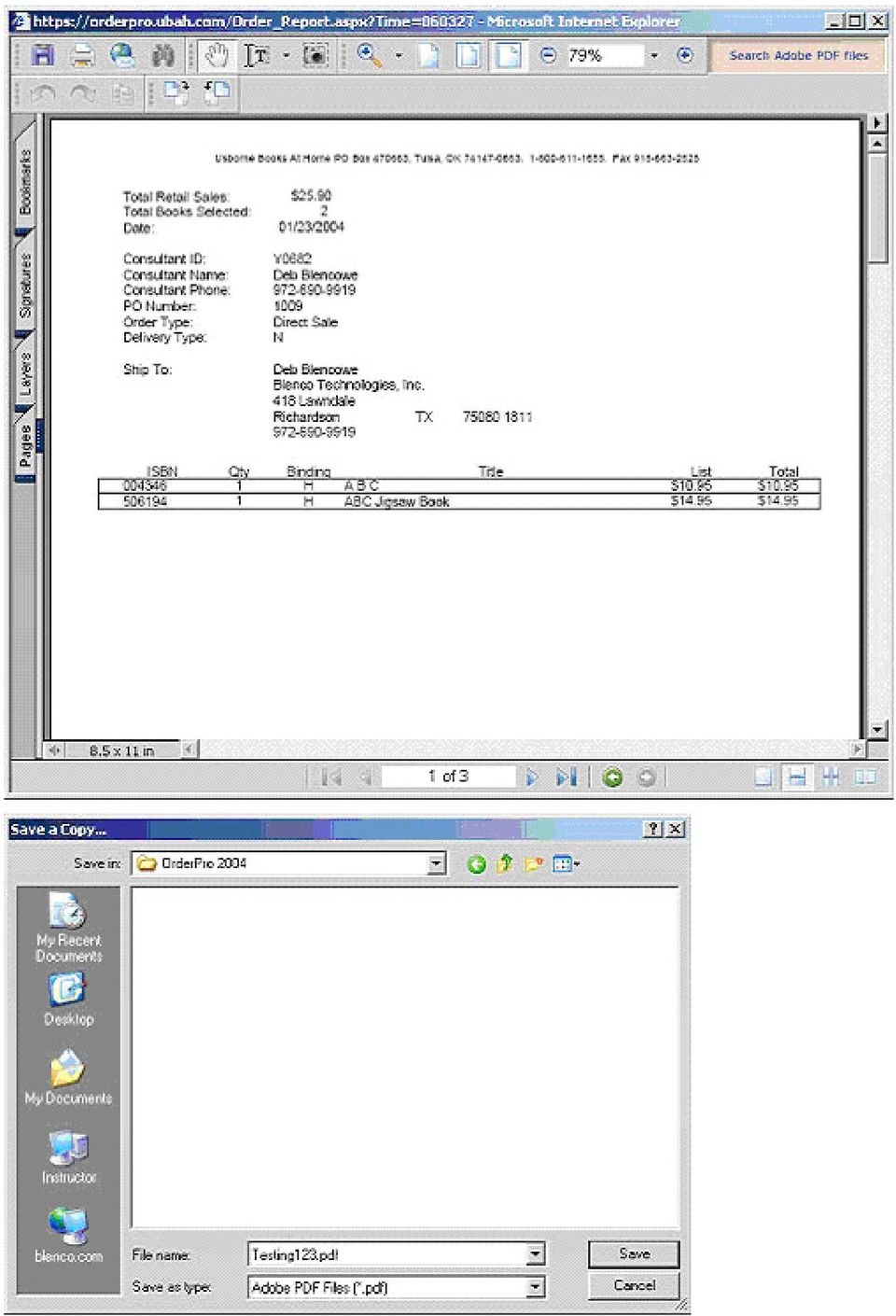
11 Notes: 1. It takes about 5-10 minutes from the time you receive a successful submission message until the order shows up on you re my UBAH page. 2. You can come and go from the order as much as you want. It will remain in pending until you either delete it or you submit it. 3. After submission, orders can be viewed but not modified. Printing Your Order: The system will generate a pdf file for you to print for your order. You can also save this file on your computer if you want an electronic version of the order. If you receive an error and this file will not generate then you either need a newer version of Adobe Reader or one of your setting on your system browser will need to be modified.

12
13 Step-by-Step Instructions for Using OPOL Contact Manager UBAH Contacts: Contacts are electronic records of people and businesses that you have communicated with or plan to in the future. A contact record can contain address, street address, multiple phone numbers, and other useful information to support your business. Contact Menu Overview: Back - this option will return you to the main Contact Manager page. New Contact - creates a new blank contact record. Save - saves any modifications made to the contact record. PLEASE NOTE: unlike the Order Manager, contact data is not automatically saved as it is entered. Please be sure you save and save often to prevent data loss. Reset Values - this will undo any modifications made to the record and revert back to the last saved copy of the data. Print - opens a print pop up window where you can print various reports for the current contact. Delete - removes the current contact from the database. PLEASE NOTE: contacts are permanently deleted and may not be recovered.

14 Adding/Editing Contacts: 1. Inputs are organized into several main categories: 1. General - displays all basic information pertaining to the contact. Includes name, contact type, and home address information. 2. Business - stores any business related details for the contact. 3. Additional - contains miscellaneous items such as birthday, general notes, and children details. 4. Contact Relations - primarily designed as a communication history log for the contact. Inputs include date contacted and notes. 5. Sales - view and print sales related data for this contact. 2. Most inputs are optional and it is recommend that you at least enter the first and last name of the contact before saving. Some inputs like address will require you to input address, city, state, and zip if any of the fields contain data. If you attempt to save the contact and any of that information is required you will be notified with an error pop up window.

15 3. To add a new child record to the grid, click the Child button at the bottom of the grid. A blank row will be added to the bottom of the grid. 4. Click on the first name cell and begin entering text into the cell. Use the tab key to move between cells.

16 5. To add a new contact relation record, click the Contact Record button at the bottom of the grid. A blank row will be added to the bottom of the grid. 6. Click on a cell to enter your text. Use the tab key to move between cells. 7. Sales data is also available for hostess and those contacts where customer receipt mode was used while creating the order. 8. The information may be printed by clicking the Print Sales Report option. A sample of the Sales by Customer report is displayed below. You may also send one of the UBAH marketing s directly to this contact. When this option is selected this contact's addresses (home, business or both) will be automatically transferred to the UBAH marketing generator. 9. There are two options for viewing sales. The first option will display only those sales where this contact was entered as a customer. The second option will include customer sales as well as any sales where they were listed as the hostess.

17 10. Depending on what option you select in step 9, the sales breakdown will display totals for titles sold in the various categories (i.e. retail, merchandise allowance, special delivery, book bucks, etc.) 11. The grid displays the sales data grouped by order. 12. When you have completed your modifications, be sure to click the Save button. Unlike the Order Manager, contact data is not automatically saved as it is entered or you move from tab to tab. Please be sure you save and save often to prevent data loss. 13. A pop up window will appear confirming that your data has been successfully saved.

18 Step-by-Step Instructions for Using Contact Merge Utility This utility can combine multiple contact records and sales histories into a single contact record. You will only need to use this function to correct issues where multiple contact records were created for the same customer. Please Note: This tool will make changes to both your contact records and sales history data. These changes are PERMENANT and may not be undone! Carefully follow all prompts to prevent unexpected data loss! Contact Merge Wizard 1. Select a base contact from the drop-down option. The base contact is the record that will contain all information after the merge process is complete. You may only work with one base contact at a time. 2. Select all contacts that you wish to merge into the base contact. You may merge one or many contacts. 3. Once a contact is selected from either of the drop-down options, basic contact information is displayed in these text boxes for identification purposes. 4. When you have made your selections you will need to click the down arrow key to add to the processing boxes. Contacts may be removed by clicking on the name to highlight the record and then clicking the up arrow key. To remove multiple contacts, hold down your "Ctrl" key and then click the names. 5. The base contact processing box displays the name of the contact that will have data merged into it. 6. The merge processing box displays all records that will be merged into the base contact. 7. Before clicking the "Merge Records" button, double check both process boxes to verify that you have selected the appropriate contacts. If so then click the button to begin processing. The merge processing combines all additional contact details, children information, contact relations, and sales data from the merge records into the base record. However, all general and business contact information is untouched for the base record.

19 Step-by-Step Instructions for Using OPOL Contact Manager UBAH Contact Manager: The Contact Manager helps you manage and maintain your contacts. Contact information for customers, other team members, etc. can be stored here. Notes can be added in order to manage a contact history. Adding contacts also helps streamline the ordering process. Getting to UBAH Contact Manager: 1. Click Tools and then Contact Manager from the main menu at the top of your OrderPro Online screen or the Contact Manager button from the left navigation bar. 2. If you see a message that you are being re-directed to a connection that is not secure answer Yes.

20 Contact Manager Menu Overview: New Contact - creates a blank contact record. Open Contact - opens the selected contact's record. Contact Types - opens the Contact Types page where you can create contact subsets. Print - opens a print pop up window where you can print various reports for all records containing a check mark in the Select column. Delete - removes all rows that have a check mark beside them in the Select column of the grid. PLEASE NOTE: rows are permanently deleted and may not be recovered. Select All - places a check mark in the Select column for all rows in the grid. Deselect All - removes all check marks from all rows in the grid. Import Contacts - import contact data from other contact management programs directly into OPOL. Merge Contacts - combine multiple contact records and sales histories into a single contact record. Options - define default contact manager settings. Working with Contact Manager: 1. When you open the contact manager, contacts whose last name begins with an "A" will be displayed. Clicking on any of the other tabs will display contacts for that letter. PLEASE NOTE: selecting the "ALL" tab will display all contacts and may take some time to load especially if you are using a slow dial-up connection. The time it will take is dependent on the number of contacts and the speed of your connection. 2. Data may be sorted by clicking on any of the column headers. Clicking on the same column more than once will toggle the sort between ascending and descending order. 3. Grid columns may also be rearranged. To move a column, click and hold down the left mouse button on the column. A column pop up will appear. Simply drag this column pop up to a different spot in the column headers section. Red Arrows will show you where the column will be inserted when you release the mouse button.

21 4. Contact data may be deleted by placing a check mark in the Select column of the desired row(s). Clicking the Delete button from the toolbar menu will then delete all selected rows. Individual records may also be deleted by clicking in the row selection column just to the left of the Select column. Once the row has been selected click either the toolbar Delete button or simply press the Delete key on your keyboard. PLEASE NOTE: rows are permanently deleted and may not be recovered. 5. To open a contact record, place a check mark in the Select column of the desired row. Another and much quicker way to view a contact is to simply double click that row. 6. You can use the Select All or Deselect All menu options to quickly select or deselect contacts. Printing Contacts: 1. In order to print a report, you must place a check mark in the Select column for the contacts you wish to print. If you have not selected any rows and click the Print button from the toolbar you will be prompted with the message displayed above.
22 2. Once contacts have been selected and the Print button has been clicked, you should see the Print Contacts pop up window. Select from one of the following reports: 1. Card Style this will print selected contacts in a business card format. It includes the contact's addresses and phone numbers. 2. Memo Style prints all contact fields in a office memo format. 3. Phone Directory this will print selected contact's phone numbers only. 4. Children Details prints any children details (i.e. name, gender, birthday, and notes) if they exist for the selected contacts. 5. Contact Notes displays any notes saved for the contact. 6. CSV File this report is on the currently selected books and will be placed into a file that can be imported into other programs. 3. The Hide Report Navigation Menu check box will turn on/off the ability to have a page by page display of the data. 4. After all report options have been made, click the Submit button to generate your report. Sample Reports: Card Style: Memo Style:
23 Phone Directory: Children Details: Contact Notes:
24 Step-by-Step Instructions for Using OPOL Contact Manager UBAH Contact Types: Contact types allow you to group contacts into subsets. There are four predefined contact types: Customer, Down Line, Hostess, and None. These types are required by other OrderPro Online modules and therefore are inaccessible from the contact types page. The number of contact types you may create is unlimited. Contact Type Menu Overview: Back this option will return you to the main Contact Manager page. New Contact Type - creates a blank contact type row at the bottom of the grid. Save - saves any modifications made to contact type records. PLEASE NOTE: unlike the Order Manager, contact type data is not automatically saved as it is entered. Please be sure you save and save often to prevent data loss. Reset Values - this will undo any modifications made to the grid and revert back to the last saved copy of the data. Delete - removes all rows that have a check mark beside them in the Select column of the grid. PLEASE NOTE: rows are permanently deleted and may not be recovered. If the contact type contains any contacts, then those contacts will not be deleted, but reassigned to the "None" contact type. Select All - places a check mark in the Select column for all rows in the grid. Deselect All - removes all check marks from all rows in the grid.
25 Adding/Editing Contact Types: 1. To add a new type, click either the New Contact Type menu option at the top of the screen or click the Contact Type button at the bottom of the grid. A blank row will be added to the bottom of the grid. 2. Click on the type cell to name the contact type and give it a description. 3. When you have completed your modifications, be sure to click the Save button. Unlike the Order Manager, contact type data is not automatically saved as it is entered. Please be sure you save and save often to prevent data loss. 4. A pop up window will appear confirming that your data has been successfully saved.
26 Other Contact Type Options: 1. Types may be deleted by placing a check mark in the Select column of the desired row(s). Clicking the Delete button from the toolbar menu will then delete all selected rows. Individual records may also be deleted by clicking in the row selection column just to the left of the Select column. Once the row has been selected click either the toolbar Delete button or simply press the Delete key on your keyboard. 2. PLEASE NOTE: rows are permanently deleted and may not be recovered. If the contact type contains any contacts, then those contacts will not be deleted, but reassigned to the "None" contact type. 3. You can use the Select All or Deselect All menu options to quickly select or deselect the contact types.
27 Step-by-Step Instructions for Using OPOL Expense Manager Getting to UBAH Expense Manager: 1. Click Tools and then Expense Manager from the main menu at the top of your OrderPro Online screen or the Expense Manager button from the left navigation bar. 2. If you see a message that you are being re-directed to a connection that is not secure answer Yes. Expense Manager Menu Overview: Categories - opens the Expense Categories page where you can create subsets for you expense
28 transactions. New Transaction - creates a blank expense transaction row at the bottom of the grid. Reset Values - this will undo any modifications made to the grid and revert back to the last saved copy of the data. Print - opens a print pop up window where you can print various reports. Expense reports do not require you to select records since all report selection is based on dates. Delete - removes all rows that have a check mark beside them in the Select column of the grid. PLEASE NOTE: rows are permanently deleted and may not be recovered. Select All - places a check mark in the Select column for all rows in the grid. Deselect All - removes all check marks from all rows in the grid. Move Transactions - allows you to move selected expense transactions between expense categories. Adding/Editing Expense Transactions: 1. To add a new item, click either the New Transaction menu option at the top of the screen or click the Expense Transaction button at the bottom of the grid. A blank row will be added to the bottom of the grid. 2. Double click the row selection column (the column just to the left of the Select column) to pop up the Add/Edit Expense Transaction window.
29 3. Enter/edit the date, category, amount and notes. For a listing of category types please click here: Predefined Expense Categories. 4. Click OK to apply the changes or click Cancel to dismiss the window. Clicking OK automatically saves the data to the database. 5. A pop up window will appear confirming that your data has been successfully saved. Printing Expense Transactions: 1. Since expense report data is selected based on dates you do not need to place a check mark in the Select column as in the other modules.
30 2. Once the Print button has been clicked, you should see the Print Expense Data pop up window. Select from one of the following reports: 1. Category Summary groups all transactions by category providing dates, amounts, order details, notes and sums for each category type. 2. Expense Summary displays a monthly sum by expense category for a specified date range. 3. Income Statement shows income versus expenses and a net amount for each month. 4. Income Summary displays a monthly sum by income category for a specified date range. 5. CSV File This report contains all expense transactions for the specified date range. Data is placed into a file that can be imported into other programs. 3. Report data is selected based on a beginning and ending date. 4. The Hide Report Navigation Menu check box will turn on/off the ability to have a page by page display of the data. 5. After all report options have been made, click the Submit button to generate your report.
31 Moving Expense Transactions: 1. In order to move expense transactions between categories, you must place a check mark in the Select column for expense transactions you wish to move. If you have not selected any rows and click the Move Items button from the toolbar you will be prompted with a message.
32 2. Once transactions have been selected and the Move Transactions button has been clicked, you should see the Move Expense Transactions pop up window. 3. Select the category you would like to reassign the transactions to from the category drop down box. 4. Click Update to reassign the transactions or cancel to abort and close the window. Other Expense Manager Options: 1. Transaction data may be deleted by placing a check mark in the Select column of the desired row(s).
33 Clicking the Delete button from the toolbar menu will then delete all selected rows. Individual records may also be deleted by clicking in the row selection column just to the left of the Select column. Once the row has been selected click either the toolbar Delete button or simply press the Delete key on your keyboard. PLEASE NOTE: rows are permanently deleted and may not be recovered. 2. Expense transactions may be sorted by any of the grid columns. Select the column name you wish to sort by and the grid will refresh sorted on that column. 3. To switch between different expense years, click on the drop down box and select the year you wish to view. 4. You can use the Select All or Deselect All menu options to quickly select or deselect the expense transactions. Step-by-Step Instructions for Using OPOL Expense Manager UBAH Expense Categories: Expense categories allow you to group like expense and income amounts together. There are 18 predefined expense categories (see category explanations below). These categories are required by other OrderPro Online modules and therefore are inaccessible from the expense categories page. The number of categories you may create is unlimited. Expense Category Menu Overview:
34 Back this option will return you to the main Expense Manager page. New Category - creates a blank category row at the bottom of the grid. Reset Values - this will undo any modifications made to the grid and revert back to the last saved copy of the data. Delete - removes all rows that have a check mark beside them in the Select column of the grid. PLEASE NOTE: rows are permanently deleted and may not be recovered. If the category contains any expense transactions, then those transactions will not be deleted, but reassigned to the "Category Removed" expense category. Select All - places a check mark in the Select column for all rows in the grid. Deselect All - removes all check marks from all rows in the grid. Adding/Editing Expense Categories: 1. To add a new category, click either the New Category menu option at the top of the screen or click the Category button at the bottom of the grid. A blank row will be added to the bottom of the grid. 2. Double click the row selection column (the column just to the left of the Select column) to pop up the Add/Edit Expense Category window. 3. Enter the category name and give it a description. Each category must be assigned a class. There are three class types: Income, Expense, and Other. Other refers to a category that is neither an expense nor income. For example, car mileage would be classified as other. 4. When you have completed your modifications, click the OK button to save the data to the database. 5. A pop up window will appear confirming that your data has been successfully saved.
35 Other Expense Category Options: 1. Expense categories may be deleted by placing a check mark in the Select column of the desired row(s). Clicking the Delete button from the toolbar menu will then delete all selected rows. Individual records may also be deleted by clicking in the row selection column just to the left of the Select column. Once the row has been selected click either the toolbar Delete button or simply press the Delete key on your keyboard. 2. PLEASE NOTE: rows are permanently deleted and may not be recovered. If the category contains any expense transactions, then those transactions will not be deleted, but reassigned to the "Category Removed" expense category. 3. You can use the Select All or Deselect All menu options to quickly select or deselect the expense categories. Predefined Expense Categories: Gross Receipts total amount received as payment for retail sales excluding the consultant payment. Includes any cash, checks, and credit card payments collected from customers. Ship and Hand - total amount received for shipping and handling on the order. This category is no longer used because shipping and handling is included in Gross Receipts total. Sales Tax - total amount received for tax on the order. This category is no longer used because sales tax is included in the Gross Receipts total. Books (COGS) - cost of goods sold (COGS) for all books purchases (Net Sales value). Ship and Hand (COGS) - total cost for shipping and handling on the order. Sales Tax (COGS) - total cost for tax on the order. UBAH Supplies - work related supplies purchased from UBAH. Commission Check - amount received from UBAH for commissions earned. Override Check - supervisor bonus amounts received from UBAH for down line sales. Other Income - any miscellaneous income amounts received. Office Expense - costs associated with maintaining an office. Advertising - money spent on marketing for your business. Utilities - utility costs associated with an office. Travel - travel related expenses. Meals and Entertainment - business related expenses for food or entertaining customers.
36 Other Expenses - any miscellaneous expense amounts paid. Mileage - work related car mileage. Category Removed - catchall category to place expense transactions if an expense category was deleted.
37 Step-by-Step Instructions for Using OPOL Inventory Manager Getting to UBAH Inventory Manager: 1. Click Tools and then Inventory Manager from the main menu at the top of your OrderPro Online screen or the Inventory Manager button from the left navigation bar. 2. If you see a message that you are being re-directed to a connection that is not secure answer Yes. Inventory Manager Menu Overview: Inventory Sets - opens the Inventory Sets page where you can create subsets for you inventory items.
38 New Item - creates a blank inventory item row at the bottom of the grid. Reset Values - this will undo any modifications made to the grid and revert back to the last saved copy of the data. Print - opens a print pop up window where you can print various reports for all records containing a check mark in the Select column. Delete - removes all rows that have a check mark beside them in the Select column of the grid. PLEASE NOTE: rows are permanently deleted and may not be recovered. Quick Entry Mode - provides an easy and quick method of entering inventory items. This method is ideal for users that are using a barcode scanner or prefer ten key entry. Select All - places a check mark in the Select column for all rows in the grid. Deselect All - removes all check marks from all rows in the grid. Move Items - allows you to move selected inventory items between inventory sets. Options - will take you to an option to remove columns or the character size of each column Adding/Editing Inventory Items: 1. To add a new item, click either the New Item menu option at the top of the screen or click the Inventory Item button at the bottom of the grid. A blank row will be added to the bottom of the grid. 2. Double click the row selection column (the column just to the left of the Select column) to pop up the Add/Edit Inventory Item window.
39 3. Enter the quantity and the ISBN. If the ISBN is a valid entry in the current titles database then the binding, title, and price will automatically be filled in for you. Sometimes you may have an out-of-print title or a title that is not in the current catalog season. You will need to manually enter information for these titles in the appropriate inputs. 4. Click OK to apply the changes or click Cancel to dismiss the window. Clicking OK automatically saves the data to the database. 5. A pop up window will appear confirming that your data has been successfully saved. Quick Entry Mode:
40 1. Quick entry mode allows for the use of a barcode scanner or ten key inputs. Fill in the ISBN and the quantity you want add. If the ISBN is a valid entry in the current titles database then the binding, title, and price will automatically be filled in for you. Sometimes you may have an out-of-print title or a title that is not in the current catalog season. You will need to manually enter information for these titles in the appropriate inputs. Hint if you press the enter key after you key the ISBN it will automatically move to the quantity field. After you are finished entering your quantity, press the enter key again and the title will be added to the inventory item grid. 2. Clicking the Add Title button will add the current ISBN to the grid. Use the Reset Values button to clear all ISBN inputs. 3. As you add items they will be displayed in the inventory item grid. 4. Once you have completed your data entry, click the Update Inventory link to save all inventory data to the database. 5. If you wish to remove a row from the grid, place a check mark in the Selected column for that row and then click the Delete Selected link. 6. Clicking the Close Window link will close the window without saving any information. You will be prompted to confirm that you wish to close the window. PLEASE NOTE: if you close the window using the close button at the top of the window (the "X") you will not be prompted and the data will not be saved. Printing Inventory Items:
41 1. In order to print a report, you must place a check mark in the Select column for the inventory items you wish to print. If you have not selected any rows and click the Print button from the toolbar you will be prompted with the message displayed above. 2. Once inventory items have been selected and the Print button has been clicked, you should see the Print Inventory Data pop up window. Select from one of the following reports: 1. Inventory Summary this will print a report of the items you have currently selected. 2. Inventory Summary by Set This report will contain ALL the books you have entered into the inventory manager grouped by their inventory set. 3. ISBN Summary All of your inventory sets will be combined and the report will show all the books you have with one entry per ISBN number. 4. CSV File This report is on the currently selected books and will be placed into a file that can be imported into other programs. 3. Reports may be sorted by quantity, ISBN, binding, title or price in either ascending or descending order. 4. The Hide Report Navigation Menu check box will turn on/off the ability to have a page by page display of the data. 5. After all report options have been made, click the Submit button to generate your report.
42 Moving Inventory Items: 1. In order to move inventory items between inventory sets, you must place a check mark in the Select column for inventory items you wish to move. If you have not selected any rows and click the Move Items button from the toolbar you will be prompted with a message.
43 2. Once inventory items have been selected and the Move Item button has been clicked, you should see the Move Inventory pop up window. 3. Select the inventory set you would like to move the items to from the inventory set drop down box. 4. Click Update to move the items or cancel to abort and close the window. Other Inventory Manager Options: 1. Inventory data may be deleted by placing a check mark in the Select column of the desired row(s).
44 Clicking the Delete button from the toolbar menu will then delete all selected rows. Individual records may also be deleted by clicking in the row selection column just to the left of the Select column. Once the row has been selected click either the toolbar Delete button or simply press the Delete key on your keyboard. PLEASE NOTE: rows are permanently deleted and may not be recovered. 2. Inventory items may be sorted by any of the grid columns. Select the column name you wish to sort by and the grid will refresh sorted on that column. 3. To switch between different inventory sets, click on the drop down box and select the inventory set you wish to view. 4. You can use the Select All or Deselect All menu options to quickly select or deselect the inventory items. Step-by-Step Instructions for Using OPOL Inventory Manager UBAH Inventory Sets: Inventory sets allow you to categorize or divide your inventory into subsets. The number of inventory sets you may create is unlimited. By default, a General Inventory set is created for all users. This is where all titles will be placed if no custom inventory sets exist.
45 Inventory Sets Menu Overview: Back this option will return you to the main Inventory Manager page. New Inventory Set - creates a blank inventory set row at the bottom of the grid. Reset Values - this will undo any modifications made to the grid and revert back to the last saved copy of the data. Delete - removes all rows that have a check mark beside them in the Select column of the grid. PLEASE NOTE: rows are permanently deleted and may not be recovered. If the inventory set contains inventory items, then those items will be deleted too. Select All - places a check mark in the Select column for all rows in the grid. Deselect All - removes all check marks from all rows in the grid. Adding/Editing Inventory Sets: 1. To add a new set, click either the New Inventory Set menu option at the top of the screen or click the Inventory Set button at the bottom of the grid. A blank row will be added to the bottom of the grid. 2. Double click the row selection column (the column just to the left of the Select column) to pop up the Add/Edit Inventory Set window. 3. Enter the set name and give it a description. 4. When you have completed your modifications, click the OK button to save the data to the database. 5. A pop up window will appear confirming that your data has been successfully saved.
46 Other Inventory Set Options: 1. Inventory sets may be deleted by placing a check mark in the Select column of the desired row(s). Clicking the Delete button from the toolbar menu will then delete all selected rows. Individual records may also be deleted by clicking in the row selection column just to the left of the Select column. Once the row has been selected click either the toolbar Delete button or simply press the Delete key on your keyboard. 2. PLEASE NOTE: rows are permanently deleted and may not be recovered. If the inventory set contains inventory items, then those items will be deleted too. 3. You can use the Select All or Deselect All menu options to quickly select or deselect the inventory sets.
47 Instructions for Using OPOL Event Manager Overview of Event Manager: The Event Manager is a tool that will help you manage your busy UBAH schedule. Using Event Manager allows you to easily setup a book show, add invitations, automatically send invitations, and manage invitation responses. Getting Started: 1. You can get into Event Manager two ways. Either by using the dropdown menu at the top of your screen or the main menu on the left side of your screen. 2. When you first enter Event Manager module you are taken to a calendar view of your upcoming events. 3. You see the current months calendar. 4. As you enter events your calendar will reflect each addition. 5. Below, steps 1-6 will get you started! 1. Event Steps - This menu can be used to easily navigate the steps required to create/edit an event. 2. Next or Prev - To go forward or backward a month click on these links. 3. Select Event - You can select an event to work with by clicking on the hostess name or event time. 4. Delete Event - To delete and event click on the red "X". Once clicked you will be prompted to make sure that you really want to delete the event. 5. New Event - Click here to create a new event. You can also create a new event by clicking on any day of the calendar. By clicking a date the new event is automatically defaulted to that date.
48 6. Switch to List View - This takes you out of the calendar view and displays your upcoming events in a table list (shown below). Working With an Event: To work with an event you must either create a new event or choose an existing event. To choose an existing event you simply click on the event on the calendar view, or if you are using the event list view (refer to #5 above) you can click on the select icon. Once you have selected an event or deceided to create a new event, you are taken to the Event Information page. On this page you enter all the required event information. Please remember when you are done to click the "Save Event Information" link to save any changes made.
49 1. Event Date and Time - Every event must have a date and time selected. This is the actual date and time the event will be held on. 2. Hostess - You must either select a previous hostess or add a new hostess for each event. This information is stored in your contacts and can be edited in Contact Manager or in Event Manager by clicking the edit icon. 3. Use Coaching Tips - If you select yes your hostess will receive s prior to the event reminding her of the upcoming event and giving her tips on how to get prepared. These s are created by the Home Office and can't be edited. 4. Invitation Options 1. Send Invitations - This is the time span from the event date for which the invitation s will be sent. (Note: The time span given here may not necessarily indicate the exact date the invitations will be sent. This value is used in a "less than" equation and prompts the system to automatically send out any invitations that haven't been sent for the given event within the specified time frame.) 2. Use Hostess Address - If the event will not be held at the address given for the hostess, then select No. If No is selected, you will then be able to enter the address that will be used on the invitations. 3. Include My Website Link - If you would like a link to your consultant site (or other site if listed in your "My UBAH" profile) included on the invitations select it here.
50 4. Include an e-show Link - If you would like to include an e-show link for this event on the invitation select it here. You may also choose to create an e-show by clicking on the New e- Show link. Reminder: Remember when you are done to click the "Save Event Information" link to save any changes made. New e-show: Use this option to create a new e-show. A link to the new e-show will be included in the invitations and will allow the invitees to start ordering immediately while still giving the hostess credit for her book show. 1. e-show Name - Name used to identify this e-show and is usually the name of the hostess. 2. Password - This is the password used by the hostess to view the e-show summary. 3. Expires - This is the date that the e-show is made unavailable to customers. 4. Send Hostess Notifications - If Yes is selected, the hostess will receive notifications (ex. new orders as they arrive, event ended, etc...) to the address you provided in the hostess section of Event Information. You have now created a UBAH event! Next, learn how to input the guest information. Adding / Editing Invitations: You can add invitations to your event by clicking on step 3 of the Event Steps and going to the Invitations page. Here you can add new invitations, edit and delete existing invitations, and check the status of existing invitations.
51 1. New Invitation - Click here to add a new invitation. Once clicked a small window will pop up (below) that will allow you to add the invitation info. 2. Invitation Listing - Here is a listing of all the current invitations to this event. From here you may edit or delete any invitation listed. 3. Edit - Click here to change invitation data. 4. Delete - Click here to remove the invitation from this event. Add Invitation: Add the invitees name and here. Once you are done click on the Add Invitation button (or hit the return key). Once the button is clicked the form should be reset and you should be able to begin entering another invitation. When finished entering invitations, click the "X" in the upper right hand corner to close this window. Adding Invitations from Contacts: If you have existing contacts that you would like to invite to an event you can do that here.
52 1. Contact Type - This list comes directly from the contact types in your contact manager. Use this to select a group you would like to import from. Select "None" if your contacts have not been organized by type. 2. Contact Listing - This is a listing of all the contacts in the given group. You may select them individually or use the check box on the header line (the top blue line) to either select or deselect all of the contacts in the list. 3. Add Checked - Click this button to add all of the checked contacts as invitees to this event. (Note: If you select a contact that doesn't have a valid address then that contact will be discarded and not added as an invitation.) Summary: You can see a listing of all your invitations and their current status as well as the event information itself by clicking on step 4 of the event steps, "View Summary".
53 To get a more printer friendly (event summary only, no menus) click on the "Printer Friendly" link under summary in the event steps menu.
54 Other Screen Shots: Sample Invitation:
55 Hostess Coaching 1:
56 Hostess Coaching 2:
57
58 Step-by-Step Instructions for Using OPOL Sales Manager The Sales Manager tool provides you vital information about your customer's preferences and purchasing history. This tool includes many features such as the ability to look up what an individual customer has ordered and when it was ordered, search by top selling titles and/or series. Another beneficial feature is the export to a comma separated file (CSV) option. Reports may be saved to a file that may be opened using Microsoft Excel or any text editor for easy customization. Please Note: The Sales Manager is based upon order data. Therefore, in order to utilize this tool to its fullest, customer receipt mode should be used while creating the order. If you use OrderPro POS this is done for you automatically. Creating A Sales Manager Report: The Sales Manager uses an easy step approach to generate reports. Step 1 is where the report is selected. Step 2 contains the report filter options. Finally, Step 3 determines how the report is sorted. Steps 2 and 3 change dynamically based on the report selected. For example, selecting the Sales by Customer report would display customer based filters and sorts whereas the Sales by ISBN would use ISBN related criteria. Step 1 Select the report you would like to print. Outputs may be sent to a window for printing or to a file by placing a check in "Save report as a comma separated values (CSV) file" option. The following reports are currently
59 available: Sales by Customer - This report provides individual book sales grouped by customer. Data includes quantity, binding, title, ISBN, price, PO number, and order date. Sales By ISBN - Report displays sales summaries by ISBN. Outputs include quantity, binding, price, PO number, and customer details. Sales by Series - Similar to the Sales By ISBN report except data is grouped by series. Top Sales by Customer - Displays the top customers based on the total amount spent for a specific time period. Top Sellers - Provides the top selling titles based on quantity for a specific time period. Step 2 This section allows for report data to be filtered to a smaller subset. 1. The beginning and ending dates provide a method for you to select sales data for a specific time period. If you would like to see all your sales data since the inception of OrderPro Online set the beginning date to 1/1/ For customer based reports, this option will appear. Checking this option will add hostess sales information to the results. Please keep in mind that hostess data may include other customer's order details if customer receipt mode was not used. 3. Select if you wish to include all records or if you would prefer to select a particular set of records. This option will change based upon the report. 4. If you choose to select records, a grid will appear with the appropriate selection values. Remember these values will vary depending on the report. The grid can be sorted using the drop down boxes. 5. To select a record, place a check mark in the Select column of the desired row(s).
60 Step 3 1. Select how the report details will be sorted. Sort options will vary from report to report. Certain reports like ISBN and Series reports will be grouped and sorted automatically, but the details under each of the groups will be sorted by the option selected. 2. Reports may be sorted in ascending or descending order. 3. Click the Submit button to create the report. Print Window The print window allows you to print the report, drill down to other report details, and also send s to a contact. 1. To print a report, click the Print Report link at the top of the window. 2. Clicking on the Options link will open a different window where you perform the following actions: 1. Send an to either their home or business address if available. 2. Send a marketing to either account. 3. View their contact record and make changes if necessary.
61
62 Step-by-Step Getting Started Instructions Getting to UBAH intouch: 1. Click on the UBAH intouch button on the left toolbar window Clicking on the More info link will open a new window with a more detailed explanation of each feature.
63 Step-by-Step Account Instructions With an intouch subscription you will get 10 accounts to use or setup however you like. There are only three ways to setup an account. 1. Personal account (example: 2. Mailing List (example: 3. Auto Responders (example: *Note: Each time you create one of the three accounts listed above it takes away from your 10 accounts. For example, if you were to set up 5 personal accounts, 2 mailing lists and 1 auto responder, the you would only have 2 accounts left to set up. The Account Management page will allow you to setup only your personal accounts. This page will also allow you to view your Auto Responder and Lists that you created but will not let you make changes to those. If you want to change or remove an Auto Responder account or an List account, you will have to do that under another page. Once you create a Personal account that account will be active immediately and will be ready to use. The personal accounts can be used just like any other personal .
64 Step-by-Step Campaign Instructions Campaign Manager is designed so that a consultant can setup any type of , for any situation, to send to anyone they want. Creating a Campaign will not use one of your 10 accounts you have available. This means you have unlimited use of this feature. To create a new campaign you will be asked to fill out the following: 1. Title: (The name you want the Campaign to be listed under. It can be anything but just make sure it will be recognizable to the people you are sending to.) 2. From (This will be you want all the responses to go to if a consultant replies back to the campaign) 3. Share with others: (By checking this you will allow other consultants the access to use this for their campaigns or to be viewed for helpful resources) On this page you will also have the ability to select an existing campaign that you have created already or to select a shared copy of another campaign created by another consultant. These options are listed on the left hand side under Campaign Steps. By selecting an existing campaign, you will have the ability to edit the title name, address, add new messages to the campaign or add new contacts to the campaign. By selecting a shared copy, you will have the ability to add an already existing campaign created by someone else to one of your campaigns. After a campaign has been created you click on Next Step. The next page will ask you to create a message. You will fill out the following:
65 1. Subject: (Same as what the subject line would read on any ) 2. Type: (2 choices. HTML or Plain Text. In most cases you will choose plain text unless you want to format the message with HTML tags) 3. Days: (This is created so that when a campaign has multiple messages, you can decide how many days apart you want them to be sent out) 4. Message: (The body of the that will be sent.) 5. Custom Tags: On the third row, at the end of the tool bar, there will be an icon with a down arrow. This is the custom tag option. This will allow you to personalize every message that is on the campaign list. You can personalize by First, Last, First and Last, Reply , Consultant's Name and use a Full Signature. NOTE: The last 2 tags (Consultants Name and Full Signature) will have to be created from the Edit Custom Tags link on the right. After you have finished with the Message, then click on save. After the message is saved you will see the "Next Step" button down on the bottom of this page. Click on Next Step. Here you can choose the day you want the message to be send and you be able to add members to the campaign. You can add members 3 different ways:
66 1. Contact Type: (This will list all of your contacts from your OPOL contact manager depending on what folder you stored the contacts in.) 2. Create Contact: (Under the Campaign Steps you can click on Create Contact and add a member individually.) 3. Upload File: (Under the Campaign Steps you can click on Upload File and load other addresses from a.csv file) *Note: To add a member you must put a check mark next to their address. After you have checked all members that you want then click on Add Checked
67 Now you will be taken to the Campaign Summary page. Here you can double check to make sure everything is correct and make any changes to the campaign. Step-by-Step Contact Management Instructions Contact Manager is designed to manage the contact list in each campaign. To manage a campaign just click on the manage link associated with the campaign you want to edit and this will take you to a page where you can delete or add contacts to that campaign.
68 Step-by-Step Auto Responder Instructions Auto Responders are accounts you can set up to automatically send information to people that sends an to the Auto Responder address. For example, you create an auto responder with driving directions to a hostess party that is coming up called [email protected]. When you send out the invitations for this party, you can include the Auto Responder address and mention (if you need directions to the party please send an to [email protected]) Now when someone sends an to [email protected] they will get an automated with the information you created from the Auto Responder. To create an Auto Responder just click on the Add New Address link on this page. A new box will come up asking for the information listed below. 1. Name (Will be the address you will give out to people so that when they send an it will come back with a response) 2. Response Subject (What you want the subject line to be when the goes to the recipient) 3. Response Text (What you want the to say regarding instructions, helpful information or great deals) After filling all of this information in, click on the Add Response button. The Auto Responder will then appear on the same page and also on the Account Management page. *Note: Each Auto Responder you create will take away from the 10 accounts.
69 Step-by-Step Mailing Lists Instructions Mailing List Management is designed so that you can create a mailing list with any or all of your contacts attached to that list. There is no limit to how many s can be attached to one mailing list. By creating a mail list it will save time and effort when having to send out an that needs to go to a large amount of people. Just send the to the mailing list name and it will go out to everyone you added to that list. *Note: Very Important! You must add the address that you are going to send from to the mailing list members. (Example: The you send from is read&[email protected]. When you are adding members to the member list you must add read&[email protected] to the list in order for the to send) *Note: Each mailing list you create will take away from the 10 accounts. To create a mailing list you will have to decide on what you want that mailing list to be called. Remember to keep it something that would be recognize to everyone that will get the . There will be three fields to fill in: 1. List Name: (Name that will show up as "from" when the is sent) 2. Moderated: (Default is No) Choosing Yes will lock the mailing list to only allow it to be used by the address specified. (Example: The mailing list you create is [email protected]. You choose yes to moderate and put in your pesonal address of [email protected]. Now only [email protected] can send to the mailing list of [email protected]. No one else can type in the mailing list and us it as their own. 3. Moderator (You can put any that belongs to you in this field.) Once your are done filling these out, click on Add List. The mailing list will appear on this page and on the Account Management Page.
70 After it shows up on this page then you can click on Edit Members. Here you will be able to add the contacts to the list. You can add a single member or multiple member. There are four options to multi members. 1. From Downline: (You can choose the downline you are in and it will add all addresses associated with that downline) 2. From File: (Here you can add addresses from another client like Outlook or Outlook Express. You will have to find where the.csv file is located and point the browse button to that location.) 3. From Contacts: (This will add all the addresses from your OrderPro Online contact list) 4. From Web Customers: (When web customers place an order their information is stored within your website. If the customers filled in their address when placing the order then they will be added to the mail list if you choose web customers.) *Note: When you choose to add a multi member list make sure you put a check mark next to the names you want to add to the list *Note: A contact cannot be added to the mailing list if there is not address stored under that contact's information.
71 How to import from the Downline With this feature you can choose one or all fields to get exactly what downline that is needed to import. Suggestion: If you are not sure about a status or field leave it as any so that it will bring in the downline. You can then remove the members you do not want. 1. Select the group that the downline should come from 2. Active Status (New feature includes Inactive Consultants that are eligible to sign up again) 3. Current Sales 4. Incentive Period After the fields are selected accordingly then press Add to Mailing List. How to Import from a CSV file You must first create a mailing list from the Mailing List Management section in intouch. Once that is done click on edit members from the list you created. At the bottom is a section for adding multiple members Click on From File Notice the file field is blank. Click on the browse button Now go to where you saved the file sent from the Home Office or saved from Outlook Express. It may look like an Excel Icon Click on that file Click on Open Click on Upload File (Another box will appear below Under Box 2 will be the information that needs to be added.. Under Map To you will notice drop down menus. Leave them blank if you do not want a column to be added to the member list. SUGGESTION: Only use the ones you really need. Example: First Name, Last Name & Address. To add the first name, choose the drop down menu and change it to First Name. Do the same thing for Last name and Address After this is finished, click on Import Records (It may take a few seconds or minutes depending on how many names are in the file. Also, you will see a box that states how many records were imported or discarded. Don't worry, there will be a small amount discarded by default.)
72 Click on OK Click on Lists from the top of the page Click on Edit Members from the mailing list you created You will now see your contacts from the CSV file that was sent or created.
73 Practical APPLICATIONS AND BENEFITS of Utilizing the intouch and the UBAH Webmail Programs By Becky Dean, UBAH Executive Supervisor Practical APPLICATIONS AND BENEFITS is what is most important and why I am excited that UBAH has introduced this great technology for us! Here are just a few suggestions of what you can do with both programs... 1) Account Management: Consultants can use the account included with OrderPro Online for all their Usborne correspondence. Thus, keeping their business s separate from personal s. And/or to prevent spouses/other family members, from deleting important business messages. Consultants can create a temporary account for advertising purposes to safeguard their personal address from spammers. UBAH Webmail accounts can be easily forwarded to the address you normally use. Thus, personal can remain private but all messages can be consolidated/directed to one account to have only one box to check. Consultants can utilize the account as a safeguard against viruses infecting their personal computer. All s are scanned for viruses and automatically deleted if infected. This includes forwarded s. The one account included with OrderPro online can be used as one auto-responder address w/o having to purchase the entire intouch program if that is all you need or just want to try it out. 2) Campaign Management: Consultants can create a series of pre-written s to be automatically sent out in the time-frame they specify to the contacts that they specify for that campaign. Possible ideas for use... Weekly or bi-weekly campaign for new recruits to receive pre-written 1 st 12-week trainings. Automatic campaign to help your leaders to promote to supervisor w/a challenge every 2 weeks. Campaign for new customers where they will receive pre-written "sales bulletins" for your online store. Campaign for prospective recruits where they will receive pre-written "reminders" that the opportunity is here waiting for them and to take advantage of it NOW. To see the latest recruiting kit special me at: [email protected] where you have set up an auto-responder with current special. Weekly encouragement or inspirational quote for those that need a little extra for a Fresh Start/Re-Start. Campaign for librarian/teacher contacts to automatically let them know they new catalog is available or to check your website for the current S&L monthly special. You can have an unlimited # of campaigns - you just have to have the time to first write them and put your contacts in. Remember the bread and butter of your business is home parties, so don t neglect those! 3) Contact Management This is where you store the information about your contacts. You can add contacts from here to your campaigns and mailing lists. There is even a place for you to put in B-Days and write notes. 4) Autoresponder Management You can set up auto-responder accounts so that if someone s to that auto-responder address they get a pre-written message automatically back. For example, have prospective recruits [email protected] to automatically receive details on current kit special. Might be useful when placing public ads so you don't have to post your personal address. You can delete or change the autoresponder address when your ad campaign is finished or if you are getting spam at it. 5) Mailing List Management This is where you can set up a "mailing list" which allows you to SEVERAL people all at once by just typing in one address. This can be done with either your current program or using the UBAH Webmail program. For example... Set up a mailing list for all your team members called [email protected]. Once it is set up all you have to do is type in: [email protected] and your weekly trainings or important Home Office announcements will be sent to all the contacts that you put in for that mailing list. You have 10 addresses total to work with in the intouch program for accounts, auto-responders and mailing lists. You can make up additional mailing lists for several different applications. ex: [email protected] or [email protected] or [email protected] You an also use it as a "loop" to enable others to everyone else within the loop by just typing one address. Could be used as a means for members to broadcast messages/ask questions/find encouragement.
74 For example, set up and let all your supervisors know that particular address. Then if they want to send a message to all the current supervisors within your team, they would simply [email protected] to reach everyone on the list. Remember, YOU need to keep adding any new contacts in order to keep your mailing lists current. Be advised that whatever you use as a mailing list name - ex: [email protected] - would show up in the subject line as [mysupervisors] as like the superloop. So be aware of that and pick less condescending names than what I used in my examples but still keeping it something that would make sense in the subject line to those receiving it. Also, the mailing list name shows up with capitals or lower-case in the subject line (though it is not casesensitive when mailing to it). Meaning... maybe capitalize your mailing list name to make it stand out better. Ex: "[email protected]" would show up as: [UsborneBooksatHome] within the subject line and stands out better as an advertisement than [usbornebooksathome]. Just something to consider. BENEFITS of the Mailing List Application in whatever program that you use: Everyone whose you put in as a contact for your mailing list(s) will receive your message as addressed specifically to them - their name will be in the "To" box. This helps your s look more personal and less like spam which means they are more likely to open and read them. When you send an to one of your mailing lists, it will send the message to everyone individually so they don't see everyone else's address. This helps protect the privacy of all the contacts within your lists. Sending to a mailing list sends the directly to each individual but not as a blind carbon copy. This is very beneficial because blind carbon copies often get thrown out automatically by spam filters/servers. Your mailing list recipients can automatically delete themselves from your lists following the instructions included at the end of each mailing list message automatically. Exact wording: You have received this because you are a member of an list owned by an Usborne Books At Home (UBAH) consultant. To unsubscribe from this list go to the website address below. Automatic removal is a MUCH easier way to maintain an accurate list - especially as your list grows. You can see who has requested to have been removed in each mailing list by clicking on edit for that list. BENEFITS of the Mailing List Application using the UBAH Webmail Program: Messages would appear more acceptable to spam filters/servers and thus more s would be read. Some spam filters will automatically throw out all bcc s originating from foreign or free web-based accounts. Personal Example: Many people cannot get our s because their server/spam filter throws out all foreign s - our server is t-online.de because we are currently living in Germany. But... by using the UBAH Webmail program I can again have a normal.com address that servers/spam filters will allow through. And by using the intouch mailing list within the UBAH Webmail program it allows me to easily send our team s weekly trainings to each person individually. You can be ANYWHERE or on ANY COMPUTER to keep in touch with your team. Your team s addresses are online for you to access if you synchronize your address book w/comagent. Or send your entire team an using the mailing list option. If you are visiting relatives and remember that you forgot to tell Sally something for the booth on Wednesday, simply go online and look up her contact info. Or, if you earn that trip to the Mayan Riviera you can find an internet cafe in town and go online to UBAH Webmail. There, simply address your message to: [email protected] and ALL your team can immediately hear about what a fabulous place it is and how wonderful the food is. You don t even have to own a computer!! By using the library, a friend/family s computer you can still send weekly trainings to your team and/or create campaigns if you ve entered the contact info. You can choose a "reply-to" address under the "Advanced" tab of where you want recipients to reply to. Ex: Don't want to have to respond to any problems when you your team about your fabulous Mayan Riviera vacation?? Have the "reply-to" address as the address at your home computer and any replies will be sent there. Or have it reply to your [email protected] address with an auto-responder text saying - "Having a GREAT time in the Mayan Riviera. If you have any questions/concerns while I am gone, me at home: [email protected] and I'll get to it when I get back from this once-in-a-lifetime vacation."
75 General Setup General Setup will allow you to modify the columns character width and whether or not you want the column visible. This helps so that when you are printing from the Contact Manager or Inventory Manager you can reduce the size of what you are printing and eliminate unnecessary information. The tabs across the top are separated into 3 categories: 1. Contact = Contact Manager 2. Expense = Expense Manager 3. Inventory = Inventory Manager If you want the width of each column to be expanded then you will change the "Selected" field. Just change the number accordingly. If you want to allow more text to be typed in a certain column you can make that change also. To remove a column just take the check mark out of the Visible field and the column will not show up when you go to one of the Managers. *NOTE: When making necessary changes to one of the Managers, make sure you are in the correct tab that matches the Manager you want to change.
76 Step-by-Step Instructions for Using UBAH Webmail By Becky Dean, UBAH Executive Supervisor Setting Up Your Account: 1. Go to OrderPro Online. 2. Click on the intouch link at the top of your screen. 3. Click on Account Management. 4. Enter your name as you want it to appear to recipients as who your is from. Ex: "Becky Dean" or "Usborne Books" - try to avoid "cutesy -spam looking" like names. 5. Enter in the address you want - if it has already been taken, it will have you choose a different one. 6. Enter in your password and verify it. HINT: it is easier to remember just one password for both your intouch/order Pro Online AND the UBAH Webmail but you can pick different ones for both. 7. Your is now set-up ready for you to use. Getting to UBAH Webmail: 1. Click on the UBAH Webmail link at the top of your OrderPro Online screen or go directly to: 2. Enter the address you chose to set up and your password to sign in. 3. Now you can use your account and personalize it to your needs. Customizing your UBAH Webmail Account: 1. Click on OPTIONS in the left-hand menu. 2. There you will have the following options to choose from... Personalize - to customize the appearance and operation of your account. Compose - to customize the appearance and operation of message composition. Calendar - to customize the operation and settings of your calendar. MDaemon Settings - to customize your MDaemon mail account settings (meaning... this is where you can forward your mail to a different account). Folders - to create personal folders to store and manage your messages within UBAH Webmail. Filters - to set rules to distribute your incoming messages to specific folders, and/or to prevent unwanted mail. All s are scanned for viruses and automatically deleted if they are infected. ComAgent - to monitor your mail and synchronize your address book with ComAgent (meaning... this is how you can get your address book in your current to the UBAH Webmail w/o having to type everything in again). Personalize Option Here you will have many options to choose from - if you are not sure what to choose just go with the default. Look up what you don't understand in the HELP section. NOTE: You should keep the default standard theme if you have dial-up internet service/slow connection speed. LookOut - A familiar user interface, requires Internet Explorer 5.5 or higher. Suggested for higher bandwidth connections. Standard - A frames based theme that is more graphical than the Simple theme, but is not as heavy as LookOut. Compose Option Again this is self-explanatory. If you don't understand something look it up under HELP - they have great explanations/instructions. Here for example is how to spell check your messages - copied directly from the help section. Can you catch their spelling error below?? To Spell Check you messages: 1. Select the language that you want Spell Check to use from the Spell Check Language: list box near the bottom of the Compose page. 2. Click Spell Check or on the Compose toolbar. 3. Each word that is in question will be displayed in a drop-down list box containing alternate spelling choices. Make a spelling correction by clicking the arrow on the side of the list box and then choosing a selection from the list that will be displayed. 4. If a word s drop-down list doesn t contain a selection that you desire, click Finished or to return to the Compose page where you can manually retype the word in question. 5. If you want to add a word to your dictionary then click beside the list box displaying the word that you want to add.
77 6. When you have finished making your corrections, click Finished to return to the Compose page with your corrected message. -OR- Click Send Now to send your corrected message without first returning to the Compose page. 7. If you wish to send your message later, click Send Later and your message will be saved in the Drafts folder maintaining any corrections that you may have already made. 8. If you click Send Now or Finished after your session has timed out then the text will be saved as a Draft message that can be resumed after logging back in to WorldClient. NOTE: You can have Spell Check skip over certain words by adding them to your Dictionary. The Dictionary is located on the Personalize page. Click Options on the Navigation Bar and then choose Personalize. Calendar/Folders/Filters: Read how to utilize these options within the HELP section. MDaemon Settings: This is where you can have messages sent to your [email protected] address, automatically forwarded to a different account. You may or may not need to have the ComAgent installed first - I had it installed before I did this so I am not sure. 1. Click on My Account in the left-hand menu. 2. Choose YES for "This Account is Currently Forwarding ". 3. Choose whether or not to retain a copy of forwarded mail. If you choose YES you need to make sure to empty your in-box at the UBAH Webmail once-in-a-while or it will get full. 4. Type in address(es)) that you wish to forward to - you can have more than one. 5. You can choose whether or not to have a text go back automatically to the sender by typing a message in the auto-responder text box like... "Thanks for your interest in Usborne Books. I'll be getting back to you shortly. If you don't hear from me within 2-3 business days please me again or call me at or "I'll be out of the office til " Remember whatever you type there will go back to everyone that s you at that account. There is also an auto-responder option within the intouch program if you want additional/different addresses for separate auto-responder applications. Only ONE address is included at no extra charge w/the OrderPro online subscription. If you leave the auto-responder text box blank, it will forward s sent to [email protected] to the account(s) you specified without sending the senders any automatic messages. ComAgent: -----Original Message----- There is a ComAgent that is included with the web mail package that you can download to your computer. It lets you keep track of you mailbox without having to actually be logged in through the web mail form and it gives you access to your inbox. Also it allows you to synchronize your online address book with a local address book of your client. So you could use that if all your downline is already in your address book. You can find this ComAgent by logging into the Web Mail client (< or log into OrderPro Online and click on the icon). Once logged in, Select the Options link and then you will see a link for the ComAgent. Open that page and look for the button that says "Download the ComAgent Installer". Click the button to begin downloading and then run the installation file. To configure the ComAgent you will need location of the World Client Server. Type < for the URL and then enter your address and password. To synchronize your address, start the ComAgent if it is not running. You should see a globe icon down in the lower right corner by the clock. Right click on this icon and choose the properties option. In the properties window, you should see a tab for the address book that lets you configure which local address book you want to use. Then uncheck the "Synch public contacts with this folder" option and make sure "Synch private contacts with this folder" is checked and is pulling the information from the correct place. Then press the "Synchronize contacts now" button to begin uploading you contacts to the Web Mail system. PLEASE NOTE: If you upload contacts to the public contacts section, that would make those contacts visible to any one who has a myubah.com address and logs into the Web Mail application. [Upload as PRIVATE contacts!!] Michael White Webmaster Usborne Books at Home
Appointment Scheduler
 EZClaim Appointment Scheduler User Guide Last Update: 11/19/2008 Copyright 2008 EZClaim This page intentionally left blank Contents Contents... iii Getting Started... 5 System Requirements... 5 Installing
Table of Contents. Page 1 MLS PIN Customer Support 800 695 3000 Monday Friday 8 am to 7:30 pm, Saturday 9 am to 5 pm, Sunday 9 am to 1 pm
 Table of Contents Activity... 4 Chart Time Frame... 4 Listing Activity Chart... 4 View Price Activity Chart... 4 Archive... 4 Archive Contacts... 4 Unarchiving Contacts... 5 Assign Contacts... 5 Assigned
DarwiNet Client Level
 DarwiNet Client Level Table Of Contents Welcome to the Help area for your online payroll system.... 1 Getting Started... 3 Welcome to the Help area for your online payroll system.... 3 Logging In... 4
Lotus Notes Client Version 8.5 Reference Guide
 Lotus Notes Client Version 8.5 Reference Guide rev. 11/19/2009 1 Lotus Notes Client Version 8.5 Reference Guide Accessing the Lotus Notes Client From your desktop, double click the Lotus Notes icon. Logging
Time Matters and Billing Matters 11.1. User Guide
 Time Matters and Billing Matters 11.1 User Guide About this guide This guide provides steps to achieve basic, commonly performed tasks. For additional details, including interface elements and advanced
Ohio University Computer Services Center August, 2002 Crystal Reports Introduction Quick Reference Guide
 Open Crystal Reports From the Windows Start menu choose Programs and then Crystal Reports. Creating a Blank Report Ohio University Computer Services Center August, 2002 Crystal Reports Introduction Quick
Payco, Inc. Evolution and Employee Portal. Payco Services, Inc.., 2013. 1 Home
 Payco, Inc. Evolution and Employee Portal Payco Services, Inc.., 2013 1 Table of Contents Payco Services, Inc.., 2013 Table of Contents Installing Evolution... 4 Commonly Used Buttons... 5 Employee Information...
Contact Manager HELP GUIDE
 Contact Manager HELP GUIDE Monday Friday 8 am 7:30 pm, Saturday 9 am 5 pm, Sunday 9 am 1 pm Revised: June 3, 2014 Table of Contents Managing Contacts... 4 Create A New Contact... 4 Contact Name(s)... 4
SAP Business Intelligence (BI) Reporting Training for MM. General Navigation. Rick Heckman PASSHE 1/31/2012
 2012 SAP Business Intelligence (BI) Reporting Training for MM General Navigation Rick Heckman PASSHE 1/31/2012 Page 1 Contents Types of MM BI Reports... 4 Portal Access... 5 Variable Entry Screen... 5
ENTERPRISE DATA WAREHOUSE PRODUCT PERFORMANCE REPORTS USER GUIDE EXTERNAL. Version: 1.0
 ENTERPRISE DATA WAREHOUSE PRODUCT PERFORMANCE REPORTS USER GUIDE EXTERNAL Version: 1.0 September 2004 Table of Contents 1.0 OVERVIEW...1 1.1 Product Performance Overview... 1 1.2 Enterprise Data Warehouse
Vodafone Business Product Management Group. Hosted Services Announcer Pro V4.6 User Guide
 Vodafone Business Product Management Group Hosted Services Announcer Pro V4.6 User Guide Vodafone Group 2010 Other than as permitted by law, no part of this document may be reproduced, adapted, or distributed,
Decision Support AITS University Administration. Web Intelligence Rich Client 4.1 User Guide
 Decision Support AITS University Administration Web Intelligence Rich Client 4.1 User Guide 2 P age Web Intelligence 4.1 User Guide Web Intelligence 4.1 User Guide Contents Getting Started in Web Intelligence
Chapter 15: Forms. User Guide. 1 P a g e
 User Guide Chapter 15 Forms Engine 1 P a g e Table of Contents Introduction... 3 Form Building Basics... 4 1) About Form Templates... 4 2) About Form Instances... 4 Key Information... 4 Accessing the Form
INVENTORY MANAGEMENT. TechStorm. http://www.gotechstorm.com/howto/inventorymanagement.pdf
 INVENTORY MANAGEMENT TechStorm http://www.gotechstorm.com/howto/inventorymanagement.pdf Inventory Management Table Of Contents Add Inventory Items In Tablet... 3 Transaction Flow for Adding Inventory in
Microsoft Access 2010 handout
 Microsoft Access 2010 handout Access 2010 is a relational database program you can use to create and manage large quantities of data. You can use Access to manage anything from a home inventory to a giant
emarketing Manual- Creating a New Email
 emarketing Manual- Creating a New Email Create a new email: You can create a new email by clicking the button labeled Create New Email located at the top of the main page. Once you click this button, a
Online School Payments (OSP) User Guide
 Online School Payments (OSP) User Guide November, 2013 OSP User Guide Table of Contents Overview...3 Site Information...3 Login to Portal...4 Activity Setup...6 OSP Activity Setup Form...6 Add Activity...7
Outlook Web App McKinney ISD 5/27/2011
 Outlook Web App McKinney ISD 5/27/2011 Outlook Web App Tutorial Outlook Web Access allows you to gain access to your messages, calendars, contacts, tasks and public folders from any computer with internet
Strategic Asset Tracking System User Guide
 Strategic Asset Tracking System User Guide Contents 1 Overview 2 Web Application 2.1 Logging In 2.2 Navigation 2.3 Assets 2.3.1 Favorites 2.3.3 Purchasing 2.3.4 User Fields 2.3.5 History 2.3.6 Import Data
Council of Ontario Universities. COFO Online Reporting System. User Manual
 Council of Ontario Universities COFO Online Reporting System User Manual Updated September 2014 Page 1 Updated September 2014 Page 2 Table of Contents 1. Security... 5 Security Roles Defined in the Application...
OSP User Guide. 1 P a g e
 Online School Payments (OSP) User Guide February, 2014 OSP User Guide Table of Contents Overview...3 Site Information...3 Login to Portal...4 Activity Setup...6 OSP Activity Setup Form...6 Add Activity...7
Point Of Sale Payment Processing
 Point Of Sale Payment Processing TechStorm http://www.gotechstorm.com/howto/pos.pdf Contents Point of Sale Payment Processing... 3 Transaction Flow for processing sales... 3 Barcode Scan an Item... 3 Choose
MICROSOFT OFFICE ACCESS 2007 - NEW FEATURES
 MICROSOFT OFFICE 2007 MICROSOFT OFFICE ACCESS 2007 - NEW FEATURES Exploring Access Creating and Working with Tables Finding and Filtering Data Working with Queries and Recordsets Working with Forms Working
Business Objects. Report Writing - CMS Net and CCS Claims
 Business Objects Report Writing - CMS Net and CCS Claims Updated 11/28/2012 1 Introduction/Background... 4 Report Writing (Ad-Hoc)... 4 Requesting Report Writing Access... 4 Java Version... 4 Create A
Using Outlook WebAccess
 Using Outlook WebAccess Outlook Toolbars - Terminology Update all folders New Move/Copy Reply Forward Check for New Messages Help Show/Hide Folders Delete Reply to All Show/Hide Reading Pain Search Address
How To Sync Between Quickbooks And Act
 QSalesData User Guide Note: In addition to this User Guide, we have an extensive Online Video Library that you can access from our website: www.qsalesdata.com/onlinevideos Updated: 11/14/2014 Installing
Virtual Communities Operations Manual
 Virtual Communities Operations Manual The Chapter Virtual Communities (VC) have been developed to improve communication among chapter leaders and members, to facilitate networking and communication among
Table Of Contents. Welcome to Abebooks HomeBase Inventory Management Software version 2.3... 1. Quick Tour... 2. Toolbar... 2
 HomeBase 2.3 Table Of Contents Welcome to Abebooks HomeBase Inventory Management Software version 2.3... 1 Quick Tour... 2 Toolbar... 2 Navigating in Abebooks HomeBase... 3 Getting Started... 3 Loading
Custom Reporting System User Guide
 Citibank Custom Reporting System User Guide April 2012 Version 8.1.1 Transaction Services Citibank Custom Reporting System User Guide Table of Contents Table of Contents User Guide Overview...2 Subscribe
Software Application Tutorial
 Software Application Tutorial Copyright 2005, Software Application Training Unit, West Chester University. No Portion of this document may be reproduced without the written permission of the authors. For
REUTERS/TIM WIMBORNE SCHOLARONE MANUSCRIPTS COGNOS REPORTS
 REUTERS/TIM WIMBORNE SCHOLARONE MANUSCRIPTS COGNOS REPORTS 28-APRIL-2015 TABLE OF CONTENTS Select an item in the table of contents to go to that topic in the document. USE GET HELP NOW & FAQS... 1 SYSTEM
ACHieve Access 4.3 User Guide for Corporate Customers
 ACHieve Access 4.3 User Guide for Corporate Customers January 2015 Citizens Bank 1 February 2015 Table of Contents SECTION 1: OVERVIEW... 4 Chapter 1: Introduction... 5 How to Use This Manual... 5 Overview
Retail User Training. IT Retail, Inc. 2010. Inventory Training Retail 7
 Retail User Training IT Retail, Inc. 2010 Inventory Training Retail 7 RETAIL 7 User Training: Inventory Using RETAIL 7 ITRetail, Inc. RETAIL User Training TABLE OF CONTENTS Inventory MANAGE INVENTORY...
2002 Blackbaud, Inc. This publication, or any part thereof, may not be reproduced or transmitted in any form or by any means, electronic, or
 041902 2002 Blackbaud, Inc. This publication, or any part thereof, may not be reproduced or transmitted in any form or by any means, electronic, or mechanical, including photocopying, recording, storage
User Manual for Web. Help Desk Authority 9.0
 User Manual for Web Help Desk Authority 9.0 2011ScriptLogic Corporation ALL RIGHTS RESERVED. ScriptLogic, the ScriptLogic logo and Point,Click,Done! are trademarks and registered trademarks of ScriptLogic
Web Intelligence User Guide
 Web Intelligence User Guide Office of Financial Management - Enterprise Reporting Services 4/11/2011 Table of Contents Chapter 1 - Overview... 1 Purpose... 1 Chapter 2 Logon Procedure... 3 Web Intelligence
User Guide. November 2010
 User Guide November 2010 Table of Contents Contact information...4 Support from your AppShore account...4 Support from www.appshore.com...4 Support from the AppShore team...4 Logging into AppShore...5
NYS OCFS CMS Manual CHAPTER 1...1-1 CHAPTER 2...2-1 CHAPTER 3...3-1 CHAPTER 4...4-1. Contract Management System
 NYS OCFS CMS Manual C O N T E N T S CHAPTER 1...1-1 Chapter 1: Introduction to the Contract Management System...1-2 Using the Contract Management System... 1-2 Accessing the Contract Management System...
VALUE LINE INVESTMENT SURVEY ONLINE USER S GUIDE VALUE LINE INVESTMENT SURVEY ONLINE. User s Guide
 VALUE LINE INVESTMENT SURVEY ONLINE User s Guide Welcome to Value Line Investment Survey Online. This user guide will show you everything you need to know to access and utilize the wealth of information
Extension Course -9006 Notes, Attachments, and Document Management Version 9.0
 Extension Course -9006 Notes, Attachments, and Document Management Version 9.0 Information in this document is subject to change without notice and does not represent a commitment on the part of Technical
Recruiter s Resource Guide
 Recruiter s Resource Guide First Edition 1.29.2015 Contents Section One Recruiting... 3 Accessing Team Georgia Careers... 4 My Setup Preferences... 5 Creating a Requisition... 6 Approving a Requisition...
MICROSOFT OUTLOOK 2011 GETTING STARTED AND HELP RESOURCES
 MICROSOFT OUTLOOK 2011 GETTING STARTED AND HELP RESOURCES Lasted Edited: 2012-07-10 1 Introduction... 4 Getting Started... 4 Tour of the Outlook 2011 Interface... 4 Start Outlook 2011... 5 Configure E-mail
Results CRM 2012 User Manual
 Results CRM 2012 User Manual A Guide to Using Results CRM Standard, Results CRM Plus, & Results CRM Business Suite Table of Contents Installation Instructions... 1 Single User & Evaluation Installation
EXCEL PIVOT TABLE David Geffen School of Medicine, UCLA Dean s Office Oct 2002
 EXCEL PIVOT TABLE David Geffen School of Medicine, UCLA Dean s Office Oct 2002 Table of Contents Part I Creating a Pivot Table Excel Database......3 What is a Pivot Table...... 3 Creating Pivot Tables
Resolve Disputes User Guide
 Resolve Disputes User Guide Online Merchant Services Copyright Statement Copyright 2012 by American Express Travel Related Services Company, Inc. All rights reserved. No part of this document may be reproduced
Presentation Reporting Quick Start
 Presentation Reporting Quick Start Topic 50430 Presentation Reporting Quick Start Websense Web Security Solutions Updated 19-Sep-2013 Applies to: Web Filter, Web Security, Web Security Gateway, and Web
CITY OF BURLINGTON PUBLIC SCHOOLS MICROSOFT EXCHANGE 2010 OUTLOOK WEB APP USERS GUIDE
 CITY OF BURLINGTON PUBLIC SCHOOLS MICROSOFT EXCHANGE 2010 OUTLOOK WEB APP USERS GUIDE INTRODUCTION You can access your email account from any workstation at your school using Outlook Web Access (OWA),
Keep your search simple. Only the last name is required. First name and Phone are optional.
 Creating a new Parts Invoice A Part Invoice is used to record part sales to a customer. When opening a new Parts Invoice, Dealer Logic will assign the next Invoice Number. The date will be the date the
BW Reporting Rev. December, 2013
 BW Reporting 0 Rev. December, 2013 1 Logistics Course Length Breaks Restrooms Cell Phone Etiquette Emergency Evacuation Procedures 2 Course Contents Objectives Course Overview BW Reporting & Exercises
How To Set Up Total Recall Web On A Microsoft Memorybook 2.5.2.2 (For A Microtron)
 Total Recall Web Web Module Manual and Customer Quick Reference Guides COPYRIGHT NOTICE Copyright 1994-2009 by DHS Associates, Inc. All Rights Reserved. All TOTAL RECALL, TOTAL RECALL SQL, TOTAL RECALL
Document Services Online Customer Guide
 Document Services Online Customer Guide Logging in... 3 Registering an Account... 3 Navigating DSO... 4 Basic Orders... 5 Getting Started... 5 Attaching Files & Print Options... 7 Advanced Print Options
MODULE 2: SMARTLIST, REPORTS AND INQUIRIES
 MODULE 2: SMARTLIST, REPORTS AND INQUIRIES Module Overview SmartLists are used to access accounting data. Information, such as customer and vendor records can be accessed from key tables. The SmartList
Order Management Tour Guide
 Order Management Tour Guide Table of Contents Welcome to Sysco Market s Order Management Application!... 4 Tips for Getting Started... 4 Buttons... 5 Icons... 6 Ordering... 7 Tips for Ordering... 7 Creating
Novell ZENworks Asset Management 7.5
 Novell ZENworks Asset Management 7.5 w w w. n o v e l l. c o m October 2006 USING THE WEB CONSOLE Table Of Contents Getting Started with ZENworks Asset Management Web Console... 1 How to Get Started...
Method CRM. User Guide. Method CRM User Guide Page 1
 Method CRM User Guide Method CRM User Guide Page 1 Contents Sales Center... 10 Open the Sales Center... 10 Sales Center Dashboard... 10 Getting the Most Out of the Sales Center Dashboard... 10 My Calendar
MOVE.IT USER MANUAL VERSION 4
 MOVE.IT USER MANUAL VERSION 4 Information in this document is subject to change without notice. Companies, names and data used in examples herein are fictitious unless otherwise noted. No part of this
Document Manager 2.0. Corporate Administrator Guide
 Document Manager 2.0 Corporate Administrator Guide Introduction to the Corporate Administrator Guide Document Manager 2.0 is the Web to Print ordering application for OfficeMax ImPress. Many features and
Henrico County Public Schools
 Henrico County Public Schools Presents: The New Web Based E-Mail Solution DRAFT Table of Contents Table of Contents...2 Logging Into Outlook Web Access...4 Overview..5 Navigating the Outlook Components...5
FedEx Billing Online User Guide
 FedEx Billing Online User Guide Introduction FedEx Billing Online allows you to efficiently manage and pay your FedEx invoices online. It s free, easy and secure. FedEx Billing Online helps you streamline
OWA - Outlook Web App
 OWA - Outlook Web App Olathe Public Schools 0 Page MS Outlook Web App OPS Technology Department Last Revised: May 1, 2011 Table of Contents MS Outlook Web App... 1 How to Access the MS Outlook Web App...
E-commerce Website Manual
 E-commerce Version 2, July 2014 800 Viewfield Road Victoria, BC V9A 4V1 Local: (250) 384-0565 Toll Free: 1-800-735-3433 [email protected] [email protected] Monk Office s new e-commerce site is your personalized
Using Outlook Web App
 Using Outlook Web App About Outlook Web App Using a web browser and the Internet, Outlook Web App (OWA) provides access to your Exchange mailbox from anywhere in the world at any time. Outlook Web App
Jefferson County Public Schools. FRYSC Tips and Tricks
 FRYSC Tips and Tricks Table of Contents FRYSC Information Tracked in Infinite Campus... 4 Student Records... 4 Group Operations... 4 Individual Interventions... 5 Group Program Interventions... 9 Creating
All V7 registers support barcode printing, except the Sharp 410/420 1A ROM and that limitation is based upon the register.
 Tools Section Barcode Printing These are basic instructions for Version 7 Polling barcode printing. Users will need to have a PLU/UPC file containing either UPC-A, UPC-E, EAN 13 or EAN 8 numbers, label
Chapter 2: Clients, charts of accounts, and bank accounts
 Chapter 2: Clients, charts of accounts, and bank accounts Most operations in BankLink Practice are client specific. These include all work on coding transactions, reporting, and maintaining chart of accounts
BUSINESS OBJECTS XI WEB INTELLIGENCE
 BUSINESS OBJECTS XI WEB INTELLIGENCE SKW USER GUIDE (Skilled Knowledge Worker) North Carolina Community College Data Warehouse Last Saved: 3/31/10 9:40 AM Page 1 of 78 Contact Information Helpdesk If you
Word 2010: Mail Merge to Email with Attachments
 Word 2010: Mail Merge to Email with Attachments Table of Contents TO SEE THE SECTION FOR MACROS, YOU MUST TURN ON THE DEVELOPER TAB:... 2 SET REFERENCE IN VISUAL BASIC:... 2 CREATE THE MACRO TO USE WITHIN
Introduction to Microsoft Access 2003
 Introduction to Microsoft Access 2003 Zhi Liu School of Information Fall/2006 Introduction and Objectives Microsoft Access 2003 is a powerful, yet easy to learn, relational database application for Microsoft
RIFIS Ad Hoc Reports
 RIFIS Ad Hoc Reports To retrieve the entire list of all Ad Hoc Reports, including the Base reports and any additional reports published to your Role, select Ad Hoc for the Type under Filter Report By and
ACCOUNT RECEIVABLES TABLE OF CONTENTS
 ACCOUNT RECEIVABLES TABLE OF CONTENTS 1. SETUP CUSTOMER...2 2. CUSTOMER LISTING...6 3. CUSTOMER INVOICE...7 4. CUSTOMER INVOICE LISTING...12 5. ENTER CREDITS / REFUNDS...14 6. CUSTOMER CREDITS LISTING...20
user guide This user guide can be used as a whole manual, or sections, depending on the user s access permissions to AgendaOnline.
 user guide This user guide can be used as a whole manual, or sections, depending on the user s access permissions to AgendaOnline. home page...3 General Features... 3 Other Features... 4 navigating agendas...5
Using Webmail. Technical Manual: User Guide. Document Updated: 1/07. The Webmail Window. Displaying and Hiding the Full Header.
 Using Webmail Technical Manual: User Guide The Webmail Window To save an attachment: 1. Click once on the attachment name. Or, if there are multiple attachments, click the Save icon to save all attachments
Netigate User Guide. Setup... 2. Introduction... 5. Questions... 6. Text box... 7. Text area... 9. Radio buttons...10. Radio buttons Weighted...
 Netigate User Guide Setup... 2 Introduction... 5 Questions... 6 Text box... 7 Text area... 9 Radio buttons...10 Radio buttons Weighted...12 Check box...13 Drop-down...15 Matrix...17 Matrix Weighted...18
Educational Data System (EDS) Administration Manual and Policy
 Educational Data System (EDS) Administration Manual and Policy Randy Dorn State Superintendent of Public Instruction Prepared by OSPI Customer Support Greg Beck, Application Development Director Information
Last Updated on 11/06/2008. www.jobprotech.com
 Last Updated on 11/06/2008 www.jobprotech.com Copyright JobPro Technology, 2008 How to Use this Guide This manual is designed as a reference for JobPro customers. It is not intended to be a replacement
Value Line Investment Survey Online
 Value Line Investment Survey Online User s Guide Welcome to Value Line Investment Survey Online. This user guide will show you everything you need to know to access and utilize the wealth of information
Intellect Platform - Tables and Templates Basic Document Management System - A101
 Intellect Platform - Tables and Templates Basic Document Management System - A101 Interneer, Inc. 4/12/2010 Created by Erika Keresztyen 2 Tables and Templates - A101 - Basic Document Management System
Microsoft Outlook 2003 Basic Guide
 Microsoft Outlook 2003 Basic Guide Table of Contents Introduction... 2 Getting Help... 2 Exploring Outlook... 3 Drop-Down Menus... 3 Navigation Pane... 4 Folder Pane... 7 Reading Pane... 7 Toolbars...
Webmail Instruction Guide
 Webmail Instruction Guide This document is setup to guide your through the use of the many features of our Webmail system. You may either visit www.safeaccess.com or webmail.safeaccess.com to login with
Google Apps Migration
 Academic Technology Services Google Apps Migration Getting Started 1 Table of Contents How to Use This Guide... 4 How to Get Help... 4 Login to Google Apps:... 5 Import Data from Microsoft Outlook:...
CITS. Windows & Macintosh Zimbra Calendar 5.0. Computing and Information Technology Services. Revised 8/21/2008
 Windows & Macintosh Zimbra Calendar 5.0 CITS Computing and Information Technology Services Sunday Monday Tuesday Wednesday Thursday Friday Saturday 1 2 3 4 5 6 7 8 9 10 11 12 13 14 15 16 17 18 19 20 21
Outlook. Getting Started Outlook vs. Outlook Express Setting up a profile Outlook Today screen Navigation Pane
 Outlook Getting Started Outlook vs. Outlook Express Setting up a profile Outlook Today screen Navigation Pane Composing & Sending Email Reading & Sending Mail Messages Set message options Organizing Items
Concur Expense System. User Reference Guide
 Concur Expense System User Reference Guide February, 2009 Table of Contents HOW TO GET SETUP IN THE CONCUR EXPENSE SYSTEM... 1 LOG IN... 1 CHANGE YOUR PASSWORD... 1 VIEW AND EDIT YOUR PROFILE INFORMATION...
How To Use The Grants Management System
 Grants Management Online Information System (GMIS Online) http://grants.dcjs.virginia.gov/index.cfm Web-based access to the Grants Application and Report Processing System. Department Of Criminal Justice
Microsoft Outlook 2010. Reference Guide for Lotus Notes Users
 Microsoft Outlook 2010 Reference Guide for Lotus Notes Users ContentsWelcome to Office Outlook 2010... 2 Mail... 3 Viewing Messages... 4 Working with Messages... 7 Responding to Messages... 11 Organizing
Microsoft Outlook 2010
 Microsoft Outlook 2010 Prepared by Computing Services at the Eastman School of Music July 2010 Contents Microsoft Office Interface... 4 File Ribbon Tab... 5 Microsoft Office Quick Access Toolbar... 6 Appearance
ADOBE ACROBAT 7.0 CREATING FORMS
 ADOBE ACROBAT 7.0 CREATING FORMS ADOBE ACROBAT 7.0: CREATING FORMS ADOBE ACROBAT 7.0: CREATING FORMS...2 Getting Started...2 Creating the Adobe Form...3 To insert a Text Field...3 To insert a Check Box/Radio
Query 4. Lesson Objectives 4. Review 5. Smart Query 5. Create a Smart Query 6. Create a Smart Query Definition from an Ad-hoc Query 9
 TABLE OF CONTENTS Query 4 Lesson Objectives 4 Review 5 Smart Query 5 Create a Smart Query 6 Create a Smart Query Definition from an Ad-hoc Query 9 Query Functions and Features 13 Summarize Output Fields
Access I 2010. Tables, Queries, Forms, Reports. Lourdes Day, Technology Specialist, FDLRS Sunrise
 Access I 2010 Tables, Queries, Forms, Reports Lourdes Day, Technology Specialist, FDLRS Sunrise Objectives Participants will 1. create and edit a table 2. create queries with criteria 3. create and edit
Microsoft Office Access 2007 Basics
 Access(ing) A Database Project PRESENTED BY THE TECHNOLOGY TRAINERS OF THE MONROE COUNTY LIBRARY SYSTEM EMAIL: [email protected] MONROE COUNTY LIBRARY SYSTEM 734-241-5770 1 840 SOUTH ROESSLER
Appendix A How to create a data-sharing lab
 Appendix A How to create a data-sharing lab Creating a lab involves completing five major steps: creating lists, then graphs, then the page for lab instructions, then adding forms to the lab instructions,
INVESTOR360º CLIENT USER GUIDE
 INVESTOR360º CLIENT USER GUIDE TABLE OF CONTENTS 1. About Investor360 3 1.1 What does Investor360 provide? 3 1.2 Security 3 2. Logging in to Investor360 4 3. Welcome to Investor360 7 4. Navigating in Investor360
Lab 2: MS ACCESS Tables
 Lab 2: MS ACCESS Tables Summary Introduction to Tables and How to Build a New Database Creating Tables in Datasheet View and Design View Working with Data on Sorting and Filtering 1. Introduction Creating
Blackbaud FundWare Accounts Receivable Guide VOLUME 1 SETTING UP ACCOUNTS RECEIVABLE
 Blackbaud FundWare Accounts Receivable Guide VOLUME 1 SETTING UP ACCOUNTS RECEIVABLE VERSION 7.50, JULY 2008 Blackbaud FundWare Accounts Receivable Guide Volume 1 USER GUIDE HISTORY Date Changes June 2000
CareAware Capacity Management - Patient Flow Patient List Gadget
 CareAware Capacity Management - Patient Flow Patient List Gadget When using the Patient List gadget in CareAware Patient Flow, the following tasks can be completed: Launch PowerChart Modify Patient Attributes
Acclipse Document Manager
 Acclipse Document Manager Administration Guide Edition 22.11.2010 Acclipse NZ Ltd Acclipse Pty Ltd PO Box 2869 PO Box 690 Level 3, 10 Oxford Tce Suite 15/40 Montclair Avenue Christchurch, New Zealand Glen
1) Important browser information New 2) Why is my browser so slow? 3) How can I view more than one screen without the other disappearing?
 Known/Unresolved issues: Browser Scan to e-mail Creating Help Desk tickets for the scan-to-email issue is no longer necessary. A member of MIS will follow up with each office to determine scan-to-email
email-lead Grabber Business 2010 User Guide
 email-lead Grabber Business 2010 User Guide Copyright and Trademark Information in this documentation is subject to change without notice. The software described in this manual is furnished under a license
Importing Contacts to Outlook
 Importing Contacts to Outlook 1. The first step is to create a file of your contacts from the National Chapter Database. 2. You create this file under Reporting, Multiple. You will follow steps 1 and 2